Data Size: B6L (182 mm x 128 mm)
Book Size: B6L (182 mm x 128 mm)
ENGLISH
FRANÇAIS
ESPAÑOL
B5A-3880-00 [K]
KD-T925BTS / KD-T920BTS / KD-T720BT
CD RECEIVER
INSTRUCTION MANUAL
RÉCEPTEUR CD
MANUEL D’INSTRUCTIONS
RECEPTOR CON CD
MANUAL DE INSTRUCCIONES
For customer Use:
Enter below the Model No. and Serial No. which are
located on the top or bottom of the cabinet. Retain this
information for future reference.
Model No.
Serial No.
KD_T925BTS_K_B5A-3880-00_Cover_3rd Draft.indd 1KD_T925BTS_K_B5A-3880-00_Cover_3rd Draft.indd 1 4/8/2021 10:47:19 PM4/8/2021 10:47:19 PM
Data Size: B6L (182 mm x 128 mm)
Book Size: B6L (182 mm x 128 mm)
i
CAUTION
Use of controls or adjustments or performance of procedures other than those specified herein may
result in hazardous radiation exposure.
In compliance with Federal Regulations, following are reproductions of labels on, or inside the product
relating to laser product safety.
JVCKENWOOD Corporation
2967-3, ISHIKAWA-MACHI,
HACHIOJI-SHI, TOKYO, JAPAN
THIS PRODUCT COMPLIES WITH DHHS RULES 21CFR
SUBCHAPTER J IN EFFECT AT DATE OF MANUFACTURE.
Location : Top Plate
FCC CAUTION
Changes or modifications not expressly approved by the party responsible for compliance could void the
user’s authority to operate the equipment.
NOTE: This equipment has been tested and found to comply with the limits for a Class B digital device,
pursuant to part 15 of the FCC Rules. These limits are designed to provide reasonable protection against
harmful interference in a residential installation. This equipment generates, uses and can radiate radio
frequency energy and, if not installed and used in accordance with the instructions, may cause harmful
interference to radio communications. However, there is no guarantee that interference will not occur
in a particular installation. If this equipment does cause harmful interference to radio or television
reception, which can be determined by turning the equipment off and on, the user is encouraged to try
to correct the interference by one or more of the following measures:
– Reorient or relocate the receiving antenna.
– Increase the separation between the equipment and receiver.
– Connect the equipment into an outlet on a circuit different from that to which the receiver is
connected.
– Consult the dealer or an experienced radio/TV technician for help.
CALIFORNIA, USA ONLY
This product contains a CR Coin Cell Lithium Battery which contains Perchlorate Material—special
handling may apply. See www.dtsc.ca.gov/hazardouswaste/perchlorate
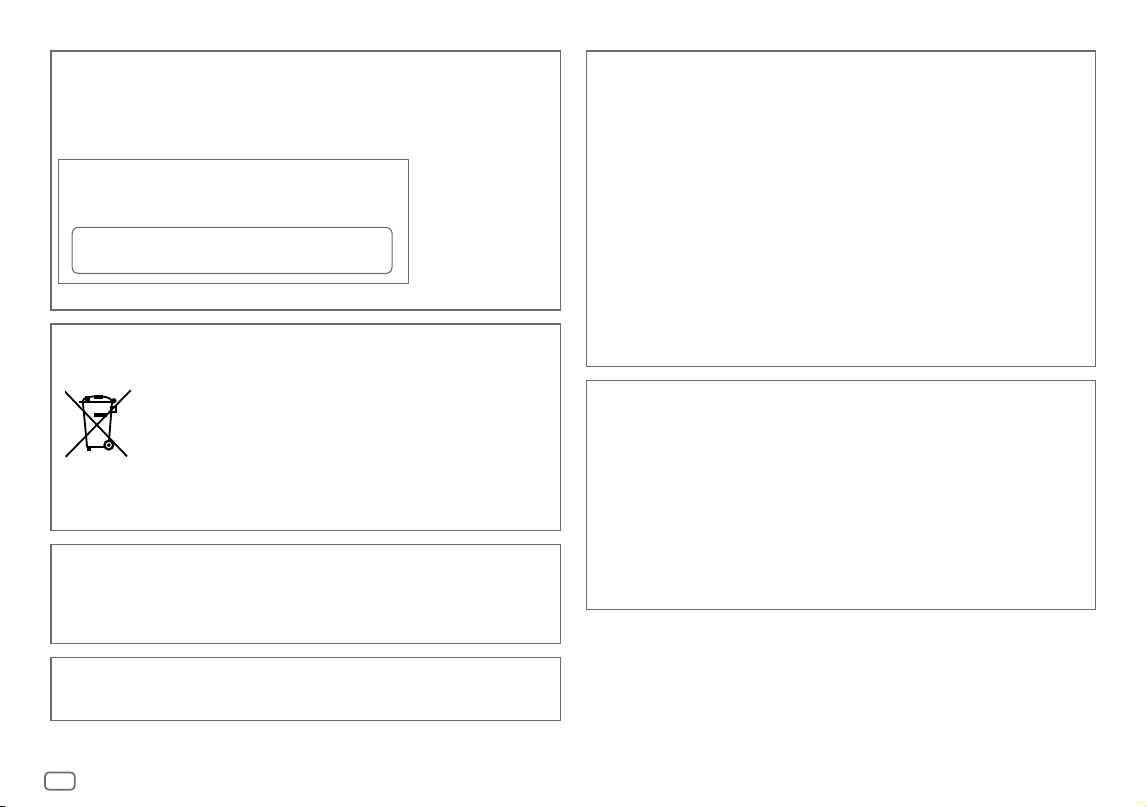
Información acerca de la eliminación de equipos eléctricos y electrónicos al final de la vida
útil (aplicable a los países que hayan adoptado sistemas independientes de recogida de
residuos)
Los productos con el símbolo de un contenedor con ruedas tachado no podrán ser
desechados como residuos domésticos. Los equipos eléctricos y electrónicos al final
de la vida útil, deberán ser reciclados en instalaciones que puedan dar el tratamiento
adecuado a estos productos y a sus subproductos residuales correspondientes.
Póngase en contacto con su administración local para obtener información sobre el
punto de recogida más cercano. Un tratamiento correcto del reciclaje y la eliminación
de residuos ayuda a conservar los recursos y evita al mismo tiempo efectos
perjudiciales en la salud y el medio ambiente.
Informação sobre a eliminação de pilhas
Este produto não deve ser eliminado como lixo doméstico geral. Devolva a pilha usada ao revendedor ou
entidade autorizada para que a mesma seja devolvida ao fabricante ou importador.
A reciclagem e a eliminação de lixo de maneira apropriada ajudarão a conservar os recursos naturais ao
mesmo tempo que prevenirão os efeitos prejudicais à nossa saúde e ao meio ambiente.
Supplier's Declaration of Conformity
Trade Name: JVC
Products: CD RECEIVER
Model Name: KD-T925BTS/KD-T920BTS/KD-T720BT
Responsible Party: JVCKENWOOD USA CORPORATION
4001 Worsham Avenue, Long Beach, CA 90808, U.S.A.
PHONE: 1-800-252-5722
THIS DEVICE COMPLIES WITH PART 15 OF THE FCC RULES. OPERATION IS SUBJECT TO THE FOLLOWING
TWO CONDITIONS:
(1) THIS DEVICE MAY NOT CAUSE HARMFUL INTERFERENCE, AND
(2) THIS DEVICE MUST ACCEPT ANY INTERFERENCE RECEIVED, INCLUDING INTERFERENCE THAT MAY
CAUSE UNDESIRED OPERATION.
KD_T925BTS_K_B5A-3880-00_Cover_6th Draft.indd iKD_T925BTS_K_B5A-3880-00_Cover_6th Draft.indd i 11/1/2022 12:28:48 PM11/1/2022 12:28:48 PM
Data Size: B6L (182 mm x 128 mm)
Book Size: B6L (182 mm x 128 mm)
ii
CAUTION
This equipment complies with FCC/ISED radiation exposure limits set forth for an uncontrolled
environment and meets the FCC radio frequency (RF) Exposure Guidelines and RSS-102 of the ISED radio
frequency (RF) Exposure rules. This equipment should be installed and operated keeping the radiator at
least 20 cm or more away from person’s body.
ATTENTION
Cet équipement est conforme aux limites d’exposition aux rayonnements énoncées pour un
environnement non contrôlé et respecte les règles les radioélectriques (RF) de la FCC lignes directrices
d’exposition et d’exposition aux fréquences radioélectriques (RF) CNR-102 de l’ISED. Cet équipement
doit être installé et utilisé en gardant une distance de 20 cm ou plus entre le radiateur et le corps
humain.
ISED Caution
This device contains licence-exempt transmitter(s)/receiver(s) that comply with Innovation, Science
and Economic Development Canada’s licence-exempt RSS(s). Operation is subject to the following two
conditions:
1. This device may not cause interference.
2. This device must accept any interference, including interference that may cause undesired
operation of the device.
Attention de ‘ISED
L’émetteur/récepteur exempt de licence contenu dans le présent appareil est conforme aux CNR
d’Innovation, Sciences et Développement économique Canada applicables aux appareils radio exempts
de licence. L’exploitation est autorisée aux deux conditions suivantes :
1. L’appareil ne doit pas produire de brouillage.
2. L’appareil doit accepter tout brouillage radioélectrique subi, même si le brouillage est susceptible
d’en compromettre le fonctionnement.
Para cumplimiento de la IFT:
“La operación de este equipo está sujeta a las siguientes dos condiciones:
(1) es posible que este equipo o dispositivo no cause interferencia perjudicial y
(2) este equipo o dispositivo debe aceptar cualquier interferencia, incluyendo la que pueda causar su
operación no deseada”
Contains Bluetooth Module FCC ID: ZWY88112
IC ID: 12033A-88112
This transmitter must not be co-located or operated in conjunction with any other antenna or
transmitter.
SOFTWARE LICENSE AGREEMENT
The software embedded in the Product (hereinafter the "Licensed Software") provided by Licensor is
copyrighted to or sublicensable by the Licensor, and this Agreement provides for the terms and conditions
which Users shall follow in order to use the Licensed Software.
The User shall use the Licensed Software by agreeing with the terms of this Software License Agreement.
This Agreement shall be deemed completed at the time the User (hereinafter the "User") initially used the
Product in which the "Licensed Software" is embedded.
The Licensed Software may include the software which has been licensed to the Licensor directly or
indirectly from any third party. In such case, some third parties require the Users to follow their conditions
for use separately from this Software License Agreement. Such software shall not be subject to this
Agreement, and the Users are urged to read the "Important Notice concerning the Software" to be provided
separately below.
Article 1 General Provision
The Licensor shall grant to the User a non-exclusive and non-transferable (other than the exceptional case
referred to in Article 3, Paragraph 1) licensed to use the Licensed Software within the country of the User.
(the country where the User bought the Product (hereinafter the "Country")
Article 2 License
1. The license granted under this Agreement shall be the right to use the Licensed Software in the
Product.
2. The User shall not duplicate, copy, modify, add, translate or otherwise alter, or lease the Licensed
Software and any related documents, whether in whole or in part.
3. The use of the Licensed Software shall be limited to personal purpose, and the Licensed Software shall
not be distributed, licensed or sub-licensed whether it is for commercial purpose or not.
4. The User shall use the Licensed Software according to the directions described in the operation
manual or help file, and is prohibited to use or duplicate any data in a manner violating the Copyright
Law or any other laws and regulations by applying whole or a part of the Licensed Software.
Article 3 Conditions for Grant of License
1. When the User transfers the Product, it may also transfer the license to use the Licensed Software
embedded in the Product (including any related materials, updates and upgrades) on condition that
no original, copies or related materials continue in the possession of the User, and that the User shall
cause the transferee to comply with this Software License Agreement.
2. The User shall not carry out reverse engineering, disassembling, decompiling or any other code
analysis works in connection with the Licensed Software.
KD_T925BTS_K_B5A-3880-00_Cover_2nd Draft.indd iiKD_T925BTS_K_B5A-3880-00_Cover_2nd Draft.indd ii 5/7/2021 10:54:08 AM5/7/2021 10:54:08 AM
Data Size: B6L (182 mm x 128 mm)
Book Size: B6L (182 mm x 128 mm)
iii
Article 4 Right pertaining to the Licensed Software
Any and all copyrights and other rights pertaining to the Licensed Software and related documents
shall belong to the Licensor or the original holder of the right who granted to the Licensor the license or
sublicense for the Licensed Software (hereinafter the "Original Rightholder"), and the User shall not be
entitled to any right other than the license granted hereunder, in respect of the Licensed Software and any
related documents.
Article 5 Indemnification of Licensor
1. Neither the Licensor nor the Original Rightholder shall be liable for any damage incurred by the User
or any third party due to the exercise of the license granted to the User under this Agreement, unless
otherwise restricted by law.
2. The Licensor will offer no guarantee for the merchantability, convertibility and consistency with
certain objective of the Licensed Software.
Article 6 Liability to Third Party
If any dispute has arisen with any third party due to an infringement upon a copyright, patent or any
other intellectual property right that was caused by the User's use of the Licensed Software, the User shall
settle such dispute at its own cost and hold the Licensor and the Original Rightholder harmless from any
inconvenience it may cause.
Article 7 Confidentiality
The User shall keep the confidentiality of such portion of the Licensed Software, related documents thereof
or any other information to be granted under this Agreement, as well as the conditions of this Agreement
as has not yet entered the public domain, and shall not disclose or divulge the same to any third party
without approval of the Licensor.
Article 8 Termination
In case the User falls under any of the events described in the following items, the Licensor may
immediately terminate this Agreement or claim that the User compensates for the damage incurred by the
Licensor due to such event:
(1) when the User violated any provision of this Agreement; or
(2) when a petition has been filed against the User for an attachment, provisional attachment,
provisional disposition or any other compulsory execution.
Article 9 Destruction of the Licensed Software
If this Agreement is terminated pursuant to the provision of Article 8, the User shall destroy the Licensed
Software, any related documents and copies thereof within two (2) weeks from such date of termination.
Article 10 Protection of Copyright
1. The copyright and all the other intellectual property rights relating to the Licensed Software
shall belong to the Licensor and the Original Rightholder, and in no event shall they be under the
ownership of the User.
2. The User shall, whenever it uses the Licensed Software, comply with any laws relating to the
copyright and other intellectual property rights.
Article 11 Export Restriction
1. It is prohibited to export the Licensed Software and any related documents outside the country
of the User (including transmission thereof outside the country of the User via Internet of other
communication tools).
2. The User shall understand that the Licensed Software shall be subject to the export restrictions
adopted by the country of User and any other countries.
3. The User shall agree that the software will be subject to any and all applicable international and
domestic laws (including the export control regulation of the country of User and any other countries,
and any restrictions concerning the end-users, the use by end-users and importing countries to be
provided by the country of User and any other countries, and any other governmental authorities).
Article 12 Miscellaneous
1. In the event any part of this Agreement is invalidated by operation of law, the residual provisions
shall continue in force.
2. Matters not stipulated in this Agreement or any ambiguity or question raised in the construction of
this Agreement shall be provided or settled upon good-faith consultation between the Licensor and
the User.
3. The Licensor and the User hereby agree that this Agreement is governed by the laws of Japan, and
any dispute arising from, and relating to the rights and obligations under, this Agreement shall be
submitted to the exclusive jurisdiction of the Tokyo District Court for its first instance.
KD_T925BTS_K_B5A-3880-00_Cover_2nd Draft.indd iiiKD_T925BTS_K_B5A-3880-00_Cover_2nd Draft.indd iii 5/7/2021 10:54:08 AM5/7/2021 10:54:08 AM

Data Size: B6L (182 mm x 128 mm)
Book Size: B6L (182 mm x 128 mm)
iv
Important Notice concerning the Software
-jansson
Copyright (c) 2009-2012 Petri Lehtinen <[email protected]>
Permission is hereby granted, free of charge, to any person obtaining a copy of this software and associated
documentation files (the "Software"), to deal in the Software without restriction, including without
limitation the rights to use, copy, modify, merge, publish, distribute, sublicense, and/or sell copies of the
Software, and to permit persons to whom the Software is furnished to do so, subject to the following
conditions:
The above copyright notice and this permission notice shall be included in all copies or substantial portions
of the Software.
THE SOFTWARE IS PROVIDED "AS IS", WITHOUT WARRANTY OF ANY KIND, EXPRESS OR IMPLIED, INCLUDING
BUT NOT LIMITED TO THE WARRANTIES OF MERCHANTABILITY, FITNESS FOR A PARTICULAR PURPOSE
AND NONINFRINGEMENT. IN NO EVENT SHALL THE AUTHORS OR COPYRIGHT HOLDERS BE LIABLE FOR ANY
CLAIM, DAMAGES OR OTHER LIABILITY, WHETHER IN AN ACTION OF CONTRACT, TORT OR OTHERWISE,
ARISING FROM, OUT OF OR IN CONNECTION WITH THE SOFTWARE OR THE USE OR OTHER DEALINGS IN THE
SOFTWARE.
-cJSON
Copyright (c) 2009 Dave Gamble
Permission is hereby granted, free of charge, to any person obtaining a copy of this software and associated
documentation files (the "Software"), to deal in the Software without restriction, including without
limitation the rights to use, copy, modify, merge, publish, distribute, sublicense, and/or sell copies of the
Software, and to permit persons to whom the Software is furnished to do so, subject to the following
conditions:
The above copyright notice and this permission notice shall be included in all copies or substantial portions
of the Software.
THE SOFTWARE IS PROVIDED "AS IS", WITHOUT WARRANTY OF ANY KIND, EXPRESS OR IMPLIED, INCLUDING
BUT NOT LIMITED TO THE WARRANTIES OF MERCHANTABILITY, FITNESS FOR A PARTICULAR PURPOSE
AND NONINFRINGEMENT. IN NO EVENT SHALL THE AUTHORS OR COPYRIGHT HOLDERS BE LIABLE FOR ANY
CLAIM, DAMAGES OR OTHER LIABILITY, WHETHER IN AN ACTION OF CONTRACT, TORT OR OTHERWISE,
ARISING FROM, OUT OF OR IN CONNECTION WITH THE SOFTWARE OR THE USE OR OTHER DEALINGS IN THE
SOFTWARE.
-CMP
The MIT License (MIT)
Copyright (c) 2014 Charles Gunyon
Permission is hereby granted, free of charge, to any person obtaining a copy of this software and associated
documentation files (the "Software"), to deal in the Software without restriction, including without
limitation the rights to use, copy, modify, merge, publish, distribute, sublicense, and/or sell copies of the
Software, and to permit persons to whom the Software is furnished to do so, subject to the following
conditions:
The above copyright notice and this permission notice shall be included in all copies or substantial portions
of the Software.
THE SOFTWARE IS PROVIDED "AS IS", WITHOUT WARRANTY OF ANY KIND, EXPRESS OR IMPLIED, INCLUDING
BUT NOT LIMITED TO THE WARRANTIES OF MERCHANTABILITY, FITNESS FOR A PARTICULAR PURPOSE
AND NONINFRINGEMENT. IN NO EVENT SHALL THE AUTHORS OR COPYRIGHT HOLDERS BE LIABLE FOR ANY
CLAIM, DAMAGES OR OTHER LIABILITY, WHETHER IN AN ACTION OF CONTRACT, TORT OR OTHERWISE,
ARISING FROM, OUT OF OR IN CONNECTION WITH THE SOFTWARE OR THE USE OR OTHER DEALINGS IN THE
SOFTWARE.
nanopb
Copyright (c) 2011 Petteri Aimonen <jpa at nanopb.mail.kapsi.fi>
This software is provided 'as-is', without any express or implied warranty. In no event will the authors be
held liable for any damages arising from the use of this software.
Permission is granted to anyone to use this software for any purpose, including commercial applications,
and to alter it and redistribute it freely, subject to the following restrictions:
1. The origin of this software must not be misrepresented; you must not claim that you wrote
the original software. If you use this software in a product, an acknowledgment in the product
documentation would be appreciated but is not required.
2. Altered source versions must be plainly marked as such, and must not be misrepresented as being the
original software.
3. This notice may not be removed or altered from any source distribution.
KD_T925BTS_K_B5A-3880-00_Cover_2nd Draft.indd ivKD_T925BTS_K_B5A-3880-00_Cover_2nd Draft.indd iv 5/7/2021 10:54:08 AM5/7/2021 10:54:08 AM

Data Size: B6L (182 mm x 128 mm)
Book Size: B6L (182 mm x 128 mm)
v
sha2
AUTHOR: Aaron D. Gifford - http://www.aarongifford.com/
Copyright (c) 2000-2001, Aaron D. Gifford
All rights reserved.
You may obtain a copy of the license at
https://opensource.org/licenses/BSD-3-Clause
THE SOFTWARE IS PROVIDED “AS IS”, WITHOUT WARRANTY OF ANY KIND, EXPRESS OR IMPLIED, INCLUDING
BUT NOT LIMITED TO THE WARRANTIES OF MERCHANTABILITY, FITNESS FOR A PARTICULAR PURPOSE
AND NONINFRINGEMENT. IN NO EVENT SHALL THE AUTHORS OR COPYRIGHT HOLDERS BE LIABLE FOR ANY
CLAIM, DAMAGES OR OTHER LIABILITY, WHETHER IN AN ACTION OF CONTRACT, TORT OR OTHERWISE,
ARISING FROM, OUT OF OR IN CONNECTION WITH THE SOFTWARE OR THE USE OR OTHER DEALINGS IN THE
SOFTWARE.
Posix
Copyright (c) 1990, 1993
The Regents of the University of California. All rights reserved.
Redistribution and use in source and binary forms, with or without modification, are permitted provided
that the following conditions are met:
1. Redistributions of source code must retain the above copyright notice, this list of conditions and the
following disclaimer.
2. Redistributions in binary form must reproduce the above copyright notice, this list of conditions and
the following disclaimer in the documentation and/or other materials provided with the distribution.
3. All advertising materials mentioning features or use of this software must display the following
acknowledgement:
This product includes software developed by the University of California, Berkeley and its contributors.
4. Neither the name of the University nor the names of its contributors may be used to endorse or
promote products derived from this software without specific prior written permission.
Copyright (C) 1993 by Sun Microsystems, Inc. All rights reserved.
Developed at SunPro, a Sun Microsystems, Inc. business.
Permission to use, copy, modify, and distribute this software is freely granted, provided that this notice is
preserved.
Copyright (C) 1991-2, RSA Data Security, Inc. Created 1991. All rights reserved.
License to copy and use this software is granted provided that it is identified as the “RSA Data Security, Inc.
MD4 Message-Digest Algorithm” in all material mentioning or referencing this software or this function.
Copyright (c) 1995, 1996 Carnegie-Mellon University. All rights reserved.
Author: Chris G. Demetriou
Permission to use, copy, modify and distribute this software and its documentation is hereby granted,
provided that both the copyright notice and this permission notice appear in all copies of the software,
derivative works or modified versions, and any portions thereof, and that both notices appear in supporting
documentation.
CARNEGIE MELLON ALLOWS FREE USE OF THIS SOFTWARE IN ITS “AS IS” CONDITION. CARNEGIE MELLON
DISCLAIMS ANY LIABILITY OF ANY KIND FOR ANY DAMAGES WHATSOEVER RESULTING FROM THE USE OF
THIS SOFTWARE.
Carnegie Mellon requests users of this software to return to
Software Distribution Coordinator or Software.Distribution@
CS.CMU.EDU
School of Computer Science
Carnegie Mellon University
Pittsburgh PA 15213-3890
any improvements or extensions that they make and grant Carnegie the rights to redistribute these
changes.
License is also granted to make and use derivative works provided that such works are identified as
“derived from the RSA Data Security, Inc. MD4 Message-Digest Algorithm” in all material mentioning or
referencing the derived work.
RSA Data Security, Inc. makes no representations concerning either the merchantability of this software or
the suitability of this software for any particular purpose. It is provided “as is” without express or implied
warranty of any kind.
Copyright (c) 1993 Martin Birgmeier
All rights reserved.
You may redistribute unmodified or modified versions of this source code provided that the above
copyright notice and this and the following conditions are retained.
This software is provided “as is”, and comes with no warranties of any kind. I shall in no event be liable for
anything that happens to anyone/anything when using this software.
These notices must be retained in any copies of any part of this documentation and/or software.
KD_T925BTS_K_B5A-3880-00_Cover_2nd Draft.indd vKD_T925BTS_K_B5A-3880-00_Cover_2nd Draft.indd v 5/7/2021 10:54:08 AM5/7/2021 10:54:08 AM

Data Size: B6L (182 mm x 128 mm)
Book Size: B6L (182 mm x 128 mm)
vi
T-Kernel 2.0
This product uses the source code of T-Kernel 2.0 under T-License 2.0 granted by T-Engine Forum
(www.tron.org)
BSD-3-Clause
Copyright (c) 2000-2001, Aaron D. Gifford
All rights reserved.
You may obtain a copy of the license at
https://opensource.org/licenses/BSD-3-Clause
THE SOFTWARE IS PROVIDED “AS IS”, WITHOUT WARRANTY OF ANY KIND, EXPRESS OR IMPLIED, INCLUDING
BUT NOT LIMITED TO THE WARRANTIES OF MERCHANTABILITY, FITNESS FOR A PARTICULAR PURPOSE AND
NONINFRINGEMENT. IN NO EVENT SHALL THE AUTHORS OR COPYRIGHT HOLDERS BE LIABLE FOR ANY CLAIM,
DAMAGES OR OTHER LIABILITY, WHETHER IN AN ACTION OF CONTRACT, TORT OR OTHERWISE, ARISING FROM,
OUT OF OR IN CONNECTION WITH THE SOFTWARE OR THE USE OR OTHER DEALINGS IN THE SOFTWARE.
LFS Subsystem
Copyright The Regents of the University of California. All rights reserved.
You may obtain a copy of the license at
https://directory.fsf.org/wiki/License:BSD-4-Clause
THE SOFTWARE IS PROVIDED “AS IS”, WITHOUT WARRANTY OF ANY KIND, EXPRESS OR IMPLIED, INCLUDING
BUT NOT LIMITED TO THE WARRANTIES OF MERCHANTABILITY, FITNESS FOR A PARTICULAR PURPOSE AND
NONINFRINGEMENT. IN NO EVENT SHALL THE AUTHORS OR COPYRIGHT HOLDERS BE LIABLE FOR ANY CLAIM,
DAMAGES OR OTHER LIABILITY, WHETHER IN AN ACTION OF CONTRACT, TORT OR OTHERWISE, ARISING FROM,
OUT OF OR IN CONNECTION WITH THE SOFTWARE OR THE USE OR OTHER DEALINGS IN THE SOFTWARE.
Accordo2 Player
Apache License
Licensed under the Apache License,
Version 2.0, January 2004(the “License”);
You may obtain a copy of the license at
http://www.apache.org/licenses/LICENSE-2.0
THE SOFTWARE IS PROVIDED “AS IS”, WITHOUT WARRANTY OF ANY KIND, EXPRESS OR IMPLIED, INCLUDING
BUT NOT LIMITED TO THE WARRANTIES OF MERCHANTABILITY, FITNESS FOR A PARTICULAR PURPOSE AND
NONINFRINGEMENT. IN NO EVENT SHALL THE AUTHORS OR COPYRIGHT HOLDERS BE LIABLE FOR ANY CLAIM,
DAMAGES OR OTHER LIABILITY, WHETHER IN AN ACTION OF CONTRACT, TORT OR OTHERWISE, ARISING FROM,
OUT OF OR IN CONNECTION WITH THE SOFTWARE OR THE USE OR OTHER DEALINGS IN THE SOFTWARE.
KD_T925BTS_K_B5A-3880-00_Cover_2nd Draft.indd viKD_T925BTS_K_B5A-3880-00_Cover_2nd Draft.indd vi 5/7/2021 10:54:08 AM5/7/2021 10:54:08 AM
2
ENGLISH
Data Size: B6L (182 mm x 128 mm)
Book Size: B6L (182 mm x 128 mm)
Contents
References .............................................................................................. 33
Maintenance
More information
Change the display information
Troubleshooting .................................................................................... 36
Installation/Connection ....................................................................... 39
Specifications ......................................................................................... 43
Before Use ................................................................................................. 3
Basics ......................................................................................................... 4
Getting Started ........................................................................................ 5
1 Acknowledge the crossover type and cancel the demonstration
2 Set the clock and date
3 Set the basic settings
Radio .......................................................................................................... 7
CD/USB/iPod............................................................................................. 8
AUX........................................................................................................... 11
SiriusXM® Radio ..................................................................................... 12
JVC Remote Application ....................................................................... 15
Bluetooth® .............................................................................................. 16
Bluetooth - Connection
Bluetooth - Mobile phone
Bluetooth - Audio
AMAZON ALEXA .................................................................................... 23
Audio Settings ........................................................................................ 26
Display Settings ..................................................................................... 32
How to read this manual
• The displays and faceplates shown in this manual are examples used to
provide clear explanations of the operations. For this reason, they may
be different from the actual displays or faceplates.
• Operations are explained mainly using buttons on the faceplate of
KD-T925BTS.
• English indications are used for the purpose of explanation. You can
select the display language from the menu. (Page6)
•
[XX]
indicates the selected items.
• (PageXX) indicates references are available on the stated page.
This symbol on the product means there are important operating
and maintenance instructions in this manual.
Be sure to carefully read instructions in this manual.
KD_T925BTS_K_B5A-3880-00_EN_2nd Draft.indd 2KD_T925BTS_K_B5A-3880-00_EN_2nd Draft.indd 2 5/7/2021 10:54:58 AM5/7/2021 10:54:58 AM
ENGLISH
3
Data Size: B6L (182 mm x 128 mm)
Book Size: B6L (182 mm x 128 mm)
Before Use
IMPORTANT
• To ensure proper use, please read through this manual before using this
product. It is especially important that you read and observe Warnings and
Cautions in this manual.
• Please keep the manual in a safe and accessible place for future reference.
WARNING
• Do not operate any function that takes your attention away from safe
driving.
• Do not ingest the battery, Chemical Burn Hazard.
The remote control supplied with this product contains a coin/button cell
battery.
If the coin/button cell battery is swallowed, it can cause severe internal
burns in just 2 hours and can lead to death.
Keep new and used batteries away from children.
If the battery compartment does not close securely, stop using the
product and keep it away from children.
If you think batteries might have been swallowed or placed inside any part
of the body, seek immediate medical attention.
CAUTION
Volume setting:
• Adjust the volume so that you can hear sounds outside the car to prevent
accidents.
• Lower the volume before playing digital sources to avoid damaging the
speakers by the sudden increase of the output level.
General:
• Avoid using the external device if it might hinder safe driving.
• Make sure all important data has been backed up. We shall bear no
responsibility for any loss of recorded data.
• Never put or leave any metallic objects (such as coins or metal tools) inside
the unit to prevent a short circuit.
• If a disc error occurs due to condensation on the laser lens, eject the disc
and wait for the moisture to evaporate.
• Depending on the types of cars, the antenna will automatically extend
when you turn on the unit with the antenna control wire connected
(page41). Turn off the unit when parking at a low ceiling area.
Remote control (RM-RK52):
• Do not leave the remote control in hot places such as on the dashboard.
• Risk of fire or explosion if the battery is replaced by an incorrect type.
Ensure to replace only with the same type.
• Risk of fire, explosion or the leakage of flammable liquid or gas if the
battery is left in an extremely high temperature surrounding environment
and/or subjected extremely low air pressure. The battery pack or batteries
shall not be exposed to excessive heat such as sunshine, fire or the like.
• Risk of fire, explosion or the leakage of flammable liquid or gas if the
battery is disposed into fire or a hot oven, recharged, shorted, mechanically
crushed or cut of the battery.
• If spilled fluid comes in contact with your eyes or on clothing, immediately
rinse with water and consult a physician.
KD_T925BTS_K_B5A-3880-00_EN_2nd Draft.indd 3KD_T925BTS_K_B5A-3880-00_EN_2nd Draft.indd 3 5/7/2021 10:55:01 AM5/7/2021 10:55:01 AM
4
ENGLISH
Data Size: B6L (182 mm x 128 mm)
Book Size: B6L (182 mm x 128 mm)
Basics
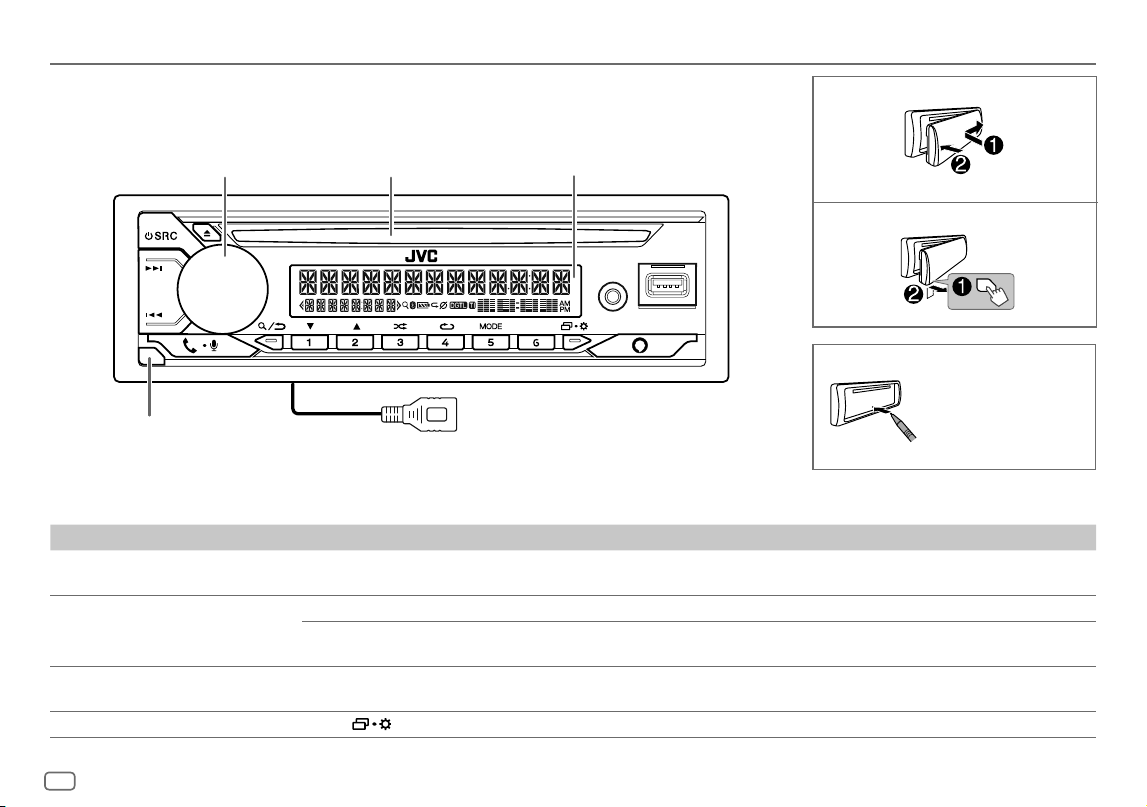
To On the faceplate
Turn on the power
Press B SRC.
• Press and hold to turn off the power.
Adjust the volume Turn the volume knob.
Press the volume knob to mute the sound or pause playback.
• Press again to cancel. The volume level returns to the previous level before muting or pause.
Select a source
• Press B SRC repeatedly.
• Press B SRC, then turn the volume knob within 2 seconds.
Change the display information
Press
repeatedly. (Page35)
Attach
How to reset
Detach
Faceplate
Reset the unit within
5seconds after
detaching the faceplate.
* Only for illustration purpose.
Detach button
Volume knob Loading slot Display window*
KD-T925BTS:
USB cable from the rear of the unit
KD_T925BTS_K_B5A-3880-00_EN_2nd Draft.indd 4KD_T925BTS_K_B5A-3880-00_EN_2nd Draft.indd 4 5/7/2021 10:55:01 AM5/7/2021 10:55:01 AM
ENGLISH
5
Data Size: B6L (182 mm x 128 mm)
Book Size: B6L (182 mm x 128 mm)
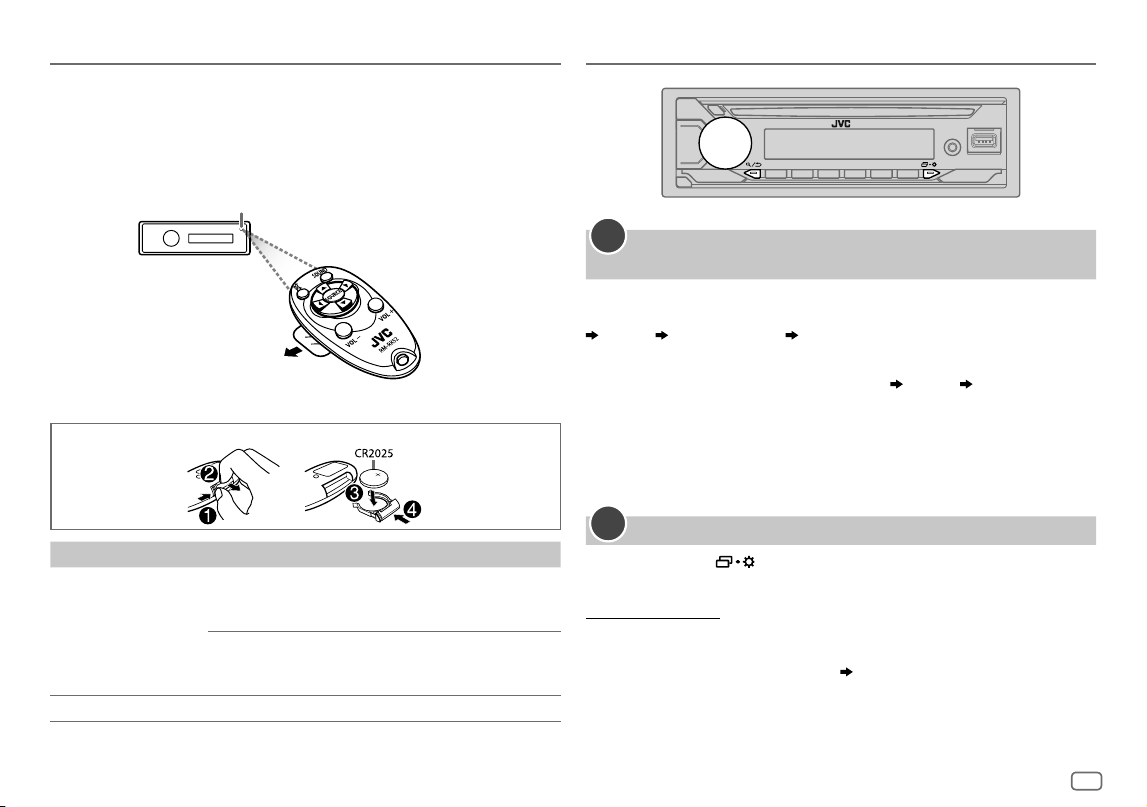
Remote control (RM-RK52)
(for KD-T925BTS/KD-T920BTS)
This unit can be remotely controlled with an optionally purchased remote
control.
How to replace the battery
To On the remote control
Adjust the volume Press VOL + or VOL – .
• Press and hold VOL + to continuously increase
the volume to 15.
Press d to mute the sound or pause playback.
• Press again to cancel. The volume level returns to
the previous level before muting or pause.
Select a source Press SOURCE repeatedly.
Remote sensor (Do not expose to bright sunlight.)
Pull out the insulation sheet
when using for the first time.
Basics Getting Started
Acknowledge the crossover type and cancel the
demonstration
When you turn on the power for the first time (or
[FACTORY RESET]
is set to
[YES]
, see page6), the display shows: “2-WAY X’OVER” or “3-WAY X’OVER”
“PRESS” “VOLUME KNOB” “TO CONFIRM”.
1 Press the volume knob to acknowledge the current crossover type.
Then, the display shows: “CANCEL DEMO” “PRESS” “VOLUME KNOB”.
• To change the crossover type, see page27.
2 Press the volume knob.
[YES]
is selected for the initial setup.
3 Press the volume knob again.
“DEMO OFF” appears.
Set the clock and date
1
Press and hold .
2 Turn the volume knob to select
[CLOCK]
, then press the knob.
To adjust the clock
3 Turn the volume knob to select
[CLOCKADJUST]
, then press the knob.
4 Turn the volume knob to make the settings, then press the knob.
Set the time in the order of “Hour” “Minute”.
5 Turn the volume knob to select
[CLOCK FORMAT]
, then press the knob.
6 Turn the volume knob to select
[12H]
or
[24H]
, then press the knob.
1
2
KD_T925BTS_K_B5A-3880-00_EN_2nd Draft.indd 5KD_T925BTS_K_B5A-3880-00_EN_2nd Draft.indd 5 5/7/2021 10:55:01 AM5/7/2021 10:55:01 AM
6
ENGLISH
Data Size: B6L (182 mm x 128 mm)
Book Size: B6L (182 mm x 128 mm)
To set the date
7 Turn the volume knob to select
[DATESET]
, then press the knob.
8 Turn the volume knob to make the settings, then press the knob.
Set the date in the order of “Day” “Month” “Year”.
9 Press to exit.
To return to the previous setting item, press
.
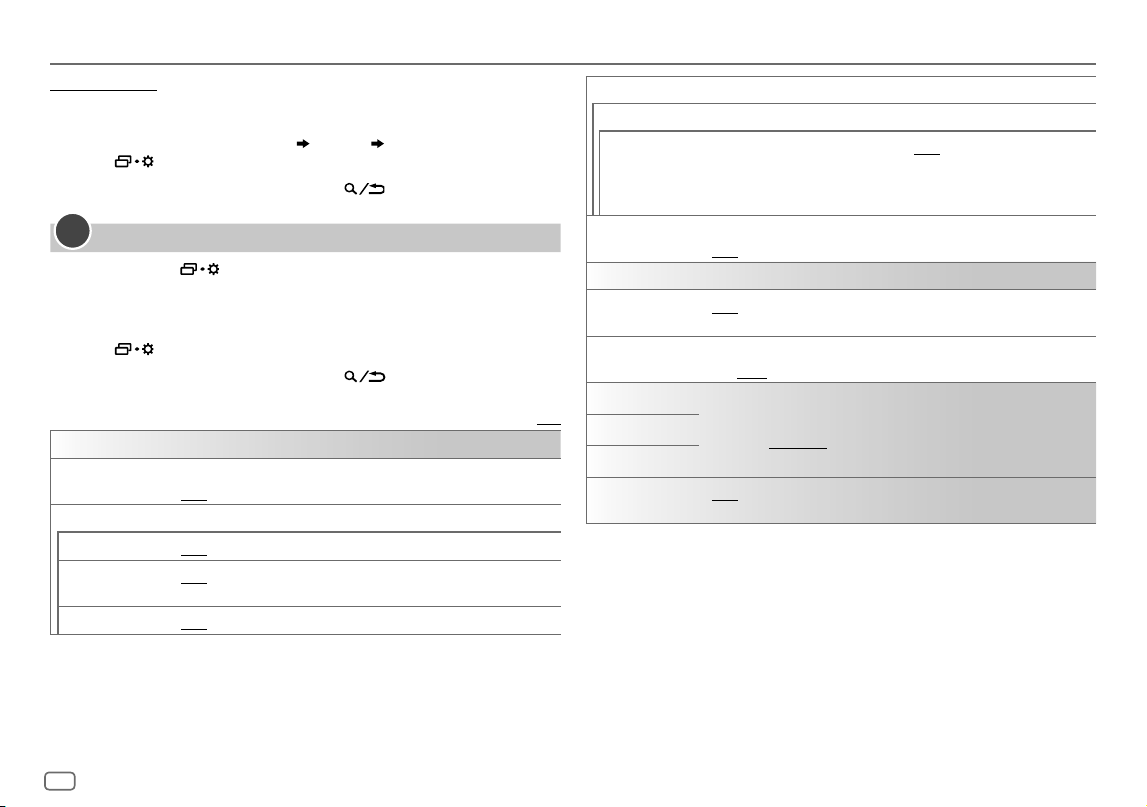
Set the basic settings
1
Press and hold .
2 Turn the volume knob to select an item (see the following table), then
press the knob.
3 Repeat step 2 until the desired item is selected or activated.
4 Press to exit.
To return to the previous setting item, press
.
Default: [XX]
[SYSTEM]
[KEY BEEP]
(Not applicable when 3-way crossover is selected.) (Page 27)
[ON]: Activates the keypress tone. ; [OFF]: Deactivates.
[SOURCE SELECT]
[AM SRC]*1
[ON]: Enables AM in source selection. ; [OFF]: Disables. (Page 7)
[BTAUDIO SRC]*1
[ON]: Enables BT AUDIO in source selection. ; [OFF]: Disables.
(Page 22)
[BUILT-IN AUX]*1
[ON]: Enables AUX in source selection. ; [OFF]: Disables. (Page 11)
3
[F/W UPDATE]*2
[UPDATE SYSTEM]
[F/W UP xxxx]
[YES]: Starts upgrading the firmware. ; [NO]: Cancels (upgrading is not
activated).
For details on how to update the firmware, visit
<https://www.jvc.net/cs/car/>.
[FACTORY RESET]
[YES]: Resets the settings to default (except the stored station). ;
[NO]: Cancels.
[CLOCK]
[TIME SYNC]
[ON]: The clock time is automatically set using the Clock Time (CT) data in
FM Radio Broadcast Data System signal. ; [OFF]: Cancels.
[CLOCK DISPLAY]
[ON]: The clock time is shown on the display even when the unit is turned
off. ; [OFF]: Cancels.
[ENGLISH]
Select the display language for menu and music information if applicable.
By default, [ENGLISH] is selected.
[ESPANOL]
[FRANCAIS]
[DEMOMODE]
[ON]: Activates the display demonstration automatically if no operation is
done for about 15 seconds. ; [OFF]: Deactivates.
*1 Not displayed when the corresponding source is selected.
*2 Firmware downgrade is prohibited.
Getting Started
KD_T925BTS_K_B5A-3880-00_EN_2nd Draft.indd 6KD_T925BTS_K_B5A-3880-00_EN_2nd Draft.indd 6 5/7/2021 10:55:02 AM5/7/2021 10:55:02 AM
ENGLISH
7
Data Size: B6L (182 mm x 128 mm)
Book Size: B6L (182 mm x 128 mm)
Radio
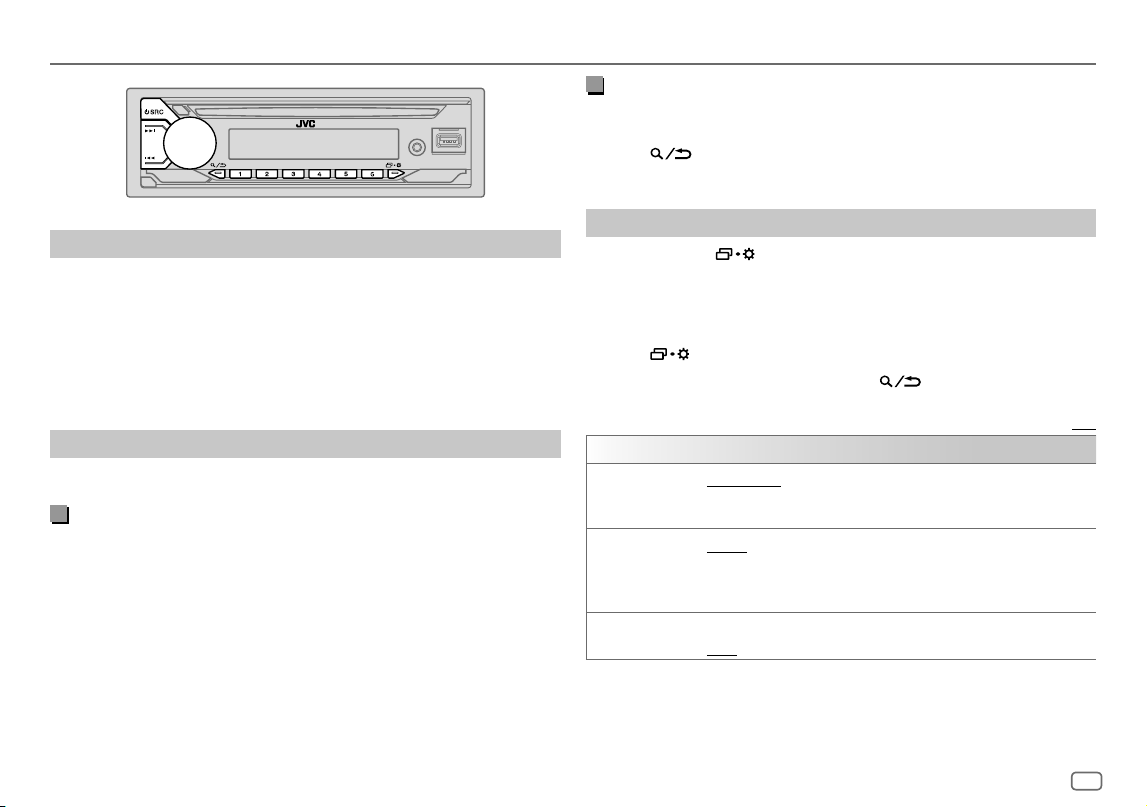
Search for a station
1
Press B SRC repeatedly to select FM or AM.
2 Press S / T (or press H / I on the remote control) to search for a
station automatically.
(or)
Press and hold S / T (or press and hold H / I on the remote
control) until “M” flashes, then press repeatedly to search for a station
manually.
Settings in memory
You can store up to 18 stations for FM and 6 stations for AM.
Store a station
While listening to a station...
Press and hold one of the number buttons (1 to 6).
(or)
1 Press and hold the volume knob until “PRESETMODE” flashes.
2 Turn the volume knob to select a preset number, then press the knob.
“MEMORY” appears once the station is stored.
Select a stored station
Press one of the number buttons (1to6).
(or)
1 Press .
2 Turn the volume knob to select a preset number, then press the knob.
Other settings
1
Press and hold .
2 Turn the volume knob to select an item (see the following table), then
press the knob.
3 Repeat step 2 until the desired item is selected/activated or follow the
instructions stated on the selected item.
4 Press to exit.
To return to the previous setting item, press
.
Default: [XX]
[TUNER SETTING]
[SSM]
[SSM01–06]/[SSM07–12]/[SSM13–18]: Automatically presets up to
18 stations for FM. “SSM” stops flashing when the first 6 stations are stored.
Select [SSM07–12]/[SSM13–18] to store the following 12 stations.
[IF BAND]
[AUTO]: Increases the tuner selectivity to reduce interference noises from
adjacent FM stations. (Stereo effect may be lost.) ;
[WIDE]: Subjects to interference noises from adjacent FM stations, but
sound quality will not be degraded and the stereo effect will remain.
[MONO SET]
[ON]: Improves the FM reception, but the stereo effect will be lost. ;
[OFF]: Cancels.
KD_T925BTS_K_B5A-3880-00_EN_2nd Draft.indd 7KD_T925BTS_K_B5A-3880-00_EN_2nd Draft.indd 7 5/7/2021 10:55:02 AM5/7/2021 10:55:02 AM
8
ENGLISH
Data Size: B6L (182 mm x 128 mm)
Book Size: B6L (182 mm x 128 mm)
Radio
[AREA] [N.AMERICA]: For North/Central/South America, AM/FM intervals:
10 kHz/200 kHz. ;
[S.AMERICA]: For some South American countries, AM/FM intervals:
10 kHz/50 kHz. ;
[EUROPE]: For any other areas, AM/FM intervals: 9 kHz/50 kHz.
[PTY SEARCH] Select a PTY code for FM Radio Broadcast Data Sytem (see the following
“PTY code for FM Radio Broadcast Data System”).
If there is a station broadcasting a program of the same PTY code as you
have selected, that station is tuned in.
PTY code for FM Radio Broadcast Data System
[NEWS], [INFORM] (information), [SPORTS], [TALK], [ROCK], [CLSROCK] (classic rock),
[ADLTHIT] (adult hits), [SOFTRCK] (softrock), [TOP40], [COUNTRY], [OLDIES], [SOFT],
[NOSTALGA] (nostalgia), [JAZZ], [CLASSICL] (classical), [R&B] (rhythm and blues), [SOFTR&B]
(soft rhythm and blues), [LANGUAGE], [RELMUSC] (religious music), [RELTALK] (religious
talk), [PERSNLTY] (personality), [PUBLIC], [COLLEGE], [HABLESP] (Spanish talk), [MUSCESP]
(Spanish music), [HIPHOP], [WEATHER]
CD/USB/iPod
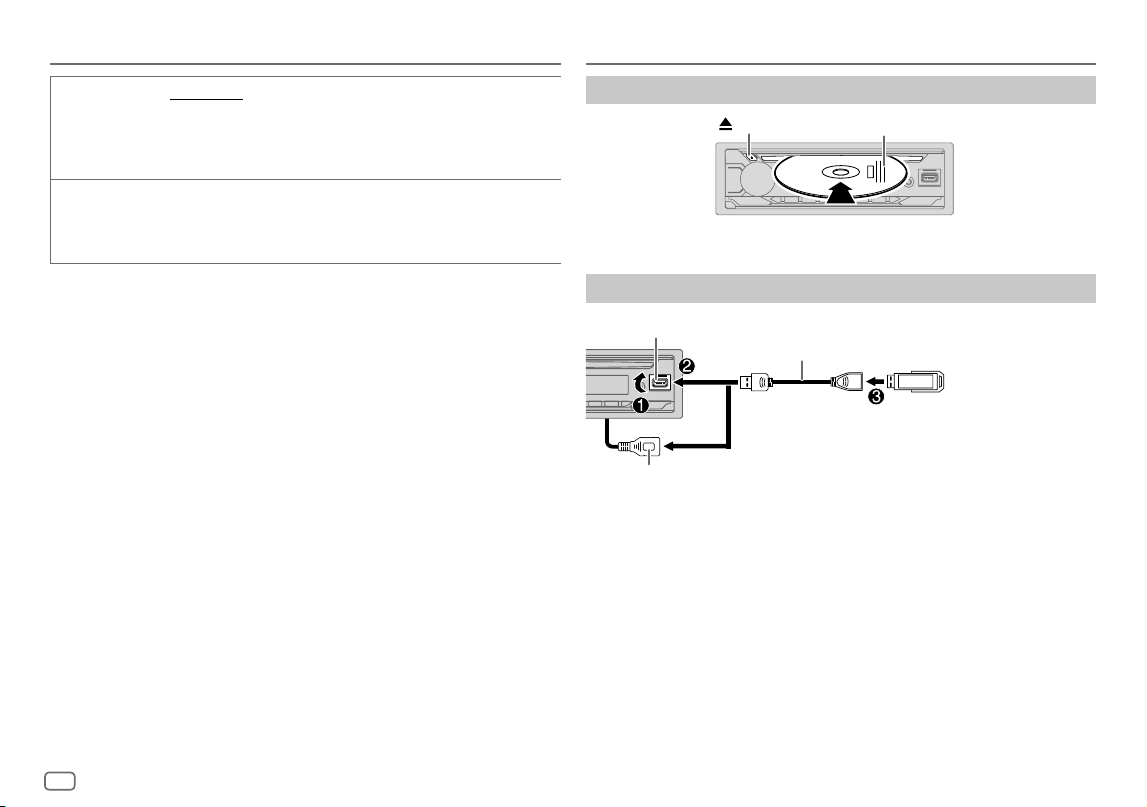
Insert a disc
Eject disc
Label side
The source changes to CD automatically and playback starts.
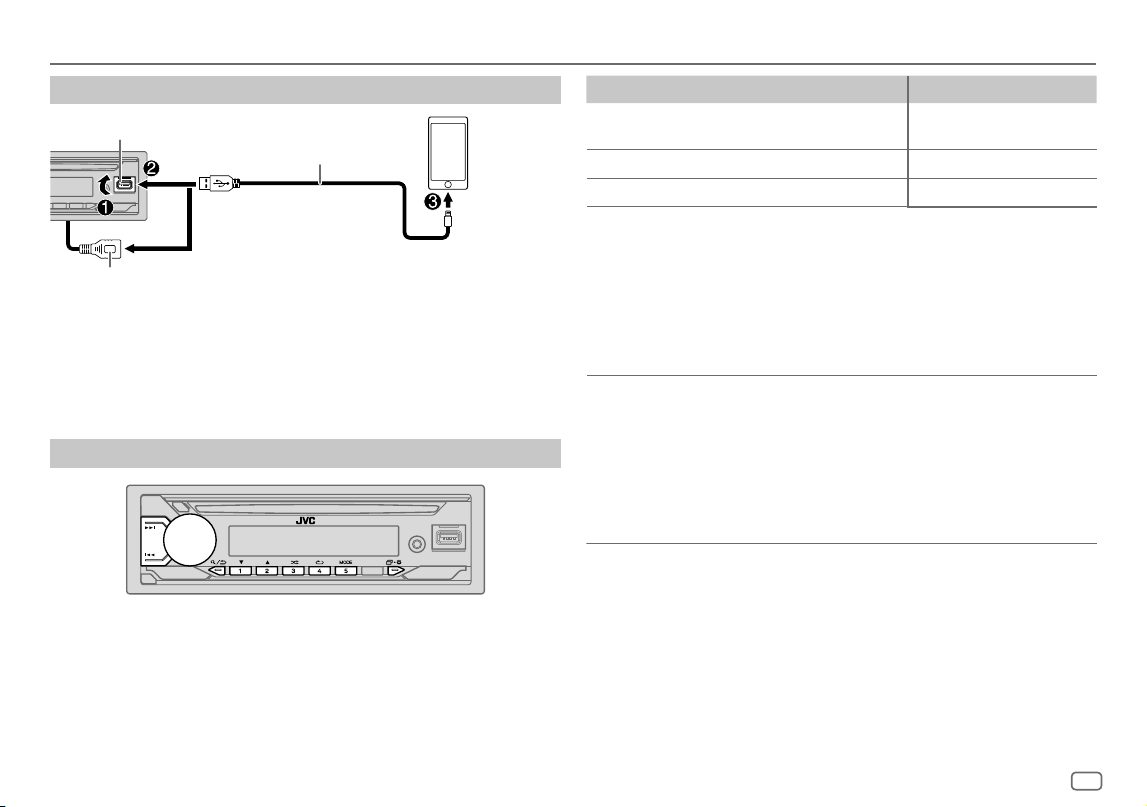
Connect a USB device
USB device
USB input terminal
USB 2.0 cable*
(commercially available)
KD-T925BTS:
You can also connect to the USB cable from the rear of the unit (USB input terminal).
and/or
The source changes to USB FRONT/USB REAR/USB automatically and
playback starts.
* Do not leave the cable inside the car when not in use.
KD_T925BTS_K_B5A-3880-00_EN_2nd Draft.indd 8KD_T925BTS_K_B5A-3880-00_EN_2nd Draft.indd 8 5/7/2021 10:55:02 AM5/7/2021 10:55:02 AM
ENGLISH
9
Data Size: B6L (182 mm x 128 mm)
Book Size: B6L (182 mm x 128 mm)
CD/USB/iPod
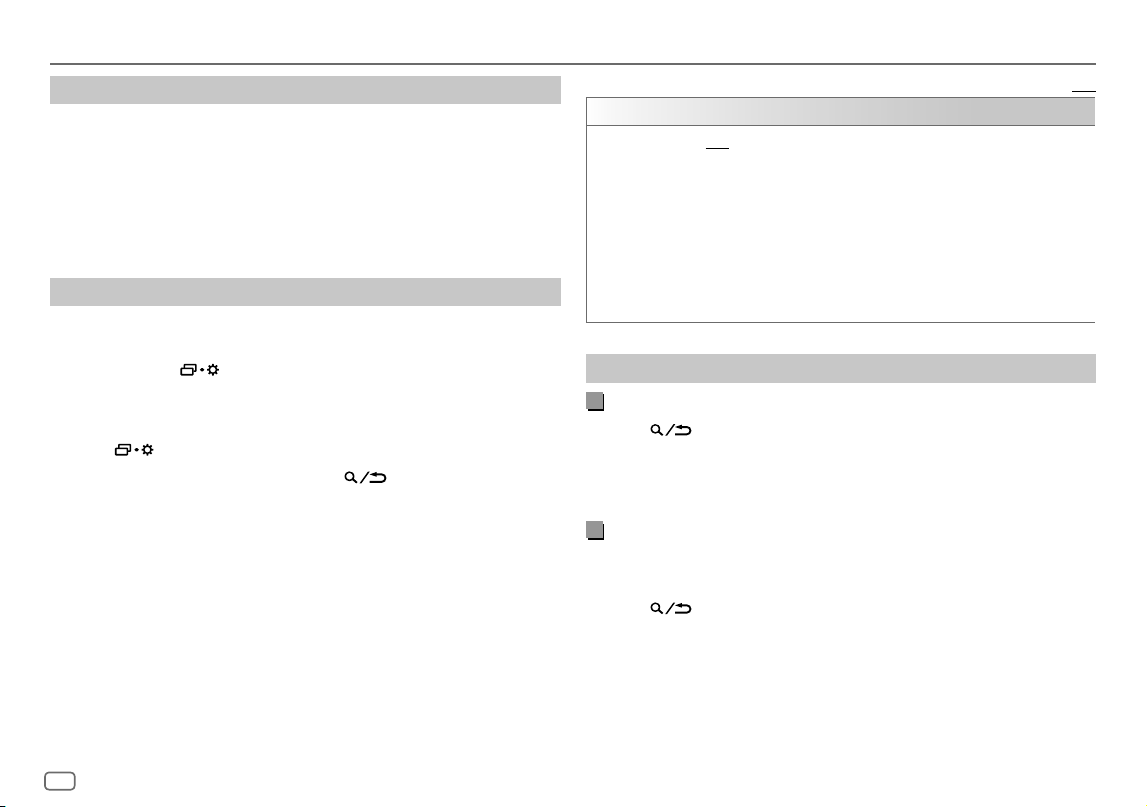
Connect an iPod/iPhone
USB input terminal
Accessory of the iPod/iPhone*
iPod/
iPhone
KD-T925BTS:
You can also connect to the USB cable from the rear of the unit (USB input terminal).
and/or
See “Set the playable source for iPod/iPhone” on page10 to start playback.
• You can also connect iPod/iPhone via Bluetooth. (Page17)
* Do not leave the cable inside the car when not in use.
Basic operations
Selectable source:
• KD-T925BTS:
CD/USB FRONT/USB REAR/iPod FRONT/iPod REAR or iPod BT
• KD-T920BTS/KD-T720BT:
CD/USB/iPod USB or iPod BT
For playable audio file, see “Playable files” on page34
To On the faceplate On the remote control
Reverse/
Fast-forward
Press and hold S / T. Press and hold H / I.
Select a track/file
Press S / T. Press H / I.
Select a folder*
Press 2 J / 1 K. Press J / K.
Repeat play
Press 4 B repeatedly.
[TRACK REPEAT]
/
[ALL REPEAT]
:
Audio CD
[TRACK REPEAT]
/
[FOLDER REPEAT]
/
[ALL REPEAT]
:
MP3/WMA/AAC/WAV/FLAC file
[REPEAT
ONE]
/
[REPEAT
ALL]
/
[REPEAT OFF]
:
iPod
Random play
Press 3 A repeatedly.
[ALL RANDOM]
/
[RANDOM OFF]
:
Audio CD
[FOLDERRANDOM]
/
[ALL RANDOM]
/
[RANDOM OFF]
:
MP3/WMA/AAC/WAV/FLAC file
[SHUFFLE
OFF]
/
[SHUFFLE
ON]
:
iPod
* For CD: Only for MP3/WMA/AAC files. This does not work for iPod.
KD_T925BTS_K_B5A-3880-00_EN_2nd Draft.indd 9KD_T925BTS_K_B5A-3880-00_EN_2nd Draft.indd 9 5/7/2021 10:55:02 AM5/7/2021 10:55:02 AM
10
ENGLISH
Data Size: B6L (182 mm x 128 mm)
Book Size: B6L (182 mm x 128 mm)
Select music drive
While in USB FRONT/USB REAR/USB source, press 5 MODE repeatedly.
Stored songs in the following drive will be played back.
• Selected internal or external memory of a smartphone (Mass Storage
Class).
• Selected drive of a multiple drive device. (This unit can support multiple
drive device of up to 4 drives. However, this unit may take some time to
read if three or more cards are connected.)
Set the playable source for iPod/iPhone
You can make the following setting at all sources except at iPodFRONT/
iPodREAR/iPodUSB source and iPodBT source.
1 Press and hold .
2 Turn the volume knob to select an item (see the following table), then
press the knob.
3 Repeat step 2 until the desired item is selected/activated.
4 Press to exit.
To return to the previous setting item, press
.
CD/USB/iPod
Default: [XX]
[USB]
[IPHONESETUP]
[BT]: iPod BT source is available if iPod/iPhone is connected via Bluetooth.
• If you connect the iPod/iPhone via USB input terminal, iPod FRONT/
iPod REAR/iPod USB source is not available.
However, once the Bluetooth is disconnected, iPod FRONT/iPod REAR/
iPod USB source will become available. ;
[USB]: iPod FRONT/iPod REAR/iPod USB source is available if iPod/iPhone
is connected via USB input terminal, regardless of whether Bluetooth
connection is available or not.
• Alexa mobile application cannot be used when iPod FRONT/iPod REAR/
iPod USB source is selected.
Select a file to play
From a folder or list
1
Press .
2 Turn the volume knob to select a folder/list, then press the knob.
3 Turn the volume knob to select a file, then press the knob.
Selected file starts playing.
Quick search
(applicable only for CD source and USB FRONT/USB REAR/USB
source)
If you have many files, you can search through them quickly.
1 Press .
2 Turn the volume knob to select a folder/list, then press the knob.
3 Turn the volume knob quickly to browse through the list quickly.
4 Turn the volume knob to select a file, then press the knob.
Selected file starts playing.
KD_T925BTS_K_B5A-3880-00_EN_3rd Draft.indd 10KD_T925BTS_K_B5A-3880-00_EN_3rd Draft.indd 10 5/8/2021 9:11:43 AM5/8/2021 9:11:43 AM
ENGLISH
11
Data Size: B6L (182 mm x 128 mm)
Book Size: B6L (182 mm x 128 mm)
CD/USB/iPod
Alphabet search
(applicable only for iPodFRONT/iPodREAR/iPodUSB source
and iPodBT source)
You can search for a file according to the first character.
1 Press .
2 Turn the volume knob to select a list, then press the knob.
3 Press 2 J / 1 K or turn the volume knob quickly to select the desired
character (A to Z, 0to9, OTHERS).
Select “OTHERS” if the first character is other than A to Z, 0 to 9.
4 Press the volume knob to start searching.
Files with the characters you searched for or with similar characters
(alphabetical order) will be displayed.
5 Turn the volume knob to select a file, then press the knob.
Selected file starts playing.
• To return to the previous setting item, press
.
• To cancel, press and hold
.
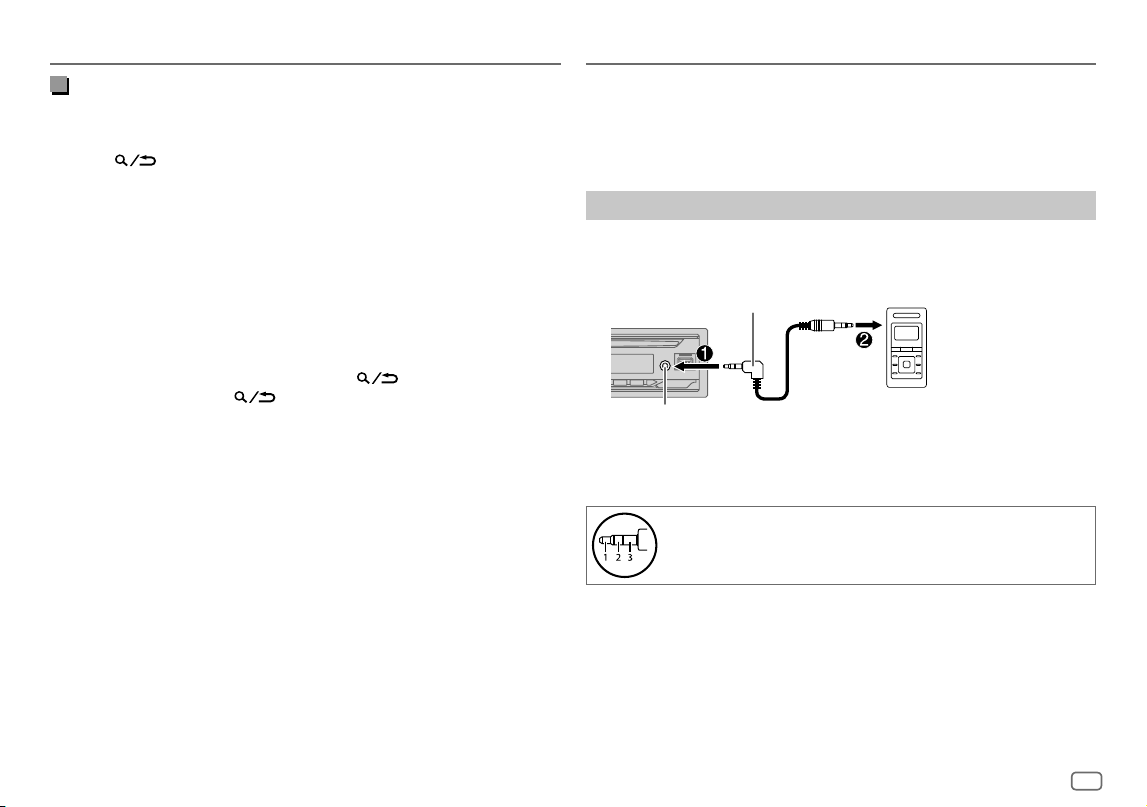
You can listen to music from a portable audio player via the auxiliary input
jack.
Preparation:
Select
[ON]
for
[BUILT-IN AUX]
in
[SOURCESELECT]
. (Page6)
Start listening
1
Connect a portable audio player (commercially available).
3.5 mm (1/8") stereo mini plug with “L”
shaped connector (commercially available)
Portable audio player
Auxiliary input jack
2 Press B SRC repeatedly to select AUX.
3 Turn on the portable audio player and start playback.
Use a 3-core plug head stereo mini plug for optimum audio
output.
AUX
KD_T925BTS_K_B5A-3880-00_EN_2nd Draft.indd 11KD_T925BTS_K_B5A-3880-00_EN_2nd Draft.indd 11 5/7/2021 10:55:02 AM5/7/2021 10:55:02 AM
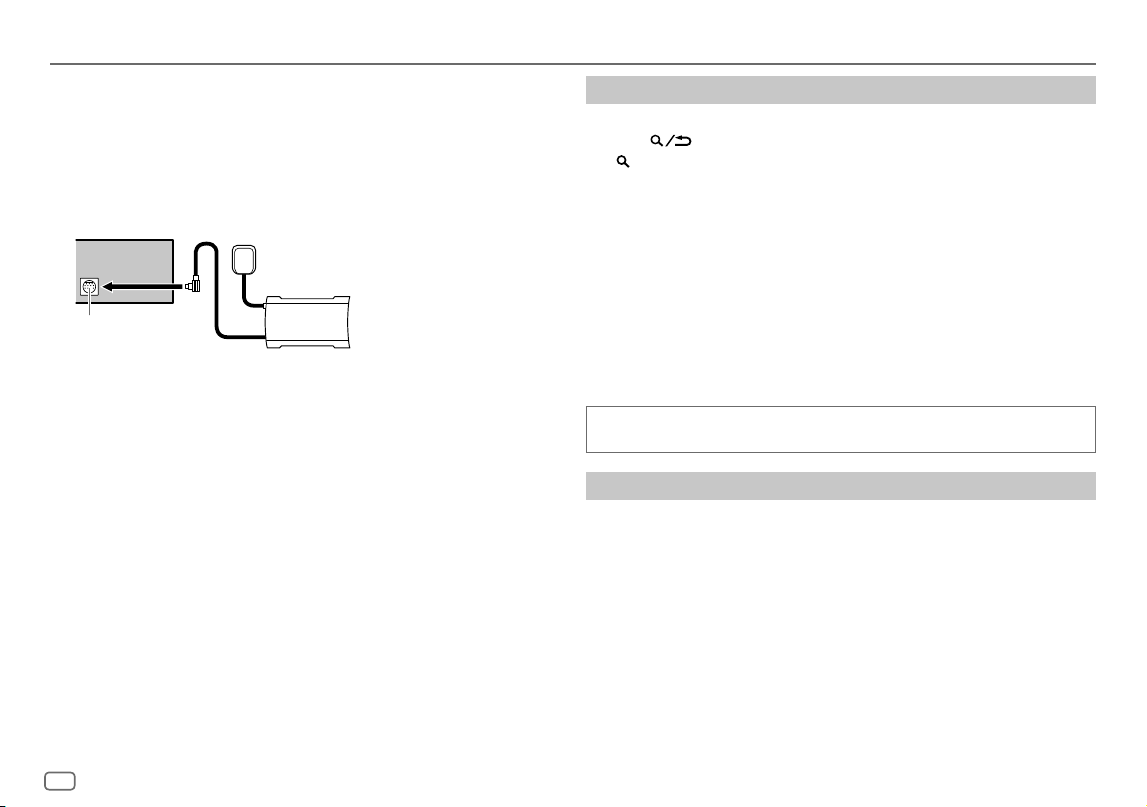
12
ENGLISH
Data Size: B6L (182 mm x 128 mm)
Book Size: B6L (182 mm x 128 mm)
SiriusXM® Radio
(for KD-T925BTS/KD-T920BTS)
Only SiriusXM® brings you more of what you love to listen to, all in one place.
Get over 140 channels, including commercial-free music plus the best sports,
news, talk, comedy and entertainment. Welcome to the world of satellite
radio. A SiriusXM Vehicle Tuner and Subscription are required. For more
information, visit <www.siriusxm.com>.
Preparation:
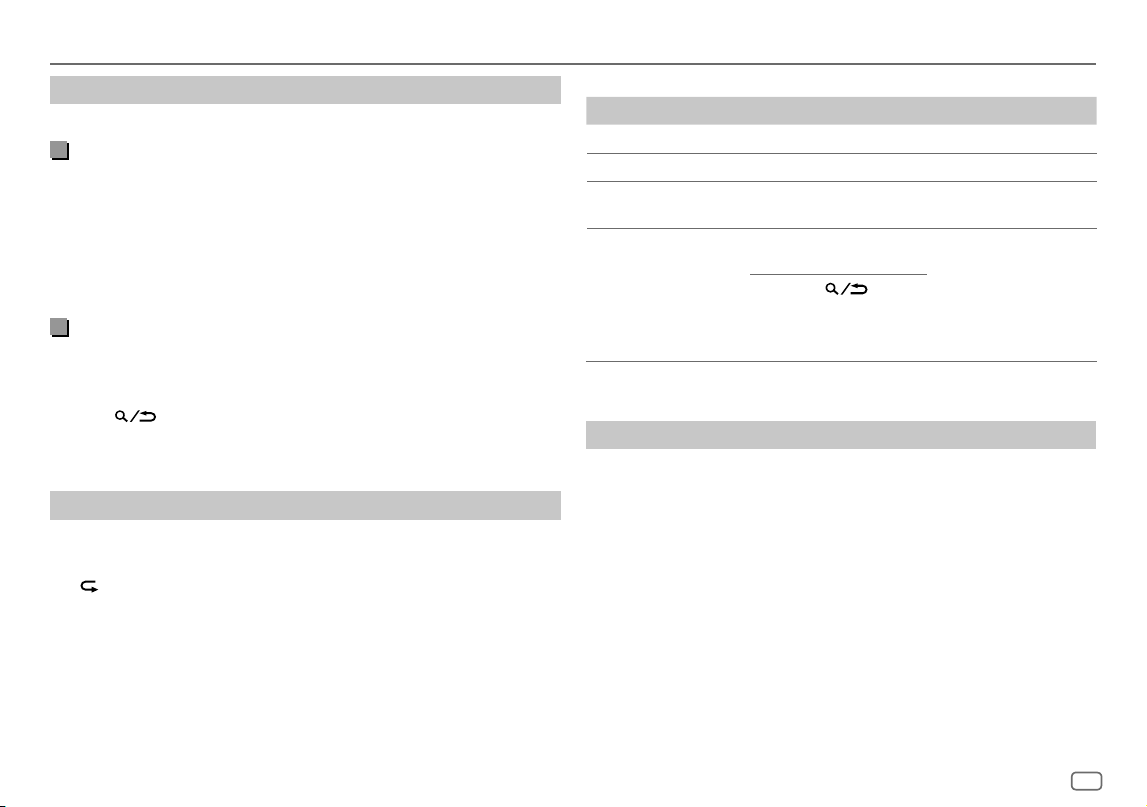
1 Connect the optional SiriusXM Vehicle Tuner (commercially available).
Antenna
Expansion port on
the rear panel
SiriusXM Vehicle Tuner
2 Check your Radio ID for activation.
The SiriusXM Radio ID is required for activation and can be found by
tuning to Channel 0 as well as on the label found on the SiriusXM Vehicle
Tuner and its packaging.
The Radio ID does not include the letters I, O, S or F.
3 Activate the subscription.
For users in the U.S.A.:
Online: Go to <www.siriusxm.com/activatenow>
Phone: Call 1-866-635-2349
For users in Canada:
Online: Go to <www.siriusxm.ca/activate>
Phone: Call 1-888-539-7474
4 Press B SRC repeatedly to select SIRIUSXM to start updating.
Start listening
1
Press B SRC repeatedly to select SIRIUSXM.
2 Press .
“ ” indicator lights up.
3 Turn the volume knob to select a CATEGORY, then press the knob.
4 Turn the volume knob to select a category from the list, then press
the knob.
If “ALL CHANNELS” is selected, all the available channels will be shown.
5 Turn the volume knob to select a channel, then press the knob.
• Pressing and holding 1/2 changes the channel rapidly.
• If no operation is done for 10 seconds, a channel will be selected
automatically.
(or)
Press S / T to search for a channel manually.
• Pressing and holding S / T changes the channel rapidly.
If a locked channel or a mature channel is selected, a pass code input
screen appears. Enter the pass code to receive the channel. (Page14)
Parental Control
The Parental Control feature allows you to limit access to any SiriusXM
channels, including those with mature content.
When enabled, the Parental Control feature requires you to enter a pass
code to tune to the locked channels.
• Information on setting up the pass code and locking channels can be
found on page14, 15.
KD_T925BTS_K_B5A-3880-00_EN_2nd Draft.indd 12KD_T925BTS_K_B5A-3880-00_EN_2nd Draft.indd 12 5/7/2021 10:55:02 AM5/7/2021 10:55:02 AM
ENGLISH
13
Data Size: B6L (182 mm x 128 mm)
Book Size: B6L (182 mm x 128 mm)
SiriusXM® Radio
(for KD-T925BTS/KD-T920BTS)
Settings in memory
You can store up to 18 channels.
Store a channel
While listening to a channel...
Press and hold one of the number buttons (1 to 6).
(or)
1 Press and hold the volume knob until “PRESETMODE” flashes.
2 Turn the volume knob to select a preset number, then press the knob.
The preset number flashes and “MEMORY” appears.
Select a stored channel
Press one of the number buttons (1to6) (or press J / K on the remote
control).
(or)
1 Press .
2 Turn the volume knob to select PRESET, then press the knob.
3 Turn the volume knob to select a preset number, then press the knob.
SiriusXM Replay™
While listening to a channel...
1 Press the volume knob.
“ ” indicator lights up and the unit memorizes this paused position.
2 Press the volume knob to start Replay.
Replay starts from the paused position in step 1.
During Replay...
To On the faceplate On the remote control
Playback/pause Press the volume knob.
Press d.
Skip backward/forward*
Press S / T. Press H / I.
Rewind/Fast-forward* Press and hold
S / T.
Press and hold H / I.
Go to Live and exit
Replay*
Press and hold the
volume knob.
Press and hold d.
1 Press .
2 Turn the volume
knob to select LIVE,
then press the knob.
* When Live is reached or selected, Live playback starts and exit Replay.
SmartFavorites and TuneStart™
User preset channels are initially assigned as the SmartFavorites channels.
SmartFavorite channel is available with SXV200 or later SiriusXM Vehicle
Tuner. The SiriusXM Vehicle Tuner automatically buffers the broadcast audio
content of the SmartFavorites channels in the background.
Using SXV200: This unit can assign a maximum of 6 SmartFavorites
channels. If you try to assign the 7th channel, an error beep tone will be
heard. Initially, preset channels 1 to 6 are assigned as SmartFavorites.
KD_T925BTS_K_B5A-3880-00_EN_2nd Draft.indd 13KD_T925BTS_K_B5A-3880-00_EN_2nd Draft.indd 13 5/7/2021 10:55:02 AM5/7/2021 10:55:02 AM
14
ENGLISH
Data Size: B6L (182 mm x 128 mm)
Book Size: B6L (182 mm x 128 mm)
Using SiriusXM Vehicle Tuner later than SXV200: This unit can assign
a maximum of 18 SmartFavorites channels. Initially, all preset channels are
assigned as SmartFavorites.
• “
*
” appears following the last character of the channel name for the
SmartFavorites channels.
When you select a SmartFavorite channel, you can rewind and replay up to
30 minutes of any of the missed news, talk, sports or music content.
• Playback starts from the beginning of the song if
[TUNE START]
is set to
[ON]
(page15) for most music channels stored as a SmartFavorite.
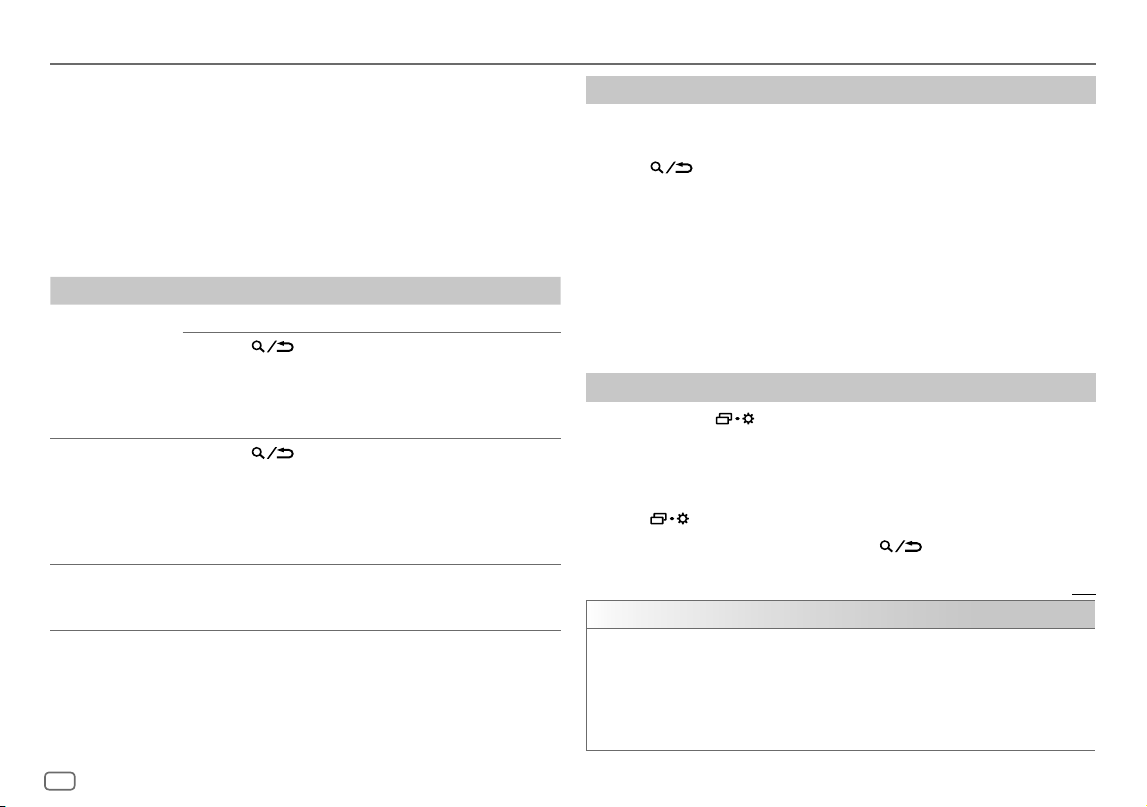
To On the faceplate
Select a stored
SmartFavorite
channel
Press one of the number buttons (1to6).
1 Press .
2 Turn the volume knob to select PRESET, then press
the knob.
3 Turn the volume knob to select a preset number,
then press the knob.
Cancel
SmartFavorites
channels
1 Press .
2 Turn the volume knob to select PRESET, then press
the knob.
3 Turn the volume knob to select a preset number,
then press and hold the knob.
“
*
” is removed from the last character.
Reassign
SmartFavorites
channels
Repeat step 1 to step 3 of “Cancel SmartFavorites
channels”.
“
*
” appears following the last character.
SiriusXM® Radio
(for KD-T925BTS/KD-T920BTS)
TuneScan™
You can get a short preview of the songs that you have missed on each of
your SmartFavorites music channels or a music channel currently tuned into.
1 Press .
2 Turn the volume knob to select TUNE SCAN, then press the knob.
Scanning start for the first 6 seconds of the recorded music contents.
• To listen to the current song, press the volume knob to stop scanning. The
unit continues playing the current song.
• To select the previous/next song, press S / T.
• To cancel scanning, press and hold the volume knob. Playback returns to
the channel before you entered TuneScan.
• Pressing any button other than volume knob or S / T will interrupt
scanning and eventually stop scanning.
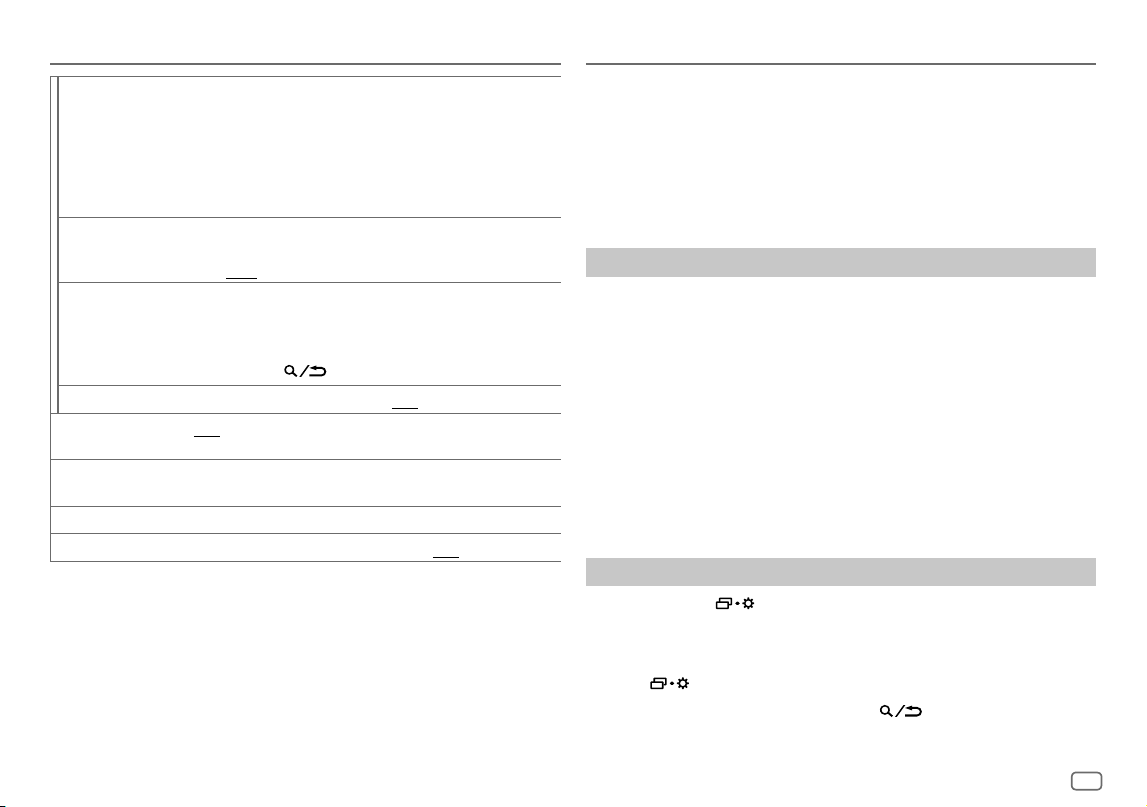
SiriusXM settings
1
Press and hold .
2 Turn the volume knob to select an item (see the following table), then
press the knob.
3 Repeat step 2 until the desired item is selected/activated or follow the
instructions stated on the selected item.
4 Press to exit.
To return to the previous setting item, press
.
Default: [XX]
[SIRIUS XM]
[CHANNEL LOCK] To unlock settings:
1
Turn the volume knob to select a number.
2
Press
S
/
T
to move to the entry position.
3
Repeat step 1 and step 2 to enter the current pass code.
(Initial pass code is 0000.)
4
Press the volume knob to confirm.
KD_T925BTS_K_B5A-3880-00_EN_2nd Draft.indd 14KD_T925BTS_K_B5A-3880-00_EN_2nd Draft.indd 14 5/7/2021 10:55:03 AM5/7/2021 10:55:03 AM
ENGLISH
15
Data Size: B6L (182 mm x 128 mm)
Book Size: B6L (182 mm x 128 mm)
[CODESET]
1
Turn the volume knob to select a number.
2
Press
S
/
T
to move to the entry position.
3
Repeat step 1 and step 2 to enter a new 4-digit pass code.
4
Press the volume knob to confirm.
5
Repeat step 1 to step 4 to reconfirm the pass code.
• Make a note of the new pass code to enter channel lock settings for
next time.
[LOCK SETTING]
[MATURE CH]: Selects the SiriusXM-defined lock setting. ;
[USER DEFINED]: Selects the individual channels the user wants to
lock. ; [OFF]: Cancels.
[CHANNEL EDIT]*1
1
Turn the volume knob to select a category, then press the knob.
2
Turn the volume knob to select a channel you want to lock, then
press the knob.
“L” appears in front of the channel number.
3
Press and hold to exit.
[CHANNEL CLEAR]*1
[YES]: Clears all the locked channels. ; [NO]: Cancels.
[TUNE START]*2
[ON]: All qualified music channels in the SmartFavorites will start
playback from the beginning of the song. ; [OFF]: Cancels.
[SIGNAL LEVEL] Shows the strength ([NO SIGNAL]/[WEAK]/[GOOD]/[STRONG]) of
the current received signal.
[BUFFER USAGE] Shows the memory usage ([0%] to [100%]) for Replay buffer.
[SXM RESET]
[YES]: Resets all SiriusXM settings to default. ; [NO]: Cancels.
*1 Displayed only when [LOCK SETTING] is set to [USER DEFINED].
*2 Available only if the connected SiriusXM Vehicle Tuner is SXV200 or later which supports
SmartFavorites.
SiriusXM® Radio
(for KD-T925BTS/KD-T920BTS)
JVC Remote Application
You can control the JVC car receiver from iPhone/iPodtouch (via Bluetooth
or via USB input terminal) or Android device (via Bluetooth) using
JVC Remote application.
• For more information, visit <https://www.jvc.net/cs/car/>.
Preparation:
Install the latest version of JVC Remote application on your device before
connecting.
Start using JVC Remote application
1
Start up the JVC Remote application on your device.
2 Connect your device.
• For Android device:
Pair the Android device with this unit via Bluetooth. (Page17)
• For iPhone/iPodtouch:
Connect iPhone/iPodtouch to the USB input terminal. (Page9)
(or)
Pair the iPhone/iPodtouch with this unit via Bluetooth. (Page17)
(Make sure the USB input terminal is not connected to any device.)
3 Select the device to use from the menu.
See the following “Settings to use JVC Remote application”.
By default,
[ANDROID]
is selected. To use iPhone/iPodtouch, select
[YES]
for
[IOS]
.
Settings to use JVC Remote application
1
Press and hold .
2 Turn the volume knob to select an item (page16), then press the
knob.
3 Repeat step 2 until the desired item is selected or activated.
4 Press to exit.
To return to the previous setting item, press
.
KD_T925BTS_K_B5A-3880-00_EN_2nd Draft.indd 15KD_T925BTS_K_B5A-3880-00_EN_2nd Draft.indd 15 5/7/2021 10:55:03 AM5/7/2021 10:55:03 AM
16
ENGLISH
Data Size: B6L (182 mm x 128 mm)
Book Size: B6L (182 mm x 128 mm)
Default: [XX]
[REMOTE APP]
[SELECT] Selects the device ([IOS] or [ANDROID]) to use the application.
[IOS]
[YES]: Selects iPhone/iPod touch to use the application via Bluetooth or
connected via USB input terminal. ; [NO]: Cancels.
If [IOS] is selected, select iPod BT source (or iPod FRONT/iPod REAR/iPod USB
source if your iPhone/iPod touch is connected via USB input terminal) to activate
the application.
• See “Set the playable source for iPod/iPhone” on page 10 for further
information.
• The connectivity of the application will be interrupted or disconnected if:
– You change from iPod BT source to any playback source connected via the
USB input terminal.
– You change from iPod FRONT/iPod REAR/iPod USB source to iPod BT source.
[ANDROID]
[YES]: Selects Android device to use the application via Bluetooth. ;
[NO]: Cancels.
[ANDROID
LIST]
Selects the Android device to use from the list.
• Displayed only when [ANDROID] of [SELECT] is set to [YES].
[STATUS] Shows the status of the selected device.
[IOS CONNECTED]: You are able to use the application using the iPhone/
iPod touch connected via Bluetooth or USB input terminal.
[IOS NOT CONNECTED]: No iOS device is connected to use the application.
[ANDROID CONNECTED]: You are able to use the application using the Android
device connected via Bluetooth.
[ANDROID NOT CONNECTED]: No Android device is connected to use the
application.
Bluetooth®
• Depending on the Bluetooth version, operating system and the
firmware version of your mobile phone, Bluetooth features may not
work with this unit.
• Be sure to turn on the Bluetooth function of the device to make the
following operations.
• Signal conditions vary depending on the surroundings.
Bluetooth — Connection
Supported Bluetooth profiles
– Hands-Free Profile (HFP)
– Advanced Audio Distribution Profile (A2DP)
– Audio/Video Remote Control Profile (AVRCP)
– Serial Port Profile (SPP)
– Phonebook Access Profile (PBAP)
Supported Bluetooth codecs
– Sub Band Codec (SBC)
– Advanced Audio Coding (AAC)
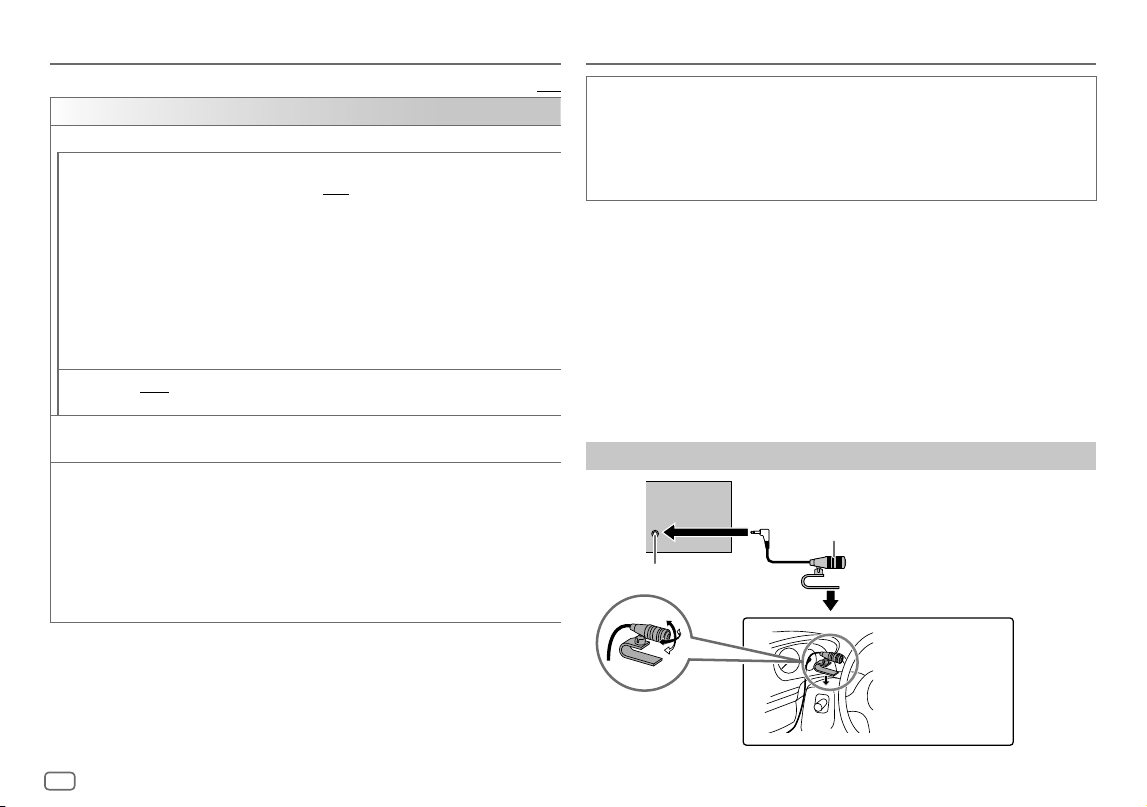
Connect the microphone
Adjust the microphone
angle
Secure using cord
clamps (not supplied)
if necessary.
Microphone input jack
Microphone (supplied)
Rear panel
JVC Remote Application
KD_T925BTS_K_B5A-3880-00_EN_2nd Draft.indd 16KD_T925BTS_K_B5A-3880-00_EN_2nd Draft.indd 16 6/7/2021 2:27:15 PM6/7/2021 2:27:15 PM
ENGLISH
17
Data Size: B6L (182 mm x 128 mm)
Book Size: B6L (182 mm x 128 mm)
Pair and connect a Bluetooth device for the first time
1
Press B SRC to turn on the unit.
2 Search and select the name of your receiver (“KD-T925BTS”/
“KD-T920BTS“/“KD-T720BT”) on the Bluetooth device.
“BTPAIRING” flashes on the display.
• For some Bluetooth devices, you may need to enter the Personal
Identification Number (PIN) code immediately after searching.
3 Perform (A) or (B) depending on what appears on the display.
For some Bluetooth devices, pairing sequence may vary from the steps
described below.
(A) “Device Name” “XXXXXX” “VOL–YES” “BACK–NO”
“XXXXXX” is a 6-digit passkey randomly generated during each
pairing.
Ensure that the passkeys appear on the unit and Bluetooth
device are the same.
Press the volume knob to confirm the passkey.
Operate the Bluetooth device to confirm the passkey.
(B) “Device Name” “VOL–YES” “BACK–NO”
Press the volume knob to start pairing.
• If “PAIRING” “PIN 0000” scrolls on the display, enter the PIN
code “0000” into the Bluetooth device.
You can change to a desired PIN code before pairing.
(Page21)
• If only “PAIRING” appears, operate the Bluetooth device to
confirm pairing.
“PAIRINGCOMPLETED” appears when pairing is completed and “O” will light
up when the Bluetooth connection is established.
• “
” indicator lights up to show the strength of the battery of the
connected device. See also
[FORMAT]
on page32 for the battery and
signal strength shown on the display.
Bluetooth®
• This unit supports Secure Simple Pairing (SSP).
• Up to five devices can be registered (paired) in total.
• Once the pairing is completed, the Bluetooth device will remain registered
in the unit even if you reset the unit. To delete the paired device, see
[DEVICE DELETE]
on page21.
• A maximum of two Bluetooth phones and one Bluetooth audio device can
be connected at any time. To connect or disconnect the registered device,
see
[PHONESELECT]
or
[AUDIOSELECT]
in
[BTMODE]
. (Page21)
However, while in BT AUDIO source, you can connect to five Bluetooth
audio devices and switch between these five devices. (Page22)
• Some Bluetooth devices may not automatically connect to the unit after
pairing. Connect the device to the unit manually.
• When the battery of the connected Bluetooth device runs low, “Device
Name”
“LOW BATTERY” appears.
• Refer to the instruction manual of the Bluetooth device for more
information.
Auto Pairing
When you connect iPhone/iPod touch to the USB input terminal, pairing
request (via Bluetooth) is automatically activated if
[AUTO PAIRING]
is set to
[ON]
. (Page21)
Press the volume knob to pair once you have confirmed the device name.
KD_T925BTS_K_B5A-3880-00_EN_2nd Draft.indd 17KD_T925BTS_K_B5A-3880-00_EN_2nd Draft.indd 17 5/7/2021 10:55:03 AM5/7/2021 10:55:03 AM
18
ENGLISH
Data Size: B6L (182 mm x 128 mm)
Book Size: B6L (182 mm x 128 mm)
Bluetooth — Mobile phone
Receive a call
When there is an incoming call:
• KD-T925BTS/KD-T920BTS:
The buttons will blink in the color you have selected in
[RING COLOR]
.
(Page19)
KD-T720BT:
The buttons will blink in the blinking pattern you have selected in
[RING ILLUMI]
. (Page19)
• The unit answers the call automatically if
[AUTO ANSWER]
is set to a selected
time. (Page19)
During a call:
• KD-T925BTS/KD-T920BTS:
The buttons stop blinking and illuminate in the color you have selected in
[RING COLOR]
. (Page19)
KD-T720BT:
The buttons stop blinking.
• If you turn off the unit or detach the faceplate, Bluetooth is disconnected.
Bluetooth®
The following operations may differ or be unavailable depending on the
connected phone.
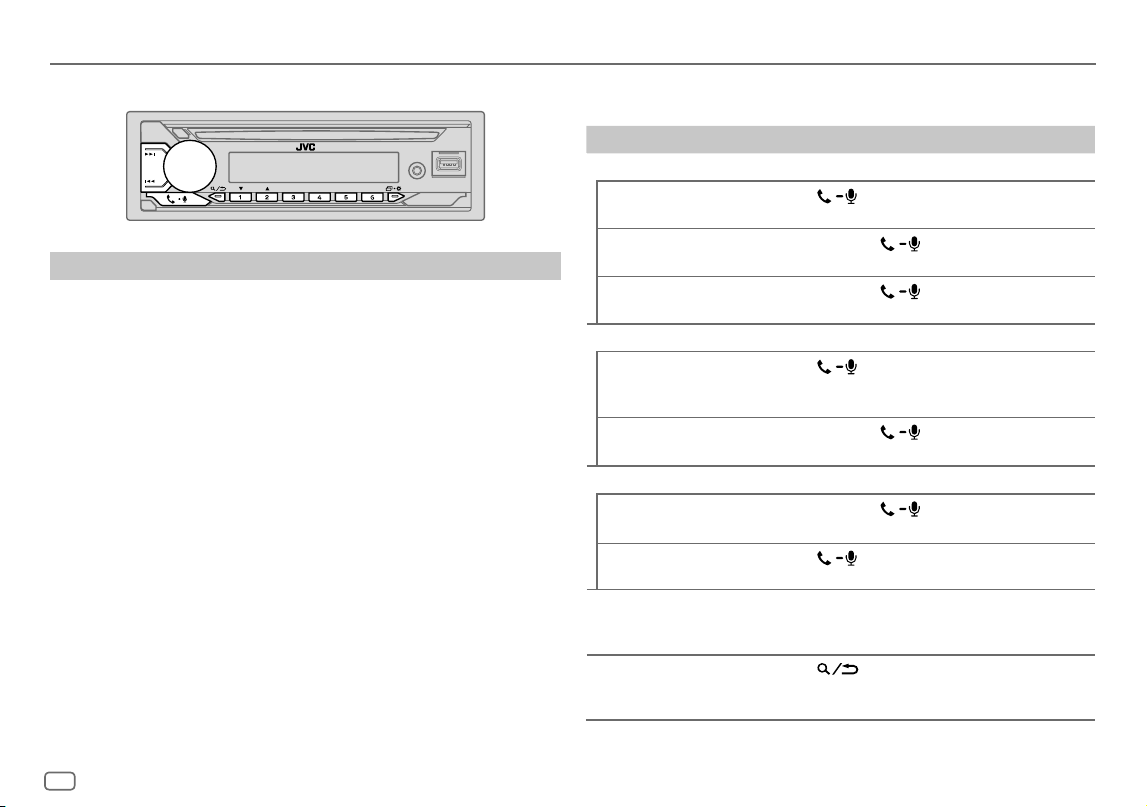
To On the faceplate On the remote control
First incoming call...
Answer a call
Press
or the
volume knob.
Press J / K / H / I.
Reject a call
Press and hold
or the volume knob.
Press and hold
J / K / H / I.
End a call
Press and hold
or the volume knob.
Press and hold
J / K / H / I.
While talking on the first incoming call...
Answer another
incoming call and hold
the current call
Press
or the
volume knob.
( Not available )
Reject another
incoming call
Press and hold
or the volume knob.
( Not available )
While having two active calls...
End current call and
activate held call
Press and hold
or the volume knob.
Press and hold
J / K / H / I.
Swap between the
current call and held call
Press
.
( Not available )
Adjust the phone
volume*1
[00]
to
[35]
(Default:
[15]
)
Turn the volume knob
during a call.
Press VOL +*2 or
VOL – during a call.
Switch between hands-
free and private talk
modes*3
Press
during
a call.
( Not available )
KD_T925BTS_K_B5A-3880-00_EN_2nd Draft.indd 18KD_T925BTS_K_B5A-3880-00_EN_2nd Draft.indd 18 5/7/2021 10:55:03 AM5/7/2021 10:55:03 AM
ENGLISH
19
Data Size: B6L (182 mm x 128 mm)
Book Size: B6L (182 mm x 128 mm)
*1 This adjustment will not affect the volume of the other sources.
*2 Press and hold VOL + to continuously increase the volume to 15.
*3 Operations may vary according to the connected Bluetooth device.
Improve the voice quality
While talking on the phone...
1 Press and hold .
2 Turn the volume knob to select an item (see the following table), then
press the knob.
3 Repeat step 2 until the desired item is selected or activated.
4 Press to exit.
To return to the previous setting item, press
.
Default: [XX]
[MIC GAIN] [LEVEL –10] to [LEVEL +10] ([LEVEL –04]): The sensitivity of the
microphone increases as the number increases.
[NR LEVEL]
[LEVEL –05] to [LEVEL +05] ([LEVEL 00]): Adjust the noise reduction level
until the least noise is being heard during a phone conversation.
[ECHO CANCEL]
[LEVEL –05] to [LEVEL +05] ([LEVEL 00]): Adjust the echo cancellation
delay time until the least echo is being heard during a phone conversation.
• Call quality may depend on mobile phone.
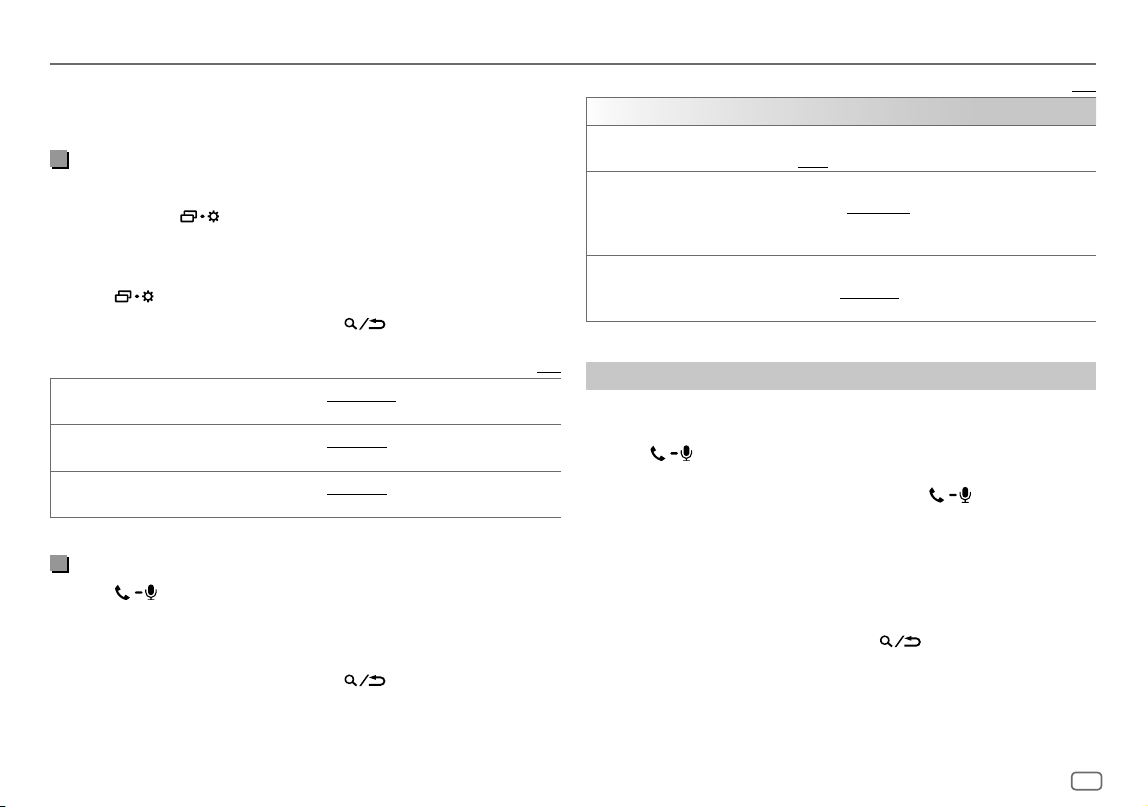
Make the settings for receiving a call
1
Press to enter Bluetooth mode.
2 Turn the volume knob to select an item (see the following table), then
press the knob.
3 Repeat step 2 until the desired item is selected or activated.
To return to the previous setting item, press
.
Bluetooth®
Default: [XX]
[SETTINGS]
[AUTO ANSWER]
[01SEC] to [30SEC]: Answers an incoming call automatically in the selected
time (in seconds). ; [OFF]: Cancels.
[RING COLOR]
(For KD-T925BTS/KD-T920BTS)
[COLOR01] to [COLOR49] ([COLOR08]): Selects the illumination color for
the buttons as notification when there is an incoming call and during a call. ;
[OFF]: Cancels.
[RING ILLUMI]
(For KD-T720BT)
[BLINK01] to [BLINK05] ([BLINK02]): Selects the blinking pattern for the
buttons as notification when there is an incoming call. ; [OFF]: Cancels.
Make a call
You can make a call from the call history, phonebook, or dialing the number.
Call by voice is also possible if your mobile phone has the feature.
1 Press to enter Bluetooth mode.
“(First device name)” appears.
• If two Bluetooth phones are connected, press again to switch to
the other phone.
“(Second device name)” appears.
2 Turn the volume knob to select an item (page20), then press the
knob.
3 Repeat step 2 until the desired item is selected/activated or follow the
instructions stated on the selected item.
To return to the previous setting item, press
.
KD_T925BTS_K_B5A-3880-00_EN_2nd Draft.indd 19KD_T925BTS_K_B5A-3880-00_EN_2nd Draft.indd 19 5/7/2021 10:55:03 AM5/7/2021 10:55:03 AM
20
ENGLISH
Data Size: B6L (182 mm x 128 mm)
Book Size: B6L (182 mm x 128 mm)
Bluetooth®
[RECENT CALL] (Applicable only if the phone supports PBAP.)
1
Press the volume knob to select a name or a phone number.
• “<” indicates call received, “>“ indicates call made, “M” indicates call
missed.
• “NO HISTORY” appears if there is no recorded call history or call number.
2
Press the volume knob to call.
[PHONEBOOK] (Applicable only if the phone supports PBAP.)
1
Press 2
J
/ 1
K
to select the desired letter (A to Z, 0 to 9, and OTHERS).
• “OTHERS” appears if the first character is other than A to Z, 0 to 9.
2
Turn the volume knob to select a name, then press the knob.
3
Turn the volume knob to select a phone number, then press the knob to
call.
• For using phonebook with this unit, make sure to allow access to or transfer
from your smartphone. Depending on the connected phone, the process
may be different.
• This unit can display only non-accent letters. (Accent letters such as “Ú” are
showns as “U”.)
[DIAL NUMBER]
1
Turn the volume knob to select a number (0 to 9) or character
(
, #, +).
2
Press
S
/
T
to move the entry position.
Repeat step 1 and step 2 until you finish entering the phone number.
3
Press the volume knob to call.
[VOICE] Speak the name of the contact you want to call or the voice command to
control the phone functions. (See also the following “Make a call using voice
recognition”.)
Make a call using voice recognition
1
Press and hold to activate the voice recognition of the
connected phone.
2 Speak the name of the contact you want to call or the voice command
to control the phone functions.
• Supported Voice Recognition features vary for each phone. Refer to the
instruction manual of the connected phone for details.
Store a contact in memory
You can store up to 6 contacts into the number buttons (1 to 6).
1 Press to enter Bluetooth mode.
2 Turn the volume knob to select
[RECENTCALL]
,
[PHONEBOOK]
or
[DIALNUMBER]
, then press the knob.
3 Turn the volume knob to select a contact or enter a phone number.
If a contact is selected, press the volume knob to show the phone
number.
4 Press and hold one of the number buttons (1 to 6).
“MEMORY P(selected preset number)” appears when the contact is
stored.
To erase a contact from the preset memory, select
[DIALNUMBER]
in step 2,
store a blank number in step 3 and proceed to step 4.
Make a call to a registered number
1
Press to enter Bluetooth mode.
2 Press one of the number buttons (1 to 6).
3 Press the volume knob to call.
“NO PRESET” appears if there is no contact stored.
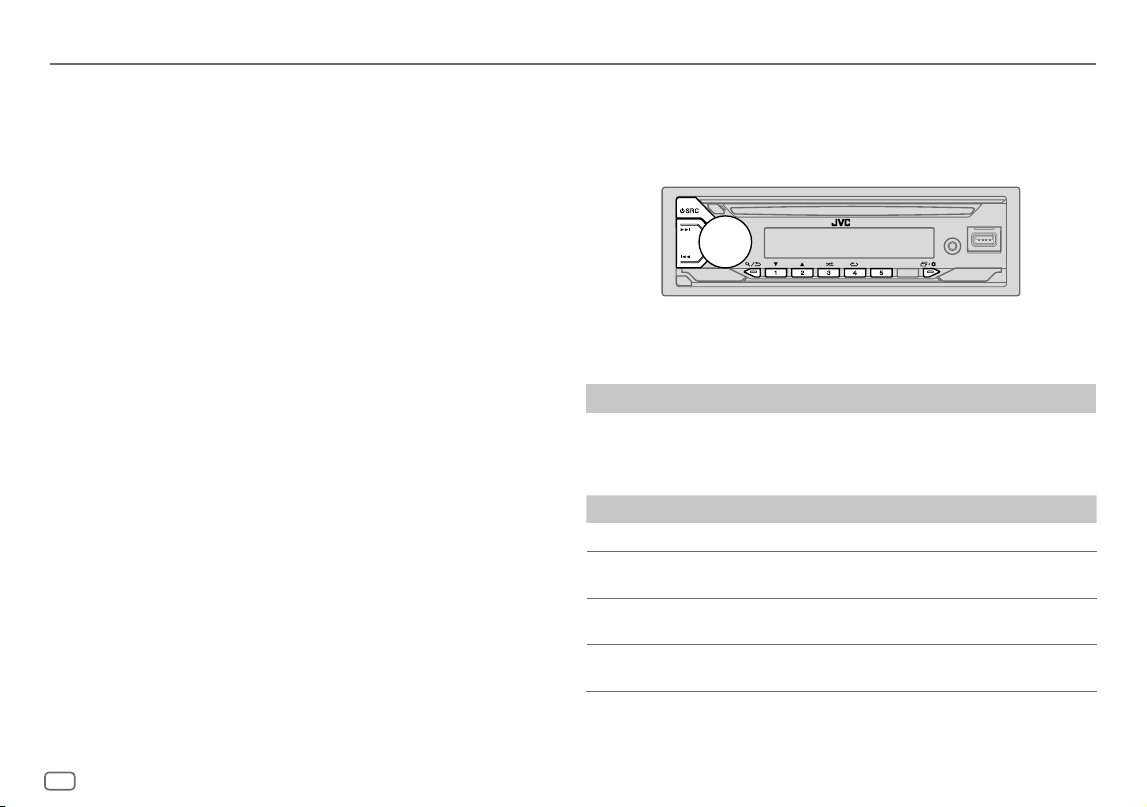
Bluetooth mode settings
1
Press and hold .
2 Turn the volume knob to select an item (page21), then press the
knob.
3 Repeat step 2 until the desired item is selected/activated or follow the
instructions stated on the selected item.
4 Press to exit.
To return to the previous setting item, press
.
KD_T925BTS_K_B5A-3880-00_EN_2nd Draft.indd 20KD_T925BTS_K_B5A-3880-00_EN_2nd Draft.indd 20 5/7/2021 10:55:03 AM5/7/2021 10:55:03 AM
ENGLISH
21
Data Size: B6L (182 mm x 128 mm)
Book Size: B6L (182 mm x 128 mm)
Bluetooth®
Default: [XX]
[BT MODE]
[PHONE SELECT] Selects the phone or audio device to connect or disconnect.
“
” appears in front of the device name when connected.
“
” appears in front of the current playback audio device.
• You can connect a maximum of two Bluetooth phones and one Bluetooth
audio device at a time.
[AUDIO SELECT]
[DEVICE DELETE]
1
Turn the volume knob to select a device to delete, then press the knob.
2
Turn the volume knob to select [YES] or [NO], then press the knob.
[PIN CODE EDIT]
(0000)
Changes the PIN code (up to 6 digits).
1
Turn the volume knob to select a number.
2
Press
S
/
T
to move the entry position.
Repeat step 1 and step 2 until you finish entering the PIN code.
3
Press the volume knob to confirm.
[RECONNECT]
[ON]: The unit is automatically reconnect when the last connected
Bluetooth device is within the connectable range. ; [OFF]: Cancels.
[AUTO PAIRING]
[ON]: The unit is automatically paired with the supported Bluetooth
device (iPhone/iPod touch) when it is connected through USB input
terminal. Depending on the operating system of the connected device, this
function may not work. ; [OFF]: Cancels.
[INITIALIZE]
[YES]: Initializes all the Bluetooth settings (including stored pairing,
phonebook, and etc.). ; [NO]: Cancels.
[INFORMATION] [MYBTNAME]: Displays the name of your receiver (“KD-T925BTS”/
“KD-T920BTS”/“KD-T720BT”). ;
[MYADDRESS]: Shows address of this unit.
Bluetooth compatibility check mode
You can check the connectivity of the supported profile between the
Bluetooth device and the unit.
• Make sure there is no Bluetooth device paired.
1 Press and hold .
“BLUETOOTH” “CHECK MODE” appears. “SEARCH NOW USING
PHONE” “PIN IS 0000” scrolls on the display.
2 Search and select the name of your receiver (“KD-T925BTS”/
“KD-T920BTS”/“KD-T720BT”) on the Bluetooth device within
3minutes.
3 Perform (A), (B) or (C) depending on what appears on the display.
(A) “PAIRING” “XXXXXX” (6-digit passkey): Ensure that the same
passkey appears on the unit and Bluetooth device, then operate the
Bluetooth device to confirm the passkey.
(B) “PAIRING” “PIN IS 0000”: Enter “0000” on the Bluetooth device.
(C) “PAIRING”: Operate the Bluetooth device to confirm pairing.
After pairing is done successfully, “PAIRING OK”
“Device Name” appears
and Bluetooth compatibility check starts.
If “CONNECT NOW USING PHONE” appears, operate the Bluetooth device to
allow phonebook access to continue.
“TESTING” flashes on the display.
KD_T925BTS_K_B5A-3880-00_EN_2nd Draft.indd 21KD_T925BTS_K_B5A-3880-00_EN_2nd Draft.indd 21 5/7/2021 10:55:04 AM5/7/2021 10:55:04 AM
22
ENGLISH
Data Size: B6L (182 mm x 128 mm)
Book Size: B6L (182 mm x 128 mm)
Bluetooth®
The connectivity result flashes on the display.
“PAIRING OK” and/or “HANDS-FREE OK”*1 and/or “AUD.STREAM OK”*2 and/
or “PBAP OK”*3: Compatible
*1 Compatible with Hands-Free Profile (HFP)
*2 Compatible with Advanced Audio Distribution Profile (A2DP)
*3 Compatible with Phonebook Access profile (PBAP)
After 30 seconds, “PAIRING DELETED” appears to indicate that pairing has
been deleted, and the unit exits check mode.
• To cancel, press and hold B SRC to turn off the power, then turn on the
power again.
Bluetooth — Audio
• Operations and display indications may differ according to their availability
on the connected device.
• Depending on the connected device, some features may not work with
your device.
While in BT AUDIO source, you can connect to five Bluetooth audio devices
and switch between these five devices.
Listen to the audio player via Bluetooth
1
Press B SRC repeatedly to select BTAUDIO (or press SOURCE on the
remote control).
2 Operate the audio player via Bluetooth to start playback.
To On the faceplate On the remote control
Playback/pause Press the volume knob.
Press d.
Select group or
folder
Press 2 J / 1 K. Press J / K.
Reverse skip/
Forward skip
Press S / T. Press H / I.
Reverse/Fast-
forward
Press and hold S / T. Press and hold H / I.
KD_T925BTS_K_B5A-3880-00_EN_5th Draft.indd 22KD_T925BTS_K_B5A-3880-00_EN_5th Draft.indd 22 1/11/2021 2:12:17 PM1/11/2021 2:12:17 PM
ENGLISH
23
Data Size: B6L (182 mm x 128 mm)
Book Size: B6L (182 mm x 128 mm)
Bluetooth®
To On the faceplate
Repeat play
Press 4 B repeatedly.
[TRACKREPEAT], [ALLREPEAT], [GROUPREPEAT],
[REPEATOFF]
Random play
Press 3 A repeatedly.
[GROUPRANDOM], [ALLRANDOM], [RANDOMOFF]
Select a file from a
folder/list
Refer to “Select a file to play” on page10.
Switch between
connected Bluetooth
audio devices
Press 5.
(Pressing the “Play” key on the connected device
itself also causes switching of sound output from
the device.)
Listen to iPod/iPhone via Bluetooth
You can listen to the songs on the iPod/iPhone via Bluetooth on this unit.
Press B SRC repeatedly to select iPodBT.
• You can operate the iPod/iPhone in the same way as iPod/iPhone via USB
input terminal. (Page9)
• See “Set the playable source for iPod/iPhone” on page10 for further
information.
AMAZON ALEXA
Alexa is the cloud-based voice service developed by Amazon. You can ask
Alexa to play music, get weather reports, traffic information, control smart
home devices, shop on Amazon, search the internet, set reminders and
more.
Preparation:
• Create an account at <www.amazon.com>.
• Install the latest version of the Alexa mobile application on your device
(iPhone/iPod touch or Android device), then log in to the application.
• Be sure to enable the internet connection on your smartphone.
Setup for the first time
For Android device
1 Pair your device with this unit via Bluetooth. (Page17)
2 Start up the Alexa mobile application on your device.
3 Pair this unit to Alexa mobile application.
Perform Option A or Option B.
For iPhone/iPod touch
1 Pair your device with this unit via Bluetooth. (Page17)
2 Start up the Alexa mobile application on your device.
3 Press on the unit to enter ALEXA source.
• You may also press B SRC repeatedly to select iPodBT source.
• See “Set the playable source for iPod/iPhone” on page10 for further
information.
4 Pair this unit to Alexa mobile application.
Perform Option A or Option B.
Option A: Direct Link
Access the following URL or scan the QR code with your smartphone:
https://www.jvc.net/car/alexa
KD_T925BTS_K_B5A-3880-00_EN_5th Draft.indd 23KD_T925BTS_K_B5A-3880-00_EN_5th Draft.indd 23 1/11/2021 2:12:27 PM1/11/2021 2:12:27 PM
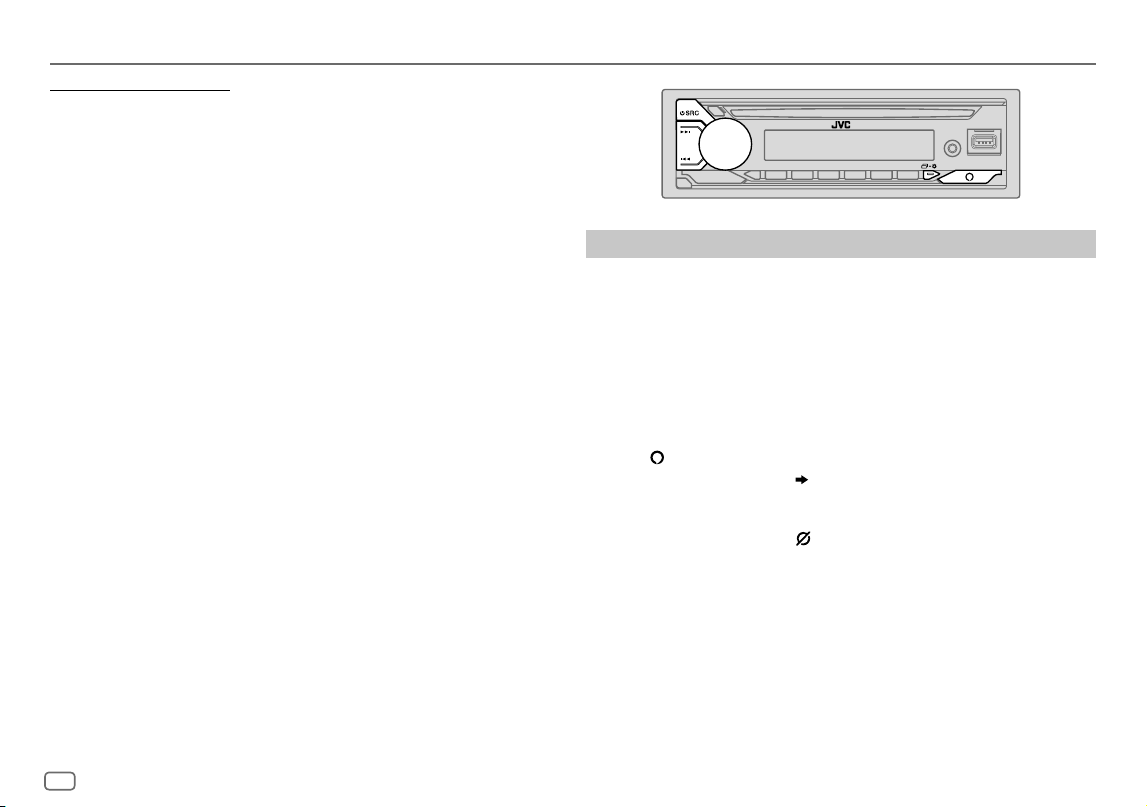
24
ENGLISH
Data Size: B6L (182 mm x 128 mm)
Book Size: B6L (182 mm x 128 mm)
Option B: Manual Pairing
1 Start up the Alexa mobile application and go to the “Devices” tab.
2 Tap the “ + “ icon at the top right corner.
3 Tap “Add Device”.
4 Tap “Automotive Accessory” or “Headphones” from the list of device
types.
5 Tap the name of your receiver (“KD-T925BTS”/“KD-T920BTS”/
“KD-T720BT”) and follow the instructions.
Once the setup process is completed, the Alexa mobile application will
establish a connection with this unit.
• The Alexa connection can be disconnected if:
– A2DP profile is disconnected
– Bluetooth is disconnected
– This unit is turned off
– Stop Alexa mobile application running in foreground/background of
your device.
– Any other conditions depending on the connected device
To establish Alexa connection again, reconnect the A2DP profile.
• Alexa connection cannot be established again if you:
– Reinstall Alexa mobile application
– Delete the paired device and perform pairing again (for Android device)
To establish Alexa connection again, perform the setup process again.
• You can check the Alexa connection from the Alexa mobile application.
If the name of this unit appears on the screen of “ALL DEVICES”, you do not
need to perform setup process again.
Basic operations
For Alexa supported languages, see page34 for more information. Some
of the languages listed will be available by updating firmware of this unit
when new release of firmware is available.
To update the firmware, see page6 for more information.
Once Alexa connection is established...
1 Speak the word “Alexa” to the connected microphone (page16) to
activate Alexa.
(or)
Press on the unit to speak with Alexa.
The display shows: “ALEXA” “LISTENING...”.
Alexa cannot be activated by voice if:
- Alexa mobile application is not activated.
- Microphone is turned off, “ ” indicator lights up.
See “Turn on/off the microphone” on page25.
- Current playback source is iPodFRONT/iPodREAR/iPodUSB.
- While using Bluetooth phone features.
2 Communicate with Alexa via the connected microphone. (Page16)
“THINKING...” appears when Alexa is processing your voice input.
“SPEAKING...” appears while Alexa is responding to your voice input.
“ALEXA” or display information such as playing time, song title, and etc.
appears while Alexa is in idle state.
AMAZON ALEXA
KD_T925BTS_K_B5A-3880-00_EN_7th Draft.indd 24KD_T925BTS_K_B5A-3880-00_EN_7th Draft.indd 24 2/3/2022 9:41:14 AM2/3/2022 9:41:14 AM
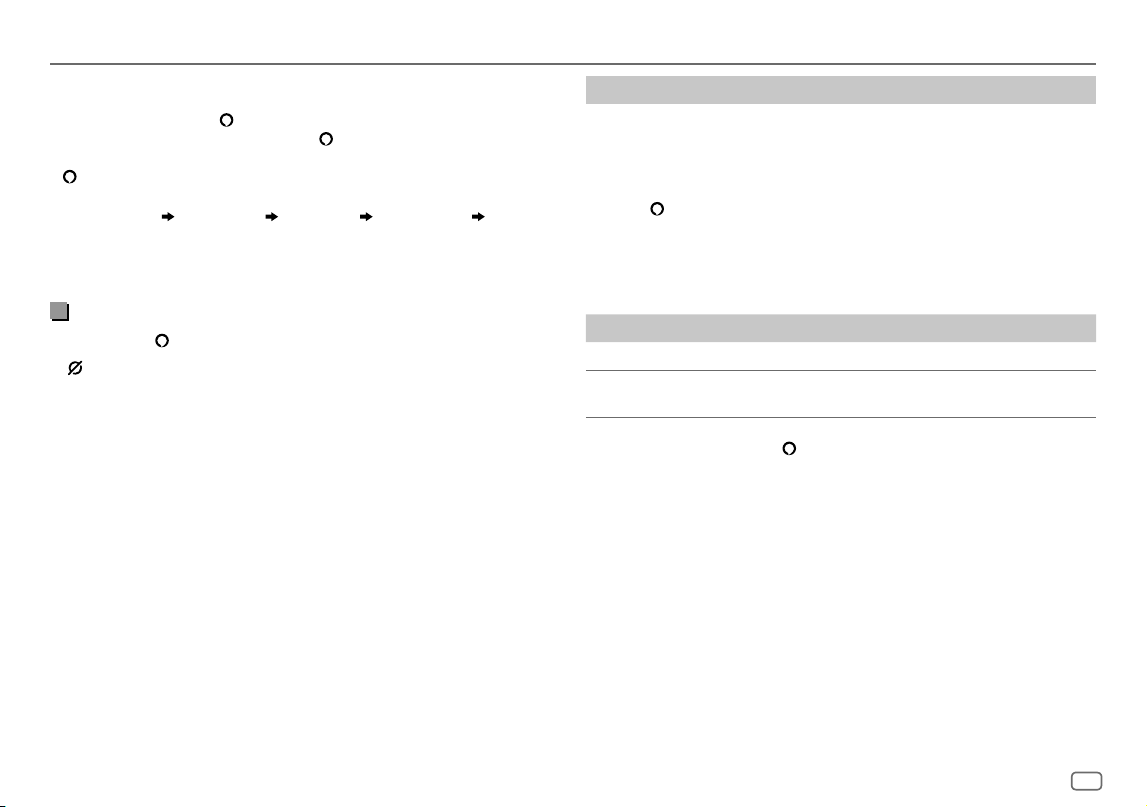
ENGLISH
25
Data Size: B6L (182 mm x 128 mm)
Book Size: B6L (182 mm x 128 mm)
• To return to the previous source before ALEXA, press B SRC (or press
SOURCE on the remote control).
• To activate Alexa, press
or speak “Alexa”.
• To cancel current listening state, press
.
• To cancel current thinking/speaking states and go to listening state, press
or speak “Alexa”.
• Only one Alexa connection can be connected at one time.
• “DOWNLOAD”
“ALEXAAPP” “ANDPAIR” “BLUETOOTH” “TO USE
ALEXA” appear if the unit is disconnected from Alexa mobile application or
the Bluetooth connection is disconnected.
• Alexa will be ready to listen to the wake word after reconnected.
Turn on/off microphone
Press and hold to turn on and turn off the microphone.
• “
” indicator lights up when the microphone is turned off.
• You cannot perform this operation while using Bluetooth phone features.
AMAZON ALEXA
Start listening
While in Alexa idle state...
1 Speak the word “Alexa” to the connected microphone (page16) to
activate Alexa.
(or)
Press on the unit to speak with Alexa.
The display shows: “LISTENING...”.
2 Communicate with Alexa via the connected microphone. (Page16)
3 During music playback in ALEXA source, you can perform the
following operations:
To On the faceplate On the remote control
Playback/pause Press the volume knob.
Press d.
Reverse skip/
Forward skip
Press S / T. Press H / I.
During music playback, press
or speak “Alexa” to pause the music and
activate Alexa. You can now start to communicate with Alexa.
KD_T925BTS_K_B5A-3880-00_EN_7th Draft.indd 25KD_T925BTS_K_B5A-3880-00_EN_7th Draft.indd 25 2/3/2022 9:41:17 AM2/3/2022 9:41:17 AM
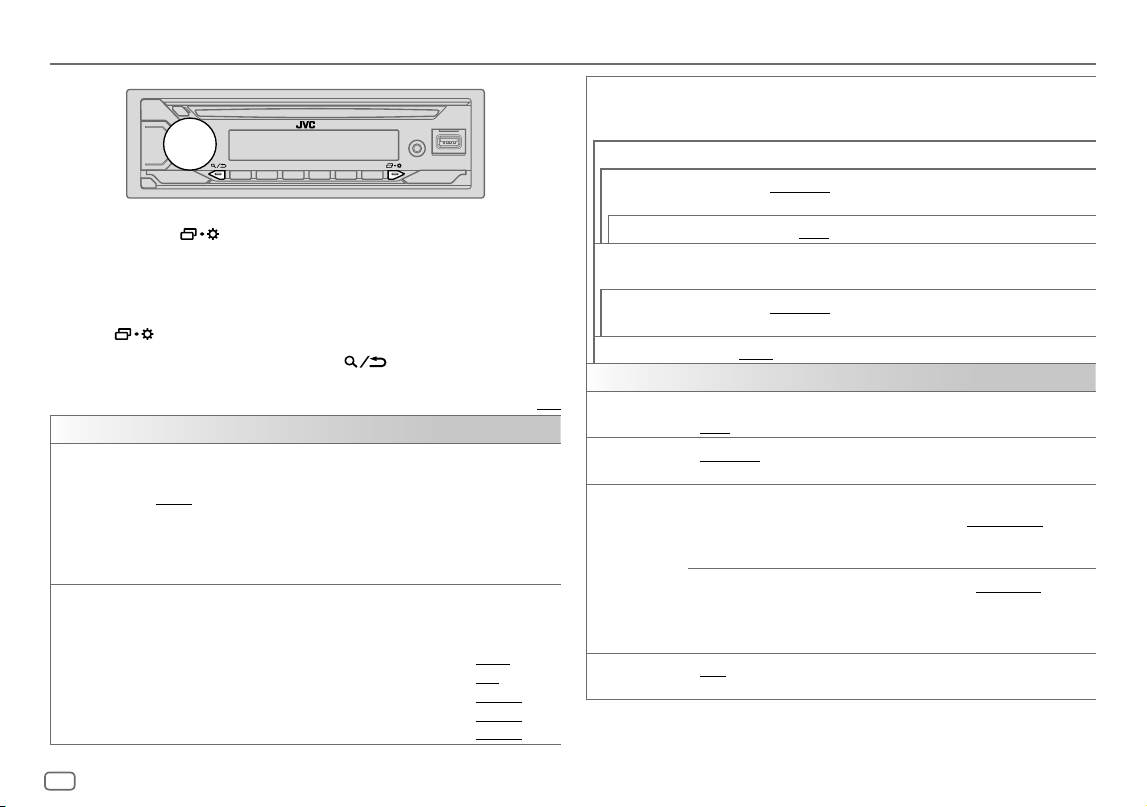
26
ENGLISH
Data Size: B6L (182 mm x 128 mm)
Book Size: B6L (182 mm x 128 mm)
Audio Settings
1 Press and hold .
2 Turn the volume knob to select an item (see the following table), then
press the knob.
3 Repeat step 2 until the desired item is selected/activated or follow the
instructions stated on the selected item.
4 Press to exit.
To return to the previous setting item, press
.
Default: [XX]
[EQSETTING]
[PRESET EQ]
Selects a preset equalizer suitable to the music genre.
• Select [USER] to use the settings made in [EASYEQ] or [PROEQ].
[FLAT]/[DRVN 3]/[DRVN 2]/[DRVN 1]/[HARD ROCK]/[HIP HOP]/[JAZZ]/
[POP]/[R&B]/[USER]/[CLASSICAL]
Drive equalizer ([DRVN 3]/[DRVN 2]/[DRVN 1]) boosts specific frequencies
in the audio signal to reduce the noise heard from outside the car or running
noise of the tyres.
[EASYEQ]
Adjusts your own sound settings.
• The settings are stored to [USER] in [PRESET EQ].
• The settings made may affect the current settings of [PRO EQ].
[SUB.W SP]*1*2: [00] to [+06] (Default: [+03]
[SUB.W]*1*3: [–50] to [+10] [00]
[BASS]: [LVL–09] to [LVL+09] [LVL00]
[MID]: [LVL–09] to [LVL+09] [LVL00]
[TRE]: [LVL–09] to [LVL+09] [LVL00])
[PRO EQ] Adjusts your own sound settings for each source.
• The settings are stored to [USER] in [PRESET EQ].
• The settings made may affect the current settings of [EASYEQ].
[62.5HZ]
[LEVEL–09] to [LEVEL+09] ([LEVEL00]): Adjusts the level to memorize for each source.
(Before making an adjustment, select the source you want to adjust.)
[ON]: Turns on the extended bass. ; [OFF]: Cancels.
[100HZ]/[160HZ]/[250HZ]/[400HZ]/[630HZ]/[1KHZ]/[1.6KHZ]/[2.5KHZ]/[4KHZ]/
[6.3KHZ]/[10KHZ]/[16KHZ]
[LEVEL–09] to [LEVEL+09] ([LEVEL00]): Adjusts the level to memorize for each source.
(Before making an adjustment, select the source you want to adjust.)
[Q FACTOR]
[1.35]/[1.50]/[2.00]: Adjust the quality factor.
[AUDIO CONTROL]
[BASS BOOST]
[LEVEL+01] to [LEVEL+05]: Selects your preferred bass boost level. ;
[OFF]: Cancels.
[LOUDNESS]
[LEVEL01]/[LEVEL02]: Boosts low or high frequencies to produce a well-
balanced sound at low volume. ; [OFF]: Cancels.
[SUB.W
LEVEL]*1
[SPK-OUT]*2
(Not applicable when 3-way crossover is selected.)
[SUB.W00] to [SUB.W+06] ([SUB.W+03]): Adjusts
the output level of the subwoofer connected via speaker
lead. (Page 41)
[PRE-OUT]*3
[SUB.W–50] to [SUB.W+10] ([SUB.W00]): Adjusts
the output level of the subwoofer connected to the
lineout terminals (SW or REAR/SW) through an external
amplifier. (Page 42)
[SUBWOOFER
SET]*3
[ON]: Turns on the subwoofer output. ; [OFF]: Cancels.
*1, *2, *3: (see page 27)
KD_T925BTS_K_B5A-3880-00_EN_2nd Draft.indd 26KD_T925BTS_K_B5A-3880-00_EN_2nd Draft.indd 26 5/7/2021 10:55:04 AM5/7/2021 10:55:04 AM
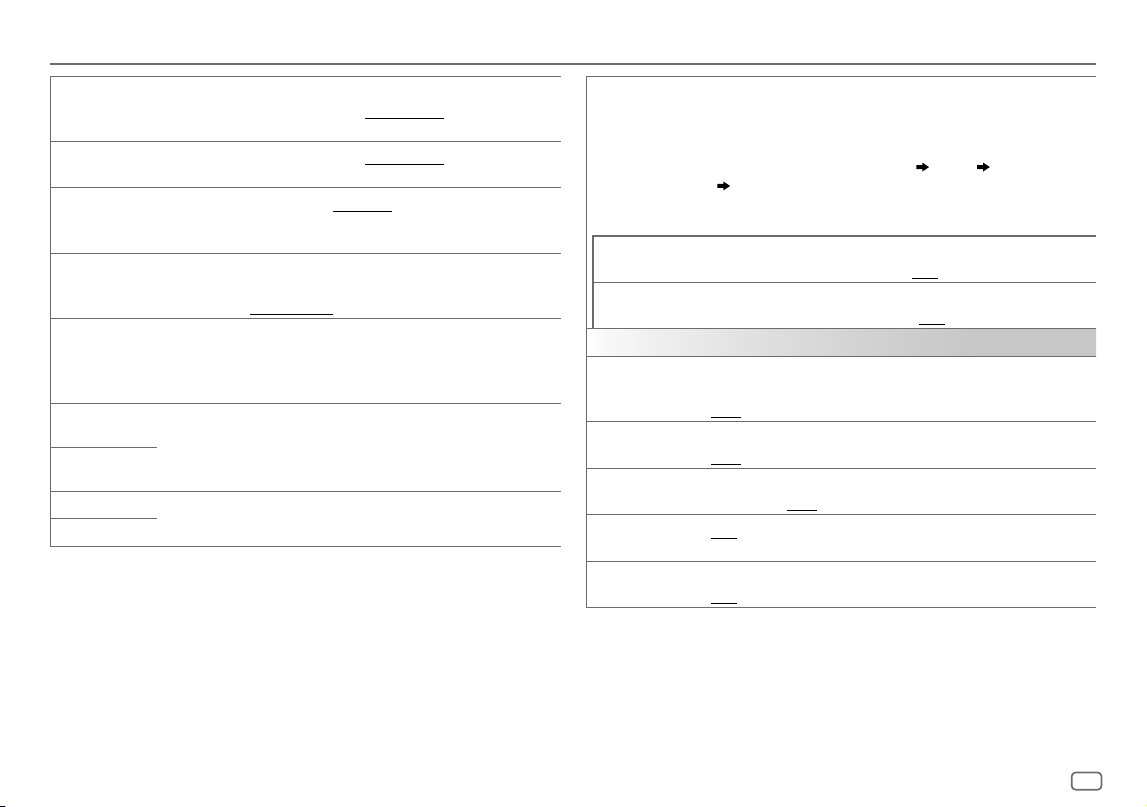
ENGLISH
27
Data Size: B6L (182 mm x 128 mm)
Book Size: B6L (182 mm x 128 mm)
Audio Settings
[FADER] (Not applicable when 3-way crossover is selected.)
[POSITIONR15] to [POSITIONF15] ([POSITION00]): Adjusts the front
and rear speaker output balance.
[BALANCE]*4
[POSITIONL15] to [POSITIONR15] ([POSITION00]): Adjusts the left and
right speaker output balance.
[VOLUME
ADJUST]
[LEVEL–15] to [LEVEL+06] ([LEVEL00]): Presets the initial volume level
of each source by comparing to the FM volume levels. (Before adjustment,
select the source you want to adjust.)
[AMPGAIN]
[LOWPOWER]: Limits the maximum volume level to 25. (Select if the
maximum power of each speaker is less than 50 W to prevent damaging
the speakers.) ; [HIGHPOWER]: The maximum volume level is 35.
[SPK/PREOUT] (Not applicable when 3-way crossover is selected.)
Depending on the speaker connection method, select the appropriate
setting for the desired output. (See “Speaker output settings” on
page 28.)
[SPEAKER SIZE] Depending on the crossover type you have selected (see the following
[X'OVER TYPE]), 2-way crossover or 3-way crossover setting items will be
shown. (See “Crossover settings” on page 29.)
By default, 2-way crossover type is selected.
[X ' OVER]
[DTA SETTINGS]
For settings, see “Digital Time Alignment settings” on page 31.
[CAR SETTINGS]
[X ‘ OVER TYPE] Caution: Adjusts the volume before changing the [X ‘ OVER TYPE] to avoid
the sudden increase or decrease of the output level.
• Once you have changed the crossover type, the next time when you turn
on the power, the display shows:
“2-WAY X’OVER” or “3-WAY X’OVER”
“PRESS” “VOLUME KNOB”
“TO CONFIRM”
Press the volume knob to acknowledge in order to proceed to the next
desired operation.
[2-WAY]
(Displayed only when [3-WAY] is selected.)
[YES]: Selects two way crossover type. ; [NO]: Cancels.
[3-WAY]
(Displayed only when [2-WAY] is selected.)
[YES]: Selects three way crossover type. ; [NO]: Cancels.
[SOUND EFFECT]
[SPACE ENHANCE]
(Not applicable for FM/AM source.)
[SMALL]/[MEDIUM]/[LARGE]: Virtually enhances the sound space. ;
[OFF]: Cancels.
[SND RESPONSE]
[LEVEL1]/[LEVEL2]/[LEVEL3]: Virtually makes the sound more realistic. ;
[OFF]: Cancels.
[SOUND LIFT]
[LOW]/[MIDDLE]/[HIGH]: Virtually adjusts the sound position heard from
the speakers. ; [OFF]: Cancels.
[VOL LINK EQ]
[ON]: Boosts the frequency to reduce the noise heard from outside the car
or running noise of the tyres. ; [OFF]: Cancels.
[K2 TECHNOLOGY]
(Not applicable for FM/AM source, SIRIUS XM source and AUX source.)
[ON]: Improves the sound quality of compressed music. ; [OFF]: Cancels.
*1 Displayed only when [SUBWOOFER SET] is set to [ON]. (Page 26)
*2 For 2-way crossover: Displayed only when [SPK/PREOUT] is set to [SUB.W/SUB.W].
(Page 28)
*3 For 2-way crossover: Displayed only when [SPK/PREOUT] is set to [REAR/SUB.W] or
[SUB.W/SUB.W]. (Page 28)
*4 This adjustment will not affect the subwoofer output.
KD_T925BTS_K_B5A-3880-00_EN_2nd Draft.indd 27KD_T925BTS_K_B5A-3880-00_EN_2nd Draft.indd 27 5/7/2021 10:55:04 AM5/7/2021 10:55:04 AM
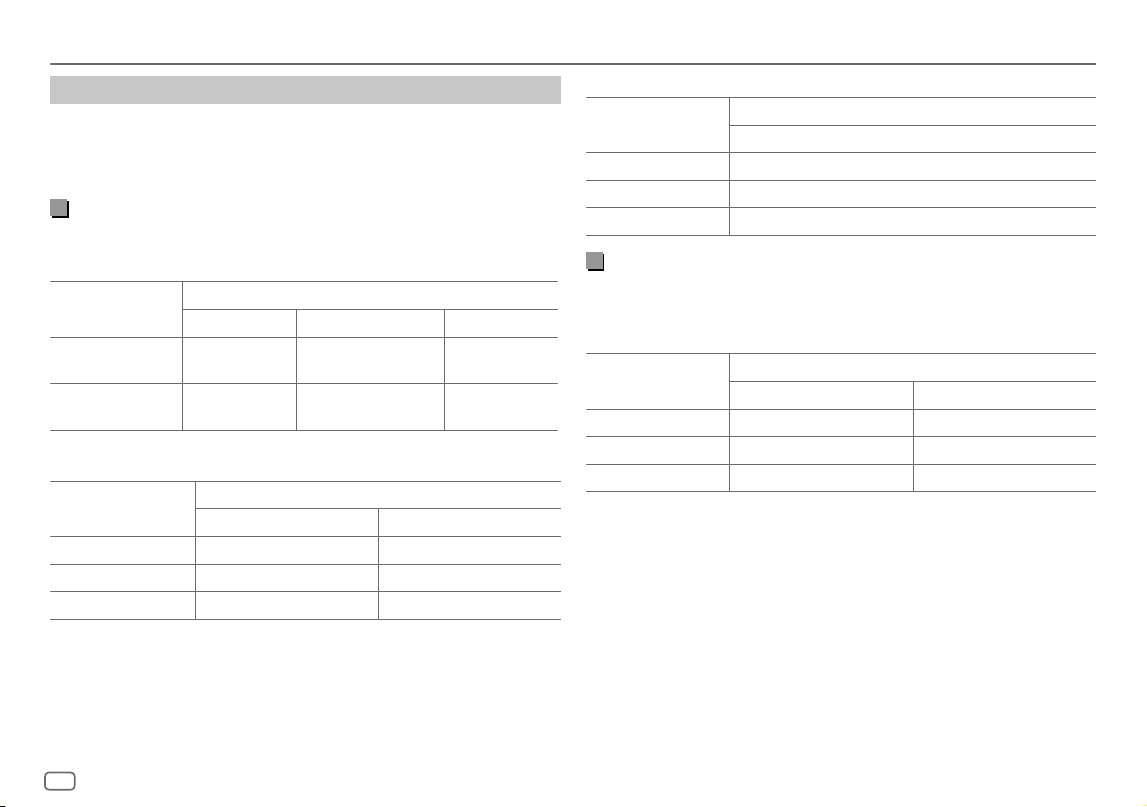
28
ENGLISH
Data Size: B6L (182 mm x 128 mm)
Book Size: B6L (182 mm x 128 mm)
Audio Settings
Speaker output settings
[SPK/PRE OUT]
(Applicable only if [X ' OVER TYPE ] is set to [2-WAY]) (page27)
Select the output setting for the speakers
[SPK/PRE OUT]
, based on the speaker
connection method.
Connection via lineout terminals
For connections through an external amplifier (Page42)
KD-T925BTS:
Setting on
[SPK/PRE OUT]
Audio signal through lineout terminal
FRONT REAR SW
[REAR/REAR] (default) Front speakers
output
Rear speakers output Subwoofer output
[SUB.W/SUB.W] Front speakers
output
L (left): Subwoofer output
R (right): (Mute)
Subwoofer output
KD-T920BTS:
Setting on
[SPK/PRE OUT]
Audio signal through lineout terminal
FRONT REAR/SW
[REAR/REAR] Front speakers output Rear speakers output
[REAR/SUB.W] (default) Front speakers output Subwoofer output
[SUB.W/SUB.W] Front speakers output Subwoofer output
KD-T720BT:
Setting on
[SPK/PRE OUT]
Audio signal through lineout terminal
REAR/SW
[REAR/REAR] Rear speakers output
[REAR/SUB.W] (default) Subwoofer output
[SUB.W/SUB.W] Subwoofer output
Connection via speaker leads
You can also connect the speakers without using an external amplifier
but still being able to enjoy the subwoofer output with these settings.
(Page41)
Setting on
[SPK/PRE OUT]
Audio signal through rear speaker lead
L (left) R (right)
[REAR/REAR] Rear speakers output Rear speakers output
[REAR/SUB.W]* Rear speakers output Rear speakers output
[SUB.W/SUB.W] Subwoofer output (Mute)
If
[SUB.W/SUB.W]
is selected:
–
[120HZ]
is selected in
[SUBWOOFERLPF]
and
[THROUGH]
is not available.
(Page30)
–
[POSITION R02]
is selected in
[FADER]
and selectable range is
[POSITION R15]
to
[POSITION 00]
. (Page27)
* Except for KD-T925BTS.
KD_T925BTS_K_B5A-3880-00_EN_4th Draft.indd 28KD_T925BTS_K_B5A-3880-00_EN_4th Draft.indd 28 26/8/2021 1:58:33 PM26/8/2021 1:58:33 PM
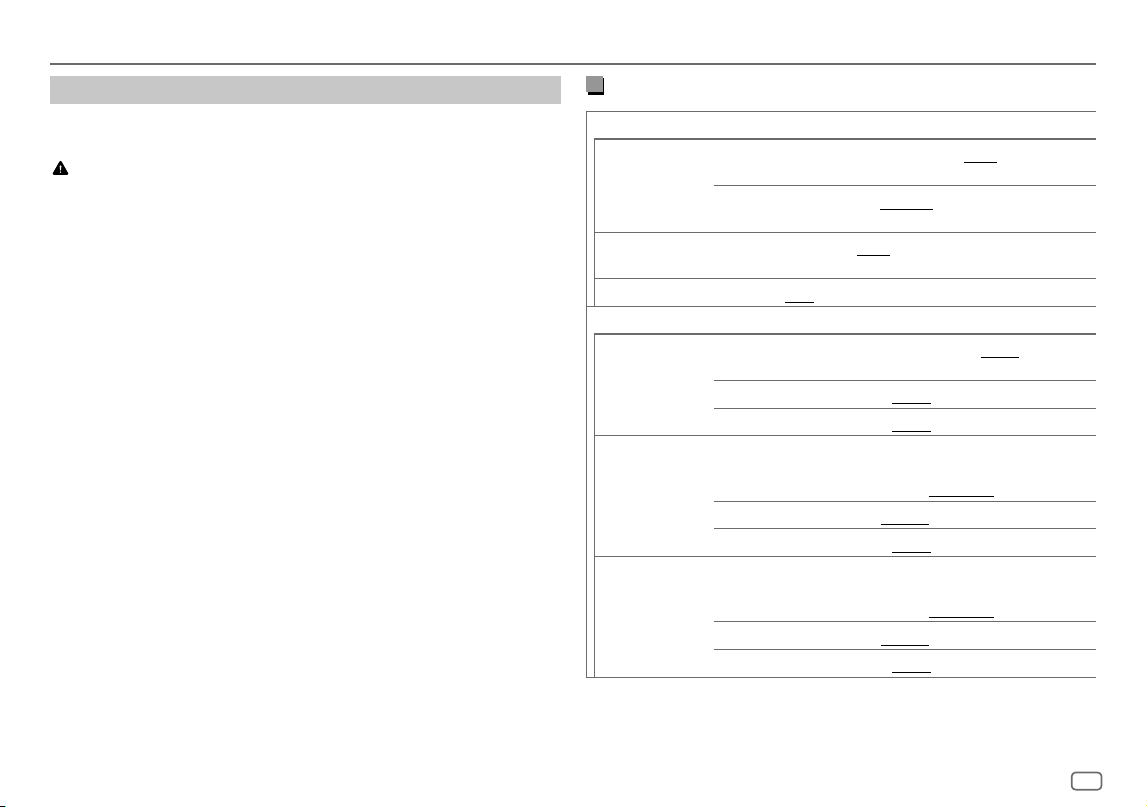
ENGLISH
29
Data Size: B6L (182 mm x 128 mm)
Book Size: B6L (182 mm x 128 mm)
Audio Settings
2-way crossover setting items
[SPEAKER SIZE]
[FRONT] [SIZE]
[3.5"]/[4"]/[4.75"]/[5"]/[6.5"]/[6.75"]/[7"]/
[4×6]/[5×7]/[6×8]/[6×9]/[7×10]
[TWEETER]
[SMALL]/[MIDDLE]/[LARGE]/[NONE] (not
connected)
[REAR]*1
[3.5"]/[4"]/[4.75"]/[5"]/[6.5"]/[6.75"]/[7"]/[4×6]/[5×7]/[6×8]/
[6×9]/[7×10]/[NONE] (not connected)
[SUBWOOFER]*2*3
[6.5"]/[8"]/[10"]/[12"]/[15" OVER]/[NONE] (not connected)
[X ' OVER]
[TWEETER] [FRQ]
[1KHZ]/[1.6KHZ]/[2.5KHZ]/[4KHZ]/[5KHZ]/
[6.3KHZ]/[8KHZ]/[10KHZ]/[12.5KHZ]
[GAIN LEFT]
[–08DB] to [00DB]
[GAIN RIGHT]
[–08DB] to [00DB]
[FRONT HPF] [F-HPF FRQ]
[30HZ]/[40HZ]/[50HZ]/[60HZ]/[70HZ]/[80HZ]/
[90HZ]/[100HZ]/[120HZ]/[150HZ]/[180HZ]/
[220HZ]/[250HZ]/[THROUGH]
[F-HPF SLOPE]
[–06DB]/[–12DB]/[–18DB]/[–24DB]
[F-HPF GAIN]
[–08DB] to [00DB]
[REAR HPF]*1 [R-HPF FRQ]
[30HZ]/[40HZ]/[50HZ]/[60HZ]/[70HZ]/[80HZ]/
[90HZ]/[100HZ]/[120HZ]/[150HZ]/[180HZ]/
[220HZ]/[250HZ]/[THROUGH]
[R-HPF SLOPE]
[–06DB]/[–12DB]/[–18DB]/[–24DB]
[R-HPF GAIN]
[–08DB] to [00DB]
*1, *2, *3: (see page 30)
Crossover settings
Below are the available setting items for 2-way crossover and 3-way
crossover.
CAUTION
Select a crossover type according to how the speakers are connected.
(Page41, 42)
If you select a wrong type:
• The speakers may be damaged.
• The output sound level may be extremely high or low.
SPEAKER SIZE
Selects according to the connected speaker size for optimum performance.
• The frequency and slope settings are automatically set for the crossover of
the selected speaker.
• If
[NONE]
is selected for the following speaker in
[SPEAKER SIZE]
, the
[X ‘ OVER]
setting of the selected speaker is not available.
– 2-way crossover:
[TWEETER]
of
[FRONT]
/
[REAR]
/
[SUBWOOFER]
– 3-way crossover:
[WOOFER]
X ‘ OVER (crossover)
•
[FRQ]
/
[F-HPFFRQ]
/
[R-HPFFRQ]
/
[SWLPF FRQ]
/
[HPFFRQ]
/
[LPFFRQ]
: Adjusts the
crossover frequency for the selected speakers (high pass filter or low pass
filter).
If
[THROUGH]
is selected, all signals are sent to the selected speakers.
•
[SLOPE]
/
[F-HPFSLOPE]
/
[R-HPFSLOPE]
/
[SWLPF SLOPE]
/
[HPFSLOPE]
/
[LPFSLOPE]
:
Adjusts the crossover slope.
Selectable only if a setting other than
[THROUGH]
is selected for the
crossover frequency.
•
[SW LPF PHASE]
/
[PHASE]
: Selects the phase of the speaker output to be in line
with the other speaker output.
•
[GAINLEFT]
/
[GAINRIGHT]
/
[F-HPFGAIN]
/
[R-HPFGAIN]
/
[SWLPF GAIN]
/
[GAIN]
: Adjusts
the output volume of the selected speaker.
KD_T925BTS_K_B5A-3880-00_EN_2nd Draft.indd 29KD_T925BTS_K_B5A-3880-00_EN_2nd Draft.indd 29 5/7/2021 10:55:05 AM5/7/2021 10:55:05 AM
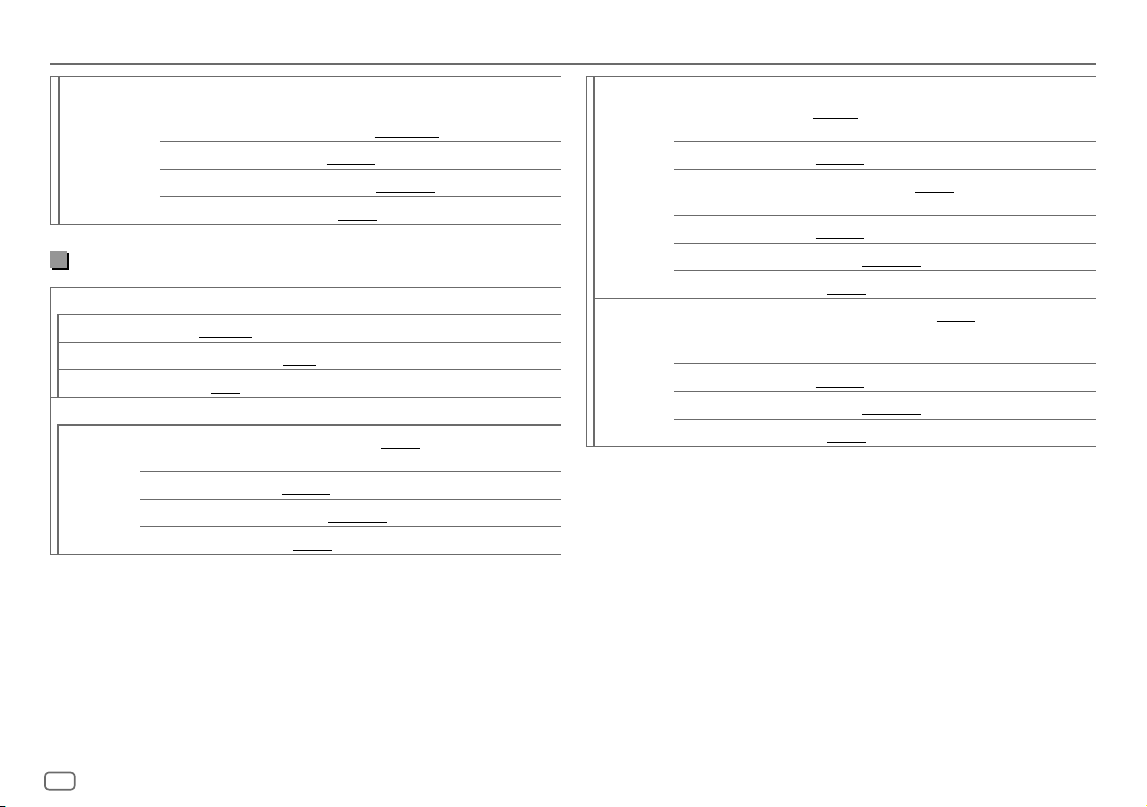
30
ENGLISH
Data Size: B6L (182 mm x 128 mm)
Book Size: B6L (182 mm x 128 mm)
[SUBWOOFER
LPF]*2*3
[SW LPF FRQ] [30HZ]/[40HZ]/[50HZ]/[60HZ]/[70HZ]/[80HZ]/
[90HZ]/[100HZ]/[120HZ]/[150HZ]/[180HZ]/
[220HZ]/[250HZ]/[THROUGH]
[SW LPF SLOPE]
[–06DB]/[–12DB]/[–18DB]/[–24DB]
[SW LPF PHASE]
[REVERSE] (180°)/ [NORMAL] (0°)
[SW LPF GAIN]
[–08DB] to [00DB]
3-way crossover setting items
[SPEAKER SIZE]
[TWEETER]
[SMALL]/[MIDDLE]/[LARGE]
[MID RANGE]
[3.5"]/[4"]/[4.75"]/[5"]/[6.5"]/[6.75"]/[7"]/[4×6]/[5×7]/[6×8]/[6×9]
[WOOFER]*3
[6.5"]/[8"]/[10"]/[12"]/[15" OVER]/[NONE] (not connected)
[X ' OVER]
[TWEETER] [HPF FRQ]
[1KHZ]/[1.6KHZ]/[2.5KHZ]/[4KHZ]/[5KHZ]/[6.3KHZ]/
[8KHZ]/[10KHZ]/[12.5KHZ]
[SLOPE]
[–06DB]/[–12DB]
[PHASE]
[REVERSE] (180°)/[NORMAL] (0°)
[GAIN]
[–08DB] to [00DB]
[MID RANGE] [HPF FRQ] [30HZ]/[40HZ]/[50HZ]/[60HZ]/[70HZ]/[80HZ]/[90HZ]/
[100HZ]/[120HZ]/[150HZ]/[180HZ]/[220HZ]/[250HZ]/
[THROUGH]
[HPF SLOPE]
[–06DB]/[–12DB]
[LPF FRQ]
[1KHZ]/[1.6KHZ]/[2.5KHZ]/[4KHZ]/[5KHZ]/[6.3KHZ]/
[8KHZ]/[10KHZ]/[12.5KHZ]/[THROUGH]
[LPF SLOPE]
[–06DB]/[–12DB]
[PHASE]
[REVERSE] (180°)/[NORMAL] (0°)
[GAIN]
[–08DB] to [00DB]
[WOOFER]*3 [LPF FRQ]
[30HZ]/[40HZ]/[50HZ]/[60HZ]/[70HZ]/[80HZ]/[90HZ]/
[100HZ]/[120HZ]/[150HZ]/[180HZ]/[220HZ]/[250HZ]/
[THROUGH]
[SLOPE]
[–06DB]/[–12DB]
[PHASE]
[REVERSE] (180°)/[NORMAL] (0°)
[GAIN]
[–08DB] to [00DB]
*1 Displayed only when [SPK/PRE OUT] is set to [REAR/REAR] or [REAR/SUB.W]. (Page 28)
*2 Except KD-T925BTS: Displayed only when [SPK/PREOUT] is set to [REAR/SUB.W] or
[SUB.W/SUB.W]. (Page 28)
*3 Displayed only when [SUBWOOFER SET] is set to [ON]. (Page 26)
Audio Settings
KD_T925BTS_K_B5A-3880-00_EN_2nd Draft.indd 30KD_T925BTS_K_B5A-3880-00_EN_2nd Draft.indd 30 5/7/2021 10:55:05 AM5/7/2021 10:55:05 AM
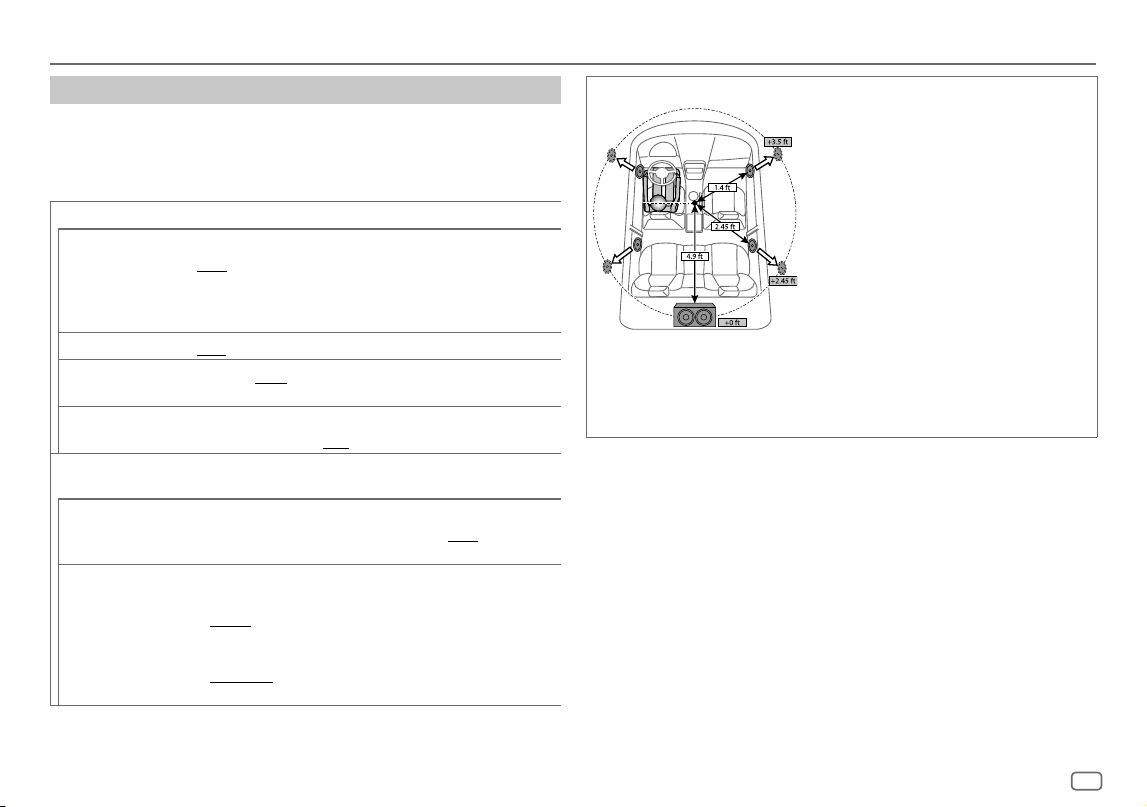
ENGLISH
31
Data Size: B6L (182 mm x 128 mm)
Book Size: B6L (182 mm x 128 mm)
Audio Settings
Digital Time Alignment settings
Digital Time Alignment sets the delay time of the speaker output to create a
more suitable environment for your vehicle.
• For more information, see the following “Determining the delay time
automatically”.
[DTA SETTINGS]
[POSITION]
Selects your listening position (reference point).
[ALL]: Not compensating ; [FRONT RIGHT]: Front right seat ;
[FRONT LEFT]: Front left seat ; [FRONT ALL]: Front seats
• [FRONT ALL] is displayed only when [X ' OVER TYPE] is set to
[2-WAY]. (Page 27)
[DISTANCE]*1
[0FT] to [20.01FT]: Fine adjust the distance to compensate.
[GAIN]*1
[–8DB] to [0DB]: Fine adjust the output volume of the selected
speaker.
[DTA RESET]
[YES]: Resets the settings ([DISTANCE] and [GAIN]) of the selected
[POSITION] to default. ; [NO]: Cancels.
[CAR SETTINGS] Identify your car type and rear speaker location in order to make the
adjustment for [DTA SETTINGS].
[CAR TYPE]
[COMPACT]/[FULL SIZE CAR]/[WAGON]/[MINIVAN]/[SUV]/
[MINIVAN(LONG)]: Selects the type of vehicle. ; [OFF]: Not
compensating.
[R-SP LOCATION]*2
Selects the location of the rear speakers in your vehicle to calculate the
furthest distance from the listening position selected (reference point).
• [DOOR]/[REAR DECK]: Selectable only when [CAR TYPE] is
selected as [OFF], [COMPACT], [FULL SIZE CAR], [WAGON] or
[SUV].
• [2ND ROW]/[3RD ROW]: Selectable only when [CAR TYPE] is
selected as [MINIVAN] or [MINIVAN(LONG)].
Determining the delay time automatically
If you specify the distance from the currently set
listening position to every speaker, the delay time
will be automatically calculated.
1
Set [POSITION] and determine the listening
position as the reference point (the reference
point for [FRONT ALL] will be the center
between the right and left in the front seats).
2
Measure the distances from the reference point
to the speakers.
3
Calculate the distance between the furthest
speaker (subwoofer on the illustration) and
other speakers.
4
Sets the [DISTANCE] calculated in step 3 for
individual speakers.
5
Adjusts [GAIN] for individual speakers.
Example: When [FRONT ALL] is selected as the
listening position
*1 Before making an adjustment, select the speaker:
When 2-way crossover is selected:
[FRONT LEFT]/[FRONT RIGHT]/[REAR LEFT]/[REAR RIGHT]/[SUBWOOFER]:
–
[REAR LEFT]
,
[REAR RIGHT]
and
[SUBWOOFER]
is selectable only if a setting other than
[NONE]
is selected for
[REAR]
and
[SUBWOOFER]
of
[SPEAKER SIZE]
. (Page 29)
When 3-way crossover is selected:
[TWEETER LEFT]/[TWEETER RIGHT]/[MID LEFT]/[MID RIGHT]/[WOOFER]:
–
[WOOFER]
is selectable only if a setting other than
[NONE]
is selected for
[WOOFER]
of
[SPEAKER SIZE]
. (Page 30)
*2 Displayed only when [X ' OVER TYPE ] is set to [2-WAY] (page 27) and if a setting other
than [NONE] is selected for [REAR] of [SPEAKER SIZE]. (Page
29
)
KD_T925BTS_K_B5A-3880-00_EN_2nd Draft.indd 31KD_T925BTS_K_B5A-3880-00_EN_2nd Draft.indd 31 5/7/2021 10:55:05 AM5/7/2021 10:55:05 AM
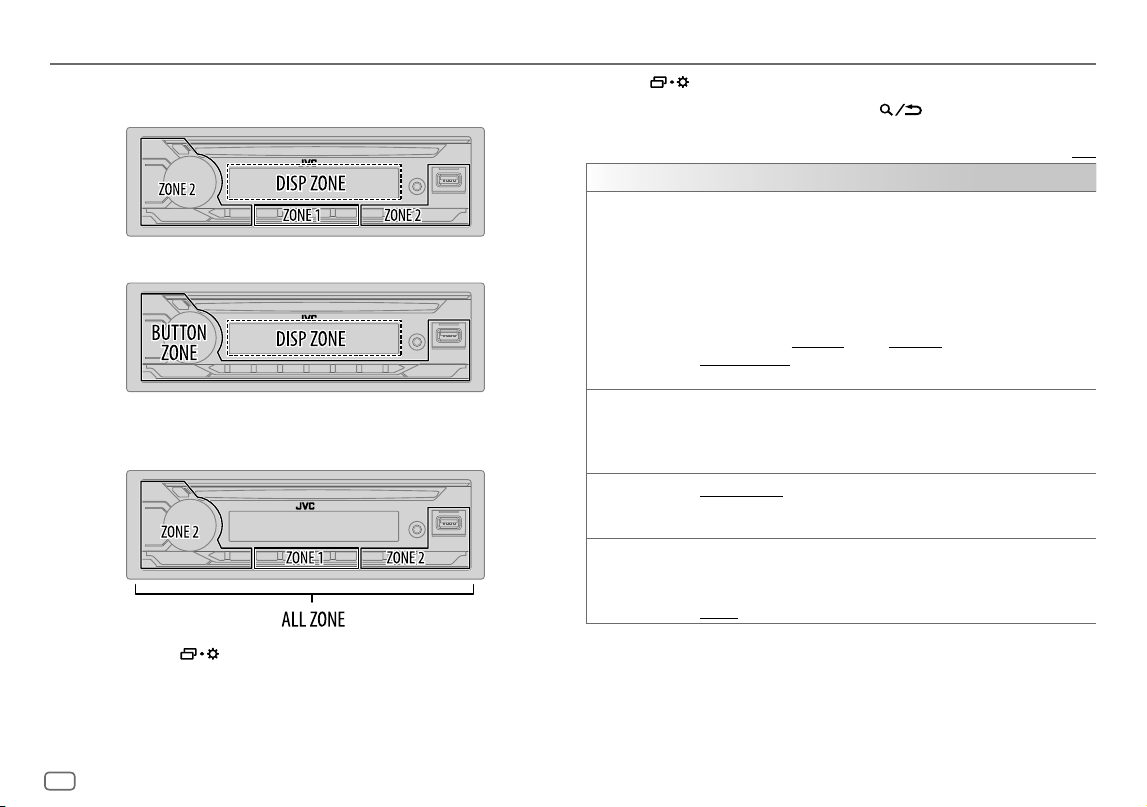
32
ENGLISH
Data Size: B6L (182 mm x 128 mm)
Book Size: B6L (182 mm x 128 mm)
Display Settings
Zone identification for brightness settings
KD-T925BTS/KD-T920BTS:
Zone identification for color settings
KD-T925BTS/KD-T920BTS:
1 Press and hold .
2 Turn the volume knob to select an item (see the following table), then
press the knob.
3 Repeat step 2 until the desired item is selected/activated or follow the
instructions stated on the selected item.
4 Press to exit.
To return to the previous setting item, press
.
Default: [XX]
[DISPLAY]
[DIMMER]
Dims the illumination.
[OFF]: Dimmer is turned off. Brightness changes to [DAY] setting.
[ON]: Dimmer is turned on. Brightness changes to [NIGHT] setting.
(See the following “[BRIGHTNESS]” settings.)
[DIMMER TIME]: Set the time to turn on dimmer and to turn off dimmer.
1
Turn the volume knob to adjust the [ON] time, then press the knob.
2
Turn the volume knob to adjust the [OFF] time, then press the knob.
(Default: [ON]: [PM6:00] ; [OFF]: [AM6:00])
[DIMMER AUTO]: Dimmer turns on and off automatically when you turn off
or on the car headlights.*1
[BRIGHTNESS] Sets the brightness for day and night separately.
1
[DAY]/[NIGHT]: Select day or night.
2
Select a zone. (See the illustration on the left column.)
3
[LEVEL00] to [LEVEL31]: Set the brightness level.
[TEXT SCROLL]*2
[SCROLL ONCE]: Scrolls the display information once. ;
[SCROLL AUTO]: Repeats scrolling at 5-second intervals. ;
[SCROLL OFF]: Cancels.
[FORMAT]*3
Information below is shown on the supplementary display when Bluetooth
device is connected. (Page 35)
[BATT/SIGNAL]: Shows the strength of the battery and signal. ;
[DATE]: Shows the date.
*1 The illumination control wire connection is required. (Page 41)
*2 Some characters or symbols will not be shown correctly (or will be blank).
*3 Functionality depends on the type of phone used.
KD-T720BT:
KD_T925BTS_K_B5A-3880-00_EN_2nd Draft.indd 32KD_T925BTS_K_B5A-3880-00_EN_2nd Draft.indd 32 5/7/2021 10:55:05 AM5/7/2021 10:55:05 AM
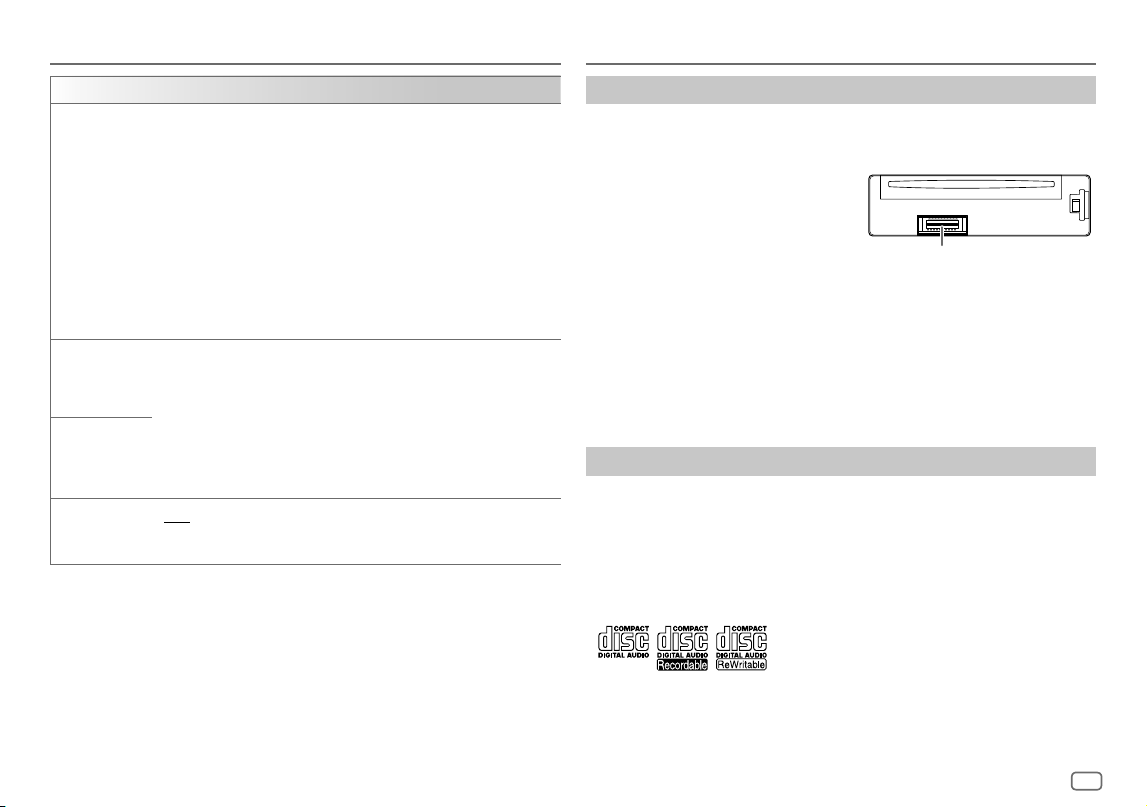
ENGLISH
33
Data Size: B6L (182 mm x 128 mm)
Book Size: B6L (182 mm x 128 mm)
Display Settings
[COLOR] (for KD-T925BTS/KD-T920BTS)
[PRESET] Selects illumination colors for the buttons on different zones separately.
1
Select a zone ([ZONE1], [ZONE2], [ALLZONE]). (See the illustration on
page 32.)
2
Select a color for the selected zone.
• [COLOR01] to [COLOR49]
• [USER]: The color you have created for [DAYCOLOR] or
[NIGHTCOLOR] is shown.
• [COLORFLOW01] to [COLORFLOW03]: Color changes at different
speeds.
• [CRYSTAL]/[FLOWER]/[FOREST]/[GRADATION]/[OCEAN]/[RELAX]/
[SUNSET]: The selected color pattern is shown.* (Selectable only when
[ALLZONE] is selected in step 1.)
[DAYCOLOR] Stores your own day and night illumination colors for different zones.
1
Select a zone ([ZONE1], [ZONE2]). (See the illustration on page 32.)
2
[RED]/[GREEN]/[BLUE]: Select a primary color.
3
[00] to [31]: Select the level.
Repeat step 2 and step 3 for all the primary colors.
• Your setting is stored to [USER] in [PRESET].
• [NIGHTCOLOR] or [DAYCOLOR] is changed by turning on or off your
car’s headlights.
[NIGHTCOLOR]
[COLOR GUIDE]
[ON]: The illumination color of [ZONE1] and [ZONE2] change to white
color when settings are performed on menu and list search, except in color
setting mode. ; [OFF]: Cancels.
* If one of these color patterns is selected, the [ZONE1] and [ZONE2] illumination colors will
change to the default colors.
References
Maintenance
Cleaning the unit
Wipe off dirt on the faceplate with a dry silicone or soft cloth.
Cleaning the connector
Detach the faceplate and clean the connector gently
with a cotton swab. Be careful not to damage the
connector.
Handling discs
• Do not touch the recording surface of the disc.
• Do not stick tape etc. on the disc, or use a disc with tape stuck on it.
• Do not use any accessories for the disc.
• Clean from the center of the disc and move outward.
• Clean the disc with a dry silicone or soft cloth. Do not use any solvents.
• When removing a disc from this unit, pull it out horizontally.
• Remove burrs from the center hole and disc edge before inserting a disc.
More information
For: – Latest firmware updates and latest compatible item list
– JVC original application
– Any other latest information
Visit <https://www.jvc.net/cs/car/>.
General
• This unit can only play the following CDs:
Connector (on the reverse
side of the faceplate)
KD_T925BTS_K_B5A-3880-00_EN_2nd Draft.indd 33KD_T925BTS_K_B5A-3880-00_EN_2nd Draft.indd 33 5/7/2021 10:55:05 AM5/7/2021 10:55:05 AM

34
ENGLISH
Data Size: B6L (182 mm x 128 mm)
Book Size: B6L (182 mm x 128 mm)
References
• DualDisc playback: The Non-DVD side of a “DualDisc” does not comply with the “Compact Disc
Digital Audio” standard. Therefore, the use of Non-DVD side of a DualDisc on this product cannot
be recommended.
• For detailed information and notes about the playable audio files, visit
<https://www.jvc.net/cs/car/audiofile/>.
Playable files
• Disc:
Playable audio file:
MP3 (.mp3), WMA (.wma), AAC (.aac)
Playable media: CD-R/CD-RW/CD-ROM
Playable file format: ISO 9660 Level 1/2, Joliet, Long file name
• USB mass storage class device:
Playable audio file:
MP3 (.mp3), WMA (.wma), AAC (.aac), AAC (.m4a), WAV (.wav), FLAC (.flac)
Playable file system: FAT12, FAT16, FAT32
Even when audio files comply with the standards listed above, playback may be impossible
depending on the types or conditions of media or devices.
The AAC (.m4a) file in a CD encoded by iTunes cannot be played on this unit.
Unplayable discs
• Discs that are not round.
• Discs with coloring on the recording surface or discs that are dirty.
• Recordable/ReWritable discs that have not been finalized.
• 8 cm CD. Attempting to insert using an adapter may cause malfunction.
About USB devices
• You cannot connect a USB device via a USB hub.
• Connecting a cable whose total length is longer than 5 m may result in abnormal playback.
• This unit cannot recognize a USB device whose rating is other than 5 V and exceeds 1.5 A.
About iPod/iPhone
• Made for
– iPod touch (6th generation)
– iPhone 5S, 6, 6 Plus, 6S, 6S Plus, SE, 7, 7 Plus, 8, 8 Plus, X, XS, XS MAX, XR, 11, 11 Pro, 11 Pro
Max, SE (2nd generation), 12, 12 mini, 12 Pro, 12 Pro Max
• The song order displayed on the selection menu of this unit may differ from that of the iPod/
iPhone.
• Depending on the version of the operating system of the iPod/iPhone, some functions may not
operate on this unit.
About AMAZON ALEXA
• Alexa is a third party service, therefore the specifications are subject to change without prior
notice. Accordingly, compatibility may be impaired or some or all of the services may become
unavailable.
• Alexa supported languages on this unit: US English/Canada English/US Spanish/Canada French/
Mexico Spanish/UK English/Italy Italian/Spain Spanish/France French/Deutschland Deutsch/
Australia English/Japan Japanese
KD_T925BTS_K_B5A-3880-00_EN_7th Draft.indd 34KD_T925BTS_K_B5A-3880-00_EN_7th Draft.indd 34 2/3/2022 11:59:36 AM2/3/2022 11:59:36 AM
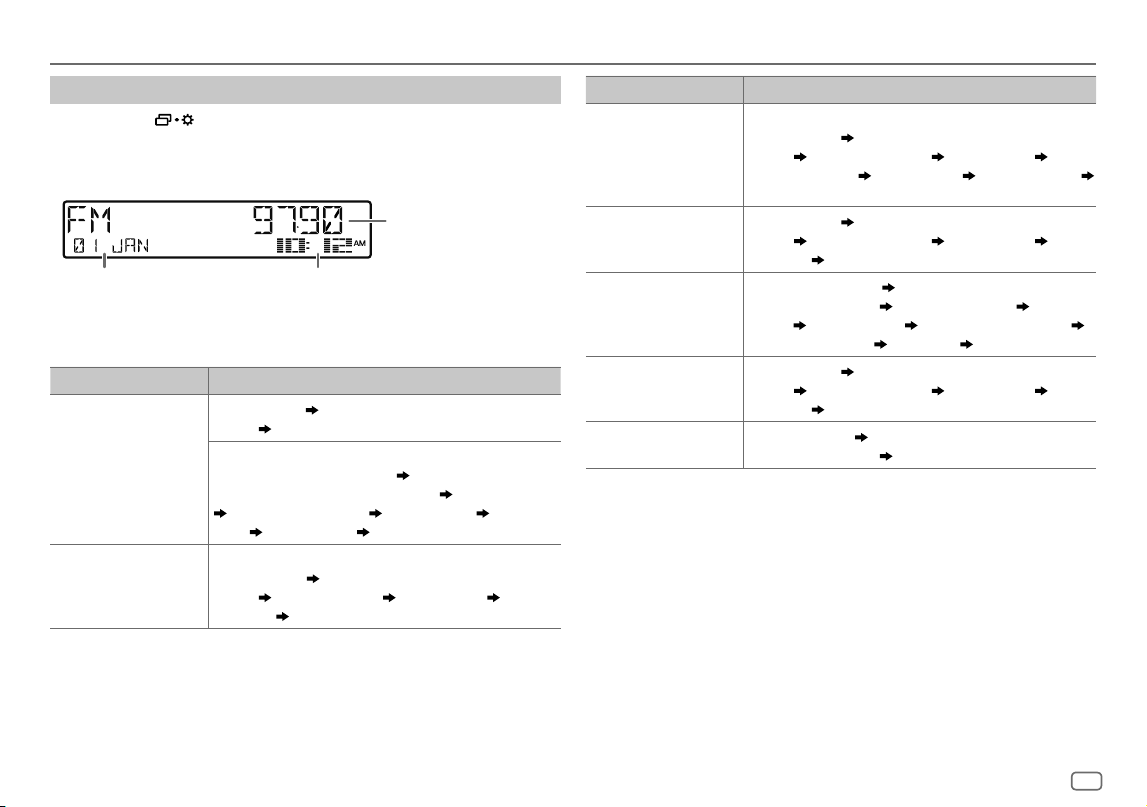
ENGLISH
35
Data Size: B6L (182 mm x 128 mm)
Book Size: B6L (182 mm x 128 mm)
References
Change the display information
Each time you press , the display information changes.
• If the information is unavailable or not recorded, “NO TEXT”, “NO NAME”, or other information
(eg. station name) appears or display will be blank.
Main display
Clock display or Level meterSupplementary display*1
*1 Date will be replaced with battery and signal strength of the connected Bluetooth device if
[FORMAT] is set to [BATT/SIGNAL]. (Page 32)
Source name Display information: Main (Supplementary)
FM or AM Frequency (Date)
Frequency (Date) with Music Synchronization
Effect*2
back to the beginning
For FM Radio Broadcast Data System stations only:
Station name/Program type (Date)
Station name/Program type
(Date) with Music Synchronization Effect*2
Radio text (Date)
Radio text+ (Radio text+) Song title (Artist) Song title
(Date)
Frequency (Date) back to the beginning
CD or USB FRONT/
USB REAR/USB
For CD-DA:
Track title (Artist)
Track title (Artist) with Music Synchronization
Effect*2
Track title (Disc title) Track title (Date) Playing
time (Date)
back to the beginning
Source name Display information: Main (Supplementary)
For MP3/WMA/AAC/WAV/FLAC files:
Song title (Artist)
Song title (Artist) with Music Synchronization
Effect*2
Song title (Album title) Song title (Date) File
name (Folder name)
File name (Date) Playing time (Date)
back to the beginning
iPod FRONT/iPod REAR/
iPod USB/iPod BT
Song title (Artist)
Song title (Artist) with Music Synchronization
Effect*2
Song title (Album title) Song title (Date) Playing
time (Date)
back to the beginning
SIRIUS XM Channel number (Status)
Channel number (Status) with Music
Synchronization Effect*2
Channel name (Status) Artist
(Status)
Song title (Status) Content information (Status)
Category name (Status)
Date (Status) back to the beginning
BT AUDIO/ALEXA Song title (Artist)
Song title (Artist) with Music Synchronization
Effect*2
Song title (Album title) Song title (Date) Playing
time (Date)
back to the beginning
AUX Source name (Date)
Source name (Date) with Music
Synchronization Effect*2
back to the beginning
*2 For KD-T925BTS/KD-T920BTS: During Music Synchronization Effect, the illumination color or
brightness level of the buttons changes and synchronizes with the music level (depending on
the color setting made for [PRESET] on page 33).
For KD-T720BT: During Music Synchronization Effect, the brightness level of the buttons
changes and synchronizes with the music level.
KD_T925BTS_K_B5A-3880-00_EN_2nd Draft.indd 35KD_T925BTS_K_B5A-3880-00_EN_2nd Draft.indd 35 5/7/2021 10:55:05 AM5/7/2021 10:55:05 AM
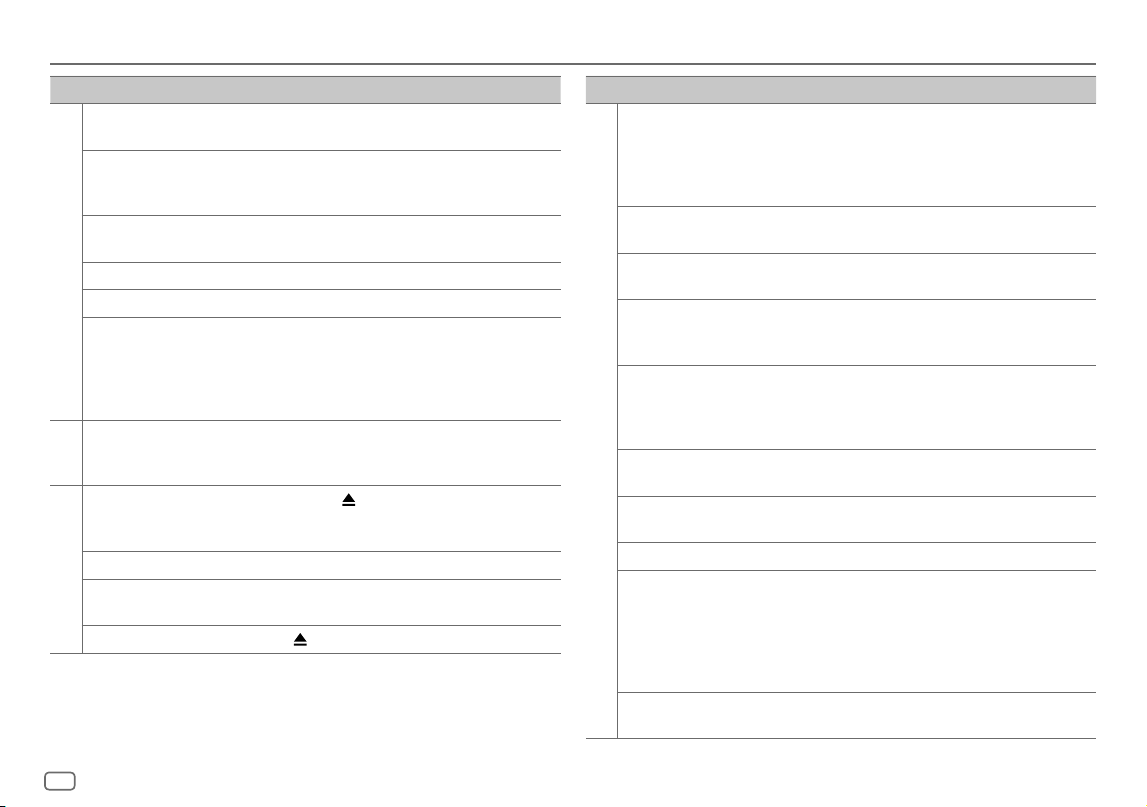
36
ENGLISH
Data Size: B6L (182 mm x 128 mm)
Book Size: B6L (182 mm x 128 mm)
Symptom Remedy
General
Sound cannot be heard. • Adjust the volume to the optimum level.
• Check the cords and connections.
“MISWIRING CHECK WIRING
THEN PWR ON” appears.
Turn the power off, then check to be sure the terminals of
the speaker wires are insulated properly. Turn the power
on again.
“PROTECTING SEND SERVICE”
appears.
Send the unit to the nearest service center.
Source cannot be selected. Check the [SOURCESELECT] setting. (Page 6)
The unit does not work at all. Reset the unit. (Page 4)
Correct characters are not
displayed.
• This unit can only display uppercase letters, numbers,
and a limited number of symbols.
• Depending on the display language you have selected
(page 6), some characters may not be displayed
correctly.
Radio
• Radio reception is poor.
• Static noise while listening
to the radio.
Connect the antenna firmly.
CD/USB/iPod
Disc cannot be ejected.
Press and hold
to forcibly eject the disc. Be careful not
to drop the disc when it is ejected. If this does not solve
the problem, reset the unit (page 4).
Noise is generated. Skip to another track or change the disc.
“IN DISC” appears and disc
cannot be ejected.
Make sure nothing is blocking the loading slot when you
eject the disc.
“PLEASE EJECT” appears.
Press
, then insert the disc correctly.
Troubleshooting
Symptom Remedy
CD/USB/iPod
Playback order is not as
intended.
Optical disc, the files are played in the order which they
were recorded.
USB device, the folders are played in the order of creation
(date and time). The files within each folder are played in
the order of the file name (alphabet).
Elapsed playing time is not
correct.
This depends on the recording process earlier (disc/USB).
“NOT SUPPORT” appears and
track skips.
Check whether the track is a playable format.
(Page 33, 34)
“READING” keeps flashing. • Do not use too many hierarchical levels and folders.
• Reload the disc or reattach the device (USB/iPod/
iPhone).
“UNSUPPORTED DEVICE”
appears.
• Check whether the connected USB device is compatible
with this unit and ensure the file systems are in
supported formats. (Page 34)
• Reattach the USB device.
“UNRESPONSIVE DEVICE”
appears.
Make sure the USB device is not malfunction and reattach
the USB device.
“USB HUB IS NOT
SUPPORTED” appears.
This unit cannot support a USB device connected via a
USB hub.
“CANNOT PLAY” appears. Connect a USB device that contains playable audio files.
• The source does not
change to “USB” when
you connect a USB device
while listening to another
source.
• “USB ERROR” appears.
The USB port is drawing more power than the design
limit. Turn the power off and unplug the USB device.
Then, turn on the power and reattach the USB device.
If this does not solve the problem, turn the power off and
on (or reset the unit) before replacing with another USB
device.
The iPod/iPhone does not
turn on or does not work.
• Check the connection between this unit and iPod/iPhone.
• Disconnect and reset the iPod/iPhone using hard reset.
KD_T925BTS_K_B5A-3880-00_EN_5th Draft.indd 36KD_T925BTS_K_B5A-3880-00_EN_5th Draft.indd 36 1/11/2021 2:12:37 PM1/11/2021 2:12:37 PM
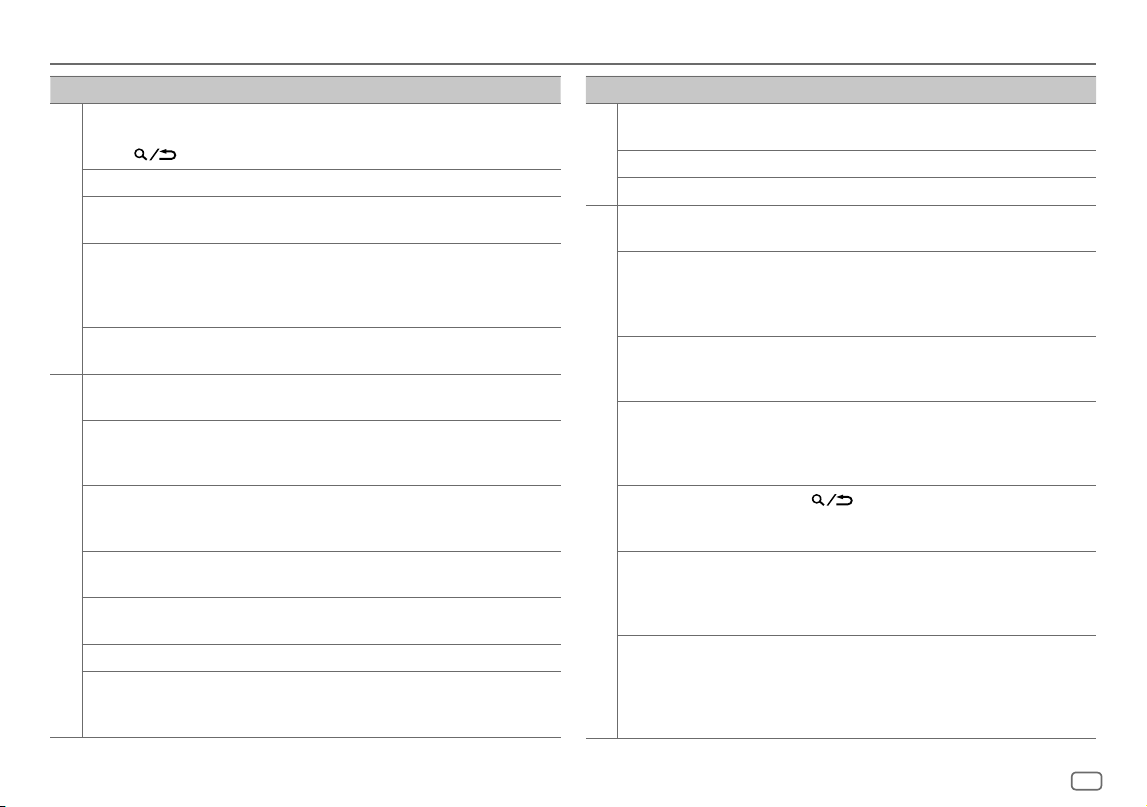
ENGLISH
37
Data Size: B6L (182 mm x 128 mm)
Book Size: B6L (182 mm x 128 mm)
Symptom Remedy
CD/USB/iPod
“LOADING” appears when
you enter search mode by
pressing
.
This unit is still preparing the iPod/iPhone music list. It
may take some time to load, try again later.
“NO DISC” Insert a playable disc into the loading slot.
“NO DEVICE” Connect a device (USB/iPod/iPhone), and change the
source to USB/iPod USB again.
“iPod ERROR” • Reconnect the iPod.
• Reset the iPod.
• Press and hold
B
SRC to turn off the power. Turn the
power on again for error recovery.
“MEMORY FULL” You have reached the maximum storage limit of your
iPod/iPhone.
SiriusXM® Radio
“CH LOCKED LOCK CODE?” The selected channel is locked. Enter the correct pass code
to unlock. (Page 14)
“CHAN UNSUB” The selected channel is unsubscribed.
Call 1-866-635-2349 in the U.S.A. or 1-888-539-7474 in
Canada to subscribe. (Page 12)
“CH UNAVAIL” The selected channel is unavailable. For more
information about the SiriusXM channel lineup, visit
<www.siriusxm.com>.
“CHECK ANTENNA” Check that the antenna and its connection are in good
condition.
“CHECK TUNER” Make sure the SiriusXM Vehicle Tuner is connected to the
unit.
“NO SIGNAL” Make sure the antenna is mounted outside the vehicle.
“SUBSCRIPTION UPDATED
– PRESS ENTER TO
CONTINUE.”
Your subscription is updated. Press the volume knob to
continue.
Troubleshooting
Symptom Remedy
SiriusXM® Radio
“CODE ERROR” Make sure you have entered the correct pass code.
(Page 14)
“NO CONTENT” There is insufficient content to start TuneScan.
“SCAN CANCEL” TuneScan has been aborted.
Bluetooth®
No Bluetooth device is
detected.
• Search from the Bluetooth device again.
• Reset the unit. (Page 4)
Bluetooth pairing cannot
be made.
• Make sure you have entered the same PIN code to both the
unit and Bluetooth device.
• Delete pairing information from both the unit and the
Bluetooth device, then perform pairing again. (Page 17)
Echo or noise is
heard during a phone
conversation.
• Adjust the microphone unit’s position. (Page 16)
• Check the [ECHO CANCEL] setting. (Page 19)
Phone sound quality
is poor.
• Reduce the distance between the unit and the Bluetooth
device.
• Move the car to a place where you can get a better signal
reception.
Phone call sound cannot
be heard from the car
speakers.
Press
during a call to switch between hands-free
and private talk mode. (Page 18)
Voice calling method is
not successful.
• Use voice calling method in a more quiet environment.
• Reduce the distance from the microphone when you speak
the name.
• Make sure the same voice as the registered voice tag is used.
Sound is being
interrupted or skipped
during playback of a
Bluetooth audio player.
• Reduce the distance between the unit and the Bluetooth
audio player.
• Turn off, then turn on the unit and try to connect again.
• Other Bluetooth devices might be trying to connect to the
unit.
KD_T925BTS_K_B5A-3880-00_EN_6th Draft.indd 37KD_T925BTS_K_B5A-3880-00_EN_6th Draft.indd 37 14/1/2022 3:10:18 PM14/1/2022 3:10:18 PM
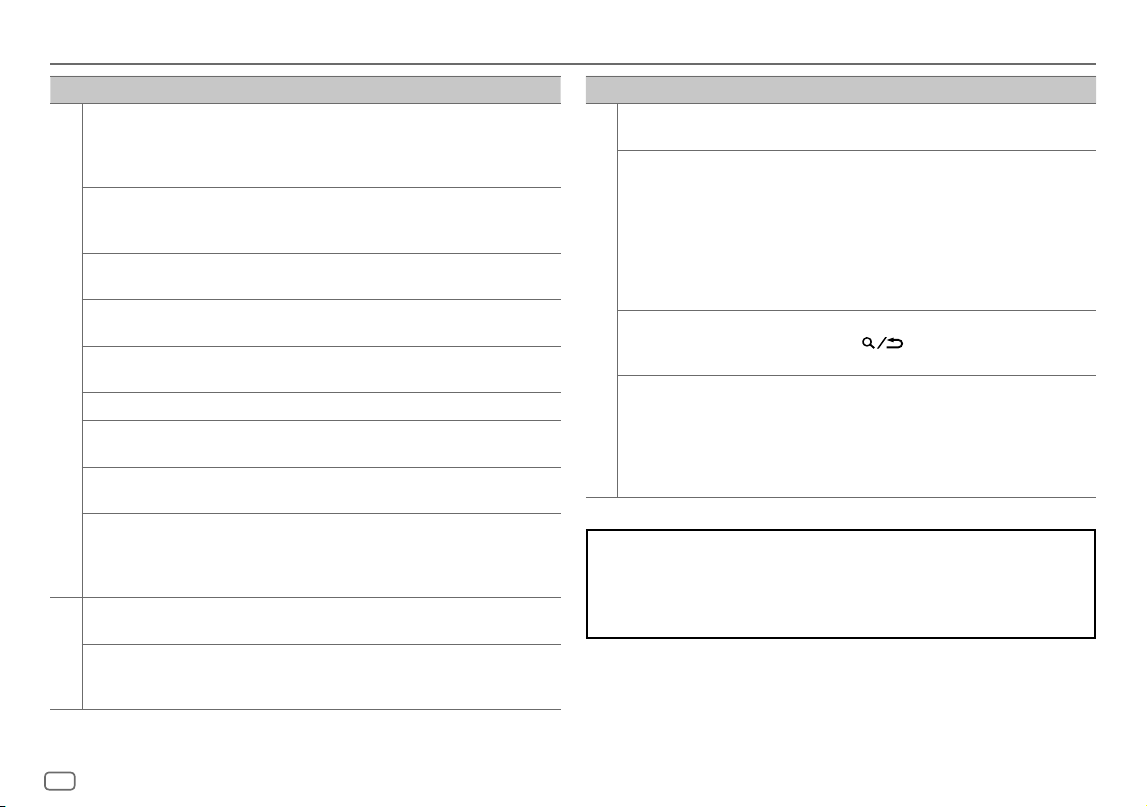
38
ENGLISH
Data Size: B6L (182 mm x 128 mm)
Book Size: B6L (182 mm x 128 mm)
Troubleshooting
Symptom Remedy
Bluetooth®
The connected Bluetooth
audio player cannot be
controlled.
• Check whether the connected Bluetooth audio player
supports Audio/Video Remote Control Profile (AVRCP).
(Refer to the instructions of your audio player.)
• Disconnect and connect the Bluetooth player again.
“PLEASE WAIT” The unit is preparing to use the Bluetooth function. If the
message does not disappear, turn off and turn on the unit,
then connect the device again.
“NOT SUPPORT” The connected phone does not support Voice Recognition
feature or phonebook transfer.
“NO ENTRY” There is no registered device connected/found via
Bluetooth.
“ERROR” Try the operation again. If “ERROR” appears again, check if
the device supports the function you have tried.
“NO INFO”/“NO DATA” Bluetooth device cannot get the contact information.
“H/W ERROR” Reset the unit and try the operation again. If “H/W ERROR”
appears again, consult your nearest service center.
“SWITCHING NG” The connected phones might not support phone switching
feature.
The Bluetooth connection
between the Bluetooth
device and the unit is
unstable.
Delete the unused registered Bluetooth device from the
unit. (Page 21)
AMAZON ALEXA
No response from Alexa
after the voice input.
Amazon cloud was unable to analyze the voice input.
Wrong response from
Alexa.
Alexa misunderstood what was said or did not catch
the entire request or sentence spoken. Please try again.
(Page 24)
Symptom Remedy
AMAZON ALEXA
“DISCONNECTED” Be sure to connect your smartphone to the unit via
Bluetooth. (Page 17)
Not able to connect or
reconnect to Alexa mobile
application.
• Be sure the audio device is connected via Bluetooth. Select
the audio device from [AUDIO SELECT] in [BT MODE].
(Page 21)
• Perform the one-time setup process again. See “Setup for
the first time” on page 23.
• Turn off, then turn on the unit and try to connect again.
• For iOS device, make sure ALEXA source or iPod BT source
is selected.
Not able to exit from
“TALKING” screen after
ending the call.
It may take some time for the unit to exit the “TALKING”
screen. Press
to return to the previous source
control screen.
Not able to go to
“LISTENING” screen after
activated Alexa.
• Disconnect and connect the Bluetooth connection again.
(Page 17)
• Disconnect and connect the Alexa connection again.
(Page 23)
• Turn off the unit for about 10 seconds, then turn on the
unit and try again.
If you have any troubles, try the following:
1 Check TROUBLESHOOTING
2 Reset the unit (page4)
3 Contact (USA only)
Call: 1-800-252-5722 ( or ) visit: <https://www.jvc.com>
KD_T925BTS_K_B5A-3880-00_EN_7th Draft.indd 38KD_T925BTS_K_B5A-3880-00_EN_7th Draft.indd 38 2/3/2022 9:41:35 AM2/3/2022 9:41:35 AM
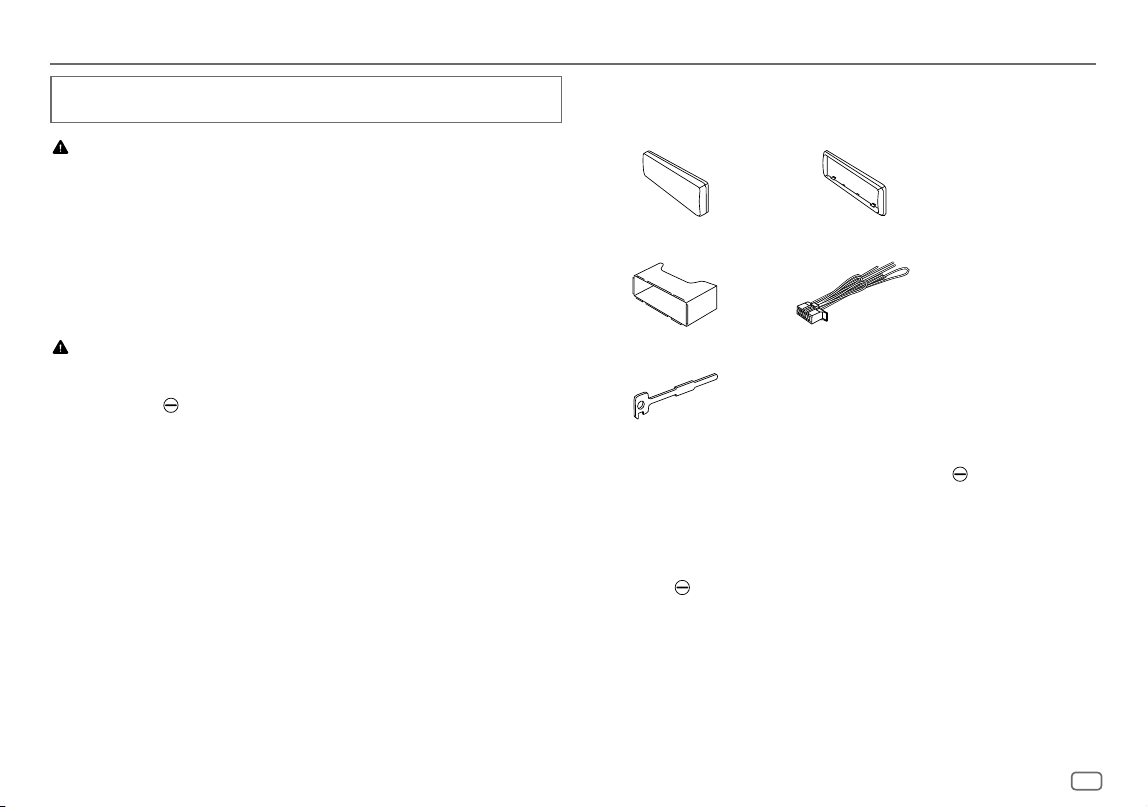
ENGLISH
39
Data Size: B6L (182 mm x 128 mm)
Book Size: B6L (182 mm x 128 mm)
This section is for the professional installer.
For safety’s sake, leave wiring and mounting to professionals. Consult the car audio dealer.
WARNING
• The unit can only be used with a 12 V DC power supply, negative ground.
• Disconnect the battery’s negative terminal before wiring and mounting.
• Do not connect Battery wire (yellow) and Ignition wire (red) to the car chassis or Ground wire
(black) to prevent a short circuit.
• To prevent short circuit:
– Insulate unconnected wires with vinyl tape.
– Be sure to ground this unit to the car’s chassis again after installation.
– Secure the wires with cable clamps and wrap vinyl tape around the wires that come in contact
with metal parts to protect the wires.
CAUTION
• Install this unit in the console of your vehicle. Do not touch the metal parts of this unit during
and shortly after use of the unit. Metal parts such as the heat sink and enclosure become hot.
• Do not connect the
wires of speakers to the car chassis or Ground wire (black), or connect
them in parallel.
• Connect speakers with a maximum power of more than 50 W. If the maximum power of the
speakers is lower than 50 W, change the [AMPGAIN] setting to avoid damaging the speakers.
(Page 27)
• Mount the unit at an angle of less than 30º.
• If your vehicle wiring harness does not have the ignition terminal, connect Ignition wire (red)
to the terminal on the vehicle’s fuse box which provides 12 V DC power supply and is turned on
and off by the ignition key.
• Keep all cables away from heat dissipate metal parts.
• After the unit is installed, check whether the brake lamps, blinkers, wipers, etc. on the car are
working properly.
• If the fuse blows, first make sure the wires are not touching car’s chassis, then replace the old
fuse with one that has the same rating.
Installation/Connection
Part list for installation
(A)
Faceplate (×1)
(B)
Trim plate (×1)
(C)
Mounting sleeve (×1)
(D)
Wiring harness (×1)
(E)
Extraction key (×2)
Basic procedure
1
Remove the key from the ignition switch, then disconnect the terminal of the car
battery.
2
Connect the wires properly.
See “Wiring connection” on page 41.
3
Install the unit to your car.
See “Installing the unit (in-dash mounting)” on page 40.
4
Connect the terminal of the car battery.
5
Press
B
SRC to turn on the power.
6
Detach the faceplate and reset the unit within 5 seconds. (Page4)
KD_T925BTS_K_B5A-3880-00_EN_2nd Draft.indd 39KD_T925BTS_K_B5A-3880-00_EN_2nd Draft.indd 39 5/7/2021 10:55:06 AM5/7/2021 10:55:06 AM
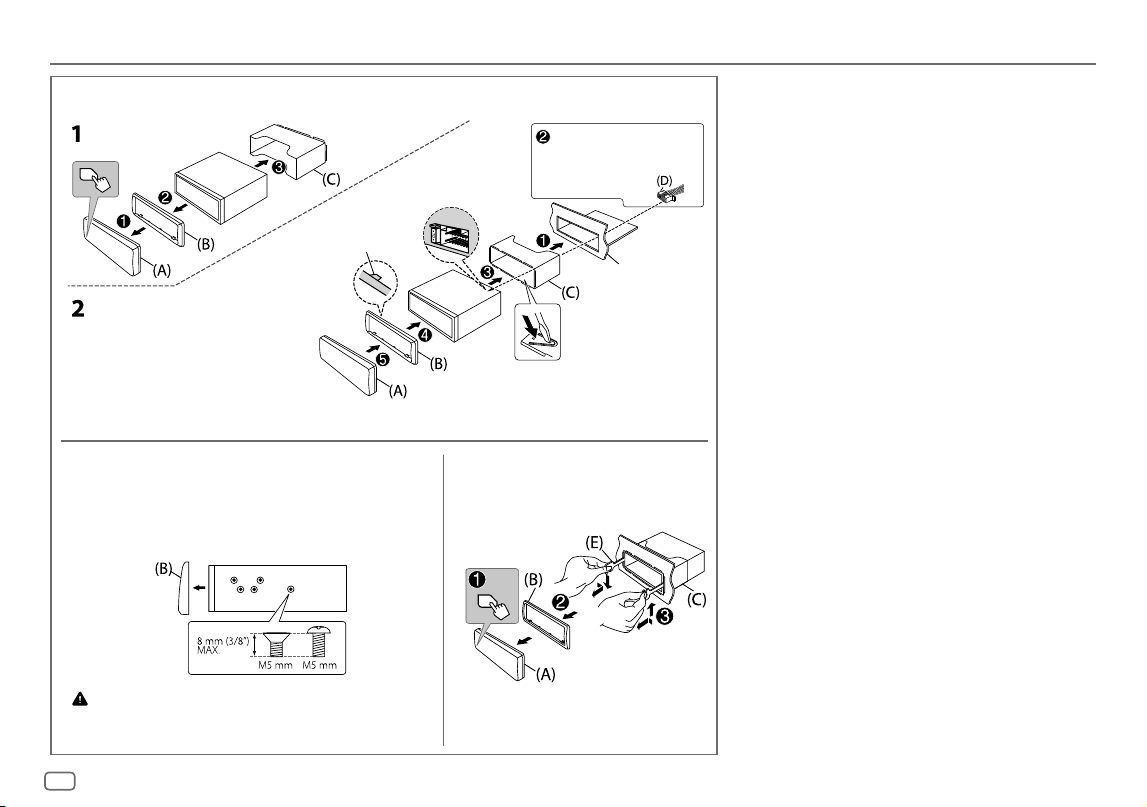
40
ENGLISH
Data Size: B6L (182 mm x 128 mm)
Book Size: B6L (182 mm x 128 mm)
Installing the unit (in-dash mounting)
Removing the unitInstalling the unit (without mounting sleeve)
1
Remove the mounting sleeve and trim plate from the unit.
2
Align the holes in the unit (on both sides) with the
vehicle mounting bracket and secure the unit with screws
(commercially available).
Use only the specified screws. Using wrong screws might damage
the unit.
Do the required wiring.
(Page 41)
Bend the appropriate tabs to hold the
sleeve firmly in place.
Hook on the top side
Orientate the trim
plate as illustrated
before fitting.
Dashboard of
your car
Installation/Connection
KD_T925BTS_K_B5A-3880-00_EN_2nd Draft.indd 40KD_T925BTS_K_B5A-3880-00_EN_2nd Draft.indd 40 5/7/2021 10:55:06 AM5/7/2021 10:55:06 AM
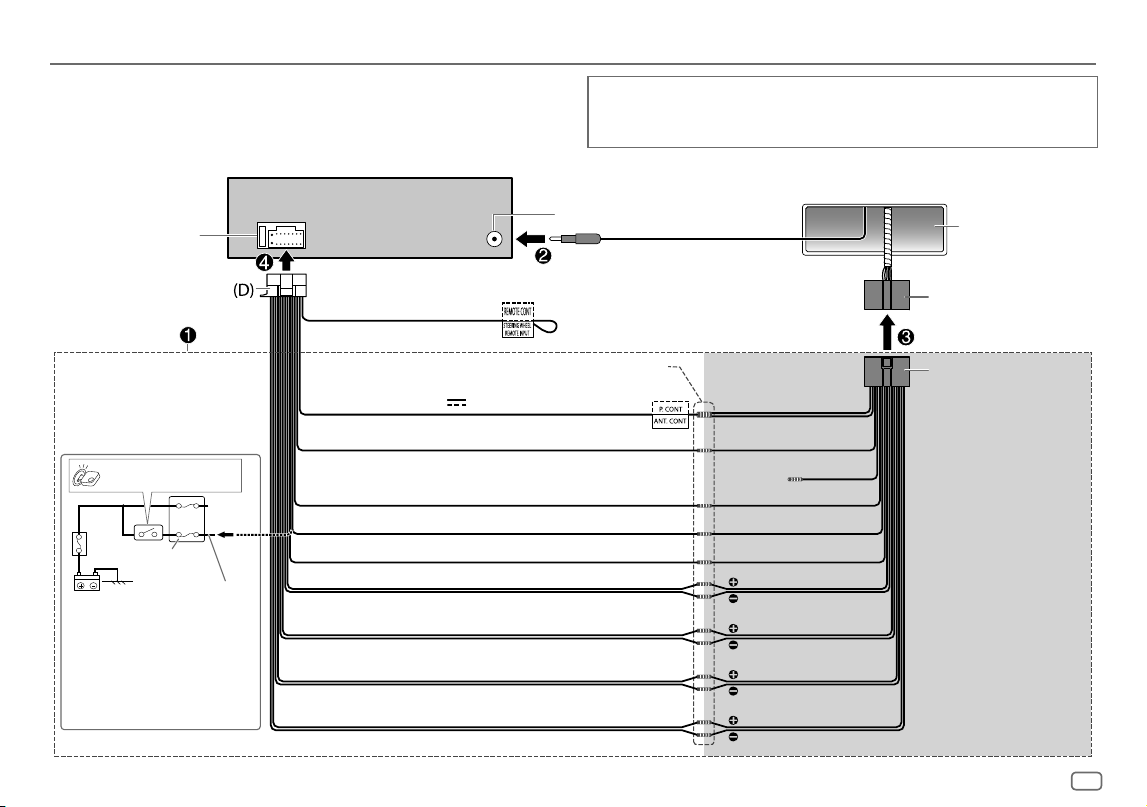
ENGLISH
41
Data Size: B6L (182 mm x 128 mm)
Book Size: B6L (182 mm x 128 mm)
* You can also connect a
subwoofer speaker directly
using this lead without an
external subwoofer amplifier.
For setting, see page 28.
Wiring connection
Car fuse block
Ignition switch
Blue/white: To amplifier
Blue: To power antenna
Make this connection if your vehicle
factory wiring harness does not have
“12 V ignition switch” wire.
Separate red wire
Fuse (10 A)
Antenna terminal
Factory wiring
harness (vehicle)
Vehicle
dashboard
Black: Ground
White: Front speaker/For 3-way crossover: Mid range speaker (left)
White/black
Gray: Front speaker/For 3-way crossover: Mid range speaker (right)
Gray/black
Green: Rear speaker */For 3-way crossover: Tweeter (left)
Green/black *
Purple: Rear speaker/For 3-way crossover: Tweeter (right)
Purple/black
Join the same color wires together.
Red: Ignition 12 V
Orange/white: Illumination
Blue/white: Remote (12 V
350 mA)
Light blue/yellow
To the steering wheel
remote control adapter
Custom wiring harness
(separately purchased)
Recommended connection
IMPORTANT
We recommend installing the unit with a commercially available custom wiring harness specific
for your car and leave this job to professionals for your safety. Consult your car audio dealer.
(Not used)
Brown
Yellow: Battery 12 V
Installation/Connection
KD_T925BTS_K_B5A-3880-00_EN_2nd Draft.indd 41KD_T925BTS_K_B5A-3880-00_EN_2nd Draft.indd 41 5/7/2021 10:55:06 AM5/7/2021 10:55:06 AM
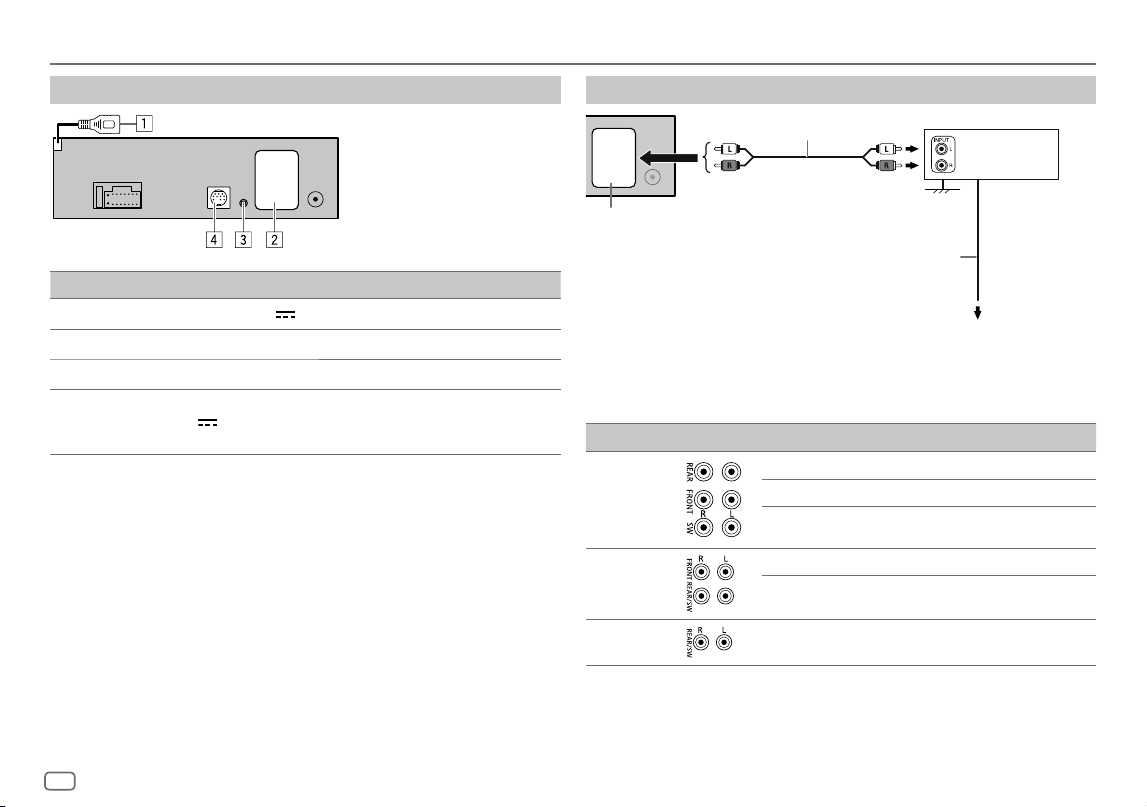
42
ENGLISH
Data Size: B6L (182 mm x 128 mm)
Book Size: B6L (182 mm x 128 mm)
Installation/Connection
Connect external components
No Part
1
For KD-T925BTS: USB cable (DC 5 V 1.5 A) (approx. 1 m/3.3 feet)
2
Output terminals (See “Connect external amplifiers via output terminals”.)
3
Microphone input jack (page 16)
4
For KD-T925BTS/KD-T920BTS:
Expansion port (12 V
500 mA): To the optional SiriusXM Vehicle Tuner (commercially
available). (Page 12)
Connect external amplifiers via output terminals
* Firmly connect the ground wire of the amplifier to the car’s chassis to avoid damaging the unit.
Model Output terminals 2-way crossover 3-way crossover
KD-T925BTS
REAR: Rear output Tweeter output
FRONT: Front output Mid Range output
SW: Subwoofer output Woofer output
KD-T920BTS
FRONT: Front output Mid Range output
REAR/SW: Rear/subwoofer output Woofer output
KD-T720BT
REAR/SW: Rear/subwoofer output Woofer output
JVC Amplifier*
Signal cord (not supplied)
To remote lead (blue/white) of the
wiring harness. (Page 41)
Remote wire (not supplied)
Output terminals
KD_T925BTS_K_B5A-3880-00_EN_2nd Draft.indd 42KD_T925BTS_K_B5A-3880-00_EN_2nd Draft.indd 42 5/7/2021 10:55:06 AM5/7/2021 10:55:06 AM
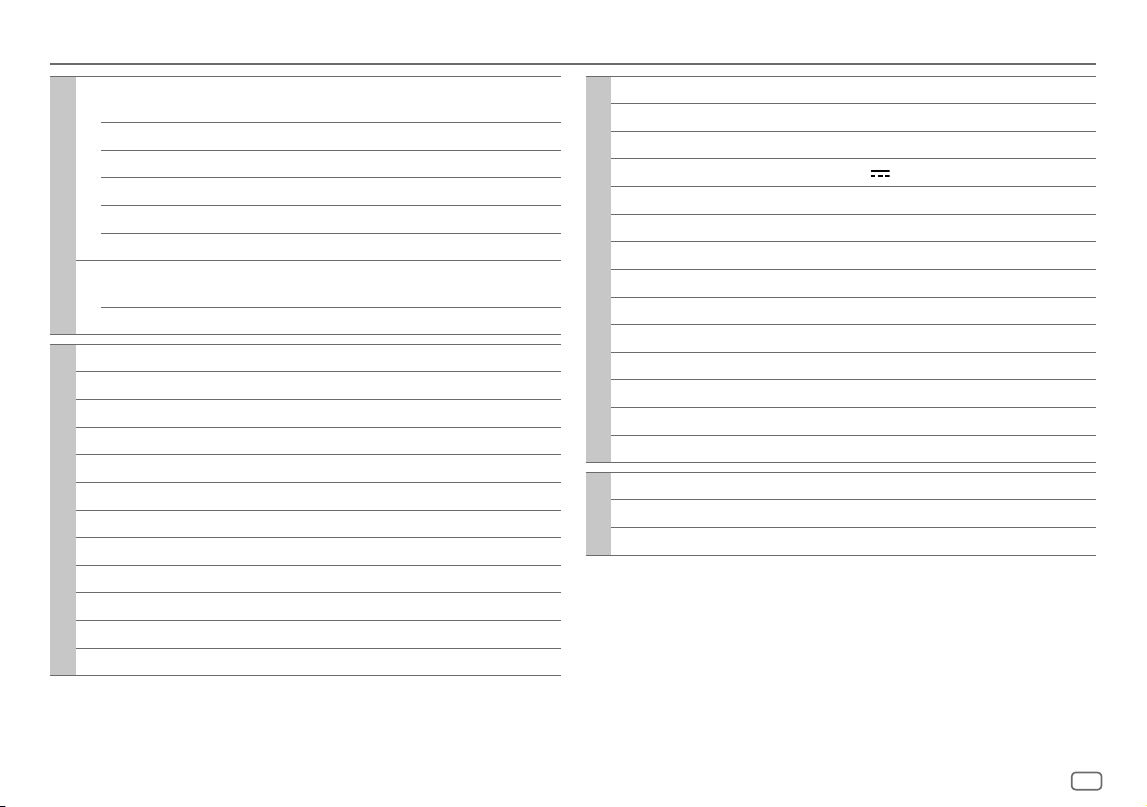
ENGLISH
43
Data Size: B6L (182 mm x 128 mm)
Book Size: B6L (182 mm x 128 mm)
Specifications
Tuner
FM Frequency Range 87.9 MHz — 107.9 MHz (200 kHz step)
87.5 MHz — 108.0 MHz (50 kHz step)
Usable Sensitivity (S/N = 30 dB) 8.2 dBf (0.71 μV/75 Ω)
Quieting Sensitivity (DIN S/N = 46 dB) 17.2 dBf (2.0 μV/75 Ω)
Frequency Response (±3 dB) 30 Hz — 15 kHz
Signal-to-Noise Ratio (MONO) 64 dB
Stereo Separation (1 kHz) 40 dB
AM Frequency Range 530 kHz — 1 700 kHz (10 kHz step)
531 kHz — 1 611 kHz (9 kHz step)
Usable Sensitivity (S/N = 20 dB) 29 dBμ (28.2 μV)
CD player
Laser Diode GaAIAs
Digital Filter (D/A) 8 times over sampling
Spindle Speed 500 rpm — 200 rpm (CLV)
Wow & Flutter Below measurable limit
Frequency Response (±1 dB) 20 Hz — 20 kHz
Total Harmonic Distortion (1 kHz) 0.01 %
Signal-to-Noise Ratio (1 kHz) 94 dB
Dynamic Range 90 dB
Channel Separation 88 dB
MP3 Decode Compliant with MPEG-1/2 Audio Layer-3
WMA Decode Compliant with Windows Media Audio
AAC Decode AAC-LC “.aac” files
USB
USB Standard USB 1.1, USB 2.0 (High speed)
Compatible Devices Mass storage class
File System FAT12/16/32
Maximum Supply Current DC 5 V
1.5 A
Digital Filter (D/A) Converter 24 Bit
Frequency Response (±1 dB) 20 Hz — 20 kHz
Signal-to-Noise Ratio (1 kHz) 98 dB
Dynamic Range 93 dB
Channel Separation 90 dB
MP3 Decode Compliant with MPEG-1/2 Audio Layer-3
WMA Decode Compliant with Windows Media Audio
AAC Decode AAC-LC “.aac”, “.m4a” files
WAV Decode Linear-PCM
FLAC Decode FLAC file, up to 24 bit/96 kHz
Auxiliary
Frequency Response (±3 dB) 20 Hz — 20 kHz
Input Maximum Voltage 1 000 mV
Input Impedance 30 kΩ
KD_T925BTS_K_B5A-3880-00_EN_3rd Draft.indd 43KD_T925BTS_K_B5A-3880-00_EN_3rd Draft.indd 43 5/8/2021 9:14:45 AM5/8/2021 9:14:45 AM
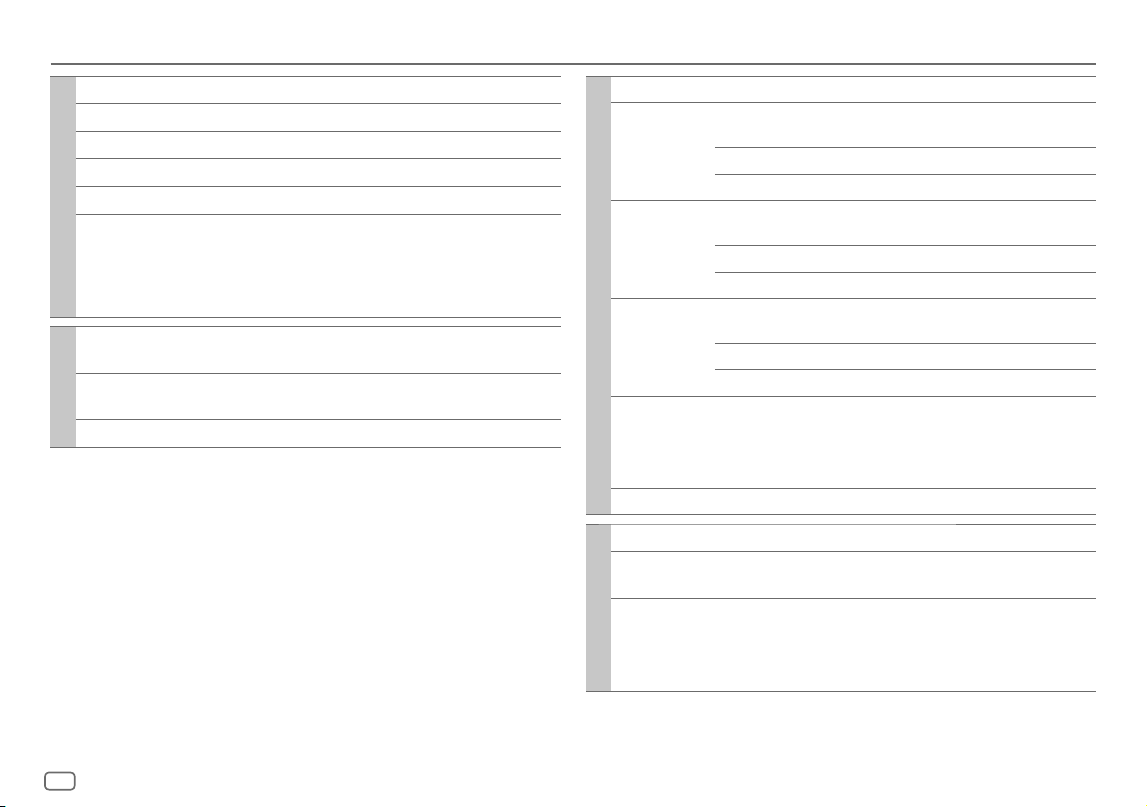
44
ENGLISH
Data Size: B6L (182 mm x 128 mm)
Book Size: B6L (182 mm x 128 mm)
Bluetooth
Version Bluetooth V4.2
Frequency Range 2.402 GHz — 2.480 GHz
RF Output Power (E.I.R.P.) +4 dBm (MAX), Power Class 2
Maximum Communication Range Line of sight approx. 10 m (32.8 ft)
Pairing SSP (Secure Simple Pairing)
Profile HFP1.7.1 (Hands-Free Profile)
A2DP (Advanced Audio Distribution Profile)
AVRCP1.6.1 (Audio/Video Remote Control Profile)
PBAP (Phonebook Access Profile)
SPP (Serial Port Profile)
Audio
Maximum Output Power 50 W × 4 or
50 W × 2 + 50 W × 1 (Subwoofer = 4 Ω)
Full Bandwidth Power
(at less than 1 % THD)
22 W × 4
Speaker Impedance 4 Ω — 8 Ω
Specifications
Audio
Band 13 Band
Frequency 62.5/ 100/ 160/ 250/ 400/ 630/ 1k/ 1.6k/ 2.5k/
4k/ 6.3k/ 10k/ 16k Hz
Level -09 — +09 (-9 dB — +9 dB)
Q 1.35/ 1.5/ 2.0
HPF Frequency THROUGH/ 30/ 40/ 50/ 60/ 70/ 80/ 90/ 100/ 120/
150/ 180/ 220/ 250 Hz
Level -6/ -12/ -18/ -24 dB/Oct.
Q -8/ -7/ -6/ -5/ -4/ -3/ -2/ -1/ 0 dB
LPF Frequency 30/ 40/ 50/ 60/ 70/ 80/ 90/ 100/ 120/ 150/ 180/
220/ 250 Hz/ THROUGH
Level -6/ -12/ -18/ -24 dB/Oct.
Q -8/ -7/ -6/ -5/ -4/ -3/ -2/ -1/ 0 dB
Preout Level/Load KD-T925BTS:
5 000 mV/10 kΩ
KD-T920BTS/KD-T720BT:
2 500 mV/10 kΩ
Preout Impedance ≤ 600 Ω
General
Operating Voltage 12 V DC car battery
Installation Size (W × H × D) 182 mm × 53 mm × 156 mm
(7-3/16" × 2-1/16" × 6-1/8")
Net Weight (includes Trimplate,
Mounting Sleeve)
KD-T925BTS:
1.3 kg (2.9 lbs)
KD-T920BTS/KD-T720BT:
1.2 kg (2.6 lbs)
Subject to change without notice.
KD_T925BTS_K_B5A-3880-00_EN_5th Draft.indd 44KD_T925BTS_K_B5A-3880-00_EN_5th Draft.indd 44 1/11/2021 2:19:23 PM1/11/2021 2:19:23 PM

KD_T925BTS_K_B5A-3880-00_EN_2nd Draft.indd 45KD_T925BTS_K_B5A-3880-00_EN_2nd Draft.indd 45 5/7/2021 10:55:07 AM5/7/2021 10:55:07 AM
2
FRANÇAIS
Data Size: B6L (182 mm x 128 mm)
Book Size: B6L (182 mm x 128 mm)
Table des matieres
Références...............................................................................................33
Entretien
Plus d’informations
Changez l’information sur l’affichage
Guide de dépannage ............................................................................ 36
Installation/Connexion .........................................................................39
Spécifications ......................................................................................... 43
Avant l’utilisation .................................................................................... 3
Fonctionnement de base ....................................................................... 4
Prise en main ............................................................................................ 5
1 Vérifiez le type de transition et annulez la démonstration
2 Réglez l’horloge et la date
3 Faites les réglages de base
Radio .......................................................................................................... 7
CD/USB/iPod ............................................................................................. 8
AUX ........................................................................................................... 11
Radio SiriusXM® ..................................................................................... 12
Application JVC Remote ....................................................................... 15
Bluetooth® .............................................................................................. 16
Bluetooth - Connexion
Bluetooth - Téléphone portable
Bluetooth - Audio
AMAZON ALEXA..................................................................................... 23
Réglages audio....................................................................................... 26
Réglages d’affichage .............................................................................32
Comment lire ce manuel
• Les affichages et les façades montrés dans ce manuel d’instructions sont des
exemples utilisés pour offrir une explication claire des opérations. Pour cette
raison, ils peuvent différer des affichages et des façades réels.
• Les opérations sont expliquées principalement en utilisant les touches de la
façade du KD-T925BTS.
• Les indications en anglais sont utilisées dans un but explicatif. Vous pouvez
choisir la langue d’affichage à partir du menu. (Page6)
•
[XX]
indique les éléments choisis.
• (PageXX) indique que des références sont disponibles aux page citées.
Ce symbole sur le produit indique que ce manuel d’instructions
contient d’importantes instructions d’utilisation et d’entretien.
Assurez-vous de lire attentivement les instructions de ce manuel
d’instructions.
KD_T925BTS_K_FR.indd 2KD_T925BTS_K_FR.indd 2 9/3/2022 4:29:00 PM9/3/2022 4:29:00 PM
FRANÇAIS
3
Data Size: B6L (182 mm x 128 mm)
Book Size: B6L (182 mm x 128 mm)
Avant l’utilisation
IMPORTANTES
• Pour utiliser correctement l’appareil, veuillez ce manuel complément avant
de l’utiliser. Il est particulièrement important que vous lisiez et acceptiez les
avertissements et les précautions de ce manuel.
• Veuillez garder ce manuel dans un endroit sûr et accessible pour une utilisation
future.
MISE EN GARDE
• N’utilisez aucune fonction qui risque de vous distraire de la conduite sure
de votre véhicule.
• Ne pas ingérer la pile. Risque de brûlures chimiques.
La télécommande fournie avec ce produit contient une pile bouton.
Une ingestion de la pile bouton risque de provoquer de graves brûlures internes
en seulement 2 heures ; brûlures qui risquent d’entraîner le décès.
Conservez les piles neuves et usagées hors de portée des enfants.
Si le compartiment des piles ferme mal, n’utilisez plus le produit et conservez-le
hors de portée des enfants.
Si vous pensez que des piles ont été ingérées ou insérées dans une quelconque
partie du corps, contactez immédiatement un médecin.
AVERTISSEMENT
Réglage du volume:
• Ajustez le volume de façon à pouvoir entendre les sons extérieurs à la voiture
afin d’éviter tout risque d’accident.
• Réduisez le volume avant de reproduire des sources numériques afin d’éviter
d’endommager les enceintes par la soudaine augmentation du niveau de sortie.
Généralités:
• Éviter d’utiliser le périphérique extérieur s’il peut gêner une conduite en toute
sécurité.
• Assurez-vous que toutes les données importantes ont été sauvegardées.
Nous ne pouvons pas être tenu responsable pour toute perte des données
enregistrées.
• Veuillez faire en sorte de ne jamais mettre ou laisser d’objets métalliques (tels
que des pièces ou des outils) dans l’appareil, afin d’éviter tout risque de court-
circuit.
• Si une erreur de disque se produit à cause de la condensation sur l’objectif laser,
éjectez le disque et attendez que l’humidité s’évapore.
• En fonction du type de voiture, l’antenne s’étendra automatiquement quand
vous mettrez l’appareil sous tension si le câble de commande d’antenne est
connecté (page41). Mettez l’appareil hors tension quand vous vous garez dans
un parking avec un plafond bas.
Télécommande (RM-RK52):
• Ne laissez pas la télécommande dans des endroits exposés à la chaleur, comme
sur le tableau de bord par exemple.
• Risque d’incendie ou d’explosion si la pile est remplacée par un type incorrect.
Assurez-vous de la remplacer uniquement par une pile de même type.
• Risque d’incendie, d’explosion ou de fuite de liquide ou de gaz inflammable
si la pile est laissée dans un environnement ambiant à des températures
extrêmement élevées et/ou soumise à une pression d’air extrêmement faible.
Le boîtier de la pile ou les piles ne doivent pas être exposés à des chaleurs
excessives telles que les rayons du soleil, du feu, etc.
• Risque d’incendie, d’explosion ou de fuite de liquide ou de gaz inflammable si
la pile est jetée dans un feu ou dans un four chaud, si elle est rechargée, court-
circuitée, écrasée mécaniquement ou coupée.
• Si le liquide qui fuit entre en contact avec vos yeux ou vos vêtements, rincez-les
immédiatement à l’eau et consultez un médecin.
KD_T925BTS_K_FR.indd 3KD_T925BTS_K_FR.indd 3 9/3/2022 4:29:02 PM9/3/2022 4:29:02 PM
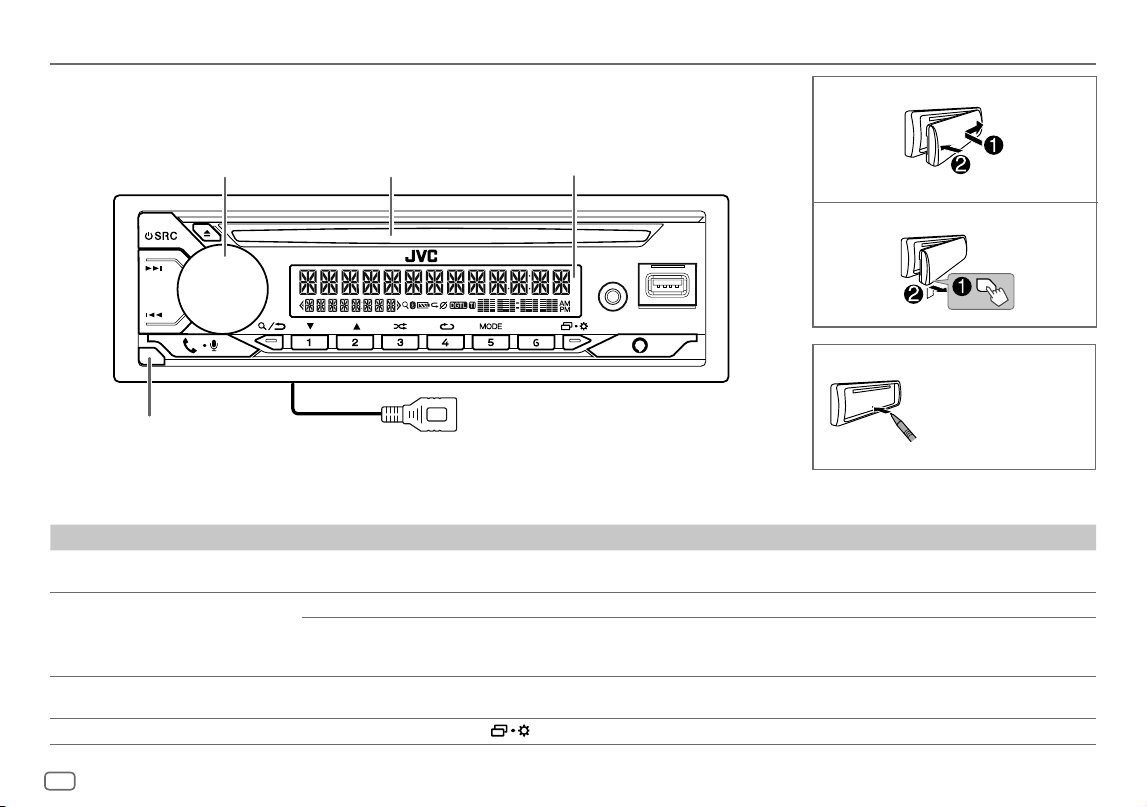
4
FRANÇAIS
Data Size: B6L (182 mm x 128 mm)
Book Size: B6L (182 mm x 128 mm)
Fonctionnement de base
Pour Sur la façade
Mettez l’appareil sous tension
Appuyez sur B SRC.
• Maintenez la touche enfoncée pour mettre l’appareil hors tension.
Ajustez le volume Tournez le bouton de volume.
Appuyez sur le bouton de volume pour couper le son ou mettre la lecture en pause.
• Appuyez une nouvelle fois pour annuler. Le niveau de volume retourne au niveau précédent avant la mise en sourdine ou
la pause.
Sélectionner la source
• Appuyez répétitivement sur B SRC.
• Appuyez sur B SRC, puis tournez le bouton de volume avant 2 secondes.
Changez l’information sur l’affichage
Appuyez répétitivement sur
. (Page35)
Attachez
Comment réinitialiser
Détachez
Façade
Réinitialisez l’appareil en
moins de 5 secondes
après avoir détaché la
façade.
* Uniquement à des fins d’illustration.
Touche de détachement
Bouton de volume Fente d’insertion Fenêtre d’affichage*
KD-T925BTS:
Câble USB à partir de l’arrière de l’appareil
KD_T925BTS_K_FR.indd 4KD_T925BTS_K_FR.indd 4 9/3/2022 4:29:03 PM9/3/2022 4:29:03 PM
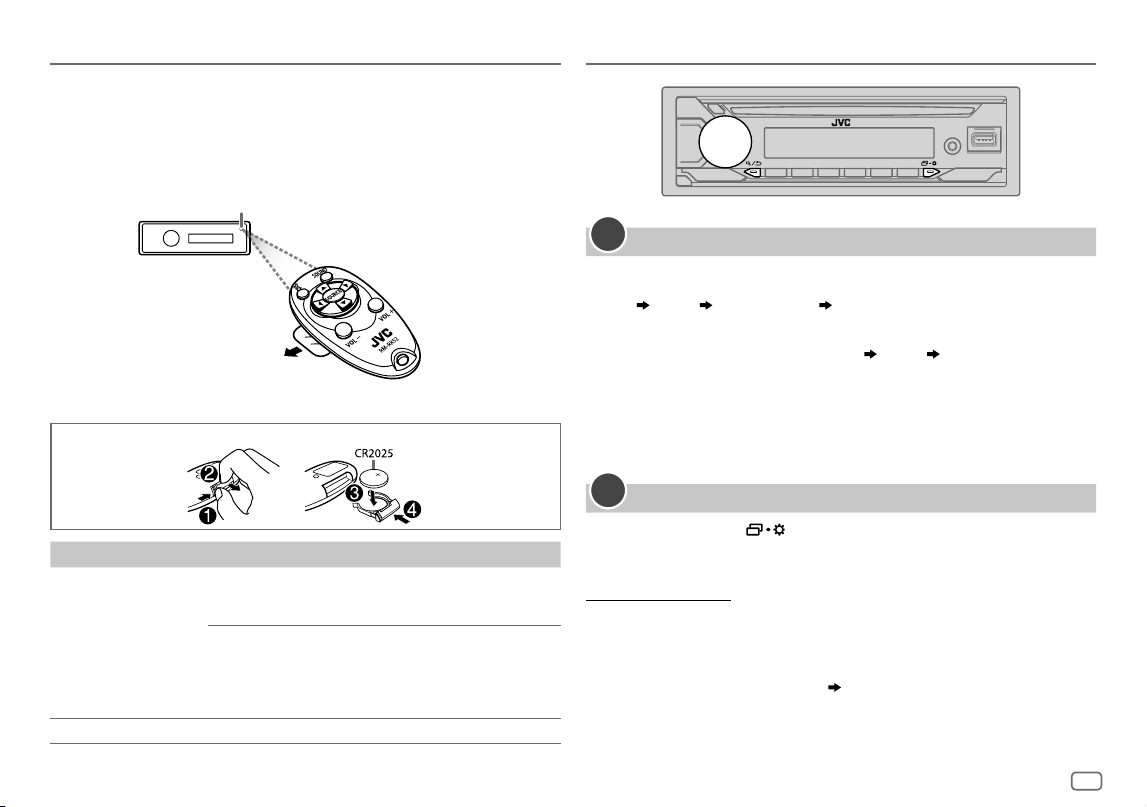
FRANÇAIS
5
Data Size: B6L (182 mm x 128 mm)
Book Size: B6L (182 mm x 128 mm)
Télécommande (RM-RK52)
(pour KD-T925BTS/KD-T920BTS)
Cet appareil peut être commandé à distance avec une télécommande vendue
séparément.
Comment remplacer la pile
Pour Sur la télécommande
Ajustez le volume Appuyez sur VOL + ou VOL – .
• Maintenez VOL + enfoncé de façon continue pour
augmenter le volume sur 15.
Appuyez sur d pour couper le son ou mettre la
lecture en pause.
• Appuyez une nouvelle fois pour annuler. Le niveau
de volume retourne au niveau précédent avant la
mise en sourdine ou la pause.
Sélectionner la source Appuyez répétitivement sur SOURCE.
Capteur de télécommande (Ne l’exposez
Pas à la lumière directe du soleil.)
Retirez la feuille d’isolant lors de
la première utilisation.
Fonctionnement de base Prise en main
Vérifiez le type de transition et annulez la démonstration
Quand vous mettez l’appareil sous tension pour la première fois (ou que
[FACTORY
RESET]
est réglé sur
[YES]
, voir page6), l’affichage montre: “2-WAY X’OVER” ou “3-WAY
X’OVER”
“PRESS” “VOLUME KNOB” “TO CONFIRM”.
1 Appuyez sur le bouton de volume pour valider le type de transition actuel.
Puis, l’affichage montre: “CANCEL DEMO” “PRESS” “VOLUME KNOB”.
• Pour changer le type de transition, reportez-vous à la page27.
2 Appuyez sur le bouton de volume.
[YES]
est choisi pour le réglage initial.
3 Appuyez de nouveau sur le bouton de volume.
“DEMO OFF” apparaît.
Réglez l’horloge et la date
1
Maintenez enfoncée .
2 Tournez le bouton de volume pour choisir
[CLOCK]
, puis appuyez sur le
bouton.
Pour ajuster l’horloge
3 Tournez le bouton de volume pour choisir
[CLOCKADJUST]
, puis appuyez sur
le bouton.
4 Tournez le bouton de volume pour faire les réglages, puis appuyez sur le
bouton.
Réglez l’heure dans l’ordre “Heures” “Minutes”.
5 Tournez le bouton de volume pour choisir
[CLOCK FORMAT]
, puis appuyez sur
le bouton.
6 Tournez le bouton de volume pour choisir
[12H]
ou
[24H]
, puis appuyez sur
le bouton.
1
2
KD_T925BTS_K_FR.indd 5KD_T925BTS_K_FR.indd 5 9/3/2022 4:29:03 PM9/3/2022 4:29:03 PM
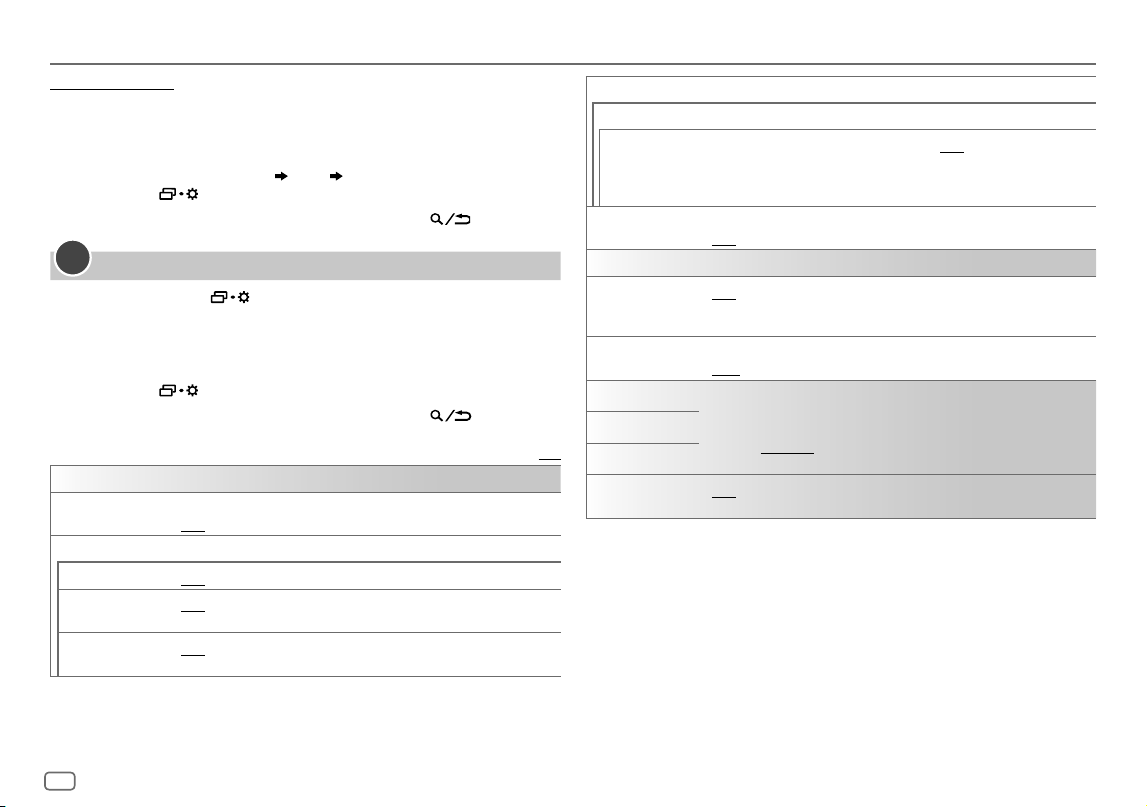
6
FRANÇAIS
Data Size: B6L (182 mm x 128 mm)
Book Size: B6L (182 mm x 128 mm)
Pour régler la date
7 Tournez le bouton de volume pour choisir
[DATESET]
, puis appuyez sur le
bouton.
8 Tournez le bouton de volume pour faire les réglages, puis appuyez sur le
bouton.
Réglez la date dans l’ordre “Jour” “Mois” “Année”.
9 Appuyez sur pour quitter.
Pour retourner à l’option de réglage précédente, appuyez sur
.
Faites les réglages de base
1
Maintenez enfoncée .
2 Tournez le bouton de volume pour sélectionner un élément (voir le tableau
suivant), puis appuyez sur le bouton.
3 Répétez l’étape 2 jusqu’à ce que l’élément souhaité soit sélectionné ou
activé.
4 Appuyez sur pour quitter.
Pour retourner à l’option de réglage précédente, appuyez sur
.
Défaut:
[XX]
[SYSTEM]
[KEY BEEP]
(Non applicable quand la transition 3 voies est sélectionnée.) (Page27)
[ON]
:Met en service la tonalité des touches.;
[OFF]
:Met hors service la fonction.
[SOURCE SELECT]
[AM SRC]
*1
[ON]
:Met en service AM dans la sélection de la source.;
[OFF]
:Hors service. (Page7)
[BTAUDIO SRC]
*1
[ON]
:Met en service BT AUDIO dans la sélection de la source.;
[OFF]
:Hors service.
(Page22)
[BUILT-IN AUX]
*1
[ON]
:Met en service AUX dans la sélection de la source.;
[OFF]
:Hors service.
(Page11)
3
[F/W UPDATE]
*2
[UPDATE SYSTEM]
[F/W UP xxxx]
[YES]
:Démarrer la mise à niveau du micrologiciel.;
[NO]
:Annulation (la mise à niveau
n’est pas activée).
Pour en savoir plus sur la mise à niveau du micrologiciel, consultez
<https://www.jvc.net/cs/car/>.
[FACTORY RESET] [YES]
:Réinitialise les réglages aux valeurs par défaut (sauf la station mémorisée).;
[NO]
:Annulation.
[CLOCK]
[TIME SYNC]
[ON]
:L’horloge est réglée automatiquement à l’aide des données d’horloge
(CT) comprises dans les données du signal FM Radio Broadcast Data System.;
[OFF]
:Annulation.
[CLOCK DISPLAY] [ON]
:L’horloge apparaît sur l’affichage même quand l’appareil est hors tension.;
[OFF]
:Annulation.
[ENGLISH]
Sélectionnez la langue d’affichage pour le menu et l’information sur le morceau si elle
est disponible.
Par défaut,
[ENGLISH]
est sélectionné.
[ESPANOL]
[FRANCAIS]
[DEMOMODE]
[ON]
: Active la démonstration automatique de l’affichage si aucune opération n’est
effectuée pendant environ 15 secondes. ;
[OFF]
: Met hors service la fonction.
*1 Pas d’affichage quand la source correspondante est sélectionnée.
*2 La mise à niveau inférieur du micrologiciel est interdite.
Prise en main
KD_T925BTS_K_FR.indd 6KD_T925BTS_K_FR.indd 6 9/3/2022 4:29:03 PM9/3/2022 4:29:03 PM
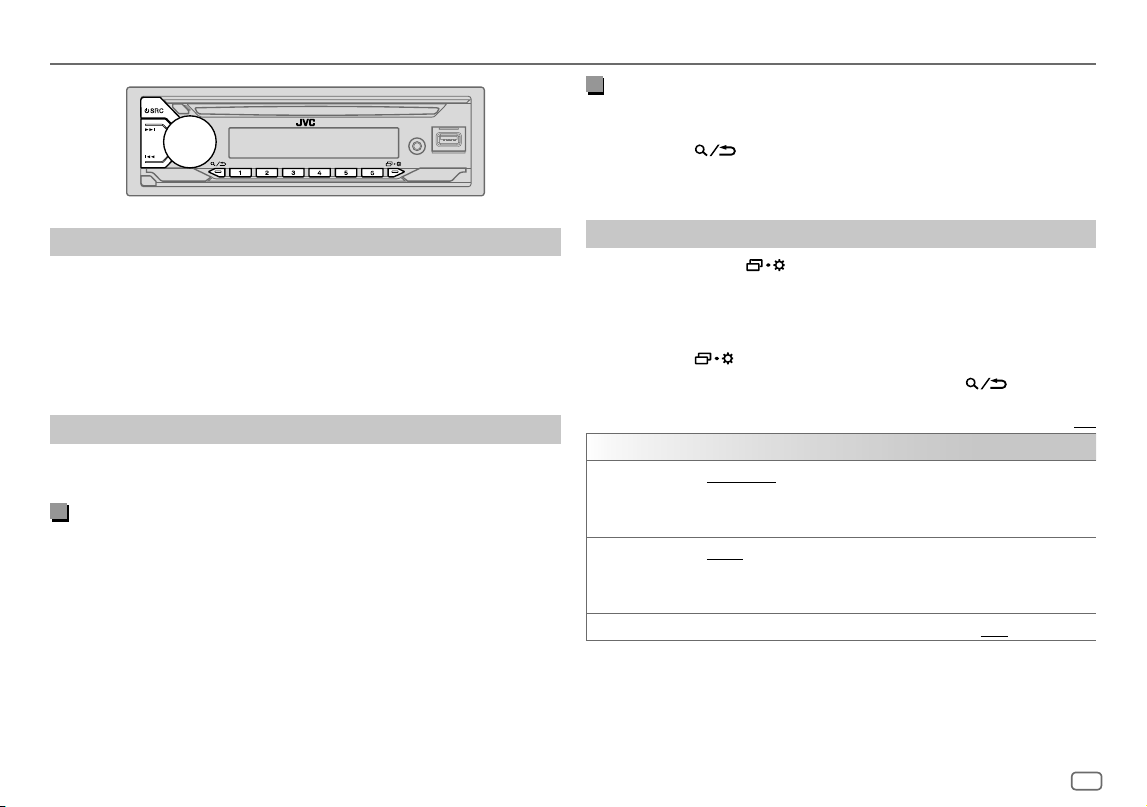
FRANÇAIS
7
Data Size: B6L (182 mm x 128 mm)
Book Size: B6L (182 mm x 128 mm)
Radio
Recherchez une station
1
Appuyez répétitivemenent sur B SRC pour sélectionner FM ou AM.
2 Appuyez sur S / T (ou appuyez sur H / I sur la télécommande) pour
rechercher une station automatiquement.
(ou)
Maintenez enfoncée S / T (ou maintenez enfoncée H / I sur la
télécommande) jusqu’à ce que “M” clignote, puis appuyez répétitivement
dessus pour rechercher une station manuellement.
Réglages en mémoire
Vous pouvez mémoriser un maximum de 18 stations pour FM et de 6 stations
pour AM.
Mémorisez une station
Pendant l’écoute d’une station...
Maintenez enfoncée une des touches numériques (1 à 6).
(ou)
1 Maintenez enfoncé le bouton de volume jusqu’à ce que “PRESETMODE”
clignote.
2 Tournez le bouton de volume pour choisir un numéro de préréglage, puis
appuyez sur le bouton.
“MEMORY” apparaît une fois que la station est mémorisée.
Sélectionnez une station mémorisée
Appuyez sur l’une des touches numériques (1 à 6).
(ou)
1 Appuyez sur .
2 Tournez le bouton de volume pour choisir un numéro de préréglage, puis
appuyez sur le bouton.
Autres paramètres
1
Maintenez enfoncée .
2 Tournez le bouton de volume pour sélectionner un élément (voir le tableau
suivant), puis appuyez sur le bouton.
3 Répétez l’étape 2 jusqu’à ce que l’élément souhaité soit sélectionné/activé
ou suivez les instructions données pour l’élément sélectionné.
4 Appuyez sur pour quitter.
Pour retourner à l’option de réglage précédente, appuyez sur
.
Défaut:
[XX]
[TUNER SETTING]
[SSM]
[SSM01–06]
/
[SSM07–12]
/
[SSM13–18]
:Prérègle automatiquement un
maximum de 18 stations pour FM. “SSM” s’arrête de clignoter quand les 6 premières
stations sont mémorisées. Sélectionnez
[SSM07–12]
/
[SSM13–18]
pour mémoriser
les 12 stations suivantes.
[IF BAND] [AUTO]
:Augmente la sélectivité du tuner pour réduire les interférences des stations FM
adjacentes. (L’effet stéréo peut être perdu.);
[WIDE]
:Il y a des interférences des stations FM adjacentes, mais la qualité du son n’est
pas dégradée et l’effet stéréo est conservé.
[MONO SET] [ON]
:Améliore la réception FM mais l’effet stéréo sera perdu.;
[OFF]
:Annulation.
KD_T925BTS_K_FR.indd 7KD_T925BTS_K_FR.indd 7 9/3/2022 4:29:03 PM9/3/2022 4:29:03 PM
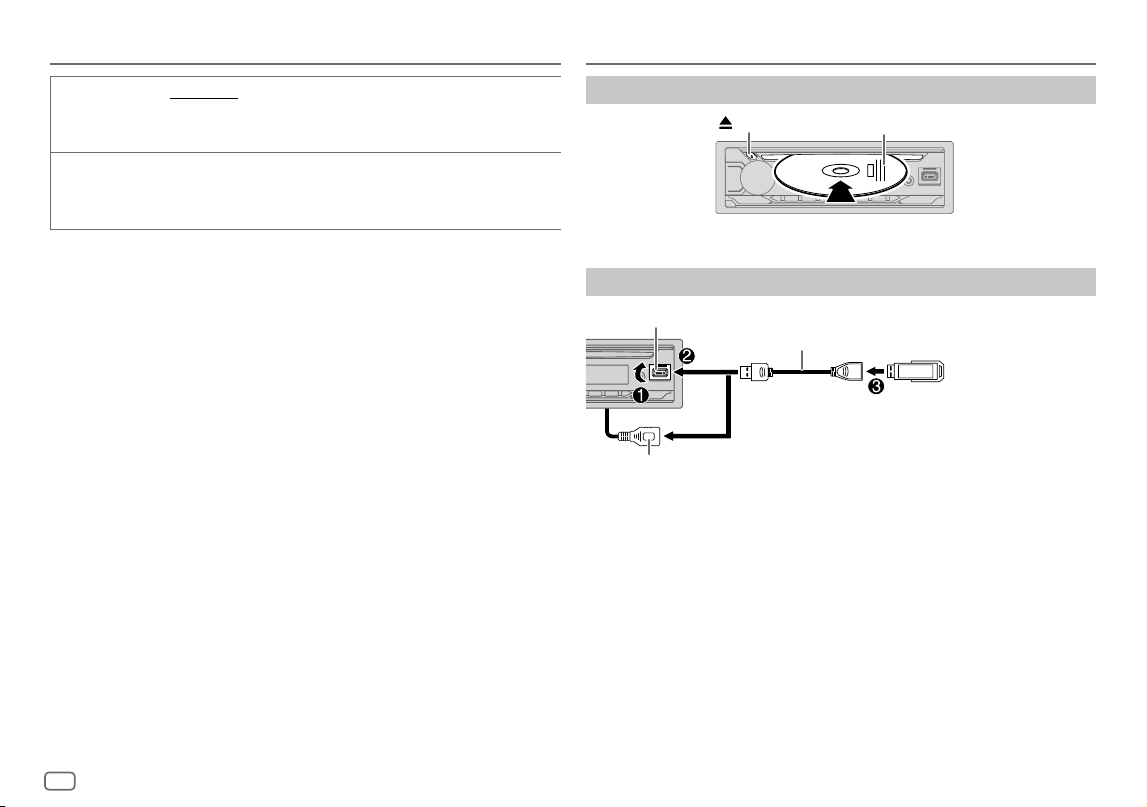
8
FRANÇAIS
Data Size: B6L (182 mm x 128 mm)
Book Size: B6L (182 mm x 128 mm)
Radio
[AREA] [N.AMERICA]
: Pour l’Amérique du Nord/Centrale/du Sud, intervalles AM/FM:
10kHz/200kHz.;
[S.AMERICA]
:Pour les pays d’Amérique du Sud, intervalles AM/FM: 10kHz/50kHz.;
[EUROPE]
:Pour les autres régions, intervalles AM/FM: 9kHz/50kHz.
[PTY SEARCH]
Sélectionnez un code PTY pour FM Radio Broadcast Data System (reportez-vous à “Code
PTY pour FM Radio Broadcast Data System.”).
S’il y a une station diffusant un programme du code PTY que vous avez choisi, la station
est accordée.
Code PTY pour FM Radio Broadcast Data System
[NEWS]
,
[INFORM]
(information),
[SPORTS]
,
[TALK]
,
[ROCK]
,
[CLSROCK]
(rock classique),
[ADLTHIT]
(hits adultes),
[SOFTRCK]
(rock soft),
[TOP40]
,
[COUNTRY]
,
[OLDIES]
,
[SOFT]
,
[NOSTALGA]
(nostalgique),
[JAZZ]
,
[CLASSICL]
(classique),
[R&B]
(rhythm et blues),
[SOFTR&B]
(rhythm et blues soft),
[LANGUAGE]
,
[RELMUSC]
(musique religieuses),
[RELTALK]
(discussion religieuse),
[PERSNLTY]
(personnalité),
[PUBLIC]
,
[COLLEGE]
,
[HABLESP]
(discussion en espagnol),
[MUSCESP]
(musique espagnole),
[HIPHOP]
,
[WEATHER]
CD/USB/iPod
Insérez un disque
Éjectiez le disque
Face portant l’étiquette
La source change automatiquement sur CD et la lecture démarre.
Connectez un périphérique USB
Périphérique USB
Prise d’entrée USB
Câble USB 2.0*
(en vente dans le commerce)
KD-T925BTS:
Vous pouvez aussi faire une connexion au câble USB à partir de l’arrière de l’appareil (Prise d’entrée USB).
et/ou
La source change automatiquement sur USB FRONT/USB REAR/USB et la lecture
démarre.
* Ne laissez pas le câble à l’intérieur de la voiture quand il n’est pas utilisé.
KD_T925BTS_K_FR.indd 8KD_T925BTS_K_FR.indd 8 9/3/2022 4:29:04 PM9/3/2022 4:29:04 PM
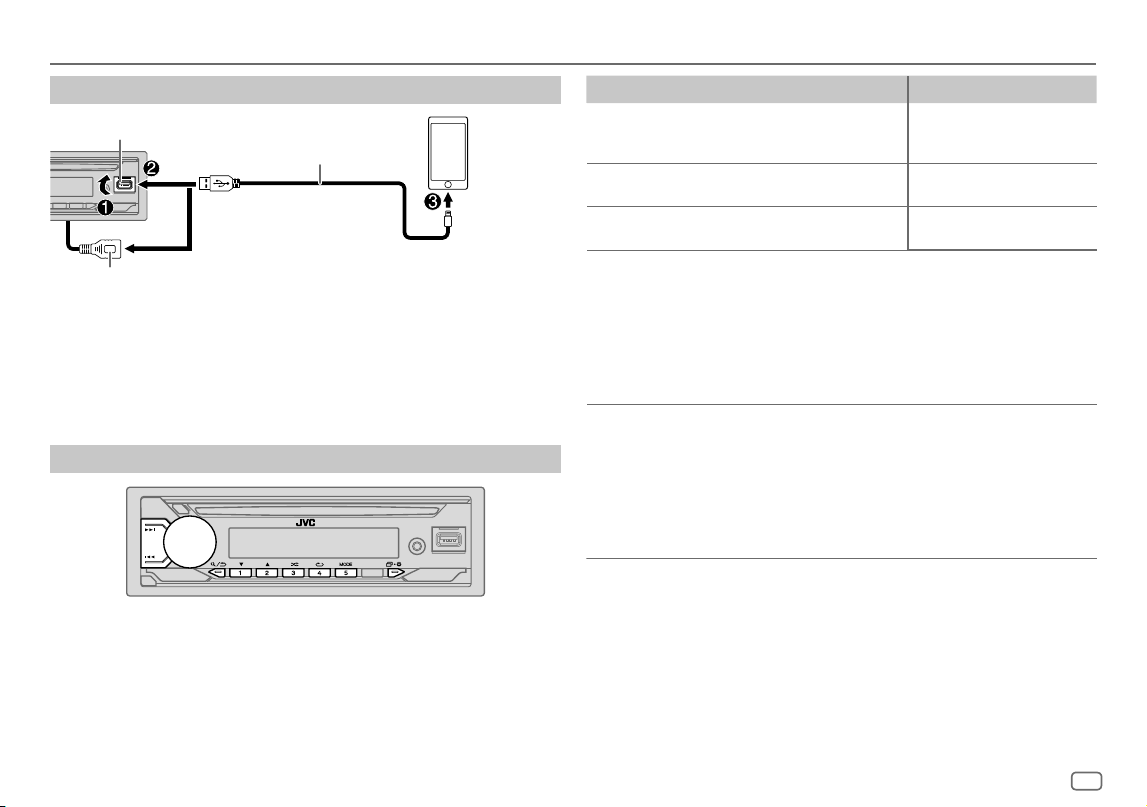
FRANÇAIS
9
Data Size: B6L (182 mm x 128 mm)
Book Size: B6L (182 mm x 128 mm)
CD/USB/iPod
Connectez un iPod/iPhone
Prise d’entrée USB
Accessoire du iPod/iPhone*
iPod/
iPhone
KD-T925BTS:
Vous pouvez aussi faire une connexion au câble USB à partir de l’arrière de l’appareil (Prise d’entrée USB).
et/ou
Reportez-vous à “Réglage de la source de lecture pour iPod/iPhone” à la page 10
pour démarrer la lecture.
• Vous pouvez aussi connecter l’iPod/iPhone via Bluetooth. (Page17)
* Ne laissez pas le câble à l’intérieur de la voiture quand il n’est pas utilisé.
Opérations de base
Source sélectionnable:
• KD-T925BTS:
CD/USBFRONT/USBREAR/iPodFRONT/iPodREAR ou iPodBT
• KD-T920BTS/KD-T720BT:
CD/USB/iPod USB ou iPod BT
Pour les fichiers audio compatibles, reportez-vous à “Fichiers pouvant être lus” à la
page 34
Pour Sur la façade Sur la télécommande
Recherche rapide
vers l’arrière/vers
l’avant
Maintenez enfoncée
S / T.
Maintenez enfoncée H / I.
Sélectionnez une
plage ou un fichier
Appuyez sur S / T. Appuyez sur H / I.
Sélectionnez un
dossier*
Appuyez sur 2 J / 1 K. Appuyez sur J / K.
Lecture répétée
Appuyez répétitivement sur 4 B.
[TRACK REPEAT]
/
[ALL REPEAT]
:
CD Audio
[TRACK REPEAT]
/
[FOLDER REPEAT]
/
[ALL REPEAT]
:
Fichier MP3/WMA/AAC/WAV/FLAC
[REPEAT
ONE]
/
[REPEAT
ALL]
/
[REPEAT OFF]
:
iPod
Lecture aléatoire
Appuyez répétitivement sur 3 A.
[ALL RANDOM]
/
[RANDOM OFF]
:
CD Audio
[FOLDERRANDOM]
/
[ALL RANDOM]
/
[RANDOM OFF]
:
Fichier MP3/WMA/AAC/WAV/FLAC
[SHUFFLE
OFF]
/
[SHUFFLE
ON]
:
iPod
* Pour CD: Uniquement pour les fichiers MP3/WMA/AAC. Cela ne fonctionne pas pour l’iPod.
KD_T925BTS_K_FR.indd 9KD_T925BTS_K_FR.indd 9 9/3/2022 4:29:04 PM9/3/2022 4:29:04 PM
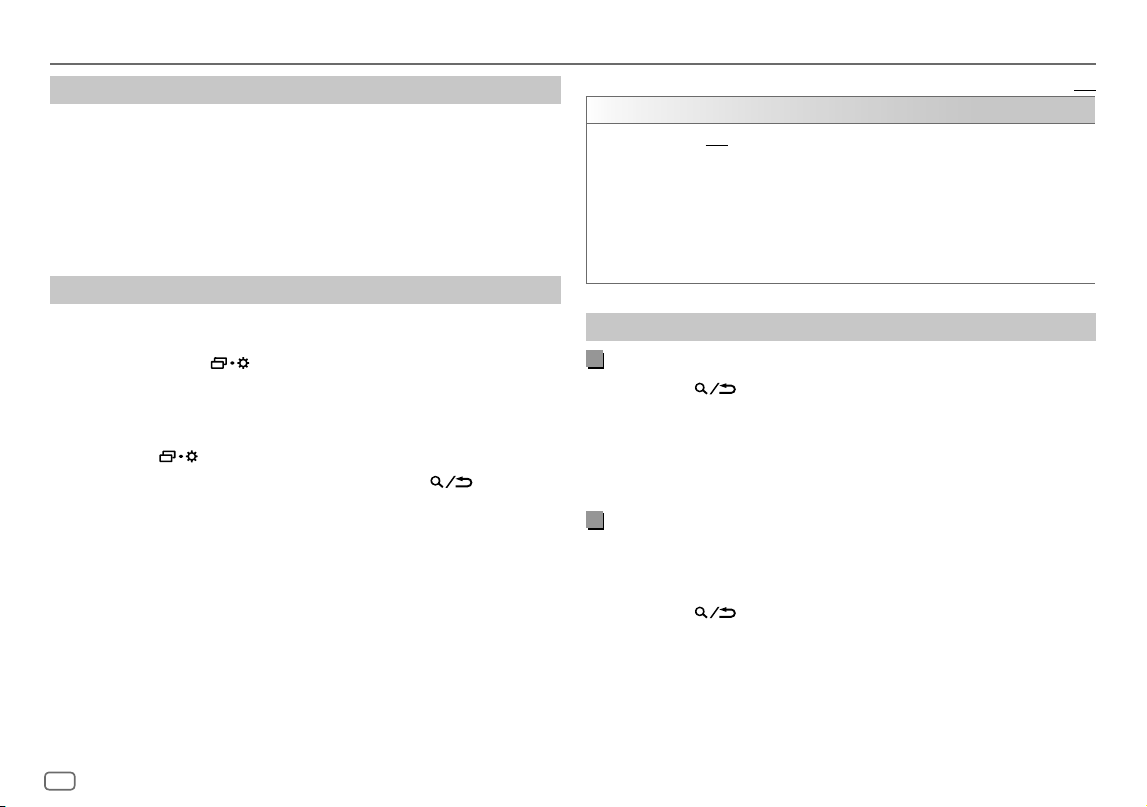
10
FRANÇAIS
Data Size: B6L (182 mm x 128 mm)
Book Size: B6L (182 mm x 128 mm)
Sélectionnez le lecteur de musique
Quand la source est USBFRONT/USBREAR/USB, appuyez répétitivement sur
5 MODE.
Les morceaux mémorisés dans le lecture suivant seront lus.
• Mémoire sélectionnée interne ou externe d’un smartphone (Mass Storage
Class).
• Lecteur sélectionné parmi plusieurs lecteurs. (Cet appareil peut prendre en
charge un maximum de 4 lecteurs. Cependant, la lecture peut prendre un
certain temps si trois cartes ou plus sont connectées.)
Réglage de la source de lecture pour iPod/iPhone
Vous pouvez réaliser le réglage suivant pour toutes les sources à l’exception de la
source iPod FRONT/iPod REAR/iPodUSB et de la source iPod BT.
1 Maintenez enfoncée .
2 Tournez le bouton de volume pour sélectionner un élément (voir le tableau
suivant), puis appuyez sur le bouton.
3 Répétez l’étape 2 jusqu’à ce que l’élément souhaité soit sélectionné ou
activé.
4 Appuyez sur pour quitter.
Pour retourner à l’option de réglage précédente, appuyez sur
.
CD/USB/iPod
Défaut:
[XX]
[USB]
[IPHONE SETUP]
[BT]
: La source iPod BT est disponible sur l’iPod/iPhone est connecté via Bluetooth.
• Si vous connectez l’iPod/iPhone via la prise d’entrée USB, la source iPod FRONT/iPod
REAR/iPodUSB n’est pas disponible.
Cependant, une fois que le Bluetooth est déconnecté, la source iPod FRONT/iPod
REAR/iPodUSB devient disponible.;
[USB]
: La source iPod FRONT/iPod REAR/iPodUSB est disponible sir l’iPod/iPhone est
connecté via la prise d’entrée USB, que la connexion Bluetooth soit disponible ou non.
• L’application mobile Alexa ne peut pas être utilisée quand la source iPod FRONT/iPod
REAR/iPodUSB est sélectionnée.
Sélectionnez un fichier à lire
À partir d’un dossier ou d’une liste
1
Appuyez sur .
2 Tournez le bouton de volume pour sélectionner un dossier/liste, puis
appuyez sur le bouton.
3 Tournez le bouton de volume pour choisir un fichier, puis appuyez sur le
bouton.
La lecture du fichier sélectionné démarre.
Recherche rapide
(applicable uniquement pour la source CD et la source
USBFRONT/USBREAR/USB)
Si vous avez beaucoup de fichiers, vous pouvez effectuer une recherche rapide
parmi eux.
1 Appuyez sur .
2 Tournez le bouton de volume pour sélectionner un dossier/liste, puis
appuyez sur le bouton.
3 Tournez rapidement le bouton de volume pour parcourir la liste
rapidement.
4 Tournez le bouton de volume pour choisir un fichier, puis appuyez sur le
bouton.
La lecture du fichier sélectionné démarre.
KD_T925BTS_K_FR.indd 10KD_T925BTS_K_FR.indd 10 9/3/2022 4:29:04 PM9/3/2022 4:29:04 PM
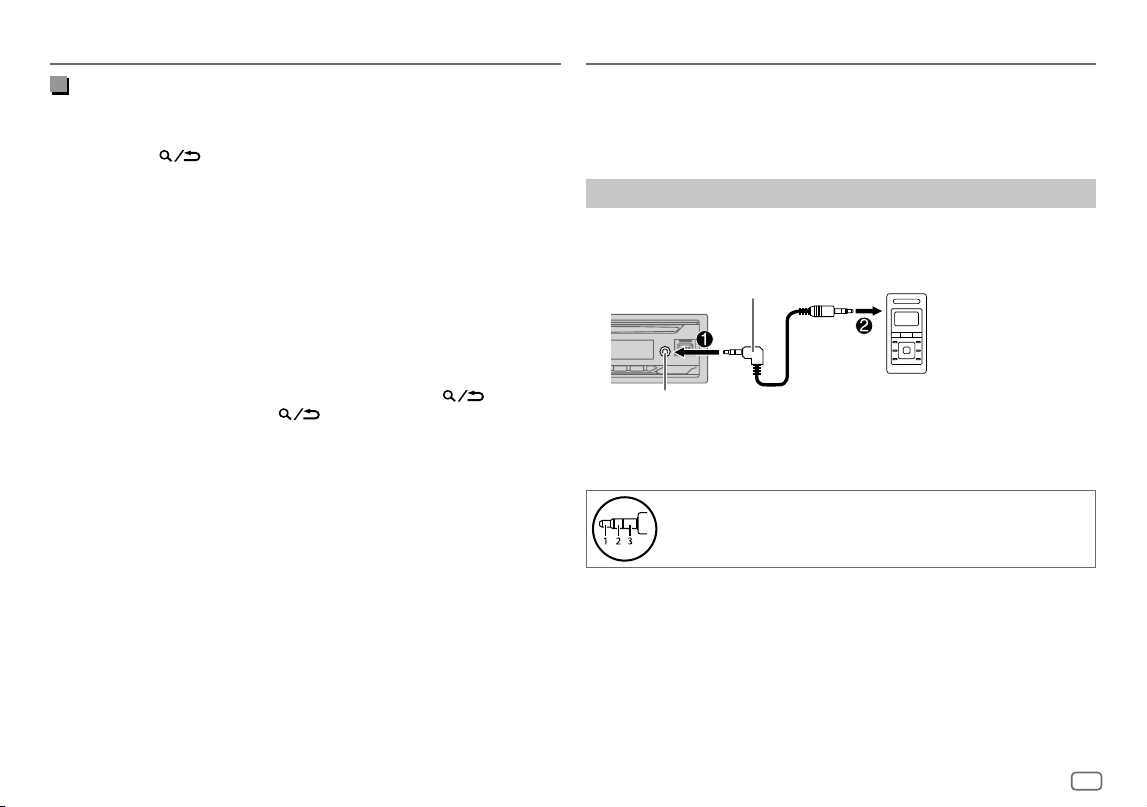
FRANÇAIS
11
Data Size: B6L (182 mm x 128 mm)
Book Size: B6L (182 mm x 128 mm)
CD/USB/iPod
Recherche alphabétique
(applicable uniquement pour la source iPod FRONT/
iPod REAR/iPod USB et la source iPodBT)
Vous pouvez rechercher un fichier en fonction du premier caractère.
1 Appuyez sur .
2 Tournez le bouton de volume pour choisir une liste, puis appuyez sur le
bouton.
3 Appuyez sur 2 J / 1 K ou tournez le bouton de volume rapidement pour
sélectionner le caractère souhaité (A à Z, 0à9, OTHERS).
Sélectionnez “OTHERS” si le premier caractère est autre que AàZ, 0à9.
4 Appuyez sur le bouton de volume pour démarrer la recherche.
Les fichiers contenant les caractères recherchés ou avec des caractères
similaires (ordre alphabétique) sont affichés.
5 Tournez le bouton de volume pour choisir un fichier, puis appuyez sur le
bouton.
La lecture du fichier sélectionné démarre.
• Pour retourner à l’option de réglage précédente, appuyez sur
.
• Pour annuler, maintenez enfoncée
.
Vous pouvez écouter de la musique à partir d’un lecteur audio portable via la prise
d’entrée auxiliaire.
Préparation:
Sélectionnez
[ON]
pour
[BUILT-IN AUX]
dans
[SOURCESELECT]
. (Page6)
Démarrez l’écoute
1
Connectez un lecteur audio portable (en vente dans le commerce).
Mini fiche stéréo de 3,5 mm (1/8 pouces) avec
connecteur en forme de “L” (en vente dans le commerce)
Lecteur audio portable
Prise d’entrée auxiliaire
2 Appuyez répétitivement sur B SRC pour sélectionner AUX.
3 Mettez sous tension le lecteur audio portable et démarrez la lecture.
Utilisez une mini fiche stéréo munie d’une fiche à 3 connecteurs
pour obtenir une sortie audio optimum.
AUX
KD_T925BTS_K_FR.indd 11KD_T925BTS_K_FR.indd 11 9/3/2022 4:29:04 PM9/3/2022 4:29:04 PM
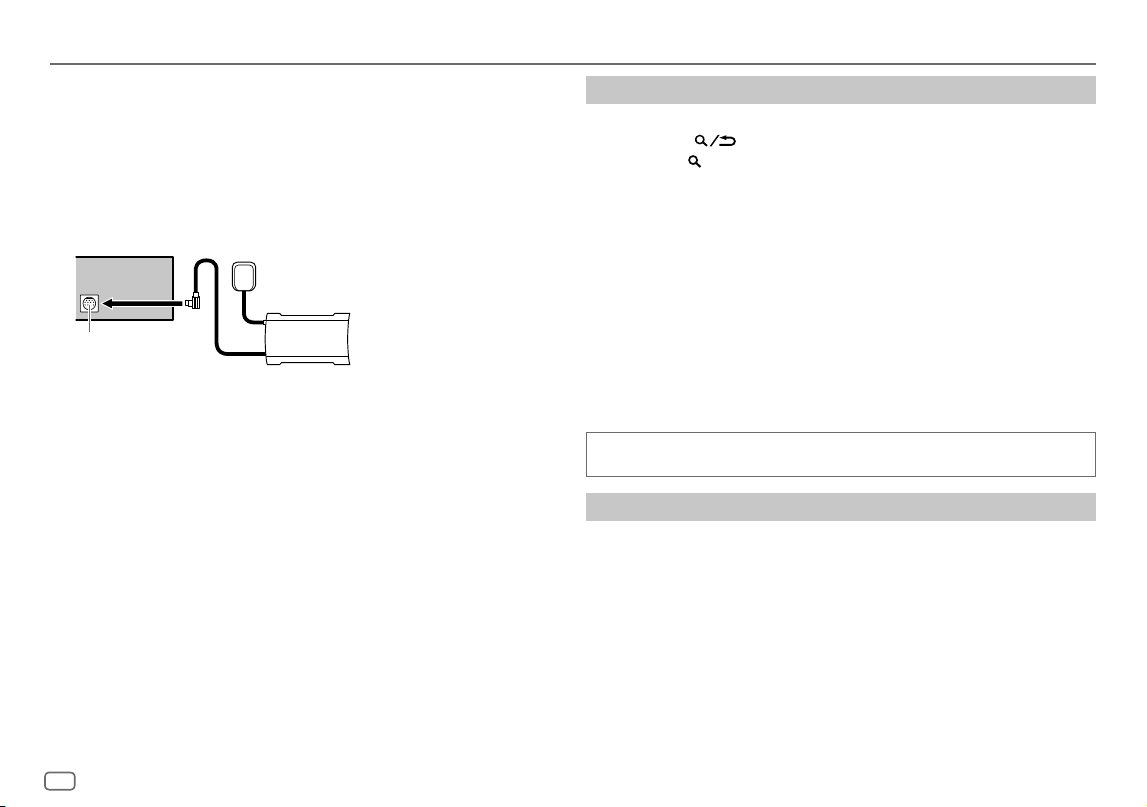
12
FRANÇAIS
Data Size: B6L (182 mm x 128 mm)
Book Size: B6L (182 mm x 128 mm)
Radio SiriusXM®
(pour KD-T925BTS/KD-T920BTS)
Seul SiriusXM® vous apporte plus de ce que vous aimez écouter, en un seul
endroit. Obtenez plus de 140 canaux, y compris de la musique sans pauses
publicitaires, le meilleur du sport, les nouvelles, les discussions, les comédies et
de les divertissements. Bienvenue dans le monde de la radio satellite. Un tuner
SiriusXM Vehicle et un abonnement sont nécessaires. Pour plus d’informations,
consultez <www.siriusxm.com>.
Préparation:
1 Connectez le tuner SiriusXM Vehicle optionnel (en vente dans le
commerce).
Antenne
Port d’extension sur le
panneau arrière
Tuner SiriusXM Vehicle
2 Vérifiez votre numéro d’identification radio pour l’activation.
Le numéro d’identification de Radio SiriusXM est nécessaire pour l’activation
et peut être trouvé en accordant le canal 0 de même que sur l’étiquette qui se
trouve sur le tuner SiriusXM Vehicle et sur son emballage.
Le numéro d’identification radio ne comprend pas les lettres I, O, S ou F.
3 Activez l’abonnement.
Pour les utilisateurs aux États-Unis:
En ligne: Allez sur <www.siriusxm.com/activatenow>
Téléphone: Appelez le 1-866-635-2349
Pour les utilisateurs au Canada:
En ligne: Allez sur <www.siriusxm.ca/activate>
Téléphone: Appelez le 1-888-539-7474
4 Appuyez répétitivement sur B SRC pour sélectionner SIRIUSXM et
démarrer la mise à jour.
Démarrez l’écoute
1
Appuyez répétitivement sur B SRC pour sélectionner SIRIUSXM.
2 Appuyez sur .
L’indicateur “ ” s’allume.
3 Tournez le bouton de volume pour choisir CATEGORY, puis appuyez sur le
bouton.
4 Tournez le bouton de volume pour choisir une catégorie dans la liste, puis
appuyez sur le bouton.
Si “ALL CHANNELS” est sélectionné, tous les canaux disponibles sont affichés.
5 Tournez le bouton de volume pour choisir un canal, puis appuyez sur le
bouton.
• Maintenir enfoncée 1/2 permet de changer le canal rapidement.
• Si aucune opération n’est effectuée pendant 10 secondes, un canal est
sélectionné automatiquement.
(ou)
Appuyez sur S / T pour rechercher un canal manuellement.
• Maintenir enfoncée S / T permet de changer le canal rapidement.
Si un canal verrouillé ou un canal adulte est sélectionné, un écran d’entrée de
code secret apparait. Entrez le code secret pour recevoir le canal. (Page14)
Contrôle parental
La fonction de contrôle parental vous permet de limiter l’accès à tous les canaux
SiriusXM, y compris ceux dont le contenu est destiné aux adultes.
Lorsqu’elle est activée, la fonction de contrôle parental vous demande de saisir un
code secret pour accorder les canaux verrouillés.
• Les informations sur le réglage du code secret et le verrouillage des canaux se
trouvent à la page 14, 15.
KD_T925BTS_K_FR.indd 12KD_T925BTS_K_FR.indd 12 9/3/2022 4:29:04 PM9/3/2022 4:29:04 PM
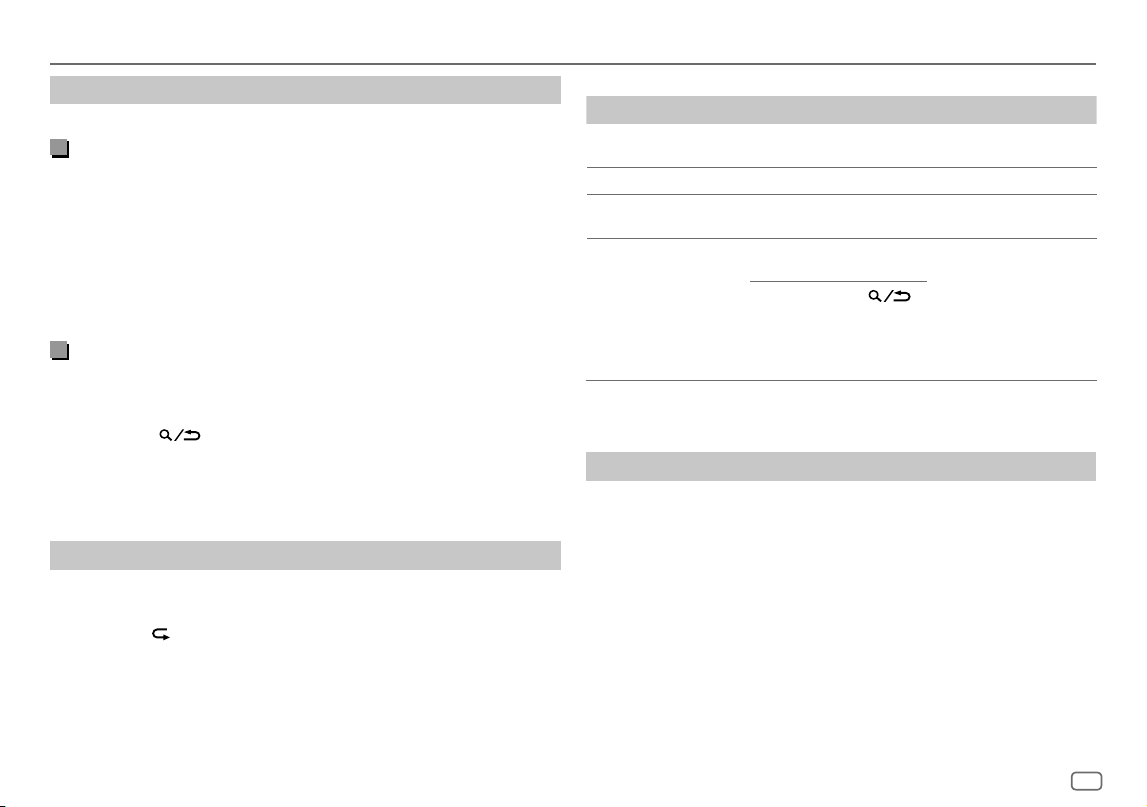
FRANÇAIS
13
Data Size: B6L (182 mm x 128 mm)
Book Size: B6L (182 mm x 128 mm)
Radio SiriusXM®
(pour KD-T925BTS/KD-T920BTS)
Réglages en mémoire
Vous pouvez mémoriser un maximum de 18 canaux.
Mémorisez un canal
Lors de l’écoute d’un canal...
Maintenez enfoncée une des touches numériques (1 à 6).
(ou)
1 Maintenez enfoncé le bouton de volume jusqu’à ce que “PRESETMODE”
clignote.
2 Tournez le bouton de volume pour choisir un numéro de préréglage, puis
appuyez sur le bouton.
Le numéro de préréglage clignote et “MEMORY” apparaît.
Sélectionnez un canal mémorisé
Appuyez sur une des touches numériques (1à6) (ou appuyez sur J / K sur la
télécommande).
(ou)
1 Appuyez sur .
2 Tournez le bouton de volume pour choisir PRESET, puis appuyez sur le
bouton.
3 Tournez le bouton de volume pour choisir un numéro de préréglage, puis
appuyez sur le bouton.
SiriusXM Replay™
Lors de l’écoute d’un canal...
1 Appuyez sur le bouton de volume.
L’indicateur “ ” s’allume et l’appareil mémorise la position de pause.
2 Appuyez sur le bouton de volume pour démarrer la relecture.
La relecture démarre à partir de la position de pause de l’étape 1.
Pendant la relecture...
Pour Sur la façade Sur la télécommande
Lecture/pause
Appuyez sur le bouton de
volume.
Appuyez sur d.
Saut en arrière/avant*
Appuyez sur S / T. Appuyez sur H / I.
Retour/avance rapide* Maintenez enfoncée
S / T.
Maintenez enfoncée
H / I.
Allez sur le direct et
quittez la relecture*
Maintenez enfoncé le
bouton de volume.
Maintenez enfoncée d.
1 Appuyez sur .
2 Tournez le bouton de
volume pour choisir
LIVE, puis appuyez sur
le bouton.
* Lorsque le Direct est atteint ou sélectionné, la lecture du direct démarre et la
relecture est quittée.
SmartFavorites et TuneStart™
Les canaux préréglés de l’utilisateur sont affectés initialement comme canaux
SmartFavorites. Le canal SmartFavorite est disponible avec le tuner SXV200 ou
les modèles ultérieurs de tuner SiriusXM Vehicle. Le tuner SiriusXM Vehicle met
automatiquement en cache le contenu audio diffusé des canaux SmartFavorites
en tache de fond.
Utilisation de SXV200: Cet appareil peut affecter un maximum de six canaux
SmartFavorites. Si vous essayez d’affecter un 7e canal, un bip d’erreur est émis. Les
canaux préréglés 1 à 6 sont affectés initialement comme canaux SmartFavorites.
KD_T925BTS_K_FR.indd 13KD_T925BTS_K_FR.indd 13 9/3/2022 4:29:04 PM9/3/2022 4:29:04 PM
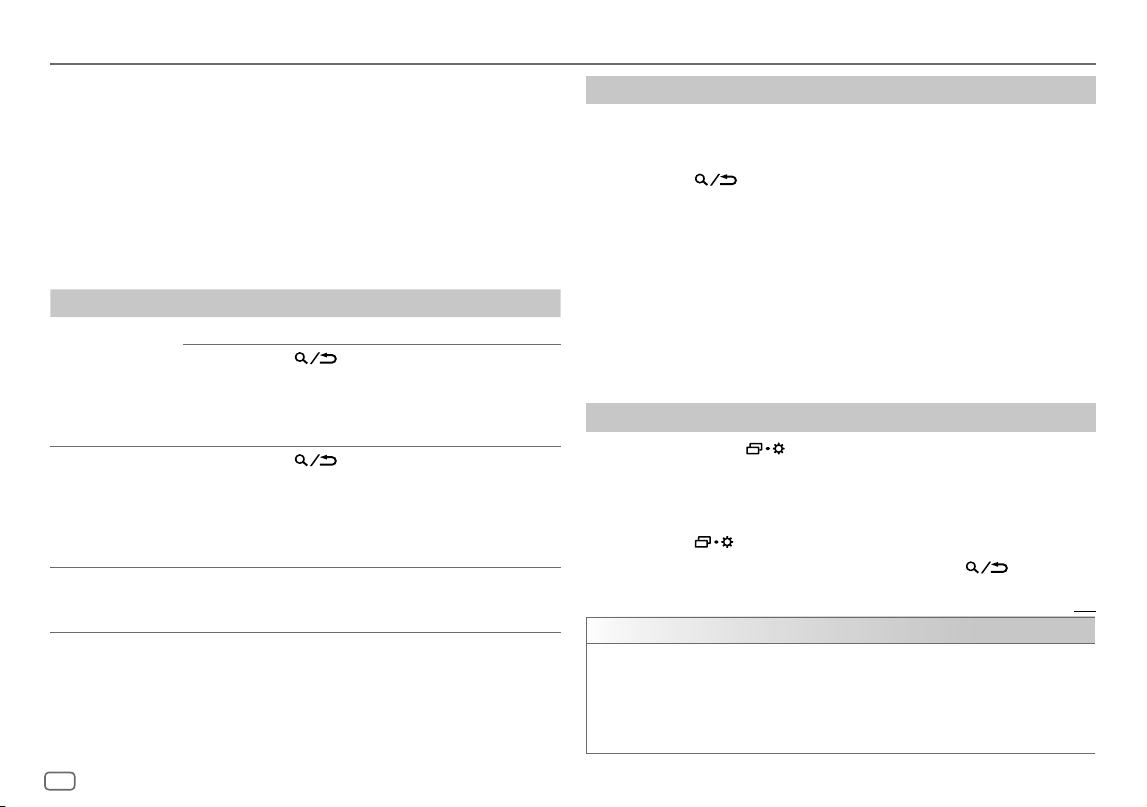
14
FRANÇAIS
Data Size: B6L (182 mm x 128 mm)
Book Size: B6L (182 mm x 128 mm)
Utilisation d’un tuner SiriusXM Vehicle ultérieur au SXV200: Cet appareil peut
affecter un maximum de 18 canaux SmartFavorites. Les canaux préréglés sont
affectés initialement comme canaux SmartFavorites.
• “
*
” apparaît après le dernier caractère du nom de canal pour les canaux
SmartFavorites.
Quand vous syntonisez un canal SmartFavorite vous pouvez revenir en arrière
et relire 30 minutes maximum de n’importe quel contenu manqué: nouvelles,
discussions, sport ou musique.
• La lecture démarre à partir du début du morceau si
[TUNE START]
est réglé sur
[ON]
(page15) pour la plupart des canaux de musique mémorisés comme
SmartFavorite.
Pour Sur la façade
Sélectionnez un
canal SmartFavorite
Appuyez sur l’une des touches numériques (1 à 6).
1 Appuyez sur .
2 Tournez le bouton de volume pour choisir PRESET, puis
appuyez sur le bouton.
3 Tournez le bouton de volume pour choisir un numéro
de préréglage, puis appuyez sur le bouton.
Annulation
des canaux
SmartFavorites
1 Appuyez sur .
2 Tournez le bouton de volume pour choisir PRESET, puis
appuyez sur le bouton.
3 Tournez le bouton de volume pour choisir un numéro
de préréglage, puis maintenez enfoncé le bouton.
“
*
” disparaît du dernier caractères.
Réaffectation
des canaux
SmartFavorites
Répétez les étapes 1 à 3 pour “Annulation des canaux
SmartFavorites”.
“
*
” apparaît après le dernier caractère.
Radio SiriusXM®
(pour KD-T925BTS/KD-T920BTS)
TuneScan™
Vous pouvez obtenir un bref aperçu des morceaux que vous avez manqués sur
chacun de vos canaux de musique SmartFavorites ou sur le canal de musique que
vous écoutez actuellement.
1 Appuyez sur .
2 Tournez le bouton de volume pour choisir TUNE SCAN, puis appuyez sur le
bouton.
Le balayage démarre pour les 6 premières secondes du contenu musical
enregistré.
• Pour écouter le morceau actuel, appuyez sur le bouton de volume pour arrêter
le balayage. L’appareil continue de lire le morceau actuel.
• Pour sélectionner le morceau précédent/suivant, appuyez sur S / T.
• Pour annuler le balayage, maintenez enfoncé le bouton de volume. L’appareil
retour sur le canal que vous écoutiez avant de lancer TuneScan.
• Appuyer sur n’importe quelle autre touche que la touche de volume ou
S / T interrompra le balayage et finira par l’arrêter.
Réglages SiriusXM
1
Maintenez enfoncée .
2 Tournez le bouton de volume pour sélectionner un élément (voir le tableau
suivant), puis appuyez sur le bouton.
3 Répétez l’étape 2 jusqu’à ce que l’élément souhaité soit sélectionné/activé
ou suivez les instructions données pour l’élément sélectionné.
4 Appuyez sur pour quitter.
Pour retourner à l’option de réglage précédente, appuyez sur
.
Défaut:
[XX]
[SIRIUS XM]
[CHANNEL LOCK]
Pour déverrouiller les réglages:
1
Tournez le bouton de volume pour sélectionner un numéro.
2
Appuyez sur S / T pour déplacer la position d’entrée.
3
Répétez les étapes 1 et 2 pour entrer le code secret actuel.
(Le code secret initial est 0000.)
4
Appuyez sur le bouton de volume pour valider.
KD_T925BTS_K_FR.indd 14KD_T925BTS_K_FR.indd 14 9/3/2022 4:29:04 PM9/3/2022 4:29:04 PM
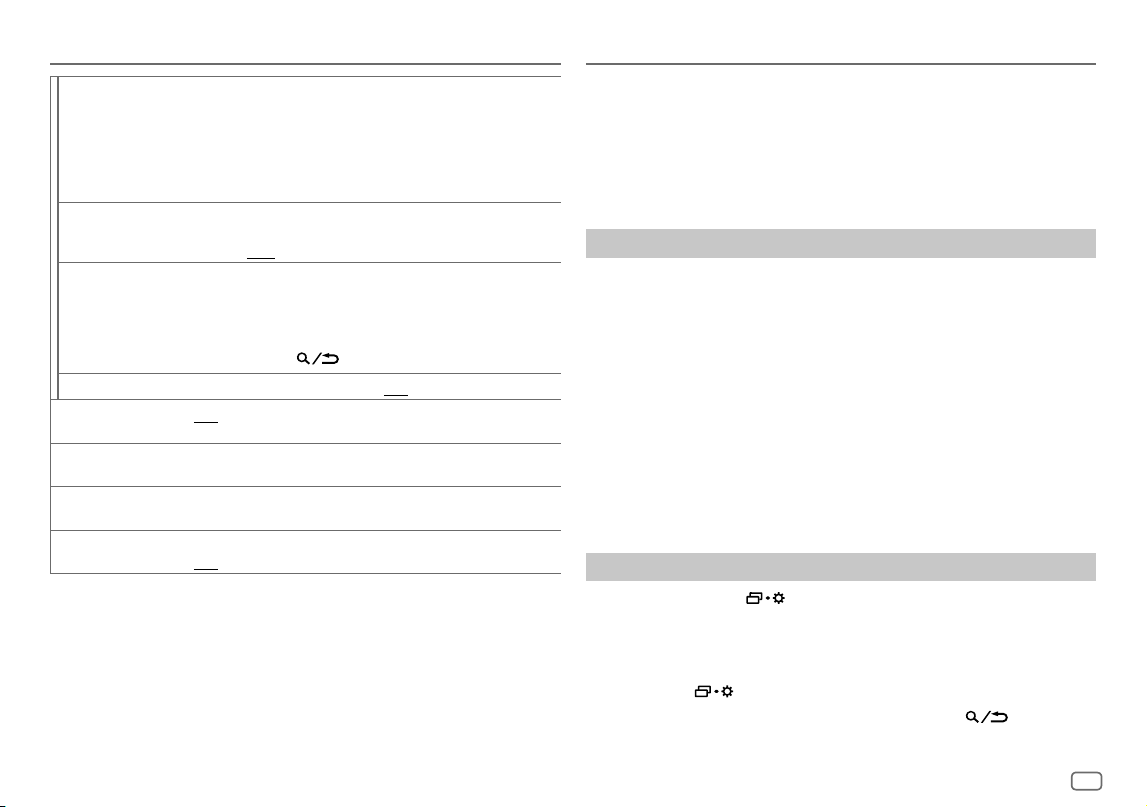
FRANÇAIS
15
Data Size: B6L (182 mm x 128 mm)
Book Size: B6L (182 mm x 128 mm)
[CODESET]
1
Tournez le bouton de volume pour sélectionner un numéro.
2
Appuyez sur S / T pour déplacer la position d’entrée.
3
Répétez les étapes 1 et 2 pour entrer un nouveau code secret de 4 chiffres.
4
Appuyez sur le bouton de volume pour valider.
5
Répétez les étapes 1 à 4 pour confirmer le code secret.
• Notez le nouveau code secret afin de pouvoir accéder aux réglages de verrouillage
de canal la fois suivante.
[LOCK SETTING] [MATURE CH]
:Sélectionne le réglage du verrouillage défini SiriusXM.;
[USER DEFINED]
:Sélectionne les canaux individuels que l’utilisateur souhaite
verrouiller.;
[OFF]
:Annulation.
[CHANNEL EDIT]
*1
1
Tournez le bouton de volume pour choisir une catégorie, puis appuyez sur le
bouton.
2
Tournez le bouton de volume pour choisir un canal que vous souhaitez verrouiller,
puis appuyez sur le bouton.
“L” apparaît devant le numéro de canal.
3
Maintenez enfoncée pour quitter.
[CHANNEL CLEAR]
*1
[YES]
:Annule tous les canaux verrouillés.;
[NO]
:Annulation.
[TUNE START]
*2
[ON]
:Tous les canaux de musique qualifiés dans SmartFavorites démarreront la
lecture à partir du début du morceau.;
[OFF]
:Annulation.
[SIGNAL LEVEL]
Montre la puissance (
[NO SIGNAL]
/
[WEAK]
/
[GOOD]
/
[STRONG]
) du signal
actuellement reçu.
[BUFFER USAGE]
Montre l’utilisation actuelle (
[0%]
à
[100%]
) pour la mémoire tampon de
relecture.
[SXM RESET] [YES]
:Réinitialise tous les réglages SiriusXM aux valeurs par défaut.;
[NO]
:Annulation.
*1 Affiché uniquement quand
[LOCK SETTING]
est réglé sur
[USER DEFINED]
.
*2 Disponible uniquement si le tuner SiriusXM Vehicle connecté est le SXV200 ou un tuner ultérieur qui prend en
charge SmartFavorites.
Radio SiriusXM®
(pour KD-T925BTS/KD-T920BTS)
Application JVC Remote
Vous pouvez commander l’autoradio JVC à partir d’un iPhone/iPod touch
(via Bluetooth ou via la prise d’entrée USB) ou d’un périphérique Android (via
Bluetooth) en utilisant l’application JVC Remote.
• Pour plus d’informations, consultez <https://www.jvc.net/cs/car/>.
Préparation:
Installez la dernière version de l’application JVC Remote sur votre périphérique
avant la connexion.
Commencez à utiliser l’application JVC Remote
1
Démarrez l’application JVC Remote sur votre appareil.
2 Connectez votre périphérique.
• Pour un périphérique Android:
Appariez le périphérique Android avec cet appareil via Bluetooth. (Page17)
• Pour iPhone/iPod touch:
Connectez l’iPhone/iPod touch à la prise d’entrée USB. (Page9)
(ou)
Appariez le l’iPhone/iPod touch avec cet appareil via Bluetooth. (Page17)
(Assurez-vous que la prise d’entrée USB n’est connectée à aucun
périphérique.)
3 Sélectionnez le périphérique à utiliser à partir du menu.
Reportez-vous à “Réglages pour utiliser une application JVC Remote” ci-après.
Par défaut,
[ANDROID]
est sélectionné. Pour utiliser l’iPhone/iPod touch,
sélectionnez
[YES]
pour
[IOS]
.
Réglages pour utiliser une application JVC Remote
1
Maintenez enfoncée .
2 Tournez le bouton de volume pour choisir un élément (page 16), puis
appuyez sur le bouton.
3 Répétez l’étape 2 jusqu’à ce que l’élément souhaité soit sélectionné ou
activé.
4 Appuyez sur pour quitter.
Pour retourner à l’option de réglage précédente, appuyez sur
.
KD_T925BTS_K_FR.indd 15KD_T925BTS_K_FR.indd 15 9/3/2022 4:29:04 PM9/3/2022 4:29:04 PM
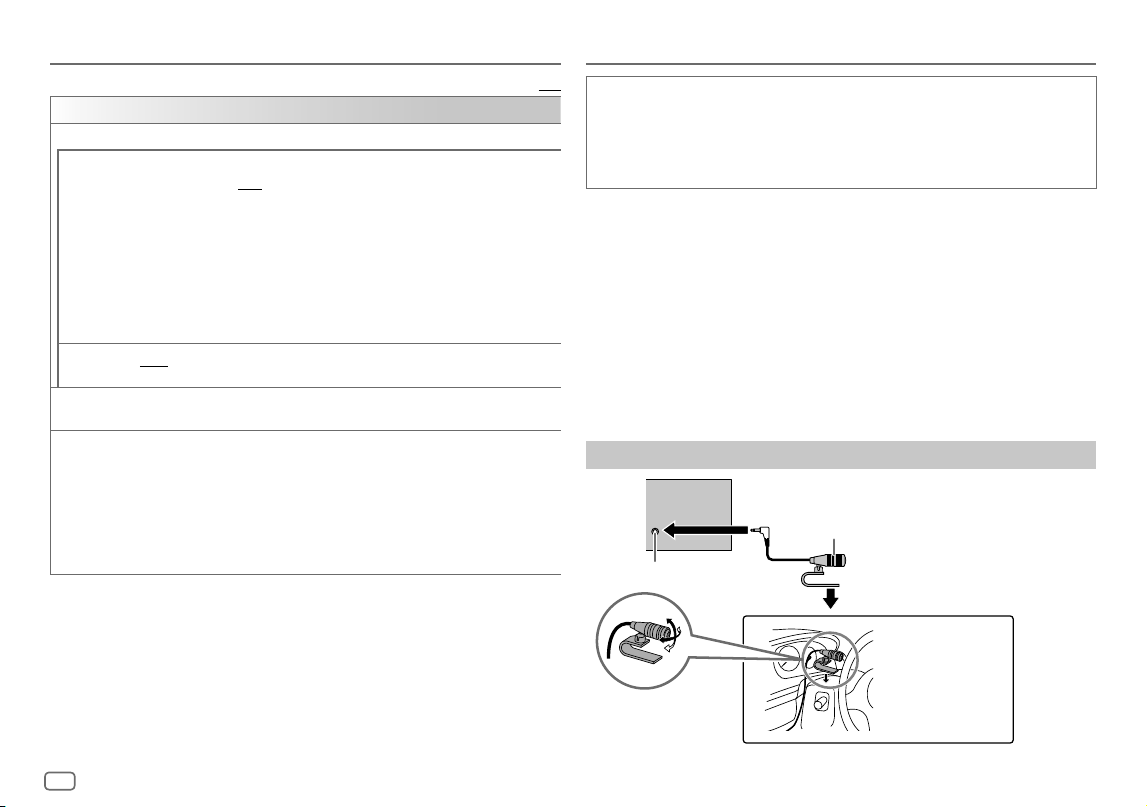
16
FRANÇAIS
Data Size: B6L (182 mm x 128 mm)
Book Size: B6L (182 mm x 128 mm)
Défaut:
[XX]
[REMOTE APP]
[SELECT]
Sélectionnez le périphérique (
[IOS]
ou
[ANDROID]
) pour utiliser l’application.
[IOS] [YES]
:Sélectionnez iPhone/iPod touch pour utiliser l’application via Bluetooth ou connecté via
la prise d’entrée USB.;
[NO]
:Annulation.
Si
[IOS]
est sélectionné, sélectionnez la source iPod BT (ou la source iPod FRONT/iPod REAR/
iPodUSB si votre iPhone/iPod touch est connecté via la prise d’entrée USB) pour activer
l’application.
• Reportez-vous à “Réglage de la source de lecture pour iPod/iPhone” à la page 10 pour plus
d’informations.
• La connectivité del’application est interrompue ou déconnectée si:
– Vous changez la source de iPod BT à n’importe quelle source de lecture connectée via la
prise d’entrée USB.
– Vous passez de la source iPod FRONT/iPod REAR/iPod USB a la source iPod BT.
[ANDROID] [YES]
:Sélectionnez le périphérique Android pour utiliser l’application via Bluetooth.;
[NO]
: Annulation.
[ANDROID
LIST]
Sélectionnez le périphérique Android à utiliser dans la liste.
• Affiché uniquement quand
[ANDROID]
de
[SELECT]
est réglé sur
[YES]
.
[STATUS]
Montre l’état du périphérique sélectionné.
[IOS CONNECTED]
: Vous pouvez utiliser l’application à l’aide de l’iPhone/iPod touch connecté
via Bluetooth ou par la prise d’entrée USB.
[IOS NOT CONNECTED]
: Aucun périphérique iOS n’est connecté pour utiliser l’application.
[ANDROID CONNECTED]
: Vous pouvez utiliser l’application à l’aide du périphérique Android
connecté via Bluetooth.
[ANDROID NOT CONNECTED]
: Aucun périphérique Android n’est connecté pour utiliser
l’application.
Bluetooth®
• En fonction de la version Bluetooth, du système d’exploitation et de la version
du micrologiciel de votre téléphone portable, la fonction Bluetooth peut ne
pas fonctionner avec cet appareil.
• Assurez-vous d’activer la fonction Bluetooth du périphérique pour réaliser les
opérations suivantes.
• La condition du signal varie en fonction de l’environnement.
Bluetooth — Connexion
Profiles Bluetooth pris en charge
– Hands-Free Profile — Profile mains libres (HFP)
– Advanced Audio Distribution Profile — Profile de distribution audio avancé
(A2DP)
– Audio/Video Remote Control Profile — Profile de télécommande audio/vidéo
(AVRCP)
– Serial Port Profile — Profile de port série (SPP)
– Phonebook Access Profile — Profile d’accès au répertoire d’adresses (PBAP)
Codecs Bluetooth pris en charge
– Codec Sous-bande (SBC)
– Codage audio avancé (AAC)
Connectez le microphone
Ajustez l’angle du microphone
Fixez si nécessaire en
utilisant des serre-câbles
(non fourni).
Connecteur femelle d’entrée du microphone
Microphone (fourni)
Panneau arrière
Application JVC Remote
KD_T925BTS_K_FR.indd 16KD_T925BTS_K_FR.indd 16 9/3/2022 4:29:04 PM9/3/2022 4:29:04 PM
FRANÇAIS
17
Data Size: B6L (182 mm x 128 mm)
Book Size: B6L (182 mm x 128 mm)
Faites le pairage et connectez un périphérique Bluetooth pour
la première fois
1
Appuyez sur B SRC pour mettre l’appareil sous tension.
2 Recherchez et sélectionnez le nom de votre récepteur (“KD-T925BTS”/
“KD-T920BTS”/“KD-T720BT”) sur le périphérique Bluetooth.
“BTPAIRING” clignote sur l’affichage.
• Pour certains périphériques Bluetooth, il se peut que vous ayez besoin
d’entrer le code PIN (numéro d’identification personnel) immédiatement
après la recherche.
3 Réalisez (A) ou (B) en fonction de ce qui apparait sur l’affichage.
Pour certains périphériques Bluetooth, la séquence de pairage peut varier en
fonction des étapes décrites ci-dessous.
(A) “Nom du périphérique” “XXXXXX” “VOL–YES” “BACK–NO”
“XXXXXX” est un code à 6 chiffres généré aléatoirement pendant chaque
pairage.
Assurez-vous que les codes qui apparaissent sur l’appareil et le
périphérique Bluetooth sont les mêmes.
Appuyez sur le bouton de volume pour valider le code.
Utilisez le périphérique Bluetooth pour valider le code.
(B) “Nom du périphérique” “VOL–YES” “BACK–NO”
Appuyez sur le bouton de volume pour démarrer le pairage.
• Si “PAIRING” “PIN 0000” défile sur l’affichage, entrez le code PIN
“0000” sur le périphérique Bluetooth.
Vous pouvez choisir le code PIN souhaité avant le pairage. (Page21)
• Si seul “PAIRING” apparaît, utilisez le périphérique Bluetooth pour
confirmer le pairage.
“PAIRING COMPLETED” apparaît quand le pairage est terminé et “O” s’allume quand
la connexion Bluetooth est établie.
• l’indicateur “
” s’allume pour indiquer la puissance de la batterie du
périphérique connecté. Reportez-vous aussi à
[FORMAT]
à la page32 pour la
puissance de la batterie et du signal indiquée sur l’affichage.
Bluetooth®
• Cet appareil prend en charge le Pairage simple sécurisé (SSP).
• Un maximum de cinq appareils peuvent être enregistrés (appariés) en tout.
• Une fois que le pairage est termine, le périphérique Bluetooth reste enregistré
sur l’appareil même si vous réinitialisez l’appareil. Pour supprimer un
périphérique apparié, voir
[DEVICE DELETE]
à la page21.
• Un maximum de deux téléphones Bluetooth et un périphérique audio
Bluetooth peuvent être connecté en même temps. Pour connecter ou
déconnecter le périphérique enregistré, reportez-vous à
[PHONE SELECT]
ou
[AUDIO SELECT]
dans
[BT MODE]
. (Page21)
Cependant, quand la source est BT AUDIO, vous pouvez vous connecter à cinq
périphériques audio Bluetooth et commuter parmi ces cinq périphériques.
(Page22)
• Certains périphériques Bluetooth peuvent ne pas se connecter
automatiquement au système après le pairage. Connectez le périphérique à
l’appareil manuellement.
• Quand la batterie du périphérique Bluetooth connecté devient faible, “Nom du
périphérique”
“LOW BATTERY” apparaissent.
• Référez-vous au manuel d’instructions de votre périphérique Bluetooth pour en
savoir plus.
Pairage automatique
Quand vous connectez un iPhone/iPod touch à la prise d’entrée USB, la demande
de pairage (via Bluetooth) est activée automatiquement si
[AUTO PAIRING]
est réglé
sur
[ON]
. (Page21)
Appuyez sur le bouton de volume pour faire le pairage une fois que vous avez
validé le nom de périphérique.
KD_T925BTS_K_FR.indd 17KD_T925BTS_K_FR.indd 17 9/3/2022 4:29:04 PM9/3/2022 4:29:04 PM
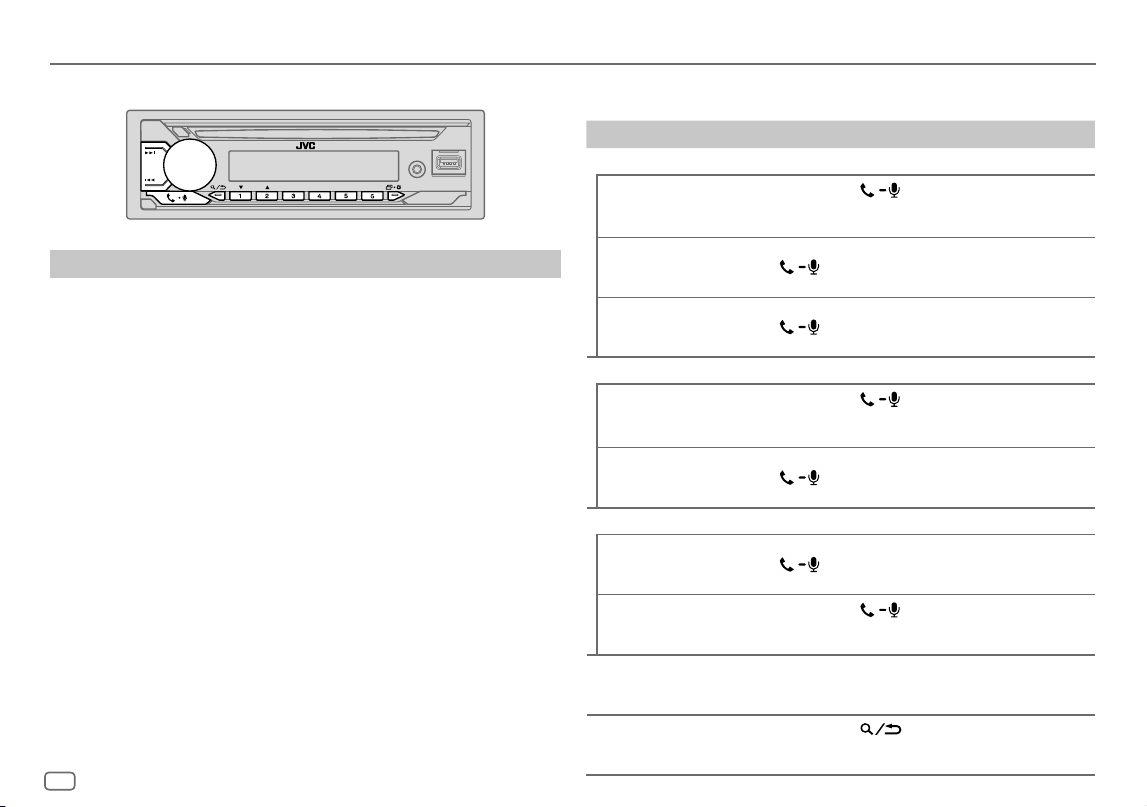
18
FRANÇAIS
Data Size: B6L (182 mm x 128 mm)
Book Size: B6L (182 mm x 128 mm)
Bluetooth — Téléphone portable
Réception d’un appel
Quand il y a un appel entrant:
• KD-T925BTS/KD-T920BTS:
Les touches clignotent dans la couleur que vous avez sélectionnée dans
[RING COLOR]
. (Page19)
KD-T720BT:
Les touches clignotent de la façon que vous avez sélectionnée dans
[RING ILLUMI]
. (Page19)
• L’appareil répond automatiquement à l’appel si
[AUTO ANSWER]
sur une heure
sélectionnée. (Page19)
Pendant un appel:
• KD-T925BTS/KD-T920BTS:
Les touches s’arrêtent de clignoter et s’allument dans la couleur que vous avez
sélectionnée dans
[RING COLOR]
. (Page19)
KD-T720BT:
Les touches s’arrêtent de clignoter.
• Si vous mettez hors tension l’appareil ou détachez la façade, la connexion
Bluetooth est déconnectée.
Bluetooth®
Les opérations suivantes peuvent différer ou peuvent ne pas être disponibles en
fonction du téléphone connecté.
Pour Sur la façade Sur la télécommande
Premier appel entrant...
Répondre à un appel
Appuyez sur
ou sur le bouton de
volume.
Appuyez sur J / K /
H / I.
Refuser un appel Maintenez enfoncé
ou le bouton de
volume.
Maintenez enfoncée
J / K / H / I.
Fin d’un appel Maintenez enfoncé
ou le bouton de
volume.
Maintenez enfoncée
J / K / H / I.
Pendant que vous parlez pour le premier appel entrant...
Répondez à un autre
appel entrant et mettez
en attente l’appel actuel
Appuyez sur
ou sur le bouton de
volume.
( Non disponible )
Refusez un autre appel
entrant
Maintenez enfoncé
ou le bouton de
volume.
( Non disponible )
Quand vous avez deux appels actifs...
Terminez l’appel actuel et
activez l’appel en attente
Maintenez enfoncé
ou le bouton de
volume.
Maintenez enfoncée
J / K / H / I.
Commutez entre l’appel
actuel et l’appel en
attente
Appuyez sur
.
( Non disponible )
Ajustez le volume du
téléphone*1
[00]
à
[35]
(Défaut:
[15]
)
Tournez le bouton de
volume pendant un
appel.
Appuyez sur VOL +*2
ou VOL – pendant un
appel.
Commute entre le mode
mains libres et le mode de
conversation privée*3
Appuyez sur
pendant un appel.
( Non disponible )
KD_T925BTS_K_FR.indd 18KD_T925BTS_K_FR.indd 18 9/3/2022 4:29:05 PM9/3/2022 4:29:05 PM
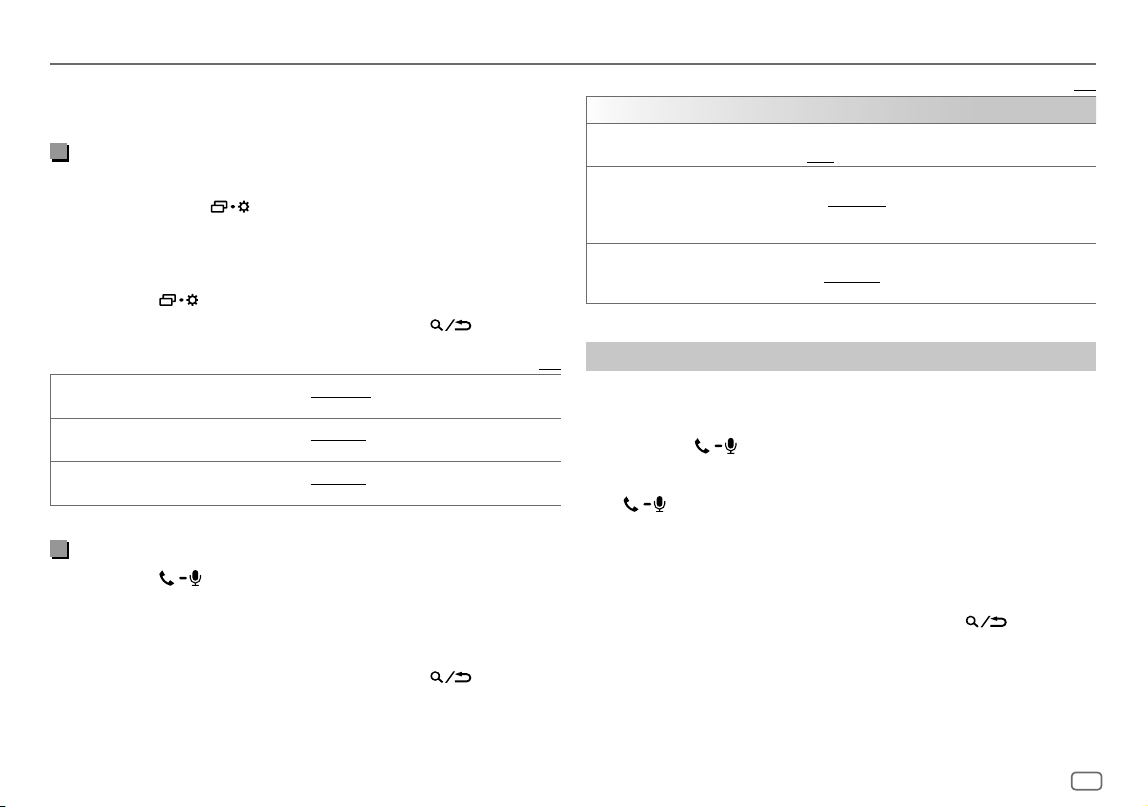
FRANÇAIS
19
Data Size: B6L (182 mm x 128 mm)
Book Size: B6L (182 mm x 128 mm)
*1 Cet ajustement n’affecte pas le volume des autres sources.
*2 Maintenez VOL + enfoncé de façon continue pour augmenter le volume sur 15.
*3 Les opérations peuvent différer en fonction du périphérique Bluetooth connecté.
Amélioration de la qualité des voix
Quand vous parlez au téléphone...
1 Maintenez enfoncée .
2 Tournez le bouton de volume pour sélectionner un élément (voir le tableau
suivant), puis appuyez sur le bouton.
3 Répétez l’étape 2 jusqu’à ce que l’élément souhaité soit sélectionné ou
activé.
4 Appuyez sur pour quitter.
Pour retourner à l’option de réglage précédente, appuyez sur
.
Défaut:
[XX]
[MIC GAIN] [LEVEL –10]
à
[LEVEL +10]
(
[LEVEL -04]
):La sensibilité du microphone augmente
quand le numéro augmente.
[NR LEVEL] [LEVEL –05]
à
[LEVEL +05]
(
[LEVEL 00]
):Ajustez le niveau de réduction de bruit
jusqu’à ce qu’un minimum de bruit soit entendu pendant une conversation téléphonique.
[ECHO CANCEL] [LEVEL –05]
à
[LEVEL +05]
(
[LEVEL 00]
):Ajustez le temps de retard d’annulation de
l’écho jusqu’à ce que le dernier écho est entendu pendant une conversation téléphonique.
• La qualité de l’appel peut dépendre du téléphone portable.
Réalise les réglages de réception d’un appel
1
Appuyez sur pour entrer en mode Bluetooth.
2 Tournez le bouton de volume pour sélectionner un élément (voir le tableau
suivant), puis appuyez sur le bouton.
3 Répétez l’étape 2 jusqu’à ce que l’élément souhaité soit sélectionné ou
activé.
Pour retourner à l’option de réglage précédente, appuyez sur
.
Bluetooth®
Défaut:
[XX]
[SETTINGS]
[AUTO ANSWER]
[01SEC]
à
[30SEC]
:Répond à un appel entrant automatiquement pendant le temps
sélectionné (secondes).;
[OFF]
:Annulation.
[RING COLOR]
(Pour KD-T925BTS/KD-T920BTS)
[COLOR01]
à
[COLOR49]
(
[COLOR08]
): Sélectionne la couleur l’éclairage pour
les touches comme notification quand il y a un appel entrant et pendant un appel.;
[OFF]
:Annulation.
[RING ILLUMI]
(Pour KD-T720BT)
[BLINK01]
à
[BLINK05]
(
[BLINK02]
): Sélectionne le mode de clignotement des
touches pour la notification quand il y a un appel entrant.;
[OFF]
:Annulation.
Faire un appel
Vous pouvez faire un appel à partir de l’historique, du répertoire d’adresses
ou composer le numéro. Un appel par commande vocale est possible si votre
téléphone portable possède cette fonction.
1 Appuyez sur pour entrer en mode Bluetooth.
“(Nom du premier périphérique)” apparaît.
• Si deux téléphones Bluetooth sont connectés, appuyez de nouveau sur
pour connecter sur un autre téléphone.
“(Nom du deuxième périphérique)” apparaît.
2 Tournez le bouton de volume pour choisir un élément (page 20), puis
appuyez sur le bouton.
3 Répétez l’étape 2 jusqu’à ce que l’élément souhaité soit sélectionné/activé
ou suivez les instructions données pour l’élément sélectionné.
Pour retourner à l’option de réglage précédente, appuyez sur
.
KD_T925BTS_K_FR.indd 19KD_T925BTS_K_FR.indd 19 9/3/2022 4:29:05 PM9/3/2022 4:29:05 PM
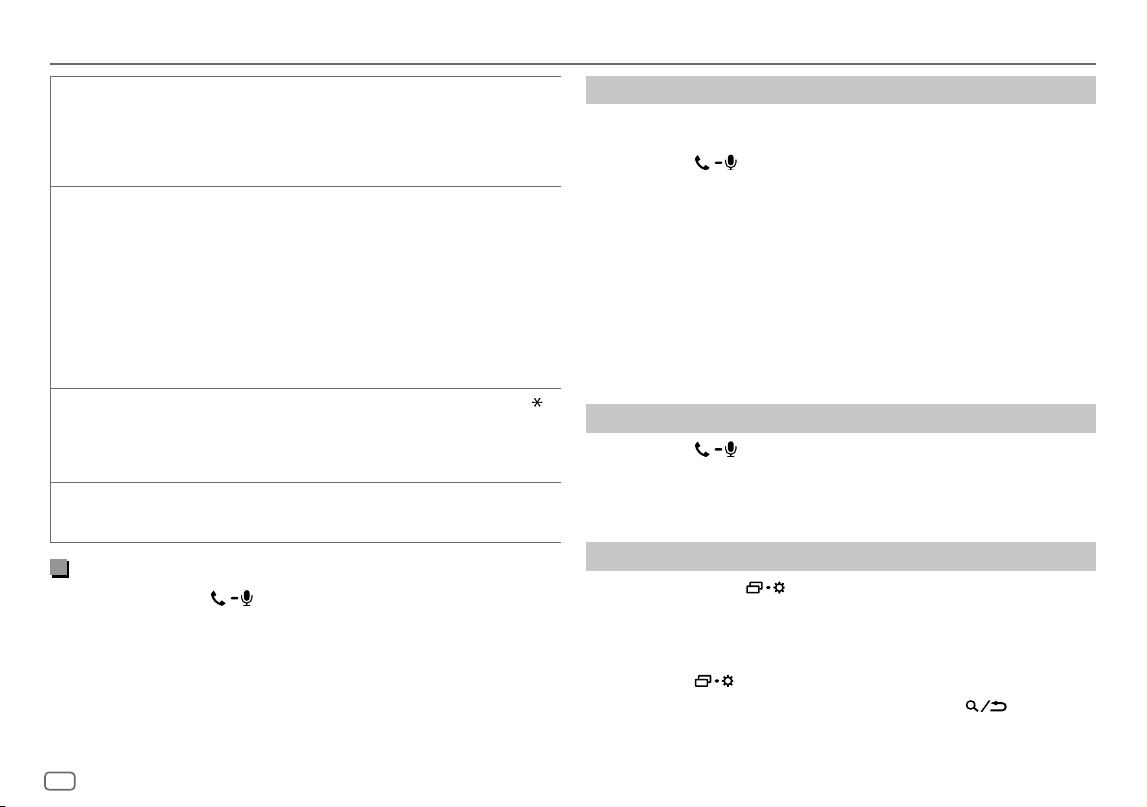
20
FRANÇAIS
Data Size: B6L (182 mm x 128 mm)
Book Size: B6L (182 mm x 128 mm)
Bluetooth®
[RECENT CALL]
(Applicable uniquement quand le téléphone prend en charge PBAP.)
1
Appuyez sur le bouton de volume pour sélectionner un nom ou un numéro de téléphone.
• “<” indique l’appel reçu, “>” indique un appel passé, “M” indique un appel manqué.
• “NO HISTORY” apparaît s’il n’y a pas d’historique d’appels enregistré ou de numéro
d’appel.
2
Appuyez sur le bouton de volume pour appeler.
[PHONEBOOK]
(Applicable uniquement quand le téléphone prend en charge PBAP.)
1
Appuyez sur 2 J / 1 K pour choisir la lettre souhaitée (A à Z, 0à9, et OTHERS).
• “OTHERS” apparaît si le premier caractère est autre que Aà Z, 0 à 9.
2
Tournez le bouton de volume pour choisir un nom, puis appuyez sur le bouton.
3
Tournez le bouton de volume pour choisir un numéro de téléphone, puis appuyez sur le
bouton pour appeler.
• Pour utiliser le répertoire d’adresses avec cet appareil, assurez-vous d’autoriser l’accès ou
le transfert à partir de votre smartphone. En fonction du téléphone connecté, le processus
peut différer.
• Cet appareil peut uniquement afficher les lettres non accentuées. (Les lettres accentuées
telles que “Ú” sont affichées comme “U”.)
[DIAL NUMBER]
1
Tournez le bouton de volume pour sélectionner un numéro (0 à 9) ou un caractère ( , #,
+).
2
Appuyez sur S / T pour déplacer la position d’entrée.
Répétez les étapes 1 et 2 jusqu’à ce que vous terminiez d’entrer le numéro de téléphone.
3
Appuyez sur le bouton de volume pour appeler.
[VOICE]
Dites le nom du contact que vous souhaitez appeler ou la commande vocale pour
commander les fonctions du téléphone. (Reportez-vous aussi à“Faites au appel en utilisant
la reconnaissance vocale” ci-après.)
Faites au appel en utilisant la reconnaissance vocale
1
Maintenez enfoncée pour activer la reconnaissance vocale du
téléphone connecté.
2 Dites le nom du contact que vous souhaitez appeler ou la commande
vocale pour commander les fonctions du téléphone.
• Les fonctions de reconnaissance vocale prises en charge varient pour chaque
téléphone. Référez-vous au manuel d’instructions du téléphone connecté pour
les détails.
Stockage d’un contact en mémoire
Vous pouvez mémoriser un maximum de 6 contacts sur les touches numériques
(1 à 6).
1 Appuyez sur pour entrer en mode Bluetooth.
2 Tournez le bouton de volume pour choisir
[RECENTCALL]
,
[PHONEBOOK]
ou
[DIALNUMBER]
, puis appuyez sur le bouton.
3 Tournez le bouton de volume pour sélectionner un contact ou entrez un
numéro de téléphone.
Si un contact est sélectionné, appuyez sur le bouton de volume pour afficher
le numéro de téléphone.
4 Maintenez enfoncée une des touches numériques (1 à 6).
“MEMORY P(numéro préréglé sélectionné)” apparaît quand les contacts sont
mémorisés.
Pour supprimer un contact de la mémoire préréglée, choisissez
[DIALNUMBER]
à
l’étape 2 et mémorisez un numéro vide à l’étape 3 et passez à l’étape 4.
Passez un appel sur un numéro préréglé
1
Appuyez sur pour entrer en mode Bluetooth.
2 Appuyez sur l’une des touches numériques (1 à 6).
3 Appuyez sur le bouton de volume pour appeler.
“NO PRESET” apparaît s’il n’y a pas de contact mémorisé.
Réglages du mode Bluetooth
1
Maintenez enfoncée .
2 Tournez le bouton de volume pour choisir un élément (page 21), puis
appuyez sur le bouton.
3 Répétez l’étape 2 jusqu’à ce que l’élément souhaité soit sélectionné/activé
ou suivez les instructions données pour l’élément sélectionné.
4 Appuyez sur pour quitter.
Pour retourner à l’option de réglage précédente, appuyez sur
.
KD_T925BTS_K_FR.indd 20KD_T925BTS_K_FR.indd 20 9/3/2022 4:29:05 PM9/3/2022 4:29:05 PM
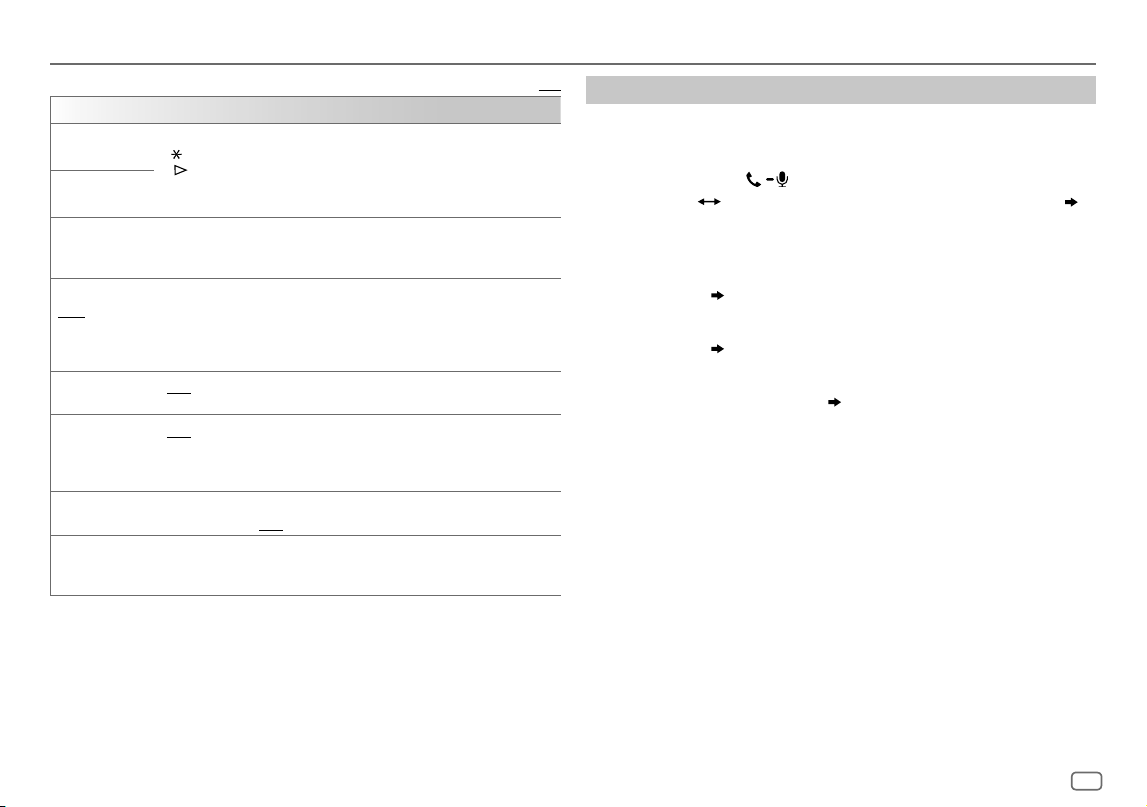
FRANÇAIS
21
Data Size: B6L (182 mm x 128 mm)
Book Size: B6L (182 mm x 128 mm)
Bluetooth®
Défaut:
[XX]
[BT MODE]
[PHONE SELECT]
Permet de sélectionner le téléphone ou le périphérique audio à connecter ou déconnecter.
“
” apparaît devant le nom de l’appareil quand il est connecté.
“
” apparaît devant le périphérique de lecture audio actuel.
• Vous pouvez connecter un maximum de deux téléphones Bluetooth et un périphérique
audio Bluetooth en même temps.
[AUDIO SELECT]
[DEVICE DELETE]
1
Tournez le bouton de volume pour choisir le périphérique à supprimer, puis appuyez sur
le bouton.
2
Tournez le bouton de volume pour choisir
[YES]
ou
[NO]
, puis appuyez sur le bouton.
[PIN CODE EDIT]
(0000)
Change le code PIN (6 chiffres maximum).
1
Tournez le bouton de volume pour sélectionner un numéro.
2
Appuyez sur S / T pour déplacer la position d’entrée.
Répétez les étapes 1 et 2 jusqu’à ce que le code PIN soit entré complètement.
3
Appuyez sur le bouton de volume pour valider.
[RECONNECT] [ON]
:L’appareil se reconnecte automatiquement quand le dernier périphérique Bluetooth
connecté est dans la plage.;
[OFF]
:Annulation.
[AUTO PAIRING] [ON]
:L’appareil est apparié automatiquement avec le périphérique Bluetooth pris en
charge (iPhone/iPod touch) quand il est connecté par la prise d’entrée USB.En fonction
du système d’exploitation du périphérique connecté, il se peut que cette fonction ne
fonctionne pas. ;
[OFF]
:Annulation.
[INITIALIZE] [YES]
:Initialise tous les réglages Bluetooth (y compris le pairage mémorisé, le répertoire
téléphonique, etc.).;
[NO]
:Annulation.
[INFORMATION] [MYBTNAME]
: Affiche le nom de votre autoradio (“KD-T925BTS”/“KD-T920BTS”/
“KD-T720BT”).;
[MYADDRESS]
: Affiche l’adresse de cet appareil.
Mode de vérification de la compatibilité Bluetooth
Vous pouvez vérifier la connectivité du profile pris en charge entre le périphérique
Bluetooth et l’appareil.
• Assurez-vous qu’il n’y aucun périphérique Bluetooth apparié.
1 Maintenez enfoncée .
“BLUETOOTH” “CHECK MODE” apparaît. “SEARCH NOW USING PHONE”
“PIN IS 0000” défile sur l’affichage.
2 Recherchez et sélectionnez le nom de votre récepteur (“KD-T925BTS”/
“KD-T920BTS”/“KD-T720BT”) sur le périphérique Bluetooth avant 3 minutes.
3 Réalisez (A), (B) ou (C) en fonction de ce qui apparait sur l’affichage.
(A) “PAIRING” “XXXXXX” (code de 6 chiffres): Assurez-vous que le même
code apparaît sur l’appareil et le périphérique Bluetooth, puis utilisez le
périphérique Bluetooth pour valider le code.
(B) “PAIRING” “PIN IS 0000”: Entrez “0000” sur le périphérique Bluetooth.
(C) “PAIRING”: Utilisez le périphérique Bluetooth pour valider le pairage.
Quand le pairage a réussi, “PAIRING OK”
“Nom du périphérique” apparaît et la
vérification de la compatibilité Bluetooth démarre.
Si “CONNECT NOW USING PHONE” apparaît, utilisez le périphérique Bluetooth
pour autoriser l’accès au répertoire d’adresse et continuer.
“TESTING” clignote sur l’affichage.
KD_T925BTS_K_FR.indd 21KD_T925BTS_K_FR.indd 21 9/3/2022 4:29:05 PM9/3/2022 4:29:05 PM
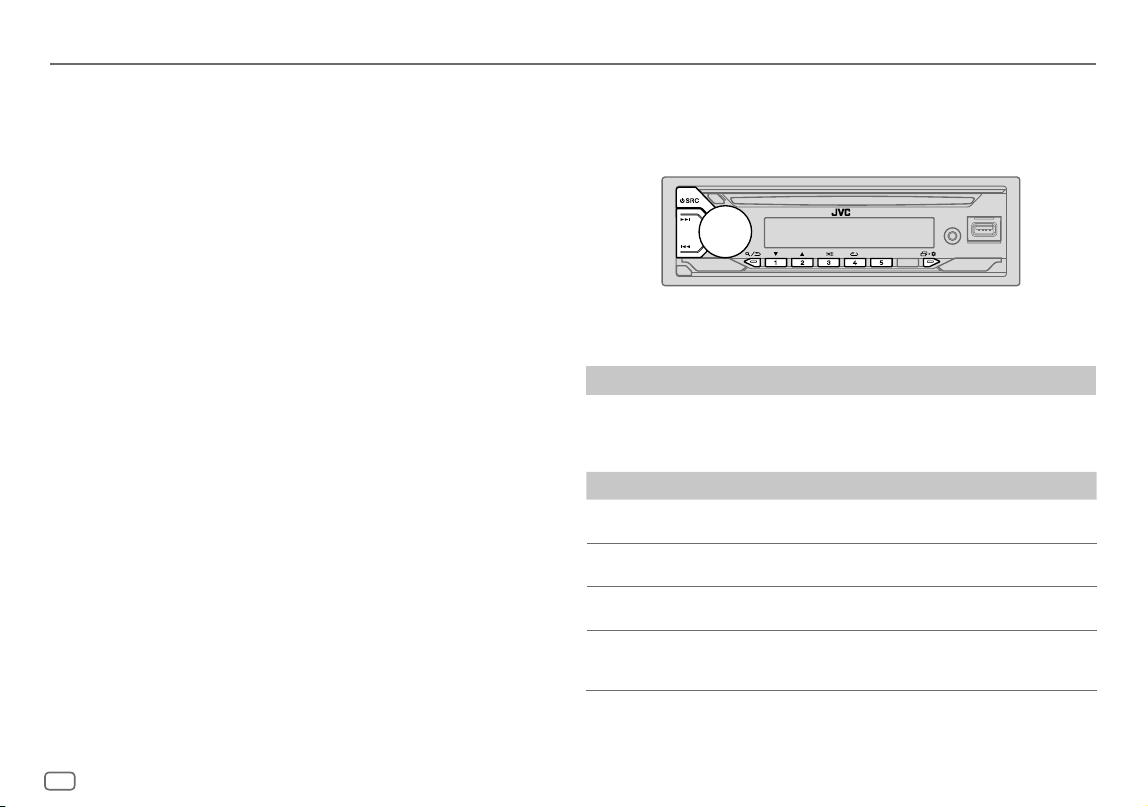
22
FRANÇAIS
Data Size: B6L (182 mm x 128 mm)
Book Size: B6L (182 mm x 128 mm)
Bluetooth®
Le résultat de la connectivité clignote sur l’affichage.
“PAIRING OK” et/ou “HANDS-FREEOK” *1 et/ou “AUD.STREAMOK” *2 et/ou “PBAP
OK” *3: Compatible
*1 Compatible avec le Profile mains libres (HFP)
*2 Compatible avec le Profile de distribution audio avancé (A2DP)
*3 Compatible avec le Profile d’accès au répertoire d’adresses (PBAP)
Après 30 secondes, “PAIRING DELETED” apparaît pour indiquer que le pairage a été
supprimé, et l’appareil qui le mode de vérification.
• Pour annuler, maintenez enfoncée B SRC pour mettre l’appareil hors tension,
puis mettez de nouveau l’appareil sous tension.
Bluetooth — Audio
• Les opérations et les indications de l’affichage peuvent différer en fonction de
leur disponibilité sur le périphérique connecté.
• En fonction du périphérique connecté, il se peut que certains fonctions ne
fonctionne pas avec votre appareil.
Quand la source est BT AUDIO, vous pouvez vous connecter à cinq périphériques
audio Bluetooth et commuter parmi ces cinq périphériques.
Écoute du lecteur audio via Bluetooth
1
Appuyez répétitivement sur B SRC pour sélectionner BTAUDIO (ou
appuyez sur SOURCE sur la télécommande).
2 Commandez le lecteur audio via Bluetooth pour démarrer la lecture.
Pour Sur la façade Sur la télécommande
Lecture/pause
Appuyez sur le bouton de
volume.
Appuyez sur d.
Choisissez un groupe
ou un dossier
Appuyez sur 2 J / 1 K. Appuyez sur J / K.
Saut vers l’arrière/
saut vers l’avant
Appuyez sur S / T. Appuyez sur H / I.
Recherche rapide
vers l’arrière/vers
l’avant
Maintenez enfoncée
S / T.
Maintenez enfoncée
H / I.
KD_T925BTS_K_FR.indd 22KD_T925BTS_K_FR.indd 22 9/3/2022 4:29:05 PM9/3/2022 4:29:05 PM
FRANÇAIS
23
Data Size: B6L (182 mm x 128 mm)
Book Size: B6L (182 mm x 128 mm)
Bluetooth®
Pour Sur la façade
Lecture répétée
Appuyez répétitivement sur 4 B.
[TRACKREPEAT]
,
[ALLREPEAT]
,
[GROUPREPEAT]
,
[REPEATOFF]
Lecture aléatoire
Appuyez répétitivement sur 3 A.
[GROUPRANDOM]
,
[ALLRANDOM]
,
[RANDOMOFF]
Sélectionnez un fichier à
partir d’un dossier/liste
Reportez-vous à “Sélectionnez un fichier à lire” à la
page 10.
Commutation entre les
périphériques audio
Bluetooth
Appuyez sur 5.
(Appuyer sur la touche “Play” directement sur le
périphérique connecté permet aussi de commuter sur
la sortie sonore du périphérique.)
Écoute de l’iPod/iPhone via Bluetooth
Vous pouvez écouter des morceaux sur l’iPod/iPhone via Bluetooth sur cet
appareil.
Appuyez répétitivement sur B SRC pour sélectionner iPodBT.
• Vous pouvez commander iPod/iPhone de la même façon que iPod/iPhone via
prise d’entrée USB. (Page9)
• Reportez-vous à “Réglage de la source de lecture pour iPod/iPhone” à la page 10
pour plus d’informations.
AMAZON ALEXA
Alexa est le service vocal de cloud mis au point par Amazon. Vous pouvez
demander à Alexa de lire de la musique, d’obtenir des bulletins météo, des
informations routières, de commander des périphériques de maison intelligente,
de faire des achat sur Amazon, de faire des recherches sur Internet, de
programmer des rappels, etc.
Préparation:
• Créez un compte sur <www.amazon.com>.
•
Installez la dernière version de l’application mobile Alexa sur votre appareil
(iPhone/iPod touch ou périphérique Android), puis connectez-vous à l’application.
• Assurez-vous d’activer la connexion internet sur votre smartphone.
Configuration pour la première fois
Pour un périphérique Android
1 Appariez votre périphérique avec cet appareil via Bluetooth. (Page17)
2 Démarrez l’application Alexa mobile sur votre appareil.
3 Appariez cet appareil à l’application mobile Alexa.
Réalisez l’option A ou l’option B.
Pour iPhone/iPod touch
1 Appariez votre périphérique avec cet appareil via Bluetooth. (Page17)
2 Démarrez l’application Alexa mobile sur votre appareil.
3 Appuyez sur sur l’appareil pour accéder à la source ALEXA.
• Vous pouvez aussi appuyer répétitivement sur B SRC pour sélectionner la
source iPod BT.
• Reportez-vous à “Réglage de la source de lecture pour iPod/iPhone” à la
page 10 pour plus d’informations.
4 Appariez cet appareil à l’application mobile Alexa.
Réalisez l’option A ou l’option B.
Option A: Liaison directe
Accédez à l’URL suivant ou scannez le code QR avec votre smartphone:
https://www.jvc.net/car/alexa
KD_T925BTS_K_FR.indd 23KD_T925BTS_K_FR.indd 23 9/3/2022 4:29:05 PM9/3/2022 4:29:05 PM
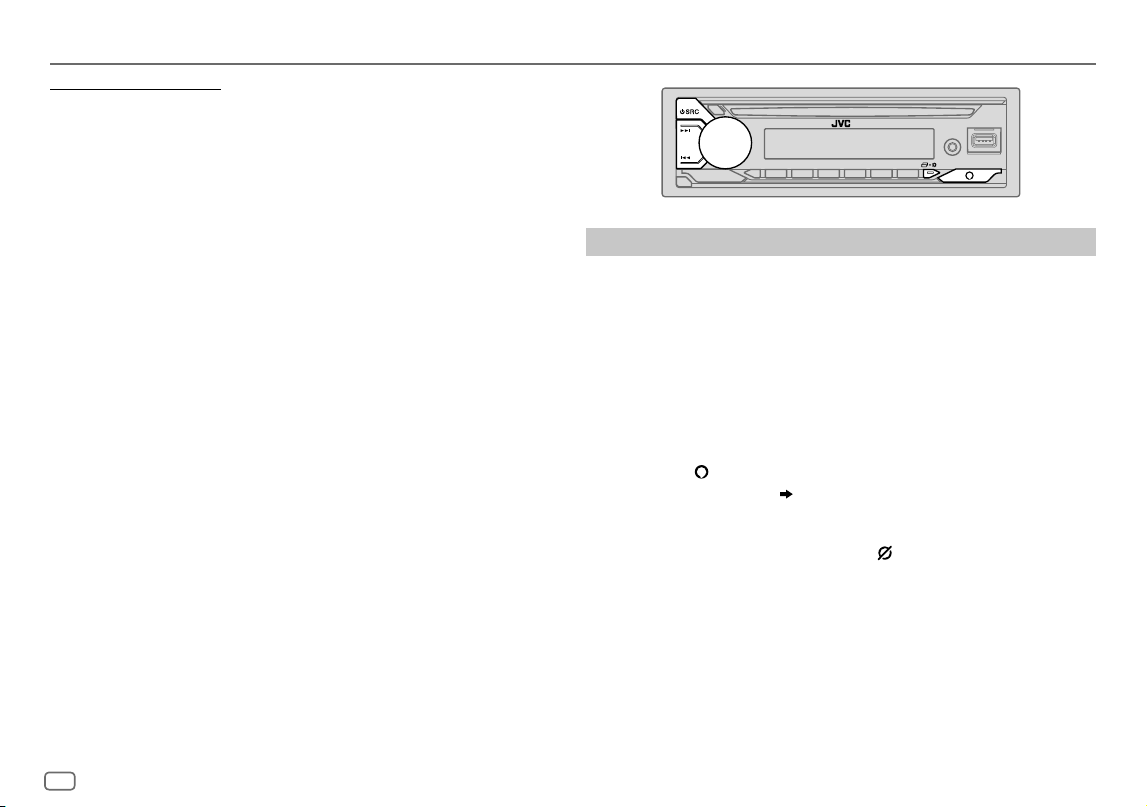
24
FRANÇAIS
Data Size: B6L (182 mm x 128 mm)
Book Size: B6L (182 mm x 128 mm)
Option B: Pairage manuel
1 Démarrez l’application mobile Alexa et accédez à l’ongle “Devices
(Périphériques)”.
2 Touchez l’icône “ + ” dans le coin supérieur droit.
3 Touchez “Add Device (Ajout de périphérique)”.
4 Touchez “Automotive Accessory (Accessoire automobile)” ou “Headphones
(Casque d’écoute)” sur la liste des types de périphérique.
5 Touchez le nom de votre autoradio (“KD-T925BTS”/“KD-T920BTS”/
“KD-T720BT”) et suivez les instructions.
Une fois le processus de configuration terminé, l’application Alexa mobile établit
une connexion avec l’appareil.
• La connexion Alexa peut se déconnecter si:
– Le profile A2DP est déconnecté
– Le Bluetooth est déconnecté
– Cet appareil est mis hors tension
– Arrêtez l’application mobile Alexa qui fonctionne au premier plan/arrière-plan
de votre périphérique.
– Toute autre condition relative au périphérique connecté
Pour rétablir la connexion avec Alexa, reconnectez le profile A2DP.
• La connexion avec Alexa ne peut pas être rétablie si vous:
– Réinstallez l’application Alexa mobile
– Supprimez le périphérique apparié et réalisez de nouveau le pairage (pour un
périphérique Android)
Pour rétablir la connexion avec Alexa, réalisez de nouveau le processus de
configuration.
• Vous pouvez vérifier la connexion avec Alexa à partir de l’application Alexa
mobile.
Si le nom de cet appareil apparaît sur l’écran “ALL DEVICES”, vous n’avez pas
besoin de réaliser de nouveau le processus de configuration.
Opérations de base
Pour les langues prises en charge par Alexa, reportez-vous à la page 34 pour plus
d’informations. Certaines des langues indiquées seront disponibles en mettant à
jour le micrologiciel de cet appareil lorsque la nouvelle version du micrologiciel
sera disponible.
Pour mettre à jour le micrologiciel, reportez-vous à la page 6 pour plus
d’informations.
Une fois que la connexion avec Alexa est établie...
1 Dîtes le mot “Alexa” sur le microphone connecté (page 16) pour activer
Alexa.
(ou)
Appuyez sur sur l’appareil pour parler avec Alexa.
L’affichage montre: “ALEXA” “LISTENING...”.
Alexa ne peut pas être activé vocalement si:
- L’application mobile Alexa n’est pas activée.
- Le microphone est désactivé, l’indicateur “ ” est allumé.
Voir “Activation/désactivation du microphone” à la page 25.
- La source de lecture actuelle est iPod FRONT/iPod REAR/iPodUSB.
- Lors de l’utilisation des fonctionnalités Bluetooth.
2 Communiquez avec Alexa via le microphone connecté. (Page16)
“THINKING...” apparaît pendant qu’Alexa traite l’entrée vocale.
“SPEAKING...” apparaît pendant qu’Alexa répond à votre entrée vocale.
“ALEXA” ou une information sur l’affichage telle que la durée de lecture, le titre
due morceau, etc. apparaît pendant que Alexa est en attente.
AMAZON ALEXA
KD_T925BTS_K_FR.indd 24KD_T925BTS_K_FR.indd 24 9/3/2022 4:29:05 PM9/3/2022 4:29:05 PM
FRANÇAIS
25
Data Size: B6L (182 mm x 128 mm)
Book Size: B6L (182 mm x 128 mm)
• Pour retourner à la source précédente à ALEXA, appuyez sur B SRC (ou appuyez
sur SOURCE sur la télécommande).
• Pour activer Alexa, appuyez sur
ou dîtes “Alexa”.
• Pour annuler l’état d’écoute actuel, appuyez sur
.
• Pour annuler les états penser/parler et passer à l’état d’écoute, appuyez sur
ou
dîtes “Alexa”.
• Une seule connexion Alexa peut être réalisée en même temps.
• “DOWNLOAD”
“ALEXA APP” “AND PAIR” “BLUETOOTH” “TO USE ALEXA”
apparaît si l’appareil est déconnecté de l’application Alexa mobile ou si la
connexion Bluetooth est coupée.
• Alexa est prêt dans l’attente du mot de réveil après la reconnexion.
Activation/désactivation du microphone
Maintenez enfoncé pour activer et désactiver le microphone.
• L’indicateur “
” s’allume quand le microphone est désactivé.
• Vous ne pouvez pas réaliser cette opération lors de l’utilisation des
fonctionnalités Bluetooth.
AMAZON ALEXA
Démarrez l’écoute
Quand Alexa est en attente...
1 Dîtes le mot “Alexa” sur le microphone connecté (page 16) pour activer
Alexa.
(ou)
Appuyez sur sur l’appareil pour parler avec Alexa.
L’affichage montre: “LISTENING...”.
2 Communiquez avec Alexa via le microphone connecté. (Page16)
3 Pendant la lecture de musique avec la source ALEXA, vous pouvez réaliser
les opérations suivantes.
Pour Sur la façade Sur la télécommande
Lecture/pause
Appuyez sur le bouton de
volume.
Appuyez sur d.
Saut vers l’arrière/saut
vers l’avant
Appuyez sur S / T. Appuyez sur H / I.
Pendant la lecture de musique, appuyez sur
ou dîtes “Alexa” pour mettre la
musique en pause et activer Alexa. Vous pouvez maintenant communiquer avec
Alexa.
KD_T925BTS_K_FR.indd 25KD_T925BTS_K_FR.indd 25 9/3/2022 4:29:05 PM9/3/2022 4:29:05 PM
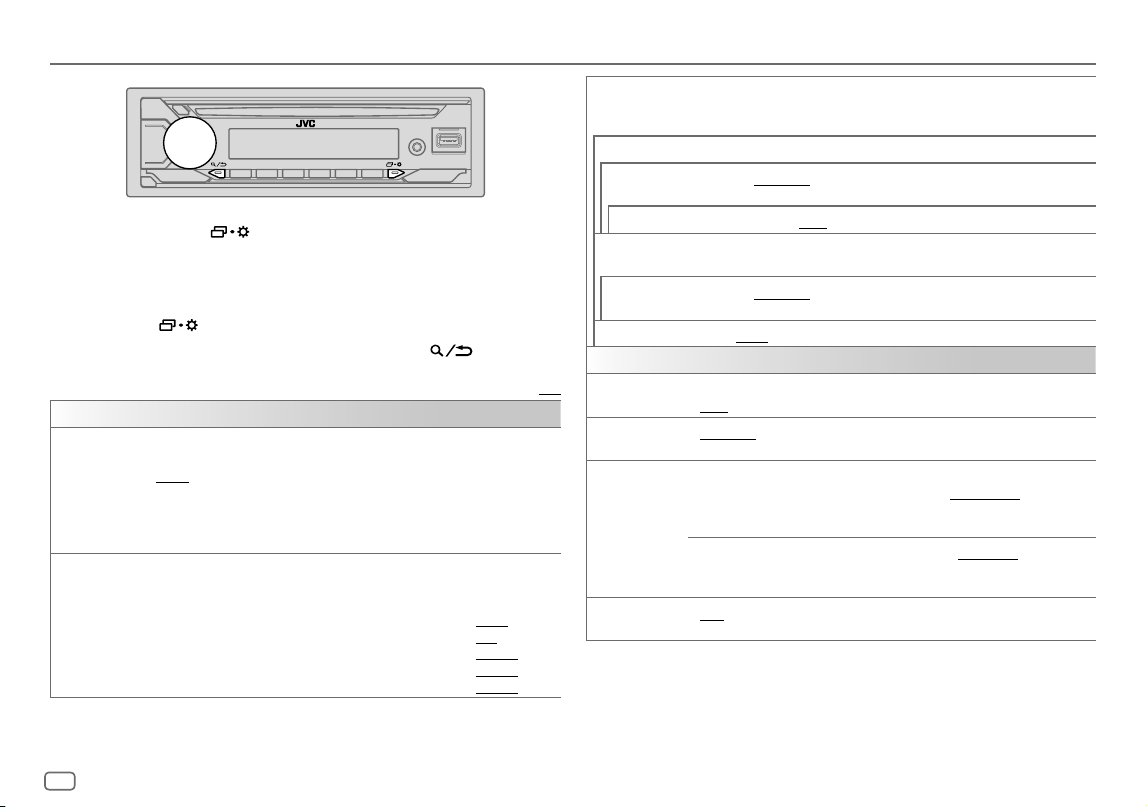
26
FRANÇAIS
Data Size: B6L (182 mm x 128 mm)
Book Size: B6L (182 mm x 128 mm)
Réglages audio
1 Maintenez enfoncée .
2 Tournez le bouton de volume pour sélectionner un élément (voir le tableau
suivant), puis appuyez sur le bouton.
3 Répétez l’étape 2 jusqu’à ce que l’élément souhaité soit sélectionné/activé
ou suivez les instructions données pour l’élément sélectionné.
4 Appuyez sur pour quitter.
Pour retourner à l’option de réglage précédente, appuyez sur
.
Défaut:
[XX]
[EQSETTING]
[PRESET EQ]
Sélectionne un égaliseur préréglé adapté à votre genre de musique.
• Sélectionnez
[USER]
pour utiliser les réglages réalisés dans
[EASYEQ]
ou
[PROEQ]
.
[FLAT]
/
[DRVN 3]
/
[DRVN 2]
/
[DRVN 1]
/
[HARD ROCK]
/
[HIP HOP]
/
[JAZZ]
/
[POP]
/
[R&B]
/
[USER]
/
[CLASSICAL]
L’égaliseur Drive (
[DRVN3]
/
[DRVN2]
/
[DRVN1]
) accentue des fréquences spécifiques
du signal audio pour réduire le bruit entendu de l’extérieur de la voiture ou le bruit roulement
des pneus.
[EASYEQ]
Ajustez vos propres ajustements sonores.
• Les réglages sont mémorisés sur
[USER]
dans
[PRESET EQ]
.
• Les réglages réalisés peuvent affecter les réglages actuels de
[PRO EQ]
.
[SUB.W SP]
*1*2:
[00]
à
[+06]
(Défaut:
[+03]
[SUB.W]
*1*3:
[–50]
à
[+10]
[00]
[BASS]
:
[LVL–09]
à
[LVL+09]
[LVL00]
[MID]
:
[LVL–09]
à
[LVL+09]
[LVL00]
[TRE]
:
[LVL–09]
à
[LVL+09]
[LVL00]
)
[PRO EQ]
Ajuste vos propres réglages sonores pour chaque source.
• Les réglages sont mémorisés sur
[USER]
dans
[PRESET EQ]
.
• Les réglages réalisés peuvent affecter les réglages actuels de
[EASYEQ]
.
[62.5HZ]
[LEVEL–09]
à
[LEVEL+09]
(
[LEVEL00]
): Réglez le niveau à mémoriser pour chaque source. (Avant de
réaliser un ajustement, choisissez la source que vous souhaitez ajuster.)
[ON]
:Met en service les graves étendus.;
[OFF]
:Annulation.
[100HZ]
/
[160HZ]
/
[250HZ]
/
[400HZ]
/
[630HZ]
/
[1KHZ]
/
[1.6KHZ]
/
[2.5KHZ]
/
[4KHZ]
/
[6.3KHZ]
/
[10KHZ]
/
[16KHZ]
[LEVEL–09]
à
[LEVEL+09]
(
[LEVEL00]
): Réglez le niveau à mémoriser pour chaque source.
(Avant de réaliser un ajustement, choisissez la source que vous souhaitez ajuster.)
[Q FACTOR] [1.35]
/
[1.50]
/
[2.00]
:Règle le facteur de qualité.
[AUDIO CONTROL]
[BASS BOOST]
[LEVEL+01]
à
[LEVEL+05]
: Choisit votre niveau préféré d’accentuation des graves.;
[OFF]
:Annulation.
[LOUDNESS] [LEVEL01]
/
[LEVEL02]
:Accentue les basses ou hautes fréquences pour produire un son
plus équilibré aux faibles niveaux de volume.;
[OFF]
:Annulation.
[SUB.W LEVEL]
*1
[SPK-OUT]
*2 (Non applicable quand la transition 3 voies est sélectionnée.)
[SUB.W00]
à
[SUB.W+06]
(
[SUB.W+03]
): Ajuste
le niveau de sortie du caisson de grave connecté par le câble
d’enceinte. (Page41)
[PRE-OUT]
*3
[SUB.W–50]
à
[SUB.W+10]
(
[SUB.W00]
): Ajuste le niveau
de sortie du caisson de grave connecté aux prises de sortie de ligne
(SW ou REAR/SW) via un amplificateur extérieur. (Page42)
[SUBWOOFER
SET]
*3
[ON]
: Met en service la sortie du caisson de grave.;
[OFF]
:Annulation.
*1, *2, *3: (voir page 27)
KD_T925BTS_K_FR.indd 26KD_T925BTS_K_FR.indd 26 9/3/2022 4:29:05 PM9/3/2022 4:29:05 PM
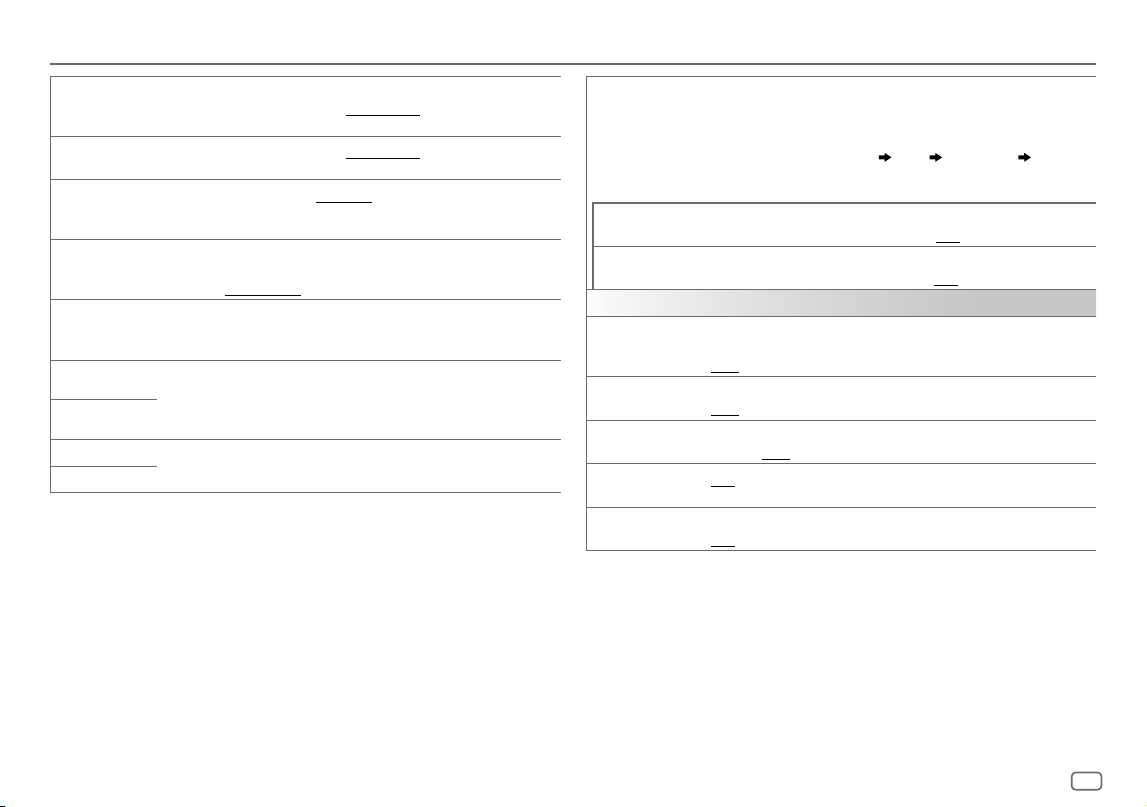
FRANÇAIS
27
Data Size: B6L (182 mm x 128 mm)
Book Size: B6L (182 mm x 128 mm)
Réglages audio
[FADER]
(Non applicable quand la transition 3 voies est sélectionnée.)
[POSITIONR15]
à
[POSITIONF15]
(
[POSITION00]
): Règle la balance de sortie des
enceintes avant et arrière.
[BALANCE]
*4
[POSITIONL15]
à
[POSITIONR15]
(
[POSITION00]
): Règle la balance de sortie des
enceintes gauche et droite.
[VOLUME ADJUST] [LEVEL–15]
à
[LEVEL+06]
(
[LEVEL00]
):Prérègle le niveau de volume initial
de chaque source en comparaison avec le niveau de volume FM. (Avant un ajustement,
sélectionnez la source que vous souhaitez ajuster.)
[AMPGAIN] [LOWPOWER]
:Limite le volume maximum à 25. (Choisissez ce réglage si la puissance
maximum de chaque enceinte est inférieure à 50 W pour éviter tout dommage des
enceintes.);
[HIGHPOWER]
:Le niveau de volume maximum est de 35.
[SPK/PREOUT]
(Non applicable quand la transition 3 voies est sélectionnée.)
En fonction de la méthode de connexion des enceintes, sélectionner le réglage approprié
pour obtenir la sortie souhaitée. (Voir “Réglages de sortie d’enceinte” à la page28.)
[SPEAKER SIZE]
En fonction du type de transition que vous avez sélectionné (reportez-vous à
[X ' OVER TYPE]
ci-après), les options de réglage pour transition 2 voies ou transition 3
voies apparaîtront. (Voir “Réglages de transition” à la page29.)
Par défaut, le type de transition 2 voies est sélectionné.
[X ' OVER]
[DTA SETTINGS]
Pour les réglages, voir “Réglages de l’alignement temporel numérique” à la page31.
[CAR SETTINGS]
[X ‘ OVER TYPE] Précautions
: Ajustez le volume avant de changer le
[X ‘ OVER TYPE]
pour éviter
l’augmentation ou la diminution soudaine du niveau de sortie.
• Une fois que vous avez changé le type de transition, l’affichage indique ce qui suit la
prochaine fois que vous mettez l’appareil sous tension:
“2-WAY X’OVER” ou “3-WAY X’OVER”
“PRESS” “VOLUME KNOB” “TO CONFIRM”
Appuyez sur le bouton de volume pour valider et passer à l’opération souhaitée
suivante.
[2-WAY]
(Affiché uniquement quand
[3-WAY]
est sélectionné.)
[YES]
:Sélectionne le type de transition deux voies.;
[NO]
:Annulation.
[3-WAY]
(Affiché uniquement quand
[2-WAY]
est sélectionné.)
[YES]
:Sélectionne le type de transition trois voies.;
[NO]
:Annulation.
[SOUND EFFECT]
[SPACE ENHANCE]
(Ne s’applique pas à la source FM/AM.)
[SMALL]
/
[MEDIUM]
/
[LARGE]
: Améliore virtuellement l’espace sonore.;
[OFF]
:Annulation.
[SND RESPONSE] [LEVEL1]
/
[LEVEL2]
/
[LEVEL3]
: Rend virtuellement le son plus réaliste.;
[OFF]
:Annulation.
[SOUND LIFT] [LOW]
/
[MIDDLE]
/
[HIGH]
: Ajuste virtuellement la position sonore entendue par les
enceintes.;
[OFF]
:Annulation.
[VOL LINK EQ] [ON]
:Accentue la fréquence pour réduire le bruit entendu de l’extérieur de la voiture ou
le bruit roulement des pneus.;
[OFF]
:Annulation.
[K2 TECHNOLOGY]
(Ne s’applique pas à la source FM/AM, à la source SIRIUS XM et à la source AUX.)
[ON]
:Pour améliorer la qualité du son de la musique compressée.;
[OFF]
:Annulation.
*1 Affiché uniquement quand
[SUBWOOFER SET]
est réglé sur
[ON]
. (Page26)
*2 Pour la transition 2 voies: Affiché uniquement quand
[SPK/PREOUT]
est réglé sur
[SUB.W/SUB.W]
.
(Page28)
*3 Pour la transition 2 voies: Affiché uniquement quand
[SPK/PREOUT]
est réglé sur
[REAR/SUB.W]
ou
[SUB.W/SUB.W]
. (Page28)
*4 L’ajustement ne peut pas affecter la sortie du caisson de grave.
KD_T925BTS_K_FR.indd 27KD_T925BTS_K_FR.indd 27 9/3/2022 4:29:06 PM9/3/2022 4:29:06 PM
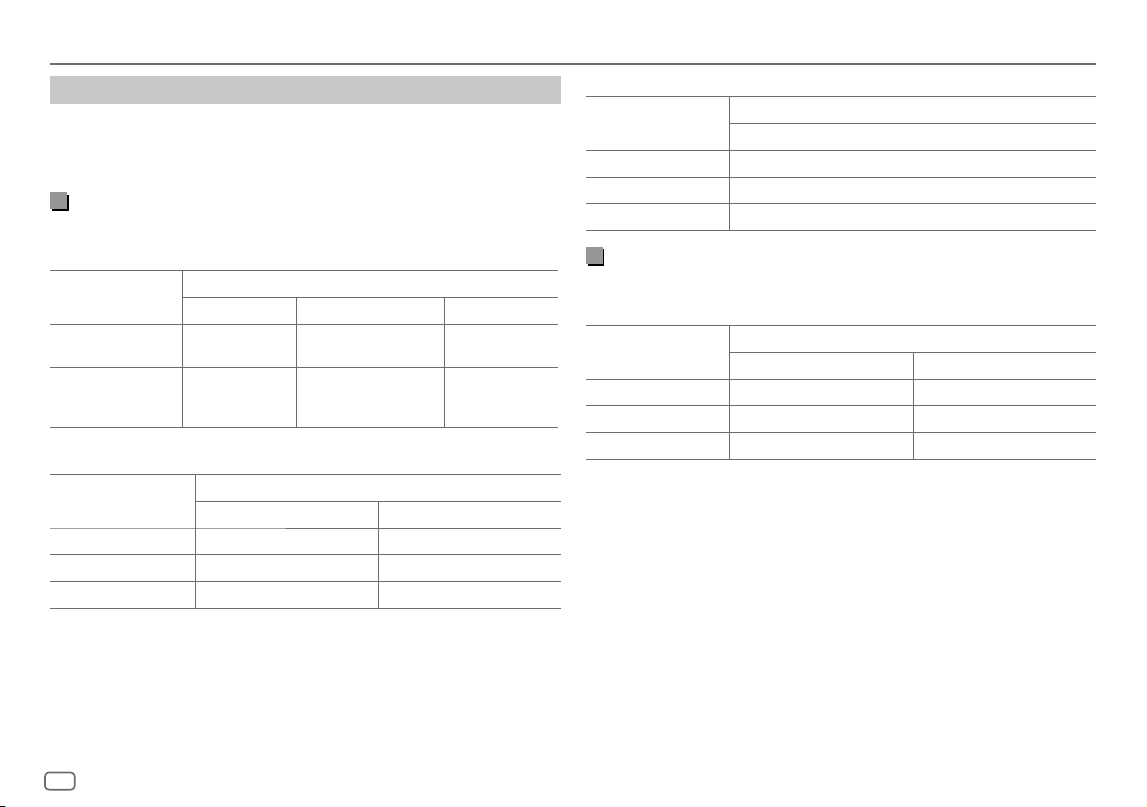
28
FRANÇAIS
Data Size: B6L (182 mm x 128 mm)
Book Size: B6L (182 mm x 128 mm)
Réglages audio
Réglages de sortie d’enceinte
[SPK/PRE OUT]
(Applicable uniquement si [X ‘ OVER TYPE ] est réglé sur [2-WAY]) (page27)
Sélectionnez le réglage de sortie pour les enceintes
[SPK/PRE OUT]
, sur la base de la
méthode de connexion des enceintes.
Connexion via les prises de sortie de ligne
Pour les connexions via un amplificateur extérieur (Page42)
KD-T925BTS:
Réglage sur
[SPK/PRE OUT]
Signal audio via la prise de sortie de ligne
FRONT REAR SW
[REAR/REAR]
(défaut) Sortie des enceintes
avant
Sortie des enceintes arrière Sortie de caisson de
grave
[SUB.W/SUB.W]
Sortie des enceintes
avant
L (gauche): Sortie de caisson
de grave
R (droite): (Sourdine)
Sortie de caisson de
grave
KD-T920BTS:
Réglage sur
[SPK/PRE OUT]
Signal audio via la prise de sortie de ligne
FRONT REAR/SW
[REAR/REAR]
Sortie des enceintes avant Sortie des enceintes arrière
[REAR/SUB.W]
(défaut) Sortie des enceintes avant Sortie de caisson de grave
[SUB.W/SUB.W]
Sortie des enceintes avant Sortie de caisson de grave
KD-T720BT:
Réglage sur
[SPK/PRE OUT]
Signal audio via la prise de sortie de ligne
REAR/SW
[REAR/REAR]
Sortie des enceintes arrière
[REAR/SUB.W]
(défaut) Sortie de caisson de grave
[SUB.W/SUB.W]
Sortie de caisson de grave
Connexion via les câbles d’enceinte
Vous pouvez aussi connecter les enceintes sans utiliser un amplificateur extérieur
mais continuer à utiliser la sortie du caisson de grave avec ces réglages. (Page41)
Réglage sur
[SPK/PRE OUT]
Signal audio via le fil de l’enceinte arrière
L (gauche) R (droite)
[REAR/REAR]
Sortie des enceintes arrière Sortie des enceintes arrière
[REAR/SUB.W]
* Sortie des enceintes arrière Sortie des enceintes arrière
[SUB.W/SUB.W]
Sortie de caisson de grave (Sourdine)
Si
[SUB.W/SUB.W]
est sélectionné:
–
[120HZ]
est sélectionné dans
[SUBWOOFERLPF]
et
[THROUGH]
n’est pas disponible.
(Page30)
–
[POSITIONR02]
est sélectionné dans
[FADER]
et la plage sélectionnable est de
[POSITIONR15]
à
[POSITION00]
. (Page27)
* Sauf pour KD-T925BTS.
KD_T925BTS_K_FR.indd 28KD_T925BTS_K_FR.indd 28 9/3/2022 4:29:06 PM9/3/2022 4:29:06 PM
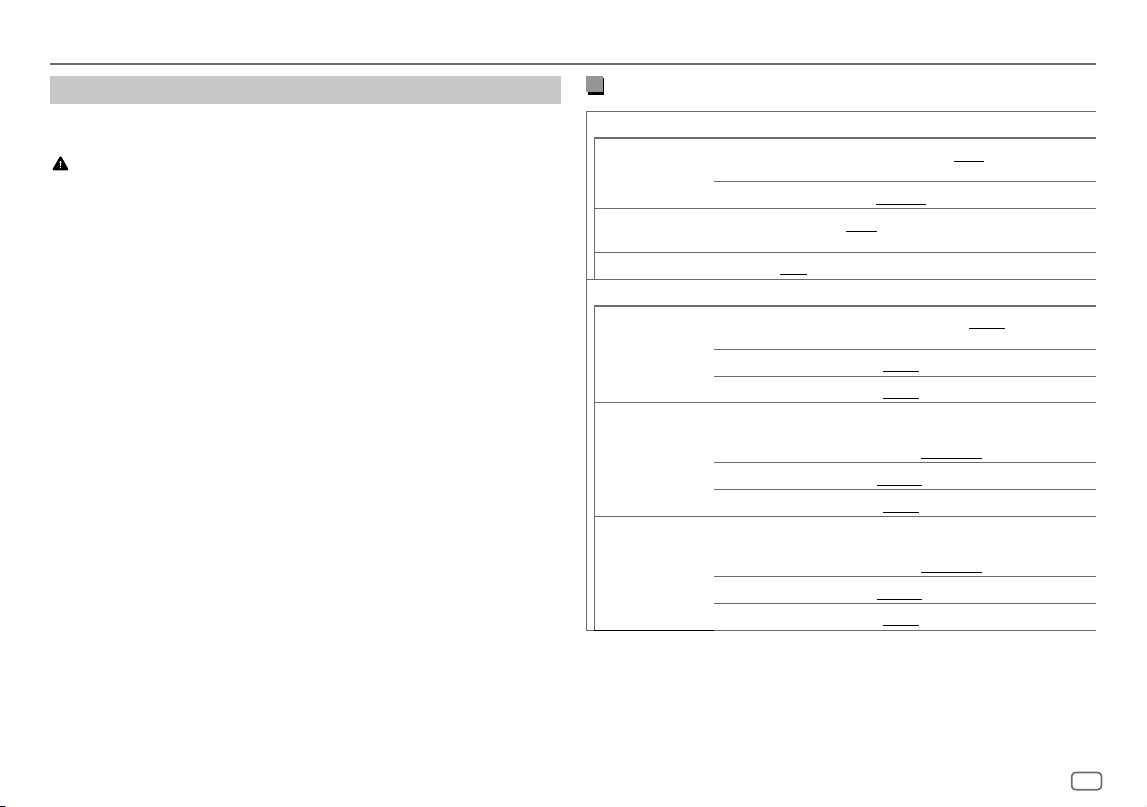
FRANÇAIS
29
Data Size: B6L (182 mm x 128 mm)
Book Size: B6L (182 mm x 128 mm)
Réglages audio
Options de réglage de la transition 2 voies
[SPEAKER SIZE]
[FRONT] [SIZE]
[3.5"]
/
[4"]
/
[4.75"]
/
[5"]
/
[6.5"]
/
[6.75"]
/
[7"]
/
[4×6]
/
[5×7]
/
[6×8]
/
[6×9]
/
[7×10]
[TWEETER]
[SMALL]
/
[MIDDLE]
/
[LARGE]
/
[NONE]
(non connecté)
[REAR]
*1
[3.5"]
/
[4"]
/
[4.75"]
/
[5"]
/
[6.5"]
/
[6.75"]
/
[7"]
/
[4×6]
/
[5×7]
/
[6×8]
/
[6×9]
/
[7×10]
/
[NONE]
(non connecté)
[SUBWOOFER]
*2*3
[6.5"]
/
[8"]
/
[10"]
/
[12"]
/
[15" OVER]
/
[NONE]
(non connecté)
[X ' OVER]
[TWEETER] [FRQ]
[1KHZ]
/
[1.6KHZ]
/
[2.5KHZ]
/
[4KHZ]
/
[5KHZ]
/
[6.3KHZ]
/
[8KHZ]
/
[10KHZ]
/
[12.5KHZ]
[GAIN LEFT]
[–08DB]
à
[00DB]
[GAIN RIGHT]
[–08DB]
à
[00DB]
[FRONT HPF] [F-HPF FRQ]
[30HZ]
/
[40HZ]
/
[50HZ]
/
[60HZ]
/
[70HZ]
/
[80HZ]
/
[90HZ]
/
[100HZ]
/
[120HZ]
/
[150HZ]
/
[180HZ]
/
[220HZ]
/
[250HZ]
/
[THROUGH]
[F-HPF SLOPE]
[–06DB]
/
[–12DB]
/
[–18DB]
/
[–24DB]
[F-HPF GAIN]
[–08DB]
à
[00DB]
[REAR HPF]
*1
[R-HPF FRQ] [30HZ]
/
[40HZ]
/
[50HZ]
/
[60HZ]
/
[70HZ]
/
[80HZ]
/
[90HZ]
/
[100HZ]
/
[120HZ]
/
[150HZ]
/
[180HZ]
/
[220HZ]
/
[250HZ]
/
[THROUGH]
[R-HPF SLOPE]
[–06DB]
/
[–12DB]
/
[–18DB]
/
[–24DB]
[R-HPF GAIN]
[–08DB]
à
[00DB]
*1, *2, *3: (voir page 30)
Réglages de transition
Voici les options de réglage disponibles pour la transition 2 voies et la transition
3 voies.
AVERTISSEMENT
Sélectionnez un type de transition en fonction de la connexion de vos enceintes.
(Page41, 42)
Si vous sélectionnez une mauvais type:
• Les enceintes peuvent être endommagées.
• Le niveau sonore de sortie peut être extrêmement élevé ou faible.
SPEAKER SIZE
La sélection est faite en fonction de la taille de l’enceinte connectée permettant
d’obtenir les performances optimales.
• Les réglages de la fréquence et de la pente sont réalisés automatiquement pour
la transition de l’enceinte sélectionnée.
• Si
[NONE]
est sélectionné pour l’enceinte suivante dans
[SPEAKER SIZE]
, le réglage
[X ‘ OVER]
de l’enceinte sélectionnée n’est pas disponible.
– Transition 2 voies:
[TWEETER]
de
[FRONT]
/
[REAR]
/
[SUBWOOFER]
– Transition 3 voies:
[WOOFER]
X ‘ OVER (transition)
•
[FRQ]
/
[F-HPFFRQ]
/
[R-HPFFRQ]
/
[SWLPF FRQ]
/
[HPFFRQ]
/
[LPFFRQ]
: Ajuste la fréquence
de transition pour les enceintes sélectionnées (filtre passe haut ou filtre passe
bas).
Si
[THROUGH]
est sélectionné, tous les signaux sont envoyés aux enceintes
sélectionnées.
•
[SLOPE]
/
[F-HPFSLOPE]
/
[R-HPFSLOPE]
/
[SWLPF SLOPE]
/
[HPFSLOPE]
/
[LPFSLOPE]
: Ajuste la
pente de transition.
Peut être uniquement sélectionné si un réglage autre que
[THROUGH]
est choisi
pour la fréquence de transition.
•
[SW LPF PHASE]
/
[PHASE]
: Sélectionne la phase de la sortie de l’enceinte à
synchroniser avec la sortie des autres enceintes.
•
[GAINLEFT]
/
[GAINRIGHT]
/
[F-HPFGAIN]
/
[R-HPFGAIN]
/
[SWLPF GAIN]
/
[GAIN
]: Ajuste le
volume de sortie de l’enceinte sélectionnée.
KD_T925BTS_K_FR.indd 29KD_T925BTS_K_FR.indd 29 9/3/2022 4:29:06 PM9/3/2022 4:29:06 PM
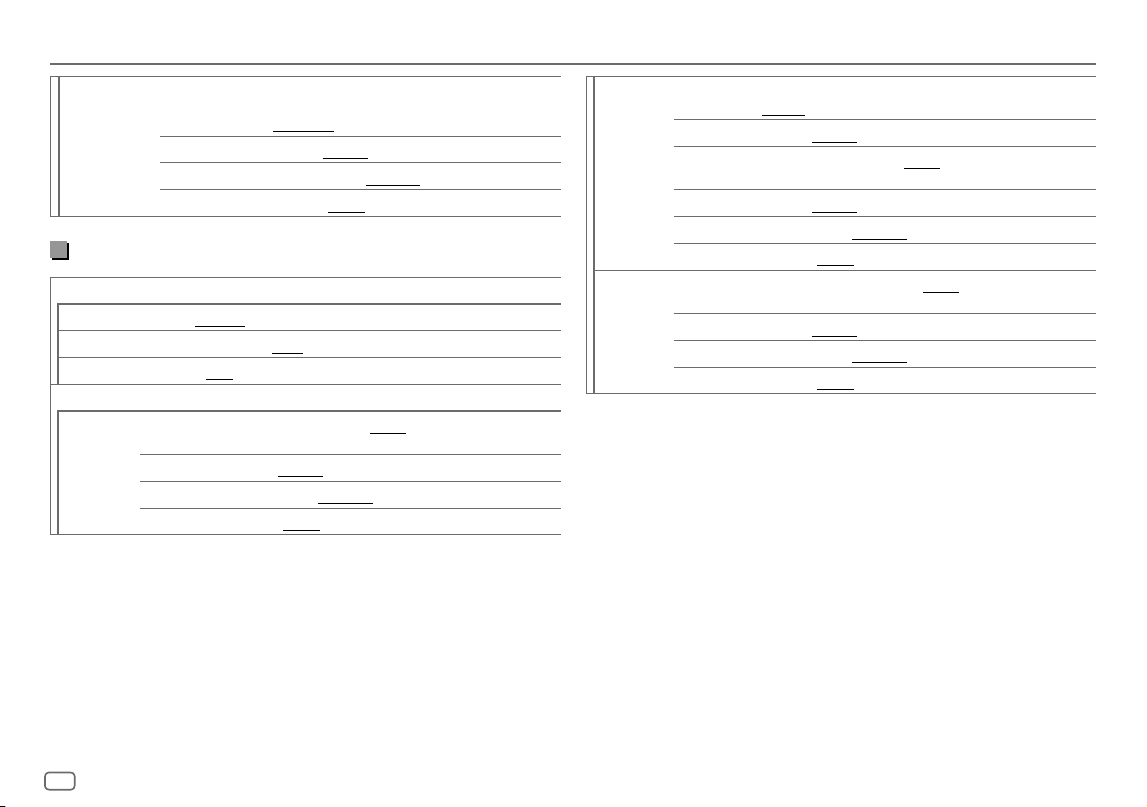
30
FRANÇAIS
Data Size: B6L (182 mm x 128 mm)
Book Size: B6L (182 mm x 128 mm)
[SUBWOOFER
LPF]
*2*3
[SW LPF FRQ] [30HZ]
/
[40HZ]
/
[50HZ]
/
[60HZ]
/
[70HZ]
/
[80HZ]
/
[90HZ]
/
[100HZ]
/
[120HZ]
/
[150HZ]
/
[180HZ]
/
[220HZ]
/
[250HZ]
/
[THROUGH]
[SW LPF SLOPE]
[–06DB]
/
[–12DB]
/
[–18DB]
/
[–24DB]
[SW LPF PHASE]
[REVERSE]
(180°)/
[NORMAL]
(0°)
[SW LPF GAIN] [–08DB]
à
[00DB]
Options de réglage de la transition 3 voies
[SPEAKER SIZE]
[TWEETER]
[SMALL]
/
[MIDDLE]
/
[LARGE]
[MID RANGE]
[3.5"]
/
[4"]
/
[4.75"]
/
[5"]
/
[6.5"]
/
[6.75"]
/
[7"]
/
[4×6]
/
[5×7]
/
[6×8]
/
[6×9]
[WOOFER]
*3
[6.5"]
/
[8"]
/
[10"]
/
[12"]
/
[15" OVER]
/
[NONE]
(non connecté)
[X ' OVER]
[TWEETER] [HPF FRQ]
[1KHZ]
/
[1.6KHZ]
/
[2.5KHZ]
/
[4KHZ]
/
[5KHZ]
/
[6.3KHZ]
/
[8KHZ]
/
[10KHZ]
/
[12.5KHZ]
[SLOPE]
[–06DB]
/
[–12DB]
[PHASE]
[REVERSE]
(180°)/
[NORMAL]
(0°)
[GAIN] [–08DB]
à
[00DB]
[MID RANGE] [HPF FRQ] [30HZ]
/
[40HZ]
/
[50HZ]
/
[60HZ]
/
[70HZ]
/
[80HZ]
/
[90HZ]
/
[100HZ]
/
[120HZ]
/
[150HZ]
/
[180HZ]
/
[220HZ]
/
[250HZ]
/
[THROUGH]
[HPF SLOPE]
[–06DB]
/
[–12DB]
[LPF FRQ]
[1KHZ]
/
[1.6KHZ]
/
[2.5KHZ]
/
[4KHZ]
/
[5KHZ]
/
[6.3KHZ]
/
[8KHZ]
/
[10KHZ]
/
[12.5KHZ]
/
[THROUGH]
[LPF SLOPE]
[–06DB]
/
[–12DB]
[PHASE]
[REVERSE]
(180°)/
[NORMAL]
(0°)
[GAIN] [–08DB]
à
[00DB]
[WOOFER]
*3
[LPF FRQ] [30HZ]
/
[40HZ]
/
[50HZ]
/
[60HZ]
/
[70HZ]
/
[80HZ]
/
[90HZ]
/
[100HZ]
/
[120HZ]
/
[150HZ]
/
[180HZ]
/
[220HZ]
/
[250HZ]
/
[THROUGH]
[SLOPE]
[–06DB]
/
[–12DB]
[PHASE]
[REVERSE]
(180°)/
[NORMAL]
(0°)
[GAIN] [–08DB]
à
[00DB]
*1 Affiché uniquement quand
[SPK/PRE OUT]
est réglé sur
[REAR/REAR]
ou
[REAR/SUB.W]
. (Page28)
*2 Sauf KD-T925BTS: Affiché uniquement quand
[SPK/PREOUT]
est réglé sur
[REAR/SUB.W]
ou
[SUB.W/SUB.W]
. (Page28)
*3 Affiché uniquement quand
[SUBWOOFER SET]
est réglé sur
[ON]
. (Page26)
Réglages audio
KD_T925BTS_K_FR.indd 30KD_T925BTS_K_FR.indd 30 9/3/2022 4:29:06 PM9/3/2022 4:29:06 PM
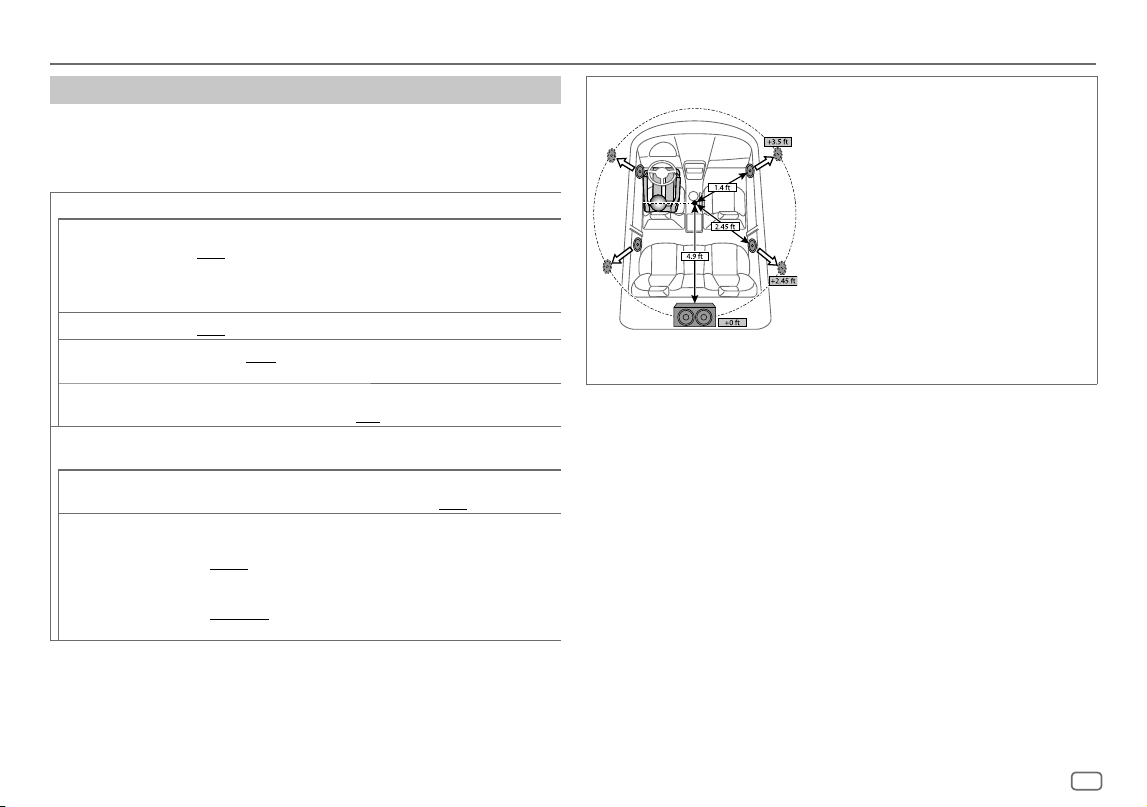
FRANÇAIS
31
Data Size: B6L (182 mm x 128 mm)
Book Size: B6L (182 mm x 128 mm)
Réglages audio
Réglages de l’alignement temporel numérique
L’alignement temporel numérique règle la temporisation de la sortie d’enceinte
pour créer un environnement qui convient mieux à votre véhicule.
• Pour plus d’informations, reportez-vous à “Détermination automatique du temps
de retard” ci-après.
[DTA SETTINGS]
[POSITION]
Sélectionne votre position d’écoute (point de référence).
[ALL]
:Sans compensation;
[FRONT RIGHT]
: Siège avant droit;
[FRONT LEFT]
:Siège avant gauche;
[FRONT ALL]
:Sièges avant
•
[FRONT ALL]
est affiché uniquement quand
[X ' OVER TYPE]
est réglé sur
[2-WAY]
. (Page27)
[DISTANCE]
*1
[0FT]
à
[20.01FT]
:Ajuste avec précision la distance de compensation.
[GAIN]
*1
[–8DB]
à
[0DB]
:Ajuste avec précision le volume de sortie de l’enceinte
sélectionnée.
[DTA RESET] [YES]
:Réinitialise les réglages (
[DISTANCE]
et
[GAIN]
) du réglage
[POSITION]
sélectionné au réglages par défaut.;
[NO]
:Annulation.
[CAR SETTINGS]
Identifiez votre type de voiture et l’emplacement des enceintes arrière afin de
réaliser les ajustement pour
[DTA SETTINGS]
.
[CAR TYPE] [COMPACT]
/
[FULL SIZE CAR]
/
[WAGON]
/
[MINIVAN]
/
[SUV]
/
[MINIVAN(LONG)]
:Sélectionne le type de véhicule.;
[OFF]
: Sans compensation.
[R-SP LOCATION]
*2 Sélectionne l’emplacement des enceintes arrières de votre véhicule pour calculer la
distance la plus loin de la position d’écoute sélectionnée (point de référence).
•
[DOOR]
/
[REAR DECK]
:Sélectionnable uniquement quand
[CAR TYPE]
est sélectionné pour
[OFF]
,
[COMPACT]
,
[FULL SIZE CAR]
,
[WAGON]
ou
[SUV]
.
•
[2ND ROW]
/
[3RD ROW]
:Sélectionnable uniquement quand
[CAR TYPE]
est sélectionné pour
[MINIVAN]
ou
[MINIVAN(LONG)]
.
Détermination automatique du temps de retard
Si vous spécifiez la distance à partir de la position d’écoute
actuellement réglée pour n’importe quelle enceinte, le
temps de retard est calculé automatiquement.
1
Réglez
[POSITION]
et déterminez la position d’écoute
comme point de référence (le point de référence pour
[FRONT ALL]
est le centre entre les sièges avant droite
et gauche).
2
Mesure la distance entre la position de référence et les
enceintes.
3
Calculez la distance entre l’enceinte la plus éloignée
(caisson de grave sur l’illustration) et les autres enceintes.
4
Règle
[DISTANCE]
calculé à l’étape 3 pour les enceintes
individuelles.
5
Ajuste
[GAIN]
pour les enceintes individuelles.
Exemple: Quand
[FRONT ALL]
est sélectionné comme
position d’écoute
*1 Avant de réaliser un ajustement, choisissez l’enceinte:
Quand la transition 2 voies est sélectionnée:
[FRONT LEFT]
/
[FRONT RIGHT]
/
[REAR LEFT]
/
[REAR RIGHT]
/
[SUBWOOFER]
:
–
[REAR LEFT]
,
[REAR RIGHT]
et
[SUBWOOFER]
est sélectionnable uniquement si un autre réglage que
[NONE]
est sélectionné pour
[REAR]
et
[SUBWOOFER]
de
[SPEAKER SIZE]
. (Page29)
Quand la transition 3 voies est sélectionnée:
[TWEETER LEFT]
/
[TWEETER RIGHT]
/
[MID LEFT]
/
[MID RIGHT]
/
[WOOFER]
:
–
[WOOFER]
est sélectionnable uniquement si un autre réglage que
[NONE]
est sélectionné pour
[WOOFER]
de
[SPEAKER SIZE]
. (Page30)
*2 Affiché uniquement quand
[X ' OVER TYPE ]
est réglé sur
[2-WAY]
(page27) et si un autre réglage que
[NONE]
est sélectionné pour
[REAR]
de
[SPEAKER SIZE]
. (Page29)
KD_T925BTS_K_FR.indd 31KD_T925BTS_K_FR.indd 31 9/3/2022 4:29:06 PM9/3/2022 4:29:06 PM
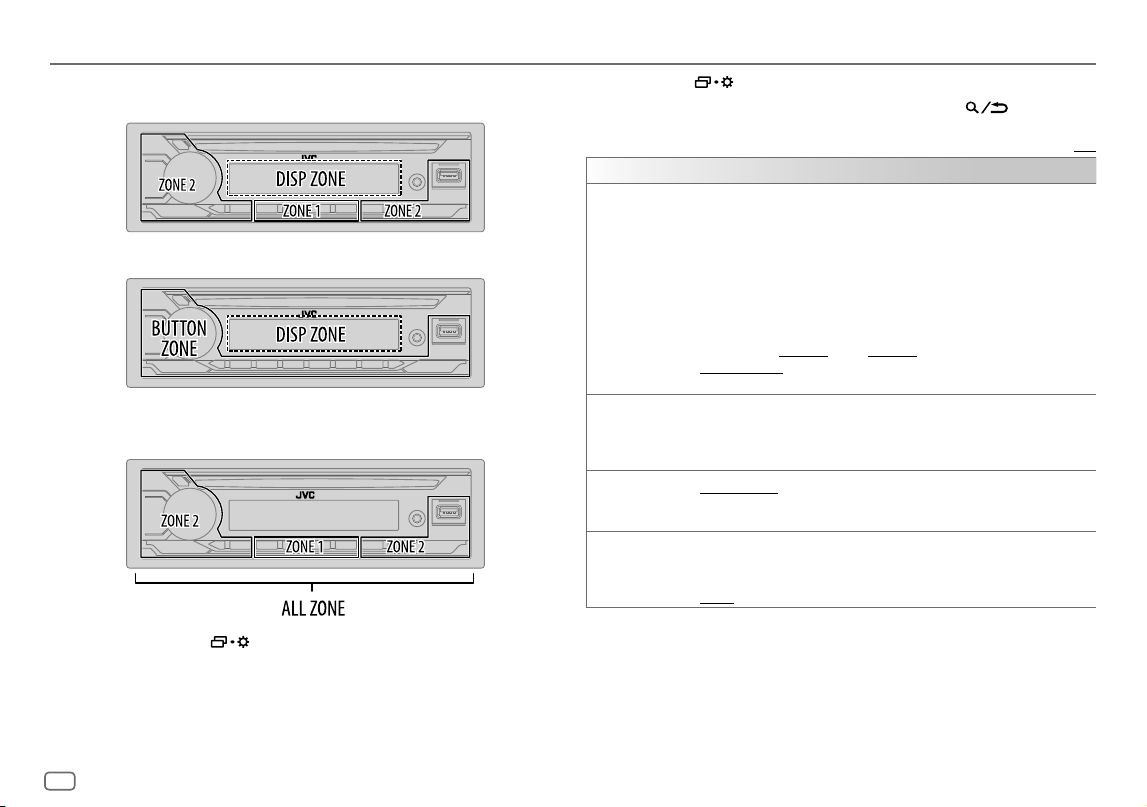
32
FRANÇAIS
Data Size: B6L (182 mm x 128 mm)
Book Size: B6L (182 mm x 128 mm)
Réglages d’affichage
Identification de zone pour les réglages de la luminosité
KD-T925BTS/KD-T920BTS:
Identification de zone pour les réglages de la couleur
KD-T925BTS/KD-T920BTS:
1 Maintenez enfoncée .
2 Tournez le bouton de volume pour sélectionner un élément (voir le tableau
suivant), puis appuyez sur le bouton.
3 Répétez l’étape 2 jusqu’à ce que l’élément souhaité soit sélectionné/activé
ou suivez les instructions données pour l’élément sélectionné.
4 Appuyez sur pour quitter.
Pour retourner à l’option de réglage précédente, appuyez sur
.
Défaut:
[XX]
[DISPLAY]
[DIMMER]
Assombrit l’éclairage.
[OFF]
:Le gradateur est désactivé. La luminosité change sur le réglage
[DAY]
.
[ON]
:Le gradateur est activé. La luminosité change sur le réglage
[NIGHT]
.
(Reportez-vous aux réglages “
[BRIGHTNESS]
” ci-après.)
[DIMMER TIME]
:Réglez l’heure d’activation et de désactivation du gradateur.
1
Tournez le bouton de volume pour régler l’heure de mise en service
[ON]
, puis appuyez
sur le bouton.
2
Tournez le bouton de volume pour régler l’heure de mise hors service
[OFF]
, puis
appuyez sur le bouton.
(Défaut:
[ON]
:
[PM6:00]
;
[OFF]
:
[AM6:00]
)
[DIMMER AUTO]
:Le gradateur est activé et désactivé automatiquement quand vous
éteignez ou allumez les feux de la voiture.*1
[BRIGHTNESS]
Réglez la luminosité séparément pour le jour et la nuit.
1
[DAY]
/
[NIGHT]
:Choisissez le jour ou la nuit.
2
Choisissez une zone. (Voir l’illustration sur la colonne de gauche.)
3
[LEVEL00]
à
[LEVEL31]
: Réglez le niveau de luminosité.
[TEXT SCROLL]
*2
[SCROLL ONCE]
:Fait défiler une fois les informations de l’affichage.;
[SCROLL AUTO]
:Répète le défilement à 5 secondes d’intervalle.;
[SCROLL OFF]
:Annulation.
[FORMAT]
*3 Les informations ci-dessous apparaissent sur l’affichage supplémentaire quand le
périphérique Bluetooth est connecté. (Page35)
[BATT/SIGNAL]
: Montre la puissance de la batterie et du signal. ;
[DATE]
: Montre la date.
*1 La connexion du fil de commande de l’éclairage est requise. (Page41)
*2 Certains caractères ou symboles n’apparaissent pas correctement (ou un blanc apparaît à leur place).
*3 Les fonctionnalités dépendent du type de téléphone utilisé.
KD-T720BT:
KD_T925BTS_K_FR.indd 32KD_T925BTS_K_FR.indd 32 9/3/2022 4:29:06 PM9/3/2022 4:29:06 PM
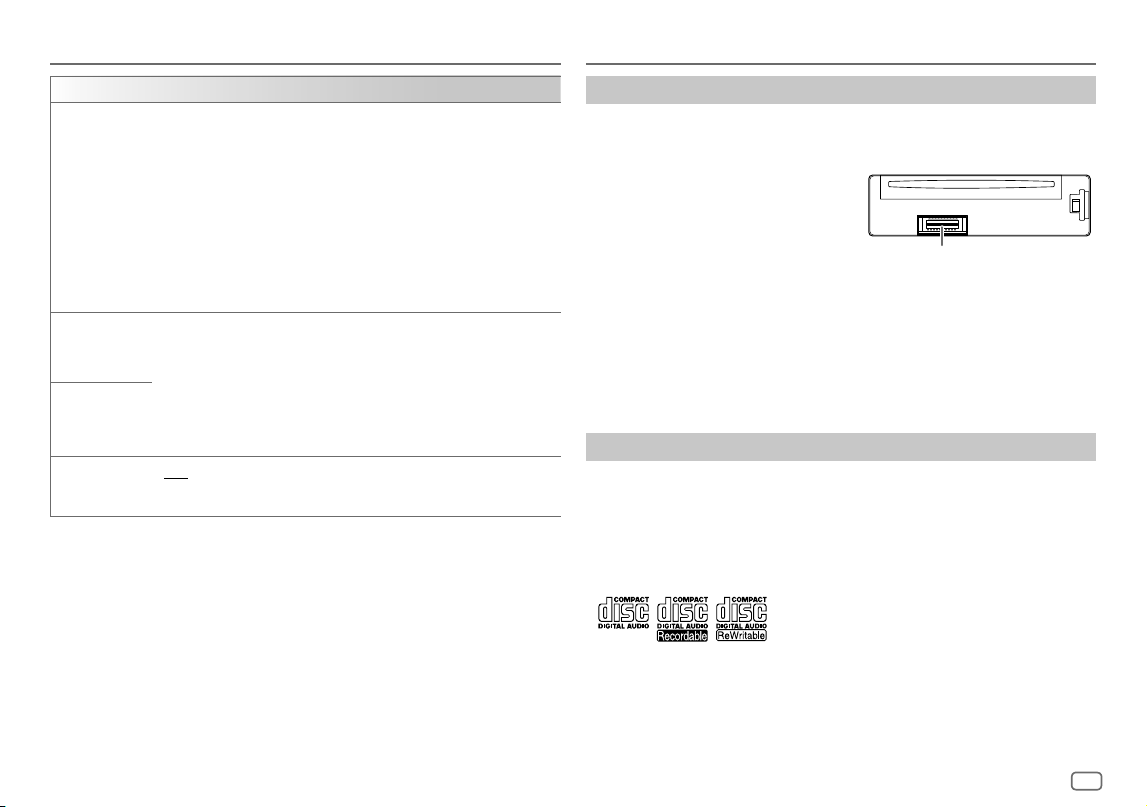
FRANÇAIS
33
Data Size: B6L (182 mm x 128 mm)
Book Size: B6L (182 mm x 128 mm)
Réglages d’affichage
[COLOR]
(pour KD-T925BTS/KD-T920BTS)
[PRESET]
Sélectionnez les couleurs d’éclairage séparément pour les touches sur des différentes zones.
1
Choisissez une zone (
[ZONE1]
,
[ZONE2]
,
[ALLZONE]
). (Voir l’illustration de la page
32.)
2
Choisissez une couleur pour la zone sélectionnée.
•
[COLOR01]
à
[COLOR49]
•
[USER]
: La couleur que vous avez créée pour
[DAYCOLOR]
ou
[NIGHTCOLOR]
apparaît.
•
[COLORFLOW01]
à
[COLORFLOW03]
: La couleur change à une vitesse
différente.
•
[CRYSTAL]
/
[FLOWER]
/
[FOREST]
/
[GRADATION]
/
[OCEAN]
/
[RELAX]
/
[SUNSET]
: Le motif de couleur sélectionné apparaît.* (Sélectionnable uniquement
quand
[ALLZONE]
est choisi à l’étape 1.)
[DAYCOLOR]
Mémorisez vos propres couleurs d’éclairage du jour et de la nuit pour différentes zones.
1
Choisissez une zone (
[ZONE1]
,
[ZONE2]
). (Voir l’illustration de la page 32.)
2
[RED]
/
[GREEN]
/
[BLUE]
:Choisissez une couleur primaire.
3
[00]
à
[31]
:Sélectionnez le niveau.
Répétez les étapes 2 et 3 pour toutes les couleurs primaires.
• Votre réglages est mémorisé sur
[USER]
dans
[PRESET]
.
•
[NIGHTCOLOR]
ou
[DAYCOLOR]
est changé quand vous allumez ou éteignez les
feux de la voiture.
[NIGHTCOLOR]
[COLOR GUIDE]
[ON]
:La couleur d’éclairage de
[ZONE1]
et
[ZONE2]
change sur la couleur blanche
lorsque les réglages sont réalisés sur le menu et la recherche de liste, sauf en mode de
réglage de la couleur.;
[OFF]
:Annulation.
* Si un de ces motifs de couleur est sélectionné, la couleur d’éclairage
[ZONE1]
et
[ZONE2]
change sur la couleur
par défaut.
Références
Entretien
Nettoyage de l’appareil
Essuyez la saleté de la façade avec un chiffon sec au silicone ou un chiffon doux.
Nettoyage du connecteur
Détachez la façade et nettoyez le connecteur à l’aide d’un coton
tige. Faites attention de ne pas endommager le connecteur.
Manipulation des disques
• Ne pas toucher la surface d’enregistrement du disque.
• Ne pas coller de ruban adhésif, etc. sur les disques et ne pas utiliser de disque avec du ruban adhésif collé dessus.
• N’utilisez aucun accessoire pour le disque.
• Nettoyer le disque en partant du centre vers l’extérieur.
• Nettoyez le disque avec un chiffon sec au silicone ou un chiffon doux. N’utilisez aucun solvant.
• Pour retirer un disque de cet appareil, tirez-le horizontalement.
• Retirez les ébarbures du bord du trou central du disque avant d’insérer un disque.
Plus d’informations
Pour: – Les dernières mise à jour du micrologiciel et la liste de compatibilité la plus récente
– Application originale JVC
– Autres informations récentes
Consultez <https://www.jvc.net/cs/car/>.
Généralités
• Cet appareil ne peut lire que les CD suivants:
Connecteur (sur la face arrière
de la façade)
KD_T925BTS_K_FR.indd 33KD_T925BTS_K_FR.indd 33 9/3/2022 4:29:06 PM9/3/2022 4:29:06 PM

34
FRANÇAIS
Data Size: B6L (182 mm x 128 mm)
Book Size: B6L (182 mm x 128 mm)
Références
•
Lecture de disques à double face
: La face non DVD d’un disque à “DualDisc” n’est pas compatible avec le
standard “Compact Disc Digital Audio”. Par conséquent, l’utilisation de la face non DVD d’un disque à double face
sur cet appareil ne peut pas etre recommandée.
• Pour des informations détaillées et des remarques sur les fichiers audio compatibles, reportez-vous à
<https://www.jvc.net/cs/car/audiofile/>.
Fichiers pouvant être lus
• Disque:
Fichier audio reproductible:
MP3(.mp3), WMA(.wma), AAC(.aac)
Supports compatibles: CD-R/CD-RW/CD-ROM
Formats de fichiers compatibles: ISO 9660 Niveau 1/2, Joliet, Nom de fichier étendu
• Périphériques USB à mémoire de grande capacité:
Fichier audio reproductible:
MP3(.mp3), WMA(.wma), AAC(.aac), AAC(.m4a), WAV (.wav), FLAC (.flac)
Système de fichiers compatibles: FAT12, FAT16, FAT32
Même quand les fichiers audio sont conformes aux normes établies ci-dessus, il est possible que la lecture ne soit pas
possible suivant le type ou les conditions du support ou périphériques.
Un fichier AAC (.m4a) dans un CD codé par iTunes ne peut pas être lu sur cet appareil.
Disques ne pouvant pas être lus
• Disques qui ne sont pas ronds.
• Disques avec des colorations sur la surface d’enregistrement ou disques sales.
• Disques enregistrables/réinscriptibles qui n’ont pas été finalisés.
• CD de 8 cm. Essayer d’insérer un disque à l’aide d’un adaptateur peut entraîner un dysfonctionnement de
l’appareil.
À propos des périphériques USB
• Vous ne pouvez pas connecter un périphérique USB via un hub USB.
• La connexion d’un câble dont la longueur totale dépasse 5 m peut avoir pour conséquence un fonctionnement
anormal de la lecture.
• Cet appareil ne peut pas reconnaître les périphériques USB dont l’alimentation n’est pas de 5 V et dépasse 1,5A.
À propos de l’iPod/iPhone
• Made for
– iPod touch (6th generation)
– iPhone 5S, 6, 6 Plus, 6S, 6S Plus, SE, 7, 7 Plus, 8, 8 Plus, X, XS, XS MAX, XR, 11, 11 Pro, 11 Pro Max, SE (2nd
generation), 12, 12 mini, 12 Pro, 12 Pro Max
• L’ordre des morceaux affichés sur le menu de sélection de cet appareil peut être différent de celui de iPod/iPhone.
• En fonction de la version du système d’exploitation de l’iPod/iPhone, certaines fonctions peuvent ne pas être
utilisables sur cet appareil.
À propos d’AMAZON ALEXA
• Alexa est un service tiers, et par conséquent les spécifications sont sujettes à changement sans notification
préalable. Par conséquent, la compatibilité peut réduite ou certains services ou même tous les services peuvent
devenir indisponibles.
• Langues prises en charge par Alexa sur cet appareil: US Anglais/Canada Anglais/US Espagnol/Canada Français/
Mexique Espagnol/UK Anglais/Italie Italien/Espagne Espagnol/France Français/Allemagne Allemand/Australie
Anglais/Japon Japonais
KD_T925BTS_K_FR.indd 34KD_T925BTS_K_FR.indd 34 9/3/2022 4:29:06 PM9/3/2022 4:29:06 PM
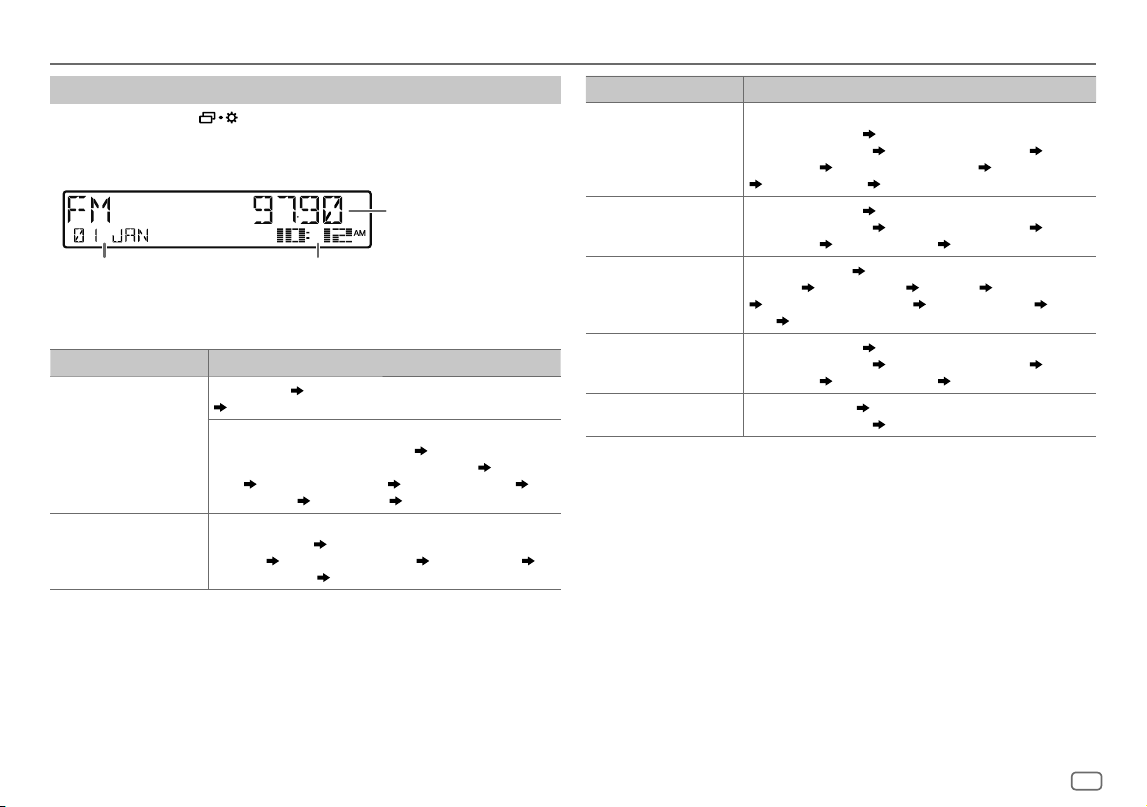
FRANÇAIS
35
Data Size: B6L (182 mm x 128 mm)
Book Size: B6L (182 mm x 128 mm)
Références
Changez l’information sur l’affichage
Chaque fois que vous appuyez sur , les informations affichées changent.
• Si aucune information n’est disponible ou si aucune information n’est enregistrée, “NO TEXT”, “NO NAME”, ou une
autre information (par ex. le nom de la station) apparaît ou l’affichage est vide.
Affichage
principal
Affichage de l’horloge ou Indicateur de niveauAffichage supplémentaire*1
*1 La date sera remplacée par la batterie et la puissance du signal du périphérique Bluetooth connecté si
[FORMAT]
est réglé sur
[BATT/SIGNAL]
. (Page32)
Nom de la source Informations sur l’affichage: Principal (supplémentaire)
FM ou AM Fréquence (Date)
Fréquence (Date) avec effet de synchronisation musicale*2
retour au début
Pour les stations FM Radio Broadcast Data System uniquement:
Nom de la station/Type de programme (Date)
Nom de station/Type de
programme (Date) avec effet de synchronisation musicale*2
Radio texte
(Date)
Radio texte+ (Radio texte+) Titre de morceau (Artiste) Titre
de morceau (Date)
Fréquence (Date) retour au début
CD ou USBFRONT/
USBREAR/USB
Pour CD-DA:
Titre de plage (Artiste)
Titre de plage (Artiste) avec effet de synchronisation
musicale*2
Titre de plage (Titre du disque) Titre de plage (Date)
Durée de lecture (Date)
retour au début
Nom de la source Informations sur l’affichage: Principal (supplémentaire)
Pour les fichiers MP3/WMA/AAC/WAV/FLAC:
Titre de morceau (Artiste)
Titre de morceau (Artiste) avec effet de
synchronisation musicale*2
Titre de morceau (Titre d’album) Titre de
morceau (Date)
Nom de fichier (Nom de dossier) Nom de fichier (Date)
Durée de lecture (Date) retour au début
iPodFRONT/iPodREAR/
iPodUSB/iPodBT
Titre de morceau (Artiste)
Titre de morceau (Artiste) avec effet de
synchronisation musicale*2
Titre de morceau (Titre d’album) Titre de
morceau (Date)
Durée de lecture (Date) retour au début
SIRIUS XM Numéro de canal (État)
Numéro de canal (État) avec effet de synchronisation
musicale*2
Nom de canal (État) Artiste (État) Titre de morceau (État)
Informations sur le contenu (État) Nom de catégorie (État) Date
(État)
retour au début
BT AUDIO/ALEXA Titre de morceau (Artiste)
Titre de morceau (Artiste) avec effet de
synchronisation musicale*2
Titre de morceau (Titre d’album) Titre de
morceau (Date)
Durée de lecture (Date) retour au début
AUX Nom de la source (Date)
Nom de la source (Date) avec effet de
synchronisation musicale*2
retour au début
*2 Pour KD-T925BTS/KD-T920BTS: Pendant l’effet de synchronisation musicale, la couleur de l’éclairage ou le niveau
de luminosité des touches change et est synchronisé avec le niveau de la musique (en fonction du réglage de la
couleur réalisé pour
[PRESET]
à la page33).
Pour KD-T720BT: Pendant l’effet de synchronisation musicale, le niveau de luminosité des touches change et est
synchronisé avec le niveau de la musique.
KD_T925BTS_K_FR.indd 35KD_T925BTS_K_FR.indd 35 9/3/2022 4:29:06 PM9/3/2022 4:29:06 PM
36
FRANÇAIS
Data Size: B6L (182 mm x 128 mm)
Book Size: B6L (182 mm x 128 mm)
Symptôme Remède
Généralités
Le son ne peut pas être entendu. • Ajustez le volume sur le niveau optimum.
• Vérifiez les cordons et les connexions.
“MISWIRING CHECK WIRING THEN
PWR ON” apparaît.
Mettez l’appareil hors tension, puis assurez-vous que les prises des
câbles d’enceinte sont correctement isolées. Mettez de nouveau
l’appareil sous tension.
“PROTECTING SEND SERVICE”
apparaît.
Envoyez l’appareil au centre de service le plus proche.
Vous ne pouvez pas choisir la
source.
Cochez le réglage
[SOURCESELECT]
. (Page6)
Cet appareil ne fonctionne pas
du tout.
Réinitialisez l’appareil. (Page4)
Les caractères corrects ne sont
pas affichés.
• Cet appareil peut uniquement afficher les lettres majuscules, les
chiffres et un nombre limité de symboles.
• En fonction de la langue d’affichage que vous avez choisie (page6),
certains caractères peuvent ne pas être affichés correctement.
Radio
• La réception radio est
mauvaise.
• Bruit statique pendant l’écoute
de la radio.
Connectez l’antenne solidement.
CD/USB/iPod
Le disque ne peut pas être éjecté.
Maintenez enfoncée
pour éjecter le disque de force. Faites
attention que le disque ne tombe pas quand il est éjecté. Si cela ne
résout pas le problème, essayez de réinitialiser l’appareil (page 4).
Du bruit est produit. Sautez à une autre plage ou changez le disque.
“IN DISC” apparaît et le disque ne
peut pas être éjecté.
Assurez-vous que rien ne bloque la fente d’insertion quand vous
éjectez le disque.
“PLEASE EJECT” apparaît.
Appuyez sur
, puis insérez le disque correctement.
Guide de dépannage
Symptôme Remède
CD/USB/iPod
L’ordre de lecture n’est pas celui
que vous pensiez.
Disque optique, les fichiers sont lus dans l’ordre dans lequel ils ont
été enregistrés.
Périphérique USB, les dossiers sont lus dans l’ordre de leur création
(date et heure). Les fichiers de chaque dossier sont lus dans l’ordre
du nom du fichier (alphabet).
La durée de lecture écoulée n’est
pascorrecte.
Cela dépend du processus d’enregistrement utilisé (disque/USB).
“NOT SUPPORT” apparaît et la
plage est sautée.
Vérifiez si la plage est dans un format compatible.
(Page33, 34)
“READING” clignote sur. • N’utilisez pas trop de niveaux de hiérarchie et de dossiers.
• Réinsérez le disque ou reconnectez le périphérique (USB/iPod/
iPhone).
“UNSUPPORTED DEVICE” apparaît. • Vérifiez si le périphérique USB connecté est compatible avec cet
appareil et assurez-vous que le système de fichiers est dans un
format compatible. (Page34)
• Reconnectez le périphérique USB.
“UNRESPONSIVE DEVICE” apparaît. Assurez-vous que le périphérique USB n’est pas défaillant et
reconnectez-le.
“USB HUB IS NOT SUPPORTED”
apparaît.
Cet appareil ne peut pas prendre en charge un périphérique USB
connectez via un hub USB.
“CANNOT PLAY” apparaît. Connectez un périphérique USB qui contient des fichiers audio
compatibles.
• La source ne change pas sur
“USB” quand vous connectez
un périphérique USB lors de
l’écoute d’une autre source.
• “USB ERROR” apparaît.
Le port USB consomme plus de puissance que la limite de
conception. Mettez l’appareil hors tension et débranchez le
périphérique USB. Puis, remettez l’appareil sous tension et
rebranchez le périphérique USB.
Si cette solution ne résout pas le problème, mettez l’appareil hors
tension puis de nouveau sous tension (ou réinitialisez l’appareil)
avant de remplacer le périphérique USB par un autre.
iPod/iPhone ne peut pas être mis
sous tension ou ne fonctionne pas.
• Vérifiez la connexion entre cet appareil et l’iPod/iPhone.
• Déconnectez et réinitialisez l’iPod/iPhone en utilisant un
réinitialisation matérielle.
KD_T925BTS_K_FR.indd 36KD_T925BTS_K_FR.indd 36 9/3/2022 4:29:06 PM9/3/2022 4:29:06 PM
FRANÇAIS
37
Data Size: B6L (182 mm x 128 mm)
Book Size: B6L (182 mm x 128 mm)
Symptôme Remède
CD/USB/iPod
“LOADING” apparaît quand vous
entrez en mode de recherche en
appuyant sur
.
Cet appareil continue de préparer la liste des morceaux de l’iPod/
iPhone. Le chargement des données peut être long, essayez de
nouveau plus tard.
“NO DISC” Insèrez un disque reproductible dans la fente d’insertion.
“NO DEVICE” Connectez un périphérique (USB/iPod/iPhone), puis repassez à la
source USB/iPod USB.
“iPod ERROR” • Reconnectez l’iPod.
• Réinitialisez l’iPod.
• Maintenez B SRC enfoncée pour mettre l’appareil hors tension.
Remettez l’appareil sous tension pour rétablir les erreurs.
“MEMORY FULL” Vous avez atteint la limite maximum de mémoire de votre iPod/
iPhone.
Radio SiriusXM®
“CHLOCKED LOCK CODE?” Le canal sélectionné est verrouillé. Entrez le code secret correct pour
déverrouiller. (Page14)
“CHAN UNSUB” Le canal sélectionné ne fait pas parti de l’abonnement.
Appelez le 1-866-635-2349 aux États-Unis ou le 1-888-539-7474
au Canada pour vous abonner. (Page12)
“CHUNAVAIL” Le canal sélectionné n’est pas disponible. Pour obtenir plus
d’informations sur les canaux disponibles SiriusXM, consultez
<www.siriusxm.com>.
“CHECKANTENNA” Vérifiez que l’antenne et sa connexion sont correctes.
“CHECK TUNER” Assurez-vous que le tuner SiriusXM Vehicle est connecté à l’appareil.
“NO SIGNAL” Assurez-vous que l’antenne est montée à l’extérieure du véhicule.
“SUBSCRIPTION UPDATED –
PRESS ENTER TO CONTINUE.”
Votre abonnement a été mis à jour. Appuyez sur le bouton de volume
pour continuer.
Guide de dépannage
Symptôme Remède
Radio SiriusXM®
“CODE ERROR” Assurez-vous que vous avez entré le code secret correct.
(Page14)
“NO CONTENT” Le contenu est insuffisant pour démarrer TuneScan.
“SCAN CANCEL” TuneScan a été interrompu.
Bluetooth®
Aucun périphérique Bluetooth
n’est détecté.
• Faites de nouveau une recherche à partir du périphérique Bluetooth.
• Réinitialisez l’appareil. (Page4)
Le pairage Bluetooth ne peut
pas être réalisé.
• Assurez-vous que vous avez entré le même code PIN pour l’appareil et le
périphérique Bluetooth.
• Supprimez les informations de pairage pour cet appareil et le
périphérique Bluetooth, puis effectuez de nouveau le pairage. (Page17)
Un écho ou du bruit est
entendu pendant une
conversation téléphonique.
• Ajustez la position du microphone. (Page16)
• Cochez le réglage
[ECHO CANCEL]
. (Page19)
Le son du téléphone est de
mauvaise qualité.
• Réduisez la distance entre cet appareil et le périphérique Bluetooth.
• Déplacez la voiture dans un endroit où vous pouvez obtenir un meilleur
signal de réception.
La sonnerie d’appel
téléphonique n’est pas audible
par les haut-parleurs de la
voiture.
Appuyez sur
pendant un appel pour passer du mode mains
libres au mode de conversation privée. (Page18)
La méthode d’appel vocal ne
réussie pas.
• Utilisez la méthode d’appel vocal dans un environnement plus calme.
• Réduisez la distance au microphone quand vous dites le nom.
• Assurez-vous que la même voix que la voix enregistrée est utilisée.
Le son est interrompu ou saute
pendant la lecture d’un lecteur
audio Bluetooth.
• Réduisez la distance entre cet appareil et le lecteur audio Bluetooth.
• Mettez cet appareil hors tension, puis de nouveau sous tension et
essayez de nouveau de connecter l’appareil.
• D’autres périphériques Bluetooth peuvent être en train de se connecter à
l’appareil.
KD_T925BTS_K_FR.indd 37KD_T925BTS_K_FR.indd 37 9/3/2022 4:29:07 PM9/3/2022 4:29:07 PM
38
FRANÇAIS
Data Size: B6L (182 mm x 128 mm)
Book Size: B6L (182 mm x 128 mm)
Guide de dépannage
Symptôme Remède
Bluetooth®
Le lecteur audio Bluetooth
connecté ne peut pas être
commandé.
• Vérifiez si le lecteur audio Bluetooth connecté prend en charge AVRCP
(Audio/Video Remote Control Profile). (Référez-vous aux instructions
de votre lecteur audio.)
• Déconnectez et reconnectez à nouveau le lecteur Bluetooth.
“PLEASE WAIT” L’appareil se prépare pour utiliser la fonction Bluetooth. Si le message
ne disparaît pas, mettez l’appareil hors tension puis sous tension, puis
connecter de nouveau le périphérique.
“NOT SUPPORT” Le téléphone connecté ne prend pas en charge la fonction de
reconnaissance vocale ou le transfert de répertoire téléphonique.
“NO ENTRY” Il n’y a aucun appareil enregistré connecté/trouvé par Bluetooth.
“ERROR” Essayez de nouveau l’opération. Si “ERROR” apparaît de nouveau,
vérifiez si l’appareil extérieur prend en charge la fonction que vous
avez essayée.
“NO INFO”/“NO DATA” L’appareil Bluetooth ne peut pas obtenir les informations du contact.
“H/W ERROR” Réinitialiser l’appareil et essayez de nouveau l’opération. Si “H/W
ERROR” apparaît de nouveau, consultez le centre de service le plus
proche.
“SWITCHING NG” Les téléphones connectés ne prennent peut-être pas en charge la
fonction de commutation de téléphone.
La connexion Bluetooth entre
le périphérique Bluetooth et
l’appareil est instable.
Supprimer de l’appareil un périphérique Bluetooth enregistré que
vous n’utilisez pas. (Page21)
AMAZON ALEXA
Aucune réponse d’Alexa après
l’entrée vocale.
Amazon cloud n’a pas été capable d’analyser l’entrée vocale.
Mauvaise réponse d’Alexa. Alexa n’a pas compris ce que vous avez dit ou n’a pas reçu toute la
requête ou la phrase parlée. Essayez de nouveau. (Page24)
Symptôme Remède
AMAZON ALEXA
“DISCONNECTED” Assurez-vous de connecter votre smartphone à l’appareil via
Bluetooth. (Page17)
Impossible de connecter ou de
reconnecter l’application Alexa
mobile.
• Assurez-vous que le périphérique audio est connecté via Bluetooth.
Sélectionnez le périphérique audio à partir de
[AUDIO SELECT]
dans
[BT MODE]
. (Page21)
• Réalisez de nouveau le processus de configuration unique. Voir
“Configuration pour la première fois” à la page 23.
• Mettez cet appareil hors tension, puis de nouveau sous tension et
essayez de nouveau de connecter l’appareil.
• Pour un périphérique iOS, assurez-vous que la source ALEXA ou que
la source iPodBT est sélectionnée.
Impossible de quitter l’écran
“TALKING” après avoir terminé
un appel.
Il peut s’écouler un certain temps avant que l’appareil ne quitte l’écran
“TALKING”. Appuyez sur
pour retourner à l’écran précédent
de commande de source.
Impossible d’accéder à l’écran
“LISTENING” après l’activation
d’Alexa.
• Déconnectez et reconnectez à nouveau la connexion Bluetooth.
(Page17)
• Déconnectez et reconnectez à nouveau la connexion Alexa. (Page23)
• Mettez l’appareil hors tension pendant environ 10 secondes,
remettez-le sous tension et essayez de nouveau.
En cas de problèmes, essayez ce qui suit:
1 Vérifiez la section GUIDE DE DÉPANNAGE
2 Réinitialisez l’appareil (page4)
3 Contactez (USA uniquement)
Appelez: 1-800-252-5722 ( ou ) consultez: <https://www.jvc.com>
KD_T925BTS_K_FR.indd 38KD_T925BTS_K_FR.indd 38 9/3/2022 4:29:07 PM9/3/2022 4:29:07 PM
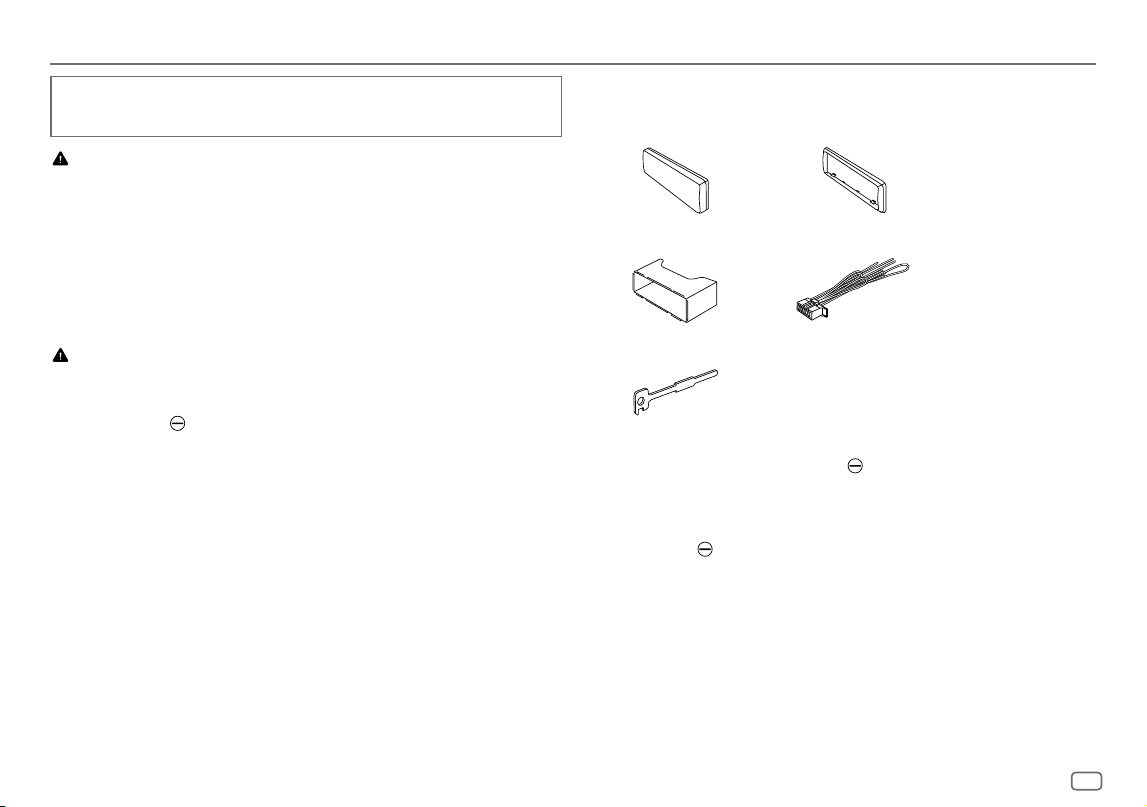
FRANÇAIS
39
Data Size: B6L (182 mm x 128 mm)
Book Size: B6L (182 mm x 128 mm)
Cette section est réservée aux installateurs professionnels.
Pour des raison de sécurité, laissez le travail de câblage et de montage des professionnels. Consultez votre
revendeur autoradio.
MISE EN GARDE
• L’appareil peut uniquement être utilisé avec une alimentation de 12 V CC, à masse négative.
• Déconnectez la borne négative de la batterie avant le câblage et le montage.
• Ne connectez pas le fil de batterie (jaune) et le fil d’allumage (rouge) au châssis de la voiture ou au fil de masse
(noir) pour éviter les courts-circuits.
• Pour éviter les courts-circuits:
– Isolez les fils non connectés avec du ruban adhésif.
– Assurez-vous de raccorder de nouveau la mise à la masse de cet appareil au châssis de la voiture après
l’installation.
– Fixez les câbles avec des serre-câbles et enrouler un ruban de vinyle autour des câbles qui entrent en contact
avec des pièces métalliques pour protéger les câbles.
AVERTISSEMENT
• Installez cet appareil dans la console de votre véhicule. Ne touchez pas les parties métalliques de cet appareil
pendant ou juste après son utilisation. Les parties métalliques, comme le dissipateur de chaleur et le boîtier,
deviennent chaudes.
• Ne connectez pas les fils
des l’enceintes au châssis de la voiture, au fil de masse (noir) ou en parallèle.
• Connectez des enceintes avec une puissance maximum de plus de 50 W. Si la puissance maximum des enceintes
est inférieure à 50W, changez le réglage
[AMPGAIN]
pour éviter d’endommager les enceintes. (Page27)
• Montez l’appareil avec un angle de moins de 30º.
• Si le faisceau de fils de votre véhicule ne possède pas de borne d’allumage, connectez le fil d’allumage (rouge) à la
borne du boîtier de fusible de votre véhicule qui offre une alimentation de 12 V CC et qui se met en et hors service
avec la clé de contact.
• Gardez tous les câbles à l’écart des dissipateurs thermiques.
• Après avoir installé l’appareil, vérifiez si les lampes de frein, les indicateurs, les clignotants, les essuie-glaces, etc.
de la voiture fonctionnent correctement.
• Si un fusible saute, assurez-vous d’abord que les câbles ne touches pas le châssis de la voiture puis remplacez le
vieux fusible par un nouveau de même valeur.
Installation/Connexion
Liste des pièces pour l’installation
(A)
Façade (×1)
(B)
Plaque de garniture (×1)
(C)
Manchon de montage (×1)
(D)
Faisceau de fils (×1)
(E)
Clé d’extraction (×2)
Procédure de base
1
Retirez la clé de contact, puis déconnectez la borne de la batterie de la voiture.
2
Connectez les fils correctement.
Voir “Connexions” à la page41.
3
Installez l’appareil dans votre voiture.
Voir “Installation de l’appareil (montage encastré)” à la page40.
4
Connectez la borne de la batterie de la voiture.
5
Appuyez sur B SRC pour mettre l’appareil sous tension.
6
Détachez la façade et réinitialisez l’appareil avant 5 secondes. (Page4)
KD_T925BTS_K_FR.indd 39KD_T925BTS_K_FR.indd 39 9/3/2022 4:29:07 PM9/3/2022 4:29:07 PM
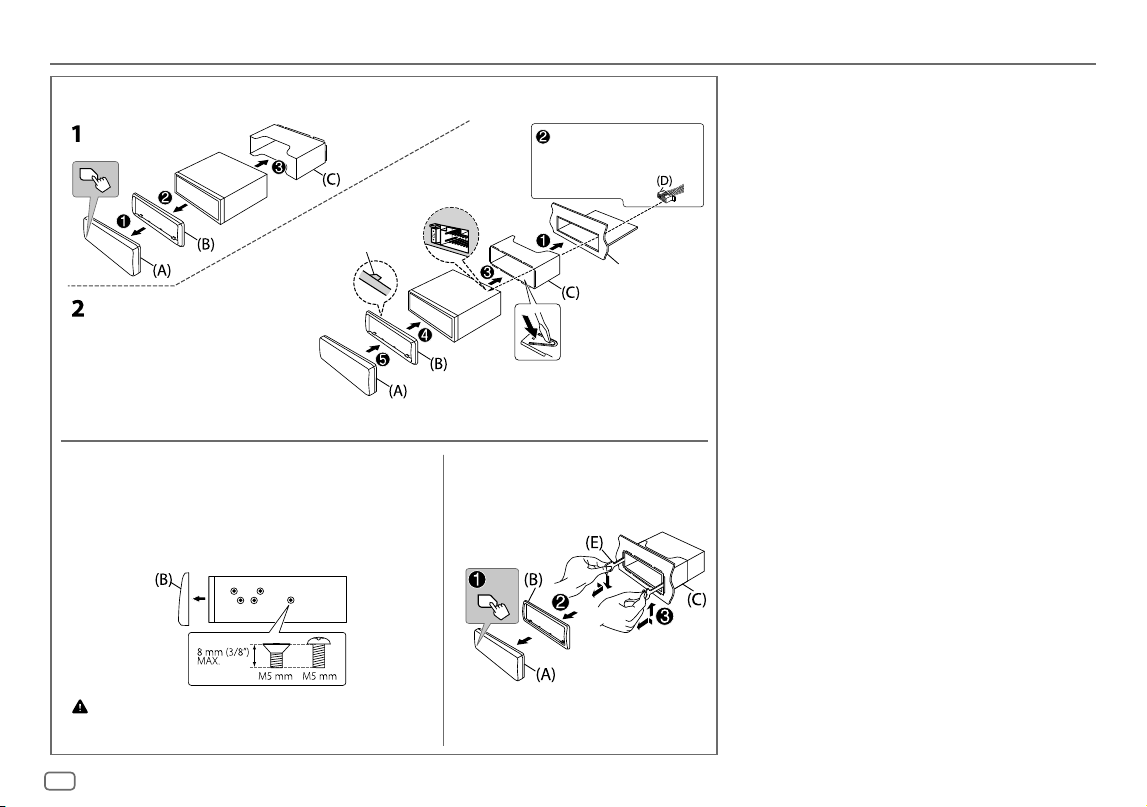
40
FRANÇAIS
Data Size: B6L (182 mm x 128 mm)
Book Size: B6L (182 mm x 128 mm)
Installation de l’appareil (montage encastré)
Retrait de l’appareilInstallation de l’appareil (sans le manchon de
montage)
1
Retirez le manchon de montage et la plaque de garniture de l’appareil.
2
Alignez les entailles de l’appareil (des deux côtés) avec le support de
montage du véhicule et fixez l’appareil avec les vis (en vente dans le
commerce).
N’utiliser que les vis spécifiés. L’utilisation de vis incorrects peut endommager
l’appareil.
Réalisez les connexions
nécessaires. (Page41)
Tordez les languettes appropriées pour
maintenir le manchon en place.
Crochet sur le côté supérieur
Orientez la plaque
de garniture de la
façon illustrée avant la
fixation.
Tableau de bord
de votre voiture
Installation/Connexion
KD_T925BTS_K_FR.indd 40KD_T925BTS_K_FR.indd 40 9/3/2022 4:29:07 PM9/3/2022 4:29:07 PM
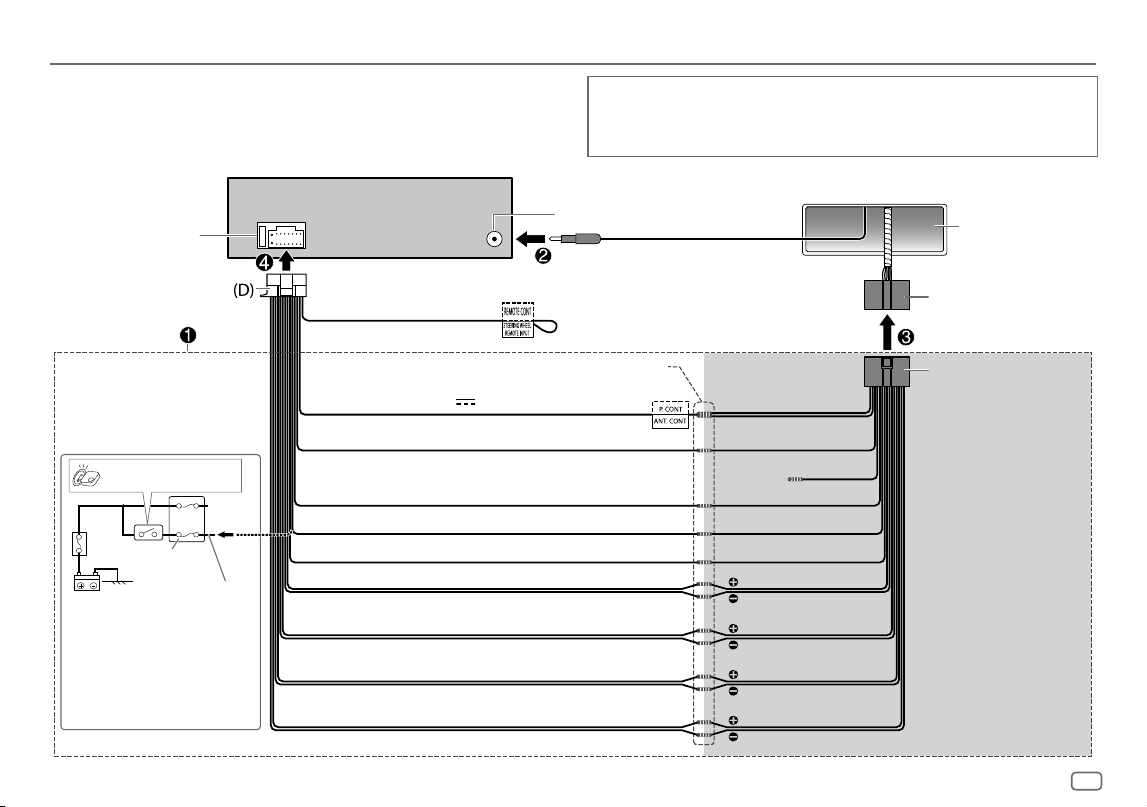
FRANÇAIS
41
Data Size: B6L (182 mm x 128 mm)
Book Size: B6L (182 mm x 128 mm)
* Vous pouvez aussi connecter
directement un caisson de grave en
utilisant ce câble sans amplificateur
de caisson de grave extérieur. Pour
les réglages, voir page28.
Connexions
Porte fusible
Interrupteur d’allumage
Bleu/blanc: À l’amplificateur
Bleu: À l’antenne alimentée
Réalisez cette connexion si le faisceau de
fils du fabricant de votre voiture ne possède
pas de “Interrupteur d’allumage 12 V”.
Fil rouge séparé
Fusible (10 A)
Borne de l’antenne
Faisceau de câbles de
l’usine (véhicule)
Tableau de bord
du véhicule
Noir: Masse
Blanc: Enceinte avant/Pour la transition 3 voies: Enceinte des médiums (gauche)
Blanc/noir
Gris: Enceinte avant/Pour la transition 3 voies: Enceinte des médiums (droite)
Gris/noir
Vert: Enceinte arrière */Pour la transition 3 voies: Enceinte des aigus (gauche)
Vert/noir *
Violet: Enceinte arrière/Pour la transition 3 voies: Enceinte des aigus (droite)
Violet/noir
Joignez les fils de même couleur ensemble.
Rouge: Allumage 12V
Orange/blanc: Éclairage
Bleu/blanc: Télécommande (12V
350mA)
Bleu clair/jaune
À l’adaptateur de télécommande
volant
Faisceau de fils personnalisé
(vendu séparément)
Connexion recommandée
IMPORTANTES
Nous recommandons d’installer l’appareil en utilisant un harnais de câblage en vente dans le commerce
recommandé spécifiquement pour votre voiture et, pour votre sécurité, de laisser ce travail a des professionnels.
Consultez votre revendeur autoradio.
(Non utilisé)
Marron
Jaune: Batterie 12 V
Installation/Connexion
KD_T925BTS_K_FR.indd 41KD_T925BTS_K_FR.indd 41 9/3/2022 4:29:07 PM9/3/2022 4:29:07 PM
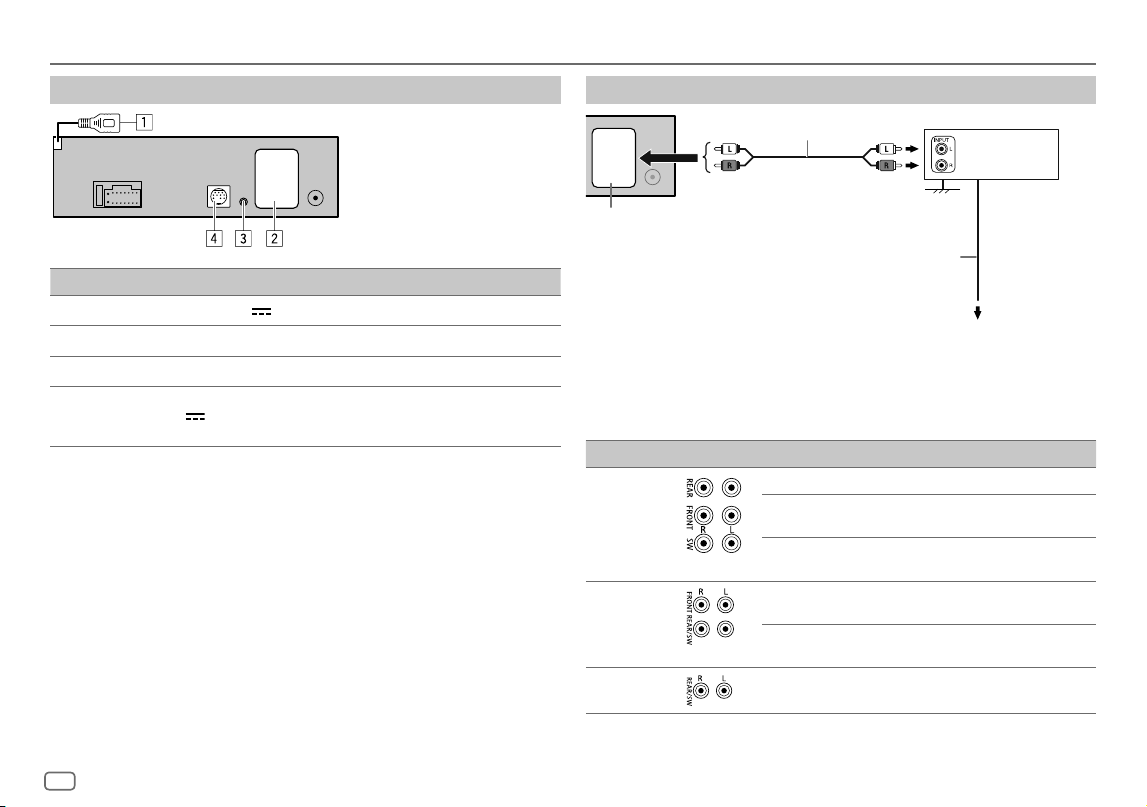
42
FRANÇAIS
Data Size: B6L (182 mm x 128 mm)
Book Size: B6L (182 mm x 128 mm)
Installation/Connexion
Connexion d’appareils extérieurs
No. Pièce
1
Pour KD-T925BTS: Câble USB (CC 5 V 1,5 A) (environ 1 m/3,3 pieds)
2
Prises de sortie (Voir “Connectez les amplificateurs extérieurs via les prises de sortie”.)
3
Connecteur femelle d’entrée du microphone (page16)
4
Pour KD-T925BTS/KD-T920BTS:
Port d’extension (12 V
500mA): Au tuner SiriusXM Vehicle optionnel (en vente dans le commerce).
(Page12)
Connectez les amplificateurs extérieurs via les prises de sortie
* Connectez solidement le câble de masse de l’amplificateur au châssis de la voiture pour éviter d’endommager
l’appareil.
Modèle Prises de sortie Transition 2 voies Transition 3 voies
KD-T925BTS
REAR: Sortie arrière Sortie de l’enceinte des aigus
FRONT: Sortie avant Sortie de l’enceinte des
médiums
SW: Sortie de caisson de grave Sortie de l’enceinte des
graves
KD-T920BTS
FRONT: Sortie avant Sortie de l’enceinte des
médiums
REAR/SW: Sortie arrière/caisson
de grave
Sortie de l’enceinte des
graves
KD-T720BT
REAR/SW: Sortie arrière/caisson
de grave
Sortie de l’enceinte des
graves
JVC Amplificateur*
Cordon de signal (non fournie)
Au fil de télécommande (bleu/blanc) du
faisceau de fils. (Page41)
Fil de télécommande (non fournie)
Prises de sortie
KD_T925BTS_K_FR.indd 42KD_T925BTS_K_FR.indd 42 9/3/2022 4:29:07 PM9/3/2022 4:29:07 PM
FRANÇAIS
43
Data Size: B6L (182 mm x 128 mm)
Book Size: B6L (182 mm x 128 mm)
Spécifications
Tuner
FM Plage de fréquences 87,9MHz — 107,9MHz (pas de 200kHz)
87,5MHz — 108,0MHz (pas de 50kHz)
Sensibilité utilisable (S/B = 30dB) 8,2dBf (0,71μV/75Ω)
Seuil de sensibilité (DINS/B=46dB) 17,2dBf (2,0μV/75Ω)
Réponse en fréquence (±3 dB) 30Hz — 15kHz
Taux de Signal/Bruit (MONO) 64 dB
Séparation stéréo (1 kHz) 40 dB
AM Plage de fréquences 530kHz — 1700kHz (pas de 10kHz)
531kHz — 1611kHz (pas de 9kHz)
Sensibilité utilisable (S/B = 20dB) 29dBμ (28,2μV)
Lecteur CD
Diode laser GaAIAs
Filtre numérique (A/N) 8 fois suréchantillonnage
Vitesse de rotation 500 t/min. — 200 t/min. (CLV)
Pleurage et scintillement Non mesurables
Réponse en fréquence (±1 dB) 20Hz — 20kHz
Distorsion harmonique totale (1 kHz) 0,01 %
Taux de Signal/Bruit (1 kHz) 94 dB
Gamme dynamique 90 dB
Séparation des canaux 88 dB
Décodage MP3 Compatible avec MPEG-1/2 Audio Layer-3
Décodage WMA Compatible avec Windows Media Audio
Décodage AAC Fichiers AAC-LC “.aac”
USB
Standard USB USB1.1, USB2.0 (Grande vitesse)
Périphériques compatibles À mémoire de grande capacité
Système de fichiers FAT12/16/32
Courant d’alimentation maximum CC5 V
1,5A
Convertisseur de filtre numérique (A/N) 24 Bit
Réponse en fréquence (±1 dB) 20Hz — 20kHz
Taux de Signal/Bruit (1 kHz) 98 dB
Gamme dynamique 93 dB
Séparation des canaux 90 dB
Décodage MP3 Compatible avec MPEG-1/2 Audio Layer-3
Décodage WMA Compatible avec Windows Media Audio
Décodage AAC Fichiers AAC-LC “.aac”, “.m4a”
Décodage WAV PCM linéaire
Décodage FLAC Fichier FLAC, jusqu’à 24 bits/96kHz
Auxiliaire
Réponse en fréquence (±3 dB) 20Hz—20kHz
Tension maximum d’entrée 1000 mV
Impédance d’entrée 30kΩ
KD_T925BTS_K_FR.indd 43KD_T925BTS_K_FR.indd 43 9/3/2022 4:29:07 PM9/3/2022 4:29:07 PM
44
FRANÇAIS
Data Size: B6L (182 mm x 128 mm)
Book Size: B6L (182 mm x 128 mm)
Bluetooth
Version Bluetooth V4.2
Plage de fréquences 2,402GHz — 2,480GHz
Puissance de sortie RF (E.I.R.P.) +4 dBm (MAX), Classe d’alimentation 2
Portée de communication maximale Ligne de vue approximative 10 m (32,8pieds)
Pairage SSP (Profile simple sécurisé)
Profile HFP1.7.1 (Hands-Free Profile — Profile mains libres)
A2DP (Advanced Audio Distribution Profile — Profile de
distribution audio avancé)
AVRCP1.6.1 (Audio/Video Remote Control Profile — Profile
de télécommande audio/vidéo)
PBAP (Phonebook Access Profile — Profile d’accès au
répertoire d’adresses)
SPP (Serial Port Profile — Profile de port série)
Audio
Puissance de sortie maximum 50W×4 ou
50W×2 + 50W×1 (Caisson de grave = 4Ω)
Pleine Puissance de Largeur de Bande
(avec moins de 1% DHT)
22W×4
Impédance d’enceinte 4Ω—8Ω
Spécifications
Audio
Bande 13 Bande
Fréquence 62,5/ 100/ 160/ 250/ 400/ 630/ 1k/ 1,6k/ 2,5k/ 4k/ 6,3k/
10k/ 16k Hz
Niveau -09 — +09 (-9dB — +9dB)
Q 1,35/ 1,5/ 2,0
HPF Fréquence THROUGH/ 30/ 40/ 50/ 60/ 70/ 80/ 90/ 100/ 120/ 150/
180/ 220/ 250Hz
Niveau -6/ -12/ -18/ -24dB/Oct.
Q -8/ -7/ -6/ -5/ -4/ -3/ -2/ -1/ 0dB
LPF Fréquence 30/ 40/ 50/ 60/ 70/ 80/ 90/ 100/ 120/ 150/ 180/ 220/
250Hz/ THROUGH
Niveau -6/ -12/ -18/ -24dB/Oct.
Q -8/ -7/ -6/ -5/ -4/ -3/ -2/ -1/ 0dB
Niveau de préamplification/charge KD-T925BTS:
5000mV/10kΩ
KD-T920BTS/KD-T720BT:
2500 mV/10kΩ
Impédance du préamplificateur ≤600Ω
Généralités
Tension de fonctionnement Batterie de voiture 12V CC
Dimensions d’installation (L × H × P) 182 mm×53 mm×156mm
(7-3/16 pouces×2-1/16 pouces×6-1/8 pouces)
Poids net (y compris la plaque d’assemblage
et le manchon de montage)
KD-T925BTS:
1,3kg (2,9livres)
KD-T920BTS/KD-T720BT:
1,2 kg (2,6 livres)
Sujet à changement sans notification.
KD_T925BTS_K_FR.indd 44KD_T925BTS_K_FR.indd 44 9/3/2022 4:29:08 PM9/3/2022 4:29:08 PM

KD_T925BTS_K_FR.indd 45KD_T925BTS_K_FR.indd 45 9/3/2022 4:29:08 PM9/3/2022 4:29:08 PM
2
ESPAÑOL
Data Size: B6L (182 mm x 128 mm)
Book Size: B6L (182 mm x 128 mm)
Contenido
Referencias .............................................................................................33
Mantenimiento
Más información
Cambiar la información en pantalla
Localización y solución de problemas ............................................... 36
Instalación/Conexión ............................................................................39
Especificaciones ..................................................................................... 43
Antes del uso ............................................................................................ 3
Puntos básicos ......................................................................................... 4
Procedimientos iniciales ........................................................................ 5
1 Confirmar el tipo de transición y cancelar la demostración
2 Ajuste del reloj y la fecha
3 Realice los ajustes básicos
Radio .......................................................................................................... 7
CD/USB/iPod ............................................................................................. 8
AUX ........................................................................................................... 11
Radio SiriusXM® ..................................................................................... 12
Aplicación JVC Remote ......................................................................... 15
Bluetooth® .............................................................................................. 16
Bluetooth - Conexión
Bluetooth - Teléfono móvil
Bluetooth - Audio
AMAZON ALEXA..................................................................................... 23
Ajustes de audio .................................................................................... 26
Ajustes de visualización ....................................................................... 32
Cómo leer este manual
• Las pantallas y las placas frontales que se muestran como ejemplos en este
manual se utilizan para explicar claramente las operaciones. Por esta razón,
pueden diferir de las pantallas o placas frontales del producto real.
• Las operaciones se explican utilizando principalmente los botones de la placa
frontal del KD-T925BTS.
• Se utilizan indicaciones en inglés para las explicaciones. Puede seleccionar el
idioma de visualización desde el menú. (Página6)
•
[XX]
indica los elementos seleccionados.
• (PáginaXX) significa que hay información disponible en la página indicada.
Este símbolo fijado en el producto indica que hay instrucciones
importantes de operación y mantenimiento en este manual.
Asegúrese de leer atentamente las instrucciones contenidas en este
manual.
KD_T925BTS_K_SP.indd 2KD_T925BTS_K_SP.indd 2 9/3/2022 4:35:28 PM9/3/2022 4:35:28 PM
ESPAÑOL
3
Data Size: B6L (182 mm x 128 mm)
Book Size: B6L (182 mm x 128 mm)
Antes del uso
IMPORTANTE
• Antes de utilizar este producto y para asegurar su uso correcto, lea
completamente este manual. En especial, lea y acate las Advertencias y
Precauciones incluidas en este manual.
• Guarde el manual en un lugar seguro y accesible para futuras consultas.
ADVERTENCIA
• No utilice ninguna función que pueda desviar su atención mientras está
conduciendo el vehículo.
• No ingiera la pila, existe riesgo de quemaduras por productos químicos.
El mando a distancia suministrado con este producto contiene una pila de
botón/plana.
Si se ingiere la pila de botón/plana, puede causar quemaduras internas graves
en solo 2 horas y puede provocar la muerte.
Mantenga las pilas nuevas y usadas fuera del alcance de los niños.
Si el compartimento de la pila no se cierra con seguridad, deje de usar el
producto y manténgalo alejado de los niños.
Si piensa que las pilas pueden haber sido ingeridas o colocadas dentro de
alguna parte del cuerpo, busque inmediatamente asistencia médica.
PRECAUCIÓN
Ajuste del volumen:
• Ajuste el volumen a un nivel que le permita oír los ruidos del exterior para
impedir accidentes.
• Antes de reproducir fuentes digitales, baje el volumen para evitar que el
repentino aumento del nivel de salida cause daños a los altavoces.
General:
• Evite el uso de dispositivos externos cuando puedan afectar la seguridad de
conducción.
• Asegúrese de tener una copia de respaldo de todos los datos importantes. No
aceptamos responsabilidad alguna por la pérdida de los datos grabados.
• Para evitar cortocircuitos, nunca coloque ni deje objetos metálicos (por ejemplo,
monedas o herramientas metálicas) dentro de la unidad.
• Si ocurre un error de disco debido a la condensación en el lente láser, extraiga el
disco y espere hasta que se evapore la humedad.
• Dependiendo del tipo de vehículo, la antena se extiende automáticamente
cuando se enciende la unidad con el cable de control de antena conectado
(página 41). Apague la unidad cuando estacione en un lugar con techo bajo.
Mando a distancia (RM-RK52):
• No deje el mando a distancia sobre superficies calientes, tales como el
salpicadero.
• Riesgo de incendio o explosión si se sustituye la batería por una del tipo
incorrecto.
Utilice solamente baterías del mismo tipo.
• Existe riesgo de incendio, explosión o fugas de líquido o gases inflamables si
la batería se deja en entornos con temperaturas extremadamente altas y/o se
expone a una presión de aire extremadamente baja. El bloque de baterías no
debe exponerse a una fuente de calor excesiva, como luz solar, fuego o similar.
• Existe riesgo de incendio, explosión o fugas de líquido o gases inflamables si la
batería se arroja al fuego, se pone en un horno caliente, se recarga, se pone en
cortocircuito, o se aplasta o corta.
• Si el líquido derramado entra en contacto con los ojos o la ropa, lávese
inmediatamente con agua y consulte con un médico.
KD_T925BTS_K_SP.indd 3KD_T925BTS_K_SP.indd 3 9/3/2022 4:35:31 PM9/3/2022 4:35:31 PM
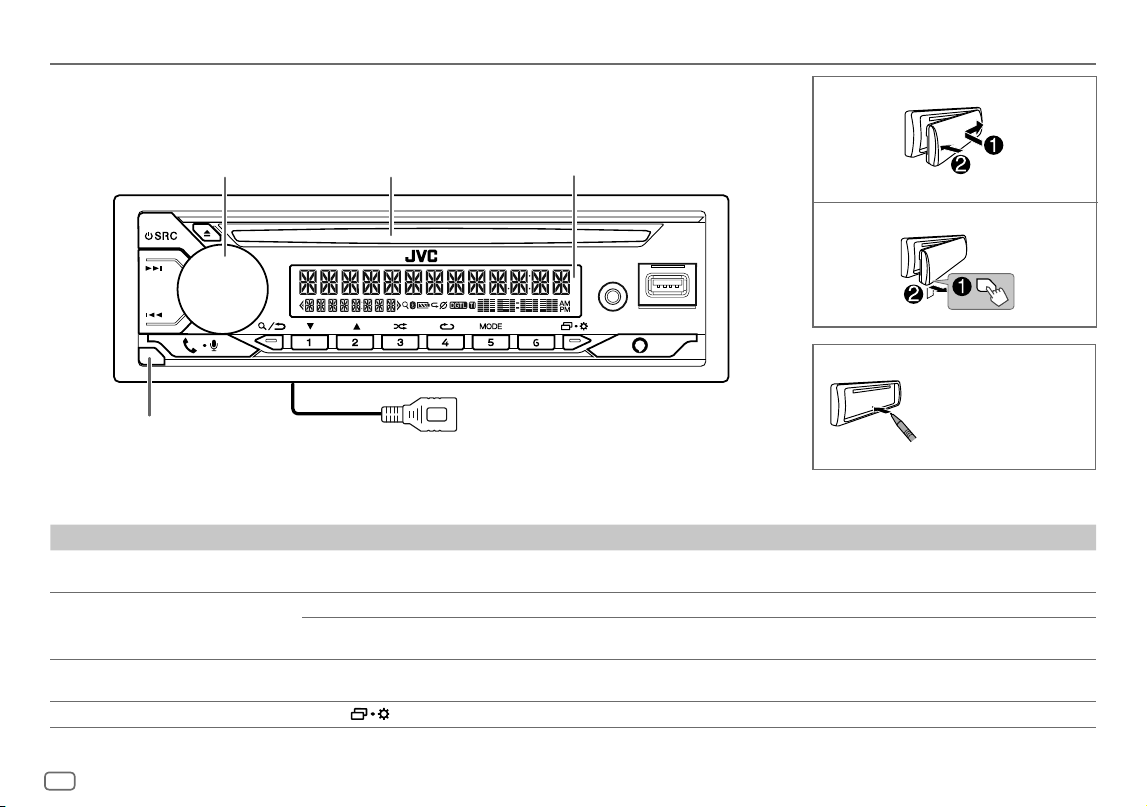
4
ESPAÑOL
Data Size: B6L (182 mm x 128 mm)
Book Size: B6L (182 mm x 128 mm)
Puntos básicos
Para En la placa frontal
Encender la unidad
Pulse B SRC.
• Pulse y mantenga pulsado para apagar la unidad.
Ajustar el volumen Gire la rueda de volumen.
Pulse la rueda de volumen para enmudecer el sonido o pausar la reproducción.
• Pulse otra vez para cancelar. El nivel de volumen vuelve al nivel anterior antes del silenciamiento o la pausa.
Seleccionar una fuente
• Pulse B SRC repetidamente.
• Pulse B SRC y, a continuación, gire la rueda de volumen antes de que transcurran 2 segundos.
Cambiar la información en pantalla
Pulse
repetidamente. (Página35)
Fijar
Cómo reinicializar
Desmontar
Placa frontal
Reinicialice la unidad en
menos de 5 segundos
después de haber
extraído la placa frontal.
* Solo para fines ilustrativos.
Botón de liberación
Rueda de volumen Ranura de carga Ventanilla de visualización*
KD-T925BTS:
Cable USB de la parte trasera de la unidad
KD_T925BTS_K_SP.indd 4KD_T925BTS_K_SP.indd 4 9/3/2022 4:35:31 PM9/3/2022 4:35:31 PM
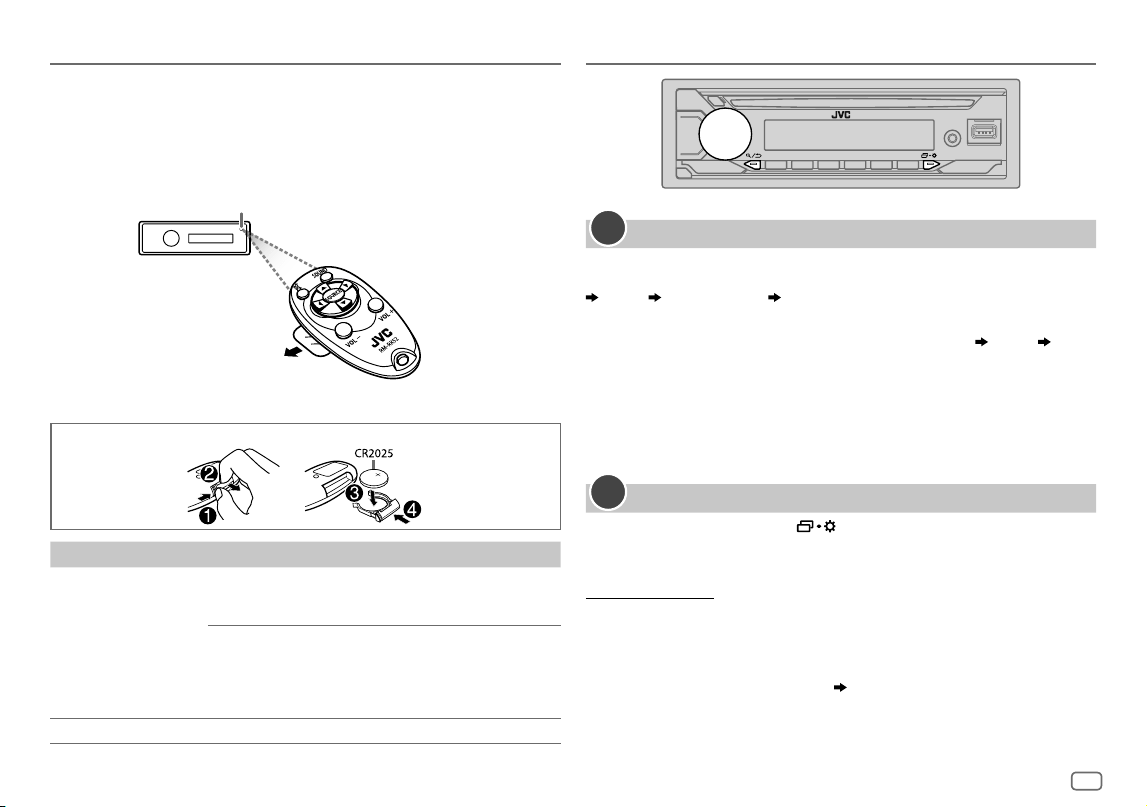
ESPAÑOL
5
Data Size: B6L (182 mm x 128 mm)
Book Size: B6L (182 mm x 128 mm)
Mando a distancia (RM-RK52)
(para KD-T925BTS/KD-T920BTS)
Esta unidad puede controlarse a distancia mediante un mando a distancia
adquirido a opción.
Cómo cambiar la batería
Para En el mando a distancia
Ajustar el volumen Pulse VOL + o VOL – .
• Pulse y mantenga pulsado VOL + para aumentar
continuamente el volumen a 15.
Pulse d para enmudecer el sonido o pausar la
reproducción.
• Pulse otra vez para cancelar. El nivel de volumen
vuelve al nivel anterior antes del silenciamiento o la
pausa.
Seleccionar una fuente Pulse SOURCE repetidamente.
Sensor remoto (DO lo exponga a la luz solar brillante.)
Retire la hoja aislante cuando se
utilice por primera vez.
Puntos básicos Procedimientos iniciales
Confirmar el tipo de transición y cancelar la demostración
Cuando enciende la unidad por primera vez (o
[FACTORY RESET]
está ajustado a
[YES]
,
consulte la página6), en la pantalla se muestra: “2-WAY X’OVER” o “3-WAY X’OVER”
“PRESS” “VOLUME KNOB” “TO CONFIRM”.
1 Pulse la rueda del volumen para confirmar el tipo de transición actual.
A continuación, en la pantalla se muestra: “CANCEL DEMO” “PRESS”
“VOLUME KNOB”.
• Para cambiar el tipo de transición, consulte la página27.
2 Pulse la rueda de volumen.
Se selecciona
[YES]
para la configuración inicial.
3 Pulse de nuevo la rueda de volumen.
Aparece “DEMO OFF”.
Ajuste del reloj y la fecha
1
Pulse y mantenga pulsado .
2 Gire la rueda de volumen para seleccionar
[CLOCK]
y, a continuación,
pulse la rueda.
Para ajustar el reloj
3 Gire la rueda de volumen para seleccionar
[CLOCKADJUST]
y, a
continuación, pulse la rueda.
4 Gire la rueda de volumen para realizar los ajustes y, a continuación,
pulse la rueda.
Ajuste la hora en el orden de “Hora” “Minutos”.
5 Gire la rueda de volumen para seleccionar
[CLOCK FORMAT]
y, a
continuación, pulse la rueda.
6 Gire la rueda de volumen para seleccionar
[12H]
o
[24H]
y, a
continuación, pulse la rueda.
1
2
KD_T925BTS_K_SP.indd 5KD_T925BTS_K_SP.indd 5 9/3/2022 4:35:31 PM9/3/2022 4:35:31 PM
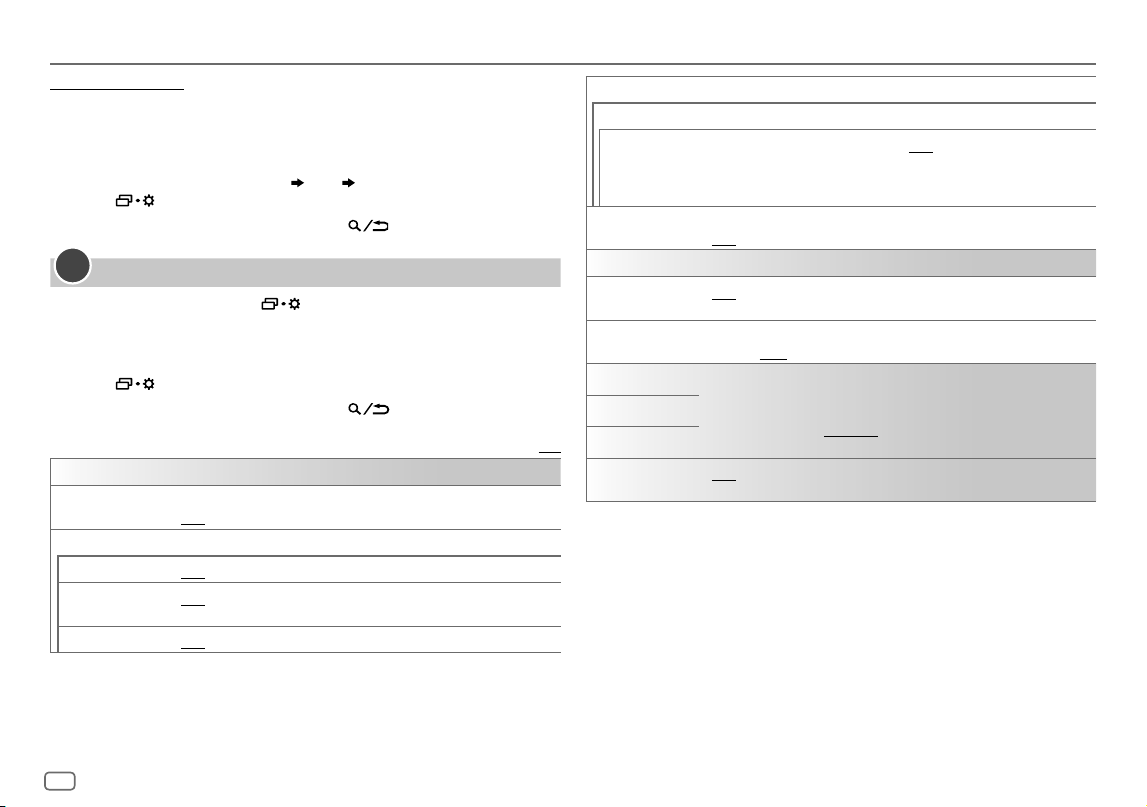
6
ESPAÑOL
Data Size: B6L (182 mm x 128 mm)
Book Size: B6L (182 mm x 128 mm)
Para ajustar la fecha
7 Gire la rueda de volumen para seleccionar
[DATESET]
y, a continuación,
pulse la rueda.
8 Gire la rueda de volumen para realizar los ajustes y, a continuación,
pulse la rueda.
Ajuste la fecha en el orden de “Día” “Mes” “Año”.
9 Pulse para salir.
Para volver al elemento de ajuste anterior, pulse .
Realice los ajustes básicos
1
Pulse y mantenga pulsado .
2 Gire la rueda de volumen para seleccionar un elemento (consulte la
siguiente tabla) y, a continuación, pulse la rueda.
3 Repita el paso 2 hasta que se seleccione o active el elemento deseado.
4 Pulse para salir.
Para volver al elemento de ajuste anterior, pulse .
Predeterminado:
[XX]
[SYSTEM]
[KEY BEEP]
(No aplicable si se ha seleccionado crossover de 3 vías.) (Página27)
[ON]
:Activa el tono de pulsación de teclas.;
[OFF]
:Se desactiva.
[SOURCE SELECT]
[AM SRC]
*1
[ON]
:Habilita AM en la selección de la fuente.;
[OFF]
:Se deshabilita. (Página7)
[BTAUDIO SRC]
*1
[ON]
:Habilita BT AUDIO en la selección de la fuente.;
[OFF]
:Se deshabilita.
(Página22)
[BUILT-IN AUX]
*1
[ON]
:Habilita AUX en la selección de la fuente.;
[OFF]
:Se deshabilita. (Página11)
3
[F/W UPDATE]
*2
[UPDATE SYSTEM]
[F/W UP xxxx]
[YES]
:Se empieza a actualizar el firmware.;
[NO]
:Se cancela (la actualización no se
activa).
Para obtener información sobre cómo actualizar el firmware, visite
<https://www.jvc.net/cs/car/>.
[FACTORY RESET] [YES]
:Se restablecen los ajustes predeterminados (excepto la emisora memorizada).;
[NO]
:Se cancela.
[CLOCK]
[TIME SYNC]
[ON]
:El reloj se ajusta automáticamente en sincronización con los datos de CT (hora del
reloj) de la señal del FM Radio Broadcast Data System.;
[OFF]
:Se cancela.
[CLOCK DISPLAY] [ON]
:La hora del reloj siempre se visualiza en la pantalla cuando la unidad está
apagada.;
[OFF]
:Se cancela.
[ENGLISH]
Seleccione el idioma de visualización para el menú y la información de la música, si
corresponde.
Por defecto, se selecciona
[ENGLISH]
.
[ESPANOL]
[FRANCAIS]
[DEMOMODE]
[ON]
: La demostración en pantalla se activa automáticamente tras un período de
inactividad de aproximadamente 15 segundos. ;
[OFF]
: Se desactiva.
*1 No se visualiza cuando se ha seleccionado la fuente correspondiente.
*2 Está prohibido utilizar versiones anteriores del firmware.
Procedimientos iniciales
KD_T925BTS_K_SP.indd 6KD_T925BTS_K_SP.indd 6 9/3/2022 4:35:31 PM9/3/2022 4:35:31 PM
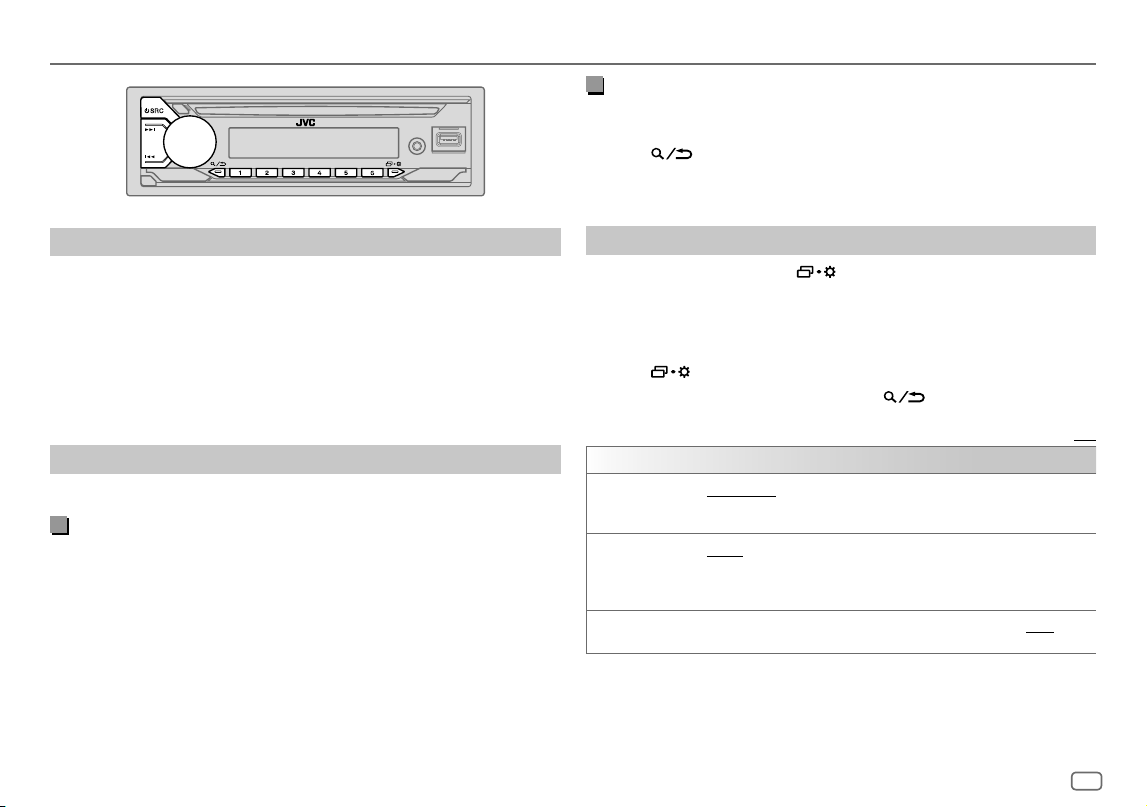
ESPAÑOL
7
Data Size: B6L (182 mm x 128 mm)
Book Size: B6L (182 mm x 128 mm)
Radio
Búsqueda de una emisora
1
Pulse B SRC repetidamente para seleccionar FM o AM.
2 Pulse S / T (o pulse H / I en el mando a distancia) para la
búsqueda automática de emisoras.
(o)
Pulse y mantenga pulsado S / T (o pulse y mantenga pulsado
H / I en el mando a distancia) hasta que parpadee “M” y, a
continuación, pulse repetidamente para la búsqueda manual de
emisoras.
Ajustes en la memoria
Puede almacenar hasta 18 emisoras de FM y 6 emisoras de AM en la memoria.
Almacene una emisora
Mientras escucha una emisora....
Pulse y mantenga pulsado uno de los botones numéricos (1 a 6).
(o)
1 Pulse y mantenga pulsada la rueda de volumen hasta que
“PRESETMODE” parpadee.
2 Gire la rueda de volumen para seleccionar un número de preajuste y,
a continuación, pulse la rueda.
Aparece “MEMORY” una vez almacenada la emisora.
Seleccione una emisora almacenada
Pulse uno de los botones numéricos (1a6).
(o)
1 Pulse .
2 Gire la rueda de volumen para seleccionar un número de preajuste y,
a continuación, pulse la rueda.
Otros ajustes
1
Pulse y mantenga pulsado .
2 Gire la rueda de volumen para seleccionar un elemento (consulte la
siguiente tabla) y, a continuación, pulse la rueda.
3 Repita el paso 2 hasta que se seleccione o active el elemento que
desee o siga las instrucciones indicadas en el elemento seleccionado.
4 Pulse para salir.
Para volver al elemento de ajuste anterior, pulse .
Predeterminado:
[XX]
[TUNER SETTING]
[SSM]
[SSM01–06]
/
[SSM07–12]
/
[SSM13–18]
:Configura automáticamente hasta 18
emisoras para FM. “SSM” deja de destellar cuando se almacenan las primeras 6 emisoras.
Seleccione
[SSM07–12]
/
[SSM13–18]
para almacenar las 12 emisoras siguientes.
[IF BAND] [AUTO]
:Aumenta la selectividad del sintonizador para reducir las interferencias con
emisoras FM adyacentes. (Se puede perder el efecto estéreo.);
[WIDE]
:Sujeto a interferencias de las emisoras FM adyacentes, pero la calidad del
sonido no se degrada y se conserva el efecto estereofónico.
[MONO SET] [ON]
:Mejora la recepción de FM pero se puede perder el efecto estéreo.;
[OFF]
:Se
cancela.
KD_T925BTS_K_SP.indd 7KD_T925BTS_K_SP.indd 7 9/3/2022 4:35:31 PM9/3/2022 4:35:31 PM
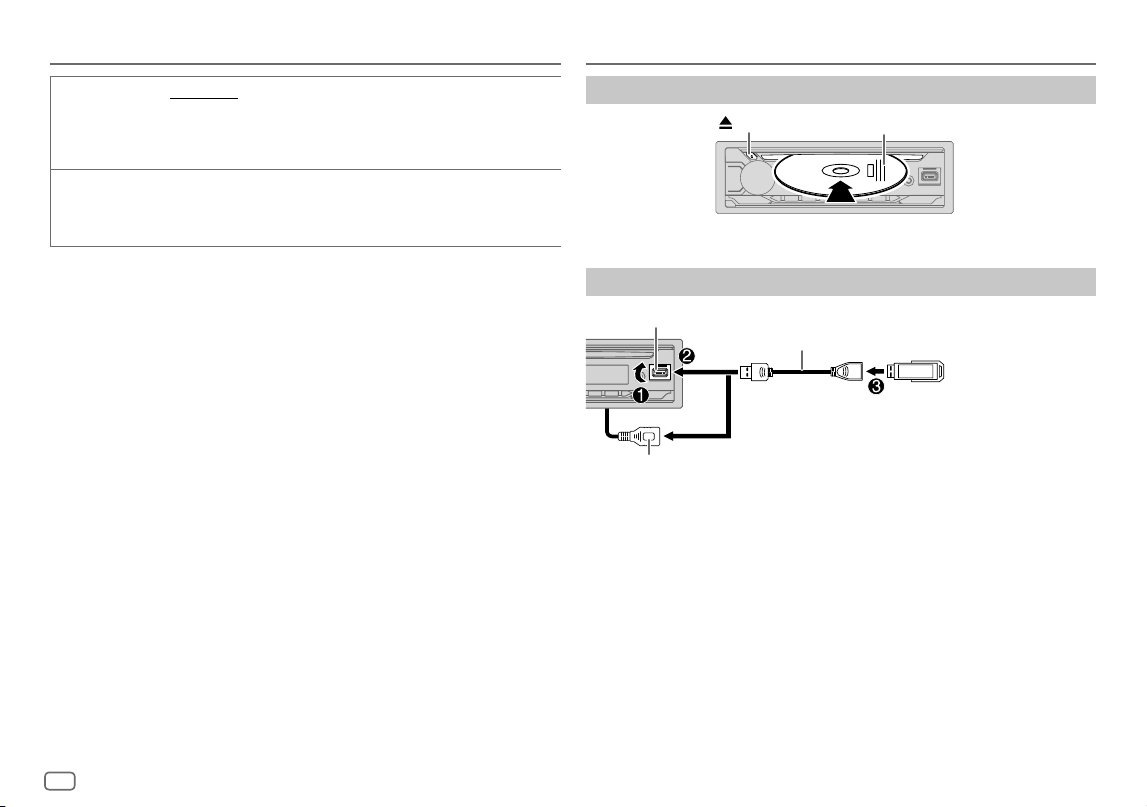
8
ESPAÑOL
Data Size: B6L (182 mm x 128 mm)
Book Size: B6L (182 mm x 128 mm)
Radio
[AREA] [N.AMERICA]
: Intervalos de AM/FM para América del Norte/Central/Sur:
10kHz/200kHz.;
[S.AMERICA]
:Intervalos de AM/FM para algunos países de América del Sur:
10kHz/50kHz.;
[EUROPE]
:Intervalos de AM/FM para otras áreas: 9kHz/50kHz.
[PTY SEARCH]
Seleccione un código PTY para el FM Radio Broadcast Data System (consulte a
continuación “Código PTY para FM Radio Broadcast Data System”).
Si hay una emisora que esta difundiendo un programa que tenga el mismo código PTY
que el seleccionado por usted, se sintonizará esa emisora.
Código PTY para FM Radio Broadcast Data System
[NEWS]
,
[INFORM]
(información),
[SPORTS]
,
[TALK]
,
[ROCK]
,
[CLSROCK]
(rock clásico),
[ADLTHIT]
(éxitos
antiguos),
[SOFTRCK]
(rock suave),
[TOP40]
,
[COUNTRY]
,
[OLDIES]
,
[SOFT]
,
[NOSTALGA]
(nostalgia),
[JAZZ]
,
[CLASSICL]
(clásica),
[R&B]
(ritmos y blues),
[SOFTR&B]
(ritmos y blues suaves),
[LANGUAGE]
,
[RELMUSC]
(música religiosa),
[RELTALK]
(charlas sobre religión),
[PERSNLTY]
(personalidad),
[PUBLIC]
,
[COLLEGE]
,
[HABLESP]
(charlas en español),
[MUSCESP]
(música española),
[HIPHOP]
,
[WEATHER]
CD/USB/iPod
Inserte un disco
Expulsa el disco
Lado de la etiqueta
La fuente cambia automáticamente a CD y se inicia la reproducción.
Conecte un dispositivo USB
Dispositivo USB
Terminal de entrada USB
Cable USB 2.0*
(disponible en el mercado)
KD-T925BTS:
También se puede conectar al cable USB desde la parte trasera de la unidad (Terminal de entrada USB).
y/o
La fuente cambia automáticamente a USB FRONT/USB REAR/USB y se inicia la
reproducción.
* No deje el cable dentro del vehículo cuando no lo esté utilizando.
KD_T925BTS_K_SP.indd 8KD_T925BTS_K_SP.indd 8 9/3/2022 4:35:31 PM9/3/2022 4:35:31 PM
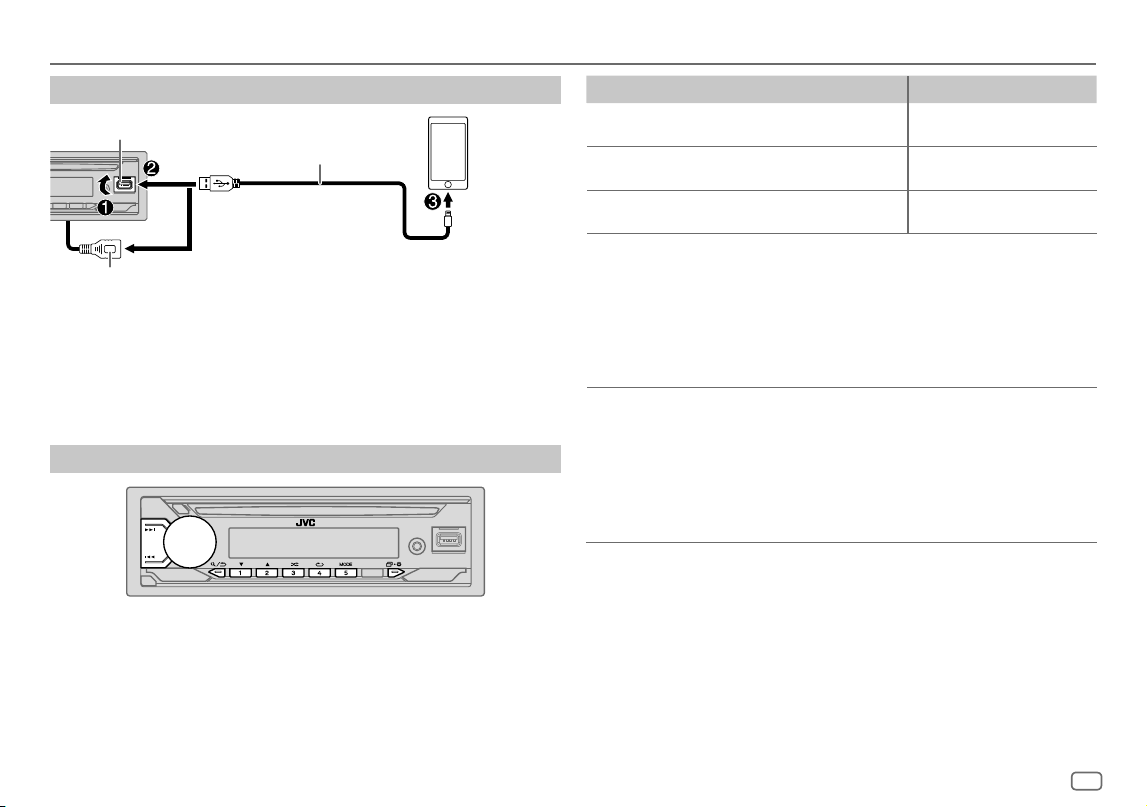
ESPAÑOL
9
Data Size: B6L (182 mm x 128 mm)
Book Size: B6L (182 mm x 128 mm)
CD/USB/iPod
Conecte un iPod/iPhone
Terminal de entrada USB
Accesorio del iPod/iPhone*
iPod/
iPhone
KD-T925BTS:
También se puede conectar al cable USB desde la parte trasera de la unidad (Terminal de entrada USB).
y/o
Consulte “Ajuste de la fuente reproducible para iPod/iPhone” en la página 10 para
iniciar la reproducción.
• También puede conectar un iPod/iPhone a través de Bluetooth. (Página17)
* No deje el cable dentro del vehículo cuando no lo esté utilizando.
Operaciones básicas
Fuente seleccionable:
• KD-T925BTS:
CD/USBFRONT/USBREAR/iPodFRONT/iPodREAR o iPodBT
• KD-T920BTS/KD-T720BT:
CD/USB/iPod USB o iPod BT
Para obtener información sobre los archivos de audio reproducibles, consulte
“Archivos reproducibles” en la página 34
Para En la placa frontal En el mando a distancia
Retroceder/avanzar
rápidamente
Pulse y mantenga pulsado
S / T.
Pulse y mantenga pulsado
H / I.
Seleccionar una
pista/archivo
Pulse S / T. Pulse H / I.
Seleccionar una
carpeta*
Pulse 2 J / 1 K. Pulse J / K.
Repetir
reproducción
Pulse 4B repetidamente.
[TRACK REPEAT]
/
[ALL REPEAT]
:
CD de audio
[TRACK REPEAT]
/
[FOLDER REPEAT]
/
[ALL REPEAT]
:
Archivo MP3/WMA/AAC/WAV/FLAC
[REPEAT
ONE]
/
[REPEAT
ALL]
/
[REPEAT OFF]
:
iPod
Reproducción
aleatoria
Pulse 3 A repetidamente.
[ALL RANDOM]
/
[RANDOM OFF]
:
CD de audio
[FOLDERRANDOM]
/
[ALL RANDOM]
/
[RANDOM OFF]
:
Archivo MP3/WMA/AAC/WAV/FLAC
[SHUFFLE
OFF]
/
[SHUFFLE
ON]
:
iPod
* Para CD: Sólo para archivos MP3/WMA/AAC. Esto no funciona para iPod.
KD_T925BTS_K_SP.indd 9KD_T925BTS_K_SP.indd 9 9/3/2022 4:35:31 PM9/3/2022 4:35:31 PM
10
ESPAÑOL
Data Size: B6L (182 mm x 128 mm)
Book Size: B6L (182 mm x 128 mm)
Seleccionar Music drive
Pulse 5 MODE repetidamente mientras está en una fuente USBFRONT/
USBREAR/USB.
Se reproducirán las canciones almacenadas en la siguiente unidad.
• Memoria interna o externa seleccionada de un smartphone (Clase de
almacenamiento masivo).
• Unidad seleccionada de un dispositivo de múltiples unidades. (Esta unidad
puede utilizarse con varios dispositivos de memoria (hasta 4 unidades). Sin
embargo, esta unidad puede tardar cierto tiempo en leer la información si hay
conectadas tres tarjetas o más.)
Ajuste de la fuente reproducible para iPod/iPhone
Puede realizar los siguientes ajustes en todas las fuentes excepto en la fuente iPod
FRONT/iPod REAR/iPodUSB y en la fuente iPod BT.
1 Pulse y mantenga pulsado .
2 Gire la rueda de volumen para seleccionar un elemento (consulte la
siguiente tabla) y, a continuación, pulse la rueda.
3 Repita el paso 2 hasta que se seleccione o active el elemento deseado.
4 Pulse para salir.
Para volver al elemento de ajuste anterior, pulse .
CD/USB/iPod
Predeterminado:
[XX]
[USB]
[IPHONE SETUP]
[BT]
: La fuente iPod BT está disponible si el iPod/iPhone está conectado a través de
Bluetooth.
• Si conecta el iPod/iPhone a través del terminal de entrada USB, la fuente iPod FRONT/
iPod REAR/iPodUSB no estará disponible.
Sin embargo, una vez que haya desconectado el Bluetooth, la fuente iPod FRONT/iPod
REAR/iPodUSB estará disponible.;
[USB]
: La fuente iPod FRONT/iPod REAR/iPodUSB está disponible si el iPod/iPhone se
conecta a través del terminal de entrada USB, independientemente de si la conexión
Bluetooth está disponible o no.
• La aplicación móvil Alexa no se puede utilizar cuando se selecciona la fuente iPod
FRONT/iPod REAR/iPodUSB.
Seleccione el archivo que desea reproducir
De una carpeta o una lista
1
Pulse .
2 Gire la rueda de volumen para seleccionar una carpeta/lista y, a
continuación, pulse la rueda.
3 Gire la rueda de volumen para seleccionar un archivo y, a
continuación, pulse la rueda.
Se inicia la reproducción del archivo seleccionado.
Búsqueda rápida
(aplicable solo a la fuentes CD y USBFRONT/USBREAR/USB)
Si existen numerosos archivos, puede realizar una búsqueda rápida.
1 Pulse .
2 Gire la rueda de volumen para seleccionar una carpeta/lista y, a
continuación, pulse la rueda.
3 Gire la rueda de volumen rápidamente para navegar por la lista con
rapidez.
4 Gire la rueda de volumen para seleccionar un archivo y, a
continuación, pulse la rueda.
Se inicia la reproducción del archivo seleccionado.
KD_T925BTS_K_SP.indd 10KD_T925BTS_K_SP.indd 10 9/3/2022 4:35:32 PM9/3/2022 4:35:32 PM
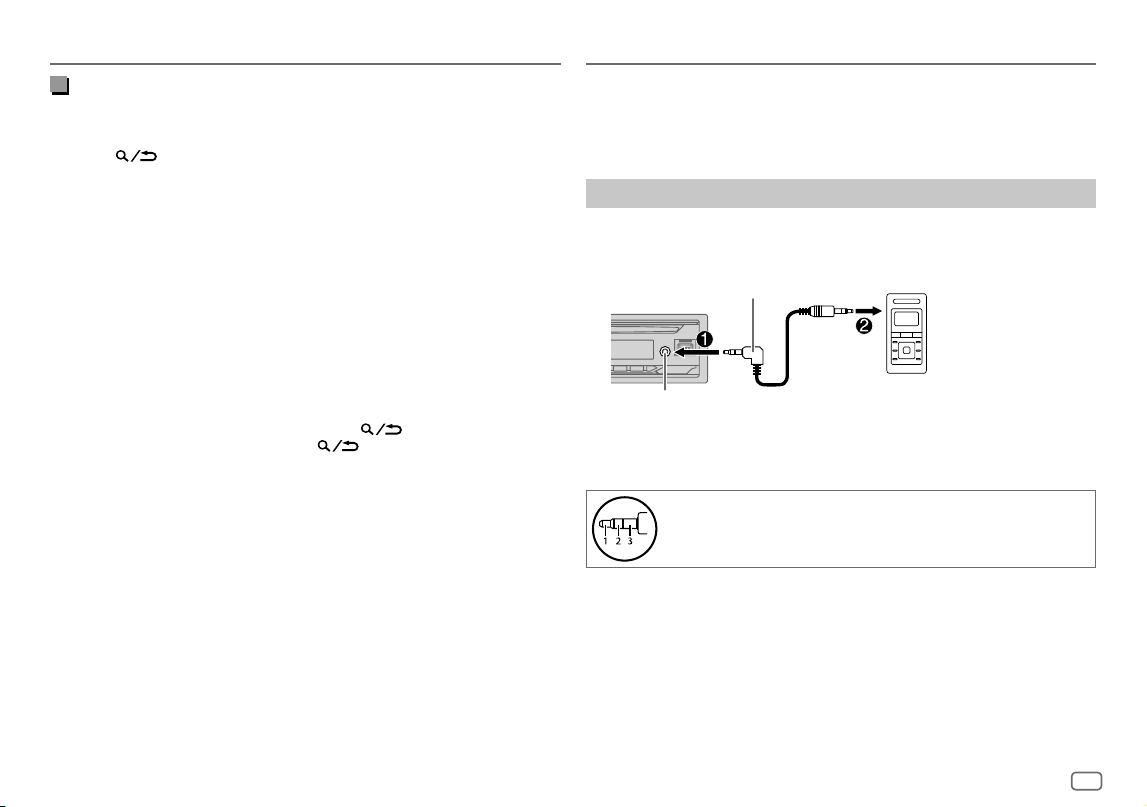
ESPAÑOL
11
Data Size: B6L (182 mm x 128 mm)
Book Size: B6L (182 mm x 128 mm)
CD/USB/iPod
Búsqueda alfabética
(aplicable solo a la fuente iPodFRONT/iPodREAR/iPodUSB y
la fuente iPod BT)
Puede realizar la búsqueda de un archivo por el primer carácter.
1 Pulse .
2 Gire la rueda de volumen para seleccionar una lista y, a continuación,
pulse la rueda.
3 Pulse 2 J / 1 K o gire rápidamente la rueda de volumen para
seleccionar el carácter deseado (A a Z, 0a9, OTHERS).
Seleccione “OTHERS” si el primer carácter no es una letra AaZ ni un número
0a9.
4 Pulse la rueda de volumen para iniciar la búsqueda.
Se mostrarán los archivos con los caracteres utilizados para la búsqueda o con
caracteres similares (en orden alfabético).
5 Gire la rueda de volumen para seleccionar un archivo y, a
continuación, pulse la rueda.
Se inicia la reproducción del archivo seleccionado.
• Para volver al elemento de ajuste anterior, pulse
.
• Para cancelar, pulse y mantenga pulsado
.
La música de un reproductor de audio portátil se puede escuchar a través de una
toma de entrada auxiliar.
Preparativos:
Seleccione
[ON]
para
[BUILT-IN AUX]
en
[SOURCE SELECT]
. (Página6)
Comience a escuchar
1
Conecte un reproductor de audio portátil (disponible en el mercado).
Miniclavija estéreo de 3,5 mm (1/8 pulgada) con
conector en “L” (disponible en el mercado)
Reproductor de audio
portátil
Toma de entrada auxiliar
2 Pulse B SRC repetidamente para seleccionar AUX.
3 Encienda el reproductor de audio portátil e inicie la reproducción.
Para una salida de audio óptima, utilice una miniclavija estéreo
auricular de 3 contactos.
AUX
KD_T925BTS_K_SP.indd 11KD_T925BTS_K_SP.indd 11 9/3/2022 4:35:32 PM9/3/2022 4:35:32 PM
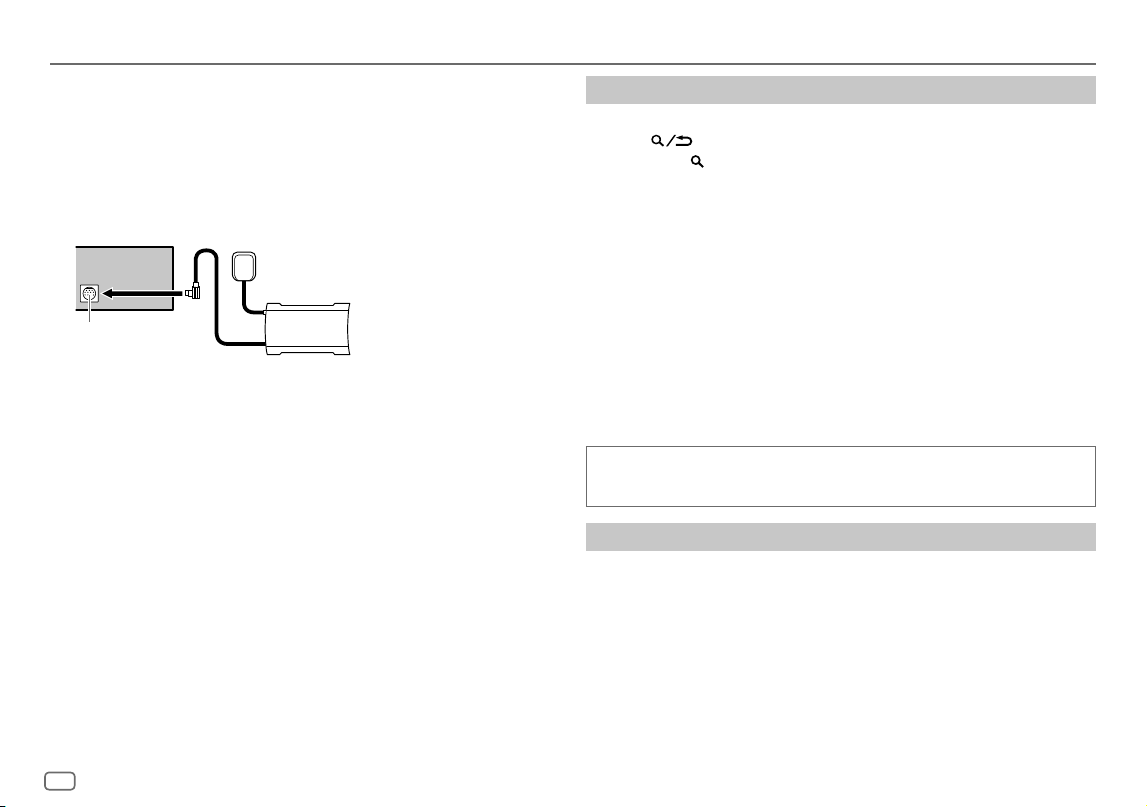
12
ESPAÑOL
Data Size: B6L (182 mm x 128 mm)
Book Size: B6L (182 mm x 128 mm)
Radio SiriusXM®
(para KD-T925BTS/KD-T920BTS)
Solo SiriusXM® ofrece todo lo que quiere escuchar, en un solo lugar. Con más
de 140 canales, incluida música sin publicidad además de lo mejor en deportes,
noticias, entrevistas, comedia y entretenimiento. Bienvenido al mundo de la radio
satelital. Se requiere un sintonizador para vehículos SiriusXM y una suscripción.
Para obtener más información, visite <www.siriusxm.com>.
Preparativos:
1 Conecte el sintonizador para vehículos SiriusXM opcional (disponible
en el mercado).
Antena
Puerto de expansión en
el panel posterior
Sintonizador para vehículos
SiriusXM
2 Revise su ID de Radio para la activación.
Se necesita el ID de Radio SiriusXM para la activación; lo encontrará
sintonizando el canal 0, en la etiqueta del sintonizador para vehículos SiriusXM
y en su empaque.
El ID de Radio no incluye las letras I, O, S ni F.
3 Active la suscripción.
Para usuarios en los EE. UU.:
En línea: Visite <www.siriusxm.com/activatenow>
Teléfono: Llame al 1-866-635-2349
Para los usuarios de Canadá:
En línea: Visite <www.siriusxm.ca/activate>
Teléfono: Llame al 1-888-539-7474
4 Pulse B SRC repetidamente para seleccionar SIRIUSXM e iniciar la
actualización.
Comience a escuchar
1
Pulse B SRC repetidamente para seleccionar SIRIUSXM.
2 Pulse .
El indicador “ ” se enciende.
3 Gire la rueda de volumen para seleccionar CATEGORY y, a
continuación, pulse la rueda.
4 Gire la rueda de volumen para seleccionar una categoría en la lista y, a
continuación, pulse la rueda.
Si se selecciona “ALL CHANNELS”, se mostrarán todos los canales disponibles.
5 Gire la rueda de volumen para seleccionar un canal y, a continuación,
pulse la rueda.
• Para cambiar rápidamente de canal mantenga pulsado 1/2.
• Si no se realiza ninguna operación durante 10segundos, se seleccionará
automáticamente un canal.
(o)
Pulse S / T para la búsqueda manual de un canal.
• Para cambiar rápidamente de canal mantenga pulsado S / T.
La pantalla de entrada del código de acceso aparece cuando se selecciona un
canal bloqueado o con contenido para adultos. Para recibir el canal, introduzca
el código de acceso. (Página14)
Control parental
La función Control parental le permite limitar el acceso a cualquier canal de
SiriusXM, incluyendo aquellos con contenido para adultos.
Cuando está habilitada, la función Control parental requiere que introduzca un
código de acceso para sintonizar los canales bloqueados.
• Puede encontrar información sobre la configuración del código de acceso y los
canales de bloqueo en la página 14, 15.
KD_T925BTS_K_SP.indd 12KD_T925BTS_K_SP.indd 12 9/3/2022 4:35:32 PM9/3/2022 4:35:32 PM
ESPAÑOL
13
Data Size: B6L (182 mm x 128 mm)
Book Size: B6L (182 mm x 128 mm)
Radio SiriusXM®
(para KD-T925BTS/KD-T920BTS)
Ajustes en la memoria
Puede almacenar hasta 18 canales.
Guarde un canal
Mientras escucha un canal...
Pulse y mantenga pulsado uno de los botones numéricos (1 a 6).
(o)
1 Pulse y mantenga pulsada la rueda de volumen hasta que
“PRESETMODE” parpadee.
2 Gire la rueda de volumen para seleccionar un número de preajuste y,
a continuación, pulse la rueda.
El número de preajuste parpadea y aparece “MEMORY”.
Seleccionar un canal presintonizado
Pulse uno de los botones numéricos (1a6) (o pulse J / K en el mando a
distancia).
(o)
1 Pulse .
2 Gire la rueda de volumen para seleccionar PRESET y, a continuación,
pulse la rueda.
3 Gire la rueda de volumen para seleccionar un número de preajuste y,
a continuación, pulse la rueda.
SiriusXM Replay™
Mientras escucha un canal...
1 Pulse la rueda de volumen.
El indicador “ ” se ilumina y la unidad memoriza la posición en pausa.
2 Pulse la rueda de volumen para iniciar la reproducción.
La reproducción comienza desde la posición en pausa del paso 1.
Durante la reproducción...
Para En la placa frontal En el mando a distancia
Reproducción/pausa
Pulse la rueda de
volumen.
Pulse d.
Saltar hacia atrás/hacia
adelante*
Pulse S / T. Pulse H / I.
Retroceder/Adelantar* Pulse y mantenga pulsado
S / T.
Pulse y mantenga
pulsado H / I.
Ir a Live (En vivo) y salir de
Replay (Reproducción)*
Pulse y mantenga pulsada
la rueda de volumen.
Pulse y mantenga
pulsado d.
1 Pulse .
2 Gire la rueda de
volumen para
seleccionar LIVE y, a
continuación, pulse la
rueda.
* Cuando se alcanza o se selecciona Live (En vivo), comienza la reproducción Live
(En vivo) y sale de la reproducción.
SmartFavorites y TuneStart™
Los canales presintonizados por el usuario se asignan inicialmente a los canales
SmartFavorites. El canal SmartFavorite estará disponible con el sintonizador para
vehículos SiriusXM SXV200 o posteriores. El sintonizador para vehículos SiriusXM
almacena automáticamente el contenido de difusión de audio de los canales
SmartFavorites en segundo plano.
Uso de SXV200: Esta unidad puede asignar un máximo de seis canales
SmartFavorites. Si intenta asignar un 7º canal, se emitirá un pitido de error.
Inicialmente, los canales presintonizados 1 a 6 se asignan a SmartFavorites.
KD_T925BTS_K_SP.indd 13KD_T925BTS_K_SP.indd 13 9/3/2022 4:35:32 PM9/3/2022 4:35:32 PM
14
ESPAÑOL
Data Size: B6L (182 mm x 128 mm)
Book Size: B6L (182 mm x 128 mm)
Uso del sintonizador para vehículos SiriusXM posteriores al SXV200: Esta
unidad puede asignar un máximo de 18 canales SmartFavorites. Inicialmente,
todos los canales presintonizados se asignan a SmartFavorites.
• Para los canales SmartFavorites, “
*
” le sigue al último carácter del nombre de
canal.
Le permite rebobinar y reproducir hasta 30 minutos de cualquier programa de
noticias, charlas, deportes o música al seleccionar un canal SmartFavorite.
• La reproducción comienza desde el principio de la canción si
[TUNE START]
está ajustado en
[ON]
(página15) para la mayoría de los canales de música
almacenados como SmartFavorite.
Para En la placa frontal
Seleccionar un
canal SmartFavorite
guardado
Pulse uno de los botones numéricos (1a6).
1 Pulse .
2 Gire la rueda de volumen para seleccionar PRESET y, a
continuación, pulse la rueda.
3 Gire la rueda de volumen para seleccionar un número
de preajuste y, a continuación, pulse la rueda.
Cancelar los canales
SmartFavorites
1 Pulse .
2 Gire la rueda de volumen para seleccionar PRESET y, a
continuación, pulse la rueda.
3 Gire la rueda de volumen para seleccionar un número
de preajuste y luego púlsela y manténgala pulsada.
“
*
” se elimina del último carácter.
Reasignar
los canales
SmartFavorites
Repita los pasos 1 a 3 de “Cancelar los canales
SmartFavorites”.
“
*
” le sigue al último carácter.
Radio SiriusXM®
(para KD-T925BTS/KD-T920BTS)
TuneScan™
Puede obtener una pequeña vista previa de las canciones que se perdió en cada
uno de los canales de música SmartFavorites o el canal de música sintonizado
actualmente.
1 Pulse .
2 Gire la rueda de volumen para seleccionar TUNE SCAN y, a
continuación, pulse la rueda.
La exploración comienza para los primeros seis segundos del contenido de
música grabado.
• Para escuchar la canción actual, pulse la rueda de volumen para detener la
exploración. La unidad continúa reproduciendo la canción actual.
• Para seleccionar la canción anterior/siguiente, pulse S / T.
• Para cancelar la exploración, mantenga pulsada la rueda de volumen. La
reproducción vuelve al canal en que estaba antes de acceder a TuneScan.
• Al pulsar cualquier botón que no sea el mando de volumen o S / T, la
exploración se interrumpirá y detendrá eventualmente.
Ajustes de SiriusXM
1
Pulse y mantenga pulsado .
2 Gire la rueda de volumen para seleccionar un elemento (consulte la
siguiente tabla) y, a continuación, pulse la rueda.
3 Repita el paso 2 hasta que se seleccione o active el elemento que
desee o siga las instrucciones indicadas en el elemento seleccionado.
4 Pulse para salir.
Para volver al elemento de ajuste anterior, pulse .
Predeterminado:
[XX]
[SIRIUS XM]
[CHANNEL LOCK]
Para desbloquear los ajustes:
1
Gire la rueda de volumen para seleccionar un número.
2
Pulse S / T para mover la posición de ingreso.
3
Repita los pasos 1 y 2 para ingresar el código de acceso actual.
(El código de acceso inicial es 0000.)
4
Pulse la rueda de volumen para confirmar.
KD_T925BTS_K_SP.indd 14KD_T925BTS_K_SP.indd 14 9/3/2022 4:35:32 PM9/3/2022 4:35:32 PM
ESPAÑOL
15
Data Size: B6L (182 mm x 128 mm)
Book Size: B6L (182 mm x 128 mm)
[CODESET]
1
Gire la rueda de volumen para seleccionar un número.
2
Pulse S / T para mover la posición de ingreso.
3
Repita los pasos 1 y 2 para ingresar un nuevo código de acceso de 4 dígitos.
4
Pulse la rueda de volumen para confirmar.
5
Repita los pasos 1 a 4 para volver a confirmar el código de acceso.
• Tome nota del nuevo código de acceso para la próxima vez que ingrese a la
configuración de bloqueo de canales.
[LOCK SETTING] [MATURE CH]
:Selecciona la configuración de bloqueo definida por SiriusXM.;
[USER DEFINED]
:Selecciona los canales individuales que el usuario desea
bloquear.;
[OFF]
:Se cancela.
[CHANNEL EDIT]
*1
1
Gire la rueda de volumen para seleccionar una categoría y, a continuación, pulse
la rueda.
2
Gire la rueda de volumen para seleccionar el canal que desea bloquear y, a
continuación, pulse la rueda.
La “L” antecede al número de canal.
3
Para salir, pulse y mantenga pulsado .
[CHANNEL CLEAR]
*1
[YES]
:Borra todos los canales bloqueados.;
[NO]
:Se cancela.
[TUNE START]
*2
[ON]
:Todos los canales de música calificados de SmartFavorites comenzarán a
reproducir desde el principio de la canción.;
[OFF]
:Se cancela.
[SIGNAL LEVEL]
Muestra la intensidad (
[NO SIGNAL]
/
[WEAK]
/
[GOOD]
/
[STRONG]
) de la
recepción actual de la señal.
[BUFFER USAGE]
Muestra el uso de la memoria (
[0%]
a
[100%]
) del búfer de reproducción.
[SXM RESET] [YES]
:Todos los ajustes de SiriusXM se restablecen a sus valores predeterminados.;
[NO]
:Se cancela.
*1 Se visualiza sólo cuando
[LOCK SETTING]
se ajusta a
[USER DEFINED]
.
*2 Solo está disponible si el sintonizador para vehículos SiriusXM es un modelo SXV200 o posterior compatible con
SmartFavorites.
Radio SiriusXM®
(para KD-T925BTS/KD-T920BTS)
Aplicación JVC Remote
La aplicación JVC Remote le permite controlar el receptor para automóvil JVC
desde un iPhone/iPod touch (a través de Bluetooth o del terminal de entrada USB)
o un dispositivo Android (a través de Bluetooth).
• Para obtener más información, visite <https://www.jvc.net/cs/car/>.
Preparativos:
Antes de la conexión, instale la versión más reciente de la aplicación JVC Remote
en su dispositivo.
Comience a utilizar la aplicación JVC Remote
1
Inicie la aplicación JVC Remote en su dispositivo.
2 Conecte su dispositivo.
• Para el dispositivo Android:
Empareje el dispositivo Android con esta unidad a través de Bluetooth.
(Página17)
• Para iPhone/iPod touch:
Conecte el iPhone/iPod touch al terminal de entrada USB. (Página9)
(o)
Empareje el iPhone/iPod touch con esta unidad a través de Bluetooth.
(Página17)
(Asegúrese de que el terminal de entrada USB no esté conectado a ningún
dispositivo.)
3 Seleccione el dispositivo que desea utilizar en el menú.
Consulte lo siguiente “Ajustes para utilizar la aplicación JVC Remote”.
Por defecto, se selecciona
[ANDROID]
. Para utilizar el iPhone/iPod touch,
seleccione
[YES]
para
[IOS]
.
Ajustes para utilizar la aplicación JVC Remote
1
Pulse y mantenga pulsado .
2 Gire la rueda de volumen para seleccionar un elemento (página 16) y,
a continuación, pulse la rueda.
3 Repita el paso 2 hasta que se seleccione o active el elemento deseado.
4 Pulse para salir.
Para volver al elemento de ajuste anterior, pulse .
KD_T925BTS_K_SP.indd 15KD_T925BTS_K_SP.indd 15 9/3/2022 4:35:32 PM9/3/2022 4:35:32 PM
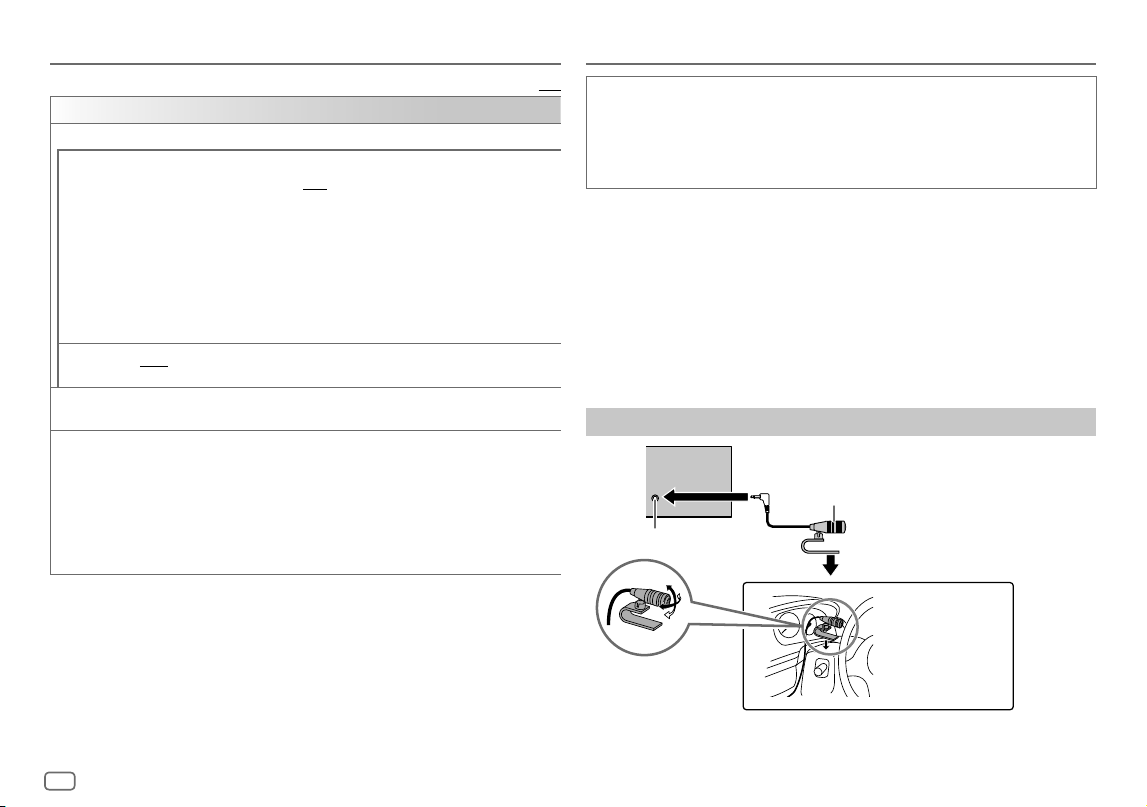
16
ESPAÑOL
Data Size: B6L (182 mm x 128 mm)
Book Size: B6L (182 mm x 128 mm)
Predeterminado:
[XX]
[REMOTE APP]
[SELECT]
Seleccione el dispositivo (
[IOS]
o
[ANDROID]
) en el que desea ejecutar la aplicación.
[IOS] [YES]
:Seleccione iPhone/iPod touch para usar la aplicación a través de Bluetooth o a través del
terminal de entrada USB conectado.;
[NO]
:Se cancela.
Si se selecciona
[IOS]
, seleccione la fuente iPod BT (o fuente iPod FRONT/iPod REAR/iPod USB
si su iPhone/iPod touch está conectado a través del terminal de entrada USB) para activar la
aplicación.
• Consulte “Ajuste de la fuente reproducible para iPod/iPhone” en la página 10 para obtener más
información.
• La conectividad de la aplicación será interrumpida o desconectada si:
– Se cambia de la fuente iPod BT a cualquier fuente de reproducción conectada a través del
terminal de entrada USB.
– Se cambia de la fuente iPod FRONT/iPod REAR/iPod USB a la fuente iPod BT.
[ANDROID] [YES]
:Selecciona el dispositivo Android para utilizar la aplicación a través de Bluetooth.;
[NO]
: Se cancela.
[ANDROID
LIST]
Selecciona en la lista el dispositivo Android a utilizar.
• Se visualiza sólo cuando
[ANDROID]
de
[SELECT]
se ajusta a
[YES]
.
[STATUS]
Muestra el estado del dispositivo seleccionado.
[IOS CONNECTED]
: Puede utilizar la aplicación mediante el iPhone/iPod touch conectado a
través de Bluetooth o del terminal de entrada USB.
[IOS NOT CONNECTED]
: No se ha conectado ningún dispositivo iOS para usar la aplicación.
[ANDROID CONNECTED]
: La aplicación se puede utilizar en el dispositivo Android conectado
a través de Bluetooth.
[ANDROID NOT CONNECTED]
: No se ha conectado ningún dispositivo Android para usar la
aplicación.
Bluetooth®
• Las funciones Bluetooth podrían no funcionar con esta unidad, dependiendo
de la versión de Bluetooth, del sistema operativo y de la versión de firmware
de su teléfono móvil.
• Para realizar las siguientes operaciones, asegúrese de activar la función
Bluetooth del dispositivo.
• Las condiciones de la señal varían dependiendo del entorno.
Bluetooth — Conexión
Perfiles Bluetooth compatibles
– Perfil manos libres (HFP)
– Perfil Avanzado de Distribución de Audio (A2DP)
– Perfil de mando a distancia de Audio/Video (AVRCP)
– Perfil del puerto en serie (SPP)
– Perfil de acceso a la guía telefónica (PBAP)
Códecs Bluetooth compatibles
– Códec de sub-banda (SBC)
– Codificador avanzado de audio (AAC)
Conecte el micrófono
Ajuste el ángulo del
micrófono
Asegúrelo mediante
abrazaderas para cable
(no suministradas) si fuera
necesario.
Jack de entrada de micrófono
Micrófono (suministrado)
Panel trasero
Aplicación JVC Remote
KD_T925BTS_K_SP.indd 16KD_T925BTS_K_SP.indd 16 9/3/2022 4:35:32 PM9/3/2022 4:35:32 PM
ESPAÑOL
17
Data Size: B6L (182 mm x 128 mm)
Book Size: B6L (182 mm x 128 mm)
Emparejar y conectar por primera vez un dispositivo Bluetooth
1
Pulse B SRC para encender la unidad.
2 Busque y seleccione el nombre de su receptor (“KD-T925BTS”/
“KD-T920BTS“/“KD-T720BT”) en el dispositivo Bluetooth.
“BTPAIRING” parpadea en la pantalla.
• En el caso de algunos dispositivos Bluetooth, puede ser necesario ingresar
el número de identificación personal (código PIN) inmediatamente después
de la búsqueda.
3 Realice (A) o (B) dependiendo de los datos mostrados en la pantalla.
En el caso de algunos dispositivos Bluetooth, la secuencia de emparejamiento
puede diferir de lo descrito en los siguientes pasos.
(A) “Nombre del dispositivo” “XXXXXX” “VOL–YES” “BACK–NO”
“XXXXXX” es una clave de 6 dígitos que se genera aleatoriamente durante
cada emparejamiento.
Asegúrese de que las claves que aparecen en la unidad coincidan con
las que aparecen en el dispositivo Bluetooth.
Pulse la rueda de volumen para confirmar la clave.
Opere el dispositivo Bluetooth para confirmar la clave.
(B) “Nombre del dispositivo” “VOL–YES” “BACK–NO”
Pulse la rueda de volumen para iniciar el emparejamiento.
• Si “PAIRING” “PIN 0000” aparece en la pantalla, ingrese el código
PIN “0000” en el dispositivo Bluetooth.
Puede cambiar el código PIN deseado antes del emparejamiento.
(Página21)
• Si solo aparece “PAIRING”, opere el dispositivo Bluetooth para
confirmar el emparejamiento.
El mensaje “PAIRING COMPLETED” aparece cuando ha finalizado el
emparejamiento; “O” se iluminará cuando se establezca la conexión Bluetooth.
• El indicador “
” se enciende para mostrar la carga de la batería del dispositivo
conectado. Con respecto a la carga de la batería y la intensidad de la señal que
se muestran en la pantalla, consulte también
[FORMAT]
en la página 32.
Bluetooth®
• Esta unidad es compatible con Emparejamiento Simple y Seguro (SSP).
• Pueden registrarse (emparejarse) hasta cinco dispositivos en total.
• Una vez finalizado el procedimiento, el dispositivo Bluetooth quedará registrado
en la unidad aunque la reinicialice. Para borrar el dispositivo emparejado,
consulte
[DEVICE DELETE]
en la página21.
• Pueden conectarse dos teléfonos Bluetooth y un dispositivo de audio Bluetooth
a la vez. Para conectar o desconectar el dispositivo registrado, consulte
[PHONE SELECT]
o
[AUDIO SELECT]
en
[BT MODE]
. (Página21)
No obstante, mientras está activada la fuente BT AUDIO, es posible conectar a
cinco dispositivos de audio Bluetooth y cambiar entre los cinco dispositivos.
(Página22)
• Algunos dispositivos Bluetooth pueden no conectarse automáticamente a
la unidad después del emparejamiento. Conecte el dispositivo a la unidad
manualmente.
• Cuando el nivel de la batería del dispositivo Bluetooth sea bajo, aparece
“Nombre del dispositivo”
“LOW BATTERY”.
• Si desea más información, consulte el manual de instrucciones del dispositivo
Bluetooth.
Emparejamiento automático
Cuando hay un iPhone/iPod touch conectado al terminal de entrada USB, la
solicitud de emparejamiento (a través de Bluetooth) se activa automáticamente si
[AUTO PAIRING]
está activado
[ON]
. (Página21)
Para el emparejamiento, pulse la rueda de volumen después de confirmar
el nombre del dispositivo.
KD_T925BTS_K_SP.indd 17KD_T925BTS_K_SP.indd 17 9/3/2022 4:35:32 PM9/3/2022 4:35:32 PM
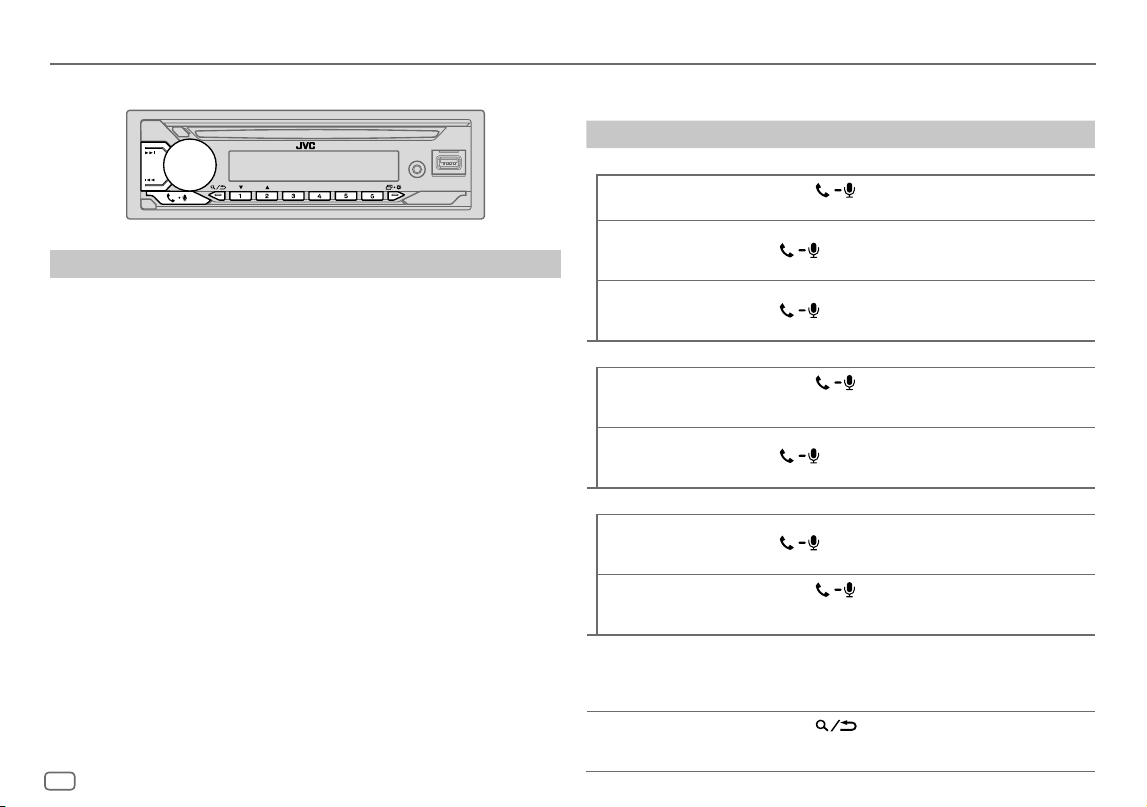
18
ESPAÑOL
Data Size: B6L (182 mm x 128 mm)
Book Size: B6L (182 mm x 128 mm)
Bluetooth — Teléfono móvil
Recibir una llamada
Cuando se recibe una llamada entrante:
• KD-T925BTS/KD-T920BTS:
Los botones parpadean en el color que ha seleccionado en
[RING COLOR]
.
(Página19)
KD-T720BT:
Los botones parpadean en el patrón de parpadeo que ha seleccionado en
[RING ILLUMI]
. (Página19)
• Si
[AUTO ANSWER]
está ajustado al tiempo seleccionado, la unidad contesta
automáticamente la llamada. (Página19)
Durante una llamada:
• KD-T925BTS/KD-T920BTS:
Los botones dejan de parpadean y se iluminan en el color que ha seleccionado
en
[RING COLOR]
. (Página19)
KD-T720BT:
Los botones dejan de parpadear.
• Si apaga la unidad o extrae la placa frontal, la conexión Bluetooth se interrumpe.
Bluetooth®
Las siguientes operaciones pueden diferir o no estar disponibles dependiendo del
teléfono que se haya conectado.
Para En la placa frontal En el mando a distancia
Primera llamada entrante...
Contestar una llamada
Pulse
o la rueda
de volumen.
Pulse J / K / H / I.
Rechazar una llamada Mantenga pulsado
o la rueda de
volumen.
Pulse y mantenga
pulsado J / K / H / I.
Finalizar una llamada Mantenga pulsado
o la rueda de
volumen.
Pulse y mantenga
pulsado J / K / H / I.
Mientras habla con la primera llamada entrante...
Responder a otra llamada
entrante y dejar en espera
la llamada actual
Pulse
o la rueda
de volumen.
( No disponible )
Rechazar otra llamada
entrante
Mantenga pulsado
o la rueda de
volumen.
( No disponible )
Mientras tiene dos llamadas activas...
Finalizar la llamada actual
y activar la llamada en
espera
Mantenga pulsado
o la rueda de
volumen.
Pulse y mantenga
pulsado J / K / H / I.
Pase de la llamada actual
a la llamada en espera y
viceversa
Pulse
.
( No disponible )
Ajustar el volumen del
teléfono*1
[00]
a
[35]
(Predeterminado:
[15]
)
Gire la rueda de
volumen durante una
llamada.
Pulse VOL +*2 o VOL –
durante una llamada.
Cambiar entre los modos
manos libres y conversación
privada*3
Pulse
durante
una llamada.
( No disponible )
KD_T925BTS_K_SP.indd 18KD_T925BTS_K_SP.indd 18 9/3/2022 4:35:32 PM9/3/2022 4:35:32 PM
ESPAÑOL
19
Data Size: B6L (182 mm x 128 mm)
Book Size: B6L (182 mm x 128 mm)
*1 Este ajuste no influirá en el volumen del resto de las fuentes.
*2 Pulse y mantenga pulsado VOL + para aumentar continuamente el volumen a 15.
*3 Las operaciones pueden variar dependiendo del dispositivo Bluetooth conectado.
Mejorar la calidad de voz
Mientras habla por teléfono...
1 Pulse y mantenga pulsado .
2 Gire la rueda de volumen para seleccionar un elemento (consulte la
siguiente tabla) y, a continuación, pulse la rueda.
3 Repita el paso 2 hasta que se seleccione o active el elemento deseado.
4 Pulse para salir.
Para volver al elemento de ajuste anterior, pulse .
Predeterminado:
[XX]
[MIC GAIN] [LEVEL –10]
a
[LEVEL +10]
(
[LEVEL -04]
):La sensibilidad del micrófono aumenta a
medida que aumenta el número.
[NR LEVEL] [LEVEL –05]
a
[LEVEL +05]
(
[LEVEL 00]
):Ajuste el nivel de reducción de ruido hasta
que el ruido que se escucha durante una conversación telefónica sea mínimo.
[ECHO CANCEL] [LEVEL –05]
a
[LEVEL +05]
(
[LEVEL 00]
):Ajuste el tiempo de retardo de cancelación
de eco hasta que el eco que escucha durante una conversación telefónica sea mínimo.
• La calidad de la llamada puede depender del teléfono móvil.
Realice los ajustes para recibir una llamada
1
Pulse para ingresar al modo Bluetooth.
2 Gire la rueda de volumen para seleccionar un elemento (consulte la
siguiente tabla) y, a continuación, pulse la rueda.
3 Repita el paso 2 hasta que se seleccione o active el elemento deseado.
Para volver al elemento de ajuste anterior, pulse .
Bluetooth®
Predeterminado:
[XX]
[SETTINGS]
[AUTO ANSWER]
[01SEC]
a
[30SEC]
:Contesta automáticamente una llamada entrante en el tiempo
seleccionado (en segundos).;
[OFF]
:Se cancela.
[RING COLOR]
(Para KD-T925BTS/KD-T920BTS)
[COLOR01]
a
[COLOR49]
(
[COLOR08]
): Selecciona el color de iluminación de los
botones como notificación cuando se recibe una llamada entrante y durante la llamada.;
[OFF]
:Se cancela.
[RING ILLUMI]
(Para KD-T720BT)
[BLINK01]
a
[BLINK05]
(
[BLINK02]
): Selecciona el patrón de parpadeo de los
botones como notificación cuando se recibe una llamada entrante.;
[OFF]
:Se cancela.
Realizar una llamada
Puede realizar una llamada desde el historial de llamadas, la guía telefónica o
mediante marcación del número. La llamada con marcación por voz también es
posible si su teléfono móvil dispone de esta función.
1 Pulse para ingresar al modo Bluetooth.
Aparece “(nombre del primer dispositivo)”.
• Si hay dos teléfonos Bluetooth conectados, pulse nuevamente para
cambiar al otro teléfono.
Aparece “(nombre del segundo dispositivo)”.
2 Gire la rueda de volumen para seleccionar un elemento (página 20) y,
a continuación, pulse la rueda.
3 Repita el paso 2 hasta que se seleccione o active el elemento que
desee o siga las instrucciones indicadas en el elemento seleccionado.
Para volver al elemento de ajuste anterior, pulse .
KD_T925BTS_K_SP.indd 19KD_T925BTS_K_SP.indd 19 9/3/2022 4:35:33 PM9/3/2022 4:35:33 PM
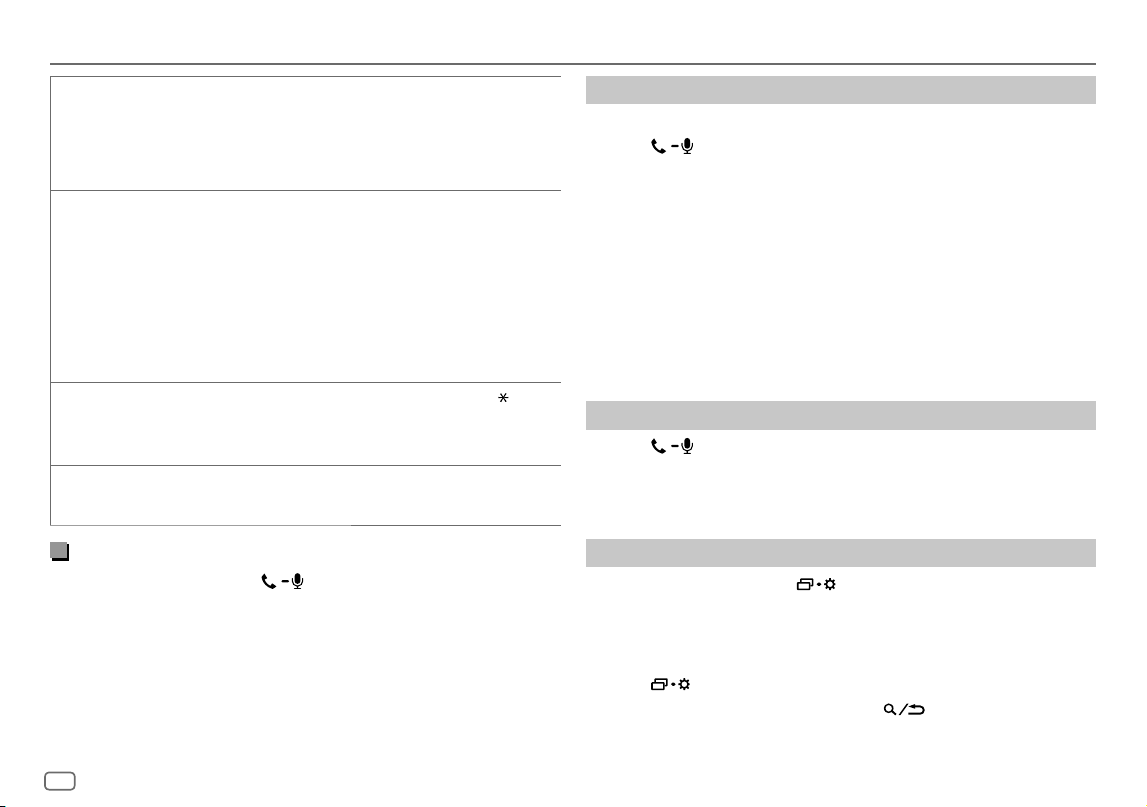
20
ESPAÑOL
Data Size: B6L (182 mm x 128 mm)
Book Size: B6L (182 mm x 128 mm)
Bluetooth®
[RECENT CALL]
(Solo si el teléfono es compatible con PBAP.)
1
Pulse la rueda de volumen para seleccionar un nombre o un número de teléfono.
• “<” indica llamada recibida, “>” indica llamada realizada, “M” indica llamada perdida.
• El mensaje “NO HISTORY” aparece si no existe un historial de llamadas o número de
llamada registrado.
2
Pulse la rueda de volumen para llamar.
[PHONEBOOK]
(Solo si el teléfono es compatible con PBAP.)
1
Pulse 2 J / 1 K para seleccionar la letra que desee (A a Z, 0a9, y OTHERS).
• Aparece “OTHERS” si el primer carácter no es una letra (A a Z) ni un número (0 a 9).
2
Gire la rueda de volumen para seleccionar un nombre y, a continuación, pulse la rueda.
3
Gire la rueda de volumen para seleccionar un número de teléfono y, a continuación, pulse
la rueda para hacer la llamada.
• Para utilizar la guía telefónica con esta unidad, asegúrese de permitir el acceso o la
transferencia desde su smartphone. El proceso puede diferir según el teléfono conectado.
• Esta unidad puede visualizar solamente letras sin acento. (Las letras acentuadas tal como
la “Ú” se muestran como “U”.)
[DIAL NUMBER]
1
Gire la rueda de volumen para seleccionar un número (0 a 9) o un carácter ( , #, +).
2
Pulse S / T para mover la posición de ingreso.
Repita los pasos 1 y 2 hasta finalizar el ingreso del número telefónico.
3
Pulse la rueda de volumen para llamar.
[VOICE]
Pronuncie el nombre del contacto al que desea llamar o el comando de voz para controlar
las funciones del teléfono. (Véase también“Realice una llamada mediante reconocimiento
de voz” a continuación.)
Realice una llamada mediante reconocimiento de voz
1
Pulse y mantenga pulsado para activar la función de
reconocimiento de voz del teléfono conectado.
2 Pronuncie el nombre del contacto al que desea llamar o el comando
de voz para controlar las funciones del teléfono.
• Las características de reconocimiento de voz compatibles varían según el
teléfono. Si desea más información, consulte el manual de instrucciones del
teléfono conectado.
Almacenar un contacto en la memoria
Puede guardar hasta 6 contactos en los botones numéricos (1 a 6).
1 Pulse para ingresar al modo Bluetooth.
2 Gire la rueda de volumen para seleccionar
[RECENTCALL]
,
[PHONEBOOK]
o
[DIALNUMBER]
y, a continuación, pulse la rueda.
3 Gire la rueda de volumen para seleccionar un contacto o ingrese un
número de teléfono.
Si se ha seleccionado un contacto, pulse la rueda de volumen para que
aparezca el número de teléfono.
4 Pulse y mantenga pulsado uno de los botones numéricos (1 a 6).
Aparece “MEMORY P(número de preajuste seleccionado)” cuando se guarda el
contacto.
Para borrar un contacto de la memoria preajustada, seleccione
[DIALNUMBER]
en el
paso 2, almacene un número en blanco en el paso 3 y avance al paso 4.
Llame a un número registrado
1
Pulse para ingresar al modo Bluetooth.
2 Pulse uno de los botones numéricos (1 a 6).
3 Pulse la rueda de volumen para llamar.
Aparece “NO PRESET” si no hay ningún contacto guardado.
Ajustes del modo Bluetooth
1
Pulse y mantenga pulsado .
2 Gire la rueda de volumen para seleccionar un elemento (página 21) y,
a continuación, pulse la rueda.
3 Repita el paso 2 hasta que se seleccione o active el elemento que
desee o siga las instrucciones indicadas en el elemento seleccionado.
4 Pulse para salir.
Para volver al elemento de ajuste anterior, pulse .
KD_T925BTS_K_SP.indd 20KD_T925BTS_K_SP.indd 20 9/3/2022 4:35:33 PM9/3/2022 4:35:33 PM
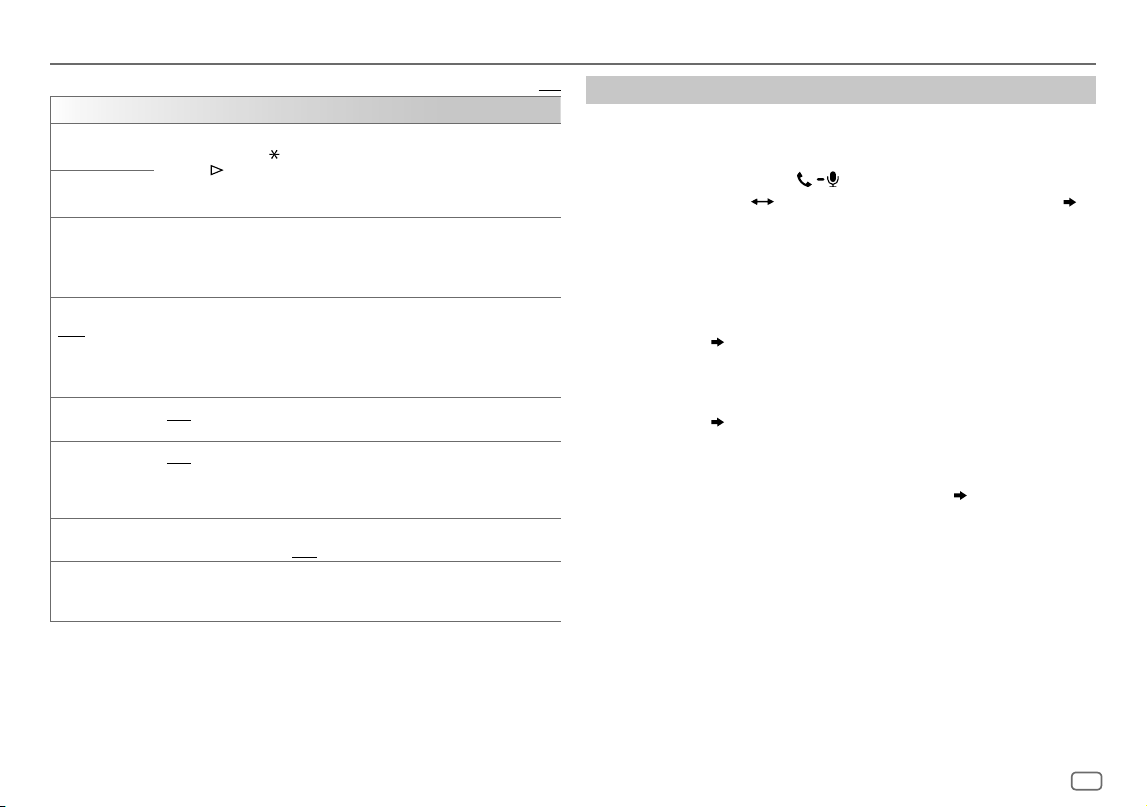
ESPAÑOL
21
Data Size: B6L (182 mm x 128 mm)
Book Size: B6L (182 mm x 128 mm)
Bluetooth®
Predeterminado:
[XX]
[BT MODE]
[PHONE SELECT]
Selecciona el teléfono o el dispositivo de audio que desea conectar o desconectar.
Al conectarse, aparece “
” delante del nombre del dispositivo.
Aparece “
” delante del actual dispositivo de audio para reproducción.
• Solo se puede conectar un máximo de dos teléfonos con Bluetooth y un dispositivo de
audio con Bluetooth a la vez.
[AUDIO SELECT]
[DEVICE DELETE]
1
Gire la rueda de volumen para seleccionar el dispositivo a eliminar y, a continuación,
pulse la rueda.
2
Gire la rueda de volumen para seleccionar
[YES]
o
[NO]
y, a continuación, pulse la
rueda.
[PIN CODE EDIT]
(0000)
Cambia el código PIN (hasta 6 dígitos).
1
Gire la rueda de volumen para seleccionar un número.
2
Pulse S / T para mover la posición de ingreso.
Repita los pasos 1 y 2 hasta terminar de ingresar el código PIN.
3
Pulse la rueda de volumen para confirmar.
[RECONNECT] [ON]
:La unidad se vuelve a conectar automáticamente cuando el último dispositivo
Bluetooth conectado esté dentro del rango de conexión.;
[OFF]
:Se cancela.
[AUTO PAIRING] [ON]
:La unidad se empareja automáticamente con el dispositivo Bluetooth compatible
(iPhone/iPod touch) cuando se conecta a través del terminal de entrada USB.Esta función
podrá no estar disponible, dependiendo del sistema operativo del dispositivo conectado.
;
[OFF]
:Se cancela.
[INITIALIZE] [YES]
:Inicializa todos los ajustes Bluetooth (incluyendo el emparejamiento almacenado,
directorio telefónico y etc.).;
[NO]
:Se cancela.
[INFORMATION] [MYBTNAME]
: Muestra el nombre de su receptor (“KD-T925BTS”/“KD-T920BTS”/
“KD-T720BT”).;
[MYADDRESS]
: Muestra la dirección de la unidad.
Modo de comprobación de compatibilidad Bluetooth
Puede comprobar la conectividad del perfil compatible entre el dispositivo
Bluetooth y la unidad.
• Asegúrese de que no haya ningún dispositivo Bluetooth emparejado.
1 Pulse y mantenga pulsado .
Aparece “BLUETOOTH” “CHECK MODE”. “SEARCH NOW USING PHONE”
“PIN IS 0000” se desplazan en la pantalla.
2 Busque y seleccione el nombre de su receptor (“KD-T925BTS”/
“KD-T920BTS”/“KD-T720BT”) en el dispositivo Bluetooth en el lapso de
3 minutos.
3 Realice (A), (B) o (C) dependiendo de los datos mostrados en la
pantalla.
(A) “PAIRING” “XXXXXX” (Clave de paso de 6 dígitos): Asegúrese de que
la clave de paso que aparece en la unidad coincida con la que aparece en
el dispositivo Bluetooth y, a continuación, opere el dispositivo Bluetooth
para confirmar la clave de paso.
(B) “PAIRING” “PIN IS 0000”: Ingrese “0000” en el dispositivo Bluetooth.
(C) “PAIRING”: Opere el dispositivo Bluetooth para confirmar el
emparejamiento.
Una vez realizado el emparejamiento, aparece “PAIRING OK”
“Nombre del
dispositivo” y se inicia la comprobación de compatibilidad con Bluetooth.
Si aparece “CONNECT NOW USING PHONE”, opere el dispositivo Bluetooth para
que se pueda continuar el acceso al directorio telefónico.
“TESTING” parpadea en la pantalla.
KD_T925BTS_K_SP.indd 21KD_T925BTS_K_SP.indd 21 9/3/2022 4:35:33 PM9/3/2022 4:35:33 PM
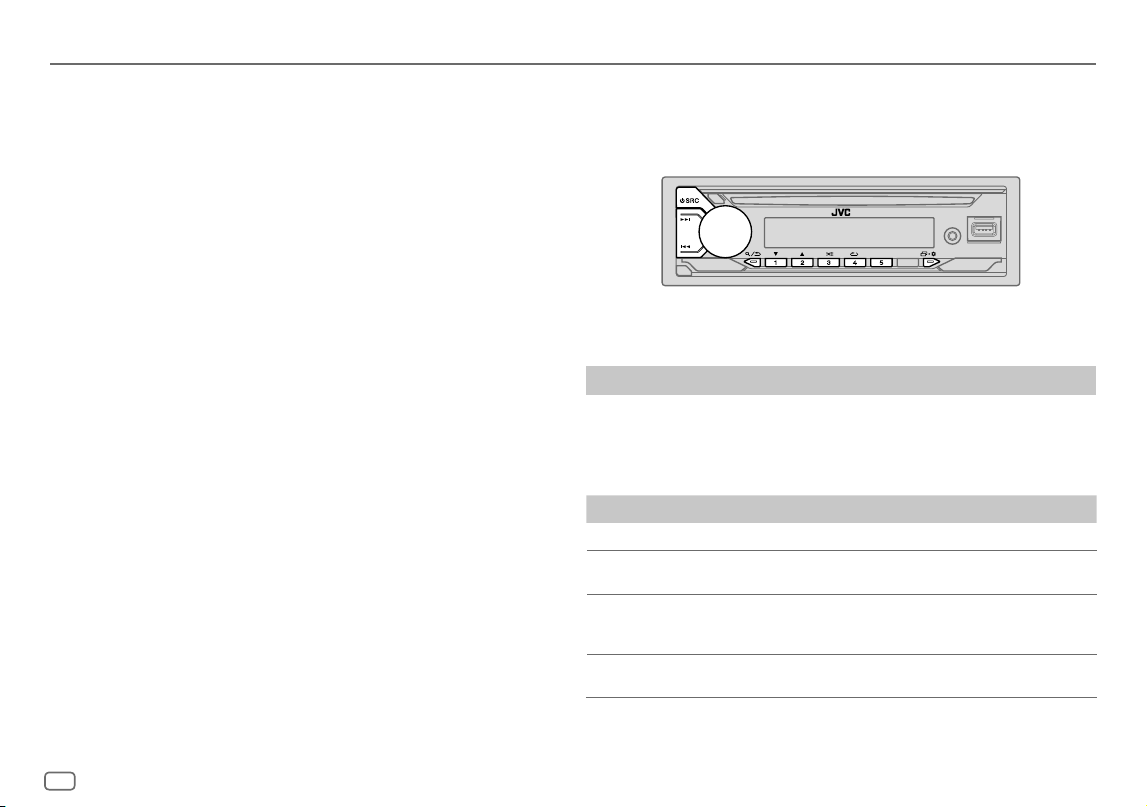
22
ESPAÑOL
Data Size: B6L (182 mm x 128 mm)
Book Size: B6L (182 mm x 128 mm)
Bluetooth®
El resultado de la conectividad parpadea en la pantalla.
“PAIRING OK” y/o “HANDS-FREE OK” *1 y/o “AUD.STREAM OK” *2 y/o “PBAP OK” *3 :
Compatible
*1 Compatible con el Perfil Manos Libres (HFP, Hands-Free Profile)
*2 Compatible con el Perfil Avanzado de Distribución de Audio (A2DP, Advanced Audio Distribution Profile)
*3 Compatible con el Perfil de acceso a la guía telefónica (PBAP, Phonebook Access Profile)
Después de 30 segundos, aparece “PAIRING DELETED” para indicar que se ha
eliminado el emparejamiento y la unidad sale del modo de comprobación.
• Para cancelar, pulse y mantenga pulsado B SRC para apagar la unidad y luego
vuélvala a encender.
Bluetooth — Audio
• Las operaciones y las indicaciones en pantalla difieren según su disponibilidad
en el dispositivo conectado.
• Dependiendo del dispositivo conectado, algunas características podrían no
funcionar con su dispositivo.
Mientras está activada la fuente BT AUDIO, es posible conectar a cinco dispositivos
de audio Bluetooth y cambiar entre los cinco dispositivos.
Escuche desde el reproductor de audio a través de Bluetooth
1
Pulse B SRC repetidamente para seleccionar BTAUDIO (o pulse
SOURCE en el mando a distancia).
2 Para iniciar la reproducción, utilice el reproductor de audio a través de
Bluetooth.
Para En la placa frontal En el mando a distancia
Reproducción/pausa Pulse la rueda de volumen.
Pulse d.
Seleccione un grupo
o carpeta
Pulse 2 J / 1 K. Pulse J / K.
Omisión hacia
atrás/omisión hacia
delante
Pulse S / T. Pulse H / I.
Retroceder/avanzar
rápidamente
Pulse y mantenga pulsado
S / T.
Pulse y mantenga
pulsado H / I.
KD_T925BTS_K_SP.indd 22KD_T925BTS_K_SP.indd 22 9/3/2022 4:35:33 PM9/3/2022 4:35:33 PM
ESPAÑOL
23
Data Size: B6L (182 mm x 128 mm)
Book Size: B6L (182 mm x 128 mm)
Bluetooth®
Para En la placa frontal
Repetir reproducción
Pulse 4B repetidamente.
[TRACKREPEAT]
,
[ALLREPEAT]
,
[GROUPREPEAT]
,
[REPEATOFF]
Reproducción aleatoria
Pulse 3 A repetidamente.
[GROUPRANDOM]
,
[ALLRANDOM]
,
[RANDOMOFF]
Seleccionar un archivo
de una carpeta/lista
Consulte el apartado “Seleccione el archivo que desea
reproducir” que aparece en la página 10.
Cambiar entre los
dispositivos de audio
Bluetooth conectados
Pulse 5.
(Si pulsa la tecla “Play” en el dispositivo conectado
también se cambiará el sonido generado por el
dispositivo.)
Escuchar el iPod/iPhone a través de Bluetooth
Puede escuchar las canciones en el iPod/iPhone a través de la conexión Bluetooth
de esta unidad.
Pulse B SRC repetidamente para seleccionar iPodBT.
• Puede operar el iPod/iPhone de la misma forma en que lo hace cuando el iPod/
iPhone está conectado a través del terminal de entrada USB. (Página9)
• Consulte “Ajuste de la fuente reproducible para iPod/iPhone” en la página 10
para obtener más información.
AMAZON ALEXA
Alexa es un servicio de voz basado en la nube desarrollado por Amazon. Puede
pedirle a Alexa que reproduzca música, obtenga informes meteorológicos,
información sobre el tráfico, controle dispositivos domésticos inteligentes, haga
compras en Amazon, realice búsquedas en Internet, crea recordatorios y más.
Preparativos:
• Cree una cuenta en <www.amazon.com>.
•
Instale la última versión de la aplicación móvil Alexa en su dispositivo (iPhone/
iPod touch o dispositivo Android) y, a continuación, inicie sesión en la aplicación.
• Asegúrese de habilitar la conexión a Internet en su smartphone.
Cómo configurar por primera vez
Para el dispositivo Android
1
Empareje su dispositivo con esta unidad a través de Bluetooth. (Página17)
2 Inicie la aplicación móvil de Alexa en su dispositivo.
3 Empareje esta unidad con la aplicación móvil Alexa.
Realice Opción A u Opción B.
Para iPhone/iPod touch
1
Empareje su dispositivo con esta unidad a través de Bluetooth.
(Página17)
2 Inicie la aplicación móvil de Alexa en su dispositivo.
3 Pulse en la unidad para ingresar a la fuente ALEXA.
• También puede pulsar B SRC repetidas veces para seleccionar la fuente
iPod BT.
• Consulte “Ajuste de la fuente reproducible para iPod/iPhone” en la página 10
para obtener más información.
4 Empareje esta unidad con la aplicación móvil Alexa.
Realice Opción A u Opción B.
Opción A: Vínculo directo
Acceda a la siguiente URL o escanee el código QR con su smartphone:
https://www.jvc.net/car/alexa
KD_T925BTS_K_SP.indd 23KD_T925BTS_K_SP.indd 23 9/3/2022 4:35:33 PM9/3/2022 4:35:33 PM
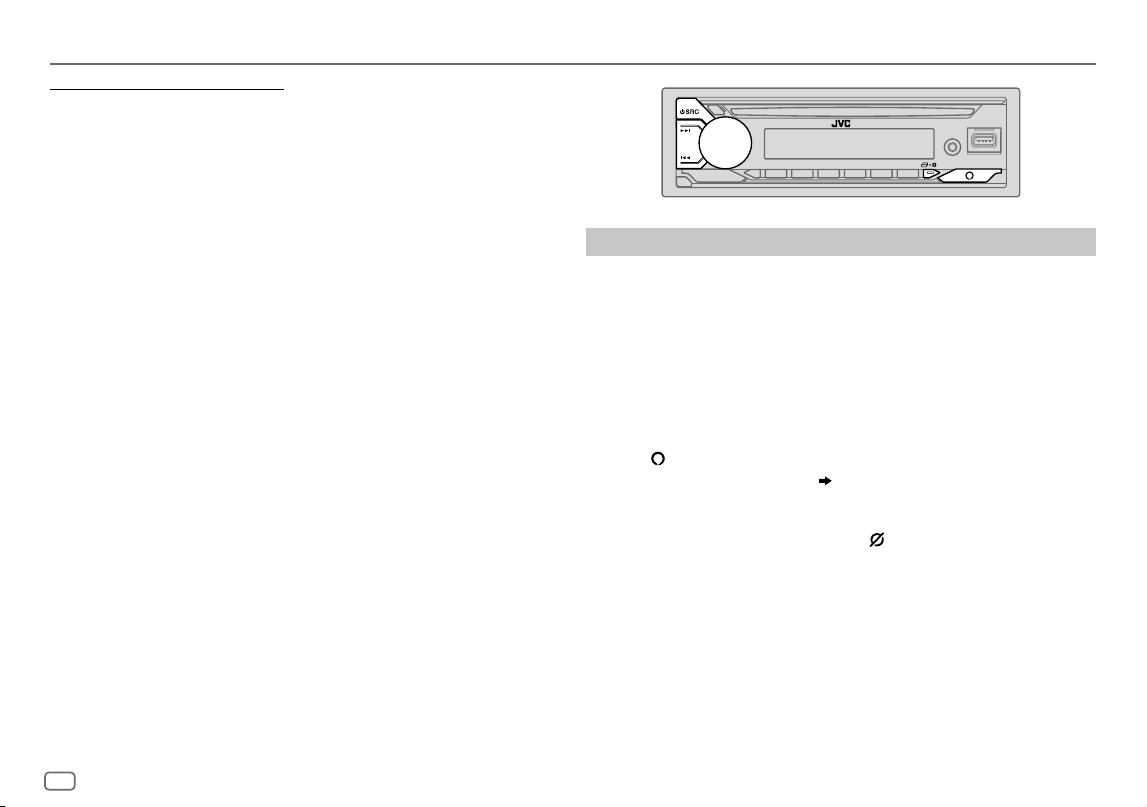
24
ESPAÑOL
Data Size: B6L (182 mm x 128 mm)
Book Size: B6L (182 mm x 128 mm)
Opción B: Emparejamiento manual
1 Inicie la aplicación móvil Alexa y pase a la pestaña “Devices
(Dispositivos)”.
2 Toque el icono “ + ” en la esquina derecha superior.
3 Toque “Add Device (Añadir dispositivo)”.
4 Toque “Automotive Accessory (Accesorio automotriz)” o “Headphones
(Auriculares)” en la lista de tipos de dispositivos.
5 Toque el nombre de su receptor (“KD-T925BTS”/“KD-T920BTS”/
“KD-T720BT”) y siga las instrucciones.
Una vez completado el proceso de configuración, la aplicación móvil de Alexa
establecerá una conexión con esta unidad.
• La conexión de Alexa se puede desconectar si:
– Se desconecta el perfil A2DP
– El Bluetooth está desconectado
– Se apaga esta unidad
– Detiene la aplicación móvil Alexa en primer plano/en segundo plano de su
dispositivo
– Cualquier otra condición según el dispositivo conectado.
Para volver a establecer la conexión de Alexa, vuelva a conectar el perfil A2DP.
• La conexión de Alexa no se podrá volver a establecer si usted:
– Vuelve a instalar la aplicación móvil de Alexa
– Elimina el dispositivo emparejado y vuelve a realizar el emparejamiento
(dispositivo Android)
Para volver a establecer la conexión de Alexa, vuelva a realizar el proceso de
configuración.
• La conexión de Alexa se puede comprobar desde la aplicación móvil de Alexa.
Si el nombre de esta unidad aparece en la pantalla “ALL DEVICES”, no será
necesario volver a realizar el proceso de configuración.
Operaciones básicas
Para los idiomas compatibles con Alexa, consulte la página 34 para obtener
más información. Algunos de los idiomas enumerados estarán disponibles
actualizando el firmware de esta unidad cuando haya disponible una nueva
versión de firmware.
Para actualizar el firmware, consulte la página 6 para obtener más información.
Una vez establecida la conexión de Alexa...
1 Diga la palabra “Alexa” al micrófono conectado (página16) para
activar Alexa.
(o)
Pulse en la unidad para hablar con Alexa.
En la pantalla se muestra: “ALEXA” “LISTENING...”.
Alexa no se puede activar por voz si:
- La aplicación móvil Alexa no está activada.
- El micrófono está apagado, el indicador “ ” está encendido.
Consulte “Activar/desactivar el micrófono” en la página25.
- La fuente de reproducción actual es iPod FRONT/iPod REAR/iPodUSB.
- Mientras usa las funciones de teléfono Bluetooth.
2 Comuníquese con Alexa a través del micrófono conectado.
(Página16)
“THINKING...” aparece cuando Alexa está procesando su entrada de voz.
“SPEAKING...” aparece cuando Alexa está respondiendo a su entrada de voz.
“ALEXA” o la información en pantalla, tal como el tiempo de reproducción, el
título de la canción, etc., aparece mientras Alexa está en estado de inactividad.
AMAZON ALEXA
KD_T925BTS_K_SP.indd 24KD_T925BTS_K_SP.indd 24 9/3/2022 4:35:33 PM9/3/2022 4:35:33 PM
ESPAÑOL
25
Data Size: B6L (182 mm x 128 mm)
Book Size: B6L (182 mm x 128 mm)
• Para volver a la fuente anterior a ALEXA, pulse B SRC (o pulse SOURCE en el
mando a distancia).
• Para activar Alexa, pulse
o diga “Alexa”.
• Para cancelar el estado de audición actual, pulse
.
• Para cancelar los estados “thinking/speaking (pensando/hablando)” actuales y
volver al estado de audición, pulse
o diga “Alexa”.
• Solo es posible una conexión Alexa a la vez.
• “DOWNLOAD”
“ALEXA APP” “AND PAIR” “BLUETOOTH” “TO USE ALEXA”
aparece cuando la unidad se desconecta de la aplicación móvil de Alexa o
cuando se desconecta la conexión Bluetooth.
• Alexa estará lista para escuchar la palabra de activación después de
reconectarse.
Activar/desactivar el micrófono
Mantenga pulsado para activar y desactivar el micrófono.
• El indicador “ ” se enciende cuando se apaga el micrófono.
• No puede realizar esta operación mientras use las funciones del teléfono
Bluetooth.
AMAZON ALEXA
Comience a escuchar
Cuando Alexa está en estado de inactividad...
1 Diga la palabra “Alexa” al micrófono conectado (página16) para
activar Alexa.
(o)
Pulse en la unidad para hablar con Alexa.
En la pantalla se muestra: “LISTENING...”.
2 Comuníquese con Alexa a través del micrófono conectado.
(Página16)
3 Puede realizar las siguientes operaciones durante la reproducción de
música de la fuente ALEXA:
Para En la placa frontal En el mando a distancia
Reproducción/pausa Pulse la rueda de volumen.
Pulse d.
Omisión hacia atrás/
omisión hacia delante
Pulse S / T. Pulse H / I.
Durante la reproducción de música, pulse
o diga “Alexa” para pausar la música y
activar Alexa. Ahora ya puede comunicarse con Alexa.
KD_T925BTS_K_SP.indd 25KD_T925BTS_K_SP.indd 25 9/3/2022 4:35:33 PM9/3/2022 4:35:33 PM
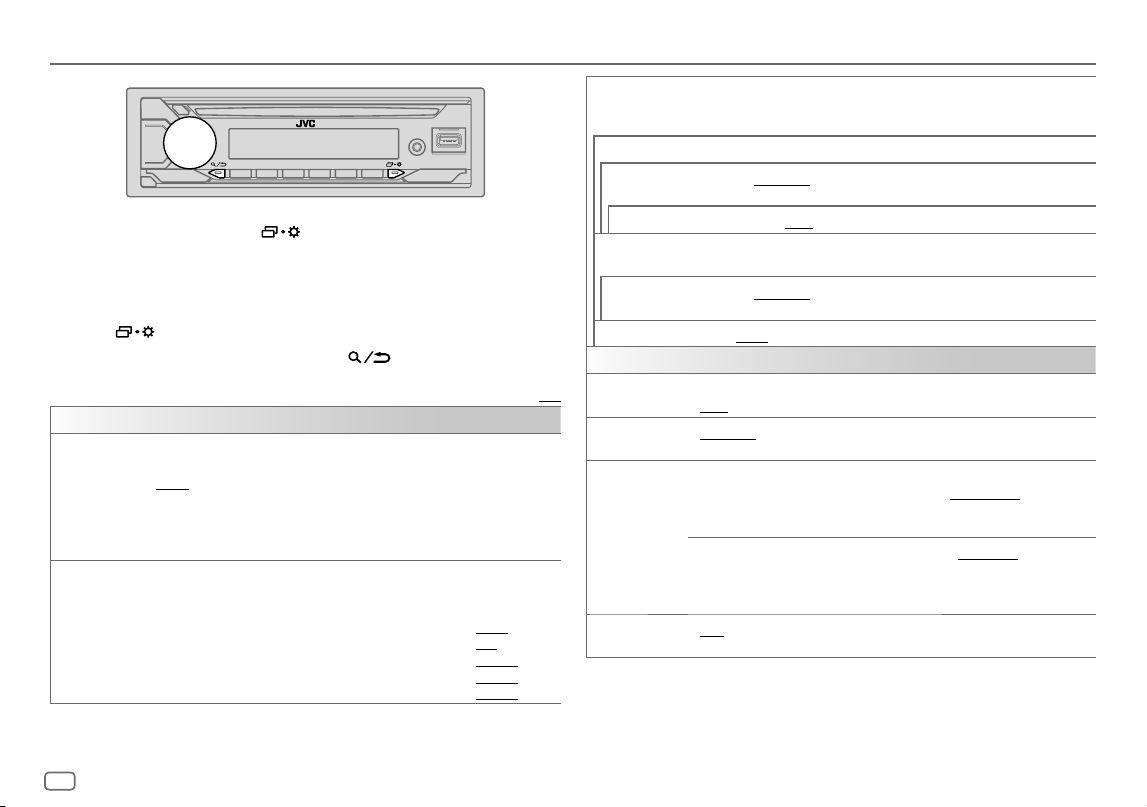
26
ESPAÑOL
Data Size: B6L (182 mm x 128 mm)
Book Size: B6L (182 mm x 128 mm)
Ajustes de audio
1 Pulse y mantenga pulsado .
2 Gire la rueda de volumen para seleccionar un elemento (consulte la
siguiente tabla) y, a continuación, pulse la rueda.
3 Repita el paso 2 hasta que se seleccione o active el elemento que
desee o siga las instrucciones indicadas en el elemento seleccionado.
4 Pulse para salir.
Para volver al elemento de ajuste anterior, pulse .
Predeterminado:
[XX]
[EQSETTING]
[PRESET EQ]
Selecciona un ecualizador preajustado adecuado para el género musical.
• Seleccione
[USER]
para utilizar los ajustes realizados en
[EASYEQ]
o
[PROEQ]
.
[FLAT]
/
[DRVN 3]
/
[DRVN 2]
/
[DRVN 1]
/
[HARD ROCK]
/
[HIP HOP]
/
[JAZZ]
/
[POP]
/
[R&B]
/
[USER]
/
[CLASSICAL]
El ecualizador de conducción (
[DRVN3]
/
[DRVN2]
/
[DRVN1]
) refuerza frecuencias
específicas de la señal de audio para reducir el ruido proveniente del exterior del vehículo o el
ruido producido por los neumáticos.
[EASYEQ]
Ajuste su propia configuración de sonido.
• Los ajustes se guardan en
[USER]
para
[PRESET EQ]
.
• Los ajustes realizados afectan a los ajustes actuales de
[PRO EQ]
.
[SUB.W SP]
*1*2:
[00]
a
[+06]
(Predeterminado:
[+03]
[SUB.W]
*1*3:
[–50]
a
[+10]
[00]
[BASS]
:
[LVL–09]
a
[LVL+09]
[LVL00]
[MID]
:
[LVL–09]
a
[LVL+09]
[LVL00]
[TRE]
:
[LVL–09]
a
[LVL+09]
[LVL00]
)
[PRO EQ]
Configura sus propios ajustes de sonido para cada fuente.
• Los ajustes se guardan en
[USER]
para
[PRESET EQ]
.
• Los ajustes realizados afectan a los ajustes actuales de
[EASYEQ]
.
[62.5HZ]
[LEVEL–09]
a
[LEVEL+09]
(
[LEVEL00]
): Ajusta el volumen a programarse para cada fuente. (Antes de
realizar un ajuste, seleccione la fuente que desea ajustar.)
[ON]
:Activa la ampliación de graves.;
[OFF]
:Se cancela.
[100HZ]
/
[160HZ]
/
[250HZ]
/
[400HZ]
/
[630HZ]
/
[1KHZ]
/
[1.6KHZ]
/
[2.5KHZ]
/
[4KHZ]
/
[6.3KHZ]
/
[10KHZ]
/
[16KHZ]
[LEVEL–09]
a
[LEVEL+09]
(
[LEVEL00]
): Ajusta el volumen a programarse para cada fuente.
(Antes de realizar un ajuste, seleccione la fuente que desea ajustar.)
[Q FACTOR] [1.35]
/
[1.50]
/
[2.00]
:Ajusta el factor de calidad.
[AUDIO CONTROL]
[BASS BOOST]
[LEVEL+01]
a
[LEVEL+05]
: Selecciona su nivel de refuerzo de graves preferido.;
[OFF]
:Se cancela.
[LOUDNESS] [LEVEL01]
/
[LEVEL02]
:Refuerza las frecuencias altas o bajas para producir un sonido
bien balanceado a bajos niveles de volumen.;
[OFF]
:Se cancela.
[SUB.W LEVEL]
*1
[SPK-OUT]
*2 (No aplicable si se ha seleccionado crossover de 3 vías.)
[SUB.W00]
a
[SUB.W+06]
(
[SUB.W+03]
): Ajusta el nivel
de salida del subwoofer conectado a través del cable del altavoz.
(Página41)
[PRE-OUT]
*3
[SUB.W–50]
a
[SUB.W+10]
(
[SUB.W00]
): Ajusta el nivel
de salida del subwoofer conectado a los terminales de salida
de línea (SW o REAR/SW) a través del amplificador externo.
(Página42)
[SUBWOOFER
SET]
*3
[ON]
: Activa la salida del subwoofer.;
[OFF]
:Se cancela.
*1, *2, *3: (consulte la página 27)
KD_T925BTS_K_SP.indd 26KD_T925BTS_K_SP.indd 26 9/3/2022 4:35:33 PM9/3/2022 4:35:33 PM
ESPAÑOL
27
Data Size: B6L (182 mm x 128 mm)
Book Size: B6L (182 mm x 128 mm)
Ajustes de audio
[FADER]
(No aplicable si se ha seleccionado crossover de 3 vías.)
[POSITIONR15]
a
[POSITIONF15]
(
[POSITION00]
): Ajusta el balance de salida de
los altavoces delanteros y traseros.
[BALANCE]
*4
[POSITIONL15]
a
[POSITIONR15]
(
[POSITION00]
): Ajusta el balance de salida de
los altavoces izquierdo y derecho.
[VOLUME ADJUST] [LEVEL–15]
a
[LEVEL+06]
(
[LEVEL00]
):Preajusta el nivel de volumen inicial de
cada fuente comparándolo con el nivel de volumen de FM. (Antes de realizar el ajuste,
seleccione la fuente que desea ajustar.)
[AMPGAIN] [LOWPOWER]
:Limita el nivel de volumen máximo a 25. (Selecciónelo si la potencia
máxima de cada altavoz es inferior a 50 W, con el fin de evitar posibles daños en los
altavoces.);
[HIGHPOWER]
:El nivel máximo de volumen es 35.
[SPK/PREOUT]
(No aplicable si se ha seleccionado crossover de 3 vías.)
Dependiendo del método de conexión del altavoz, seleccione la configuración apropiada
para obtener la salida deseada. (Consulte “Ajustes salida altavoz” en la página28.)
[SPEAKER SIZE]
Se muestran los elementos de ajuste de crossover de 2 vías o de 3 vías, dependiendo
del tipo de crossover seleccionado (consulte lo siguiente
[X ' OVER TYPE]
). (Consulte
“Ajustes de crossover” en la página29.)
Por defecto, se ha seleccionado el tipo crossover de 2 vías.
[X ' OVER]
[DTA SETTINGS]
Para los ajustes, consulte “Ajustes de la alineación del tiempo digital” en la página31.
[CAR SETTINGS]
[X ‘ OVER TYPE] Precaución
: Ajusta el volumen antes de cambiar
[X ‘ OVER TYPE]
, para evitar un
repentino aumento o disminución del nivel de volumen.
• Tenga presente que si cambia el tipo de transición, la próxima vez que encienda la
alimentación, la pantalla indicará lo siguiente:
“2-WAY X’OVER” o “3-WAY X’OVER”
“PRESS” “VOLUME KNOB” “TO CONFIRM”
Pulse la rueda del volumen para confirmar la información para continuar con la
siguiente operación que desee realizar.
[2-WAY]
(Se visualiza solo si está seleccionado
[3-WAY]
.)
[YES]
:Selecciona el tipo crossover de dos vías.;
[NO]
:Se cancela.
[3-WAY]
(Se visualiza solo si está seleccionado
[2-WAY]
.)
[YES]
:Selecciona el tipo crossover de tres vías.;
[NO]
:Se cancela.
[SOUND EFFECT]
[SPACE ENHANCE]
(No aplicable para la fuente FM/AM.)
[SMALL]
/
[MEDIUM]
/
[LARGE]
: Aumenta virtualmente el espacio acústico.;
[OFF]
:Se cancela.
[SND RESPONSE] [LEVEL1]
/
[LEVEL2]
/
[LEVEL3]
: Hace que el sonido sea virtualmente más realista.;
[OFF]
:Se cancela.
[SOUND LIFT] [LOW]
/
[MIDDLE]
/
[HIGH]
: Realiza el ajuste virtual de la posición de escucha del
sonido emitido por los altavoces.;
[OFF]
:Se cancela.
[VOL LINK EQ] [ON]
:Refuerza la frecuencia para reducir el ruido proveniente del exterior del vehículo o
el rido producido por los neumáticos.;
[OFF]
:Se cancela.
[K2 TECHNOLOGY]
(No aplicable para la fuente FM/AM, para la fuente SIRIUS XM ni para la fuente AUX.)
[ON]
:Para mejorar la calidad del sonido de la música comprimida.;
[OFF]
:Se cancela.
*1 Se visualiza sólo cuando
[SUBWOOFER SET]
se ajusta a
[ON]
. (Página26)
*2 Para crossover de 2 vías: Se visualiza sólo cuando
[SPK/PREOUT]
se ajusta a
[SUB.W/SUB.W]
.
(Página28)
*3 Para crossover de 2 vías: Se visualiza sólo cuando
[SPK/PREOUT]
se ajusta a
[REAR/SUB.W]
o
[SUB.W/SUB.W]
. (Página28)
*4 El ajuste no afecta a la salida del subwoofer.
KD_T925BTS_K_SP.indd 27KD_T925BTS_K_SP.indd 27 9/3/2022 4:35:33 PM9/3/2022 4:35:33 PM
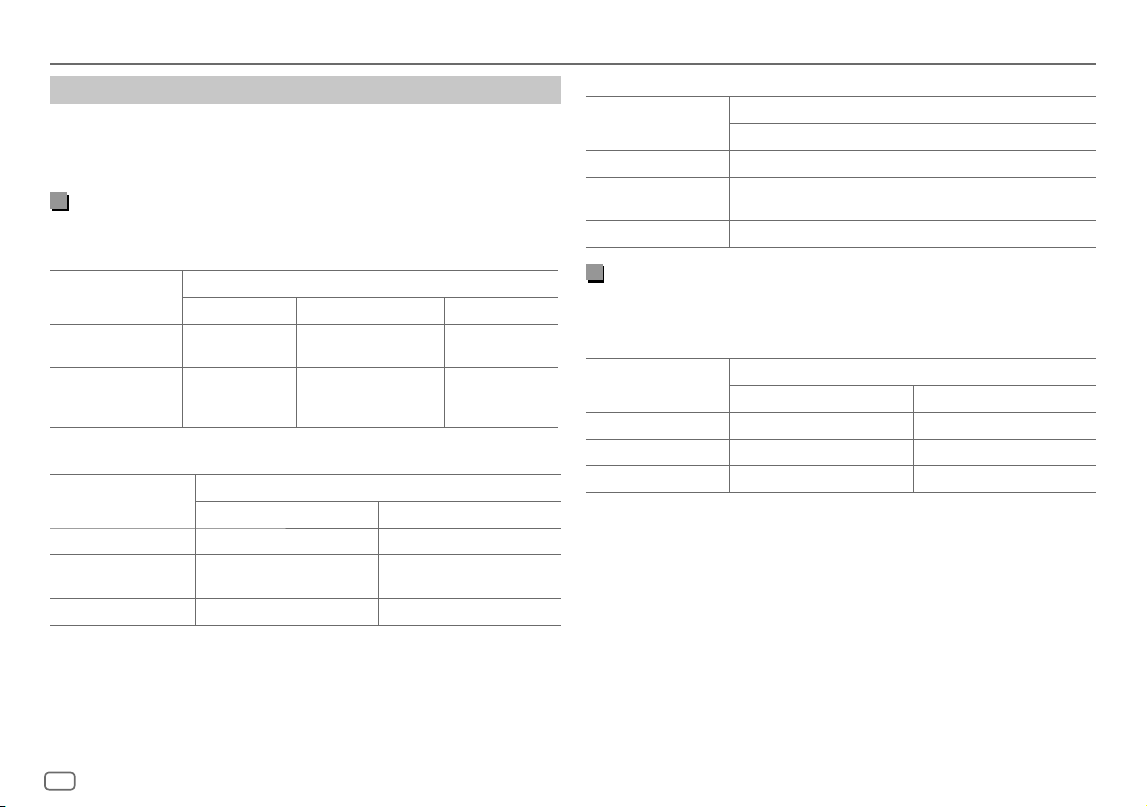
28
ESPAÑOL
Data Size: B6L (182 mm x 128 mm)
Book Size: B6L (182 mm x 128 mm)
Ajustes de audio
Ajustes salida altavoz
[SPK/PRE OUT]
(Aplicable solo si [X ‘ OVER TYPE ] está ajustado a [2-WAY]) (página27)
Seleccione la configuración de salida para los altavoces
[SPK/PRE OUT]
, basándose
en el método de conexión del altavoz.
Conexión a través de los terminales de salida de línea
Para conexiones a través de un amplificador externo (Página42)
KD-T925BTS:
Configuración de
[SPK/PRE OUT]
Señal de audio a través de la terminal de salida de línea
FRONT REAR SW
[REAR/REAR]
(predeterminado)
Salida de los altavoces
delanteros
Salida de los altavoces traseros Salida del subwoofer
[SUB.W/SUB.W]
Salida de los altavoces
delanteros
L (izquierdo): Salida del
subwoofer
R (derecho): (Silencio)
Salida del subwoofer
KD-T920BTS:
Configuración de
[SPK/PRE OUT]
Señal de audio a través de la terminal de salida de línea
FRONT REAR/SW
[REAR/REAR]
Salida de los altavoces delanteros Salida de los altavoces traseros
[REAR/SUB.W]
(predeterminado)
Salida de los altavoces delanteros Salida del subwoofer
[SUB.W/SUB.W]
Salida de los altavoces delanteros Salida del subwoofer
KD-T720BT:
Configuración de
[SPK/PRE OUT]
Señal de audio a través de la terminal de salida de línea
REAR/SW
[REAR/REAR]
Salida de los altavoces traseros
[REAR/SUB.W]
(predeterminado)
Salida del subwoofer
[SUB.W/SUB.W]
Salida del subwoofer
Conexión a través de los cables de los altavoces
También puede conectar los altavoces sin utilizar un amplificador externo,
pero aún así podrá disfrutar de la salida del subwoofer mediante estos ajustes.
(Página41)
Configuración de
[SPK/PRE OUT]
Señal de audio a través del cable del altavoz trasero
L (izquierdo) R (derecho)
[REAR/REAR]
Salida de los altavoces traseros Salida de los altavoces traseros
[REAR/SUB.W]
* Salida de los altavoces traseros Salida de los altavoces traseros
[SUB.W/SUB.W]
Salida del subwoofer (Silencio)
Si se selecciona
[SUB.W/SUB.W]
:
– Se selecciona
[120HZ]
en
[SUBWOOFERLPF]
y
[THROUGH]
no está disponible.
(Página30)
– Se selecciona
[POSITION R02]
en
[FADER]
y el rango seleccionable es de
[POSITION R15]
a
[POSITION 00]
. (Página27)
* Excepto para KD-T925BTS.
KD_T925BTS_K_SP.indd 28KD_T925BTS_K_SP.indd 28 9/3/2022 4:35:33 PM9/3/2022 4:35:33 PM
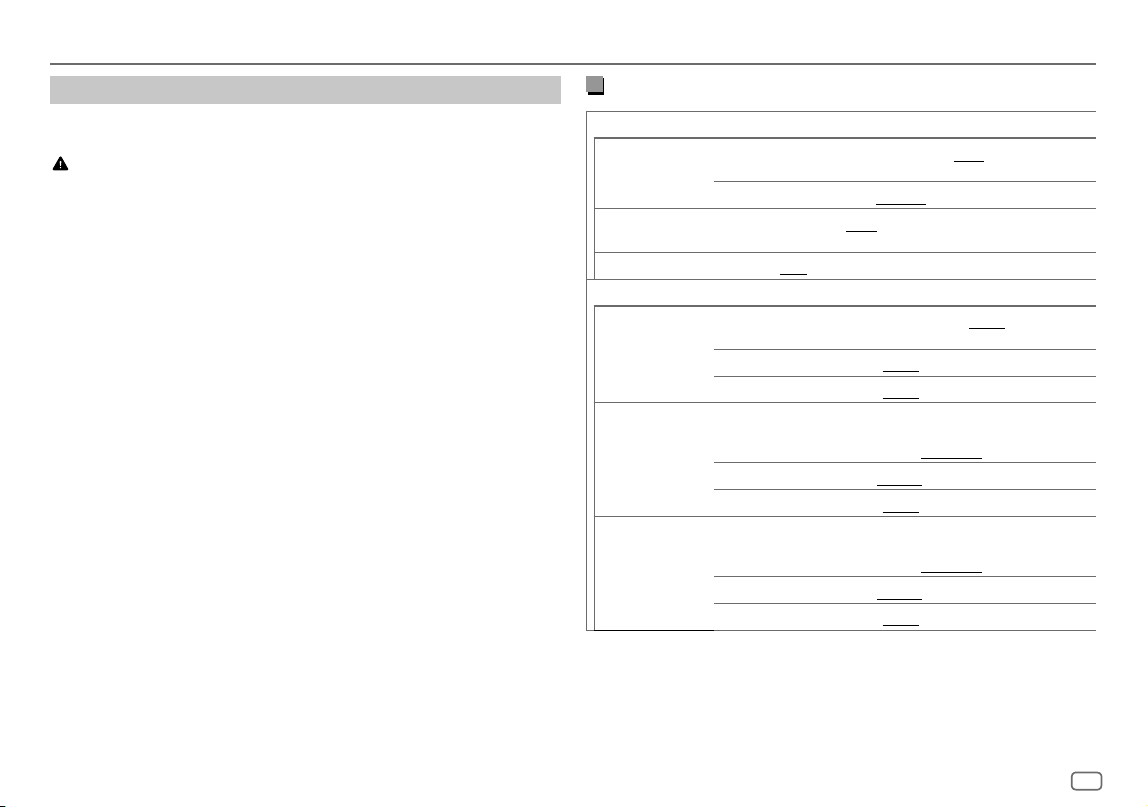
ESPAÑOL
29
Data Size: B6L (182 mm x 128 mm)
Book Size: B6L (182 mm x 128 mm)
Ajustes de audio
Elementos de ajuste de crossover de 2 vías
[SPEAKER SIZE]
[FRONT] [SIZE]
[3.5"]
/
[4"]
/
[4.75"]
/
[5"]
/
[6.5"]
/
[6.75"]
/
[7"]
/
[4×6]
/
[5×7]
/
[6×8]
/
[6×9]
/
[7×10]
[TWEETER]
[SMALL]
/
[MIDDLE]
/
[LARGE]
/
[NONE]
(no conectado)
[REAR]
*1
[3.5"]
/
[4"]
/
[4.75"]
/
[5"]
/
[6.5"]
/
[6.75"]
/
[7"]
/
[4×6]
/
[5×7]
/
[6×8]
/
[6×9]
/
[7×10]
/
[NONE]
(no conectado)
[SUBWOOFER]
*2*3
[6.5"]
/
[8"]
/
[10"]
/
[12"]
/
[15" OVER]
/
[NONE]
(no conectado)
[X ' OVER]
[TWEETER] [FRQ]
[1KHZ]
/
[1.6KHZ]
/
[2.5KHZ]
/
[4KHZ]
/
[5KHZ]
/
[6.3KHZ]
/
[8KHZ]
/
[10KHZ]
/
[12.5KHZ]
[GAIN LEFT]
[–08DB]
a
[00DB]
[GAIN RIGHT]
[–08DB]
a
[00DB]
[FRONT HPF] [F-HPF FRQ]
[30HZ]
/
[40HZ]
/
[50HZ]
/
[60HZ]
/
[70HZ]
/
[80HZ]
/
[90HZ]
/
[100HZ]
/
[120HZ]
/
[150HZ]
/
[180HZ]
/
[220HZ]
/
[250HZ]
/
[THROUGH]
[F-HPF SLOPE]
[–06DB]
/
[–12DB]
/
[–18DB]
/
[–24DB]
[F-HPF GAIN]
[–08DB]
a
[00DB]
[REAR HPF]
*1
[R-HPF FRQ] [30HZ]
/
[40HZ]
/
[50HZ]
/
[60HZ]
/
[70HZ]
/
[80HZ]
/
[90HZ]
/
[100HZ]
/
[120HZ]
/
[150HZ]
/
[180HZ]
/
[220HZ]
/
[250HZ]
/
[THROUGH]
[R-HPF SLOPE]
[–06DB]
/
[–12DB]
/
[–18DB]
/
[–24DB]
[R-HPF GAIN]
[–08DB]
a
[00DB]
*1, *2, *3: (consulte la página 30)
Ajustes de crossover
A continuación se describen los elementos de ajuste disponibles para crossover
de 2 vías y crossover de 3 vías.
PRECAUCIÓN
Seleccione el tipo de crossover de acuerdo con la conexión de los altavoces.
(Página41, 42)
Si selecciona un tipo incorrecto:
• Se podrán dañar los altavoces.
• El nivel de sonido de salida puede ser extremadamente alto o bajo.
SPEAKER SIZE
Selecciona, dependiendo del tamaño del altavoz conectado, el rendimiento
óptimo.
• Los ajustes de frecuencia y pendiente se definen automáticamente para el
crossover del altavoz seleccionado.
• Si se selecciona
[NONE]
para el siguiente altavoz en
[SPEAKER SIZE]
, el ajuste
[X ‘ OVER]
del altavoz seleccionado no estará disponible.
– Crossover de 2 vías:
[TWEETER]
de
[FRONT]
/
[REAR]
/
[SUBWOOFER]
– Crossover de 3 vías:
[WOOFER]
X ‘ OVER (crossover)
•
[FRQ]
/
[F-HPFFRQ]
/
[R-HPFFRQ]
/
[SWLPF FRQ]
/
[HPFFRQ]
/
[LPFFRQ]
: Ajusta la frecuencia
de cruce de los altavoces seleccionados (filtro de paso alto o de paso bajo).
Si se selecciona
[THROUGH]
, todas las señales se envían a los altavoces
seleccionados.
•
[SLOPE]
/
[F-HPFSLOPE]
/
[R-HPFSLOPE]
/
[SWLPF SLOPE]
/
[HPFSLOPE]
/
[LPFSLOPE]
: Ajusta la
pendiente de cruce.
Puede seleccionarse solo si se seleccionó un ajuste distinto de
[THROUGH]
para la
frecuencia de cruce.
•
[SW LPF PHASE]
/
[PHASE]
: Selecciona la fase de la salida del altavoz de acuerdo con
la salida del otro altavoz.
•
[GAINLEFT]
/
[GAINRIGHT]
/
[F-HPFGAIN]
/
[R-HPFGAIN]
/
[SWLPF GAIN]
/
[GAIN
]: Ajusta el
volumen de salida del altavoz seleccionado.
KD_T925BTS_K_SP.indd 29KD_T925BTS_K_SP.indd 29 9/3/2022 4:35:33 PM9/3/2022 4:35:33 PM
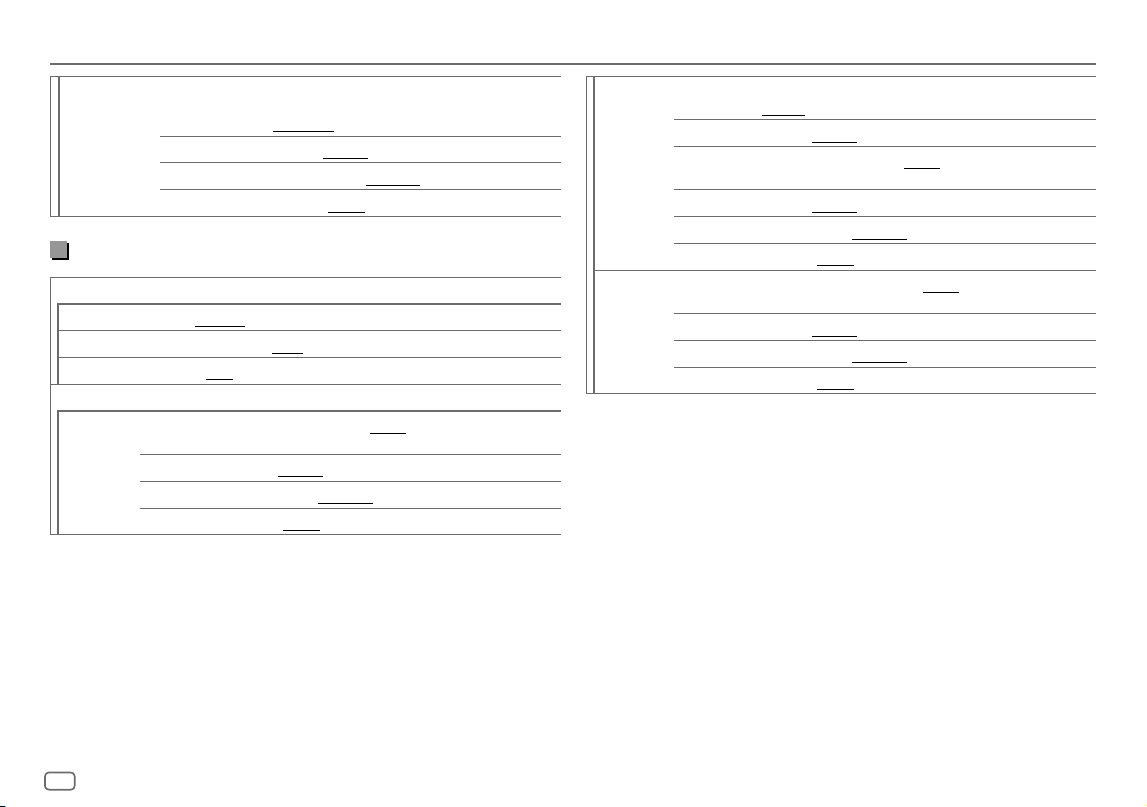
30
ESPAÑOL
Data Size: B6L (182 mm x 128 mm)
Book Size: B6L (182 mm x 128 mm)
[SUBWOOFER
LPF]
*2*3
[SW LPF FRQ] [30HZ]
/
[40HZ]
/
[50HZ]
/
[60HZ]
/
[70HZ]
/
[80HZ]
/
[90HZ]
/
[100HZ]
/
[120HZ]
/
[150HZ]
/
[180HZ]
/
[220HZ]
/
[250HZ]
/
[THROUGH]
[SW LPF SLOPE]
[–06DB]
/
[–12DB]
/
[–18DB]
/
[–24DB]
[SW LPF PHASE]
[REVERSE]
(180°)/
[NORMAL]
(0°)
[SW LPF GAIN] [–08DB]
a
[00DB]
Elementos de ajuste de crossover de 3 vías
[SPEAKER SIZE]
[TWEETER]
[SMALL]
/
[MIDDLE]
/
[LARGE]
[MID RANGE]
[3.5"]
/
[4"]
/
[4.75"]
/
[5"]
/
[6.5"]
/
[6.75"]
/
[7"]
/
[4×6]
/
[5×7]
/
[6×8]
/
[6×9]
[WOOFER]
*3
[6.5"]
/
[8"]
/
[10"]
/
[12"]
/
[15" OVER]
/
[NONE]
(no conectado)
[X ' OVER]
[TWEETER] [HPF FRQ]
[1KHZ]
/
[1.6KHZ]
/
[2.5KHZ]
/
[4KHZ]
/
[5KHZ]
/
[6.3KHZ]
/
[8KHZ]
/
[10KHZ]
/
[12.5KHZ]
[SLOPE]
[–06DB]
/
[–12DB]
[PHASE]
[REVERSE]
(180°)/
[NORMAL]
(0°)
[GAIN] [–08DB]
a
[00DB]
[MID RANGE] [HPF FRQ] [30HZ]
/
[40HZ]
/
[50HZ]
/
[60HZ]
/
[70HZ]
/
[80HZ]
/
[90HZ]
/
[100HZ]
/
[120HZ]
/
[150HZ]
/
[180HZ]
/
[220HZ]
/
[250HZ]
/
[THROUGH]
[HPF SLOPE]
[–06DB]
/
[–12DB]
[LPF FRQ]
[1KHZ]
/
[1.6KHZ]
/
[2.5KHZ]
/
[4KHZ]
/
[5KHZ]
/
[6.3KHZ]
/
[8KHZ]
/
[10KHZ]
/
[12.5KHZ]
/
[THROUGH]
[LPF SLOPE]
[–06DB]
/
[–12DB]
[PHASE]
[REVERSE]
(180°)/
[NORMAL]
(0°)
[GAIN] [–08DB]
a
[00DB]
[WOOFER]
*3
[LPF FRQ] [30HZ]
/
[40HZ]
/
[50HZ]
/
[60HZ]
/
[70HZ]
/
[80HZ]
/
[90HZ]
/
[100HZ]
/
[120HZ]
/
[150HZ]
/
[180HZ]
/
[220HZ]
/
[250HZ]
/
[THROUGH]
[SLOPE]
[–06DB]
/
[–12DB]
[PHASE]
[REVERSE]
(180°)/
[NORMAL]
(0°)
[GAIN] [–08DB]
a
[00DB]
*1 Se visualiza sólo cuando
[SPK/PRE OUT]
se ajusta a
[REAR/REAR]
o
[REAR/SUB.W]
. (Página28)
*2 Excepto KD-T925BTS: Se visualiza sólo cuando
[SPK/PREOUT]
se ajusta a
[REAR/SUB.W]
o
[SUB.W/SUB.W]
. (Página28)
*3 Se visualiza sólo cuando
[SUBWOOFER SET]
se ajusta a
[ON]
. (Página26)
Ajustes de audio
KD_T925BTS_K_SP.indd 30KD_T925BTS_K_SP.indd 30 9/3/2022 4:35:33 PM9/3/2022 4:35:33 PM
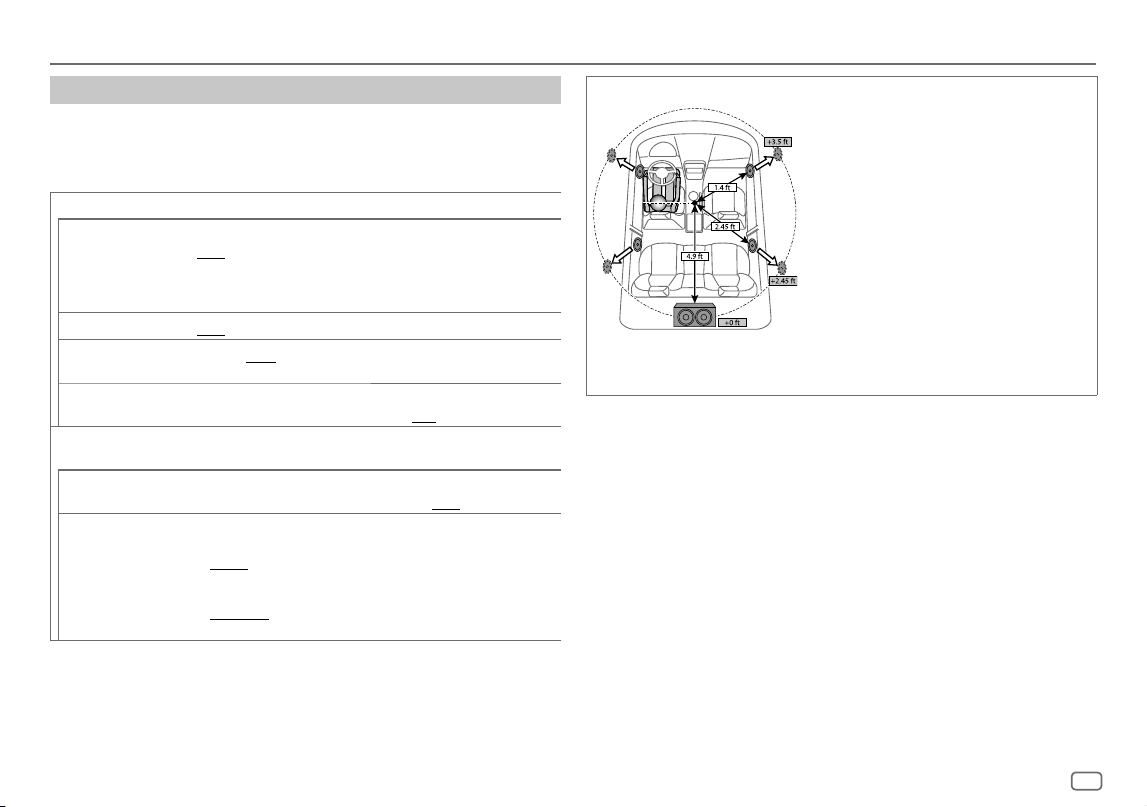
ESPAÑOL
31
Data Size: B6L (182 mm x 128 mm)
Book Size: B6L (182 mm x 128 mm)
Ajustes de audio
Ajustes de la alineación del tiempo digital
La Alineación de Tiempo Digital ajusta el tiempo de retardo de la salida de los
altavoces creando un entorno más adecuado para su vehículo.
• Para obtener más información, consulte “Cómo determinar automáticamente el
tiempo de retraso” a continuación.
[DTA SETTINGS]
[POSITION]
Selecciona su posición de escucha (punto de referencia).
[ALL]
:Sin compensación;
[FRONT RIGHT]
: Asiento delantero derecho;
[FRONT LEFT]
:Asiento delantero izquierdo;
[FRONT ALL]
:Asientos delanteros
•
[FRONT ALL]
se visualiza sólo cuando
[X ' OVER TYPE]
se ajusta a
[2-WAY]
.
(Página27)
[DISTANCE]
*1
[0FT]
a
[20.01FT]
:Ajusta con precisión la distancia a compensar.
[GAIN]
*1
[–8DB]
a
[0DB]
:Ajusta con precisión el volumen de salida del altavoz
seleccionado.
[DTA RESET] [YES]
:Restablece los ajustes (
[DISTANCE]
y
[GAIN]
) de la posición seleccionada
en
[POSITION]
a sus valores predeterminados.;
[NO]
:Se cancela.
[CAR SETTINGS]
Identifica su tipo de automóvil y la ubicación del altavoz trasero para realizar el
ajuste de
[DTA SETTINGS]
.
[CAR TYPE] [COMPACT]
/
[FULL SIZE CAR]
/
[WAGON]
/
[MINIVAN]
/
[SUV]
/
[MINIVAN(LONG)]
:Selecciona el tipo de vehículo.;
[OFF]
: Sin compensación.
[R-SP LOCATION]
*2 Selecciona la ubicación de los altavoces traseros en su vehículo para calcular la
distancia mayor desde la posición de escucha seleccionada (punto de referencia).
•
[DOOR]
/
[REAR DECK]
:Solo se puede seleccionar si se seleccionó previamente
[CAR TYPE]
como
[OFF]
,
[COMPACT]
,
[FULL SIZE CAR]
,
[WAGON]
o
[SUV]
.
•
[2ND ROW]
/
[3RD ROW]
:Solo se puede seleccionar si se seleccionó
previamente
[CAR TYPE]
como
[MINIVAN]
o
[MINIVAN(LONG)]
.
Cómo determinar automáticamente el tiempo de retraso
Si especifica la distancia a cada altavoz desde la posición de
escucha actualmente establecida, el tiempo de retraso se
calcula automáticamente.
1
Configure
[POSITION]
y determine la posición de
escucha como punto de referencia (el punto de referencia
para
[FRONT ALL]
estará en el centro entre la derecha e
izquierda de los asientos delanteros).
2
Mida las distancias desde el punto de referencia hacia los
altavoces.
3
Calcule la distancia entre el altavoz más alejado
(subwoofer en la ilustración) y otros altavoces.
4
Ajuste la
[DISTANCE]
calculada en el paso 3 para cada
uno de los altavoces.
5
Ajuste
[GAIN]
para cada uno de los altavoces.
Ejemplo: Cuando se seleccionó
[FRONT ALL]
como la
posición de escucha
*1 Antes de hacer un ajuste, seleccione el altavoz:
Cuando se ha seleccionado crossover de 2 vías:
[FRONT LEFT]
/
[FRONT RIGHT]
/
[REAR LEFT]
/
[REAR RIGHT]
/
[SUBWOOFER]
:
– Solo se puede seleccionar
[REAR LEFT]
,
[REAR RIGHT]
y
[SUBWOOFER]
si se seleccionó previamente un
ajuste distinto de
[NONE]
para
[REAR]
y
[SUBWOOFER]
de
[SPEAKER SIZE]
. (Página29)
Cuando se ha seleccionado crossover de 3 vías:
[TWEETER LEFT]
/
[TWEETER RIGHT]
/
[MID LEFT]
/
[MID RIGHT]
/
[WOOFER]
:
– Solo se puede seleccionar
[WOOFER]
si se seleccionó previamente un ajuste distinto de
[NONE]
para
[WOOFER]
de
[SPEAKER SIZE]
. (Página30)
*2 Se visualiza solo cuando
[X ' OVER TYPE ]
se ha ajustado a
[2-WAY]
(página27) y se ha seleccionado un
ajuste distinto de
[NONE]
para
[REAR]
de
[SPEAKER SIZE]
. (Página29)
KD_T925BTS_K_SP.indd 31KD_T925BTS_K_SP.indd 31 9/3/2022 4:35:34 PM9/3/2022 4:35:34 PM
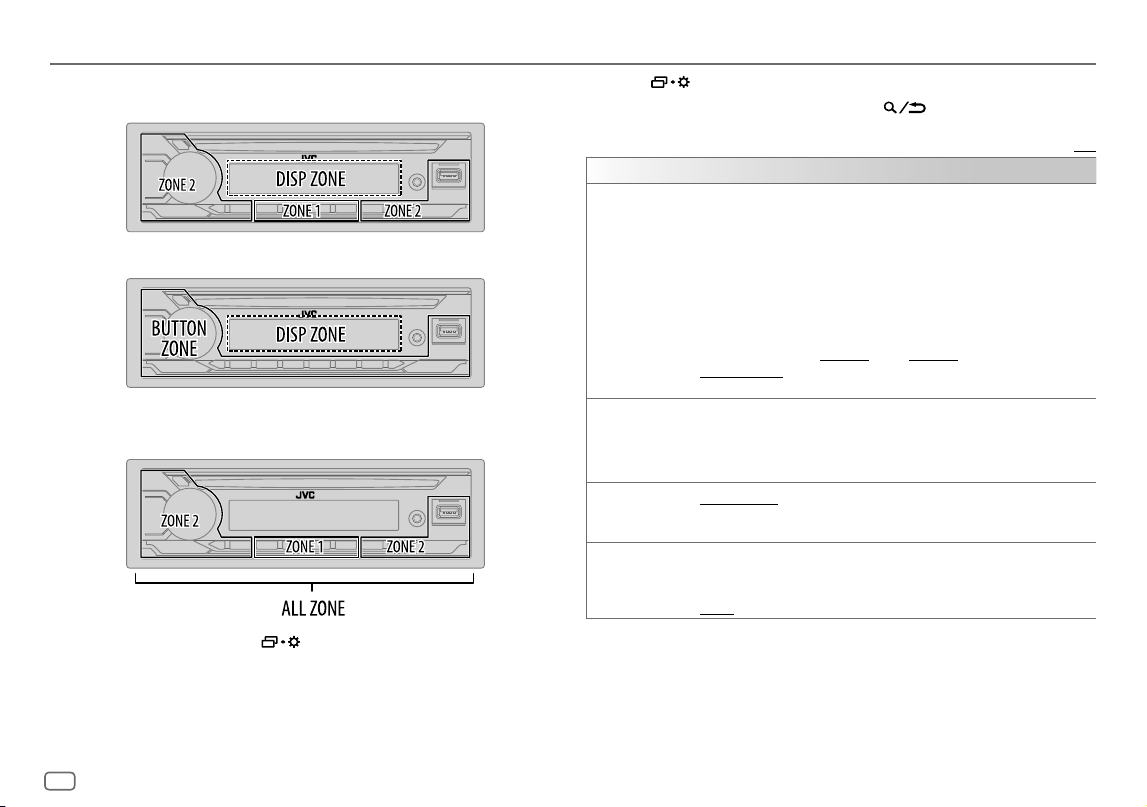
32
ESPAÑOL
Data Size: B6L (182 mm x 128 mm)
Book Size: B6L (182 mm x 128 mm)
Ajustes de visualización
Identificación de zonas para los ajustes de brillo
KD-T925BTS/KD-T920BTS:
Identificación de zonas para los ajustes de color
KD-T925BTS/KD-T920BTS:
1 Pulse y mantenga pulsado .
2 Gire la rueda de volumen para seleccionar un elemento (consulte la
siguiente tabla) y, a continuación, pulse la rueda.
3 Repita el paso 2 hasta que se seleccione o active el elemento que
desee o siga las instrucciones indicadas en el elemento seleccionado.
4 Pulse para salir.
Para volver al elemento de ajuste anterior, pulse .
Predeterminado:
[XX]
[DISPLAY]
[DIMMER]
Oscurece la iluminación.
[OFF]
:El dimmer está desactivado. El brillo cambia a la configuración
[DAY]
.
[ON]
:El dimmer está activado. El brillo cambia a la configuración
[NIGHT]
.
(Consulte a continuación ajustes de “
[BRIGHTNESS]
”. )
[DIMMER TIME]
:Fije la hora para activar y desactivar el dimmer.
1
Gire la rueda de volumen para ajustar el tiempo de activación
[ON]
y, a continuación,
pulse la rueda.
2
Gire la rueda de volumen para ajustar el tiempo de desactivación
[OFF]
y, a
continuación, pulse la rueda.
(Predeterminado:
[ON]
:
[PM6:00]
;
[OFF]
:
[AM6:00]
)
[DIMMER AUTO]
:El dimmer se enciende y se apaga automáticamente cuando se apagan
o encienden los faros del vehículo.*1
[BRIGHTNESS]
Ajuste separadamente el brillo para uso diurno y nocturno.
1
[DAY]
/
[NIGHT]
:Selecciona ajuste diurno o nocturno.
2
Selecciona una zona. (Véase la ilustración de la columna izquierda.)
3
[LEVEL00]
a
[LEVEL31]
: Ajusta el nivel de brillo.
[TEXT SCROLL]
*2
[SCROLL ONCE]
:Desplaza una vez la información en pantalla.;
[SCROLL AUTO]
:El desplazamiento se repite a intervalos de 5 segundos.;
[SCROLL OFF]
:Se cancela.
[FORMAT]
*3 La siguiente información se muestra en la pantalla suplementaria cuando se conecta un
dispositivo Bluetooth. (Página35)
[BATT/SIGNAL]
: Muestra el nivel de la batería y la intensidad de la señal. ;
[DATE]
: Muestra la fecha.
*1 Se requiere la conexión del cable de control de iluminación. (Página41)
*2 Algunos caracteres o símbolos no se mostrarán correctamente (o aparecerán en blanco).
*3 La funcionalidad depende del tipo de teléfono en uso.
KD-T720BT:
KD_T925BTS_K_SP.indd 32KD_T925BTS_K_SP.indd 32 9/3/2022 4:35:34 PM9/3/2022 4:35:34 PM
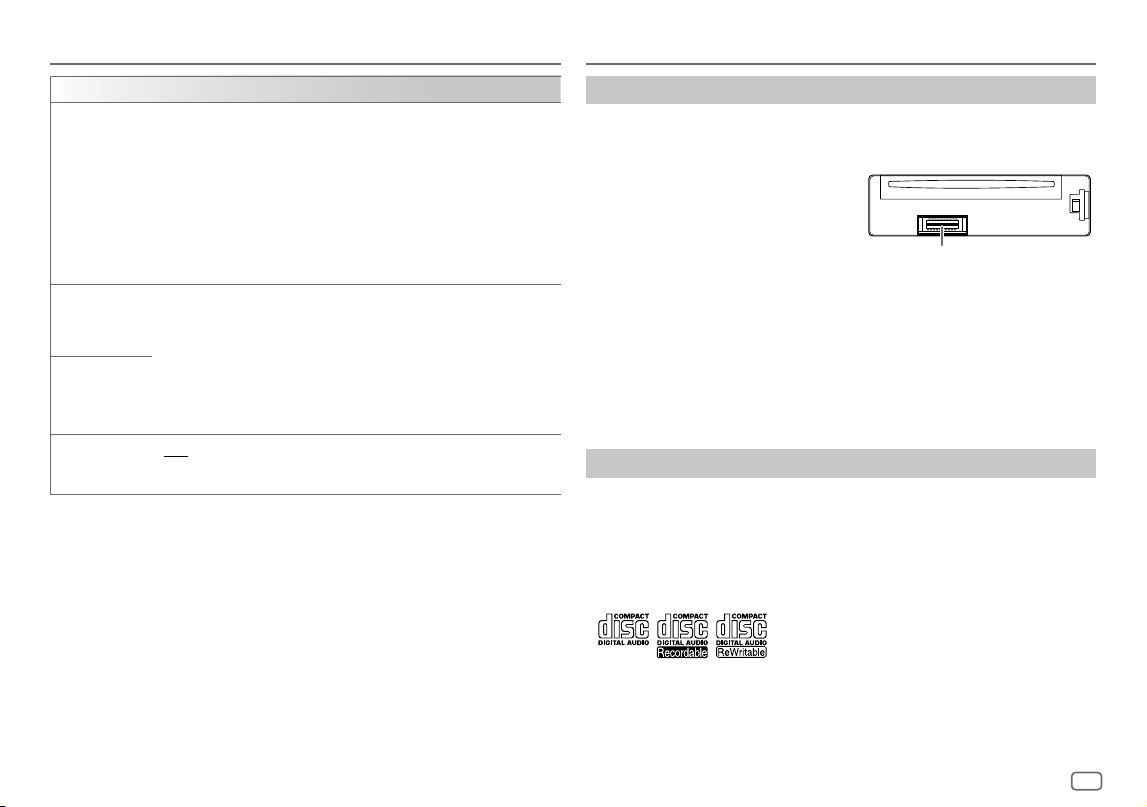
ESPAÑOL
33
Data Size: B6L (182 mm x 128 mm)
Book Size: B6L (182 mm x 128 mm)
Ajustes de visualización
[COLOR]
(para KD-T925BTS/KD-T920BTS)
[PRESET]
Selecciona por separado los colores de iluminación para los botones en diferentes zonas.
1
Selecciona una zona (
[ZONE1]
,
[ZONE2]
,
[ALLZONE]
). (Véase la ilustración en la
página 32.)
2
Seleccione un color para la zona seleccionada.
•
[COLOR01]
a
[COLOR49]
•
[USER]
: Se muestra el color que ha creado para
[DAYCOLOR]
o
[NIGHTCOLOR]
.
•
[COLORFLOW01]
a
[COLORFLOW03]
: El color cambia según las velocidades.
•
[CRYSTAL]
/
[FLOWER]
/
[FOREST]
/
[GRADATION]
/
[OCEAN]
/
[RELAX]
/
[SUNSET]
: Se muestra el patrón del color seleccionado.* (Puede seleccionarse sólo
si se selecciona
[ALLZONE]
en el paso1.)
[DAYCOLOR]
Guarda sus propios colores de iluminación de día y de noche para las diferentes zonas.
1
Selecciona una zona (
[ZONE1]
,
[ZONE2]
). (Véase la ilustración en la página 32.)
2
[RED]
/
[GREEN]
/
[BLUE]
:Seleccione un color primario.
3
[00]
a
[31]
:Seleccione el nivel.
Repita los pasos 2 y 3 para todos los colores primarios.
• Su ajuste se guarda en
[USER]
para
[PRESET]
.
•
[NIGHTCOLOR]
o
[DAYCOLOR]
cambian al encender o apagar los faros de su
vehículo.
[NIGHTCOLOR]
[COLOR GUIDE]
[ON]
:El color de iluminación de
[ZONE1]
y
[ZONE2]
cambia a blanco cuando se
realizan ajustes en el menú y búsqueda de lista, excepto en el modo de ajuste de color.;
[OFF]
:Se cancela.
* Si se selecciona uno de estos patrones de color, el color de la iluminación de
[ZONE1]
y
[ZONE2]
cambiará al
color predeterminado.
Referencias
Mantenimiento
Limpieza de la unidad
Limpie la suciedad de la placa frontal con un paño suave o paño de silicona seco.
Limpieza del conector
Desmonte la placa frontal y limpie el conector con un palillo de
algodón. Tenga cuidado de no dañar el conector.
Cómo manipular los discos
• No toque la superficie de grabación del disco.
• No pegue cinta etc. sobre el disco ni utilice un CD con cinta pegada sobre él.
• No utilice accesorios para el disco.
• Limpie desde el centro del disco hacia el exterior.
• Limpie el disco con un paño seco o de silicona. No utilice disolventes.
• Cuando extraiga un disco de esta unidad, hágalo en sentido horizontal.
• Antes de insertar un disco, quite las rebabas de los bordes del orificio central y del borde exterior.
Más información
Para: – Últimas actualizaciones de firmware y lista de los últimos elementos compatibles
– Aplicación original JVC
– Cualquier otra información más reciente
Visite <https://www.jvc.net/cs/car/>.
General
• Esta unidad puede reproducir sólo los siguientes CD:
Conector (en el reverso de la
placa frontal)
KD_T925BTS_K_SP.indd 33KD_T925BTS_K_SP.indd 33 9/3/2022 4:35:34 PM9/3/2022 4:35:34 PM

34
ESPAÑOL
Data Size: B6L (182 mm x 128 mm)
Book Size: B6L (182 mm x 128 mm)
Referencias
•
Reproducción DualDisc
: El lado no DVD de un “DualDisc” no es compatible con la norma “Compact Disc Digital
Audio”. Por consiguiente, no se recomienda usar en este producto, el lado no DVD de un DualDisc.
• Para obtener información detallada y notas acerca de los archivos de audio que pueden reproducirse, visite
<https://www.jvc.net/cs/car/audiofile/>.
Archivos reproducibles
• Disco:
Archivos de audio que pueden reproducirse:
MP3(.mp3), WMA(.wma), AAC(.aac)
Medios reproducibles: CD-R/CD-RW/CD-ROM
Formato de archivos reproducibles: ISO 9660 Nivel 1/2, Joliet, nombre de archivo largo
• Dispositivo de clase de almacenamiento masivo USB:
Archivos de audio que pueden reproducirse:
MP3(.mp3), WMA(.wma), AAC(.aac), AAC(.m4a), WAV (.wav), FLAC (.flac)
Sistema de archivos reproducibles: FAT12, FAT16, FAT32
Aunque los archivos de audio cumplan con los criterios mencionados arriba, la reproducción podría no ser posible
dependiendo de los tipos o condiciones del medio o dispositivos.
El archivo AAC (.m4a) contenido en un CD codificado por iTunes no puede reproducirse en esta unidad.
Discos no reproducibles
• Discos que no son redondos.
• Discos con la superficie de grabación pintada o discos sucios.
• Discos grabables/reescribibles que no hayan sido finalizados.
• CD de 8 cm. Si intenta insertarlo con un adaptador podrán causar fallos de funcionamiento.
Acerca de los dispositivos USB
• No es posible conectar un dispositivo USB a través de un concentrador USB.
• La conexión con un cable de más de 5 m de largo puede ocasionar una reproducción anormal.
• Esta unidad no puede reconocer ningún dispositivo USB cuyo régimen sea distinto de 5 V y que exceda de 1,5A.
Acerca del iPod/iPhone
• Made for
– iPod touch (6th generation)
– iPhone 5S, 6, 6 Plus, 6S, 6S Plus, SE, 7, 7 Plus, 8, 8 Plus, X, XS, XS MAX, XR, 11, 11 Pro, 11 Pro Max, SE (2nd
generation), 12, 12 mini, 12 Pro, 12 Pro Max
• El orden de canciones mostrado en el menú de selección de esta unidad puede diferir del que se encuentra en el
iPod/iPhone.
• Según la versión del sistema operativo del iPod/iPhone, algunas funciones podrían no estar disponibles en esta
unidad.
Acerca de AMAZON ALEXA
• Debido a que Alexa es un servicio de terceros, las especificaciones se encuentran sujetas a cambios sin previo aviso.
Por consiguiente, la compatibilidad podría verse afectada, y alguno o todos los servicios podrían dejar de estar
disponibles.
• Idiomas compatibles con Alexa en esta unidad: Inglés de EE. UU./Inglés de Canadá/Español de EE. UU./Francés
de Canadá/Español de México/Inglés del Reino Unido/Italiano de Italia/Español de España/Francés de Francia/
Alemán de Alemania/Inglés de Australia/Japonés de Japón
KD_T925BTS_K_SP.indd 34KD_T925BTS_K_SP.indd 34 9/3/2022 4:35:34 PM9/3/2022 4:35:34 PM
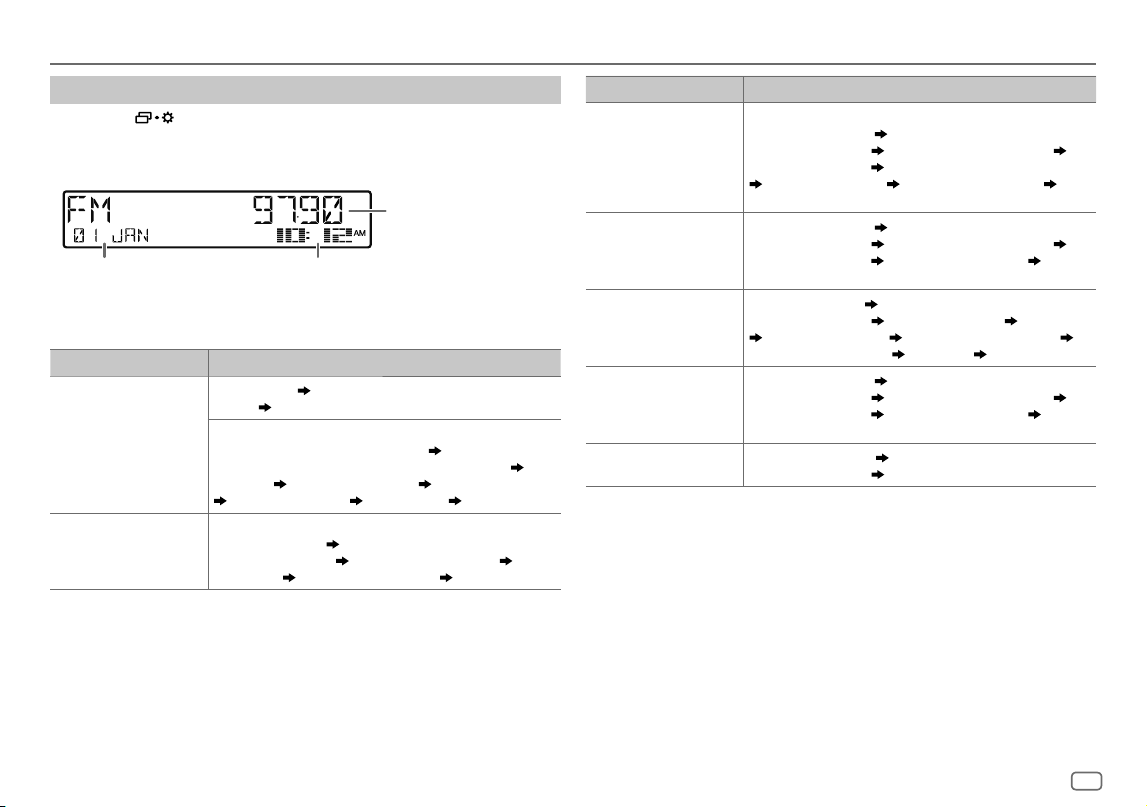
ESPAÑOL
35
Data Size: B6L (182 mm x 128 mm)
Book Size: B6L (182 mm x 128 mm)
Referencias
Cambiar la información en pantalla
Cada vez que pulsa , la información en pantalla cambia.
• Si la información no está disponible o no está registrada, aparecerá “NO TEXT”, “NO NAME”, u otra información (por
ej., nombre de la emisora) o la pantalla quedará en blanco.
Visualización
principal
Pantalla del reloj o Medidor de nivelPantalla suplementaria*1
*1 Si
[FORMAT]
se ajusta a
[BATT/SIGNAL]
, la fecha será reemplazada por el nivel de la batería y la intensidad
de la señal del dispositivo Bluetooth conectado. (Página32)
Nombre de la fuente Información en pantalla: Principal (suplementaria)
FM o AM Frecuencia (Fecha)
Frecuencia (Fecha) con efecto de sincronización de
música*2
vuelta al comienzo
Solo para emisoras del FM Radio Broadcast Data System:
Nombre de la emisora/Tipo de programa (Fecha)
Nombre de la emisora/
Tipo de programa (Fecha) con efecto de sincronización de música*2
Radio
texto (Fecha)
Radio texto+ (Radio texto+) Título de la canción (Artista)
Título de la canción (Fecha) Frecuencia (Fecha) vuelta al comienzo
CD o USB FRONT/
USB REAR/USB
Para CD-DA:
Título de la pista (Artista)
Título de la pista (Artista) con efecto de
sincronización de música*2
Título de la pista (Título del disco) Título de
la pista (Fecha)
Tiempo de reproducción (Fecha) vuelta al comienzo
Nombre de la fuente Información en pantalla: Principal (suplementaria)
Para archivos MP3/WMA/AAC/WAV/FLAC:
Título de la canción (Artista)
Título de la canción (Artista) con efecto de
sincronización de música*2
Título de la canción (Título del álbum)
Título de la canción (Fecha)
Nombre del archivo (Nombre de la carpeta)
Nombre del archivo (Fecha) Tiempo de reproducción (Fecha) vuelta
al comienzo
iPodFRONT/iPodREAR/
iPodUSB/iPodBT
Título de la canción (Artista)
Título de la canción (Artista) con efecto de
sincronización de música*2
Título de la canción (Título del álbum)
Título de la canción (Fecha)
Tiempo de reproducción (Fecha) vuelta al
comienzo
SIRIUS XM Número de canal (Estado)
Número de canal (Estado) con efecto de
sincronización de música*2
Nombre del canal (Estado) Artista (Estado)
Título de la canción (Estado) Información del contenido (Estado)
Nombre de la categoría (Estado)
Fecha (Estado) vuelta al comienzo
BT AUDIO/ALEXA Título de la canción (Artista)
Título de la canción (Artista) con efecto de
sincronización de música*2
Título de la canción (Título del álbum)
Título de la canción (Fecha)
Tiempo de reproducción (Fecha) vuelta al
comienzo
AUX Nombre de la fuente (Fecha)
Nombre de la fuente (Fecha) con efecto de
sincronización de música*2
vuelta al comienzo
*2 Para KD-T925BTS/KD-T920BTS: Durante el efecto de sincronización de música, el color de iluminación o el nivel
de brillo de los botones cambia y se sincroniza con el nivel de música (dependiendo del ajuste de color realizado
para
[PRESET]
en la página 33).
Para KD-T720BT: Durante el efecto de sincronización de música, el nivel de brillo de los botones cambia y se
sincroniza con el nivel de música.
KD_T925BTS_K_SP.indd 35KD_T925BTS_K_SP.indd 35 9/3/2022 4:35:34 PM9/3/2022 4:35:34 PM
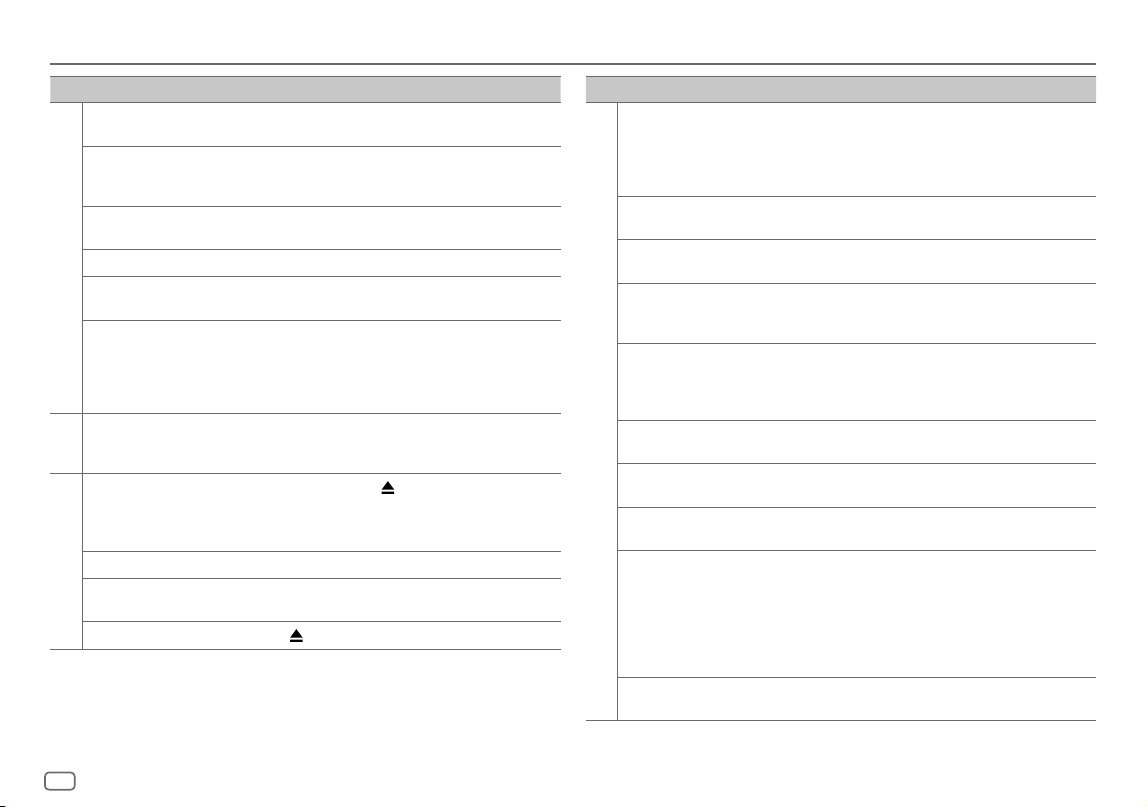
36
ESPAÑOL
Data Size: B6L (182 mm x 128 mm)
Book Size: B6L (182 mm x 128 mm)
Síntoma Solución
General
El sonido no se escucha. • Ajuste el volumen al nivel óptimo.
• Inspeccione los cables y las conexiones.
Aparece “MISWIRING CHECK
WIRING THEN PWR ON”.
Apague la unidad y luego compruebe que los terminales de los
cables de altavoz estén correctamente aislados. A continuación,
vuelva a encender la unidad.
Aparece “PROTECTING SEND
SERVICE”.
Lleve la unidad al centro de servicio más cercano.
La fuente no se puede seleccionar. Verifique el ajuste
[SOURCESELECT]
. (Página6)
El receptor no funciona en
absoluto.
Reinicialice la unidad. (Página4)
No se visualizan los caracteres
correctos.
• Esta unidad visualiza sólo letras mayúsculas, números, y un número
limitado de símbolos.
• Dependiendo del idioma en pantalla que haya seleccionado
en (página6), algunos caracteres podrían no visualizarse
correctamente.
Radio
• Recepción de radio deficiente.
• Ruidos estáticos mientras se
escucha la radio.
Conecte firmemente la antena.
CD/USB/iPod
El disco no puede ser expulsado.
Pulse y mantenga pulsado
para forzar la expulsión del disco.
Tenga cuidado de no dejar caer el disco cuando sea expulsado. Si
con esto no se resuelve el problema, reinicialice la unidad (página
4).
Se generan ruidos. Salte a otra pista o cambie el disco.
Aparece “IN DISC” y el disco no
puede ser expulsado.
Asegúrese de que no hay ningún obstáculo en la ranura de carga
cuando se expulsa el disco.
Aparece “PLEASE EJECT”.
Pulse
, luego inserte un disco correctamente.
Localización y solución de problemas
Síntoma Solución
CD/USB/iPod
El orden de reproducción no es el
que se esperaba.
Disco óptico, los archivos se reproducen en el orden en que fueron
grabados.
Dispositivo USB, las carpetas se reproducen en el orden de creación
(fecha y hora). Los archivos de cada carpeta se reproducen en el
orden del nombre de archivo (alfabético).
El tiempo de reproducción
transcurrido no escorrecto.
Esto depende del proceso de grabación anterior (disco/USB).
Aparece “NOT SUPPORT” y se
omiten las pistas.
Compruebe que la pista sea de un formato reproducible.
(Página33, 34)
El mensaje “READING” sigue
destellando.
• No utilice demasiados niveles de jerarquías y carpetas.
• Vuelva a cargar el disco o vuelva a conectar el dispositivo (USB/
iPod/iPhone).
Aparece “UNSUPPORTED DEVICE”. • Verifique si el dispositivo USB conectado es compatible con esta
unidad y asegúrese de que los sistemas de archivos estén en
formatos compatibles. (Página34)
• Vuelva a conectar el dispositivo USB.
Aparece “UNRESPONSIVE DEVICE”. Asegúrese de que no exista ningún fallo de funcionamiento en el
dispositivo USB y vuelva a conectarlo.
Aparece “USB HUB IS NOT
SUPPORTED”.
No es posible conectar un dispositivo USB a través de un
concentrador USB a esta unidad.
Aparece “CANNOT PLAY”. Conecte un dispositivo USB que contenga archivos de audio
reproducibles.
• La fuente no cambia a
“USB” cuando se conecta
un dispositivo USB mientras
escucha cualquier otra fuente.
• Aparece “USB ERROR”.
El puerto USB está emitiendo más potencia que el límite de
diseño. Apague la alimentación y desconecte el dispositivo USB.
A continuación, encienda la alimentación y vuelva a conectar el
dispositivo USB.
Si con lo anterior no se soluciona el problema, apague la
alimentación o vuélvala a encender (o reinicialice la unidad) antes
de reemplazarlo por otro dispositivo USB.
El iPod/iPhone no se enciende o
no funciona.
• Verifique la conexión entre esta unidad y el iPod/iPhone.
• Desconecte y realice el reinicio forzado del iPod/iPhone.
KD_T925BTS_K_SP.indd 36KD_T925BTS_K_SP.indd 36 9/3/2022 4:35:34 PM9/3/2022 4:35:34 PM
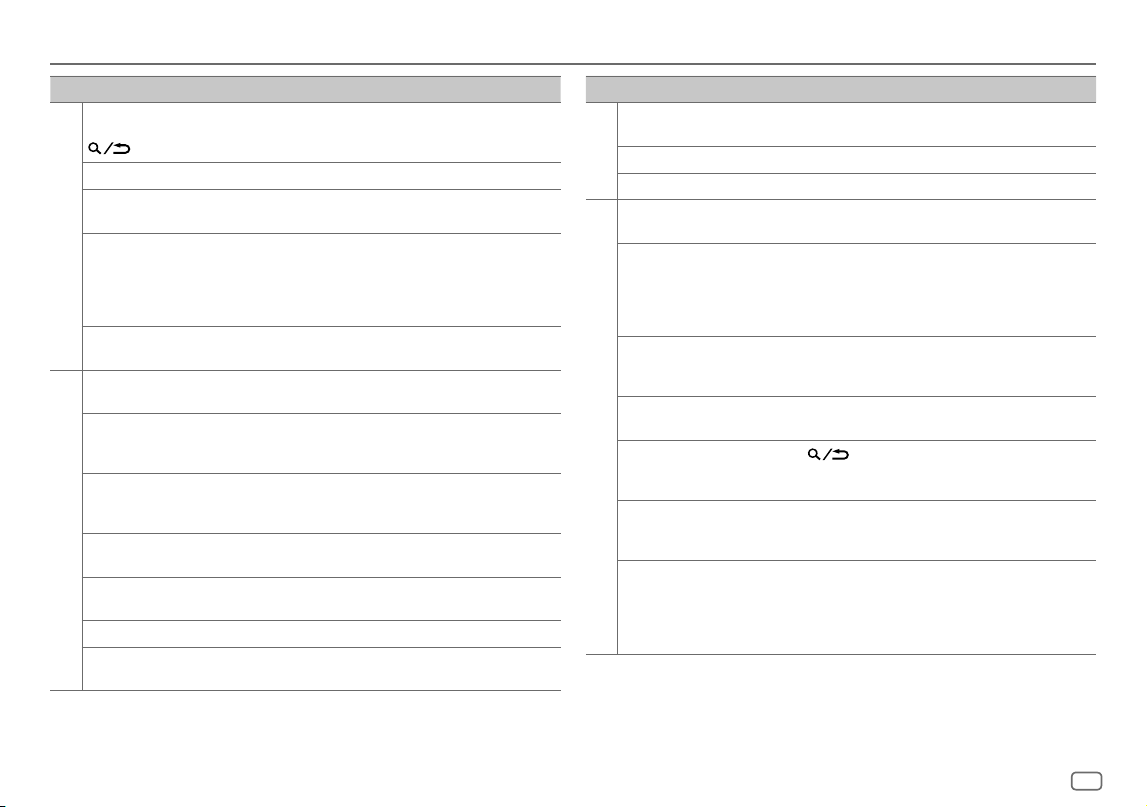
ESPAÑOL
37
Data Size: B6L (182 mm x 128 mm)
Book Size: B6L (182 mm x 128 mm)
Síntoma Solución
CD/USB/iPod
“LOADING” aparece al acceder al
modo búsqueda presionando
.
Esta unidad está preparando todavía la lista de música del iPod/
iPhone. Puede que tarde un poco, inténtelo de nuevo más tarde.
“NO DISC” Inserte un disco reproducible en la ranura de carga.
“NO DEVICE” Conecte un dispositivo (USB/iPod/iPhone) y cambie de nuevo a la
fuente USB/iPod USB.
“iPod ERROR” • Vuelva a conectar el iPod.
• Reinicialice el iPod.
• Pulse y mantenga pulsado B SRC para apagar la unidad. A
continuación, vuelva a encender la unidad para la recuperación de
errores.
“MEMORY FULL” Ha alcanzado el limite máximo de almacenamiento en su iPod/
iPhone.
Radio SiriusXM®
“CHLOCKED LOCK CODE?” El canal seleccionado está bloqueado. Para desbloquearlo, ingrese el
código de bloqueo correcto. (Página14)
“CHAN UNSUB” Se ha seleccionado un canal al que no está suscrito.
Para suscribirse, llame al 1-866-635-2349, en EE. UU., o al
1-888-539-7474, en Canadá. (Página12)
“CHUNAVAIL” Se ha seleccionado un canal que no está disponible. Si desea
más información acerca de la línea de canales SiriusXM, visite
<www.siriusxm.com>.
“CHECKANTENNA” Verifique que la antena y su conexión estén en condiciones
satisfactorias.
“CHECK TUNER” Asegúrese de que el sintonizador para vehículos SiriusXM esté
conectado a la unidad.
“NO SIGNAL” Asegúrese de que la antena esté montada fuera del vehículo.
“SUBSCRIPTION UPDATED –
PRESS ENTER TO CONTINUE.”
Su suscripción ha sido actualizada. Para continuar, pulse la rueda de
volumen.
Localización y solución de problemas
Síntoma Solución
Radio SiriusXM®
“CODE ERROR” Asegúrese de haber ingresado el código de acceso correcto.
(Página14)
“NO CONTENT” No existe suficiente contenido para iniciar TuneScan.
“SCAN CANCEL” TuneScan ha sido cancelado.
Bluetooth®
No se detecta ningún
dispositivo Bluetooth.
• Vuelva a buscar el dispositivo Bluetooth.
• Reinicialice la unidad. (Página4)
No es posible el
emparejamiento de Bluetooth.
• Asegúrese de haber ingresado el mismo código PIN en la unidad y en el
dispositivo Bluetooth.
• Elimine la información de emparejamiento de la unidad y del dispositivo
Bluetooth; a continuación, vuelva a realizar el emparejamiento.
(Página17)
Se escucha ruido o eco
durante una conversación
telefónica.
• Ajuste la posición del micrófono. (Página16)
• Verifique el ajuste
[ECHO CANCEL]
. (Página19)
La calidad del sonido del
teléfono es baja.
• Reduzca la distancia entre la unidad y el dispositivo Bluetooth.
• Mueva el automóvil a un lugar donde exista mejor recepción de señal.
El sonido de la llamada
telefónica no se oye a través
de los altavoces del automóvil.
Pulse
durante una llamada para cambiar entre el modo
manos libres y conversación privada. (Página18)
El método de llamada de voz
no funciona.
• Utilice el método de llamada de voz en un entorno con menos bullicio.
• Reduzca la distancia al micrófono cuando pronuncia el nombre.
• Asegúrese de utilizar la misma voz que la etiqueta de voz registrada.
El sonido se interrumpe o se
omite durante la reproducción
de un reproductor de audio
Bluetooth.
• Reduzca la distancia entre la unidad y el reproductor de audio
Bluetooth.
• Apague la unidad y vuelva a encenderla; intente conectar nuevamente.
• Otros dispositivos Bluetooth pueden estar intentando conectarse a la
unidad.
KD_T925BTS_K_SP.indd 37KD_T925BTS_K_SP.indd 37 9/3/2022 4:35:34 PM9/3/2022 4:35:34 PM
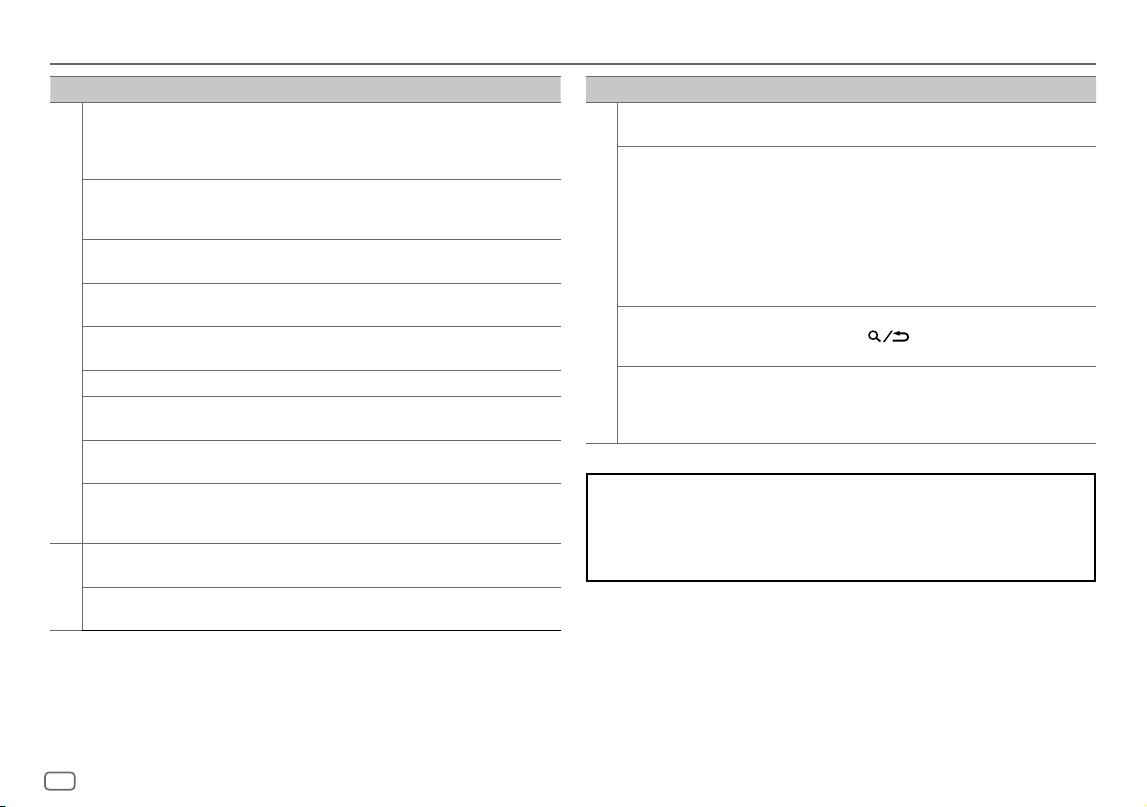
38
ESPAÑOL
Data Size: B6L (182 mm x 128 mm)
Book Size: B6L (182 mm x 128 mm)
Localización y solución de problemas
Síntoma Solución
Bluetooth®
No se puede controlar el
reproductor de audio Bluetooth
conectado.
• Verifique si el reproductor de audio Bluetooth conectado es
compatible con Audio/Video Remote Control Profile (AVRCP).
(Consulte las instrucciones del reproductor de audio.)
• Desconecte y vuelva a conectar el reproductor Bluetooth.
“PLEASE WAIT” La unidad se está preparando para utilizar la función Bluetooth. Si el
mensaje no aparece, apague y encienda la unidad; a continuación,
vuelva a conectar el dispositivo.
“NOT SUPPORT” El teléfono conectado no es compatible con la función de
reconocimiento de voz ni con la de transferencia de la guía telefónica.
“NO ENTRY” No hay ningún dispositivo registrado conectado/localizado a través
de Bluetooth.
“ERROR” Inténtelo nuevamente. Si vuelve a aparecer “ERROR”, verifique si el
dispositivo es compatible con la función que está intentando utilizar.
“NO INFO”/“NO DATA” El dispositivo Bluetooth no puede obtener la información de contacto.
“H/W ERROR” Reinicialice la unidad y vuelva a intentar la operación. Si vuelve a
aparecer “H/W ERROR”, consulte al centro de servicio más cercano.
“SWITCHING NG” Los teléfonos conectados no son compatibles con la función cambio
de teléfono.
La conexión Bluetooth entre el
dispositivo Bluetooth y la unidad
es inestable.
Elimine de la unidad el dispositivo Bluetooth registrado no utilizado.
(Página21)
AMAZON ALEXA
Alexa no responde a las entradas
de voz.
La nube de Amazon no pudo analizar la entrada de voz.
Respuesta incorrecta de Alexa. Alexa no me entiende o no capta toda mi petición o frase. Por favor
intente de nuevo. (Página24)
Síntoma Solución
AMAZON ALEXA
“DISCONNECTED” Asegúrese de conectar su smartphone a la unidad a través de
Bluetooth. (Página17)
No se puede conectar o volver
a conectar a la aplicación móvil
de Alexa.
• Asegúrese de que el dispositivo de audio esté conectado a través
de Bluetooth. Seleccione el dispositivo de audio desde
[AUDIO
SELECT]
en
[BT MODE]
. (Página21)
• Repita el proceso One-Time Setup. Consulte “Cómo configurar por
primera vez” en la página23
• Apague la unidad y vuelva a encenderla; intente conectar
nuevamente.
• En el dispositivo iOS, asegúrese de seleccionar la fuente ALEXA o la
fuente iPod BT.
No puede salir de la pantalla
“TALKING” después de finalizar
la llamada.
La unidad puede tardar cierto tiempo en salir de la pantalla
“TALKING”. Pulse
para volver a la pantalla de control de
fuente anterior.
No puede ir a la
pantalla “LISTENING”
después de activar Alexa.
• Desconecte y vuelva a conectar la conexión de Bluetooth. (Página17)
• Desconecte y vuelva a conectar la conexión a Alexa. (Página23)
• Apague la unidad durante unos 10 segundos, enciéndala y vuelva a
intentarlo.
Si experimenta problemas, intente lo siguiente:
1 Verifique la LOCALIZACIÓN Y SOLUCIÓN DE PROBLEMAS
2 Reinicialice la unidad (página4)
3 Llame al (solo EE.UU.)
Llame al: 1-800-252-5722 ( o ) visite: <https://www.jvc.com>
KD_T925BTS_K_SP.indd 38KD_T925BTS_K_SP.indd 38 9/3/2022 4:35:34 PM9/3/2022 4:35:34 PM
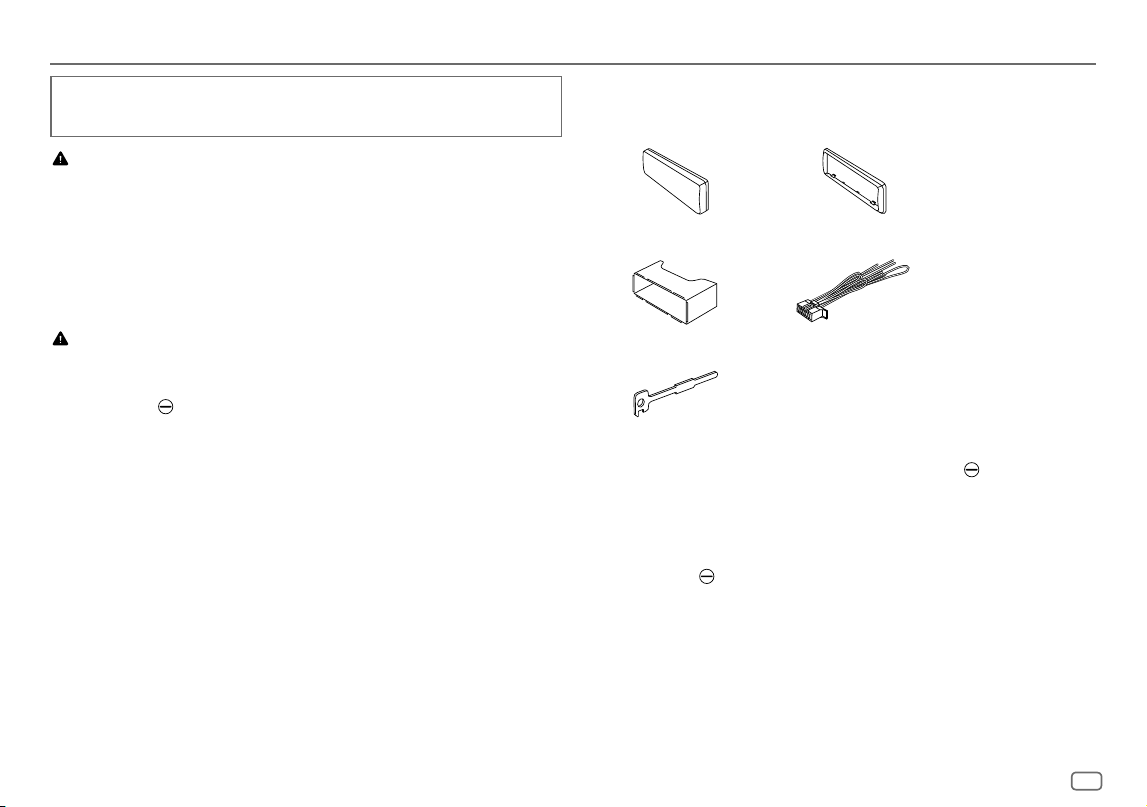
ESPAÑOL
39
Data Size: B6L (182 mm x 128 mm)
Book Size: B6L (182 mm x 128 mm)
Esta sección es para los instaladores profesionales.
Para fines de seguridad, deje que un profesional realice el cableado y el montaje. Consulte con un distribuidor de
productos de audio para automóviles.
ADVERTENCIA
• La unidad puede utilizarse solamente con una fuente de alimentación de 12 V CC con negativo a masa.
• Desconecte el terminal negativo de la batería antes de realizar el cableado y el montaje.
• Para evitar un cortocircuito, no conecte el cable de la batería (amarillo) ni el cable de encendido (rojo) al chasis del
vehículo o cable de conexión a masa (negro).
• Para evitar cortocircuitos:
– Utilice una cinta de vinilo para aislar los cables no conectados.
– Asegúrese de volver a conectar a masa esta unidad al chasis del automóvil después de la instalación.
– Para proteger los cables, asegúrelos con abrazaderas de cables y con una cinta de vinilo, enrolle los cables que
entran en contacto con partes metálicas.
PRECAUCIÓN
• Instale esta unidad en la consola de su vehículo. No toque las partes metálicas de la unidad durante o un poco
después del uso de la unidad. Las partes metálicas, tales como el disipador de calor o la carcasa, pueden estar muy
calientes.
• No conecte los cables
de los altavoces al chasis del vehículo, al cable de conexión a masa (negro) o en paralelo.
• Conecte altavoces con una potencia máxima de más de 50 W. Si la potencia máxima de los altavoces es inferior a
50 W, cambie el ajuste
[AMPGAIN]
para evitar daños en los mismos. (Página27)
• Monte la unidad a un ángulo de menos de 30º.
• Si el mazo de conductores de su vehículo no dispone de terminal de encendido, conecte el cable de encendido
(rojo) al terminal de la caja de fusibles del vehículo, el cual suministrará una alimentación de 12 V CC y podrá
conectarse y desconectarse mediante la llave de encendido.
• Mantenga todos los cables alejados de las partes metálicas disipadoras de calor.
• Después de instalar la unidad, compruebe que las lámparas de freno, las luces intermitentes, el limpiaparabrisas,
etc. funcionen satisfactoriamente.
• Si se funde el fusible, en primer lugar asegúrese de que los cables no estén en contacto con el chasis del vehículo y,
a continuación, reemplace el fusible usado por otro del mismo régimen.
Instalación/Conexión
Lista de piezas para la instalación
(A)
Placa frontal (×1)
(B)
Placa embellecedora (×1)
(C)
Manguito de montaje (×1)
(D)
Mazo de conductores (×1)
(E)
Herramienta de extracción (×2)
Procedimiento básico
1
Quite la llave del interruptor de encendido; después, desconecte el terminal de la batería del
automóvil.
2
Conecte los cables correctamente.
Consulte “Conexión del cableado” en la página41.
3
Instale la unidad en su automóvil.
Consulte “Instalación de la unidad (montaje en el tablero)” en la página40.
4
Conecte el terminal de la batería del automóvil.
5
Pulse B SRC para encender la unidad.
6
Extraiga la placa frontal y reinicialice la unidad en menos de 5 segundos. (Página4)
KD_T925BTS_K_SP.indd 39KD_T925BTS_K_SP.indd 39 9/3/2022 4:35:34 PM9/3/2022 4:35:34 PM
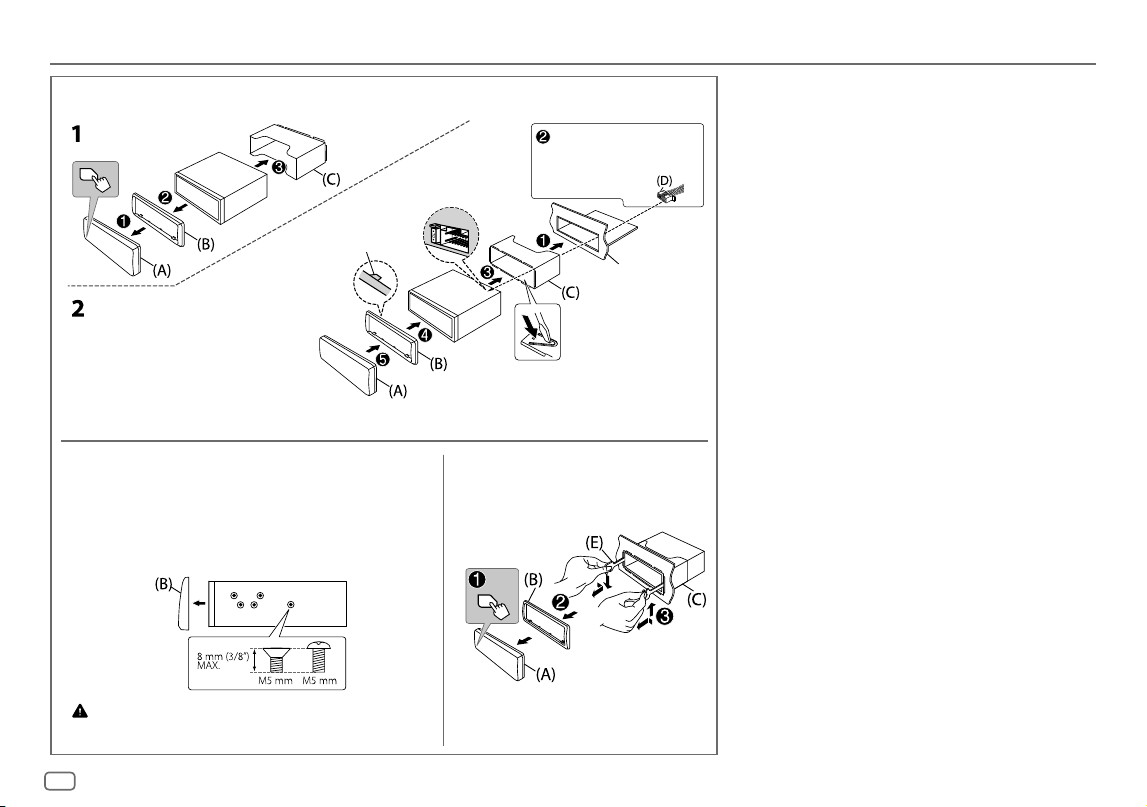
40
ESPAÑOL
Data Size: B6L (182 mm x 128 mm)
Book Size: B6L (182 mm x 128 mm)
Instalación de la unidad (montaje en el tablero)
Desmontaje de la unidadInstalación de la unidad (sin manguito de
montaje)
1
Retire de la unidad, el manguito de montaje y la placa embellecedora.
2
Alinee los orificios de la unidad (en ambos lados) con la ménsula de
montaje del vehículo y asegure la unidad con los tornillos (disponibles
en el mercado).
Utilice solo los tornillos especificados. El uso de tornillos incorrectos puede
dañar la unidad.
Prepare el cableado
necesario. (Página41)
Doble las lengüetas apropiadas para retener
firmemente la manga en su lugar.
Gancho en el lado superior
Antes del montaje, oriente
la placa embellecedora
tal como se muestra en la
ilustración.
Salpicadero del
automóvil
Instalación/Conexión
KD_T925BTS_K_SP.indd 40KD_T925BTS_K_SP.indd 40 9/3/2022 4:35:34 PM9/3/2022 4:35:34 PM
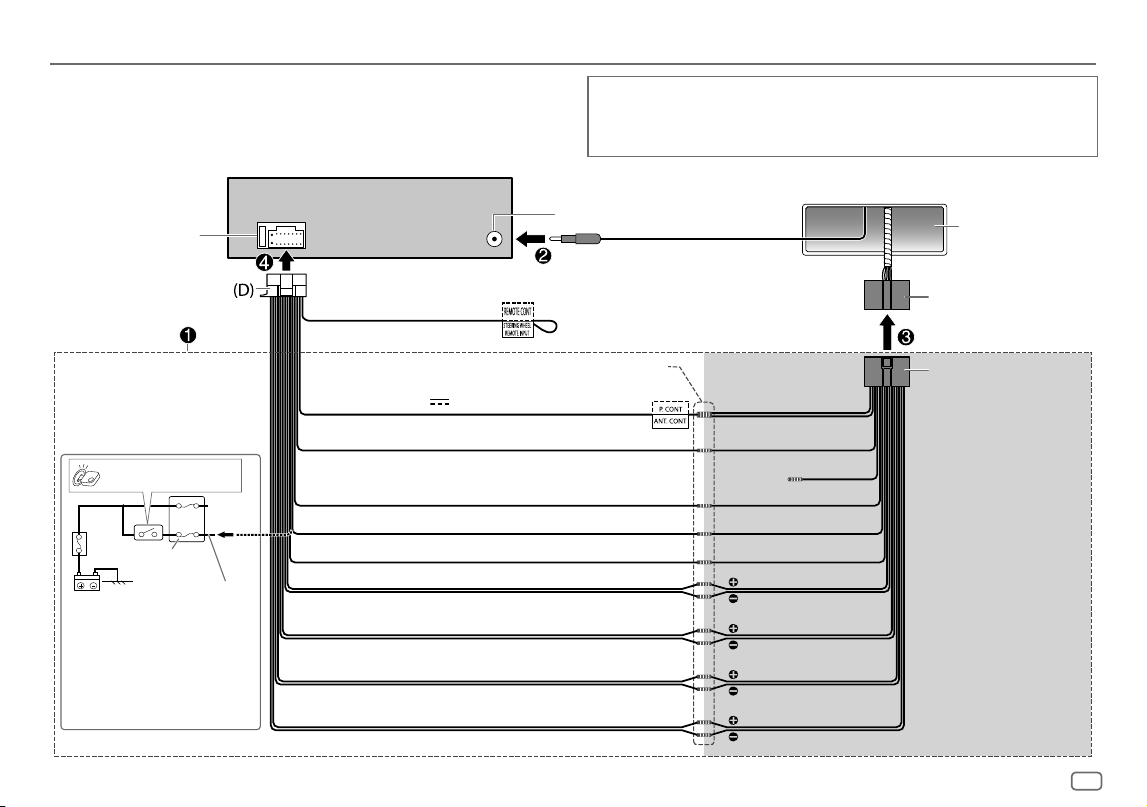
ESPAÑOL
41
Data Size: B6L (182 mm x 128 mm)
Book Size: B6L (182 mm x 128 mm)
* También es posible conectar
directamente un subwoofer con
este conductor sin el amplificador
externo para subwoofer. Para la
configuración, consulte la página28.
Conexión del cableado
Bloque de fusibles
del vehículo
Interruptor de encendido
Azul/blanco: Al amplificador
Azul: A la antena motriz
Realice esta conexión si el mazo de
conductores de fábrica de su vehículo
no incluye el cable del “interruptor de
encendido de 12 V”.
Cable rojo separado
Fusible (10 A)
Terminal de la antena
Mazo de cables de
fábrica (vehículo)
Salpicadero del
vehículo
Negro: Tierra
Blanco: Altavoz delantero/Para crossover de 3 vías: Altavoz de rango medio (izquierdo)
Blanco/negro
Gris: Altavoz delantero/Para crossover de 3 vías: Altavoz de rango medio (derecho)
Gris/negro
Verde: Altavoz trasero */Para crossover de 3 vías: Tweeter (izquierdo)
Verde/negro *
Púrpura: Altavoz trasero/Para crossover de 3 vías: Tweeter (derecho)
Púrpura/negro
Junte los cables del mismo color.
Rojo: Encendido de 12 V
Naranja/blanco: Iluminación
Azul/blanco: Remoto (12V
350mA)
Luz azul/amarilla
Al adaptador del mando a distancia
del volante de la dirección
Mazo de conductores personalizado
(en venta por separado)
Conexión recomendada
IMPORTANTE
Se recomienda instalar la unidad con un mazo de cables disponible en el mercado que sea adecuado para su
automóvil y, para fines de seguridad, deje esta tarea en manos de profesionales. Consulte con un distribuidor de
productos de audio para automóviles.
(Sin utilizar)
Marrón
Amarillo: Batería de 12 V
Instalación/Conexión
KD_T925BTS_K_SP.indd 41KD_T925BTS_K_SP.indd 41 9/3/2022 4:35:35 PM9/3/2022 4:35:35 PM
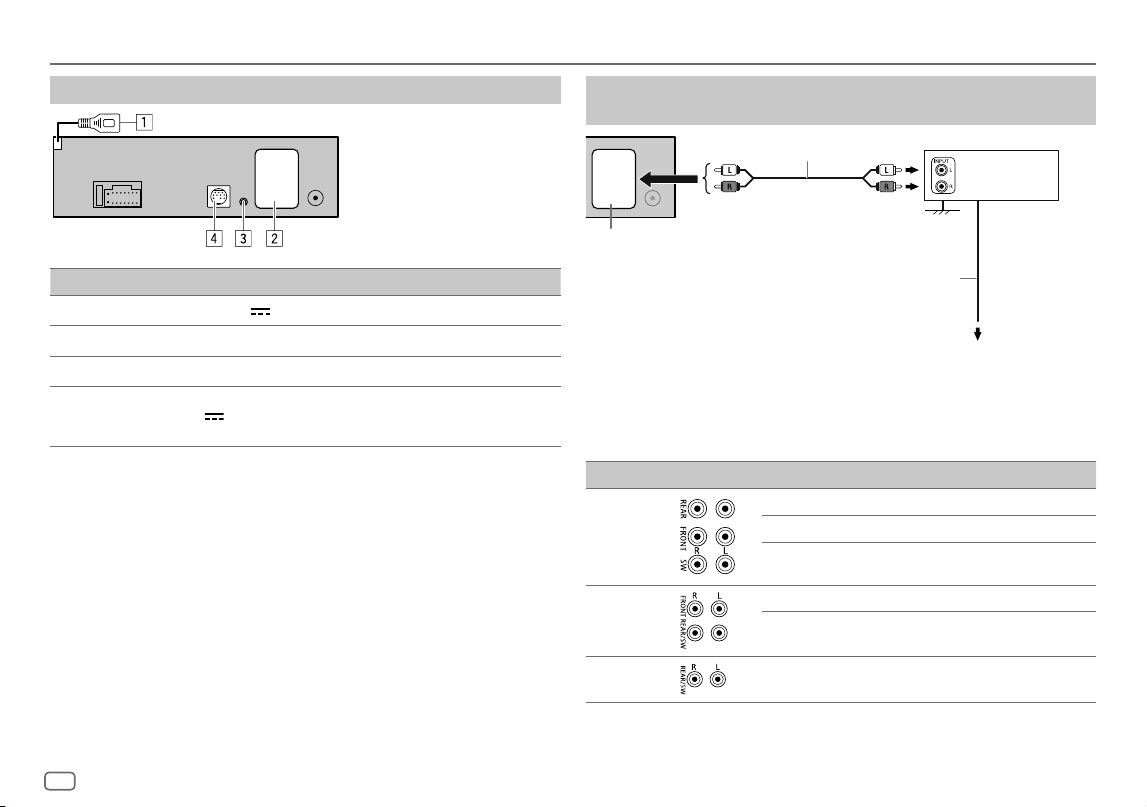
42
ESPAÑOL
Data Size: B6L (182 mm x 128 mm)
Book Size: B6L (182 mm x 128 mm)
Instalación/Conexión
Conecte los componentes externos
No. Pieza
1
Para KD-T925BTS: Cable USB (5 V CC 1,5 A) (aproximadamente 1 m/3,3 pies)
2
Terminales de salida (Consulte “Conecte los amplificadores externos a través de los terminales de salida”.)
3
Jack de entrada de micrófono (página16)
4
Para KD-T925BTS/KD-T920BTS:
Puerto de expansión (12 V
500mA): Al sintonizador para vehículos SiriusXM opcional (disponible en
el mercado). (Página12)
Conecte los amplificadores externos a través de los terminales
de salida
* Para evitar daños a la unidad, conecte firmemente el cable de conexión a masa del amplificador al chasis del
vehículo.
Modelo Terminales de salida Crossover de 2 vías Crossover de 3 vías
KD-T925BTS
REAR: Salida posterior Salida del tweeter
FRONT: Salida frontal Salida de rango medio
SW : Salida del subwoofer Salida del woofer
KD-T920BTS
FRONT: Salida frontal Salida de rango medio
REAR/SW: Salida posterior/subwoofer Salida del woofer
KD-T720BT
REAR/SW: Salida posterior/subwoofer Salida del woofer
Amplificador de
JVC*
Cable de señal (no suministrado)
Al cable remoto (azul/blanco) del mazo de
conductores. (Página41)
Cable remoto (no suministrado)
Terminales de salida
KD_T925BTS_K_SP.indd 42KD_T925BTS_K_SP.indd 42 9/3/2022 4:35:35 PM9/3/2022 4:35:35 PM
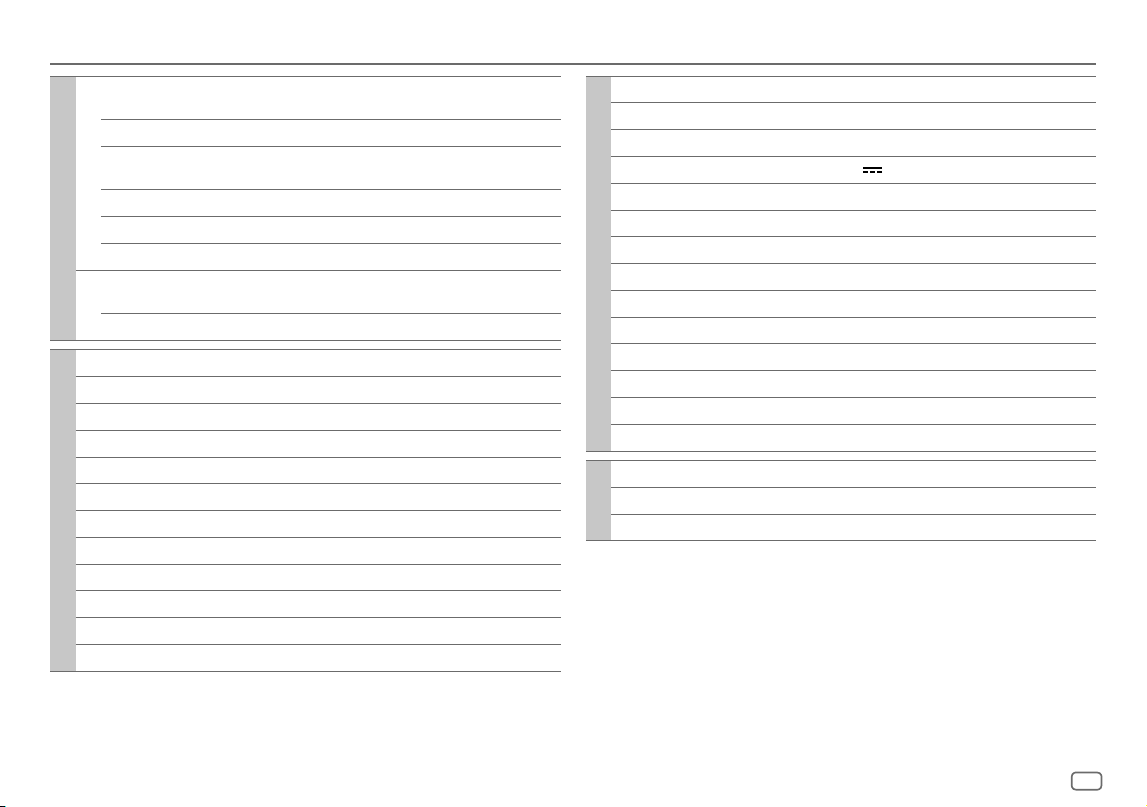
ESPAÑOL
43
Data Size: B6L (182 mm x 128 mm)
Book Size: B6L (182 mm x 128 mm)
Especificaciones
Sintonizador
FM Gama de frecuencias 87,9MHz — 107,9MHz (pasos de 200kHz)
87,5MHz — 108,0MHz (pasos de 50kHz)
Sensibilidad útil (Relación señal/ruido = 30dB) 8,2 dBf (0,71μV/75Ω)
Sensibilidad de silenciamiento
(DIN S/N = 46dB)
17,2 dBf (2,0μV/75Ω)
Respuesta de frecuencia (±3 dB) 30Hz — 15kHz
Relación señal a ruido (MONO) 64dB
Separación estéreo (1 kHz) 40dB
AM Gama de frecuencias 530kHz — 1 700kHz (pasos de 10kHz)
531kHz — 1 611kHz (pasos de 9kHz)
Sensibilidad útil (Relación señal/ruido = 20dB) 29 dBμ (28,2 μV)
Reproductor de CD
Diodo láser GaAIAs
Filtro digital (D/A) 8 veces sobremuestreo
Velocidad de giro 500rpm — 200rpm (CLV)
Fluctuación y trémolo Por debajo del límite medible
Respuesta de frecuencia (±1 dB) 20Hz — 20kHz
Distorsión armónica total (1 kHz) 0,01 %
Relación señal a ruido (1 kHz) 94dB
Gama dinámica 90dB
Separación de canales 88dB
MP3 decodificado Compatible con MPEG-1/2 Audio Layer-3
WMA decodificado Compatible con Windows Media Audio
AAC decodificado Archivos AAC-LC “.aac”
USB
Estándar USB USB1.1, USB2.0 (Alta velocidad)
Dispositivos compatibles Clase de almacenamiento masivo
Sistema de archivos FAT12/16/32
Corriente máxima de alimentación 5 V CC
1,5A
Convertidor de filtro digital (D/A) 24 Bit
Respuesta de frecuencia (±1 dB) 20Hz — 20kHz
Relación señal a ruido (1 kHz) 98dB
Gama dinámica 93dB
Separación de canales 90dB
MP3 decodificado Compatible con MPEG-1/2 Audio Layer-3
WMA decodificado Compatible con Windows Media Audio
AAC decodificado Archivos AAC-LC “.aac”, “.m4a”
WAV decodificado PCM lineal
FLAC decodificado Archivo FLAC, hasta 24 bit /96kHz
Auxiliar
Respuesta de frecuencia (±3 dB) 20Hz — 20kHz
Voltaje de entrada máximo 1 000mV
Impedancia de entrada 30kΩ
KD_T925BTS_K_SP.indd 43KD_T925BTS_K_SP.indd 43 9/3/2022 4:35:35 PM9/3/2022 4:35:35 PM
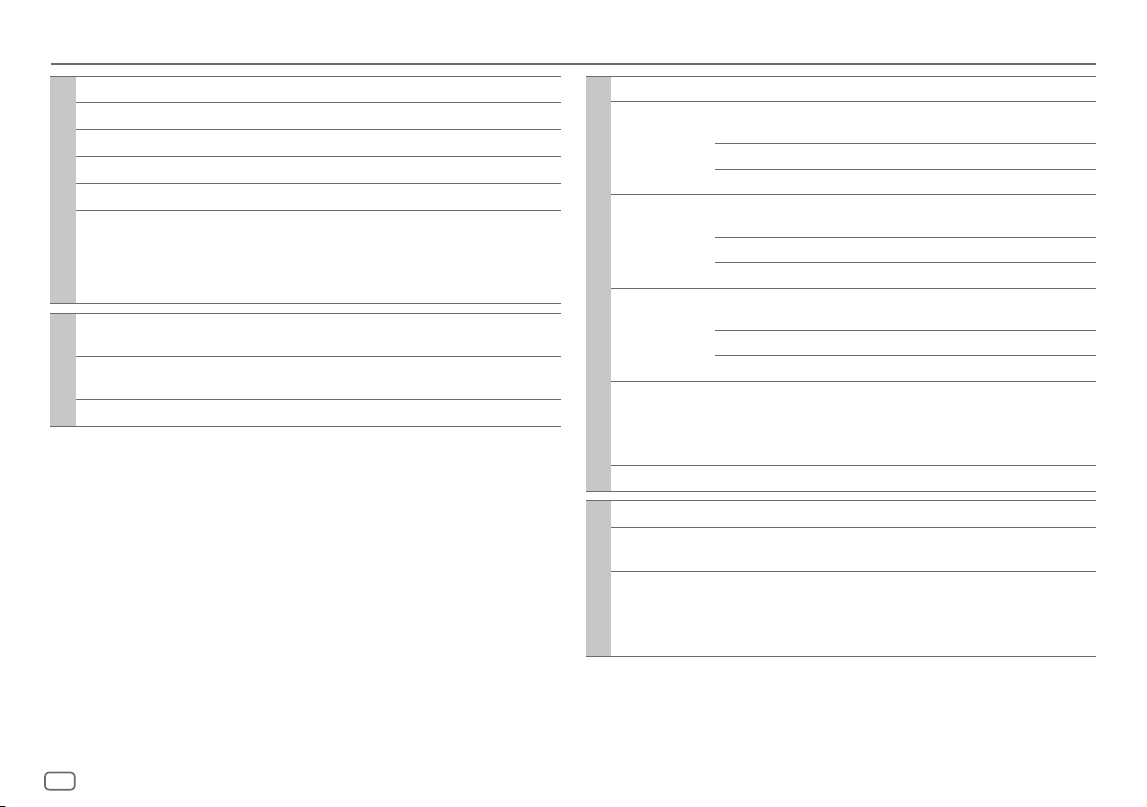
44
ESPAÑOL
Data Size: B6L (182 mm x 128 mm)
Book Size: B6L (182 mm x 128 mm)
Bluetooth
Versión Bluetooth V4.2
Gama de frecuencias 2,402GHz — 2,480GHz
Potencia de salida RF (E.I.R.P.) +4 dBm (MAX), potencia clase 2
Alcance máximo de comunicación En línea recta, aproximadamente 10 m (32,8 pies)
Emparejamiento SSP (Emparejamiento simple y seguro)
Perfil HFP1.7.1 (Perfil manos libres)
A2DP (Perfil Avanzado de Distribución de Audio)
AVRCP1.6.1 (Perfil de mando a distancia de Audio/Video)
PBAP (Perfil de acceso a la guía telefónica)
SPP (Perfil del puerto en serie)
Audio
Potencia de salida máxima 50W×4 ó
50W×2 + 50W×1 (Subwoofer = 4Ω)
Potencia en todo el ancho de banda
(a menos del 1 % THD)
22W×4
Impedancia del altavoz 4Ω—8Ω
Especificaciones
Audio
Banda 13 Banda
Frecuencia 62,5/ 100/ 160/ 250/ 400/ 630/ 1k/ 1,6k/ 2,5k/ 4k/ 6,3k/
10k/ 16k Hz
Nivel -09 — +09 (-9dB — +9dB)
Q 1,35/ 1,5/ 2,0
HPF Frecuencia THROUGH/ 30/ 40/ 50/ 60/ 70/ 80/ 90/ 100/ 120/ 150/
180/ 220/ 250Hz
Nivel -6/ -12/ -18/ -24dB/Oct.
Q -8/ -7/ -6/ -5/ -4/ -3/ -2/ -1/ 0dB
LPF Frecuencia 30/ 40/ 50/ 60/ 70/ 80/ 90/ 100/ 120/ 150/ 180/ 220/
250Hz/ THROUGH
Nivel -6/ -12/ -18/ -24dB/Oct.
Q -8/ -7/ -6/ -5/ -4/ -3/ -2/ -1/ 0dB
Nivel de salida de preamplificador/carga KD-T925BTS:
5 000mV/10kΩ
KD-T920BTS/KD-T720BT:
2 500 mV/10kΩ
Impedancia de salida de preamplificador ≤600Ω
General
Voltaje de trabajo Batería de 12 V CC para vehículos
Tamaño de instalación (An×Al× F) 182mm×53mm×156mm
(7-3/16 pulgada×2-1/16 pulgada×6-1/8 pulgada)
Peso neto (incluyendo placa embellecedora,
manguito de montaje)
KD-T925BTS:
1,3kg (2,9lbs)
KD-T920BTS/KD-T720BT:
1,2 kg (2,6 lbs)
Sujeto a cambios sin previo aviso.
KD_T925BTS_K_SP.indd 44KD_T925BTS_K_SP.indd 44 9/3/2022 4:35:35 PM9/3/2022 4:35:35 PM

KD_T925BTS_K_SP.indd 45KD_T925BTS_K_SP.indd 45 9/3/2022 4:35:35 PM9/3/2022 4:35:35 PM

Data Size: B6L (182 mm x 128 mm)
Book Size: B6L (182 mm x 128 mm)
© 2022 JVCKENWOOD Corporation
0322DTSMDTJEIN
• Windows Media is a registered trademark or trademark of Microsoft Corporation in the United States
and/or other countries.
This product is protected by certain intellectual property rights of Microsoft. Use or distribution of
such technology outside of this product is prohibited without a license from Microsoft.
• Use of the Made for Apple badge means that an accessory has been designed to connect specifically
to the Apple product(s) identified in the badge and has been certified by the developer to meet Apple
performance standards. Apple is not responsible for the operation of this device or its compliance
with safety and regulatory standards. Please note that the use of this accessory with an Apple product
may affect wireless performance.
• Apple, iPhone, iPod, iPod touch, and iTunes are trademarks of Apple Inc., registered in the U.S. and
other countries.
• IOS is a trademark or registered trademark of Cisco in the U.S. and other countries and is used under
license.
• SiriusXM and all related marks and logos are trademarks of Sirius XM Radio, Inc. All rights reserved.
• Android is a trademark of Google LLC.
• The Bluetooth® word mark and logos are registered trademarks owned by Bluetooth SIG, Inc. and any
use of such marks by JVCKENWOOD Corporation is under license. Other trademarks and trade names
are those of their respective owners.
• Amazon, Alexa and all related marks are trademarks of Amazon.com, Inc. or its affiliates.
• Alexa is not available in all languages and countries. Alexa features and functionality may vary by
location.
KD_T925BTS_K_B5A-3880-00_Cover_7th Draft.indd 2KD_T925BTS_K_B5A-3880-00_Cover_7th Draft.indd 2 14/3/2022 2:30:01 PM14/3/2022 2:30:01 PM