Hi-Res Audio logo and Hi-Res Audio
Wireless logo are used under license
from Japan Audio Society.
B5K-0860_ref_K_En_00© 2021 JVCKENWOOD Corporation
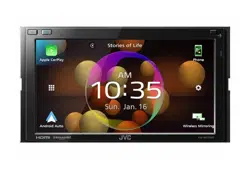
KW-M875BW
MONITOR WITH RECEIVER
INSTRUCTION MANUAL
• Updated information (the latest Instruction Manual, system updates, new
functions, etc.) is available from
<https://www.jvc.net/cs/car/>.

2
Important Notice on Software
Ñ Software License on This
Product
The software embedded in this product
comprises a number of independent software
components, each of which is copyrighted by
JVCKENWOOD Corporation or by a third party.
This product uses software components that
are based on an End-User License Agreement
(hereinafter called “EULA”) stipulated by
JVCKENWOOD Corporation and by third parties.
The EULA dictates the availability of the source
codes of free-software components as a
prerequisite to distributing them in executable
form under the terms of the GNU General
Public License or the Lesser General Public
License (hereinafter called “GPL/LGPL”). To get
information about the software components
that are subject to the terms of the GPL/LGPL,
please visit the following Website:
Website URL https://www3.jvckenwood.com/
english/download/gpl/
Queries concerning the contents of the source
code or the like will not be accepted.
Please note that software components based
on a EULA that is not subject to the terms of the
GPL/LGPL or those that have been developed
or created by JVCKENWOOD Corporation will
be excluded from the scope of source code
disclosure.
Because licenses to use software components
distributed under the GPL/LGPL are offered to
the customers for free of charge, no warranty is
granted to the customers, whether explicitly or
implicitly, to the extent of the applicable laws.
Unless otherwise stipulated by the applicable
laws or agreed upon in writing, the copyright
holders or those who are entitled to modify
and redistribute the software components are
not held responsible for any and all damages
resulting from their use or from inability to use
them. For more information about the terms of
use of the software components, required items
of compliance and so on, please refer to the
GPL/LGPL.
Customers wishing themselves to use a software
component that is subject to the GPL/LGPL
embedded in this product are encouraged to
read the terms of the corresponding license
before use. Because each individual license
is prescribed by a third party other than
JVCKENWOOD Corporation, the original (English)
of the license is presented.
EULA
Ñ Software License Agreement
JVCKENWOOD Corporation (hereinafter called
“Licensor”) holds either the copyright to the
embedded software or the right to sublicense it.
This agreement establishes the conditions under
which the customer uses this “Licensed Software.”
The customer shall agree to the terms of this
license agreement before proceeding to use
Licensed Software.
This agreement is deemed to have taken effect
when the customer (hereinafter called “User”)
has used a product implementation of Licensed
Software.
The Licensed Software may contain software
Licensor has been licensed to use by third parties
directly or indirectly. Some third parties may
have terms of use prescribed for their customers,
apart from this Software License Agreement. This
agreement does not apply to such software. Be
sure to consult “Important Notice on Software” as
presented separately.
Article 1 (General)
Licensor grants to User a non-exclusive, non-
assignable right of use Licensed Software
within the country where the User purchases
the Product (hereinafter the "Country") (except
for the exception provided for in Paragraph 1,
Article 3).
Article 2 (Right of Use)
1.
The rise of use granted under this agreement
is the right to use Licensed Software in this
product.
2.
User may not duplicate, copy, modify, add to,
translate or otherwise alter, or loan licensed
Software and the associated literature in
whole or in part.
3.
Use of Licensed Software is limited to a private
extent, and Licensed Software may not be
distributed, licensed or sublicensed for any
purposes whatsoever, including commercial
use.
4.
User shall use Licensed Software as per the
instruction manual or instructions given in the
help file and may not use or duplicate data in
violations of the regulations of the Copyright
Law or other governing laws by using
Licensed Software in whole or in part.

3
Article 3 (Terms of License)
1.
In assigning this product, User may not retain
the original copy of the embedded Licensed
Software (including associated literature,
updates and upgrades) and any duplicates
and associated literature with regard to
the license to use Licensed Software. User
may transfer Licensed Software only to the
condition of binding the assignee to abide by
the terms of this Software License Agreement.
2.
User may not reverse-engineer, disassemble,
decompile or otherwise analyze the source
code of Licensed Software.
Article 4 (Rights to Licensed Software)
All rights to Licensed Software and the
associated literature, including copyrights, shall
reside with Licensor or
the original right holder who has granted the
Right of Use and right to sublicense to Licensor
(hereinafter referred to as “Original Right
Holder”), and User does not have any rights
other than Right of Use granted hereunder
with regard to Licensed Software and the
associated literature.
Article 5 (Exemption Granted to Licensor)
1.
Licensor and Original Right Holder do not
assume any responsibility for damages
caused to User or third parties resulting from
the exercise by User of the license granted
hereunder, unless otherwise provided by any
law to the contrary.
2.
Licensor does not warrant Licensed Software
to be merchantable, compatible and fit for
specific purposes.
Article 6 (Responsibility for Third Parties)
If disputes over the infringement of third
parties’ intellectual property rights, such as
copyrights and patent rights, arise out of the
use of Licensed Software by User, User shall
resolve these disputes at User’s own expenses
while keep Licensor and Original Right Holder
harmless.
Article 7 (Secrecy Obligation)
User shall keep confidential Licensed Software
provided hereunder, information contained in
the associated literature or the like and those
provisions of this agreement not yet in public
knowledge and may not disclose or leak these to
third parties without prior written consent from
Licensor.
Article 8 (Cancellation of the Agreement)
Licensor reserves the right to cancel this
agreement forthwith and claim compensation
from User for the damages caused by such
cancellation when User:
(1)
Breaches any of the provisions of this
agreement, or
(2)
Has received a petition for seizure, provisional
seizure, provisional disposition or any other
kind of compulsory execution.
Article 9 (Destruction of Licensed Software)
If this agreement is terminated under the
provision of the foregoing paragraph, User
shall destroy Licensed Software, along with all
associated literature and its duplicates, within
two (2) weeks from the date of termination.
Article 10 (Copyright Protection)
1.
Copyrights and all other intellectual property
rights relating to Licensed Software shall
reside with Licensor and Original Right Holder
and in no circumstances with User.
2.
User shall abide by the laws relating to
copyrights and intellectual property rights in
using Licensed Software.
Article 11 (Export Control)
1.
Licensed Software and the associated
literature or the like may not be exported
to places outside the Country (including
transmission outside the Country over the
Internet or the like).
2.
User agrees that Licensed Software is subject
to export controls imposed by the Country
and the United States of America.
3.
User agrees to comply with all the
international and domestic laws that apply
to this software (U.S. Export Administration
Regulations and regulations established by
the U.S., the Country and their governmental
agencies regarding usage by end users and
export destinations).
Article 12 (Miscellaneous)
1.
Even if this agreement is invalidated in part by
law, all other provisions shall remain in effect.
2.
Licensor and User shall consult each other in
good faith to resolve any matters not provided
for in this agreement or questions arising from
the interpretation of this agreement.
3.
Licensor and User agree that this agreement
is governed by the law of Japan and that all
disputes involving claims and obligations that
may arise out of this agreement will be settled
by arbitration at the Tokyo District Court as the
court of first instance.

4
Contents
Before Use 6
Precautions ................................................................... 6
How to read this manual .........................................6
Basic Operations 7
Functions of the Buttons on the Front Panel ...7
Turning on the Unit ................................................... 8
Initial Settings .............................................................. 8
Adjusting the volume .............................................10
Touch screen operations .......................................10
Popup menu ..............................................................11
Display the HOME screen ......................................12
Source selection screen description .................. 13
Source control screen descriptions ...................15
List screen ...................................................................16
Widget 18
Widget Basic Operation .........................................18
Photo Frame Widget ...............................................18
Importing Image Files.............................................19
Widget SETUP ............................................................19
APPS 20
Apple CarPlay Operation .......................................20
Android Auto Operation ........................................22
Wireless Mirroring Operation ...............................24
USB 25
Connecting a USB device ......................................25
USB Basic Operation ................................................25
Search Operation ......................................................27
iPod/iPhone 28
Preparation .................................................................28
iPod/iPhone Basic Operation ...............................29
Search Operation ......................................................30
Tuner 32
Tuner Basic Operation ............................................32
Memory Operation ..................................................33
Selecting Operation ................................................33
Traffic Information ...................................................34
Tuner SETUP ...............................................................34
SiriusXM® 35
SiriusXM® Basic Operation ....................................35
Storing Channels in Preset Memory ..................37
Preset select ...............................................................37
Direct search ..............................................................37
Category/Channel search ...................................... 38
Replay ...........................................................................38
TuneMix™ ....................................................................39
SmartFavorites, TuneStart™ ..................................39
TuneScan™ ..................................................................39
Traffic & Weather Now™ .........................................40
Content Alerts............................................................40
SportsFlash™ ..............................................................41
SiriusXM SETUP .........................................................41
Other External Components 47
View Camera ..............................................................47
External audio/video players ...............................49
HDMI source ...............................................................49
Maestro Features Operation .................................50

5English
Bluetooth Control 51
Information for using Bluetooth® devices .......51
Register the Bluetooth device .............................51
Playing the Bluetooth Audio Device .................55
Using the Hands-Free Unit .................................... 57
Hands-Free Setup ..................................................... 62
Setup 63
Monitor Screen Setup ............................................. 63
System Setup .............................................................63
User Interface Setup ................................................ 64
Special Setup .............................................................66
Display Setup .............................................................67
AV Setup ......................................................................68
Connection Setup ....................................................69
Controlling Audio 71
3-way speaker system setup ................................71
Speaker / X’over setup ............................................72
Controlling General Audio ....................................74
Equalizer Control ......................................................75
Volume Offset ............................................................76
Sound Effect ...............................................................76
Listening Position / DTA .........................................77
Audio Setup memory .............................................79
Remote control 80
Battery Installation ...................................................80
Functions of the Remote control Buttons .......80
Connection/Installation 82
Before Installation ....................................................82
Installing the unit .....................................................84
Troubleshooting 89
Problems and Solutions .........................................89
Error Messages ..........................................................89
Appendix 91
Playable Media and Files........................................91
Specifications ............................................................. 92
About this Unit ..........................................................94
Before Use
6
Before Use
Precautions
# WARNINGS
Ñ To prevent injury or fire, take
the following precautions:
• To prevent a short circuit, never put or leave
any metallic objects (such as coins or metallic
tools) inside the unit.
• Do not watch or fix your eyes on the unit’s
display when you are driving for any extended
period.
• If you experience problems during installation,
consult your JVC dealer.
Ñ Precautions on using this unit
• When you purchase optional accessories,
check with your JVC dealer to make sure that
they work with your model and in your area.
• You can select a language to display menus,
audio file tags, etc. See User Interface Setup
( P.64).
• The Radio Broadcast Data System feature
won’t work in areas where the service is not
supported by any broadcasting station.
Ñ Protecting the monitor
• To protect the monitor from damage, do not
operate the monitor using a ball point pen or
similar tool with a sharp tip.
Ñ Cleaning the unit
• If the faceplate of this unit is stained, wipe it
with a dry soft cloth such as a silicon cloth.
If the faceplate is stained badly, wipe it with
a cloth moistened with neutral cleaner, then
wipe it again with a clean soft dry cloth.
NOTE
• Applying spray cleaner directly to the unit
may damage its mechanical parts. Wiping the
faceplate with a hard cloth or using a volatile
liquid such as thinner or alcohol may scratch the
surface or erase the screened print.
Ñ Acquiring GPS signal
The first time you turn on this unit, you must
wait while the system acquires satellite signals
for the first time. This process could take up
to several minutes. Make sure your vehicle
is outdoors in an open area away from tall
buildings and trees for fastest acquisition.
After the system acquires satellites for the first
time, it will acquire satellites quickly each time
thereafter.
Ñ About GLONASS
This unit uses Global Navigation Satellite System
(GLONASS) in addition to GPS.
Combining GPS and GLONASS can refine
positioning accuracy than using GPS only.
Ñ Caution for Smartphone Users
Simultaneously running multiple applications
on your smartphone while screen sharing places
heavy demand on the microprocessor of the
phone, potentially affecting communication and
performance.
For best results while pairing with your JVC
receiver, please be sure to close any unused
applications.
How to read this manual
• The screens and panels shown in this manual are
examples used to provide a clear explanation of
operations.
For this reason, they may be different from the actual
screens or panels, or some display patterns may be
different from the actual ones.
• Display language: English is used for the purpose
of explanation. You can select a display language
from the [SETUP] menu. See User Interface Setup
( P.64).
This symbol on the product means
there are important operating and
maintenance instructions in this
manual.
Be sure to carefully read
instructions in this manual.
Basic Operations
7English
Basic Operations
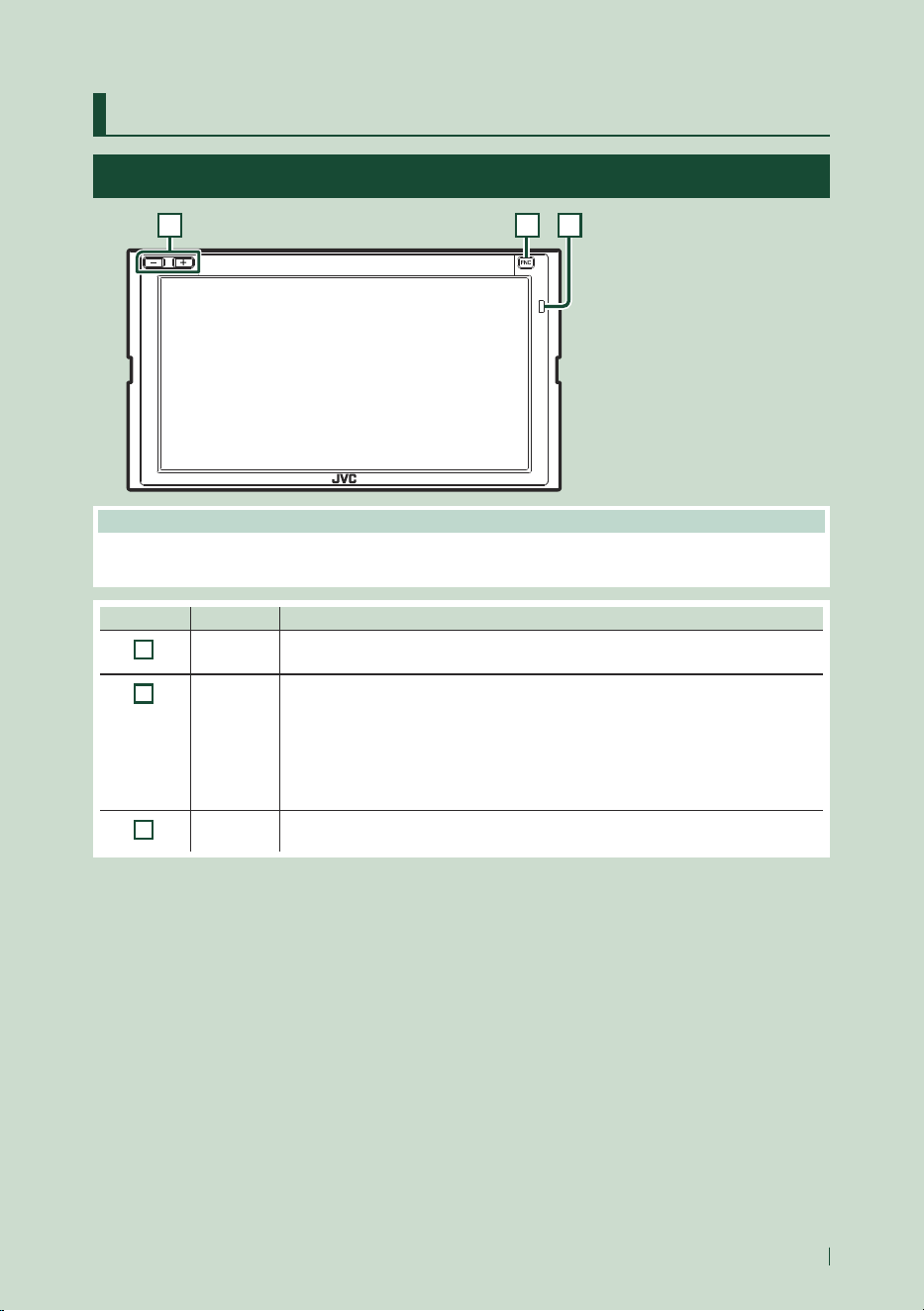
Functions of the Buttons on the Front Panel
1 2 3
NOTE
• The panels shown in this manual are examples used to provide a clear explanation of operations. For this reason,
they may be different from the actual panels.
Number Name Motion
1
–, +
(Volume)
• Adjusts the volume.
The volume will go up to 15 when you keep pressing [+]. (P. 10)
2
FNC • Displays the popup menu screen.
• Pressing for 1 second starts the voice recognition function ( P. 59). While Apple
CarPlay or Android Auto is connected, starts the function on the Apple CarPlay or the
Android Auto screen.
• When neither Apple CarPlay, Android Auto, nor a Bluetooth Hands-Free phone is
connected, pressing and holding displays Bluetooth pairing waiting dialog. ( P. 51)
• When the power is off, turns the power on.
3
Remote
Sensor
• Receives the remote control signal.
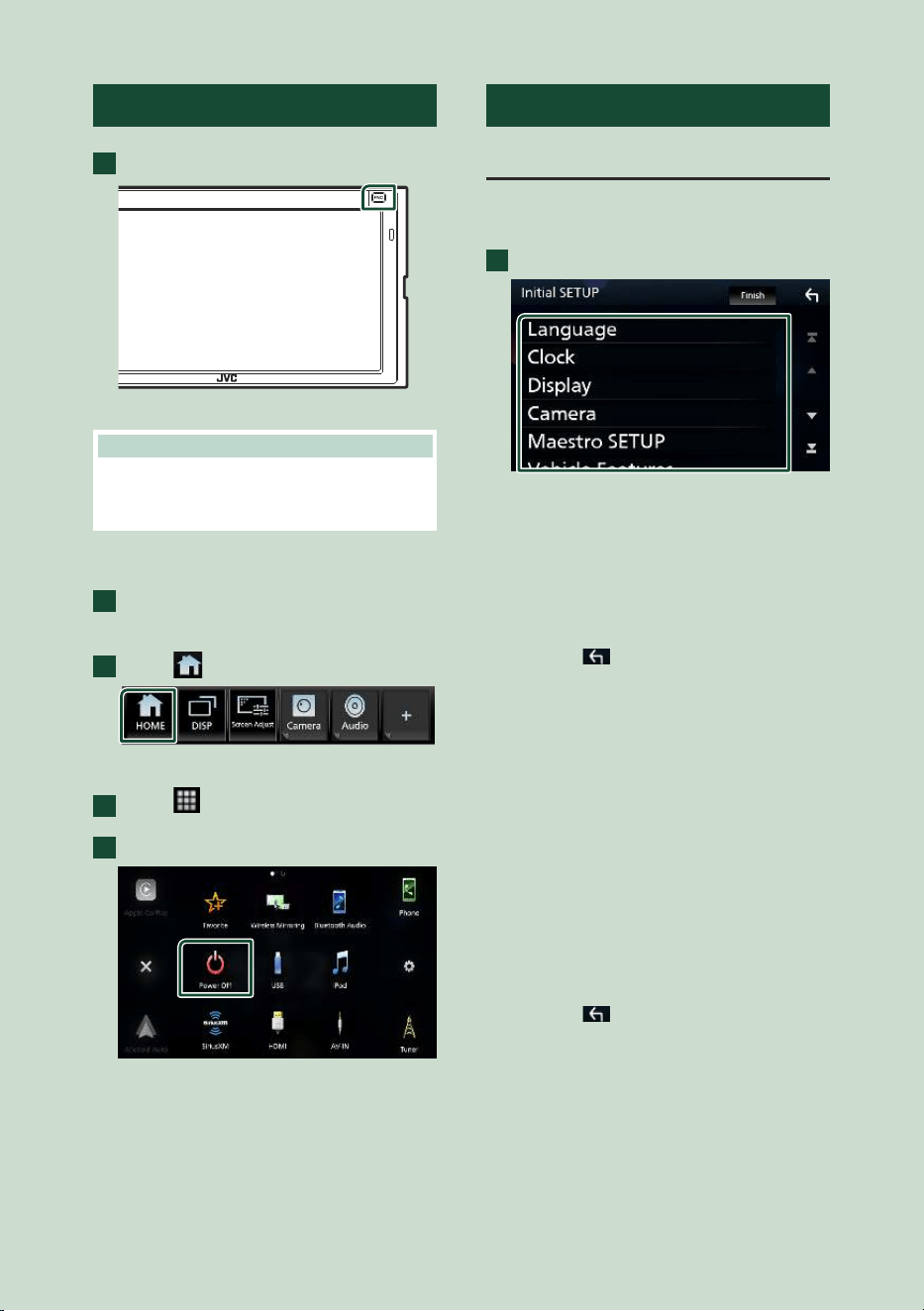
Basic Operations
8
Turning on the Unit
1
Press the [FNC] button.
hh The unit is turned on.
NOTE
• If it is your first time to turn the unit on after
installation, it will be necessary to perform Initial
SETUP ( P. 8).
● To turn off the unit
1
Press the [FNC] button.
hh Popup menu appears.
2
Touch [ ].
hh HOME screen appears.
3
Touch [ ].
4
Touch [Power Off].
Initial Settings
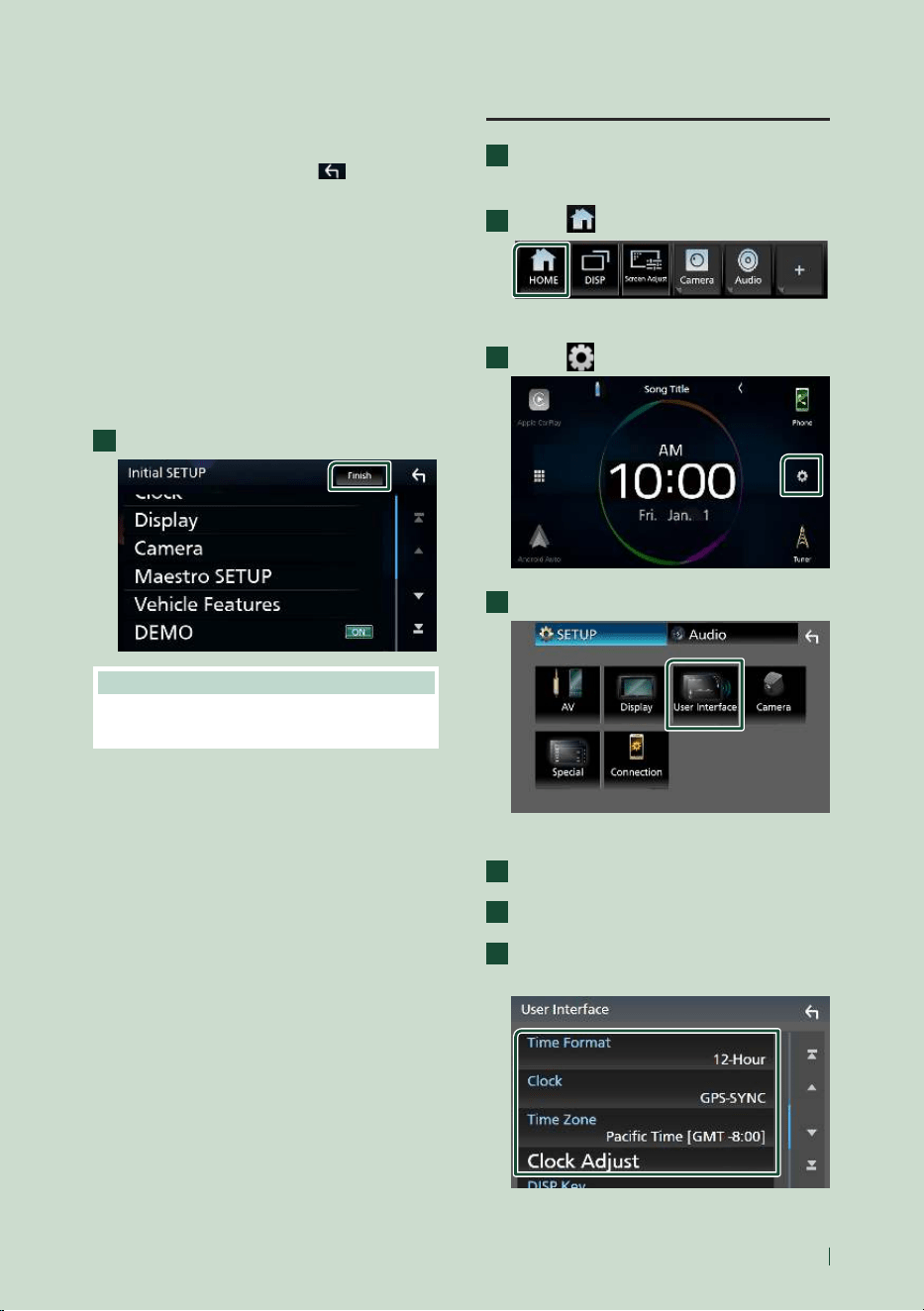
Initial SETUP
Perform this setup when you use this unit first
time.
1
Set each item as follows.
■ [Language]
Select the language used for the control
screen and setting items. Default is “American
English(en)”.
1 Touch [Language].
2 Touch [Language Select].
3 Select the desired language.
4 Touch [
].
For details, see User Interface Setup
( P.64).
■ [Clock]
Sets the synchronization of the clock and
adjusts it.
For details, see Date and clock settings
( P.9).
■ [Display]
Set the display dimmer mode.
If it is hard to see the image on the screen
even, adjust the viewing angle.
1 Touch [Display].
2 Touch [Viewing Angle].
3 Select a viewing angle.
4 Touch [
].
For details, see Display Setup (P.67).
Basic Operations
9English
■ [Camera]
Set the parameters for the camera.
1 Touch [Camera].
2 Set each item and touch [
].
For details, see Camera Setup (P.47).
■ [Maestro SETUP]
This function requires a commercial adaptor.
Consult your JVC dealer for details.
■ [Vehicle Features]
This function requires a commercial adaptor.
Consult your JVC dealer for details.
■ [DEMO]
Set the demonstration mode. Default is “ON”.
2
Touch [Finish].
NOTE
• These settings can be made from the SETUP
menu. See Setup (P.63).
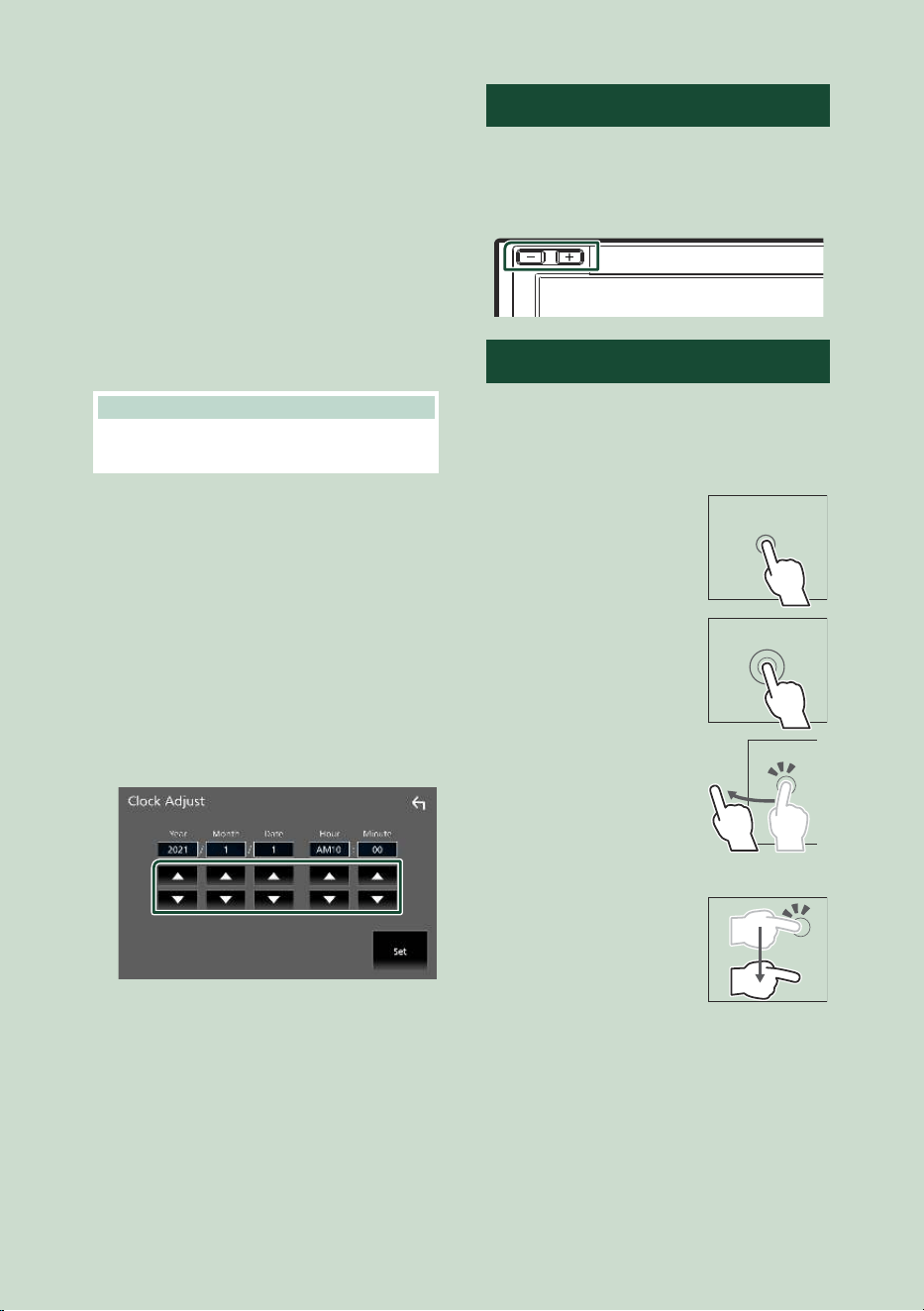
Date and clock settings
1
Press the [FNC] button.
hh Popup menu appears.
2
Touch [ ].
hh HOME screen appears.
3
Touch [ ].
4
Touch [User Interface].
hh User Interface screen appears.
5
Touch [Time Zone].
6
Select the time zone.
7
Set each item as follows.
Scroll the page to show hidden items.
Basic Operations
10
■ [Time Format]
Select the time display format.
[12-Hour] (Default)/[24-Hour]
■ [Clock]
[GPS-SYNC] (Default): Synchronizes the clock
time with the GPS.
[Manual]: Set the clock manually.
■ [Time Zone]
Select the time zone.
■ [Clock Adjust]
If you select [Manual] for Clock, adjust the
date and time manually. ( P.10)
NOTE
• Please set the date and time. If they are not set,
some functions may not work.
Adjust the date and time manually
1
Touch [Clock] on the User Interface screen.
2
Select [Manual].
3
Touch [Time Zone] on the User Interface
screen.
4
Select the time zone.
5
Touch [Clock Adjust] on the User Interface
screen.
6
Adjust the date, then adjust the time.
7
Touch [Set].
Adjusting the volume
You can adjust the volume (0 to 40).
Press [+] to increase, and press [–] to decrease.
Holding [+] increases the volume continuously
to level 15.
Touch screen operations
To perform operations on the screen, you need
to touch, touch and hold, flick or swipe to
select an item, display a setting menu screen
or change pages.
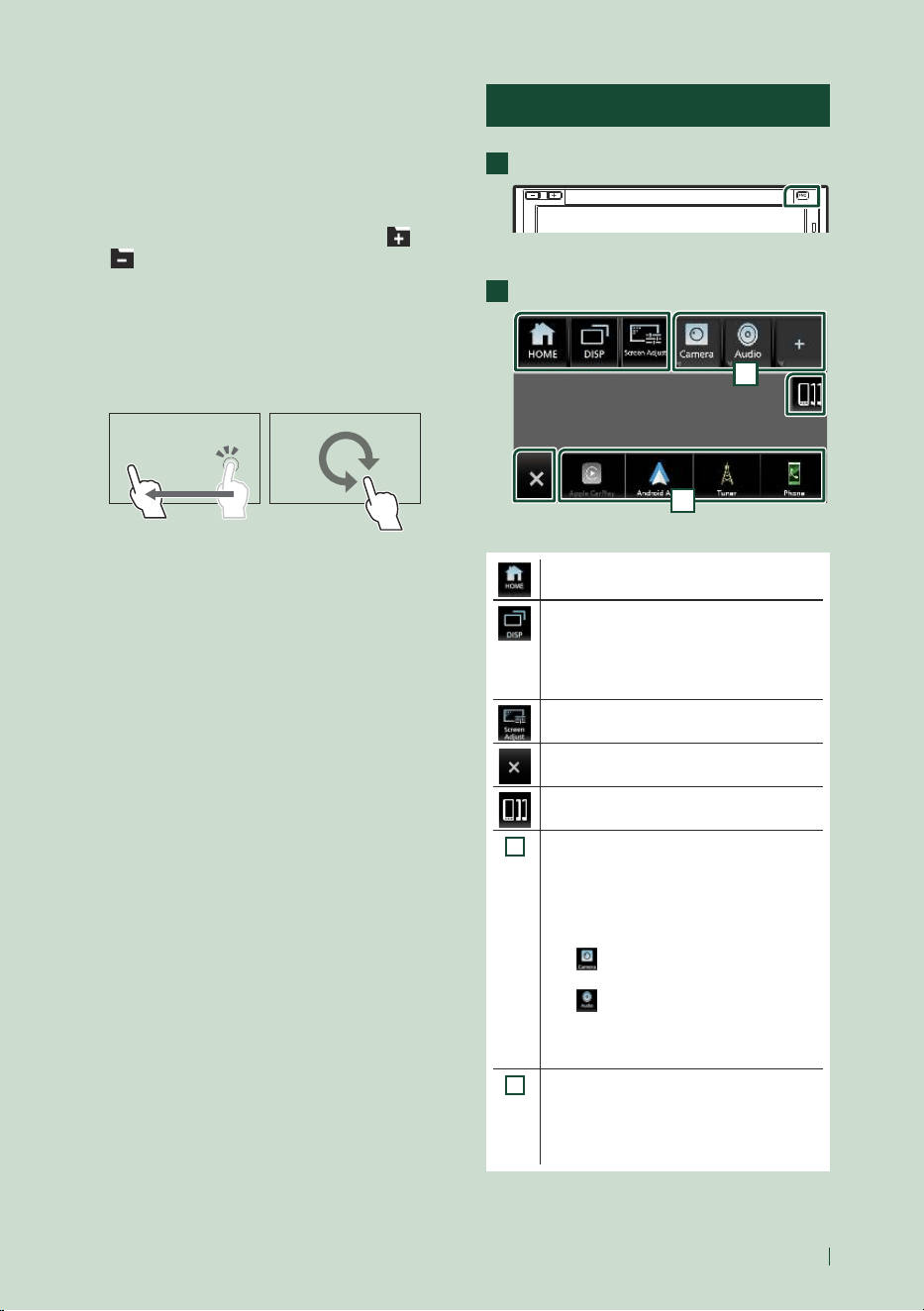
● Touch
Touch the screen gently to
select an item on the screen.
● Touch and hold
Touch the screen and keep
your finger in place until
the display changes or a
message is displayed.
● Flick
Slide your finger quickly
to the left or right on the
screen to change the page.
You can scroll a list screen
by flicking up/down on the
screen.
● Swipe
Slide your finger up or down
on the screen to scroll the
screen.
Basic Operations
11English
Gesture Touch Control:
You can also control playback by moving your
finger on the touch panel as follows (for some
sources, the gesture touch control function is
not available).
• Sliding the finger upward/downward:
Equivalent to the operation of pressing [
] /
[ ] (Media). Tuner Preset broadcast stations
are switched.
• Sliding the finger leftward/rightward:
Equivalent to the operation of pressing [E]
/ [F].
• Moving your finger clockwise or counter-
clockwise: Increases/decreases the volume.
On the HOME screen, you can control the
widget by sliding two fingers. (P. 18)
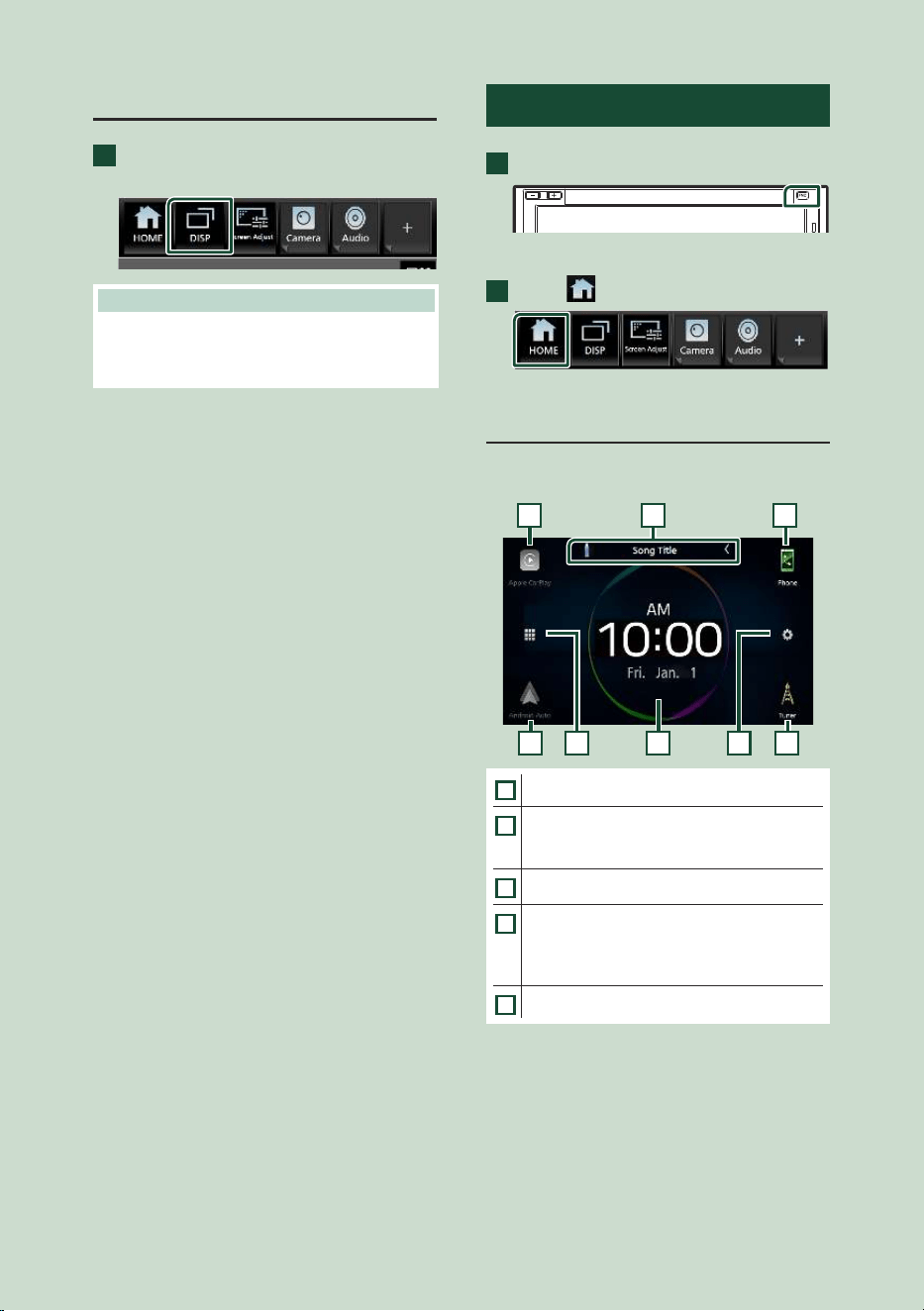
Popup menu
1
Press the [FNC] button.
hh Popup menu appears.
2
Touch to display the popup menu.
2
1
The contents of the menu are as follows.
• Displays the HOME screen. ( P.12)
• Switches between screens.
The screen to be switched to depends
on the [DISP Key] setting on the User
Interface screen. ( P.64)
• Touch and hold to turns the screen off.
• Displays the Screen Adjustment screen.
( P.63)
• Close the popup menu.
• Displays the Device List screen. ( P. 51)
1
• Function key1 to 3: The current screen
changes to the one you have set. The
function key1 and 2 are set to [Camera]
and [Audio] function as default. For the
function setting, refer to Customize
popup menu functions (P.65).
– [
]: Displays the view camera screen.
( P.47)
– [
]: Displays the Audio screen.
( P.71)
• Touch and hold to display the Customize
FNC Menu screen. ( P.65)
2
• Short-cut source icons: The source
changes to the one you have set with a
short-cut. For the short-cut setting, refer
to Customize Short-cut source icons on
HOME screen (P.15).
Basic Operations
12
Turn off the screen
1
Touch and hold [DISP] on the popup
menu.
NOTE
• Touch the display to turn on the screen.
• To display the clock while the screen is off, it is
necessary to set “OSD Clock” to “ON”. ( P. 67)
Display the HOME screen
1
Press the [FNC] button.
hh Popup menu appears.
2
Touch [ ].
hh HOME screen appears.
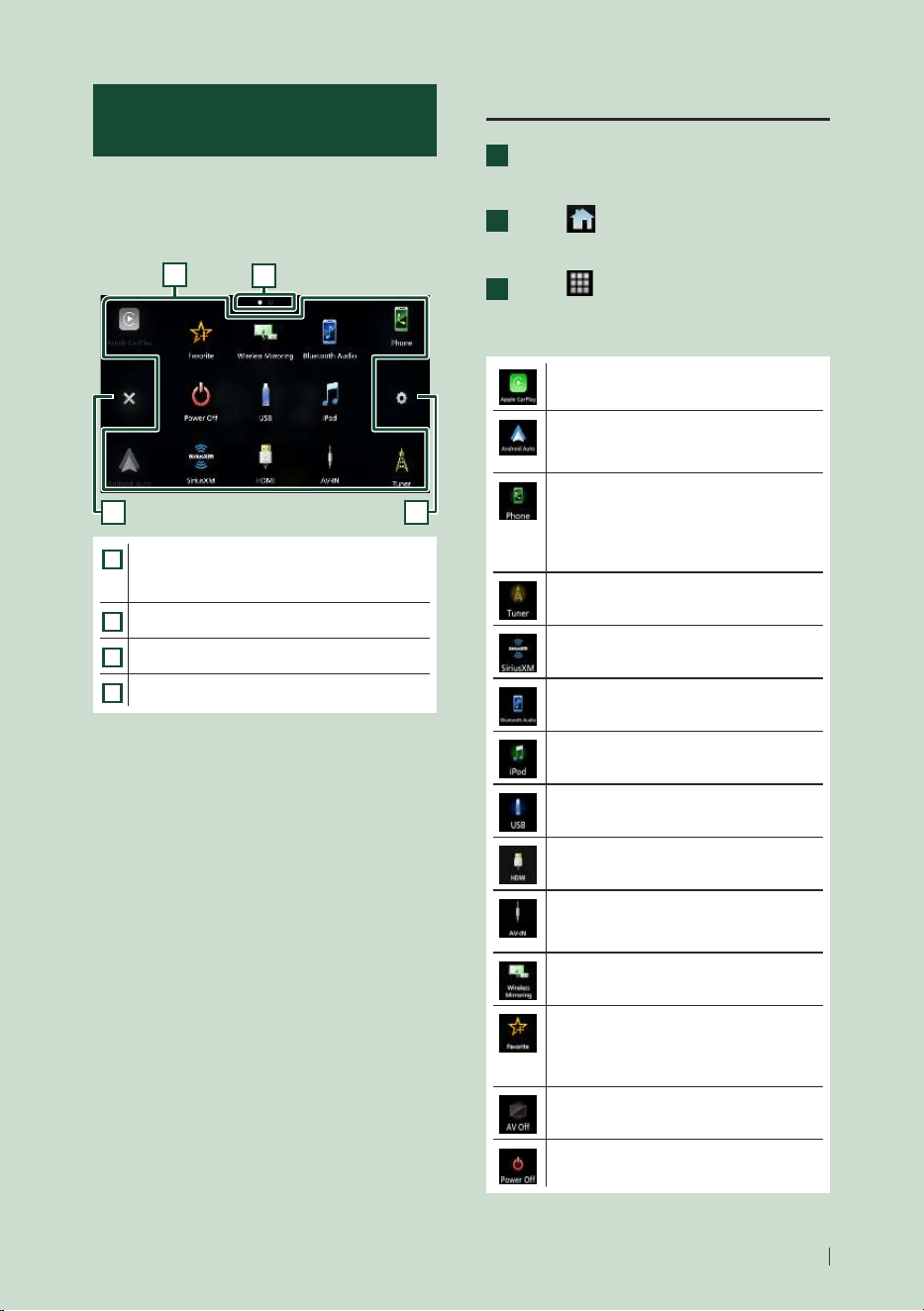
HOME screen descriptions
Most functions can be performed from the
HOME screen.
1
1 13 4 5
12
1
• Short-cut playback source icons ( P.14)
2
• Current source information.
• Touch to display the control screen of the
current source.
3
• Displays the source selection screen. ( P.13)
4
• Widget ( P.18)
– You can change the display to big or split
widget mode by sliding 2 fingers upward/
downward.
5
• Displays the SETUP screen. ( P. 63)
Basic Operations
13English
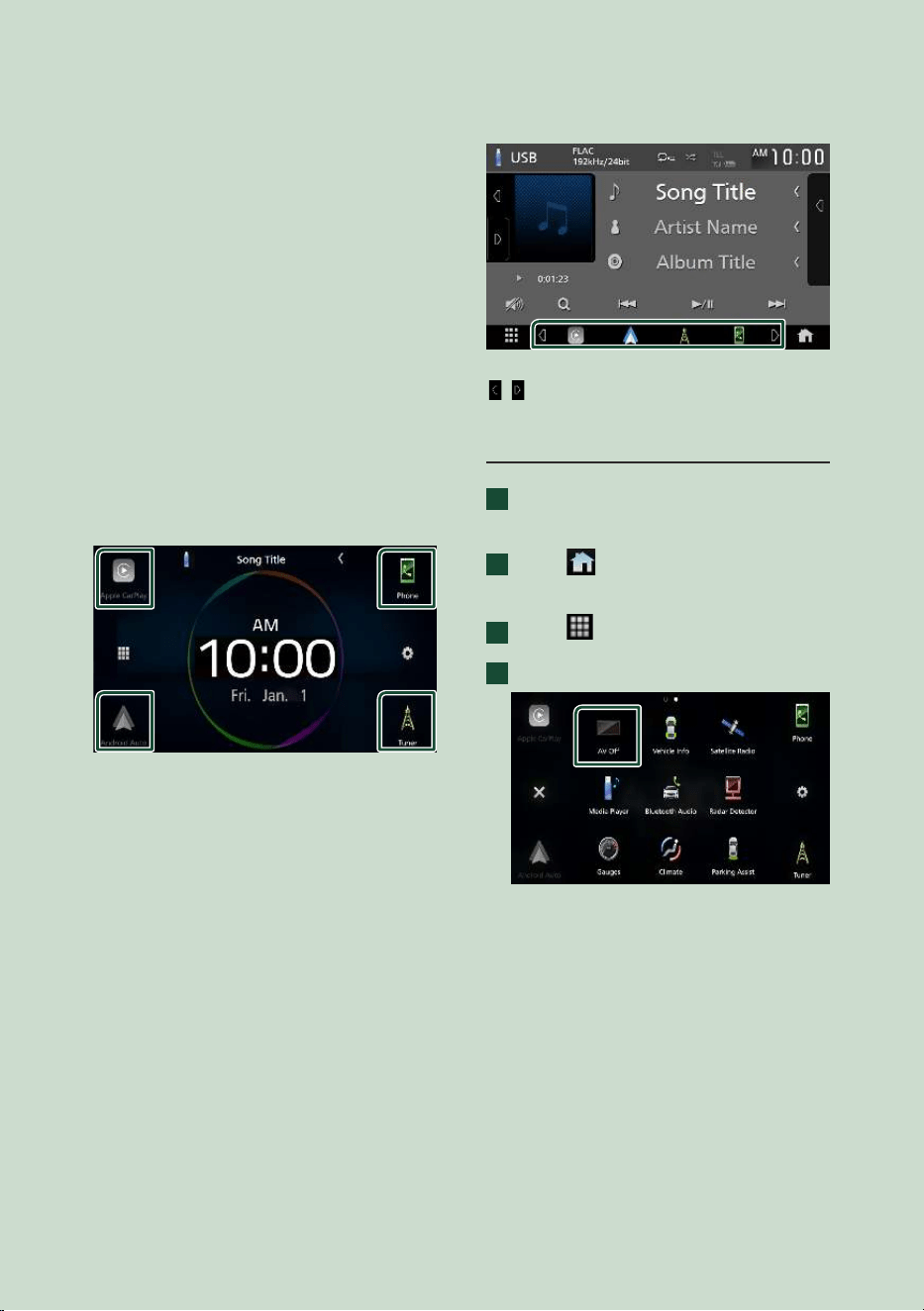
Source selection screen
description
You can display icons of all playback sources
and options on the source selection screen.
To change pages, flick your finger leftward/
rightward on the screen.
2
3 4
1
1
• Changes playback sources.
For playback sources, see Select the
playback source (P.13).
2
• Page indication
3
• Returns to the previous screen.
4
• Displays the SETUP screen. ( P. 63)
Select the playback source
1
Press the [FNC] button.
hh Popup menu appears.
2
Touch [ ].
hh HOME screen appears.
3
Touch [ ].
From the screen, you can select the
following sources and functions.
• Switches to the Apple CarPlay screen
from the connected iPhone. (P. 20)
• Switches to the Android Auto screen
from the connected Android™
smartphone. ( P. 22)
• Displays the Hands-Free screen. ( P.57)
When neither Apple CarPlay, Android
Auto, nor a Bluetooth Hands-Free phone
is connected, displays Bluetooth pairing
waiting dialog. *
1
( P.51)
• Switches to the Radio broadcast.
( P.32)
• Switches to the SiriusXM® satellite radio
broadcast. ( P.35)
• Plays a Bluetooth audio device. (P. 55)
• Plays an iPod/iPhone. ( P.28)
• Plays files on a USB device. ( P.25)
• Plays a device connected to the HDMI
input terminal. ( P.49)
• Switches to an external component
connected to the AV Audio input and the
VIDEO input terminal. *
2
*
3
( P.49)
• Displays the Wireless Mirroring screen.
( P.24)
• Displays the screen you have set in the
Customize Favorite Key screen. ( P. 65)
• Touch and hold to display the Customize
Favorite Key screen. *
4
• Turns off the AV source. ( P.14)
• Turns off the unit. (P. 8)
Basic Operations
14
• For sources and information displayed when
an iDatalink is connected, see Maestro
Features Operation (P.50).
*
1
When connecting as Apple CarPlay or Android
Auto, it works as a phone provided in Apple
CarPlay or Android Auto. If Apple CarPlay or
Android Auto are connected during talking by
the Bluetooth device or iDatalink phone, the
current call will be continued.
*
2
You can use the [AV-IN] source when a
cable from a visual source except a camera is
connected to the VIDEO input terminal, and
a cable is connected to the AV Audio input
terminal. ( P.86)
*
3
This can be selected when the AV-IN is set to
[NONE] on the Camera Assignment Setting
screen. ( P.48)
*
4
This function is enabled on the HOME screen.
To select the playback source on the
HOME screen
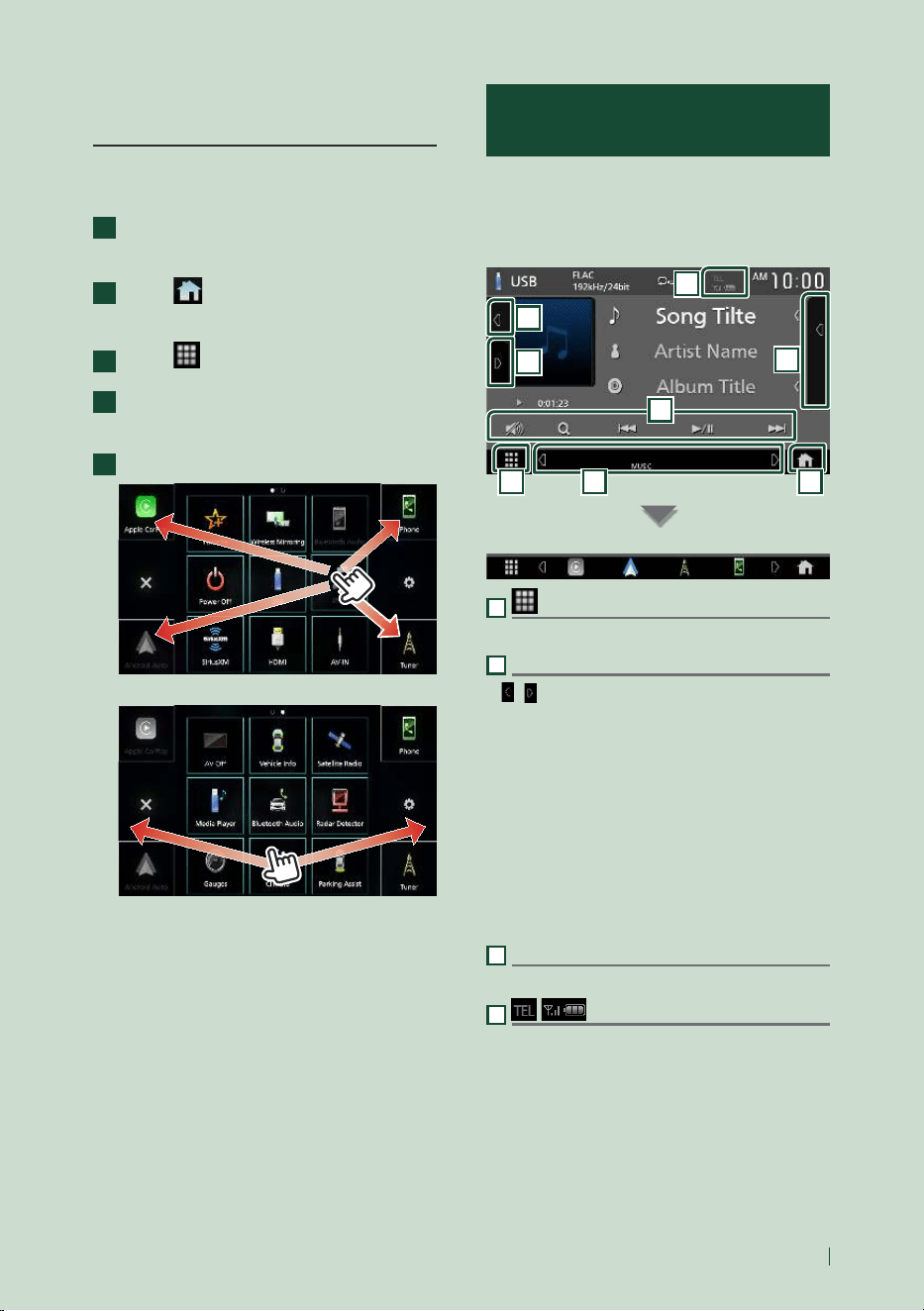
The 4 items displayed on the source selection
screen with large icons are shown on the
HOME screen.
You can change the items displayed on this
area by customizing the source selection
screen. ( P.15)
To select the playback source on the
source control screen
Display source selection keys by touching
[ ]/[ ] or flicking left or right on the source
control screen, then select a playback source.
To turn off the AV source
1
Press the [FNC] button.
hh Popup menu appears.
2
Touch [ ].
hh HOME screen appears.
3
Touch [ ].
4
Touch [AV Off].
Basic Operations
15English
Customize Short-cut source icons
on HOME screen
You can arrange the positions of the source
icons as you like.
1
Press the [FNC] button.
hh Popup menu appears.
2
Touch [ ].
hh HOME screen appears.
3
Touch [ ].
4
Touch and hold the icon which you want
to move in the customizing mode.
5
Drag the icon to the desired position.
Changes the page
Source control screen
descriptions
There are some functions which can be
performed from most screens.
Indicators
5
6
7
8
1 2
3
4
Short-cut source icons
1
All sources icon
Displays the source selection screen. (P. 13)
2
Secondary screen
• [
]/[ ] : The Secondary screen changes to
another one every time you touch it. You can
also change the Secondary screen by flicking
left or right on the screen.
• Indicators: Displays the current source
condition and so on.
– [AT T]: The attenuator is active.
– [LOUD]: The loudness control function is active.
• Short-cut source icons: The source changes to
the one you have set with a short-cut. For the
short-cut setting, refer to Customize Short-
cut source icons on HOME screen (P.15).
3
Content list
Displays the track/file/station/channel list.
4
Connected Bluetooth device information.
Basic Operations
16
5
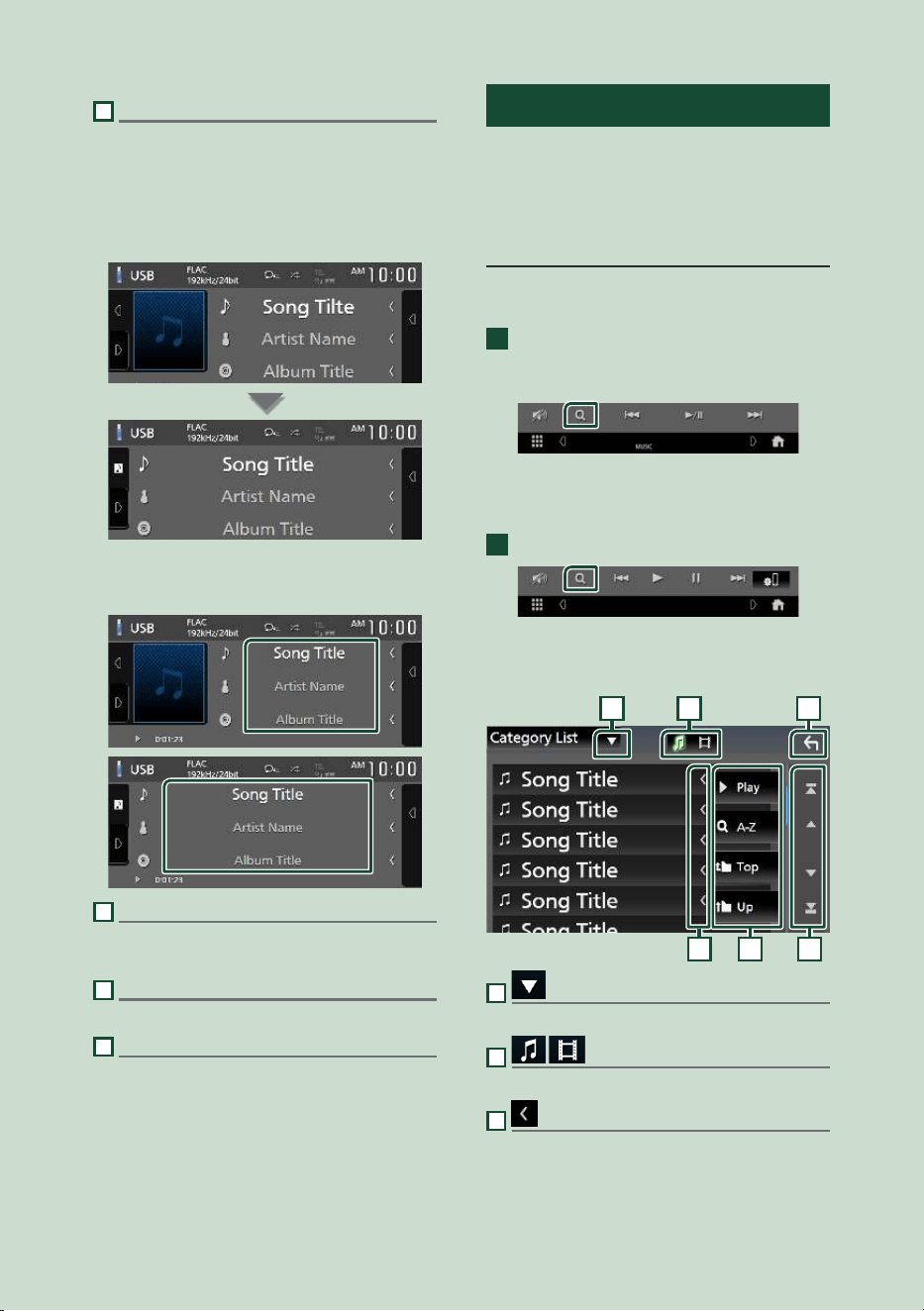
Artwork & information
You can select whether to display an artwork
and song information or only song information
in more detail.
Touching the artwork area switches to the VU
meter. (The USB, iPod, Bluetooth audio sources
only)
Change the text size of song information when
the "Small Audio Text" is set to "ON"/"OFF" in the
User Interface screen. ( P.64)
6
Function panel
Touch the left side of the screen to display the
function panel. Touch again to close the panel.
7
HOME key
Displays the HOME screen. (P. 12)
8
Operation keys
You can operate the current source with these
operation keys. The available functions are
different depending on the source type.
List screen
There are some common function keys in the
list screens of most sources.
The operation and the display screen are
different for each source. (P27, 30, 56)
Display the list screen
For USB/iPod:
1
Touch [1] or the item listed on the
information area in the source control
screen.
hh The list screen appears.
For Bluetooth audio:
1
Touch [1].
hh The list screen appears.
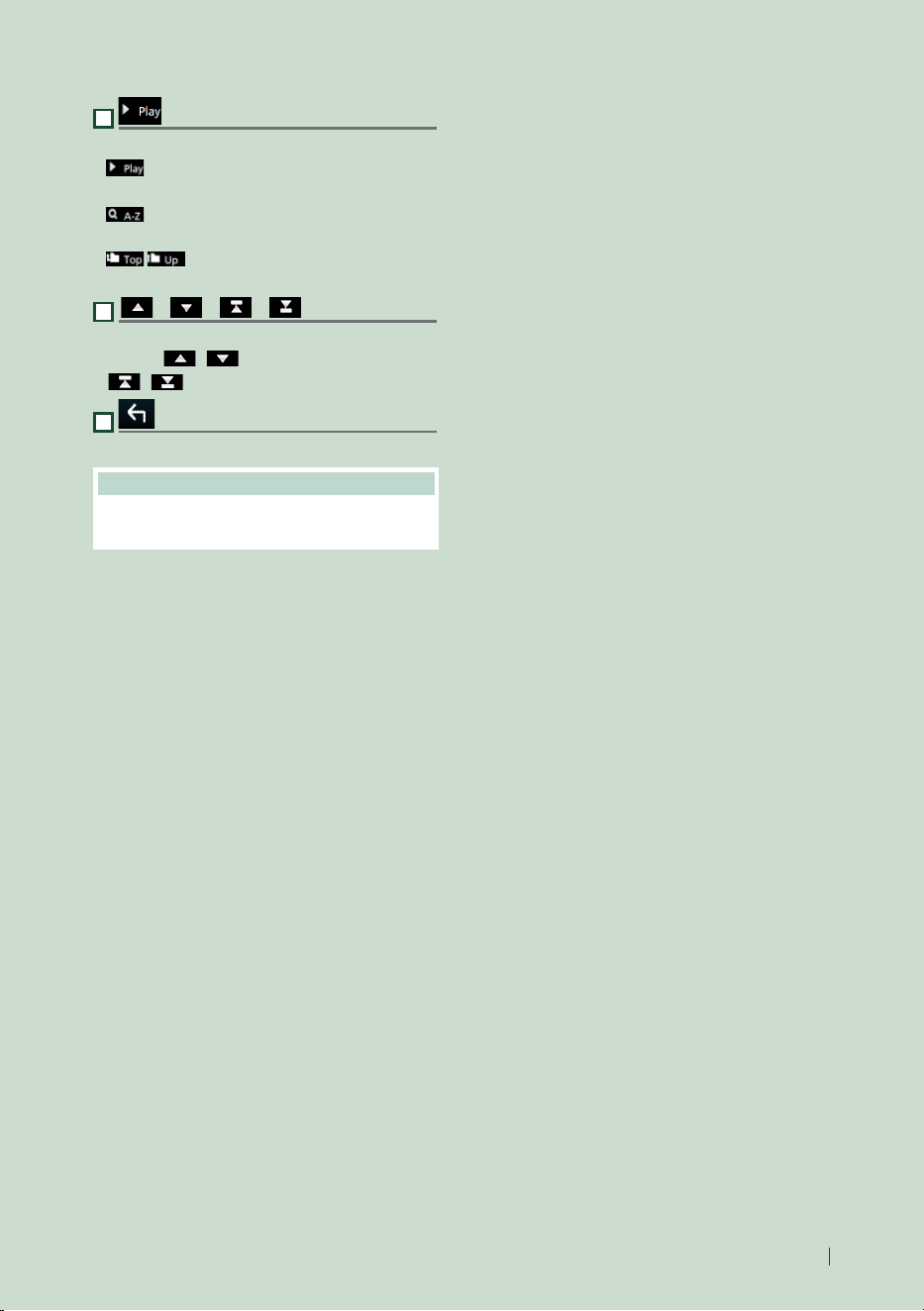
You can use following operation keys from this
screen.
61 2
3 4 5
1
Displays the list type selection window.
2
Displays a music/movie file list.
3
Text scroll
Scrolls the displayed text.
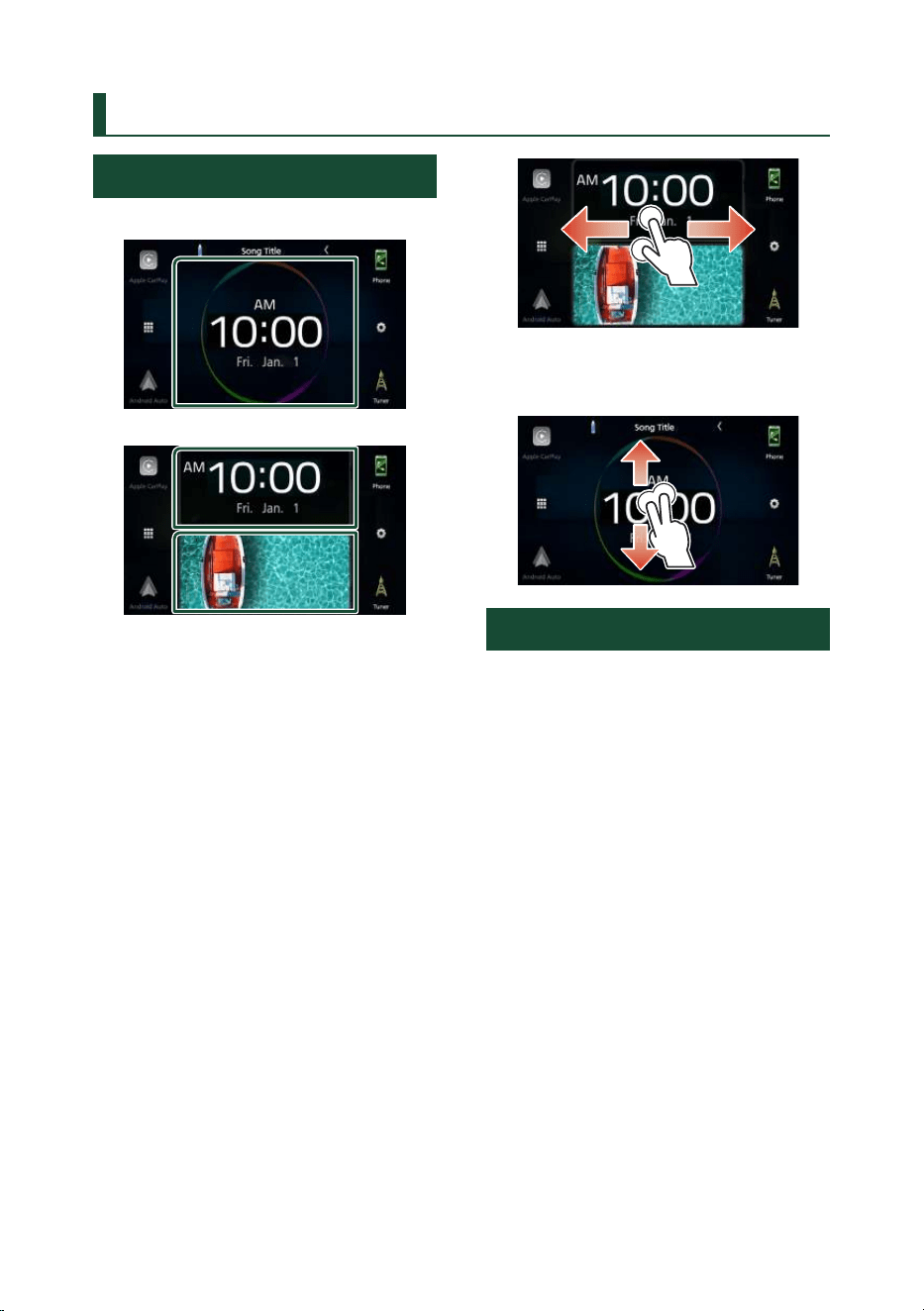
Basic Operations
17English
4
etc.
Keys with various functions are displayed here.
•
: Plays all tracks in the folder containing
the current track.
•
: Jumps to the letter you entered
(alphabetical search).
•
: Moves to the upper hierarchy
level.
5
[ ] / [ ] / [ ] / [ ] Page scroll
You can change pages to display more items by
touching [
]/[ ].
• [
]/[ ] : Displays the top or bottom page.
6
Return
Returns to the previous screen.
NOTE
• Depending on the current source or mode, some
function key may not appear.
Widget
18
Widget
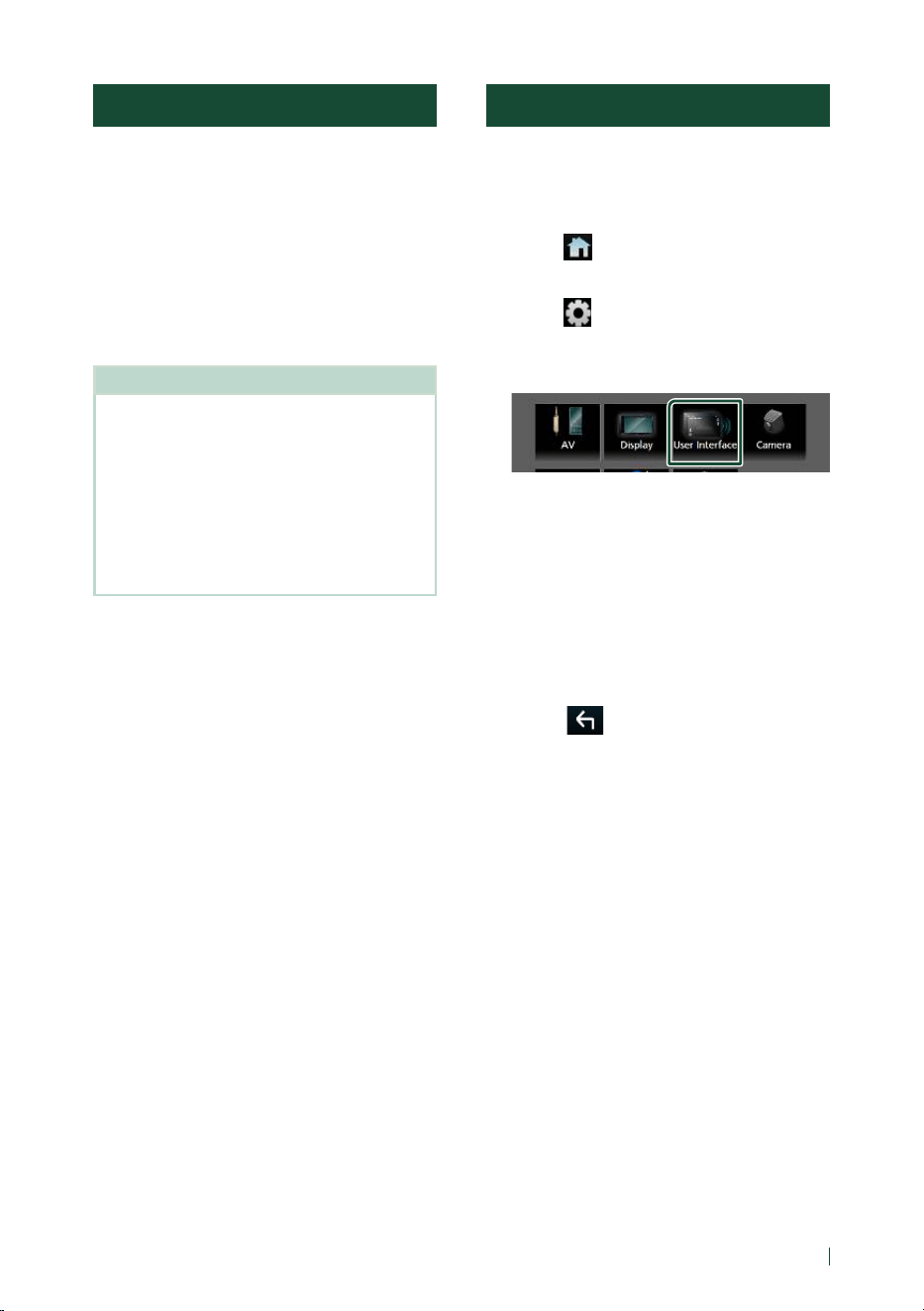
Widget Basic Operation
Big widget
Split widget
Widget list
• Clock/Spectrum analyzer Widget
• Current source information Widget
• Compass Widget
• Climate/TPMS/Radar Widget *
1
• VU meter Widget
• Photo Frame Widget
*1 Displayable widgets vary depending on the
type of the connected iDatalink (commercially
available) and the model of the vehicle.
● To change the widget style
Touch the widget area. You can change the
displayed information or design.
● To change the widget
Slide two fingers leftward/rightward.
When the split widget mode is selected, you
should put the fingers on each of the windows
before slide.
● To change the widget format
Slide two fingers upward/downward to switch
between the big and the split widget mode.
Photo Frame Widget
You can display a slideshow of the image files
stored in your iPhone or Android smartphone
on the HOME screen.
Ñ Preparation
• See Importing Image Files (P.19).
• Select “ON” for Photo Frame Widget in the
Widget SETUP screen. ( P.19)
Widget
19English
Importing Image Files
You can display image files stored in your
iPhone or Android smartphone by connecting
your iPhone or Android smartphone in which
the “JVC Portal APP” application is installed to
this unit.
The image files are displayed on the photo
frame widget. Also, you can set an image as
the wallpaper.
See Photo Frame Widget (P.18) and To
register an original image (P.68).
Preparation
• Install the latest version of the “JVC Portal
APP” application on your iPhone or Android
smartphone.
– iPhone: Search for “JVC Portal APP” in the Apple
App Store to find and install the most current
version.
– Android smartphone: Search for “JVC Portal
APP” on Google Play to find and install the
most current version.
• For details, see “JVC Portal APP” application.
1
Connect the device.
• To connect a device via Bluetooth,
register it as the Bluetooth device and
do the App (SPP) profile setting of the
connection beforehand. See Register the
Bluetooth device (P.51) and Switch
the connected device (P.53).
• Connect an iPhone via the USB terminal.
( P.87)
2
Unlock your device.
Widget SETUP
Set up the widget on the HOME screen.
1
Press the [FNC] button.
hh Popup menu appears.
2
Touch [ ].
hh HOME screen appears.
3
Touch [ ].
hh SETUP screen appears.
4
Touch [User Interface].
hh User Interface screen appears.
5
Touch [Widget SETUP] in the User
Interface screen.
6
Set the item as follows.
■ [Photo Frame Widget]
Determine whether to use the photo frame
widget.
"ON" (Default)/"OFF"
7
Touch [ ].
APPS
20
APPS
Apple CarPlay Operation
Apple CarPlay is a smarter, safer way to use
your iPhone in the car. Apple CarPlay takes
the things you want to do with iPhone while
driving and displays them on the screen of
the product. You can get directions, make
calls, send and receive messages, and listen to
the music from iPhone while driving. You can
also use Siri voice control to make it easier to
operate iPhone.
For details about Apple CarPlay, visit https://
www.apple.com/ios/carplay/
Compatible iPhone devices
You can use Apple CarPlay with the following
iPhone models.
• iPhone 12 Pro Max
• iPhone 12 Pro
• iPhone 12
• iPhone 12 mini
• iPhone SE (2nd
generation)
• iPhone 11 Pro Max
• iPhone 11 Pro
• iPhone 11
• iPhone XS Max
• iPhone XS
• iPhone XR
• iPhone X
• iPhone 8 Plus
• iPhone 8
• iPhone 7 Plus
• iPhone 7
• iPhone SE
• iPhone 6s Plus
• iPhone 6s
Ñ Connecting an iPhone
Wired connection
1
Connect your iPhone via the USB terminal
by the following methods. ( P.87)
• Connect using KS-U62 (optional
accessory) and USB adaptor.
• Connect using USB-C to Lightning cable
(sold separately).
When an iPhone compatible with Apple
CarPlay is connected to the USB terminal,
the Bluetooth Hands-Free phone currently
connected is disconnected.
2
Unlock your iPhone.
Wireless connection
You can select the iPhone registered in [Device
List] and use it as the Apple CarPlay device.
See Register the Bluetooth device (P.51).
1
Press the [FNC] button.
hh Popup menu appears.
2
Touch [ ].
hh HOME screen appears.
3
Touch [ ].
4
Touch [Apple CarPlay]. ( P.13)
NOTE
• Turn on the Bluetooth function and Wi-Fi function
of an iPhone.
• If two or more iPhone have been registered,
select the iPhone to be used as the [Apple
CarPlay] source. ( P.21)
• It is necessary to connect the GPS antenna in
order to use a wireless Apple CarPlay.
• When the Wi-Fi connection becomes unavailable,
the HOME screen is displayed.
• You cannot use Apple CarPlay if the function is
turned off by operating the iPhone at functional
setup.
To switch the current screen to the Apple
CarPlay screen when connecting your
iPhone
• Touch [Apple CarPlay] icon on the source
selection screen. ( P.13)
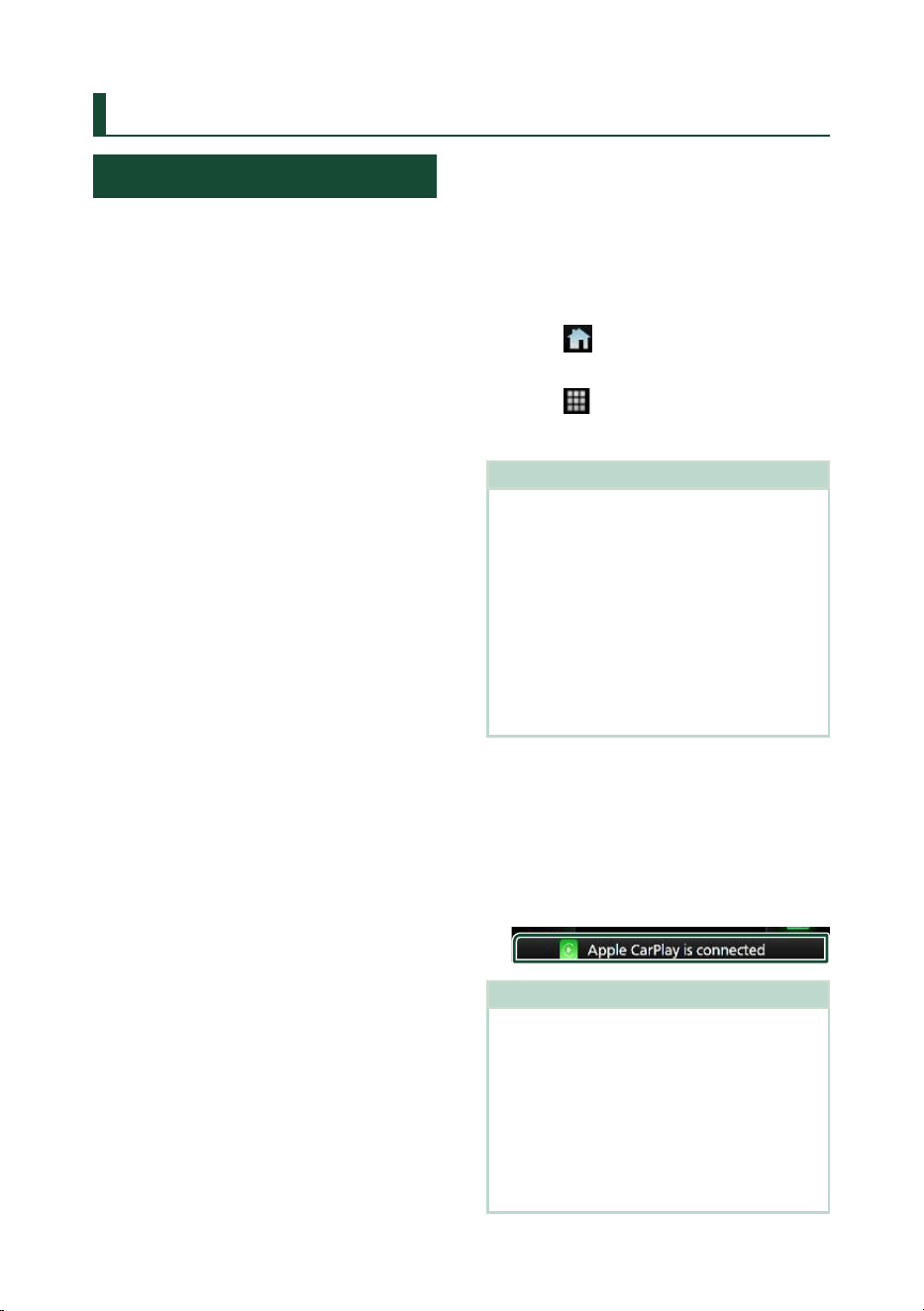
• Touch the following connection message if the
message appears.
NOTE
• The connection message appears when;
– The iPhone you used previously is connected
again.
– The screen other than HOME and the source
selection screen is displayed.
• The connection message is displayed for about
5 seconds.
• If the system fails to get a friendly name from the
connected iPhone, the subject of the connection
message will be "Apple CarPlay" or "*** device".
APPS
21English
Ñ Select an Apple CarPlay device
If two or more iPhone compatible with Apple
CarPlay have been registered, select the
iPhone to be used as the Apple CarPlay source.
See Switch the connected device (P.53).
Ñ Operation keys and available
Apps on the home screen of
Apple CarPlay
You can use the Apps of the connected iPhone.
The items displayed and the language used
on the screen differ among the connected
devices.
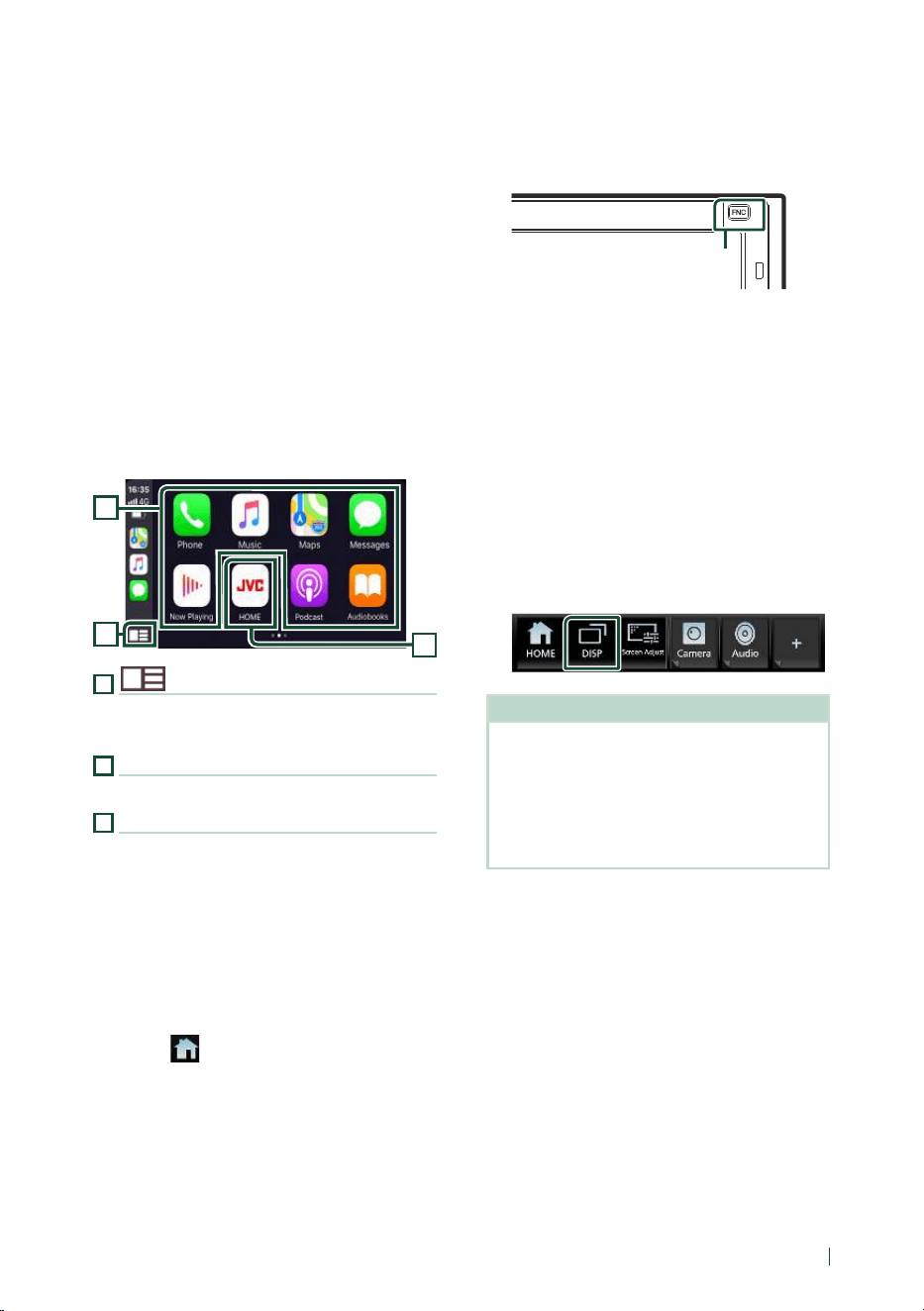
To enter the Apple CarPlay mode, touch
[Apple CarPlay] icon on the source selection
screen. ( P.13)
3
1
2
1
[ ]
*
• Displays the home screen of Apple CarPlay.
• Touch and hold to activate Siri.
2
Application keys
Starts the application.
3
[HOME]
Exits the Apple CarPlay screen and displays the
HOME screen.
* The icon design may change depending on
the iOS version.
To exit the Apple CarPlay screen
1
Press the [FNC] button.
hh Popup menu appears.
2
Touch [ ].
hh HOME screen appears.
Ñ Use Siri
You can activate Siri.
1
Press the [FNC] button for 1 second.
Press for 1 second
2
Talk to Siri.
To deactivate
1
Press the [FNC] button.
Ñ Switch to the Apple CarPlay
screen while listening to
another source
1
Press the [FNC] button.
hh Popup menu appears.
2
Touch [DISP].
NOTE
• This operation is available when [DISP Key] is
set to [Mirroring] on the User Interface screen.
( P.64)
• When listening to another source with the Apple
CarPlay screen displayed, playing music in the
Apple CarPlay mode will switch the current
source to the Apple CarPlay source.
APPS
22
Android Auto™ Operation
Android Auto enables you to use the functions
of your Android smartphone convenient
for driving. You can easily access route
guidance, make calls, listen to music, and
access convenient functions on the Android
smartphone while driving.
For details about Android Auto, visit https://
www.android.com/auto/ and https://support.
google.com/androidauto
Compatible Android smartphones
You can use Android Auto with Android
smartphones of Android version 6 or later.
For Wi-Fi connection, Android 8 or later.
NOTE
• Android Auto may not be available on all devices
and may not be available in all countries or
regions.
● About the placement of smartphone
Install the smartphone connected as Android
Auto device in the place where it can receive
the GPS signals.
When using Google Assistant, install
the smartphone in the place where the
smartphone easily catch a voice by the
microphone.
NOTE
• Do not put the smartphone in a spot exposed
to direct sunlight or near an air blowing out
port of an air conditioner. The placement of
the smartphone in such places can lead to
malfunction or damage of your smartphone.
• Do not leave the smartphone in the vehicle.
Ñ Connect Android smartphone
Wired connection
1
Connect an Android smartphone via the
USB terminal. (P. 88)
To use the Hands-Free function, connect
the Android smartphone via Bluetooth.
When an Android smartphone compatible
with Android Auto is connected to the
USB terminal, the device is connected via
Bluetooth automatically, and the Bluetooth
Hands-Free phone currently connected is
disconnected.
2
Unlock your Android smartphone.
3
Press the [FNC] button.
hh Popup menu appears.
4
Touch [ ].
5
Touch [ ].
6
Touch [Android Auto]. ( P.13)
Wireless connection
You can select the Android smartphone
registered in [Device List] and use it as
the Android Auto device. See Register the
Bluetooth device (P.51).
1
Press the [FNC] button.
hh Popup menu appears.
2
Touch [ ].
3
Touch [ ].
4
Touch [Android Auto]. ( P.13)
NOTE
• Turn on the Bluetooth function and Wi-Fi function
of Android smartphone.
• If two or more Android smartphones have been
registered, select the Android smartphone to be
used as the Android Auto source. ( P.23)
• To change the password for wireless connection
manually, refer to [Reset Android Auto Wireless
Connection] (P.70).
• When the Wi-Fi connection becomes unavailable,
the HOME screen is displayed.
APPS
23English
Ñ Select an Android smartphone
If two or more Android smartphones
have been registered, select the Android
smartphone to be used as the Android Auto
source.
See Switch the connected device (P.53).
Ñ Operation keys and available
Apps on the Android Auto
screen
You can perform the operations of the Apps of
the connected Android smartphone.
The items displayed on the screen differ
among the connected Android smartphones.
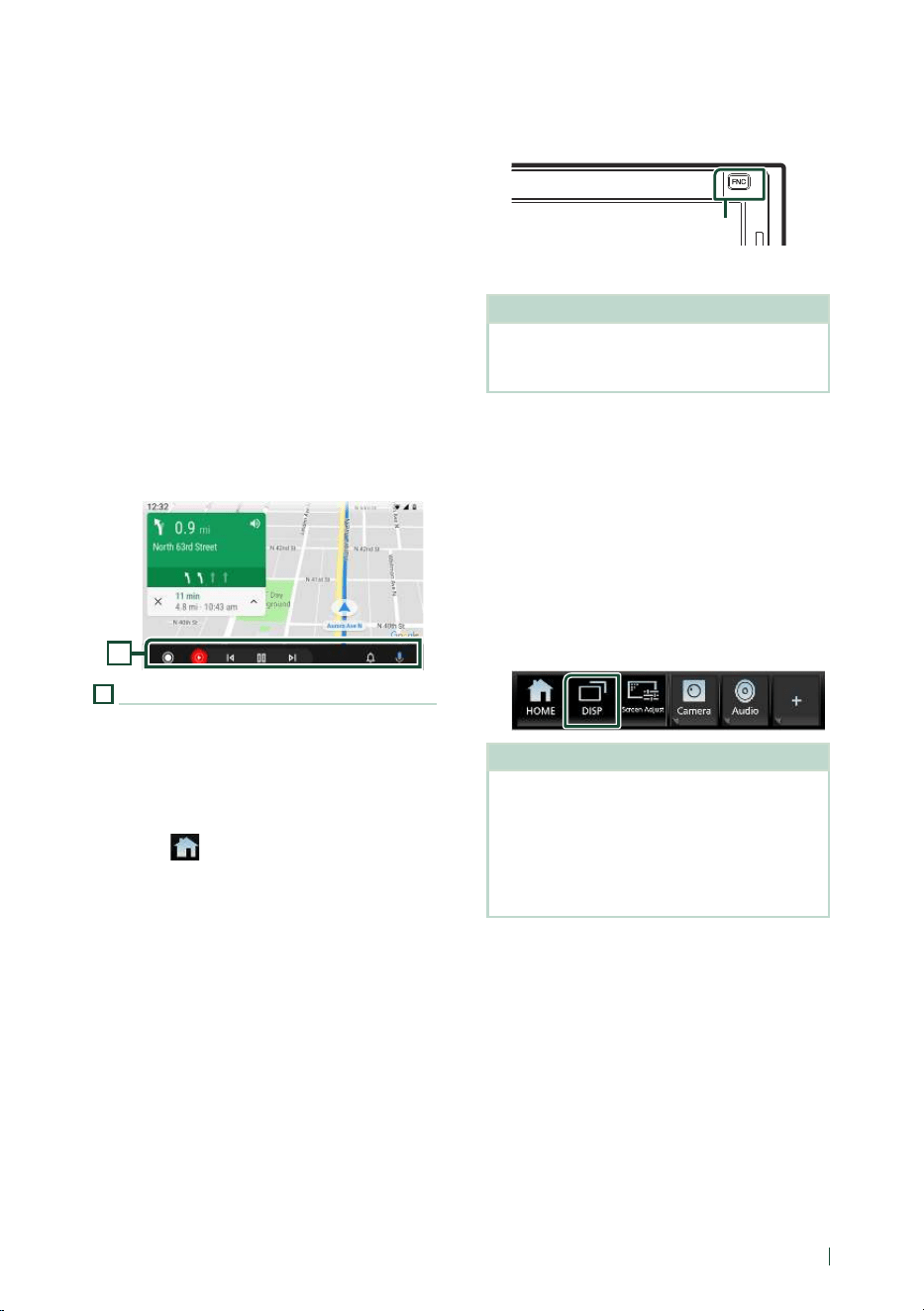
To enter the Android Auto mode, touch the
[Android Auto] icon on the source selection
screen. ( P.13)
1
1
Application/information keys
Starts the application or displays information.
To exit the Android Auto screen
1
Press the [FNC] button.
hh Popup menu appears.
2
Touch [ ].
hh HOME screen appears.
Ñ Using voice control
1
Press the [FNC] button for 1 second.
Press for 1 second
2
Start speaking.
NOTE
• When you press and hold the [FNC] button while
inputting voice, you can start over from the
beginning.
To cancel
1
Press the [FNC] button.
Ñ Switch to the Android Auto
screen while listening to
another source
1
Press the [FNC] button.
hh Popup menu appears.
2
Touch [DISP].
NOTE
• This operation is available when [DISP Key] is
set to [Mirroring] on the User Interface screen.
( P.64)
• When listening to another source with the
Android Auto screen displayed, playing music in
the Android Auto mode will switch the current
source to the Android Auto source.
APPS
24
Wireless Mirroring Operation
You can display the same screen of the
Android smartphone on the monitor of the
unit using the Wireless Mirroring function of
the Android smartphone.
Preparation
• You can use the Wireless Mirroring function
with Android smartphones compatible with this
function.
• This function may be called Wireless Display,
Screen Mirroring, AllShare Cast, etc., depending
on the manufacturer.
• The settings on the Android smartphone differ
depending on the device type. For details, refer
to the instruction manual supplied with your
Android smartphone.
• If your Android smartphone is locked, Mirroring
screen may not appear.
• If the Android smartphone is not ready for UIBC,
you cannot perform touch operation.
1
Press the [FNC] button.
hh Popup menu appears.
2
Touch [ ].
hh HOME screen appears.
3
Touch [ ].
4
Touch [Wireless Mirroring]. (P. 13)
hh The App screen is displayed.
5
Operate your Android smartphone to
activate the Wireless Mirroring function,
then connect to this unit.
6
Select “KW-M****” as the network to use.
hh When the connection is established,
then the same screen displayed on the
Android smartphone is displayed.
NOTE
• Apps is discontinued when the power is turned
ON/OFF or you leave the vehicle. To restart Apps,
operate the Android smartphone.
• When the Apps source is displayed, you cannot
register or reconnect a Bluetooth device. Switch
the Apps source to another source, and then
operate the Bluetooth device.
• The device name selected on step 6 can be
changed. See Change the device name for
Wireless Mirroring (P.70).
USB
25English
USB
Connecting a USB device
1
Connect the USB device via the USB
terminal. (P. 87)
2
Press the [FNC] button.
hh Popup menu appears.
3
Touch [ ].
hh HOME screen appears.
4
Touch [ ].
5
Touch [USB]. ( P.13)
Ñ Disconnect the USB device
1
Press the [FNC] button.
hh Popup menu appears.
2
Touch [ ].
hh HOME screen appears.
3
Touch a source other than [USB].
4
Detach the USB device.
Ñ Usable USB device
You can use a mass-storage-class USB device
with this unit.
The word “USB device” appearing in this manual
indicates a flash memory device.
● About the file system
The file system should be the one of the
following.
• FAT16 • FAT32 • exFAT • NTFS
NOTE
• Install the USB device in the place where it will
not affect safe driving.
• You cannot connect a USB device via a USB hub
and Multi Card Reader.
• Take backups of the audio files used with this
unit. The files can be erased depending on the
operating conditions of the USB device.
We shall have no compensation for any damage
arising from any erased data.
USB Basic Operation
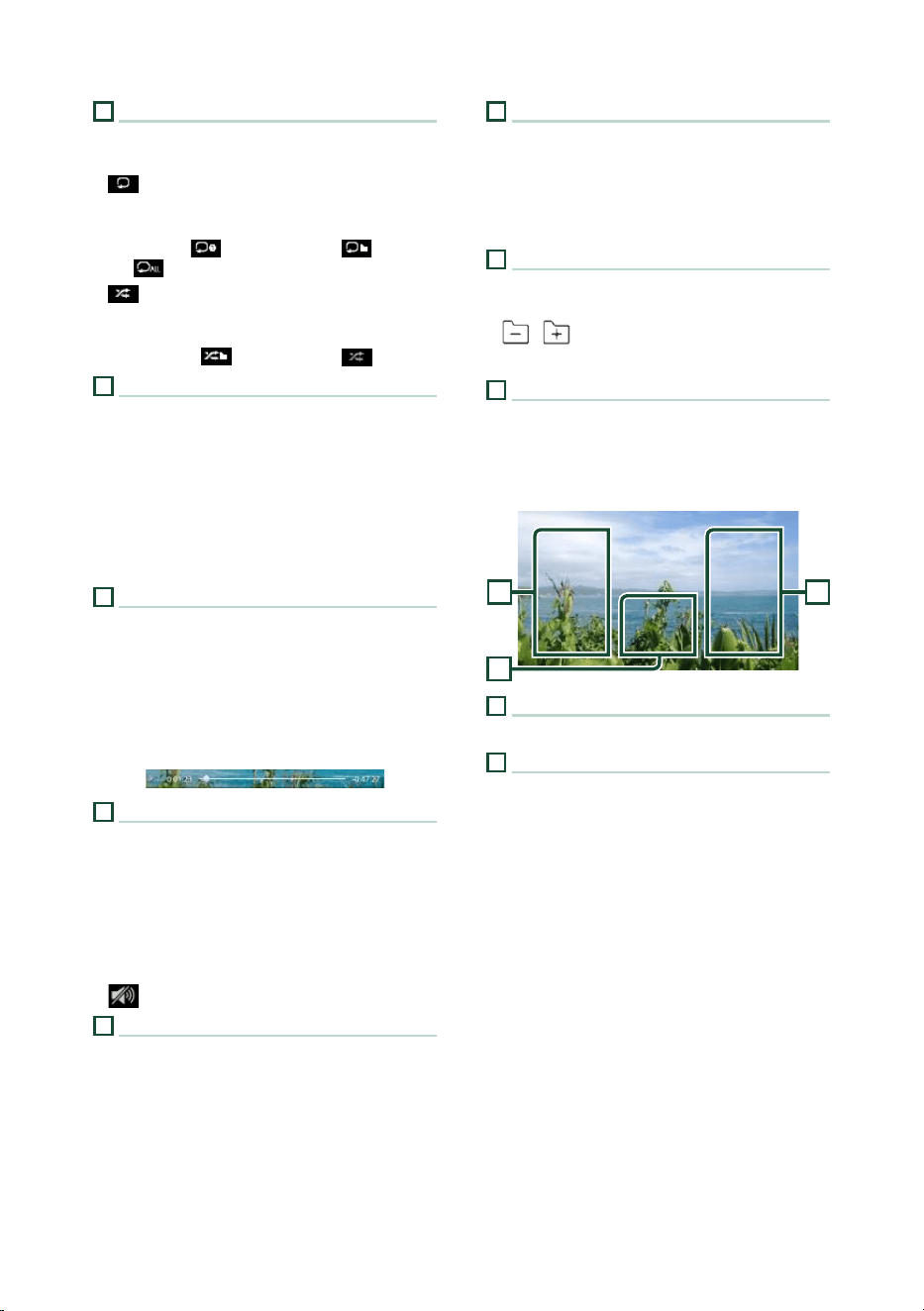
Most functions can be controlled from the
source control screen and playback screen.
Control screen
7
4
3
5
2
6
1
Open the drawer
5
7
Close the drawer
5
7
6
8
USB
26
1
CODEC/Repeat/Random
• When a high-resolution source is played, its
format information is displayed.
• [
] : Repeats the current track/folder. Each
time you touch the key, repeat modes are
switched in the following sequence:
File repeat (
), Folder repeat ( ), Repeat
all ( )
• [
] : Randomly plays all tracks in the current
folder. Each time you touch the key, random
modes are switched in the following sequence:
File random ( ), Random off ( )
2
Track information
• Displays the information on the current file.
Only a file name and a folder name are
displayed if there is no tag information.
• Touch to display the Category List screen. See
Category search (P.27).
• Change the text size of the information when
the "Small Audio Text" is set to "ON"/"OFF" in
the User Interface screen. ( P.64)
3
Play mode indicator/Playing time
• D, B, etc.: Current play mode indicator
Meanings of individual icons are as follows:
D (play), B (fast forward), A (fast
backward), H (pause).
• For confirmation of current playing position.
You can drag the circle left or right to change
the playing position. (Video file only)
4
Operation keys
• [1] : Searches track/file. For details on search
operation, see Search Operation (P.27).
• [E] [F] : Searches the previous/next track/
file.
Touch and hold to fast forward or fast
backward.
• [DH] : Plays or pauses.
• [
] : Touch to attenuate/restore the sound.
5
Content list
• Touch the right side of the screen to display
the Content list. Touch again to close the list.
• Displays the playing list. When you touch a
track/file name on the list, playback will start.
6
Artwork/VU meter
• Displays/hides artwork area.
• The jacket of the currently playing file is
displayed.
• Touch to switch between the artwork and VU
meter.
7
Function panel
Touch the left side of the screen to display the
function panel. Touch again to close the panel.
• [
] [ ] : Searches for the previous/next
folder.
8
Indicator Items
• [VIDEO]: Identifies the video file.
• [MUSIC]: Identifies the music file.
Video screen
10
99
9
File search area (Video file only)
Touch to search for the next/previous file.
10
Key display area (Video file only)
Touch to display the control screen.
USB
27English
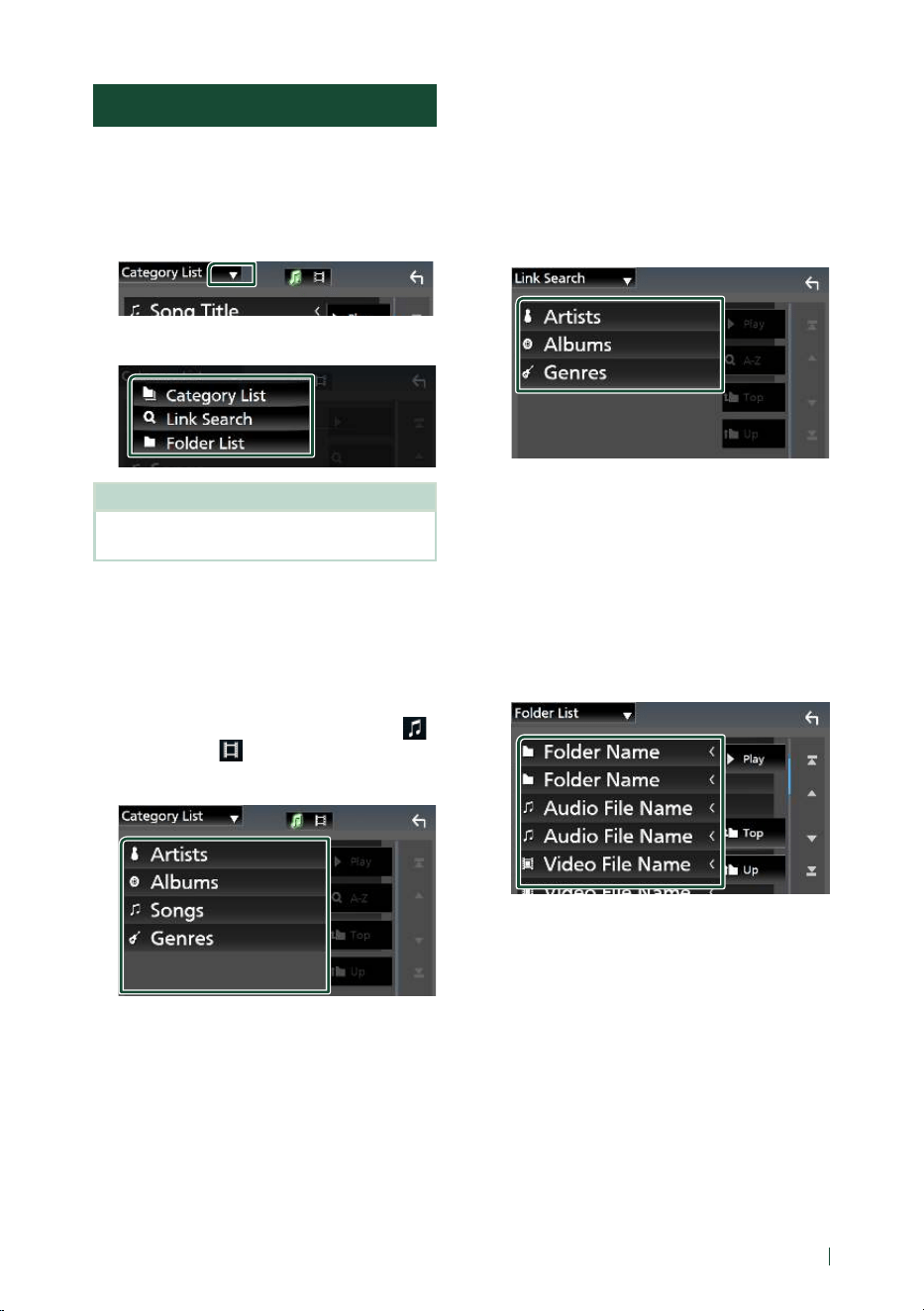
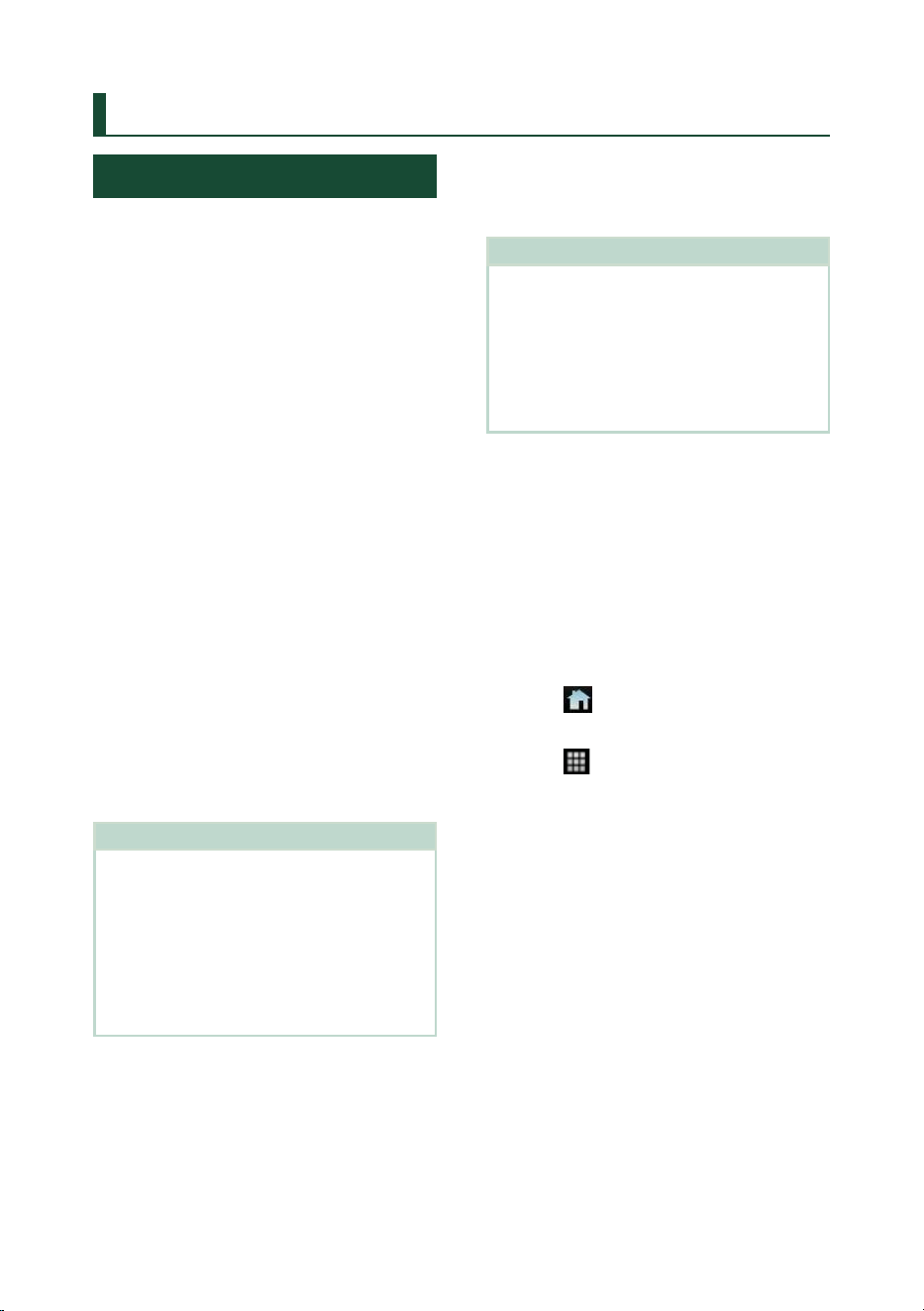
Search Operation
You can search music or video files by the
following operations.
1
Touch [1].
2
Touch [S].
3
Select a list type.
NOTE
• For operations on the list screen, see List screen
( P.16).
Ñ Category search
You can search for a file by selecting a
category.
1
Touch [Category List].
2
Select whether you search audio files
or video files
.
3
Touch the desired category.
hh The list corresponding to your selection
appears.
4
Touch to select the desired item in the
list. Repeat this step until you find the
desired file.
Ñ Link search (Audio file only)
You can search for a file of the same artist/
album/genre as that in the current track.
1
Touch [Link Search].
2
Touch the desired tag type. You can select
from artists, albums and genres.
hh The list corresponding to your selection
appears.
3
Touch the desired item in the content list.
Ñ Folder search
You can search for a file according to hierarchy.
1
Touch [Folder List].
2
Touch the desired folder.
When you touch a folder its contents are
displayed.
3
Touch to select your desired item in the
list. Repeat this step until you find the
desired file.
iPod/iPhone
28
iPod/iPhone
Preparation
Ñ Connectable iPod/iPhone
The following models can be connected to
this unit.
Made for
• iPhone 12 Pro Max
• iPhone 12 Pro
• iPhone 12
• iPhone 12 mini
• iPhone SE (2nd generation)
• iPhone 11 Pro Max
• iPhone 11 Pro
• iPhone 11
• iPhone XS Max
• iPhone XS
• iPhone XR
• iPhone X
• iPhone 8 Plus
• iPhone 8
• iPhone 7 Plus
• iPhone 7
• iPhone SE
• iPhone 6s Plus
• iPhone 6s
• iPod touch (7th generation)
NOTE
• Latest compatible list of iPod/iPhone. For details,
see www.jvc.net/cs/car/ipod/.
• By connecting your iPod/iPhone to this unit, you
can supply power to your iPod/iPhone as well
as charge it while playing music. Note that the
power of this unit must be held on.
• If you restart playback after connecting the iPod,
the music that has been played by the iPod is
played first.
Ñ Connect iPod/iPhone
Wired connection
Preparation
• Connect an iPod/iPhone while Apple CarPlay is
not connected.
• With an iPhone compatible with Apple CarPlay,
turn off Apple CarPlay by operating the iPhone
at functional setup before connecting iPhone.
For details of the setup method, contact the
manufacturer of the terminal.
• Only one iPod/iPhone can be connected.
1
Connect your iPod/iPhone via the USB
terminal by the following methods.
( P.87)
• Connect using KS-U62 (optional
accessory) and USB adaptor.
• Connect using USB-C to Lightning cable
(sold separately).
2
Press the [FNC] button.
hh Popup menu appears.
3
Touch [ ].
hh HOME screen appears.
4
Touch [ ].
5
Touch [iPod]. ( P.13)
● To disconnect the iPod/iPhone connected
with the cable
1
Detach the iPod/iPhone.
iPod/iPhone
29English
Bluetooth connection
Pair the iPhone through Bluetooth.
Preparation
• To connect an iPhone via Bluetooth, register it
as a Bluetooth device and do the profile setting
for the connection beforehand. See Register
the Bluetooth device (P.51) and Switch the
connected device (P.53).
• Connect an iPhone via Bluetooth while Apple
CarPlay and an iPod/iPhone are not connected
via USB.
• With an iPhone compatible with Apple CarPlay,
turn off Apple CarPlay by operating the iPhone
at functional setup before connecting iPhone.
For details of the setup method, contact the
manufacturer of the terminal.
● Select the method of making connections
for outputting sound from the iPod
source
1
Press the [FNC] button.
hh Popup menu appears.
2
Touch [ ].
hh HOME screen appears.
3
Touch [ ].
hh SETUP screen appears.
4
Touch [[AV].
hh AV screen appears.
5
Touch [iPod Bluetooth Connection].
[Bluetooth] (Default): Output sound using a
Bluetooth device.
[Bluetooth+HDMI]: Output sound using an
HDMI device and perform music selection,
etc. using a Bluetooth device.
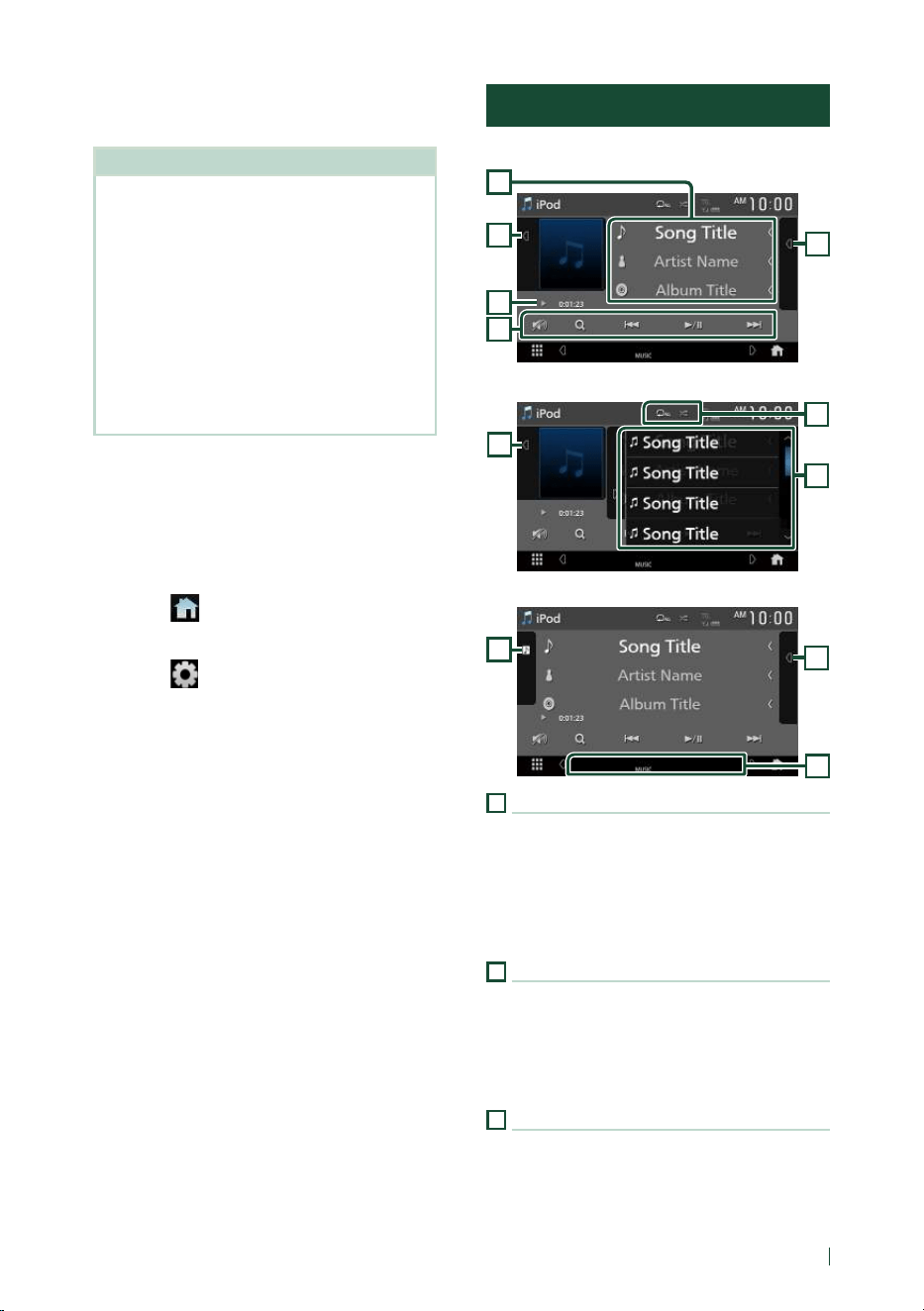
iPod/iPhone Basic Operation
Control screen
4
2
3
5
1
Open the drawer
6
5
2
Close the drawer
5
7
2
1
Track information
• Displays the information on the current file.
• Touch to display the Category List screen. See
Category search (P.30).
• Change the text size of the information when
the "Small Audio Text" is set to "ON"/"OFF" in
the User Interface screen. ( P.64)
2
Artwork/VU meter
• Displays/hides artwork area.
• The jacket of the currently being played file is
displayed.
• Touch to switch between the artwork and VU
meter.
3
Play mode indicator/Playing time
• D, B, etc.: Current play mode indicator
Meanings of individual icons are as follows:
D (play), B (fast forward), A (fast
backward), H (pause).
iPod/iPhone
30
4
Operation keys
• [1] : Searches for a track/file. For details on
search operation, see Search Operation
( P.30).
• [E] [F] : Searches for the previous/next
track/file.
Touch and hold to fast forward or fast
backward.
• [DH] : Plays or pauses.
• [
] : Touch to attenuate/restore the sound.
5
Content list
• Touch the right side of the screen to display
the Content list. Touch again to close the list.
• Displays the playing list. When you touch a
track/file name on the list, playback will start.
Preparation
• Content list cannot be used unless Category List
is selected. To select a file, see Category search
( P.30).
6
Repeat/Random
• [
] : Repeats the current track/album. Each
time you touch the key, repeat modes are
switched in the following sequence:
Song repeat ( ), All songs repeat ( ),
Repeat off ( )
• [
] : Randomly plays all tracks in the current
album. Each time you touch the key, random
modes are switched in the following sequence:
Song random ( ), Random off ( )
7
Indicator Items
• [MUSIC]: Identifies the music file.
Search Operation
You can search music files by the following
operations.
1
Touch [1].
2
Touch [S].
3
Select a list type.
NOTE
• For operations on the list screen, see List screen
( P.16).
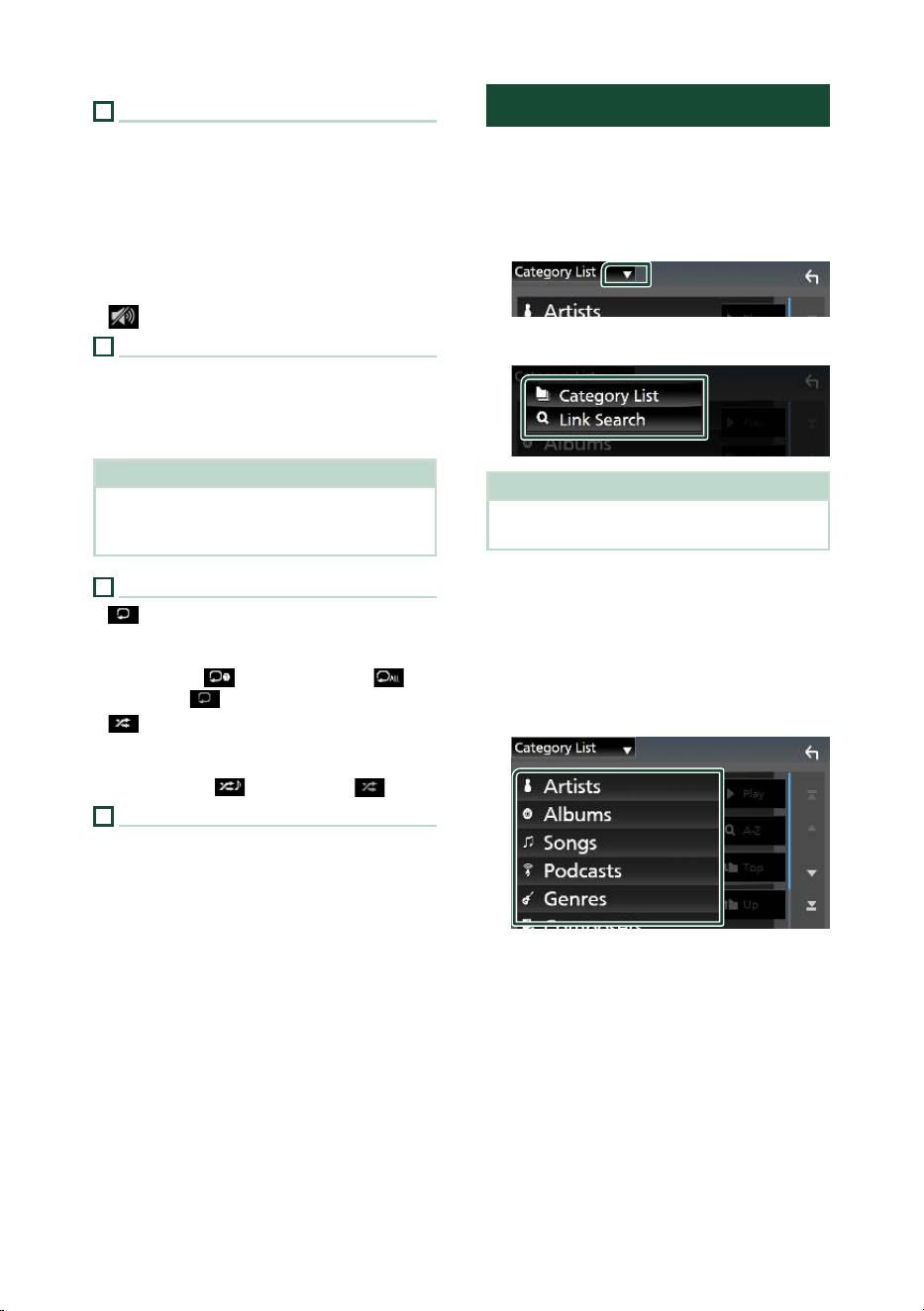
Ñ Category search
You can search for a file by selecting a
category.
1
Touch [Category List].
2
Touch the desired category.
hh The list corresponding to your selection
appears.
3
Touch to select the desired item in the
list. Repeat this step until you find the
desired file.
iPod/iPhone
31English
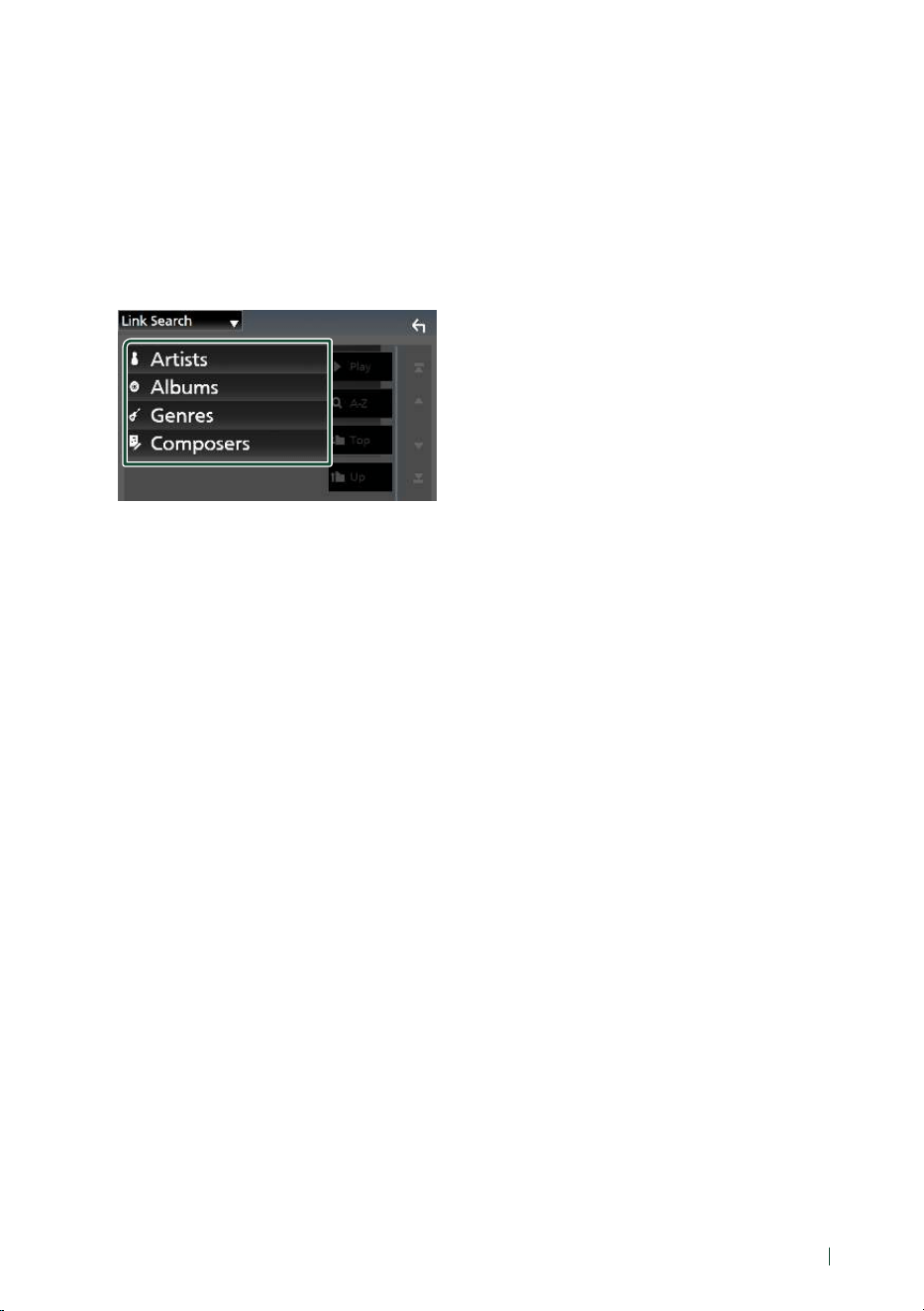
Ñ Link search
You can search for a file of the same artist/
album/genre/composer as that in the current
track.
1
Touch [Link Search].
2
Touch the desired tag type. You can
select from artists, albums, genres and
composers.
hh The list corresponding to your selection
appears.
3
Touch the desired item in the content list.
Tuner
32
Tuner
Tuner Basic Operation
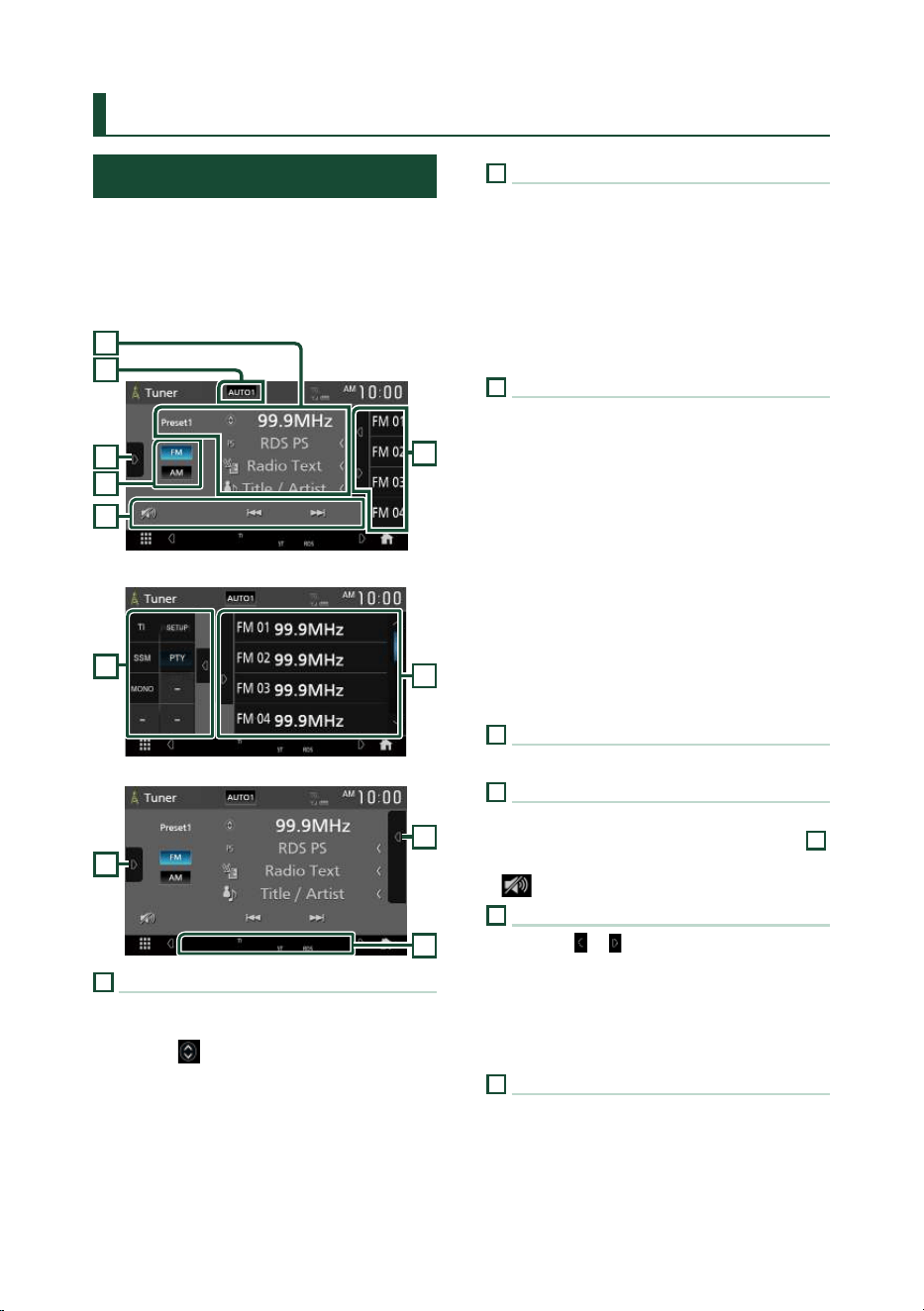
Most functions can be controlled from the
source control screen.
To listen to the Tuner source, touch [Tuner]
icon on the source selection screen. (P. 13)
Control screen
5
3
4
6
1
2
Open the drawer
6
3
Close the drawer
6
3
7
1
Information display
• Displays the information on the current station:
Frequency
Touching [
] allows you to switch between
Content A and Content B.
Content A: PS name, Radio Text, Title & Artist
Content B: PTY Genre, Radio Text plus
Preset#: Preset number
• Change the text size of the information when
the "Small Audio Text" is set to "ON"/"OFF" in
the User Interface screen. ( P.64)
2
Seek mode
Touch to switch seek mode in the following
sequence: [AUTO1], [AUTO2], [MANUAL].
• [AUTO1]: Tunes in a station with good
reception automatically.
• [AUTO2]: Tunes in the memorized stations one
after another.
• [MANUAL]: Switches to the next frequency
manually.
3
Function panel
Touch the left side of the screen to display the
function panel. Touch again to close the panel.
• [TI] (FM only): Selects the traffic information
mode. For details, see Traffic Information
( P.34).
• [SETUP] (FM only): Displays the Tuner SETUP
screen. For details, see Tuner SETUP (P.34).
• [SSM] (FM only): Presets stations automatically.
For details, see Auto memory (P.33).
• [PTY] (FM only): Searches for a program by
program type. For details, see Search by
program type (P.33).
• [MONO] (FM only): Selects the Monaural
reception mode.
4
Band keys
Switches bands (between FM and AM).
5
Operation keys
• [E] [F] : Tunes in a station. The method of
switching frequencies can be changed (see
2
Seek mode).
• [
] : Touch to attenuate/restore the sound.
6
Preset list
• Touching [
]/ [ ] allows you to change the
display size.
• Recalls the memorized station.
• When touched for 2 seconds, stores the
currently being received station in the
memory.
7
Indicator Items
• [ST]: A stereo broadcast is being received.
• [MONO]: The forced monaural function is
active.
• [TI]: Indicates the reception state of traffic
information.
White: TP is being received.
Orange: TP is not being received.
Tuner
33English
Memory Operation
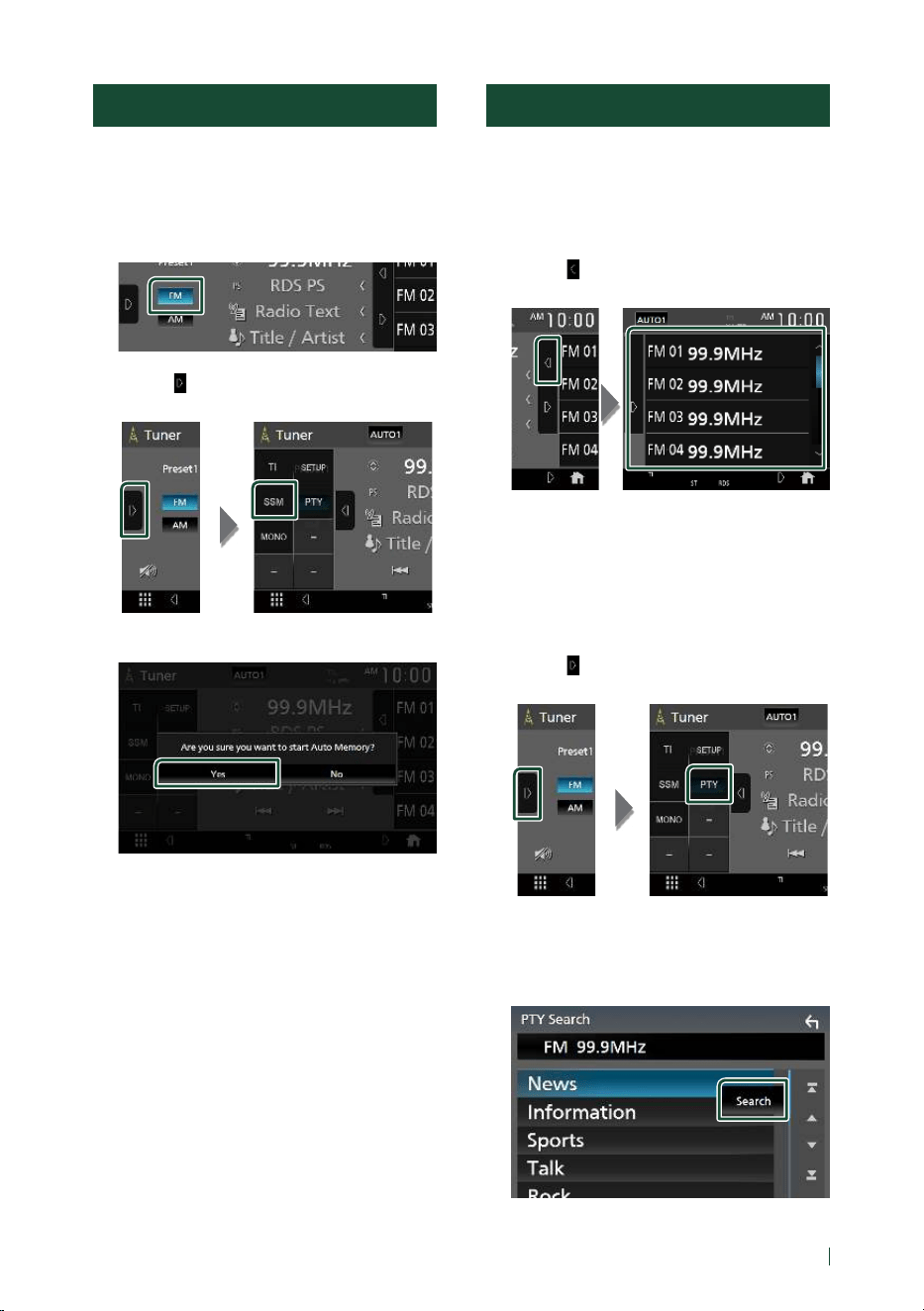
Ñ Auto memory (FM only)
You can store stations with good reception in
the memory automatically.
1
Touch [FM].
2
Touch [ ] on the left side of the screen.
Touch [SSM].
3
Touch [Ye s ].
hh Auto memory starts.
Ñ Manual memory
You can store the currently being received
station in the memory.
1
Select the station you wish to store in the
memory.
2
Touch [FM#] (#:1-15) or [AM#] (#:1-5) in
which you want to store the station for 2
seconds until a beep sounds.
Selecting Operation
Ñ Preset select
You can list and select memorized stations.
This function can be used from the remote
control. (P. 81)
1
Touch [ ] on the right side of the screen.
Select a station from the list.
Ñ Search by program type
(FM only)
You can tune in the station broadcasting the
specified type of program when listening to
FM.
1
Touch [ ] on the left side of the screen.
Touch [PTY].
hh PTY Search screen appears.
2
Select a program type from the list.
3
Touch [Search].
You can search for the station broadcasting
the selected type of program.
Tuner
34
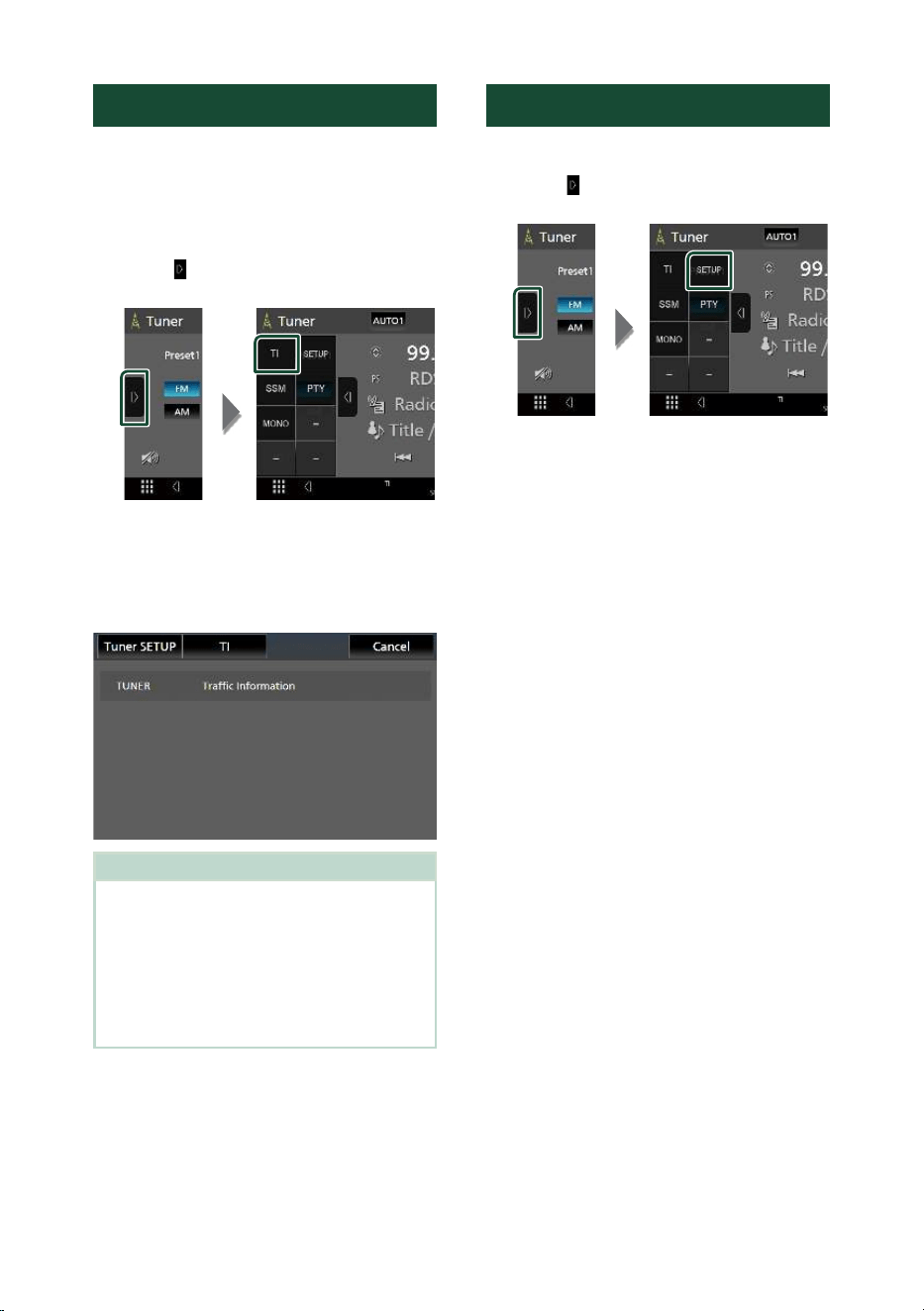
Traffic Information (FM only)
You can listen to and watch traffic information
automatically when a traffic bulletin starts.
However, this feature requires a Radio
Broadcast Data System that includes TI
information.
1
Touch [ ] on the left side of the screen.
Touch [TI].
hh Traffic information mode is set.
Ñ When the traffic bulletin starts
The Traffic Information screen appears
automatically.
NOTE
• It is necessary to turn on the Traffic Information
function in order to allow the Traffic Information
screen to appear automatically.
• The volume setting made during reception of
traffic information is automatically memorized.
When the traffic information is received next time,
this unit recalls the volume setting automatically.
• To cancel Traffic Information: Touch [Cancel].
Tuner SETUP (FM only)
You can set tuner related parameters.
1
Touch [ ] on the left side of the screen.
Touch [SETUP].
hh Tuner SETUP screen appears.
2
Set each function as follows.
■ [Area Setting]
The tuner channel interval changes
depending on the area where you use this
unit.
[North America] (Default): Select this when
using this unit in North/Central/South
America. FM and AM intervals are set to
200 kHz and 10 kHz respectively.
[South America]: Select this when using this
unit in South American countries where
the FM interval is 50 kHz. The AM interval
is set to 10 kHz.
[Europe]: Select this when using this unit in
any other areas. FM and AM intervals are
set to 50 kHz and 9 kHz respectively.
SiriusXM®
35English
SiriusXM®
SiriusXM® Basic Operation
Only SiriusXM® brings you more of what you
love to listen to, all in one place. Get over 140
channels, including commercial-free music
plus the best sports, news, talk, comedy
and entertainment. Welcome to the world
of satellite radio. A SiriusXM Vehicle Tuner
and Subscription are required. For more
information, visit www.siriusxm.com.
To listen to the SiriusXM source, touch the
[SiriusXM] icon on the source selection screen.
( P.13)
Activating subscription
• Check your Radio ID.
The SiriusXM Satellite Radio ID is required for
activation and can be found by tuning in Channel
0 as well as on the label found on the SiriusXM
Connect tuner and its package.
The Radio ID does not include the letters I, O, S
or F.
• Activate the SiriusXM Connect Vehicle Tuner
using either one of the two methods below.
In the USA, you can activate online or by calling
SiriusXM Listener care :
– Visit www.siriusxm.com/activatenow
– Call SiriusXM Listener Care at 1-866-635-2349
For Canadian Subscriptions, please contact :
– Visit www.siriusxm.ca/activate
– Call SiriusXM Customer Care at 1-888-539-7474
NOTE
• To use SiriusXM® Satellite Radio, the optional
accessory is necessary.
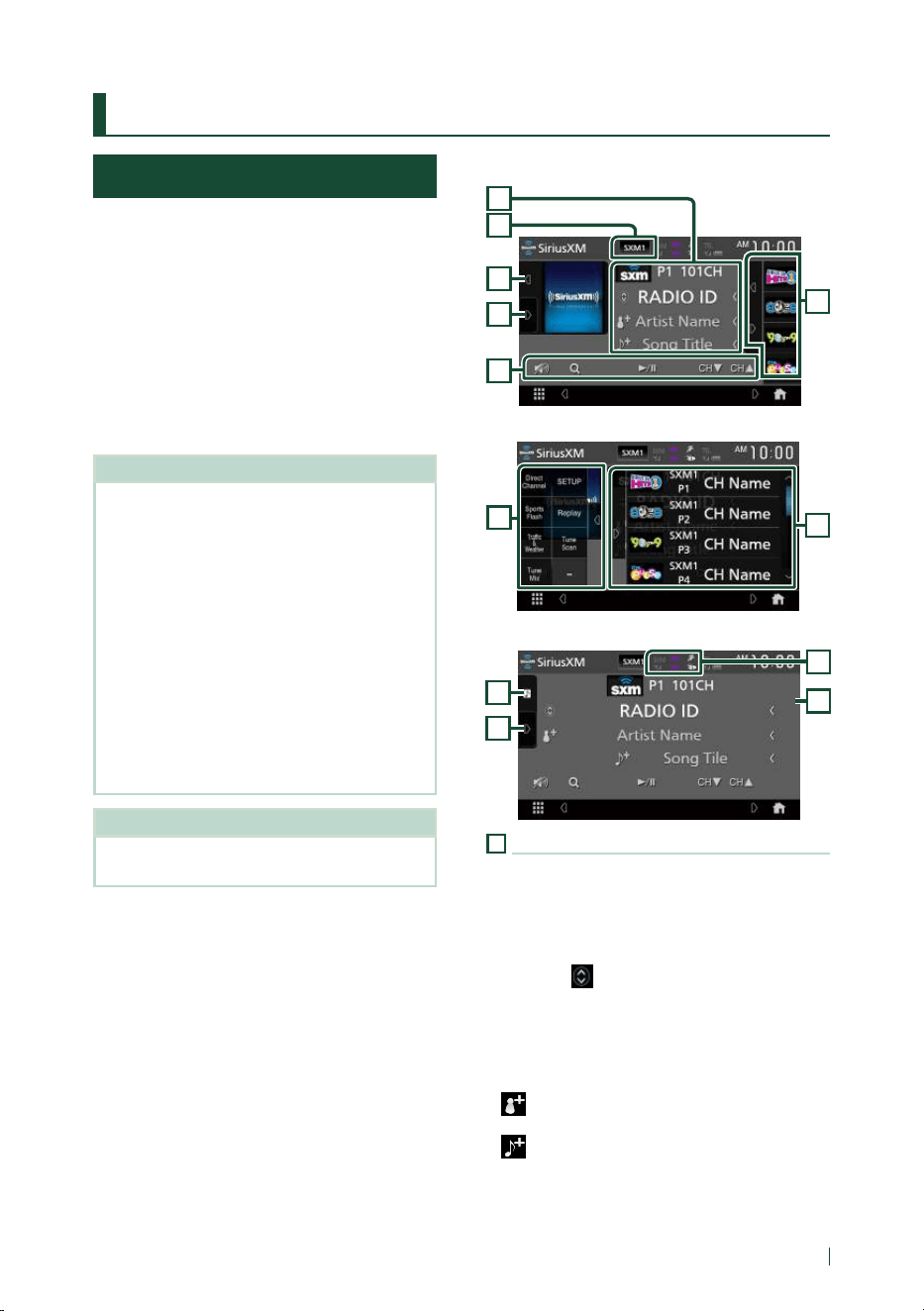
Control screen
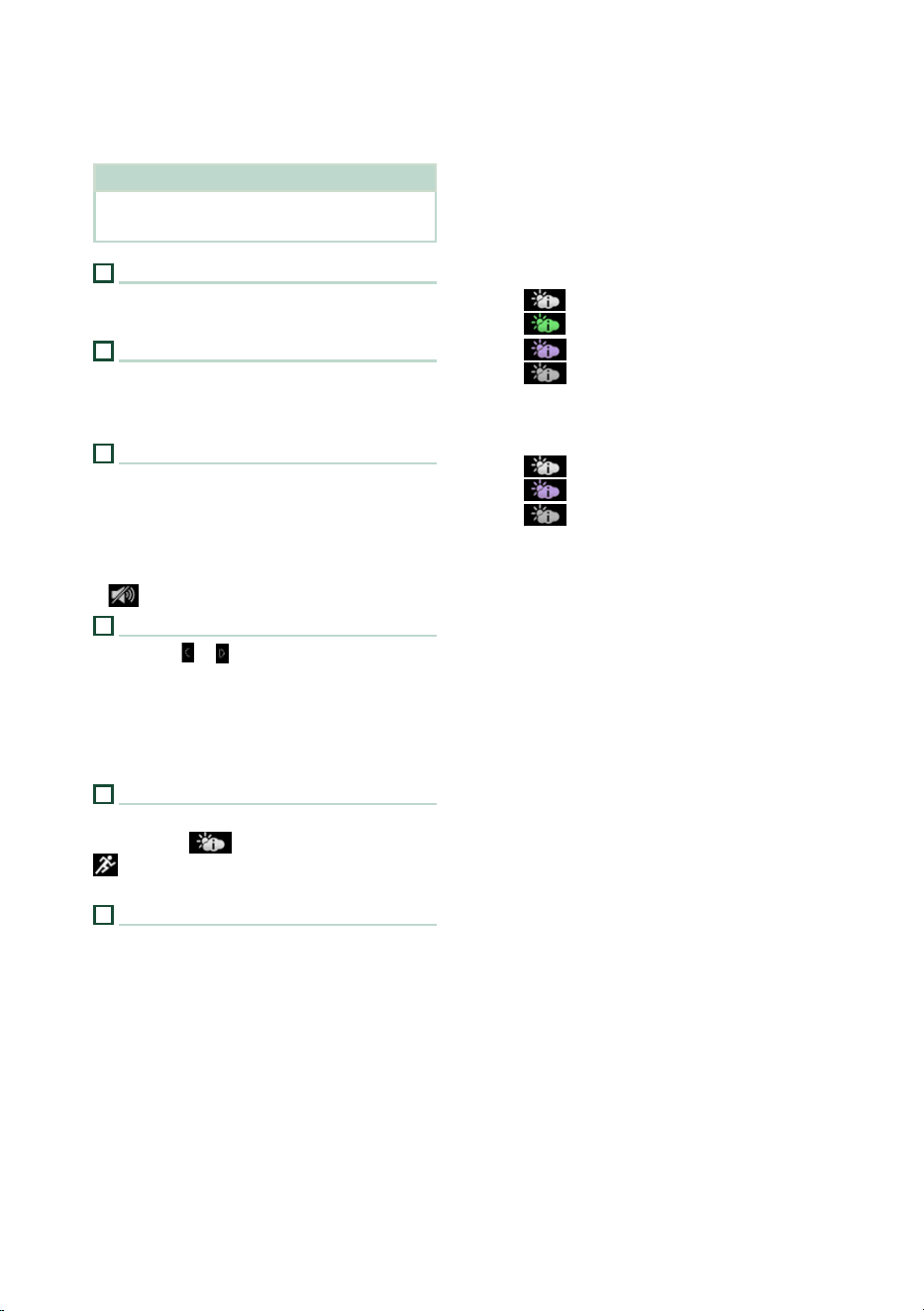
7
3
1
5
4
2
Open the drawer
5
7
Close the drawer
6
5
7
3
1
Information display
• Displays the information on the current
channel: Channel Name
P#: Preset number
#CH: Channel number
Logo: Channel logo
Touching [
] allows you to switch between
Content A, Content B and Content C.
Content A: Artist Name, Song Title
Content B: Content Info, Category Name
Content C: Channel Description, Similar
Channels
[
] : Touch for 2 seconds to register the artist
of the current song as a Content Alert.
[ ] : Touch for 2 seconds to register the
current song as a Content Alert.
For details, see Content Alerts (P.40).
SiriusXM®
36
• Change the text size of the information when
the "Small Audio Text" is set to "ON"/"OFF" in
the User Interface screen. ( P.64)
NOTE
While getting contents, “Waiting” is showing on
the display.
2
Band key
Switches among bands. (SXM1/SXM2/SXM3/
SXM4)
3
Artwork
• Displays/hides artwork area.
• Displays the album artwork for most SiriusXM
music channels.
4
Operation keys
• [1] : Display the Category search screen. For
details on search operation, see Category/
Channel search (P.38).
• DH] : Plays or pauses. See Replay (P.38).
• [CHS] [CHR] : Selects a channel.
• [
] : Touch to attenuate/restore the sound.
5
Preset list
• Touching [
]/ [ ] allows you to change the
display size.
• Recalls the memorized channel.
• When touched for 2 seconds, stores the
currently being received channel in the
memory.
6
Indicator display
Displays the “Mix” (TuneMix™), “Scan”
(TuneScan™),
(Traffic&Weather), or
(SportsFlash™) indicator and the received
signal strength of the SiriusXM tuner.
7
Function panel
Touch the left side of the screen to display the
function panel. Touch again to close the panel.
• [Direct Channel]: Touch and enter the
desired number. For details, see Direct search
( P.37).
• [SETUP]: Touch to display the SiriusXM SETUP
screen. For details, see SiriusXM SETUP
( P.41).
• [Replay]/[Live]: Touch to turn on or off the
replay mode. See Replay (P.38).
• [Traffic & Weather]
For SXV300 *
1
Traffic & Weather Now™ allows you to access
the latest report whenever you want to hear
it. Select your city from the set up menu
(see Select a City for Traffic & Weather
( P.46)) and touch [Traffic & Weather] to
check the latest report. It will start from the
beginning.
•
(White) : Played already.
•
(Green) : New information arrived.
•
(Purple) : Playing.
•
(Gray) : No information.
For SXV200 or SXV100 *
2
Turns the Traffic & Weather Jump function
on or off.
•
(White) : Function on.
•
(Purple) : Playing.
•
(Gray) : Function off.
• [TuneScan]*
3
: Allows you to hear a
few seconds of songs from each of the
SmartFavorite music channels on the current
preset band. See TuneScan™ (P.39).
• [TuneMix]*
4
: When turned ON, shuffles the
preset channels on P1-P6 to play a blend
of songs from your favorite channels. See
TuneMix™ (P.39).
• [SportsFlash]*
4
: Displays during SportsFlash™.
Touch to cancel the SportsFlash™ function
and return to the previous channel. See
SportsFlash™ (P.41) and SportsFlash™
setup (P.45).
*
1
Compatible with SXV300 or later tuner
models. It may take a few minutes after power
on to get the first full report on your city.
Traffic channels are not available in Canada.
*
2
When SXV200 or SXV100 is connected with
this unit.
*
3
Compatible with SXV200 or later tuner models.
*
4
Compatible with SXV300 or later tuner models.
SiriusXM®
37English
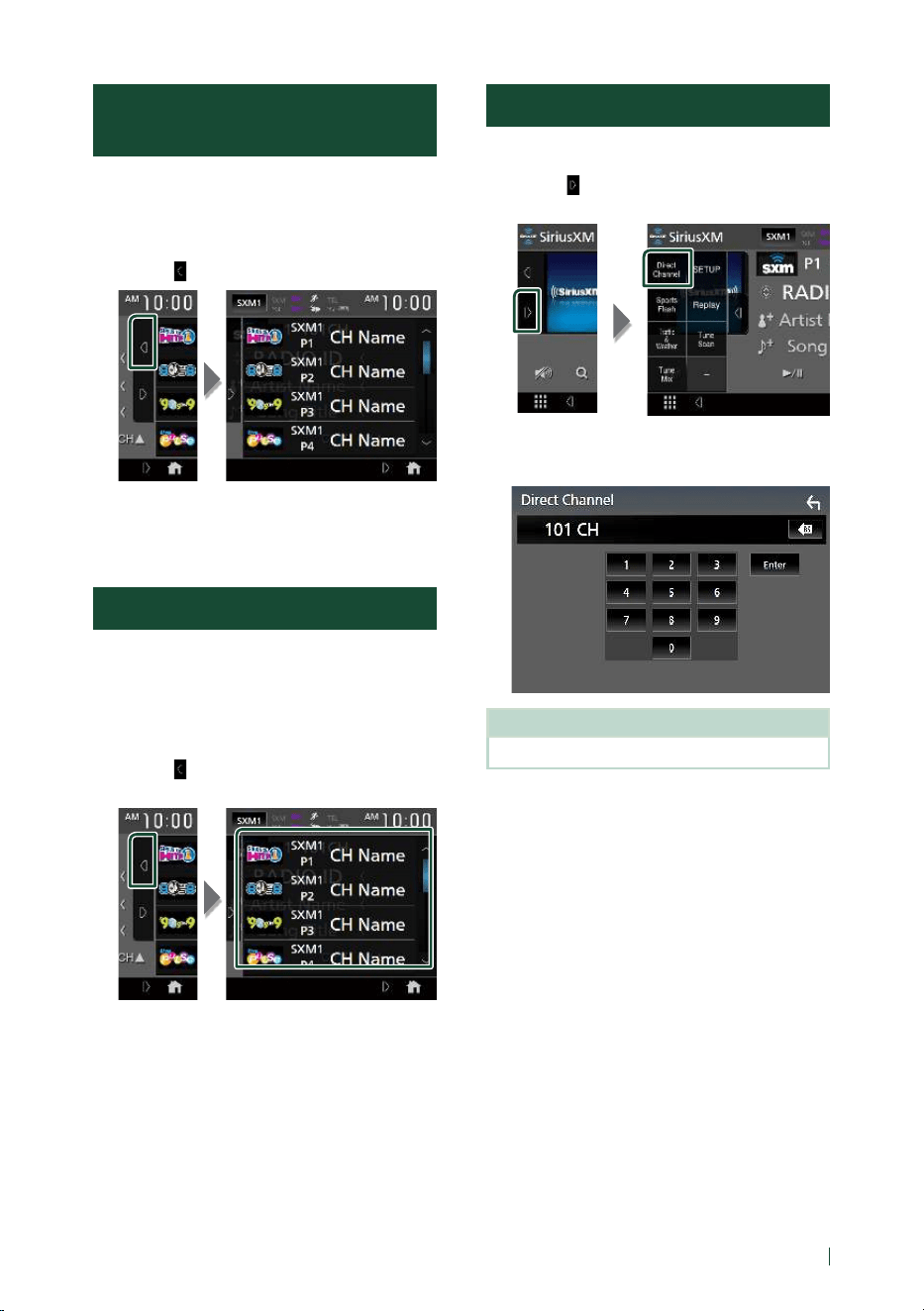
Storing Channels in Preset
Memory
You can store the current channel in memory.
1
Tune in the channel you wish to store in
the memory.
2
Touch [ ] on the right side of the screen.
3
Touch [SXM(1-4) P(1-6)] in which you
want to store the channel for 2 seconds
until a beep sounds.
Preset select
You can list and select memorized channels.
This function can be used from the remote
control. (P. 80)
To select from the preset list
1
Touch [ ] on the right side of the screen.
Select a channel from the list.
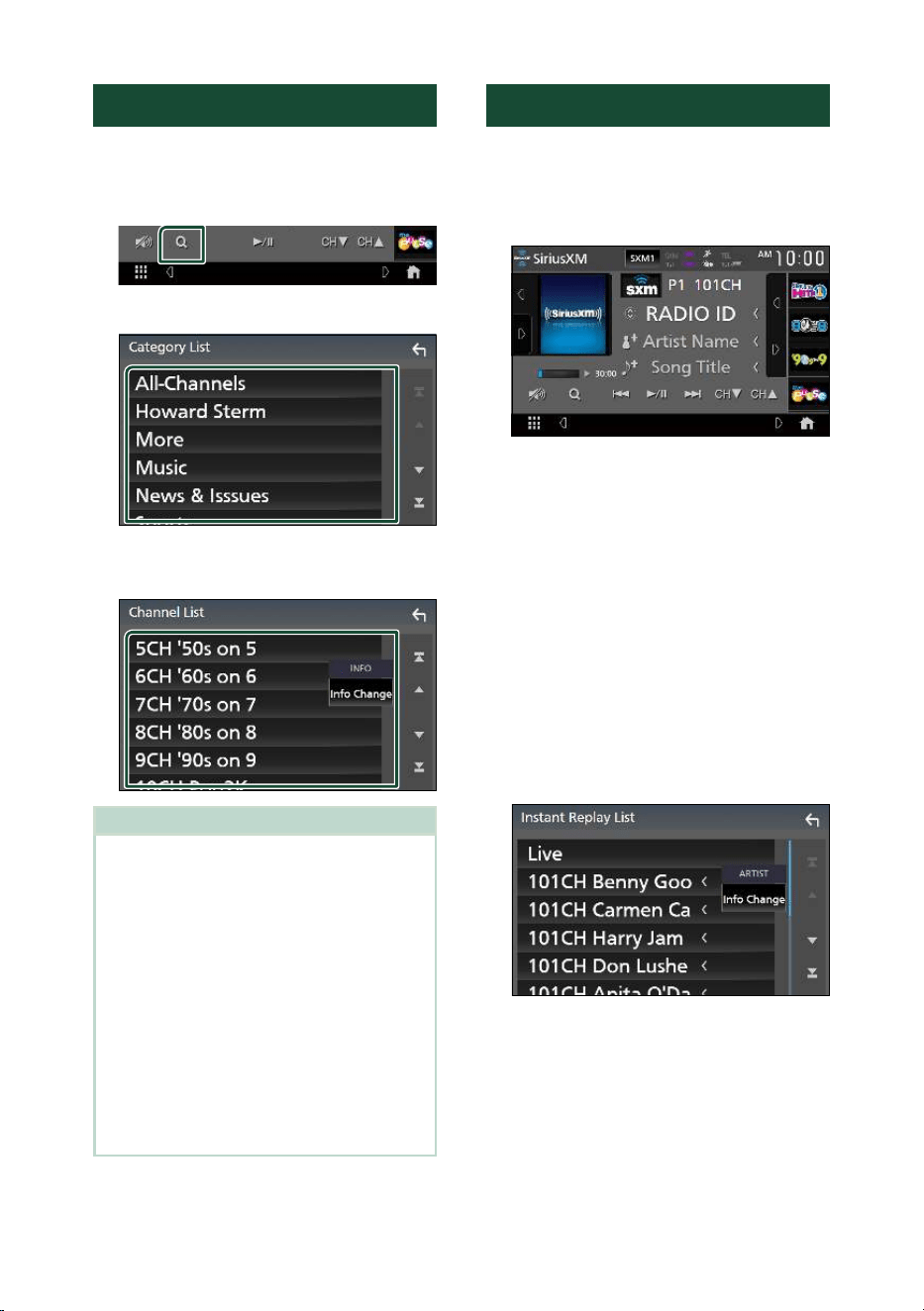
Direct search
You can tune in a channel directly.
1
Touch [ ] on the left side of the screen.
Touch [Direct Channel].
2
Enter the channel number and touch
[Enter].
NOTE
• To clear the number you entered, touch [BS].
SiriusXM®
38
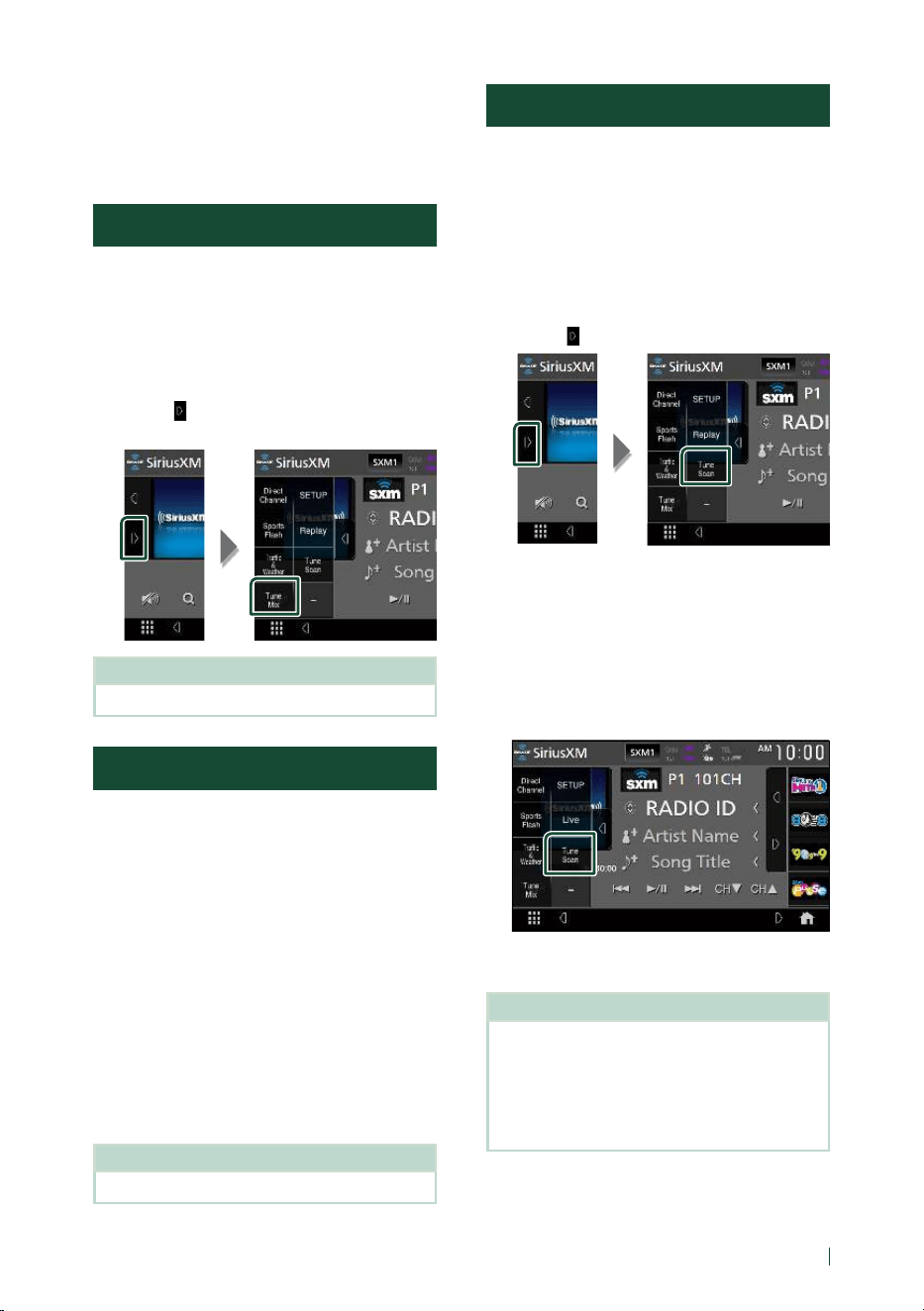
Category/Channel search
You can specify the desired category and
select a channel.
1
Touch [1].
2
Select a category.
hh Channel list appears.
3
Select the desired content from the list.
NOTE
• All channels in the selected category appear.
• Touching [All-Channels] displays all channels.
• Touch [Info Change] in the channel list. Select a
desired item:
content info, channel name, artist name, song
title, category name.
• Categories which have the prefix “Featured - “ are
Featured Favorites.
• Featured Favorites are groups of channels that
are created by the SiriusXM Programming
department allowing you to discover new
channels. Featured Favorite channels are dynamic
and can change often, allowing you to discover
new channels.
– You can set whether to be notified when the
featured seasonal theme is updated. ( P.46)
Replay
You can replay the last 60 minutes of the
program from the current channel.
1
Touch [L] or [Replay] on the function
panel.
■ [E] [F]
Press to skip to the previous/next track.
Press and hold to rewind or fast forward.
■ [DH]
Plays or pauses.
■ Replay time bar/Play mode indicator
Displays the recorded data capacity and
playback position.
D, B, etc.: Current play mode indicator
■ [1]
Displays a list of recorded data on a program
basis.
2
Touch [1] to display an Instant Replay List
screen.
■ Instant Replay List
Touching this plays back the displayed
program.
[Live]: Touch to return to the live music/
content.
■ [Info Change]
Touch [Info Change]. Select a desired item:
content info, channel name, artist name,
song title, category name.
SiriusXM®
39English
To return to live music/content
1
Touch the left side of the screen.
2
Touch [Live].
TuneMix™
TuneMix™ plays a unique blend of songs from
your Preset music channels of the current
SiriusXM Preset Band, allowing you to build a
custom channel from as few as two to as many
as 6 music channels. You can even skip songs
you don’t want to hear.
1
Touch [ ] on the left side of the screen.
Touch [TuneMix] to set ON or OFF.
NOTE
• Compatible with SXV300 or later tuner models.
SmartFavorites, TuneStart™
Preset channels 1 through 6 of the current
band are SmartFavorites channels.
The SiriusXM Vehicle Tuner automatically
buffers the broadcast audio content of the
SmartFavorites channels in the background.
You can rewind and replay up to 30 minutes of
any of the missed news, talk, sports or music
content on SmartFavorites channels. (See
Replay (P.38).)
When tuning in a SmartFavorites channel,
songs will be played from the beginning of
each track (TuneStart™). You can enable/
disable TuneStart. (See TuneStart™ (P.46).)
NOTE
• Compatible with SXV200 or later tuner models.
TuneScan™
TuneScan™ is a feature that plays samples
from the starts of multiple buffered songs
from each of the SmartFavorites channels that
predominantly play music selections.
You have easy access to a large sampling
of music content and can enjoy hearing a
full song by stopping the scan on a song of
interest.
1
Touch [ ] on the left side of the screen.
2
Touch [TuneScan] to begin scanning your
SmartFavorites channels.
You will hear a few seconds of the songs
from each of the SmartFavorite channels.
3
While your favorite song is being played,
touch [TuneScan] again to start listening
to that song.
hh Scan finishes and the song is played
continuously.
NOTE
• To cancel TuneScan™, touch the left side of the
screen. Touch [TuneScan].
• Touch and hold [TuneScan] to cancel TuneScan,
and the music/content which was present on the
channel before starting TuneScan will be played.
• Compatible with SXV200 or later tuner models.
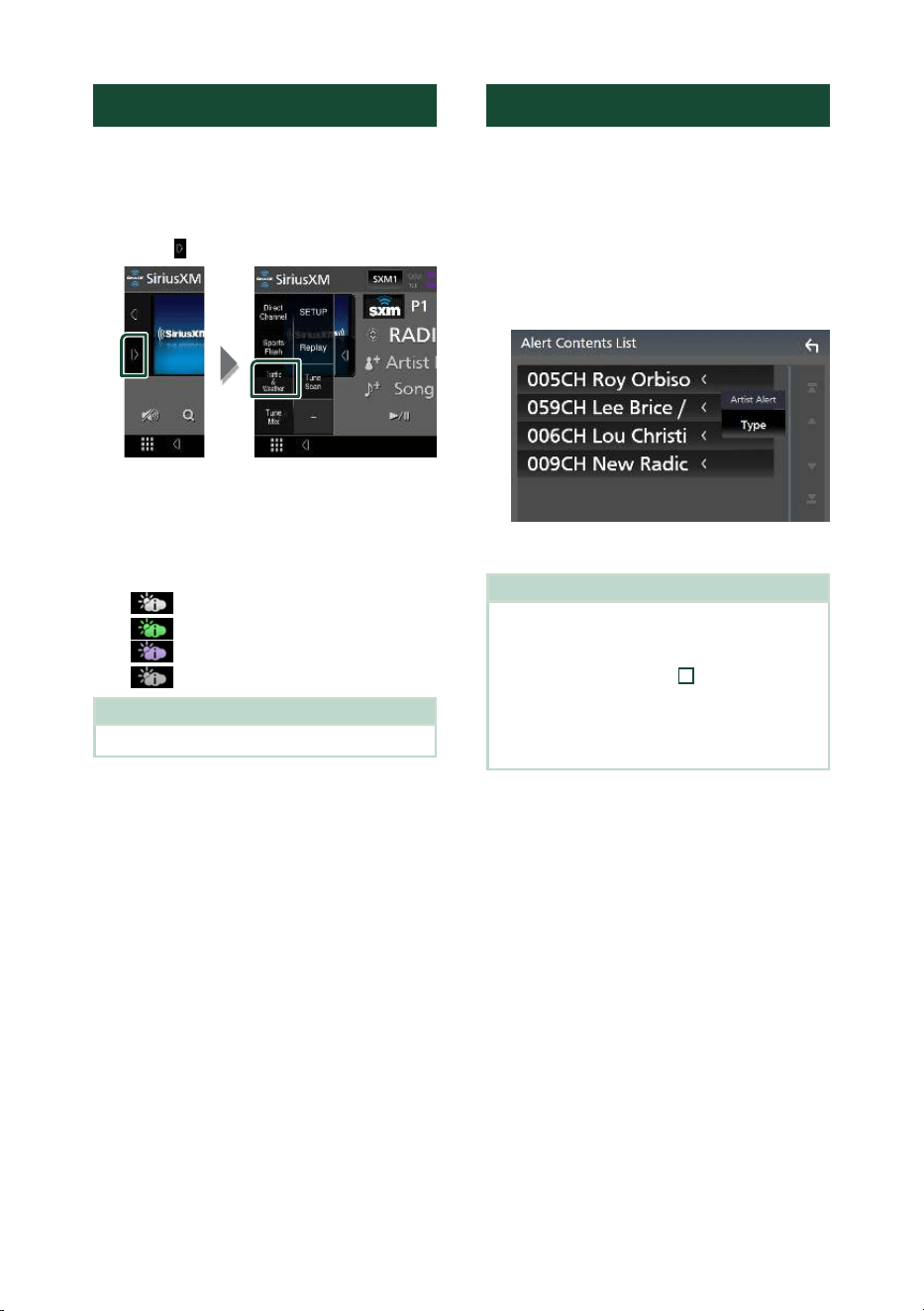
SiriusXM®
40
Traffic & Weather Now™
Traffic & Weather Now™ allows you to access
the latest report whenever you want to hear
it. First select your city in the set up menu. See
Select a City for Traffic & Weather (P.46).
1
Touch [ ] on the left side of the screen.
2
Touch [Traffic & Weather].
The report starts from the beginning. To stop
and return to the previous channel, touch it
again.
Indicator display
•
(White) : Played already.
•
(Green) : New information arrived.
•
(Purple) : Playing.
•
(Gray) : No information.
NOTE
• Compatible with SXV300 or later tuner models.
Content Alerts
When a broadcast program related to the
registered artist, song or team starts, an Alert
Content List screen appears to allow you to
switch the current channel to the relevant
channel.
1
When the broadcast of the registered
content starts, an Alert Content List
screen appears.
2
Select a content from the list.
NOTE
• Touch [Type]. Select a desired item:
Artist Alert, Song Alert, GameAlert™.
• To learn how to register artists and songs for the
Content Alert function, see
1
Information display
in SiriusXM® Basic Operation (P.35).
• To learn how to set up the Content Alerts
function and select Teams for alerts, see Content
Alerts setup (P.43).
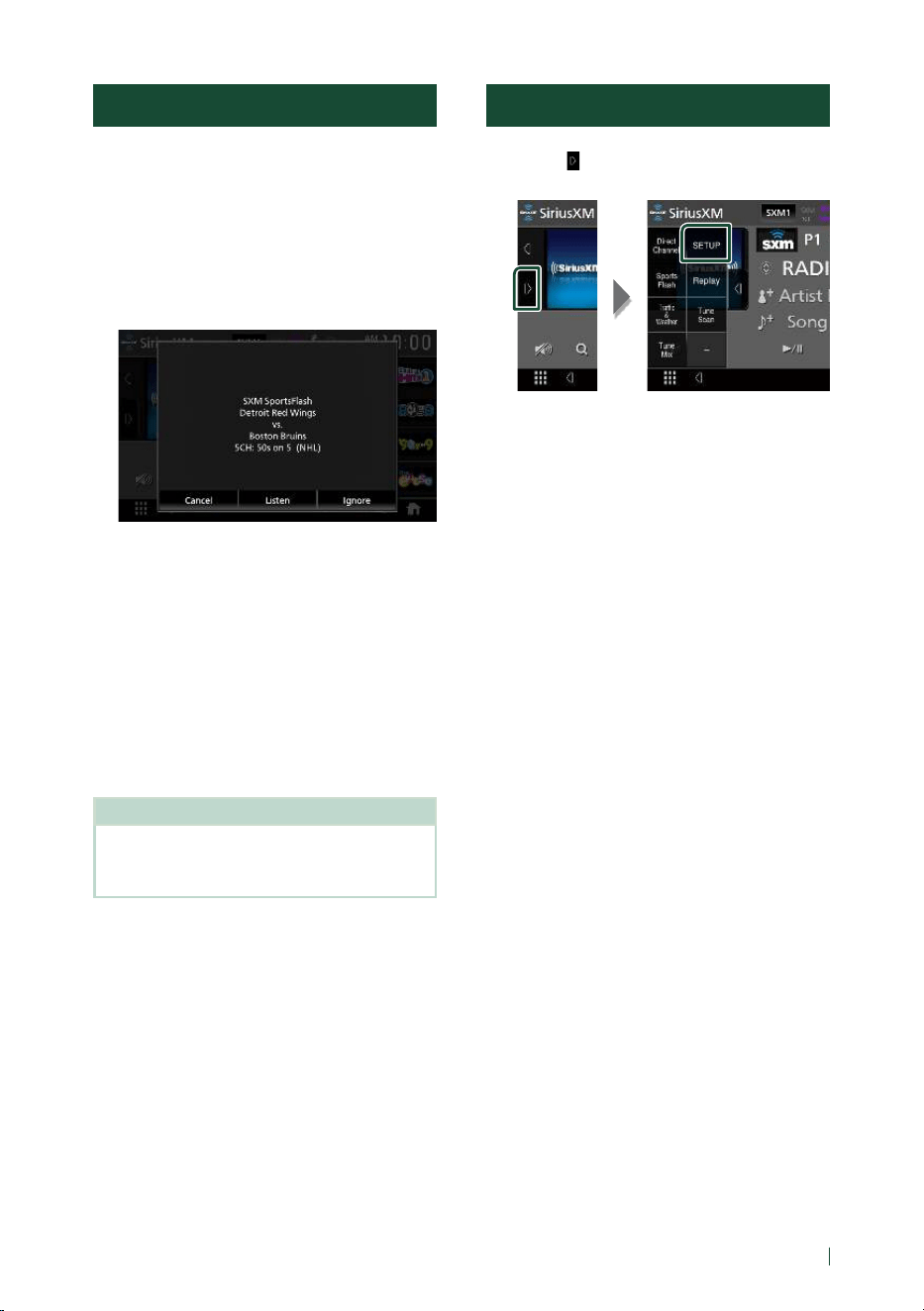
SiriusXM®
41English
SportsFlash™
SportsFlash™ will notify you when a big play
happens during a game with one of your
favorite sports teams. Choose to tune in and
hear the play unfold like it was live. Continue
listening to the game or return to your
previous channel.
1
When a big play happens during one of
the games, an Alert screen appears.
■ [Listen]
Touch to tune in that channel and play back
the big play.
■ [Ignore]
Touch to cancel this specific SportsFlash
alert. Touching [Ignore] will ignore this
specific alert but will allow future alerts for
this game.
■ [Cancel]
Touch to cancel SportsFlash alert. No alerts
for this game will be displayed afterward.
NOTE
• Compatible with SXV300 or later tuner models.
• To learn how to set up the SportsFlash alert
function, see SportsFlash™ setup (P.45).
SiriusXM SETUP
1
Touch [ ] on the left side of the screen.
Touch [SETUP].
hh SiriusXM SETUP screen appears.
See the following sections for each
setting.
• Set up the parental code ( P.42)
• Set up the Parental Control (P. 42)
• Set up the skip channel select ( P.43)
• Set up the Content Alerts ( P. 43)
• Set up the teams for SportsFlash™
( P.45)
• Select the city for Traffic & Weather Jump
or Traffic & Weather Now™ ( P. 46)
• Select the Featured Bands Update
Messages ( P. 46)
• Set up the TuneStart™ ( P. 46)
• Reset to the default settings ( P.46)
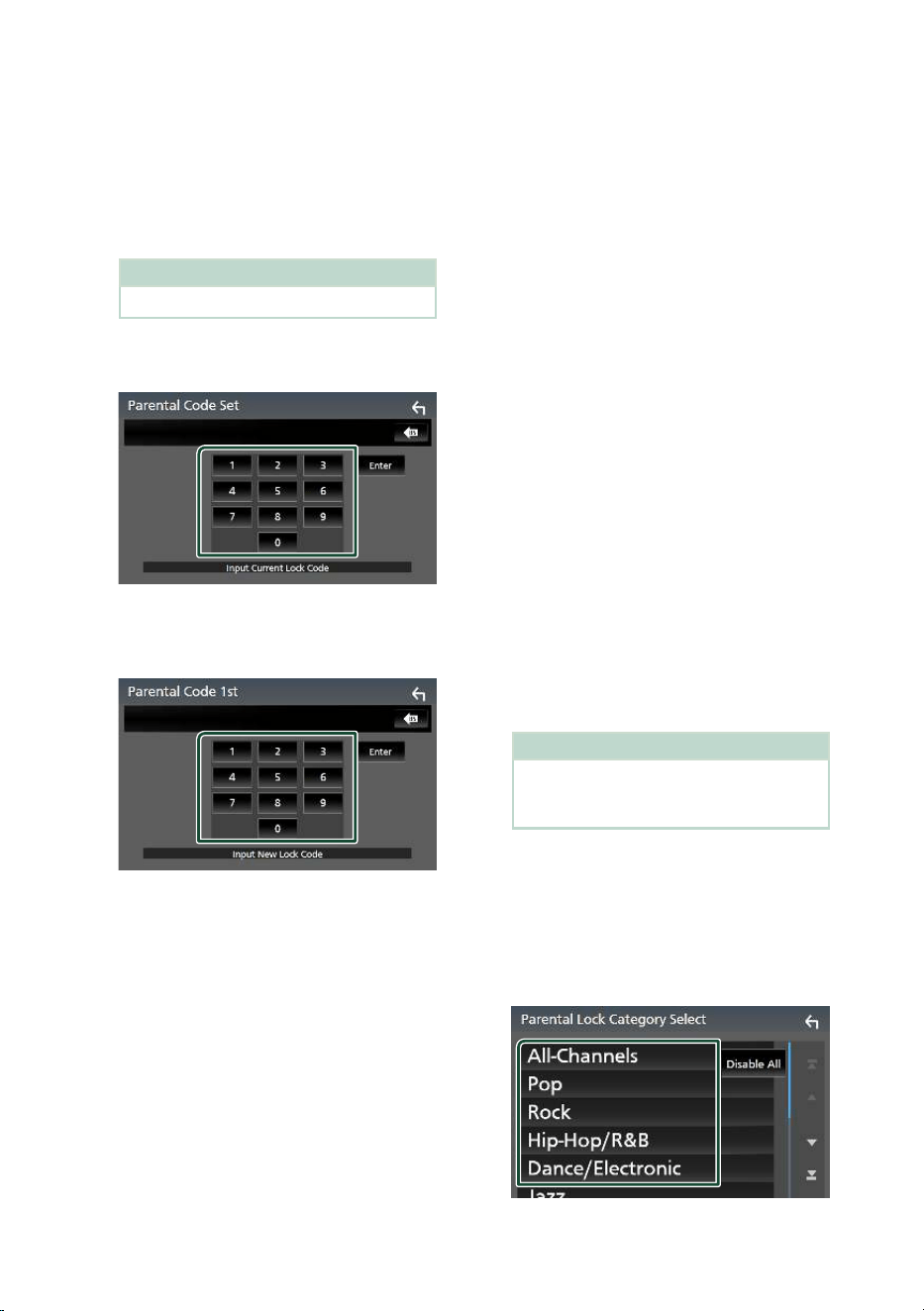
SiriusXM®
42
Ñ Parental code
You can set a SiriusXM parental code for
Parental Control.
1
Touch [Parental Code] on the SiriusXM
SETUP screen.
hh Parental Pass Check screen appears.
NOTE
• The code number is set to “0000” as default.
2
Enter the current code number and touch
[Enter].
hh Parental Pass 1st screen appears.
3
Enter the new code number and touch
[Enter].
hh Parental Pass 2nd screen appears.
4
Enter the same code number as that you
entered in step 3 and touch [Enter].
hh The code number is confirmed and the
SiriusXM parental code is now set.
Ñ Parental Control
Parental Control is a feature that provides the
user with the ability to prevent unauthorized
access to mature content and user selected
channels.
1
Touch [Parental Control] on the SiriusXM
SETUP screen.
2
Touch [User], [Mature] or [OFF].
■ [User]
Locks only the selected channels.
■ [Mature]
Locks channels classified as “mature” only.
■ [OFF]
Deactivates the parental mature and user
locks.
3
Enter the parental code you originally
input in as stated in Parental code
( P.42) and touch [Enter].
When selecting [User]
This allows you to limit access to any SiriusXM
channel (Parental Lock Channel).
1
Touch [Parental Lock Channel Selection]
on the SiriusXM SETUP screen.
hh Parental Pass Check screen appears.
NOTE
• You need to set up a parental code
beforehand as stated in Parental code
( P.42).
2
Enter the parental code you originally
input as stated in Parental code (P.42)
and touch [Enter].
hh Parental Lock Category Select screen
appears.
3
Touch the desired category in the list.
hh Displays all channels in the selected
category.
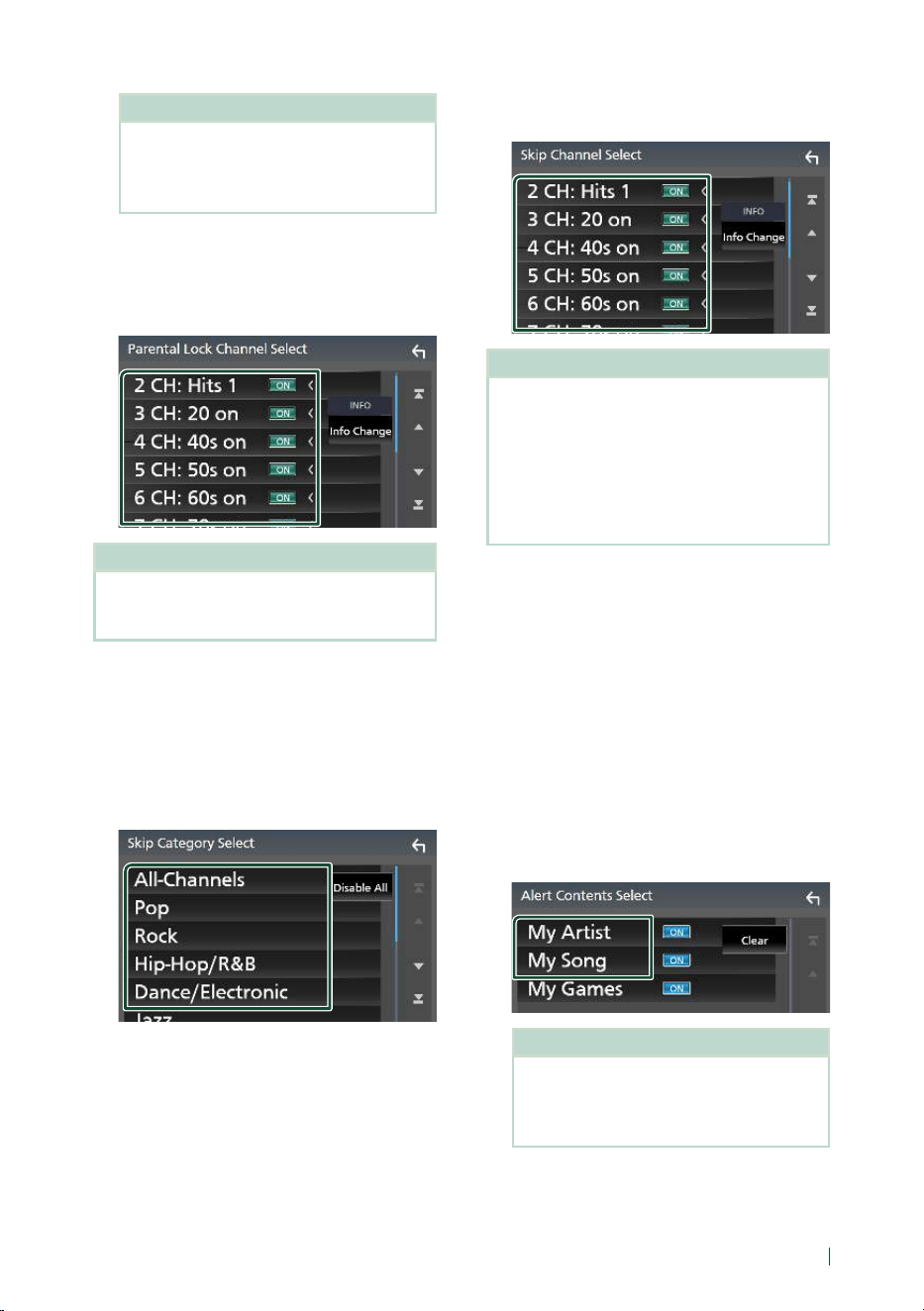
SiriusXM®
43English
NOTE
• Touch [All-Channels] to display all channels.
• To delete the parental lock channel setting,
touch [Disable All] and then touch [YES] on
the confirmation screen.
4
Touch each channel on the list and set to
ON or OFF.
[ON]: Locks the channel.
[OFF]: Unlocks the channel.
NOTE
• Touch [Info Change]. Select a desired item:
content info, channel name, artist name, song
title, category name.
Ñ Skip channel select
You can set the undesired channels to skip.
1
Touch [Skip Channel Select].
hh Skip Category Select screen appears.
2
Touch the desired category from the list.
hh Displays all channels in the selected
category.
3
Touch each channel in the list and set to
ON or OFF.
NOTE
• To delete the skip channel setting, touch
[Disable All] and then touch [YES] on the
confirmation screen.
• Touch [Info Change]. Select a desired item:
content info, channel name, artist name, song
title, category name.
• Direct Channel and Preset Memory functions
allow you to select channels.
Ñ Content Alerts setup
Activating content alert
1
Touch [Content Alerts] on the SiriusXM
SETUP screen.
hh Content Alerts is turned on or off.
Default is “ON”.
Selecting the content for Content Alerts
1
Touch [Content Alerts Contents Set] on
the SiriusXM SETUP screen.
2
Select the content you want to set up.
NOTE
• To cancel all alert contents, touch [Clear] and
then touch [YES] on the confirmation screen.
• Select [OFF] for the content you want to
deactivate the content alert for.
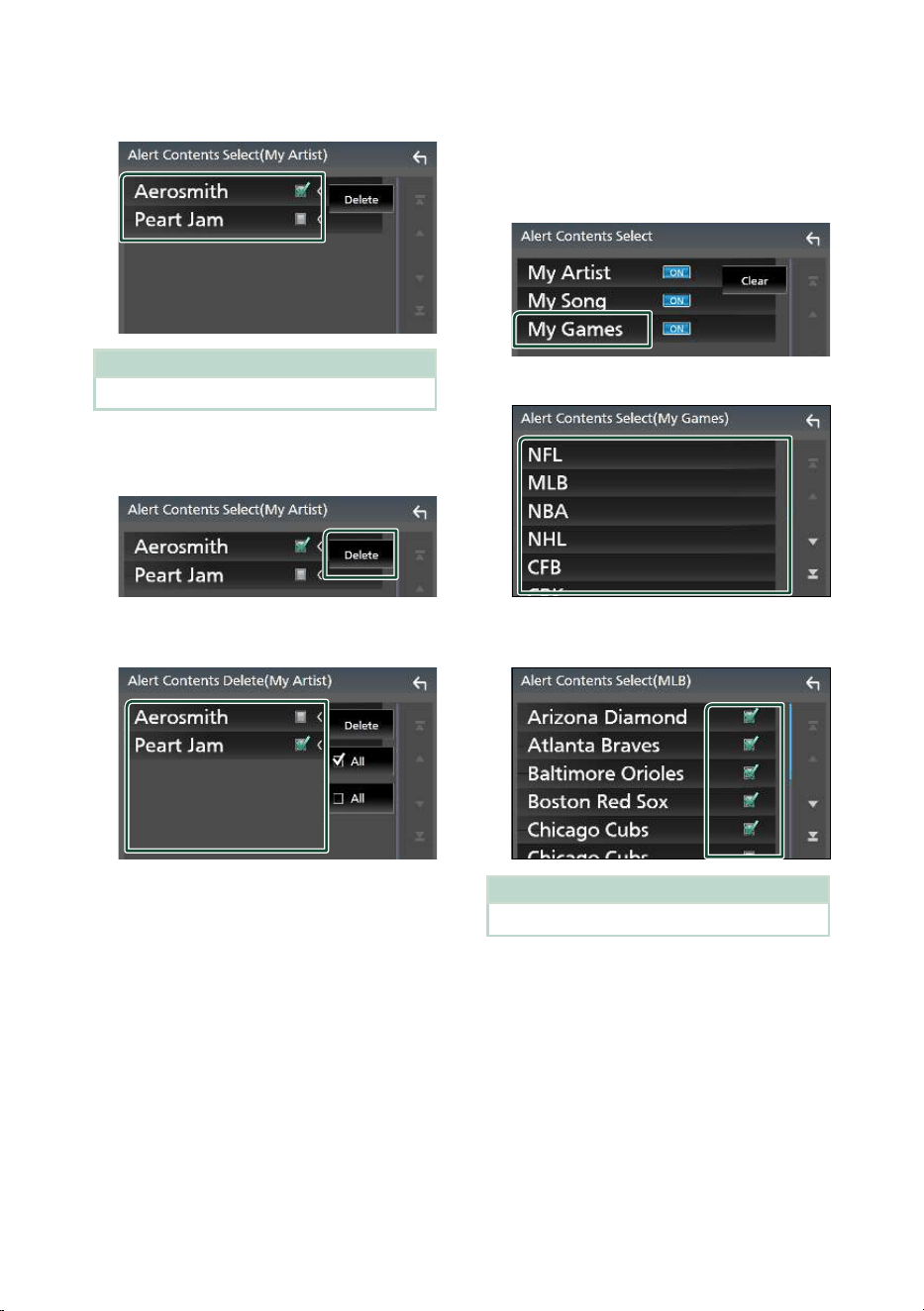
SiriusXM®
44
3
Touch each content list item you want to
check or uncheck.
NOTE
• You can select (þ) up to 60 artists or songs.
● To delete the Artist and Song
1
Touch [Delete].
2
Touch the content(s) in the list you want
to select.
■ [þ All]
Selects all contents.
■ [¨ All]
Clears all check marks.
3
Touch [Delete] and then touch [YES] on the
confirmation screen.
To select a Team
Get alerted when your favorite sports team
is playing on another SiriusXM channel with
GameAlert™.
1
Touch [My Games].
2
Touch the desired league in the list.
3
Touch the team(s) in the list you want to
select.
NOTE
• You can select (þ) up to 30 teams.
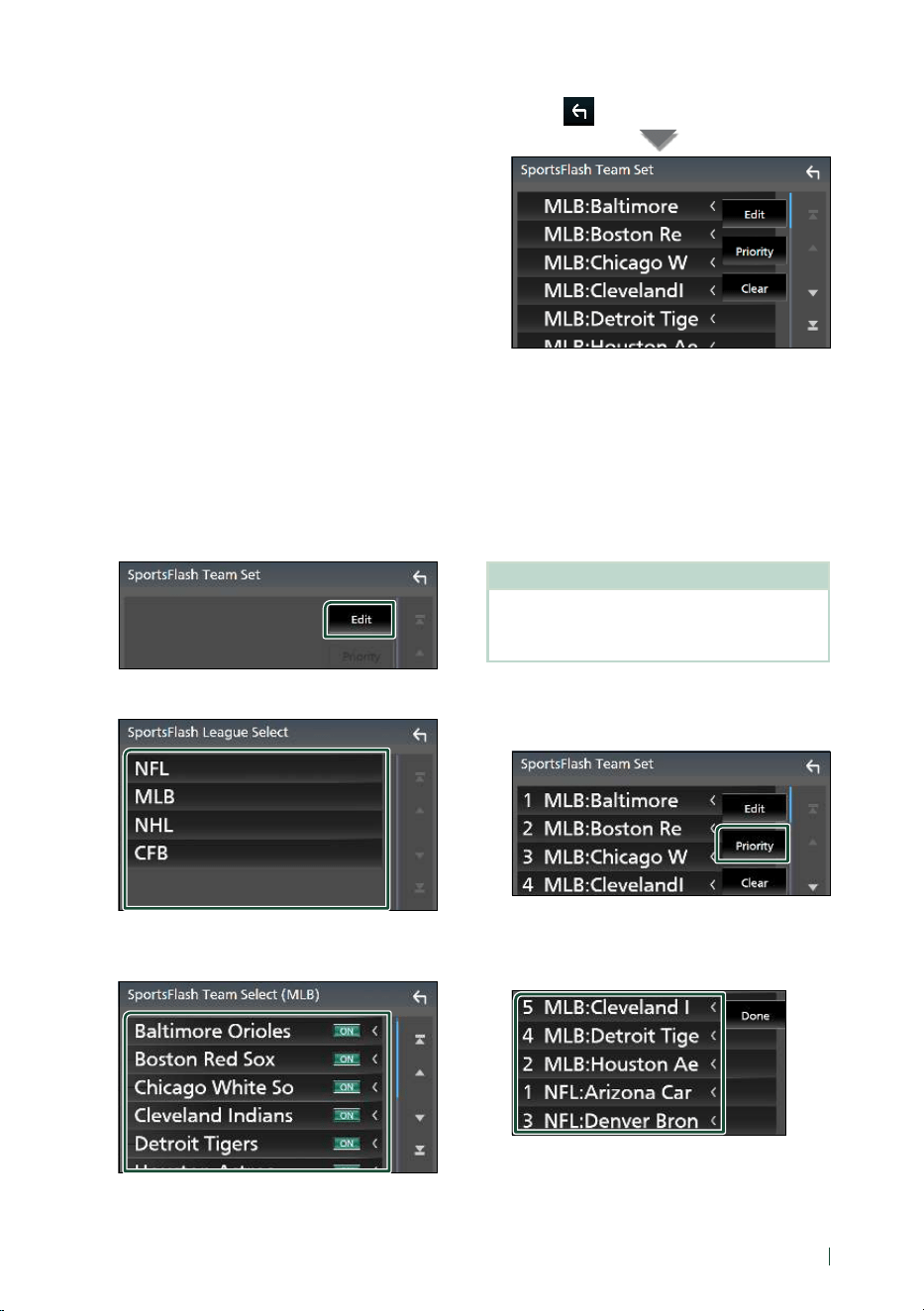
SiriusXM®
45English
Ñ SportsFlash™ setup
Activating SportsFlash
1
Touch [SportsFlash] on the SiriusXM
SETUP screen.
hh SportsFlash is turned on or off.
Default is “ON”.
Selecting SportsFlash Beep
1
Touch [SportsFlash Beep] on the SiriusXM
SETUP screen.
hh SportsFlash Beep is turned on or off.
Default is “ON”.
Selecting the teams for SportsFlash
1
Touch [SportsFlash Team Set] on the
SiriusXM SETUP screen.
hh Team Set screen appears.
2
Touch [Edit].
3
Touch the desired league in the list.
4
Touch each team(s) in the list you want
to select.
5
Touch [ ] twice.
■ [Edit]
Sets and removes teams.
■ [Priority]
Sets the priority of a team.
■ [Clear]
Removes all teams that have been set.
Touch [Clear]. When the confirmation screen
appears, touch [YES].
NOTE
• SportsFlash™ is available on SXV300 or later tuner
models.
• Up to 50 teams can be added.
Set the SportsFlash™ Team Priority
1
Touch [Priority].
2
Set the priority of a team.
Each time you touch a Team, the priority is
set or reset.
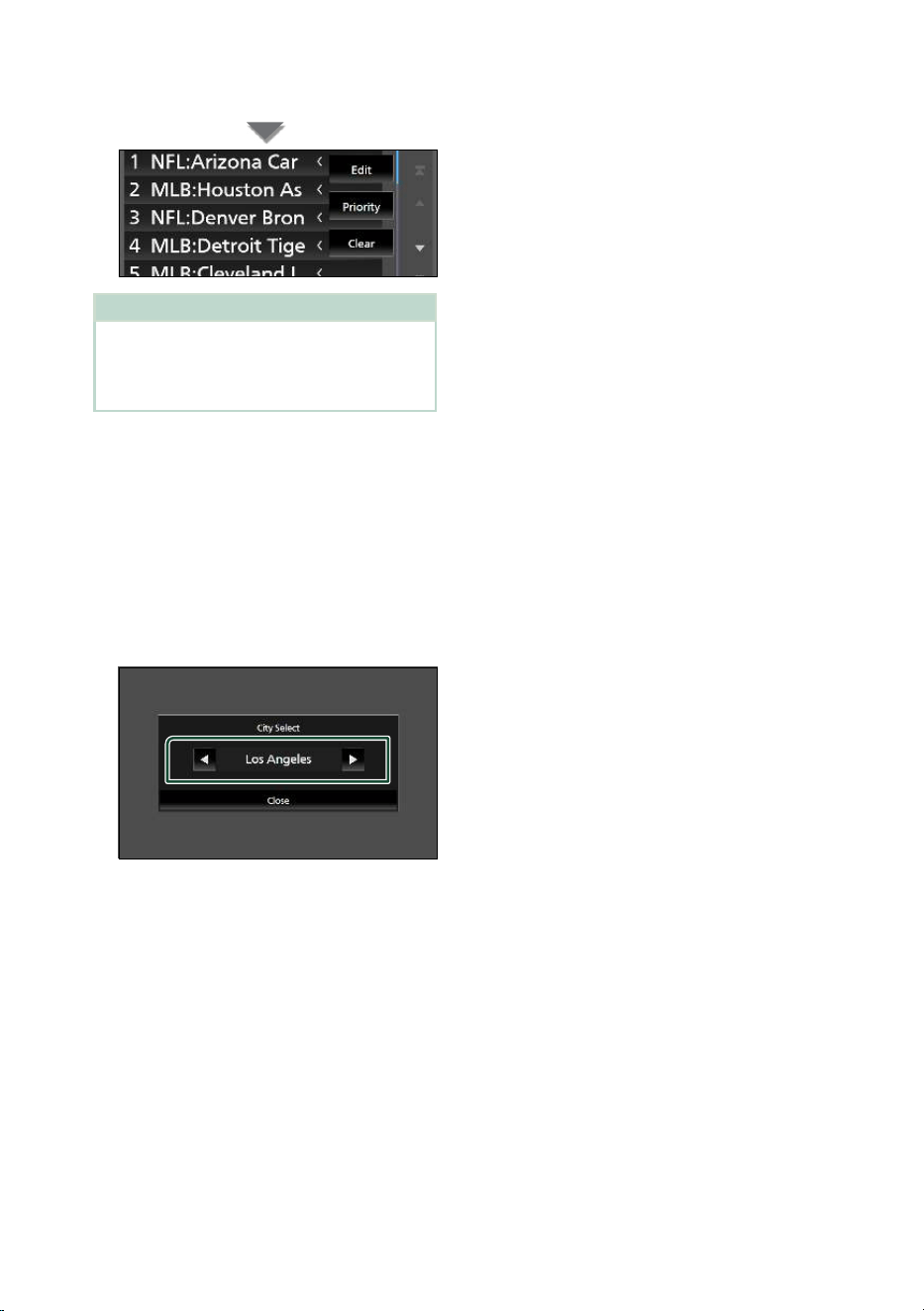
SiriusXM®
46
3
Touch [Done].
NOTE
• Priority can be set on up to 5 teams.
• When priority has already been set for 5 teams,
it cannot be set for any other team. Delete an
unnecessary team.
Ñ Select a City for Traffic &
Weather
You can select a city for which you wish to
receive SiriusXM Traffic & Weather broadcasts
and hear them from the beginning.
1
Touch [Traffic & Weather City Select] on
the SiriusXM SETUP screen.
2
Touch [T] and [U] to select a city.
3
Touch [Close].
Ñ Selecting Featured Bands
Update Messages
You can set whether to be notified when the
featured seasonal theme is updated.
1
Touch [Featured Bands Update
Messages] on the SiriusXM SETUP screen.
Featured Bands Update Messages is turned
on or off.
Ñ TuneStart™
1
Touch [Tune Start] on the SiriusXM SETUP
screen.
The TuneStart is turned on or off.
Default is “ON”.
Ñ Reset
1
Touch [SiriusXM Reset] on the SiriusXM
SETUP screen.
hh Confirmation screen appears.
2
Touch [YES].
hh All SiriusXM settings are reset to defaults.
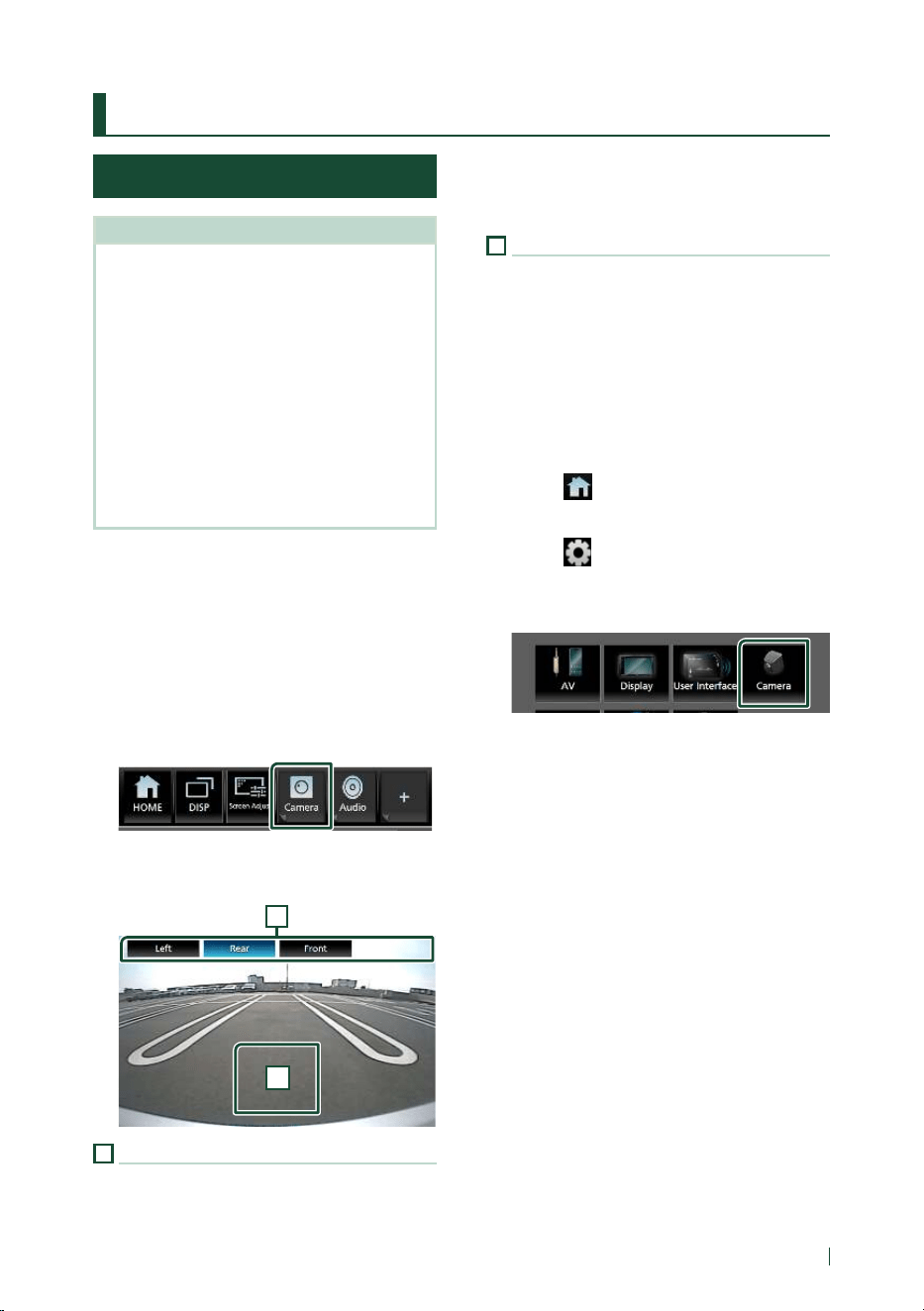
Other External Components
47English
Other External Components
View Camera
NOTE
• To connect a camera, see Connecting the
camera (P.88).
• To use a rear view camera, a REVERSE lead
connection is required. (P. 85)
• If [Rear Camera Interruption] is active the
camera screen is displayed when you shift the
gear to the reverse (R) position.
• The camera whose view was displayed last is kept
and the same camera view will be displayed the
next time. If its assignment setting is changed, the
rear camera view is displayed.
• Rear/front camera interruption screen is not kept
as the camera screen which will be displayed the
next time.
Ñ Display the camera screen
You can display the camera screen manually
if “Camera” is registered to a popup menu
function key. (P. 65)
1
Press the [FNC] button.
hh Popup menu appears.
2
Touch [Camera].
hh View camera screen appears.
3
Adjust each item as follows.
2
1
1
Camera Switching Keys*
1
Touch to switch the view camera. It is
necessary to set “Camera Assignment
Settings” beforehand except “Rear”. See To
set up the camera assignment settings
( P.48).
2
Camera off
Touch to exit the camera screen.
*
1
When two or more cameras of rear, front,
left, right, and 3rd are connected with this
unit.
Ñ Camera Setup
1
Press the [FNC] button.
hh Popup menu appears.
2
Touch [ ].
hh HOME screen appears.
3
Touch [ ].
hh SETUP screen appears.
4
Touch [Camera].
hh Camera screen appears.
5
Set each item as follows.
■ Camera Assignment Settings
Set up the camera assignment. See To set up
the camera assignment settings (P.48).
■ [Rear Camera Interruption]
[ON] (Default): Displays the picture from the
rear view camera when you shift the gear
to the reverse (R) position.
[OFF]: Select this when no camera is
connected.
■ [Rear Camera Message]*
1
[Always display] (Default): Always displays
the caution message on the rear camera
interruption screen.
[Clear after 5 seconds]: Displays the
caution message for about 5 seconds on
the rear camera interruption screen.
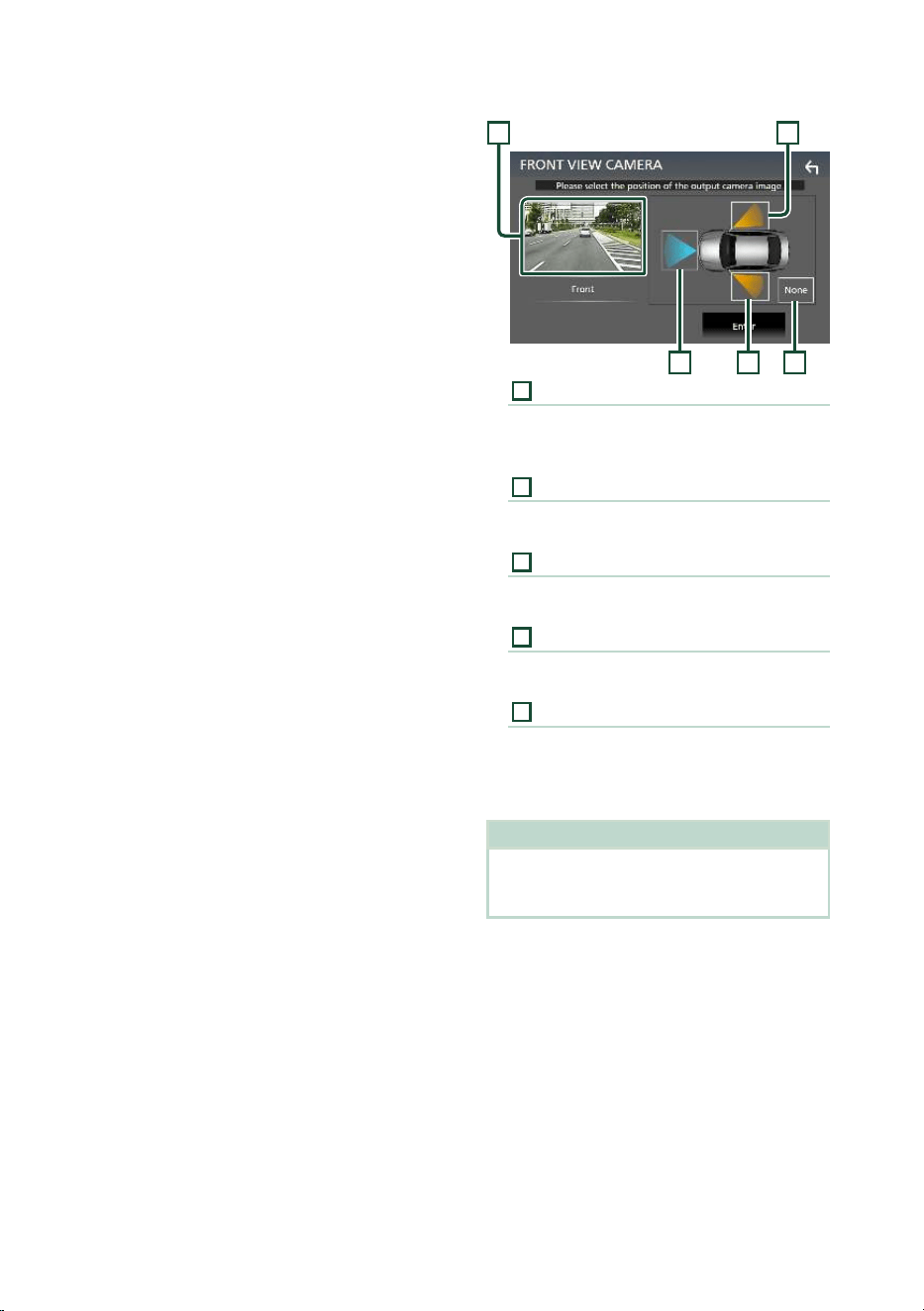
Other External Components
48
■ [Parking Guidelines]
You can display parking guidelines to enable
easier parking when you shift the gear to the
reverse (R) position.
Default is “ON”.
■ [Guidelines SETUP]
If you select [ON] for [Parking Guidelines],
you can adjust the parking guidelines. See To
adjust the parking guidelines (P.49).
■ [Front Camera Interruption]*
2
[10 sec]/[15 sec] (Default)/[20 sec]: The front
camera screen is displayed when return
the gear from the reverse (R) position.
[OFF]: Cancel.
*
1
To use the function, it is necessary to set
[Rear Camera Interruption] to [ON].
*
2
To use the function, it is necessary to set
[Rear Camera Interruption] to [ON] and
to assign front position to the view camera
in [Camera Assignment Settings].
( P.48)
Ñ To set up the camera
assignment settings
1
Touch [Camera Assignment Settings] on
the Camera screen. (P. 47)
2
Select the item to set up.
■ [FRONT VIEW CAMERA]
Set the camera assignment from view
camera connected to Front view camera
input terminal.
■ [3rd VIEW CAMERA]
Set the camera assignment from view
camera connected to 3rd view camera
input terminal.
■ AV-IN
Set the camera assignment from view
camera connected to VIDEO input terminal.
3
Select the view camera to set up.
42 5
1 3
1
[Picture from view camera]
Displays the picture from the view camera
connected to the input terminal to be set.
( P.88)
2
[Front]
Assign front position to the view camera
connected to the selected input terminal.
3
[Right]
Assign right position to the view camera
connected to the selected input terminal.
4
[Left]
Assign left position to the view camera
connected to the selected input terminal.
5
[None]
Assign no position to the view camera
connected to the selected input terminal.
4
Touch [Enter].
NOTE
• The screen shot is for the [FRONT VIEW
CAMERA] setting screen. It may be different from
the ones for [3rd VIEW CAMERA] and [AV-IN].
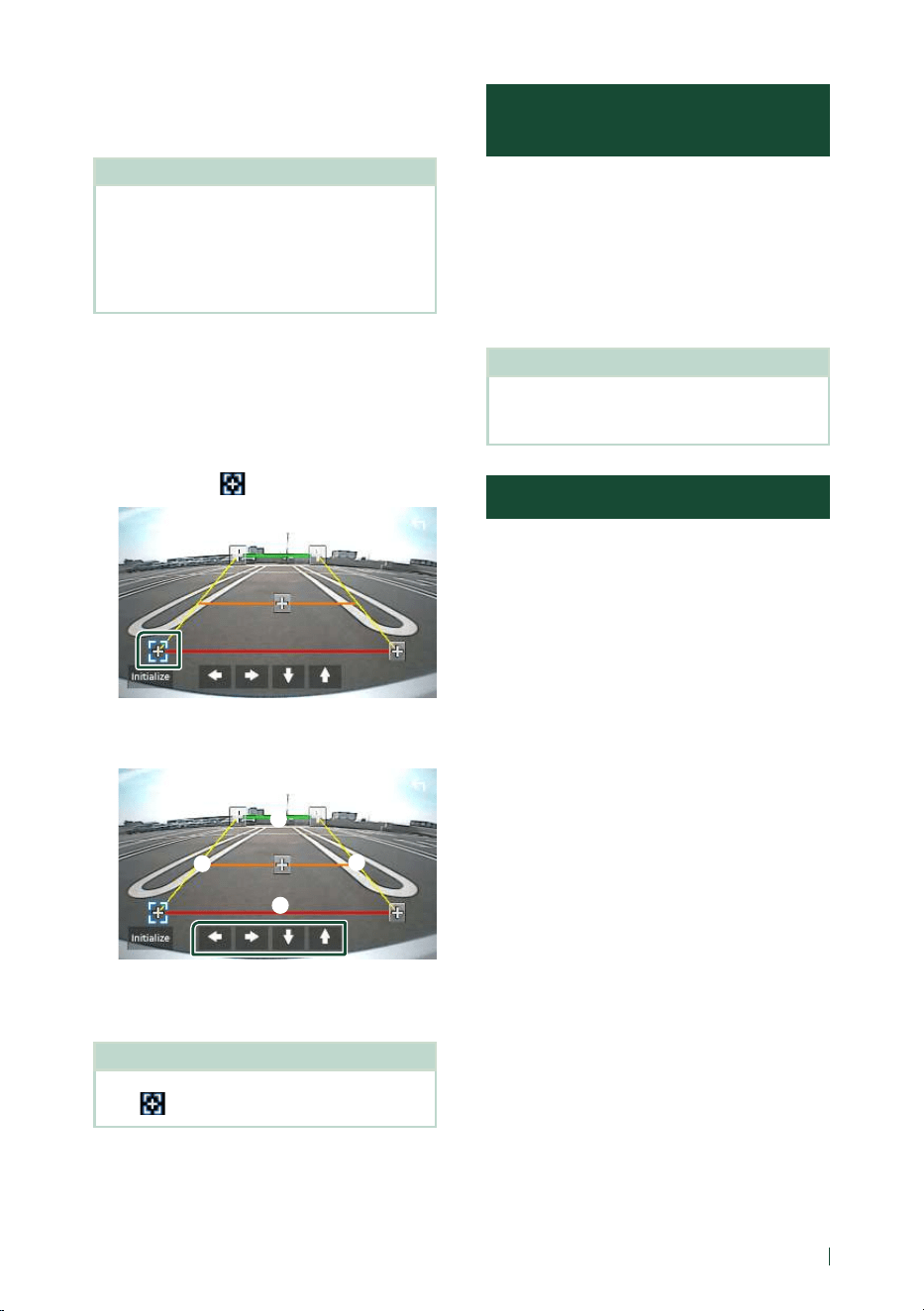
Other External Components
49English
Ñ To adjust the parking
guidelines
NOTE
• Install the rear view camera in the appropriate
position according to the instruction manual
supplied with the rear view camera.
• When adjusting the parking guidelines, make
sure to apply the parking brake to prevent the car
from moving.
1
Touch [Parking Guidelines] in the Camera
screen and set to ON. (P. 47)
2
Touch [Guidelines SETUP] on the Camera
screen.
3
Adjust the parking guidelines by
selecting the
mark.
4
Adjusting the position of the selected
mark.
A
B
C
D
Make sure that lines A and B are
horizontally parallel, and that lines C and
D are of the same length.
NOTE
• Touch [Initialize] and then touch [Ye s ] to set all
the
marks to their initial default position.
External audio/video players
(AV-IN)
1
Connect an external component to the
VIDEO input terminal and the AV Audio
input terminal. (P. 86)
2
Select [AV-IN] as the source. (P. 13)
3
Turn on the connected component and
start playing the source.
NOTE
• To select the AV-IN source, it is necessary to
set “AV-IN” to “None” in [Camera Assignment
Settings]. ( P. 48)
HDMI source
1
Connect your smartphone to the HDMI
input terminal. (P. 86)
Use HDMI cable KS-U70 (optional
accessory).
2
Select [HDMI] as the source. ( P.13)
3
Start an application or playback on your
smartphone.
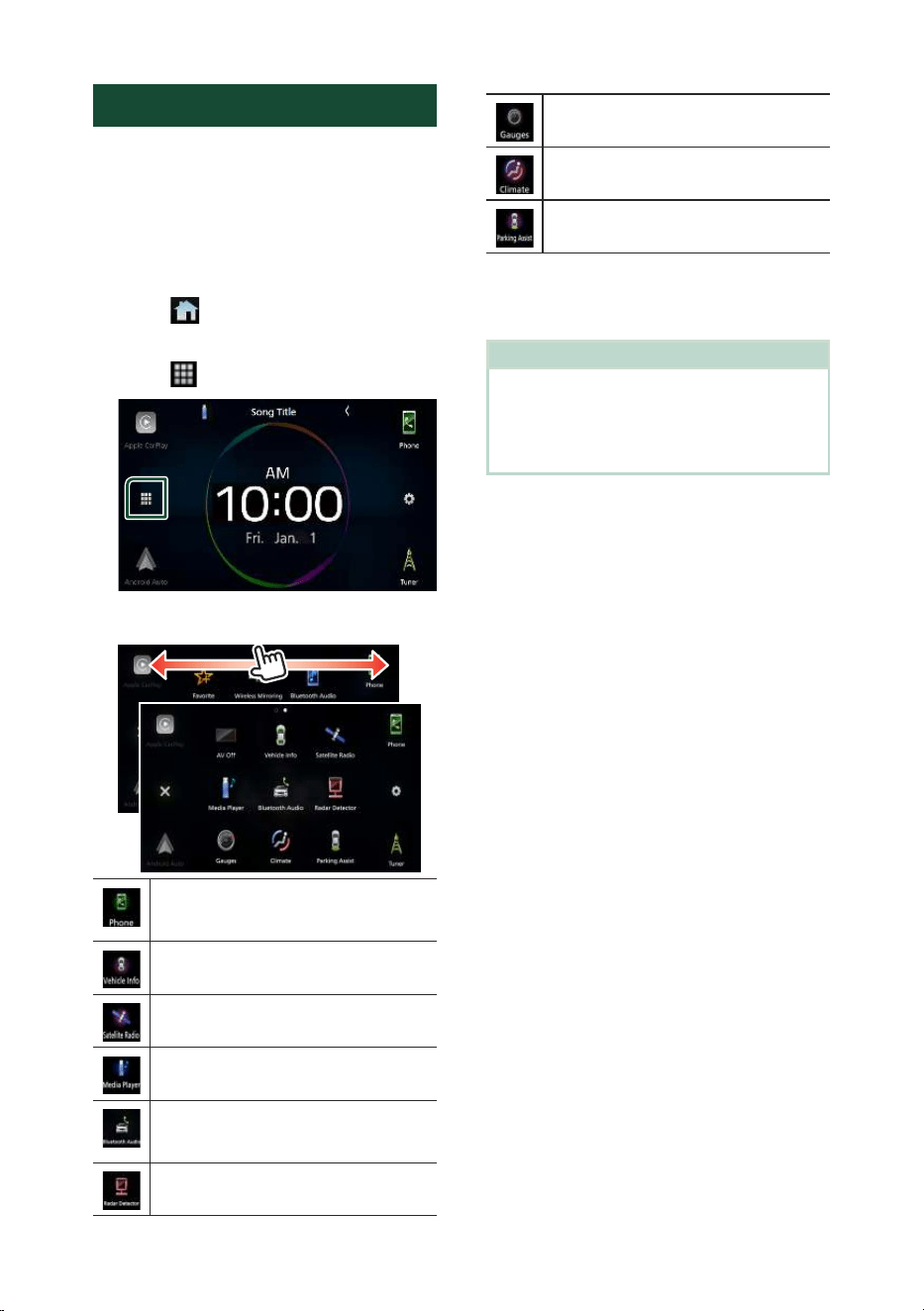
Other External Components
50
Maestro Features Operation
By connecting this unit to the bus system of
the vehicle using an iDatalink (commercially
available), this unit can display vehicle
information.
1
Press the [FNC] button.
hh Popup menu appears.
2
Touch [ ].
hh HOME screen appears.
3
Touch [ ].
4
Touch icon.
• Displays the control screen of the
Bluetooth Hands-Free function provided
for the vehicle.
• Displays information about the tire
pressures of the vehicle. *
• Displays the control screen of the satellite
radio source provided for the vehicle.
• Displays the control screen of the media
player source provided for the vehicle.
• Displays the control screen of the
Bluetooth streaming source provided for
the vehicle.
• Displays information about the Radar
Detector. *
• Displays information about the
instruments such as a speedometer.
• Displays information about the air
conditioner of the vehicle. *
• Displays information about the Parking
Distance Sensor of the vehicle.
* These iDatalink features are displayed as the widget
on the HOME screen. ( P.12)
You can display the relevant screens by touching the
widget.
NOTE
• Displayable screens, key names, and screen
names vary depending on the type of the
connected iDatalink and the model of the vehicle.
For more details, access the following URL:
www.idatalink.com/
Bluetooth Control
51English
Bluetooth Control
Using the Bluetooth function allows you to use
various functions such as listening to the audio
file and making/receiving a call.
Information for using
Bluetooth® devices
Bluetooth is a short-range wireless radio
communication technology for mobile devices
such as smartphones/cell-phones, portable
PCs, and other devices.
Bluetooth devices can be connected without
cables and communication with each other.
NOTE
• While driving, do not perform complicated
operations such as dialing numbers, using
the phonebook, etc. When you perform these
operations, stop your car in a safe place.
• Some Bluetooth devices may not be connected
to this unit depending on the Bluetooth version
of the device.
• This unit may not work for some Bluetooth
devices.
• Connecting conditions may vary depending on
your environment.
• Some Bluetooth devices are disconnected when
this unit is turned off.
• The Bluetooth devices cannot be used while
using Apple CarPlay.
• The Bluetooth currently connected with
other device is disconnected when an iPhone
compatible with Apple CarPlay is connected.
Ñ About the smartphone/cell-
phone and Bluetooth audio
device
This unit conforms to the following Bluetooth
specifications:
Version
Bluetooth Ver. 5.0
Profiles
Smartphone/Cell-phone:
HFP (V1.7) (Hands Free Profile)
SPP (Serial Port Profile)
PBAP (Phonebook Access Profile)
Audio device:
A2DP (Advanced Audio Distribution Profile)
AVRCP (V1.6) (Audio/Video Remote Control
Profile)
Sound codec
LDAC™, SBC, AAC
NOTE
• The units supporting the Bluetooth function have
been certified for conformity with the Bluetooth
Standard according to the procedure prescribed
by Bluetooth SIG.
However, it may be impossible for such units to
communicate with your smartphone/cell-phone
depending on its type.
Register the Bluetooth device
It is necessary to register the Bluetooth audio
device or smartphone/cell-phone in this unit
before using the Bluetooth function.
You can register up to 10 Bluetooth devices.
NOTE
• Up to 10 Bluetooth devices can be registered. If
an attempt is made to register the 11th Bluetooth
device, the Bluetooth device connected on the
earliest date will be deleted to register the 11th
one.
• This unit is compatible with the Apple Easy
Pairing function. When an iPod touch or iPhone is
connected to this unit, an authentication dialog
appears. Performing operation for authentication
on this unit, or iPod touch or iPhone registers the
smartphone as a Bluetooth device.
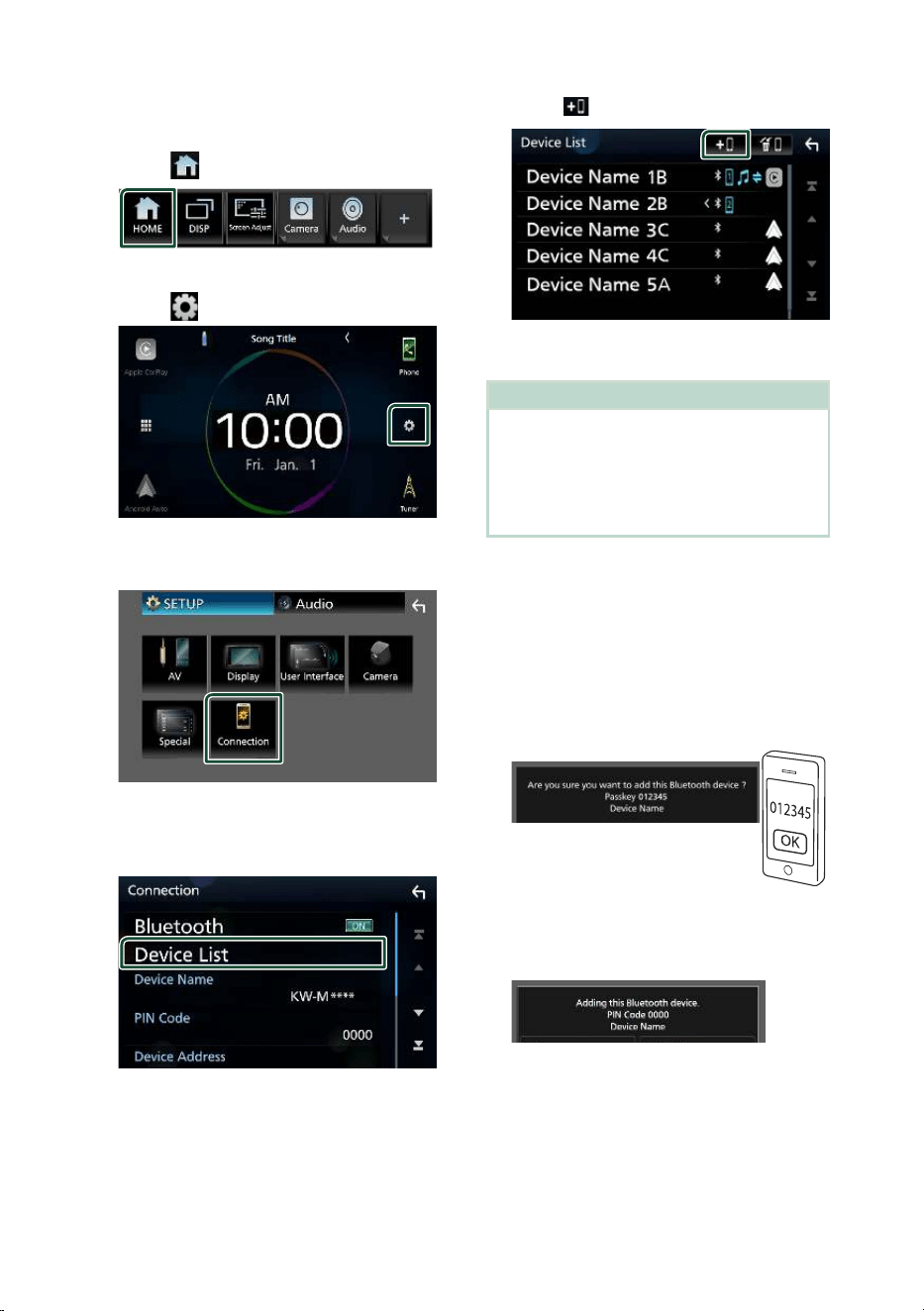
Bluetooth Control
52
1
Press the [FNC] button.
hh Popup menu appears.
2
Touch [ ].
hh HOME screen appears.
3
Touch [ ].
hh SETUP screen appears.
4
Touch [Connection].
hh Connection Setup screen appears.
5
Touch [Device List] on the Connection
Setup screen.
6
Touch [ ] on the Device List screen.
hh Bluetooth pairing waiting dialog
appears.
NOTE
• If an Apple CarPlay device is currently connected,
the Apple CarPlay device will be disconnected.
• When neither Apple CarPlay, Android Auto, nor
a Bluetooth Hands-Free phone is connected,
pressing and holding the [FNC] button displays
Bluetooth pairing waiting dialog.
7
Search for the unit (“KW-M****”) from
your smartphone/cell-phone.
Complete steps 7 to 9 within 30 seconds.
8
Operate your smartphone/cell-phone
according to the displayed messages.
● Confirm the request both on the
smartphone/cell-phone.
● Input the PIN Code in your
smartphone/cell-phone.
PIN Code is set to “0000” as the default.
9
Touch [Ye s ].
When data transmission and connection
have completed, the Bluetooth connection
icon appears on the screen.
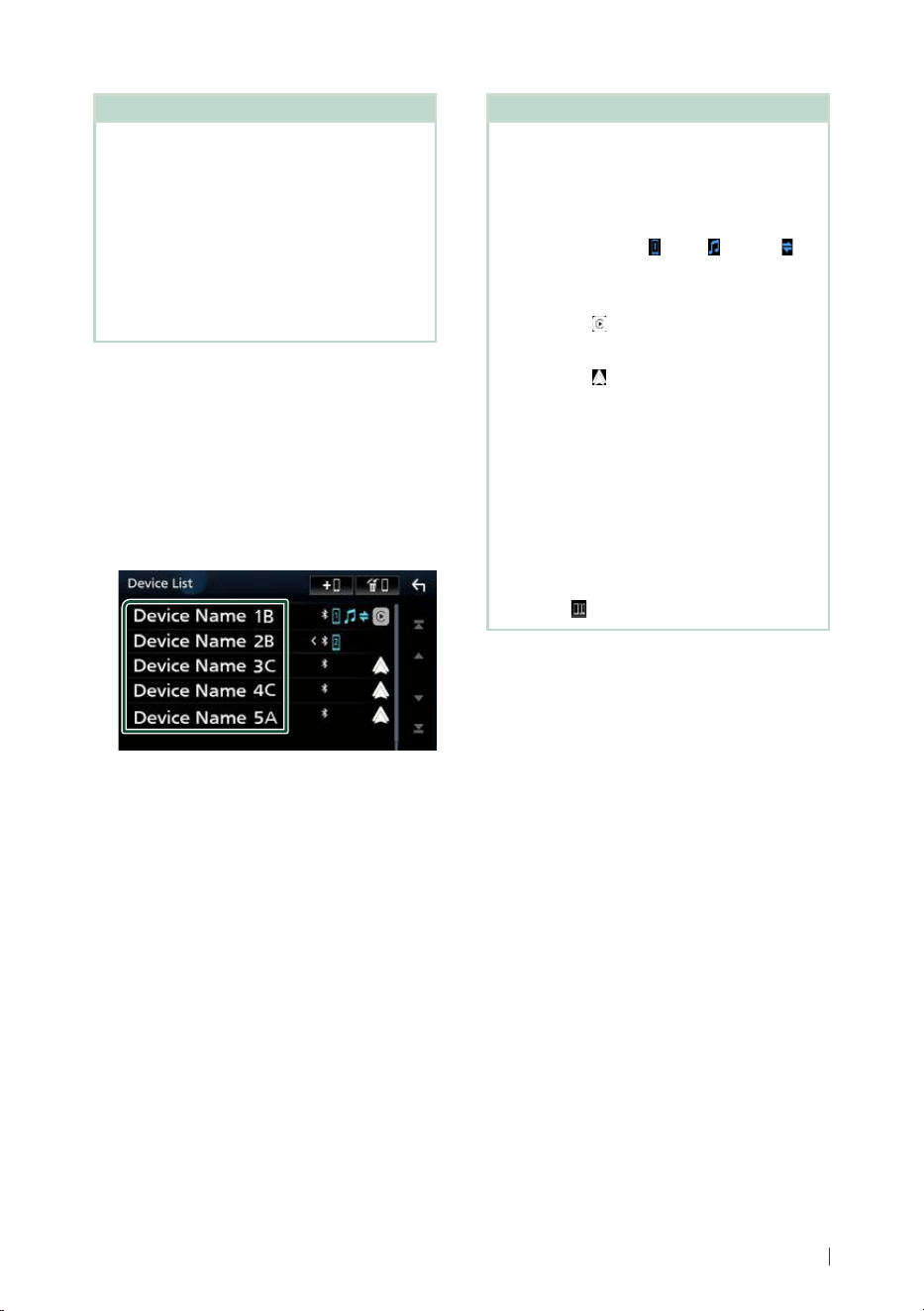
Bluetooth Control
53English
NOTE
• When registering the iPhone that is available for
Apple CarPlay wirelessly, a confirmation message
appears.
– [Ye s ]: Displays the Apple CarPlay screen for
wireless connection.
– [No]: Apple CarPlay is not connected. When
using Apple CarPlay, see Select an Apple
CarPlay device (P.21).
• The device name selected on step 7 can be
changed. See Change the device name for
Bluetooth (P.70).
Ñ Switch the connected device
If two or more Bluetooth devices have been
registered, select the device to be used.
1
Touch [Device List] on the Connection
Setup screen.
2
Touch the name of the device you want
to connect.
NOTE
• If the icon is lighted, it means that the unit will
use that device.
• You can confirm the connection status of
Bluetooth, Apple CarPlay or Android Auto as
follows.
– Bluetooth: If the device compatible with
Bluetooth is paired, [
] (Blue), [ ] (Blue) or [ ]
(Blue) is lighted.
– Apple CarPlay: If the device compatible with
Apple CarPlay is connected, the device name
(Blue) and [
] (White) are lighted.
– Android Auto: If the device compatible with
Android Auto is connected, the device name
(Blue) and [
] (White) are lighted.
• Even if the device is compatible with Apple
CarPlay or Android Auto, icons are not displayed
when;
– Apple CarPlay is deactivated on the connected
device side.
– The connected device only supports wired
Android Auto.
• If you select a device name to which the Apple
CarPlay/Android Auto is connected, it will be
disconnected.
• You can quickly display the Device List screen by
touching [
] in the popup menu. ( P.11)
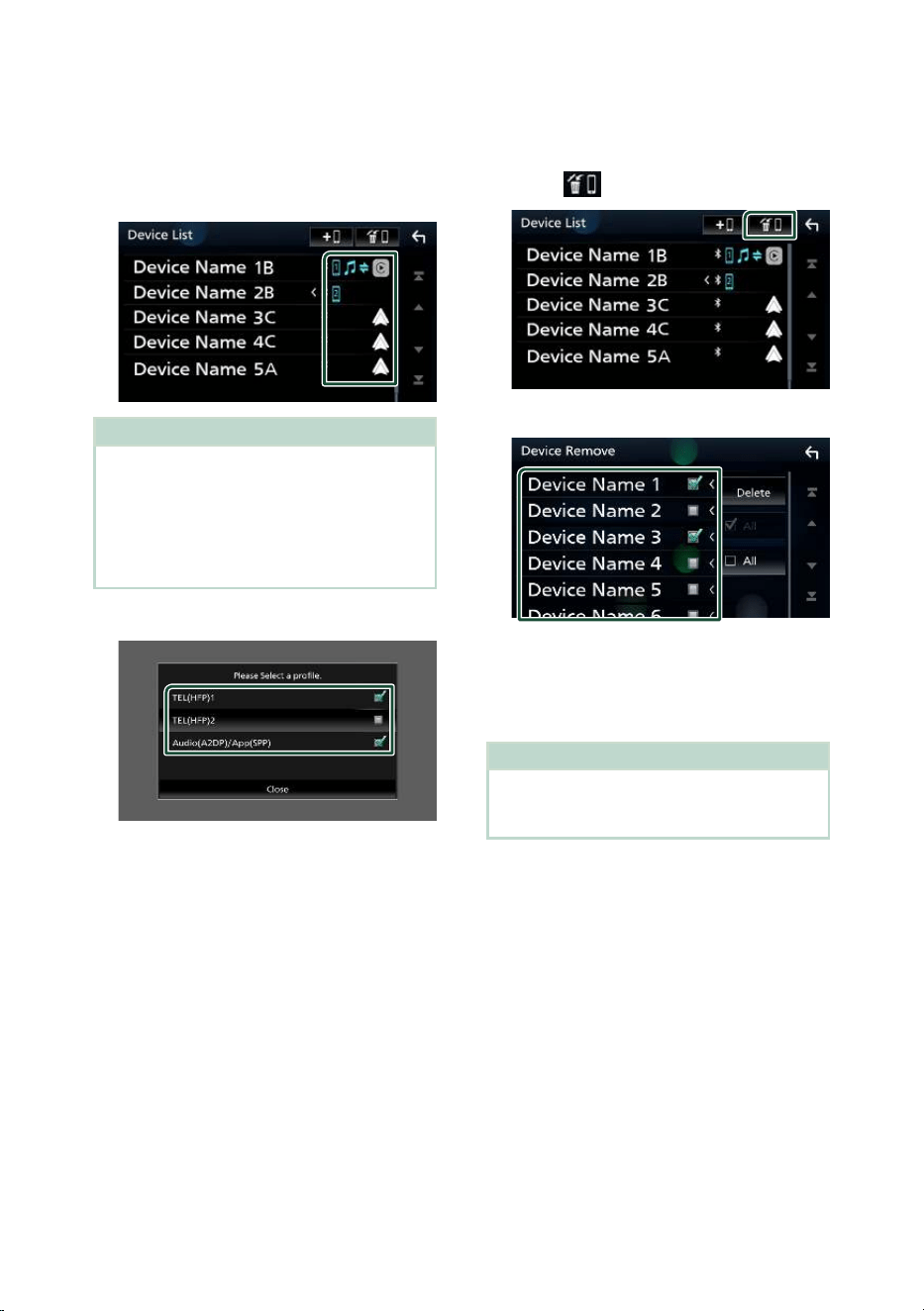
Bluetooth Control
54
To switch the connected device to a
Bluetooth device
1
Touch the icon area on the right side of
the Bluetooth device name you want to
connect.
NOTE
• In the following cases, a confirmation message for
disconnection appears. Touch [Ye s ] and follow to
next step 2.
– Select any device when Apple CarPlay is
connected.
– Select the connected device when Android
Auto is connected.
2
Set each profile as follows.
■ [TEL (HFP) 1], [TEL (HFP) 2]
Select when the device is connected with
the unit as a Hands-Free phone 1 or 2.
■ [Audio (A2DP)/App (SPP)]
Select to use as an audio device or to
interwork with an application installed in a
smartphone.
3
Touch [Close].
To delete the registered device
You can delete the device that is registered in
device list.
1
Touch [ ] on the Device List screen.
2
Touch the device name to check.
■ [þ All]
Selects all Bluetooth devices.
■ [¨ All]
Clears all check marks.
NOTE
• The following devices are not deleted.
– Wired Apple CarPlay device which is not paired
– Connected Android Auto device
3
Touch [Delete].
hh Confirmation message appears.
4
Touch [Ye s ].
hh All the selected device(s) is deleted.
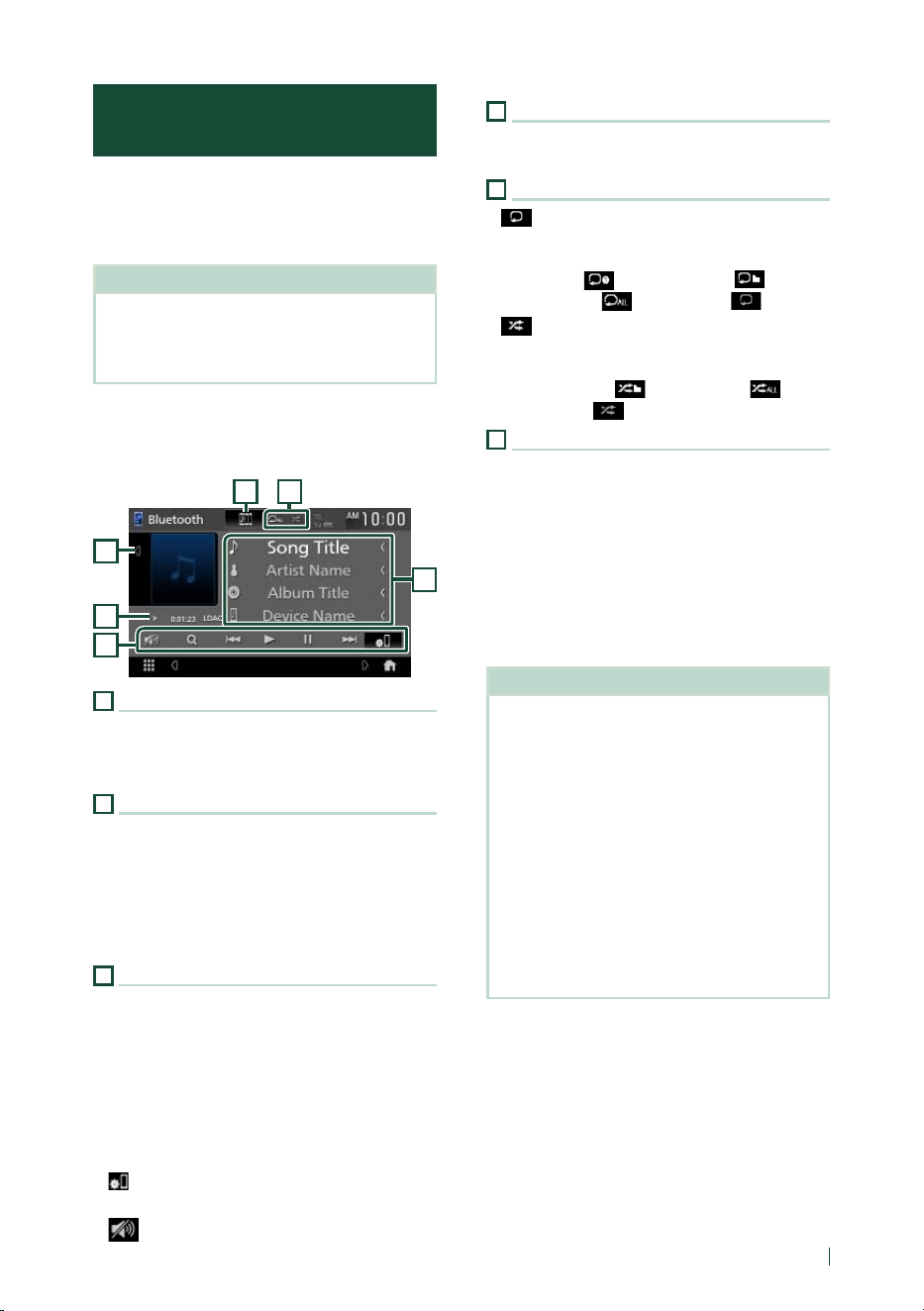
Bluetooth Control
55English
Playing the Bluetooth Audio
Device
Most functions can be controlled from the
source control screen.
To select Bluetooth source, touch [BT Audio]
icon on the source selection screen. (P. 13)
NOTE
• The Bluetooth audio source is disabled while
using Apple CarPlay.
• The Bluetooth audio source is disabled when the
device set as “Audio/App” is using Android Auto.
Ñ Bluetooth basic operation
Control screen
3
2
1
4
6
5
1
Artwork/VU meter
• Displays/hides artwork area.
• Touch to switch between the artwork and VU
meter.
2
Play mode indicator/Playing time
D, H : Current play mode indicator
Meanings of individual icons are as follows:
D (play), B (fast forward), A (fast backward),
H (pause), I (stop).
LDAC: Indicates that an LDAC-compatible device
is connected.
3
Operation keys *
• [1]: Searches for a file. See File search
( P.56).
• [E] [F]: Searches for the previous/next
content.
Touch and hold to fast forward or fast
backward.
• [D]: Plays.
• [H]: Pauses.
• [
]: Displays the Connection Setup screen.
( P.69)
• [
] : Touch to attenuate/restore the sound.
4
JVC Streaming DJ
Bluetooth audio devices can be switched easily
to play music. See JVC Streaming DJ (P.56).
5
Repeat/Random *
• [
] : Repeats the current track/folder. Each
time you touch the key, repeat modes are
switched in the following sequence:
File repeat ( ), Folder repeat ( ), All
songs repeat ( ), Repeat off ( )
• [
] : Randomly plays all tracks in the current
folder. Each time you touch the key, random
modes are switched in the following sequence:
Folder random ( ), All random ( ),
Random off ( )
6
Information display *
• Displays the name of track information.
• Connected device name.
• Change the text size of the information when
the "Small Audio Text" is set to "ON"/"OFF" in
the User Interface screen. ( P.64)
* These items appear only when the audio
device which supports AVRCP profile is
connected.
NOTE
• The operation keys, indications and information
displayed on the screen differ depending on the
connected device.
• If the operation keys do not appear, operate from
the device.
• Depending on your smartphone/cell-phone or
audio device, sound may be heard and controlled
but text information may not appear.
• If the volume is too low, raise it on your
smartphone/cell-phone or audio device.
• It is recommended that you change the playback
quality from "priority on sound quality" to "priority
on stable connection" in the settings of your
LDAC-compatible device so that the intermittent
sound problem is less likely to occur.
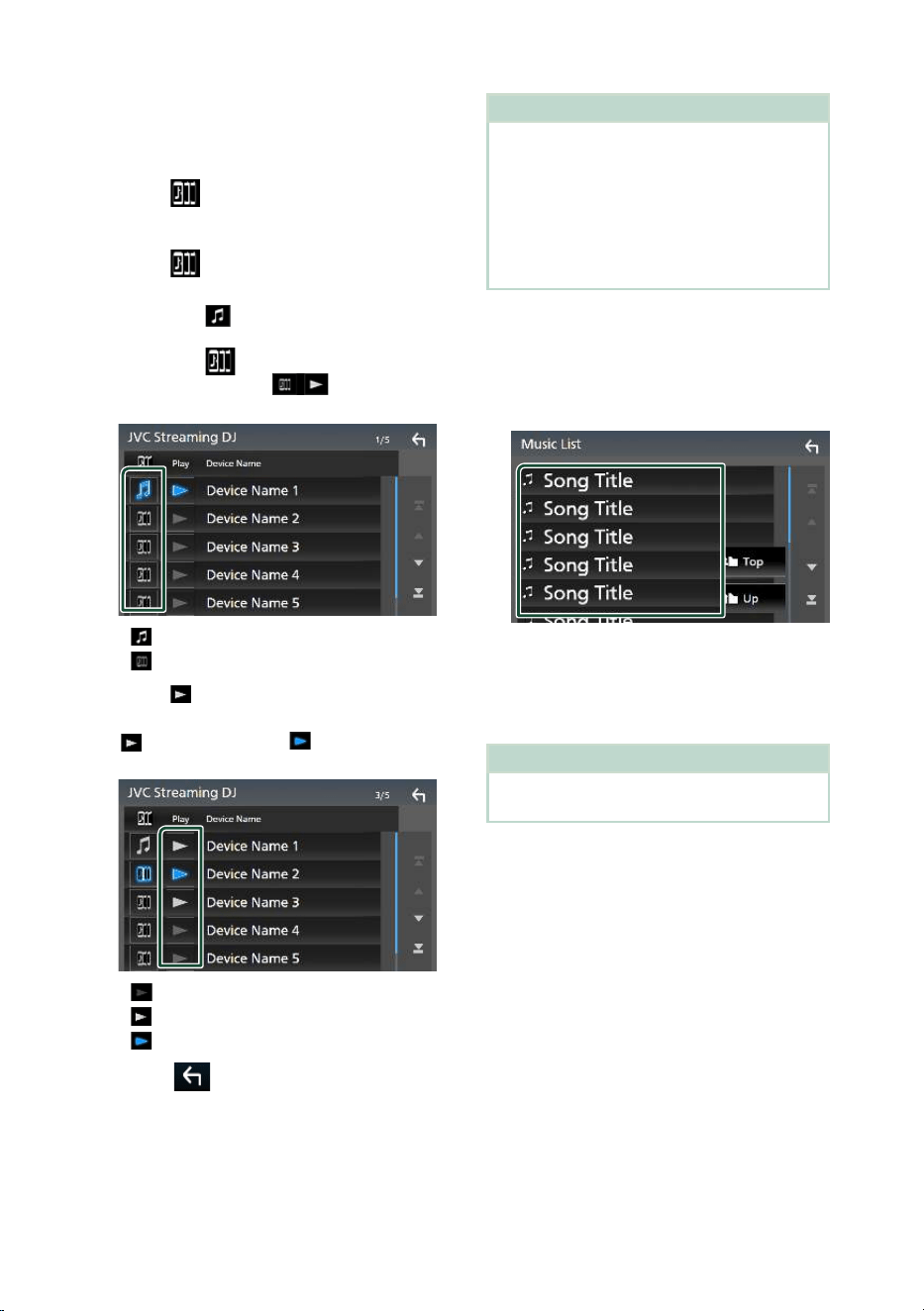
Bluetooth Control
56
Ñ JVC Streaming DJ
Up to 5 Bluetooth audio device can be
connected and switched easily to play music.
1
Touch [ ].
hh A list of registered devices is displayed.
2
Touch [ ] of device name you want to
connect.
• Touching [
] displays the Device List
screen. ( P.53)
• Touching [
] on the left of the
connected device ([ ]) disconnects
this device.
• : Device used normally.
•
: Device used for JVC Streaming DJ.
3
Touch [ ] (white) on the left of the name
of the device to be played.
[
] (white) changes to [ ] (Blue) and starts
playback.
• (Gray) : Not connected.
•
(White) : Connected.
•
(Blue) : During playback.
4
Touch [ ].
NOTE
• If a connected Bluetooth audio device is operated
to play music, connections are switched.
• When a Bluetooth source is switched to another
one, its settings are deleted and the connection
is restored to the connection before source
switching.
• You cannot select an Android smartphone
connected as an Android Auto device.
Ñ File search
1
Touch [1].
2
Touch the desired file or folder.
When you touch a folder its contents are
displayed.
3
Touch the desired item in the content list.
hh Playback starts.
NOTE
• For operations in the list screen, see List screen
( P.16).
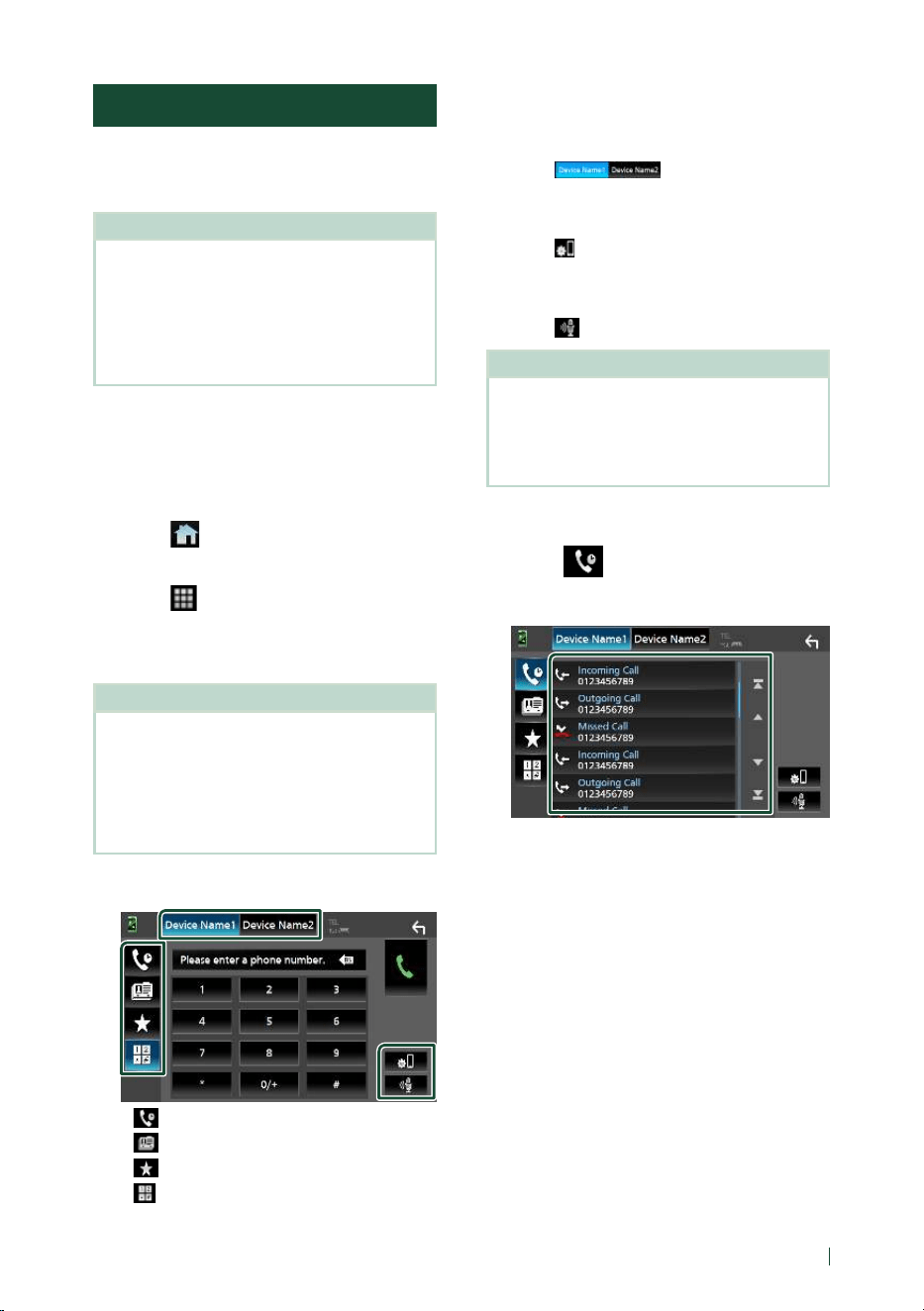
Bluetooth Control
57English
Using the Hands-Free Unit
You can use the telephone function by
connecting the Bluetooth telephone to this
unit.
NOTE
• While using the Bluetooth Hands-Free function,
Apple CarPlay or Android Auto is not available.
• While Apple CarPlay or Android Auto is
connected, the Bluetooth Hands-Free function
and two Bluetooth devices connections cannot
be used. Only the Apple CarPlay or Android Auto
Hands-Free function can be used.
Ñ Make a call
1
Press the [FNC] button.
hh Popup menu appears.
2
Touch [ ].
hh HOME screen appears.
3
Touch [ ].
4
Touch [Phone]. ( P.13)
hh Hands-Free screen appears.
NOTE
• If your smartphone/cell-phone supports PBAP,
you can display the phonebook and call lists onto
the touch panel screen when the smartphone/
cell-phone is connected.
– Phonebook: up to 1000 entries
– Up to 50 entries including dialed calls, received
calls, and missed calls
5
Select a dialing method.
• [ ]: Call using call records
• [
]: Call using the phonebook
• [
]: Call using the preset number
• [
]: Call by entering a phone number
● Select the smartphone/cell-phone to use
When you connect two smartphones/cell-
phones
1) Touch [
] to select the phone
you want to use.
● Connection Setup
1) Touch [
].
Connection Setup screen appears.
● Voice Recognition
1) Touch [
]. ( P.59)
NOTE
• Status icons such as battery and antenna
icons may differ from those displayed on the
smartphone/cell-phone.
• Setting the smartphone/cell-phone in the private
mode can disable the Hands-Free function.
Call using call records
1
Touch [ ].
2
Select the phone number from the list.
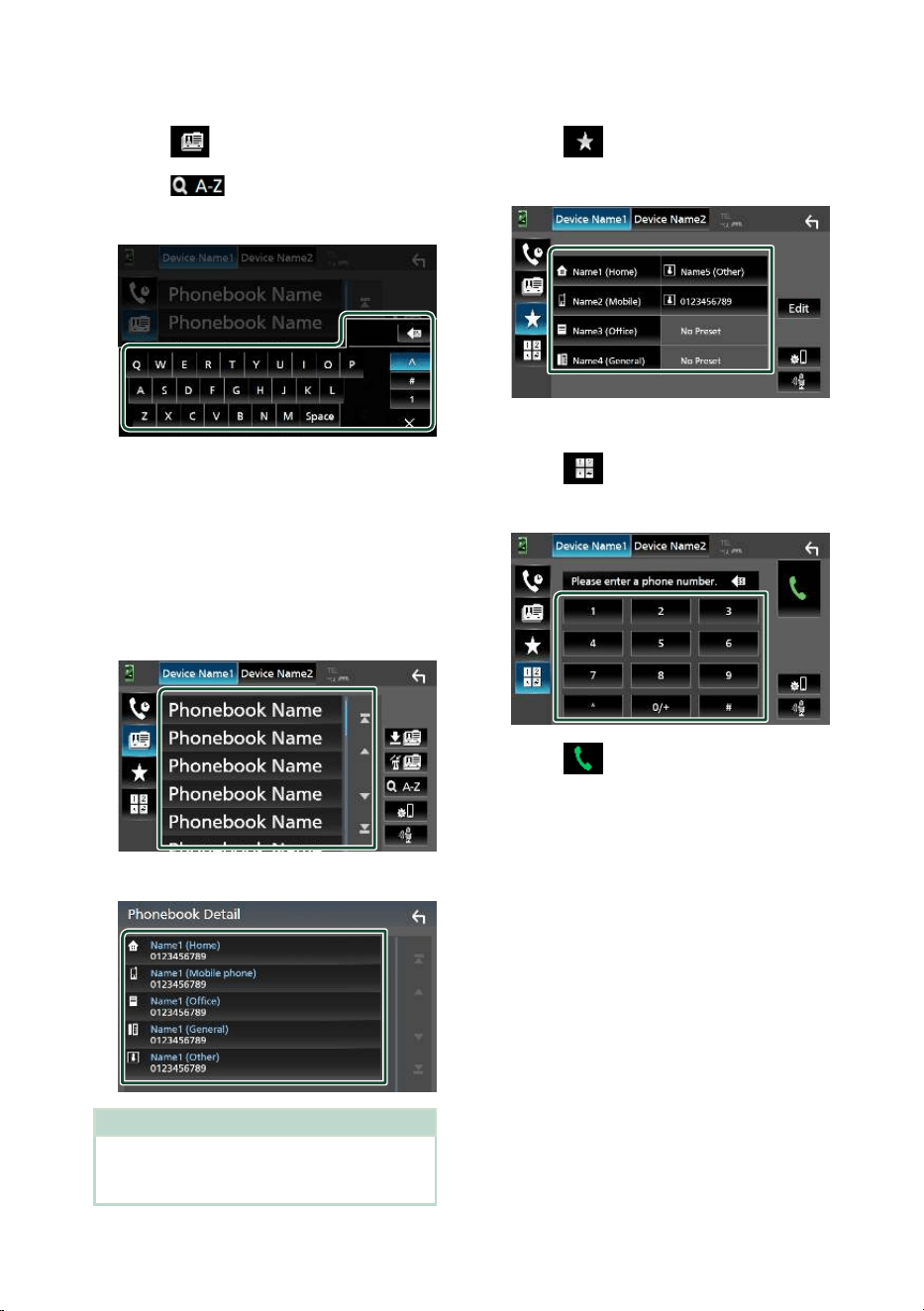
Bluetooth Control
58
Call using the phonebook
1
Touch [ ].
2
Touch [ ].
3
Select the initial.
• Characters with no corresponding name
will not appear.
• A first character with an accent character
such as “ü” can be searched for with a
non-accent character “u” . A character
with an accent character in a sentence
cannot be searched for.
4
Select the person you want to call from
the list.
5
Select the phone number from the list.
NOTE
• You can sort the phone numbers in the list by last
name or first name. For details, see Hands-Free
Setup (P.62).
Call using the preset number
1
Touch [ ].
2
Touch the name or phone number.
Call by entering a phone number
1
Touch [ ].
2
Enter a phone number with number keys.
3
Touch [ ].
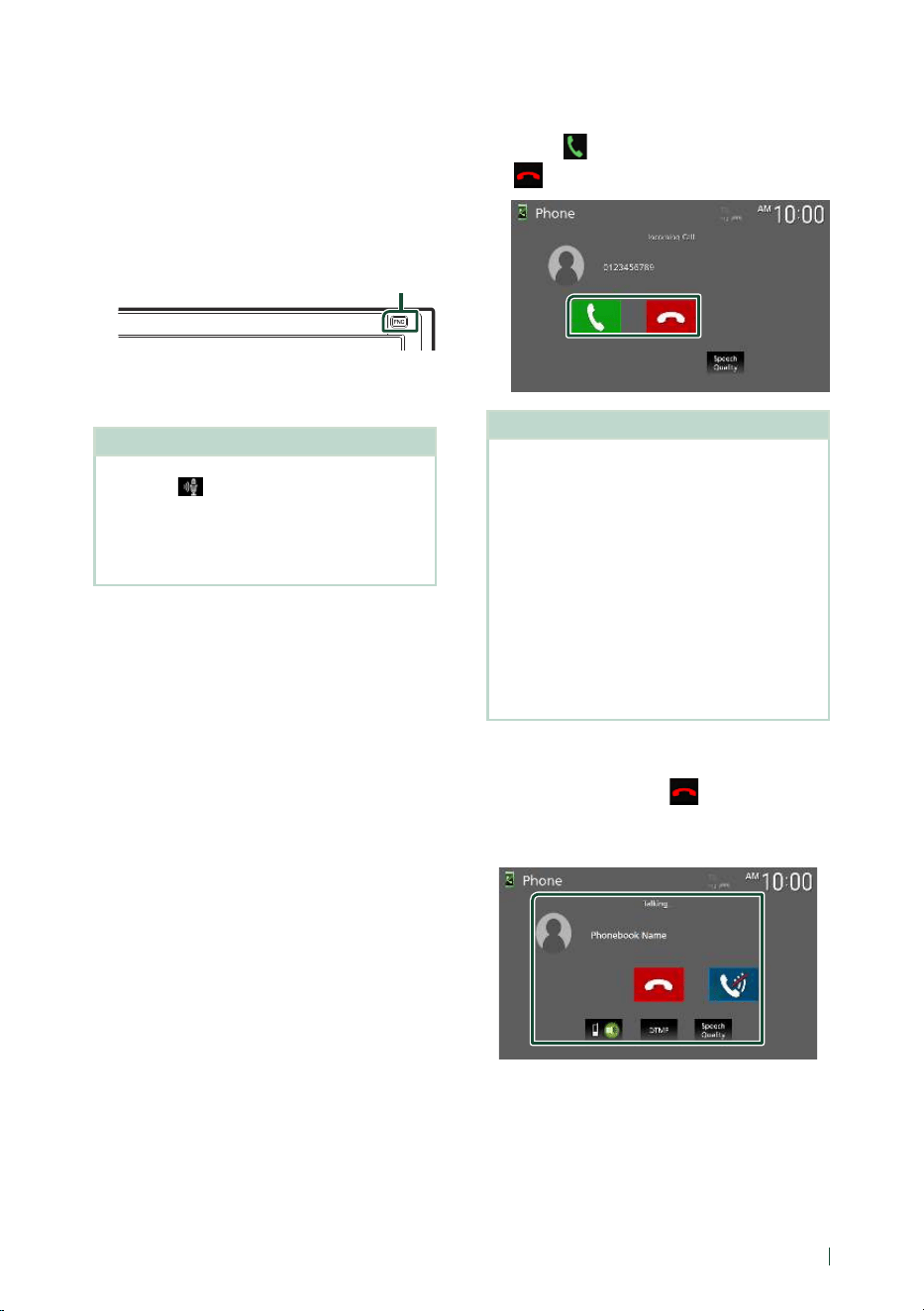
Bluetooth Control
59English
Ñ Voice Recognition
You can access the voice recognition function
of the smartphone/cell-phone connected to
this unit. You can search the smartphone/cell-
phone phonebook by voice. (The functionality
depends on the smartphone/cell-phone.)
1
Press the [FNC] button for 1 second.
Press for 1 second
hh Voice Recognition screen appears.
2
Start speaking.
NOTE
• You can use the voice recognition function by
touching [
] on the Hands-Free screen.
• You can use the voice recognition function for
the connected smartphone/cell-phone if you
selected [Hands Free1] or [Hands Free2] for HFP
when registered.
Ñ Receive a call
1
Touch [ ] to answer a phone call or
[
] to reject an incoming call.
NOTE
• When shifting the gear to the reverse (R) position
and monitoring the picture from the rear view
camera, this screen does not appear even if a call
comes in.
• The portrait registered in the phonebook is
displayed while making/receiving calls and
during a call.
• If you edit the phonebook on the connected
device side after downloading the phonebook,
the portrait may not be displayed depending on
the edited content. It is recommended that you
download the phonebook whenever you edit it.
• The image quality of a displayed portrait may
depends on a connected device.
To end call
1
While talking, touch [ ].
Ñ Operations during a call
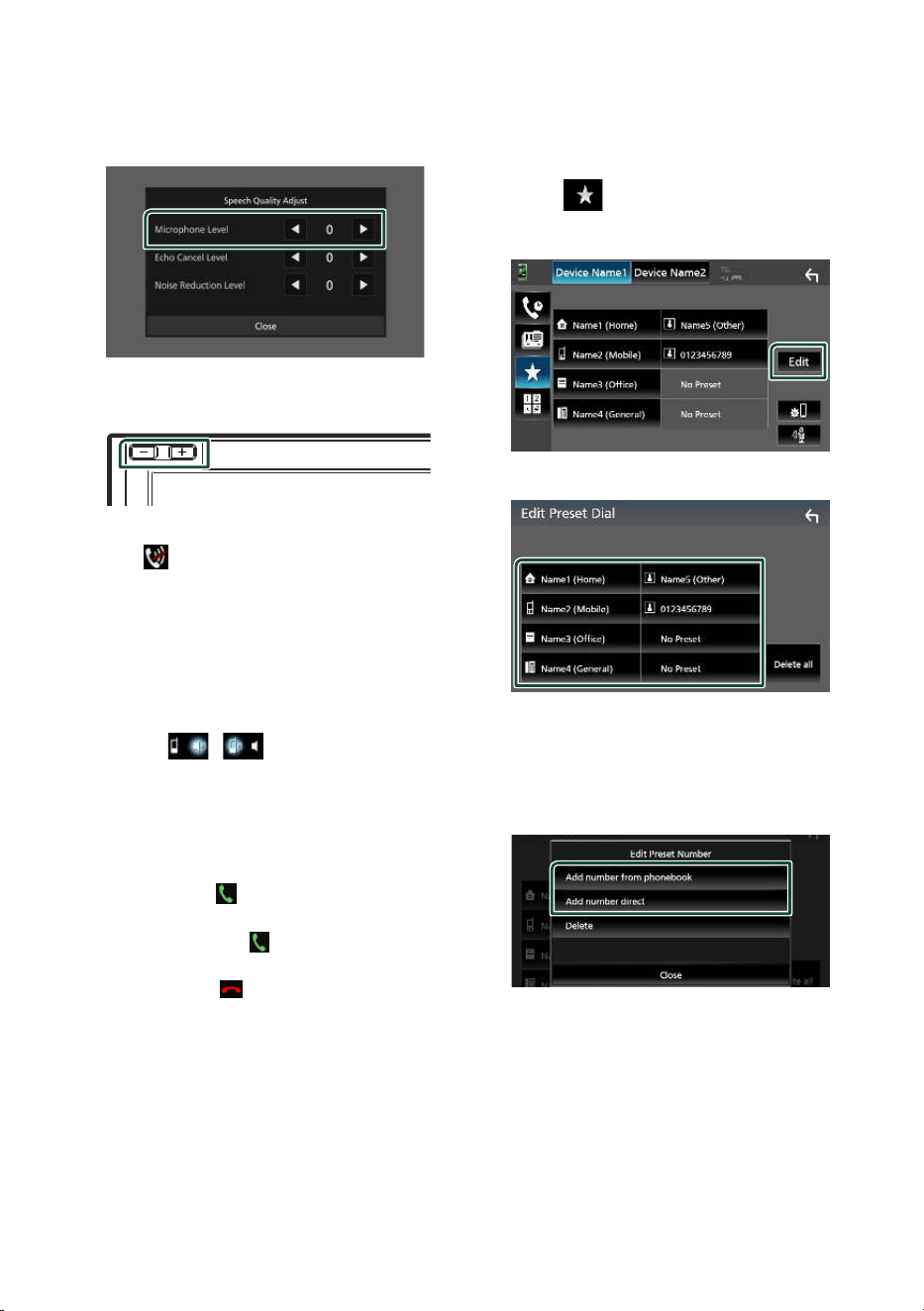
Bluetooth Control
60
● Adjust the volume of your voice
1) Touch [Speech Quality].
2) Touch [T] or [U] for [Microphone Level].
● Adjust the receiver volume
Press the [–] or [+] button.
● Mute your voice
Touch [
] to mute or not to mute your voice.
● Output the dial tone
Touch [DTMF] to display the tone input screen.
You can send tones by touching desired keys
on the screen.
● Switching between speaking voice
output destinations
Touching [
]/ [ ] each time switches
speaking voice output destinations between
the smartphone/cell-phone and the speaker.
● Call-waiting
When you receive a new call while talking on
the phone, you can answer the newly received
call by touching [
]. The current call is put on
hold.
Each time you touch [
], the caller will change
to the other one.
When you touch [
], the current call will end
to be switched to the call waiting on hold.
Ñ Phone number preset
You can register frequently used phone
numbers in this unit.
1
Touch [ ].
2
Touch [Edit].
3
Select where to preset.
■ [Delete all]
To delete all preset numbers, touch [Delete
all] and then touch [OK] on the confirmation
screen.
4
Select how to preset.
■ [Add number from phonebook]
Select the number to preset from the
phonebook. See Call using the phonebook
( P.58).
■ [Add number direct]
Enter the telephone number directly and
touch [SET]. See Call by entering a phone
number (P.58).
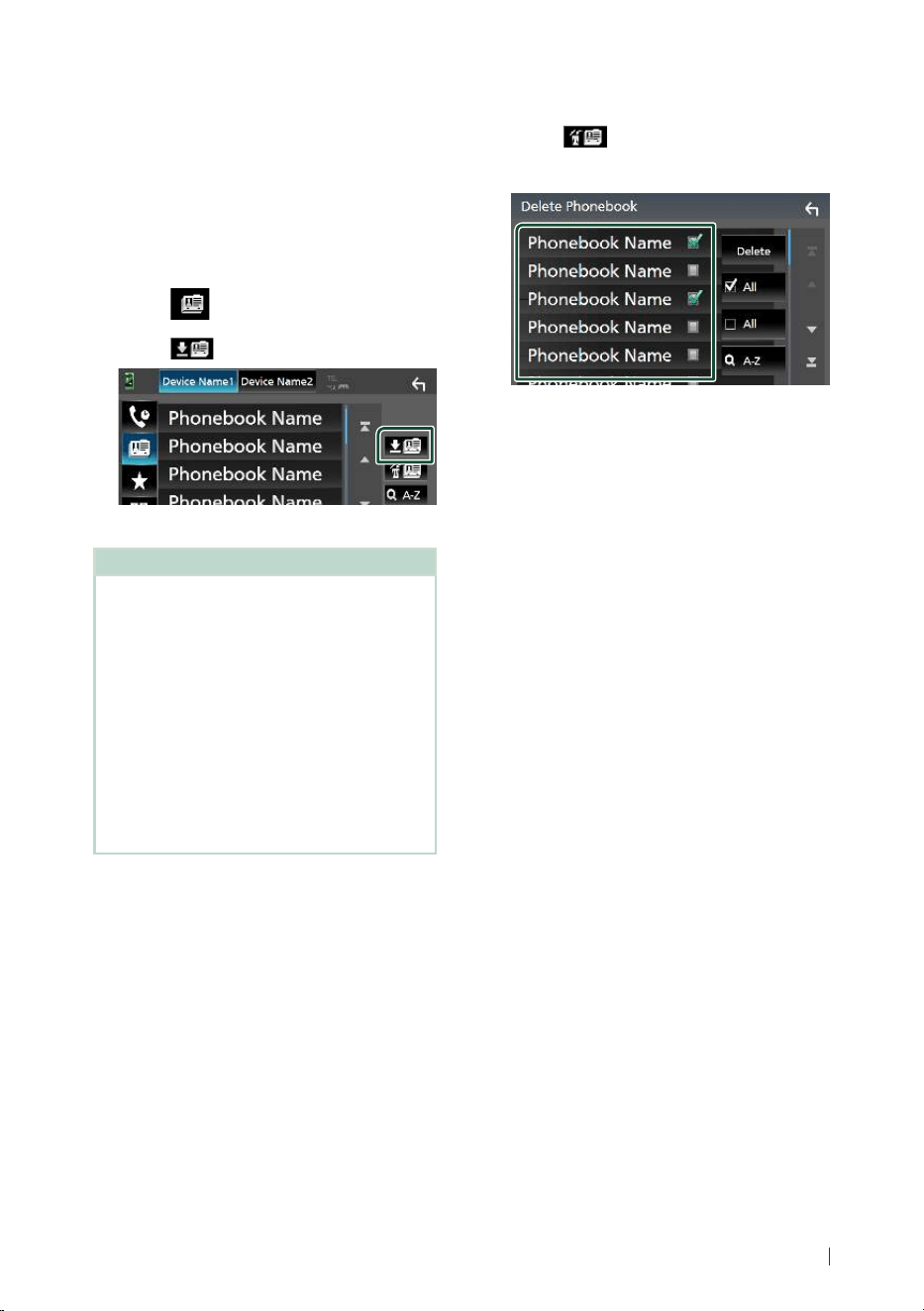
Bluetooth Control
61English
■ [Delete]
To delete a preset number, touch [Delete]
and then touch [OK] on the confirmation
screen.
Ñ Phonebook transfer
You can transfer phonebook data from your
Bluetooth smartphone using PBAP.
1
Touch [ ].
2
Touch [ ].
hh Phonebook data transfer starts.
NOTE
• If the Phonebook contains more than 1000
entries, only 1000 entries are transferred. The
1001st and later entries are not transferred.
• If no Phonebook has been downloaded, touching
[Download Phonebook Now] will start
downloading the Phonebook.
• The portrait registered in the phonebook is
displayed while making/receiving calls and
during a call.
If you edit the phonebook on the connected
device side after downloading the phonebook,
the portrait may not be displayed depending on
the edited content. It is recommended that you
download the phonebook whenever you edit it.
Phonebook deletion
1
Touch [ ].
2
Touch the name to check.
■ [þ All]
Checks all boxes.
■ [¨ All]
Clears all check marks.
3
Touch [Delete].
hh Confirmation message appears.
4
Touch [OK].
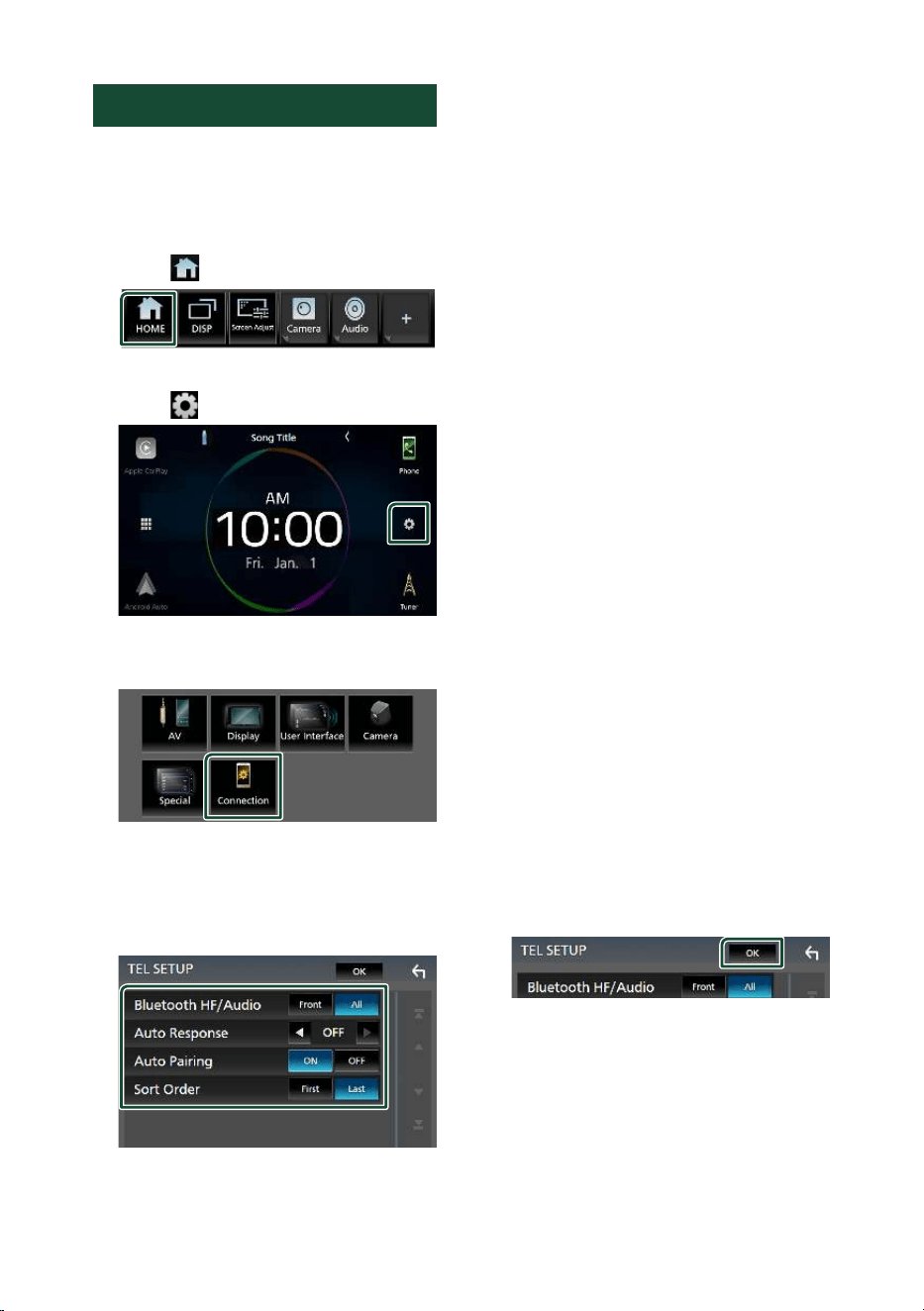
Bluetooth Control
62
Hands-Free Setup
You can make various settings for the Hands-
Free function.
1
Press the [FNC] button.
hh Popup menu appears.
2
Touch [ ].
hh HOME screen appears.
3
Touch [ ].
hh SETUP screen appears.
4
Touch [Connection].
hh Connection Setup screen appears.
5
Touch [TEL SETUP].
hh TEL SETUP screen appears.
6
Set each function as follows.
■ [Bluetooth HF/Audio]
Select the speakers to output the sound from
the smartphone/cell-phone (such as phone
call voice and ringing tone) and Bluetooth
audio device.
[Front]: Outputs sound from the front
speakers.
[All] (Default): Outputs sound from all
speakers.
■ [Auto Response]*
Set the automatic response time to pick-up
an incoming call.
[OFF] (Default): Turns off the Automatic
response function.
[1]/[5]/[10]/[15]/[20]/[25]/[30]: Sets the ringing
time (second).
■ [Auto Pairing]
When set to “ON”, the Apple Auto Pairing
function is turned on to automatically
register the iPod touch or iPhone connected
to this unit.
[ON] (Default): Turns on the Apple Auto
Pairing function.
[OFF]: Turns off the Apple Auto Pairing
function.
■ [Sort Order]
Set how to sort the data in the smartphone/
cell-phone phonebook.
[First] (Default): Sorts data by the first name.
[Last]: Sorts data by the last name.
* Either the auto response time set on this
unit or the time set on the smartphone/
cell-phone, whichever is shorter takes
effect.
7
Touch [OK].
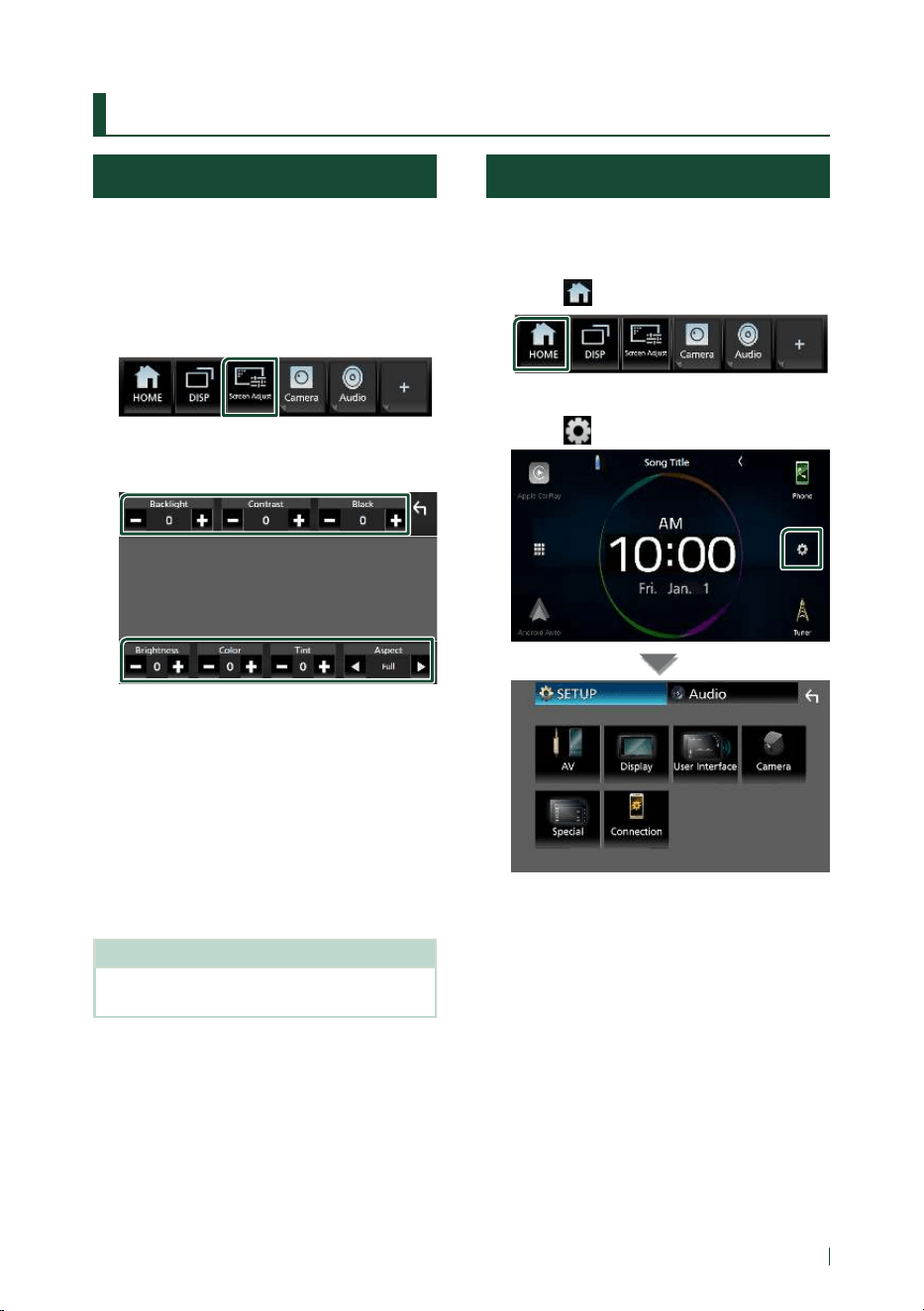
Setup
63English
Setup
Monitor Screen Setup
You can adjust the image quality of video,
menu screen, etc.
1
Press the [FNC] button.
hh Popup menu appears.
2
Touch [Screen Adjust].
hh Screen Adjustment screen appears.
3
Adjust each setting as follows.
■ [Backlight]/[Contrast]/[Black]/
[Brightness]/[Color]/[Tint]
Adjust each setting.
■ [Aspect]
Select a screen mode.
[Full]: Changes the aspect ratio of video and
displays video fully on the screen.
[Normal]: Displays video at the ratio of 4:3.
[Auto]: Displays video fully (vertically or
horizontally) with no ratio change.
NOTE
• Settings to adjust vary depending on the current
source.
System Setup
1
Press the [FNC] button.
hh Popup menu appears.
2
Touch [ ].
hh HOME screen appears.
3
Touch [ ].
See the following section for each
setting.
• Set up AV ( P.68)
• Set up display ( P.67)
• Set up the user interface ( P. 64)
• Set up camera ( P.47)
• Set up special ( P. 66)
• Set up connection ( P. 69)
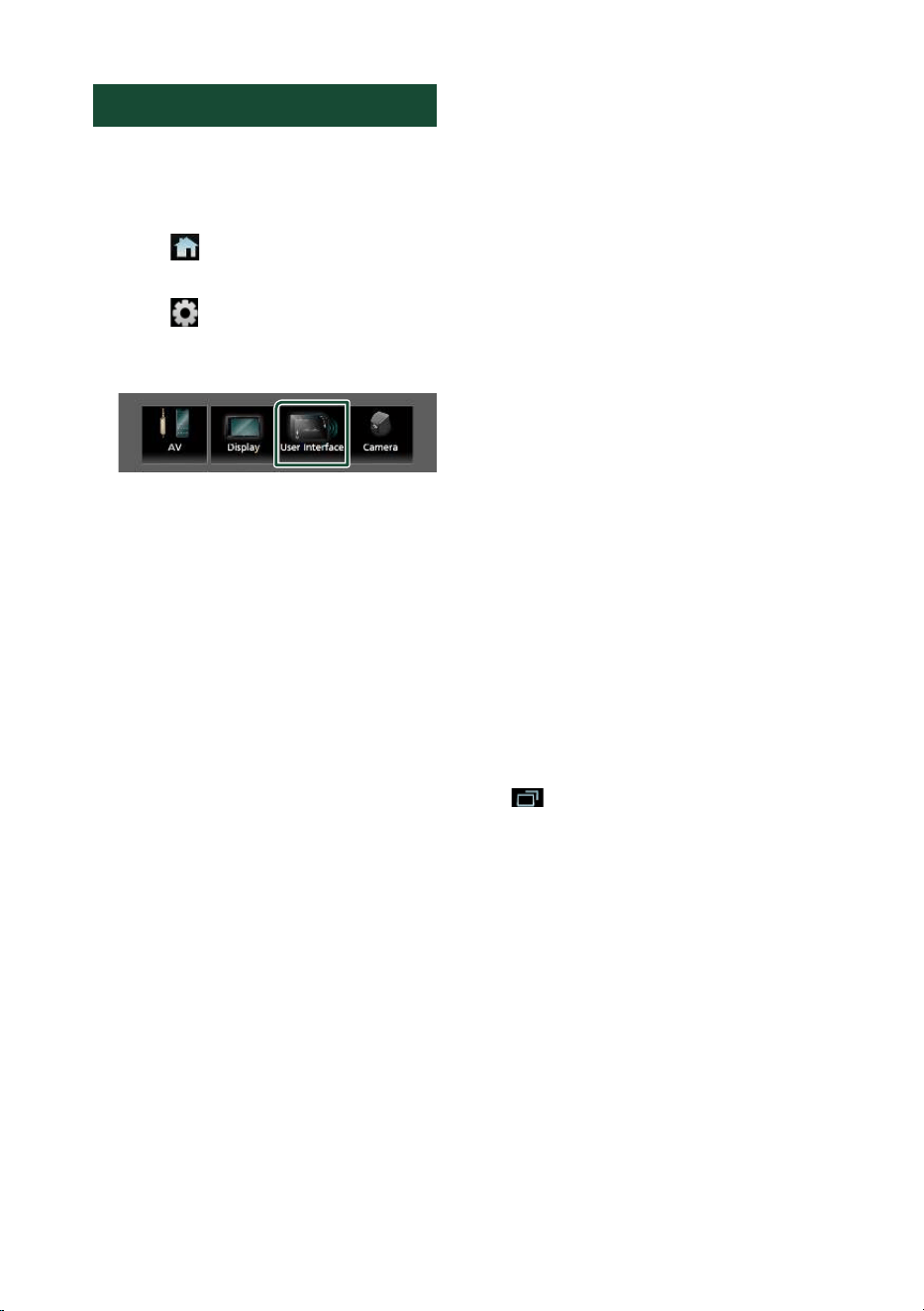
Setup
64
User Interface Setup
You can setup user interface parameters.
1
Press the [FNC] button.
hh Popup menu appears.
2
Touch [ ].
hh HOME screen appears.
3
Touch [ ].
hh SETUP screen appears.
4
Touch [User Interface].
hh User Interface screen appears.
5
Set each parameter as follows.
■ [Small Audio Text]
Determine whether to change the text size
for the source control screen smaller.
“ON”/“OFF” (Default)
■ [Beep]
Turn the key touch tone on or off.
Default is “ON”.
■ [Widget SETUP]
Set up the widget displayed on the HOME
screen. ( P.19)
■ [Gesture Touch Control Effect]
Determine whether to show the trace of
finger under gesture touch control. ( P.11)
“ON” (Default)/“OFF”
■ [Customize Favorite Key]
Select the function which you wish to set for
[Favorite] icon. ( P.65)
■ [Customize FNC Menu]
Select the function which you wish to set for
the function key1 to 3. ( P. 65)
■ [Parking Assist Display]
When the iDatalink (commercially available)
is connected, you can display information
about obstacles around the car.
[ON]: Always displays information.
[Dyn.] (Default): Displays information when
the sensor detects obstacles.
[OFF]: Cancels this function.
This can be set when the iDatalink
(commercially available) is connected.
■ [Parking Assist Position]
Select where to display information about
obstacles on the screen (left or right).
“Left”/“Right” (Default)
This can be set when the iDatalink
(commercially available) is connected.
■ [Language Select]
Select a language.
■ [Touch Panel Adjust]
Adjust the sensing position of the touch
panel. ( P.66)
■ [Time Format]
■ [Clock]
■ [Time Zone]
■ [Clock Adjust]
You can set the date and time. See Adjust
the date and time manually (P.10).
■ [DISP Key]
Select the source screen displayed when
in the popup menu screen is touched.
[OFF]: Displays the control screen of the
current source.
[Mirroring] (Default): Switches to the App
screen from the connected iPhone/
Android smartphone or to the Apple
CarPlay screen from the connected iPhone
when the key is touched. ( P.20)
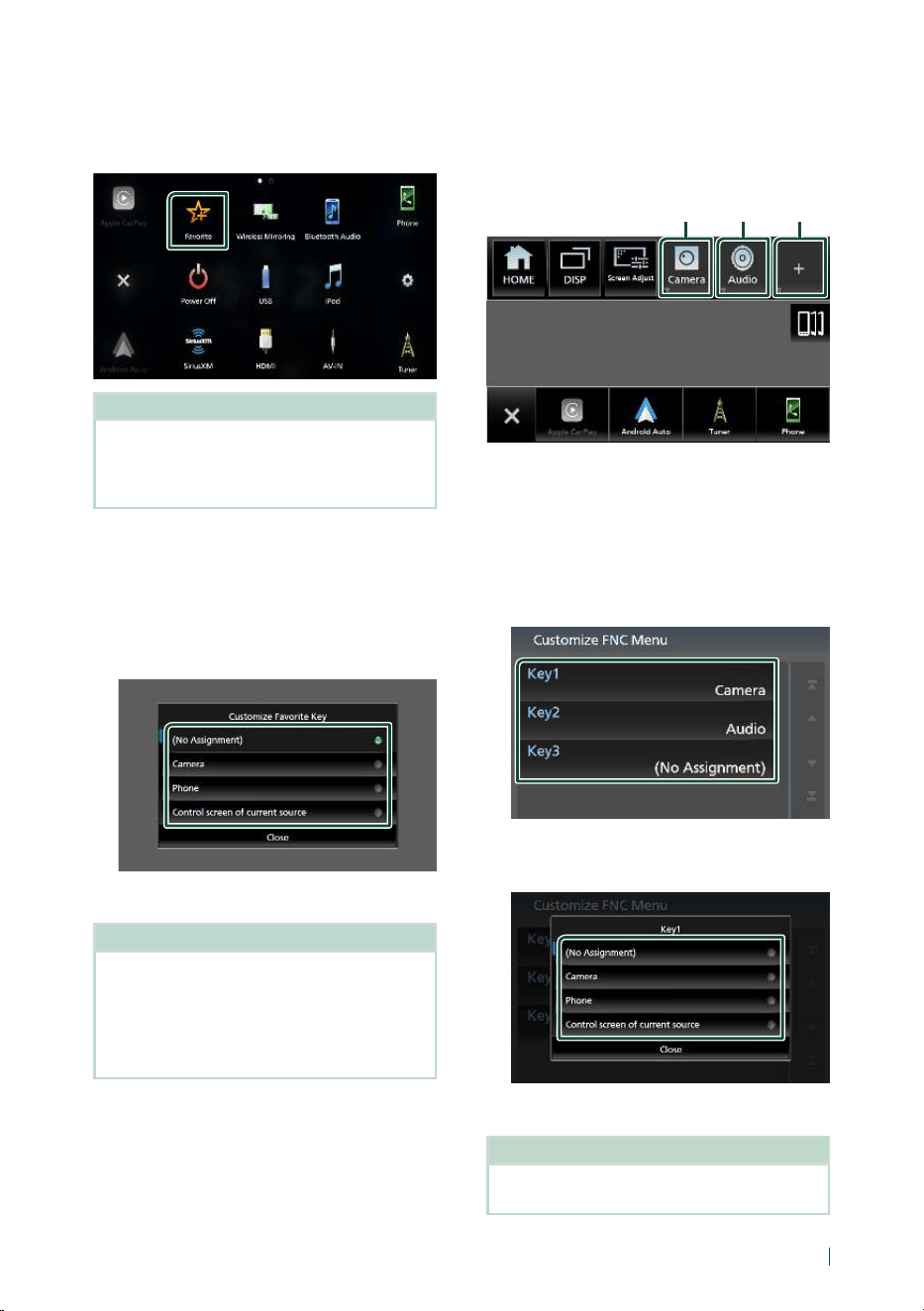
Setup
65English
Ñ Customize Favorite key
You can jump to your favorite function easily
from [Favorite] icon.
NOTE
• [Favorite] icon may be disabled on some screens
depending on the registered function. When
this icon is invalid, start the desired function by
normal procedure.
To register a favorite function
1
Touch [Customize Favorite Key] on the
User Interface screen.
hh Customize Favorite Key screen appears.
2
Select a favorite function.
3
Touch [Close].
NOTE
• You can also change the assignment when you
touch and hold [Favorite] icon on the HOME
screen.
• If it is your first time to touch [Favorite] icon after
installation, Customize Favorite Key screen will
appear.
Ñ Customize popup menu
functions
You can register a function for each of the
function key1 to 3.
Function key1 key2 key3
To register a function
1
Touch [Customize FNC Menu] on the User
Interface screen.
hh Customize FNC Menu screen appears.
2
Select the function key you want to
customize.
hh The function list screen appears.
3
Select a function.
4
Touch [Close].
NOTE
• You can change the assignment when you touch
and hold the desired function key.
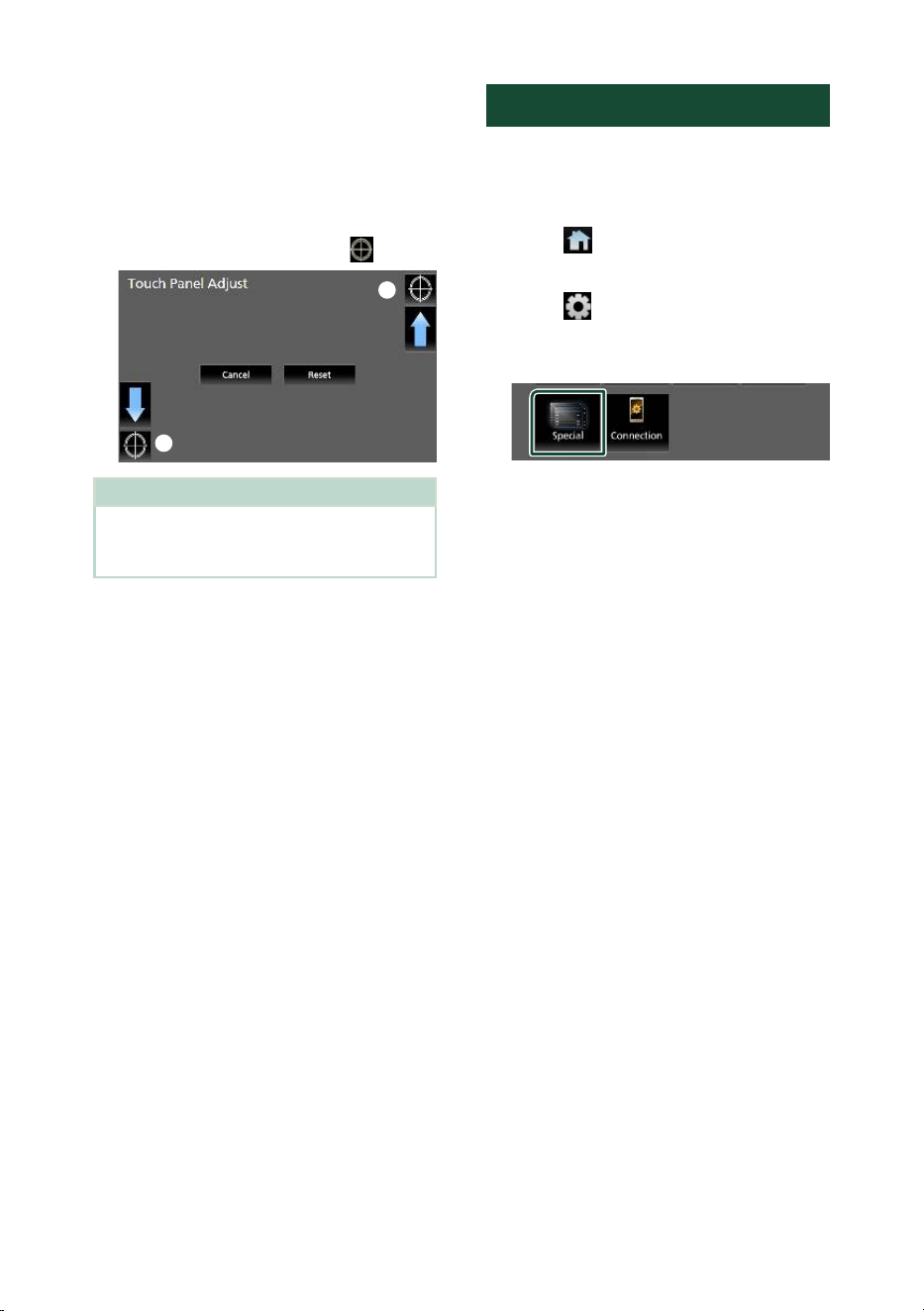
Setup
66
Ñ Touch panel adjustment
1
Touch [Touch Panel Adjust] on the User
Interface screen.
hh Touch Panel Adjust screen appears.
2
Follow the instruction on the screen and
long touch the center of each [ ].
1
2
NOTE
• To cancel the touch panel adjustment, touch
[Cancel].
• To reset it to the default, touch [Reset].
Special Setup
You can setup special parameters.
1
Press the [FNC] button.
hh Popup menu appears.
2
Touch [ ].
hh HOME screen appears.
3
Touch [ ].
hh SETUP screen appears.
4
Touch [Special].
hh Special screen appears.
5
Set each parameter as follows.
■ [DEMO]
Select the demonstration mode. Default is
“ON”.
■ [Operation Guide Display]
Determine whether to show the touch
screen operation guide screen every time
before HOME screen is displayed.
Default is “ON”.
■ [Software Information]
Confirm the software version of this unit.
( P.67)
■ [Open Source Licenses]
Display the open source licenses.
■ [Initialize]
Touch [Initialize] and then touch [Ye s ] to set
all the settings to the initial default settings.
• Audio SETUP Memory is not initialized.
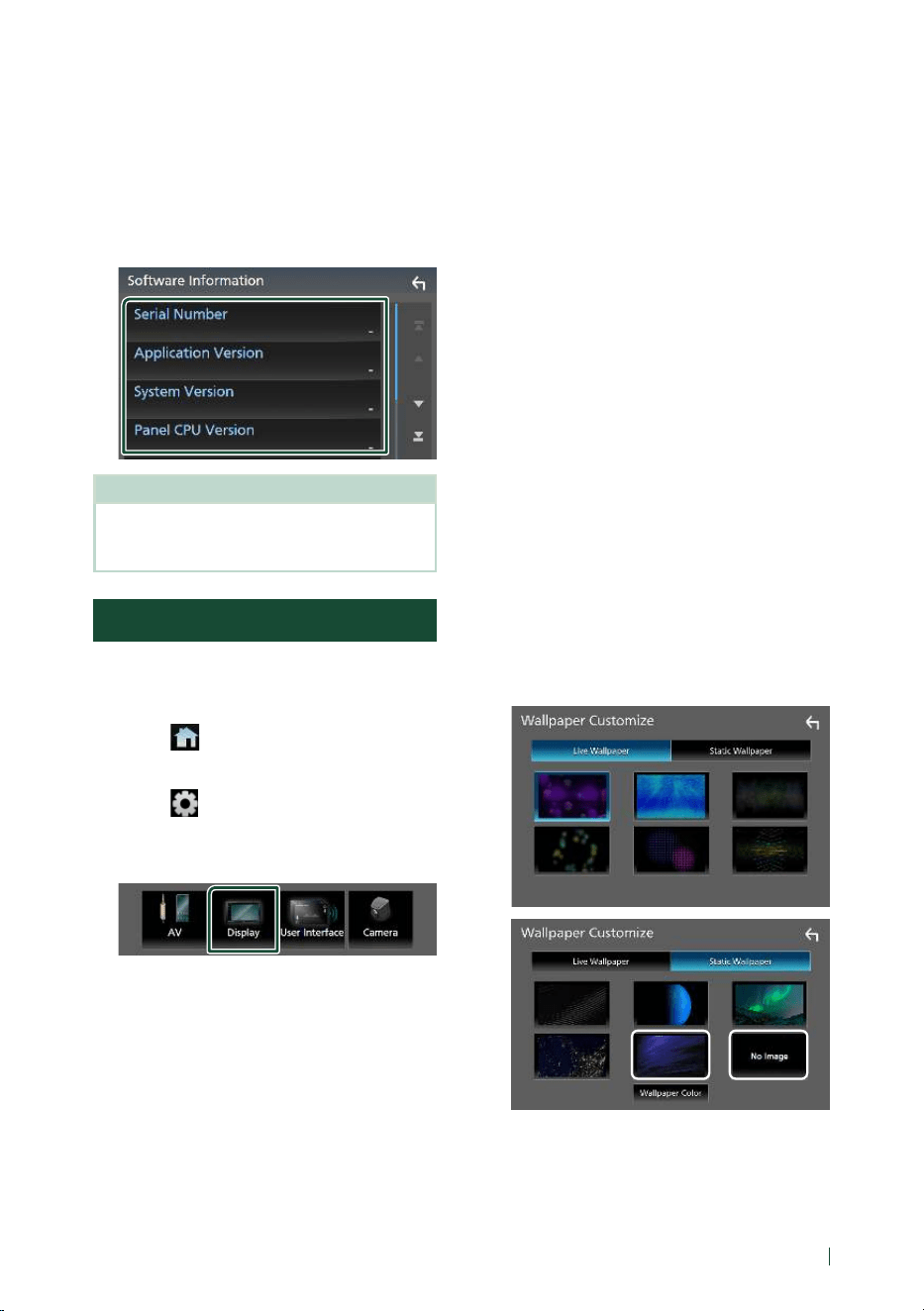
Setup
67English
Ñ Software Information
You can confirm the software version of this
unit.
1
Touch [Software Information] in the
Special screen.
2
Confirm the software version.
NOTE
• For how to update the software, see the relevant
update procedure manual which comes with the
software.
Display Setup
1
Press the [FNC] button.
hh Popup menu appears.
2
Touch [ ].
hh HOME screen appears.
3
Touch [ ].
hh SETUP screen appears.
4
Touch [Display].
hh Display screen appears.
5
Set each parameter as follows.
■ [Dimmer]
Select the dimmer mode.
[OFF]: Does not dim the display.
[ON]: Dims the display.
[SYNC] (Default): Turns the dimmer function
on or off when the vehicle light control
switch is turned on or off.
■ [OSD Clock]
Select if you want to display the clock while
the screen is off, or while watching video
files, etc.
“ON” (Default)/“OFF”
■ [Wallpaper Customize]
You can change the wallpaper image or
color. ( P.67)
■ [Viewing Angle]
If it is hard to see the image on the screen
evenly, adjust the viewing angle. The smaller
the (negative) value, the more whitish the
image on the screen looks.
“0” (Default)/“-1”/“-2”/“-3”
■ [Screen transition effect]
Select whether to use the screen transition
effect when the source control screen is
switched to the Home screen.
"ON" (Default)/ "OFF"
Ñ Change the wallpaper image
1
Touch [Wallpaper Customize] on the
Display screen.
2
Select an image from live or static
wallpapers.
*
1
*
2
*
1
Select a wallpaper color in advance.
*
2
Select an original image in advance.
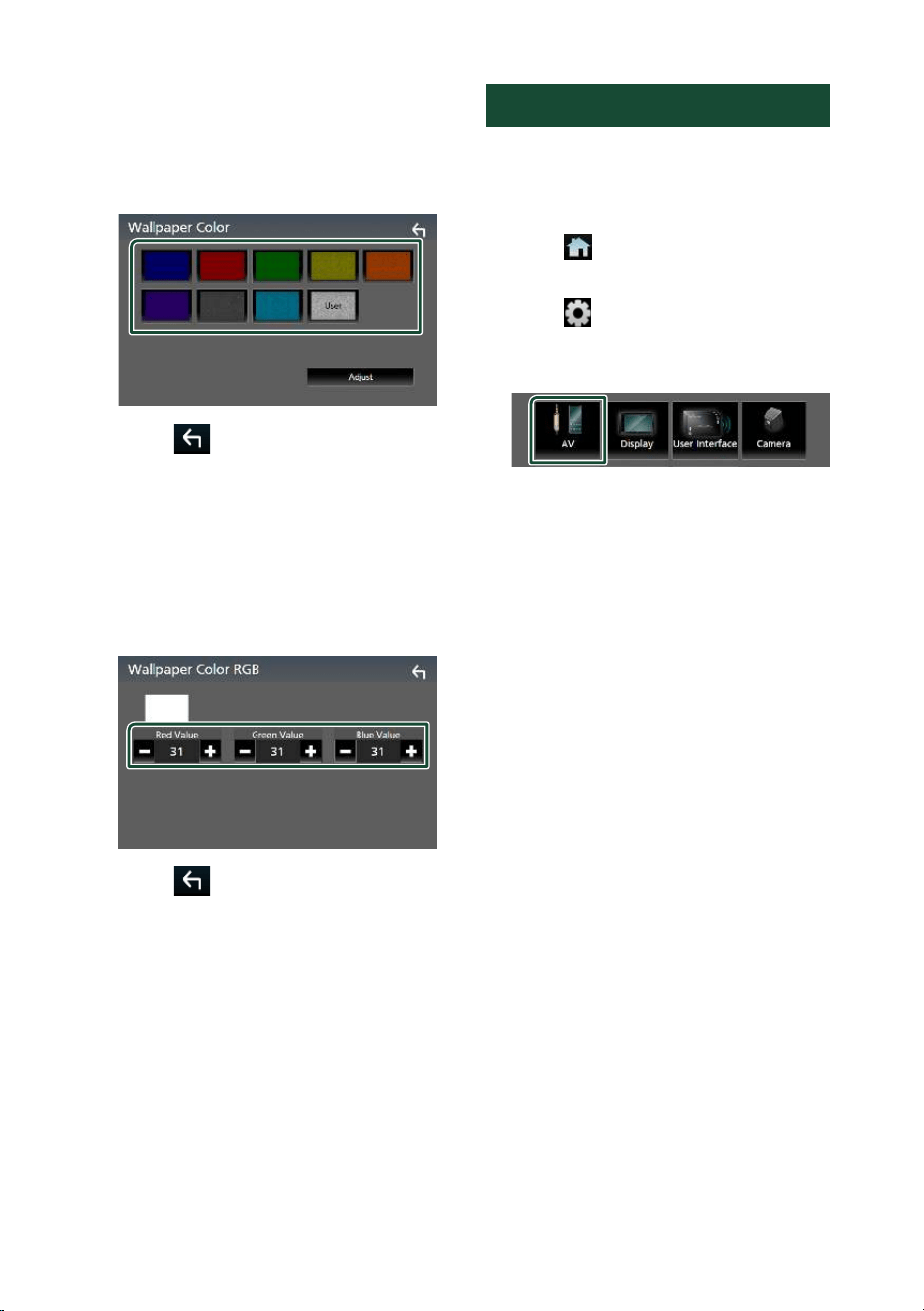
Setup
68
To select wallpaper color
1
Touch [Wallpaper Color] on the Wallpaper
Customize screen.
2
Select a wallpaper color.
3
Touch [ ].
To register an original color
You can register your original color.
1
Touch [User] on the Wallpaper Color
screen.
2
Touch [Adjust].
3
Use [–] and [+] to adjust each color value.
4
Touch [ ].
To register an original image
With “JVC Portal APP” application installed
on your iPhone or Android smartphone, you
can upload image files to this unit and set an
image as the wallpaper image.
See Importing Image Files (P.19).
AV Setup
You can set AV parameters.
1
Press the [FNC] button.
hh Popup menu appears.
2
Touch [ ].
hh HOME screen appears.
3
Touch [ ].
hh SETUP screen appears.
4
Touch [AV].
hh AV screen appears.
5
Set each parameter as follows.
■ [Guidance/Voice Recognition Volume]
Adjust the volume of the guidance and voice
recognition in Apple CarPlay/Android Auto
mode. Default is "19".
■ [Incoming Call Volume (Ring)]
Adjust the ring tone volume in Apple
CarPlay/Android Auto mode. Default is "15".
■ [In Call Volume (Talking)]
Adjust the dial tone volume and the volume
during a call in Apple CarPlay/Android Auto
mode. Default is "15".
■ [Speech Quality Adjust]
You can adjust the speech quality.
[Microphone Level]: Adjust the volume of
your voice.
Default is “0”.
[Echo Cancel Level]: Adjust the level of echo
cancellation.
Default is “0”.
[Noise Reduction Level]: Reduce the
noise generated in the surrounding
environment without changing the
microphone volume. Use this function
when the voice of caller is not clear.
Default is “0”.
■ [iPod Bluetooth Connection]
See Select the method of making
connections for outputting sound from
the iPod source (P.29).
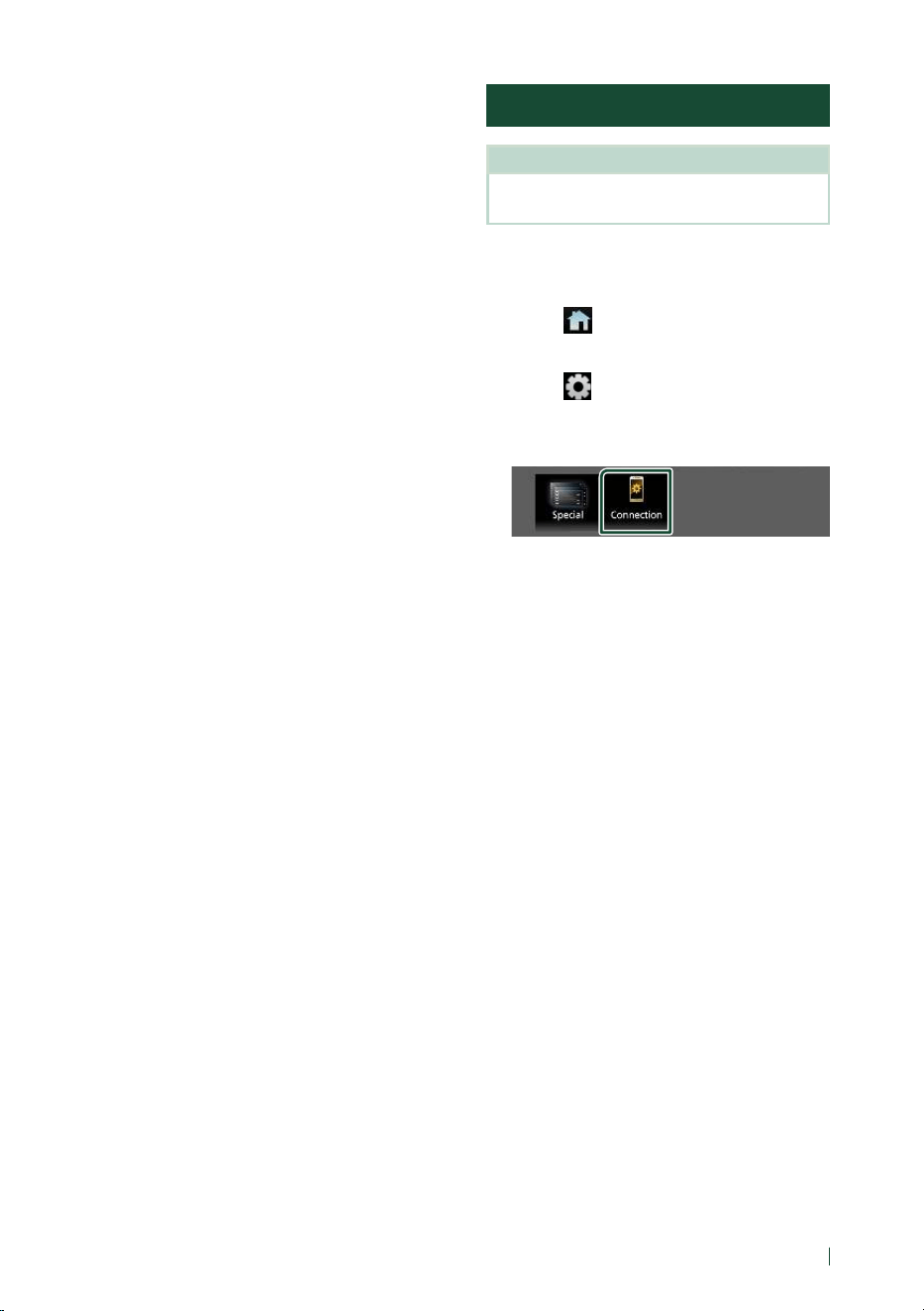
Setup
69English
■ [Driving Position]
Select the driving position (left or right).
“Left” (Default)/“Right”
■ [Reverse with ATT]
Select whether to decrease the audio volume
automatically when the gear is shifted to the
reverse (R) position. Default is "ON".
■ [Maestro SETUP]
Confirm the information about or change the
settings for using the iDatalink (commercially
available).
■ [Vehicle Features]
This function requires a commercial adaptor.
Consult your JVC dealer for details.
Connection Setup
NOTE
• Some items in the Connection Setup are disabled
while using Apple CarPlay.
1
Press the [FNC] button.
hh Popup menu appears.
2
Touch [ ].
hh HOME screen appears.
3
Touch [ ].
hh SETUP screen appears.
4
Touch [Connection].
hh Connection Setup screen appears.
5
Set each parameter as follows.
■ [Bluetooth]
Turns the Bluetooth function on or off.
■ [Device List]
Select the connected device to be used.
( P.53)
■ [Device Name]
If you select ON for Bluetooth, you can
change the Bluetooth device name.
See Change the device name for Bluetooth
( P.70).
■ [PIN Code]
You can change the PIN Code. See Change
the PIN Code (P.70).
■ [Device address]
Display the Bluetooth device address.
■ [TEL SETUP]
You can change the settings for Hands-Free
function. See Hands-Free Setup (P.62).
■ [Wi-Fi SETUP]
You can change the device name for Wireless
Mirroring and display the device address,
password. See Change the device name for
Wireless Mirroring (P.70).
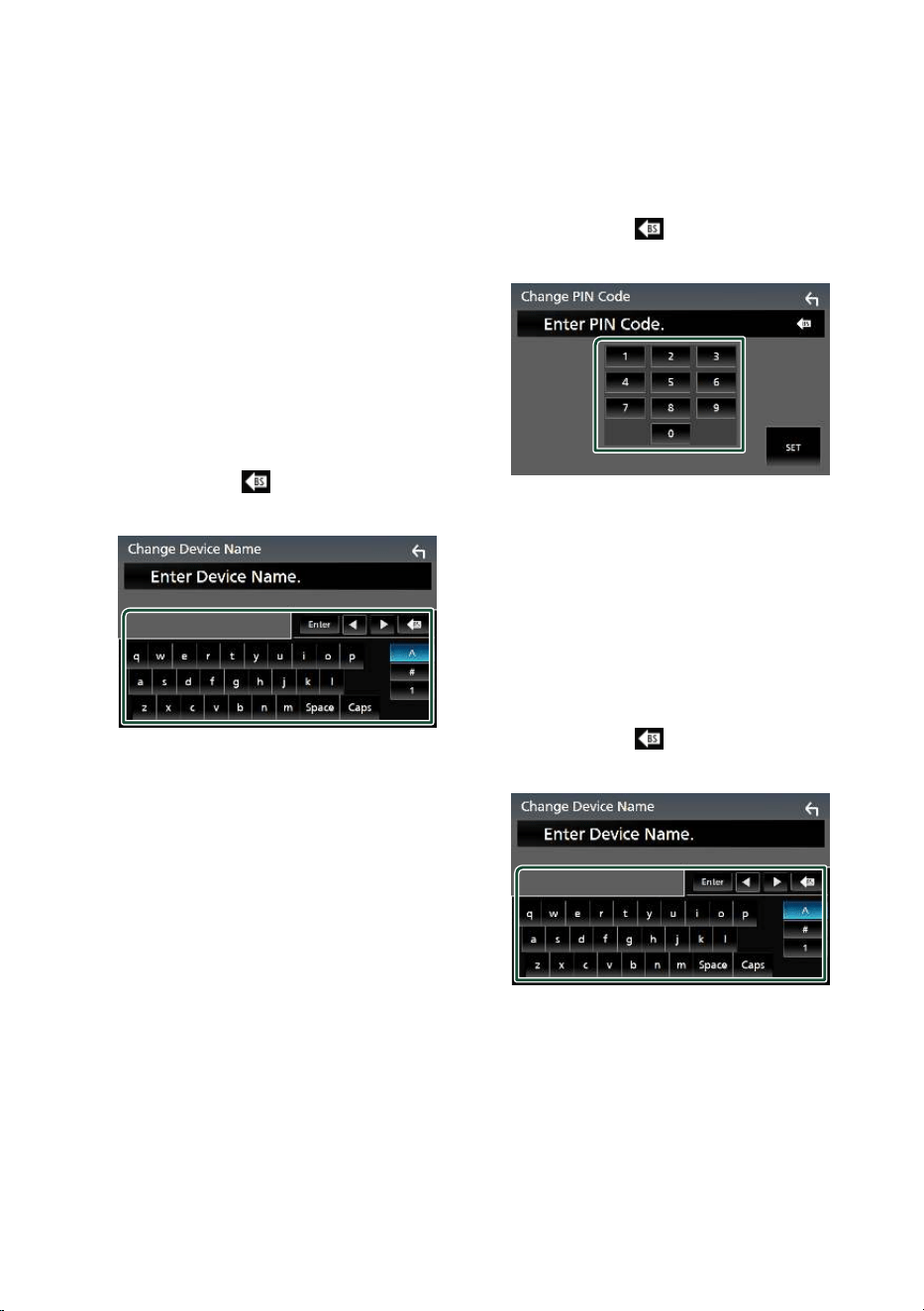
Setup
70
■ [[Android Auto Auto Launch]
Select whether to display the Android Auto
screen automatically. Default is "ON".
■ [Reset Android Auto Wireless
Connection]
You can reset the password for wireless
Android Auto.
The system of the unit is rebooted after
selecting [Ye s ].
Ñ Change the device name for
Bluetooth
1
Touch [Device Name] on the Connection
Setup screen.
hh Change Device Name screen appears.
2
Touch and hold [ ].
3
Input the device name.
4
Touch [Enter].
Ñ Change the PIN Code
1
Touch [PIN Code] on the Connection
Setup screen.
hh Change PIN Code screen appears.
2
Touch and hold [ ].
3
Input the PIN Code.
4
Touch [SET].
Ñ Change the device name for
Wireless Mirroring
1
Touch [Wi-Fi SETUP] on the Connection
Setup screen.
2
Touch [Device Name].
hh Change Device Name screen appears.
3
Touch and hold [ ].
4
Input the device name.
5
Touch [Enter].
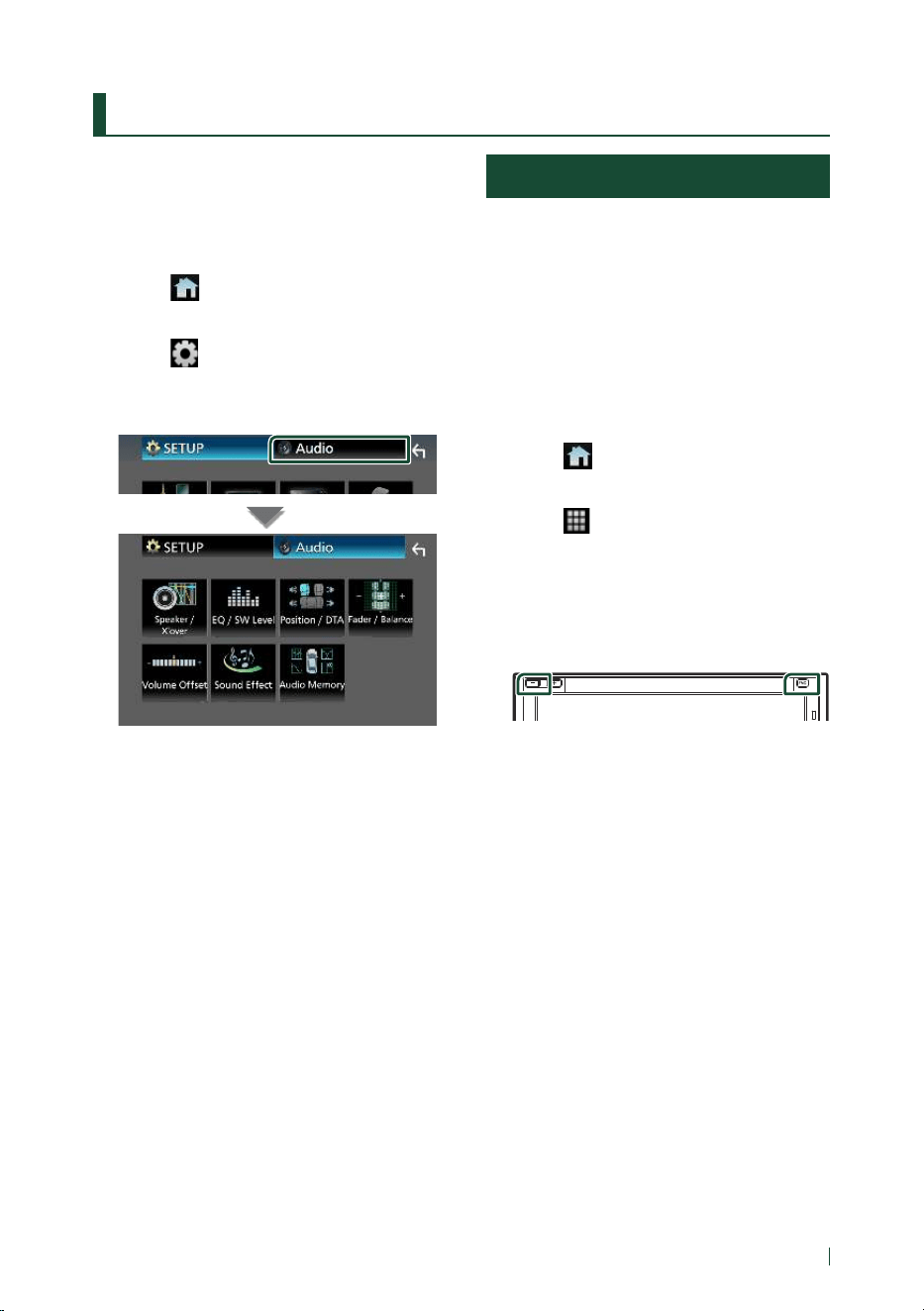
Controlling Audio
71English
Controlling Audio
You can adjust various settings such as audio
balance or subwoofer level.
1
Press the [FNC] button.
hh Popup menu appears.
2
Touch [ ].
hh HOME screen appears.
3
Touch [ ].
hh SETUP screen appears.
4
Touch [Audio].
See the following section for each
setting.
• Set up Speaker / X’over ( P.72)
• Controlling EQ / SW Level ( P.75)
• Set Position / DTA ( P.77)
• Controlling Fader / Balance ( P.74)
• Set Volume Offset (P. 76)
• Set Sound Effect ( P. 76)
• Use Audio Memory ( P. 79)
3-way speaker system setup
Select the appropriate crossover network
mode for the speaker system used (2-way or
3-way speaker system).
# CAUTION
• Connecting 3-way speakers with the 2-way
mode selected can break the speakers.
1
Press the [FNC] button.
hh Popup menu appears.
2
Touch [ ].
hh HOME screen appears.
3
Touch [ ].
hh Source selection screen appears.
4
Touch [AV Off].
5
Press the [FNC] (1) button and the [–] (2)
button for 1 second at the same time.
12
hh Speaker system select screen appears.
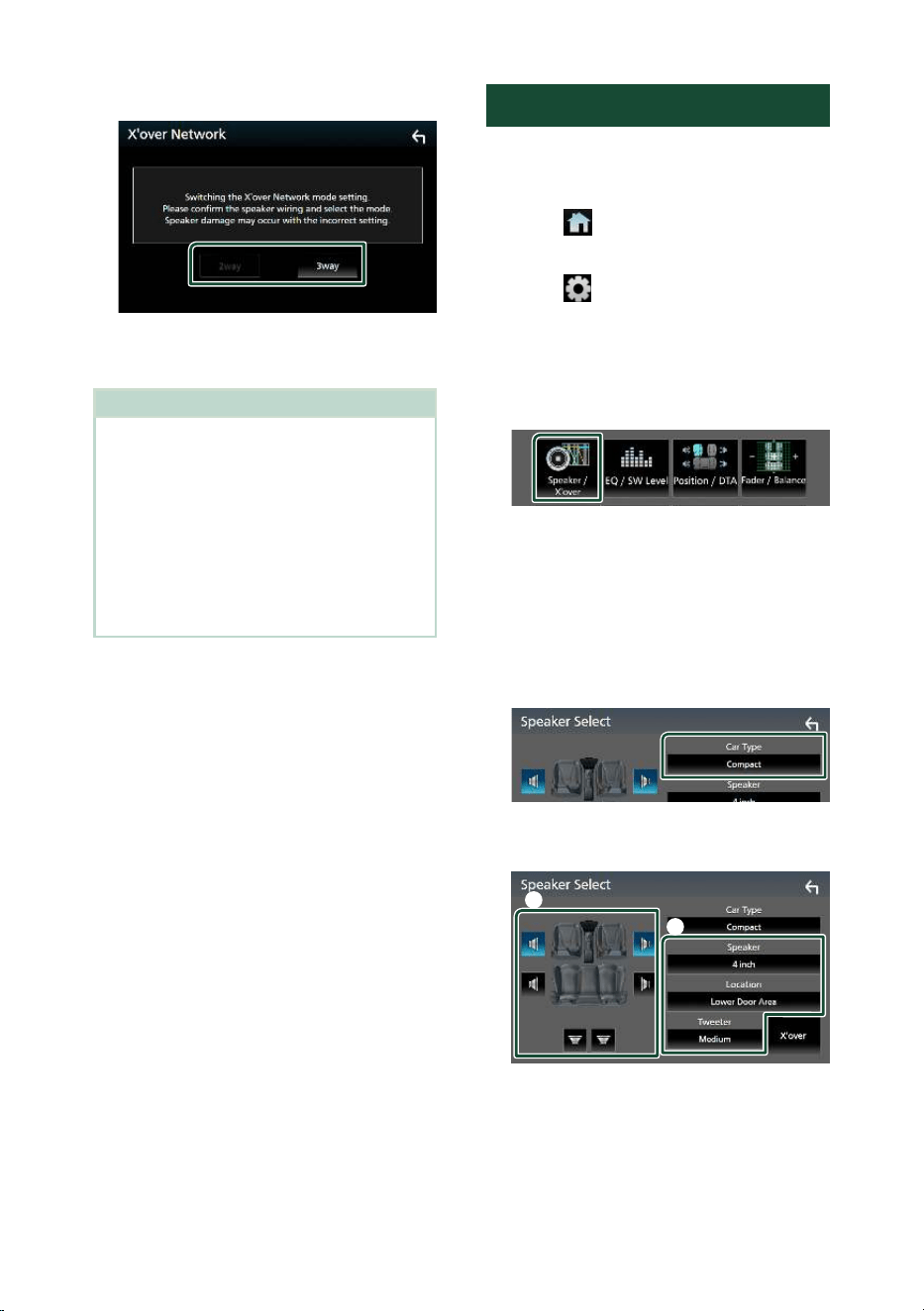
Controlling Audio
72
6
Select the crossover network mode.
hh A confirmation screen appears.
7
Touch [Ye s ].
NOTE
• When the 3-way speaker system is selected, the
following functions are disabled.
– Front focus of Listening Position / DTA
– Fader for Controlling General Audio
– Selection of the speakers to output sound from
the smartphone/cell-phone of Bluetooth HF/
Audio
– Beep for User Interface Setup
• While talking on the paired phone or using the
voice recognition function, the speaker system
cannot be switched.
Speaker / X’over setup
1
Press the [FNC] button.
hh Popup menu appears.
2
Touch [ ].
hh HOME screen appears.
3
Touch [ ].
hh SETUP screen appears.
4
Touch [Audio].
hh Audio screen appears.
5
Touch [Speaker / Xʼover].
6
Select a car type.
You can select the car type and speaker
network, etc.
When you select your car type, the Delay
Time Alignment is activated automatically
(for timing adjustment of sound output for
each channel) to have the highest surround
effects.
7
Touch the speaker (1) you wish to adjust
and set each parameter (2) as follows.
1
2
■ [Speaker]
You can select a speaker type and its size to
get the best sound effects.
When the speaker type and size are selected,
the speaker crossover network is set
automatically.
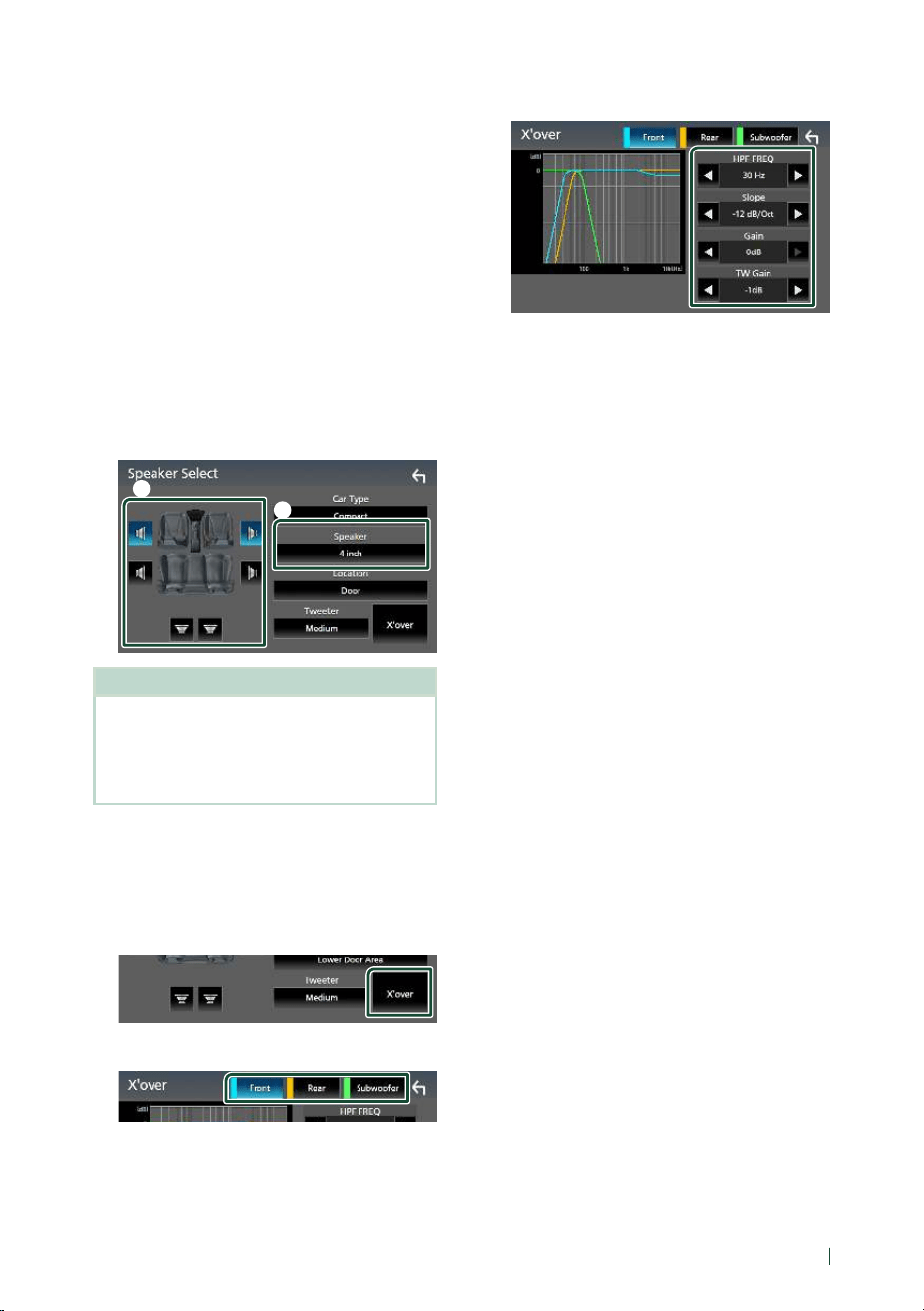
Controlling Audio
73English
■ [Location] (Only for Front, Rear)
Select the speaker position you have
installed.
■ [Tweeter] (Only for Front)
You can set up the tweeter when you are
selecting front speakers.
None, Small, Medium, Large
■ [Xʼover]
Display the speaker crossover setup screen.
You can adjust the crossover frequency that
was set automatically when you selected the
speaker type.
For details, see Crossover network setup
( P.73).
When Speaker network is set to 3-way:
1
2
NOTE
• For how to switch to the 3-way speaker system,
see 3-way speaker system setup (P.71).
Connecting 3-way speakers with the 2-way mode
selected can break the speakers.
• Select “None” if you have no speakers.
Ñ Crossover network setup
You can set the crossover frequency of
speakers.
1
Touch [Xʼover].
2
Touch the speaker to set up.
3
Set each parameter as follows.
■ [HPF FREQ]
High Pass Filter adjustment. (When Front or
Rear is selected on the Speaker Select screen)
■ [LPF FREQ]
Low Pass Filter adjustment. (When
Subwoofer is selected on the Speaker Select
screen)
■ [Slope]*
1
Set a crossover slope.
■ [Gain]
Adjust the gain of the front speaker, rear
speaker, or subwoofer.
■ [TW Gain] *
2
Adjust the tweeter level. (When Front is
selected on the Speaker Select screen)
■ [Phase Inversion]*
3
Set the phase of subwoofer output.
Check [Phase Inversion] to shift the phase
180 degrees. (When Subwoofer is selected
on the Speaker Select screen)
*
1
Only when “LPF FREQ”/“HPF FREQ” is set to
a mode other than “Through” in [Xʼover].
*
2
Only when “Tweeter” is set to “Small”,
“Medium”, “Large” in [Speaker Setup].
*
3
Only when “Subwoofer” is set to a mode
other than “None” in [Speaker Setup].
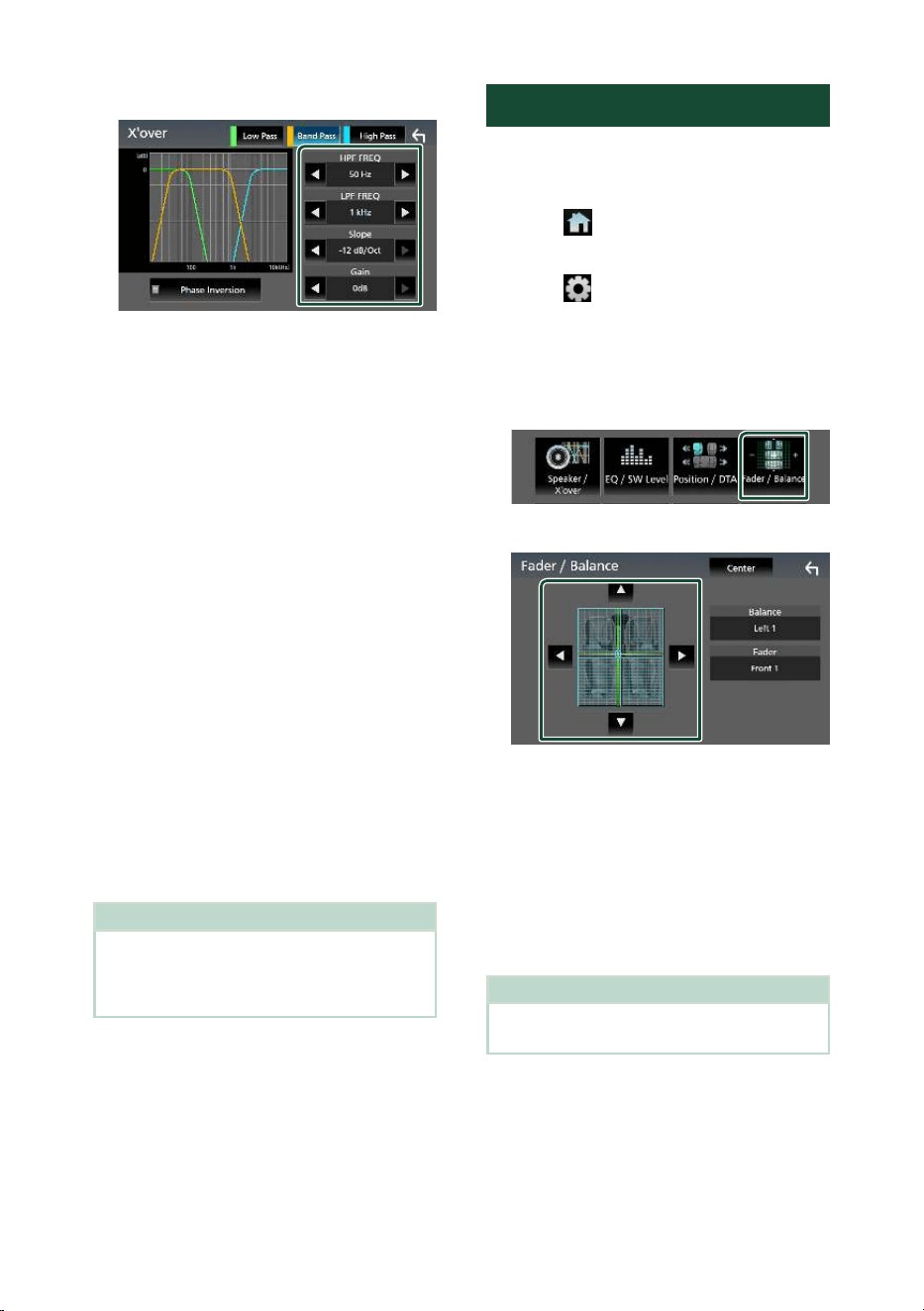
Controlling Audio
74
When Speaker network is set to 3-way:
■ [FREQ] (High Pass)
High Pass Filter adjustment.
■ [HPF FREQ], [LPF FREQ] (Band Pass)
Band Pass Filter adjustment. (When Mid
Range Speaker is selected on the Speaker
Select screen)
■ [FREQ] (Low Pass)
Low Pass Filter adjustment. (When Woofer is
selected on the Speaker Select screen)
■ [Slope]*
1
*
2
Set a crossover slope.
■ [Gain]
Set the gain of each speaker.
■ [Phase Inversion]
Set the phase of tweeter, mid range, and
woofer output.
Check [Phase Inversion] to shift the phase
180 degrees.
*
1
Only when “LPF FREQ”/“HPF FREQ” (Band
Pass) is set to a mode other than “Through”
in [Xʼover].
*
2
Only when “FREQ” (Low Pass) is set to a
mode other than “Through” in [Xʼover].
NOTE
• For how to switch to the 3-way speaker system,
see 3-way speaker system setup (P.71).
Connecting 3-way speakers with the 2-way mode
selected can break the speakers.
Controlling General Audio
1
Press the [FNC] button.
hh Popup menu appears.
2
Touch [ ].
hh HOME screen appears.
3
Touch [ ].
hh SETUP screen appears.
4
Touch [Audio].
hh Audio screen appears.
5
Touch [Fader / Balance].
6
Set each parameter as follows.
■ [Fader], [Balance]
Adjust the volume balance around the
touched area.
[C] and [D] adjust the right and left volume
balance.
[R] and [S] adjust the front and rear volume
balance.
■ [Center]
Clear the adjustment.
NOTE
• When the 3-way speaker system is selected,
"Fader" adjustment is disabled.
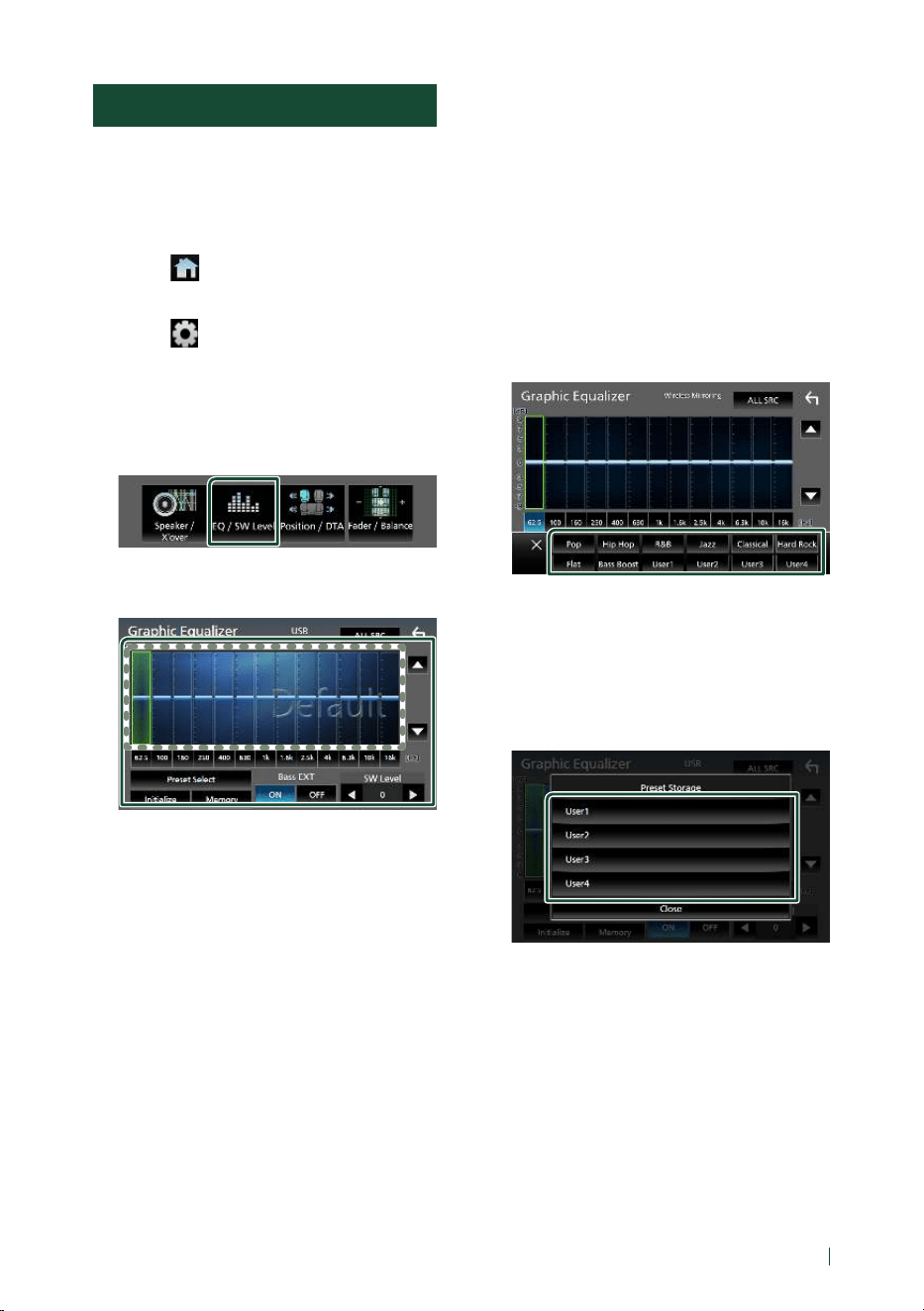
Controlling Audio
75English
Equalizer Control
You can adjust equalizer by selecting the
optimized setting for each category.
1
Press the [FNC] button.
hh Popup menu appears.
2
Touch [ ].
hh HOME screen appears.
3
Touch [ ].
hh SETUP screen appears.
4
Touch [Audio].
hh Audio screen appears.
5
Touch [EQ / SW Level].
6
Touch the screen and set the Graphic
Equalizer as desired.
■ Gain level (area in dotted frame)
Adjust the gain level by touching each
frequency bar.
You can select a frequency bar and adjust its
level by [R], [S].
■ [Preset Select]
Display the screen for selecting the preset
equalizer curve. ( P. 75)
■ [Memory]
Saves the adjusted equalizer curve as “User1”
to “User4”. (P.75)
■ [Initialize]
Initialize (flatten) the current EQ curve.
■ [ALL SRC]
Apply the adjusted equalizer curve to all
sources. Touch [ALL SRC] and then touch
[OK] on the confirmation screen.
■ [Bass EXT] (Bass Extend Settings)
When turned on, the frequencies lower than
62.5 Hz is set to the same gain level (62.5 Hz).
■ [SW Level]
Adjust the subwoofer volume. This setting
is not available when Subwoofer is set to
“None”. See Speaker / X’over setup (P.72).
Ñ Recall the EQ curve
1
Touch [Preset Select].
2
Select an EQ curve.
Ñ Save the EQ curve
1
Adjust the EQ curve.
2
Touch [Memory].
3
Select where to save.
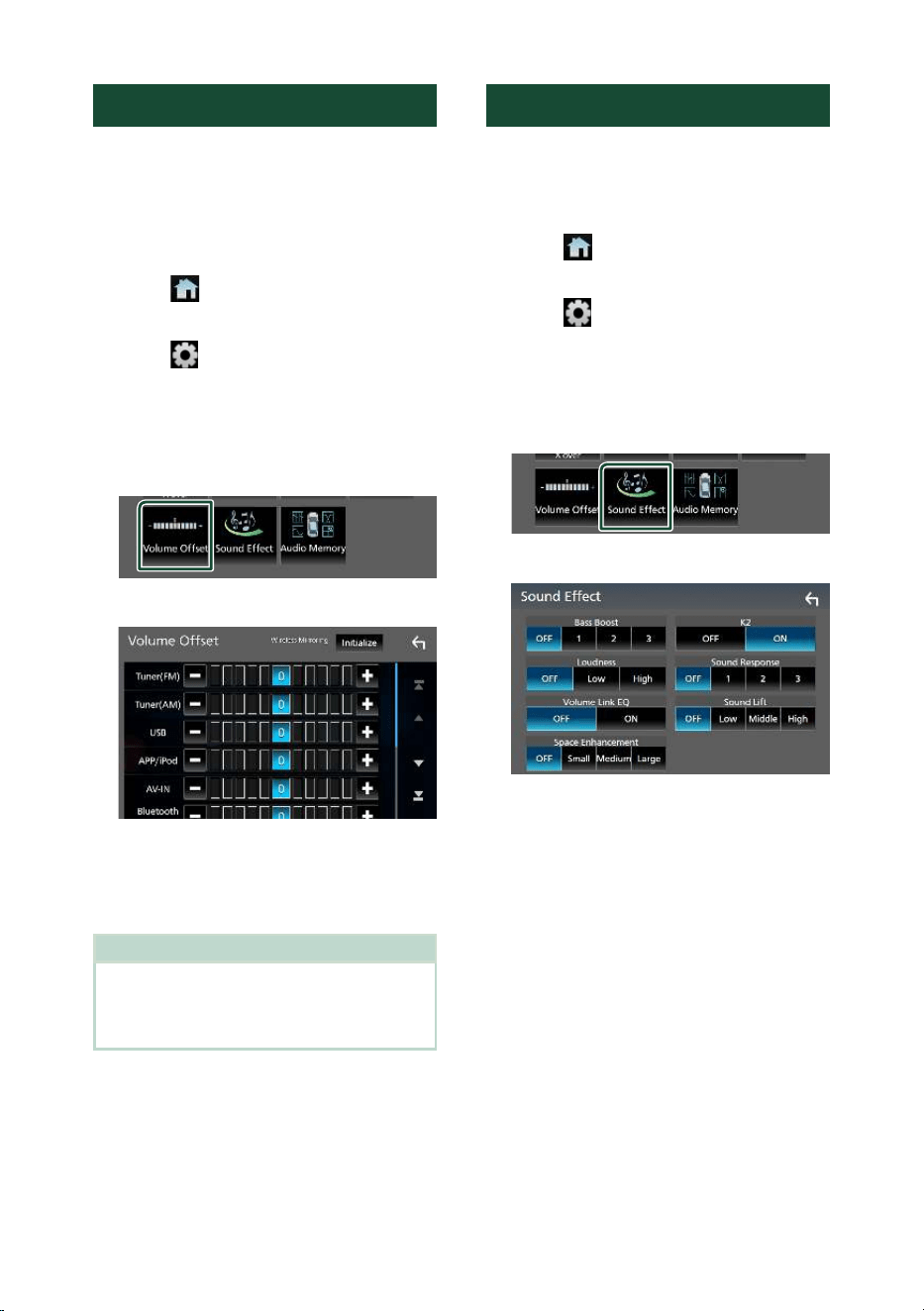
Controlling Audio
76
Volume Offset
Finely adjust the volume of the current source
to minimize the difference in volume between
different sources.
1
Press the [FNC] button.
hh Popup menu appears.
2
Touch [ ].
hh HOME screen appears.
3
Touch [ ].
hh SETUP screen appears.
4
Touch [Audio].
hh Audio screen appears.
5
Touch [Volume Offset].
6
Touch [+] or [–] to adjust the level.
■ [Initialize]
Returns to the initial settings.
Touch [Initialize] and then touch [Ye s ] on
the confirmation screen.
NOTE
• If you have increased the volume first, then
reduce the volume using “Volume Offset”.
Switching the current source to another source
suddenly may output extremely loud sound.
Sound Effect
You can set sound effects.
1
Press the [FNC] button.
hh Popup menu appears.
2
Touch [ ].
hh HOME screen appears.
3
Touch [ ].
hh SETUP screen appears.
4
Touch [Audio].
hh Audio screen appears.
5
Touch [Sound Effect].
6
Set each parameter as follows.
■ [Bass Boost]
Set the amount of bass boost
“OFF”/“1”/“2”/“3”.
■ [Loudness]
Set the amount of boost of low and high
tones.
“OFF”, “Low”, “High”
■ [Volume Link EQ]
Reduce the driving noise by boosting
specific frequencies in the audio signal.
“OFF”, “ON”
■ [Space Enhancement]
Select the feeling of sound space
enhancement.
“OFF”/“Small”/“Medium”/“Large”.
This setting is not available for the Tuner
source.
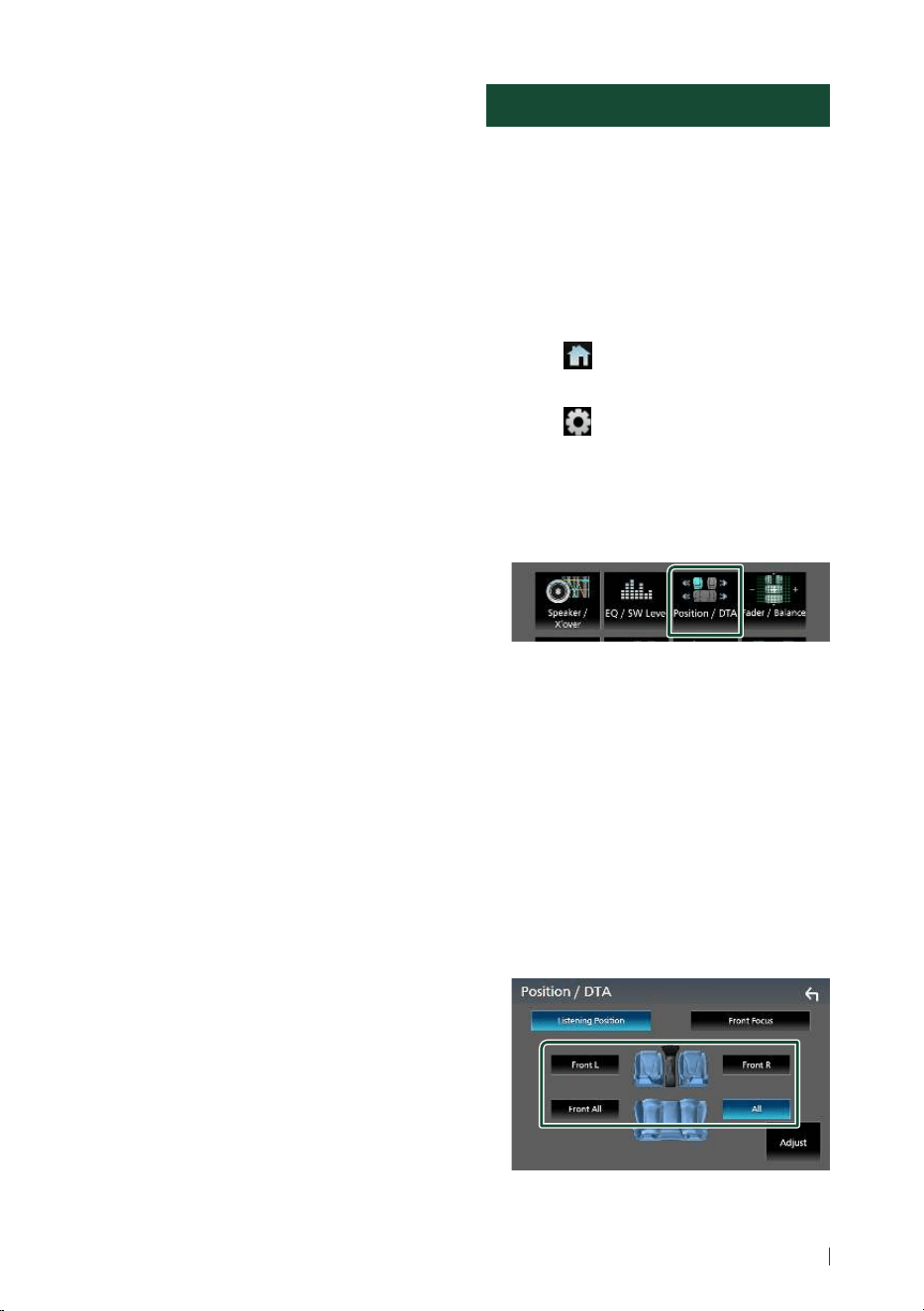
Controlling Audio
77English
■ [K2]
Turn ON/OFF the K2 function.
Technology to extrapolate and supplement
with proprietary algorithm, the high-
frequency range that is cut off when
encoding.
■ [Sound Response]
Virtually make the sound more realistic using
the Digital Signal Processor (DSP) system.
Select the level from “OFF”/“1”/“2”/“3”.
■ [Sound Lift]
You can adjust the height of speakers
virtually to suit your listening position.
“OFF”/“Low”/“Middle”/“High”.
Listening Position / DTA
Listening Position / DTA allows you to improve
the sound field depending on the position of
the seat you sit.
Listening Position / DTA allows you to set
“Listening Position” and “Front Focus”. You
cannot set both at the same time.
1
Press the [FNC] button.
hh Popup menu appears.
2
Touch [ ].
hh HOME screen appears.
3
Touch [ ].
hh SETUP screen appears.
4
Touch [Audio].
hh Audio screen appears.
5
Touch [Position / DTA].
• Set up Listening Position (P. 77)
• Set up Front Focus ( P. 78)
Ñ Listening Position
Adjust the sound delay time so that the
sounds from different speakers arrive at the
listener sitting on the selected seat at the
same time.
1
Touch [Listening Position] on the Position
/ DTA screen.
2
Select a listening position from [Front R]
(Right front), [Front L] (Left front),
[Front All] (All front), and [All].
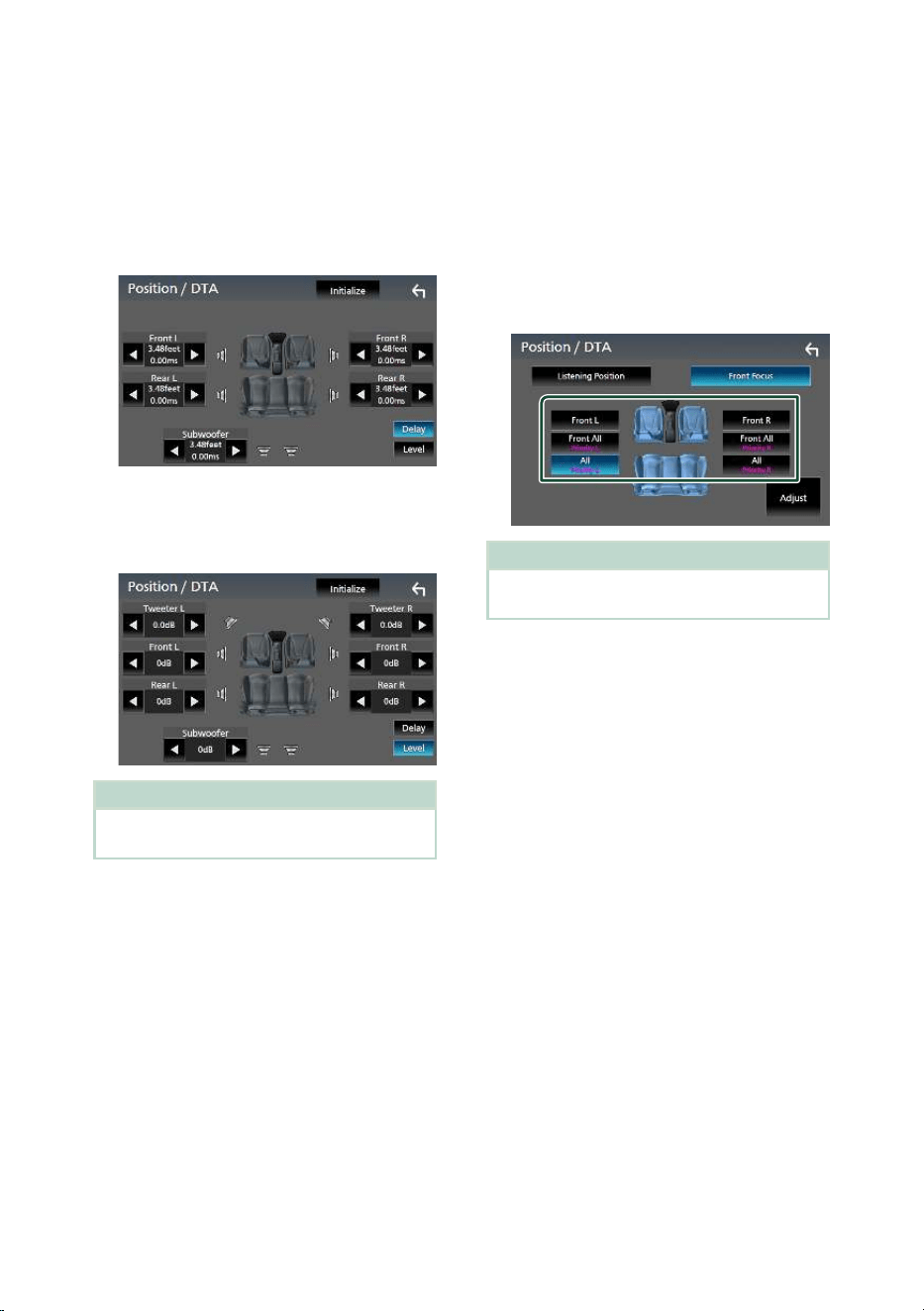
Controlling Audio
78
Position DTA control
You can fine-adjust your listening position.
1
Touch [Adjust].
2
Touch [Delay].
3
Touch [T] or [U] to adjust the delay time of
the selected speaker.
4
Touch [Level].
5
Touch [T] or [U] to adjust the sound level
of the selected speaker.
NOTE
• To initialize the Delay and Level settings, touch
[Initialize] and [Yes ] on the confirmation screen.
Ñ Front Focus
You can focus the imaginary sound image on
the front of the selected seat.
1
Touch [Front Focus] on the Position / DTA
screen.
2
Select a front focus position.
For [Front All] and [All], select Priority L or R
depending on which side you want to put
the imaginary sound image.
NOTE
• When the 3-way speaker system is selected, front
focus feature is disabled.
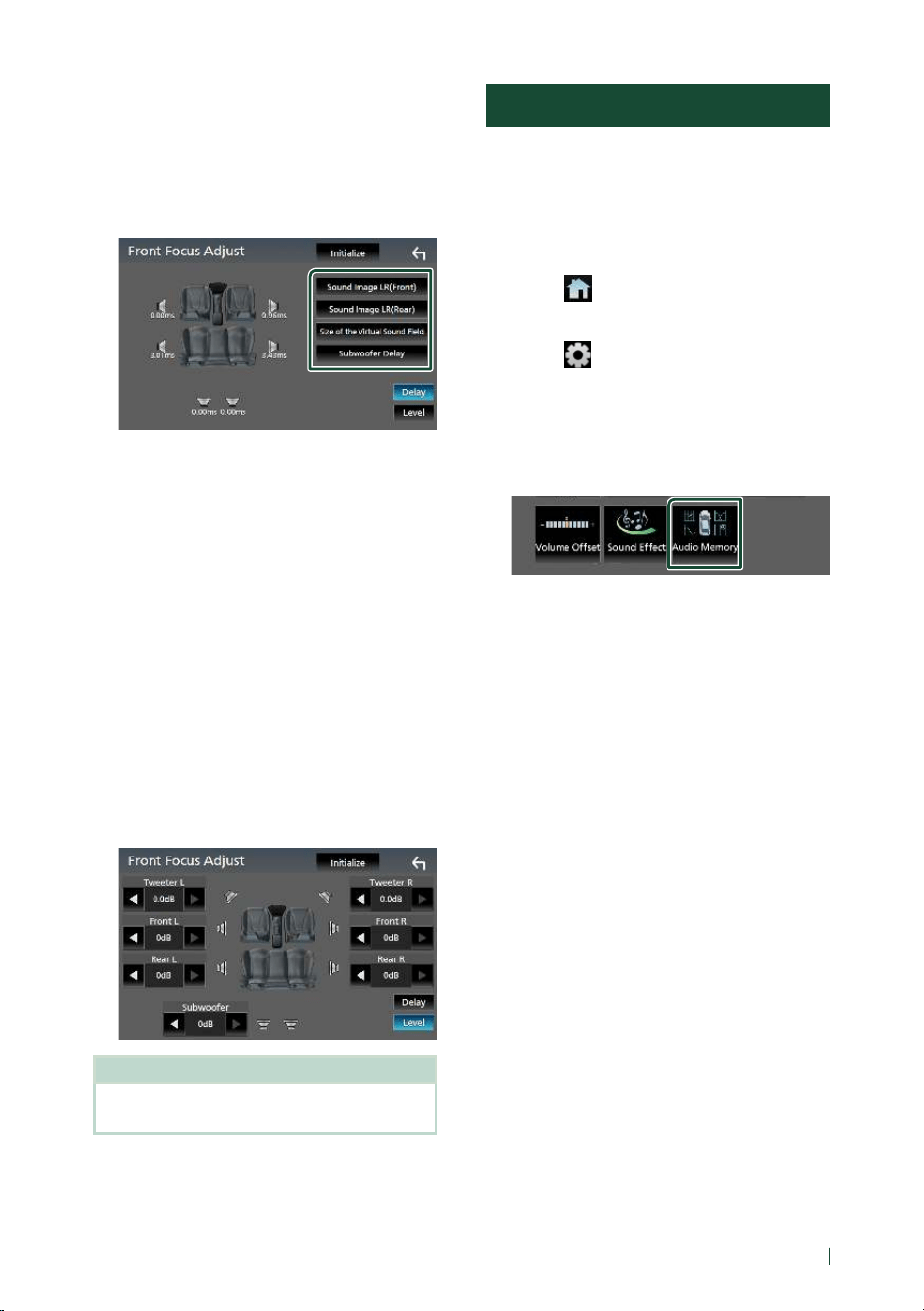
Controlling Audio
79English
Ñ Front Focus fine adjustment
1
Touch [Adjust].
2
Touch [Delay].
3
Set each parameter as follows.
■ [Sound Image LR (Front)]
Focus the sound image on the front of front
seats.
■ [Sound Image LR (Rear)]
Focus the sound image on the front of rear
seats.
■ [Size of the Virtual Sound Field]
Adjust the size of sound image to meet your
taste. If the sound image is shifted from the
front, move it back by [Sound Image LR
(Front)] or [Sound Image LR (Rear)].
■ [Subwoofer Delay]
Adjust the delay time of subwoofer sound.
4
Touch [Level].
5
Touch [T] or [U] to adjust the sound level
of the selected speaker.
NOTE
• To initialize the Delay and Level settings, touch
[Initialize] and [Yes ] on the confirmation screen.
Audio Setup memory
Audio Control settings can be memorized.
The memorized settings can be recalled at any
time.
1
Press the [FNC] button.
hh Popup menu appears.
2
Touch [ ].
hh HOME screen appears.
3
Touch [ ].
hh SETUP screen appears.
4
Touch [Audio].
hh Audio screen appears.
5
Touch [Audio Memory].
■ [SETUP Memory]
Lock or unlock the Audio SETUP Memory/
Recall/Clear.
■ [Audio SETUP Memory]
Memorize the current audio settings.
• Fader / Balance, Speaker / X’over, Equalizer
(User Preset, SW Level), Position / DTA,
Sound Effect ( P. 71)
■ [Audio SETUP Recall]
Recall the memorized audio setting.
■ [Audio SETUP Clear]
Clear the Audio SETUP Memory and the
currently memorized audio settings.
If the iDatalink (commercially available) is
connected, the audio settings revert to the
values set by the iDatalink.
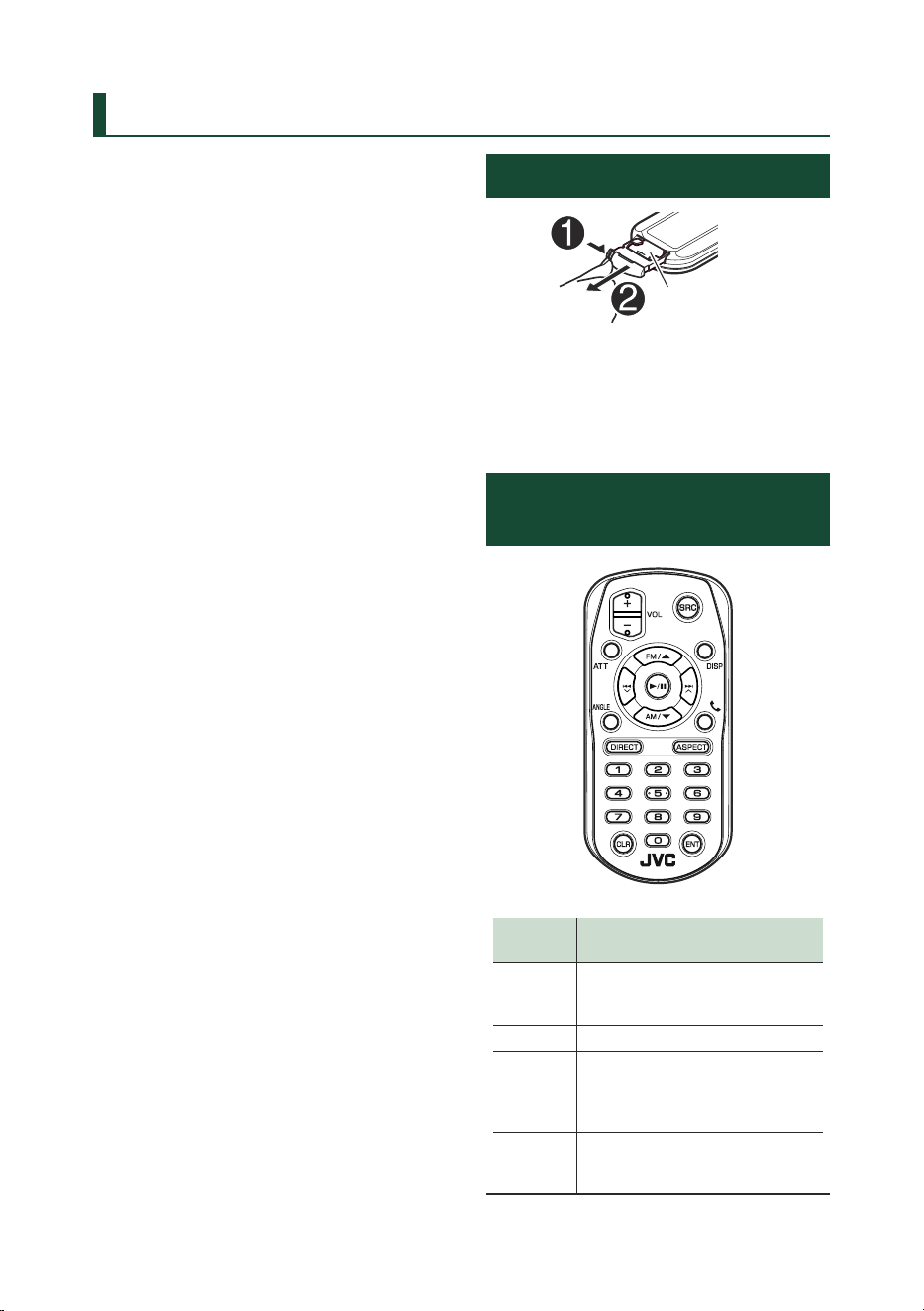
Remote control
80
Remote control
This unit can be operated using the remote
control.
The remote control is the optional accessory
(RM-RK258).
# WARNING
• Do not ingest the battery, Chemical Burn
Hazard
The remote control supplied with this product
contains a coin/button cell battery. If the coin/
button cell battery is swallowed, it can cause
severe internal burns in just 2 hours and can
lead to death.
Keep new and used batteries away from
children. If the battery compartment does not
close securely, stop using the product and
keep it away from children.
If you think batteries might have been
swallowed or placed inside any part of the
body, seek immediate medical attention.
# CAUTION
• Risk of fire or explosion if the battery is
replaced by an incorrect type. Ensure to
replace only with the same type.
• Risk of fire, explosion or the leakage of
flammable liquid or gas if the battery is left in
an extremely high temperature surrounding
environment and/or subjected extremely
low air pressure. The battery pack or batteries
shall not be exposed to excessive heat such as
sunshine, fire or the like.
• Risk of fire, explosion or the leakage of
flammable liquid or gas if the battery is
disposed into fire or a hot oven, recharged,
shorted, mechanically crushed or cut of the
battery.
• If spilled fluid comes in contact with your eyes
or on clothing, immediately rinse with water
and consult a physician.
Battery Installation
CR2025 (+side)
• Use a commercially available button battery
(CR2025).
• Insert the battery with the + and – poles
aligned properly.
– If the effectiveness of the remote controller
decreases, replace the battery.
Functions of the Remote
control Buttons
Key
Name
Function
SRC Switches to the source to be played.
In Hands-Free mode, hangs up the
phone.
VOL + – Adjusts the volume.
AT T Lowers the volume when pressed
once.
Restores the previous volume when
pressed twice.
DISP Switches the screen between the
current source and the App screen
from the connected iPhone/Android.
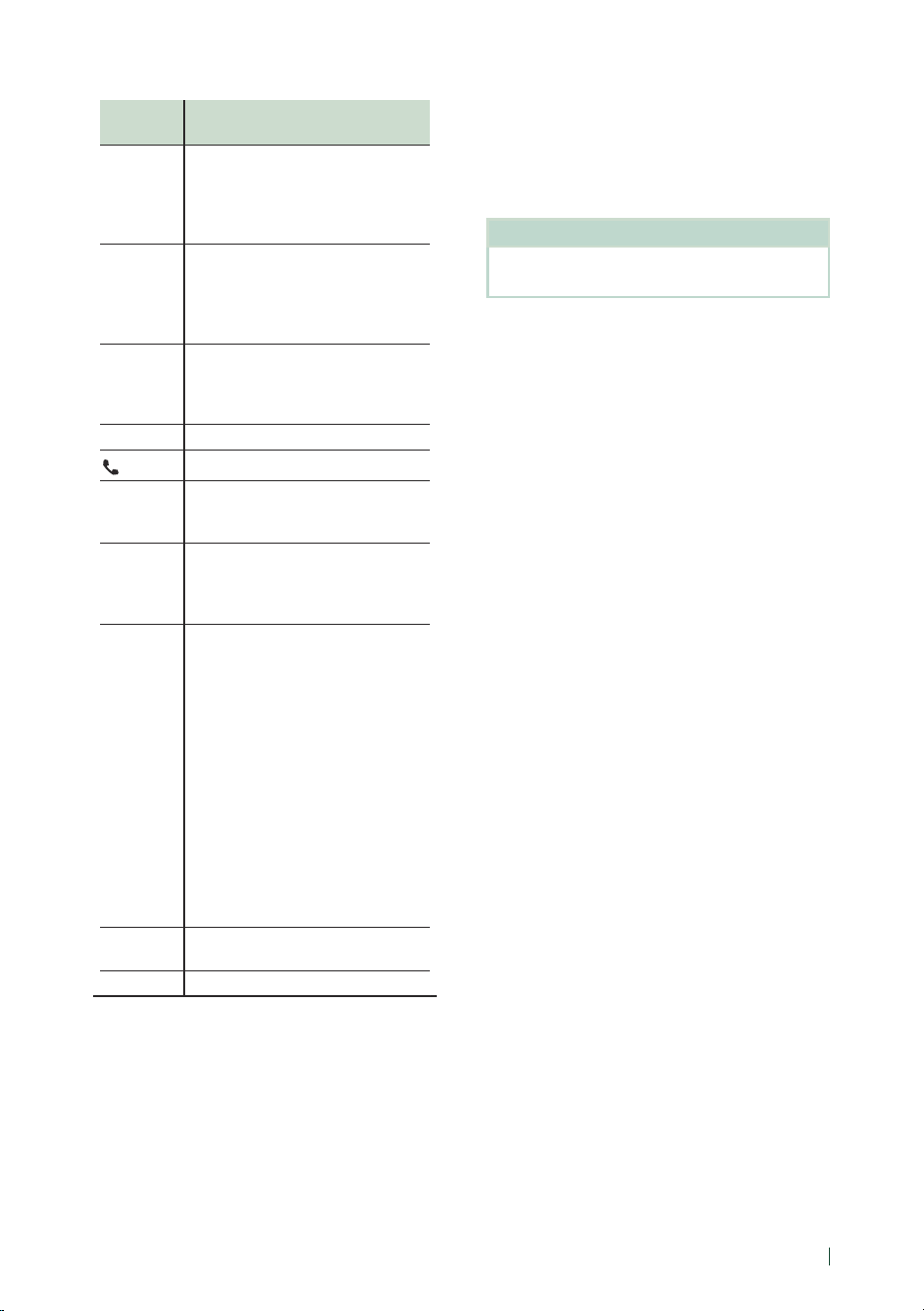
Remote control
81English
Key
Name
Function
D/H
Pauses the track or file, and resumes
playing by pressing twice.
For the tuner source, switches seek
mode.
Not used for the SiriusXM source.
FM/R
AM/S
Selects the folder to be played.
For the tuner source, selects FM/AM
band to be received.
For the SiriusXM source, selects the
band to be received.
E 2
F 3
Selects the track or file to be played.
For the tuner and SiriusXM sources,
switches to broadcast stations
received by the unit.
ANGLE Not used.
When a call comes in, answers the call.
DIRECT Switches to the direct search mode.
For details on the direct search mode,
see Direct search mode (P.81).
ASPECT Changes the aspect ratio.
• To confirm the current aspect ratio
setting, operate on the touch panel.
( P.63)
Numeric
Keypad
• Allows you to enter the number to
search in the direct search mode.
For details on the direct search
mode, see Direct search mode
( P.81).
• For the tuner and SiriusXM sources,
allows you to enter the preset
number.
– If the preset number is single
digit, press the number.
– If the preset number is double
digits, press continuously the
numbers within 3 seconds.
– Pressing [E] or [F] within 3
seconds allows you to determine
the preset number of single digit.
CLR Deletes a character while in direct
search mode.
ENT Performs the selected function.
Ñ Direct search mode
Using the remote control, you can jump
directly to the desired frequency and channel
by entering the number corresponding to the
content.
NOTE
• This operation cannot be performed for the USB
device and iPod.
1
Press the [DIRECT] button several times
until the desired content appears.
The available contents are different
depending on the source type.
■ Tuner
Frequency value
■ SiriusXM
Channel number
2
Enter the number of the content you want
to play using the numeric keypad.
3
Press the [E] or [F] button.
hh The content corresponding to the
number you entered is played.
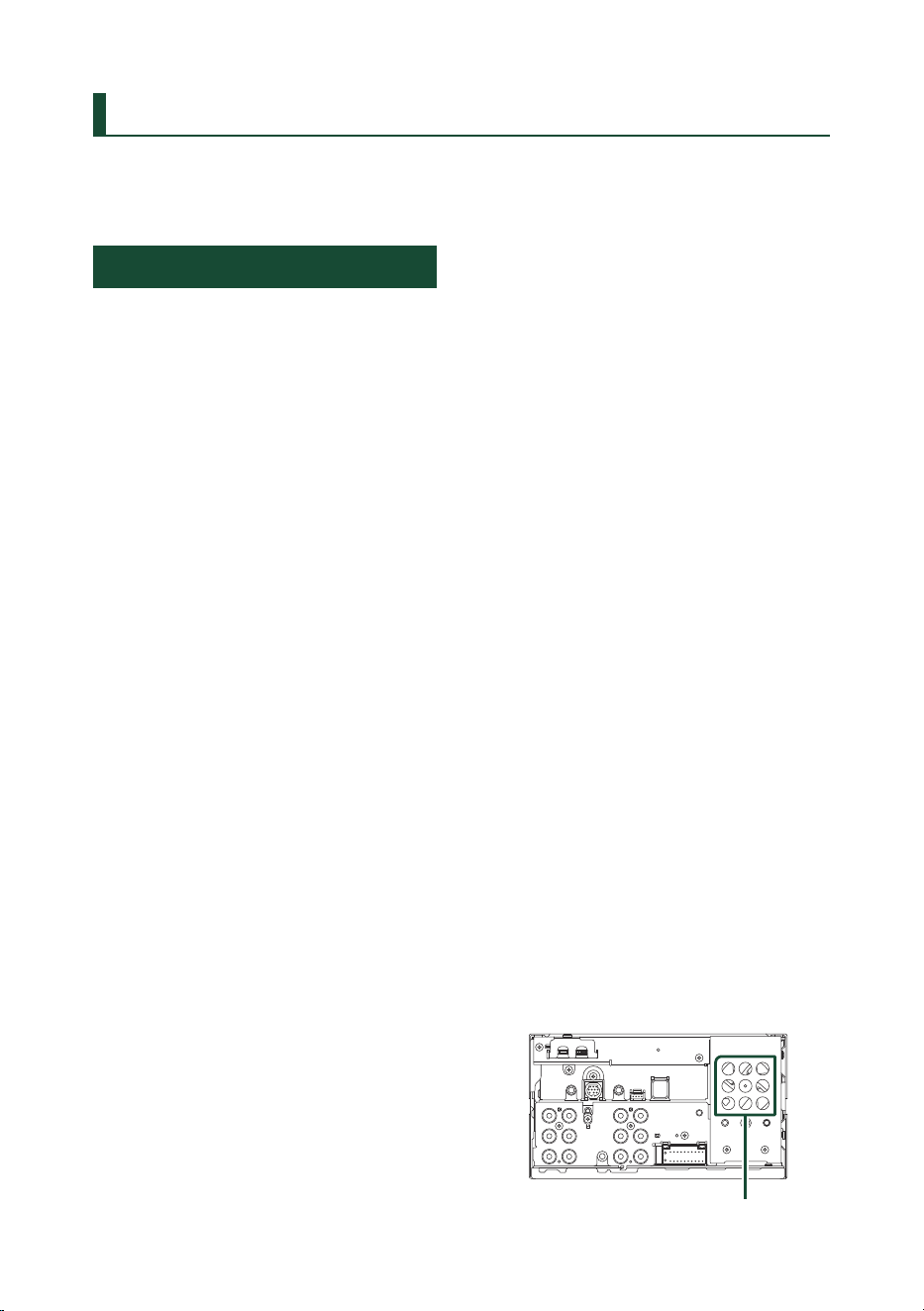
Connection/Installation
82
Connection/Installation
This section is for the professional installer.
For safety's sake, leave wiring and mounting to
professionals. Consult the car audio dealer.
Before Installation
Before installation of this unit, please note the
following precautions.
# WARNINGS
• If you connect the ignition wire (red) and
the battery wire (yellow) to the car chassis
(ground), you may cause a short circuit, that
in turn may start a fire. Always connect those
wires to the power source running through
the fuse box.
• Do not cut out the fuse from the ignition wire
(red) and the battery wire (yellow). The power
supply must be connected to the wires via
the fuse.
# CAUTION
• Install this unit in the console of your vehicle.
Do not touch the metal part of this unit during
and shortly after the use of the unit. Metal part
such as the heat sink and enclosure become
hot.
NOTE
• Mounting and wiring this product requires
skills and experience. For best safety, leave the
mounting and wiring work to professionals.
• Make sure to ground the unit to a negative 12V
DC power supply.
• Do not install the unit in a spot exposed to
direct sunlight or excessive heat or humidity.
Also avoid places with too much dust or the
possibility of water splashing.
• Do not use your own screws. Use only the
screws provided. If you use the wrong screws,
you could damage the unit.
• If the power is not turned ON (“There is an
error in the speaker wiring. Please check the
connections.” is displayed), the speaker wire
may have a short-circuit or touched the chassis
of the vehicle and the protection function may
have been activated. Therefore, the speaker
wire should be checked.
• If your car’s ignition does not have an ACC
position, connect the ignition wires to a power
source that can be turned on and off with the
ignition key. If you connect the ignition wire to
a power source with a constant voltage supply,
such as with battery wires, the battery may be
drained.
• If the console has a lid, make sure to install the
unit so that the front panel will not hit the lid
when closing and opening.
• If the fuse blows, first make sure the wires are
not touching to cause a short circuit, then
replace the old fuse with one with the same
rating.
• Insulate unconnected wires with vinyl tape or
other similar material. To prevent a short circuit,
do not remove the caps on the ends of the
unconnected wires or the terminals.
• Connect the speaker wires correctly to the
terminals to which they correspond. The unit
may be damaged or fail to work if you share
the ¤ wires or ground them to any metal part
in the car.
• When only two speakers are being connected
to the system, connect the connectors either
to both the front output terminals or to both
the rear output terminals (do not mix front
and rear). For example, if you connect the ¢
connector of the left speaker to a front output
terminal, do not connect the ¤ connector to
a rear output terminal.
• After the unit is installed, check whether the
brake lamps, blinkers, wipers, etc. on the car
are working properly.
• This unit has the cooling fan to decrease the
internal temperature. Do not mount the unit
in a place where the cooling fan of the unit is
blocked. Blocking these openings will inhibit
the cooling of the internal temperature and
result in malfunction.
Cooling fan
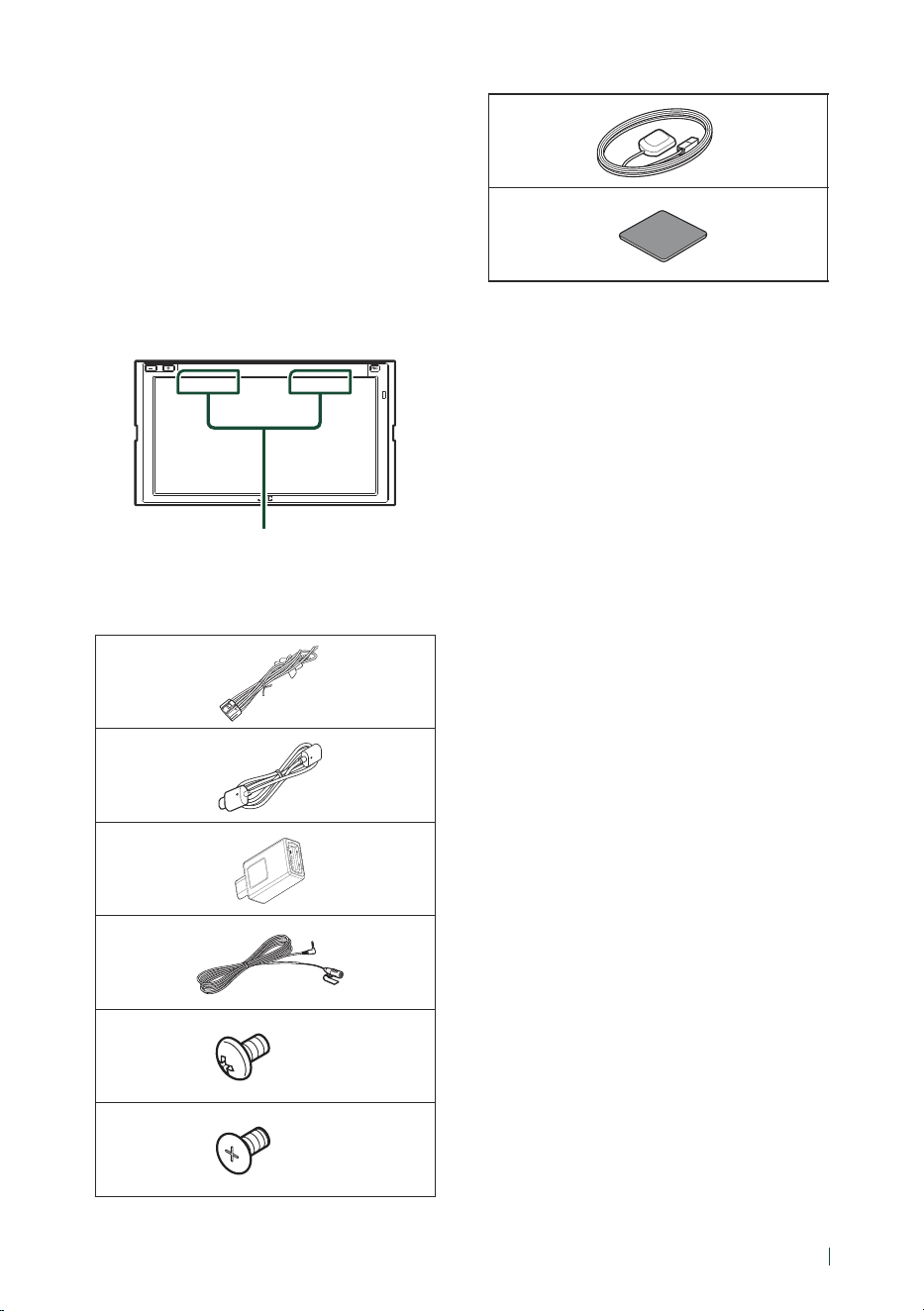
Connection/Installation
83English
• Mount the unit so that the mounting angle is
30° or less.
• Do not connect anything to the terminal
printed with "NC". "NC" means "Non
Connection" or "No Connecting". If other
signals are supplied to the terminal, the unit
may not work properly.
• Do not press hard on the panel surface when
installing the unit to the vehicle. Otherwise
scars, damage, or failure may result.
• Reception may drop if there are metal objects
near the Bluetooth/Wi-Fi antenna.
Bluetooth/Wi-Fi antenna unit
Ñ Supplied accessories for
installation
1
x1
2
x1
3
x1
4
(3 m)
x1
5
(M5 x 8 mm)
x6
6
(M5 x 8 mm)
x6
7
(3.5 m)
x1
8
x1
Ñ Installation procedure
1) To prevent a short circuit, remove the key
from the ignition and disconnect the ¤
terminal of the battery.
2) Make the proper input and output wire
connections for each unit.
3) Connect the speaker wires of the wiring
harness.
4) Connect the wiring harness wires in the
following order; ground, battery, ignition.
5) Connect the wiring harness connector to the
unit.
6) Install the unit in your car.
7) Reconnect the ¤ terminal of the battery.
8) Perform the Initial Setup.
See Initial SETUP (P.8).
(1 m)
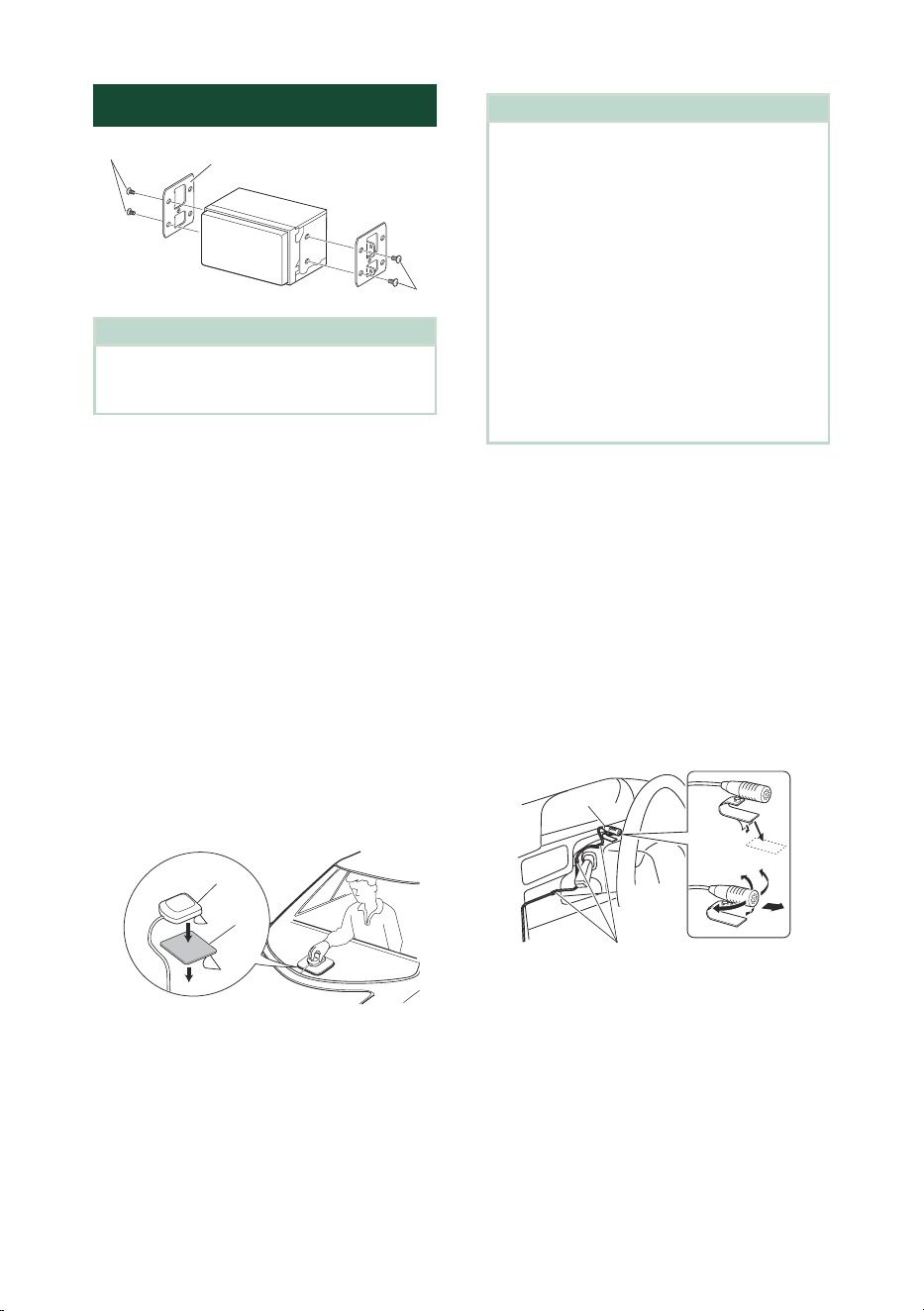
Connection/Installation
84
Installing the unit
5 or 6
5 or 6
Car Bracket
NOTE
• Make sure that the unit is installed securely in
place. If the unit is unstable, it may malfunction
(eg, the sound may skip).
Ñ GPS antenna
GPS antenna is installed inside of the car. It
should be installed as horizontally as possible
to allow easy reception of the GPS satellite
signals.
To mount the GPS antenna inside your vehicle:
1) Clean your dashboard or other surface.
2) Remove the separator of the metal plate
(accessory 8).
3) Press the metal plate (accessory 8) down
firmly on your dashboard or other mounting
surface. You can bend the metal plate
(accessory 8) to conform to a curved surface,
if necessary.
4) Remove the separator of the GPS antenna
(accessory 7), and stick the antenna to the
metal plate (accessory 8).
8
7
NOTE
• Use the supplied GPS antenna. Using the GPS
antenna other than the supplied one may cause a
drop in positioning accuracy.
• Depending on the type of car, reception of the
GPS satellite signals might not be possible with
an inside installation.
• Please install this GPS antenna in an area away
from any antennas that are used with CB radios or
satellite televisions.
• The GPS antenna should be installed at a position
that is spaced at least 12 inch (30 cm) from
smartphone/cell-phone or other transmitting
antennas. Signals from the GPS satellite may be
interfered with by these types of communication.
• Painting the GPS antenna with (metallic) paint
may cause a drop in performance.
Ñ Microphone unit
1) Check the installation position of the
microphone (accessory 4).
2) Clean the installation surface.
3) Remove the separator of the microphone
(accessory 4), and stick the microphone to
the place shown below.
4) Wire the microphone cable up to the unit
with it secured at several positions using tape
or other desired method.
5) Adjust the direction of the microphone
(accessory 4) to the driver.
4
Fix a cable with a commercial item of tape.
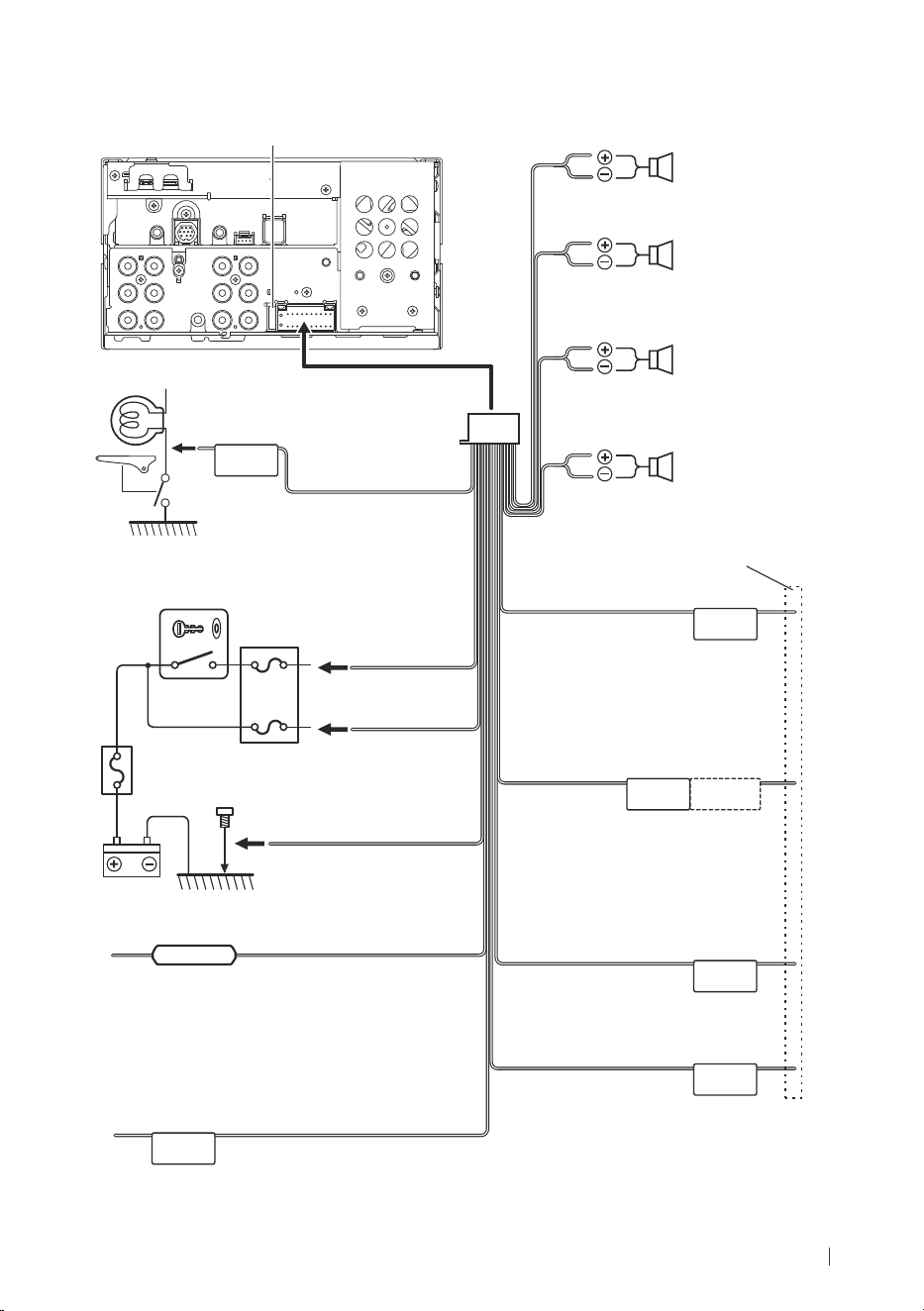
Connection/Installation
85English
Ñ Connecting wires to terminals
ILLUMI
ANT CONT
STEERING WHEEL
REMOTE INPUT
REMOTE CONT
PRK SW
REVERSE
P. CONT
S SENS
Fuse (15A)
When using the optional power amplifier,
connect to its power control terminal. (Max.
200mA, 12V)
Depending on what antenna you are using,
connect either to the control terminal of the
motor antenna, or to the power terminal for
the booster amplifier of the film-type antenna.
(Max. 300mA, 12V)
Blue/White
(Power control wire)
Blue
(Antenna control wire)
To car light control switch
Orange/White
(Dimmer control wire)
Purple/White
(Reverse sensor wire) (2 m)
Light Blue/Yellow
(Steering remote control wire)
Connect to vehicle’s reverse lamp harness when
using the optional rear view camera.
To steering remote
To use the steering wheel remote control
feature, you need an exclusive remote
adapter (not supplied) matched to your car.
If no connections are made, do not let
the cable come out from the tab.
Purple/Black
To rear right speaker
To rear left speaker
To front right speaker
To front left speaker
Speaker impedance: 4-8 Ω
Other cable : Not used.
Purple
Green/Black
Green
Gray/Black
Gray
White/Black
White
Accessory 1
Connect to the vehicle’s
parking brake detection switch
harness.
Light Green
(Parking sensor wire)
(2 m)
For best safety, be sure to
connect the parking sensor.
Ignition key switch
Red
(Ignition wire)
Yellow
(Battery wire)
Car fuse box
Battery
Black
(Ground wire) ¤
(To car chassis)
Pink (Speed Pulse Input) (2 m)
Connect to the vehicle’s speed pulse harness.
Do not cut the "S SENS" tag or failure may result.
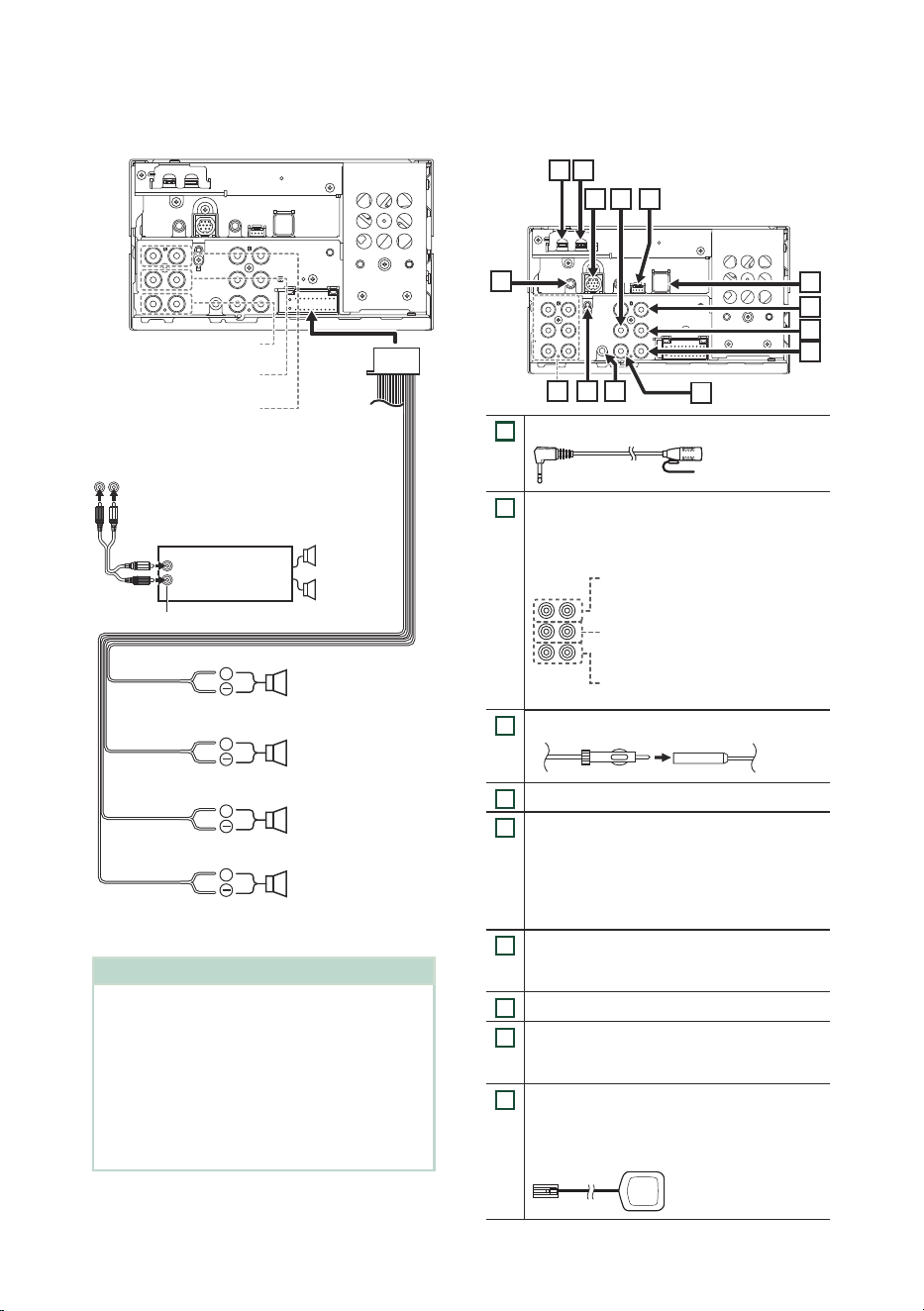
Connection/Installation
86
Ñ 3-way speaker system setup Ñ Connecting the system and
external components
7
6
11
4
1
3
2
1314
5
1012
8
9
1
Accessory 4: Microphone
2
When connecting to an external amplifier,
connect its ground wire to the car’s chassis to
avoid damaging the unit.
Rear Audio Preout
(Left; White, Right; Red)
Front Audio Preout
(Left; White, Right; Red)
Subwoofer Preout
(Left; White, Right; Red)
3
FM/AM antenna input
4
AV-IN (for audio) input (ø3.5 mini jack)
5
VIDEO Input (Yellow)
Connect a RCA cable (sold separately) to VIDEO
input terminal to use AV-IN (for visual) or Side
(Left or Right) view camera Input (Yellow).
For more information, see To set up the
camera assignment settings (P.48).
6
Front view camera input (Yellow) *
1
For more information, see To set up the
camera assignment settings (P.48).
7
Rear view camera input (Yellow)
8
3rd view camera input (Yellow)
For more information, see To set up the
camera assignment settings (P.48).
9
Accessory 7: GPS Antenna
Use the supplied GPS antenna. Using the GPS
antenna other than the supplied one may
cause a drop in positioning accuracy.
+
+
+
+
When connecting to an external amplifier,
connect its ground wire to the car’s chassis to
avoid damaging the unit.
White/Black
Gray/Black
Green/Black
Purple/Black
Speaker impedance: 4-8 Ω
Purple
Green
Gray
White
To mid range left
speaker
Subwoofer Preout
To mid range right
speaker
Mid Range Preout
To tweeter left speaker
Tweeter Preout
To tweeter right
speaker
Power amplifier
(optional
accessory)
RCA Cable
(Sold separately)
Input
Speaker
Preout
NOTE
• For speaker system setup, see 3-way speaker
system setup (P.71).
• For speaker setup and crossover setup, see
Speaker / X’over setup (P.72).
• For how to connect speaker wires to terminals
other than speaker terminals and Preout
terminals, see Connecting the system and
external components (P.86) and Connecting
wires to terminals (P.85).
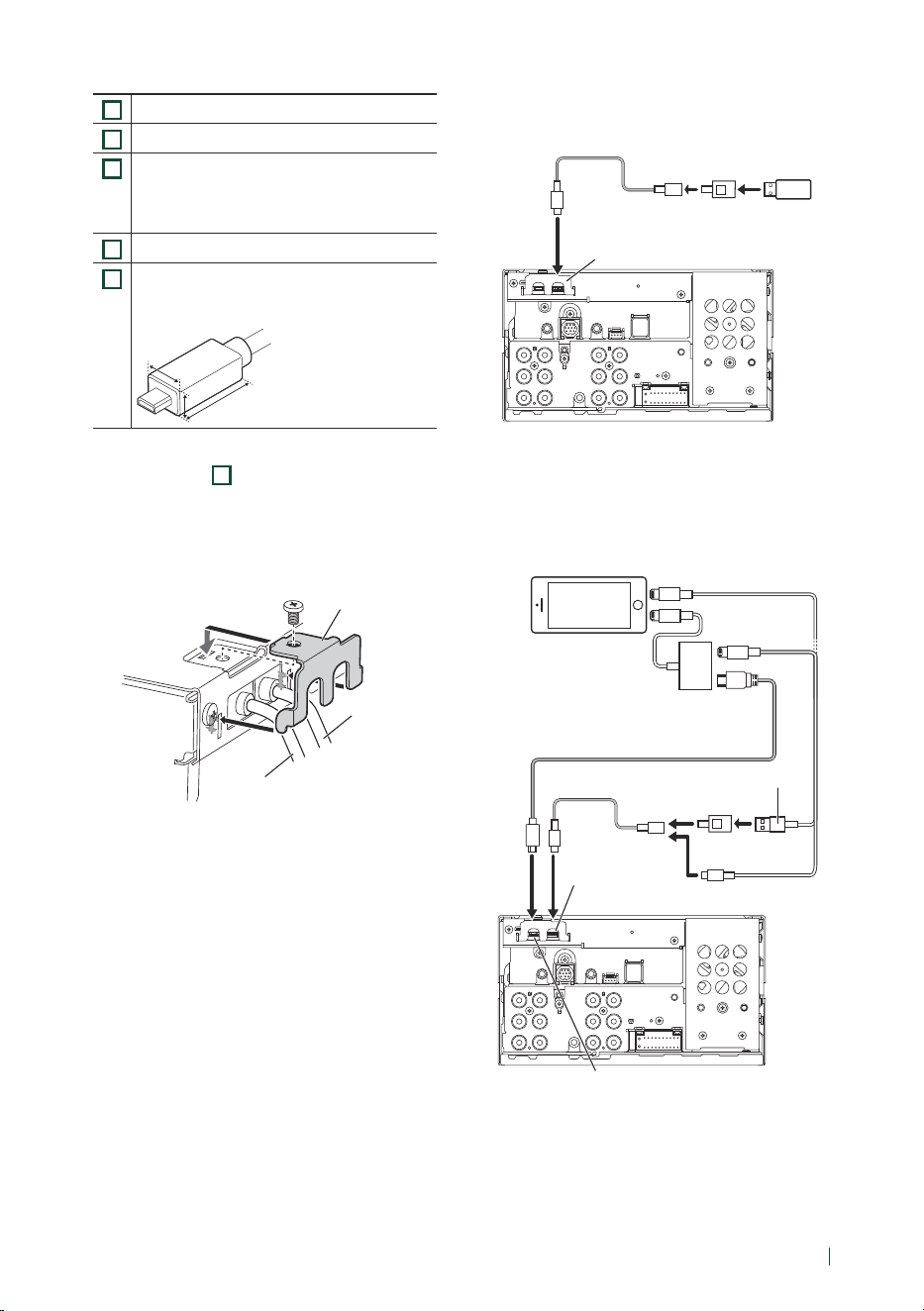
Connection/Installation
87English
10
iDatalink connector
11
VIDEO Output (Yellow)
12
SiriusXM Connect Vehicle Tuner connector
For more information on how to install the
SiriusXM Connect Vehicle tuner, consult the
installation guide included with the tuner.
13
USB terminal (USB Type-C®)
14
HDMI input (Type-D)
Connect a KS-U70 (optional accessory) to HDMI
input terminal.
W
H
D
W: 11.1 mm or less
H: 7.7 mm or less
D: 21.5 mm or less
W
H
D
*1 Side (Left or Right) view camera can also be
connected to
6
.
Installation/removal of fixing bracket
When you connect the cable to HDMI terminal
and USB terminal, remove the fixture. After
connecting the cable, put the fixture again.
Fixture
USB cable
HDMI cable
Ñ Connecting a USB device
Accessory 2 (1.0 m)
Accessory 3
USB terminal
[1]
USB Type-A device
[2]
[1]
USB maximum power supply current :
DC 5 V = 3.0 A
[2]
Sold separately
Ñ Connecting an iPod/iPhone
KS-U70 (1.8 m)
[3]
iPod/iPhone
[2]
USB-C to Lightning Cable
[2]
USB terminal
[1]
HDMI terminal
Lightning Digital
AV Adapter
[2]
KS-U62 (0.8 m)
[3]
Accessory 3
Accessory 2 (1.0 m)
[1]
USB maximum power supply current :
DC 5 V = 3.0 A
[2]
Sold separately
[3]
Optional accessory
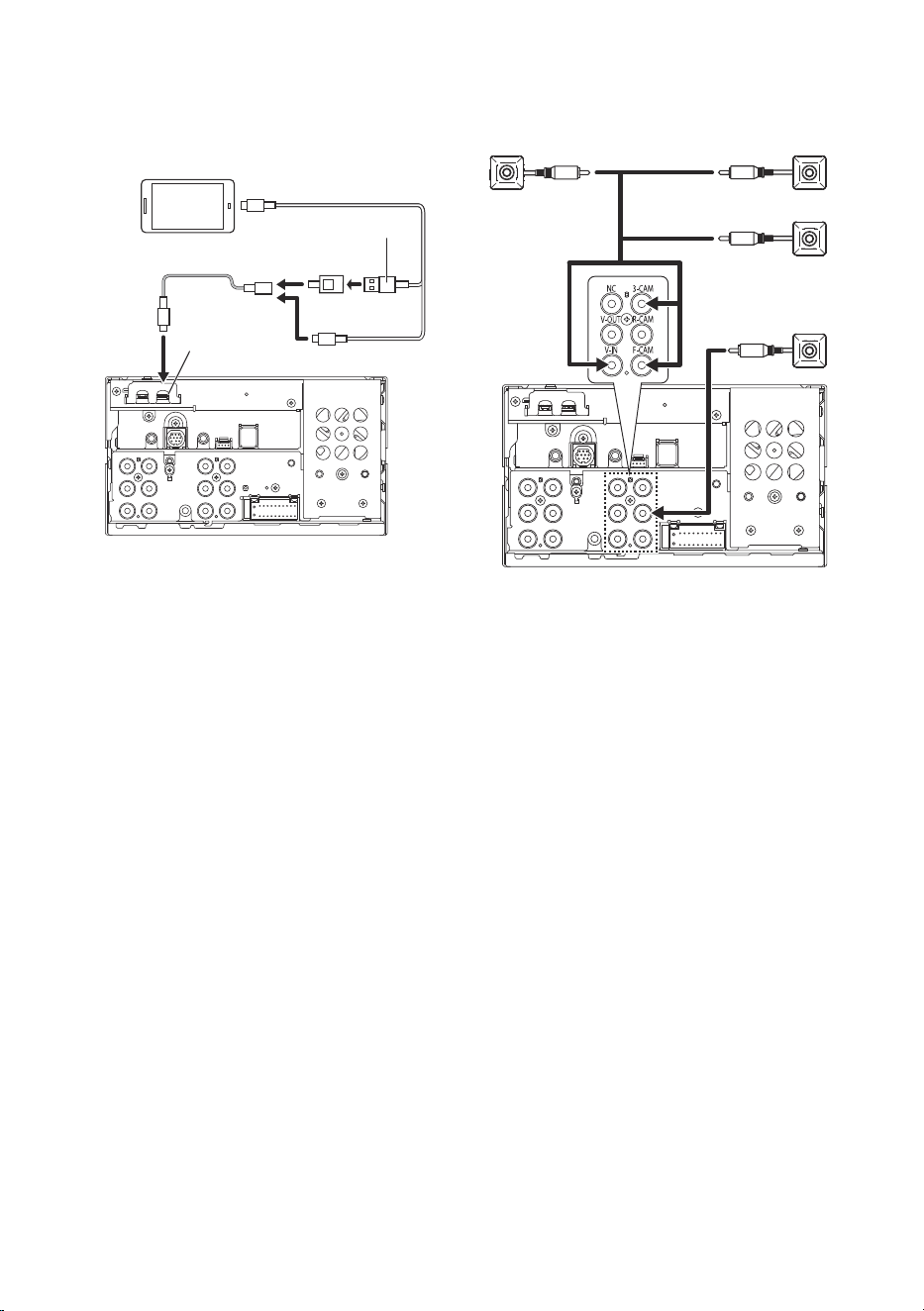
Connection/Installation
88
Ñ Connecting an Android
smartphone
USB Type-A Cable
[2]
Android smartphone
[2]
USB terminal
[1]
USB Type-C Cable
[2]
Accessory 2 (1.0 m)
Accessory 3
[1]
USB maximum power supply current :
DC 5 V = 3.0 A
[2]
Sold separately
Ñ Connecting the camera
[2]
Front view camera
[1]
Left side view camera
[1]
Right side view camera
[1]
Rear view
camera
[1]
[1]
Sold separately
[2]
See Camera Assignment Settings (P.47).
Troubleshooting
89English
Troubleshooting
Problems and Solutions
If any trouble occurs, first check the following
table for possible problems.
NOTE
• Some functions of this unit may be disabled by
some settings made on this unit.
• What might seem to be a malfunction in your
unit may just be the result of slight misoperation
or miswiring.
Ñ About settings
• Cannot set up the subwoofer.
• Cannot set up subwoofer phase.
• No output from the subwoofer.
• Cannot set up the low pass filter.
• Cannot set up the high pass filter.
Subwoofer is not set to on.
h Set the subwoofer to on. See Speaker / X’over
setup (P.72).
Ñ About audio operations
Radio reception is poor.
The car antenna is not extended.
h Pull out the antenna all the way.
The antenna control wire is not connected.
h Connect the wire correctly. See Connecting the
system and external components (P.86).
Cannot select a folder.
The random play function is enabled.
h Turn off the random function.
Ñ Others
The Touch Sensor Tone doesn’t sound.
The preout jack is being used.
h The Touch Sensor Tone cannot be output from the
preout jack.
Error Messages
When you fail to operate the unit correctly, the
cause of the failure appears as the message on
the screen.
There is an error in the speaker wiring. Please
check the connections.
Protective circuit has been activated because a speaker
cord has shorted or it has come in contact with the car
chassis.
h Wire or insulate the speaker cord as appropriate and
turn the power off and on again.
Hot Error
When the internal temperature of this unit rises to 60°C
or more, the protection circuit is activated and you may
not be able to operate the unit.
h Use the unit again after reducing the temperature
of the unit.
Error 07–67
The unit is not operating correctly due to some reason
or other.
h Turn the power off and on again. If the “Error 07−67”
message does not disappear, contact your nearest
JVC dealer.
No Device (USB device)
The USB device is selected as a source although no USB
device is connected.
h Change the source to any source other than USB/
iPod. Connect a USB device, and change the source
to USB again.
Disconnected (iPod, Bluetooth audio device)
The iPod/Bluetooth audio device is selected as a source
although no iPod/Bluetooth audio device is connected.
h Change the source to any source other than iPod/
Bluetooth. Connect an iPod/Bluetooth audio device,
and change the source to iPod/Bluetooth again.
No Media file
The connected USB device contains no playable audio
file. Media was played that does not have data recorded
that the unit can play.
h See Playable Media and Files (P.91).
USB device over current status detected.
The connected USB device is rated a current capacity
higher than the allowable limit.
h Check the USB device. Some trouble may have
occurred to the connected USB device.
h Change the source to any source other than USB.
Remove the USB device.

Troubleshooting
90
Ñ SiriusXM
Check Tuner
A SiriusXM tuner is not connected to this unit.
h Verify that the SiriusXM Connect Vehicle Tuner cable
is securely connected to the radio.
Subscription Updated - Press Return To Continue
The SiriusXM subscription has been renewed.
h Touching [Return] on the popup screen will clear
the message.
SXM Chan Unavailable
The currently selected channel is unavailable.
h Visit www.siriusxm.com for more information about
the SiriusXM channel lineup.
SXM Ch Unsubscribed
The currently selected channel is not subscribed to.
h In the U.S.A., visit www.siriusxm.com or call
1-866-635-2349 if you have questions about your
subscription package or would like to subscribe to
this channel.
h In Canada, visit www.siriusxm.ca/activate or call
1-888-539-7474.
SXM Check Antenna
No antenna is connected to the SiriusXM tuner.
h Check that an antenna is connected to the SiriusXM
tuner. Check antenna for damages.
SXM No Signal
No SiriusXM radio signal is received.
h Verify that your vehicle is outdoors with a clear view
of the sky.
Channel Locked
The selected channel has been locked by the parental
controls.
h Enter the unlock code when you are asked. See
Parental Control (P.42).
Incorrect Pass Code entered
The selected channel is a mature or parental lock
channel, and locked by the parental lock or user lock
code.
h Enter the correct lock code.
Ñ Apple CarPlay
The GPS antenna must be connected to use
Apple CarPlay wirelessly. Please verify the proper
connections or plug in by USB to use Apple
CarPlay.
The GPS antenna is not connected when the Apple
CarPlay is started by connecting wirelessly or when
the iPhone compatible with wireless Apple CarPlay is
registered in [Device List].
h Check the connection of the GPS antenna or plug in
over USB to use Apple CarPlay.
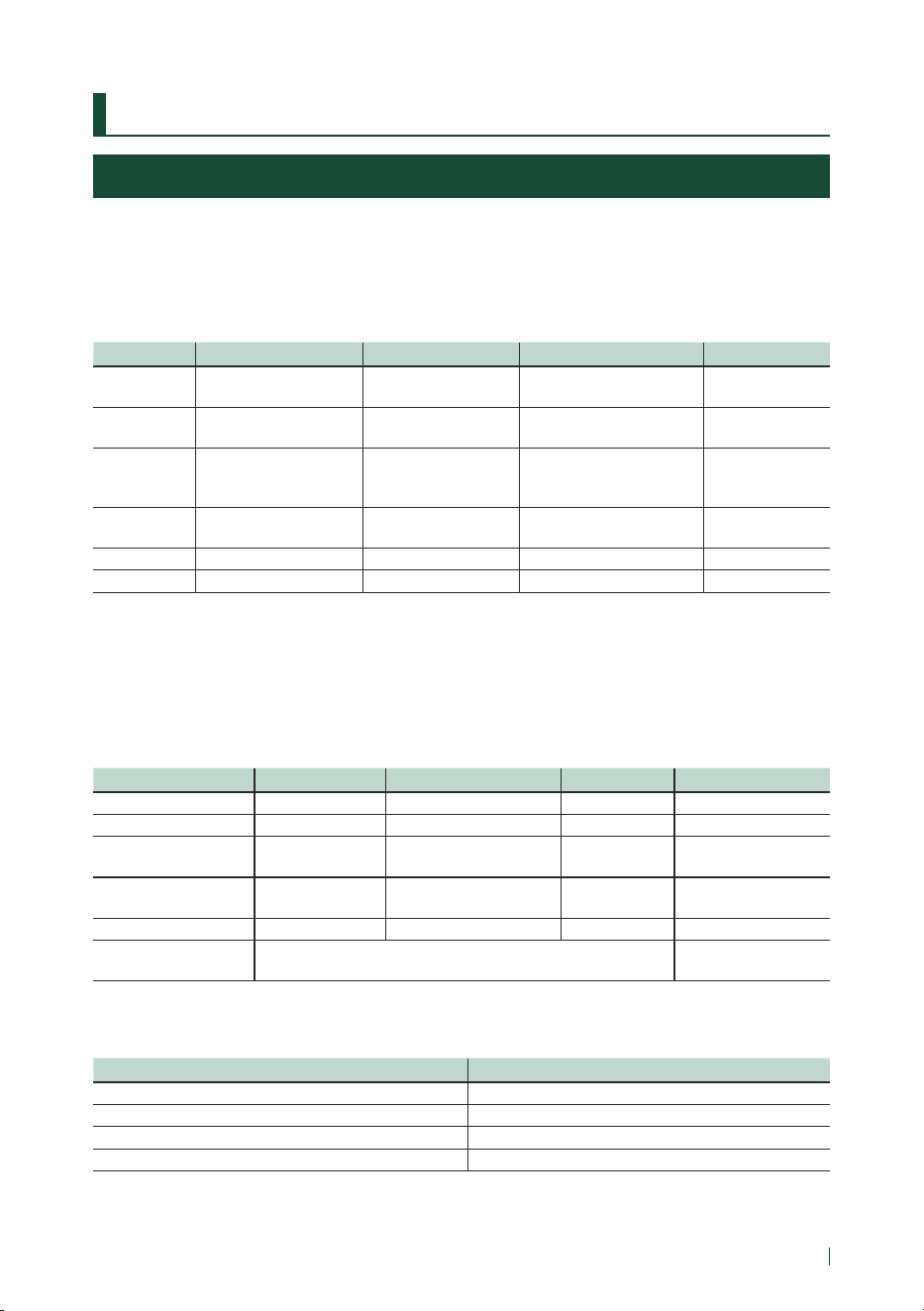
Appendix
91English
Appendix
Playable Media and Files
You can play various kinds of media and files on this unit.
Ñ About files
The following audio and video files are supported.
■ Playable Audio files
Format Bit rate Sampling frequency Bit count
AAC-LC (.m4a) MPEG-2/MPEG-4 AAC LC
HE-AAC(V1,V2)
8 – 320kbps, VBR 16 – 48 kHz 16 bit
MP3 (.mp3) MPEG-1/MPEG-2 Audio
Layer 3
8 – 320kbps, VBR 16 – 48 kHz 16 bit
WMA (.wma) Windows Media Audio
Standard L3 profile
(Version 7,8,9)
8 – 320kbps 16 – 48 kHz 16 bit
Linear PCM
(WAVE) (.wav)
RIFF waveform Audio
Format
–
16 – 192 kHz 16 bit/24 bit
FLAC (.flac, .fla) flac – 16 – 192 kHz 16 bit/24 bit
Vorbis (.ogg) vorbis VBR 16 – 48 kHz 16 bit
• WMA and AAC files with DRM cannot be played.
• Although the audio files complies with the standards listed above, they may not be played depending on the types or
conditions of media or device.
• This unit supports playback of High-Resolution Audio files.
It is recommended that a car audio system should be configured with all High-Resolution Audio compatible products
from player to speaker to enjoy its high quality sound.
■ Acceptable Video files
Profile Max. Picture size Max. bit rate Audio format
MPEG-1 (.mpg, .mpeg) – 352 × 240, 352 × 288 1.5 Mbps MPEG Audio Layer 2
MPEG-2 (.mpg, .mpeg) MP@ML 720 × 480, 720 × 576 8 Mbps MPEG Audio Layer 2
H.264/MPEG-4 AVC
(.mp4, .m4v, .avi, .flv, .f4v)
Baseline Profile,
Main Profile
1920 × 1080 (30 fps) 8 Mbps MP3, AAC
MPEG-4 (.mp4, .avi) Advanced Simple
Profile
1920 × 1080 (30 fps) 8 Mbps MP3, AAC
WMV (.wmv) Main Profile 1920 × 1080 (30 fps) 8 Mbps WMA
MKV (.mkv)
Video format follows H.264/MPEG-4 AVC, MPEG-4, WMV
MP3, AAC, WMA, Vorbis,
FLAC
• This unit can only play back files which are smaller than 4 GB.
■ Limitation on structure of file and folder
USB device
Maximum number of folder layers 8
Maximum number of files (per folder) 999
Maximum number of folders (per folder) 9999
Maximum number of folders (per device) Unlimited
• You can enter a folder name and file name with 255 or fewer single-byte characters.
• Files in the folder whose folder name begins with a dot (.) cannot be played.

Appendix
92
Specifications
■ Monitor section
Picture Size
: 6.75 inches (diagonal) wide
: 151.8 mm (W) × 79.68 mm (H)
6 × 3-1/8 inch
Display System
: TN LCD panel
Drive System
: TFT active matrix system
Number of Pixels
: 1,152,000 (800H x 480V x RGB)
Effective Pixels
: 99.99%
Pixel Arrangement
: RGB striped arrangement
Back Lighting
: LED
■ USB interface section
Connector type
: Type-C
USB Standard
: USB 2.0 High Speed
File System
: FAT16, FAT32, exFAT, NTFS
Maximum Power Supply Current
: DC 5 V
3.0 A × 1
D/A Converter
: 24 bit/32 bit
Audio Decoder
: MP3 / WMA / AAC / WAV / FLAC / Vorbis
Video Decoder
: MPEG-1 / MPEG-2 / MPEG-4 / WMV / H.264
Frequency Response
• 192 kHz : 20 – 88,000 Hz
• 96 kHz : 20 – 44,000 Hz
• 48 kHz : 20 – 22,000 Hz
• 44.1 kHz : 20 – 20,000 Hz
Total Harmonic Distortion
: 0.010 % (1 kHz)
S/N Ratio (dB)
: 98.5 dB
Dynamic Range
: 89 dB
■ HDMI section
Connector type
: Type-D
Input Resolution
• VGA (640x480p @ 59.94Hz/60Hz)
• 480p (720x480p @ 59.94Hz/60Hz)
• 720p (1280x720p @ 59.94Hz/60Hz)
Input Audio Type
: 32K/44.1K/48K/88.2K/96K/176.2K/192K Hz
16 bit/20 bit/24 bit Linear PCM
■ Wireless Mirroring section
Mode
: Sink
Copyright protection
: HDCP2.2
Touch Control
: UIBC
■ Wi-Fi section
IEEE Standard
: 802.11 a/b/g/n/ac
Frequency Range
: Dual Band (2.4GHz/5GHz)
Channels
: Auto(1-11ch)/Auto(149,153,157,161ch)
Transfer rates (MAX)
: 11a: 54 Mbps / 11b: 11 Mbps / 11g: 54 Mbps /
11n: 300 Mbps / 11ac: 867 Mbps
■ Bluetooth section
Technology
: Bluetooth Ver.5.0
Frequency
: 2.402 – 2.480 GHz
Maximum Communication range
: Line of sight approx. 10m (32.8 ft)
Audio Codec
: SBC/AAC/LDAC
Profile (Multi Profile support)
• HFP (V1.7) (Hands Free Profile)
• SPP (Serial Port Profile)
• A2DP (Advanced Audio Distribution Profile)
• AVRCP (V1.6) (Audio/Video Remote Control Profile)
• PBAP (Phonebook Access Profile)

Appendix
93English
■ FM tuner section
Frequency Range (step)
Initial: 87.9 MHz – 107.9 MHz (200 kHz)
Area Setting, SA: 87.5 MHz – 108 MHz (50 kHz)
Area Setting, EU: 87.5 MHz – 108 MHz (50 kHz)
Usable Sensitivity (S/N : 30 dB)
: 9.3 dBf (0.8 μV/75 Ω)
Quieting Sensitivity (S/N : 46 dB)
: 10.2 dBf (1.13 μV/75 Ω)
Frequency Response
: 30 Hz – 15 kHz
S/N Ratio (dB)
: 65 dB (MONO)
Selectivity (± 400 kHz)
: Over 80 dB
Stereo Separation
: 45 dB (1 kHz)
■ AM tuner section
Frequency Range (step)
Initial: 530 kHz – 1700 kHz (10 kHz)
Area Setting, SA: 530 kHz – 1700 kHz (10 kHz)
Area Setting, EU: 530 kHz – 1611 MHz (9 kHz)
Usable Sensitivity
: 28 dBμ (25 μV)
■ Video section
Color System of External Video Input
: NTSC
External Audio Max Input Level (mini jack)
: 2 V/25 kΩ
Video Input Level (RCA jacks)
: 1 Vp-p/75 Ω
Video Output Level (RCA jacks)
: 1 Vp-p/75 Ω
■ Audio section
Maximum Power (Front & Rear)
: 50 W × 4
Typical Power Output (Front & Rear)
Full Bandwidth Power (at less than 1% THD)
: 22 W × 4
Output frequency band
: 20 – 88,000 Hz
Preout Level (V)
: 5 V/10 kΩ
Preout Impedance
: ≤ 300 Ω
Speaker Impedance
: 4 – 8 Ω
Graphics equalizer
Band: 13 Band
Frequency (BAND1 – 13)
: 62.5/100/160/250/400/630/1k/1.6k/2.5k/4k/6.3k/
10k/16k Hz
Gain
: -9/-8/-7/-6/-5/-4/-3/-2/-1/0/1/2/3/4/5/6/7/8/9 dB
2-way X'Over
High pass filter
Frequency: Through, 30/40/50/60/70/80/90/100/
120/150/180/220/250 Hz
Slope: -6/-12/-18/-24 dB/Oct.
Gain: -8/-7/-6/-5/-4/-3/-2/-1/0 dB
Low pass filter
Frequency: 30/40/50/60/70/80/90/100/120/150/
180/220/250 Hz, Through
Slope: -6/-12/-18/-24 dB/Oct.
Gain: -8/-7/-6/-5/-4/-3/-2/-1/0 dB
3-way X'Over
High pass filter
Frequency: 250/300/1k/1.6k/2.5k/4k/5k/6.3k/8k/
10k/12.5k Hz
Slope: -12/-18/-24 dB/Oct.
Gain: -8/-7/-6/-5/-4/-3/-2/-1/0 dB
Band pass filter
Frequency: Through, 50/60/70/80/90/100/120/150/
180/220/250/300 Hz
250/300/1k/1.6k/2.5k/4k/5k/6.3k/8k Hz,
Through
Slope: -12/-18/-24 dB/Oct.
Gain: -8/-7/-6/-5/-4/-3/-2/-1/0 dB
Low pass filter
Frequency: 30/40/50/60/70/80/90/100/120/150 Hz,
Through
Slope: -12/-18/-24 dB/Oct.
Gain: -8/-7/-6/-5/-4/-3/-2/-1/0 dB
■ General
Operating Voltage
: 12V DC car battery
Installation Dimensions (W × H × D)
: 178 × 100 × 85 mm
7 × 3-15/16 × 3-3/8 inch
Weight
: 1.3 kg (2.9 lbs)
NOTE
• Although the effective pixels for the liquid crystal
panel is given as 99.99% or more, 0.01% of pixels
may not light or may light incorrectly.
Specifications are subject to change without
prior notice.
Appendix
94
About this Unit
■ Copyrights
• The Bluetooth® word mark and logos are registered
trademarks owned by Bluetooth SIG, Inc. and any use
of such marks by JVCKENWOOD Corporation is under
license. Other trademarks and trade names are those
of their respective owners.
• USB Type-C® and USB-C® are registered trademarks of
USB Implementers Forum.
• LDAC and LDAC logo are trademarks of Sony
Corporation.
• Hi-Res Audio logo and Hi-Res Audio Wireless logo are
used under license from Japan Audio Society.
• Windows Media is a registered trademark or
trademark of Microsoft Corporation in the United
States and/or other countries.
This product is protected by certain intellectual
property rights of Microsoft. Use or distribution of
such technology outside of this product is prohibited
without a license from Microsoft.
• This software is based in part on the work of the
independent JPEG Group.
• Use of the Made for Apple badge means that an
accessory has been designed to connect specifically
to the Apple product(s) identified in the badge and
has been certified by the developer to meet Apple
performance standards. Apple is not responsible for
the operation of this device or its compliance with
safety and regulatory standards. Please note that the
use of this accessory with an Apple product may
affect wireless performance.
• Apple, iPhone, iPod, iPod touch, and Lightning are
trademarks of Apple Inc., registered in the U.S. and
other countries.
• Apple, Siri, Apple CarPlay, Apple Music and Apple
CarPlay logo are trademarks of Apple Inc., registered
in the U.S. and other countries.
• App Store is a service mark of Apple Inc., registered in
the U.S. and other countries.
• IOS is a trademark or registered trademark of Cisco
in the U.S. and other countries and is used under
license.
• SiriusXM and all related marks and logos are
trademarks of Sirius XM Radio, Inc. All rights reserved.
• Google, Android, Google Play and Android Auto are
trademarks of Google LLC.
• To use Android Auto on your car display, you’ll need
an Android Auto compatible vehicle or aftermarket
stereo, an Android phone running Android 6 or
higher, and the Android Auto app.
• Wi-Fi® is a registered trademark of Wi-Fi Alliance®.
• The Wi-Fi CERTIFIED™ Logo is a certification mark of
Wi-Fi Alliance®.
• The terms HDMI, HDMI High-Definition Multimedia
Interface, and the HDMI Logo are trademarks
or registered trademarks of HDMI Licensing
Administrator, Inc.
• Linux® is the registered trademark of Linus Torvalds in
the U.S. and other countries.
• This product includes FontAvenue® fonts licenced
by NEC Corporation.FontAvenue is a registered
trademark of NEC Corporation.
• This product includes "Ubiquitous QuickBoot™"
technology developed by Ubiquitous AI Corporation.
Ubiquitous QuickBoot™ is a trademark of Ubiquitous
AI Corporation.
Copyright© 2021 Ubiquitous AI Corporation All rights
reserved.
• THIS PRODUCT IS LICENSED UNDER THE AVC
PATENT PORTFOLIO LICENSE FOR THE PERSONAL
USE OF A CONSUMER OR OTHER USES IN WHICH IT
DOES NOT RECEIVE REMUNERATION TO (¡)ENCODE
VIDEO IN COMPLIANCE WITH THE AVC STANDARD
(“AVC VIDEO”) AND/OR (¡¡)DECODE AVC VIDEO
THAT WAS ENCODED BY A CONSUMER ENGAGED
IN A PERSONAL ACTIVITY AND/OR WAS OBTAINED
FROM A VIDEO PROVIDER LICENSED TO PROVIDE
AVC VIDEO. NO LICENSE IS GRANTED OR SHALL
BE IMPLIED FOR ANY OTHER USE. ADDITIONAL
INFORMATION MAY BE OBTAINED FROM MPEG LA,
L.L.C. SEE HTTP://WWW.MPEGLA.COM
• THIS PRODUCT IS LICENSED UNDER THE MPEG-
4 VISUAL PATENT PORTFOLIO LICENSE FOR
THE PERSONAL AND NON-COMMERCIAL USE
OF A CONSUMER FOR (¡) ENCODING VIDEO IN
COMPLIANCE WITH THE MPEG-4 VISUAL STANDARD
(“MPEG-4 VIDEO”) AND/OR (¡¡) DECODING MPEG-
4 VIDEO THAT WAS ENCODED BY A CONSUMER
ENGAGED IN A PERSONAL AND NON-COMMERCIAL
ACTIVITY AND/OR WAS OBTAINED FROM A VIDEO
PROVIDER LICENSED BY MPEG LA TO PROVIDE
MPEG-4 VIDEO. NO LICENSE IS GRANTED OR SHALL
BE IMPLIED FOR ANY OTHER USE. ADDITIONAL
INFORMATION INCLUDING THAT RELATING TO
PROMOTIONAL, INTERNAL AND COMMERCIAL USES
AND LICENSING MAY BE OBTAINED FROM MPEG LA,
LLC. SEE HTTP://WWW.MPEGLA.COM.
• THIS PRODUCT IS LICENSED UNDER THE VC-1 PATENT
PORTFOLIO LICENSE FOR THE PERSONAL AND NON-
COMMERCIAL USE OF A CONSUMER TO ( i ) ENCODE
VIDEO IN COMPLIANCE WITH THE VC-1 STANDARD
(“VC-1 VIDEO”) AND/OR ( ii ) DECODE VC-1 VIDEO
THAT WAS ENCODED BY A CONSUMER ENGAGED
IN A PERSONAL AND NON-COMMERCIAL ACTIVITY
AND/OR WAS OBTAINED FROM A VIDEO PROVIDER
LICENSED TO PROVIDE VC-1 VIDEO. NO LICENSE IS

Appendix
95English
GRANTED OR SHALL BE IMPLIED FOR ANY OTHER
USE. ADDITIONAL INFORMATION MAY BE OBTAINED
FROM MPEG LA, L.L.C. SEE HTTP://WWW.MPEGLA.
COM
• libFLAC
Copyright (C) 2000-2009 Josh Coalson
Copyright (C) 2011-2013 Xiph.Org Foundation
Redistribution and use in source and binary forms,
with or without modification, are permitted provided
that the following conditions are met:
– Redistributions of source code must retain the
above copyright notice, this list of conditions and
the following disclaimer.
– Redistributions in binary form must reproduce the
above copyright notice, this list of conditions and
the following disclaimer in the documentation
and/or other materials provided with the
distribution.
– Neither the name of the Xiph.org Foundation
nor the names of its contributors may be used to
endorse or promote products derived from this
software without specific prior written permission.
THIS SOFTWARE IS PROVIDED BY THE COPYRIGHT
HOLDERS AND CONTRIBUTORS ``AS IS'' AND ANY
EXPRESS OR IMPLIED WARRANTIES, INCLUDING,
BUT NOT LIMITED TO, THE IMPLIED WARRANTIES OF
MERCHANTABILITY AND FITNESS FOR A PARTICULAR
PURPOSE ARE DISCLAIMED. IN NO EVENT SHALL THE
FOUNDATION OR CONTRIBUTORS BE LIABLE FOR ANY
DIRECT, INDIRECT, INCIDENTAL, SPECIAL, EXEMPLARY,
OR CONSEQUENTIAL DAMAGES (INCLUDING, BUT
NOT LIMITED TO, PROCUREMENT OF SUBSTITUTE
GOODS OR SERVICES; LOSS OF USE, DATA, OR
PROFITS; OR BUSINESS INTERRUPTION) HOWEVER
CAUSED AND ON ANY THEORY OF LIABILITY,
WHETHER IN CONTRACT, STRICT LIABILITY, OR TORT
(INCLUDING NEGLIGENCE OR OTHERWISE) ARISING
IN ANY WAY OUT OF THE USE OF THIS SOFTWARE,
EVEN IF ADVISED OF THE POSSIBILITY OF SUCH
DAMAGE.
• libvorbis
Copyright (c) 2002-2008 Xiph.org Foundation
Redistribution and use in source and binary forms,
with or without modification, are permitted provided
that the following conditions are met:
– Redistributions of source code must retain the
above copyright notice, this list of conditions and
the following disclaimer.
– Redistributions in binary form must reproduce the
above copyright notice, this list of conditions and
the following disclaimer in the documentation
and/or other materials provided with the
distribution.
– Neither the name of the Xiph.org Foundation
nor the names of its contributors may be used to
endorse or promote products derived from this
software without specific prior written permission.
THIS SOFTWARE IS PROVIDED BY THE COPYRIGHT
HOLDERS AND CONTRIBUTORS ``AS IS’’ AND ANY
EXPRESS OR IMPLIED WARRANTIES, INCLUDING,
BUT NOT LIMITED TO, THE IMPLIED WARRANTIES OF
MERCHANTABILITY AND FITNESS FOR A PARTICULAR
PURPOSE ARE DISCLAIMED. IN NO EVENT SHALL THE
FOUNDATION OR CONTRIBUTORS BE LIABLE FOR ANY
DIRECT, INDIRECT, INCIDENTAL, SPECIAL, EXEMPLARY,
OR CONSEQUENTIAL DAMAGES (INCLUDING, BUT
NOT LIMITED TO, PROCUREMENT OF SUBSTITUTE
GOODS OR SERVICES; LOSS OF USE, DATA, OR
PROFITS; OR BUSINESS INTERRUPTION) HOWEVER
CAUSED AND ON ANY THEORY OF LIABILITY,
WHETHER IN CONTRACT, STRICT LIABILITY, OR TORT
(INCLUDING NEGLIGENCE OR OTHERWISE) ARISING
IN ANY WAY OUT OF THE USE OF THIS SOFTWARE,
EVEN IF ADVISED OF THE POSSIBILITY OF SUCH
DAMAGE.
• libogg
Copyright (c) 2002, Xiph.org Foundation
Redistribution and use in source and binary forms,
with or without modification, are permitted provided
that the following conditions are met:
– Redistributions of source code must retain the
above copyright notice, this list of conditions and
the following disclaimer.
– Redistributions in binary form must reproduce the
above copyright notice, this list of conditions and
the following disclaimer in the documentation
and/or other materials provided with the
distribution.
– Neither the name of the Xiph.org Foundation
nor the names of its contributors may be used to
endorse or promote products derived from this
software without specific prior written permission.
THIS SOFTWARE IS PROVIDED BY THE COPYRIGHT
HOLDERS AND CONTRIBUTORS ``AS IS’’ AND ANY
EXPRESS OR IMPLIED WARRANTIES, INCLUDING,
BUT NOT LIMITED TO, THE IMPLIED WARRANTIES OF
MERCHANTABILITY AND FITNESS FOR A PARTICULAR
PURPOSE ARE DISCLAIMED. IN NO EVENT SHALL THE
FOUNDATION OR CONTRIBUTORS BE LIABLE FOR ANY
DIRECT, INDIRECT, INCIDENTAL, SPECIAL, EXEMPLARY,
OR CONSEQUENTIAL DAMAGES (INCLUDING, BUT
NOT LIMITED TO, PROCUREMENT OF SUBSTITUTE
GOODS OR SERVICES; LOSS OF USE, DATA, OR
PROFITS; OR BUSINESS INTERRUPTION) HOWEVER
CAUSED AND ON ANY THEORY OF LIABILITY,
WHETHER IN CONTRACT, STRICT LIABILITY, OR TORT
(INCLUDING NEGLIGENCE OR OTHERWISE) ARISING
IN ANY WAY OUT OF THE USE OF THIS SOFTWARE,
EVEN IF ADVISED OF THE POSSIBILITY OF SUCH
DAMAGE.

Appendix
96
■ FCC CAUTION
Changes or modifications not expressly approved by
the party responsible for compliance could void the
user's authority to operate the equipment.
NOTE
• This equipment has been tested and found to
comply with the limits for a Class B digital device,
pursuant to part 15 of the FCC Rules. These limits
are designed to provide reasonable protection
against harmful interference in a residential
installation.
• This equipment generates, uses and can radiate
radio frequency energy and, if not installed
and used in accordance with the instructions,
may cause harmful interference to radio
communications. However, there is no guarantee
that interference will not occur in a particular
installation. If this equipment does cause harmful
interference to radio or television reception,
which can be determined by turning the
equipment off and on, the user is encouraged to
try to correct the interference by one or more of
the following measures:
– Reorient or relocate the receiving antenna.
– Increase the separation between the
equipment and receiver.
– Connect the equipment into an outlet on a
circuit different from that to which the receiver
is connected.
– Consult the dealer or an experienced radio/TV
technician for help.
This transmitter must not be co-located or operated in
conjunction with any other antenna or transmitter.
■ ISED CAUTION
This device contains licence-exempt transmitter(s)/
receiver(s) that comply with Innovation, Science and
Economic Development Canada’s licence-exempt
RSS(s).
Operation is subject to the following two conditions:
(1) This device may not cause interference.
(2) This device must accept any interference, including
interference that may cause undesired operation of
the device.
# CAUTION
This equipment complies with FCC/ISED radiation
exposure limits set forth for an uncontrolled
environment and meets the FCC radio frequency (RF)
Exposure Guidelines and RSS-102 of the ISED radio
frequency (RF) Exposure rules. This equipment should
be installed and operated keeping the radiator at least
20cm or more away from person’s body.
Supplier’s Declaration of Conformity
Trade Name: JVC
Products: MONITOR WITH RECEIVER
Model Name: KW-M875BW
Responsible Party: JVCKENWOOD USA
CORPORATION
4001 Worsham Avenue,
Long Beach, CA 90808, U.S.A.
PHONE: 1-800-252-5722
THIS DEVICE COMPLIES WITH PART 15 OF THE FCC
RULES. OPERATION IS SUBJECT TO THE FOLLOWING
TWO CONDITIONS:
(1) THIS DEVICE MAY NOT CAUSE HARMFUL
INTERFERENCE, AND
(2) THIS DEVICE MUST ACCEPT ANY INTERFERENCE
RECEIVED, INCLUDING INTERFERENCE THAT MAY
CAUSE UNDESIRED OPERATION.
■ CALIFORNIA, USA
This product contains a CR Coin Cell Lithium Battery
which contains Perchlorate Material – special handling
may apply.
See www.dtsc.ca.gov/hazardouswaste/perchlorate.

Appendix
97English
■ Información acerca de la eliminación
de equipos eléctricos y electrónicos
al final de la vida útil (aplicable a los
países que hayan adoptado sistemas
independientes de recogida de
residuos)
Los productos con el símbolo de un contenedor con
ruedas tachado no podrán ser desechados como
residuos domésticos.
Los equipos eléctricos y electrónicos al final de la vida
útil, deberán ser reciclados en instalaciones que puedan
dar el tratamiento adecuado a estos productos y a sus
subproductos residuales correspondientes. Póngase
en contacto con su administración local para obtener
información sobre el punto de recogida más cercano.
Un tratamiento correcto del reciclaje y la eliminación
de residuos ayuda a conservar los recursos y evita al
mismo tiempo efectos perjudiciales en la salud y el
medio ambiente.
■ Informação sobre a eliminação de
pilhas
Este produto não deve ser eliminado como lixo
doméstico geral. Devolva a pilha usada ao revendedor
ou entidade autorizada para que a mesma seja
devolvida ao fabricante ou importador.
A reciclagem e a eliminação de lixo de maneira
apropriada ajudarão a conservar os recursos naturais ao
mesmo tempo que prevenirão os efeitos prejudicais à
nossa saúde e ao meio ambiente.
■ Para cumplimiento de la IFT:
La operación de este equipo esta sujeta a las
siguientes dos condiciones:
(1) es posible que este equipo o dispositivo no
cause interferencia perjudicial y
(2) este equipo o dispositivo debe aceptar
cualquier interferencia,
incluyendo la que pueda causar su operación no
deseada.