
1
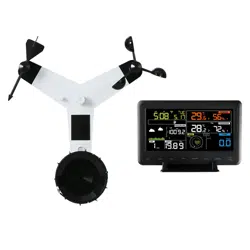
PROFESSIONAL WEATHER STATION
Operation Manual
Table of Contents
1. Introduction
....................................................................................................
3
2. Warnings and Cautions
................................................................................
3
3. Quick Start Guide..........................................................................................3
4. Pre-Installation Checkout and Site Survey............................................... 4
4.1 Pre Installation Checkout........................................................................ 4
4.2 Site Survey
................................................................................................
4
5. Setting Started
...............................................................................................
5
5.1 Contents
.....................................................................................................
5
5.2 Sensor Set Up........................................................................................... 5
5.2.1 Install U-bolts and mounting pole................................................... 6
5.2.2 Install wind vane................................................................................7
5.2.3 Install wind speed
.............................................................................
7
5.2.4 Install Rain Gauge
............................................................................
8
5.2.5 Install Batteries
..................................................................................
8
5.2.6 Mount assembled outdoor sensor package..................................9
5.2.6.1 Before you mount................................................................... 9
5.2.6.2 Mounting.................................................................................. 9
5.2.7 Reset Button and Transmitter LED
..............................................
10
5.3 Best Practices for Wireless Communication
......................................
10
5.4 Display console
.......................................................................................
11
5.4.1 Vertical Desk Stand........................................................................ 13
6. Display Console Operation....................................................................... 14
6.1 Screen Display........................................................................................14
6.2 Initial Display Console Set Up
..............................................................
15
6.3 Key function
.............................................................................................
16
6.4 Setting mode
...........................................................................................
17
6.4.1 BEEP:............................................................................................... 17
6.4.2 MAX/MIN Daily:............................................................................... 17
6.4.3 Time / Date.......................................................................................17
6.4.4 Pressure
...........................................................................................
18
6.4.5 Light
..................................................................................................
19
6.4.6 Temperature
.....................................................................................
20
6.4.7 Wind speed...................................................................................... 20
6.4.8 Rain...................................................................................................20
6.4.9 Moon phase..................................................................................... 21
6.5 Alarm mode
.............................................................................................
21
6.5.1 Display of Alarm value
...................................................................
21
6.5.2 Alarm mode setting:
........................................................................
22

2
6.5.3 Alarm Setting Order:....................................................................... 22
6.6 Max/min mode
........................................................................................
22
6.6.1 Press and release MAX/MIN key to display MAX data.............22
6.7 Calibration mode.................................................................................... 23
6.8 Other Features........................................................................................24
6.8.1 Factory Reset/Clear Memory
........................................................
24
6.8.2 Register New Transmitter
..............................................................
24
6.8.3 Backlight Operation
........................................................................
24
6.8.4 Tendency indicators........................................................................25
6.8.5 Wireless Signal Strength Indicator...............................................25
6.8.6 Weather forecast.............................................................................25
6.8.7 Snooze
.............................................................................................
27
6.8.8 MAC address display
.....................................................................
27
7. Specification:
...............................................................................................
28
8. Live Internet Publishing............................................................................. 30
8.1 Connecting the Weather Station Console to WiFi.............................31
8.1.1 Download mobile application........................................................ 31
8.1.2 Connect the console to Wi-Fi
........................................................
31
8.1.2.1 Android user/ iOs user
.........................................................
31
8.2 Adding weather services
.......................................................................
34
8.2.1 Ecowitt Weather.............................................................................. 35
8.2.2 Viewing data on ecowitt.net.......................................................... 36
8.3 Weather Underground........................................................................... 39
8.4 Viewing data on wunderground.com
...................................................
43
8.5 Device list
................................................................................................
45
8.6 Manage Wunderground
.........................................................................
46
8.7 Settings.................................................................................................... 46
8.8 Manage Ecowitt...................................................................................... 47
9. Maintenance................................................................................................ 48
10. Troubleshooting Guide
.............................................................................
49
3
1. Introduction
Thank you for your purchase of the Solar Powered Wireless WiFi
Weather Station. The following user guide provides step by step
instructions for installation, operation and troubleshooting.
2. Warnings and Cautions
Warning: Any metal object may attract a lightning strike,including
your weather station mounting pole. Never install the weather station
in a storm.
Warning: Installing your weather station in a high location may
result in injury or death. Perform as much of the initial check and
operation on the ground and inside a building or home. Only install the
weather station on a clear, dry day.
3. Quick Start Guide
Although the manual is comprehensive, much of the information
contained may be intuitive. In addition, the manual does not flow
properly because the sections are organized by components.
The following Quick Start Guide provides only the necessary steps to
install, operate the weather station, and upload to the internet, along
with references to the pertinent sections.
Required
Step
Description
Section
1
Assemble and power up the Y shape sensor
5.2.1–5.2.3
2
Power up the display console and synchronize
with Y shape sensor
5.4
5
Mount the sensor array
5.2.4
3
Set date and time on console
6.4.5
4
Calibrate the relative pressure to sea-level
conditions (local airport) on console
6.4.3
6
Reset the rain to zero on console
6.4.8
Optional
7
Configure WiFi
8.1
8
Register and upload to Weather Server
9

4
4. Pre-Installation Checkout and Site Survey
4.1 Pre Installation Checkout
Before installing your weather station in the permanent location, we
recommend operating the weather station for one week in a temporary
location with easy access. This will allow you to check out all of the
functions, insure proper operation, and familiarize you with the
weather station and calibration procedures. This will also allow you to
test the wireless range of the weather station.
4.2 Site Survey
Perform a site survey before installing the weather station. Consider
the following:
1. You must clean the rain gauge every few months and change
the batteries every 2-3 years. Provide easy access to the
weather station.
2. Avoid radiant heat transfer from buildings and structures. In
general, install the sensor array at least 5’ from any building,
structure, ground, or roof top.
3. Avoid wind and rain obstructions. The rule of thumb is to install
the sensor array at least four times the distance of the height
of the tallest obstruction. For example, if the building is 20’ tall,
and the mounting pole is 6’ tall, install 4 x (20 – 6)’ = 56’ away.
4. Wireless Range. The radio communication between receiver
and transmitter in an open field can reach a distance of up to
100 meters, providing there are no interfering obstacles such
as buildings, trees, vehicles, high voltage lines. Wireless
signals will not penetrate metal buildings. Under most
conditions, the maximum wireless range is 100’.
5. Radio interference such as PCs, radios or TV sets can, in the
worst case, entirely cut off radio communication. Please take
this into consideration when choosing console or mounting
locations. Make sure your display console is at least five feet
away from any electronic device to avoid interference.
5
5. Setting Started
5.1 Contents
QTY
Item
1
Display Console
1
Y shape outdoor sensor(Thermo-hygrometer / Rain Gauge /
Wind Speed Sensor /Transmitter)
1
Wind Vane
1
5V DC Adapter
1
U-bolt with mounting clamps
1
User manual
1
Zip bag for 1pc 10mm single-head wrench
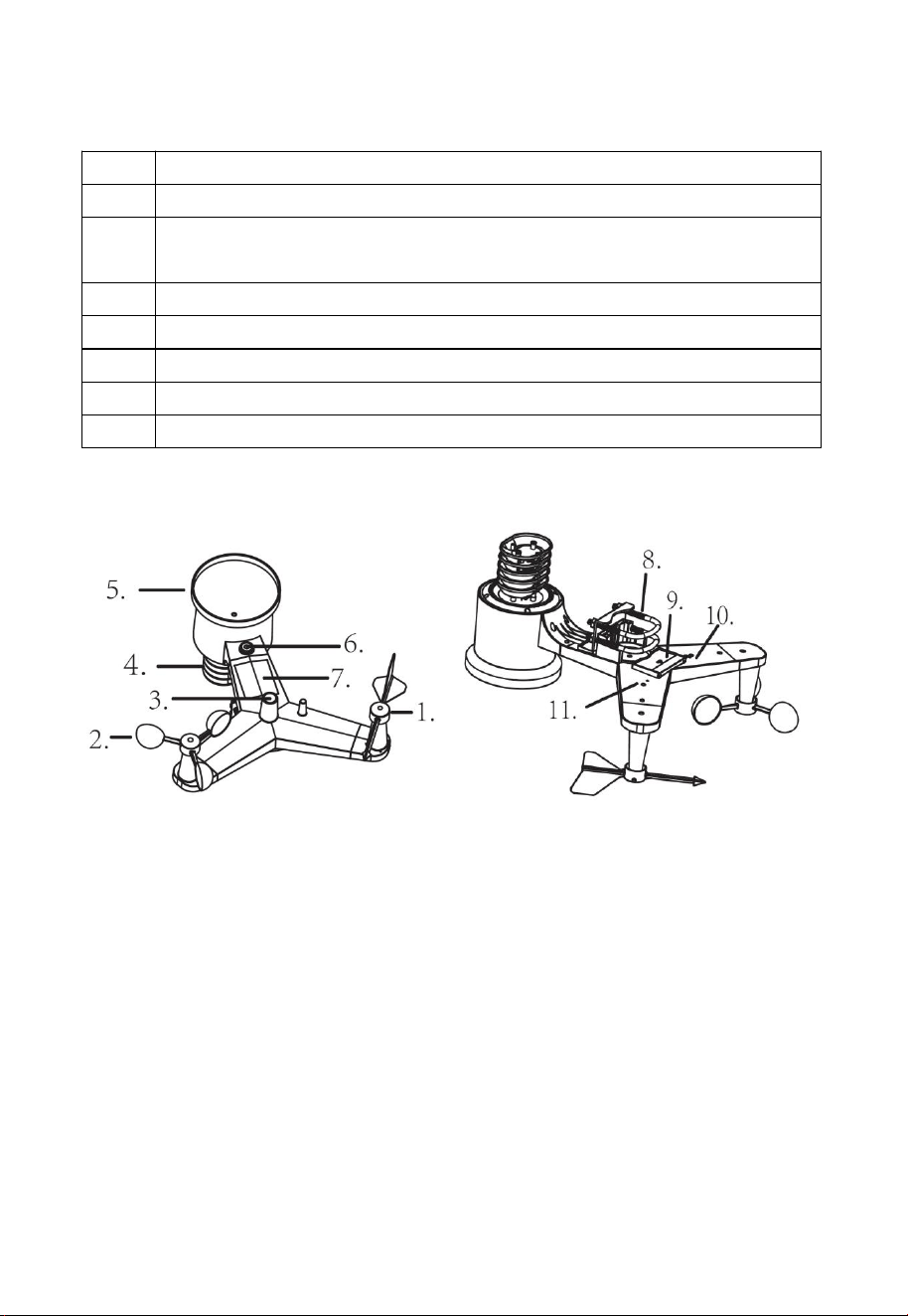
5.2 Sensor Set Up
1. Wind Vane
2. Wind Speed Sensor
3. UV sensor/ Light sensor
4. Thermo-hygro sensor
5. Rain collector
6. Bubble level
7. Solar panel
8. U-Bolt
9. Battery compartment
10. Reset button
11. LED Indicator: light on for 4s if the unit power up. Then the LED will
flash once every 16 seconds (the sensor transmission update period).
6
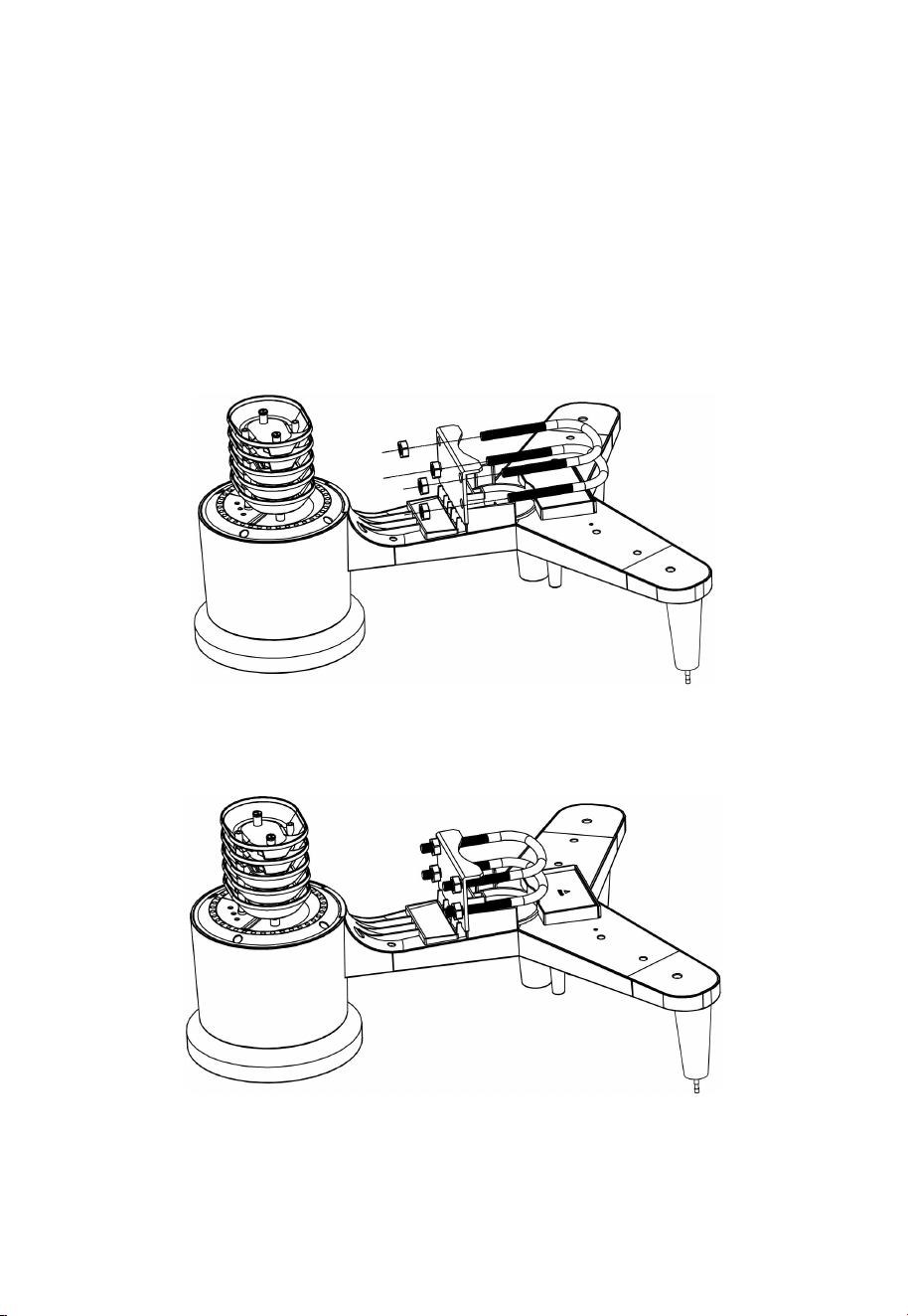
5.2.1 Install U-bolts and mounting pole
Installation of the U-bolts, which are in turn used to mount the sensor
package on a pole, requires installation of an included metal plate to
receive the U-bolt ends. The metal plate, visible in Figure 1, has four
holes through which the ends of the two U-Bolts will fit. The plate itself
is inserted in a groove on the bottom of the unit (opposite side of solar
panel). Note that one side of the plate has a straight edge (which goes
into the groove), the other side is bent at a 90-degree angle and has a
curved profile (which will end up “hugging” the mounting pole). Once
the metal plate is inserted, remove nuts from the U-Bolts and insert
both U-bolts through the respective holes of the metal plate as shown
in Figure 8.
Figure 1
Loosely screw on the nuts on the ends of the U-bolts. You will tighten
these later during final mounting. Final assembly is shown in Figure 9.
Figure 2
The plate and U-Bolts are not yet needed at this stage but doing this
now may help avoid damaging wind vane and wind speed cups later
on.
7
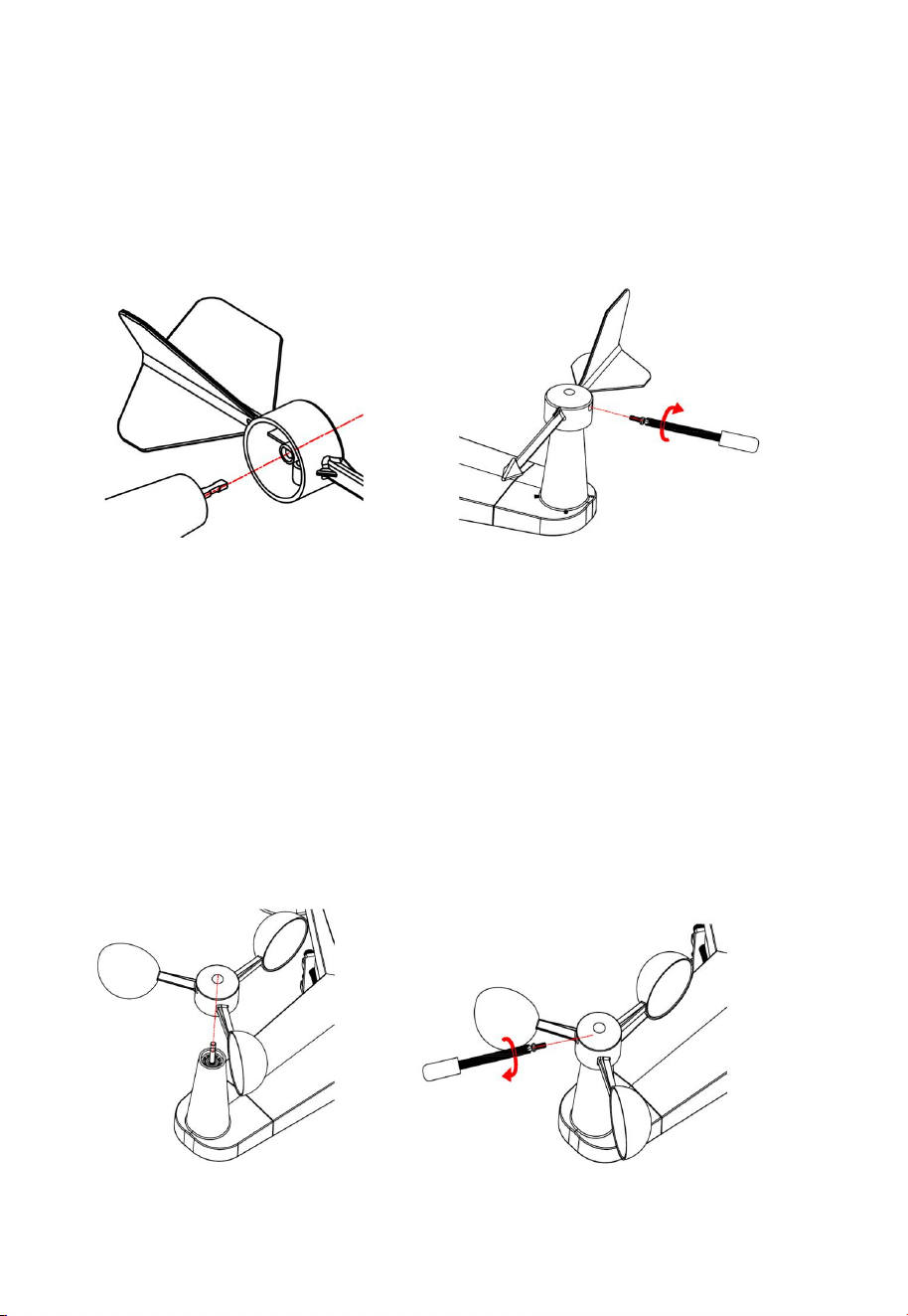
5.2.2 Install wind vane
Push the wind vane onto the shaft on the top of the sensor, until it stop
moving further, as shown in figure 3.
Tighten the set screw, with a Philips screw driver(size PH0), until the
wind van cannot be removed from the axle, as shown in figure 4. Make
sure the wind vane spin freely. The wind vane’s movement has a small
amount of friction, which is helpful in providing steady wind direction
measurements.
Figure 3 Figure 4
There are four alphabet letter of “N”, ”E”, ”S”and “W” around the wind
direction, representing for the direction of North, East, South and West.
Wind direction sensor has to be adjusted so that the directions on the
sensor are matching with your real location. Permanent wind direction
error will be installation. when the wind direction sensor is not
positioned correctly during installation.
5.2.3 Install wind speed
Push the wind speed into the shaft as shown in figure 5.
Tighten the set screw with as shown in figure 5. Make sure the wind
speed can spin freely.
Figure 5 Figure 6
8
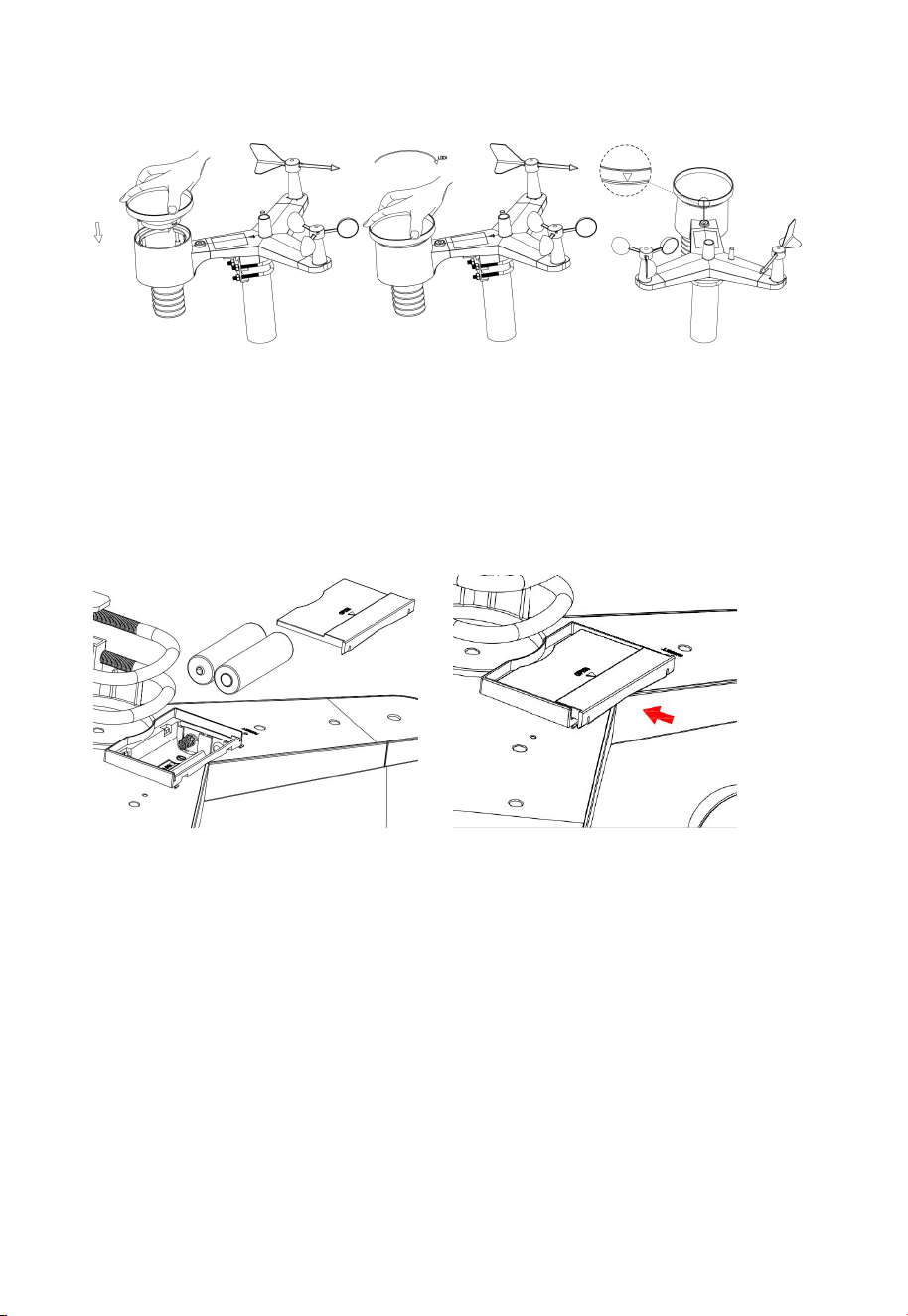
5.2.4 Install Rain Gauge
Keep the Indication mark in straight line. As show below photo.
5.2.5 Install Batteries
Insert 2XAA batteries in the battery compartment. The LED indicator
on the back of the transmitter will turn on for four seconds and
normally flash once every 16 seconds (the sensor transmission update
period).
Figure 7 Figure 8
Note: If no LED light up or is permanently on, make sure the
batteries are inserted the correct way or a proper reset has happened.
Do not install the batteries backwards. You can permanently damage
the outdoor sensor
Note: We recommend 1.5V lithium batteries for cold weather
climates, but alkaline batteries are enough for most climates. We do
not recommend rechargeable batteries. They have lower voltages,
they
do not operate well at wide temperature ranges, and do not last as
long, resulting in poorer reception.
9
5.2.6 Mount assembled outdoor sensor package
5.2.6.1 Before you mount
Before proceeding with the outdoor mounting detailed in this section,
you may want to skip to setup instructions in section 6.2 and onwards
first, while you keep the assembled outdoor sensor package nearby
(although preferably not closer than 5 ft. from the console). This will
make any troubleshooting and adjustments easier and avoids any
distance or interference related issues from the setup.
After setup is complete and everything is working, return here for
outdoor mounting. If issues show up after outdoor mounting they are
almost certainly related to distance, obstacles etc.
5.2.6.2 Mounting
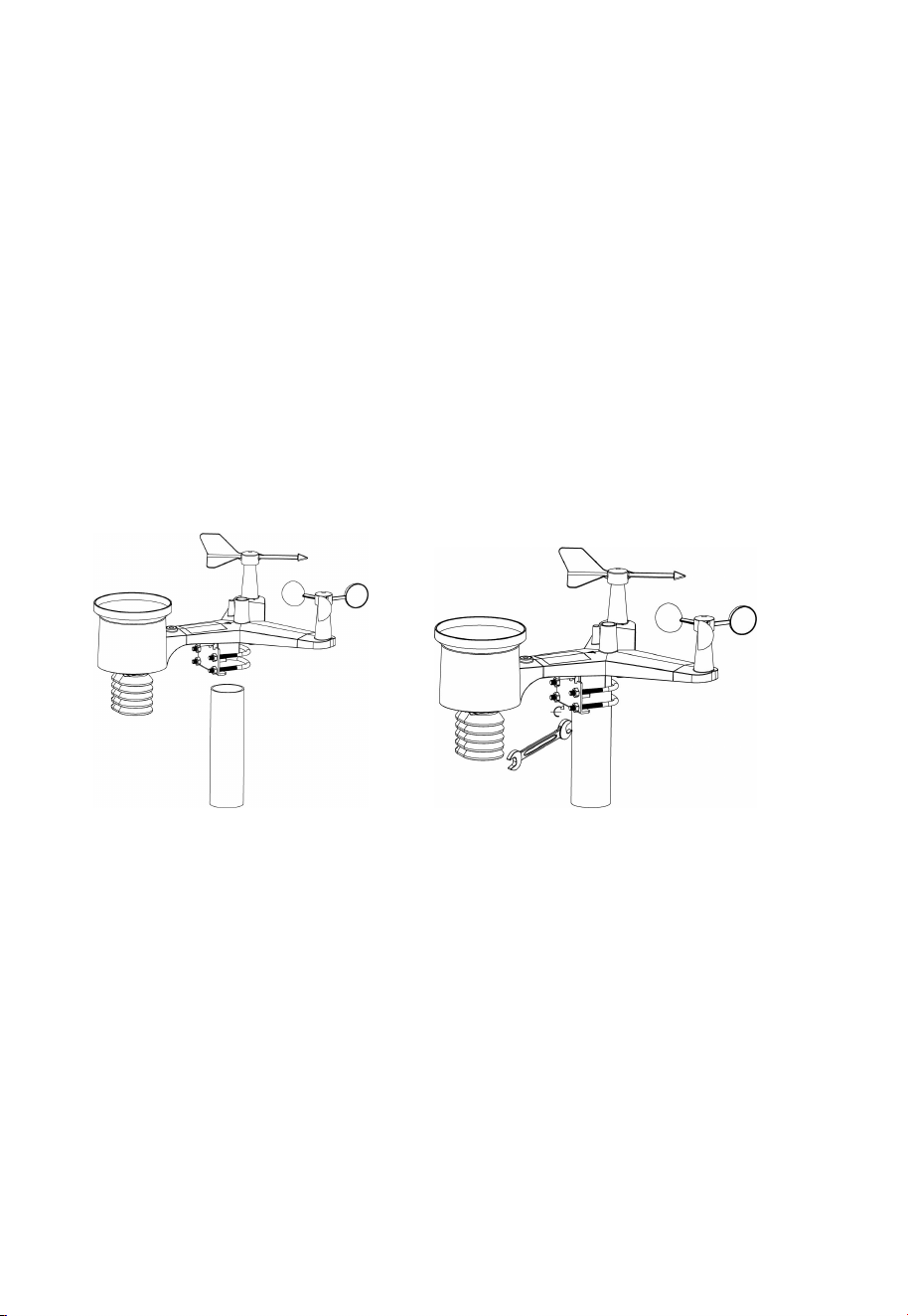
You can attach a pipe to a permanent structure and then attach the
sensor package to it (see Figure 9). The U-Bolts will accommodate a
pipe diameter of 1-2 inches (pipe not included).
Finally, place the sensor package on top of the prepared mounting pip
e.The U-Bolts should be loose enough to allow this but loosen the nut
s as necessary. Once placed, hand tightens all four nuts, taking care
to do so evenly.
Now you will need to align the whole package in the proper direction b
y rotating it on top of the mounting pipe as needed.Locate the arrow
labeled “North” that you will find on top of the sensor package right ne
xtto the light sensor. You must rotate the whole sensor package until t
his arrow points due north. To achieve proper alignment, it is helpful to
usea compass (many cell phones have a compass application).
Once rotated in the correct orientation, lightly tighten the bolts a little
more (use a wrench) to prevent further rotation.
Figure 10
Figure 9
10
Note: Use the bubble level next to the rain sensor to make sure sensor
array is completely level. If the sensor is not level, the rain gauge, UV
and solar radiation sensors will not measure properly.
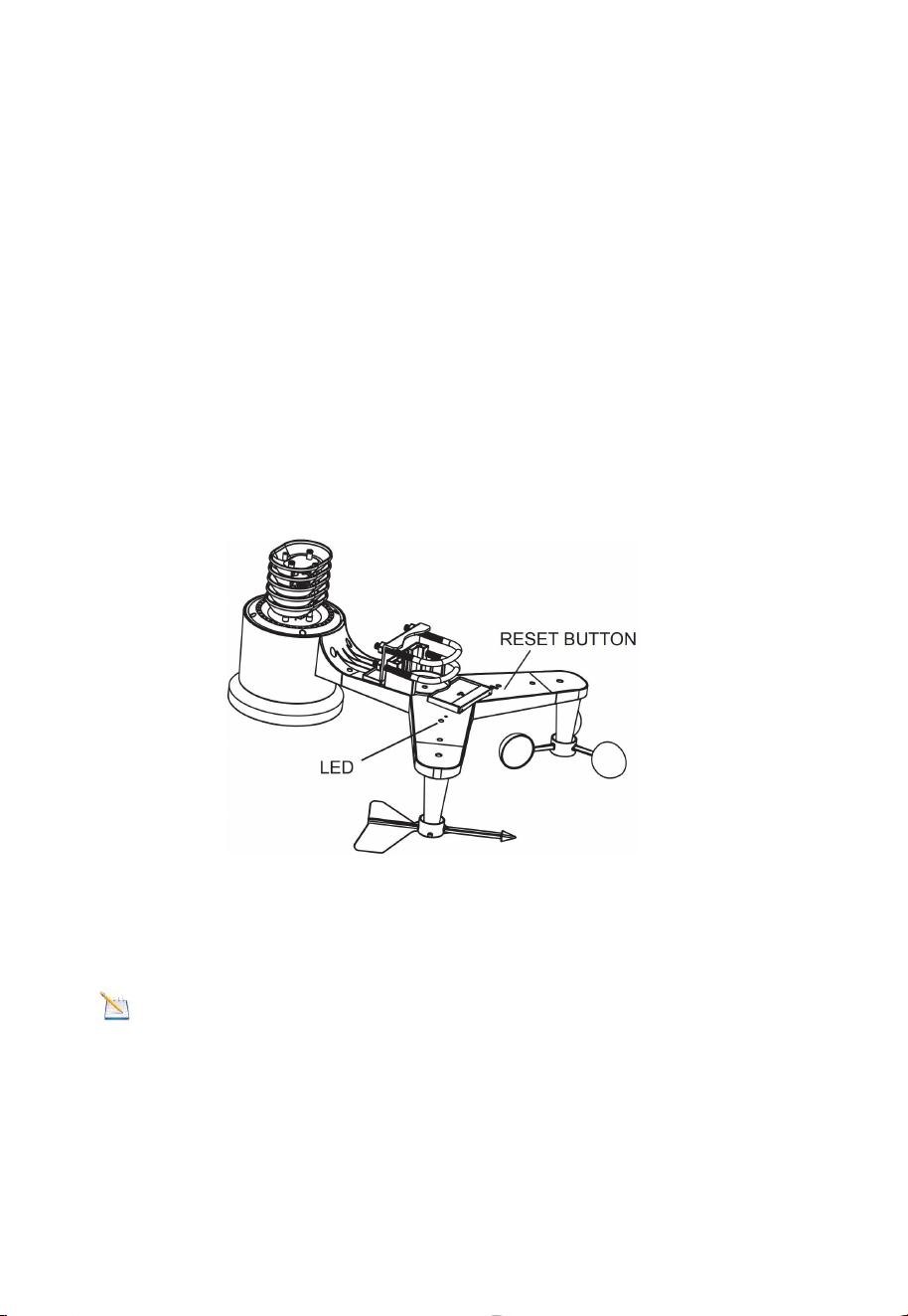
5.2.7 Reset Button and Transmitter LED
In the event that the sensor array is not transmitting, reset the sensor
array.
With an open ended paperclip, press and hold the RESET BUTTON
for three seconds to completely discharge the voltage.
Take out the batteries and wait one minute, while covering the solar
panel to drain the voltage.
Put batteries back in and resynchronize with console by powering
down and up the console with the sensor array about 3 meter away.
Figure 11
5.3 Best Practices for Wireless Communication
Note: To insure proper communication, mount the remote
sensor(s) upright on a vertical surface, such as a wall. Do not lay the
sensor flat.
Wireless communication is susceptible to interference, distance, walls
and metal barriers. We recommend the following best practices for
trouble free wireless communication.
Electro-Magnetic Interference (EMI). Keep the console several feet
away from computer monitors and TVs.
11
Radio Frequency Interference (RFI). If you have other 433 MHz
devices and communication is intermittent, try turning off these other
devices for troubleshooting purposes. You may need to relocate the
transmitters or receivers to avoid intermittent communication.
1. Line of Sight Rating. This device is rated at 300 feet line of
sight (no interference, barriers or walls) but typically you will
get 100 feet maximum under most real-world installations,
which include passing through barriers or walls.
2. Metal Barriers. Radio frequency will not pass through metal
barriers such as aluminum siding. If you have metal siding,
align the remote and console through a window to get a clear
line of sight.
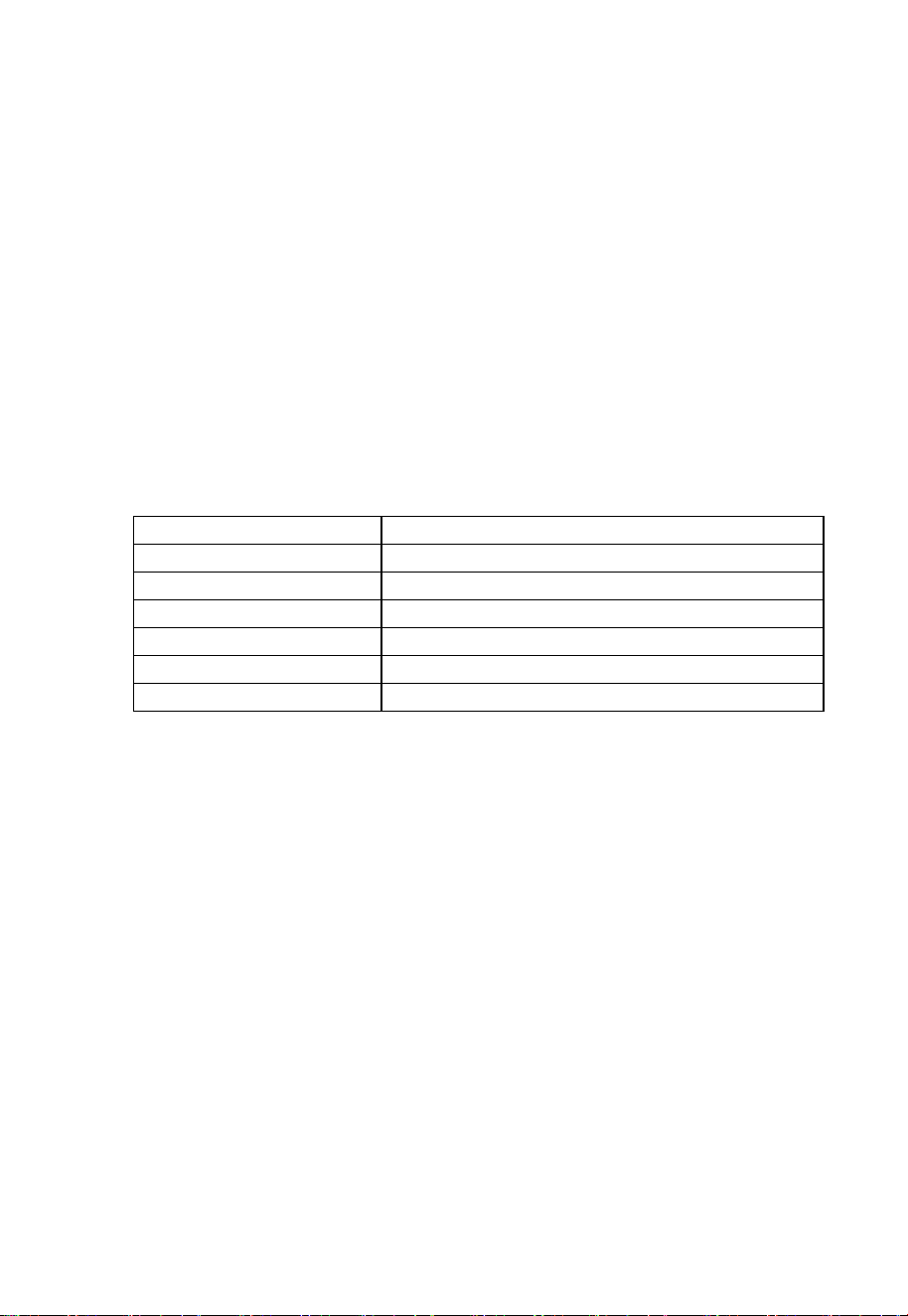
The following is a table of reception loss vs. the transmission
medium. Each “wall” or obstruction decreases the transmission
range by the factor shown below.
Medium
RF Signal Strength Reduction
Glass (untreated)
5-15%
Plastics
10-15%
Wood
10-40%
Brick
10-40%
Concrete
40-80%
Metal
90-100%
5.4 Display console
1. Insert the 5V AC adaptor into the back of the display console
Note: Place the outdoor sensor array about 5 to 10 feet from the
display console and wait several minutes for the remote sensors
to synchronize with the display console.
2. Insert 3 AAA batteries into the display console。Please insert the
battery as blew figure 12:
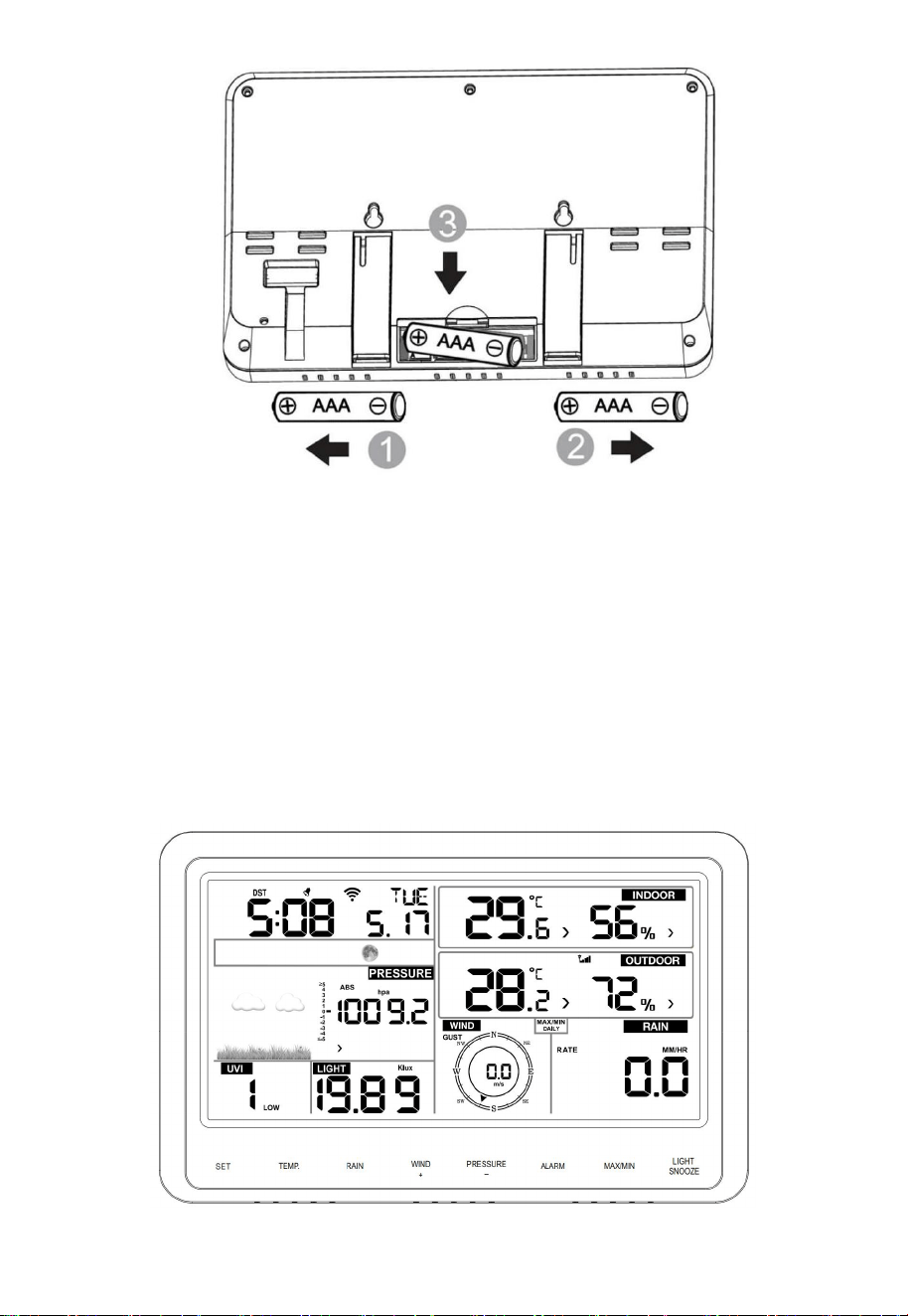
12
Figure 12
Note: The batteries are intended for back-up power only. The
backlight will remain on for 5 seconds when on back up battery
power only. Only when you use power adapter it will the
back-light be continuously on.
3. Keep both sensor and the display console together for 15 minutes
to lock in the sensor signals.
4. Spin the wind cups to simulate wind speed. Take the sensor to the
sink and slowly drip water into the rain bucket to simulate rain.
5. After 15miuntes, follow the mounting instructions for proper
placement of sensors.
Figure 13
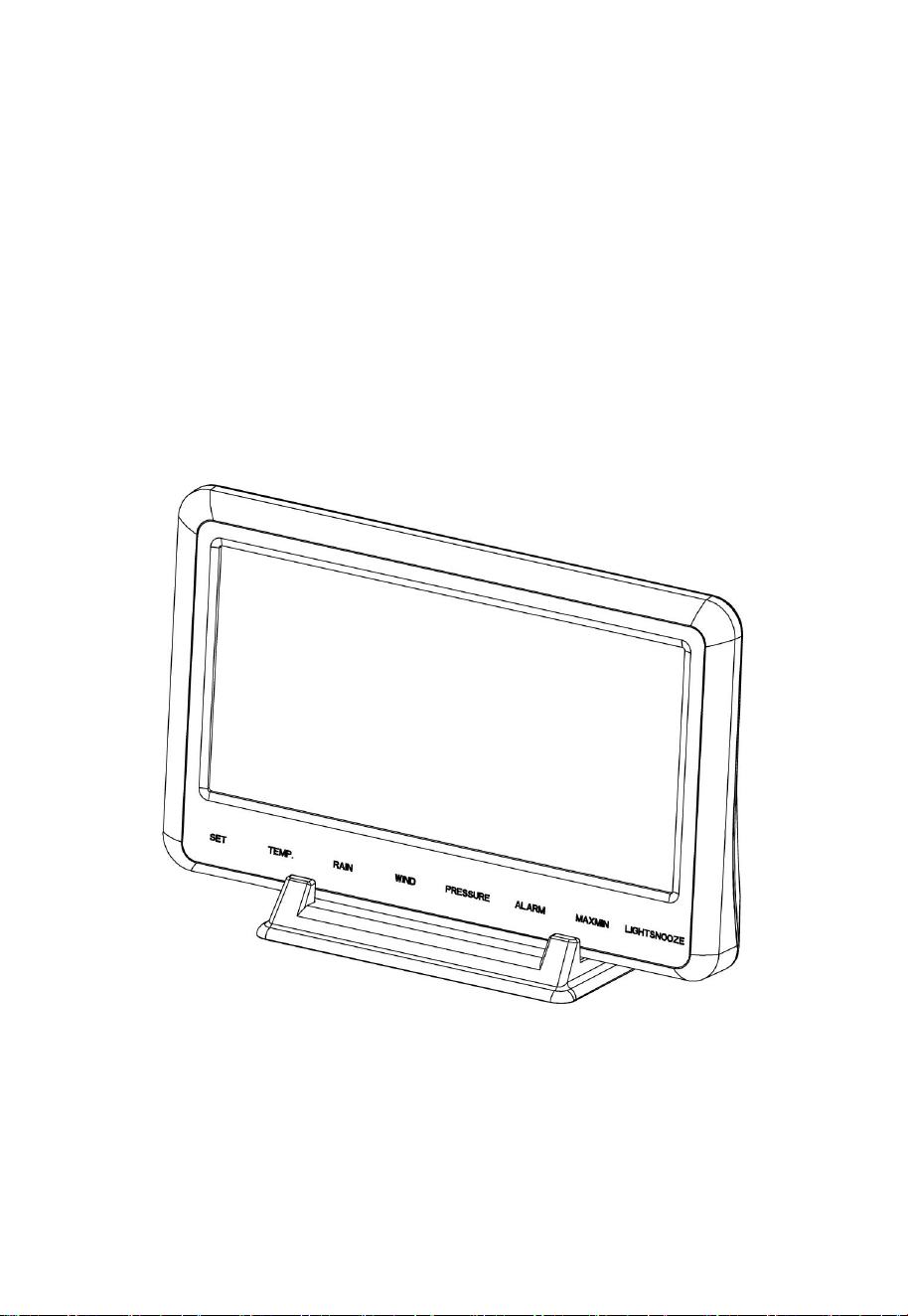
13
Note: Your display console should have readings in all sections. Wind
and Rain will show 0’s (connected) until wind or rain occur or are
simulated.
Note: If you only use battery to power up display console, you must
press LIGHT/SNOOZE key to light up the LCD before press any other
key.
5.4.1 Vertical Desk Stand
The console is best viewed above from a 20 to 30 degree angle.
In addition to the fold out desk stand on the back of the display,
console, the console also includes a vertical desk stand to improve the
viewing able on a desk, as shown in Figure 14.
Figure 14
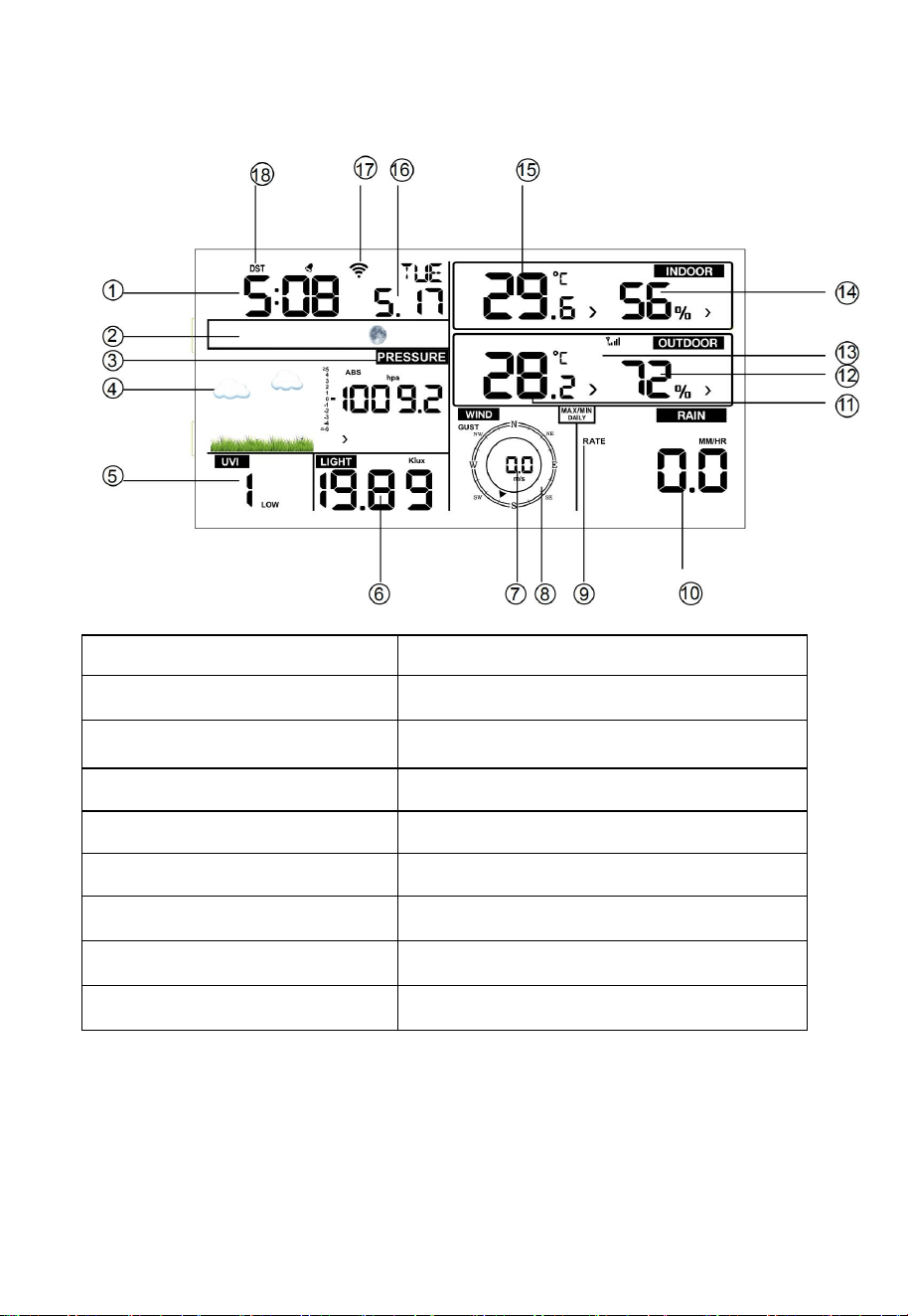
14
6. Display Console Operation
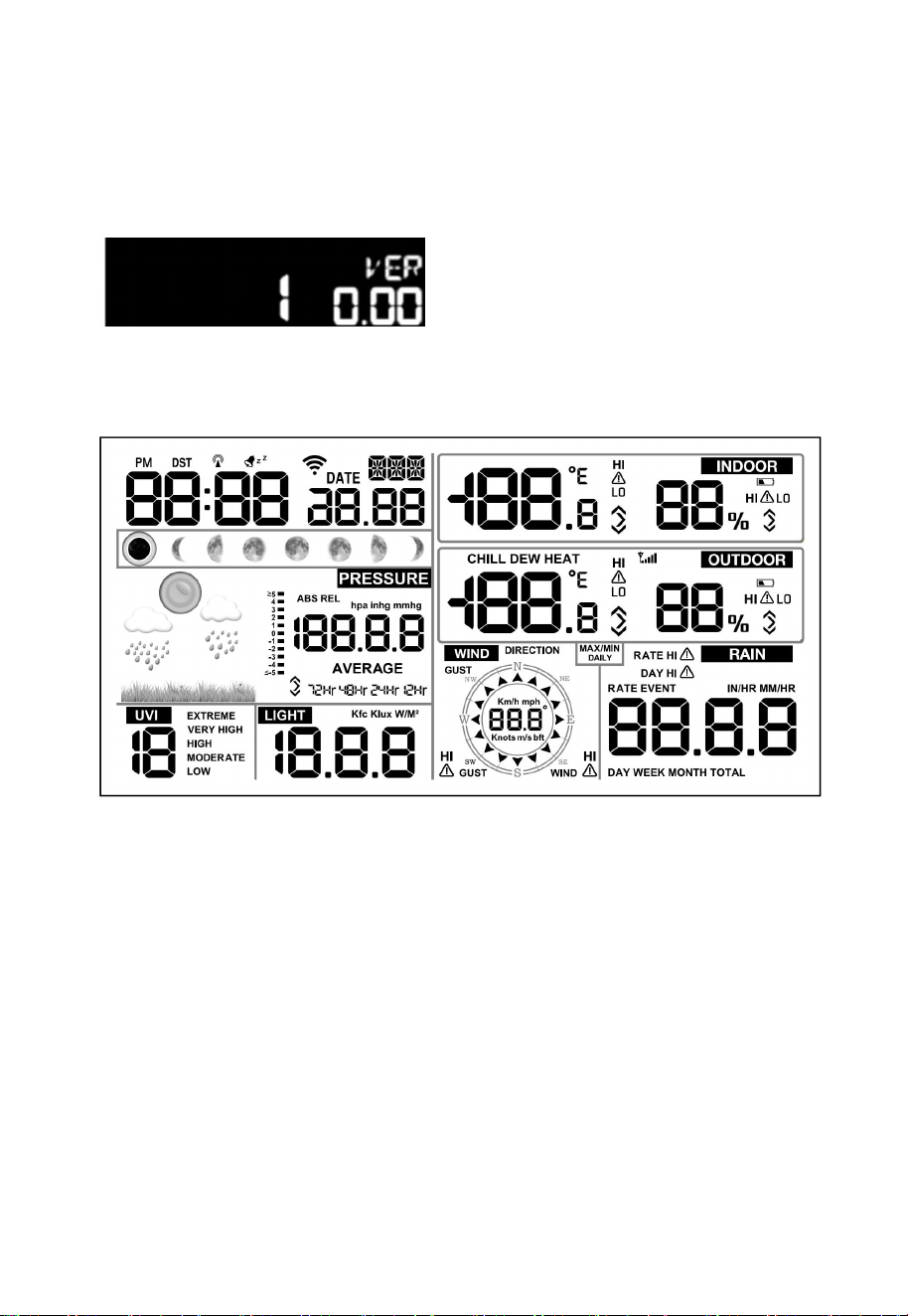
6.1 Screen Display
1.Time
10. Rain fall
2. Moon phase
11. Outdoor temperature
3. Barometric Pressure
12. Outdoor humidity
4. Weather forecast
13. RF icon
5. UV index
14. Indoor humidity
6. Light
15. Indoor temperature
7. Wind speed
16. Date
8. Wind direction
17. WIFI icon
9. MAX/MIN Daily
18. DST
15
6.2 Initial Display Console Set Up
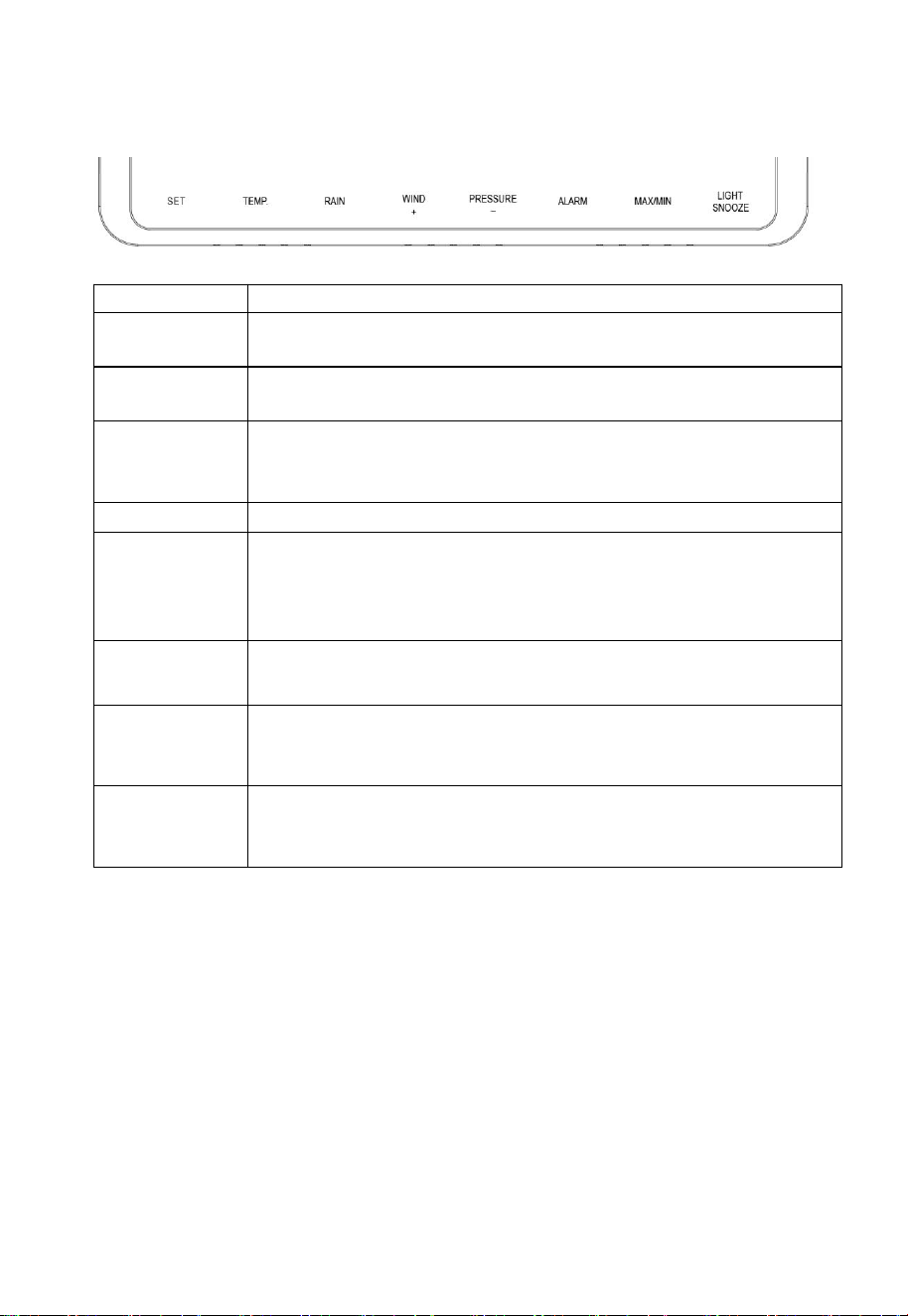
Connect the power adapter to power up the display console.
The unit will show software version number 2 seconds after power
reset.
The unit will turn on all segments of the LCD for 3 seconds after power
reset, the unit will start to register the outdoor channel for 3 minutes.
16
6.3 Key function
The console has eight keys for easy operation
Key
Description
SET
Press this key to view MAC address.
Hold this key to enter setting mode
TEMP.
Press this key to view wind Chill, Heat Index, Dew Point
Temperature
RAIN
Press this key to view Rain Rate, event, Rain Day, Rain
Week, Rain Month, and Rain total
Press the RAIN key 2s to reset current display rain
WIND +
Press this key to view wind/gust and wind direction
PRESSURE
Press this key to view Absolute Pressure average of
12hr, 24hr, 48hr and 72hr
Press and hold 2s this key to view the absolute and
relative pressure
ALARM
Press this key to view the alarm value of Temperature /
Humidity/rain rate/rain day/wind
MAX/MIN
Press this key to view the MAX/MIN value of
Temperature / Humidity/rain rate/rain
day/wind/UVI/LIGHT/Absolute Pressure
LIGHT
/SNOOZE
Press this key to adjust LCD backlight brightness:
HI/MID/OFF
Hold this key to register new transmitter
Note:
1) When power on, press WIND/+ and PRESSURE /- key to reset
the weather station and clear all records memory, and clears all
user settings to default.
2) When power on, press TEMP. key to skip receive RF signal.
3) In Setting mode,pressing WIND/+ or PRESSURE/- key select the
unit or scrolls the value; keeping press and holding WIND/+ or
PRESSURE/- key for 2 second will increase/decrease digits in
great steps.
4) The setting procedure can be exited at any time by either pressing
the LIGHT /SNOOZE key or waiting for the 30-second time-out to
take effect.
17
6.4 Setting mode
Pressing the SET key for 2 seconds to enter setting model,the basic
settings can now be performed in the following order:
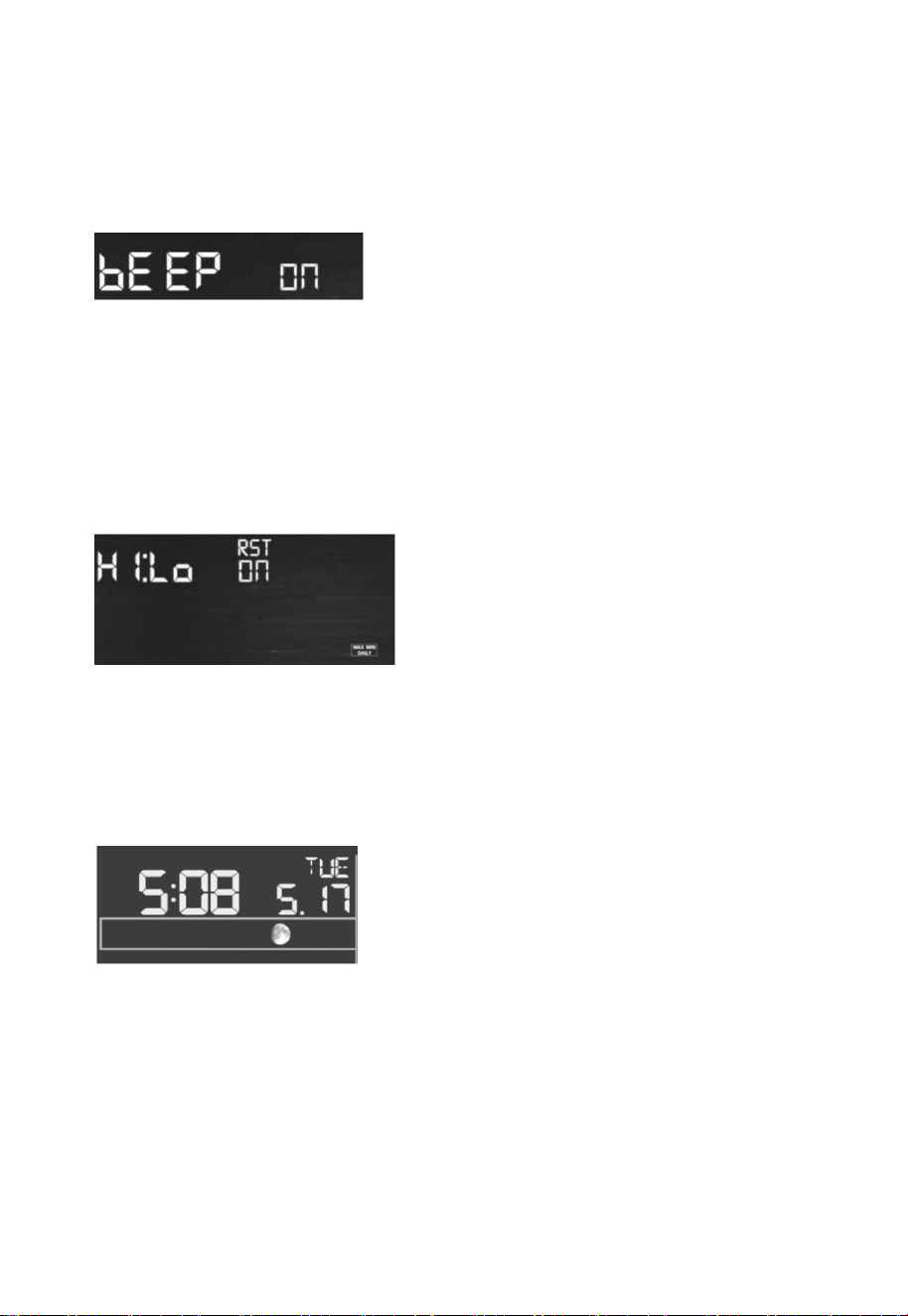
6.4.1 BEEP:
- Press the SET key for 2 seconds to select the beep section, ON/OFF
section digits will start flashing, press the WIND/+ or PRESSURE/-
key to select ON or OFF.
“BEEP ON” will make the Beep sound on every key press. If you do
not want the beep sound to be heard, select “BEEP OFF”
6.4.2 MAX/MIN Daily:
- Press the SET key twice to select the MAX/MIN Daily section,
ON/OFF section digits will start flashing, press the WIND/+ or
PRESSURE/- key to select ON or OFF . (Default is ON,ON: clear at
0:00 every day).
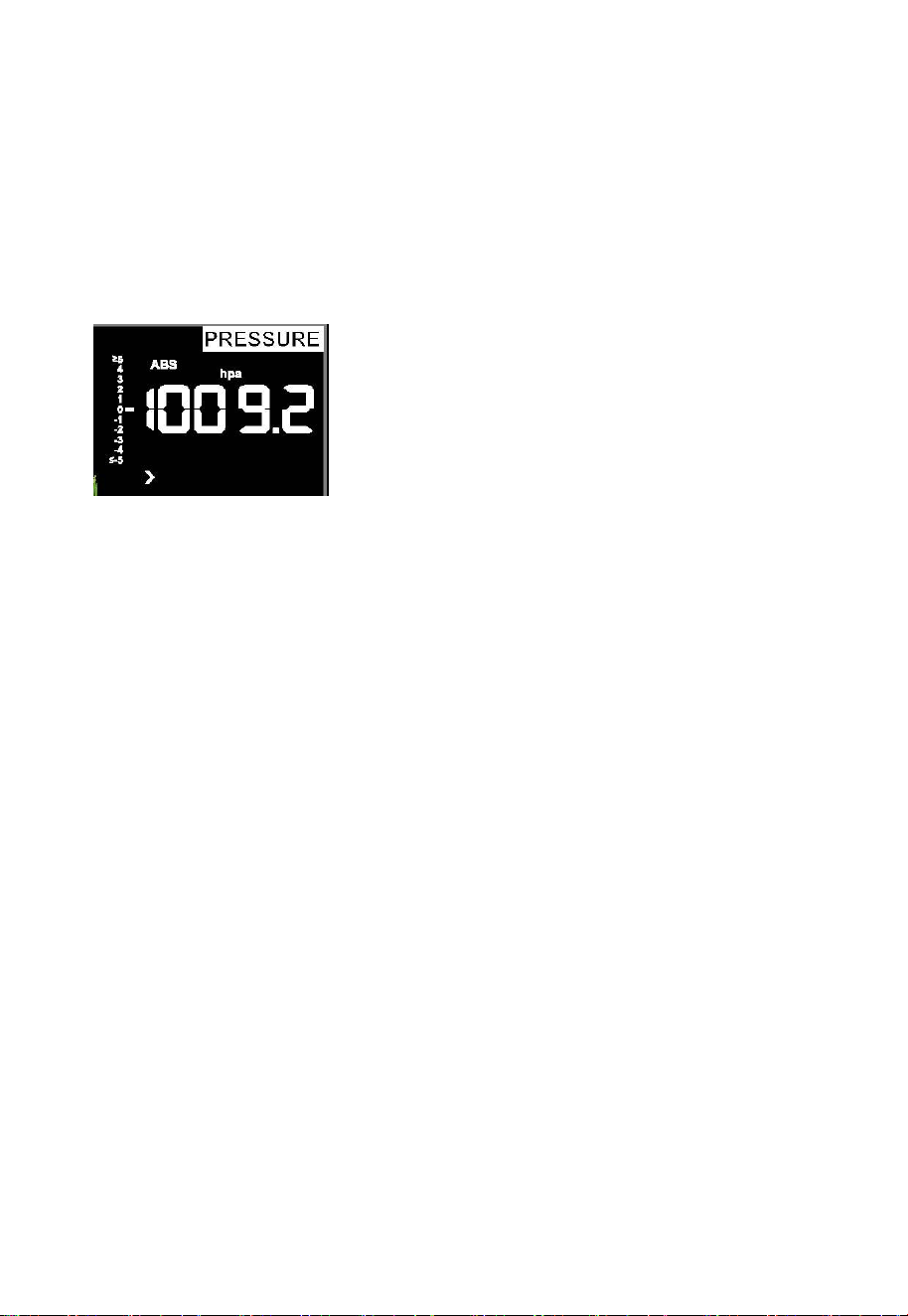
6.4.3 Time / Date
- Press the SET key third time to select the 12/24 hour format section
(default: 24hr).
- Press the SET key forth time to select the hour section.
- Press the SET key fifth time to select the minutes section.
- Press the SET key sixth time to select DD-MM or MM-DD format.
(Default DD-MM format)
- Press the SET key seventh time to select year.
- Press the SET key eighth time to select month.
- Press the SET key ninth time to select day.
18
Note: Press the WIND/+ or PRESSURE/-key to set the value.
Note: If user to change minute value, second will auto clear to 0.
Note: WIFI firmware version 1.4.4 and above support Global Time
synchronization. Time zone, DST and date will automatic updated from
internet when base station is connected to WIFI internet.
6.4.4 Pressure
-Press the SET key tenth to select the ABS/REL pressure unit,
pressure value and hPa digits will start flashing, press the WIND/+ or
PRESSURE/- key to select the unit (hPa, inhg, mmhg)
-Press the SET key eleventh to adjust the REL pressure value, REL
pressure value and hPa digits will start flashing, press the WIND/+
key or PRESSURE/- key to increase or decrease the REL pressure
value.
1) Viewing Absolute vs. Relative Pressure
To switch between absolute and relative pressure, press and hold the
[PRESSURE -] button for two seconds.
Absolute pressure is the measured atmospheric pressure, and is a
function of altitude, and to a lesser extent, changes in weather
conditions.
Absolute pressure is not corrected to sea-level conditions.
Relative pressure is corrected to sea-level conditions.
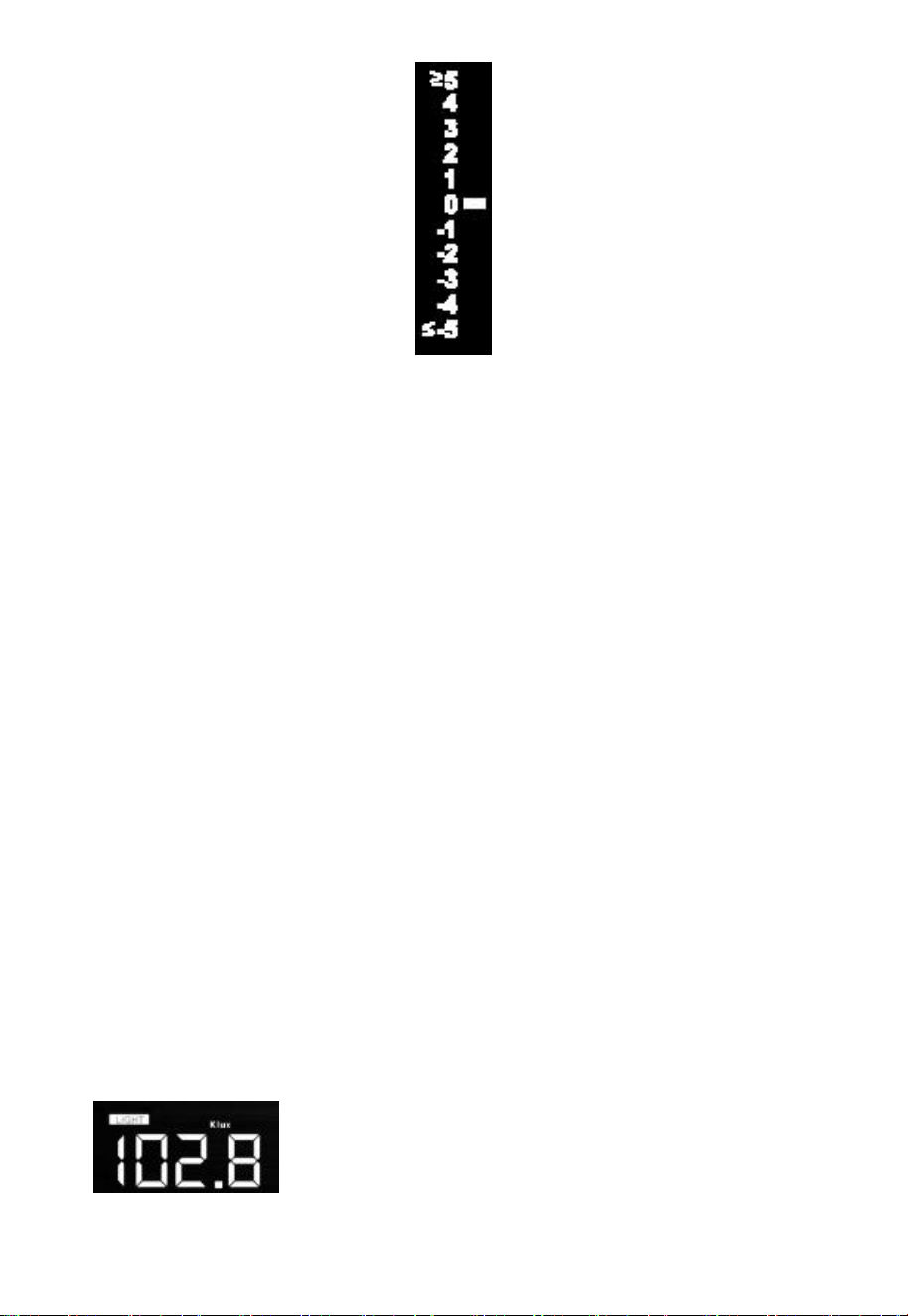
2) Rate of Change of Pressure Graph
The rate of change of pressure graphic is shown to the left of the
barometric pressure and signifies the difference between the daily
average pressure and the 30 day average (in hPa).
19
3) Viewing Pressure History
Press the [PRESSURE -] button to view the 12 hour, 24 hour, 48 hour
and 72 hour pressure average.
4) Relative Pressure Calibration Discussion
To compare pressure conditions from one location to another,
meteorologists correct pressure to sea-level conditions. Because the
air pressure decreases as you rise in altitude, the sea-level corrected
pressure (the pressure your location would be at if located at sea-level)
is generally higher than your measured pressure.
Thus, your absolute pressure may read 28.62 inHg (969 mb) at an
altitude of 1000 feet (305 m), but the relative pressure is 30.00 inHg
(1016 mb).
The standard sea-level pressure is 29.92 inHg (1013 mb). This is the
average sea-level pressure around the world. Relative pressure
measurements greater than 29.92 inHg (1013 mb) are considered high
pressure and relative pressure measurements less than 29.92 inHg
are considered low pressure.
To determine the relative pressure for your location, locate an official
reporting station near you (the internet is the best source for real time
barometer conditions, such as Weather.com or Wunderground.com),
and set your weather station to match the official reporting station.
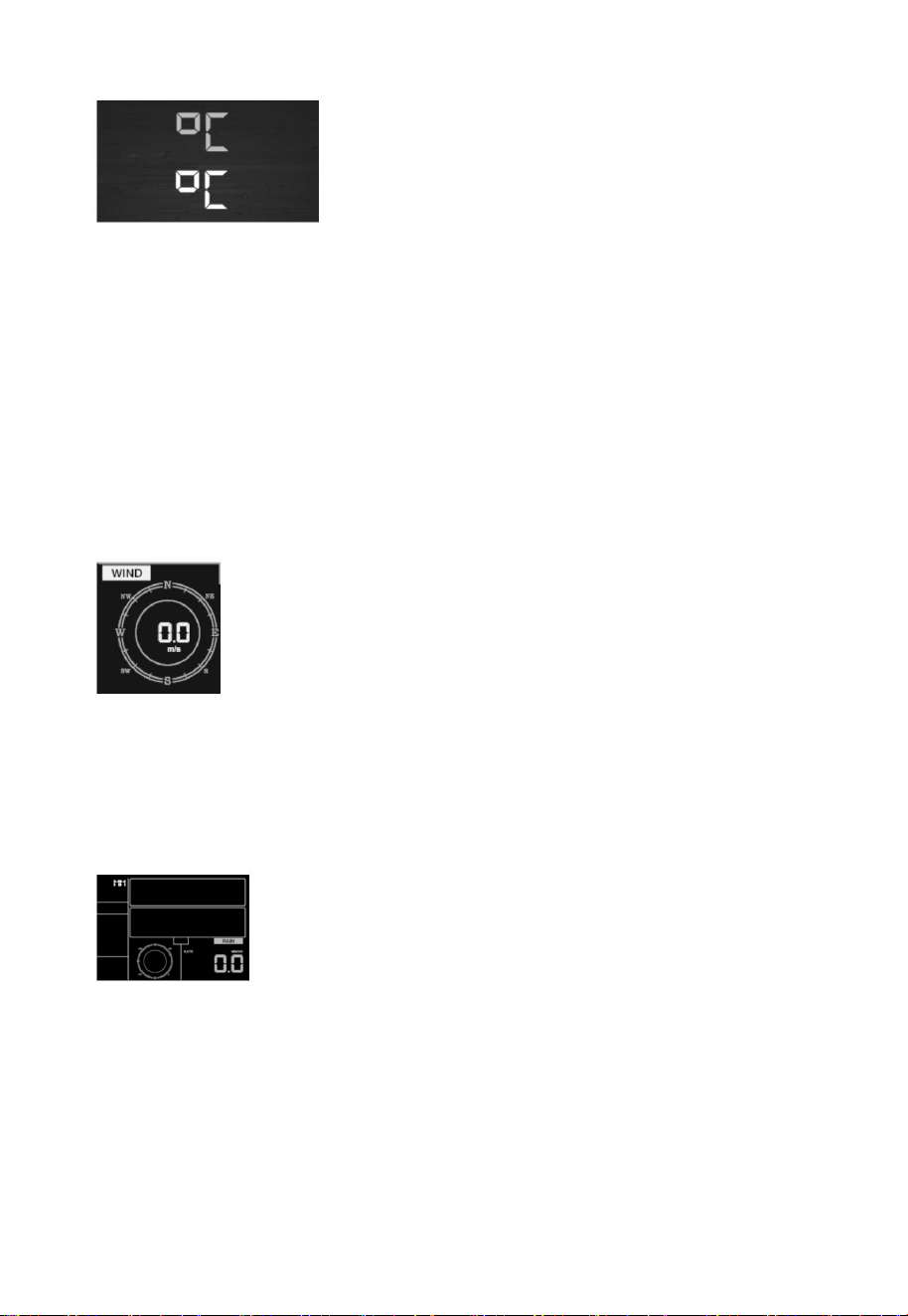
6.4.5 Light
- Press the SET key 12th time to select light unit (lux, fc, w/m2;default:
w/m2).
20
6.4.6 Temperature
- Press the SET key 13
th
time to select in/outdoor temperature unit,
degree C digits will start flashing, press the WIND/+ or PRESSURE/-
key to select unit (C or F; default: C).
- In normal mode, press the TEMP. key to view wind Chill, Heat Index,
Dew Point Temperature. Press the TEMP. key for 5 second, will
register new transmitter.
Note: every 60 second the unit will measure indoor temperature,
indoor humidity and pressure. If temperature is to lower than minimum
range, will display --.-, if it is higher than highest range, will display --.-.
6.4.7 Wind speed
- Press the SET key 14th to select wind speed unit ( km/h, mph, knots,
m/s, bft;default: km/h ).
- In normal mode,press and release the WIND/+ key to view the wind,
gust and wind direction.
6.4.8 Rain
- Press the SET key 15th to select rainfall unit ( inch or mm) the default
mode is mm).
- In normal mode,press and release the RAIN key to view rain of rate,
event, day, week, month and total.
- Press the RAIN key for 2 seconds to reset current display rain.
Note:
Reset week rain, will auto reset day rain
Reset month rain, will auto reset week and day rain.
Reset total rain, will auto reset month, week and day rain.
21
Note:
Rain rate: the last 10 minutes rainfall multiplication 6.
Rain event: It start to record the rain event value form the rain falls,
the rain event is over and value reset to 0 if last 24 hour rainfall less
1mm and the last 1 hour no rainfall..
Day: defined by calendar day i.e. 0:00 - 24:00 with current date.
Week: defined by calendar week i.e. Sunday – Saturday.
Month: defined by calendar Month i.e. January 1 - January 31.
Total: running total since station was powered up
Note: the transmitter will send the wind speed, wind direction, rainfall
every 16 second
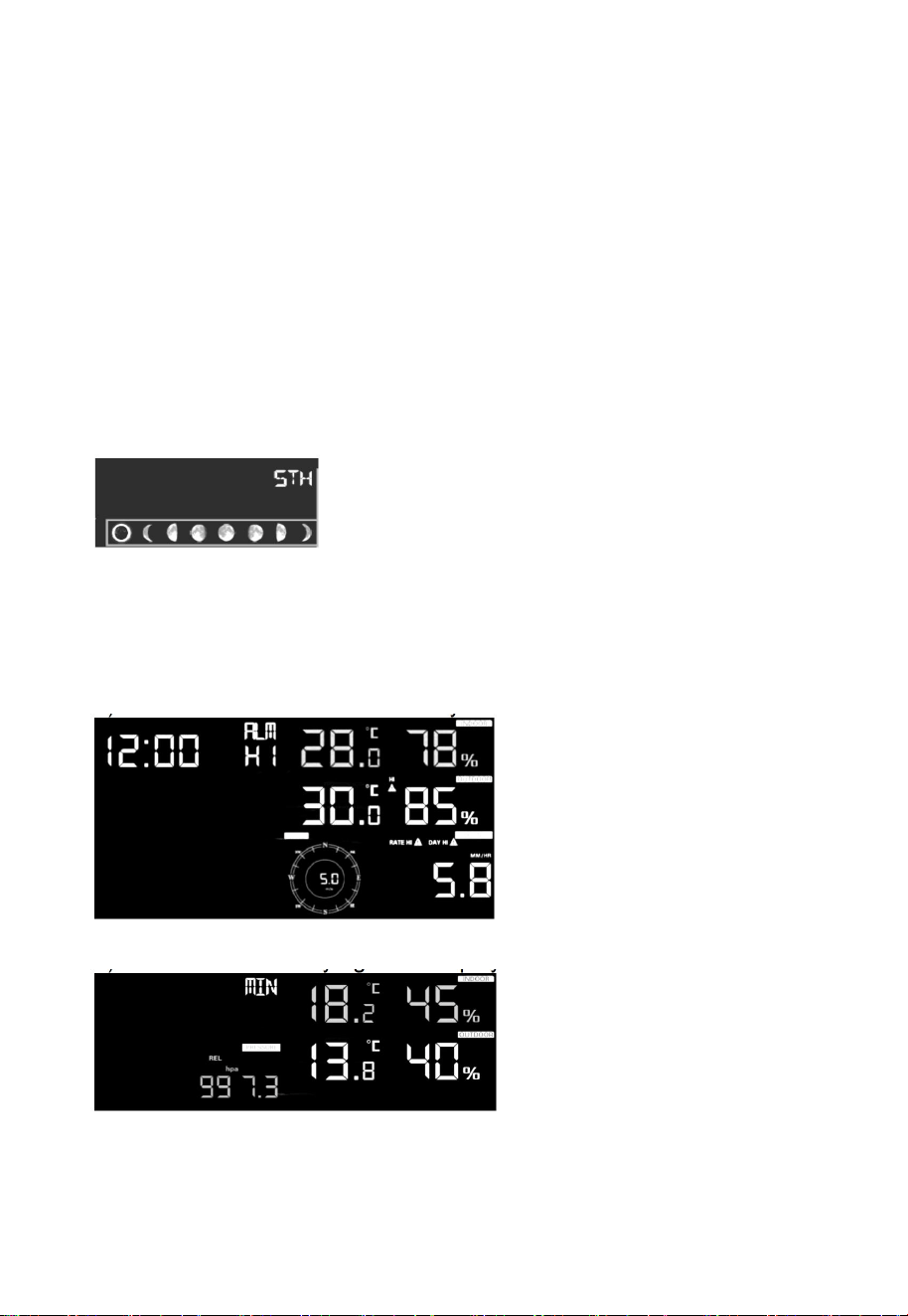
6.4.9 Moon phase
- Press the SET key 16th to select Northern or Southern Hemisphere.
6.5 Alarm mode
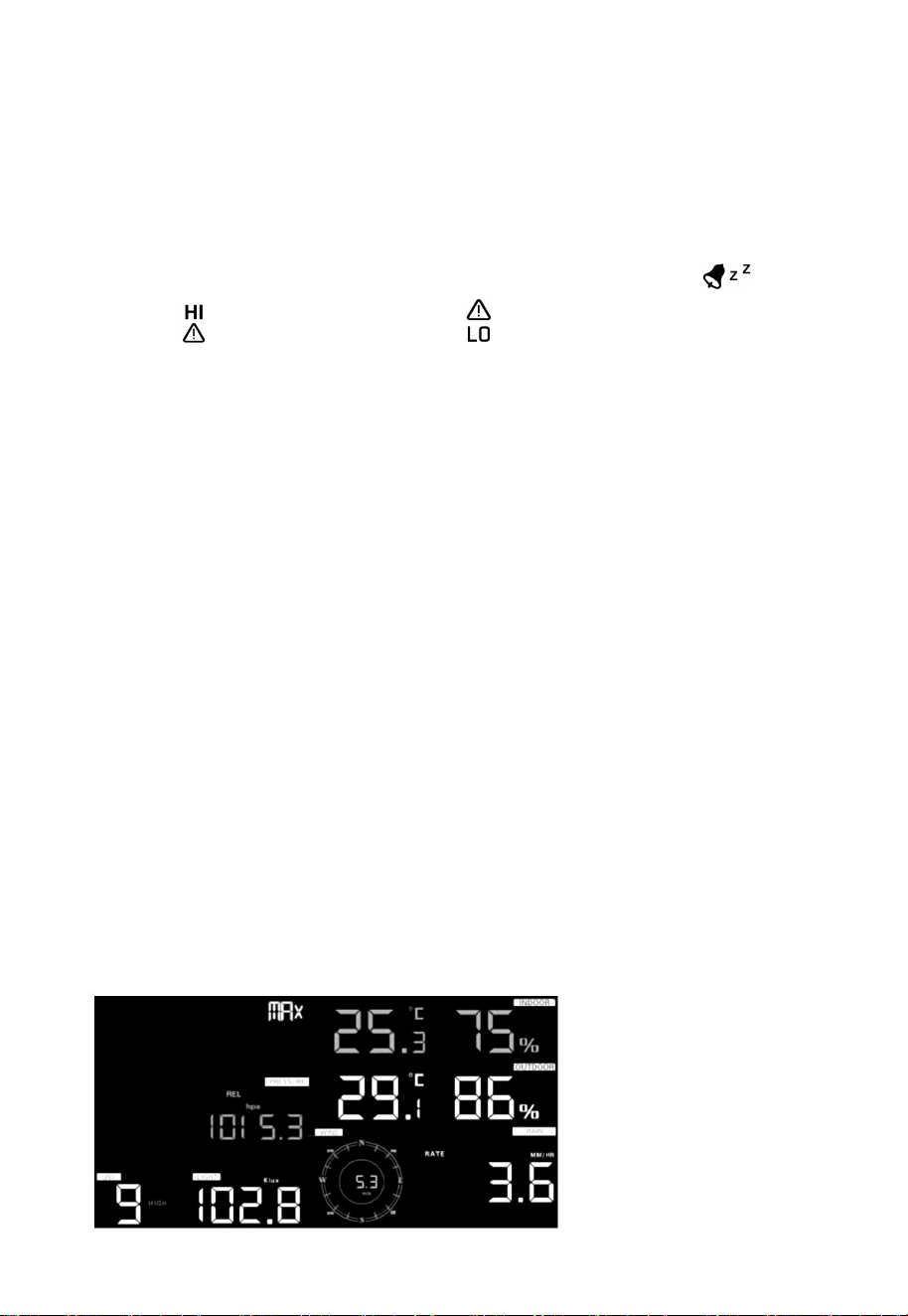
6.5.1 Display of Alarm value
1) Press and release ALARM key to display high alarm
2) Press ALARM key again to display low alarm
Note:
- Press RAIN key to select display rate or day rain alarm data.
- Press WIND/+key to select display wind or gust alarm data.
- Press ALARM key third time or press LIGHT /SNOOZE key back to
normal mode
22
6.5.2 Alarm mode setting:
1) Press and hold for 2 seconds ALARM key enter alarm setting
mode:
2) Press the WIND/+ or PRESSURE/- to arm/disarm alerts and
adjust alert values.
3) Press the SET key to confirm & move to the next item.
4) Press the ALARM key to on/off the alarm
Note: when alert is triggered, the current triggering source icon
for time, icon for high value and icon for low value will be
flashing, indicating alert is triggered.
Note: press ALARM key third time back to normal mode or press
LIGHT /SNOOZE key back to normal mode.
6.5.3 Alarm Setting Order:
1) Time alarm setting
2) Indoor high temperature setting
3) Indoor low temperature setting
4) Indoor high humidity setting
5) Indoor low humidity setting
6) Outdoor high temperature setting
7) Outdoor low temperature setting
8) Outdoor high humidity setting
9) Outdoor low humidity setting
10) High wind setting
11) High gust setting
12) Rain rate high setting
13) Rain day high setting
6.6 Max/min mode
6.6.1 Press and release MAX/MIN key to display MAX data
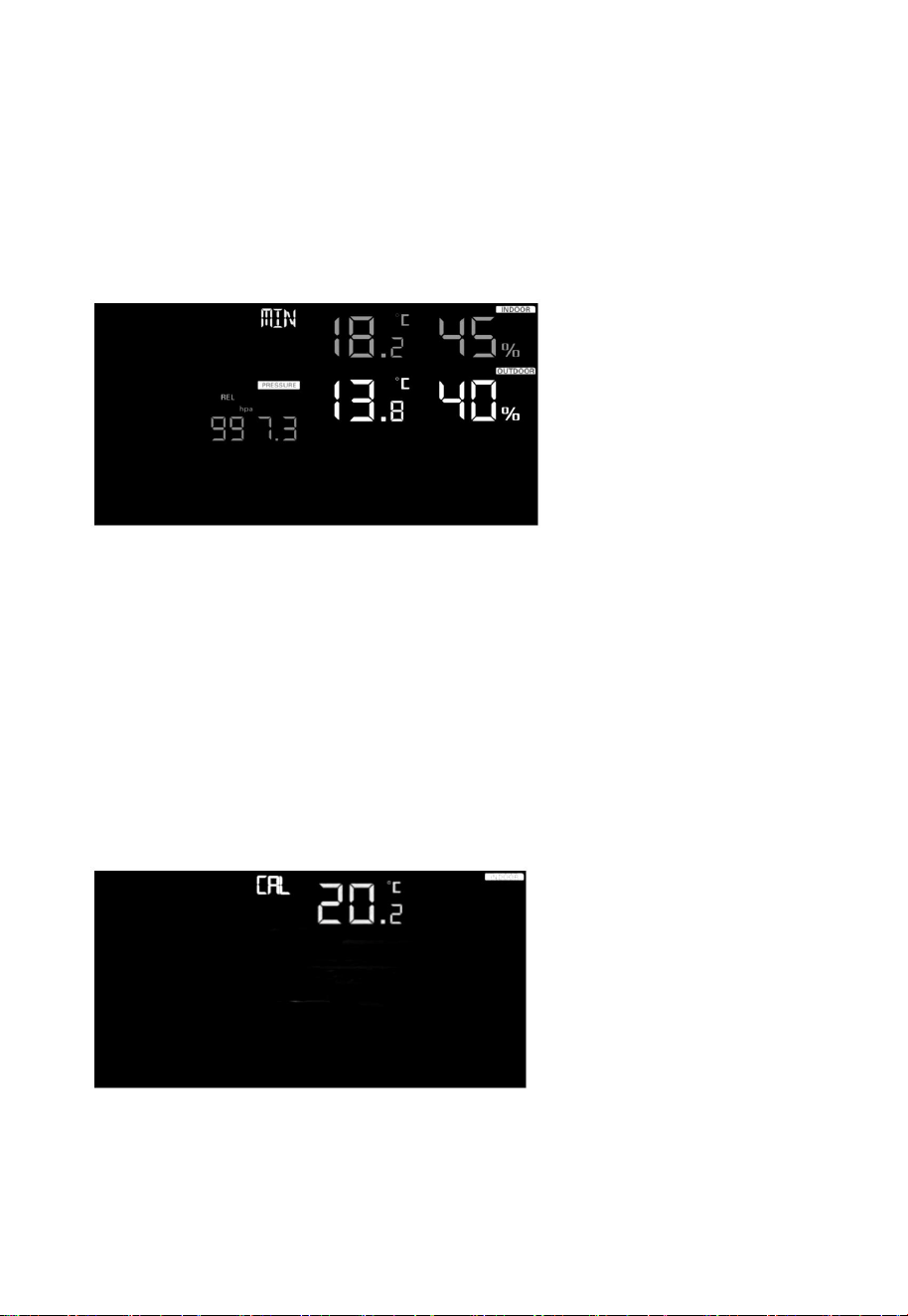
23
- Press TEMP. key to view wind chill, heat index and dew point max.
- Press RAIN key to view rain rate, rain day, rain week and rain month
max.
- Press WIND/+ to view wind and gust max.
- Press PRESSURE/- to hold 2 seconds to view pressure absolute and
relative max.
Press again to display min data
- Press TEMP. key to view wind chill and dew point min.
- Press PRESSURE/-to hold 2 seconds to view pressure absolute and
relative min.
Note: press and hold 2s MAX/MIN button to reset all max or min.
press MAX/MIN key third time back to normal mode or press LIGHT
/SNOOZE key back to normal mode.
6.7 Calibration mode
Hold the TEMP. and MAX/MIN key together for 5 seconds to enter
calibration mode.
- Press the WIND/+and PRESSURE/- key to adjust values.
- Press the SET key to confirm & move to the next item.
- Press the ALARM key to reset any adjusted value.
- Press the LIGHT /SNOOZE key at any time to exit.

24
Calibration Order:
1) Indoor temperature offset calibrated (range +/-5˚C, default: 0
degrees)
2) Indoor humidity offset calibrated (range +/-10%)
3) Outdoor temperature offset calibrated (range +/-5˚C, default: 0
degrees)
4) Outdoor humidity offset calibrated (range +/-10%)
5) Absolute pressure offset calibrated (range +/-50hpa)
6) Wind direction offset calibrated (adjust by degree)
7) Wind speed factor adjust, default 100% (range 50% to 150%)
8) Rain factor adjust, default 100% (range 50% to 150%)
6.8 Other Features
6.8.1 Factory Reset/Clear Memory
To restore the console to factory default, perform the following steps:
1. Remove the power from the console by removing the batteries
and disconnecting the AC adapter.
2. Apply power by connecting the AC adapter.
3. Wait for all of the segments to appear on the screen,.
4. Press and hold the WIND/+ and PRESSURE/- keys at the same
time until the console power up sequence is complete (about 5
seconds).
5. Replace the batteries.
6.8.2 Register New Transmitter
Press and hold the LIGHT /SNOOZE button for 5 seconds, and the
console will re-register the wireless sensor.
6.8.3 Backlight Operation
1) With AC adaptor.
The backlight can only be continuously on when the AC adapter is
permanently on. When the AC adapter is disconnected, the backlight
can be temporarily turned on.
Press the LIGHT SNOOZE key to adjust the brightness between High,
Low and Off.
2) Without AC adaptor
To reduce power consumption, the display console will automatically
enter sleep mode and will not send data to the Internet if no key is
pressed for 15s. Hold the LIGHT /SNOOZE key in sleep mode or plug
in the DC adapter wake up equipment.
25
6.8.4 Tendency indicators
Tendency arrows allow you to quickly determine of temperature or
pressure are rising and falling in a three hour update period, updated
every 30 minutes.
Eg. : At 3:00 - compare to 12:00 data; at 3:30 -compare to 12:30 …..
etc
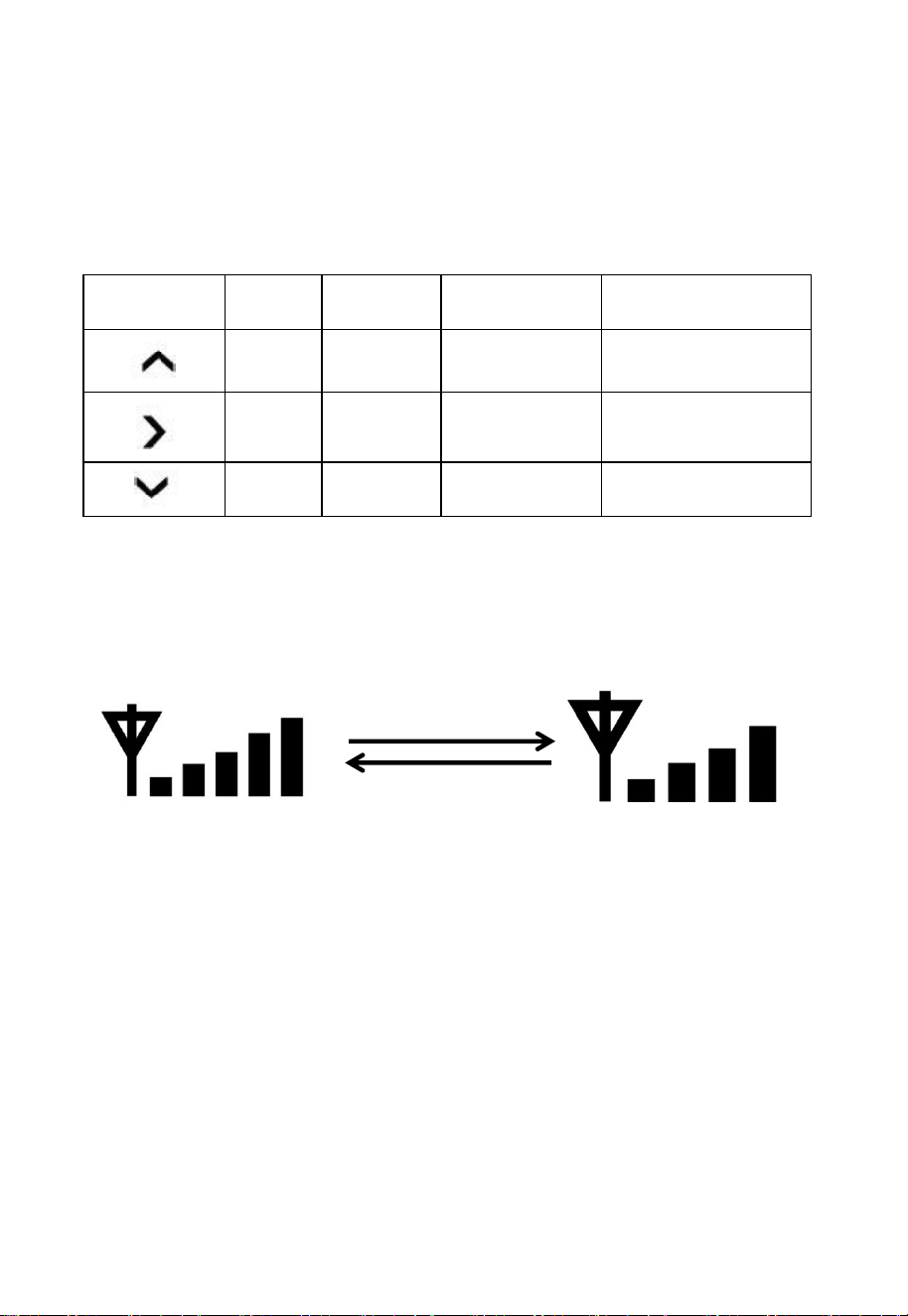
6.8.5 Wireless Signal Strength Indicator
The wireless signal strength displays reception quality. If no signal is
lost, the signal strength indicator will display 5 bars. If the signal is lost
once, four bars will be displayed.
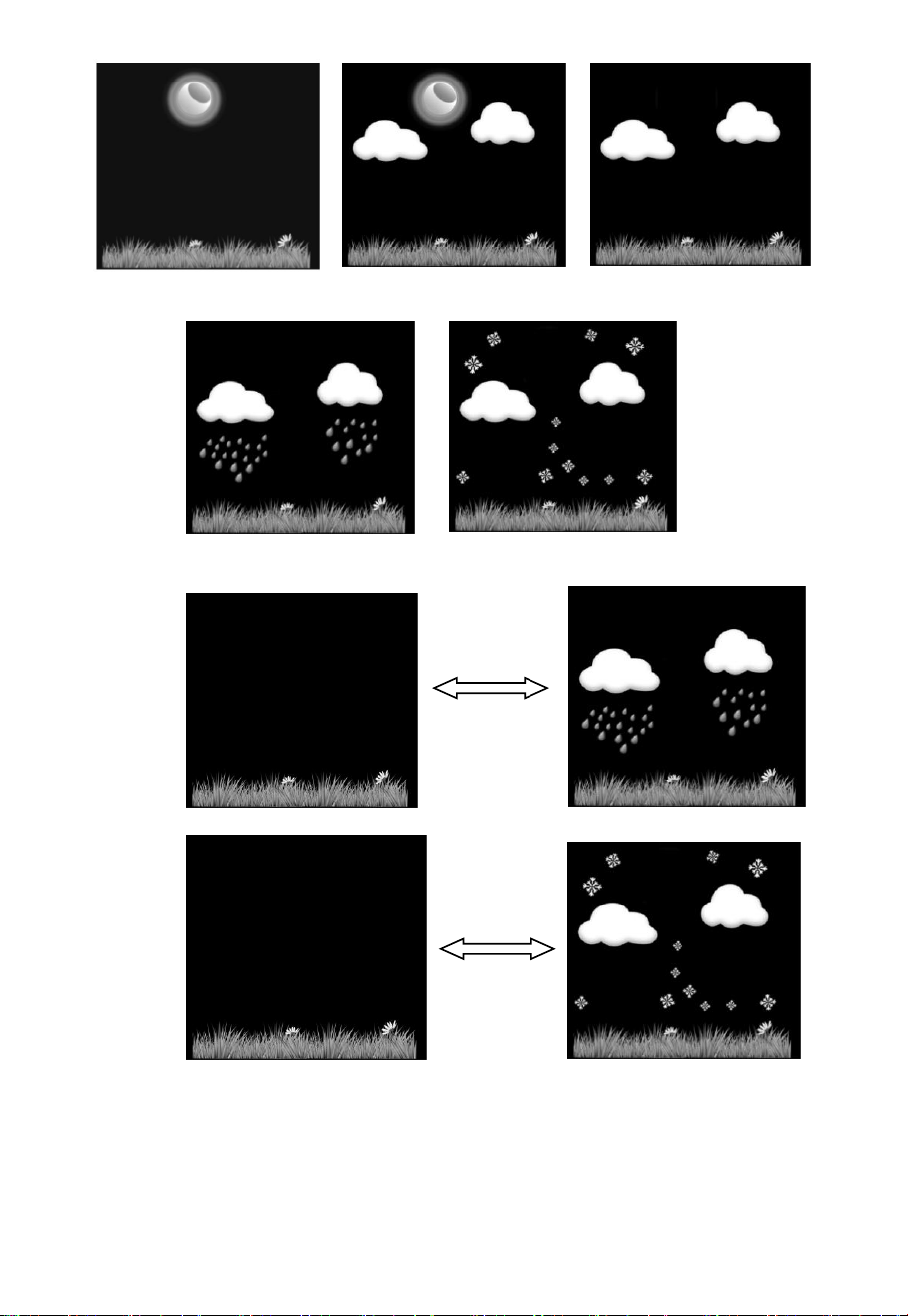
6.8.6 Weather forecast
There are six color forecast icons use changing atmospheric pressure
to predict weather conditions for the next 6-hours. Please allow at least
one month for the weather station to learn the barometric pressure
over time.
Tendency
indicators
Humidity
Temperature
Pressure
Rising
Rising >
3%
Rising >=
1C/2F
Rising > 1hpa
Steady
Change
<= 3%
Change <
1C/2F
Change <= 1hpa
Falling
Falling >
3%
Falling >=
1C/2F
Falling > 1hpa
Lost the signal once
Received the signal once
26
Sunny Partly sunny Cloudy
Rainy Snowy
Storm rainy(Blink for 30 minutes at most)
Storm Snowy(Blink for 30 minutes at most)
Note: Snowy icon will appear in place of rainy icon when the outdoor
temperature is below 0˚C (32 F).

27
Weather Forecasting Description and Limitations
In general, if the rate of change of pressure increases, the weather is
generally improving (sunny to partly cloudy). If the rate of change of
pressure decreases, the weather is generally degrading (cloudy, rainy
or stormy). If the rate of change is relatively steady, it will read partly
cloudy.
The reason the current conditions do not match the forecast icon is
because the forecast is a prediction 24-48 hours in advance. In most
locations, this prediction is only 70% accurate and it is a good idea to
consult the National Weather Service for more accurate weather
forecasts. In some locations, this prediction may be less or more
accurate. However, it is still an interesting educational tool for learning
why the weather changes.
The National Weather Service (and other weather services such as
Accuweather and The Weather Channel) have many tools at their
disposal to predict weather conditions, including weather radar,
weather models, and detailed mapping of ground conditions.
6.8.7 Snooze
When the time alarm has been triggered, the alarm will sound and
alarm icon will flash for 120s. Press SNOOZE/LIGHT key to silence
the alarm for 10 minutes and then the alarm will sound again when that
time is up. Press any key except SNOOZE/LIGHT key to stop the
alarm.
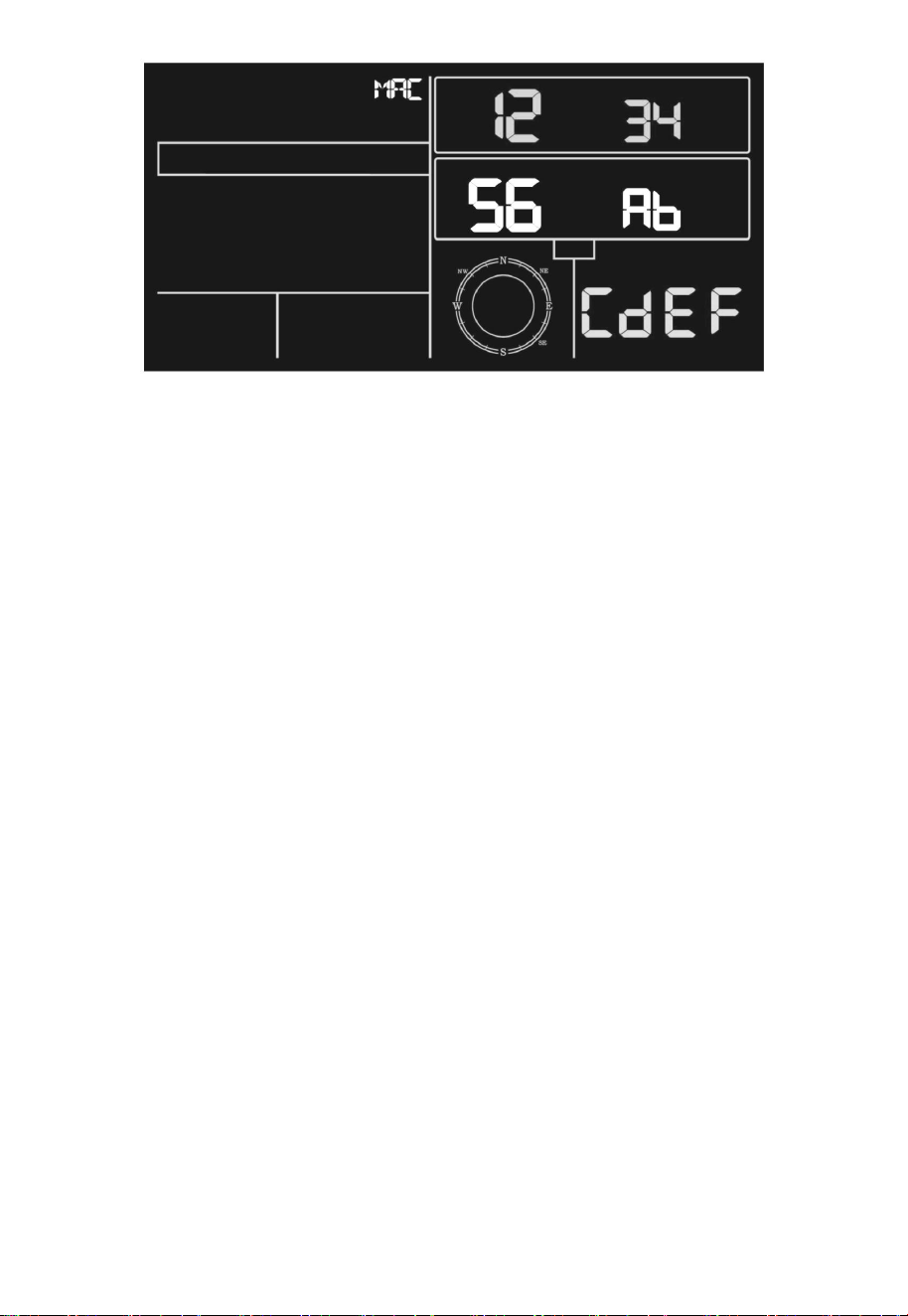
6.8.8 MAC address display
When the external power adaptor is connected and plugged in-then
press and release the SET button to view MAC address.
For example the MAC is 12:34:56:AB:CD:EF:
28
With your obtained MAC address, register your device on the Ecowitt
service or customized website.
7. Specification:
Outdoor data
Transmission distance in open field
: 100m (300 feet)
Frequency
: 433MHz/868MHz (option)
Temperature range
: -40˚C--60˚C (-40˚F to +140˚F)
Accuracy
: + / - 1 °C
Resolution
: 0.1˚C
Measuring range rel. humidity
: 10%~99%
Accuracy
: +/- 5%
Rain volume display
: 0 – 6000mm
(show --- if outside range)
Accuracy
: + / - 10%
Resolution
: 0.1mm (if rain volume < 1000mm)
1mm (if rain volume > 1000mm)
Wind speed
: 0-50m/s (0~100mph)
(show --- if outside range)
Accuracy
: +/- 1m/s (wind speed< 5m/s)
+/-10% (wind speed > 5m/s)
Light
: 0-200k Lux
Accuracy
: +/-15%
Measuring interval thermo-hygro
sensor
: 16s

29
Indoor data
Indoor temperature range
: 0˚C--50˚C (32˚F to + 122˚F)
(show --- if outside range)
Resolution
: 0.1˚C
Measuring range rel. Humidity
: 10%~99%
Resolution
: 1%
Measuring range air pressure
: 700-1100hPa (20.67-32.5inHg)
Accuracy
: +/-3hpa
Resolution
: 0.1hPa (0.01inHg)
Alarm duration
: 120sec
Measuring interval indoor data
: 60s
Power consumption
Base station : 5V DC adaptor (included),
Power Consumption : 0.5 Watts (1.25 Watts during WiFi
configuration mode)
Base station : 3 x AAA batteries (not included)
Remote sensor : 2x AA batteries (not included)
The primary power source is the solar panel. The batteries
provide backup power when there is limited solar energy
30
8. Live Internet Publishing
Your console is capable of sending your sensor data to select
internet-based weather services. The supported services are shown in
the table below:
Hosting
Service
Website
Description
Ecowitt
Weather
https://www.ecowitt.net
Ecowitt is a new weather
server that can host a bunch
of sensors that other
services don’t support.
Weather
Undergound
https://www.wunderground
.com
Weather Underground is a
free weather hosting service
that allows you to send and
view your weather station
data real-time, view graphs
and gauges, import text data
for more detailed analysis
and use iPhone, iPad and
Android applications
available at
Wunderground.com.
Weather Underground is a
subsidiary of The Weather
Channel and IBM.
Weather
Cloud
https://weathercloud.net
Weathercloud is a real-time
weather social network
formed by observers from
around the world.
Weather
Observation
Website
(WOW)
http://wow.metoffice.gov.
uk/
WOW is a UK based
weather observation
website. WOW allows
anyone to submit their own
weather data, anywhere in
the world.
Customized
Website
Supports uploading to your
customized website, if the
website has the same
protocol with Wunderground
or Ecowitt

31
8.1 Connecting the Weather Station Console to WiFi
To send weather data to these services you must connect your
console to the internet via Wi-Fi. The console can only operate using
Wi-Fi when the external power adapter is connected and plugged in!
Note: If you are testing the setup with the outdoor sensor package
nearby and indoor, you may want to consider connecting to
Wi-Fi, but not yet configuring any of the weather services. The
reason is that while indoor the temperatures and humidity
recorded by the outdoor sensor, and as reported to the
weather service(s) will reflect indoor conditions, and not
outdoor conditions. Therefore, they will be incorrect.
Furthermore, the rainfall bucket may be tripped during
handling, causing rain to register while it may not actually have
been raining. One way to prevent this is to follow all
instructions, except to use an incorrect password, on purpose!
Then, after final outdoor installation, come back and change
the password after clearing console history. That will start
uploading to the services with a clean slate.
8.1.1 Download mobile application
Wi-Fi configuration is done using your mobile device, either iOS or
Android. Start by downloading the “ WS View Plus ” application from
the Apple App Store or Google Play store, as appropriate for your
device.
8.1.2 Connect the console to Wi-Fi
8.1.2.1 Android user/ iOs user
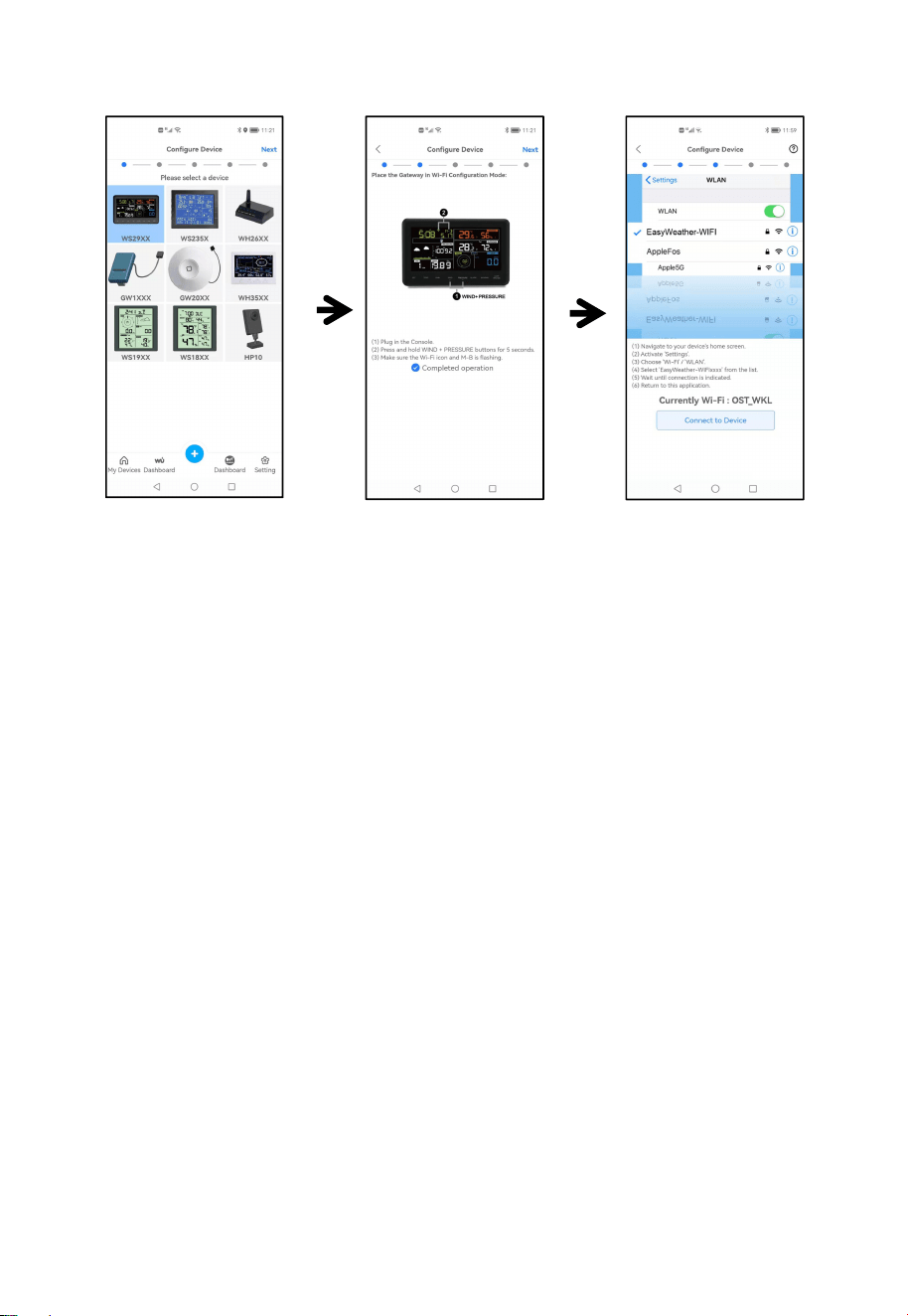
Now activate the application you have downloaded on your mobile
device. The following instructions will generally show screen shots for
the Android/iOs application side by side.
32
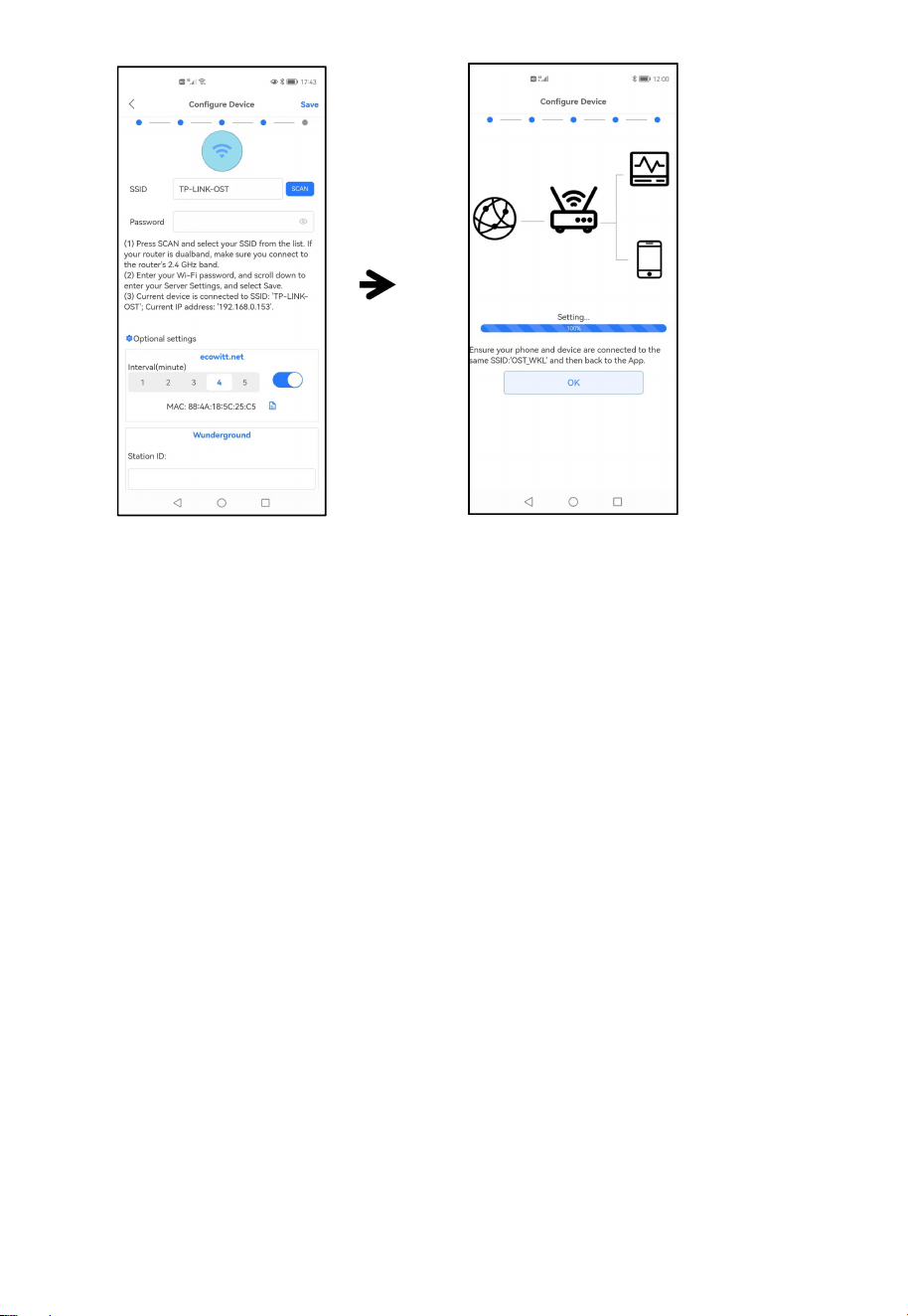
Configure Device
1) Select the device
you have from the
device list, then
press Next
2) Operate as per
the information, tick
the box to confirm
“completed
operation”, press
Next.
3) Choose The
device named
“EasyWeather-WIFI”
followed by four
characters.
33
Upload Setting
Your console is capable of sending your sensor data to select
internet-based weather services: ecowitt.net, Wunderground.com,
weathercloud.net, wow.metoffice.gov.uk and Customized Website.
User need to register at the select website to get the station ID(or MAC
address) and password
4) Press Scan and select
you SSID from the list, then
enter your WiFi password
and press Next.
If you own a dual band
router (2.4 GHz and 5.0
GHz),make sure you
connect to the 2.4 GHz
band, otherwise it will fail to
connect the weather station
to WiFi.
5) Start to connect your
phone to the weather
station
“EasyWeather-WIFI” to
your router. Configure
successfully 100%, Press
OK.
it will jump to “Upload
Setting” screen
automatically. .
34
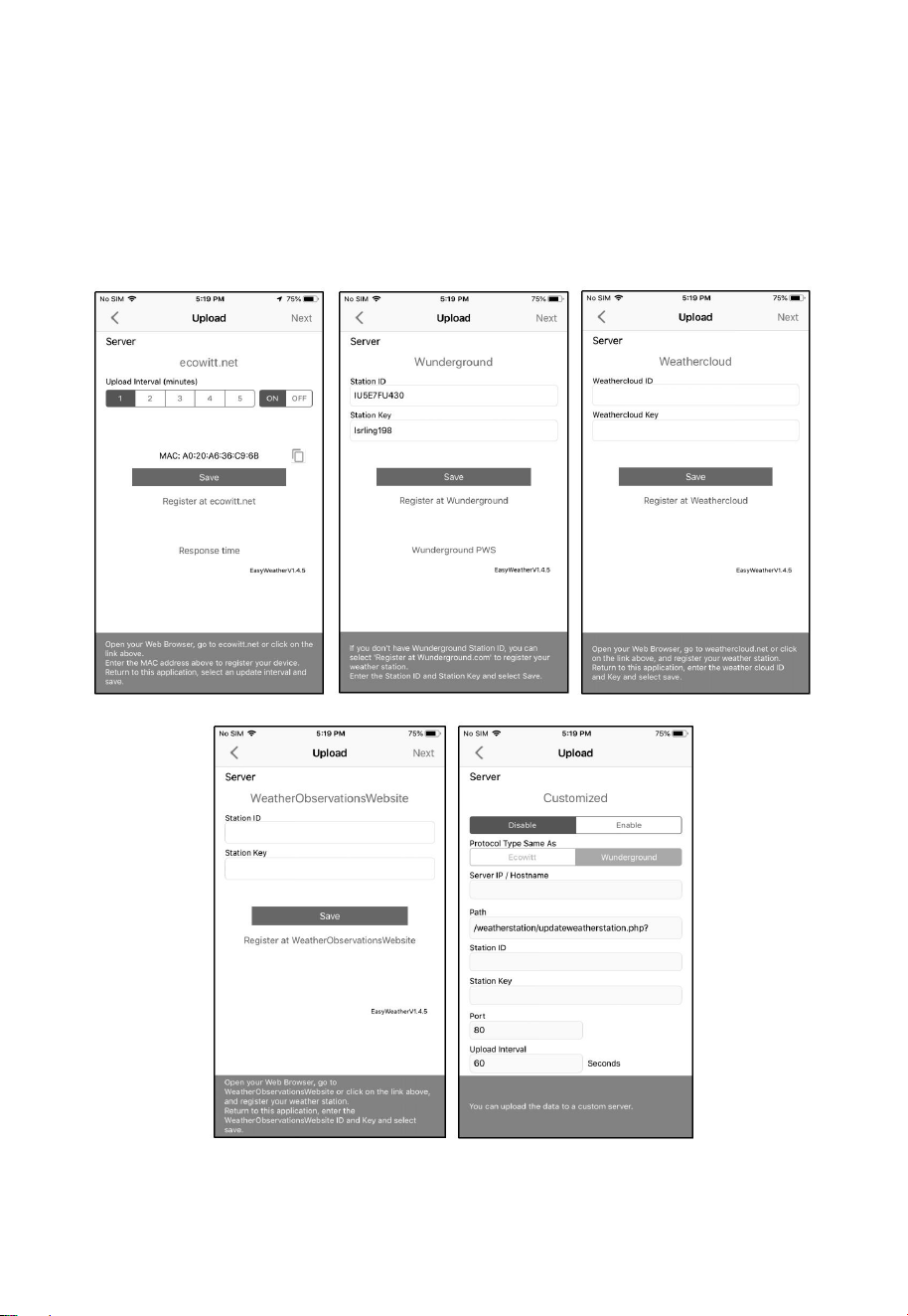
8.2 Adding weather services
You may have configured weather services during the initial
configuration, or you may do so later. To do so, open the mobile
application and select your device from the device list. This will bring
you to the “Upload” screen for the device.
Navigate to the weather service you wish to configure by pressing
“Next” and enter the appropriate data.
35
8.2.1 Ecowitt Weather
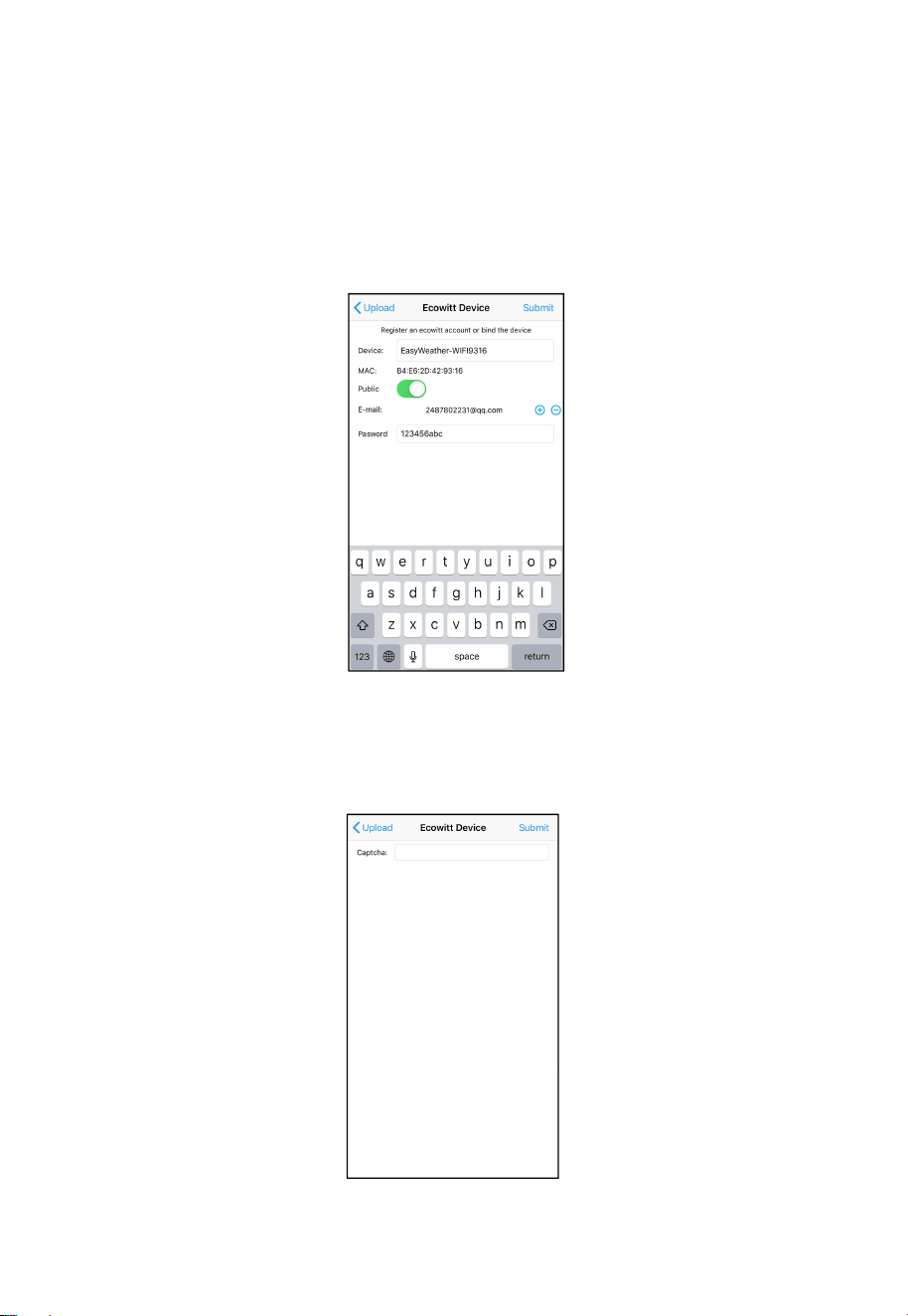
It’s recommended to use the Ecowitt Weather server to monitor and
record your sensors’ data. Configure as follows:
On the ecowitt.net uploading page, enable the ON button
(displayed blue) and set the uploading interval time.
Press Save on the page.
Press “Register at ecowitt.net” and finish the registration on the
page.
Press the “+” button and select enter your email address.
Set a password for your ecowitt account
Press Submit.
Enter the captcha you received from your email box and press
submit.
It will jump to the ecowitt.net dashboard and display the sensor
data within several minutes.
36
Note:
If you could not receive the captcha from your email box, please check
the spam.
It only supports setting the units on the WS View Plus app. To use the
full settings, please visit the ecowitt website on your browser or on a
computer.
If you could not register on the WS View Plus app, please go to the
website to register and add the device.
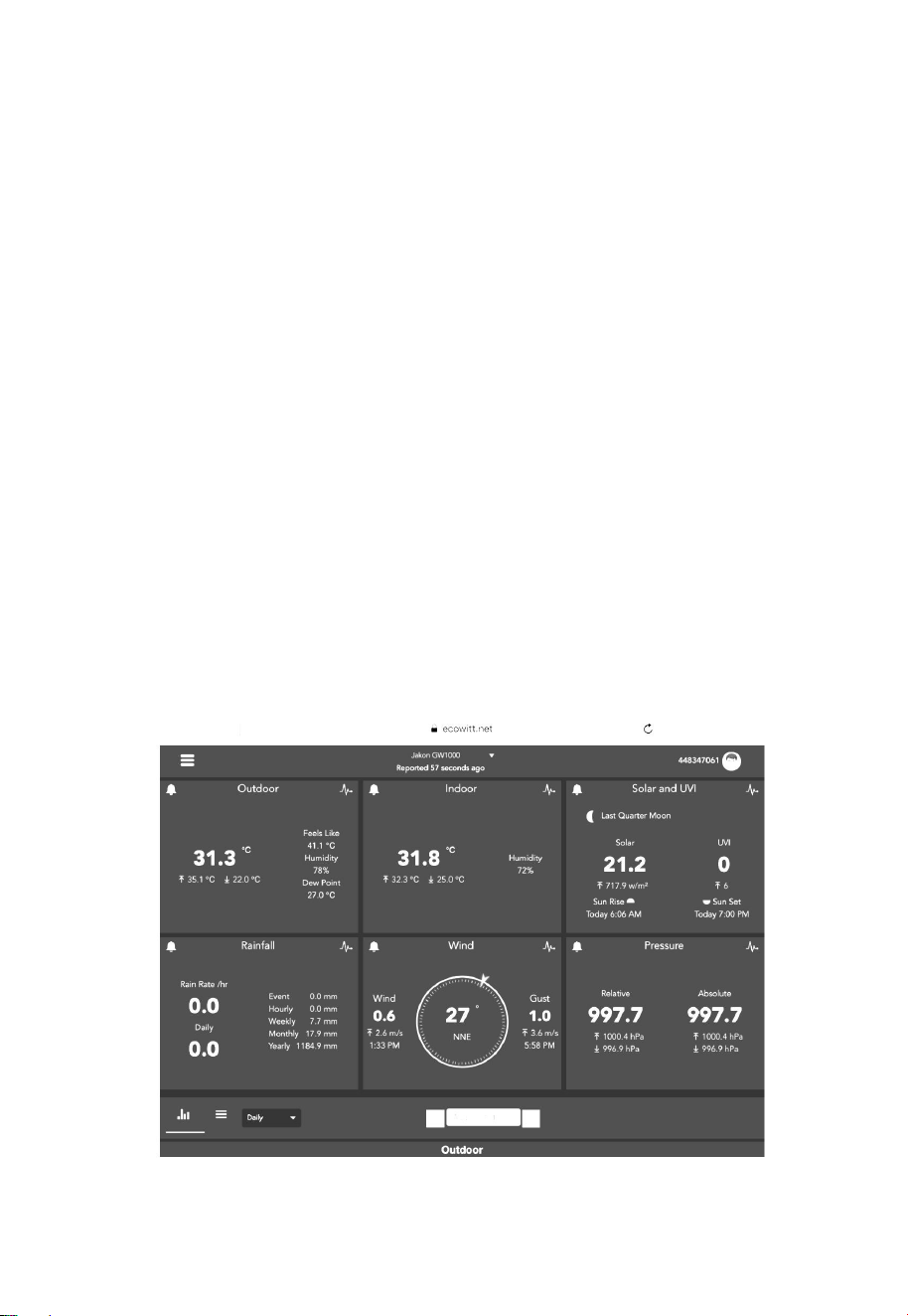
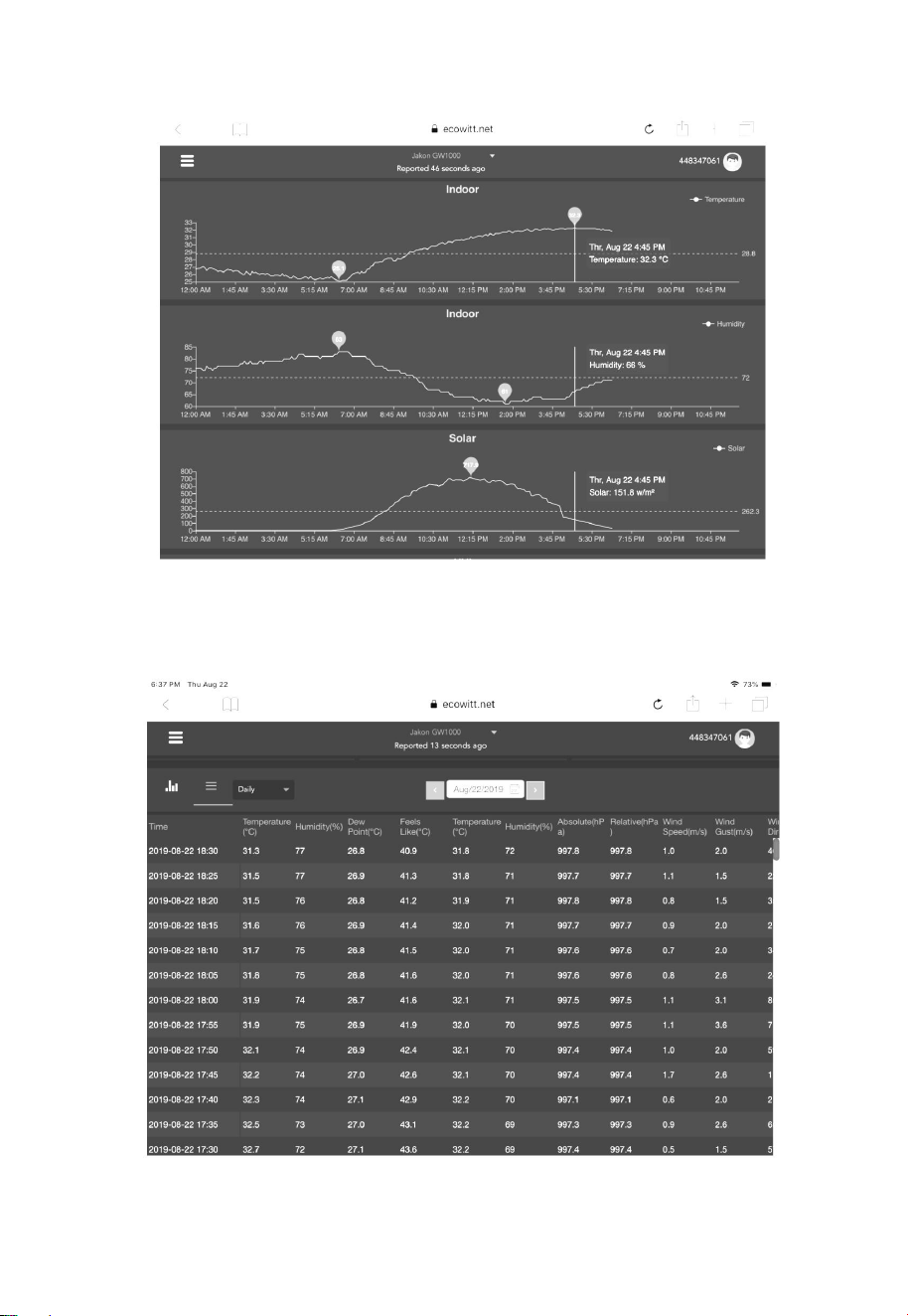
8.2.2 Viewing data on ecowitt.net
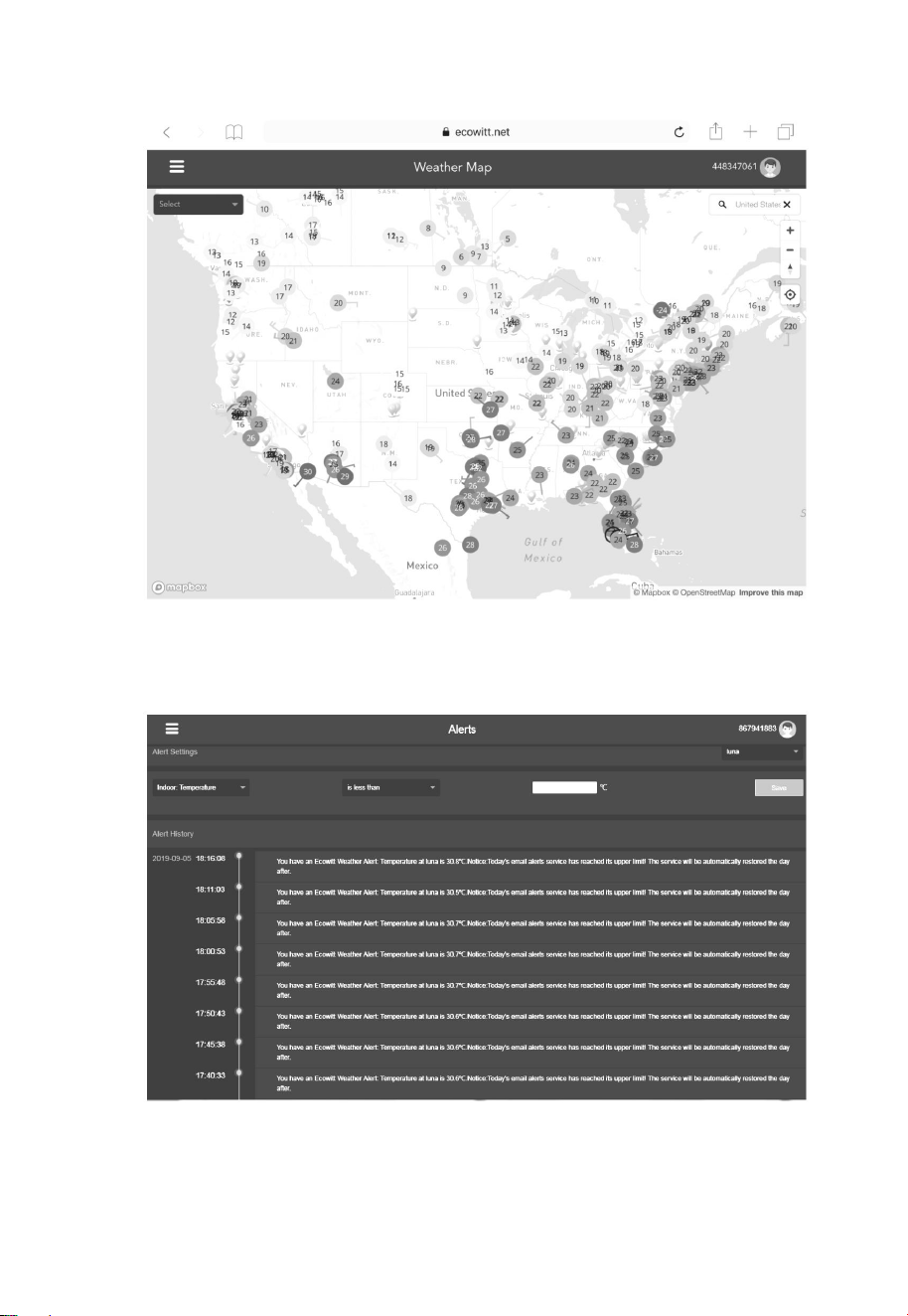
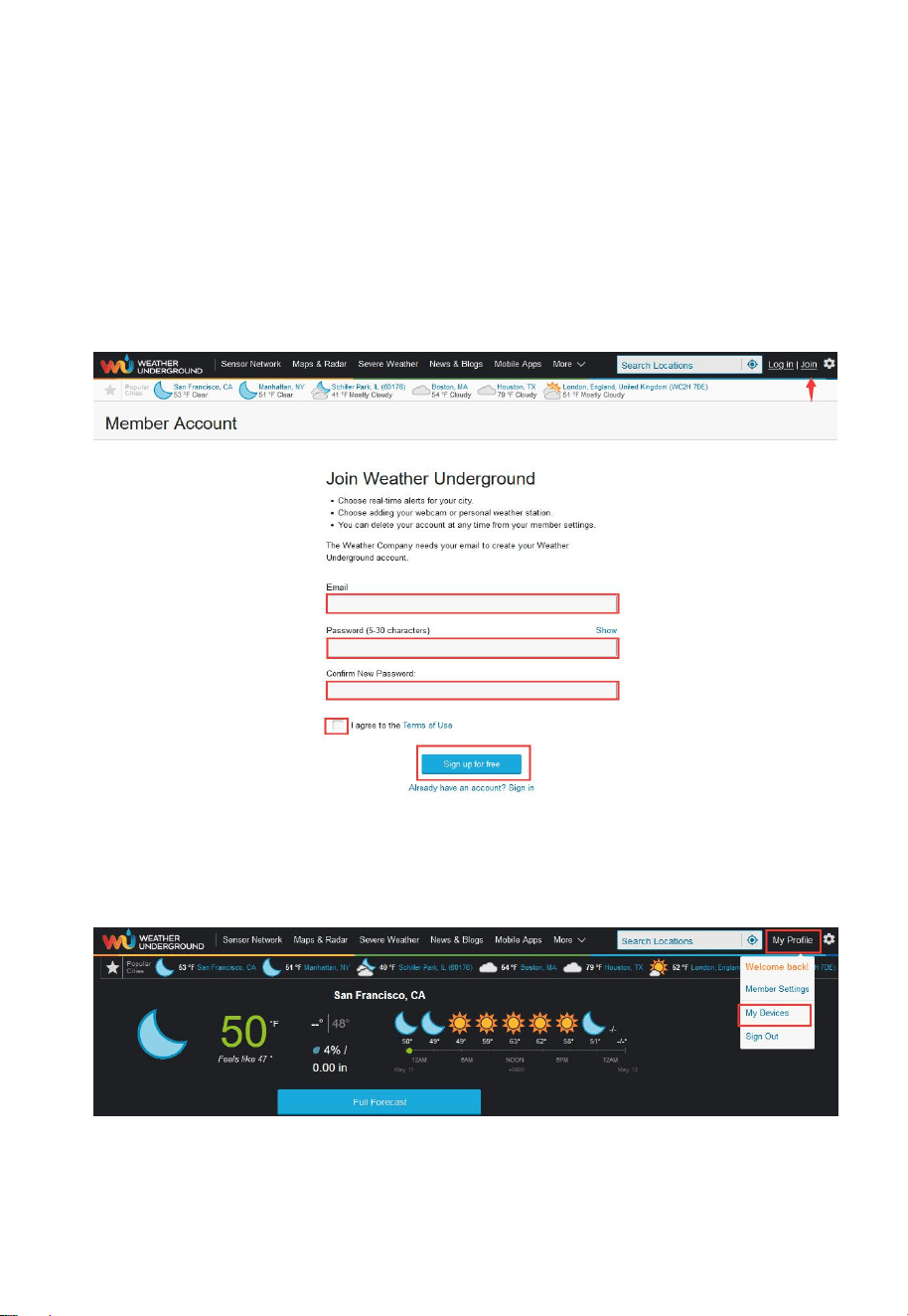
You can observe your sensor’s data by using the ecowitt.net web site.
You will use a URL like this one, where your station ID replaces the
text “STATIONID”.
https://www.ecowitt.net/home/index?id=STATIONID
Note: If you want to share your station data with other users, you may
use the Share option under the Menu to create a share link.
It will show a page such as this, where you can look at today’s data
and historical data as well.
Dashboard
37
Graph display
List display
38
Weather Map
Email Alerts
39
8.3 Weather Underground
If you are planning to use wunderground.com you must have an
account and register a (new) personal weather station. You may do so
on the Wunderground uploading page in the WS View Plus
application:
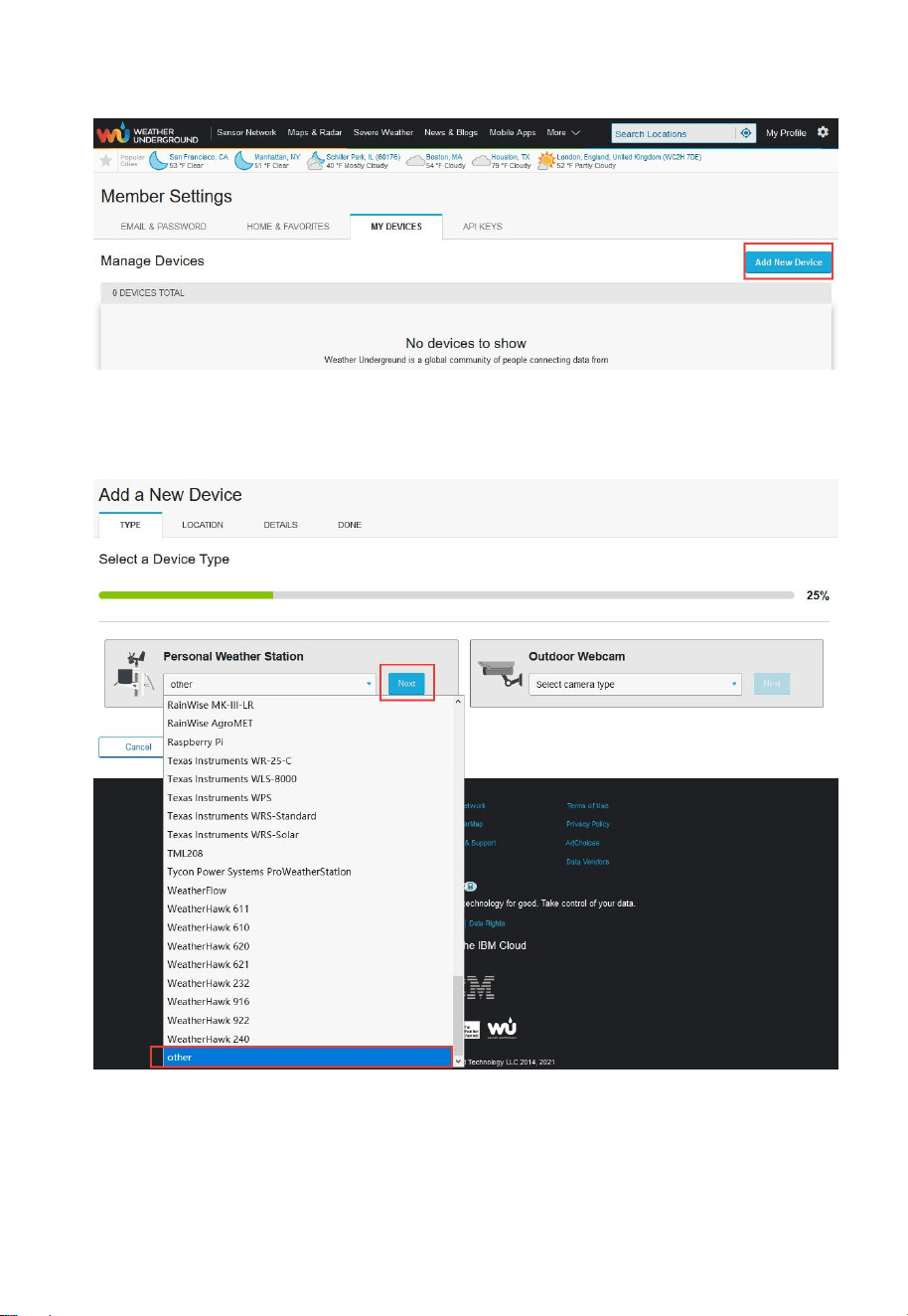
Press Register at Wunderground.com and finish the registration on
the page:
1. Visit Wunderground.com and click Join as the right top arrow
indicates and select the Sign up for free option.
2. Click My Profile and select My Devices to register your
station
40
3. Select Add New Device.
4. Find Personal Weather Station. Select ‘other’ and click ‘Next’.
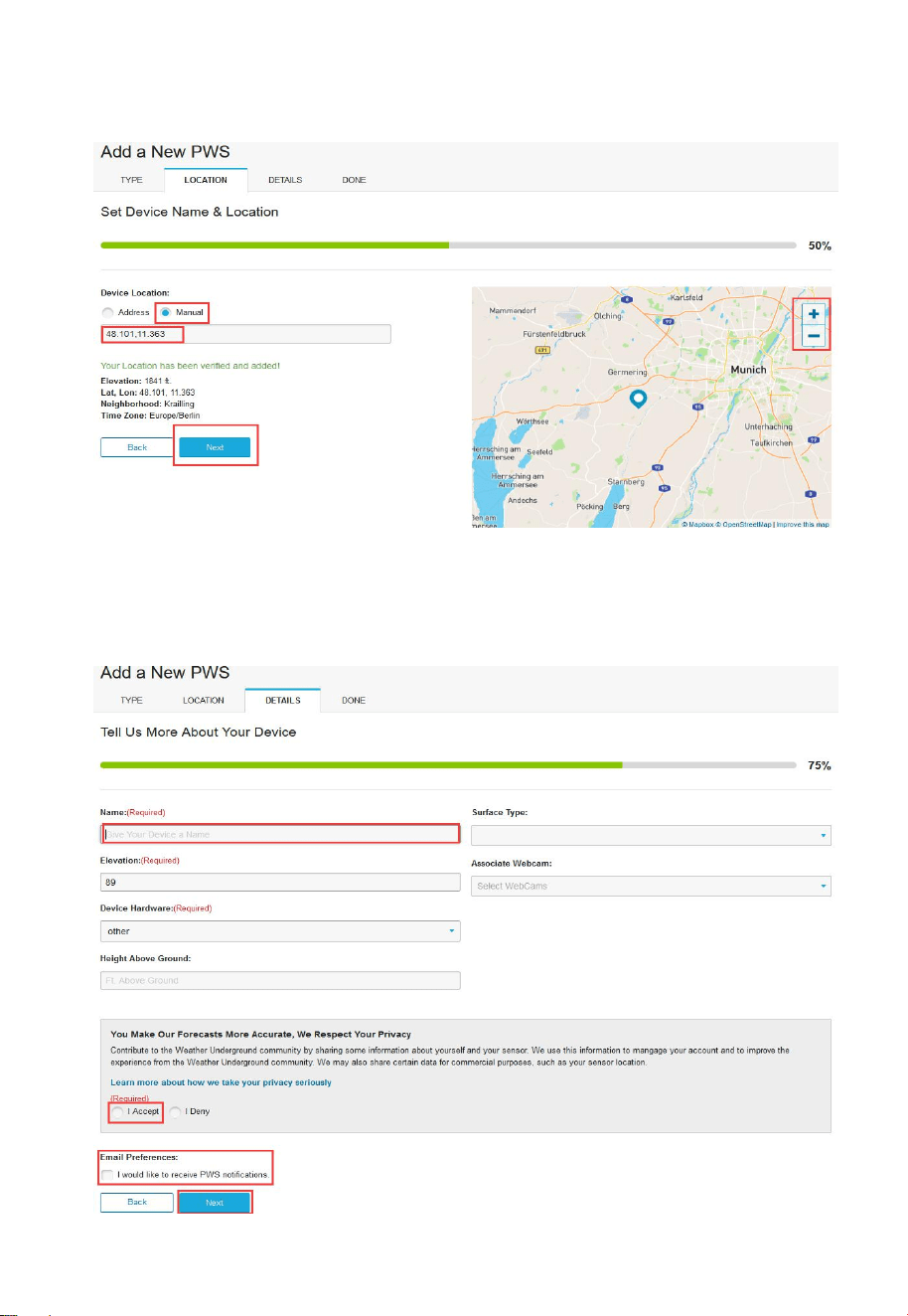
41
5. Select ‘Address’ or ‘Manual’ option, and find your local position.
Press ‘Next’.
6. This time you will be asked details about your weather station.
Go ahead and fill out the form.
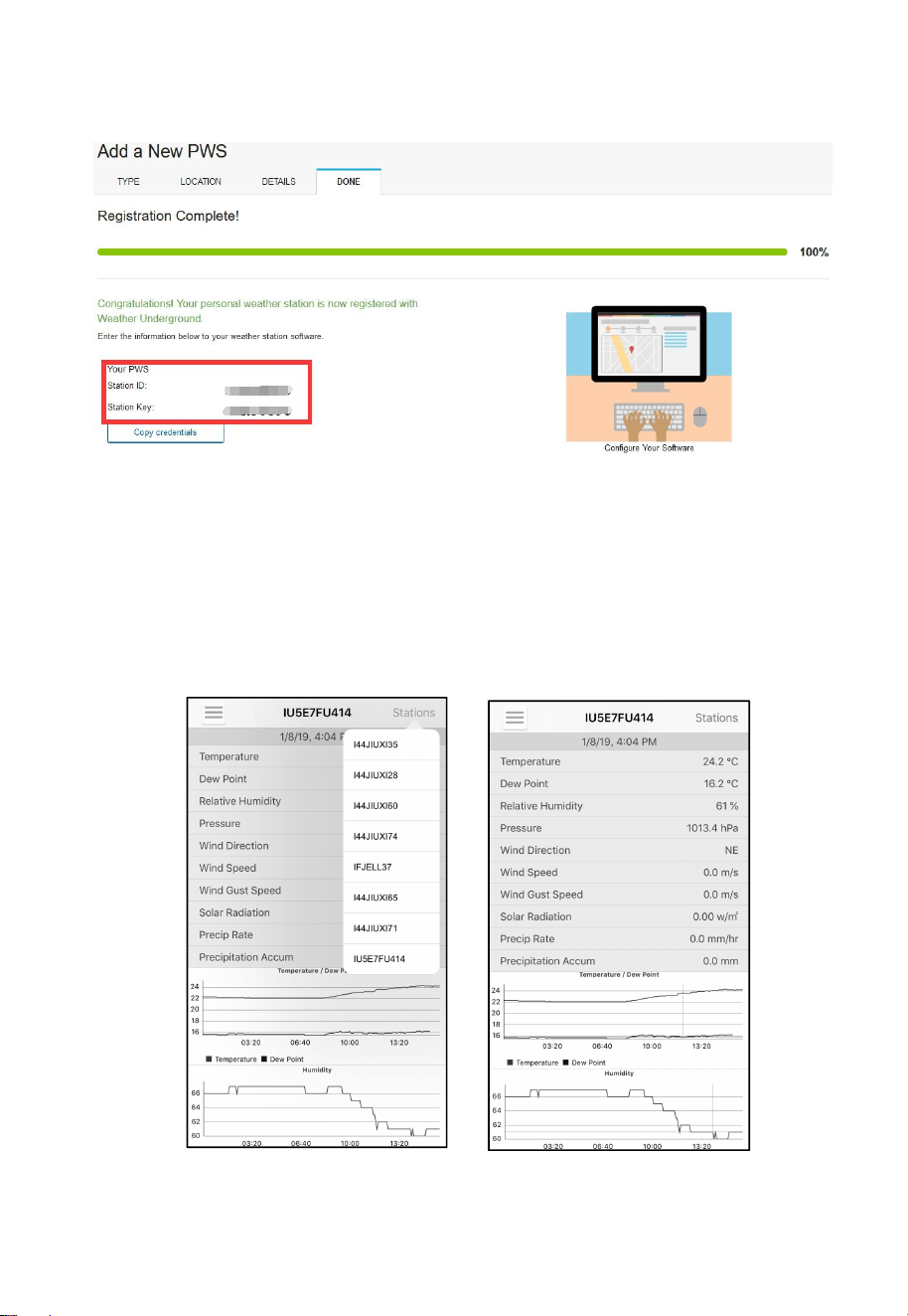
42
7. After completing the weather station, you will see station ID
and key/password.
Take note of the PWS identifier (ID) and the password that will be
generated for you.
Back to the app and input the Station ID and Key.
Press Save.
Back to the Menu page and select WU Dashboard(for Android
version) or select your station on the Stations(for iOS version) .
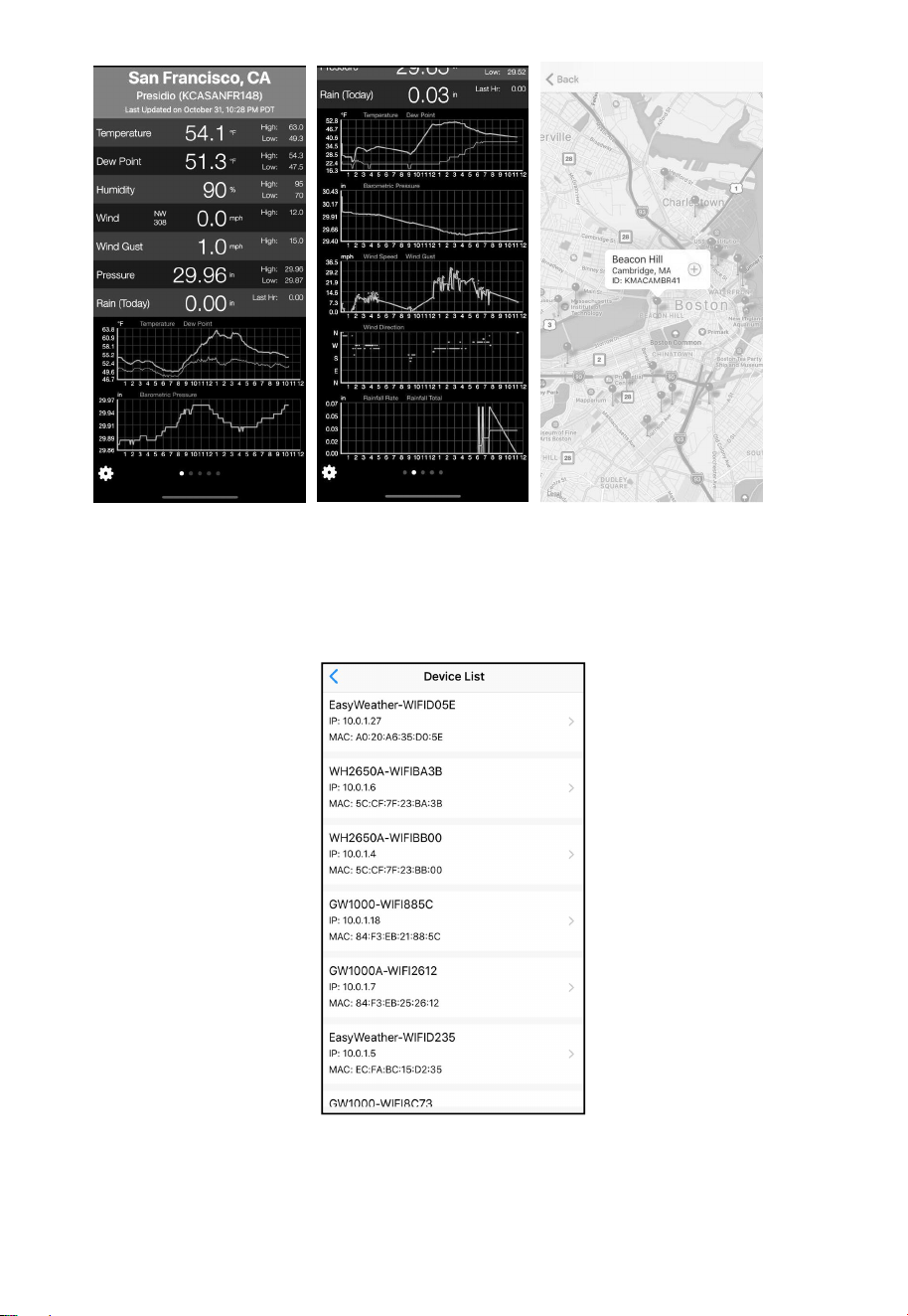
You’ll see the current WU data, including graphs on the screen
within hours.
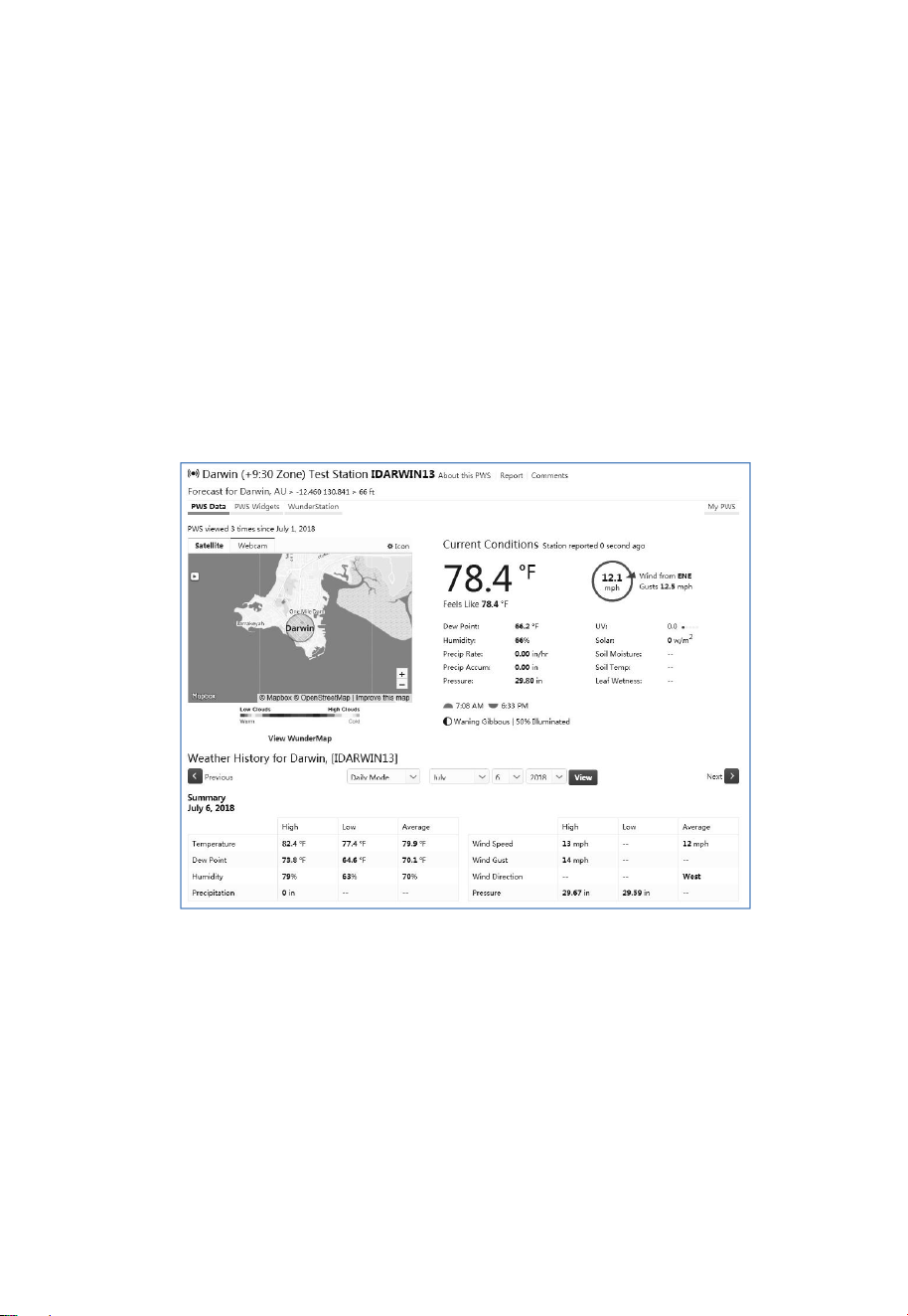
43
Note: WU Dashboard shows the data obtained from WU server.
This requires that your mobile device can reach the Internet and
therefore this is possible even when you are not on your home
Wi-Fi network, such as when using cellular data.
8.4 Viewing data on wunderground.com
You can also observe your weather station’s data by using the
wunderground.com web site. You will use a URL like this one,
where your station ID replaces the text “STATIONID”.
http://www.wunderground.com/personal-weather-station/dashboard?
ID=STATIONID
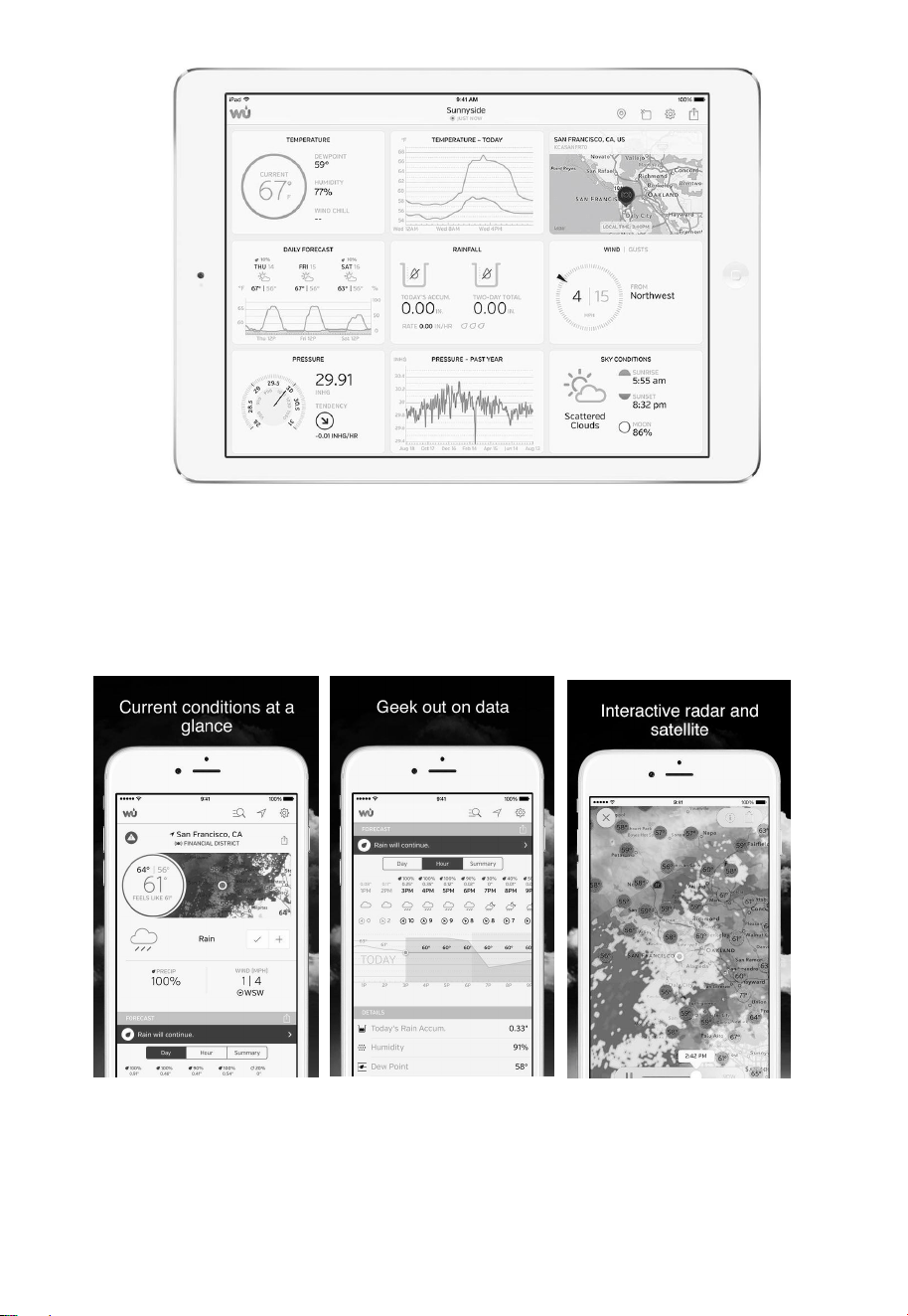
It will show a page such as this, where you can look at today’s data
and historical data as well.
There are also some very useful mobile apps. The URLs provided
here go to the Web version of the application pages. You can also
find them directly from the iOS or Google Play stores:
WunderStaton: iPad application for viewing your station’s data and
graphs:
https://itunes.apple.com/us/app/wunderstation-weather-from-your-n
eighborhood/id906099986
44
Weather Underground: Forecast: iOS and Android application for
forecasts
https://itunes.apple.com/us/app/weather-underground-forecast/id48
6154808
https://play.google.com/store/apps/details?id=com.wunderground.a
ndroid.weather&hl=en
PWS Weather Station Monitor: View weather conditions in your
neighborhood, or even right in your own backyard. Connects to
wunderground.com:
https://itunes.apple.com/us/app/pws-weather-station-monitor/id713
705929
45
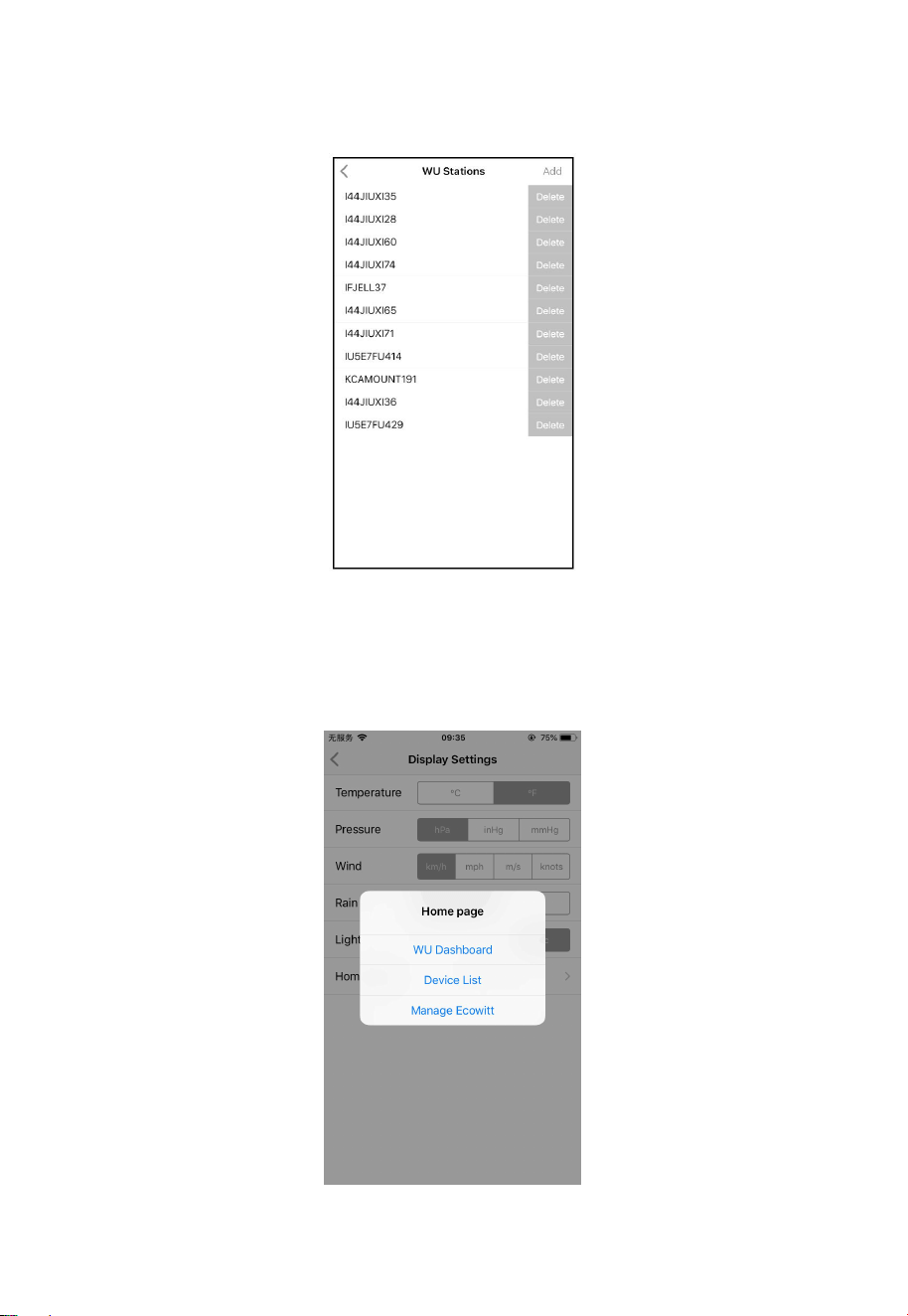
8.5 Device list
When on WU Dashboard screen, you can press the “Menu” button
(upper right) and select Device List to view all your devices.
You can press your device to view or modify the settings.
Note: This function requires that your phone and the console is using
the same network.
46
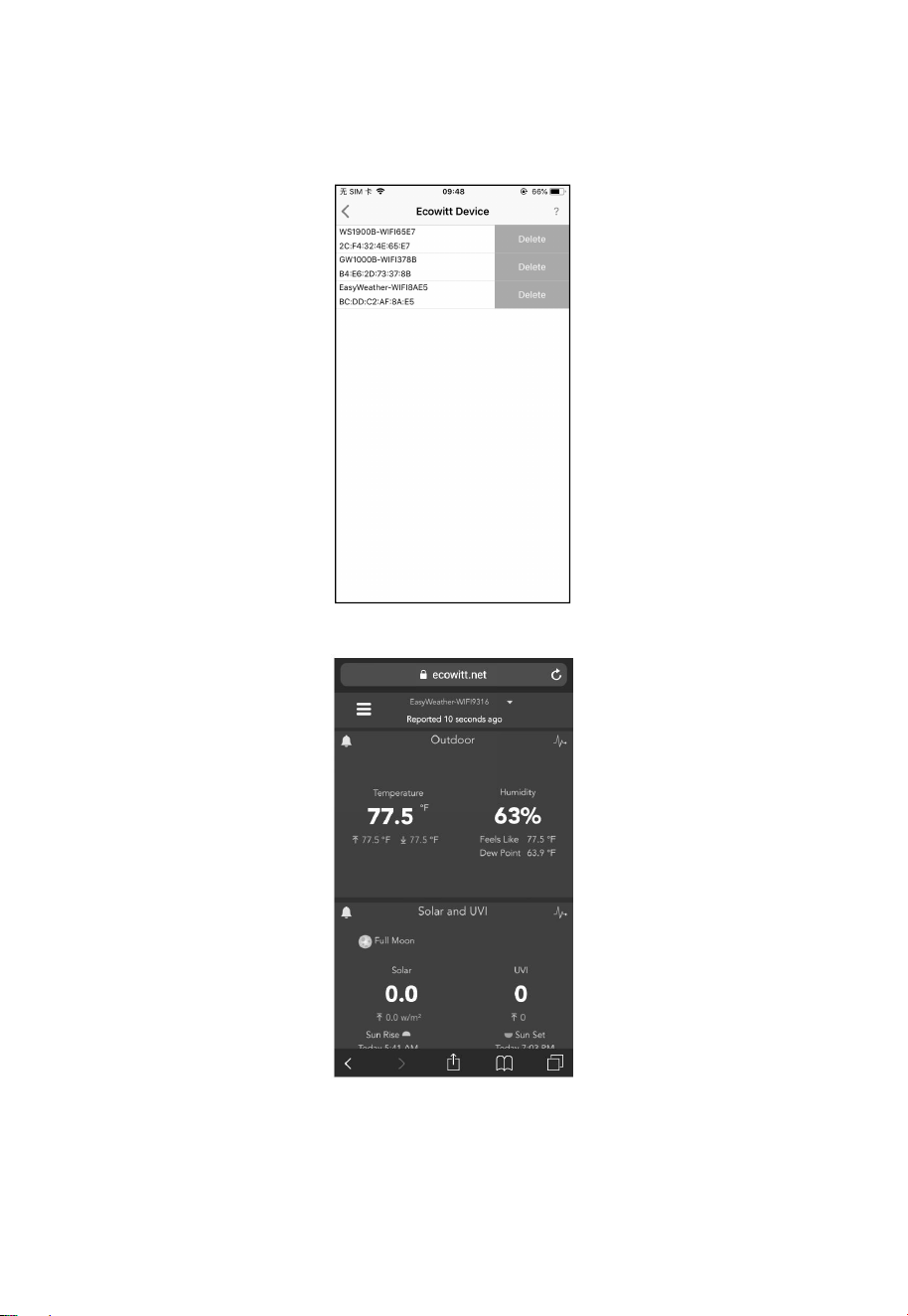
8.6 Manage Wunderground
You can add or delete WU Station ID by selecting “Manage
Wunderground”on the submenu:
8.7 Settings
You can set your desired display units or default home page for the
app by selecting “Settings” on the submenu:
47
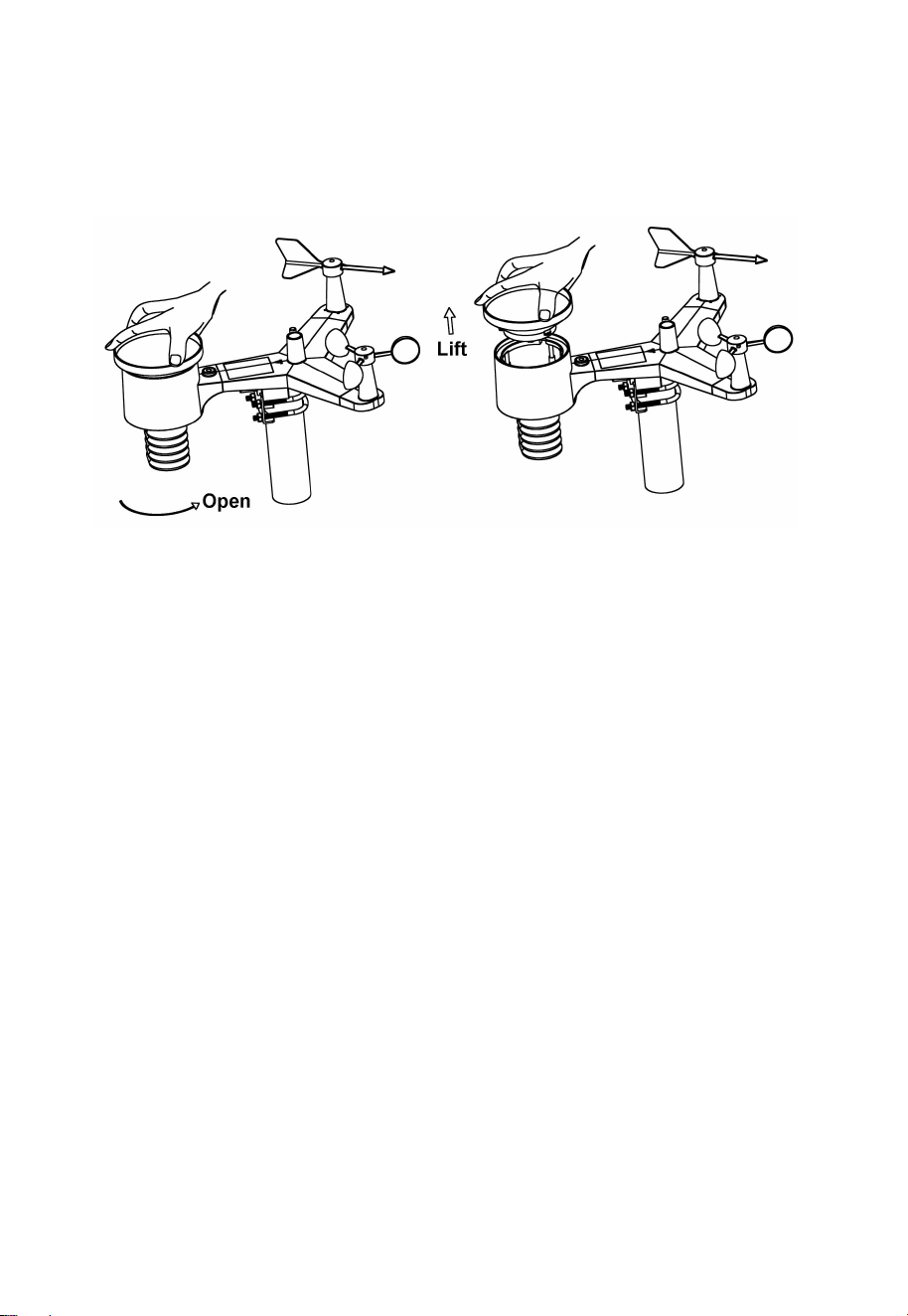
8.8 Manage Ecowitt
Once you created your ecowitt account successful on the WS View
Plus app, you may select “Manage Ecowitt” on the submenu to
manage your device.
You may view your weather station data by pressing your device on
this screen:
48
9. Maintenance
1. Clean the rain gauge once every 3 months. Rotate the funnel
counter-clockwise and lift to expose the rain gauge mechanism,
and clean with a damp cloth. Remove any dirt, debris and insects. If
bug infestation is an issue, spray the array lightly with insecticide.
2. Clean the solar radiation sensor and solar panel every 3 months
with damp cloth.
3. Replace batteries every 1-2 years. If left in too long, the batteries
may leak due to environmental challenges. In harsh environments,
inspect the batteries every 3 months (when cleaning the solar
panel).
4. When replacing the batteries, apply a corrosion preventive
compound on the battery terminals, available at Amazon and
most hardware stores.
5. In snowy environments, spray the top of the weather station with
anti-icing silicon spray to prevent snow build up.
49
10. Troubleshooting Guide
Problem
Solution
Outdoor sensor
array does not
communicate to
the display
console.
The sensor array may have initiated properly and
the data is registered by the console as invalid, and
the console must be reset. Press the reset button
as described in Section 5.2.
With an open ended paperclip, press the reset
button for 3 seconds to completely discharge the
voltage.
Take out the batteries and wait one minute, while
covering the solar panel to drain the voltage.
Put batteries back in and resync the console with the
sensor array about 10 feet away.
The LED next to the battery compartment will flash
every 16 seconds. If the LED is not flashing every
16 seconds…
Replace the batteries in the outside sensor array.
If the batteries were recently replaced, check the
polarity. If the sensor is flashing every 16 seconds,
proceed to the next step.
There may be a temporary loss of communication
due to reception loss related to interference or other
location factors,
or the batteries may have been changed in the
sensor array and the console has not been reset.
The solution may be as simple as powering down
and up the console (remove AC power and
batteries, wait 10 seconds, and reinsert AC power
and batteries).
Temperature
sensor reads too
Make certain that the sensor array is not too close to
heat generating sources or strictures, such as
50
Problem
Solution
high in the day
time.
buildings, pavement, walls or air conditioning units.
Use the calibration feature to offset installation
issues related to radiant heat sources. Reference
Section 6.7.
Relative pressure
does not agree
with official
reporting station
You may be viewing the absolute pressure, not the
relative pressure.
Select the relative pressure. Make sure you properly
calibrate the sensor to an official local weather
station. Reference Section 6.7 for details.
Rain gauge reports
rain when it is not
raining
An unstable mounting solution (sway in the
mounting pole) may result in the tipping bucket
incorrectly incrementing rainfall. Make sure you
have a stable, level mounting solution.
Data not reporting
to Wunderground.
com
1. Confirm your password or key is correct. It is
the password you registered on
Wunderground.com. Your
Wunderground.com password cannot begin
with a non-alphanumeric character (a
limitation of Wundeground.com, not the
station). Example, $oewkrf is not a valid
password, but oewkrf$ is valid.
2. Confirm your station ID is correct. The
station ID is all caps, and the most common
issue is substituting an O for a 0 (or visa
versa). Example, KAZPHOEN11, not
KAZPH0EN11
3. Make sure the date and time is correct on
the console. If incorrect, you may be
reporting old data, not real time data.
4. Make sure your time zone is set properly. If
incorrect, you may be reporting old data, not
real time data.
51
Problem
Solution
5. Check your router firewall settings. The
console sends data via Port 80.
No WiFi
connection
1. Check for WiFi symbol on the display. If
wireless connectivity is successful the WiFi
icon will be displayed in the time field.
2. Make sure your modem WiFi settings are
correct (network name, and password).
3. Make sure the console is plugged into AC
power. The console will not connect to WiFi
when powered by batteries only.
4. The console only supports and connects to
2.4 GHz routers. If you own a 5 GHz router,
and it is a dual band router, you will need to
disable the 5 GHz band, and enable the 2.4
GHz band.
5. The console does not support guest
networks.