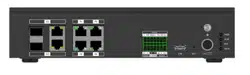

Roadside Parking Terminal
User Manual

Legal Informaon
©2021 Hangzhou Hikvision Digital Technology Co., Ltd. All rights reserved.
About this Manual
The Manual includes instrucons for using and managing the Product. Pictures, charts, images and
all other informaon hereinaer are for descripon and explanaon only. The informaon
contained in the Manual is subject to change, without noce, due to rmware updates or other
reasons. Please nd the latest version of this Manual at the Hikvision website ( hps://
www.hikvision.com/ ).
Please use this Manual with the guidance and assistance of professionals trained in
supporng the
Product.
Trademarks
and other Hikvision's trademarks and logos are the properes of
Hikvision in various jurisdicons.
Other trademarks and logos menoned are the properes of their respecve owners.
Disclaimer
TO THE MAXIMUM EXTENT PERMITTED BY APPLICABLE LAW, THIS MANUAL AND THE PRODUCT
DESCRIBED, WITH ITS HARDWARE, SOFTWARE AND FIRMWARE, ARE PROVIDED "AS IS" AND "WITH
ALL FAULTS AND ERRORS". HIKVISION MAKES NO WARRANTIES, EXPRESS OR IMPLIED, INCLUDING
WITHOUT LIMITATION, MERCHANTABILITY, SATISFACTORY QUALITY, OR FITNESS FOR A PARTICULAR
PURPOSE. THE USE OF THE PRODUCT BY YOU IS AT YOUR OWN RISK. IN NO EVENT WILL HIKVISION
BE LIABLE TO YOU FOR ANY SPECIAL, CONSEQUENTIAL, INCIDENTAL, OR INDIRECT DAMAGES,
INCLUDING, AMONG OTHERS, DAMAGES FOR LOSS OF BUSINESS PROFITS, BUSINESS
INTERRUPTION, OR LOSS OF DATA, CORRUPTION OF SYSTEMS, OR LOSS OF DOCUMENTATION,
WHETHER BASED ON BREACH OF CONTRACT, TORT (INCLUDING NEGLIGENCE), PRODUCT LIABILITY,
OR OTHERWISE, IN CONNECTION WITH THE USE OF THE PRODUCT, EVEN IF HIKVISION HAS BEEN
ADVISED OF THE POSSIBILITY OF SUCH DAMAGES OR LOSS.
YOU ACKNOWLEDGE THAT THE NATURE OF THE INTERNET PROVIDES FOR INHERENT SECURITY
RISKS, AND HIKVISION SHALL NOT TAKE ANY RESPONSIBILITIES FOR ABNORMAL OPERATION,
PRIVACY LEAKAGE OR OTHER DAMAGES RESULTING FROM CYBER-ATTACK, HACKER ATTACK, VIRUS
INFECTION, OR OTHER INTERNET SECURITY RISKS; HOWEVER, HIKVISION WILL PROVIDE TIMELY
TECHNICAL SUPPORT IF REQUIRED.
YOU AGREE TO USE THIS PRODUCT IN COMPLIANCE WITH ALL APPLICABLE LAWS, AND YOU ARE
SOLELY RESPONSIBLE FOR ENSURING THAT YOUR USE CONFORMS TO THE APPLICABLE LAW.
ESPECIALLY, YOU ARE RESPONSIBLE, FOR USING THIS PRODUCT IN A MANNER THAT DOES NOT
INFRINGE ON THE RIGHTS OF THIRD PARTIES, INCLUDING WITHOUT LIMITATION, RIGHTS OF
PUBLICITY, INTELLECTUAL PROPERTY RIGHTS, OR DATA PROTECTION AND OTHER PRIVACY RIGHTS.
YOU SHALL NOT USE THIS PRODUCT FOR ANY PROHIBITED END-USES, INCLUDING THE
Roadside Parking Terminal User Manual
i

DEVELOPMENT OR PRODUCTION OF WEAPONS OF MASS DESTRUCTION, THE DEVELOPMENT OR
PRODUCTION OF CHEMICAL OR BIOLOGICAL WEAPONS, ANY ACTIVITIES IN THE CONTEXT RELATED
TO ANY NUCLEAR EXPLOSIVE OR UNSAFE NUCLEAR FUEL-CYCLE, OR IN SUPPORT OF HUMAN
RIGHTS ABUSES.
IN THE EVENT OF ANY CONFLICTS BETWEEN THIS MANUAL AND THE APPLICABLE LAW, THE LATTER
PREVAILS.
Roadside Parking Terminal User Manual
ii

Regulatory Informaon
FCC Informaon
Please take aenon that changes or modicaon not expressly approved by the party responsible
for compliance could void the user's authority to operate the equipment.
FCC compliance: This equipment has been tested and found to comply with the limits for a Class A
digital device, pursuant to part 15 of the FCC Rules. These limits are designed to provide
reasonable
protecon against harmful interference when the equipment is operated in a
commercial environment. This equipment generates, uses, and can radiate radio frequency energy
and, if not installed and used in accordance with the
instrucon manual, may cause harmful
interference to radio communicaons. Operaon of this equipment in a residenal area is likely to
cause harmful interference in which case the user will be required to correct the interference at his
own expense.
FCC
Condions
This device complies with part 15 of the FCC Rules. Operaon is subject to the following two
condions:
1. This device may not cause harmful interference.
2. This device must accept any interference received, including interference that may cause
undesired
operaon.
EU Conformity Statement
This product and - if applicable - the supplied accessories too are marked with "CE"
and comply therefore with the applicable harmonized European standards listed
under the EMC Direcve 2014/30/EU, the LVD Direcve 2014/35/EU, the RoHS
Direcve 2011/65/EU.
2012/19/EU (WEEE direcve): Products marked with this symbol cannot be
disposed of as unsorted municipal waste in the European Union. For proper
recycling, return this product to your local supplier upon the purchase of
equivalent new equipment, or dispose of it at designated
collecon points. For
more
informaon see: www.recyclethis.info
2006/66/EC (baery direcve): This product contains a baery that cannot be
disposed of as unsorted municipal waste in the European Union. See the product
documentaon for specic baery informaon. The baery is marked with this
symbol, which may include
leering to indicate cadmium (Cd), lead (Pb), or
mercury (Hg). For proper recycling, return the
baery to your supplier or to a
designated
collecon point. For more informaon see: www.recyclethis.info
Roadside Parking Terminal User Manual
iii

Industry Canada ICES-003 Compliance
This device meets the CAN ICES-3 (A)/NMB-3(A) standards requirements.
Roadside Parking Terminal User Manual
iv

Symbol Convenons
The symbols that may be found in this document are dened as follows.
Symbol Descripon
Danger
Indicates a hazardous situaon which, if not avoided, will or could
result in death or serious injury.
Cauon
Indicates a potenally hazardous situaon which, if not avoided, could
result in equipment damage, data loss, performance degradaon, or
unexpected results.
Note
Provides addional informaon to emphasize or supplement
important points of the main text.
Roadside Parking Terminal User Manual
v

Safety Instrucon
Regulatory Informaon
This is a class A product and may cause radio interference in which case the user may be required
to take adequate measures.
Laws and Regulaons
Use of the product must be in strict compliance with the local laws and regulaons. Please shut
down the device in prohibited area.
Power Supply
●
Use of the product must be in strict compliance with the local electrical safety regulaons.
●
Use the power adapter provided by qualied manufacturer. Refer to the product specicaon for
detailed power requirements.
●
It is recommended to provide independent power adapter for each device as adapter overload
may cause over-heang or a re hazard.
●
Make sure that the power has been disconnected before you wire, install, or disassemble the
device in the authorized way according to the
descripon in the manual.
●
To avoid electric shock, DO NOT directly touch exposed contacts and components once the
device is powered up.
●
DO NOT use damaged power supply devices (e.g., cable, power adapter, etc.) to avoid electric
shock,
re hazard, and explosion.
●
DO NOT directly cut the power supply to shut down the device. Please shut down the device
normally and then unplug the power cord to avoid data loss.
●
The socket-outlet shall be installed near the equipment and shall be easily accessible.
●
Make sure the power supply has been disconnected if the power adapter is idle.
●
Connect to earth before
connecng to the power supply.
●
DO NOT touch the bare metal contacts of the inlets aer the circuit breaker is turned o.
Electricity sll exists.
●
Ensure correct wiring of the terminals for
connecon to an AC mains supply.
●
An overcurrent protecve device conrming to the power supply specicaon shall be
incorporated external to the equipment, not exceeding the
specicaon of the building. Refer to
the specicaon for the detailed power supply requirement.
Transportaon,
Use, and Storage
●
To avoid heat accumulaon, good venlaon is required for a proper operang environment.
●
Store the device in dry,
well-venlated, corrosive-gas-free, no direct sunlight, and no heang
source environment.
●
Avoid
re, water, and explosive environment when using the device.
Roadside Parking Terminal User Manual
vi

●
Install the device in such a way that lightning strikes can be avoided. Provide a surge suppressor
at the inlet opening of the equipment under special condions such as the mountain top, iron
tower, and forest.
●
Keep the device away from
magnec interference.
●
Avoid device
installaon on vibratory surfaces or places. Failure to comply with this may cause
device damage.
●
DO NOT touch the heat dissipaon component to avoid burns.
●
DO NOT expose the device to extremely hot, cold, or humidity environments. For temperature
and humidity requirements, see device specicaon.
●
No naked
ame sources, such as lighted candles, should be placed on the equipment.
●
DO NOT touch the sharp edges or corners.
●
To prevent possible hearing damage, DO NOT listen at high volume levels for long periods.
●
The device can only be safely used in the region below 2,000 meters above the sea level.
●
The equipment shall not be exposed to dripping or splashing and that no objects
lled with
liquids, such as vases, shall be placed on the equipment.
●
The venlaon should not be impeded by covering the venlaon openings with items, such as
newspapers, table-cloths, curtains, etc. The openings shall never be blocked by placing the
equipment on a bed, sofa, rug or other similar surface.
●
This equipment is suitable for mounng on concrete or other non-combusble surface only.
●
Keep body parts away from motors. Disconnect the power source during servicing.
Light Hazard
●
DO NOT stare at the light source when the supplement light is working. The light may cause blue
light hazard to your rena.
●
When you install or maintain the device without
protecon, stay at the safety range or the area
which cannot be irradiated directly by the light source.
Maintenance
●
If smoke, odor, or noise arises from the device, immediately turn o the power, unplug the
power cable, and contact the service center.
●
If the device cannot work properly, contact the store you purchased it or the nearest service
center. DO NOT disassemble or modify the device in the unauthorized way (For the problems
caused by unauthorized
modicaon or maintenance, the company shall not take any
responsibility).
●
Keep all packaging
aer unpacking them for future use. In case of any failure occurred, you need
to return the device to the factory with the original packaging. Transportaon without the
original packaging may result in damage to the device and the company shall not take any
responsibility.
Roadside Parking Terminal User Manual
vii

Network
●
Please enforce the protecon for the personal informaon and the data security as the device
may be confronted with the network security problems when it is connected to the Internet.
Contact us if network security risks occur.
●
Please understand that you have the responsibility to congure all the passwords and other
security sengs about the device, and keep your user name and password.
Lens
●
DO NOT touch the lens with
ngers directly in case the acidic sweat of the ngers erodes the
surface
coang of the lens.
●
DO NOT aim the lens at the strong light such as sun or incandescent lamp. The strong light can
cause fatal damage to the device.
Screen
●
Clean the screen with so and dry cloth or other substutes to wipe the interior and exterior
surface. DO NOT use alkaline detergents. Protect the screen from scratches.
●
DO NOT install the device in the posion obstrucng the driver's sight to prevent it from
aecng the normal driving of the vehicle.
Baery
●
DO NOT charge the baery connuously more than one week. Overcharging may shorten the
baery life.
●
Baery will discharge gradually if it is not used for a long me. It must be recharged before
using.
●
If the device contains dismountable
baery, store the device and baery separately if it is not
used.
●
The baery must be charged and discharged every three months if it is not used, and recharged
to 60% to 70% power percentage to store.
●
The scrapped
baery should be discarded in compliance with the local laws and regulaons. If
there are no corresponding laws or
regulaons, throw it in a hazardous trash can.
●
DO NOT pierce the baery or shorten the electrodes, or it may cause explosion or re hazard.
●
DO NOT dispose of the
baery into re or a hot oven, or mechanically crush or cut the baery,
which may result in an explosion.
●
CAUTION: Please use the
specic baery supported by the device, or it may cause explosion. If
the baery is damaged and needs to be changed, contact the device manufacturer or local
distributor.
●
If the device contains
buon baery, keep it far away from children.
●
DO NOT expose the baery pack or baery combinaon to sunlight, re, or similar overheated
environment. DO NOT leave the
baery in an extremely high temperature surrounding
environment or subject the baery to extremely low air pressure, which may result in an
explosion or the leakage of
ammable liquid or gas.
Roadside Parking Terminal User Manual
viii

●
Keep new and used baeries away from children. If the baery compartment does not close
securely, stop using the product and keep it away from children.
●
idenes the baery holder itself and idenes the posioning of the cell(s) inside the
baery holder.
●
+
idenes the posive terminal(s) of equipment which is used with, or generates direct current.
-
idenes the negave terminal(s) of equipment which is used with, or generates direct current.
Data
DO NOT disconnect the power during formang, uploading, and downloading. Or les may be
damaged.
Laser
: The laser radiaon emied from the device can cause eye injuries, burning of skin, or
inammable substances. Before enabling the laser, make sure no human or inammable
substances are in front.
Roadside Parking Terminal User Manual
ix

Contents
Chapter 1 Introducon ............................................................................................................... 1
1.1 Product Introducon .............................................................................................................. 1
1.2 Key Feature ............................................................................................................................ 1
1.3 Running Environment ............................................................................................................ 1
Chapter 2 Acvaon and Login ................................................................................................... 2
2.1 Acvaon ............................................................................................................................... 2
2.1.1 Default Informaon ...................................................................................................... 2
2.1.2 Acvate via SADP .......................................................................................................... 2
2.1.3
Acvate via Web Browser ............................................................................................. 3
2.2 Login ...................................................................................................................................... 4
Chapter 3 Basic Operaon .......................................................................................................... 5
3.1 Set LAN IP Address ................................................................................................................. 5
3.1.1 Set Internal IP ................................................................................................................ 5
3.1.2 Set External IP ............................................................................................................... 6
3.2 Set
Stac Router .................................................................................................................... 7
3.3 Manage Camera ..................................................................................................................... 7
3.3.1 Add IP Camera ............................................................................................................... 7
3.3.2 Set
Interacon Parameters ........................................................................................... 9
3.4 Set Remote Host .................................................................................................................. 10
Chapter 4 Event Detecon ........................................................................................................ 12
4.1 Set Parking Space
Informaon ............................................................................................. 12
4.2 Set Occupaon Alarm .......................................................................................................... 12
4.3 Set Event Parameters ........................................................................................................... 13
4.3.1 Set Camera Parameters ............................................................................................... 13
4.3.2 Set
Violaon Diconary .............................................................................................. 13
Chapter 5 Peripheral Device Linkage ......................................................................................... 15
Roadside Parking Terminal User Manual
x

5.1 Control Parking Lock ............................................................................................................ 15
Chapter 6 Data Management .................................................................................................... 16
6.1 View Real-Time Data ............................................................................................................ 16
6.2 View Parking Space Status ................................................................................................... 16
6.3 Search Data .......................................................................................................................... 17
6.4 Data Backup ......................................................................................................................... 17
6.4.1 Backup to Local ........................................................................................................... 17
6.4.2 Backup to USB ............................................................................................................. 18
Chapter 7 Live View and Local
Conguraon ............................................................................ 19
7.1 Live View .............................................................................................................................. 19
7.1.1 Start/Stop Live View .................................................................................................... 19
7.1.2 Divide Window and Switch Page ................................................................................. 19
7.1.3 Select Stream Type ...................................................................................................... 19
7.1.4 Capture Manually ........................................................................................................ 20
7.1.5 Record Manually ......................................................................................................... 20
7.1.6 Enable/Disable Audio .................................................................................................. 20
7.1.7 Enable Digital Zoom .................................................................................................... 20
7.1.8 Display in Full Screen .................................................................................................. 21
7.2 PTZ Control .......................................................................................................................... 21
7.2.1 PTZ Control Panel ........................................................................................................ 21
7.2.2 Set Preset .................................................................................................................... 21
7.3 Local
Conguraon .............................................................................................................. 22
Chapter 8 Network
Conguraon ............................................................................................. 25
8.1 Connect to Plaorm ............................................................................................................. 25
8.1.1 Connect to ISUP Plaorm ........................................................................................... 25
8.1.2 Connect to Guarding Vision ........................................................................................ 26
8.2 Set DDNS .............................................................................................................................. 27
8.3 Set Port ................................................................................................................................ 27
Roadside Parking Terminal User Manual
xi

Chapter 9 Record and Playback ................................................................................................. 29
9.1 Set Storage Path ................................................................................................................... 29
9.1.1 Format Disk ................................................................................................................. 29
9.1.2 Set FTP ........................................................................................................................ 29
9.1.3 Set Cloud Storage ........................................................................................................ 31
9.2 Set Quota ............................................................................................................................. 33
9.3 Record .................................................................................................................................. 33
9.3.1 Set Timing Record ....................................................................................................... 33
9.3.2 Set Event Record ......................................................................................................... 34
9.4 Play Back Video .................................................................................................................... 35
9.5 Backup ................................................................................................................................. 35
9.5.1 Back up Video ............................................................................................................. 35
9.5.2 Back up Clipped Video ................................................................................................ 36
Chapter 10 Encoding and Display .............................................................................................. 37
10.1 Set Video Encoding Parameters ......................................................................................... 37
10.2 Set Image Parameters ........................................................................................................ 38
10.3 Set OSD .............................................................................................................................. 38
Chapter 11 Alarm Conguraon ............................................................................................... 39
11.1 Set Alarm Input .................................................................................................................. 39
11.2 Set Alarm Output ............................................................................................................... 39
11.3 Set
Excepon Alarm ........................................................................................................... 40
11.4 Set Record Schedule .......................................................................................................... 41
11.5 Set Holiday ......................................................................................................................... 41
11.6 Set Linkage Mode ............................................................................................................... 42
Chapter 12 Safety Management ............................................................................................... 43
12.1 Manage User ...................................................................................................................... 43
12.1.1 Install Authorized
Cercate ..................................................................................... 43
12.1.2 Create and Install Self-signed
Cercate .................................................................. 44
Roadside Parking Terminal User Manual
xii

12.1.3 Set SSH ...................................................................................................................... 44
Chapter 13 Maintenance .......................................................................................................... 45
13.1 View Device
Informaon .................................................................................................... 45
13.2 Search Log .......................................................................................................................... 45
13.3 Upgrade ............................................................................................................................. 45
13.4 Reboot ............................................................................................................................... 46
13.5 Restore Parameters ............................................................................................................ 46
13.6 Set RS-485 .......................................................................................................................... 46
13.7 Set RS-232 .......................................................................................................................... 47
13.8 Synchronize Time ............................................................................................................... 47
13.9 Synchronize Camera Time .................................................................................................. 48
13.10 Export Parameters ........................................................................................................... 49
13.11 Import Parameters ........................................................................................................... 49
13.12 Detect HDD ...................................................................................................................... 49
13.13 Set Working Mode ........................................................................................................... 50
13.14 Reserved Parameters ....................................................................................................... 51
Appendix A.
Communicaon Matrix and Device Command ...................................................... 52
Roadside Parking Terminal User Manual
xiii

Chapter 1 Introducon
1.1 Product Introducon
The roadside parking terminal is used to manage roadside parking spaces and other devices. It can
be matched with the cloud plaorm to manage the parking of a city. It also can be matched with a
roadside parking capture camera and an intelligent all-in-one parking machine to collect, store and
search parking data.
The device can be widely applied in the management of urban roadside parking spaces.
1.2 Key Feature
●
Supports to connect a roadside parking capture camera and all-in-one machine to save and
manage roadside parking data.
●
Supports to connect to cameras to save and manage videos and images.
●
Supports mulple network interfaces, and can connect to mulple cameras.
●
Supports cabinet alarm and alarm data uploading.
●
Supports Web operaons.
●
Single-sided interface, convenient for construcon and installaon.
1.3 Running Environment
●
Web browser: IE8, IE9, IE10 and IE11 recommended.
●
Display resoluon: 1024 × 768 and above.
Roadside Parking Terminal User Manual
1

Chapter 2 Acvaon and Login
2.1 Acvaon
For the rst-me access, you need to acvate the device by seng an admin password. No
operaon is allowed before acvaon. The device supports mulple acvaon methods, such as
acvaon via SADP soware, web browser, and iVMS-4200 Client.
Note
Refer to the user manual of iVMS-4200 Client for the acvaon via client soware.
2.1.1 Default Informaon
Device default informaon are as follows.
●
Default IP address: G1: 192.1.0.64, G2: 192.168.1.64
●
Default user name: admin
2.1.2
Acvate via SADP
SADP is a tool to detect, acvate, and modify the IP address of the devices over the LAN.
Before You Start
●
Get the SADP soware from the supplied disk or the ocial website ( hps://
www.hikvision.com/ ), and install it according to the prompts.
●
The device and the computer that runs the SADP tool should belong to the same network
segment.
The following steps show how to
acvate one device and modify its IP address. For batch acvaon
and IP address modicaon, refer to User Manual of SADP for details.
Steps
1.
Run the SADP soware and search the online devices.
2.
Find and select your device in online device list.
3.
Enter a new password (admin password) and
conrm the password.
Cauon
STRONG PASSWORD RECOMMENDED-We highly recommend you create a strong password of
your own choosing (using a minimum of 8 characters, including upper case leers, lower case
leers, numbers, and special characters) in order to increase the security of your product. And
we recommend you reset your password regularly, especially in the high security system,
reseng the password monthly or weekly can beer protect your product.
4.
Click Acvate to start acvaon.
Roadside Parking Terminal User Manual
2

Figure 2-1 Acvate via SADP
Status of the device becomes Acve aer successful acvaon.
5.
Modify IP address of the device.
1) Select the device.
2) Change the device IP address to the same network segment as your computer by either
modifying the IP address manually or checking Enable DHCP.
3) Enter the admin password and click Modify to
acvate your IP address modicaon.
2.1.3
Acvate via Web Browser
Use web browser to acvate the device. For the device with the DHCP enabled by default, use
SADP
soware or client soware to acvate the device.
Before You Start
Ensure the device and the computer connect to the same LAN.
Steps
1.
Change the IP address of your computer to the same network segment as the device.
2.
Open the web browser, and enter the default IP address of the device to enter the acvaon
interface.
3.
Create and conrm the admin password.
Roadside Parking Terminal User Manual
3

Cauon
STRONG PASSWORD RECOMMENDED-We highly recommend you create a strong password of
your own choosing (using a minimum of 8 characters, including upper case leers, lower case
leers, numbers, and special characters) in order to increase the security of your product. And
we recommend you reset your password regularly, especially in the high security system,
reseng the password monthly or weekly can beer protect your product.
4.
Click OK to complete acvaon.
5.
Go to the network sengs interface to modify IP address of the device.
2.2 Login
You can log in to the device via web browser for further operaons such as live view and local
conguraon.
Before You Start
Connect the device to the network directly, or via a switch or a router.
Steps
1.
Open the web browser, and enter the IP address of the device to enter the login interface.
2.
Enter User Name and Password.
3.
Click Login.
4.
Download and install appropriate plug-in for your web browser. Follow the
installaon prompts
to install the plug-in.
5.
Reopen the web browser
aer the installaon of the plug-in and repeat steps 1 to 3 to login.
6.
Oponal: Click Logout on the upper right corner of the interface to log out of the device.
Roadside Parking Terminal User Manual
4

Chapter 3 Basic Operaon
3.1 Set LAN IP Address
3.1.1 Set Internal IP
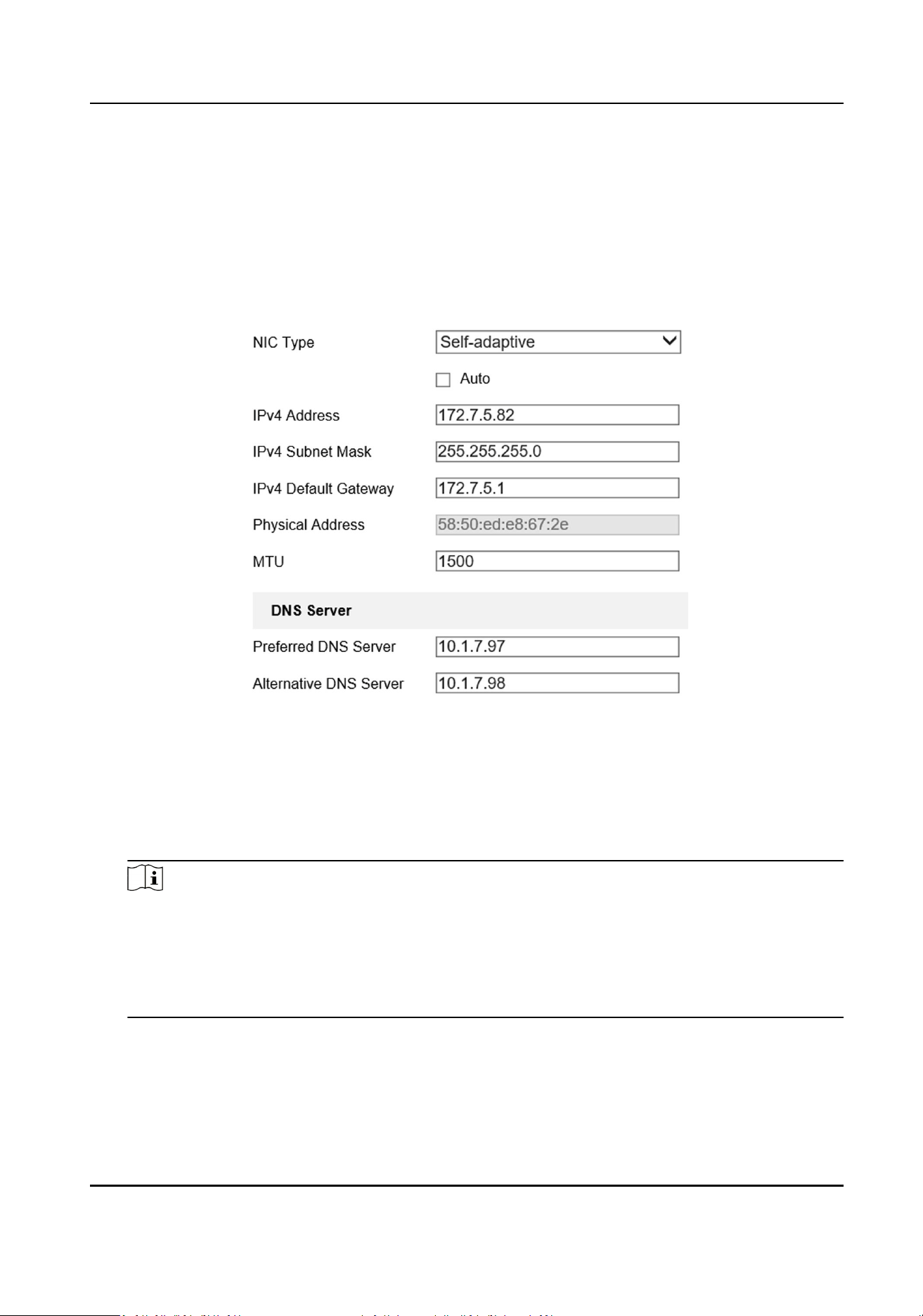
The internal network is for self-adapve network interfaces on the device panel. It is mainly used
to connect the capture camera, display screen and other devices.
Steps
1.
Go to Param
Cong → Network → Basic Sengs → TCP/IP → Internal Network Sengs .
2.
Select NIC Type according to the actual network.
Figure 3-1 Set Internal IP
3.
Set network parameters.
-
Check Auto to get the IP address
automacally if the network supports distribung the IP
address automacally.
-
Manually enter IP address, subnet mask, gateway, MTU, and other parameters.
Note
●
The internal IP address and the device on the internal network segment (such as the capture
camera) should be set to the same network segment, and it must be set to a dierent network
segment from the external IP address.
●
MTU stands for maximum transmission unit. It is the size of the largest protocol data unit that
can be communicated in a single network layer transacon.
4.
Click Save.
Roadside Parking Terminal User Manual
5
3.1.2 Set External IP
The external network is set for the IP of the G2 network interface on the device panel, and it
mainly communicates with the external network
(plaorm, remote host, etc.).
Steps
1.
Go to Param Cong → Network → Basic Sengs → TCP/IP → External Network Sengs .
Figure 3-2 Set External IP
2.
Select NIC type according to the actual network.
3.
Set network informaon.
-
Check Auto to get the IP address automacally if the network supports distribung the IP
address automacally.
-
Manually enter IP address, subnet mask, gateway, and other parameters.
Note
●
The network segment of external IP address should be dierent from that of the internal IP
address.
●
MTU stands for maximum transmission unit. It is the size of the largest protocol data unit
that can be communicated in a single network layer
transacon.
●
Set the DNS server if you need to visit the device with domain access.
4.
Click Save.
Roadside Parking Terminal User Manual
6

3.2 Set Stac Router
Set a stac router to access across network segments. The device will transmit as a router.
Steps
1.
Go to Param
Cong → Network → Basic Sengs → Stac Router .
2.
Click Add to add a stac router.
Figure 3-3 Set Stac Router
3.
Check Enable.
4.
Enter Target Network Segment, Subnet Mask and Gateway.
Note
Set the gateway according to the selected network interface.
5.
Select the network interface that needs external communicaon for roung.
-
When you need other network segments to access the connected camera through the G1, set
the G1 as a
stac router, and the internal IP address will serve as the gateway.
-
When you need to upload data to other network segments through the G2, set the G2 as a
stac router, and the external IP address will serve as the gateway.
6.
Click OK.
Note
You can delete or edit the added router.
3.3 Manage Camera
3.3.1 Add IP Camera
Add cameras before managing and analyzing data.
Roadside Parking Terminal User Manual
7

Quick Add
If cameras need to be added via the parameters such as the default protocol and the port, it is
recommended to use quick add.
Before You Start
Connect the device to the camera via the network interface.
Steps
1.
Go to Param
Cong → System → Camera Management → IP Camera .
2.
Click Quick Add.
3.
Check the camera that need to be added, enter the corresponding user name and password,
and click OK.
Note
You can check cameras that have the same user name and password to add in batch.
4.
Oponal: You can also do the following operaons.
Edit Edit the added camera IP address.
Delete Delete the added camera.
Reboot Reboot the online camera.
Access Directly Access the online camera.
Manual Add
Add manually if you need to customize the access protocol or port.
Before You Start
Connect the device to the camera via the network interface.
Steps
1.
Go to Param Cong → System → Camera Management → IP Camera .
2.
Click Add.
Roadside Parking Terminal User Manual
8

Figure 3-4 Manual Add
3.
Select Registraon Mode.
4.
Select Protocol Type of the added camera.
Note
The device and the camera should both support the selected protocol type.
5.
Enter the camera IP address/domain name, port, user name, password, and other informaon.
Note
Channel No. is only used to select the access channel when mulple channel devices are
accessed. For example, if you want to access the Channel 5 device, you can choose Channel 2 as
a network camera to access, then enter 2 at Channel No..
6.
Click OK.
7.
Oponal: You can also do the following operaons.
Edit
Edit the added camera IP address.
Delete Delete the added camera.
Reboot Reboot the online camera.
Access Directly Access the online camera.
3.3.2 Set Interacon Parameters
Set interacon parameters to control the interacon data between the camera and the device.
Before You Start
Add the camera.
Steps
1.
Go to Param Cong → System → Camera Management → Interacve Sengs .
2.
Select a camera.
Roadside Parking Terminal User Manual
9

3.
Select an interacon mode.
-
Normal mode: the server can tell the camera status via the camera's stream, and it can record
and live view images and receive image data.
-
Data receiving mode: the server only can receive image data, but it cannot record or live view
the camera.
4.
Oponal: You can click Copy to... and check channels to copy the set parameters to those
selected channels.
5.
Click Save.
3.4 Set Remote Host
Set remote host when the device needs to transmit data to the central control
plaorm.
Before You Start
Set the remote host, and ensure the device can communicate normally with the remote host.
Steps
1.
Go to Param Cong → Plaorm Sengs → Remote Host .
2.
Select the remote host.
Note
The supported number of remote hosts varies with dierent devices. The actual interface
prevails.
3.
Click Data Upload Cong.
4.
Select Plaorm Access Mode according to the actual communicaon protocol.
-
Remote Host: select this mode when communicang via remote host protocol.
-
Hp Host: select this mode when communicang via HTTP protocol.
5.
Set access parameters.
1) For access via the remote host, please select Upload Protocol. For access via
Hp host, please
enter URL and select Address Type.
2) Enter host IP address and port.
6.
Click Data Type to check the upload data type and select
specic upload parameters.
7.
Enable Upload History Data, Upload No-Plate Data and Upload by Time.
Interval
The interval between 2 data uploads.
Timeout
When the upload
me of a single piece of data exceeds the set me, the data will be
automacally saved as history data and uploaded according to history data rule.
8.
Click Data Upload Cong to select the specic me for data to upload.
9.
Oponal: Check Enable Cloud Storage to set the address and port of the cloud storage server,
and upload the remote host data to the cloud.
Roadside Parking Terminal User Manual
10

Note
Only certain devices in specic protocol support cloud storage sengs. The actual interface
prevails.
10.
Click Save.
Roadside Parking Terminal User Manual
11

Chapter 4 Event Detecon
4.1 Set Parking Space Informaon
Set the parking space informaon if you need to link the parking space to the license plate.
Steps
1.
Go to Param Cong → Advanced Sengs → List Management → List Management .
2.
Add a list.
Add one by
one
a. Click Add.
b. Enable Allowlist Arming.
c. Enter Parking Space No., License Plate Number, and other basic
parameters.
d. Click OK.
Import in batch a. Click Import.
b. Click Download Import Template to download according to the prompt.
c. Fill all the informaon in the template.
d. Click Browse to select the
lled template.
e. Click Import.
3.
Oponal: You can also do the following operaons.
Export list
Click Export to export list to the local.
Delete list Check the list, and click Delete to delete the selected list. Click Delete All to clear
the exisng list informaon.
Search list Enter Parking Space No., License Plate Number and click Search to search the list
informaon.
4.2 Set Occupaon Alarm
Aer linked the parking space with the license plate, set the parking space occupaon alarm then
it will trigger alarm when the parking space mismatches the vehicle.
Steps
1.
Go to Param
Cong → Advanced Sengs → List Management → Parking Space Occupaon
Alarm .
2.
Select Camera.
3.
Enable Illegal
Occupaon Alarm.
4.
Oponal: If you need to upload alarm informaon to the plaorm, you can enable Upload Event
to Plaorm.
5.
Click Save.
Roadside Parking Terminal User Manual
12
4.3 Set Event Parameters
4.3.1 Set Camera Parameters
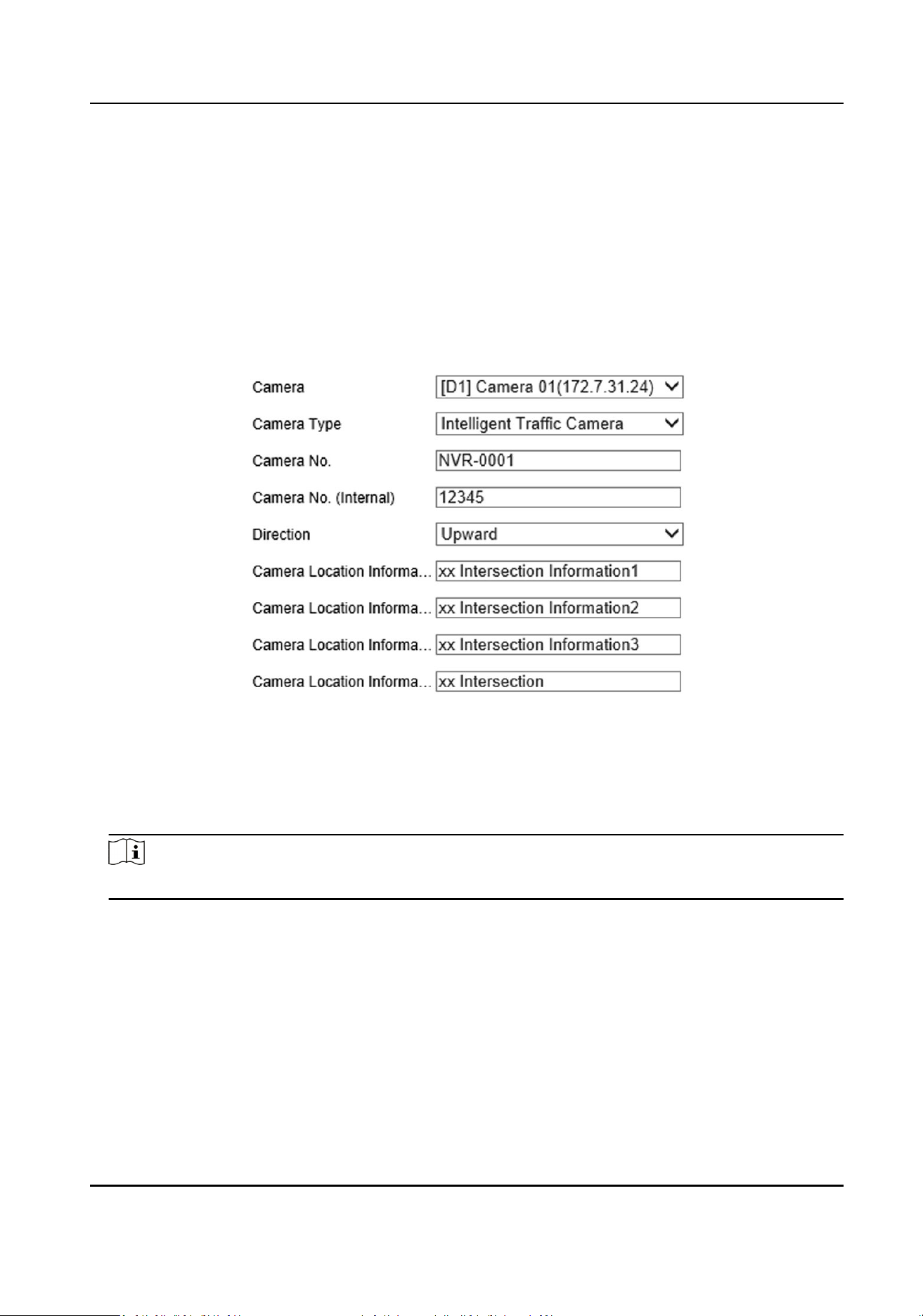
To facilitate channel management, please set the camera locaon parameters.
Steps
1.
Go to Param Cong → System → Camera Management → Camera Parameter .
Figure 4-1 Set Camera Parameters
2.
Select a camera.
3.
Select the camera type.
-
If you do not need to capture, please select Camera for Video Surveillance.
-
If you need to capture, please select Intelligent Trac Camera.
Note
The camera type depends on the model, the actual device prevails.
4.
Customize the camera No., the internal camera No., camera locaon informaon and
descripon.
5.
Select the direcon of the camera locaon according to the driving direcon.
6.
Click Save.
4.3.2 Set
Violaon Diconary
Violaon diconary denes corresponding codes of violaon types.
Roadside Parking Terminal User Manual
13

Steps
1.
Go to Param Cong → Diconary Sengs .
2.
Select Trac Violaon/Evidence Capture.
3.
Check the data, and click Edit to edit the code.
4.
Oponal: You can also do the following operaons.
Add Click Add to add custom acts and codes.
Delete Check the added custom data, and click Delete to delete the data.
Note
The default data in the diconary can not be deleted.
Reset Click Reset to restore the diconary to the factory sengs, and the custom data will
be cleared.
Roadside Parking Terminal User Manual
14

Chapter 5 Peripheral Device Linkage
5.1 Control Parking Lock
Connect the device to the parking lock, then you can view the parking lock status and remotely
control the parking lock.
Before You Start
Connect the device to the plaorm. Connect the ANPR camera to the device. Connect the parking
lock to the ANPR camera.
Communicaon is normal.
Steps
1.
Click Parking Space Status.
2.
Select the connected parking video pole in the list, and view the parking lock status at the
boom right corner.
3.
Click Unlock or Lock to remotely control the parking lock.
Roadside Parking Terminal User Manual
15

Chapter 6 Data Management
6.1 View Real-Time Data
You can view the real-me vehicle violaon informaon.
Steps
1.
Click Real-Time Data.
2.
View the data.
View the vehicle violaon
detailed informaon
Check the data row, the le side of the interface will display
the vehicle violaon detailed informaon.
View the vehicle violaon
picture
Click Picture to view the vehicle violaon picture
informaon.
6.2 View Parking Space Status
You can view the parking space status, parking space picture and event video of all the parking
cameras connected to the device.
Steps
1.
Click Parking Space Status.
Figure 6-1 View Parking Space Status
Note
The parking status informaon will refresh automacally.
2.
View the parking space No., parking space status, event status and other informaon in the list.
3.
Oponal: You can also do the following operaons.
Roadside Parking Terminal User Manual
16

View the parking
space picture
Select a piece of informaon to view the enlarged parking space
picture on the upper right corner of the interface.
View the detailed
informaon
Select a piece of informaon to view the detailed informaon of the
vehicle and parking space on the lower right corner of the interface.
View the event video Select a piece of informaon to view the event video on the middle
right side of the interface, and click / to start/stop
recording.
6.3 Search Data
You can search the trac data according to the camera channel.
Steps
1.
Go to Data Search →
Trac Data Search .
2.
Select me and other search condions.
Note
There must be less than 7 days between start me and end me.
3.
Click Search.
The device will display the search result.
4.
Click Details to view details, pictures and videos.
5.
Oponal: Aer searched the data, click Export to export the selected data informaon to the
specied path.
Note
If the exporng failed, please add the IP address of the channel as a trusted site in the browser.
6.4 Data Backup
Enter a short descripon of your concept here (oponal).
This is the start of your concept.
6.4.1 Backup to Local
You can back up the data of the device to your computer.
Before You Start
Search the data to back up.
Steps
1.
Set the picture export rule.
Roadside Parking Terminal User Manual
17

1) Go to Param Cong → Backup Sengs → Web Backup Sengs .
2) Enter the name, path and other informaon of the picture and video.
Note
Aer set the random number digits, pictures with the same name will be automacally
numbered. The upper limit of the number is the maximum number of the random number
digits.
3) Click Save.
2.
Set the device IP address as a trusted site in the security
sengs of the browser.
3.
Search the data, refer to "Search Data" for details.
4.
Click Export to select export type and export the data to your computer.
Result
Pictures will be backed up as the set name in the set path.
6.4.2 Backup to USB
You can set the device to automacally back up the data to the USB.
Before You Start
Connect a USB to the device.
Steps
1.
Go to Param
Cong → Backup Sengs → Local Backup → USB Backup Sengs .
2.
Click USB Backup Sengs.
3.
Select Enable USB Backup as Enable.
4.
Select backup strategy and
me.
-
Real-Time Backup:
Automacally back up the data only once aer it saved at the set me.
-
Backup Every Day: Automacally back up the data once a day at the set me.
5.
Select the Data Type to backup.
6.
Set Saving Path and File Name.
Pictures will be backed up as the set name in the set path.
7.
Click Save.
8.
Oponal: Click USB Backup Status to view the backup status.
Roadside Parking Terminal User Manual
18

Chapter 7 Live View and Local Conguraon
7.1 Live View
7.1.1 Start/Stop Live View
Start/stop the live view of cameras.
Start Live View
Click the camera list on the le side of the live view interface to start a camera live view.
Note
If you want to display a camera live view in a specic split window, please select the split window
rst, and then click the camera to start live view. The display window is only set for once, and you
need to set it again when you start live view next me.
Click to start all live view.
Stop Live View
When the camera starts live view, click the camera list on the le side of the live view interface to
stop live view.
Click
to stop all live view.
7.1.2 Divide Window and Switch Page
Select window division if you need to switch the single or mul-window live view mode, and view
the camera live view of all pages via switching the page.
Divide Window
Click to select the live view window division mode according to the actual needs.
Switch Page
When the number of divided windows is less than the cameras, click and to switch the page
and view the camera live view of all pages.
7.1.3 Select Stream Type
Click / to select the stream type. It is recommended to select the main stream to get the
high-quality image when the network condion is good, and select the sub-stream to get the uent
image when the network condion is not good enough.
Roadside Parking Terminal User Manual
19

7.1.4 Capture Manually
Capture live view pictures and save them to your computer.
Steps
1.
Click Live View.
2.
Start live view of a camera.
3.
Click
.
4.
View captured pictures.
Note
Go to Param Cong → Local for the saving path of snapshots in live view.
7.1.5 Record Manually
You can record videos manually on the live view image and save them to the computer.
Steps
1.
Click to start live view.
2.
Click to start recording.
3.
Click
to stop recording.
4.
Oponal: Go to Param Cong → Local to view the saving path of record les.
7.1.6 Enable/Disable Audio
Enable the audio if necessary aer connecng an audio input device under the audio & video
stream. Click to enable and adjust it. Click the icon again to disable this funcon.
7.1.7 Enable Digital Zoom
You can enable digital zoom to zoom in a certain part of the live view image.
Steps
1.
Click to start live view.
2.
Click to enable digital zoom.
3.
Place the cursor on the live view image
posion which needs to be zoomed in. Drag the mouse
rightwards and downwards to draw an area.
The area will be zoomed in.
4.
Click any
posion of the image to restore to normal image.
5.
Click
to disable digital zoom.
Roadside Parking Terminal User Manual
20

7.1.8 Display in Full Screen
You can display the live view image in full screen.
On Live View interface, click
to display the live view image in full screen.
Press esc on the keyboard to exit the full screen mode.
7.2 PTZ Control
7.2.1 PTZ Control Panel
Click Live View and control PTZ cameras via PTZ control panel.
Note
●
PTZ control panels may vary with recorder models. The actual device prevails.
●
PTZ supports power-down memory. Aer PTZ suddenly loses power or reboot, it can
automacally go back to the former posion.
Table 7-1 Buons Descripon
Icon Descripon Icon Descripon
Direcon buons Auto-scan buon
Zoom - Zoom +
Focus + Focus -
Iris + Iris -
Turn on/o light Start/stop wiper
Display the PTZ control panel. Hide the PTZ control panel.
7.2.2 Set Preset
A preset is a predened image posion. For the dened preset, you can call the preset No. to view
the posion.
Roadside Parking Terminal User Manual
21

Steps
1.
Click .
Figure 7-1 Set Preset
2.
Operate the direcon buons of PTZ control to adjust PTZ to the desired posion, and adjust the
focus, zoom, etc., to get the desired scene.
3.
Select the preset to set.
4.
Oponal: You can also do the following operaons.
Click Set preset according to prompt.
Click Call the preset, then PTZ will turn to the set direcon.
7.3 Local Conguraon
Go to Param Cong → Local to set the live view parameters.
Roadside Parking Terminal User Manual
22
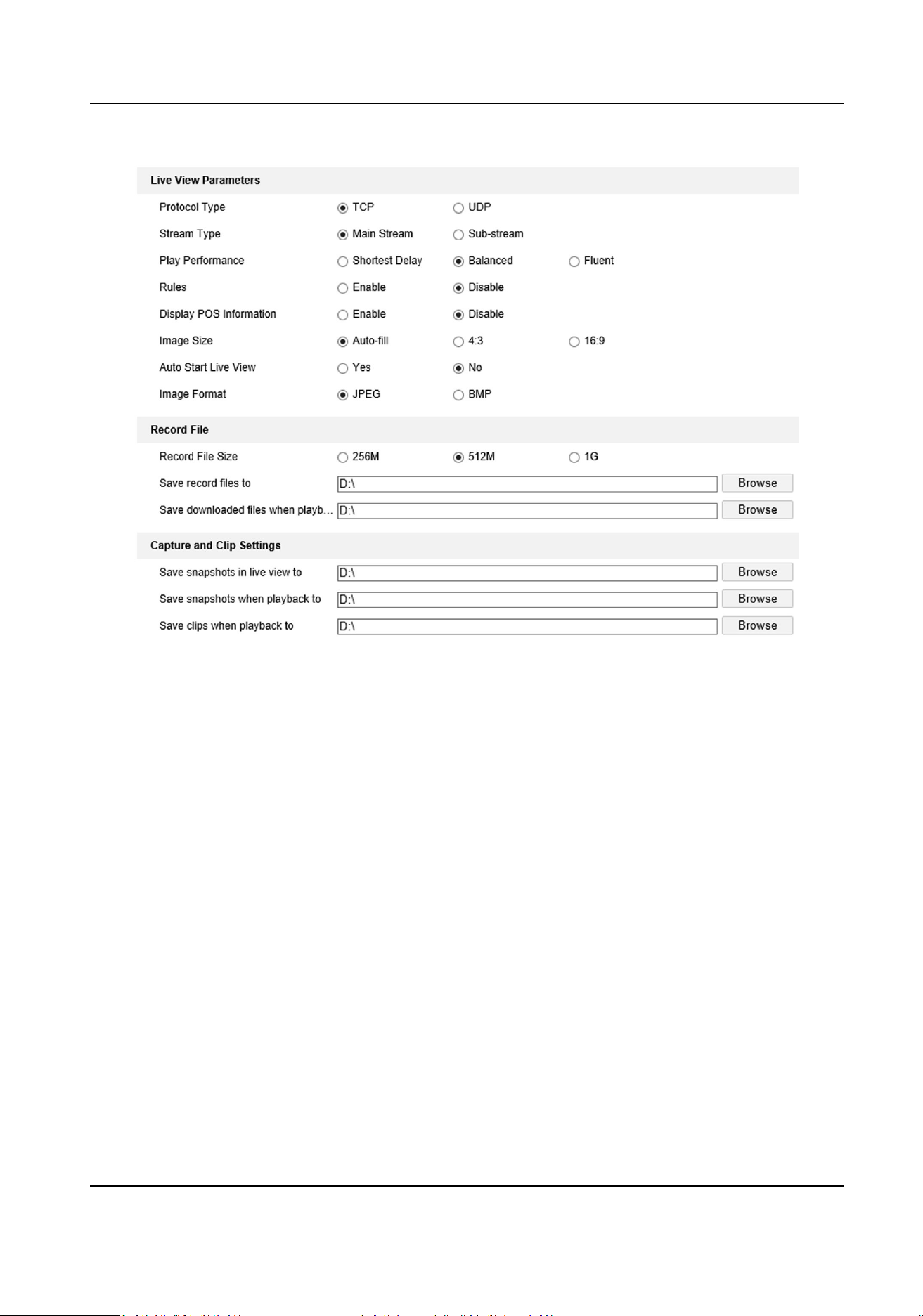
Figure 7-2 Local Conguraon
Protocol Type
TCP
Ensures completely delivery of streaming data and beer video quality, yet the real-me
transmission will be aected.
UDP
Provides
real-me audio and video streams.
Stream Type
The stream type decides the denion of live view image.
Main Stream
Provides the best resoluon and frame rate the device can do.
Sub-stream
Provides comparavely low resoluon opons.
Play Performance
Shortest Delay
The video is real-me, but the video uency may be aected.
Roadside Parking Terminal User Manual
23

Balanced
Balanced mode considers both the real me and uency of the video.
Fluent
When the network condion is good, the video is uent.
Rules
If you select Enable, set rule informaon will be displayed on the live view interface.
Display POS Informaon
If you select Enable, the POS informaon of the capture camera will be displayed on the live
view interface.
Image Size
Select according to your needs.
Auto Start Live View
If you select Yes, you can view the camera live view image
aer login the browser. If you select
No, you need to start live view manually aer login the device.
Image Format
Set the saving format of captured pictures.
JPEG
The picture will be compressed.
BMP
The picture will not be compressed.
Record File Size
Select the packed size of the manually recorded video les. Aer the selecon, the max. record
le size is the value you selected.
Save record les to
Set the saving path for the manually recorded video les in live view interface.
Save downloaded les when playback to
Set the saving path for the downloaded les in playback mode.
Save snapshots in live view to
Set the saving path of the manually captured pictures in live view mode.
Save snapshots when playback to
Set the saving path for the manually captured pictures in playback mode.
Save clips when playback to
Set the saving path for the clips in playback mode.
Roadside Parking Terminal User Manual
24

Chapter 8 Network Conguraon
8.1 Connect to Plaorm
8.1.1 Connect to ISUP Plaorm
ISUP (EHome) is a plaorm access protocol. The device can be remotely accessed via this plaorm.
Before You Start
●
Create the device ID on ISUP
plaorm.
●
Ensure the device can communicate with the plaorm normally.
Steps
Note
This funcon varies with dierent models. The actual device prevails.
1.
Go to Param Cong → Network → Advanced Sengs → ISUP .
Figure 8-1 Connect to ISUP Plaorm
2.
Select ISUP Plaorm ID.
3.
Check Enable.
4.
Select protocol Version.
Roadside Parking Terminal User Manual
25
Note
Funcons vary with dierent protocol versions.
5.
Enter ISUP Server Address, Port, and Device ID.
Note
The device ID should be the same with the added one on the ISUP plaorm.
6.
Oponal: Enter Login Key if you select v5.0.
7.
Click Save.
8.
Oponal: View Registraon Status.
Note
When the registraon status shows online, you can add or manage the device via the plaorm
soware. Refer to its corresponding manual for details.
8.1.2 Connect to Guarding Vision
You can set the funcon to realize network access via the Guarding Vision.
Before You Start
●
Connect the device to the public network via dial or network cable.
●
Set the device LAN IP address, subnet mask, gateway, and DNS server parameters.
Steps
1.
Go to Param
Cong → Network → Advanced Sengs → Guarding Vision .
2.
Check Enable.
3.
Customize the vericaon code. Adding device on the Guarding Vision needs to enter this
vericaon code.
Note
6 to 12 characters allowed, including digits, uppercase leers, and lowercase leers. You are
recommended to use a combinaon of no less than 8 leers or digits.
4.
Click Save.
5.
Access the Guarding Vision
plaorm.
-
Use computer browser to access hp://www.guardingvision.com .
-
Search "Guarding Vision" in the mobile App store.
6.
Register the user name and password, and log in.
7.
Add the device serial No. and
vericaon code.
8.
Start live view to view the device image.
Roadside Parking Terminal User Manual
26

8.2 Set DDNS
You can use the Dynamic DNS (DDNS) for network access. The dynamic IP address of the device can
be mapped to a domain name resoluon server to realize the network access via domain name.
Before You Start
●
Register the domain name on the DDNS server.
●
Set the LAN IP address, subnet mask, gateway, and DNS server parameters.
●
Complete port mapping. The default ports are 80, 8000, and 554.
Steps
1.
Go to Param
Cong → Network → Basic Sengs → DDNS .
Figure 8-2 Set DDNS
2.
Select DDNS Type according to the registered type.
3.
Enter the server informaon and Domain Name.
4.
Click Save.
What to do next
Enter the domain name in the browser to access the device.
8.3 Set Port
The device port can be modied when the device cannot access the network due to port conicts.
Cauon
Do not modify the default port parameters at will, otherwise the device may be inaccessible.
Go to Param Cong → Network → Basic Sengs → Port for port sengs. Click Save aer nished
sengs.
HTTP Port
Roadside Parking Terminal User Manual
27

It refers to the port through which the browser accesses the device. For example, when the
HTTP Port is modied to 81, you need to enter hp://192.168.1.64:81 in the browser for login.
RTSP Port
It refers to the port of real-me streaming protocol.
HTTPS Port
It refers to the port of encrypted transmission and identy authencaon protocol.
Service Port
It refers to the port to connect to client for obtain network protocol control and set device
parameters.
Note
●
Certain ports need to reboot aer edited to take the new sengs into eect.
●
When the device cannot edit the port No. via access Web due to port conicts, you can connect
the device to your computer and edit via SADP soware.
Roadside Parking Terminal User Manual
28
Chapter 9 Record and Playback
9.1 Set Storage Path
9.1.1 Format Disk
Format the disk when the storage is abnormal or a new disk is installed.
Steps
Cauon
Formang the disk will cause the disk data loss. Back up the data rst.
1.
Go to Param Cong → Storage → Storage Management → HDD Management .
2.
Check the HDD No. needs to be
formaed.
3.
Click Format.
9.1.2 Set FTP
Set FTP parameters if you want to upload the captured pictures or recordings to the FTP server.
Before You Start
Set the FTP server, and ensure the device can communicate normally with the server.
Steps
1.
Go to Param Cong → Plaorm Sengs → FTP Upload Sengs .
Roadside Parking Terminal User Manual
29

Figure 9-1 Set FTP
2.
Select a FTP server.
3.
Set the upload address.
1) Select Enable in FTP dropdown list.
2) Enter FTP Server Address, FTP Port, FTP User Name, and FTP Password.
4.
Set upload parameters.
Upload Historical Data
Historical data refers to the data failed to upload due to network
disconnecon or
congeson. Aer enabled, historical data will upload again.
Upload No-Plate Data
Upload no-plate vehicle data to the FTP server.
5.
Edit uploading
le name and saving path according to the actual needs.
6.
Click Data Upload Cong to set parameters
Figure 9-2 Set Data Upload
Roadside Parking Terminal User Manual
30

1) Select Upload Mode.
Data Retransmission
Resends les to Remote Host.
History Data Priority
Sends historical les rst. Otherwise terminal server sends historical les when free.
Disable
Terminal server won't upload historical data when free.
2) Select Start Time and End Time.
3) Select uploading Data Type in dropdown list.
4) Click OK.
7.
Click Save.
9.1.3 Set Cloud Storage
Cloud storage is a kind of network storage. It can be used as the extended storage to save the
captured pictures.
Before You Start
Arrange the cloud storage server.
Steps
1.
Go to Param Cong → Network → Advanced Sengs → Cloud Storage .
Roadside Parking Terminal User Manual
31

Figure 9-3 Set Cloud Storage
2.
Select Cloud Storage server.
3.
Enter IP Address and Port of the cloud storage server.
4.
Set cloud storage server parameters.
Protocol Version
Protocol version of the cloud storage server.
Note
Cloud storage server parameters vary with dierent protocol versions. The actual interface
prevails.
Central Management Port
Central management HTTP port of the cloud storage server.
Storage Pool ID
Storage pool ID of uploaded les on the cloud storage server.
User Name and Password
User name and password of the cloud storage server.
access_key
Key to access the cloud storage server.
secret_key
Roadside Parking Terminal User Manual
32

Key to encrypt the data uploaded to the cloud storage server.
5.
Click Save.
9.2 Set Quota
Set the picture rao in the storage.
Steps
1.
Go to Param
Cong → Storage → Storage Management → Picture Quota .
2.
Set the capacity for saving picture according to the actual needs.
3.
Click Save.
9.3 Record
9.3.1 Set Timing Record
Set ming record if you need the camera to record automacally according to the set schedule.
Before You Start
Install and format the storage media (like HDD).
Steps
1.
Go to Param
Cong → Storage → Schedule Sengs → Recording Schedule .
Figure 9-4 Set Timing Record
2.
Select camera.
3.
Check Enable, and select record type as CMR.
4.
Oponal: Click Advanced to set the camera record parameters.
Roadside Parking Terminal User Manual
33

-
Pre-record Time: The me you set to start recording before the scheduled me.
-
Post-record: The me you set to stop recording aer the scheduled me.
-
Video Expiry Date:
Automacally delete video les aer the scheduled me. 0 means that
video
les won't be deleted, but will be automacally overwrien aer enabled overwrien
record.
5.
Set record
me, refer to Set Record Schedule for details.
6.
Oponal: Click Copy to..., check the camera, and click OK.
7.
Click Save to save the sengs.
9.3.2 Set Event Record
Set event record if you need the camera to record when event occurs.
Before You Start
●
Install and format the storage media.
●
Refer to event chapter for details of event
sengs.
Steps
1.
Go to Param Cong → Storage → Schedule Sengs → Recording Schedule .
Figure 9-5 Set Event Record
2.
Select camera.
3.
Check Enable, and select record type as Alarm.
4.
Oponal: Click Advanced to set pre-record, post-record, video expiry date and stream type.
-
Pre-record Time: The
me you set to start recording before the event.
-
Post-record: The
me you set to stop recording aer the event.
-
Video Expiry Date: Automacally delete video les aer the event. 0 means that video les
won't be deleted, but will be automacally overwrien aer enabled overwrien record.
5.
Set record
me, refer to Set Record Schedule for details.
Roadside Parking Terminal User Manual
34

6.
Oponal: Click Copy to..., check the camera, and click OK.
7.
Click Save to save the sengs.
9.4 Play Back Video
You can play back the record les saved in the storage media (HDD, etc.).
Steps
1.
Click Playback.
2.
Select the camera.
3.
Select the le date, and click Search.
-
Drag me bar and put the yellow line at the me point that you need.
-
Enter the
specic me at Set Playback Time.
4.
Click
to play back the le.
Pause Start playback for selected
camera.
Split the playback window, and
play back mulple cameras
simultaneously.
Stop playback for selected
camera.
Fast forward. Slow forward.
Stop playback for all cameras. Capture pictures.
Reverse. Enable/disable audio.
Full screen. - -
Note
●
For the captured picture of playback saving path, refer to Save snapshots when playback to in
Param Cong → Local .
●
Operaons and buons vary with dierent models. The actual device prevails.
9.5 Backup
9.5.1 Back up Video
Download videos to a local path.
Steps
1.
Click Playback.
2.
Click .
Roadside Parking Terminal User Manual
35

3.
Select Camera.
4.
Select download type.
-
If you need to search video by date, select Download by Date, and select the date.
-
If you need to search video by
le type, select Download by File, and select le type and
search
me.
5.
Select File Type.
6.
Click Search.
7.
Check videos to download and click Download.
8.
For the video saving path, refer to Save downloaded
les when playback to in Param Cong →
Local .
9.5.2 Back up Clipped Video
Clip videos and save them to a local path.
Steps
1.
Click Playback.
2.
Select playback Camera and date.
3.
Click Search.
4.
Play the video.
5.
Drag
me bar to the clip start me and click to start clipping.
6.
Drag me bar to the clip end me and click to stop clipping.
7.
For clipped video saving path, refer to Save clips to in
Conguraon → Local .
Roadside Parking Terminal User Manual
36

Chapter 10 Encoding and Display
10.1 Set Video Encoding Parameters
Set video encoding parameters to adjust the live view and recording eect.
●
When the network signal is good and the speed is fast, you can set high resoluon and bitrate to
raise the image quality.
●
When the network signal is bad and the speed is slow, you can set low resoluon, bitrate, and
frame rate to guarantee the image uency.
●
When the network signal is bad, but the resoluon should be guaranteed, you can set low
bitrate and frame rate to guarantee the image uency.
●
Main stream stands for the best stream performance the device supports. It usually oers the
best resoluon and frame rate the device can do. But high resoluon and frame rate usually
means larger storage space and higher bandwidth requirements in transmission. Sub-stream
usually
oers comparavely low resoluon opons, which consumes less bandwidth and storage
space. Third stream is oered for customized usage.
Steps
1.
Go to Param Cong → Video & Audio → Video .
2.
Set the parameters for
dierent streams.
Stream Type
Main stream stands for the best stream performance the device supports. It usually oers the
best
resoluon and frame rate the device can do. But high resoluon and frame rate usually
means larger storage space and higher bandwidth requirements in transmission. Sub-stream
usually oers comparavely low resoluon opons, which consumes less bandwidth and
storage space.
Video Type
Select the video type to video & audio when you need taping while recording. Select video
when you only need record.
Note
The device only supports audio can select video & audio. The actual device prevails.
Resoluon
The higher the resoluon is, the clearer the image will be. Meanwhile, the network
bandwidth requirement is higher.
Bitrate Type and Max. Bitrate
Select the bitrate type to constant or variable. Constant bitrate means that the stream is
compressed and
transmied at a comparavely xed bitrate. Variable bitrate means that the
device automacally adjust the bitrate under the set Max. Bitrate.
Roadside Parking Terminal User Manual
37

Image Quality
When bitrate type is variable, you can select video quality according to actual needs. The
higher the video quality is, the higher requirements of the network bandwidth.
Frame Rate
It is to describe the frequency at which the video stream is updated and it is measured by
frames per second (fps). A higher frame rate is advantageous when there is movement in the
video stream, as it maintains image quality throughout.
Video Encoding
The device supports
mulple video encoding types. Supported encoding types for dierent
stream types may dier. H.265 is a new encoding technology. Compared with H.264, it
reduces the transmission bitrate under the same
resoluon, frame rate, and image quality.
10.2 Set Image Parameters
Set image parameters to adjust brightness and contrast.
Steps
1.
Go to Param Cong → Image → Display Sengs .
2.
Select a camera.
3.
Set Brightness, Contrast, and
Saturaon to obtain clear images.
4.
Oponal: Click Restore Default Sengs to restore parameters to the default status.
10.3 Set OSD
You can customize OSD informaon on the live view.
Steps
1.
Go to Param Cong → Image → OSD Sengs .
2.
Select a camera.
3.
Enter Camera Name and select Time Format and Date Format.
4.
Check Display Name, Display Date, and Display Week according to actual needs.
5.
Oponal: Check the text overlay No. and enter contents according to your needs.
6.
Drag the red frame overlaid on the live view image to adjust the OSD
informaon posions.
7.
Click Save.
Result
The set OSD will be displayed in live view image and recorded videos.
Roadside Parking Terminal User Manual
38

Chapter 11 Alarm Conguraon
11.1 Set Alarm Input
Alarm signal from the external device triggers the corresponding acons of the current device.
Before You Start
Make sure the external alarm device is connected. See Quick Start Guide for cable connecon.
Steps
1.
Go to Param Cong → Event → Basic Event → Alarm Input .
2.
Select Alarm Input No. and edit Alarm Name.
Note
If you select Alarm Input No. as A<-1(Cabinet Door Alarm) or A<-2(Cabinet Door Alarm)
(opons vary with dierent models), please go to Param Cong → Advanced Sengs → Other
Sengs to set Cabinet Door Name and Cabinet Door No..
3.
Select Alarm Type according to the alarm device type.
4.
Check Enable Alarm Input Handling.
5.
Refer to
Set Record Schedule for seng Arming Schedule.
6.
Refer to Set Linkage Mode for seng Linkage Acon.
7.
Oponal: Click Copy to... to copy the sengs to other alarm input channels.
8.
Click Save.
11.2 Set Alarm Output
Set alarm output to realize linkage alarm via external alarm device when the event occurs.
Before You Start
Make sure the external alarm device is connected. See Quick Start Guide for cable connecon.
Steps
1.
Go to Param
Cong → Event → Basic Event → Alarm Output .
Roadside Parking Terminal User Manual
39

Figure 11-1 Set Alarm Output
2.
Select Alarm Output No. and edit Alarm Name.
3.
Select Delay.
The device will send out alarm output signal for the set
me.
4.
Refer to Set Record Schedule for seng Arming Schedule.
5.
Click Manual Alarm to enable manual alarm output. Set according to the actual needs.
6.
Oponal: Click Copy to... to copy the sengs to other alarm input channels.
7.
Click Save.
11.3 Set
Excepon Alarm
Set excepon alarm when the network is disconnected, the IP address is conicted, etc.
Steps
1.
Go to Param
Cong → Event → Basic Event → Excepon .
2.
Select Excepon Type.
HDD Full
The HDD storage is full.
HDD Error
Error occurs in HDD.
Network Cable Disconnected
Roadside Parking Terminal User Manual
40

The device is oine.
IP Address conicted.
The IP address of current device is same as that of other device in the network.
Illegal Login
Incorrect user name or password is entered.
Record/Capture Excepon
Excepon occurs in record/capture.
3.
Refer to
Set Linkage Mode for seng linkage method.
4.
Click Save.
11.4 Set Record Schedule
Set the valid me of the device tasks.
Steps
1.
Click Arming Schedule to edit the arming schedule.
2.
Click on the me bar and drag the mouse to select the me period.
3.
Adjust the
me period.
-
Click on the selected
me period, and enter the desired value. Click Save.
-
Click on the selected me period. Drag the both ends to adjust the me period.
Note
●
Click Delete All to delete all the set schedules.
●
Up to 8 periods can be congured for one day.
4.
Oponal: You can also do the following operaons.
Copy the same
sengs
to other days
Move the mouse to the end of each day, a copy dialogue box pops
up, and you can copy the current sengs to other days.
Copy the same sengs
to other cameras
Click Copy to... to copy the same sengs to other days.
Note
This funcon varies with dierent devices. The actual interface
prevails.
5.
Click Save to save the sengs.
11.5 Set Holiday
Set holiday for special days that alarms will not be triggered.
Steps
1.
Go to Param Cong → Storage → Advanced Sengs → Holiday .
Roadside Parking Terminal User Manual
41

Figure 11-2 Set Holiday
2.
Check the holiday date to set.
3.
Set the holiday parameters.
1) Click
.
2) Set Holiday Name, Type, Start Date and End Date.
3) Click OK.
4.
Oponal: Repeat the previous step to set other holidays.
5.
Click Save.
11.6 Set Linkage Mode
Check the linkage acons as needed, and save the sengs.
Note
Available linkage modes may vary with dierent events. The actual interface prevails.
Nofy Surveillance Center
Upload the alarm informaon to the surveillance center.
Full Screen Monitoring
Display the image from the alarm channel in full screen.
Roadside Parking Terminal User Manual
42
Chapter 12 Safety Management
12.1 Manage User
The administrator can add, modify, or delete other accounts, and grant dierent permissions to
dierent user levels.
Before You Start
Set the administrator password when you rst use the device to ensure a normal working.
Steps
Cauon
It is highly recommend you create a strong password of your own choosing in order to increase the
security of your product.
1.
Go to Param Cong → System → User Management .
2.
Click Add.
3.
Enter the user name, password and other informaon in the popup window.
4.
Click OK.
Delete the User
Select a user and click Delete to delete the user.
Edit the User
Informaon
Click the user name of the added user and click Edit to edit the
user informaon.
12.1.1 Install Authorized Cercate
If the demand for external access security is high, you can create and install authorized cercate
via HTTPS protocol to ensure the data transmission security.
Steps
1.
Go to Param Cong → Network → Advanced Sengs → HTTPS .
2.
Select Create the
cercate request rst and connue the installaon. and click Create.
3.
Follow the prompt to enter Country, Domain Name/IP, Eecve Period, and other parameters.
4.
Click OK
5.
Click Download to download the
cercate request and submit it to the trusted authority for
signature.
Note
Cercaon of cercates issued by Cercaon Authority may incur costs.
6.
Import cercate to the device.
-
Click Browse to select the cercate and click Install to import the cercate to the device.
Roadside Parking Terminal User Manual
43

-
Select Signed cercate is available, start the installaon directly.. Click Browse to select the
cercate and click Install to import the cercate to the device.
7.
Click Save.
12.1.2 Create and Install Self-signed Cercate
HTTPS is a network protocol that enables encrypted transmission and identy authencaon,
which improves the security of remote access.
Steps
1.
Go to Param Cong → Network → Advanced Sengs → HTTPS .
2.
Select Create Self-signed
Cercate.
3.
Click Create.
4.
Follow the prompt to enter Country, Domain Name/IP,
Eecve Period, and other parameters.
5.
Click OK.
6.
Click Save.
12.1.3 Set SSH
To raise network security, disable SSH service. The conguraon is only used to debug the device
for the professionals.
Steps
1.
Go to Param Cong → System → Security → Security Service .
2.
Uncheck Enable SSH.
3.
Click Save.
Roadside Parking Terminal User Manual
44

Chapter 13 Maintenance
13.1 View Device Informaon
Basic Informaon
Go to Param Cong → System → System Sengs → Basic Informaon to view the device basic
informaon.
You can edit Device Name and Device No. The device No. is used to control the device. It is
recommended to reserve the default value.
Device Status
Go to Param Cong → System Status to view the sever status.
13.2 Search Log
You can search logs to troubleshoot problems.
Steps
1.
Go to Param Cong → System → System Maintenance → Log Search .
2.
Set the search condions.
3.
Click Search.
The log informaon will be displayed in the list.
4.
Oponal: Click Export to export the logs to the computer.
13.3 Upgrade
Upgrade the system when you need to update the device version.
Before You Start
Prepare the upgrade le.
Steps
1.
Go to Param
Cong → System → System Maintenance → Upgrade & Maintenance → Upgrade .
2.
Click Browse and select the upgrade le.
3.
Click Upgrade.
4.
Click OK in the popup window.
Note
The upgrade process will take 1 to 10 minutes. Do not cut o the power supply.
Roadside Parking Terminal User Manual
45

Result
The device will reboot automacally aer upgrade.
13.4 Reboot
When the device needs to be rebooted, reboot it via the soware instead of cung o the power
directly.
Steps
1.
Go to Param
Cong → System → System Maintenance → Upgrade & Maintenance .
2.
Click Reboot.
3.
Click OK to reboot the device.
Reboot
The device will reboot
automacally in every 2 a.m.
Reboot without HDD
The device will reboot aer no HDD is detected.
13.5 Restore Parameters
When the device is abnormal caused by the incorrect set parameters, you can restore the
parameters.
Steps
1.
Go to Param
Cong → System → System Maintenance → Upgrade & Maintenance → Restore
Default Sengs .
2.
Select the
restoraon mode.
-
Click Restore to restore the parameters except the IP parameters and
plaorm parameters to
the default
sengs.
-
Click Default to restore all the parameters to the factory sengs.
3.
Click OK.
13.6 Set RS-485
Set RS-485 parameters if the device has been connected to a vehicle detector or other RS-485
devices.
Before You Start
The corresponding device has been connected via the RS-485 serial port.
Steps
1.
Go to Param Cong → System → System Sengs → Serial Port .
Roadside Parking Terminal User Manual
46

Figure 13-1 Set RS-485
2.
Set Baud Rate, Data Bit, Stop Bit, Vericaon and Flow Control.
Note
●
Flow control can control the process of data transmission and avoid data loss.
●
When you select hardware ow control, you need to ensure the cable connecon. It is
recommended to select soware ow control if the cable connecon is restricted.
3.
Click Save.
13.7 Set RS-232
Set RS-232 parameters if you need to debug the device via RS-232 serial port, or peripheral devices
have been connected.
Before You Start
The corresponding device has been connected via the RS-232 serial port.
Steps
1.
Go to Param
Cong → System → System Sengs → Serial Port .
2.
Select COM port according to the connected peripheral devices.
Note
Do not need to select COM port if the device only has one RS-232.
3.
Oponal: Edit Baud Rate, Data Bit and Stop Bit.
4.
Select Control Mode.
Transparent Channel
For the data transmission of peripheral devices.
Control Panel(By Parameter)
For the serial port debugging of the device.
5.
Click Save.
13.8 Synchronize Time
Synchronize the device me when it is inconsistent with the actual me.
Roadside Parking Terminal User Manual
47

Steps
Note
Time sync. mode varies with dierent models. The actual interface prevails.
1.
Go to Param Cong → System → System Sengs → Time Sengs .
2.
Select Time Zone.
3.
Select the
me sync. mode.
NTP Time Sync.
Select it to synchronize the device me with that of the NTP server. Set Server Address, NTP
Port, and Interval. Click NTP Test to test if the connecon between the device and the server
is normal.
Note
The me synchronizaon modes vary with dierent models. The actual device prevails.
Manual Time Sync.
Select it to synchronize the device me with that of the computer. Set me manually, or
check Sync. with computer me.
GPS Time Sync.
Select it to synchronize the device me with that of the GPS. It is high-eciency and less
error.
SDK Time Sync.
If the remote host has been set for the device, select it to synchronize
me via the remote
host.
EHome Time Sync
Select it to synchronize the device me with that of the EHome plaorm.
4.
Click Save.
13.9 Synchronize Camera Time
It is recommended to synchronize the camera me when the camera me is inconsistent with the
device me.
Steps
1.
Go to Param Cong → Advanced Sengs → Other Sengs → Other Sengs .
2.
Select Camera Time
Synchronizaon as Enable.
3.
Set the interval.
4.
Click Save.
Roadside Parking Terminal User Manual
48

Result
The device will synchronize the camera me at the set interval to ensure its me is consistent with
the device me.
13.10 Export Parameters
You can export the parameters of one device, and import them to another device to set the two
devices with the same parameters.
Steps
1.
Go to Param
Cong → System → System Maintenance → Upgrade & Maintenance → Export
Parameters .
2.
Click Device Parameters.
3.
Select the saving path and enter the
le name.
4.
Click Save.
13.11 Import Parameters
Import the conguraon le of another device to the current device to set the same parameters.
Before You Start
Save the le that needs to be imported to the computer.
Steps
Note
Imporng conguraon le is only available to the devices of the same model and same version.
1.
Go to Param Cong System System Maintenance Upgrade & Maintenance Import Parameters.
2.
Click Browse to import the
conguraon le.
3.
Click Import.
Result
The parameters will be imported, and the device will reboot.
13.12 Detect HDD
Detect HDD regularly to avoid data loss due to HDD damage.
Steps
1.
Go to Param Cong → Storage → Storage Management → HDD Detecon .
S.M.A.R.T.
Detecon Detect and report on various indicators of reliability in the hopes of
ancipang failures.
Roadside Parking Terminal User Manual
49

Bad Sector Test Detect the block capacity of the HDD.
2.
Select HDD No. and Self-test Type, and click Start Detecng.
Result
Decide whether to use the HDD any more according to the
detecon result. If there are too many
bad sectors, change the HDD in
me.
13.13 Set Working Mode
You can set the device as listening mode or arming mode.
Before You Start
Ensure the connected camera supports violaon capture funcon.
Steps
Note
Trac Data Matching Strategy is a reserved funcon.
1.
Go to Param Cong → Advanced Sengs → Other Sengs → Other Sengs .
Figure 13-2 Set Working Mode
2.
Select Trac Camera Connecon Mode.
Arming Mode
The device
acvely connects to the camera and receives images aer logging in to the
camera.
Listening Mode
You need to connect the camera to the device. Aer set the camera as listening mode, the
device can receive the data uploaded from the camera.
3.
Select Arming Level.
Roadside Parking Terminal User Manual
50

Note
●
Level 1 arming can only connect 1 client or web. Level 2 arming can connect 3 clients or webs.
Level 3 arming can connect 5 clients or webs.
●
The device supports to set level 1, level 2 and level 3 arming simultaneously. The level 1
arming uploads
rst.
4.
Select Camera Time Synchronizaon.
5.
Set record me parameters.
Pre-record
The me to record before the violaon recording start me.
Post-record
The me to record aer the violaon recording end me.
Longest Recording Time
The longest recording me of violaon recording.
6.
Click Save.
7.
Oponal: Click Data Search and select search condions to search relevant violaon recordings.
13.14 Reserved Parameters
The reserved parameters are only for technical personnel to debug.
Face picture collecon, segment speed detecon and channel matching are reserved funcons.
The actual device prevails.
Roadside Parking Terminal User Manual
51

Appendix A. Communicaon Matrix and Device
Command
Scan the QR code below to get the
communicaon matrix of the device.
Figure A-1 Communicaon Matrix
Scan the QR code below to get the device command.
Figure A-2 Device Command
Roadside Parking Terminal User Manual
52

UD25357B
