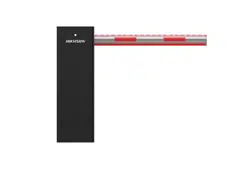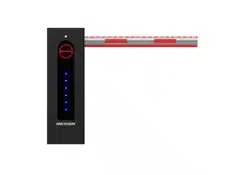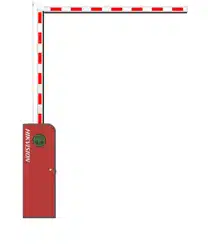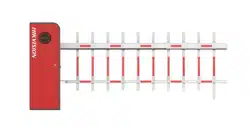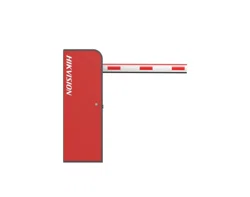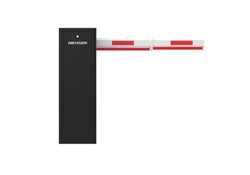

Barrier Gate
User Manual
Barrier Gate User Manual
i
About this Document
● This Document includes instructions for using and managing the Product. Pictures, charts,
images and all other information hereinafter are for description and explanation only.
● The information contained in the Document is subject to change, without notice, due to
firmware updates or other reasons. Please find the latest version of the Document at the
Hikvision website (https://www.hikvision.com). Unless otherwise agreed, Hangzhou Hikvision
Digital Technology Co., Ltd. or its affiliates (hereinafter referred to as "Hikvision") makes no
warranties, express or implied.
● Please use the Document with the guidance and assistance of professionals trained in
supporting the Product.
About this Product
● This product can only enjoy the after-sales service support in the country or region where the
purchase is made.
● If the product you choose is a video product, please scan the following QR code to obtain the
"Initiatives on the Use of Video Products", and read it carefully.
Acknowledgment of Intellectual Property Rights
● Hikvision owns the copyrights and/or patents related to the technology embodied in the
Products described in this Document, which may include licenses obtained from third parties.
● Any part of the Document, including text, pictures, graphics, etc., belongs to Hikvision. No part
of this Document may be excerpted, copied, translated, or modified in whole or in part by any
means without written permission.
● and other Hikvision’s trademarks and logos are the properties of Hikvision in
various jurisdictions.
● Other trademarks and logos mentioned are the properties of their respective owners.
LEGAL DISCLAIMER
● TO THE MAXIMUM EXTENT PERMITTED BY APPLICABLE LAW, THIS DOCUMENT AND THE
PRODUCT DESCRIBED, WITH ITS HARDWARE, SOFTWARE AND FIRMWARE, ARE PROVIDED "AS
IS" AND "WITH ALL FAULTS AND ERRORS". HIKVISION MAKES NO WARRANTIES, EXPRESS OR
IMPLIED, INCLUDING WITHOUT LIMITATION, MERCHANTABILITY, SATISFACTORY QUALITY, OR
FITNESS FOR A PARTICULAR PURPOSE. THE USE OF THE PRODUCT BY YOU IS AT YOUR OWN
RISK. IN NO EVENT WILL HIKVISION BE LIABLE TO YOU FOR ANY SPECIAL, CONSEQUENTIAL,
INCIDENTAL, OR INDIRECT DAMAGES, INCLUDING, AMONG OTHERS, DAMAGES FOR LOSS OF
BUSINESS PROFITS, BUSINESS INTERRUPTION, OR LOSS OF DATA, CORRUPTION OF SYSTEMS, OR
LOSS OF DOCUMENTATION, WHETHER BASED ON BREACH OF CONTRACT, TORT (INCLUDING

Barrier Gate User Manual
ii
NEGLIGENCE), PRODUCT LIABILITY, OR OTHERWISE, IN CONNECTION WITH THE USE OF THE
PRODUCT, EVEN IF HIKVISION HAS BEEN ADVISED OF THE POSSIBILITY OF SUCH DAMAGES OR
LOSS.
● YOU ACKNOWLEDGE THAT THE NATURE OF THE INTERNET PROVIDES FOR INHERENT SECURITY
RISKS, AND HIKVISION SHALL NOT TAKE ANY RESPONSIBILITIES FOR ABNORMAL OPERATION,
PRIVACY LEAKAGE OR OTHER DAMAGES RESULTING FROM CYBER-ATTACK, HACKER ATTACK,
VIRUS INFECTION, OR OTHER INTERNET SECURITY RISKS; HOWEVER, HIKVISION WILL PROVIDE
TIMELY TECHNICAL SUPPORT IF REQUIRED.
● YOU AGREE TO USE THIS PRODUCT IN COMPLIANCE WITH ALL APPLICABLE LAWS, AND YOU ARE
SOLELY RESPONSIBLE FOR ENSURING THAT YOUR USE CONFORMS TO THE APPLICABLE LAW.
ESPECIALLY, YOU ARE RESPONSIBLE, FOR USING THIS PRODUCT IN A MANNER THAT DOES NOT
INFRINGE ON THE RIGHTS OF THIRD PARTIES, INCLUDING WITHOUT LIMITATION, RIGHTS OF
PUBLICITY, INTELLECTUAL PROPERTY RIGHTS, OR DATA PROTECTION AND OTHER PRIVACY
RIGHTS. YOU SHALL NOT USE THIS PRODUCT FOR ANY PROHIBITED END-USES, INCLUDING THE
DEVELOPMENT OR PRODUCTION OF WEAPONS OF MASS DESTRUCTION, THE DEVELOPMENT
OR PRODUCTION OF CHEMICAL OR BIOLOGICAL WEAPONS, ANY ACTIVITIES IN THE CONTEXT
RELATED TO ANY NUCLEAR EXPLOSIVE OR UNSAFE NUCLEAR FUEL-CYCLE, OR IN SUPPORT OF
HUMAN RIGHTS ABUSES.
● IN THE EVENT OF ANY CONFLICTS BETWEEN THIS DOCUMENT AND THE APPLICABLE LAW, THE
LATTER PREVAILS.
© Hangzhou Hikvision Digital Technology Co., Ltd. All rights reserved.
Barrier Gate User Manual
iii
Symbol Conventions
The symbols that may be found in this document are defined as follows.
Symbol
Description
Danger
Indicates a hazardous situation which, if not avoided, will or could
result in death or serious injury.
Caution
Indicates a potentially hazardous situation which, if not avoided,
could result in equipment damage, data loss, performance
degradation, or unexpected results.
Note
Provides additional information to emphasize or supplement
important points of the main text.

Barrier Gate User Manual
iv
Contents
Chapter 1 Introduction ................................................................................................................... 1
1.1 Product Introduction ........................................................................................................ 1
1.2 Packing List ....................................................................................................................... 1
1.3 Barrier Gate Overview ...................................................................................................... 2
1.4 Machine Core Structure .................................................................................................... 3
1.5 Boom Pole Overview ........................................................................................................ 4
1.5.1 Octagonal Straight Boom Pole ............................................................................... 4
1.5.2 Boom Pole with Strip Light ..................................................................................... 5
1.5.3 Cylinder Boom Pole ................................................................................................ 5
1.5.4 Anti-collision Cylinder Boom Pole .......................................................................... 6
1.5.5 Anti-collision Octagonal Telescopic Boom Pole ...................................................... 6
1.5.6 Octagonal Telescopic Boom Pole ........................................................................... 7
1.5.7 Folding Boom Pole ................................................................................................. 8
Chapter 2 Installation ..................................................................................................................... 9
2.1 Installation Environment .................................................................................................. 9
2.2 Install Barrier Gate Host.................................................................................................... 9
2.3 Install Boom Pole ............................................................................................................ 11
2.3.1 Install Octagonal Straight Boom Pole ................................................................... 11
2.3.2 Install Boom Pole with Strip Light ........................................................................ 12
2.3.3 Install Anti-collision Cylinder Boom Pole ............................................................. 14
2.3.4 Install Cylinder Boom Pole ................................................................................... 16
2.3.5 Install Octagonal Telescopic Boom Pole ............................................................... 18
2.3.6 Install Anti-collision Octagonal Telescopic Boom Pole ......................................... 20
2.3.7
Install Folding Boom Pole .................................................................................. 23
2.4 Wiring ............................................................................................................................. 26
2.4.1 Connect to Power Supply ..................................................................................... 26
2.4.2 Connect to ANPR Camera ..................................................................................... 27
2.4.3 Connect to Anti-fall Radar .................................................................................... 28
2.4.4 Connect to Vehicle Detector ................................................................................ 31

Barrier Gate User Manual
v
2.4.5 Connect to Active Infrared Intrusion Detector ..................................................... 33
2.4.6 Connect to Arrow Indicator .................................................................................. 35
2.4.7 Connect to Strip Light ........................................................................................... 35
Chapter 3 Parameters Configuration ............................................................................................ 37
3.1 Remote Control ............................................................................................................... 37
3.2 Set Parameters via Control Board Buttons ..................................................................... 37
3.2.1 Button Description ............................................................................................... 37
3.2.2
Operation Procedure ......................................................................................... 39
Chapter 4 Maintenance ................................................................................................................ 43
4.1 Change Boom Pole .......................................................................................................... 43
4.2 Change Spring ................................................................................................................. 43
4.3 Change Machine Core ..................................................................................................... 44
4.4 Left/Right Direction of Boom Pole .................................................................................. 45
4.5 Change Left/Right Direction of Machine Core ................................................................ 47
A.
FAQ ....................................................................................................................................... 49
Barrier Gate User Manual
1
Chapter 1 Introduction
1.1 Product Introduction
Barrier gate (hereinafter referred to as “device”) is the entrance and exit management device to
limit motor vehicle passing. It can control the boom pole automatically via parking lot
management system. Or you can control the boom pole via buttons on remote controller.
Barrier gate is widely applicable to toll station, parking lot, the entrance and exit of community
and unit, etc.
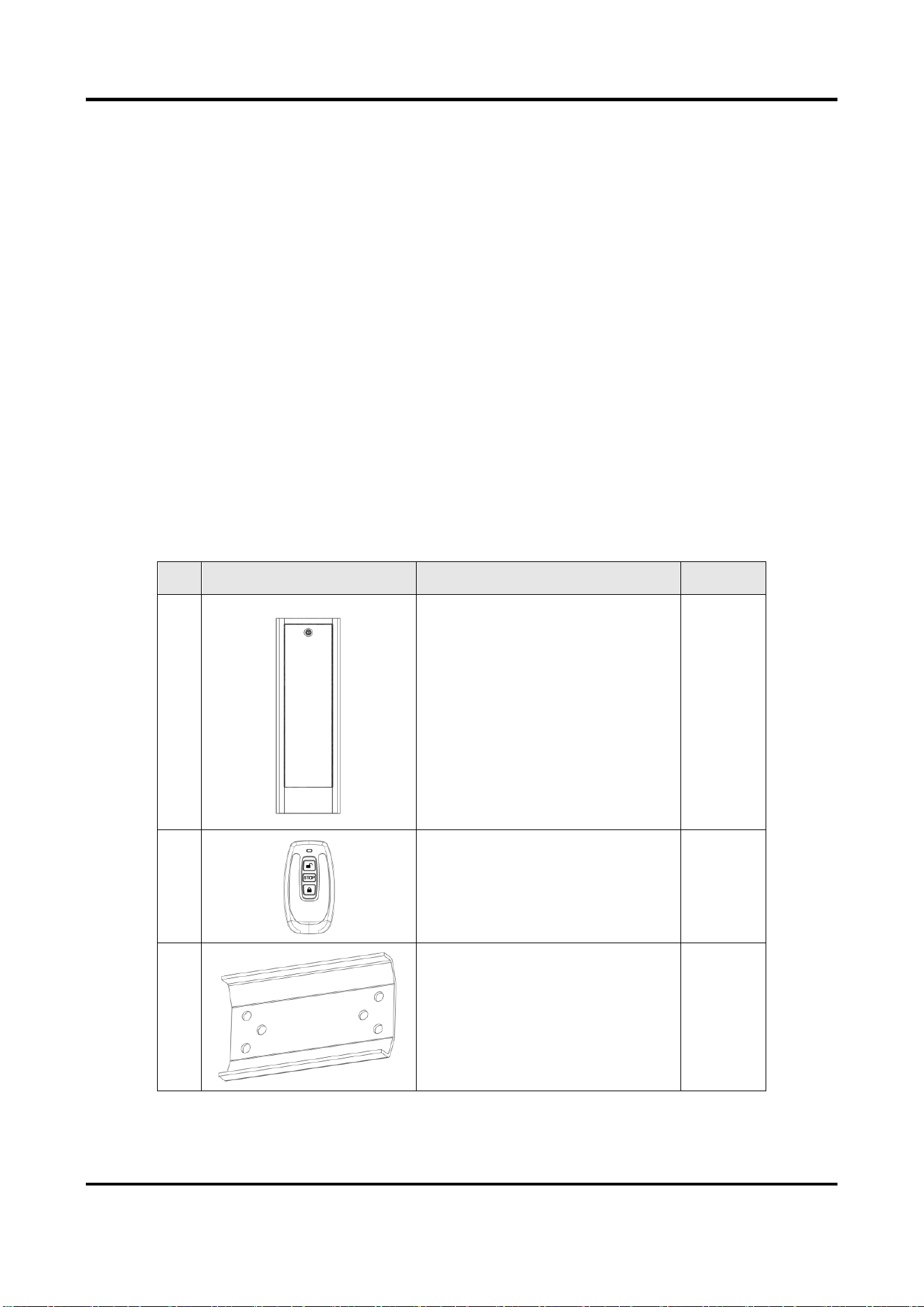
1.2 Packing List
Please check if there is any damage of the package first. Refer to the table below for the packing
list of the barrier gate. According to the packing list, make sure no item is lost. After checking all
the items are included, you can continue to install the device.
Table 1-1 Packing List
No.
Diagram
Name
Quantity
1
Barrier gate host
1
2
Remote controller
2
3
Chuck
1
Barrier Gate User Manual
2
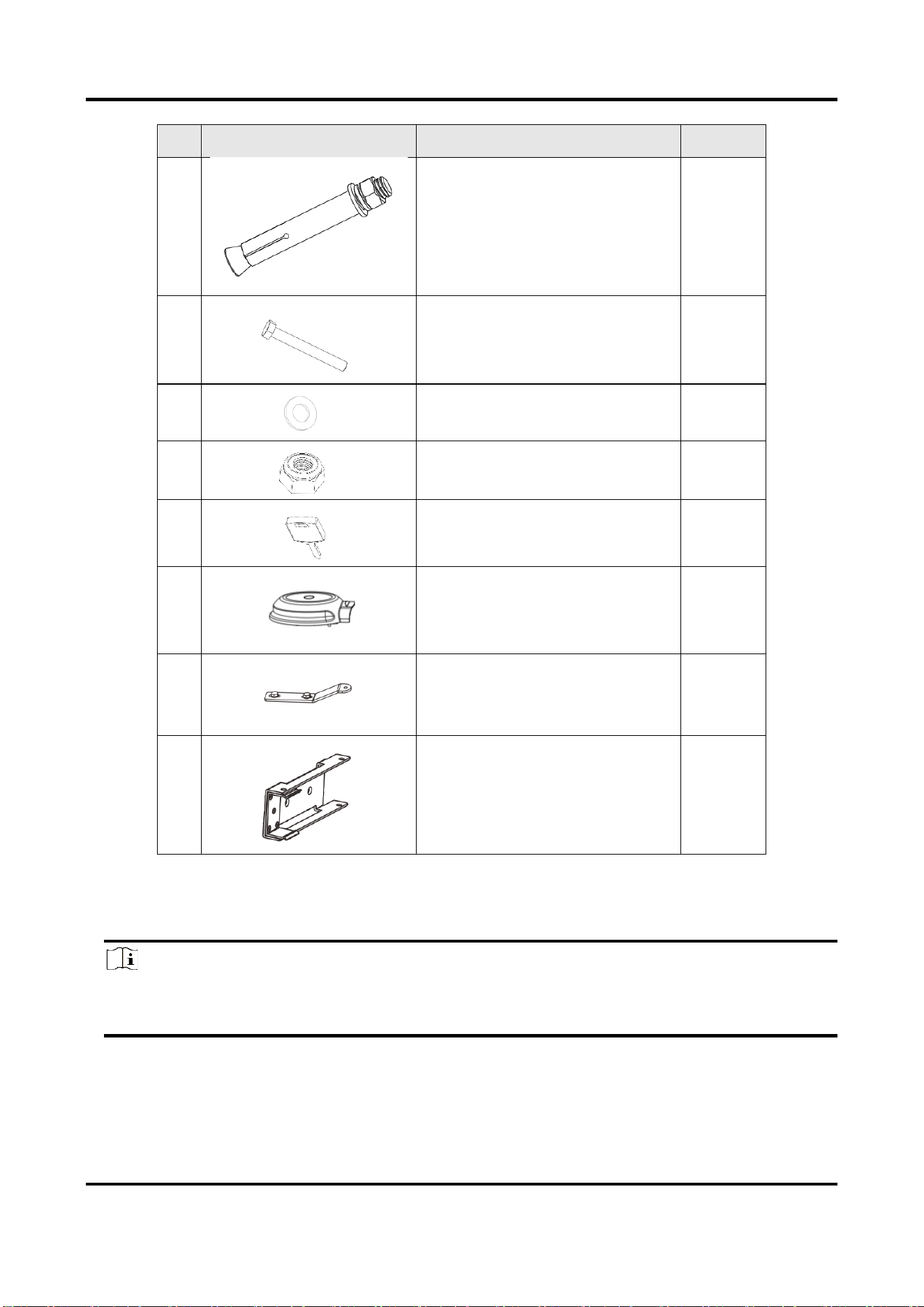
No.
Diagram
Name
Quantity
4
Spindle rod screw set
4
5
Hex socket head cap screw
2
6
Flat washer
2
7
Hexagon lock nut
2
8
Key
2
9
Pole handle Cover
(only for pole with strip light)
1
10
Pulling plate
(only for folding pole)
1
11
Anti-collision chuck
(only for Anti-collision Octagonal
pole)
1
1.3 Barrier Gate Overview
Note
The appearances of the devices vary with different models. The figure below just takes an
example. Refer to the actual device for details.
Barrier Gate User Manual
3
Figure 1-1 Barrier Gate Overview
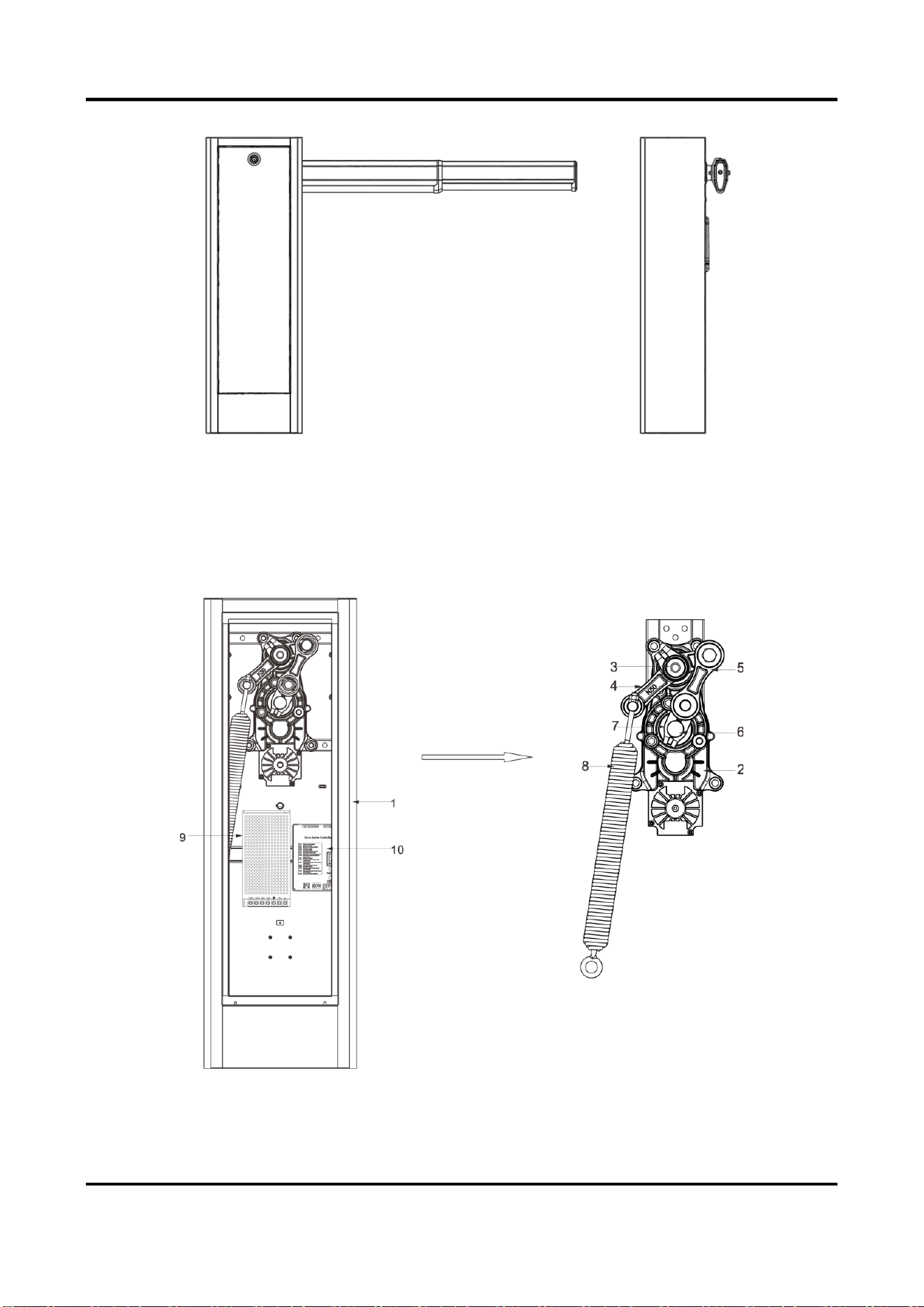
1.4 Machine Core Structure
After you open the front cover, you can see the machine core of the device host.
Figure 1-2 Machine Core Structure
Barrier Gate User Manual
4
Table 1-2 Machine Core Component Description
No.
Description
No.
Description
1
Host
6
Output shaft
2
Reducer
7
Output shaft crank arm
3
Principal axis
8
Spring
4
Spindle crank arm
9
Power supply
5
Linkage arm
10
Controller
1.5 Boom Pole Overview
The normal pole is not anti-collision, the model name with the word "anti-collision" supports this
function.
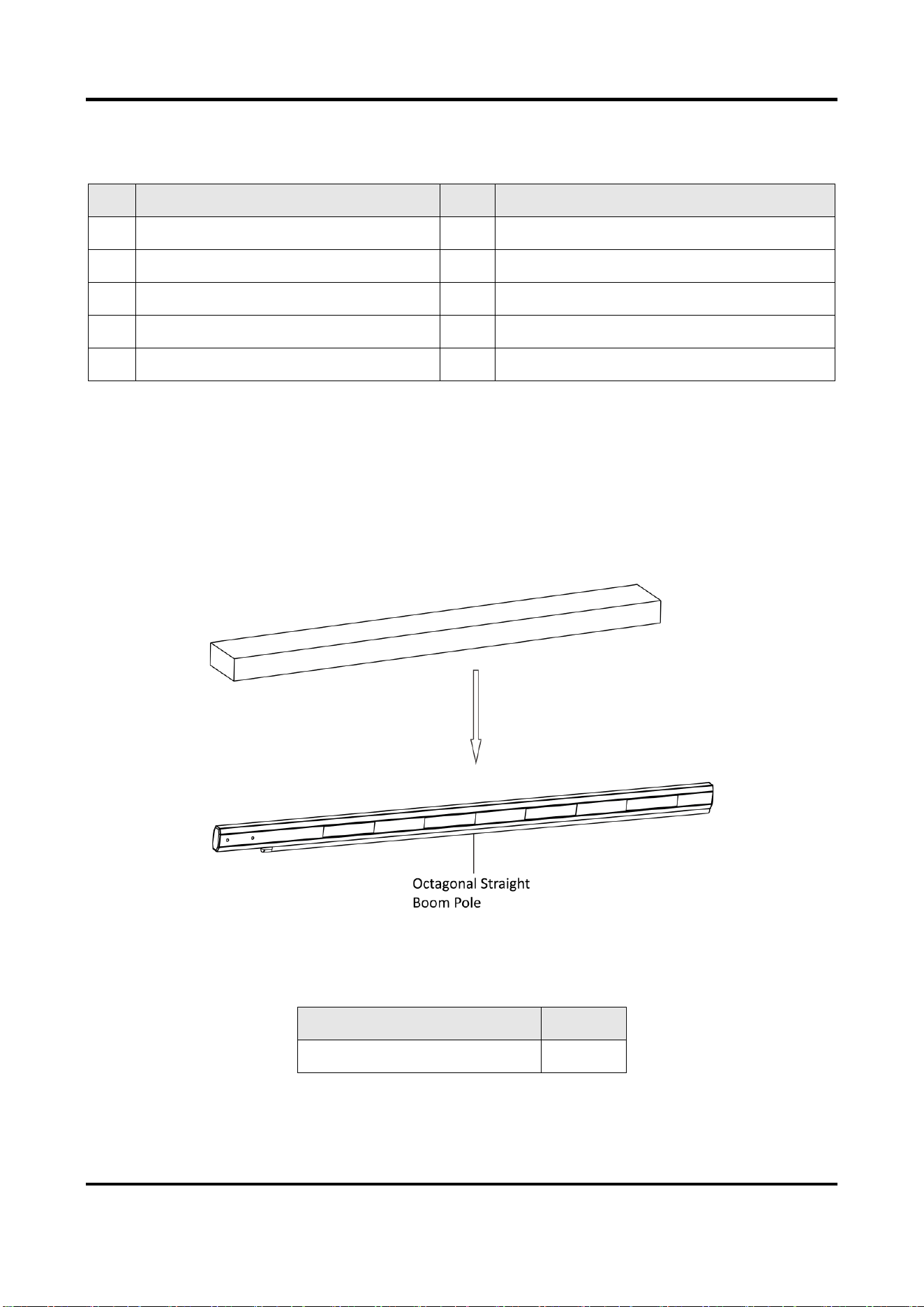
1.5.1 Octagonal Straight Boom Pole
Figure 1-3 Octagonal Straight Boom Pole
Table 1-3 Octagonal Straight Boom Pole Packing List
Item
Quantity
Octagonal Straight Boom Pole
1
Barrier Gate User Manual
5
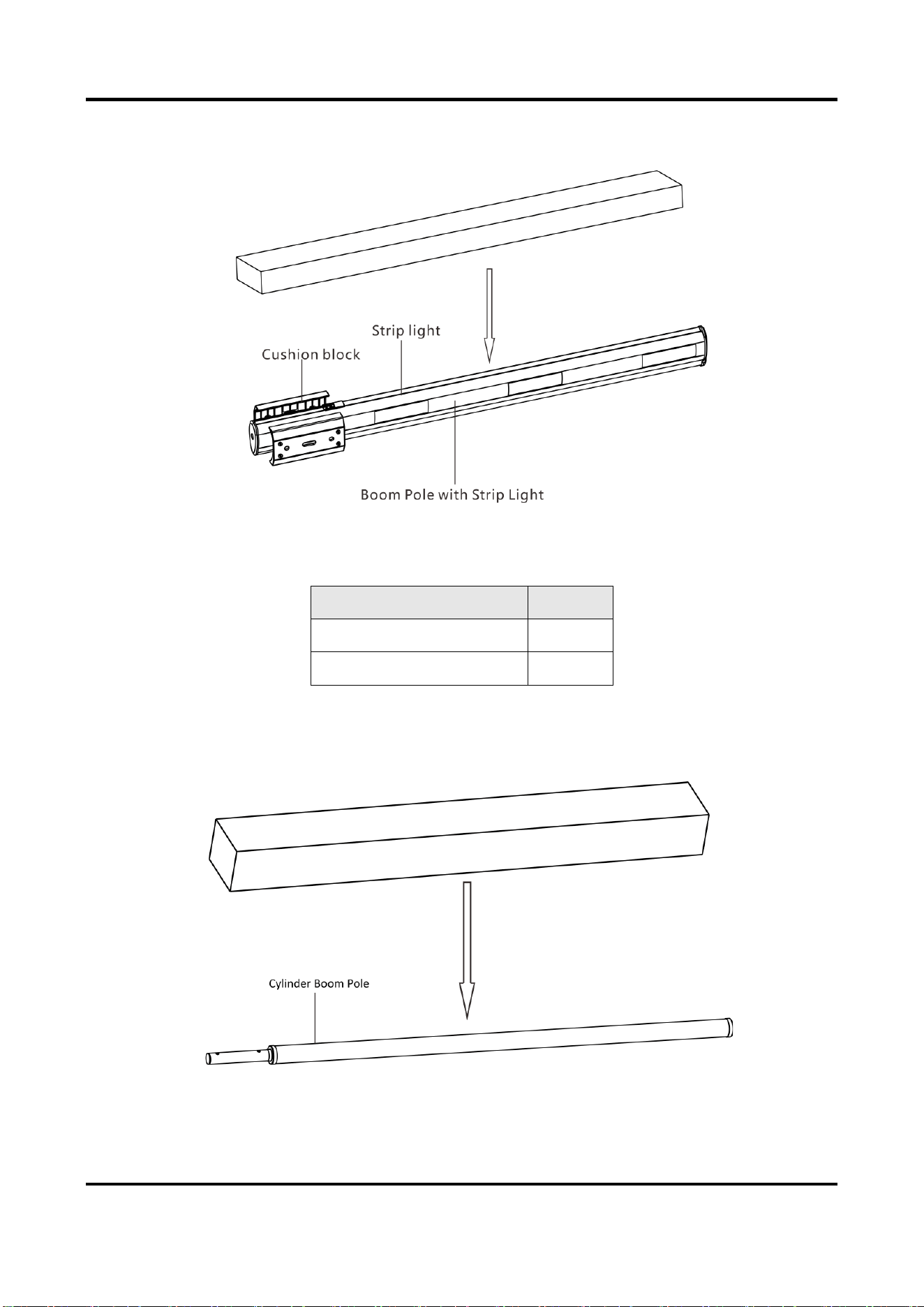
1.5.2 Boom Pole with Strip Light
Figure 1-4 Boom Pole with Strip Light
Table 1-4 Boom Pole with Strip Light Packing List
Item
Quantity
Boom Pole with Strip Light
1
Cushion block
2
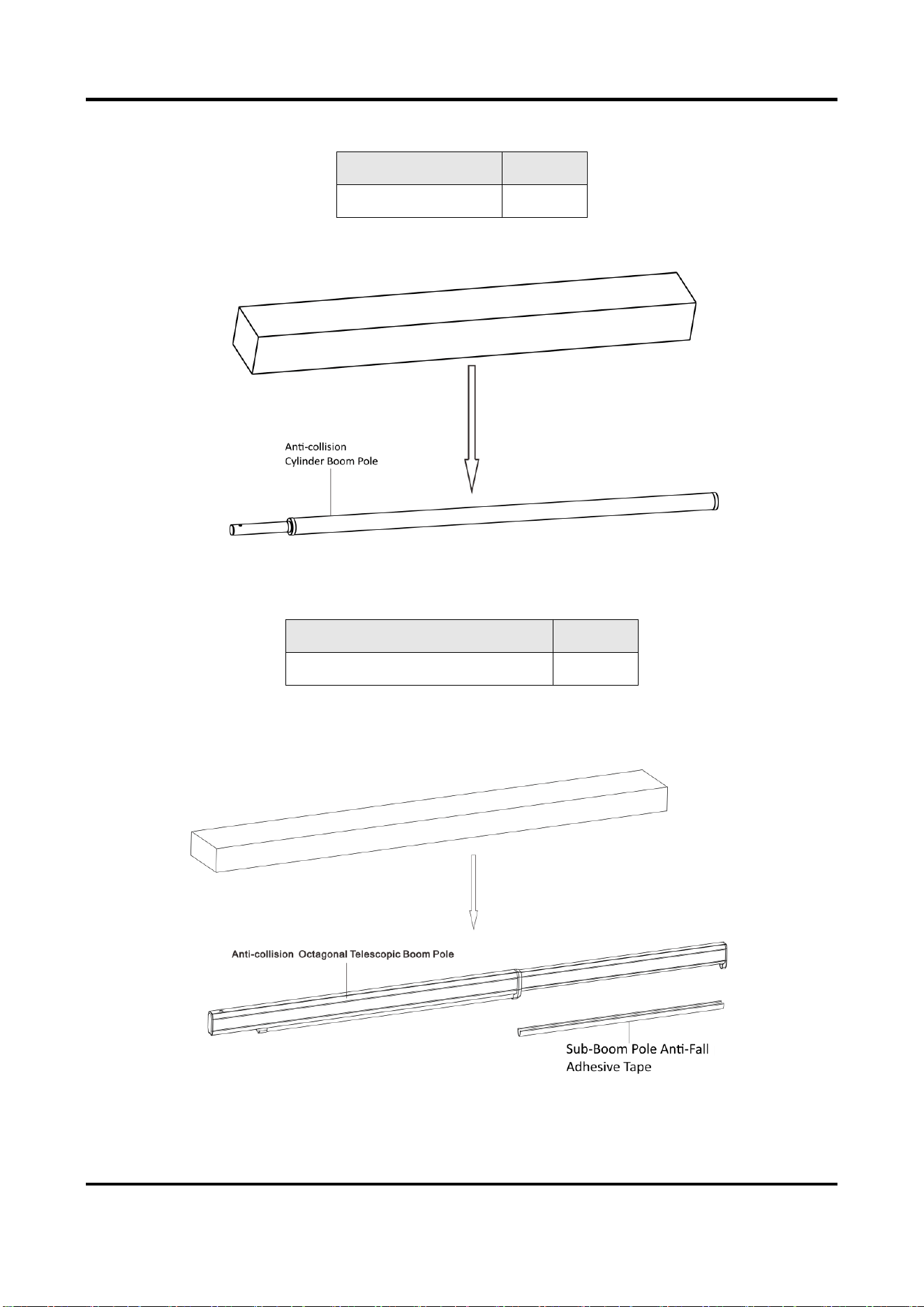
1.5.3 Cylinder Boom Pole
Figure 1-5 Cylinder Boom Pole
Barrier Gate User Manual
6
Table 1-5 Cylinder Boom Pole Packing List
Item
Quantity
Cylinder Boom Pole
1
1.5.4 Anti-collision Cylinder Boom Pole
Figure 1-6 Anti-collision Cylinder Boom Pole
Table 1-6 Anti-collision Cylinder Boom Pole Packing List
Item
Quantity
Anti-collision Cylinder Boom Pole
1
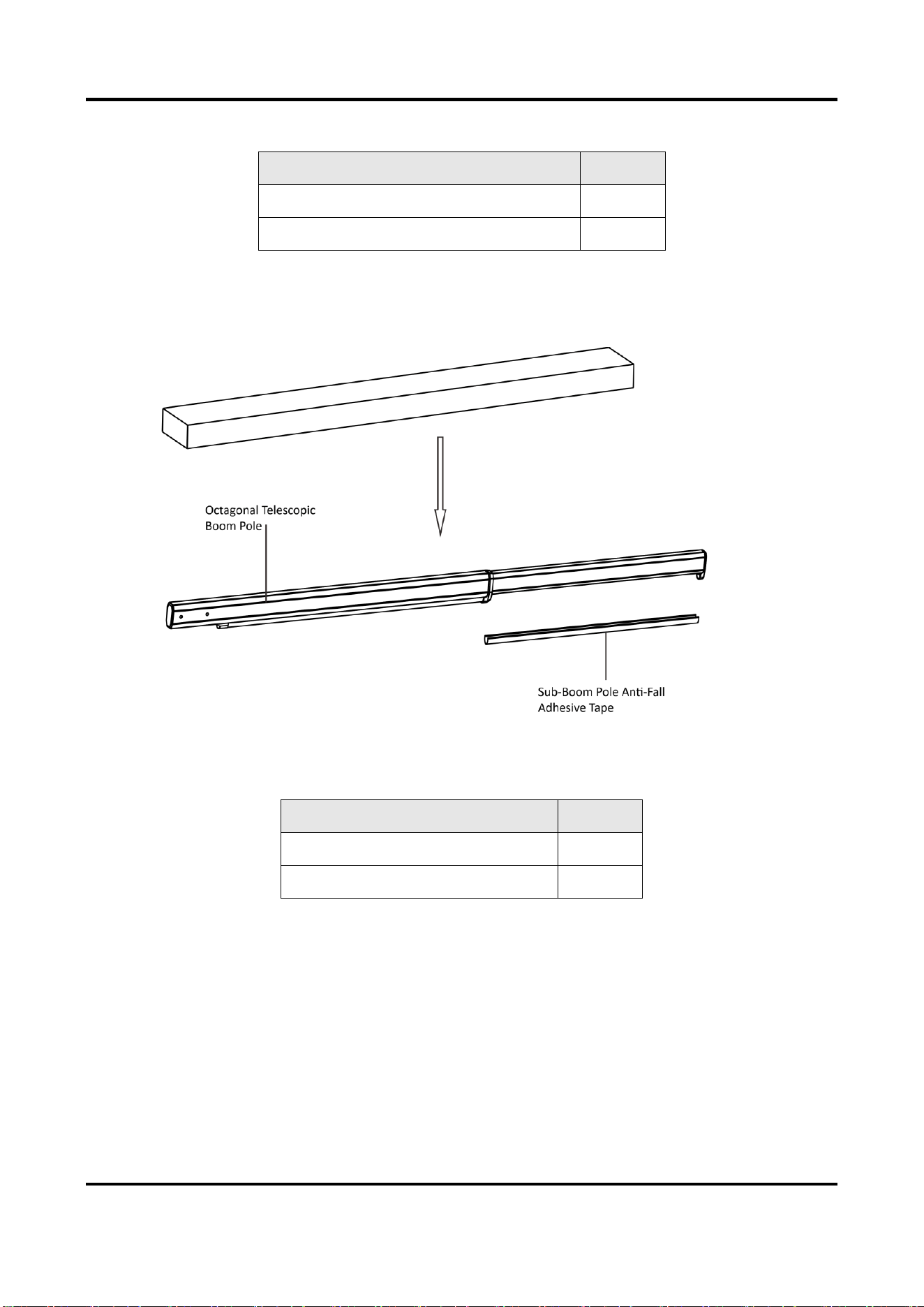
1.5.5 Anti-collision Octagonal Telescopic Boom Pole
Figure 1-7 Anti-collision Octagonal Telescopic Boom Pole
Barrier Gate User Manual
7
Table 1-7 Anti-collision Octagonal Telescopic Boom Pole Packing List
Item
Quantity
Anti-collision Octagonal Telescopic Boom Pole
1
Sub-Boom Pole Anti-Fall Adhesive Tape
1
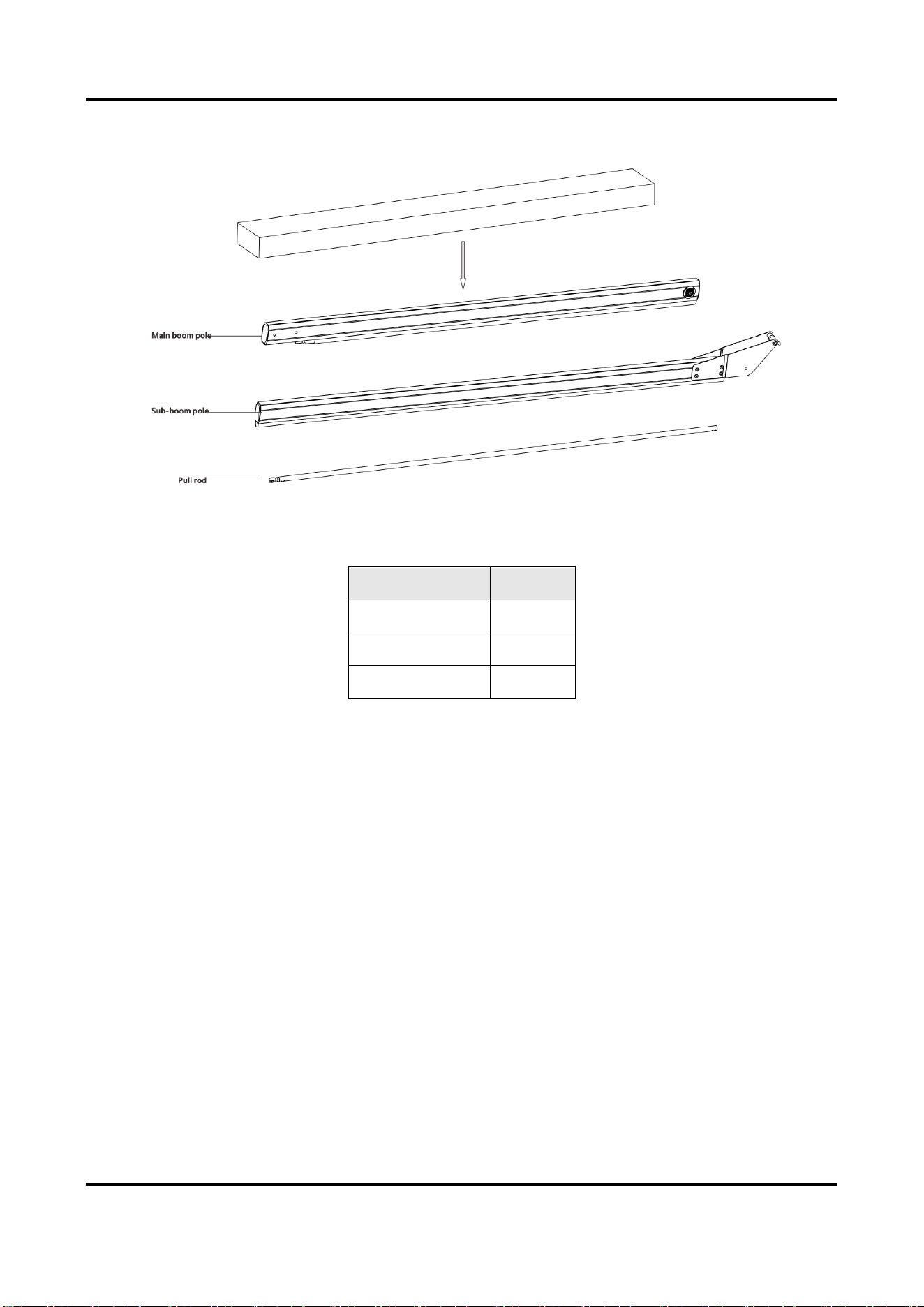
1.5.6 Octagonal Telescopic Boom Pole
Figure 1-8 Octagonal Telescopic Boom Pole
Table 1-8 Octagonal Telescopic Boom Pole Packing List
Item
Quantity
Octagonal Telescopic Boom Pole
1
Sub-Boom Pole Anti-Fall Adhesive Tape
1
Barrier Gate User Manual
8
1.5.7 Folding Boom Pole
Figure 1-9 Folding Boom Pole
Table 1-9 Folding Boom Pole Packing List
Item
Quantity
Sub-Boom Pole
1
Main Boom Pole
1
Pull Rod
1
Barrier Gate User Manual
9
Chapter 2 Installation
2.1 Installation Environment
The installation position of the barrier gate should meet the customer’s requirements and the
following requirements.
● The installation space should be large enough to guarantee the boom pole can rise or fall
normally.
● Install the barrier gate on horizontal ground.
● Installation surface requirements:
○ If no base is installed, the installation surface must be firm enough to fix the host to
guarantee the barrier gate can run stably.
○ If base is needed, it is recommended to install the base with quick setting cement. The base
should be horizontal. The height should be no more than 200 mm. The length and width of
base should be larger than those of the actual barrier gate installation surface.
● If the barrier gate is anti-collision, the boom pole will flick 90° in reverse direction if it is
impacted. Make sure there is no obstacle in the range.
● Bury the cables before installation. The conduit should be 50 mm higher than the ground to
avoid the gathered water on the ground to enter into the cable and cause short circuit.
2.2 Install Barrier Gate Host
Follow the steps below to fix the host of barrier gate.
Steps
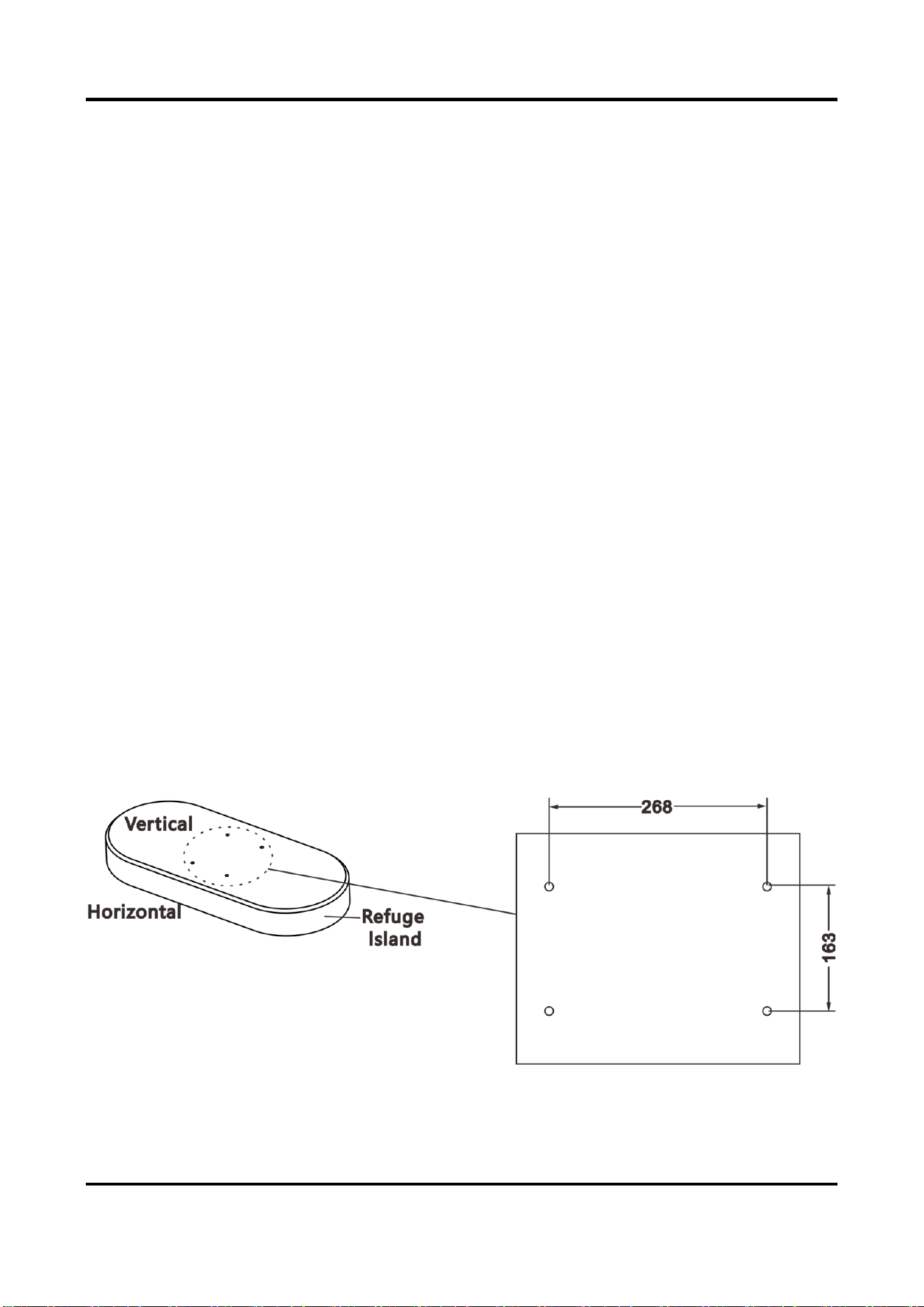
1. Mark the positions of holes on the refuge island as shown below. The hole depth is approx. 80
mm.
Figure 2-1 Mark Position
Barrier Gate User Manual
10
Note
The suggestions for positions of holes:
● The holes in vertical direction should be near to the switch.
● If the entrance/exit is unidirectional, the holes should be in the horizontal center of the
refuge island. If the entrance/exit is bi-directional, the holes in the horizontal direction should
be far away from the entrance/exit.
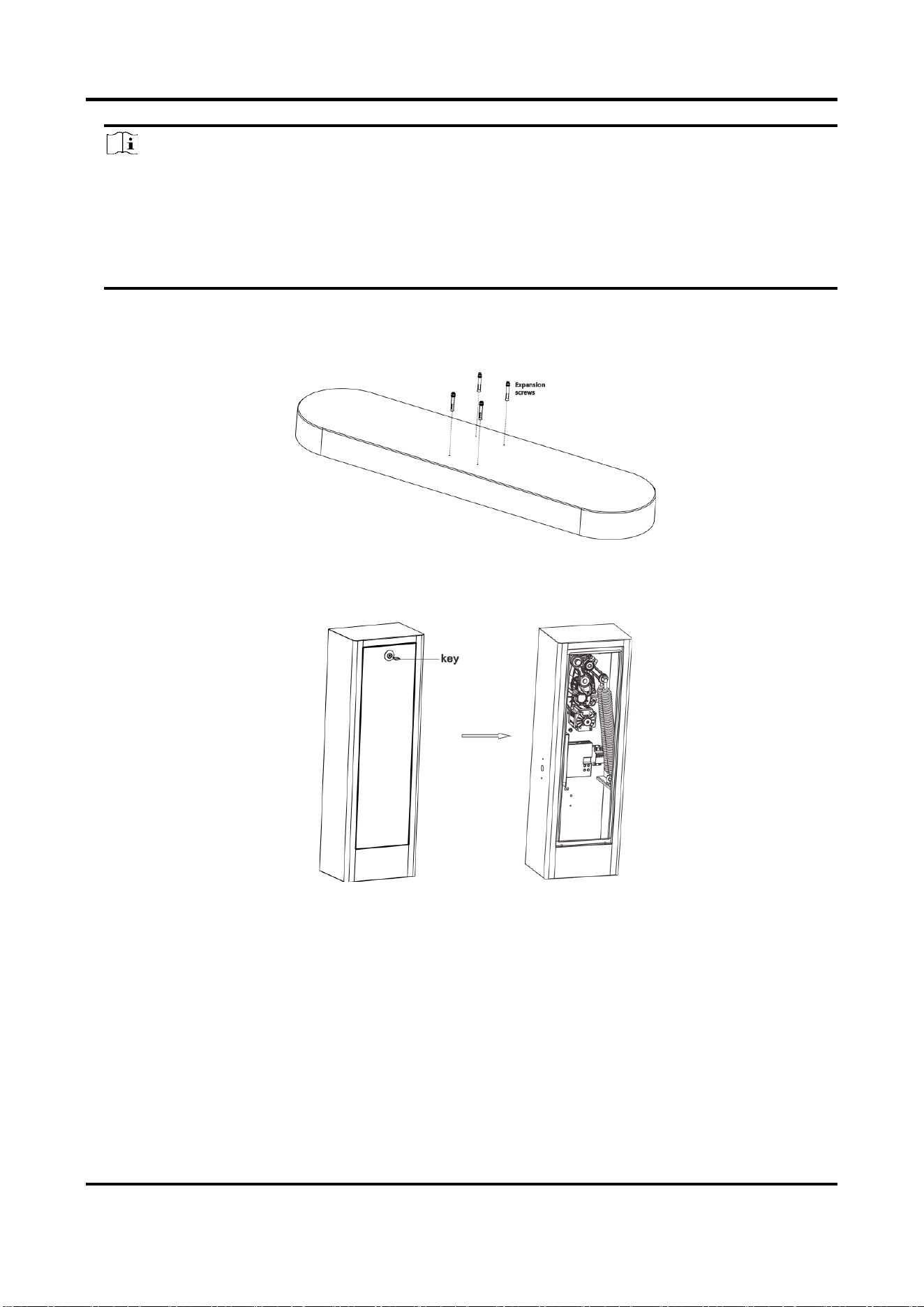
2. Punch the four M12 × 100 expansion screws in the package into the marked positions on the
refuge island, and fasten the nuts to make the screws expand to grip the ground. Then
unfasten the nuts.
Figure 2-2 Install Expansion Screws
3. Turn the key clockwise to open the front cover.
Figure 2-3 Open Front Cover
4. Fix the host.
1) Put the layers on the host bottom and keep them perpendicular to the barrier gate’s switch.
2) Put the host on the positions of expansion screws on the refuge island to make the screws
pass through the layers. Keep the layers perpendicular to the barrier gate’s switch.
3) Fasten the expansion nuts on the screws to fix the host.
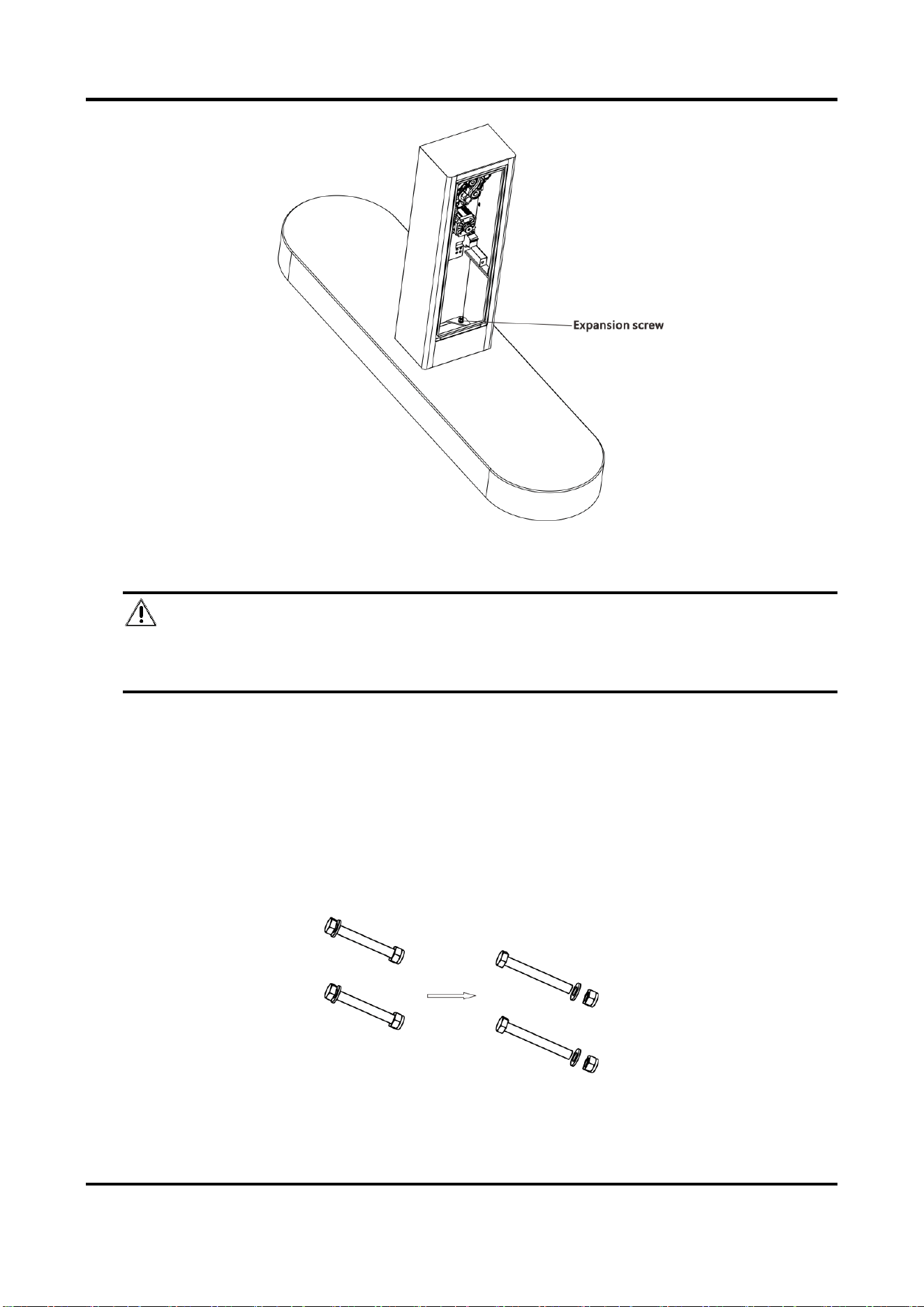
Barrier Gate User Manual
11
Figure 2-4 Fix Host
Danger
Keep the supporting bracket of the boom pole vertically upward to avoid accident caused by
accidental rotation.
2.3 Install Boom Pole
2.3.1 Install Octagonal Straight Boom Pole
Steps
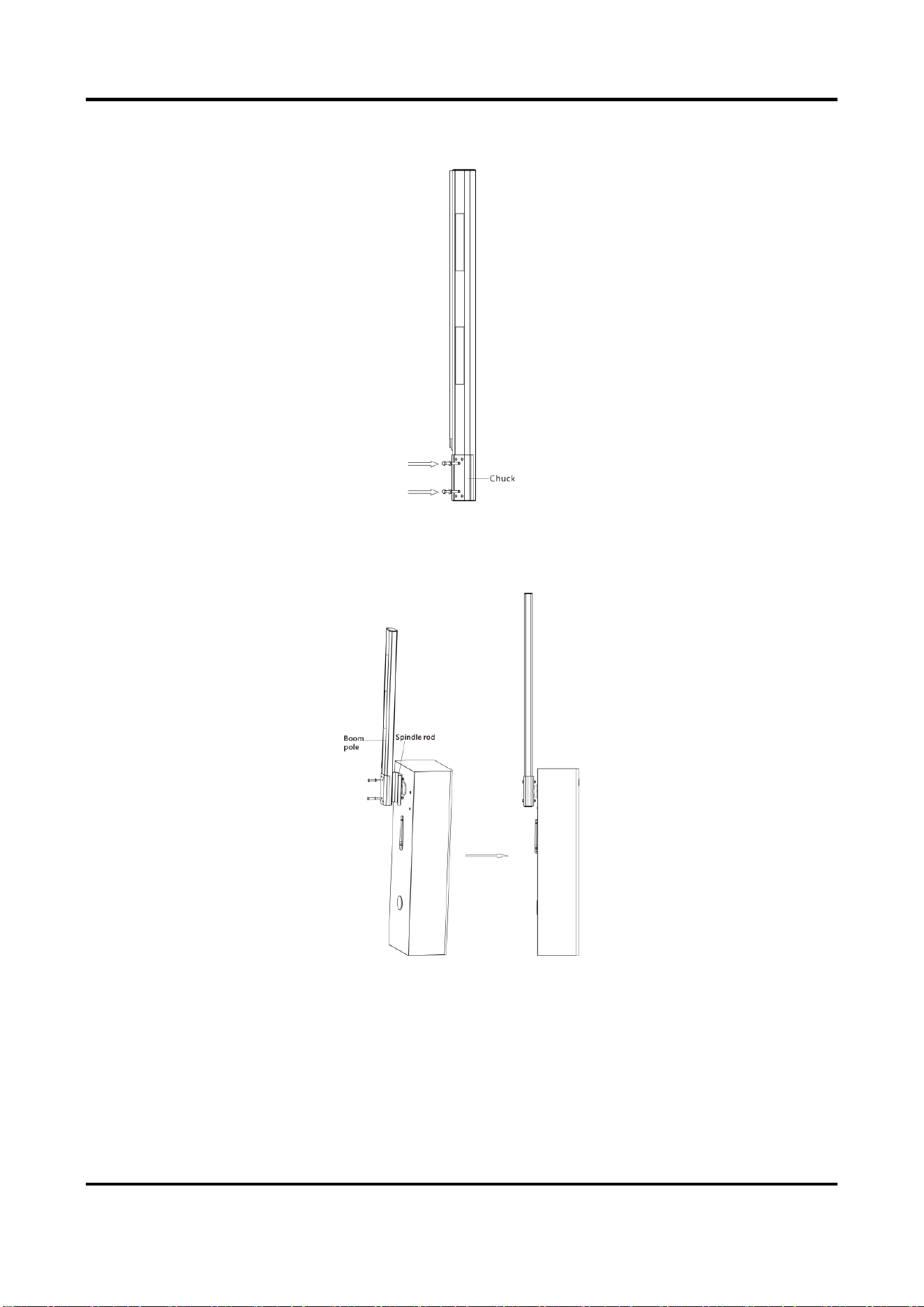
1. Unscrew the cap nuts, spring washers, and flat washers on the other sides of the four
assembling bolts. Save the components and parts for the following installations.
Figure 2-5 Unscrew Assembling Bolts
Barrier Gate User Manual
12
2. Install the chuck to the boom pole with the bolts as shown in the figure below.
Figure 2-6 Install Chuck
3. Install the boom pole to the spindle rod and fasten the other ends of the bolts with the
disassembled spring washers, flat washers, and cap nuts.
Figure 2-7 Fix Octagonal Straight Boom Pole
2.3.2 Install Boom Pole with Strip Light
Steps
1. Unscrew the cap nuts, spring washers, and flat washers on the other sides of the four
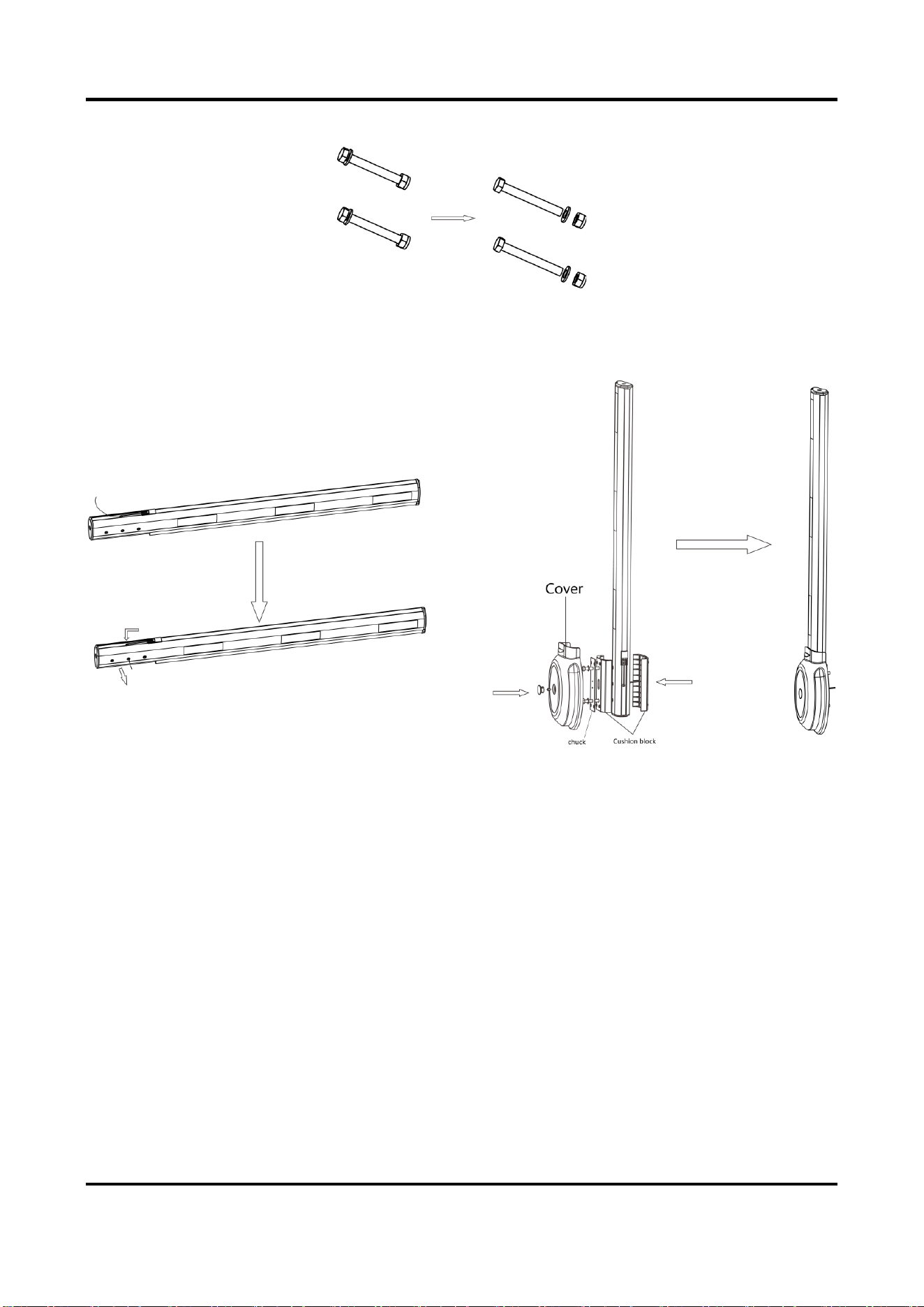
Barrier Gate User Manual
13
assembling bolts. Save the components and parts for the following installations.
Figure 2-8 Unscrew Assembling Bolts
2. Install the chuck and cover to the boom pole with the bolts as shown in the figure below.
Figure 2-9 Install Chuck and Cover
3. Install the boom pole to the spindle rod and fasten the other ends of the bolts with the
disassembled spring washers, flat washers, and cap nuts.
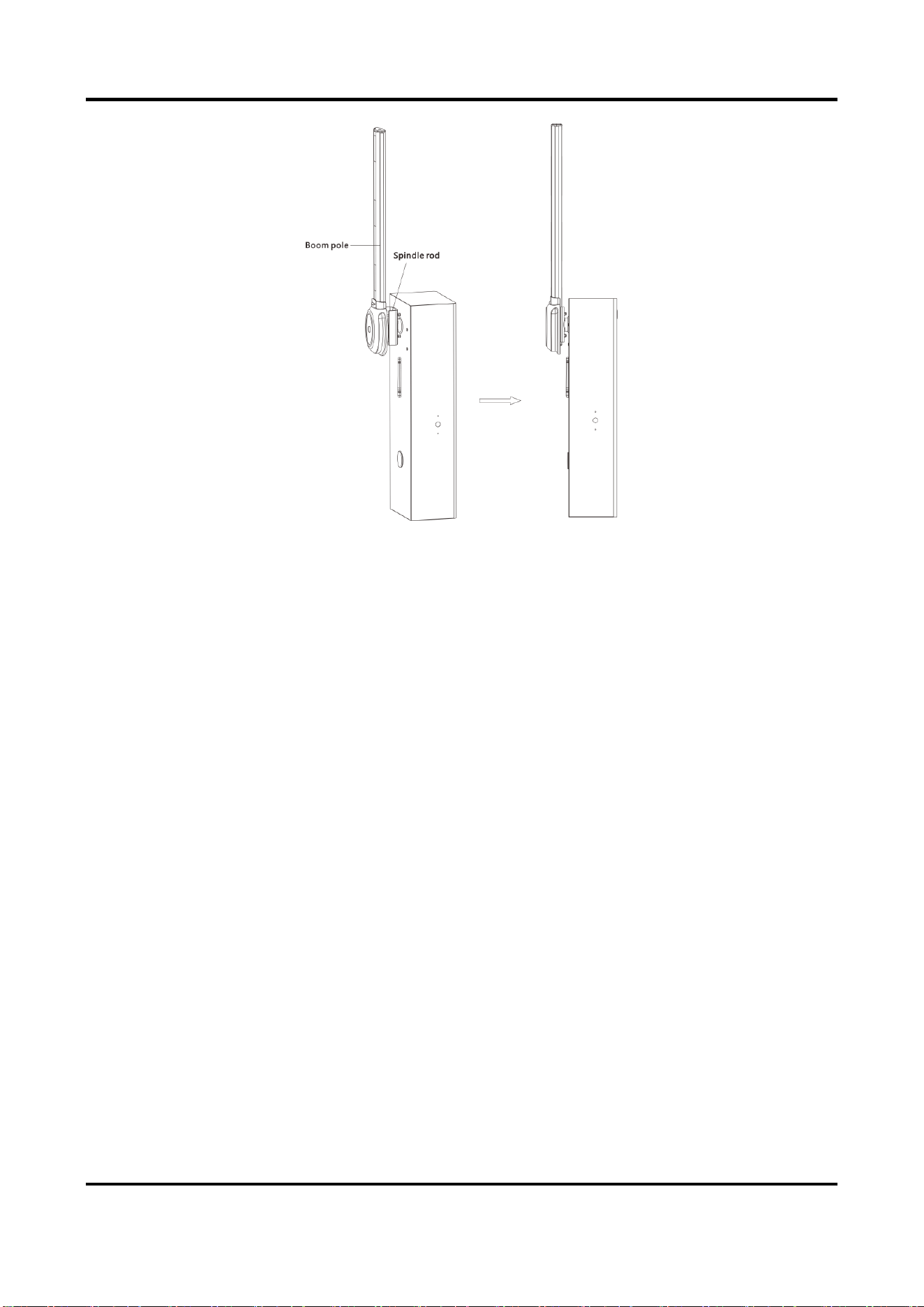
Barrier Gate User Manual
14
Figure 2-10 Fix Boom Pole with Strip Light
2.3.3 Install Anti-collision Cylinder Boom Pole
Steps
1. Stuff the boom pole in the spindle rod aslant as shown in the figure below. Align the
installation hole on the boom pole with that on the spindle rod.
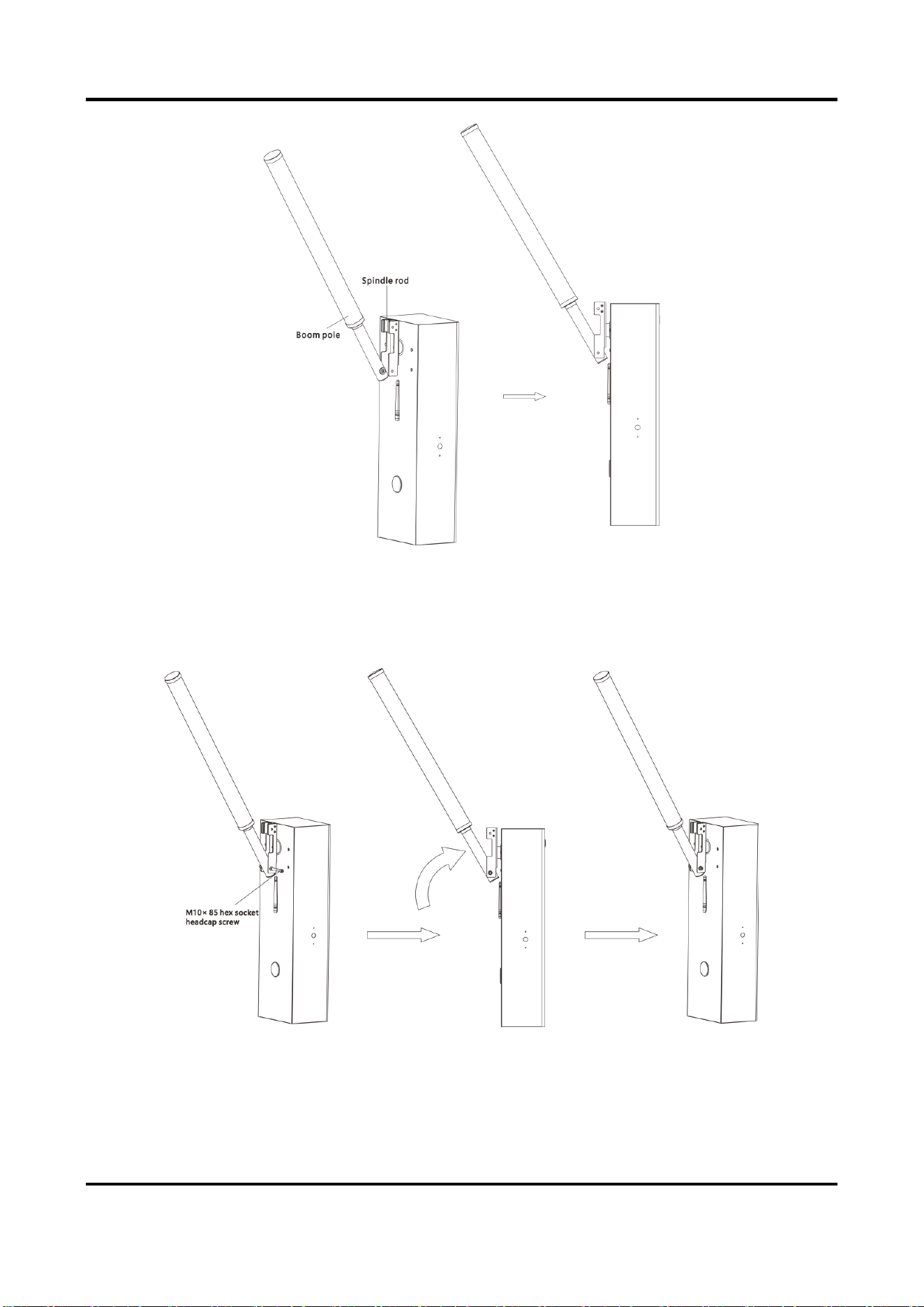
Barrier Gate User Manual
15
Figure 2-11 Stuff Boom Pole Aslant
2. Insert the M10 × 85 hex socket head cap screw into the installation hole, and push the boom
pole into the spindle rod quickly according to the directions as shown in the figure below.
Figure 2-12 Install Anti-collision Cylinder Boom Pole
3. Fix the M10 cap nut to the screw to fix the boom pole.
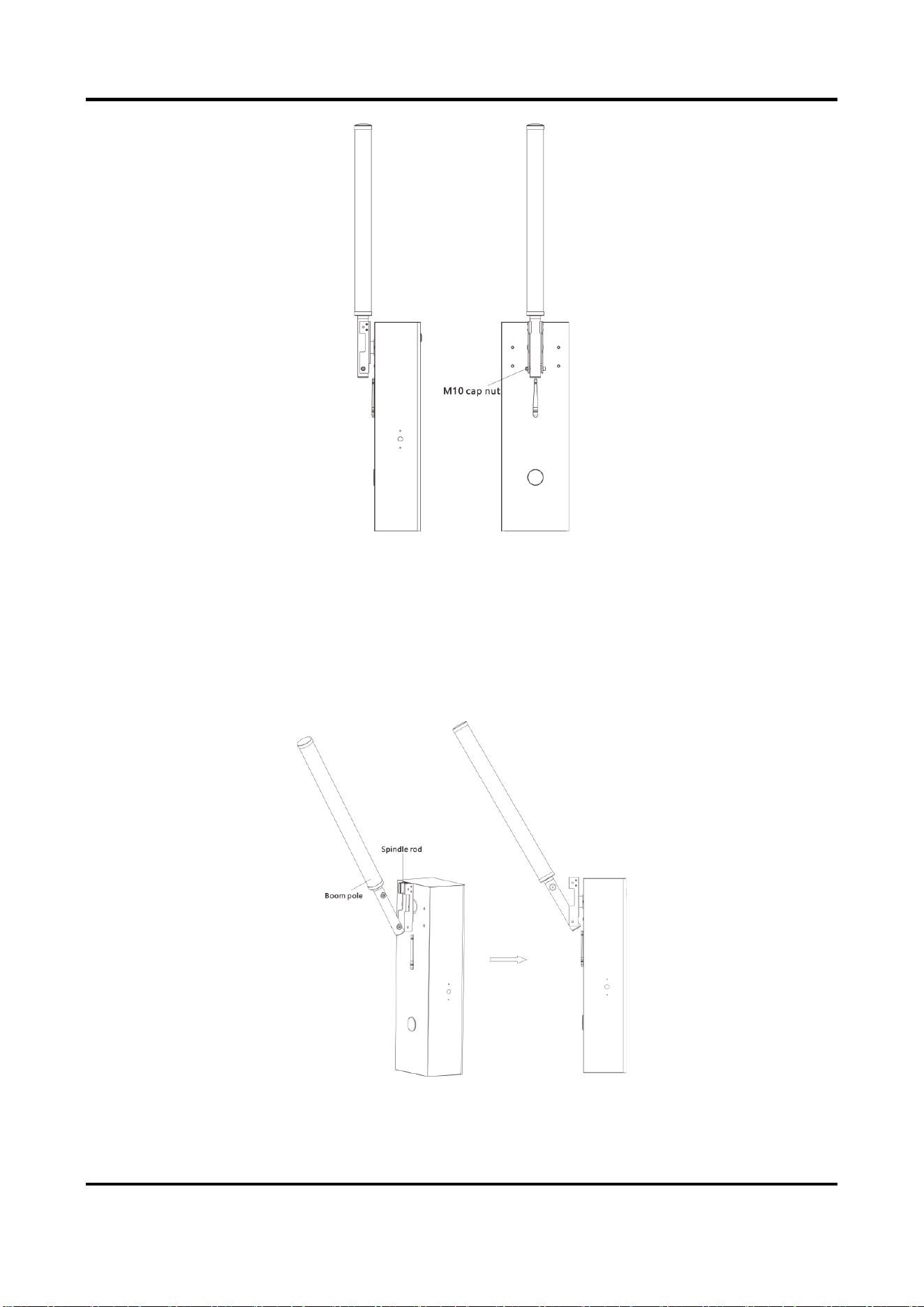
Barrier Gate User Manual
16
Figure 2-13 Fix Boom Pole
2.3.4 Install Cylinder Boom Pole
Steps
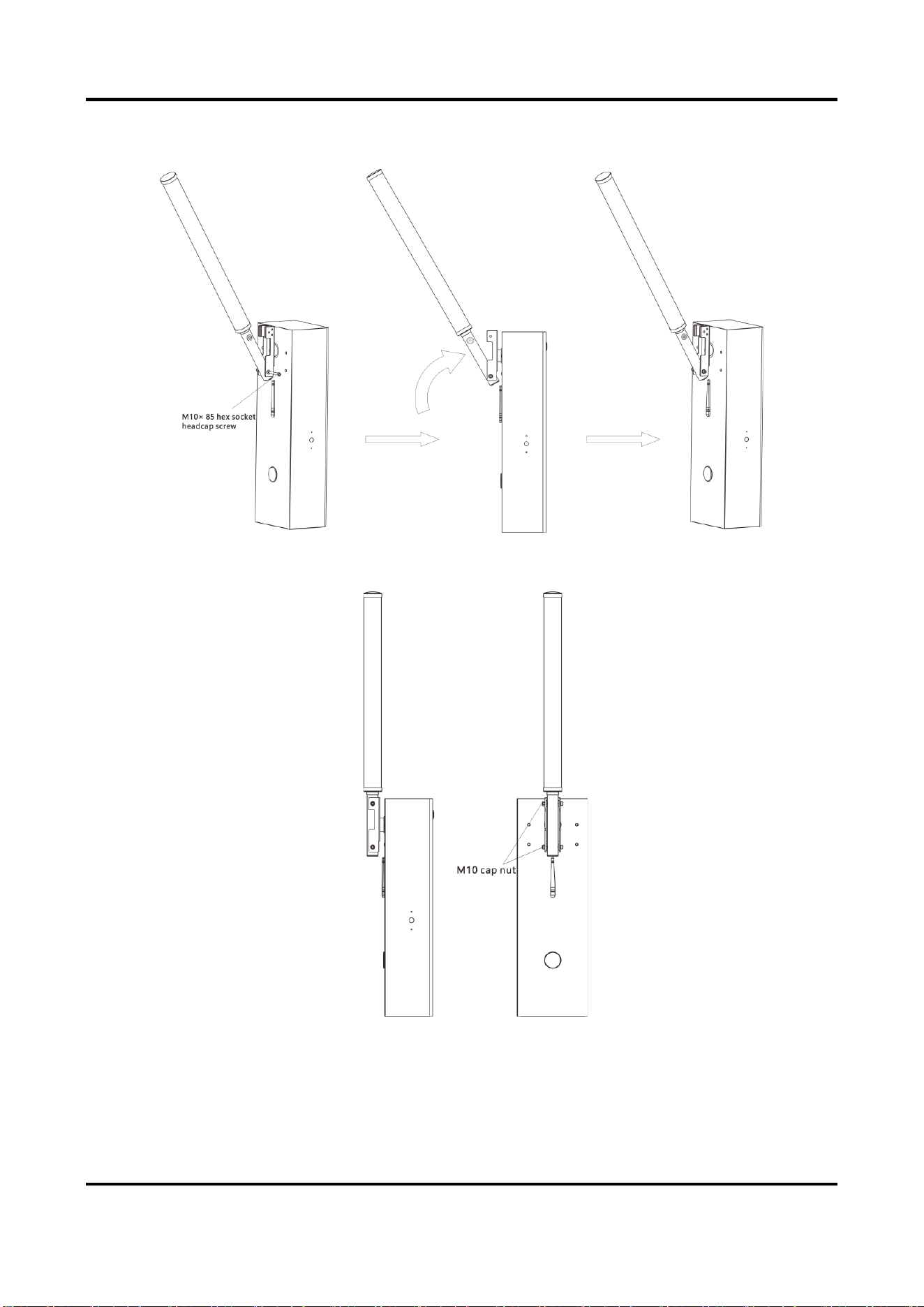
1. Stuff the boom pole in the spindle rod aslant as shown in the figure below. Align the
installation hole on the boom pole with that on the spindle rod.
Figure 2-14 Stuff Boom Pole Aslant
Barrier Gate User Manual
17
2. Insert the M10 × 85 hex socket head cap screw into the installation hole, and push the boom
pole into the spindle rod quickly according to the directions as shown in the figure below.
Figure 2-15 Install Cylinder Boom Pole
3. Fix the M10 cap nut to the screw to fix the boom pole.
Figure 2-16 Fix Boom pole
Barrier Gate User Manual
18
2.3.5 Install Octagonal Telescopic Boom Pole
Steps
1. Install the octagonal telescopic boom pole.
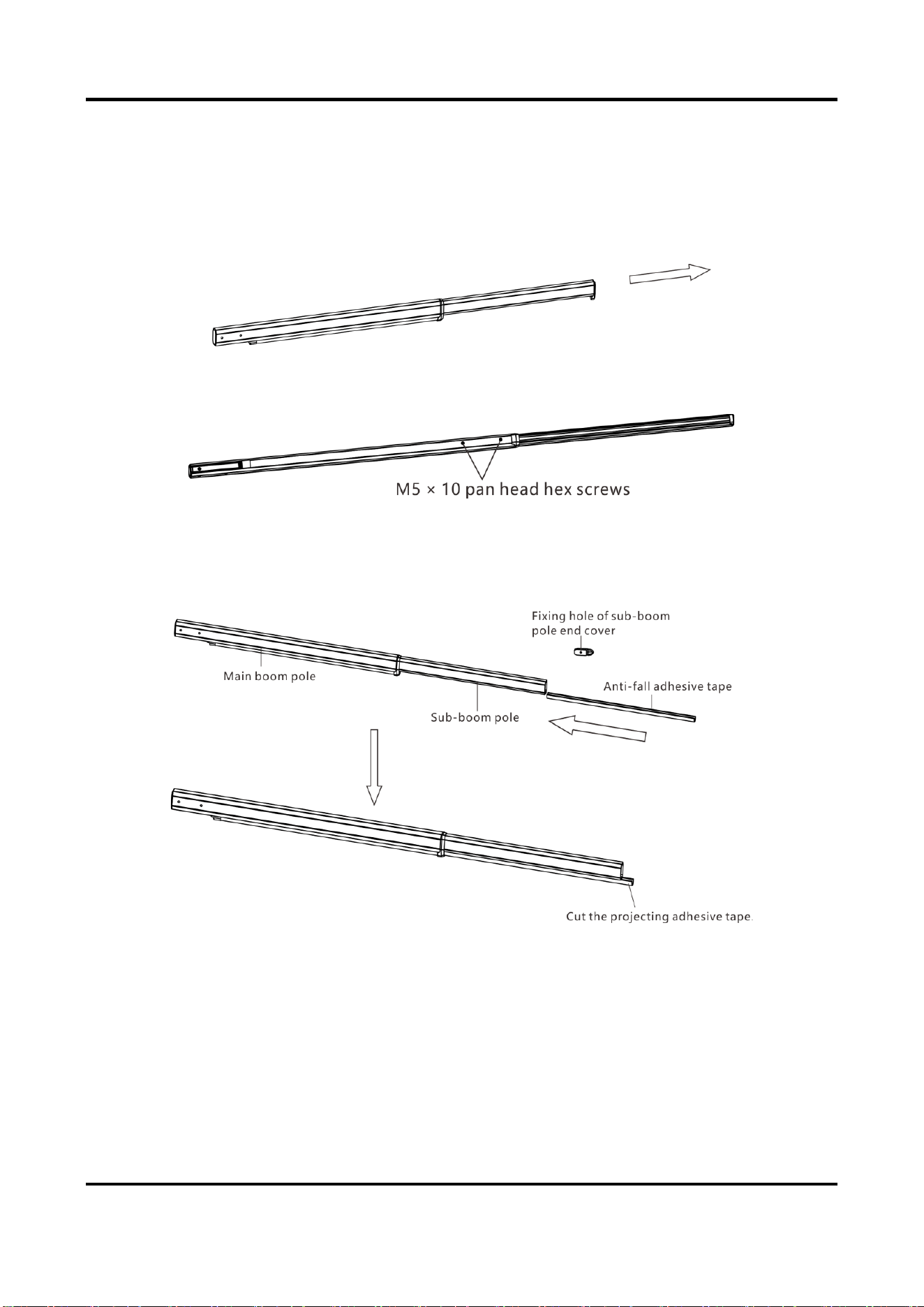
1) Pull the sub-boom pole out according to the direction shown in the figure below. Reach
the desired length.
Figure 2-17 Pull Sub-Boom Pole
2) Lock the M5 × 10 pan head hex screws.
Figure 2-18 Fix Screws
3) Remove the end cover of the sub-boom pole. Insert the anti-fall adhesive tape into the
sub-boom pole. After the anti-fall adhesive tape is inserted to the limit position, cut the
projecting adhesive tape.
Figure 2-19 Insert Anti-Fall Adhesive Tape
Barrier Gate User Manual
19
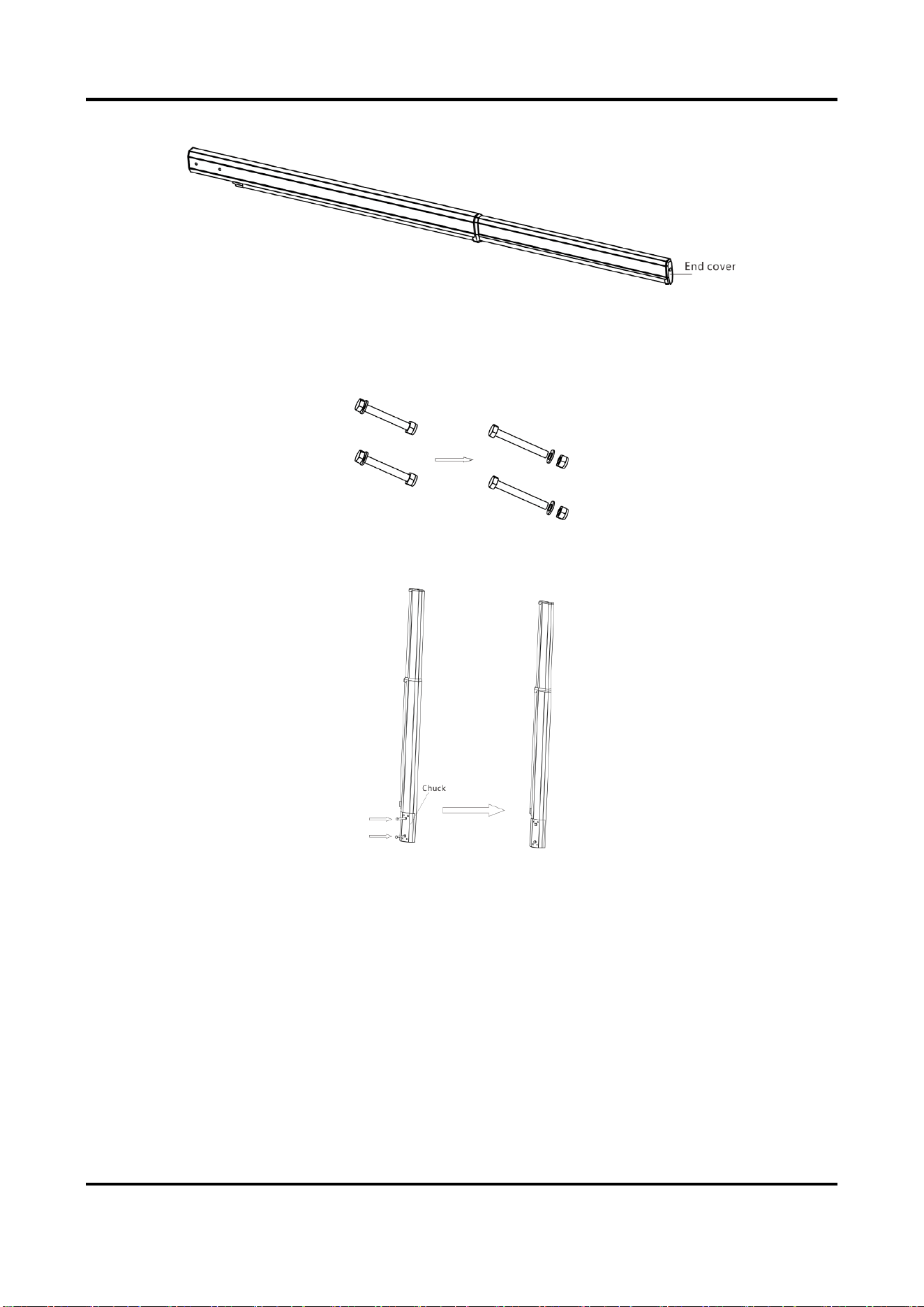
4) Install the end cover to the sub-boom pole.
Figure 2-20 Install End Cover
2. Install the octagonal telescopic boom pole to the host.
1) Unscrew the cap nuts, spring washers, and flat washers on the other sides of the four
assembling bolts. Save the components and parts for the following installations.
Figure 2-21 Unscrew Assembling Bolts
2) Install the chuck to the boom pole with the bolts as shown in the figure below.
Figure 2-22 Install Chuck
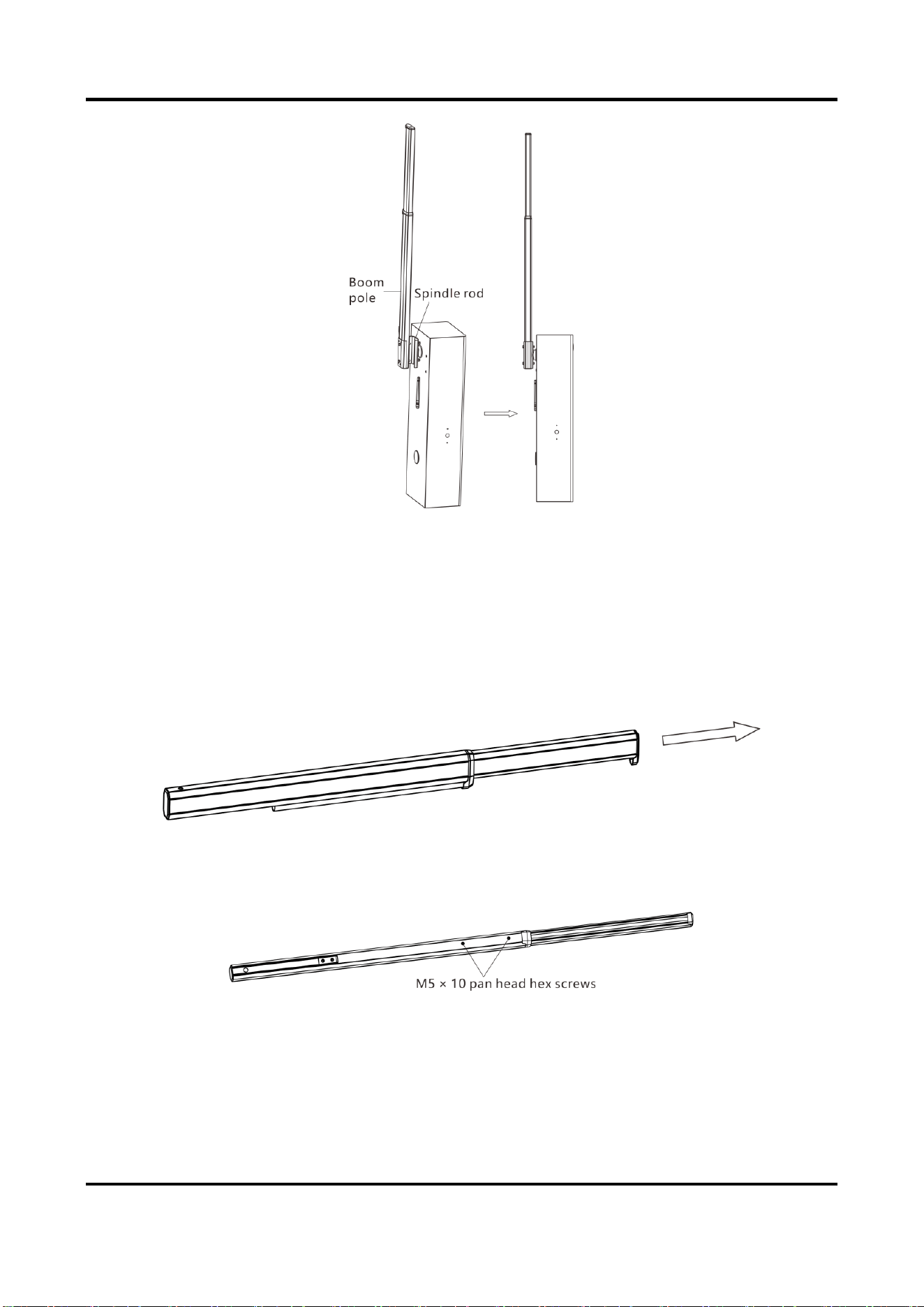
3) Install the boom pole to the spindle rod and fasten the other ends of the bolts with the
disassembled spring washers, flat washers, and cap nuts.
Barrier Gate User Manual
20
Figure 2-23 Install Octagonal Telescopic Boom Pole
2.3.6 Install Anti-collision Octagonal Telescopic Boom Pole
Steps
1. Install the octagonal telescopic boom pole.
1) Pull the sub-boom pole out according to the direction shown in the figure below. Align the
installation holes on the main boom pole and sub-boom pole.
Figure 2-24 Pull Sub-Boom Pole
2) Lock the M5 × 10 pan head hex screws.
Figure 2-25 Fix Sub-Boom Pole
3) Remove the end cover of the sub-boom pole. Insert the anti-fall adhesive tape into the sub-
boom pole. After the anti-fall adhesive tape is inserted to the limit position, cut the projecting
adhesive tape.
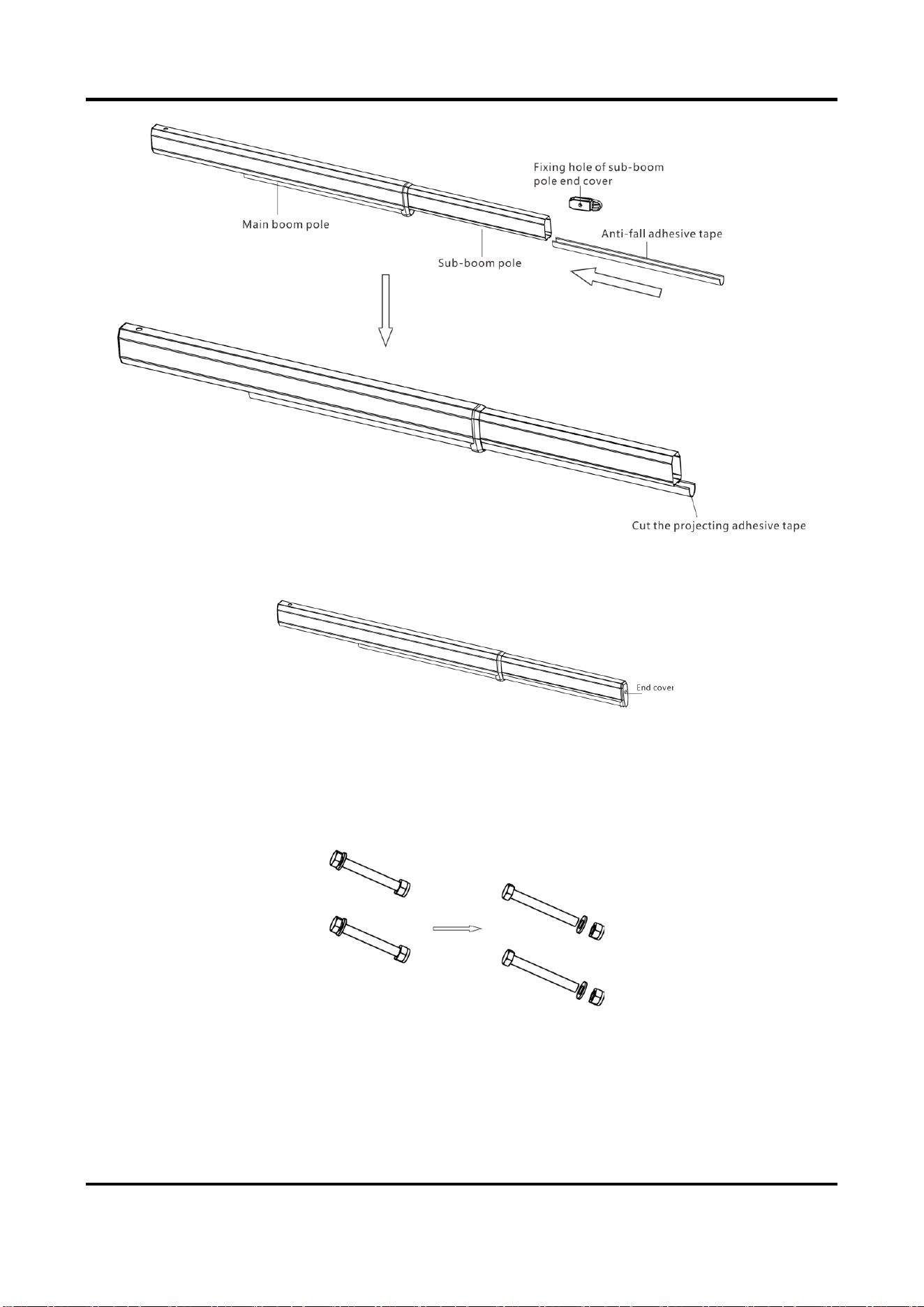
Barrier Gate User Manual
21
Figure 2-26 Insert Anti-Fall Adhesive Tape
4) Install the end cover to the sub-boom pole.
Figure 2-27 Install End Cover
2. Install the Anti-collision octagonal telescopic boom pole to the host.
1) Install the chuck to the boom pole with the bolts as shown in the figure below.
Unscrew the cap nuts, spring washers, and flat washers on the other sides of the four
assembling bolts. Save the components and parts for the following installations.
Figure 2-28 Unscrew Assembling Bolts
2) Install the anti-collision chuck on the spindle rod handle.
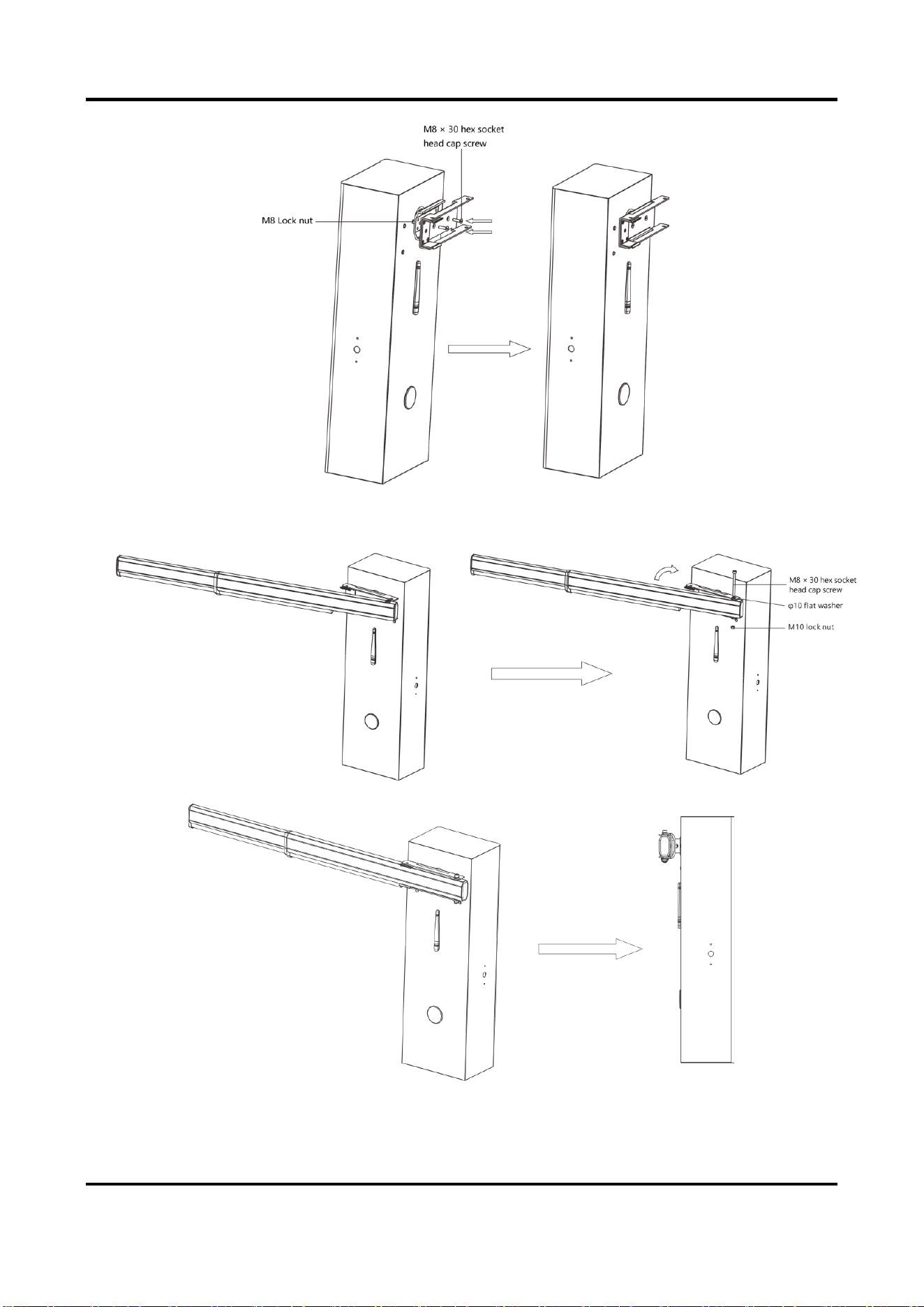
Barrier Gate User Manual
22
Figure 2-29 Install Anti-collision chuck
3) Install the boom pole to the chuck with the bolts as shown in the figure below.
Figure 2-30 Install Anti-collision Octagonal Telescopic Boom Pole
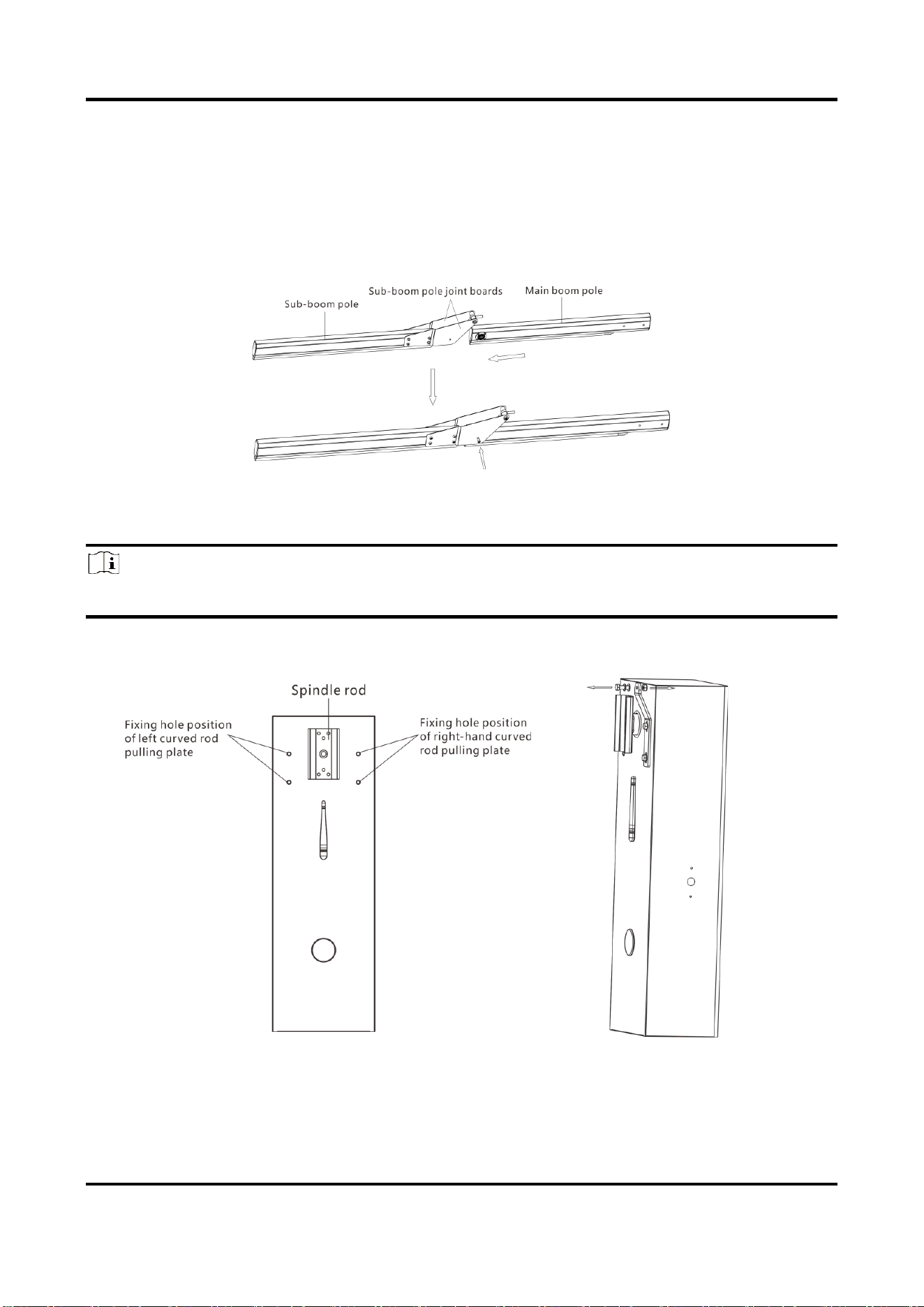
Barrier Gate User Manual
23
2.3.7 Install Folding Boom Pole
Steps
1. Compose the main boom pole and sub-boom pole.
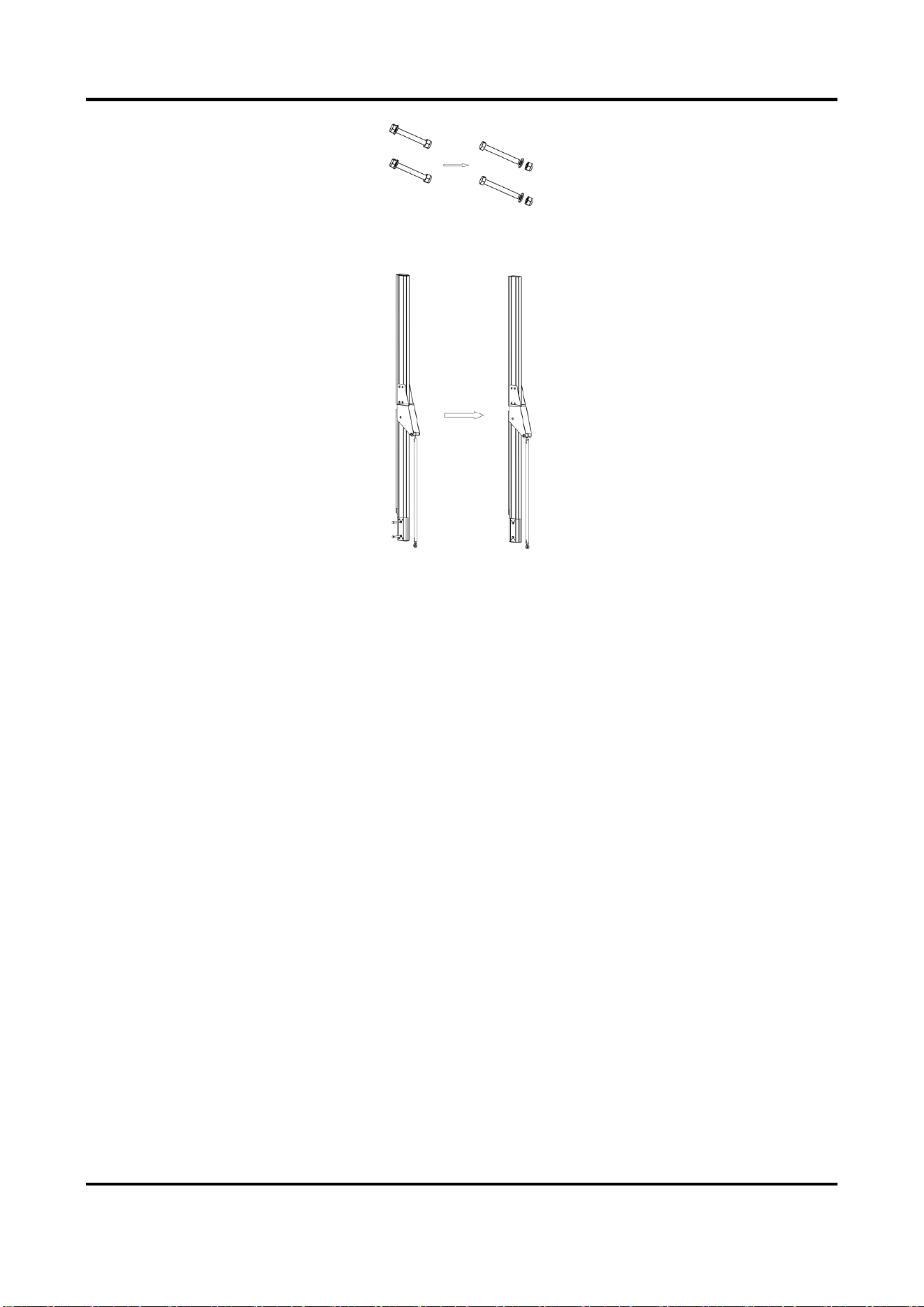
1) Force apart the sub-boom pole joint boards, and install the main boom pole. Make sure
that the installation holes on the joint boards of the sub-boom pole can clip into the black
bushing on the main boom pole.
Figure 2-31 Connect Main Boom Pole and Sub-Boom Pole
2. Install the folding boom pole to the host.
Note
Here we take example of the right direction barrier gate.
1) Remove the plastic nut on the installation position of the right direction main boom pole pull
rod joint.
Figure 2-32 Remove Plastic Nut
2) Unscrew the cap nuts, spring washers, and flat washers on the other sides of the four
assembling bolts. Save the components and parts for the following installations.
Barrier Gate User Manual
24
Figure 2-33 Unscrew Assembling Bolts
3) Install the chuck to the boom pole with the bolts as shown in the figure below.
Figure 2-34 Install Chuck
4) Install the boom pole to the spindle rod and fasten the other ends of the bolts with the
disassembled spring washers, flat washers, and cap nuts.
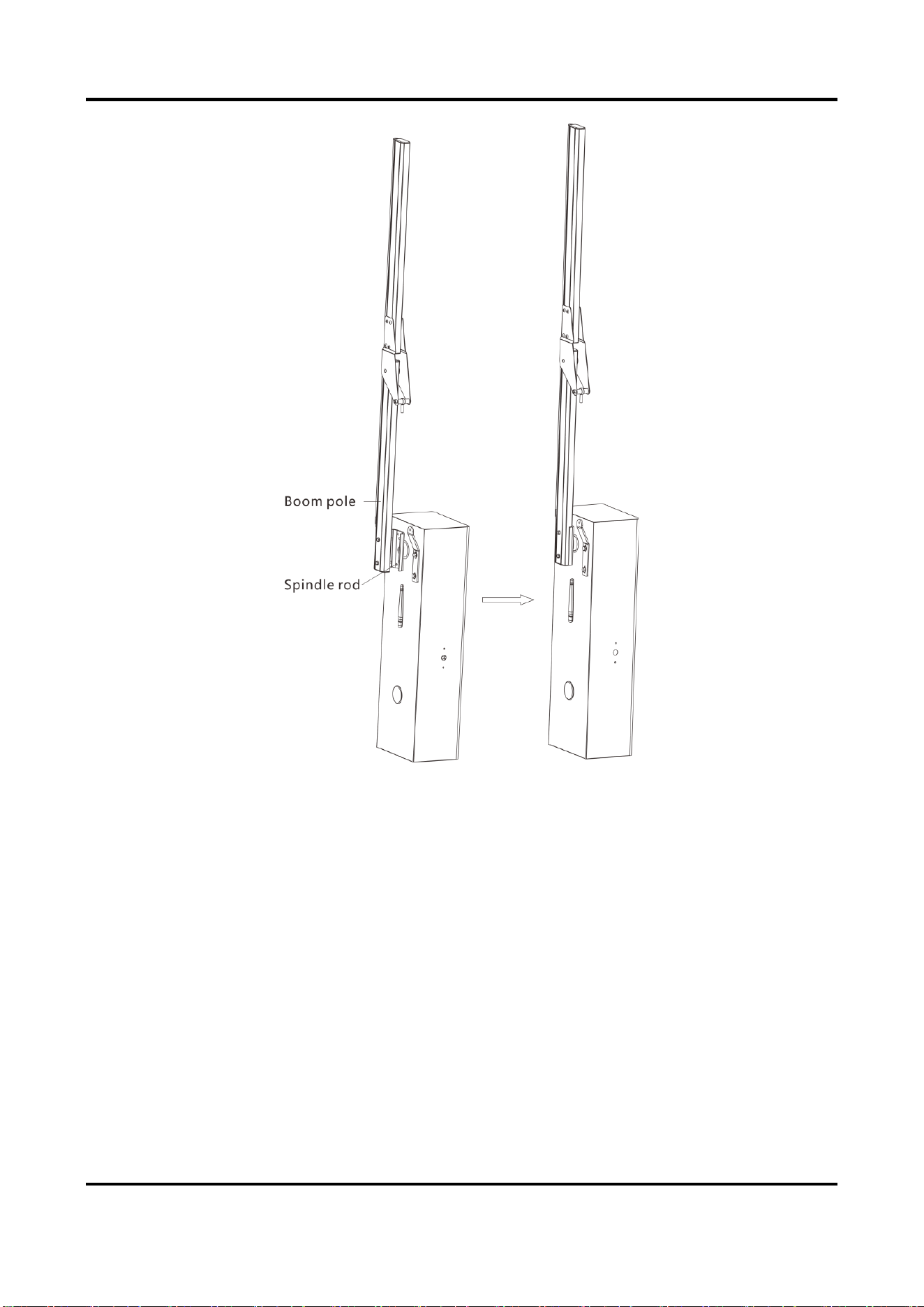
Barrier Gate User Manual
25
Figure 2-35 Install Folding Boom Pole
5) Power off the device. Pull the main boom pole to the horizontal position, and place the sub-
boom pole nearly to the horizontal position. Wrest the pull rod between the sub-boom pole
pull rod joint and the main boom pole pull rod joint. Wrest the pull rod continuously to keep
the main boom pole and sub-boom pole in the horizontal position, and fasten the nuts on
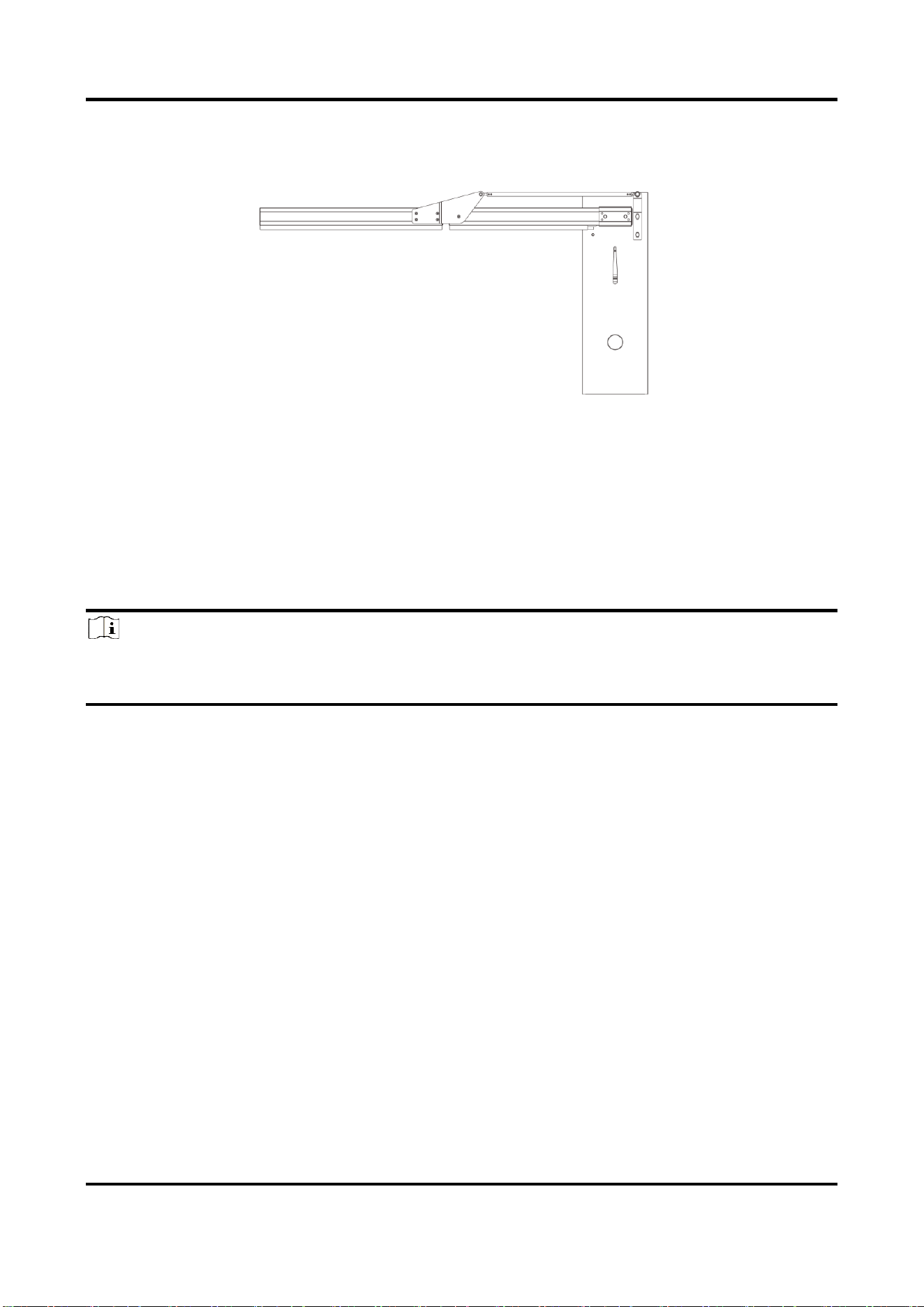
Barrier Gate User Manual
26
both ends.
Figure 2-36 Connect Boom Pole to Host via Pull Rod
2.4 Wiring
2.4.1 Connect to Power Supply
Connect the barrier gate to the power supply according to the figure shown below.
Note
There is a Dip switch on the power module, could switch to 115V or 230V, by default it is 230V,
before connect the power cable, check the dip switch.
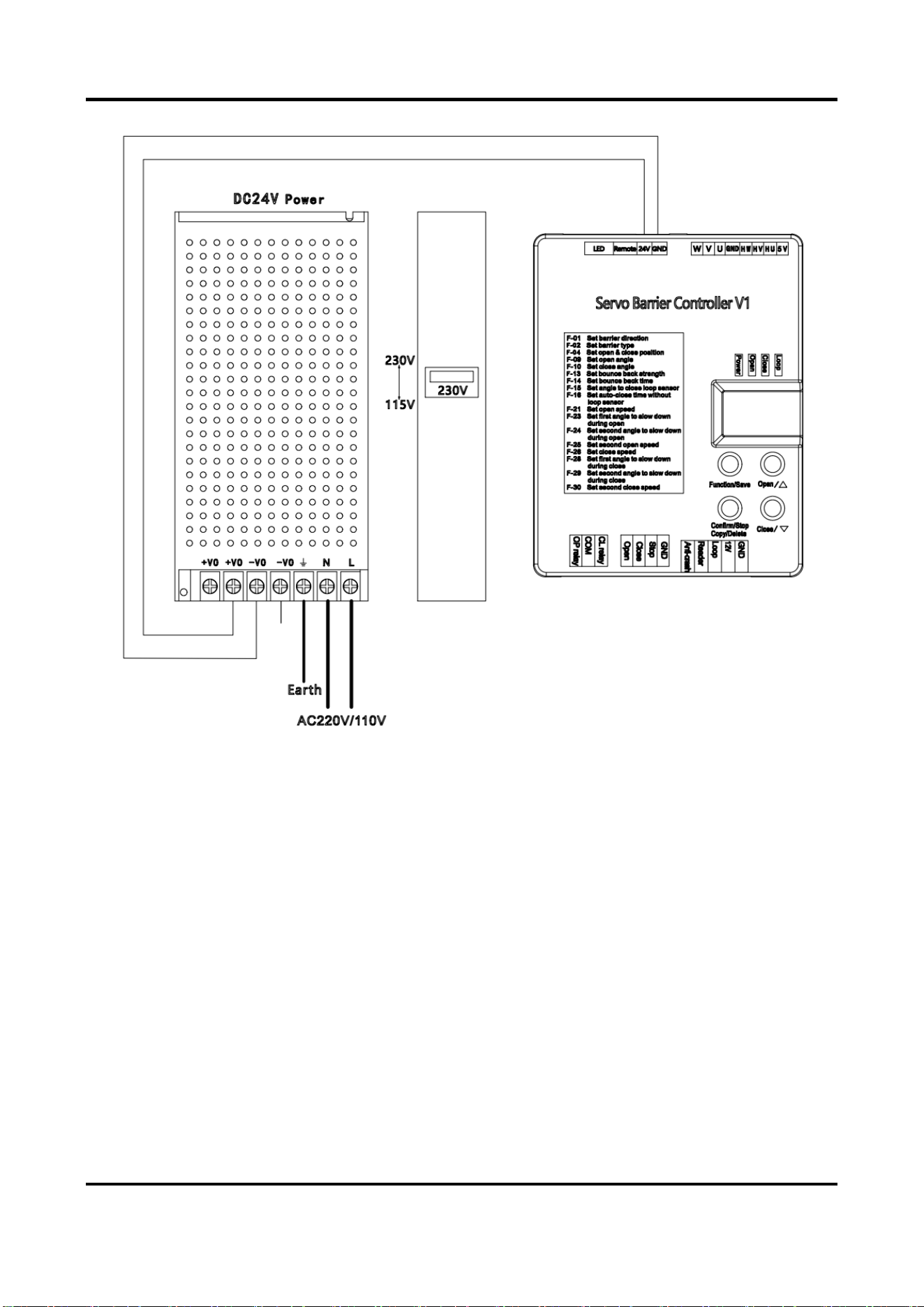
Barrier Gate User Manual
27
Figure 2-37 Connect to Power Supply
2.4.2 Connect to ANPR Camera
As the figure shown below, connect the Open and GND interfaces of the barrier gate to the 1A and
1B interfaces of the access ANPR camera, and connect the Close and GND interfaces of the barrier
gate to the 2A and 2B interfaces of the access ANPR camera.
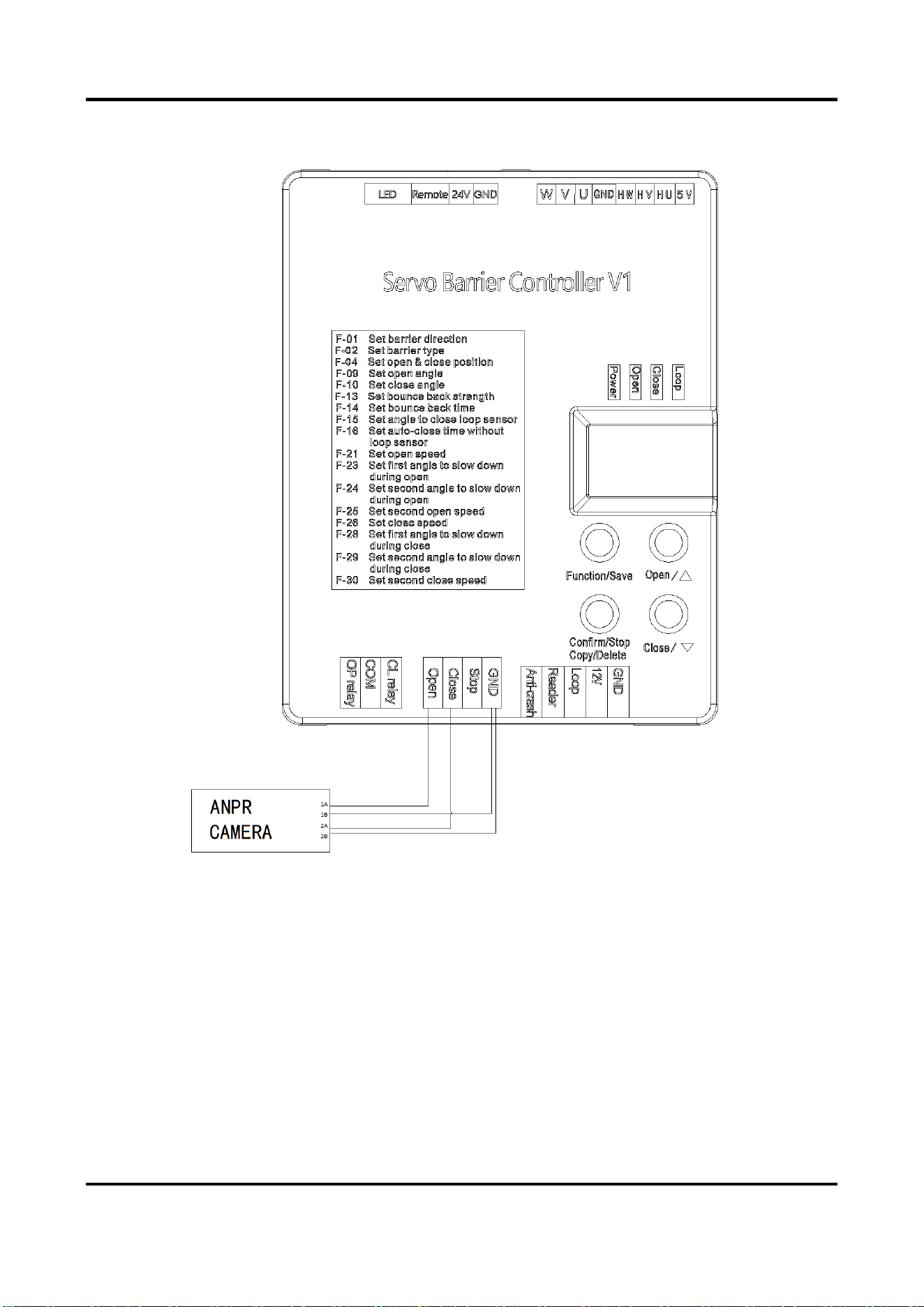
Barrier Gate User Manual
28
Figure 2-38 Connect to ANPR Camera
2.4.3 Connect to Anti-fall Radar
Anti-fall Radar Wiring
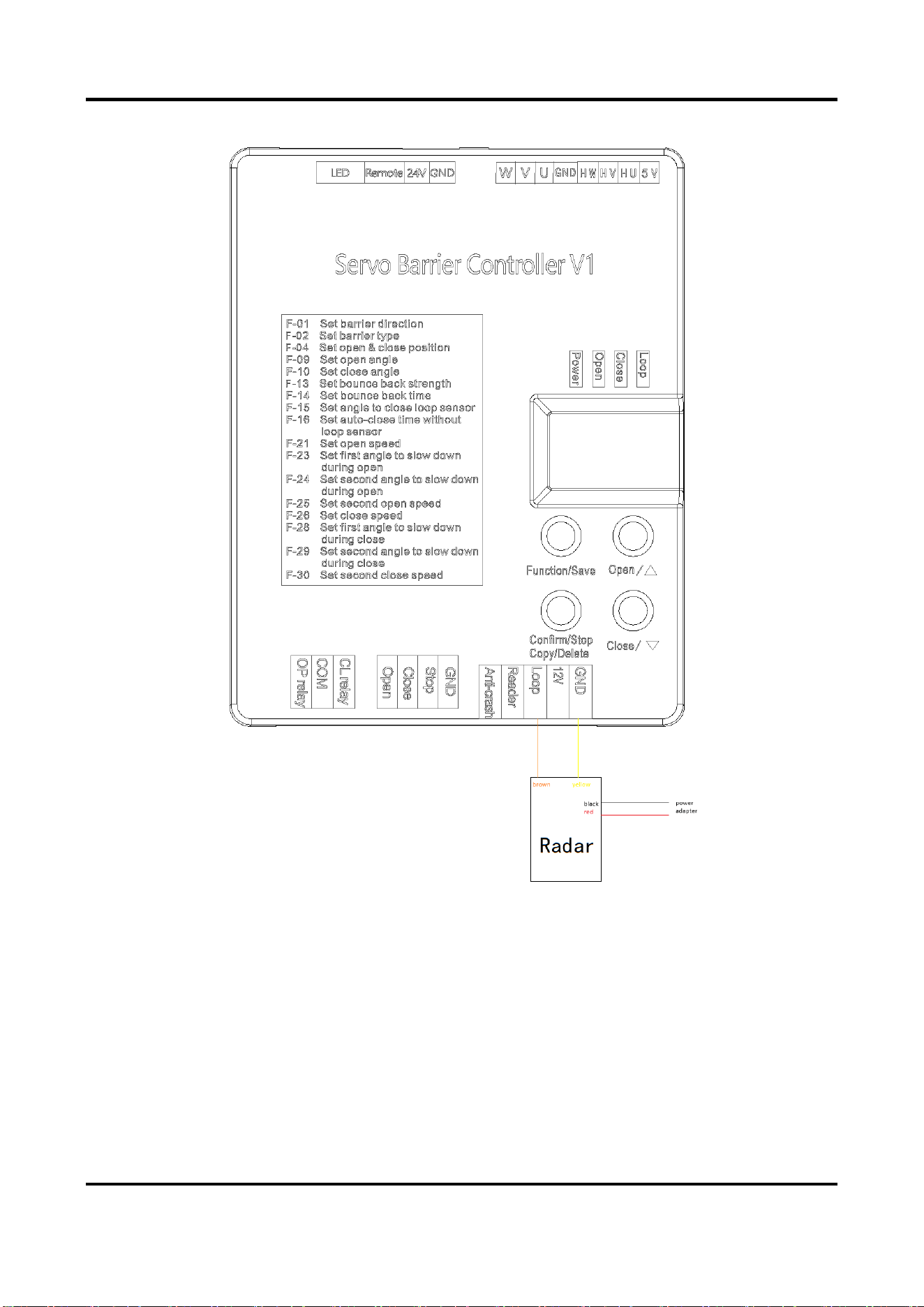
The anti-fall radar needs to be powered by 12 VDC power supply. Connect the 12 VDC interface
and GND interface of the barrier gate to the radar. And connect the yellow and brown interface of
the radar to the Loop and GND interface of the barrier gate
Barrier Gate User Manual
29
Figure 2-39 Connect to Anti-fall Radar
Radar Installation Instructions
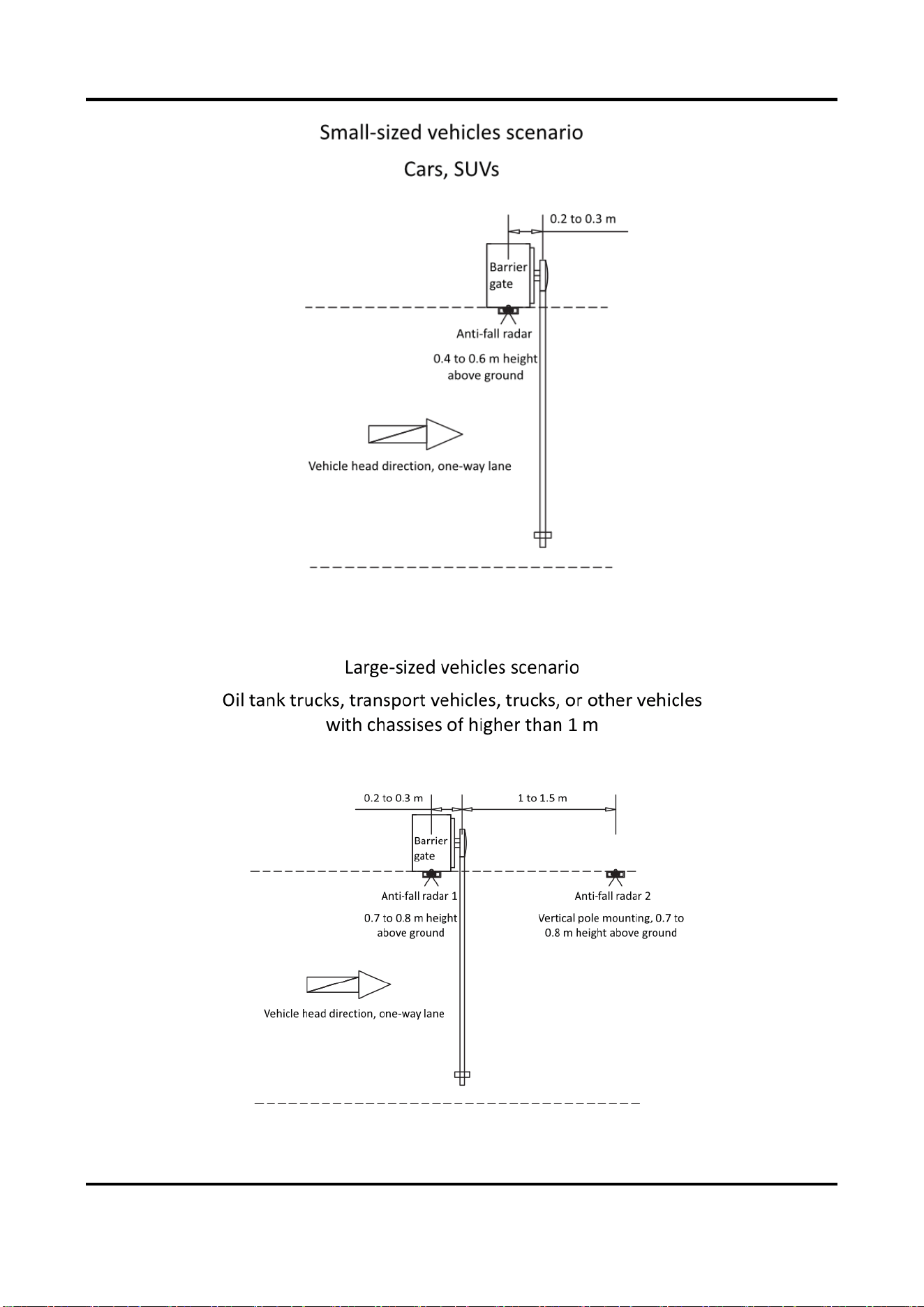
The anti-fall radar should be installed beside the barrier gate. In different scenarios, follow the
instructions below to get the best effect.
Scenario 1: Small-Sized Vehicles
For small-sized vehicles, such as the cars and SUVs, install the radar according to the figure shown
below.
Barrier Gate User Manual
30
Figure 2-40 Small-Sized Vehicles Scenario
Scenario 2: Large-Sized Vehicles
For large-sized vehicles, such as the oil tank trucks, transport vehicles, trucks, and other vehicles
with chassises of higher than 1 m, install the radar according to the figure shown below.
Figure 2-41 Large-Sized Vehicles Scenario
Barrier Gate User Manual
31
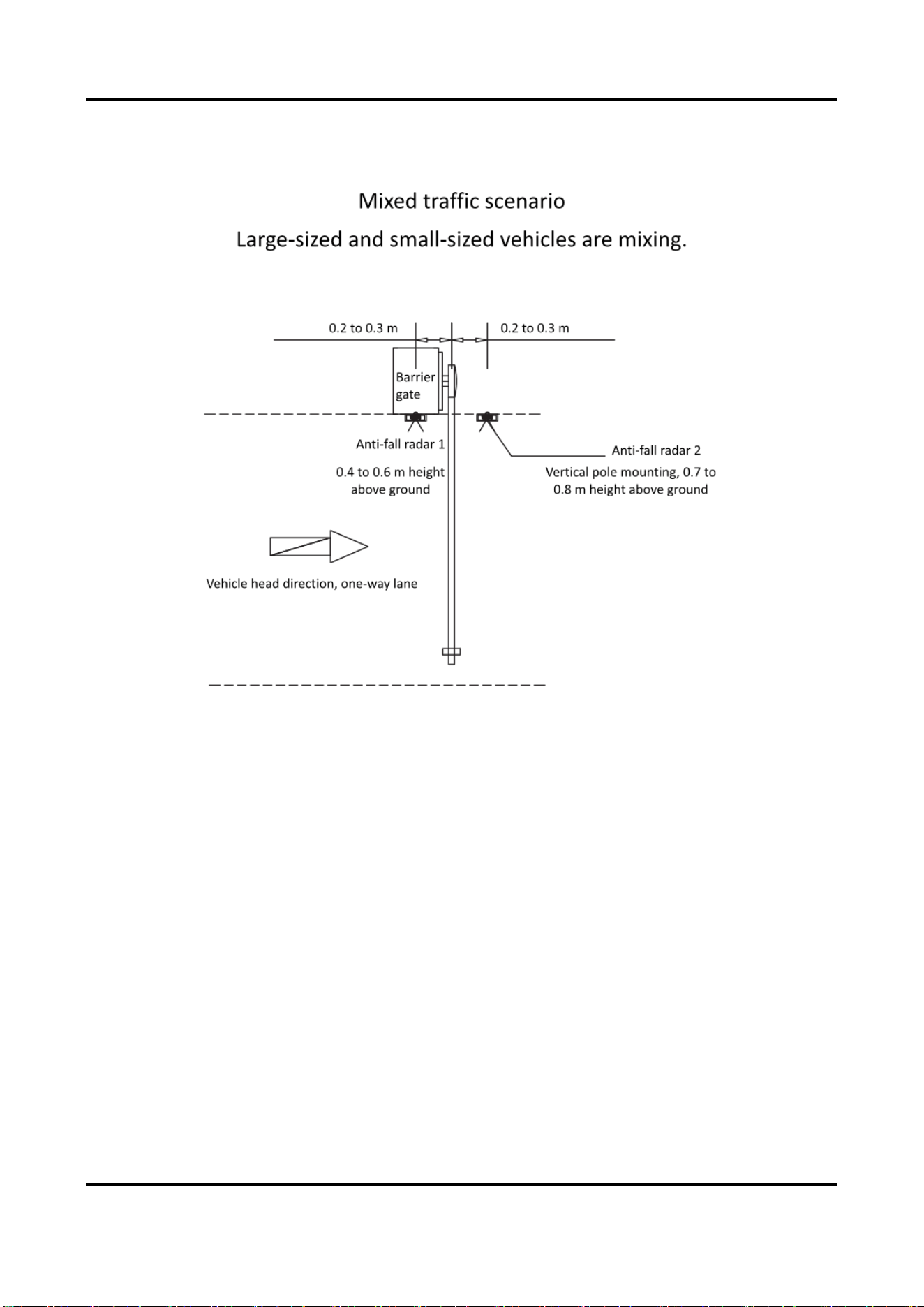
Scenario 3: Mixed Traffic
For mixed traffic scenario, such as the large-sized and small-sized vehicles are mixing, install the
radar according to the figure shown below.
Figure 2-42 Mixed Traffic Scenario
2.4.4 Connect to Vehicle Detector
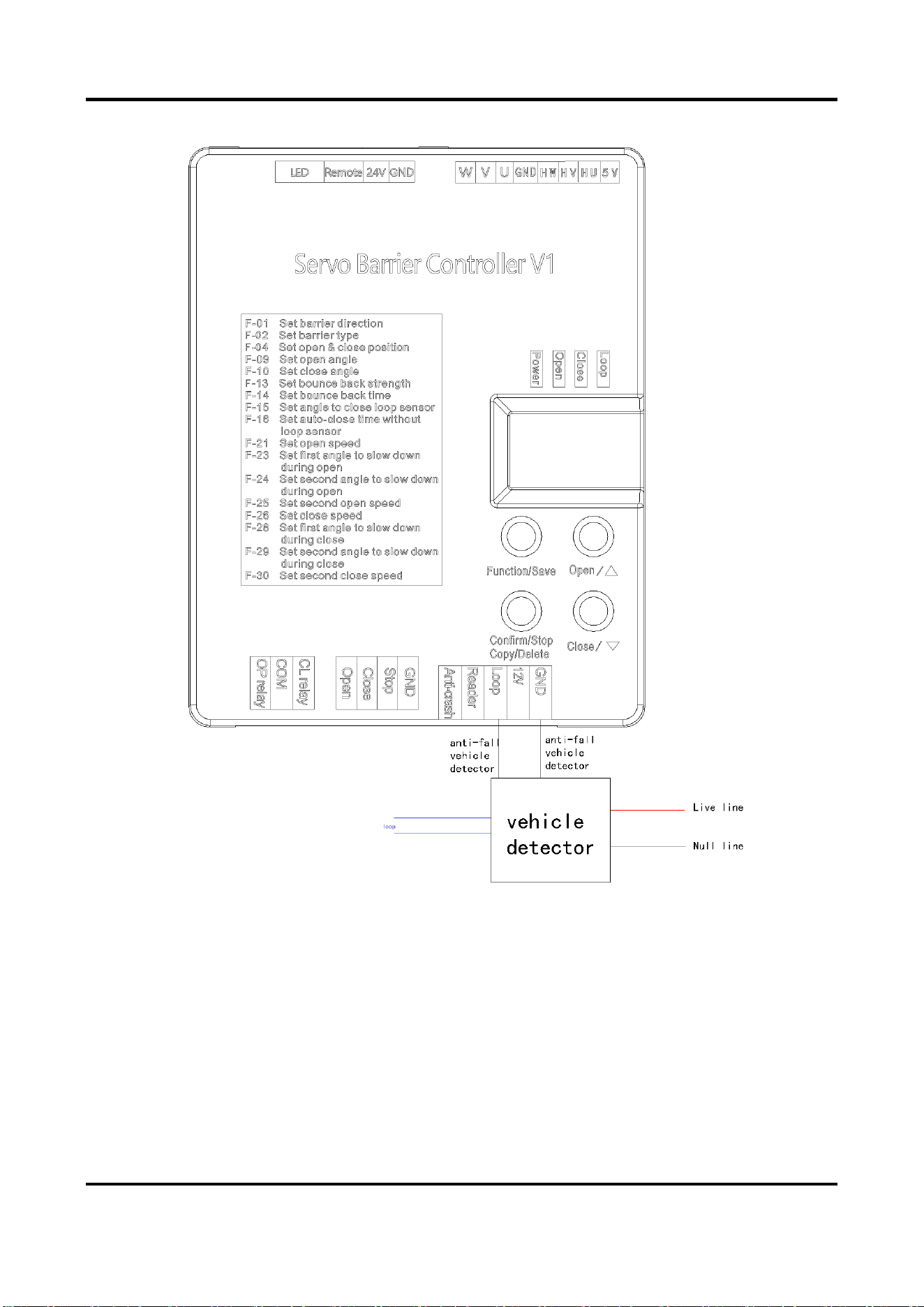
Vehicle Detector Wiring
Connect the Loop and GND interfaces of the barrier gate to the vehicle detector.
Barrier Gate User Manual
32
Figure 2-43 Connect to Vehicle Detector
Vehicle Detector Installation Instructions
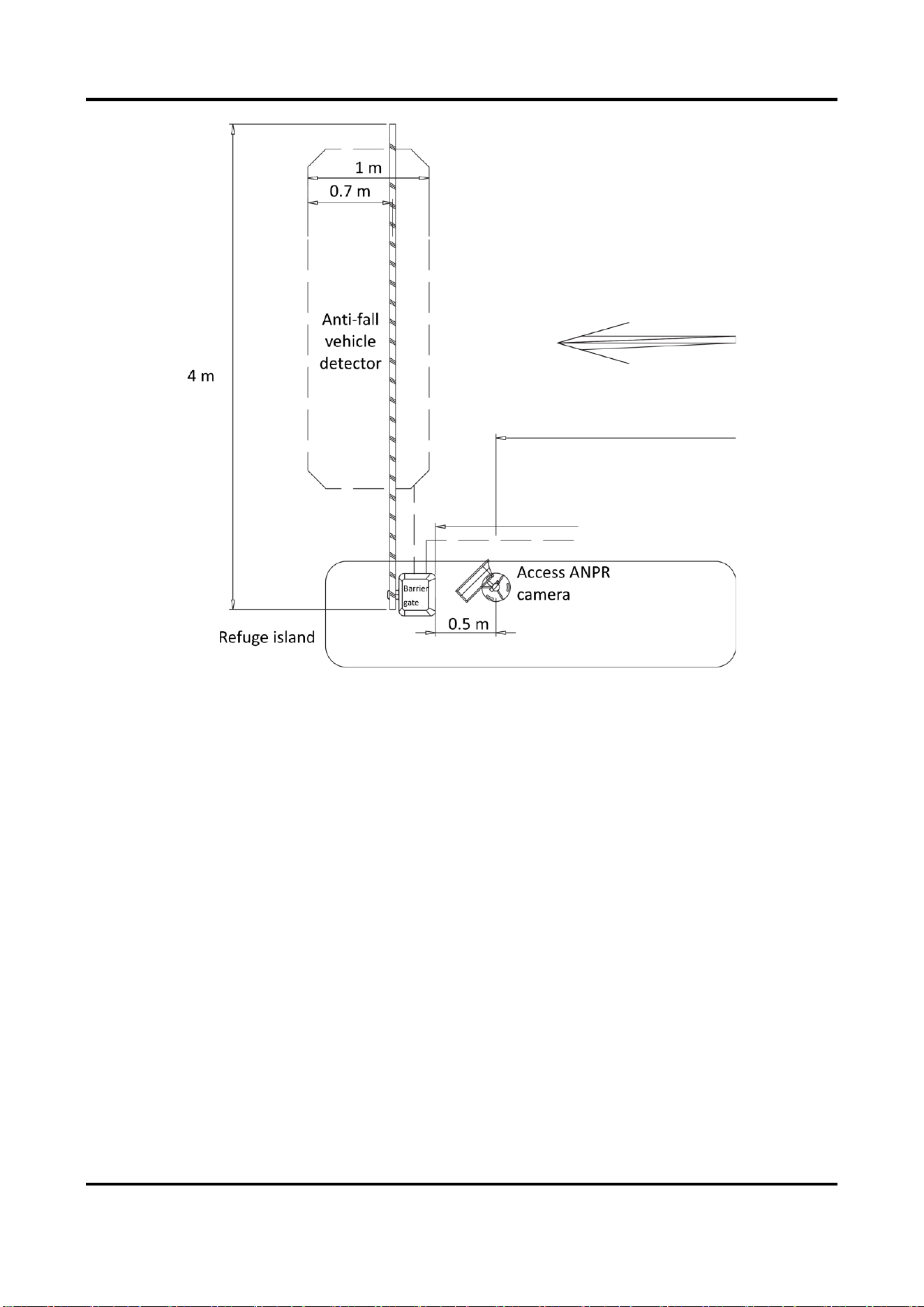
The general width of the vehicle detector is 1 m. If there are large-sized vehicles passing in the
scenario, widen the width to 1.5 m.
The anti-fall vehicle detector should be installed behind the barrier gate to avoid that the boom
pole falls down and smashes the vehicle after the vehicle passes the vehicle detector and the
signal disappears.
Barrier Gate User Manual
33
Figure 2-44 Vehicle Detector Installation
2.4.5 Connect to Active Infrared Intrusion Detector
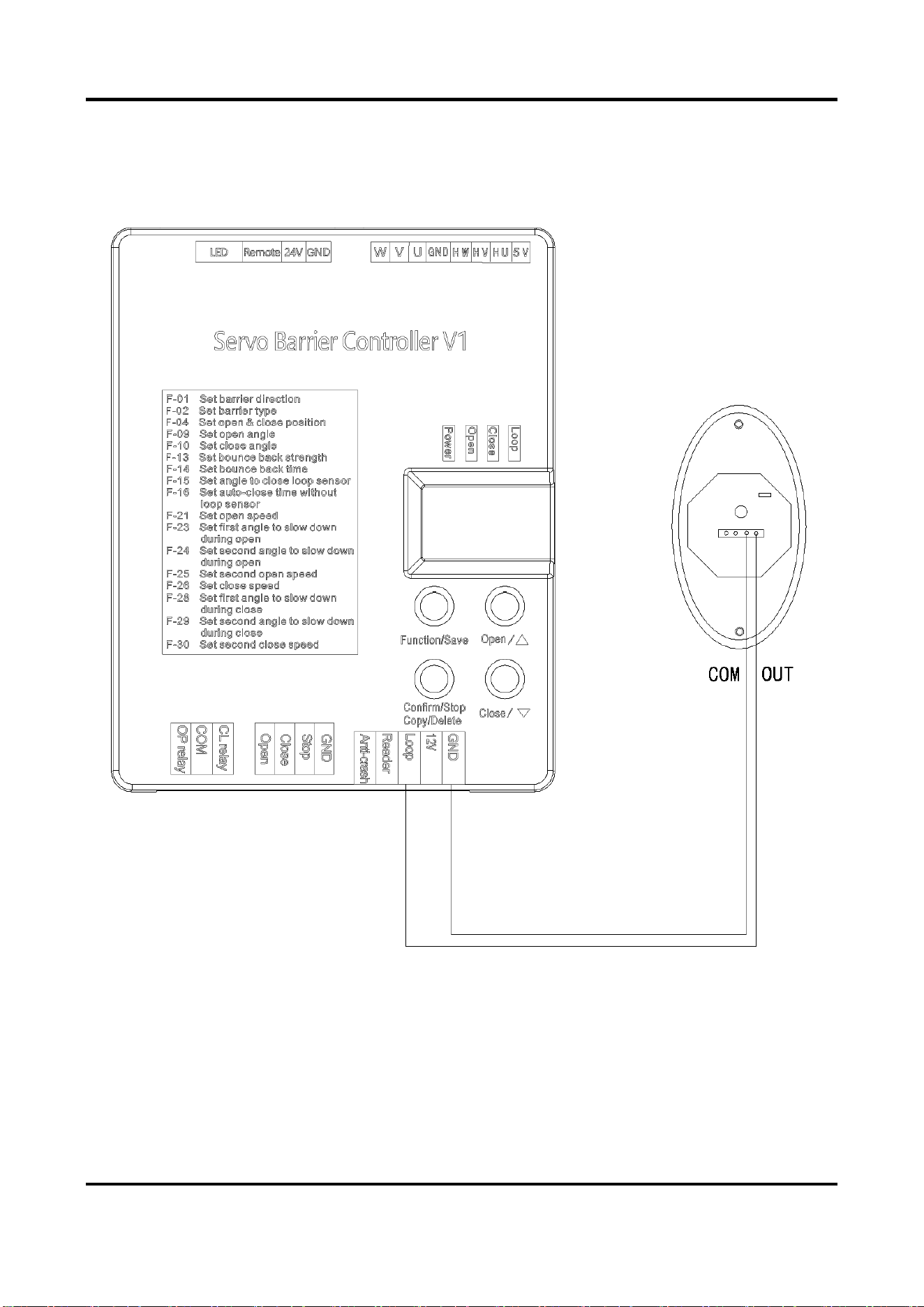
Connect the Loop interface of the barrier gate to the COM interface of the active infrared intrusion
detector, and the GND interface of the barrier gate to the OUT interface of the active infrared
intrusion detector.
Barrier Gate User Manual
34
Figure 2-45
Connect to Active Infrared Intrusion Detector
Barrier Gate User Manual
35
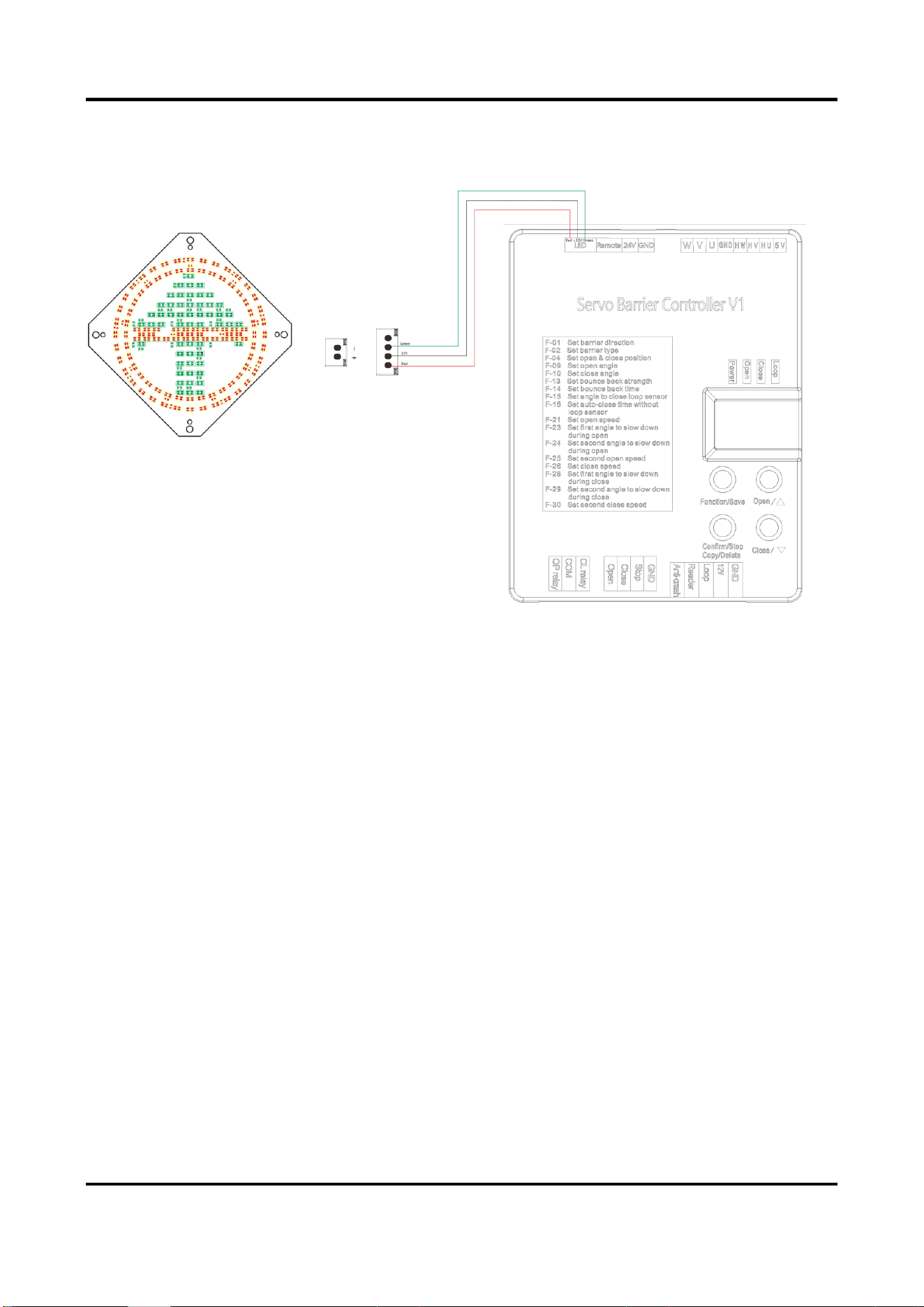
2.4.6 Connect to Arrow Indicator
Connect the arrow indicator to the barrier gate as shown below.
Figure 2-46 Connect to Arrow Indicator
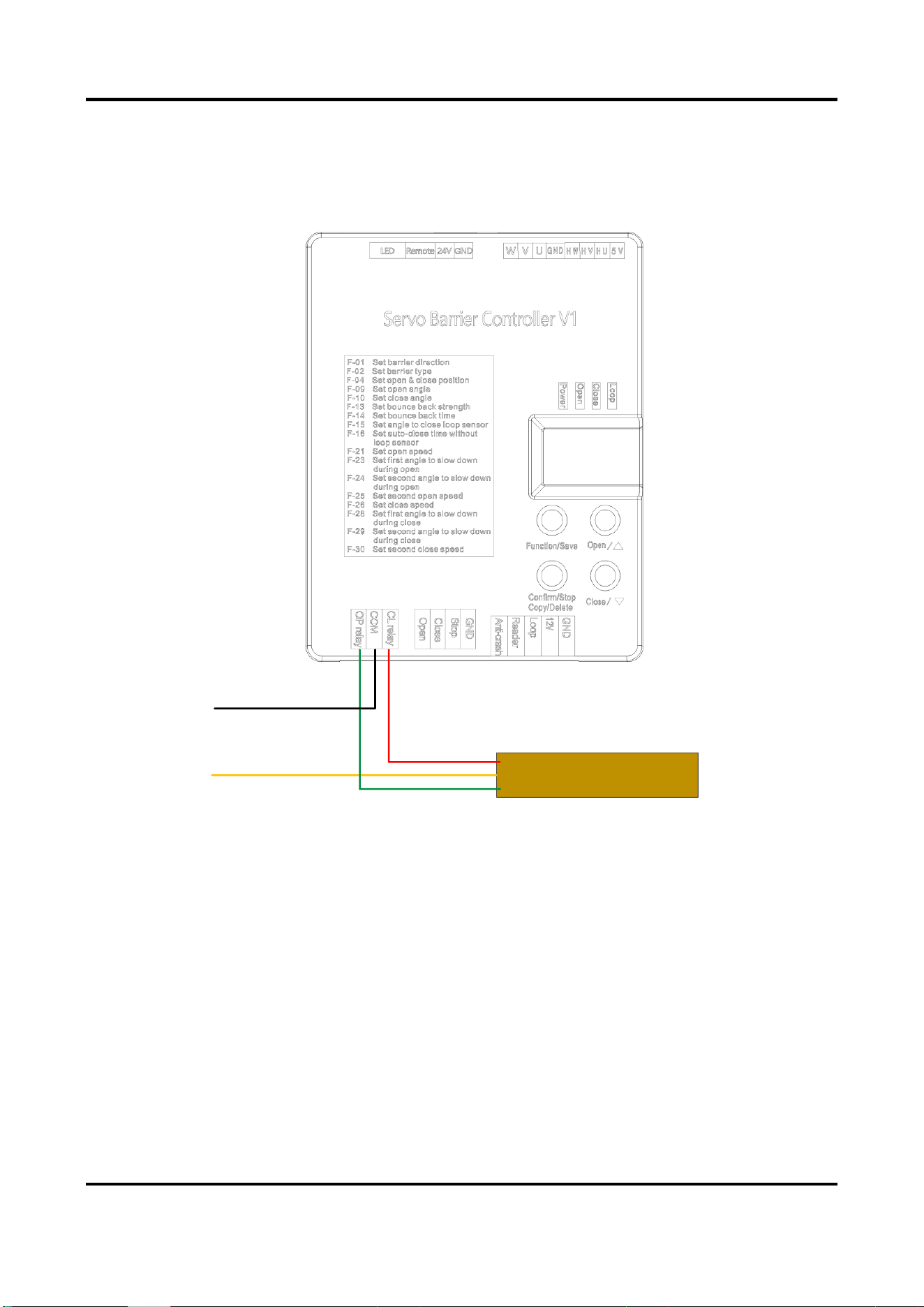
2.4.7 Connect to Strip Light
For the boom pole with strip light, connect the strip light to the barrier gate as shown below.
Barrier Gate User Manual
36
Strip Light
Strip Light Wire (Yellow)
Strip Light Wire (Green)
Strip Light Wire
(Red)
24V
GND
Figure 2-47 Connect to Strip Light

Barrier Gate User Manual
37
Chapter 3 Parameters Configuration
After the installation completes, power on the barrier gate, and it will operate self-check of
opening to limit position. After the self-check completes, you can control the barrier gate via
remote controller or buttons.
3.1 Remote Control
After the self-check completes, you can control the boom pole to open, close, and stop via the
remote controller leaving factory with the barrier gate.
3.2 Set Parameters via Control Board Buttons
3.2.1 Button Description
Open the front cover of the host, and you can see the control board buttons and nixie tube. You
can control the barrier gate via the buttons and judge the status via the nixie tube.
There is respective initial status for the rising limit position, falling limit position, and rising speed
of the barrier gate. You can adjust them via buttons if the initial status cannot meet the
requirements of the installation site.
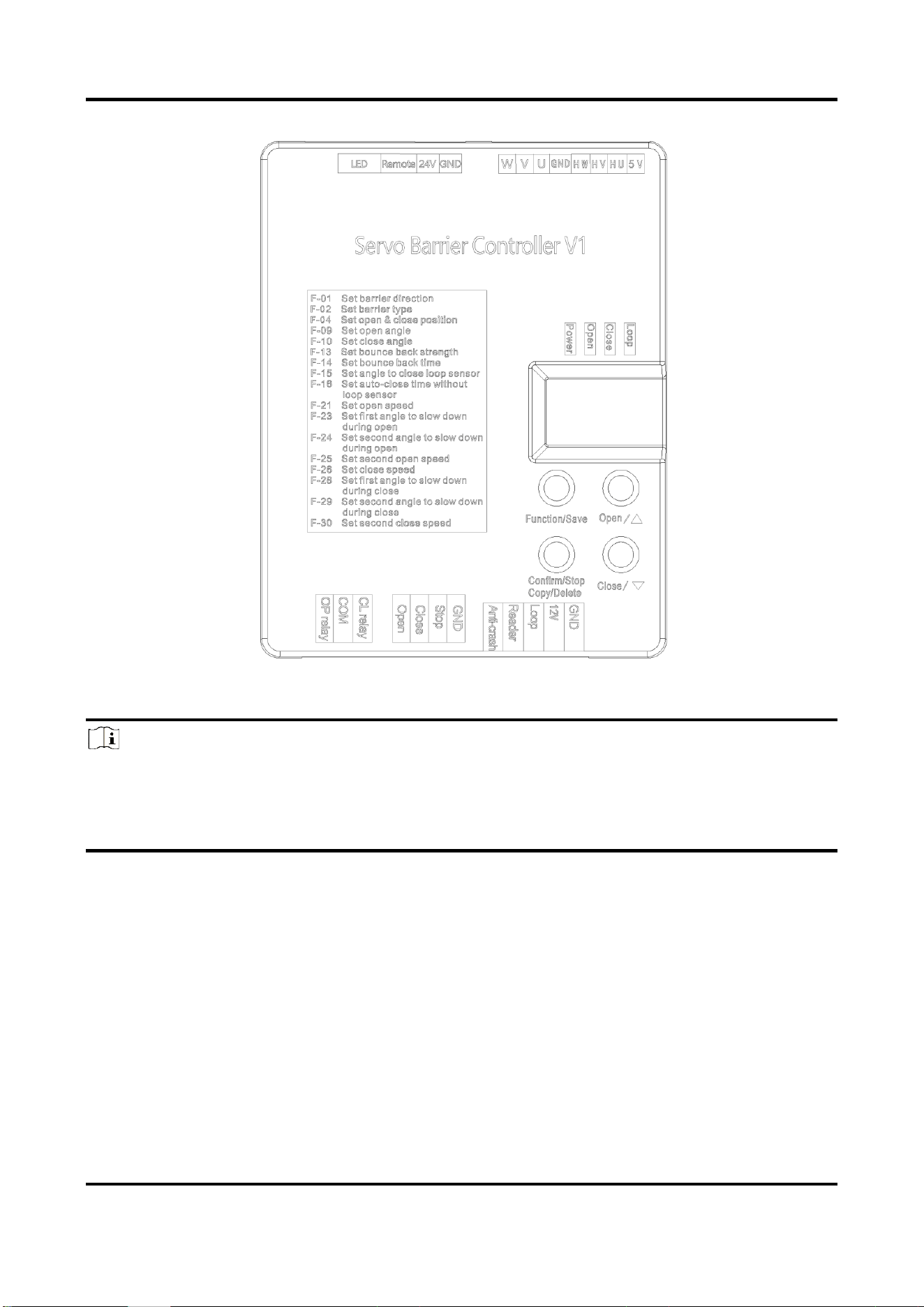
Barrier Gate User Manual
38
Figure 3-1 Control Buttons
Note
● If you need to hold the buttons to trigger operations, hold for 3 seconds or above.
● The nixie tube shows the status (e.g., F00) and fault codes (hexadecimal characters, e.g., E1). If
the fault codes appear on the nixie tube, it means there is operation error. Contact the technical
personnel of our company to solve the problems.
Barrier Gate User Manual
39
3.2.2 Operation Procedure
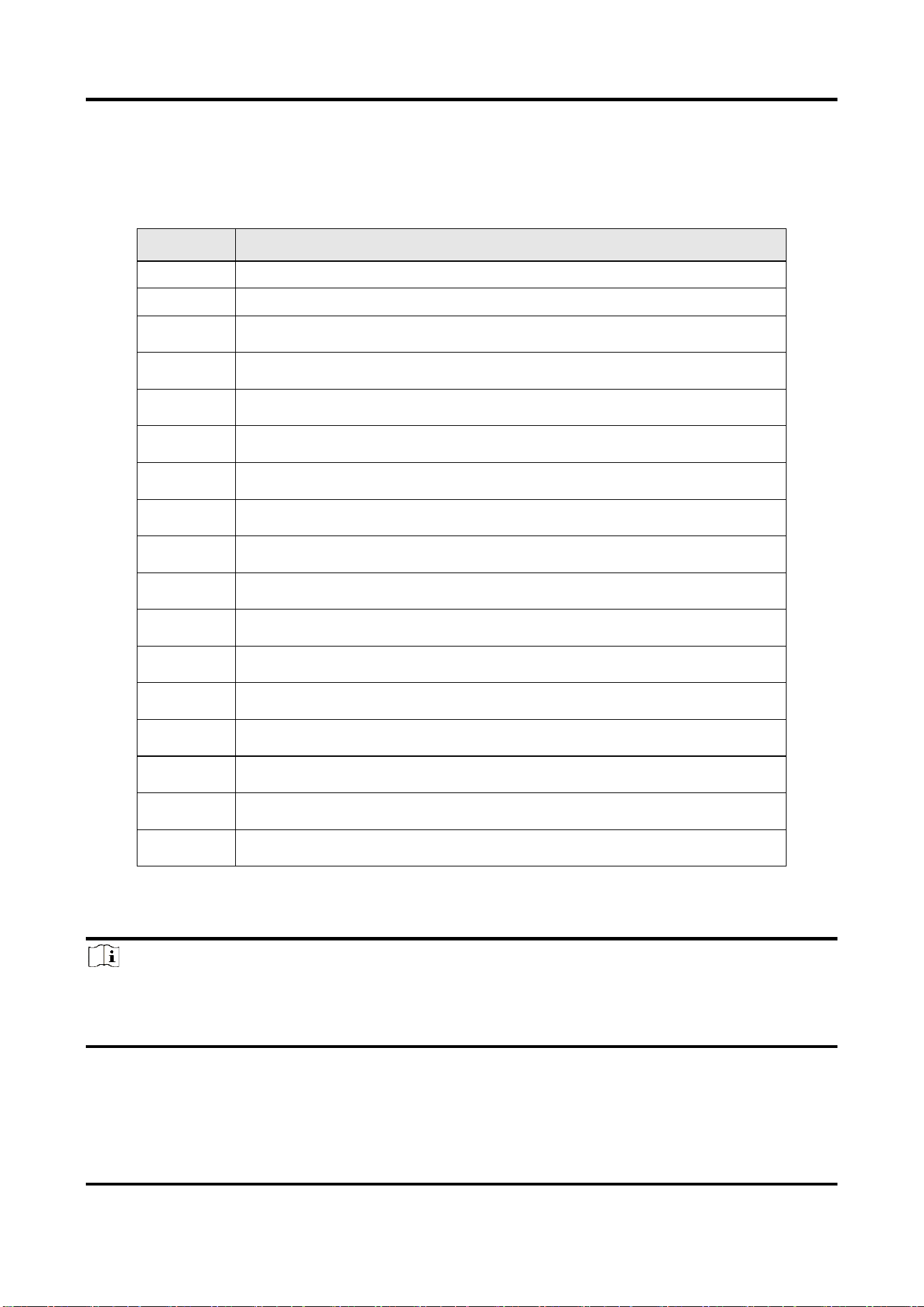
Refer to the table below for the description of the value on the nixie tube.
Table 3-1 Nixie Tube Value Description
Value
Description
F-01
Set barrier direction
F-02
Set barrier type
F-04
Set open & close position
F-09
Set open angle
F-10
Set close angle
F-13
Set bounce back strength
F-14
Set bounce back time
F-15
Set angle to close loop sensor
F-16
Set auto-close time without loop sensor
F-21
Set open speed
F-23
Set first angle to slow down during open
F-24
Set second angle to slow down during open
F-25
Set second open speed
F-26
Set close speed
F-28
Set first angle to slow down during close
F-29
Set second angle to slow down during close
F-30
Set second close speed
Note
● The equipment has been debugged well before leaving the factory, and the barriers and arms
can be installed directly. It is recommended not to modify the factory parameters casually.

Barrier Gate User Manual
40
F-01. Select the direction of the barrier:
Firstly, ensure motor wire is correct, then long press “Function/Confirm” button for 3 seconds, the
LED will display F00. Press the “Open” button, when the LED displays F-01, press the
“Confirm/Stop /Copy/Delete” button, the LED displays the device direction, " 0-- "represents the
right direction, "--0 " represents the left direction, choose the direction according to the actual
situation. After selection, press the “Confirm/Stop/Copy/Delete” button, then hold
“Function/Confirm” button for 3 seconds to save the data. (After this option, you need to restart
the device to take effect the settings.).
F-04. Manual learning Open & Close position:
When the LED displays F-04, press the "Confirm" button, then press the "Close" button to change
the value to 02, press the "Confirm" button again, the controller will restart, and then press
"Open", LED will display 01, and the barrier will stop after hitting the Open position. Hold "Close"
until the boom is vertical, then hold the "Confirm" for 2 seconds and release it, the LED will display
02, start to manually find the Close position, hold "Close" until the boom reaches the Close
position, hold the "Confirm" for 2 seconds and release it, wait for the LED displays 00 to indicate
the completion of learning. (If there are eaves, etc., you can choose 03 for F04, and manually learn
the close position first, and then the open position)
F-09. Set Open angle:
When the LED displays F-09, press "Confirm" to adjust the opening angle, and then press "Open"
or "Close" to adjust the opening angle. The larger the value, the larger the opening angle. The
smaller the value, the smaller the opening angle. Press "Confirm" to save the data after
adjustment.
F-10. Set close angle:
When the LED displays F-10, press "Confirm" to adjust the angle of closing, and then press "Open"
or "Close" to adjust the angle of closing. The value of 30 represents the level of the boom. If it is
larger than 30, the boom will deviate in the direction of opening. If the value is less than 30, the
boom will deviate in the direction of closing. The larger the value, the larger the angle of deviation
of the boom in the direction of opening. The smaller the value, the smaller the angle of deviation
of the boom in the direction of opening. Press the "Confirm" to save the data.
F-13. Set bounce back strength:
When the LED displays F-13, press "Confirm" to adjust the strength of rebounding when
encountering resistance, and then press "Open" or "Close". The larger the value, the larger the
strength of rebound when encountering resistance. The smaller the value, the smaller the strength
of the rebound when encountering resistance. After adjustment, press "Confirm" to save the data.
(Adjusting this parameter may cause misjudgment by the controller, it is not recommended to
change the value of this parameter unless necessary)
F-14. Set bounce back time:

Barrier Gate User Manual
41
When the LED displays F-14, press "Confirm" to adjust the rebound response to resistance, and
then press "Open" or "Close" to adjust the reaction time of the rebound when the resistance is
encountered. The larger the value, the longer the reaction time of the rebound. The smaller the
value, the shorter the rebound reaction time when encountering resistance. After adjustment,
press "Confirm" to save the data. (Adjusting this parameter may cause misjudgment by the
controller, it is not recommended to change the value of this parameter unless necessary)
F-15. Set angle to close loop sensor:
When the LED displays F-15, press "Confirm" to adjust the rebound reaction when encountering
resistance, and then press "Open" or "Close" to adjust the angle value of loop sense shielding.
Larger value, the larger the loop sense shielding angle. Smaller value, the smaller the loop sense
shielding angle. Press "Confirm" to save the data after adjustment.
F-16. Set auto-close time without loop sensor:
When the LED displays F-16, press "Confirm" to adjust the delayed closing without loop sensor. 00
means that the delay closing function is turned off, and 01-99 represent the delay closing time
when there is no loop sense. You can set it according to your needs. After adjustment, press
"Confirm" to save the data.
F-40. Delayed closing adjustment with loop sensor:
When the LED displays F-40, press "Confirm" to adjust the delayed closing with loop sensor, 00
means that the delayed closing function is turned off, and 01-99 represent the delayed closing
function with loop sense. You can set it according to your needs, and the unit is second. After
adjustment, press "Confirm" to save the data.
F-21. Set open speed:
When the LED displays "F-21", press "Confirm" to enter the opening speed adjustment, and then
press "Open" or "Close" to adjust the opening speed. The larger the value, the faster the opening
speed. The smaller the value, the slower the speed, press "Confirm" to save the data after
adjustment.
F-23. Set first angle to slow down during open:
When the LED displays "F-23", press "Confirm" to enter the adjustment of the first deceleration
angle of the boom opening, and then press "Open" or "Close". The larger the value, the larger the
deceleration angle of the boom opening. The smaller the value, the smaller the opening
deceleration angle. After adjustment, press "Confirm" to save the data.
F-25. Set deceleration speed during open:
When the LED displays "F-25", press the "Confirm" button to start setting, and then press "Open"
or "Close" button to adjust the opening deceleration speed. The larger the value, the faster the
opening deceleration speed, the smaller the value, the slower the opening deceleration speed.
After setting, press the "Confirm" button to save the data.
Barrier Gate User Manual
42
F-26. Set close speed:
When the LED displays "F-26", press the "Confirm" button to start setting, and then press "Open"
or "Close" button to adjust closing speed. The larger the value, the faster the speed, the smaller
the value, the slower the speed. After setting, press the "Confirm" button to save the data.
F-28. Set first angle to slow down during close:
When the LED displays "F-28", press the "Confirm" button to start setting, and then press "Open"
or "Close" button to adjust the first deceleration angle during close. The larger the value, the
larger the angle. The smaller the value, the smaller the angle. After setting, press the "Confirm"
button to save the data.
F-30. Set deceleration speed during close:
When the LED displays "F-30", press the "Confirm" button to start setting, and then press "Open"
or "Close" button to adjust the closing deceleration speed. The larger the value, the faster the
closing deceleration speed, the smaller the value, the slower the closing deceleration speed. After
setting, press the "Confirm" button to save the data.
00. Learning and deleting remote controller codes:
If you need to learn remote controller codes, first hold "Copy" button the LED will count from “1”
to “5”, release the “Copy” before the LED displays "5", the LED will back to display “1”, then press
any button of remote controller.
Back to menu interface after successful registration, and then hold "Copy" button for 5 seconds on
the main interface until the LED displays 0000, all the registered remote will be deleted.
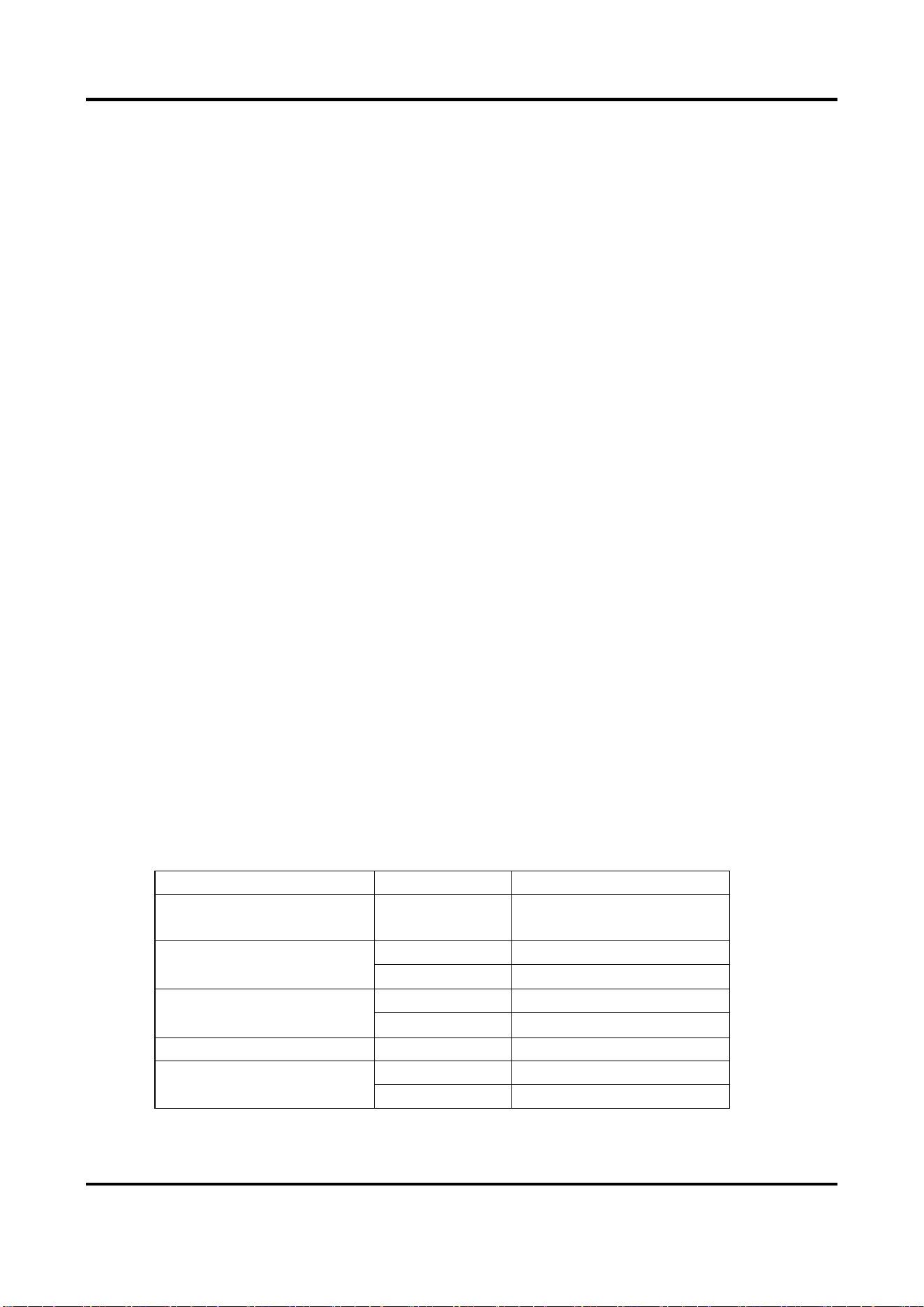
Corresponding spring specification
Boom type
Boom length
Spring quantity & type
Octagonal Straight Boom
Pole
L≤3M
1*φ5.0
Octagonal Telescopic
Boom Pole
L≤4.5M
1*φ5.0
4.5M<L≤6M
1*φ6.5
Folding Boom Pole
L≤4.5M
1*φ5.0
4.5M<L≤6M
1*φ6.5
Boom Pole with Strip Light
L≤4M
1*φ5.0
Round boom pole
L≤4M
1*φ5.0
L≤6M
1*φ6.5

Barrier Gate User Manual
43
Chapter 4 Maintenance
4.1 Change Boom Pole
Caution
Contact the professional technical personnel to change the boom pole. You may damage the
barrier gate if you change it by yourself.
Before you start
Cut off the power supply, and adjust the boom pole to the closing limit position.
Steps
1. Unscrew the cap nuts, spring washers, and flat washers on the other sides of the four
assembling bolts. Save the components and parts for the following installations.
2. Disassemble the boom pole and chuck.
3. Repeat the boom pole installation procedure to install a new boom pole.
4.2 Change Spring
Before you start
Cut off the power supply, and adjust the boom pole to the opening limit position.
Steps
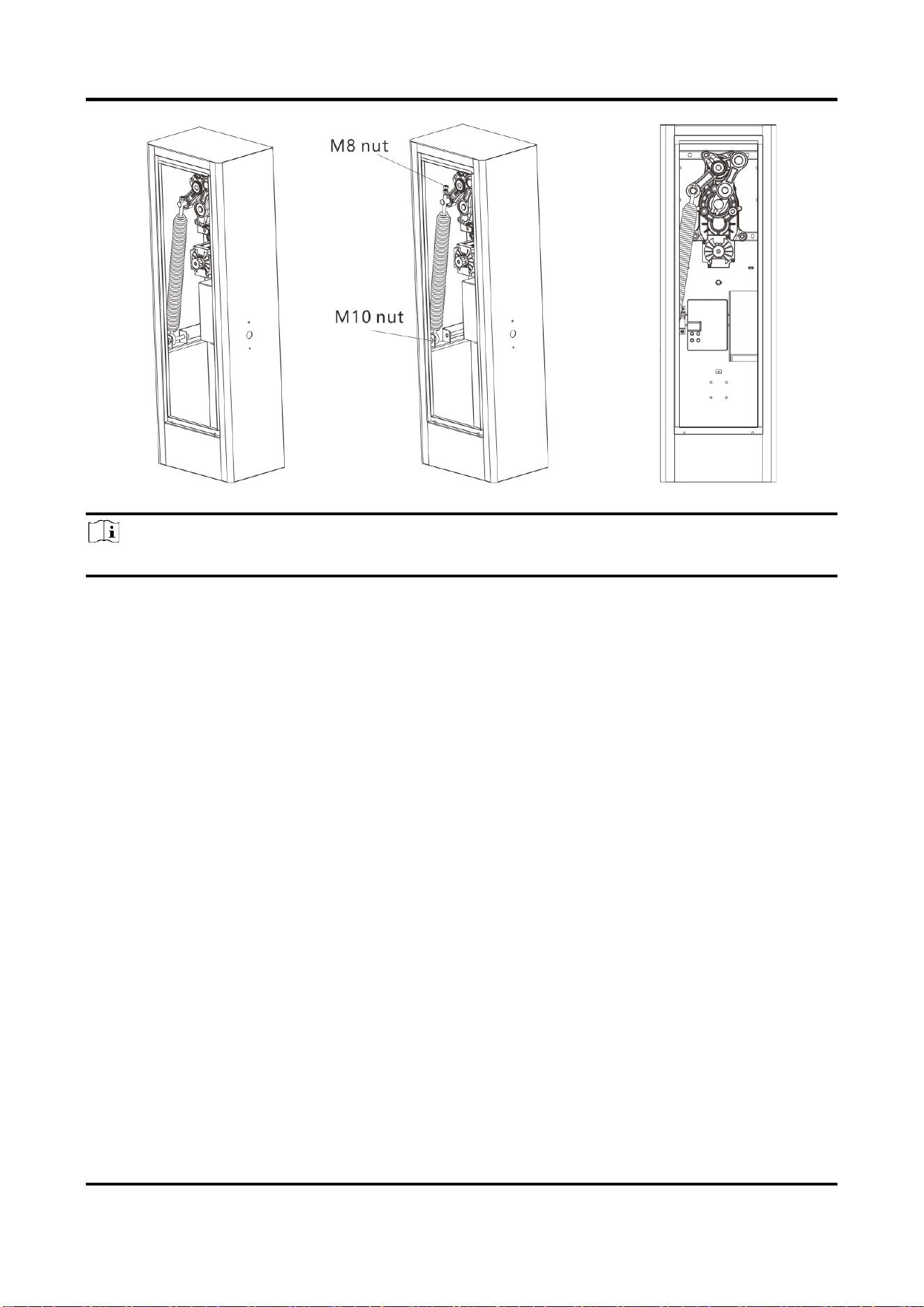
1、Remove the M8 nut above the spring pull rod, then remove the M10 nut on the spring hook, pull
out the M10 screw to disassemble the spring, and then change a new spring and install it according
to the steps above reversely.
Barrier Gate User Manual
44
Figure 4-1 Change Spring
Note
For different number of springs, operate according to the figure shown below.
4.3 Change Machine Core
Before you start
Cut off the power supply. Disassemble the boom pole, spindle rod, and spring according to the
procedure above.
Steps
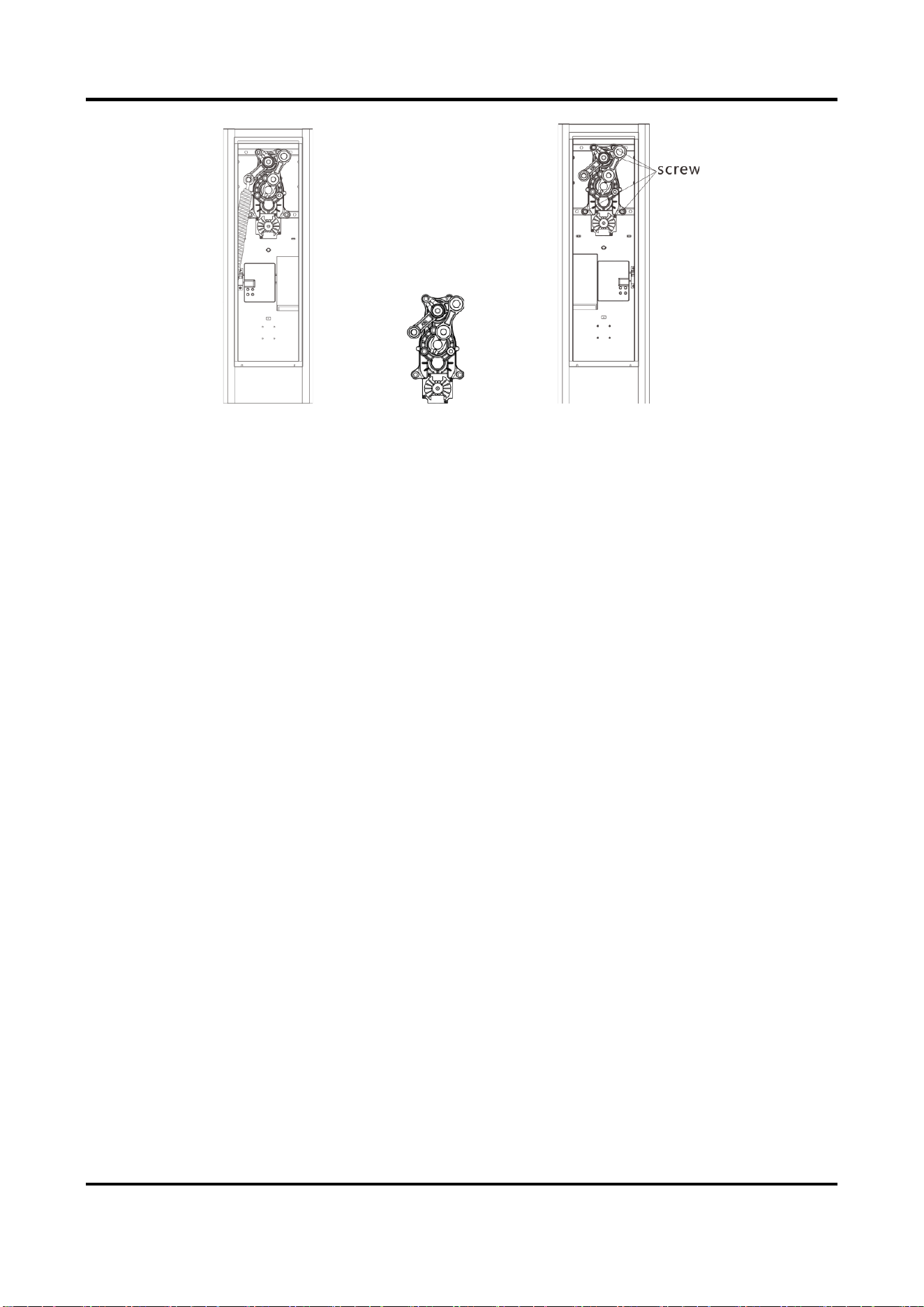
1. Remove the four M10 × 40 hex socket head cap screws of the machine core, and then remove
the machine core.
2. Install the new machine core into the host, and then fasten the screws.
Barrier Gate User Manual
45
Figure 4-2 Change Machine Core
4.4 Left/Right Direction of Boom Pole
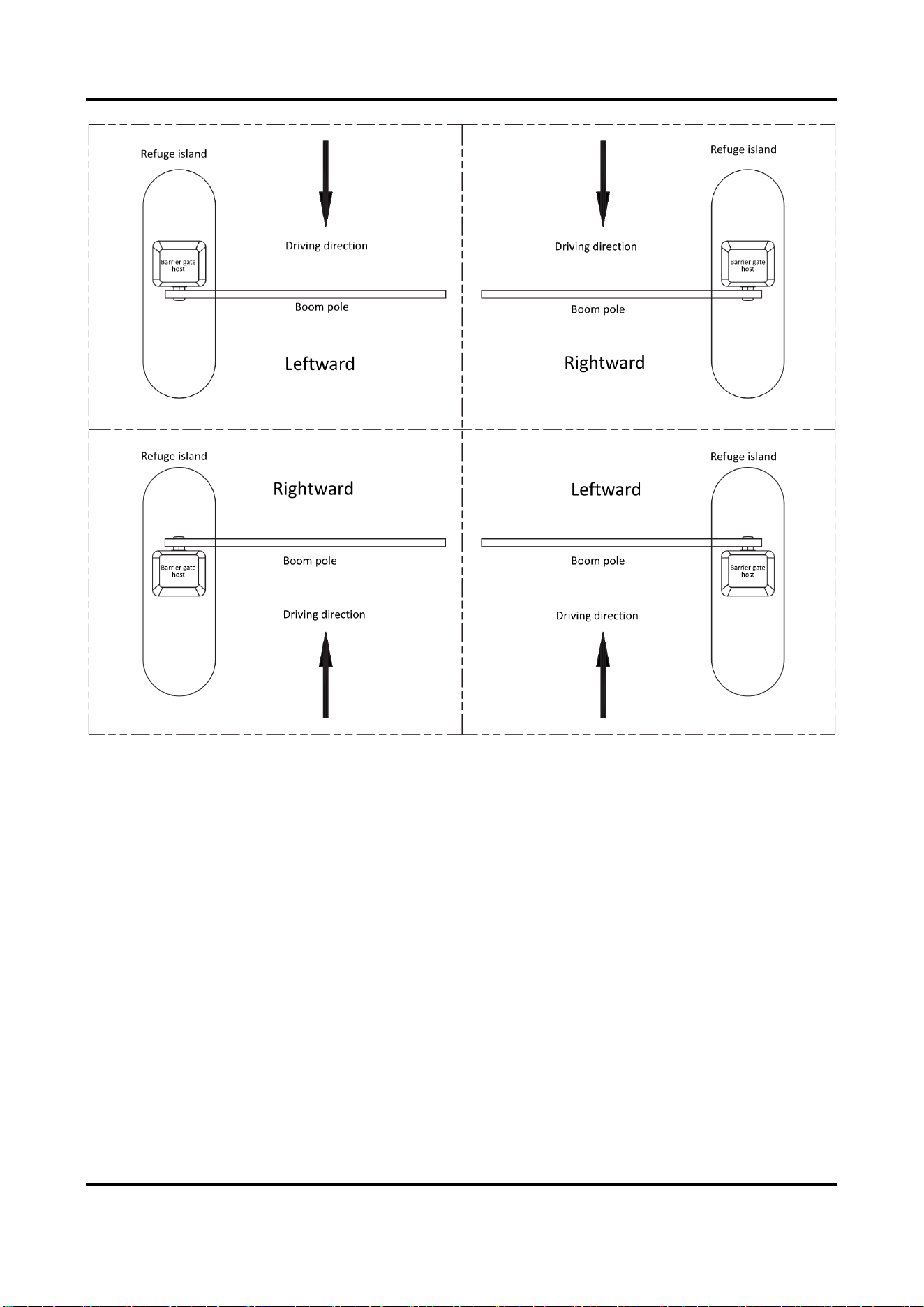
The boom pole direction depends on the driving direction of the vehicle. When you look from the
driving direction as shown below, the left boom pole is the one that the boom pole is on the left of
the barrier gate host, and the right boom pole is the one that the boom pole is on the right of the
barrier gate host.
Barrier Gate User Manual
46
Figure 4-3 Boom Pole Direction Instruction
For some models of the barrier gate, some boom pole direction can be changed, and some cannot
be changed. Refer to the figure below for the relationship between barrier gate models and boom
pole directions.
Barrier Gate User Manual
47
4.5 Change Left/Right Direction of Machine Core
Before you start
Cut off the power supply. Disassemble the machine core according to the procedure above.
Steps
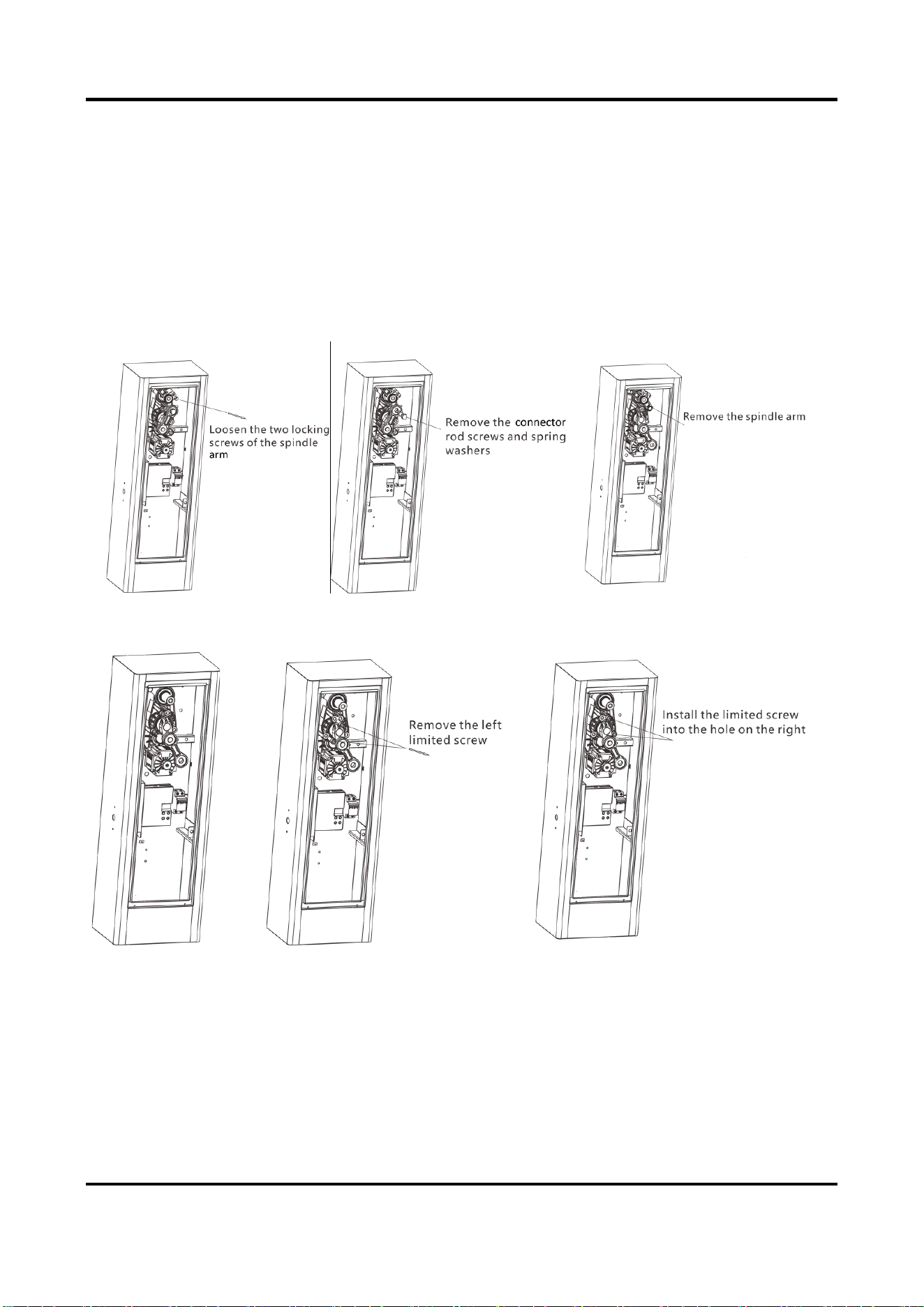
1. Disassemble the 2 cap screws to tighten the output shaft, the 2 cap screws to fix the limit
positions, and the 1 cap screw to tighten the crank arm in sequence.
Figure 4-4 Remove the spindle arm
Figure 4-5 Move the limited screw
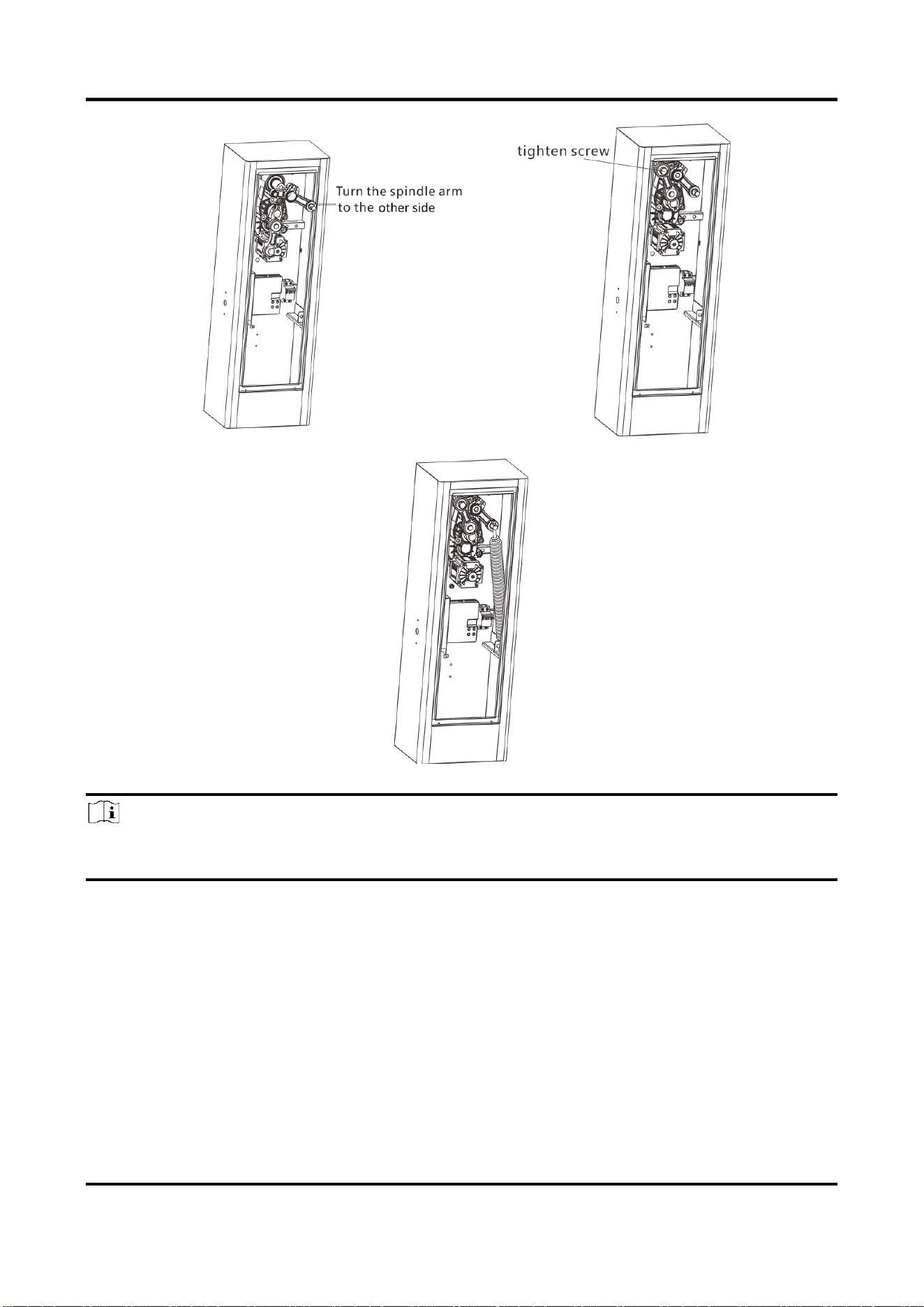
Barrier Gate User Manual
48
Figure 4-6 Change the direction of spindle arm
Figure 4-7 Install Spring
Note
During the linkage arm component installation process, operate the hand wheel to adjust the
position to guarantee that the spindle rod installation surface of the output shaft is horizontal.
Barrier Gate User Manual
49
A. FAQ
Fault Code on
Nixie Tube
Fault Name
Troubleshooting
Remarks
“E 1”
Motor
exception
1、Check if the motor wire and
hall signal line are broken or not
connected.
2、Change motor.
“E 2”
Encoder
exception
1、Change motor.
“E 4”
Undervoltage
1、Check the power supply
output voltage.
2、Change the power supply.
“E 5”
Overcurrent
1、Increase the value of F13.

UD30852B-A