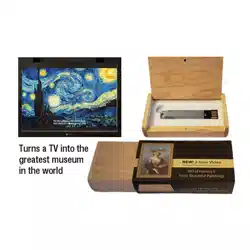
Welcome to the BillionDollarArtGallery!
You are about to enter the greatest museum in the world –
your own museum where you can linger and learn about this beautiful art.
How to use the Billion Dollar Art Gallery
1. Insert the BillionDollarArtGallery into the USB port in your television.
2. Using your TV’s remote control, choose Source, Input, Info, Home or Media Player and select the
USB port or Flash Disk. Each TV manufacturer has a different way of accessing media.
(Use the TV remote; do not use the cable remote because it only operates the cable box.)
3. Choose photos or video, and set up your television’s photo show, or play the BillionDollarArtGallery
video.
If you have questions about how your TV works, please email us at BDAG@memsender.com with the name
and model number of your television. We will send you a step-by-step process for your television. You can also
check online at billiondollarartgallery.com/help or call us at 609-608-0640.
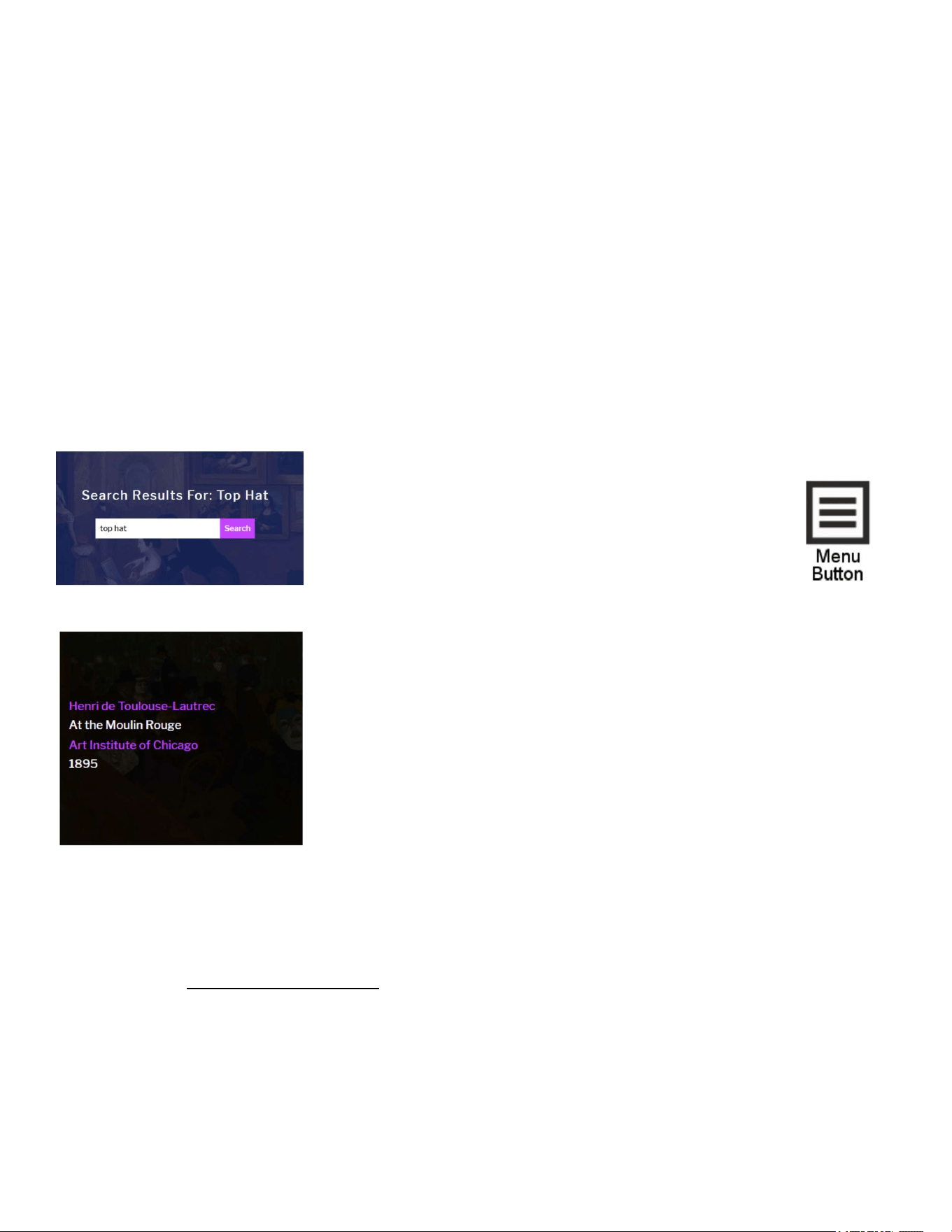
USB Ports
Virtually all recently produced TVs have USB ports. Some media players like the Roku Ultra also support USB.
NOTE: Cable boxes often include USB ports for technicans’ use only that do not play personal USB content.
Some older TVs like the Sony Bravia also have USB ports marked “Service Only” that will not play content
from a USB device. Ensure that the USB port you select is for consumer use.
The Paintings or the Video?
The BillionDollarArtGallery includes Ultra High Definition versions of over 500 paintings, musical files, and
file names that will tell you about each painting. Because TVs do not have a standard operating system, the
BillionDollarArtGallery also includes a 2-hour video that plays the paintings and the music – and also displays
information about each painting for five seconds during the 15 seconds that a painting is displayed. If you do
not want to listen to the music while playing the video, simply mute your television.
Learn about the paintings!
Most people find themselves wondering, “What is that painting?” We have provided three paths to discovery.
(1) Display the filename of the painting.
Many TVs will display – at the touch of a button such as INFO – a painting’s file name, which includes the
name of the painting, the name of the painter, the year it was painted, and where you can see the original.
(2) Play the video.
Because TVs are not standardized – each has a different image presentation system with different buttons that
can be confusing – you can also play the BillionDollarArtGallery video directly from your USB device. After
showing the painting for 5 seconds, the video displays the name of the painting, the name of the painter, the
year it was painted, and where you can see the original. By seeing the painting before the information, you can
test your knowledge, and begin to learn more about the paintings.
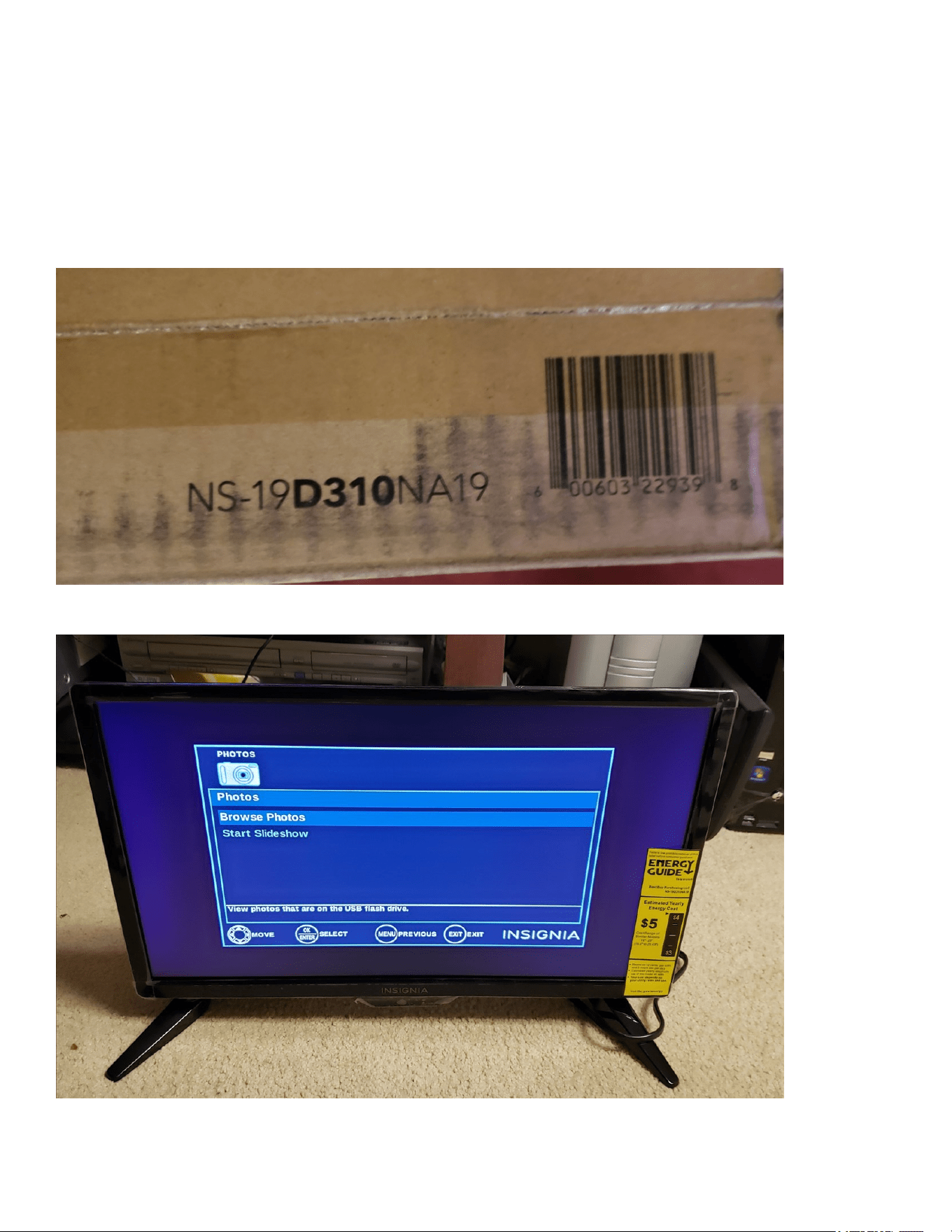
(3) Search the Guide to Paintings on Your Phone.
In your phone’s web browser, go to billiondollarartgallery.com and choose
paintings from the menu on the upper right, or save this web
address to your phone’s home page:
billiondollarartgallery.com/paintings Enter a visible feature
of any painting – for instance, “top hat” – and you will quickly
see all the paintings that include “top hats.”
Scroll through the choices, and tap on any painting.
Tapping on a painting will display
The name of the painter
The name of the painting
The name of the museum (or if it is in private hands)
The year it was painted.
We hope you enjoy the BillionDollarArtGallery as much as we have enjoyed creating it!
Questions?
[email protected] billiondollarartgallery.com/help 609-608-0640
INSIGNIA TV INSTRUCTIONS for BillionDollarArtGallery
OVERVIEW
1. Insert BillionDollarArtGallery into USB and turn on Insignia TV
2. Menu key - Browse to the album with photos
3. Menu key – Start Slideshow
4. To show name of painting: Info key
MODEL #
Tap MENU key on remote: Choose Browse Photos and tap ENTER key on remote
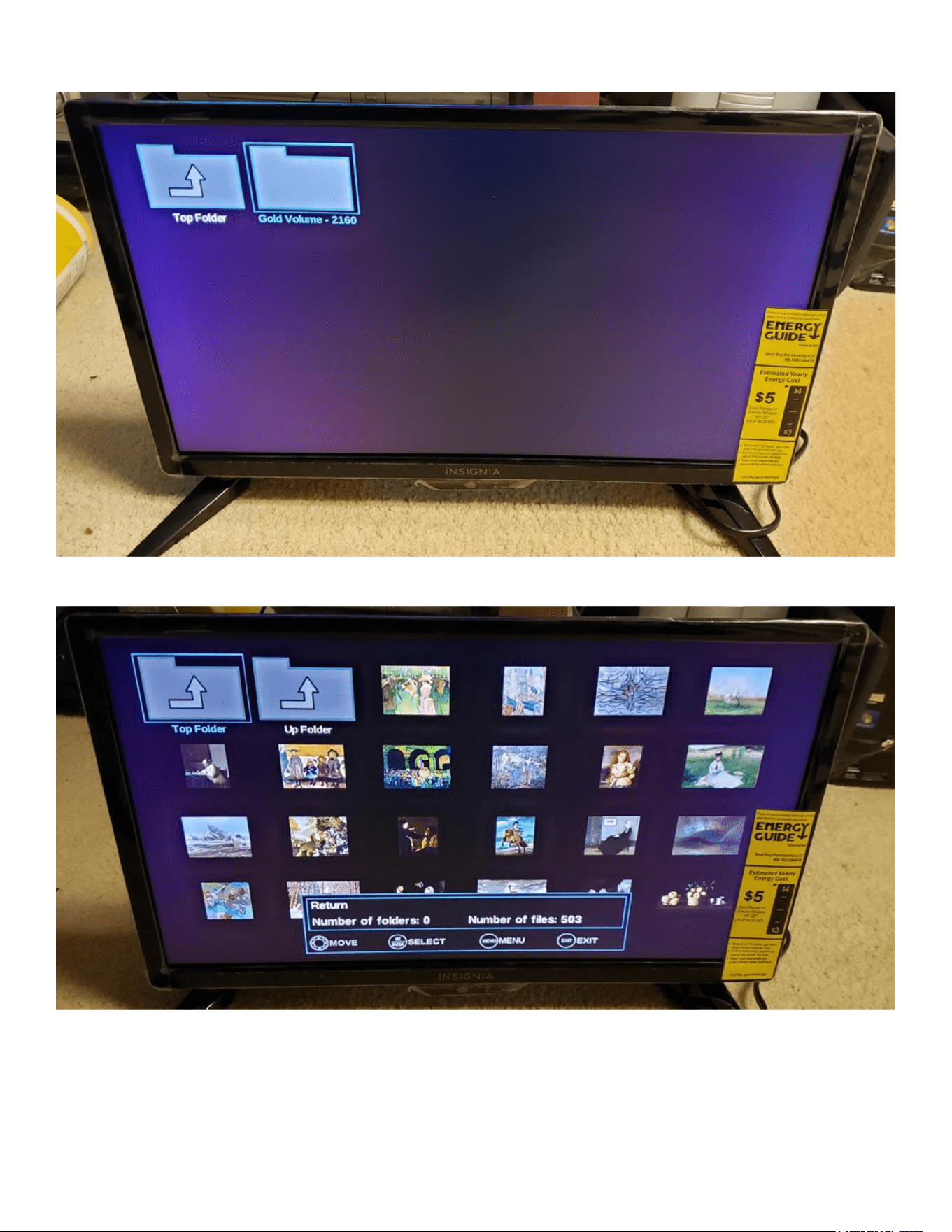
Right arrow key to Gold Volume and tap ENTER
Thumbnail images appear:
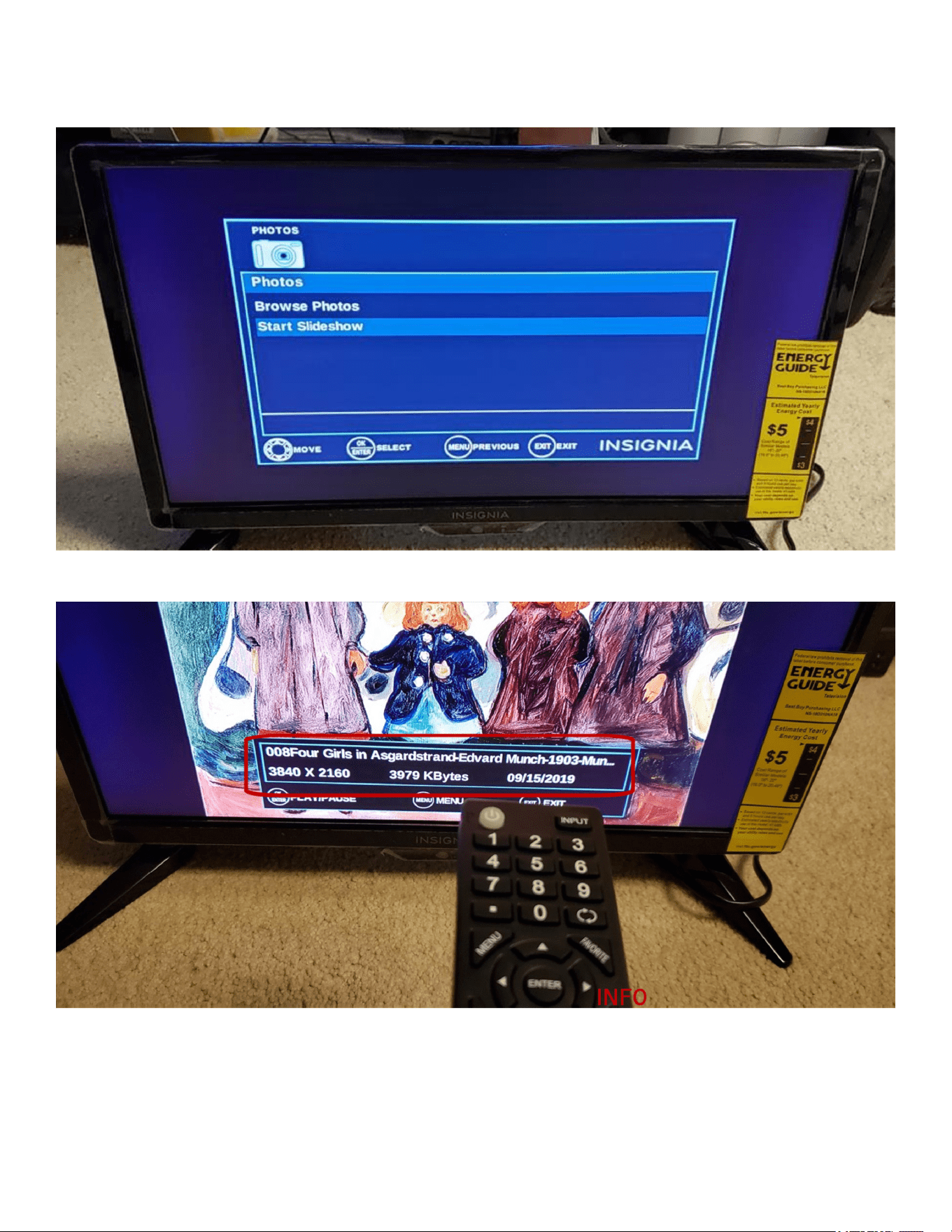
Tap MENU key / Tap down arrow to Start Slideshow / Tap ENTER key to Start Slideshow
The slideshow starts. To see the name of a painting, tap the INFO button
Billion Dollar Art Gallery
with LG TV
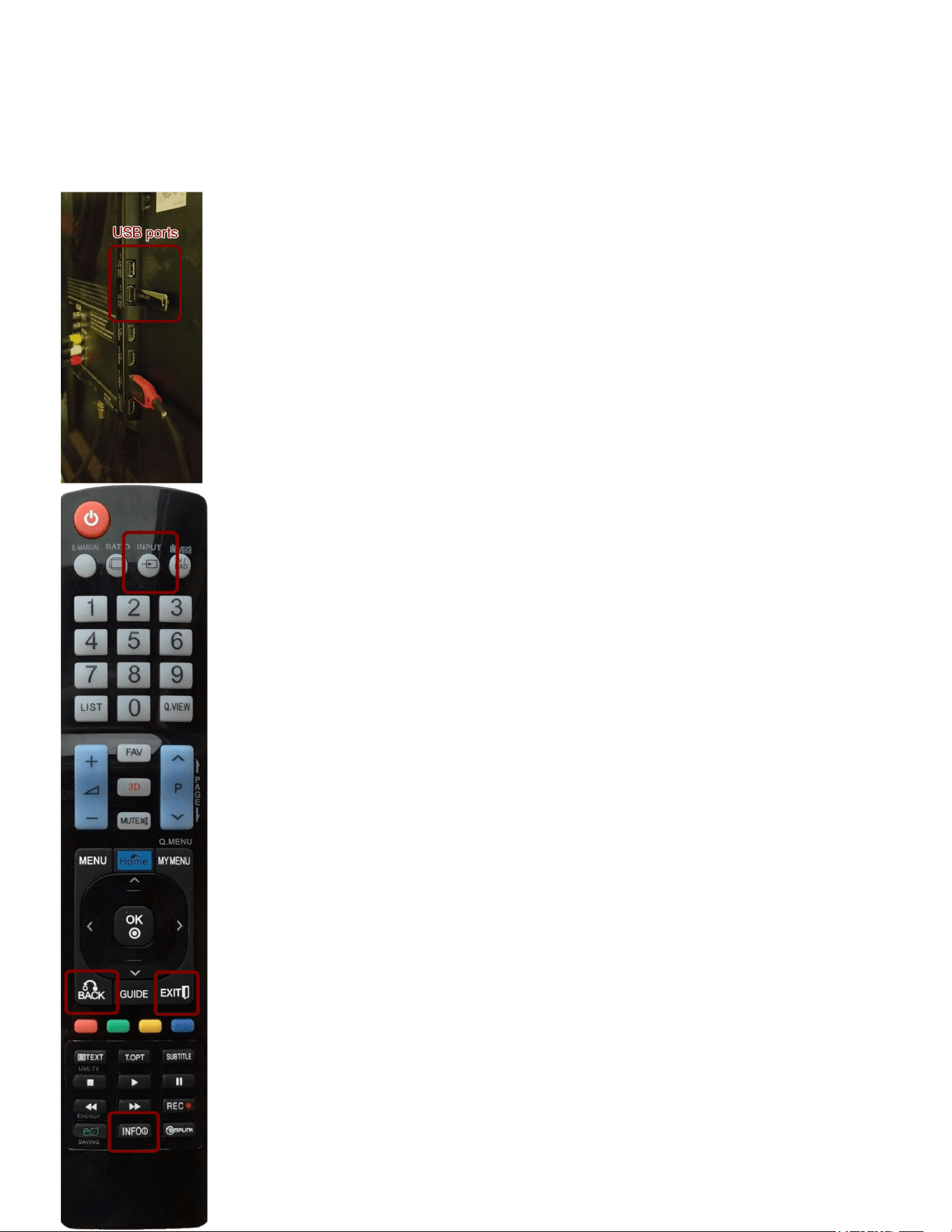
The button in the center of the direction keys is called either the OK or Enter button on LG TVs.
1. Plug the BDAG memory stick into USB port. In the illustration, the
gold connectors on the memory stick should be pointed to the left.
2. Tap the Input button on your remote control, and choose the USB
Device. Choose the Drive on your screen and the first painting with
the direction keys and OK/Enter key on your remote control.
3. Choose the Slideshow at the bottom of your screen to start the
slideshow.
4. You can change the slideshow options (speed, etc) in the Options
section at the bottom of the screen.
5. To hide the command bar at the bottom of the screen, tap on the
Back key.
How to see the name of the painting
You can stop the slideshow to see the name of the painting, the name of
the artist, the year it was painted, and the museum where the painting can
be seen.
Press the Info key and the OK / Enter key to see the painting information at
the top of the screen.
To resume the slideshow, press the Slideshow button at the bottom of the
screen, and the OK / Enter key on your remote.
To hide the command bar at the bottom of the screen, tap on the Back key.
Billion Dollar Art Gallery
with a Panasonic TV
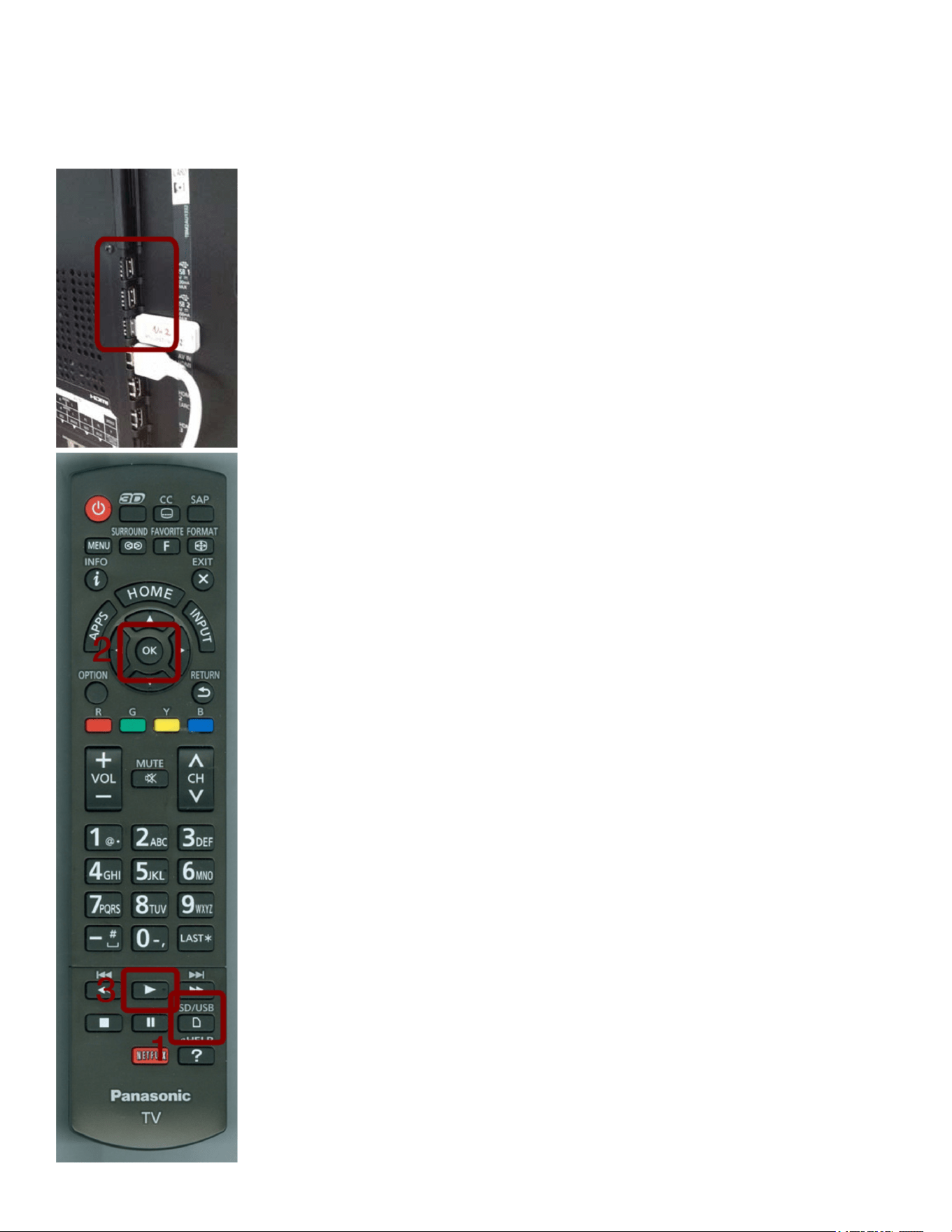
1. Plug the BDAG memory stick into USB port. The gold connectors
on the memory stick should be pointed to the right.
2. Press the SD / USB key. This is called the Media Player on some
Panasonic remotes. The TV offers three choices of files. Photos is
usually first. Press the OK key to choose photos
3. Press the Play key (the arrow key) to start the slide show the
direction keys on your remote.
Billion Dollar Art Gallery
with Samsung TV
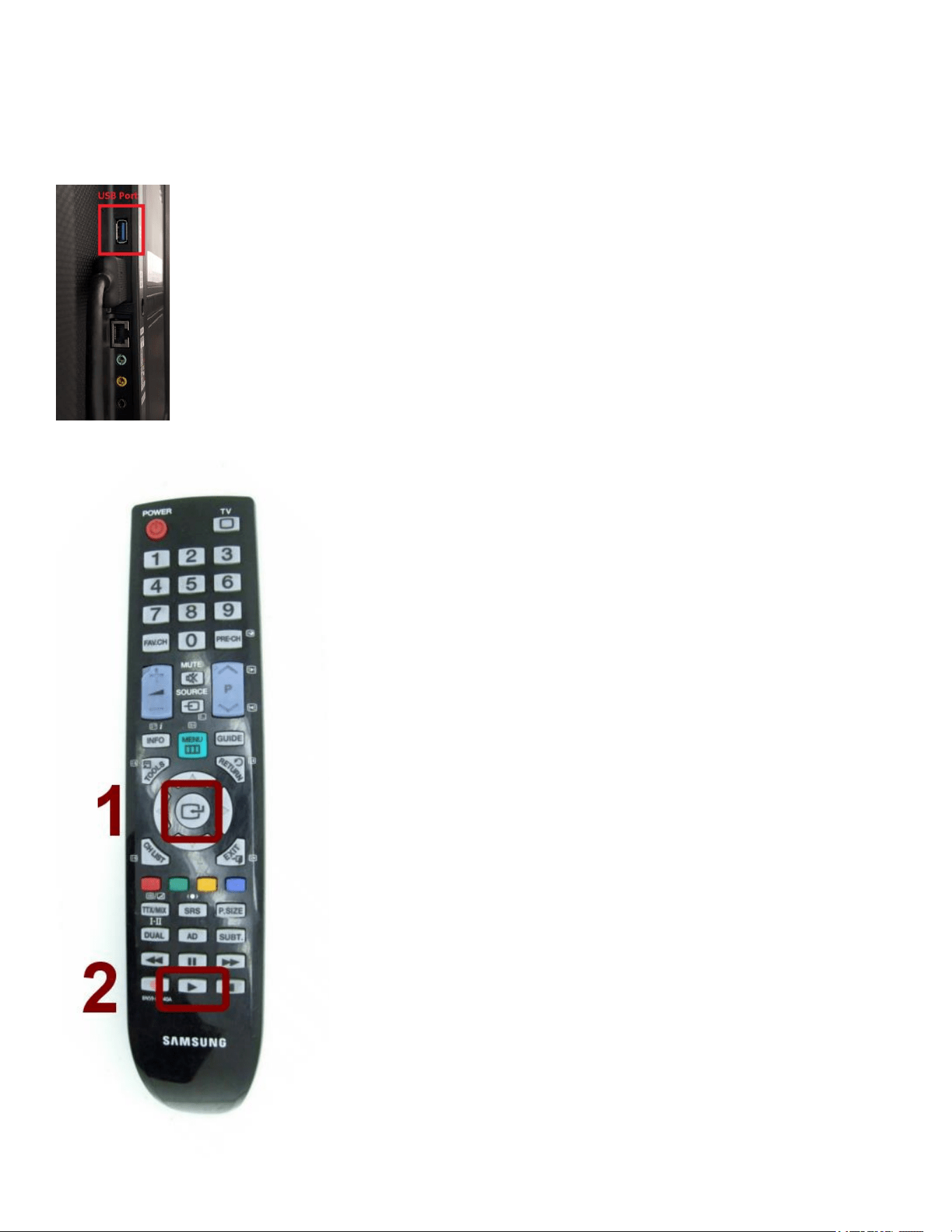
1. Plug the BDAG memory stick into USB port. In the illustration, the gold
connectors on the memory stick should be pointed to the right.
2. Tap the Source button on your remote control, and choose the USB
Device.
3. Use the direction keys on your remote and the Enter key (#1 in the
illustration of the remote) in the center of the direction keys to set up
the slide show.
How to see the name of the painting
You can stop the slideshow to see the name of the painting,
the name of the artist, the year it was painted, and the
museum where the painting can be seen.
Press the Enter key (#1) to stop the show and see the painting
information at the top of the screen.
To resume the slideshow, press the Play key (#2) at the
bottom of the remote.
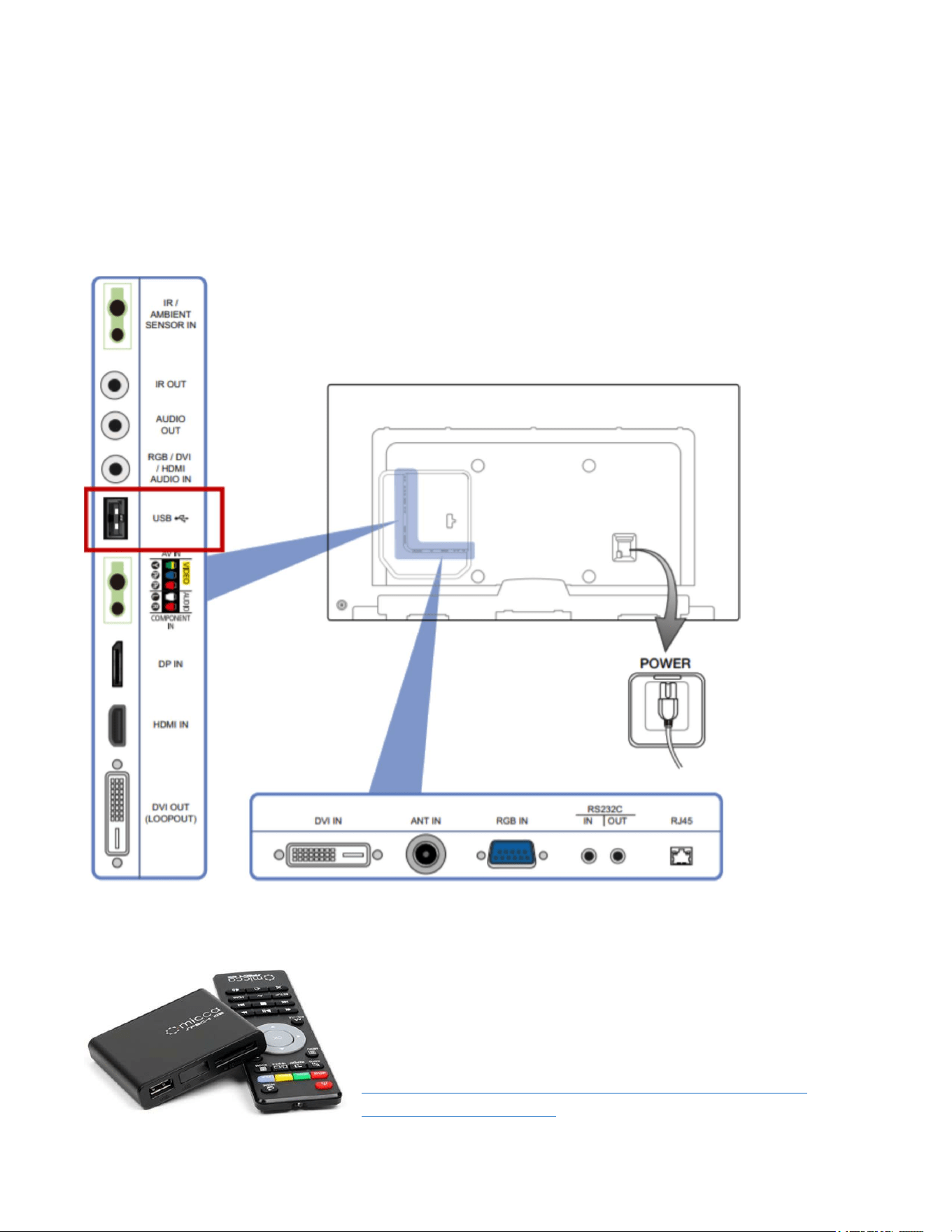
Alternative sites for USB slots on Samsung TVs
USB slots are usually be on the left or right of the TV. Below is an illustration for Samsung ME65B and
ME75B televisions. The USB location is highlighted in the red box.
BillionDollarArtGallery Support will research your TV and send precise info on your USB port. Please
email the manufacturer name and model number to [email protected]om
If your TV has no USB port
Even with NO USB port, you can still operate the USB port by purchasing a Media Player for about $40
on Amazon. Many digital players are available, but the Micca HD
Digital Player is small, economical, and has been tested with the
BillionDollarArtGallery. The Micca Player has a USB port, and the
player plugs into the HDMI TV input.
https://www.amazon.com/Micca-Full-HD-Portable-Digital-
Player/dp/B008NO9RRM
Billion Dollar Art Gallery
with Sharp Aquos TV
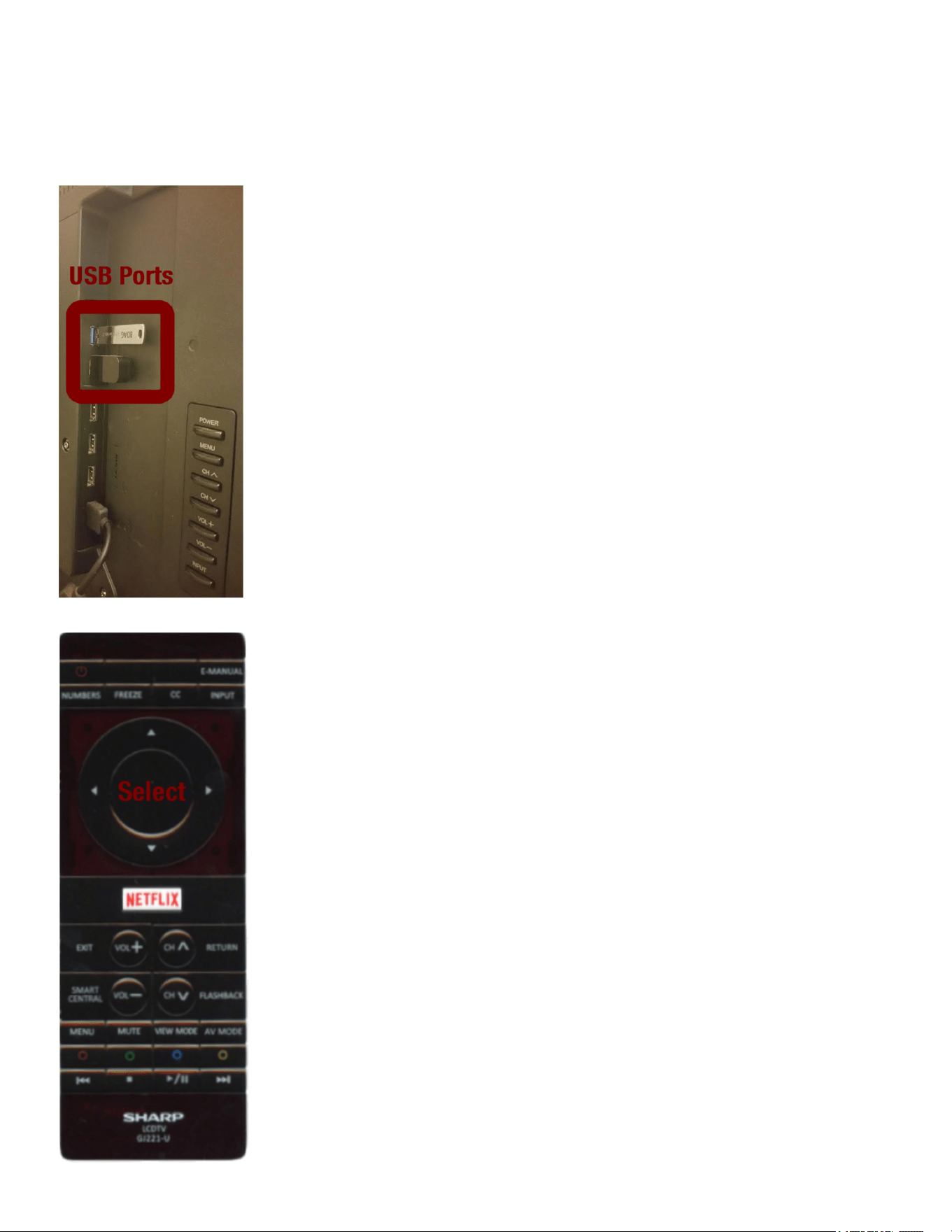
The unmarked circular button in the center of the direction keys is the Select button.
Plug the BDAG memory stick into USB port. In the illustration, the gold
connectors on the memory stick should be pointed to the left.
1. On your remote control, tap the Input button, and choose the
USB Device. Choose the first painting with the direction keys
and Select key on your remote control.
2. Choose the Slideshow at the bottom of your screen to start the
slideshow.
3. You can change the slideshow options (speed, etc) in the
Options section at the bottom of the screen.
4. To keep the slide show going all the time rather than stopping
after 500 paintings, choose Repeat All and Continuous in the
slide show options.
5. To hide the command bar at the bottom of the screen, tap on
the key with the Blue Circle.
How to see the name of the painting
To see the name of the painting, the name of the artist, the year it was
painted, and the museum where the painting can be seen, tap on the
key with the Blue Circle.
This will also display the command bar where you can change
attributes of your slide show.
To hide the command bar at the bottom of the screen, tap on the key
with the Blue Circle.
Billion Dollar Art Gallery®
with Sony Bravia TV
Sony Bravia TVs vary from model to model. Please send your TV model number for the best support response.
NOTE: Some older Sony Bravia TVs are stamped in dark plastic near the USB port “Service Only.” This means
that the USB port will not function for normal USB devices: it is only for servicing the TV.
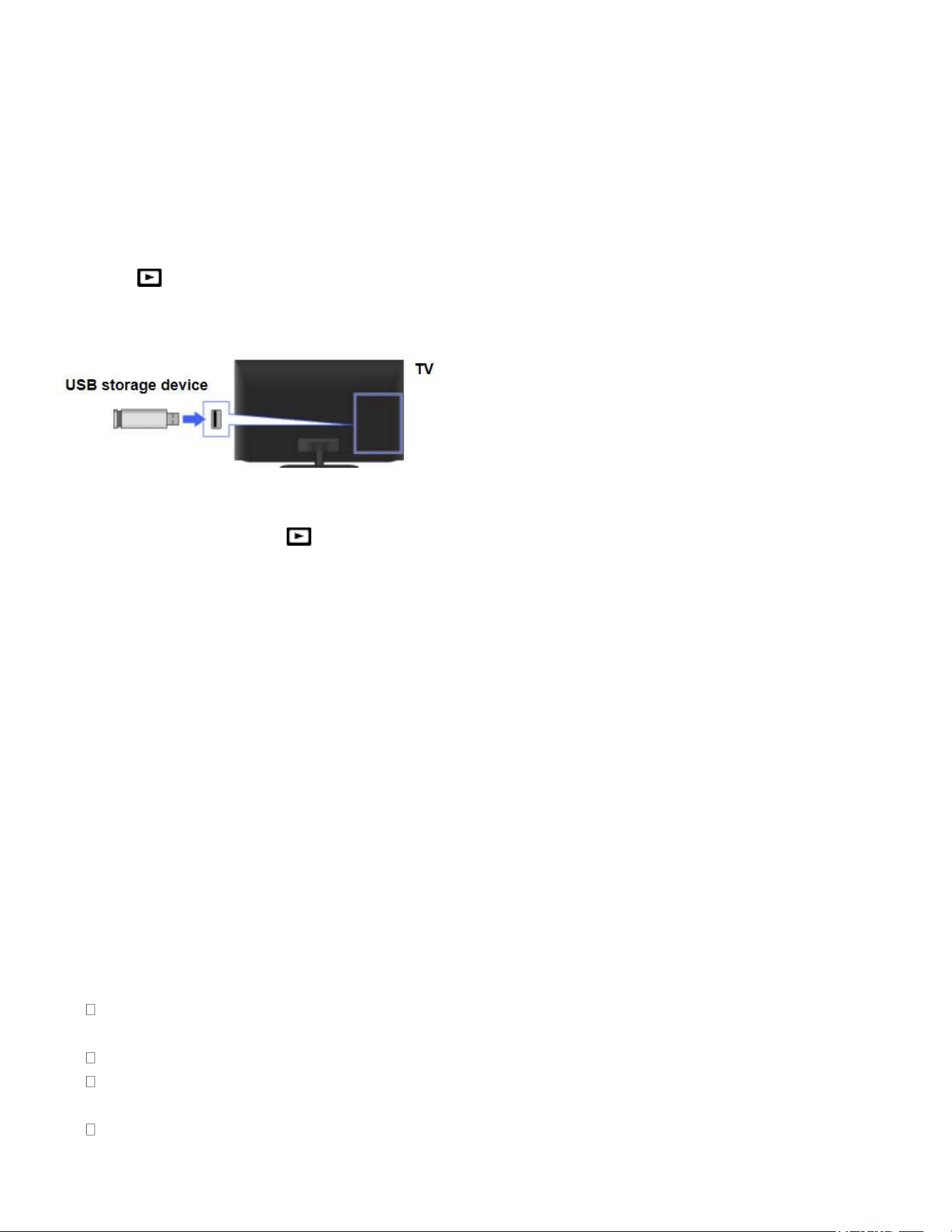
The button in the center of the direction keys is called the “arrow” key, and is depicted in the Sony Bravia
manual as .
Plug the BillionDollarArtGallery in the USB port on your Sony Bravia TV
Play the BillionDollarArtGallery.
1. Press HOME, then select → [Photos], [Music] or [Videos] → the desired USB device or media server.
2. Select files or folders to play from the list.
NOTES FROM THE SONY BRAVIA MANUAL
Photo playback automatically starts when you connect a USB storage device after turning on the TV, and you select
[Slideshow] or [Thumbnail View] in the [USB Auto Start] settings. Photo files must be stored in a folder under the DCIM
folder for automatic playback start. Also, the folder name under the DCIM folder is required to be a combination of 3
numerals and 5 letters (can include “_”), for example, 101MSDCF.
This means that the files on the USB stick may need to be re-arranged for a Sony Bravia like this:
1. Plug the BillionDollarArtGallery into your computer.
2. Create a directory on the BillionDollarArtGallery called DCIM
3. Click on that directory and create a sub-directory called 919BDART
4. Go back to the main directory, highlight the files, cut them, and paste them into the 919BDART directory.
5. This is complex for many people. If you prefer, please send your silver BillionDollarArtGallery stick to
Memsender Inc. ATTN: Sony Bravia Setup, Box 92, Titusville, NJ 08560. We will make the changes and return the
product to you at no charge.
How to see the name of the painting
You can stop the slideshow to see the name of the painting, the name of the artist, the year it was painted, and
the museum where the painting can be seen.
Press the Info key and the OK / Enter key to see the painting information at the top of the screen.
To resume the slideshow, press the Slideshow button at the bottom of the screen, and the OK / Enter key on
your remote.
To hide the command bar at the bottom of the screen, tap on the Back key.
Chapter 6: Using the TV’s features
43
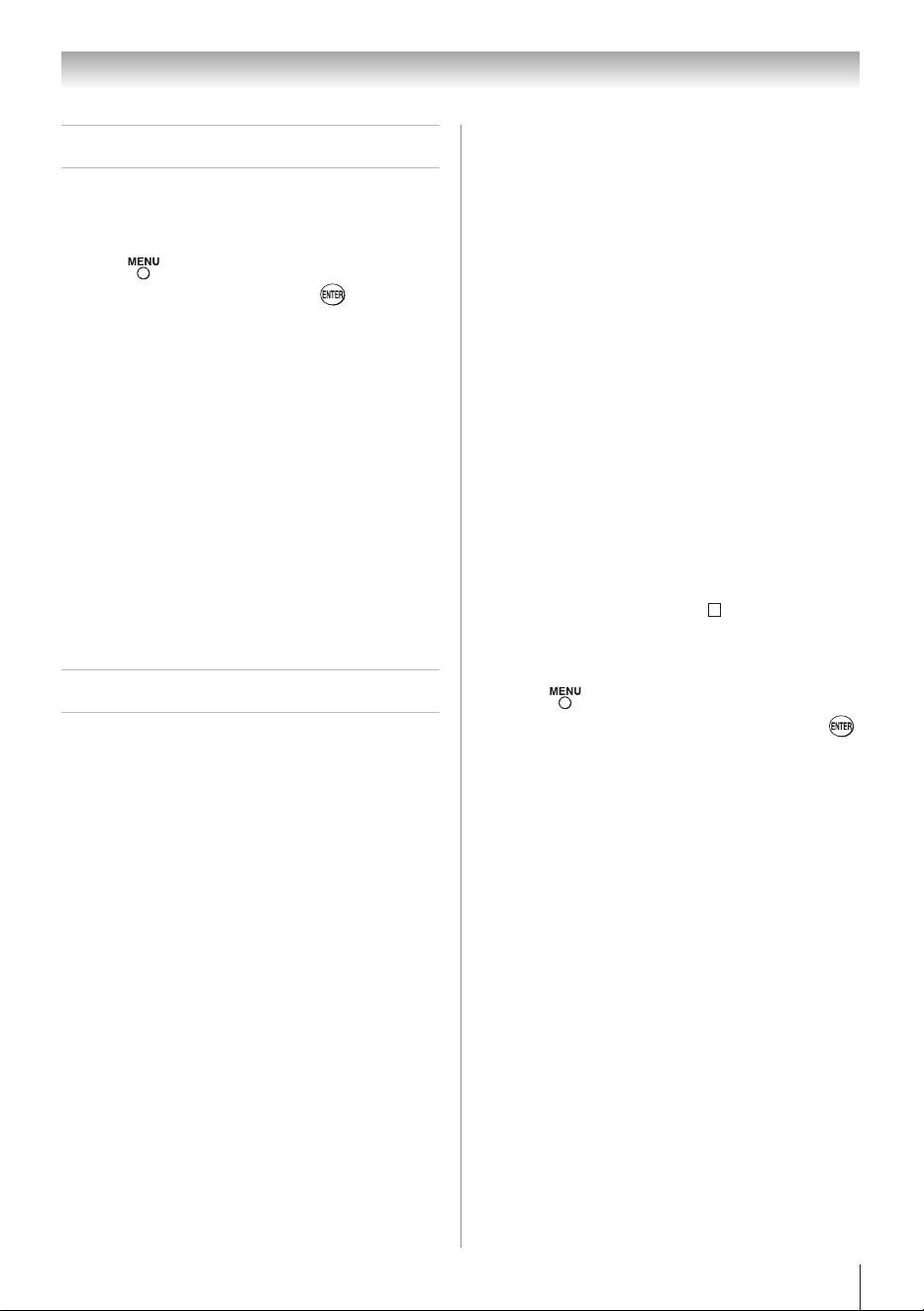
Setting the PC Audio
This function allows you to output or mute the sound
from your PC when connecting using the PC IN
terminal and an analog RGB cable. ( page 18)
To set the PC Audio:
1
Press
and open the Sound menu.
2
Highlight Audio Setup and press
.
3
Press p or q to select PC Audio and then press
t or u to select No or Yes.
Yes: When viewing the PC input, the audio from
the PC Audio input can be heard.
No: When viewing the PC input, there will be no
audio.
Note: Because the PC and HDMI-1 inputs
share the same set of analog audio inputs,
the
PC Audio menu setting influences the
HDMI 1 Audio menu setting. If PC Audio
is set to “
No” the HDMI 1 Audio setting
changes to “Auto” If PC Audio is set to “Yes”
the HDMI 1 Audio setting is set to “Digital”
and is grayed out in the menu. (Also see
item 3 on page 12 and “Setting the HDMI
®
Audio mode” on page 26.)
Using the Media Player
Using the Media Player with USB
You can enjoy photos contents stored on a USB
storage device.
Photo Viewer specifications:
Data type: JPEG Exif ver2.1
File format: JPEG
Maximum photo size: 6 MB
Maximum number of files: 500 / folder
Maximum photo resolution:
1366 x 768 pixels (32DT2U1 / 32DT2UL1)
1920 x 1080 pixels (40FT2U1)
Supported file system:
FAT16 and FAT32
Note
:
•
Gently insert the USB device into the port and
do not remove while using the Media Player.
•
USB device: USB Mass Storage Class device
(MSC)
•
Support is not guaranteed for all devices.
•
Connect the USB device directly to the TV.
•
Do not use a USB Hub.
•
You must obtain any required permission from
copyright owners to use copyrighted content.
Toshiba cannot and does not grant such
permission.
•
Depending on the file size and amount in your
USB storage device, it may take some time to
load before content is viewable. A message
will display on-screen when loading files from
the USB storage device.
•
Only limited types of U3 USB devices are
supported. Therefore, it is suggested you
do not to use U3 USB for the Media Player
function.
•
Non-supported characters in the filename will
be replaced with a square(
).
To select the Auto Start function
1
Press
and t or u to select the Setup menu.
2
Press q to select Media Player, and then press
.
3
Press p or q to select Auto Start.
4
Press t or u to select On or Off.
(continued)
TOSHIBA TV MEDIA PLAYER
Chapter 6: Using the TV’s features
44
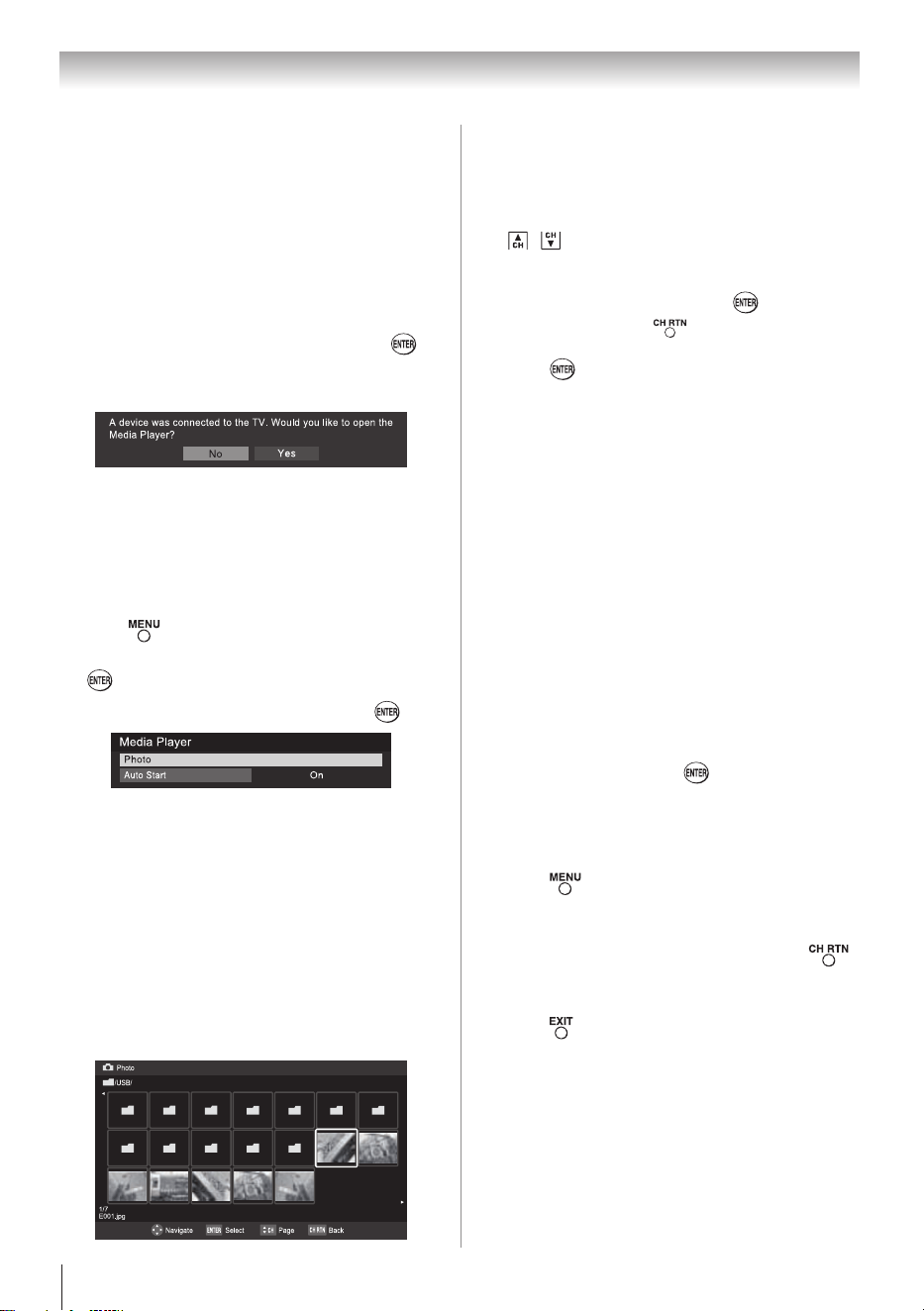
To open the Media Player
There are two methods for starting the Media Player.
Automatically:
1
Gently insert a supported USB storage device to
the USB port on the rear side of the TV. A prompt
will appear.
Note:
If you repeatedly insert and remove
the USB device, the prompt may not appear.
2
Press t or u to select Yes, and then press
,
the Media Player menu will appear. When you
select No, nothing happens.
Note:
•
The prompt will disappear after about 10 sec.
•
If Auto Start is set to Off, you can start the Media
Player manually.
Manually:
1
Press
and t or u to select the Setup menu.
2
Press q to select Media Player, and then press
.
3
Press p or q to select Photo then press
.
Note:
•
The viewer will also open even if there are no
photo files.
•
While the Media Player is active, the main
menu cannot be displayed.
Viewing photo files
There are three types of view modes.
Multi View:
This view allows you to search for photos in a grid
format. These pictures are displayed using thumbnail
data in each image file.
Date : 2009-07-29 05:10:15
640x480
1
Press pqtu to move the highlight in one
window. If all of the photos will not fit in one
screen, when pressing t at the top left thumbnail,
the screen will move to the previous page.
Conversely, when pressing u at the bottom right
thumbnail, the screen will move to the next page.
/
buttons can be used to page up/down the
photo list when there are more photos than will fit
onto one screen.
2
When you select a folder, press
to move to
the next layer. Press to move back to the
previous layer.
3
Press
to view the selected photo in Single
View mode.
Single View
In this view mode, only files located in the selected
directory shall be displayed. This view allows you to
change the photo content manually. When moving
from Multi View to the Single View, the currently
selected photo shall be displayed.
1
Press u to view the next photo. Press t to view
the previous photo.
2
Press p to rotate the image 90° counterclockwise.
Press q to rotate the image 90° clockwise.
Slideshow
This view allows you to watch a slideshow of the
photos. In this mode, only files located in the selected
directory will be played.
1
To start slideshow, press
in the Single View
mode.
2
Press t or u to view the previous or next photo.
To set Interval Time and Repeat settings:
1
Press
to open the Quick Menu.
2
Press p or q to select either Interval Time or
Repeat.
3
Presst or u to adjust the setting and press
.
To close the Photo Viewer
1
Press
. The television will return to the last
viewed channel or external input.
(continued)
TOSHIBA TV MEDIA PLAYER 2 OF 3
Chapter 6: Using the TV’s features
45
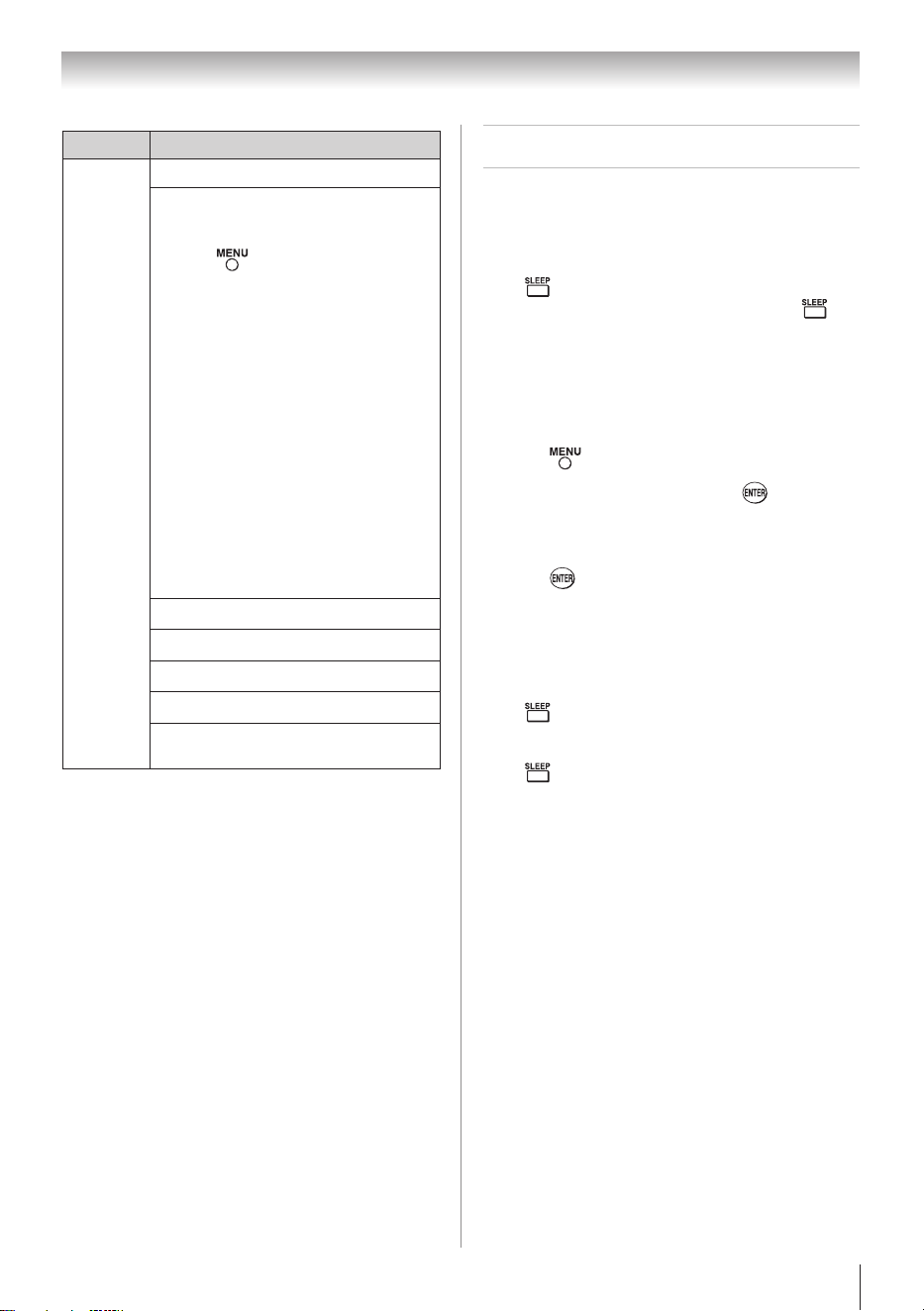
Contents Description Description
Photo
Photo list (Multi view)
See page 44
Sorting
To sort the folders and files
1
Press
to open the Quick Menu from
Multi View mode.
2
Press p or q to select Sort.
3
Press t or u to select Title, New or Old
to set the sorting rule.
Title--File sorting rules:
1 Unicode priority
2 Numerical (0-9)
Upper Case (A-Z)
lowercase (a-z), Chinese
3 Increasing order
New--From new to old according to
the date and time when the
picture was taken.
Old--From old to new according to
the date and time when the
picture was taken.
Single View mode
See page 44
Slide Show mode
See page 44
Skip to previous/next photo
See page 44
Slide Show Repeat play
See page 44
Slide Show Interval Time
selection
See page 44
Note
: Sorting may not be available in all cases.
Setting the sleep timer
You can set the sleep timer to turn off the TV after a
set length of time (maximum of 12 hours).
To set the sleep timer using the remote control:
Press on the remote control to set the length of
time until the TV turns off. Repeatedly press
to
increase the time in 10-minute increments, or press
p or q to increase or decrease the time in 10-minute
increments, to a maximum of 12 hours.
To set the sleep timer using the on-screen
menus:
1
Press
and open the Setup menu.
2
Highlight Sleep Timer and press
.
3
Press the number buttons to enter the length of
time in 10-minute increments.
4
Press .
Note:
When a power failure occurs, the sleep
timer setting may be cleared.
To display the remaining sleep time:
Press
.
To cancel the sleep timer:
Press
repeatedly or press p or q until it is set to
0 minutes.
(continued)
TOSHIBA TV MEDIA PLAYER 3 OF 3

Vizio Smart TVs
To play your USB media:
1. Insert the USB thumb drive into the USB port on the back of the TV.
2. Press the MENU button on the remote. The on-screen menu is displayed.
3. Use the Arrow buttons on the remote to highlight the Photo icon and press
OK. The Photo screen is displayed.
4. Use the Arrow buttons on the remote to highlight the photo you would like to be
displayed first, then press the Play button. The slideshow begins.
• To pause the slideshow, press the Pause button.
• To go to the previous photo, press the Stop button.
• To exit the slideshow, press the EXIT button.
NOTE: On some Vizio TVs, if you turn the TV off, you will need to remove the USB flash
drive and reinsert it for the TV to recognize that there is a USB drive present.
How to view the file names on a Vizio TV
Vizio Tech Support says, “Try the INFO button.”
If you cannnot view the filenames on your TV, go to billiondollarartgallery.com on
your phone, and choose paintings. (You might also want to save that page to your
phone’s home screen so you can quickly access that page in the future.) You can
search paintings by many attributes: for instance, if you see a top hat in a painting, type
in “top hat”, and you’ll quickly see all the paintings with top hats. You can also search by
museum, painter, and style.
Using the Photo Menu
The Photo menu has several options:
• Browse Photos - Allows you to highlight and select a photo from the thumbnail
gallery.
• View Slideshow - Start a full-screen photo slideshow.
• Sort by - Change the display order of photos. Choose Original, Title A-Z, Title Z-
A, Oldest First, or Newest First.
• View - Choose Folders (individual folders and their contents), Favorites, or All.
• Slide Settings - Change the slideshow settings. Available options are Repeat,
Shuffle, Full Screen (this may distort some photos to fill the screen), and Speed
(Slow or Fast).
• Picture Settings - Change the display settings.
• Thumbnail Size - Move the on-screen slider to change the size of displayed
thumbnail images. Choose Large or Small
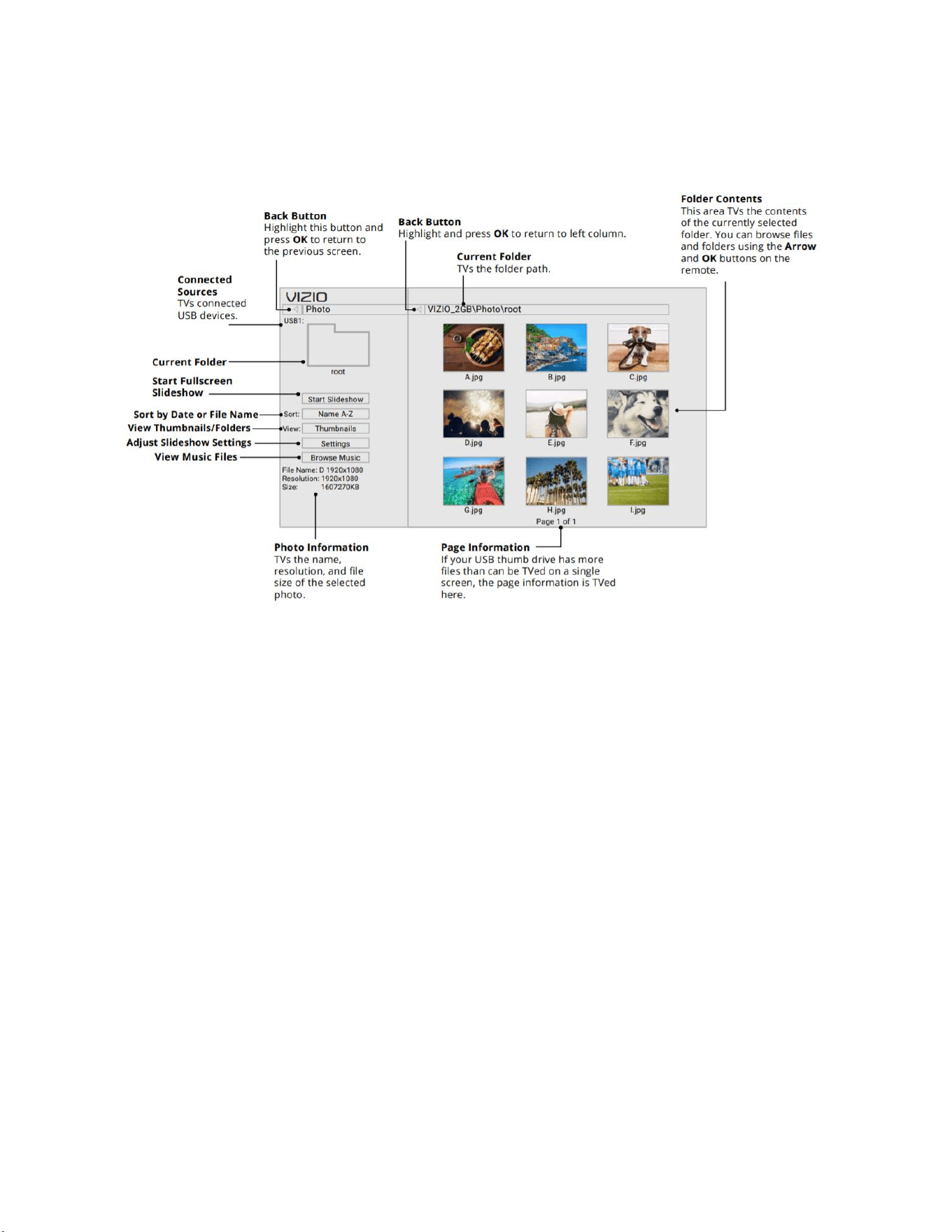
This screen shot may also be helpful in seeing filenames:
VIZIO TVs 2 of 2
Billion Dollar Art Gallery
with Older TVs without USB ports
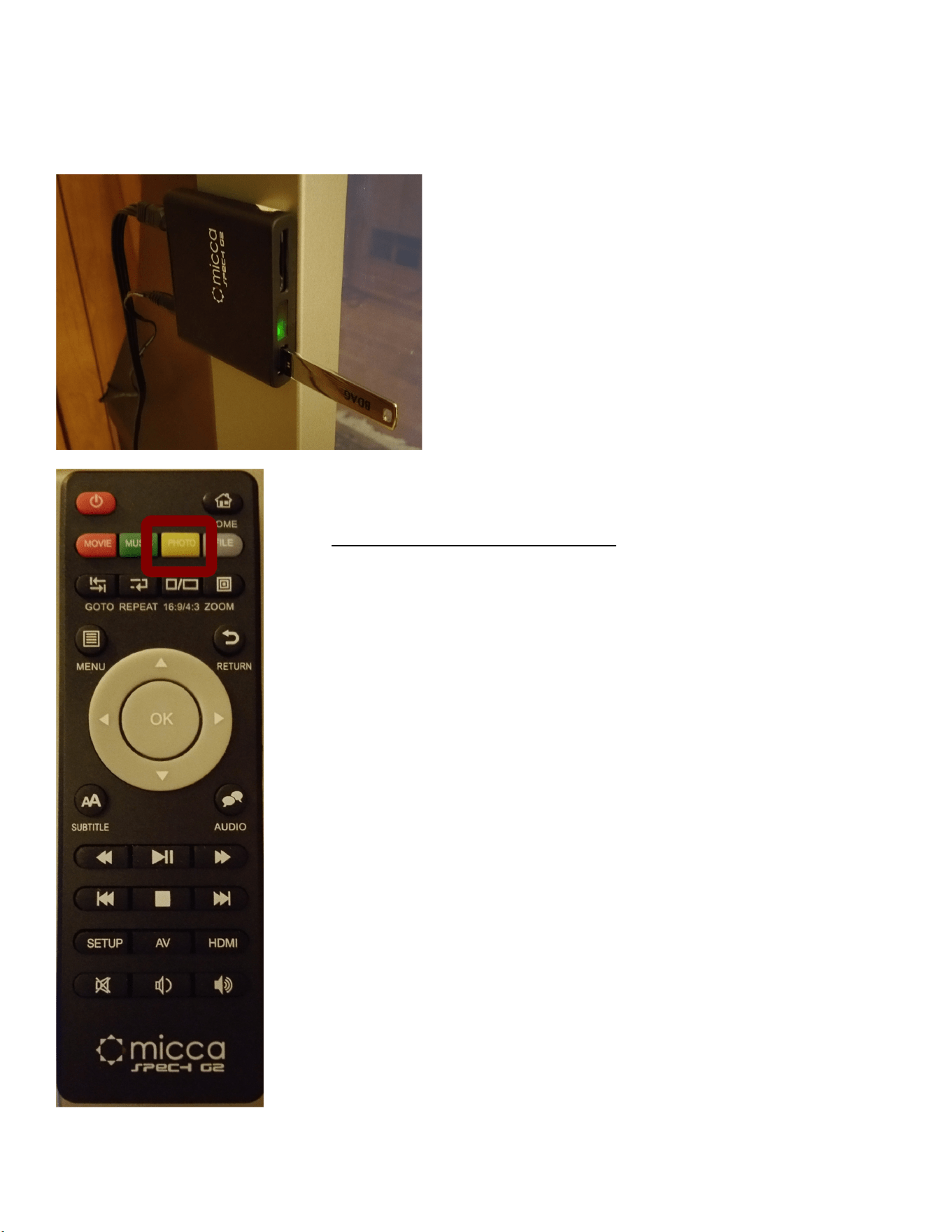
For older TVs without built-in USB ports, you can
add a USB Reader like the Micca Speck.
Plug the BDAG memory stick into the USB port on
your reader. In the illustration, the gold connectors
on the memory stick should be pointed to the right.
On your remote control, tap the Photo. Choose the
first painting with the direction keys and OK key on
your remote control.
To learn more about the paintings
Go to www.billiondollarartgallery.com on your smart phone.
Scroll through the list to learn the name of the painting, the name of
the painter, the year it was painted, and the museum where you can
see the painting.
