You can check the videos from the dash cam by 5 different ways.
(1) FROM CAMERA DIRECTLY.
Go to Playback Mode and scroll each video. This method is lengthy.
(2) FROM Viidure Dashcam app via WIFI.
Steps to download videos to your Phone:
Device Albums> Video > Select > Tick to select > Click the download icon in the lower left corner > Wait for a while, then
there will be this video in the local album of your phone, you can share it at will. However, it will take a bit to download one
file.
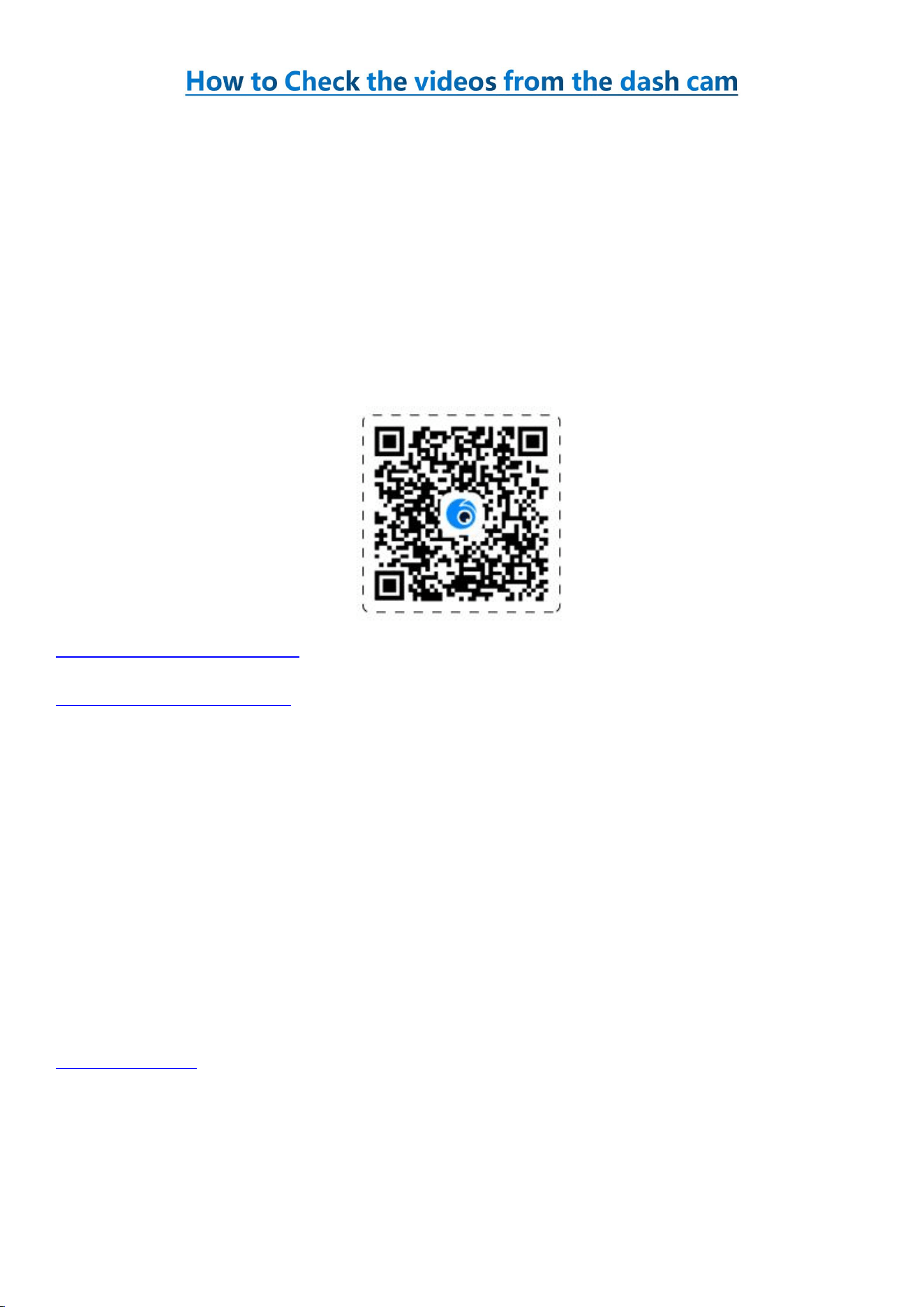
Scan the code and download the mobile app which has richer functions.
Download viidure APP for Android
Download viidure APP for iPhone
(3) FROM micro SD card via the PC.
This method is faster. To do so, you need to access the memory card using your PC. Insert the memory card to your
computer directly if you have the memory card slot and SD-adapter so you can access the memory card and copy the
videos to your PC.
(4) Connect the dash cam with your PC via type-C cable.
You can use a type-C cable to connect the dash cam with your PC and copy the videos to your PC.
(5) Install Viidure app on your stereo and check videos on Dasaita stereo directly.
If you own a Dasaita stereo from our store or other stereo with Android system, please kindly download the APK of Viidure
apps, then you can copy it via a USB disk. On the stereo, please go to home page> APK installation> Install> Choose the
Viidure APK and then start installation.
Viidure app APK file
Note: We doesn’t suggest you to download any videos through this method as it will occupy the storage of the stereo.
