V1.0
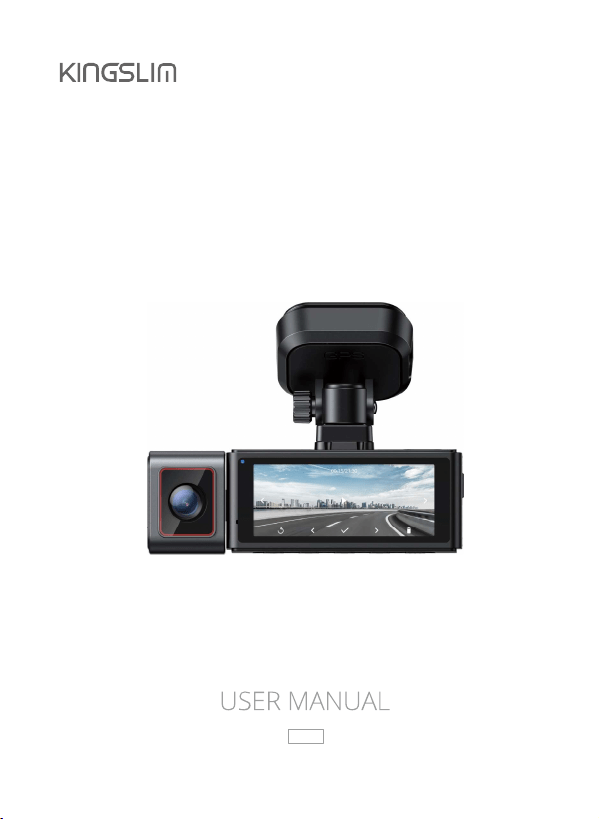
D4 PRO
D A S H C A M
User Agreement ------------------------------------------------------------------------------- 03
Precautions-------------------------------------------------------------------------------------- 03
Warnings ----------------------------------------------------------------------------------------- 04
Overheated Camera ------------------------------------------------------------------------- 05
1. First Use --------------------------------------------------------------------------------------- 06
(1) Insert memory card------------------------------------------------------------------------ 06
(2) First-time charging ------------------------------------------------------------------------- 06
(3) Recording ------------------------------------------------------------------------------------- 06
(4) Settings ---------------------------------------------------------------------------------------- 07
(5) Setting time zone --------------------------------------------------------------------------- 07
(6) How to hide power cable inside your car’s dash board? ----------------------- 07
(7) How to transfer videos to PC/MAC?--------------------------------------------------- 07
3. What's in the Box -------------------------------------------------------------------------- 10
4. Camera Overview ------------------------------------------------------------------------- 11
5. Getting Started ----------------------------------------------------------------------------- 12
5.1 Memory Card Use ------------------------------------------------------------------------- 12
5.2 Install the Dash Cam on the Windshield-------------------------------------------- 14
5.3 Charge ---------------------------------------------------------------------------------------- 17
5.4 Install the Rear Camera ------------------------------------------------------------------ 18
5.5 Install the Hardwire Kit (sold separately) ------------------------------------------- 20
6. Introduction of Important Feature ------------------------------------------------- 21
7. Start Recording ----------------------------------------------------------------------------- 22
7.1 Recording Screen -------------------------------------------------------------------------- 22
7.2 Gestures-------------------------------------------------------------------------------------- 23
7.3 Status Icons---------------------------------------------------------------------------------- 24
7.4 LED Indicators ------------------------------------------------------------------------------ 25
7.5 Time Zone Setting ------------------------------------------------------------------------- 25
Contents
8. Playback--------------------------------------------------------------------------------------- 26
8.1 Playback on the Dash Cam ------------------------------------------------------------- 26
8.2 Playback on A PC/MAC ------------------------------------------------------------------- 26
8.3 Playback on the Kingslim APP---------------------------------------------------------- 29
8.4 Playback on Your Phone’s album ----------------------------------------------------- 29
9.1 Download the Kingslim APP ------------------------------------------------------------ 30
9.2 Connect to the Kingslim APP ----------------------------------------------------------- 30
9.3 Use the Kingslim APP --------------------------------------------------------------------- 33
9.4 Playback Videos on the Kingslim APP------------------------------------------------ 34
9.5 Download Videos from the Kingslim APP------------------------------------------- 35
10. System Settings--------------------------------------------------------------------------- 37
11. General FAQs ------------------------------------------------------------------------------ 43
12. Contact Us ---------------------------------------------------------------------------------- 45

By purchasing Kingslim dash cams, you agree to Kingslim's terms and conditions,
which include precautions, user warnings, and warranty coverage. If you do not agree
to any of these terms mentioned in this manual for any reason, you may return the
product unused and in its original packaging within the stated return window for a
full refund.
1. To prevent external or internal damage, never expose this dash cam to rain,
moisture, or water under any circumstances.
2. This device is not designed to be damp-proof, so avoid placing it in damp
environments. Also, please refrain from opening the cover or attempting to
repair the product yourself. Instead, contact us for assistance if there are any
problems with accessories.
3. This camera is intended for use inside your vehicle only. Do not install it in
locations that obstruct the driver’s view of the road, such as mirrors or airbag
deployment zones.
4. Please read this manual carefully before using or installing the camera, and keep
you may encounter while using this product.
User Agreement
Please read and understand all the instructions before using this product. If any
damage is caused by failure to follow the instructions, the warranty will be voided.
Precautions

Warnings
1. Please take note of safety warnings and regulations as failure to comply may
result in serious injury or death.
2. Avoid placing the camera on top of the instrument panel or in front of the airbag
as it may fall and cause harm.
3. Do not mount the camera anywhere on the windshield that may loosen or distract
you while driving.
4. Refrain from exposing the device to extreme heat or dust, and avoid using any
chemical substances or cleaning solvents to clean it.
5. When cleaning the lens, be careful and use a soft, moist cloth to prevent scratches
that can compromise video quality.
6. We recommend removing the camera from your vehicle when not in use to
prevent theft or damage from exposure to extreme heat.
7. Operating or installing the camera while driving or making any adjustments is
8. Please handle the camera with care and refrain from dropping, puncturing, or
disassembling it.
9. If the car charger cord is broken or damaged, do not use it.
10. Keep this product out of reach of children, and avoid exposing it to direct
sunlight for extended periods or temperatures exceeding 158°F (70°C).
11. Please note that some countries or states in the United States prohibit drivers
from mounting anything on certain areas of the windshield, and it is the
responsibility of the owner or operator to comply with local laws when
mounting or using this device.
12. Lastly, please be advised that the company is not liable for any loss of data or
content during operation or under any circumstances.
Overheated Camera
Dash cams are electronic devices that contain various components, including a
processor, memory, camera lens, and other circuitry. When it's in use, it generates
heat due to the power consumption and operation of these components. The
heat generated during operation can cause the camera to heat up. Rest assured
that our dash cams are equipped with radiators and vents to dissipate heat, and
they operate within a temperature range of of -4°F (-20°C) to 149°F (65°C). The
dash cam can still work normally though it heats up. We recommend you turn on
the air conditioning to dispel the heat inside your car before using your camera.
protects your dash cam from direct sunlight or extreme temperatures.
1. First Use
Please read and understand warnings & safety instructions before operating.
(1) Insert memory card
To record videos, you need to insert a memory card, and complete the formatting
process. We recommend you use a Class 10 U3 or higher memory card of well-known
brands at a maximum of 256GB.
1) Please format the memory card on the computer and then in the camera’s
settings for better compatibility.
2) We recommend you format the memory card every two months for better
performance. Reformatting will erase all data on the SD card, so make sure you
(2) First-Time Charging
To begin using your dash cam, please plug it in. The camera will turn on automatically
as soon as it receives power and prompt you to complete the initial setup on the
all times since the internal battery is only for emergency recording during parking
mode.
1) You can use your iPhone or Android phone’s USB charger to plug your dash cam
into a 110V power outlet.
2) If you don’t get the initial setup prompts for any reason, please reset your camera,
then restart it for the initial setup.
(3) Settings
By default, all settings are pre-set so that you can start using the camera right away
without any additional adjustments. However, you can customize it further by learning
more about the camera by either watching How to Video on Youtube or reading the
(4) Recording
KINGSLIM 4K D4Pro dash cam is programmed to turn on and start recording
changing settings. To pause recording, simply press the button . When unplugged,
this dash cam will also automatically stop recording, safely save the last video, and
shut down within 5 seconds.
(5) Setting time zone
Before using this dash cam, please manually set the time zone according to your
location. To do this, please press the Settings button to enter the Setup screen,
then navigate to “Time Zone Setting”, and then press the OK button to complete
the setting. When the GPS is functioning properly, the dash cam's date and time
will automatically synchronize with your local time. You can also manually set the
date and time by accessing the setup menu.
(6) How to hide power cable inside your car’s dash board?
Many people on YouTube already demonstrated how and where to hide the power
cable inside your car. You can view one of the possible ways by visiting the link
attached: https://www.youtube.com/watch?v=CZYaV5Dh4ok. (Note: The video is
NOT recorded by us).
(7) How to transfer videos to PC/MAC?
your PC/MAC with a card reader, or connect your camera to the PC/MAC with a USB
data cable. Then, select the option to connect as "USB Storage" when the message
pops up. Your PC or MAC will then recognize the memory card. Please follow the
To connect the KINGSLIM D4 Pro dash cam to your smartphone, you can utilize its
its 4G signal will be temporarily blocked but will automatically restore after
disconnection. It is advisable to exit the Kingslim APP or manually disconnect the
your phone. For more details about how to connect your camera to the app,
please consult the section Use the Kingslim APP Connect to the Kingslim APP.
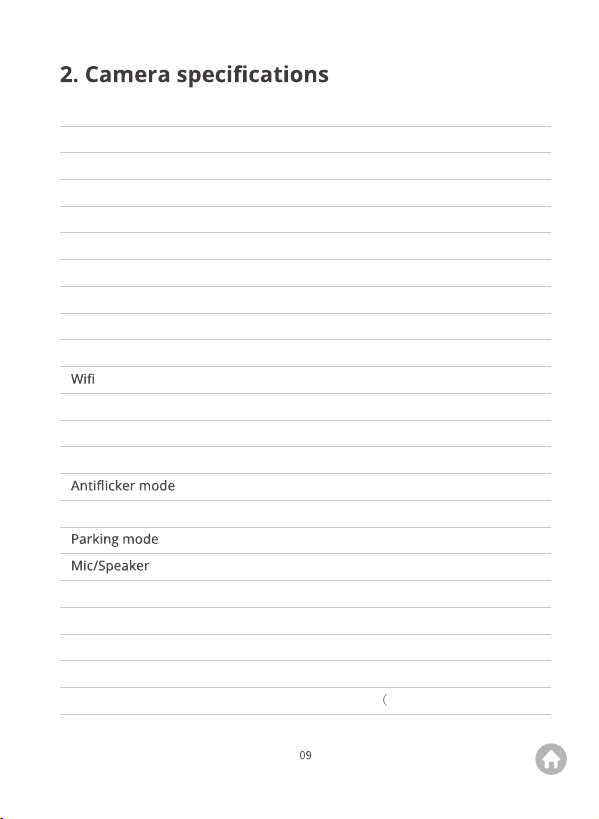
Parameters
Model
Sensor
LCD touch screen
Video resolution
Photo resolution
Lens aperture
GPS
Key*6
Video format
Memory card
G-sensor
Loop recording
USB Type-C Function
Auto Power ON/OFF
Power Interface
Battery
Operation Temperature
Descriptions
D4 Pro
Sony IMX335
2.86-inch LCD
4K+2K, 2K+2K
8M
F/1.8
External GPS module
1*Power Key 1*Reset Key 4*Function Key
Built-in
MP4
Class 10 U3 or higher, capacity up to 256GB
Built-in 3-axis gyroscope
60Hz, 50Hz
Seamless loop recording
Support
Built-in Microphone & Speaker
1. Storage 2. Charging 3. Webcam
Support
5V/2A
Built-in 400mAh li-ion battery
-4°F (-20°C) - 149°F 65°C)
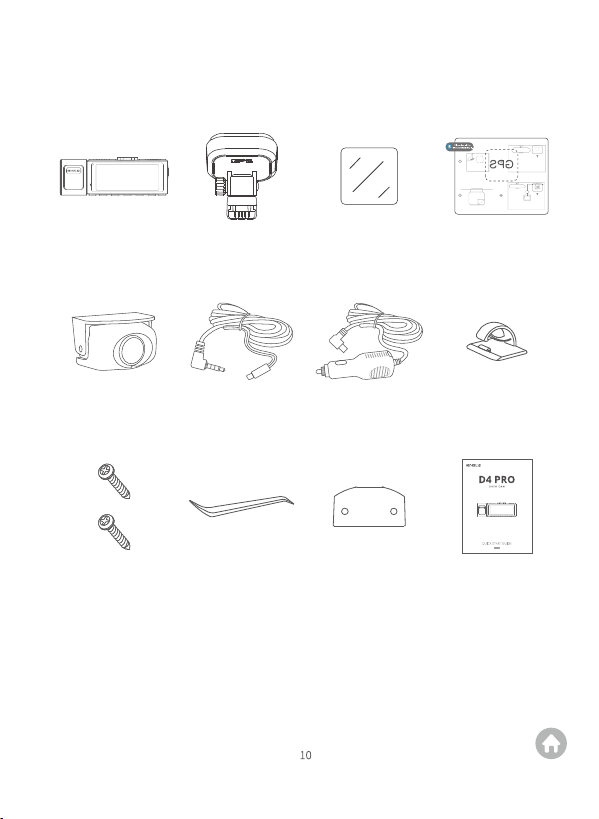
3. What's in the Box
D4 Pro Dash Cam
× 1
Rear Camera
× 1
Bracket
× 1
7m Rear Camera
Extension Cable × 1
Electrostatic Sticker
× 2
Car Charger with
Power Cable × 1
Cable Clip
× 5
3M Adhesive Tape for
Dash Cam × 2
Screw
× 2
Pry Tool
× 1
Quick Start Guide
× 1
3M Adhesive Tape for
Rear Camera ×4
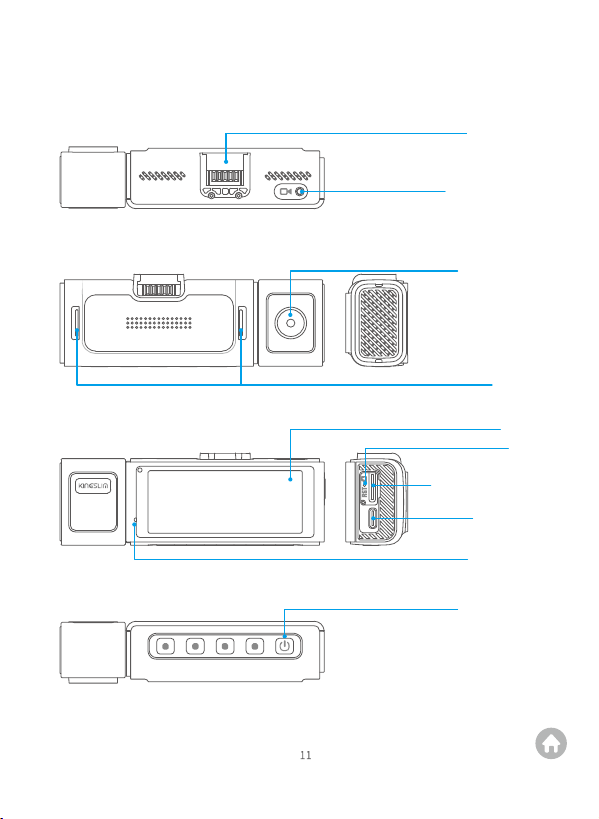
4. Camera Overview
Bracket Slot
Rear Camera IN
Front Camera
Speaker
Memory Card Slot
USB Type-C
Power Port
Power Button
Microphone
Screen
Reset
5. Getting Started
5.1 Memory card use
To record videos, you need a compatible memory card (sold separately). We
recommend you use a Samsung/Sandisk/Kingston Class 10 U3 or high memory
card for your D4 Pro dash cam. This dash cam supports a memory card of up to
256GB.
1) To make your memory card more compatible with the dash cam, please format
2) Do not remove or insert the memory card when the dash cam is turned on as
this may cause damage to your card.
3) You need to complete the formatting process each time you insert the memory
card.
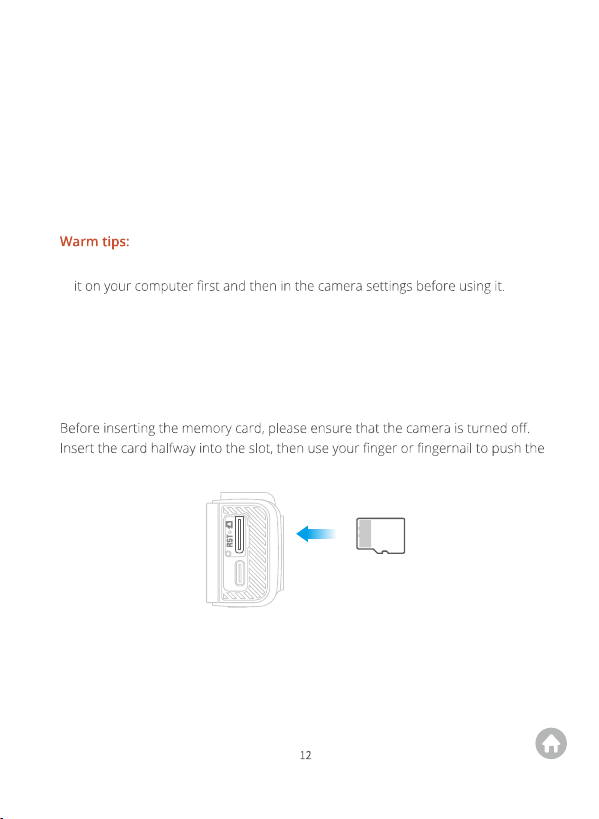
(1) Insert the memory card
card all the way in until you hear a click indicating that it has locked into place.
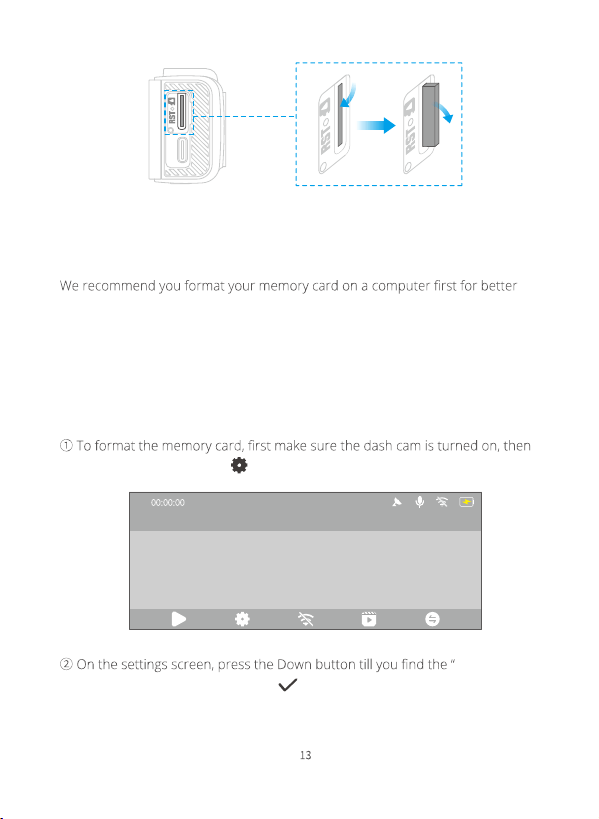
(2) Remove the memory card
If you want to remove the memory card, gently push its edge inward until it clicks,
then pops out, and then simply pull it out of the slot.
(3) Format the memory card
Format the memory card on the computer
compatibility. The following instructions are for your reference only.
Format the memory card in the camera
Before recording videos, please format the memory card in the camera by accessing
the Setup screen. In case you have not yet done so, an error message will appear
prompting you to insert the memory card. Please follow the instructions below to
format the memory card.
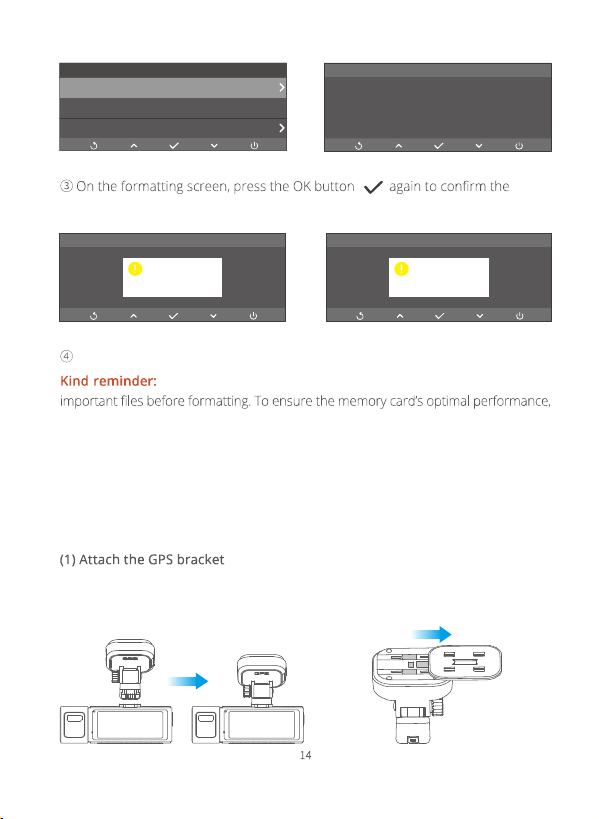
press the Settings button to access the system settings screen.
Format SD”
option, then press the OK button to enter the formatting screen.
2023-11-11 00:00
4K
5.2 Install the Dash Cam on the Windshield
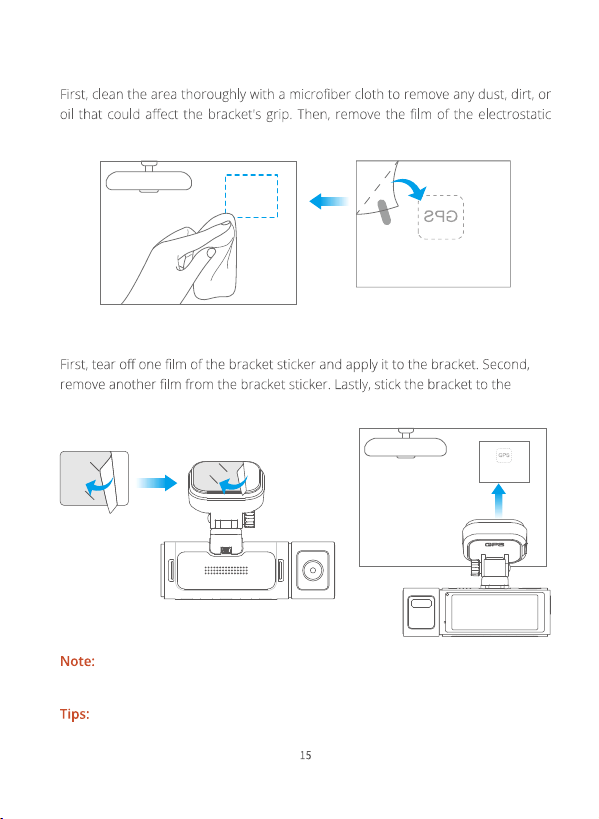
First, attach the bracket onto the dash cam by aligning the notches. Second, attach
the GPS buckle onto the bracket by aligning the notches till the buckle is inserted in
place.
formatting process.
The system will then exit automatically.
All data will be deleted after formatting. Be sure to back up your
we recommend formatting it every two months. Keep in mind that memory cards
have a limited lifespan, and frequent reading, writing, and erasing can shorten their
lifespan. If you’re prompted about frequent card errors or glitches, please replace
it with a new one.
Format the memory card now?
prompt
Format SD
OnGPS
GPS Info
Settings
prompt
Formatting...
prompt
Format complete
(2) Prepare the area
sticker and apply the electrostatic sticker to the windshield.
(3) Place the dash cam
selected area on the windshield.
Please make sure there is no air between the electrostatic sticker and the
windshield, which is the key point to make the installation more stable.
1) If you want to remove the dash cam, be sure to remove the electrostatic sticker.
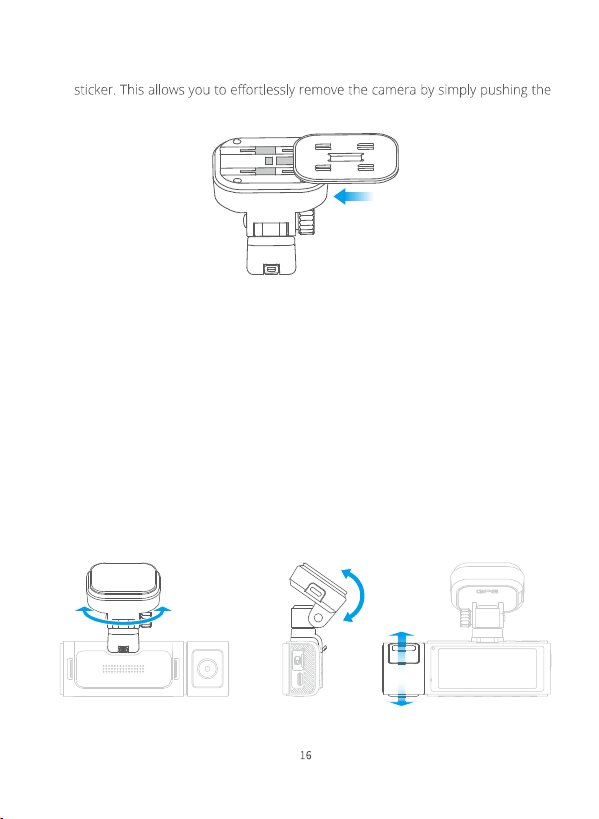
2) You can install the dash cam on the windshield without using the electrostatic
GPS buckle towards left.
3) If you prefer not to use the electrostatic sticker, it is important to clean and dry
the installation area thoroughly before attaching the dash cam directly to the
windshield using the bracket sticker.
4) The electrostatic sticker's adhesive properties may diminish over time or when
exposed to rain or direct sunlight. Please do not hesitate to contact customer
service for some free stickers.
(4) Adjust the viewing angle
The bracket supports a horizontal rotation of up to 60° and a vertical rotation of
up to 90°. Moreover, the front camera lens can be rotated up to 220°. So feel free
to adjust the bracket and the front camera lens as desired after installing the dash
cam on the windshield.
Supports up to 60°
horizontal rotation
Up to 90° vertical
rotation
Supports up to
220° rotation
5.3 Charge
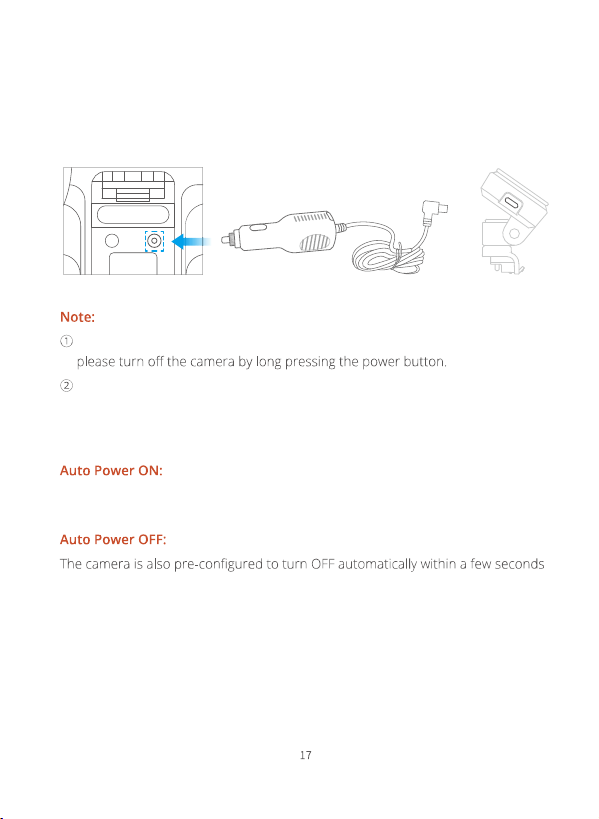
(1) How to charge
To charge your dash cam, please connect the car charger to the dash cam’s USB
power port, then insert the charger into the car’s cigarette lighter socket.
(2) Turn your camera ON/OFF
KINGSLIM D4 Pro dash cam is designed to turn ON automatically when it receives
power, i.e. when the car engine is started.
when the power gets disconnected, i.e. when the car key is turned to the LOCK
position.
Please charge the dash cam for 30 minutes before using it. When charging,
Kindly refrain from connecting the camera to your PC for charging purposes.
Please utilize the 110V wall outlet instead.
Car cigarette lighter socket Car power charge
D4 Pro Dash Cam
5.4 Install the Rear Camera
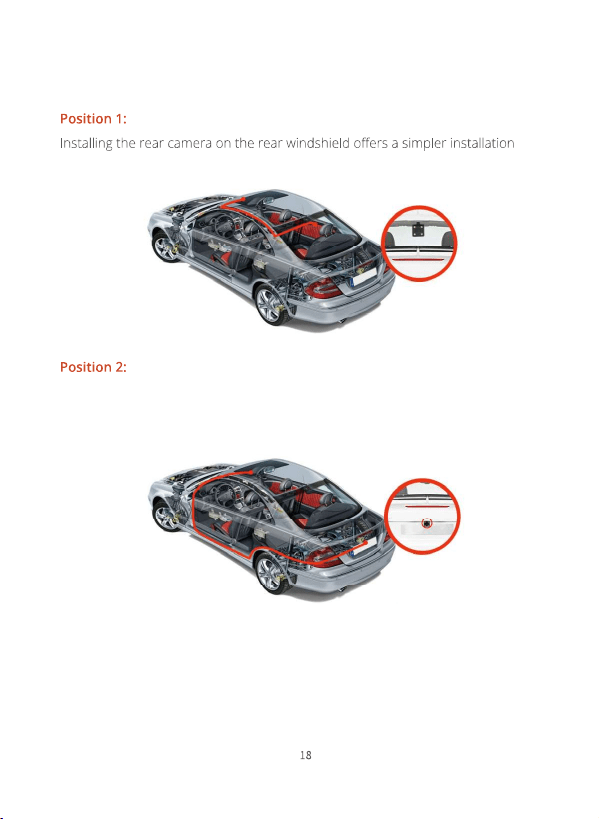
There are two recommended installation positions for the rear camera.
process. For this method, please follow these steps to route the power cables:
It is advised to install the rear camera near the license plate. This placement ensures
a clear and sharp image for both rear viewing and reversing guidance. For this method,
please follow these steps to route the power cables:
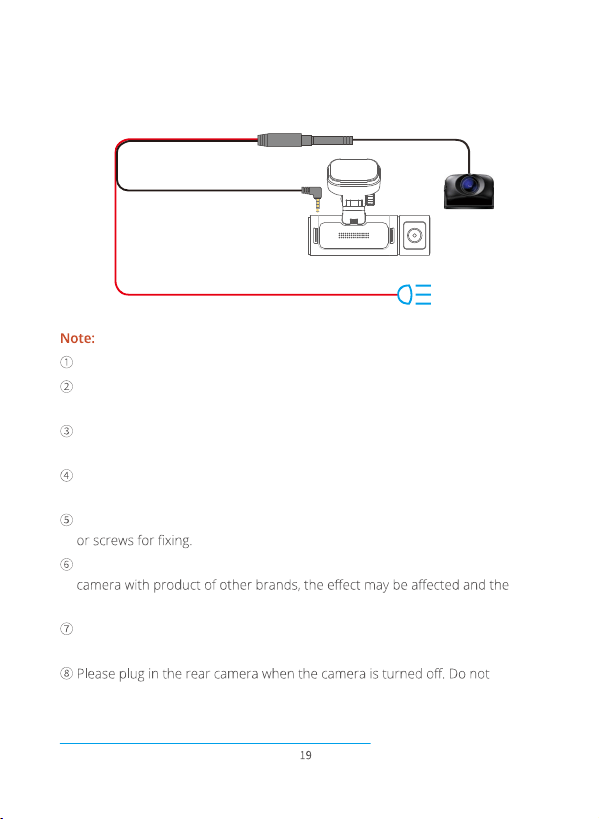
To enable the reversing function, please install the rear camera near the license
plate and connect the red wire of the rear camera extension cable to the positive
lead of the vehicle's reversing lamp.
The rear camera is not waterproof. Please protect it from water and rain.
When connecting the rear camera with the extension cable, please refer to the
details below.
Please clean the area to ensure the adhesive quality before installing the rear
camera.
Please clean the rear windshield regularly to ensure the image quality if you
choose to install the rear camera on the rear windshield.
If you choose to install it near the license plate, you can use adhesive stickers
Please use the original extension cable and rear camera. If you replace the rear
machine may be damaged.
Check the interface, the connecting wire and the rear camera interface, and
make sure they are plugged in tightly.
frequently hot-plug the interface in case any damage is caused to the camera.
For more details, please visit the link attached to watch the installation video:
https://www.youtube.com/watch?v=CZYaV5Dh4ok.
Reversing light
Reversing light positive pole
Rear camera connector
Rear camera

To activate parking mode, it is necessary to leave the dash cam plugged in.
However, this can result in battery drain. For this reason, we highly recommend
installing a hardwire kit for your dash cam.
Installing the hardwire kit not only helps prevent the camera battery from draining
the car battery thanks to its smart low voltage protection system but also provides
a continuous and stable power supply.
For your safety, we strongly advise that you have a professional installer handle
the hardwire kit installation.
6. Introduction of Important Feature
Kingslim is dedicated to continuously improving their products based on customer
feedback. Quite a few customer customers expressed their desire for a dash cam
that can record the interior of the car during both driving and parking. Unfortunately,
only a few front and rear cameras available in the market support emergency interior
recording.
1)
the front camera to rotate up to 220°, allowing it to temporarily function as a cabin
camera.
2) To activate this feature, simply press the designated button during recording.
The camera rotation feature is designed to be used under emergencies only! Using
this feature at night is likely to have a negative impact on the recording as no IRCUT
7. Starting Recording
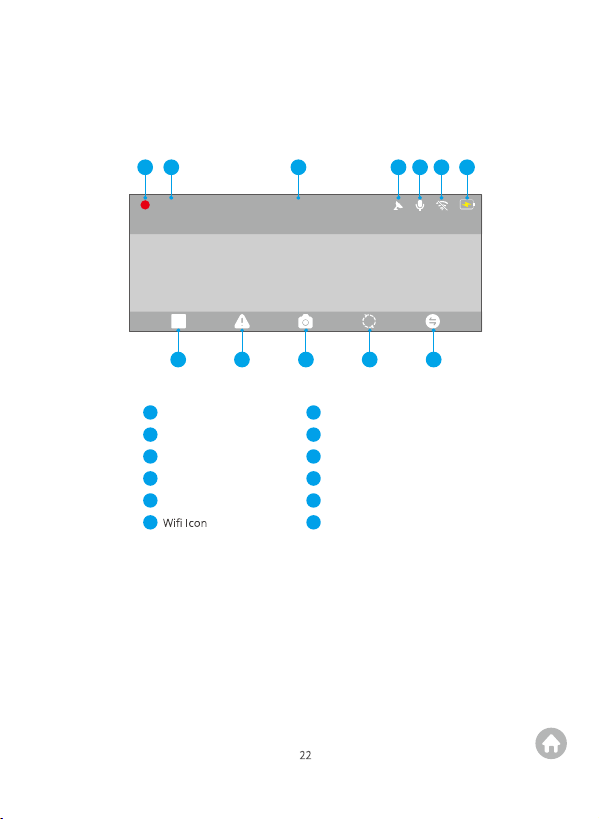
7.1 Recording Screen
00:00:00
4K
2023-11-11 00:00
21
8 9 10 11 12
3 4 5 6 7
1
2
3
4
5
6
Recording Indicator
Recording Time
Date& Time
GPS Icon
Audio Recording
7
8
9
10
11
12
Power Status
Stop Recording
Emergency Recording
Snapshot
Switch between front and inside views
Switch display modes
00:00:00
4K
2023-11-11 00:00
00:00:00
4K
2023-11-11 00:00
7.2 Gestures
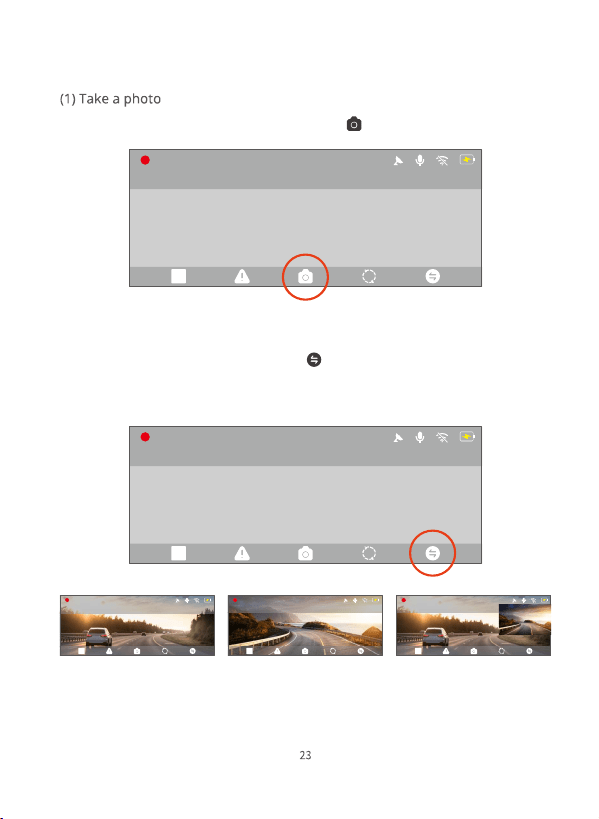
During video recording, press the Photo button to snap a photo.
00:00:03
4K+2K
2023-11-11 00:00 00:00:06
4K+2K
2023-11-11 00:00 00:00:00
4K+2K
2023-11-11 00:00
Display of the front Display of the rear Picture-in-picture
(2) Switch display modes.
During video recording, press the button to seamlessly transition between the
full-screen view of either the front or rear camera, and the picture-in-picture
display showing both cameras simultaneously.
00:00:03
4K+2K
2023-11-11 00:00
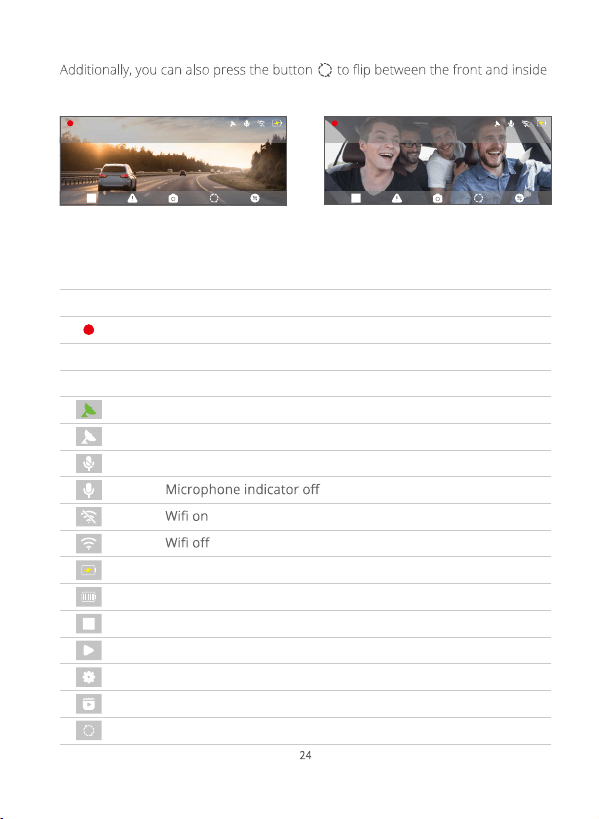
views of the front camera during video recording
00:00:00
4K+2K
2023-11-11 00:00
Front View Inside View
7.3 Status Icons
Icons Descriptions
Recording on
Recording time
Date & Time
GPS located successfully
Signals searching
Microphone indicator on
Charging
Fully charged
Stop recording
Start recording
Settings
Album
Flip between front and inside views
Interface
Recording
Recording
Preview
Recording
Recording
Preview
Preview
Preview
Preview
Preview
Preview
Recording
Preview
Preview
Preview
Recording
00:00:03
2023-11-11 00:00
7.5 Time Zone Setting
Under this setting, you can manually choose the time zone. The device will then
display the date and time of the selected time zone. (Default Setting: UTC/GMT-OFF)
For more details, go to https://greenwichmeantime.com/time-zone/usa/
out your correct GMT (Greenwich Mean Time) value based on your location in
USA.
7.4 LED Indicators
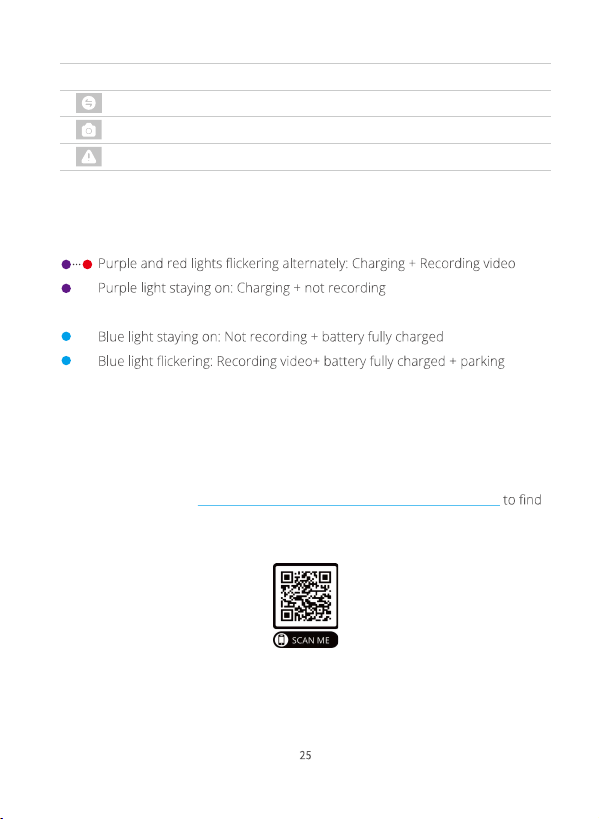
Charging indicator:
Working indicator:
monitor activated
Icons Descriptions
Switch display modes
Snapshot
Emergency recording
Interface
Recording
Recording
Recording
Front_norm Front_emr
Album
Front_photo
Front_norm
06-26 15:21 06-26 12:20 06-24 11:37
1/16
8. Playback
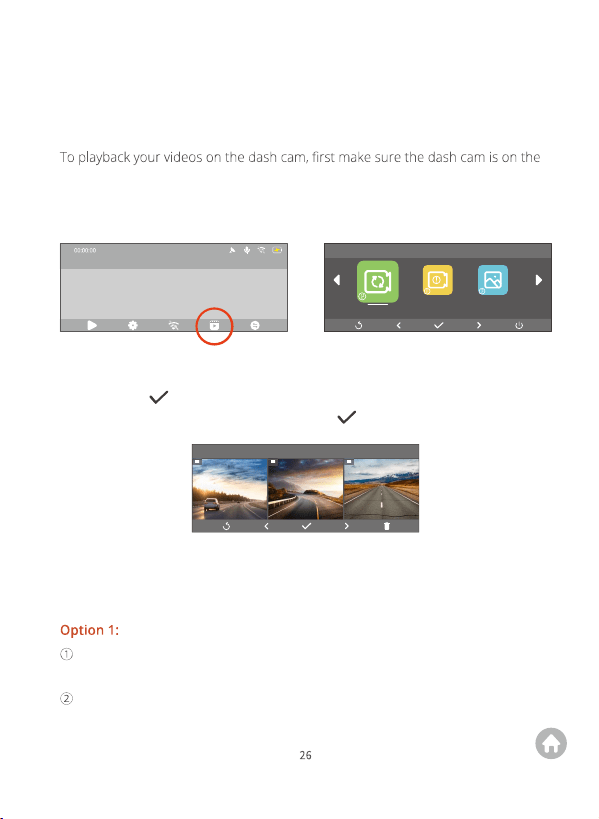
8.1 Playback on the Dash Cam
preview interface, then press the button under the Album icon to access the
playback screen. From there, you can choose to playback normal and emergency
videos recorded by the front or rear cameras respectively.
8.2 Playback on A PC/MAC
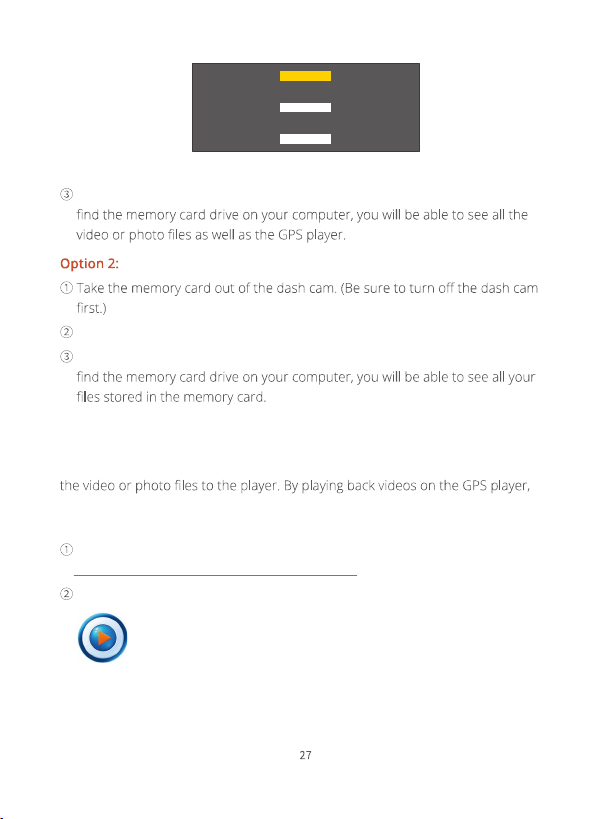
(1)Transfer data
Transfer data using a USB cable.
First connect the USB cable to the dash cam’s USB Type-C power port, then
plug the camera into your computer's USB port.
Choose to connect as “USB Storage”.
For instance, if you want to watch a video recorded by the front camera, just press
the OK button to access the video folder of the front camera, then choose the
video you want to playback, and press the OK button, the video will play.
2023-11-11 00:00
4K
USB Storage
Charge
USB camera
Your computer will recognize the memory card. Please follow the prompts to
Transfer data using a card reader.
Insert it into a card reader, then insert the reader into your computer's USB port.
Your computer will recognize the memory card. Please follow the prompts to
(2) Playback Videos
To playback videos, please download and install the GPS player, then drag any of
you can check the GPS information including speed, longitude, latitude, and
driving route.
You can also visit this link to download the GPS player to a computer:
https://kingslim.net/pages/app-gps-download.
Now the player is downloaded to the computer.
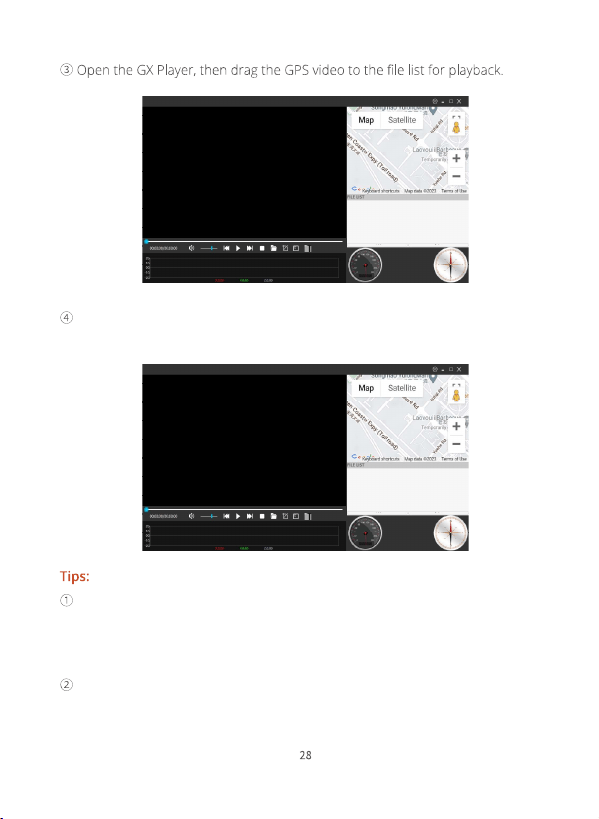
During playback, you can check the driving route on Google Map, and check
speed, longitude, and latitude at the bottom.
The Google map helps you track the driving route, and it displays the default
address. If the address remains the same when the video plays, it indicates that
the dash cam records the video without the GPS information because the GPS
did not work when you were driving.
The GPS player won't work on any computers running on the Linux system.
GPS data won't show if you playback the video on your own player.

You can also playback videos on the Kingslim APP after connecting your dash cam
to the app. For more details, please refer to About the Kingslim APP Playback
videos on the Kingslim APP.
You can also playback videos on your phone’s photo album after downloading
About the Kingslim
APP Download videos from the Kingslim APP.
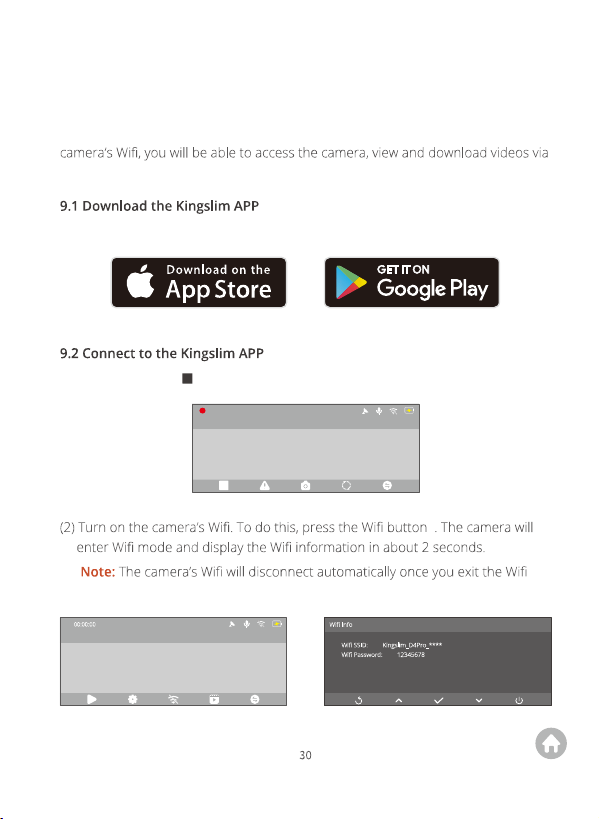
Waiting for the App Connection.....
Once you have successfully connected your dash cam to the Kingslim APP via the
the app. You can also control the camera to capture or change the camera.
Download the Kingslim APP from the App Store or Google Play.
9. About the Kingslim APP
(
screen.)
(1) Press the button to stop recording on the dash cam.
00:00:00
4K
2023-11-11 00:00
2023-11-11 00:00
4K
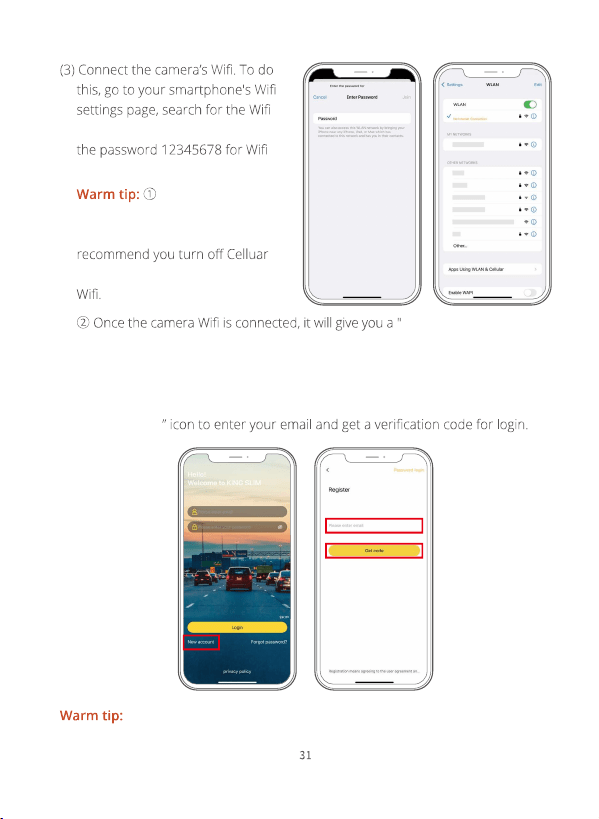
SSID, and then tap on it to enter
connection.
The screenshots
below are for your reference only.
If you’re using an iPhone, we
before connecting the camera’s
Kingslim_D4Pro-
****
“Kingslim_D4Pro-
****
”
No Internet Connection"
or “Weak Security” notice since the 4G signal of your phone is blocked, but you
can ignore it and continue the app connection.
(4) Access the Kingslim APP. To do this, open the Kingslim APP, then tap on the
“New Account
You can tap “Skip” to directly enter the app without bothering to create
an account for login.
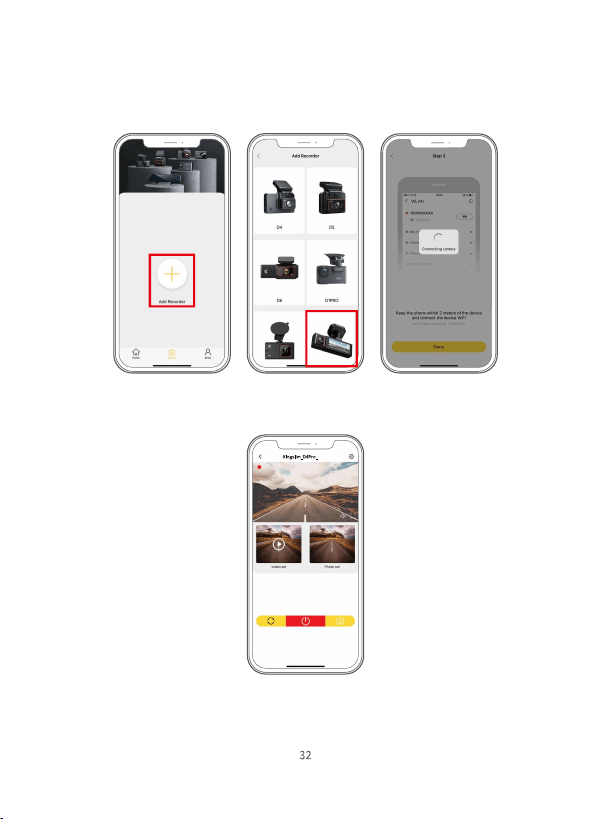
(5) Connect to the Kingslim APP. To do this, tap "Add Recorder" to add your Camera
model, then wait for a few seconds till the app loads past the Connecting screen
to enter the Preview interface.
(6) Now your dash cam is successfully connected to the Kingslim APP.
****
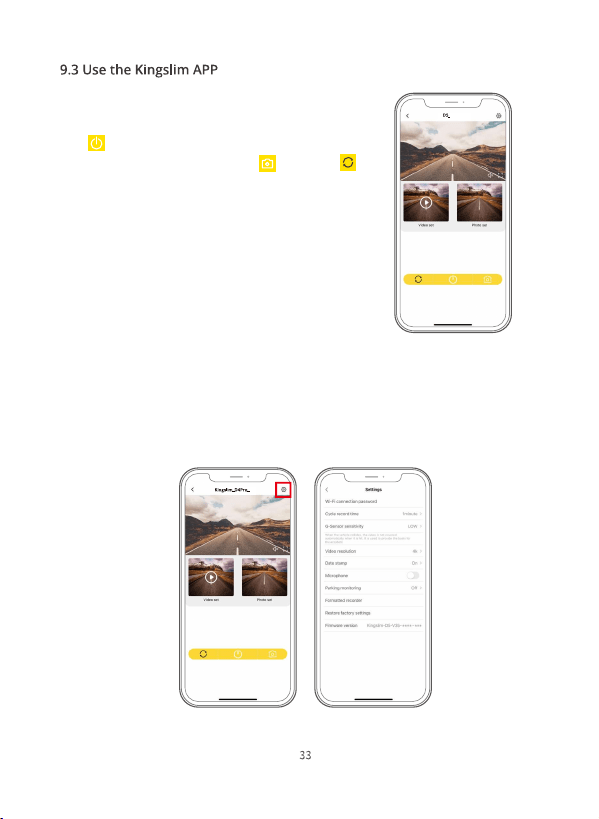
(1) Control your camera using the APP.
On the Preview interface, you can tap the Power
icon to start or stop recording. To take a
photo, simply tap the photo icon . The icon
is used to switch display modes. But kindly note
that this camera records front video only, so there
is no way to switch display modes.
******
(2) Change the camera settings on the APP.
To change the camera settings on the Kingslim APP, please tap the Settings icon in
the upper right corner to enter the settings screen. By using the phone app, you
can change the loop recording time, change the settings of G-Sensor, or Parking
mode, and more.
****
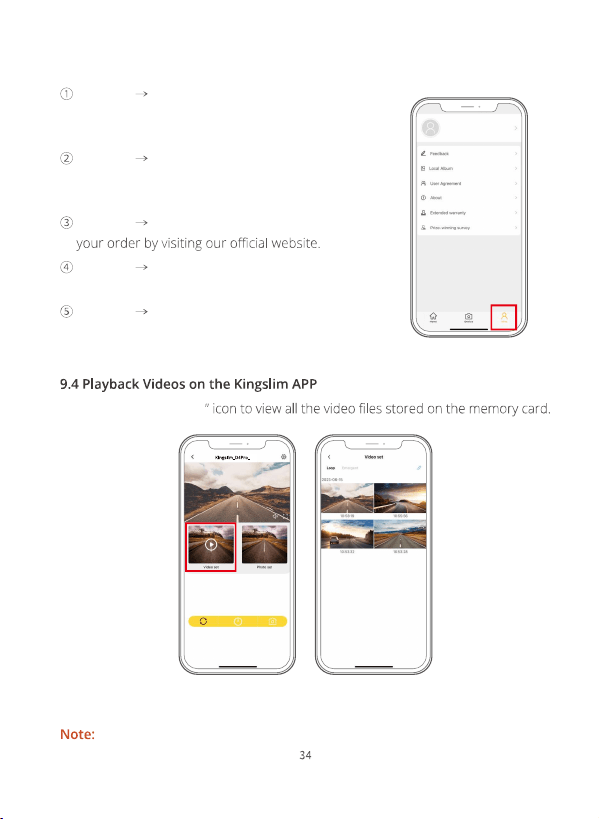
(1) Tap on the “Video set
(2) Tap on the video you want to watch for playback.
The Kingslim APP works with KINGSLIM dash cams only.
(3) Get the most out of the APP
Tap Mine Feedback to send your feedback to our
technical team. Your feedback will be properly taken
care of by our tech department within 48 hours.
Tap Mine About to learn about the app version,
and access more useful instruction videos by visiting
Youtube.com, and Facebook.com.
Tap Mine Extend Warranty to extend warranty for
Tap Mine Prize-Winning Survey to win a gift after
completing a small survey.
Tap Mine Local Album to access videos saved to
your phone’s album.
****
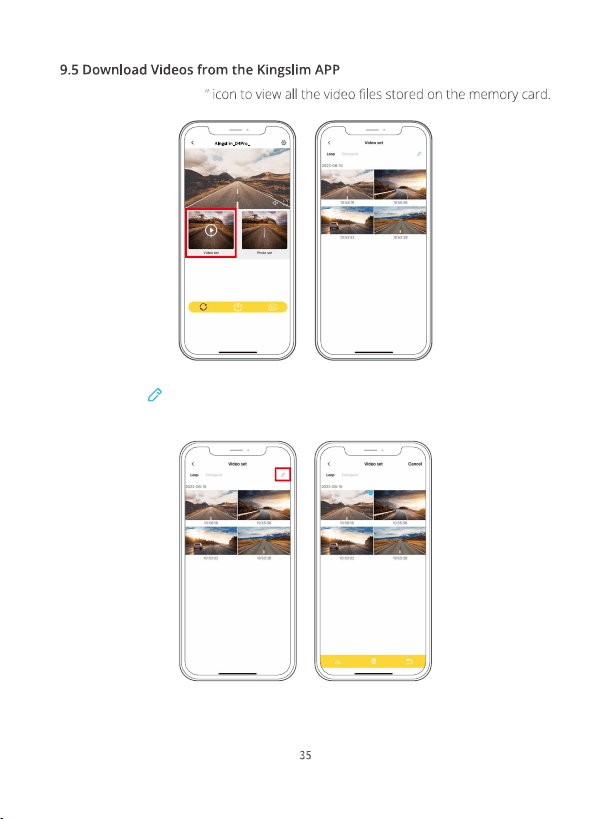
(1) Tap on the “Video set
****
(2) Tap on the icon in the upper right corner, and select the video you want to
download.
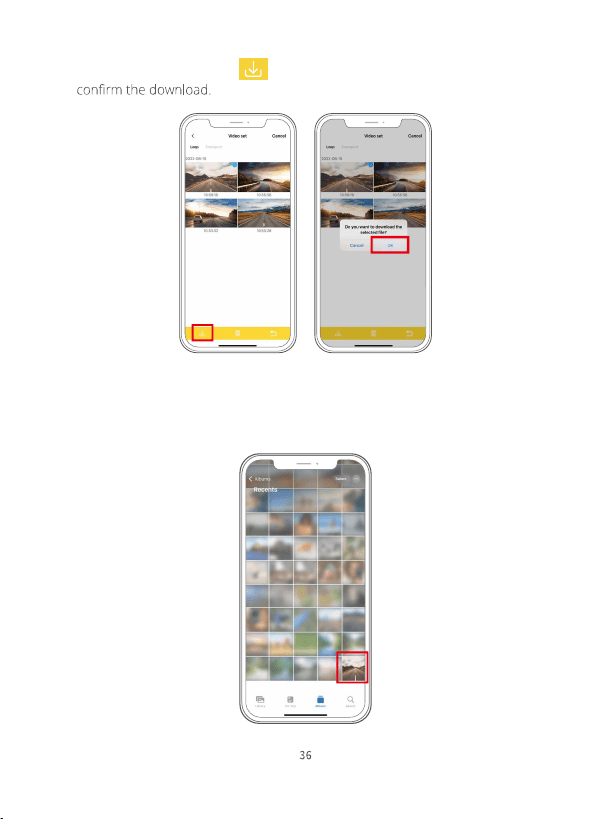
(3) Tap on the Download icon in the bottom left corner, then tap “OK” to
(4) Wait for the completion of the download progress, the video will be saved to
your phone's album. You can tap on it for playback or forward it to social media.
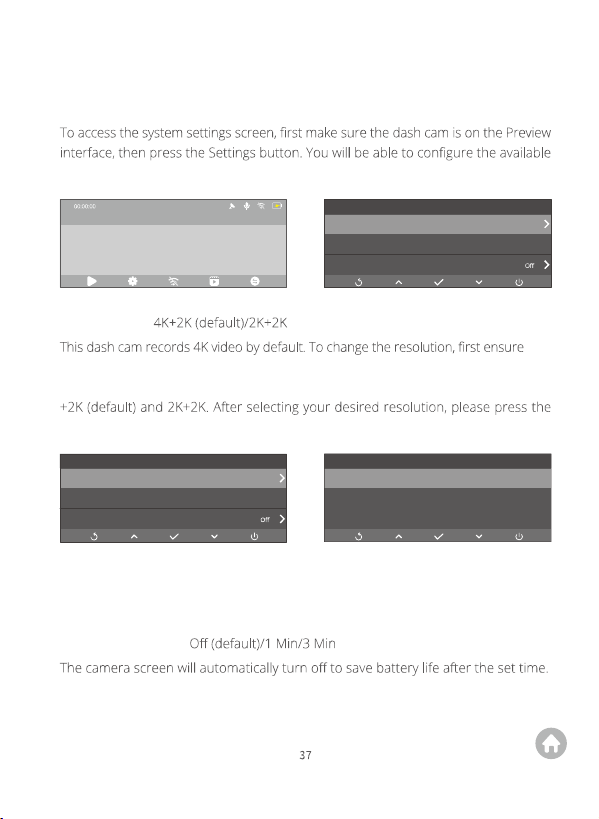
10. System Settings
settings by using the Down button.
Settings
Resolution
mph
4K+2K
Speed Unit
Screen Dormant
Settings
Resolution
mph
4K+2K
Speed Unit
Screen Dormant
4K+2K *
2K +2K
Resolution
(1) Resolution:
that
the dash cam is on the preview screen. Second, press the OK button to access the
resolution settings screen. From there, press the Down button to choose from 4K
OK button to save your changes. The system will exit the menu automatically.
(2) Speed Unit: KM/H (default)/mph
You can choose your desired speed unit.
(3) Screen Dormant:
To turn on the display again, simply press any button.
2023-11-11 00:00
4K
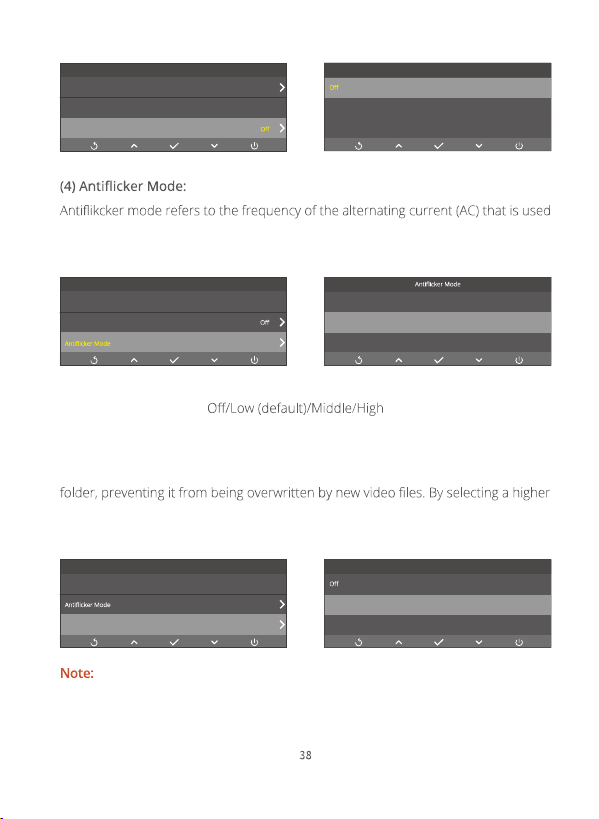
60Hz (default)/50Hz
in most electrical power systems around the world. We recommend you keep the
default setting.
(5) Collision Sensitivity:
When Collision Sensitivity is enabled during video recording, your dash cam will
automatically start recording an emergency video and save the content if it detects
sudden braking or an impact. The video will be locked in the front or rear emergency
sensitivity level, your dash cam will be more likely to detect smaller impacts and
trigger emergency recording.
The video length varies depending on the option you select for Loop Recording.
Settings
Resolution
mph
4K+2K
Speed Unit
Screen Dormant
*
1 Min
3 Min
Screen Dormant
Settings
Speed Unit
60Hz
mph
Screen Dormant
50Hz
*60Hz
Settings
Screen Dormant
60Hz
Low
mph
Collision sensitivity
Middle
*Low
Collision Sensitivity
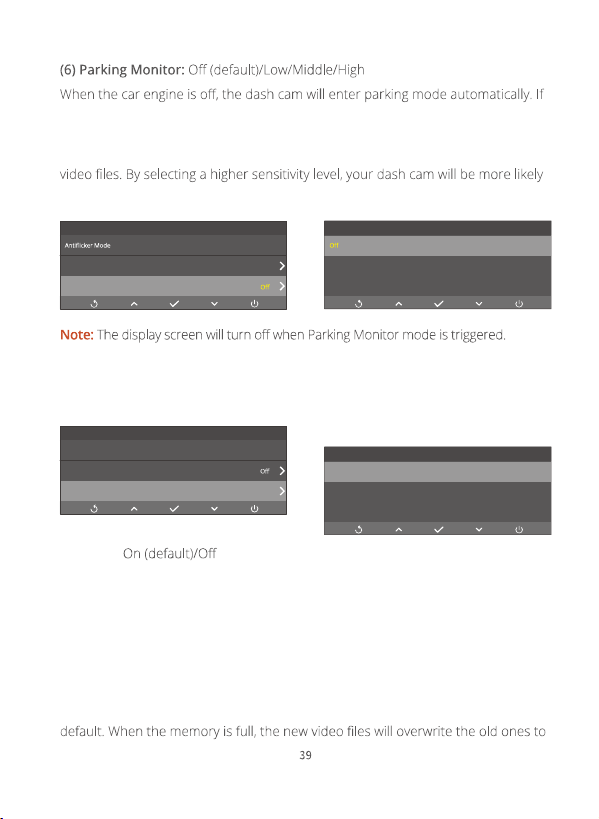
an impact or sudden braking is detected during parking, the dash cam will automatically
start recording a 15-second video and save the content. The video will be locked in
the front or rear emergency folder, preventing it from being overwritten by new
to detect smaller impacts and trigger emergency recording.
(7) Date Format: YY-MM-DD (default)/DD-MM-YY/MM-DD-YY
You’re free to select a desired date format from the available options.
(8) Audio:
You can choose to record video with or without audio.
(9) Volume: Mute/Low/Middle (default)/High
You can adjust the camera’s volume to an acceptable level.
(10) Loop Recording: 1Min (default)/2Min/3min
The camera is designed to record video and save the content every minute by
Settings
Low
60Hz
Collision sensitivity
Parking Monitor
Settings
Collision sensitivity
YY-MM-DD
Low
Parking Monitor
Date Format
Middle
*
Low
Parking Monitor
YY-MM-DD
MM-DD-YY
*
DD-MM-YY
Date Format
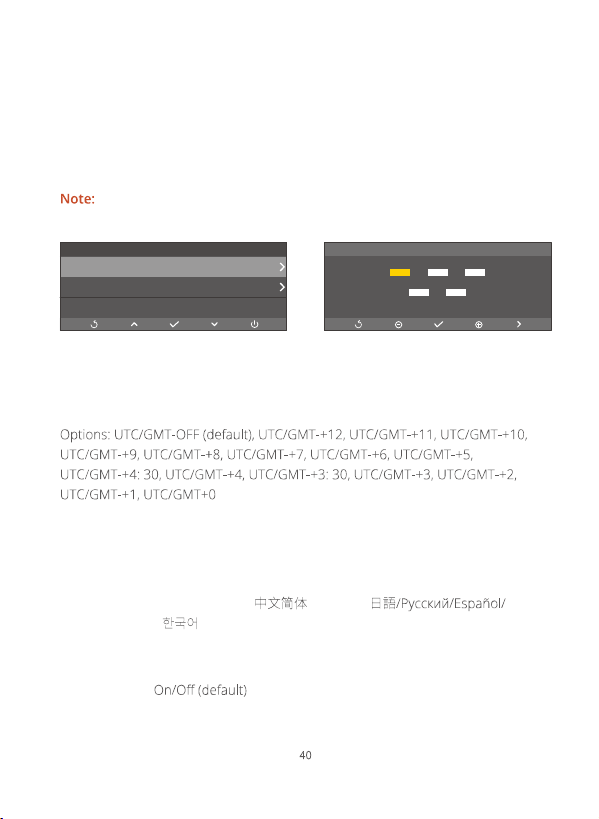
ensure continuous recording. To change the video length, simply access the loop
recording settings screen to select your desired loop recording time.
(11) Time Setting
Please manually set the camera’s date and time per your time zone. The dash cam
will then display the correct date and time.
To stamp the date and time when the accident happened, it’s of great
importance to set the correct date and time of your dash cam before using it.
(12) Time Zone Setting
You can choose the time zone manually. The dash cam will then display the time
of the selected time zone.
(13) Time Format: 12H/24H (default)
You have the option to set the camera’s time system to either 12 hours or 24 hours.
(14) Language: English (default)/ / Français/ -
Deutsch/Italiano/
You can set the system language for your dash cam.
(15) Voice Ctrl:
Voice Ctrl (Voice Control) enables you to conveniently control your dash cam
through supported voice commands, allowing for hands-free capture. The camera
Settings
Timesetting
UTC/GMT-OFF
24H
TimeZone Setting
Timeformat
Time setting
2023 / 06 / 26
17 : 06
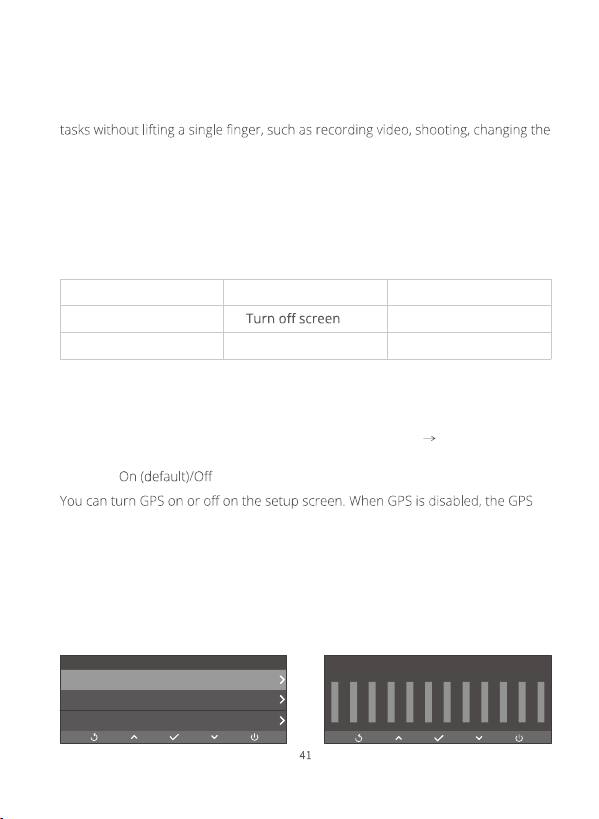
will then respond to the given voice commands, executing various functions. With
this intelligent feature, you can focus on driving and mind road conditions ahead,
thus ensuring better safety. What’s more, this feature allows you to do simple
camera’s settings, and more. You can get more convenient user experience by
using this feature.
(16) Voice Commands
You can utter any of the supported voice commands to control your dash cam.
For more details about these voice commands, please consult the sheet below.
Take photo
Turn on screen
Show rear camera
Turn on audio
Show both cameras
Turn on audio
Show front camera
Lock the video
(17) Format SD: Yes/No
This option allows you to format the memory card. For more details about formatting
the memory card, please consult the section Getting Started Memory card use.
(18) GPS:
icon will not show on the camera screen.
(19) GPS Info
To check if the GPS is working well, you can refer to the GPS information displayed
on the screen below. The signals your dash cam is receiving is indicated by the
number of the bars, with larger numbers indicating a stronger signal.
Settings
GPS Info
Reset System
About
Number:
Longitude:
00
00
Speed:
Latitude:
00mph
00
00 00 00 00 00 00 00 00 00 00 00 00
0 0 0 0 0 0 0 0 0 0 0 0
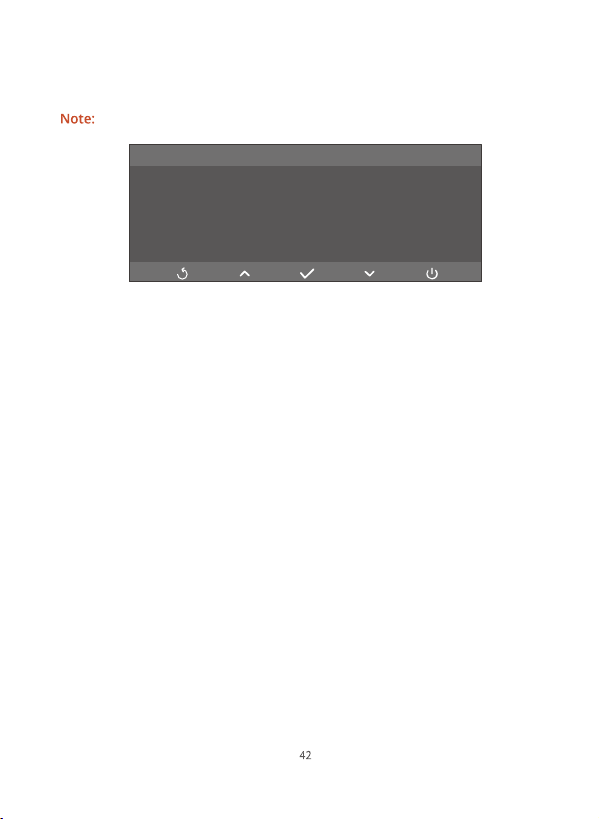
(20) Reset System: Yes/No
This option will restore all the settings to default values.
This option will also reboot your dash cam.
Reset factory at once?
prompt
(21) About
This option allows you to check this dash cam’s model and version.
11. General FAQs
For any product issues, please feel free to contact us anytime for technical support.
1. What to do if the dash cam does not turn on anymore?
Check if the indicator light on the car charger turns on when your dash cam is plugged in.
If it does not turn on, plug the dash cam into another cigarette lighter or USB port for about one
If your issue remains, kindly contact customer service for further help.
Remove the memory card and plug in your dash cam with a USB cable to see if turns on automatically.
turn it on manually to see check if it works properly.
If your issue remains, restore your dash cam to the factory settings or contact customer service
for further help.
3. What to do if the dash cam does not take charge anymore?
Make sure you plug in your dash cam with the original car charger.
Plug in your dash cam with a USB charging cable to check if it takes charge properly.
If the camera still does not take charge with the USB cable, kindly contact customer service for
further help.
Make sure you have installed the up-to-date Kingslim APP on your phone.
If your issue remains, kindly contact customer service for further help.
Warm tip:
list, kindly contact customer service for further help.
6. What to do if the dash cam displays “Slow Card” or “Please Insert Card”?
Use the correct memory card according to the user manual, such as a U3 memory card or
higher.
If your issue remains, kindly contact customer service for further help.
7. What to do if the dash cam stops recording?
Ensure that the memory card has enough available storage and is not full. We recommend
customers format the card every two months for better performance. You can also replace it
with a new one after using it for a long period of time.
Check the power supply and connections to ensure that the dash cam is receiving constant power.
Keep the dash cam out of direct sunlight and extreme temperatures.
Make sure you enabled Loop recording. Otherwise, the dash cam will stop recording when the
card is full.
If your issue remains, kindly contact customer service for further help.
8. What to do if the rear camera does not show up on the screen?
Make sure the rear camera is connected to the rear camera extension cable properly before
plugging it into the dash cam.
Reconnect the rear camera to the extension cable a couple of times to make sure it's
connected tightly.
Make sure the dash cam is plugged into the car charger properly.
If your issue remains, kindly contact customer service for further help.

For any inquiries about KINGSLIM products, please feel free to contact us.
We will respond within 24 hours.
12. Contact Us

Thank you for purchasing our new KINGSLIM D4 Pro dash cam.
We hope our product brings a new, safe and fun experience to you. If you are
In the unlikely event that we can’t help, we’re always happy to provide a full, and
hassle-free refund under the warranty. We sincerely hope our customers are
happy and proud to use KINGSLIM dash camera! There is no perfect product,
however, we will do our best. For more details, please contact us by email.
A BIG THANK YOU