AI Auto Tracking PTZ Camera
TR311V2 / TR313V2
User Manual
Federal Communications Commission Statement
NOTE: This equipment has been tested and found to comply with the limits for a Class A digital
device, pursuant to part 15 of the FCC Rules. These limits are designed to provide reasonable
protection against harmful interference when the equipment is operated in a commercial
environment. This equipment generates, uses, and can radiate radiofrequency energy and, if not
installed and used in accordance with the instruction manual, may cause harmful interference to
radio communications. Operation of this equipment in a residential area is likely to cause harmful
interference in which case the user will be required to correct the interference at his own expense.
FCC Caution: Any changes or modifications not expressly approved by the party responsible for
compliance could void the user's authority to operate this equipment.
This device complies with part 15 of the FCC Rules.
Operation is subject to the following two conditions:
(1) This device may not cause harmful interference, and
(2) this device must accept any interference received, including interference that may cause undesired
operation.
Warning - This is a class A product. In a domestic environment, this product may cause radio
interference in which case the user may be required to take adequate measures.
This Class A digital apparatus complies with Canadian ICES-003. Cet appareil numérique de la classe
A est conforme à la norme NMB-003 du Canada.
Caution
Risk of explosion if battery is replaced by an incorrect type.
Dispose of used batteries in a safe and proper manner.
Remote Control Battery Safety Information
- Store batteries in a cool and dry place.
- Do not throw away used batteries in the trash. Properly dispose of used batteries through
specially approved disposal methods.
- Remove the batteries if they are not in use for long periods of time. Battery leakage and
corrosion can damage the remote control. Dispose of batteries safely and through approved
disposal methods.
- Do not use old batteries with new batteries.
- Do not mix and use different types of batteries: alkaline, standard (carbon-zinc) or
rechargeable (nickel-cadmium).
- Do not dispose of batteries in a fire.
- Do not attempt to short-circuit the battery terminals.

DISCLAIMER
No warranty or representation, either expressed or implied, is made with respect to the contents
of this documentation, its quality, performance, merchantability, or fitness for a particular purpose.
Information presented in this documentation has been carefully checked for reliability; however,
no responsibility is assumed for inaccuracies. The information contained in this documentation is
subject to change without notice.
In no event will AVer Information Inc. be liable for direct, indirect, special, incidental, or
consequential damages arising out of the use or inability to use this product or documentation,
even if advised of the possibility of such damages.
TRADEMARKS
“AVer” is a trademark owned by AVer Information Inc. Other trademarks used herein for description
purpose only belong to each of their companies.
COPYRIGHT
© 2021 AVer Information Inc. All rights reserved.
All rights of this object belong to AVer Information Inc. Reproduced or transmitted in any form or
by any means without the prior written permission of AVer Information Inc. is prohibited. All
information or specifications are subject to change without prior notice.
NOTICE
SPECIFICATIONS ARE SUBJECT TO CHANGE WITHOUT PRIOR NOTICE. THE INFORMATION
CONTAINED HEREIN IS TO BE CONSIDERED FOR REFERENCE ONLY.
Contact Information
Global
AVer Information Inc.
https://www.aver.com
8F, No.157, Da-An Rd.
Tucheng Dist.,
New Taipei City 23673,
Taiwan
Tel: +886 (2) 2269 8535
USA
AVer Information Inc.
https://www.averusa.com
668 Mission Ct.,
Fremont, CA 94539, USA
Tel: +1 (408) 263 3828
Toll-free: +1 (877) 528 7824
Technical support:
support.usa@aver.com
European Headquarters
AVer Information Europe B.V.
https://www.avereurope.com
Westblaak 134, 3012 KM,
Rotterdam, The Netherlands
Tel: +31 (0) 10 7600 550
Technical support:
WARNING
◼ To reduce the risk of fire or electric shock, do not expose this appliance
to rain or moisture. Warranty will be void if any unauthorized
modifications are done to the product.
◼ Do not drop the camera or subject it to physical shock.
◼ Use the correct power supply voltage to avoid the damaging camera.
◼ Do not place the camera where the cord can be stepped on as this may
result in fraying or damage to the lead or the plug.
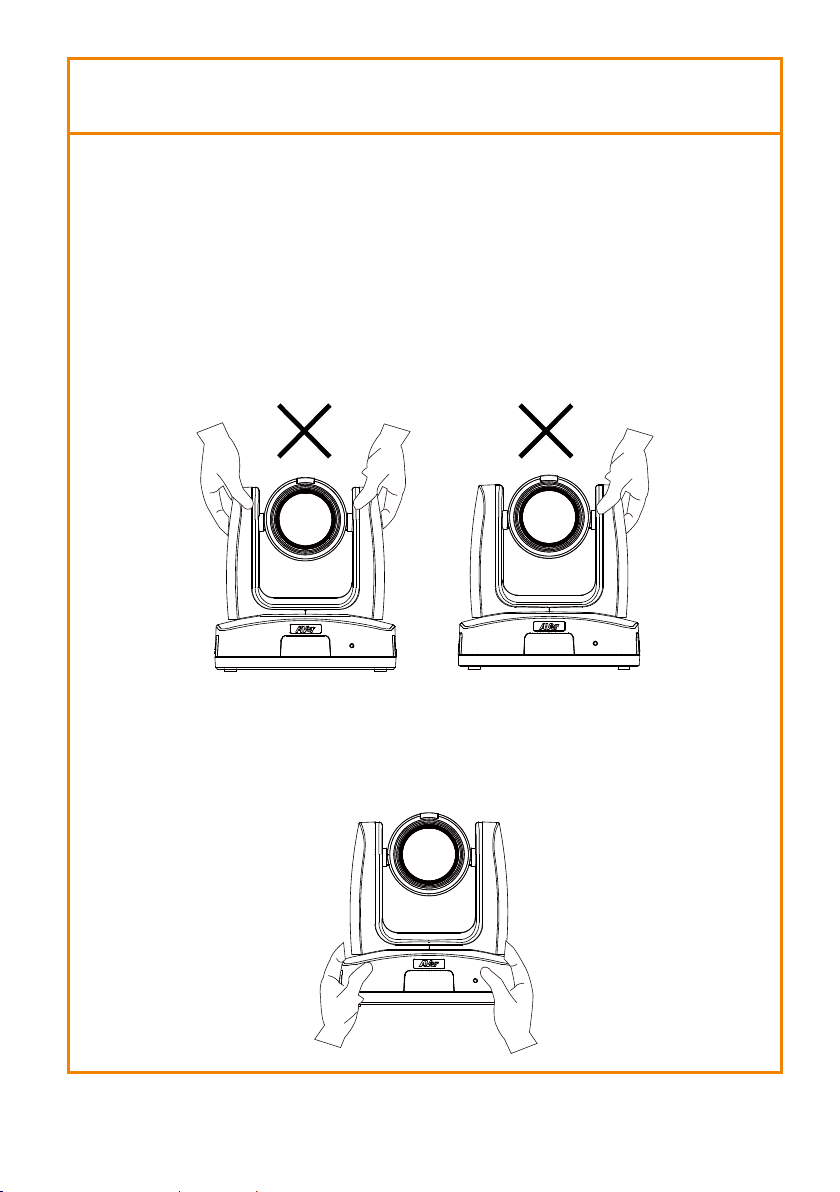
◼ Hold the bottom of the camera with both hands to move the camera. Do
not grab the lens or lens holder to move the camera.
OK
Contents
Package Contents .......................................................................................... 1
Package Contents ...................................................................................... 1
Optional Accessories .................................................................................. 1
Product Introduction ....................................................................................... 2
Overview .................................................................................................... 2
LED Indicator ............................................................................................. 2
Pan and Tilt Angle ...................................................................................... 3
Dimension .................................................................................................. 3
Device Connection ..................................................................................... 4
PoE Connection ......................................................................................... 4
RS232 and RS422 Connection .................................................................. 5
Audio Input Connection ............................................................................ 10
Video Output Connection ......................................................................... 11
Camera Installation .................................................................................. 14
Remote Control ........................................................................................ 15
Set Up the Camera ....................................................................................... 17
OSD Menu................................................................................................ 17
Set Up IP Address of the Camera ............................................................ 17
Static IP ............................................................................................... 17
DHCP .................................................................................................. 18
OSD Tree ................................................................................................. 19
Camera ............................................................................................... 19
Video Output ....................................................................................... 20
Network ............................................................................................... 20
Advanced Setting ................................................................................ 20
System ................................................................................................ 21
Web Setup ................................................................................................ 22
Using the AVer IPCam Utility to Find the Camera .................................... 22
Using AVer PTZ Management Software to Find the Camera .................. 23
Make a Connection to the Camera via Browser ................................. 24
Live View .................................................................................................. 26
Pan-Tilt-Zoom Control ......................................................................... 27
Focus .................................................................................................. 27
Manual Pan-Tilt-Zoom Speed Adjustment .......................................... 27
Preset Setting...................................................................................... 28
Tracking Control .................................................................................. 28
Camera Settings ...................................................................................... 30
Exposure ............................................................................................. 30
Image Process .................................................................................... 31
Video & Audio ........................................................................................... 32
Get 4K (2160p) Output ........................................................................ 33
Network .................................................................................................... 34
DHCP .................................................................................................. 34
RTMP Settings .................................................................................... 35
RTSP Security ..................................................................................... 35
SRT Settings ....................................................................................... 35
Tracking Settings ...................................................................................... 38
Presenter Mode .................................................................................. 38
Zone Mode .......................................................................................... 40
Hybrid Mode ........................................................................................ 43
System ..................................................................................................... 46
VISCA RS232 Command Table ............................................................... 47
Visca over IP Settings .............................................................................. 48
CGI Command ......................................................................................... 49
Specification ................................................................................................. 50
TR311V2 .................................................................................................. 50
TR313V2 .................................................................................................. 54
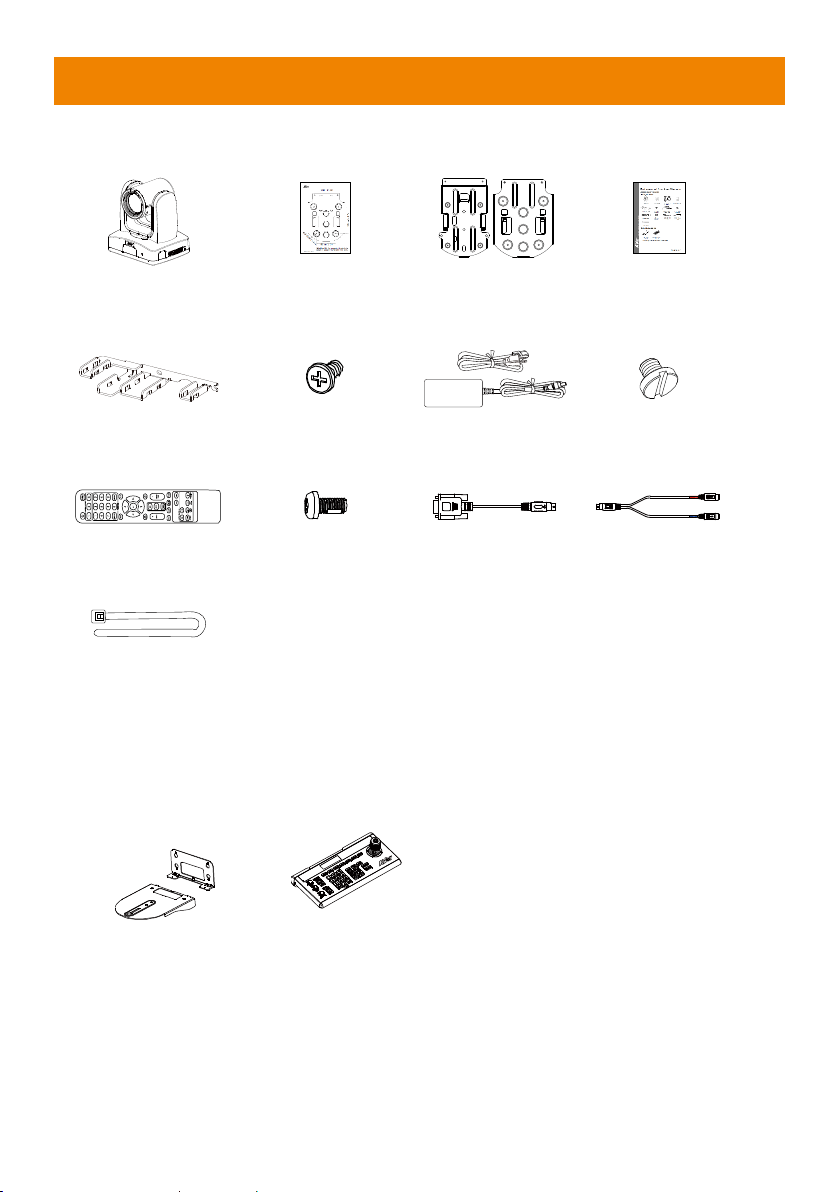
Package Contents
Package Contents
Camera Unit
Drilling Paper
Ceiling Mount
Bracket (x2)
Quick Start Guide
Cable Fixing Plate
M2 x 4mm
Screw (x3)
Power Adapter &
Power Cord
1/4”-20 L=6.5mm
Screw (x2)
Remote Control
M3 x 6mm
Screw (x3)
DIN8 to D-Sub9
Cable
RS232 In/Out
Y Cable
Cable Ties (x4)
*The power cord will vary depending on the standard power outlet of the country where it is sold.
Optional Accessories
Wall Mount
Bracket
Camera Controller
(CL01)
* For detail on optional accessories, consult your local dealer.
2
Product Introduction
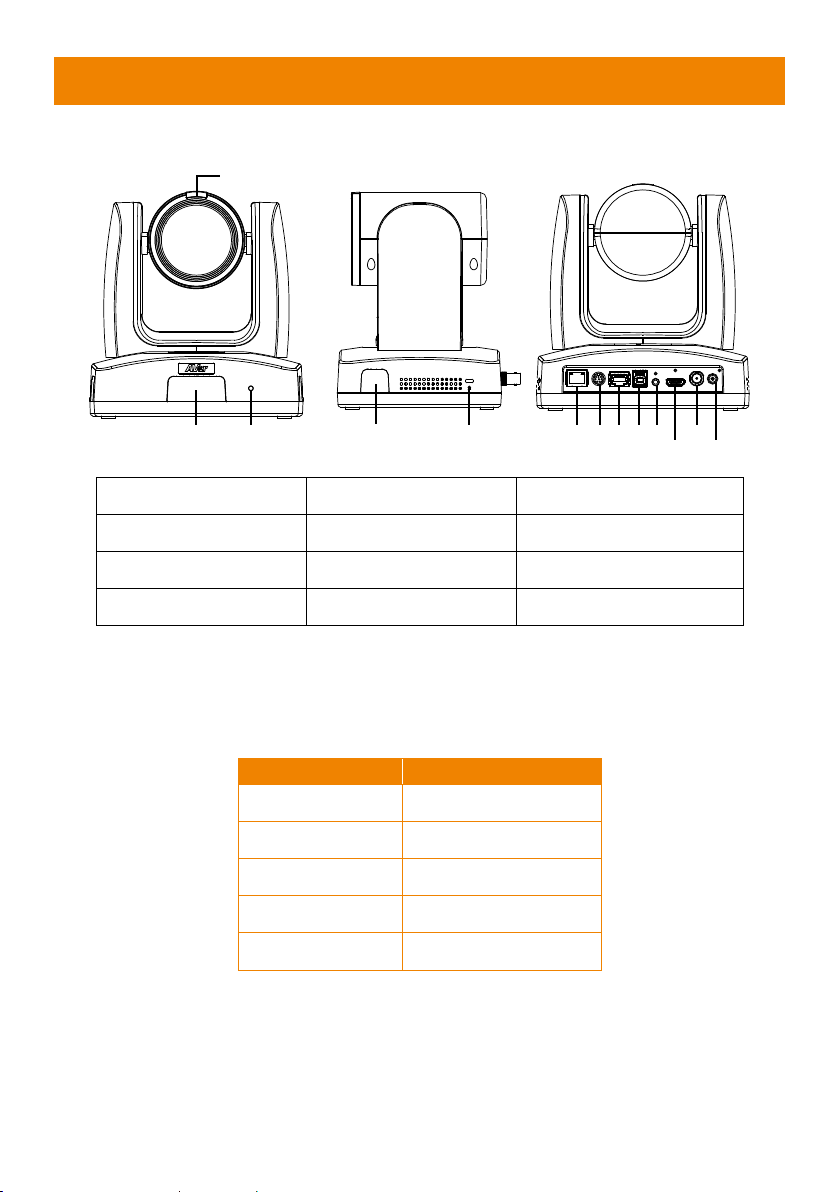
Overview
(1) Tally Lamp
(5) PoE+ IEEE 802.3AT
(9) Audio In*
(2) IR Sensor
(6) RS232 Port
(10) HDMI Port
(3) LED Indicator
(7) RS422 Port
(11) 3G-SDI**
(4) Kensington Lock
(8) USB 3.0 Port (Type B)
(12) DC Power Jack
*Line input level: 1Vrms (max.).
*Mic input level: 50mVrms (max.); Supplied voltage: 2.5V
**The model names with “H” do not have this feature.
LED Indicator
LED
Status
Blue (Blinking)
Auto Tracking On
Blue (Solid)
Normal Operation
Red (Blinking)
FW Updating
Orange (Blinking)
Camera Initialization
Orange (Solid)
Standby
(4) (5) (6)(7)(8)(9)
(10)
(12)
(2)
(3)
(1)
(11)
(2)
3
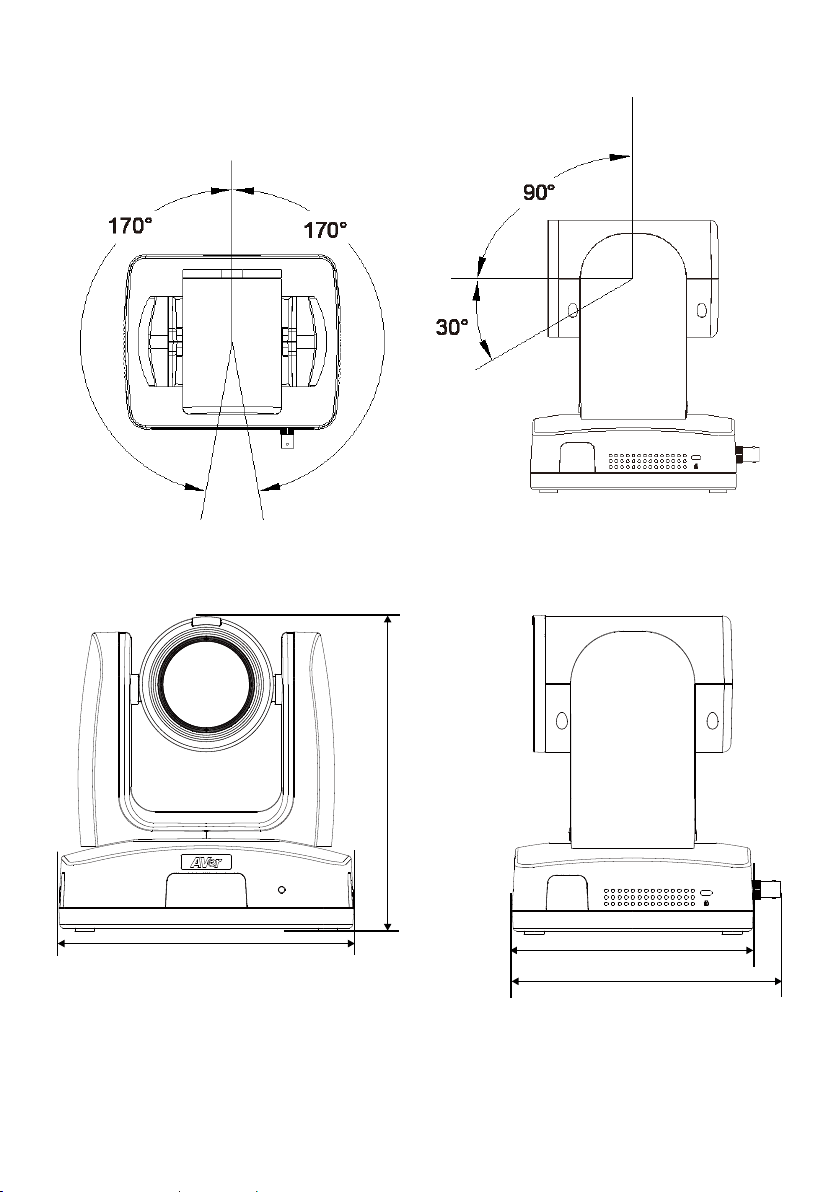
Pan and Tilt Angle
Dimension
191.9mm
180.0mm
161.3mm
145.1mm
4
Device Connection
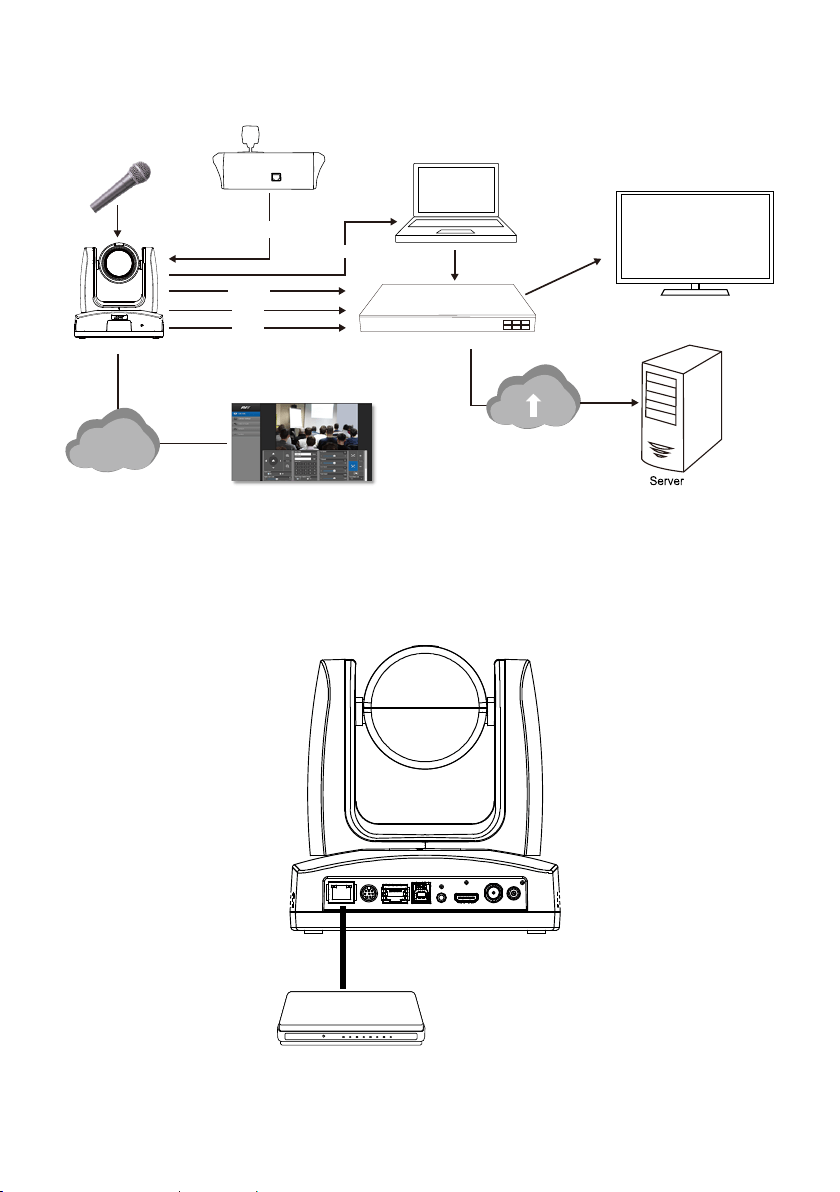
PoE Connection
Connect the camera to the router or switch through the PoE+ port.
[Note] Only support IEEE 802.3AT PoE+ standard.
Lecture Capture System
Camera
PoE+
HDMI
or
LAN
(Record)
Laptop
(Management/Presentation/
Video Conference)
Monitor/TV
(Display)
Microphone
Audio Input
RS232, RS422 or IP
Joystick
(Camera Control)
USB
WebApplication
(Remote Management)
3G-SDI
or
Router/PoE Switch
Ethernet Cable
(Not Included)
5
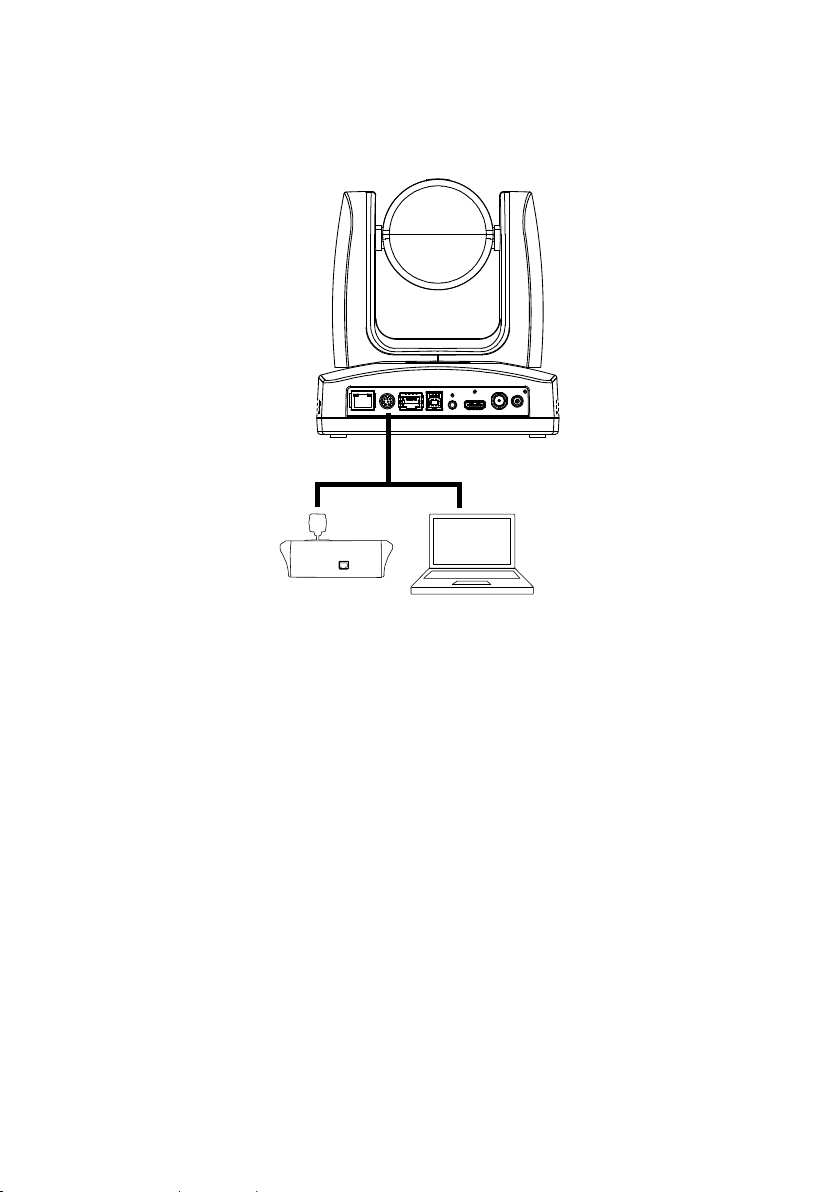
RS232 and RS422 Connection
Connect through the RS232 or RS422 for camera control.
◼ RS232
Laptop
Joystick
RS232 (VISCA) Cable
(Not Included)
6
●
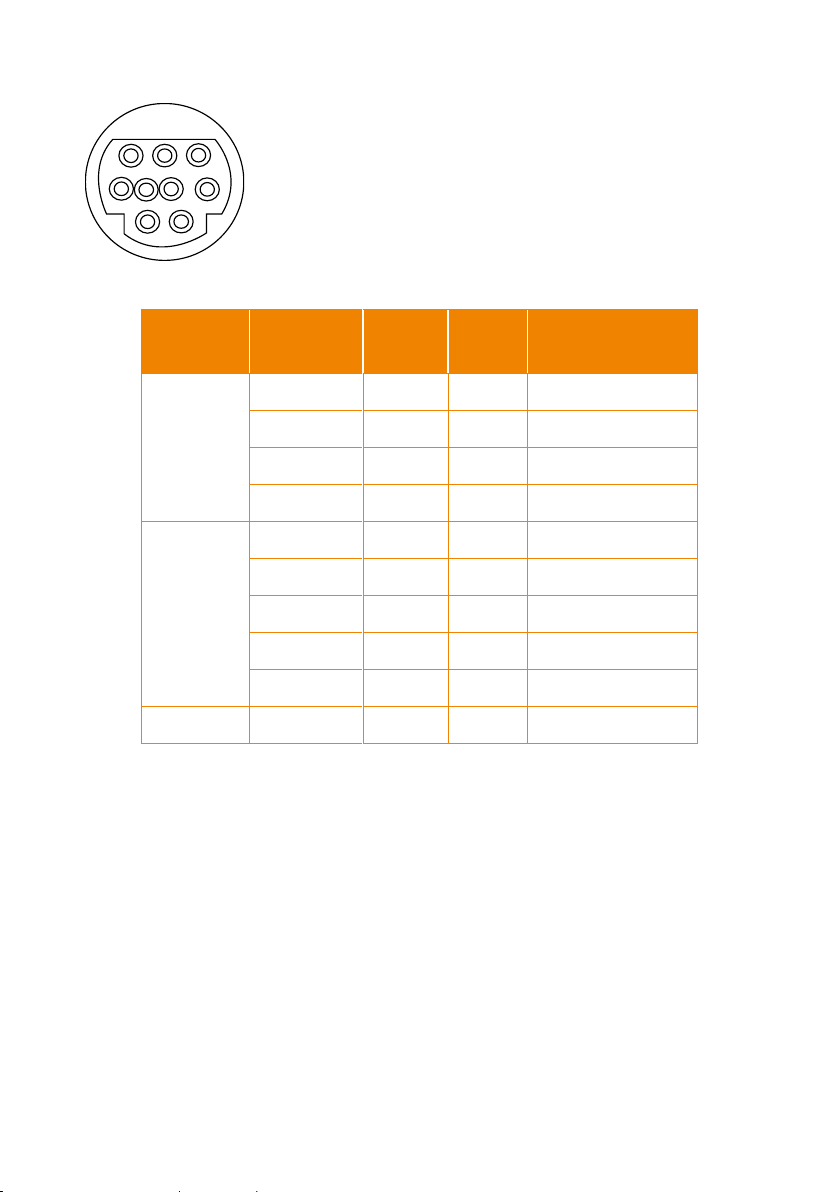
RS232 Port Pin Definition
Function
Mini DIN9
PIN #
I/O Type
Signal
Description
VISCA IN
1
Output
DTR
Data Terminal Ready
2
Input
DSR
Data Set Ready
3
Output
TXD
Transmit Data
6
Input
RXD
Receiver Data
VISCA OUT
7
Output
DTR
Data Terminal Ready
4
Input
DSR
Data Set Ready
8
Output
TXD
Transmit Data
9
Input
RXD
Receiver Data
5
Input
I/O
Detect DIN8/DIN9
---
Shield
---
GND
Ground
1
2
3456
789
7
●
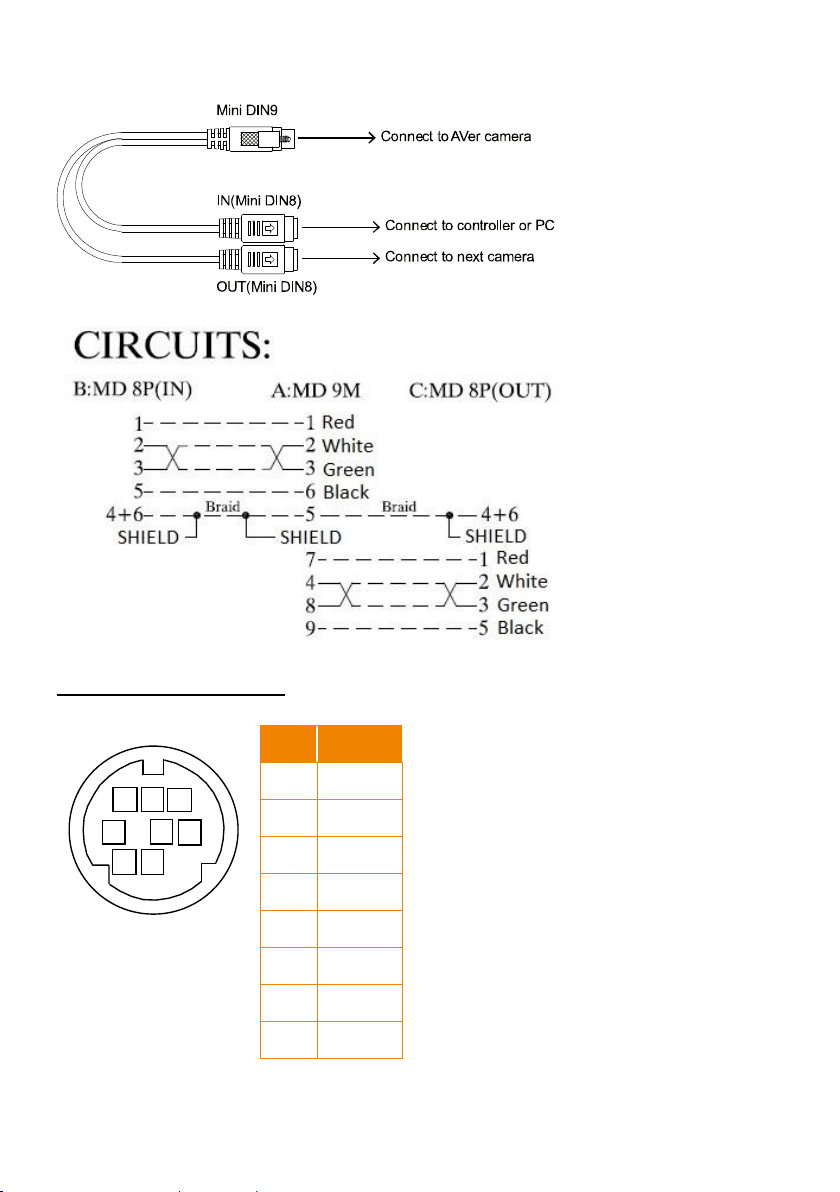
RS232 mini DIN9 to mini DIN8 Cable Pin Definition
Mini DIN8 Cable Pin Definition
12
34
5
6
7
8
No.
Signal
1
DTR
2
DSR
3
TXD
4
GND
5
RXD
6
GND
7
NC
8
NC
8
●
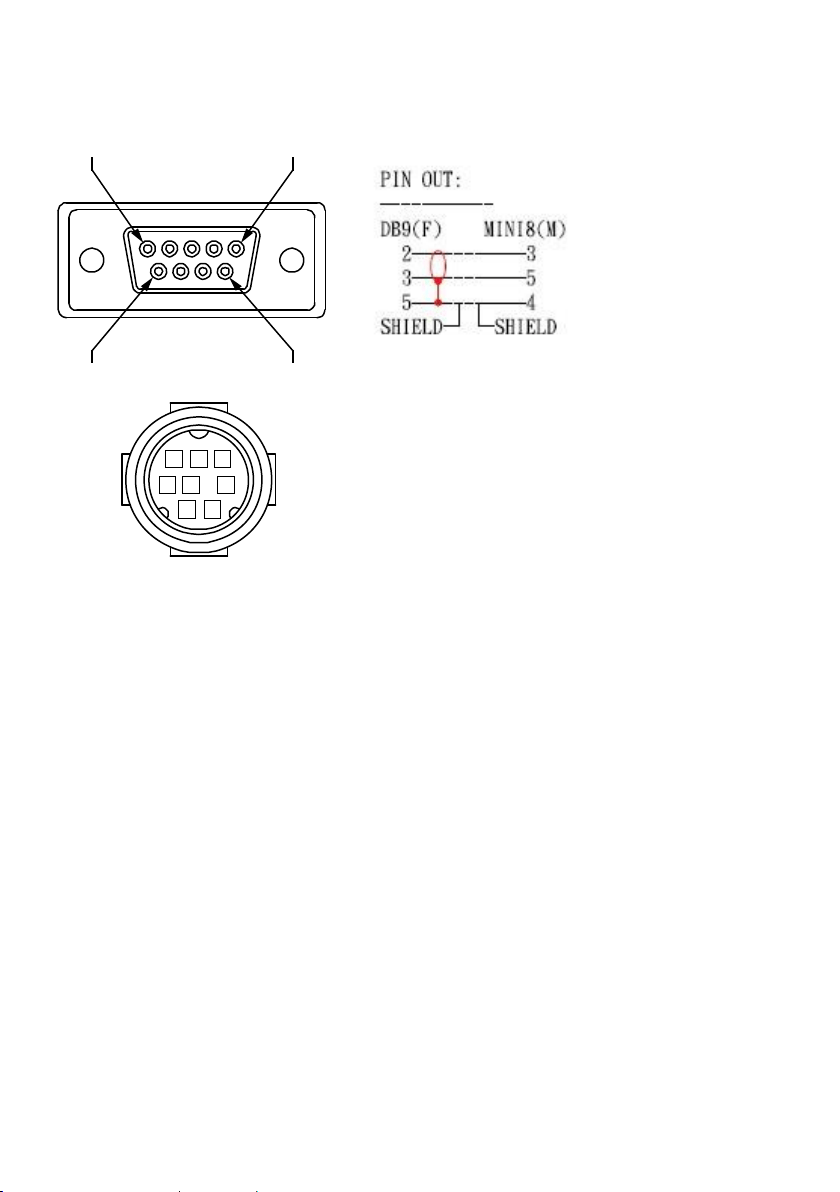
Din8 to D-Sub9 Cable Pin Definition
6 7 8
3 4 5
1 2
15
69

9
◼ RS422
[Note] Use cat5e splitter for multi-camera connection.
Cat5e splitter pin assignment:
1
234
5
678
1
234
5
678
1
234
5
678
Camera
Camera/Joystick
Camera/Joystick
RS422 Pin
No.
Pin
No.
Pin
1
TX-
5
TX+
2
TX+
6
RX+
3
RX-
7
RX-
4
TX-
8
RX+
1 8
10
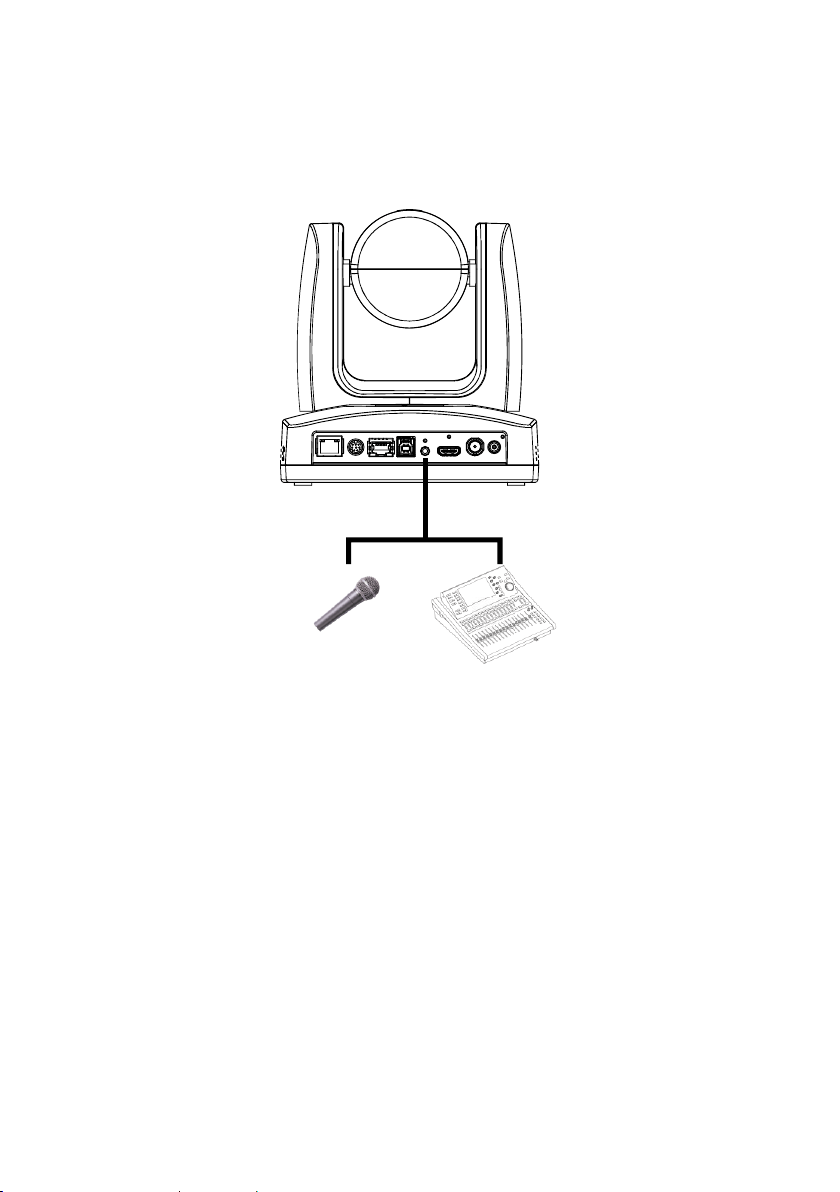
Audio Input Connection
Connect the audio device for audio receiving.
[Note]
- Line input level: 1Vrms (max.).
- Mic input level: 50mVrms (max.); Supplied voltage: 2.5V.
Microphone
Audio Mixer
11
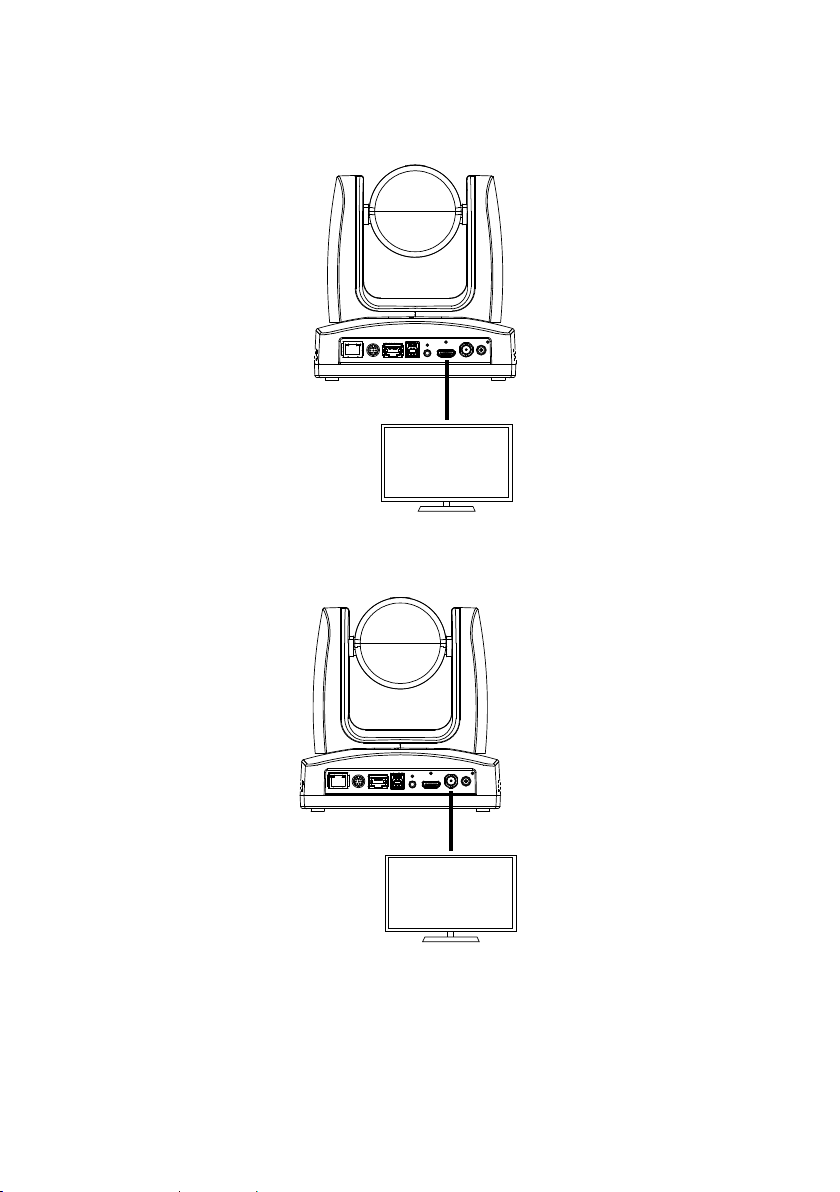
Video Output Connection
◼ HDMI
Use the HDMI cable to connect with monitor or TV for video output.
◼ 3G-SDI
Connect to 3G-SDI monitor for video output.
[Notes]
◼ HDMI and 3G-SDI monitors can be connected to camera and output live video simultaneously;
Assuming HDMI monitor is well connected before the camera turned on, the OSD menu will be
displayed on HDMI monitor in default.
◼ The model names with “H” do not have 3G-SDI.
Monitor/TV
HDMI Cable
SDI Monitor
3G-SDI Cable
(Not Included)

12
Cable Fixing Plate Installation
1. Secure the cable fixing plate to the camera with 3 M2 x 4mm screws (included in the
package).
2. Plug in cables.
3. Use 4 cable ties to secure the cables and
cable fixing plate.
13
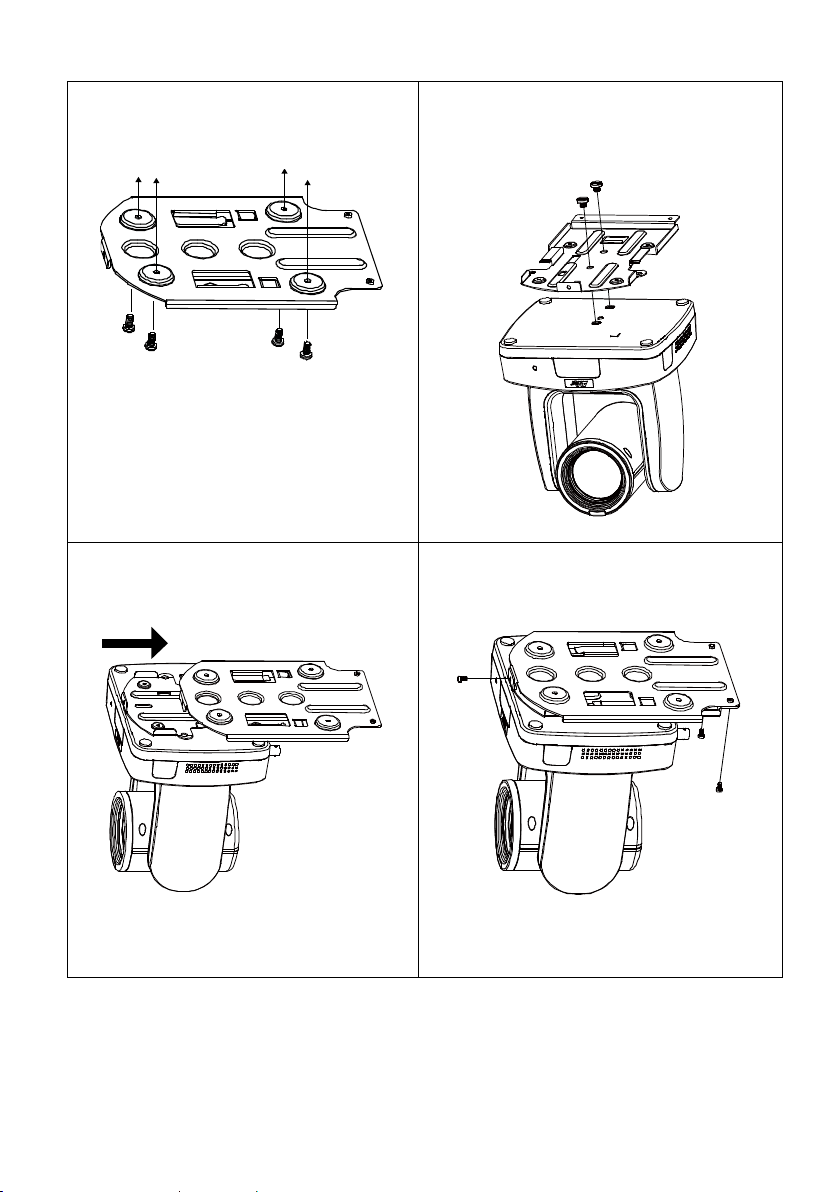
Ceiling Mount Installation
1. Secure the mount bracket on the ceiling.
Screw: 4 screws, M4 x 10mm (Not
Included in the package)
2. Install the mount bracket on the camera.
Screw: 2 screws, 1/4"-20 L=6.5mm
(Included in the package)
3. Slide the mount bracket with the camera
into the mount bracket which secured on
the ceiling.
[Note] Connect necessary cables after sliding
the camera into the mount bracket.
4. Secure the camera with screws.
Screw: 3 screws, M3 x 6mm (Included in
the package)

14
Camera Installation
◼ Angle A: less than 45˚
◼ Height B: 2~3m from floor
◼ Distance C: longer than 3m away from podium
◼ Position: center of classroom
◼ Distance between the camera and tracking target (presenter):
Optical zoom ratio ability
Upper body size
Full body size
12X
3~16m
3~28m
30X
3~44m
3~76m
Podium
Blackboard
Center of classroom
15
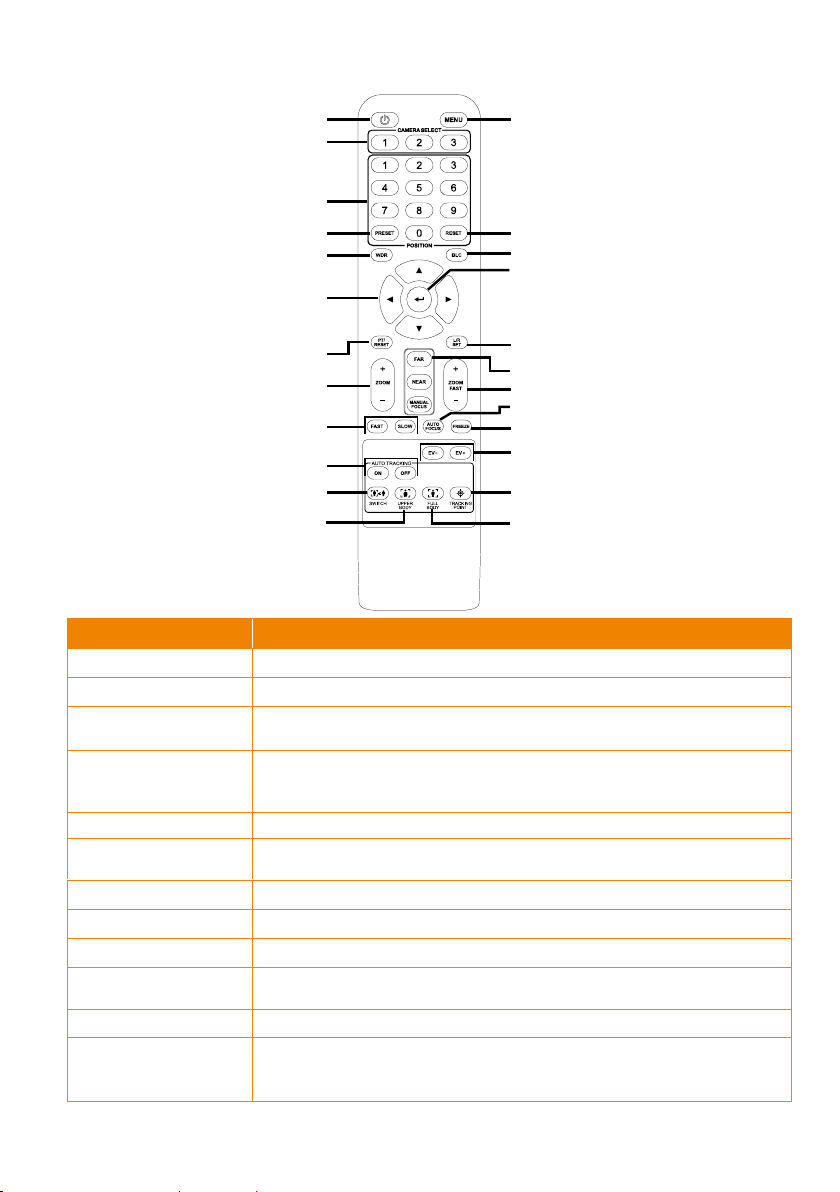
Remote Control
Name
Function
(1) Power
Turn the unit on/standby.
(2) Menu
Open and exit the OSD menu.
(3) Camera Select
CAM1 to CAM3 button
Select a camera to operate.
(4) Numeric Pad
◼ Use for setting the preset position 0~9.
◼ Press number button (0~9) to move the camera to pre-configured
preset position 0~9.
(5) Preset
Press “Preset” + “Number button (0~9)” to set the preset position.
(6) Reset
Press “Reset” + “Number button (0~9)” to cancel pre-configured preset
position.
(7) WDR
Turn on/off WDR function.
(8) BLC
Turn on/off backlight compensation.
(9)
Pan and tilt the camera.
(10) Enter
Access the OSD menu, confirm the selection or make a selection in OSD
menu.
(
11) PT Reset
Reset the Pan-Tilt position.
(12) L/R DIR
Left and right orientation setting.
- Press “L/R DIR” + “1” button to reset setting.
- Press “L/R DIR” + “2” button to move to opposite direction.
(1) (2)
(6)
(8)
(10)
(12)
(15)
(19)
(17)
(20)
(22)
(24)
(14)
(3)
(4)
(5)
(7)
(9)
(11)
(13)
(16)
(18)
(21)
(23)
▲,▼,◄, & ►
16
Name
Function
(13) Zoom +/-
Zoom in/out slowly.
(14) MF/Far/Near
Enable manual focus. Use Far/Near to adjust the focus.
(15) Zoom Fast +/-
Zoom in/out fast.
(16) Pan-tilt Fast/Slow
Pan-Tilt speed adjustment.
(17) AF
Auto focus.
(18) Auto Tracking
Auto Tracking on/off.
(19) Freeze
Freeze the live image.
(20) EV +/-
◼ Short press to adjust EV level.
◼ Long press EV+ to turn on RTMP.
◼ Long press EV- to turn off RTMP.
(21) Switch
Change presenter.
(22) Tracking Point
When presenter enters this area, the camera will return tracking point.
(23) Upper Body
Presenter’s size on screen is upper body.
(24) Full Body
Presenter’s size on screen is full body.
17
Set Up the Camera
OSD Menu
Press button on the remote control to call out the OSD menu and use
▲
,
▼
,
,
and
button to operate the OSD menu.
Set Up IP Address of the Camera
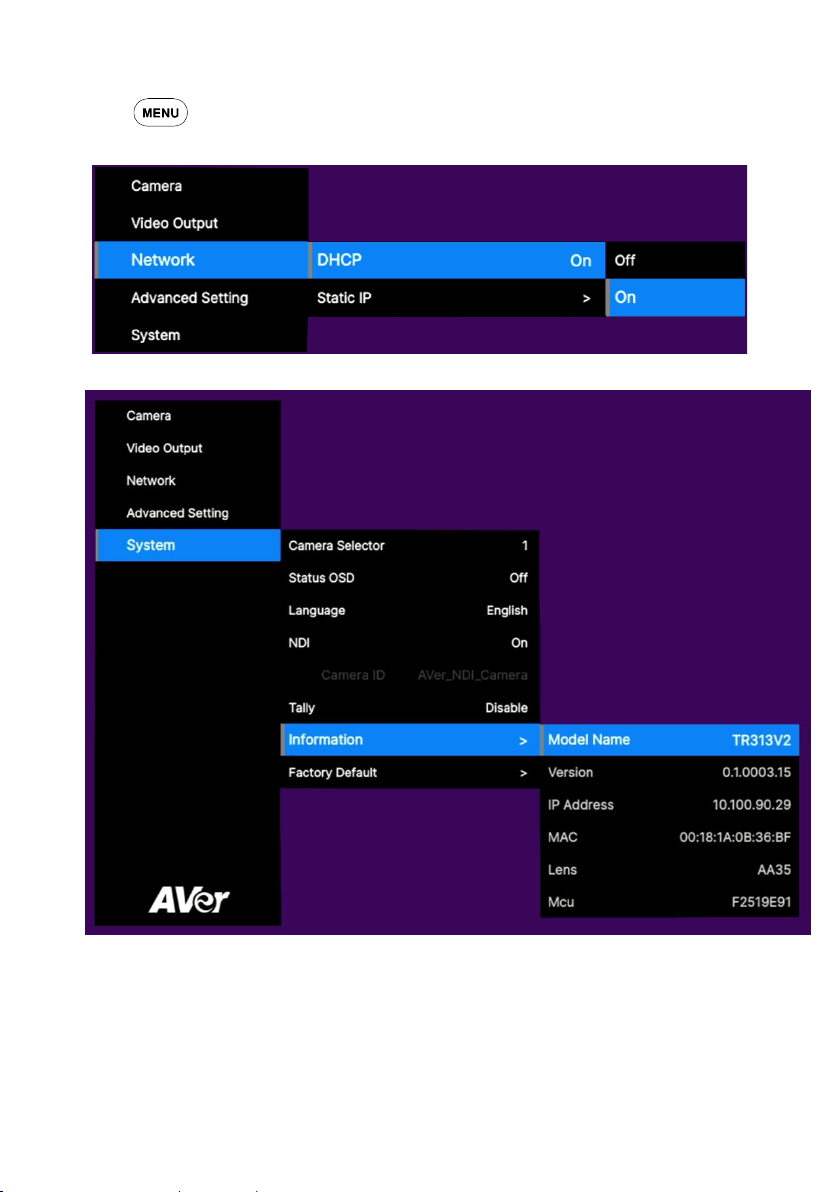
Static IP
1. Press button on the remote control to call out OSD menu.
2. Go to Network > Static IP.
[Note] Turn the DHCP off before setting up static IP (Network > DHCP > OFF).
3. Select the IP Address, Gateway, Netmask, and DNS to configure. Press and use
,
,
number pad to enter the data.
18
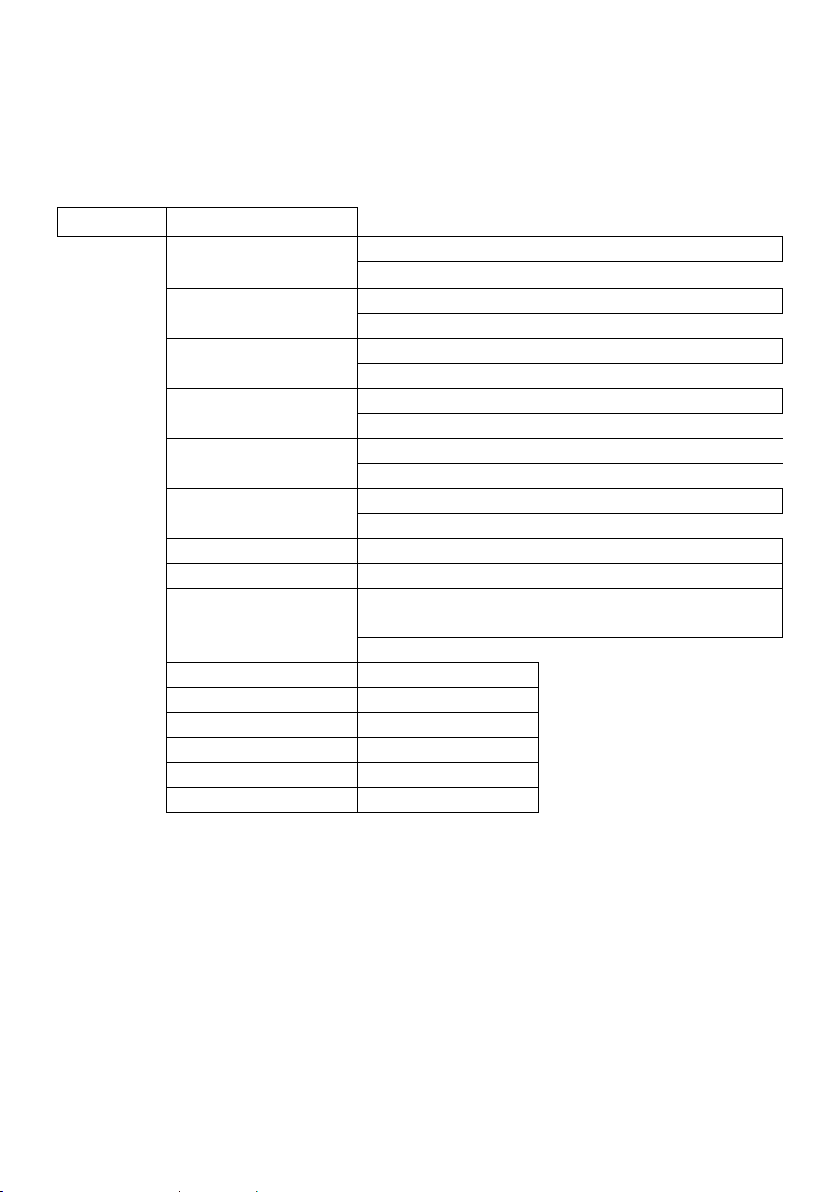
DHCP
1. Press button on the remote control to call out OSD menu.
2. Go to Network > DHCP > On.
3. After turning the DHCP on, the user can go to System > Information to view IP address.
19
OSD Tree
Camera
Set up camera parameters – Exposure Mode, White Balance, Pan Tilt Zoom, Noise Reduction,
Saturation, Contrast, Sharpness, Mirror, and Flip.
Camera
Exposure Mode
Full Auto
Exposure Value/Gain Limit Level/Slow Shutter
Shutter Priority
Exposure Value/Shutter Speed/Gain Limit Level
Iris Priority
Exposure Value/Iris Level/Gain Limit Level/Slow Shutter
Manual
Shutter Speed/Iris Level/ Gain Level
Bright
0 - 31
White Balance
Auto/Indoor/Outdoor/One push/Manual
R Gain
0~255
B Gain
0~255
Pan Tilt Zoom
Preset Speed/Digital Zoom/Digital Zoom Limit/Pan/Tilt
Slow
Noise Reduction
Off/Low/Medium/High
Saturation
0~10
Contrast
0~4
Sharpness
0~3
Mirror
Off/On
Flip
Off/On

20
Video Output
Select video resolution (2160p is supported on TR313V2 and TR331V2 only).
Priority Mode
2160p/1080p
Frequency
50 Hz/59.94 Hz/60 Hz
Resolution
2160P/30
2160P/29.97
1080P/60
1080P/59.94
1080P/30
1080P/29
1080I/60
1080I/59
720P/60
720P/59.94
2160P/25
1080P/50
1080P/25
1080I/50
720P/50
Network
Set up IP mode – DHCP or static IP.
Network
DHCP
Off/On
Static IP
IP Address
Gateway
Mask
DNS
Advanced Setting
Advanced Setting
Audio
Input Type
Mic in/Line in
Auto Gain Control
Off/On
Noise Suppression
Off/Low/Normal
Audio Volume
0~10
Control
Serial Port
RS232/RS422
Protocol
VISCA/PELCO D/ PELCO P
Camera Address
1~7
Baud Rate
2400/4800/9600/38400
Tracking
Off/On
Tracking Mode
Presenter/Zone/Hybrid
21
System
◼ Status OSD: Enable/disable Preset status (Save Preset, Call Preset, Cancel Preset) display on
the screen.
◼ Camera Selector: Set the camera ID 1~3 for using remote control on multiple cameras control
(also see (3) Camera Select in Remote Control section).
◼ NDI: Enable/disable NDI function.
◼ Tally: Enable tally function.
System
Camera Selector
1~3
Status OSD
Off/On
Language
English/繁體中文
NDI
Off/On
Tally
Disable/Enable
Information
Model Name/Version/IP Address/MAC/Lens/Mcu
Factory Default
Off/On
22
Web Setup
Connect the camera from a remote site through the internet.
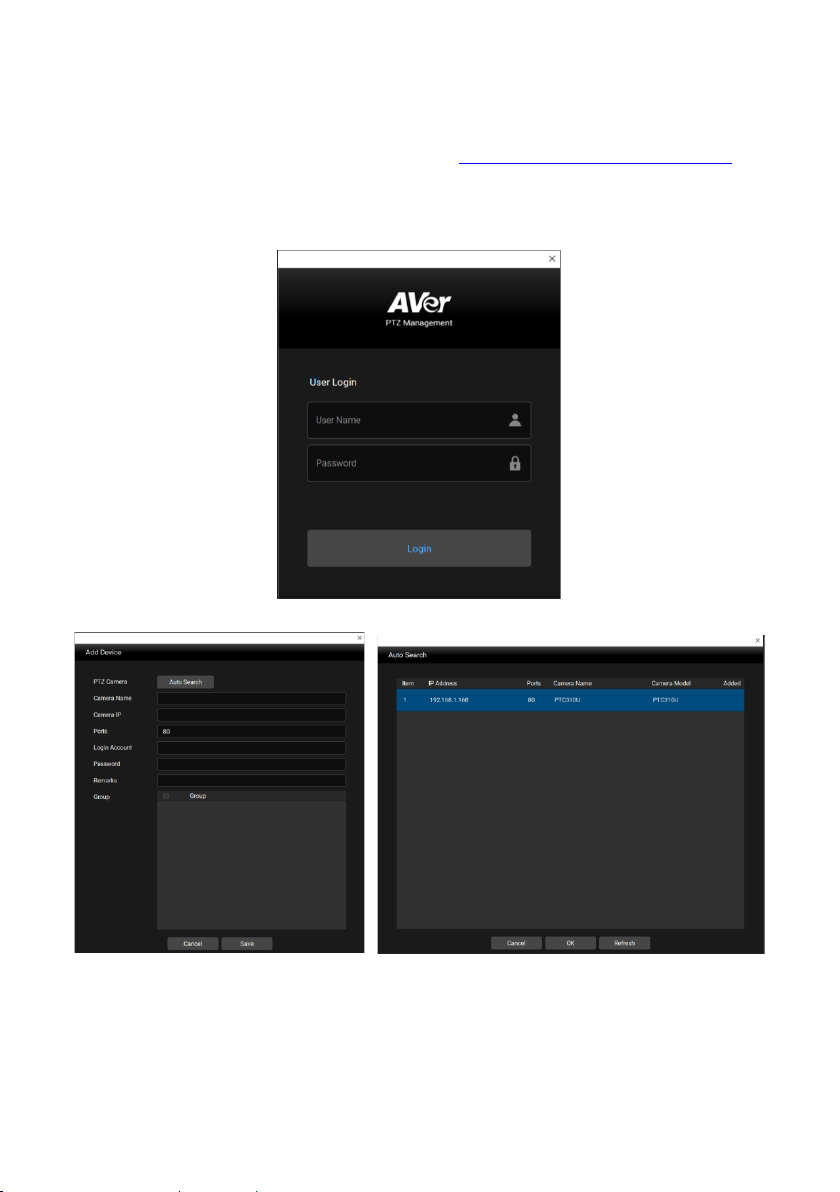
Using the AVer IPCam Utility to Find the Camera
To find the IP address of your cameras, you can execute the IPCam Utility installer. Follow below steps
to find the IP address of the camera.
1. Download the IPCam Utility from https://www.aver.com/download-center .
2. Run the IPCam Utility
3. Click Search, and all available devices will be listed on the screen.
4. Select a camera from the list.
5. The corresponding fields of IP address will display.
6. Double-click on the IP address of the camera from the list to connect to the camera through the
browser.
[Note] If IPCam utility cannot find the camera, please check following:
1. Please make sure the Ethernet connection of camera is well connected.
2. The camera and PC (IPCam Utility) are in the same LAN segment.
23
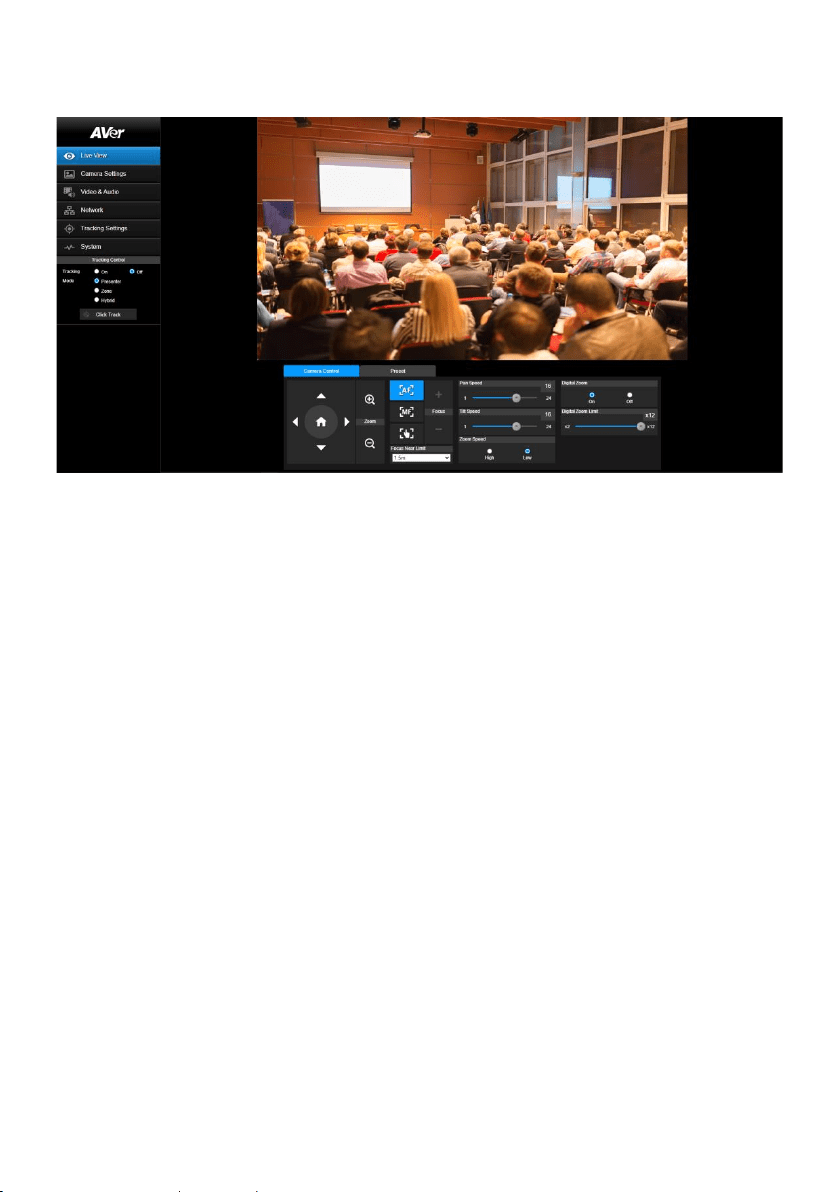
Using AVer PTZ Management Software to Find the Camera
To find the IP address of your cameras, you can download then install AVer PTZ Management
Software. Follow below steps to find the IP address of the camera.
1. Download the AVer PTZ Management software from https://www.aver.com/download-center
2. Download the Windows program and install it.
3. After setting up the user ID and password, log in to the software (default User Name/Password:
admin/admin).
4. Select Setup, Add and then Auto Search.

24
Make a Connection to the Camera via Browser
1. Find the IP address of the camera. Call out OSD menu and select System > Information. Or use
AVer IPCam utility to find the IP address of the camera.
2. Open the browser and enter the IP address of the camera. The PC/laptop is required an internet
access.
25
After connecting to the camera, enter the user account and password (default is admin/admin) to
log in Web.
26
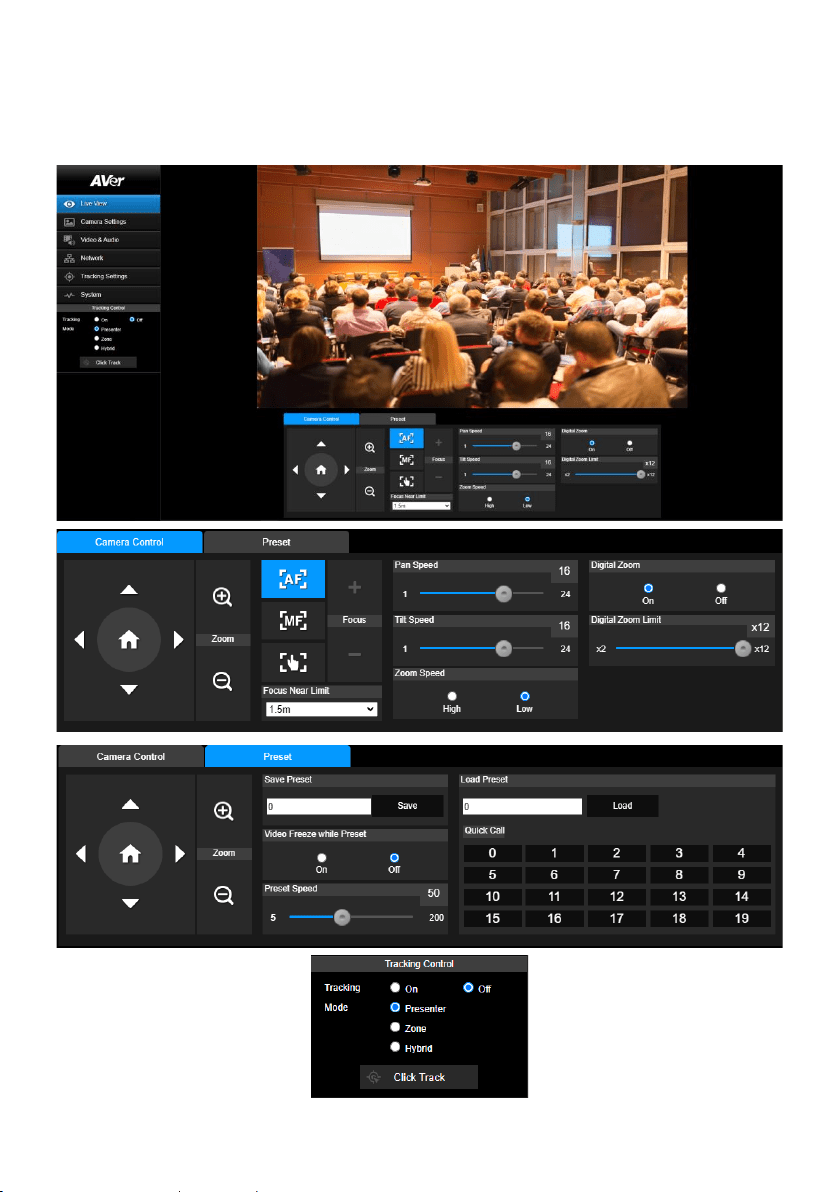
Live View
In live view page, the user can set up camera control (camera direction control, zoom in/out, focus,
pan/tilt/zoom speed), preset setting, and tracking control (on, off, tracking mode, click track).
27
Pan-Tilt-Zoom Control
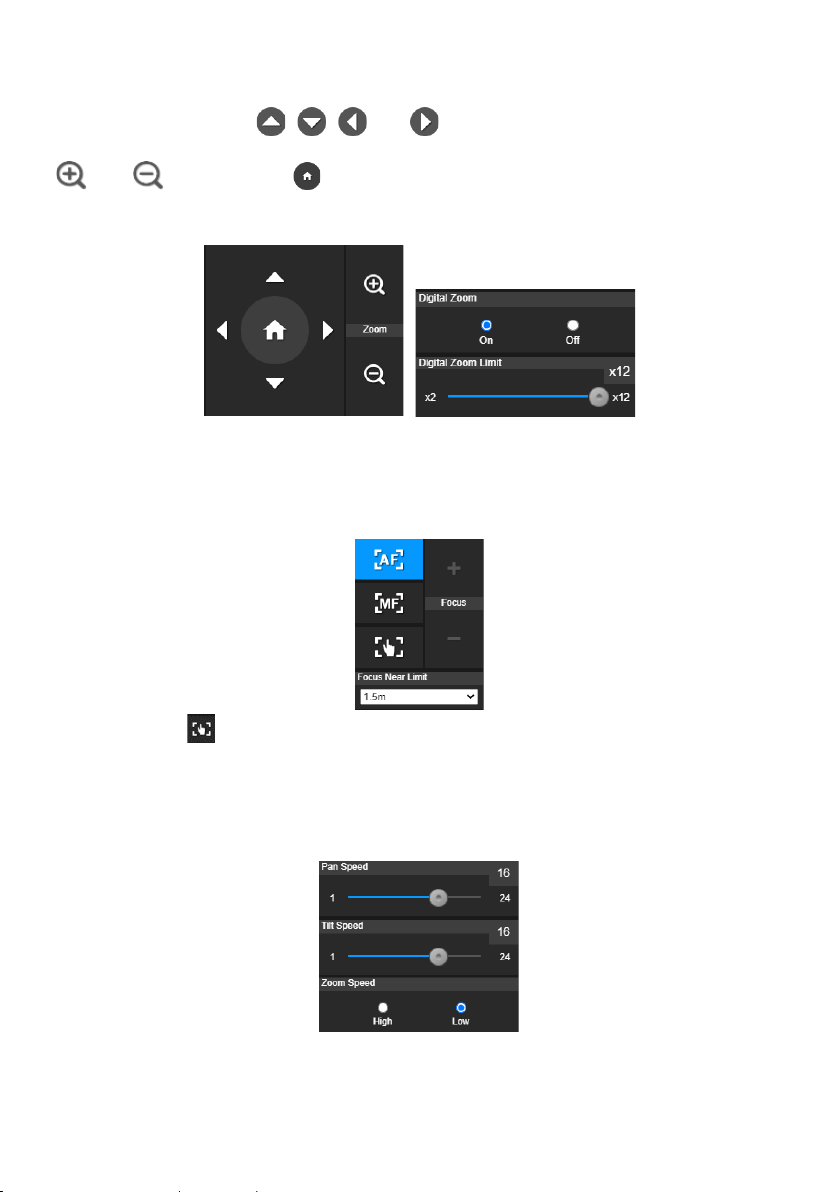
In Camera Control tab, use , , , and to adjust the camera view position and use
and to zoom. Select to go back to default position.
Digital Zoom: Enable/disable digital zoom function. Move the scroll to adjust the limit of digital zoom.
Focus
Switch to auto (AF) or manual (MF) focus. The manual focus use “+” and “–” to adjust focus. Press “+”
to adjust focus to the far end and focusing on a far subject; press “-” to adjust focus to near end and
focusing on a near subject.
One push focus ( ): Click the button to adjust lens focus automatically once.
Focus Near Limit: Set the focus distance limit.
Manual Pan-Tilt-Zoom Speed Adjustment
Adjust the speed of manual Pan-Tilt-Zoom. There are totally 24 levels for manual pan-tilt speed
adjustment and 2 levels (Low/High) for zoom speed adjustment.
28
Preset Setting
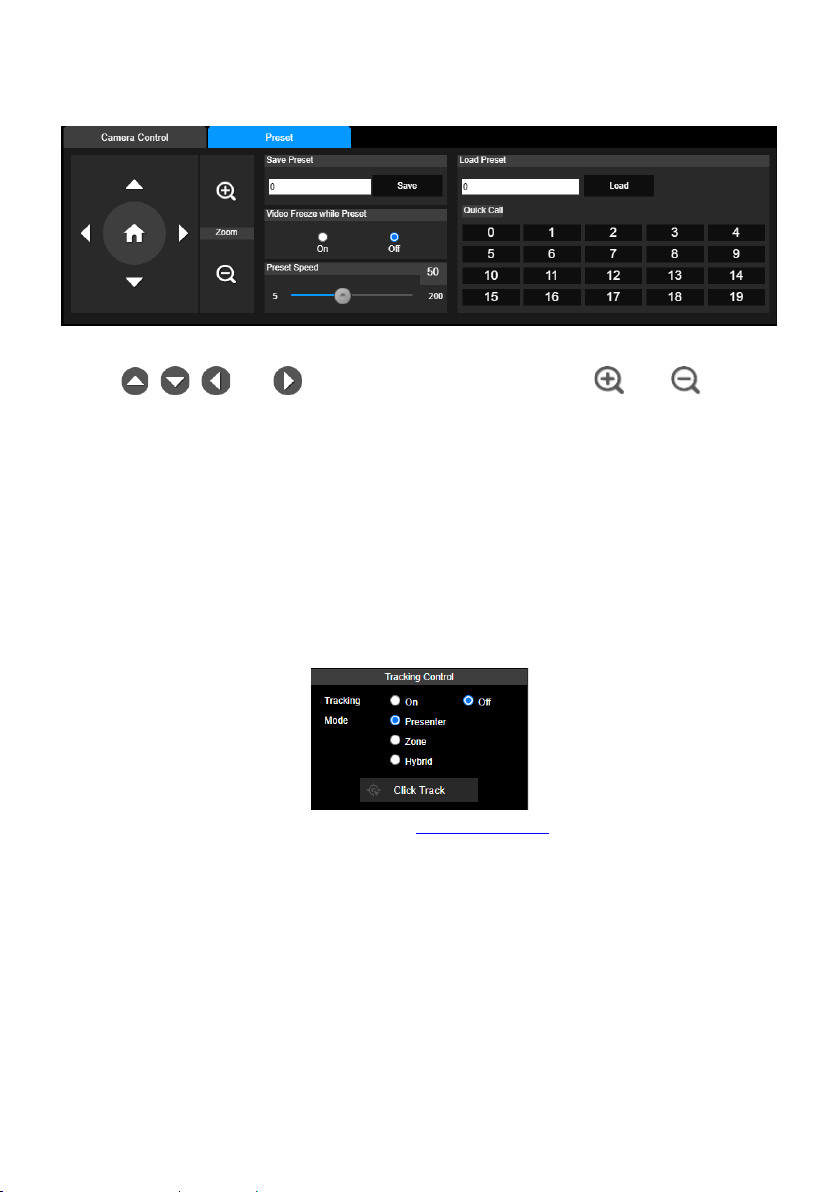
Set up preset position and view preset position.
1. Select the Preset tab in live view page.
2. Use , , , and to adjust camera view position
and use
and
to zoom.
3. Enter preset position number (0~255) in Save Preset column and select Save to save the
position.
4. To call the preset position, enter a preset number (0~255) in Load Preset column or select the
preset number (0~19) from Quick Call section. (Recalling preset will disable auto tracking.)
5. Video Freeze with Preset: Turn On/Off the screen view freeze function. When Video Freeze with
Preset is on, during the preset operation, the screen will freeze until the operation is done.
6. Preset Speed: Adjust the preset speed.
Tracking Control
Enable/disable tracking function, select tracking mode, and operate one-click tracking function.
◼ Tracking Mode (Tracking mode setup refer to Tracking Settings section)
➢ Presenter: Enable tracking function and select Presenter mode. Camera will start tracking
when human shows on camera if human goes away and camera will return tracking point.
➢ Zone: Enable tracking function and select Zone mode. Camera will start tracking when object
is moving between the preset tracking block area.
➢ Hybrid: Enable tracking function and select Hybrid mode. This mode allows the user to use
Presenter and Zone modes at the same time. When the presenter enters selected preset
points, it will change to Zone position. When the presenter leaves the preset points, camera
will follow presenter to do Auto Tracking function.
29
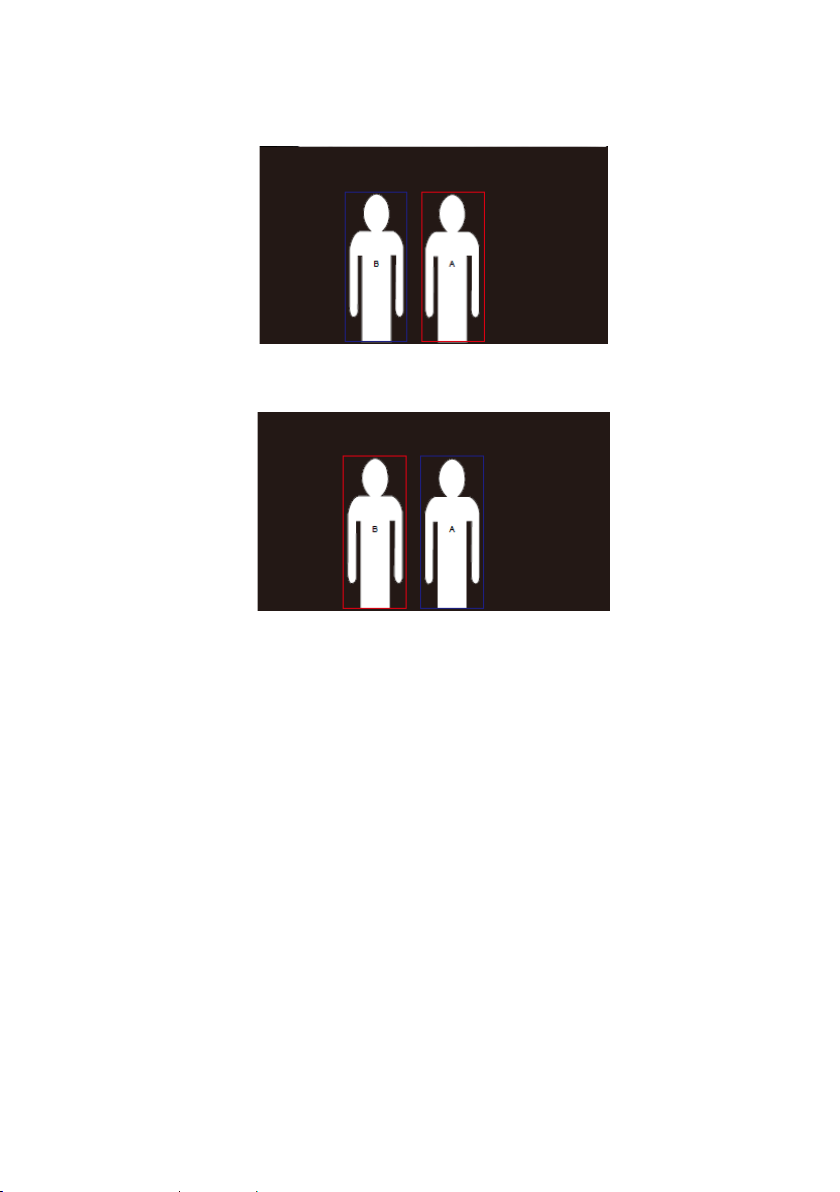
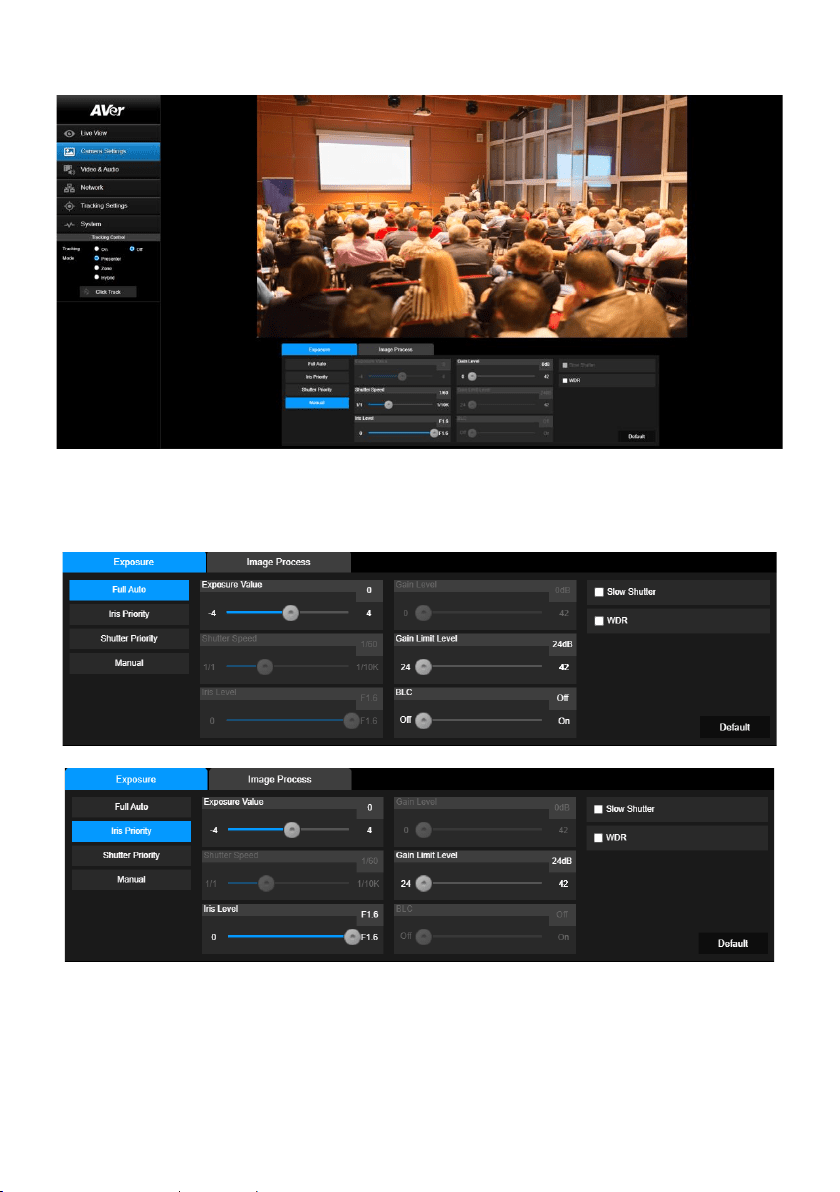
◼ Click Track function: allows user to change tracking object while auto tracking.
1. Select Click Track button. A red frame is targeted on the tracking object and a blue frame is
targeted on another object on the live screen.
2. Click the object. When frame changes to red, the tracking object is changed to the selected
one.
30
Camera Settings
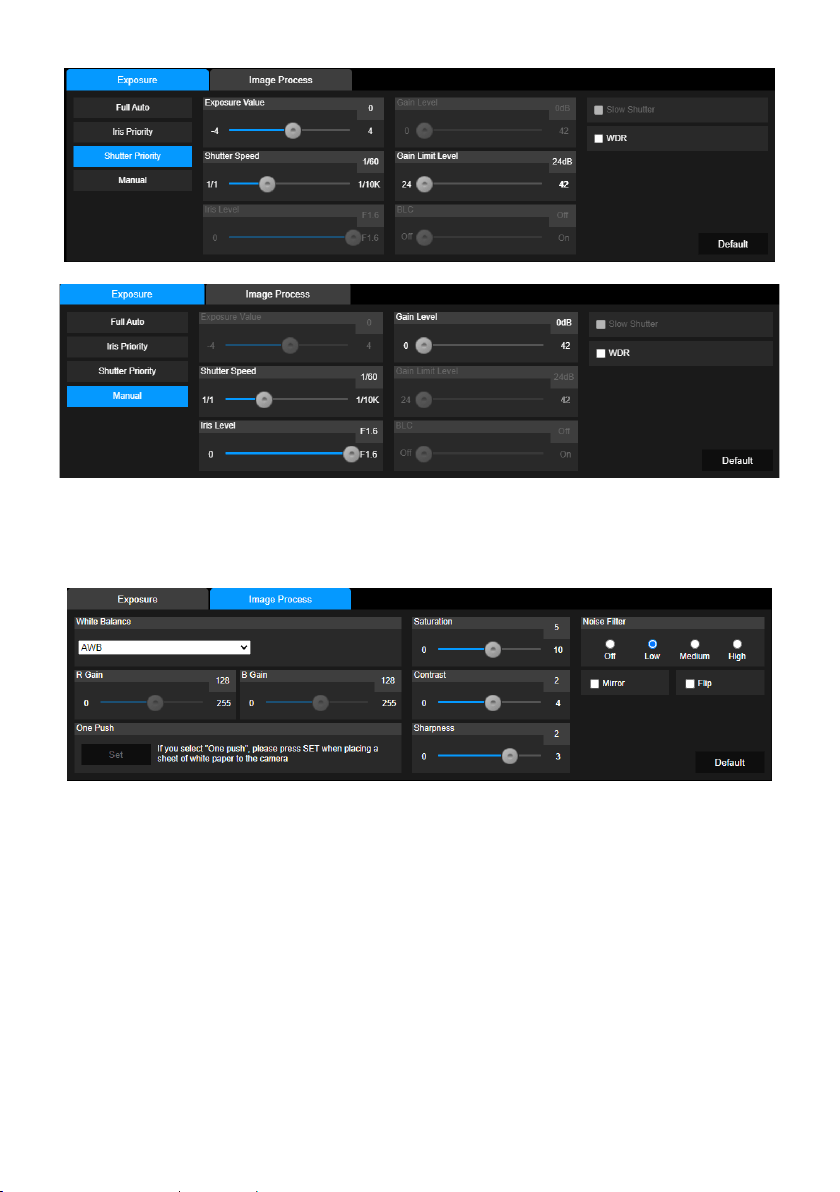
Exposure
In Exposure tab of Camera Settings page, set up the Exposure type – Full Auto, Iris Priority, Shutter
Priority, or Manual.
31
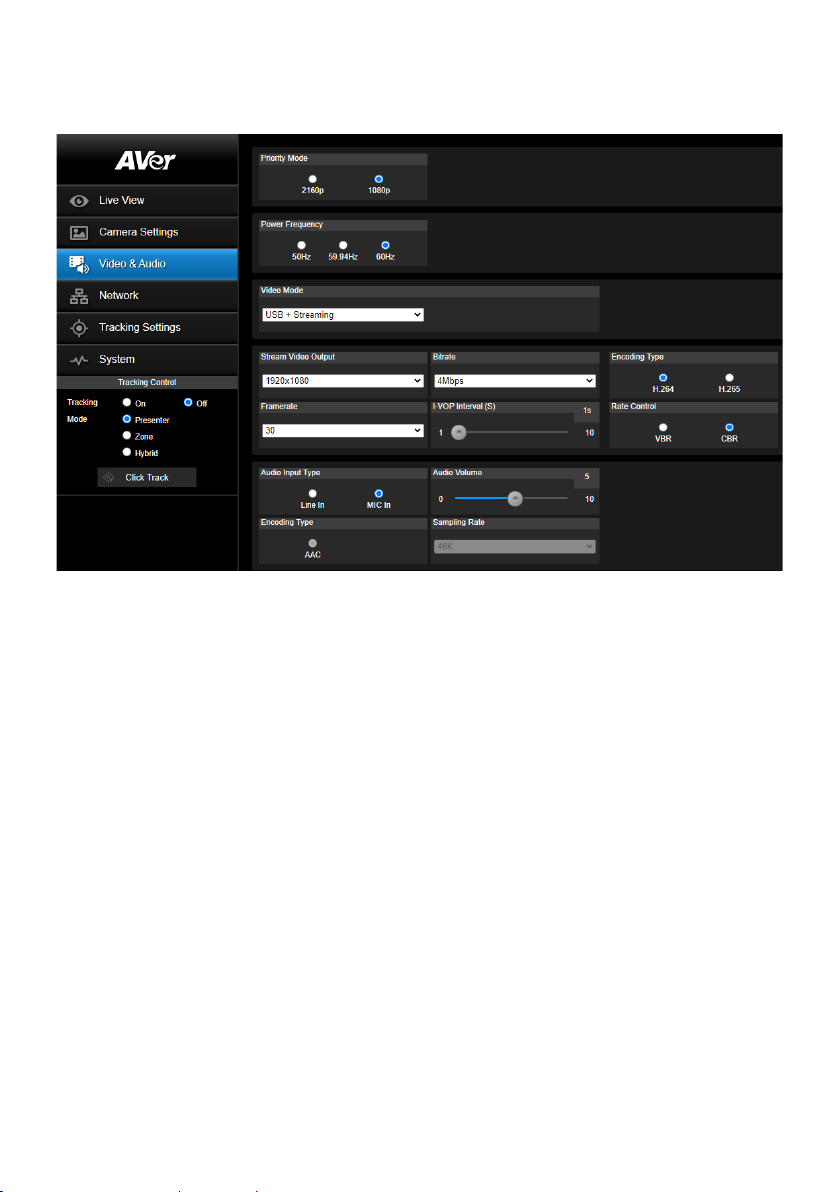
Image Process
Select the Image Process tab in Camera Settings page.
Set up the White Balance, Saturation, Contrast, Sharpness, Noise Filter, Mirror, and Flip.
32
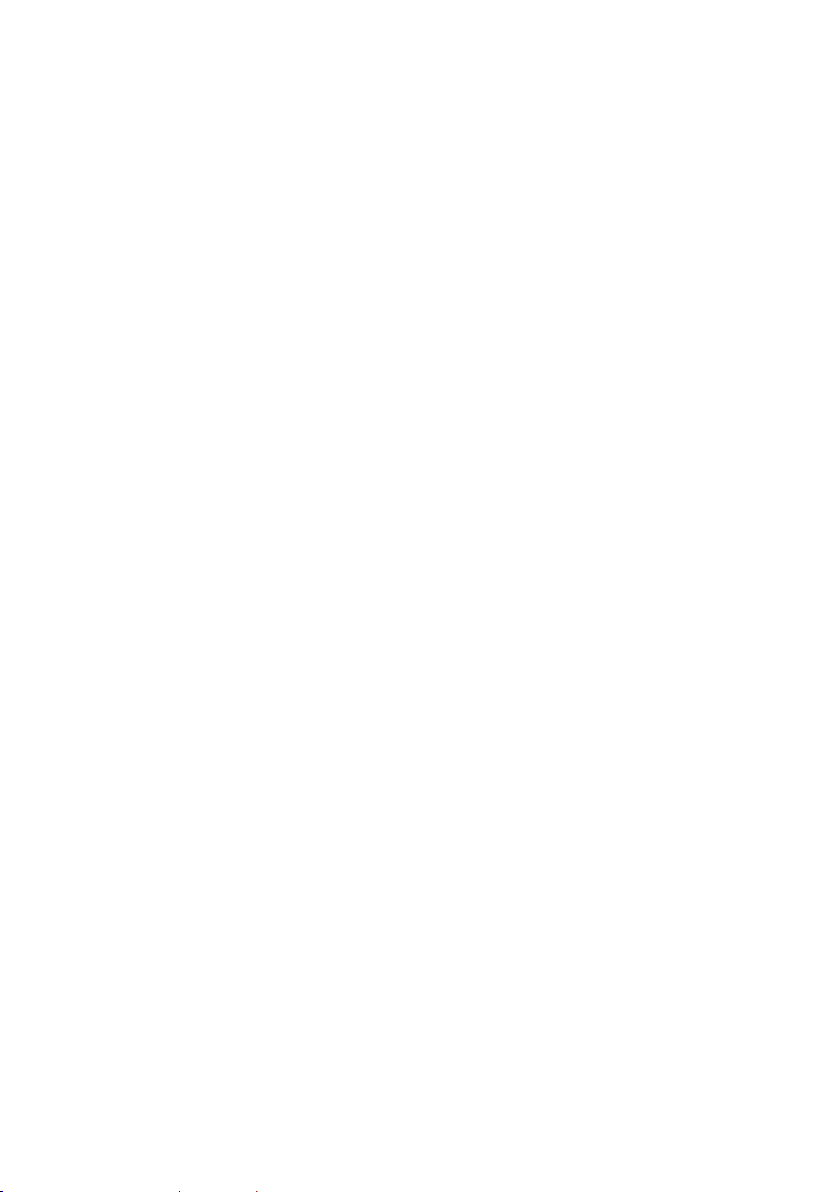
Video & Audio
In Video & Audio page, user can setup the following functions:
◼ Priority Mode: 2160p or 1080p.
◼ Power Frequency: 50Hz, 59.94Hz, or 60Hz.
◼ Video Mode: Stream Only, USB Only, or USB + Streaming. The frame rate is up to 60fps if
Stream Only or USB Only is selected. The frame rate is up to 30fps if USB + Streaming is
selected.
◼ Stream Video Output: Select video output resolution – 3840x2160, 1920x1080, 1280x720,
960x540, 640x480, or 640x360.
◼ Bitrate: 512kbps, 1Mbps, 2Mbps, 4Mbps, 8Mbps, 16Mbps, 32Mbps, or Auto.
◼ Encoding Type: H.264 or H.265.
◼ Framerate: Select framerate of the camera – 1, 5, 15, 20, 30, or 60 for power frequency
59.94Hz or 60Hz; 1, 5, 15, 20, 25, or 50 for power frequency 50Hz.
◼ I-VOP Interval (S): Move scroll bar to set the value – 1s to 10s.
◼ Rate Control: VBR or CBR.
◼ Audio Input Type: Line In or MIC In.
◼ Audio Volume: Move scroll bar to set the volume value – 0 to 10.
◼ Encoding Type: AAC
◼ Sampling Rate: 48K.
33
Get 4K (2160p) Output
1. Make sure that your HDMI monitor and cable support 4K (HDMI 2.0 or above). Select 2160p for
Priority Mode via either web or OSD menu. Select 2160p/30 resolution at OSD menu to get 4K
HDMI output. (3G-SDI does not support 4K.)
2. Select “USB Only” for Video Mode to get 4K USB output (live stream will be off).
3. Select “Stream Only” for Video Mode to get 4K live stream output (USB will be disabled).
34
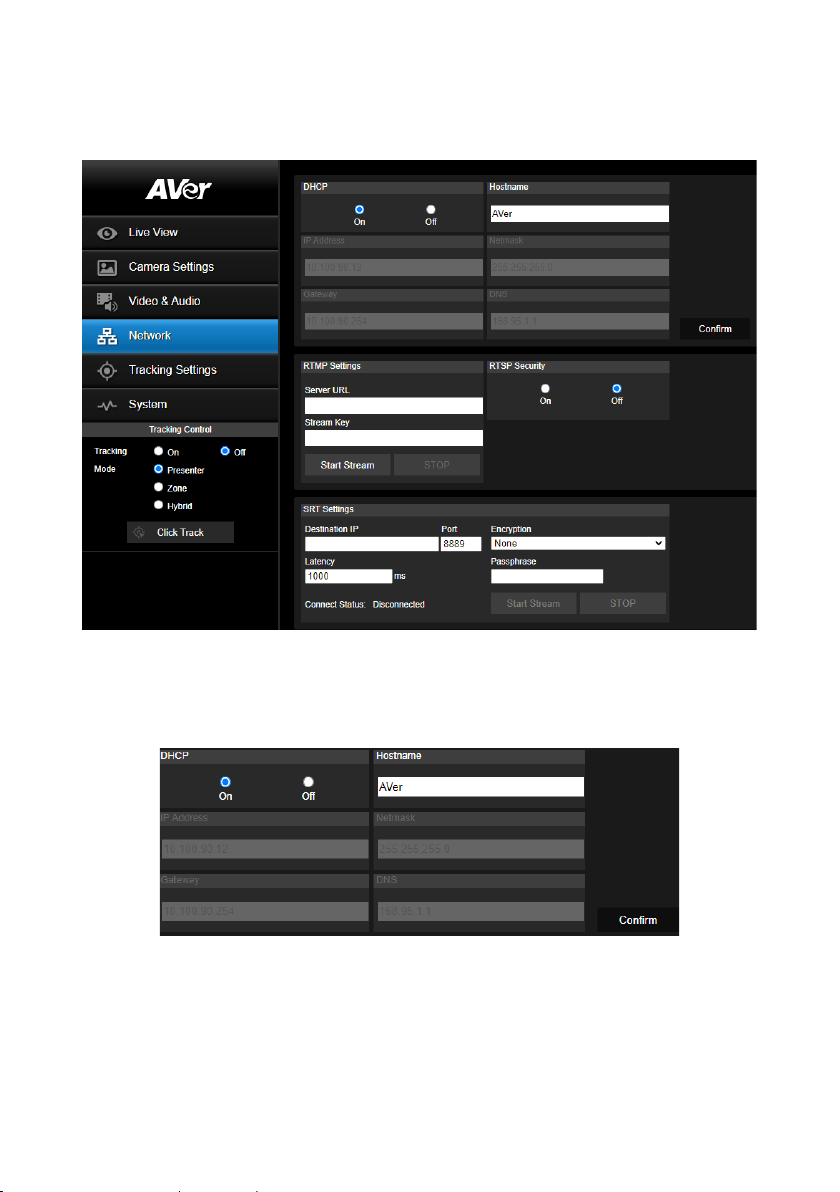
Network
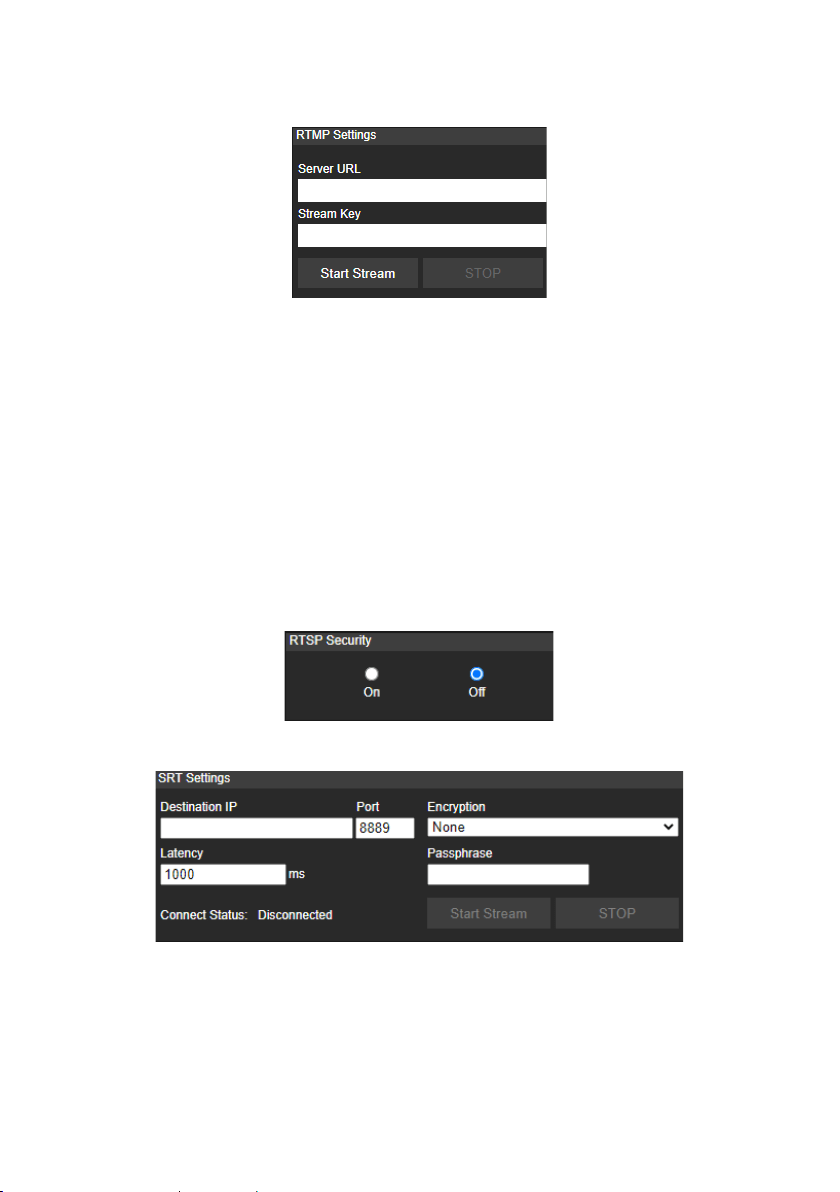
Hostname: To change the display of Hostname, allow to name the camera in other device e.g. IP
Router. The default Hostname of camera is AVer.
DHCP
Set up IP address of camera – DHCP or static IP, Netmask, Gateway, and DNS. After setting, select
Confirm to apply settings.
35
RTMP Settings
Set up for uploading the camera’s live view to the broadcasting platform (e.g. YouTube).
Refer to the instruction of broadcasting to get the RTMP server URL and stream key from the
broadcasting platform and enter in Server URL and Stream Key columns.
Select Start Stream to begin uploading the live video of the camera to the broadcasting platform.
Select STOP to stop uploading the video.
RTSP Security
To use RTSP player to connect to the camera, please enter the following RTSP URL in your
application such as VLC, PotPlayer or Quick Time.
“rtsp://IP address of camera/live_st1”
For example: rtsp://192.168.1.168/live_st1
Enable/disable RTSP security function if needed. (When RTSP Security is on, the RTSP stream
ID/Password will be synced to the web login User name/ Password.)
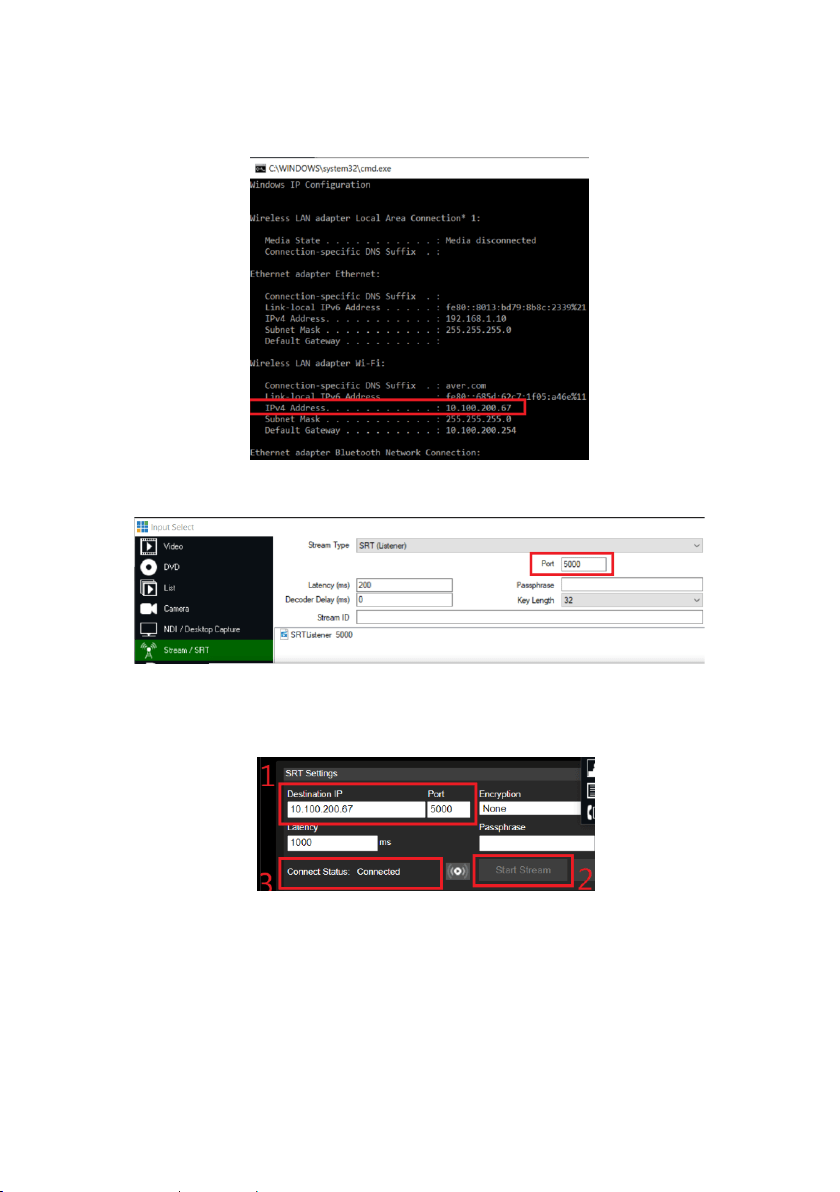
SRT Settings
36
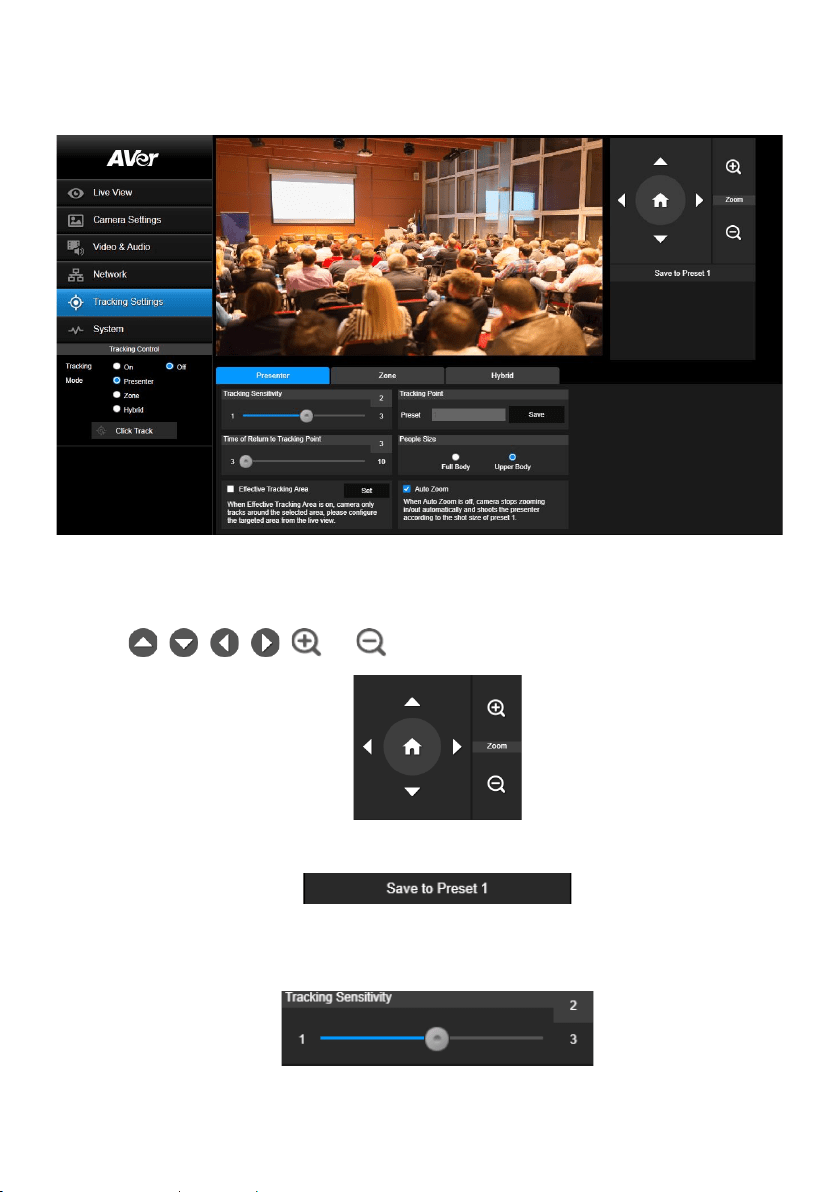
Example 1 vMix:
Set the workstation and the TR300V2 camera in the same network. Check the workstation’s IP
address (Destination IP). Example:
Select SRT (Listener) from Stream Type in vMix Input Select window.
Enter the information into the SRT Settings TR300V2 web interface, then click on “Start Stream”,
Connect Status shows “Connected”.

37
Example2 OBS (Open Broadcaster Software):
Set the workstation and the TR300V2 camera in the same network. Check the workstation’s IP
address (Destination IP). Example:
Open OBS, add a scene, add a source, enter srt://Work Station IP:port?mode=listener
Example: srt://10.100.105.127:8889?mode=listener
[Note] If there is no image, please try right click on the source->Transform->Fit to screen to re-scale
image.
38
Tracking Settings
Set up Tracking mode – Presenter, Zone, and Hybrid mode.
Presenter Mode
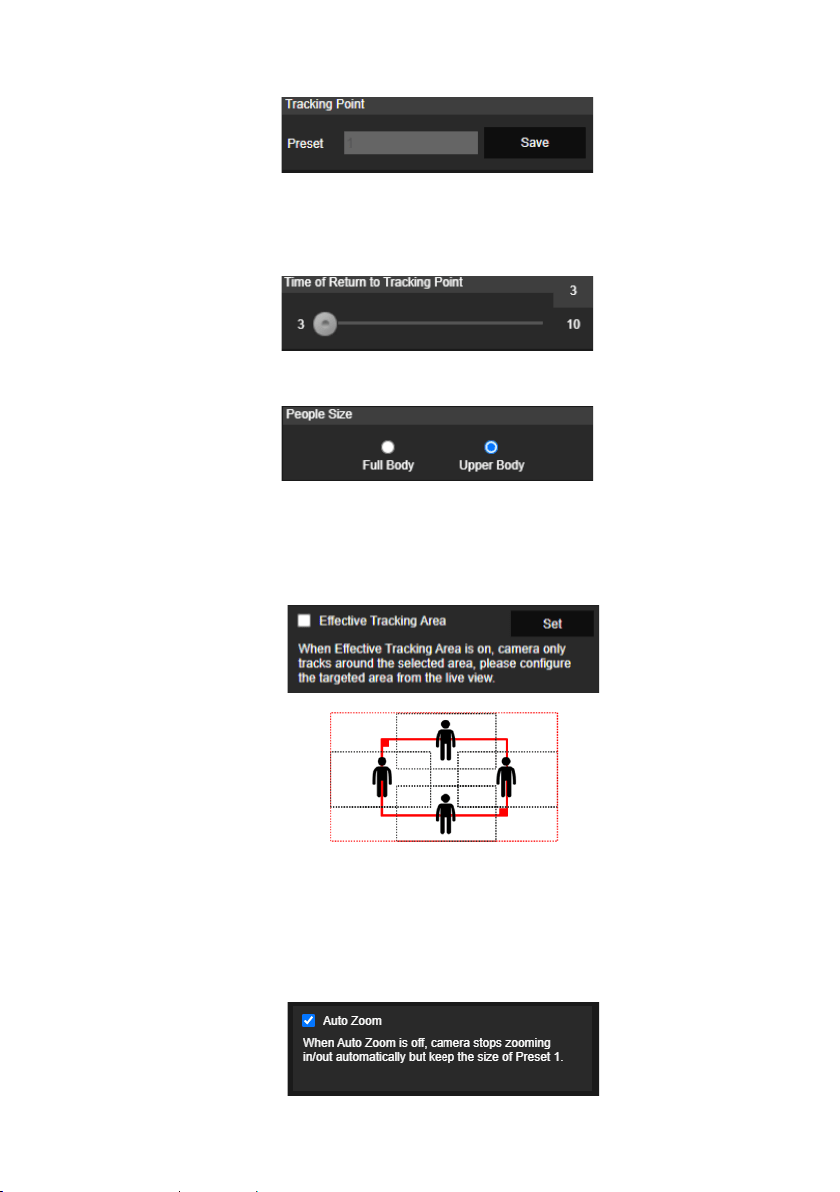
Camera will start tracking when object enters the tracking point (preset point).
1. Use , , , , and to adjust the camera to tracking point (preset position).
2. Then, select Save to Preset 1 to save the tracking point.
3. Tracking Sensitivity: Set the sensitive level of tracking. Move bar to set the value. The current
value is displayed at upper right corner.
39
4. Tracking Point: When losing tracking target and going back to Tracking Point.
5. Time of Return to Tracking Point: Set the idle time for camera return to tracking point. Move
bar to set the value. The current value is displayed at upper right corner.
6. People Size: Select the people in full or half size while tracking.
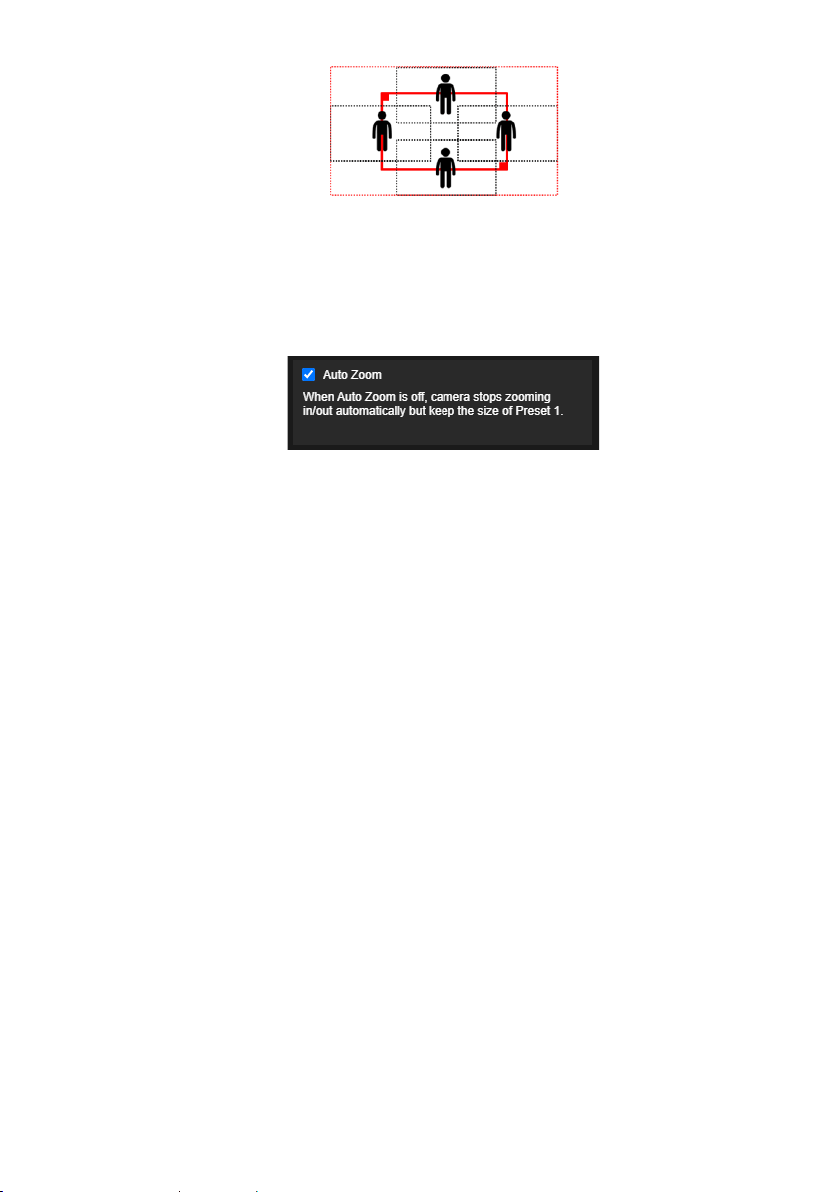
7. Effective Tracking Area: When Effective Tracking Area function is on, camera only tracks
around the selected area. Check the box to turn on the Effective Tracking Area function then click
Set to configure the targeted area in the live view. Move the upper left corner and the lower right
corner of the red solid frame to define the targeted area.
[Note] The position of the red solid frame corresponds to the central position of the presenter.
The black dotted frames represent the tracking areas for different positions of the presenter.
Therefore, the red dotted frame is the actual effective tracking area of the red solid frame.
8. Auto Zoom: When Auto Zoom is off, camera stops zooming in/out automatically but keep the
size of Preset 1.
40
[Note]
Quick Set up for Presenter Mode
1. Use IR remote to adjust the camera view properly then save to preset1 as the initial position.
2. Press tracking “On” button on IR remote, here you go!
3. Press “UPPER BODY” key to get closer view (up to 60% body), or FULL BODY to see entire
presenter in the view.
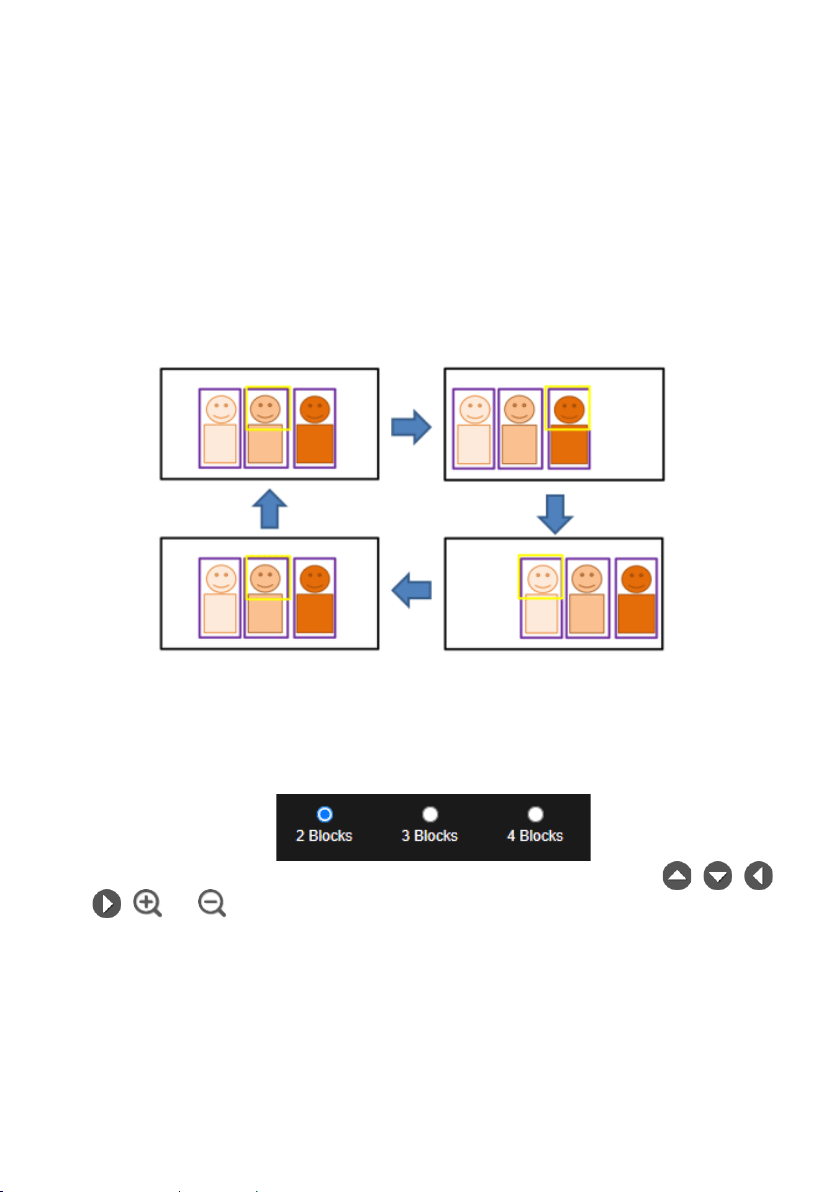
4. Press “Switch” key to switch between presenters. Initially the camera tracks the one who is in
the center of view. Every switch follows the sequence: left to right, then back to far left one in the
camera view (see picture below). To see which presenter is being tracked, press numeric key ”7”
for seven times to call/cancel engineering mode while tracking, you will see purple boxes shown
on all human-outline objects, and who under yellow box is being tracked.
Zone Mode
Set up the block area for the camera to detect object and follow the object when the object is in block
area that user has set.
1. Select the Blocks (2, 3, or 4). Each block is corresponding to one preset position. The maximum
is 4 blocks (4 preset positions).
2. Select the block and set the preset positions in order (preset 6 to preset 9). Use , , ,
, and to move the camera to wanted position and select “Save” to save the preset
position. And, a snapshot of the preset image will show at corresponding image display box.
Repeat the step to set another preset position.

41
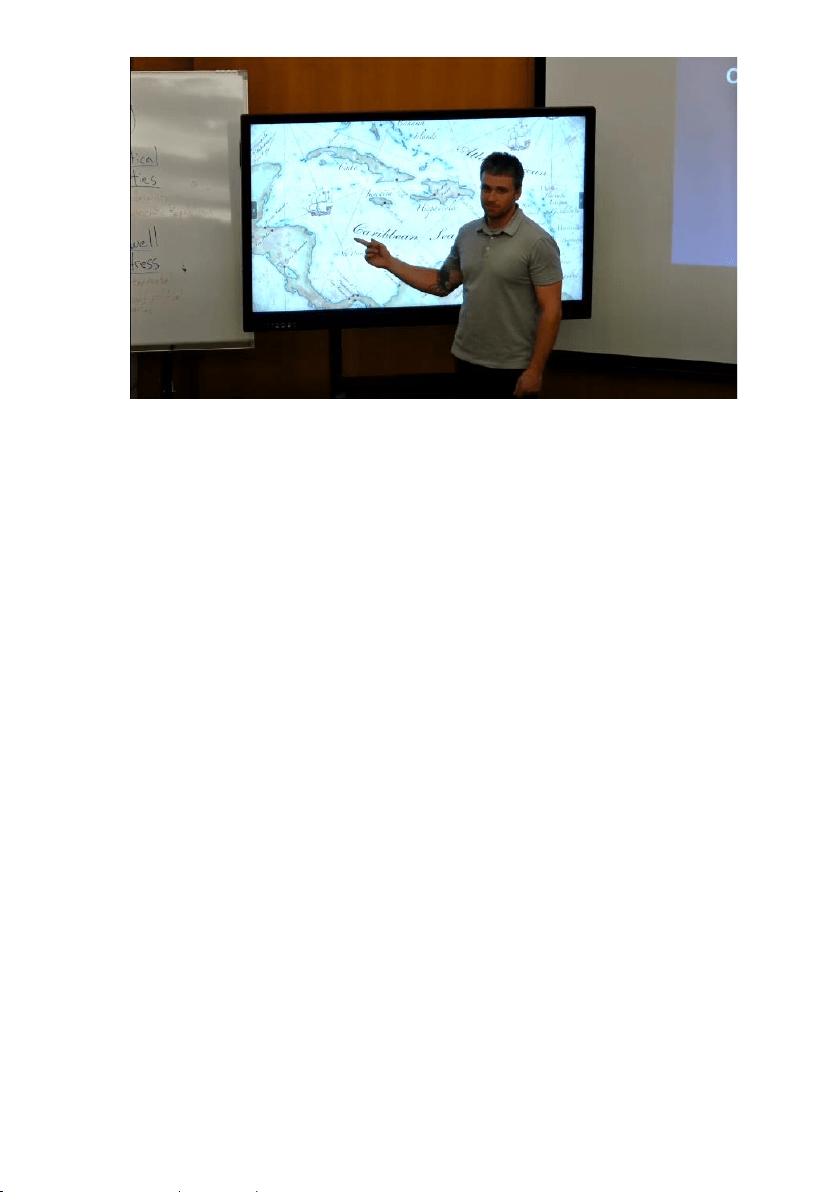
[Note] Set each preset overlapping the next preset view (one man width overlap), no or less zoom
between presets. Examples below:
ndi
[Note] Set the preset view to clearly see the preseter at least complete half body (60% upper
body) to ensure tracking accuracy, make sure there is no any other human-outline
poster/TV/moniter in the background.
Preset for Zone Mode, Example:
42
43
3. Tracking Sensitivity: Set the sensitive level of tracking. Move bar to set the value. The current
value is displayed at upper right corner.
4. Time of Return to Tracking Point: Set the idle time for camera return to tracking point. Move bar
to set the value. The current value is displayed at upper right corner.
[Note]
Quick setup for zone mode
2 blocks initially selected and preset 6 is the initially start position. However, if you prefer 3 or 4 blocks
for Zone mode tracking and prefer another preset as start position, go to web setting.
1. Use IR remote to adjust the camera view properly then save to preset6, preset7.
2. Long press “Tracking Point” to switch tracking mode from Presenter Mode to Zone Mode
(the hotkey supported at firmware v0.0.0000.21 or later).
3. Press “ON”, here you go!
Hybrid Mode
This function allows the user to use two types of tracking modes: “Presenter mode” and “Zone mode”
at the same time. When the presenter enters selected preset points, it will change to Zone position;
when the presenter leaves the preset points, camera will follow presenter to do Auto Tracking function.
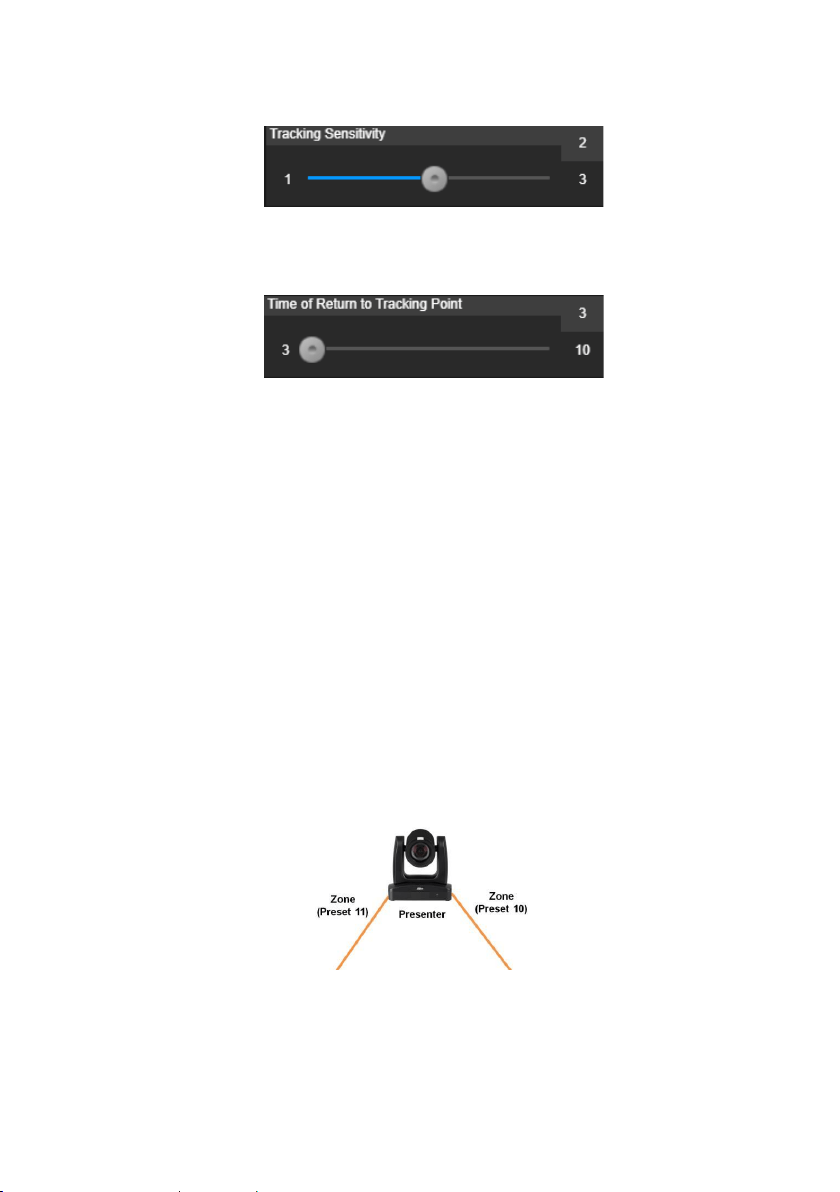
1. Mix two tracking modes “Presenter” and “Zone” at the same time. For Hybrid mode, do not set
Zone preset points overlapping or close to each other. It is recommended to leave some distance
between Zone preset points.
2. Use direction control panel to move the camera to desired position and select “save” to save the
preset position. And, a snapshot of the preset image will show at corresponding image display
box. Select preset position and select “Delete” to delete the saved preset position (Preset 10, 11,
12, and 13).

44
3. Tracking Sensitivity: Set the sensitive level of tracking. Move bar to set the value. The current
value is displayed at upper right corner.
4. Tracking Point: When losing tracking target and going back to Tracking Point.
5. Time of Return to Tracking Point: Set the idle time for camera returning to tracking point. Move
bar to set the value (in seconds). The current value is displayed at upper right corner.
6. People Size: Select the people in full or half size while tracking.
7. Effective Tracking Area: When Effective Tracking Area function is on, camera only tracks
around the selected area. Check the box to turn on the Effective Tracking Area function then click
Set to configure the targeted area in the live view. Move the upper left corner and the lower right
corner of the red solid frame to define the targeted area.
45
[Note] The position of the red solid frame corresponds to the central position of the presenter.
The black dotted frames represent the tracking areas for different positions of the presenter.
Therefore, the red dotted frame is the actual effective tracking area of the red solid frame.
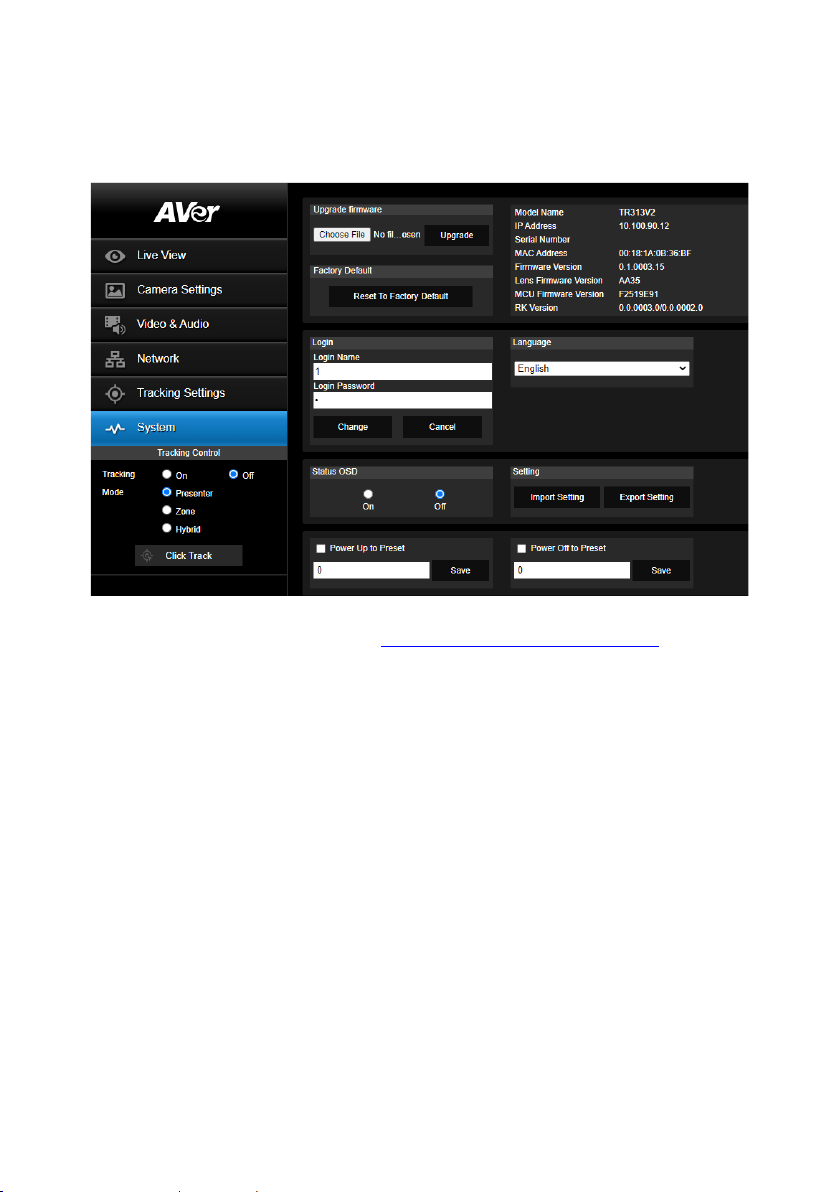
8. Auto Zoom: When Auto Zoom is off, camera stops zooming in/out automatically but keep the
size of Preset 1.
46
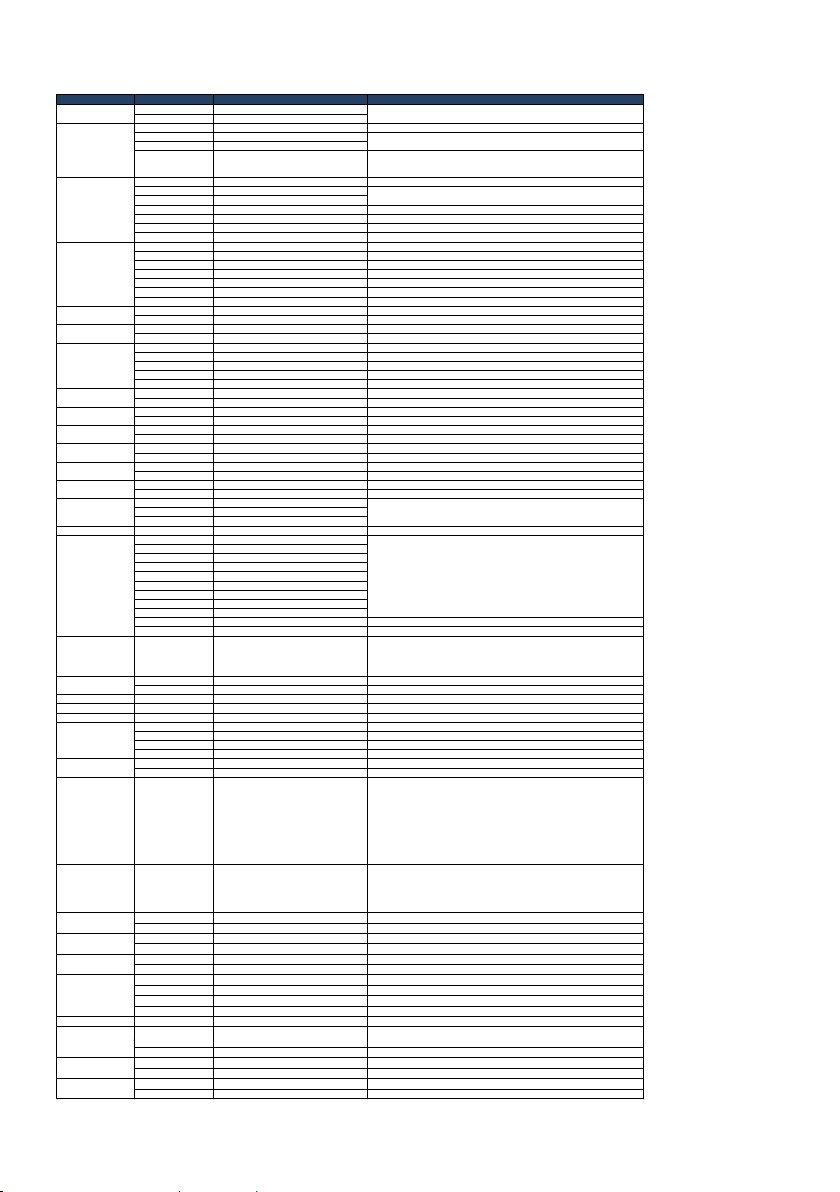
System
The system information of camera is displayed in this page, including Model Name, IP Address, Serial
Number, MAC Address, Firmware Version, Lens Firmware Version, MCU Firmware Version, and RK
Version.
◼ Upgrade firmware: Follow below steps to upgrade the firmware.
1. Download the newest firmware from https://www.aver.com/download-center/ .
2. Connect to the camera through the browser.
3. Select System > Upgrade firmware > Choose File.
4. Select the firmware and select the Upgrade button.
5. After updating, refresh the browser.
◼ Factory Default: Clear all values and reset the camera back to factory default values.
◼ Login: The default login name and password are admin/admin. To change the login name and
password, enter the new login name and password and select the Change button.
◼ Language: Change the Web UI language.
◼ Status OSD: Enable/disable Preset status (Save Preset, Call Preset, Cancel Preset) displayed on
the screen.
◼ Setting: Import/Export setting.
◼ Power Up to Preset: To move the camera to specific preset point after camera is power up, enter
the preset number in the column, click Save button, and check Power Up to Preset.
◼ Power Off to Preset: To move the camera to specific preset point before camera is power off,
enter the preset number in the column, click Save button, and check Power Off to Preset.
47
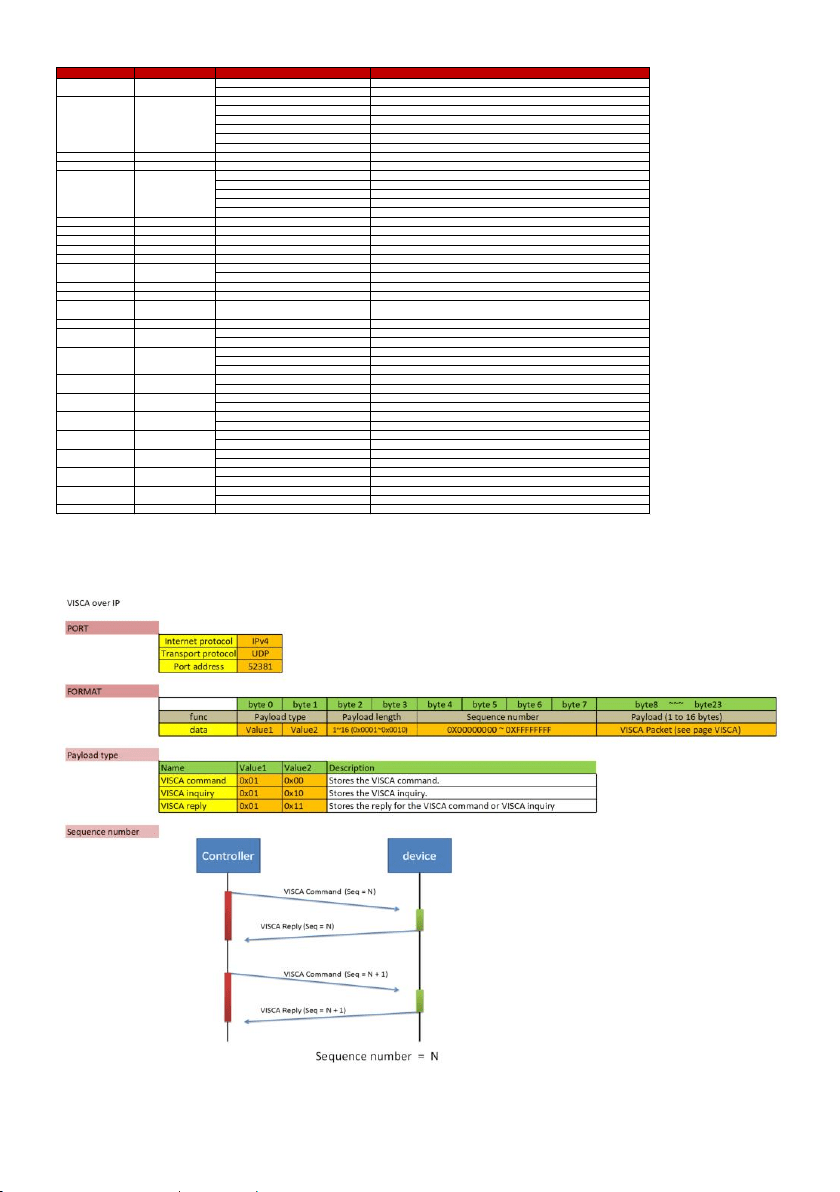
VISCA RS232 Command Table
Command Set Command Command Packet Comments
On 8x 01 04 00 02 FF
Off 8x 01 04 00 03 FF
Stop 8x 01 04 07 00 FF
Tele(Variable) 8x 01 04 07 2p FF
Wide(Variable) 8x 01 04 07 3p FF
Direct 8x 01 04 47 0p 0q 0r 0s FF
pqrs: Zoom Position,
PTC310: 0x0000~0x6f20
PTC330: 0x0110~0x5490
Stop 8x 01 04 08 00 FF
Far (Standard) 8x 01 04 08 02 FF
Near (Standard) 8x 01 04 08 03 FF
Auto Focus 8x 01 04 38 02 FF
Manual Focus 8x 01 04 38 03 FF
One Push 8x 01 04 18 01 FF
Direct 8x 01 04 47 0p 0q 0r 0s FF pqrs: Zoom Position
Auto 8x 01 04 35 00 FF Normal Auto
ATW 8x 01 04 35 04 FF
Indoor 8x 01 04 35 01 FF
Outdoor 8x 01 04 35 02 FF
One Push WB 8x 01 04 35 03 FF One Push WB mode
Manual 8x 01 04 35 05 FF Manual Control mode
One Push 8x 01 04 10 05 FF One Push WB Trigger
Up 8x 01 04 03 02 FF Manual Control of R Gain
Down 8x 01 04 03 03 FF
Up 8x 01 04 04 02 FF Manual Control of B Gain
Down 8x 01 04 04 03 FF
Full Auto 8x 01 04 39 00 FF Automatic Exposure mode
Manual 8x 01 04 39 03 FF Manual Control mode
Shutter Priority 8x 01 04 39 0A FF Shutter Priority Automatic Exposure mode
Iris Priority 8x 01 04 39 0B FF Iris Priority Automatic Exposure mode
Bright 8x 01 04 39 0D FF Bright Mode (Manual control)
Up 8x 01 04 0A 02 FF Shutter Setting
Down 8x 01 04 0A 03 FF
Up 8x 01 04 0B 02 FF Iris Setting
Down 8x 01 04 0B 03 FF
Up 8x 01 04 0C 02 FF Gain Setting
Down 8x 01 04 0C 03 FF
Up 8x 01 04 0D 02 FF Bright Setting
Down 8x 01 04 0D 03 FF
Up 8x 01 04 0E 02 FF Exposure Compensation Amount Setting
Down 8x 01 04 0E 03 FF
On 8x 01 04 33 02 FF Back Light Compensation ON/OFF
Off 8x 01 04 33 03 FF
Reset 8x 01 04 3F 00 pp FF
Set 8x 01 04 3F 01 pp FF
Recall 8x 01 04 3F 02 pp FF
CAM_Menu On/Off 8x 01 06 06 10 FF Display ON/OFF
Up 8x 01 06 01 VV WW 03 01 FF
Down 8x 01 06 01 VV WW 03 02 FF
Left 8x 01 06 01 VV WW 01 03 FF
Right 8x 01 06 01 VV WW 02 03 FF
UpLeft 8x 01 06 01 VV WW 01 01 FF
UpRight 8x 01 06 01 VV WW 02 01 FF
DownLeft 8x 01 06 01 VV WW 01 02 FF
DownRight 8x 01 06 01 VV WW 02 02 FF
Stop 8x 01 06 01 VV WW 03 03 FF
Home 8x 01 06 04 FF
Reset 8x 01 06 05 FF
Absolute Position (v26 or
above)
8x 01 06 02 VV WW 0Y 0Y 0Y 0Y 0Z 0Z 0Z 0Z FF
VV: Pan speed setting 0x01 (low speed) to 0x18 (high speed)
WW: Tilt speed setting 0x01 (low speed) to 0x18 (high speed)
YYYY: Pan Position 8A14 to 762C (CENTER 0000)
ZZZZ: Tilt Position 468B to E898 (Image Flip: OFF) (CENTER 0000)
On 8x 01 04 3D 02 FF Wdr ON/OFF
Off 8x 01 04 3D 03 FF
CAM_MenuEnter 8x 01 7E 01 02 00 01 FF Enter Submenu
Tally Lamp ON 8x 01 7E 01 0A 00 02 FF
Tally Lamp OFF 8x 01 7E 01 0A 00 03 FF
Freeze On 81 01 04 62 02 FF Freeze On Immediately
Freeze Off 81 01 04 62 03 FF Freeze Off Immediately
Preset Freeze On 81 01 04 62 22 FF Freeze On When Running Preset
Preset Freeze Off 81 01 04 62 23 FF Freeze Off When Running Preset
On 8x 01 04 7D 02 FF Auto tracking ON/OFF
Off 8x 01 04 7D 03 FF
CAM_Memory Special Set 8x 01 04 3F 01 pp FF
pp: 0x00 To 0xFF normal preset
pp: 0x5F => Trun on OSD menu
pp: 0xA0 => Full Body
pp: 0xA1 => Upper Body
pp: 0xA2 => Tracking Point
pp: 0xA3 => Switch
pp: 0xA4 => Presenter mode (supported in FW v25 or newer)
pp: 0xA5 => Zone mode (supported in FW v25 or newer)
pp: 0xA6 => Hybrid mode (supported in FW v35 or newer)
Absolute Position Set 8x 01 06 02 VV WW 0Y 0Y 0Y 0Y 0Z 0Z 0Z 0Z FF
VV: Pan speed setting 0x01 (low speed) to 0x18 (high speed)
WW: Tilt speed setting 0x01 (low speed) to 0x18 (high speed)
YYYY: Pan Position 8A14 to 762C (CENTER 0000)
ZZZZ: Tilt Position 468B to E898 (Image Flip: OFF) (CENTER 0000)
(Supported in FW v26 or above)
On 8x 01 04 A0 02 FF
Off 8x 01 04 A0 03 FF
On 8x 01 04 A1 02 FF
Off 8x 01 04 A1 03 FF
On 8x 01 04 A2 02 FF
Off 8x 01 04 A2 03 FF
IP+Stream 8x 01 04 A3 00 FF
USB only 8x 01 04 A3 01 FF
NDI only 8x 01 04 A3 02 FF
Streaming only 8x 01 04 A3 03 FF
Reboot On 8x 01 04 A4 FF
On 8x 01 04 A5 02 FF
Off 8x 01 04 A5 03 FF
On 8x 01 04 A6 02 FF
Off 8x 01 04 A6 03 FF
On 8x 01 04 A7 02 FF
Off 8x 01 04 A7 03 FF
Video mode
Preset Affects PTZ & Focus Values Only
Relative Zoom Ratio
Auto Tilt
Pan-tilt Drive
VV: Pan speed setting 0x01 (low speed) to 0x18 (high speed)
WW: Tilt speed setting 0x01 (low speed) to 0x18 (high speed)
CAM_WDR
Freeze
Auto Tracking
Auto zoom
Effective Tracking area
RTMP
CAM_Gain
CAM_Bright
CAM_Backlight
CAM_Preset
pp: Preset Number 0x00~0xFF
CAM_WB
CAM_RGain
CAM_Bgain
CAM_AE
CAM_Shutter
CAM_Iris
CAM_Power
Power ON/OFF
CAM_Zoom
p=0 (Low) to 7 (High)
CAM_Focus
Each 'Far/Near' needs a 'stop'
48
Visca over IP Settings
Inquiry Command Command Packet Reply Packet Comments
y0 50 02 FF On
y0 50 03 FF Off
y0 50 00 FF Auto
y0 50 01 FF In Door
y0 50 02 FF Out Door
y0 50 03 FF One Push WB
y0 50 04 FF ATW
y0 50 05 FF Manual
CAM_RGainInq 8x 09 04 43 FF y0 50 00 00 0p 0q FF pq: R Gain
CAM_BGainInq 8x 09 04 44 FF y0 50 00 00 0p 0q FF pq: B Gain
y0 50 00 FF Full Auto
y0 50 03 FF Manual
y0 50 0A FF Shutter Priority
y0 50 0B FF Iris Priority
y0 50 0D FF Bright
CAM_ShutterPosInq 8x 09 04 4A FF y0 50 00 00 0p 0q FF pq: Shutter Position
CAM_IrisPosInq 8x 09 04 4B FF y0 50 00 00 0p 0q FF pq: Iris Position
CAM_GainPosInq 8x 09 04 4C FF y0 50 00 00 0p 0q FF pq: Gain Position
CAM_BrightPosInq 8x 09 04 4D FF y0 50 00 00 0p 0q FF pq: Bright Position
CAM_ExpCompPosInq 8x 09 04 4E FF y0 50 00 00 0p 0q FF pq: ExpComp Position
y0 50 02 FF Auto Focus
y0 50 03 FF Manual Focus
CAM_FocusPosInq 8x 09 04 48 FF y0 50 0p 0q 0r 0s FF pqrs: Focus Position
zoom_Pos_Inq
8x 09 04 47 FF y0 50 0p 0q 0r 0s FF pqrs: Zoom Position
PT_Pos_Inq
8x 09 06 12 FF
y0 50 0Y 0Y 0Y 0Y 0Z 0Z 0Z 0Z FF
YYYY: Pan Position 8A14 to 762C (CENTER 0000)
ZZZZ: Tilt Position 468B to E898 (Image Flip: OFF) (CENTER 0000)
CAM_Preset Inq 8x 09 04 3F FF y0 50 pp FF Return the last preset number which has been operated pp:01-FF
y0 50 01 FF On
y0 50 00 FF Off
y0 50 01 FF Presenter
y0 50 02 FF Zone
y0 50 03 FF Hybrid
y0 50 01 FF Full body
y0 50 02 FF Upper body
y0 50 02 FF On
y0 50 03 FF Off
y0 50 02 FF On
y0 50 03 FF Off
y0 50 02 FF On
y0 50 03 FF Off
y0 50 02 FF On
y0 50 03 FF Off
y0 50 02 FF Freeze On
y0 50 03 FF Freeze Off
y0 50 02 FF Preset Freeze On
y0 50 03 FF Preset Freeze Off
Firmware version 8x 09 36 69 04 FF y0 50 0p 0q 0r 0s 0t 0u 0v 0w FF fw_ver: p.q.rstu.vw
CAM_BLC mode
8x 09 04 33 FF
CAM_Live Freeze
8x 09 04 62 01 FF
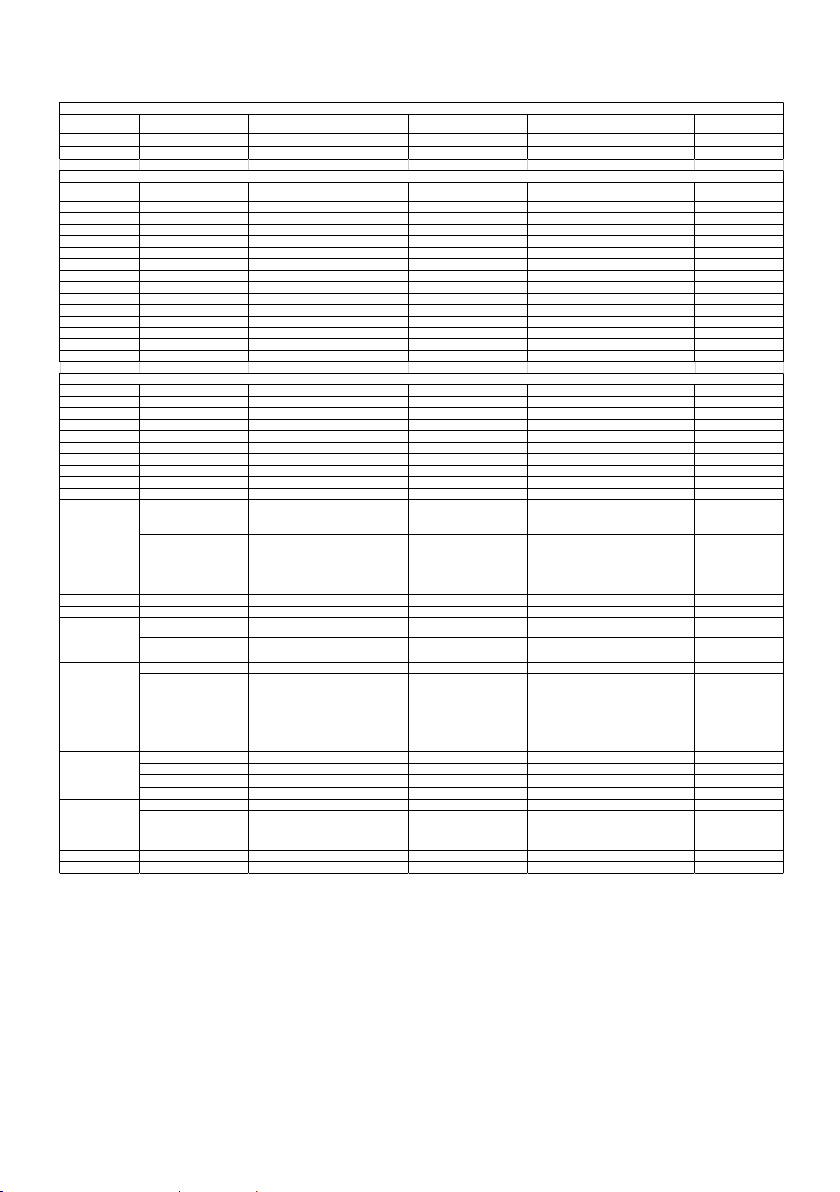
CAM_Preset Freeze
8x 09 04 62 02 FF
CAM_OSD MENU on/off
8x 09 7E 04 76 01 FF
CAM_Tally
8x 09 7E 01 0A FF
CAM_WDR mode
8x 09 04 3D FF
CAM_Tracking status
8x 09 36 69 02 FF
CAM_Tracking_mode
8x 09 36 69 01 FF
CAM_Tracking body size
8x 09 36 69 03 FF
CAM_WBModeInq
8x 09 04 35 FF
CAM_AEModeInq
8x 09 04 39 FF
CAM_FocusModeInq
8x 09 04 38 FF
CAM_PowerInq
8x 09 04 00 FF
49
CGI Command
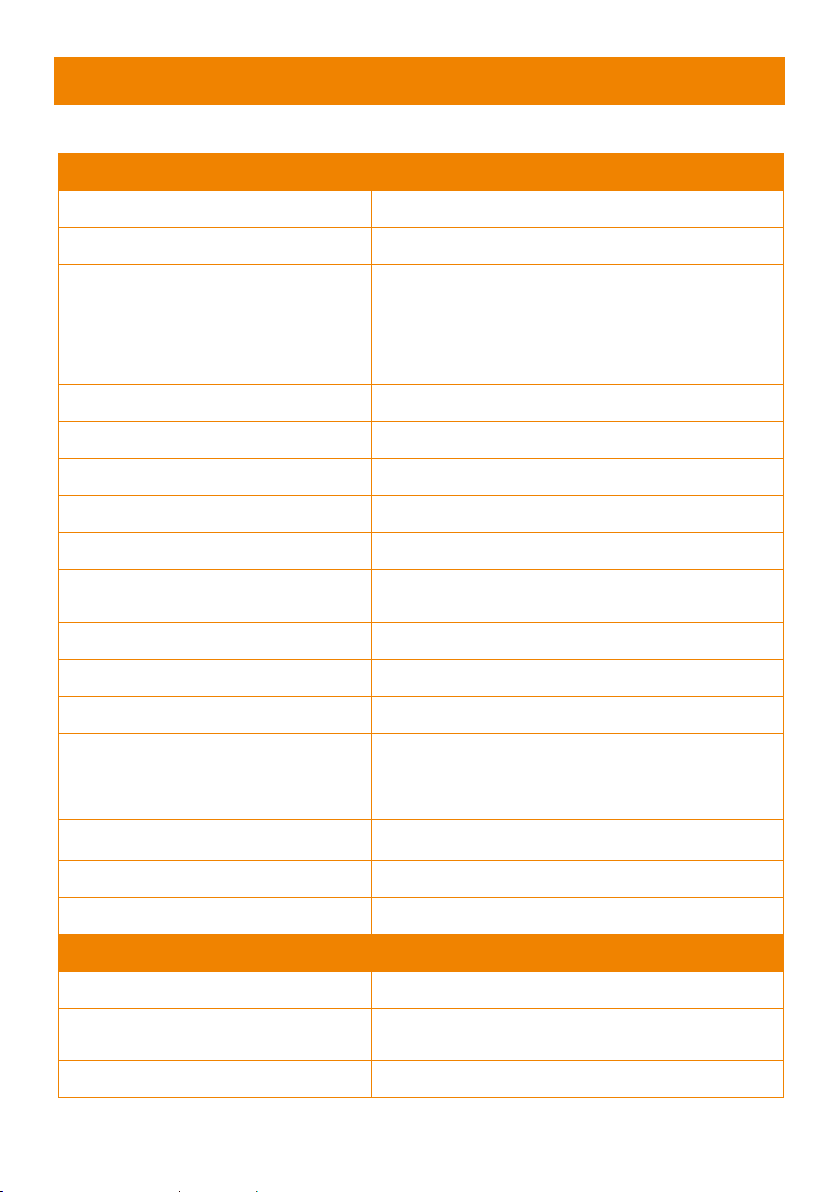
CGI item name URL Command Parameter Name Parameter value Description
Get JPEG /snapshot 1280x720 jpg
Get RTSP stream rtsp://ip/live_st1
CGI item name URL Command Parameter Name Parameter value Description
up start /cgi-bin?SetPtzf= 1,0,1&(random)
up end /cgi-bin?SetPtzf= 1,0,2&(random)
down start /cgi-bin?SetPtzf= 1,1,1&(random)
down end /cgi-bin?SetPtzf= 1,1,2&(random)
left start /cgi-bin?SetPtzf= 0,1,1&(random)
left end /cgi-bin?SetPtzf= 0,1,2&(random)
right start /cgi-bin?SetPtzf= 0,0,1&(random)
right end /cgi-bin?SetPtzf= 0,0,2&(random)
zoom_in start /cgi-bin?SetPtzf= 2,0,1&(random)
zoom_in end /cgi-bin?SetPtzf= 2,0,2&(random)
zoom_out start /cgi-bin?SetPtzf= 2,1,1&(random)
zoom_out end /cgi-bin?SetPtzf= 2,1,2&(random)
set preset: /cgi-bin?ActPreset= 1,N&(random) N : position
load preset: /cgi-bin?ActPreset= 0,N&(random) N : position
exposure value /cgi-bin?Set= img_expo_expo,3,N&(random) value 1 ~ 9 N : value
saturation /cgi-bin?Set= img_saturation,3,N&(random) value 0 ~ 10 N : value
contrast /cgi-bin?Set= img_contrast,3,N&(random) value 0 ~ 4 N : value
Tracking on: /cgi-bin?Set= trk_tracking_on,3,1
Tracking off: /cgi-bin?Set= trk_tracking_on,3,0
Reboot GET(Basic Authentication) /cgi-bin?OnePush=!
Factory Reset GET(Basic Authentication) /cgi-bin?OnePush=d
Mode Presenter /cgi-bin?Set=trk_mode,3,1&X value random number X : value
Mode Zone /cgi-bin?Set=trk_mode,3,2&X value random number X : value
Mode Hybrid /cgi-bin?Set=trk_mode,3,3&X
- Reply
Presenter
trk_mode,3=1
Zone
trk_mode,3=2
Hybrid
trk_mode,3=3
Click Track ON GET(Basic Authentication) /cgi-bin?Set=trk_update_detect,3,1
Click Track OFF GET(Basic Authentication) /cgi-bin?Set=trk_update_detect,3,0
GET(Basic Authentication) /cgi-bin?Get=trk_detect_num,3
Need to be sent along with
Click Track ON command
- Reply "trk_detect_num,3=X\r\n"
X: The amount of humanoid outlines,
maximum: 50
GET(Basic Authentication) /cgi-bin?GetTrackingDetectZone=X
- Reply
"focus:-1\nzone[00]:00,119,720,960\nzone[01]:-
1502615204,-1366225632,01,-1366223544"
focus - The number of humanoid
outline being tracked.
zone[NN]:x,y,w,h - based on 1080P
resolution
The upper left corner of the screen is the coordinate
reference (0,0), x-coordinate/y-coordinate/w width/h
height, based on the upper left corner of the
humanoid outline.
The number following indicates the number of the
tracked person, for example, -1 means that no one is
being tracked. If one of the three is being tracked,
one of 0, 1 and 2 will appear after the 'focus'.
GET(Basic Authentication) /cgi-bin?Set=trk_assign_zone,3,X
X: The number of the human outlines
- Reply http response: ok
GET(Basic Authentication) /cgi-bin?SetString=TrackingFocusZone,[x,y,w,h]
- Reply http response: ok
GET(Basic Authentication)
/cgi-bin?Get=trk_tracking_on,3&_=X random number X : value
- Reply
On
trk_tracking_on,3=1
Off
trk_tracking_on,3=0"
RTMP Start streamming /cgi-bin?Set= vdo_rtmp_enable,3,1
RTMP Stop streamming /cgi-bin?Set= vdo_rtmp_enable,3,0
Click Track
Get detect zone
(Humanoid outlines)
number
Click Track
Get detect zone
(Humanoid outlines) info
Click Track
Set target zone
Tracking On/Off Get
CGI List for Video Transmission
CGI List for Camera Control
CGI List for Various Settings
Mode Get
GET(Basic Authentication)
/cgi-bin?Get=trk_mode,3&_=X
value
random number
X : value
50
Specification
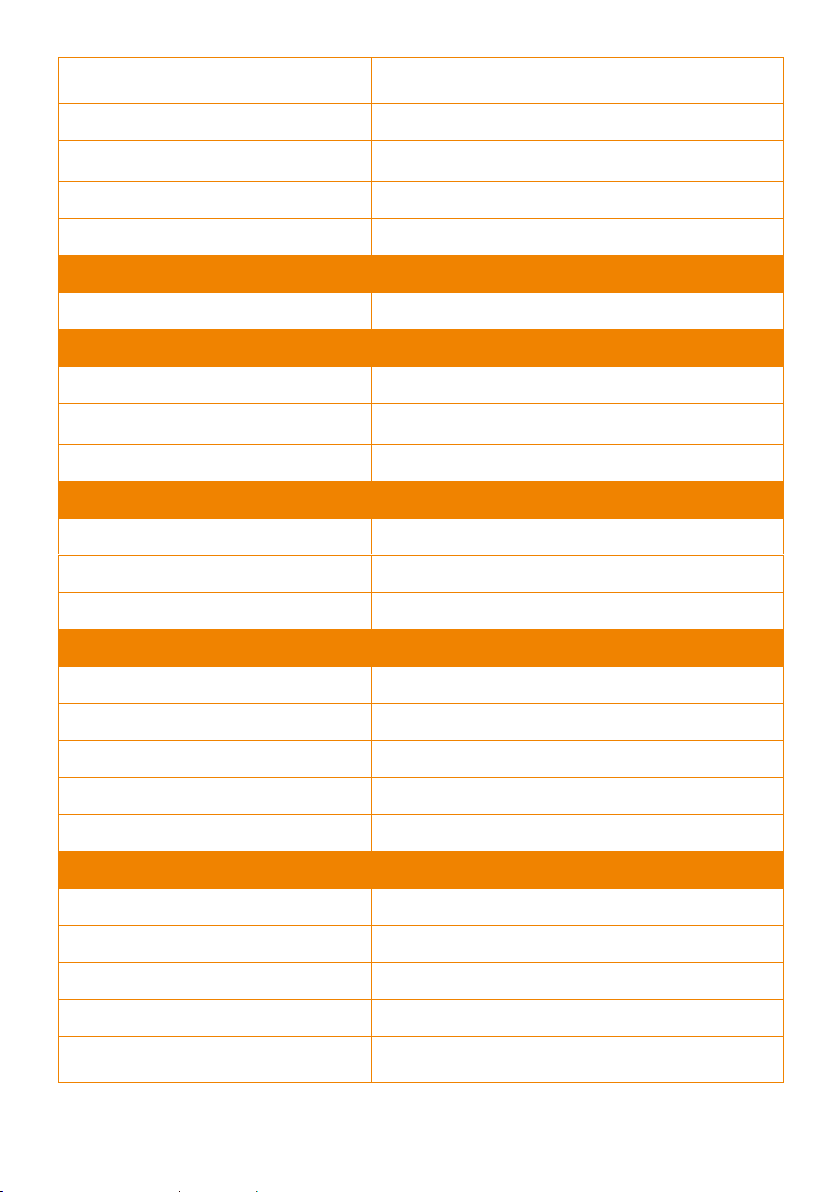
TR311V2
Camera
Image Sensor
1/2.8” 1080p Exmor CMOS
Effective Picture Elements
2 Megapixels
Output Resolutions
Auto
1080p/60, 1080p/59.94, 1080p/50, 1080p/30,
1080p/29.97, 1080p/25, 720p/60, 720p/59.94, 720p/50,
720p/30, 720p/29.97, 720p/25
Minimum Illumination
0.5 lux (IRE50, F1.6, 30fps)
S/N Ratio
≥ 50 dB
Gain
Auto, Manual
TV Line
900 (Center)
Shutter Speed
1/1 s to 1/10,000 sec
Exposure Control
Auto, Manual, Bright mode, Priority AE (Shutter, IRIS),
BLC, WDR
White Balance
Auto, ATW, Indoor, Outdoor, One push, Manual
Optical Zoom
12X
Digital Zoom
12X
Viewing Angles
DFOV : 78° (Wide) to 7° (Tele)
HFOV : 70° (Wide) to 6° (Tele)
VFOV : 42° (Wide) to 3° (Tele)
Focal Length
f = 3.9 mm (Wide) to 46.8 mm (Tele)
Aperture (Iris)
F = 1.6 (Wide) to 2.8 (Tele)
Minimum Working Distance
0.3 m (Wide), 1.5 m (Tele)
Camera
Pan / Tilt Angles
Pan : ±170°, Tilt : +90° / -30°
Pan / Tilt Speed (Manual)
Pan : 0.1° to 100° / sec, Tilt : 0.1° to 100° / sec
Preset Speed
Pan : 200° / sec, Tilt : 200° / sec
51
Preset Positions
10 (IR), 255 (RS-232)
Camera Control - Interface
RS-232 (DIN8), RS-422 (RJ45), IP
Camera Control - Protocols
VISCA / PELCO-D (RS-232 / RS-422 / IP), CGI (IP)
Image Processing
Noise Reduction (2D / 3D), Flip, Mirror
Power Frequency
50 Hz, 60 Hz
AI Auto Tracking Functions
Tracking Mode
Presenter Mode, Zone Mode, Hybrid Mode
Audio
Channel
2ch Stereo
Codec
AAC (48 / 44.1 / 32 / 24K), G.711, PCM (8K)
Sample Rate
48 KHz
Interface
Video Outputs
3G-SDI, HDMI, IP, USB
Audio Outputs
3G-SDI, HDMI, IP, USB
Audio Inputs
MIC in, Line in
General
Power Requirement
AC 100 - 240V to DC 12V/2A and above
Power Consumption
18W
PoE
PoE+
Dimensions (W x D x H)
W180*D145*H192mm
Net Weight
2.0 (±0.1) kg
General
Application
Indoor
Tally
Yes
Security
Kensington Slot
Remote Control
Infrared
Operating Conditions
Temperature : 0 °C to +40 °C ; Humidity : 20% to 80%
52
Storage Conditions
Temperature : -20°C to +60°C ; Humidity: 20% to 95%
IP Streaming
Resolution
1080p 60fps
Network Video Compress Formats
H.264, H.265, MJPEG
Maximum Frame Rate
1080p 60fps
Bit-rate Control Modes
VBR, CBR (selectable)
Range of Bit-rate Setting
512 Kbps to 32 Mbps
Network Interface
10 / 100 / 1000 Base-T
Multi-stream Capability
2
(RTSP / Web Page), 1080p 60fps (max.)
Network Protocols
IPv6, IPv4, TCP, UDP, ARP, IMCP, IGMP, HTTP,
DHCP, RTP / RTCP, RTSP, RTMP, VISCA over IP
NDI® | HX Capability
No
USB
Connector
USB 3.0
Video Format
MJPEG
Maximum Video Resolution
1080p
USB Video Class (UVC)
UVC 1.1
USB Audio Class (UAC)
UAC 1.0
Web UI
Live Video Preview
Yes
Camera PTZ Control
Pan, Tilt, Zoom, Focus, Preset Control
Camera / Image Adjustment
Exposure, White Balance, Picture
Network Configuration
DHCP, IP Address, Gateway, Subnet Mask, DNS
Software Tools
Device IP Searching, Configuration Tool
Support Windows
®
7 or later

53
Warranty
Camera
3 Years
Accessories
1 Year
Specifications are subject to change without prior notice.
54
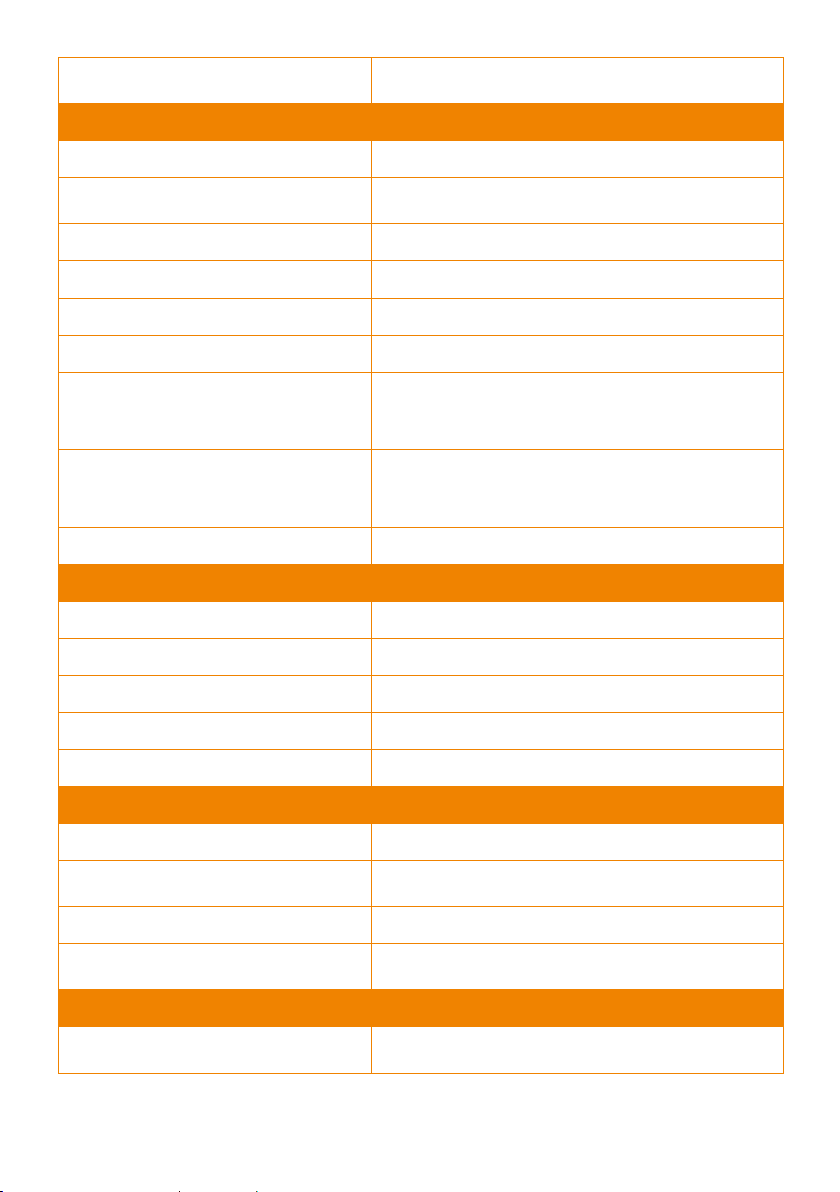
TR313V2
Camera
Image Sensor
1/2.8” 4K Exmor CMOS
Effective Picture Elements
8 Megapixels
Output Resolutions
Auto
4K/30, 4K/29.97, 4K/25, 1080p/60, 1080p/59.94,
1080p/50, 1080p/30, 1080p/29.97, 1080p/25, 720p/60,
720p/59.94, 720p/50, 720p/30, 720p/29.97, 720p/25
Minimum Illumination
0.5 lux (IRE50, F1.6, 30fps)
S/N Ratio
≥ 50 dB
Gain
Auto, Manual
TV Line
1400 (Center)
Shutter Speed
1/1 s to 1/10,000 sec
Exposure Control
Auto, Manual, Bright mode, Priority AE (Shutter, IRIS),
BLC, WDR
White Balance
Auto, ATW, Indoor, Outdoor, One push, Manual
Optical Zoom
12X
Digital Zoom
12X
Sensor Zoom
2X
Viewing Angles
DFOV : 78° (Wide) to 7° (Tele)
HFOV : 70° (Wide) to 6° (Tele)
VFOV : 42° (Wide) to 3° (Tele)
Focal Length
f = 3.9 mm (Wide) to 46.8 mm (Tele)
Aperture (Iris)
F = 1.6 (Wide) to 2.8 (Tele)
Minimum Working Distance
0.3 m (Wide), 1.5 m (Tele)
Pan / Tilt Angles
Pan : ±170°, Tilt : +90° / -30°
Pan / Tilt Speed (Manual)
Pan : 0.1° to 100° / sec, Tilt : 0.1° to 100° / sec
55
Camera
Preset Speed
Pan : 200° / sec, Tilt : 200° / sec
Preset Positions
10 (IR), 255 (RS-232)
Camera Control - Interface
RS-232 (DIN8), RS-422 (RJ45), IP
Camera Control - Protocols
VISCA / PELCO-D (RS-232 / RS-422 / IP), CGI (IP)
Image Processing
Noise Reduction (2D / 3D), Flip, Mirror
Power Frequency
50 Hz, 60 Hz
AI Auto Tracking Functions
Tracking Mode
Presenter Mode, Zone Mode, Hybrid Mode
Audio
Channel
2ch Stereo
Codec
AAC (48 / 44.1 / 32 / 24K), G.711, PCM (8K)
Sample Rate
48 KHz
Interface
Video Outputs
3G-SDI, HDMI, IP, USB
Audio Outputs
3G-SDI, HDMI, IP, USB
Audio Inputs
MIC in, Line in
General
Power Requirement
AC 100 - 240V to DC 12V/2A and above
Power Consumption
18W
PoE
PoE+
Dimensions (W x W x H)
W180*D145*H192mm
Net Weight
2.0 (±0.1) kg
Application
Indoor
Tally
Yes
Security
Kensington Slot
56
General
Remote Control
Infrared
Operating Conditions
Temperature : 0 °C to +40 °C ; Humidity : 20% to 80%
Storage Conditions
Temperature : -20°C to +60°C ; Humidity: 20% to 95%
IP Streaming
Resolution
4K 30fps
Network Video Compress Formats
H.264, H.265, MJPEG
Maximum Frame Rate
4K 30fps or 1080p 60fps
Bit-rate Control Modes
VBR, CBR (selectable)
Range of Bit-rate Setting
512 Kbps to 32 Mbps
Network Interface
10 / 100 / 1000 Base-T
Multi-stream Capability
2
(RTSP / Web Page), 1080p 60fps (max.)
Network Protocols
IPv6, IPv4, TCP, UDP, ARP, IMCP, IGMP, HTTP,
DHCP, RTP / RTCP, RTSP, RTMP, VISCA over IP
NDI® | HX Capability
No
USB
Connector
USB 3.0
Video Format
MJPEG, YUV
Maximum Video Resolution
2160p
USB Video Class (UVC)
UVC 1.1
57
Web UI
Live Video Preview
Yes
Camera PTZ Control
Pan, Tilt, Zoom, Focus, Preset Control
Camera / Image Adjustment
Exposure, White Balance, Picture
Network Configuration
DHCP, IP Address, Gateway, Subnet Mask, DNS
Software Tools
Device IP Searching, Configuration Tool
Support Windows® 7 or later
Warranty
Camera
3 Years
Accessories
1 Year
Specifications are subject to change without prior notice.
V1
