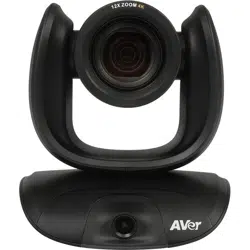
CAM570
User Manual
Federal Communications Commission Statement
NOTE: This equipment has been tested and found to comply with the limits for a Class A digital device,
pursuant to part 15 of the FCC Rules. These limits are designed to provide reasonable protection
against harmful interference when the equipment is operated in a commercial environment. This
equipment generates, uses, and can radiate radiofrequency energy and, if not installed and used in
accordance with the instruction manual, may cause harmful interference to radio communications.
Operation of this equipment in a residential area is likely to cause harmful interference in which case
the user will be required to correct the interference at his own expense.
FCC Caution: Any changes or modifications not expressly approved by the party responsible for
compliance could void the user's authority to operate this equipment.
This device complies with part 15 of the FCC Rules.
Operation is subject to the following two conditions:
(1) This device may not cause harmful interference, and
(2) this device must accept any interference received, including interference that may cause undesired
operation.
Warning:
This is a class A product. In a domestic environment this product may cause radio interference in
which case the user may be required to take adequate measures.
This Class A digital apparatus complies with Canadian ICES-003. Cet appareil numérique de la classe
A est conforme à la norme NMB-003 du Canada.
この装置は、クラス A 機器です。この装置を住宅環境で使用すると電波妨害を引き起こすことがあります。
この場合には使用者が適切な対策を講ずるよう要求されることがあります。 VCCI-A
사 용 자 안 내 문
이 기기는 업무용 환경에서 사용할 목적으로 적합성평가를 받은 기기로서
가정용 환경에서 사용하는 경우 전자파간섭의 우려가 있습니다.
※ 사용자 안내문은 "업무용 방송통신기자재"에만 적용됩니다.
기종별
사용자안내문
A 급 기기
(업무용 방송통신기자재)
이 기기는 업무용(A 급) 전자파적합기기로서 판
매자 또는 사용자는 이 점을 주의하시기 바라
며, 가정외의 지역에서 사용하는 것을 목적으로
합니다.

DISCLAIMER
No warranty or representation, either expressed or implied, is made with respect to the contents of this
documentation, its quality, performance, merchantability, or fitness for a particular purpose.
Information presented in this documentation has been carefully checked for reliability; however, no
responsibility is assumed for inaccuracies. The information contained in this documentation is subject
to change without notice.
In no event will AVer Information Inc. be liable for direct, indirect, special, incidental, or consequential
damages arising out of the use or inability to use this product or documentation, even if advised of the
possibility of such damages.
TRADEMARKS
“AVer” is a trademark owned by AVer Information Inc. Other trademarks used herein for description
purpose only belong to each of their companies.
COPYRIGHT
©2022 AVer Information Inc. All rights reserved. | December 6, 2022
All rights of this object belong to AVer Information Inc. Reproduced or transmitted in any form or by any
means without the prior written permission of AVer Information Inc. is prohibited. All information or
specifications are subject to change without prior notice.
NOTICE
SPECIFICATIONS ARE SUBJECT TO CHANGE WITHOUT PRIOR NOTICE. THE INFORMATION
CONTAINED HEREIN IS TO BE CONSIDERED FOR REFERENCE ONLY.

WARNING
To reduce risk of fire or electric shock, do not expose this appliance to rain or moisture.
Warranty will be void if any unauthorized modifications are done to the product.
Do not drop the camera or subject it to physical shock.
Use correct power supply voltage to avoid damaging camera.
Do not place the camera where the cord can be stepped on as this may result in fraying or
damage to the lead or the plug.
Hold the bottom of the camera with both hands to move the camera. Do not grab the lens or
lens holder to move the camera.
Remote Control Battery Safety Information
- Store batteries in a cool and dry place.
- Do not throw away used batteries in the trash. Properly dispose of used batteries through
specially approved disposal methods.
- Remove the batteries if they are not in use for long periods of time. Battery leakage and
corrosion can damage the remote control. Dispose of batteries safely and through approved
disposal methods.
- Do not use old batteries with new batteries.
- Do not mix and use different types of batteries: alkaline, standard (carbon-
zinc) or
rechargeable (nickel-cadmium).
- Do not dispose of batteries in a fire.
- Do not attempt to short-circuit the battery terminals.
CAUTION
- Risk of explosion if battery is replaced by an incorrect type.
- Dispose of used batteries in a safe and proper manner.
遥控器电池安全信息
请将电池存放在凉爽与干燥的位置。
不要将电量用尽的电池弃置在家庭废弃物中。请将电池弃置在特定回收处,或送回原购买的商
店。
如果长时间不使用电池,请将其取出。电池漏液与腐虫可能会损坏遥控器,请以安全方式弃置
电池。
不可混用新旧电池。
不可混用不同类型的电池:碱性、标准(碳锌)或可充电(镍镉)电池。
不可将电池弃置于火源中。
请勿尝试让电池端子短路。

More Help
For FAQs, technical support, software and user manual download, please visit:
Headquarters
Download Center:
https://www.aver.com/download-center
Technical Support: https://www.aver.com/technical-support
USA Branch office
Download Center:
https://www.averusa.com/business/support/
Technical Support: https://averusa.force.com/support/s/contactsupport
Europe Branch office
Download Center:
https://www.avereurope.com/download-center
Technical Support: https://www.avereurope.com/technical-support
Contact Information
Headquarters
AVer Information Inc.
https://www.aver.com
8F, No.157, Da-An Rd., Tucheng Dist., New Taipei City 23673, Taiwan
Tel: +886 (2) 2269 8535
USA Branch office
AVer Information Inc., Americas
https://www.averusa.com
668 Mission Ct., Fremont, CA 94539, USA
Tel: +1 (408) 263 3828
Toll-free: +1 (877) 528 7824
Technical support:
support.usa@aver.com
Europe Branch office
AVer Information Europe B.V.
https://www.avereurope.com
Westblaak 134, 3012 KM, Rotterdam, The Netherlands
Tel: +31 (0) 10 7600 550
Technical support:
eu.rma@aver.com
Japan Branch Office
アバー・インフォメーション株式会社
https://jp.aver.com
〒160-0023 日本東京都新宿区西新宿 3-2-26 立花新宿ビル 7 階
Tel: +81 (0) 3 5989 0290
テクニカル・サポート:
VCInfo.JP@aver.com
Vietnam Branch Office
Công ty TNHH AVer Information (Việt Nam)
Tầng 5, 596 Nguyễn Đình Chiểu, P.3, Quận 3, Thành phố Hồ Chí Minh 700000, Việt Nam
Tel: +84 (0)28 22 539 211

Contents
Package Contents ......................................................................................................... 1
Optional Accessories ....................................................................................................... 1
Product Introduction .......................................................................................................... 2
Overview .......................................................................................................................... 2
LED Indicator ................................................................................................................... 3
Remote Control................................................................................................................ 4
Pan and Tilt Angle ............................................................................................................ 7
Installation .......................................................................................................................... 8
Device Connection........................................................................................................... 8
Power Connection ......................................................................................................... 10
HDMI Connection .......................................................................................................... 11
RS232 Connection......................................................................................................... 14
Computer/Keyboard Controller and Camera Connection .............................................. 15
Camera Cascade Connection ........................................................................................ 18
Wall Mount Installation ................................................................................................... 20
Ceiling Mount Installation (Optional) .............................................................................. 23
Secure the Cables ......................................................................................................... 27
Operating the Camera ...................................................................................................... 28
Make a Video Call .......................................................................................................... 28
Make a Connection through the Browser ....................................................................... 28
Web Settings ................................................................................................................. 31
First Time Login ........................................................................................................ 31
Live Screen Operation .............................................................................................. 32
PTZ Control............................................................................................................... 33
Camera Settings ....................................................................................................... 35
Tracking Mode ................................................................................................................ 36
AI Detection Source ....................................................................................................... 38
Framing Speed ............................................................................................................... 39
Framing Size ................................................................................................................... 39
Audio Tracking Idle Interval ........................................................................................... 39
Gesture Control .............................................................................................................. 40
Auto Focus ...................................................................................................................... 41
Camera Focus ................................................................................................................ 41
Home Position ................................................................................................................. 42
Sleep Position ................................................................................................................. 42
Sleep Timer ..................................................................................................................... 42

On Screen Menu ............................................................................................................ 42
Camera Binding .............................................................................................................. 43
Save Preset ..................................................................................................................... 43
PIP Settings
.............................................................................................................. 43
PIP Layout ....................................................................................................................... 43
HDMI Screen Layout ...................................................................................................... 44
USB/IP Streaming Screen Layout ................................................................................ 44
Image Settings
.......................................................................................................... 45
Image Flip ........................................................................................................................ 45
Image Mirror .................................................................................................................... 45
WDR ................................................................................................................................. 45
Flicker Decrease on IFP / Monitor ................................................................................ 46
Frequency ........................................................................................................................ 46
Main Lens 1/AI Lens 2 ................................................................................................... 47
White Balance ................................................................................................................. 47
Noise Reduction ............................................................................................................. 47
Brightness ........................................................................................................................ 47
Sharpness ....................................................................................................................... 48
Saturation ........................................................................................................................ 48
Low Light Compensation ............................................................................................... 48
Allow Remote Access .................................................................................................... 48
Low resolution under 720p ............................................................................................ 48
Enlarge Total Zoom Up To 36x ..................................................................................... 49
Video Frame Rate .......................................................................................................... 49
RS232 Settings ............................................................................................................... 49
Video Format Settings
.............................................................................................. 50
H.264 Profile ................................................................................................................... 50
IP Stream Resolution only ............................................................................................. 50
Frame Rate ..................................................................................................................... 51
Bit Rate ............................................................................................................................ 51
RTSP ................................................................................................................................ 51
RTMP ............................................................................................................................... 52
Network Settings
....................................................................................................... 53
Hostname ........................................................................................................................ 53
DHCP ............................................................................................................................... 53
Static IP ............................................................................................................................ 54
System Settings
........................................................................................................ 55

Language ......................................................................................................................... 55
Firmware Update ............................................................................................................ 55
Factory Default................................................................................................................ 56
Camera Reboot .............................................................................................................. 56
Change Password .......................................................................................................... 57
Trouble Shooting ............................................................................................................ 57
SSL Certificate ................................................................................................................ 58
Date Format .................................................................................................................... 58
Time Format .................................................................................................................... 58
Time Correction Mode ................................................................................................... 59
Allow Providing of anonymous usage data ................................................................. 60
Information ....................................................................................................................... 60
PTZApp 2
..................................................................................................................... 61
Install PTZApp 2 ............................................................................................................ 61
Use PTZApp 2 with USB Devices .................................................................................. 62
Use PTZApp 2 with a Virtual Stream ............................................................................. 70
Smart Gallery Operation ................................................................................................ 72
Audio Setting ................................................................................................................. 74
EZLive .......................................................................................................................... 79
Use AVer EZLive ............................................................................................................ 79
1
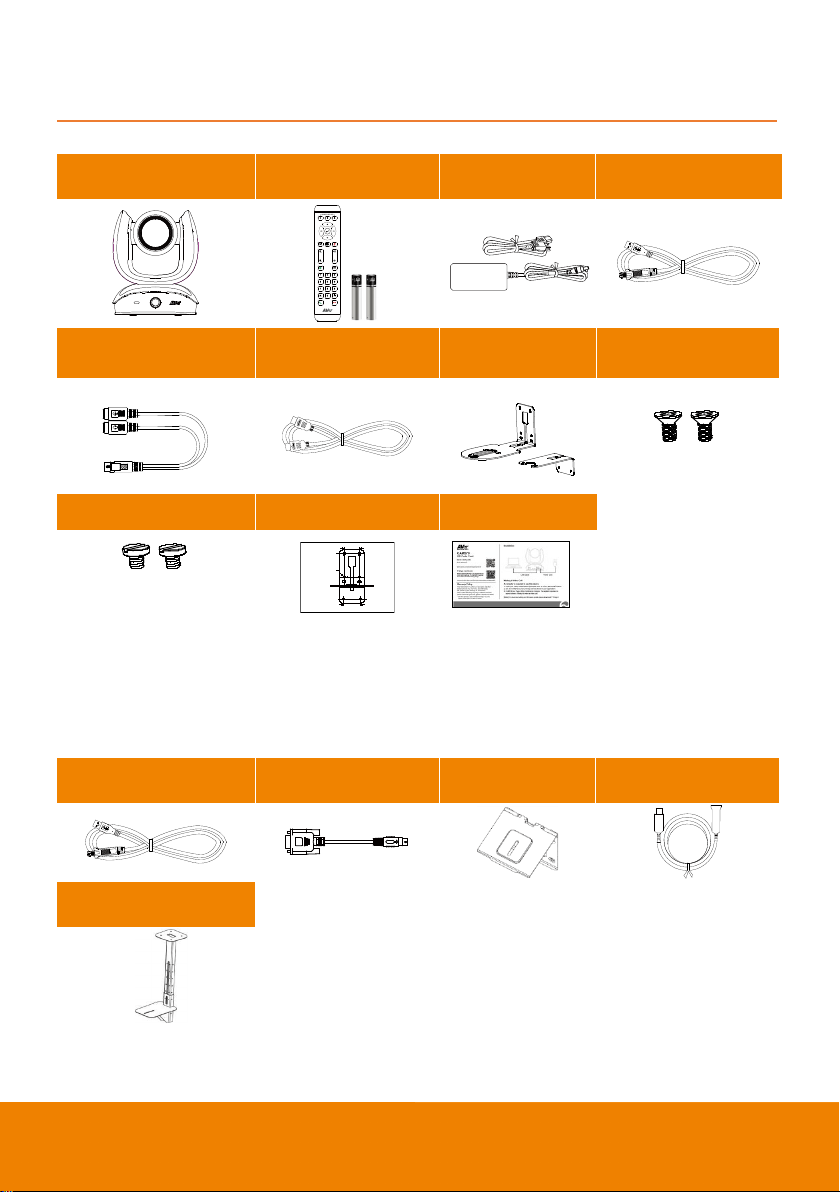
Package Contents
Camera Unit
Remote Control /
AAA Batteries**
Power Adapter
& Power Cord*
USB 3.0 Type-B to
Type-A Cable (3m)
Mini DIN9 to Mini DIN8
RS232 Adapter Cable
HDMI Cable (3m) Wall Mount Screws for Mount
M4 x8mm (x2)
Tripod Screw
Drilling Paper
QR Code Card
1/4”-20 L=7.5mm (x2)
* The power cord will vary depending on the standard power outlet of the country where it is sold.
** AAA batteries are only provided for USA.
Optional Accessories
USB 2.0 Type-B to
Type-A Cable (5m)
Mini DIN8 to D-Sub9
Cable
Foldable TV
Mount
USB 3.1 Extender
10m/20m/30m
Ceiling Mount
*Optional Accessories will vary depending on the country where it is sold.
** To mount on ceiling, please purchase ceiling mount from AVer.
P/N: 303AU 340-AGR
46.00[1.81]
51.00[2.01]
Ø5.50[Ø0.22]
2
Product Introduction
Overview
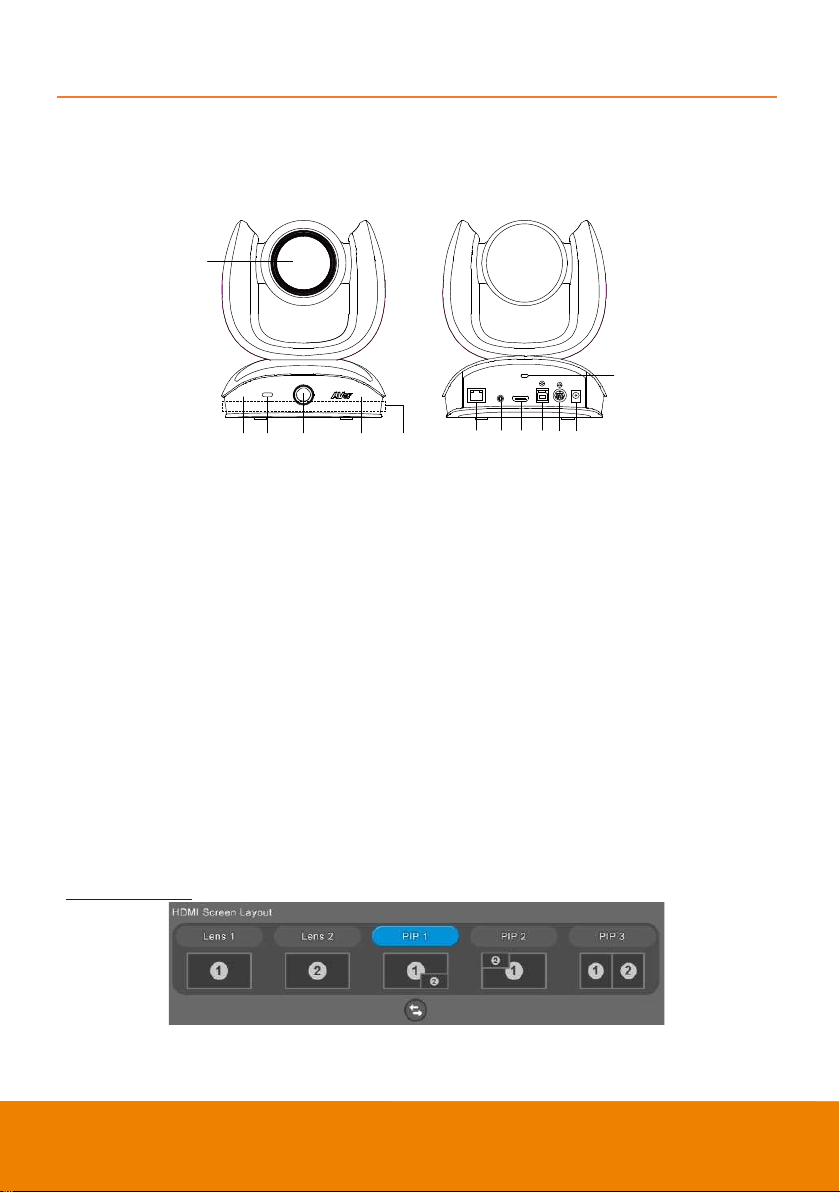
1 Optical Zoom Lens 7 Audio Input Port
2 IR Sensor 8 HDMI Port***
3 Status LED 9 USB 3.1 Type B Port
4 AI Len
s* 10 RS232 In/Out Port
5
Built-in Microphone Array****
11
DC 12V Power Jack
6 PoE Port** 12 Kensington Lock
* AI Lens:
Users can see AI lens preview image in PTZApp 2, IP web page or HDMI out to check camera
installation location.
AI lens is used to detect participants within its 95 degree field of view to trigger optical zoom lens to
track people in the room. It doesn’t support ePTZ. Please don’t put the camera on table because the AI
lens view will be blocked. The suggested installation height is at least 1.5m.
** Power over Ethernet (PoE) is compatible with IEEE 802.3at/802.3af. Please use a CAT 5e FTP
cable (not included).
*** HDMI out streaming supports picture in picture (PIP) function. For more details, please refer to
<
HDMI Connection> for more details.
**** The built-in microphone array is designed for Audio Tracking detection, which cannot be used as
an audio input source for video conference.
1
3 4
2 2
6 7 8 91011
12
5

3
LED Indicator
Solid blue: Power on
Solid red: Start-up
Solid orange: Only power cable connected
Solid blue: Video on
Solid white: USB cable is connected but camera doesn’t have any streaming out
Flash orange: Manually update FW
Gesture control
Blue light blinks for 2 seconds: Successfully wake up gesture control function by any
valid gesture command.
Blue light blinks for 4 seconds: Camera recognizes a valid gesture command and
start to action.
[Note]: The default of gesture control is off. Please enable it via PTZApp 2 or IP web
page. The effective distance is up to 5-meter away from the camera. Please refer to
<
Gesture Control> for more details.
4
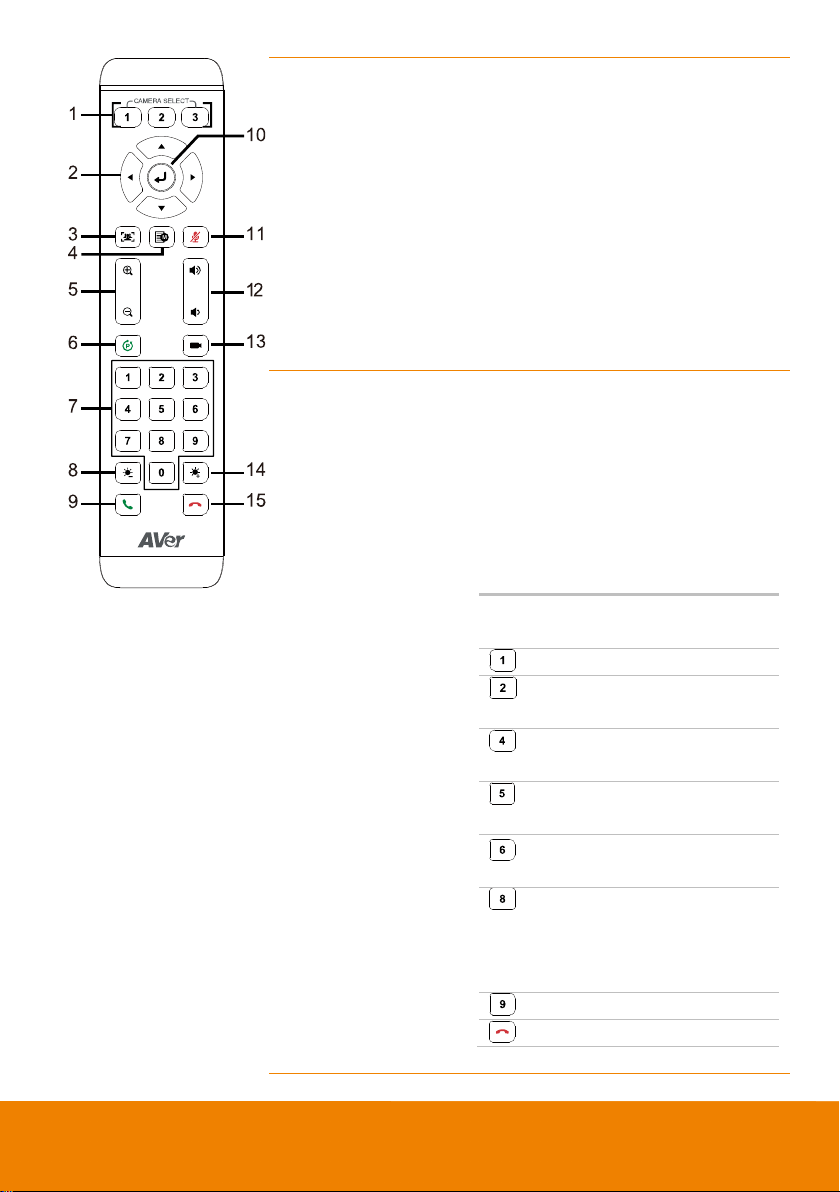
Remote Control
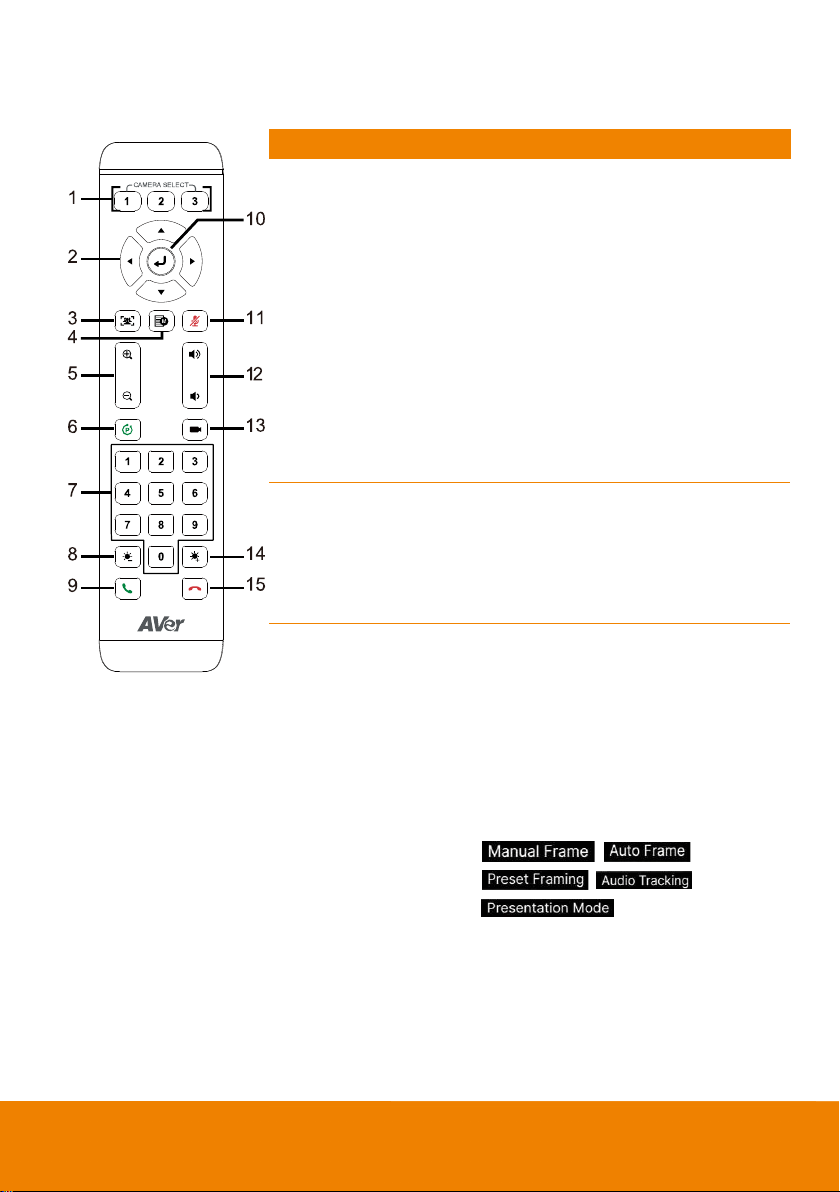
Name
Function
1. Camera Select
One remote control can control up to 3
AVer’s USB series cameras. You can use
AVer PTZApp 2 or IP web page to set
numbers associated with each camera,
and then select which camera you would
like to control using the remote.
[Note] The default is Off. If you don’t do
any binding, no matter you press camera 1
or 2, 3 button on the remote control, you
can control all the AVer USB cameras
around you.
2. Camera Directional
Control
Use the directional buttons on the remote
to control the direction of the camera.
Press the directional button to move the
camera or press and hold to continuously
pan or tilt.
3. SmartFrame
One-click automatic field of view
adjustment to fit all participants.
Press for 1~2 seconds to switch the
SmartFrame function among Manual
Frame/Auto Frame/Preset Framing
modes. A message (as figures shown) will
display on the screen to indicate the mode
while using HDMI out function.
While in Auto Framing mode, or doing
one-click manual frame, an icon message
(as figure shown) will display on the upper
left screen to indicate that the framing
action is triggered. The icon will appear
2~3 seconds on the screen while using
HDMI out function. Once the framing
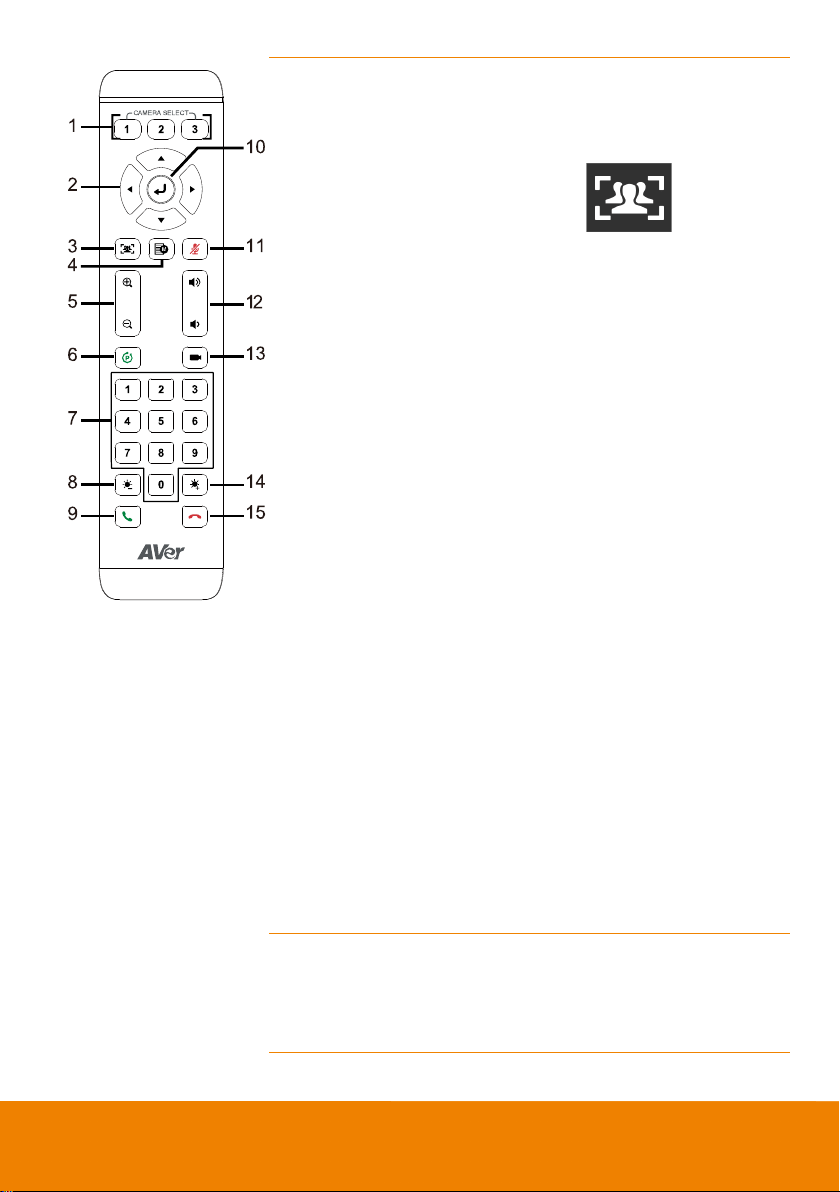
5
process is done, it will disappear. If you
don’t want to see the icon display, please
go to PTZApp 2, find “On Screen Menu”
function and select “Off”.
[Notes]
Default is Manual Framing.
SmartFrame deploys face and body
detection technology. People wearing
masks and side facial profiles can still
be detected. The maximum detection
distance is 7~10 meters away from the
camera.
Camera will track people while moving.
It will start to focus and zoom in once
people stop moving for 1~5 seconds,
depending on the framing speed you
choose. The default framing speed is
“Middle” speed. “High” speed is more
suitable for one person tracking.
Preset Framing: Set up preset points in
advance (Only for Preset points 1~9.
Preset 0 is for home position). Camera
tracks one presenter and shoots the
preset areas instead of focusing and
zooming into presenter. The preset
areas must be within the viewing area
of AI lens.
All the AI functions will be disabled if
pan, tilt and zoom operations are in
progress.
4. OSD Menu
Short press the button to pull up OSD
menu while using HDMI out function. Hold
it for 1 sec. to select camera layout (PIP).
5. Zoom In/Out
Increase/Decrease the camera zoom.
6
6. Preset
The Preset button on the remote serves 2
functions.
To Save a Preset – Move camera to
desired position. Press and hold the preset
button until you receive the save message
on the screen. Select preset position
button 0-9 to store the current camera
position. Repeat steps if needed.
To Load a Preset - Press the preset
button and preset position button 0-9 to
load a saved camera position. Repeat
steps if needed.
7. Preset
Position/Number
Buttons
Preset position buttons are used in
conjunction with the Preset button to save
positions. There are a total of 10 presets.
Press the preset button first and then
press 0~9 for the camera to move to the
saved position.
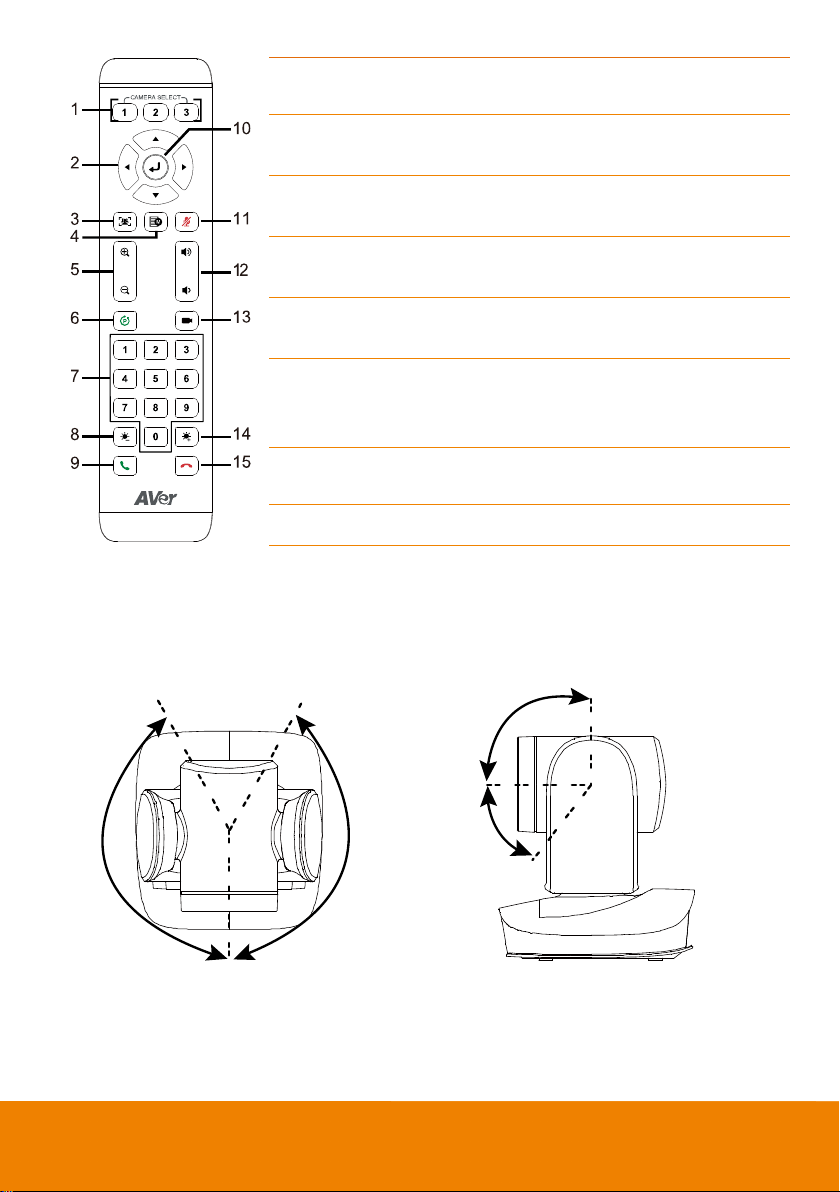
Shortcuts
Press and
Hold
To
for 2 sec
Turn on/off WDR
for 2 sec Enable Audio
Tracking
for 2 sec Enable Presentation
Mode
for 2 sec Turn on/off
SmartFrame
for 2 sec
Change PIP position
(USB/IP Streaming)
for 2 sec Turn on/off RTMP
streaming (when
RTSP and RTMP is
on)
for 2 sec
Enter sleep mode
for 6 sec Reboot
7
8. Brightness -
Decrease the brightness of the video
image.
9. Call/Answer
Answer a call or start a call. Not
supported for CAM570.
10. Enter
Click the button to show current AI mode
while using HDMI out function.
11. Mute/Un-mute
Speakerphone
Mute/Un-mute the speakerphone. Not
supported for CAM570.
12. Volume Up/Down
Adjust volume up or down. Not
supported for CAM570.
13. Preset Hot Key
After saving positions, press to move the
camera to the preset position the user
has set.
14. Brightness +
Increase the brightness of the video
image.
15. Hang Up
End the call. Not supported for CAM570.
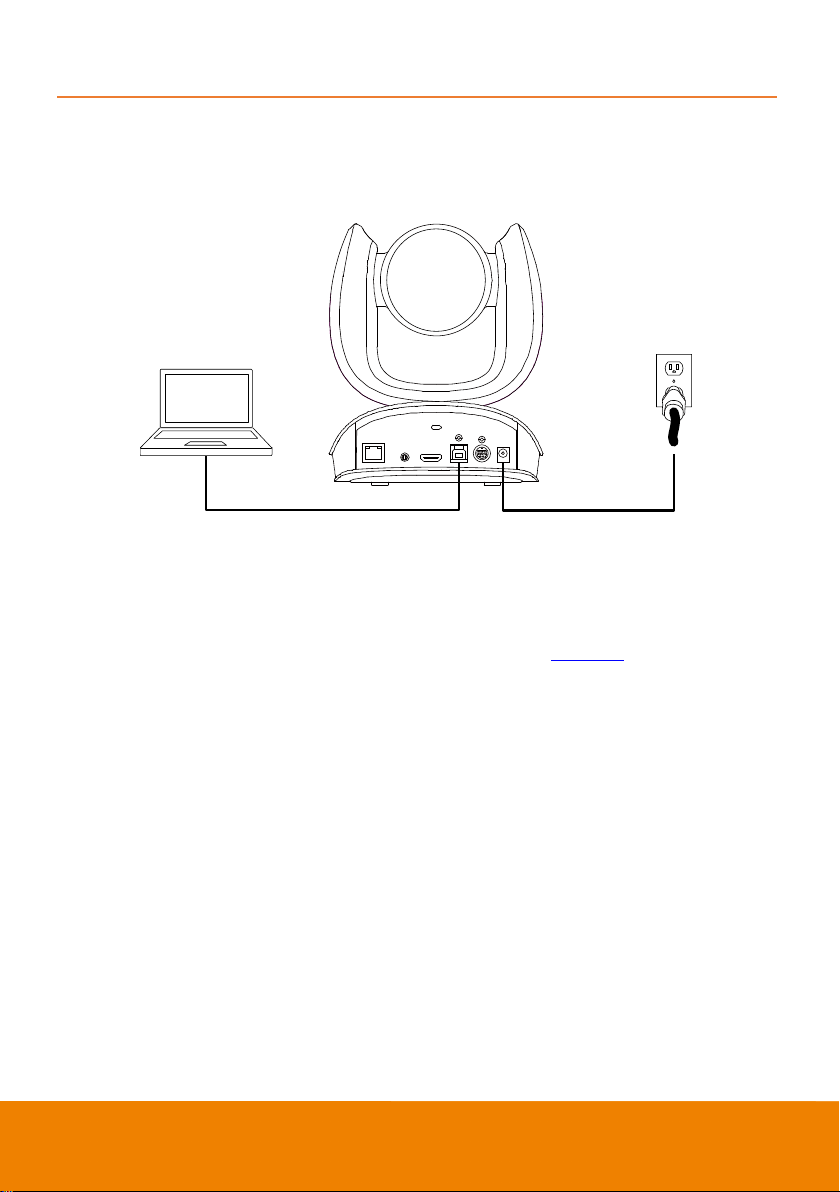
Pan and Tilt Angle
170°170°
90°
30°
8
Installation
Device Connection
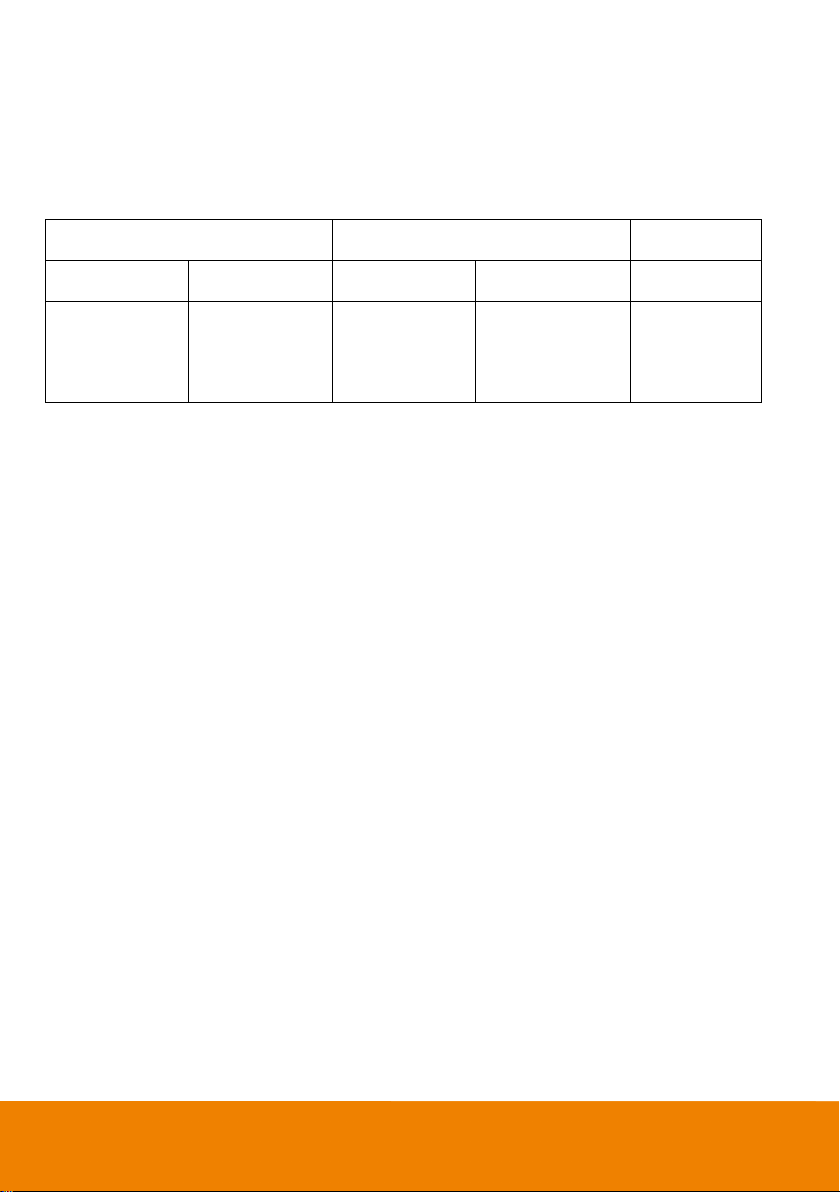
1. Use USB cable to connect the CAM570 to your PC/laptop (refer to diagram above).
2. Connect the power to the CAM570; power indicator will light up and camera head will rotate.
3. Install PTZApp 2 on laptop or PC that is connected with CAM570. The app can be used to adjust
and setup the parameters of the camera (refer to the section of <
PTZApp 2>).
4. To make a call, run your video application (Zoom, Microsoft® Teams, Skype for Business, Skype,
Google Meet, Intel® Unite™, RingCentral, BlueJeans, V-Cube, LiveOn, CyberLink U Meeting®,
TrueConf, Adobe Connect, Cisco WebEx®, Fuze, GoToMeeting™, Microsoft® Lync™, Vidyo,
vMix, WebRTC, Wirecast, XSplit, etc.). Select CAM570 as your video device.
5. AI lens is used to detect participants within its 95 degree field of view to trigger optical zoom lens
to track people in the room. Please don’t put the camera on table because the AI lens view will be
blocked. The suggested installation height is at least 1.5m. The camera’s working distance is
1.5m. People stand too close (within 1m away) to the camera may cause bad framing
performance.
6. Please note that the angle of AI lens is larger than PTZ camera. If people at two sides of meeting
room sit within AI lens view but out of PTZ lens’ widest angle, they won’t be framed and appear in
the view of PTZ lens successfully. Please come closer to make sure people at two sides can be
within PTZ camera’s viewing angle.
USB cable
Power cord
9
[Notes]
Use the USB 3.0 cable included in the package.
CAM570 has the USB 3.1 port which is USB 2.0 compatible.
Maximum resolution/fps for USB 2.0 and USB 3.1 port are shown below.
USB 2.0 USB 3.1 HDMI
YUV M-JPEG YUV M-JPEG
- 640x480 or less
resolution, up to
30fps
- 720p, up to 10fps
- 1080p/60fps - Up to
1080p/30fps
- 720p/60fps
- Up to 4k/30fps
- 1080p/60fps
1080p/60fps
1080p/30fps
While using 4K video resolution, the HDMI function will be disabled automatically.
10
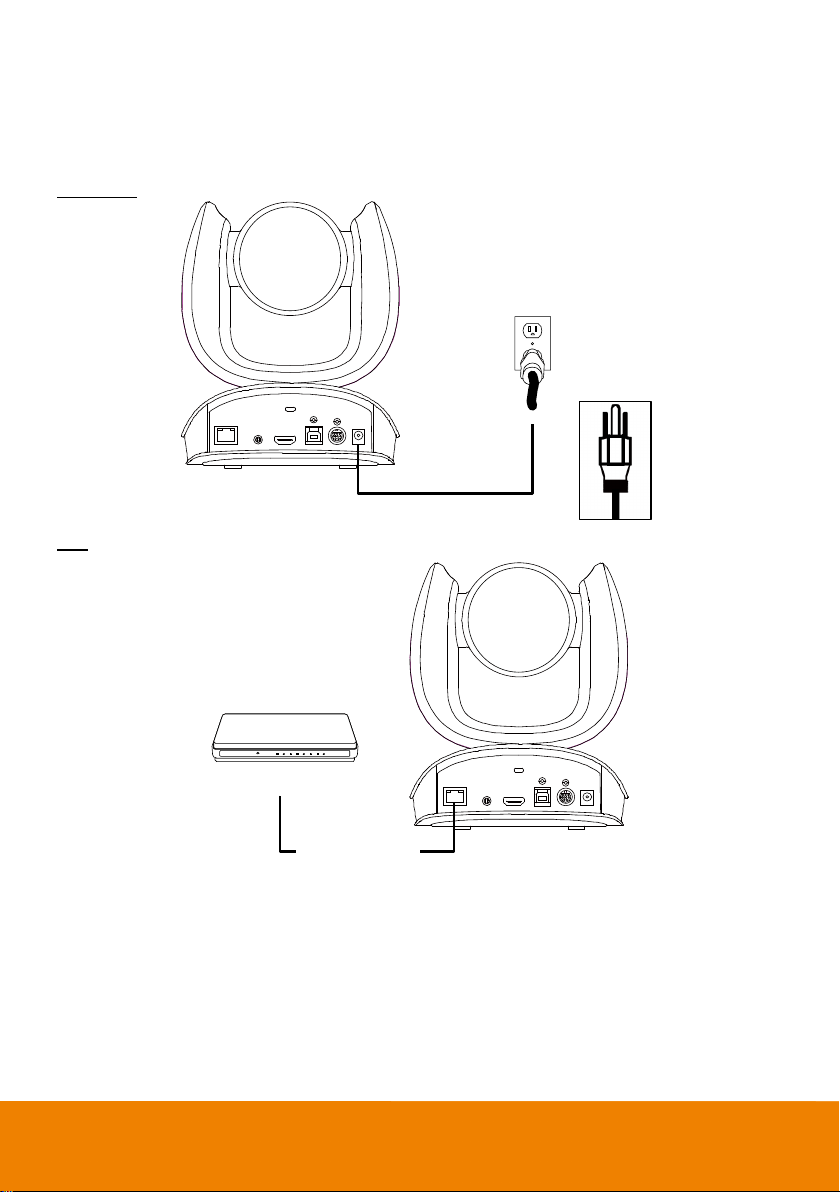
Power Connection
The power supply can be plugged into the wall outlet or drawn from PoE switch (Ethernet).
Wall outlet
PoE
[Note] To ensure stability of IP video streaming, please use CAT 5e FTP cable (not included).
Power cord
Switch / PoE Switch
Ethernet cable
(Not included)
11
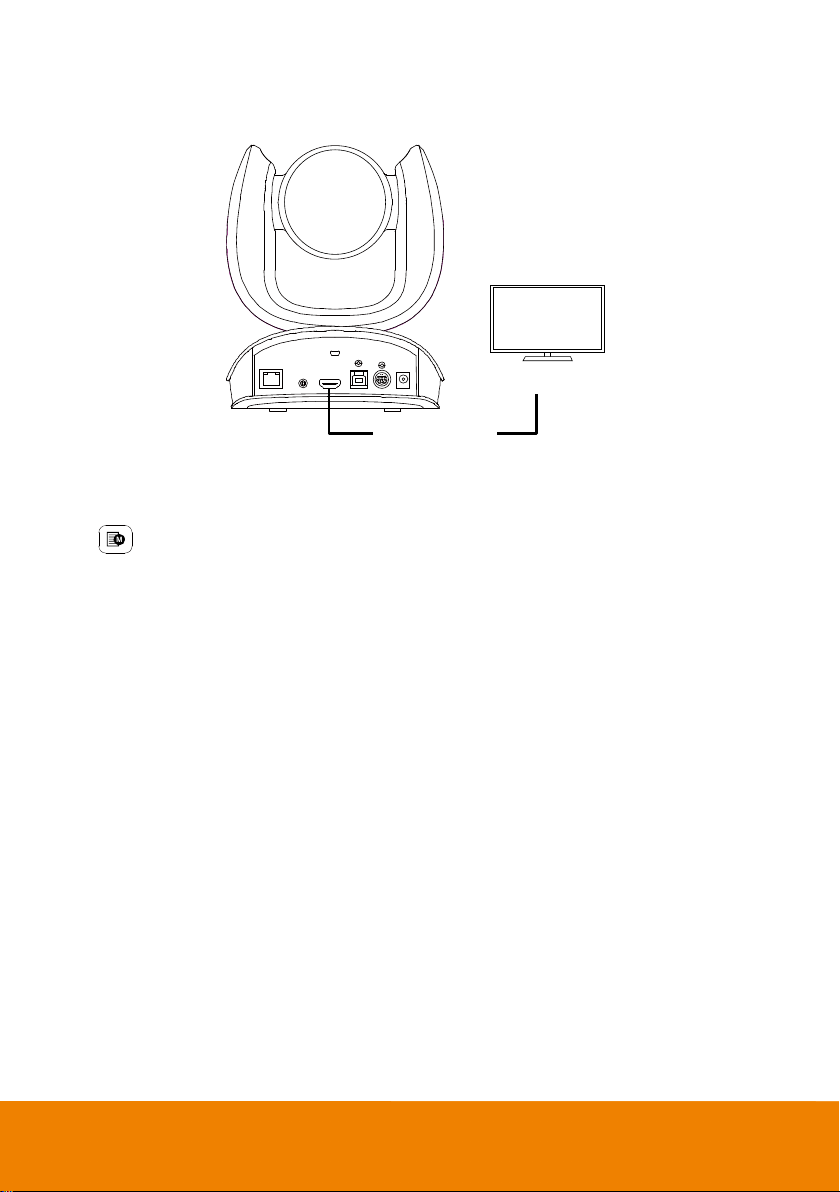
HDMI Connection
Connect with TV or monitor through the HDMI port to display camera video on the screen.
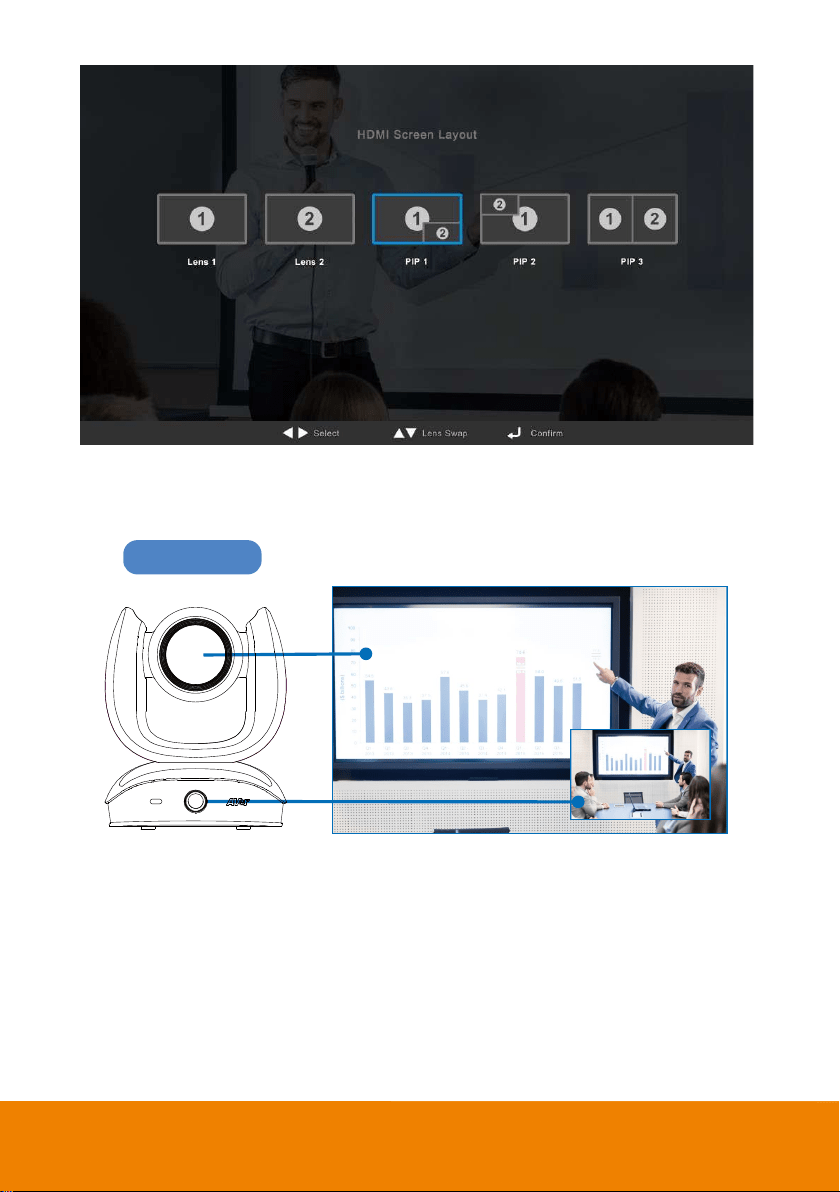
Hold
button for 1 second on the Remote Control to call out the screen layout option. Select the
camera image layout firstly. The default is PIP1, showing optical zoom lens image as main screen and
AI lens image as small view. Under this layout, you can switch two cameras by pressing Up/Down on
remote control.
[Note]
The HDMI out function will be automatically disabled when 4K resolution is selected for USB or RTSP
streaming. Under this circumstance, please change RTSP and USB streaming from 4K to lower
resolution if you want to enable HDMI out.
If your camera is under RTSP 4K resolution, you can press and hold the OSD Menu button on the
Remote Control for 1~2 sec. to quickly change the resolution to 1080p and then you can start using the
HDMI function.
Monitor/TV
HDMI cable
12
Lens 1
The PTZ camera focuses on speaker
Lens 2 Shows all participants
PIP View
13
After choosing the image layout, short press the OSD Menu button on the Remote Control and then
the setting page will show up. Press right direction button to enter and configure the parameters of the
camera. Short press the OSD button twice or hold it for 1 sec. to leave. The HDMI OSD setting
function is the same as Web configuration interface. Please refer to <
Web Settings> for more details.
14
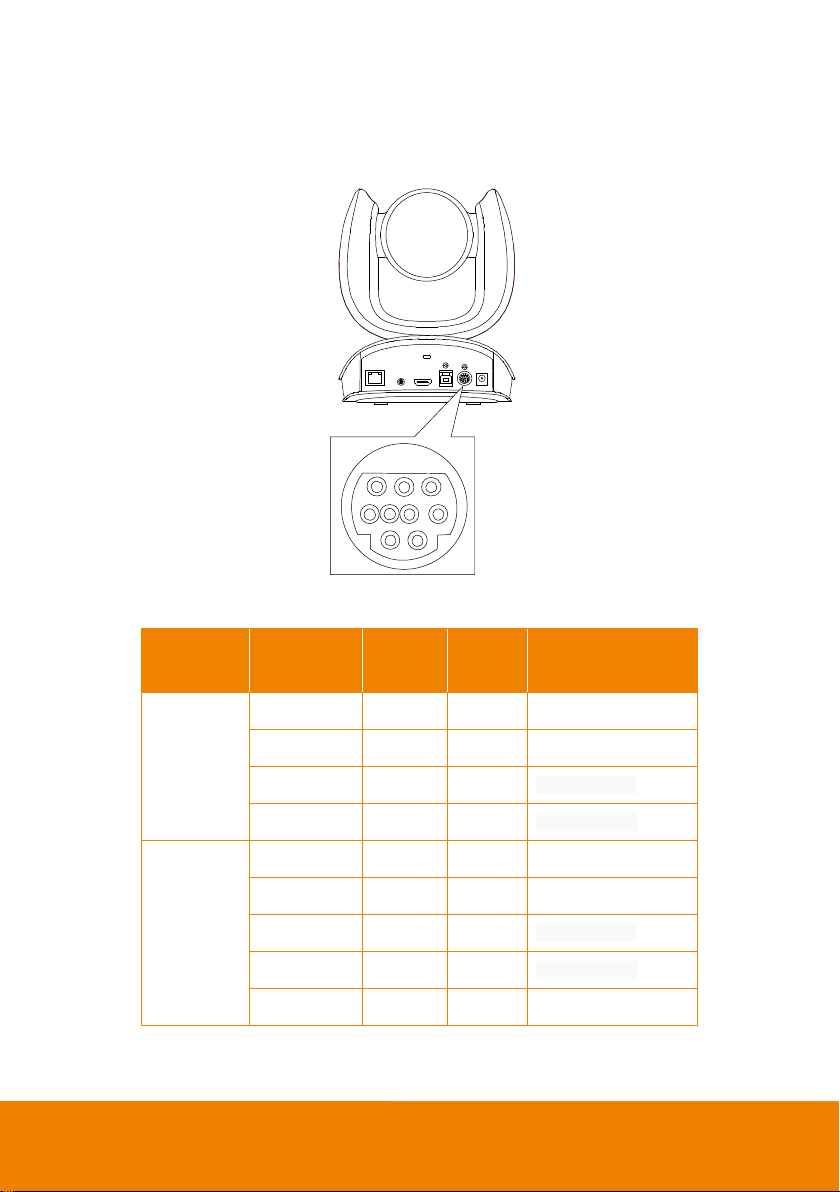
RS232 Connection
Camera RS232 Port Pin Definition
Function
Mini DIN9
PIN #
I/O Type Signal Description
VISCA IN
1 Output DTR Data Terminal Ready
2 Input DSR Data Set Ready
3 Output TXD Transmit Data
6 Input RXD Receiver Data
VISCA OUT
7 Output DTR Data Terminal Ready
4 Input DSR Data Set Ready
8 Output TXD Transmit Data
9 Input RXD Receiver Data
5 --- --- Not connect
1
2
3456
789
15
Computer/Keyboard Controller and Camera
Connection
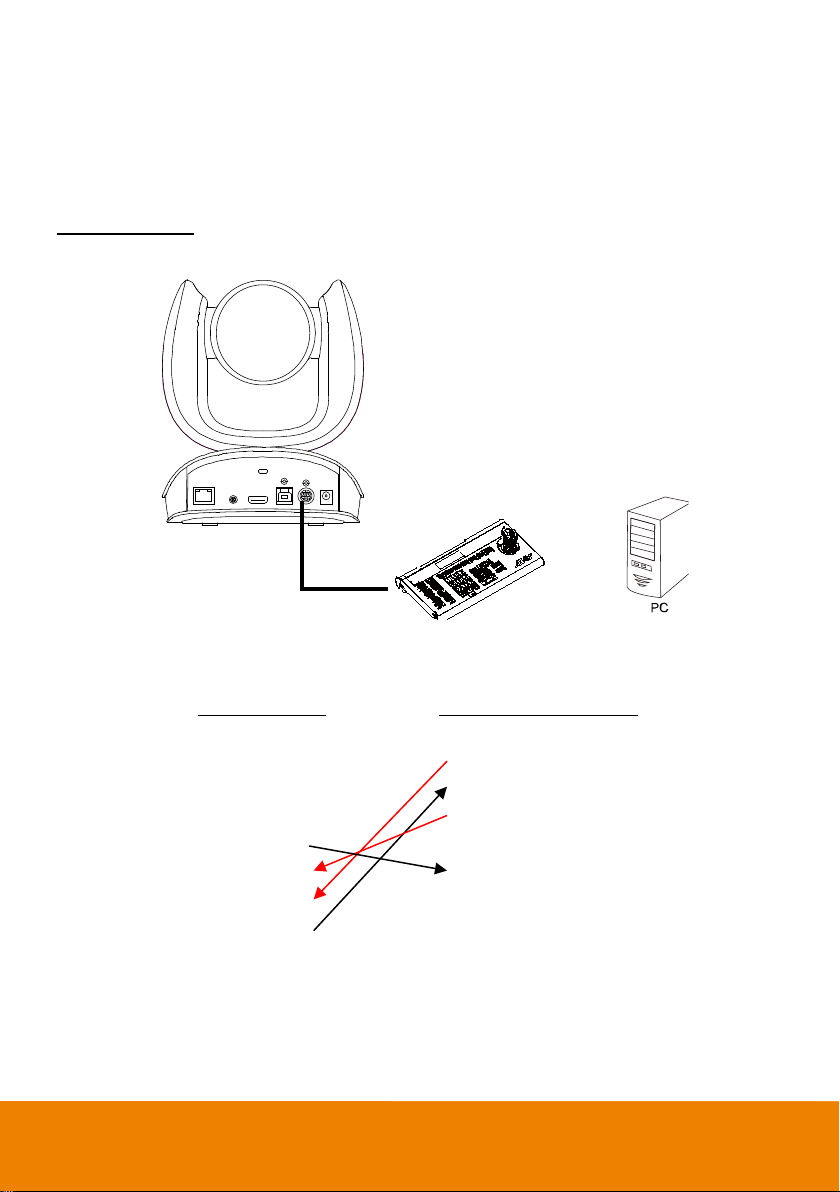
Direct Connection
If users do not use AVer RS232 adapter cable, please refer to the pin connection shown below.
Camera
(Mini DIN9)
Camera controller or PC
(DB9)
1. DTR (IN) 1. DCD
2. DSR (IN) 2. RXD
3. TXD (IN) 3. TXD
6. RXD (IN) 4. DTR
7. DTR (OUT) 5. GND
4. DSR (OUT) 6. DSR
8. TXD (OUT) 7. RTS
9. RXD (OUT) 8. CTX
9. RI
Camera controller
or
Mini DIN9 to
DB9 Cable
16
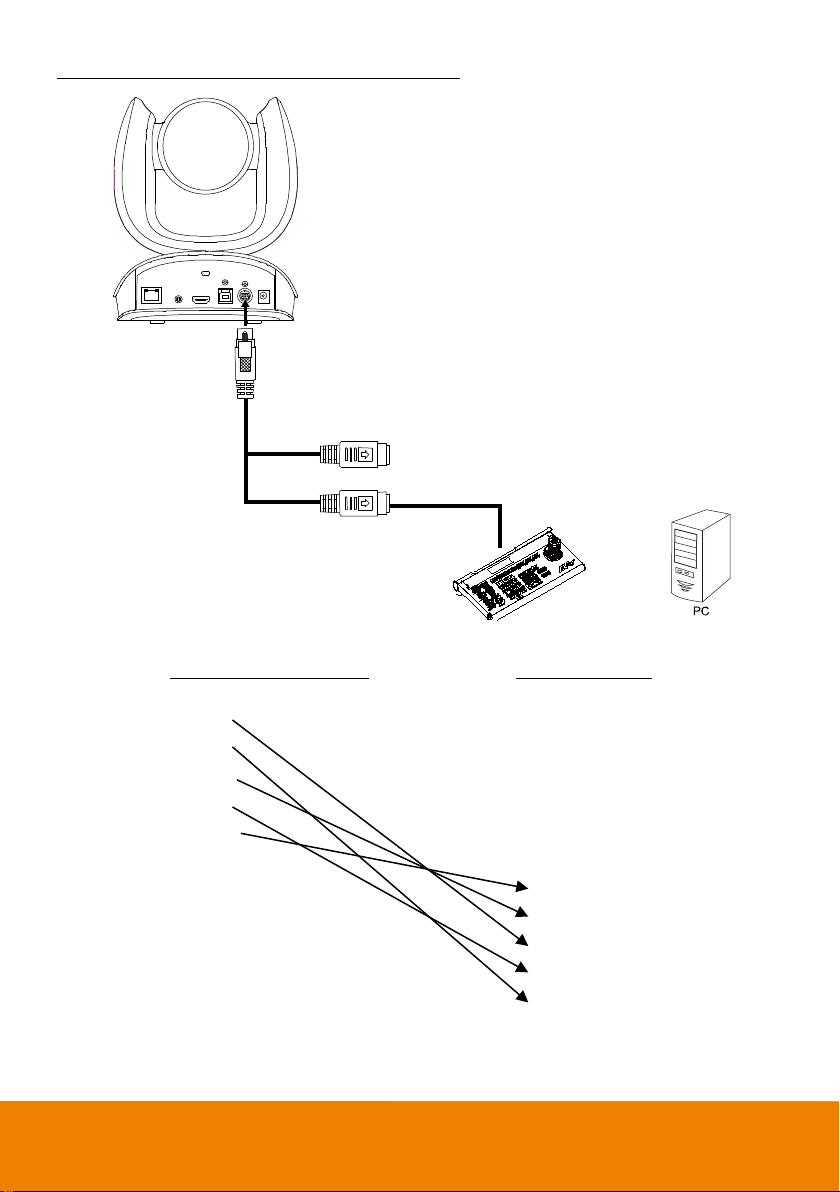
Use the supplied RS232 mini DIN9 to mini DIN8 cable
Camera controller or PC
(DB9)
Camera
(Mini DIN8)
1. DCD 1. DTR (IN)
2. RXD 2. DSR (IN)
3. TXD 3. TXD (IN)
4. DTR 4. GND (IN)
5. GND 5. RXD (IN)
6. DSR 6. GND (IN)
7. RTS
8. CTX 1. DTR (OUT)
9. RI 2. DSR (OUT)
3. TXD (OUT)
4. GND (OUT)
5. RXD (OUT)
6. GND (OUT)
VISCA out (Female)
VISCA in (Female)
Camera controller
RS232 mini DIN9
to mini DIN8 cable**
or
Mini DIN8
to DB9 cable*
17
* Mini DIN8 to D-Sub9 (DB9) cable 064AOTHERBPK is an optional item.
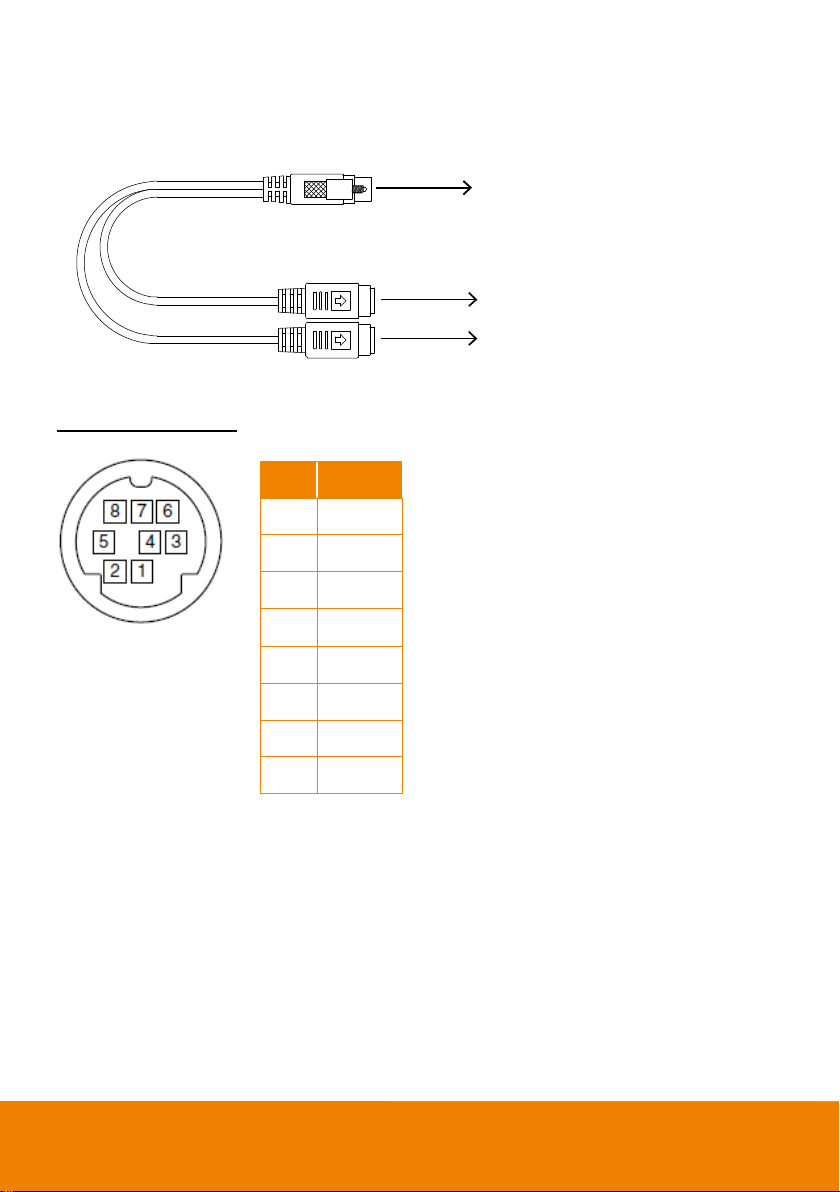
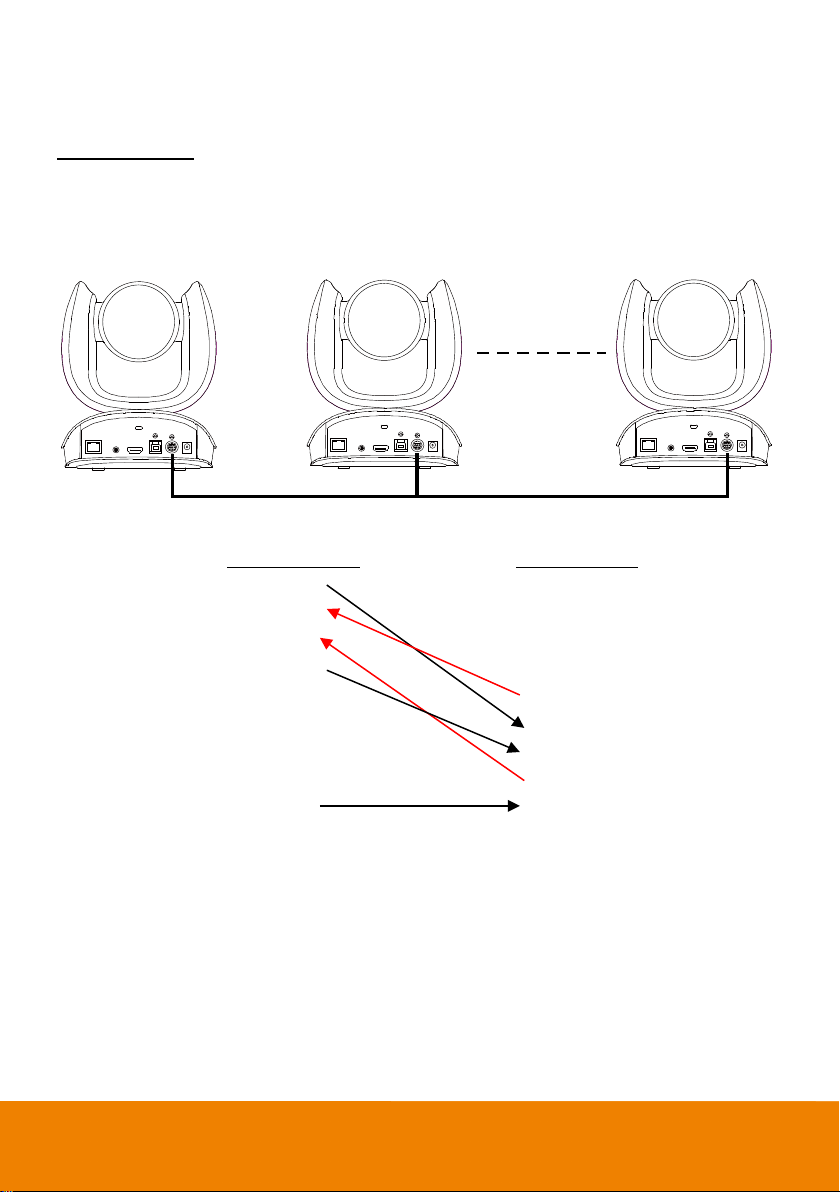
** RS232 mini DIN9 to mini DIN8 Cable Pin Definition
Mini DIN8 Pin Definition
Connect to AVer camera
Connect to next camera
Connect to camera controller or PC
Mini DIN8 (IN)
Mini DIN8 (OUT)
Mini DIN9
No. Pin
1 DTR
2 DSR
3 TXD
4 GND
5 RXD
6 GND
7 NC
8 NC
18
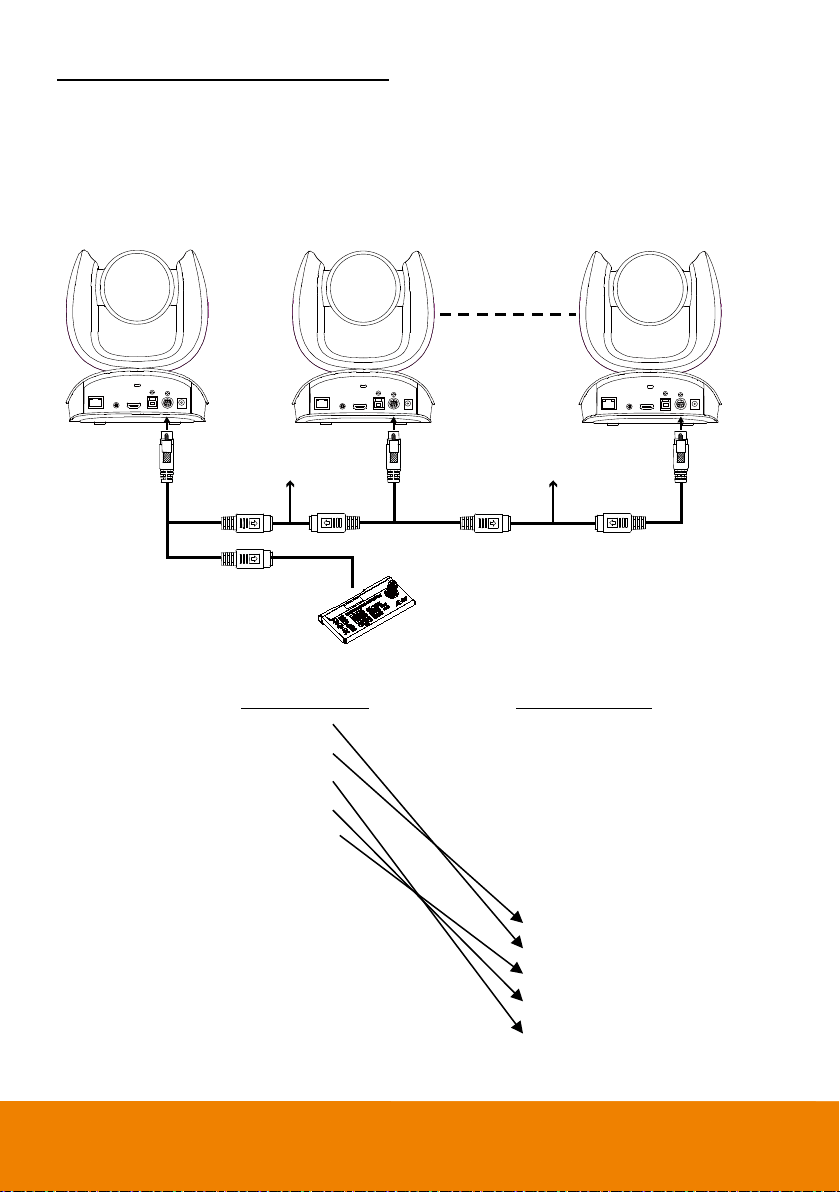
Camera Cascade Connection
Direct Connection
If users do not use AVer RS232 adapter cable, please refer to the pin connection shown below for
cascading cameras.
Total can connect up to 7 cameras.
Camera 1
(Mini DIN9)
Camera 2
(Mini DIN9)
1. DTR (IN) 1. DTR (IN)
2. DSR (IN) 2. DSR (IN)
3. TXD (IN) 3. TXD (IN)
6. RXD (IN) 6. RXD (IN)
7. DTR (OUT) 7. DTR (OUT)
4. DSR (OUT) 4. DSR (OUT)
8. TXD (OUT) 8. TXD (OUT)
9. RXD (OUT) 9. RXD (OUT)
SHIELD SHIELD
1 2 7
Mini DIN9 Cable Mini DIN9 Cable Mini DIN9 Cable
19
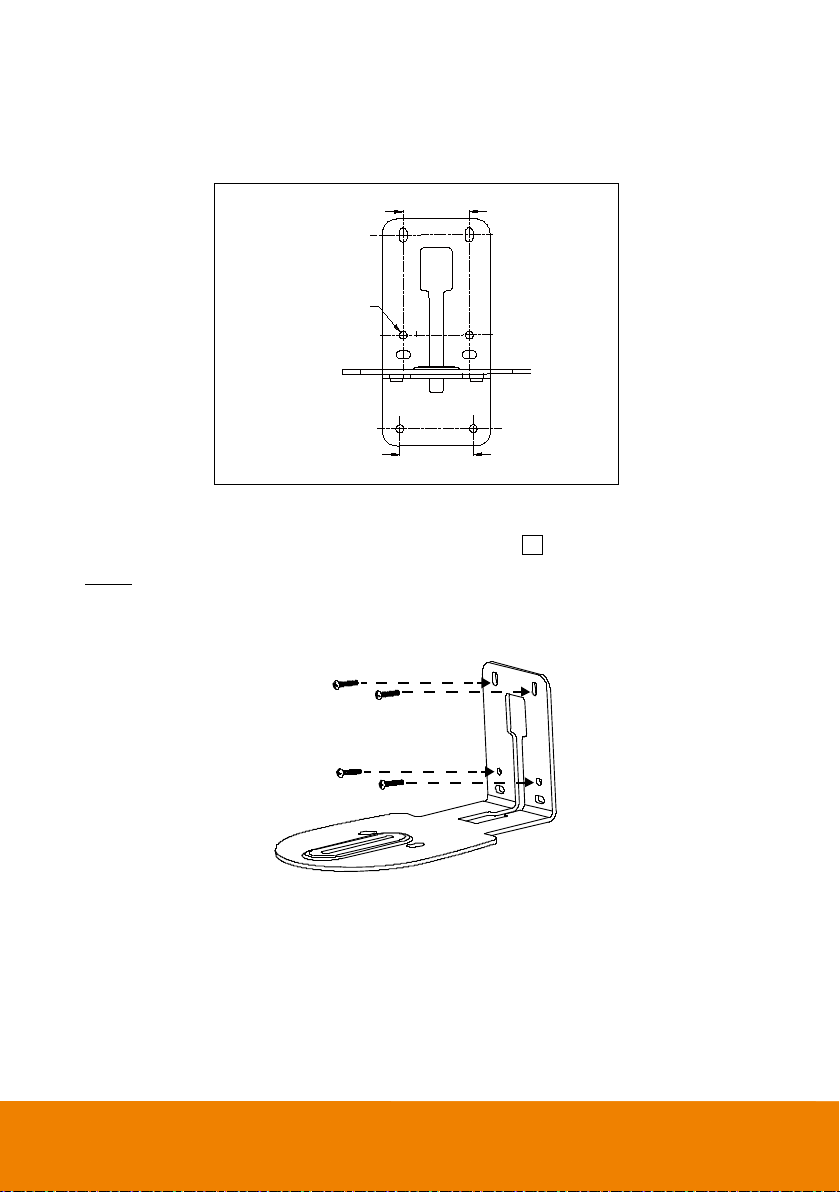
Use the RS232 mini DIN9 to mini DIN8 cable
Total can connect up to 7 cameras.
To facilitate the camera cascade, users can use AVer RS232 adapter cable.
Connect camera with AVer mini DIN9 to mini DIN8 adapter cable. Connect the mini DIN8 female side
to male mini DIN8 Visca cable (Users have to buy it in the market) and then connect AVer mini DIN9 to
mini DIN8 adapter cable again to connect to next camera.
Camera 1
(Mini DIN8)
Camera 2
(Mini DIN8)
1. DTR (IN) 1. DTR (IN)
2. DSR (IN) 2. DST (IN)
3. TXD (IN) 3. TXD (IN)
4. GND (IN) 4. GND (IN)
5. RXD (IN) 5. RXD (IN)
6. GND (IN) 6. GND (IN)
1. DTR (OUT) 1. DTR (OUT)
2. DSR (OUT) 2. DST (OUT)
3. TXD (OUT) 3. TXD (OUT)
4. GND (OUT) 4. GND (OUT)
5. RXD (OUT) 5. RXD (OUT)
6. GND (OUT) 6. GND (OUT)
VISCA out (Female)
VISCA in (Female)
VISCA out (Female)
Camera controller
1 2 7
RS232 mini DIN9
to mini DIN8 cable
Mini DIN8 cable (Male)
VISCA in (Female)
VISCA out (Female)
Mini DIN8 cable (Male)
RS232 mini DIN9
to mini DIN8 cable
RS232 mini DIN9
to mini DIN8 cable
20
Wall Mount Installation
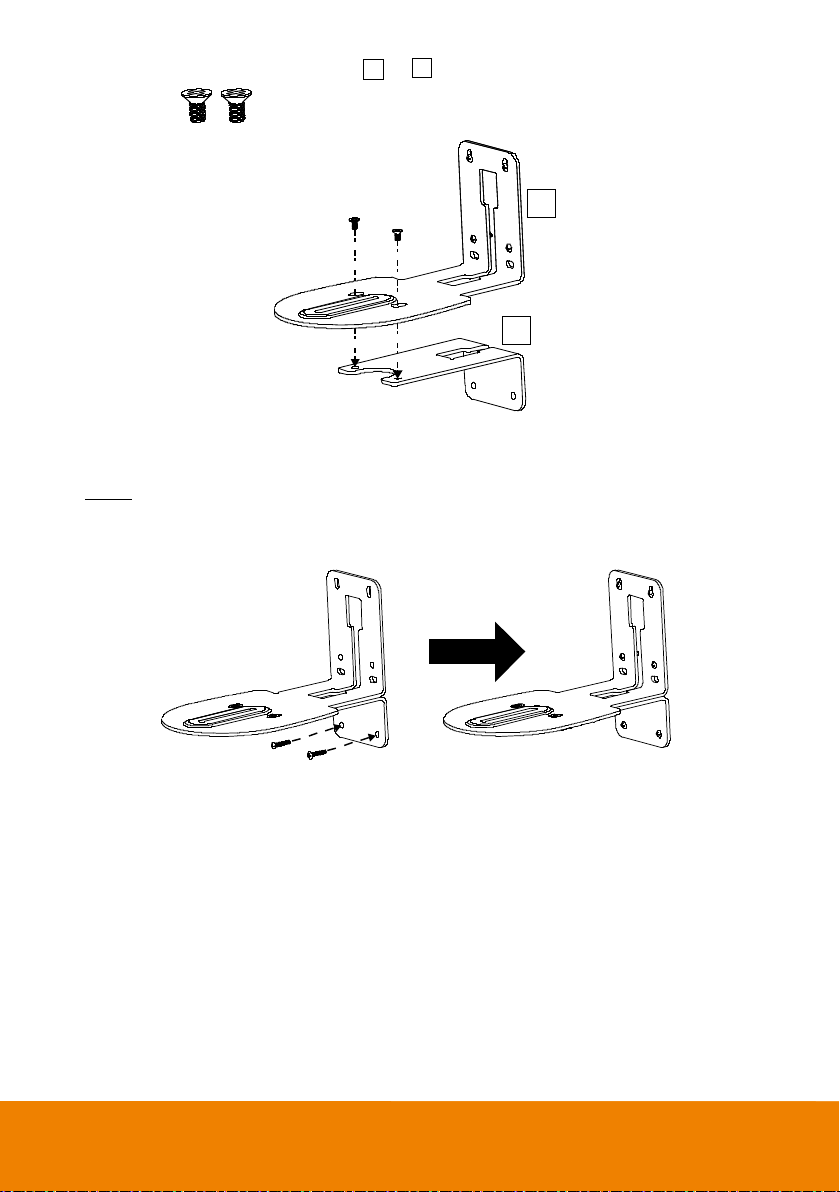
1. Use the drilling paper included in the package to drill the holes in the wall where the user wants to
mount the camera.
2. Use the screws (not included) to secure the L-mount bracket on the wall.
Screw
For Cement wall: M4 x20mm self-tapping screws (x4) + Plastic conical anchor
For Wooden wall: M4 x20mm self-tapping screws (x4)
P/N: 303AU340-AGR
46.00[1.81]
51.00[2.01]
Ø5.50[Ø0.22]
A
21
3. Then, assemble the L-mount brackets + with screws (included in package).
Screw size: M4 x8mm (x2)
4. After assembling the L-mount brackets, use the screws (not included) to secure the lower part of
L-mount brackets on the wall.
Screw
For Cement wall: M4 x20mm self-tapping screws (x2) + Plastic conical anchor
For Wooden wall: M4 x20mm self-tapping screws (x2)
A
B
B
A
22
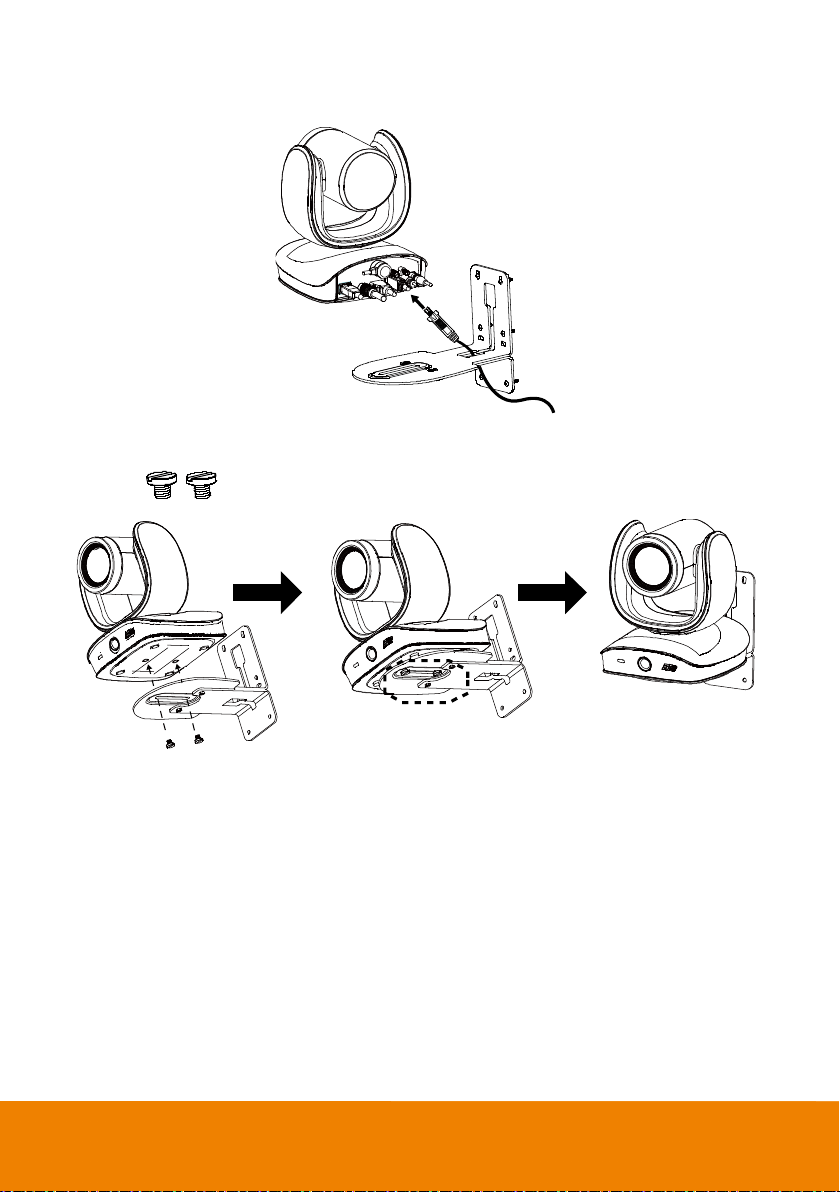
5. Pass the cables through the hole on the L-mount bracket and connect the cables to corresponding
connection ports.
6. Use the remaining screws (included in package) to secure the camera on the L-mount bracket.
Screw: 1/4”-20 L=7.5mm (x2)
23
Ceiling Mount Installation (Optional)
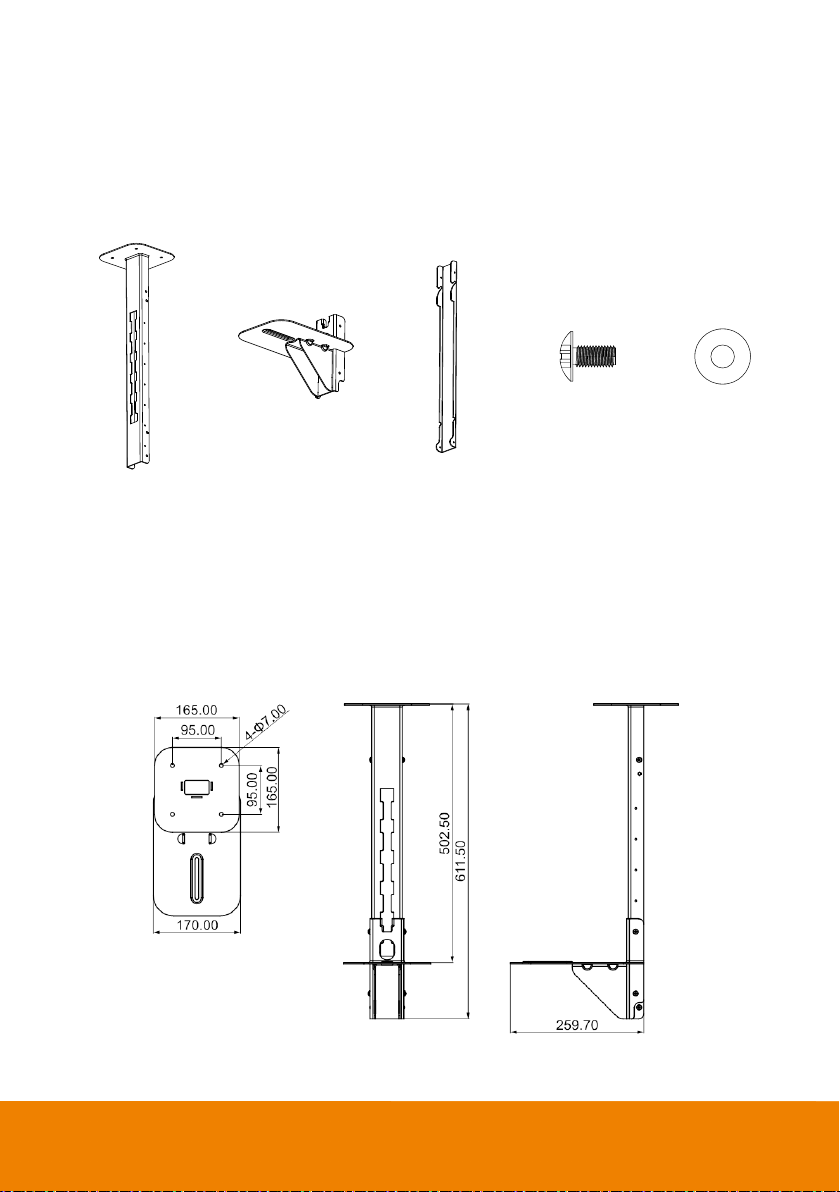
You can use the optional ceiling mount accessories to mount the camera to the ceiling.
Package Content
Mount bracket x 1 Camera bracket x 1 Back cover x 1 Screw (M4*8) x 8 Washer x 8
Dimension
Unit=mm
24
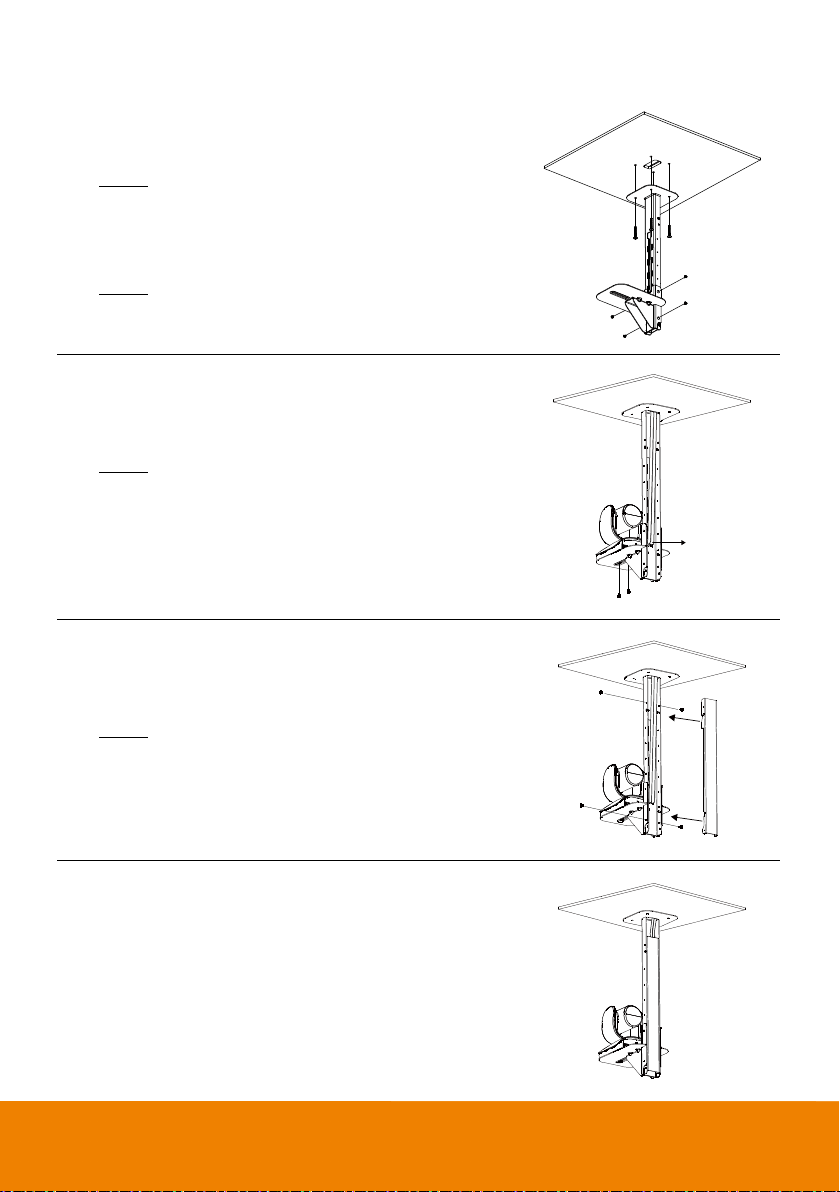
To mount the camera to the ceiling:
1. Drill the hole on the ceiling. Use screw to secure the mount
bracket on the ceiling.
Screw: 4 M6 x 50mm (Not included in package)
2. Use the supplied screws with washers to secure the
camera bracket to the mount bracket.
Screw: 4 M8 x 4 + 4 Washer
3. Connect all cables on the camera and pass all cables out
through the hole on the mount bracket. Then, secure the
camera on the camera bracket.
Screw: 2 UNC-1/4"-20 (Not included in package)
4. Organize all cables to go out from top or bottom of mount
bracket.
5. Then, secure the back cover with screws and washer.
Screw: 4 M8 x 4 + 4 Washer
6. Completed.
Cable out
25
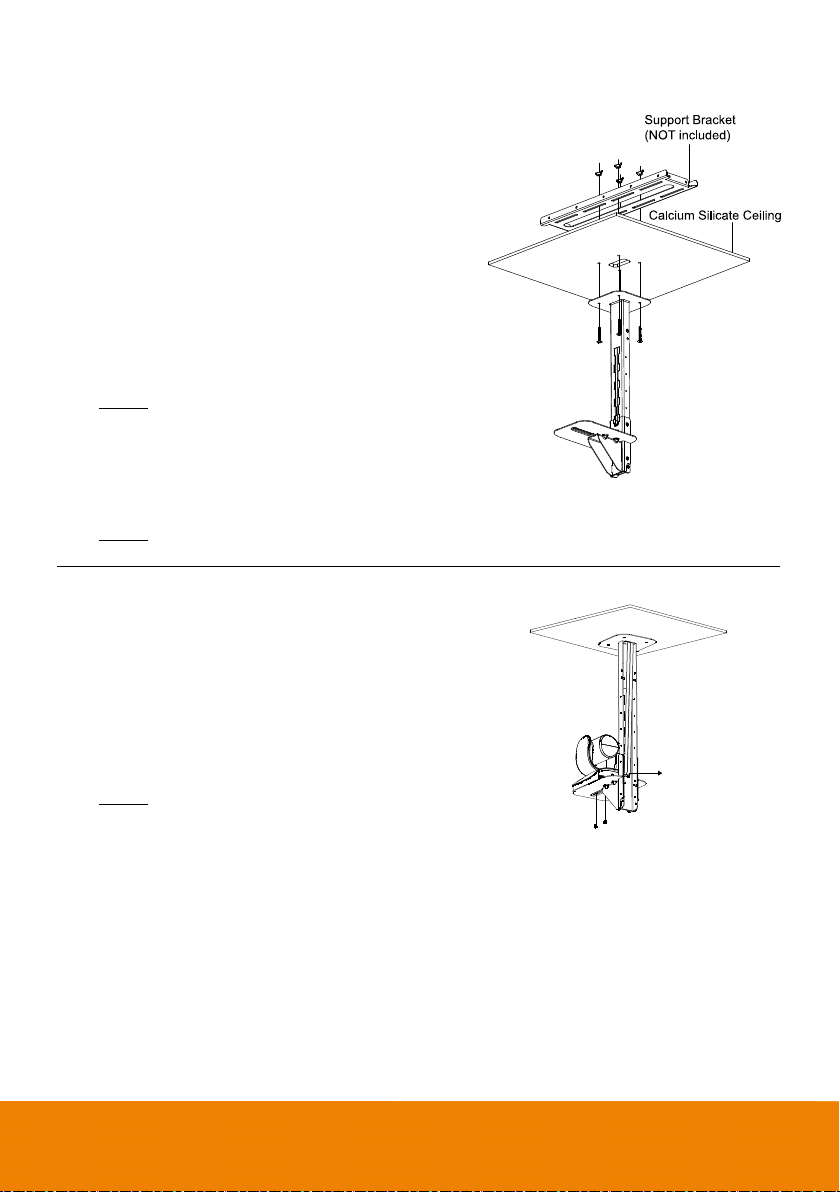
To mount the camera to the calcium silicate ceiling:
1. Please purchase support bracket for supporting
camera mount bracket on calcium silicate ceiling.
Then, secure the support bracket on the light steel
frame structure.
2. Drill the hole on the calcium silicate ceiling. Open a
hole on the calcium silicate ceiling to allow camera
cables to pass through.
3. Then, secure the mount bracket, calcium silicate
ceiling and support bracket together.
Screw: 4 Wingnut + 4 M6x50mm (Not included in
package)
4. Use the supplied screws with washers to secure the
camera bracket to the mount bracket.
Screw: 4 M8 x 4 + 4 Washer
5. Connects all cables on the camera and pass all
cables through the hole on the mount bracket.
Organize all cables to pass through the hole on the
ceiling. Also, the cable can go out from top or bottom
of mount bracket.
6. Then, secure the camera on the camera bracket.
Screw: 2 UNC-1/4"-20 (Not included in package)
Cable out
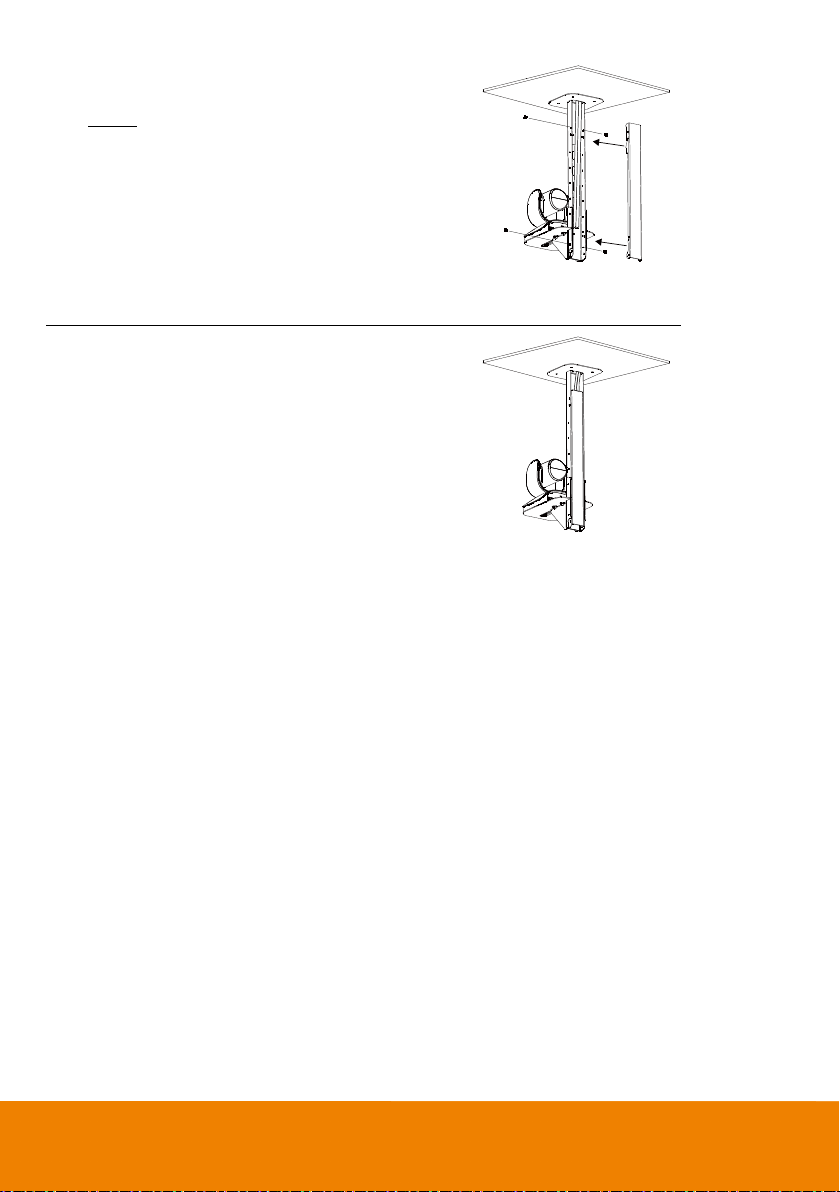
26
7. Next, secure the back cover with screws and washer.
Screw: 4 M8 x 4 + 4 Washer
8. Completed.
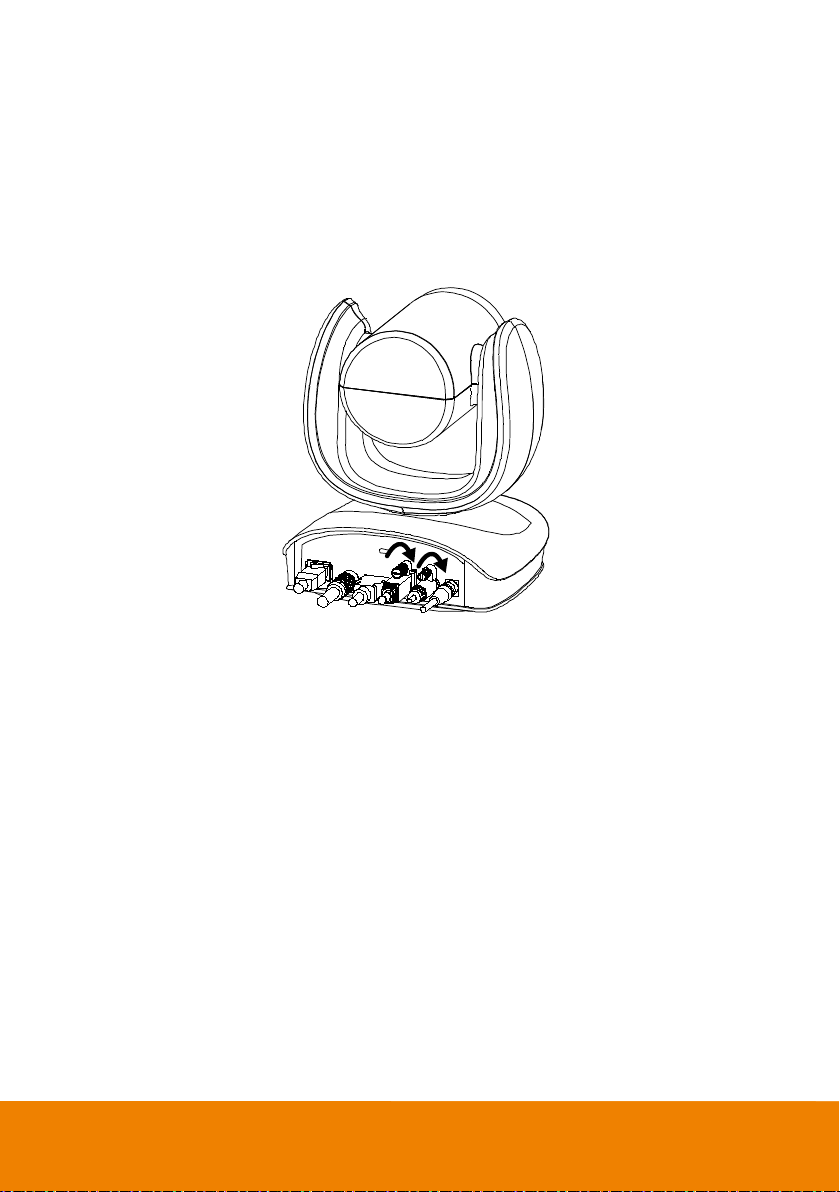
27
Secure the Cables
The USB and RS232 cables have a screw on the cable for securing cable on the camera.
Install the cable first and tighten the screw to secure the cable.
[Note] Make sure the cable is well connected to the connector on the camera before securing the
cable.
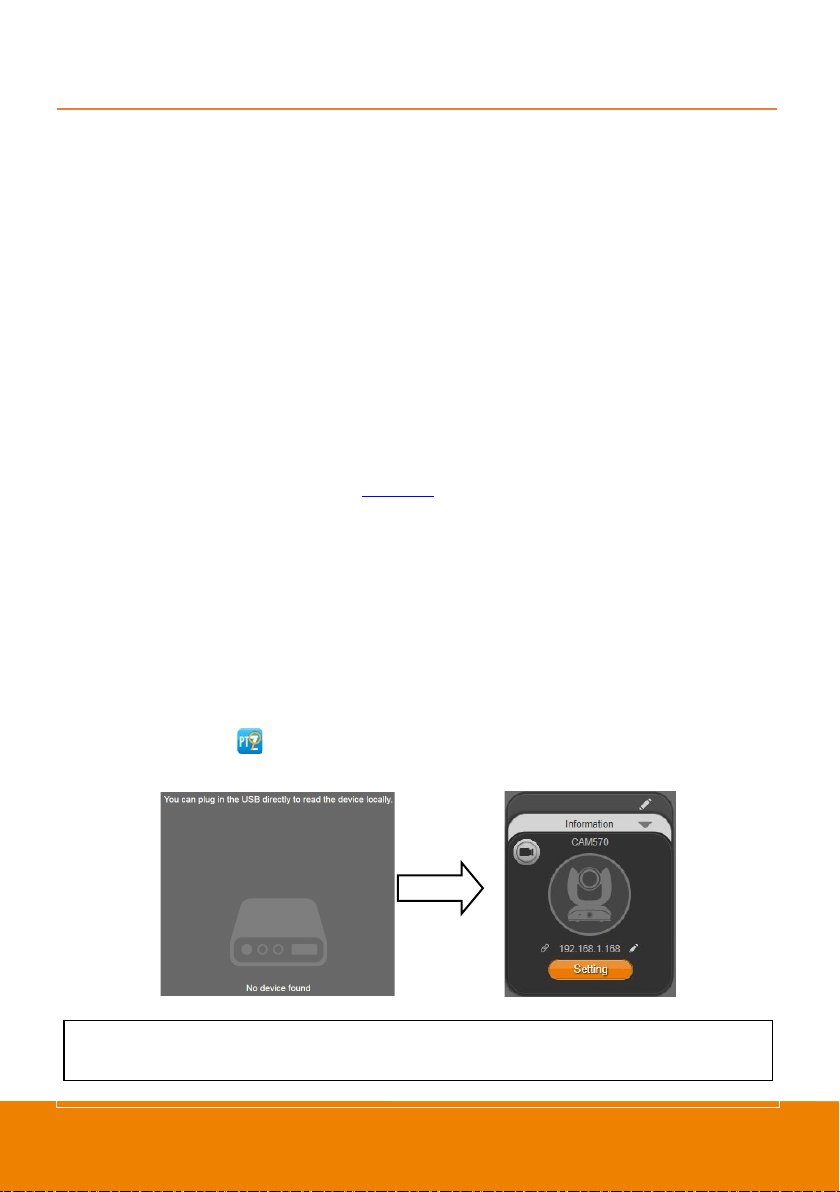
28
Operating the Camera
Make a Video Call
1. Make sure all devices (CAM570, laptop/PC, TV/monitor) are well connected and powered on.
2. Run your video application (
Zoom, Microsoft
®
Teams, Skype for Business, Skype, Google Meet,
Intel
®
Unite™, RingCentral, BlueJeans, V-Cube, LiveOn, CyberLink U Meeting
®
, TrueConf,
Adobe Connect, Cisco WebEx
®
, Fuze, GoToMeeting™, Microsoft
®
Lync™, Vidyo, vMix, WebRTC,
Wirecast, XSplit,
etc.) on your PC or laptop.
3. Set the CAM570 camera as the primary camera for your video application (refer to your video
application user guide). You can now make your call.
[Note] The CAM570 is a plug-and-play conference camera. The system requires no special drivers,
but we do recommend installing the PTZApp 2 for a better user experience. For information on how to
install and use the PTZApp 2, refer to the <
PTZApp 2> section in this user manual.
Make a Connection through the Browser
CAM570 has an Ethernet port for IP streaming and allows administrators to remotely control and set
up the camera via an internet access. Moreover, CAM570 also supports RTSP and RTMP functions.
For more details, please contact our technical support.
1. Make sure the CAM570 has an internet access connection.
2. Launch PTZApp 2* ( ) and connect CAM570 to PC with USB cable. The camera default IP
address is 192.168.1.168.
[Note] The browser supports:
Chrome: version 76.x or above Firefox: version 69 or above IE: Doesn’t support
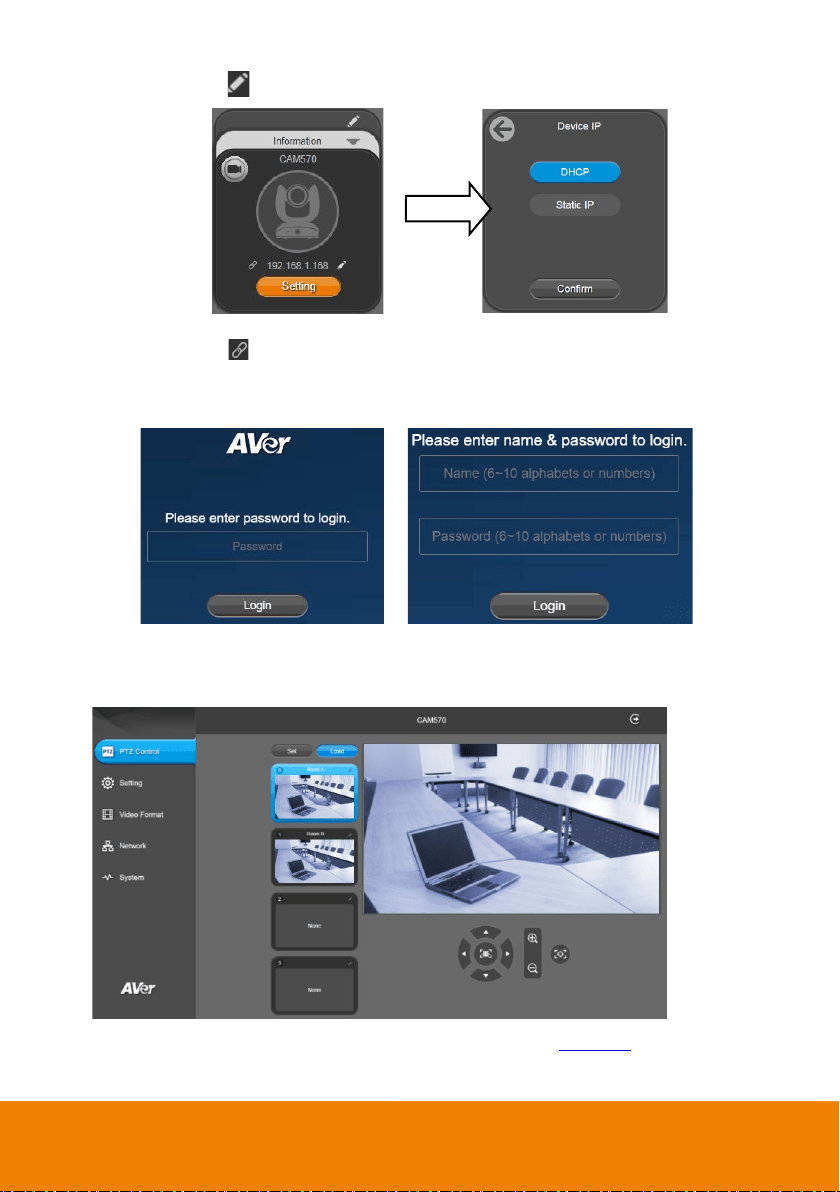
29
3.
Click pencil icon ( ) to edit IP address**.
4. Click weblink icon ( ) to launch Chrome page. Please enter the password (default password is
aver4321). User will be asked to set a new account and password. (Please enter PTZApp 2 to
reset password back to default while password is forgotten.)
5. After editing IP address, user can access web settings of the camera with only Ethernet cable
connection. Unplug the USB cable.
6. The main web screen is displayed as below.
* For information on how to install and use the PTZApp 2, refer to the <
PTZApp 2> section in this user
manual.
30
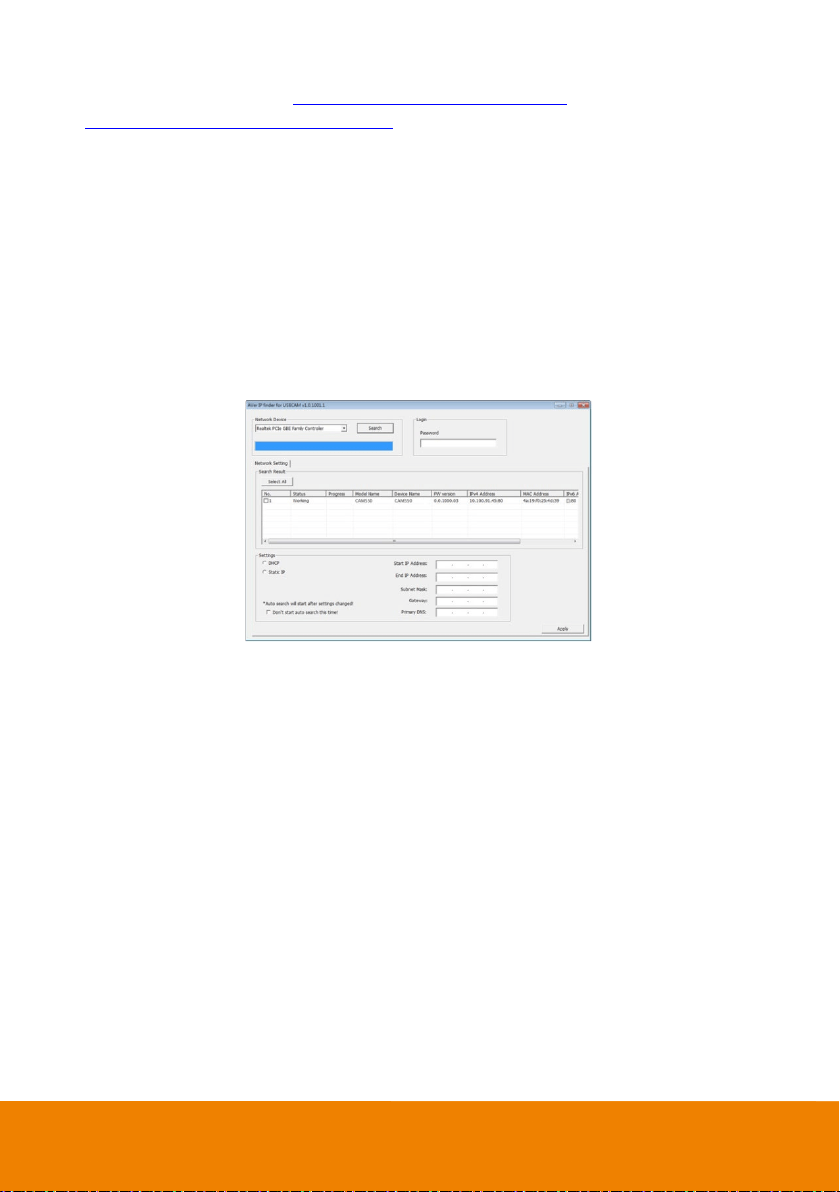
** To support IP address changes in groups, user can download AVer IP Finder app.
1. Download the IP Finder from
https://www.aver.com/download-center (Headquarters & Europe) or
https://www.averusa.com/business/support/ (USA).
2. Run the IP Finder.
3. Click “Search”, and all available devices will be listed on the screen.
4. Select a camera from the list. The corresponding fields of IP address will display.
5. To change the IP address of camera, user can select “DHCP” or “Static IP”.
The DHCP should get the IP address from local dynamic IP sever. The static IP, user can enter the
specific IP address. Click “Apply” to apply the setting to the camera. The password is required
(default password is aver4321).
6. Click “Search” button to re-scan the camera.
7. Double-click on the IP address of camera from the list can connect to camera through the browser.
8. Enter the default password (aver4321) to login to Web setup screen.
31
Web Settings
CAM570 supports Ethernet connection; users can enter the IP address into the web browser to
connect to the camera for detail settings.
First Time Login
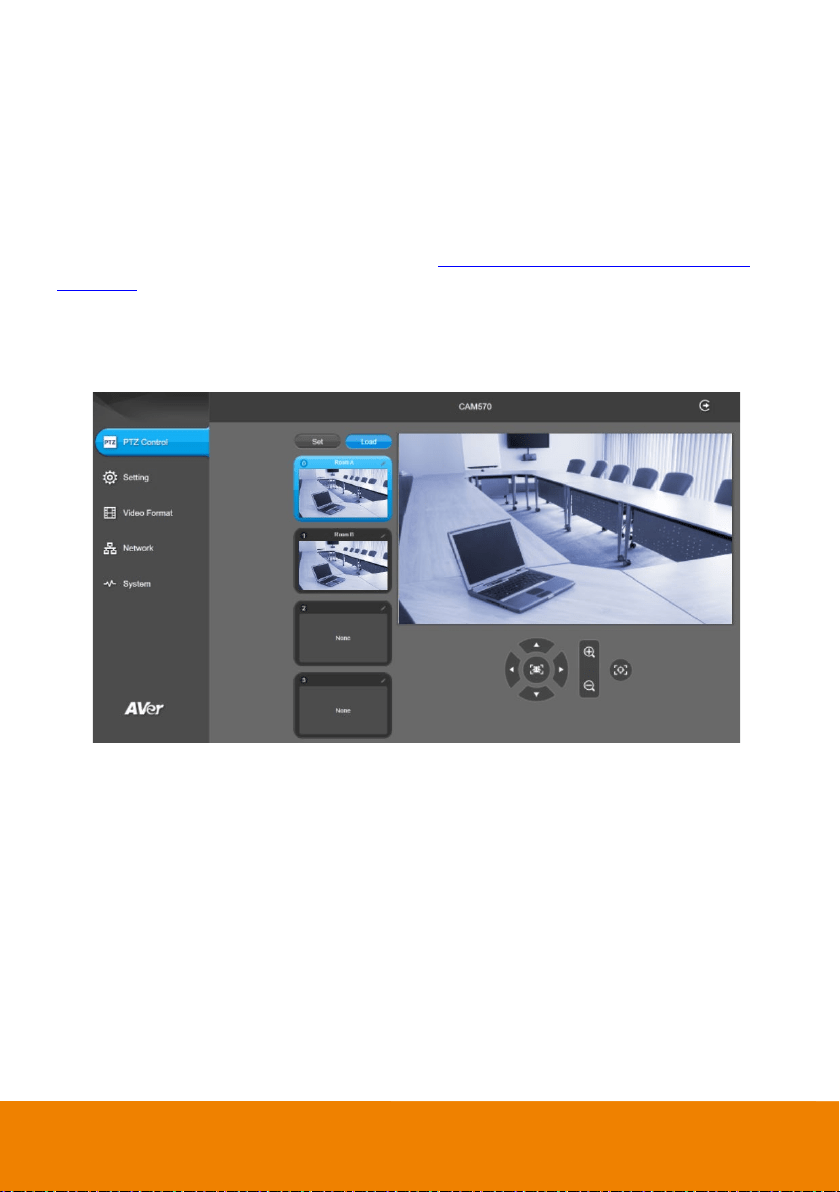
To find the IP address of the camera, please refer to <Make a connection through the
Browser> section.
1. Open the browser on your laptop/PC and enter the IP address of the camera.
2. Enter the password at login screen. The default password is “aver4321”.
3. The main web screen is displayed.
32
Live Screen Operation
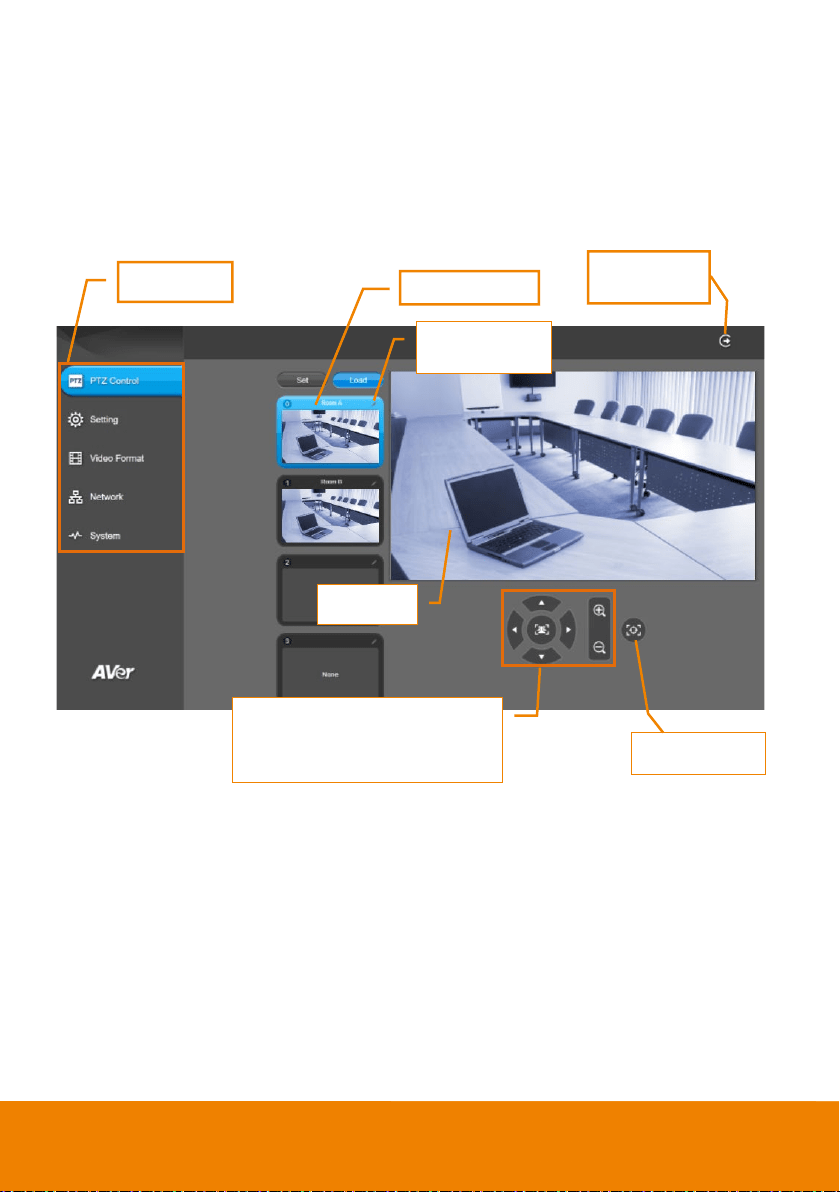
User can control the camera direction, zoom in/out, and preset selection.
[Notes]
The system will force the previous login to log out, when there is a second login.
If the web page is idle without any request for more than 4 hours, user will be logged out.
The resolution of live screen is 1280x720 / 5fps.
Functions list
Preset selection
Preset position
name column
Live screen
Preset setups, directional buttons,
manual SmartFrame button, and
zoom in/out
Logout the
web interface
One shot focus
33
PTZ Control
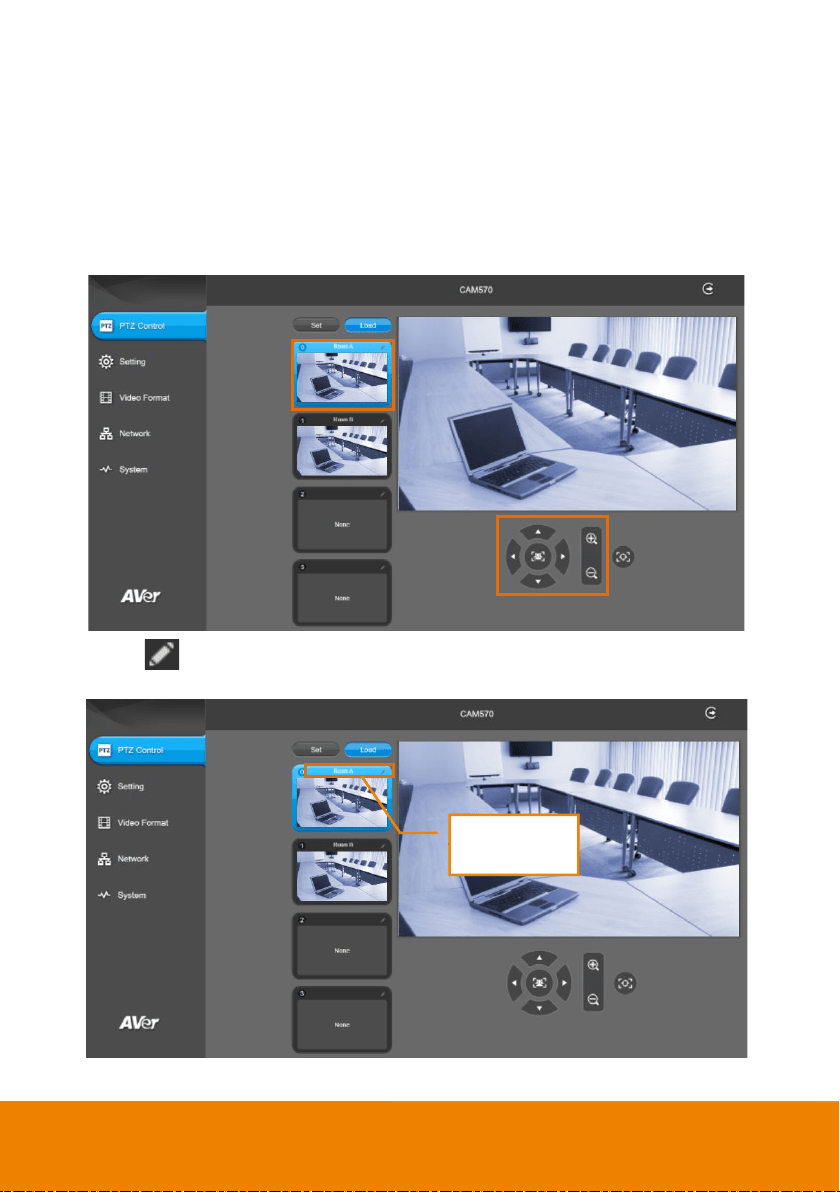
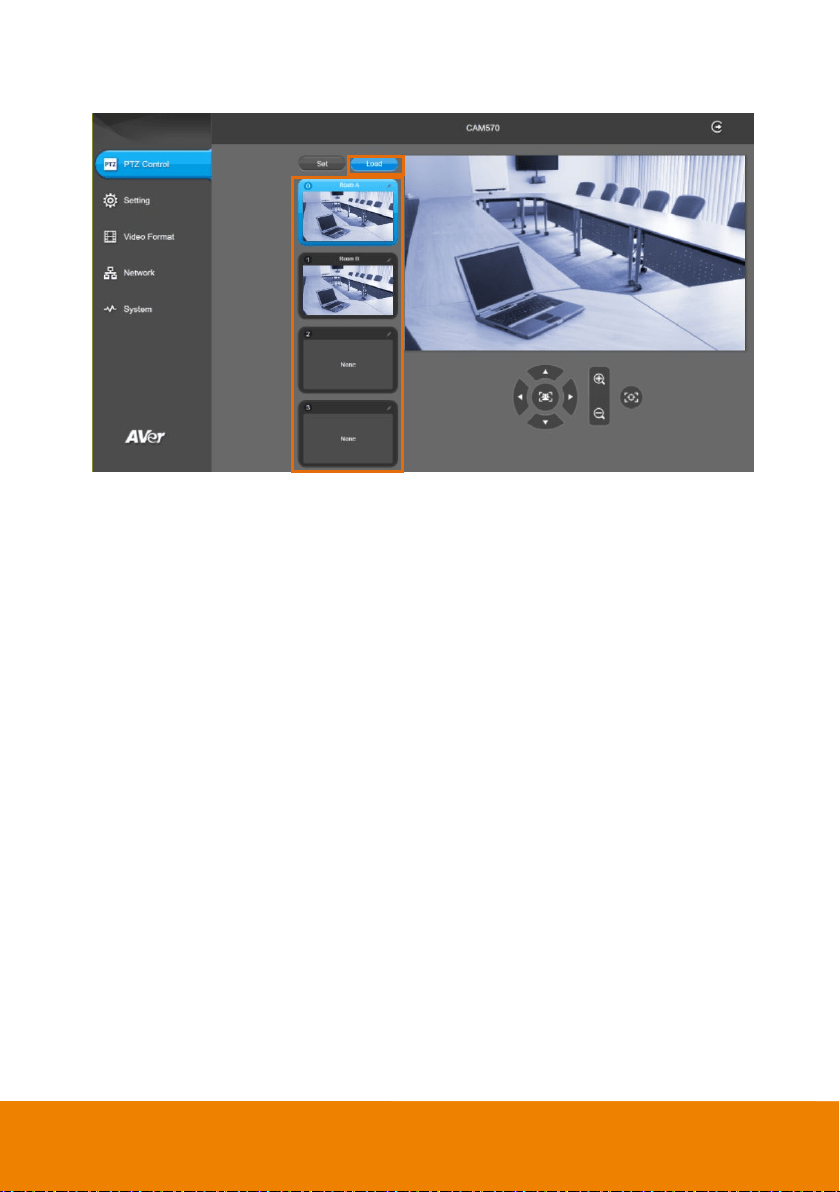
You can use the PTZ Control page to configure up to 10 preset positions.
1. In live screen, use
▲
,
▼
,
,
and zoom in/out buttons to adjust the camera screen view to
desired position.
2. Select “Set” button and click on the preset number to save the preset. The system will capture
the preset screen view and display in preset number frame.
3. Select icon to edit name of preset frame. Click other Web interface to save the name
edited.
4. To set another preset, repeat the above steps.
Enter name of
preset positon
34
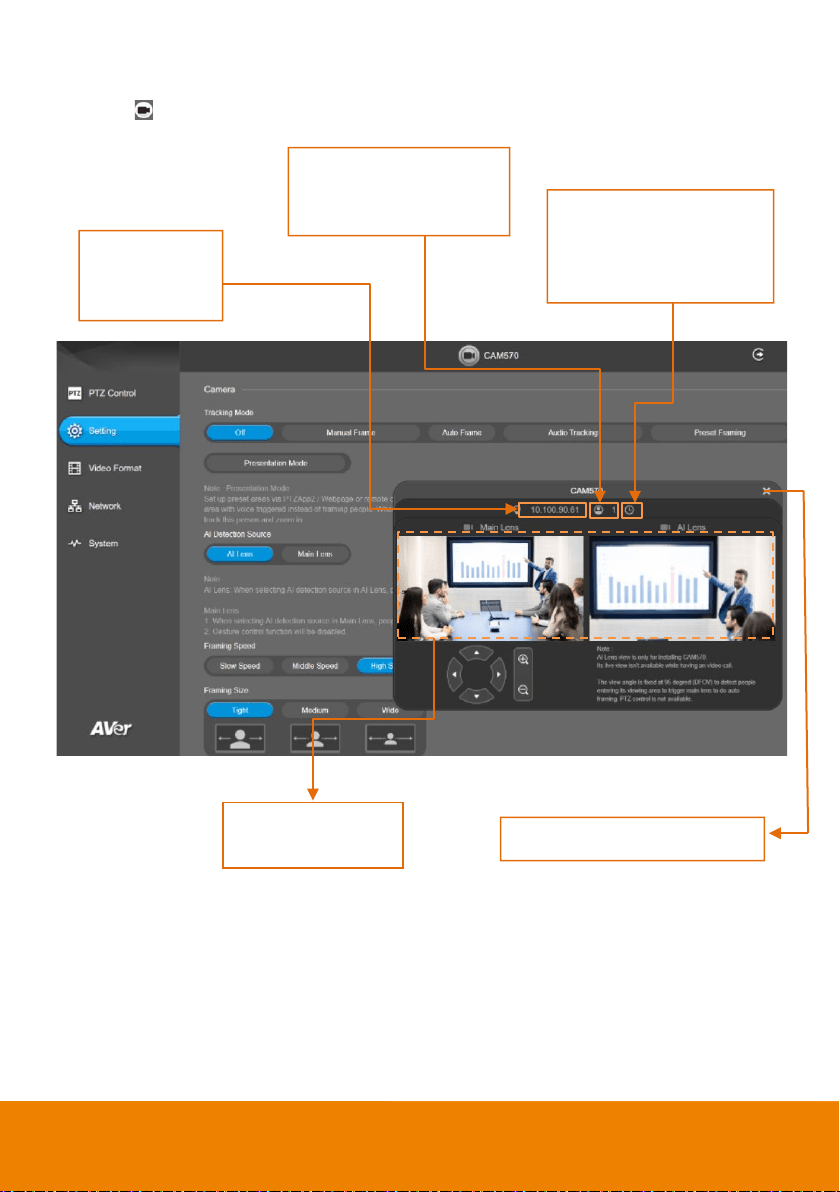
5. After setting up the preset positions, you can start performing the function. Select the “Load”
button and then click on the preset numbers, the live screen will move to the preset screen view.
35
Camera Settings
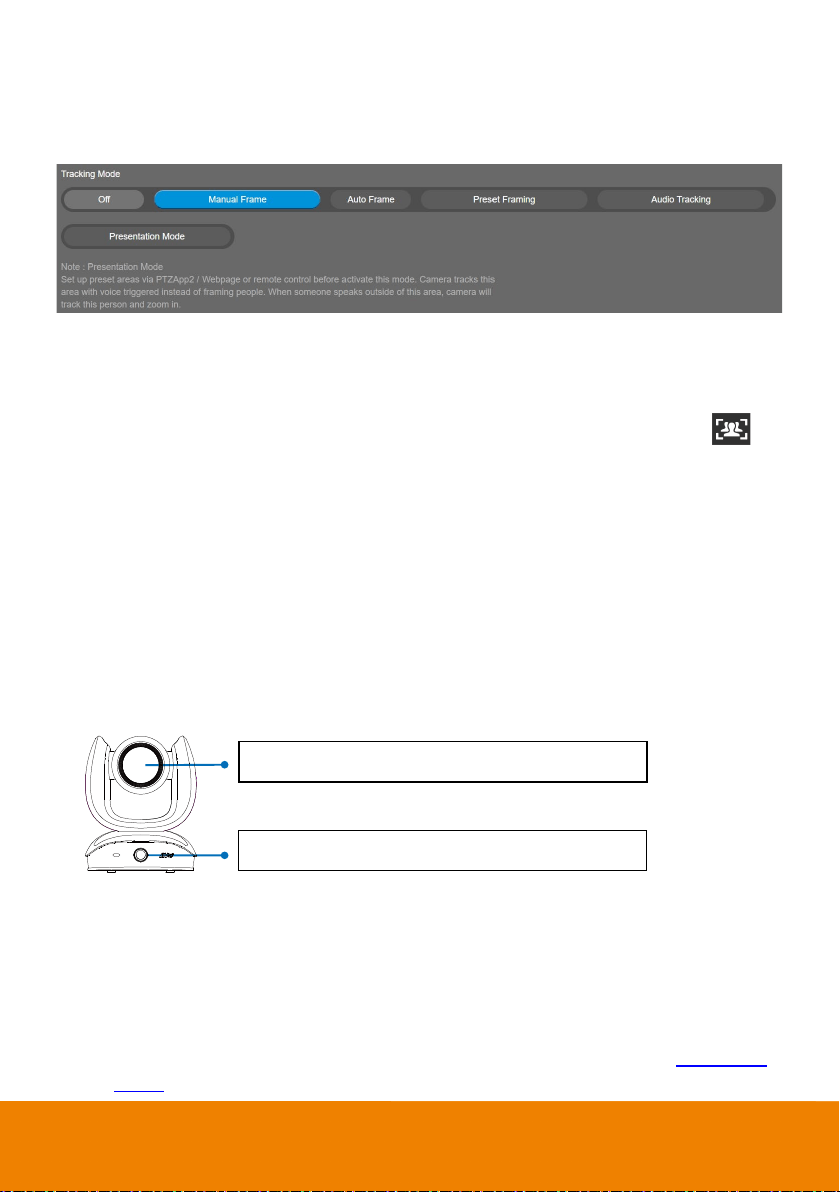
The video icon is to turn on camera live view while adjusting any settings.
Click the icon to hide
people count and the time
interval of enabling the live
streaming of the camera.
Click the icon to show/hide
people count number &
stream interval.
IP icon shows
the IP address
of the camera.
Click X button to turn off live
Main and AI Lens
Live screen preview
36
Tracking Mode
Select Setting > Camera > Tracking Mode > Off, Manual Frame, Auto Frame, Preset Framing,
Audio Tracking or Presentation Mode.
Off: Tracking mode is disabled.
Manual Frame: User one-click SmartFrame button and camera will adjust view angle to fit all
participants in screen.
[Note] While in Auto Framing mode, or doing one-click manual frame, an icon message ( be
shown when using HDMI out) will display on the upper left screen to indicate that the framing
action is triggered. The icon will appear 2~3 sec on the screen. Once the framing process is done,
it will disappear. If you don’t want to see the icon display, please go to PTZApp 2, find “On Screen
Menu” function and select “Off”.
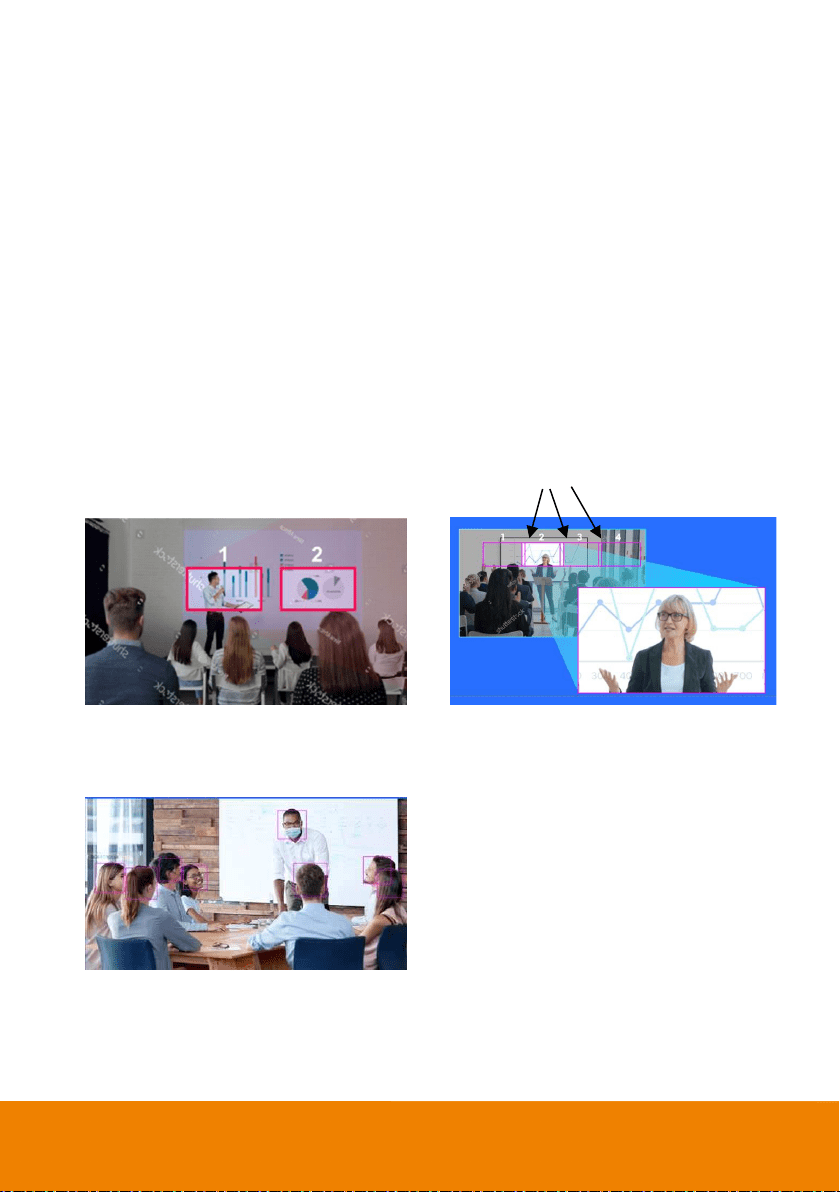
Auto Frame: AI lens (secondary lens) is with 95 degree panoramic view of the room to keep
detecting all participants or new participants and trigger PTZ lens to dynamically frame all
participants.
*The default framing speed is “Middle” speed. “High” speed is more suitable for one person
tracking.
Please note that the angle of AI lens is larger than PTZ camera. If people at two sides of meeting
room sit within AI lens view but out of PTZ lens’ widest angle, they won’t be framed and appear in
the view of PTZ lens successfully. When this situation happens, please come closer to make sure
people at two sides can be within PTZ camera’s viewing angle.
[Notes]
1. If the camera does not detect people while zooming out, it will go to Preset 0.
2. You can select which lens to perform the AI detection function. Please refer to <
AI Detection
Source> for more details.
Lens 2: Panoramic view of the whole room
Lens 1: Showing the view after framing all people
37
Preset Framing: This is designed for requiring a specific zooming area with preferred image
proportion. Set up preset points in advance. (Only for Preset points 1~9. Preset 0 is for home
position. The preset points must be within the AI lens angle of view.) Make sure the preset areas
are within AI lens’ view. When any of people enter a preset area, the PTZ camera will immediately
shoot the preset zones instead of focusing and zooming into presenter. PTZ Camera tracks and
frames all the participants if none of them touch any preset area. To keep the screen stable,
whenever there is a person in the area, the camera won’t move any more until no one shows up.
However, the camera can detect the direction where the last person goes. If the person goes to the
next preset area with overlap section, the camera will directly move to the next preset area. Thus,
to ensure smooth transition, please set up zones with overlapping presets.
If the preset zones do not overlap and when the last person leave the preset area, camera will
zoom out to wide to find people and frame them again.
If more than 2 presets areas are touched by 2 persons, camera will go to preset 1. The priority is
preset 1>preset2> preset 3….>preset 9
Separate preset area setting
Overlap preset area setting
[Note] CAM570 frames people in masks or any facial profile up to 7~10 meters away!
Overlap beginning & end of each zone
38
Audio Tracking: After detecting the sound, camera focuses at the speaker and zooms in. The
camera moving path will be shown in the screen.
[Notes]
1. The camera features a built-in microphone array designed for Audio Tracking. The built-in
microphone array cannot be used as an audio input source for video conference.
2. After enabling the Audio Tracking function, you can further configure the idle interval for Audio
Tracking. Please refer to <
Audio Tracking Idle Interval> for more details.
3. To avoid the camera from tracking to the sound from the speaker devices rather than the live
sound from the presenters or participants, you will have to use the PTZApp 2 to configure the
audio settings. Please refer to <
Audio Setting> for more details.
4. To reduce potential echoes, we recommend that you install the camera at least 1 meter away
from the left and right walls or reflective surfaces.
Presentation Mode: This is a combination of preset tracking and audio tracking. Please set up
preset areas (preset 1~9. Preset 0 is for home position) in the PTZApp 2, IP web page, or remote
control first. When someone speaks within this area, camera shoots this area. When someone
speaks outside of this area, camera will track this person in view and zoom in. If there is no more
sound and no person’s face is detected outside of this area after the idle time (based on the idle
time interval set up in PTZApp 2), the camera will shoot on the last triggered preset area again.
[Note] The camera features a built-in microphone array designed for Audio Tracking. The built-in
microphone array cannot be used as an audio input source for video conference.
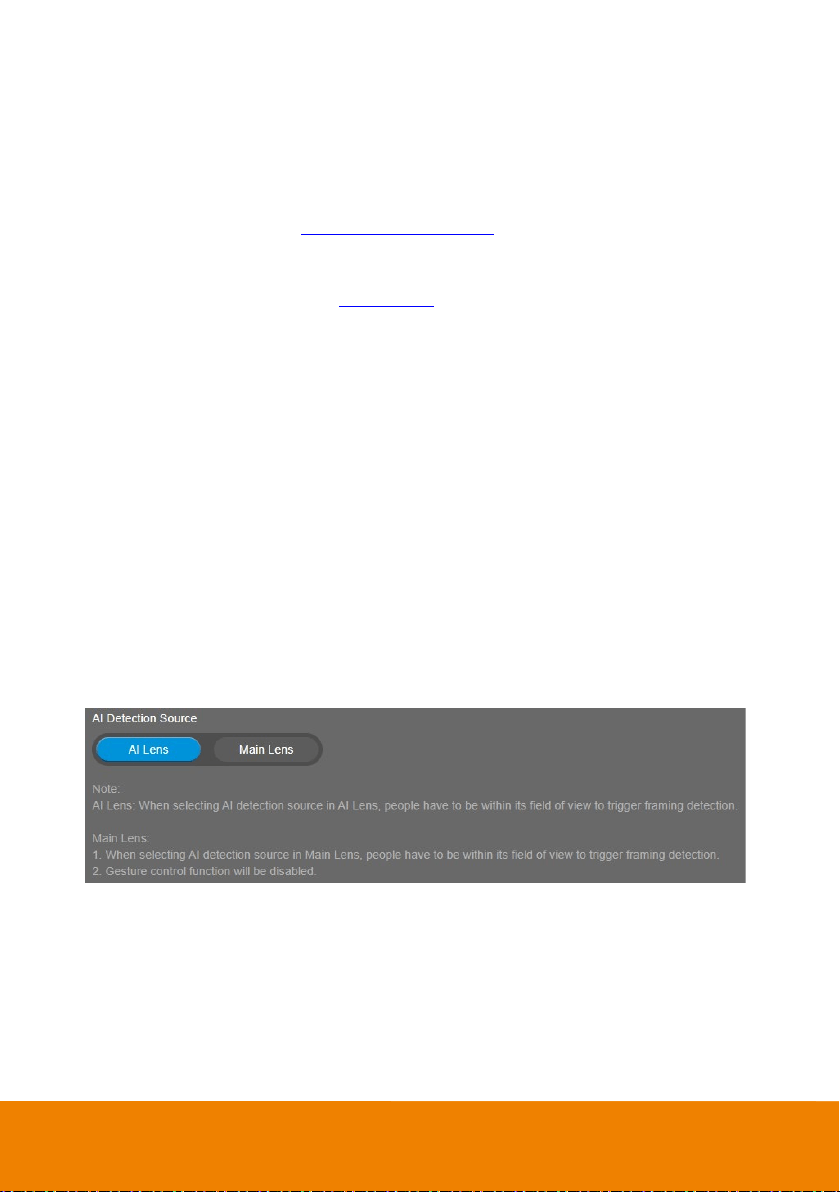
AI Detection Source
Select Setting > Camera > AI Detection Source > AI Lens (default) or Main Lens.
Select a lens to perform AI detection.
AI Lens: Select AI Lens to perform the AI detection. Note that people have to be within its field of
view to trigger framing detection.
Main Lens: Select Main Lens to perform the AI detection. Note that people have to be within its
field of view to trigger framing detection. Gesture control function will be disabled if Main Lens is
selected
.
[Note] To reduce potential echoes, we recommend that you install the camera at least 1 meter
away from the left and right walls or reflective surfaces
39
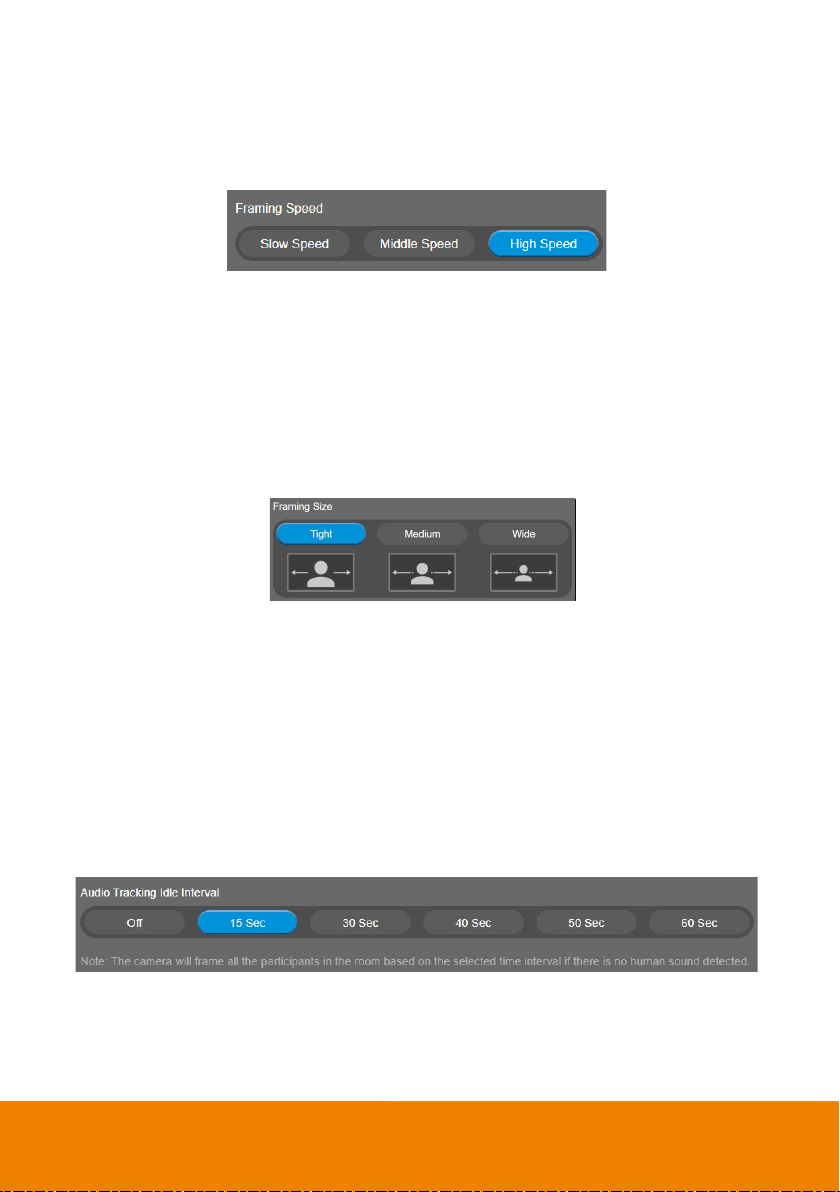
Framing Speed
Select Setting > Camera > Framing Speed > Slow Speed, Middle Speed, or High Speed (default).
When in auto framing or preset framing mode, camera will automatically frame people if they stand still
without moving for 1~5 seconds.
Slow Speed: camera starts to frame people if they don’t move for 5 seconds.
Middle Speed: camera starts to frame people if they don’t move for 3 seconds.
High Speed: camera starts to frame people if they don’t move for 1 second.
[Note] The default framing speed is “Middle” speed. “High” speed is more suitable for one person
tracking.
Framing Size
Select Setting > Camera > Framing Size > Tight (default), Medium or Wide.
Tight: It provides a close-up view of meeting participants.
Medium: It provides a medium view of meeting participants.
Wide: It provides a wide view of meeting participants.
Audio Tracking Idle Interval
After enabling the Audio Tracking function, select an idle interval for audio tracking.
Select Setting > Camera > Off, 15 sec, 30 sec, 40 sec, 50 sec or 60 sec.
When setting up idle time, if there is no more human sound up to the idle time, the camera will go back
to SmartFrame preset point (default at camera central view) to frame all the people. If selecting Off,
the camera will stay at the final shot even though there is no more sound being detected.
40
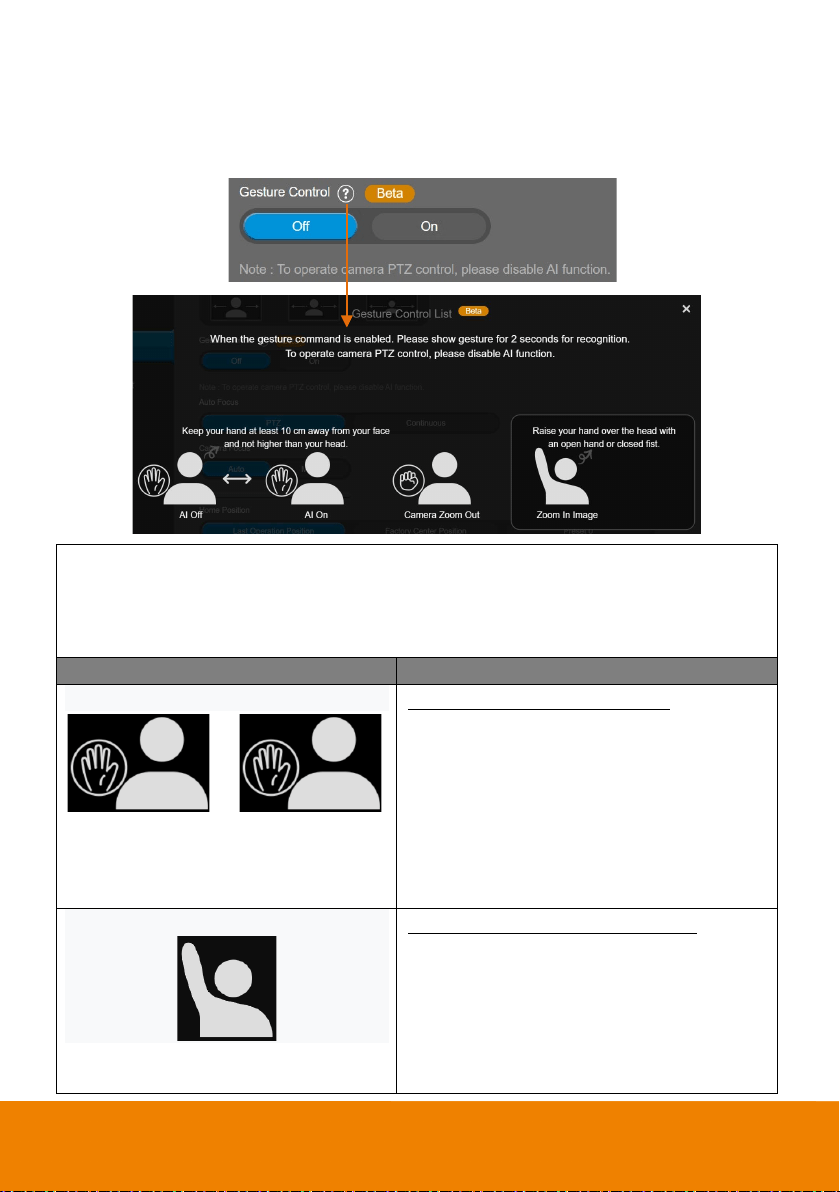
Gesture Control
Enable gesture control allows user to use hand to control camera for turning on/off tracking function,
zooming in/out. Click “?” icon to show gesture control list on screen.
[Note] The effective distance is up to 5-meter away from the camera.
Turn on gesture control function first. When any of the following gestures are showing in
front of the camera, it will activate gesture control function. Keep showing the gesture for
2~3 seconds to trigger the camera to act. The following are the corresponding function
names and gesture figures.
Gesture Control
Description
Tracking On/Tracking Off
or
You have to be in the view of AI lens.
Raise the palm of your hand to face the camera
and place it on the side of your face (not over the
head) for 2~3 seconds to activate or disable
tracking function. Your hand has to be at least
10cm away from your face.
Turn off tracking function before doing zoom in/out
function.
Zoom In
You have to be within the view of AI lens.
Raise your hand over your head for 2~ 3 second to
zoom in camera. If there are more than one people
raising the hand, the camera will follow the 1st one
until he puts down the hand.
The auto tracking function will be automatically
turned off when you activate the zoom in/out
41
gestures. To turn on the auto tracking function, go
to the Web setup page > Setting > Camera >
Tracking Mode.
Zoom Out
or
You have to be in the view of AI lens.
Place a fist with palm facing the camera on the
side of the face for 2~3 seconds to activate the
zoom out. Your hand has to be at least 10cm away
from your face.
The auto tracking function will be automatically
turned off when you activate the zoom in/out
gestures. To turn on the auto tracking function, go
to the Web setup page > Setting > Camera >
Tracking Mode.
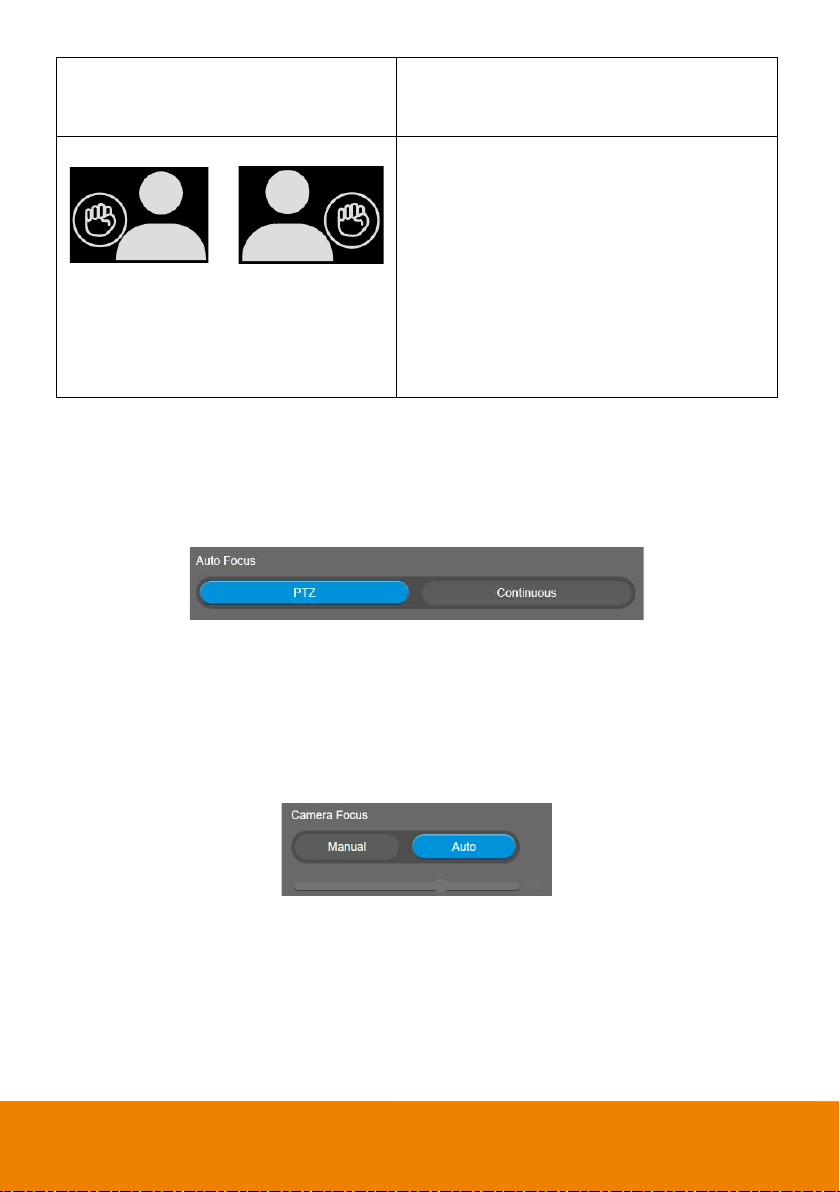
Auto Focus
Set auto focus mode.
First select Setting > Camera > Camera Focus > Auto.
Select Setting > Camera > Auto Focus > PTZ or Continuous.
PTZ: Click the button (such as pan, tilt, or zoom in/out) to adjust focus once.
Continuous: The camera will adjust the focus when the objects have moved.
Camera Focus
Set auto/manual focus mode.
Select Setting > Camera > Camera Focus > Auto or Manual.
Auto: Camera adjusts focus automatically.
Manual: You can adjust the camera focus by moving the control bar below.
42
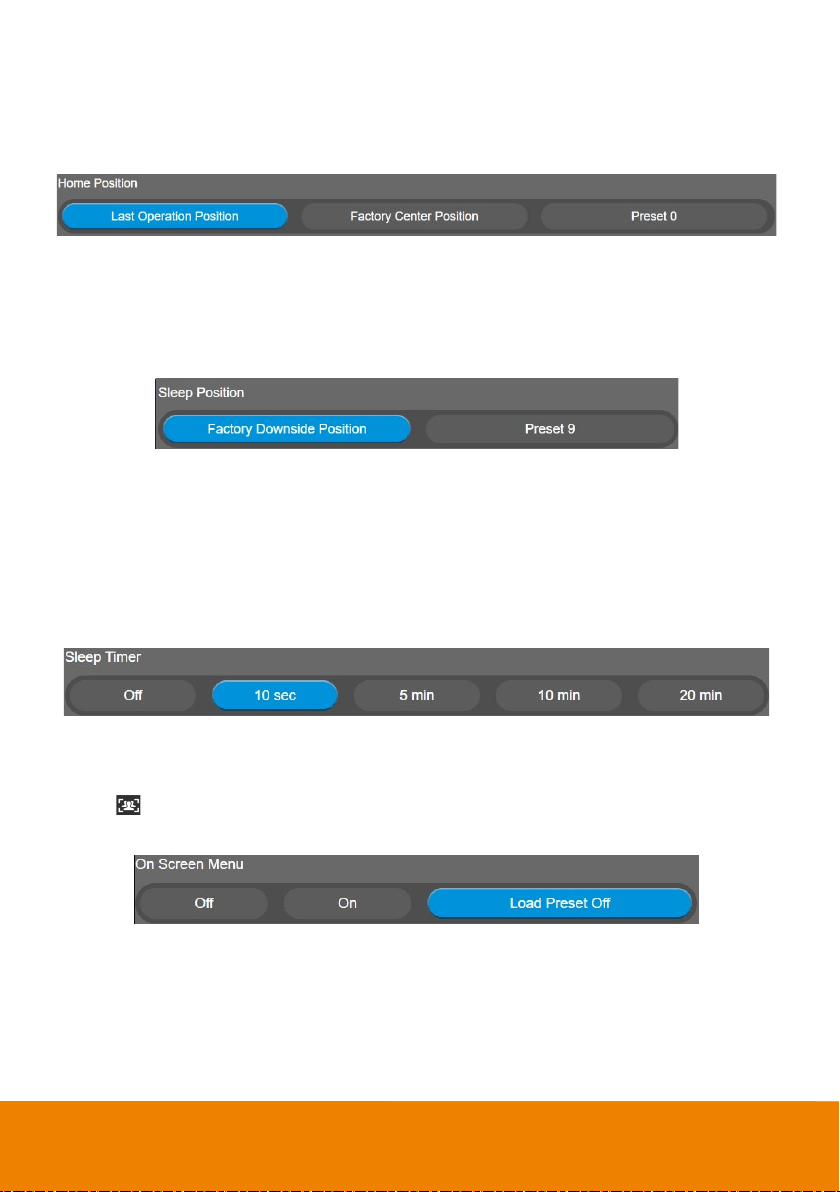
Home Position
Every time when powering on the camera, it will turn to this position.
Select Setting > Camera > Home Position > Last Operation Position, Factory Center Position, or
Preset 0.
Sleep Position
When the camera idles for certain period, it will enter sleep mode and go to the sleep position. Please
set up sleep timer to enable sleep mode.
Select Setting > Camera > Sleep Position > Factory Downside Position or Preset 9.
Sleep Timer
Set the camera idle time to enter sleep mode. When entering sleep mode, the camera will turn to sleep
position.
Select Setting > Camera > Sleep Timer > Off, 10 sec, 5 min, 10 min, or 20 min.
Please notice that whenever there is USB streaming or RTSP/RTMP streaming, the camera won’t
enter sleep mode.
On Screen Menu
Enable/disable on screen display status information. For instance, when it is at auto frame mode, it will
appear “ ” on the upper left side of the screen. If you don’t want to see the icon, please select Off.
Select Setting > Camera > On Screen Menu > Off, On, or Load Preset Off.
43
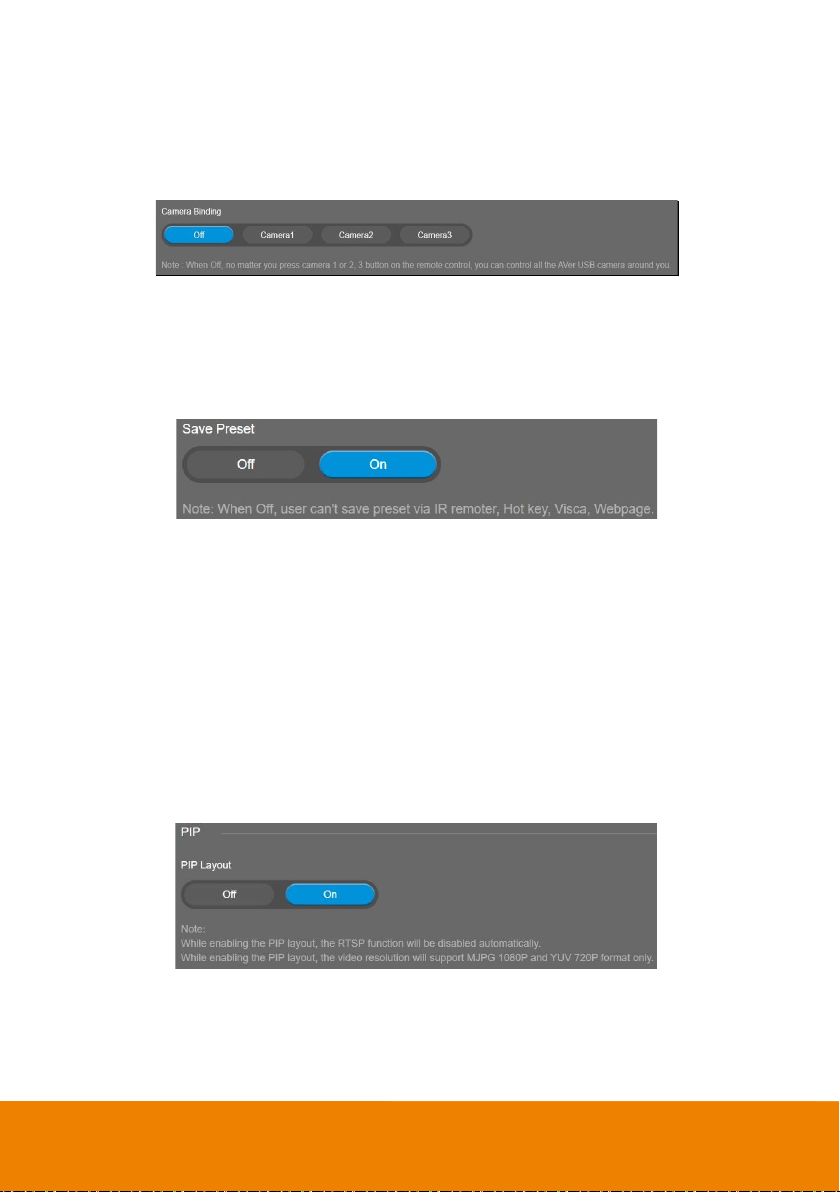
Camera Binding
With multiple cameras connection, users can set each camera to buttons 1 to 3 on the remote control.
Select Setting > Camera > Camera Binding > Camera1, Camera2, or Camera3.
[Note] When camera binding is off, press camera 1, 2, or 3 button on the remote control can control all
the AVer USB camera nearby you.
Save Preset
Enable/disable “save preset” function. When applicable, IT personnel can limit end-user access to
change preset points by locking “save preset” function and switching this function off.
When off, user can’t save preset points via IR remote, Hot key, VISCA, and webpage.
Select Setting > Camera > Save Preset > Off or On.
PIP Settings
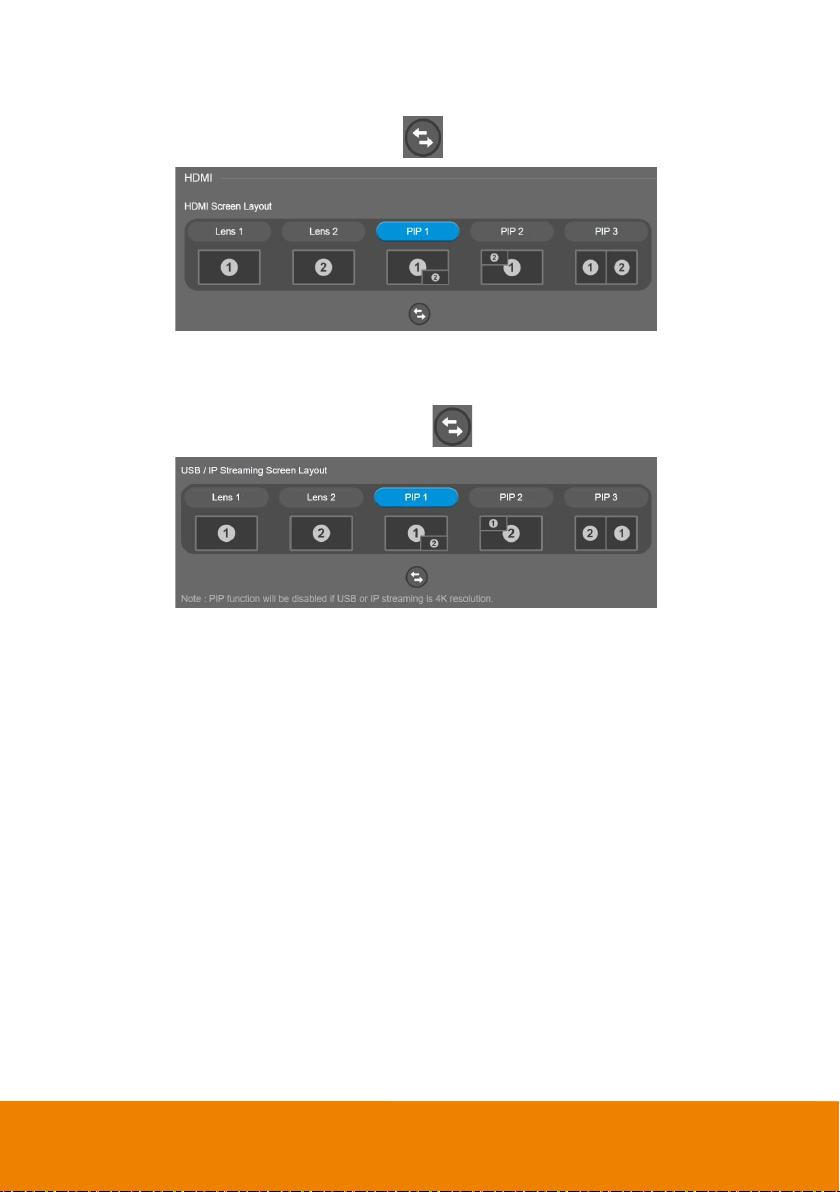
PIP Layout
Enable PIP layout to see videos from both Main Lens and AI Lens. The default is off.
Select Setting > PIP > PIP Layout > Off or On.
When PIP Layout is enabled, the camera will reboot.
While PIP Layout is on, the RTSP and RTMP and Virtual Stream functions will be disabled
automatically and the video resolution will support M-JPEG 1080p and YUV 720p format only.
When PIP Layout is disabled, users will be able to choose only between Lens 1 and Lens 2 from HDMI
Screen Layout and USB/IP Streaming Screen Layout. PIP 1~PIP 3 will be disabled.
44
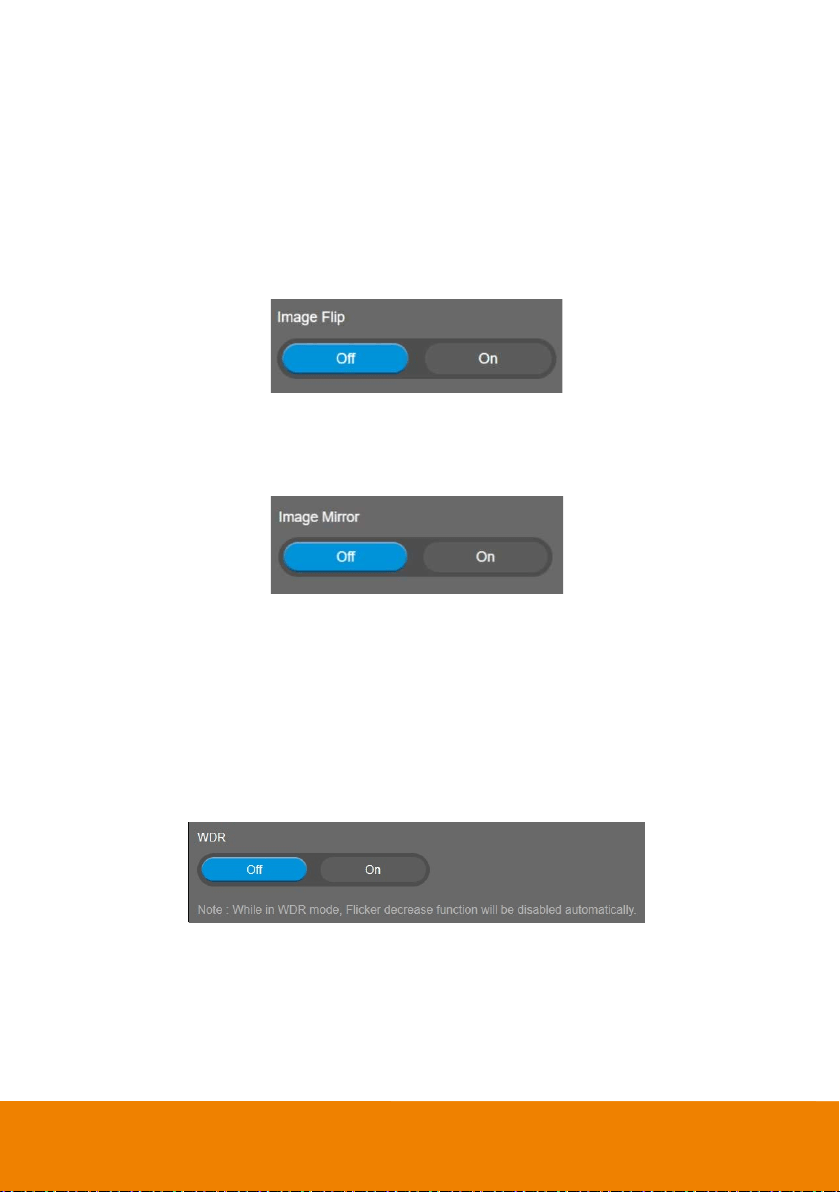
HDMI Screen Layout
To set HDMI output type – Lens 1, Lens 2, PIP 1, PIP 2, or PIP 3.
When select PIP 1, 2, or 3 layout, user can click to switch lens 1 and 2 display position.
USB/IP Streaming Screen Layout
To set USB/IP Streaming output type – Lens 1, Lens 2, PIP 1, PIP 2, or PIP 3.
When selecting PIP 1, 2, or 3 layout, users can click to switch lens 1 and 2 display position.
45
Image Settings
Image Flip
Flip the image vertically for upside down installation.
Select Setting > Image > Image Flip > Off or On.
When Image Flip is enabled manually, Main Lens is automatically selected as AI Detection Source.
While Image Flip is on, if users select AI Lens as AI Detection Source, Image Flip will automatically
turn off.
When Image Flip is disabled manually, Al Lens is automatically selected as AI Detection Source.
Image Mirror
Flip the image horizontally.
Select Setting > Image > Image Mirror > Off or On.
WDR
In back light environment, enable WDR to improve the brightness of image.
Select Setting > Image > WDR > Off or On.
The frame rate will be limited to 30fps while WDR is on.
If user enables this function in a normal light condition, the image will become over exposure and
encounter image blur.
When WDR is enabled, camera has taken long exposure and user cannot manually adjust the
brightness of image.
46
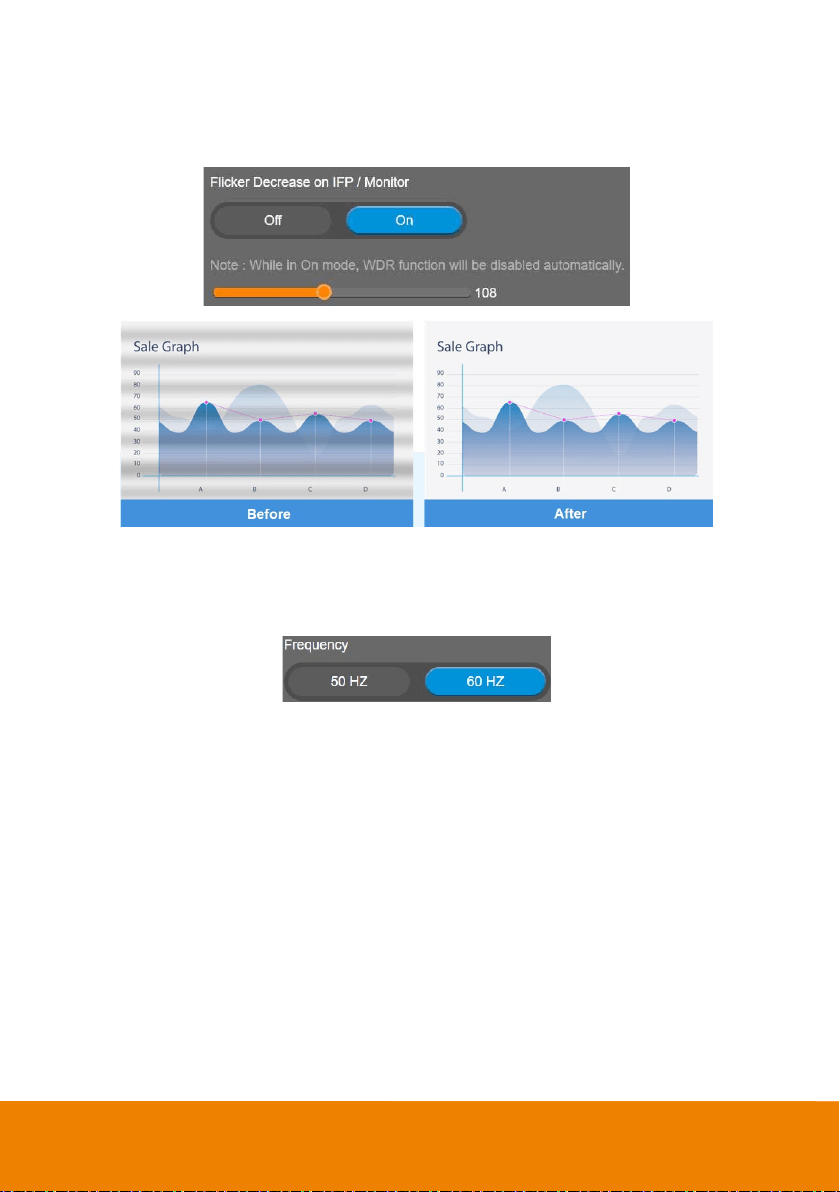
Flicker Decrease on IFP / Monitor
This is to ensure fluid content capture on IFP monitor
Select Setting > Image > Flicker Decrease on IFP / Monitor > Off or On.
[Note] While in WDR mode, flicker decrease function will be disabled.
Frequency
Select the frequency of the camera.
Select Setting > Image > Frequency > 50 HZ or 60 HZ.
47
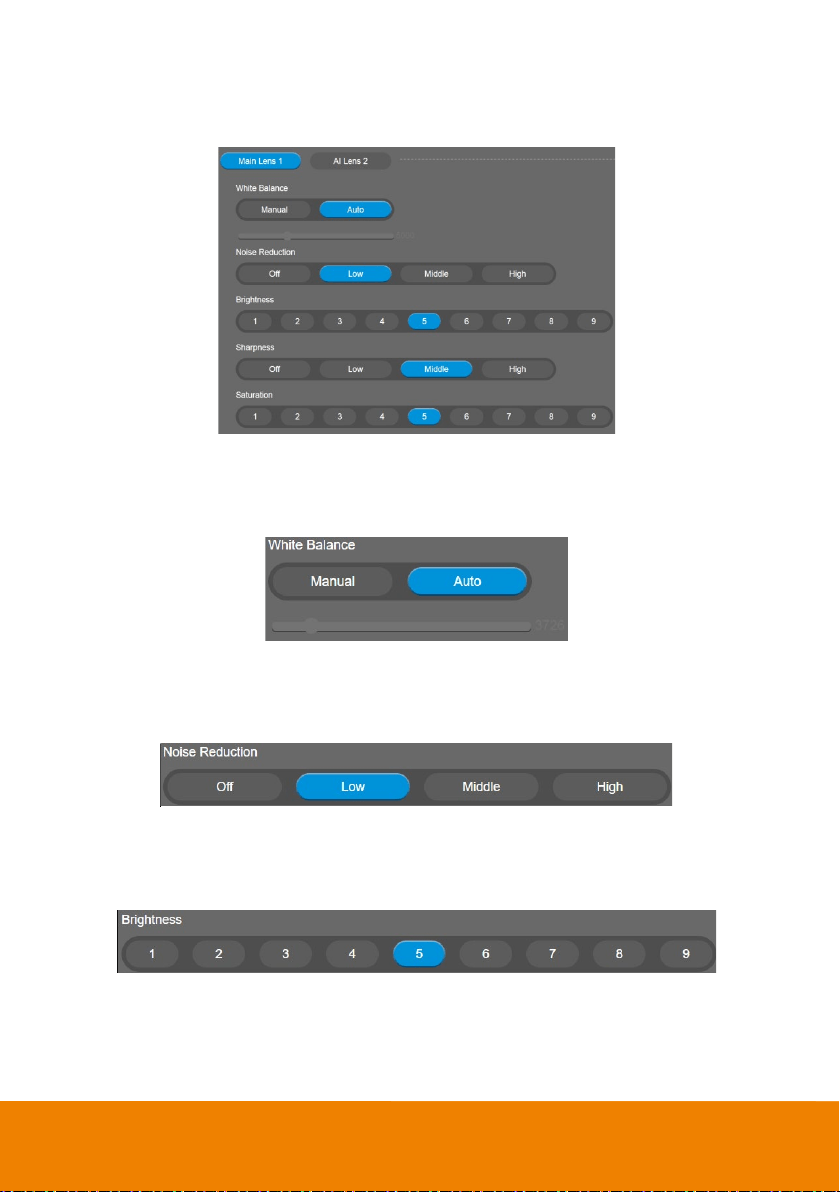
Main Lens 1/AI Lens 2
Select Main Lens 1 or AI Lens 2 to setup lens’ parameters – White Balance, Noise Reduction,
Brightness, Sharpness, and Saturation. Those settings only apply for selecting lens.
White Balance
Select the white balance setting for various light conditions or color temperature.
Select Setting > Image > White Balance > Auto or Manual.
Noise Reduction
To reduce the noise from the signal.
Select Setting > Image > Noise Reduction > Off, Low, Middle, or High.
Brightness
Adjust the value of brightness.
Select Setting > Image > Brightness > 1 ~ 9.
48
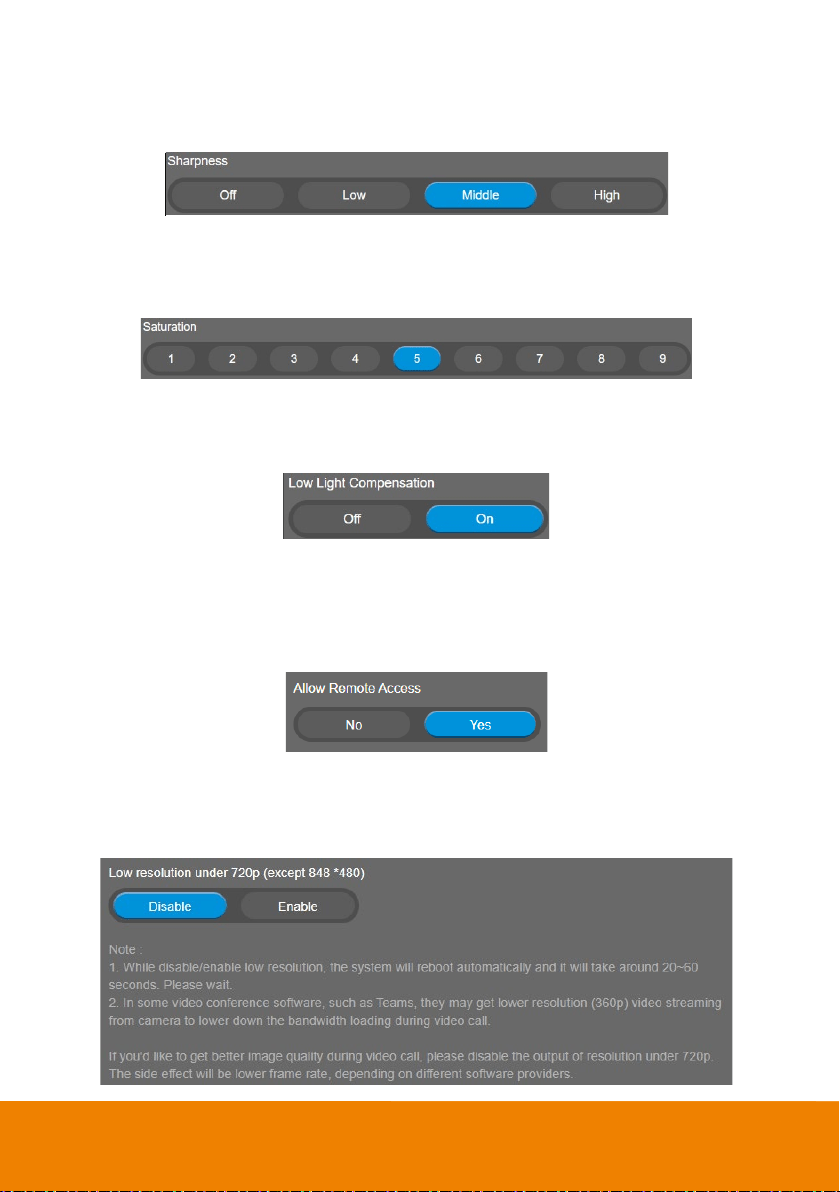
Sharpness
Adjust the value of sharpness.
Select Setting > Image > Sharpness > Off, Low, Middle, or High.
Saturation
Adjust the value of saturation.
Select Setting > Image > Saturation > 1 ~ 9.
Low Light Compensation
Select Setting > Image > Low Light Compensation > Off or On.
Please notice that the frame rate will drop to 10~15 fps.
Allow Remote Access
Select Setting > Image > Allow Remote Access > Off or On.
[Note] Only available on PTZApp 2.
Low resolution under 720p
Select Setting > Image > Low resolution under 720p > Disable or Enable.
49
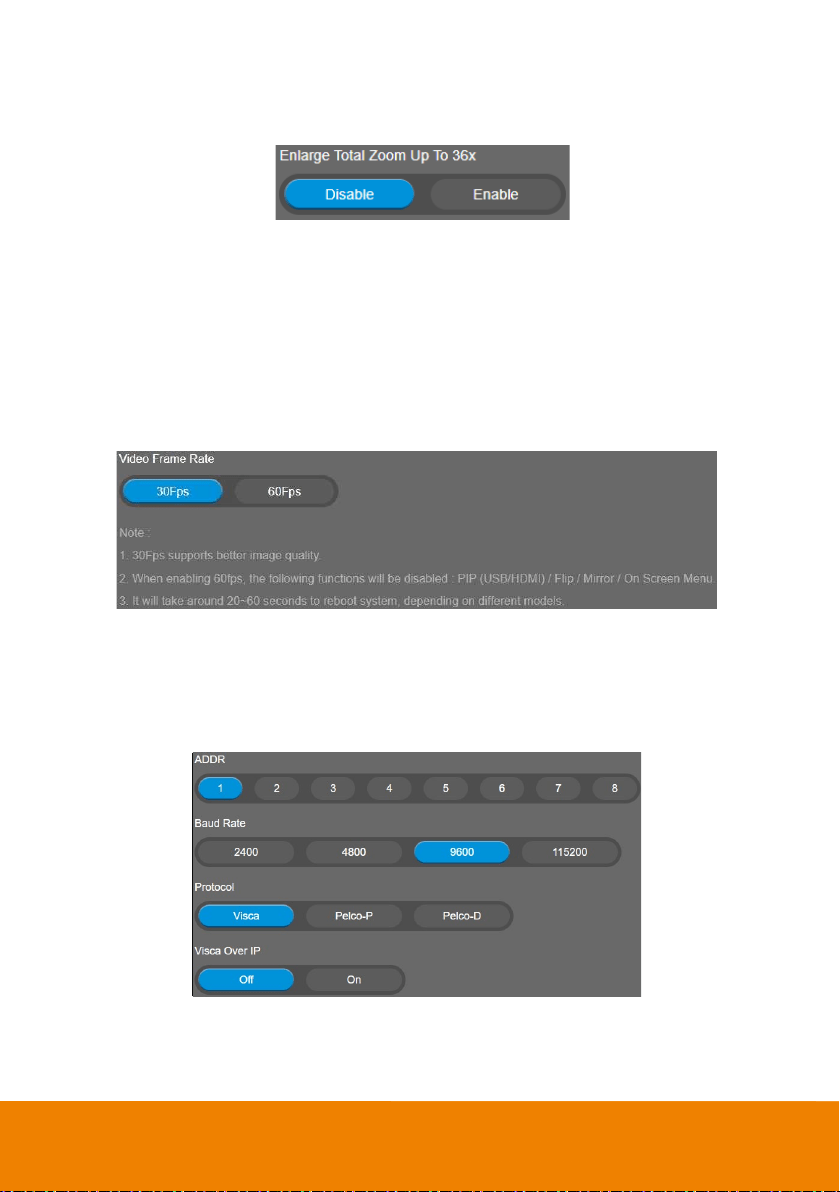
Enlarge Total Zoom Up To 36x
Enable/Disable enlarge zoom up to 36x. The default is 24x.
Video Frame Rate
Set up the frame rate value.
Select Setting > Image > Video Frame Rate > 30 FPS, or 60 FPS.
30fps is with much better image quality than 60fps. Unless you want to shoot fast moving objects,
please use 30fps.
[Note] When selecting 60 FPS, the PIP/On Screen Menu, Image Flip and Image Mirror functions will
be disabled regardless of resolution.
RS232 Settings
When CAM570 connects with PTZ camera controller through the RS232 port, please setup ADDR,
Baud Rate, Protocol, and Visca Over IP settings.
Select Setting > RS232.
50
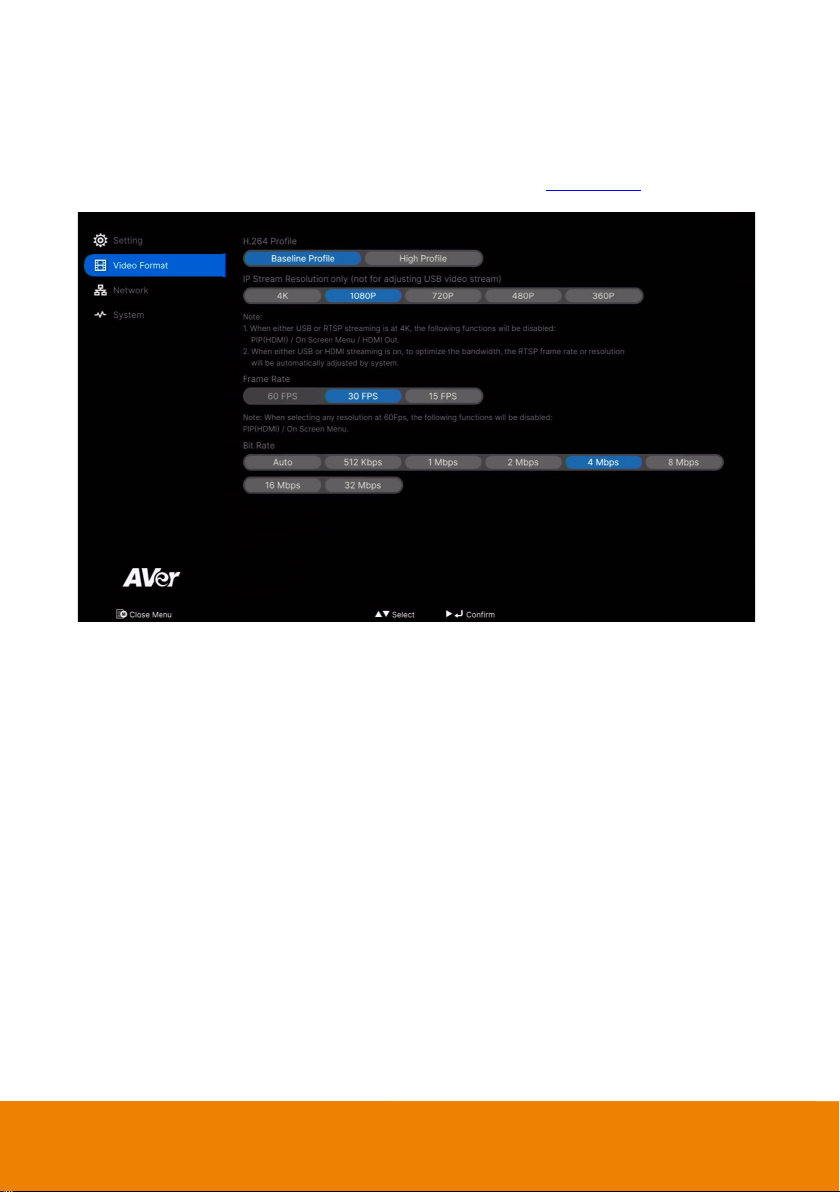
Video Format Settings
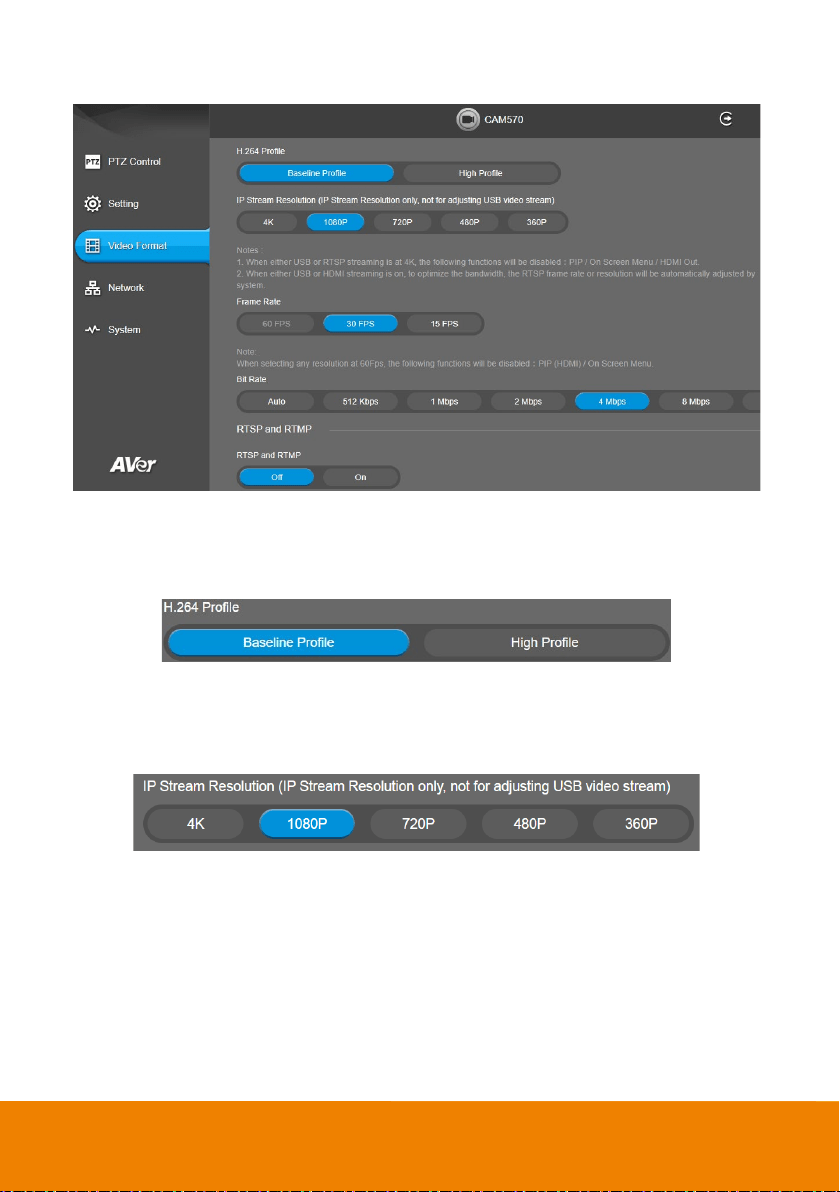
H.264 Profile
While in live broadcasting, user can choose preferable profile to get best streaming quality.
Select Video Format > H.264 Profile > Baseline Profile or High Profile.
IP Stream Resolution only
Set up the resolution for IP stream. Not supported for USB video stream.
Select Video Format > IP Stream Resolution only > 4K, 1080P, 720P, 480P, or 360P.
Please note that if USB streaming (VC software side) is already in use at 1080p/30fps, the IP
streaming resolution (RTSP) will be limited to 720p/30fps.
[Notes]
If 4K resolution is selected for the USB streaming or RTSP streaming, the HDMI Out function will
be disabled.
When either USB or HDMI streaming is on, to optimize the bandwidth, the RTSP frame rate or
resolution will be automatically adjusted by system.
51
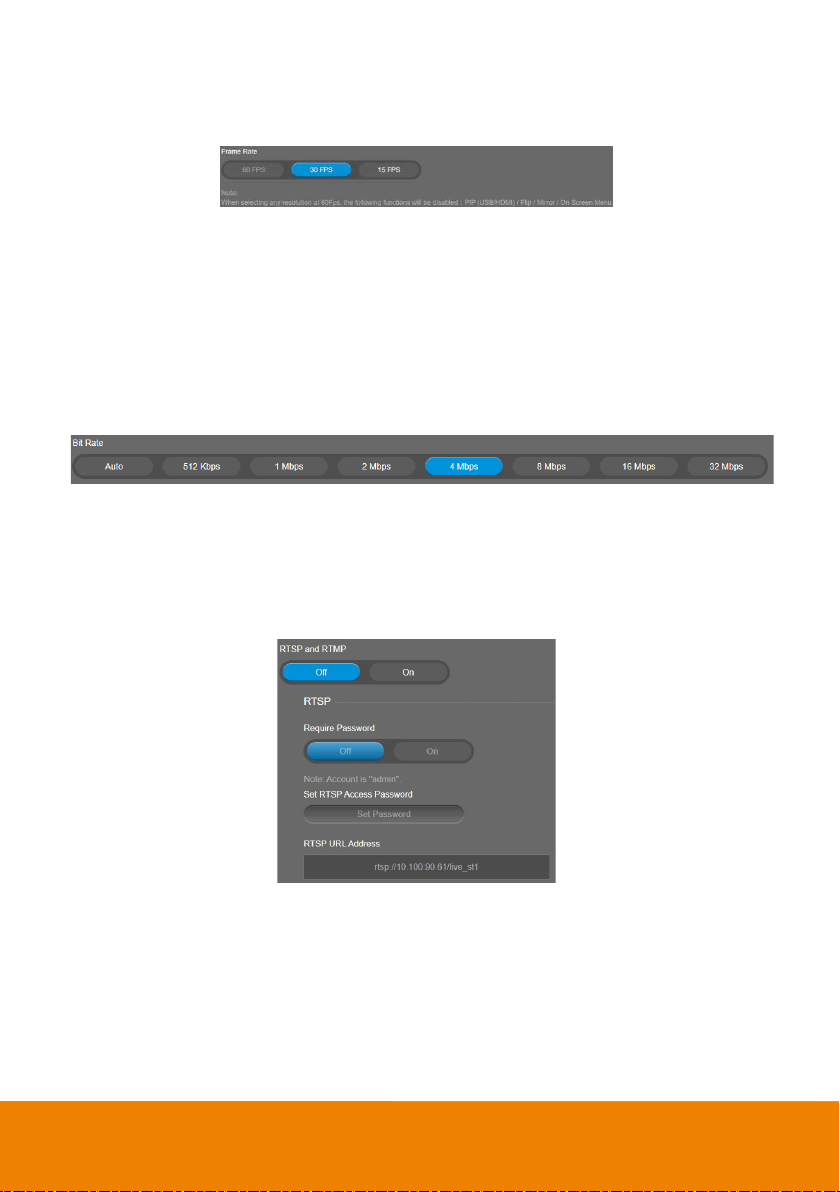
Frame Rate
Set up the frame rate value.
Select Video Format > Frame Rate > 60 FPS, 30 FPS, or 15 FPS.
[Note] When selecting 60 FPS, the PIP/On Screen Menu, Image Flip and Image Mirror functions will
be disabled regardless of resolution.
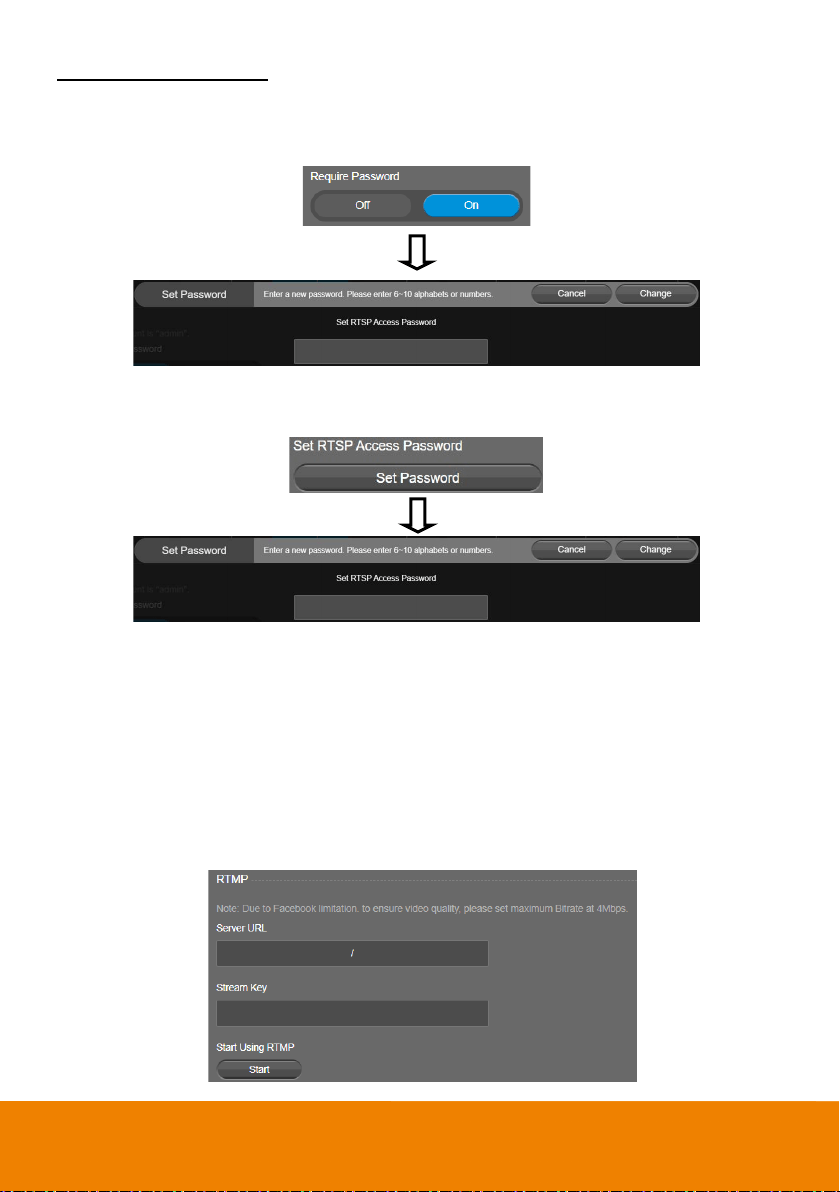
Bit Rate
Set up the bit rate value.
Select Video Format > Bit Rate > Auto, 512 Kbps, 1 Mbps, 2 Mbps, 4 Mbps, 8 Mbps, 16 Mbps, or
32 Mbps.
For Facebook live broadcasting, it’s suggested to choose less than 4Mbps to ensure smooth
streaming.
RTSP
To use RTSP player connecting to the camera, please enter the RTSP URL which displays on the web
in your application such as VLC, PotPlayer, or Quick Time.
Select On / Off (default) to enable/disable the RTSP/RTMP function.
Select On / Off (default) to enable/disable password requirement while opening RTSP.
[Notes]
The account name is “admin”.
If you enable USB and RTSP streams at the same time, it takes around 4 to 5 seconds to
display images while switching video on/off or resolution.
If 4K resolution is selected for the USB streaming or RTSP streaming, the HDMI Out functions
will be disabled.
When either USB or HDMI streaming is on, to optimize the bandwidth, the RTSP frame rate or
resolution will be automatically adjusted by system.
52
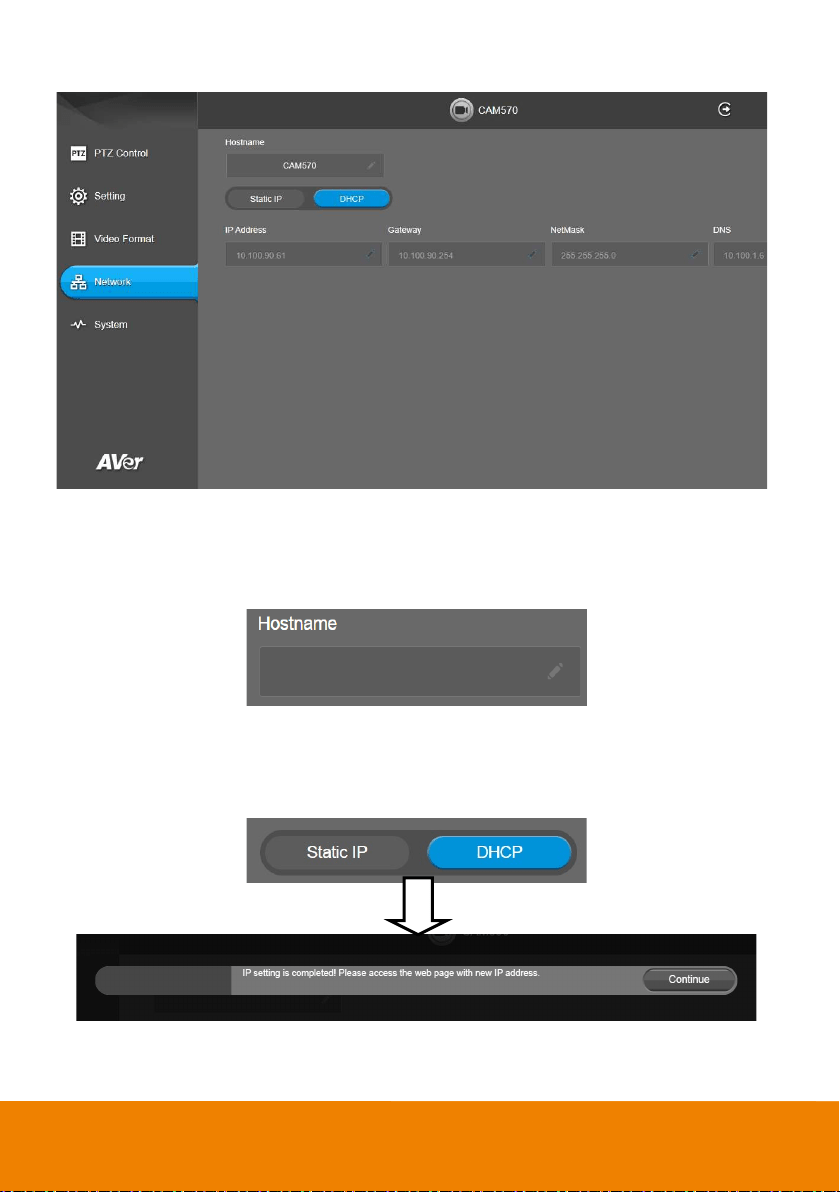
Set RTSP Access Password
1. Go to Video Format > RTSP and RTMP, and select On in the RTSP and RTMP field.
2. Optionally set up a password for the RTSP streaming. Select On in the Require Password field.
Input a password and then click Change to save the password.
3. If you want to change the password, click the Set Password button in the Set RTSP Access
Password field. Input a new password and click Change to save the password.
RTMP
Set up for uploading the camera’s live view to the broadcasting platform (e.g. YouTube).
Select Video Format > RTSP and RTMP.
1. Go to Video Format > RTSP and RTMP, and select On in the RTSP and RTMP field.
2. Locate the RTMP server URL and stream key from the broadcasting platform and enter in Server
URL and Stream Key fields.
3. In the Start Using RTMP field, click Start to start uploading the live video of the camera to the
broadcasting platform.
4. Click Stop to stop uploading the live video.
53
Network Settings
Hostname
User can set a hostname. The hostname only number and alpha allowed.
Select Network > Hostname. Click pencil icon to enter hostname.
DHCP
Enable DHCP function.
Select Network > DHCP. A message is shown and clicks Continue to confirm.
54
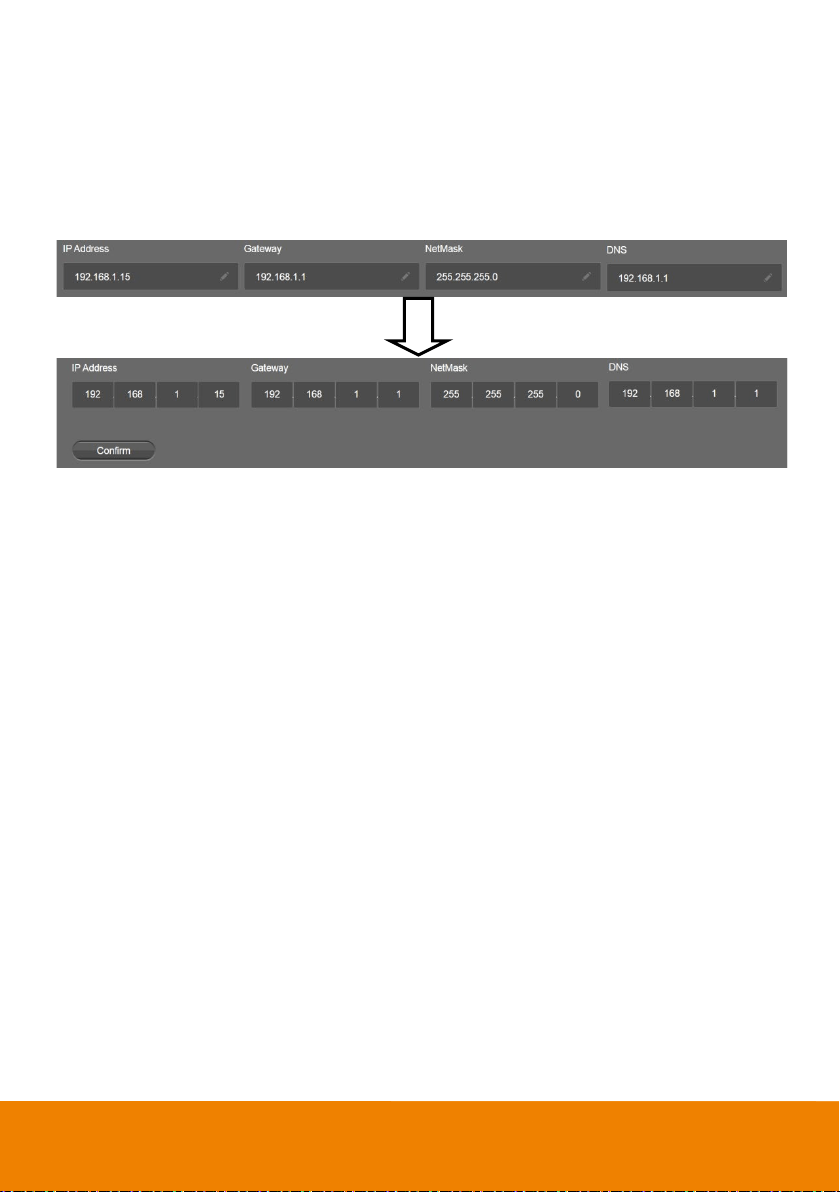
Static IP
Assign a fixed IP address to the camera.
1. Select Network > Static.
2. Click pencil icon and enter the IP Address, Gateway, NetMask, and DNS in the corresponding
fields.
3. Select Confirm to complete the setting.
55
System Settings
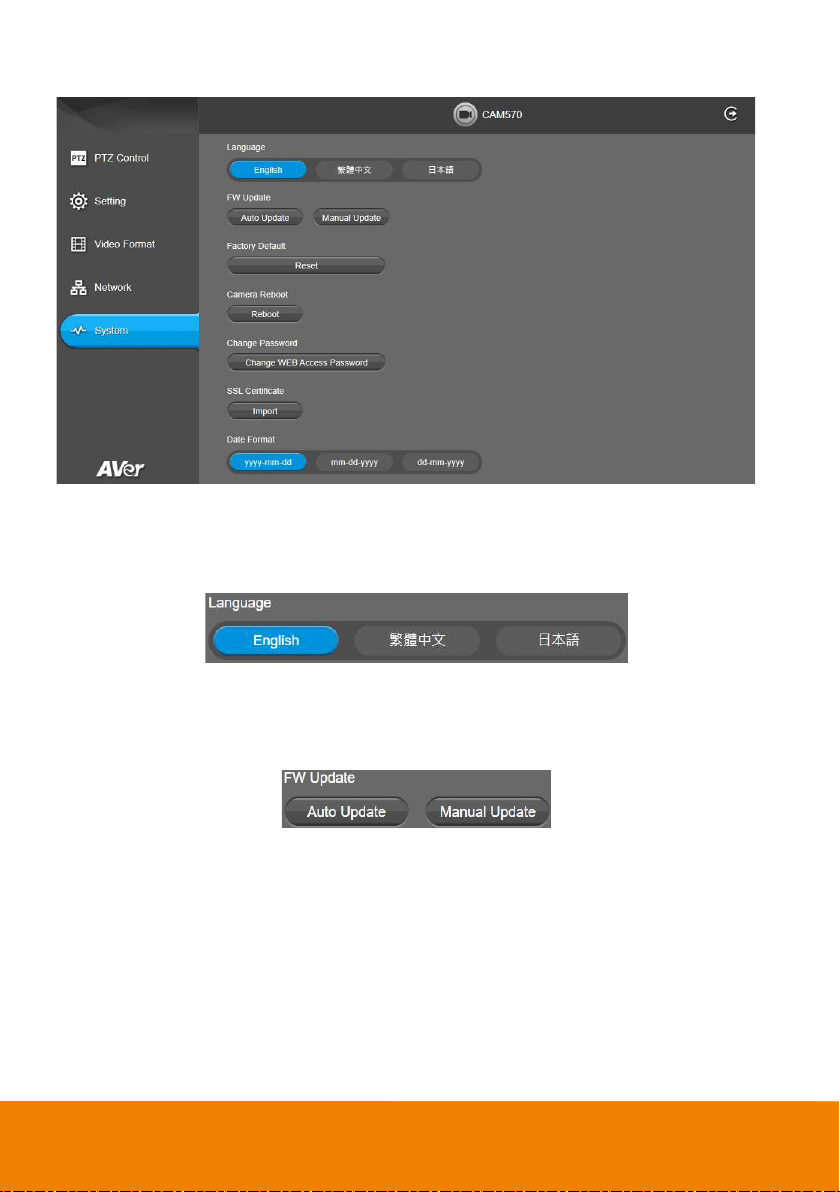
Language
Select the language of the system.
Select System > Language > English, Traditional Chinese, or Japanese.
Firmware Update
Update the camera’s firmware.
Select System > FW Update > Auto Update or Manual Update.
Auto Update: The system will check firmware version from AVer server and request to update.
Manual Update: To update the firmware from specific location.
After updating, the camera will reboot and the connection will be lost. Please wait for few minutes and
always keep the power cable connected. If unplugging the power during this process, it will cause
damage of the device.
56
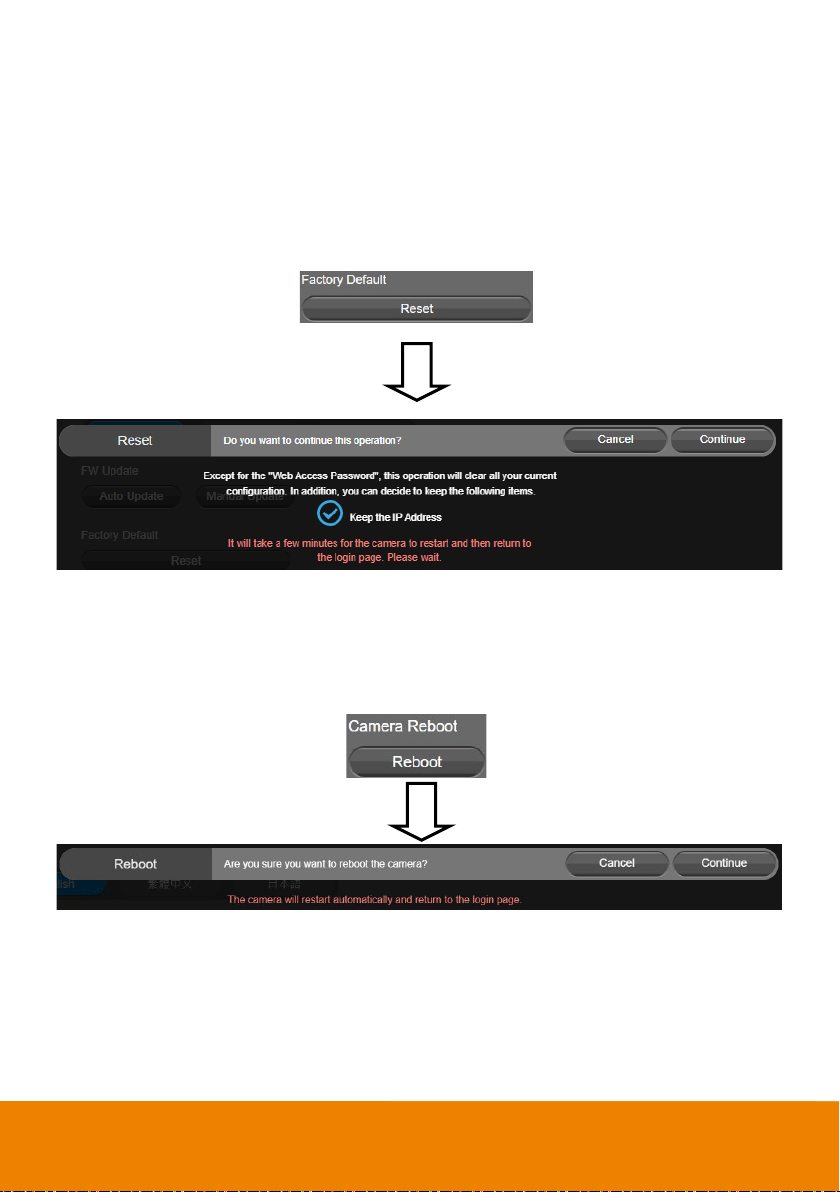
Factory Default
Reset the camera back to factory default setting.
1. Select System > Factory Default > Reset.
2. User can choose to keep current IP address/Web access password or back to default.
3. Select Continue to reset back to factory default.
[Note] When factory default is activated, the password of Webpage login will not be set to default. For
security concerns, to reset password of webpage access, please download PTZApp 2 to reset it.
Camera Reboot
Restart the camera manually.
1. Select System > Camera Reboot > Reboot.
2. Select Continue to reboot the camera.
57
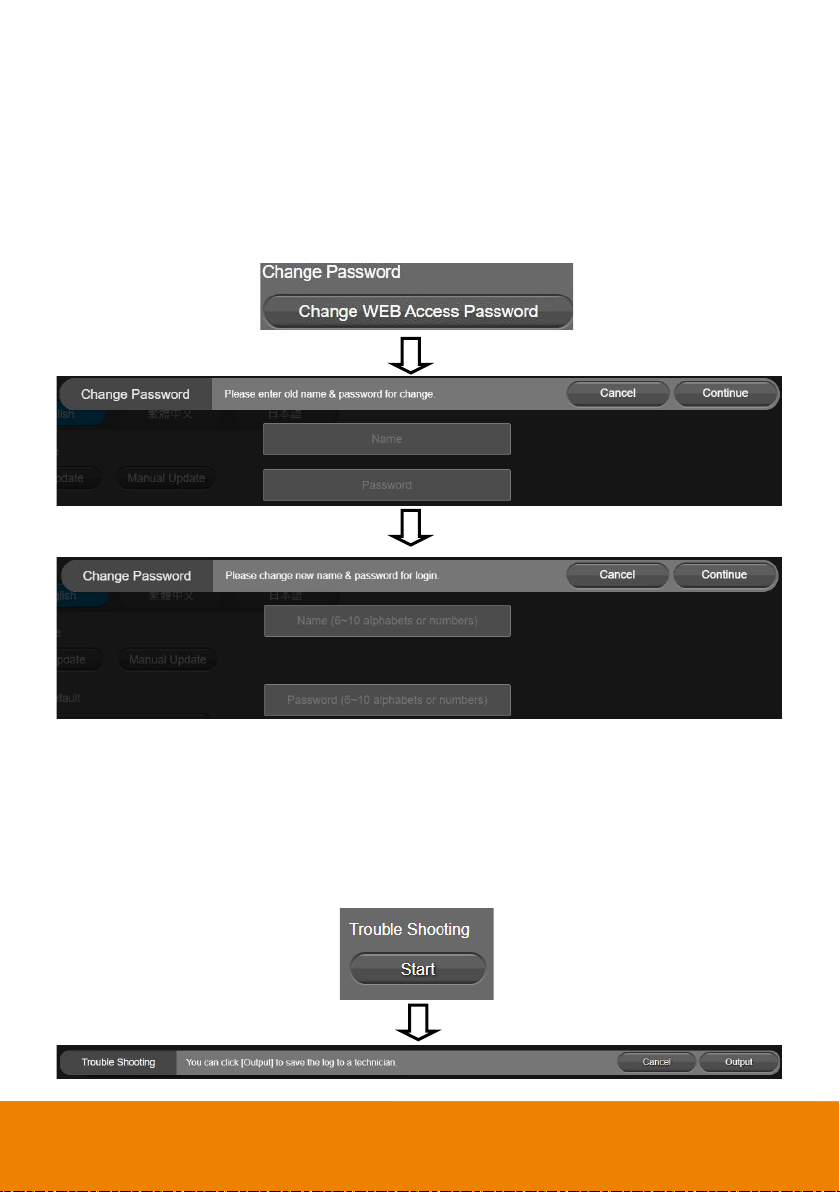
Change Password
Change the web login password. The default password is “aver4321”.
1. Select System > Change Password > Change WEB Access Password.
2. Enter the old account and password. Select Continue.
3. Enter the new account and password. Select Continue to save the new setting.
4. If users forget the password and want to revert back to the default password, please use PTZApp
2 to reset it.
Trouble Shooting
Output log to save in local PC.
[Note] Only available on PTZApp 2.
1. Select System > Trouble Shooting > Start.
2. Select Output.
58
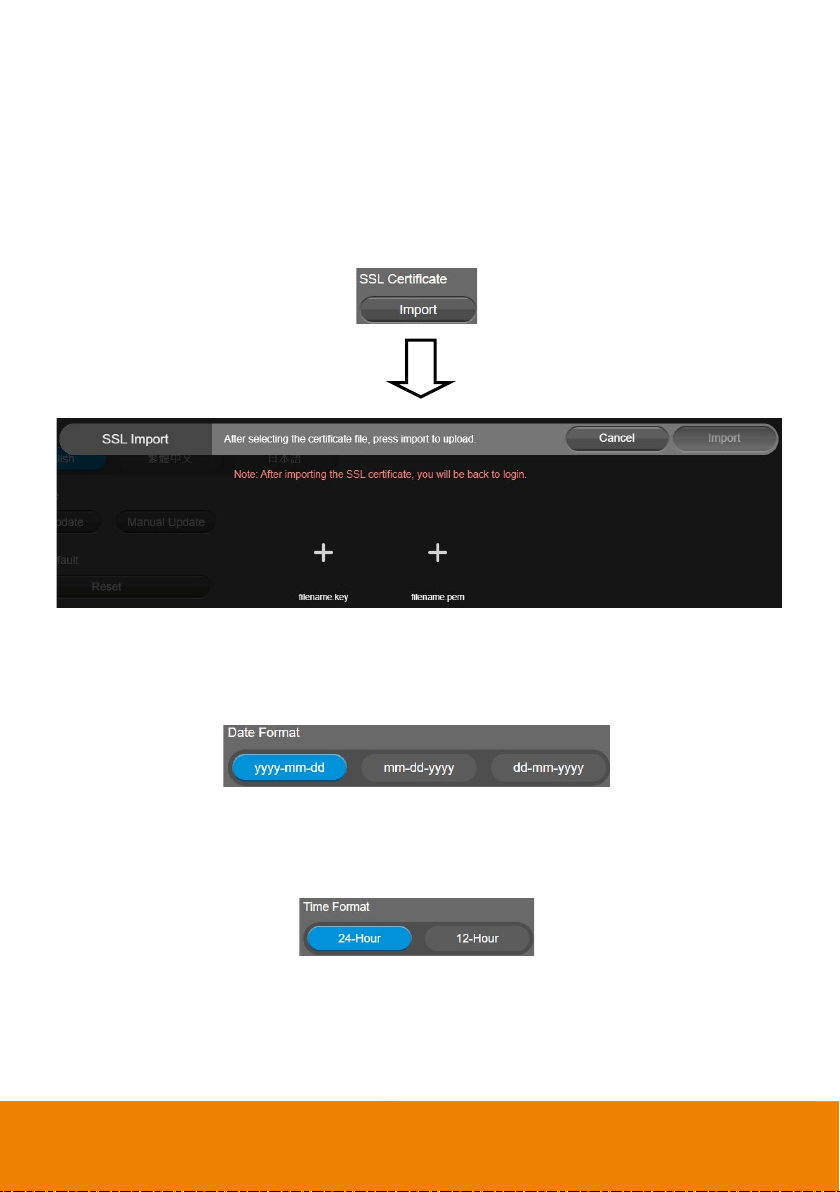
SSL Certificate
Import the SSL certificate from specific location.
1. Select System > SSL Certificate > Import.
2. Select the type by clicking “+”.
3. Direct the file location.
4. Select Import.
[Note] If you want to disable SSL certificate function, please use PTZApp 2 to switch off this function.
Date Format
Select the date format.
Select System > Date Format > yyyy-mm-dd, mm-dd-yyyy, or dd-mm-yyyy.
Time Format
Set up the time format.
Select System > Time Format > 24-Hour or 12-Hour.
59
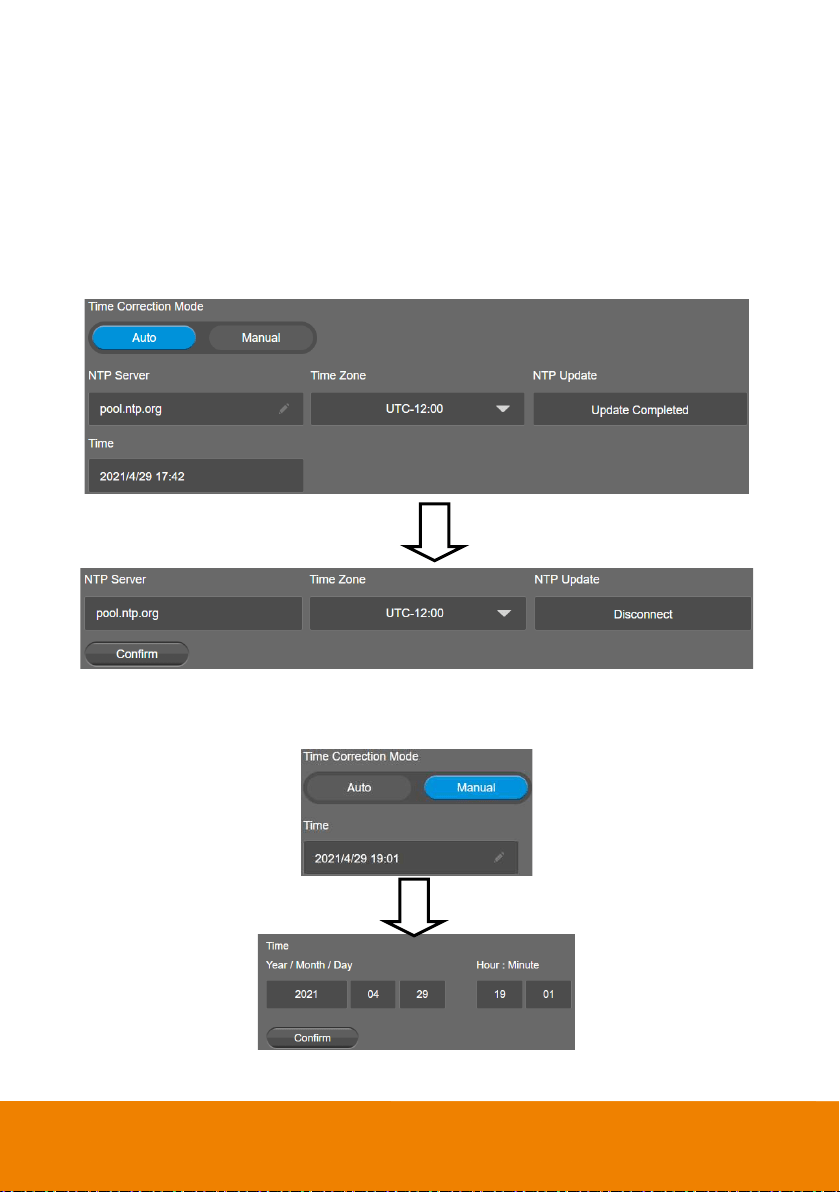
Time Correction Mode
Adjust time automatically or manually.
Select System > Time Correction Mode > Auto or Manual.
Auto: The system time will be set by NTP server on the network. Click the pencil icon of NTP
Server and enter the URL of NTP server. Select the Time Zone. Select NTP Update to save
setting. Select Confirm to start auto time adjustment.
[Note] Our default NTP server is located in the USA. If this does not work in your country,
please manually key in the desired NTP server.
Manual: User can set up time manually. Click the pencil icon and enter the Year, Month, Day,
Hour, and Minute. Select Confirm to save the settings.
60
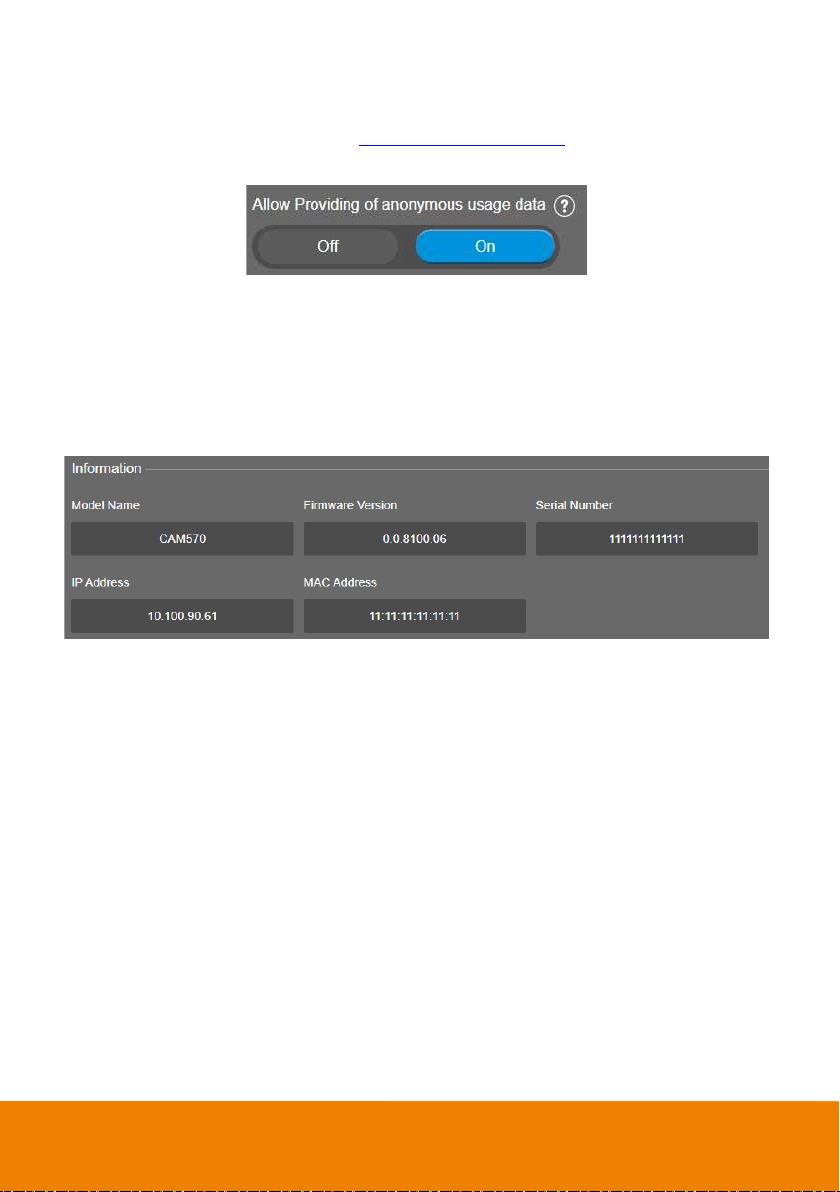
Allow Providing of anonymous usage data
You can enable this function to help AVer continuously improve our products and services. Please visit
AVer’s privacy policy for more information.
https://www.aver.com/privacy
Select System > Allow Providing of anonymous usage data > Off or On.
Information
Display the information of Model Name, Firmware Version, Serial Number, IP Address, and MAC
Address.
Select System > Information.
61
PTZApp 2
In PTZApp 2, user can change the IP address setting of CAM570, configure the parameters of the
camera, set up AI tracking functions and some advanced image settings, pan, tilt, and zoom the
camera.
Install PTZApp 2
Please go to https://www.aver.com/download-center (Headquarters & Europe) or
https://www.averusa.com/business/support/ (USA) to download the PTZApp 2. After downloading,
double-click on the file and follow the on-screen instructions to complete the installation.
After installing the PTZApp 2, double-click on the PTZApp 2 icon to run the application.
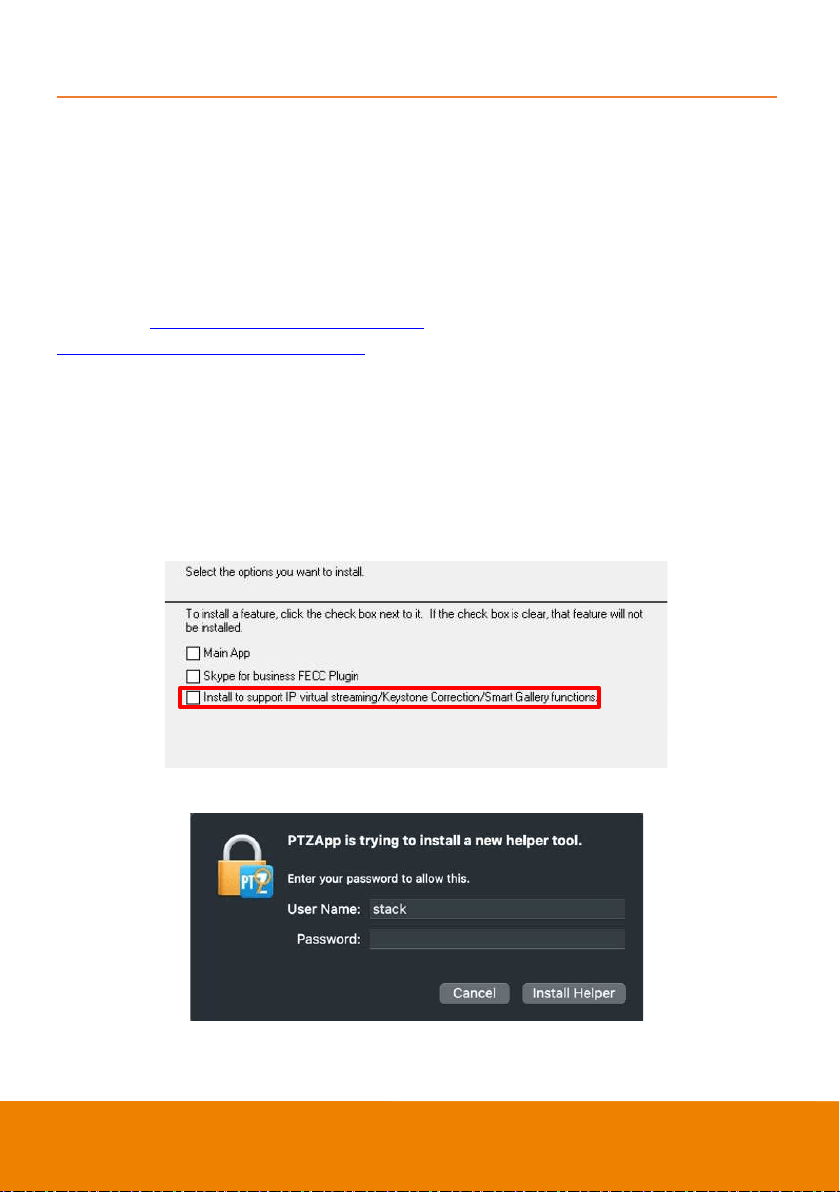
[Note]
While installing PTZApp 2, if you refuse to install IP virtual streaming, Keystone Correction and Smart
Gallery plug-in in your PC (illustrated as below), you will not be able to use these functions. To enable
these functions, please reinstall PTZApp 2 for the necessary plug-in.
(Windows PC)
(MAC PC)
62
Use PTZApp 2 with USB Devices
1. Run your video application and make a video call.
2. During your video call, you can use the PTZApp 2 to pan, tilt and zoom the camera in/out and
enable/disable the WDR, brightness, and sharpness feature.
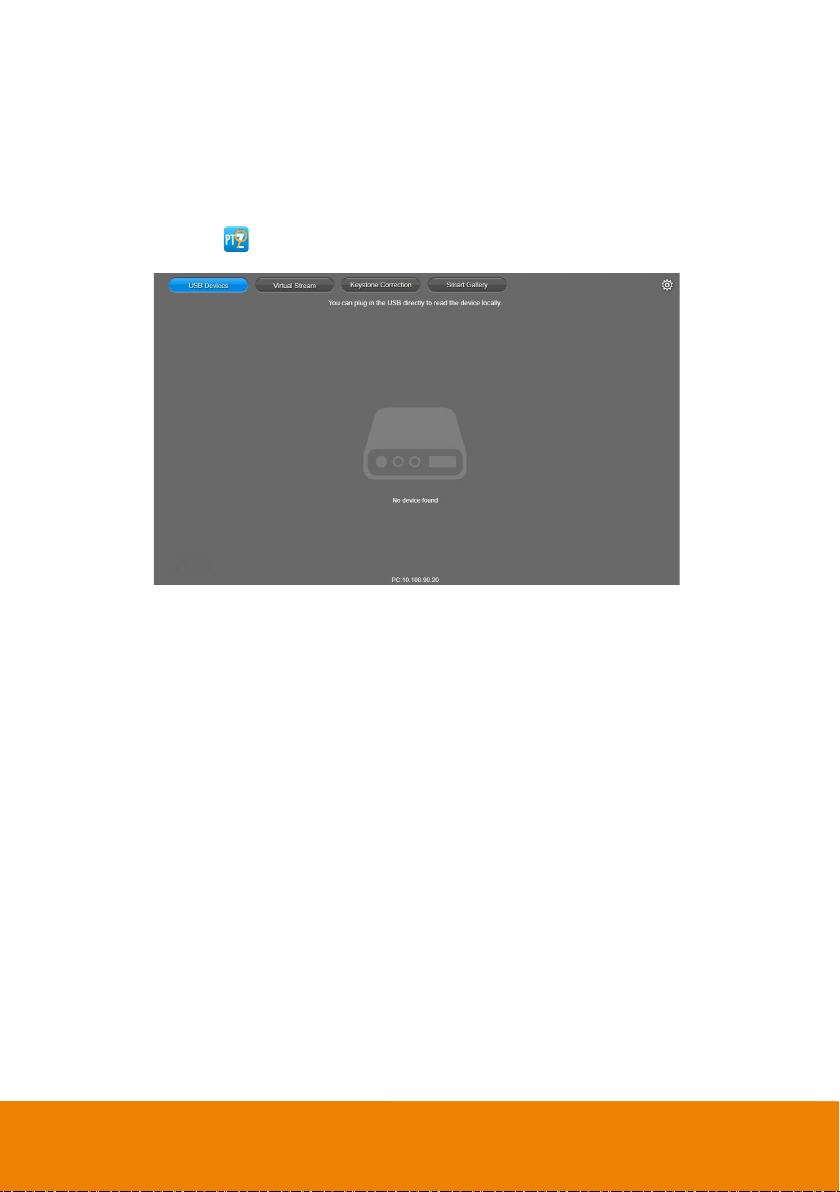
3. Launch PTZApp 2 ( ) and it will open in Chrome browser automatically.
63
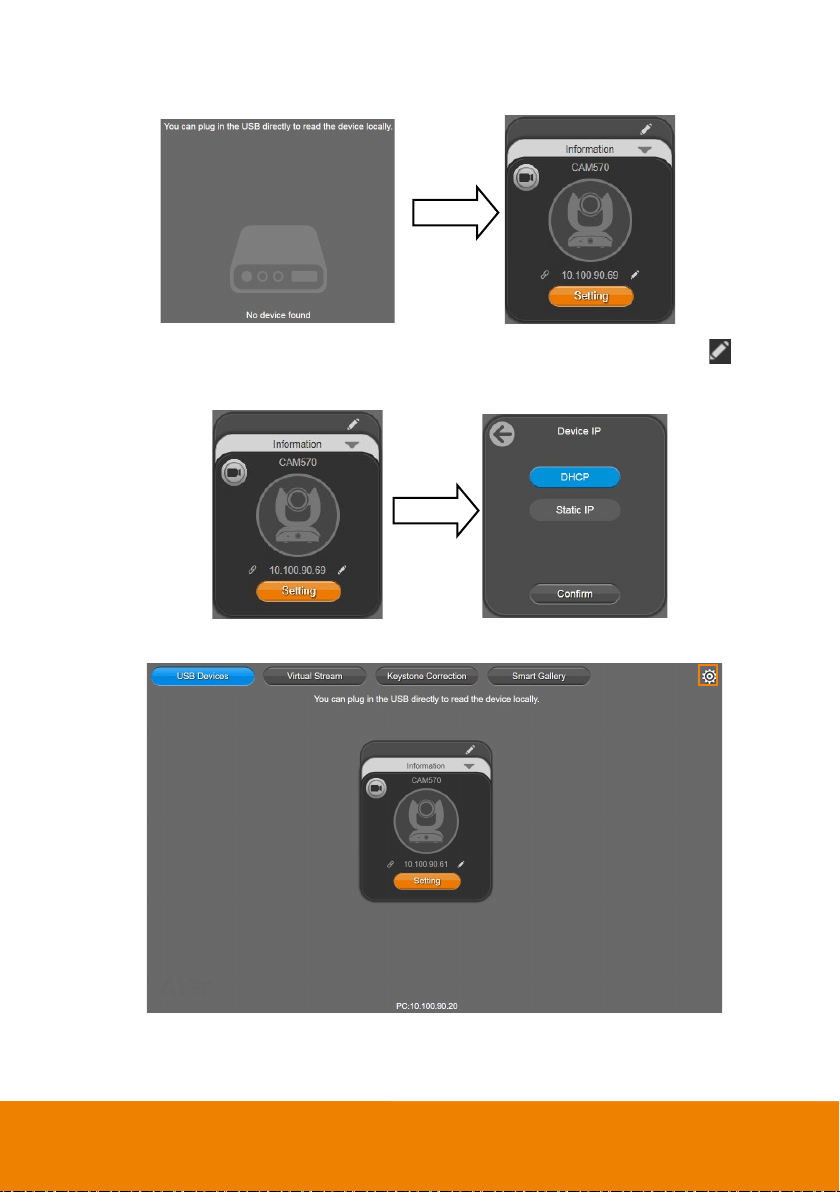
4. Choose “USB device” and connect CAM570 to PC/laptop with USB cable. When the camera is
detected, the product card will show up.
5.
Set up IP address. The camera default IP address is 192.168.1.168. Click pencil icon ( ) to
edit IP address.
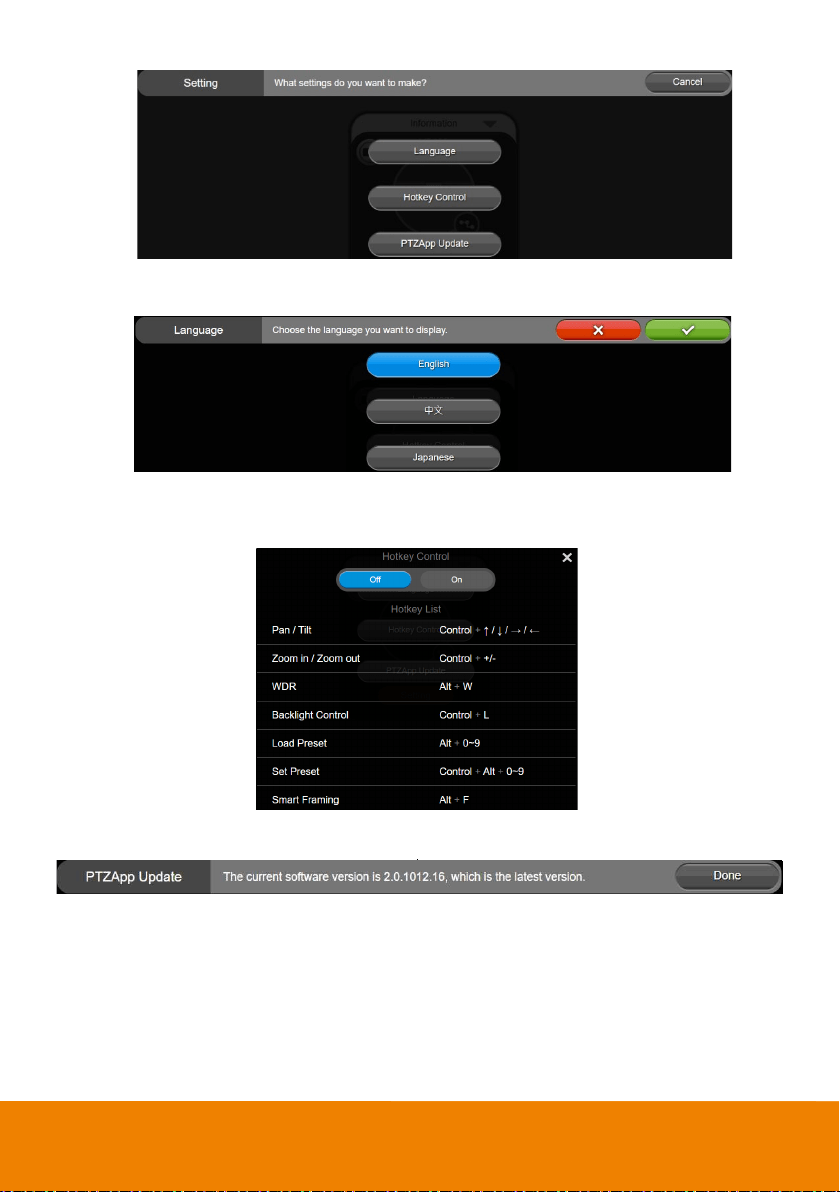
6. Click the setting icon to change Language, Hotkey Control, and PTZApp 2 Version.
64
Language: Select desired language and click the check icon to confirm the selection.
Hotkey Control: User can control the camera by using keyboard. This is a general list for all AVer
USB Cameras. Backlight control equals to WDR function in CAM570.
PTZApp Update: Get current PTZApp 2’s version number and do auto update here.
65
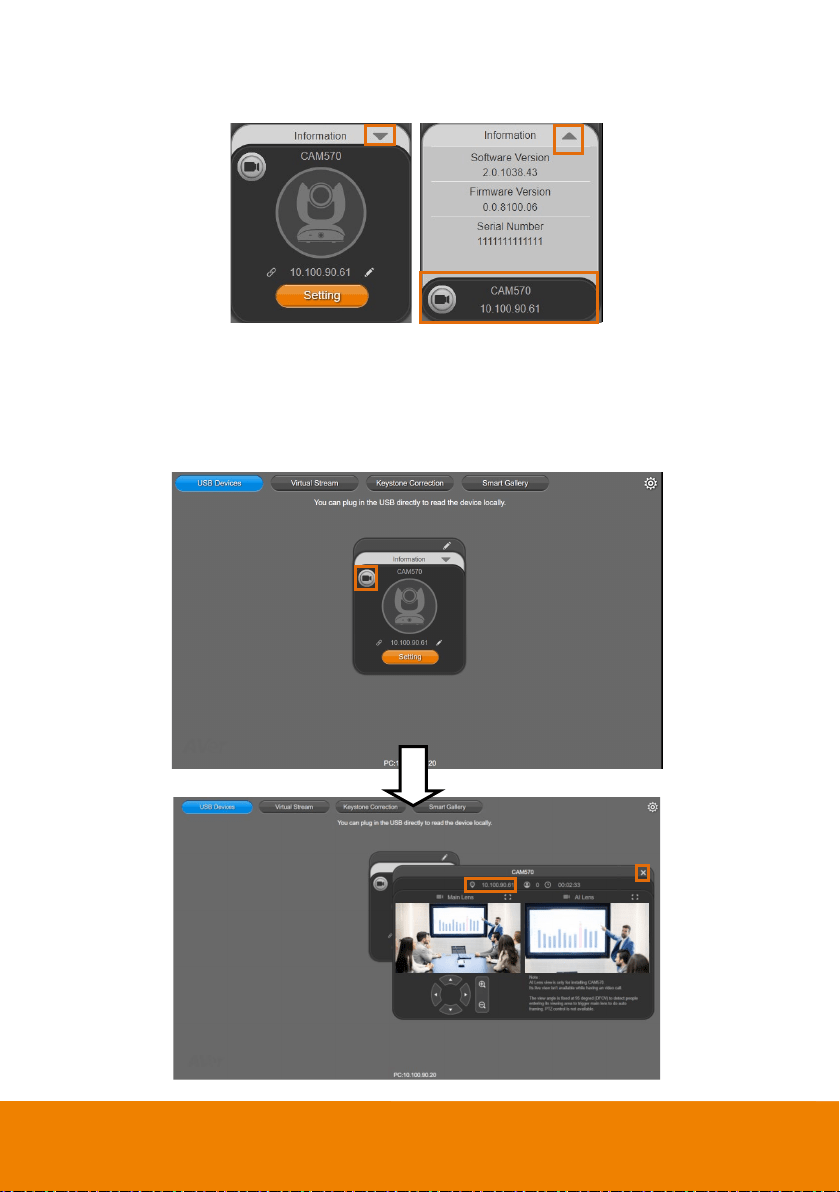
7. Information: Click the drop-down triangle icon to review the information of camera. To minimize
the information, click the triangle or the bottom area of the information icon.
8. Camera: Click the camera icon to view the camera live view. IP address is displayed as well.
Click the X icon to close the camera live view. If the live video did not appear, please check the
camera and the laptop/PC connection to make sure all are correct and well connected.
The resolution of this small live view is 640x480 resolutions.
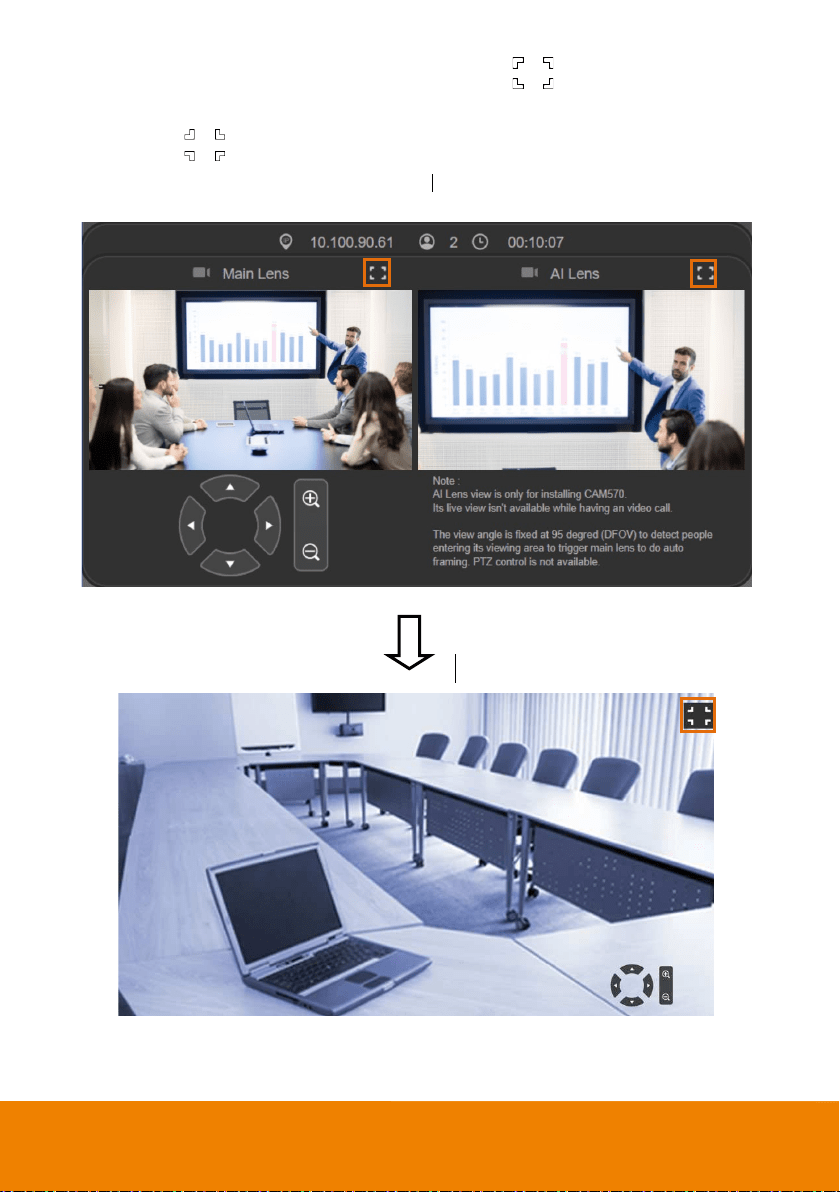
66
Full Screen: PTZApp 2 can switch to full screen mode. Click “ ” icon and video screen
will switch to full screen mode. In full screen mode, user can use direction panel to control camera
direction. Click “ ” icon to go back to normal screen view.
The resolution of full screen mode is 1080p/ 30fps.
67
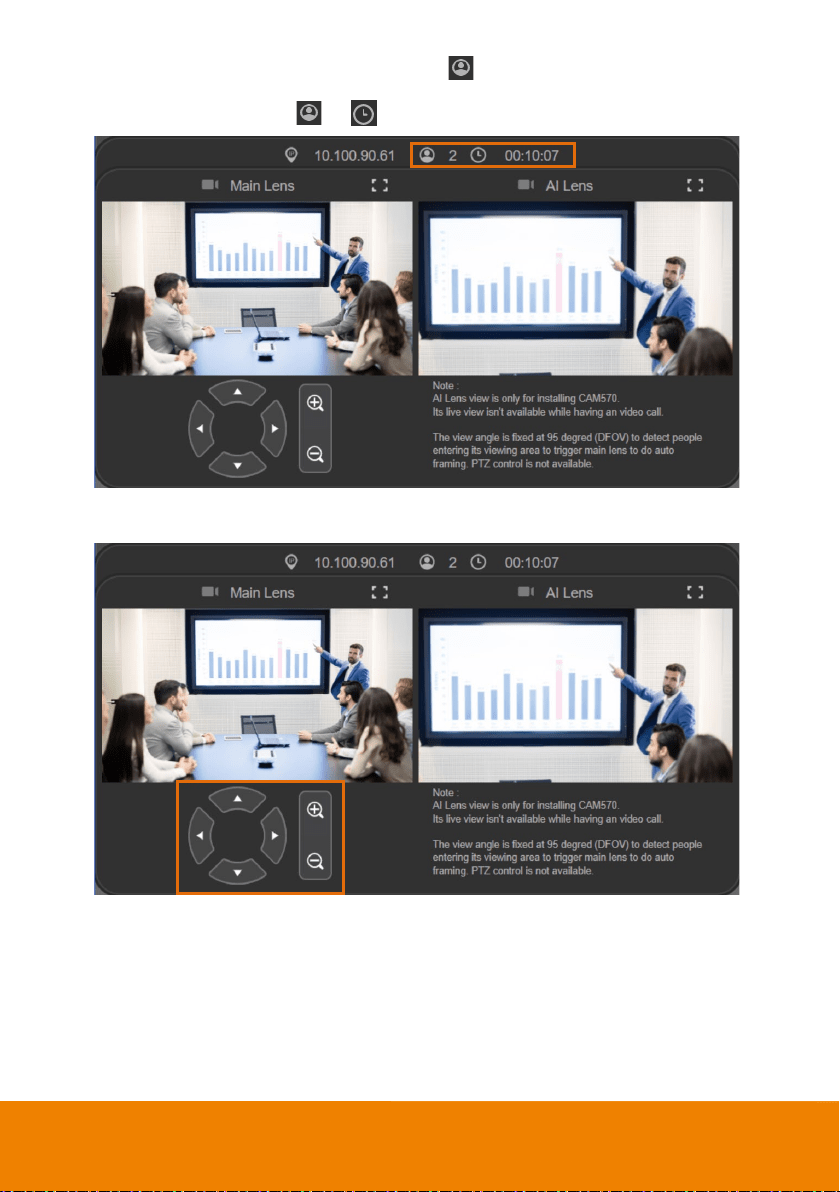
People Count and Stream Interval: Click the icon to show people count number and
stream interval. Click the or icon to hide the stream interval.
Control Panel: To control the camera direction, zoom in and out during your video call.
68
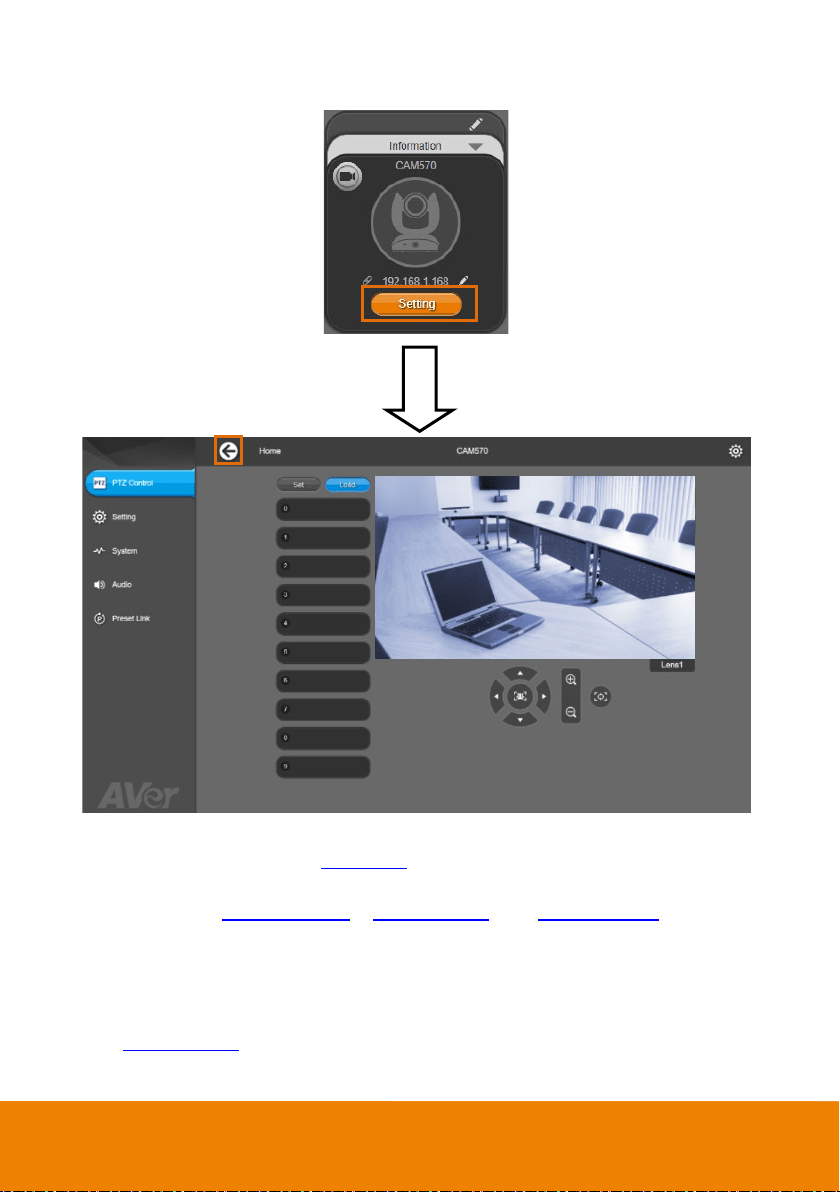
9. Setting: Click “Setting” button to set up parameters of the camera and speakerphone. Click
arrow icon to leave the Setting page.
PTZ Control: Use control panel to set up preset positions. Since most of operations are the
same as web page, refer to <
PTZ Control> for detailed setup.
Setting: To set up parameters of the camera. Since most of operations are the same as web
page, refer to <
Camera Settings> , <Image Settings>, and <RS232 Settings> for detailed
setup.
[Note] To set up RS232 parameters, please select “Off” for SSL Function on IP Web Page
setting.
System: To set up system. Since most of operations are the same as web page, refer to
<
System Settings> for detailed setup.
69
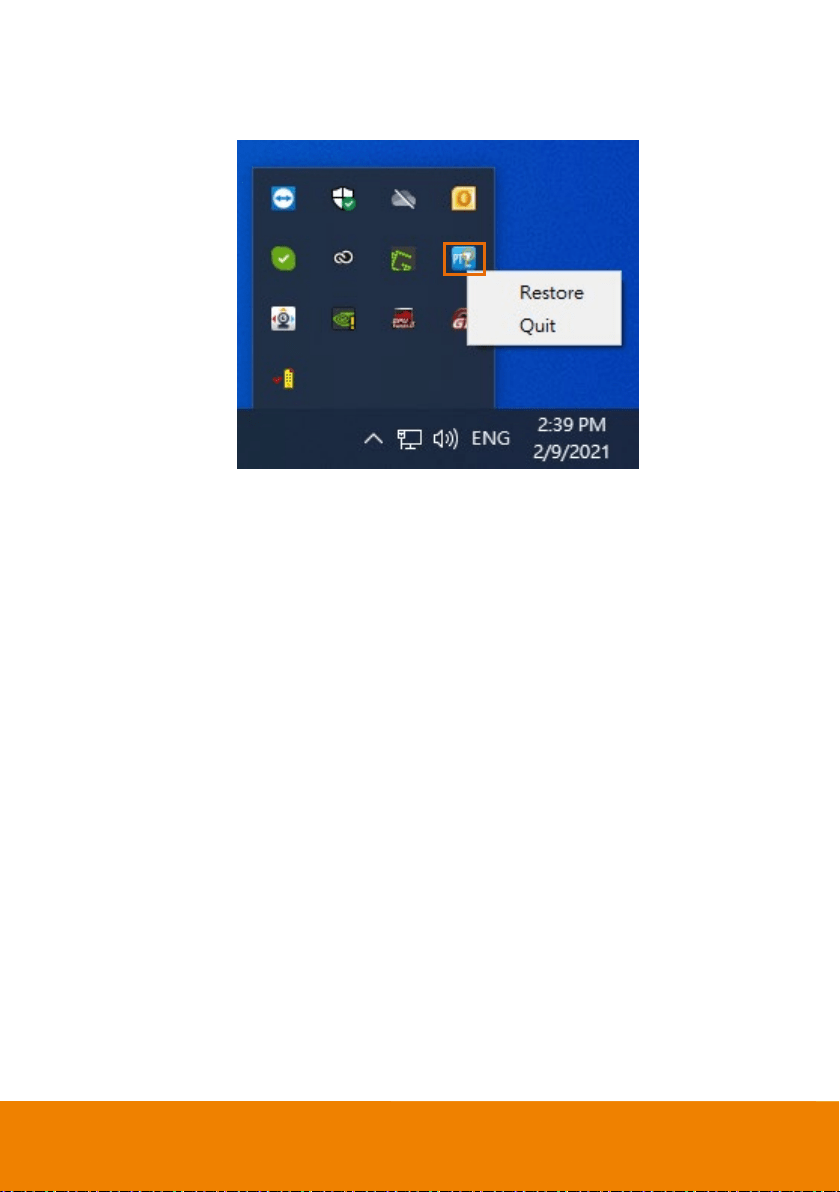
10. PTZApp 2 Quit & Restore: To quit the application, right-click the icon on the system tray and
select “Quit”. If you can’t launch PTZApp 2 right after installation, please right –click the icon and
choose “Restore”.
70
Use PTZApp 2 with a Virtual Stream
With this function, you can have a virtual meeting with only Ethernet connection and get rid of USB
cable connection. Make sure the camera is connected with Ethernet and under the same subnetwork
as the meeting room PC (e.g. NUC) and the RTSP function is enabled.
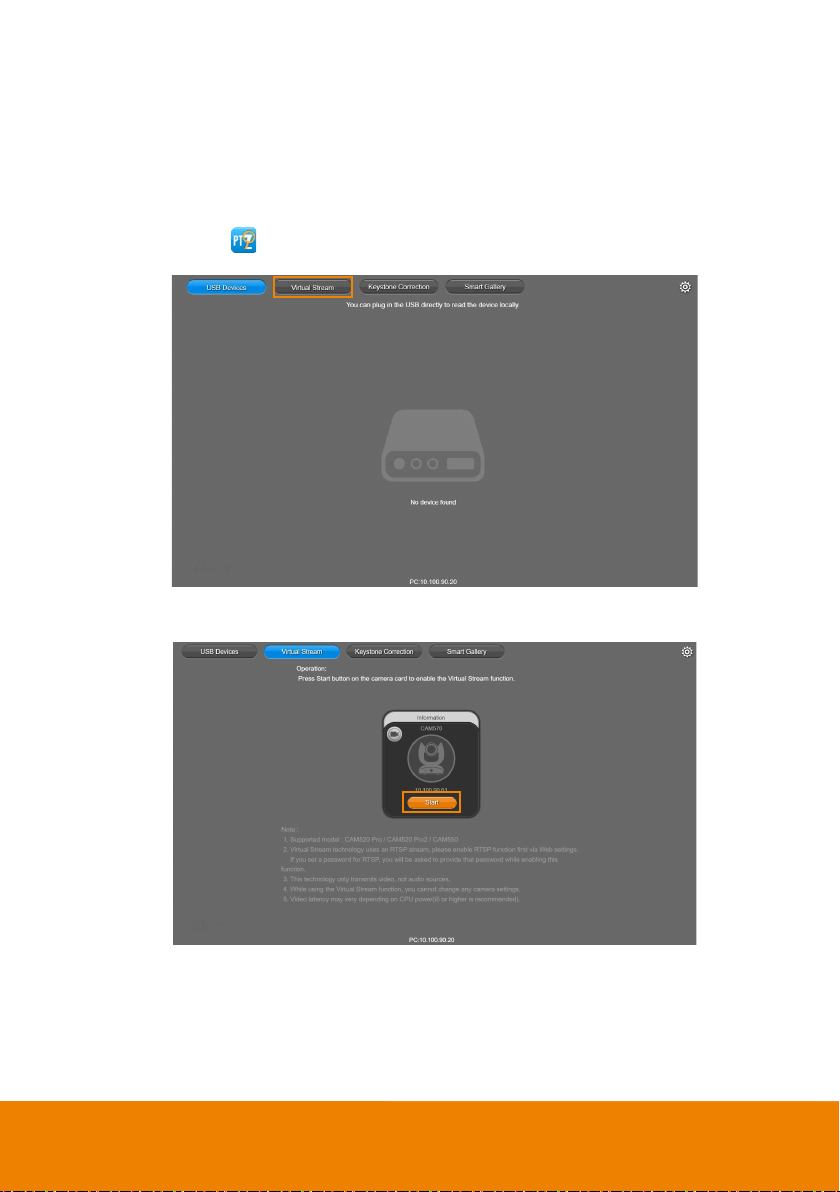
1. Launch PTZApp 2 ( ) on a PC and click Virtual Stream.
2. When the camera card appears, click Start to enable the Virtual Stream function.
71
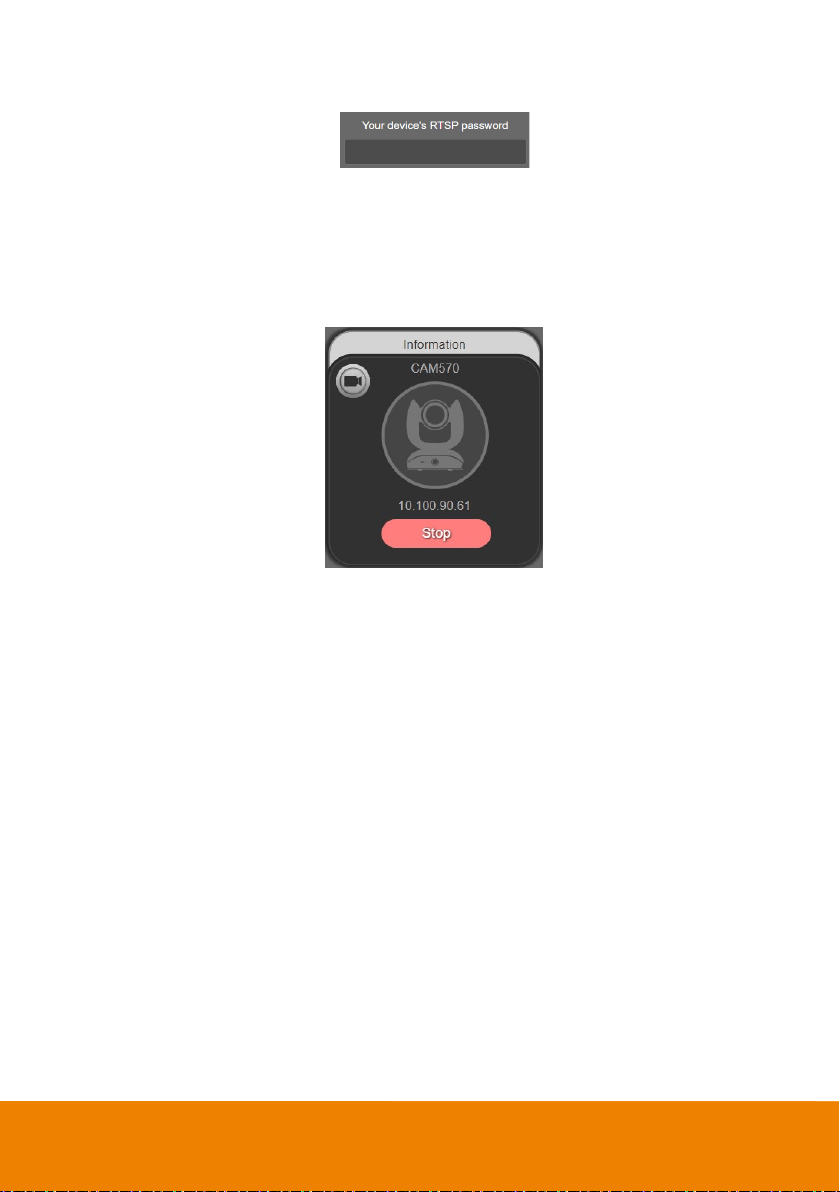
3. Virtual Stream technology uses an RTSP stream. If you set a password for RTSP, you will be
asked to provide that password while enabling this function.
4. Launch VC software (e.g. Zoom, Teams, Skype) and choose AVer USB VCam as the video
source to start collaborating.
5. While using the Virtual Stream function, you cannot change any camera settings. To pan/tilt or
zoom in/out the camera, use a remote control or VISCA control.
6. Click Stop to stop using this function.
[Notes]
This technology only transmits video, not audio sources.
Video latency may vary depending on CPU power (i5 or higher is recommended).
For Virtual Stream function to work, the RTSP setting of the camera should be enabled. If you
cannot activate the Virtual Stream function, please check whether the RTSP has been enabled.
72
Smart Gallery Operation
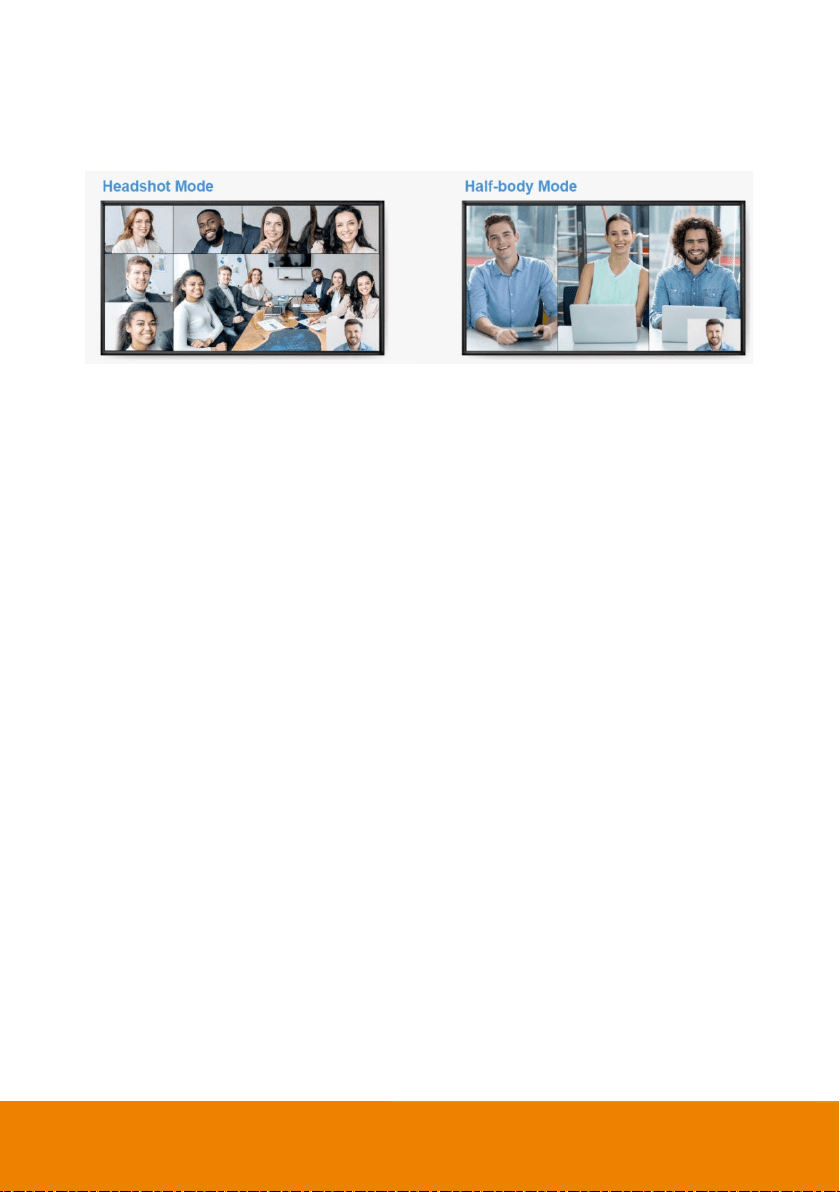
You can use the Smart Gallery function to increase the visibility of each participant in the meeting room.
When operating Smart Gallery function, please don’t open camera view in any other applications.
1. Connect your camera(s) supported with Smart Gallery function to the computer with USB cable.
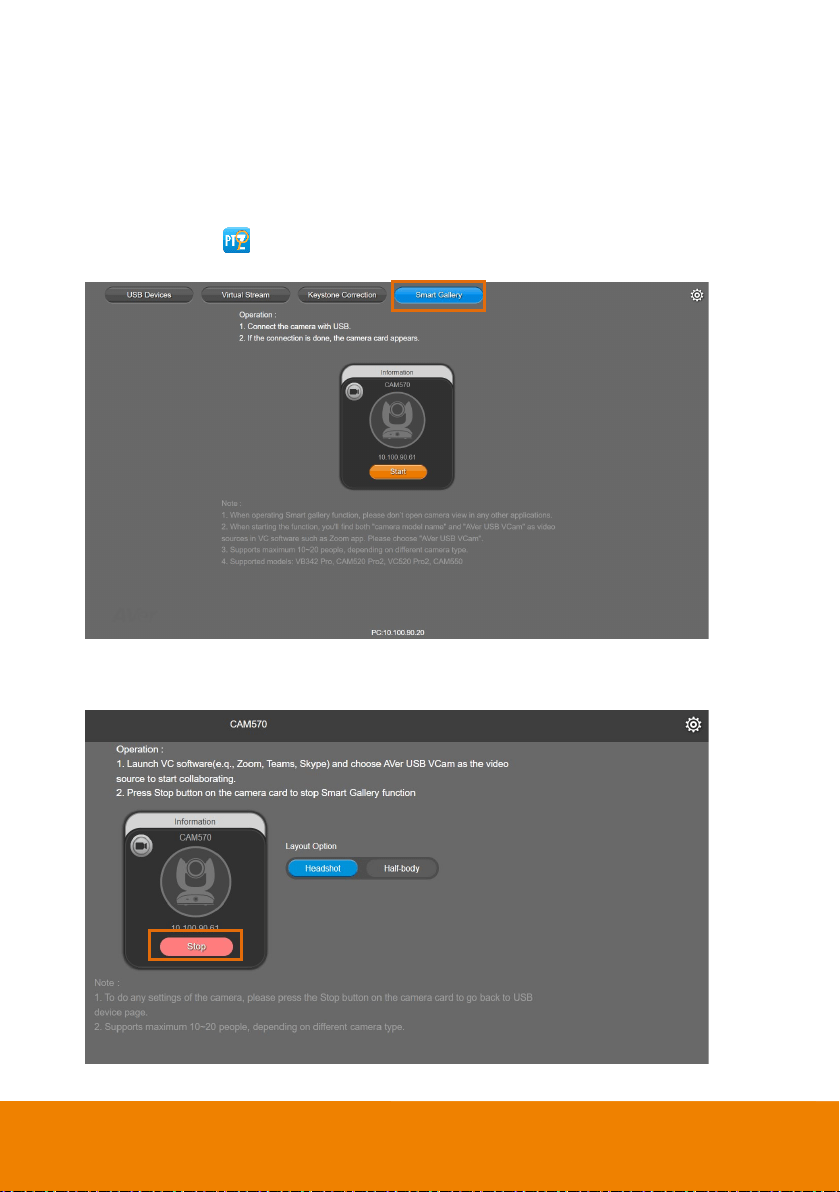
2. Launch PTZApp 2 ( ) and click Smart Gallery, PTZApp 2 will start searching for the camera(s).
The searched cameras supported with Smart Gallery function will be displayed.
3. Click the Start button, the button will change to Stop, and you can start operating the Smart
Gallery function. To stop the Smart Gallery function, click Stop.
73
4. Launch VC software (e.g., Zoom, Teams, Skype) and choose AVer USB VCam as the video
source to start collaborating. [Note] You will find both “camera model name” and “AVer USB VCam”
as video sources in the VC software. Please choose “AVer USB VCam”.
5. In the Layout Option field, click Headshot or Half-body to perform the function.
6. To stop the Smart Gallery function, click Stop.
[Notes]
Make sure each person has certain distance to have better image cropping.
To do any settings of the camera, click the Stop button to stop the Smart Gallery function and then
go to the USB Devices page. Click Setting to configure camera settings.
The Smart Gallery function supports up to 10-20 people, depending on different camera type.
74
Audio Setting
After enabling the Audio Tracking function, you can further set up the Audio Setting to avoid the
camera from tracking to the sound from the audio-output devices rather than the live sound from the
presenters or participants. The audio-output device could be a standalone speaker, PC, HDMI devices
or speakers used to play the RTSP/RTMP streams.
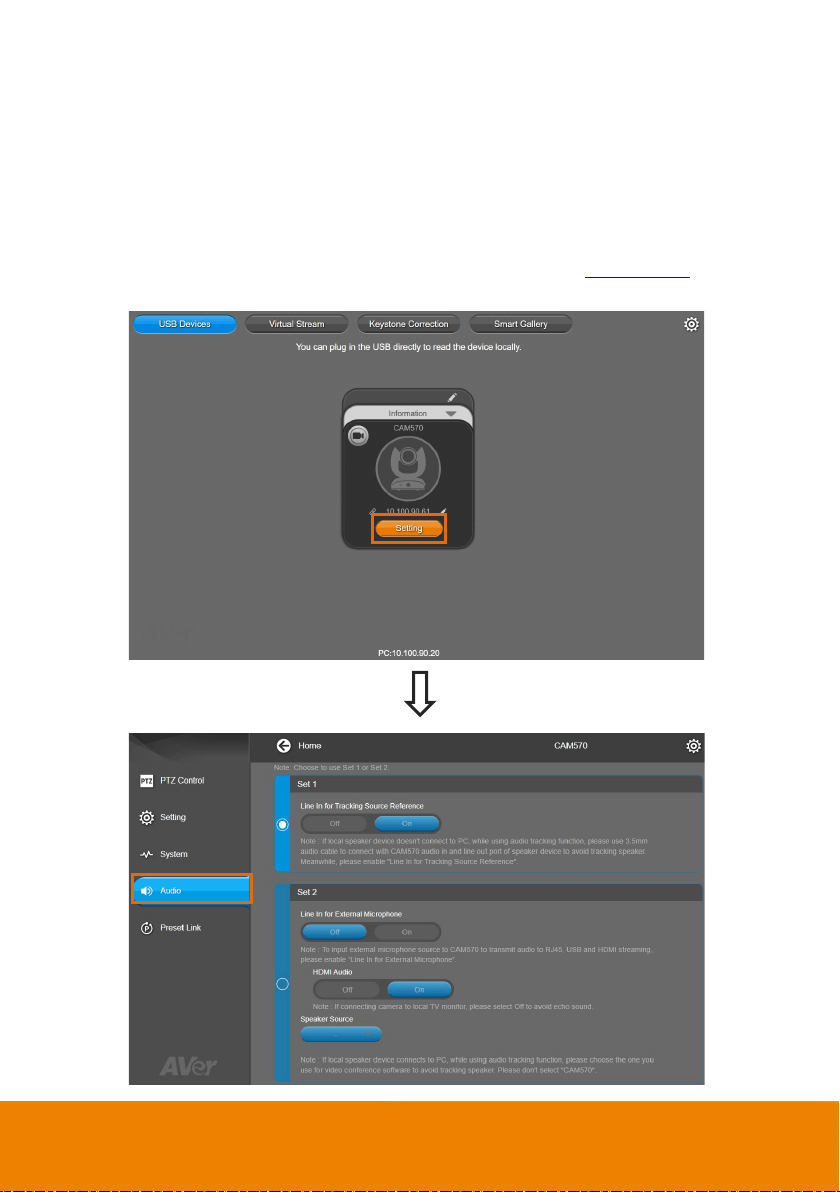
To enable Audio Tracking function, please refer to Audio Tracking in the <
Tracking Mode> chapter.
To enter the Audio Setting page, on the Main Page of PTZApp 2, click Setting > Audio.
75
Depends on the audio-output devices, you can use either Set 1 or Set 2 to configure the audio setting.
Please refer to the instructions in the below scenarios.
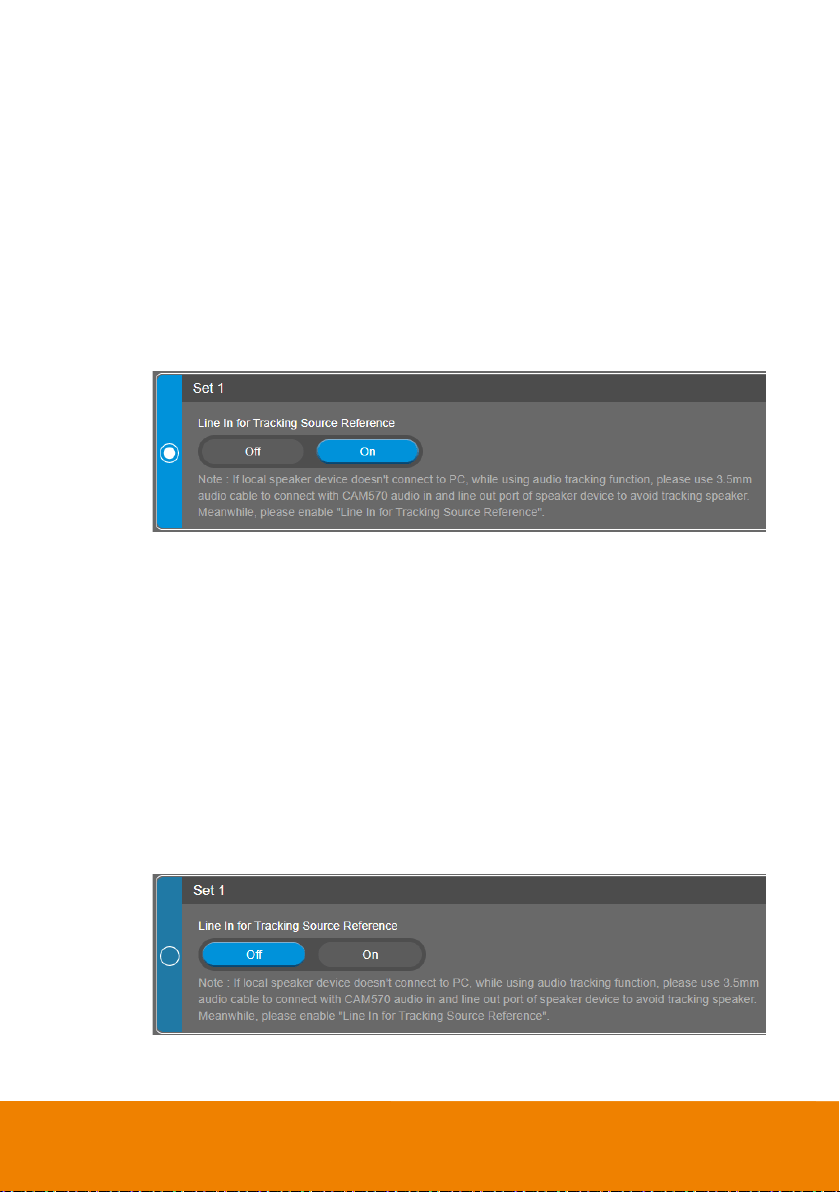
Scenario 1: For the environment with a camera and a standalone speaker on the local side. The
speaker is not connected to the computer; and the Audio Input port of the camera is not in use (not
connected to an external microphone), please use Set 1, which is set as default.
This is a scenario for a meeting room with a speaker on the table without connecting to any computers.
In order for the camera to track the voices from the participants in the meeting room instead of the
sound from the speaker, you will have to define the speaker as an audio reference for the camera. To
do so,
1. In Set 1, select On in the Line In for Tracking Source Reference field.
2. Use a 3.5mm audio cable to connect the Line-Out port of the speaker to the Audio-Input
port of the camera.
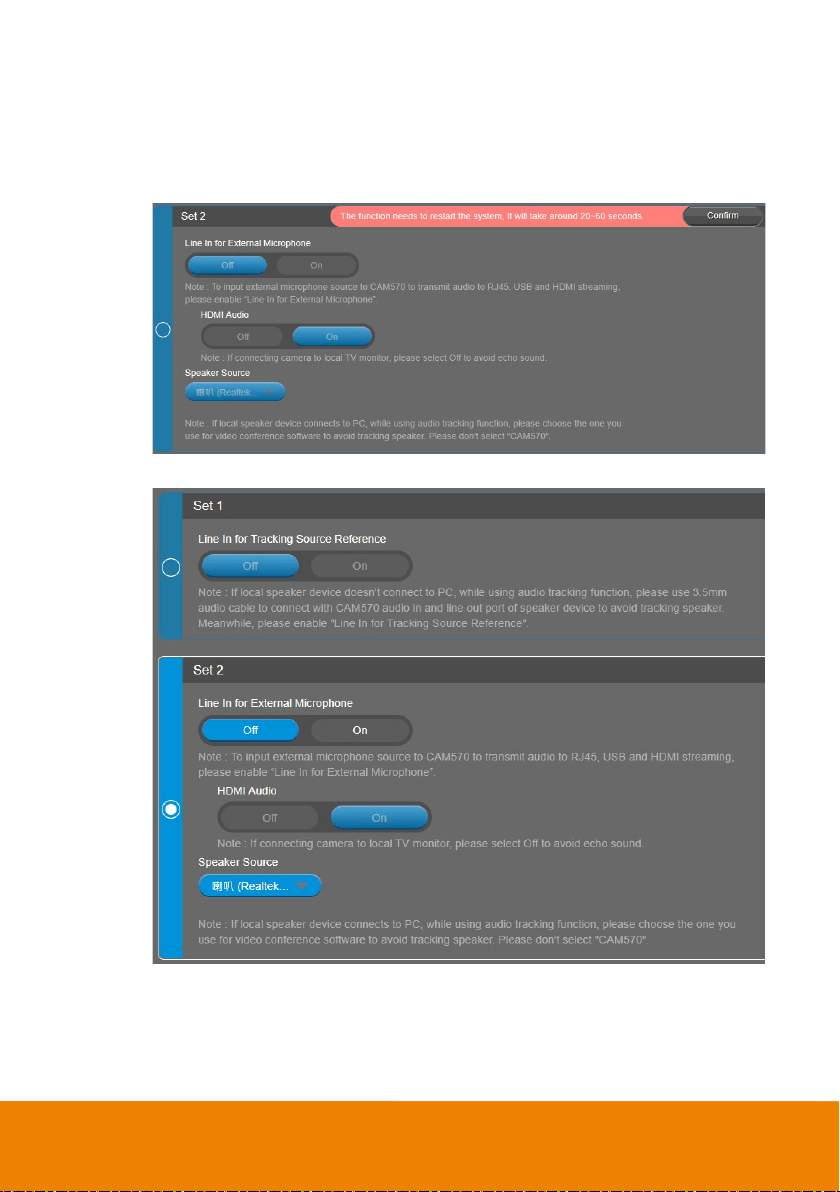
Scenario 2: For the environment with a camera, and a speaker connected to a computer on the local
side, while the Audio Input port of the camera is not in use (not connected to an external microphone),
please use Set 2.
In this scenario, the speaker has been connected to a computer, which may generate the sound of the
participants from the remote side. In order for the camera not to track the voices from the speakers,
you will have to select the speaker as the Speaker Source, so the camera will not track the speaker
source. To do so,
1. Turn off Set 1.
In Set 1, select Off in the Line In for Tracking Source Reference field.
76
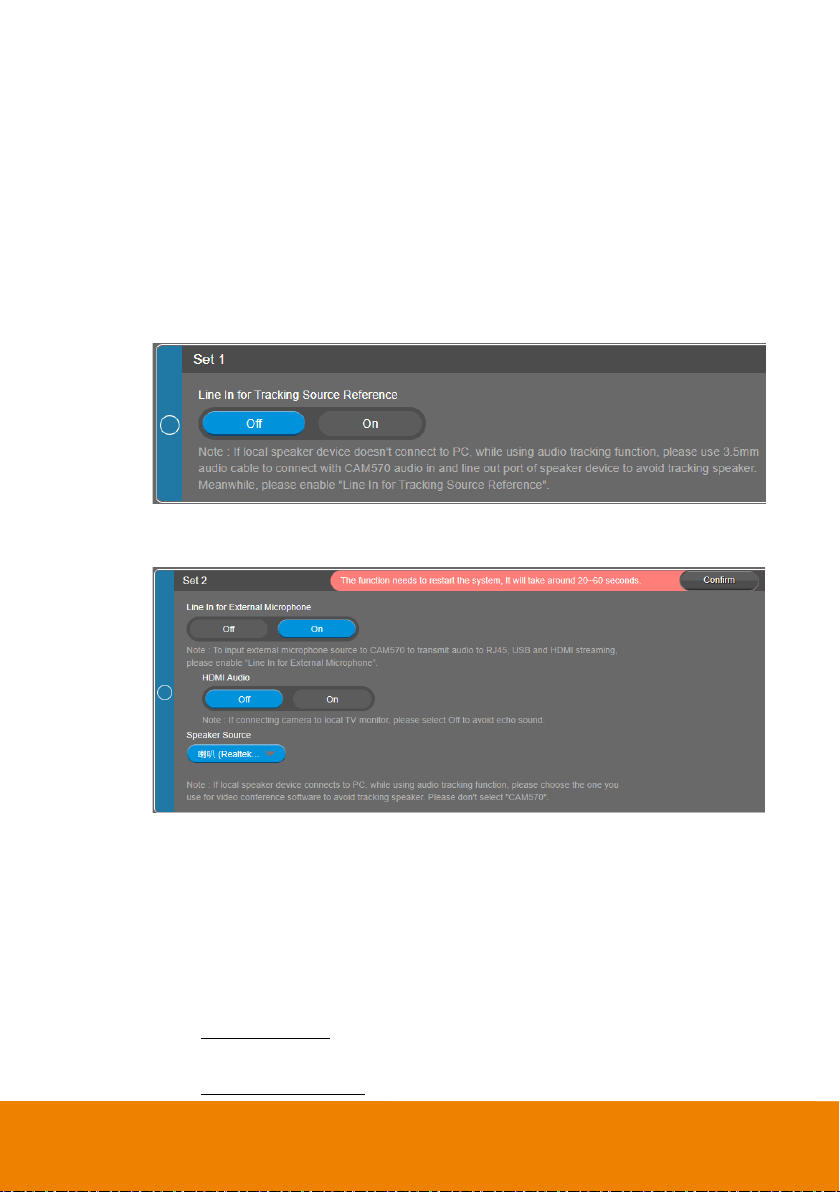
2. In Set 2 :
a. Select Off in the Line In for External Microphone field.
b. Select the speaker you are using for the conference from the Speaker Source.
c. A dialog will appear “The function needs to restart the system. It will take around
20~60 seconds.”. Click Confirm.
3. The setup is completed.
77
Scenario 3: For the environment with an external microphone connected to the Audio-Input port of the
camera, while the camera is also connected to multimedia devices, such as a TV, monitor, computer or
the devices used to play the RTSP/RTMP video/audio streams, in this circumstance, please use Set 2.
Since an external microphone has been connected to the camera, the voices received from the
external microphone can be transferred to the multimedia devices connected to the camera, e.g. HDMI
monitor. In order for the camera not to track the voices from the multimedia speakers, you will have to
enable the Line In for External Microphone and select the multimedia speaker as the Speaker
Source, so the camera will not track the speaker source. To do so,
1. Turn off Set 1.
In Set 1, select Off in the Line In for Tracking Source Reference field.
2. In Set 2, Select On in the Line In for External Microphone field. A dialog will appear
“The function needs to restart the system. It will take around 20~60 seconds.”.
3. Set up the Speaker Source based on the multimedia device you use.
If the speaker is from an USB device, e.g. a computer: In the Speaker Source
field, select the speaker of the computer used for the conference.
If the speaker is from a multimedia device used to play the RTSP/RTMP
video/audio streams: In the Speaker Source field, select the speaker used to play
the RTSP/RTMP streams.
If the speaker is from an HDMI device, e.g. a TV, monitor or a video capture card:
For TV or monitor: In the HDMI Audio field, select Off to fix voice echoing during
the video conference.
For video capture card: In the HDMI Audio field, select On.
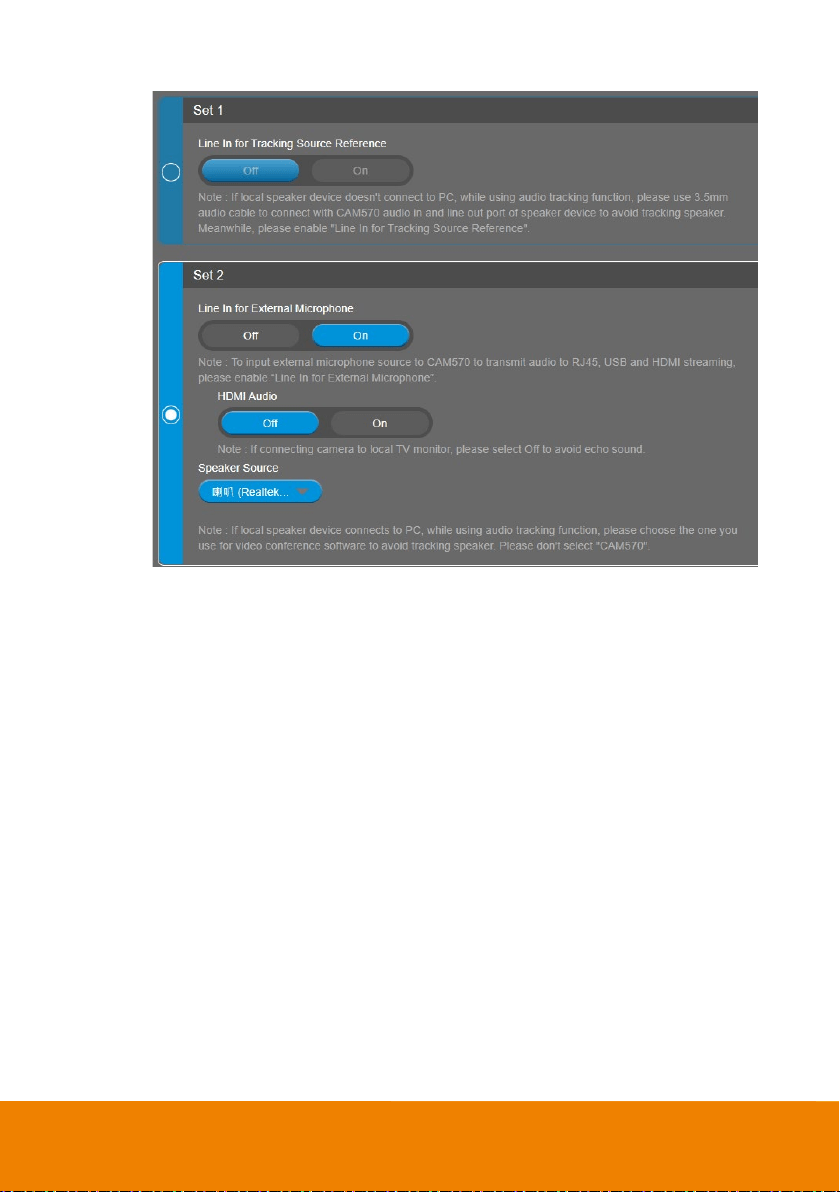
78
4. Click the Confirm button in the above dialog field. The setup is completed.
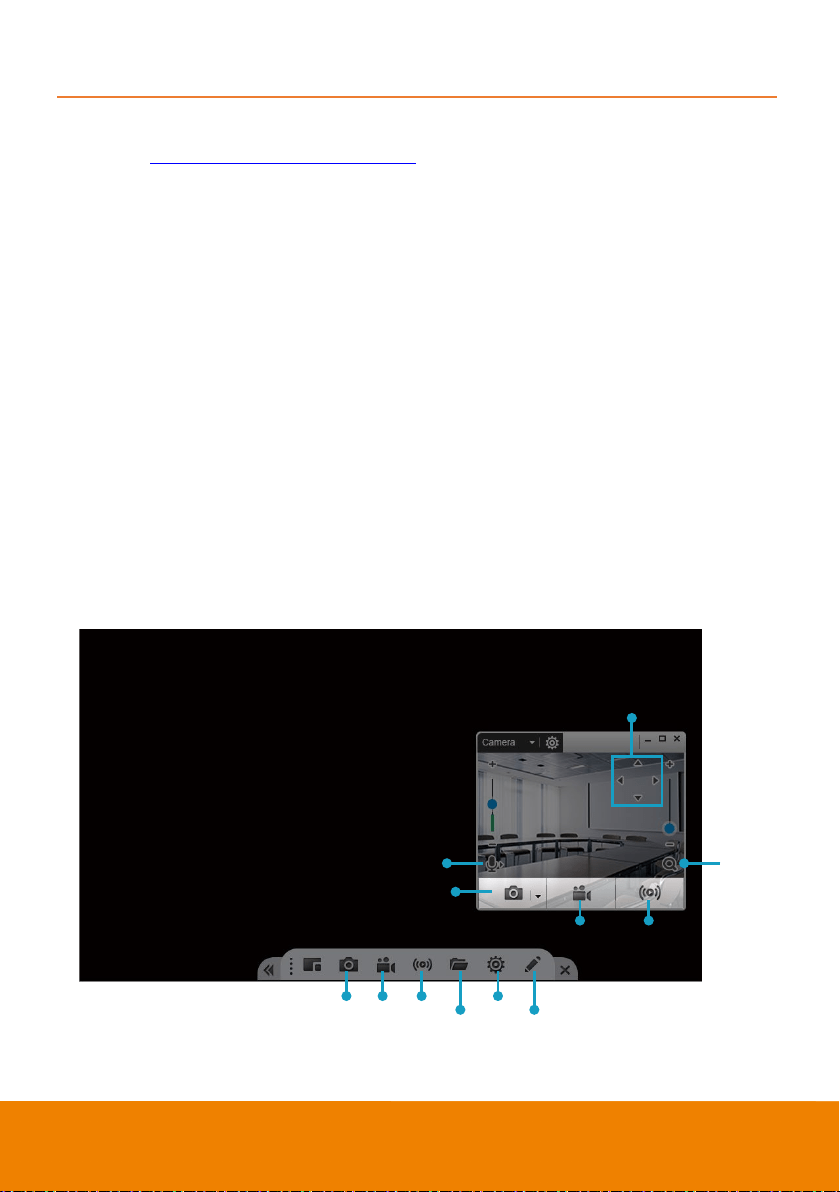
79
EZLive
Please go to http://www.aver.com/download-center to download the AVer EZLive software. After
downloading, double-click on the file and follow the on-screen instructions to complete the installation.
Use AVer EZLive
During a video call, EZLive can help user to do:
(1) Camera ePTZ
(2) Volume control for the speaker connected
(3) Capture camera’s still images
(4) Record video
(5) Live stream to Youtube, Livehouse.in, USTREAM…etc.
(6) Camera Zoom in/out
(7) Capture PC screen shot
(8) Record PC screen video
(9) Set up livestream
(10) Open file management to retrieve photos and video files
(11) Livestream setting
(12) Drawing tool
(3)
(2)
(4) (5)
(7) (8) (9)
(10)
(11)
(12)
(6)
(1)