
About manuals
4
About descriptions of this manual
4
Accessories
5
Before using the remote control unit
6
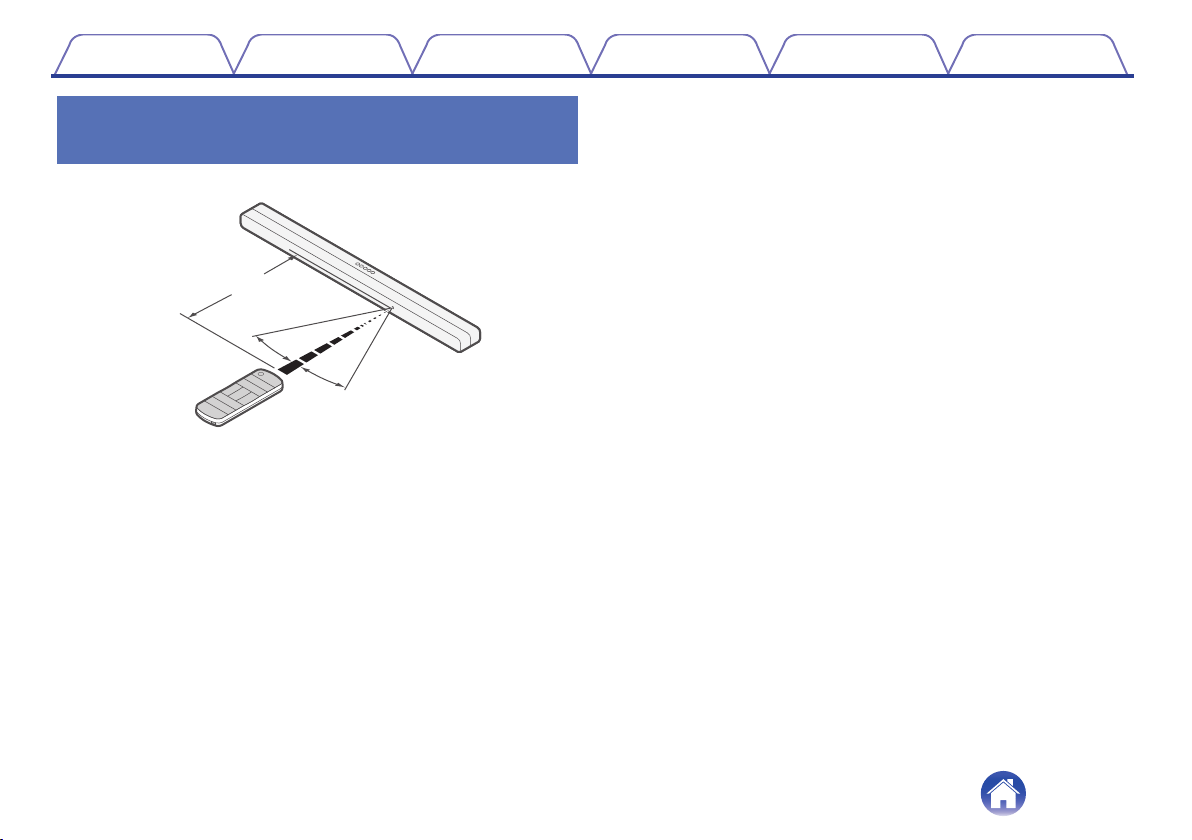
Operating range of the remote control unit
7
Part names and functions
8
Sound bar
8
Subwoofer
12
Remote control unit
13
Connections
Positioning
15
Positioning the sound bar in front of a TV
15
Hanging the sound bar on a wall
16
Positioning the subwoofer
18
Connecting a TV
19
TV equipped with an HDMI connector and compatible with the
eARC (Enhanced Audio Return Channel) or ARC (Audio Return
Channel)
20
TV equipped with an HDMI connector and incompatible with the
eARC or ARC / TV equipped with an optical digital connector
21
TV equipped with an HDMI connector and incompatible with the
eARC or ARC / TV equipped with an analog connector
22
Connecting a playback device
23
Connecting an HDMI device
23
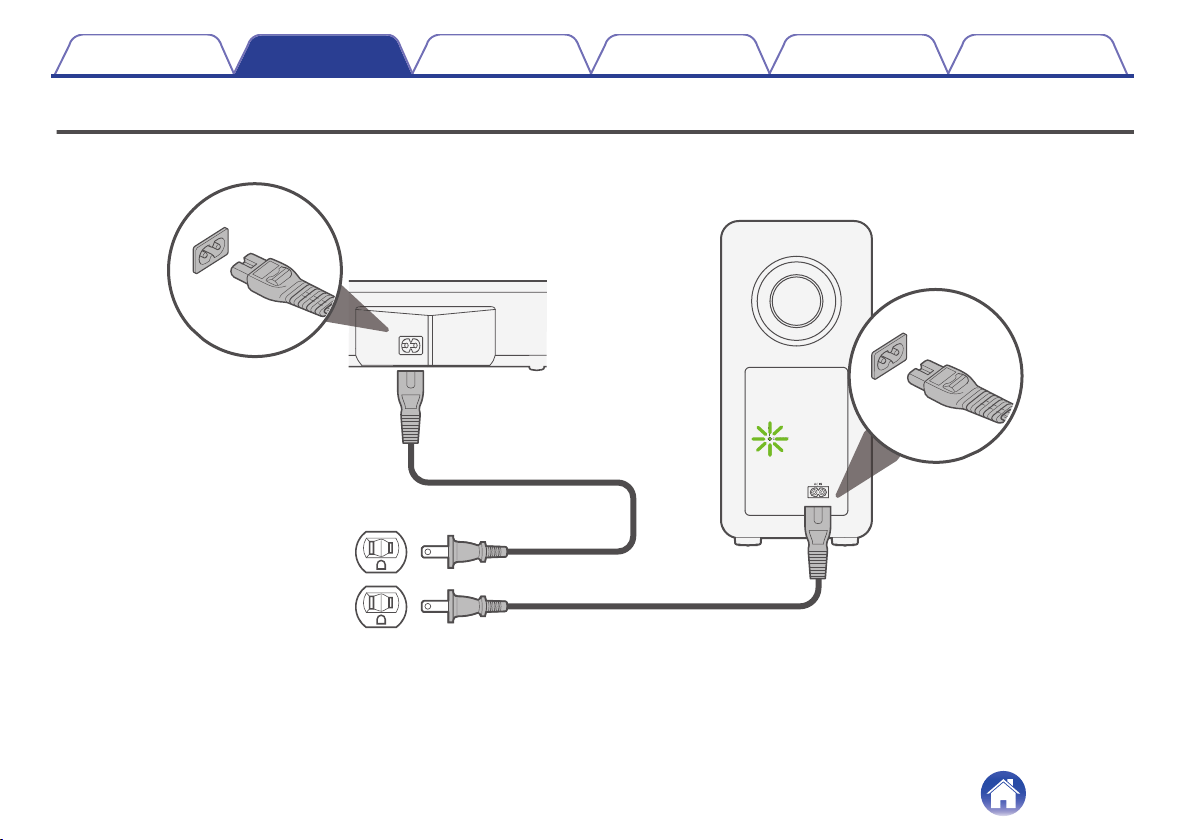
Connecting the power cords
24
Playback
Playing TV, movies and music
25
Adjusting the volume
26
Adjusting the subwoofer volume
26
Turning off the sound temporarily
26
Playing music on a Bluetooth device
27
Pairing a Bluetooth device for the first time
27
Pairing with other Bluetooth devices
28
Playing music with a paired Bluetooth device
28
Settings
Settings
29
Selecting a sound mode
29
Automatically setting to standby (Auto standby function)
30
Reducing the standby power consumption (Deep standby
function)
30
Switching the standby linking via HDMI control function on or off
31
Automatically turning on the power according to the playback of
the playback device (Auto on control function)
32
Operating this unit using the remote control of a TV
33
Contents Connections Playback Settings Tips Appendix
2

Tips
Troubleshooting
35
Power does not turn on / Power is turned off
36
Operations cannot be performed through the remote control unit
37
Trouble teaching this unit remote control commands
37
No sound comes out
38
Bluetooth playback does not work
39
The HDMI control function does not work
40
Audio can be heard coming from the TV’s speakers
40
Resetting factory settings
41
Appendix
About HDMI
42
Trademark information
43
Specifications
44
Sound bar
44
Subwoofer
47
Contents Connections Playback Settings Tips Appendix
3
Thank you for purchasing this Denon product.
To ensure proper operation, please read this owner’s manual carefully before using the product.
After reading this manual, be sure to keep it for future reference.
About manuals
The following manuals are included on this unit.
0
Safety Instructions (supplied)/Cautions on Using Batteries (supplied):Describes careful considerations that you should note in order to use this unit
correctly and safety. Please read carefully before using this unit.
0
Quick Start Guide (supplied):Describes the basics about how to use this unit. Please read when you use this unit for the first time.
0
Owner’s Manual (this manual):Describes details about how to use this unit. Also, describes troubleshooting.
About descriptions of this manual
0
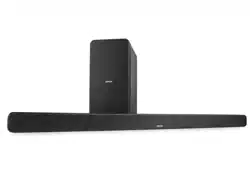
DHT-S517 (sound bar and subwoofer) is described as this unit in this manual.
0
In this manual, when you can operate either the sound bar or remote control, the operations for remote control are mainly described.
0
The symbols used in this manual have the following meanings.
Information such as the precautions on the use and the function restrictions.
Information such as supplementary notes that are useful for you to know.
0
Contents of this unit may be updated without notice.
Contents
Connections Playback Settings Tips Appendix
4
Accessories
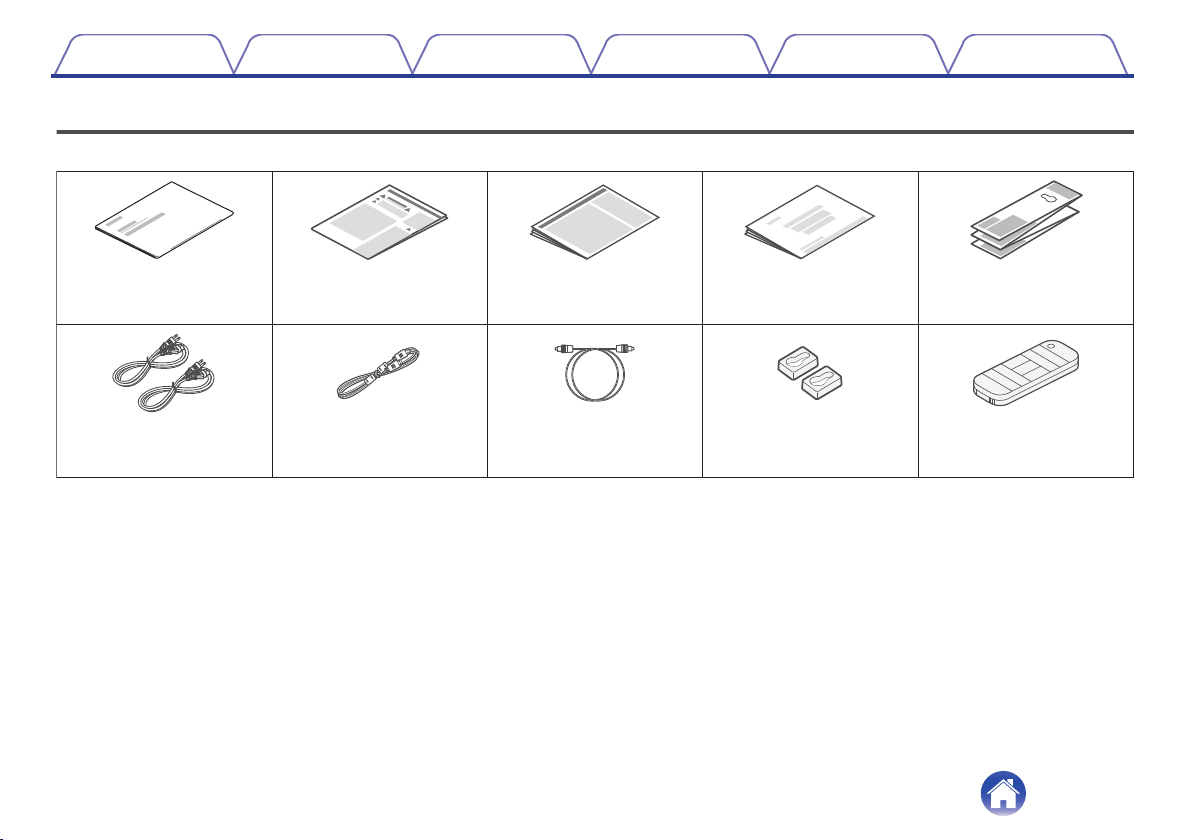
Check that the following parts are supplied with the product.
Quick Start Guide Safety Instructions Warranty
Wall mount spacers
Remote control unit
(RC-1245 / Built-in battery)
Optical digital cable
HDMI cable (4K)Power cords
Wall mount template
Cautions on Using Batteries
Contents Connections Playback Settings Tips Appendix
5
Before using the remote control unit
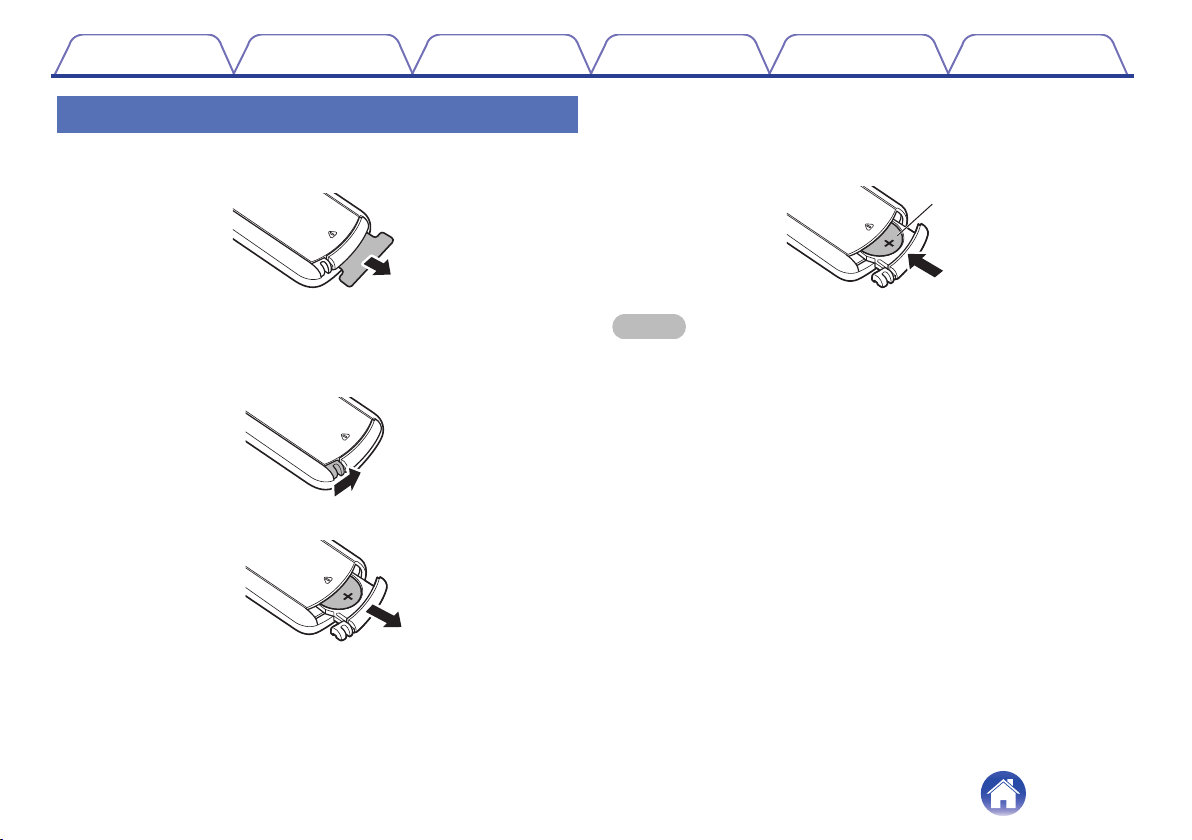
The remote control unit has a built-in lithium battery.
Pull out the insulation sheet before use.
o
Replacing the battery
1. Lightly slide the catch of the battery case on the back of the remote
control in the rightward direction.
2. While pushing the catch lightly to the right, pull out the battery case.
3. Remove the old battery, then insert a new coin-shaped lithium
battery (CR2025) into the battery compartment so that the + symbol
engraved on the battery faces upwards.
4. Replace the battery case in the original position.
CR2025
NOTE
0
If the battery should have a leakage, immediately replace and dispose of the
battery. In this case, there is a risk of burn when the liquid comes in contact with
skins or clothes, so a great care should be taken. If the liquid accidentally comes in
contact, wash with tap water and consult a doctor.
0
Remove the battery from the remote control unit if it will not be in use for long
periods.
Contents Connections Playback Settings Tips Appendix
6
Part names and functions
Sound bar
o
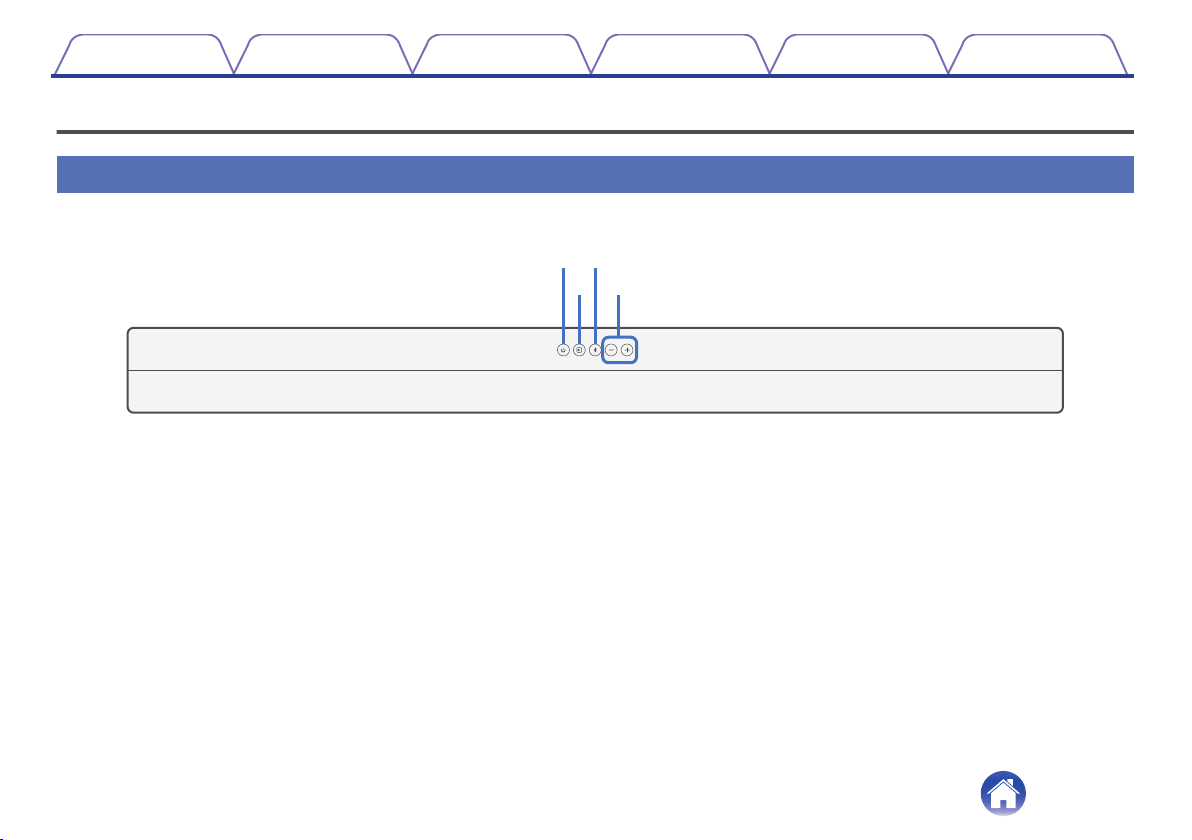
Top panel
eq
rw
A
Power operation button (c)
Turns the sound bar power on/off (standby). (v p. 25)
Links to sound bar power and turns the subwoofer power on/off
(standby).
B
Input source button (d)
This selects the input source. (v p. 25)
Switches the input source each time the button is pressed.
C
Bluetooth button (g)
0
Switches the input source to “Bluetooth”. (v p. 27)
0
Used to pair with Bluetooth devices. (v p. 27)
D
Volume buttons (+, –)
These adjusts the volume level. (v p. 26)
Contents Connections Playback Settings Tips Appendix
8
o
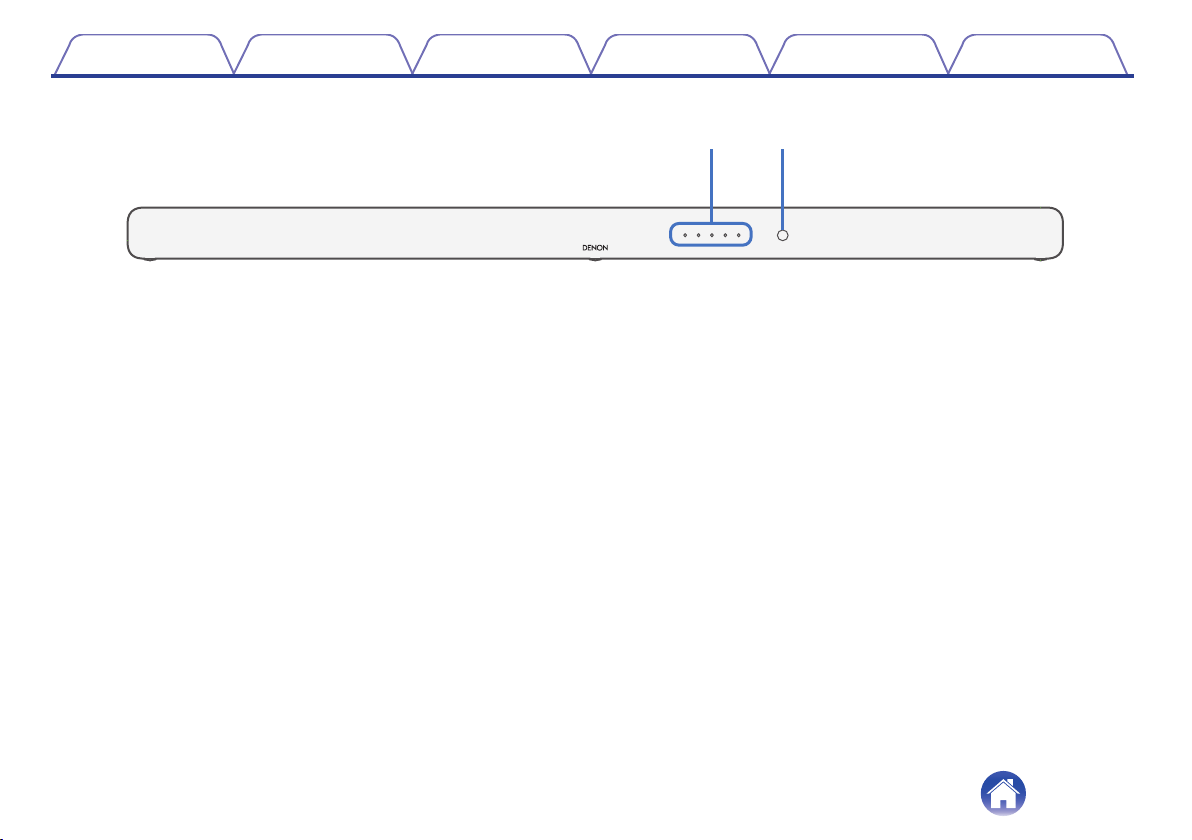
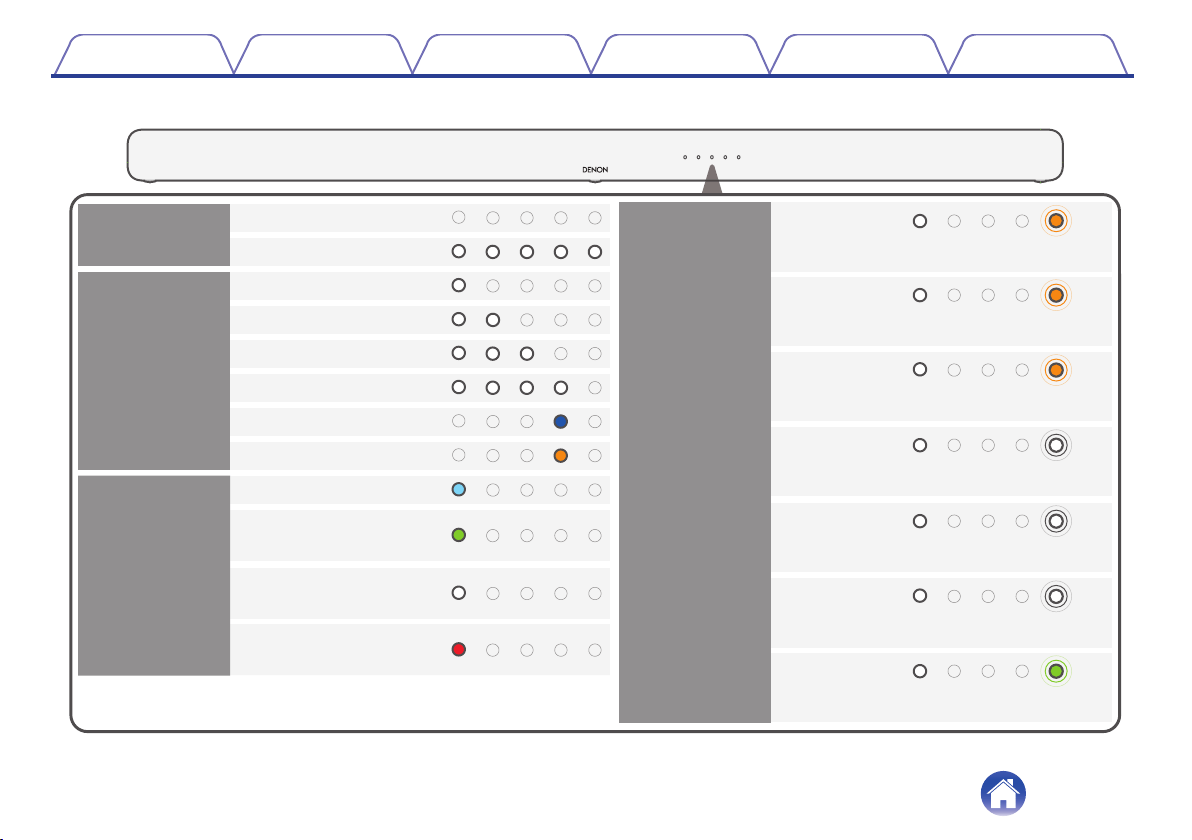
Status LED
TV (HDMI eARC/ARC)
TV (OPTICAL)
AUX
Input
source
Off (Standby)
On
Power
USB
Dolby Atmos
Audio format
[Ex.] Input source:
TV (HDMI eARC/ARC)
Dolby
(other than Atmos)
Unsupported
audio format
PCM
(or No Signal)
Bluetooth
Pure mode
Sound mode
[Ex.] Input source:
TV (HDMI eARC/ARC)
Blink
once
HDMI
Movie mode
Music mode
Night mode
Blink
once
Blink
twice
Blink
three times
Dialog
enhancer
low
Blink
once
Blink
twice
Blink
three times
Dialog
enhancer
medium
Dialog
enhancer
high
Contents Connections Playback Settings Tips Appendix
10
o
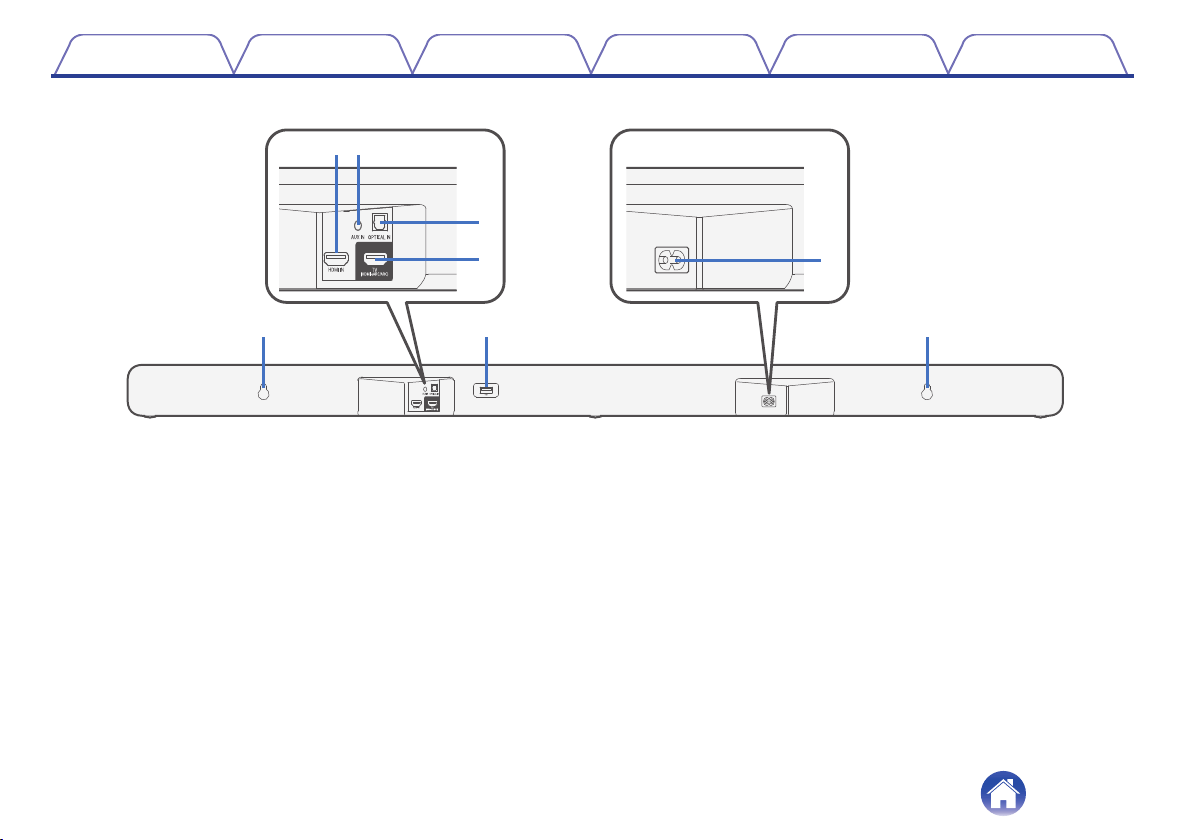
Rear panel
qq
t
r
y
u
ew
A
Wall hook hole
Used to mount the sound bar on a wall. (v p. 16)
B
HDMI IN connector
Used to connect to the HDMI equipment with an HDMI cable.
(v p. 23)
C
Analog audio input connector (AUX IN)
Use a commercially available 3.5 mm stereo audio cable to connect a
TV with an AUX audio output connector. (v p. 22)
D
Optical digital input connector (OPTICAL IN)
Use the included optical digital cable to connect a TV with an optical
digital terminal. (v p. 21)
E
HDMI connector (TV (HDMI eARC/ARC))
Use the included HDMI cable to connect an eARC or ARC function-
compatible TV. (v p. 20)
F
USB port
USB playback is available. (v p. 25)
G
AC inlet
Used to connect the power cord. (v p. 24)
Contents Connections Playback Settings Tips Appendix
11
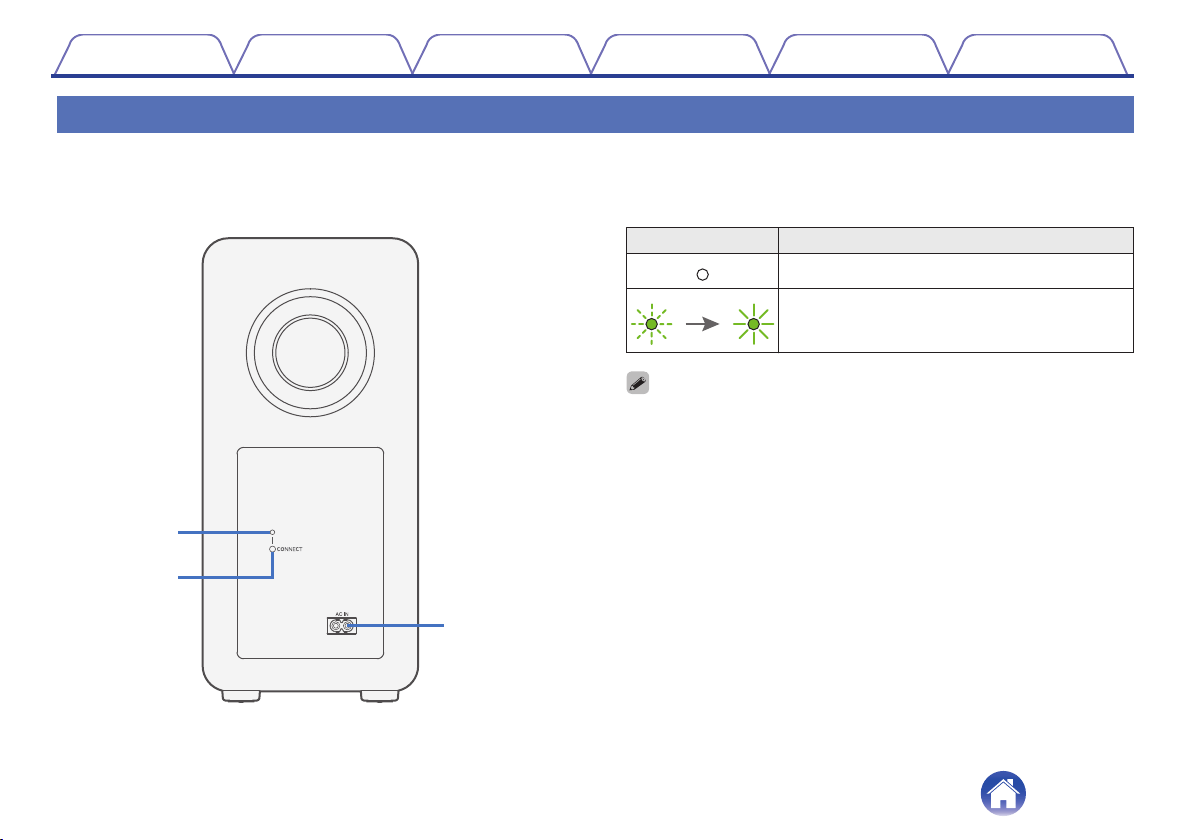
Subwoofer
o
Rear panel
A
Status LED
Displays subwoofer status.
LED indication Status
When subwoofer power is standby
When the sound bar and subwoofer are
wirelessly connected
0
The sound bar and subwoofer are wirelessly connected as the factory default. If
no audio is output from the subwoofer, wirelessly connect the sound bar and
subwoofer again. (v p. 38)
B
CONNECT button
Used to wirelessly connect the sound bar and subwoofer. (v p. 38)
C
AC inlet (AC IN)
Used to connect the power cord. (v p. 24)
e
q
w
Contents
Connections Playback Settings Tips Appendix
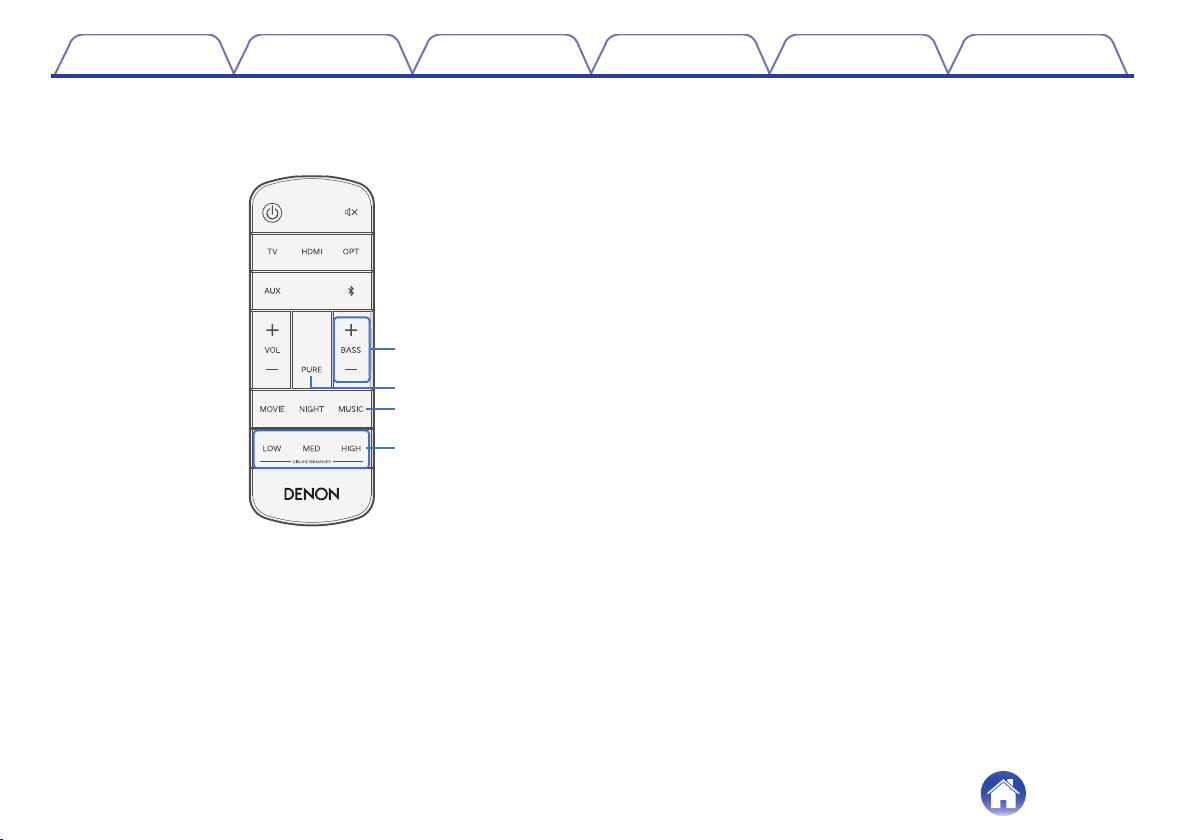
12
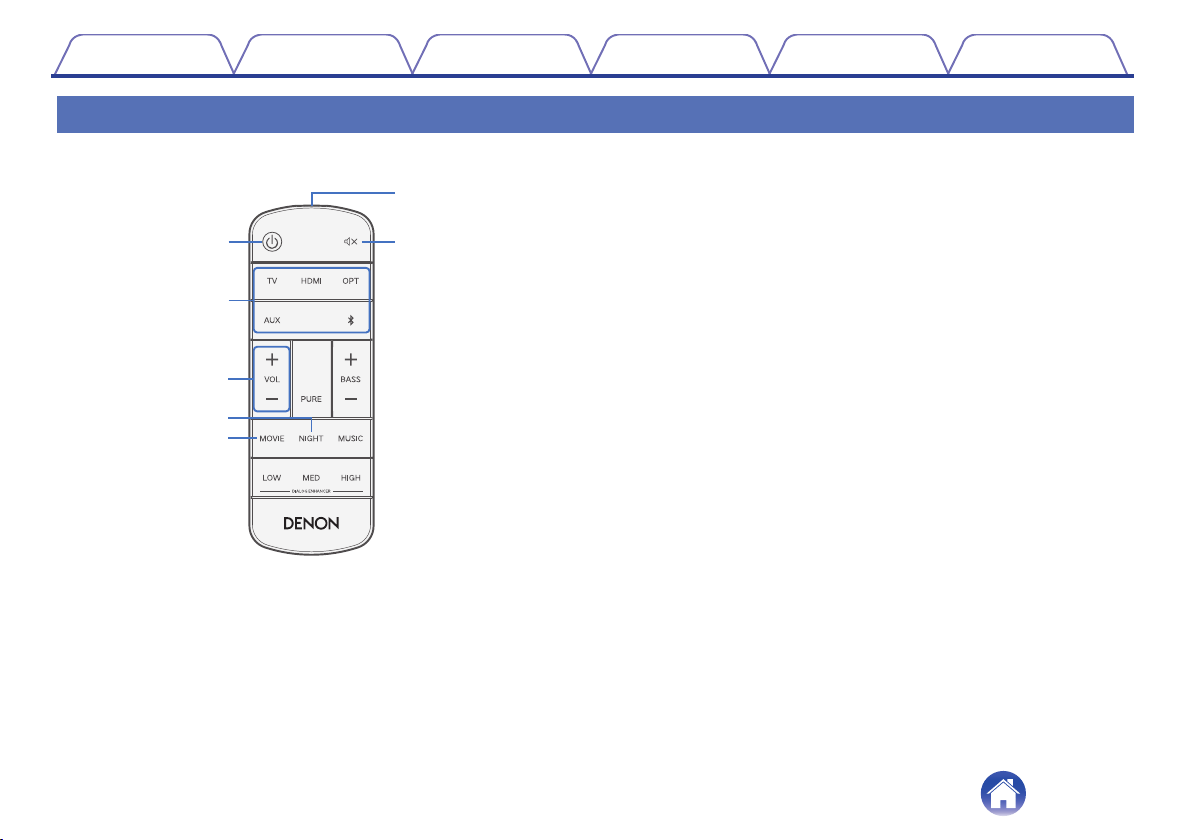
Remote control unit
w
q
e
t
r
y
u
A
Power button (c)
Turns the sound bar power on/off (standby). (v p. 25)
Links to sound bar power and turns the subwoofer power on/off
(standby).
B
Input source buttons (TV, HDMI, OPT, AUX, g)
This selects the input source. (v p. 25)
C
Volume buttons (VOL +, –)
These adjusts the volume level. (v p. 26)
D
Night mode button (NIGHT)
Compresses the dynamic range (difference between loud and soft
sounds) to make audio easier to hear at low volumes. (v p. 29)
E
Movie mode button (MOVIE)
Enjoy movie theater-like surround sound. (v p. 29)
F
Remote control signal transmitter
This transmits signals from the remote control unit. (v p. 7)
G
Mute button (h)
This mutes the output audio. Press again to unmute. (v p. 26)
Contents
Connections Playback Settings Tips Appendix
13
Q0
Q1
i
o
H
Button to adjust subwoofer (BASS +, -)
Adjusts the volume level for the subwoofer. (v p. 26)
I
Pure mode button (PURE)
Enjoy high quality sound that is faithful to the original source.
(v p. 29)
J
Music mode button (MUSIC)
Enjoy the full presence of a wide, encompassing acoustic field.
(v p. 29)
K
Dialog enhancer buttons
(DIALOG ENHANCER LOW, MED, HIGH)
Adjust the volume of dialog in movies, vocals in music, etc. so these
can be heard more easily. (v p. 29)
Can be set to 3 levels. Set this to the desired value.
Contents Connections Playback Settings Tips Appendix
14
Positioning
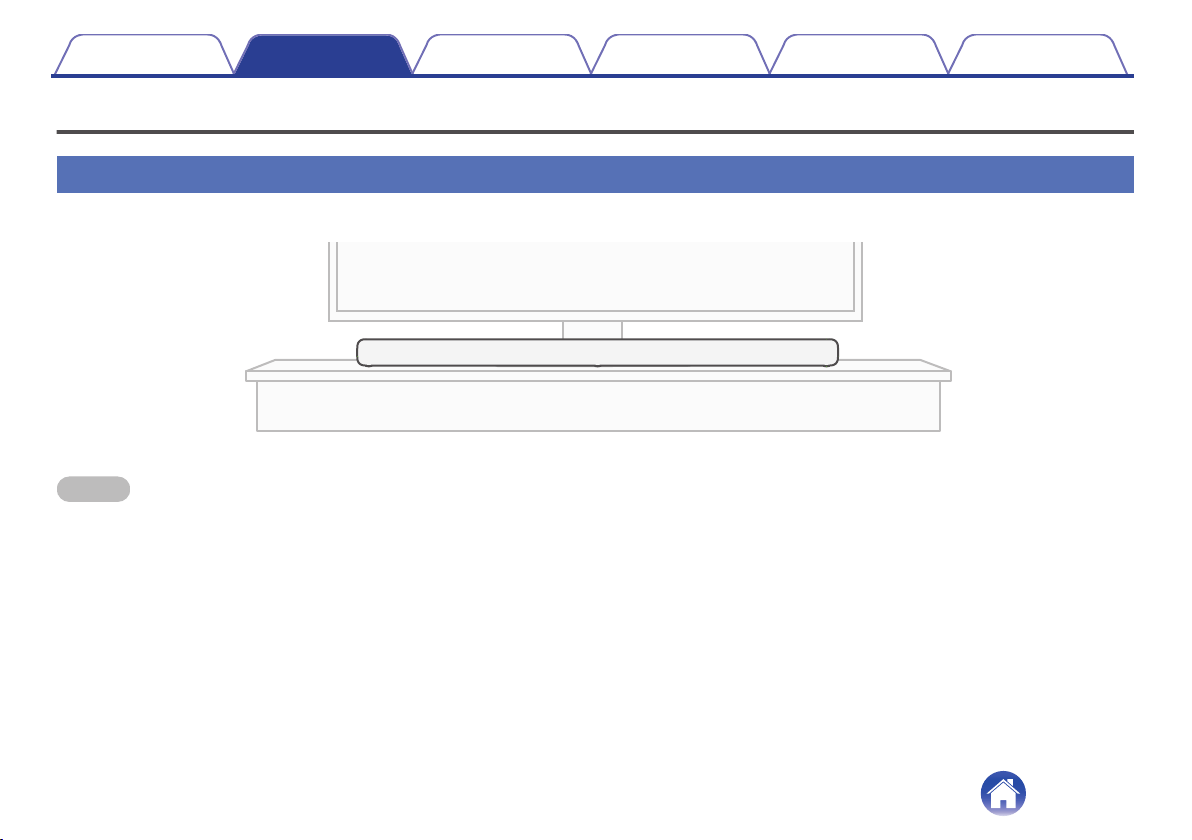
Positioning the sound bar in front of a TV
Position the sound bar in front of your TV, etc., on a flat surface.
NOTE
0
When positioning the sound bar in front of your TV, make sure the sound bar does not obstruct the TV’s remote control light sensor, etc.
Contents Connections Playback Settings Tips Appendix
15
Hanging the sound bar on a wall
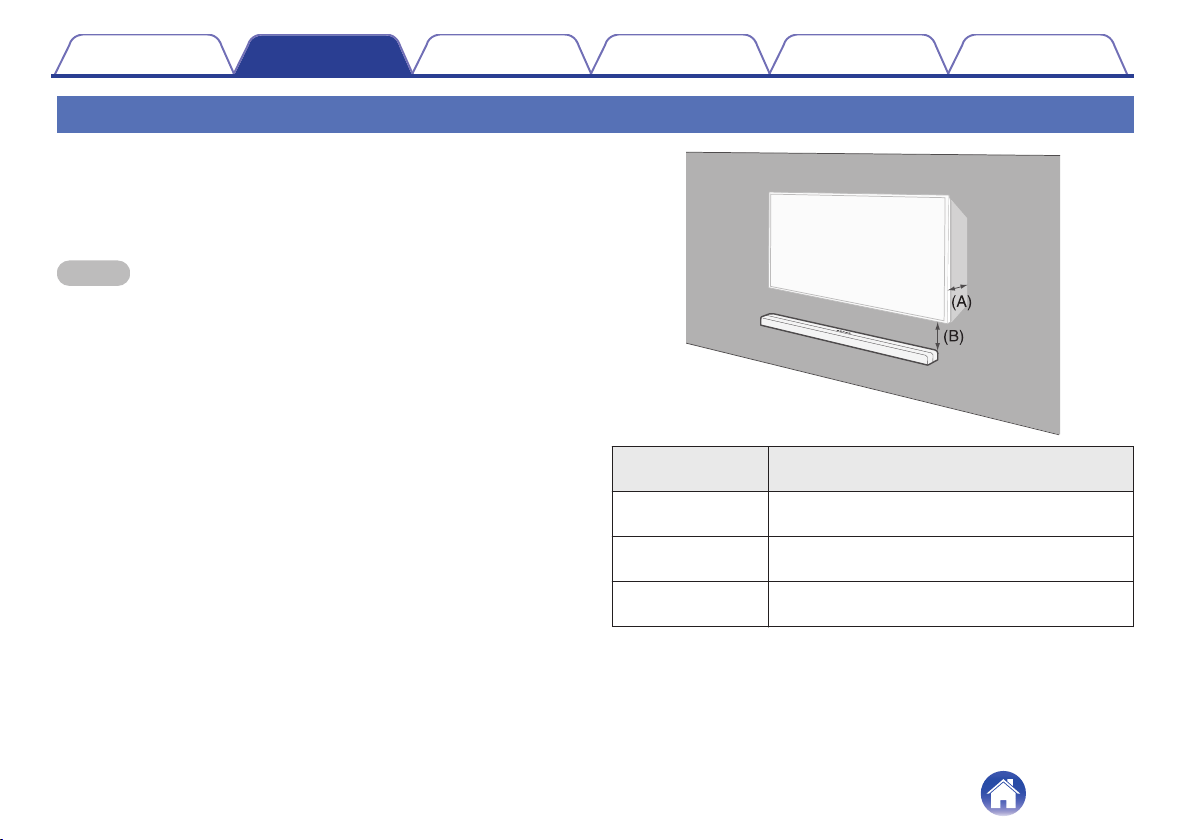
The sound bar can be mounted on a wall using the two keyholes provided
on the back of the bar for this purpose. When hanging bar on a wall,
position it in a flat, vertical position.
To ensure safety, it is best to employ a contractor to mount the sound bar
on the wall.
NOTE
0
In order to use the unit safely, do not place items on or hang items from the unit.
0
Do not attempt to install the sound bar onto a wall made of material that may
crumble easily, such as mortar or decorative plywood. Doing so may result in the
screw pulling out and the sound bar falling, causing injury or damage to the sound
bar.
0
The included HDMI cable have ferrite cores. When hanging the sound bar on a
wall, make sure not to put the ferrite core between the sound bar and the wall.
0
Be sure to fix connection cables to the wall to ensure that the cables cannot be
pulled or tripped over, which may cause the unit to fall. Check that the unit is
mounted safely after the mounting work is complete.
0
Also, periodically check that the unit is mounted solidly and that there is no
possibility that the unit could fall.
0
Denon cannot accept any responsibility for damage, injury or accidents caused by
problems with the mounting location or mounting method.
(A) Depth of the
mounted TV
(B) Required space between the bottom of the
TV and the top of the sound bar
Less than 2.5 in.
(64 mm)
More than 2 in. (50 mm)
2.5 in. – 4.5 in. (64
– 102 mm)
More than 4 in. (102 mm)
More than 4 in.
(102 mm)
More than 7.5 in. (191 mm)
Contents Connections Playback Settings Tips Appendix
16
0
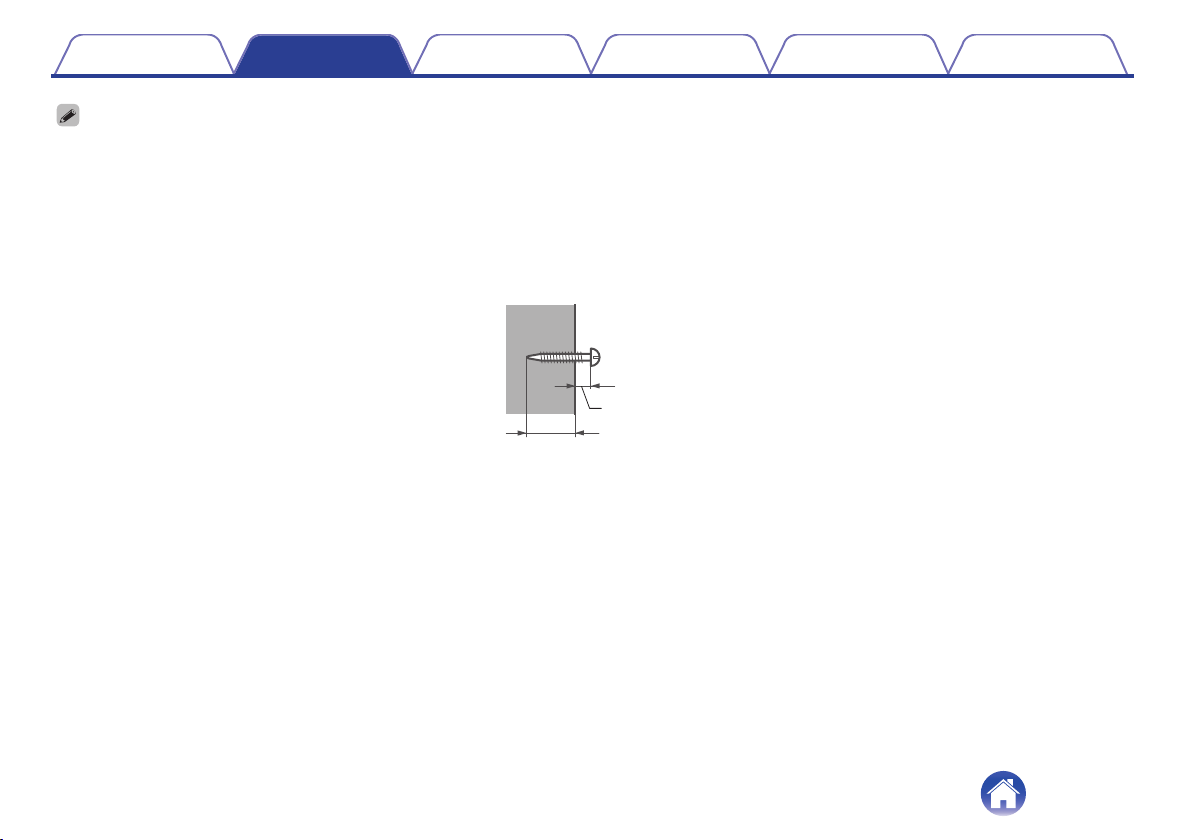
When hanging the sound bar on a wall, use the included wall mount template.
How to use the wall mount template
A
Tape the template to the location you would like to mount the sound bar.
Leave enough space between the TV and the sound bar so that the sound from the Atmos speakers on the top of the bar, which projects towards the ceiling, is not
blocked by the TV. Refer to the table on the previous page for spacing recommendations. (v p. 16)
B
Screw in the wall mount screws by following the template.
Screw in one self-tapping screw (commercially available, 3/16 in./5 mm to 1/4 in./6 mm diameter) into a wall that has sufficient strength to support the weight of the sound
bar, or into reinforcing material on the wall.
13/32 in./10.5 mm
More than 13/16 in./20 mm
C
Remove the template from the wall.
D
Mount the included wall mount spacers on the back of the sound bar.
The wall mount spacers create a space for cords to pass through between the sound bar and the wall.
E
Hang the sound bar on the screws.
Contents
Connections Playback Settings Tips Appendix
17
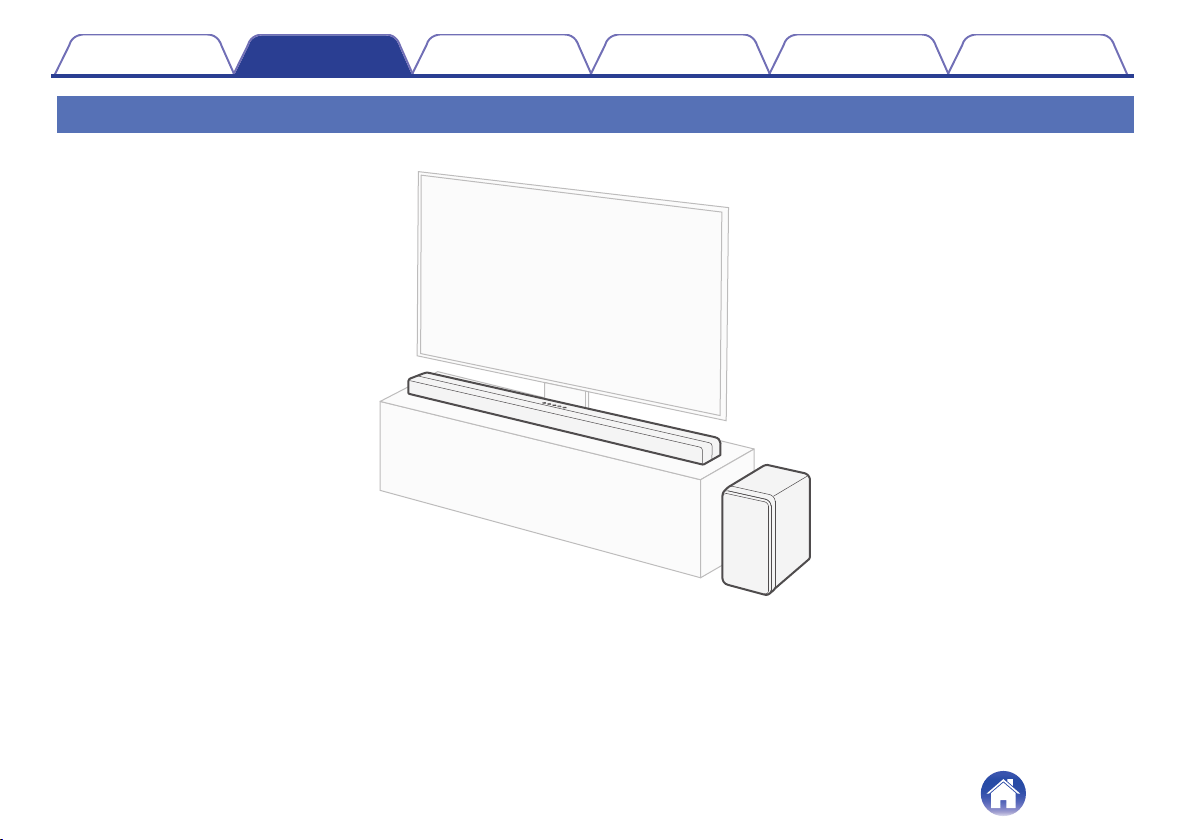

Connecting a TV
How to connect a TV depends on the connectors and functions equipped on the TV.
0
Enable the TV’s HDMI control function when using an HDMI cable to connect this unit to your TV. (See the TV owner’s manual for details.)
0
Turn off the TV’s speaker or minimize the volume when using this unit.
0
HDMI cable connection is recommended, but connection can be performed without an HDMI cable.
NOTE
0
Make sure all devices are off when connecting.
0
Do not plug device power cords into an outlet until all devices have been connected.
Contents Connections Playback Settings Tips Appendix
19
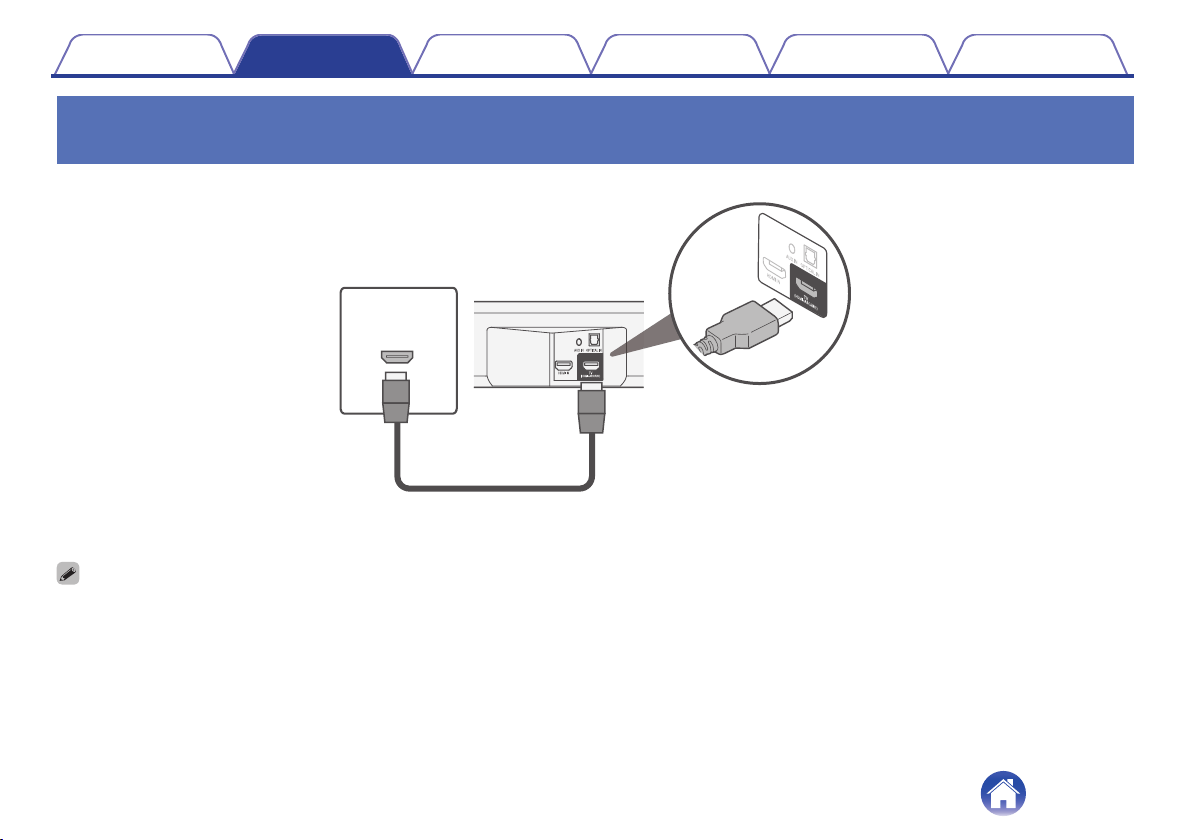
TV equipped with an HDMI connector and compatible with the eARC (Enhanced
Audio Return Channel) or ARC (Audio Return Channel)
Use the included HDMI cable to connect this unit to an eARC or ARC function-compatible TV.
HDMI INPUT
(eARC/ARC)
TV
HDMI cable (included)
Soundbar
(Rear panel)
0
The TV also needs to be compatible with the eARC or ARC function.
Contents Connections Playback Settings Tips Appendix
20
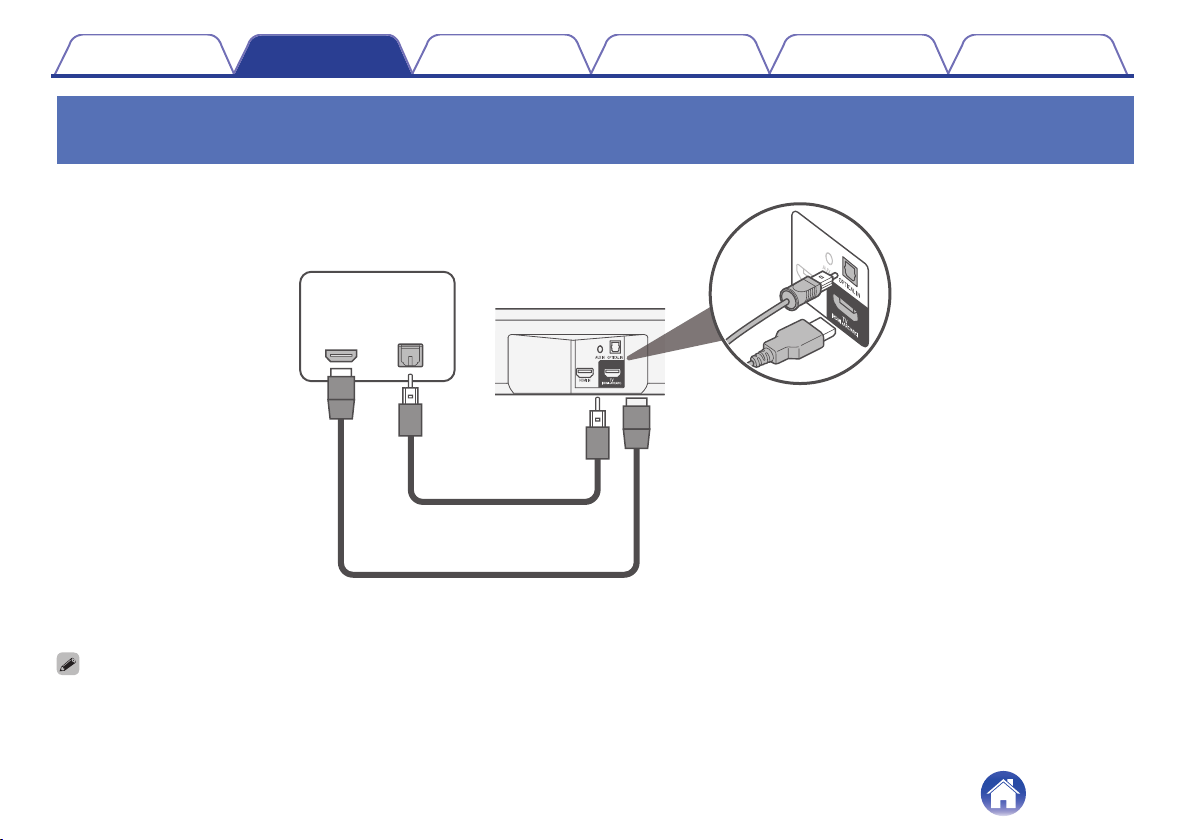
TV equipped with an HDMI connector and incompatible with the eARC or ARC / TV
equipped with an optical digital connector
Use the included HDMI and optical cables to connect this unit to your TV.
OPTICAL
OUTPUT
HDMI
INPUT
TV
Soundbar
(Rear panel)
Optical digital cable (included)
HDMI cable (included)
0
Line up the optical digital cable with the shape of the terminal to insert.
Contents Connections Playback Settings Tips Appendix
21
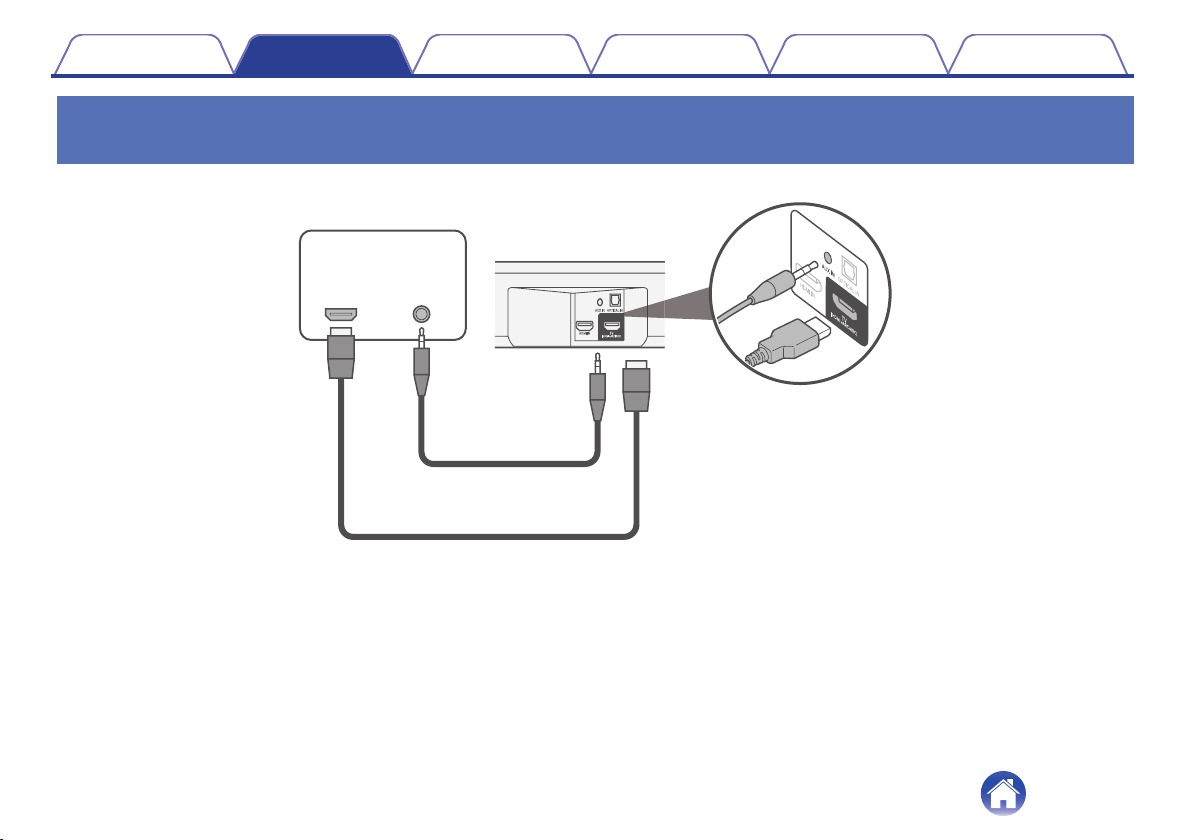
TV equipped with an HDMI connector and incompatible with the eARC or ARC / TV
equipped with an analog connector
Use the included HDMI cable and a commercially available 3.5 mm stereo audio cable to connect this unit to your TV.
AUX
AUDIO OUT
HDMI
INPUT
TV
Soundbar
(Rear panel)
HDMI cable (included)
3.5 mm stereo audio cable
(sold separately)
Contents Connections Playback Settings Tips Appendix
22
Connecting a playback device
Connecting an HDMI device
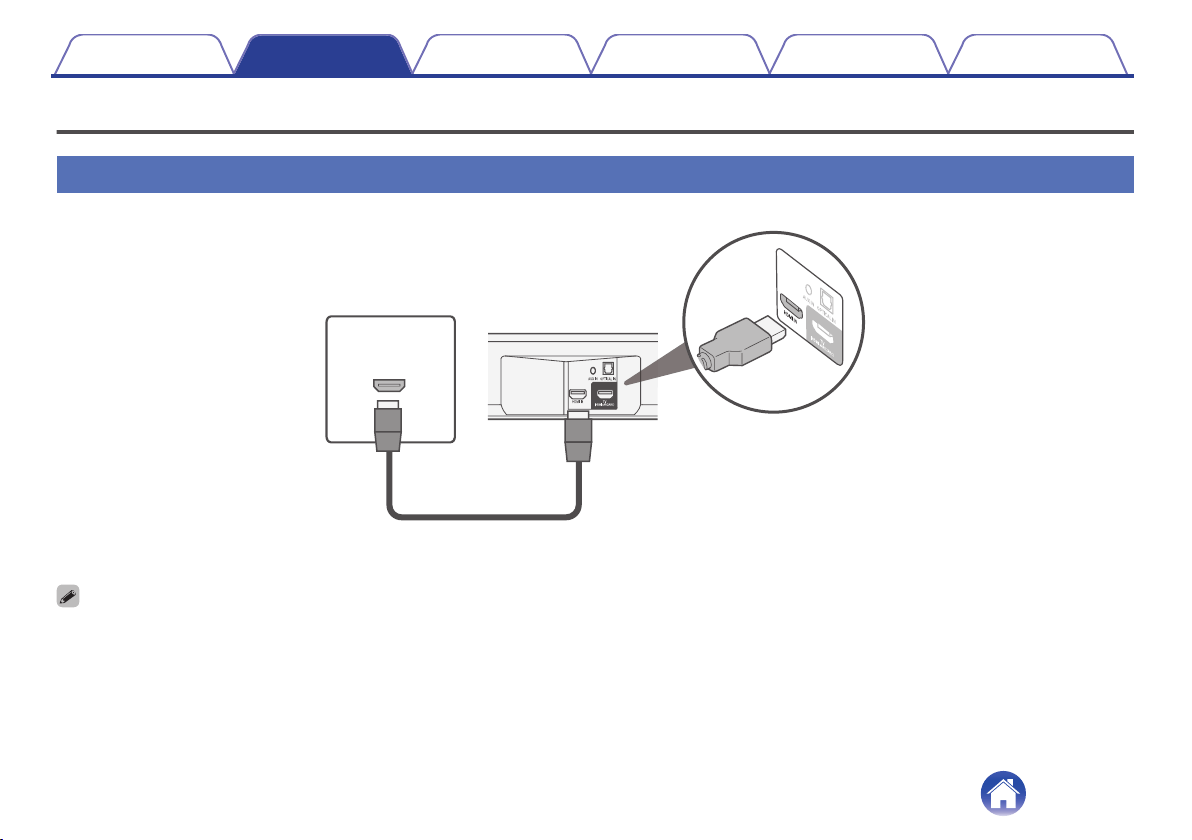
Use a commercially available HDMI cable to connect a Blu-ray disc player, game device or similar device to this unit.
HDMI
OUTPUT
HDMI device
HDMI cable (sold separately)
Soundbar
(Rear panel)
0
When connecting this unit to a device that is compatible with the 4K functions, use a “High Speed HDMI cable with Ethernet” that displays the HDMI logo.
Contents Connections Playback Settings Tips Appendix
23
Playing TV, movies and music
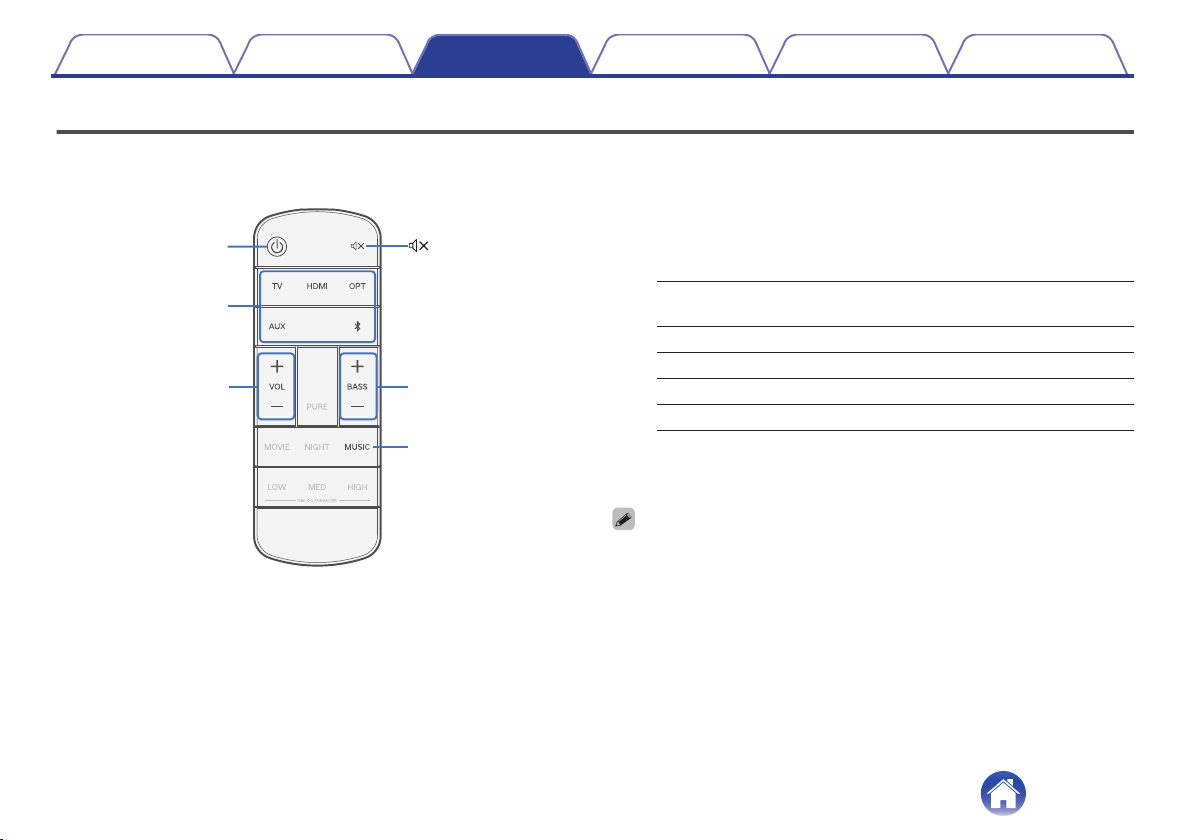
X
Input source
buttons
VOL
+, –
BASS
+, –
MUSIC
1
Turn on the power of the TV and connected devices.
2
Press c to turn on power to the unit.
3
Press the input source button.
TV:
Switches the input source to TV (HDMI eARC/
ARC).
HDMI: Switches the input source to HDMI IN.
OPT: Switches the input source to OPTICAL IN.
AUX: Switches the input source to AUX IN.
g:
Switches the input source to Bluetooth.
4
Play the device connected to this unit.
For details, see the relevant device manual.
0
Connect an HDMI control-compatible TV and this unit via HDMI and enable the
HDMI control to enable linked control from either device. (v p. 42)
0
Press and hold MUSIC for 5 seconds or more to switch the input source to USB.
The music files in the USB flash drive are played automatically.
Contents
Connections Playback Settings Tips Appendix
25
Adjusting the volume
1
Use VOL + or VOL – to adjust the volume.
When the button is pressed, the status LED lights up to match the
current volume.
0
Each time a volume button is pressed, the status LEDs blink and
the number of LEDs that are blinking increases or decreases
according to the volume that is set.
0
The status LEDs blink three times when the maximum or
minimum volume is reached.
0
When the power is turned on, the unit starts with the volume level that was set
before being placed on standby. However, if the volume was previously set to
high, it starts with the volume setting lowered to a certain level.
Adjusting the subwoofer volume
1
Use BASS + or BASS – to adjust the subwoofer volume.
When the button is pressed, the status LED lights up to match the
current subwoofer volume.
0
The status LED blinks each time the button is pressed, and the
number of flashing LEDs increases or decreases to match the
subwoofer volume.
0
When the subwoofer volume reaches the maximum or minimum,
the status LED blinks three times.
Turning off the sound temporarily
1
Press h.
All status LEDs blink.
0
To cancel, press h again.
Contents Connections Playback Settings Tips Appendix
26
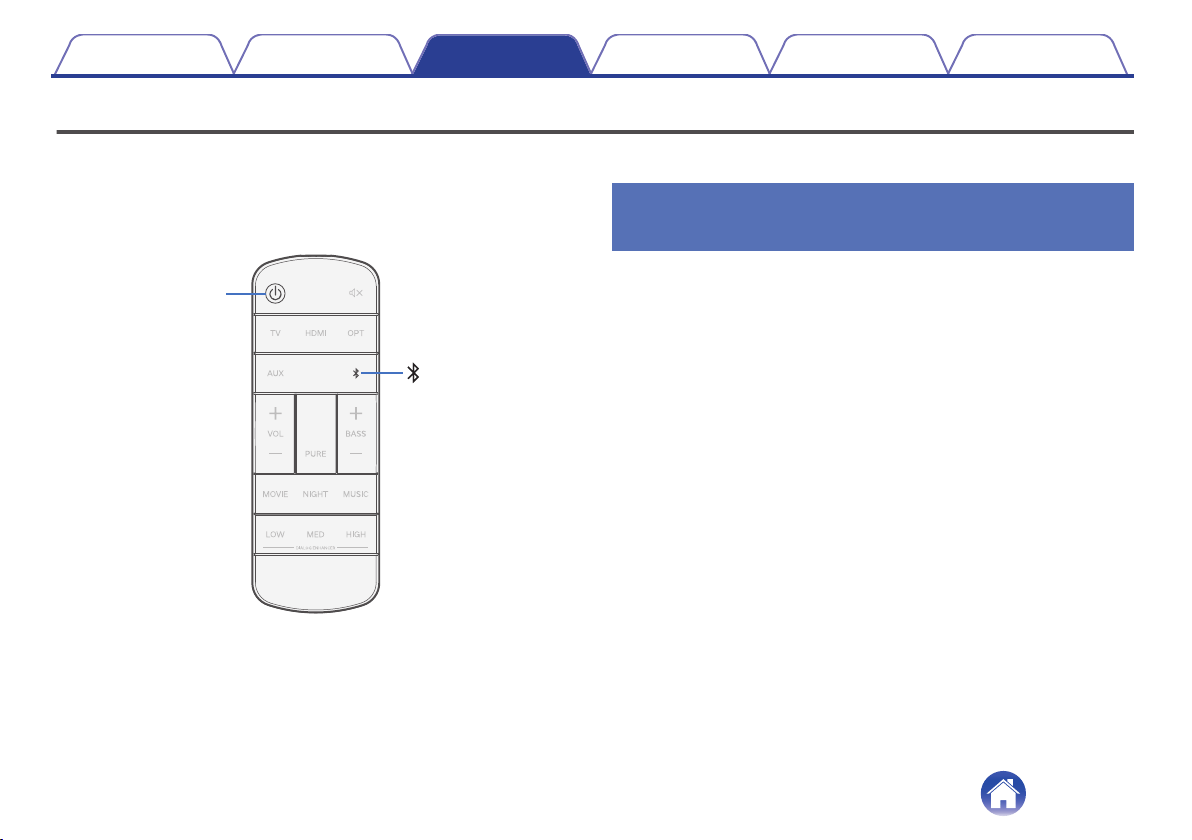
Playing music on a Bluetooth device
Music files stored on Bluetooth devices such as smartphones, digital music players, etc. can be enjoyed on this unit by pairing and connecting this unit
with the Bluetooth device.
X
Pairing a Bluetooth device for the first
time
Pair a Bluetooth device with this unit.
Once the Bluetooth device has been paired, it does not need to be paired
again.
1
Press c to turn on power to the unit.
2
Press g to switch the input source to “Bluetooth”.
Automatically switches to pairing mode the first time it is used.
The status LED blinks in blue when this unit is in pairing mode.
3
Activate the Bluetooth settings on your Bluetooth
device.
4
Select “Denon DHT-S517” from the list of devices
displayed on the screen of the Bluetooth device.
The status LED lights up in blue and this unit and the Bluetooth
device are paired.
Contents Connections Playback Settings Tips Appendix
27
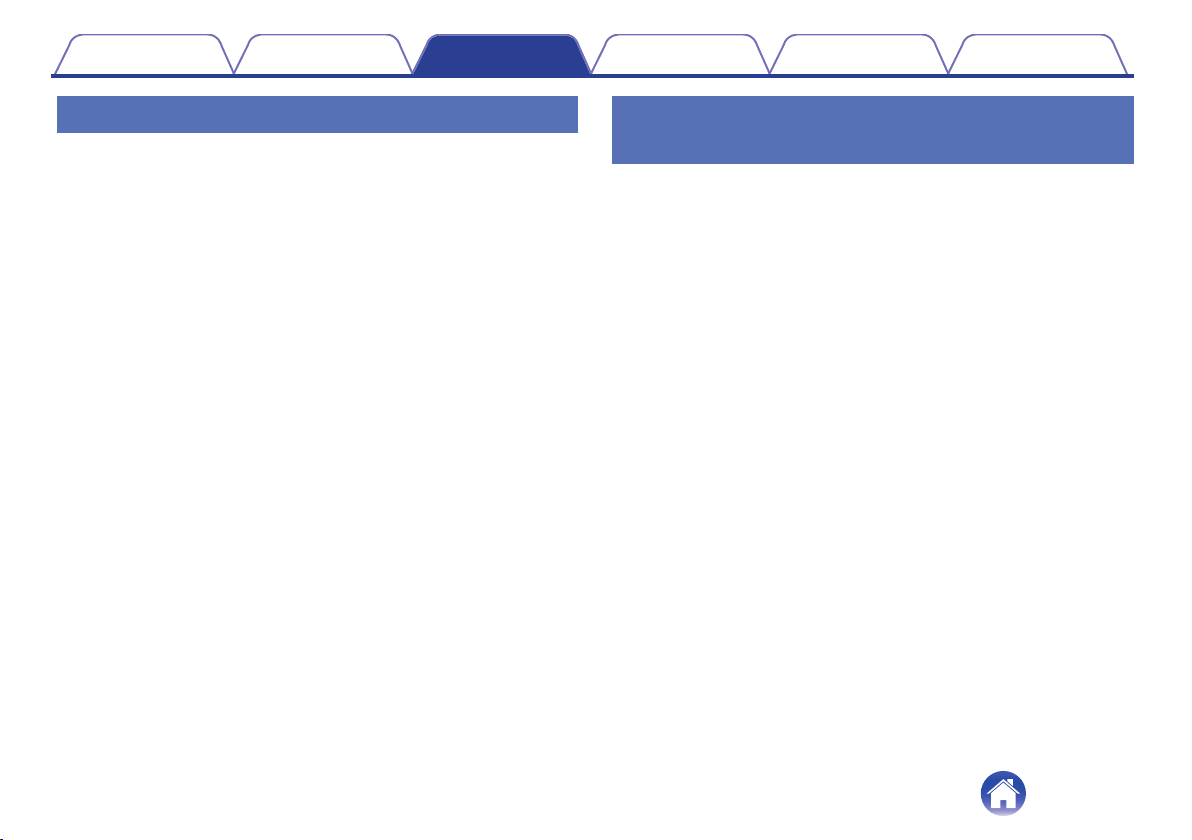
Pairing with other Bluetooth devices
1
Press c to turn on power to the unit.
2
Press g to switch the input source to “Bluetooth”.
3
Activate the Bluetooth settings on your Bluetooth
device.
4
Press and hold g for 3 seconds.
This unit enters pairing mode, and the status LED repeatedly blinks
in blue.
5
Select “Denon DHT-S517” from the list of devices
displayed on the screen of the Bluetooth device.
The status LED lights up in blue and this unit and the Bluetooth
device are paired.
Playing music with a paired Bluetooth
device
1
Press c to turn on power to the unit.
2
Press g to switch the input source to “Bluetooth”.
3
Activate the Bluetooth settings on your Bluetooth
device.
The status LED lights up in blue and connects to the last Bluetooth
device connected. If the connection is cut, perform connection
again.
4
Play music using any app on your Bluetooth device.
Contents Connections Playback Settings Tips Appendix
28
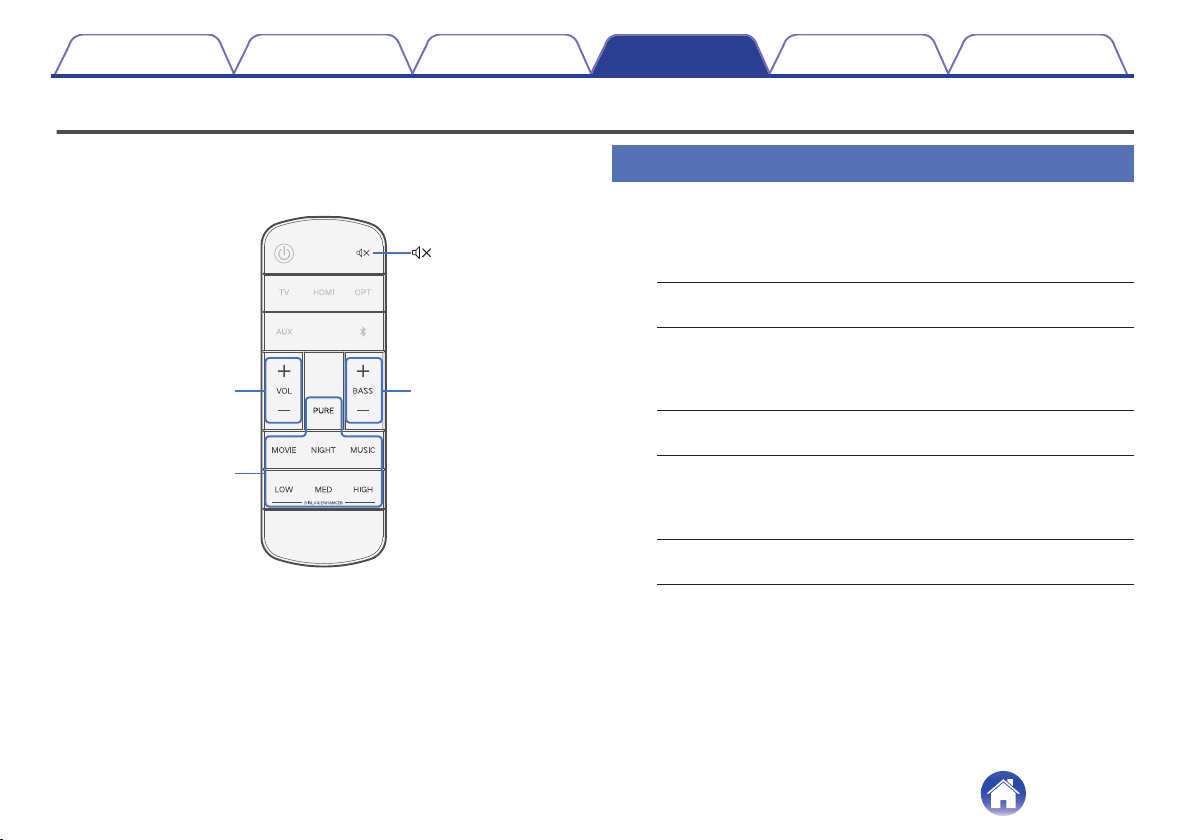
Settings
Perform the below operations and settings as needed.
Sound mode
buttons
VOL
+, –
BASS
+, –
Selecting a sound mode
1
Press the sound mode button to select a sound mode.
When the button is pressed, the rightmost status LED blinks and the
sound mode changes. (v p. 10)
MOVIE:
Enjoy movie theater-like surround
sound.
NIGHT:
Compresses the dynamic range
(difference between loud and soft
sounds) to make audio easier to hear at
low volumes.
MUSIC:
Enjoy the full presence of a wide,
encompassing acoustic field.
DIALOG ENHANCER
LOW / MED / HIGH:
Adjust the volume of dialog in movies,
vocals in music, etc. so these can be
heard more easily. Can be set to 3
levels. Set this to the desired value.
PURE:
Enjoy sound that is faithful to the
original source.
Contents Connections Playback Settings Tips Appendix
29
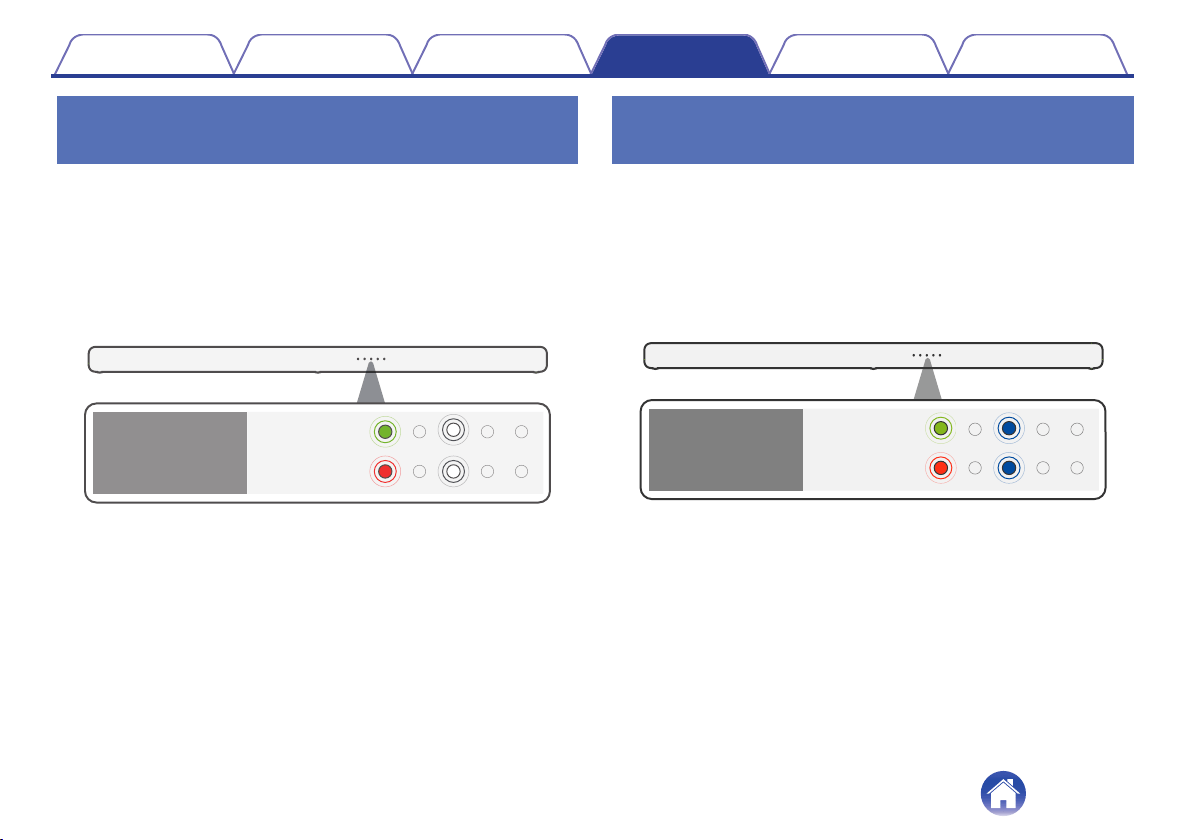
Automatically setting to standby (Auto
standby function)
Switch the auto standby function on or off.
When the auto standby function is turned on, the power supply for this unit
automatically switches to standby if no operations have been performed
for approx. 20 minutes or more and audio is not being output.
1
Press and hold NIGHT for 5 seconds or more.
0
The auto standby function switches on or off and the status LED
blinks as indicated below.
Off
(Default)
On
Auto standby
function
Reducing the standby power
consumption (Deep standby function)
This unit can be placed into deep standby mode, in which its standby
power consumption is lower than in normal standby mode. Perform the
following steps to put this unit into deep standby mode.
1
Press and hold DIALOG ENHANCER HIGH for about 5
seconds or more.
0
The deep standby function switches on or off and the status LED
blinks as indicated below.
Off
(Default)
On
Deep standby
function
Contents Connections Playback Settings Tips Appendix
30
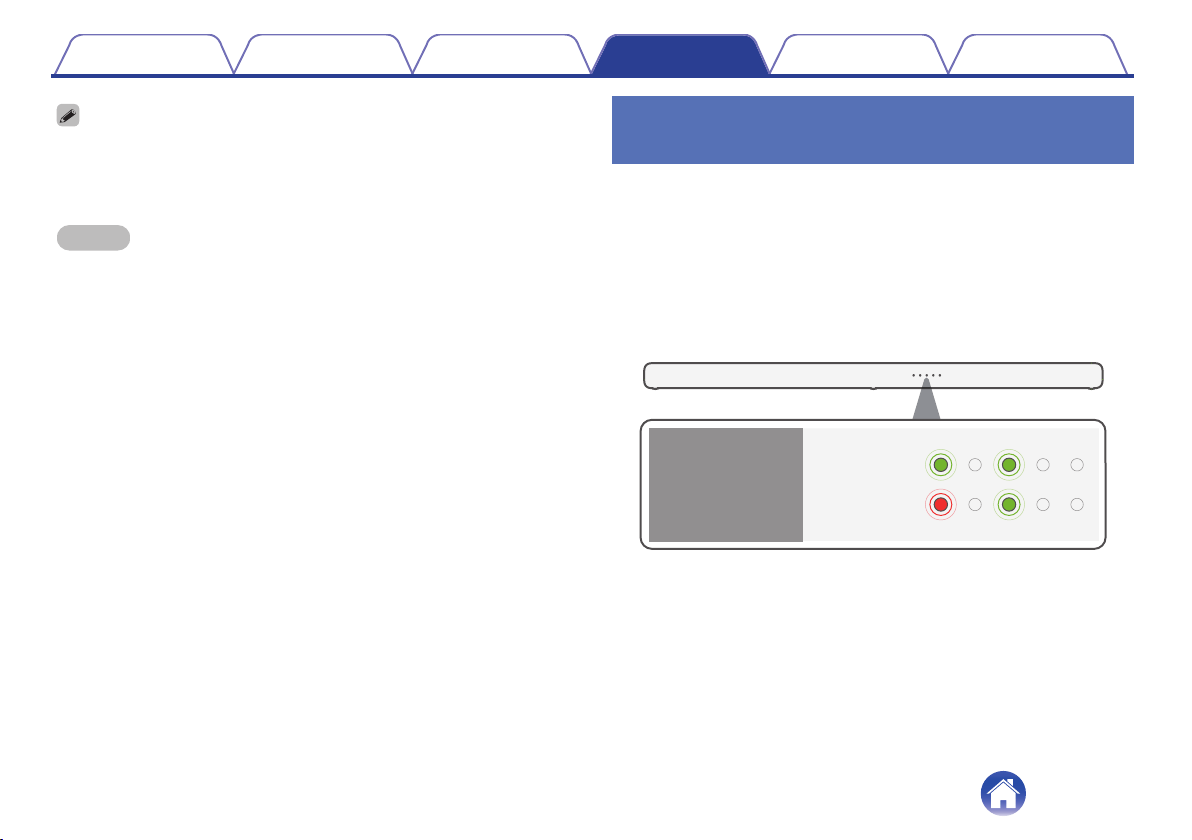
0
When the power button is pressed while the deep standby function is on, all status
LEDs blink in white three times and this unit enter deep standby mode.
0
When the power button is pressed while the deep standby function is off, all status
LEDs blink in green three times and this unit enter normal standby mode.
NOTE
0
When this unit is in deep standby mode, it cannot be turned on by performing
streaming operations with a Bluetooth connection.
0
When this unit is in deep standby mode, the auto on control function of the optical
and AUX inputs cannot turn on the unit. (v p. 32)
Switching the standby linking via HDMI
control function on or off
In the default settings, the HDMI control automatically puts the unit into
standby mode, linked to the TV's power standby operation. When the
standby linking via HDMI control function is turned off, music playback can
continue without this unit switching to standby, even if the TV is set to
standby while a music player or other device is connected and playing.
1
Press and hold MOVIE for 5 seconds or more.
0
The standby linking via HDMI control function switches on or off
and the status LED blinks as indicated below.
Standby linking
via HDMI control
function
Off
On
(Default)
Contents Connections Playback Settings Tips Appendix
31
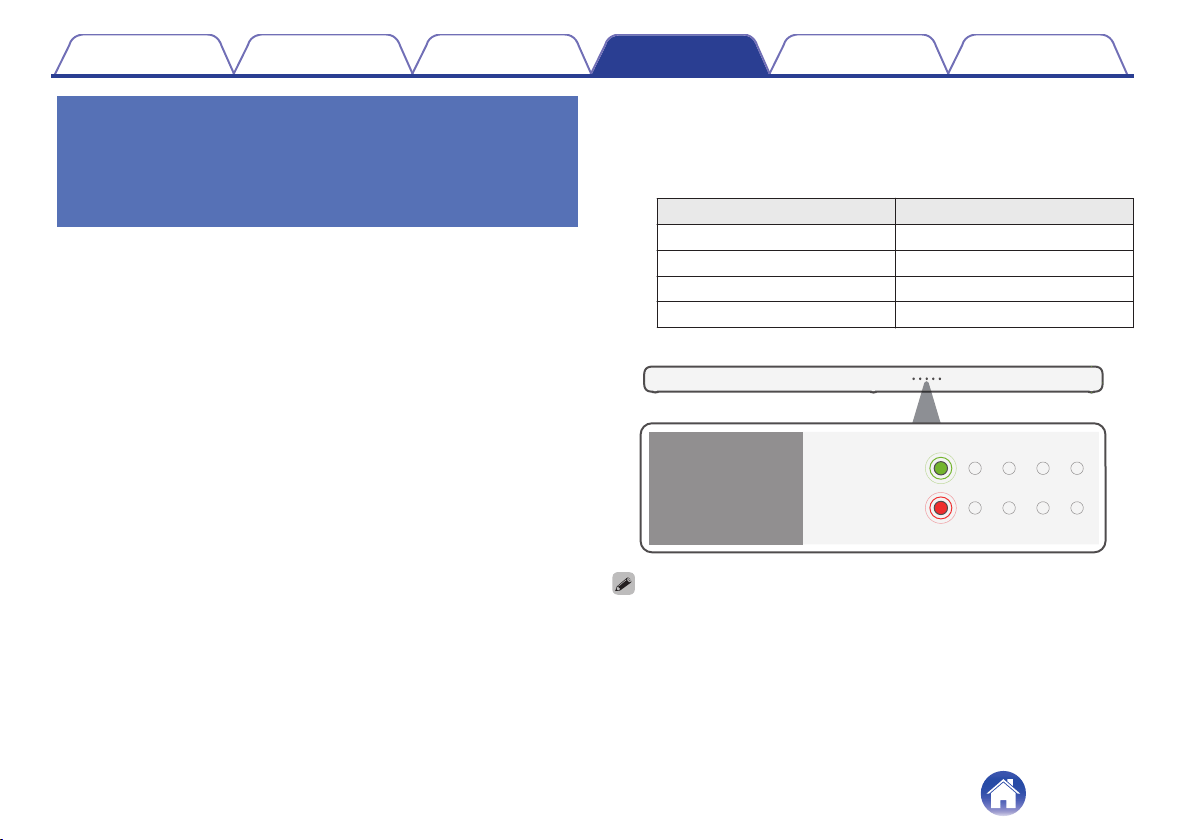
Automatically turning on the power
according to the playback of the
playback device (Auto on control
function)
If you turn on the auto on control function and playback is started by the
playback device while this unit is on standby, the power of this unit is
automatically turned on and playback is started. In addition, if the power is
on, the input source is automatically switched according to the playback of
the playback device. The auto on control function can be set to on or off
for each input source.
1
Switch to the input source you want to set.
2
On the remote control unit, press the button that corresponds
to the input source you want to set for five seconds or longer.
Input source Button
TV (HDMI eARC/ARC) TV
HDMI IN HDMI
OPTICAL IN OPT
AUX IN AUX
The status LEDs in the display of the current input source blink three times.
Off
On
(Default)
Auto on control
function
[Ex.] Input source:
TV (HDMI eARC/ARC)
0
Even if the auto on control function is on for the optical input or AUX input, the input source
will not switch automatically during HDMI (eARC/ARC) playback.
0
When this unit is in deep standby mode, the auto on control function of the optical and AUX
inputs cannot turn on the unit. (v p. 30)
Contents
Connections Playback Settings Tips Appendix
32
Operating this unit using the remote
control of a TV
There are three ways to operate this unit using the remote control of a TV.
0
HDMI control function
Connect this unit to a TV that supports the HDMI control function with
an HDMI cable and enable the HDMI control setting on the TV to
perform basic operations on this unit (changing the input source, turning
the power on and off, adjusting the volume) with the remote control of
the TV.
Refer to “HDMI control function” for more information about the HDMI
control function. (v p. 42)
0
Remote control preset function
This unit is preset such that you can adjust the volume using the volume
adjustment button on the remote controls for the televisions of major
manufacturers. This is useful when the television you are using does
not support HDMI control, or when you connect to a television that does
not have an HDMI connector.
0
Remote control learning function
If your TV does not support the HDMI control function and Remote
control preset function, use this unit’s remote control learning function.
This enables you to operate this unit with the remote control of a TV.
(“Using the remote control learning function” (v p. 33))
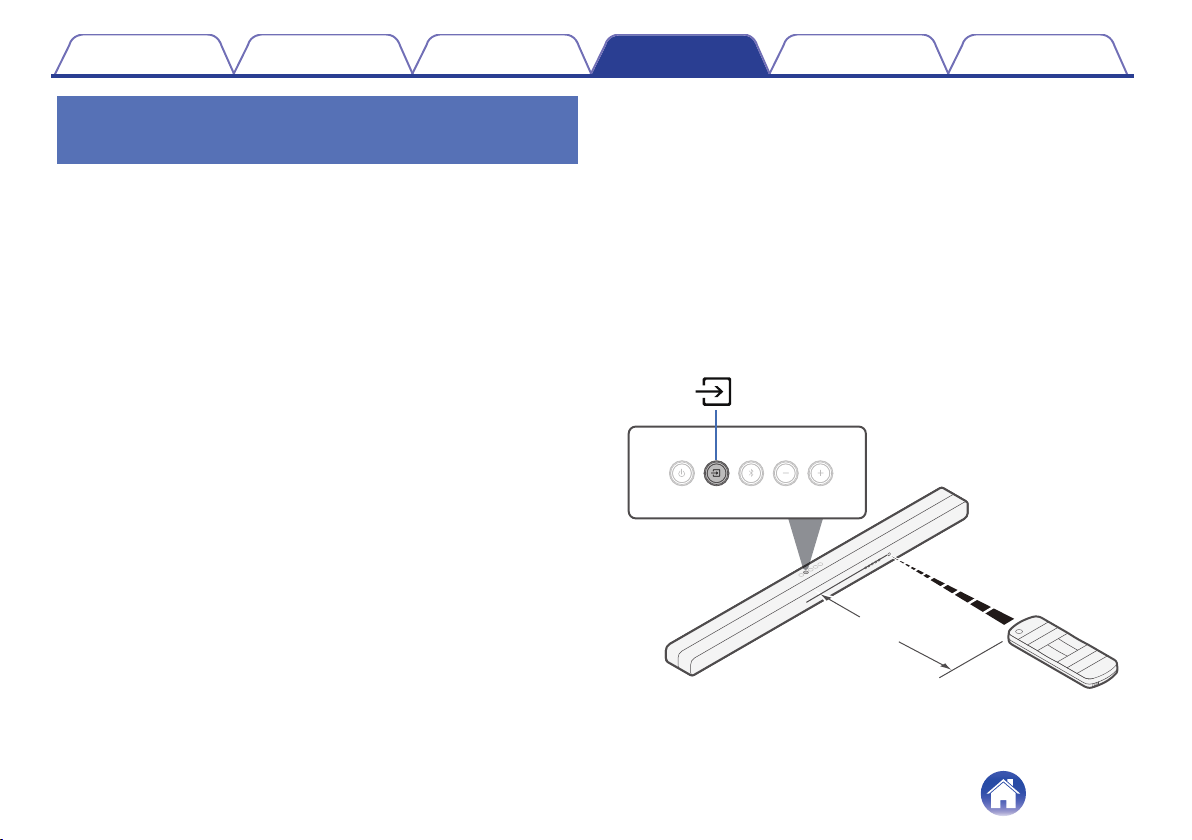
o
Using the remote control learning function
1
Press and hold the main unit’s d for 3 seconds or
more.
Among the LEDs on the status display, one white LED light moves
back and forth from left to right and indicates that the remote control
learning mode has started.
2
Point the remote control of this unit at the remote
sensor of this unit and press the remote control button
to be learned (e.g. VOL +) once.
All status LEDs blink in white.
Approx. 1 ft/30 cm
Contents Connections Playback Settings Tips Appendix
33
3
Point the remote control of the TV at the remote control
sensor of this unit and press the remote control button
to be learned (e.g. the button to increase the volume)
once.
If learning is successful, the rightmost status LED blinks in green
three times.
If learning is unsuccessful, the rightmost status LED blinks in red
three times. Repeat steps 2 and 3 if this happens.
0
When the status LEDs blink in white again, press the TV remote control
button (e.g. the button to increase the volume) once more.
4
To learn a new function, repeat steps 2 and 3 with the
next function.
5
Press and hold the main unit’s d for 3 seconds or
more.
The rightmost status LED blinks white three times and indicates that
the remote control learning mode is completed.
The unit exits remote control learning mode.
6
Confirm that the operation (e.g. increasing the volume)
can be performed on this unit with the TV remote
control.
0
To delete all learned data, press and hold d on the sound bar for 10 seconds
until all status LEDs blink in purple five times.
0
Operations cannot be performed with the remote control learning function during
the Deep standby.
0
Other operations cannot be performed when in remote control learning mode.
0
Remote control learning may not be possible depending on the type of TV remote
control.
Contents Connections Playback Settings Tips Appendix
34

Troubleshooting
If a problem should arise, first check the following:
1. Are the connections correct?
2. Is the set being operated as described in the owner’s manual?
3. Are the other devices operating properly?
If this unit does not operate properly, check the corresponding symptoms in this section.
If the symptoms do not match any of those described here, consult your dealer as it could be due to a fault in this unit. In this case, disconnect the power
immediately and contact the store where you purchased this unit.
Contents Connections Playback Settings Tips Appendix
35

Power does not turn on / Power is turned off
Power does not turn on.
0
Check whether the power plug is correctly inserted into the power outlet. (v p. 24)
0
If the power of this unit cannot be turned on with the remote control for the TV, press the c button to turn on the power of this unit. (v p. 42)
0
Enable the TV’s HDMI control function when using an HDMI cable to connect this unit to your HDMI control-compatible TV. (See the TV owner’s manual
for details.)
0
If the power cannot be turned on through a Bluetooth connection, this is in the deep standby mode. Press the c to turn on power to the unit. (v p. 30)
0
If you set the auto on control function to off, the power of this unit will not automatically turn on even if playback is started by the TV or the playback
device. (v p. 32)
0
If the power cannot be turned on using the auto on control function of the optical and AUX inputs, this is in the deep standby mode. Press the c to turn
on power to the unit. (v p. 32)
Power automatically turns off.
0
If no operations have been performed for 20 minutes or more and audio is not being input, this unit automatically switches to standby. Turn this unit’s
power on again. To prevent the power from turning off automatically, turn off the auto standby function. (v p. 30)
Even if the power of the TV is turned off, the power of this unit is not automatically turned off.
0
If the standby linking via HDMI control function is turned off, this unit will not switch to standby even if the power of the TV that is connected via HDMI is
turned off. (v p. 31)
0
If the input source is Bluetooth, this unit will not switch to standby even if the power of the TV that is connected via HDMI is turned off.
Power turns off and the the left most status LED flashes in red.
0
The protection circuit has been activated due to a rise in temperature within sound bar. Unplug the power cord, wait about an hour until this unit cools
down sufficiently, and then turn the power on again.
0
Turn on the power again and turn down the volume.
Contents
Connections Playback Settings Tips Appendix
36
Operations cannot be performed through the remote control unit
Operations cannot be performed through the remote control unit.
0
Battery is worn out. Replace with new battery. (v p. 6)
0
Operate the remote control unit within a distance of about 23 ft/7 m from this unit and at an angle of within 30°. (v p. 7)
0
Remove any obstacle between this unit and the remote control unit.
0
The coin-shaped lithium battery (CR2025) is not positioned correctly. Correct the positioning so that the f symbol engraved on the battery faces
upwards. (v p. 6)
0
This unit’s remote control sensor is exposed to strong light (direct sunlight, inverter type fluorescent bulb light, etc.). Move this unit to a place in which
the remote control sensor will not be exposed to strong light.
Trouble teaching this unit remote control commands
Trouble teaching this unit remote control commands.
0
Remember that while this unit can learn almost all IR (infrared) remote commands, there remain a few rare code formats that cannot be taught.
Contents
Connections Playback Settings Tips Appendix
37

No sound comes out
No sound comes out.
0
Check the connections for all devices. (v p. 19)
0
Insert connection cables all the way in.
0
Check that input connectors and output connectors are not reversely connected.
0
Check cables for damage.
0
Check that a proper input source is selected. (v p. 25)
0
Adjust the volume. (v p. 26)
0
Make sure volume is not muted. (v p. 26)
0
If the status LED lights up in red, an audio signal that is not supported by this unit is input. (v p. 10)
In that case, set the audio format to “PCM” on the audio output device.
No sound is produced from subwoofer.
0
When there is an obstacle between the sound bar and the subwoofer, remove it or place the subwoofer closer to the sound bar.
0
To prevent electromagnetic interference, locate this unit away from microwave ovens, wireless LAN devices and other Bluetooth devices.
0
Make sure the subwoofer status display LED is lit in green. If lights are not lit, it may indicate that the sound bar and subwoofer are not wirelessly
connected. Perform connection again according to the following steps.
A
Press the c button to turn on power to the unit.
B
Press and hold the subwoofer CONNECT button for 3 seconds or more.
The subwoofer status LED blinks in green, the subwoofer enters pairing mode.
C
Press and hold the sound bar g and + buttons for 5 seconds or more until the soundbar status LED blinks in red.
The sound bar enters pairing mode, the subwoofer automatically wirelessly connects to the sound bar. Perform steps A to C again if they do not
connect.
Contents Connections Playback Settings Tips Appendix
38

Bluetooth playback does not work
Cannot pair with a Bluetooth device.
0
It may be that Bluetooth is not enabled on the Bluetooth device. See the owner’s manual of the Bluetooth device to enable the Bluetooth function.
0
This unit may be paired with another Bluetooth device. Select this unit from the list of devices displayed on the screen of the Bluetooth device.
0
Bring the Bluetooth device near to this unit.
0
Turn the power of the Bluetooth device off and on again, and then try again.
0
Only 1 Bluetooth device can be connected at a time.
0
The connection from the Bluetooth mobile device is malfunctioning. Power cycle the mobile device, remove the pairing information and re-pair this unit
to the mobile device.
The sound is cut off.
0
Bring the Bluetooth device near to this unit.
0
Remove obstructions between the Bluetooth device and this unit.
0
To prevent electromagnetic interference, locate this unit away from microwave ovens, wireless LAN devices and other Bluetooth devices.
0
Pair with the Bluetooth device again. (v p. 27)
Contents
Connections Playback Settings Tips Appendix
39
The HDMI control function does not work
The HDMI control function does not work.
0
You cannot operate devices that are not compatible with the HDMI control function. In addition, depending on the connected device or the settings, the
HDMI control function may not work. In this case, operate the external device directly.
0
Check that the HDMI control function setting is enabled on all devices connected to this unit.
Audio can be heard coming from the TV’s speakers
Audio can be heard coming from the TV’s speakers.
0
Disable the TV’s speakers (usually a setup-menu option, but a rear-panel switch on some TVs).
Contents Connections Playback Settings Tips Appendix
40
Resetting factory settings
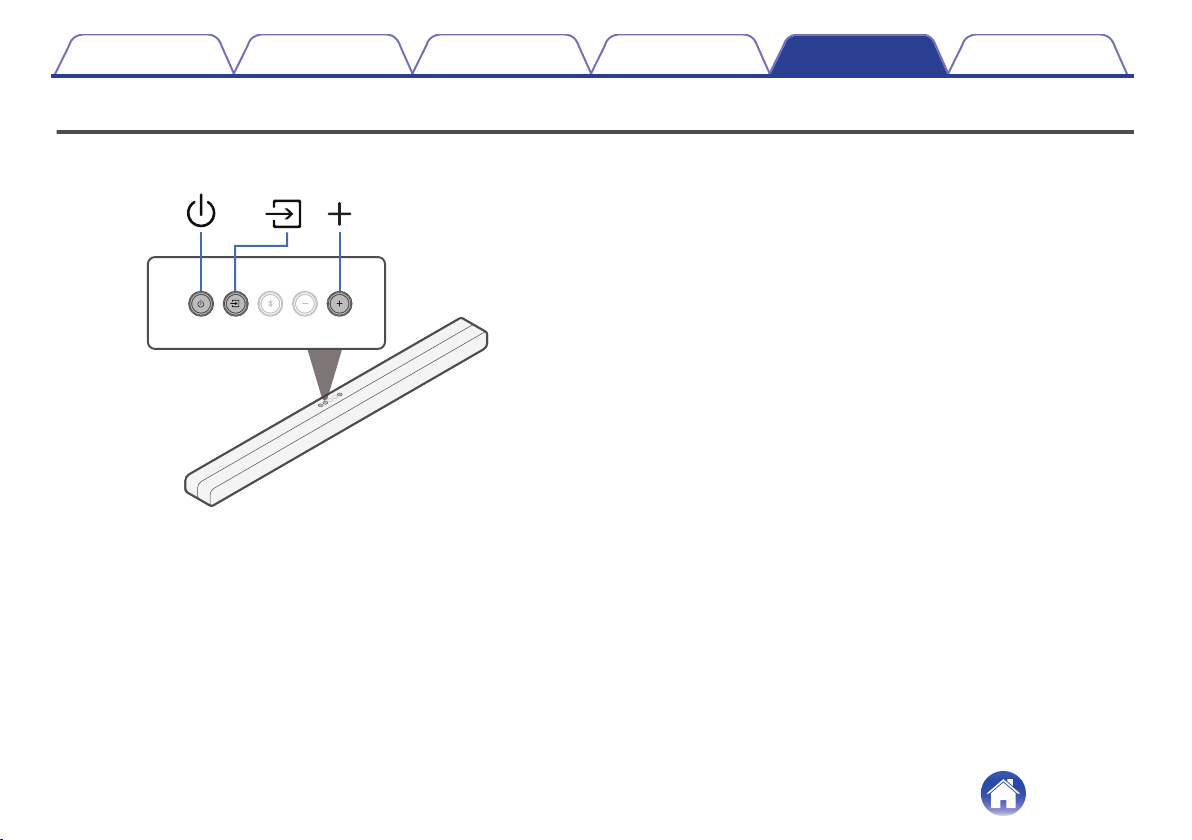
Perform this procedure if the display is abnormal or if operations cannot be performed.
Various settings are reset to the factory default values. Make settings again.
1
Press c to turn on power to the unit.
2
Press and hold the main unit's c, d and + at the same
time for at least 5 seconds.
The status LED blinks in red three times.
3
Wait for around 10 seconds after the LED turns off and
then press c.
All settings return to the factory settings after the sound bar is
restarted.
Contents Connections Playback Settings Tips Appendix
41

About HDMI
This unit supports the following HDMI functions.
0
ARC (Audio Return Channel) function
Enjoy movies, music, etc., on your TV simply by connecting an ARC function-compatible TV to this unit via HDMI.
0
eARC (Enhanced Audio Return Channel) function
The eARC function is compatible with conventional ARC function compatible audio formats in addition to multichannel linear PCM, Dolby TrueHD,
Dolby Atmos and other audio formats a conventional ARC function cannot transmit. Additionally, connecting to an eARC function-compatible TV
enables enjoyment of higher-quality surround playback of the audio content played from your TV.
0
HDMI control function
Connect an HDMI control-compatible TV and this unit via HDMI and enable the HDMI control to enable linked control from either device.
0
Input source switching
If the TV is turned on, this unit automatically powers on and switches the input source.
0
Power off link
The TV power off operation is linked so this unit also turns off.
0
Volume adjustment
The volume of this unit can be adjusted using the TV remote control.
0
Audio output destination switching
If this unit is turned on, TV audio is output from this unit. If this unit is turned off, TV audio is output from the speakers of the TV.
NOTE
0
Some functions may not operate depending on the connected TV.
Contents Connections Playback Settings Tips Appendix
42
Trademark information
The Bluetooth
®
word mark and logos are registered trademarks owned
by the Bluetooth SIG, Inc. and any use of such marks by D&M Holdings
Inc. is under license. Other trademarks and trade names are those of
their respective owners.
Dolby, Dolby Vision, Dolby Atmos, and the double-D symbol are
registered trademarks of Dolby Laboratories Licensing Corporation.
Manufactured under license from Dolby Laboratories. Confidential
unpublished works. Copyright © 2012-2021 Dolby Laboratories. All rights
reserved.
The terms HDMI and HDMI High-Definition Multimedia Interface, and the
HDMI Logo are trademarks or registered trademarks of HDMI Licensing,
LLC in the United States and other countries.
Contents Connections Playback Settings Tips Appendix
43

Specifications
Sound bar
o
General
Operating temperature: 41 °F - 95 °F (5 °C - 35 °C)
Power supply: AC 100 - 240 V, 50/60 Hz
Power consumption: 40 W
Power consumption in standby mode: 1.7 W
Power consumption in deep standby mode: 0.4 W
Max Analog Input: 2 Vrms
Sampling frequency: 32 kHz, 44.1 kHz, 48 kHz
Supported audio formats: Linear PCM, Dolby Digital, Dolby Digital Plus, Dolby TrueHD, Dolby Atmos
Contents Connections Playback Settings Tips Appendix
44

o
Wireless section
Used frequency range: 2.4 GHz (Wireless subwoofer)
o
Bluetooth section
Communications system: Bluetooth Version 5.0
Transmission power: Power Class 2
Maximum communication range:
Approx. 32.8 ft/10 m in line of sight
z
Used frequency range: 2.4 GHz band
Modulation scheme: FHSS (Frequency-Hopping Spread Spectrum)
Supported profiles: A2DP (Advanced Audio Distribution Profile) 1.3
AVRCP (Audio Video Remote Control Profile) 1.6
Corresponding codec: SBC
Transmission range (A2DP): 20 Hz – 20,000 Hz
z
The actual communication range varies depending on the influence of such factors as obstructions between devices, electromagnetic waves from
microwave ovens, static electricity, cordless phones, reception sensitivity, antenna performance, operating system, application software etc.
Contents
Connections Playback Settings Tips Appendix
45
Subwoofer
o
General
Operating temperature: 41 °F - 95 °F (5 °C - 35 °C)
Power supply: AC 100 - 240 V, 50/60 Hz
Power consumption: 40 W
Power consumption in standby mode: 0.3 W
Power consumption in deep standby mode: 0.3 W
o
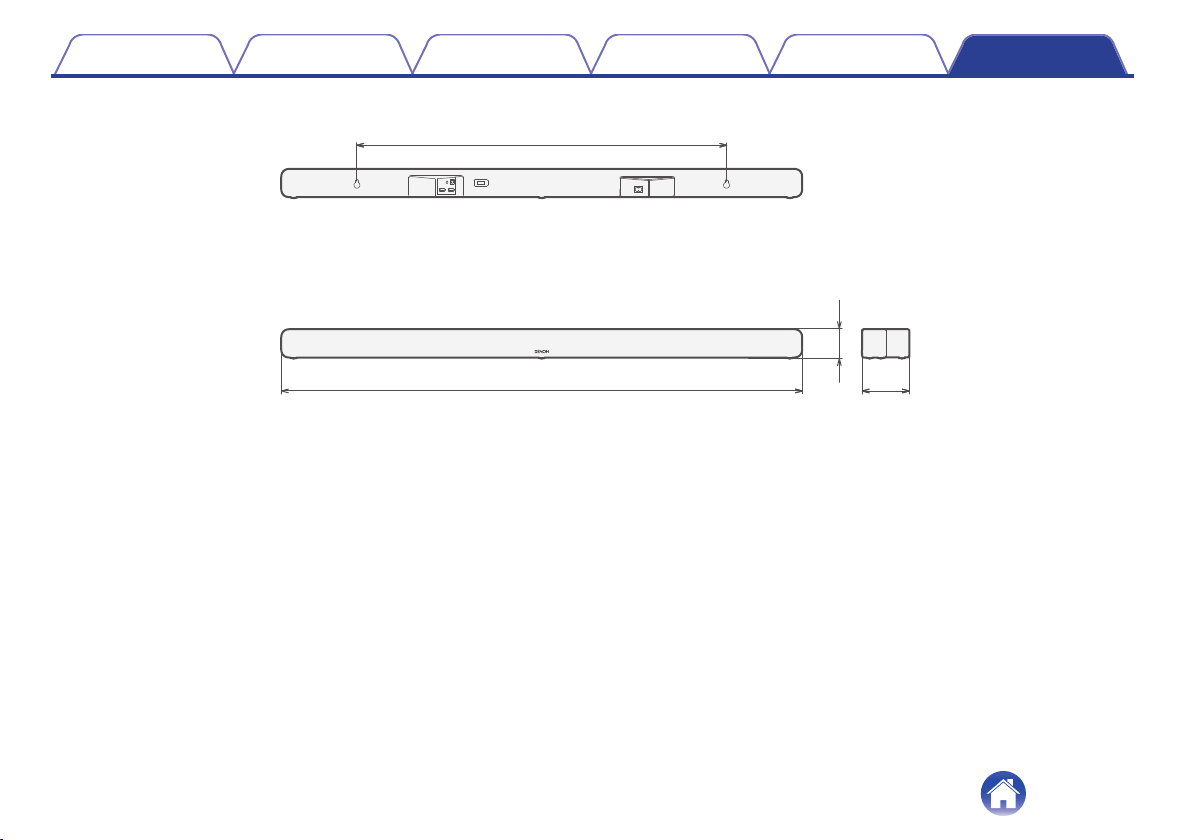
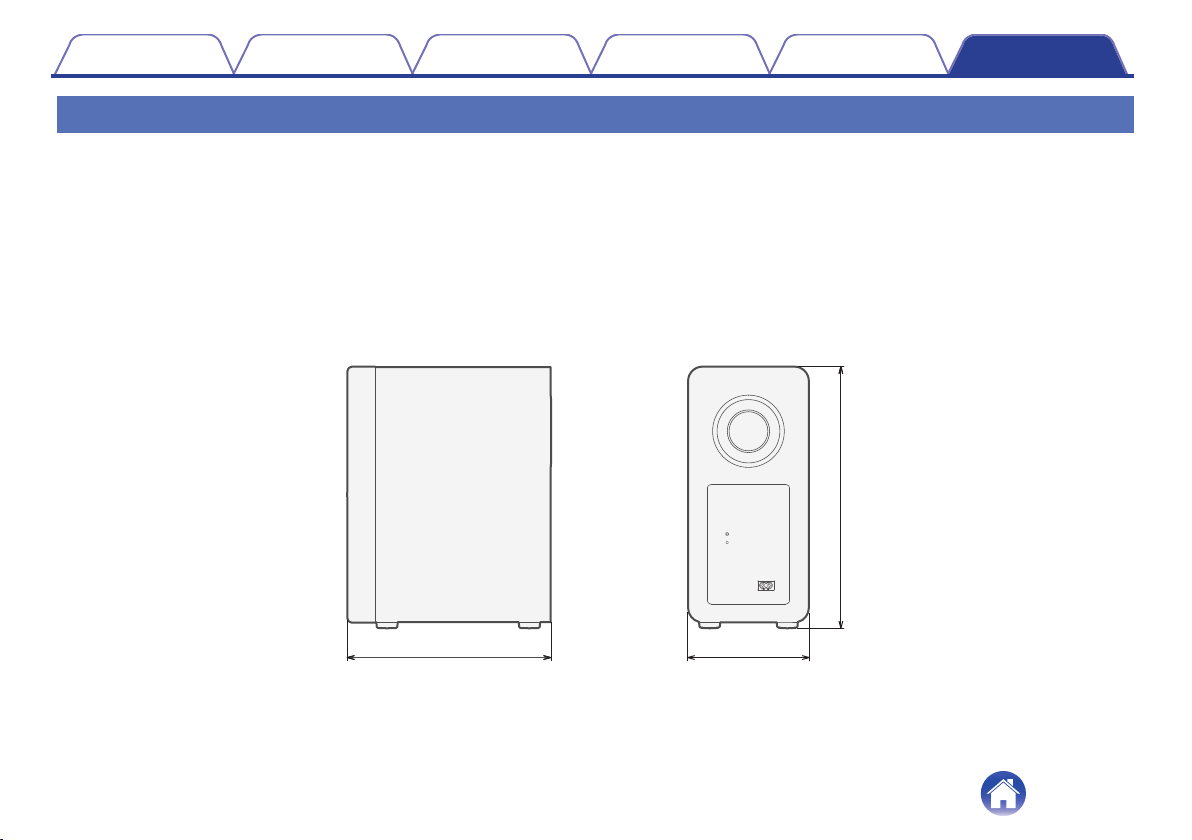
Dimensions (Unit : in. (mm))
6 7/8 (172)
14 5/8 (370)
11 1/2 (290)
o
Weight: 9 lbs 8 oz (4.3 kg)
Contents Connections Playback Settings Tips Appendix
47

www.denon.com
3520 10829 00AD
©2021 Sound United. All Rights Reserved.
48
