
Accessories
4
Inserting the batteries
5
Operating range of the remote control unit
5
Features
6
Part names and functions
7
Sound bar
7
Remote control unit
11
Connections
Positioning
13
Positioning the sound bar
13
Connecting a TV
15
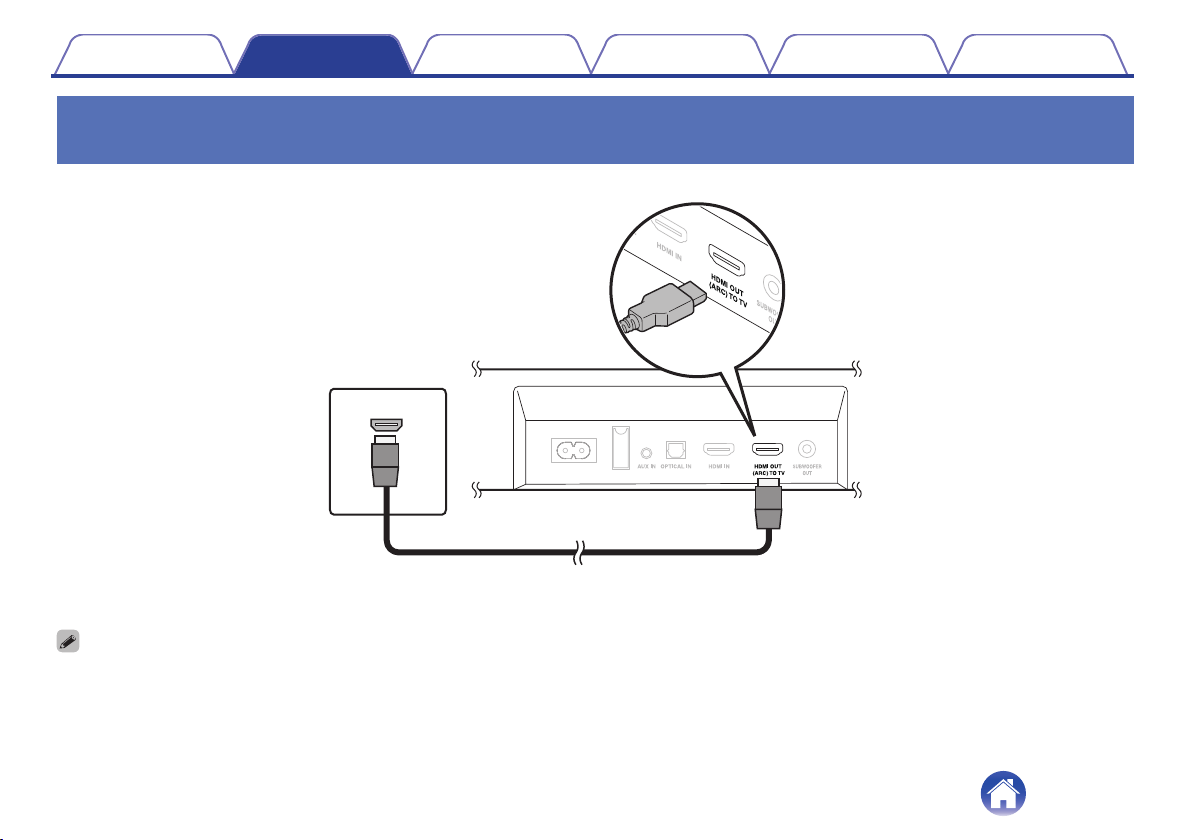
Connection 1: TV equipped with an HDMI connector and
compatible with the ARC (Audio Return Channel)
16
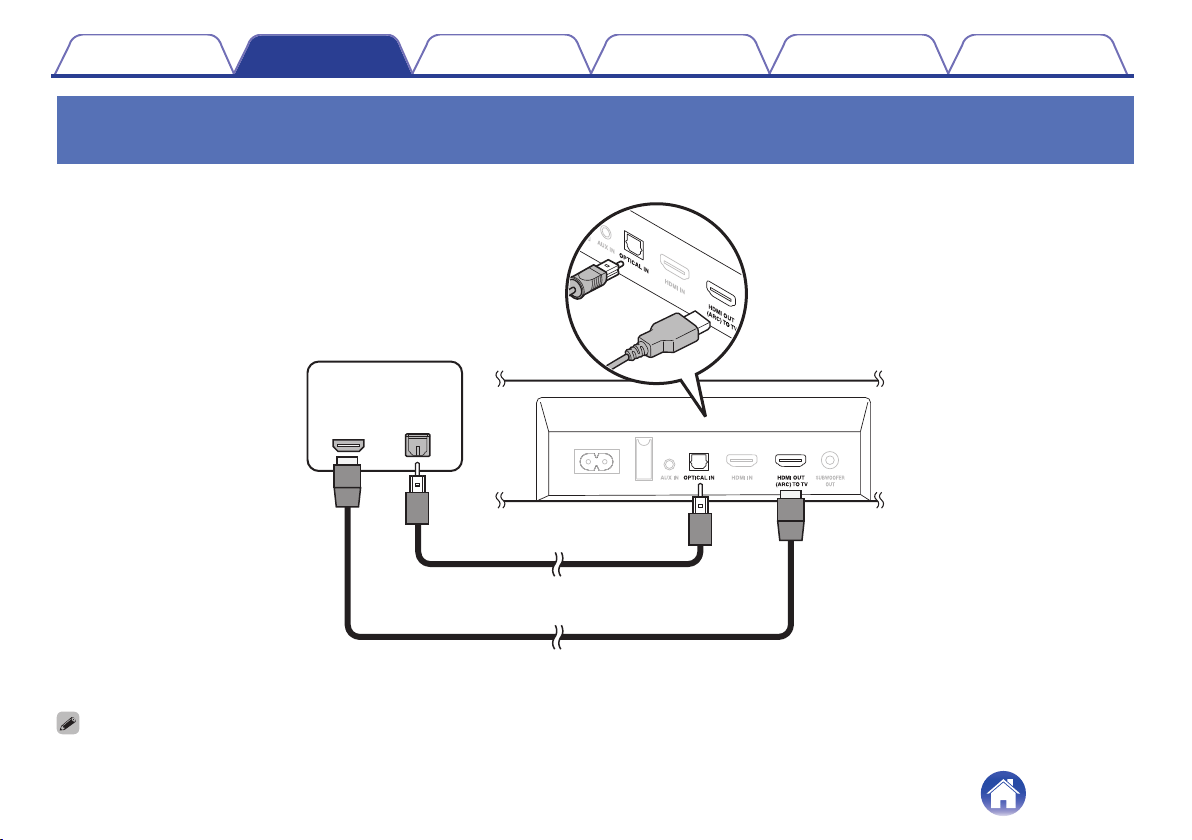
Connection 2: TV equipped with an HDMI connector and
incompatible with the ARC / TV equipped with an optical digital
connector
17
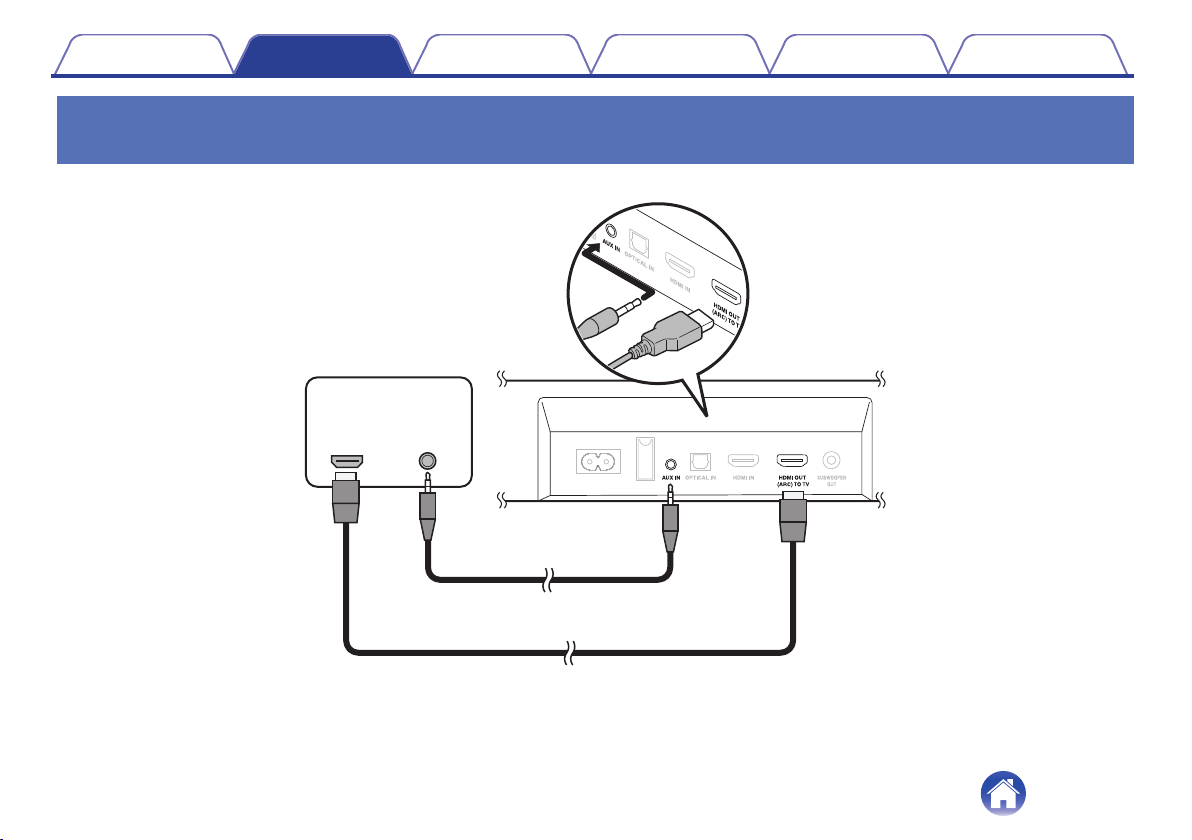
Connection 3: TV equipped with an HDMI connector and
incompatible with the ARC / TV equipped with an analog
connector
18
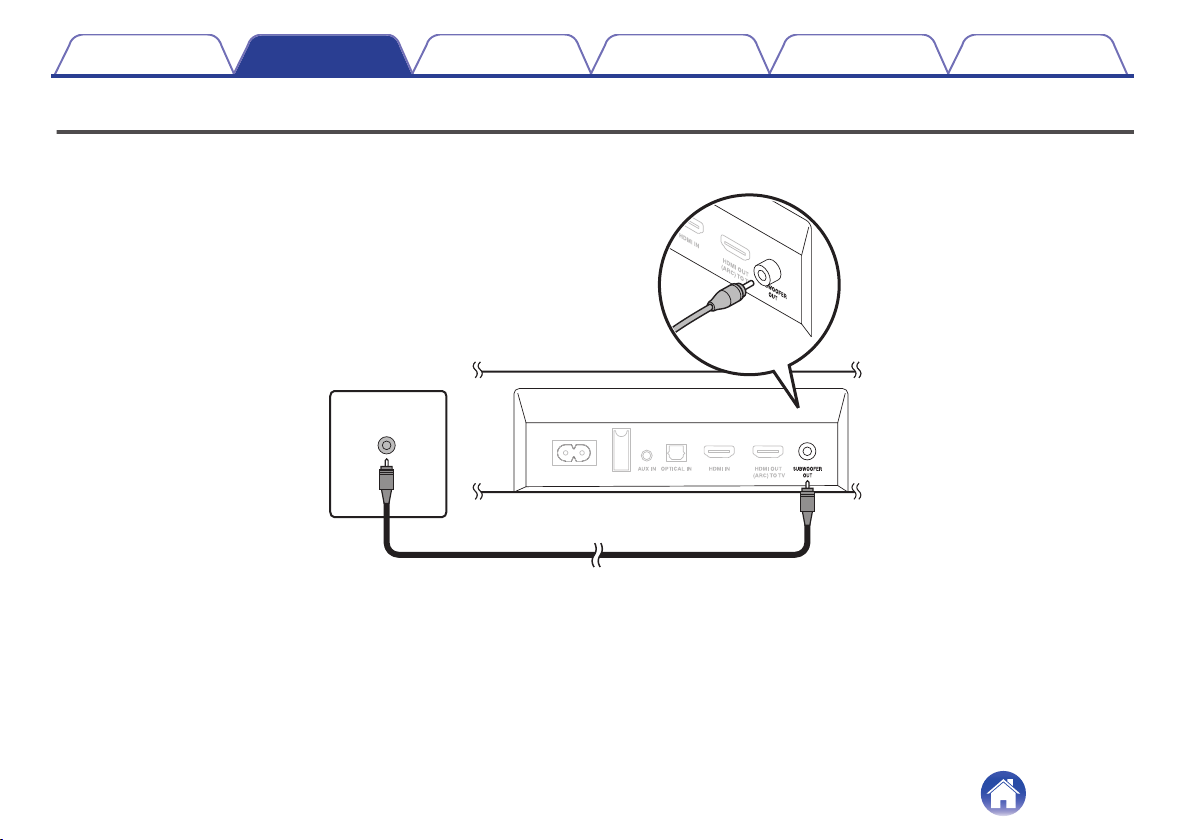
Connecting the subwoofer
19
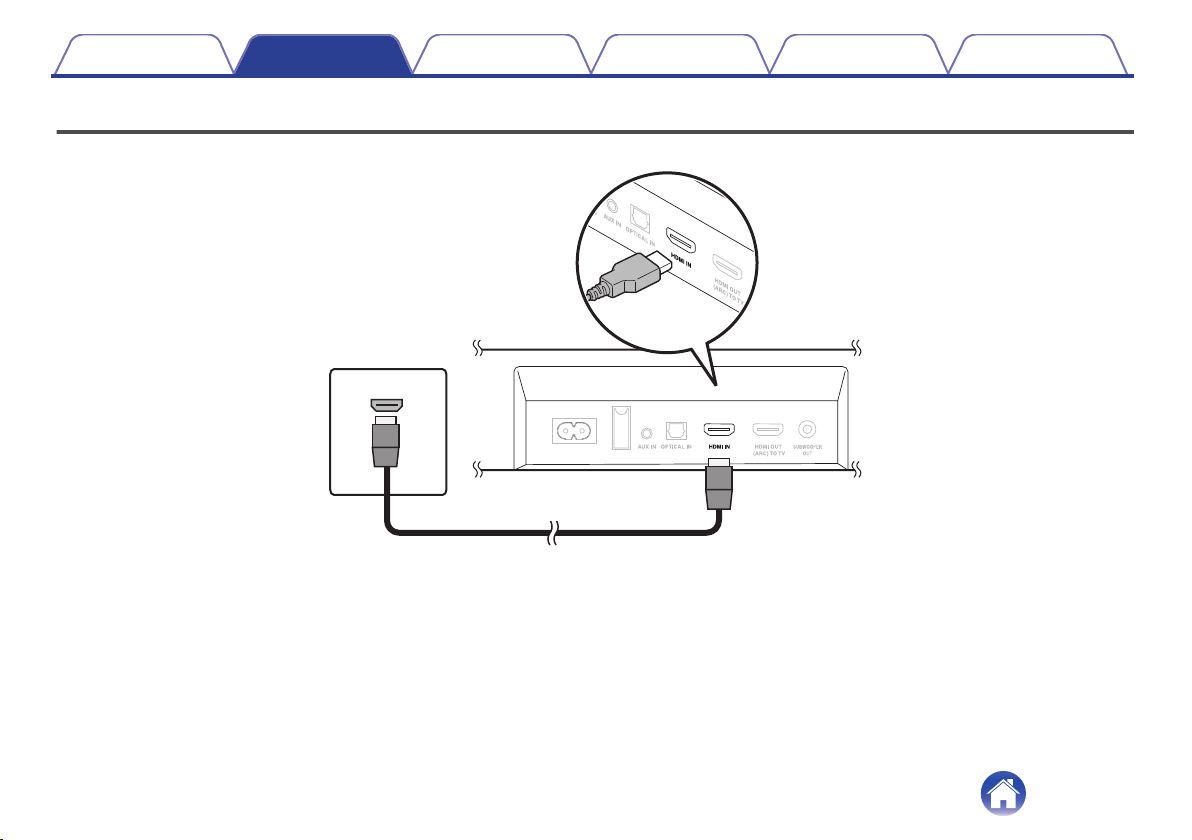
Connecting an HDMI device
20
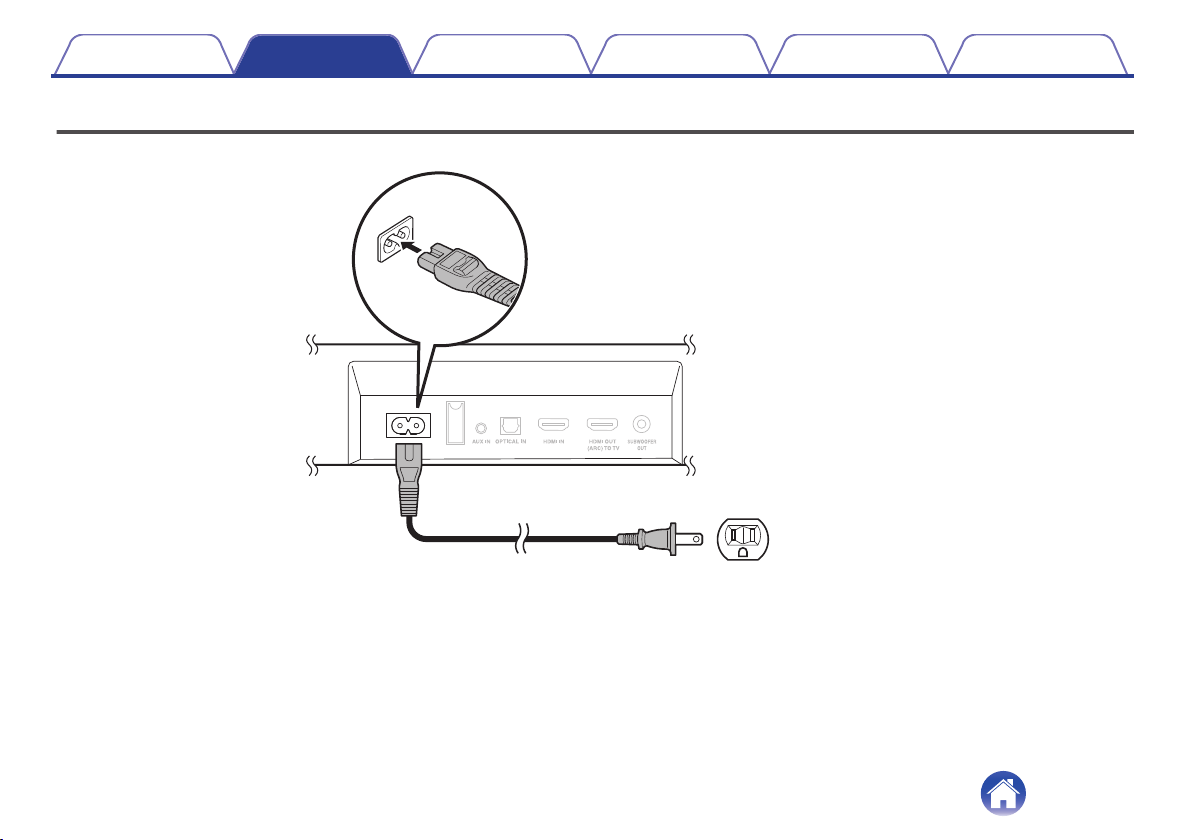
Connecting the power cords
21
Playback
Enjoying TV, movies and music
22
Adjusting the volume
23
Adjusting the subwoofer volume
23
Turning off the sound temporarily
23
Listening to music on a Bluetooth device
24
Pairing a Bluetooth device for the first time
24
Pairing with other Bluetooth devices
25
Listening to music with a paired Bluetooth device
25
Settings
Settings
26
Selecting a listening mode
26
Setting the quick start mode
27
Switching automatically to the standby mode (auto-standby
function)
28
Operating this unit using the remote control of a TV
29
Contents Connections Playback Settings Tips Appendix
2

Tips
Troubleshooting
31
Power does not turn on / Power is turned off
32
Power takes a long time to turn on
32
Operations cannot be performed through the remote control unit
32
No sound comes out
33
Bluetooth playback does not work
34
The HDMI Control function does not work
34
Resetting factory settings
35
Appendix
About HDMI
36
Trademark information
37
Specifications
38
Contents Connections Playback Settings Tips Appendix
3
Thank you for purchasing this Denon product.
To ensure proper operation, please read this owner’s manual carefully before using the product.
After reading this manual, be sure to keep it for future reference.
Accessories
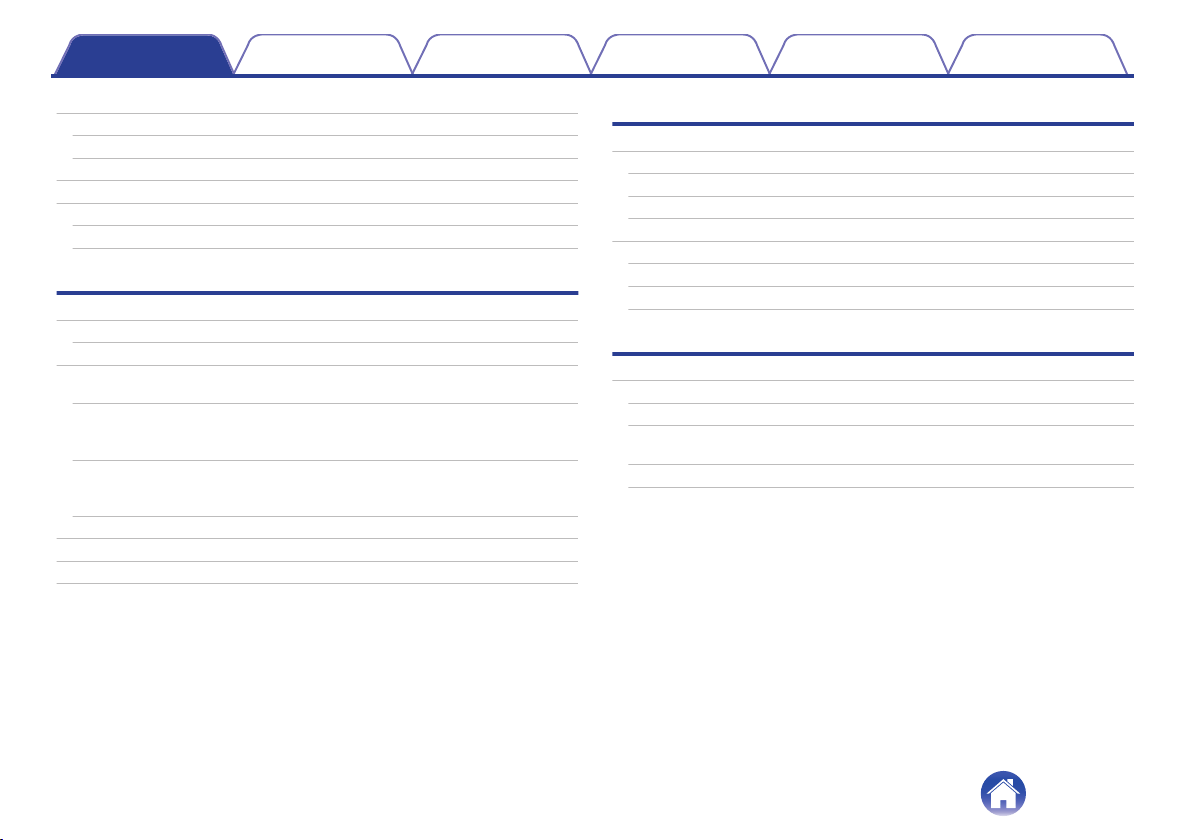
Check that the following parts are supplied with the product.
.
Quick Start Guide
Safety Instructions
Cautions on Using Batteries
Warranty
Wall mount template
Remote control unit
(RC-1236)
Wall mount spacers
Optical digital cable
HDMI cablePower cord
R03/AAA battery
Contents Connections Playback Settings Tips Appendix
4

Inserting the batteries
1
Slide the rear cover off the remote control unit in the
arrow direction.
.
2
Insert 1 battery into the battery compartment as
indicated.
.
Battery
3
Put the rear cover back on.
NOTE
0
Remove the batteries from the remote control unit if it will not be in use for long
periods.
0
If the battery fluid should leak, carefully wipe the fluid off the inside of the battery
compartment and insert new batteries.
Operating range of the remote control
unit
Point the remote control unit at the remote sensor when operating it.
.
30°
30°
Approx. 23 ft/7 m
Contents
Connections Playback Settings Tips Appendix
5

Features
0
Theater-quality Sound
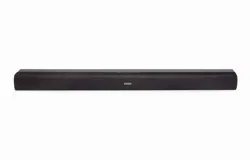
Immerse yourself in Denon theater-quality sound with the Denon DHT-
S216 sound bar. With two built-in down firing subwoofers, Dual mid-
range drivers, detailed crisp tweeters, elevate your sound from a low-
profile design.
0
Performance-Tuned Surround Sound
With Dolby Digital decoding, create incredible room-filling surround
sound that takes your entertainment to the next level. Also, with DTS
Virtual:X technology, the Denon DHT-S216 provides immersive audio
with height channels, creating a virtual height effect for your favorite
entertainment.
0
Universal Compatibility with HDMI support ARC (Audio Return
Channel)
Send audio from apps built into your Smart TV and other sources via the
ARC (Audio Return Channel) on the DHT-S216 and a single HDMI
cable (included). Also enables control of the Denon DHT-S216 via your
TV’s remote control.
0
Wireless Music Streaming
Easily enjoy your favorite music by streaming directly from your smart
device to your sound bar with Bluetooth.
0
Denon Dialog Enhancer
Never miss a word of your favorite TV show or movie. Denon Dialog
Enhancer improves dialog intelligibility — ideal for movies and TV
shows. Turn up the dialog without having to adjust overall volume.
Contents Connections Playback Settings Tips Appendix
6
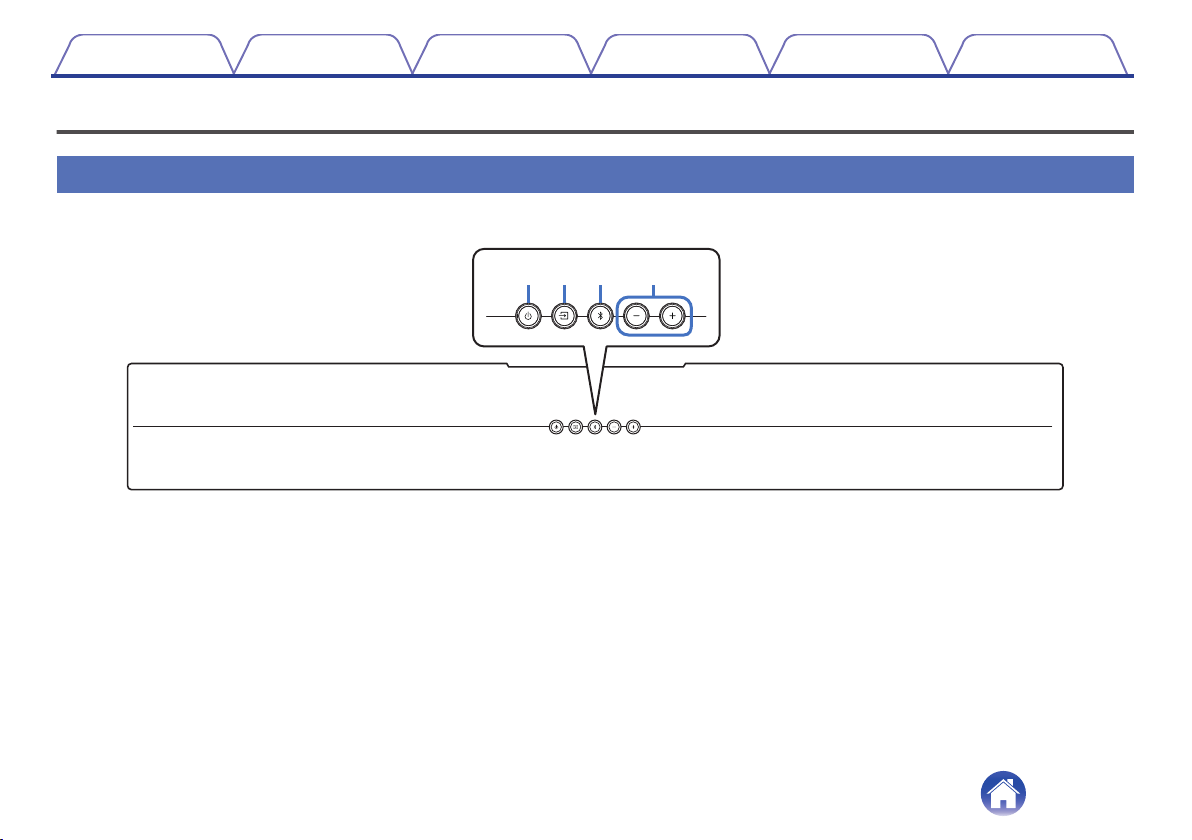
Part names and functions
Sound bar
o
Top panel
.
e
q
r
w
A
Power operation button (c)
Turns the sound bar power on/off (standby). (v p. 22)
B
Input source button (d)
This selects the input source. (v p. 22)
Switches the input source each time the button is pressed.
C
Bluetooth button (g)
0
Switches the input source to “Bluetooth”. (v p. 24)
0
Used to pair with Bluetooth devices. (v p. 24)
D
Volume buttons (+, –)
These adjusts the volume level. (v p. 23)
Contents Connections Playback Settings Tips Appendix
7
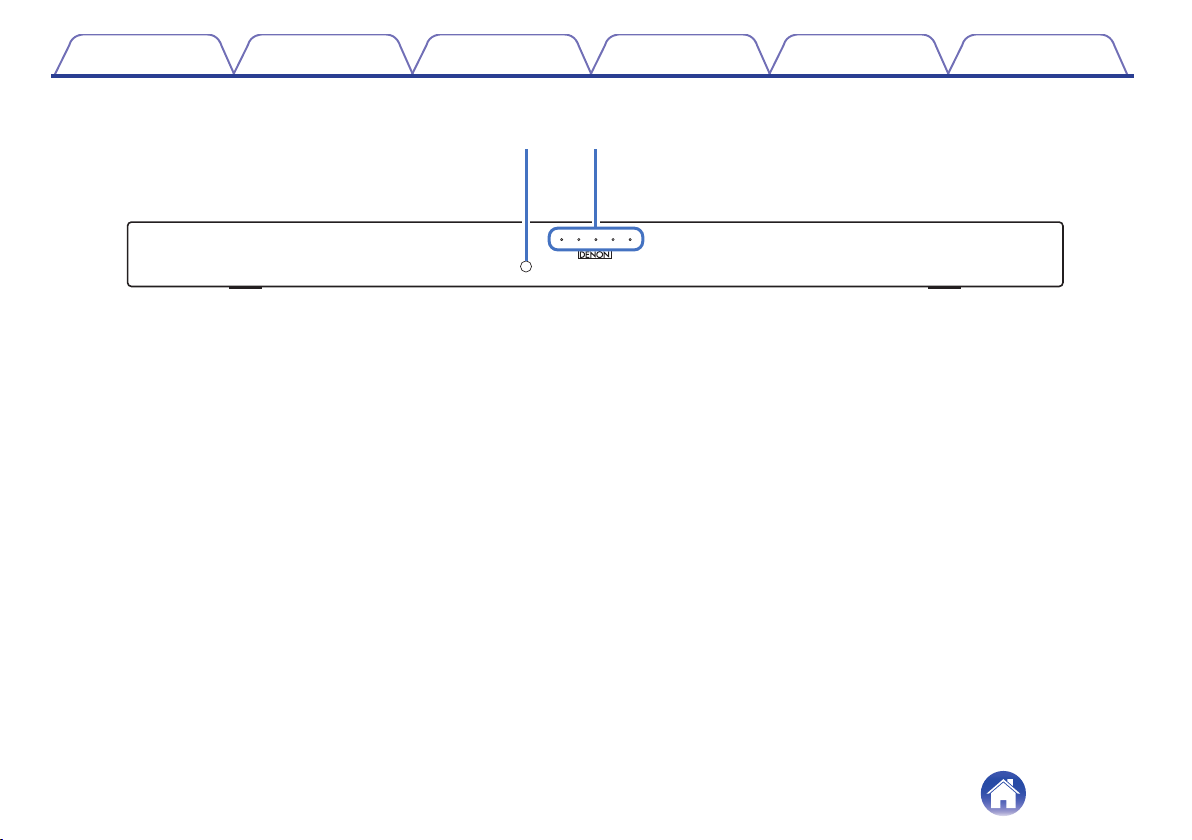
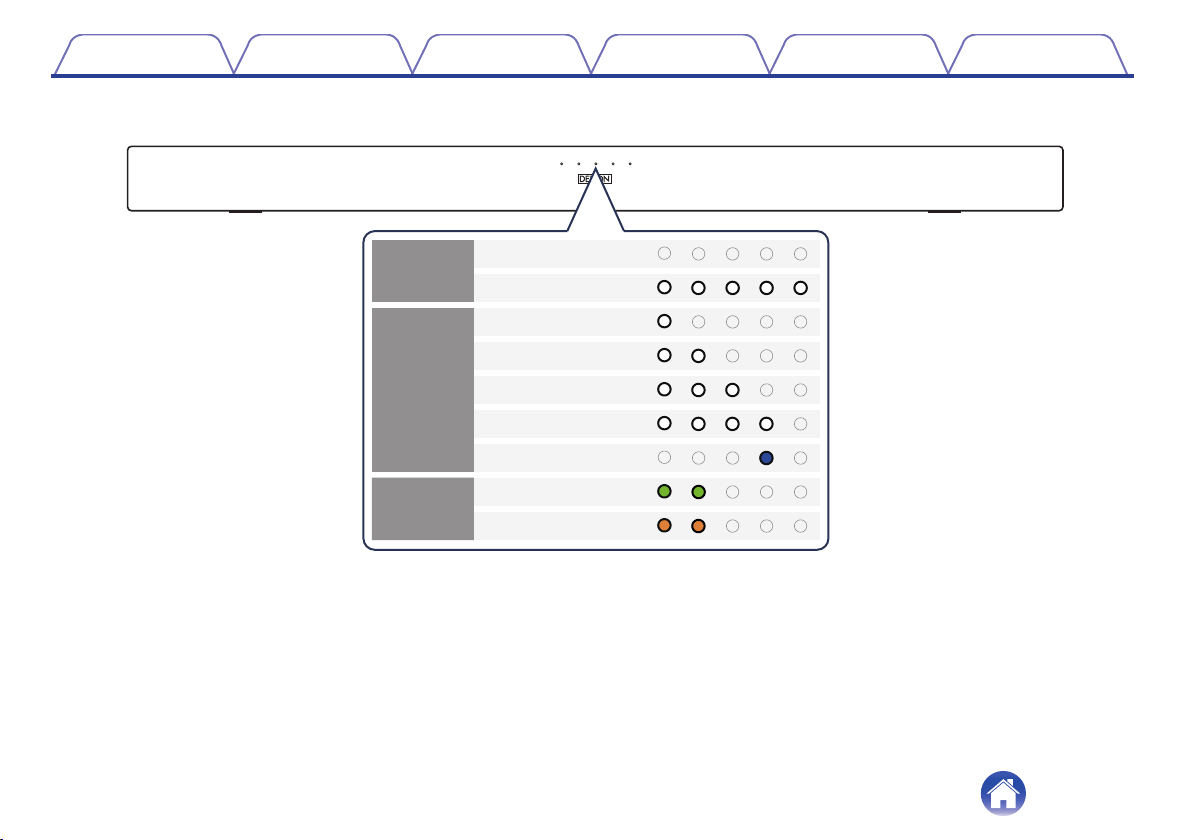
o
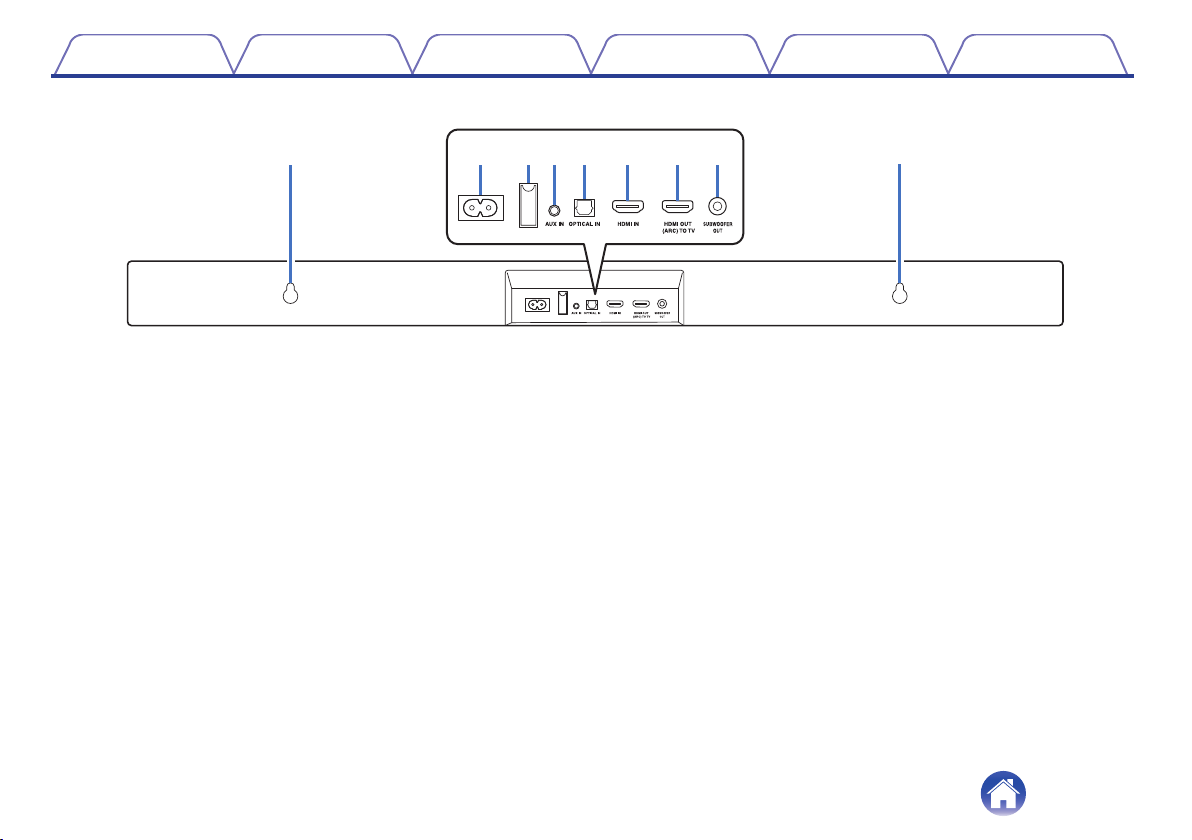
Rear panel
.
y
uitre
qq
w
A
Wall hook hole
Used to mount the sound bar on a wall. (v p. 14)
B
AC inlet
Used to connect the power cord. (v p. 21)
C
USB port
Service terminal. This port does not support playback of music from
USB flash drives.
D
AUX audio input connector (AUX IN)
Use a commercially available 3.5 mm stereo audio cable to connect an
audio device. (v p. 18)
E
Optical digital input connector (OPTICAL IN)
Use the included optical digital cable to connect a TV with an optical
digital connector. (v p. 17)
F
HDMI input connector (HDMI IN)
Use a commercially available HDMI cable to connect an HDMI
compatible device. (v p. 20)
G
HDMI output connector (HDMI OUT (ARC) TO TV)
Use the included HDMI cable to connect an ARC function-compatible
TV. (v p. 16)
H
Subwoofer output connector (SUBWOOFER OUT)
Use a commercially available subwoofer cable to connect a subwoofer
with a built-in amplifier. (v p. 19)
Contents Connections Playback Settings Tips Appendix
10
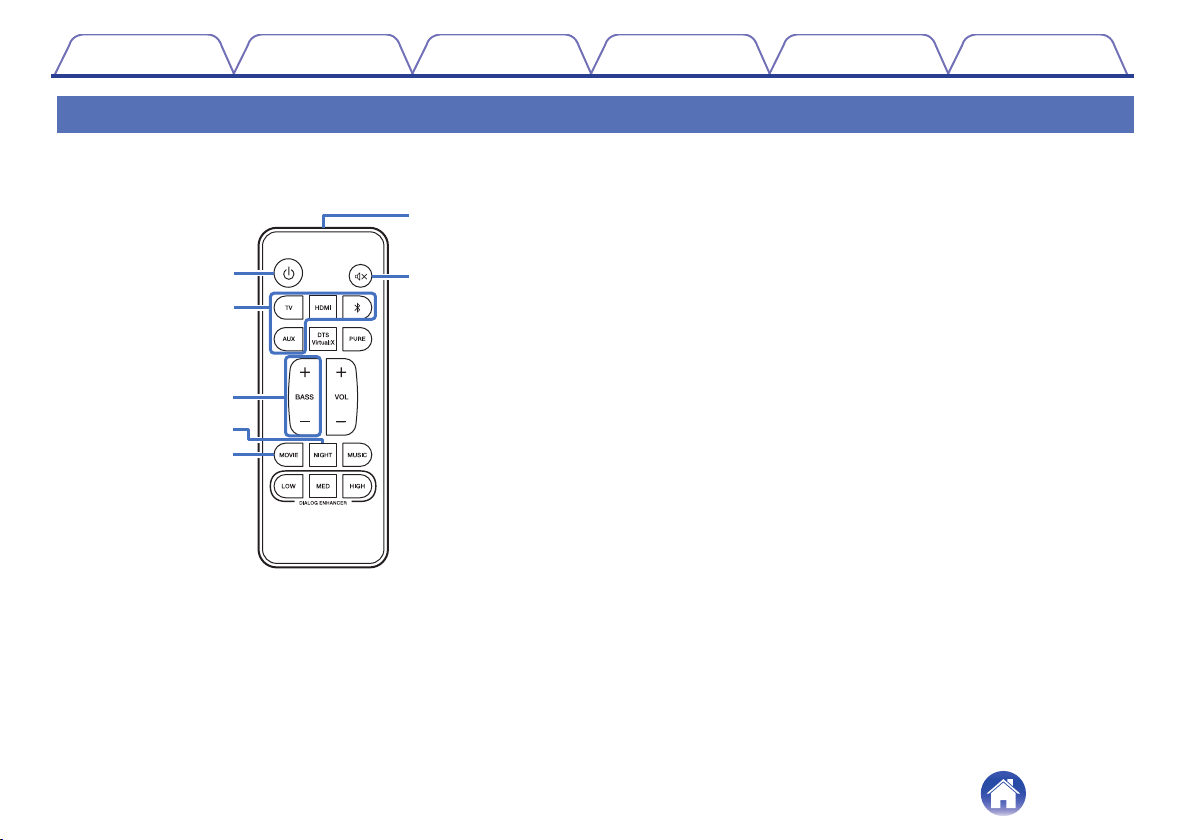
Remote control unit
This section mainly explains remote control operations.
A
Power button (c)
Turns the sound bar power on/off. (v p. 22)
B
Input source buttons (TV, HDMI, g, AUX)
This selects the input source. (v p. 22)
C
Button to adjust subwoofer (BASS +, -)
Adjusts the volume level for the subwoofer. (v p. 23)
D
Night mode button (NIGHT)
Compresses the dynamic range (difference between loud and soft
sounds) to make audio easier to hear at low volumes. (v p. 26)
E
Movie mode button (MOVIE)
Enjoy movie theater-like surround sound. (v p. 26)
F
Remote control signal transmitter
This transmits signals from the remote control unit. (v p. 5)
G
Mute button (h)
This mutes the output audio. Press again to unmute. (v p. 23)
t
q
w
r
e
u
y
Contents
Connections Playback Settings Tips Appendix
11
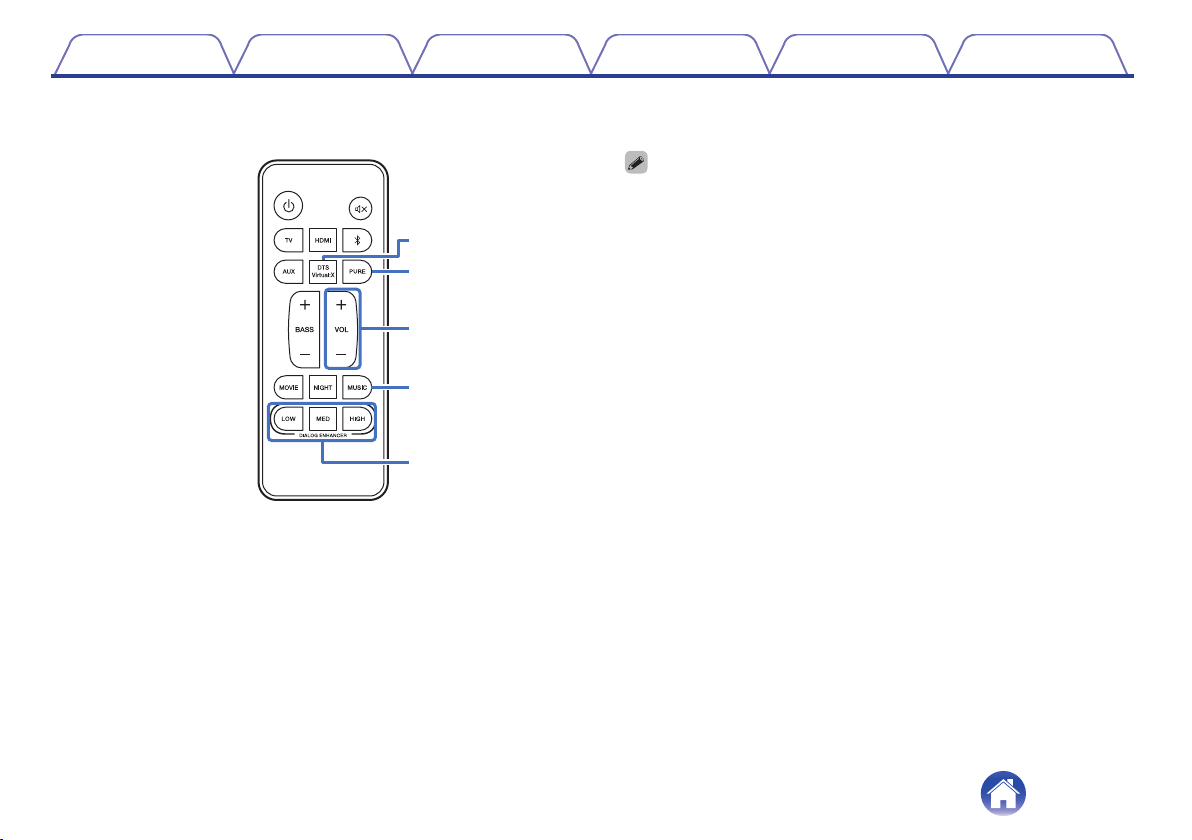
H
DTS Virtual:X button
This turns the DTS Virtual:X function on and off. (v p. 26)
0
DTS Virtual:X function is disabled when listening mode is set to “PURE”.
I
Pure mode button (PURE)
Enjoy high quality sound that is faithful to the original source.
(v p. 26)
J
Volume buttons (VOL +, –)
These adjusts the volume level. (v p. 23)
K
Music mode button (MUSIC)
Enjoy the natural and realistic surround sound of a concert hall.
(v p. 26)
L
Dialog enhancer buttons
(DIALOG ENHANCER LOW, MED, HIGH)
Adjust the volume of dialog in movies, vocals in music, etc. so these can
be heard more easily. (v p. 26)
Can be set to 3 levels. Set this to the desired value.
Q1
Q2
Q0
o
i
Contents
Connections Playback Settings Tips Appendix
12
Positioning
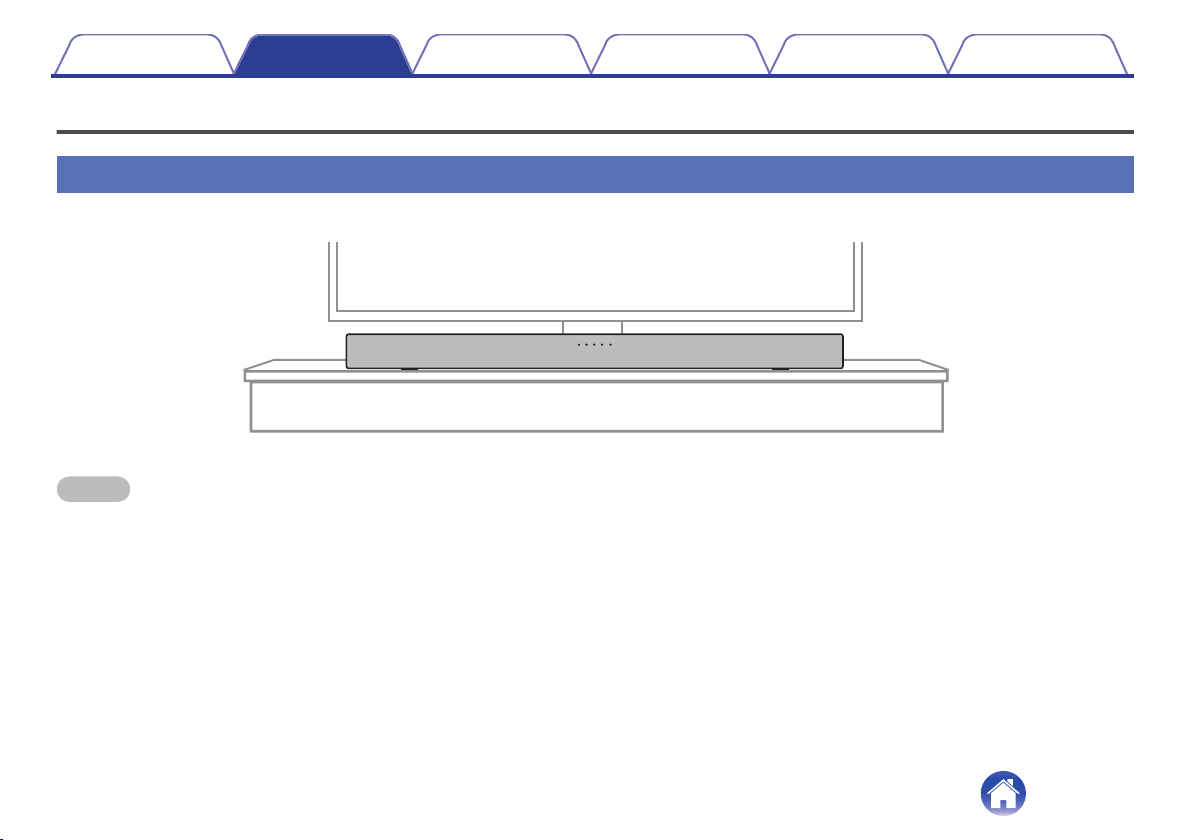
Positioning the sound bar
Position the sound bar in front of your TV, etc., on a flat surface.
.
NOTE
0
When positioning the sound bar in front of your TV, make sure the sound bar does not obstruct the TV’s remote control light sensor, etc.
Contents Connections Playback Settings Tips Appendix
13
o
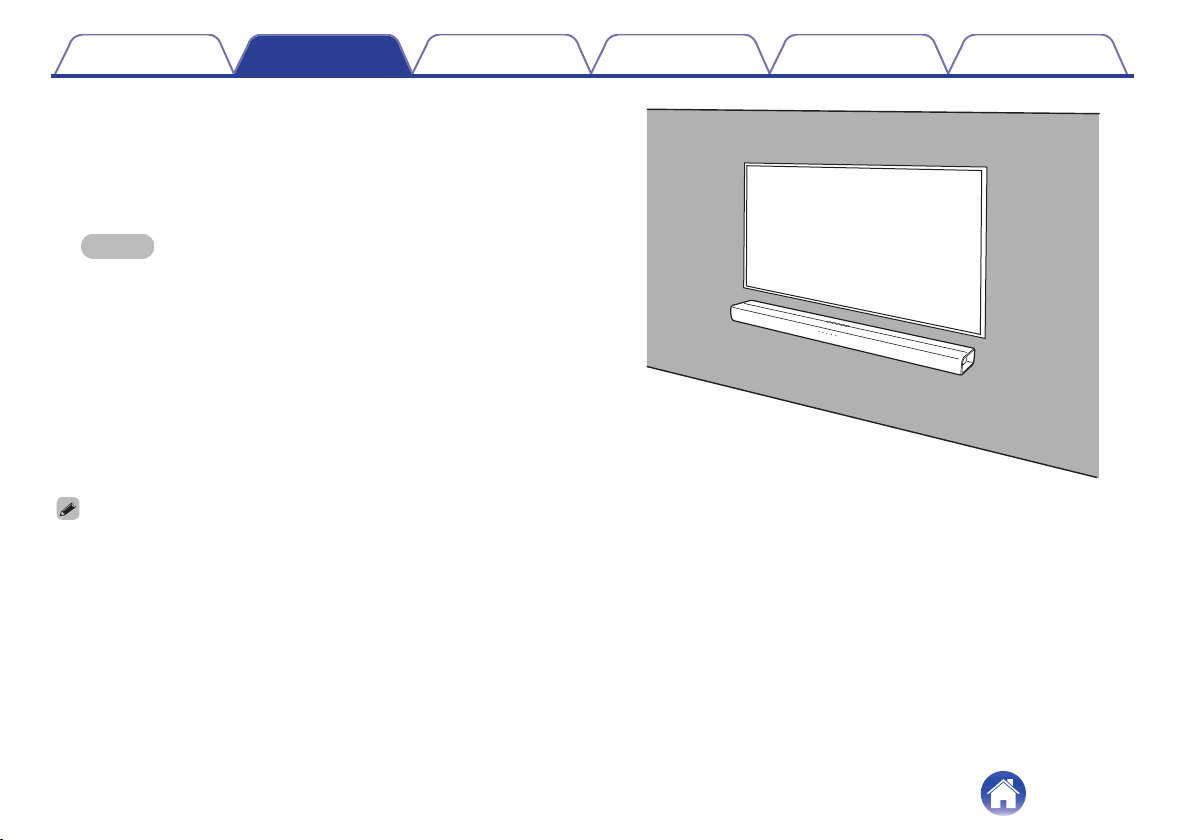
When hanging the sound bar on a wall
The sound bar has a wall hook hole to hang it on a wall. When hanging
it on a wall, position it in a flat, vertical position.
To ensure safety, request a contractor perform the mounting work
when mounting onto a wall.
NOTE
0
In order to use the unit safely, do not place items on or hang items from the unit.
0
Be sure to fix connection cables to the wall to ensure that cannot be pulled or
tripped over causing this unit to fall. Check that the unit is mounted safely after
the mounting work is complete.
0
Also, periodically check the safety of this unit and whether there is a possibility
that the unit may fall.
0
Denon cannot accept any responsibility for damage, injury or accidents
caused by problems with the mounting location or mounting method.
.
0
When hanging it on a wall, use the included wall mount template.
[How to use the wall mount template]
A
Affix the template to the location you would like to mount the sound bar.
B
Screw in the wall mount screws by following the template.
Consult a construction professional about the proper wall mount screws for the material and strength of your wall.
C
Remove the template from the wall.
D
Mount the included wall mount spacer on the spine of the sound bar.
Mounting the wall mount spacer creates a space for cords to pass through between the sound bar and the wall.
E
Mount the sound bar on the wall.
Contents Connections Playback Settings Tips Appendix
14

Connecting a TV
How to connect a TV depends on the connectors and functions equipped on the TV.
0
Enable the TV’s HDMI control function when using an HDMI cable to connect this device to your TV. (See the TV owner’s manual for details.)
0
Turn off the TV’s speaker or minimize the volume when using this device.
0
HDMI cable connection is recommended, but connection can be performed without an HDMI cable.
NOTE
0
Make sure all devices are off when connecting.
0
Do not plug device power cords into an outlet until all devices have been connected.
Contents Connections Playback Settings Tips Appendix
15
Connection 1: TV equipped with an HDMI connector and compatible with the ARC
(Audio Return Channel)
Use the included HDMI cable to connect this device to an ARC function-compatible TV.
.
HDMI IN (ARC)
TV
HDMI cable (included)
0
The TV also needs to be compatible with the ARC function.
Contents Connections Playback Settings Tips Appendix
16
Connection 2: TV equipped with an HDMI connector and incompatible with the ARC / TV
equipped with an optical digital connector
Use the included HDMI and optical digital cables to connect this device to your TV.
.
OPTICAL
OUT
HDMI
IN
TV
Optical digital cable (included)
HDMI cable (included)
0
Line up the optical digital cable with the shape of the terminal to insert.
Contents Connections Playback Settings Tips Appendix
17
Connection 3: TV equipped with an HDMI connector and incompatible with the ARC /
TV equipped with an analog connector
Use the included HDMI cable and a commercially available 3.5 mm stereo audio cable to connect this device to your TV.
.
AUX
AUDIO OUT
HDMI
IN
TV
3.5 mm stereo audio cable
HDMI cable (included)
Contents
Connections Playback Settings Tips Appendix
18
Connecting the subwoofer
While this device contains a subwoofer of its own, you can achieve even deeper bass by connecting a subwoofer with a built-in amplifier.
Use a commercially available subwoofer cable to connect a subwoofer with a built-in amplifier to this unit.
.
SUBWOOFER
IN
Subwoofer cable
Subwoofer
with built-in
amplifier
Contents
Connections Playback Settings Tips Appendix
19
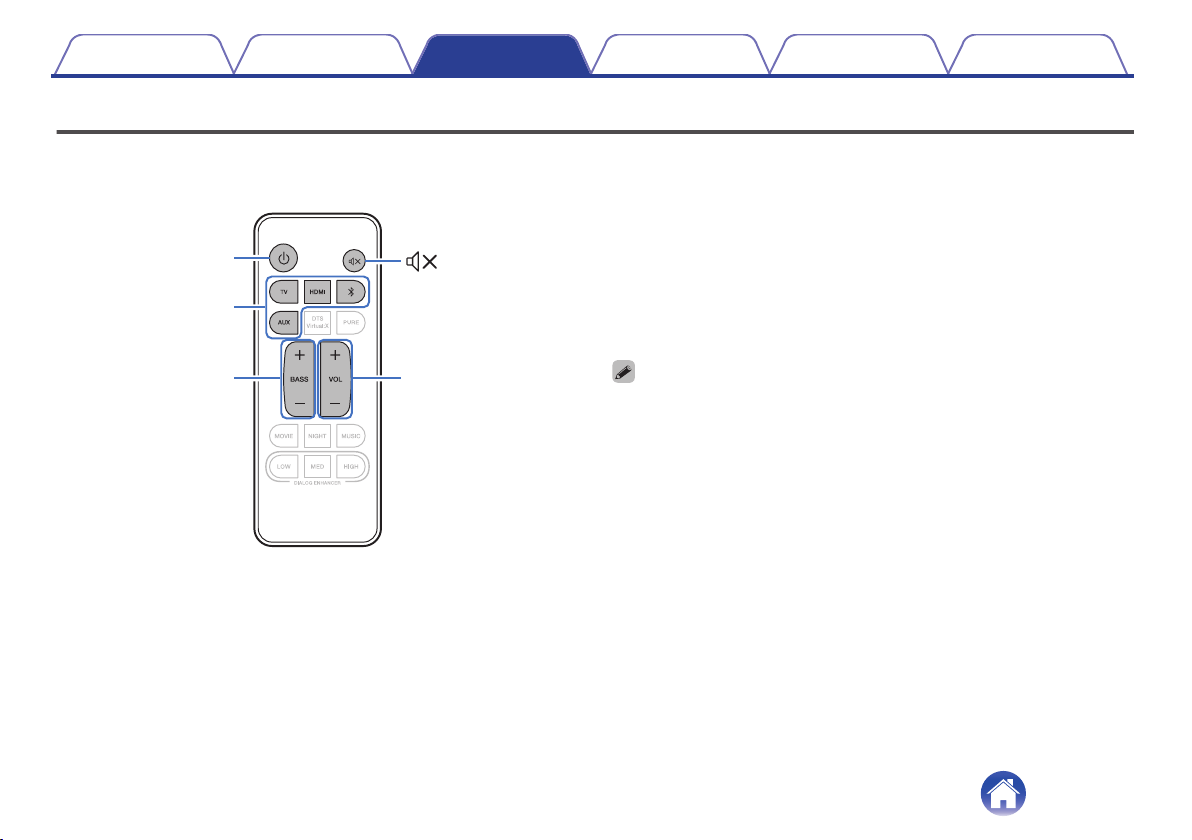
Enjoying TV, movies and music
.
X
Input source
buttons
BASS
+, –
VOL
+, –
1
Turn on the power of the TV and connected devices.
2
Press c to turn on power to the unit.
3
Press the input source button to change the input
source.
4
Play the device connected to this unit.
For details, see the relevant device manual.
0
Connect an HDMI control-compatible TV and this device via HDMI and enable the
HDMI control to enable linked control from either device. (v p. 36)
Contents Connections Playback Settings Tips Appendix
22
Adjusting the volume
1
Use VOL + or VOL – to adjust the volume.
When the button is pressed, the status display LED lights up to
match the current volume.
0
The status display LED blinks each time the button is pressed,
and the number of flashing LEDs increases or decreases to
match the volume.
0
When the volume reaches the maximum or minimum, the status
display LED blinks three times.
0
When the power is turned on, the unit starts with the volume level that was set
before being placed on standby. However, if the volume was previously set to
high, it starts with the volume setting lowered to a certain level.
Adjusting the subwoofer volume
1
Use BASS + or BASS – to adjust the subwoofer volume.
When the button is pressed, the status display LED lights up to
match the current subwoofer volume.
0
The status display LED blinks each time the button is pressed,
and the number of flashing LEDs increases or decreases to
match the subwoofer volume.
0
When the subwoofer volume reaches the maximum or minimum,
the status display LED blinks three times.
Turning off the sound temporarily
1
Press h.
All status display LEDs blink.
0
To cancel, press h again.
Contents Connections Playback Settings Tips Appendix
23
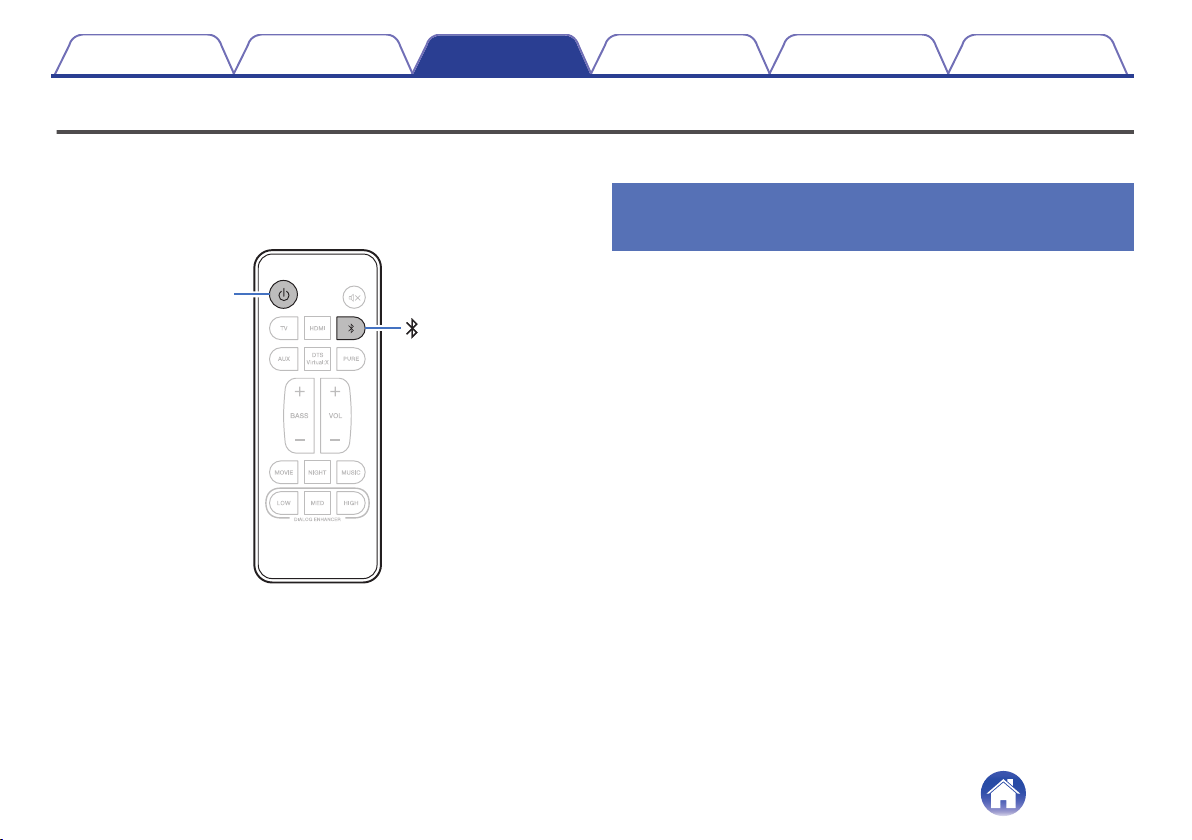
Listening to music on a Bluetooth device
Music files stored on Bluetooth devices such as smartphones, digital music players, etc. can be enjoyed on this unit by pairing and connecting this unit
with the Bluetooth device.
.
X
Pairing a Bluetooth device for the first
time
Pair a Bluetooth device with this unit.
Once the Bluetooth device has been paired, it does not need to be paired
again.
1
Press c to turn on power to the unit.
2
Press g to switch the input source to “Bluetooth”.
Automatically switches to pairing mode the first time it is used.
The status display LED blinks in blue when this unit is in pairing
mode.
3
Activate the Bluetooth settings on your Bluetooth
device.
4
Select “DHT-S216” from the list of devices displayed
on the screen of the Bluetooth device.
The status display LED lights up in blue and this device and the
Bluetooth device are paired.
Contents
Connections Playback Settings Tips Appendix
24

Pairing with other Bluetooth devices
1
Press c to turn on power to the unit.
2
Press g to switch the input source to “Bluetooth”.
3
Activate the Bluetooth settings on your Bluetooth
device.
4
Push g on this device until the status display LED
blinks in blue.
5
Select “DHT-S216” from the list of devices displayed
on the screen of the Bluetooth device.
The status display LED lights up in blue and this device and the
Bluetooth device are paired.
0
This unit can be paired with a maximum of 8 Bluetooth devices. When a 9th
Bluetooth device is paired, it will be registered in place of the oldest registered
device.
Listening to music with a paired
Bluetooth device
1
Press c to turn on power to the unit.
2
Press g to switch the input source to “Bluetooth”.
3
Activate the Bluetooth settings on your Bluetooth
device.
The status display LED lights up in blue and connects to the last
Bluetooth device connected. If the connection is cut, perform
connection again.
4
Play music using any app on your Bluetooth device.
Contents Connections Playback Settings Tips Appendix
25
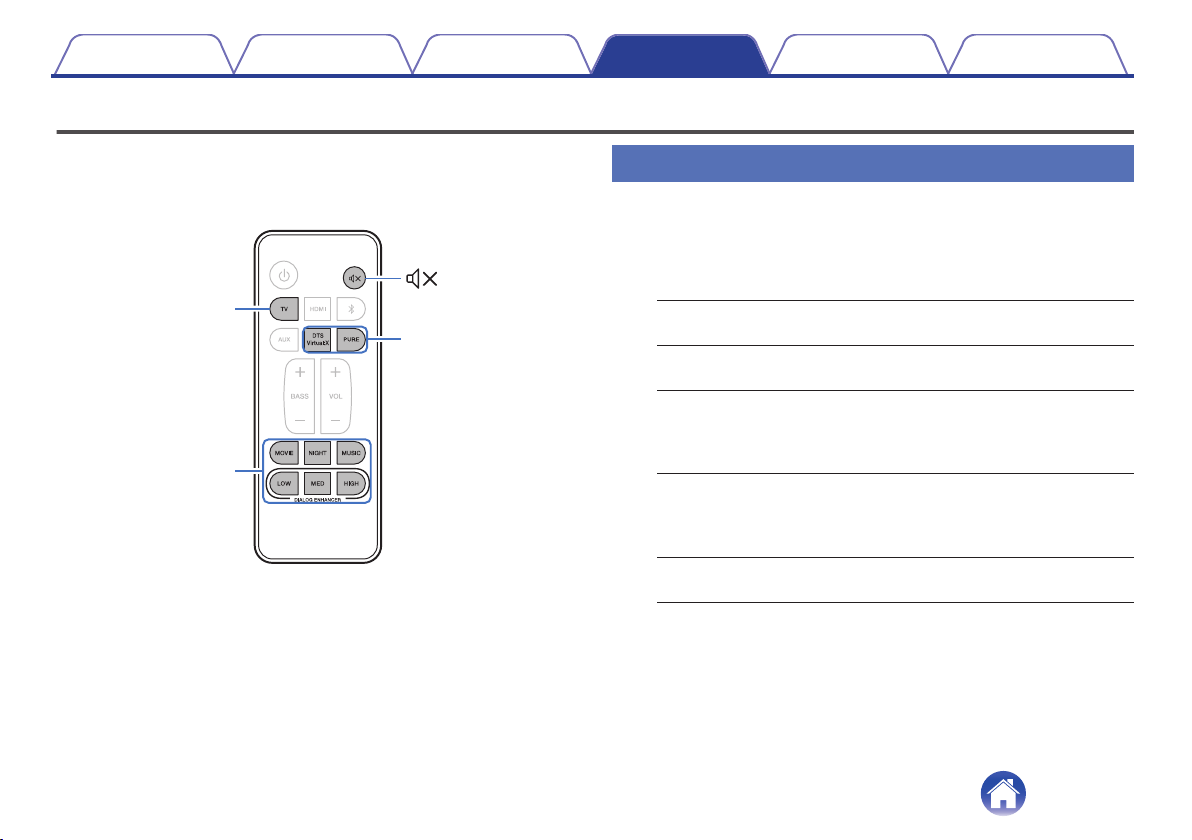
Settings
Perform the below operations and settings as needed.
.
TV
Listening mode
buttons
Listening mode
buttons
Selecting a listening mode
1
Press the listening mode button to select a listening
mode.
When the button is pressed, the rightmost status display LED
flashes and the listening mode changes.
MOVIE
(Default):
Enjoy movie theater-like surround
sound.
MUSIC:
Enjoy the natural and realistic surround
sound of a concert hall.
NIGHT:
Compresses the dynamic range
(difference between loud and soft
sounds) to make audio easier to hear at
low volumes.
DIALOG ENHANCER
LOW / MED / HIGH:
Adjust the volume of dialog in movies,
vocals in music, etc. so these can be
heard more easily. Can be set to 3
levels. Set this to the desired value.
PURE:
Enjoy sound that is faithful to the
original source.
Contents Connections Playback Settings Tips Appendix
26
2
Press DTS Virtual: X to add surround sound with a
sense of height to your current listening mode.
When the button is pressed, the rightmost status display LED lights
blue.
DTS Virtual:X:
Enjoy virtual 3D surround sound with
height perception in addition to sound
from the front, left, right and back.
0
DTS Virtual:X function is disabled when listening mode is set to “PURE”.
0
Set the listening mode to “MOVIE” or “MUSIC” before using the DTS Virtual:X
function.
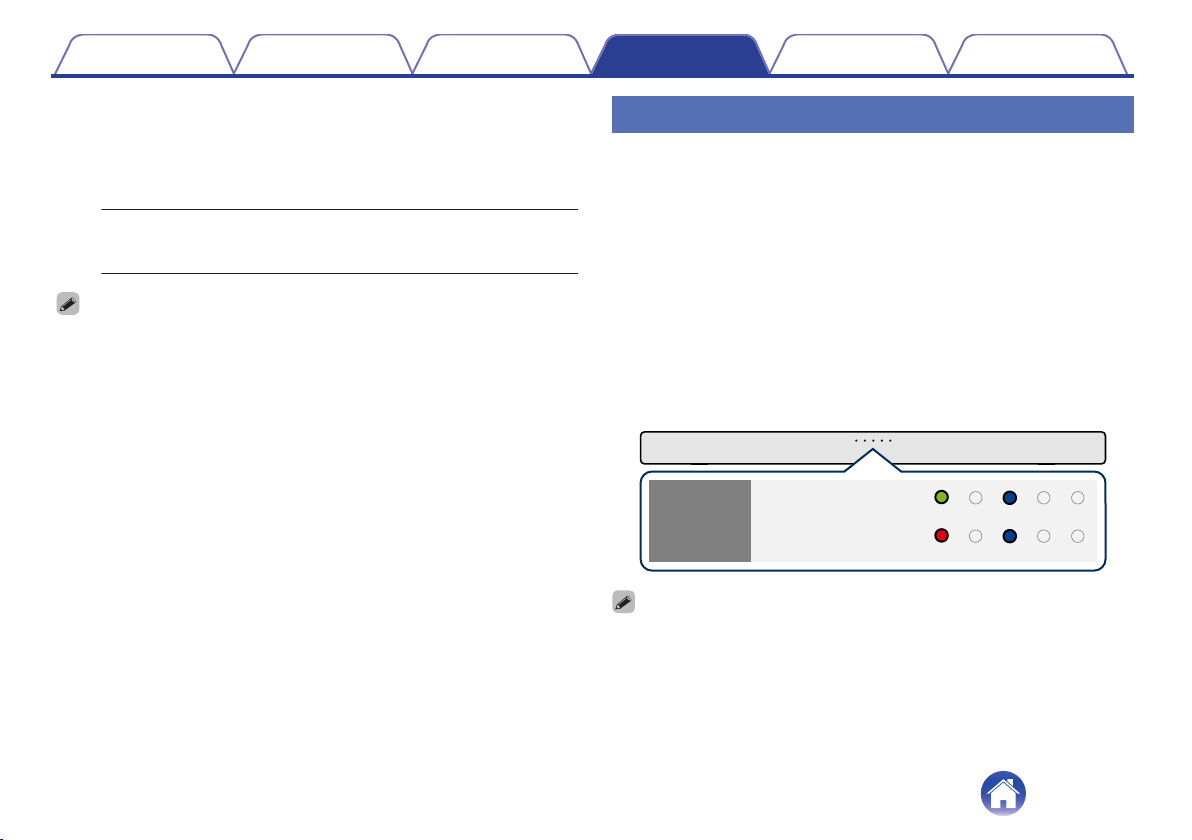
Setting the quick start mode
When set to Quick Start mode, the following two functions are enabled in
standby mode.
o
Bluetooth standby function
The sound bar can be connected to from a Bluetooth device even
when in standby. Connecting turns the sound bar on.
o
HDMI pass through function
HDMI signals received by the sound bar are output to the television,
even when in standby mode.
1
Press and hold TV for 5 seconds or more until the
status display LEDs blink as indicated below.
.
Quick Start
modes
Off
(Default)
On
0
This unit consumes more power when the Quick Start modes is on.
Contents Connections Playback Settings Tips Appendix
27
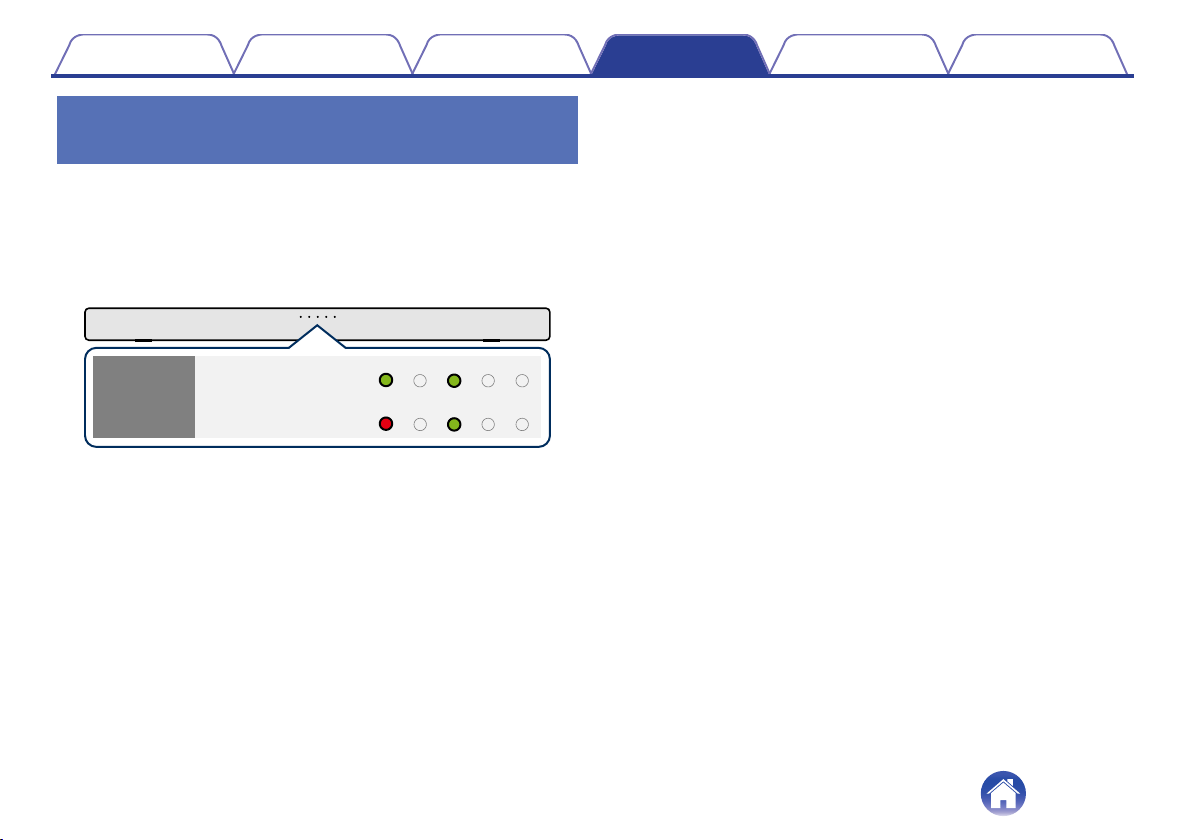
Switching automatically to the standby
mode (auto-standby function)
Toggle the auto-standby function on and off.
If no operations have been performed for 15 minutes or more and audio is
not being output, this device automatically switches to standby.
1
Press and hold NIGHT for 5 seconds or more.
The status display LEDs blink as shown below.
.
Off
On
(Default)
Auto
standby
function
Contents Connections Playback Settings Tips Appendix
28
Operating this unit using the remote
control of a TV
There are two ways to operate this unit using the remote control of a TV.
0
HDMI control function
Connect this unit to a TV that supports the HDMI control function with
an HDMI cable and enable the HDMI control setting on the TV to
perform basic operations on this unit (changing the input source, turning
the power on and off, adjusting the volume) with the remote control of
the TV.
Refer to “HDMI control function” for more information about the HDMI
control function. (v p. 36)
0
Remote control learning function
If your TV does not support the HDMI control function, use this unit’s
remote control learning function. This enables you to operate this unit
with the remote control of a TV. (“Using the remote control learning
function” (v p. 29))
o
Using the remote control learning function
1
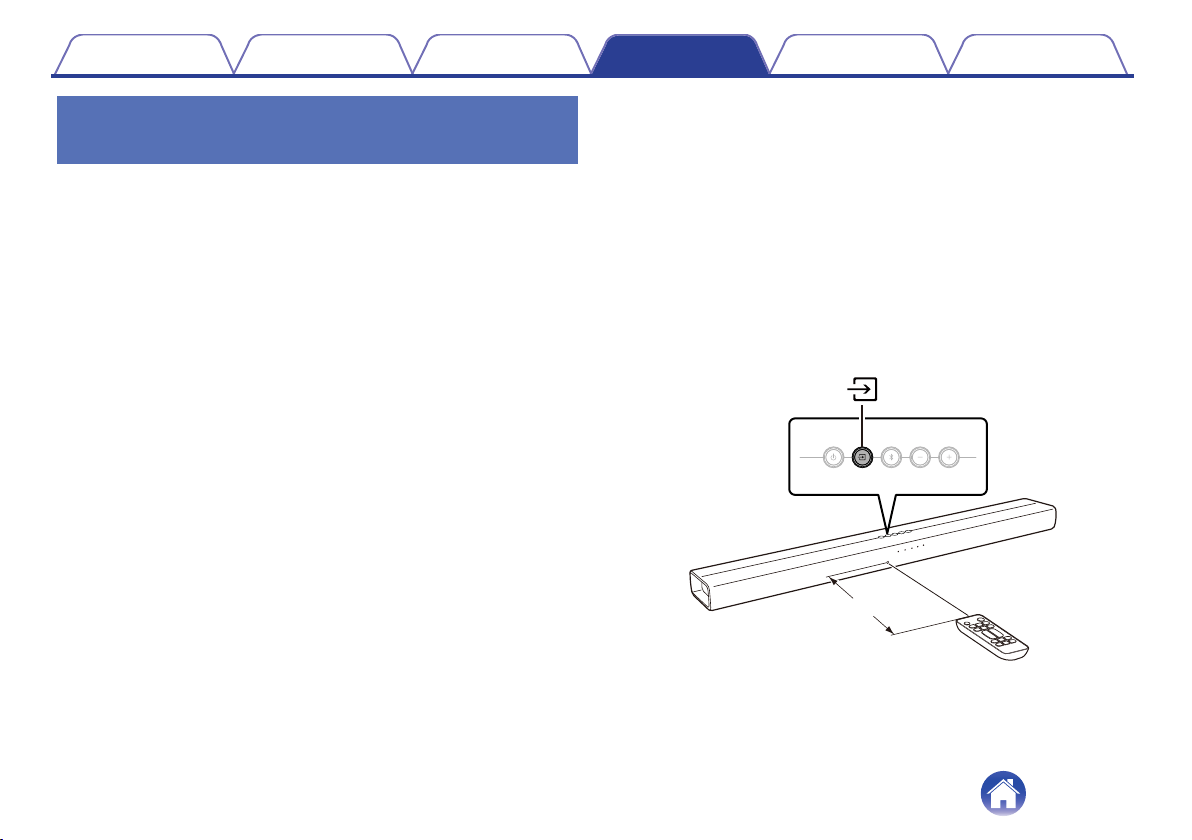
Press and hold the main unit’s d for 3 seconds or
more.
Among the LEDs on the status display, one white LED light moves
back and forth from left to right and indicates that the remote control
learning mode has started.
2
Point the remote control of this unit at the remote
sensor of this unit and press the remote control button
to be learned (e.g. VOL +) once.
All status display LEDs blink in white.
.
Approx. 1 ft/30 cm
Contents
Connections Playback Settings Tips Appendix
29
3
Point the remote control of the TV at the remote control
sensor of this unit and press the remote control button
to be learned (e.g. the button to increase the volume)
once.
If learning is successful, the rightmost status display LED blinks in
blue three times.
If learning is unsuccessful, the rightmost status display LED blinks in
red three times. Repeat steps 2 and 3 if this happens.
0
When the status LEDs blink in white again, press the TV remote control
button (e.g. the button to increase the volume) once more.
4
To learn a new function, repeat steps 2 and 3 with the
next function.
5
Press and hold the main unit’s d for 3 seconds or
more.
The rightmost status display LED blinks white three times and
indicates that the remote control learning mode is completed.
6
Confirm that the operation (e.g. increasing the volume)
can be performed on this unit with the TV remote
control.
0
To delete all learned data, press and hold d on the sound bar for 10 seconds
until the rightmost status display LED blinks white five times.
0
Operations cannot be performed with the remote control learning function during
the standby that is set when the Bluetooth standby function or HDMI pass through
function is off.
0
Other operations cannot be performed when in remote control learning mode.
0
Remote control learning may not be possible depending on the type of TV remote
control.
0
The power button of TVs learned with the remote control learning function cannot
be operated when Quick Start mode is off.
Contents Connections Playback Settings Tips Appendix
30

Troubleshooting
If a problem should arise, first check the following:
1. Are the connections correct?
2. Is the set being operated as described in the owner’s manual?
3. Are the other devices operating properly?
If this unit does not operate properly, check the corresponding symptoms in this section.
If the symptoms do not match any of those described here, consult your dealer as it could be due to a fault in this unit. In this case, disconnect the power
immediately and contact the store where you purchased this unit.
Contents Connections Playback Settings Tips Appendix
31
Power does not turn on / Power is turned off
Power does not turn on.
0
Check whether the power plug is correctly inserted into the power outlet. (v p. 21)
0
If the power of this unit cannot be turned on with the HDMI control function of the TV, press the c button to turn on the power of this unit. (v p. 36)
0
If the power cannot be turned on through a Bluetooth connection, turn on the Bluetooth standby function. (v p. 27)
Power automatically turns off.
0
If no operations have been performed for 15 minutes or more and audio is not being output, this device automatically switches to standby. (Auto
standby function) Turn the power of this unit off and then on again. To disable the auto standby function, set the auto standby function to off. (v p. 28)
Power takes a long time to turn on
Power takes a long time to turn on.
0
When you use the power-linked function of the HDMI control function, you can turn on Quick Start mode to turn on this unit quickly. (v p. 27)
Operations cannot be performed through the remote control unit
Operations cannot be performed through the remote control unit.
0
Batteries are worn out. Replace with new batteries. (v p. 5)
0
Operate the remote control unit within a distance of about 23 ft/7 m from this unit and at an angle of within 30°. (v p. 5)
0
Remove any obstacle between this unit and the remote control unit.
0
Insert the batteries in the proper direction, checking the f and e marks. (v p. 5)
0
The set’s remote control sensor is exposed to strong light (direct sunlight, inverter type fluorescent bulb light, etc.). Move the set to a place in which the
remote control sensor will not be exposed to strong light.
Contents
Connections Playback Settings Tips Appendix
32

No sound comes out
No sound comes out.
0
Check the connections for all devices. (v p. 15)
0
Insert connection cables all the way in.
0
Check that input connectors and output connectors are not reversely connected.
0
Check cables for damage.
0
Check that a proper input source is selected. (v p. 22)
0
Adjust the volume. (v p. 23)
0
Make sure volume is not muted. (v p. 23)
Contents Connections Playback Settings Tips Appendix
33
Bluetooth playback does not work
Cannot pair with a Bluetooth device.
0
It may be that Bluetooth is not enabled on the Bluetooth device. See the owner’s manual of the Bluetooth device to enable the Bluetooth function.
0
This device may be paired with another Bluetooth device. Select this unit from the list of devices displayed on the screen of the Bluetooth device.
0
Bring the Bluetooth device near to this unit.
0
Turn the power of the Bluetooth device off and on again, and then try again.
0
Only 1 Bluetooth device can be connected at a time.
The sound is cut off.
0
Bring the Bluetooth device near to this unit.
0
Remove obstructions between the Bluetooth device and this unit.
0
To prevent electromagnetic interference, locate this unit away from microwave ovens, wireless LAN devices and other Bluetooth devices.
0
Pair with the Bluetooth device again. (v p. 24)
The HDMI Control function does not work
The HDMI Control function does not work.
0
You cannot operate devices that are not compatible with the HDMI Control function. In addition, depending on the connected device or the settings, the
HDMI Control function may not work. In this case, operate the external device directly.
0
Check that the HDMI Control function setting is enabled on all devices connected to this unit.
Contents
Connections Playback Settings Tips Appendix
34
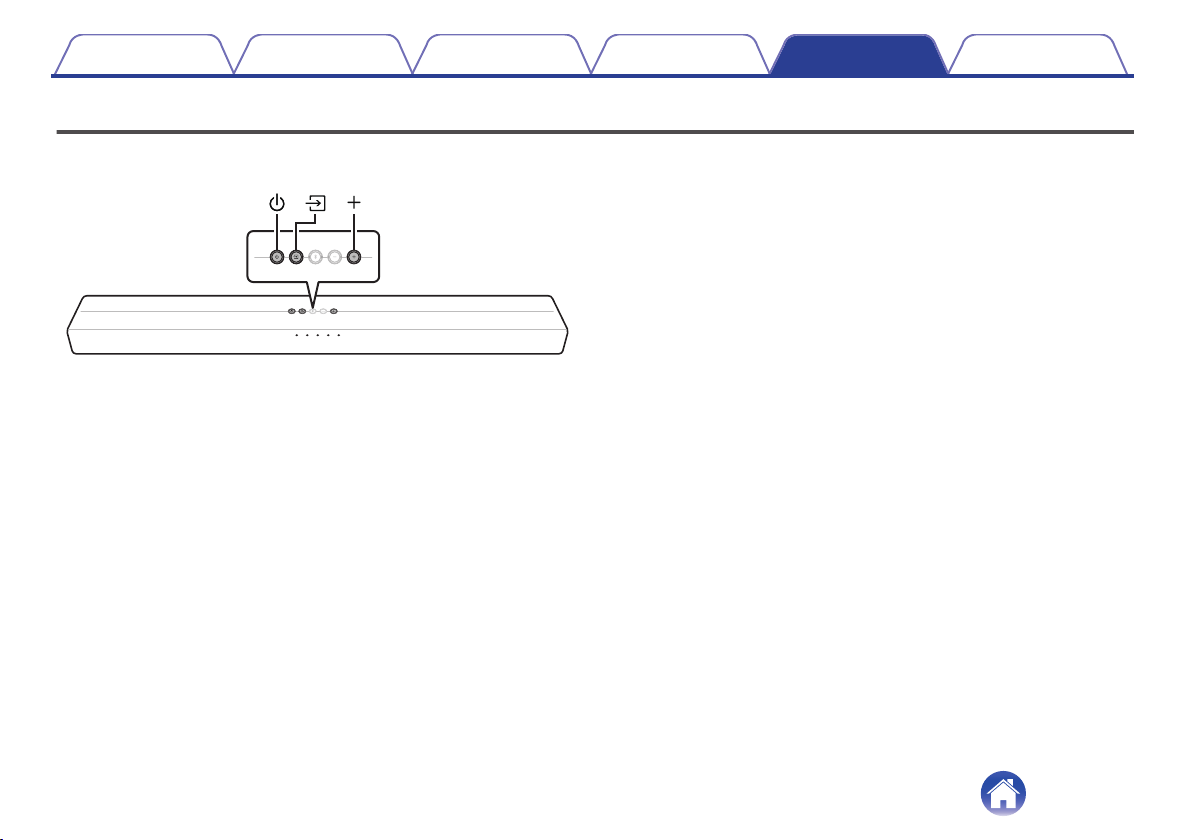
Resetting factory settings
Perform this procedure if the display is abnormal or if operations cannot be performed.
Various settings are reset to the factory default values. Make settings again.
.
1
Press c to turn on power to the unit.
2
Press and hold the main unit's c, d and + at the same
time for at least 5 seconds.
The status display LED blinks in red three times.
3
Wait for around 10 seconds after the LED turns off and
then press c.
All settings return to the factory settings after the sound bar is
restarted.
Contents Connections Playback Settings Tips Appendix
35

About HDMI
This unit supports the following HDMI functions.
0
ARC (Audio Return Channel) function
Enjoy movies, music, etc., on your TV simply by connecting an ARC function-compatible TV to this device via HDMI.
0
HDMI control function
You can control the TV via this unit and vice versa by connecting a TV that supports the HDMI control function to this unit via HDMI and enabling the
HDMI control function on the TV.
0
Input source switching
If the TV is turned on, this device automatically powers on and switches the input source.
0
Power off link
The TV power off operation is linked so this device also turns off.
0
Volume adjustment
The volume of this unit can be adjusted using the TV remote control.
0
Audio output destination switching
If this unit is turned on, TV audio is output from this unit. If this device is turned off, TV audio is output from the speakers of the TV.
NOTE
0
Some functions may not operate depending on the connected TV. Check the owner’s manual of each device for details beforehand.
Contents Connections Playback Settings Tips Appendix
36
Trademark information
.
The Bluetooth
®
word mark and logos are registered trademarks owned
by the Bluetooth SIG, Inc. and any use of such marks by D&M Holdings
Inc. is under license. Other trademarks and trade names are those of
their respective owners.
.
Manufactured under license from Dolby Laboratories. Dolby, Dolby
Audio, and the double-D symbol are trademarks of Dolby Laboratories.
.
For DTS patents, see http://patents.dts.com. Manufactured under
license from DTS, Inc. DTS, the Symbol, DTS and the Symbol together,
Digital Surround, Virtual:X, the DTS Digital Surround logo, and the DTS
Virtual:X logo are registered trademarks or trademarks of DTS, Inc. in the
United States and/or other countries. © DTS, Inc. All Rights Reserved.
.
The terms HDMI, HDMI High-Definition Multimedia Interface, and the
HDMI Logo are trademarks or registered trademarks of HDMI Licensing
Administrator, Inc.
Contents Connections Playback Settings Tips Appendix
37

Specifications
o
General
Operating temperature: 41 °F - 95 °F (5 °C - 35 °C)
Power supply: AC 120 V, 60 Hz
Power consumption: 40 W
Power consumption in standby mode: 0.45 W
Power consumption in Quick Start modes: 5.0 W
Sampling frequency: 32 kHz, 44.1 kHz, 48 kHz
Supported audio formats: Dolby Digital, DTS Digital Surround, Linear PCM
Contents Connections Playback Settings Tips Appendix
38

o
Bluetooth section
Communications system: Bluetooth Version 4.2
Transmission power: Power Class 2
Maximum communication range:
Approx. 32.8 ft/10 m in line of sight
z
Used frequency range: 2.4 GHz band
Modulation scheme: FHSS (Frequency-Hopping Spread Spectrum)
Supported profiles: A2DP (Advanced Audio Distribution Profile) 1.3
AVRCP (Audio Video Remote Control Profile) 1.6
Corresponding codec: SBC
Transmission range (A2DP): 20 Hz – 20,000 Hz
z
The actual communication range varies depending on the influence of such factors as obstructions between devices, electromagnetic waves from
microwave ovens, static electricity, cordless phones, reception sensitivity, antenna performance, operating system, application software etc.
For purposes of improvement, specifications and design are subject to change without notice.
Contents
Connections Playback Settings Tips Appendix
39

.
3520 10719 00ADB
Copyright © 2019 D&M Holdings Inc. All Rights Reserved.
41