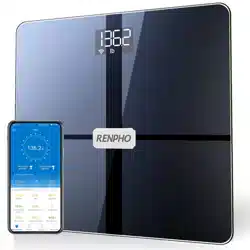
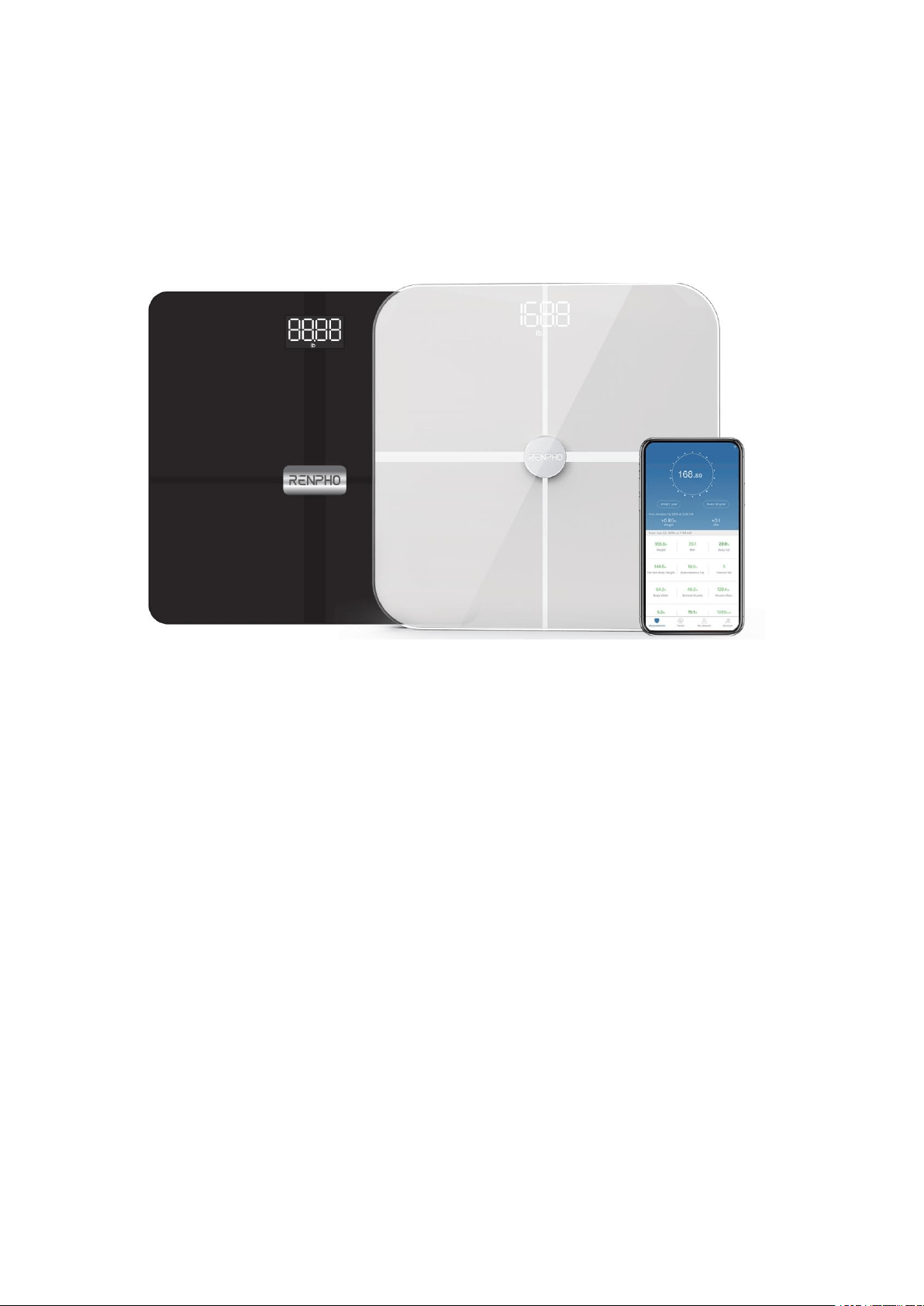
Renpho Wi-Fi Bluetooth Body Fat
Scale
USER MANUAL
This manual is for scale model: ES-WBE28, ES-BR001
PRECAUTION FOR USE
Caution
When using digital scale, certain basic safety precautions must be followed,
including the following:
1. The WiFi-Bluetooth dual-mode scale should not be used to diagnose or treat
any medical condition. You should consult a doctor when undertaking any diet
or exercise program.
2. If you are pregnant or have a pacemaker or other internal device, you
should not over rely on the data provided by this product. All data is for
reference and is not a substitute for advice from a licensed health care
professional.
3. If the scale malfunction, first check the batteries power and replace if
needed.
4. Check the device before each use. Do not use the device if damaged. The
continuous use of damaged unit may cause injury or improper results.
5. Please keep the scale dry. Take care on the wet and slippery surface.
6. Fragile, handle with care.
7. Scale is a high-precision measuring device. Never jump or stomp on the
scale or disassemble. Please handle the scale carefully to avoid breakage.
8. The scale is not waterproof, never immerse the scale in water. To clean the
surface, use a damp cloth or glass cleaner. Do not use soap or other
chemicals.
9. When pairing the scale with your smartphone for the first time, please
enable the Bluetooth. After finishing the first measurement, it will ask you
whether you need to pair the scale with WiFi. Once you pair the scale with WiFi,
you could always choose WiFi or Bluetooth to sync data.
KNOW YOUR Renpho Scale
Specification
Model: ES-WBE28/ES-BR001
Size: 11*11*1inch
Weight: 2.86lbs / 1.3kg
Battery: 3 * AAA (1.5V)
Capacity: 6.6-396lbs / 3-180kg
Division: 0.2lb / 0.05kg
Unit: lb / kg / st (Switch via RENPHO App in the Settings)
Accuracy Range
50kg±0.3kg 100kg±0.4kg 150kg±0.5kg
110lbs±0.66lb 220lbs±0.88lb 330lbs±1.1lbs
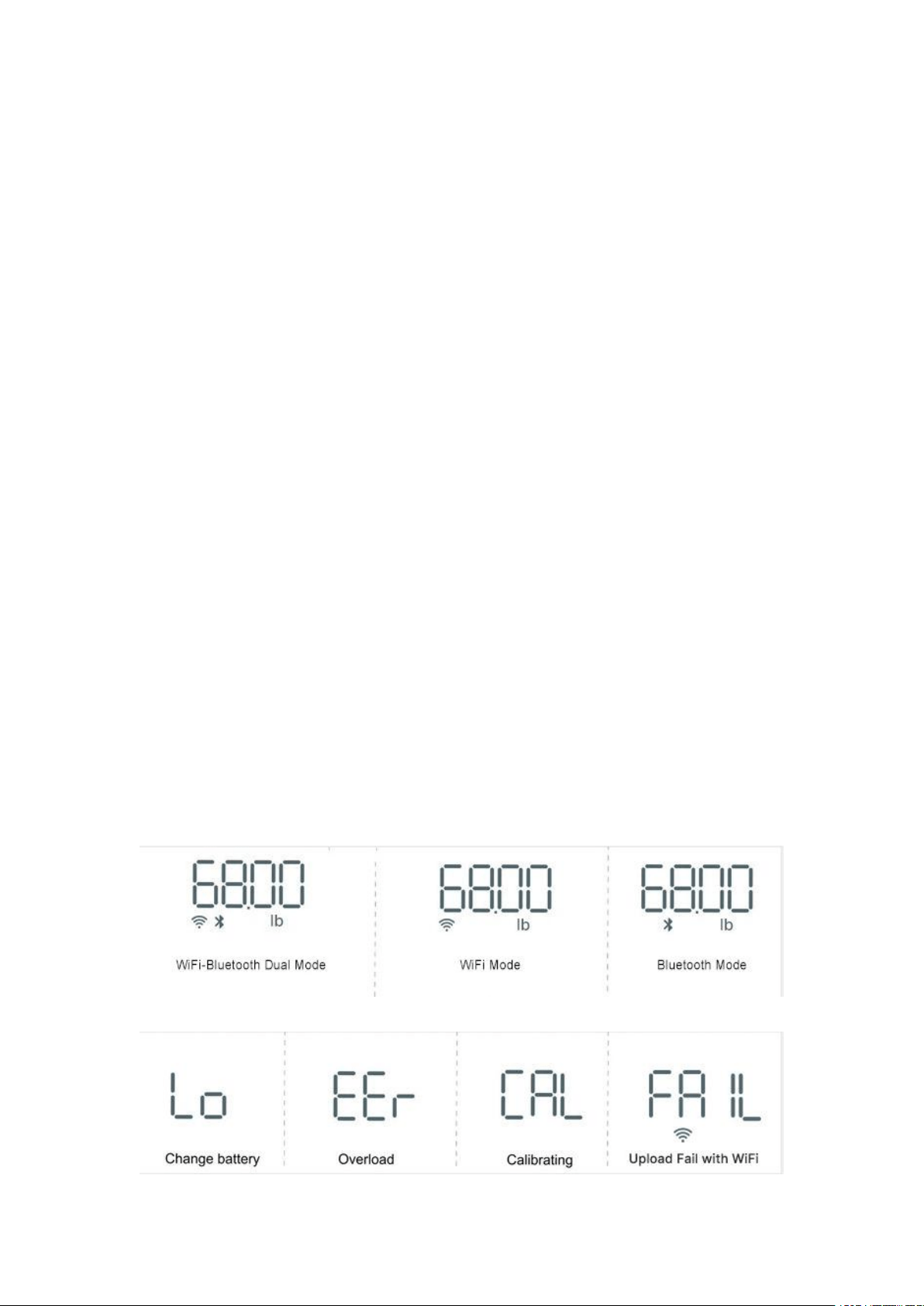
Mode
Troubleshooting
Getting Started
Step 1
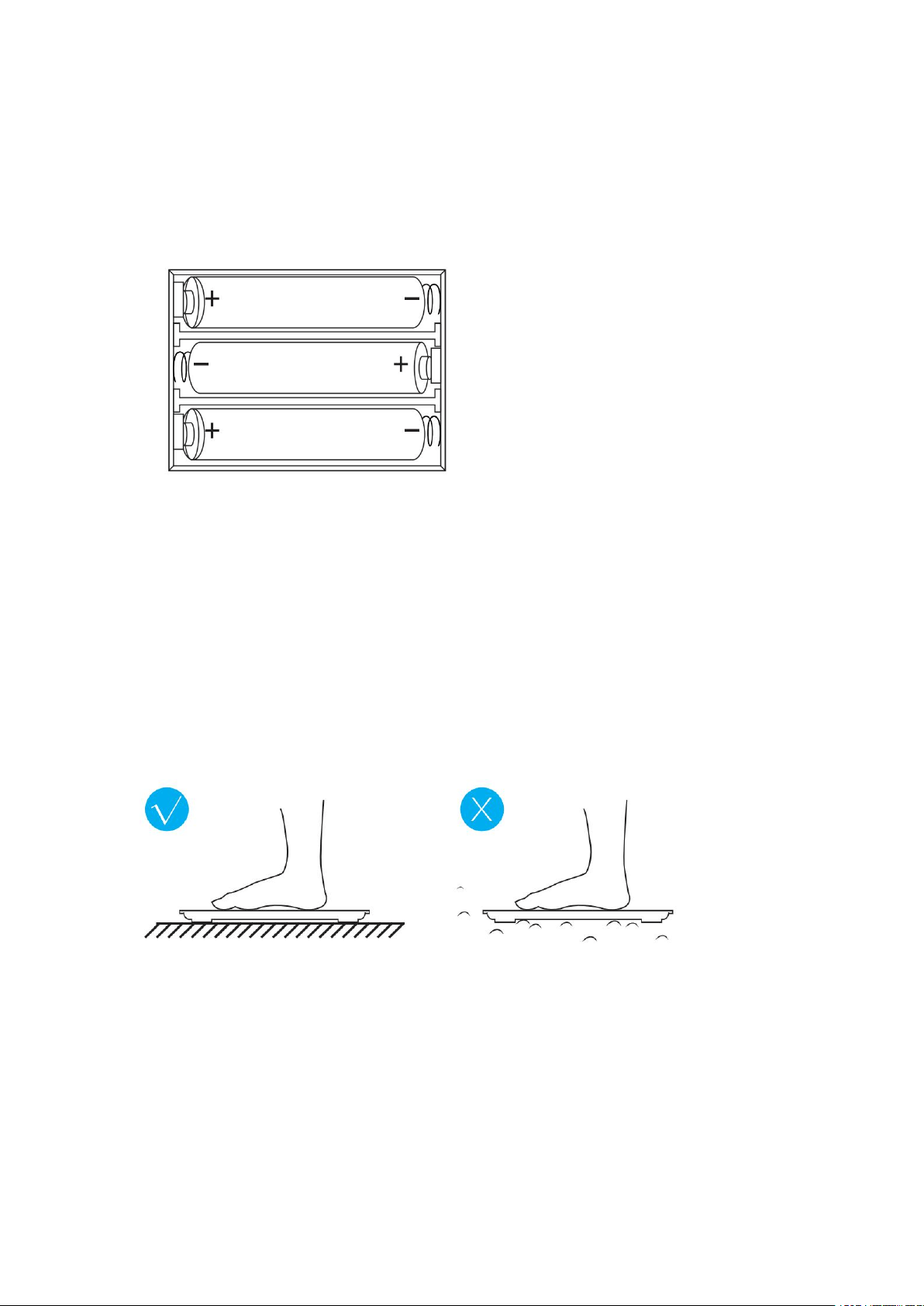
Before first use: Install the batteries
Install the AAA batteries correctly included in the package.
Note:
Do not mix old and new batteries or different compositions/ brands in order
to prevent possible leakage.
Step 2
Use the scale in a firm, flat, and stable location, avoid any carpet.
Step 3
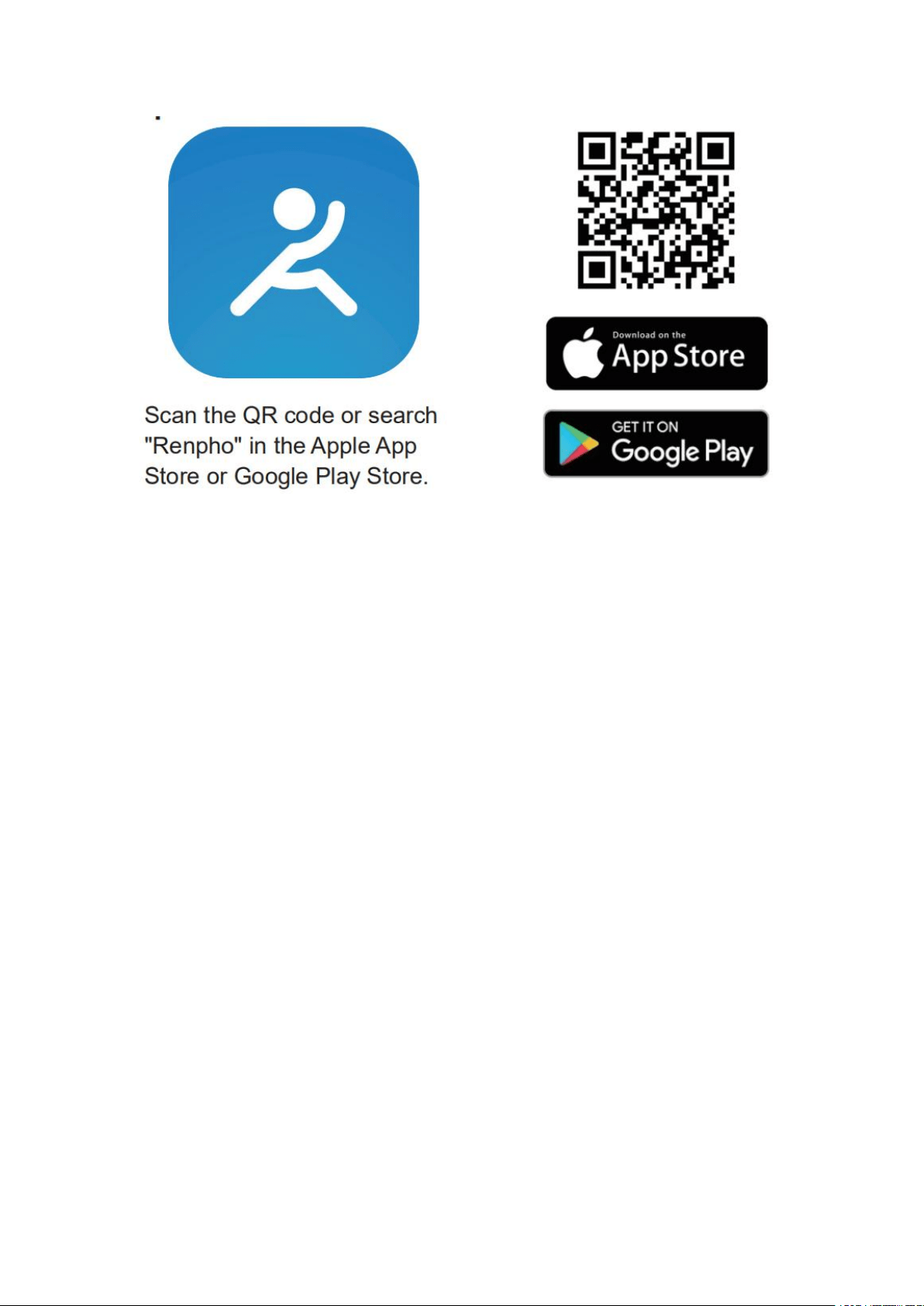
Download the app: go to the app store on your device (App Store for iOS or
Play Store for Android) and search for "Renpho", or follow these links:
https://apps.apple.com/us/app/renpho/id1219889310
https://play.google.com/store/apps/details?id=com.qingniu.renpho
Or scan this QR code with your smartphone.
Step 4
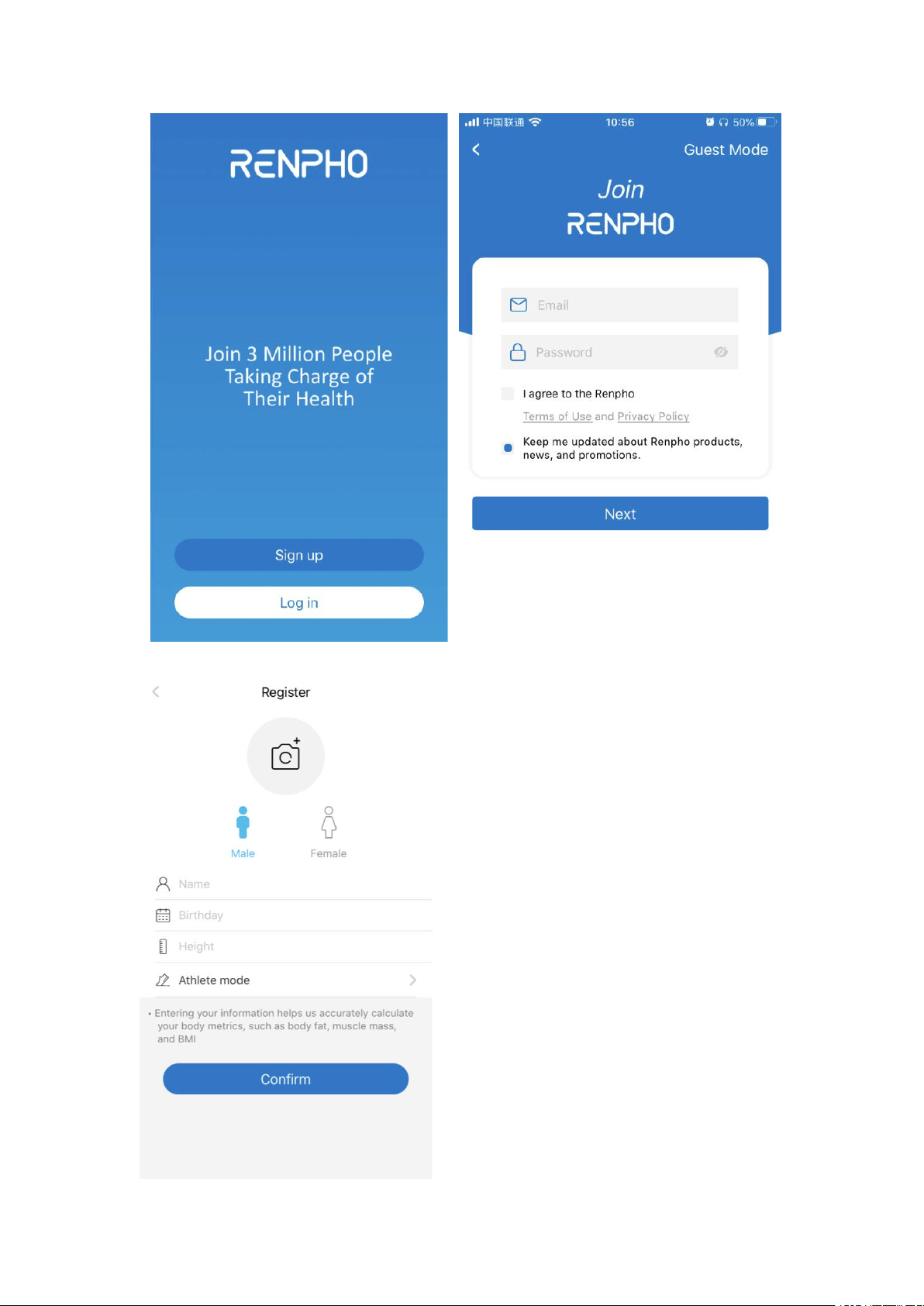
Open the App and follow set-up and pairing instructions:
① Register your account in the Renpho App with email. Fill out the
information (The app needs this information in order to calculate your body
composition more precisely).
Or you could login as Guest mode if you don't want to register.
Note: The device is a WiFi-Bluetooth dual-mode scale. The guest mode
does not support WiFi mode, please register an account to experience the
full function.
② Enable bluetooth on your smart phone:
- For iOS users, iOS 13 requires Bluetooth permissions:
1. Go to setting;
2. Scroll the Renpho App;
3. Switch on the Bluetooth permission.
- For Android users, make sure your location is turned on for Android 6.0
or later.
Step 5
Turn on Bluetooth on your smartphone. The location also needs to be
turned on for Android 6.0 or higher (Location is required by Android
System).
* For iOS 13 users, please go to setting menu on your iPhone, find Renpho
App, turn on the Bluetooth first.
Pairing the Scale by Bluetooth & Wi-Fi
With Bluetooth & Wi-Fi on, you can begin the pairing process between
Renpho Wi-Fi & Bluetooth scale and Renpho App.
Step 1
[Pairing the Scale by Bluetooth Connection]
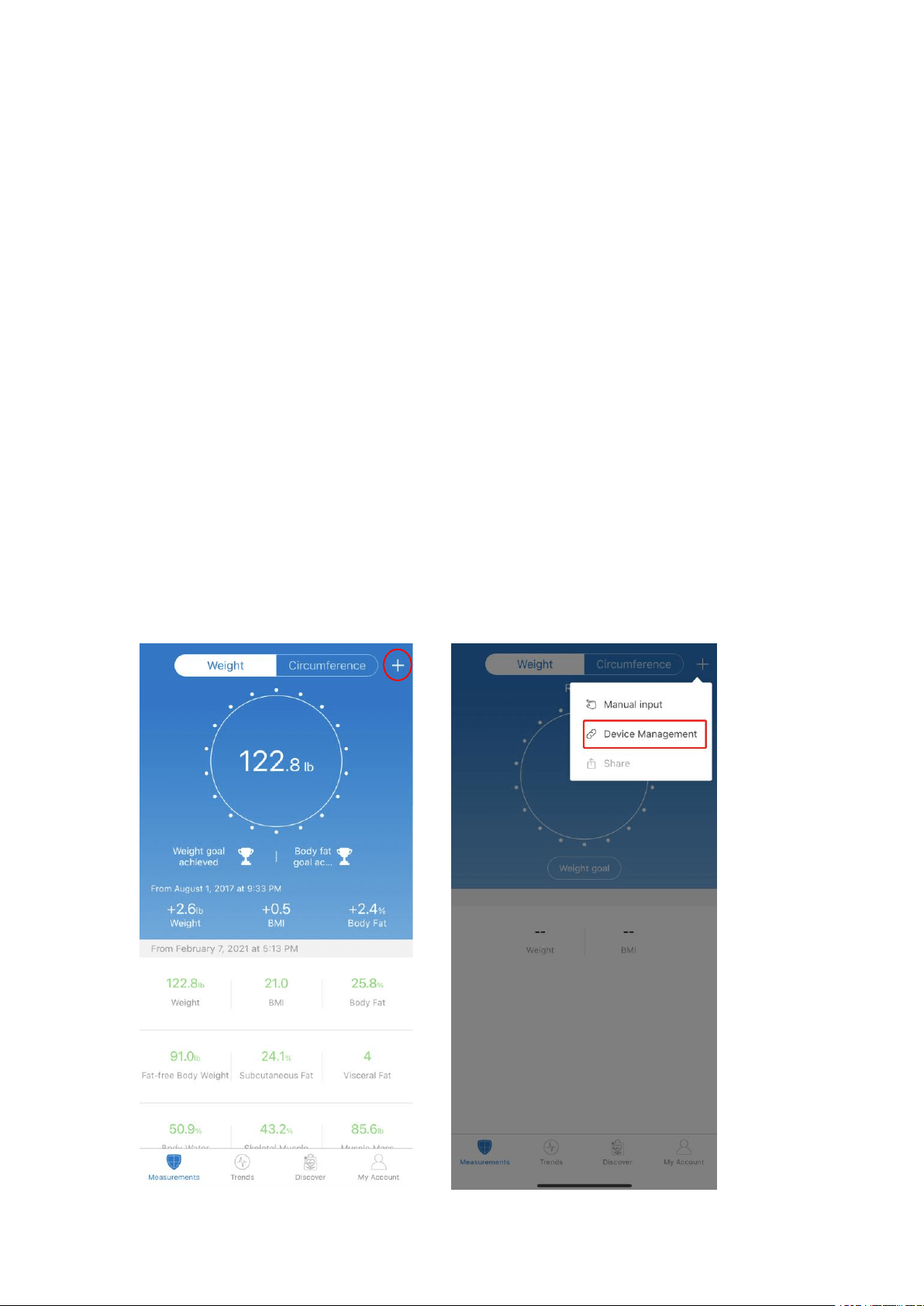
1. Tap "+" and choose "Device Management" on the measuring page.
2. Step onto the scale with bare and dry feet on the scale.
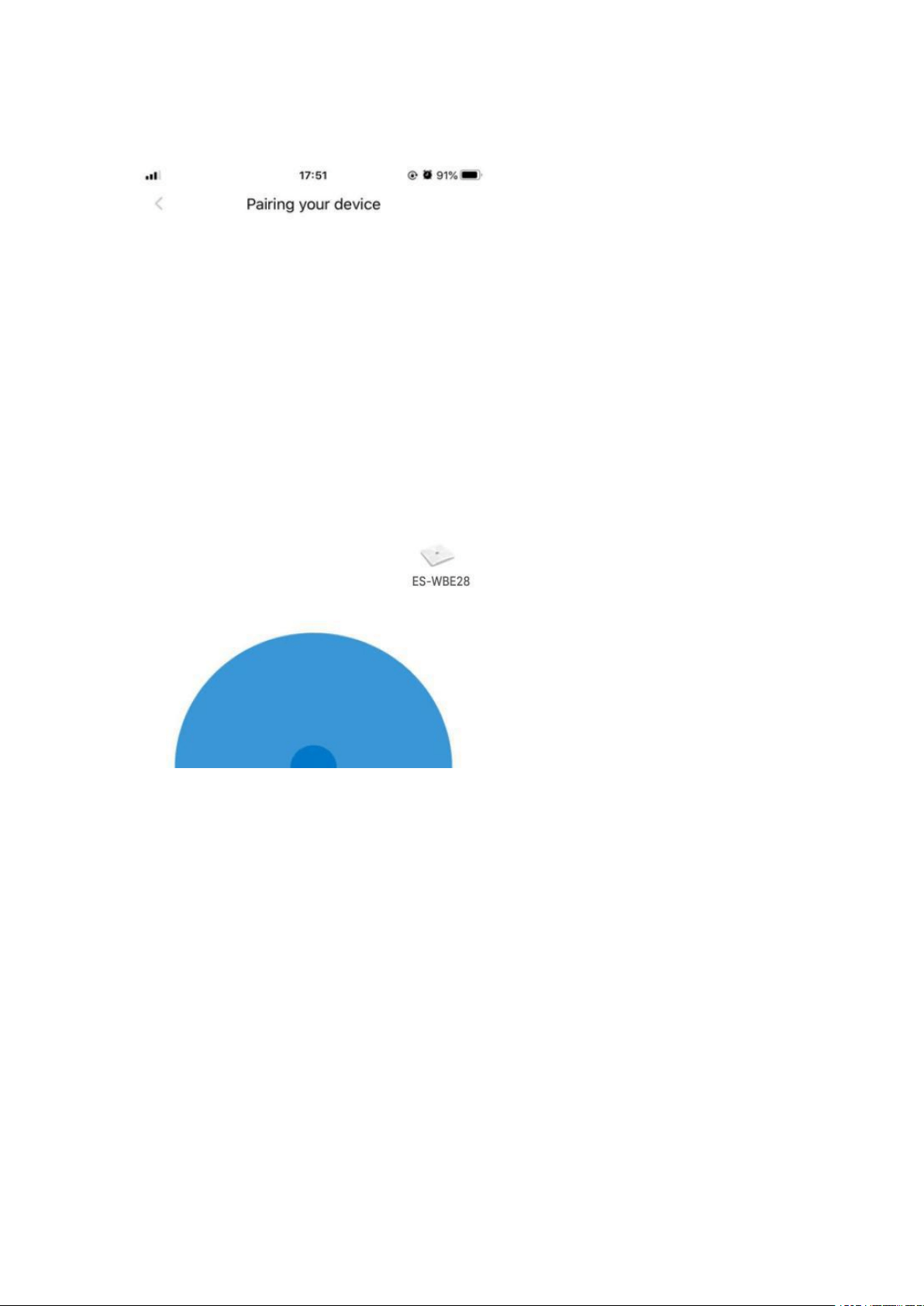
3. Tap the device name on the pairing page.
4. Keep standing on the scale for 5-10 seconds. The weighing is finished
after "0.00" has displayed twice.
5. Now you can check all the metrics on the App.
Note:
When pairing the scale with your smartphone for the first time, you have to
use the Bluetooth connection to finish the first measurement. After
completing the first measurement successfully, you could continue to pair
the scale with Wi-Fi.
Step 2
[Pairing the Scale by Wi-Fi connection]
1. After completing the first measurement, the app will ask you whether
need to pair the scale with Wi-Fi, tap "OK".
2. Enter the CORRECT Wi-Fi password.
3. Wait for connecting the scale to Wi-Fi. At this time, the Wi-Fi icon will
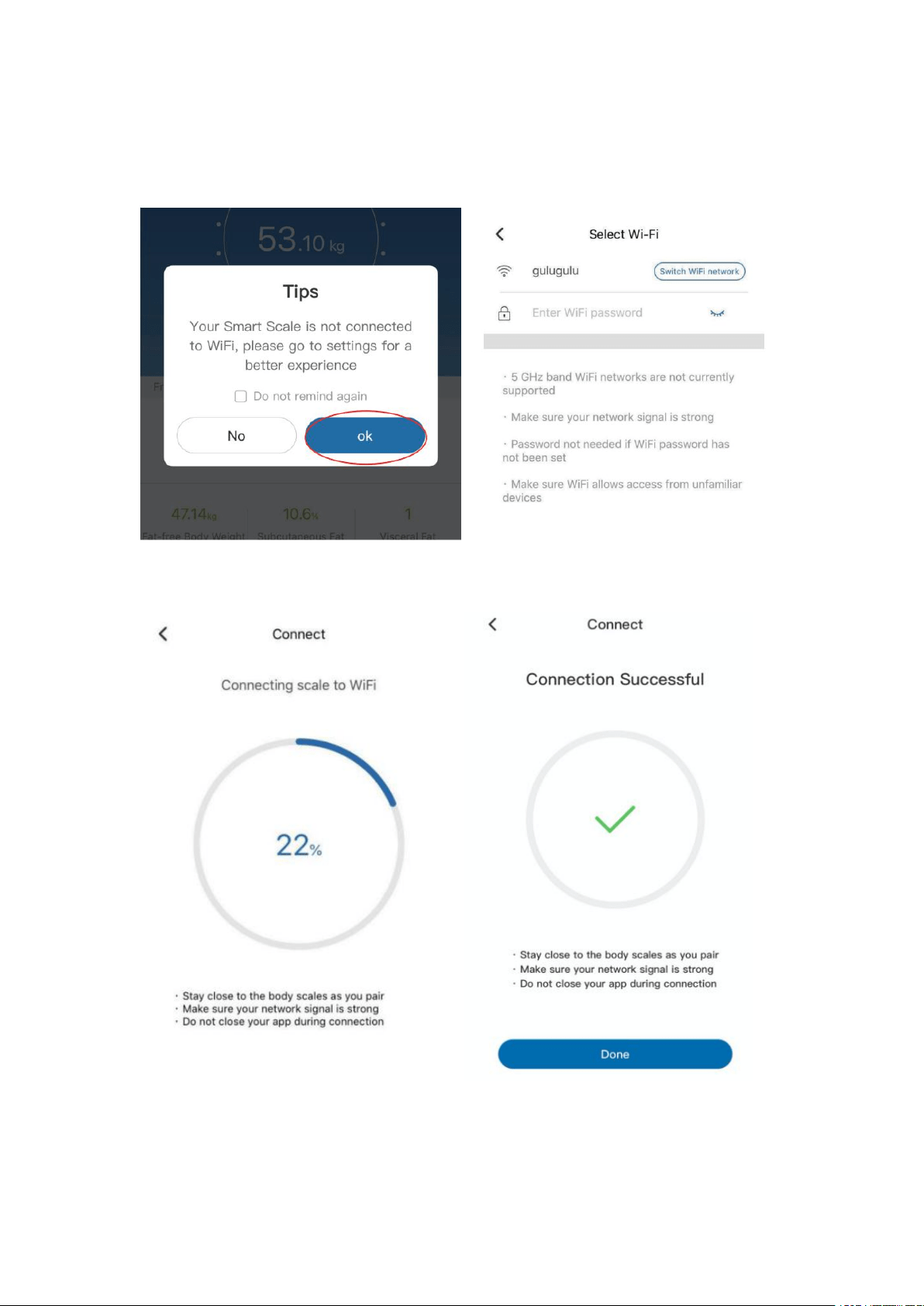
flash on the scale.
4. Congratulation! You have successfully paired your scale with Wi-Fi.

Note:
If you didn't pair the scale with Wi-Fi after the first measurement, you can
select the device with the Wi-Fi logo in "Device Management" to configure
the Wi-Fi settings.
Bluetooth & Wi-Fi TROUBLESHOOTING
[Bluetooth connection]
If the regular connection to Bluetooth failed, please try the below steps:
1. Reset the scale.
Taking out one battery for 5 seconds and putting it back in.
2. Reset the Bluetooth connection.
Ensure Bluetooth and GPS (Android only) are enabled on your phone.
- Open the RENPHO app
- Under the "Measurements" section, select the top right "+".
- Select "Device Management".
- Find the model number that begins with "ES" and slide it left to forget the
device.
- Tap "+" on the top right to enter pairing mode.
- Step one foot on the scale surface to wake it up.
- After a few seconds of loading, the scale model number will appear, tap it.
- Step on the scale again to complete the pairing.
If none of the above steps resolves your connectivity issues, try the
"Bluetooth anomaly detection" function:
1. Open the RENPHO app.
2. Go to "My Account" select "Settings".
3. Select the "Bluetooth anomaly detection" and follow up on the
instructions.
4. Submit the abnormality report.
5. Share your App account to support team. (support@renpho.com)
Our tech team will further diagnose the problem within 24 hours.
[Wifi connection]
If the regular connection to Wi-Fi failed, please check:
1. Check if you have entered the right Wi-Fi password.
- Wrongly input Wi-Fi password is one of the most common reasons that
cause the Wi-Fi connected failed.
- Make sure you have input the correct capitalization and special
characters.
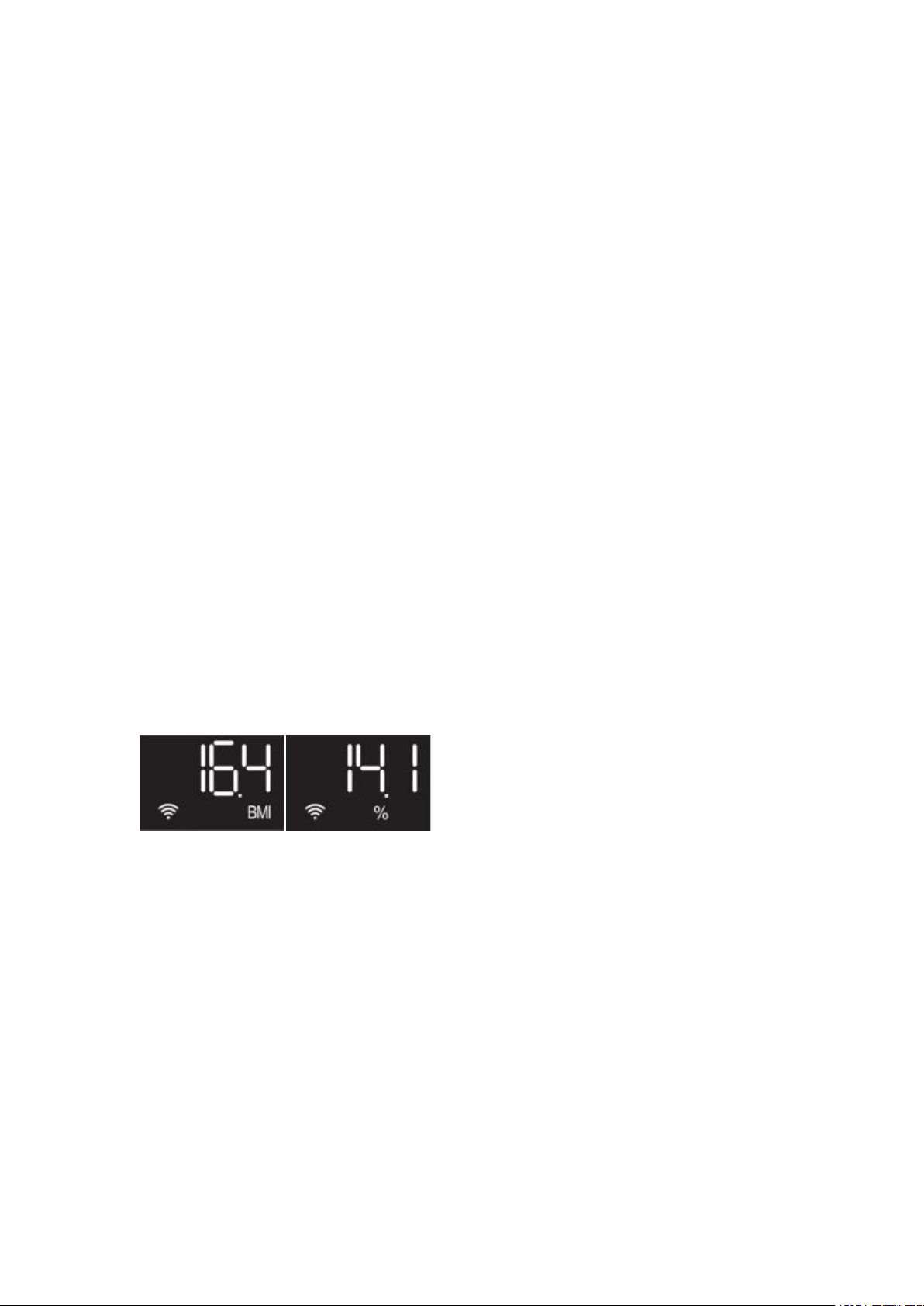
2. Check your network.
- The paring is only supported by the 2.4 GHz Wi-Fi, NOT 5G Wi-Fi.
- Check if the Wi-Fi signal stable.
- Keep your smartphone & scale close to the router when pairing.
Measurement
[Measure in Bluetooth mode]
1. Enable Bluetooth on your smartphone and open the App.
2. Step onto the scale with bare and dry feet on the scale to turn on the
scale. Make sure the screen light up.
3. Keep standing on the scale for 5-10 seconds. The weighing is finished
after "0.00" has displayed.
4. Bodyweight, BMI, Body fat% data will show on the scale. All of the 13
metrics store to app.
[Measure in Wi-Fi mode]
1. Make sure your scale has already paired with Wi-Fi. Measuring in Wi-Fi
mode allows you to measure without running the App.
2. Step onto the scale with bare and dry feet on the scale to turn on the
scale. Make sure the screen light up.
3. Keep standing on the scale for 5-10 seconds.
4. Body weight, BMI and Body Fat % data will be displayed on the scale
after "0.00" has displayed twice.
Note:
1. The scale recognizes up to 8 users, which means the scale know who
stepped on it according to his/her previous weight information and will
show his/her BMI and Body fat% data on the scale when recognized
successful.
2. Only when the difference of his/her weighing result is less than
2kg/4.4lbs compared to his/her last weighing result, the scale will
recognize him/her.
3. Wait for seconds until the following symbol on the dispaly shows up.
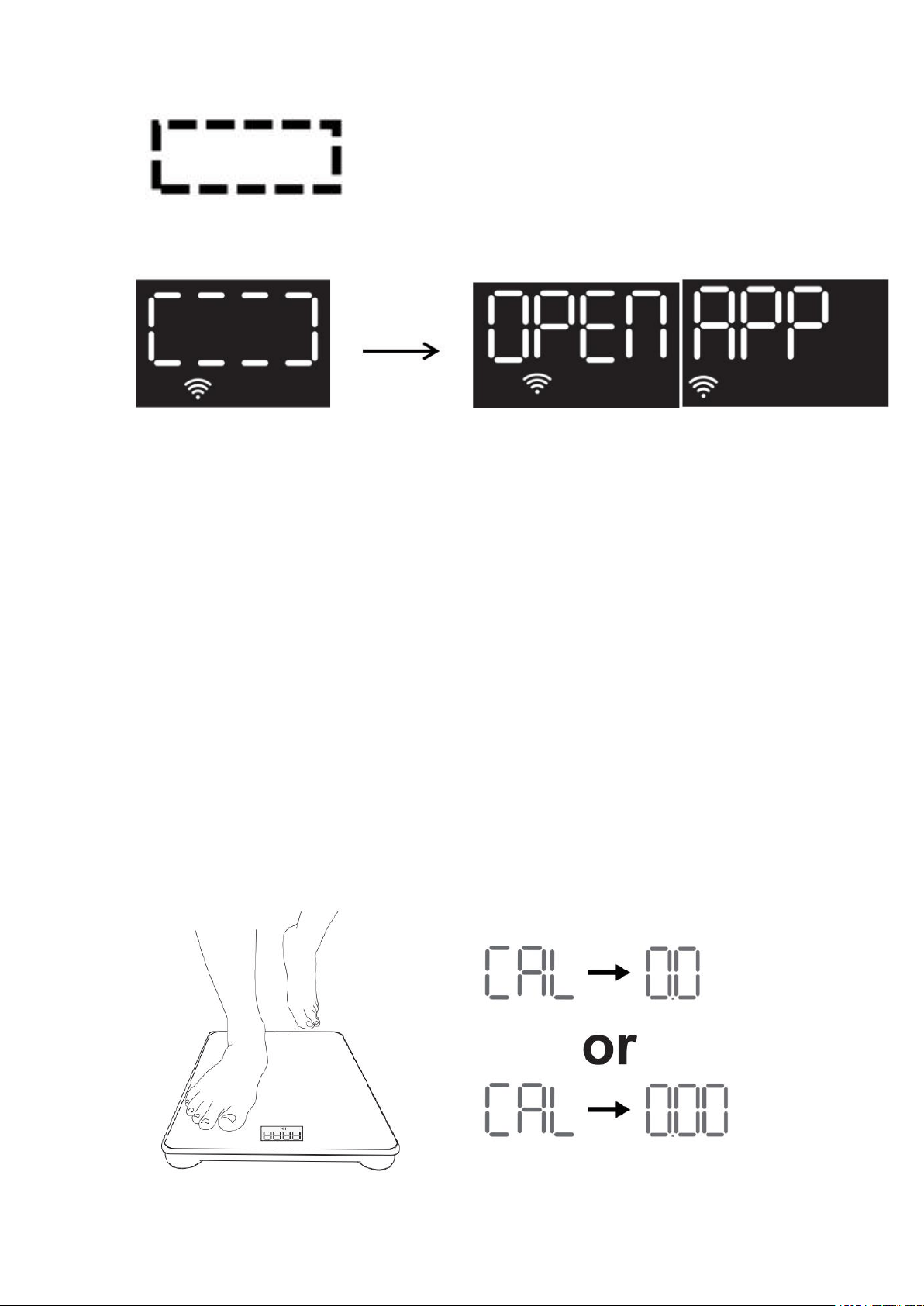
After "OPEN APP" displayed on the scale, the weighing is finished.
Note:
If "FAIL" displayed on the scale, which means the Wi-Fi scale fail to upload
the data to the App. It might be caused by the weak Wi-Fi signal. Please
make sure the Wi-Fi signal is strong and stable.
Importance
Recalibration:
If the scale has been moved or turned upside down, it must be calibrated to
ensure accurate results.
1. Please place your scale in a firm, flat and stable location, avoid any
carpet;
2. Step on with one foot to wake up the scale;
3. When the monitor shows digits, then step off;
4. Then scale will show "CAL", then "0.0" or "0.00", the calibration process
is complete.

FAQ
WHY IS MY BODY WEIGHT NOT ACCURATE?
If you think you are getting a inaccurate weight measurement, please try
below steps to fix the problem inaccurate issues:
1. Place the scale on a hard and flat surface. Softer floors such as carpet
can cause inaccuracies.
2. Step on the scale with one foot until the LED screen lights up. Then step
off and wait for the LED screen to display "CAL". When "0.00" is displayed,
the scale is calibrated and you could step on it for measurement.
3. During the measurement, try to keep your weight centered directly
above and over the scale as much as possible.
4. Try waiting for the scale to auto-shutoff (about 10 seconds) and you
should be able to view accurate results via app.
If you think you're still getting inaccurate results, it may be caused by the
following factors:
a. A type of internal error. Try resetting the scale by taking one battery out
for 5 seconds and putting it back in.
b. The unbalanced surface could also cause inaccurate results. Always try
using the scale on a flat surface. Putting it on a softer surface such as
carpet can also cause inaccuracies.
c. Check the legs/pads of the scale for any obstruction that may cause an
imbalance.
Additional Tips:
1. Avoid moving the scale. Moving the scale frequently increases the risk
of inaccuracy.
2. Everyone's weight fluctuates throughout a typical day. Muscle usage
and basic consumption of food and water will cause some weight
fluctuation no matter what. Thus, if you weigh yourself multiple times
during the day, you will see some differences. To minimize the fluctuations,
weigh yourself the same time each day (such as the morning).
We hope these tips are helpful and they address your issues.
WHY MY SCALE WON'T TURN ON?
Please make sure the batteries is placed correctly, if it is, please put a
different set of batteries in the scale and try step on again. If the scale still
won't turn on, please contact us [support@renpho.com].
I'M HAVING TROUBLE GETTING MY SCALE CONNECTED. ANY TIPS?
Please go to the [Bluetooth Troubleshooting] menu, if the Bluetooth still
won’t connect after the troubleshooting process, please contact us through

[support@renpho.com], our tech team will help you with your problem
ASAP.
NO BODY FAT MEASURED WHEN WEIGHING, WHAT'S WRONG?
Step on with dry and bare feet.
Ensure Bluetooth is enabled and working.
Ensure personal data is entered.
WHAT IS "ATHLETE MODE"?
I saw "Athlete Mode" option when I create my profile, what is it?
Should I turn it on? What is the definition of an Athlete?
The general consensus among researchers is that a quantitative
dimension could be used to define an athlete. An athlete is defined for this
scale as a person who consistently works out for approximately 3 times per
week at 2 hours for each occurrence. These individuals should select
Athlete Mode for the most accurate measurement results.
Please note that scale is not calibrated for professional athletes or body
builders.
WHY IS THE ATHLETE MODE NECESSARY IN A BODY FAT SCALE?
It has been found that body fat estimation using BIA could overestimate
the percentage body fat of adult elite athletes. The physiological variation
of athletes in bone density and level of hydration are two of the reasons
said to account for the difference.
HOW TO RESTART THE SCALE?
First, take one of the batteries out of the scale.
Then, put back the batteries and wait for 5 seconds.
Now the scale has been automatic restart, you can step onto the scale.
BODY COMPOSITION INACCURATE?
Why are my body composition numbers different than the ones I see
at my gym, doctor, etc.?
Body composition analysis is an inexact science, regardless of the
manufacturer or method of measurement. Because your scale combines
the measurements it takes with variables stored in your user profile
according to our algorithm, the numbers you see may vary from those you
see using other measurement methods - which is completely normal.
When you’re measuring body composition, it’s more important to pay
attention to overall trends than day-to-day numbers. (Tracking in the
Renpho app helps with that.)

HOW TO CHANGE THE UNIT?
Please go to Renpho App, "My account
>
Settings
>
Weight Unit".
HOW DO I TRUST THAT MY DATA IS SECURED?
We know that the information you share with us is sensitive, and it's
important to us that we honor your trust. Your scale creates a secure,
one-to-one connection to your account on a device of your choice to sync
your results, which are then backed up to our servers. We don't allow any
third parties access to your data unless required to by law. Check out our
privacy policy (https://renpho.com/pages/renpho-privacy-policy) for more
information.
HOW TO SET PASSWORD FOR APP?
You can find "Lock Password" under Settings menu.
WHEN DO I CHANGE THE BATTERIES?
When you step on the scale and it shows "LO", it means low batteries, it
requires you to change batteries.
Why can't i pair the scale for the first time?
When you pair the scale for the first time, please open your Bluetooth to
ensure connected successfully.
WHY CAN NOT PAIR WITH THE SCALE IN THE WI-FI MODE?
1. Please check your Wi-Fi password. Wi-Fi input error is one of the most
common errors.
2. Please check your network status.
a. Keep your smartphone, the scale and WiFi routers all within close
proximity.
b. Please use a non-5G network.
c. Please don't use the mobilephone hotspot or portable Wi-Fi signals that
is not stable.
WHY THE SCALE SHOW FAIL?
It caused by a bad network signal, please place the scale near the Wi-Fi
routers.
WHY DOESN'T THE SCALE SHOW THE BMI AND BODY FAT IN THE
WIFI MODE?
The Bluetooth scale does not recognize the user, the data will be displayed
in the unknown measurement. You can go to the unknown measurement of
the RENPHO app to allocate your data.

WHY IS WIFI & BLUETOOTH CONNECTION SPECIAL?
Renpho premium scale can be paired with your smartphone in 2.4GHz
Wi-Fi condition and Bluetooth connection for your better measure
experience:
No longer need to open the App every time before weighing, free your
hands from the phone as long as there is a stable Wi-Fi signal!
No Wi-Fi signal? Don't worry! Renpho scale switches automatically
between Wi-Fi & Bluetooth connections automatically, you always have
Bluetooth as a back-up plan.
Wi-Fi connection has larger coverage than Bluetooth, the connection is
more powerful and steady.
Wi-Fi scale will automatically upload the data to App, record historical
trends of all the metrics, and view your progress in App and you can check
them at any time.
DISCOVER IN RENPHO APP
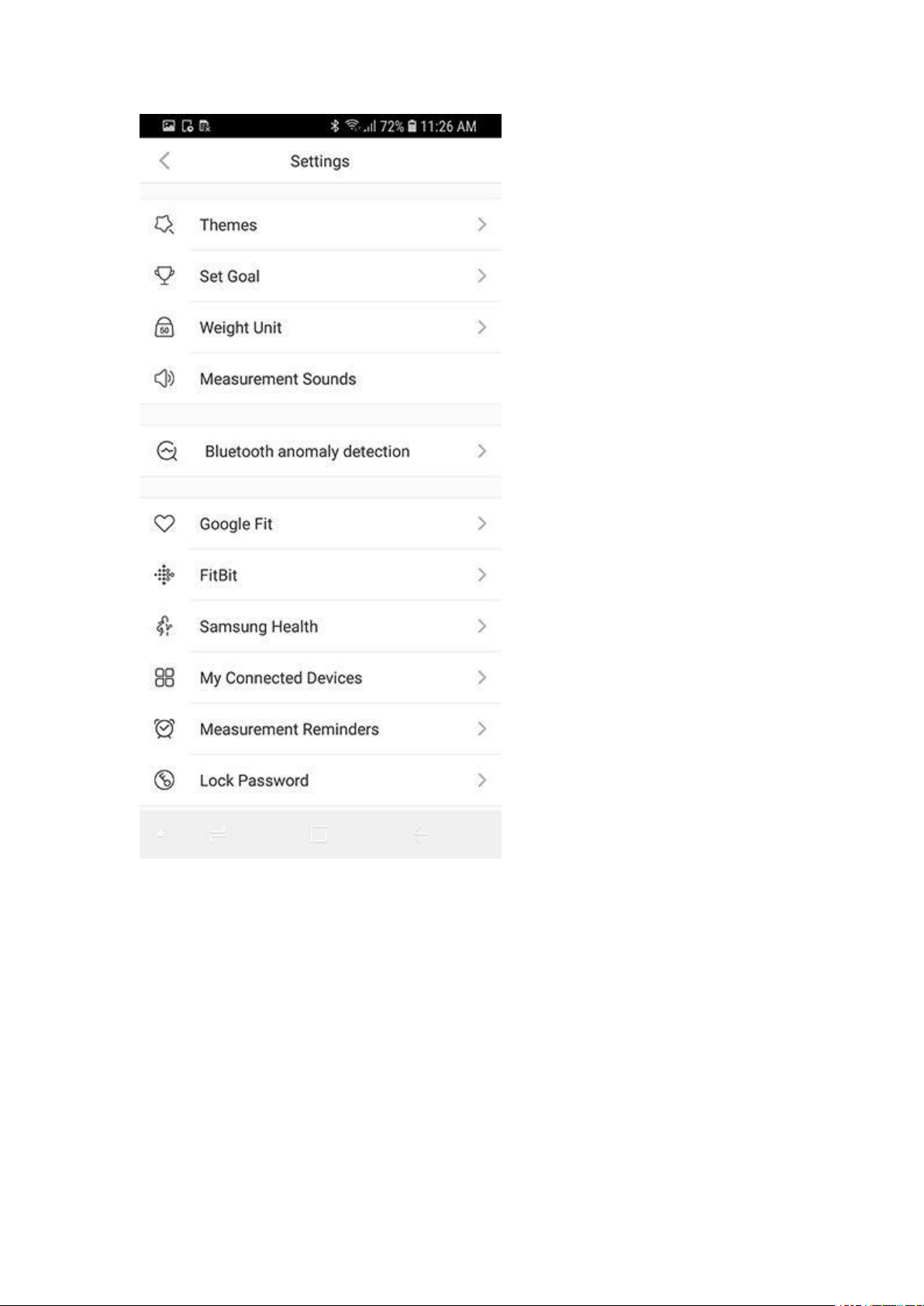
SYNC WITH SAMSUNG HEALTH (SAMSUNG HEALTH IS ONLY FOR
ANDROID PHONE)
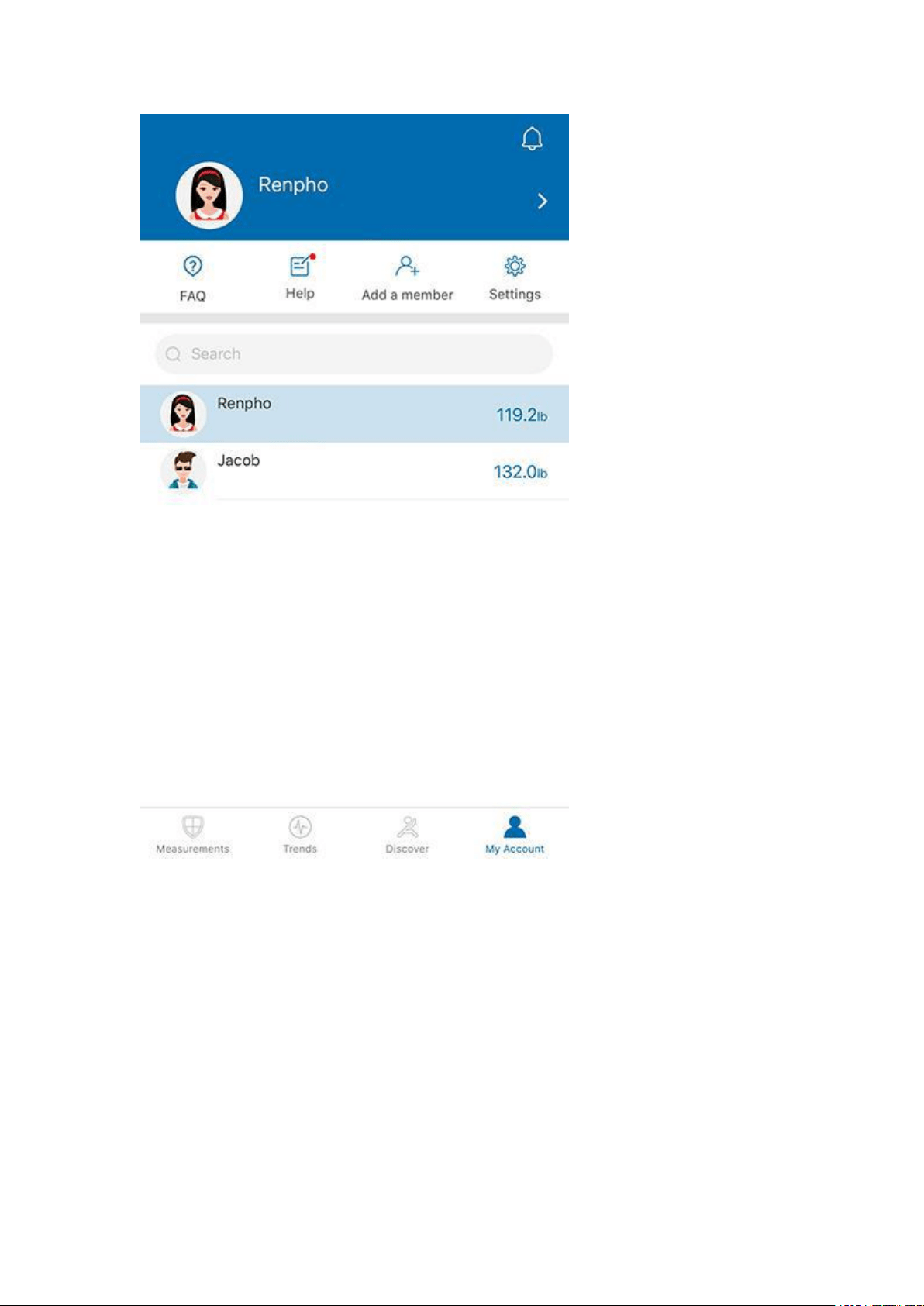
1. Tap on the "Settings" icon at the top right corner of the "My Account"
screen.
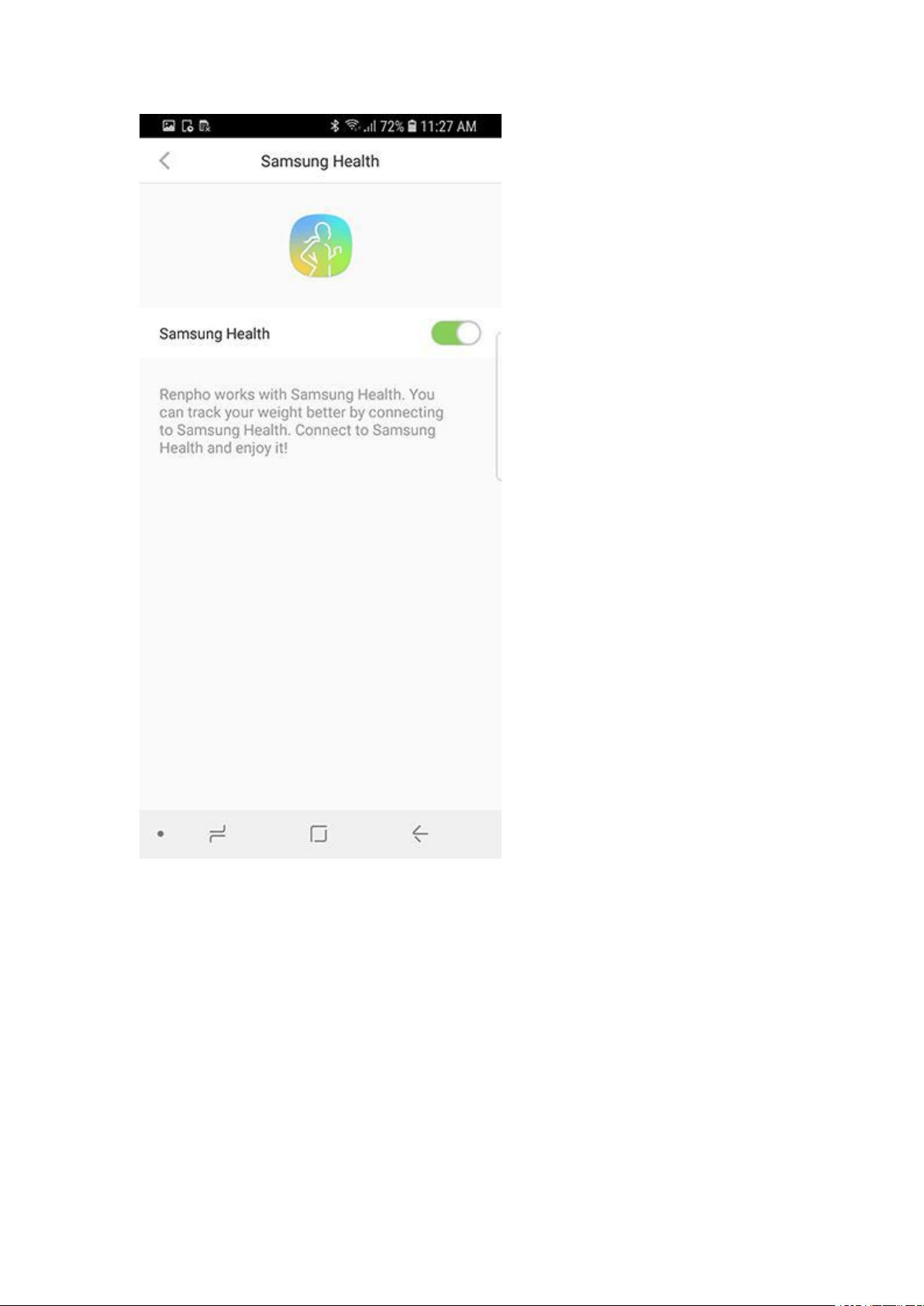
2. Under "Settings", tap on "Samsung Health".
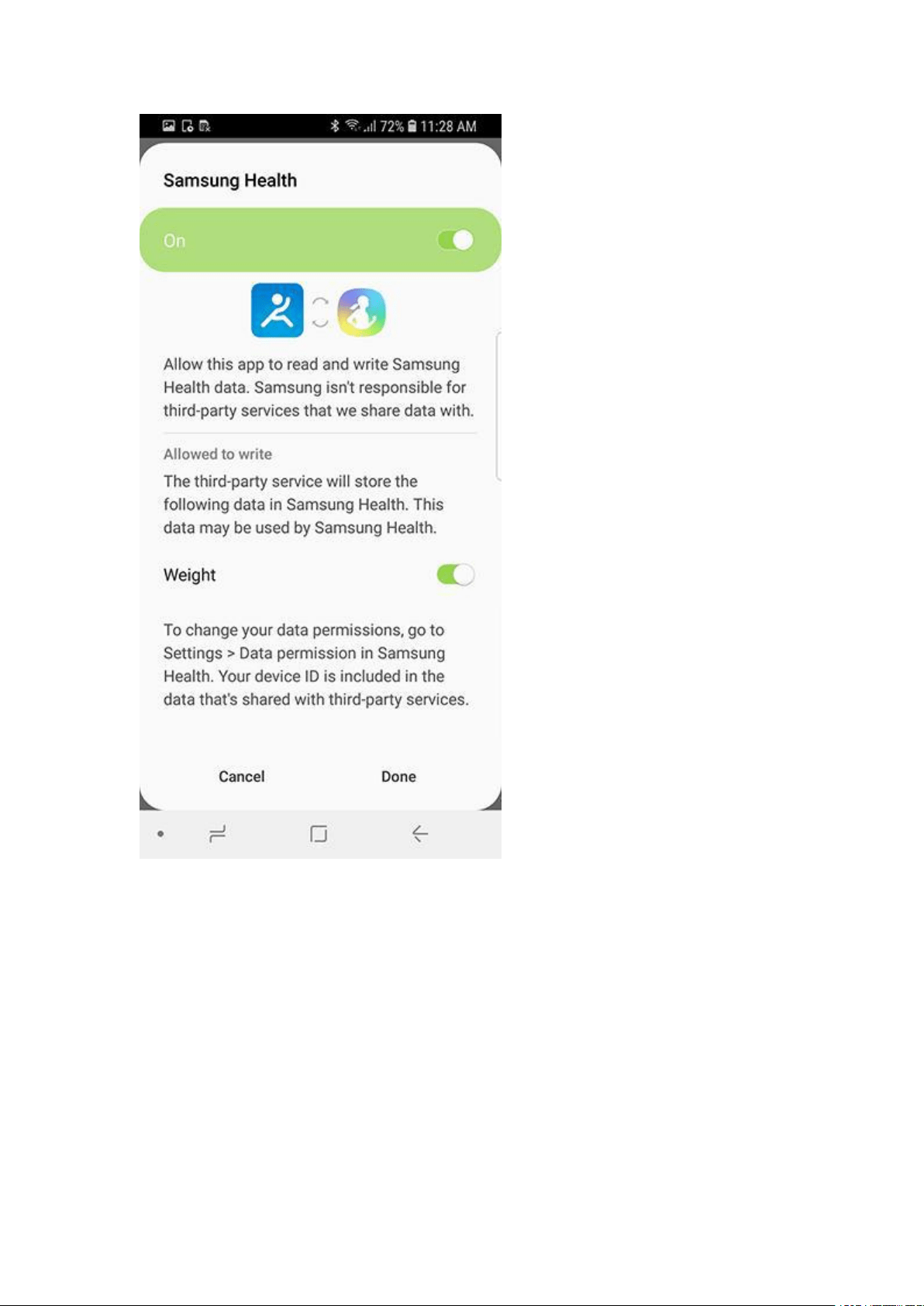
3. After you log in to your Samsung Health account, please go back to the
Authorization page. Now please switch on the "Samsung Health" button
again, then it will pop up the specific information to access authority,
ensure all permissions are enabled, then click confirm. Try using the app
again; Data from the RENPHO app should now sync with Samsung Health.
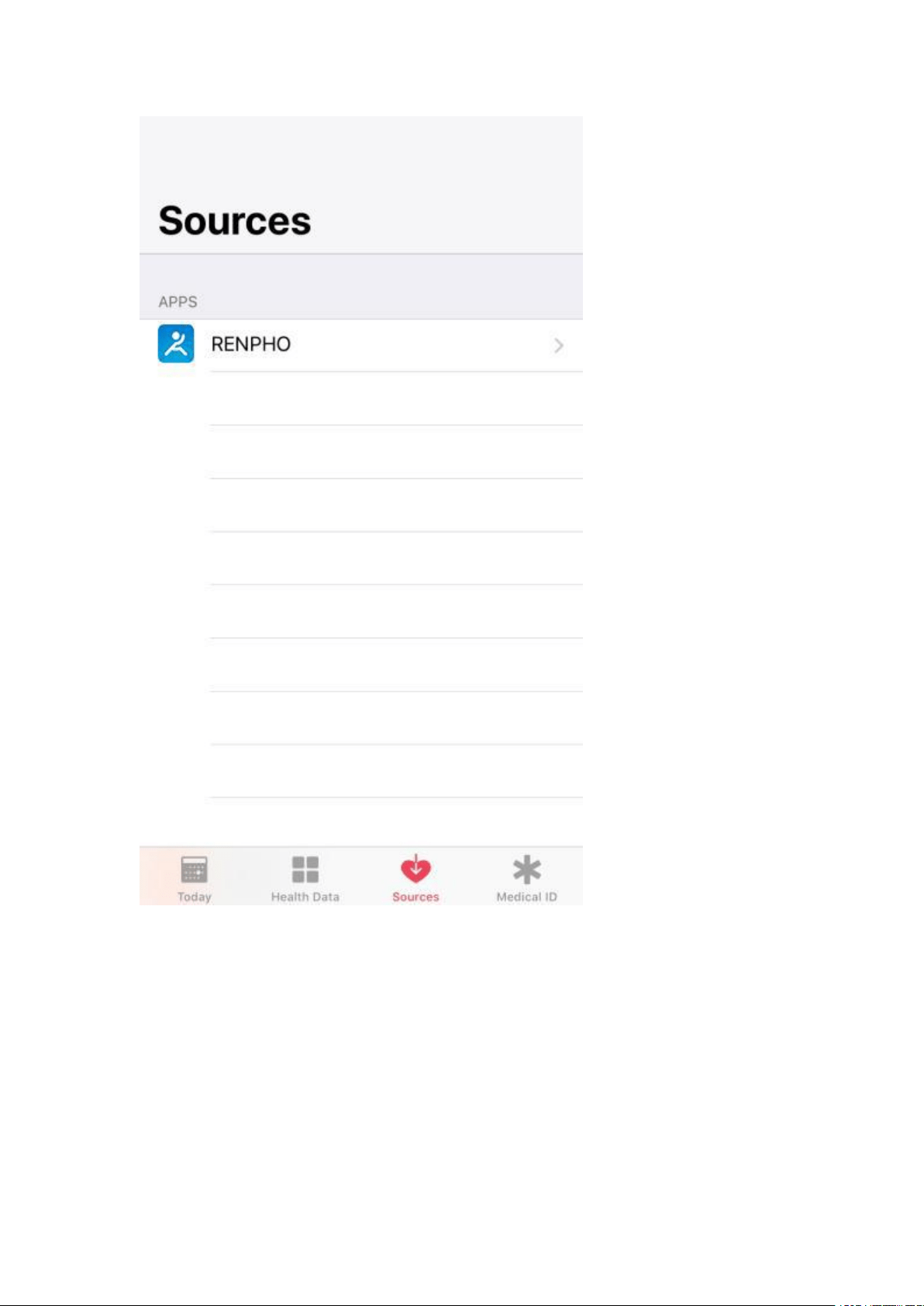
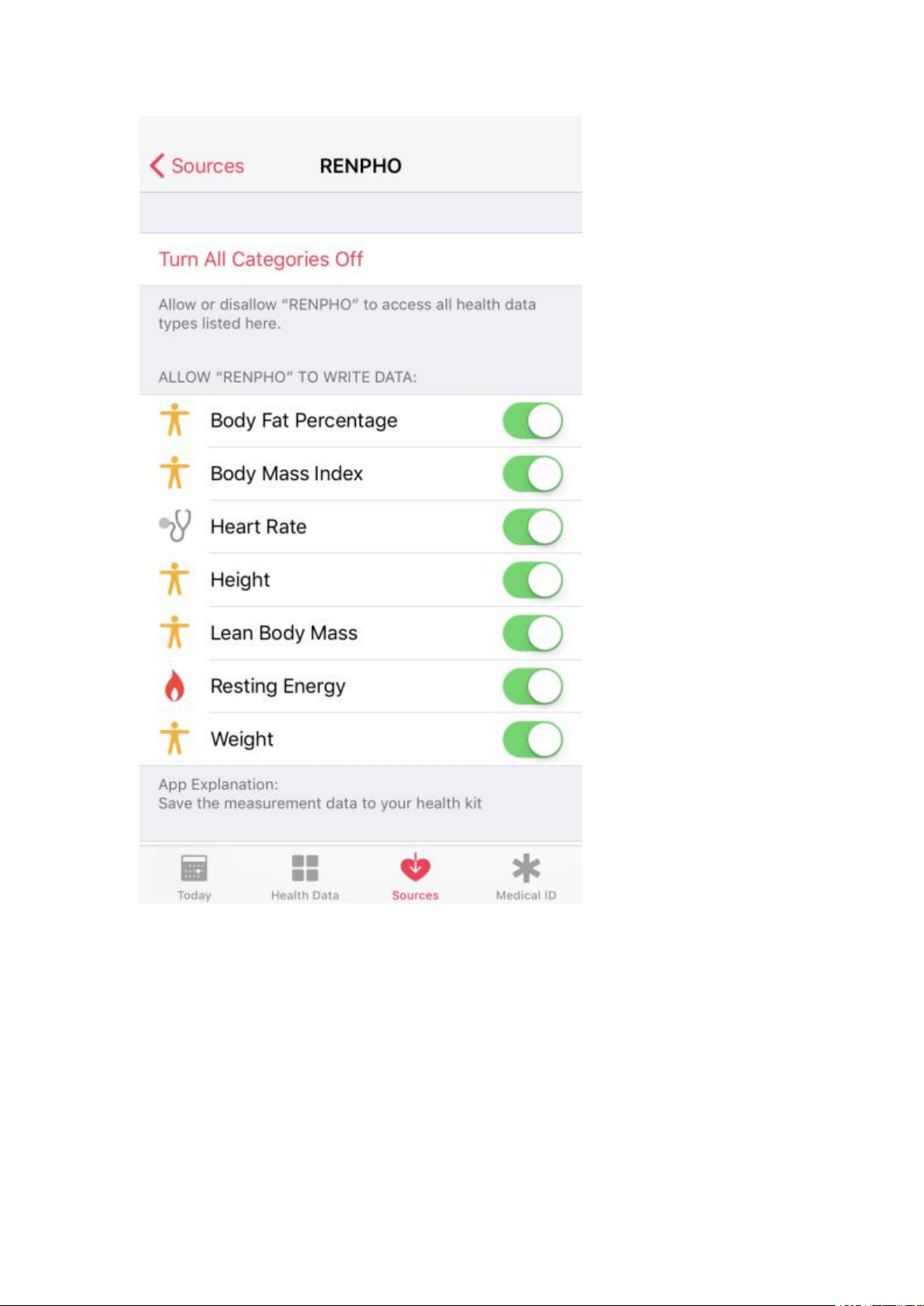
SYNC WITH APPLE HEALTH
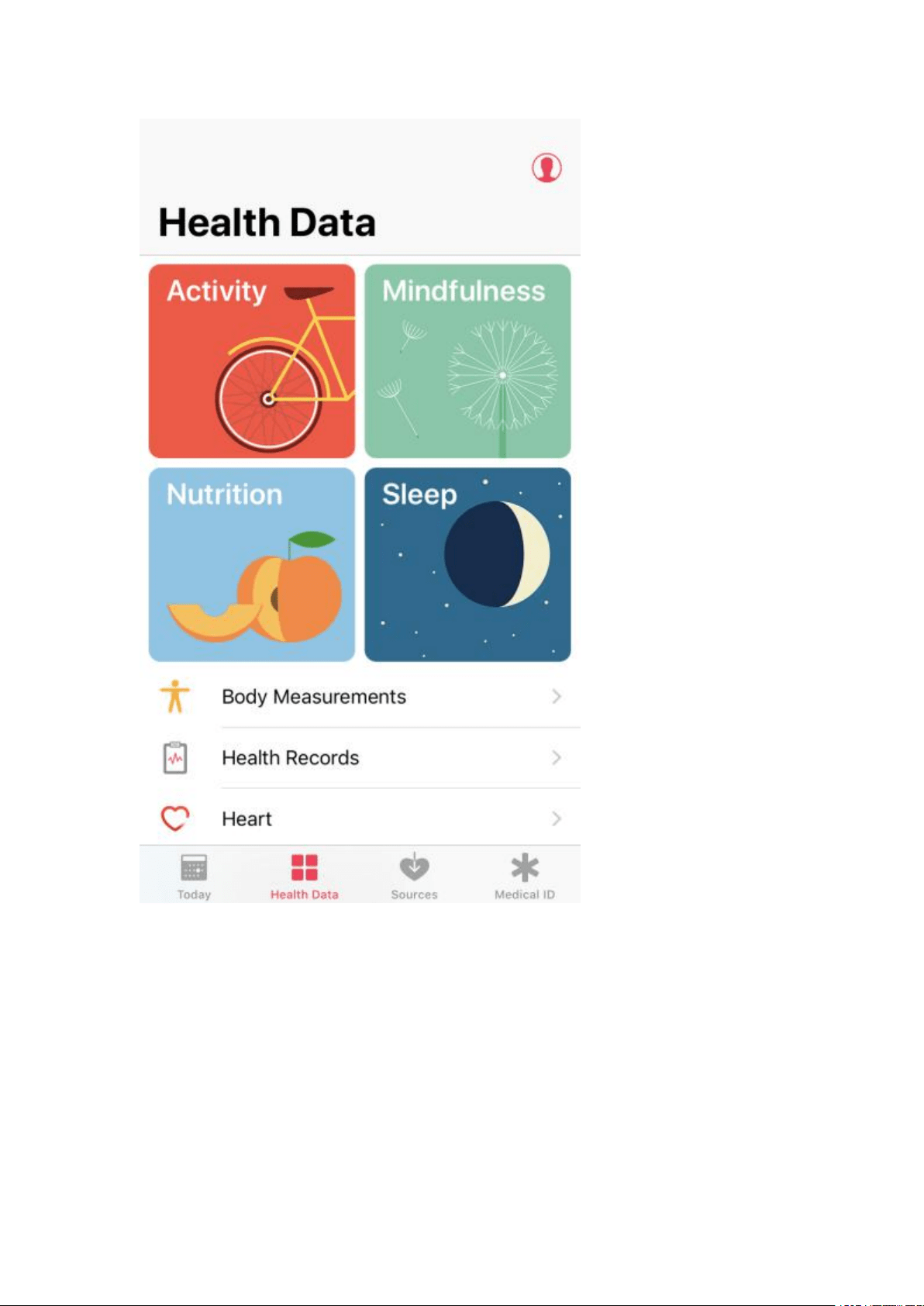
For previous versions of iOS 13, please use the following steps to sync
with Apple Health:
1. Open the "Health" app on your iPhone or iPad.
2. Tap on the "Data Sources".
3. Select "RENPHO" from the sources list.
4. RENPHO will synchronize the following data with Apple Health once you
connect. You can customize what you want to share using the switches on
the right.
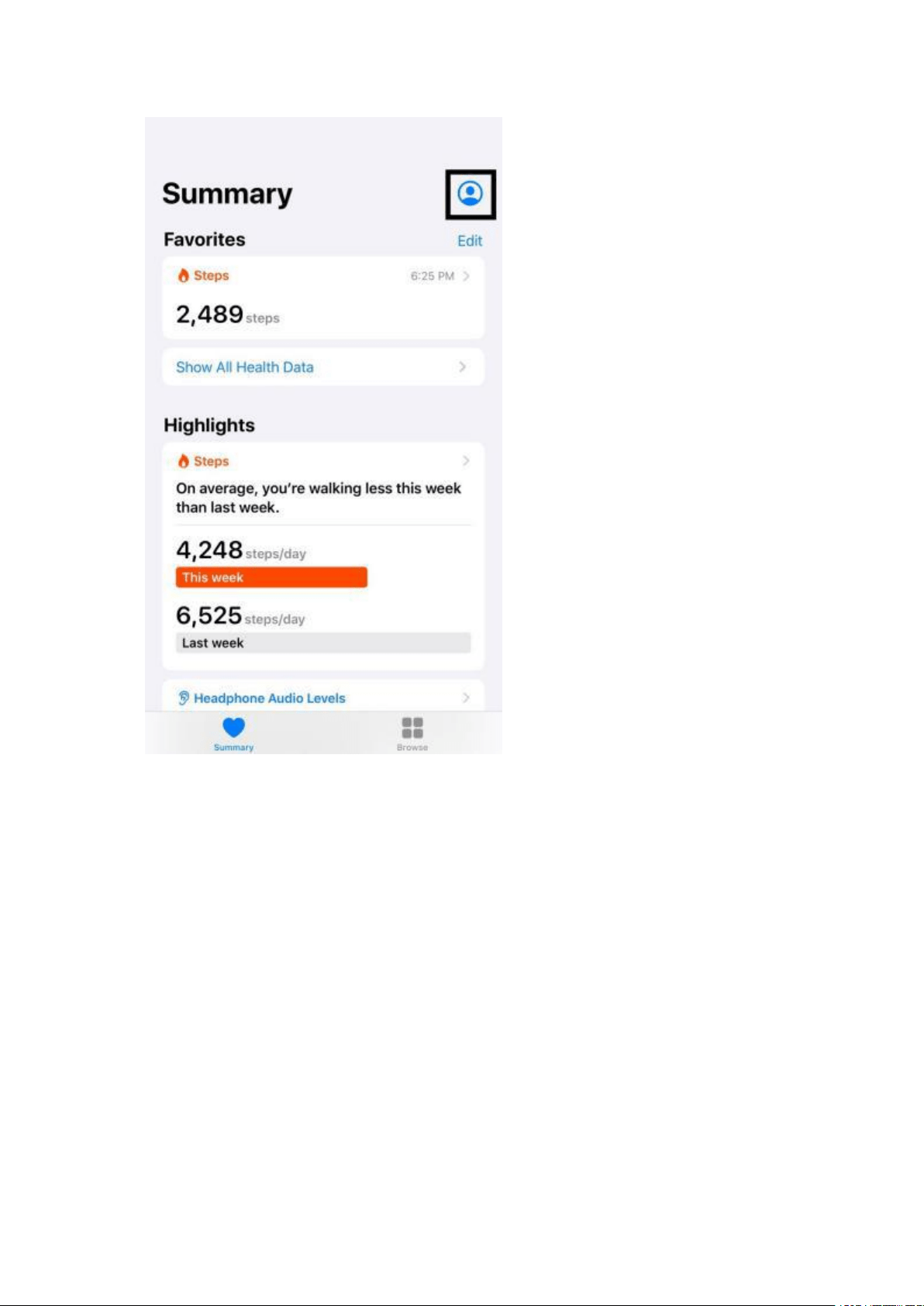
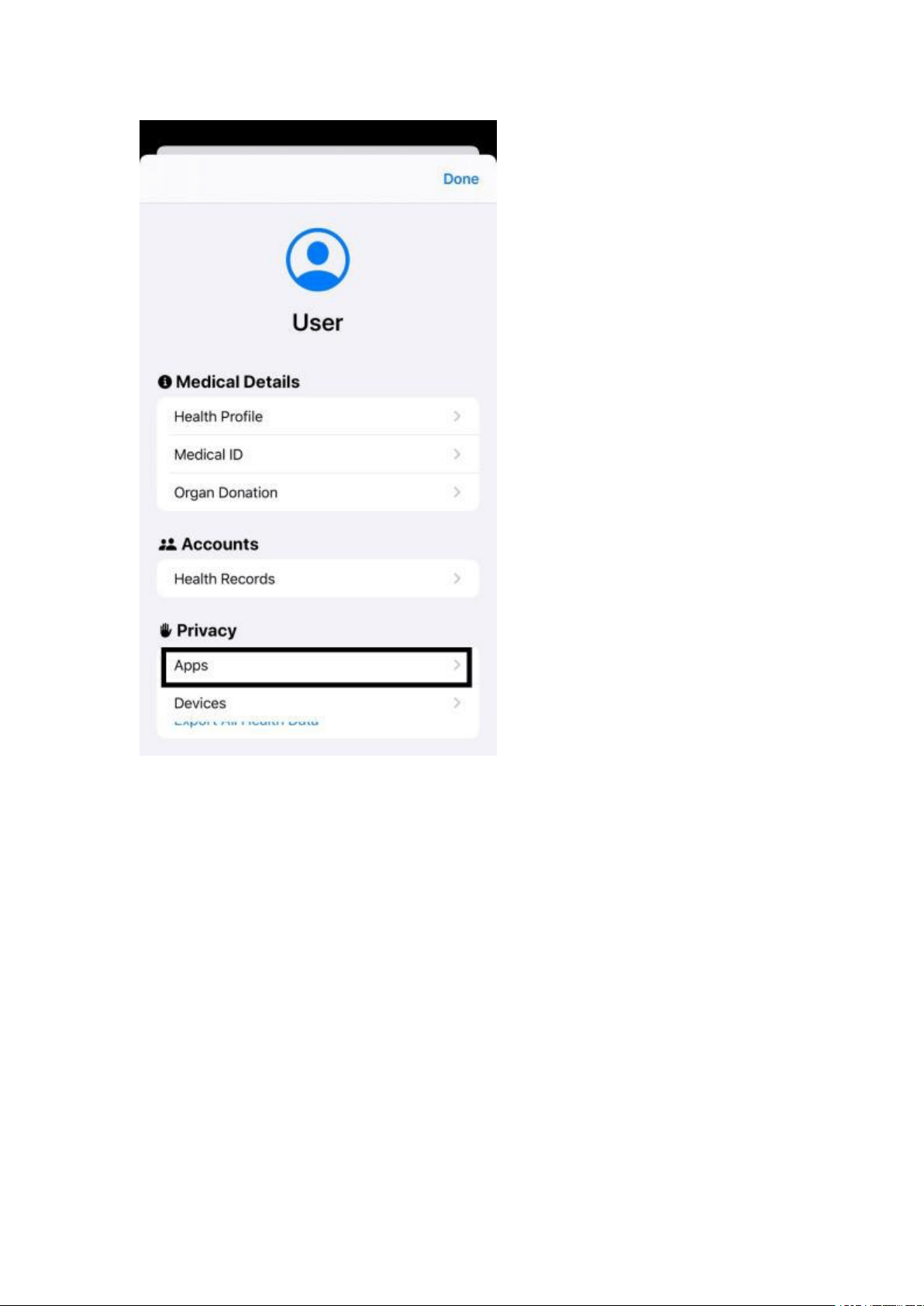
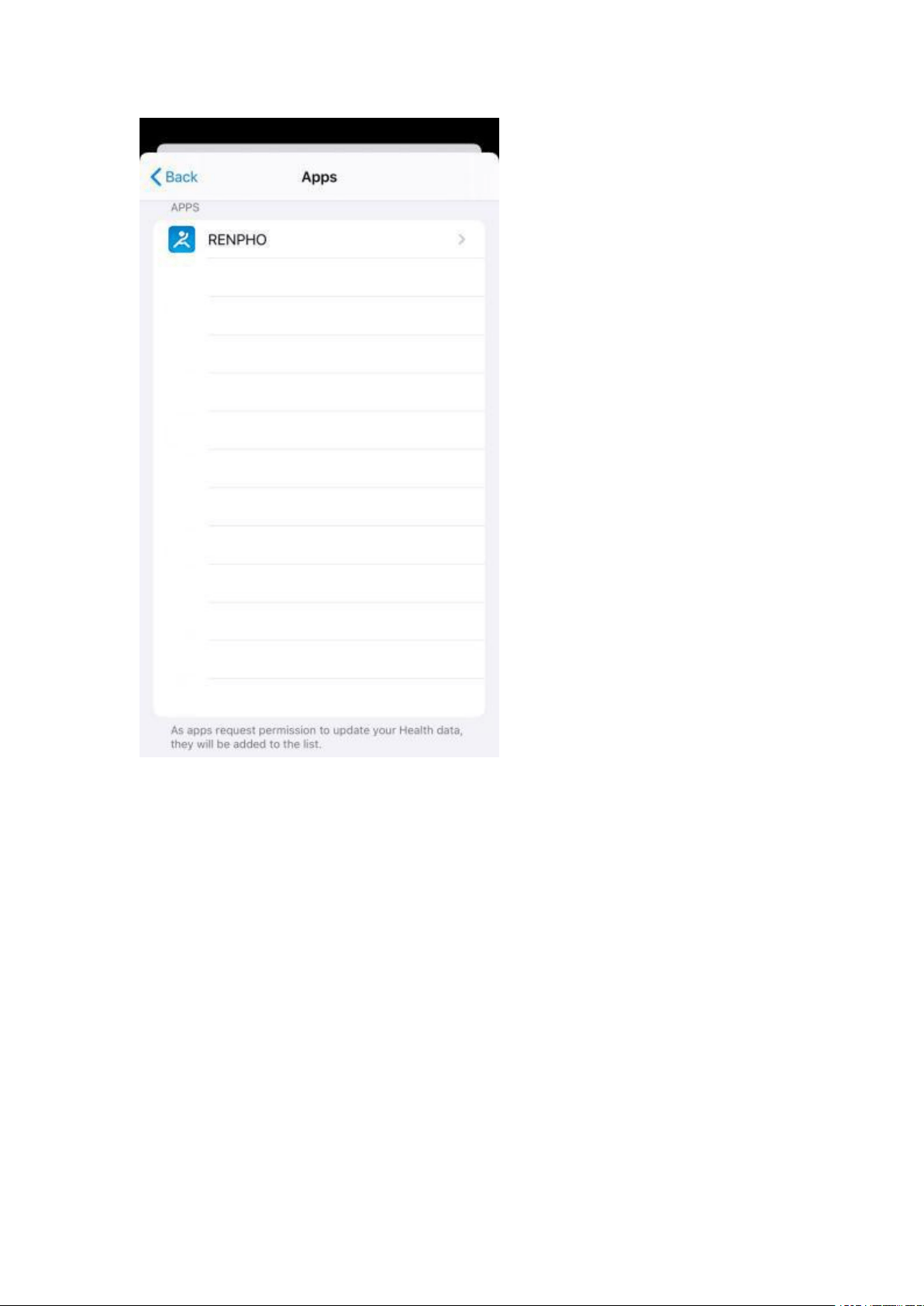
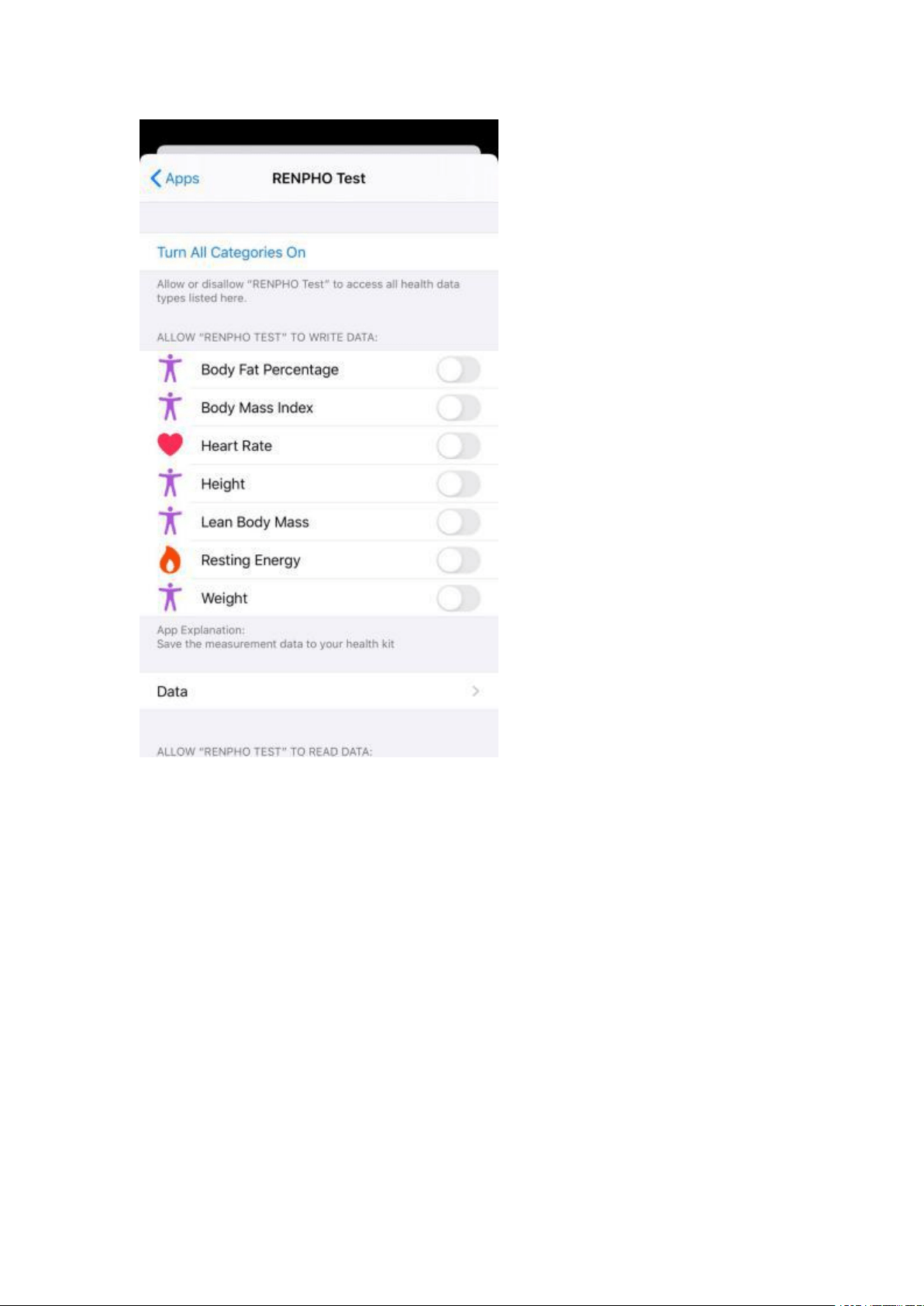
For iOS 13 or above versions, please use the following steps to sync with
Apple Health:
1. Open the "Health" App on your iPhone, click the user image at the top
right corner.
2. Select "Apps" under Privacy and select "Renpho".
3. Enable all categories to allow the Renpho App to transfer data to Apple
Health.
SYNC WITH GOOGLE FIT
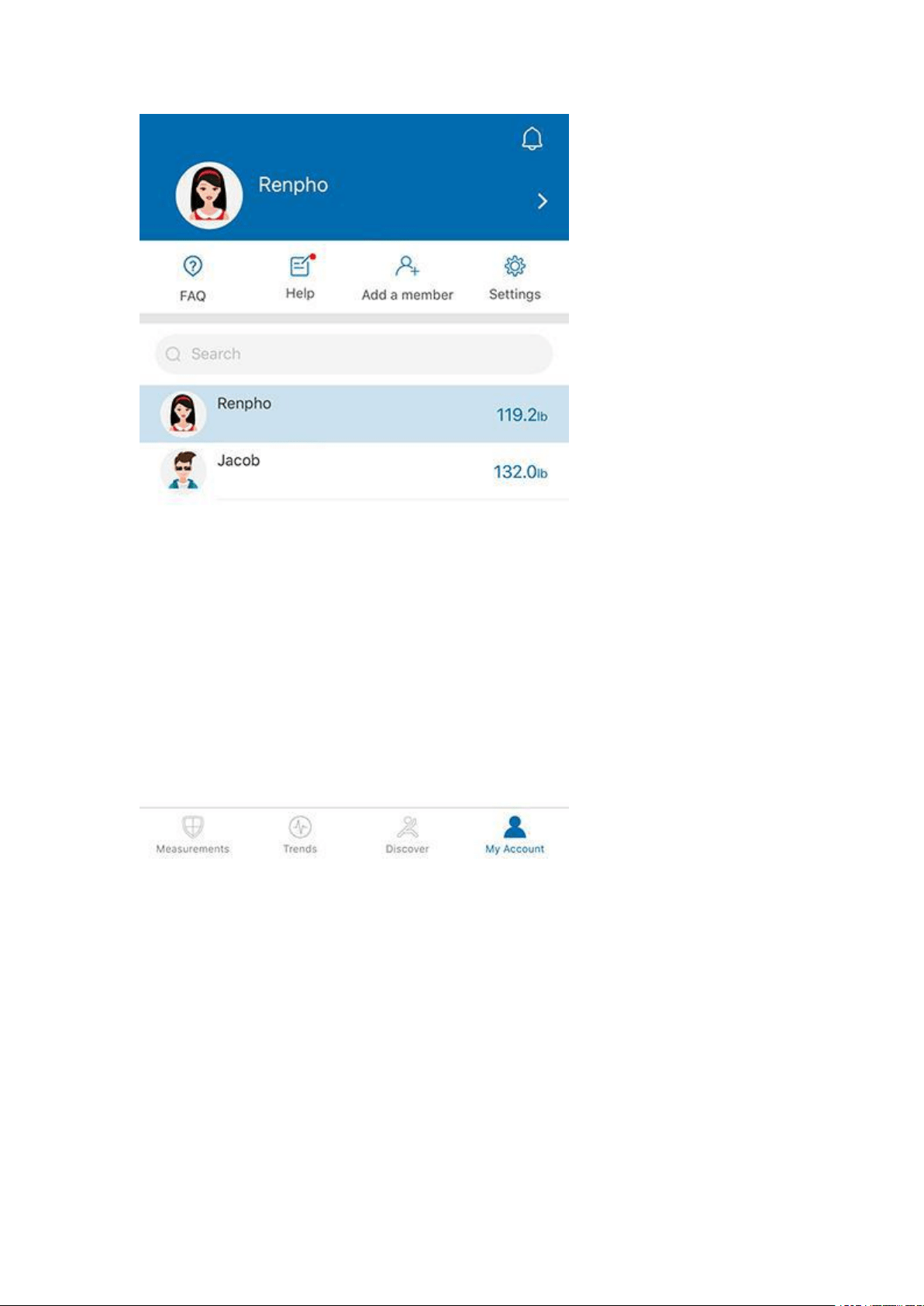
1. Open the Renpho app.
2. Select/tap the "My Account" tab.
3. Select/tap "Settings" in the upper right.
4. Select Google Fit and login to your Google Fit account and allow
Renpho to access your Google Fit account.
After you use the scale, the data will be uploaded to Google Fit. You can
login to your app to view your data.
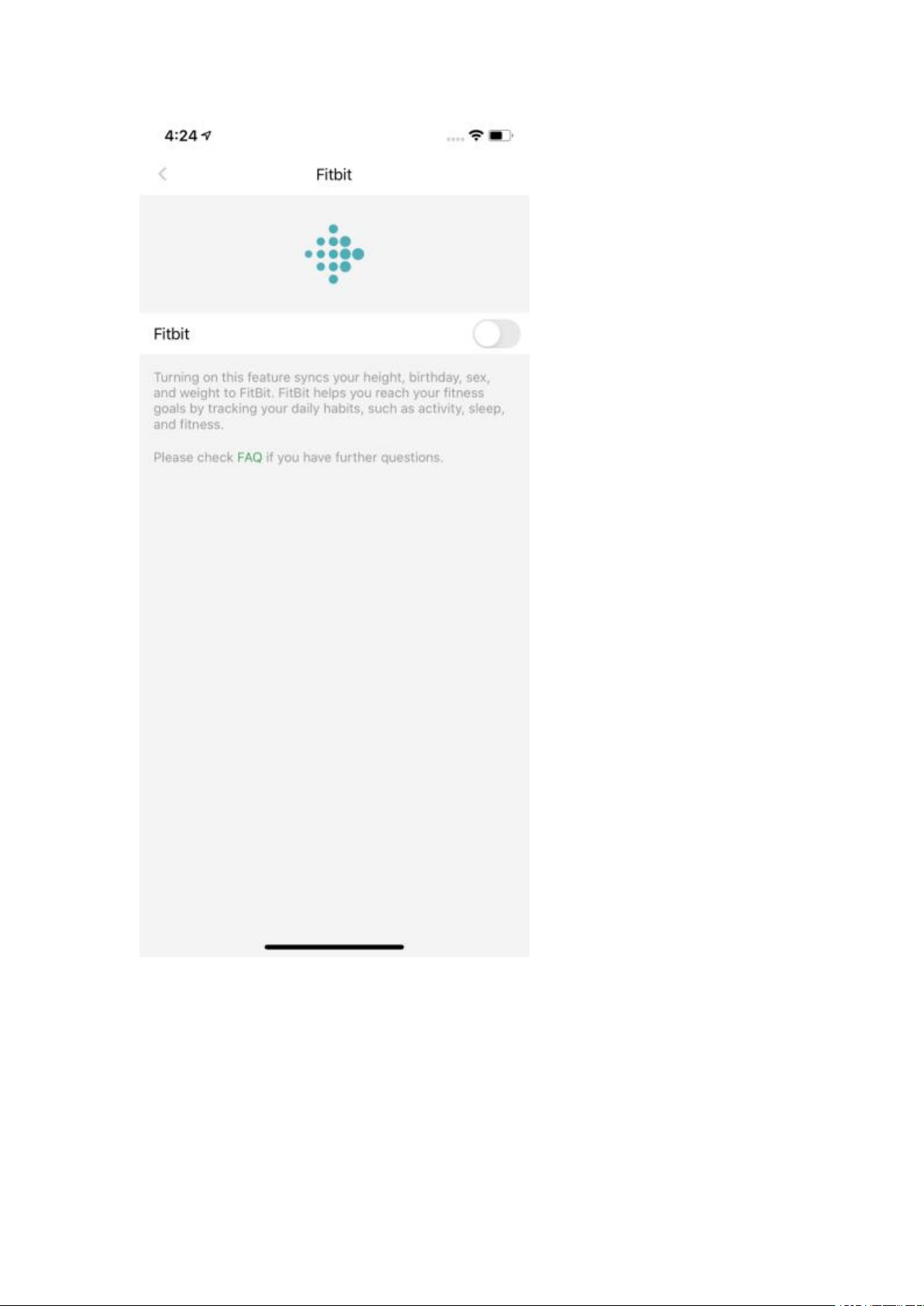
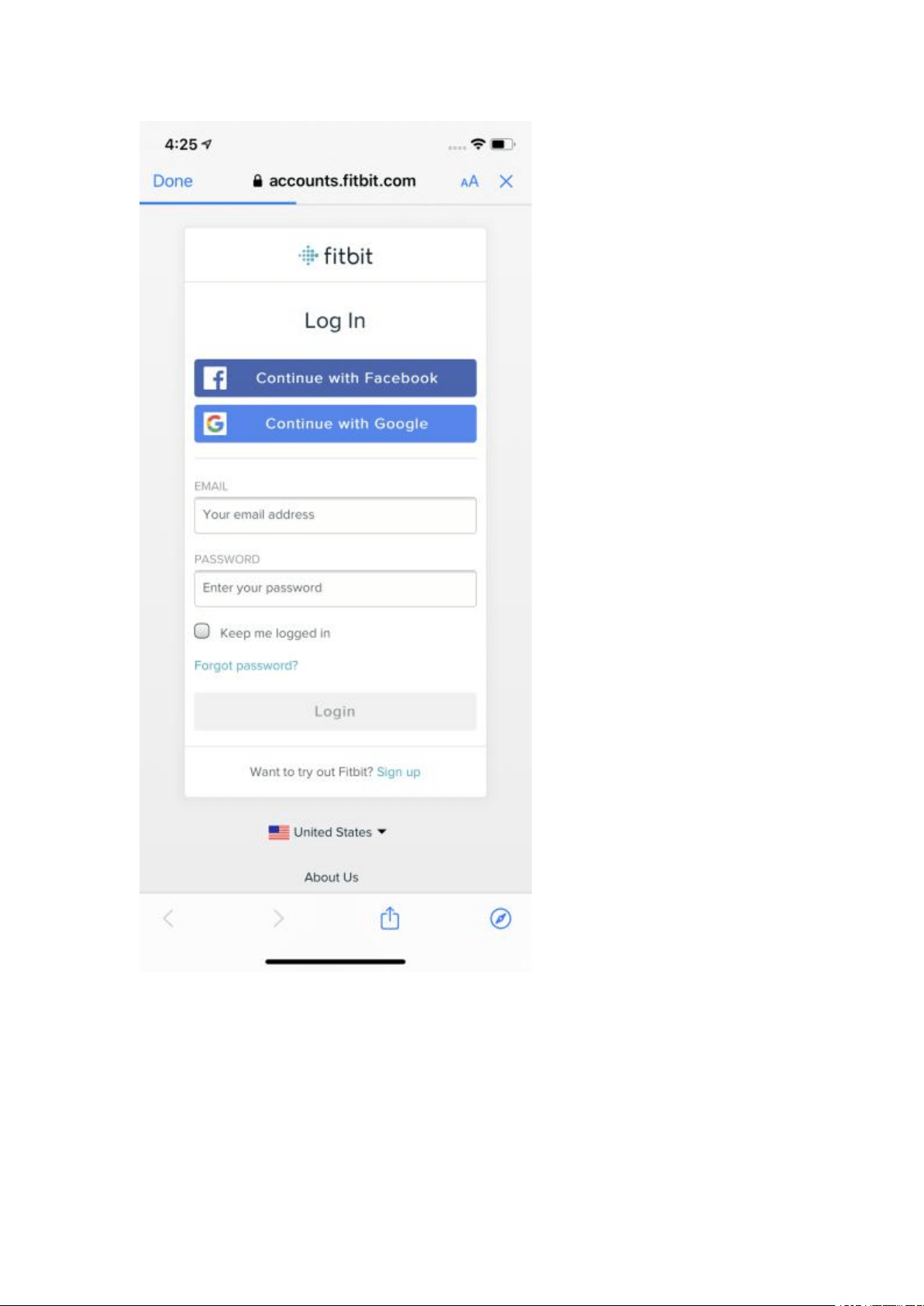
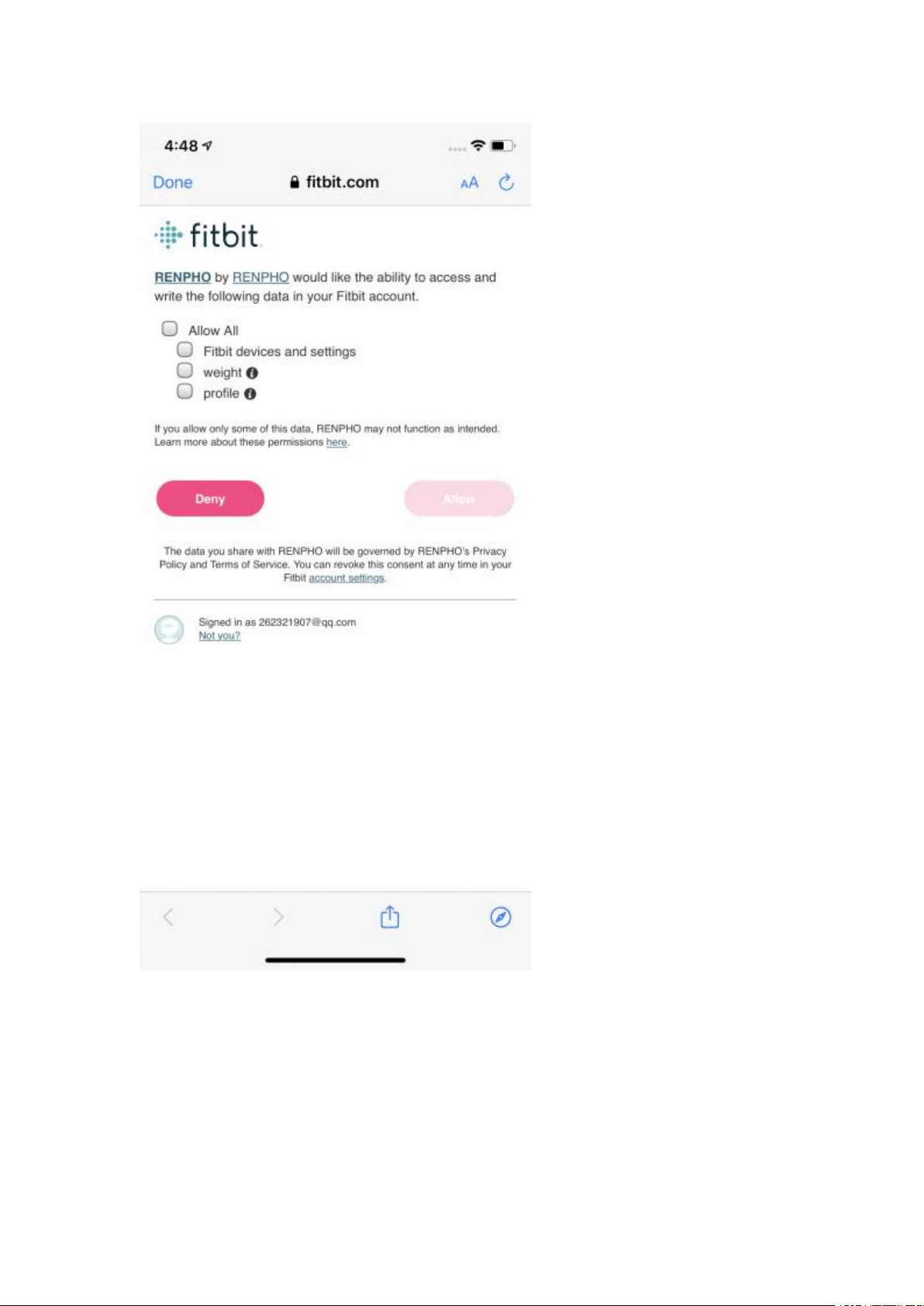
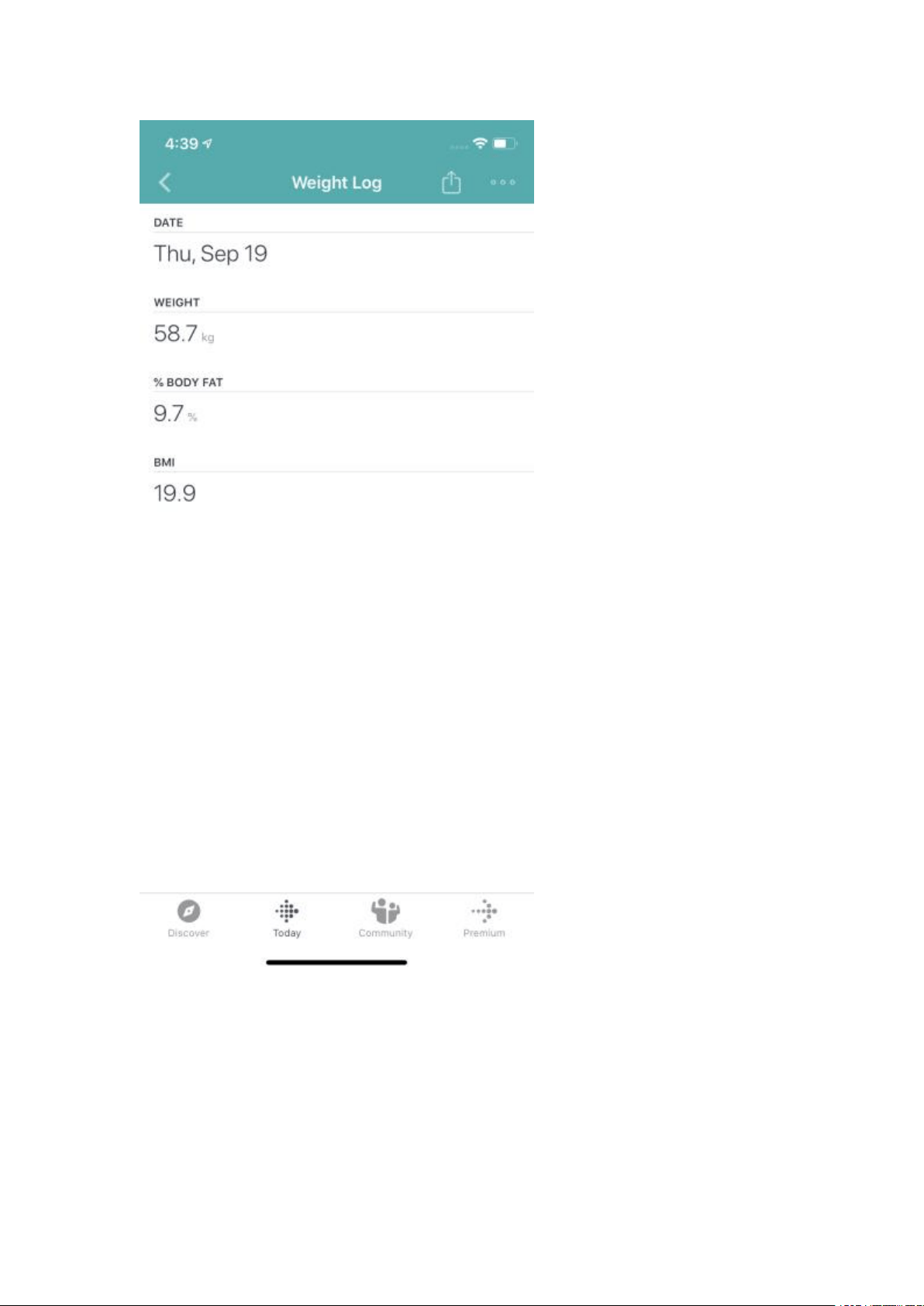
SYNC WITH FITBIT APP
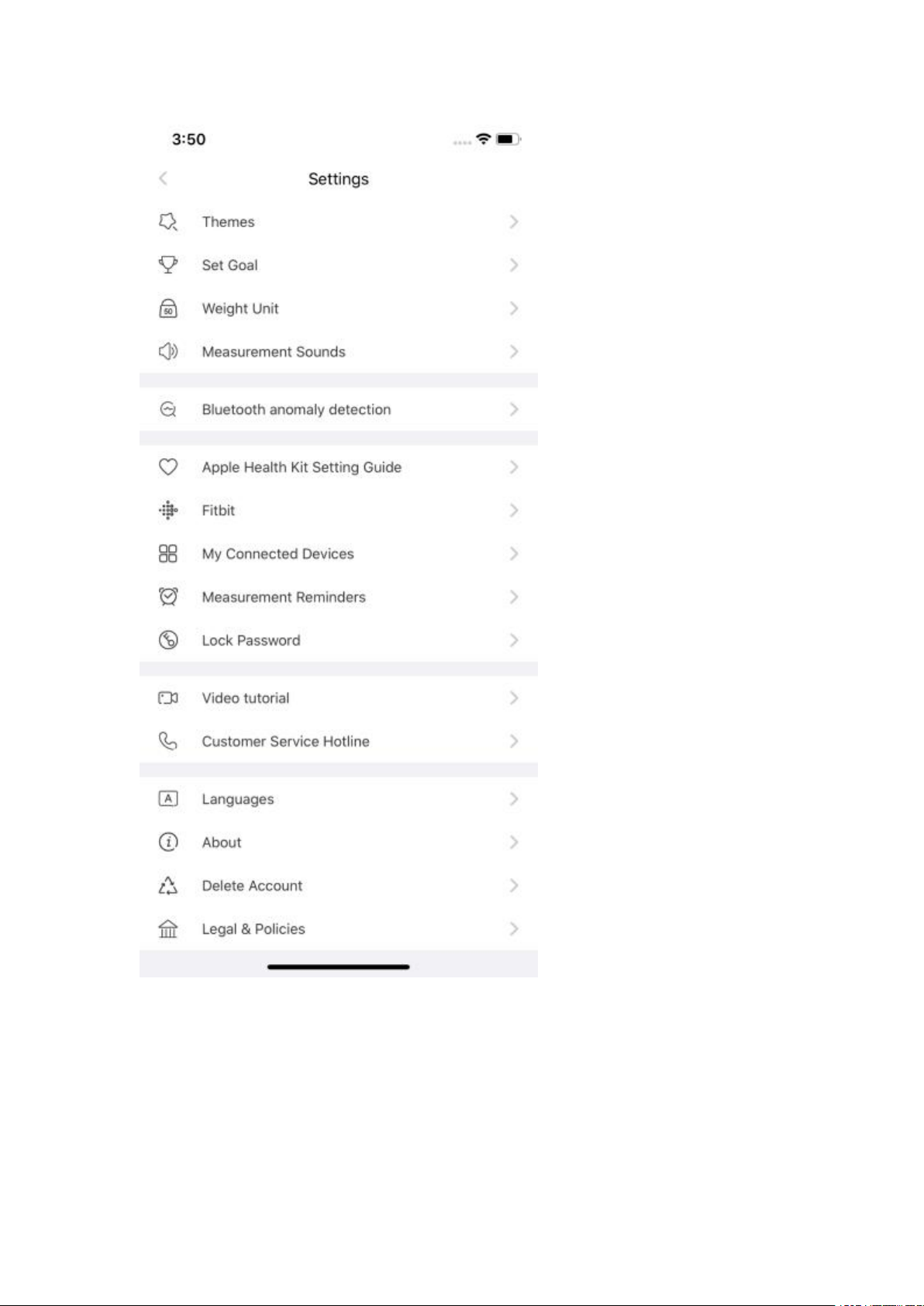
1. Enter Settings page in Renpho App, select "Fitbit".
2. Tap on "Fitbit", turn on Fitbit button, log in your Fitbit account.
3. Select "Allow" to access Fitbit App.
4. After connection, all the data (Weight, BMI) will sync to Fitbit app. You
can view both on app and web.
USE APPLE WATCH WITH RENPHO SMART SCALE
Before you can use the Renpho scale on your Apple Watch, ensure you
have the Renpho App downloaded on your phone and you have the scale
paired with the Renpho app on your phone first. Once that is done, you can
use the Renpho scale on your Apple Watch with the following steps.

1. Install and open the Renpho Apple Watch App. On the main interface,
tap "Measuring".
2. Step onto the scale and stand still.
3. After standing still for several seconds, you will see "Connecting"
followed by the status "Measuring". Your measurements will appear after
5-10 seconds.
4. Tap the back arrow to view your measurement history.
Other Tips:
1. You can use the Apple Watch with your smartphone under these
following conditions:
When the Apple Watch is disconnected with smartphone
When the watch is offline (i.e. it is not connected to WiFi).
When the Apple Watch is offline and disconnected with smartphone, after
restarting the watch.
2. Ensure you keep the watch screen on during the entire measurement
process.
To use the Renpho ES-26BB Scale, ensure your Watch has iOS 4.0 or
above.
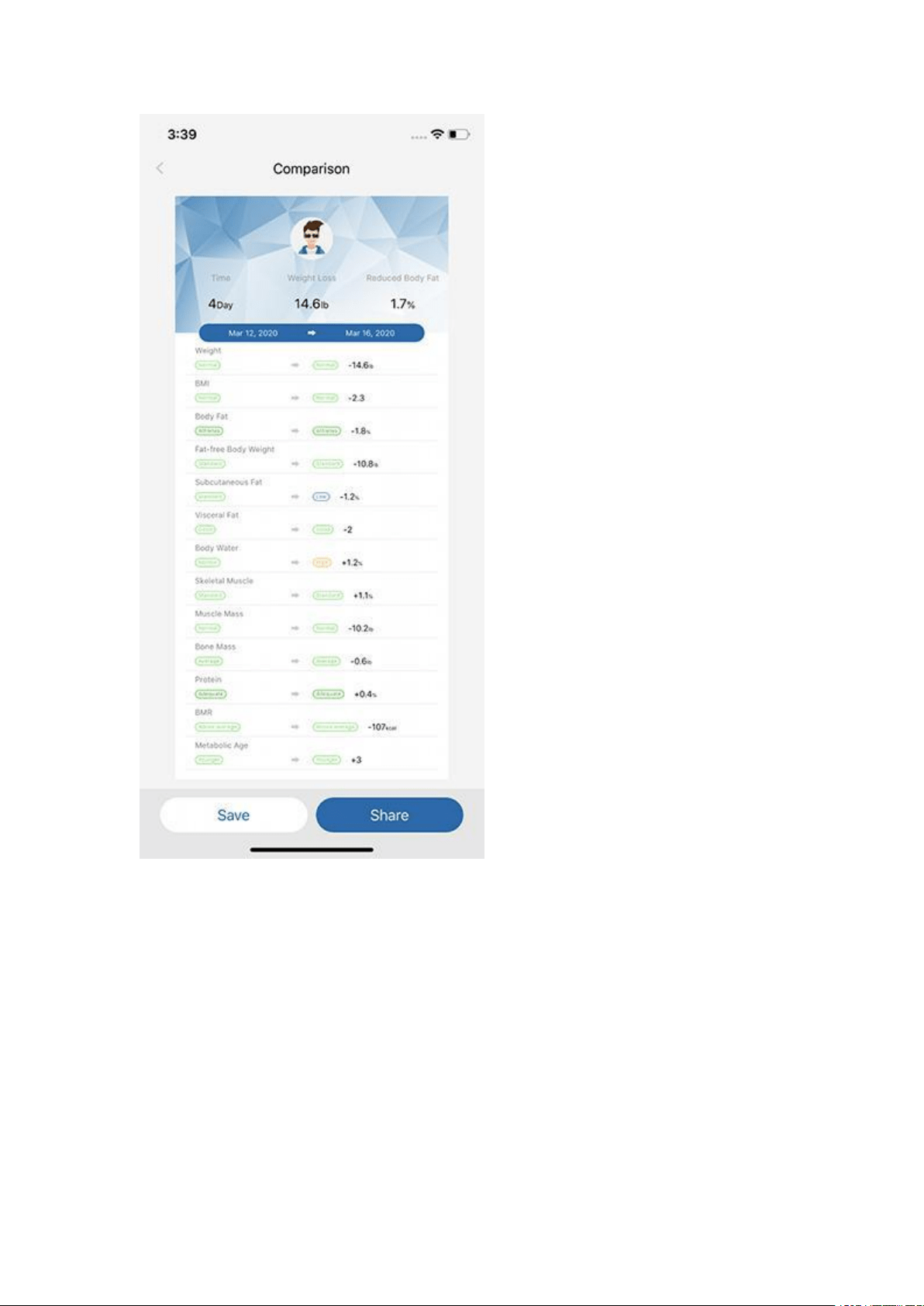
HOW CAN I VIEW THE MEASUREMENT AND SHARE PROGRESS?
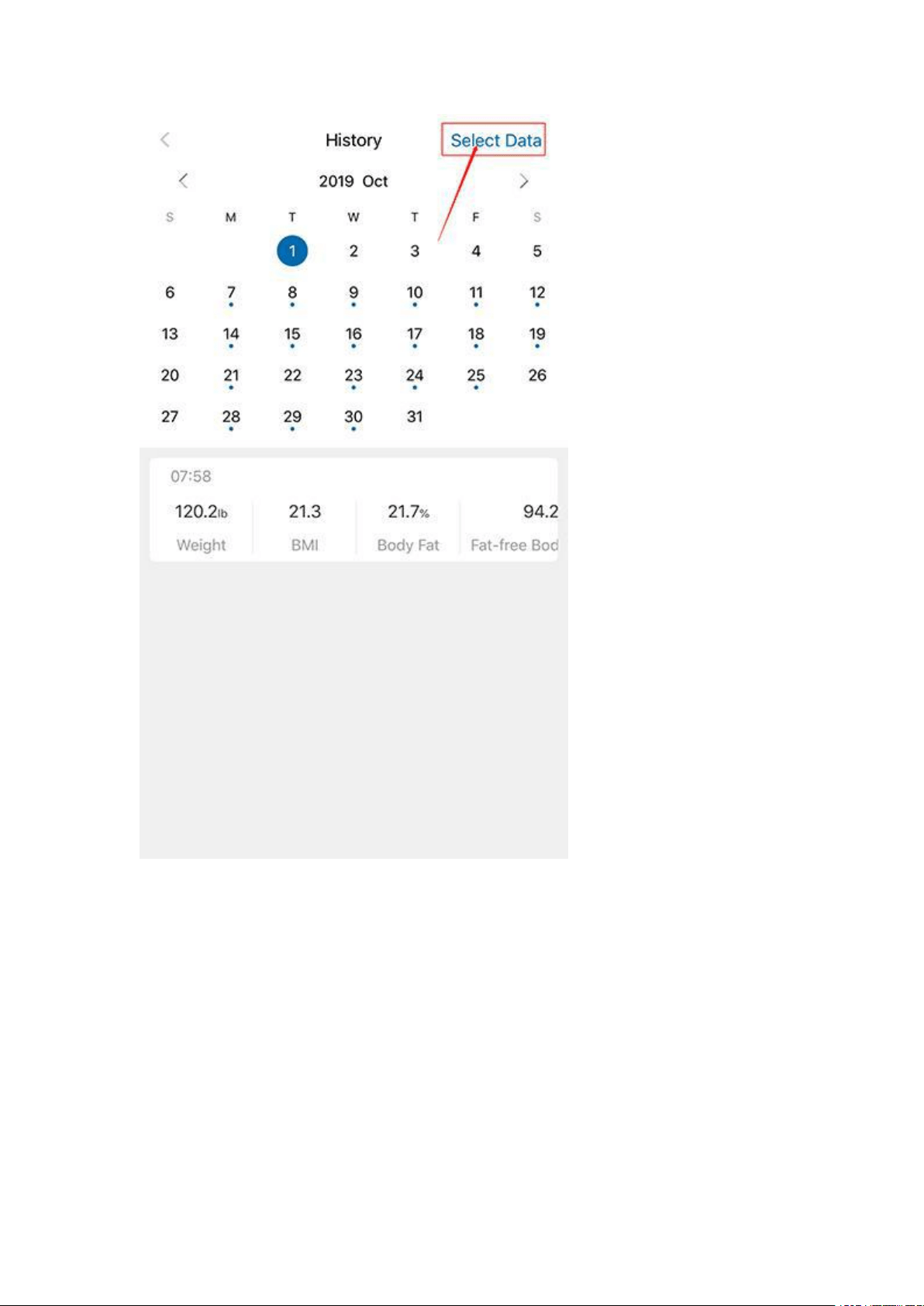
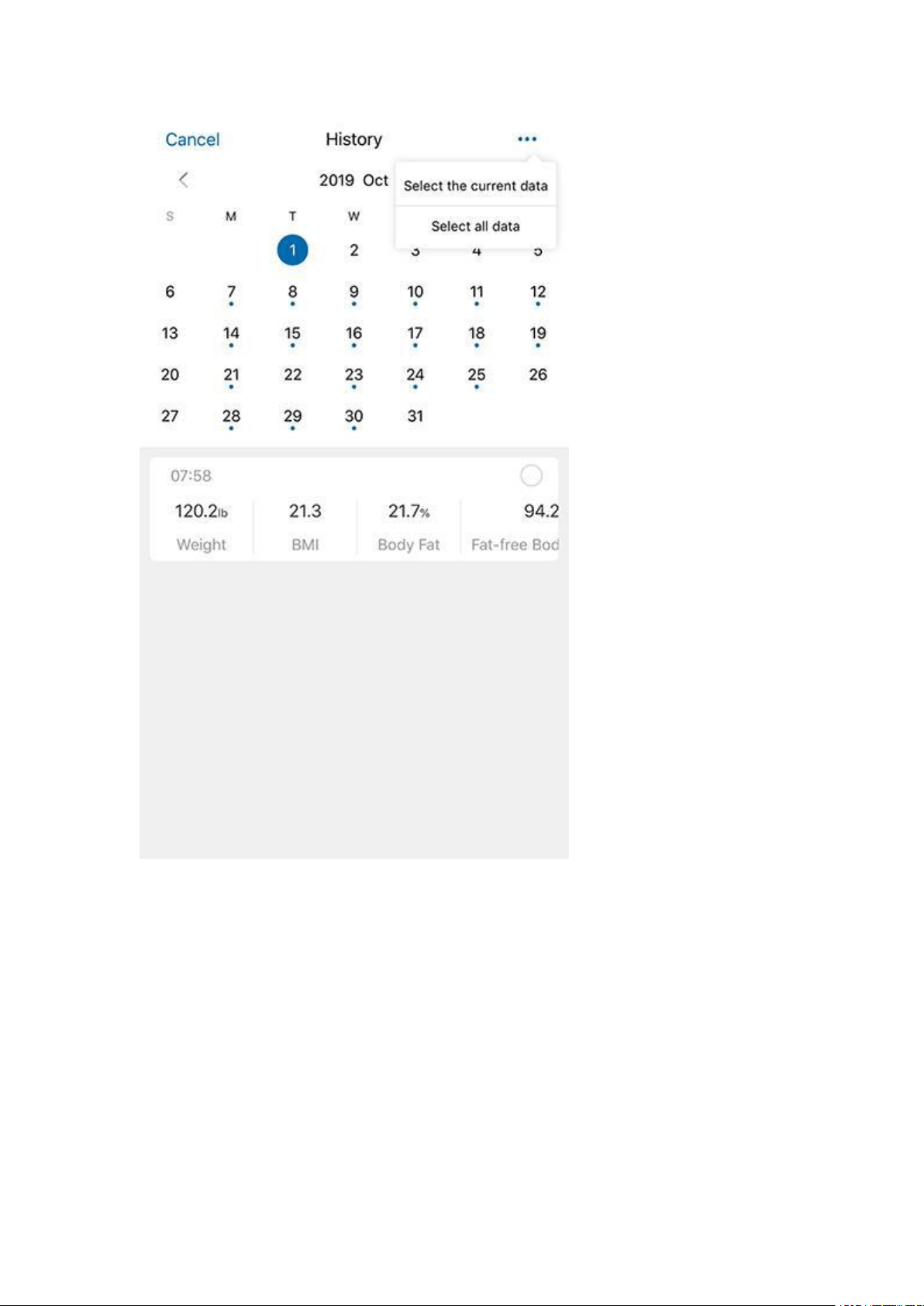
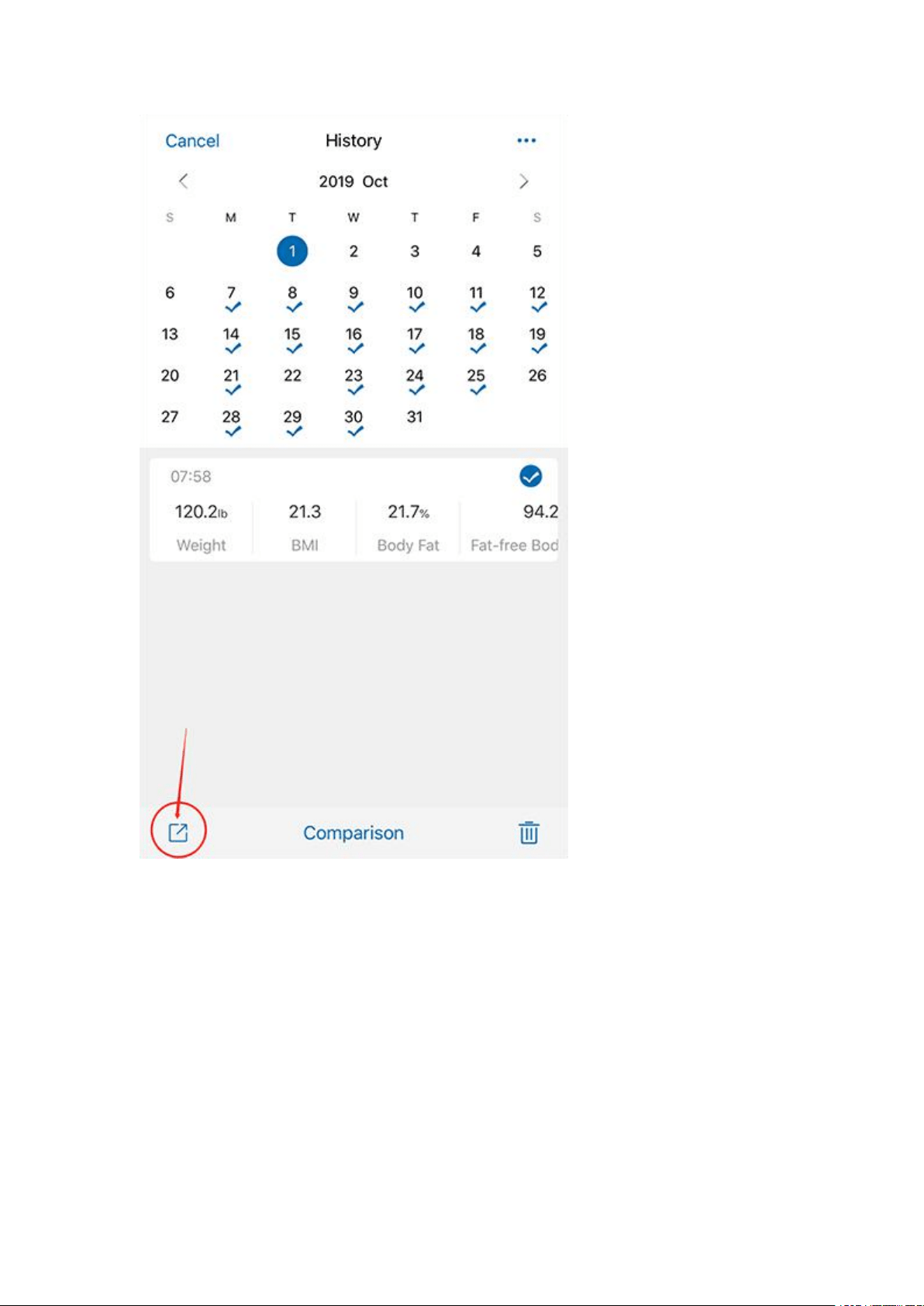
Click "Measurements" to view your progress history.
Enter it into the calendar to form a list and select a data or all data you
want to compare with or delete.
You can also download and send the data to your email address in CSV
format.
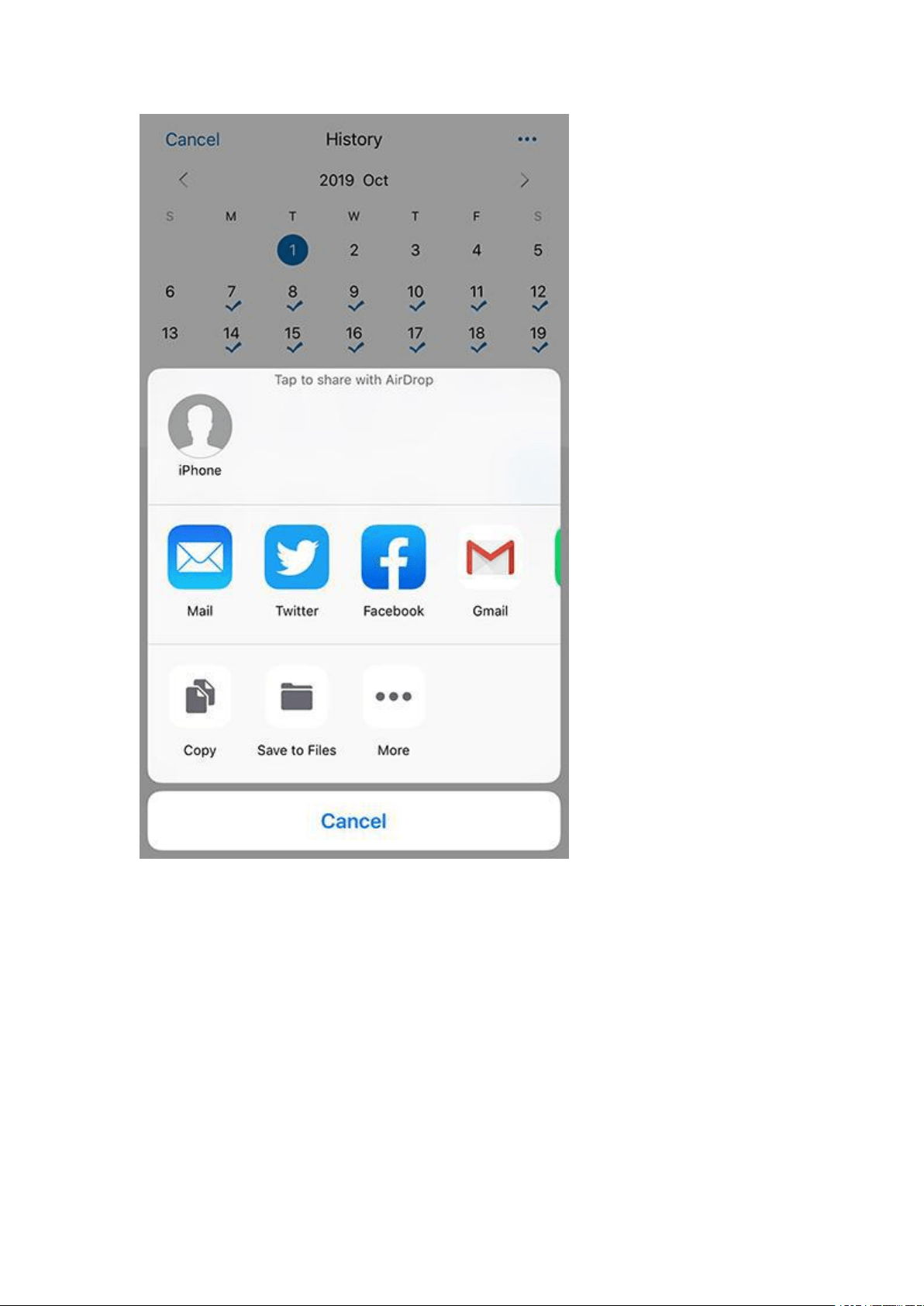
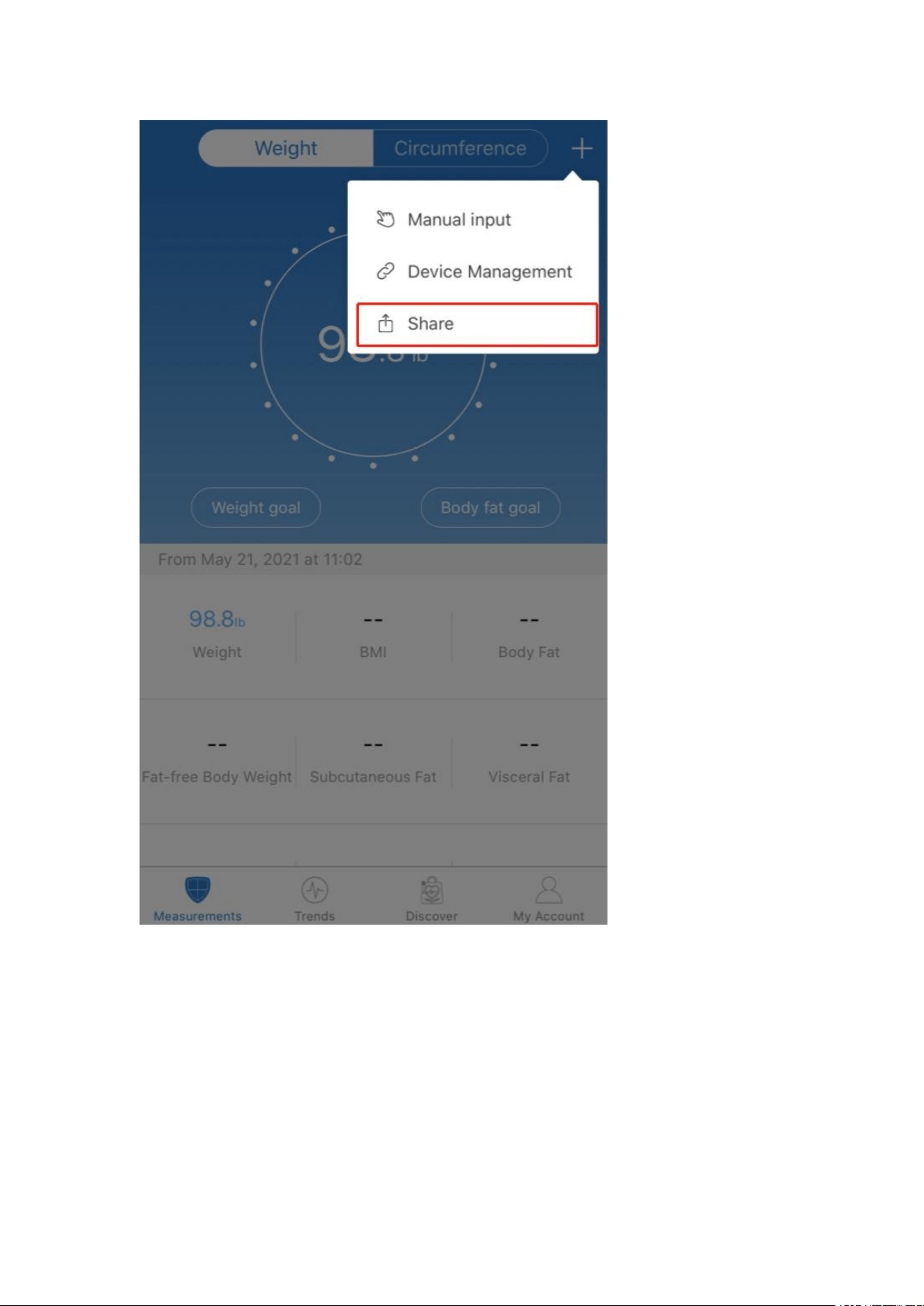
You can click [Share] to share your fitness data with friends via Facebook,
Instagram on the Measuring page.
HOW TO ADD "MEASUREMENT USERS" OR "FRIENDS"?
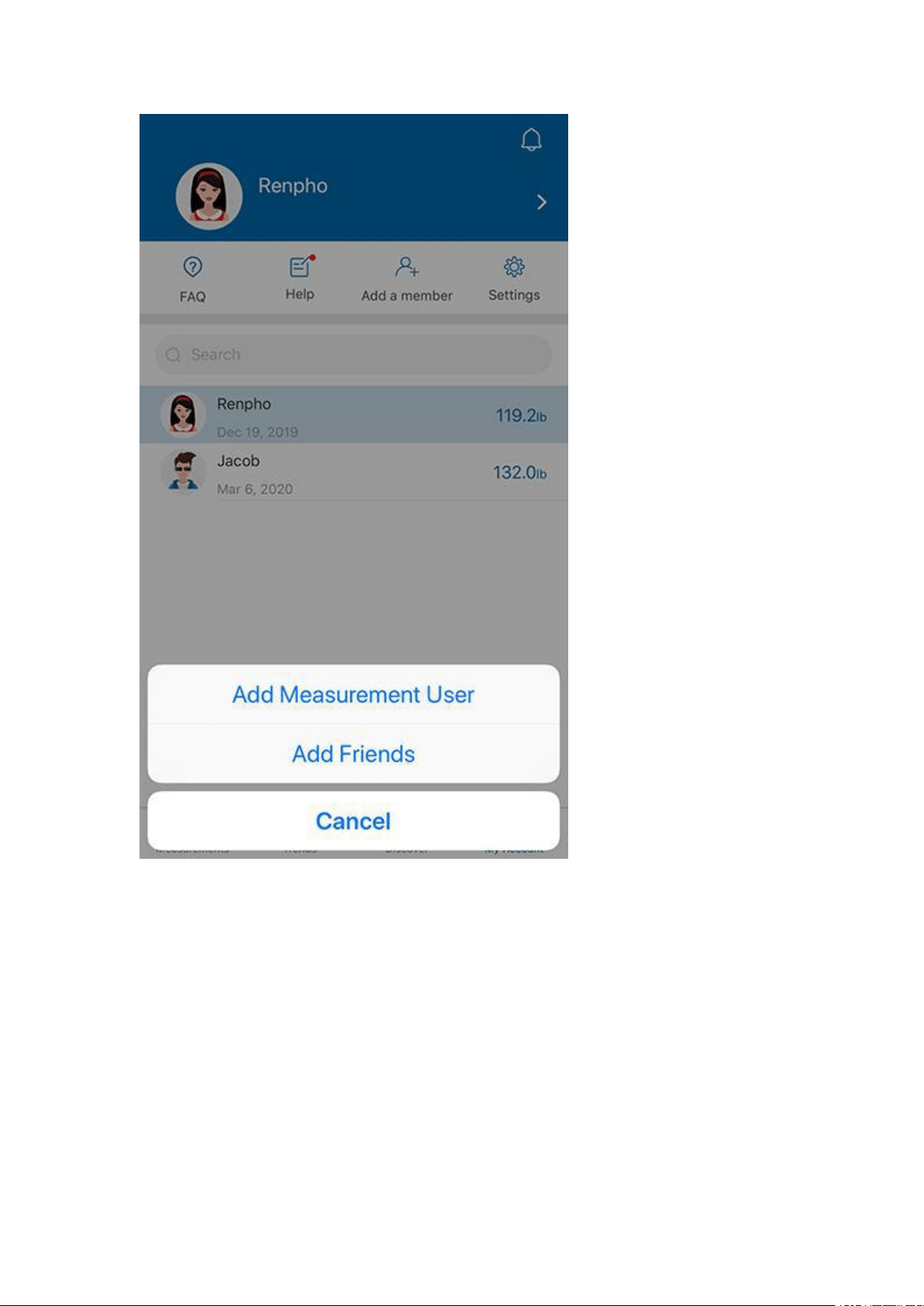
Measurement User is for multiple users to use one scale, such as family
members or roommates.
Add Friends means to add someone who also uses the Renpho scale, you
can view his/her data after add friends. Keep motivated with your friends!
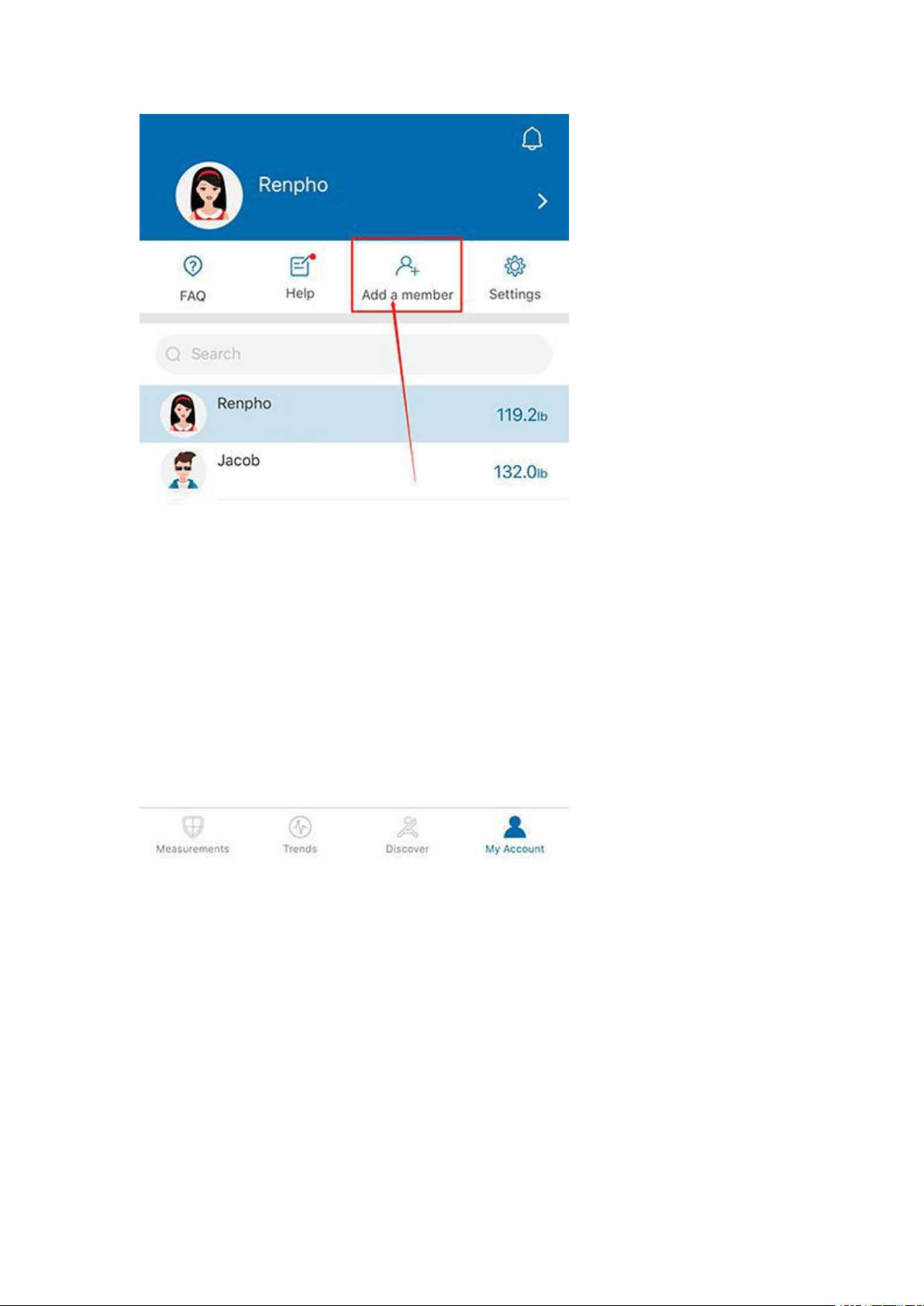
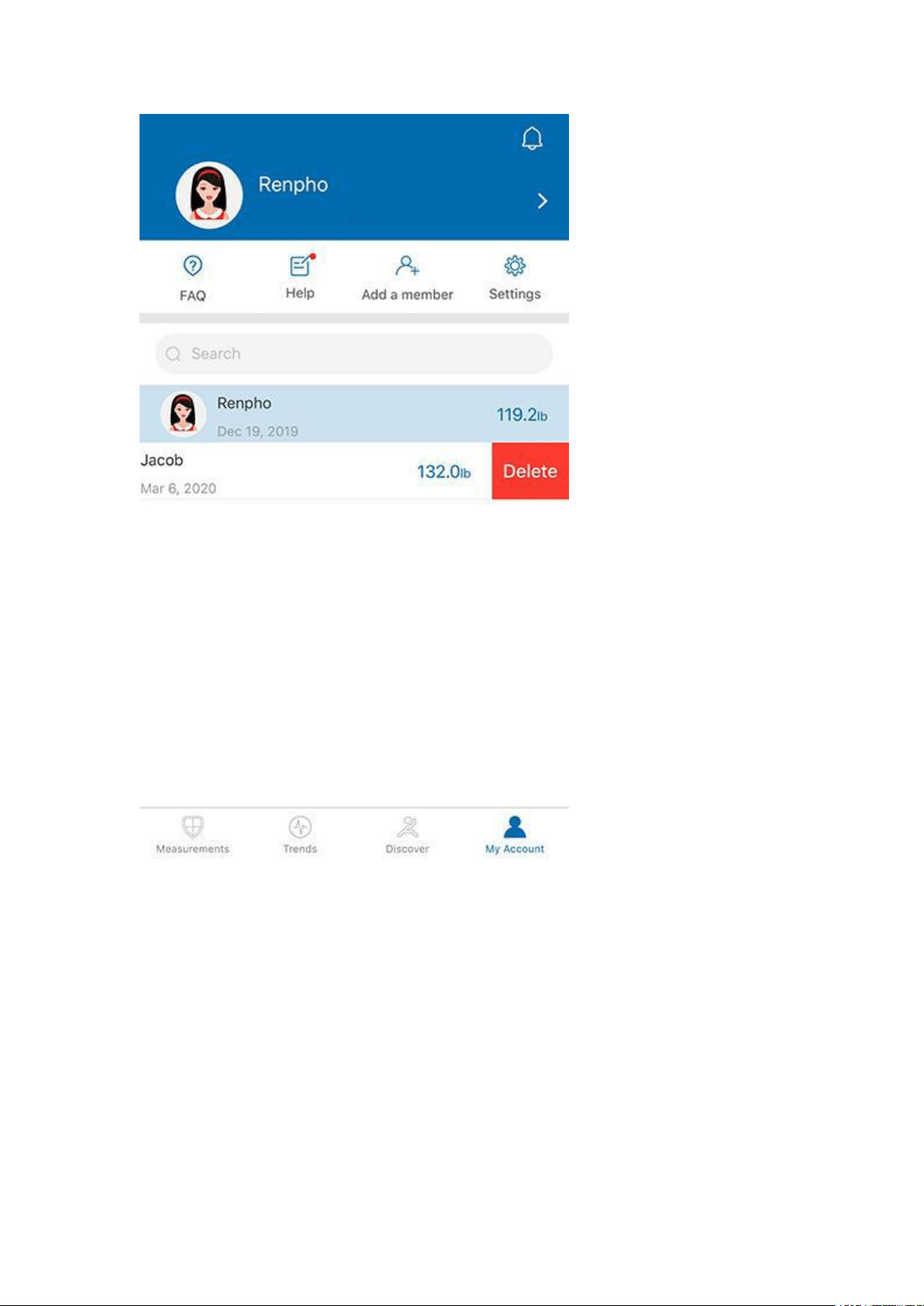
Under "My Account" you can add user(s) - Add Measurement Users / Add
Friends.
To delete an account, swipe the account to the left and select "Delete".
CONTACT US
FEEDBACK THROUGH APP
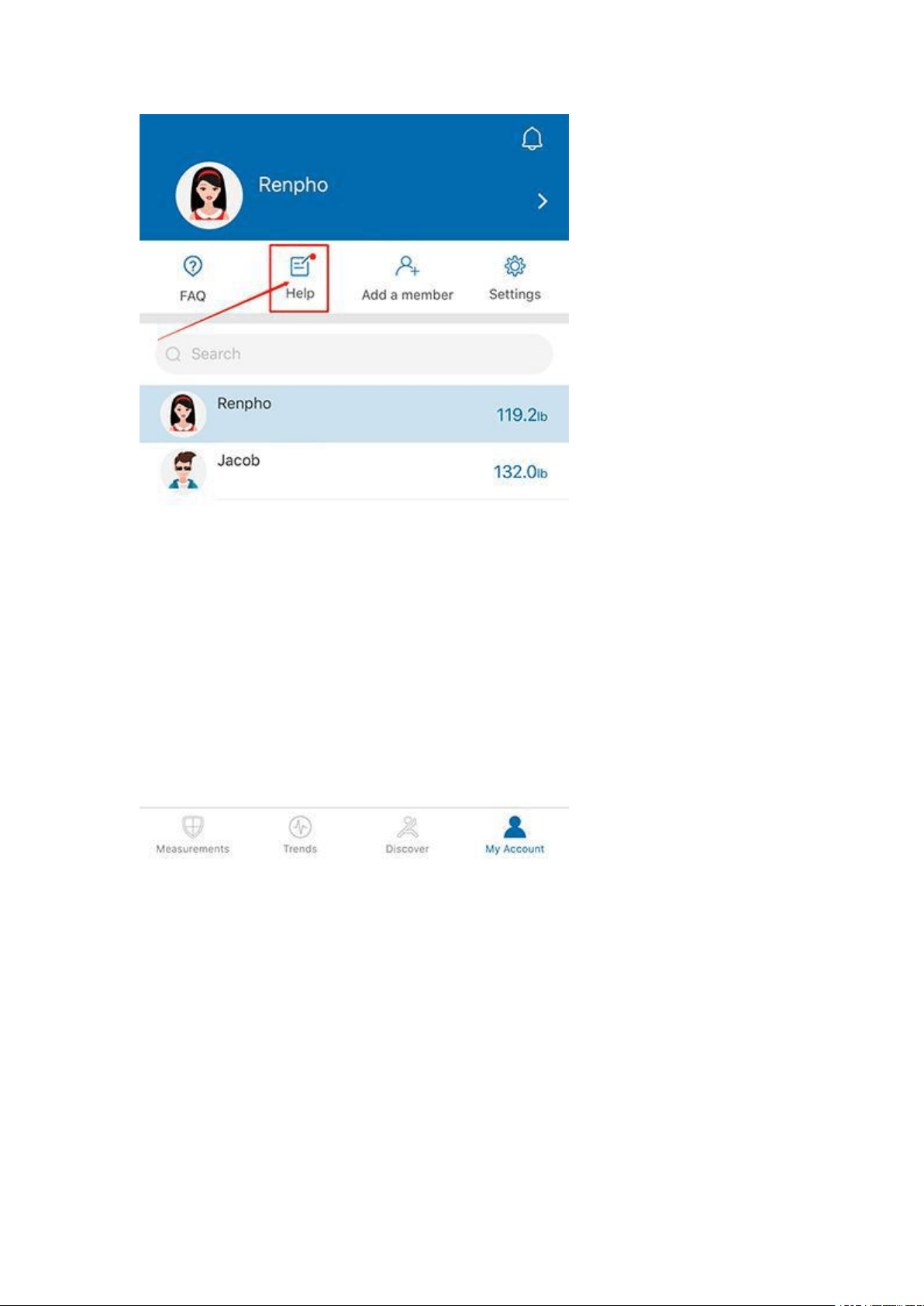
Open Renpho App, at "My Account" page, tap on [Help] to get in touch with
us, we will get back to you within 24 hours.
GIVE US A CALL
For US Customer: 1-(844)-417-0149 (9am to 4:30pm)
For UK Customer: 44-743-466-6088 GMT 9:00am-5:00pm Mon-Fri
WRITE US EMAIL
Please feel free to write us email, we will get back to you within 24 hours.
For US Customer: support@renpho.com
For EU Customer: support-eu@renpho.com