McIntosh Laboratory, Inc. 2 Chambers Street Binghamton, New York 13903-2699 Phone: 607-723-3512 www.mcintoshlabs.com
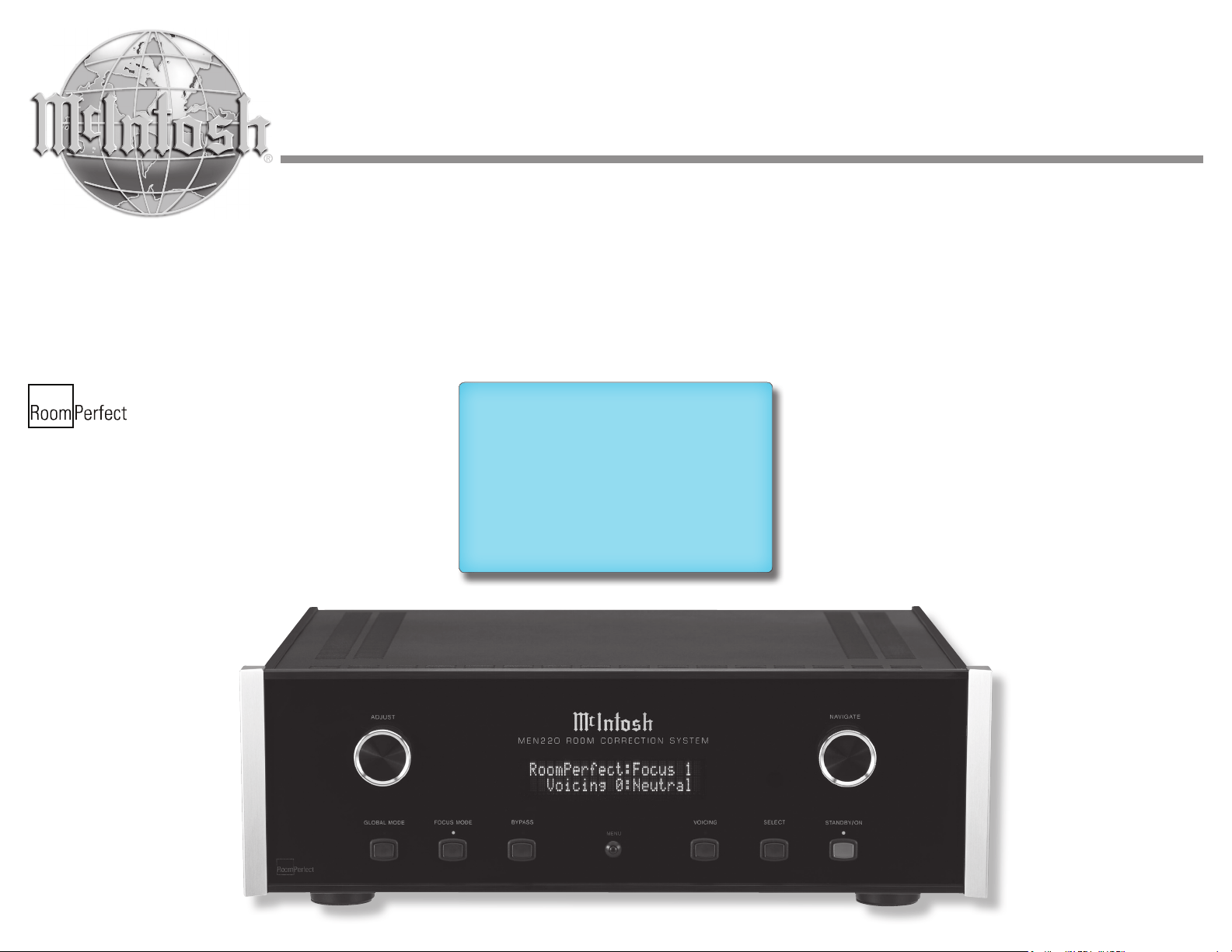
MEN220
Room Correction System
Owner’s Manual
Manufactured under license from Lyngdorf Audio
A/S. ROOMPERFECT is a registered trademark and
the ROOMPERFECT logo is a trademark of Lyn-
gdorf Audio A/S. (C) Lyngdorf Audio A/S 2009.
2
The lightning ash with arrowhead, within an equilateral
triangle, is intended to alert the user to the presence of
uninsulated “dangerous voltage” within the product’s en-
closure that may be of sufcient magnitude to constitute
a risk of electric shock to persons.
The exclamation point within an equilateral triangle is
intended to alert the user to the presence of important
operating and maintenance (servicing) instructions in the
literature accompanying the appliance.
WARNING - TO REDUCE RISK
OF FIRE OR ELECTRICAL
SHOCK, DO NOT EXPOSE
THIS EQUIPMENT TO RAIN OR
MOISTURE.
NO USER-SERVICEABLE PARTS
INSIDE. REFER SERVICING TO
QUALIFIED PERSONNEL.
To prevent the risk of electric
shock, do not remove cover or
back. No user-serviceable parts
inside.
1. Read these instructions.
2. Keep these instructions.
3. Heed all warnings.
4. Follow all instructions.
5. Do not use this apparatus near water.
6. Clean only with a dry cloth.
7. Do not block any ventilation openings. Install
in accordance with the manufacturer’s instruc-
tions.
8. Do not install near any heat sources such as
radiators, heat registers, stoves, or other appa-
ratus (including ampliers) that produce heat.
9. Do not defeat the safety purpose of the polar-
ized or grounding-type plug. A polarized plug
has two blades with one wider than the other.
A grounding type plug has two blades and a
third grounding prong. The wide blade or the
third prong are provided for your safety. If
the provided plug does not t into your outlet,
consult an electrician for replacement of the
obsolete outlet.
10. Protect the power cord from being walked on
or pinched particularly at plugs, convenience
receptacles, and the point where they exit
from the apparatus.
11. Only use attachments/accessories specied by
the manufacturer.
12. Use only with the cart, stand, tripod, bracket,
or table specied by the manu-
facturer, or sold with the appa-
ratus. When a cart is used, use
caution when moving the cart/
apparatus combination to avoid
injury from tip-over.
13. Unplug this apparatus during lightning storms
or when unused for long periods of time.
14. Refer all servicing to qualied service person-
nel. Servicing is required when the apparatus
has been damaged in any way, such as power-
supply cord or plug is damaged, liquid has
been spilled or objects have fallen into the
apparatus, the apparatus has been exposed to
rain or moisture, does not operate normally, or
has been dropped.
15. Do not expose this equipment to dripping or
splashing and ensure that no objects lled
with liquids, such as vases, are placed on the
equipment.
16. To completely disconnect this equipment from
the a.c. mains, disconnect the power supply
cord plug from the a.c. receptacle.
17. The mains plug of the power supply cord shall
remain readily operable.
18. Do not expose batteries to excessive heat such
as sunshine, re or the like.
19. Connect mains power supply cord only to a
mains socket outlet with a protective earthing
connection.
IMPORTANT SAFETY
INSTRUCTIONS!
PLEASE READ THEM BEFORE
OPERATING THIS EQUIPMENT.
3
Copyright 2010 © by McIntosh Laboratory, Inc.
Thank You
Please Take A Moment
Technical Assistance
If at any time you have questions about your McIntosh
product, contact your McIntosh Dealer who is familiar
with your McIntosh equipment and any other brands
that may be part of your system. If you or your Dealer
wish additional help concerning a suspected problem,
you can receive technical assistance for all McIntosh
products at:
McIntosh Laboratory, Inc.
2 Chambers Street
Binghamton, New York 13903
Phone: 607-723-3512
Fax: 607-724-0549
Customer Service
If it is determined that your McIntosh product is in
need of repair, you can return it to your Dealer. You
can also return it to the McIntosh Laboratory Service
Department. For assistance on factory repair return
procedure, contact the McIntosh Service Department
at:
McIntosh Laboratory, Inc.
2 Chambers Street
Binghamton, New York 13903
Phone: 607-723-3515
Fax: 607-723-1917
Your decision to own this McIntosh MEN220 Room
Correction System ranks you at the very top among
discriminating music listeners. You now have “The
Best.” The McIntosh dedication to “Quality,” is as-
surance that you will receive many years of musical
enjoyment from this unit.
Please take a short time to read the information in
this manual. We want you to be as familiar as pos-
sible with all the features and functions of your new
McIntosh.
The serial number, purchase date and McIntosh Dealer
name are important to you for possible insurance
claim or future service. The spaces below have been
provided for you to record that information:
Serial Number: _______________________________
Purchase Date: _______________________________
Dealer Name: ________________________________
1. For additional connection information, refer to the
owner’s manual(s) for any component(s) connected
to the MEN220 Room Correction System.
2. The Main AC Power going to the MEN220 and any
other McIntosh Component(s) should not be applied
until all the system components are connected
together. Failure to do so could result in mal-
functioning of some or all of the system’s normal
operations. When the MEN220 and other McIntosh
Components are in their Standby Power Off Mode,
the Microprocessor’s Circuitry inside each com-
ponent is active and communication is occurring
between them.
3. Sound Intensity is measured in units called Deci-
bels and “dB” is the abbreviation.
4. When discarding the unit, comply with local rules
or regulations. Batteries should never be
thrown away or incinerated but disposed
of in accordance with the local regulations
concerning battery disposal.
5. For additional information on the
MEN220 and other McIntosh Products
please visit the McIntosh Web Site at
www.mcintoshlabs.com.
General Information
4
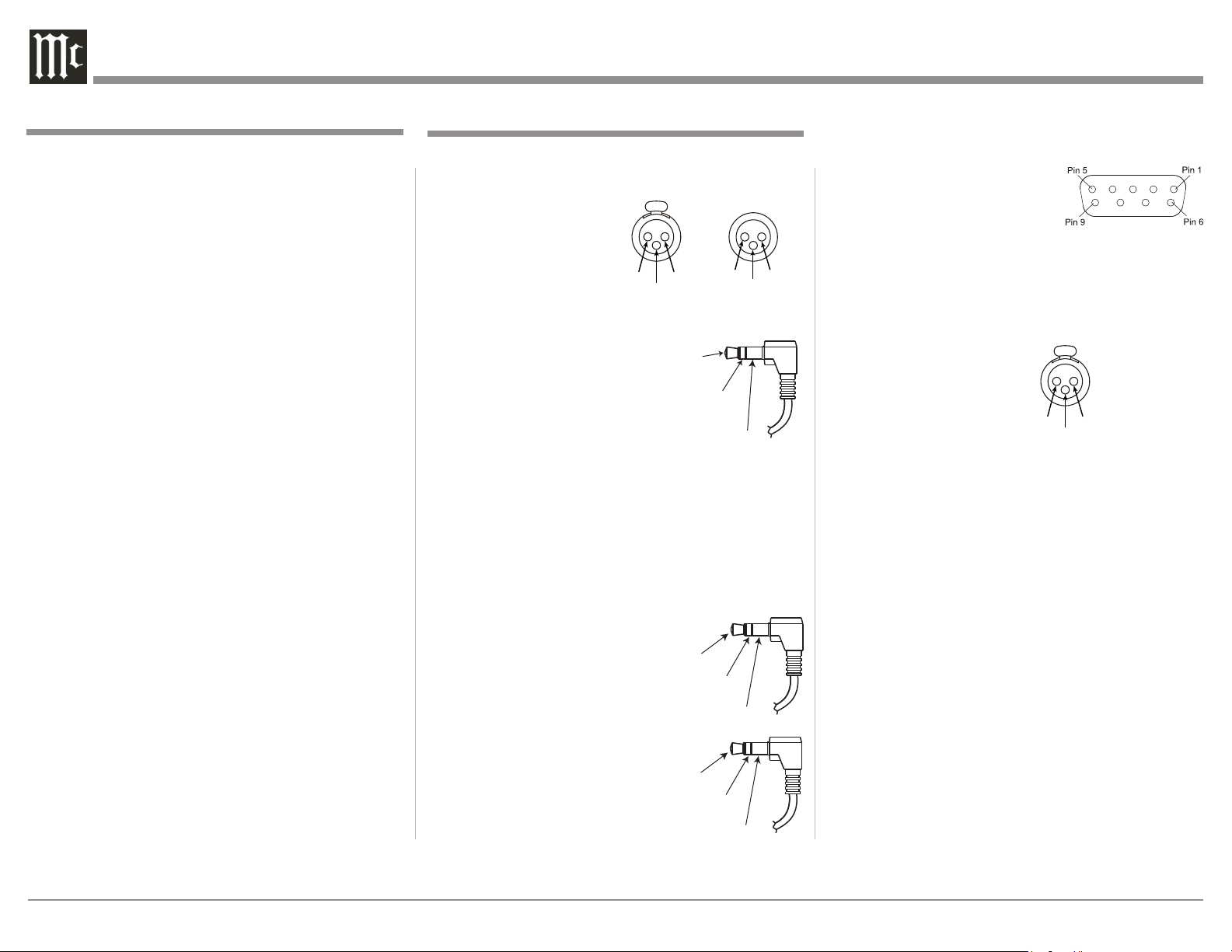
XLR Connectors
Below is the Pin configuration for the XLR Balanced
Output Connectors on the MEN220. Refer to the dia-
grams for connections:
PIN 1: Shield/Ground
PIN 2: + Signal
PIN 3: - Signal
Power Control Connectors
The MEN220 Power Control Input/Output Jacks
receive/send Power On/Off
Signals when connected to
other McIntosh Components. A
1/8 inch stereo mini phone plug
is used for connection to the
Power Control Input/Output on
the MEN220.
Note: The Data and Power Control Connecting Cable is
available from the McIntosh Parts Department:
Data and Power Control Cable Part No. 170-202
Six foot, shielded 2 conductor, with 1/8 inch stereo
mini phone plugs on each end.
Data and IR Input Port Connectors
The MEN220 Data In Port re-
ceives Remote Control Signals. A
1/8 inch stereo mini phone plug is
used for connection. The IR Port
also use a 1/8 inch stereo mini
phone plug and allow the connec-
tion of other brand IR Receivers
to the MEN220.
Connector and Cable Information
Power
Control
Ground
Meter
Illumination
Control
Pass Thru
Data
Signal
N/C
Data
Ground
IR Data
Control
Ground
N/C
RS232 DB9 Connector Pin Layout
1. N/C 6. N/C
2. Data Out (TXD) 7. N/C
3. Data In (RXD) 8. N/C
4. N/C 9. N/C
5. Gnd.
Microphone XLR Connectors
Below is the Pin configuration for the Microphone
Connector on the MEN220. Refer to the diagram for
connections:
PIN 1: Shield/Ground
PIN 2: Signal
PIN 3: +8.9VDC
PIN 2 PIN 1
PIN 3
PIN 1
PIN 2
PIN 3
PIN 2 PIN 1
PIN 3
Table of Contents
Safety Instructions ..................................................... 2
Thank You and Please Take a Moment ...................... 3
Technical Assistance and Customer Service ............. 3
General Information .................................................. 3
Table of Contents ....................................................... 4
Connector and Cable Information ............................. 4
Introduction ................................................................ 5
Performance Features ................................................ 5
Dimensions ................................................................ 6
Installation ................................................................. 7
Connections:
Rear Panel Connections ............................................. 8
How to Connect the MEN220 .............................. 9-12
Remote Control:
Remote Control Push-buttons .................................. 14
How to use the Remote Control ............................... 15
Front Panel:
Front Panel Displays, Controls and Push-buttons .... 16
Setup:
How to Operate the Setup Mode ............................. 17
Default Settings........................................................ 17
Input Connection Settings ....................................... 18
System Connection Settings .................................... 18
Output Settings ........................................................ 19
Advanced Settings ................................................... 22
RoomPerfect ............................................................ 24
Operation:
How to Operate the MEN220 ............................. 28-29
Additional Information:
Specifications ........................................................... 30
Packing Instruction .................................................. 31

5
General Information, Cable Information, Introduction and Performance Features
Introduction
Performance Features
The MEN220 Room Correction System is an elegant
instrument for restoring superb sound reproduction
to your audio system by measuring and correcting for
less than ideal room acoustics. The MEN220 uses the
latest in technology to quickly restore proper musical
balance in a minimum amount of time. The McIntosh
Sound is “The Sound of the Music Itself.”
• Room Correction
The MEN220 uses the latest in technology to restore
musical balance to audio systems located in rooms
with less then ideal acoustics, whether the system is
two channel or multichannel.
• Focus and Global Settings
The MEN220 provides for measurement and correc-
tion for up to eight specific listening locations (Focus
Positions) in a room. It also measures additional loca-
tions in the room and produces a Global Room Cor-
rection for listening anywhere in the room.
• Electronic Crossover
The advanced two way electronic crossover built into
the MEN220 provides the best way for adding true bi-
amplification to your audio system.
• Variable Crossover Settings
The variable crossover in the MEN220 allows the
crossover frequency to be set from 10Hz to 20,000Hz.
Select from three available crossover slope rates for
both the Butterworth or Linkwitz-Riley Filter Types.
• Listening Equalization Curves
The MEN220 has six preset Equalization Curves to
choose from when listening to various type of music.
• Precision Measurement Microphone
The MEN220 is supplied with an Omnidirectional
Electret Condenser Microphone to accurately measure
the Loudspeaker performance together with Room
Acoustics. The microphone has high resistance to vi-
brations, flat frequency response and a high signal-to-
noise ratio. It is “phantom power” from the MEN220
via the balanced cable.
• Professional Microphone Stand with Boom
The MEN220 is supplied with a professional type ad-
justable height microphone stand. The Boom Adapter
allows for easy placement of the Precision Microphone
for precise Focus Measurements.
• Multiple Outputs
The MEN220 has both Unbalanced and Balanced
Outputs of which permit long cable lengths without a
loss in sound quality.
• Multi-Function Front Panel Display
The Front Panel Information Display indicates various
setup and operational functions.
• Power Control and Full Function Remote Control
The Power Control Input connection provides conve-
nient Turn-On/Off of the MEN220 when connected to
a McIntosh System. The Remote Control push-buttons
provide complete control of the MEN220 operating
functions.
• Special Power Supply
The Power Supply has both a special large Toroidal
Wound Power Transformer and Multiple Regulators
to ensure stable noise free operation even though the
power line varies.
• Extruded Side Panels
The sides of the MEN220 are extruded aluminum
panels with a bead blast textured surface and a black
anodized finish.
• Fiber Optic Solid State Front Panel Illumination
The Illumination of the Glass Front Panel is accom-
plished by the combination of custom designed Fiber
Optic Light Diffusers and extra long life Light Emit-
ting Diodes (LEDs). This provides even Front Panel
Illumination and is designed to ensure the pristine
beauty of the MEN220 will be retained for many
years.
6
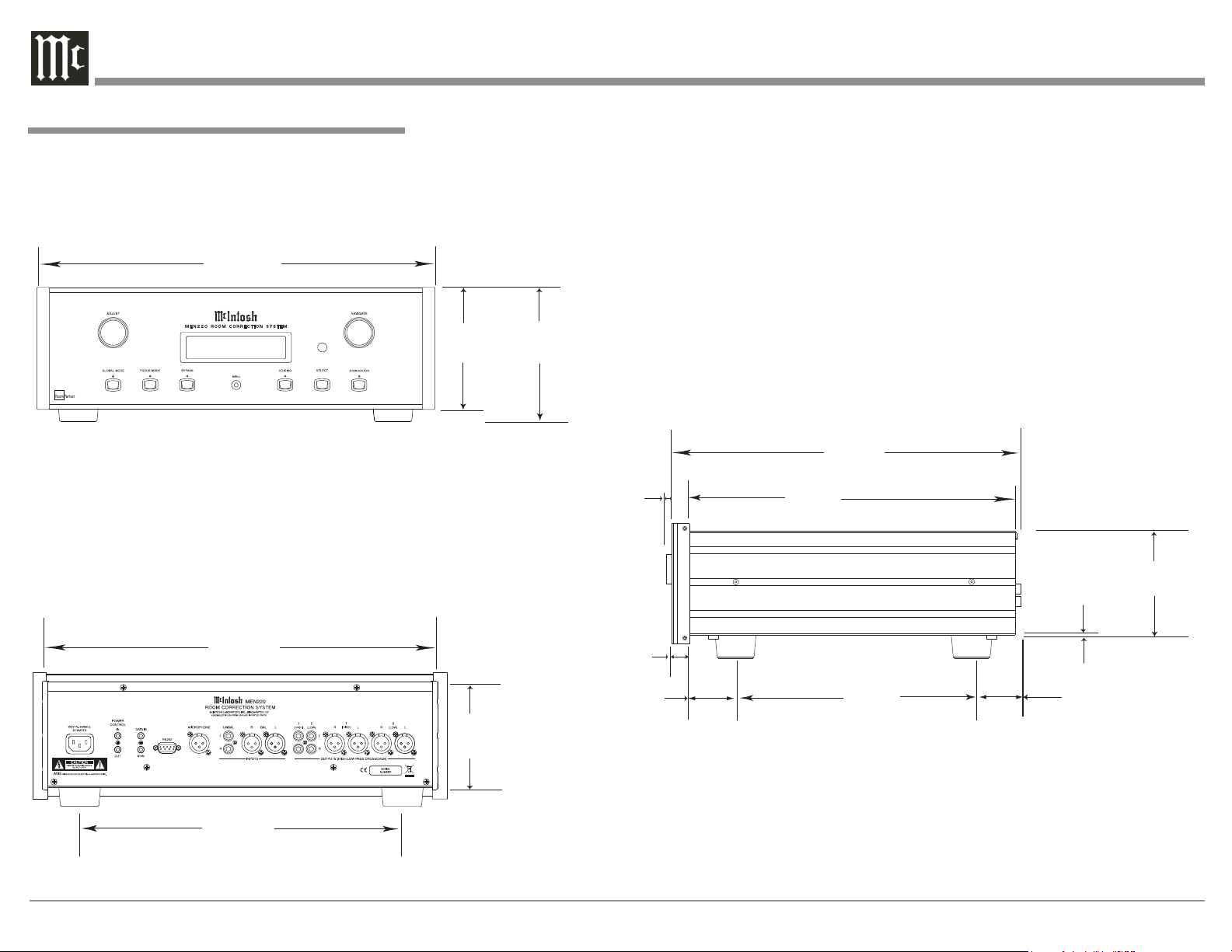
Dimensions
The following dimensions can assist in determining
the best location for your MEN220.
Dimensions
Side View of the MEN220
Front View of the MEN220
Rear View of the MEN220
17-1/2"
44.45cm
6"
15.24cm
5-3/8"
13.69cm
4-5/8"
11.75cm
13-1/4"
33.65cm
17"
43.18cm
14-1/2"
36.83cm
15-7/8"
40.32cm
3/16"
0.48cm
4-13/16"
12.22cm
10-9/16"
26.83cm
5/8"
1.59cm
13/16"
2.06cm
2"
5.08cm
1-15/16"
4.92cm
RoomPerfect:
Focus 1
Voicing 0:Neutral
7
Installation
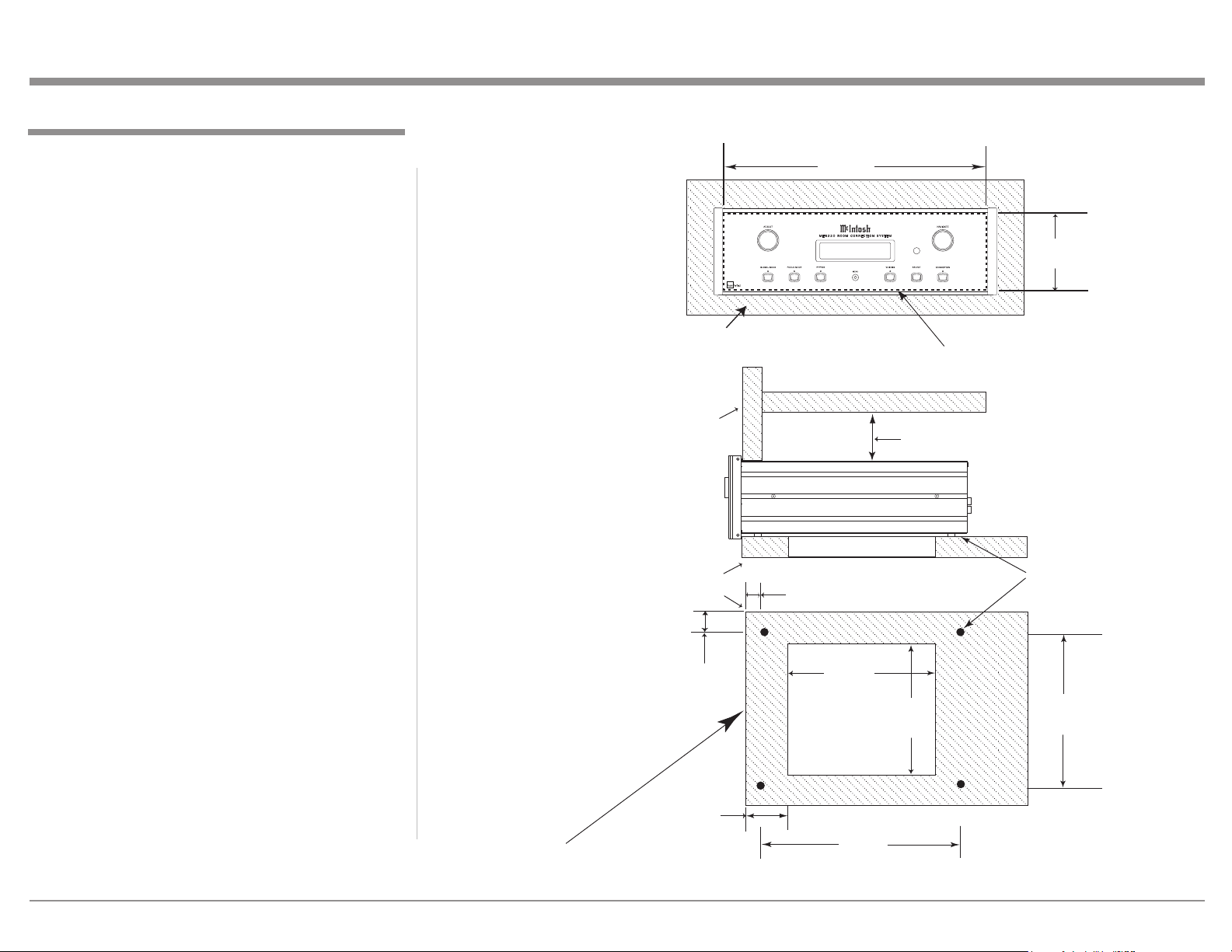
Installation
The MEN220 can be placed upright on a table or
shelf, standing on its four feet. It also can be custom
installed in a piece of furniture or cabinet of your
choice. The four feet may be removed from the bottom
of the MEN220 when it is custom installed as out-
lined below. The four feet together with the mounting
screws should be retained for possible future use if the
MEN220 is removed from the custom installation and
used free standing. The required panel cutout, ventila-
tion cutout and unit dimensions are shown.
Always provide adequate ventilation for your
MEN220. Cool operation ensures the longest possible
operating life for any electronic instrument. Do not
install the MEN220 directly above a heat generat-
ing component such as a high powered amplifier. If
all the components are installed in a single cabinet, a
quiet running ventilation fan can be a definite asset in
maintaining all the system components at the coolest
possible operating temperature.
When the MEN220 is placed free-standing on a
flat surface, allow at least 2 inches (5.08cm) above the
top, 2 inches (5.08cm) below the bottom and 2 inches
(5.08cm) on each side of the MEN220, so airflow is
not obstructed. Allow 19-1/2 inches (49.53cm) depth
behind the front panel. Allow 1-7/16 inch (3.66cm) in
front of the mounting panel for knob clearance.
A custom cabinet installation should provide the
minimum spacing dimensions for cool operation. Al-
low at least 2 inches (5.08cm) above the top, 2 inches
(5.08cm) below the bottom and 2 inches (5.08cm) on
each side of the MEN220, so airflow is not obstructed.
The Custom Cabinet should be open backed and at
least 12 inches (30.48cm) away from any surface such
as a wall. Be sure to cut out a ventilation hole in the
mounting shelf according to the dimensions in the
drawing. Allow 1-7/16 inch (3.66cm) in front of the
mounting panel for knob clearance.
11"
27.94cm
15"
38.1cm
15"
38.1cm
1"
2.54cm
Cutout Opening
for Ventilation
Cutout Opening for Ventilation
Support
Shelf
Chassis
Spacers
MEN220 Side View
in Custom Cabinet
MEN220 Bottom View
in Custom Cabinet
1-1/8"
2.86cm
12-5/16"
31.27cm
1-3/4"
4.45cm
Note: Center the cutout Horizontally on the unit.
For purposes of clarity, the above
illustration is not drawn to scale.
Cabinet
Front
Panel
MEN220 Front Panel
Custom Cabinet Cutout
17-1/16"
43.34cm
Cutout Opening for Custom Mounting
Cabinet Front Panel
4-7/8"
12.38cm
2"
5.08cm
Custom Cabinet has
an open back and at
least 12” (30.48cm)
away from any surface
such as a wall
RoomPerfect:
Focus 1
Voicing 0:Neutral
8
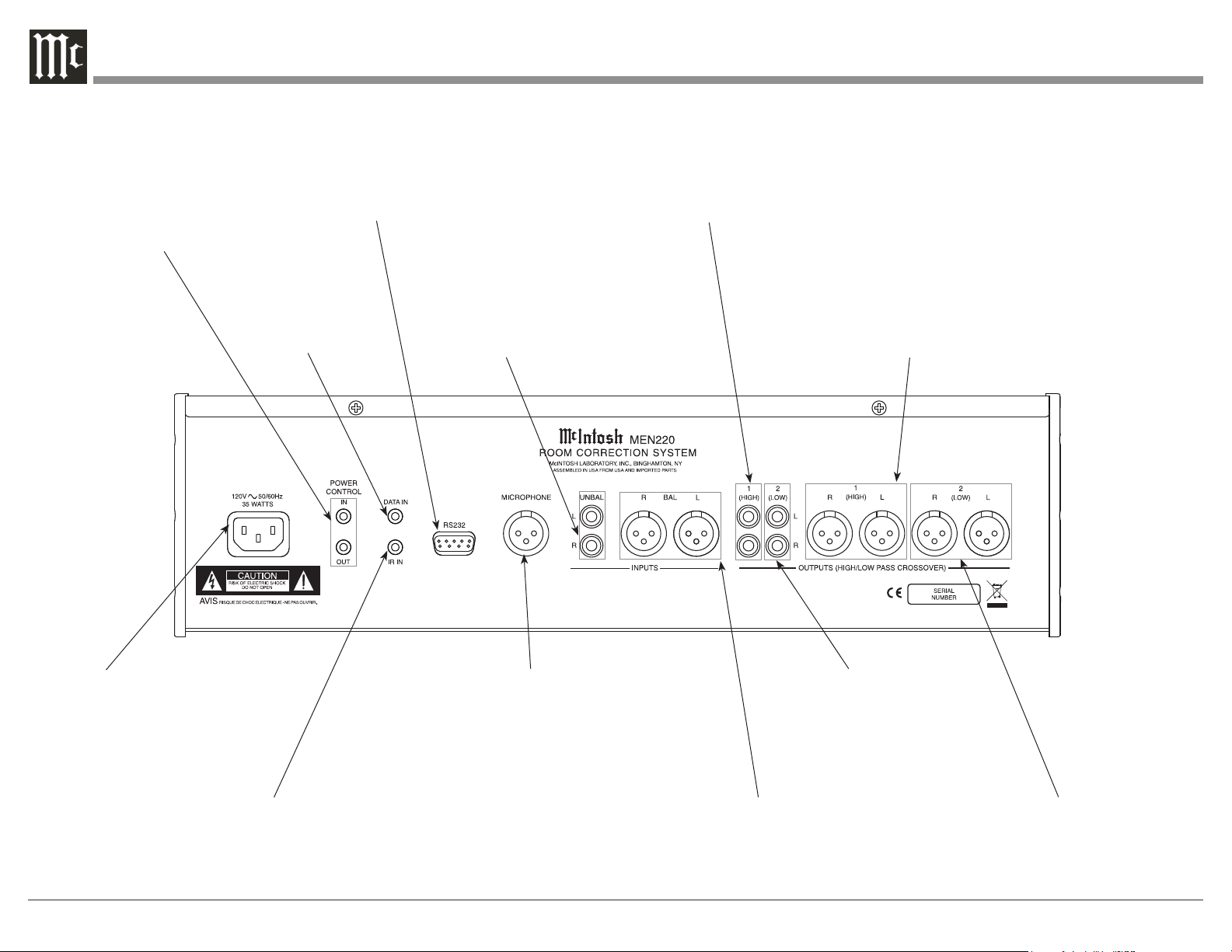
Connect the MEN220
power cord to a live AC
outlet. Refer to information
on the back panel of your
MEN220 to determine the
correct voltage for your unit
Rear Panel Connections
IR INput for
connecting an
IR Receiver
DATA IN receives
operating data from a
McIntosh Preamplifier
or Control Center
POWER CONTROL IN receives
signals from a McIntosh component
(5-15 Volts ON, 0 Volts OFF).
POWER CONTROL OUT sends
out a (12 Volts ON) signal to an-
other McIntosh Component when
the MEN220 is On
UNBALanced AUDIO IN-
PUTS receive audio signals
from a Preamplifier or an
A/V Control Center
RS232 connector
for communica-
tions with an
external control
device
Connect the MEN220
Calibrated Microphone
with the supplied cable
BALanced AUDIO INPUTS
receive audio signals from a
Preamplifier or an A/V Con-
trol Center
Unbalanced OUTPUT 1
(HIGH) supplies Full Range or
High Frequency audio signals
to a Power Amplifier
Unbalanced OUTPUT 2
(LOW) supplies Full Range or
Low Frequency audio signals
to a Power Amplifier
Balanced OUTPUT 1 (HIGH)
supplies Full Range or High
Frequency audio signals to a
Power Amplifier
Balanced OUTPUT 2 (LOW)
supplies Full Range or Low
Frequency audio signals to a
Power Amplifier

9
How to Connect the MEN220
How to Connect the MEN220
The MEN220 has the ability to be remotely switched
On/Off from a Preamplifier or A/V Control Center via
the Power Control connection. The Data Port Connec-
tion allows for the remote operation of basic functions
using the MEN220 Remote Control. With an external
sensor connected to the MEN220, remote control op-
eration is possible from another room and/or when the
MEN220 is located in a cabinet with the doors closed.
The connection instructions below, together with
the MEN220 Connection Diagram “Mc1A” located
on the separate folded sheet, is an example of a typi-
cal audio system. Your system may vary from this,
however the actual components would be connected in
a similar manner. For additional information refer to
“Connector and Cable Information” on page 4.
Power Control Connections:
1. Connect a Control Cable from the Preamplifier or
A/V Control Center Power Control MAIN Jack to
the POWER CONTROL IN Jack on the McIntosh
MEN220.
2. Connect a Control Cable from the MEN220 POW-
ER CONTROL OUT Jack to the Power Amplifier
1 Power Control In Jack.
3. Connect a Control Cable from the Power Ampli-
fier 1 Power Control Out Jack to the Power Ampli-
fier 2 Power Control In Jack.
4. Connect any additional components in a similar
manner, as outlined in steps 2 thru 3.
Data Control Connections:
5. Connect a Control Cable from the Preamplifier or
A/V Control Center SUM Data Port Jack to the
McIntosh MEN220 DATA IN Jack.
Note: If the Preamplifier or A/V Control Center
doesn’t have a SUM Data Port Jack, contact
McIntosh for additional assistance.
Sensor Connections:
6. Connect an external Sensor to the McIntosh
MEN220 IR IN Jack.
Audio Connections:
7. Connect Balanced Cables from the McIntosh
MEN220 BALanced AUDIO INPUT Connectors
to the Preamplifier or A/V Control Center Bal-
anced Output Jacks.
Notes: 1. The Unbalanced Outputs on the MEN220
may be used instead of the Balanced Con-
nections.
2. By default the Unbalanced Inputs are
the active Connections. To use the Bal-
anced Inputs instead, it is first necessary
to change the default setting using the
MEN220 Setup Mode. Refer to pages 17
and 18.
8. Connect a Balanced Cable from the MEN220 Bal-
anced AUDIO OUTPUT (1) R Connector to the
Power Amplifier 1 Balanced Input Connector.
Note: The Unbalanced and Balanced Output Con-
nections are both active and may be used at
the same time.
9. Connect a Balanced Cable from the MEN220 Bal-
anced AUDIO OUTPUT (1) L Connector to the
Power Amplifier 2 Balanced Input Connector.
Loudspeaker Connections:
10. Refer to the Owner’s Manuals supplied with the
Power Amplifier and Loudspeakers for connection
information.
AC Power Cords Connections:
11. Connect the McIntosh MEN220 AC Power Cord to
a live AC outlet.
10
How to Connect the MEN220 in a Processor Loop
How to Connect the MEN220 in a
Processor Loop
The MEN220 may be connected to the Listen Proces-
sor Loop on a McIntosh Preamplifier or A/V Control
Center, instead of being connected between the Pre-
amplifier Output and Power Amplifier Input.
The MEN220 has the ability to be remotely
switched On/Off from a Preamplifier or A/V Control
Center via the Power Control connection.
The Data Port Connection allow for the remote op-
eration of basic functions using the MEN220 Remote
Control. With an external sensor connected to the
MEN220, remote control operation is possible from
another room and/or when the MEN220 is located in a
cabinet with the doors closed.
The connection instructions below, together with
the MEN220 Connection Diagram located on the
separate folded sheet “Mc1B” is an example of a typi-
cal audio system. Your system may vary from this,
however the actual components would be connected in
a similar manner. For additional information refer to
“Connector and Cable Information” on page 4.
Power Control Connections:
1. Connect a Control Cable from the Preamplifier or
A/V Control Center Power Control MAIN Jack to
the POWER CONTROL IN Jack on the McIntosh
MEN220.
2. Connect a Control Cable from the MEN220 POW-
ER CONTROL OUT Jack to the Power Amplifier
1 Power Control In Jack.
3. Connect a Control Cable from Power Amplifier 1
Power Control Out Jack to the Power Amplifier 2
Power Control In Jack.
4. Connect any additional components in a similar
manner, as outlined in steps 2 thru 3.
Data Control Connections:
5. Connect a Control Cable from the Preamplifier or
A/V Control Center SUM Data Port Jack to the
McIntosh MEN220 DATA IN Jack.
Note: If the Preamplifier or A/V Control Center
doesn’t have a SUM Data Port Jack, contact
McIntosh for additional assistance.
Sensor Connections:
6. Connect an external Sensor to the McIntosh
MEN220 IR IN Jack.
Audio Connections:
7. Connect Audio Cables from the McIntosh
MEN220 UNBALanced AUDIO INPUT Con-
nectors to the Preamplifier or A/V Control Center
Processor (Listen) TO Output Jacks.
8. Connect Audio Cables from the MEN220 UN-
BALanced AUDIO OUTPUT 1 (High) R Con-
nector to the Preamplifier or A/V Control Center
Processor (Listen) Right Channel FROM Input
Jacks.
9. Connect Audio Cables from the MEN220 UN-
BALanced AUDIO OUTPUT 1 (High) L Con-
nector to the Preamplifier or A/V Control Center
Processor (Listen) Right Channel FROM Input
Jacks.
10. Connect a Balanced Cable from the Preamplifier
or A/V Control Center Right Channel Main Out-
put to Power Amplifier 1 Balanced Input.
11. Connect a Balanced Cable from the Preamplifier
or A/V Control Center Left Channel Main Output
to Power Amplifier 2 Balanced Input.
Loudspeaker Connections:
12. Refer to the Owner’s Manuals supplied with the
Power Amplifier and Loudspeakers for connection
information.
AC Power Cords Connections:
13. Connect the McIntosh MEN220 AC Power Cord to
a live AC outlet.

11
How to Connect the MEN220 with Crossover
How to Connect the MEN220
with Crossover
The MEN220 has a built-in Electronic Crossover Net-
work with an adjustable Crossover Frequency.
It also has the ability to be remotely switched On/Off
from a McIntosh Preamplifier or A/V Control Cen-
ter via the Power Control connection. The Data Port
Connection allow for the remote operation of basic
functions using the MEN220 Remote Control. With
an external sensor connected to the MEN220, remote
control operation is possible from another room and/
or when the MEN220 is located in a cabinet with the
doors closed.
The connection instructions below, together with
the MEN220 Connection Diagram located on the
separate folded sheet “Mc2A” is an example of a typi-
cal audio system. Your system may vary from this,
however the actual components would be connected in
a similar manner. For additional information refer to
“Connector and Cable Information” on page 4.
Power Control Connections:
1. Connect a Control Cable from the Preamplifier or
A/V Control Center Power Control MAIN Jack to
the POWER CONTROL IN Jack on the McIntosh
MEN220.
2. Connect a Control Cable from the MEN220 POW-
ER CONTROL OUT Jack to the Power Amplifier
3 Power Control In Jack.
3. Connect a Control Cable from Power Amplifier 3
Power Control Out Jack to the Power Amplifier 1
Power Control In Jack.
4. Connect a Control Cable from Power Amplifier 1
Power Control Out Jack to the Power Amplifier 2
Power Control In Jack.
5. Connect any additional components in a similar
manner, as outlined in steps 2 thru 3.
Data Control Connections:
6. Connect a Control Cable from the Preamplifier or
A/V Control Center SUM Data Port Jack to the
McIntosh MEN220 DATA IN Jack.
Note: If the Preamplifier or A/V Control Center
doesn’t have a SUM Data Port Jack, contact
McIntosh for additional assistance.
Sensor Connections:
7. Connect an external Sensor to the McIntosh
MEN220 IR IN Jack.
Audio Connections:
8. Connect Balanced Cables from the McIntosh
MEN220 BALanced AUDIO INPUT Connectors
to the Preamplifier or A/V Control Center Bal-
anced Output Jacks.
Notes: 1. The Unbalanced Outputs on the MEN220
may be used instead of the Balanced Con-
nections.
2. By default the Unbalanced Inputs are
the active Connections. To use the Bal-
anced Inputs instead, it is first necessary
to change the default setting using the
MEN220 Setup Mode. Refer to pages 17
and 18.
9. Connect a Balanced Cable from the MEN220
Balanced AUDIO OUTPUT (1) (High Pass) R
Connector to Power Amplifier 3 Balanced Input R
Connector.
Note: The Unbalanced and Balanced Output Con-
nections are both active and may be used at
the same time.
10. Connect a Balanced Cable from the MEN220
Balanced AUDIO OUTPUT (1) (High Pass) L
Connector to Power Amplifier 3 Balanced Input L
Connector.
11. Connect a Balanced Cable from the MEN220
Balanced AUDIO OUTPUT (2) (Low Pass) R
Connector to Power Amplifier 3 Balanced Input
Connector.
12. Connect a Balanced Cable from the MEN220
Balanced AUDIO OUTPUT (2) (Low Pass) L
Connector to Power Amplifier 2 Balanced Input
Connector.
Loudspeaker Connections:
The following Loudspeaker Connection instructions
are based on the Crossover Settings outlined in the
Setup Section in this Owner’s Manual. Refer to pages
19 and 20 for additional information.
13. Refer to the Owner’s Manuals supplied with the
Power Amplifier and Loudspeakers for informa-
tion on connecting Power Amplifiers 1 and 2 to
the Low Frequency Section of the Loudspeakers.
When the Electronic Crossover Circuitry in the
MEN220 is active. It is important the sound coming
from the Low Frequency Section of the Loudspeaker
be in “Acoustical Phase” with the sound from the High
Frequency Section of the Loudspeaker. The connec-
tions between Power Amplifier 3 and the High Fre-
quency Section of the Loudspeakers need the electri-
cal connection phase reversed at the Loudspeaker
High Frequency Section Terminals. This reversed
phase connection will achieve the correct “Acoustical
Phase” from the Loudspeaker System.
14. Connect COM (- negative) terminal of Amplifier 3
to the + (positive) terminal of the High Frequency
Section of the Loudspeaker. Then connect 8Ω (+
positive) terminal of Amplifier 3 to the - (nega-
tive) terminal of the High Frequency Section of the
Loudspeaker.
AC Power Cords Connections:
15. Connect the McIntosh MEN220 AC Power Cord to
a live AC outlet.

12
How to Connect the MEN220 with Subwoofer
How to Connect the MEN220 with Sub-
woofer
The MEN220 can be used in a system with a Sub-
woofer via the built-in Electronic Crossover Network
with an adjustable Crossover Frequency.
It also has the ability to be remotely switched On/Off
from a McIntosh Preamplifier or A/V Control Cen-
ter via the Power Control connection. The Data Port
Connection allows for the remote operation of basic
functions using the MEN220 Remote Control. With
an external sensor connected to the MEN220, remote
control operation is possible from another room and/
or when the MEN220 is located in a cabinet with the
doors closed.
The connection instructions below, together with
the MEN220 Connection Diagram located on the
separate folded sheet “Mc2B” is an example of a typi-
cal audio system using a Subwoofer. Your system may
vary from this, however the actual components would
be connected in a similar manner. For additional in-
formation refer to “Connector and Cable Information”
on page 4.
Power Control Connections:
1. Connect a Control Cable from the Preamplifier or
A/V Control Center Power Control MAIN Jack to
the POWER CONTROL IN Jack on the McIntosh
MEN220.
2. Connect a Control Cable from the MEN220 POW-
ER CONTROL OUT Jack to the Power Amplifier
1 Power Control In Jack.
3. Connect a Control Cable from Power Amplifier 1
Power Control Out Jack to the Power Amplifier 2
Power Control In Jack.
4. Connect a Control Cable from Power Amplifier 2
Power Control Out Jack to the Subwoofer Power
Control In Jack.
5. Connect any additional components in a similar
manner, as outlined in steps 2 thru 3.
Data Control Connections:
6. Connect a Control Cable from the Preamplifier or
A/V Control Center SUM Data Port Jack to the
McIntosh MEN220 DATA IN Jack.
Note: If the Preamplifier or A/V Control Center
doesn’t have a SUM Data Port Jack, contact
McIntosh for additional assistance.
Sensor Connections:
7. Connect an external Sensor to the McIntosh
MEN220 IR IN Jack.
Audio Connections:
8. Connect Balanced Cables from the McIntosh
MEN220 BALanced AUDIO INPUT Connectors
to the Preamplifier or A/V Control Center Bal-
anced Output Jacks.
Notes: 1. The Unbalanced Outputs on the MEN220
may be used instead of the Balanced Con-
nections.
2. By default the Unbalanced Inputs are
the active Connections. To use the Bal-
anced Inputs instead, it is first necessary
to change the default setting using the
MEN220 Setup Mode. Refer to pages 17
and 18.
9. Connect a Balanced Cable from the MEN220
Balanced AUDIO OUTPUT (1) (High Pass) R
Connector to Power Amplifier 1 Balanced Input
Connector.
Note: The Unbalanced and Balanced Output Con-
nections are both active and may be used at
the same time.
10. Connect a Balanced Cable from the MEN220
Balanced AUDIO OUTPUT (1) (High Pass) L
Connector to Power Amplifier 2 Balanced Input
Connector.
11. Connect a Balanced Cable from the MEN220 Bal-
anced AUDIO OUTPUT (2) (Low Pass) R (Mono)
Connector to the Subwoofer Balanced Input Con-
nector.
Loudspeaker Connections:
12. Refer to the Owner’s Manuals supplied with the
Power Amplifier and Loudspeakers for connection
information.
AC Power Cords Connections:
13. Connect the McIntosh MEN220 AC Power Cord to
a live AC outlet.

13
Notes
14
Remote Control Push-Buttons
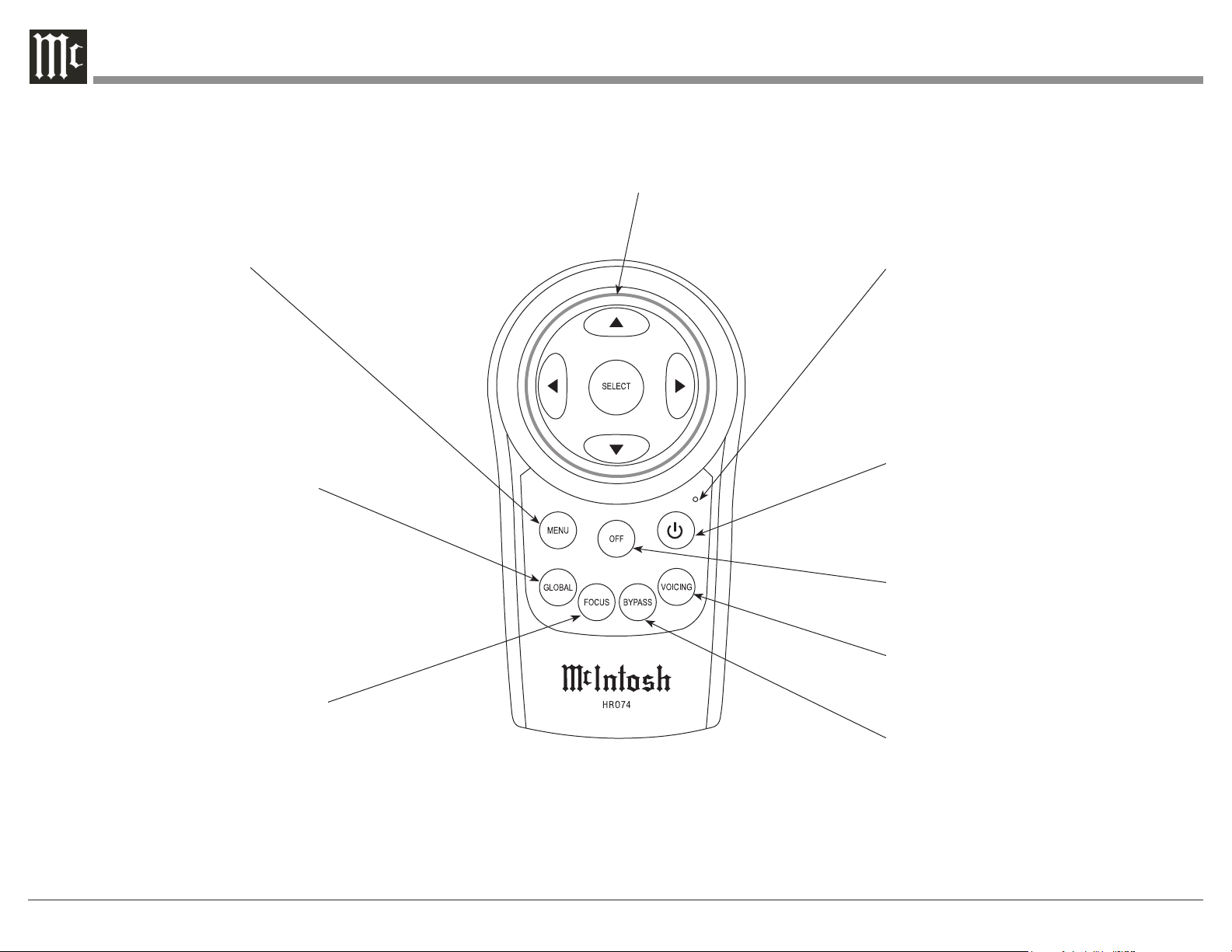
Press to Power the MEN220 ON
Press to remove all Room
Correction (RoomPerfect
Focus or Global) from the
MEN220 Audio Signal
Output
Used to select one of seven
different Equalizer Settings
LED indicates when an IR (Infra Red)
Remote Control Command is being sent
Press to Power the MEN220 OFF
Press to activate the Global
Mode for Room Correction
applied over a wide area in
the room
Press to activate the Focus
Mode for Room Correction
applied in a narrow area of the
room
Use to move through the available
choices up, down, left, right; also
used to SELECT the menu item
Press to enter the Setup
Mode, step through the Setup
Menus, return to the previous
Menu and exit from the Setup
Mode

15
Focus
Used to select a narrow listening area of Room Cor-
rection in the MEN220 Audio Signal Output. Refer to
figure 4.
Note: In order for the MEN220 to provide room cor-
rection, the Setup Mode “RoomPerfect” must be
performed first.
Bypass
When selected all Room Correction (RoomPerfect
Focus or Global) is removed from the MEN220 Audio
Signal Output. Refer to figure 5.
Note: Crossover Settings made in the Setup Mode are
still active and effecting the MEN220 Audio Sig-
nal Outputs.
Voicing
After Room Correction (RoomPerfect Focus or
Global) is active, some music recordings might require
slight equalization modifications to restore musical
balance. The MEN220 has built in six different varia-
tions to select from to restore musical balance. Refer
to figures 6 and 7.
Note: The Voicing Mode may be used even when
the RoomPerfect Mode is not active, however
its effect may become less noticeable. Refer
to figure 8.
The Remote Control is capable of performing both
basic Operating Functions and Setup Options for the
MEN220 Room Correction System.
Notes: Refer to the “How to Operate” and “How to
Operate Setup Mode” Sections of this manual for
additional information using this Remote Control.
Power On
To Switch ON the MEN220 press the (Power)
Push-button on the Remote Control. The Front Panel
Information Display top line will indicate “RoomPer-
fect: Muted” for approximately two seconds after turn
on. Refer to figure 1.
Menu
Used to enter and exit from the SETUP Mode of op-
eration. Refer to figure 2.
Global
Used to select a wide listening area of Room Correc-
tion in the MEN220 Audio Signal Output. Refer to
figure 3.
Note: In order for the MEN220 to provide room cor-
rection, the Setup Mode “RoomPerfect” must be
performed first.
How to use the Remote Control
How to use the Remote Control
MEN220 Setup Menu
Input Settings >
Figure 2
RoomPerfect:
Focus 1
Voicing 0:Neutral
Figure 4
RoomPerfect: Muted
Voicing 0:Neutral
Figure 1
Figure 3
RoomPerfect:Global
Voicing 0:Neutral
Figure 5
RoomPerfect:
Bypass
Voicing 0:Neutral
New Voicing:
3: Mellow
Figure 6
RoomPerfect:
Bypass
Voicing 3:Mellow
Figure 8
Figure 7
RoomPerfect:
Focus 1
Voicing 3: Mellow
16
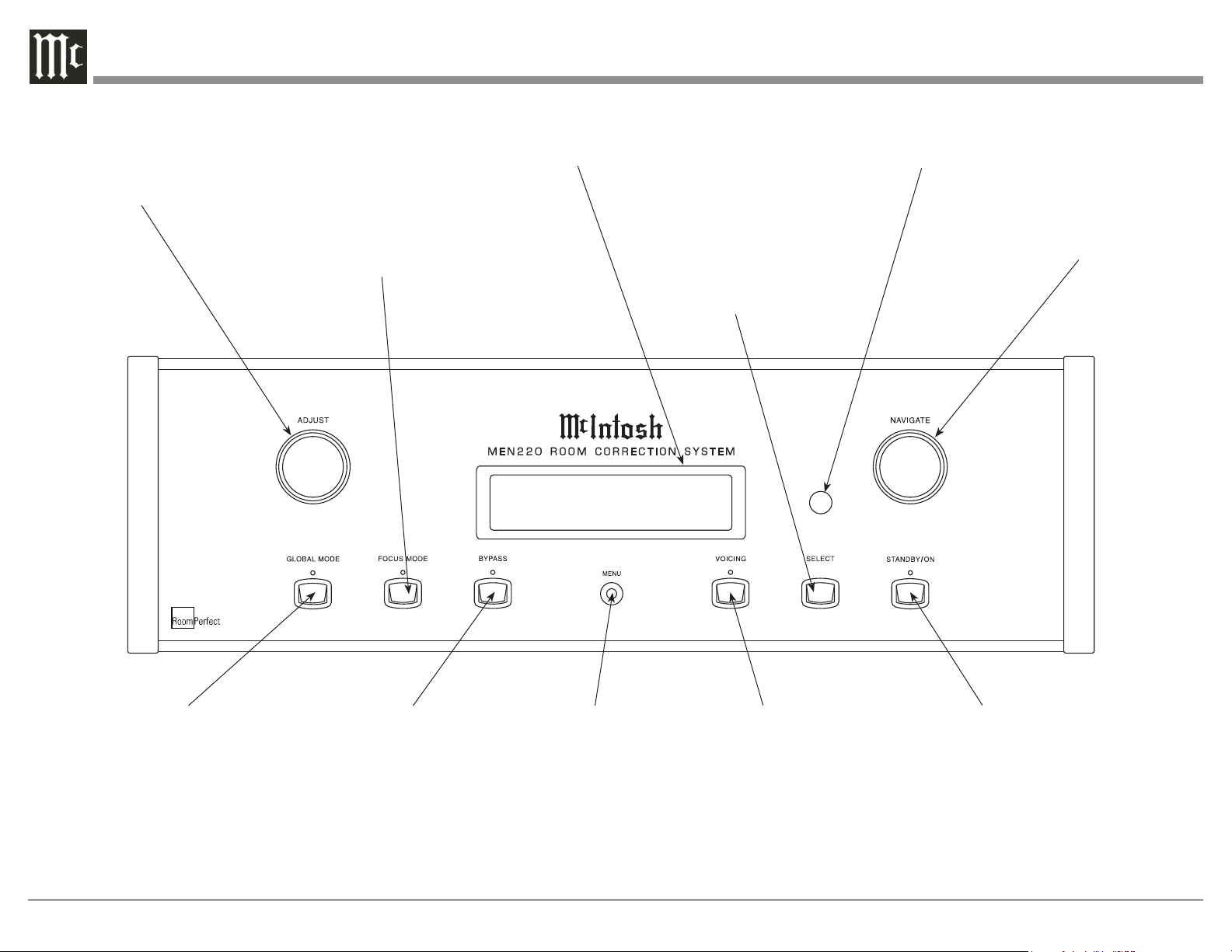
RoomPerfect:
Focus 1
Voicing 0:Neutral
Front Panel Display, Controls, and Push-buttons
IR Sensor receives
commands from a
Remote Control
INFORMATION DISPLAY
indicates various Opera-
tional Functions and Setup
Mode Settings
STANDBY/ON Push-button
with indicator, switches
the MEN220 ON or OFF
(Standby) and resets the
microprocessors
FOCUS MODE Push-
button with indica-
tor, selects a narrow
listening area of Room
Correction
ADJUST allows selec-
tion of various types
of audio settings and is
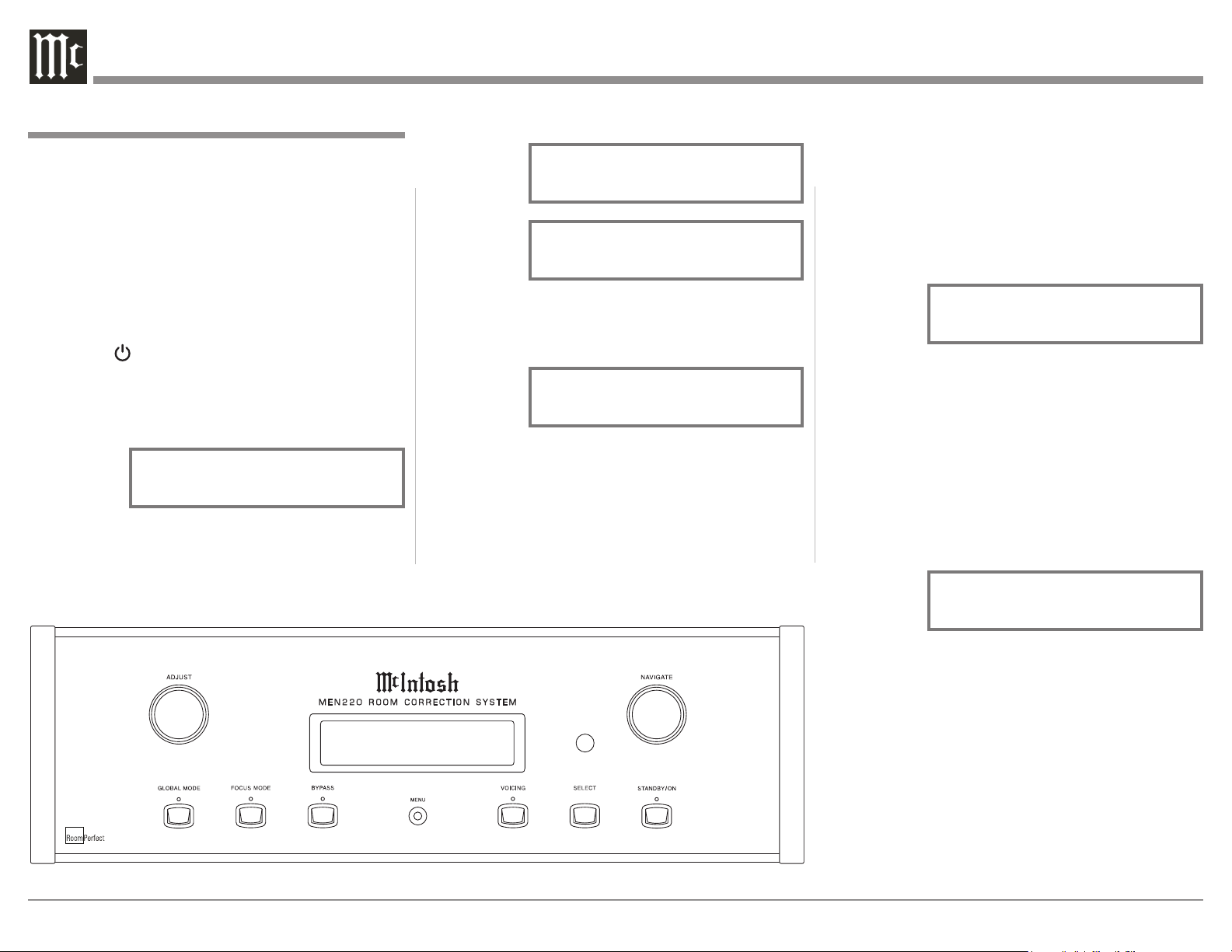
also used in the setup
mode for various func-
tions NAVIGATE is used
in the setup mode for
various functions
GLOBAL MODE Push-button
with indicator, selects a wide
listening area of Room Correc-
tion
MENU Push-button
is used to enter the
Setup Mode, step
through the Setup
Menus, return to the
previous Menu and
exit from the Setup
Mode
BYPASS Push-button
with indicator, removes
all Room Correction
(RoomPerfect Focus
or Global) from the
MEN220 Audio Signal
Output
VOICING Push-button
with indicator, selects
between six different
equalization variations
SELECT Push-button
selects the current
choice as indicated on
the Front Panel Infor-
mation Display when in
the Setup Mode
17
How to Operate the Setup Mode
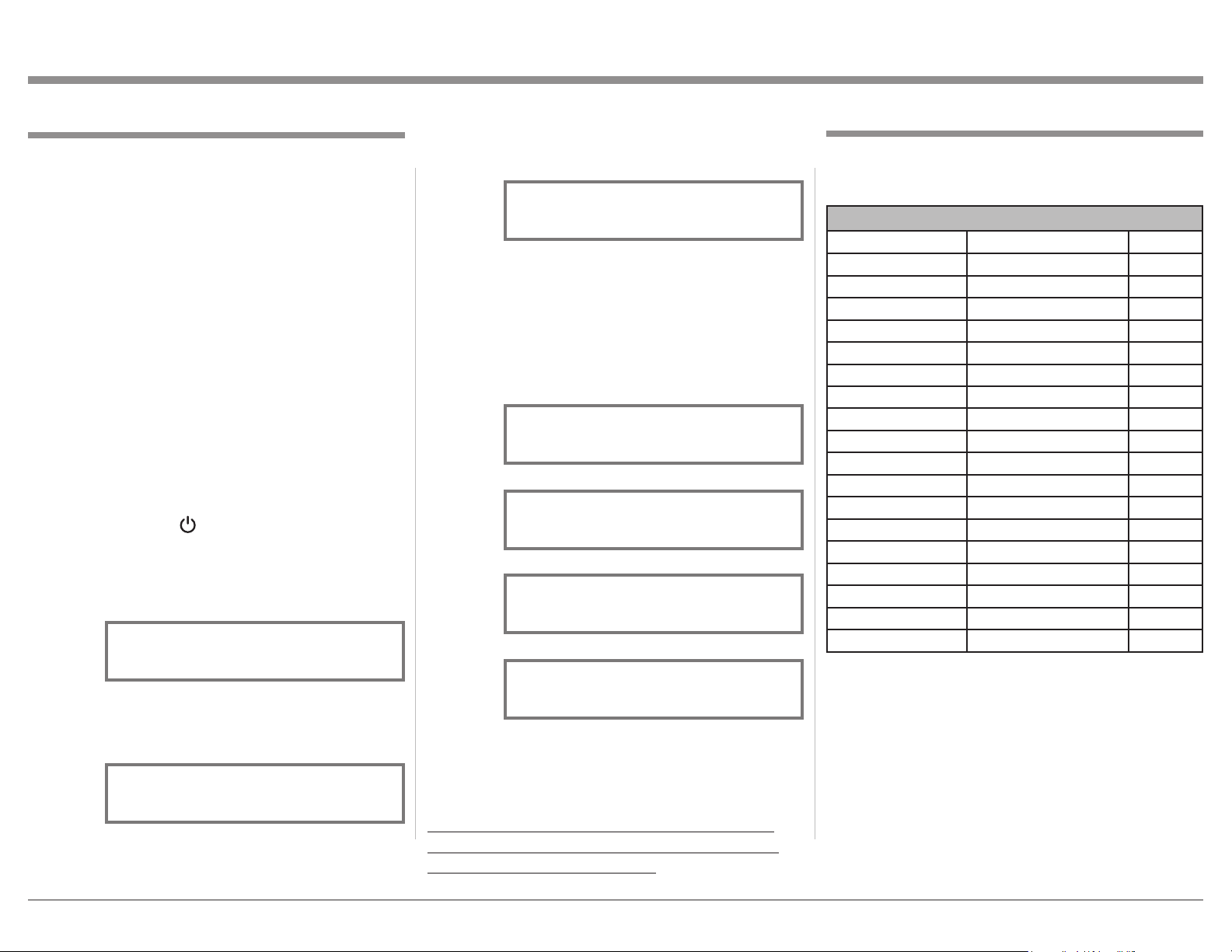
The Default Settings Chart below indicates the Func-
tion Name, Default Setting and the Page Number for
additional information.
Default Settings
MEN220 Default Settings
Function Name Setting Page no.
Input Connection Unbalanced 18
System Connection Preamp - Power Amp 18
Out 1 (Hi) Full Range 19
Out 2 (Lo) Full Range 19
High Pass Filter Type Butterworth 1 ord 19-20
High Pass Frequency 300Hz 19-20
Low Pass Filter Type Butterworth 1 ord 19-20
Low Pass Frequency 300Hz 19-20
Output 1 (Hi) 0.0dB 20
Output 2 (Lo) 0.0dB 20
Distance Units Inches 21
L1 0” 21
R1 0” 21
L2 0” 21
R2 0” 21
Front Panel Sensor: On 22
Display Intensity 100% 22
McIntosh MEN220 SW Version: _._ _ 22
Setup
The McIntosh MEN220 has been factory configured
for default settings allowing for very basic operation.
To benefit from all the MEN220 capabilities includ-
ing Room Correction and the Electronic Crossover, it
will require using the MEN220 Setup Mode and going
through the options and functions. This is performed
using the Front Panel Information Display and sup-
plied RoomPerfect Calibration Microphone.
Notes: 1. Assemble the supplied Microphone Holder/
Stand/Boom Adapter and connect the Micro-
phone to the MEN220 Microphone Connector
on the Rear Panel using the supplied cable.
2. If the MEN220 is currently On, proceed to
step 2.
When performing the following Setup Instructions
please refer to the MEN220 Setup Menu Diagram
located on the separate folded sheet “Mc3B” for an
overall view of the menu structure.
1. Press the STANDBY/ON Push-button on the Front
Panel or press the (Power) Push-button on the
Remote Control to switch On the MEN220. The
Front Panel Information Display top line will
indicate “RoomPerfect: Muted” for approximately
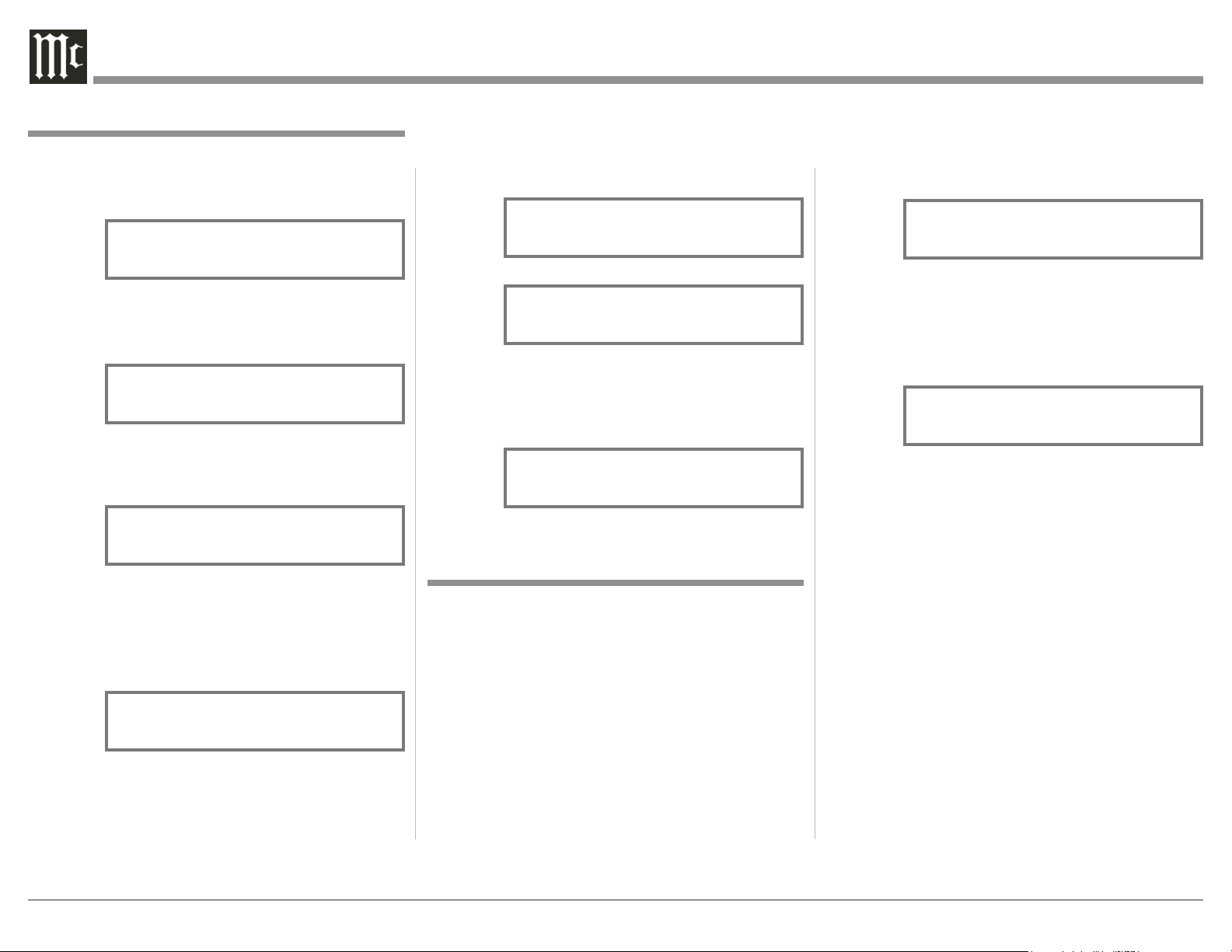
two seconds after turn on. Refer to figure 9. The
Front Panel will then indicate the previous opera-
tion settings for RoomPerfect and Voicing. Refer
to figure 10.
2. Press the MENU Push-button to enter the Setup
Mode. Refer to figure 11.
3. Rotate the NAVIGATE Control one detent position
at a time or use the directional ◄ ► Push-buttons
on the Remote Control to view the main Setup
Menu Modes (Input Settings, Output Setings,
RoomPerfect, Advanced Settings and Exit Menu).
Refer to figures 12, 13, 14, and 15.
4. To exit from the Setup Mode, press the MENU
Push-button and the Front Panel Display will re-
vert back to its normal display. Refer to figure 10.
It is important to follow the sequence of the Setup
Mode Adjustments starting on page 18, as some of
these adjustments are interactive.
Figure 9
RoomPerfect: Muted
Voicing 0:Neutral
Figure 10
RoomPerfect:
Bypass
Voicing 0:Neutral
Figure 13
MEN220 Setup Menu
< RoomPerfect >
Figure 15
MEN220 Setup Menu
< Exit_Menu
Figure 12
MEN220 Setup Menu
< Output Settings >
Figure 14
MEN220 Setup Menu
< Advanced Settings >
Figure 11
MEN220 Setup Menu
Input Settings >
18
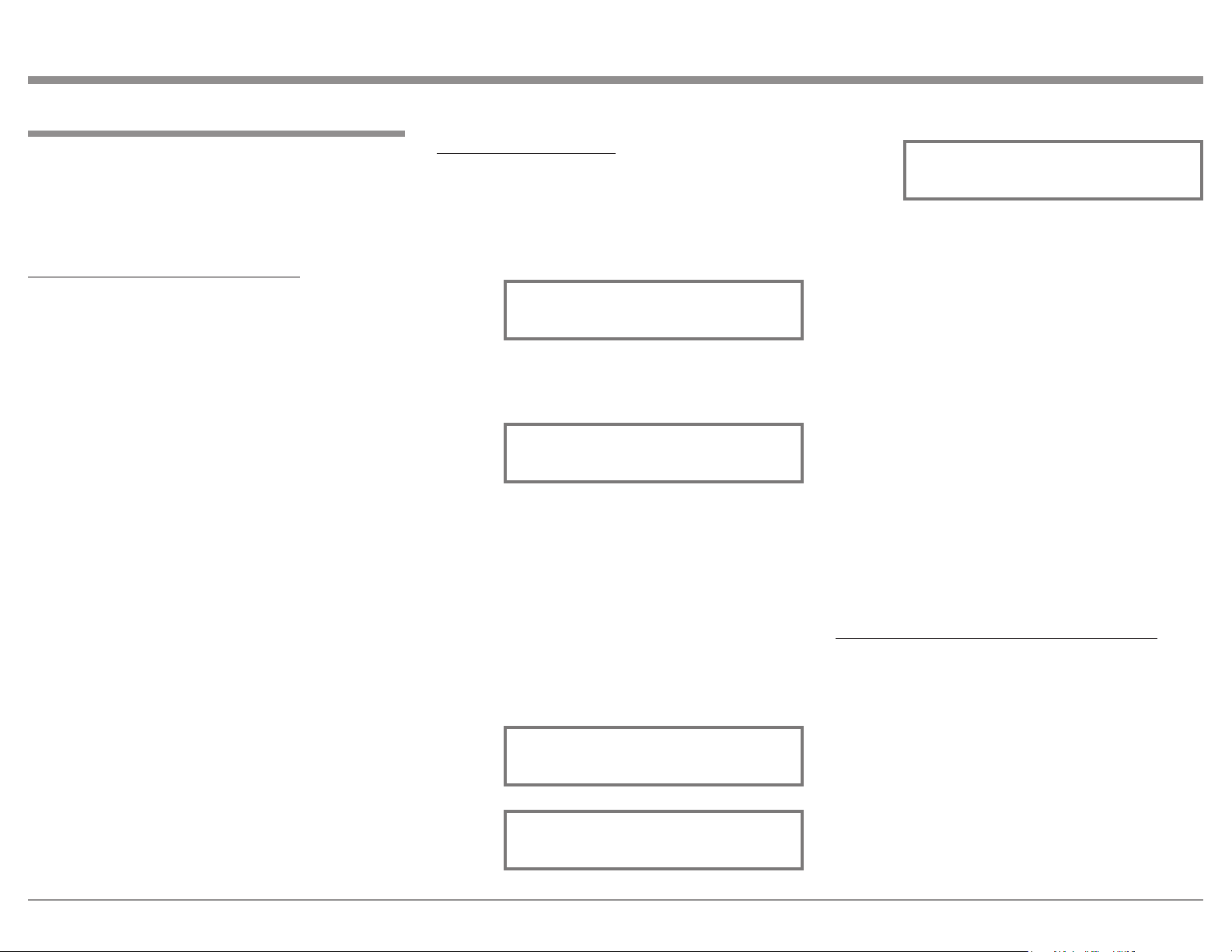
4. Press the SELECT Push-button and the “System
Connection, Preamp - Power Amp” (the default
setting) will appear. Refer to figure 22.
5. If the MEN220 is connected to the Processor Loop
of the Preamplifier, rotate the ADJUST Control
or use the Directional ▲ ▼ Push-buttons on the
Remote Control to select the “System Connection,
Processor Loop”. Refer to figure 23.
6. Press the SELECT Push-button to enter either
choice.
7. Rotate the NAVIGATE Control one detent position
at a time or use the Directional ◄ ► Push-buttons
on the Remote Control to select “Input Settings,
System Connection”, or the “Exit Menu”. Refer to
figures 20 and 21.
Proceed to “Output Settings” or to exit from the Setup
Mode, press the MENU Push-button and the Front
Panel Display will revert back to its normal display.
Refer to figure 10.
on the Remote Control to select “Input Settings,
System Connection”, or the “Exit Menu”. Refer to
figures 20 and 21.
Proceed to “System Connections” or to exit from the
Setup Mode, press the MENU Push-button and the
Front Panel Display will revert back to its normal
display. Refer to figure 10.
The MEN220 Input Setup allows for the selection of
input connection type, Unbalanced or Balanced.
1. Press the MENU Push-button to enter the Setup
Mode. Refer to figure 16.
2. Press the SELECT Push-button and the “Input
Settings, Input Connection” will appear on the
Information Display. Refer to figure 17.
3. Press the SELECT Push-button again and the
“Input Connection, Unbalanced” will appear. Refer
to figure 18.
4. The MEN220 default Input Connection Type is the
Unbalanced Inputs. To change to the Balanced In-
puts rotate the ADJUST Control or use the Direc-
tional ▲ ▼ Push-buttons on the Remote Control
to select the Balanced Inputs. Refer to figure 19.
5. Press the SELECT Push-button to enter either
choice.
6. Rotate the NAVIGATE Control one detent position
at a time or use the Directional ◄ ► Push-buttons
Input Connections Settings
Figure 19
Input Connection
Balanced
Input Connection
Unbalanced
Figure 18
Figure 20
Input Settings
< System Connection>
Figure 22
System Connection
Preamp - Power Amp
Figure 23
System Connection
Processor Loop
Figure 17
Input Settings
Input Connection >
Figure 21
MEN220 Setup Menu
< Exit_Menu
MEN220 Setup Menu
Input Settings >
Figure 16
Input Setup also allows for selecting how the MEN220
is connected into a system, either between the Pream-
plifier/Power Amplifier or in the Preamplifier Proces-
sor Loop.
1. Press the MENU Push-button to enter the Setup
Mode. Refer to figure 16.
2. Press the SELECT Push-button and the “Input
Settings, Input Connection” will appear on the
Information Display. Refer to figure 17.
3. Rotate the NAVIGATE Control or use the Direc-
tional ◄ ► Push-buttons on the Remote Control
to select “Input Settings, System Connection”.
Refer to figure 20.
Figure 10
RoomPerfect:
Bypass
Voicing 0:Neutral
System Connections Settings
19
The “High-Pass” setting allows all the frequencies
above the crossover point to pass on to the Power Am-
plifier while at the same time reducing the amplitude
of the frequencies below the crossover point. Refer
to the separate sheet “Mc3A” Crossover Curves 4, 5
and 6.
The “Low-Pass” setting allows all the frequencies
below the crossover point to pass on to the Power Am-
plifier while at the same time reducing the amplitude
of the frequencies above the crossover point. Refer
to the separate sheet “Mc3A” Crossover Curves 1, 2
and 3.
The “Lo-Pas (Low-Pass) Mono” setting is a varia-
tion of the Low-Pass setting and is designed to be
used with a Subwoofer(s). It combines the Left and
Right Channels together into a Mono Signal before the
signal is processed by the MEN220 Crossover Cir-
cuitry. The crossover signal is available at the number
2 Outputs Left and Right.
HIGH AND LOW PASS FILTER SETTINGS:
In the following steps the Crossover Settings will
be set up for a Bi-Amplified System using McIntosh
Loudspeakers. If your Loudspeakers are not McIntosh
contact your Dealer for assitance.
1. Press the MENU Push-button to enter the Setup
Mode. Refer to figure 16.
2. Rotate the NAVIGATE Control (or use the Direc-
tional ▲ ▼ Push-buttons on the Remote Control)
to select “Output Settings”. Refer to figure 24.
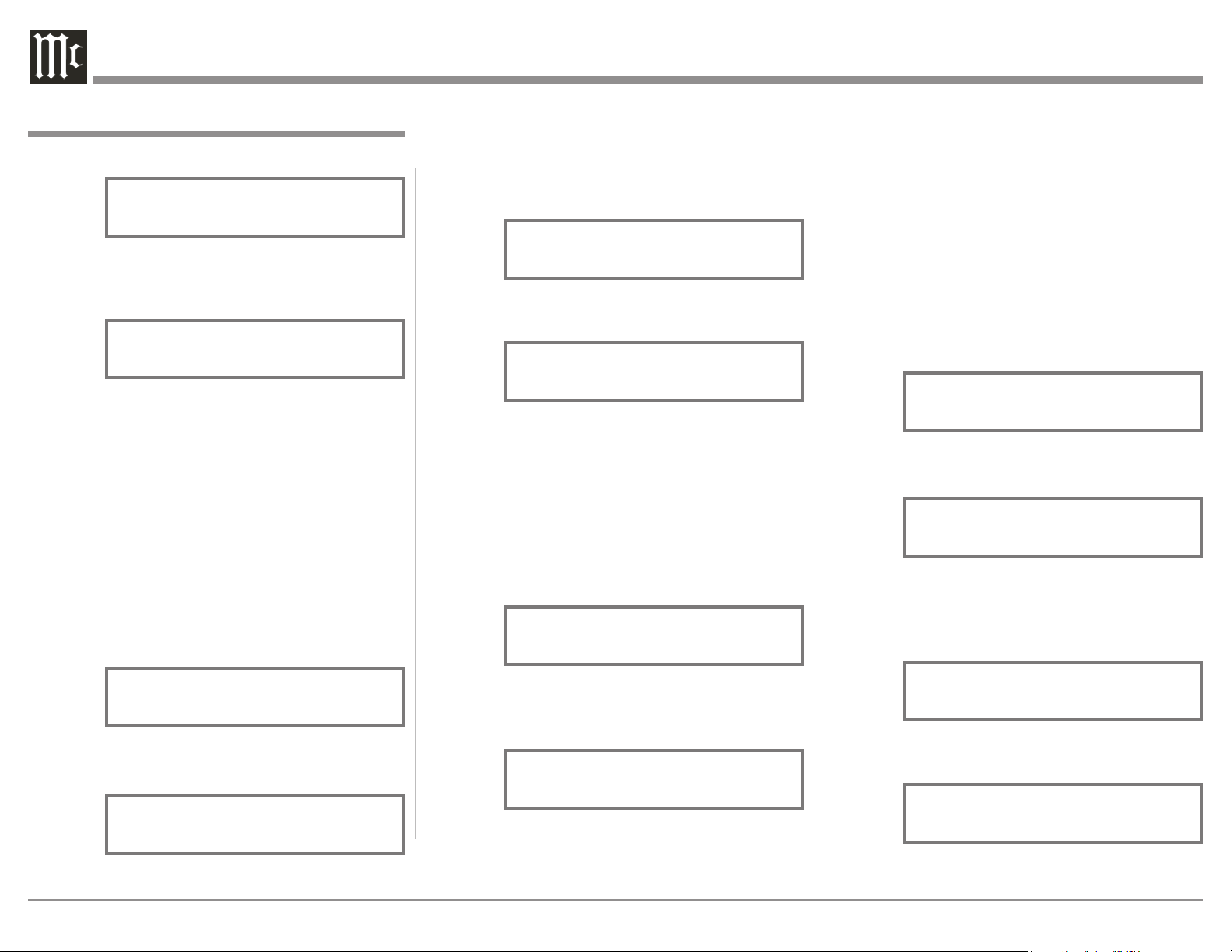
3. Press the SELECT Push-button and the “Output
Settings, Crossover Options” will appear. Refer to
figure 25.
CROSSOVER OPTIONS:
1. Press the MENU Push-button to enter the Setup
Mode. Refer to figure 16.
2. Rotate the NAVIGATE Control (or use the use
the Directional ▲ ▼ Push-buttons on the Remote
Control) to select “Output Settings”. Refer to
figure 24.
3. Press the SELECT Push-button and the “Output
Settings, Crossover Options” will appear. Refer to
figure 25.
4. Press the SELECT Push-button and the default
Crossover Setting will appear.
There are four different Crossover Settings for Fre-
quency Response Options; Full Range, High-Pass,
Low-Pass and Lo-Pas (Low-Pass) Mono.
The MEN220 “Full Range” default setting for
both Outputs 1 and Outputs 2 bypasses the built-in
electronic crossover network circuitry. This sends the
entire audio frequency range from 20Hz to 20,000Hz
on to the Power Amplifier. Refer to figures 26, 27,
and 28.
The MEN220 Output Settings include Crossover Op-
tions, Output Levels, Low and High Pass Filters and
Delays Settings. The Low Pass and High Crossover
Curves for both filter types (Butterworth and Link-
witz-Riley) are located on the separate folded sheet
“Mc3A”.
INTRODUCTION TO CROSSOVERS:
Almost all Loudspeakers incorporate acoustic drivers
and a passive crossover network. The passive cross-
over network channels the various audio frequencies
to the appropriate acoustic driver taking into ac-
count the amplitude and phases of the audio signals
the Loudspeaker reproduces. When an electronic
crossover such as the MEN220 is used together with
multiple Power Amplifiers and Loudspeakers, it is
very important to maintain the correct amplitude and
phases of the audio signals for accurate sound repro-
duction.
McIntosh’s Acoustics Laboratory has measured
McIntosh Loudspeakers (with separate Low Fre-
quency/High Frequency connections) when used with
the MEN220 and has arrived at the optimum settings.
There are two different settings. The first setting is for
use with McIntosh Loudspeakers with a Low Frequen-
cy (Woofer) to High Frequency (Midrange/Tweeter)
crossover frequency of 250Hz. The second setting is
when the McIntosh Loudspeaker has a crossover of
80Hz. It is suggested to use these settings.
When the MEN220 is used with non-McIntosh
Loudspeakers it is highly recommended to contact
your Dealer for assistance. Your Dealer has the neces-
sary measurement equipment and knowledge to prop-
erly set up the electronic crossover in the MEN220 for
your Loudspeakers.
Setup, con’t
Output Settings
Figure 24
MEN220 Setup Menu
< Output Settings >
Figure 25
Output Settings
Crossover Options >
Figure 27
Out1(Hi):High-Pass
Out
2(
Lo
):Low-Pass
Figure 26
Out1(Hi):Full Range
Out
2(
Lo
):
Full Range
Figure 28
Out1(Hi):Full Range
Out2(
Lo
):
Lo-Pas
Mono
20
Notes: 1. 125Hz is one-half times the Loudspeaker
Low Frequency/High Frequency passive
crossover point of 250Hz.
2. 40Hz is one-half times the Loudspeaker
Low Frequency/High Frequency passive
crossover point of 80Hz.
11. Press the SELECT Push-button and figure 29 will
appear.
12. Rotate the NAVIGATE Control (or use the Direc-
tional ◄ ► Push-buttons on the Remote Control)
to select “Output Setting, Low Pass Filter”. Refer
to figure 34.
13. Press the SELECT Push-button and the default
Crossover Setting will appear. Refer to figure 35.
14. Rotate the ADJUST Control (or use the Directional
▲ ▼ Push-buttons on the Remote Control) to
select “LowPass Filter Type, LinkwitzRiley 4 ord”.
Refer to figure 36.
15. Press the SELECT Push-button and “Low Pass
Frequency, 300Hz” will appear. Refer to figure 37.
4. Press the SELECT Push-button and the default
Crossover Setting will appear. Refer to figure 26.
5. Rotate the ADJUST Control (or use the Direction-
al ▲ ▼ Push-buttons on the Remote Control) to
select “Out1(Hi):High-Pass”. Refer to figure 27.
6 Rotate the NAVIGATE Control (or use the direc-
tional ◄ ► Push-buttons on the Remote Control)
to select “Out2(Hi):Full Range”. Then Rotate the
ADJUST Control (or use the Directional ▲ ▼
Push-buttons on the Remote Control) to select
“Out2(Lo):Low-Pass”. Refer to figure 27.
7. Press the SELECT Push-button and “Output Set-
tings Crossover Options” will appear. Refer to
figure 25 on page 19.
8. Rotate the NAVIGATE Control (or use the Direc-
tional ◄ ► Push-buttons on the Remote Control)
to select “Output Settings, High Pass Filter”. Refer
to figure 29.
9. Press the SELECT Push-button and the default
Crossover Setting will appear. Refer to figure 30.
Output Settings, con’t
10. Rotate the ADJUST Control (or use the Directional
▲ ▼ Push-buttons on the Remote Control) to se-
lect “HighPass Filter Type, LinkwitzRiley 4 ord”.
Refer to figure 31.
11. Press the SELECT Push-button and “High Pass
Frequency, 300Hz” will appear. Refer to figure 32.
At this time refer the Loudspeaker Owner’s Manual
Specification Page to determine if Low Frequency
(Woofer) to High Frequency (Midrange/Tweeter)
crossover frequency is 80Hz or 250Hz.
12. Rotate the ADJUST Control (or use the Direc-
tional ▲ ▼ Push-buttons on the Remote Control)
to select “High Pass Frequency, 125Hz” when the
Loudspeaker Crossover Frequency is 250Hz. Refer
to figure 33A.
If the Loudspeaker Crossover Frequency is 80Hz
select “High Pass Frequency, 40Hz”. Refer to
figure 33B.
Figure 32
High Pass Frequency
300Hz
Figure 37
Low Pass Frequency
300Hz
Figure 29
Output Settings
< High Pass Filter >
Figure 34
Output Settings
< Low Pass Filter >
Figure 31
HighPass Filter Type
LinkwitzRiley 4 ord
Figure 36
LowPass Filter Type
LinkwitzRiley 4 ord
Figure 33A
High Pass Frequency
125Hz
Figure 35
LowPass Filter Type
Butterworth 1 ord
Figure 30
HighPass Filter Type
Butterworth 1 ord
Figure 27
Out1(Hi):High-Pass
Out
2(
Lo
):Low-Pass
Figure 26
Out1(Hi):Full Range
Out
2(
Lo
):
Full Range
Figure 33B
High Pass Frequency
40Hz
21
16. Rotate the ADJUST Control (or use the Direc-
tional ▲ ▼ Push-buttons on the Remote Control)
to select “Low Pass Frequency, 500Hz” when the
Loudspeaker Crossover Frequency is 250Hz. Refer
to figure 38A.
If the Loudspeaker Crossover Frequency is 80Hz
select “Low Pass Frequency, 160Hz”. Refer to
figure 38B.
Notes: 1. 500Hz is two times the Loudspeaker Low
Frequency/High Frequency passive cross-
over point of 250Hz.
2. 160Hz is two times the Loudspeaker Low
Frequency/High Frequency passive cross-
over point of 80Hz.
17. Press the SELECT Push-button followed by the
MENU Push-button.
Proceed to “Output Levels” or to exit from the Setup
Mode, press the MENU Push-button and the Front
Panel Display will revert back to its normal display.
OUTPUT LEVELS:
1. Press the MENU Push-button to enter the Setup
Mode. Refer to figure 16 on page 18.
2. Rotate the NAVIGATE Control (or use the Direc-
tional ▲ ▼ Push-buttons on the Remote Control)
to select “Output Settings”. Refer to figure 24 on
page 19.
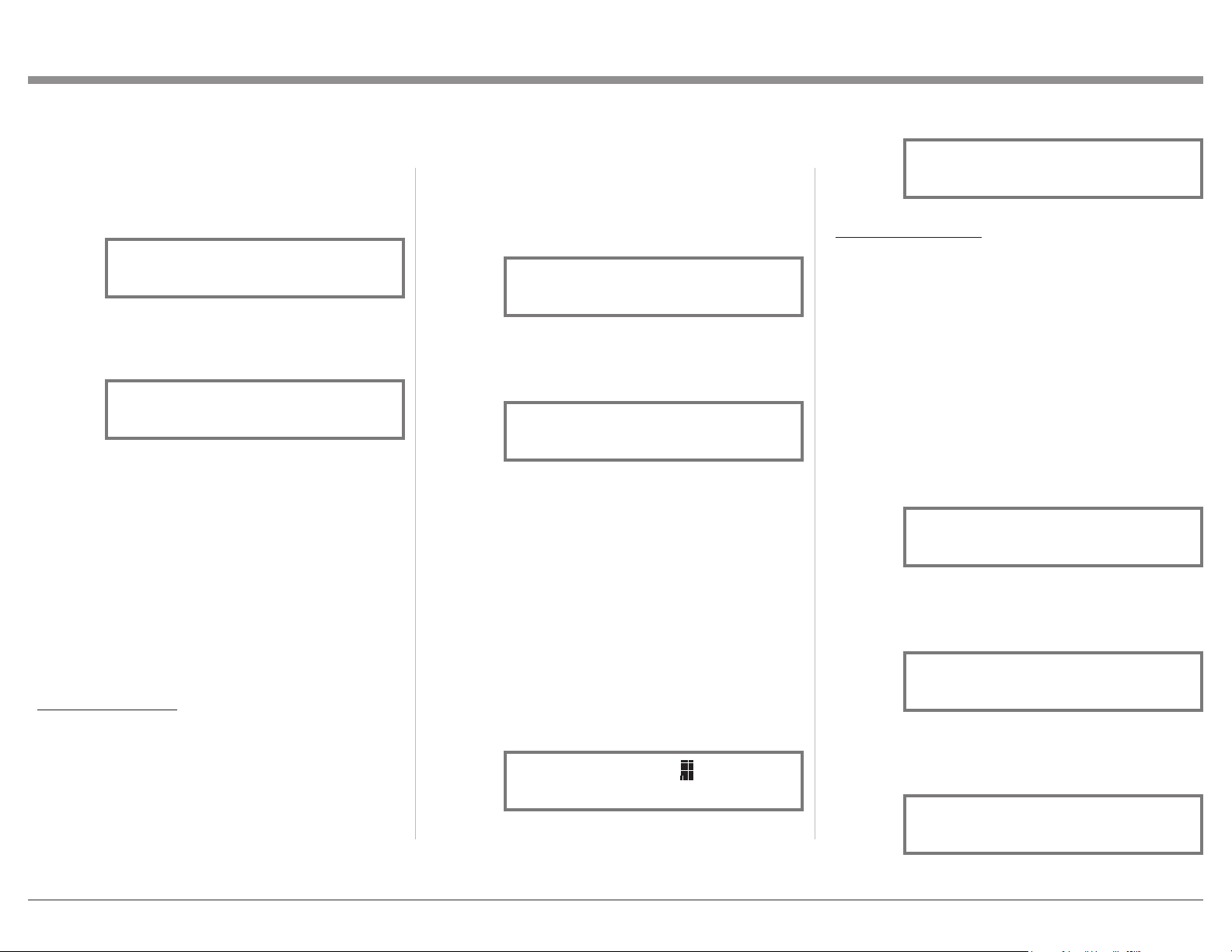
3. Press the SELECT Push-button and the “Output
Settings, Crossover Options” will appear. Refer to
figure 25 on page 19.
4. Rotate the NAVIGATE Control (or use the Direc-
tional ▲ ▼ Push-buttons on the Remote Control)
to select “Output Settings, Output Levels”. Refer
to figure 40.
5. Press the SELECT Push-button and the default
Output Level Settings will appear. Refer to
figure 41.
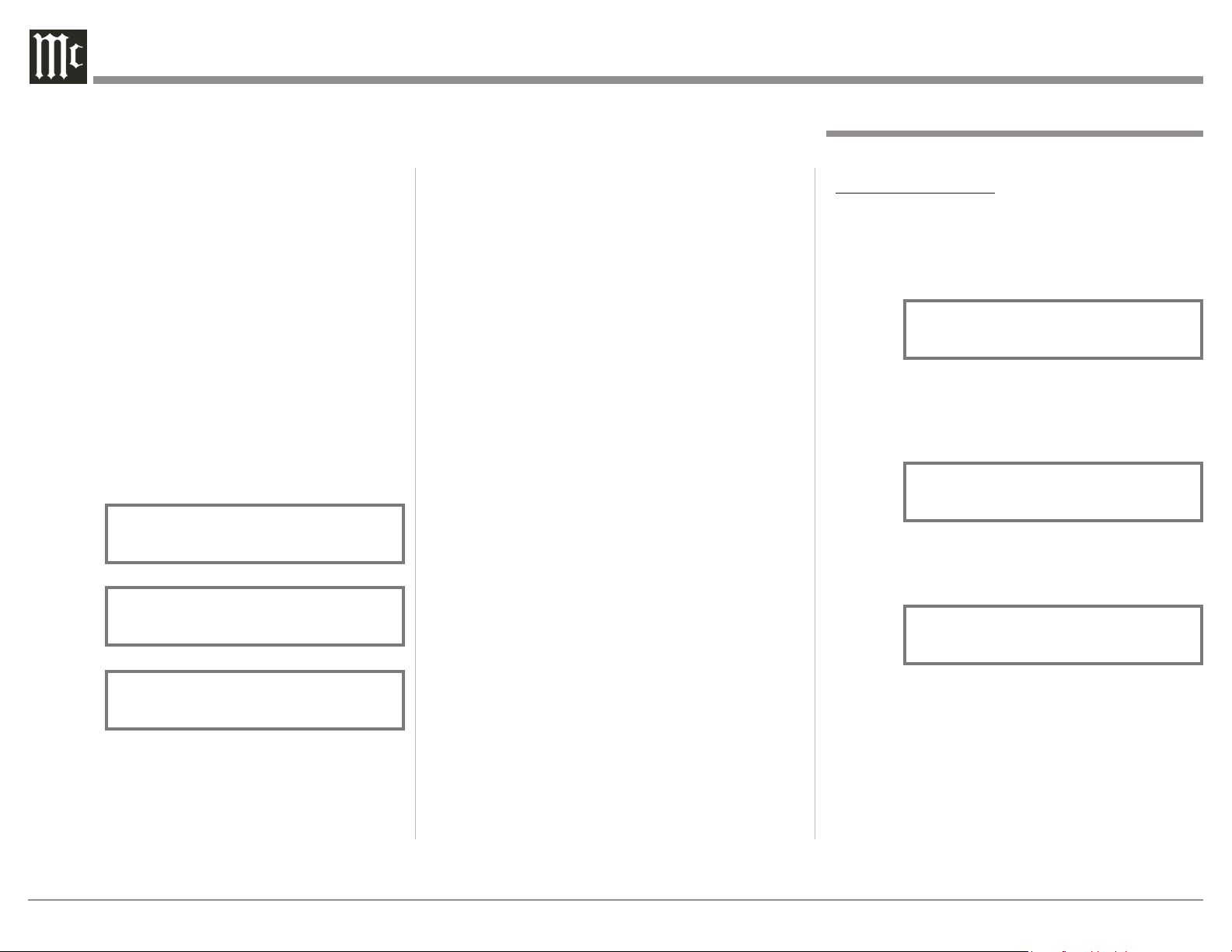
The MEN220 “Output Level” default setting for
both Output 1 and Output 2 is 0.0dB, no change in
volume between input and output. In some system
component configurations it might be desirable to
change the volume level going to the Power Ampli-
fier connected to Output 1 versus the Power Ampli-
fier connected to Output 2. The range of adjustment
for both Output 1 and Output 2 is 0.0dB to -12.0dB
with one tenth of a decible steps. To make changes in
the Output Levels perform the following:
6. Select either Output 1 or 2 by using the NAVI-
GATE Control (a flashing cursor will indicate
which Output is selected). Refer to figure 42.
7. Rotate the ADJUST Control to reduce the Output
volume to the desire level. Refer to figure 43.
DELAY SETTINGS:
1. Press the MENU Push-button to enter the Setup
Mode. Refer to figure 16 on page 18.
2. Rotate the NAVIGATE Control (or use the Direc-
tional ▲ ▼ push-buttons on the Remote Control)
to select “Output Settings”. Refer to figure 24 on
page 19.
3. Press the SELECT Push-button and the “Output
Settings, Crossover Options” will appear. Refer to
figure 25 on page 19.
4. Rotate the NAVIGATE Control (or use the Direc-
tional ▲ ▼ Push-buttons on the Remote Control)
to select “Output Settings, Delay Settings”. Refer
to figure 44.
5. Press the SELECT Push-button and the default
Delay Distance Units of “Inches” will appear.
Refer to figure 45.
6. To change the distance measurement to “Cen-
timeters” rotate the ADJUST Control. Refer to
figure 46.
Figure 46
Distance Units
Centimeters
Figure 45
Distance Units
Inches
Figure 42
Out1(Hi): 0. dB
Out
2(
Lo
): 0.0 dB
Figure 43
Out1(Hi): -3.5 dB
Out
2(
Lo
): 0.0 dB
Figure 44
Output Settings
< Delay Settings >
Figure 40
Output Settings
< Output Levels >
Figure 41
Out1(Hi): 0.0 dB
Out
2(
Lo
): 0.0 dB
Figure 38A
Low Pass Frequency
500Hz
Setup, con’t
Figure 38B
Low Pass Frequency
160Hz
22
The MEN220 Advanced Settings include Remote
Control, Display, Software Version and Factory Reset.
REMOTE CONTROL:
1. Press the MENU Push-button to enter the Setup
Mode. Refer to figure 16 on page 18.
2. Rotate the NAVIGATE Control (or use the Direc-
tional ▲ ▼ Push-buttons on the Remote Control)
to select “Advanced Settings”. Refer to figure 50.
3. Press the SELECT Push-button and the “Advanced
Settings, Remote Control” will appear. Refer to
figure 51.
4. Press the SELECT Push-button and the default
Remote Control Setting will appear. Refer to
figure 52.
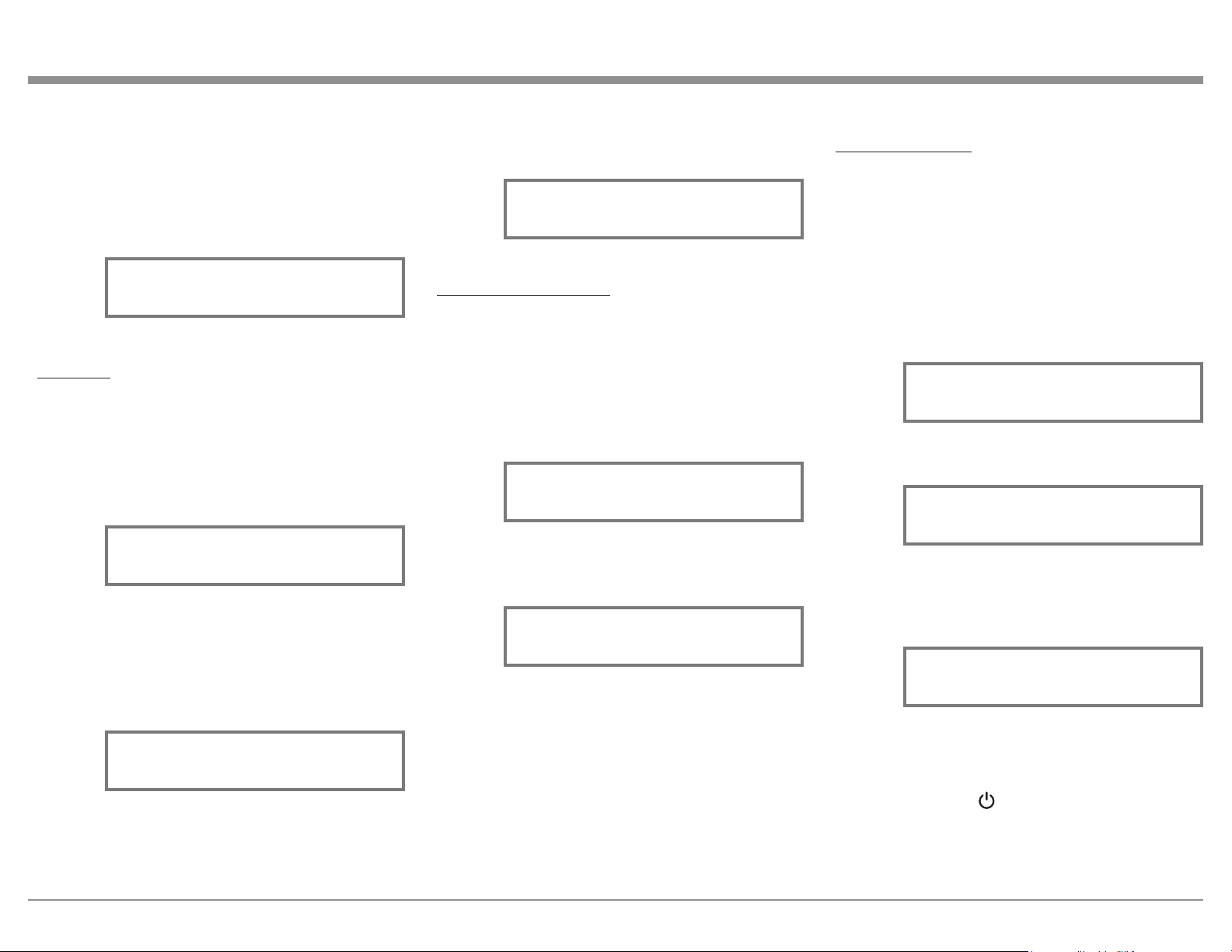
In a typical Audio/Video System, the MEN220 Power
Control and Data Port Connections are made to the
Audio Preamplifier or A/V Control Center. This al-
lows the MEN220 to switch On or Off with the Audio
Preamplifier or A/V Control Center. The commands
coming from the Remote Control (supplied with
the MEN220) are received by the Audio Preampli-
fier or A/V Control Center and are passed on to the
MEN220. The MEN220 Front Panel Sensor needs to
Advanced Settings
Figure 51
Advanced Settings
Remote Control >
Figure 50
MEN220 Setup Menu
< Advanced Settings >
Figure 52
Front Panel Sensor
On
In the ideal audio system the Left and Right Loud-
speakers would have the same measured distance to
the Focus Listening Position. Due to room dimen-
sions, funiture placements, etc. the distances may
not be identical. The MEN220 can delay the sound
coming from the closer Loudspeaker, assuring the
sound arrives at the same time to the Focus Listening
Position. Perform the following steps to correct for
different distannces:
7. First measure the actual distance from each Loud-
speaker to the Focus Listening Position.
8. Press the SELECT Push-button, then rotate the
NAVIGATE Control (or use the Directional ▲
▼ Push-buttons on the Remote Control) to posi-
tion the cursor and the ADJUST Control (or use
the Directional ▲ ▼ Push-buttons on the Remote
Control) to enter the distance (0-999) in inches or
centimeters. Refer to figures 47, 48 and 49.
L1 0” R1 0”
Out2 (Mono): 0”
Figure 49
L1 0” R1 0”
L2 0” R2 0”
Figure 47
L1 0cm R1 0cm
L2 0cm R2 0cm
Figure 48
Notes: 1. L1 and R1 are for Loudspeaker connected
to the Power Amplifier 1 (Power Amplifier
1 is connected to the MEN220 Output 1).
2. L2 and R2 are for Loudspeakers con-
nected to the Power Amplifier 2 (Power
Amplifier 2 is connected to the MEN220
Output 2).
3. When the MEN220 Electronic Crossover
is configured for Low Pass Mono on Out-
put 2 and two Subwoofers are connected,
measure the distance to each Subwoofer.
Then add together both distances and di-
vide by two for the distance measurement
for Output 2 (Mono).
23
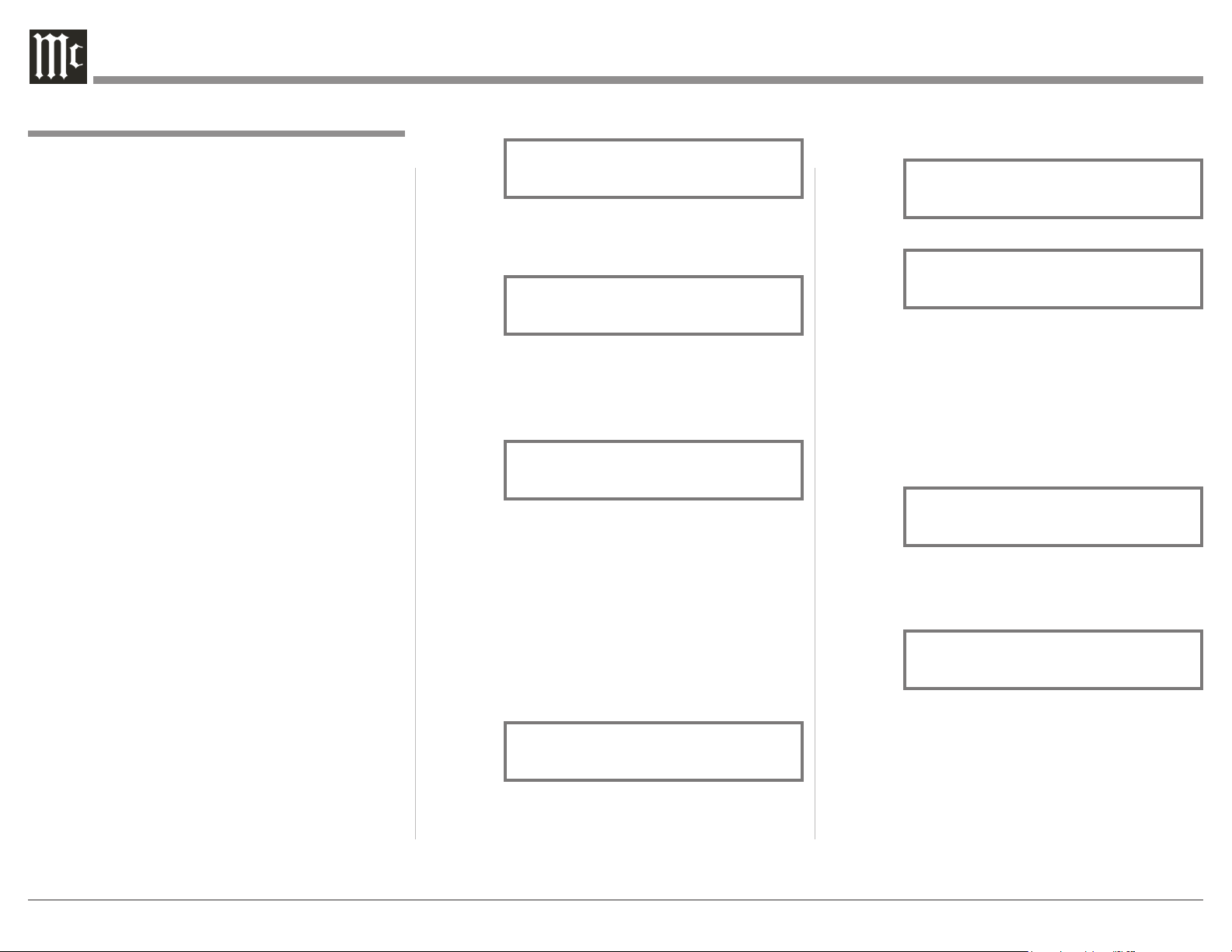
FACTORY RESET:
1. Press the MENU Push-button to enter the Setup
Mode. Refer to figure 16 on page 18.
2. Rotate the NAVIGATE Control (or use the Direc-
tional ▲ ▼ Push-buttons on the Remote Control)
to select “Advanced Settings”. Refer to figure 50.
3. Press the SELECT Push-button and the “Advanced
Settings, Remote Control” will appear. Rotate the
NAVIGATE Control (or use the Directional ▲
▼ Push-buttons on the Remote Control) to select
“Factory Reset”. Refer to figure 59.
4. Press the SELECT Push-button and the “Delete
All Settings?, No” will appear. Refer to figure 60.
5. Rotate the NAVIGATE Control (or use the Direc-
tional ▲ ▼ Push-buttons on the Remote Control)
to select “Delete All Settings?, Yes”. Refer to
figure 61.
6. Press the SELECT Push-button and figure 59 will
appear briefly. The MEN220 will switch Off.
7. Press the STANDBY/ON Push-button on the Front
Panel or press the (Power) Push-button on the
Remote Control to switch On the MEN220.
5. Rotate the ADJUST Control to select the desired
Display Intensity. Refer to figure 56.
SOFTWARE VERSION:
1. Press the MENU Push-button to enter the Setup
Mode. Refer to figure 16 on page 18.
2. Rotate the NAVIGATE Control (or use the Direc-
tional ▲ ▼ Push-buttons on the Remote Control)
to select “Advanced Settings”. Refer to figure 50.
3. Press the SELECT Push-button and the “Advanced
Settings, Software Version” will appear. Refer to
figure 57.
4. Press the SELECT Push-button and the “McIn-
tosh SW Version: _._ _ ” will appear. Refer to
figure 58.
be disabled to prevent possible interference. To de-
activate the MEN220 Front Panel Sensor perform the
following steps:
5. Rotate the ADJUST Control to switch Off the
Front Panel Remote Control Sensor. Refer to fig-
ure 53.
DISPL AY:
1. Press the MENU Push-button to enter the Setup
Mode. Refer to figure 16 on page 18.
2. Rotate the NAVIGATE Control (or use the Direc-
tional ▲ ▼ Push-buttons on the Remote Control)
to select “Advanced Settings”. Refer to figure 50.
3. Press the SELECT Push-button and the “Advanced
Settings, Display” will appear. Refer to figure 54.
The MEN220 Front Panel Information Display Inten-
sity has four different settings 100% (default), 75%,
50% and 25%. To change from the default setting
perform the following:
4. Press the SELECT Push-button and “Display In-
tensity, 100%” will appear. Refer to figure 55.
Figure 53
Front Panel Sensor
Off
Display Intensity
100%
Figure 55
Display Intensity
50%
Figure 56
Advanced Settings
< Display >
Figure 54
Advanced Settings
< Software Version >
Figure 57
Figure 58
McIntosh MEN220
SW Version: _.__
Advanced Settings
< Factory Reset >
Figure 59
Figure 60
Delete All Settings?
No
Figure 61
Delete All Settings?
Yes
Setup, con’t
24
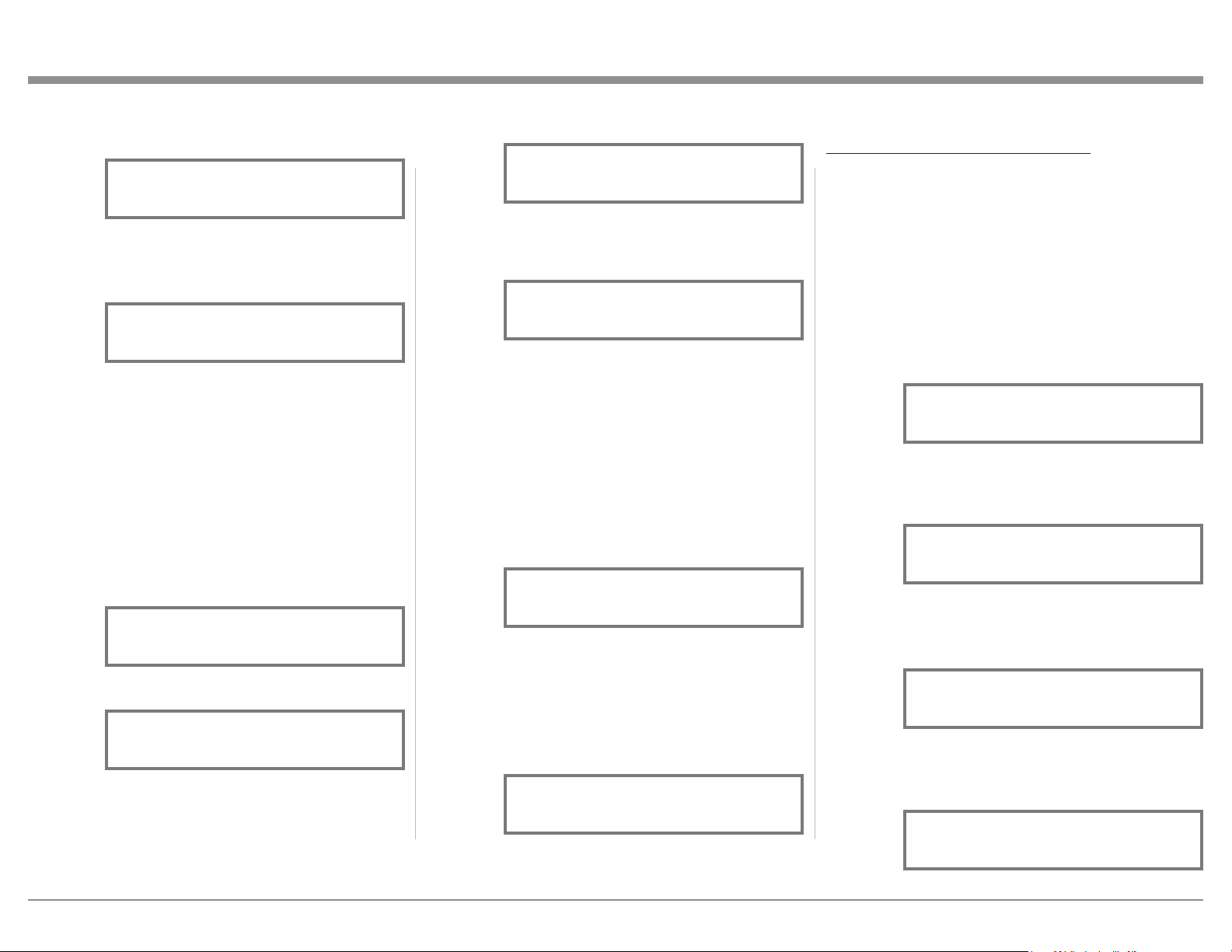
or quieter test level. Refer to figures 74 and 75.
Rotate the MEN220 ADJUST Control clockwise if
figure 74 appears or counterclockwise if figure 75
appears.
7. Press the SELECT Push-button and the “Volume
Calibration measuring” will appear again. Refer to
figure 73. When the correct Volume Test Level has
been achieved figure 76 will appear. Then press
the SELECT Push-button and the MEN220 will
start measuring the Focus Position and figure 77
will appear.
Note: If the requested test volume level is already
too loud as to be uncomfortable to your ears
and figure 74 appears, rotate the NAVIGATE
Control (or use the Directional ◄ ► Push-
buttons on the Remote Control) to select
“Save Current”. Then press the SELECT
Push-button. The MEN220 will then test at the
previous lower volume setting.
4. Press the SELECT Push-button and the “RoomP-
erfect Guided Setup” will appear. Refer to
figure 71.
5. Press the SELECT Push-button and the “Place mi-
crophone in first focus position” will appear. Refer
to figure 72. At this time place the microphone in
the focus location with the front of the microphone
pointing towards the loudspeakers (center location
between the Left and Right Loudspeakers). The
height of the microphone should be at ear level.
Note: The Microphone Stand Boom Adaptor allows
the microphone to be placed over objects
such as a chair or table.
6. Press the SELECT Push-button and the “Volume
Calibration measuring” will appear. Refer to
figure 73. The MEN220 will send out to the loud-
speakers a test tone to obtain a measurement level
about 20dBs above the background noise level in
your room. Several minutes after testing started
the MEN220 might indicate the need for a louder
The RoomPerfect Measure and Adjustment Process
takes acoustic measurements in the listening room and
then applies corrections for achieving the best possible
results. The Focus Position (location in the room) is
typically where one would be during serious listening.
Measurements will also be taken in additional room
locations for a more complete analysis of your listen-
ing room acoustics.
Notes: 1. Set the tone/equalizer controls on the Preamplifi-
er to the flat setting position, the balance control
to the 12 O’clock position and the volume control
to the normal listening volume level.
2. Make sure the MEN220 Voicing is set to “Neu-
tral” (as indicated on the Front Panel Display)
before proceeding. Refer to page 28 for addi-
tional information.
3. It might be advisable to temporarily switch off
the room/house heating/cooling system while the
Room Perfect measurement process is occurring.
If there are open windows, they should be closed.
All of these steps will allow lower testing volume
levels and more accurate measurements.
4. If the MEN220 is already in the Setup Mode
proceed to step 2.
5. The MEN220 Front Panel Display Illustrations
in this RoomPerfect Setup Section of the Owner’s
Manual are from actual room measurements.
The information displayed on your MEN220
may be different to reflect the difference in room
acoustics.
1. Press the MENU Push-button to enter the Setup
Mode.
2. Rotate the NAVIGATE Control (or use the Direc-
tional ◄ ► Push-buttons on the Remote Control)
to select “MEN220 Setup Menu, RoomPerfect”.
Refer to figure 70.
RoomPerfect
Figure 70
MEN220 Setup Menu
< RoomPerfect >
Figure 71
RoomPerfect
Guided Setup >
Figure 72
Place microphone in
first focus position
Figure 73
Volume Calibration
measuring
Figure 74
Adjust level: 17 Up
Retry Save Current
Figure 75
Adjust level: 3Down
Retry Save Current
Figure 76
Ready - Press select
to start measurement
Figure 77
Measuring first
Focus position. . .
25
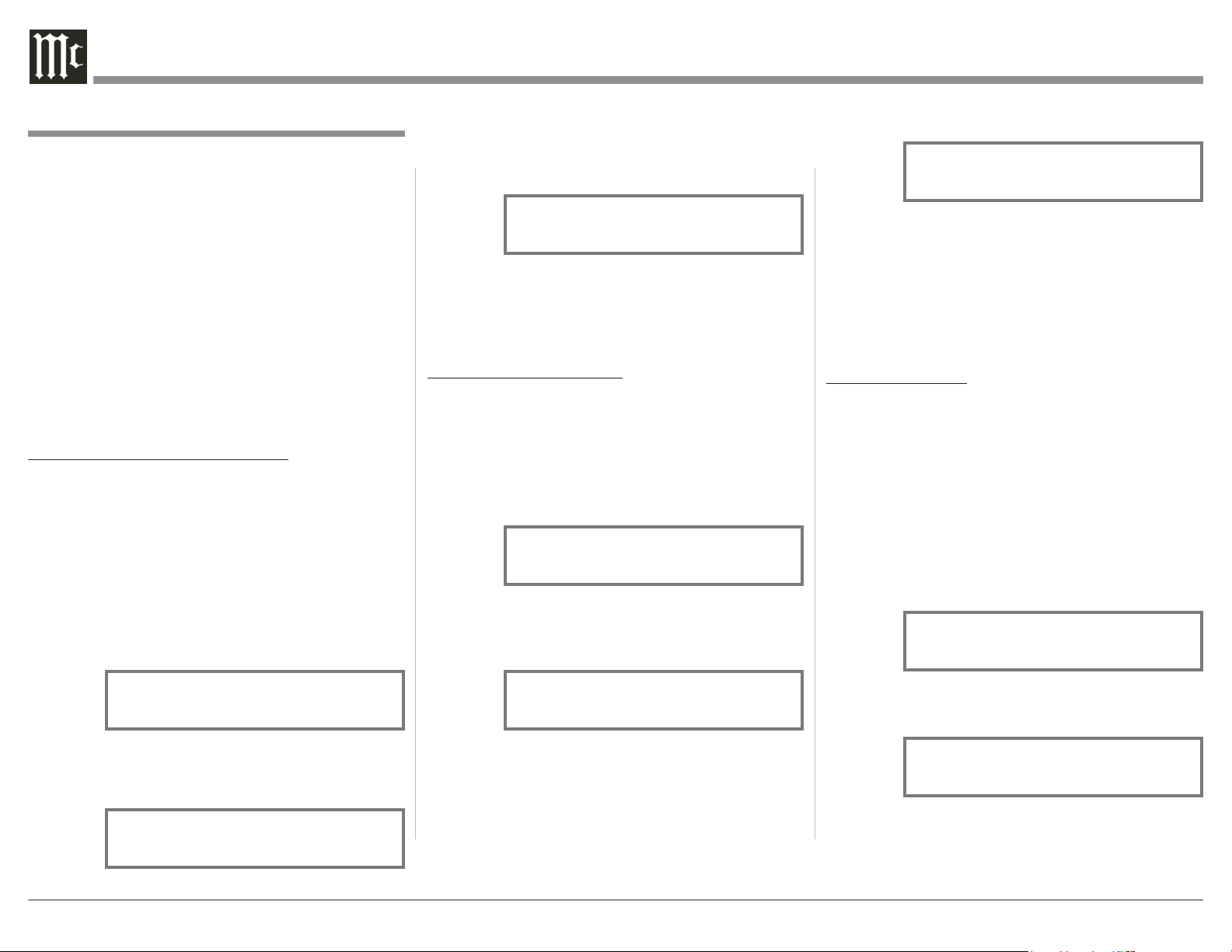
10. After measuring room location 2 the Front panel
Display indication might be similar to figure 83.
Note: Once RoomPerfect has acheved a Room
Knowledge score of 90% or above, it will ask
if you want to make additional measurements.
Additional measurements will make improv-
ments, however it might take many more
measurements to achieve the higher Room
Knowledge score.
11. If you want to achieve a reading closer to 100%,
select Yes and continue placing the Microphone
in the third room location and proceed. If No was
selected figure 84 will appear.
When the MEN220 has finished calculating and ap-
plying filters to the audio signal path, the Front Panel
Display will once again briefly indicate “RoomPerfect
Guided Setup” and then indicate “RoomPerfect:Focus
1, Voicing 0:Netural. Refer to figure 85.
ADDITIONAL FOCUS POSITIONS:
The MEN220 allows for measurement and storage of
seven additional Focus Positions. To add additional
Focus Positions at this time proceed to step 11. If no
additional measurements are to be taken at this time
proceed to “How to Operate the MEN220” starting on
page 28.
11. Perform steps 1 thru 4.
12. Rotate the NAVIGATE Control (or use the direc-
tional ◄ ► Push-buttons on the Remote Control)
to select “RoomPerfect, Add Focus Position”. Refer
to figure 86.
13.Press the SELECT Push-button and the “Place mi-
crophone in new focus position” will appear. Refer
to figure 87.
14. Press the SELECT Push-button and the “Measur-
ing new Focus position...” will appear. Refer to
figure 88.
15. When the measurements are completed “Save as
Focus pos.:, (2-8) 2” will appear. Refer to figure
89.
8. When figure 78 appears relocate the microphone
to another place in the listening room and point it
in a different direction. Then press the SELECT
Push-button. Refer to figure 79.
Note: When the microphone is relocated to ad-
ditional room locations, it is advisable to
place it randomly at various heights off the
floor and pointed in different directions. It is
also advisable the positions be at least 2 feet
(60.69cm) from previous measurement loca-
tions and from the Loudspeakers; and never
behind the Loudspeakers.
9. After Room Position No. 1 has been measured, the
Front Panel Information Display will indicate the
computed Room Knowledge similar to figure 80.
Press the SELECT Push-button and figure 81 will
appear. Place the microphone in another room lo-
cation, then press the SELECT Push-button. Refer
to figure 82.
Figure 78
Place microphone in
first room position
Setup, con’t
Figure 79
Measuring room
position no. 1
Figure 80
Room Knowledge: 65%
measurement-OK
Figure 82
Measuring room
position no. 2
Figure 83
Room Knowledge: 92%
Add more? Yes No
Figure 84
Calculating Filters
Please wait
Figure 81
Place mic. in
room
position no. 2
Figure 85
RoomPerfect:
Focus 1
Voicing 0:Neutral
Figure 86
RoomPerfect
<Add Focus Position>
Figure 87
Place microphone in
new focus position
Figure 88
Measuring new
Focus position. . .
Figure 89
Save as Focus pos.:
(2-8) 2
26
Setup, con’t
RoomPerfect, con’t
The MEN220 will automatically assign the next
available focus position number to the just completed
measurement. If you would like to assign a different
focus position number rotate the ADJUST Control to
select a different number.
16. Press the SELECT Push-button to save the Focus
Position and “Calculating Filters, Please wait”.
Refer to figure 84 on page 25.
If you would like to add additional Focus Positions at
this time repeat steps 11 thru 16 . The MEN220 will
exit the RoomPerfect Setup Mode in several minutes.
To exit sooner press the MENU Push-button until the
Front Panel Display indicates the Focus 2 (or higher) is
active.
ADDITIONAL MEASUREMENTS:
The MEN220 allows for additional room measure-
ments to be added to the initial RoomPerfect measure-
ments. These additional measurements will increase
the percentage of Room Knowledge and potentially
improve the sound quality from the initial correction.
17. Perform steps 1 thru 4 on page 24.
18. Rotate the NAVIGATE Control or use the Direc-
tional ◄ ► Push-buttons on the Remote Control
to select “RoomPerfect, Add Room Measurement”.
Refer to figure 90.
19.Press the SELECT Push-button and the “Place
mic. in room position no. 4” will appear. Refer to
figure 91.
20. Press the SELECT Push-button and the “Mea-
suring room position.no. 4” will appear. Refer to
figure 92.
The MEN220 will add the new measurement to the
previous measurements and recalculate for the best
room response.
ROOMPERFECT STATUS:
After the initial measurements have been taken the
results can be recalled at any time by performing the
following steps:
21. Perform steps 1 thru 4 on page 24.
22. Rotate the NAVIGATE Control (or use the Direc-
tional ◄ ► Push-buttons on the Remote Control)
to select “RoomPerfect, Status”. Refer to figure 93.
23. Press the SELECT Push-button and the “3 Room
Measurements Room Knowledge: 95% ”will ap-
pear. Refer to figure 94.
24. Rotate the ADJUST Control (or use the Direction-
al ▲ ▼ Push-buttons on the Remote Control) to
select “Focus 1, Room Corrections: 11%”. Refer to
figure 95.
Note: The RoomPerfect Room Correction Percent-
age is an indication of the degree of acous-
tic problems measured and corrected. This
includes room acoustics and Loudspeaker
placement in the room. The Correction Per-
centage is not an indication of performance of
the MEN220 or Loudspeaker.
RP BYPASS GAIN:
There may be a difference in overall volume levels
when comparing the RoomPerfect Focus or Global
Modes and the Bypass Mode. The RoomPerfect (RP)
Bypass Gain adjustment allows trimming the Bypass
Mode overall volume level by performing the follow-
ing steps:
25. Perform steps 1 thru 4 on page 24.
26. Rotate the NAVIGATE Control (or use the Direc-
tional ◄ ► Push-buttons on the Remote Control)
to select “RoomPerfect, RP Bypass Gain”. Refer to
figure 96.
27. Press the SELECT Push-button and the “RP By-
pass Gain , 0.0dB”will appear. Refer to figure 97.
Figure 90
RoomPerfect
<Add Room Measurem.>
Figure 94
3 Room Measurements
Room Knowledge: 95%
Figure 93
RoomPerfect
<RoomPerfect Status>
Figure 95
Focus 1
Room Corrections: 11%
Figure 96
RoomPerfect
< RP Bypass Gain >
Figure 97
RP Bypass Gain
0.0 dB
Figure 91
Place mic. in
room
position no. 4
Figure 92
Measuring room
position no. 4

27
Notes
Select either the Global or Focus Mode by pressing the
appropriate push-button on the Front Panel or Remote
Control. Establish a suitable volume level while listen-
ing to music with a wide range of musical instruments.
Then select the Bypass Mode and rotate the ADJUST
Control (or use the Directional ▲ ▼ Push-buttons on
the Remote Control) to closely match the volume level
of the Global or Focus Modes.
28. Proceed to “How to Operate the MEN220” start-
ing on page 28.
28
The MEN220 has built in the ability to improve the
sound quality of your Audio System. However, it does
require the RoomPerfect portion of the Setup Mode
be performed in order to benefit from the potential
improvements. Please refer to “How to Operate the
Setup Mode” on page 17 and “RoomPerfect” starting
on page 24.
Power On
Press the STANDBY/ON Push-button on the Front
Panel or the (Power) Push-button on the Remote
Control. Refer to figures 101 and 113. The MEN220
will go through a brief startup initialization with the
Front Panel Information Display indicating the audio
is muted. Refer to figure 113.
The Front Panel Information Display will then indi-
cate the current RoomPerfect Focus selection (Focus
1 thru Focus 8) or “Bypass” if the RoomPerfect Mode
has been switched Off. Refer to figures 102 and 103.
How to Operate
Global Mode
Press the GLOBAL MODE Push-button to activate
the RoomPerfect Global Setting. Refer to figure 104.
The Global Setting is a combination room perfor-
mance measurements including Focus and additional
locations in the room. Use the Global Mode when the
listening will be performed in a variety of different
locations or when more than one person will be listen-
ing in the room at the same time.
Figure 101
RoomPerfect:
Focus 1
Voicing 0:Neutral
Focus Mode
Press the FOCUS MODE Push-button to activate
the RoomPerfect Focus Setting. Refer to figure 102.
Continued presses of the FOCUS MODE Push-button
will allow selection of seven possible additional room
measurement Focus locations which were performed
during the RoomPerfect Setup. Refer to figure 103.
Bypass Mode
Press the BYPASS MODE Push-button to deactivate
the RoomPerfect Room Corrections. This includes
both the Focus and Global settings.
Menu
Press the MENU Push-button to enter the Setup
Mode. Refer to figure 104 and to MEN220 Setup
Section of this Owner’s Manual starting on page 17.
The MENU Push-button may also be used for return-
ing to the previous menu and repeated presses will
exit out of the Setup Mode.
Voicing
Press the VOICING Push-button to select one of 7
different preset equalization curves for altering the
sound of the program material and/or your listening
mood. Refer to figures 105 thru 112. Also refer to the
Equalization Curves for all the presets that are located
on the separate folded sheet “Mc3A”.
Figure 100
RoomPerfect: Muted
Voicing 0:Neutral
Figure 102
RoomPerfect:
Focus 1
Voicing 0:Neutral
RoomPerfect:Global
Voicing 0:Neutral
Figure 104
Figure 103
RoomPerfect:Bypass
Voicing 0:Neutral
Figure 103
RoomPerfect:
Focus 2
Voicing 0:Neutral
Figure 104
MEN220 Setup Menu
< RoomPerfect >
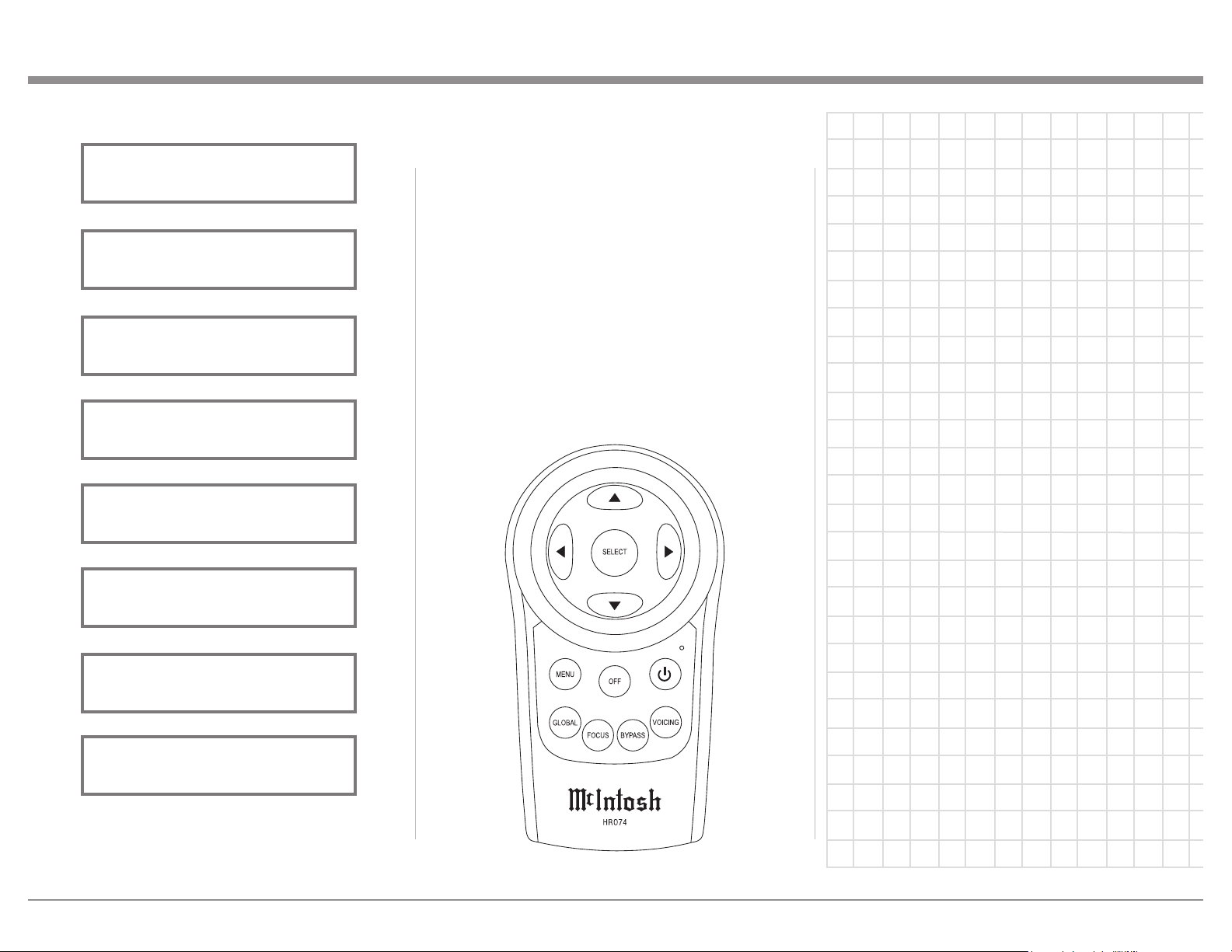
29
How to Operate
Figure 113
RoomPerfect:
Focus 1
Voicing 3: Mellow
Figure 105
New Voicing:
1: Music1
Figure 107
New Voicing:
2: Music2
Figure 108
New Voicing:
3: Mellow
Figure 109
New Voicing:
4: Soft
Figure 110
New Voicing:
5: Party
Figure 111
New Voicing:
6: Loudness
Figure 112
Figure 106
New Voicing:
0: Neutral
Select
The SELECT Push-button is used to select various
options when in the Setup Mode together with the
ADJUST Control, NAVIGATE Control and MENU
Push-button.
Reset of Microprocessors
In the unlikely event the controls of the MEN220
stop functioning, the microprocessors can be reset by
removing AC Power from the MEN220 for several
minutes. This can be accomplished by disconnecting
the AC Power cord from the Rear Panel of MEN220
or removing the “Plug” end of the MEN220 AC Power
Cord from the AC Outlet.
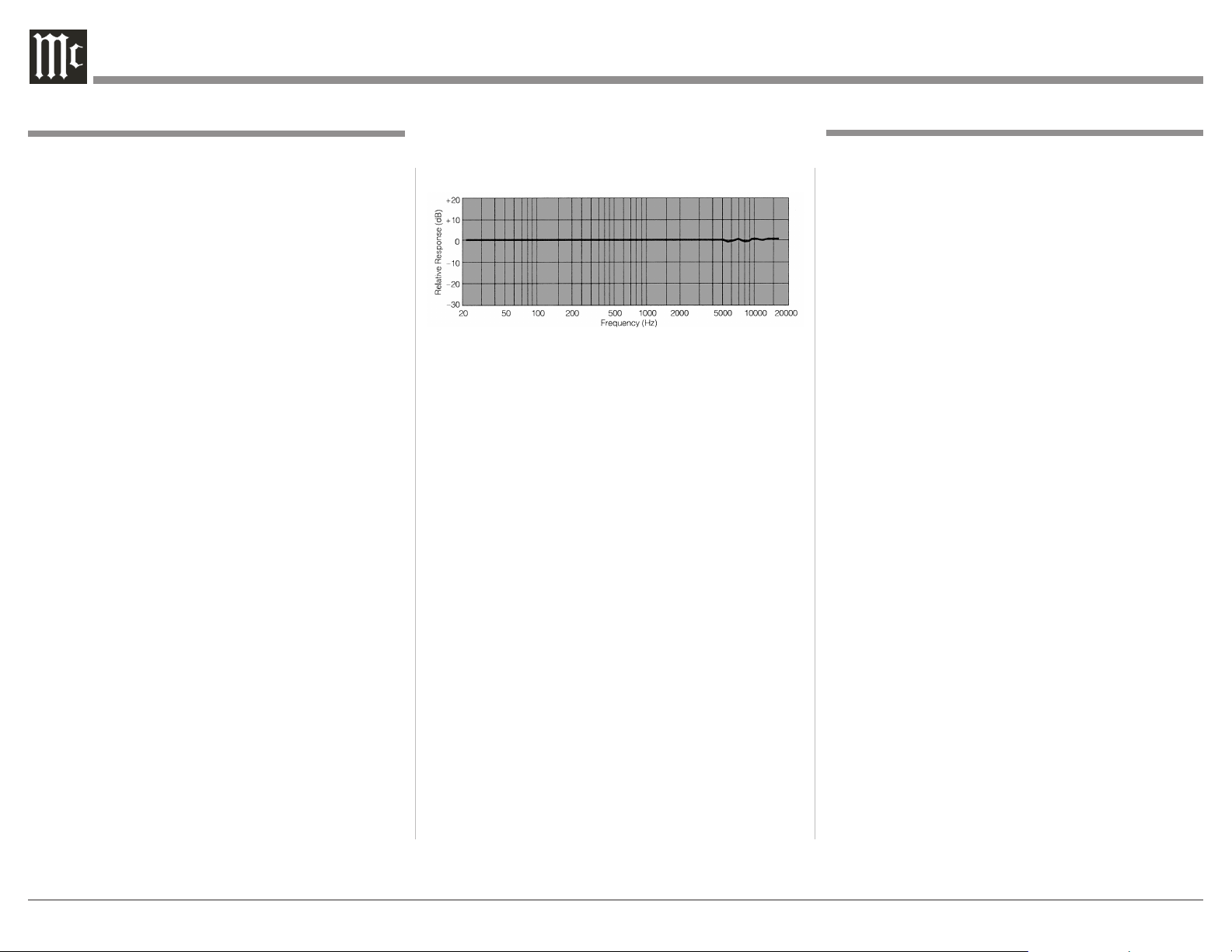
30
Specications
Audio Specifications
Unless otherwise noted, the below MEN220 Specifi-
cations where taken with RoomPerfect set to Bypass
Mode and Voicing Mode set to Neutral.
Frequency Response
+0, -0.5dB from 20Hz to 20,000Hz
Total Harmonic Distortion
0.002% from 20Hz to 20,000Hz
Maximum Input Voltage
4.5V Unbalanced and Balanced (Preamp-Power Amp)
2.25V Unbalanced and Balanced (Processor Loop)
Maximum Output Voltage
4.5V Unbalanced and Balanced (Preamp-Power Amp)
2.25V Unbalanced and Balanced (Processor Loop)
Signal To Noise Ratio (A-Weighted)
100dB
Input Impedance
10K ohms Unbalanced and Balanced
Voltage Gain
0dB
Output Impedance
50 ohms
Crossover Filter Types, Order and Slope
Butterworth, 1st order, 6 dB/octave
Butterworth, 2nd order, 12 dB/octave
Butterworth, 4th order, 24 dB/octave
Linkwitz-Riley, 2nd order, 12 dB/octave
Linkwitz-Riley, 4th order, 24 dB/octave
Linkwitz-Riley, 8th order, 48 dB/octave
General Specifications
Power Requirements
100V ~ 50/60Hz at 35 watts
110V ~ 50/60Hz at 35 watts
120V ~ 50/60Hz at 35 watts
220V ~ 50/60Hz at 35 watts
230V ~ 50/60Hz at 35 watts
240V ~ 50/60Hz at 35 watts
Standby, less than 1 watt
Note: Refer to the rear panel of the MEN220 for the
correct voltage.
Overall Dimensions
Width is 17-1/2 inches (44.45cm)
Height is 6 inches (15.24cm) including feet
Depth is 18 inches (45.72cm) including the Front Panel,
Knobs and Cables
Weight
25.5 pounds (11.6 kg) net, 41.9 pounds (19.0 kg) in ship-
ping carton
Shipping Carton Dimensions
Width is 26-1/2 inches (67.3cm)
Depth is 24-1/4 inches (62.2cm)
Height is 11-3/4 inches (29.9cm)
Measurment Microphone
Omnidirectional Electret Condenser Microphone
Microphone Frequency Response Curve (typical)
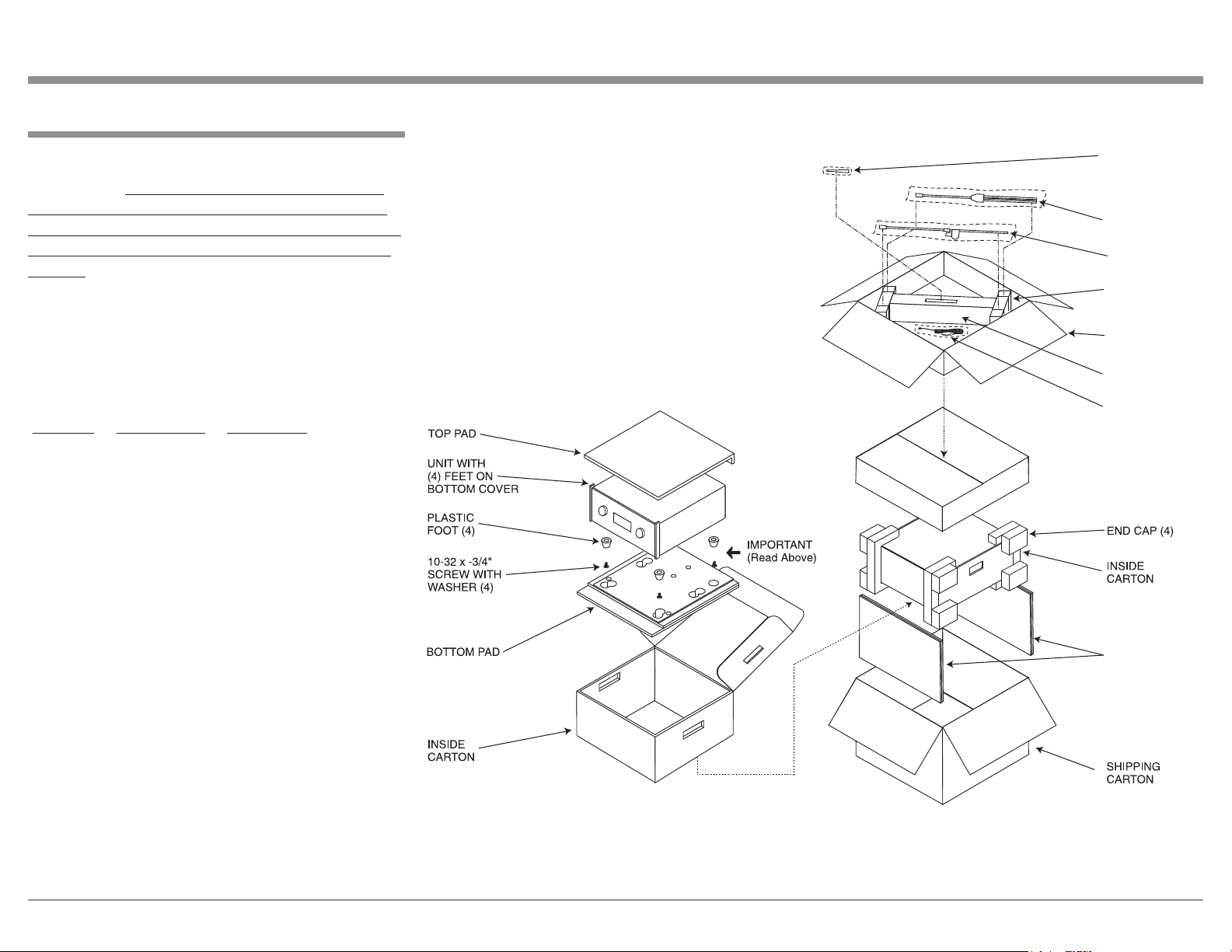
31
Packing Instructions
Packing Instructions
In the event it is necessary to repack the equipment for
shipment, the equipment must be packed exactly as
shown below. It is very important that the four plas-
tic feet are attached to the bottom of the equipment.
This will ensure the proper equipment location on the
bottom pad. Failure to do this will result in shipping
damage.
Use the original shipping carton and interior parts
only if they are all in good serviceable condition. If
a shipping carton or any of the interior part(s) are
needed, please call or write Customer Service Depart-
ment of McIntosh Laboratory. Refer to page 4. Please
see the Part List for the correct part numbers.
Quantity Part Number Description
1 034492 Shipping carton only
4 033837 End cap
1 033836 Inside carton only
1 033725 Inner carton top pad
1 034301 Bottom pad
2 034446 Foam plug
4 017937 Plastic foot
4 400159 #10-32 x 3/4” screw
4 404080 #10 Flat washer
1 034499 Accessory Box
1 034500 Slotted foam
1 034501 Divider foam
SPACER
PADS
SLOTTED
FOAM (2)
DIVIDER
FOAM
ACCESSORY
BOX
MICROPHONE
STAND
MICROPHONE
MINI BOOM
MICROPHONE
CABLE

The continuous improvement of its products is the
policy of McIntosh Laboratory Incorporated who
reserve the right to improve design without notice.
Printed in the U.S.A.
McIntosh Laboratory, Inc.
2 Chambers Street
Binghamton, NY 13903
www.mcintoshlabs.com
McIntosh Part No. 04111000
