McIntosh Laboratory, Inc. 2 Chambers Street Binghamton, New York 13903-2699 Phone: 607-723-3512 www.mcintoshlabs.com
MHA150
Headphone Amplifier
Owner’s Manual

2
17. If this equipment is supplied with AC /DC Adapter with
separate power supply cord or the AC/DC Adapter plug-
ging directly into an a.c. receptacle, they shall remain
readily operable. To completely disconnect this equip-
ment from the a.c. mains remove the AC /DC Adapter
mains power supply cord from the a.c. receptacle or
remove the AC /DC Adapter when it is directly plugged
into the a.c. receptacle.
Si l’équipement est alimenté par un adaptateur AC/DC
munis d’un cordon d’alimentation ou un adaptateur AC/
DC qui est alimenté directement à la prise murale, ils
doivent demeurer aisément accessibles. Pour déconnect-
er complètement l’équipement du réseau d’alimentation,
déconnecter l’adaptateur AC/DC de la prise murale ou
déconnecter le cordon d’alimentation de l’adaptateur
AC/DC de la prise murale.
18. WARNING: Do not expose batteries or battery pack to
excessive heat such as sunshine, re or the like.
AVERTISSEMENT: Les batteries ou bloc de batteries
ne doivent pas etre exposees a une chaleur excessive
telle que celle du soleil, feu ou autre source de chaleur
similaire.
19. CAUTION: danger of explosion if battery is incorrectly
replaced. Replace only with the same or equivalent type.
ATTENTION: danger d’explosion si la pile n’est pas
remplacée correctement. Ne remplacer que par le même
type ou un type équivalent.
20. Connect mains power supply cord only to a mains
socket outlet with a protective earthing connection.
caution when moving the cart/apparatus combination to
avoid injury from tip-over.
13. Unplug this apparatus during lightning storms or when
unused for long periods of time.
14. Refer all servicing to qualied service personnel. Ser-
vicing is required when the apparatus has been dam-
aged in any way, such as power-supply cord or plug is
damaged, liquid has been spilled or objects have fallen
into the apparatus, the apparatus has been exposed to
rain or moisture, does not operate normally, or has been
dropped.
15. Do not expose this equipment to dripping or splashing
and ensure that no objects lled with liquids, such as
vases, are placed on the equipment.
Ne pas exposer cet appareil à des éclaboussures ou
gouttelettes d’un liquide. Aucun objet remplie de liq-
uide comme par exemple un vase ne doit être placé sur
l’appareil.
16. If this equipment is supplied with a power supply cord
only, the mains plug of the power supply cord shall
remain readily operable. To completely disconnect this
equipment from the a.c. mains remove the plug from the
a.c. receptacle.
Si l’équipement est uniquement alimenté par un cordon
d’alimentation, la che du cordon d’alimentation doit
demeurer aisément accessible. Pour déconnecter
complètement l’équipement du réseau d’alimentation,
déconnecter la che du cordon d’alimentation de la
prise murale.
1. Read these instructions.
2. Keep these instructions.
3. Heed all warnings.
4. Follow all instructions.
5. Do not use this apparatus near water.
6. Clean only with a dry cloth.
7. Do not block any ventilation openings. Install in accor-
dance with the manufacturer’s instructions.
8. Do not install near any heat sources such as radiators,
heat registers, stoves, or other apparatus (including
ampliers) that produce heat.
9. Do not defeat the safety purpose of the polarized or
grounding-type plug. A polarized plug has two blades
with one wider than the other. A grounding type plug
has two blades and a third grounding prong. The wide
blade or the third prong are provided for your safety. If
the provided plug does not t into your outlet, consult
an electrician for replacement of the obsolete outlet.
10. Protect the power cord from being walked on or
pinched particularly at plugs, convenience receptacles,
and the point where they exit from the apparatus.
11. Only use attachments/accessories specied by the
manufacturer.
12. Use only with the cart, stand, tripod, bracket,
or table specied by the manufacturer, or sold
with the apparatus. When a cart is used, use
The lightning ash with arrowhead, within an equilateral triangle,
is intended to alert the user to the presence of uninsulated “dan-
gerous voltage” within the product’s enclosure that may be of suf-
cient magnitude to constitute a risk of electric shock to persons.
The exclamation point within an equilateral triangle is intended to
alert the user to the presence of important operating and mainte-
nance (servicing) instructions in the literature accompanying the
appliance.
ATTENTION:
RISQUE DE CHOC ELECTRIQUE - NE PAS OUVRIR
WARNING - TO REDUCE RISK OF
FIRE OR ELECTRICAL SHOCK, DO
NOT EXPOSE THIS EQUIPMENT TO
RAIN OR MOISTURE.
NO USER-SERVICEABLE PARTS INSIDE. RE-
FER SERVICING TO QUALIFIED PERSONNEL.
To prevent the risk of electric shock,
do not remove cover or back. No
user-serviceable parts inside.
IMPORTANT SAFETY
INSTRUCTIONS!
PLEASE READ THEM BEFORE
OPERATING THIS EQUIPMENT.

3
Your decision to own this McIntosh MHA150 Head-
phone Amplifier ranks you at the very top among
discriminating music listeners. You now have the best.
The McIntosh dedication to precision performance
assures many years of musical enjoyment.
Please take a short time to read the information in
this manual. We want you to be as familiar as pos-
sible with all the features and functions of your new
McIntosh.
Thank You
Please Take A Moment
Technical Assistance
If at any time you have questions about your McIntosh
product, contact your McIntosh Dealer who is familiar
with your McIntosh equipment and any other brands
that may be part of your system. If you or your Dealer
wish additional help concerning a suspected problem,
you can receive technical assistance for all McIntosh
products at:
McIntosh Laboratory, Inc.
2 Chambers Street
Binghamton, New York 13903
Phone: 607-723-3512
Fax: 607-724-0549
Customer Service
If it is determined that your McIntosh product is in
need of repair, you can return it to your Dealer. You
can also return it to the McIntosh Laboratory Service
Department. For assistance on factory repair return
procedure, contact the McIntosh Service Department
at:
McIntosh Laboratory, Inc.
2 Chambers Street
Binghamton, New York 13903
Phone: 607-723-3515
Fax: 607-723-1917
The serial number, purchase date and McIntosh Dealer
name are important to you for possible insurance
claim or future service. The spaces below have been
provided for you to record that information:
Serial Number: _______________________________
Purchase Date: _______________________________
Dealer Name: ________________________________
Copyright 2016 © by McIntosh Laboratory, Inc.
Safety Instructions ............................................................... 2
Thank You and Please Take a Moment ...............................3
Technical Assistance and Customer Service .......................3
Table of Contents .................................................................3
General Information ............................................................4
Connector and Cable Information .......................................4
Introduction ......................................................................... 5
Performance Features .......................................................... 5
Dimensions ..........................................................................6
Installation ...........................................................................7
Connections:
Rear Panel Connections .......................................................8
Connecting Components and
Optional Loudspeakers .............................................. 10-11
System Thru Connections ................................................. 12
External Power Amplifier Connections ............................ 13
Remote Control and Front Panel:
Remote Control Push-buttons ........................................... 14
How to use the Remote Control ......................................... 15
Front Panel Displays, Controls,
Push-button and Jack ......................................................... 16
Setup Mode:
How to Operate the Setup Mode ....................................... 17
Default Settings .......................................................... 17
Firmwa re Version ....................................................... 18
Table of Contents
Setup Mode: con’t
Input Renaming .......................................................... 18
Speaker Mode ............................................................. 19
Subwoofer Mode ......................................................... 19
Power Mode ................................................................ 19
Remote Control ...........................................................20
Volume Guard.............................................................20
Factory Reset .............................................................. 20
Operation:
How to Operate the MHA150 ............................................ 21
Power On/Off ............................................................. 21
Source Selection ......................................................... 21
Volume Control .......................................................... 21
Trim Functions:
Trim Functions Introduction ............................. 21
Bass Boost ......................................................... 21
Balance .............................................................. 22
Trim Level .........................................................22
Mono/Stereo Mode ...........................................22
Meter Lights ...................................................... 23
Display ..............................................................23
Display Information Mode................................23
Mute ............................................................................ 23
Headphone Jack, Headphone HXD
TM
........................24
Output Control ............................................................24
Profile Mode ..........................................................24-26
Power Output Meters and Power Guard ..................... 26
Using a Separate Power Amplifier ............................. 26
Optical and Coaxial Digital Inputs ............................27
USB Input Operation and Driver Installation ............ 27
Installing the Software ..........................................27-28
USB Audio Driver Operation and Reset
of Microprocessors ................................................. 29
Specifications ............................................................ 30
Packing Instructions ................................................. 31
4
by the MHA150 Remote Control. For additional
information refer to the Owner’s Manual supplied
with the other McIntosh Component and look in
the “Setup Section - Remote Control Codes” of
the manual. In those rare instances where using
the “Alternate Codes” is not possible, the Remote
Control Sensor on the MHA150 can be switched
Off and the Front Panel Controls can be used for
operation instead of using the Remote Control.
Refer to page 20.
7. For the best performance and safety, it is important
to always match the impedance of the Loudspeaker
to the Power Amplifier connections. Refer to pages
10 and 11.
Note: The impedance of a Loudspeaker actually var-
ies as the Loudspeaker reproduces different
frequencies. As a result, the nominal impedance
rating of the Loudspeaker (usually measured at
a midrange frequency) might not always agree
with the impedance of the Loudspeaker at low
frequencies where the greatest amount of power
is required. Contact the Loudspeaker Manufac-
turer for additional information about the actual
impedance of the Loudspeaker before connecting
it to the McIntosh MHA150.
8. Sound Intensity is measured in units called Deci-
bels and “dB” is the abbreviation.
9. When discarding the unit, comply with
local rules or regulations. Batteries
should never be thrown away or inciner-
ated but disposed of in accordance with
the local regulations concerning battery disposal.
10. For additional information on the MHA150 and
other McIntosh Products please visit the McIntosh
Web Site at www.mcintoshlabs.com.
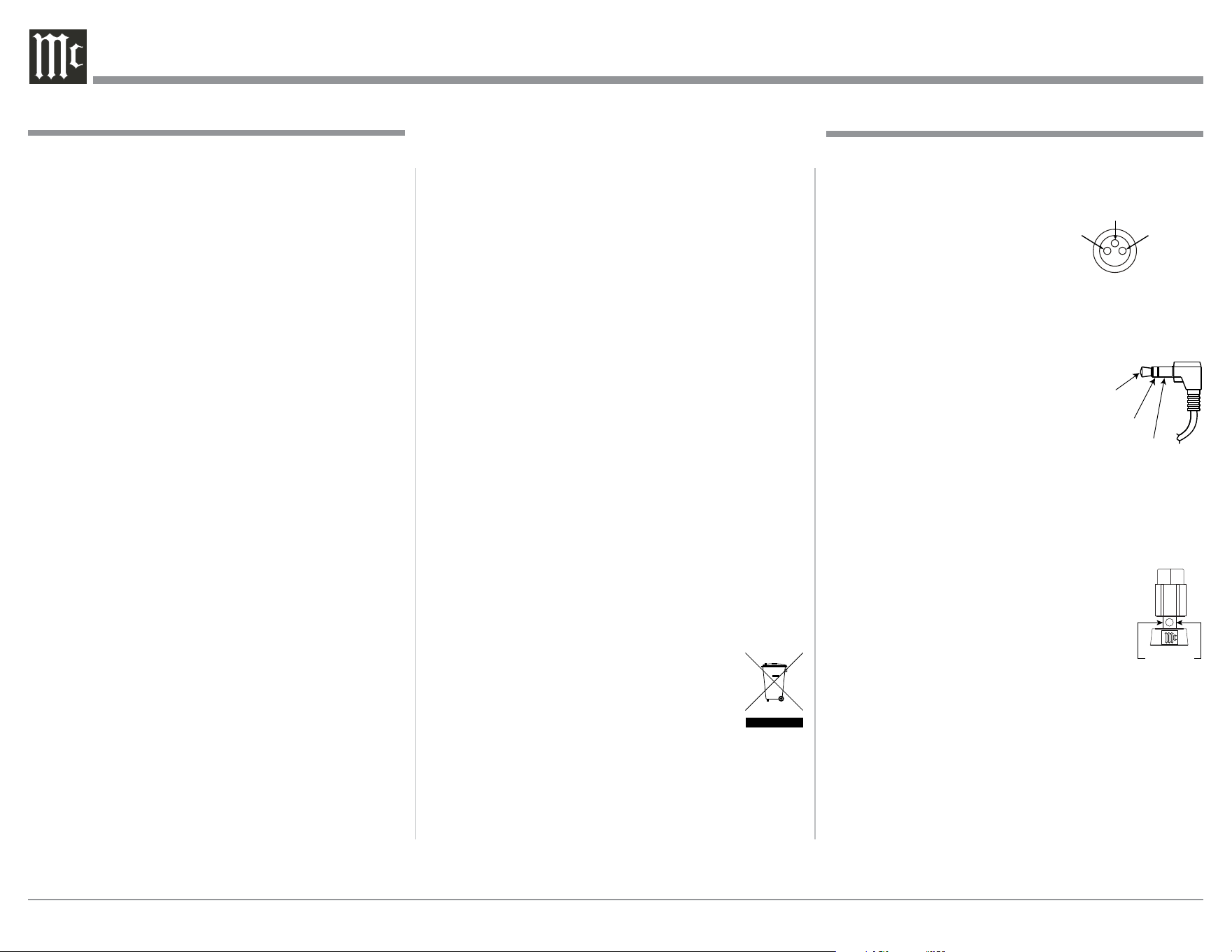
XLR Connectors
Below is the Pin configuration for the XLR Balanced
Input Connectors on the MHA150. Refer to the dia-
gram for connection:
PIN 1: Shield/Ground
PIN 2: + Input
PIN 3: - Input
Power Control Connectors
The Power Control Input Jack receives Power On/
Off Signals (+12 volt/0 volt) when connected to other
McIntosh Components. The Power
Control Output Jack sends Power
On/Off Signals (+12 volt/0 volt)
when connected to other McIntosh
Components. An additional con-
nection is for controlling the illumination of the Power
Output Meters on McIntosh Power Amplifiers. A
3.5mm stereo mini phone plug is used for connection
to the Power Control Jacks.
Output Terminal Connector
When cables with spade lugs are used
for Loudspeaker Connection, the spade
lugs need an opening of at least 3/10 inch
(7.6m m).
1. For additional connection information, refer to the
owner’s manual(s) for any component(s) connected
to the MHA150.
2. Apply AC Power to the MHA150 and other McIn-
tosh Component(s) only after all the system compo-
nents are connected together. Failure to do so may
cause a malfunction of system operations as the
Microprocessor’s Circuitry inside the components
is active when AC Power is applied.
3. The MHA150 includes an Auto Off Power Save
Feature and the default setting is enabled. For
additional information including how to disable it,
refer to page 19.
4. When Power Amplifier Protection Circuitry of
the MHA150 has activated, the Front Panel Power
Guard LEDs are illuminated continuously and the
sound will be muted.
5. If the Power Transformer has overheated due to
improper ventilation and/or high ambient operat-
ing temperature, AC Power is removed from the
MHA150. Normal operation will resume when the
operating temperature is in a safe range again.
6. The Remote Control supplied with the MHA150 is
also capable of operating other McIntosh Compo-
nents. These other components may include Pre-
amplifiers, A/V Control Centers, Integrated Am-
plifiers, Source Components and Integrated Audio
Systems. There is a chance the MHA150 and one
of these other components may both respond to a
command issued by the MHA150 Remote Con-
trol or the Remote Control supplied with the other
component. This could affect operations such as
Volume Up/Down and Power On/Off. Many of
these other McIntosh components have the ability
to utilize what is known as “Alternate Codes” to
prevent them from responding to commands issued
Connector and Cable Information
General Information
General Information, Connector and Cable Information
Power
Control
Meter
Illumination
Control
Ground
PIN 1PIN 2
PIN 3
3/10 of an inch
(7.6millimeters)

5
Now you can take advantage of traditional McIn-
tosh standards of excellence in the MHA150 Head-
phone Amplifier. The Power Amplifier section of the
MHA150 will drive Headphones or a pair of quality
Loudspeakers to a high level of performance.
The flexible Preamplifier section provides con-
nections for various input sources, including Digital
sources and music streaming from the Internet via an
USB Computer connection.
The MHA150 reproduction is sonically transparent
and absolutely accurate. The McIntosh Sound is “The
Sound of the Music Itself.”
Introduction
Performance Features
• Power Output
The MHA150 consists of a 50 watts per channel stereo
Power Amplifier with less than 0.005% distortion.
The McIntosh MHA150 is designed for connection of
a single 8 ohm Loudspeaker per channel. The Power
Amplifier uses ThermalTrak
1
Output Transistors for
lower distortion and cool operation.
• Autoformer Designed for Headphones
The MHA150 Amplifier uses a specially designed Au-
toformer for Headphones. There are three selectable
impedances ranges, allowing connection of Head-
phones from 8 ohms thru 600 ohms.
• HXD
®
for Headphones
The MHA150 Headphone Crossfeed Director Cir-
cuitry (HXD
® )
improves the sound localization for
Headphone Listening. HXD
TM
restores the direction-
ality component of the spatial sound stage normally
heard with Loudspeaker listening.
1
ThermalTrak™ and ON Semiconductor are trademarks of Semi-
conductor Components Industries, LLC
• Automatic Output Switching
The MHA150 has a Front Panel one-quarter inch
Headphone Jack for private listening. Loudspeaker
Listening is automatically switched Off when Head-
phones are connected.
• Four Forms of Protection
McIntosh Sentry Monitor Protection Circuits ensure a
long and trouble free operating life. It also protects the
Headphones in the event of an impedance mismatch.
Thermal Protection guards against overheating and
Direct Current Detection Protects both Headphones
and Loudspeakers.
• Power Guard
The patented McIntosh Power Guard circuit prevents
amplifier clipping and protects your valuable Head-
phones and Loudspeakers.
• Electronic Switching for Analog Inputs
The Preamplifier uses Logic Circuits controlling Elec-
tromagnetic Switches for reliable, noiseless, distortion
free switching. There is a Balanced and Unbalnced
Input for connection of source components.
• Digital Audio Inputs
The MHA150 has four Digital Audio Inputs to decode
PCM Signals. When the Coaxial, Optical and MCT
Inputs receive a PCM Signal, the MHA150 upsamples
the Digital Signal to 192kHz with 24Bit resolution
before the Digital to Analog process begins. The
Digital MCT Input Circuitry directly decodes SACD/
CD signals from an external Transport component.
The USB Input for streaming audio, processes Digital
Signals up to 384kHz with 32Bit resolution, decodes
up to DSD256 Digital Signals and DXD 24Bit with a
sampling rate up to 384kHz.
• Multifunction OLED Display
The Front Panel Display indicates source selection,
volume levels, trim settings and setup functions.
• Illuminated Meters
The Illuminated Power Output Meters on the
MHA150 are peak responding, and indicate the output
of the amplifier.
• Power Control and Remote Control
The Power Control Output connection provides conve-
nient Turn-On/Off of McIntosh Source Components.
• Special Power Supply
The large Power Transformer, multiple large filter
capacitors and regulated Power Supply ensure stable
noise free operation even though the power line varies.
• McIntosh Custom Binding Posts
McIntosh Patented gold plated output terminals deliver
high current output. They accept large diameter wire
and spade lugs. Banana plugs may also be used only in
the United States and Canada.
• Glass Front Panel and Super Mirror Chassis
The MHA150 has the famous McIntosh Illuminated
Glass Front Panel and Stainless Steel Super Mirror
Finish Chassis. This ensures the pristine beauty of the
MHA150 will be retained for many years.
• Fiber Optic Solid State Front Panel Illumination
The even Illumination of the Front Panel is accom-
plished by the combination of custom designed Fiber
Optic Light Diffusers and extra long life Light Emit-
ting Diodes (LEDs).
Introduction and Performance Features
HXD
®
is a registered trademark of McIntosh Laboratory, Inc.
6
Dimensions
Dimensions
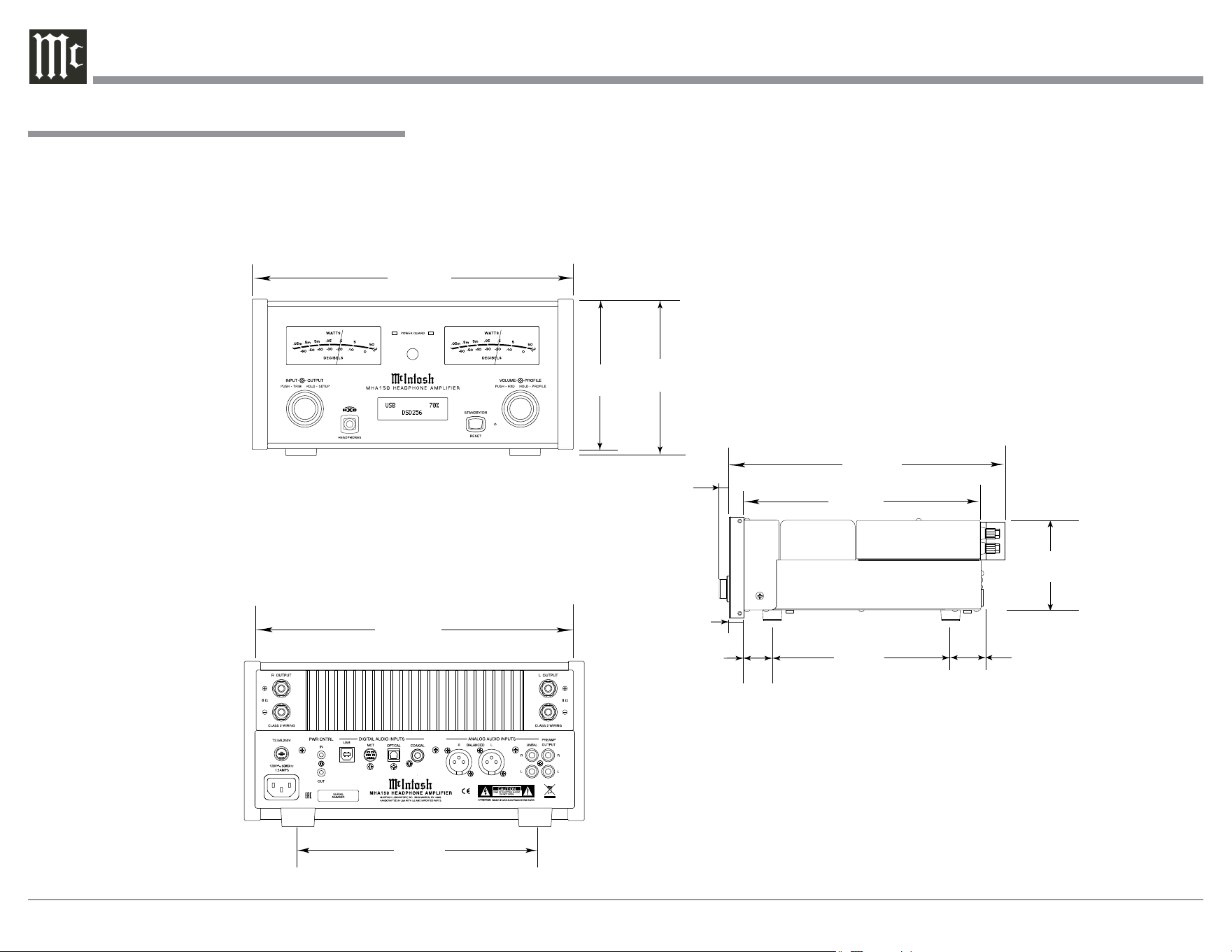
The following dimensions can assist in determining
the best location for your MHA150. There is addition-
al information on the next page pertaining to install-
ing the MHA150 into cabinets.
Rear View of the MHA150
Side View of the MHA150
Front View of the MHA150
9/16"
1.4cm
29/32
"
1.8cm
10-13/16"
27.5cm
8"
20.3cm
11-1/2"
29.2cm
5-3/8"
13.7cm
5-7/8"
14.9cm
14-5/8"
37.1cm
9-1/2"
24.1cm
4-11/16"
4.3cm
12-5/8"
32.1cm
1-1/2"
3.8cm
1-11/16"
4.3cm
7
Installation
Installation
MHA150 Side View
19"
48.3cm
MHA150 Front View
6"
15.3cm
2"
5.1cm
2"
5.1cm
6"
15.3cm
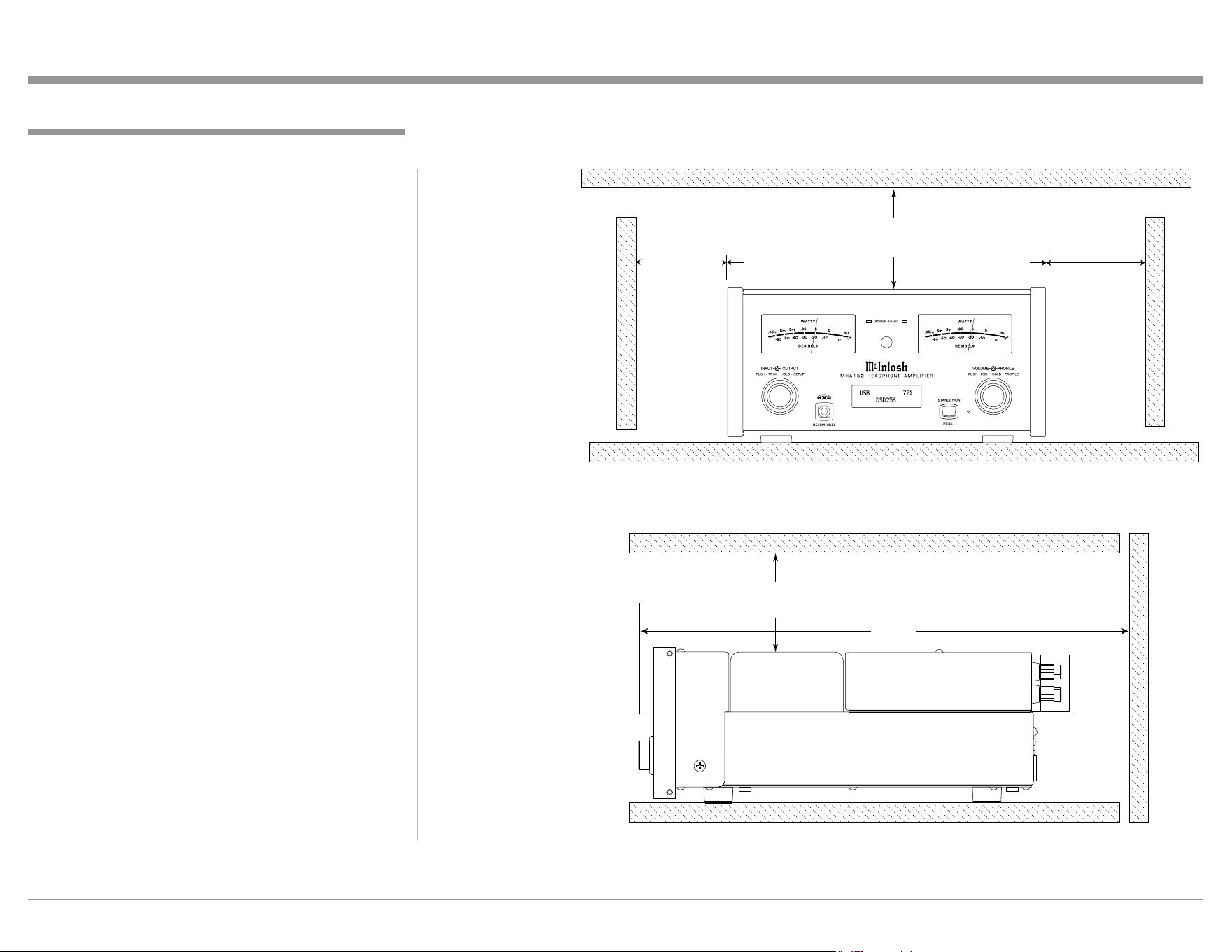
The MHA150 Headphone Ampifier is designed to be
placed upright on a table or shelf, standing on its feet.
The required ventilation requirements are shown.
Always provide adequate ventilation for your
MHA150. Cool operation ensures the longest possible
operating life for any electronic instrument. Do not
install the MHA150 directly above a heat generating
device, such as a Power Amplifier. Allow at least 6
inches (15.3cm) above the top, 5/8 inch (1.6cm) below
the bottom and 2 inches (5.1cm) on each side of the
Amplifier, so that airflow is not obstructed. Allow 19
inches (48.3cm) of depth for airflow and cable connec-
tions.
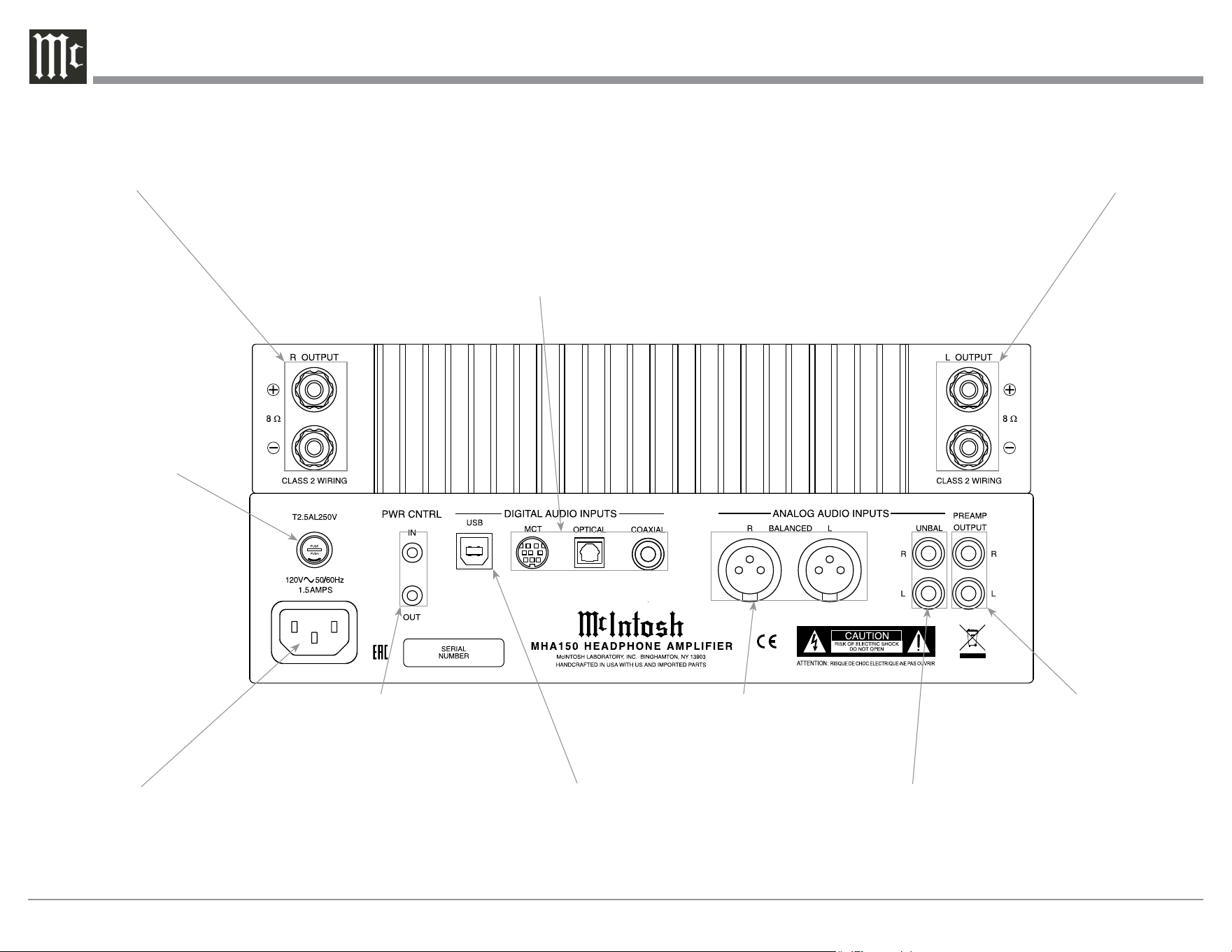
8
MHA150 Rear Panel Connections
Right OUTPUT
connections for an
8 ohm Loudspeaker
UNBALanced INPUTS
accept high level signals
from a source with an
unbalanced output
PREAMP OUTPUTS
send signals to an exter-
nal Power Amplifier or
Powered Subwoofer
DIGITAL AUDIO INPUTS for
components with Digital OPTICAL,
COXIAL and MCT Digital Outputs
sending digital audio signals
USB Digital Audio
Input for connection to
a computer
Connect the MHA150 power cord
to a live AC outlet. Refer to infor-
mation on the back panel of your
MHA150 to determine the correct
voltage for your unit
Main Fuse holder, refer to
information on the back
panel of your MHA150 to
determine the correct fuse
size and rating
Left OUTPUT con-
nections for an 8
ohm Loudspeaker
BALANCED INPUTS
accept high level signals
from a source with a bal-
anced output
PWR CNTRL (Power Control) IN
receives a turn On/Off signal from a
McIntosh Component; PWR CNTRL
OUT sends a turn On/Off signal to
another McIntosh Component

9
Notes
10
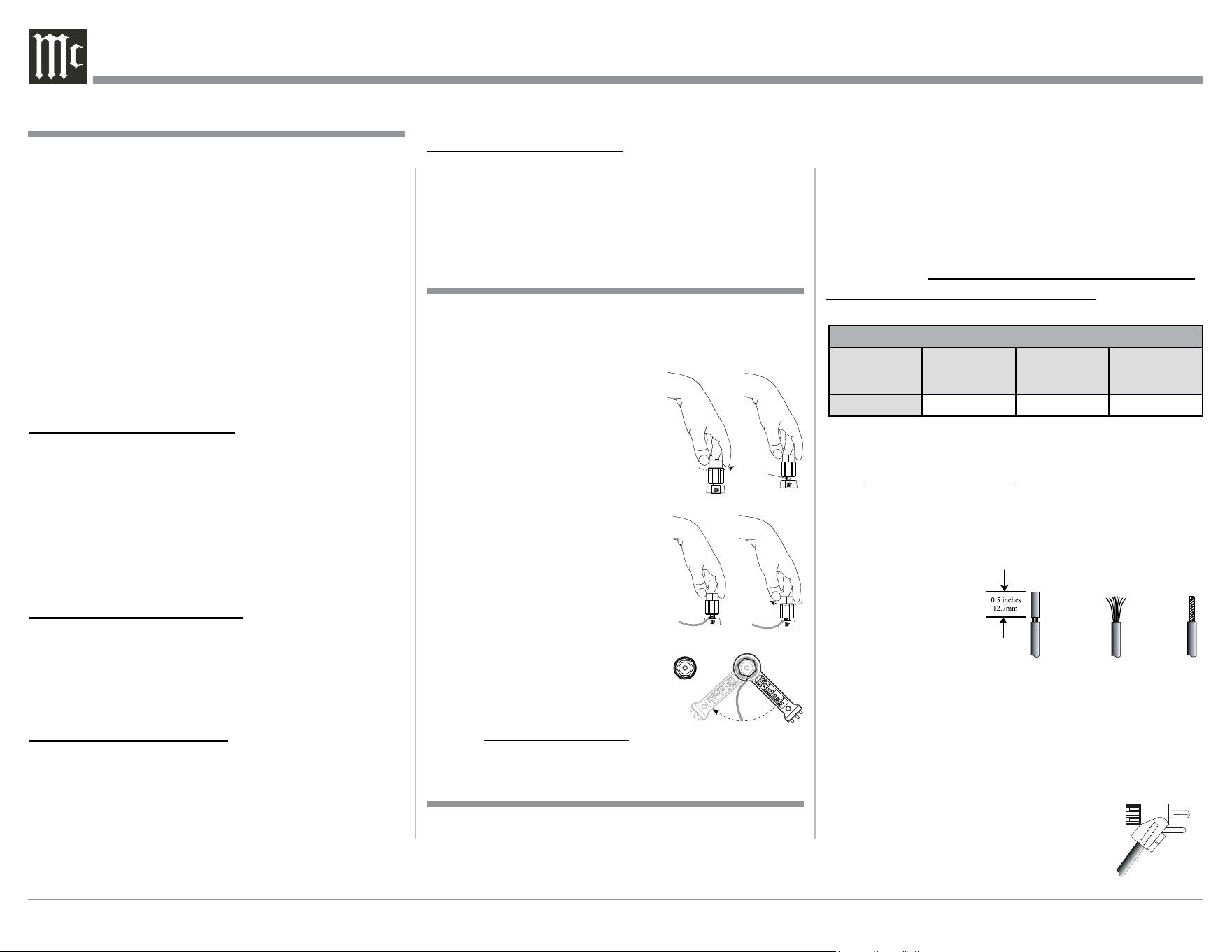
Warning: Loudspeaker terminals are hazardous live and
present a risk of electric shock. For additional
instruction on making Loudspeaker Connec-
tions contact your McIntosh Dealer or McIn-
tosh Technical Support.
The McIntosh MHA150 Power Amplifier Circuitry is
designed for a single 8 ohms Loudspeaker connected
to the Right and Left Output Terminals.
The recommended cable size is shown below:
Cable Distance vs American Wire Gauge (Size)
Loudspeaker
Impedance
25 feet
(7.62 meters)
or less
50 feet
(15.24 meters)
or less
100 feet
(30.48 meters)
or less
8 Ohms
16AWG 14AWG 12AWG
1. Prepare the Loudspeaker Hookup Cable for attach-
ment to the MHA150:
Bare wire cable ends:
Carefully remove sufficient insulation from the
cable ends, refer to figures F, G & H. If the cable
is stranded, carefully twist the strands together
as tightly as possible.
Notes: 1. If desired, the twisted ends can be tinned
with solder to keep the strands together.
2. The prepared bare wire cable ends may be
inserted into spade lug connectors.
3. Banana plugs are for use in the United
States and Canada only.
Banana Plugs are for use in the United States and
Canada only:
2. Attach the previously prepared bare
wire cable ends into the banana plugs
and secure the connections. Refer to
figure I.
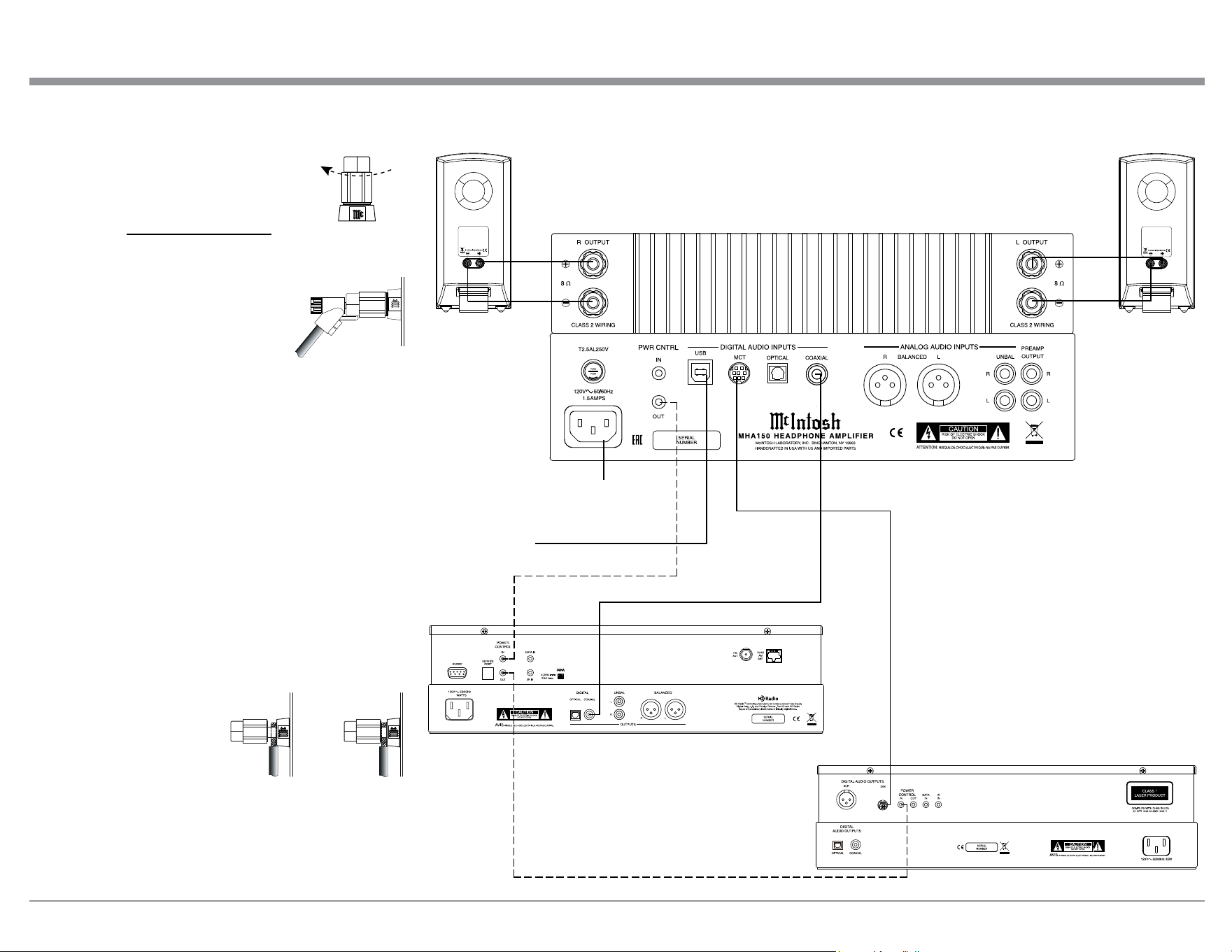
Connecting Components
The MHA150 has the ability to automatically switch
power On/Off to McIntosh Source Components via
the Power Control connection.
The connection instructions below, together with
the MHA150 Connection Diagram on the next page
is an example of a typical audio system. Your system
may vary from this, however the actual components
would be connected in a similar manner. For addition-
al information refer to “Connector and Cable Informa-
tion” on page 4.
Note: When the MHA150 is being added to an existing
Audio (or Audio/Video) System, please proceed to
page 12. If the MHA150 will be used with an exter-
nal Power Amplifier, please refer to page 13.
Power Control Connections:
1. Connect a Control Cable from the MHA150 PWR
CTRL (Power Control) OUT Jack to the Power
Control In Jack on the Tuner.
2. Connect a Control Cable from the Tuner Power
Control Out Jack to the Disc Player Power Control
In Jack.
3. Connect any additional McIntosh Components in
a similar manner, as outlined in steps 1 thru 2.
Optional Audio Connections:
4. Connect the Audio Cable from the MHA150 UN-
BAL 1 (or BALANCED) L & R connectors to the
Disc Player Fixed Audio Output Jacks.
5. Connect any additional Components in a similar
manner, as outlined in step 4.
Digital Audio Connections:
6. Connect a “DIN Cable-Twisted Pair” cable (sup-
plied with a MCT Transport) from the MHA150
DIGITAL AUDIO MCT INPUT connector to the
SACD/CD Transport DIN Output connector.
7. Connect any additional Components in a similar
manner, as outlined in step 6.
Optional USB Connection:
8. Connect a USB cable with (type A to type B) con-
nectors from the MHA150 USB Input to an avail-
able USB connector on a Computer.
Output Terminals
When connecting the Loudspeaker Hookup Cables to
the MHA150 Output Terminals please follow the steps
below:
1. Rotate the top of the Output Terminal Post coun-
terclockwise until an opening
appears. Refer to gures A and
B.
2. Insert the Loudspeaker hookup
cable into the Output Terminal
Post opening or the cable spade
lug around the center post of
the Output Terminal. Refer to
gure C.
3. Rotate the top of the Output
Terminal Post clockwise until it
is nger tight. Refer to gure D.
4. Place the supplied McIntosh
Wrench over the top of the Out-
put Terminal and rotate it one
quarter of a turn (90° ) to secure
the Loudspeaker Cable Connec-
tion. Do not over tighten. Refer
to gure E.
Figure A
Opening
Figure B
Figure C Figure D
Figure E
Caution: Do not connect the AC Power Cord to the
MHA150 Rear Panel until after the Loudspeak-
er Connections are made. Failure to observe
this could result in Electric Shock.
How to Connect Optional Loudspeakers
Figure F
Figure G
Figure H
Figure I
11
Connecting Components
30
Computer
Tuner
Disc Player
Left LoudspeakerRight Loudspeaker
Connect to
AC Outlet
3. Rotate the Output Terminal Post clockwise until it is
nger tight. Refer to gure J. Then us-
ing the McIntosh Wrench, rotate the top
of the Output Terminal one quarter of a
turn (90° ). Do not over tighten. Refer
to gure E.
4. Referring to figure K, connect the Loudspeaker
hookup cables with banana plugs
into the hole at the top of the
terminal to the MHA150 Negative
Output Terminal and Positive Out-
put Terminal to the Loudspeaker
Terminal Connections being careful to observe the
correct polarities.
Refer to “General Information” Note 7 on page 4
for additional information.
5. Connect the MHA150 power cord to an active AC
outlet.
Spade Lug or Wire Connections:
6. Connect the Loudspeaker hookup cables to the
MHA150 Negative Output Terminal and Positive
Output Terminal to the Loudspeaker Terminal
Connections being careful to observe the cor-
rect polarities. Insert the spade lug connector or
prepared section of the cable end into the terminal
side access hole, and tighten the terminal cap until
the cable is firmly
clamped into the
terminals so the lugs
or wire cannot slip
out. Refer to figures L
and M.
Refer to “General Information” Note 7 on page 4
for additional information.
7. Connect the MHA150 power cord to an active AC
outlet.
-
+
-
+
Figure J
Figure K
Figure L
Figure M
12
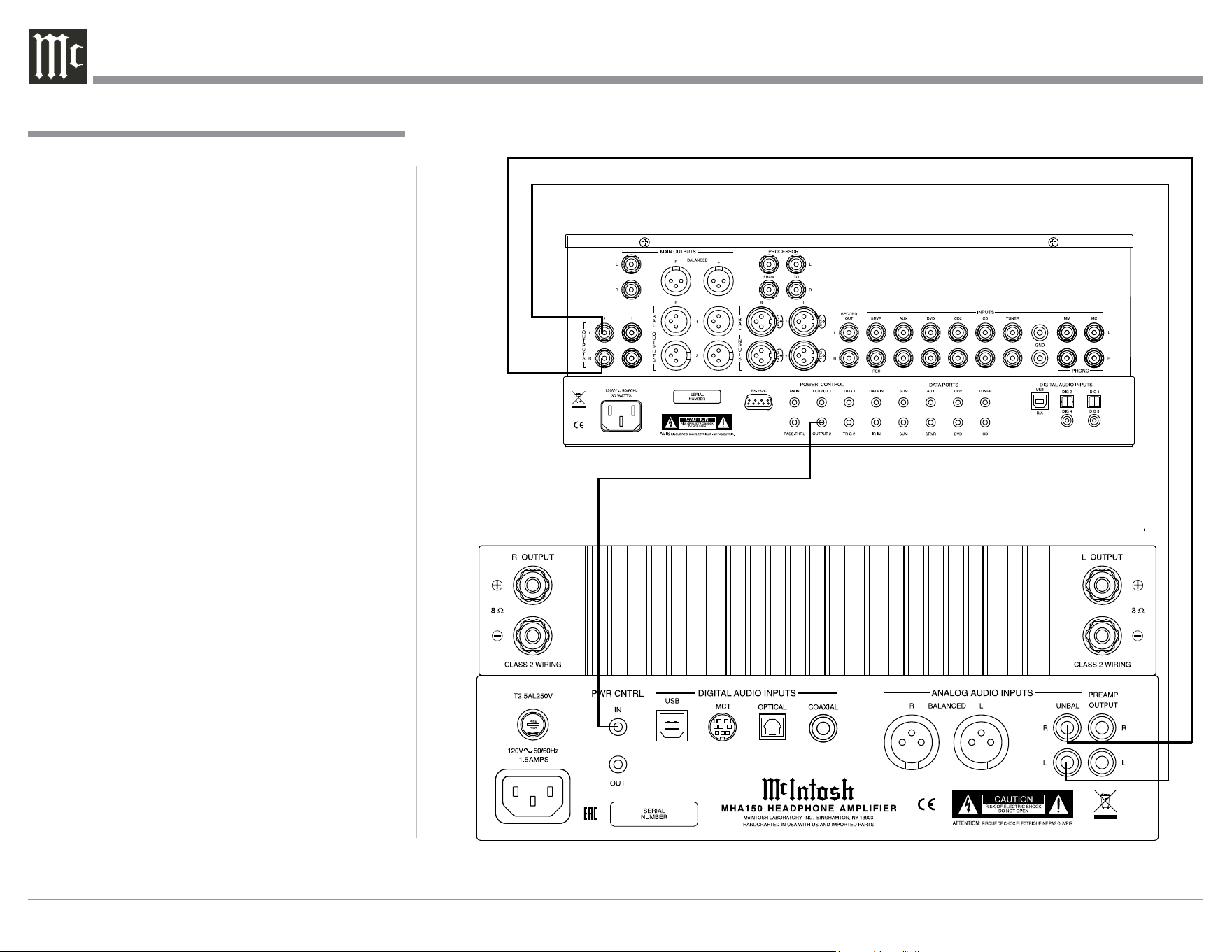
System Thru Connections
The MHA150 can also be part of an existing Audio
or Audio/Video Sound System. The MHA150 allows
connection of Headphones for private listening. It
can also drive Loudspeakers in a second room. The
MHA150 becomes active when the Main Preamplifier
or Audio/Video Controller is On. In the example be-
low, the MHA150 will go On/Off when the OUTPUT
2 function of the Preamplifier is activated using the
Power Control 2 connections.
1. Connect Audio Cables from the Preamplifier
OUTPUT 2 Jacks to the MHA150 Analog Audio
UNBAL Jacks.
Note: The Preamplifier Balanced OUTPUT 2 con-
nected to the MHA150 BALANCED Input may be
used instead of the unbalanced connections.
2. Connect a Control Cable from the Preamplifier
POWER CONTROL OUTPUT 2 Jack to the
MHA150 PWR CTRL (Power Control) IN Jack.
For additional operational information when using
the System Thru Connection with the MHA150 and
Main Preamplifier or Audio/Video Controller, refer to
“System Thru Operation” on page 26.
System Thru Connections
Preamplier
13
Power Amplier
External Power Amplifier Connections
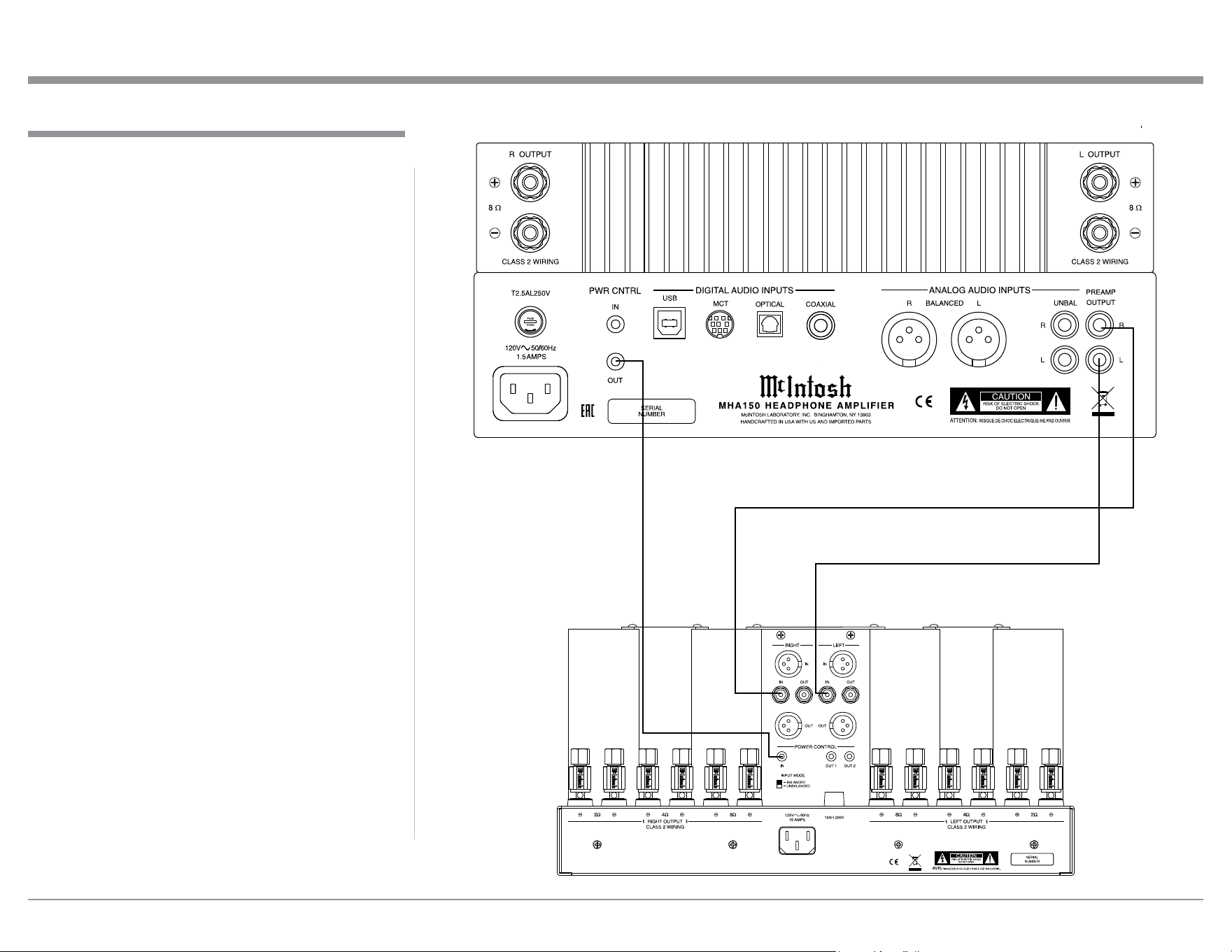
The MHA150 has the ability to drive an External
Power Amplifier. In the example below, the MHA150
automatically switches the External Power Amplifier
On/Off via Power Control function.
1. Connect Audio Cables from the MHA150 PRE-
AMPlifier OUTPUT Jacks to the External Power
Amplifier IN (Left and Right) Jacks.
2. Connect a Control Cable from the MHA150 PWR
CNTRL (Power Control) OUT Jack to the Exter-
nal Power Amplifier Power Control IN Jack.
3. Refer to page 10 for connecting other
component(s) to the MHA150.
4. Refer to the External Power Amplifier Owner’s
Manual for connection of Loudspeakers.
External Power Amplifier Connections
14
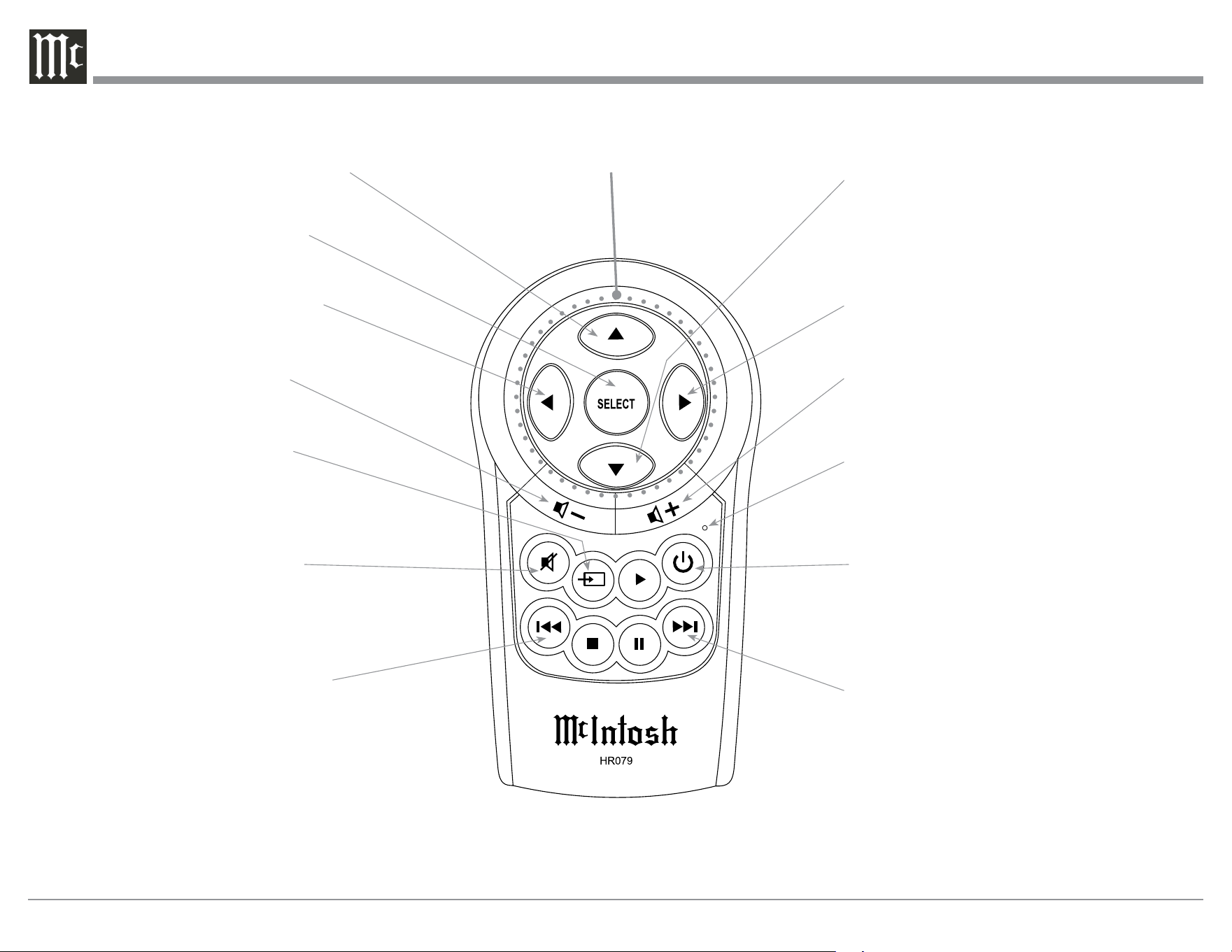
Remote Control Push-Buttons
Note: Push-buttons whose function is not identified above are for use with other McIntosh Products.
Powers the MHA150 ON or OFFMutes and unmutes the audio
Increases the volume level
LED illuminates during the time a remote
command is sent to the MHA150
Selects the NEXT : Station Preset
on contemporary McIntosh Tuners
Selects the PREVIOUS 9 Station
Preset on contemporary McIntosh
Tuners
Decreases the volume level
Press to activate TRIM Mode
Selects the desired INPUT
Adjusts or Selects the active TRIM func-
tion; also manually tune down the dial
with contemporary McIntosh Tuners
Scrolls through TRIM Functions
Scrolls through TRIM Functions
Adjusts or Selects the active TRIM func-
tion; also manually tune up the dial with
contemporary McIntosh Tuners
Directional Push-buttons -
Up, Down, Left and Right
15
How to use the Remote Control
How to use the Remote Control
The supplied Remote Control performs the various
Operating Functions for the MHA150 Headphone
Amplifier.
Note: Refer to the “How to Operate” Section of this
manual for additional information.
Input Source Selection
Press the Push-button → to select the desired pro-
gram source.
Volume
Press the + or - Push-buttons to increase or de-
crease the listening level.
Mute
Press the (Mute) Push-button to mute the audio and
a second time to resume listening.
Select Push-Button
Press the Select Push-button to activate the TRIM
Mode. Then use the Directional Push-Buttons to select
a Trim Mode Function and make changes.
Directional Push-Buttons
After having pressed the SELECT Push-button,
press the ◄ ► (Left or Right) Push-buttons to scroll
through the various Trim Functions. Then press the
▲ ▼ (Up or Down) Push-buttons to make a change to
the current Trim Setting.
Note: If a contemporary McIntosh Tuner is used with
the MHA150 the ▲ ▼ (Up or Down) on the
Remote Control will allow for manual tuning of
stations. Refer to “General Information, note 6”
on page 4 for additional information.
Back and Next
When using an optional contemporary McIntosh
Tuner with the MHA150, select the next Station Preset
by pressing the : Push-button. Select the previous
Station Preset by pressing the 9 Push-button.
16
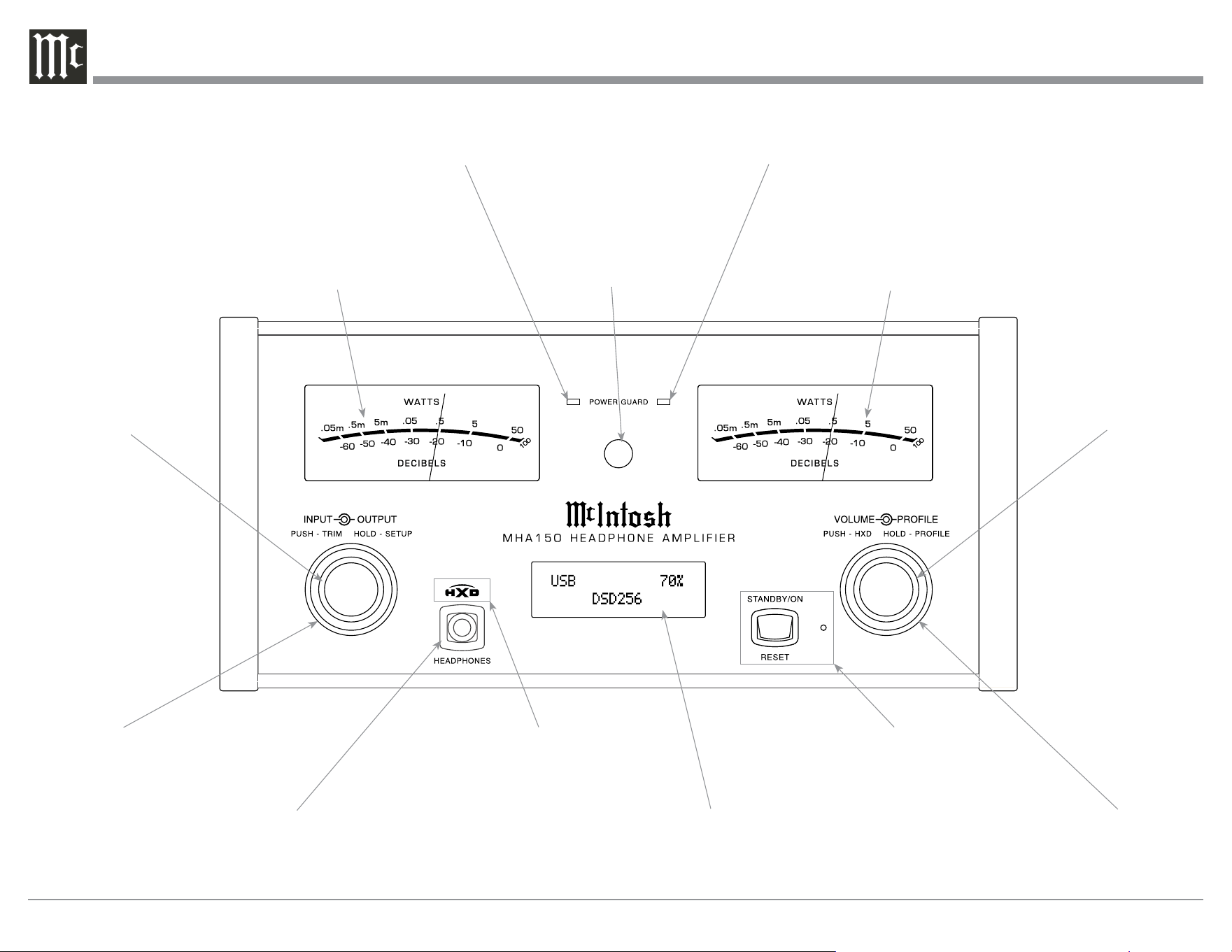
IR Sensor receives
commands from a
Remote Control
STANDBY/ON Push-button with
indicator switches the MHA150
ON or OFF (Standby) and resets
the microprocessors
Connection for dynamic
type headphones, for
private listening
Meter indicates the
Right Channel Output
of the amplifier
LED indicates when the Left
Channel Amplifier POWER
GUARD circuit activates
Meter indicates the
Left Channel Output
of the amplifier
LED indicates when the Right
Channel Amplifier POWER
GUARD circuit activates
INFORMATION DISPLAY indicates
the Sources, Volume, other Audio
Settings, Operational Functions and
Setup Mode Settings
VOLUME Control allows
adjustment of the listening
level for both channels.
Also used to activate the
HXD and Profiles Modes
along with selecting a given
Profile
PROFILE Control allows
selection of stored Profile
Settings and used for
various Profile Modes
INPUT Control allows
the selection of sources
for listening and to select
different Setup Functions.
Also used to activate the
Trim and Setup Modes
OUTPUT Control allows the
selection of either Headphones
(various impedances) or Loud-
speakers. When in Setup Mode
used for changing the various
function settings
Indicates the Dynamic Crossfield
circuitry is active when illuminated
17
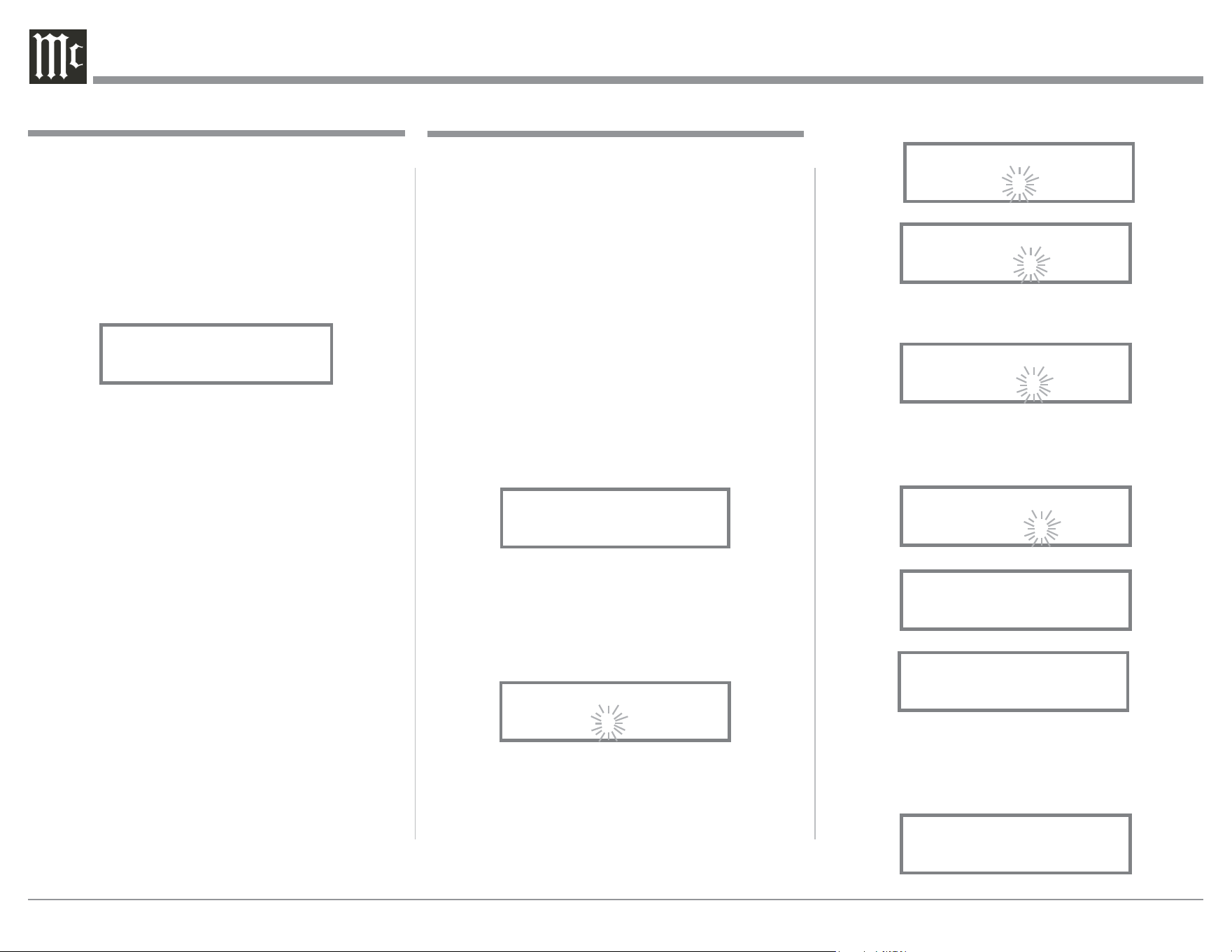
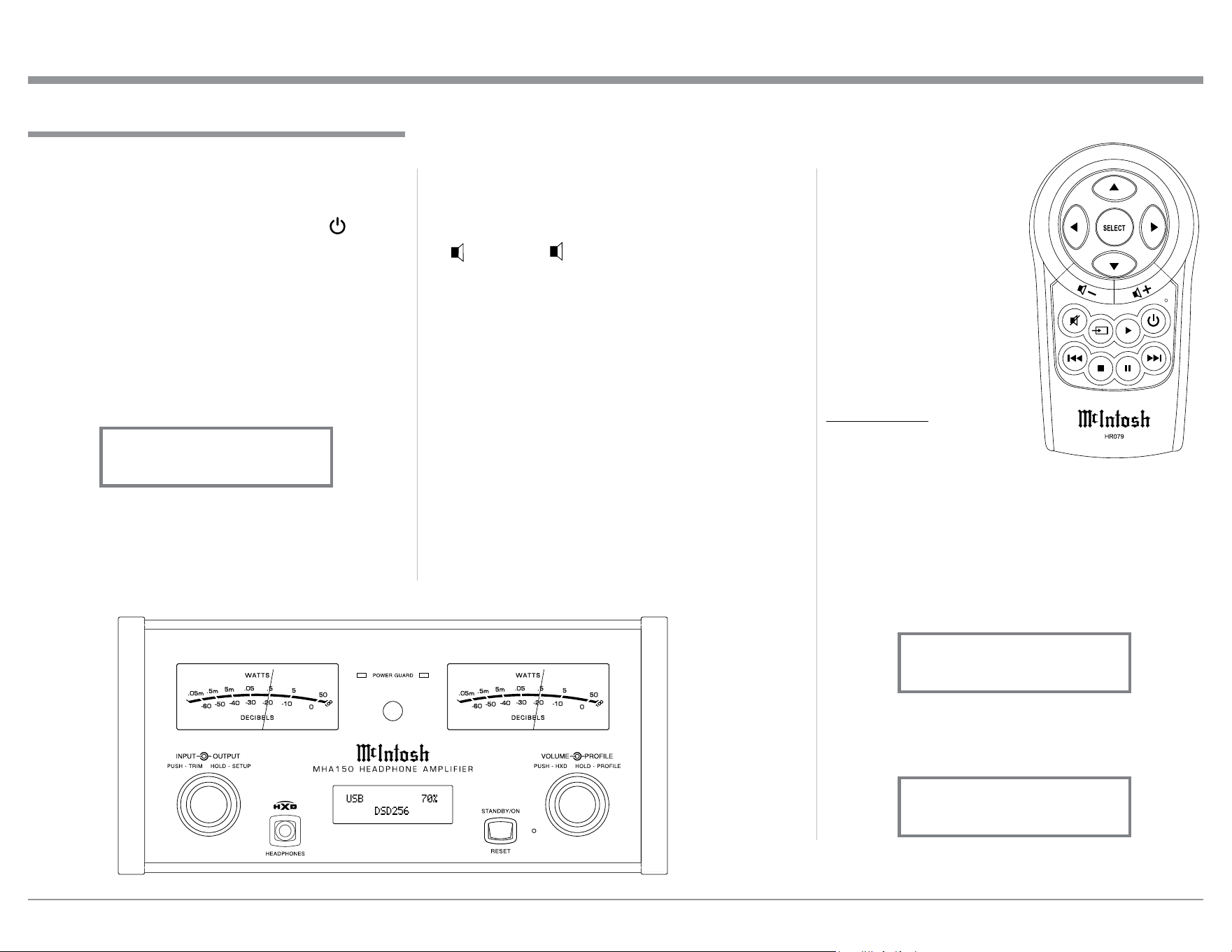
3. Next, rotate the INPUT CONTROL Clockwise
again until the Front Panel Display indicates
“INPUT: UNBAL, NAME: UNBAL” Refer to
figure 3.
4. Rotate the INPUT CONTROL Clockwise again
to select other Setup Functions. Refer to pages 18
thru 20.
5. To exit from the Setup Mode, press the INPUT
CONTROL and the Front Panel Display will revert
back to its normal display. Refer to figure 1.
Your McIntosh MHA150 has been factory configured
for default operating settings that will allow immedi-
ate enjoyment of superb audio without the need for
further adjustments. If you wish to make changes to
the factory default settings, a Setup Feature is pro-
vided to customize the operating settings using the
Front Panel Display. Refer to the MHA150 Front Panel
Illustration on the previous page while performing an
introduction into operating the Setup Mode, follow the
steps below.
Note: If the MHA150 is currently On, proceed to
step 2.
1. Press the STANDBY/ON Push-button on the Front
Panel or press the (Power) Push-button on the
Remote Control to switch On the MHA150. The
MHA150 will go through a brief startup intializa-
tion with the Front Panel Display indicating the
last used input and volume setting. This is fol-
lowed by the volume setting indication starting at
zero and then increasing to the last used volume
setting. Refer to figure 1.
Note: When listening with Loudspeakers, rotate the
OUTPUT Control to the “Speakers” setting.
2. Press and hold in the INPUT CONTROL until the
Front Panel Display indicates “MHA150 V_.__,
S/N: AET____”. The information indicated on the
Front Panel Display includes the Model Number,
Firmware Version and the Serial Number for this
unit; see page 18 for additional information. Refer
to figure 2.
How to Operate the Setup Mode
The Default Settings Chart below indicates the Func-
tion Name, Default Setting and the Page Number for
additional information.
Default Settings
Default Settings
Function Name Setting Page No.
MHA150
V_._ _
S/N: AET_ _ _ _ _
18
INPUT NAME
(Reassign Input Names)
INPUT:_________
NAME:__________
18
SPEAKER MODE Large 19
SUBWOOFER MODE Disabled 19
POWER MODE
(Auto Off)
Enabled 20
REMOTE CONTROL Enabled 20
VOLUME GUAR D Enabled 20
FACTORY R ESET
(Hold SETUP)
---- 20
Setup
Note: Setup Mode operations should be performed
in the order they appear in the Setup Menu as
they are interactive.
Figure 1
UNBAL 20%
NORM 8O - 40O
Figure 3
INPUT: UNBAL
NAME: UNBAL
Figure 2
MHA150 V_.__
S/N: AET____
18
The MHA150 Default Input Names (UNBAL, BAL-
ANCED, OPTICAL, COAX and AES/EBU as indi-
cated on the Front Panel Display) can be customized
with a different name up to eight characters long (My
Phone, MCD550, etc.). The available characters for
renaming the input include the following: ! < > * , / -
_ 0 1 2 3 4 5 6 7 8 9 a b c d e f g h i j k l m n o p q r s t
u v w x y z A B C D E F G H I J K L M N O P Q R S
T U V W X Y Z .
In the following example, the UNBAL Input will be
renamed to “MY-PHONE”.
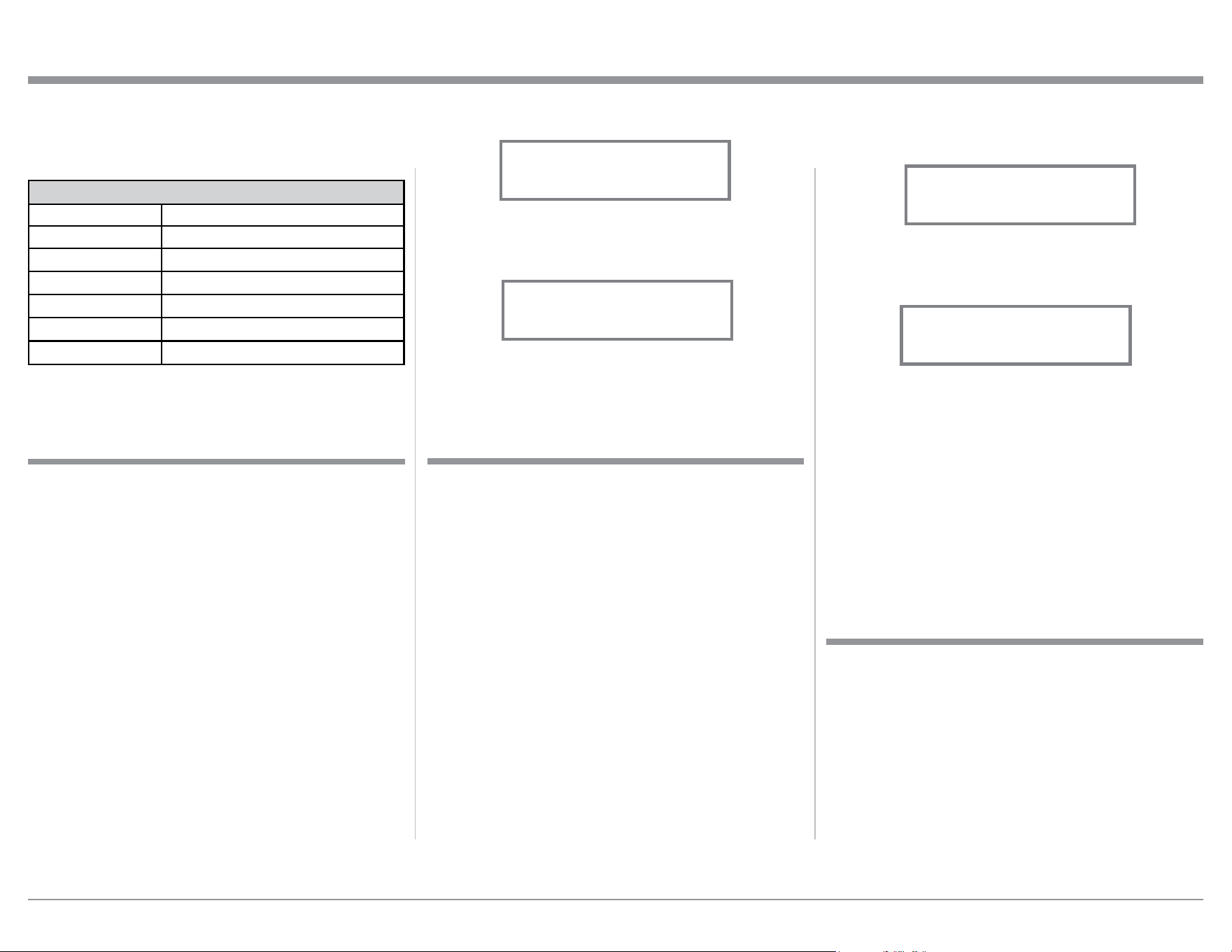
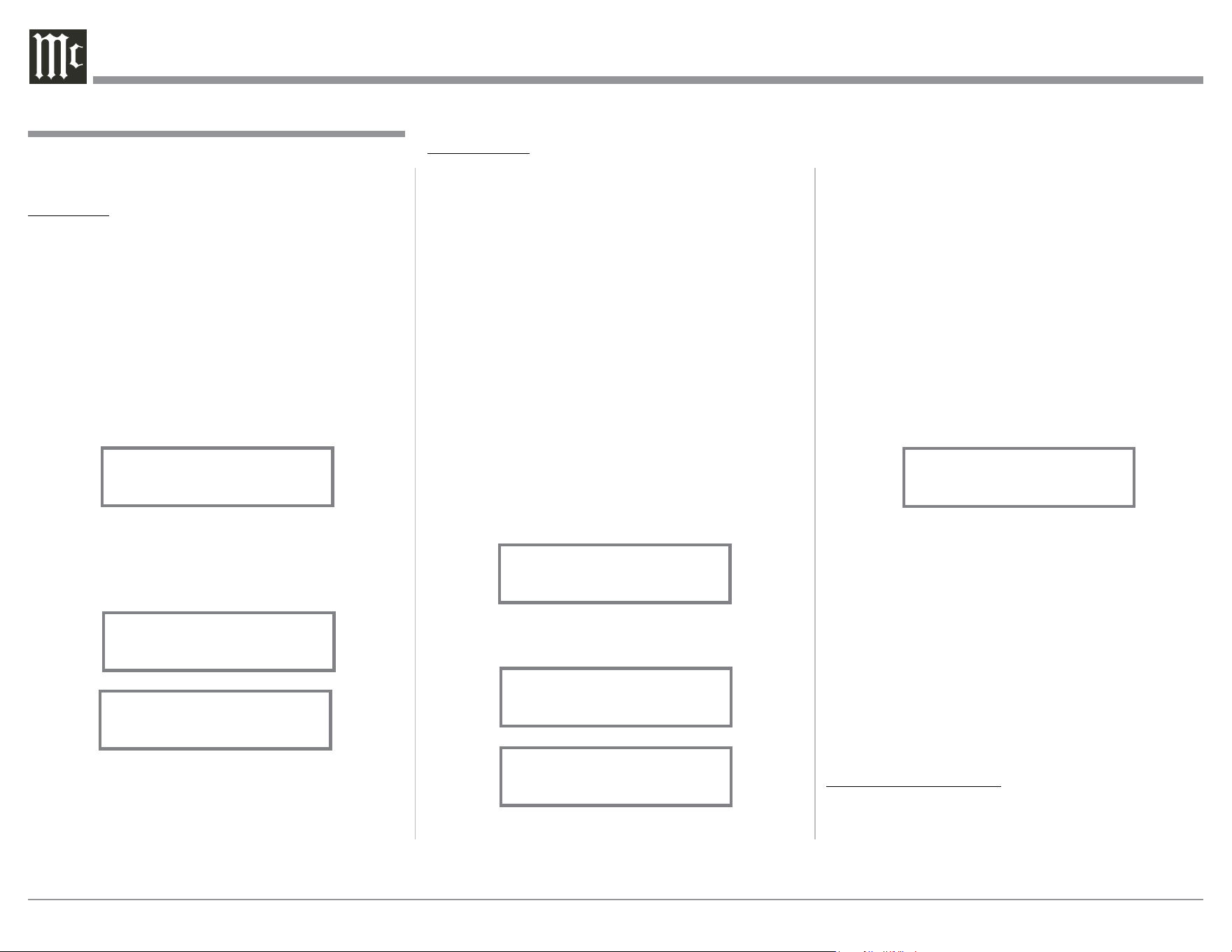
1. Press and hold the INPUT CONTROL until the
Front Panel Display indicates the Model, Firmware
Version and Serial Number. Refer to figure 2. Then
rotate the INPUT CONTROL and select the Setup
Menu item “INPUT: UNBAL, NAME: UNBAL”.
Refer to figure 4.
Note: If the UNBAL Input is not displayed, rotate the
OUTPUT Control repeatedly until it is dis-
played.
2. Press and hold in the INPUT Control until the
character “U” of the “NAME: UNBAL” starts
flashing (and is underlined). Refer to figure 5.
3. Rotate the INPUT Control until the character “M”
appears. Refer to figure 6.
4. Rotate the OUTPUT Control until the character
“N” of the “NAME: UNBAL” starts flashing.
Refer to figure 7.
The MHA150 functionality is controlled by internal
software that is known as Firmware. The Version of
the Firmware in the MHA150 can be identified at any
time by utilizing the Setup Mode.
1. Press and hold the INPUT CONTROL until the
Front Panel Display indicates “MHA150 V_.__,
S/N: AET____”. The number after the “V” is the
firmware version and the number after the “S/N”
is the serial number of the unit. Refer to figure 2.
2. To exit from the Setup Mode, press the INPUT
CONTROL and the Front Panel Display will revert
back to its normal display.
Firmware Version
5. Rotate the INPUT Control until the character “Y”
appears. Refer to figure 8.
6. Repeat steps 3 thru 5 until the new name of “MY-
PHONE” is indicated on the Front Panel Display.
Refer to figures 9 thru 11.
7. To save the new Input Name press and hold the
INPUT Control until the “character underline”
disapears on the Front Panel Display. Refer to
figure 12.
Input Renaming
Figure 4
INPUT: UNBAL
NAME: UNBAL
Figure 12
INPUT: UNBAL
NAME: MY-PHONE
Figure 2
MHA150 V_.__
S/N: AET____
Figure 5
INPUT: UNBAL
NAME: UNBAL
_
Figure 6
INPUT: UNBAL
NAME: MNBAL
_
Figure 7
INPUT: UNBAL
NAME: MNBAL
_
Figure 8
INPUT: UNBAL
NAME: MYBAL
_
Figure 9
INPUT: UNBAL
NAME: MY-AL
_
Figure 10
INPUT: UNBAL
NAME: MY-PL
_
Fig ure 11
INPUT: UNBAL
NAME: MY-PHONE
_
19
Refer to figure 15.
2. Rotate the OUTPUT Control until the Front Panel
Display indicates “SUBWOOFER MODE, En-
abled”. Refer to figure 16.
Note: When the MHA150 Subwoofer Mode is set
to “ENABLED” it is important the Powered
Subwoofer internal crossover frequency be set
to 80Hz. It is recommended the Professionals
at your McIntosh Dealer, who are skilled in all
aspects of room acoustics be involved when the
MHA150 is used with a Powered Subwoofer
and any associated audio equipment.
3. To exit from the Setup Mode, press the INPUT
CONTROL and the Front Panel Display will revert
back to its normal display.
2. Rotate the OUTPUT Control until the Front Panel
Display indicates “SPEAKER MODE, Small”.
Refer to figure 14.
3. To exit from the Setup Mode, press the INPUT
CONTROL and the Front Panel Display will revert
back to its normal display.
Record any changes made to the various default Input
Names in the following chart for future reference.
Input Renaming
Default Input Name New Input Name
UNBAL
BALANCED
OPTICAL
COAXIAL
MCT
USB
8. To exit from the Setup Mode, press the INPUT
CONTROL and the Front Panel Display will revert
back to its normal display.
Setup, con’t
The MHA150 allows for the connection of Loudspeak-
ers with different performance capabilities. One of the
differences in Loudspeaker performance is the ability
to reproduce bass frequencies down to 35Hz within
-3dB of the midrange frequencies.
The MHA150 provides two different settings,
LARGE and SMALL. The LARGE listing refers to
the Loudspeaker’s capability for reproducing bass fre-
quencies down to 35Hz within -3dB of the midrange
frequencies. If a Loudspeaker can not reproduce bass
frequencies down to 35Hz within -3dB of the mid-
range frequencies, it is considered SMALL.
In the following example, the Speaker Size default set-
ting of LARGE will be changed to SMALL:
1. Press and hold the INPUT CONTROL until the
Front Panel Display indicates the Model, Firmware
Version and Serial Number. Refer to figure 2. Then
rotate the INPUT CONTROL and select the Setup
Menu item “SPEAKER MODE, Large”. Refer to
figure 13.
Speaker Mode
Figu re 14
SPEAKER MODE
Small
Figure 13
SPEAKER MODE
Large
Subwoofer Mode
The MHA150 is designed to work with an external
Powered Subwoofer. The subwoofer would be used
when the Loudspeakers connected to MHA150 Output
Terminals do not have the ability to reproduce bass
frequencies down to 35Hz (within -3dB of the mid-
range frequencies).
The MHA150 provides two different Subwoofer
Mode settings, “Disabled” and “Enabled”. The De-
fault Setting of “Disabled” provides a Stereo Signal at
the PREAMPlifier OUPUT Jacks. When the setting
is changed to “Enabled” the Left and Right channel
signals are combined into a monaural signal available
at both PREAMP OUPUT Jacks. In the following
example, the Subwoofer Mode default setting of DIS-
ABLED will be changed to Enable:
1. Press and hold the INPUT CONTROL until the
Front Panel Display indicates the Model, Firmware
Version and Serial Number. Refer to figure 2. Then
rotate the INPUT CONTROL and select the Setup
Menu item “SUBWOOFER MODE, Disabled”.
Figure 15
SUBWOOFER MODE
Disabled
Figu re 16
SUBWOOFER MODE
Enabled
The MHA150 incorporates an Auto Off Feature,
which automatically places it into the Power Saving
Standby/Off Mode. This occurs approximately 30
minutes after there has been an absence of audible
audio signals on the selected input (on either chan-
nel) or user activity (includes changes to any of the
Operation Functions such as source selection, volume
adjustment, etc). If it is desirable to disable the Auto
Off Feature perform the following steps:
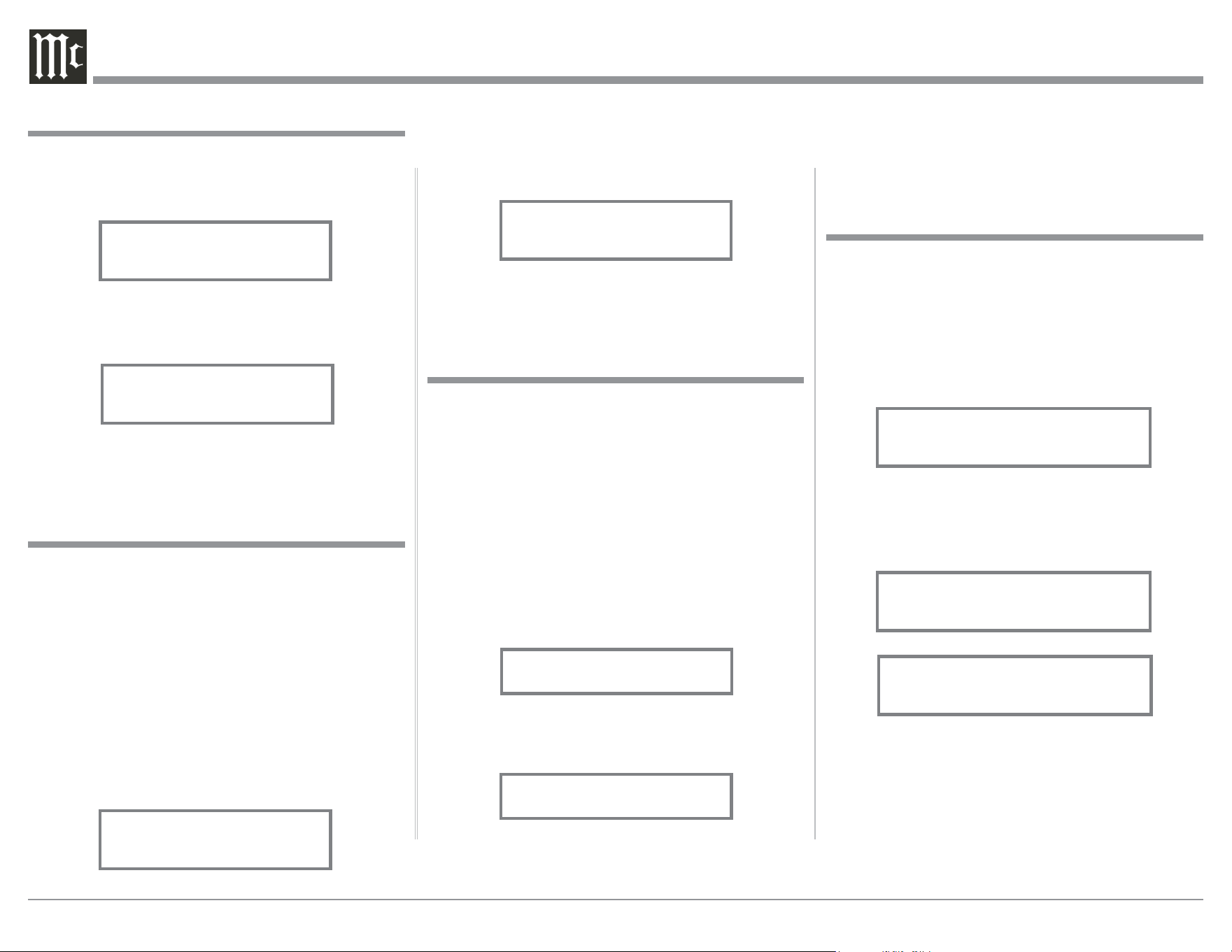
1. Press and hold the INPUT CONTROL until the
Front Panel Display indicates the Setup Mode is
Power Mode
20
active. Then rotate the INPUT CONTROL until
the Setup Menu item “POWER MODE, Enabled”
appears on the Front Panel Display. Refer to
f ig u re 17.
2. Rotate the OUTPUT Control until “POWER
MODE, Disabled” appears on the Front Panel
Display. Refer to figure 18.
3. To exit from the Setup Mode, press the INPUT
CONTROL and the Front Panel Display will revert
back to its normal display.
The Front Panel IR Sensor used for Remote Control
Operation can be disabled in the event there is a con-
flict with another McIntosh component located in the
same room as the MHA150. Refer to “General Infor-
mation, note 6” on page 4 for additional information.
Disable the Front Panel IR Sensor by performing the
following steps:
1. Press and hold the INPUT CONTROL until the
Front Panel Display indicates the Model, Firmware
Version and Serial Number. Then rotate the IN-
PUT CONTROL and select the Setup Menu item
“REMOTE CONTROL, Enabled”. Refer to figure
19.
2. Rotate the OUTPUT Control until the Front Panel-
Display indicates “REMOTE CONTROL, Dis-
abled”. Refer to figure 20.
3. To exit from the Setup Mode, press the INPUT
CONTROL and the Front Panel Display will revert
back to its normal display.
Setup, con’t
Power Mode, con’t
Figu re 17
POWER MODE
Enabled
Figure 18
POWER MODE
Disabled
Remote Control
Figure 19
REMOTE CONTROL
Enabled
Figure 20
REMOTE CONTROL
Disabled
Factory Reset
If it becomes desirable to reset all the adjustable set-
tings (Setup and Trim Settings) to the factory default
values, perform the following steps:
1. Press and hold in the INPUT Control to enter the
SETUP MODE. Refer to figure 2 on page 18.
2. Rotate the INPUT Control until “FACTORY RE-
SET, (Hold SETUP)” appears on the Information
Display. Refer to figure 23.
3. Press and hold in the INPUT Control until “FAC-
TORY RESET, In Progress!” appears on the Infor-
mation Display, then release the INPUT Control.
Refer to figures 24 and 25.
4. Press the Front Panel STAND/BY Push-button to
switch the MHA150 On.
Figure 25
FACTORY RESET
Completed!
Figure 23
FACTORY RESET
(Hold SETUP)
Figure 24
FACTORY RESET
In Progress!
Volume Guard
The MHA150 incorporates a Volume Guard Feature to
provide Loudspeaker Protection if the Amplifier was
set to a high listening level the last time it was used.
When it is switched back ON, the volume listening
will return to a normal safe level. If desirable, the Vol-
ume Guard Feature may be switched OFF by perform-
ing the following steps:
1. Press and hold the INPUT CONTROL until the
Front Panel Display indicates the Setup Mode is
active. Then rotate the INPUT CONTROL until
the Setup Menu item “VOLUME GUARD, En-
abled” appears on the Front Panel Display. Refer to
figure 21.
2. Rotate the OUTPUT Control until “VOLUME
GUARD, Disabled” appears on the Front Panel
Display. Refer to figure 22.
3. To exit from the Setup Mode, press the INPUT
CONTROL and the Front Panel Display will revert
back to its normal display.
Figure 21
VOLUME GUARD
Enabled
VOLUME GUARD
Enabled
Figure 22
VOLUME GUARD
Disabled
VOLUME GUARD
Disabled
21
change/adjustment in the
Trim Setting. To verify
a TRIM Setting without
changing it, press the
INPUT Control and then
Rotate the INPUT Con-
trol to select the desired
Trim Function. After ap-
proximately 5 seconds the
Display returns to indicate
the Input Selection and
Volume Level.
BASS BOOST
The Intensity of the Low
Frequencies in the music
can be increased by us-
ing the Bass Boost Trim
Function. To make an adjustment perform the follow-
ing:
1. Momentarily press the Front Panel INPUT Control
to enter the TRIM Mode. Then rotate the INPUT
Control until “BASS BOOST, 0dB” appears on
the Front Panel Display. Refer to figure 53.
2. Rotate the OUTPUT Control to change the Bass
Boost, the range of adjustment is from 0dB to
+12.5 dB in 2.5 dB steps. Refer to figure 54.
or press the appropriate push-button on the Remote
Control. Refer to figures 50 and 52.
Volume Control
Rotate the Front Panel VOLUME Control or use the
Up (+) or Down (-) Push-buttons on the Remote
Control for the desired listening level. Refer to figures
50 and 52.
Trim Functions Introduction
The MHA150 has various Trim Selections with Ad-
justments. The Trim Functions include Bass Boost,
Balance, Level (Input Trim), Mono/Stereo, Meter
Backlight, Display (Information) and Digital Audio
(Display Information). The Bass Boost, Balance, Level
(Input Trim), Mono/Stereo, Trim Settings are stored
in memory independently for each Input Selected; the
other Trim Settings are the same for all inputs.
The selection and adjustment of all Trim Functions
may be performed by first momentarily pressing the
Front Panel INPUT Control. Then rotate the INPUT
Control to select the desired Trim Function. This is
followed by rotating the OUTPUT Control to make a
Power On and Off
The Red LED beside the STANDBY/ON Push-button
lights to indicate the MHA150 is in Standby mode.
To switch ON the MHA150, press the STANDBY/ON
Push-button on the Front Panel or press the (Power)
Push-button on the Remote Control. The MHA150
will go through a brief startup initialization, with the
Front Panel Display indicating the last used input and
volume setting. This is followed by the volume setting
indication starting at zero and then increasing to the
last used volume setting. Refer to figures 50, 51 and
52. To switch OFF the MHA150, press the STANDBY/
ON Push-button on the Front Panel or the OFF Push-
button on the Remote Control.
Note: For an explanation of the Remote Control
Push-button functions, refer to pages 14 and 15.
Source Selection
Rotate the INPUT Control to select the desired input
How to Operate the MHA150
Figure 50
How to Operate the MHA150
Figure 52
Figure 53
BASS BOOST
0dB
Figure 54
BASS BOOST
+2.5dB
Figure 51
UNBAL 20%
NORM 8O - 40O
22
TRIM LEVEL
Source Components can have slightly different volume
levels resulting in the need to readjust the MHA150
Volume Control when switching between different
Inputs. The MHA150 allows the adjustment of levels
for each of the Inputs for the desired same relative
volume. The UNBAL and OPTICAL Inputs are used
in the following example.
Note: The TRIM Level Adjustments made are retained in
permanent memory.
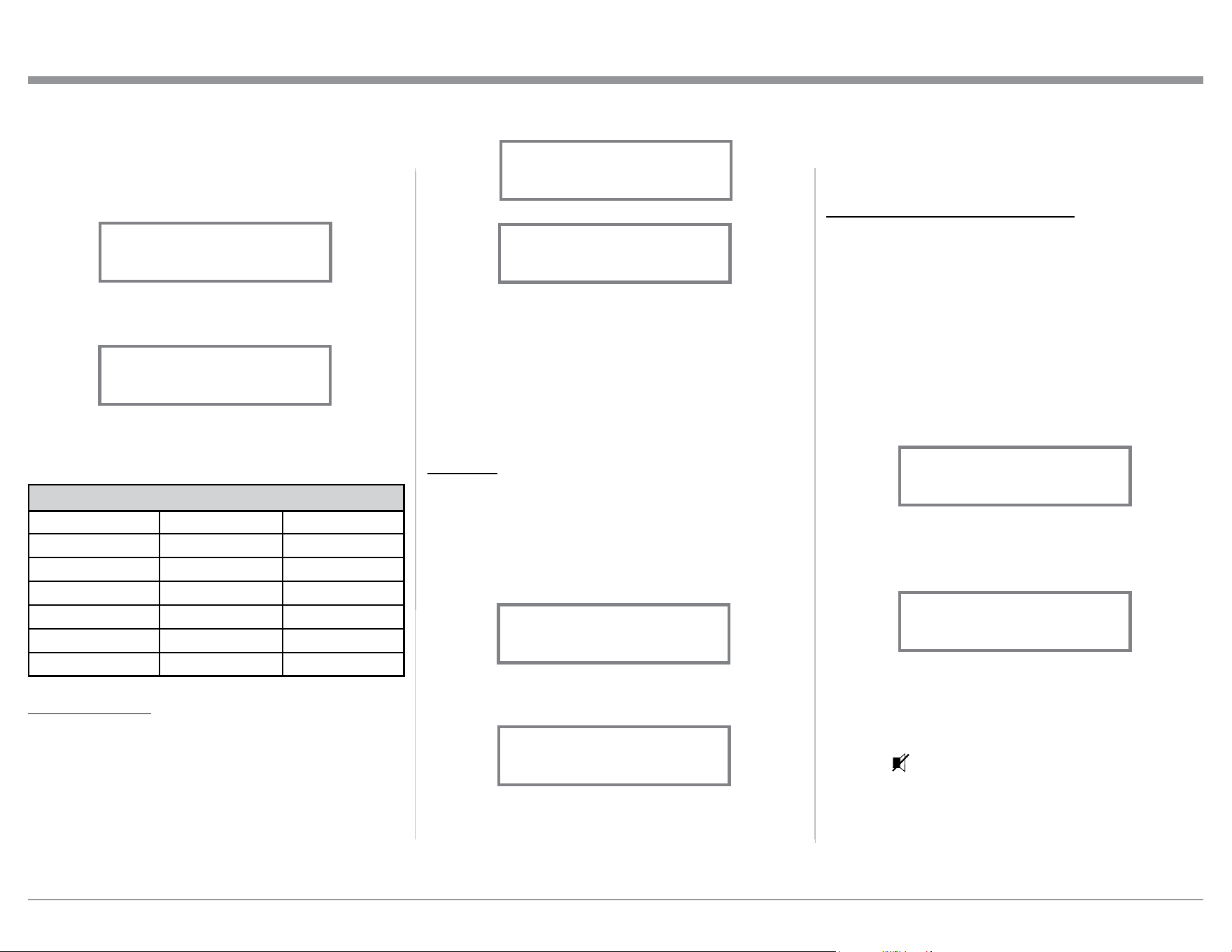
1. Rotate the INPUT Control to select the UNBAL
Input and adjust the VOLUME Control for the
desired listening level.
2. Momentarily press the Front Panel INPUT
Control to enter the TRIM Mode. Then rotate the
INPUT Control until “TRIM LEVEL, _._ dB”
appears on the Front Panel Display. Rotate the
OUTPUT Control until the Front Panel Display
indicates “TRIM LEVEL, 0.0dB”. Refer to
figure 58.
The range of TRIM Adjustment is ± 6dB.
Refer to figures 59 and 60.
Note: The UNBAL Input is serving as a refer-
ence level or choose another Input frequently
listened to.
After approximately 5 seconds the Display returns to
indicate the Input Selection and Volume Level.
BALANCE
The Channel Balance while listening can vary with
different program sources. When using Loudspeak-
ers, the room acoustics and listening positions also
can effect the Channel Balance. Use the Balance Trim
Function as needed to achieve approximately equal
listening volume levels in each channel. To adjust the
Balance perform the following:
1. Momentarily press the Front Panel INPUT Control
to enter the TRIM Mode. Then rotate the INPUT
Control until “L BALANCE R” appears on the
Front Panel Display. Refer to figure 55.
2. Rotate the OUTPUT Control to change the Chan-
nel Balance, the range of adjustment is 50dB (to
emphasize the Left or Right Channel) in 1 dB
steps. Refer to figures 56 and 57.
After approximately 5 seconds the Display returns to
indicate the Input Selection and Volume Level.
3. Note the current listening level. Then rotate
INPUT Control to select the OPTICAL Input and
note if the relative volume is louder or quieter
than the volume level of the UNBAL.
4. Momentarily press the Front Panel INPUT
Control to enter the TRIM Mode. Then rotate
the INPUT Control until “TRIM LEVEL, _. _
dB” appears on the Front Panel Display. Using
the OUTPUT Control adjust the TRIM Level to
match the same relative volume level heard when
listening to the UNBAL Input.
5. In our example, the relative volume level of the
OPTICAL Input is louder than the UNBAL
Input, so the trim level for the OPTICAL Input is
reduced to -2.5 dB. Refer to figure 61.
6. Repeat steps 1 thru 4 until the relative volume
is the same between the UNBAL and OPTICAL
Inputs.
7. Repeat the above steps for the remaining inputs
with component sources connected until they all
have the same relative volume levels. Record any
changes made to the various inputs from the de-
fault settings in the “Input Trim Settings” Chart
on the next page.
After approximately 5 seconds the Display returns to
indicate the Input Selection and Volume Level.
MONO/STEREO MODE
By default the Stereo Mode is active for all Input
Sources however, any Input Source may be assigned
to Mono Mode. To change Stereo Mode to Mono for a
given Input Source, perform the following steps:
How to Operate the MHA150, con’t
Figure 55
L BALANCE R
||
Figure 56
¦
¦
¦
¦
¦
¦
¦
¦
L BALANCE R
Figure 57
¦
¦
¦
¦
¦
¦
¦
¦
L BALANCE R
Figure 58
TRIM LEVEL
0.0 dB
Figure 59
TRIM LEVEL
+6.0 dB
Figure 60
TRIM LEVEL
-6.0 dB
Figure 61
TRIM LEVEL
-2.5 dB
23
After approximately 5 seconds the Display returns to
indicate the Input Selection and Volume Level.
Note: Meter Illumination of contemporary McIntosh
Power Amplifiers will also switch On/Off when
connected to the MHA150 via a power control
cable. Refer to “Power Control Connections”
on page 4.
DISPLAY
The MHA150 Front Panel Display Illumination may
be switched On or Off by performing the following:
1. Momentarily press the Front Panel INPUT Control
to enter the TRIM Mode. Then rotate the INPUT
Control until “DISPLAY, Always On” appears on
the Front Panel Display. Refer to figure 66.
2. Rotate the OUTPUT Control to change the Display
to “DISPLAY, Auto Off”. Refer to figure 67.
After approximately 5 seconds the Display will switch
Off. When a Front Panel Control Operation or Remote
Control Operation occurs, the Front Panel Display will
1. Momentarily press the Front Panel INPUT Control
to enter the TRIM Mode. Then rotate the INPUT
Control until “MONO / STEREO” appears on the
Front Panel Display. Refer to figure 62.
2. Rotate the OUTPUT Control to change the Mode
to “Mono”. Refer to figure 63.
After approximately 5 seconds the Display returns to
indicate the Input Selection and Volume Level.
Input Trim Settings
Connection Type Input Name New Trim Level
UNBAL
BALANCED
OPTICAL
COAXIAL
MCT
USB
METER LIGHTS
The MHA150 Front Panel Meter Illumination may be
switched On or Off by performing the following:
1. Momentarily press the Front Panel INPUT Control
to enter the TRIM Mode. Then rotate the INPUT
Control until “METER LIGHTS, On” appears on
the Front Panel Display. Refer to figure 64.
2. Rotate the OUTPUT Control to change illumina-
tion to “Off”. Refer to figure 65.
How to Operate the MHA150
switch On to indicate current status. Then approxi-
mately 5 seconds later the Display will switch Off.
DISPLAY INFORMATION MODE
By default, the Display INFO Mode is set to indi-
cate the Sample Rate for Digital Input Sources. The
other Display INFO Mode will indicate the amplifier
Output Mode (Headphones with an impedance range
or Speakers) information. To change from the default
setting perform the following steps:
1. Momentarily press the Front Panel INPUT Con-
trol to enter the TRIM Mode. Then rotate the
INPUT Control until “DISPLAY INFO, Sample
Rate” appear s on t he Front Panel Display. Refer to
figure 68.
2. Rotate the OUTPUT Control to change the Dis-
play Mode to “DISPLAY INFO, Output”. Refer to
figure 69.
After approximately 5 seconds, the Display returns to
indicate the Input Selection and Volume Level.
Mute
Press the MUTE Push-button on the Remote Con-
trol to Mute the Audio in the Headphones, Loudspeak-
ers and PRE AMP OUTPUT Jacks. The Front Panel
Display will indicate the Input Name with the word
MUTE in place of the actual volume setting. Refer to
figure 70 on the next page.
Figure 62
MONO | STEREO
______
Figure 63
MONO | STEREO
____
Figure 64
METER LIGHTS
On
Figure 65
METER LIGHTS
Off
Figure 66
DISPLAY
Always On
Figure 67
DISPLAY
Auto Off
Figure 68
DISPLAY INFO
Sample Rate
Figure 69
DISPLAY INFO
Output
24
Output Control
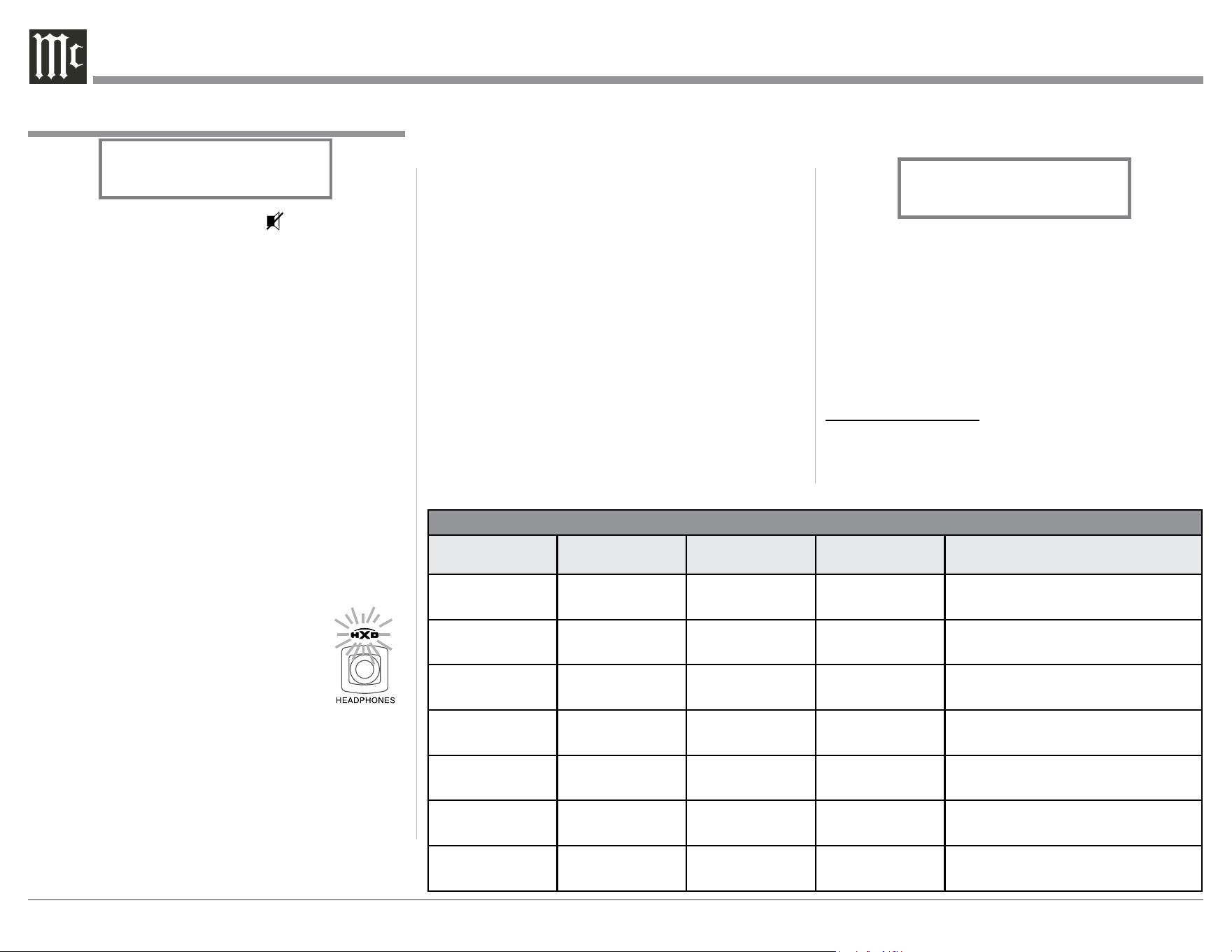
Rotate the OUTPUT Control to select the desired lis-
tening device, Headphones or Loudspeakers. Refer to
the OUTPUT CONTROL SELECTION chart below:
Notes: 1. For the best performance and safety, it is im-
portant to always match the impedance of the
Headphones and Loudspeakers to the MHA150
Output.
2. Do not exceed the maximum power handling
capacity of Headphones or Loudspeakers
connected to the MHA150.
3. The first time the OUTPUT Control is rotated,
the Front Panel Display will indicate the cur-
rent Output selection.
Profile Control
Rotate the PROFILE Control to select from up to 5
different Profile Settings for Headphone use. The
default Profile Setting is for the McIntosh MHP1000
To un-MUTE the Audio, press the MUTE Push-
button on the Remote Control, adjust the Volume level
or change Inputs.
Headphones Jack
Connect a pair of dynamic headphones to the Head-
phones Jack with a 1/4” (6.3mm) stereo phone type
plug for private listening.
Note: Use the OUTPUT Control to select the correct
impedance range.
Headphone HXD
®
The MHA150 Headphone Crossfeed Director
(HXD
® )
improves the sound localization for Head-
phone Listening. HXD
®
restores the directionality
component of the spatial sound stage normally heard
with Loudspeaker listening. To activate the HXD
®
when Headphones are connected to the Front Panel
Headphone Jack perform the following:
1. Momentarily press the Front Panel
VOLUME Control to enable the
HXD
®
Mode. The HXD
®
Icon located
above the Headphone Jack will illumi-
nate Green. Refer to figure 71.
2. To disable the HXD
®
Mode momen-
tarily press the Front Panel VOLUME
Control.
Note: HXD
®
Mode is automatically disabled when
SPEAKERS are selected with the OUTPUT
Control.
How to Operate the MHA150, con’t
Figure 71
HXD
®
is a registered trademark of McIntosh Laboratory, Inc.
Figure 70
UNBAL
MUTE
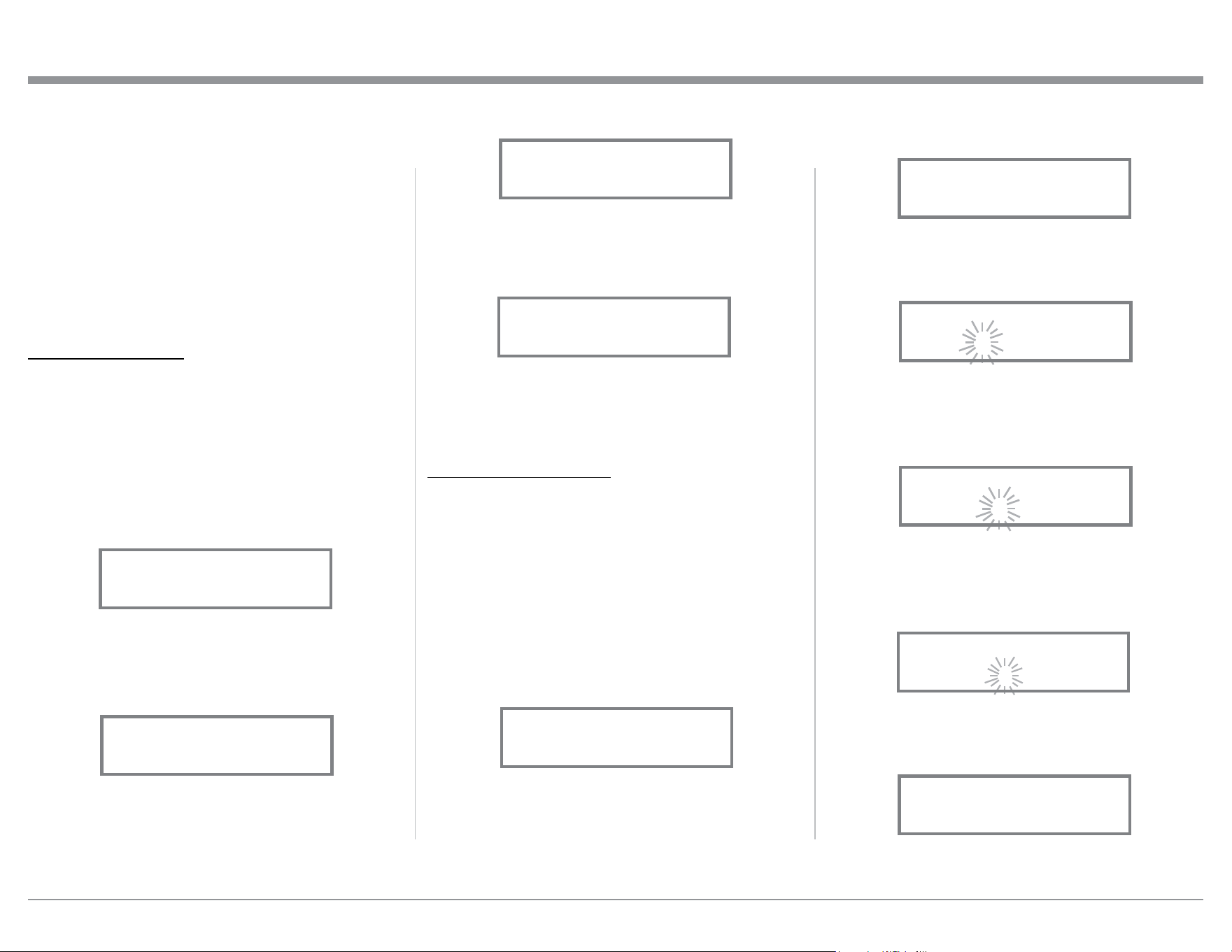
Headphones. Refer to figure 72.
Profile Mode
Each profile setting stores the selected Headphone Im-
pedance Range, HXD Setting (On or Off), Bass Boost
Setting (0 to +12.5 dB) and assigns a custom name to
it. In the following example a second Profile will be
created, recalled, renamed and finally deleted using
the Profile Setup Mode:
PROFILE SETTINGS
1. Using the OUTPUT Control select, from the six
choices available, the correct impedance and power
output for the Headphones that will be used for
listening. Refer to the chart below.
OUTPUT CONTROL SELECTION
Listening
Device
Impedance in
Ohms (Ω)
Power Level Output Front Panel Display
Speakers 8 Ω --- 50 Watts
UNBAL 21%
SPEAKERS
Headphones 8 to 40 Ω Norm 250 milliwatts
UNBAL 21%
NORM 8O - 40O
Headphones 40 to 150 Ω Norm 250 milliwatts
UNBAL 21%
NORM 40O - 150O
Headphones 150 to 600 Ω Norm 250 milliwatts
UNBAL 21%
NORM 150O - 600O
Headphones 8 to 40 Ω High 1 Watt
UNBAL 21%
HIGH 8O - 40O
Headphones 40 to 150 Ω High 1 Watt
UNBAL 21%
HIGH 40O - 150O
Headphones 150 to 600 Ω High 1 Watt
UNBAL 21%
HIGH 150O - 600O
Figure 72
UNBAL 20%
MHP1000
25
6. To save Profile2 press and hold in the VOLUME
Control until the Front Panel Display indicates
“SAVE PROFILE, Profile Saved”. Refer to
figure 82.
7. To exit the Profile Setup Mode momentarily press
the VOLUME Control and the Front Panel Dis-
play returns to indicating the selected Input and
Volume Setting.
RENAMING A PROFILE
The MHA150 Profile Name (MHP1000[Profile1] thru
Profile5) can be customized with a different name up
to eight characters long (Y10-PRO, etc.). The available
characters for renaming the input include the follow-
ing: ! < > * , / - _ 0 1 2 3 4 5 6 7 8 9 a b c d e f g h i j
k l m n o p q r s t u v w x y z A B C D E F G H I J K L
M N O P Q R S T U V W X Y Z . In this example the
previously created and saved Profile2 will be renamed
to “Y10-PRO” by performing the following steps:
8. Refering to figure 83, rotate the PROFILE Control
to select “UNBAL 20%, Profile2”.
9. Select the “Profile Mode” by pressing and hold-
ing in the VOLUME Control and rotating the
VOLUME Control until the Front Panel Dis-
play indicates “NAME PROFILE, Profile2”.
2. If desired, select the HXD
TM
Mode by momentarily
pressing the VOLUME Control. The HXD Icon
located above the Headphone Jack will illuminate
Green. Refer to figure 71.
3. If desired, select the amount of TRIM Bass Boost
by momentarily pressing the INPUT Control.
Then rotate the INPUT Control to select BASS
BOOST followed by using the OUTPUT Control
for the desired increase. Refer to figures 53 and 54
on page 21.
CREATE A PROFILE
With the Impedance/Power, HXD and Bass Boost set-
tings made, they will now be assigned to a Profile, for
easy recall at a later time. The PROFILE and VOL-
UME Controls are used to perform the various Profile
Functions (Save, Select Rename and Delete). When
the PROFILE Control is rotated and there are no saved
Profiles, the Front Panel Display will indicate the cur-
rently selected Input and “UNBAL 20%, No Profile”.
Refer to figure 79.
Create a new Profile by following the below steps:
4. Press and hold in the VOLUME CONTROL until
the Front Panel Display indicates “SAVE PRO-
FILE, MHP1000”. Refer to figure 80.
5. Rotate the PROFILE Control until the Front Panel
Display indicates “SAVE PROFILE, Profile2”.
Refer to figure 81.
How to Operate the MHA150, con’t
Figure 80
SAVE PROFILE
MHP1000
Figure 79
UNBAL 20%
No Profile
Figure 81
SAVE PROFILE
Profile2
Figure 83
UNBAL 20%
Profile2
Refer to figure 84.
10. Press and hold the VOLUME Control until the
character “P” of the “Profile2” starts flashing (and
is underlined). Refer to figure 85.
11. Rotate the VOLUME Control until the character
“Y” appears . Then Rotate the PROFILE Control
until the character “r” of the “Yrofile1” starts
flashing. Refer to figure 86.
12. Rotate the VOLUME Control until the character
“1” appears. Then rotate the PROFILE Control
until the character “o” of the “Y1ofile1” starts
flashing. Refer to figure 87.
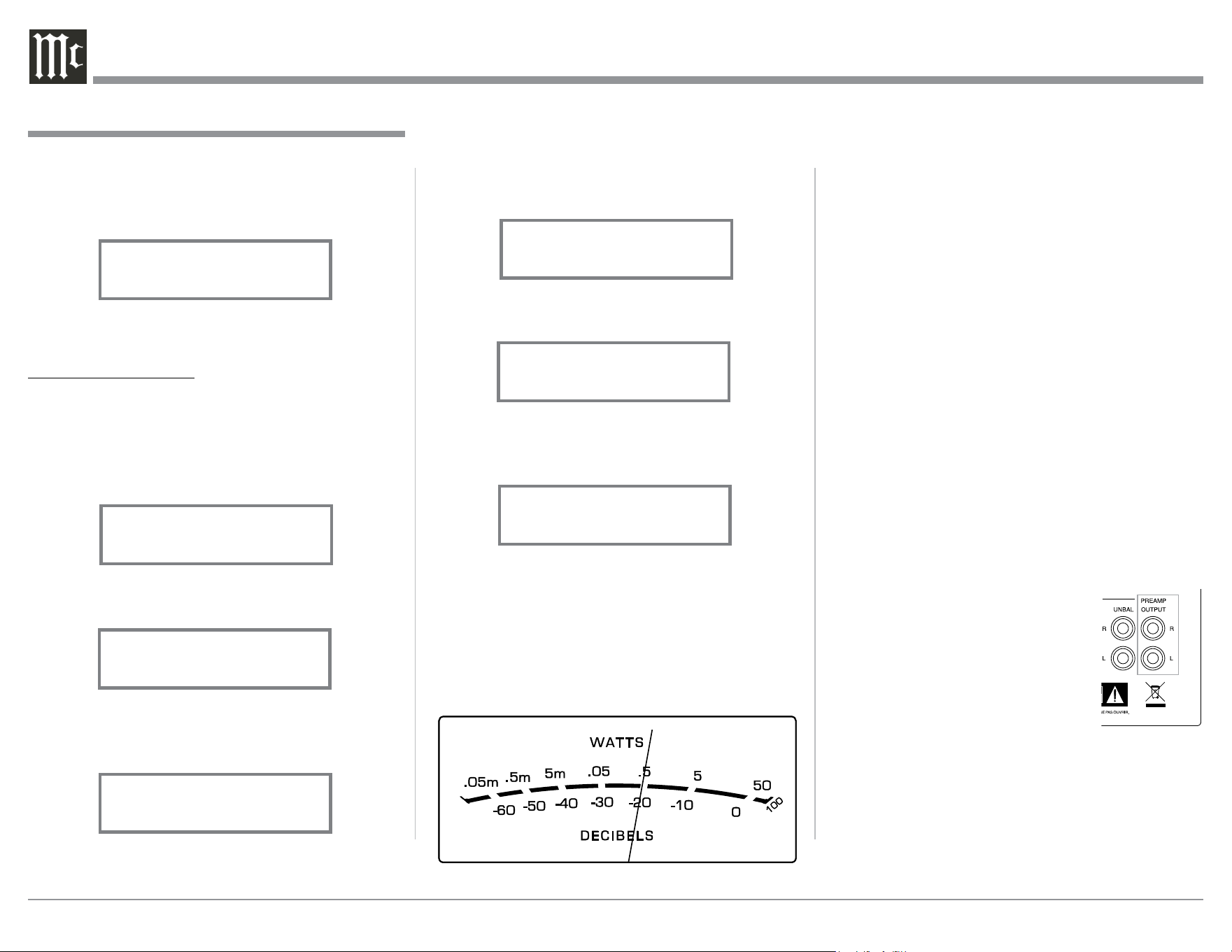
13. Repeat steps 10 thru 12 until the new Profile
Name of “Y10-PRO” is indicated on the Front
Panel Display. Refer to figure 88.
Figure 84
NAME PROFILE
Profile2
Figure 88
NAME PROFILE
Y10-PRO
Figure 82
SAVE PROFILE
Profile Saved
Figure 85
NAME PROFILE
Profile2
_
Figure 86
NAME PROFILE
Yrofile1
_
Figure 87
NAME PROFILE
Y1ofile1
_
26
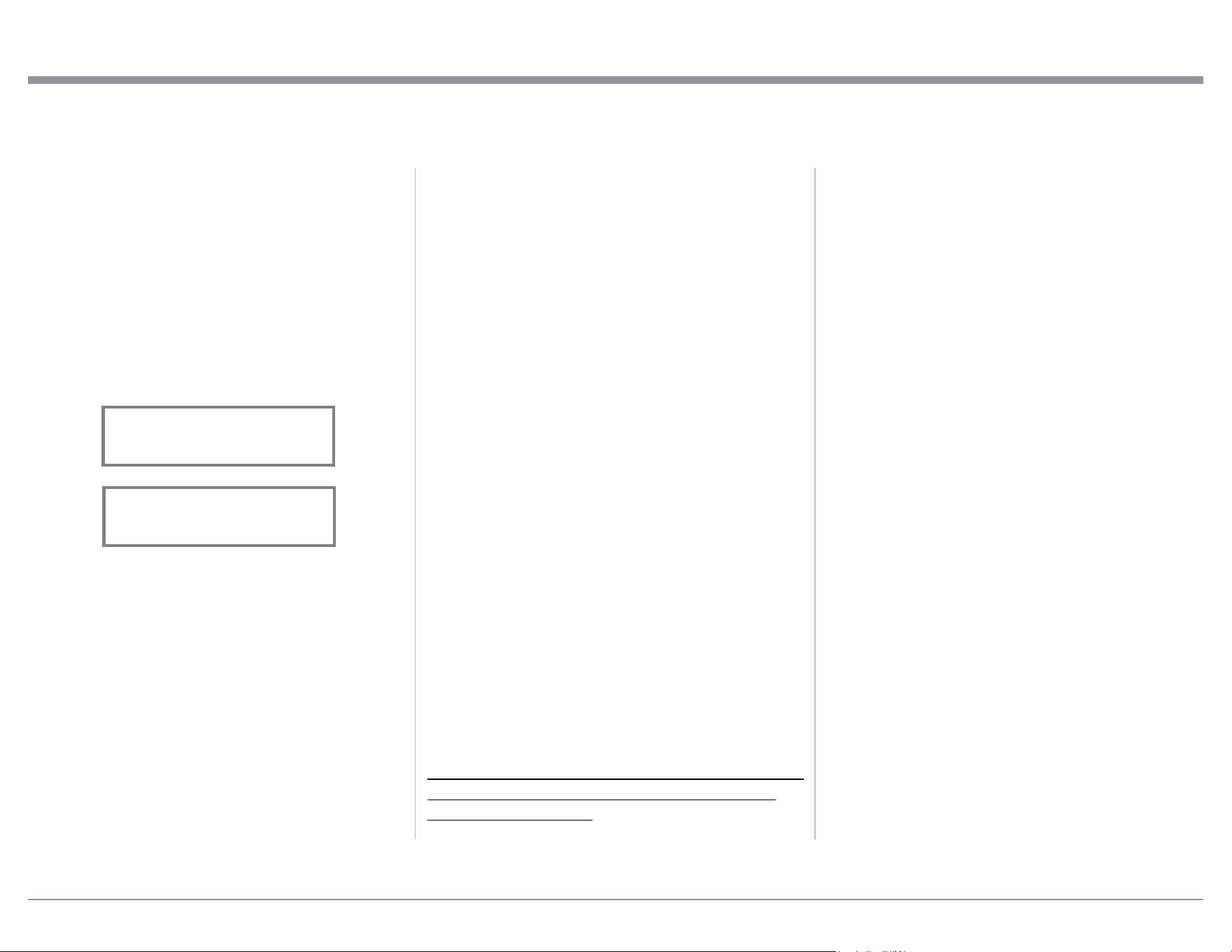
musical information being produced by the Amplifier.
They indicate to an accuracy of at least 95% of the
power output with only a single cycle of a 2,000Hz
tone burst.
Power Guard
During normal operation, the Front Panel Power
Guard Indicators will momentarily illuminate during
peaks in the audio signals. In the event the MHA150
over heats, due to improper ventilation, high ambient
temperature and/or impedance mismatch, the inter-
nal protection circuits will activate. The Front Panel
Power Guard Indicators will continuously illuminate
and the audio will be muted. When the MHA150 has
returned to a safe operating temperature, normal op-
eration will resume.
Using a Separate Power Amplifier or Subwoofer
To use a separate Amplifier instead of the MHA150
built-in Power Amplifier, connect the Loudspeak-
ers to the separate Power Amplifier. Refer to page 13
“External Power Amplifier Connections” for addition
connection information. An external
Powered Subwoofer may also be used
with the MHA150. Refer to page 19
“Subwoofer Mode” for additional infor-
mation.
When either an External Power Ampli-
fier or Powered Subwoofer is used with
the MHA150 the Rear Panel PREAMP
OUTPUT Jacks are used. Refer to figure 101.
System Thru Operation
When the MHA150 is connected to a Main Pream-
plifier or Audio/Video Controller (as illustrated on
page 12) it is important to maximize the combined
Profile Mode, con’t
14. To store the renamed Profile into memory press
and hold in the VOLUME CONTROL until the
Front Panel Display indicates “SAVE PROFILE,
Profile Saved”. Refer to figure 89.
15. To exit the Profile Rename Mode momentarily
press the VOLUME Control.
DELETING PROFILES
There are two ways to Delete Profiles, delete one
saved Profile or delete all saved Profile Names. In the
first example, one Profile will be deleted. Perform the
following steps:
16. Using the PROFILE Control, select the Profile to
be deleted. Refer to figure 90.
17. Rotate the VOLUME Control to select “DELETE
PROFILE, MHP1000”. Refer to figure 91.
18. Press and hold in the VOLUME Control until the
Front Panel Display indicates “DELETE PRO-
FILE, Profile Deleted”. Refer to figure 92.
19. To exit the Profile Delete Mode momentarily
press the VOLUME Control.
To Delete All the stored Profiles, perform the follow-
ing steps:
20. Using the PROFILE Control, select one of the
available Profiles. Refer to figure 93.
21. Rotate the VOLUME Control to select “DELETE
ALL, Saved Profiles”. Refer to figure 94.
22. Press and hold in the VOLUME CONTROL until
the Front Panel Display indicates “DELETE ALL,
All Deleted”. Refer to figure 95.
23. To exit the Profile Delete Mode momentarily
press the VOLUME Control.
Power Output Meters
The MHA150 Power Output Meters indicate the
power delivered to the Headphones or Loudspeak-
ers. Refer to figure 100. The meters respond to all the
Figure 100
How to Operate the MHA150, con’t
Figure 89
SAVE PROFILE
Profile Saved
Figure 91
DELETE PROFILE
MHP1000
Figure 95
DELETE ALL
All
Deleted
Figure 94
DELETE ALL
Saved Profiles
Figure 90
UNBAL 20%
MHP1000
Figure 92
DELETE PROFILE
Profile
Deleted
Figure 93
UNBAL 20%
Y10-PRO
Figure 101
27
How to Operate the MHA150, con’t
performance. For the best performance, the volume
control on the MHA150 should be set to 70%. The
Volume Control on the Main Preamplifier or Audio/
Video Controller should be used to adjust the listening
volume level.
Digital Inputs
When a Digital Input (Optical, Coaxial, MCT or USB
Connection) on the MHA150 is selected, the Front
Panel Display will indicate the Sampling Frequency
when a signal is present “48kHz”. Refer to figure 102.
During the time there is no Digital Signal present the
display will indicate “SILENT”. Refer to figure 103.
USB Input Operation and Driver Installation
The MHA150 USB Input provides the capability to
playback music from a computer, when the computer
is connected to the rear panel USB connector.
Note: The USB Input is for direct connection to a
computer only. To playback music from an USB
Drive, connect the USB Drive to another USB
Port on the computer and select the USB Drive
with the Media Playback Program.
The MHA150 USB Input is compatible with PC
Computers using Microsoft®, Windows 7 (SP1),
Windows 8.1 and Windows 10. It is also compatible
with Apple® Macintosh® Computers using OS-10.6.8
or later.
When using a PC Computer with Windows, a spe-
Figure 102
OPTICAL 30%
48kHz
Figure 103
COAXIAL 30%
SILENT
cial McIntosh USB Audio Software Driver needs to be
installed on the PC Computer. The driver needs to be
installed before connecting the MHA150 USB Input to
the USB Port on the computer.
Note: If an Apple Macintosh computer is used with the
MHA150, no additional driver is required.
The McIntosh USB Audio Windows Driver is
available for download from the McIntosh Web Site:
http://www.mcintoshlabs.com/us/Support/Pages/
Manuals.aspx
Under “PRODUCT CATEGORY” select “Inte-
grated Amplifiers” then under “MODEL NUMBER”
select “MHA150”. Click on “SEARCH” then select
“McIntosh-HD USB Audio Windows Drive D v2.0”
and download the PC Windows Driver. Follow the
instructions below to install the McIntosh MHA150
Driver:
Purpose: To Install the McIntosh
USB Audio Windows Driver for use with
McIntosh Products with an USB-Digital
Audio Input.
Requirements: 1. A PC Computer with a functioning
USB Port.
2. Windows 7 (SP1 or greater),
Windows 8 (8.1) or Windows 10
Operating System.
3. An USB Cable with Type A to
Type B Connectors.
Installing the Software
It is important to first install the downloaded software
on your computer before connecting the McIntosh
Product to the computer. The USB Driver is included
in the downloaded software package.
Note: Before installing this software, please check to see
if the McIntosh Product(s) with the USB-Digital
Audio Input has the latest firmware version, if not
update the firmware first.
1. Unzip the downloaded McIntosh Windows USB
Driver Software Package.
2. Run “McIntoshHDSwPkg_ 20150814_v1p9p110p2.
zip”. Refer to figures 104 thru 111.
3. When the Windows Security window appears
check the Always trust software from “Savitech
Cor p.” box and then the Install button. When the
software has been installed, it is necessary to re-
boot the computer. Refer to figure 109.
Figure 106
Figure 107
Figure 105
Figure 104
Figure 108
Figure 109
28
click on the “Set Default”
button.
Notes: 1. When the McIn-
tosh USB Audio
Product is not
connected to
your computer,
the previous
default Audio
Device will be
selected.
2. If other McIntosh Products with USB Au-
dio Connections are also connected to the
computer, an additional “McIntosh USB
Audio” playback device will appear in
the listing. Make sure to select the “McIn-
tosh-HD HS USB Audio” from available
playback devices listed when using this
McIntosh Product for USB Audio.
Control Panel Settings
To activate the McIntosh-HD USB Audio Control
Panel, click on the “McIntosh Icon” (located in the
Windows notification
area on the right side of
the taskbar) or click on
the Windows “Show hid-
den icons”, then select the
“McIntosh Icon”. Refer to
figures 117 and 118.
Notes: 1. It is not neces-
sary for the
McIntosh-HD USB Audio Control Panel to be
running, unless it is desired to make changes to
the default settings.
2. The McIntosh-HD USB Audio Control Panel
displays the current Sampling Rate, Bit-Rate
and Buffer Size for the music streaming from
the computer into the MHA150.
After rebooting, a McIntosh-HD icon
will appear on the desktop. Refer to
figure 112.
USB Connection
Connect the USB Cable with Type A to
Type B connectors between the PC Computer and the
McIntosh Product with the USB-Digital Audio Input.
An Icon will appear On-Screen indicating Windows
has found new hardware.
Refer to figure 113.
Upon completion of in-
stalling the driver, figure
114 will appear.
Windows Sound Settings
For proper operation of the McIntosh Product via the
Computer USB Connection, it is required to make
changes to Windows Sound Settings:
1. From the Windows
START button, click on
“CONTROL PANEL”
followed by selecting
“SOUND”. Refer to figure
115.
2. Referring to figure 116,
first select “McIntosh-HD
HS USB Audio” and then
Fig ure 117
Fig ure 116
Fig ure 118
Fig ure 113
Fig ure 112
Fig ure 114
Fig ure 115
Fig ure 111
Fig ure 110

29
3. When the Media Stream Program on the
computer is set to output in the “ASIO” format,
the McIntosh -HD USB Audio Control Panel
allows for changing the settings parameters on
the fly.
USB Music Playback
When the USB Input is selected on the McIntosh
MHA150, the Front Panel Display indicates the
Sampling Rate (refer to figures 119 and 120 for PCM
Signals).
Figures 121 and 122 indicate a Sampling Rate of 128
or 256 times the Sampling Rate of a CD Disc for the
incoming DSD Digital Audio Signal.
The Sampling Rate and the Bit Rate are determined
by the original recording, the Application Output For-
mat (when available) and the McIntosh-HD Control
Panel Settings.
Note: In general, when the original music is recorded
at a higher Sampling Rate, the result is usually
more detail in the music. However, this higher
USB
51%
352.8kHz
Figure 120
How to Operate the MHA150, con’t
USB
46%
DSD128
Figure 121
USB
51%
DSD256
Figure 122
USB
46%
44.1kHz
Fig ure 119
rate results in consuming larger amounts of stor-
age space. The Sample Rate usually should be set
to match the Sample Rate of the music recording
being played back.
There are many third party Applications (besides Ap-
plications like Windows Media Player) for streaming
music from the computer to the McIntosh MHA150
USB Input. An example of just one of the available
applications is “JRiver Media Center”.
Reset of Microprocessors
In the unlikely event the controls of the MHA150
stop functioning, the microprocessors can be reset by
performing the following:
1. Press and hold in the STANDBY/ON Push-button
until the LED above the STANDBY/ON Push-
button illumination is extinguished. Then release
the STANDBY/ON Push-button.
2. To switch the MHA150 back On, press the
STANDBY/ON Push-button.
Note: This can be performed with the MHA150 On or
in the Standby Mode.
30
Amplifier Specifications
Loudspeaker Power Output
50 watts is the minimum sine wave continuous aver-
age power output per channel, both channels operating
Headphone Power Output
1 watt - High Selection
250mWatts - Norm Selection
Loudspeaker Output Load Impedance
8 ohms
Headphone Output Load Impedance
8 - 40 ohms
40 - 150 ohms
150 - 600 ohms
Rated Power Band
20Hz to 20,000Hz
Total Harmonic Distortion
0.005% maximum with both channels operating from
250 milliwatts to rated power, 20Hz to 20,000Hz
Dynamic Headroom (Loudspeaker)
1.5dB
Frequency Response
+0, -0.5dB from 20Hz to 20,000Hz
+0, -3dB from 10Hz to 100,000Hz
Tone Control
Bass Boost 0 to +12.5dB (2.5dB steps) @ 40Hz
Preamplifier Output (for rated input)
3V (8V Maximun)
Signal To Noise Ratio (A-Weighted)
High Level, 105dB below rated output
Sensitivity (for rated output)
300mV unbalanced
600mV balanced
Intermodulation Distortion
0.005% maximum, if the instantaneous peak power is
100 watts or less per channel with both channels oper-
ating for any combination of frequencies from 20Hz to
20,000Hz
Wide Band Damping Factor
Greater than 150
Input Impedance
25K ohms unbalanced
25K ohms balanced
Maximum Input Signal
8V unbalanced
16V balanced
Preamplifier Output Impedance
500 ohms
Power Guard
Less than 2% THD with up to 16dB overdrive at
1,000Hz
Voltage Gain
36.5dB
Digital Input Sample Rates
Optical: PCM - 16Bit, 24Bit - 32kHz to 192kHz
Coaxial: PCM -16Bit, 24Bit - 32kHz to 192kHz
MCT: PCM, SACD, -16Bit, 24Bit - 32kHz to 192kHz
USB: PCM - 16Bit, 24Bit, 32Bit - 32kHz to 384kHz
DXD - DXD352.8kHz, DXD384kHz
DSD - DSD64, DSD128, DSD256
Amplifier Specifications
General Specifications
Power Requirements
Field AC Voltage conversion of the MHA150 is not
possible. The MHA150 is factory configured for one
of the following AC Voltages:
100 Volts, 50/60Hz at 1.8 amps
110 Volts, 50/60Hz at 1.5 amps
120 Volts, 50/60Hz at 1.5 amps
220 Volts, 50/60Hz at 0.9 amps
230 Volts, 50/60Hz at 0.8 amps
240 Volts, 50/60Hz at 0.8 amps
Standby: Less than 0.25 watt
Note: Refer to the rear panel of the MHA150 for the cor-
rect voltage.
Overall Dimensions
Width is 11-1/2 inches (29.2cm)
Height is 5-7/8 inches (14.9cm) including feet
Depth is 18 inches (45.7cm) including the Front Panel,
Knobs and Cables
Weight
26.5 pounds (12 kg) net, 32.5 pounds (14.8 kg) in ship-
ping carton
Shipping Carton Dimensions
Width is 19-3/8 inches (49.2cm)
Depth is 16-1/4 inches (41.3cm)
Height is 14-3/4 inches (37.5cm)
Power Control Input
5-15VDC, < 1mA
Power Control Output
12VDC, 25mA maximum
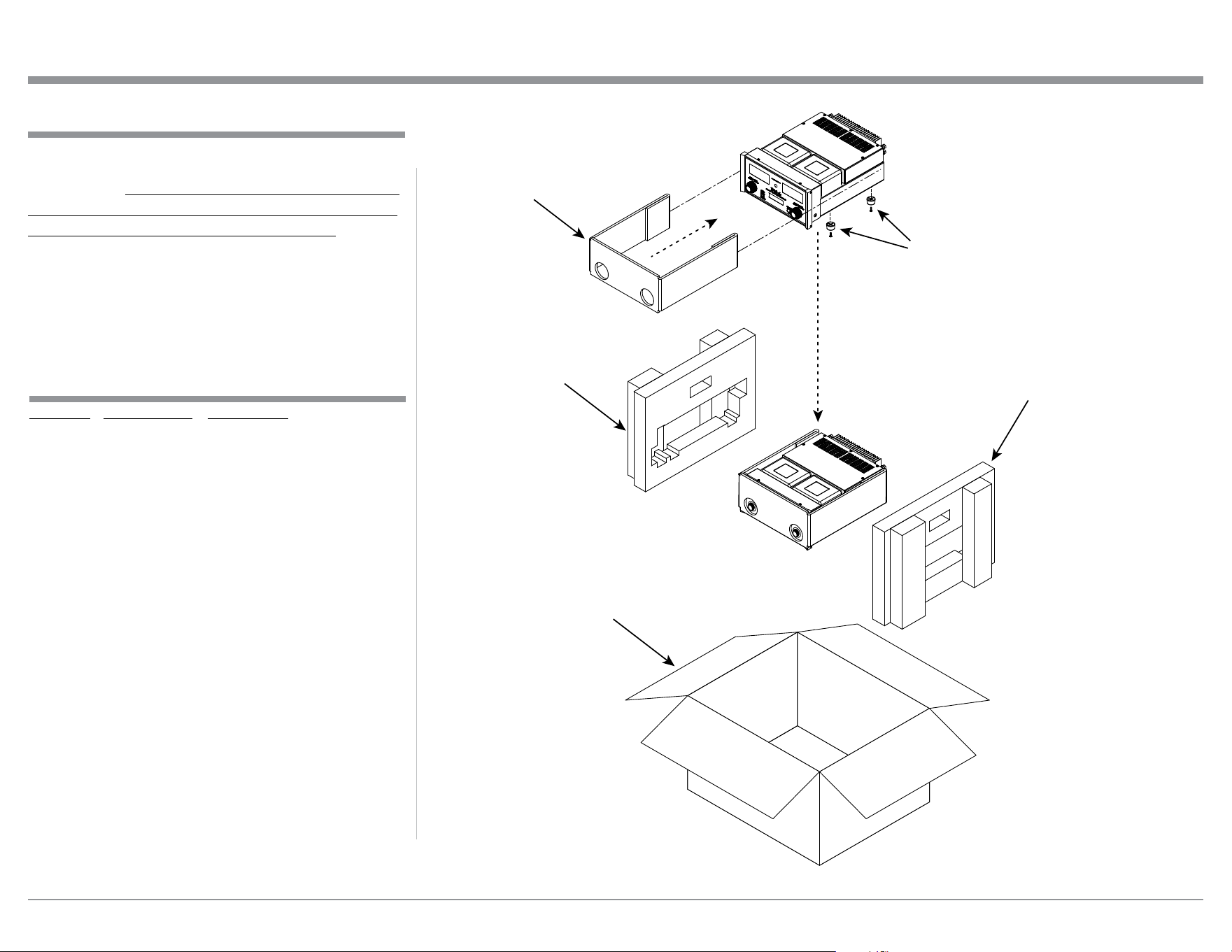
31
In the event it is necessary to repack the equipment for
shipment, the equipment must be packed exactly as
shown below. It is very important that the four plastic
feet are attached to the bottom of the equipment. Fail-
ure to do this will result in shipping damage.
Use the original shipping carton and interior parts
only if they are all in good serviceable condition. If
a shipping carton or any of the interior part(s) are
needed, please call or write Customer Service Depart-
ment of McIntosh Laboratory. Refer to page 3. Please
see the Part List for the correct part numbers.
Packing Instructions
Quantity Part Number Description
1 034548 Shipping carton
1 034558 Left foam end cap
1 034557 Right foam end cap
1 034559 Corrugated wrap
4 163185 Plastic foot
4 400159 #10-32 x 3/4 machine screw
Packing Instructions
MHA150 Packing Material List
SHIPPING
CARTON
RIGHT FOAM
END CAP
LEFT FOAM
END CAP
CORRUGATED
WRAP
IMPORTANT
(Read Above)

The continuous improvement of its products is the
policy of McIntosh Laboratory Incorporated who
reserve the right to improve design without notice.
Printed in the U.S.A.
McIntosh Laboratory, Inc.
2 Chambers Street
Binghamton, NY 13903
www.mcintoshlabs.com
McIntosh Part No. 04165200