NOTE
Manuals in Spanish for this model are available at support.brother.com.
Manuales en Español para este modelo están disponibles en support.brother.com.
• Most of the illustrations in this Quick Setup Guide show the MFC-J5930DW.
• Save all packing materials and the box in case for any reason you must ship your
machine.
• You must purchase the correct interface cable for the interface you want to
use.
USB cable
We recommend using a USB 2.0 cable (Type A/B) that is no more than 16 feet
(5 meters) long.
Ethernet (Network) cable
Use a straight-through Category5 (or greater) twisted-pair cable for 10BASE-T or
100BASE-TX Fast Ethernet Network.
2
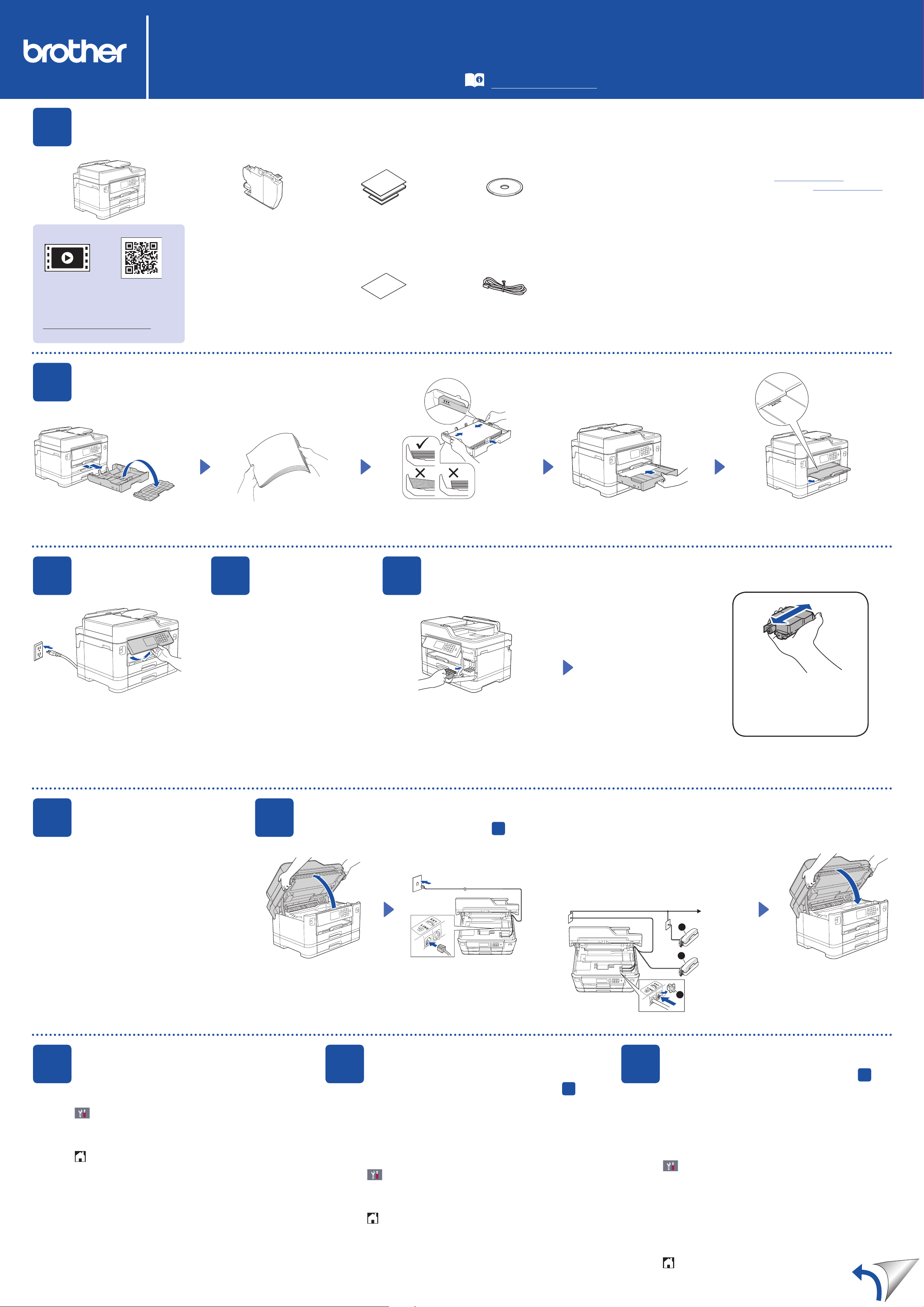
Load plain Letter/A4 paper
For loading other paper sizes and types, see Paper Handling in the Basic User’s Guide.
1
Unpack the machine and check the components
The components included in the box may differ depending on your country.
Pull the paper tray completely out of
the machine as shown by the arrow.
Take off the tray top cover.
Fan the paper well.
Connect the telephone line cord.
Use the jack marked LINE and guide
the cord out the back of the machine.
Lift the scanner cover. Close the scanner cover.
When the machine has finished the initial cleaning
process, follow the Touchscreen instructions to
configure the machine settings.
• Check print quality
• Congurethetrayorpapersizesettings
• View operation tips
• Set Brother LCD Message defaults
• Print the installation sheet
Open the ink cartridge cover and remove
the orange protective part from the machine.
Load the paper in the tray.
Connect the power cord. The machine
will power on automatically.
Adjust the paper guides.
Do not exceed this
mark (bbb).
NOTE
If you are sharing one telephone line with an external
telephone, connect it as shown below. Before you
connect the external telephone, remove the white
protective cap c from the EX T. jack of the machine.
NOTE
You can adjust the control panel angle
to read the Touchscreen more easily.
NOTE
Follow the Touchscreen instructions to store
the orange protective part inside the machine.
If you must transport the machine, remove
the ink cartridges and replace this part.
a. Extension telephone
b. External telephone
c. Protective cap
Quick Setup Guide
MFC-J5830DW / MFC-J5930DW
Read the Product Safety Guide first, then read this Quick Setup Guide
for the correct installation procedure.
3
Connect the
power cord
5
Install the starter ink cartridges
4
Set the date
and time
6
Machine settings
D009D5001-01
USA/CAN
Version A
Ink Cartridges
• Black
• Yellow
• Cyan
• Magenta
Quick Setup Guide
Basic User’s Guide
Product Safety Guide
Brother Installation Disc
Maintenance Sheet Telephone Line Cord
The correct Receive Mode is determined by the external devices
and telephone subscriber services (Voice Mail, Distinctive Ring,
etc.) you will be using on the same line as the Brother machine.
For more information, see Receive Modes Overview in chapter 6
of the Basic User’s Guide.
1. Press [Settings] > [All Settings] >
[Initial Setup] > [Local Language].
2. Press your language.
3. Press .
1. Press [Settings] > [All Settings] >
[Fax] > [Setup Receive] > [Receive Mode].
2. Press your preferred Receive Mode.
3. Press .
Store your name and fax number so the machine prints it on all
outgoing fax pages.
For more information, see Enter Text on Your Brother Machine
in Appendix of the Basic User’s Guide.
1. Press [Settings] > [All Settings] >
[Initial Setup] > [Station ID] > [Fax].
2. Enter your fax number (up to 20 digits) on the Touchscreen,
and then press [OK].
3. Press [Name].
4. Enter your name (up to 20 characters) using the Touchscreen,
and then press [OK].
5. Press .
10
Set your Station ID
If you are not using your machine as a fax, go to
11
7
Connect the telephone line cord
If you are not using your machine as a fax, go to
8
9
Choose the correct
Receive Mode
If you are not using your machine as a fax, go to
11
The latest manuals are available at the Brother Solutions Center:
solutions.brother.com/manuals
Follow the Touchscreen instructions
to set the date and time.
Pull out the paper support
until it locks into place.
Put on the tray top cover, and
then slowly push the paper tray
completely into the machine.
Follow the Touchscreen
instructions to unpack and
install the ink cartridges. The
machine will prepare the ink
tube system for printing.
Quickly shake just the black
ink cartridge horizontally
15 times as shown, before
inserting it into the machine.
8
Choose your language
(if needed)
1
2
3
Watch our FAQ Videos for help
with setting up your Brother
machine.
solutions.brother.com/videos
D009D5001-01
© 2017 Brother Industries, Ltd. All rights reserved.For FAQs, Troubleshooting, and to download software and manuals, visit support.brother.com.
11
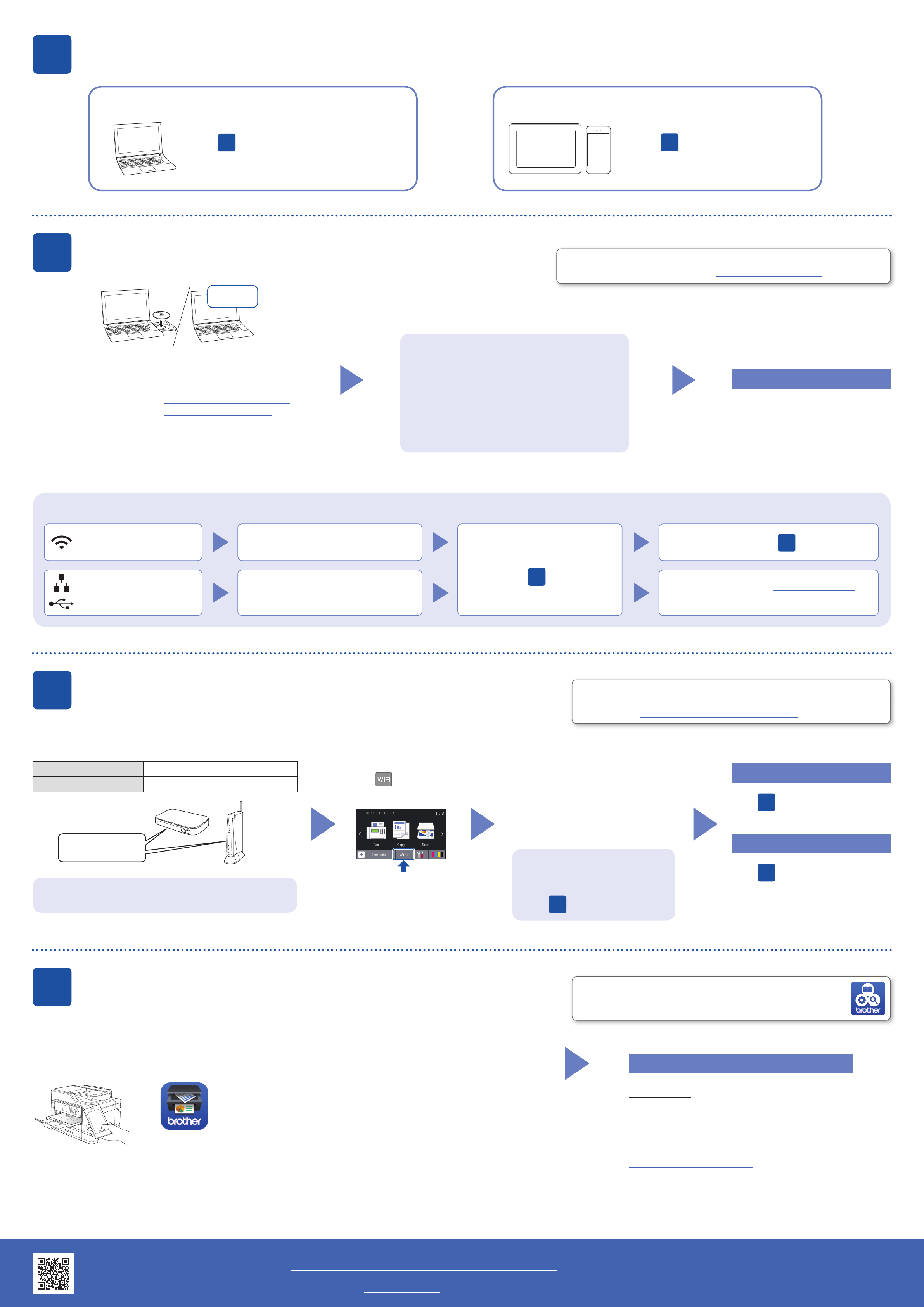
Select a device to connect to your machine
12
Connect your computer
13
Alternative wireless setup
14
Print or scan using your mobile device
Put the installation disc into your CD/DVD drive, or
download the Full Driver & Software Package at:
For Windows
®
: solutions.brother.com/windows
For Macintosh: solutions.brother.com/mac
If you are using a recently released operating
system on your computer, visit the above websites
for updated driver and software information.
Follow the on-screen instructions and prompts.
For Windows
®
:
If the Brother screen does not appear automatically,
go to Computer (My Computer/This PC).
Double-click the CD/DVD-ROM icon, and then
double-click start.exe.
For Macintosh:
For full driver functionality, we recommend choosing
the CUPS driver when adding a printer.
If you cannot find this information, ask your network
administrator or wireless access point/router manufacturer.
If setup is not successful, restart
your Brother machine and your
wireless access point/router, and
repeat
13
Find your SSID (Network Name) and Network Key (Password) on your
wireless access point/router and write them in the table provided below.
Select the SSID (Network Name) for
your access point/router and enter the
Network Key (Password).
When the wireless setup is
successful, the Touchscreen displays
[Connected].
Go to
12
to install software.
Go to
14
to install apps.
SSID (Network Name)
Network Key (Password)
Computer Mobile Device
Go to
12
and follow the instructions.
Go to
13
and follow the instructions.
For Computer
For Mobile Device
Finished
Finished
Can’t Connect? Check the following:
Brother regularly updates firmware to add features and apply bug fixes.
To check for the latest firmware, visit solutions.brother.com/up2.
Even if you do not have a wireless access point/router, you can connect
your device and your machine directly. For additional wireless network
support, go to solutions.brother.com/wireless-support.
Brother SupportCenter is a mobile app that provides the latest
support information for your Brother product.
Visit the App Store or Google Play™ to download.
Wireless network
Wired network
USB connection
Restart your wireless access point/router
(if possible).
If still not successful, go to
13
Disconnect the cable.
If still not successful, visit support.brother.com
for FAQs and Troubleshooting.
Restart your machine and computer,
and then go to
12
Go to your machine, and
press > [Setu p
Wizard] > [Yes].
Download and install our free application “Brother iPrint&Scan” from a mobile application store,
such as the App Store, Google Play™ or Windows Phone
®
Store using your mobile device.
Additional Wireless Support: solutions.brother.com/wireless-support
Download
NOTE
Your mobile device and machine must be connected to the same wireless network.
Optional apps
You can print from and scan to your mobile device
using various apps. For instructions, see the
Online User’s Guide.
(USA only) For more information on apps, visit
www.brother-usa.com/connect.
SSID: XXXXXXX
Network key: XXXX
