BG-QuadFusion-4K
4-Channel 4K UHD HDMI & DisplayPort Production Switcher with
Built-in Audio Mixer & USB 3.0 Capture Card
User Manual

BZBGEAR BG-QuadFusion-4K PRODUCT MANUAL
Address: 830 National Drive #140, Sacramento, CA 95834, USA · Tel: +1(888)499-9906 · Email: support@bzbgear.com 2

BZBGEAR BG-QuadFusion-4K PRODUCT MANUAL
Table of Contents
Statement 4
Safety Precaution 4
Introduction 5
Features 5
Package Contents 6
Specifications 6
Panel Descriptions 8
Tally/GPI Pinout 9
Multiview Window 10
Button Descriptions 11
Main Menu / System Settings 17
PC QuadFusion Control Application 18
Application Example 20
Tech Support 21
Limited Product Warranty Terms 21
Mission Statement 22
Copyright 22
Address: 830 National Drive #140, Sacramento, CA 95834, USA · Tel: +1(888)499-9906 · Email: support@bzbgear.com 3

BZBGEAR BG-QuadFusion-4K PRODUCT MANUAL
Statement
Please read these instructions carefully before connecting, operating, or configuring this
product. Please save this manual for future reference.
Safety Precaution
● To prevent damaging this product, avoid heavy pressure, strong vibration, or immersion
during transportation, storage, and installation.
● The housing of this product is made of organic materials. Do not expose to any liquid,
gas, or solids which may corrode the shell.
● Do not expose the product to rain or moisture.
● Unplug this device during lightning storms
● Clean only with a soft dry microfiber cloth.
● To prevent the risk of electric shock, do not open the case. Installation and maintenance
should only be carried out by qualified technicians.
● Do not use the product beyond the specified temperature, humidity, or power supply
specifications.
● This product does not contain parts that can be maintained or repaired by users.
Damage caused by dismantling the product without authorization from BZBGEAR is not
covered under the warranty policy.
● Installation and use of this product must strictly comply with local electrical safety
standards.
● Only use accessories specified by the manufacture
● Product specifications may be subject to technical upgrades without further notice
● Do not hot plug when it is working.
Address: 830 National Drive #140, Sacramento, CA 95834, USA · Tel: +1(888)499-9906 · Email: support@bzbgear.com 4

BZBGEAR BG-QuadFusion-4K PRODUCT MANUAL
Introduction
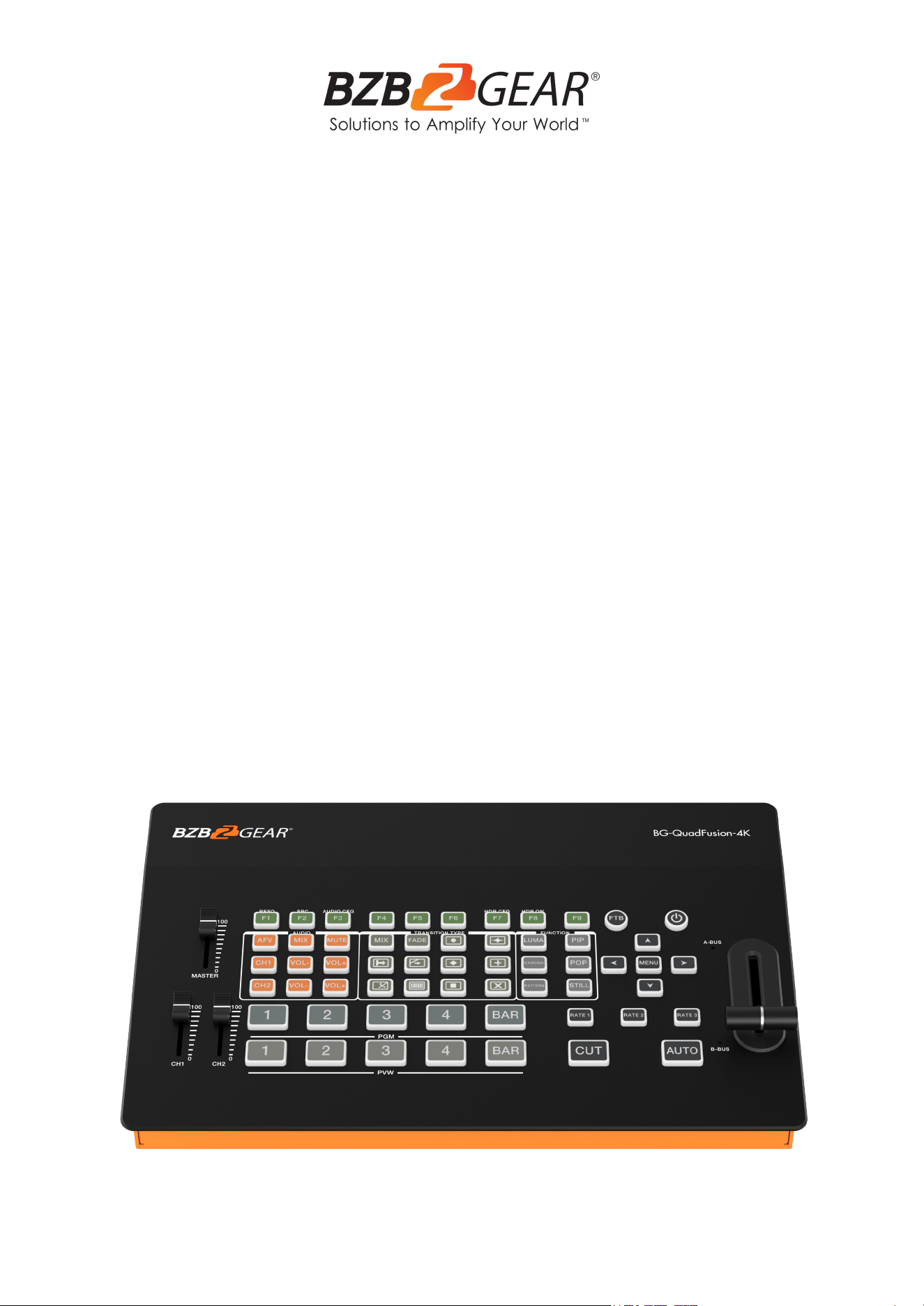
The BG-QuadFusion-4K production switcher is a flexible control device that
supports up to 4 simultaneous inputs. With its 4 HDMI inputs and 1 alternate DisplayPort
video input, the BG-QuadFusion-4K provides users with multiple connection options that all
support 4K@60Hz resolutions. The diverse selection of outputs includes an HDMI multiview
output to easily monitor your video productions, 2x HDMI 4K PGM outputs and 1x HD
HDMI PGM output for local broadcasts. The BG-QuadFusion-4K also features a built-in
USB video capture device which uses H.264 encoding to ensure seamless recording and
streaming.
Other features include a format converter, special effect generator, and audio
processor. The audio interface supports 2-CH analog audio embedding and extraction with
a 3.5mm stereo line level input, 2x 3.5mm microphone inputs, and a 3.5mm stereo output.
DCB control and Tally/GPI outputs provide support for 3rd party control systems. The
intuitive push button controls, on-screen menu displayed through the multiview output, and
an included PC control application for remote network control ensure ease of use. With the
BG-QuadFusion-4K at hand, users can make the most out of their video productions in
studios or mobile, on-location, video production environments.
Features
● 4x 4K@60Hz HDMI Inputs and 1x 4K@60Hz DP Inputs
● 3x Program (PGM) HDMI outputs and 1x Multiview HDMI output
● Metal aluminum alloy provides a high strength and lightweight body
● Hall sensor T-Bar and a diverse selection of transition effects
● Pattern key can customize the BAR key to display various test patterns or images
● Broadcast & TV standard Tally interface support via GPI control interface
● Capable of PGM screen freeze (STILL), Fade to Black (FTB), Picture-in-Picture (PiP),
and Picture-out-Picture (PoP) functions
● Luma and Chroma key
● Hard CUT and AUTO transition effects
● 2 channel audio embedding and extraction
Address: 830 National Drive #140, Sacramento, CA 95834, USA · Tel: +1(888)499-9906 · Email: support@bzbgear.com 5
BZBGEAR BG-QuadFusion-4K PRODUCT MANUAL
Package Contents
● 1 x BG-QuadFusion-4K
● 1 x Power Adapter (12V DC)
● 1 x User Manual
● 1x 3ft USB 3.0 Type-B to Type-A cable
Specifications
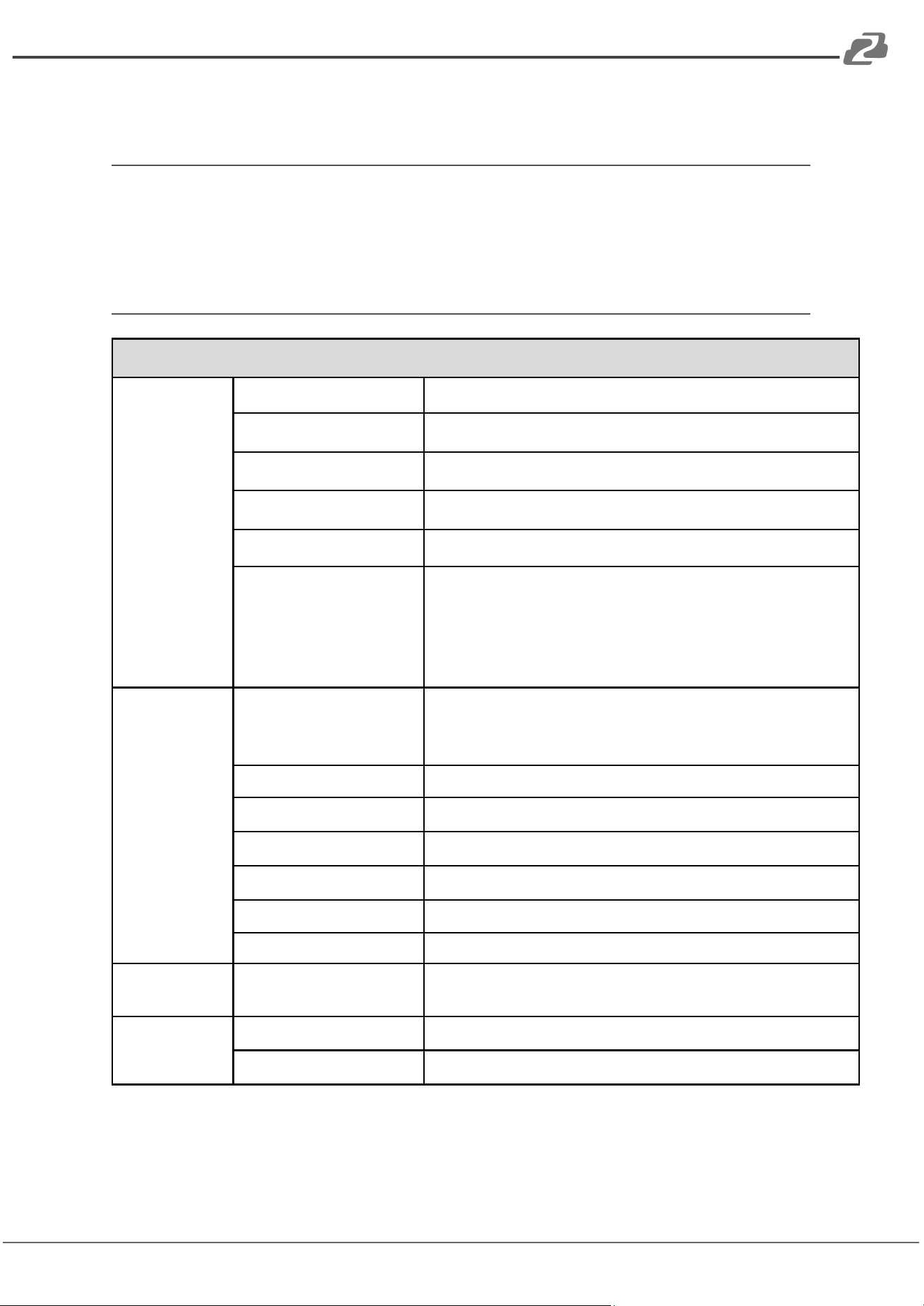
Technical Specifications
Video Input
Signal
Input Connections
4x HDMI 1x DisplayPort
Data Rate
270Mbps - 18Gbps
Signal Amplitude
800mV±10%
Impedance
100Ω
Balance
Adaptive
HDMI/DP Input
Resolutions
480i, 576i, 480p, 576p, 720p, 1080i, 1080p, 2160p
3840x2160, 1920x1080, 1680x1050, 1600x900,
1440x1050, 1366x768, 1360x768, 1280x1020,
1280x960, 1280x800, 1280x768, 1280x720,
1280x600, 1152x864, 1024x768, 800x600
Video Output
Signal
Output Connections
1x HDMI Multiview Output
3x HDMI PGM Outputs
1x USB 3.0 Type-B
Output Resolutions
2160p60, 2160p50, 2160p30, 2160p25, 1080p60
Data Rate
270Mbps - 18Gbps
Return Loss
>15dB 5MHz-3GHz
Signal Amplitude
800mV±10%
Impedance
100Ω
DC Offset
0V±0.5V
Control
RJ45
15-Pin Serial
Baud Rate: 9600 Data Bits: 8
Stop Bits: 1 Parity: None
Audio
Line In / Out
3.5mm stereo mini
MIC
2x 3.5mm stereo mini
Address: 830 National Drive #140, Sacramento, CA 95834, USA · Tel: +1(888)499-9906 · Email: support@bzbgear.com 6

BZBGEAR BG-QuadFusion-4K PRODUCT MANUAL
Mechanical Specifications
Dimensions(W x D x H)
284mm x 175mm x 60mm
Working Humidity
20%-70%RH
Operating Temperature
32°F to 122°F (0°C to 50°C)
Storage Temperature
-4°F to 167°F (-20°C to 75°C)
Power Supply
12V
Power Rate
≤35w
Address: 830 National Drive #140, Sacramento, CA 95834, USA · Tel: +1(888)499-9906 · Email: support@bzbgear.com 7
BZBGEAR BG-QuadFusion-4K PRODUCT MANUAL
Panel Descriptions
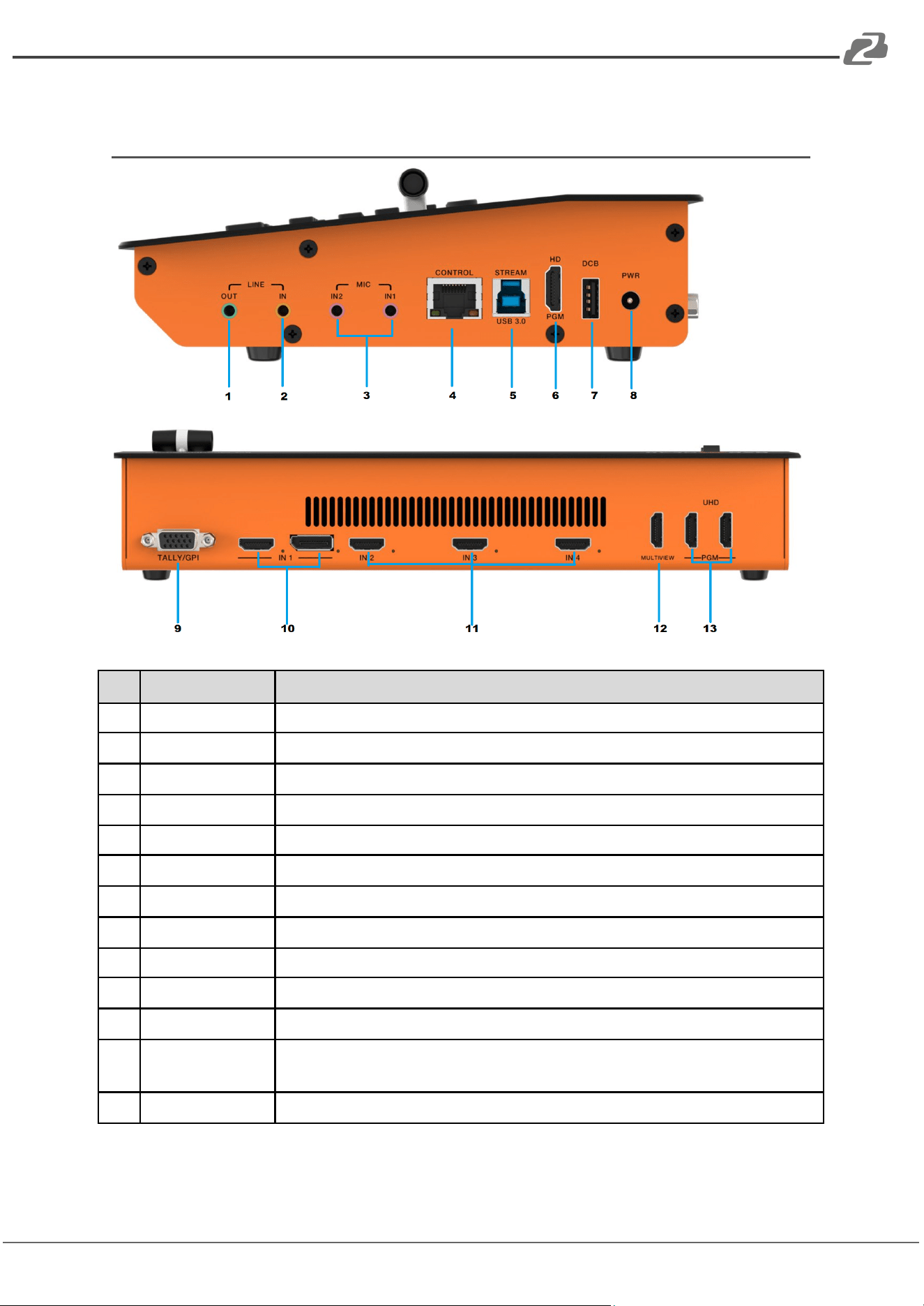
No.
Name
Description
1
Line Out
3.5mm stereo line level output for audio extraction.
2
Line In
3.5mm stereo line level input for audio embedding.
3
MIC Inputs 1/2
2x 3.5mm stereo mini microphone inputs for audio embedding.
4
Control
RJ45 LAN connection for software control and network access.
5
Stream USB 3.0
1080p60 USB 3.0 PGM output / capture
6
HD PGM
1x HDMI program output capable of downscaling to 1080p60.
7
DCB
External control for keyboard, wireless tally, or device cascade
8
PWR
DC 12v power supply.
9
Tally/GPI
Connect to a director tally light/GPI control system.
10
HDMI/DP Input 1
Selectable HDMI or alternate DisplayPort input connections capable of 4K60.
11
HDMI 2-4
3x HDMI input connections capable of 4K60 inputs
12
Multiview
HDMI multiview output capable of displaying 4 connected inputs and device
menu.
13
PGM
2x HDMI program outputs capable of 4K60.
Address: 830 National Drive #140, Sacramento, CA 95834, USA · Tel: +1(888)499-9906 · Email: support@bzbgear.com 8
BZBGEAR BG-QuadFusion-4K PRODUCT MANUAL
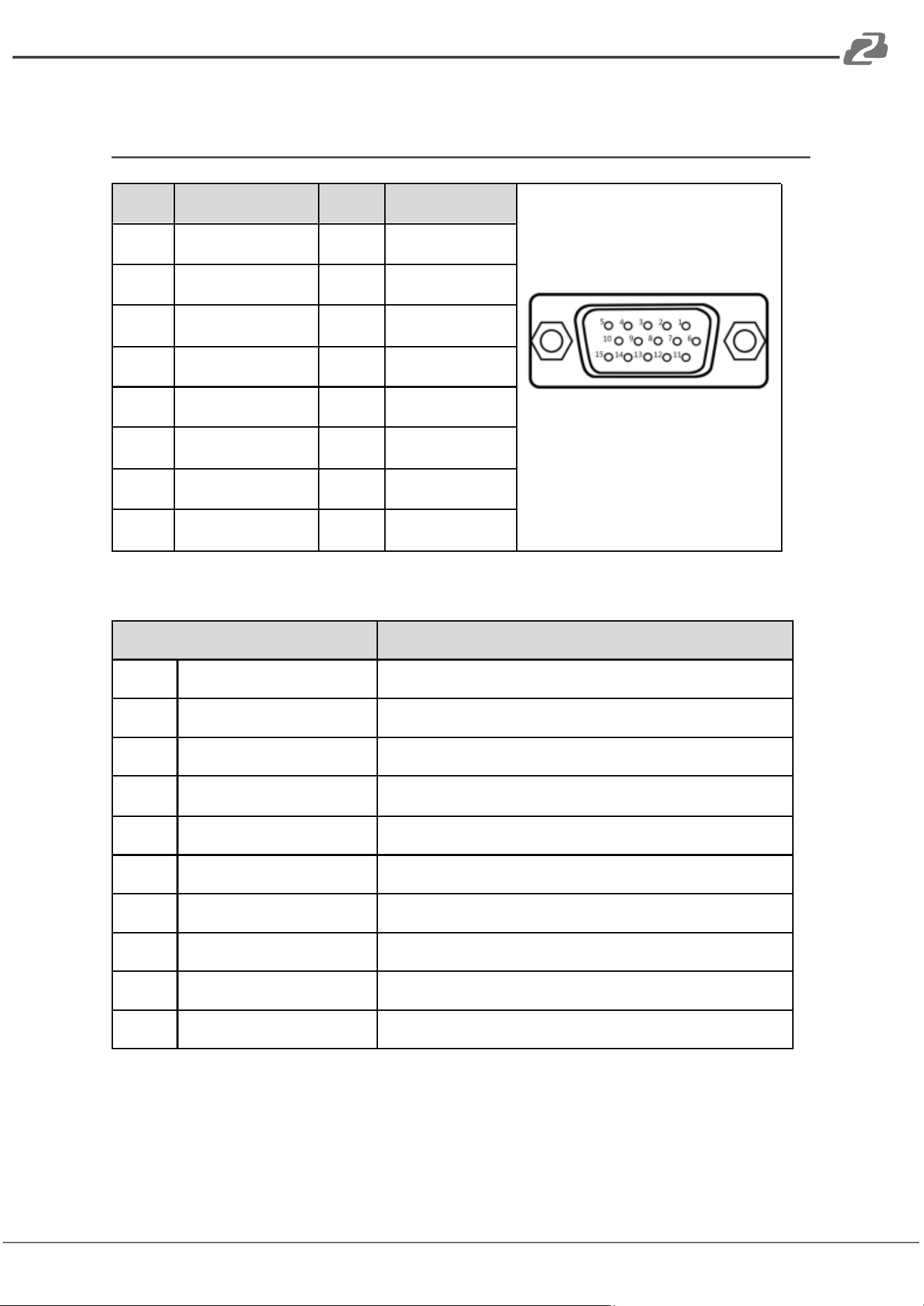
Tally/GPI Pinout
PIN
Tally Function
Pin
GPI Function
11
PGM-IN 1
1
GPI-IN 1
12
PGM-IN 2
2
GPI-IN 2
13
PGM-IN 3
3
GPI-IN 3
14
PGM-IN 4
4
GPI-IN 4
6
PVW-IN 1
10
GPI-IN 5
7
PVW-IN 2
15
GPI-IN 6
8
PVW-IN 3
5
GND
9
PVW-IN 4
GPI Optional Feature List:
GPI-INx Optional Feature
Description
1
PGM 1
Simulate PGM 1 button
2
PGM 2
Simulate PGM 2 button
3
PGM 3
Simulate PGM 3 button
4
PGM 4
Simulate PGM 4 button
5
PGM_BAR
Simulate PGM BAR button
6
CUT
Simulate CUT transition button
7
AUTO
Simulate AUTO transition button
8
MUTE
Simulate MUTE button
9
FTB
Simulate Fade to Black (FTB) button
10
STILL
Simulate STILL button
Address: 830 National Drive #140, Sacramento, CA 95834, USA · Tel: +1(888)499-9906 · Email: support@bzbgear.com 9
BZBGEAR BG-QuadFusion-4K PRODUCT MANUAL
Multiview Window
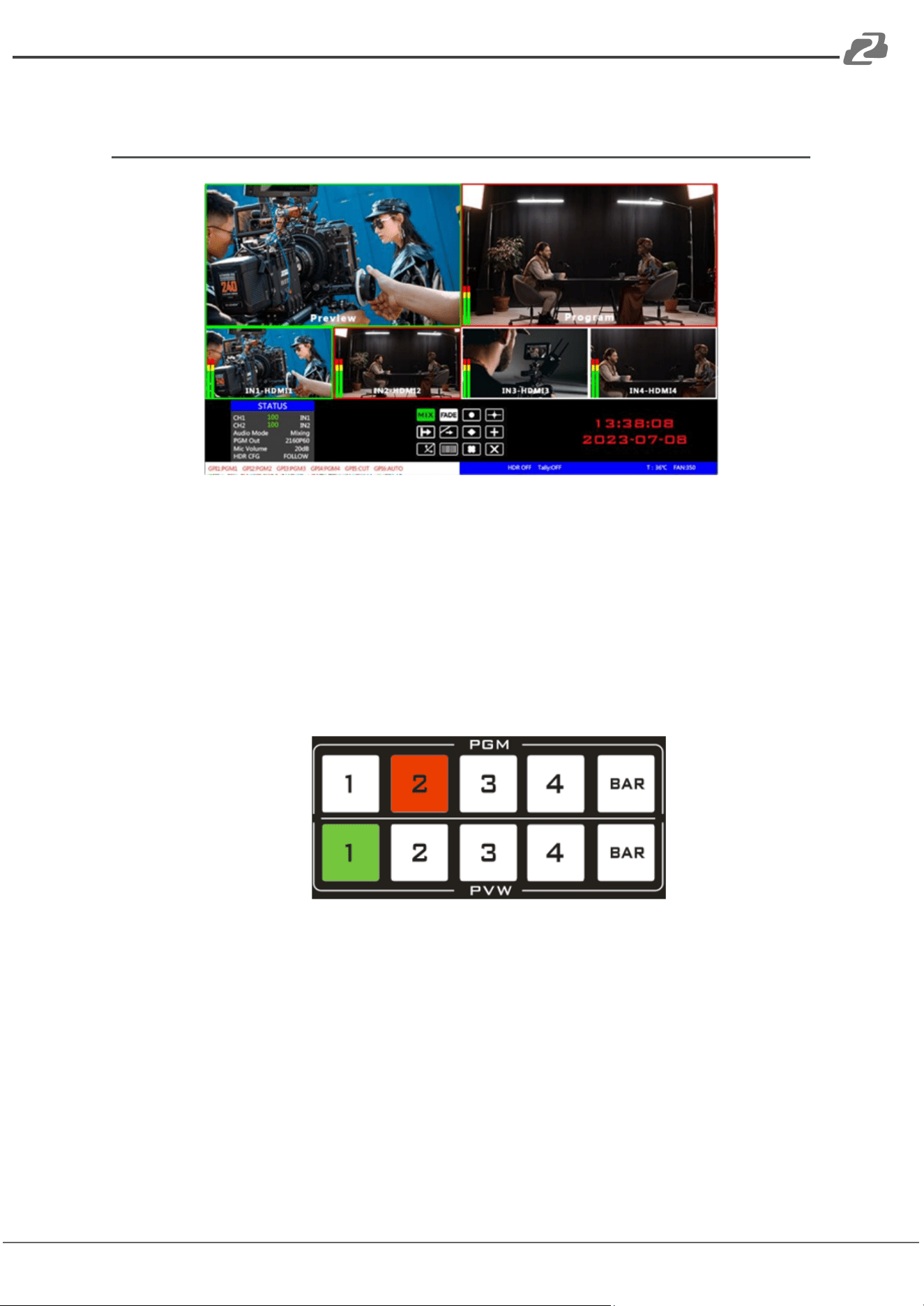
● The selected preview (PVW) window is shown on the top left and highlighted in
green.
● The select program (PGM) window is shown on the top right and highlighted in red.
● The 4 windows below correspond to the input sources 1 - 4. Sources can be
toggled between the HDMI and DisplayPort connections for each input.
● This image below represents the corresponding button selection on the unit and will
illuminate to match the windows shown above on the multiview screen. PGM
buttons will illuminate red when selected while PVW buttons will illuminate green.
Address: 830 National Drive #140, Sacramento, CA 95834, USA · Tel: +1(888)499-9906 · Email: support@bzbgear.com 10
BZBGEAR BG-QuadFusion-4K PRODUCT MANUAL
Button Descriptions
Menu and Directional Arrows
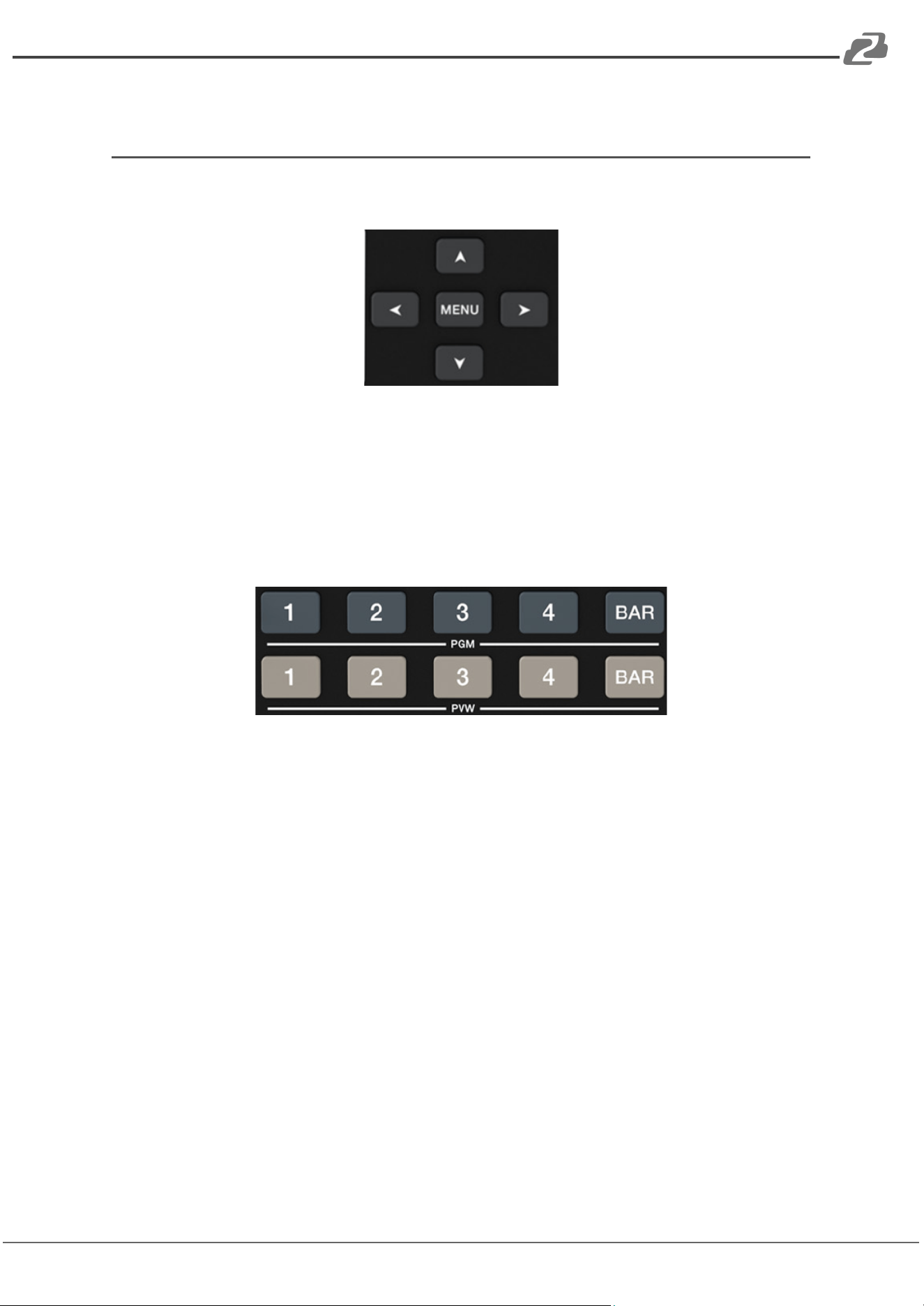
MENU: Press the Menu button to open / enter / select a highlighted on screen menu item in
the multiview window.
Directional Arrows: Use the Directional Arrows to navigate the menu or to change values.
PGM and PVW Buttons
PGM: Use the PGM buttons to select which source is being used as the two HDMI Program
outputs.
PVW: Use the PVW buttons to select which source will be used next / swapped with the
current PGM source.
BAR: Displays and outputs the currently selected test pattern for the selected source.
Address: 830 National Drive #140, Sacramento, CA 95834, USA · Tel: +1(888)499-9906 · Email: support@bzbgear.com 11
BZBGEAR BG-QuadFusion-4K PRODUCT MANUAL
Audio Mixer
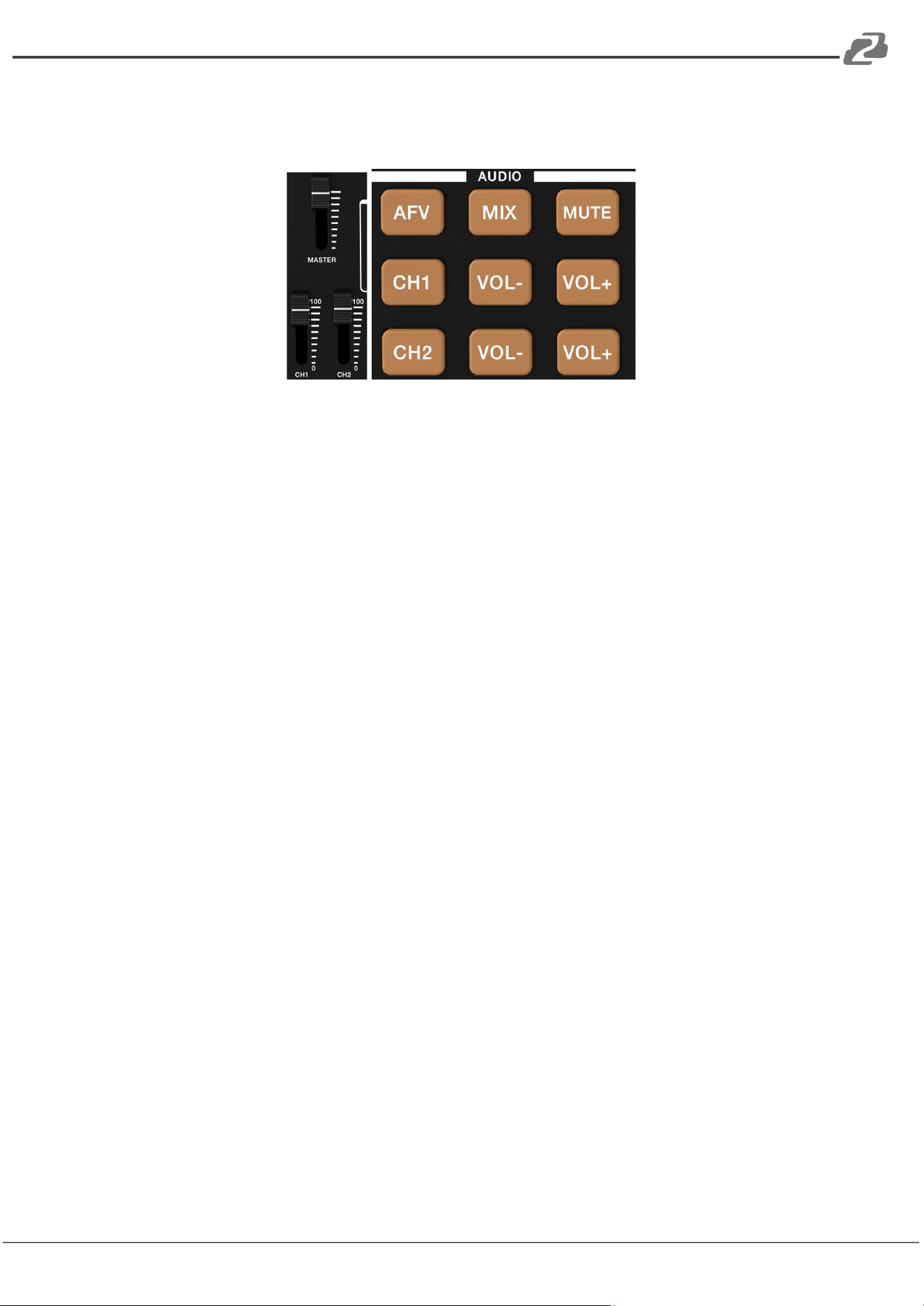
The BG-QuadFusion-4K supports analog balanced audio input and output, HDMI audio
extraction, as well as audio matrixing using the Audio Follow Video (AFV) and MIX functions.
● Volume Sliders
○ Master: Overall system volume can be controlled by moving the Master
slider up and down and it affects all audio channels.
○ CH1/CH2: Changes the output volume for the selected audio channel.
● AFV: Audio Follow Video (AFV) means the current video source is tied to its audio
source. When the video is switched, the audio also switches to the new source.
● MIX: Allows users to change the audio source of the selected channel for the PGM
video outputs. Audio can come from another HDMI source or the balanced audio
inputs.
● MUTE: Mutes all audio output.
● CH1/VOL-/VOL+: Pressing the CH1 button cycles which audio source is being used
while in MIX mode. The adjacent VOL- and VOL + control the audio source/input
volume level.
● CH2/VOL-/VOL+: Pressing the CH2 button cycles which audio source is being used
while in MIX mode. The adjacent VOL- and VOL + control the audio source/input
volume level.
Address: 830 National Drive #140, Sacramento, CA 95834, USA · Tel: +1(888)499-9906 · Email: support@bzbgear.com 12
BZBGEAR BG-QuadFusion-4K PRODUCT MANUAL
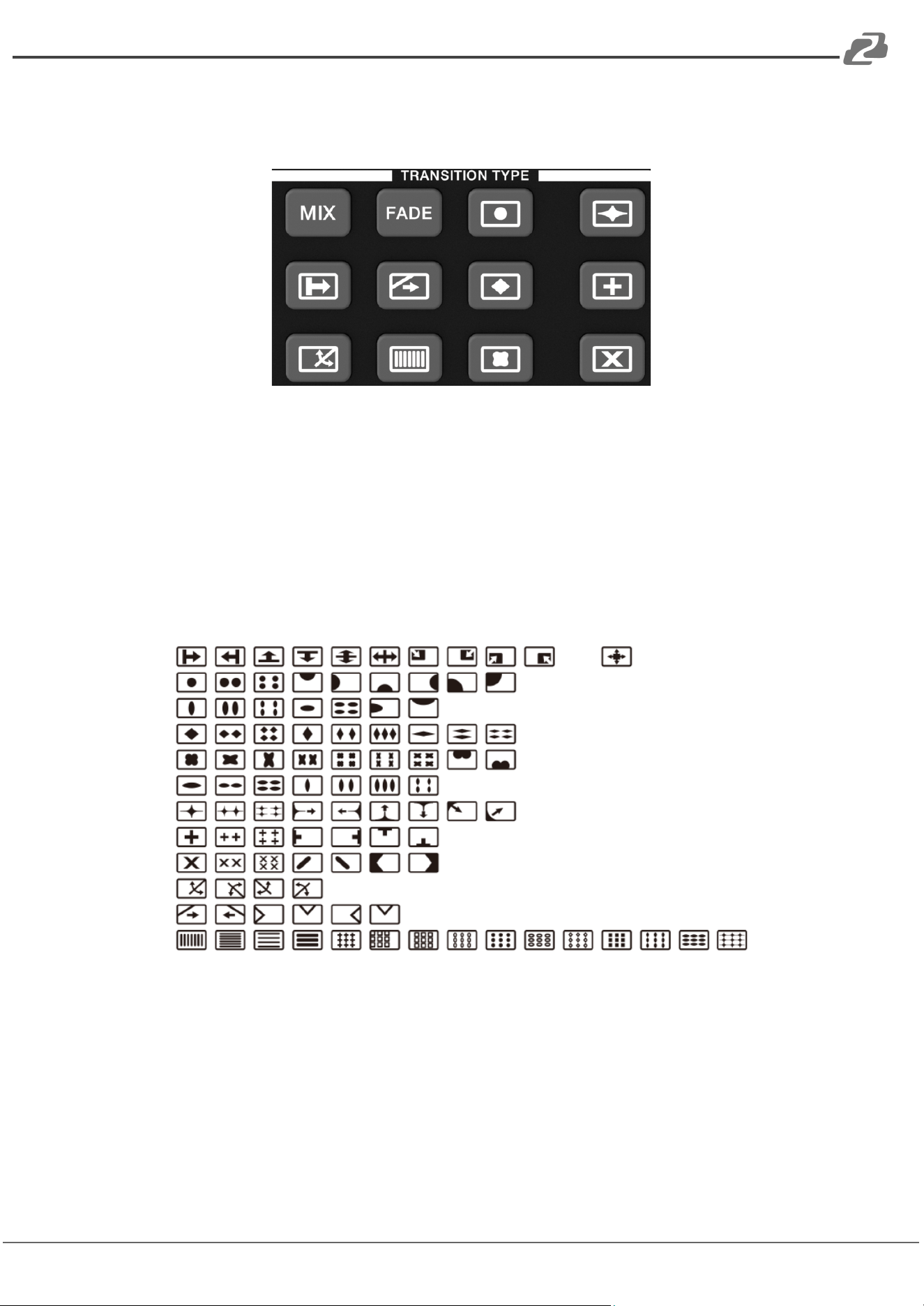
Transition Types
● The transition mode section contains the following options:
○ MIX: Superimposes the PVW image over the current PGM image.
○ Fade: Dissolve the images in and out
● The other shape options each have several variations.
○ Options can be changed by repeatedly pressing the desired symbol and
include: Circle, Rhombus, Fan, Plum blossom, shutter, cross, diamond, wipe,
X, and many more shown in the image below:
● The currently enabled transition type/button will be illuminated green on the
keyboard.
● The specific sub-option will be shown at the bottom of the multiview window or in
the control software and be illuminated green as well when enabled.
Address: 830 National Drive #140, Sacramento, CA 95834, USA · Tel: +1(888)499-9906 · Email: support@bzbgear.com 13
BZBGEAR BG-QuadFusion-4K PRODUCT MANUAL
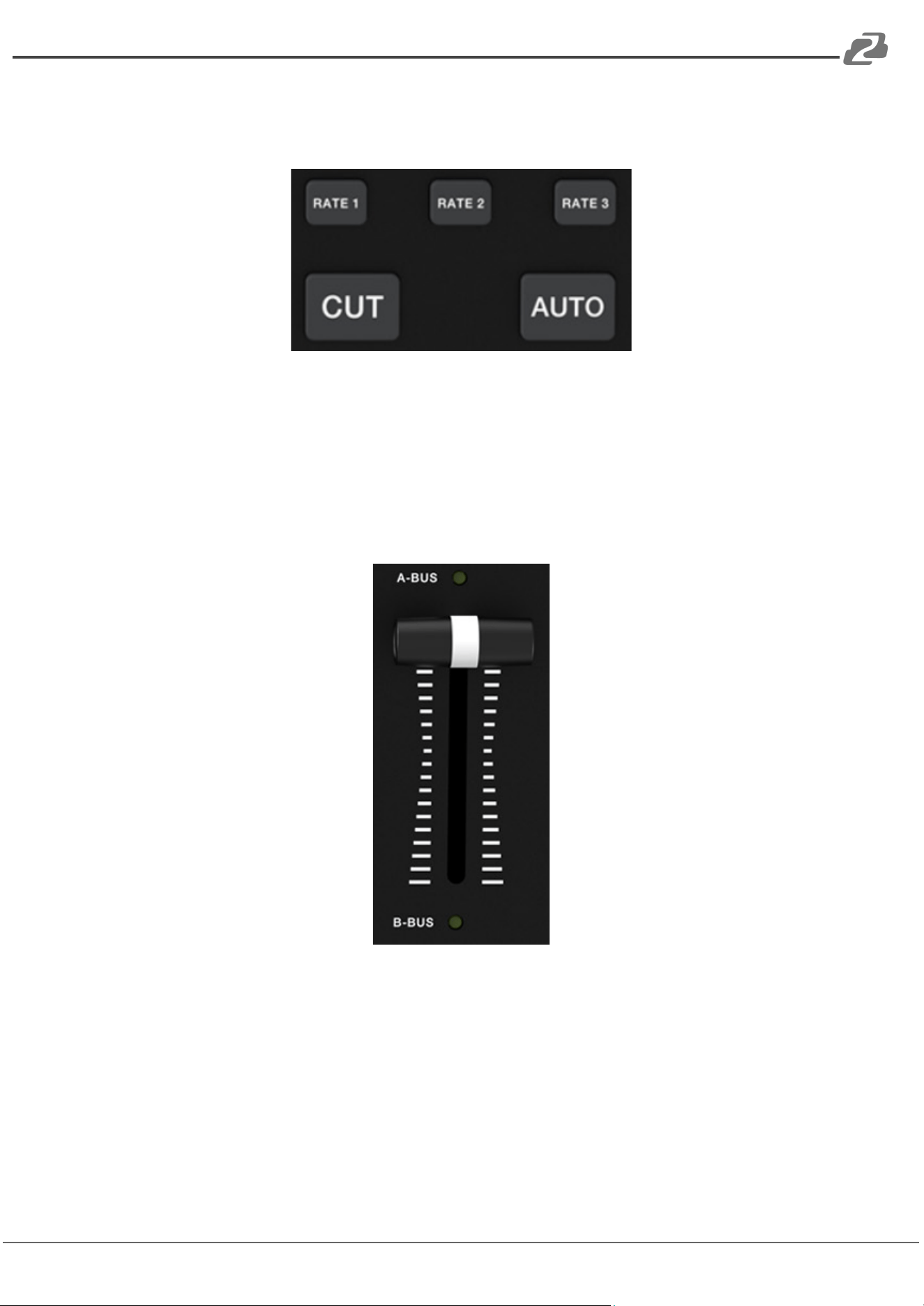
Transition Controls
● CUT: Immediately switches the PVW and PGM outputs with no transition.
● AUTO: Automatically transition between PVW and PGM selections using the
selected transition type.
● Rate 1 - Rate 3: Set the speed at which the AUTO transition button functions. Rate
1 is the highest speed while Rate 3 is the slowest speed.
● T-BAR: Manually control the transition rate between PVW and PGM selections.
Address: 830 National Drive #140, Sacramento, CA 95834, USA · Tel: +1(888)499-9906 · Email: support@bzbgear.com 14
BZBGEAR BG-QuadFusion-4K PRODUCT MANUAL
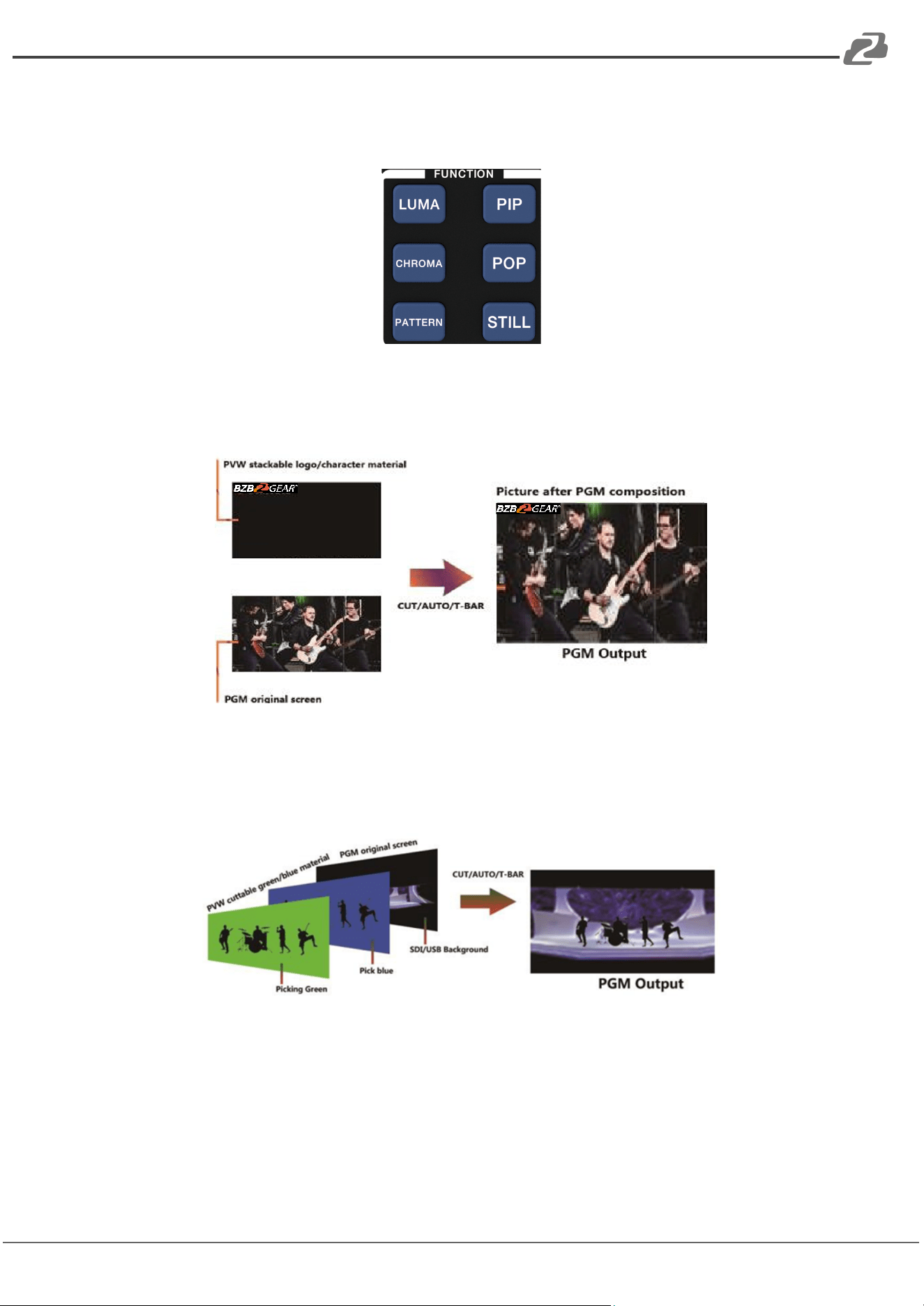
Function Keys
● LUMA: Removes the color black from the background of the PVW image and
overlays the remaining imager on top of the PGM output. Typically used to place a
watermark, logo, text, or subtitles on the PGM output
● CHROMA: Removes the specified image background color (Blue or Green), and
then overlays the PGM source over the PVW background source.
Address: 830 National Drive #140, Sacramento, CA 95834, USA · Tel: +1(888)499-9906 · Email: support@bzbgear.com 15
BZBGEAR BG-QuadFusion-4K PRODUCT MANUAL
● PATTERN: Allows users to change the BAR key test pattern. Users can select from
the following options: all red, all green, all blue, all white, black & white
checkerboard, or color bars.
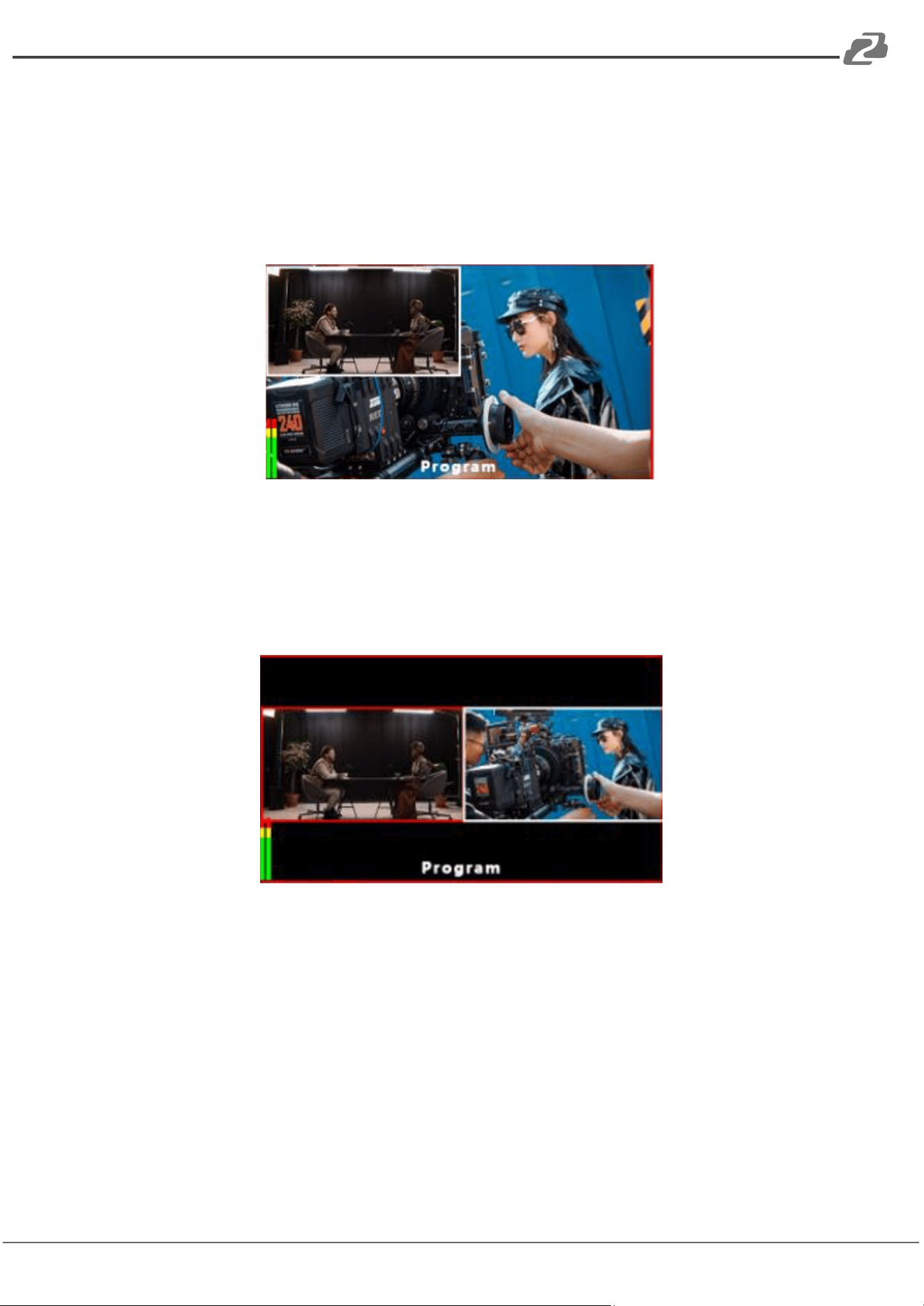
● PIP: Picture-in-Picture (PIP) overlays a smaller image of the currently selected
preview (PVW) source on top of the current program (PGM) output.
○ The PIP window will be active when the T-BAR is in the B-Bus state.
○ The PIP window can have its position, size, and border modified using the
control application or on screen menu.
● POP: Picture-out-Picture (POP) allows users to display both the PVW and PGM
outputs simultaneously.
○ While similar to PIP, the POP function allows both the PGM and PVW window
size, position, and borders to be modified.
○ Windows can be overlayed or placed side-by-side for a multiview effect.
● STILL: The PGM video will freeze on the currently displayed image. The STILL
button will illuminate green while active. Pressing the STILL button a second time
will resume normal playback.
Address: 830 National Drive #140, Sacramento, CA 95834, USA · Tel: +1(888)499-9906 · Email: support@bzbgear.com 16
BZBGEAR BG-QuadFusion-4K PRODUCT MANUAL
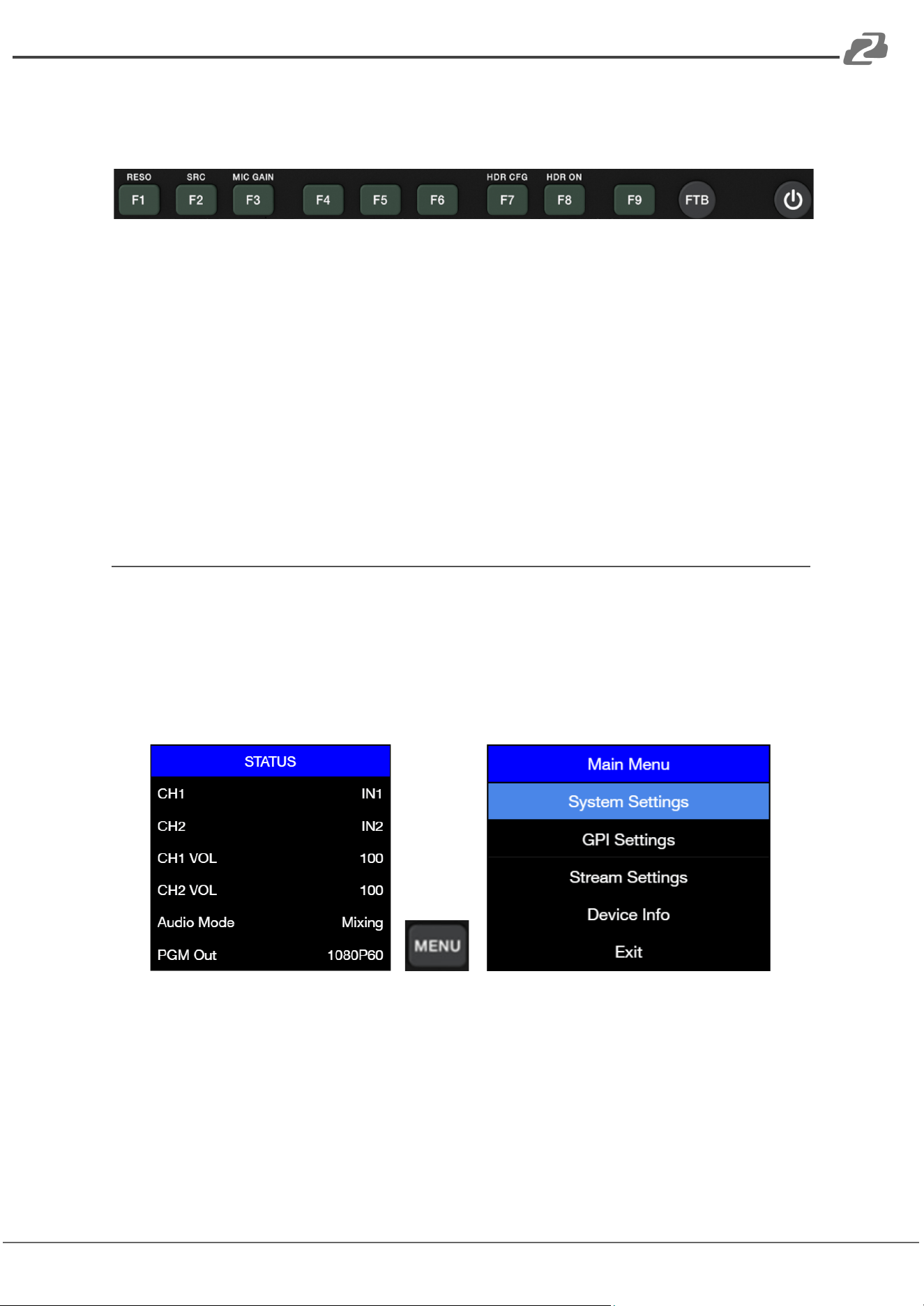
F1 - F9, FTB, and Power
F1: Press F1 to change the output resolution
F2: Press F2 to change the source port of Input 1 (HDMI or DisplayPort)
F3: Press F3 to adjust the Mic Gain, F7 to open the HDR configuration
F8: Press F8 to turn HDR On or Off.
FTB: Press the Fade to Black (FTB) button to transition the PGM outputs to show a black
screen with no image. The button will flash while active.
Power: Press and hold the power button to turn on/off the unit.
Main Menu / System Settings
Using the on screen multiview menu or control software users can access the Main Menu or
System Settings to set the IP address on the device, restore the system to factory default
settings, change the language and more.
● To access the Main Menu, press the Menu Key when no options are highlighted on
the Status Menu. Press the up arrow to deselect the top Status option.
Address: 830 National Drive #140, Sacramento, CA 95834, USA · Tel: +1(888)499-9906 · Email: support@bzbgear.com 17
BZBGEAR BG-QuadFusion-4K PRODUCT MANUAL
PC QuadFusion Control Application
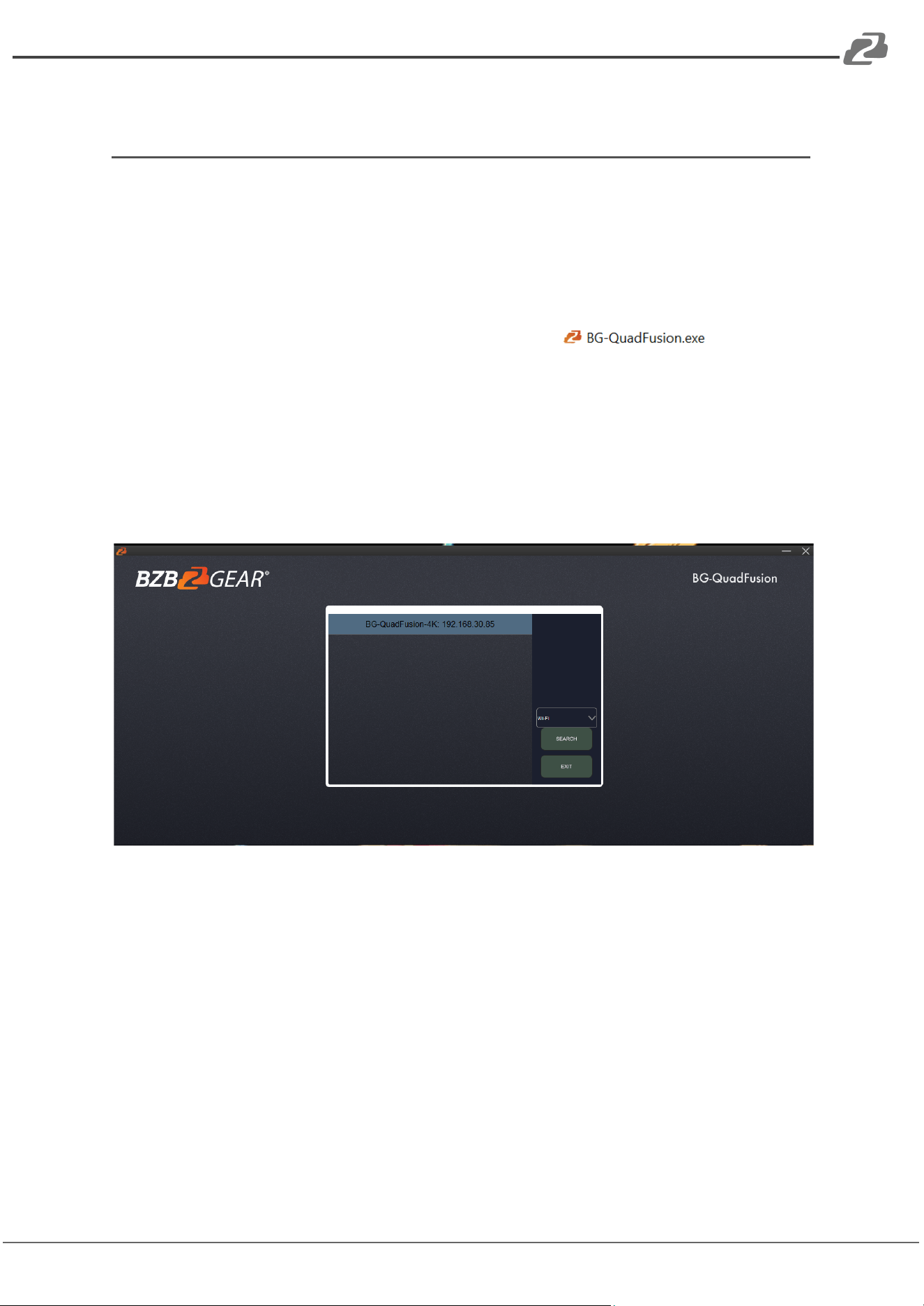
A free Windows PC control software is provided for both of the QuadFusion
production switches and allows for full remote control of the connected device.
Software can be found and downloaded from the device product page on
www.BZBGEAR.com.
After downloading the application, extract the BG-QuadFusion.exe file to your
desired location. Double click the application to start.
Upon opening the application, your device should be listed in the box in the center
along with its IP address if both the device and computer are on the same network.
You can also use the dropdown on the right to select a different internet adapter if
your computer has more than one or to search again if the device was not found
initially.
Double click on the device name in the center to access the virtual production
switch.
Address: 830 National Drive #140, Sacramento, CA 95834, USA · Tel: +1(888)499-9906 · Email: support@bzbgear.com 18
BZBGEAR BG-QuadFusion-4K PRODUCT MANUAL
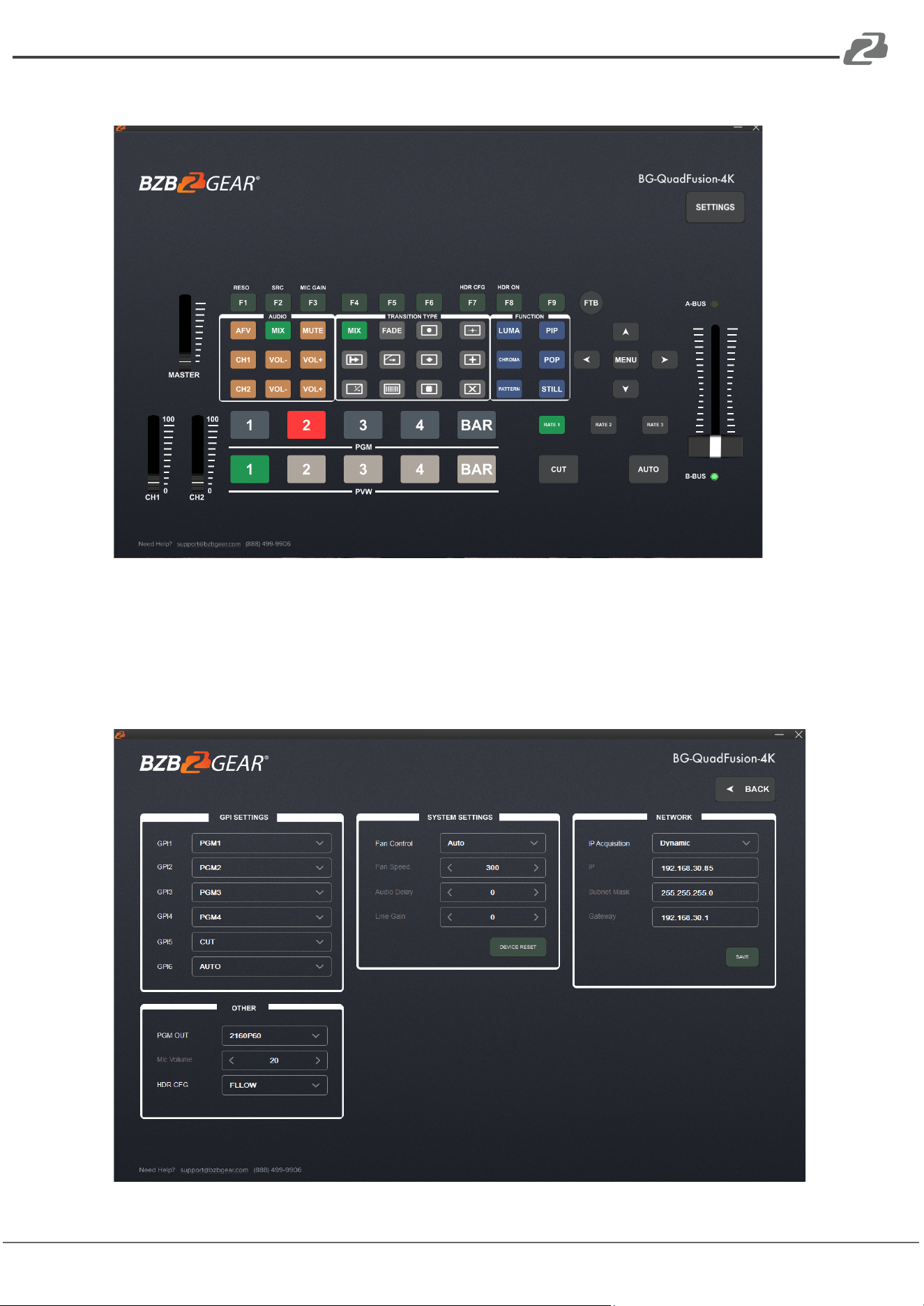
The virtual software functions exactly the same as if you were pressing the buttons
on the unit itself and it will cause the physical unit to mirror your actions. NOTE:
T-Bar and volume sliders will re-adjust when they are physically moved on the unit.
The “Settings” button in the top right will open a menu which provides most of the
multiview on screen settings as shown below.
Address: 830 National Drive #140, Sacramento, CA 95834, USA · Tel: +1(888)499-9906 · Email: support@bzbgear.com 19
BZBGEAR BG-QuadFusion-4K PRODUCT MANUAL
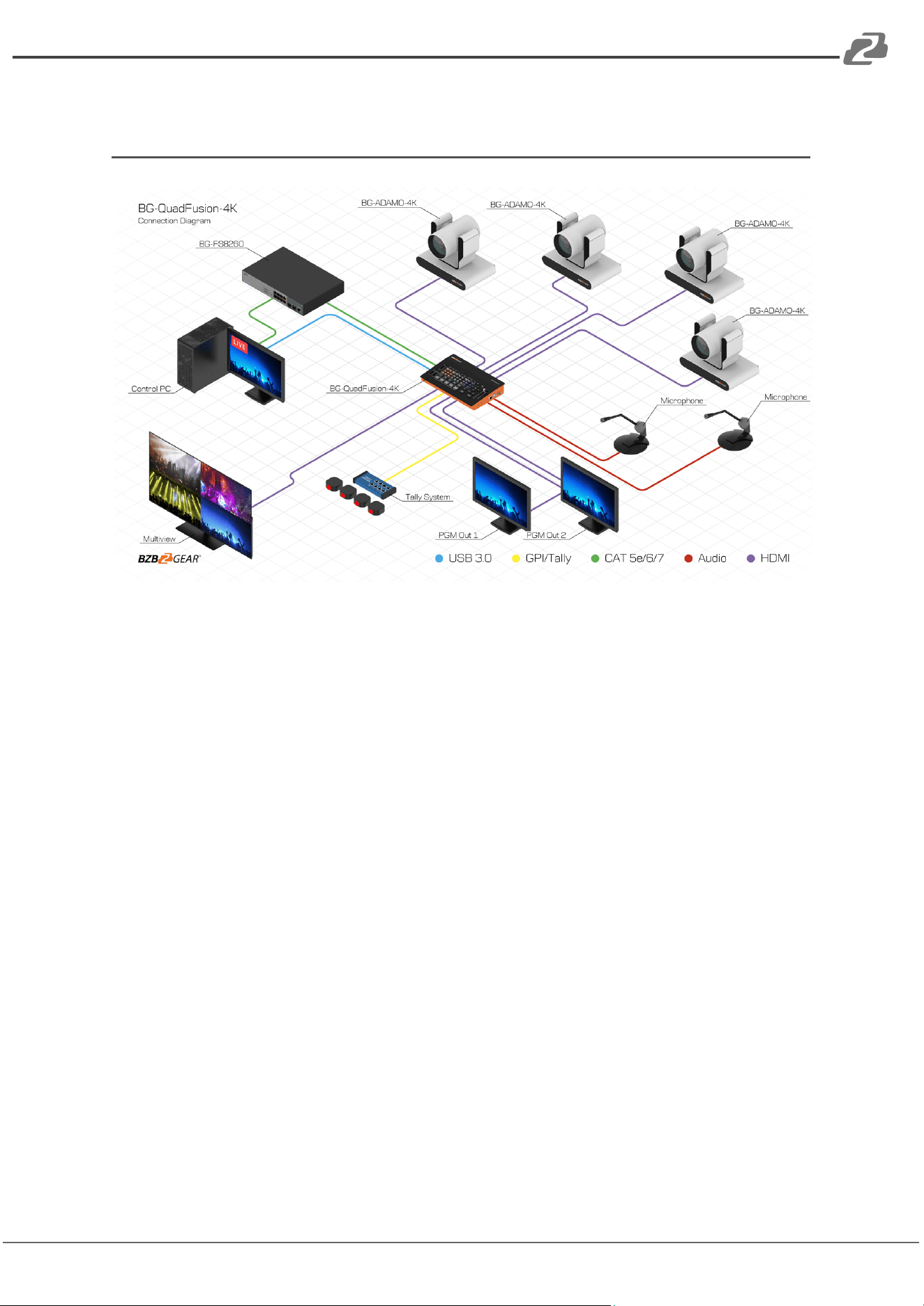
Application Example
Address: 830 National Drive #140, Sacramento, CA 95834, USA · Tel: +1(888)499-9906 · Email: support@bzbgear.com 20

BZBGEAR BG-QuadFusion-4K PRODUCT MANUAL
Tech Support
Have technical questions? We may have answered them already!
Please visit BZBGEAR’s support page (bzbgear.com/support) for helpful information and
tips regarding our products. Here you will find our Knowledge Base
(bzbgear.com/knowledge-base) with detailed tutorials, quick start guides, and step-by-step
troubleshooting instructions. Or explore our YouTube channel, BZB TV
(youtube.com/c/BZBTVchannel), for help setting up, configuring, and other helpful how-to
videos about our gear.
Need more in-depth support? Connect with one of our technical specialists directly:
Phone
1.888.499.9906
Email
support@bzbgear.com
Live Chat
bzbgear.com
Limited Product Warranty Terms
Pro Line: 5-year warranty from the date of purchase for AV/Broadcasting products bought
on or after August 1, 2024.
Essential Line: 3-year warranty from the date of purchase for AV/Broadcasting products
bought on or after August 1, 2024.
Cables: Lifetime Limited Product Warranty.
For complete warranty information, please visit bzbgear.com/warranty.
For questions, please call 1.888.499.9906 or email support@bzbgear.com.
Address: 830 National Drive #140, Sacramento, CA 95834, USA · Tel: +1(888)499-9906 · Email: support@bzbgear.com 21

BZBGEAR BG-QuadFusion-4K PRODUCT MANUAL
Mission Statement
BZBGEAR is a breakthrough manufacturer of high-quality, innovative audiovisual equipment
ranging from AVoIP, professional broadcasting, conferencing, home theater, to live
streaming solutions. We pride ourselves on unparalleled customer support and services.
Our team offers system design consultation, and highly reviewed technical support for all
the products in our catalog. BZBGEAR delivers quality products designed with users in
mind.
Copyright
All the contents in this manual and its copyright are owned by BZBGEAR. No one is allowed
to imitate, copy, or translate this manual without BZBGEAR’s permission. This manual
contains no guarantee, standpoint expression or other implies in any form. Product
specification and information in this manual is for reference only and subject to change
without notice.
All rights reserved. No reproducing is allowed without acknowledgement.
Address: 830 National Drive #140, Sacramento, CA 95834, USA · Tel: +1(888)499-9906 · Email: support@bzbgear.com 22
