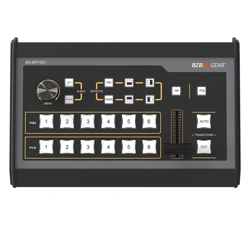
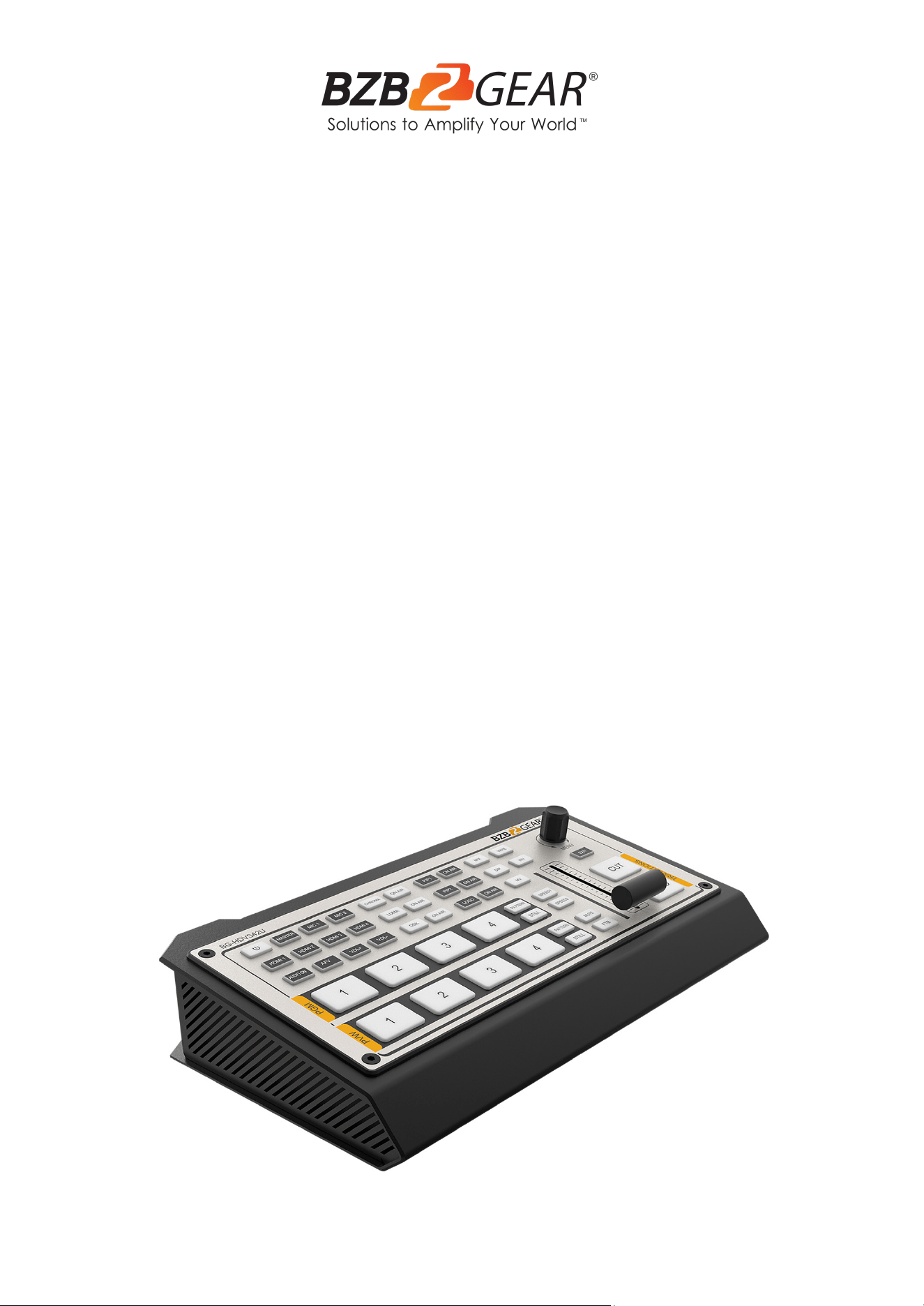
BG-HDVS42U
4-Channel/Input HDMI Live Streaming Video/Audio Production
Switcher and Mixer with Integrated Capture Card
User Manual

BZBGEAR BG-HDVS42U PRODUCT MANUAL
Address: 830 National Drive #140, Sacramento, CA 95834, USA · Tel: +1(888)499-9906 · Email: support@bzbgear.com 2

BZBGEAR BG-HDVS42U PRODUCT MANUAL
TABLE OF CONTENTS
Statement 4
Safety Precaution 4
Introduction 5
Features 5
Packing List 5
Specifications 6
Operation Controls and Functions 7
Multiview 9
PGM PVW Switching 14
Transition Effects 15
Upstream Key 16
DownStream Key 19
Output Setting 21
Audio Settings 24
Media Library 28
System Setting 31
Tech Support 34
Limited Product Warranty Terms 34
Mission Statement 34
Copyright 34
Address: 830 National Drive #140, Sacramento, CA 95834, USA · Tel: +1(888)499-9906 · Email: support@bzbgear.com 3
BZBGEAR BG-HDVS42U PRODUCT MANUAL
Statement
Please read these instructions carefully before connecting, operating, or configuring this
product. Please save this manual for future reference.
Safety Precaution
● To prevent damaging this product, avoid heavy pressure, strong vibration, or immersion
during transportation, storage, and installation.
● To avoid damage from drops, make sure this unit is placed on a stable and solid surface.
● Only connect the unit with the included power supply.
● Disconnect power cord by connector only - Do not pull on the cable.
● Do not place or drop heavy or sharp-edged objects on power cord. A damaged cord can
cause fire or electrical shock hazards. Regularly check power cord for excessive wear or
damage to avoid possible fire / electrical hazards.
● Ensure the unit is properly always grounded to prevent electrical shock hazard.
● Turn off the unit if a malfunction occurs. Disconnect everything before moving the unit.
● The housing of this product is made of organic materials. Do not expose to any liquid,
gas, or solids which may corrode the shell.
● Do not expose the product to rain or moisture.
● Unplug this device during lightning storms
● Clean only with a soft dry microfiber cloth.
● To prevent the risk of electric shock, do not open the case. Installation and maintenance
should only be carried out by qualified technicians.
● Do not use the product beyond the specified temperature, humidity, or power supply
specifications.
● This product does not contain parts that can be maintained or repaired by users.
Damage caused by dismantling the product without authorization from BZBGEAR is not
covered under the warranty policy.
● Installation and use of this product must strictly comply with local electrical safety
standards.
● Only use accessories specified by the manufacture
● Product specifications may be subject to technical upgrades without further notice.
Address: 830 National Drive #140, Sacramento, CA 95834, USA · Tel: +1(888)499-9906 · Email: support@bzbgear.com 4

BZBGEAR BG-HDVS42U PRODUCT MANUAL
Introduction
The BG-HDVS-42U is a 4-channel HDMI multi-format video switcher with a compact metal
case design. It supports various functions including video switching, audio mixing,
PGM/Multiview output, different transition effects, Luma Key, Chroma Key, DSK, LOGO,
PIP/POP, media library, pattern, color generator, and more.
The inputs support multiple formats and the PGM output can be scaled, ensuring
compatibility with a variety of equipment. The unit also supports streaming to a computer
via the USB-C port. Users can also customize different settings and import or export the
configuration quickly for various scenarios. Powerful and portable, this professional video
switcher is an ideal choice for any small-scale HDMI production.
Features
● x4 auto-detected HDMI inputs
● x1 HDMI PGM out, x1 HDMI Multiview out, x1 USB type-C output
● USB-C for capturing and streaming to a PC
● Clear and uncluttered multiview & status page
● Upstream key: Luma key, Chroma key, PIP×2 / POP
● Downstream key and LOGO overlay
● T-bar/Auto/Cut transitions; various effects: WIPE (9×2 patterns) / MIX/ DIP
● Audio mixer: HDMI embedded audio and x2 MIC/line in; audio delay available
● Media library: 49 default patterns, 16 imported images, 16 captured images, 2 color
generators
● LAN port for PC software remote control
● Custom configuration import and export
● FTB/ MUTE/ STILL/ GPIO for tally
Packing List
● 1x BG-HDVS42U
● 1x Power supply (12V 2A)
● 1x USB cable (type-A to C)
● 1x Tally connector (DB-15)
Address: 830 National Drive #140, Sacramento, CA 95834, USA · Tel: +1(888)499-9906 · Email: support@bzbgear.com 5
BZBGEAR BG-HDVS42U PRODUCT MANUAL
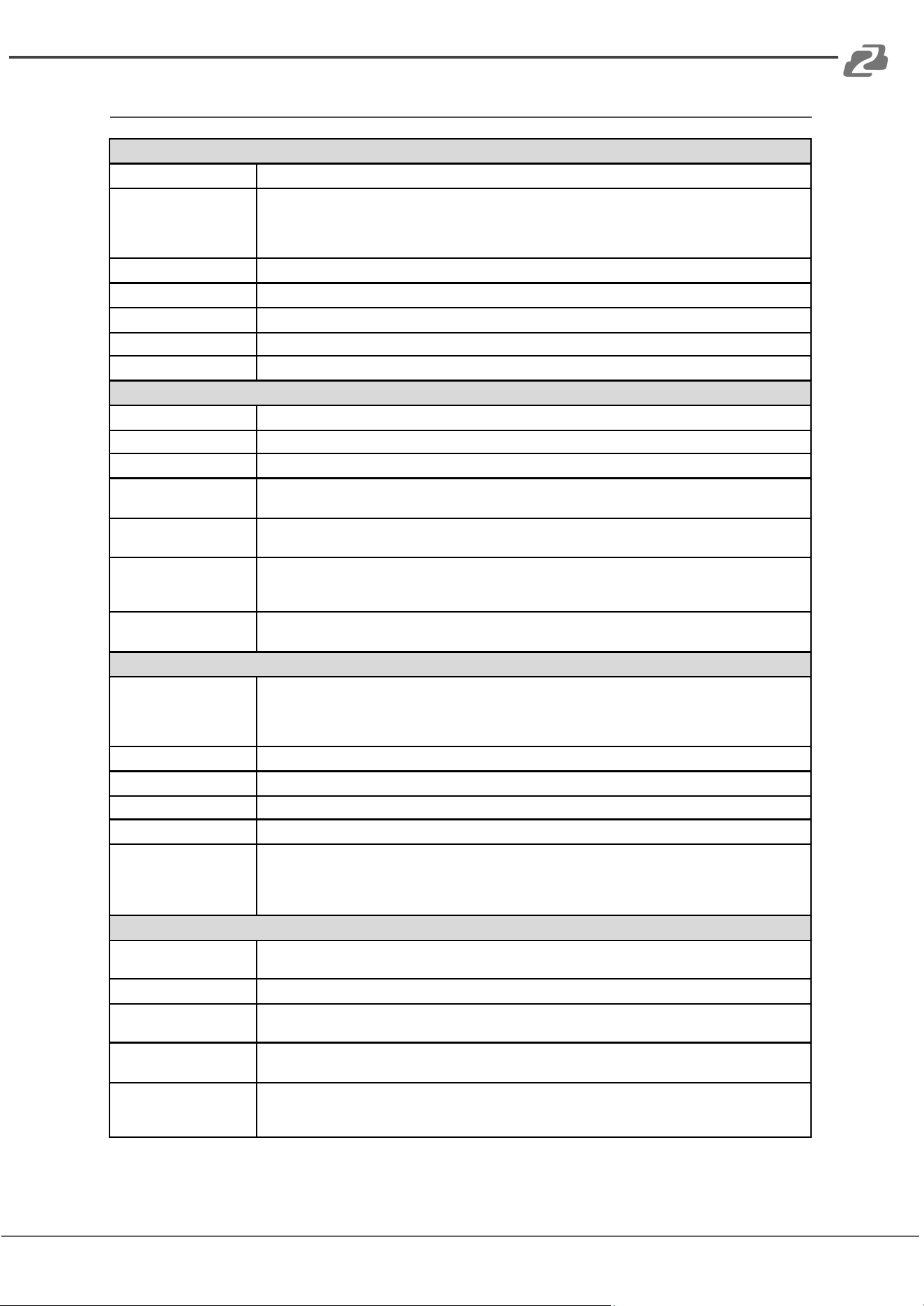
Specifications
Connection
Video In
HDMI type-A x4
Video Out
HDMI type-A PGM ×1
HDMI type-A Multiview ×1
USB2.0 type C ×1 (Streaming on PC)
Assignable HDMI 1~4, PGM, Clean PGM, PVW, Color bar, Multiview
Audio In
MIC/ Line level (3.5mm stereo audio) x2
PC Control Port
LANxI
Media Library
USB type-A x1 (USB disk port for image import and firmware upgrade)
Tally Port
DB-15 x1
Power In
DC 2V x1
Functions
Transitions
T-Bar/AUTO/ CUT
Effects
Wipe (9x2 patterns)/ Mix/ DIP/ Pattern/ Still(freeze)/ MUTE/ FTB
Layouts
2 styles of Multiview layout (6 windows and status)
Keys
Upstream Key: Luma Key xi / Chroma Key xi/ PiP x2/ POP
Downstream Key: DSK xi/ Logo xi
Audio Mixer
HDMI x4 and MIC/ Line level x2;
Audio delay: 0-500ms
Media
Default image: 49 preset patterns
Local image: up to i6 imported images
Capture image: up to i6 captured images
Generators
Pattern generator x1
Color generators x2
Standards
HDMI In Format Support
1080p 60/ 59.94/ 50/ 30/ 29.97/ 25/ 24/ 23.98
1080i 50/ 59.94/ 60
720p 60/ 59.94 /50/ 30/ 29.97/ 25/ 24/ 23.98
576i 50, 576p 50, 480p 59.94/ 60, 480i 59.94/ 60
HDMI PGM Out
1080p 60/ 59.94/ 50/ 48/ 47.95/ 30/ 29.97/ 25/ 24/ 23.98; i080i 60/ 59.94/ 50
HDMI Multiview Out
1080p 60/ 59.94/ 50/ 48/ 47.95/ 30/ 29.97/ 25/ 24/ 23.98; i080i 60/ 59.94/ 50
HDMI Color Space
RGB/ YUV
USB Capture Out
MJPG, Up to i080p 60
Media Format
USB disk format support: FAT32, Ext3, Ext4, up to 256GB
Image format support: png, bmp, jpg
Logo format support: png, bmp, jpg
Logo size support: 10*10 pixel to 600*600 pixel
Others
Power
Wide voltage: 7~24V;
Operating power:12W (12V 1A)
Dimension (LWD)
244.5 * 143.2 * 44.5mm
Weight
Net: 1030g;
Gross: 1500g
Temperature
Working: -20°C~60°C,
Storage: -30°C~70°C
Accessories
Power supply (12V 2A) *1;
USB cable (type A-C) *1;
Tally connector (DB-15) *1
Address: 830 National Drive #140, Sacramento, CA 95834, USA · Tel: +1(888)499-9906 · Email: support@bzbgear.com 6
BZBGEAR BG-HDVS42U PRODUCT MANUAL
Operation Controls and Functions
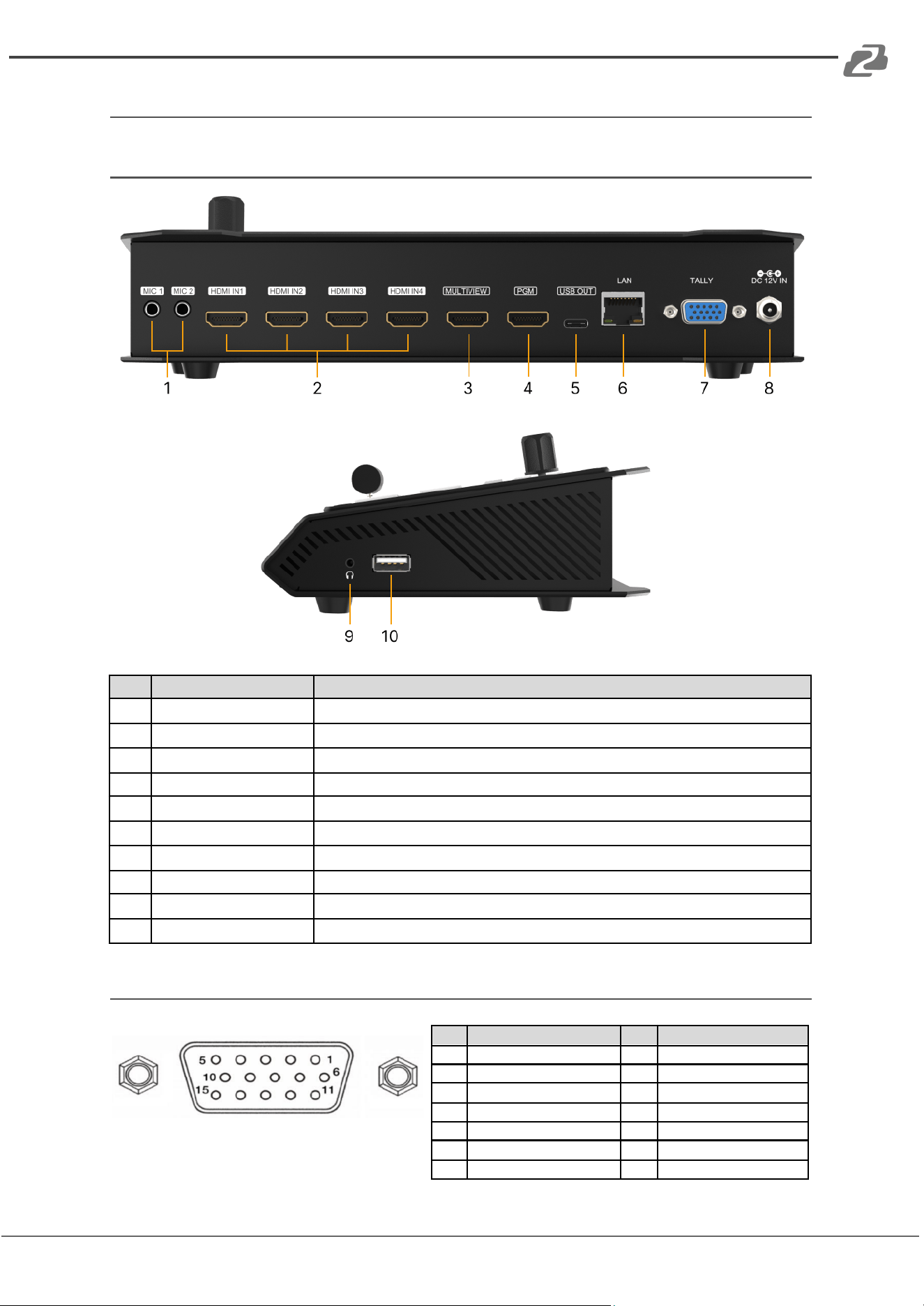
Interface Overview
NO.
Name
Function Description
1
2x MIC/Line level IN
3.5mm stereo mini line in microphone
2
4x HDMI IN
Connect to HDMI sources
3
MULTIVIEW OUT
HDMI to display to simultaneous show all 4 inputs
4
PGM (AUX) OUT
HDMI to display, capture device, etc for selected output
5
USB OUT
Connect to a PC to view the PGM out image
6
LAN port
Connect to PC for access to control software
7
GPIO (for tally)
Connects to a tally light control system (not included)
8
DC 12V IN
Connect to provided power supply.
9
Earphone OUT
3.5mm stereo mini line out
10
USB type-A
Insert a usb disk to import images and LOGOs; firmware upgrades
Tally PIN Definition
PIN
Definition
PIN
Definition
11
PGM-IN1
6
PVW-IN1
12
PGM-IN2
7
PVW-IN2
13
PGM-IN3
8
PVW-IN3
14
PGM-IN4
9
PVW-IN4
15
NC
10
NC
3
NC
4
NC
5
GND
Address: 830 National Drive #140, Sacramento, CA 95834, USA · Tel: +1(888)499-9906 · Email: support@bzbgear.com 7
BZBGEAR BG-HDVS42U PRODUCT MANUAL
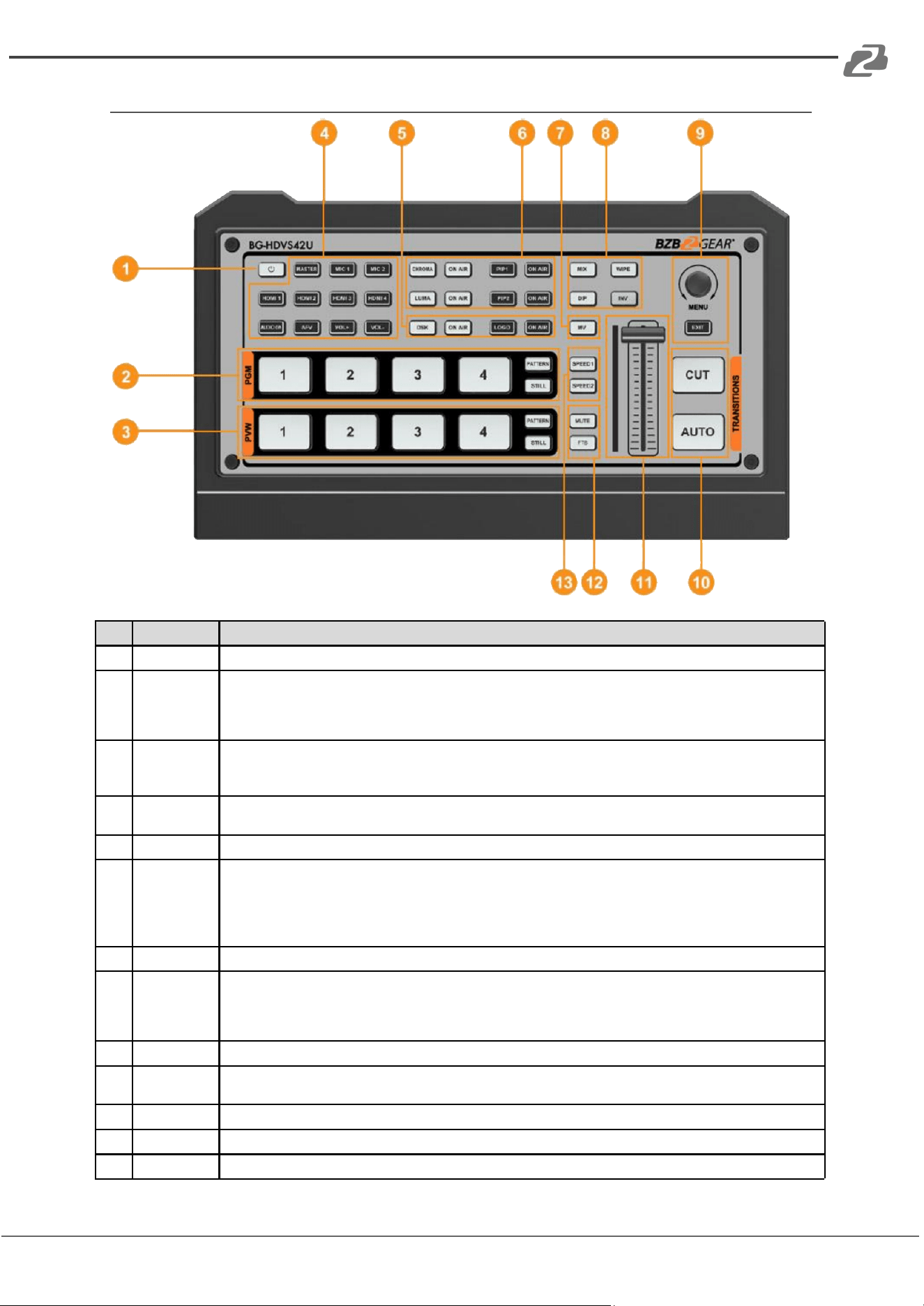
Front Control panel
NO.
Name
Function Description
1
Power
Press power to start the device; Press for 3 seconds to shut down the system
2
PGM:1-4
Select the signal source for the Program out.
PATTERN displays a test pattern to PGM output, STILL freezes the input source image.
Note: different patterns can be set including Black/Color Bar/Color1/Color2/ HDMI In1/HDMI In2/HDMI
In3/HDMI In4/Image. (Refer to Part 13.1)
3
PVW:1-4
Select the signal source for Preview.
PATTERN displays a test pattern to PVW (Refers to Part 13.1), STILL freezes the input source image (Refer
to Part 7.2).
4
AUDIO
Configure the audio of each channel, including AFV or audio mix mode, audio source selecting, volume + &
volume -
5
DSK
DSK: Enable the downstream key ON AIR: Put the DSK on air
6
CHROMA
KEY / LUMA
KEY
CHROMA: Enable the Chroma Key
LUMA: Enable the Luma Key
PIP1/PIP2: Enable two groups of Picture in Picture. Size and position can be set via Menu.
LOGO: Add logo bin from USB flash disk, enable the logo overlay
ON AIR: Put the corresponding Chroma/Luma/PIP/Logo on air.
7
MV
MV: quickly switch between Multiview and the configured Multiview out (Refer to Part 11.2)
8
Transition
Effects
WIPE: Transition from one source to another
INV: Invert the direction of selected wipe transition
MIX: Selects a basic A/B dissolve for the next transition
DIP: Gradual transition from one source to another.
9
MENU
MENU: For menu control, configure different parameters
10
CUT/ AUTO
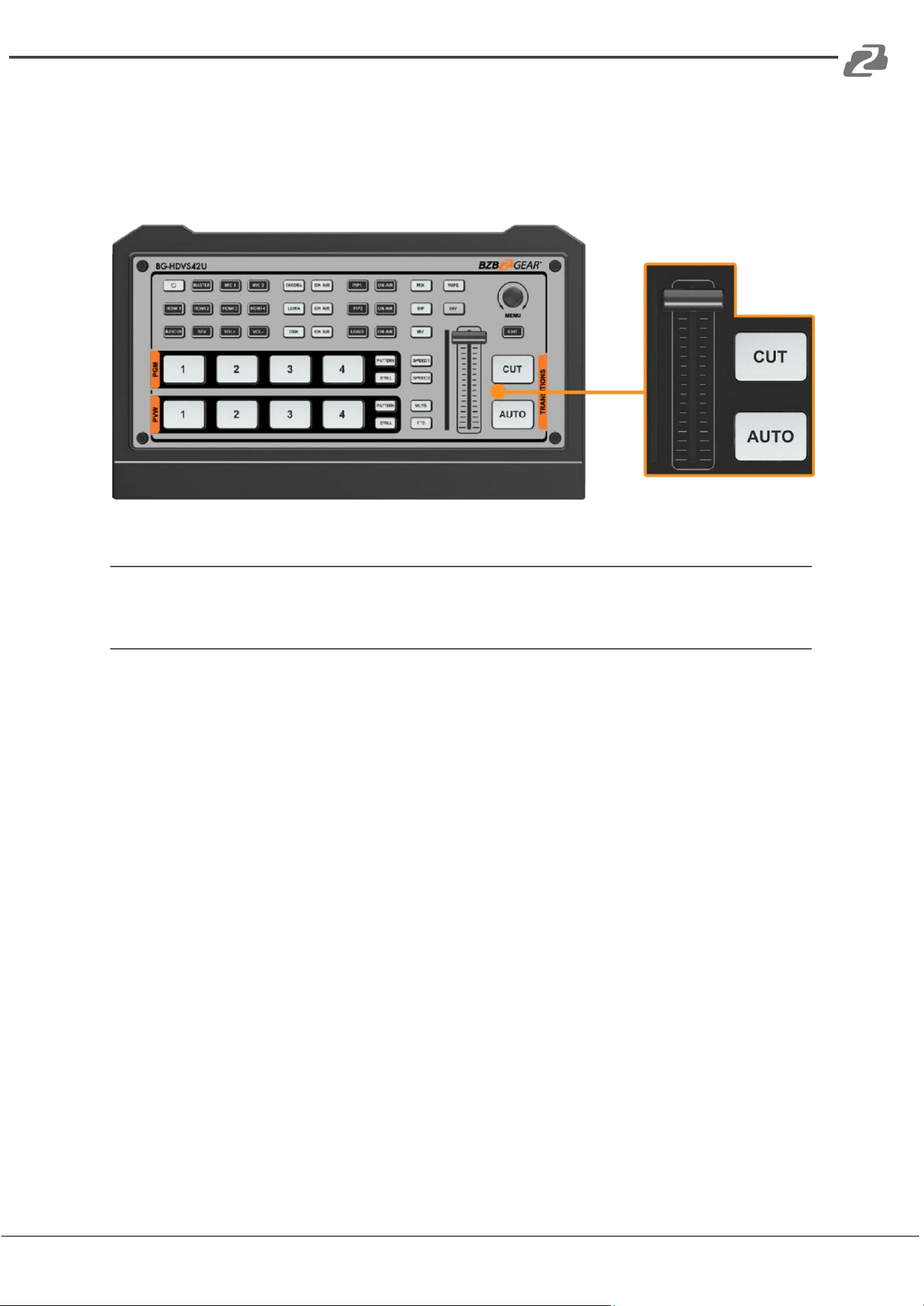
CUT: Performs a simple immediate switch between Program and Preview.
AUTO: Performs an automated switch between Program and Preview.
11
T-Bar
Switch the PVW and PGM using the T-Bar
12
MUTE/ FTB
MUTE: Mute the master audio FTB: Fade to Black
13
Speed
SPEED 1-2: Control transition rate, speed can be configured on Menu.
Address: 830 National Drive #140, Sacramento, CA 95834, USA · Tel: +1(888)499-9906 · Email: support@bzbgear.com 8
BZBGEAR BG-HDVS42U PRODUCT MANUAL
Power ON / OFF
Connect your video sources, output devices, and plug in
the power adapter. Press the power button on the top
panel to power up the switcher.
Press the power button for about 3 seconds to power off
the switcher and select YES in the prompt box to shut
down the system.
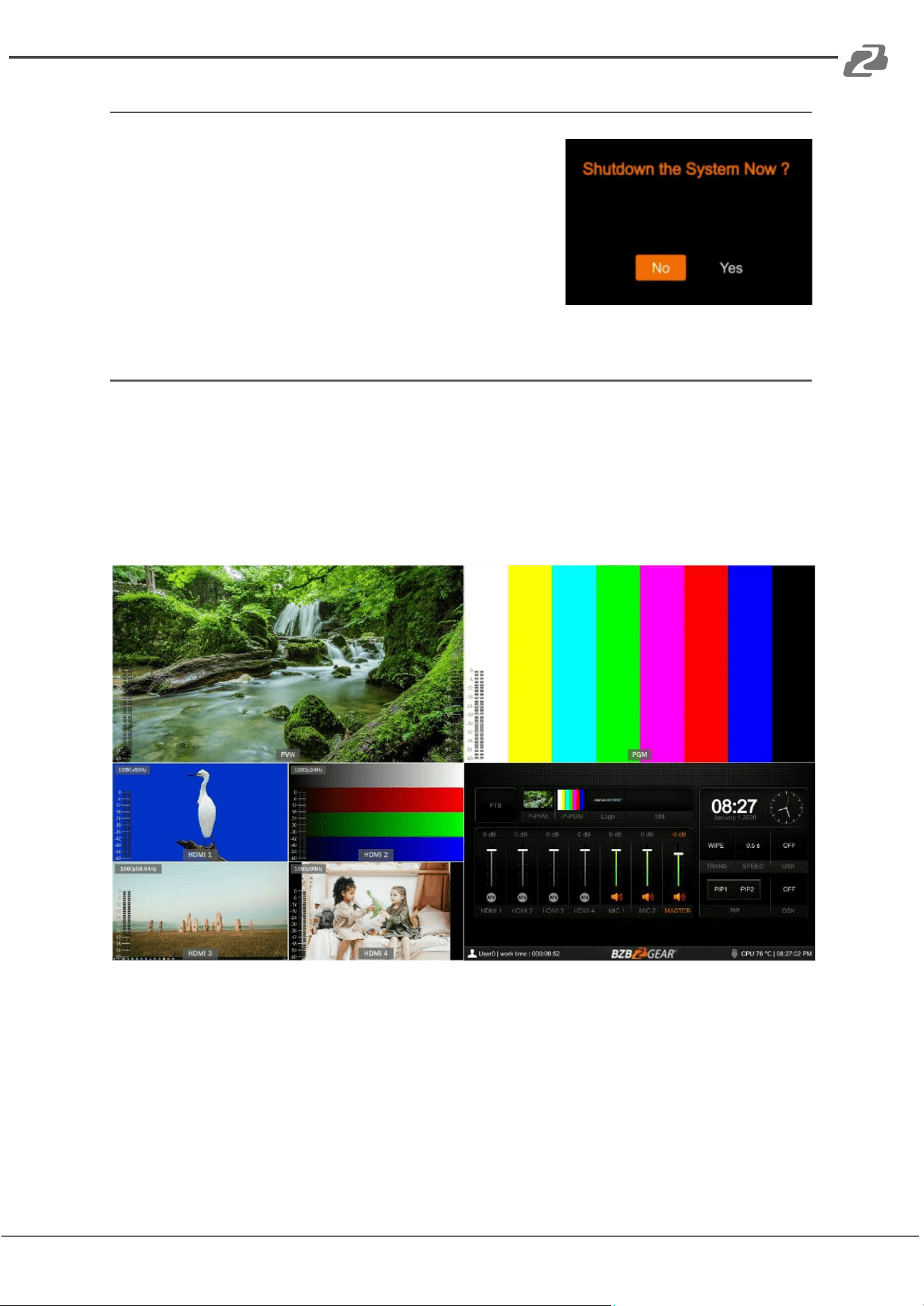
Multiview
The switcher provides two HDMI outputs (PGM/Multiview) and a USB Type-C. The PGM and
USB Type-C outputs can be changed through the on screen multiview menu to show an
individual system input, color bars, additional multiview, or preview screen(the multiview out
can only be multiview). Connecting the HDMI Multiview out to an additional monitor will
provide the Multiview image. In Multiview there are windows for PVW, PGM, HDMI 1, HDMI
2, HDMI 3, HDMI 4, and the Status/Menu page (see image below).
.
Address: 830 National Drive #140, Sacramento, CA 95834, USA · Tel: +1(888)499-9906 · Email: support@bzbgear.com 9
BZBGEAR BG-HDVS42U PRODUCT MANUAL
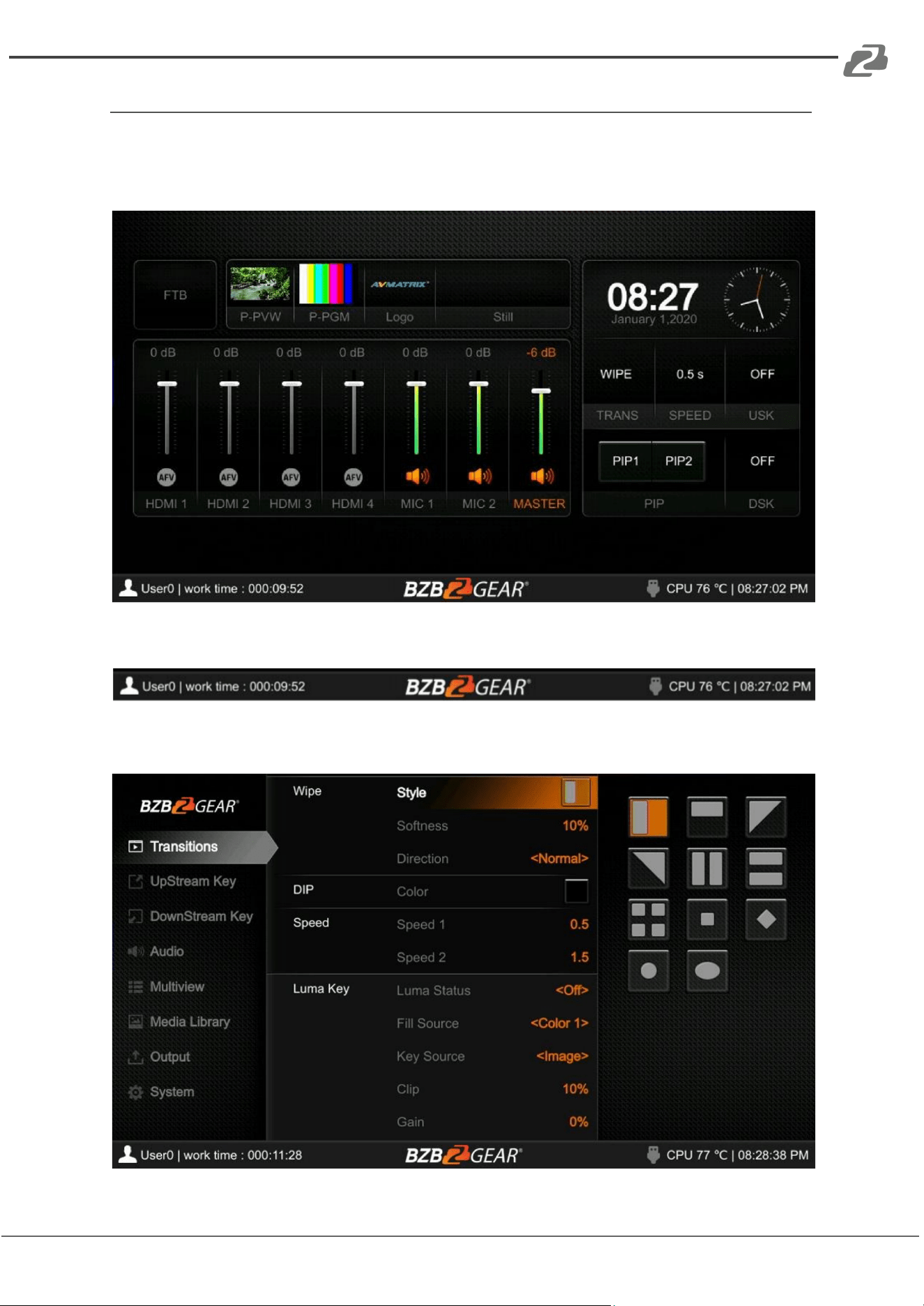
Status/Menu Page
The Status/Menu page shows information for FTB (Fade to Black), P-PVW (Pattern in PVW
row), PPGM (Pattern in PGM row), Logo, Still, Audio, Transition Effect, Transition Speed,
USK (Upstream Key), DSK (Downstream Key), and System Time (see image below).
The taskbar below shows username, working time, USB connection, CPU working
temperature, and system time in the bottom of the Status/Menu page.
The information on the status page will be updated in real time as the settings are changed.
Pressing the menu button on the switcher will open the menu page as shown in the image
below.
Address: 830 National Drive #140, Sacramento, CA 95834, USA · Tel: +1(888)499-9906 · Email: support@bzbgear.com 10
BZBGEAR BG-HDVS42U PRODUCT MANUAL
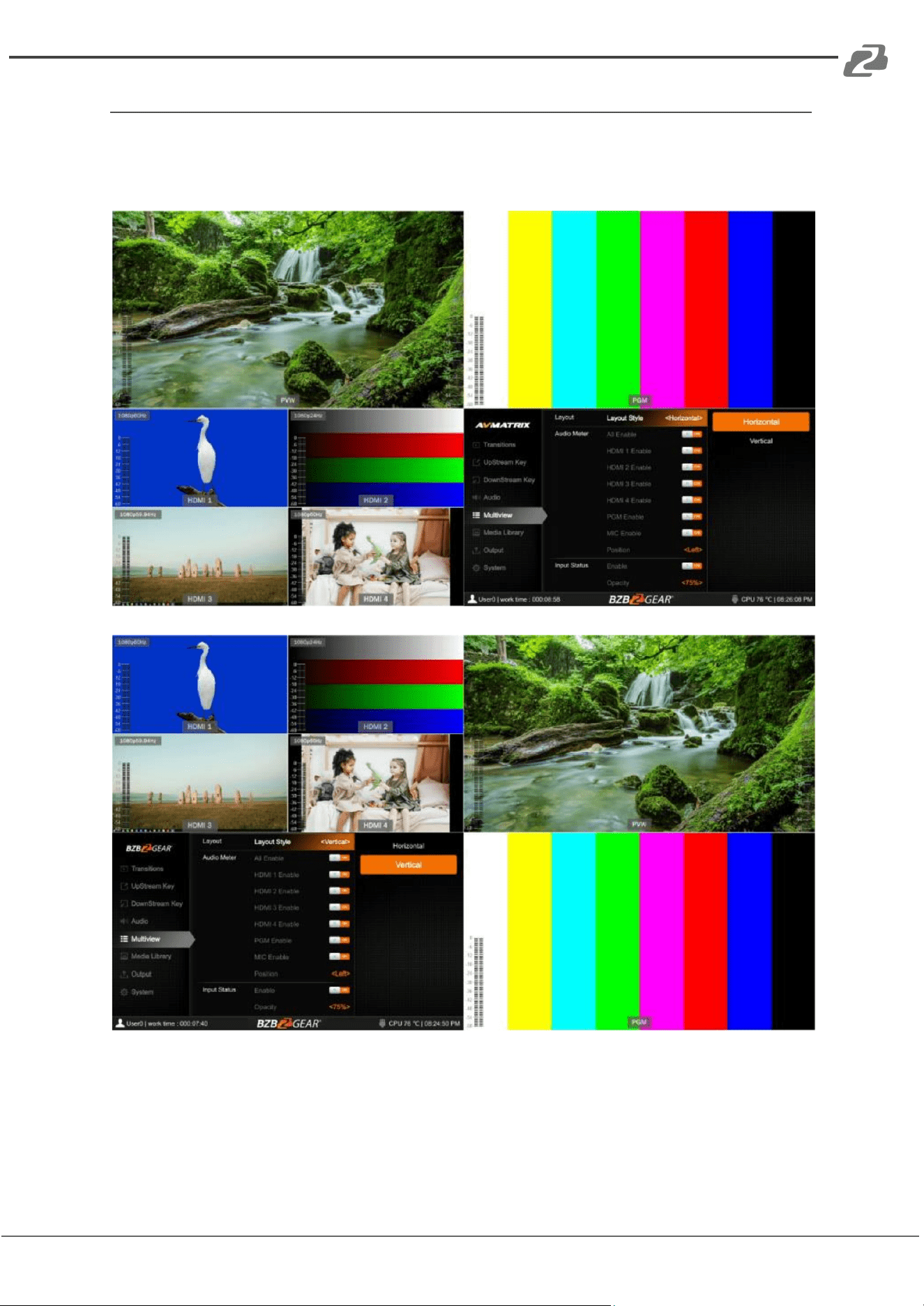
Layouts
There are two Multiview layouts which can be selected. Simply switch between the
horizontal layout and vertical layout from the menu as shown in the images below.
Horizontal:
Vertical:
Address: 830 National Drive #140, Sacramento, CA 95834, USA · Tel: +1(888)499-9906 · Email: support@bzbgear.com 11
BZBGEAR BG-HDVS42U PRODUCT MANUAL
Audio Meter
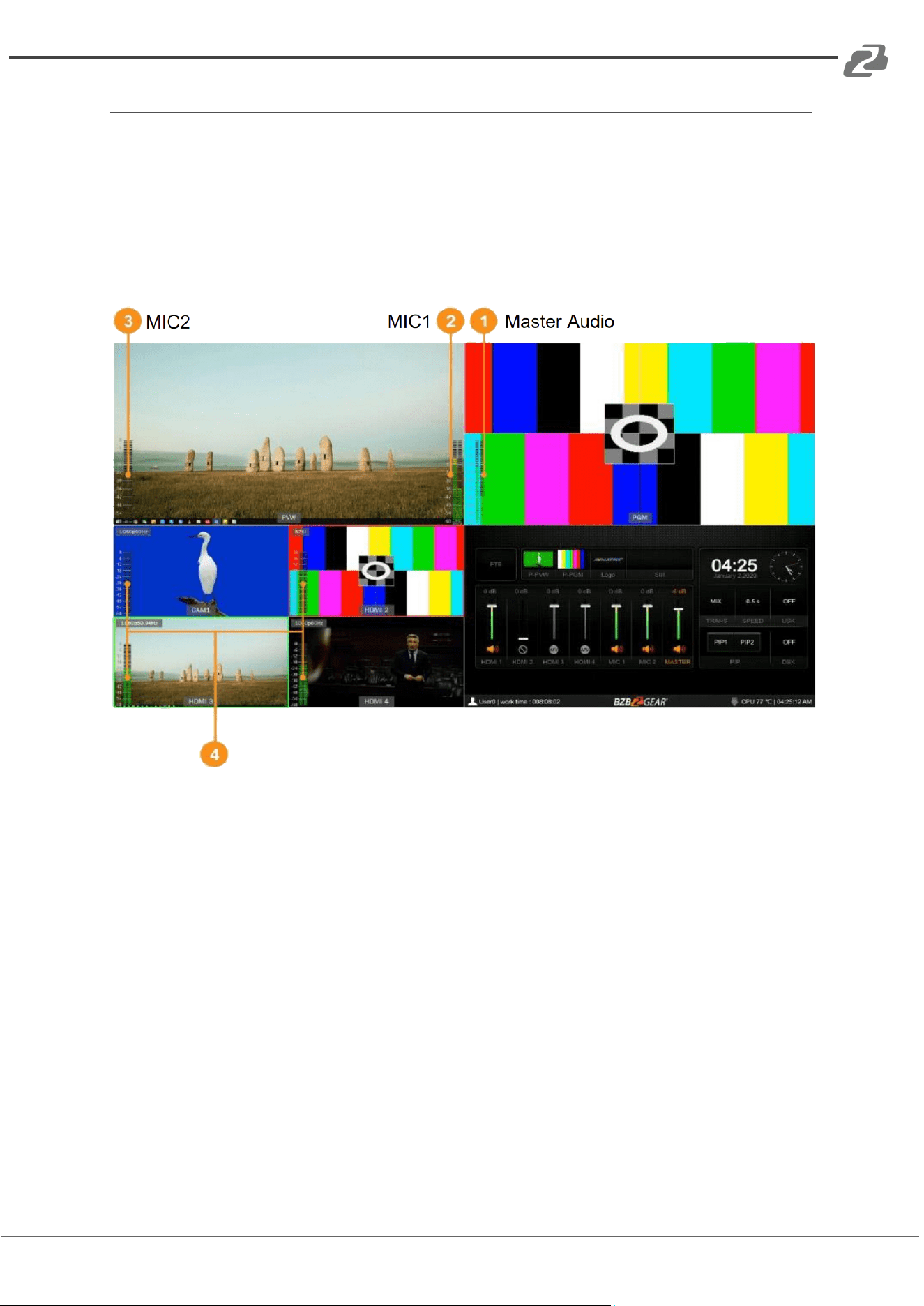
There are audio meters in each window of the Multiview including HDMI1-4, PGM, and MIC
to show the audio level of each input. The audio meters of MIC 1 and MIC 2 show in the left
and right of the PVW window.
Users can turn on/off all or individual audio meters from the menu. The audio meter position
can be displayed in the right or left of each window. See below image.
Address: 830 National Drive #140, Sacramento, CA 95834, USA · Tel: +1(888)499-9906 · Email: support@bzbgear.com 12
BZBGEAR BG-HDVS42U PRODUCT MANUAL
Input Information
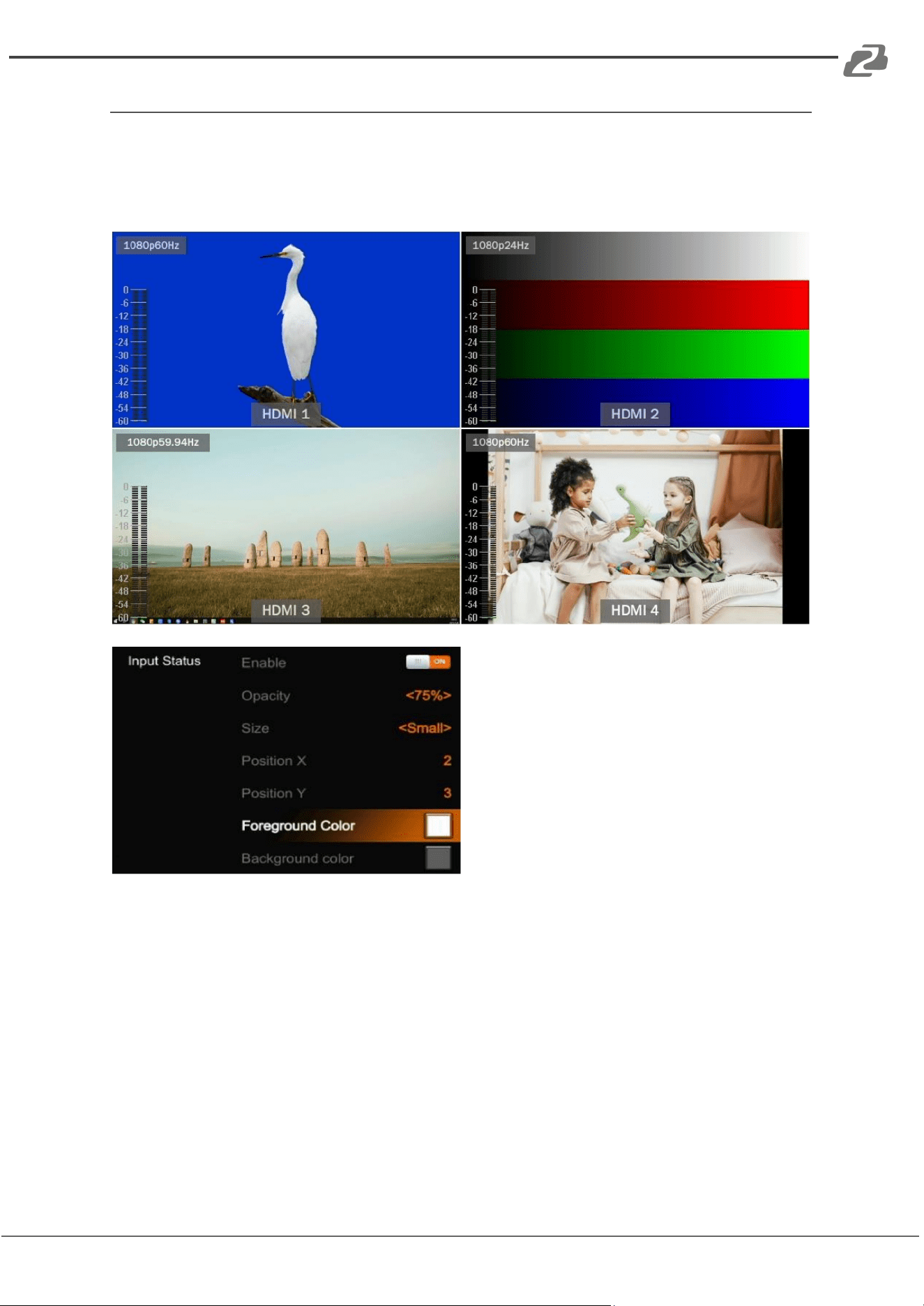
There is an overlay in each window of HDMI inputs 1-4. The overlay shows the resolution
and frame rate of the HDMI input. Users can turn on/off the overlay in each input window.
Users can also set the overlay Opacity (50%, 75%, 100%), Size (Small/Medium/Large),
Position X & Y (1-100), Foreground color, and Background Color (see image below).
Address: 830 National Drive #140, Sacramento, CA 95834, USA · Tel: +1(888)499-9906 · Email: support@bzbgear.com 13
BZBGEAR BG-HDVS42U PRODUCT MANUAL
UMD Settings
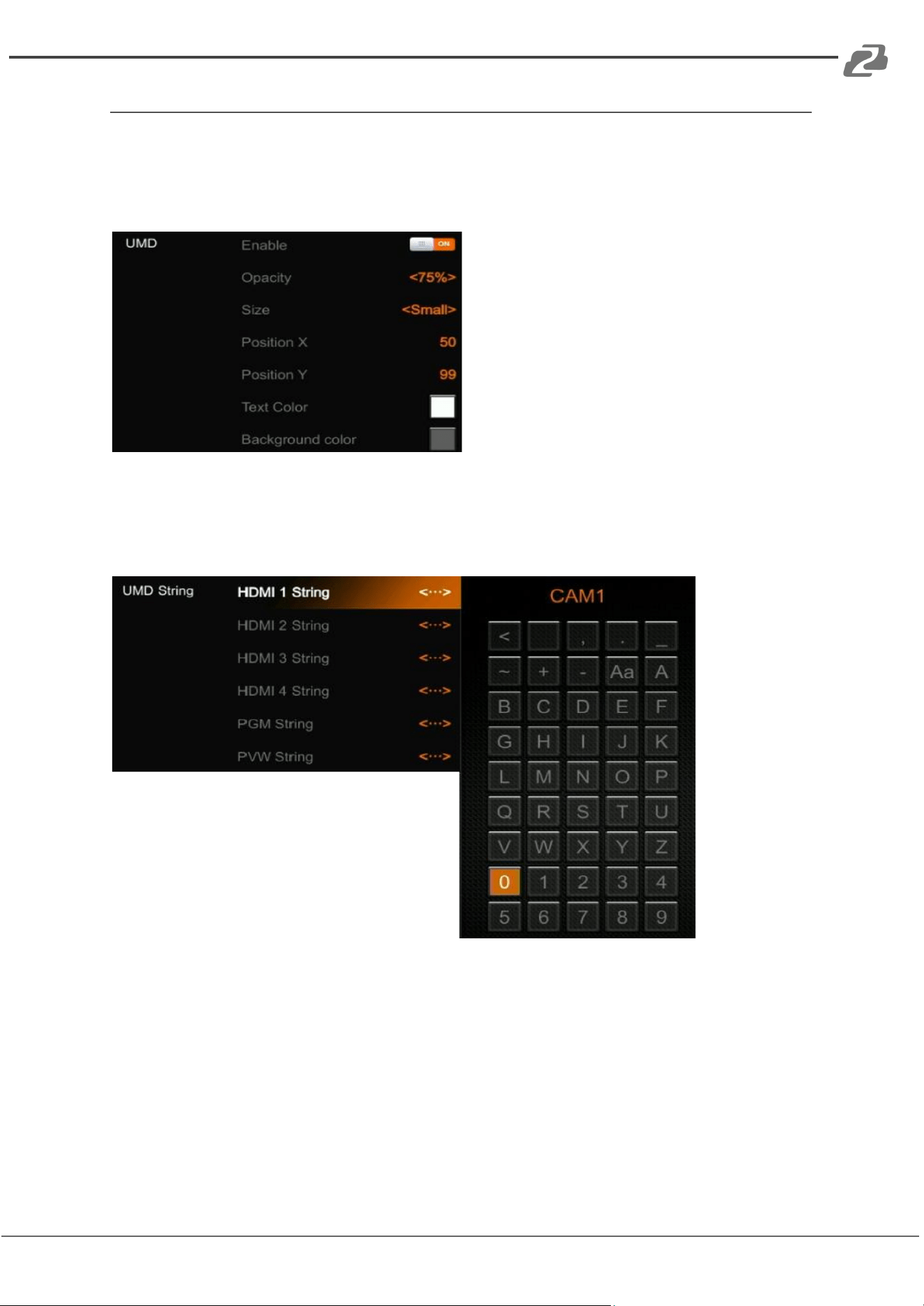
The default UMD of the four inputs are HDMI 1, HDMI 2, HDMI 3, HDMI 4. Users can turn
on/off the UMD in each window. Users can also set the overlay Opacity (50%, 75%, 100%),
Size (Small/Medium/Large), Position X & Y (1-100), Foreground color, and Background Color
(see image below).
The UMD text content for the 4 HDMI inputs can be set from the menu. Users can rename
the UMD content for each window by using a virtual keyboard and rotary button. It supports
up to a maximum of 10 characters for each input. In the example below the input has been
renamed from HDMI 1 to CAM1.
Address: 830 National Drive #140, Sacramento, CA 95834, USA · Tel: +1(888)499-9906 · Email: support@bzbgear.com 14
BZBGEAR BG-HDVS42U PRODUCT MANUAL
PGM & PVW Switching
PGM/PVW Channel Selection
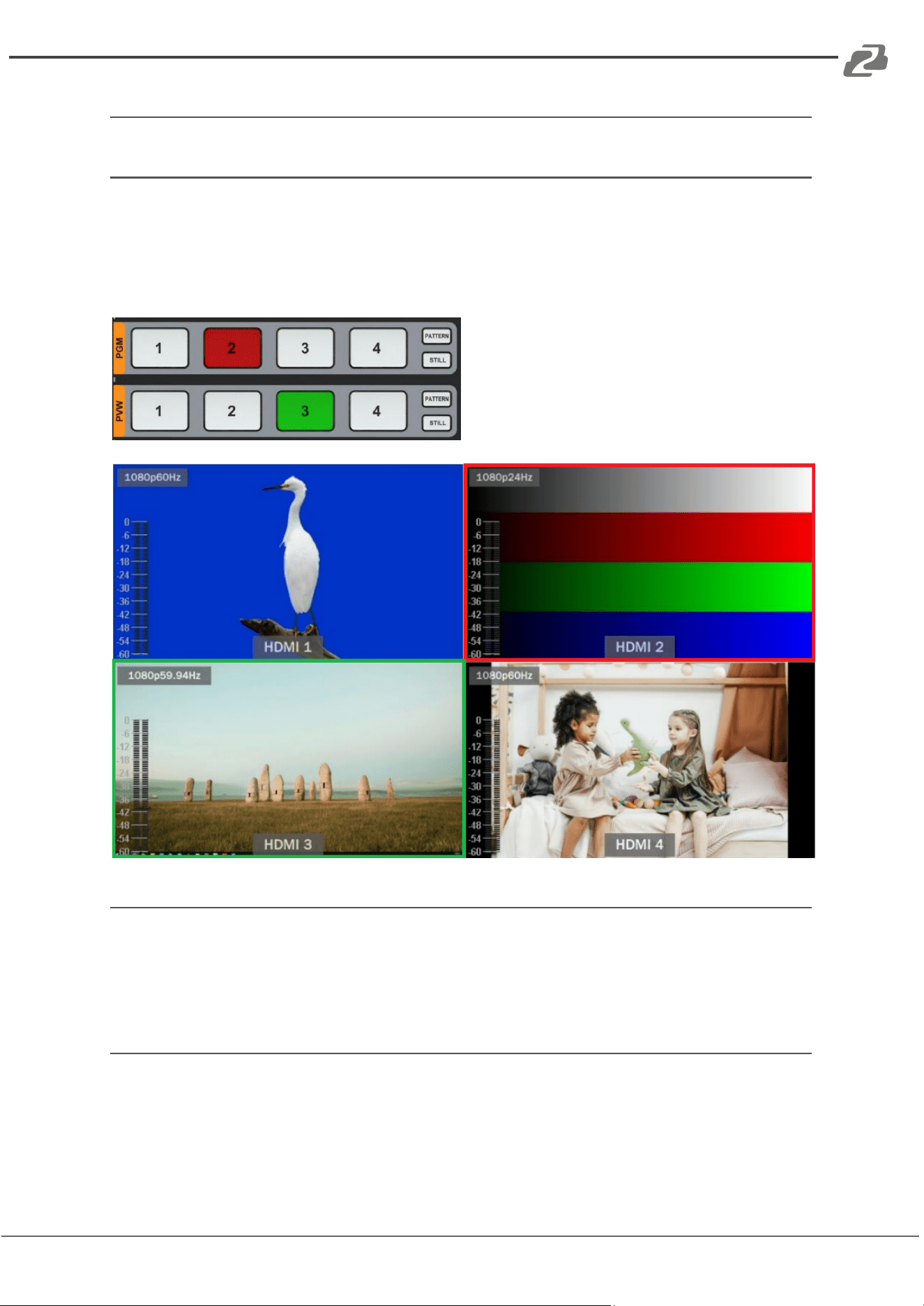
Choose the PGM and PVW sources from their corresponding row and enable/disable
PATTERN from the adjacent buttons (different patterns can be configured in the menu). The
selected button for PGM will turn red and the selected button for PVW will turn green. The
PGM source will be highlighted with a red border, while the PVW source will be highlighted
with a green border.
Still
The video switcher features a STILL function which users can freeze the input sources.
Select the channel you want to freeze in the PGM or PVW row, then press the STILL button
to freeze the input source. Users can freeze all four inputs if desired. Press the input channel
and STILL again to unfreeze the image.
Transition: CUT/ AUTO/ T-BAR
There are two transitional control types for this video switcher: Transition without effects
(CUT) and Transition with effects (AUTO, T-Bar).
CUT performs a simple immediate switch between Preview and Program. This is no delay
providing seamless switching, and the selected transition effect WIPE, MIX or DIP is not
utilized.
Address: 830 National Drive #140, Sacramento, CA 95834, USA · Tel: +1(888)499-9906 · Email: support@bzbgear.com 15
BZBGEAR BG-HDVS42U PRODUCT MANUAL
AUTO performs an automated switch between Preview and Program views. The timing of
the transition can be set by the speed button (see Transition Speed Settings below). The
transition effects WIPE, DIP, MIX will also be used.
T-BAR manual transition is similar to using the AUTO button but offers flexibility as a manual
transition based on the speed that the user prefers using Hand Speed.
Transition effects
This switcher provides various transition effects including WIPE, DIP and MIX.
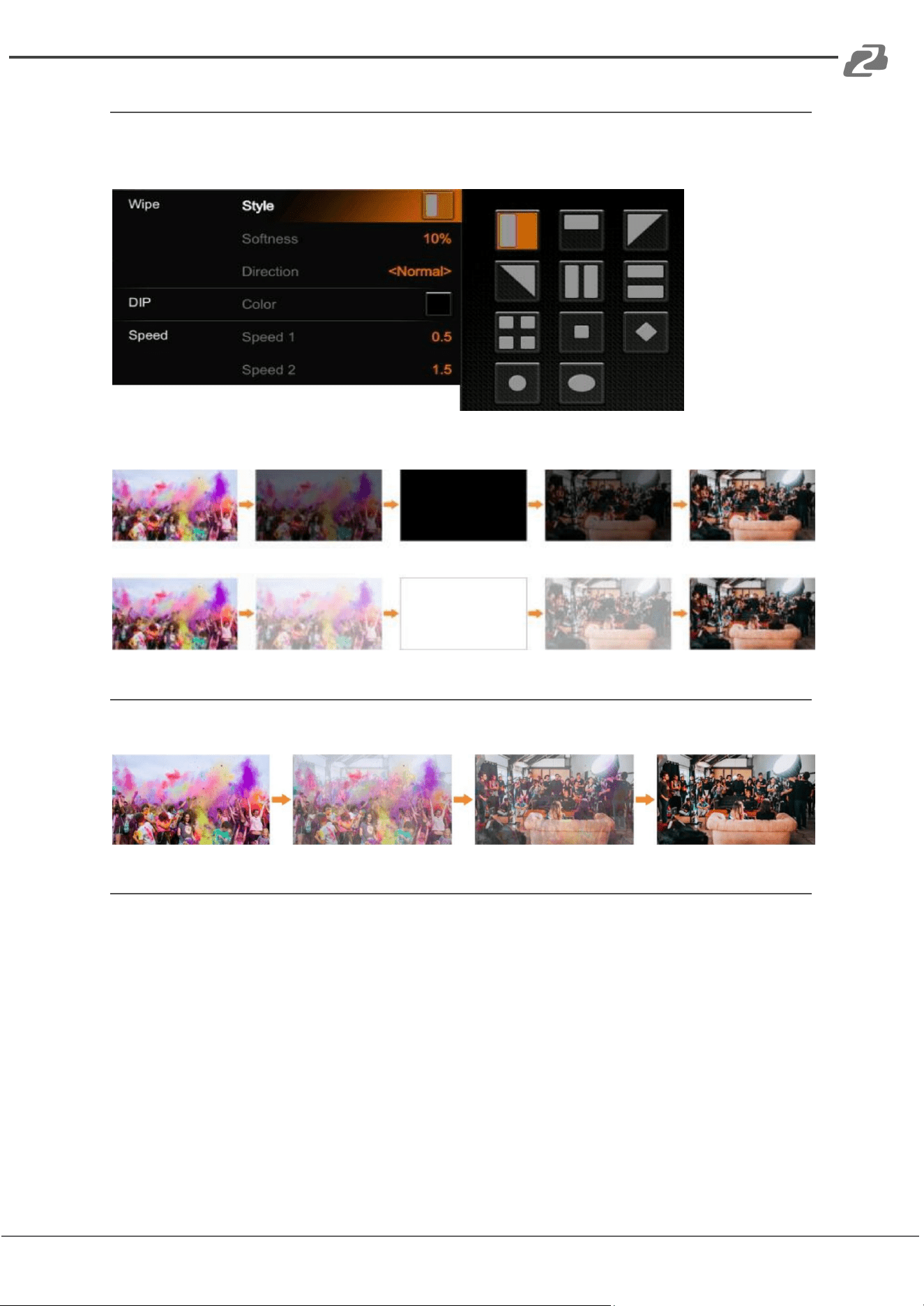
WIPE
Press the WIPE button to perform the wipe transition effect. Users can choose different
versions of the WIPE effect through the menu; as well as setting the softness of the edge.
Select the direction from Normal/ Invert/ Flip-Flop when using the AUTO transition feature.
Press the INV button to invert the selected wipe so it creates the reverse direction effect.
Address: 830 National Drive #140, Sacramento, CA 95834, USA · Tel: +1(888)499-9906 · Email: support@bzbgear.com 16
BZBGEAR BG-HDVS42U PRODUCT MANUAL
DIP
Press the DIP button to perform the DIP transition effect. User can select from various
colors.
NOTE: On the menu screen, the default color is black.
MIX
Press the MIX button to perform the MIX transition effect.
Transition Speed Settings
Users can set two separate speeds of transition on the menu, as well as define the speed
value which can be saved and will correspond to the Speed 1 or Speed 2 buttons. The
higher the value, the slower the transition speed, selectable range is between 0.1s - 8.0s.
Address: 830 National Drive #140, Sacramento, CA 95834, USA · Tel: +1(888)499-9906 · Email: support@bzbgear.com 17
BZBGEAR BG-HDVS42U PRODUCT MANUAL
Upstream Key
Luma Key
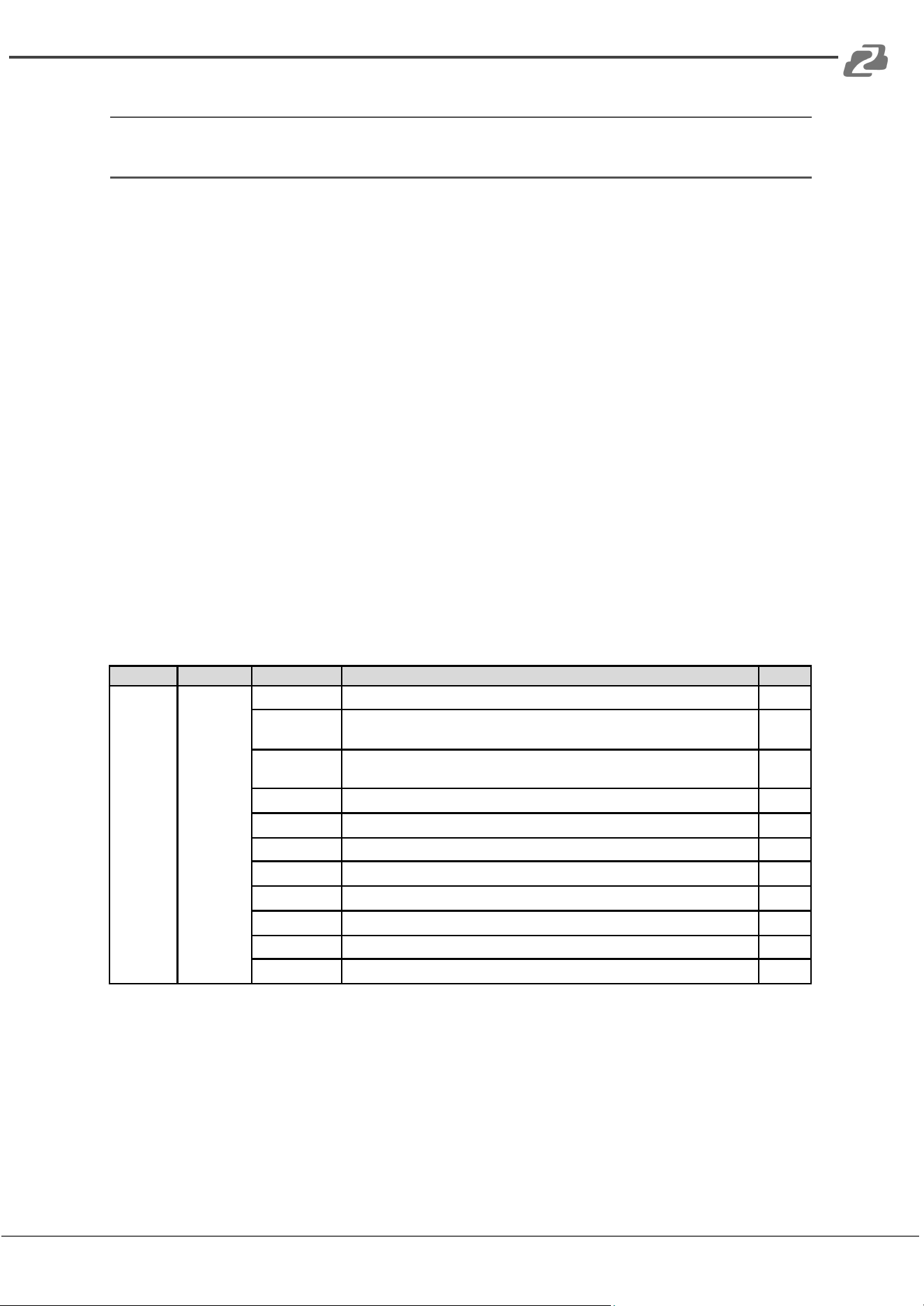
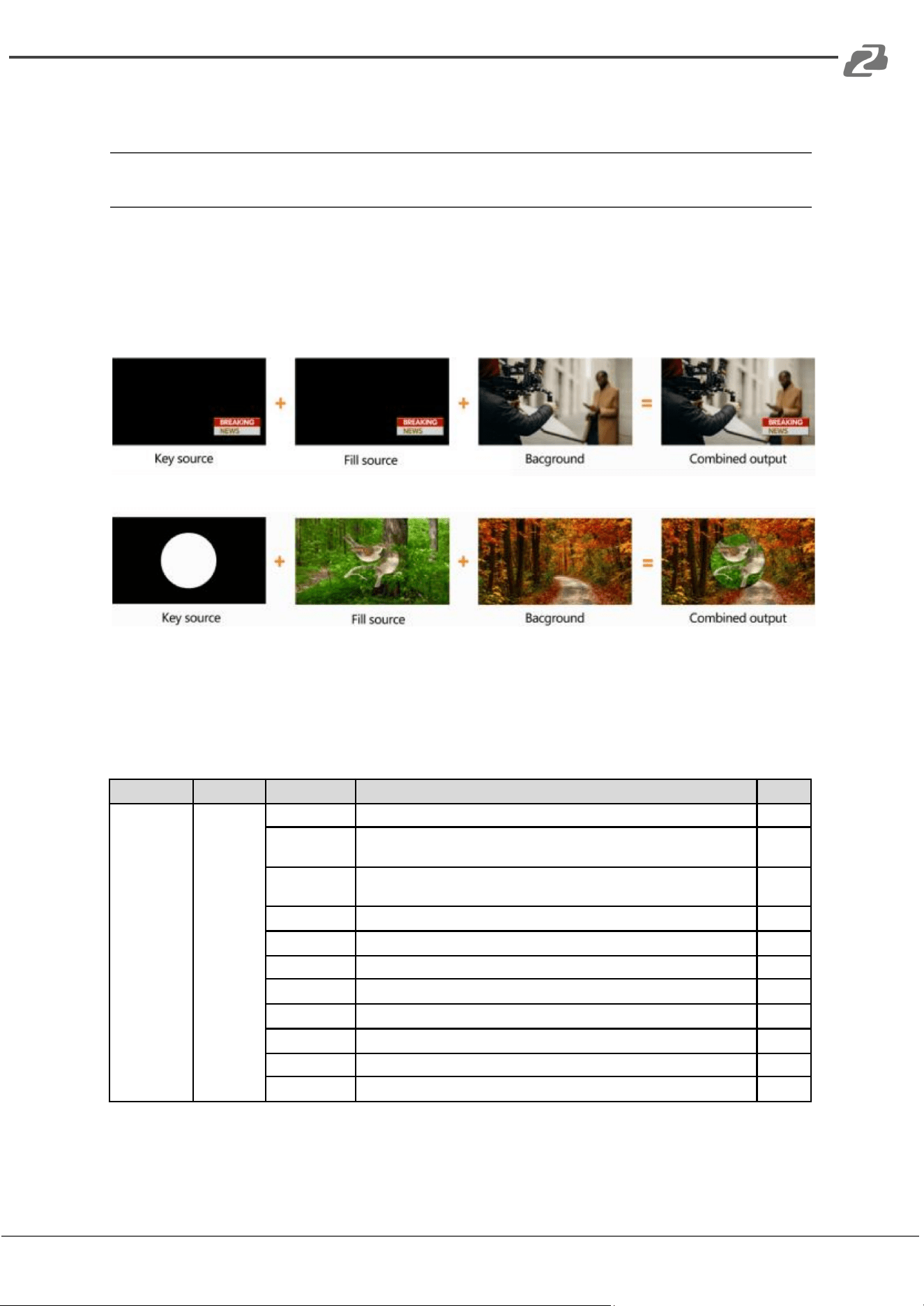
Luma keys provide a way to compose a foreground clip over a background clip based on
the luminance levels in the video. When the Luma Key is activated, a color from the key
source will be removed, revealing another background image behind it.
Switch the video with a background to the PVW window and turn on the Luma Key. Press
the menu knob to enter the settings menu. Users can assign the fill and key source from
various options including Black/ Color Bar/ Color1/ Color 2/ HDMI 1/ HDMI 2/ HDMI 3/
HDMI 4/ Image (import from USB disk). Configure and adjust the Key parameters including
Clip/Gain/Mask to achieve the desired effect. See Key Menu Interface and Parameter
settings below.
Press the ON AIR button and the ON AIR button will illuminate and LUMA button will turn off
while the Key effect will display on the PGM. Use CUT, AUTO, or T-Bar to switch the PVW
with KEY to the PGM output.
LUMA button ON: Luma key shows on PVW
ON AIR button ON: Luma Key is available on PGM
ON AIR and LUMA button simultaneously ON: Luma Key is available on both PVW and
PGM. Corresponding status in menu is <KEY & ON AIR>
Menu
Sub-Menu
Item
Parameter
Default
Upstream
Key
Luma Key
Luma Status
OFF/ KEY (PVW)/ ON AIR (PGM)/ KEY & ON AIR
Off
Fill Source
Black/ Color Bar/ Color 1/ Color 2/ HDMI 1/ HDMI 2/ HDMI 3/ HDMI 4/
Image
Color1
Key Source
Black/ Color Bar/ Color 1/ Color 2/ HDMI 1/ HDMI 2/ HDMI 3/ HDMI 4/
Image
Image
Clip
0%-100%
10%
Gain
0%-100%
0%
Invert Key
On/Off
Off
Mask Enable
On/Off
Off
Mask Left
0%-100%
0%
Mask Top
0%-100%
0%
Mask Right
0%-100%
50%
Mask Bottom
0%-100%
50%
Clip: Adjust the threshold at which the key cuts its hole. When decreasing the clip more of
the background will appear. If the background video is completely black, then the clip value
is too low.
Gain: Adjusts the performance of the chroma key in light or white areas. Apply more Key
Gain if the light areas are becoming too transparent.
Invert Key: Inverts the Key signal.
Mask: Configure the Mask for the Key area
Address: 830 National Drive #140, Sacramento, CA 95834, USA · Tel: +1(888)499-9906 · Email: support@bzbgear.com 18
BZBGEAR BG-HDVS42U PRODUCT MANUAL
Chroma key
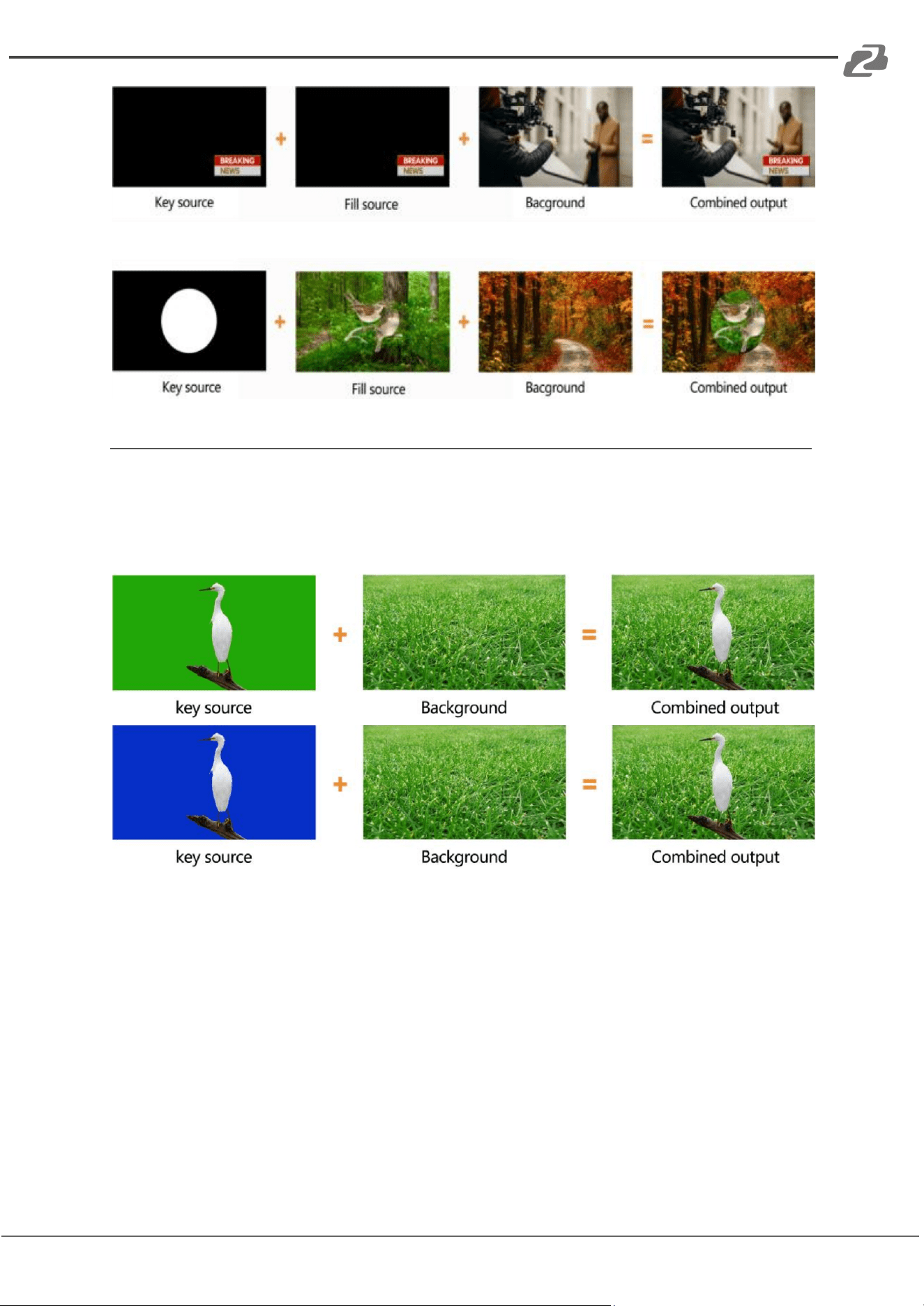
Chroma Key is a visual-effects and post-production technique for compositing (layering) two
images or video streams together based on color hues (chroma range). This technique is
used in many fields to remove a background from the subject of a photo or video,
particularly tin newscasting, motion picture, and video game industries.
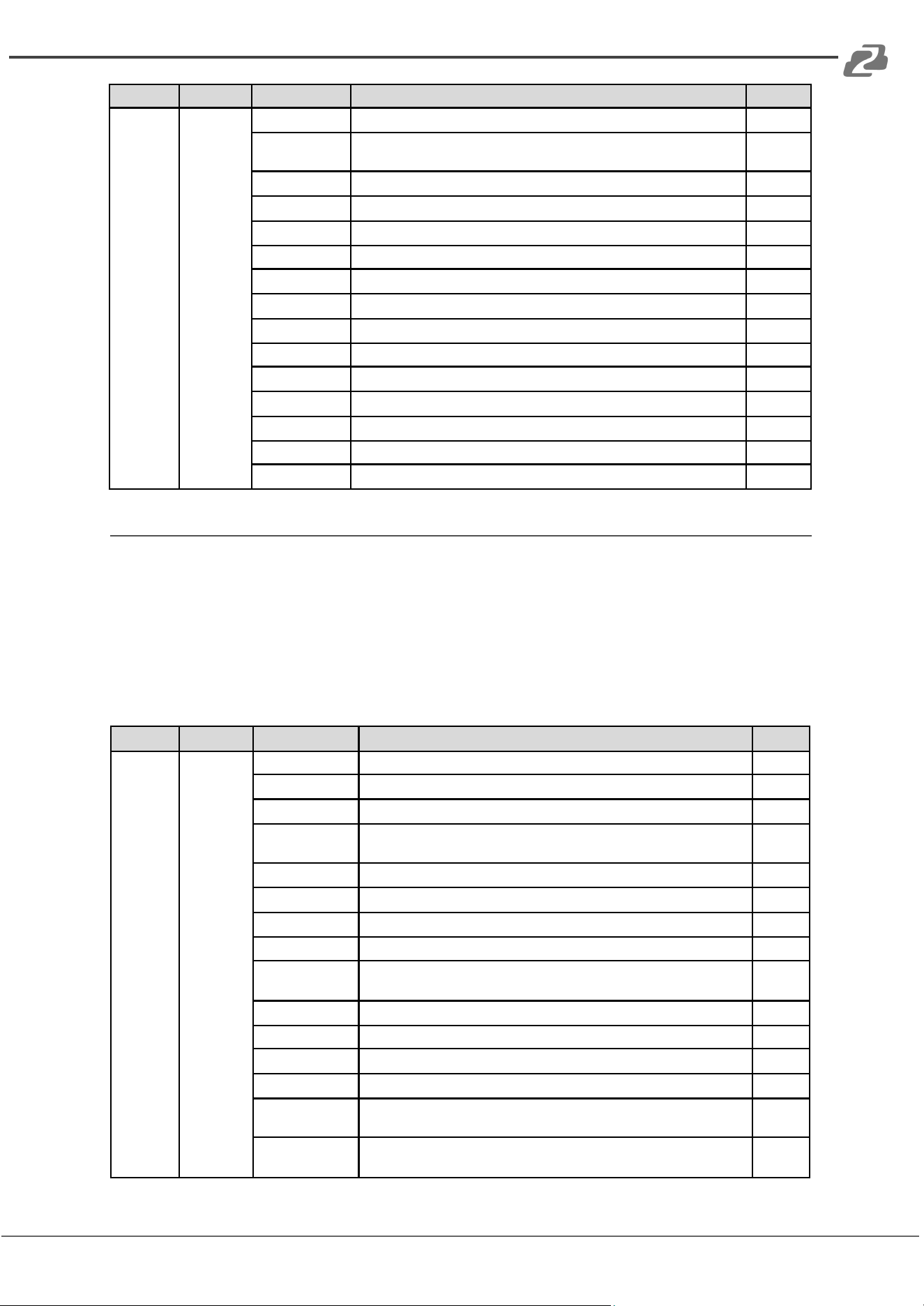
Press the CHROMA Key button, press the Menu knob and choose Chroma to configure the
effect of Chroma Key, including the Key Source, Key Color, Clip, Gain, Key Fetch, Mask,
etc., detailed parameters setting as below.
Press the ON AIR button next to the CHROMA button to enable the KEY on PVW. Use the
AUTO key or T-Bar control to switch the PVW with the key to PGM.
CHROMA button ON: Chroma key shows on PVW.
ON AIR button ON: Chroma Key available on PGM
ON AIR and CHROMA button both ON: Chroma Key available on both PVW and PGM.
Corresponding status in menu is <KEY & ON AIR>
Address: 830 National Drive #140, Sacramento, CA 95834, USA · Tel: +1(888)499-9906 · Email: support@bzbgear.com 19
BZBGEAR BG-HDVS42U PRODUCT MANUAL
Menu
Sub-Menu
Item
Parameter
Default
Upstream
Key
Chroma
Key
Chroma Status
OFF/ KEY (PVW)/ ON AIR (PGM)/ KEY & ON AIR
Off
Key Source
Black/ Color Bar/ Color 1/ Color 2/ HDMI 1/ HDMI 2/ HDMI 3/ HDMI
4/ Image
Image
Key Color R
0~255
10
Key Color G
0~255
154
Key Color B
0~255
56
Fetch X
0~100%
0
Fetch Y
0~100%
0
Fetch Width
0~50%
5
Clip
0%-100%
40%
Gain
0%-100%
10%
Mask Enable
On/Off
Off
Mask Left
0%-100%
0%
Mask Top
0%-100%
0%
Mask Right
0%-100%
50%
Mask Bottom
0%-100%
50%
PIP & POP
The video switcher supports two groups PIP or one POP. When pressing PIP1 or PIP2
button, there will be a small image display on the top left corner of PVW window. Press the
Menu knob and choose the PIP setting interface, user can set parameters including
position, size, border, etc. See details below.
Press ON AIR button next to PIP1 and PIP2 to put the PIP into effect on PGM.
Set the POP in the same menu as detailed below. When POP is working PIP is disabled.
Menu
Sub-Menu
Item
Parameter
Default
Upstream
Key
PIP/POP
Border Color
Color
White
Border Width
in Y o
2
PIP1 Status
OFF/ KEY (PVW)/ ON AIR (PGM)/ KEY & ON AIR
Off
PIP1 Source
Black/ Color Bar/ Color 1/ Color 2/ HDMI 1/ HDMI 2/ HDMI 3 /HDMI
4/ Image
HDMI 1
PIP1 Size
1/2 1/4 1/8
1/4
PIP1 Position X
0~100
0
PIP1 Position Y
0~100
0
PIP2 Status
OFF/ KEY (PVW)/ ON AIR (PGM)/ KEY & ON AIR
Off
PIP2 Source
Black/ Color Bar/ Color 1/ Color 2/ HDMI 1/ HDMI 2/ HDMI 3 /HDMI
4/ Image
HDMI 2
PIP2 Size
1/2/1/4/1/8
1/4
PIP2 Position X
0~100
100
PIP2 Position Y
0~100
0
POP Status
OFF/ KEY (PVW)/ ON AIR (PGM)/ KEY & ON AIR
off
POP Source 1
Black/ Color Bar/ Color 1/ Color 2/ HDMI 1/ HDMI 2/ HDMI 3 /HDMI
4/ Image
HDMI 1
POP Source 2
Black/ Color Bar/ Color 1/ Color 2/ HDMI 1/ HDMI 2/ HDMI 3 /HDMI
4/ Image
HDMI 2
Address: 830 National Drive #140, Sacramento, CA 95834, USA · Tel: +1(888)499-9906 · Email: support@bzbgear.com 20
BZBGEAR BG-HDVS42U PRODUCT MANUAL
DownStream Key
DSK
Press the DSK button to mask the DSK signals utilizing the mask signal of the source. The
source (Fill Source, Key Source), Clip, Gain, and mask (Mask Enable, Mask Left, Mask Top,
Mask Right, Mask Bottom) of DSK can be set from the menu. Options are detailed below.
Press the ON AIR button next to the DSK button to enable the KEY on PGM. Use the AUTO
button or T-Bar control to switch the PVW and DSK to PGM. The Key will not be changed
when switching between the PVW and PGM sources.
DSK button ON: DSK key shows on PVW.
ON AIR button ON: DSK Key available on PGM.
ON AIR and DSK button both ON: Downstream Key available on both PVW and PGM. The
corresponding status in the menu is <KEY & ON AIR>
Menu
Sub-Menu
Item
Parameter
Default
Downstream
Key
DSK
DSK Status
OFF/ KEY (PVW)/ ON AIR (PGM)/ KEY & ON AIR
Off
Fill Source
Black/ Color Bar/ Color 1/ Color 2/ HDMI 1/ HDMI 2/ HDMI 3 /HDMI 4/
Image
Black
Key Source
Black/ Color Bar/ Color 1/ Color 2/ HDMI 1/ HDMI 2/ HDMI 3 /HDMI 4/
Image
Black
Clip
0%-100%
0%
Gain
0%-100%
0%
Invert Key
On/Off
Off
Mask Enable
On/Off
Off
Mask Left
0%-100%
0
Mask Top
0%-100%
0
Mask Right
0%-100%
0
Mask Bottom
0%-100%
0
Address: 830 National Drive #140, Sacramento, CA 95834, USA · Tel: +1(888)499-9906 · Email: support@bzbgear.com 21
BZBGEAR BG-HDVS42U PRODUCT MANUAL
LOGO
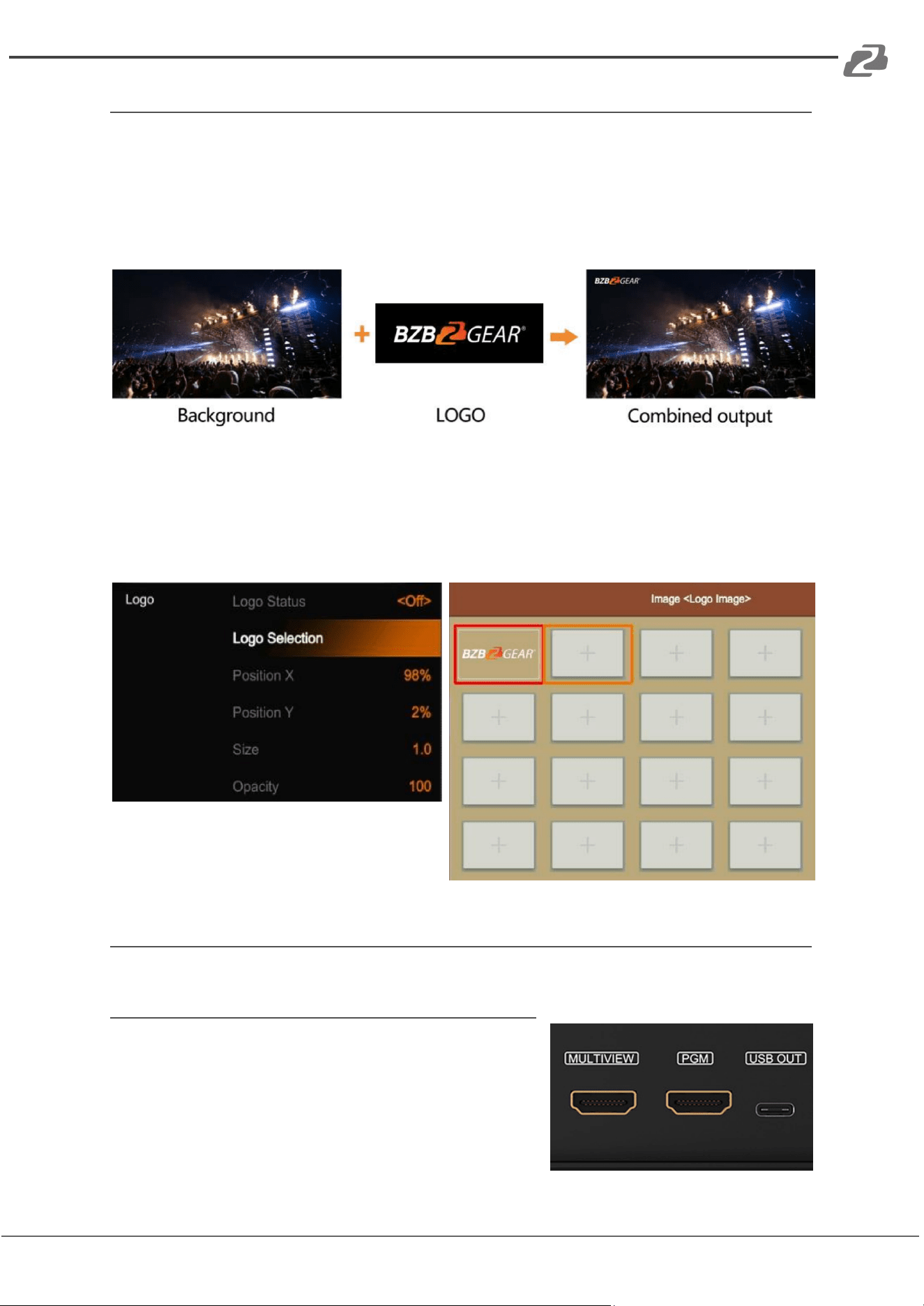
This switcher permits users to import their own logos. Press the menu knob and choose the
logo setting interface, this is where the user can choose a logo from the media pool on the
USB disk and set the position, size, and opacity. Rotate the menu knob to choose the logo,
press the Menu knob to select and delete a logo. Users can view the logo effect in PVW.
Press the ON AIR button next to the LOGO button to display the effect.
LOGO button ON: DSK key shows on PVW.
ON AIR button ON: DSK Key available on PGM
ON AIR and LOGO button both ON: LOGO available on both PVW and PGM.
Corresponding status in menu is <KEY & ON AIR>
Output Setting
Output Interfaces
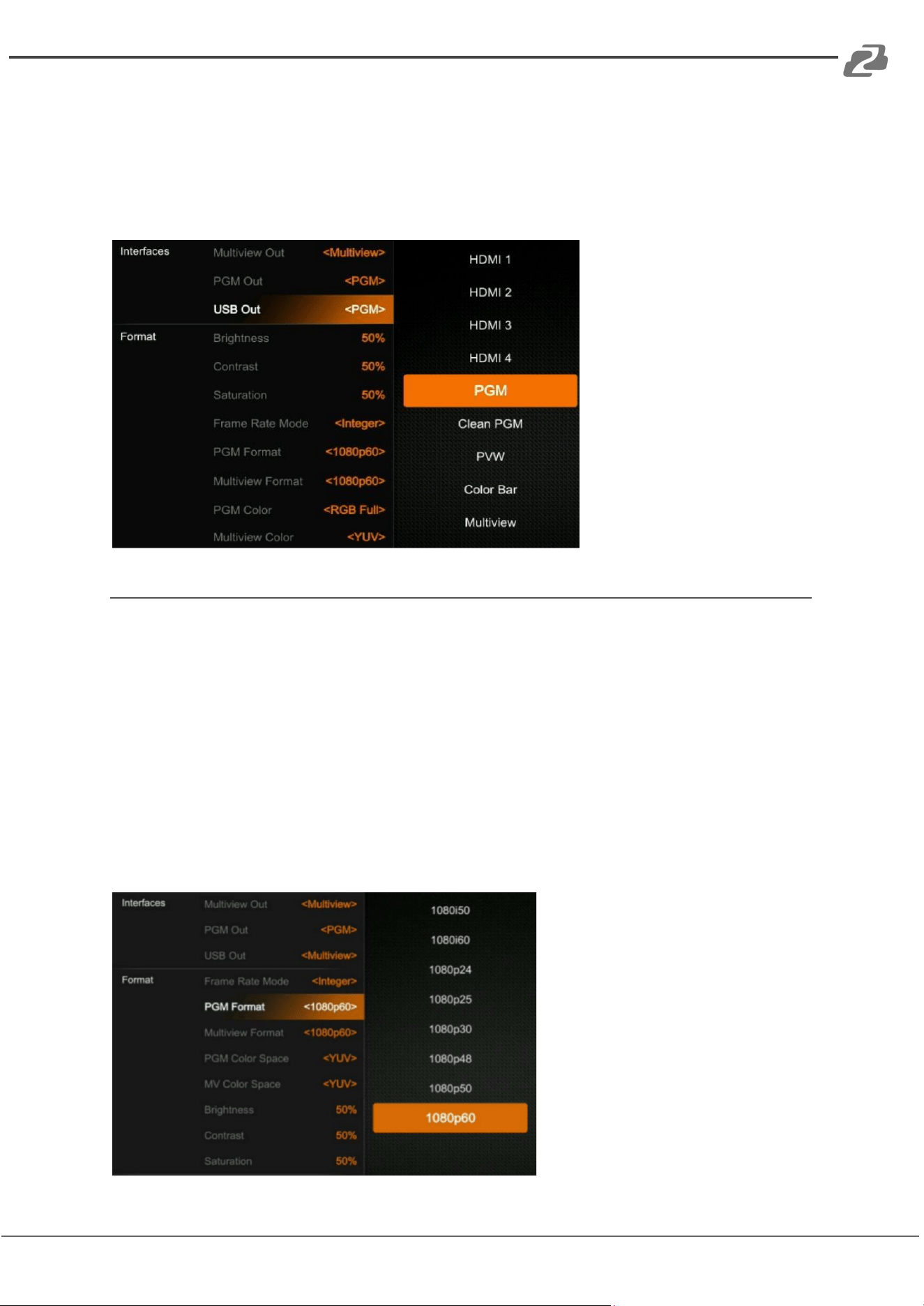
The HDVS42U has 3 output interfaces, Multiview Out,
PGM Out, and USB-C Out. The PGM and USB outputs
can also be assigned as AUX OUT for HDMI1, HDMI2,
HDMI3, HDMI4, PVW, PGM, Clean PGM, Color Bar, and
Multiview out. Multiview can only be Multiview.
Address: 830 National Drive #140, Sacramento, CA 95834, USA · Tel: +1(888)499-9906 · Email: support@bzbgear.com 22
BZBGEAR BG-HDVS42U PRODUCT MANUAL
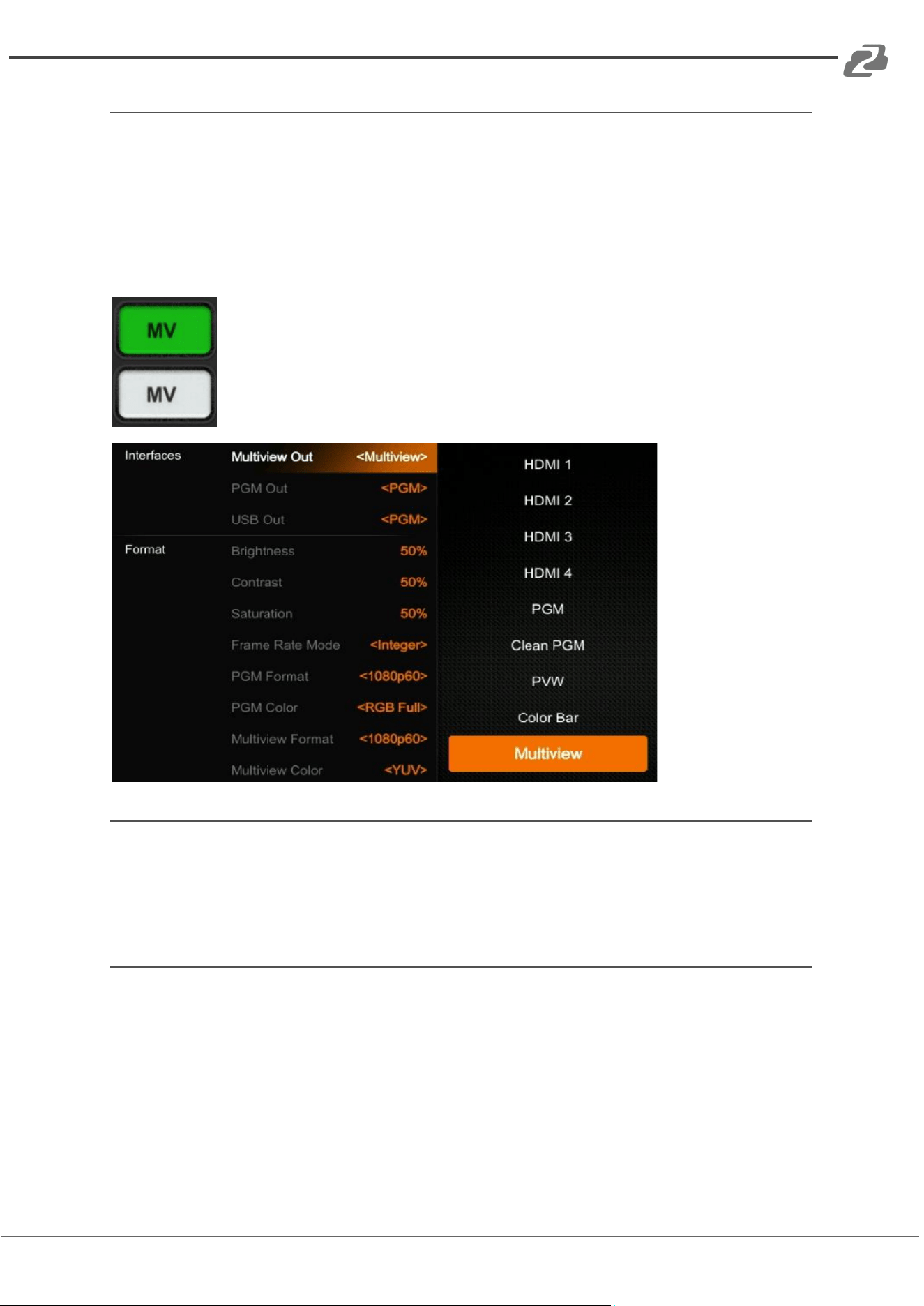
Multiview Out
The default output of the Multiview port is the Multiview window and the LED indicator of
the MV button on the front panel will be green to indicate its default status. Users can
connect it to an additional LCD display to view the 4 HDMI source inputs using PVW, PGM
and status interface. Users can also configure the output of the Multiview port for other
options based on an application’s requirements. When the Multiview output is defined as an
alternative output, for example HDMI 1, the user can press the MV button to switch inputs
for the Multiview output to the configured HDMI 1.
: LED indicator on, Multiview output port shows the Multiview.
: LED indicator off, Multiview output port shows the configured alternate
output
PGM Out
When designating specific outputs for the PGM output, users can connect it to an additional
LCD display to monitor the PGM output. The PGM output video is the Program video
including the overlay images from USK and DSK. PGM Clean out is the option for removing
the overlay images from Program out DSK.
USB Out
Connect the USB-C output to a PC with a USB 2.0 cable for software programs like OBS
Studios, PotPlayer, vMix, etc. Play or store the captured USB streaming video and audio on
live streaming platforms like YouTube, Facebook, Twitter, etc. The USB 2.0 streaming output
is based on UVC (USB video class) and UAC (USB audio class) standards. No additional
drivers need to be installed.
The video source of USB for the PGM output can be associated with HDMI 1, HDMI 2,
HDMI 3, HDMI 4, PVW, or the Clean PGM output. This means users can capture any input
source for live streaming capabilities.
Address: 830 National Drive #140, Sacramento, CA 95834, USA · Tel: +1(888)499-9906 · Email: support@bzbgear.com 23
BZBGEAR BG-HDVS42U PRODUCT MANUAL
Upon completing the connection, the relevant video and audio devices will be added in the
Windows
Device Manager as below:
● Under Imaging Devices: USB 2.0 Capture Video
● Under Audio inputs and outputs: USB 2.0 Capture Audio
Output Format Setting
PGM Image Setting
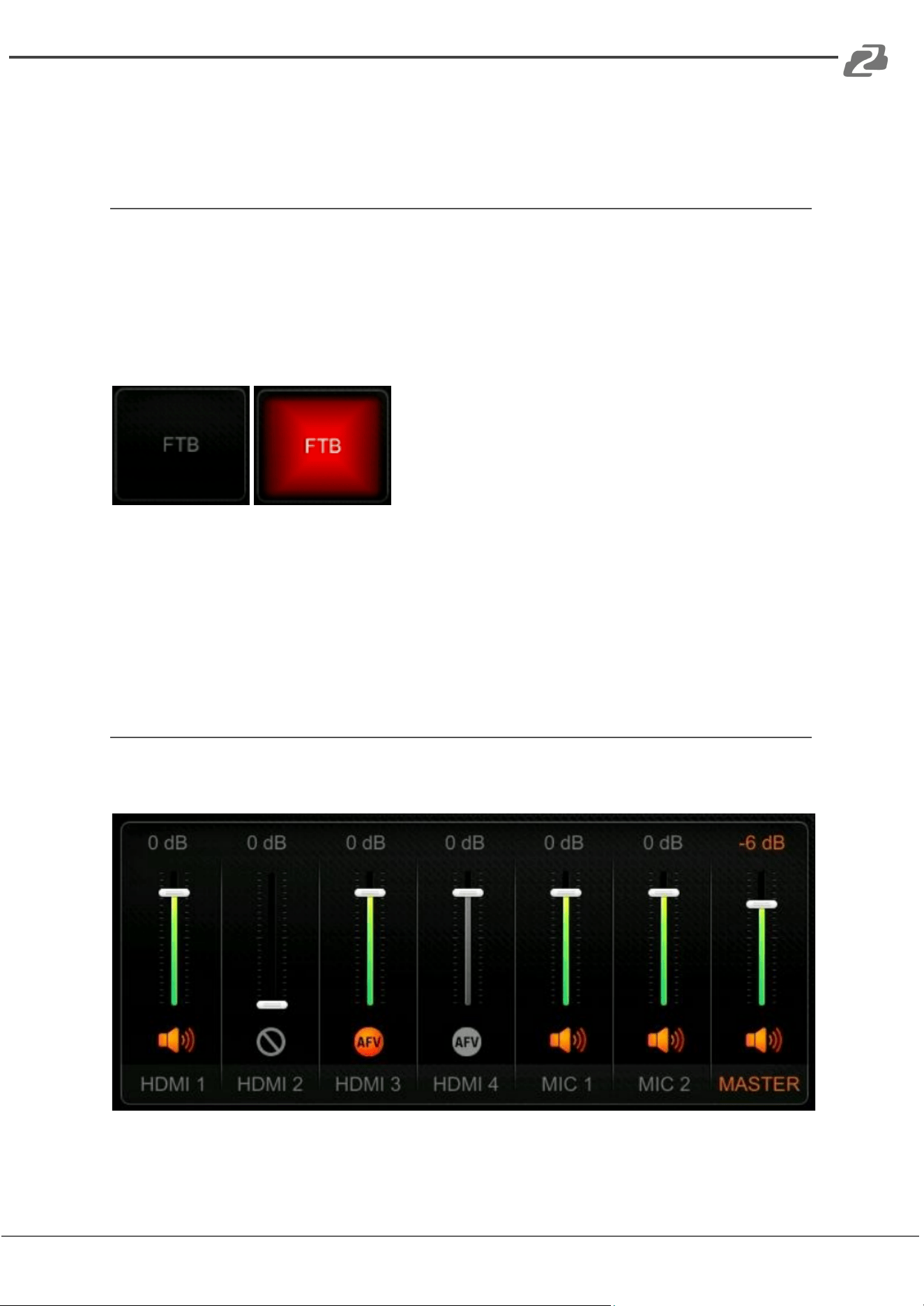
Users can set Brightness, Contrast, and Saturation of the PGM output in the menu. The
setting range is from 0%-100%. The default setting is 50%.
PGM and Multiview Format
The switcher supports up/down scaling output. Users can switch the Frame Rate Mode
between Integer or Decimal. When the Frame Rate Mode is integer, available options are
1080i50, 1080i60, 1080p24, 1080p25, 1080p30, 1080p48, 1080p50, 1080p60. When the
Frame Rate Mode is set to Decimal the available options are 1080i50, 1080i59.94,
1080p23.98, 1080p25, 1080p29.97, 1080p47.95, 1080p50, 1080p59.94. The default formats
of the PGM and Multiview outputs are both 1080p60.
Address: 830 National Drive #140, Sacramento, CA 95834, USA · Tel: +1(888)499-9906 · Email: support@bzbgear.com 24
BZBGEAR BG-HDVS42U PRODUCT MANUAL
PGM and Multiview Color Space
There are YUV, RGB Full, RGB Limit color space options for PGM and Multiview out. The
default color space of the output is YUV.
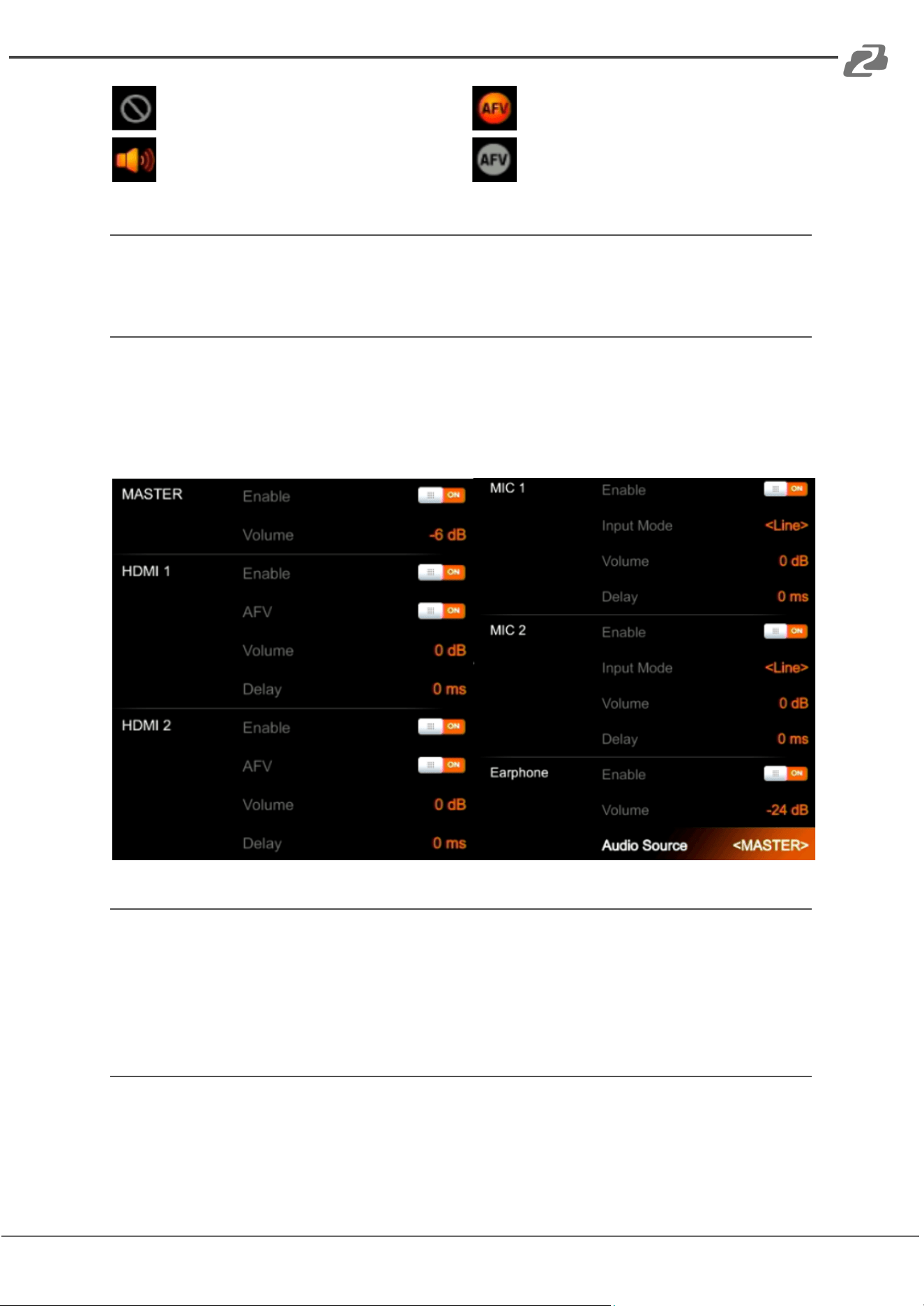
FTB
The FTB (Fade to black) feature is usually for an emergency situation when using the
switcher for a live event. By pressing the FTB button the PGM will fade to a black screen to
hide all the other layers, and the FTB button will keep flashing until the user presses the
button again to stop the FTB.
Note: When the PGM window displays black for an extended period of time (5-10 seconds)
even after the transition, verify that the FTB button is flashing.
1. Set the FTB and Mute speed. The speed of FTB / MUTE is adjustable from 0-3s
located in the menu. The speed relates to the time regarding the entire transition for
FTB and MUTE. For example, if the speed is set to 2.5s the PGM video will fade to
black with audio gradually becoming muted in 2.5s.
2. FTB with MUTE FTB can also work with MUTE. Press the MUTE button or turn on
the FTB with MUTE on from the menu, then the PGM will fade to black with mute
active.
Audio Settings
All audio statuses are displayed in the status page of Multiview and in each Multiview
window there is an audio meter for monitoring status of all the audio inputs.
Address: 830 National Drive #140, Sacramento, CA 95834, USA · Tel: +1(888)499-9906 · Email: support@bzbgear.com 25
BZBGEAR BG-HDVS42U PRODUCT MANUAL
: Audio off;
: Audio on, AFV off;
: Audio on, AFV on & activated;
: Audio on, AFV on & nonactivated.
Master Audio
Master audio is the primary audio control for the PGM output. It can be mixed audio or AFV
audio. Users can turn on/off the master audio or adjust audio volume.
Audio On (MIX)
There are 6 Audio source inputs that can be selected for the audio source embedding,
including 4 HDMI connections and 2 MIC 3.5mm audio inputs. Users can turn on/off or
adjust volume for each audio of HDMI 1, HDMI 2, HDMI 3, HDMI 4, MIC 1 and MIC 2
independently. When enabling an audio source the audio will be permanently mixed into the
PGM output.
AFV
Each channel of the 4 HDMI embedded audio inputs can be set to AFV
(Audio-Follows-Video). When one HDMI embedded audio is set to AFV, then the audio will
be turned on when the PGM switches to the HDMI video. See the below image as an
example. When HDMI 1 embedded audio is set to AFV, HDMI 2 embedded audio will be
turned off when selecting HDMI 1 for audio aligning with video source for PGM.
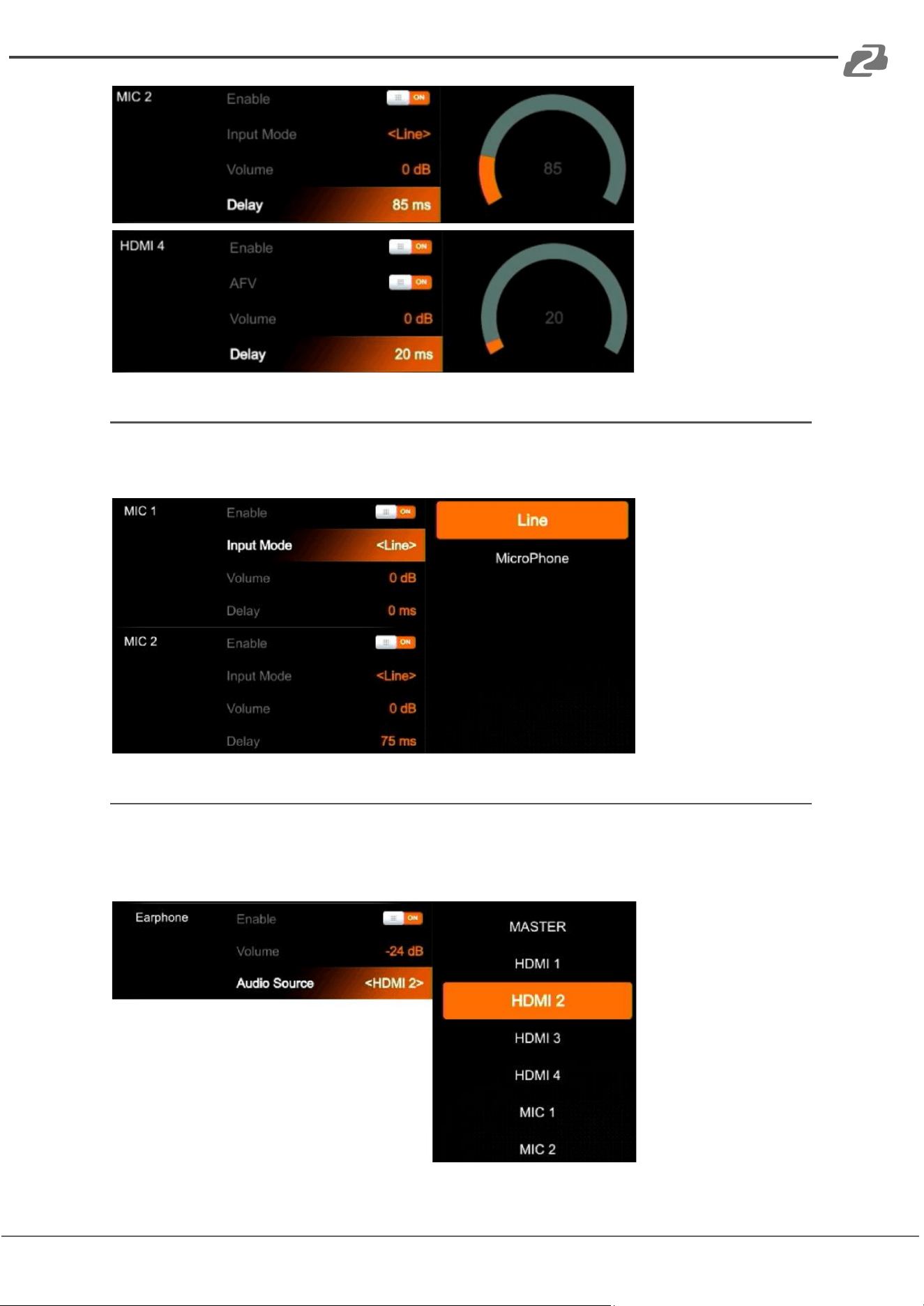
Audio Delay
In the menu there is an audio delay setting for HDMI 1, HDMI 2, HDMI 3, HDMI 4, MIC 1 and
MIC 2. Users can adjust the audio delay to make the audio and video synchronization. One
level of the audio delay setting equals 5ms. The audio can be delayed max 500ms.
Address: 830 National Drive #140, Sacramento, CA 95834, USA · Tel: +1(888)499-9906 · Email: support@bzbgear.com 26
BZBGEAR BG-HDVS42U PRODUCT MANUAL
MIC
The switcher has two MIC inputs that users can connect to a line-level or microphone signal
and turn on/off or adjust the audio volume and delay level.
Headphone
The switcher has a headphone output for monitoring audio. Users can choose one audio
source for headphones from the Master audio, the 4 embedded HDMI audio sources, and
the 2 MIC inputs. Users can turn on/off the headphone or adjust audio volume.
Address: 830 National Drive #140, Sacramento, CA 95834, USA · Tel: +1(888)499-9906 · Email: support@bzbgear.com 27
BZBGEAR BG-HDVS42U PRODUCT MANUAL
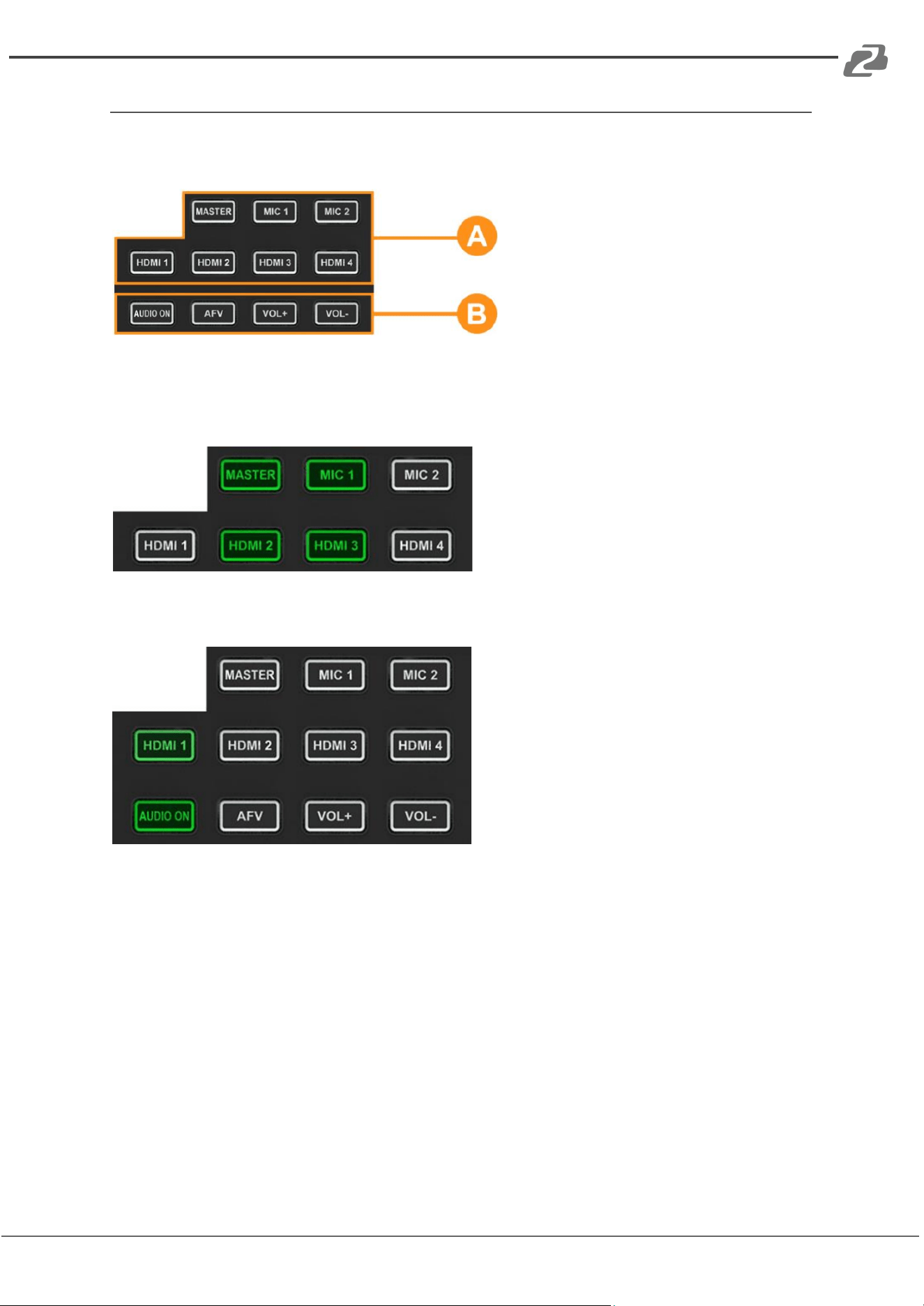
Audio Keyboard Configuration
Audio can also be configured using the keyboard control of the switcher. The keyboard
includes two parts as shown below.
Part A: Used for selecting one audio
source to be configured, including
Master, MIC 1, MIC 2, HDMI 1, HDMI
2, HDMI 3, and HDMI 4.
Part B: Used for setting audio
functions, including AUDIO ON, AFV,
VOL+, and VOL-.
Audio Indicator
The LED indicator of buttons shows the current audio status.
When the indicator button in Part A is
green, it indicates the corresponding audio
is ON. When the indicator is OFF it means
the corresponding audio is OFF.
In the example image, when the indicators
of MASTER, MIC 1, HDMI 2, HDMI 3 are
on, the corresponding audio sources are ON. The indicators of MIC 2, HDMI 1, HDMI 4 are
off, the corresponding audio signals are OFF.
When any button in Part-A is pressed and
the indicator for the button in Part B turns
green it means the corresponding audio
function is ON. When the indicator is OFF
it means the corresponding function is
OFF.
In the example image, after pressing the
HDMI 1 button, the indicator for HDMI
continues flashing. If the AUDIO ON
indicator button is green and the AFV
button is OFF, this indicates the audio of HDMI 1 is ON and the AFV of HDMI 1 is OFF.
Audio Configuration Steps
Step 1. Press any button from Part-A to select the audio for configuration, the LED indicator
of the button will continue flashing which indicates it is available to configure.
Step 2. Press the AUDIO ON button from Part-B to turn on the audio. The LED indicator will
turn green.
Press the AFV button to set the audio to follow the video, and the LED indicator will turn
green. Double-tap the AUDIO ON/ AFV button to turn it OFF and the indicator will also turn
off. Press the VOL+/ VOLbuttons to adjust the audio volume.
Note: AFV button is not available for MASTER.
Address: 830 National Drive #140, Sacramento, CA 95834, USA · Tel: +1(888)499-9906 · Email: support@bzbgear.com 28
BZBGEAR BG-HDVS42U PRODUCT MANUAL
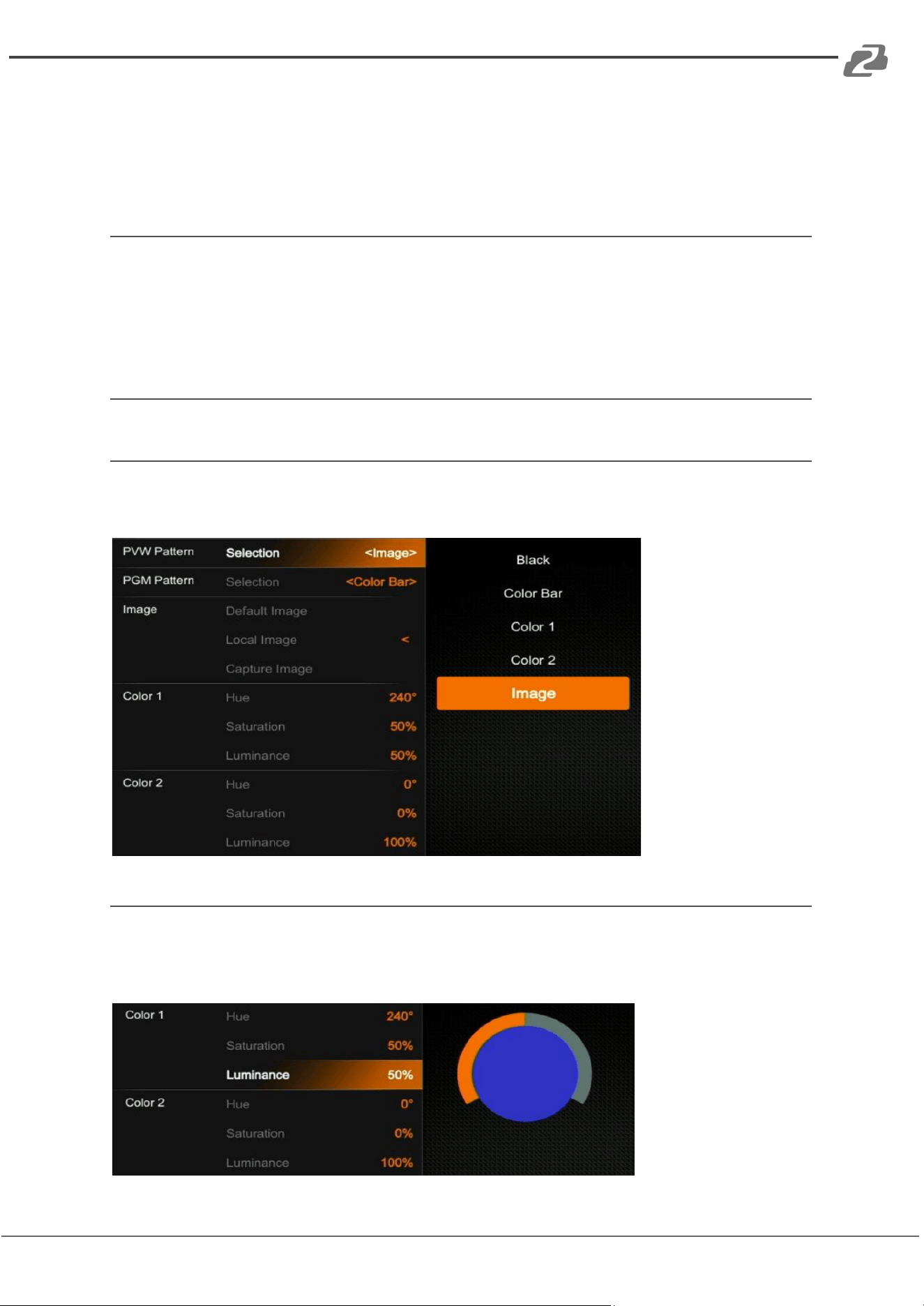
Step 3. The selected button from Part-A in Step 1 is still flashing, press it again to finish the
configuration and the indicator should stop flashing. Alternatively, when the Part-A button is
flashing press another button from Part-A to select the next audio source for configuring.
When audio configuration is complete, press the flashing button again from Part-A to
complete configuration and stop the flashing indication.
12.8. Mute
The switcher has a MUTE button in the row of PVW keyboard. It is quick and easy for users
to press the button to make the Master audio turn off. When MUTE turns on the LED
indicator keeps flashing which means the PGM audio is being muted. The speed of MUTE
can be set from menu (Refer to Part 12.8)
Media Library
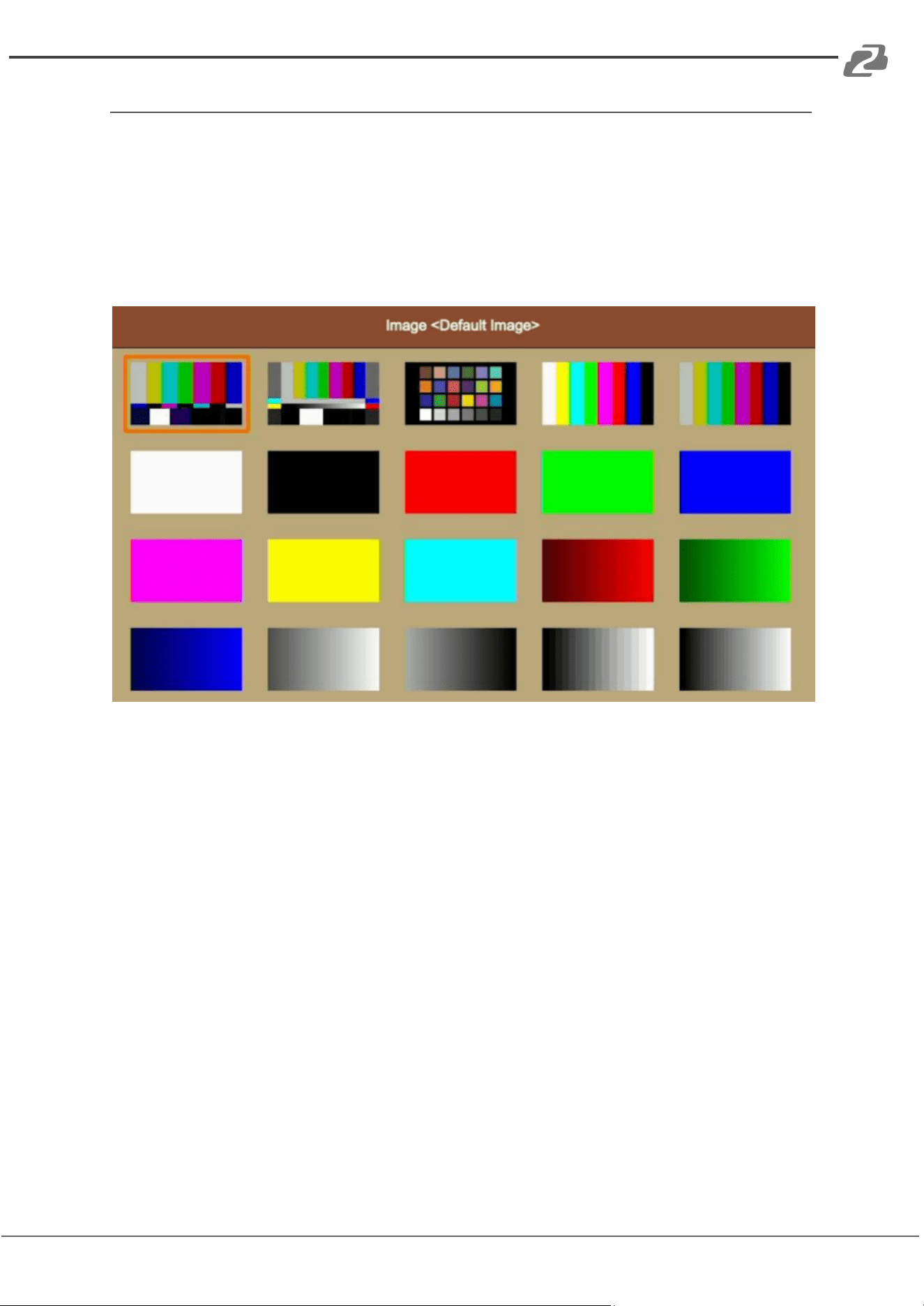
PVW Pattern & PGM Pattern
The switcher can generate patterns for PVW and PGM. The PVW/PGM pattern source can
be selected from the Color Bar, Black, Color 1, Color 2 and Image.
User-defined Color Pattern
There are two color patterns Color 1 and Color 2 for user-definition. Users can set the hue,
saturation, and luminance to generate the color pattern for Color 1 and Color 2. See below
image.
Address: 830 National Drive #140, Sacramento, CA 95834, USA · Tel: +1(888)499-9906 · Email: support@bzbgear.com 29
BZBGEAR BG-HDVS42U PRODUCT MANUAL
Image Setting
The Image is one of the sources for PVW Pattern and PGM Pattern. Users can choose the
Image source from the Default Image, Local Image or Captured Image. The selected image
is the last selection from the Default image, Local Image, and Capture Image.
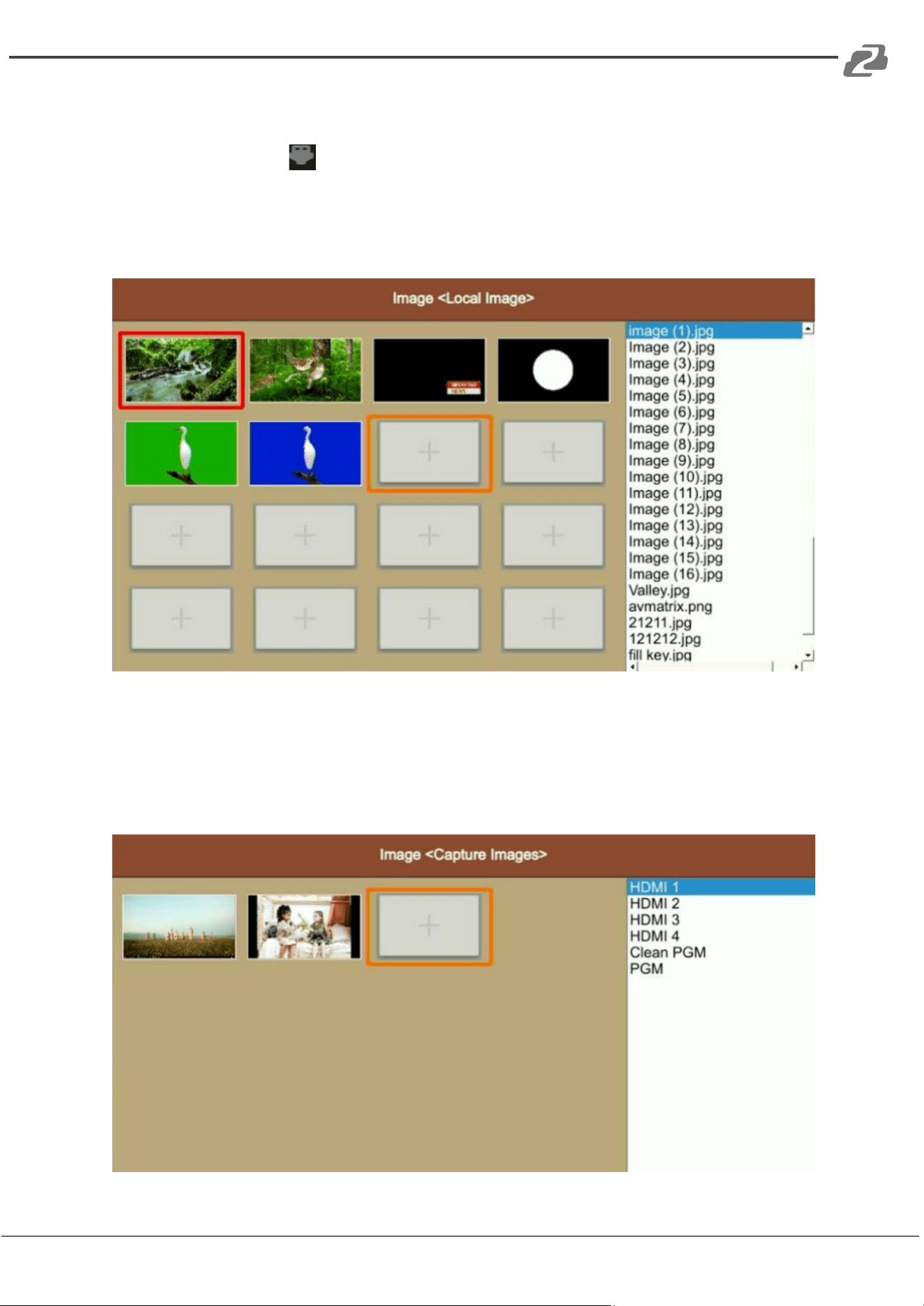
Default Image
The default images are preset in the switcher. Use the rotary button to select one of images
from the Default Image menu as the source for PVW or PGM pattern.
Address: 830 National Drive #140, Sacramento, CA 95834, USA · Tel: +1(888)499-9906 · Email: support@bzbgear.com 30
BZBGEAR BG-HDVS42U PRODUCT MANUAL
Local Image
The local images are the images which you upload from a USB disk. When you plug in a
USB drive, a USB icon will appear in the bottom of the Status/Menu page. The image
list from the USB disk displays on the right side of the menu. Select a single image to
upload it into the switcher. The uploaded image will be listed in the media list. Users can
press the rotary button to select the uploaded image as source for PVW/PGM pattern by
selecting the option Select. Users can delete the uploaded image from the menu.
Capture Image
The capture image comes from a screenshot of HDMI 1, HDMI 2, HDMI 3, HDMI 4, Clean
PGM, PGM. The captured image will be listed in the media list. Users can press the rotary
button to select the captured image as source for PVW/PGM pattern by selecting the option
Select. Users can delete the captured image from the menu. See below images.
Address: 830 National Drive #140, Sacramento, CA 95834, USA · Tel: +1(888)499-9906 · Email: support@bzbgear.com 31
BZBGEAR BG-HDVS42U PRODUCT MANUAL
System setting
Language
Entering system settings from the menu to switch the system language between English and
Chinese.
Fan Setting
Set the cooling fan speed to control the temperature and noise of the switcher. There are 3
options, Auto/ Off / On.
When users select the Auto option, the speed of the fan will be adjusted automatically
according to the switcher’s operating temperature. If the application/environment requires
no fan noise, the user can turn the fan off manually from the menu as well if the switcher’s
operating temperature continues to elevate and reaches the preset value, a pop-up prompt
notification will appear and auto turn on the high-speed fan cooling down the CPU. If the
switcher is working in a high temperature environment and the auto fan setting is unable to
meet required cooling temperature, then the user can select the fan setting to ON option to
maintain the high-speed fan setting.
System Reset
● Reset Preferences: Restore settings to default Settings but remain the part of
settings including the Media library, Time, Network, Language, Fan and User Setting.
● Factory Reset: Restore all settings to default Factory Settings.
Download
The BG-HDVS42U comes with a free PC control software. Users can connect the switcher
with a windows OS computer via LAN port to have remote control. The software and user
manual can be downloaded from www.bzbgear.com.
Version
Check the switcher’s Software Version, FPGA Version, MCU Version, PCB Version.
Time Setting
Setting Time Manually
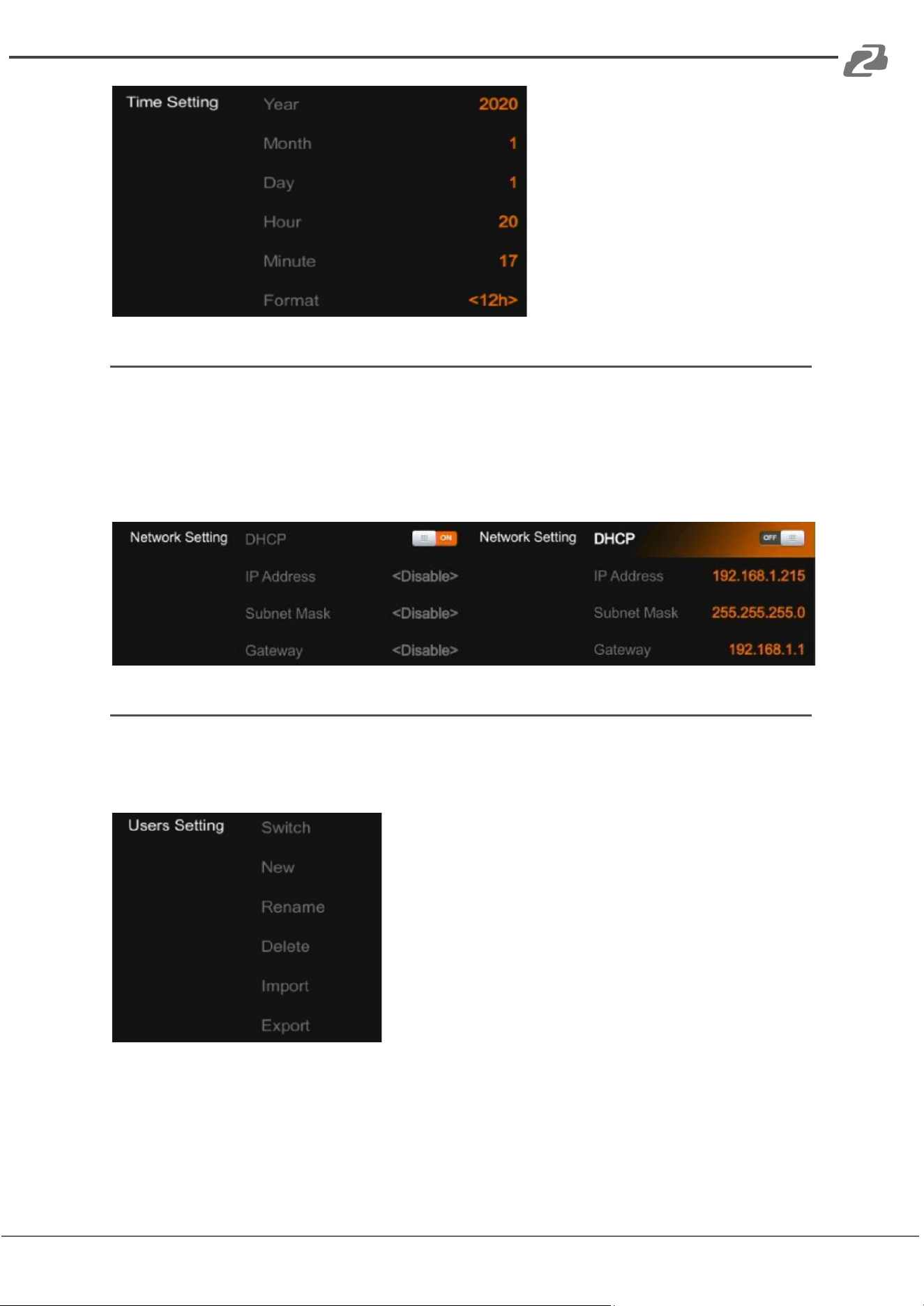
Users can set Year/ Month/ Day/ Hour/ Minute directly through the Menu. The time format
can be set to 12h and 12h. The default setting is 12h.
Time Synchronization
Connect the video switcher to a PC (windows OS) via LAN port and use the control software
to search for the device. The time will automatically synchronize once the video switcher is
discovered on the network.
Address: 830 National Drive #140, Sacramento, CA 95834, USA · Tel: +1(888)499-9906 · Email: support@bzbgear.com 32
BZBGEAR BG-HDVS42U PRODUCT MANUAL
Network Setting
There is a switch setting for DHCP in the menu. When turning on DHCP, the switcher will
obtain an IP address automatically after connecting the switcher to the network using
DHCP.
When turning off DHCP, users can set the IP address, Subnet Mask, Gateway from the
menu manually. The default IP address of the switcher is 192.168.1.215.
User Setting
Users can save all current settings into an account in the switcher. You can add a new user
account, rename an account, switch between accounts, delete an account, or import/export
the account to a USB flash disk.
● New. Adding a new user account and save all
current settings to the account. Input the name
through a virtual keyboard from the menu.
● Rename. Rename the current user account name.
● Switch. Switch to another saved user account to
have the saved settings easily and quickly.
Meanwhile, the Username will be updated in the
bottom of the Status/Menu page after switching.
● Delete. Delete a saved user account which you
will never use again.
● Import. Import the current user account and
settings to a USB flash disk.
● Export. Export the user account and settings
saved in a USB flash disk.
Address: 830 National Drive #140, Sacramento, CA 95834, USA · Tel: +1(888)499-9906 · Email: support@bzbgear.com 33

BZBGEAR BG-HDVS42U PRODUCT MANUAL
Tech Support
Have technical questions? We may have answered them already!
Please visit BZBGEAR’s support page (bzbgear.com/support) for helpful information and
tips regarding our products. Here you will find our Knowledge Base
(bzbgear.com/knowledge-base) with detailed tutorials, quick start guides, and step-by-step
troubleshooting instructions. Or explore our YouTube channel, BZB TV
(youtube.com/c/BZBTVchannel), for help setting up, configuring, and other helpful how-to
videos about our gear.
Need more in-depth support? Connect with one of our technical specialists directly:
Phone
1.888.499.9906
Email
support@bzbgear.com
Live Chat
bzbgear.com
Limited Product Warranty Terms
Pro Line: 5-year warranty from the date of purchase for AV/Broadcasting products bought
on or after August 1, 2024.
Essential Line: 3-year warranty from the date of purchase for AV/Broadcasting products
bought on or after August 1, 2024.
Cables: Lifetime Limited Product Warranty.
For complete warranty information, please visit bzbgear.com/warranty.
For questions, please call 1.888.499.9906 or email support@bzbgear.com.
Mission Statement
BZBGEAR is a breakthrough manufacturer of high-quality, innovative audiovisual equipment
ranging from AVoIP, professional broadcasting, conferencing, home theater, to live streaming
solutions. We pride ourselves on unparalleled customer support and services. Our team
offers system design consultation, and highly reviewed technical support for all the products
in our catalog. BZBGEAR delivers quality products designed with users in mind.
Copyright
All the contents in this manual and its copyright are owned by BZBGEAR. No one is allowed
to imitate, copy, or translate this manual without BZBGEAR’s permission. This manual
contains no guarantee, standpoint expression or other implies in any form. Product
specification and information in this manual is for reference only and subject to change
without notice.
All rights reserved. No reproducing is allowed without acknowledgement.
Address: 830 National Drive #140, Sacramento, CA 95834, USA · Tel: +1(888)499-9906 · Email: support@bzbgear.com 34