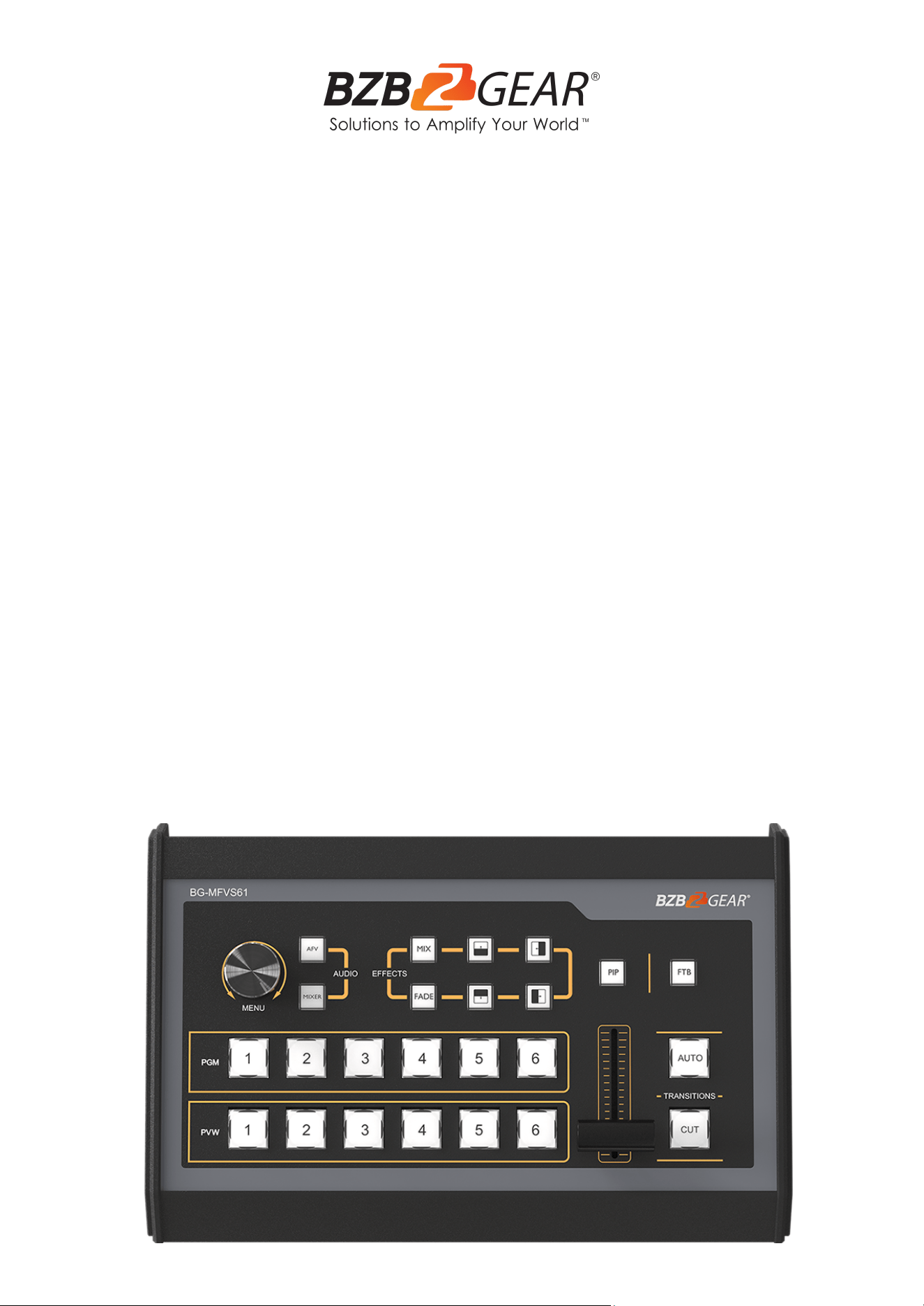
BG-MFVS61-G2
6-Channel/Input 3G-SDI and HDMI Live Streaming Video/Audio
Production Switcher and Mixer with Integrated Capture Card
User Manual

BZBGEAR BG-MFVS61-G2 PRODUCT MANUAL
Address: 830 National Drive #140, Sacramento, CA 95834, USA · Tel: +1(888)499-9906 · Email: support@bzbgear.com 2

BZBGEAR BG-MFVS61-G2 PRODUCT MANUAL
TABLE OF CONTENTS
Statement 3
Safety Precaution 4
Introduction 5
Features 5
Packing List 5
Specifications 6
Operation Controls and Functions 7
Operation Instructions 9
Menu Setting 13
Network Settings 16
Tech Support 17
Limited Product Warranty Terms 17
Mission Statement 18
Copyright 18
Address: 830 National Drive #140, Sacramento, CA 95834, USA · Tel: +1(888)499-9906 · Email: support@bzbgear.com 3
BZBGEAR BG-MFVS61-G2 PRODUCT MANUAL
Statement
Please read these instructions carefully before connecting, operating, or configuring this
product. Please save this manual for future reference.
Safety Precaution
● To avoid falling or damage, please do not place this unit on an unstable cart, stand, or
table.
● Operate unit only on the specified supply voltage.
● Disconnect power cord by connector only. Do not pull on the cable portion.
● Do not place or drop heavy or sharp-edged objects on the power cord. A damaged cord
can cause fire or electrical shock hazards. Regularly check power cord for excessive
wear or damage to avoid possible fire / electrical hazards.
● Ensure the unit is properly grounded at all times to prevent electrical shock hazard.
● Do not operate unit in hazardous or potentially explosive atmospheres. Doing so could
result in fire, explosion, or other dangerous results.
● Do not use this unit in or near water.
● Do not allow liquids, metal pieces, or other foreign materials to enter the unit.
● Handle with care to avoid shocks in transit. Shocks may cause malfunction. When you
need to transport the unit, use the original packing materials or alternate adequate
packing.
● This product does not contain parts that can be maintained or repaired by users.
Damage caused by dismantling the product without authorization from BZBGEAR is not
covered under the warranty policy.
● Installation and use of this product must strictly comply with local electrical safety
standards.
Address: 830 National Drive #140, Sacramento, CA 95834, USA · Tel: +1(888)499-9906 · Email: support@bzbgear.com 4

BZBGEAR BG-MFVS61-G2 PRODUCT MANUAL
Introduction
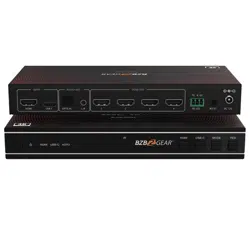
The BG-MFVS61-G2 is a compact 6-channel SDI/HDMI multi-format video switcher that
can also perform audio mixing and different transition effects. The USB 3.0 video output
allows a direct connection to a computer so you can stream directly to platforms like
YouTube and Facebook. Featuring 4 SDI and 2 HDMI inputs as well as 2 scalable SDI and 1
HDMI PGM outputs, this versatile unit is able to handle nearly any combination of
equipment you can find. The unit also features 1 HDMI and SDI multiview out along with an
integrated T-bar slider that allows for precise control of selectable transitions such as mix,
fade, and wipe. This cost-effective video switcher will be your perfect choice for various
events, production applications, and more.
Features
● 6 inputs: 4×SDI & 2×HDMI
● Outputs: 1× USB type-C, 2× SDI & 1× HDMI PGM, 1×SDI & 1×HDMI multiview
● Uncompressed: Capture uncompressed video for live streaming compatible with
UVC & UAC
● SDI AUX: 1× SDI AUX output can be selected as PGM or PVW
● Multi-format: Input format auto-detected and PGM outputs selectable
● T-Bar: Auto/ Cut/ Mix/ Fade/ Wipe transition effects
● Picture in Picture: PIP mode size and position adjustable
● Audio Mixing: Selectable Mixing and Audio Follow Video (AFV) modes
● GPIO: Tally and FTB control capable.
Packing List
● 1x BG-MFVS61-G2
● 1x Power Supply (DC12V 2A)
● 1x 3' USB-C to USB-A cable
● 1x Padded Carrying Case
● 1x User Manual
Address: 830 National Drive #140, Sacramento, CA 95834, USA · Tel: +1(888)499-9906 · Email: support@bzbgear.com 5
BZBGEAR BG-MFVS61-G2 PRODUCT MANUAL
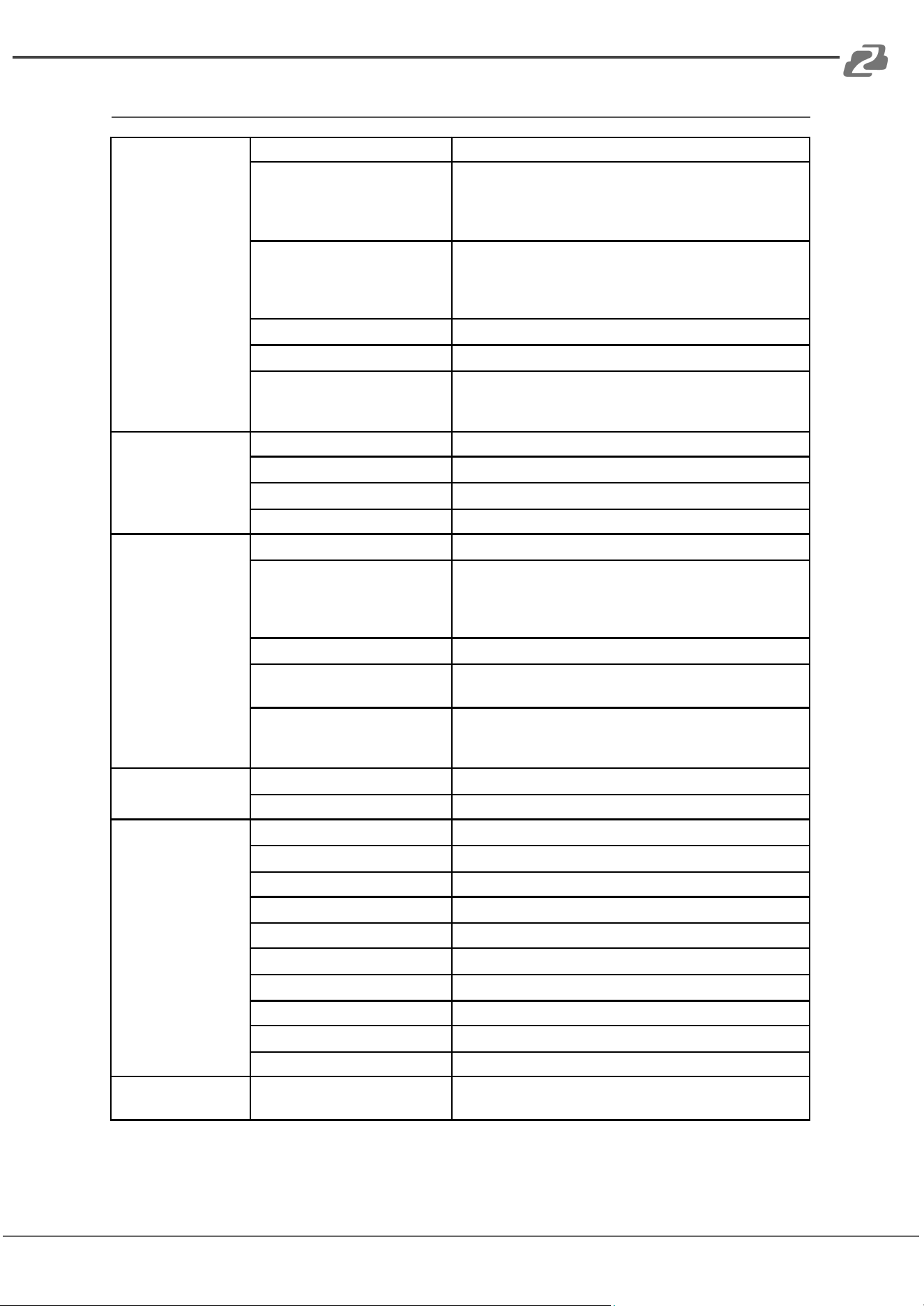
Specifications
Inputs
Video Inputs
4× 3G/HD/SD-SDI, 2× HDMI
SDI Input Format
1080p 60/59.94/50/30/29.97/25/24/23.98
1080psF 30/29.97/25/24/23.98
1080i 60/59.94/50
720p 60/59.94/50/30/29.97/25/24/23.98
HDMI Input Format
1080p 60/59.94/50/30/29.97/25/24/23.98/23.976
1080i 50/59.94/60
720p 60/59.94/50/30/29.97/25/24/23.98
576i 50, 576p 50
SDI Video Rate
Auto detection, SD/HD/3G-SDI
SDI Compliance
SMPTE 259M/ SMPTE 292M/ SMPTE 424M
Color Space and Precision
SDI: YUV 4:2:2, 10-bit;
HDMI: RGB 444 8/10/12 bit; YUV 444 8/10/12 bit;
YUV 4:2:2 8/10/12 bit
Video Outputs
PGM Outputs
2× 3G/HD/SD-SDI; 1×HDMI Type A
PGM Output Format
1080p 60/50/30/25/24; 1080i 50/60
Multiview Output
1× 3G-SDI; 1×HDMI Type A
Multiview Output Format
1080p 60
USB Output
USB interface
1× USB3.0 Type-C (USB3.1 Gen1, up to 200MB/s)
Output Format
1920×1200, 1920×1080, 1680×1050, 1440×900,
1368×768,1280×1024, 1280×960, 1280×800, 1280×720,
1024×768, 1024×576, 960×540, 856×480, 800×600,
768×576, 720×576, 720×480, 640×480, 640×360
Frame Rate
Up to 60fps
Supports OS
Windows 7/8/10/11, Linux (Kernel version 2.6.38 and
above), Mac OS (10.8 and above)
Software compatibility
OBS studio, Skype, ZOOM, Teams, Google Meet,
Youtube Live, QuikcTime Player, Facetime, Wirecast,
CAMTASIA, Ecamm.live, Twitch.tv, etc.
Audio
Audio Input
1× 3.5mm Stereo audio; 1× RCA(L/R)
Audio Output
1× 3.5mm Stereo audio; 1× RCA(L/R)
Others
GPIO
Tally
LAN
RJ45
Power
DC 12V, 1.8A
Consumption
≤ 22W
Operation Temperature
-4°F ~ 140°F / -20°C ~ 60°C
Storage Temperature
-22°F ~ 158°F / -30°C ~ 70°C
Operation Humidity
20%~70%RH
Dimensions
13 x 9.6 x 2.64in [330 x 244 x 67mm]
Weight
2.2 lbs [1.0kg]
Warranty
2-Year Limited
Accessories
Accessories
1× Power Supply (DC12V 2A),
1× USB3.0 Cable Type-C to Type-A
Address: 830 National Drive #140, Sacramento, CA 95834, USA · Tel: +1(888)499-9906 · Email: support@bzbgear.com 6
BZBGEAR BG-MFVS61-G2 PRODUCT MANUAL
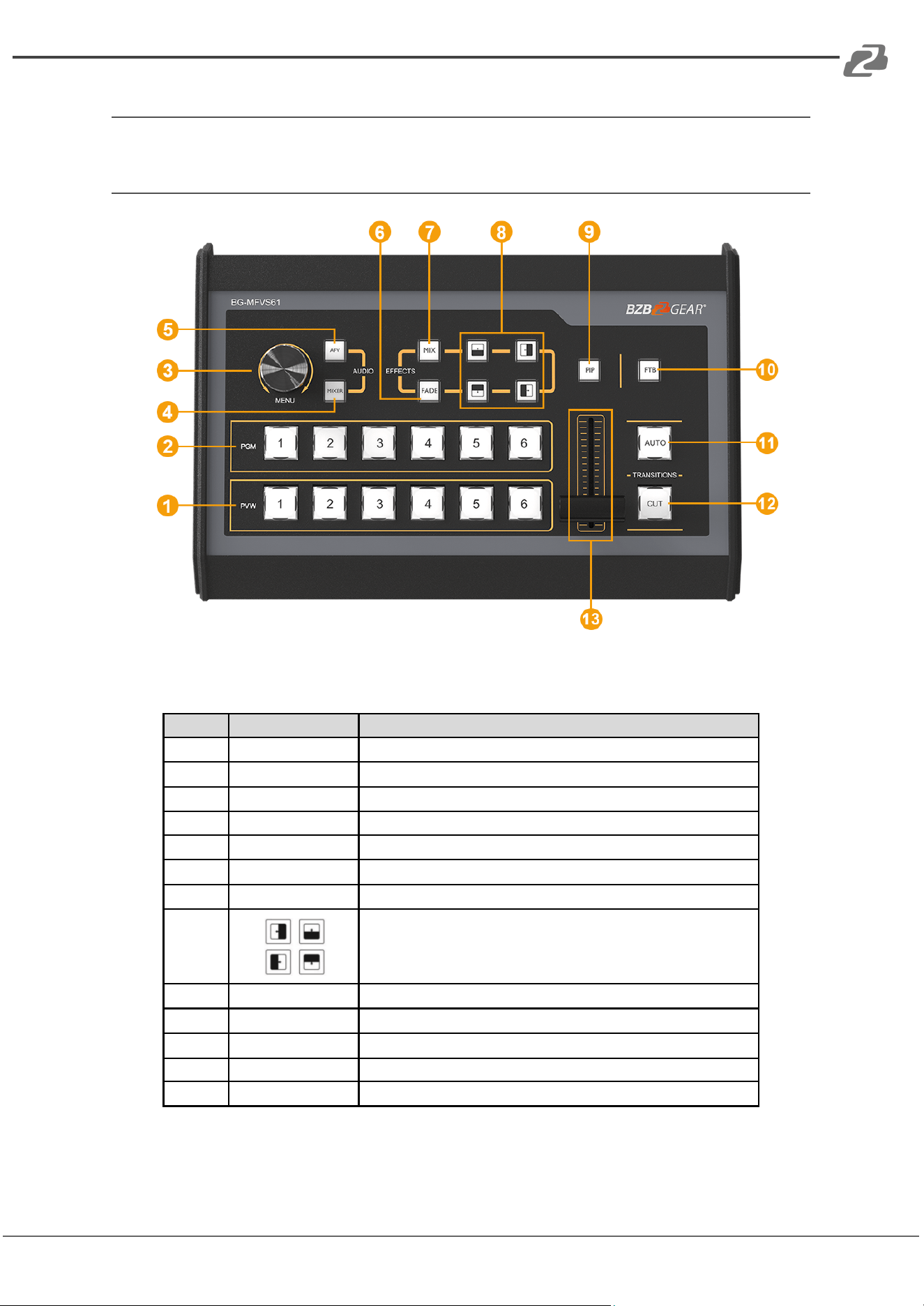
Operation Controls and Functions
Front Panel
No.
Name
Function Description
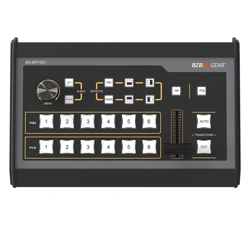
1
PVW: 1-6
Select the signal source for Preview
2
PGM: 1-6
Select the signal source for Program
3
MENU
Open/navigate the Menu settings
4
MIXER
Select 2-ch audio mixing
5
AFV
Audio follow video mode
6
FADE
Fade transition effect
7
MIX
Mix transition effect
8
Wipe transition effect
9
PIP
Picture in Picture
10
FTB
Fade to Black
11
AUTO
Performs an automated switch between Program and Preview.
12
CUT
Performs a simple immediate switch between Program and Preview.
13
T-bar
Manual Transition between Program and Preview.
Address: 830 National Drive #140, Sacramento, CA 95834, USA · Tel: +1(888)499-9906 · Email: support@bzbgear.com 7
BZBGEAR BG-MFVS61-G2 PRODUCT MANUAL
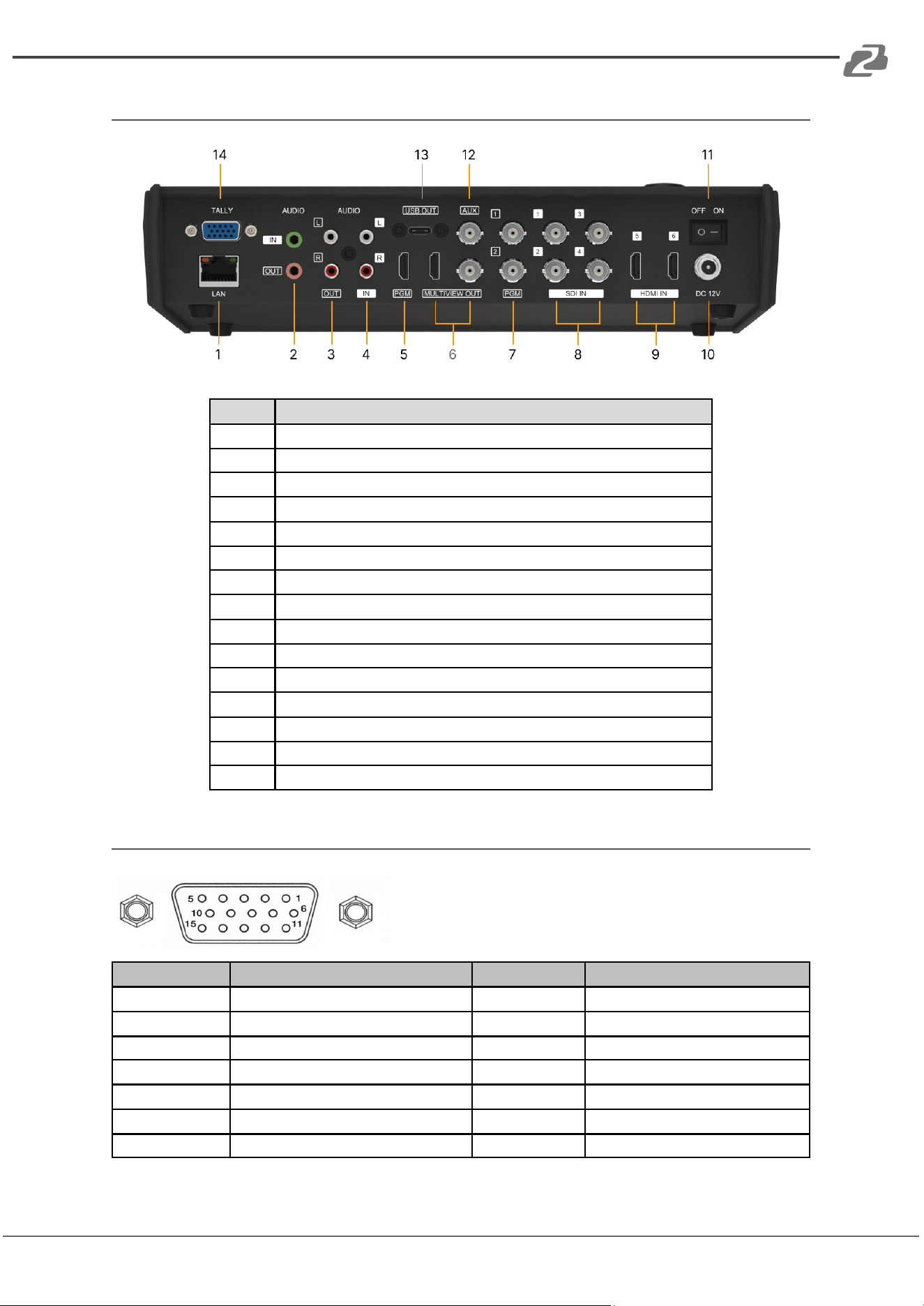
Rear Panel
No.
Function Description
1
LAN firmware updates and time sync
2
3.5mm AUDIO IN/OUT
3
AUDIO OUT
4
AUDIO IN
5
HDMI PGM OUT
6
HDMI & SDI MULTIVIEW OUT
7
SDI AUX OUT
7
SDI PGM OUT
8
SDI IN
9
HDMI IN
10
DC 12V
11
Power Switch
12
SDI AUX OUT(for PVW/PGM)
13
USB OUT (for connection to a computer/live streaming)
14
GPIO (for tally)
Tally PIN Definition
PIN
Definition
PIN
Definition
11
PGM-IN1
6
PVW-IN1
12
PGM-IN2
7
PVW-IN2
13
PGM-IN3
8
PVW-IN3
14
PGM-IN4
9
PVW-IN4
15
PGM-IN5
10
PVW-IN5
3
PGM-IN6
4
PVW-IN6
5
GND
Address: 830 National Drive #140, Sacramento, CA 95834, USA · Tel: +1(888)499-9906 · Email: support@bzbgear.com 8
BZBGEAR BG-MFVS61-G2 PRODUCT MANUAL
Operation Instructions
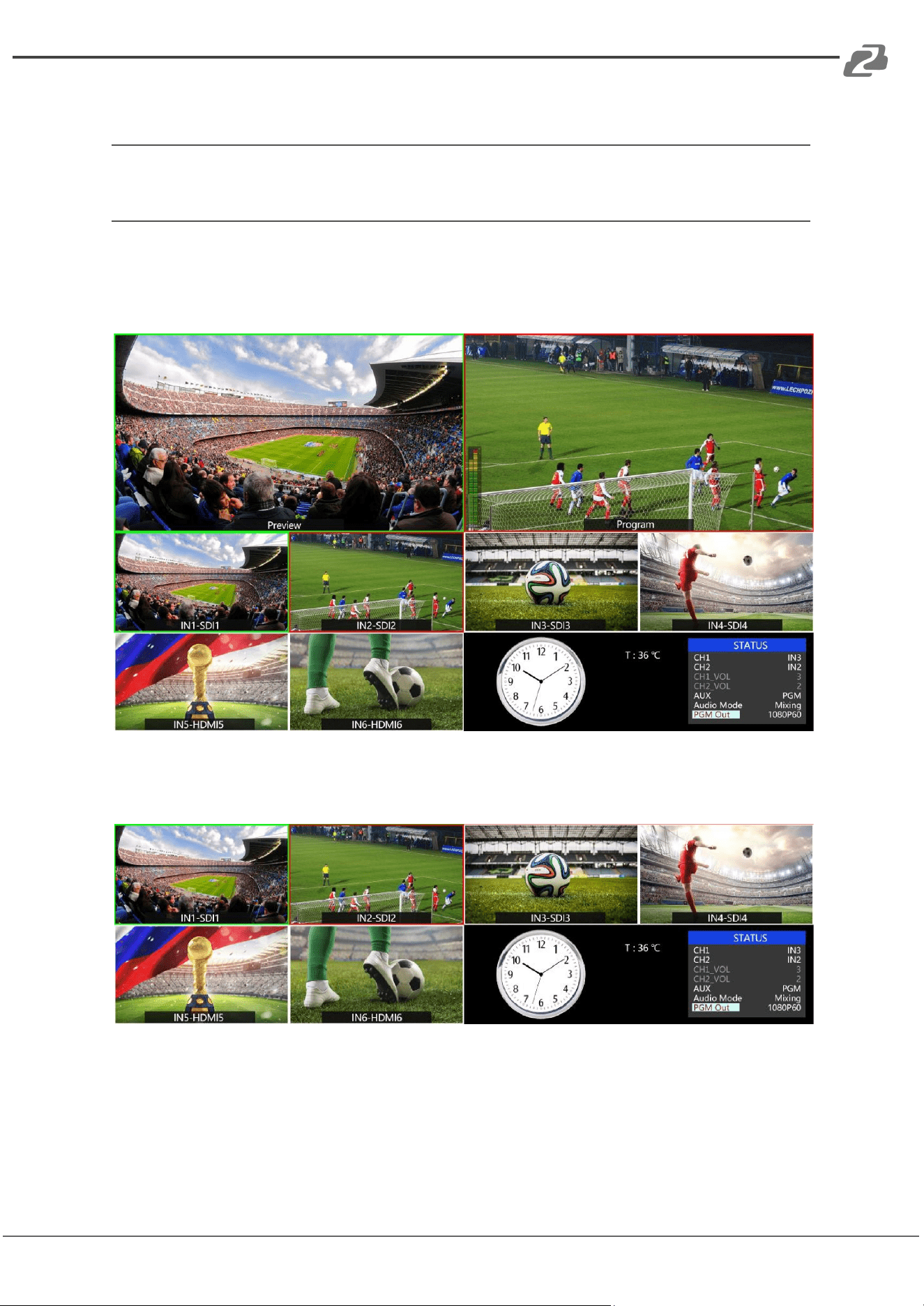
Multiview Output Layout
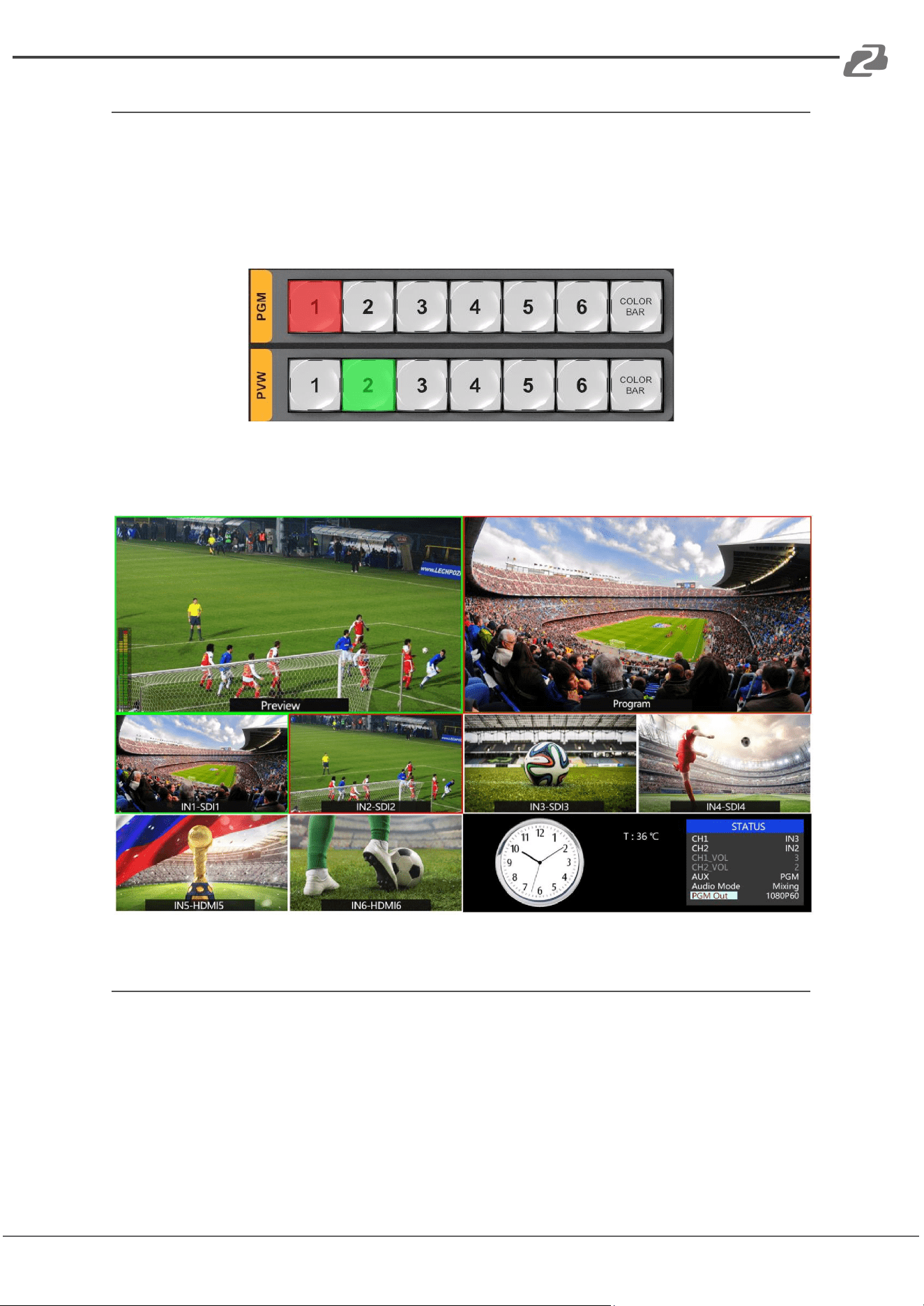
PGM (Program) and PVW (Preview) are displayed as shown in the following image. The
signal level meter of PGM audio is shown only in the multiview output. SDI/HDMI PGM out
have no overlays.
The following 6 ‘IN#’ windows (shown below) display the 6 input signals underneath the
Preview and Program windows .
The lower right corner of the display features the menu and status information. CH1 & CH2
are the channel selection of the 2 audio sources for the audio mixer. There is a real-time
Digital clock/Analog clock displayed beside the menu.
Address: 830 National Drive #140, Sacramento, CA 95834, USA · Tel: +1(888)499-9906 · Email: support@bzbgear.com 9
BZBGEAR BG-MFVS61-G2 PRODUCT MANUAL
PGM PVW Switching
PGM, PVW Channel Selection
PGM and PVW buttons 1-6 in the image below correspond with the 6 ‘IN#’ windows in the
multiview layout. The selected PGM source will turn the button red and the selected PVW
source will turn the button green.
The selected PGM source will have a red border while the selected PVW source will have a
green border in the multiview display.
Transition Control
There are two transition control types for this video switcher: Transition without effects and
Transition with effects.
1) Transition without Effects
CUT performs a simple immediate switch between Preview and Program views. This is no
delay and the selected transition effect WIPE, MIX, or FADE will not be used.
Address: 830 National Drive #140, Sacramento, CA 95834, USA · Tel: +1(888)499-9906 · Email: support@bzbgear.com 10
BZBGEAR BG-MFVS61-G2 PRODUCT MANUAL
2) Transition with Effects
AUTO performs an automated switch between Preview and Program views. The timing of
the transition is set in the multiview on screen menu. The selected transition WIPE, MIX, or
FADE will be used.
T-Bar manual transition performs the selected transition but it is more flexible in timing as
the transition depends on the speed of the manual switch movement.
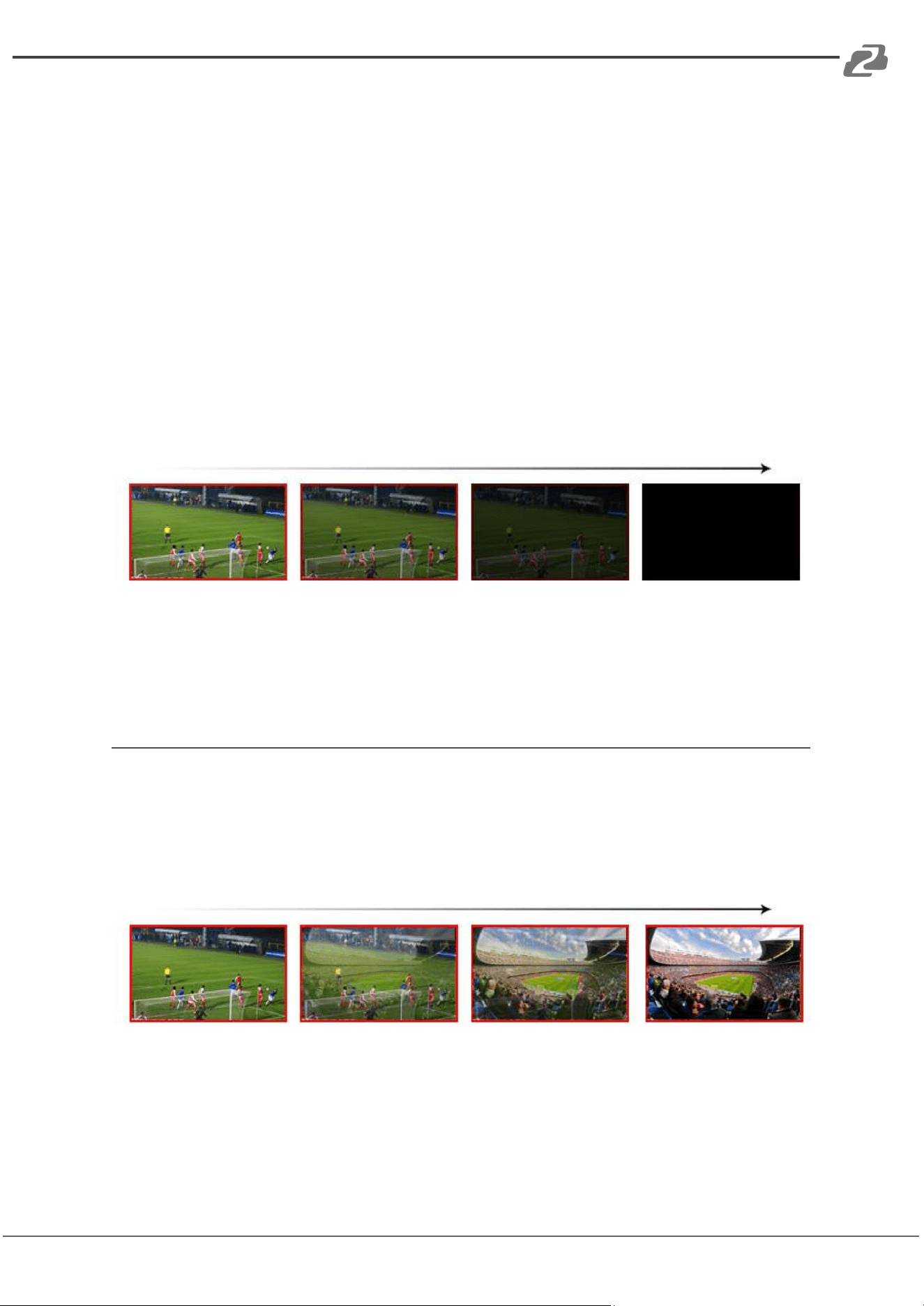
FTB (Fade to Black)
Pressing the FTB button will fade the current video Program source to black. The button will
flash to indicate that it’s active. When pressing the button again it acts in reverse, from
complete black to the currently selected Program video source, and the button will stop
flashing. FTB is usually used for an unexpected situation.
Note: When the PGM window display is black and stays black even after a transition, please
check if the FTB button is flashing as the new source may have had FTB enabled.
Transition Effects
MIX Transition
Pressing the MIX button selects a basic A/B Dissolve for the next transition. It is active
when the button LED is illuminated. Use the T-Bar or AUTO to operate the transition. The
MIX transition effect is shown below:
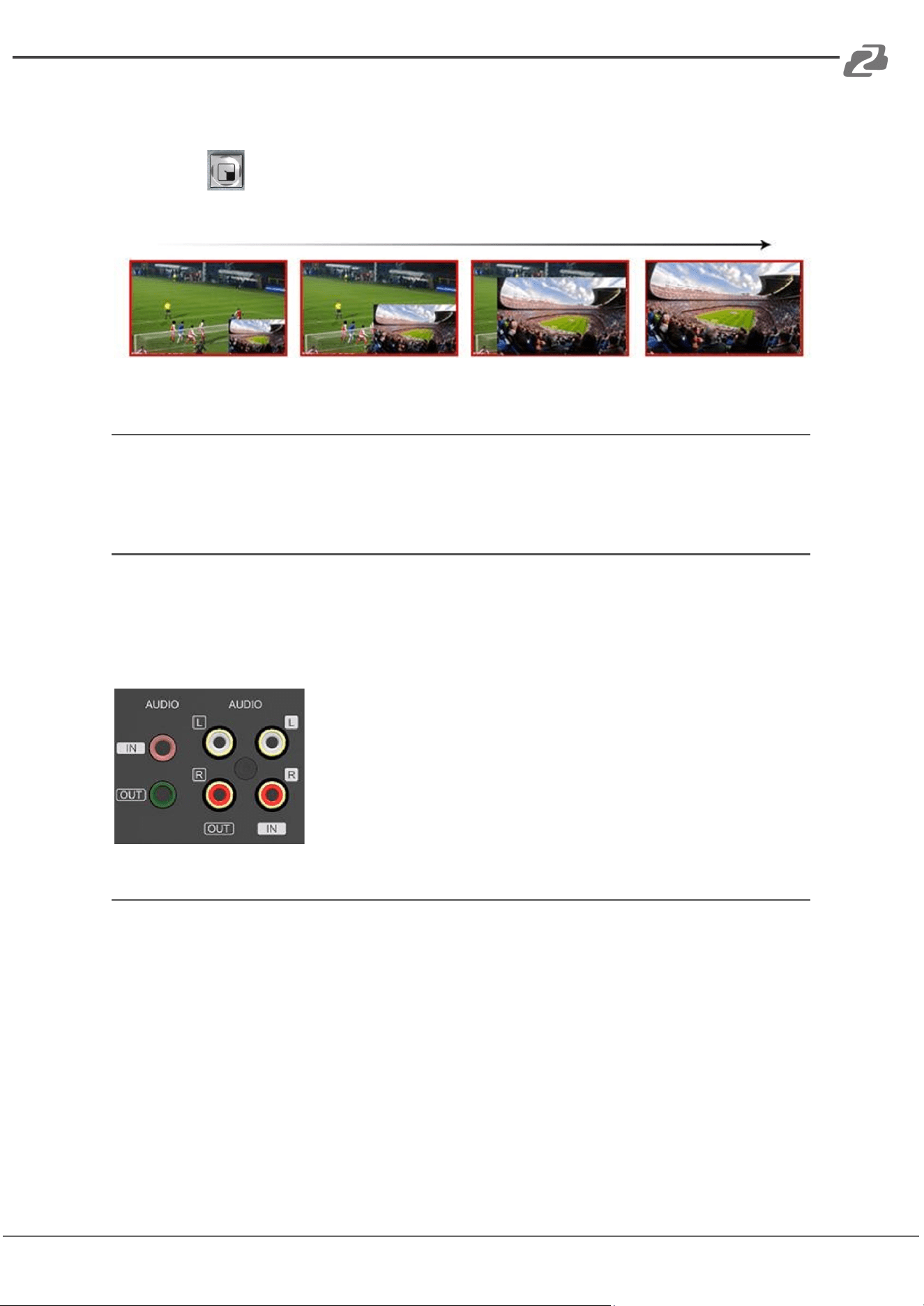
WIPE will replace the current source by another source by replacing the image from one
edge of the screen to the opposite side. It is active when the WIPE button is illuminated.
There are a total of 8 WIPE start directions.
Address: 830 National Drive #140, Sacramento, CA 95834, USA · Tel: +1(888)499-9906 · Email: support@bzbgear.com 11
BZBGEAR BG-MFVS61-G2 PRODUCT MANUAL
For example:
If choosing , use the T-Bar or AUTO to operate the transition and the WIPE effect will
perform as follows:
FADE Transition
Fade is a transition from one source to another by fading gradually. Press the FADE button
and use T-Bar or AUTO to operate the FADE transition.
Audio Mixer Setting
Audio Description
This video switcher is equipped with 1 3.5mm Stereo audio input & output, 1 RCA(L/R)
analog audio input & output, and 4 channels of SDI embedded audio.
USB 3.0 Live Streaming
The USB 3.0 streaming output transmits the PGM output as an uncompressed video and
audio signal. The USB 3.0 streaming output is based on UVC (USB video class) and UAC
(USB audio class) standards. No additional drivers need to be installed. Once the unit is
detected/plugged in, the relevant video and audio devices will be added in the Windows
Device Manager. There will be two new devices:
● Under Imaging Devices: AVMATRIX USB Capture Video
● Under Audio inputs and outputs: AVMATRIX USB Capture Audio
Use a third-party Video Media Player like OBS Studio, vMix, or Windows Media Player to
play and store the captured video content. The signal can also be streamed directly to
Facebook or YouTube.
Address: 830 National Drive #140, Sacramento, CA 95834, USA · Tel: +1(888)499-9906 · Email: support@bzbgear.com 12
BZBGEAR BG-MFVS61-G2 PRODUCT MANUAL
Menu Setting
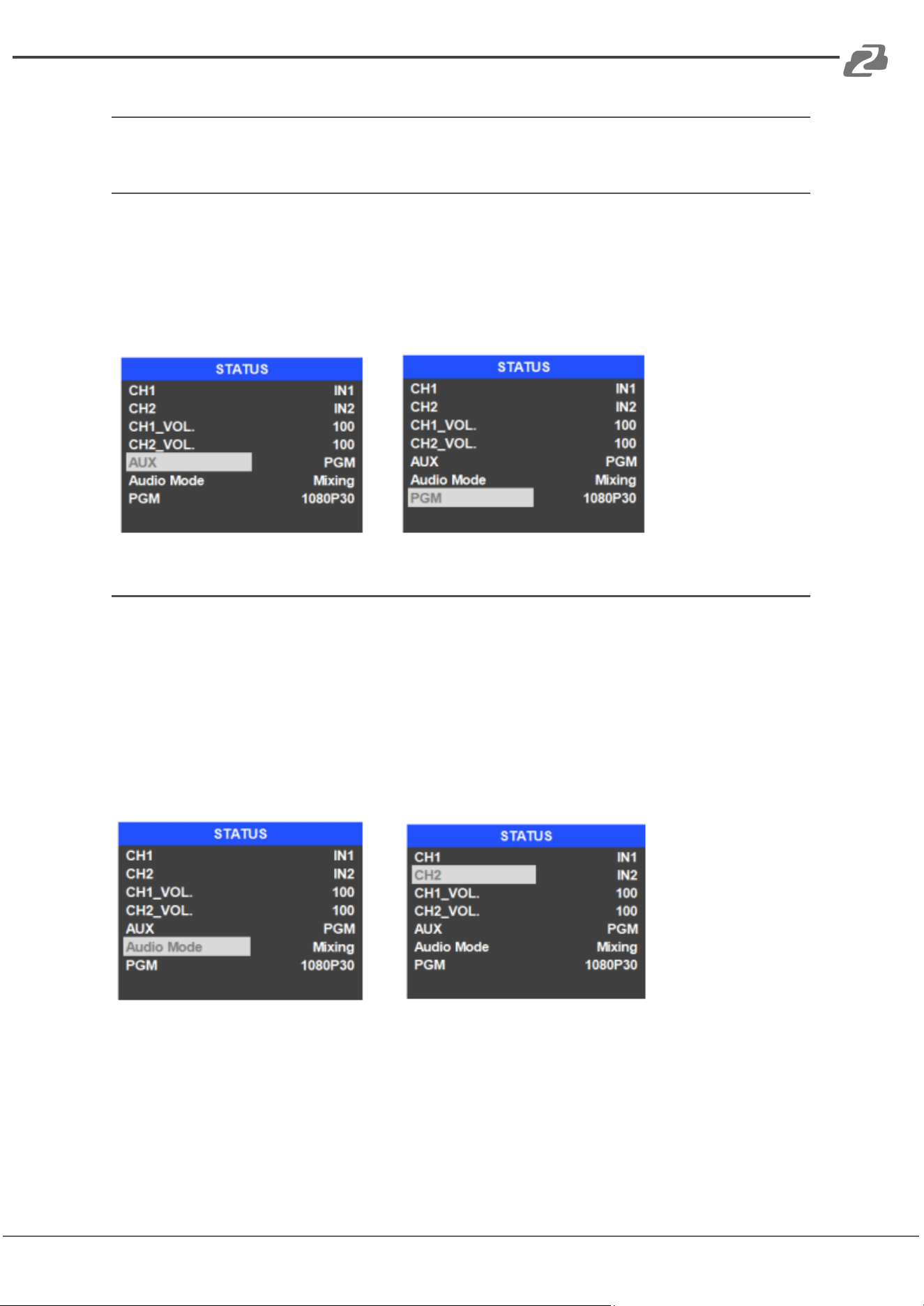
SDI PGM/ AUX and Multiview Output Format
The output format of multiview is fixed at 1080p60 while the PGM output can be set in the
menu. In addition to the PVW and PGM outputs there is a programmable AUX output. The
auxiliary output can easily be switched between PVW and PGM via the Menu knob and its
default setting is set to PGM. Selectable resolutions include 1080P 50/60/30/25/24Hz and
1080I 50/60Hz for the SDI/HDMI PGM and AUX outputs.
Audio Setting
This video switcher features 1 L/R analog audio input & output and 1 3.5mm stereo audio
input and output which support both audio follow video (AFV) and audio mixing modes.
Mixing Mode
Press the MIXER button to set audio mode to Mixing. Press the menu dial and choose the
audio channel and source for audio mixing. Users can select audio sources from IN1/ IN2/
IN3/ IN4/ IN5 / IN6/ Phone/ and RCA IN.
Address: 830 National Drive #140, Sacramento, CA 95834, USA · Tel: +1(888)499-9906 · Email: support@bzbgear.com 13
BZBGEAR BG-MFVS61-G2 PRODUCT MANUAL
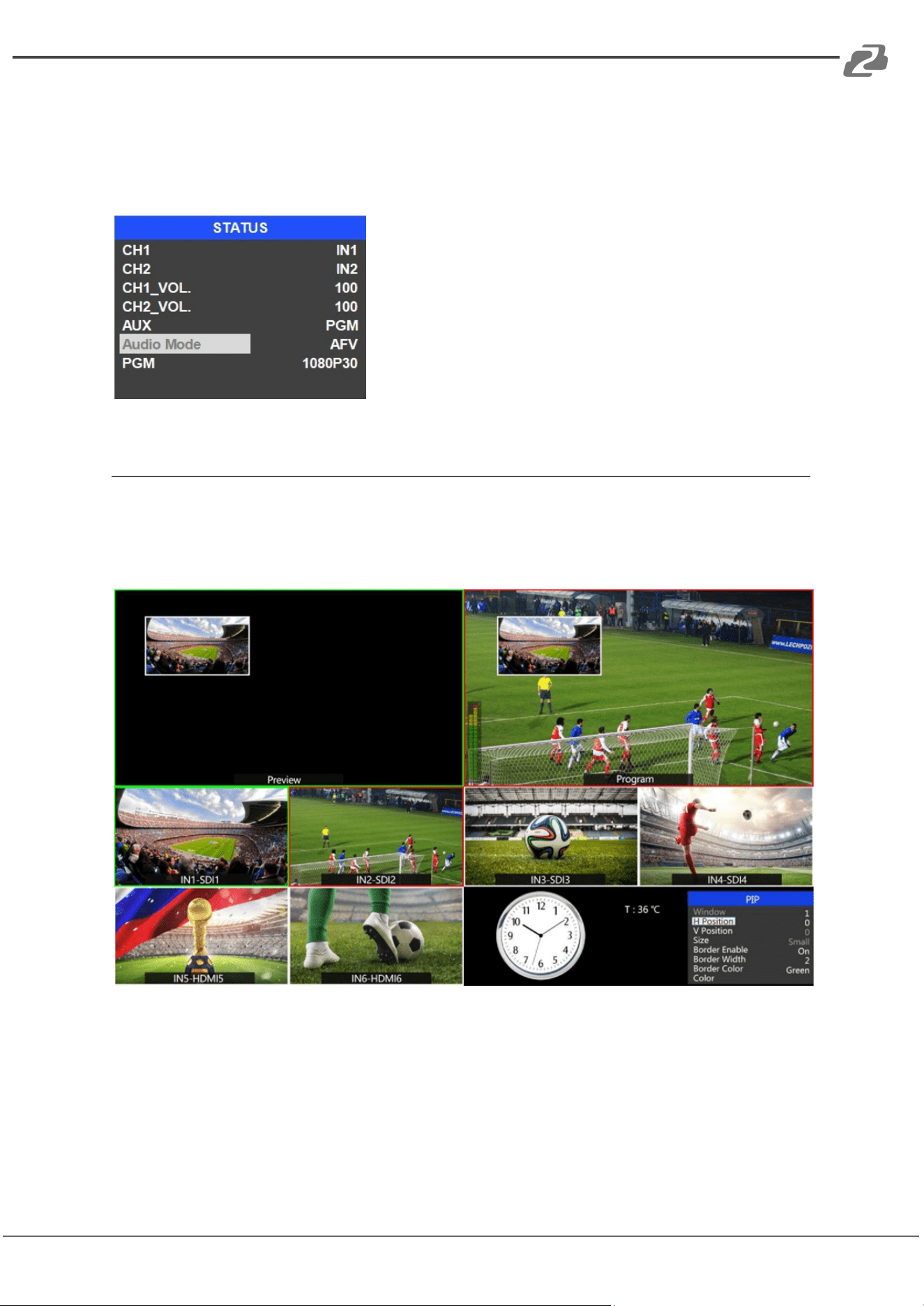
Audio Follow Video (AFV) Mode
Press AFV button to enable the audio follow video mode. When the audio is in follow mode
the audio is taken from the embedded audio of the Program video source. Users can
control the audio volume by adjusting the channel volume.
Picture in Picture (PIP) Mode
When PIP is pressed a small image will appear on the top left corner of the PVW window as
shown in the following image. The menu tile will change as seen below. The window size,
position, and border of PIP can be set from the menu.
Address: 830 National Drive #140, Sacramento, CA 95834, USA · Tel: +1(888)499-9906 · Email: support@bzbgear.com 14
BZBGEAR BG-MFVS61-G2 PRODUCT MANUAL
Main Menu Settings
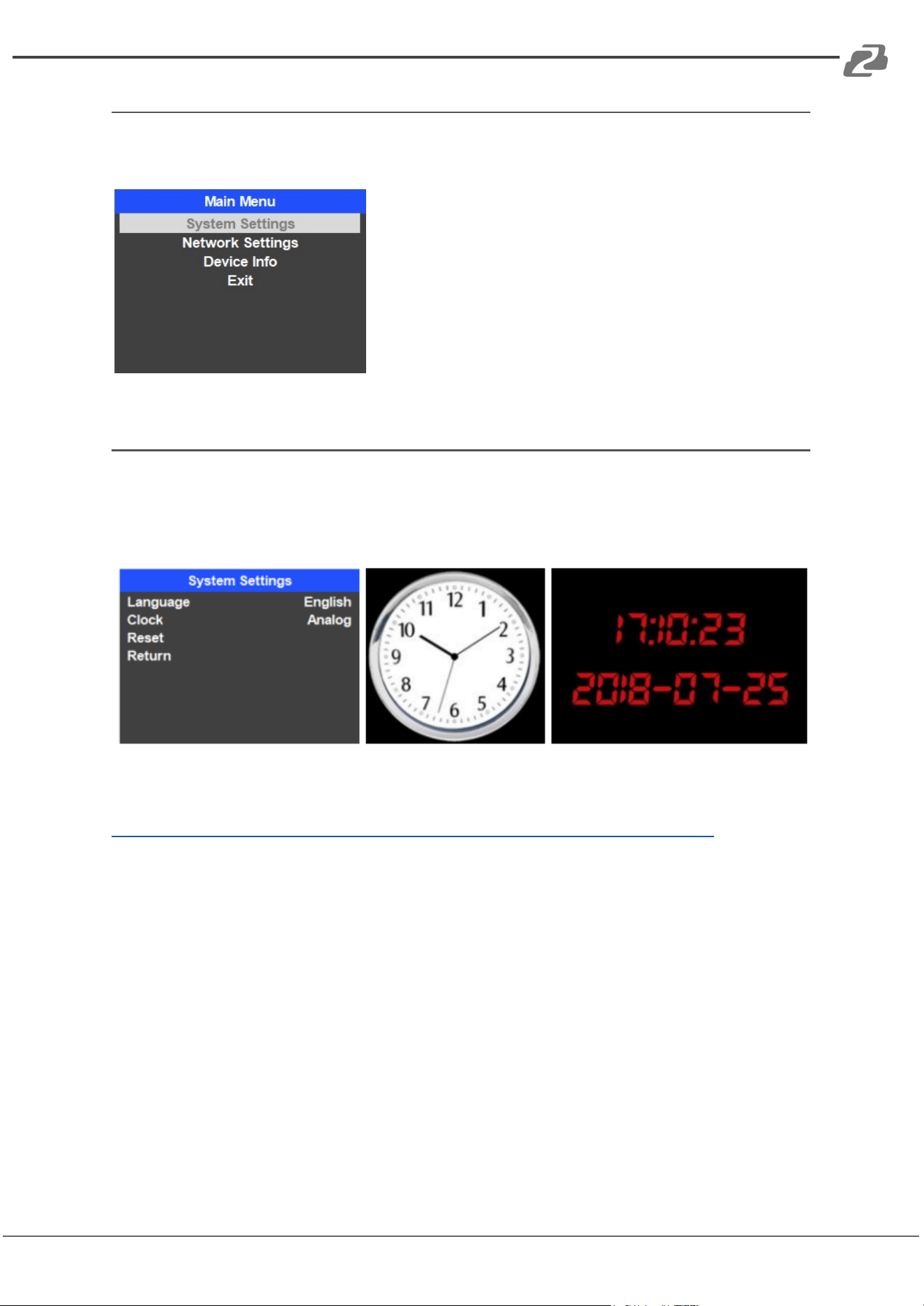
When the STATUS menu is not selected, press the MENU button to enter the main menu.
System Settings
Entering system settings allows the system language to be switched between English and
Chinese. From this menu the real-time clock can also be switched between Analog or
Digital displays.
Connect the switcher to a PC via an ethernet cable and download the time control software
from our website:
https://bzbgear.com/knowledge-base/how-to-set-the-time-on-the-bg-mfvs-61/
Open the software and click “Scan” to search for and connect to the device. Once
connected the clock time will be changed to the same time as the PC.
Address: 830 National Drive #140, Sacramento, CA 95834, USA · Tel: +1(888)499-9906 · Email: support@bzbgear.com 15
BZBGEAR BG-MFVS61-G2 PRODUCT MANUAL
Network Settings
Network
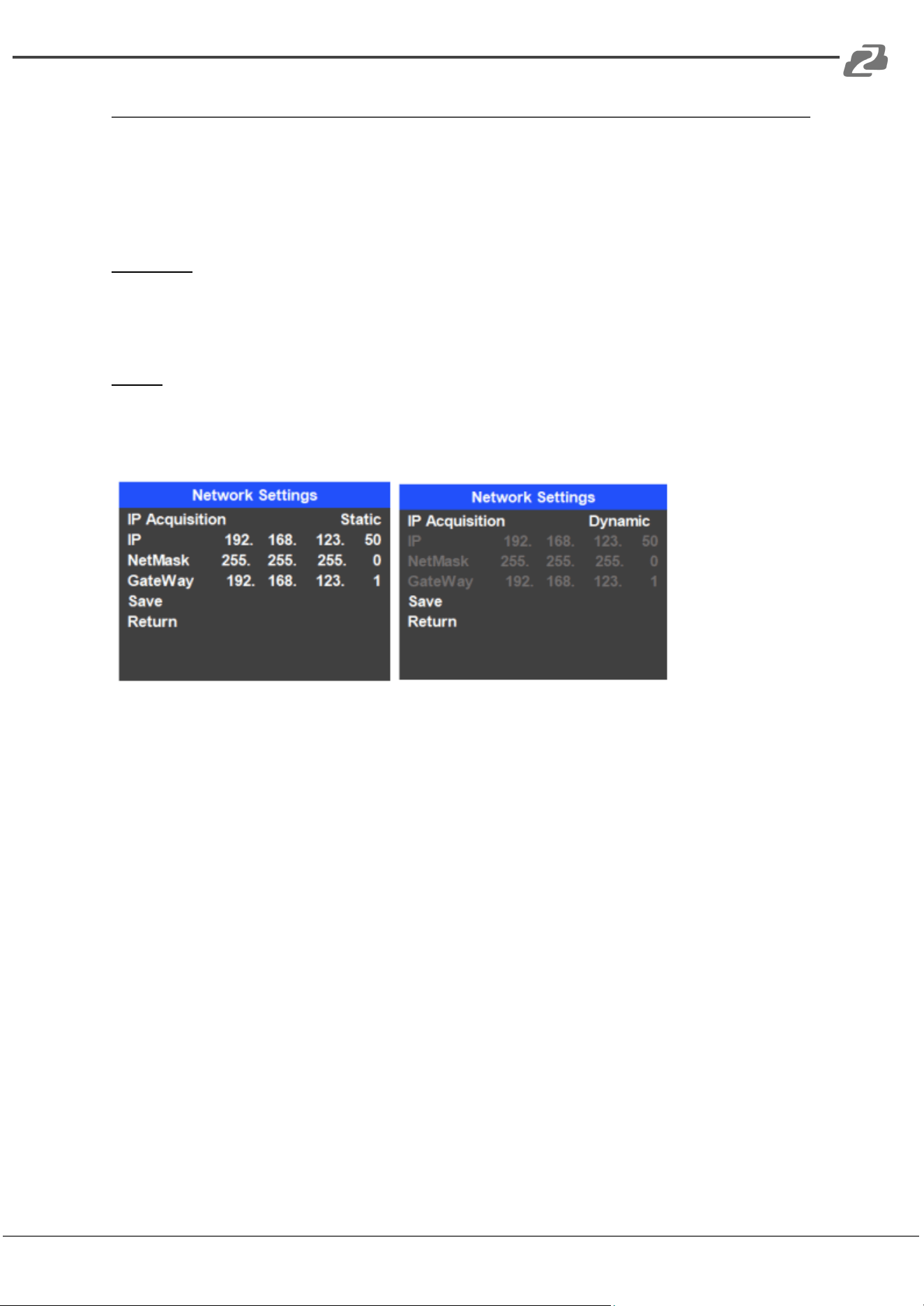
There are two ways to acquire an IP: Dynamic (IP configured by router) and Static (set IP
manually). Select the method you need in the menu. The default setting is Dynamic.
Dynamic: Connect the video switcher to a router with DHCP, it will obtain an IP address
automatically.
Make sure that the video switcher and PC are on the same local area network.
Static: Select static IP when the network is without DHCP. Connect the video switcher
directly to the PC with a network cable, set the PC’s IP address to the same IP range as
video switcher (the video switcher’s default IP address 192.168.1.215), or set the video
switcher’s IP address to the same IP range as PC’s IP address.
NetMask
Set the NetMask. The default setting is 255.255.255.0.
Gateway
Set the Gateway according to the current IP address. Save the configuration when finished.
Address: 830 National Drive #140, Sacramento, CA 95834, USA · Tel: +1(888)499-9906 · Email: support@bzbgear.com 16
BZBGEAR BG-MFVS61-G2 PRODUCT MANUAL
Tech Support
Have technical questions? We may have answered them already!
Please visit BZBGEAR’s support page (bzbgear.com/support) for helpful information and
tips regarding our products. Here you will find our Knowledge Base
(bzbgear.com/knowledge-base) with detailed tutorials, quick start guides, and step-by-step
troubleshooting instructions. Or explore our YouTube channel, BZB TV
(youtube.com/c/BZBTVchannel), for help setting up, configuring, and other helpful how-to
videos about our gear.
Need more in-depth support? Connect with one of our technical specialists directly:
Phone
1.888.499.9906
Email
support@bzbgear.com
Live Chat
bzbgear.com
Limited Product Warranty Terms
Pro Line: 5-year warranty from the date of purchase for AV/Broadcasting products bought
on or after August 1, 2024.
Essential Line: 3-year warranty from the date of purchase for AV/Broadcasting products
bought on or after August 1, 2024.
Cables: Lifetime Limited Product Warranty.
For complete warranty information, please visit bzbgear.com/warranty.
For questions, please call 1.888.499.9906 or email support@bzbgear.com.
Address: 830 National Drive #140, Sacramento, CA 95834, USA · Tel: +1(888)499-9906 · Email: support@bzbgear.com 17
BZBGEAR BG-MFVS61-G2 PRODUCT MANUAL
Mission Statement
BZBGEAR is a breakthrough manufacturer of high-quality, innovative audiovisual equipment
ranging from AVoIP, professional broadcasting, conferencing, home theater, to live
streaming solutions. We pride ourselves on unparalleled customer support and services.
Our team offers system design consultation, and highly reviewed technical support for all
the products in our catalog. BZBGEAR delivers quality products designed with users in
mind.
Copyright
All the contents in this manual and its copyright are owned by BZBGEAR. No one is allowed
to imitate, copy, or translate this manual without BZBGEAR’s permission. This manual
contains no guarantee, standpoint expression or other implies in any form. Product
specification and information in this manual is for reference only and subject to change
without notice.
All rights reserved. No reproducing is allowed without acknowledgement.
Address: 830 National Drive #140, Sacramento, CA 95834, USA · Tel: +1(888)499-9906 · Email: support@bzbgear.com 18