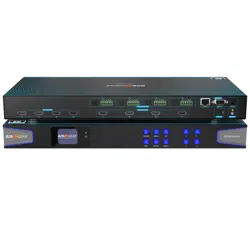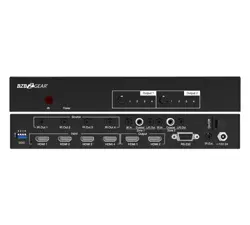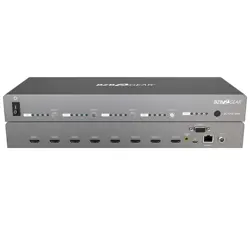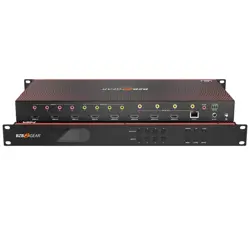
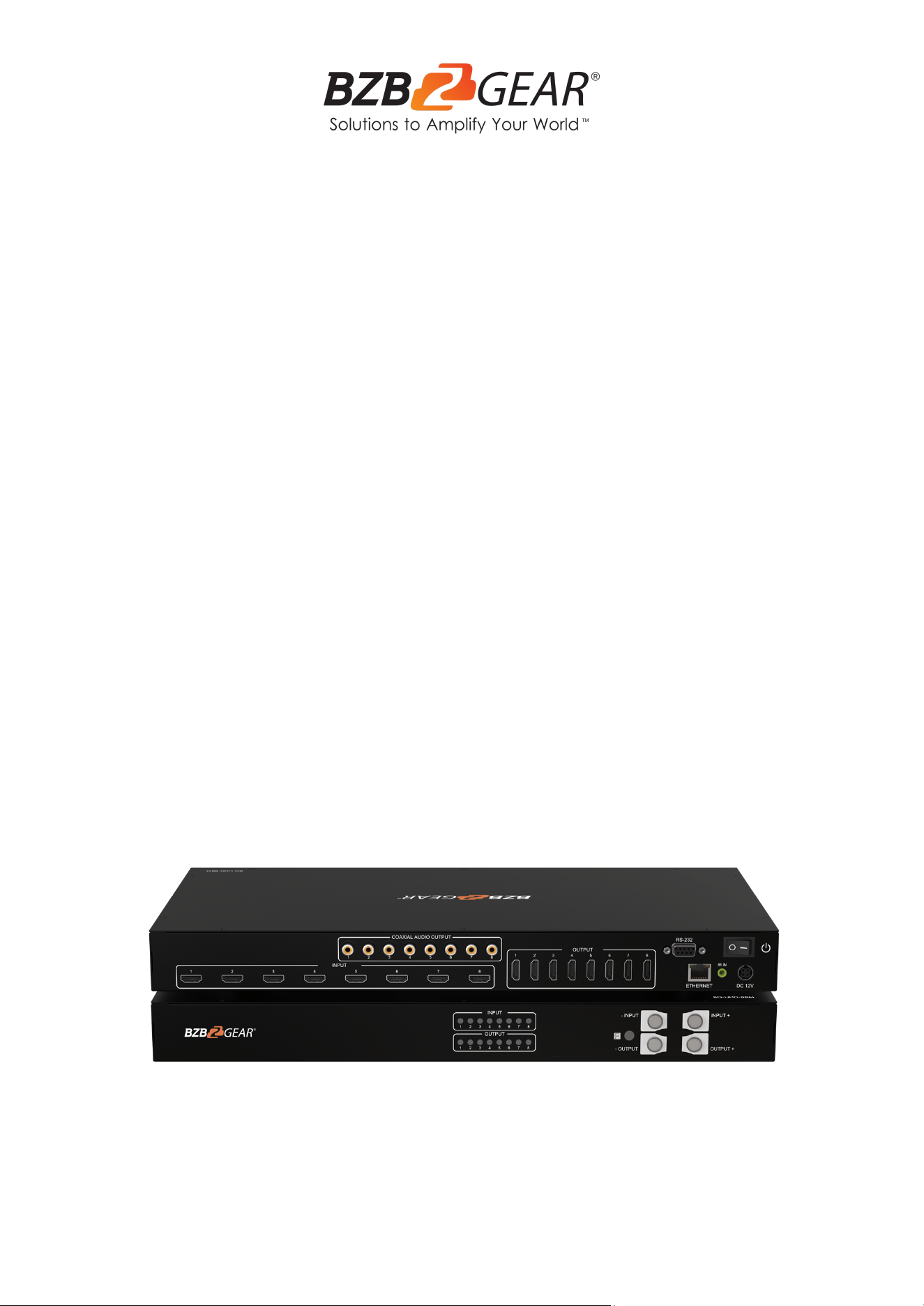
BG-UHD-88M
8X8 HDMI 2.0a 4K UHD Matrix Switcher with
Audio De-Embedding & ARC
User Manual

BZBGEAR BG-UHD-88M PRODUCT MANUAL
Address: 830 National Drive #140, Sacramento, CA 95834, USA · Tel: +1(888)499-9906 · Email: support@bzbgear.com 2

BZBGEAR BG-UHD-88M PRODUCT MANUAL
Table of Contents
Statement 3
Safety Precaution 3
Introduction 4
Features 5
Packing List 5
Specifications 5
Operation Controls and Functions 6
Application Diagram 7
Hardware Installation 7
Control Methods 7
EDID Learning 22
FAQ 24
Notice 26
Tech Support 27
Limited Product Warranty Terms 28
Mission Statement 28
Copyright 28
Address: 830 National Drive #140, Sacramento, CA 95834, USA · Tel: +1(888)499-9906 · Email: support@bzbgear.com 3

BZBGEAR BG-UHD-88M PRODUCT MANUAL
Statement
Please read these instructions carefully before connecting, operating, or configuring this
product. Please save this manual for future reference.
Safety Precaution
● To prevent damaging this product, avoid heavy pressure, strong vibration, or immersion
during transportation, storage, and installation.
● The housing of this product is made of organic materials. Do not expose to any liquid,
gas, or solids which may corrode the shell.
● Do not expose the product to rain or moisture.
● To prevent the risk of electric shock, do not open the case. Installation and maintenance
should only be carried out by qualified technicians.
● Do not use the product beyond the specified temperature, humidity or power supply
specifications.
● This product does not contain parts that can be maintained or repaired by users.
Damage caused by dismantling the product without authorization from BZBGEAR is not
covered under the warranty policy.
● Installation and use of this product must strictly comply with local electrical safety
standards.
Address: 830 National Drive #140, Sacramento, CA 95834, USA · Tel: +1(888)499-9906 · Email: support@bzbgear.com 4

BZBGEAR BG-UHD-88M PRODUCT MANUAL
Introduction
The BG-UHD-88M is an 8x8 4K HDMI matrix switch with audio extraction and ARC support.
This versatile matrix can handle resolutions up to 4K2K@60Hz 4:4:4 as well as HDR
(4K2K@60 4:2:0 10 bits). This HDCP 2.2 compliant unit is equipped with 8 HDMI 2.0a inputs
and 8 HDMI 2.0a outputs. It quickly routes any of the eight inputs to any of the eight
outputs including one-to-one or one-to-many configurations.
The BG-UHD-88M offers a wide array of control and compatibility options. The unit allows
control via front panel push buttons, IR remote control, RS-232, a Web Interface, or IP
control. 3rd party control system drivers for Crestron, Control 4, AMX, and RTI are also
available to encompass a wider array of system compatibility.
Features
● HDMI 2.0a compliant
● 4K2K@60 4:4:4 8bits
● HDR (High Dynamic Range)
● HDCP 2.2 compliant
● Allows any source to be displayed on multiple displays at the same time
● Allows any HDMI display to view any HDMI source at any time
● Up to 7.1 channel audio
● ARC & Audio Extraction via RCA
● S/PDIF(RCA) audio formats: PCM2, Dolby 5.1, DTS 5.1
● Default HDMI EDID and learns the EDID of displays to the matrix switcher.
● The matrix switch can be controlled via Push button, IR remote control, RS-232,
Web Interface, Control 4, IP control, and cloud control.
● Easy installation with rack-mounting
● Fast response times - 3~4 seconds for channel switch
Packing List
● 1x BG-UHD-88M
● 1x IR receiver
● 1x DC 12V 7.5A
● 1x IR Remote control
● 1x Rack-mounting ear set
● 1x Installation software CD
● 1x User Manual
Address: 830 National Drive #140, Sacramento, CA 95834, USA · Tel: +1(888)499-9906 · Email: support@bzbgear.com 5
BZBGEAR BG-UHD-88M PRODUCT MANUAL
Specifications
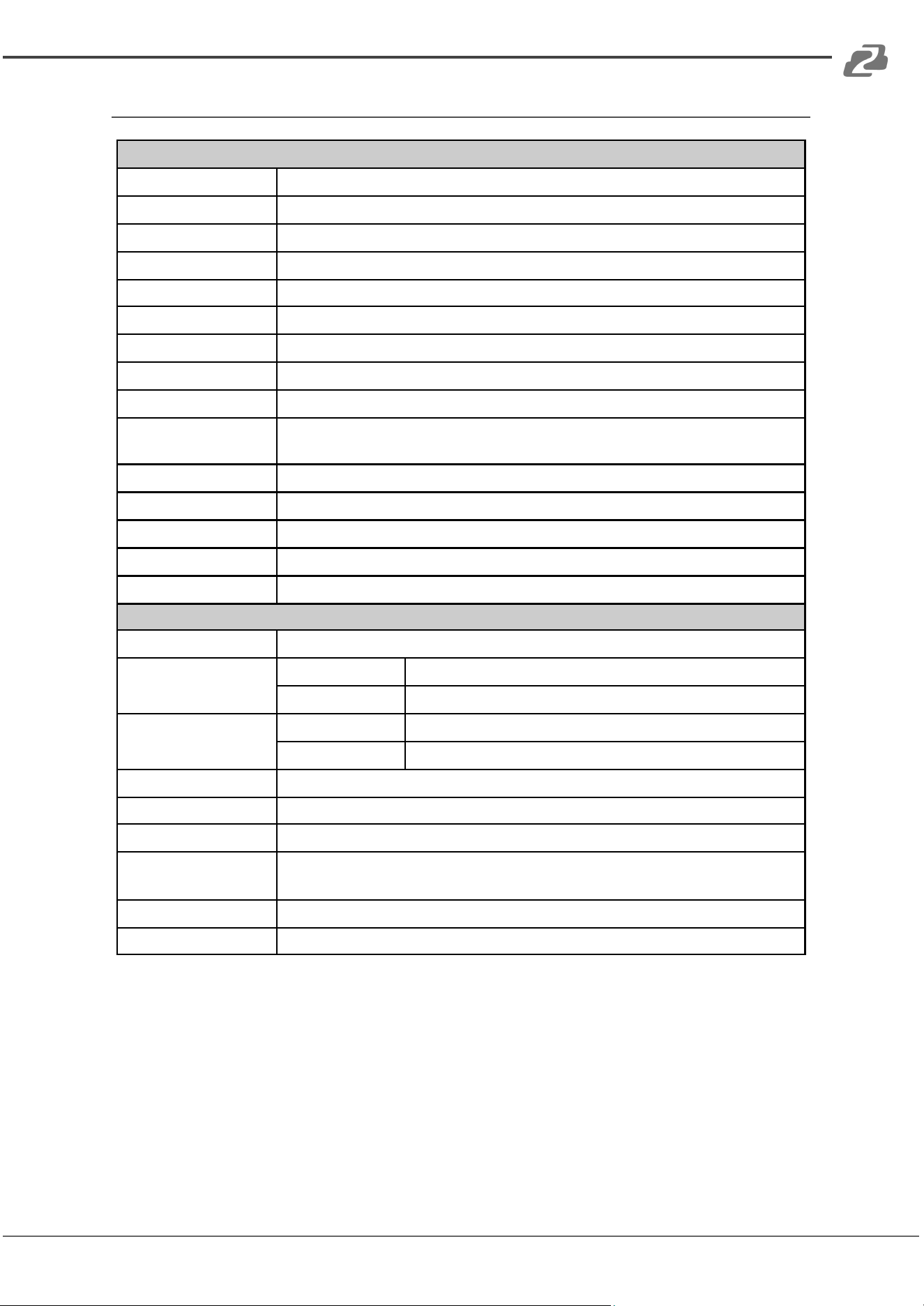
Technical
HDMI compliance
HDMI 2.0a
HDCP compliance
HDCP 1.4/HDCP 2.2
Video bandwidth
Single-link 594MHz [18Gbps]
Video support
HDR 4K2K@60 (4:2:0 10 bits) / 4K2K@60 (4:4:4 8 bits)
Audio support
Surround sound (up to 7.1ch) or stereo digital audio
ESD protection
Human body model - ±15kV [air-gap discharge] & ±8kV [contact discharge]
PCB stack-up
8-layer board [impedance control - differential 100Ω; single 50Ω]
Input
8x HDMI / 1x RS-232 / 1x Ethernet / 1x IR socket for IR receiver
Output
8x HDMI + 8x RCA
HDMI Input selection
Push button / IR remote control / RS-232 control / Web control / Control 4/
IP control / Cloud control
IR remote control
Electro-optical characteristics: p = 25° / Carrier frequency: 38kHz
HDMI connector
Type A [19-pin female]
RJ-45 connector
WE/SS 8P8C with 2 LED indicators
RS-232 connector
DE-9 [9-pin D-sub female]
3.5mm connector
[System IR] Receives IR commands from remote control
Mechanical
Enclosure
Metal case
Dimensions
(L x W x H)
Model
1'4" x 9.2" x 1.7" [440 x 234 x 44mm]
Package
1'7" x 12.5" x 6.1" [526 x 318 x 156mm]
Weight
Model
5.8 lbs [2645g]
Package
8.6 lbs [3899g]
Fixedness
1RU rack-mount with ears Wall hanging holes
Power supply
12V 7.5A DC
Power consumption
55 Watts [max]
Operation
temperature
32~104°F / 0~40°C
Storage temperature
-4~140°F / -20~60°C
Relative humidity
20~90% RH [no condensation]
Address: 830 National Drive #140, Sacramento, CA 95834, USA · Tel: +1(888)499-9906 · Email: support@bzbgear.com 6
BZBGEAR BG-UHD-88M PRODUCT MANUAL
Operation Controls and Functions
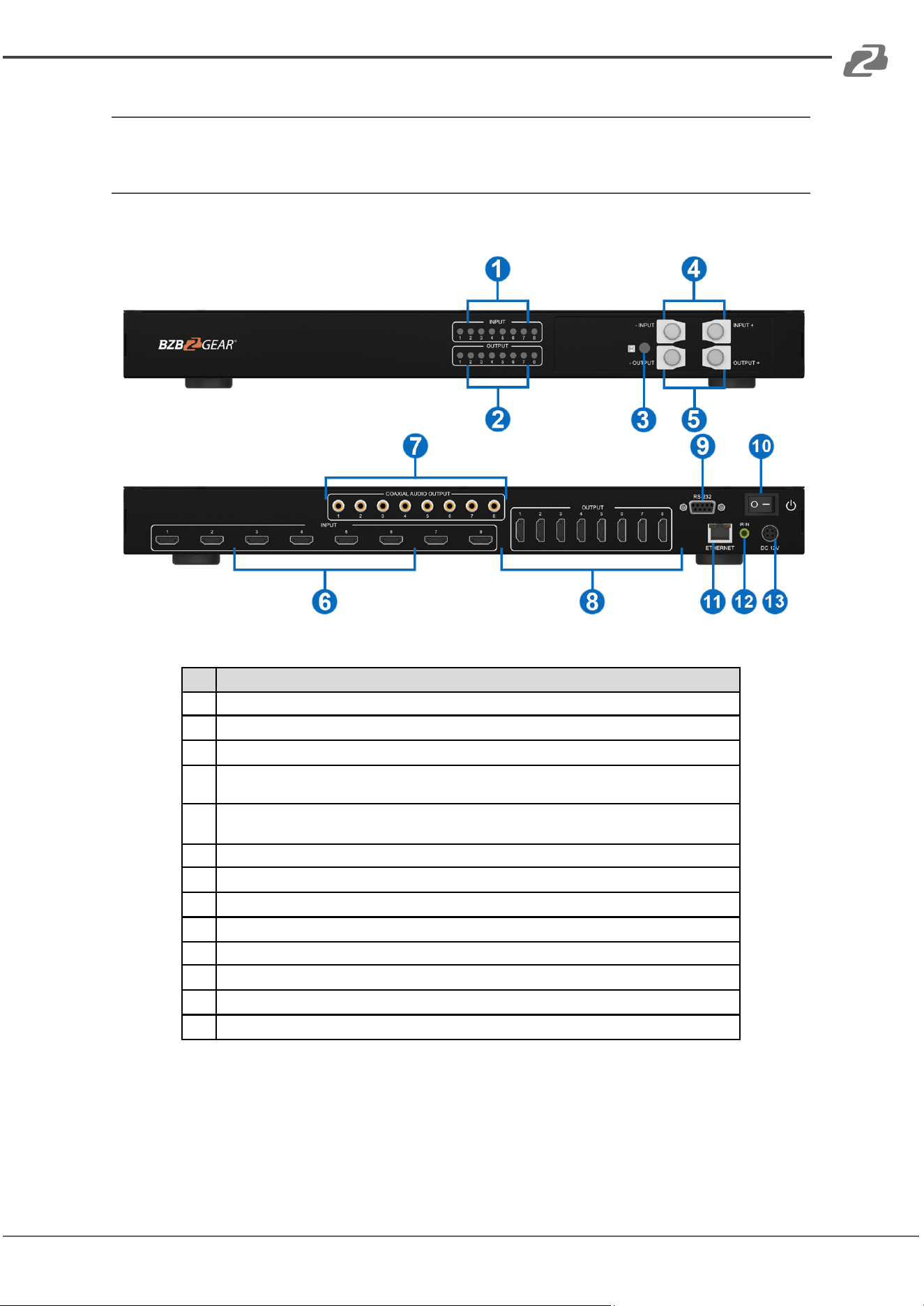
Panel Descriptions
No.
Name
1
Source Status: Input source detection LED
2
Display Status: Output display detection LED
3
IR SENSOR: IR sensor for receiving the IR commands from IR remote
4
Output Push Button & 7-segment LED: Front panel push buttons used to select the
number of display channel & LED display for output ports
5
Input Push Button & 7-segment LED: Front panel push buttons used to select the number
of input source & LED display for input channels
6
INPUT 1-8: HDMI inputs
7
Audio OUT: ARC & Audio Extraction
8
OUTPUT 1-8: HDMI outputs
9
RS-232: RS-232 control port
10
Power Switch: Power on/off the device
11
Ethernet: Ethernet control port
12
System IR Receiver: Ext. IR receiver
13
+12V DC: 12V DC power jack
Address: 830 National Drive #140, Sacramento, CA 95834, USA · Tel: +1(888)499-9906 · Email: support@bzbgear.com 7
BZBGEAR BG-UHD-88M PRODUCT MANUAL
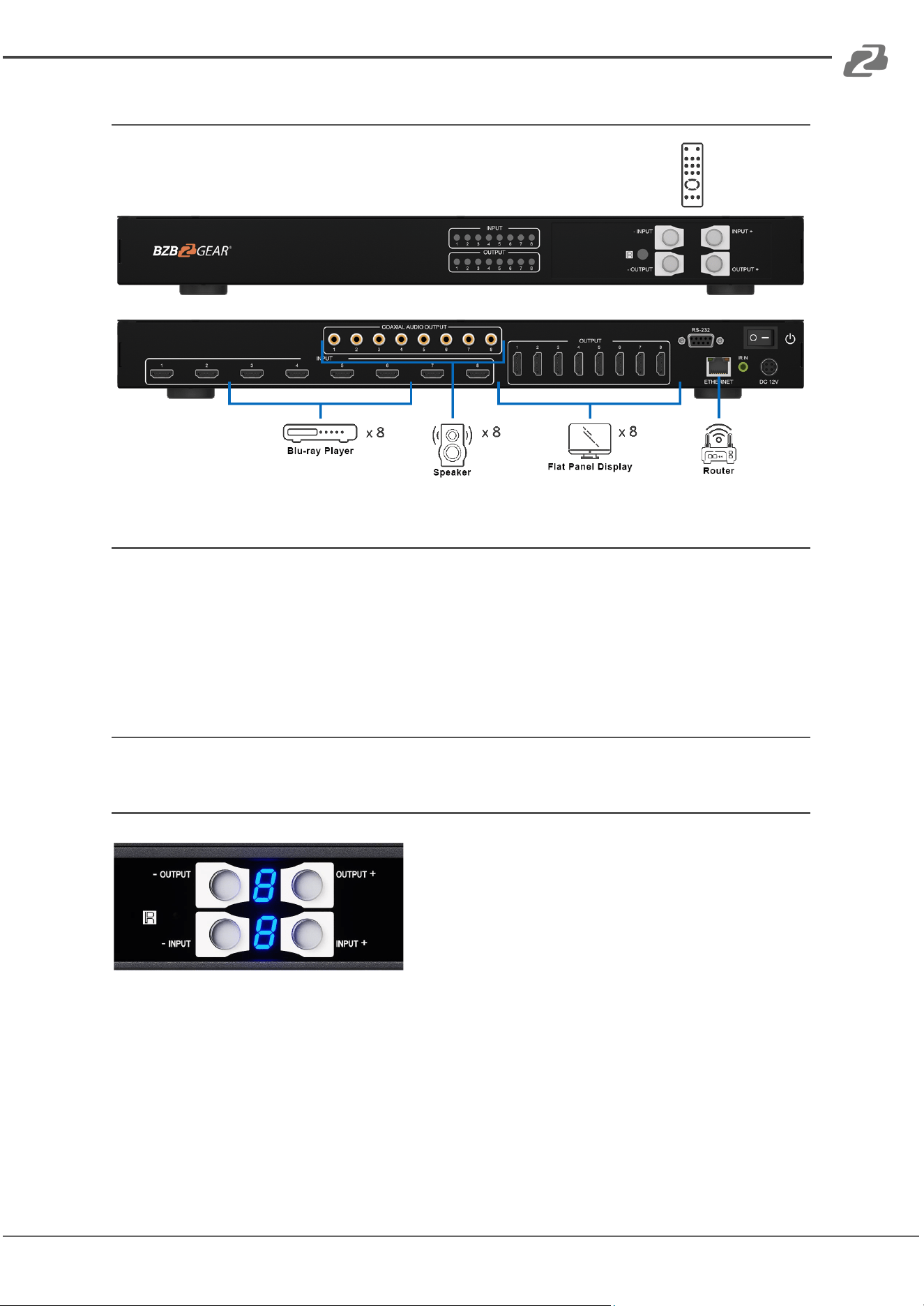
Application Diagram
Hardware Installation
1. Connect all sources to HDMI Inputs on the 8x8 HDMI BG-UHD-88M.
2. Connect all displays to HDMI Outputs on the 8x8 HDMI Matrix BG-UHD-88M.
3. Connect the +12V 7.5A DC power supply to the 8x8 HDMI Matrix BG-UHD-88M
Control Methods
Method A: Push Buttons
IN/OUT MAP
(1) Use the “+”or “-“ output push buttons to select an output display port
(2) Use the “+”or “-“ input push buttons to select an input source port
“+”: changes selected input/output port in ascending order
“-” : changes selected input/output port in descending order
After you select the desired input/output port, the LED will blink twice and the configuration
will be implemented.
Address: 830 National Drive #140, Sacramento, CA 95834, USA · Tel: +1(888)499-9906 · Email: support@bzbgear.com 8
BZBGEAR BG-UHD-88M PRODUCT MANUAL
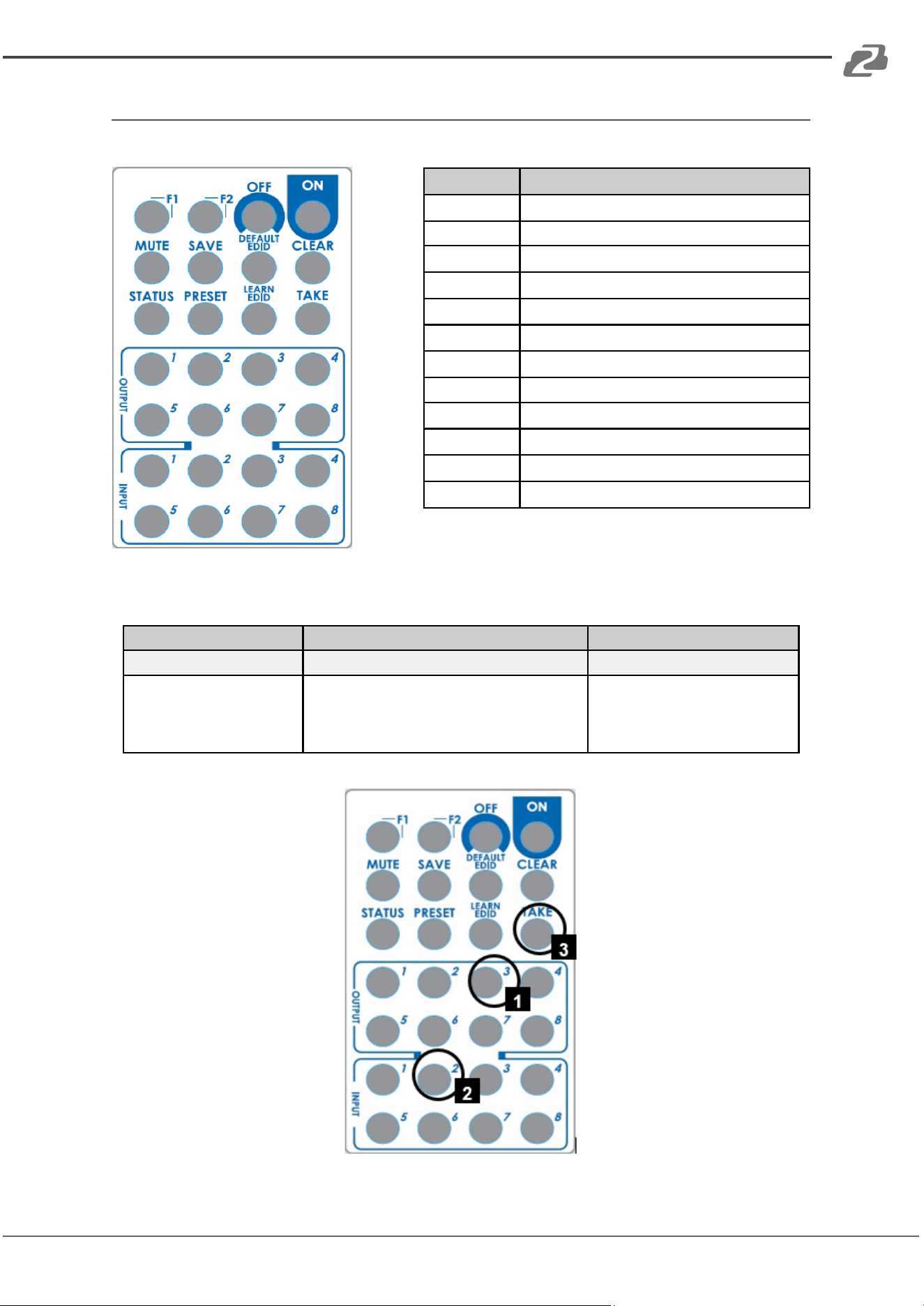
Method B: IR Remote Control
Button
Function
OFF
Standby mode
ON
Power on the matrix switcher
MUTE
Turn off output’s video and audio
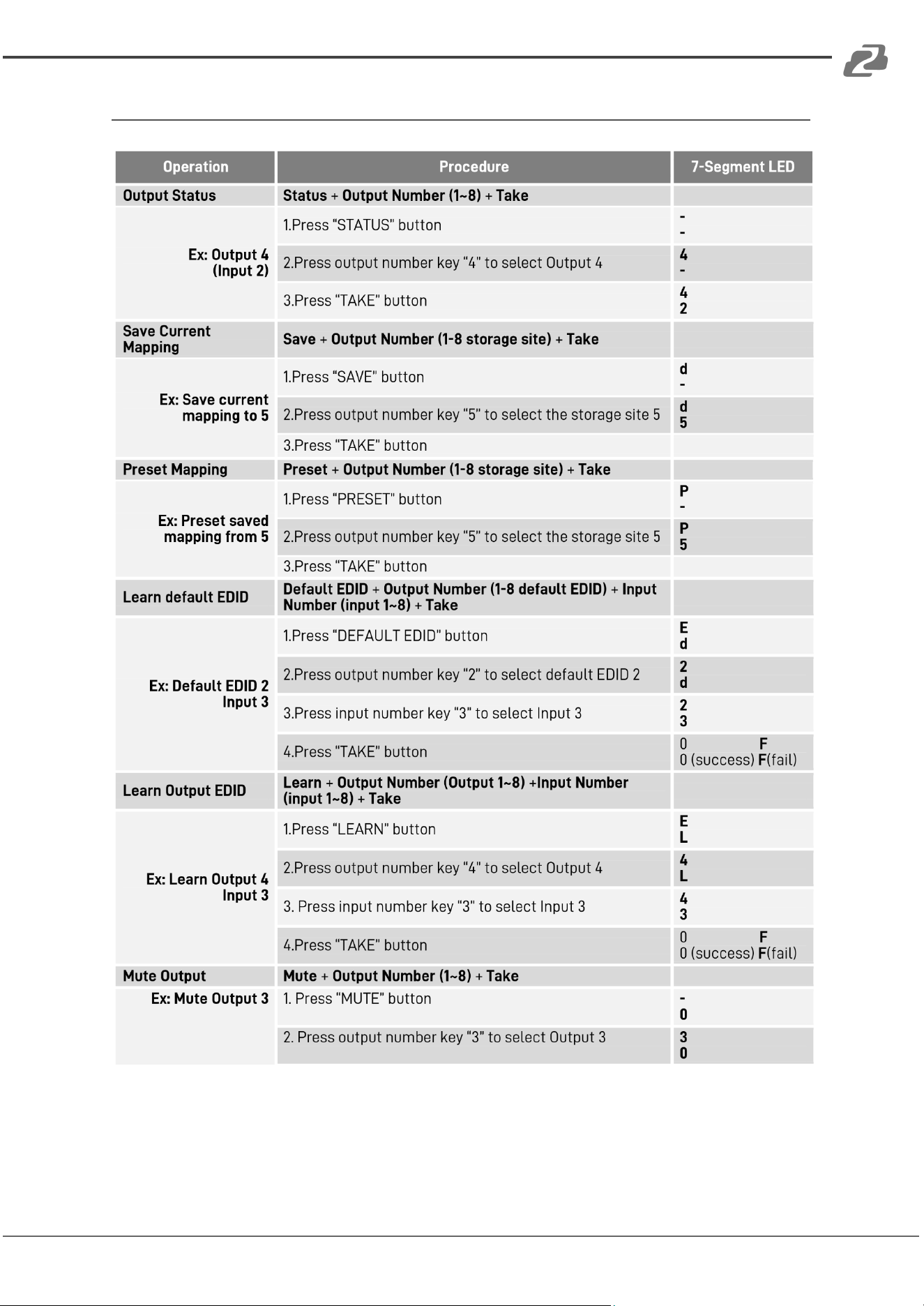
STATUS
Preset output status
SAVE
Save current mapping mode
PRESET
Preset mapping mode
DEFAULT EDID
Begin default EDID selection
LEARN EDID
Begin EDID learning from one output
CLEAR
Clear the previous IR operation procedure
TAKE
Trigger the previous setting
F1
Reserved
F2
Reserved
IN/OUT Switch
Operation
Procedure
7-Segment LED
IN/OUT Switch
Output Number (1~8) + Input Number (1~8)
Ex: Input 2
To Output 3
1.Press output number key “3” to select Output 3
2.Press input number key “2” to select Input 2
3.Press “TAKE” button
3
-
3
2
Address: 830 National Drive #140, Sacramento, CA 95834, USA · Tel: +1(888)499-9906 · Email: support@bzbgear.com 9
BZBGEAR BG-UHD-88M PRODUCT MANUAL
Examples of Key Functions
Address: 830 National Drive #140, Sacramento, CA 95834, USA · Tel: +1(888)499-9906 · Email: support@bzbgear.com 10
BZBGEAR BG-UHD-88M PRODUCT MANUAL
Method C: Software Control through RS-232
System Requirements
(1) OS Information: MS Win XP/7/8.1/10
(2) Baud rates: 115200
(3) Software size: 2 MB
(4) Minimum RAM requirement: 256 MB
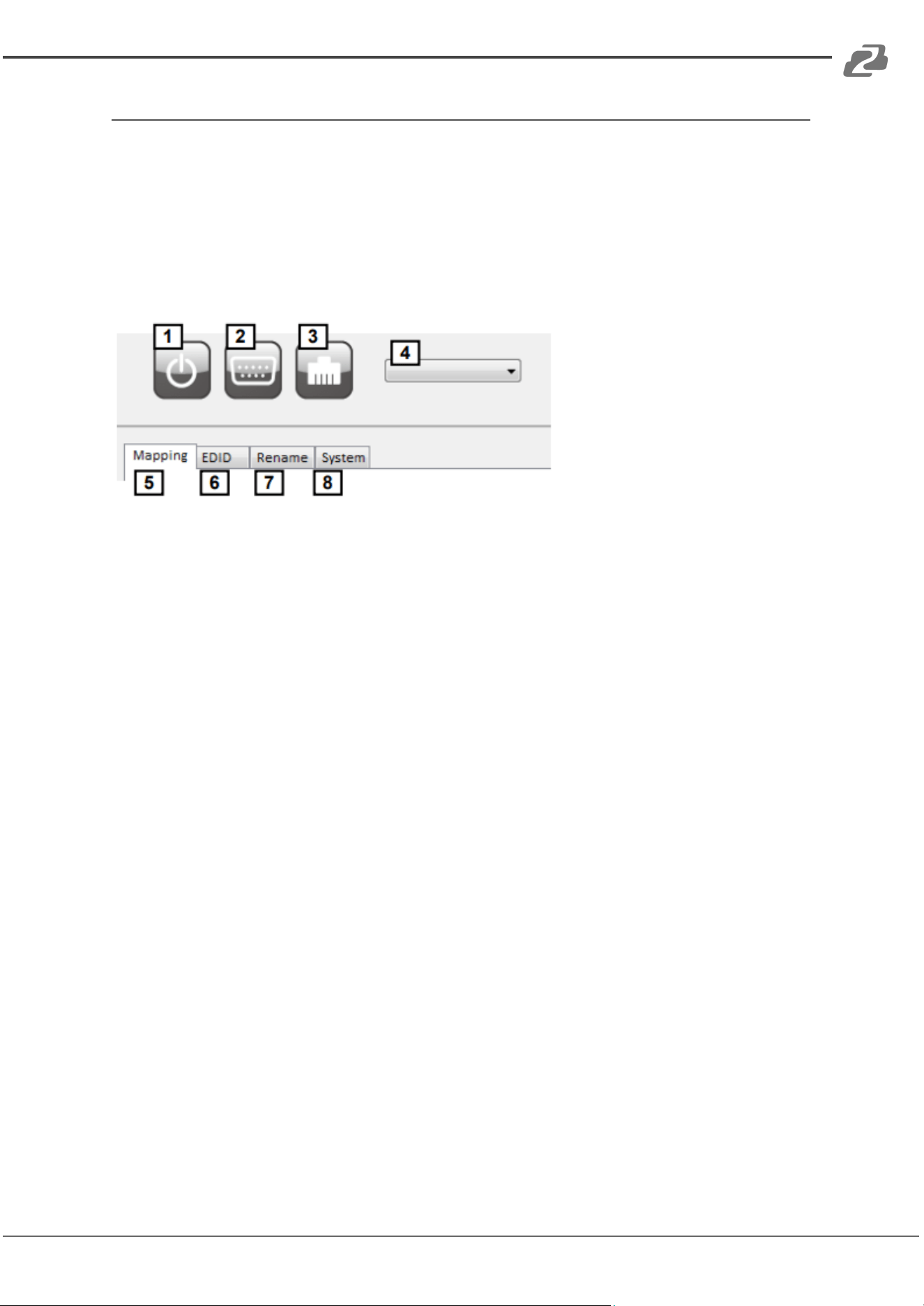
1. Power ON/ Standby mode
2. Control SW via RS-232
3. Control SW via Network
4. COM Port Selection
5. I/O Routing Tab
6. EDID Tab
7. Rename I/O Tab
8. Network Setting, Default Reset & Firmware Update Button
Address: 830 National Drive #140, Sacramento, CA 95834, USA · Tel: +1(888)499-9906 · Email: support@bzbgear.com 11
BZBGEAR BG-UHD-88M PRODUCT MANUAL
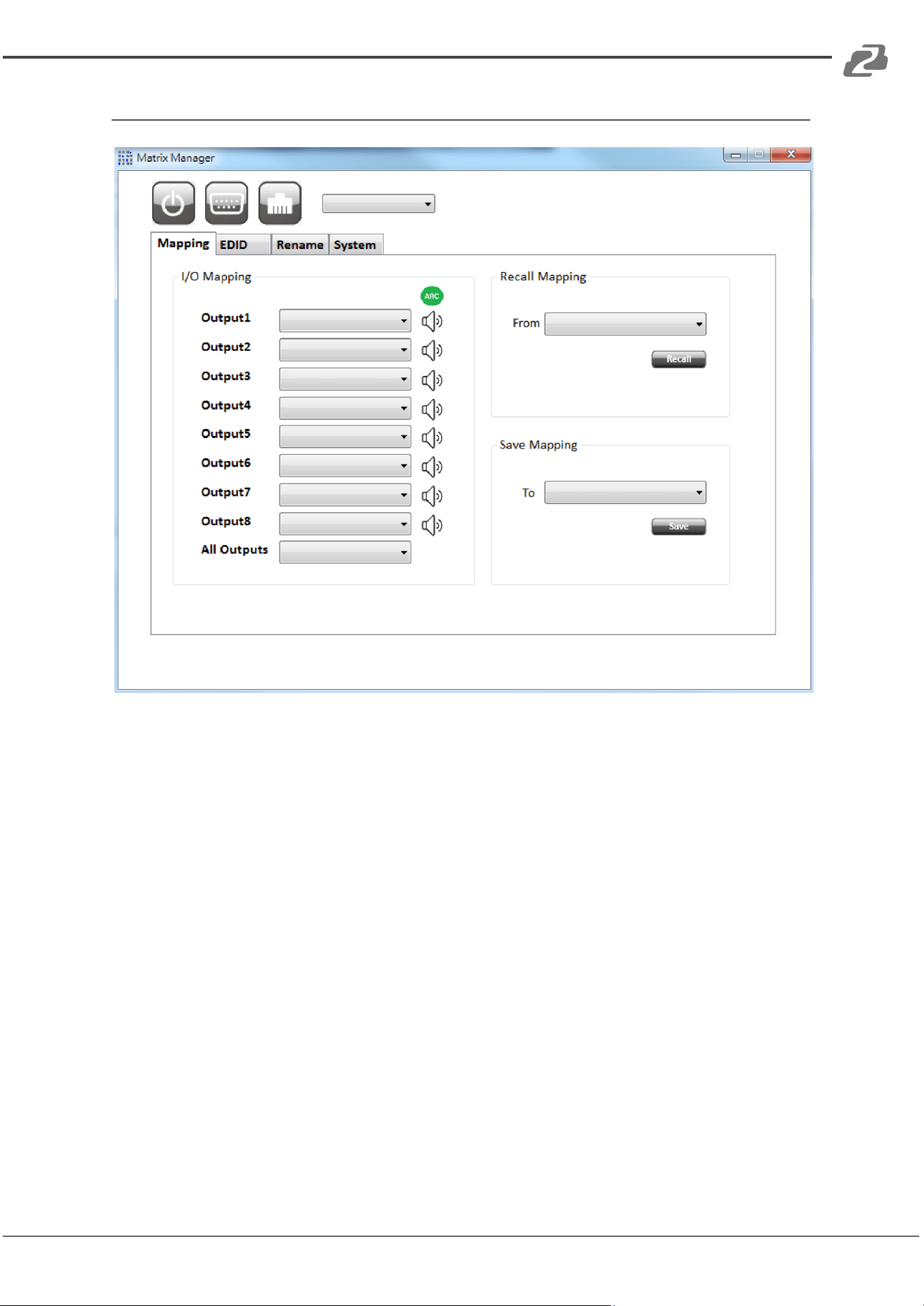
I/O Routing Button
I/O:
● Switch the input for each output
● ARC: Enable/ Disable ARC
Recall Mapping:
● Select the stored Mapping (1-16)
● Click “Recall” button to recall previous mapping which are saved
Save Mapping:
● Select Mapping (1-16)
● Click “Save” button to save current mapping
Address: 830 National Drive #140, Sacramento, CA 95834, USA · Tel: +1(888)499-9906 · Email: support@bzbgear.com 12
BZBGEAR BG-UHD-88M PRODUCT MANUAL
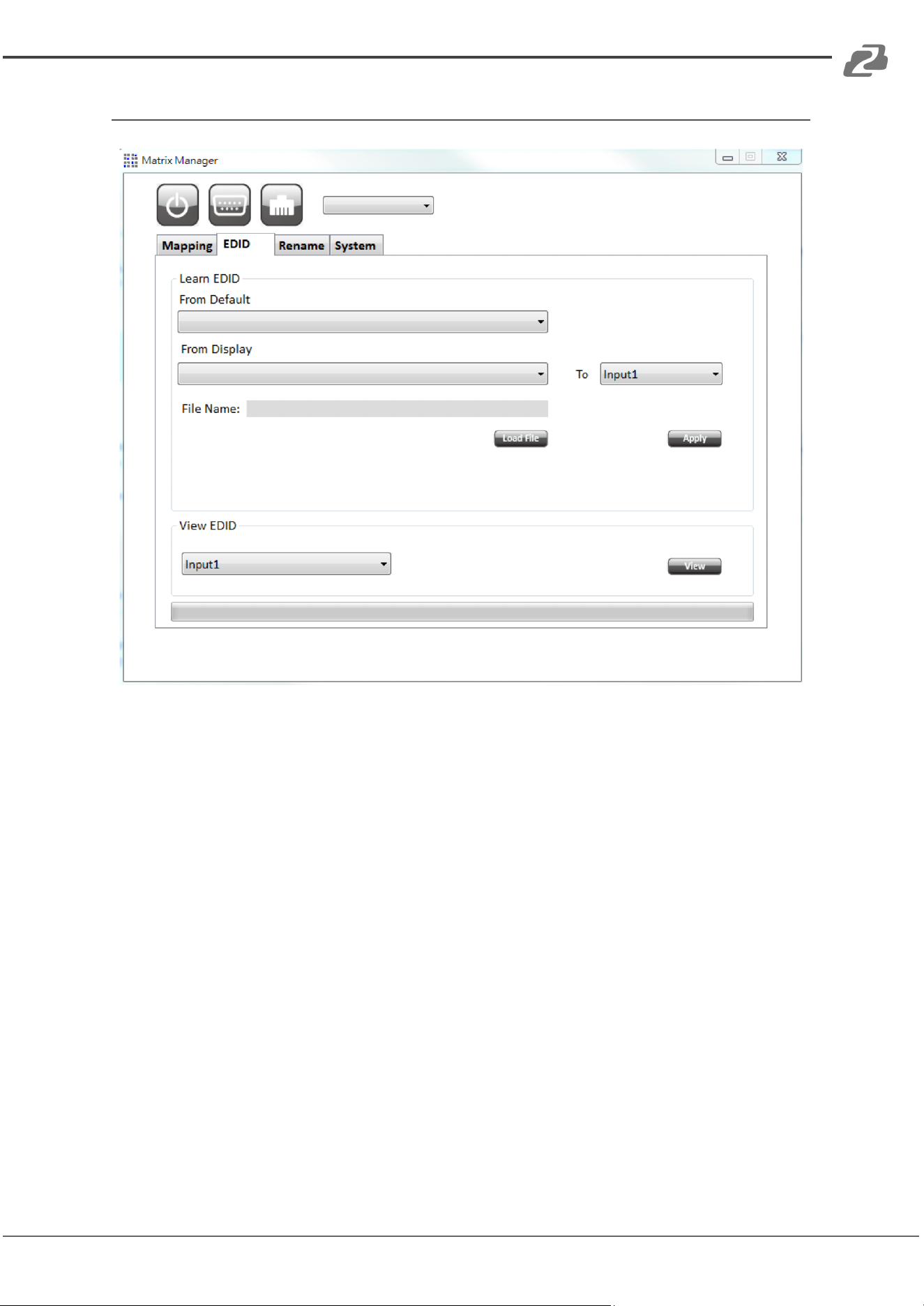
EDID Button
Learn EDID from Default to Input
● Select Default EDID(1-17 Default EDID)
● Select designated Input
● Click “Apply” button to learn from default EDID
Learn EDID from Display to Input
● Select output
● Select designated Input
● Click “Apply” button to learn from display EDID
Load EDID File to Input
● Click “Load File” button to select the EDID file
● Select designated Input
● Click “Apply” button to load EDID File
View EDID
● Select Input or HDMI output
● Click “View” button to read and analyze the EDID
Address: 830 National Drive #140, Sacramento, CA 95834, USA · Tel: +1(888)499-9906 · Email: support@bzbgear.com 13
BZBGEAR BG-UHD-88M PRODUCT MANUAL
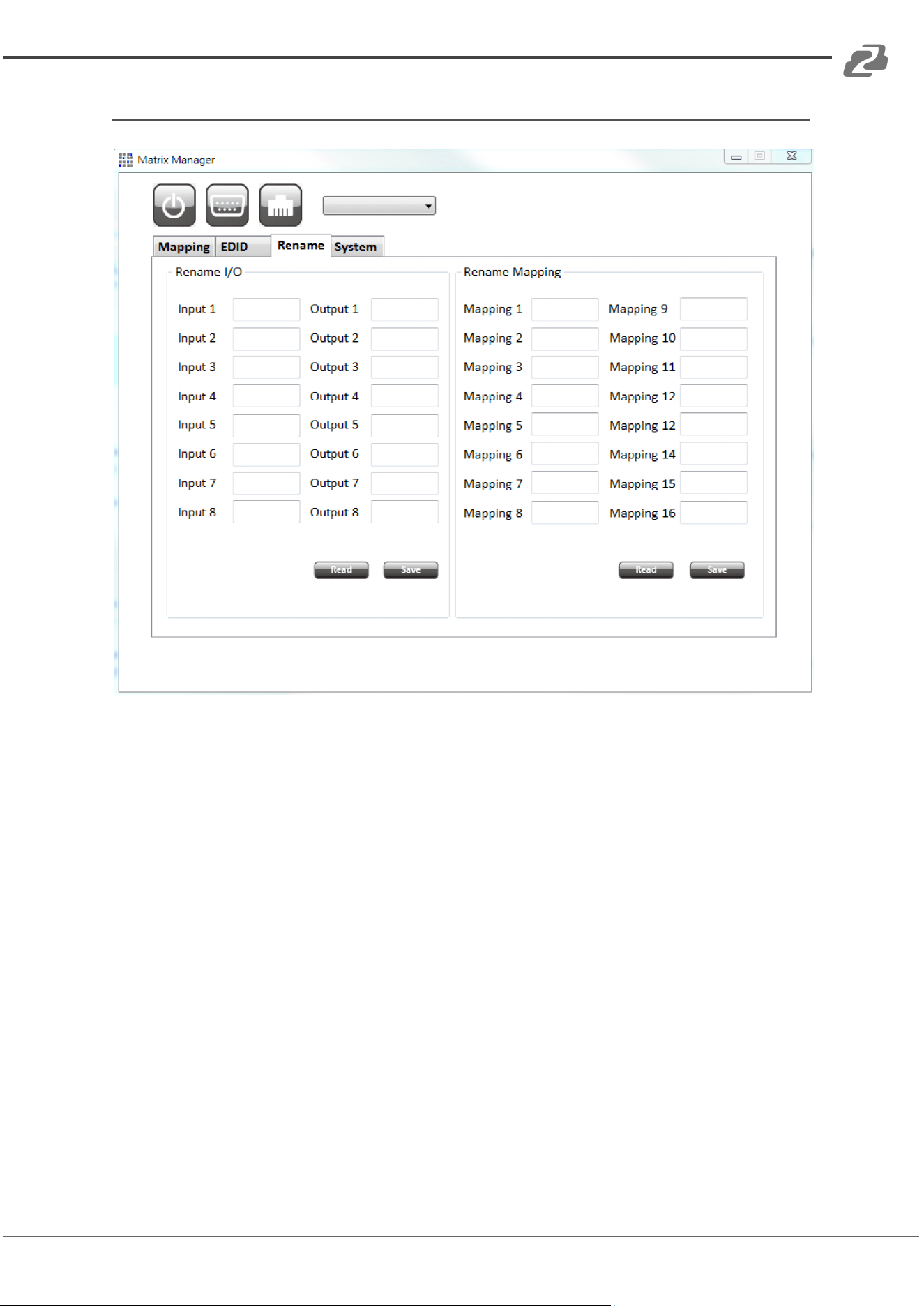
Rename I/O Button
Rename I/O:
● Rename the Inputs
● Rename the Outputs
Rename Mapping:
● Rename the Mappings
Address: 830 National Drive #140, Sacramento, CA 95834, USA · Tel: +1(888)499-9906 · Email: support@bzbgear.com 14
BZBGEAR BG-UHD-88M PRODUCT MANUAL
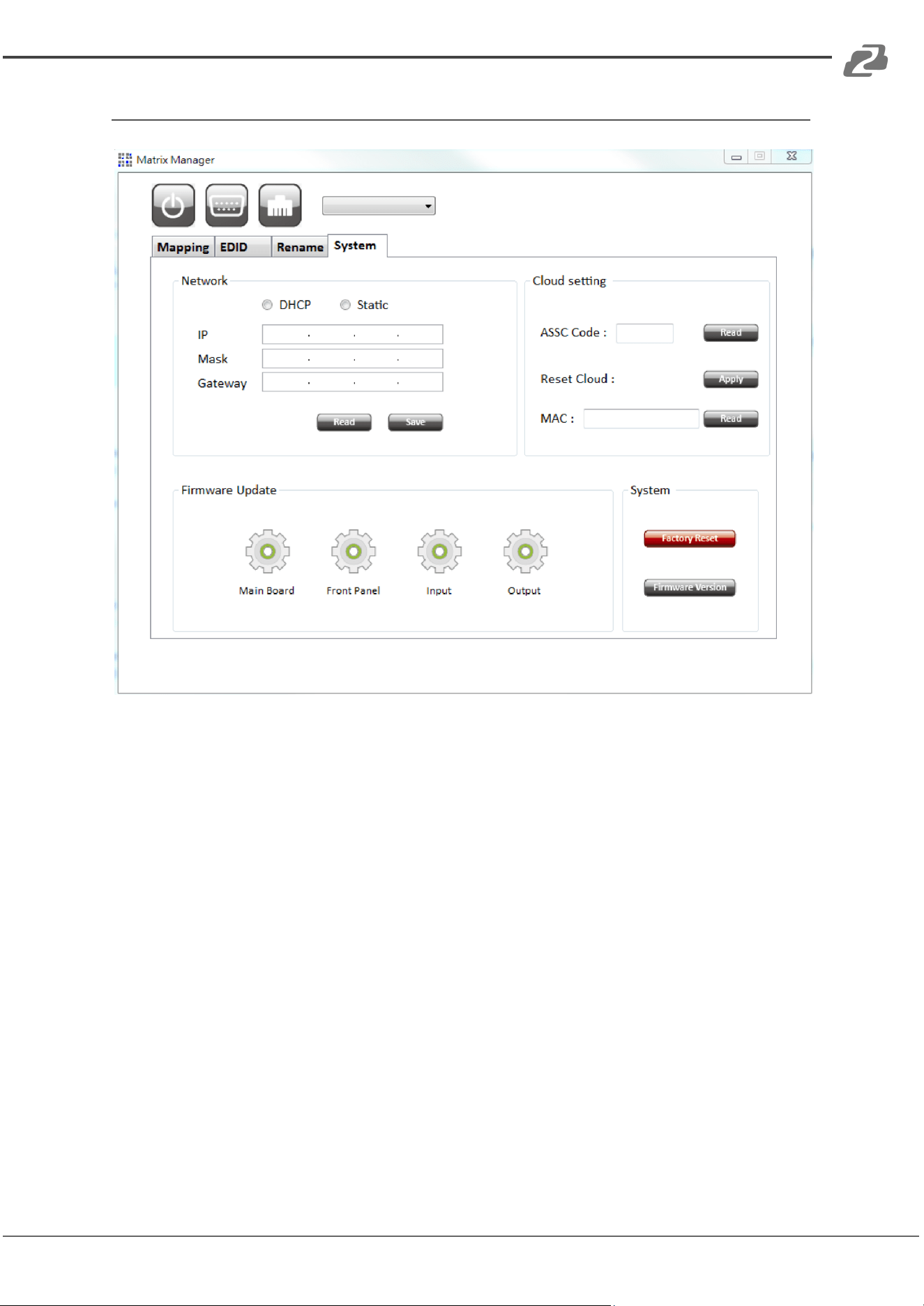
System Button
Network-DHCP mode
● After selecting DHCP, device will reboot automatically
● Click “Read” button to automatically get the IP address Information
Network-Static mode
● After selecting static, device will reboot automatically
● Key in the “IP”, “MASK”, “GATEWAY” information.
● After setting IP address, please click “Save” button to save IP address Information.
The device will reboot automatically
“Save” Button
● Save the IP address which is manually entered
“Read” Button *The default IP address is 192.168.1.70
● Read the IP address from the device
Address: 830 National Drive #140, Sacramento, CA 95834, USA · Tel: +1(888)499-9906 · Email: support@bzbgear.com 15
BZBGEAR BG-UHD-88M PRODUCT MANUAL
Cloud setting-Association Code
● To get an “association code”. The device can use this code to pair with cloud server.
Cloud setting-Reset Cloud
● To reset cloud after a successful pairing
Cloud setting-MAC
● Read the device’s MAC address information
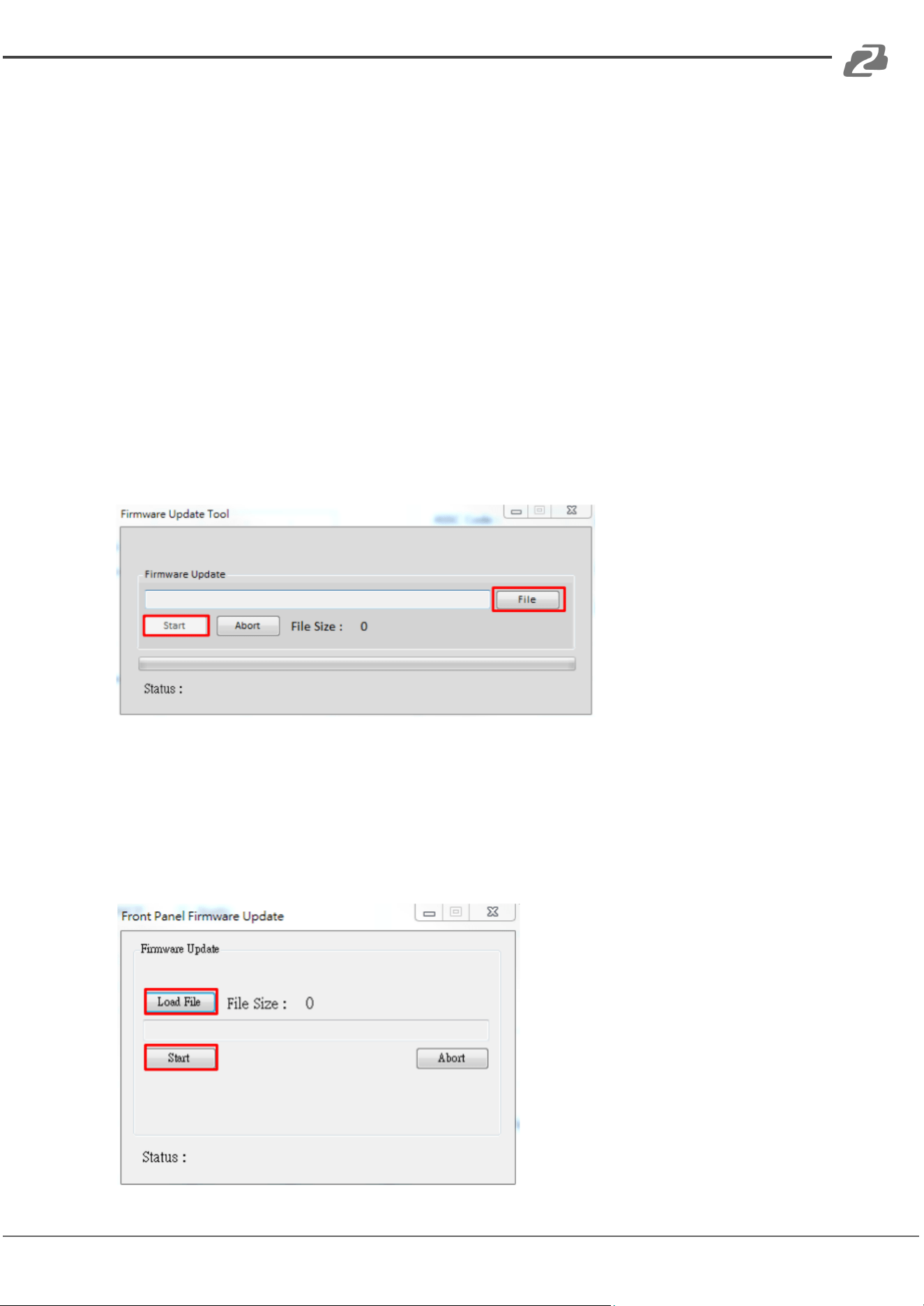
Firmware Update-Main Board
● Click “Main Board” button and another window will pop-up
● Click “File” button to load firmware
● Click “Start” button to do firmware update
● Please power cycle after firmware update complete
Firmware Update-Front Panel
● Click “Front Panel” button and another window will pop-up
● Click “Load File” button to load firmware
● Click “Start” button to do firmware update
● Please power cycle after firmware update complete
Address: 830 National Drive #140, Sacramento, CA 95834, USA · Tel: +1(888)499-9906 · Email: support@bzbgear.com 16
BZBGEAR BG-UHD-88M PRODUCT MANUAL
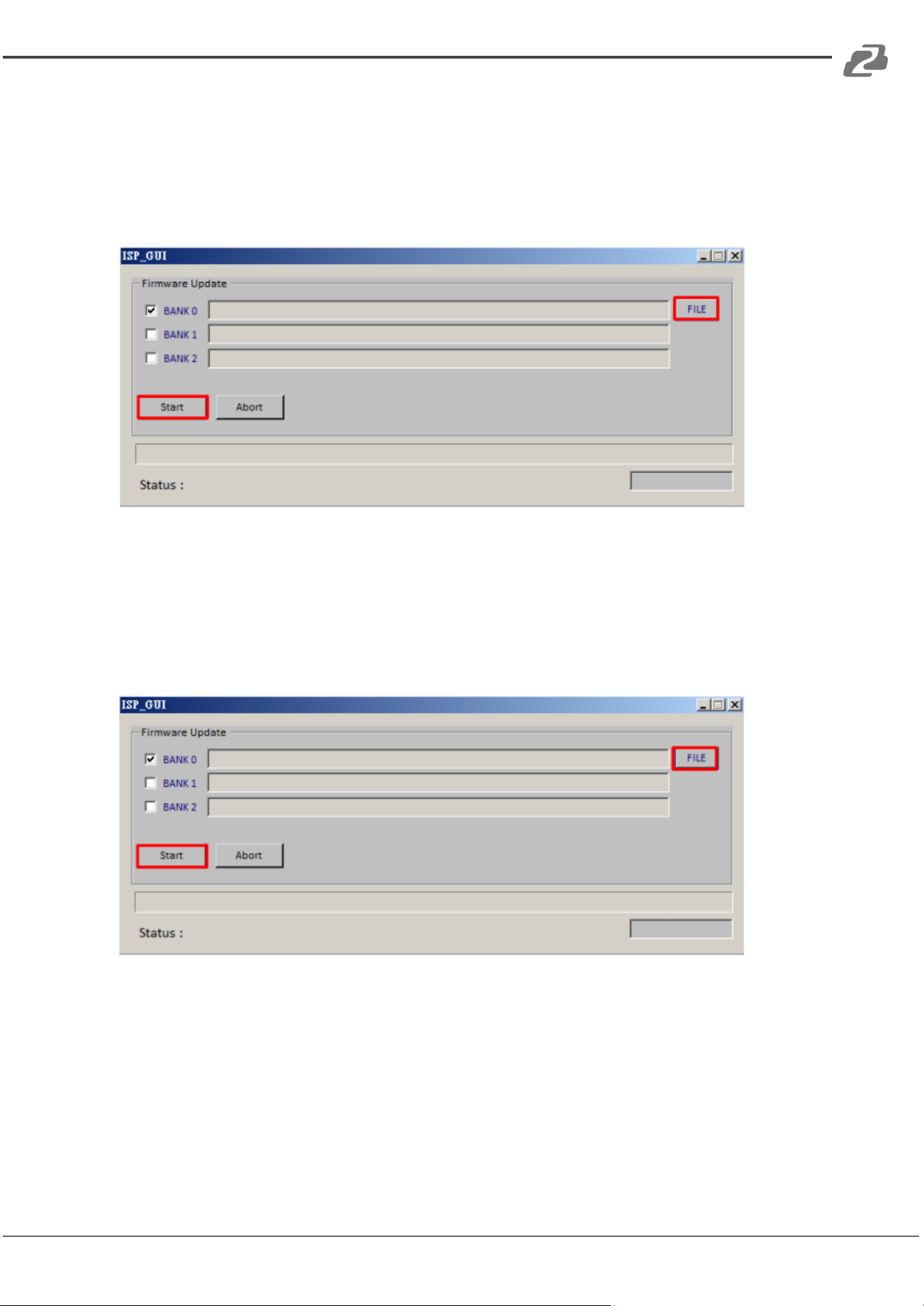
Firmware Update-Input
● Click “Input” button and another window will pop-up
● Click “FILE” button to load firmware
● Click “Start” button to do firmware update
● Please power cycle after firmware update complete
Firmware Update-Output
● Click “Output” button and another window will pop-up
● Click “FILE” button to load firmware
● Click “Start” button to do firmware update
● Please power cycle after firmware update complete
System-Factory Reset
● To do factory default reset
System-Firmware Version
● To get the F/W version information
Address: 830 National Drive #140, Sacramento, CA 95834, USA · Tel: +1(888)499-9906 · Email: support@bzbgear.com 17
BZBGEAR BG-UHD-88M PRODUCT MANUAL
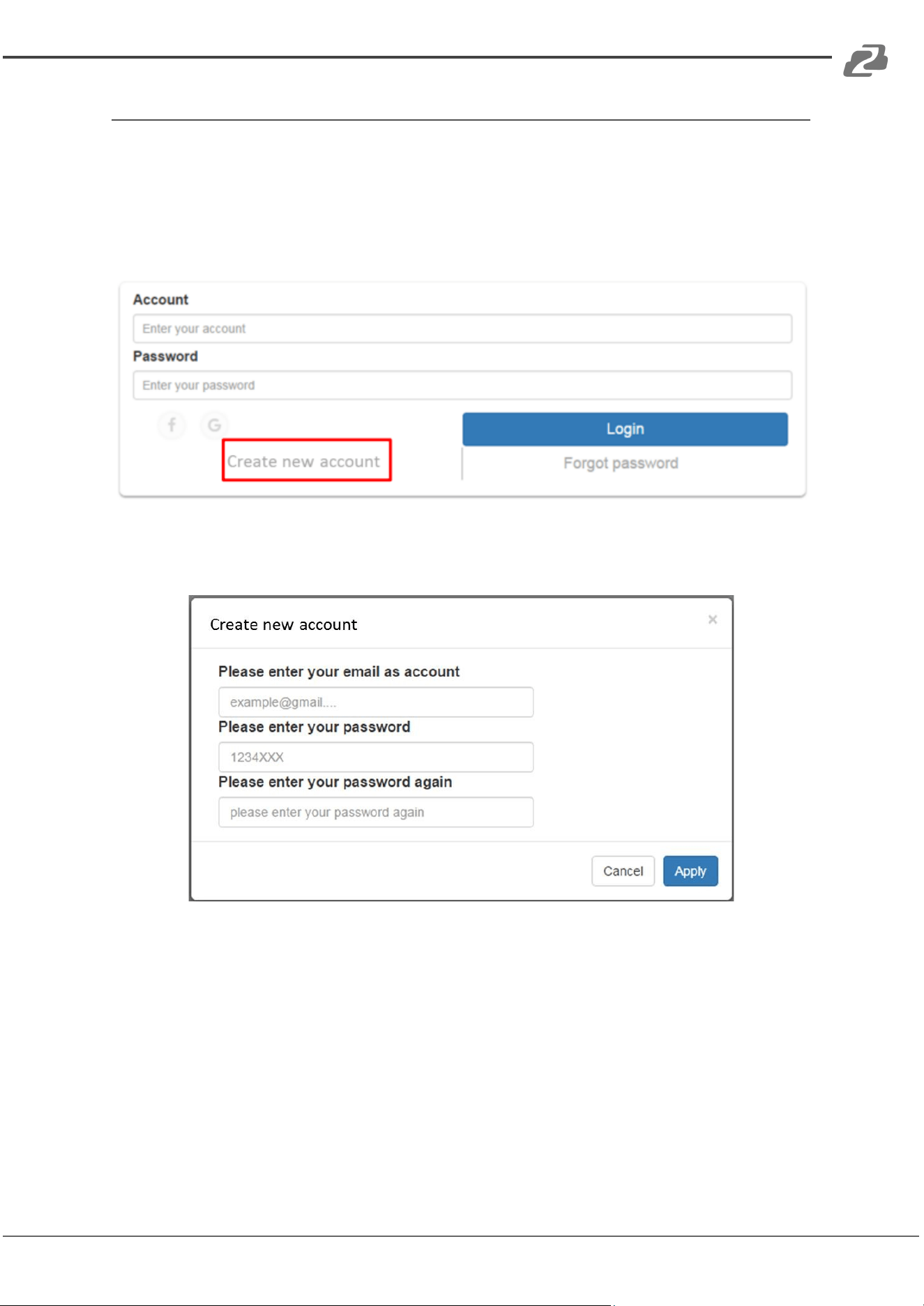
Method D: Cloud Control (Eagleyes) through Ethernet port
Create Account
The first time using the Eagleyes service, please create a new account.
1. Access Eagleyes (http://www.eagleyes.io) and click “Create new account”.
2. The Registration page will pop up and please fill in your email and password information
to create your private account.
Address: 830 National Drive #140, Sacramento, CA 95834, USA · Tel: +1(888)499-9906 · Email: support@bzbgear.com 18
BZBGEAR BG-UHD-88M PRODUCT MANUAL
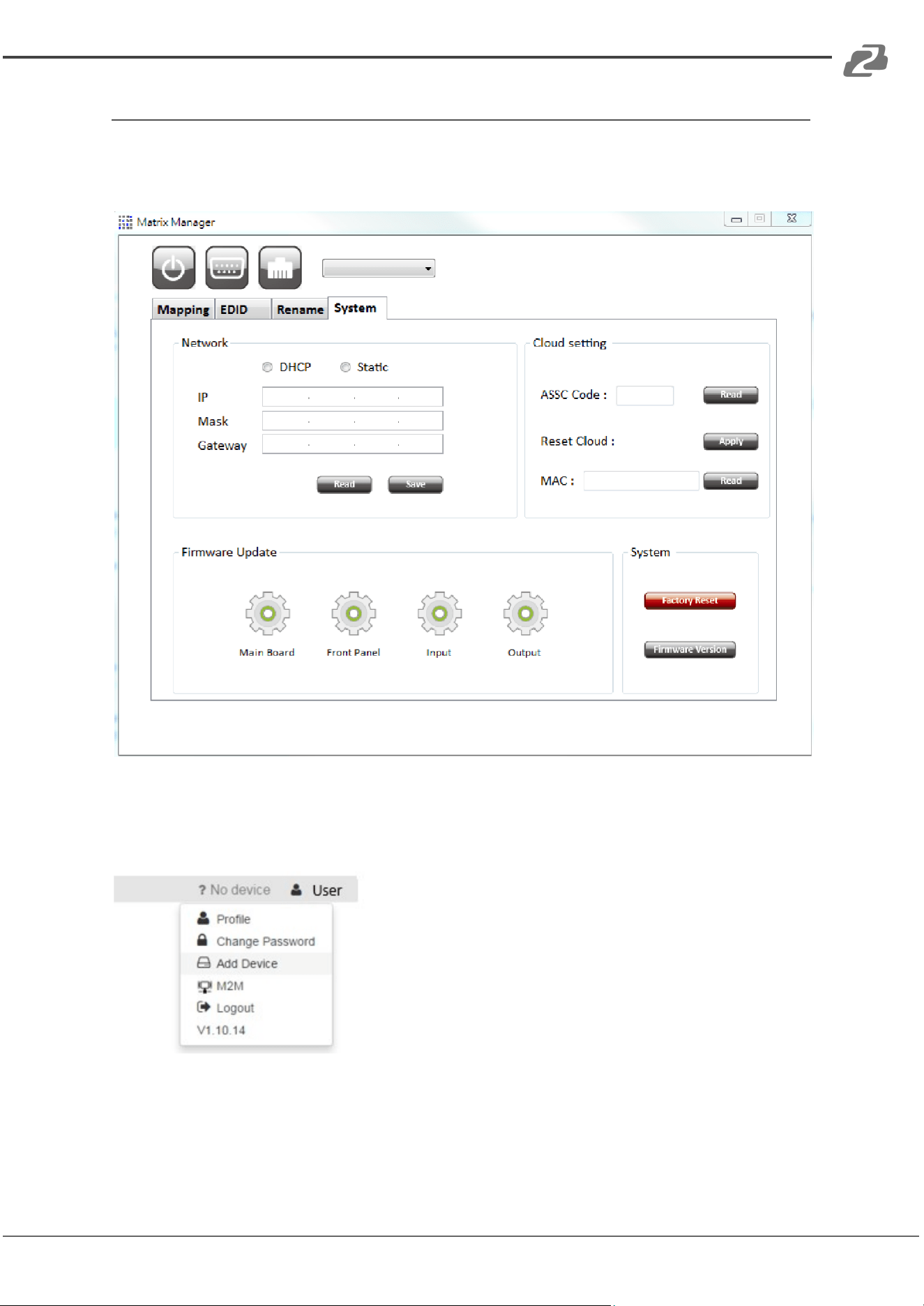
Add Device to Eagleyes
1. First, please make sure the device is connected to Ethernet. Then please execute the
software with the device software to get the association code.
2. Access Eagleyes (http://www.eagleyes.io) or download Eagleyes APP, and then log in
your account on the right top corner. Click Add device to add the device which you just
got its association code.
Address: 830 National Drive #140, Sacramento, CA 95834, USA · Tel: +1(888)499-9906 · Email: support@bzbgear.com 19
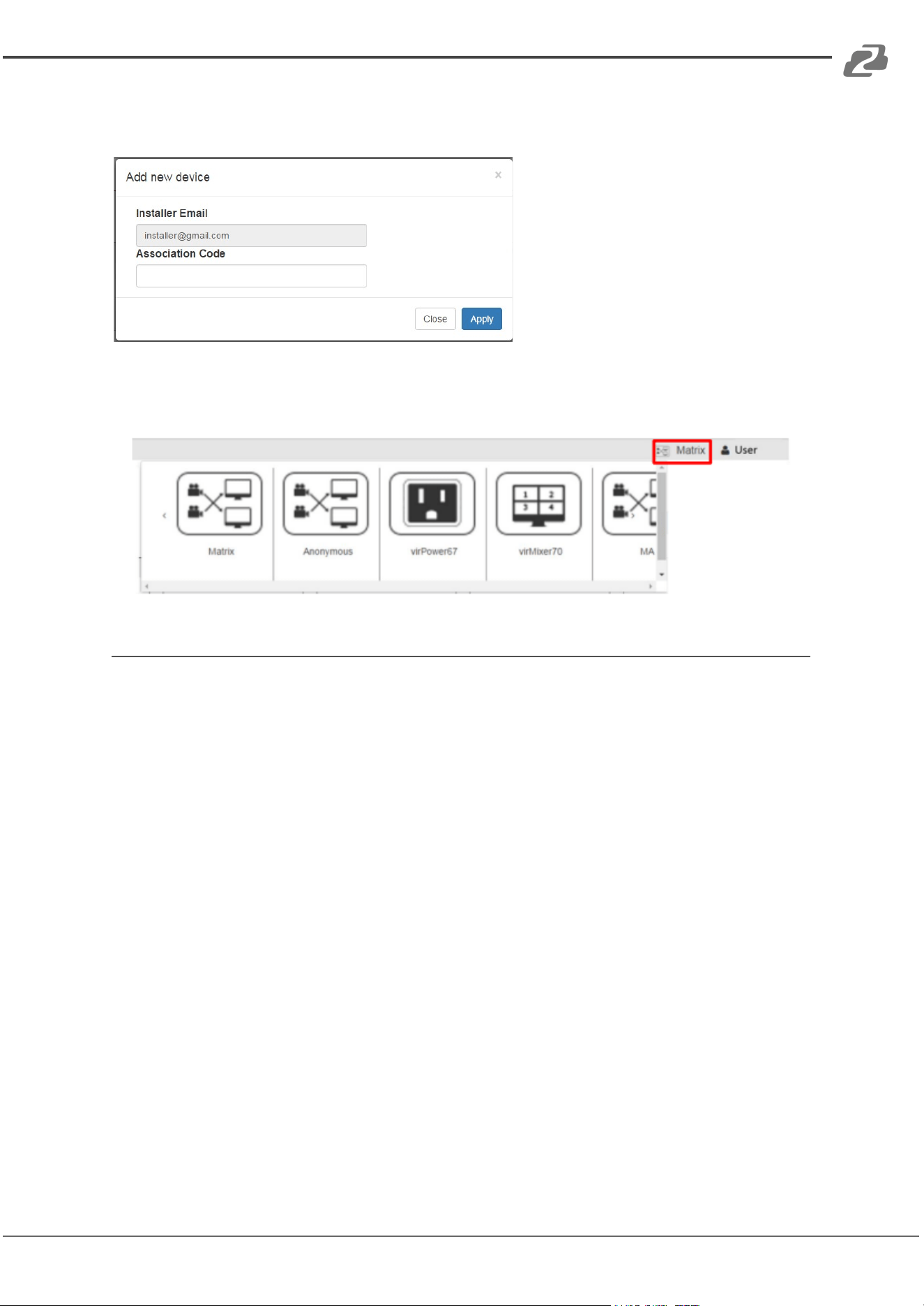
BZBGEAR BG-UHD-88M PRODUCT MANUAL
3. Enter the Installer Email for online support in the future, and the Association Code for
pairing with your device.
4. After adding the device, the list of devices related to your account will show on the right
top corner. You can click the button to switch the device for control.
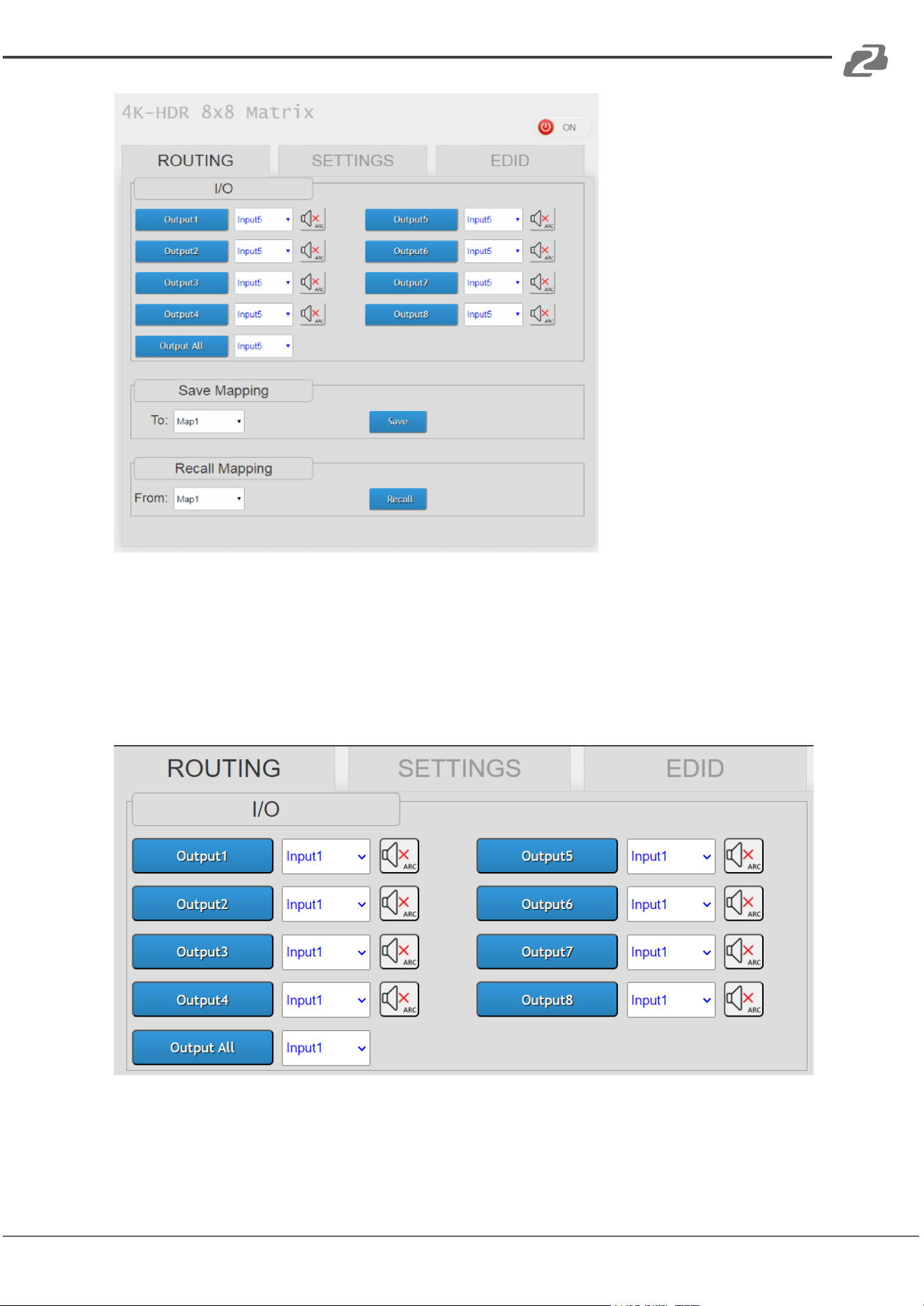
Method E: Web Interface Control
Logging in to the Web Interface:
● Access the Web Interface by entering the unit's IP address into your browser.
● Default IP address: 192.168.1.70
Address: 830 National Drive #140, Sacramento, CA 95834, USA · Tel: +1(888)499-9906 · Email: support@bzbgear.com 20
BZBGEAR BG-UHD-88M PRODUCT MANUAL
Matrixing Inputs and Outputs:
● Choose preferred inputs for each output by using the dropdown menu next to
the corresponding output number.
● If uncertain about the connection between outputs and displays, check the
back of the unit.
● To assign the same input to all displays, select the input next to "Output All."
Saving and Recalling Configurations:
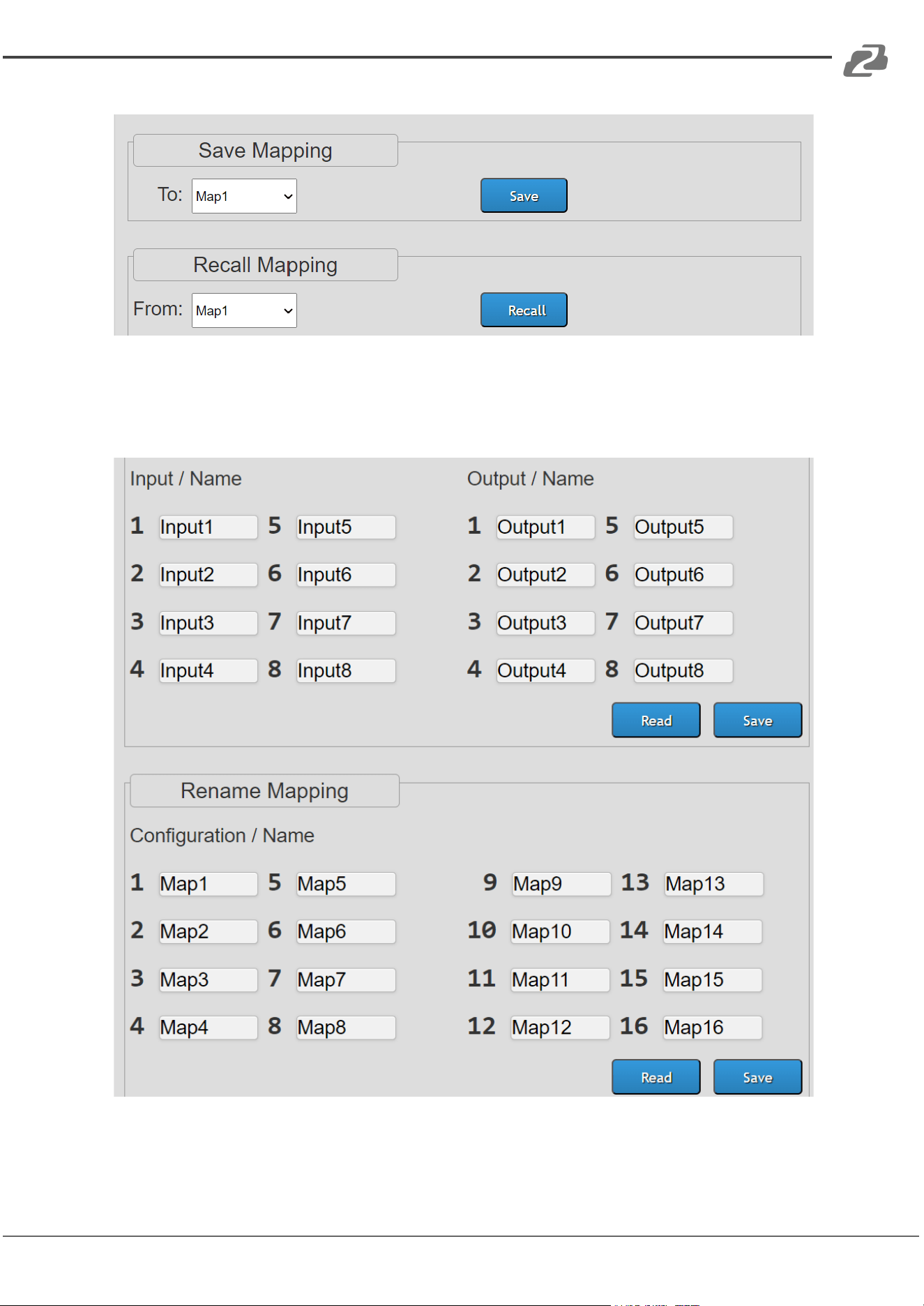
● Utilize the "Save Mapping" and "Recall Mapping" settings.
Address: 830 National Drive #140, Sacramento, CA 95834, USA · Tel: +1(888)499-9906 · Email: support@bzbgear.com 21
BZBGEAR BG-UHD-88M PRODUCT MANUAL
Configuration Customization:
● Under the "Settings" tab next to the "Routing" tab, change input, output, and
configuration names for better organization.
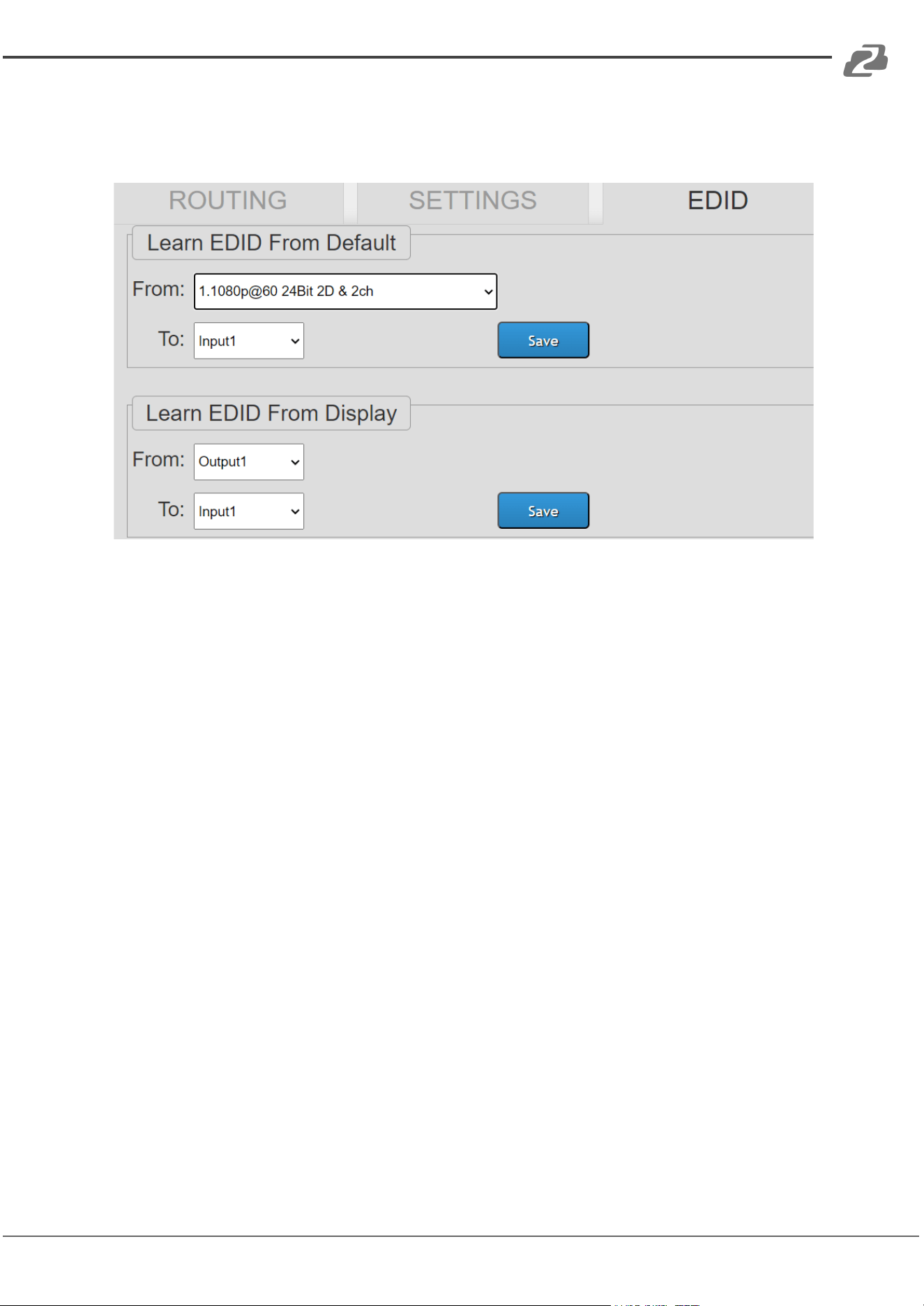
EDID Settings Management:
Address: 830 National Drive #140, Sacramento, CA 95834, USA · Tel: +1(888)499-9906 · Email: support@bzbgear.com 22
BZBGEAR BG-UHD-88M PRODUCT MANUAL
● In the "EDID" tab next to the "Settings" tab, manage and change EDID settings,
choosing from default or display.
Address: 830 National Drive #140, Sacramento, CA 95834, USA · Tel: +1(888)499-9906 · Email: support@bzbgear.com 23

BZBGEAR BG-UHD-88M PRODUCT MANUAL
EDID Learning
The EDID learning function is only necessary whenever you encounter any display on the
HDMI output port that cannot play audio and video properly. Because the HDMI source
devices and displays may have various level of capability in playing audio and video, the
general principle is that the source device will output the lowest standards in audio format
and video resolutions to be commonly acceptable among all HDMI displays. In this case, a
720p stereo HDMI signal output would be probably the safest choice. Nevertheless, the
user can force the matrix to learn the EDID of the lowest capable HDMI display among
others to make sure all displays are capable to play the HDMI signals normally.
There are TWO methods to do EDID Learning as below:
1. IR Remote Control: Please refer to the Operation Approach\ Method B: IR Remote
Control (Page 6.)
2. Software Control: Please refer to the Operation Approach\ Method C: Software
Control through RS-232 port (Page 9. 10)
There are seventeen embedded default EDID as below:
1. Full-HD(1080p@60)-24bit 2D & 2ch
2. Full-HD(1080p@60)-24bit 2D & 7.1ch
3. Full-HD(1080p@60)-24bit 3D & 2ch
4. Full-HD(1080p@60)-24bit 3D & 7.1ch
5. HD(1080i@60)(720p@60)-24bit 2D & 2ch
6. HD(1080i@60)(720p@60)-24bit 2D & 7.1ch
7. Full-HD(1080p@60)-36bit 2D & 2ch
8. Full-HD(1080p@60)-36bit 2D & 7.1ch
9. Full-HD(1080p@60)-24bit 2D & 2ch & Dolby 5.1ch
Address: 830 National Drive #140, Sacramento, CA 95834, USA · Tel: +1(888)499-9906 · Email: support@bzbgear.com 24

BZBGEAR BG-UHD-88M PRODUCT MANUAL
10. 4k2k@30 2ch
11. 4k2k@30 7.1ch
12. 4k2k@30-3D-PCM2CH(2ch)
13. 4k2k@30-3D-BITSTR(7.1ch)
14. 4k2k@60-420-3D-PCM2CH(2ch)
15. 4k2k@60-420-3D-BITSTR(7.1ch)
16. 4k2k@60-3D-PCM2CH(2ch)
17. 4k2k@60-3D-BITSTR(7.1ch)
Address: 830 National Drive #140, Sacramento, CA 95834, USA · Tel: +1(888)499-9906 · Email: support@bzbgear.com 25

BZBGEAR BG-UHD-88M PRODUCT MANUAL
FAQ
Q Can every TV work with the HDMI matrix?
A Basically, the answer is YES. But if your TV cannot support 1080p, please refer the EDID
LEARNING section to learn EDID from your TV.
Q What is EDID? Why do I need to learn EDID?
A EDID contains the whole information of the display such as the resolution and audio
setting which this display can support. Therefore, based on the EDID information, media
player will pick up the most suitable resolution and audio setting to the display. In order to
faithfully transmit the EDID information from display to the media player, learning EDID from
display to this device is necessary.
Q What should I do to learn EDID for the matrix?
A Due to the limitation of HDMI, the source device can only output one format of video and
audio. In other words, the source device cannot output 720p and 1080p video at the same
time, or output stereo and surround sound at the same time. Therefore, you may need to
manually setup each HDMI input for desirable audio/video output format. The mechanism
of EDID Learning is to pick up the HDMI display with the lowest capability among the ones
you would use for this input source. For example, if user would like to play the Input-2 upon
output-2, output-3 and output-4, and only output-3 cannot support 1080p [support up to
720p only], please learn the EDID from the display connected to the output-3 at the Input-2
port. Of course, if outpt-3 would get the HDMI signals from every HDMI input, please learn
EDID information from output3 to all four HDMI inputs. For more information about EDID
Learning, please refer to EDID LEARNING section.
Q My TV can support 1080p, but why there is no audio?
A The factory default EDID of this device is 1080p & 2ch audio. However, there would be a
problem after you change to use 1080p & 7.1ch if the TV cannot support 7.1ch audio.
Please use the default EDID, 1080p & 2ch audio.
Q When I set an audio amplifier (AV receiver) between TV and the matrix to extract
7.1ch audio, but why there is still no audio?
A Basically, the default EDID of the chosen input can support 7.1ch audio, but the problem
is that the EDID of the amplifier still cannot match the default setting. Therefore, the best
method is to learn EDID from the amplifier directly. Please refer to EDID LEARNING section
and follow the steps to learn the EDID. When learning EDID from the amplifier, user just
needs to connect the matrix and amplifier. Please don't connect HDMI cable between
amplifier and TV when the EDID learning is proceeding.
Q When I play the same content upon multi-displays, why only the TV equipped with
amplifier can have 7.1ch audio, and the others don't have 7.1ch audio even no stereo?
A Due to the limitation of HDMI, the source only can choose one video and one audio
format to play, which can be either 1080p and 7.1ch or 1080p and stereo audio. It means
when the user sets the matrix at 1080p and 7.1ch, the source will only play the content
under this format. Therefore if the TV cannot decode 7.1ch audio, there is definitely no
audio.
Address: 830 National Drive #140, Sacramento, CA 95834, USA · Tel: +1(888)499-9906 · Email: support@bzbgear.com 26

BZBGEAR BG-UHD-88M PRODUCT MANUAL
Notice
1. If the DVI or HDMI device requires the EDID information, please use EDID
Reader/Writer to retrieve and provide DVI/HDMI EDID information.
2. All HDMI over Cat.X transmission distances are measured using Belden 1583A
CAT5e 125MHz LAN cable and ASTRODESIGN Video Signal Generator VG-859C &
VG-870B.
3. EIA/TIA-568-B termination (T568B) for LAN cables is recommended for better
performance.
4. To reduce the interference among the unshielded twisted pairs of wires in LAN
cable, one can use shielded LAN cables to improve EMI problems, which is worsen
in long transmission.
5. Because the quality of the LAN cables has the major effect on how long the
transmission limit can achieve and how good is the received picture quality, the
actual transmission range is subject to one’s choice of LAN cables. For desired
resolutions greater than 1080i or 1280x1024, a Cat-6 cable is recommended.
6. If your HDMI display has multiple HDMI inputs, it is found that the first HDMI input
[HDMI input #1] generally can produce better transmission performance among all
HDMI inputs.
7. Additional IR remote controls and IR blasters can be purchased as optional
accessories to control the HDMI sources located separately.
8. Solid cable is preferred.
Address: 830 National Drive #140, Sacramento, CA 95834, USA · Tel: +1(888)499-9906 · Email: support@bzbgear.com 27

BZBGEAR BG-UHD-88M PRODUCT MANUAL
Tech Support
Have technical questions? We may have answered them already!
Please visit BZBGEAR’s support page (bzbgear.com/support) for helpful information and
tips regarding our products. Here you will find our Knowledge Base
(bzbgear.com/knowledge-base) with detailed tutorials, quick start guides, and step-by-step
troubleshooting instructions. Or explore our YouTube channel, BZB TV
(youtube.com/c/BZBTVchannel), for help setting up, configuring, and other helpful how-to
videos about our gear.
Need more in-depth support? Connect with one of our technical specialists directly:
Phone
1.888.499.9906
Email
support@bzbgear.com
Live Chat
bzbgear.com
Limited Product Warranty Terms
Pro Line: 5-year warranty from the date of purchase for AV/Broadcasting products bought
on or after August 1, 2024.
Essential Line: 3-year warranty from the date of purchase for AV/Broadcasting products
bought on or after August 1, 2024.
Cables: Lifetime Limited Product Warranty.
For complete warranty information, please visit bzbgear.com/warranty.
For questions, please call 1.888.499.9906 or email support@bzbgear.com.
Mission Statement
BZBGEAR is a breakthrough manufacturer of high-quality, innovative audiovisual equipment
ranging from AVoIP, professional broadcasting, conferencing, home theater, to live
streaming solutions. We pride ourselves on unparalleled customer support and services.
Our team offers system design consultation, and highly reviewed technical support for all
the products in our catalog. BZBGEAR delivers quality products designed with users in
mind.
Copyright
All the contents in this manual and its copyright are owned by BZBGEAR. No one is allowed
to imitate, copy, or translate this manual without BZBGEAR’s permission. This manual
contains no guarantee, standpoint expression or other implies in any form. Product
specification and information in this manual is for reference only and subject to change
without notice.
All rights reserved. No reproducing is allowed without acknowledgement.
Address: 830 National Drive #140, Sacramento, CA 95834, USA · Tel: +1(888)499-9906 · Email: support@bzbgear.com 28