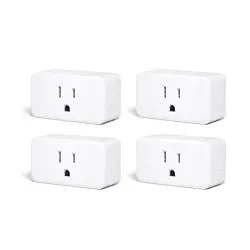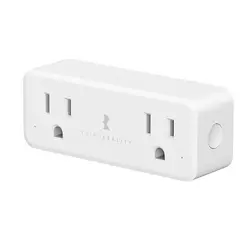
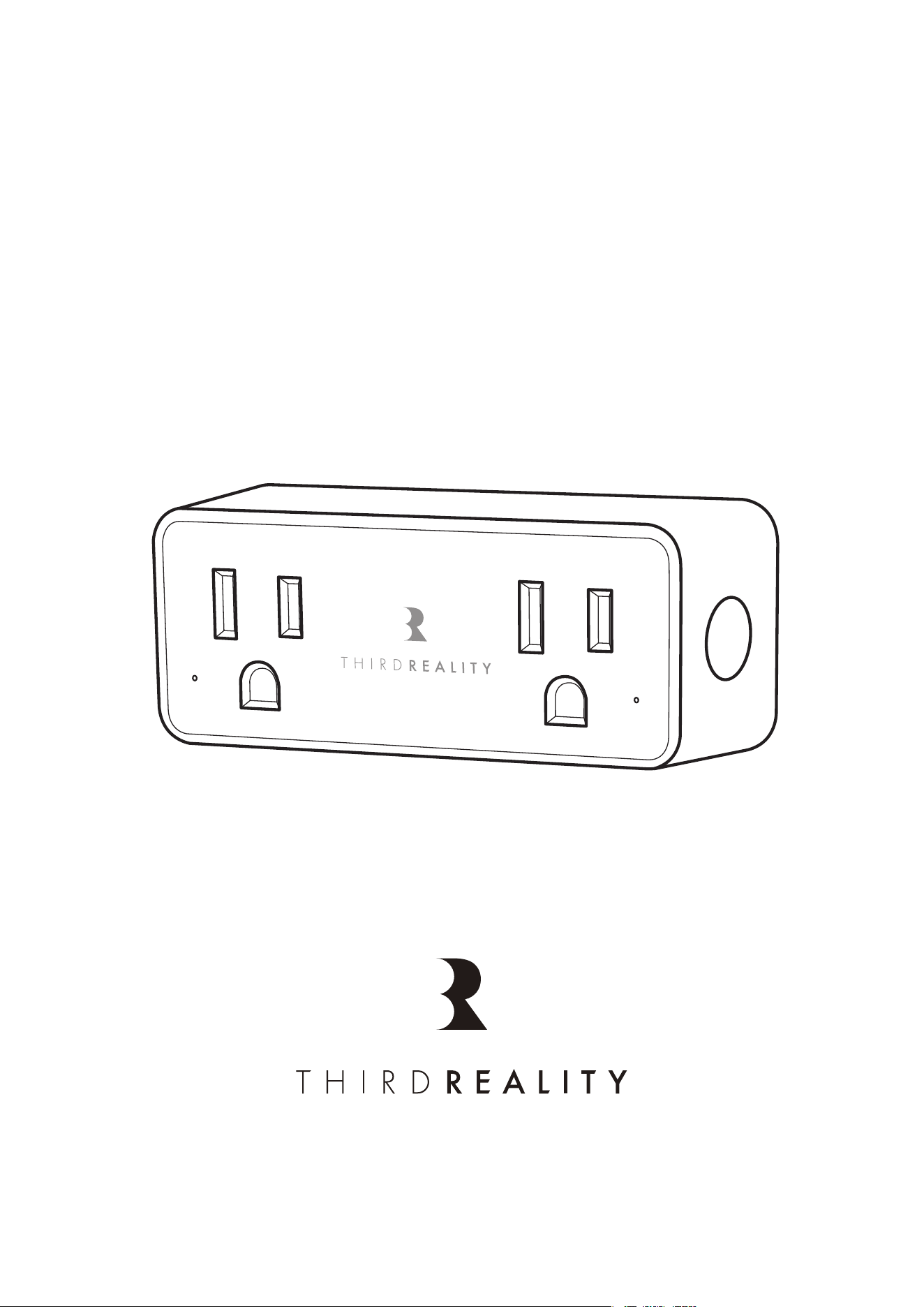
Smart Dual Plug ZP1
User Manual
20250715.28

Contents
Specifications
Factory Reset
Features
Setting up your Smart Dual Plug
Mesh Network Setup
Using your Smart Dual Plug
Setup with SmartThings
Setup with Third Reality
Setup with 3R-Installer
Setup with Home Assistant
ISED Caution
FCC Regulatory Conformance
RF Exposure
Limited Warranty
01
01
02
03
04
05
06
09
10
13
20
21
22
22
Factory Reset
Plug the Smart Dual Plug into the power outlet and press
and hold the Reset button on the left for more than 10 sec-
onds. The LED light will flash red, indicating that your
Smart Plug is in pairing mode.
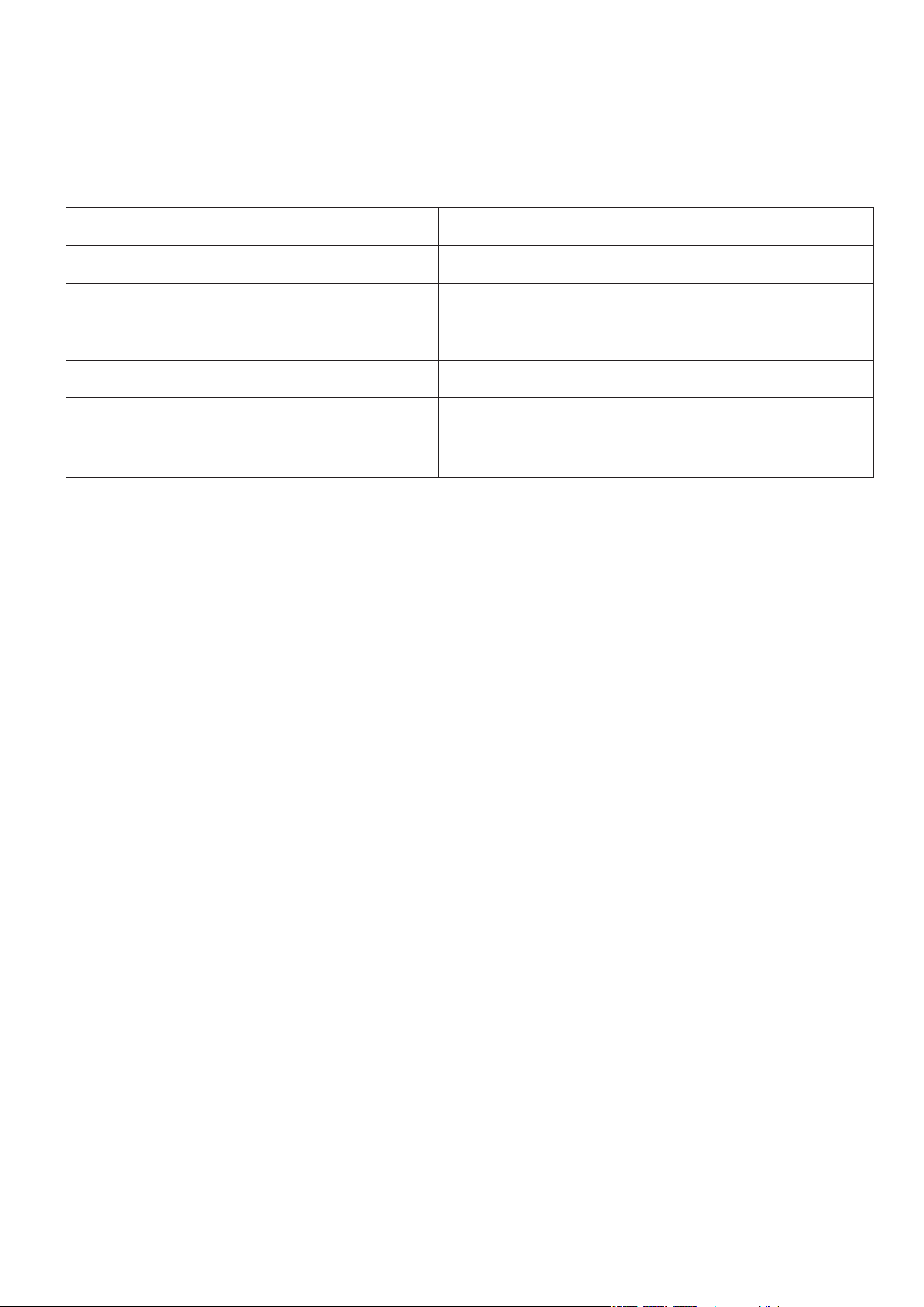
Specifications
01
Model Number
Rated Input Voltage
Max Combined Output Current
Max Combined Output Power
Wireless Connectivity
Operating Environment
3RDP01072Z
110‒120 V AC, 50/60 Hz
15A Total (shared by both outlets)
1800 W (at 120 V)
Zigbee 3.0, 2.4 GHz
‒10°C to 40°C, 5%‒90% RH
(non-condensing)

Features
Two sockets allow the user to control them individual-
ly, making life easier. When turning off the toaster, it
can keep your coffee warm in the machine, so you
don't have to worry about starting a fresh day in a rush
with a cup of cold coffee.
The electricity bill is high, but there's no apparent
reason why. Manage your devices wisely! This dual
plug also features a separate power metering function,
allowing for accurate tracking of small appliances
without missing a penny.
Its compact size enables two dual plugs to fit into one
standard outlet, effectively extending the number of
sockets from two to four and eliminating the need for
extension leads.
Fully Compatible with Home Assistant, SmartThings,
Homey, and THIRDREALITY Smart Bridge MZ1. Partial
support Thirdreality Hub Gen2 Plus.
1.
2.
3.
4.
02
Setting up your Smart Dual Plug
03
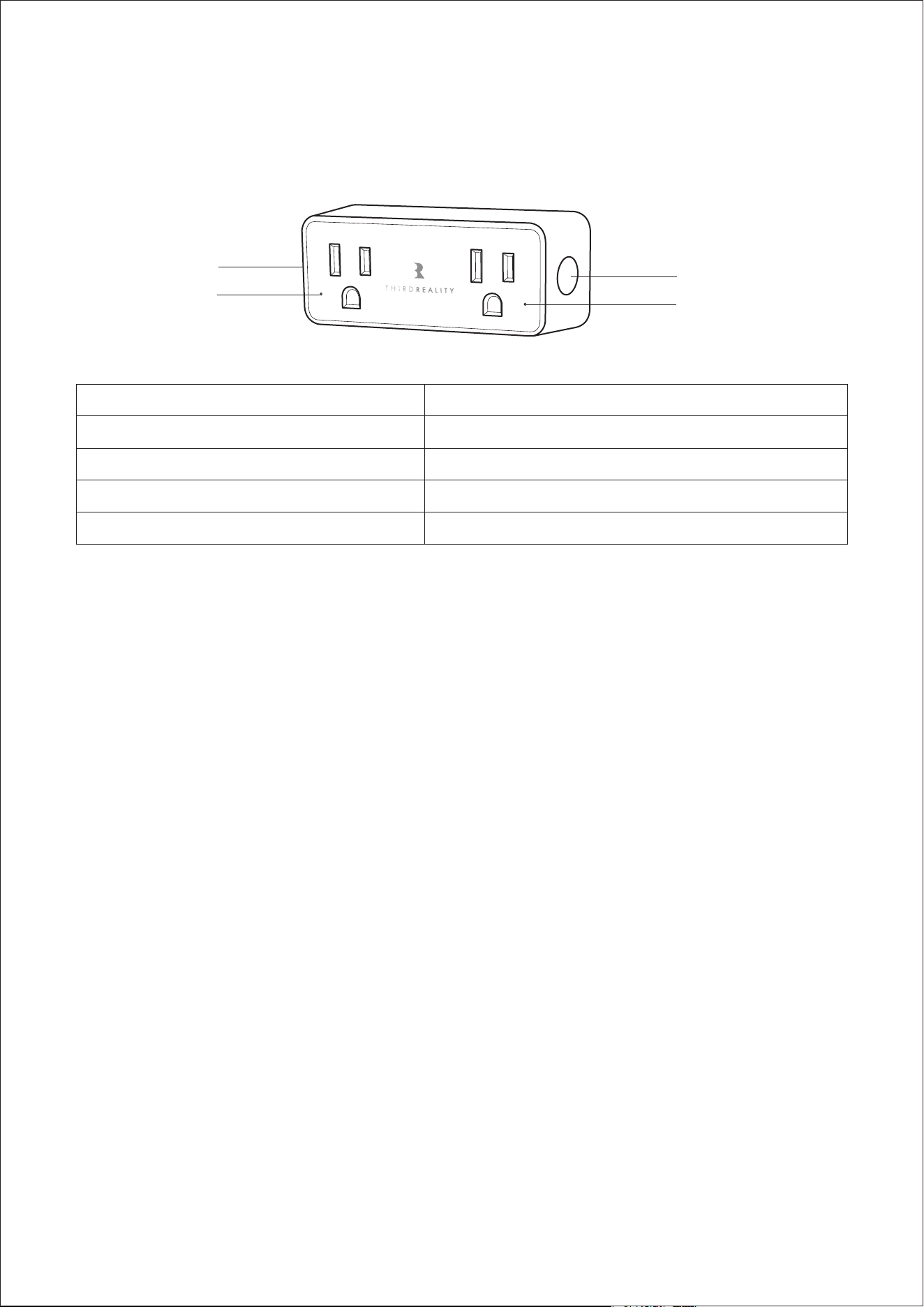
LED Indicator
Flashing red
LED Light is out
Solid red
LED Light is off
Status
Pairing
Pairing Completed
Power ON
Power OFF
Insert the Smart Dual Plug into an outlet, it will enter pairing mode
automatically.
LED Indicator
LED Indicator
Right On/Off Button
Left On/Off Button
Factory Reset
Compatible devices: SmartThings 2015/2018, SmartThings
Station, Aeotec, Home Assistant (ZHA/Zigbee2MQTT),
Third Reality Hub, Smart Bridge MZ1.
Pairing with compatible Zigbee hub/bridge
Update your hub firmware and phone app to the latest
version before pairing, set up your Zigbee Hub by fol-
lowing its user manual.
Insert the Smart Plug into an outlet, it will enter pairing
mode automatically.
Follow the instructions in the corresponding phone
app to complete the setup.
1.
2.
3.
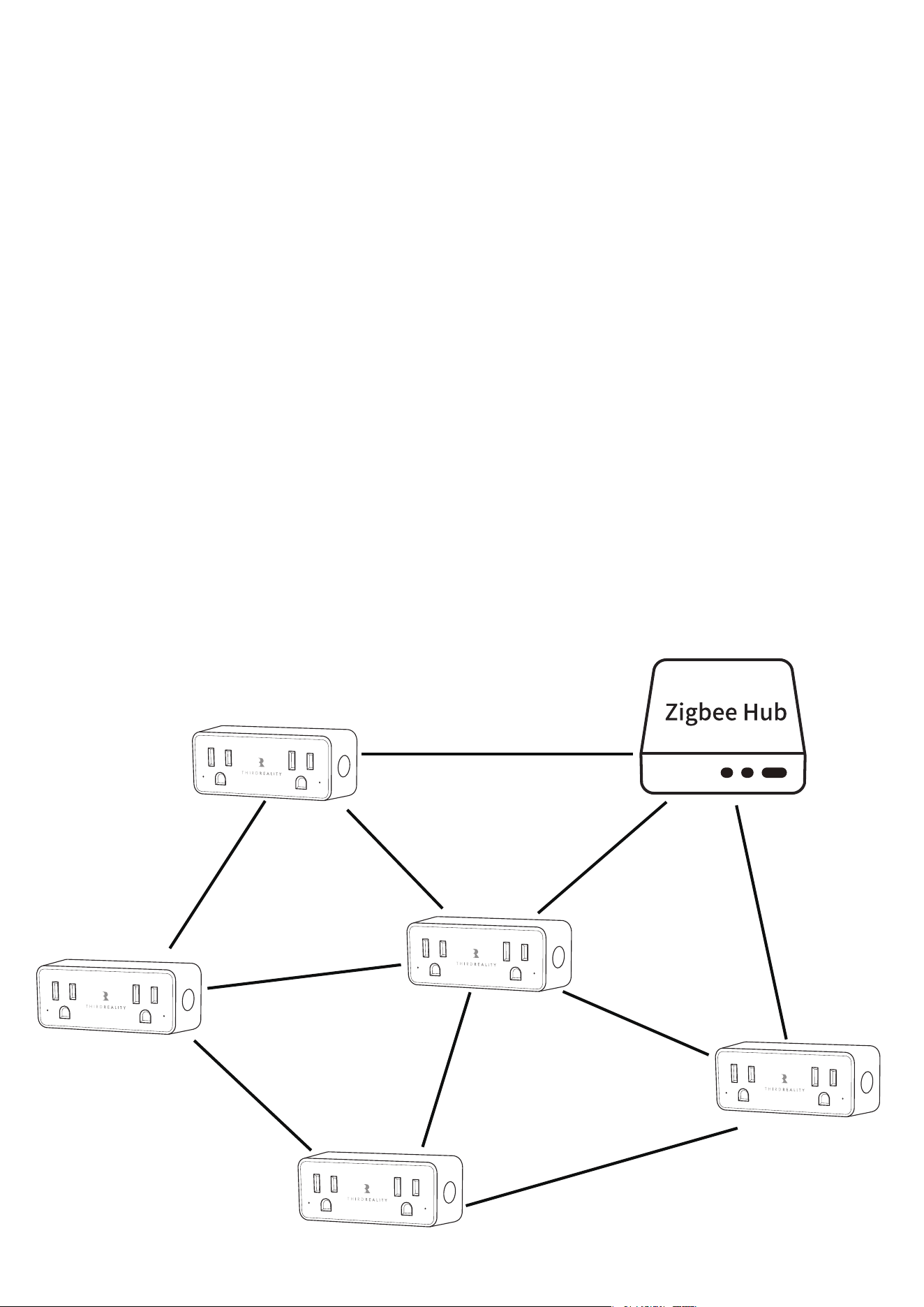
Mesh Network Setup
If you have multiple plugs set for different rooms, especial-
ly those located far away from your hub with poor signal
quality, you can utilize a Mesh Network to extend the signal
range.
Plug the device into the outlet that is closest to the
hub, and then pair it with the hub.
Unplug the device and relocate it to a place with a fair
to good signal quality. This device will automatically
form a Zigbee Mesh Network and function as a node on
the web to extend the signal range.
1.
2.
04

Independent Control and Monitoring
This Smart Dual Plug features two sockets that can be
controlled and monitored separately. For example,
you can turn off the toaster while keeping the coffee
machine on, helping you manage your morning rou-
tine more efficiently.
Power Consumption Tracking
Each socket supports individual power metering. This
allows you to monitor the electricity usage of small ap-
pliances separately, making it easier to identify energy
consumption patterns. (Note: Power data is for refer-
ence only.)
Space-Saving Design
The compact form factor allows two Smart Dual Plugs
to be used side by side in a standard wall outlet, ex-
panding your available sockets from two to four with-
out the need for extension cords.
1.
2.
3.
Using your Smart Dual Plug
05

Setup with SmartThings
Compatible Devices:
SmartThings 2015/2018, SmartThings Station, Aeotec
App: SmartThings App
Check your SmartThings Hub for firmware updates
before pairing the Smart Plug Gen2 with it.
Plug the Smart Plug Gen2 into a wall outlet close to the
hub. The left LED flashes rapidly in red, indicating that
it is in pairing mode. It exits pairing mode within 3 min-
utes if not successfully paired. To put the plug back
into pairing mode, press the left button for 10 seconds
until the LED indicator flashes rapidly in red again.
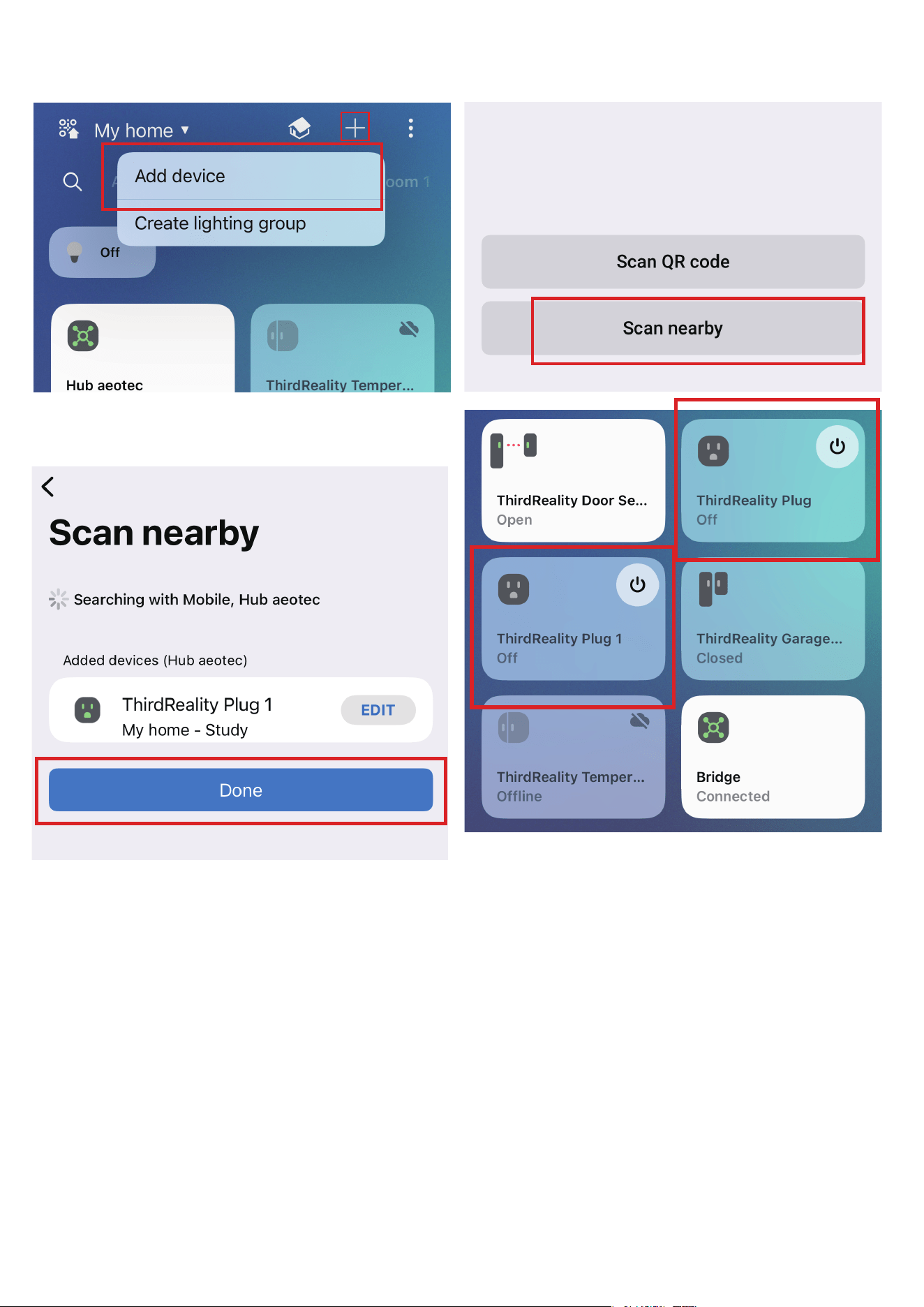
Tap "+" in the upper right corner of your SmartThings
App, then tap "Scan for nearby devices." The hub will
discover the Smart Dual Plug within seconds. You can
see the power meter on the device page.
1.
2.
3.
06
07
08

Setup with Third Reality
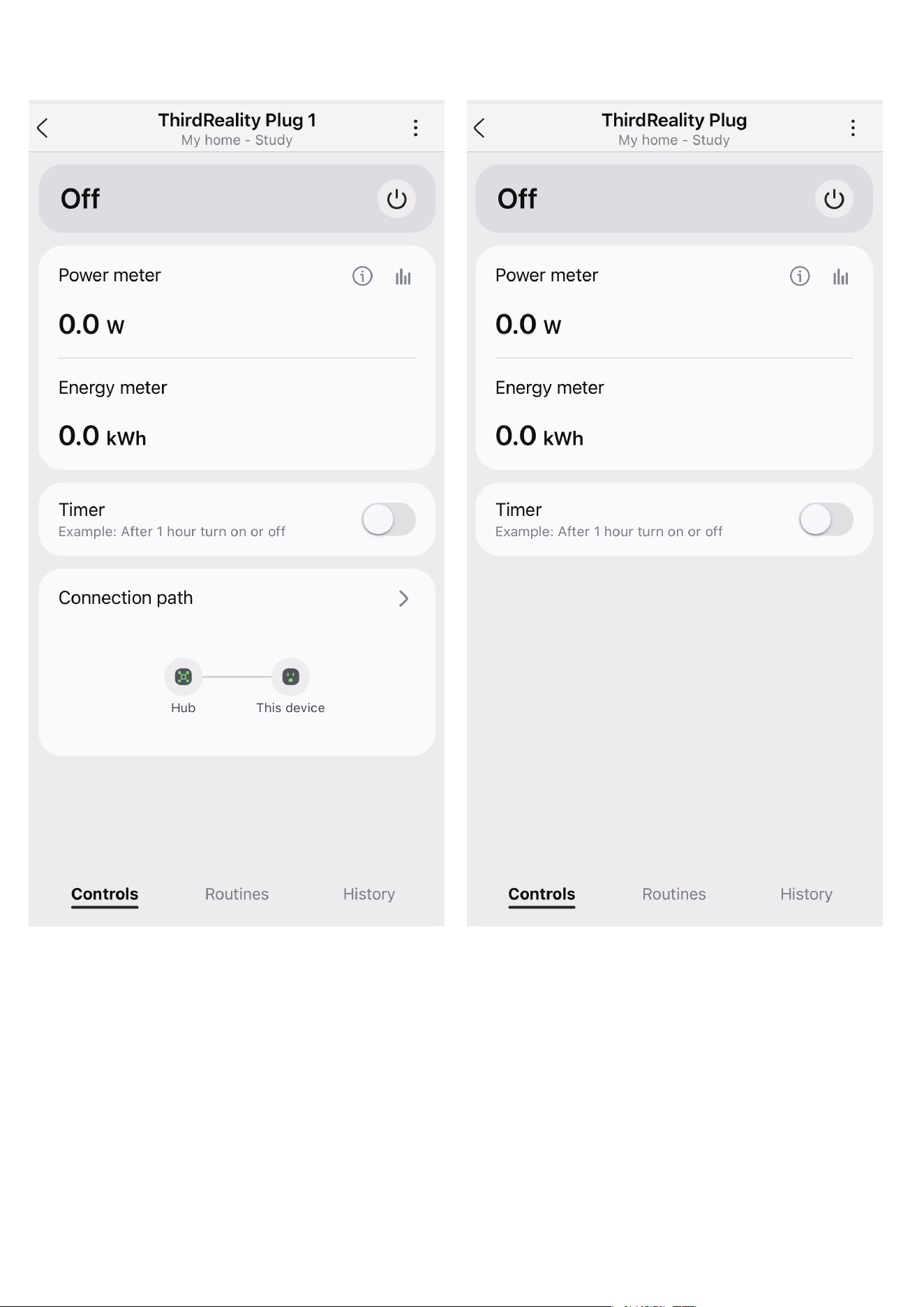
Zigbee Hub: Smart Hub Gen2 Plus
App: Third Reality App
Functional compatibility notice: ONLY ONE power meter is
supported
Check your Smart Hub Gen2 Plus's firmware and Third
Reality App for updates to ensure you have the latest
versions before pairing.
Plug the Smart Dual Plug into an outlet near the hub,
and the left LED indicator flashes rapidly in red, indi-
cating it is in pairing mode. It will exit pairing mode
within 3 minutes if the pairing is not successful. Please
factory reset the plug to allow it to pair again in pairing
mode.
Tap "+" in the upright in the Third Reality App, Select
the Plug icon, choose the hub you want to pair with,
and then tap "Pair" to add a plug. The Smart Dual Plug
will be paired within seconds. You can view the power
meter and total consumption on the device detail page
and customize the "Default Safety Setting" after a
power outage.
1.
2.
3.
09

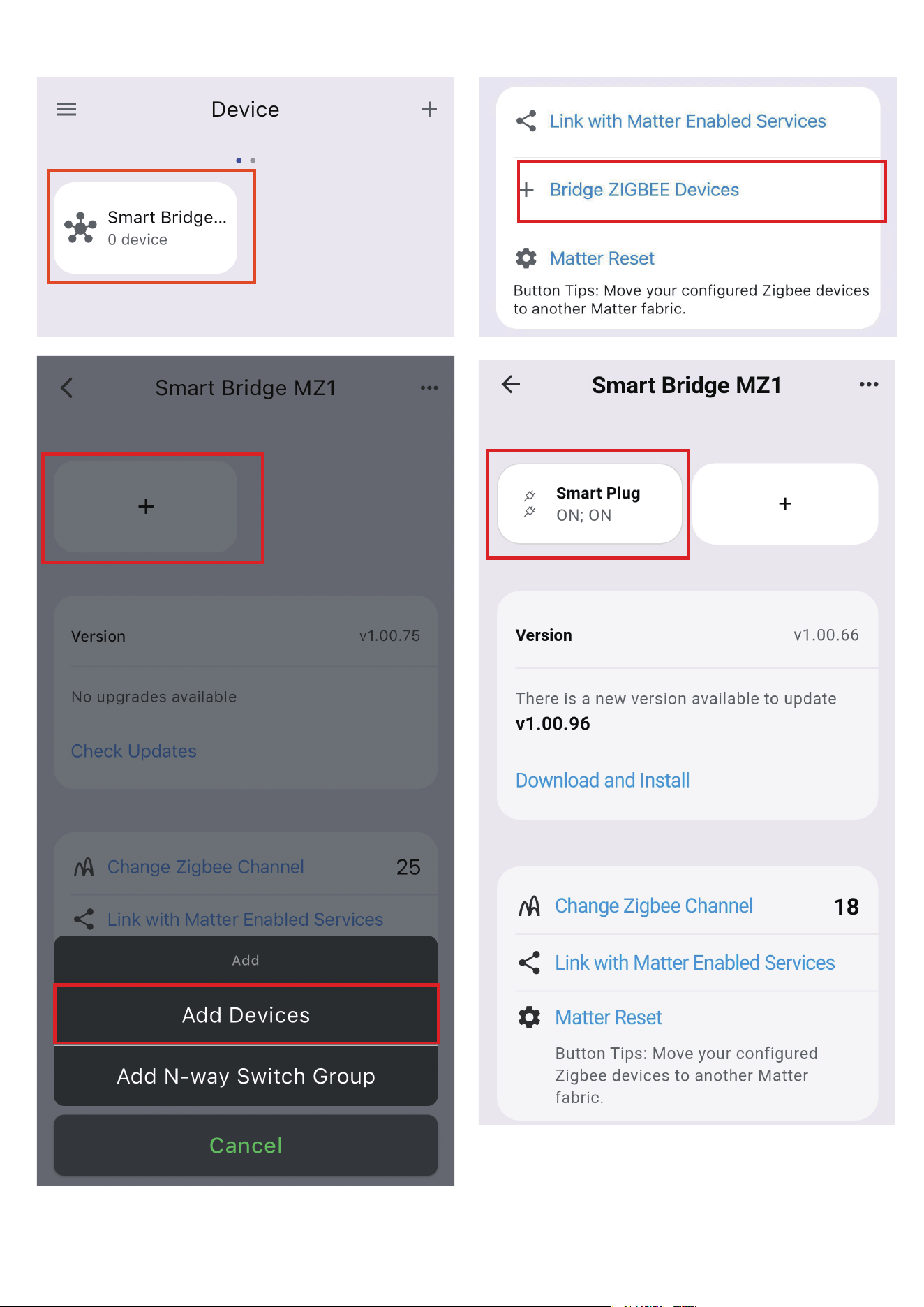
Setup with 3R-Installer
Device: Smart Bridge MZ1
App: 3R-Installer App
Functional compatibility level: Fully compatible
Check your Smart Bridge MZ1's firmware and 3R-In-
staller App for updates to ensure you have the latest
versions before pairing.
Plug the Smart Dual Plug into an outlet near the hub,
and the left LED indicator flashes rapidly in red, indi-
cating it is in pairing mode. It will exit pairing mode
within 3 minutes if the pairing is not successful. Please
factory reset the plug to allow it to pair again in pairing
mode.
Launch the 3R-Installer App, go to the bridge's detail
page, and tap "+." Select "Add Devices," and then the
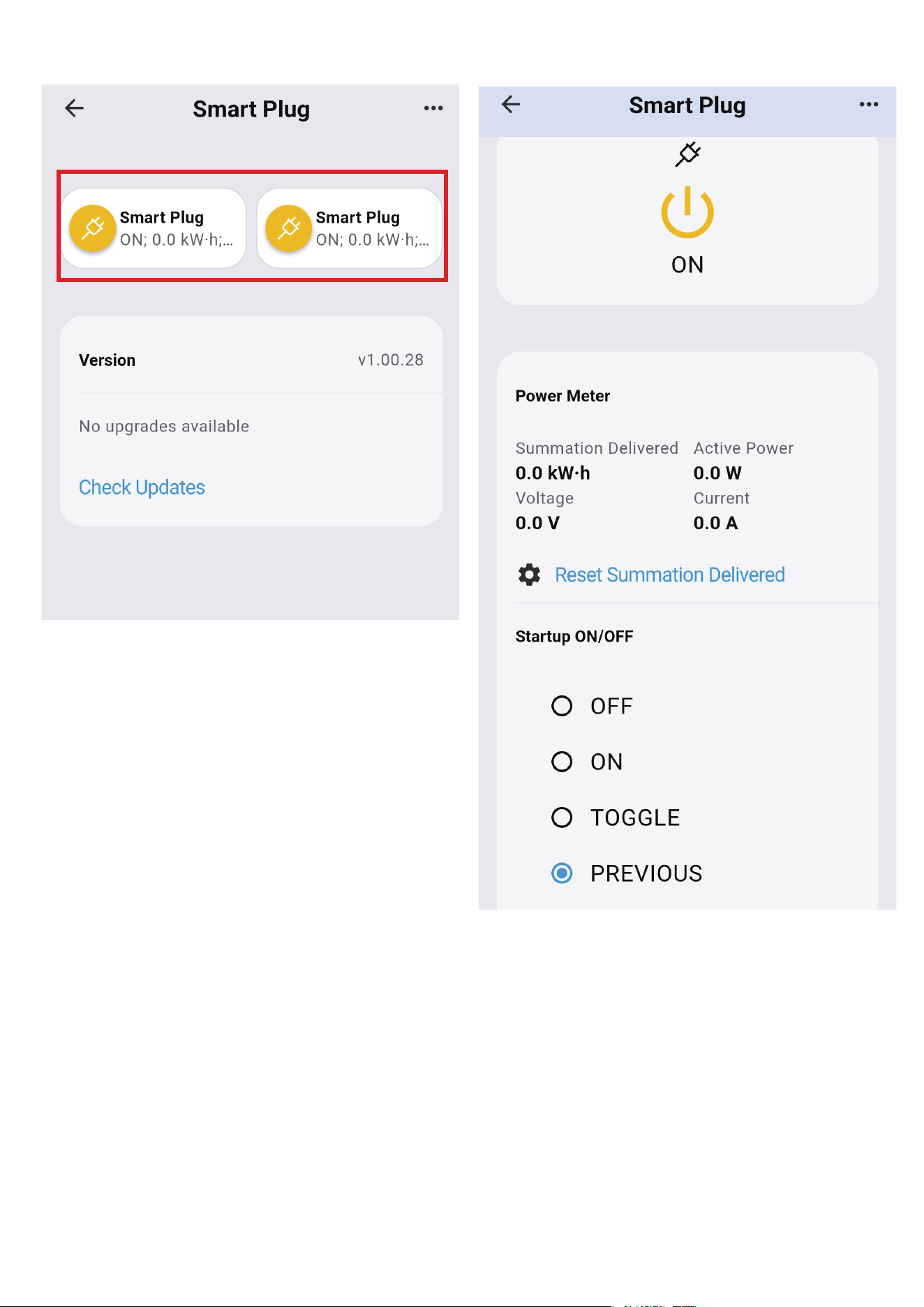
Smart Dual Plug will be paired within seconds. You can
view the power meter and total consumption on the
device detail page.
1.
2.
3.
10
11
12

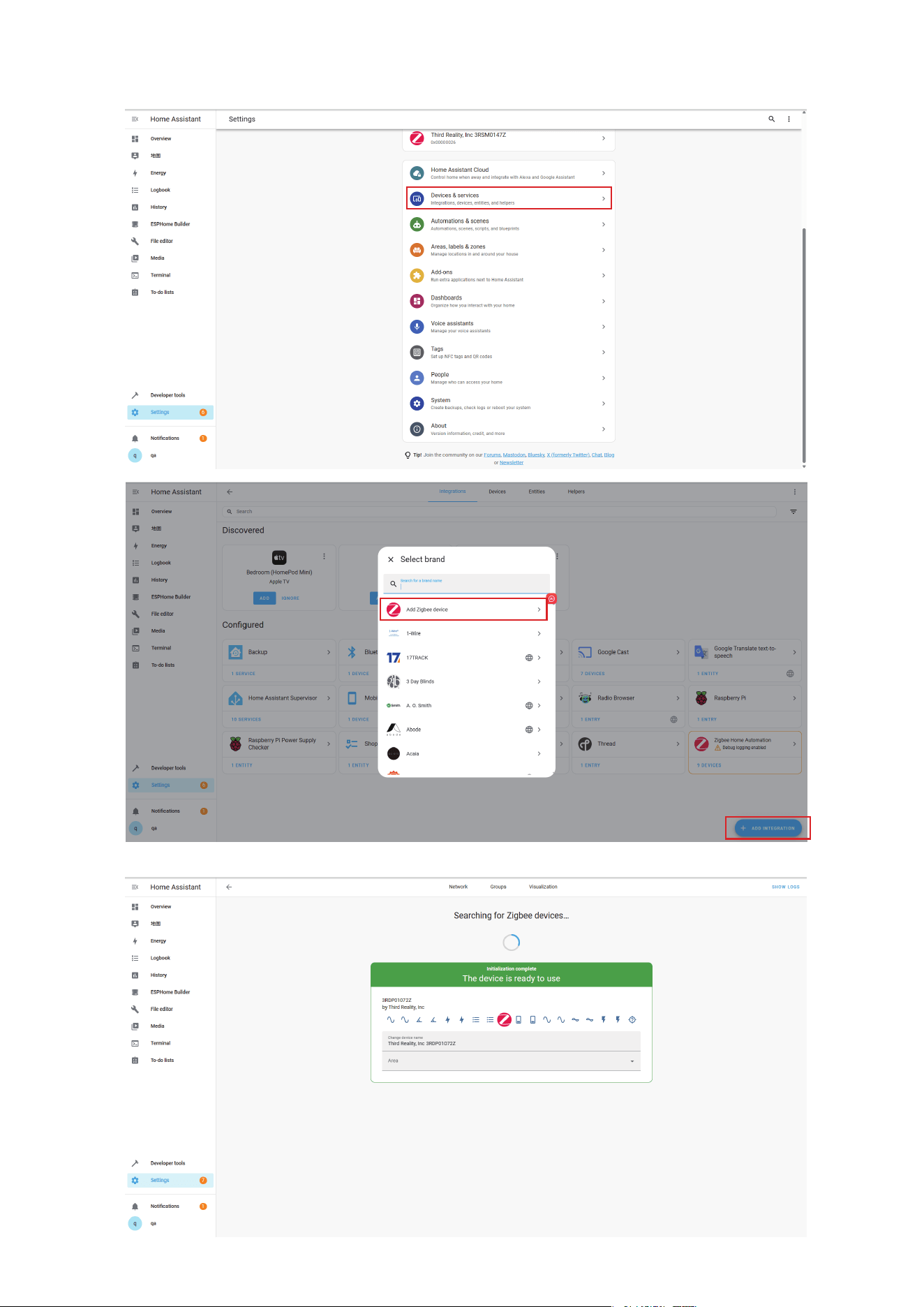
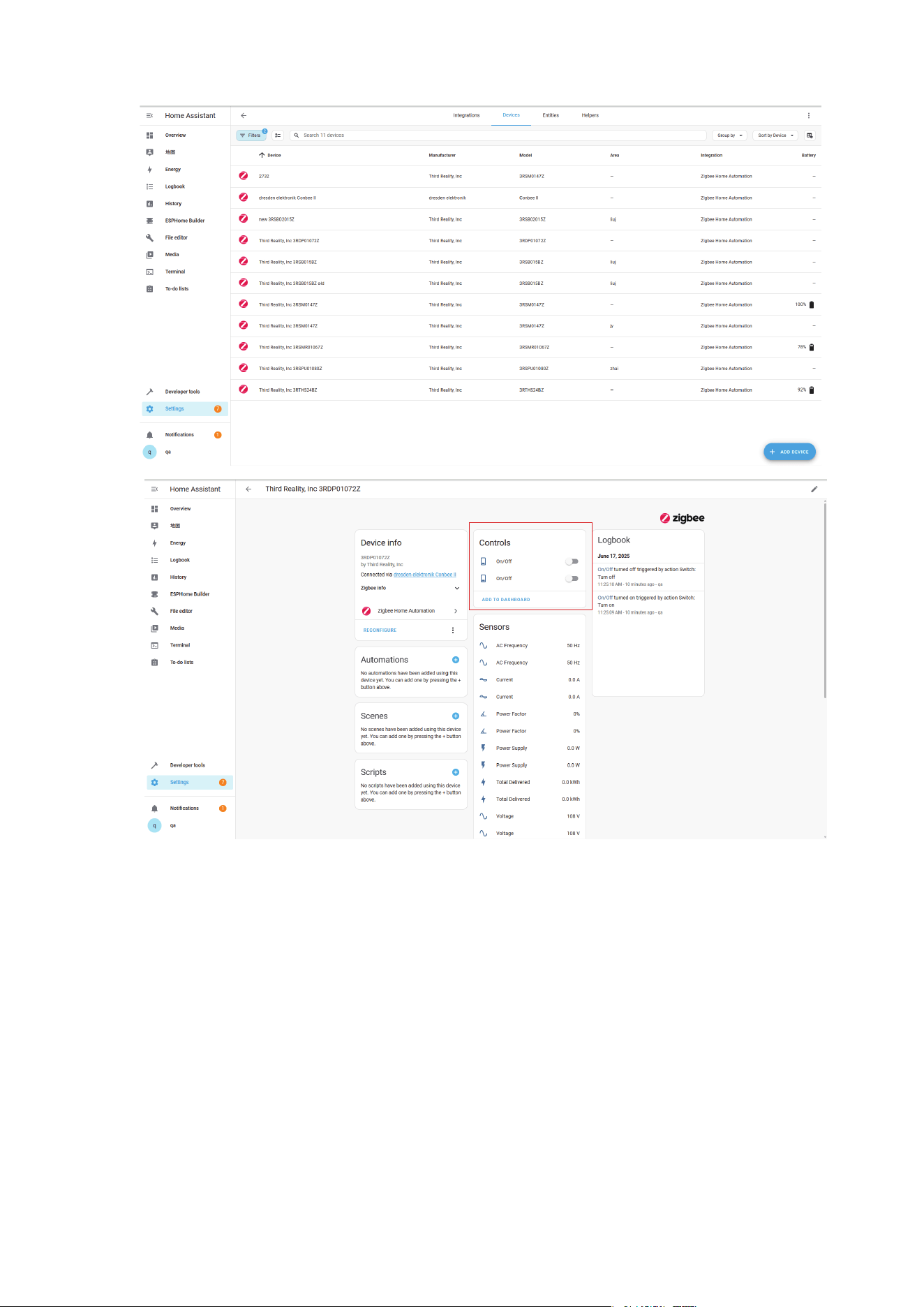
Setup with Home Assistant Via ZHA
(Zigbee Home Assistant)
Functional compatibility level: Fully compatible
Plug the Smart Dual Plug into an outlet near the hub,
and the left LED indicator flashes rapidly in red, indi-
cating it is in pairing mode. It will exit pairing mode
within 3 minutes if the pairing is not successful. Please
factory reset the plug to allow it to pair again in pairing
mode.
Ensure the Home Assistant integration "Zigbee Home
Automation" is set up correctly. Then, navigate to the
"Settings" page and click "Devices & Services."
Click the "Devices" on the top menu, then click "Add
Devices" on the bottom right, and select "Add Zigbee
Devices."
The Smart Dual Plug will be paired within seconds. You
can view the power meter, total consumption, and
other information on the device detail page.
1.
2.
3.
4.
13
14
15

16
Setup with Home Assistant Via Z2M
(Zigbee 2MQTT)
Functional compatibility level: Fully compatible
Plug the Smart Dual Plug into an outlet near the hub,
and the left LED indicator flashes rapidly in red, indi-
cating it is in pairing mode. It will exit pairing mode
within 3 minutes if the pairing is not successful. Please
factory reset the plug to allow it to pair again in pairing
mode.
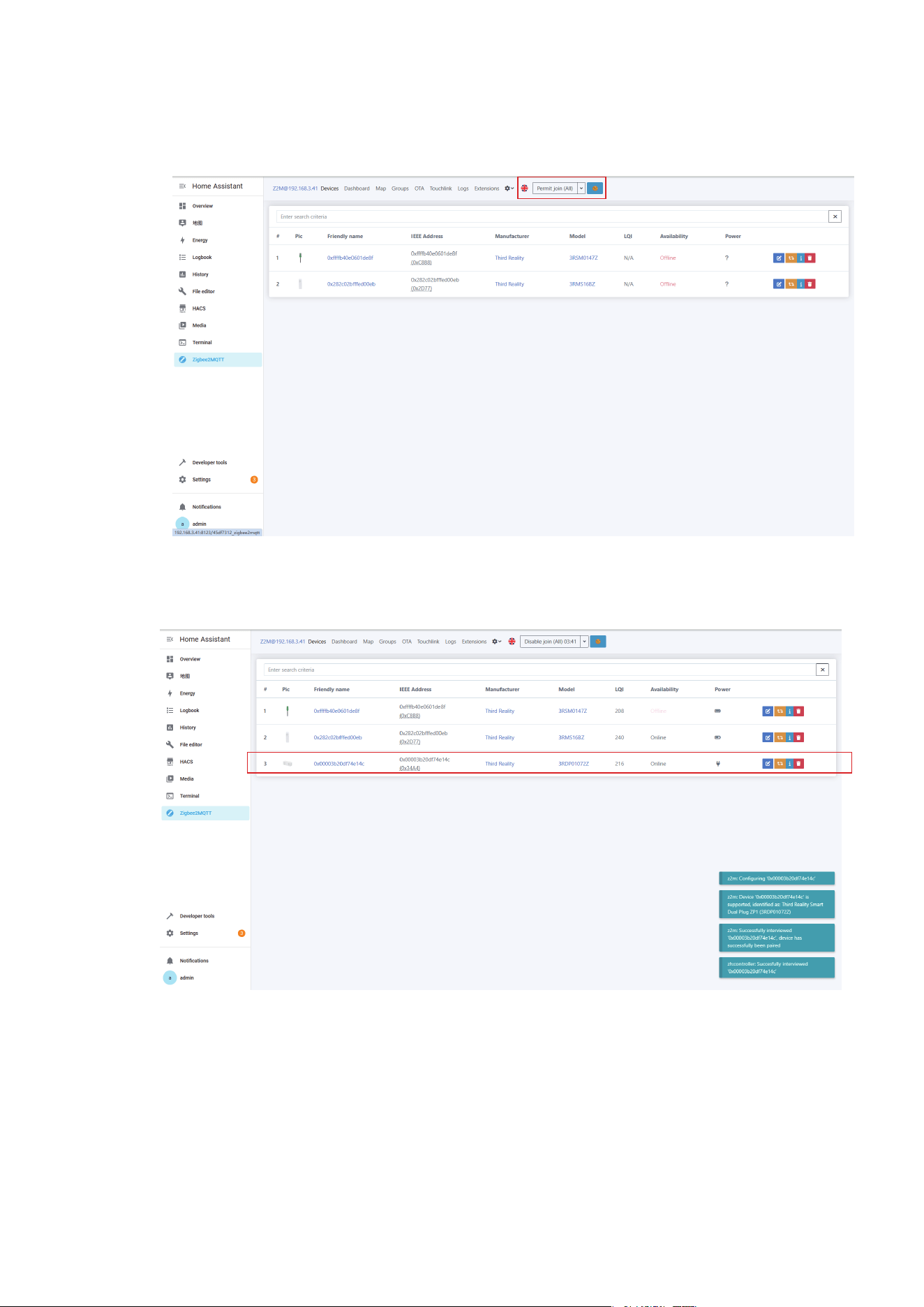
Click "Permit Join" in Zigbee2MQTT to add devices.
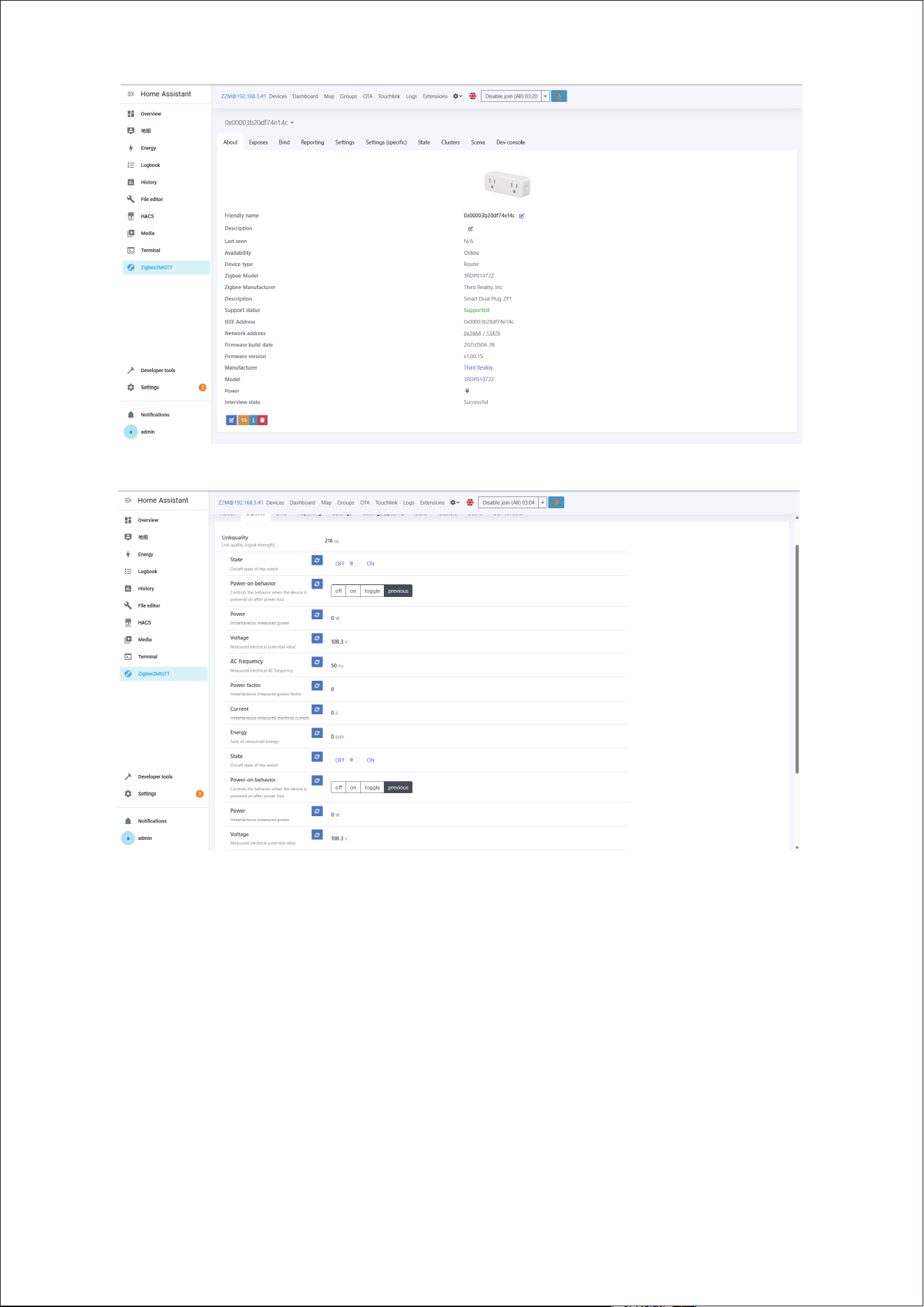
The Smart Dual Plug will be paired within seconds. You
can view the power meter, total consumption, and
other information on the device detail page.
1.
2.
3.
17
18

Factory reset the Smart Dual Plug
Plug the Smart Dual Plug into the power outlet and
press and hold the Reset button on the left for more
than 10 seconds. The LED light will flash red, indicating
that your Smart Plug is in pairing mode.
What happens to the Smart Dual Plug after a factory
reset? Will both sockets be affected?
Yes. Performing a factory reset will reset both plugs at
the same time. All settings will be restored to default,
and any accumulated power consumption data will be
cleared for both sockets. This operation cannot be
undone.
1.
2.
Troubleshooting
19

This device complies with Innovation, Science and Eco-
nomic Development Canada (ISED) licence-exempt RSS
standard(s). Operation is subject to the following two con-
ditions: (1) This device may not cause harmful interference,
and (2) this device must accept any interference received,
including interference that may cause undesired opera-
tion.
Cet appareil est conforme à la ou aux normes RSS ex-
emptées de licence pour Innovation, Science et développe-
ment économique Canada. Le fonctionnement est soumis
aux deux conditions suivantes: (1) ce dispositif ne peut pas
causer d’interférence nocive, et (2) ce dispositif doit ac-
cepter toute interférence reçue, y compris les interférences
pouvant causer un fonctionnement indésirable.
This equipment complies with ISED radiation exposure
limits set forth for an uncontrolled environment. This
equipment should be installed and operated with mini-
mum distance 20cm between the radiator and your body.
This transmitter must not be co-located or operating in
conjunction with any other antenna or transmitter.
Cet équipement respecte les limites d’exposition aux ray-
onnements ionisants fixées pour un environnement non
contrôlé. Cet équipement doit être installé et utilisé avec
une distance minimale de 20cm entre le radiateur et votre
corps. Cet émetteur ne doit pas être localisé ou fonctionner
en conjonction avec une autre antenne ou un autre émet-
teur.
ISED Caution
20

This device complies with Part 15 of the FCC Rules. Opera-
tion is subject to the following two conditions:
(1) This device may not cause harmful interference.
(2) This device must accept any interference received, in-
cluding interference that may cause undesired operation.
NOTE: This equipment has been tested and found to
comply with the limits for a Class B digital device, pursuant
to part 15 of the FCC Rules. These limits are designed to
provide reasonable protection against harmful interfer-
ence in a residential installation.
NOTE: This equipment generates uses and can radiate
radio frequency energy and, if not installed and used in ac-
cordance with the instructions, may cause harmful inter-
ference to radio communications. However, there is no
guarantee that interference will not occur in a particular in-
stallation. If this equipment does cause harmful interfer-
ence to radio or television reception, which can be deter-
mined by turning the equipment off and on, the user is en-
couraged to try to correct the interference by one or more
of the following measures:
FCC Regulatory Conformance
21

-Reorient or relocate the receiving antenna.
-Increase the separation between the equipment and re-
ceiver.
-Connect the equipment into an outlet on a circuit differ-
ent from that to which the receiver is connected.
-Consult the dealer or an experienced radio/TV technician
for help.
NOTE: The manufacturer is not responsible for any radio or
TV interference caused by unauthorized modifications to
this equipment. Such modifications could void the user’s
authority to operate the equipment.
This equipment complies with FCC radiation exposure
limits set forth for an uncontrolled environment.
This transmitter must not be co-located or operating in
conjunction with any other antenna or transmitter.
RF Exposure
Limited Warranty
22
For limited warranty, please visit
https://3reality.com/faq-help-center/
For customer support, please contact us at info@3reality.com or
visit www.3reality.com
For question on other platforms, visit for corresponding platform’s
application/support platforms.