Instruction Manual
SAMCOM T5F
)RS TwoZay Radio
Main Features
Flashlight
Roger Tone
10 Call Tones
Group Function
IP67 Waterproof
Key Lock Function
SOS Flashing Function
NOAA & Weather Alert
2000mAh Li Polymer Battery
High/Low TX Power Configured To Designated Channels
Scan & 3 VOX Levels & Monitor
121 Codes (38 CTCSS & 83 CDCSS)
AI Noise Reduction
Frequency: 462.5500~462.7250MHz,467.5625~467.7125MHz
FM Funtion
22 Channels
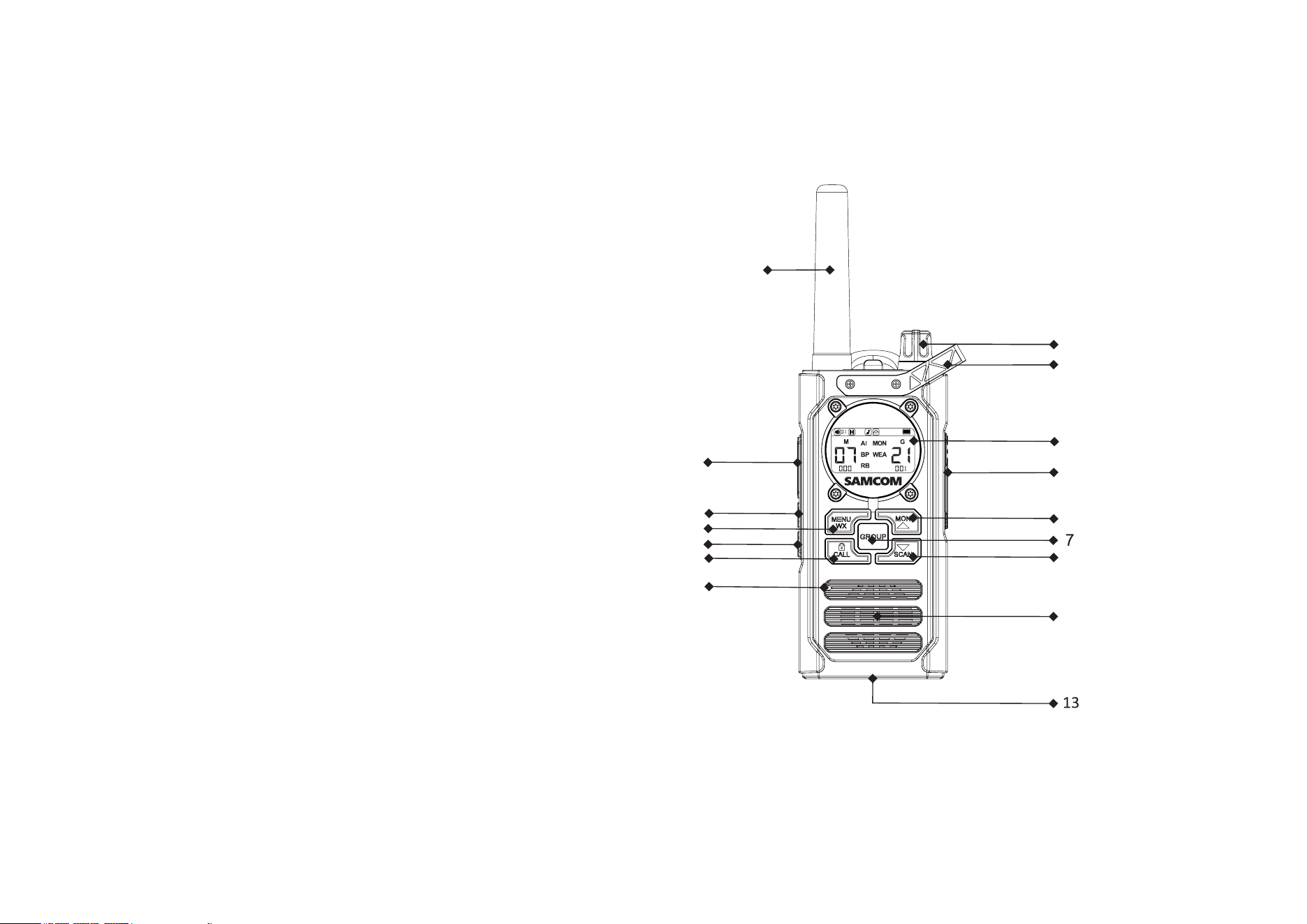
Overview
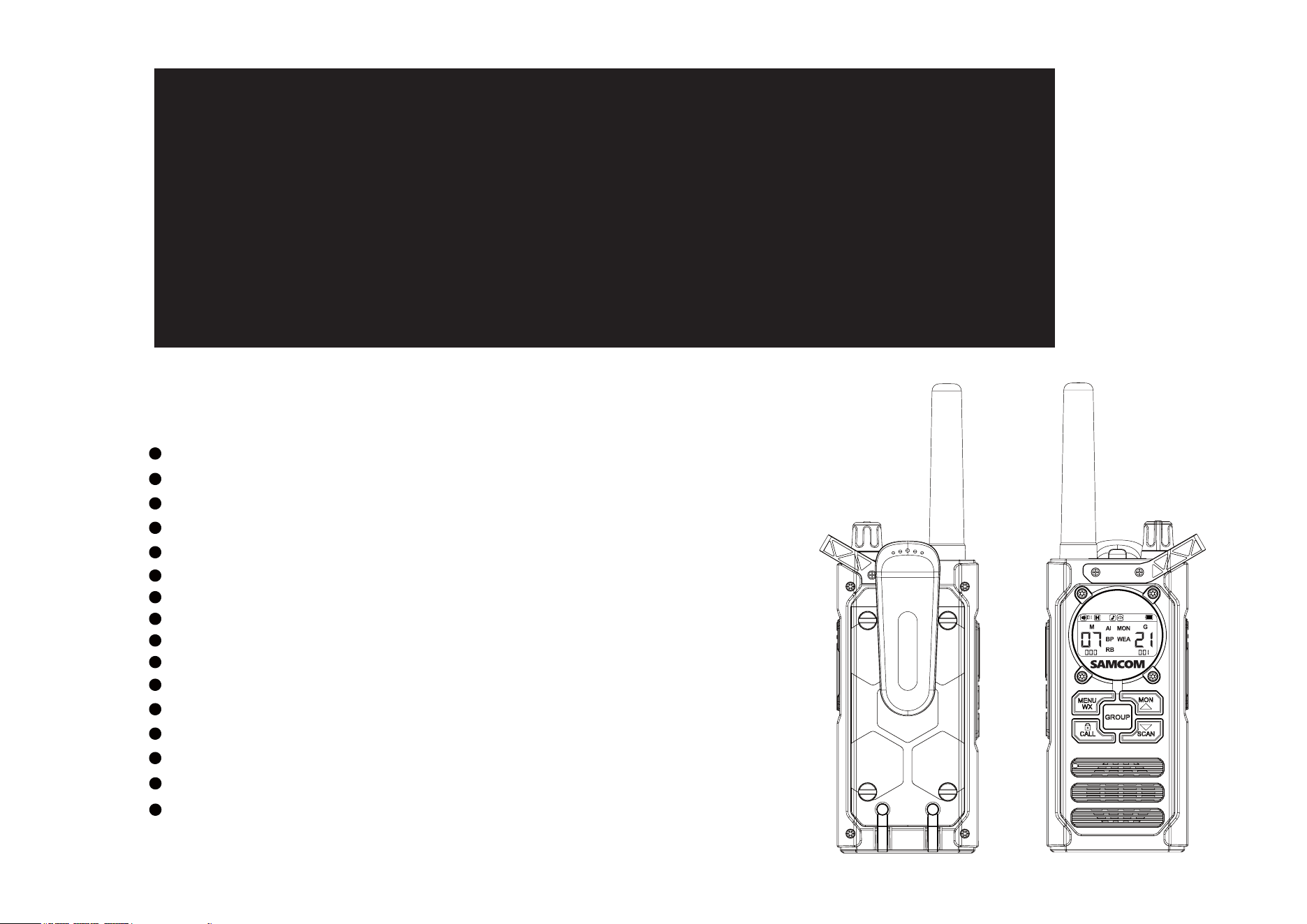
1. LCD Display
2. Earphone & Charger Jack
3. Push-To-Talk (PTT) Key
4. Up / Monitor Key
5. Down / Scan Key
6. Power / Volume Knob
7. Group Key
8. Menu / WX Key
9. Call Tone /Key-Lock Key
10. Microphone
11. Speaker
12. Antenna
13. Flashlight
LED
14. Flashlight Key
12
1
3
2
4
9
10
11
5
6
8
14
15
15. FM Key
16
16. Position For Lanyard
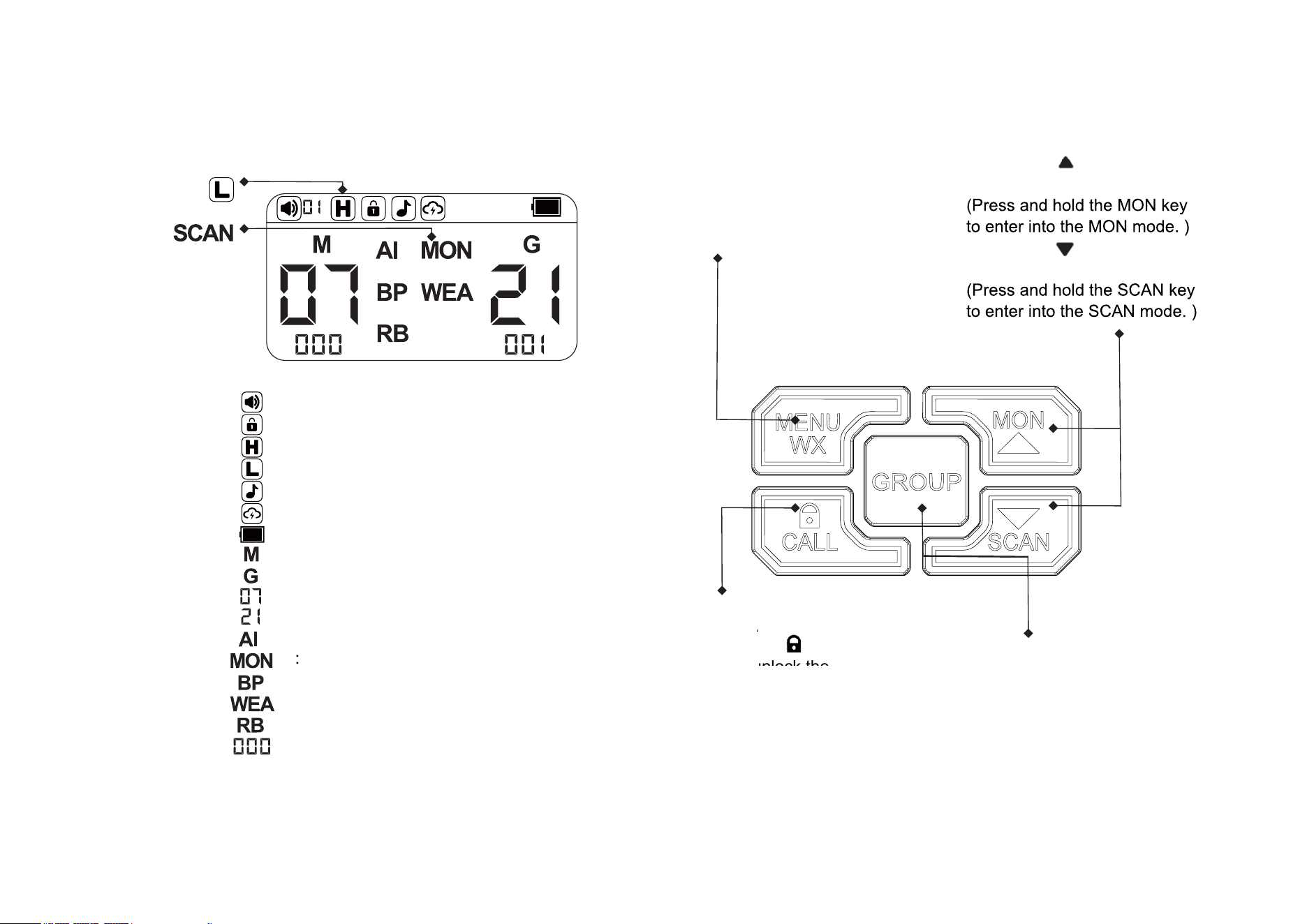
LCD Display Icons
1
2
3
4
5
6
7
8
9
10
11
12
13
14
15
: Volume
: High Power Mode
: Low Power Mode
: Call
: Weather Alert
: Battery Level
: Main Channel
: Group Channel
: Channel Number
: AI Noise Reduction
: Beep Tone
: Weather Receiver
: Roger Tone
Press the MENU key 1 time,
enter into the menu selecting mode.
Press and hold the WX key for 3s,
enter into the WX mode.
Short press is the function of
the up key.
Short press is the function of
the down key.
Press the CALL key to turn on
the Call Alert Function Press
and hold the key for 3s to
lock and unlock the keyboard.
Instantly broadcast to all users
with the dedicated button.
GROUP
Al
er
t
F
unc
t
i
t
he
k
ey
unlock the
Monitor
: Keyboard Lock
16
: CTCSS/CDCSS Code Number
17
: Group Channel Number
FIRST OPERATION
You need to install the battery first.
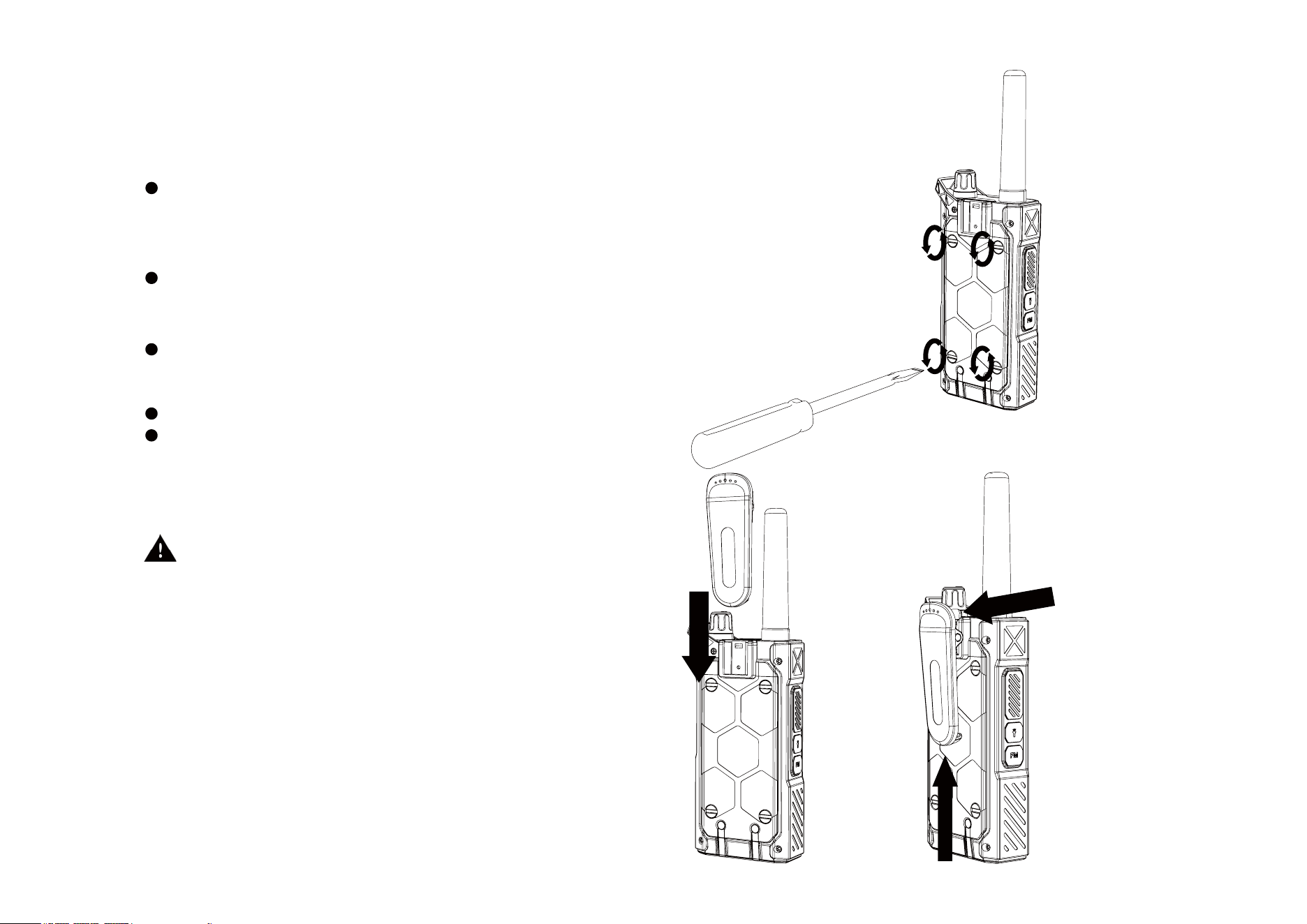
Install / Removing Battery door and Belt Clip
Installing Battery Door
Put the battery door flat on the radio, then use a
flathead screwdriver to hit the battery door screw
just like the image shows on the right.
Removing Battery Door
Use flathead screwdriver to unscrew it to remove
the battery door.
Installing Belt Clip
Slide the Belt clip into the slot. A “click” sound
indicates the Belt Clip is locked into position.
Removing Belt Clip
Push the latch of belt clip in (step 1)
While pushing the belt clip latch, push up
the belt c
lip at the same time (step 2).
Battery on First Use
Since batteries leave factory without a
fully charging, please charge the new
batteries before using. Under normal
circumstances, the battery on first use
needs 5 hours of charging. When you
find out the battery is low, it is required
to charge or replace it.
Safety Precautions
1. Do not disassemble.
2. Do not dispose the batteries in the fir
e.
3. Do not dispose the batteries as
household wastes, and it must be
collected and treated properly.
4. Do not charge or charge battery in
hazardous location.
5. Do not short-circuit the terminals.
Installing Belt Clip Removing Belt Clip
WARNING
Please only use original accessories to prevent damage to the radio.
The radio will be slightly warm during charging.
Notes:
1. When charging, the temperature should be between
5
~40 ,otherwise it may cause the leakage or even damage
the battery.
2. Please shut down the transceiver with battery loaded before
charging it. The use of the transceiver while charging is
ongoing will affect the normal battery charging.
3. Do not charge the battery when it is wet. You should dry it
first in order to avoid any danger.
4. If the battery’s usage time is very short even when it has
been charged in completely correct way, it can be concluded
that the battery life is due and should be
replaced by a new one.
Extension of Battery life
1. The performance of the battery will be reduced when the
temperature drops below 0
. I
Type-C charger
n cold weather, it is advised to
spare another battery for emergency. Please do not dispose
the cold batteries that can not work at low temperature but may
be usable at room temperature.
2. It may affect the normal use or charge of the battery, if it is
covered with dust. Please clean the battery with dry cloth
before loading or charging it.
Knowledge about Battery Storage
1. Since the batter
y will self-discharge, please do charge it fully
before putting it aside so as to prevent damages caused by
over discharge.
2. Please fully charge the battery after long time storage, in
order to avoid the reduction of the battery capacity resulting from
over discharge. It is proposed for lithium-ion / lithium-polymer
batteries to be filled in every 6 months of storage.
3. Please pay attention to the humidity of the battery storage
environment. Batteries are supposed to be s
tored in the
environment of room temperature, cool and dry air, to reduce
the self-discharge.
you
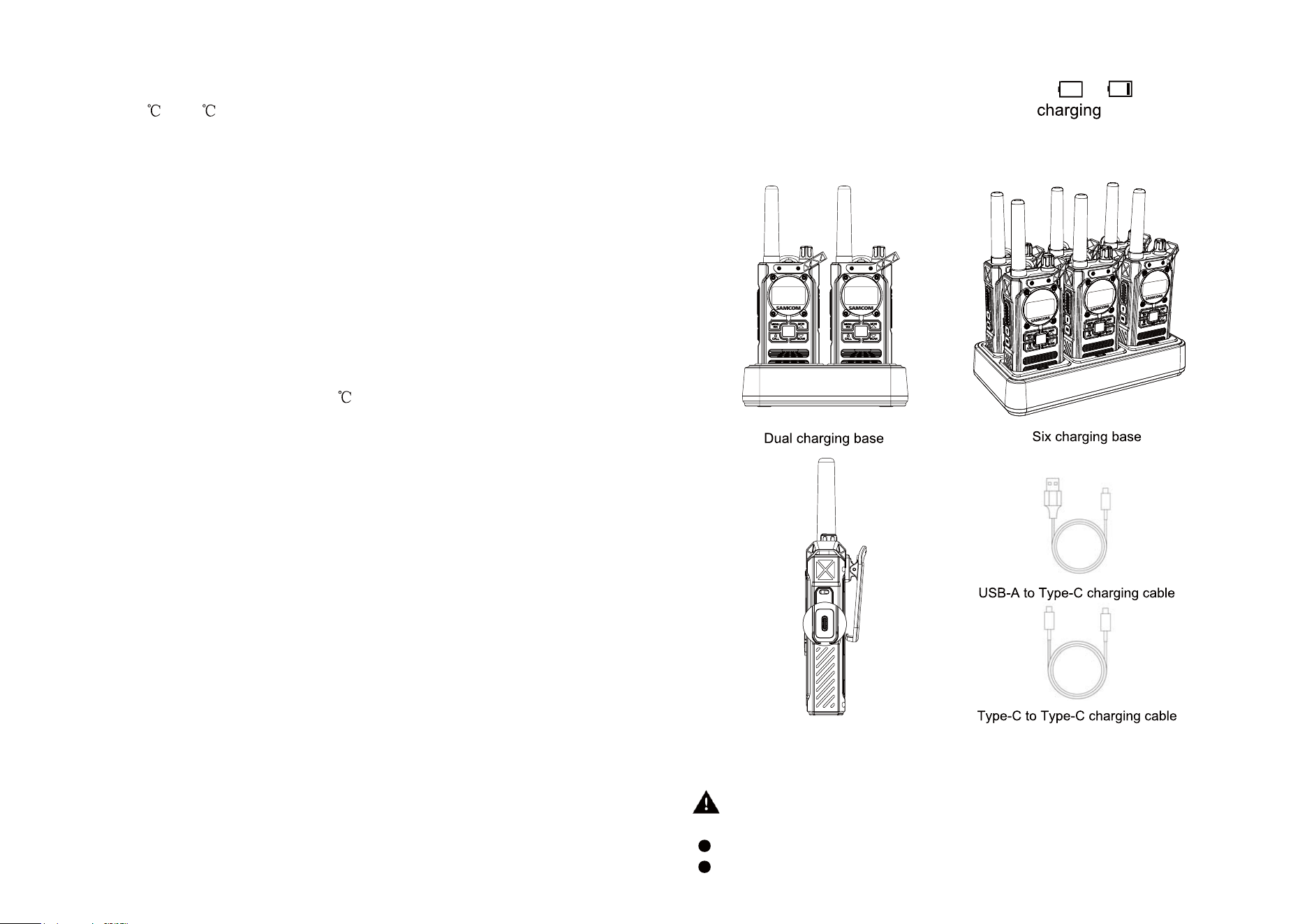
CHARGING
When the “Battery level is low, that is the icon /
need to charge the battery with the enclosed
-cable.
Flexible Charger
The battery icon will continuously cycle when charging.
GENERAL OPERATIONS
Before performing any operation,you need to first install the
walkie talkie battery.
MAKING COMMUNICATIONS
The radio has
main frequencies and 121 CTCSS/CDCSS
codes.
You can communicate with any other user using the same channel
within range.
SPEAK TO OTHER RADIO
Hold the radio in a vertical position with the microphone
2.5 cm from your mouth and then speak.
4. LISTEN TO OTHER RADIO
The radio will automatically sound received signal form the
other radio with the same channel and code.
When the main channel has received a signal, LCD shows the
"M" character in green. If the GROUP channel has received a
signal, LCD shows the "G" character in green.
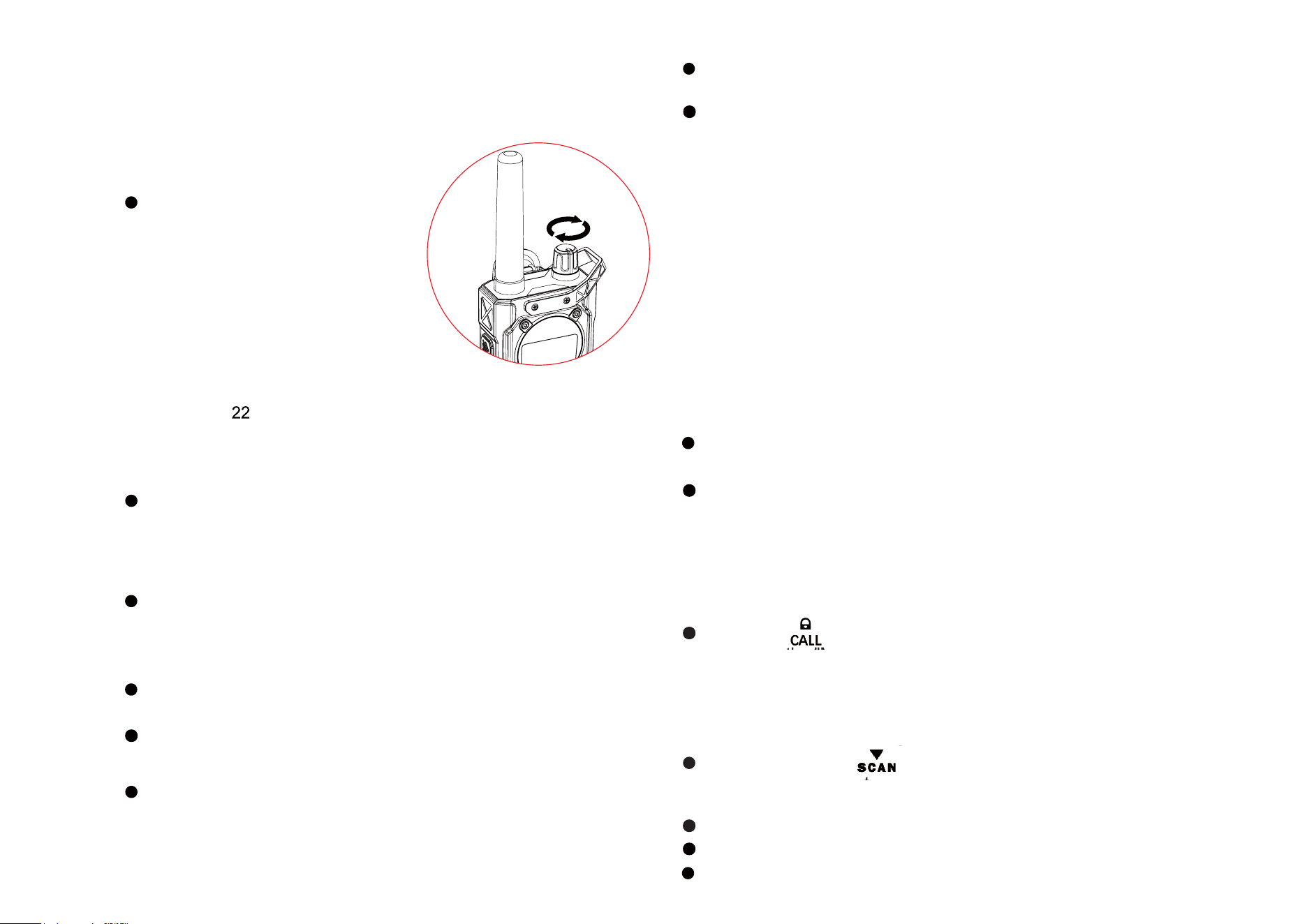
1. POWER
2.
3.
ON/OFF
Rotate the PWR/VOL control knob
clockwise until a" ka-ka "sound is
heard to turn on the radio. When
you receive calls,the knob provides
you the ability to change the volume
for your listening habits.When shutting
down the radio,you need to rotate it
counterclockwise a "ka-ka" sound is heard.
When you press the PTT key, you can’t listen to other radios.
Make sure you do not press PTT key for listening.
Adjust volume control if necessary.
5. GROUP FUNCTION ( Dual Channel Standby and
Either of Dual Channels Transmitting)
The function enables the radios to monitor two channels at
the same time in standby mode and transmitting on either
of two channels at a time. The two channels that we call
PTT-Channel and Group-channel respectively can be
set in Menu.
When the radio detects a signal on Group channel, it will
autom
atically sound the received signal with LCD s
howing,
Group channel number and associated code number.
When you want to talk to a group of people that have
their radios set Group Channel number and associated
code number to be the same as yours, just do the following.
Press & hold the GROUP key, the "G" character on the LCD will
display in red,indicating the radio is transmitting on Group channel.
When you finish speaking, release the GROUP key. And after
the transmission ends, the "G" character will return to white.
6. SENDING CALL TONE
You can use 1 of 10 different “Call Tones” to get attention of
other user on the same channel with same code.
Press The key and will hear the tone, When sending the
CALL TONE, the "M" character on the LCD is displayed in red and
the receiving radio will sound the tone too.
the
sa
th "M
7. SCANNING CHANNELS
Press and hold the key for 3 seconds, LCD will display
the word "SCAN" without any related icons and radio will start
scanning.
LCD display shows the scanning channel one by one.
It will stop at those channels with signal for a while.
Press the GROUP key to turn off the function.
S
e
k
t
e
Press & hold thePTT key,the "M" character on the LCD turns
red.
When the PTT button is released and the transmission ends,
the "M" character returns to white.
When you finish speaking, release the PTT key.
The talk range depends on the environment and terrain.
Don’t try to use two units which are less than 1.5m(5feet) apart.
otherwise,two radios might cause interference.
Press the GROUP or PTT key to confirm and revert back to
the main screen, or the key to confirm and continue next
function setting.
3. SELECT GROUP MAIN CHANNEL
This function enable the radio to dual channel standby. The two
way radio can monitor 2 channals at the same time and able to
transmit on the secondary channal by simply pressing the
GROUP button.
NOTE: The default GROUP number is 21, you can set your own
group number and code :
To change the GROUP Number
Press the key 3 times, GROUP channel number will
flash.
Press or to select new Group Channel or turn
off the function.
Press the GROUP or PTT key to confirm and revert back to
the main screen, or the ke
y to confirm and continue next
function setting.
k
nction
to
t
t
t
k
CTCSS/CDCSS
Call
Tone
MENU OPERATIONS
Press Menu key once to firstly enter main channel selection
from the main screen, press again for next function selection
etc. The menu operation flow chart is as follows.
Main Screen
Main Channel
GROUP Main Channal(Dual Channel Standby)
GROUP CTCSS/CDCSS VOX
Roger Beep Key Beep
Main Screen
1. SELECT MAIN CHANNEL
To select the main channel
Press the key 1 time, Main channel number will flash.
Press or to select new main channel
Press the GROUP or PTT key to confirm and revert back to
the main screen, or the key to confirm and continue next
function setting.
You have 10 seconds to decide before auto-reverting back to
the main screen
2. CTCSS/CODE FUNCTION
This function can help you select your group (38 CTCSS /83
CDCSS codes) of users on the same channel.
Only the users with the same CTCSS/CDCSS code can
listen
and talk to each other.
Please note that selecting a CTCSS/CDCSS code does not
assure total privacy.
Press the
key 2 times, CTCSS/CDCSS code will flash.
Press or
to select new CTCSS or CDCSS code
th
GRO
to
U
P
or
PT
T
rivacy.
k
the
y
t
o
e
k
k
8. MONITOR FUNCTION
Press and hold the key for 3 seconds to have the unit
sound signal or noise, whichever occurs on the main channel.
Press the or GROUP or PTT key to turn off the function.
The function is useful to check for activity on the main channel
before you talk. When you find the main channel busy, you can
change the main channel number to a clear one. Moreover, it
also can be handy for the user to verify the volume level of the
radio when the radio is not receiving.
9. LOCK KEYS
Press and hold key for 3 seconds, LCD display icon.
All keys are locked except PTT GROUP keys
To unlock, press and hold key for 3 seconds again.
10. MICROPHONE / EARPHONE JACK
The unit is equipped with a microphone / earphone jack located
at the right side. You can use an optional earphone (included)
for handsfree function.
11. FLASHLIGHT FUNCTION
To use the flashlight function
When the flashlight is not illumining, press
the Flashlight key
once to turn and keep it on.
When the flashlight is illumining, press t
he Flashlight key to
turn it off.
play
y
i
co
n
k
hi h
o
PTT
Long press for SOS flashing function.
AI Noise Reduction
t
f
t
4. GROUP CTCSS/CODE FUNCTION
To set GROUP CTCSS/CDCSS code
Press the key 4 times, GROUP CTCSS/CDCSS code
will flash.
Press or to select new CTCSS or CDCSS code.
Press the GROUP or PTT key to confirm and revert back to
he main screen, or the key to confirm and continue next
unction setting.
5. VOX (Hands-Free Function)
The unit has a built-in Voice Activated Circuit (VOX) function.
You can enjoy talking and listening without pressing PTT key.
To have better performance, you can use this function with
he external earphone (optional accessories).
Press
the key 5 times, LCD displays icon
and VOX sensitivity setting will flash.
Press or to choose VOX sensitivity setting.
VOX sensitivity level from “ OFF, 001,002,003” for “OFF, Low,
Medium and High" respectively. After turning on the VOX
k
o
t
o
P
or
PTT
k
p
nsitivity s
o
s
itivit
y
le
v
g
t
o
lfr
om
“
O
7. ROGER BEEP
The roger beep function enables a short tone signal which is
transmitted after releasing the PTT button.
GROUP orfunction, LCD will display icon. Press the
PTT key to confirm and revert back to the main screen, or
the key to confirm and continue next function setting.
Please speak close to the mic in order to activate VOX function.
tively.
A
tb
y
ease s
pe
6. SELECTING CALL TONE
Press the key 6 times, LCD will display icon and
call tone number will flash.
Press or to scroll between 1 to 10 and cho
ose
the call tone you like.
Press the GROUP or PTT key to confirm and revert back to
the main screen, or the key to confirm and continue next
function setting.
NG
CA
L
k
ay
y
i
c
s
one you
o
r
ke
e
k
Press the key 7 times, LCD displays the icon.
Press or to turn the Roger beep on or off.
Press the GROUP or PTT key to confirm and revert back to
the main screen, or the key to confirm and continue next
function setting.
8. KEY BEEP
The unit has the function to turn the key beep on or off.
Press the key 8 times, LCD displays the icon.
Press or to turn the key beep on or off.
Press the GROUP or PTT key to confirm and revert back to
the main screen, or the MENU key to confirm and continue next
function setting.
e
k
s
sthe
GR
t
o
UP
or
PT
k
k
the
GR
t
o
UP
o
r
PT
WEATHER RECEIVER (WX) FUCNTION
The radio has the capability to tune in to broadcasts by the
United States National Oceanic and Atmospheric Administration
(NOAA) Weather Radio and Environment Canada Weather
Radio. You can listen to a weather channel or set your radio to
alert you to emergency weather broadcasts that interrupt routine
broadcasts. When you listen to a weather channel, you cannot
use your radio in scan mode or for two-way communications.
Entering the WX Mode
Press and hold the key for 3 seconds to enter into WX mode,
the LCD will display the icon
Setting the WX Channel
In WX mode, press or and the WX channel
number flashes.
Press or to select the appropriate channel with
good reception in your area.
Press the key to confirm the channal number and
continue setting WX.
lashes
.
r
r
t
y
k
WX
9. AI Noise Reduction
Press MENU nine times, and the LCD will display the "AI" character.
Press MON or SCAN to set AI ON or OFF.
Press GROUP or PTT to confirm and return to the main interface.
nel
s
After the WX mode is activated
an alert, if no keys are pressed for 5 minutes, the WX
mode
either manually or by receiving
will automatically revert back to two-way radio mode.
If you turn on the WX alert function and return to two-way radio
mode, the LCD will display the icon on the main
screen, which means the WX alert function has been activated
and the radio can detect the weather channel signal and two-
way radio channel signal at the same time.
Setting the WX Alert
The radio can be set to respond to NOAA Weather Radio
emergency messages. A special alarm tone soun
ds an alert
and turns on the WX to give you immediate weather and
emergency information.
In WX mode, press
Press or
Press
1 times and the icon shows.
to turn the WX alert function On or OFF.
key to confirm and exit setting WX.
Exiting the WX Mode
In WX set mode, press and hold the key for 3
seconds or press GROUP or PTT key to exit WX mode and
return to two-way radio mode.
Activate Lifetime Warranty
To extend your 1 year warranty to lifetime
Please register on our website to activate
SAMCOM Support Team
Email Address : [email protected]
Website : www.samcom-radio.com
Phone Number : 3853366504
FB Page : Samcom Radios
Ingress Protection Rating of this radio is up to IP67 standard. When
Waterproof IP67
the battery cover and headset accessory port are properly sealed,
the radio can be submerged under 1m water for 30 minutes without
damage. Ensure your radio is in dry environment if you need to open
battery compartment door or headset port, and install the battery and
accessories. This will prevent water enter your radio through these
interfaces, thus protecting the service life of the radio. If the radio
immersed in water, in order to maintain audio quality, shake the radio
quickly to remove the water in the speaker grille and microphone port.
New addition:
FM Function
Pressing the A side FM button once enters the FM mode. The LCD
will switch to display the FM-related background, and the status bar
will show the FM icon and the corresponding frequency.
In the FM mode:
Short press the side FM button to exit the FM mode.
Short press the MON or SCAN button to adjust the FM frequency
once.
Long press the MON or SCAN button for 3 seconds to enter the
FM automatic frequency scanning mode, which will scan for signals
upwards or downwards. When a signal is detected, the scanning will
stop and the signal will be received.
When there is a signal received on the walkie-talkie channel, it will
return to the walkie-talkie interface. After the reception ends and
waits for 8 seconds, it will automatically return to the FM mode.
Pressing the PTT or GROUP button will return to the walkie-talkie
interface for transmission. After the transmission ends and waits for 8
seconds, it will automatically return to the FM mode.
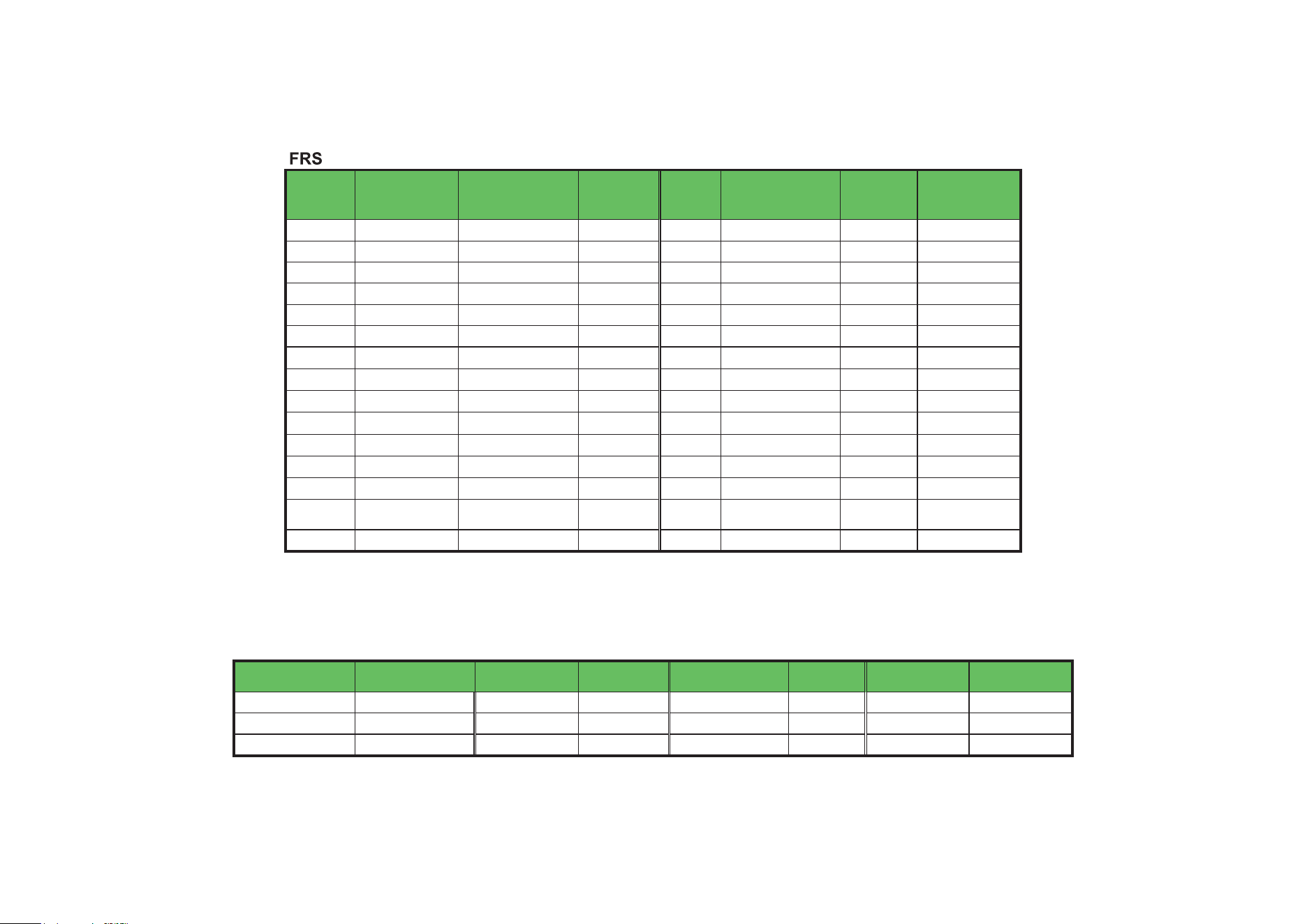
Channel Configuration Chart
CH. No. CH. No.
1 16
2 17
3 18
4 19
5 20
6 21
7 22
8
9
10
11
12
13
14
15
Low
Low
Low
462.5500 1 HIgh
467.7125 1 Low
467.6625
467.6375 1
1
467.6875 1
1
467.5875 1
467.6125
High
High
High
High
Low
Low
Low1
462.6375 1
462.6625 1
462.6875 1
462.7125 1
467.5625
Frequency
(MHz)
Default Associated
Code No.
TX Power
Option
Frequency
(MHz)
Default
Associated
Code No.
TX Power Option
462.6125 1 High 462.6250 1
High
462.5875 1 High 462.6000 1 High
462.56
25 1 High 462.5750 1
462.7000 1 High
462.7250 1 High
High
462.6500 1 High
462.6750 1 High
NOAA Weather (WX) Channel Frequency Chart
Frequency (MHz)
WX1 162.550 WX4 162.425 WX7
162.525
WX10
161.750
Weather Channel No. Frequency (MHz) Weather Channel
No.
Frequency
(MHz)
Weather Channel No. Frequency
(MHz)
Weather Channel
No.
WX2 162.400 WX5 162.450 WX8
161.650
WX11
162.000
WX9
161.775
WX3 162.475 WX6 162.500
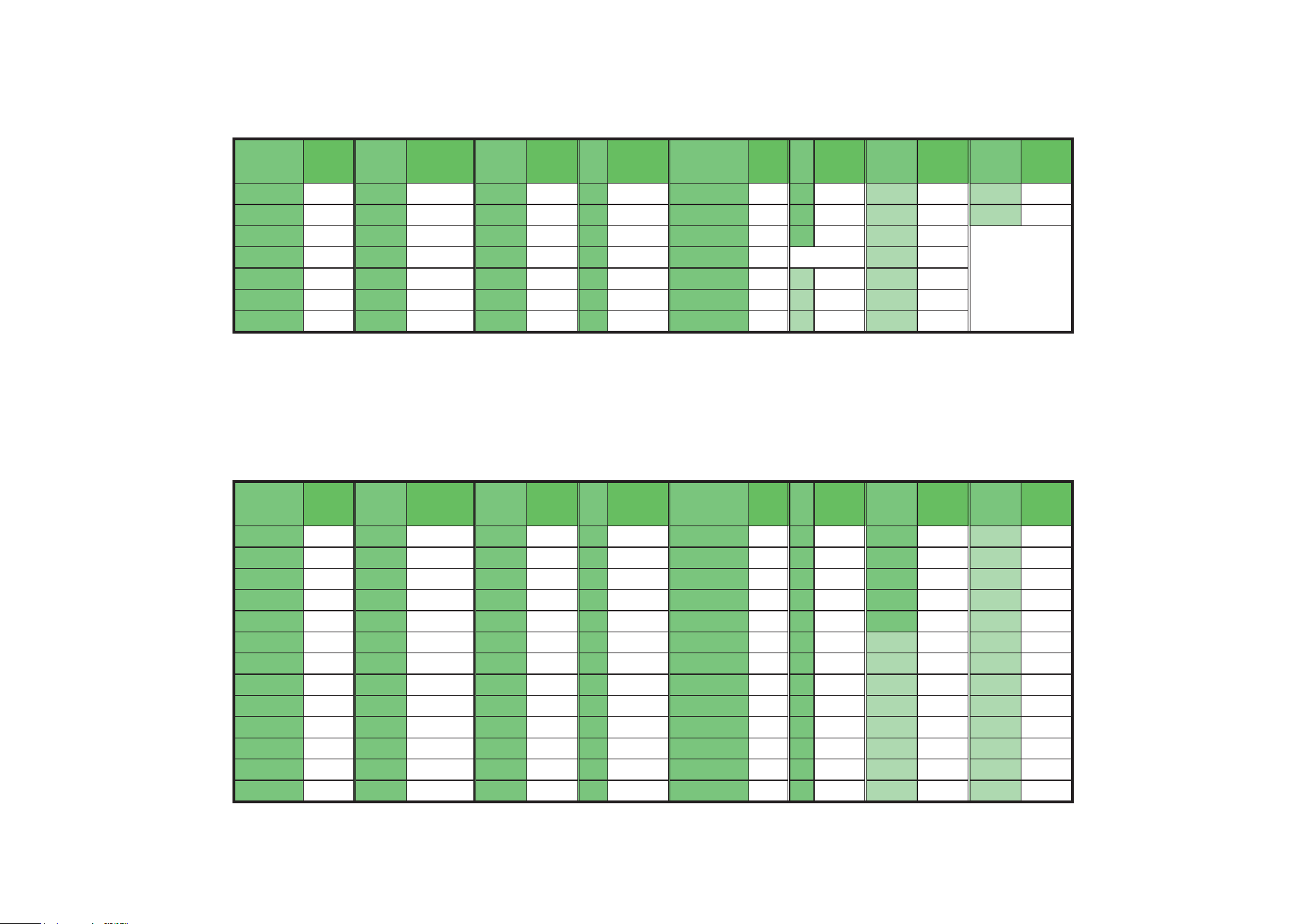
CTCSS Code Frequency Chart
Code
No.
Freq.
(Hz)
Code
No.
Freq.
(Hz)
Code
No.
Freq.
(Hz)
Cod
e
No.
Freq.
(Hz)
Code
No.
Freq.
(Hz)
Co
de
No.
Freq.
(Hz)
Code
No.
Freq.
(Hz)
Code
No.
Freq.
(Hz)
1
67.0
8
88.5
15
110.9
22
141.3
29
179.9
36
233.6
2
71.9
9
91.5
16
114.8
23
146.2
30
186.2
37
241.8
3
74.4
10
94.8
17
118.8
24
151.4
31
192.8
38
250.3
4
77.0
11
97.4
18
123.0
25
156.7
32
203.5
5
79.7
12
100.0
19
127.3
26
162.2
33
210.7
6
82.5
13
103.5
20
131.8
27
167.9
34
218.1
7
85.4
14
107.2
21
136.5
28
173.8
35
225.7
CDCSS Octal Code Chart
Code
No.
OCT
Code
Code
No.
OCT
Code
Code
No.
OCT
Code
Cod
e
No.
OCT
Code
Code
No.
OCT
Code
Co
de
No.
OCT
Code
Code
No.
OCT
Code
Code
No.
OCT
Code
39
023
52
074
65
165
78
271
91
413
104
565
117
731
40
025
53
114
66
172
79
306
92
423
105
606
118
732
41
026
54
115
67
174
80
311
93
431
106
612
119
734
42
031
55
116
68
205
81
315
94
432
107
624
120
743
43
032
56
125
69
223
82
331
95
445
108
627
121
754
44
043
57
131
70
226
83
343
96
464
109
631
45
047
58
132
71
243
84
346
97
465
110
632
46
051
59
134
72
244
85
351
98
466
111
654
47
054
60
143
73
245
86
364
99
503
112
662
48
065
61
152
74
251
87
365
100
506
113
664
49
071
62
15
5
75
261
88
371
101
516
114
703
50
072
63
156
76
263
89
411
102
532
115
712
51
073
64
162
77
265
90
412
103
546
116
723

NOTE
This equipment has been tested and found to comply with the
limits for a Class B digital device, pursuant to part 15 of the
FCC rules. These limits are designed to provide reasonable
protection against harmful interference in a residential
installation. This equipment generates, uses and can radiate
radio frequency energy and, if not installed and used in
accordance with the instructions, may cause harmful
interference to radio communications. However, there is no
guarantee that interference will not occur in a particular
installation. If this equipment does cause harmful interference
to radio or television reception, which can be determined by
turning the equipment off and on, the user is encouraged to try
to correct the interference by one or more of the following
measures:
Reorient or relocate the receiving antenna.
Increase the separation between the equipment and receiver.
Connect the equipment into an outlet on a circuit different
from that to which the receiver is connected.
Consult the dealer or an experienced radio/TV tec
hnician for
help.
Medical Devices
If you use a personal medical device, such as a pacemaker or
hearing aid, consult the manufacturer of your device to
determine if it is adequately shielded from RF energy. Your
physician may be able to assist you in obtaining this information.
SAFETY AND GENERAL INFORMATION
Compliance with RF Exposure Standards
Your SAMCOM radio generates RF
electromagnetic energy during transmit mode.
This two-way radio is designed, manufactured
and tested to comply with all applicable national
and international regulations for human exposure
to radio frequency electromagnetic energy.
Attention
This radio complies with IEEE and ICNIRP exposure limits for
general population RF exposure environment at operating duty
factors of up to 50% and is authorized by the FCC for general
population use only. An appropriate warning label is affixed to
all units. In order to comply with RF exposure requirements,
a minimum distance of 2.5 cm must be maintained when
held-to-face, and body-worn operations are restricted to
the approved ori
ginal accessories (belt clip), a minimum distance
of 2.5 cm. Do not use this device when antenna shows obvious
damages.
This product is compliance to FCC RF Exposure requirements and
refers to FCC website
https://apps.fcc.gov/oetcf/eas/reports/GenericSearch.cfm
search for FCC ID: 2BPIZ
T5 to gain further information
include SAR Values.
Changes or modifications not expressly approved by the party
responsible for compliance could void the user's authority to
operate the equipment.
This device complies with part 15 of the FCC Rules
. Operation
is subject to the following two conditions: (1) This device may
not cause harmful interference, and (2) this device must accept
any interference received, including interference that may cause
undesired operation.
Electromagnetic
Interference/Compatibility
During transmissions, your SAMCOM radio generates RF
energy that can possibly cause inference with other devices or
systems. To avoid such interference. Turn off the radio in area
where signs are posted to do so. DO NOT operate the
transmitter in areas that are sensitive to electromagnetic
radiation such as hospitals, aircraft, and blasting sites.
Acoustic Safety
Exposure to loud noises from any source for extended periods
of time may temporarily or permanently affect your hearing. The
louder the volume of the radio, the sooner your hearing will be
affected. Hearing damage from loud noise is sometimes
undetectable at first, and can have a cumulative effect.
To protect your hearing, follow these precautions:
Use the lowest v
olume necessary to do your job.
Turn up the volume only if you are in noisy surroundings.
Turn down the volume before putting on a headset or
headphones.
Limit the amount of time you use a headset or headphones at
high volume.
When using the radio without a headset or headphones, do
not place the speaker of the radio directly against your ear.
To ensure that your exposure to RF
electromagnetic energy is within the FCC
allowable limits, always adhere to the following
CAUTION guidelines:
DO NOT
transmit for more than 50% of total radio use time
("50% duty cycle"). Transmitting more than 50% of the time can
cause FCC RF exposure compliance requirements to be
exceeded. The radio is transmitting when the "TX indicator"
shows on LCD. You can cause the radio to transmit by pressing
the " PTT" switch.
ALWAYS
use SAMCOM authorized accessories
(antennas, batteries, belt clips, speaker/mics, etc). Use of
unauthorized accessories can cause the FCC RF exposure
compliance requirements to be exceeded. Body-worn
operations are restricted to belt-clips, holsters or similar
accessories that have no metallic component in the assembly
and that provide at least 2.5 cm separation between the device,
including its antenna, and the user's body. To provide the
recipient
s of your transmission the best sound quality, hold the
antenna at least 2.5 cm from mouth, and slightly off to
one side. The information listed above provides the user with
the information needed to make him or her aware of RF
exposure, and what to do to assure that this radio operates
within the FCC RF exposure lim
its of this radio.