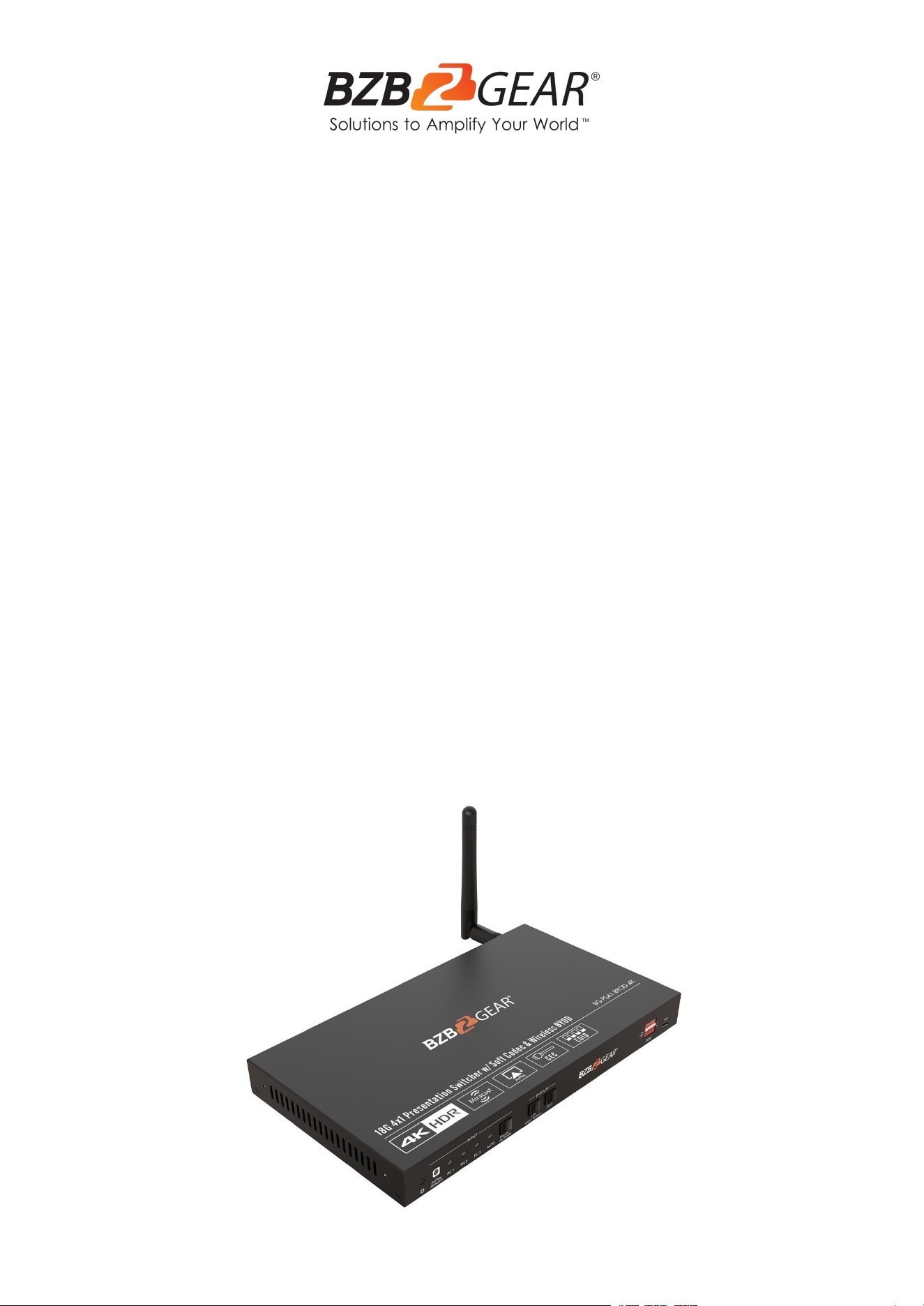
BG-PS41-BYOD-4K
4-Port 4K 18Gbps UHD HDMI/USB-C/BYOD Conference Room
Wireless Presentation Switcher
User Manual

BZBGEAR BG-PS41-BYOD-4K PRODUCT MANUAL
Address: 830 National Drive #140, Sacramento, CA 95834, USA · Tel: +1(888)499-9906 · Email: support@bzbgear.com 2

BZBGEAR BG-PS41-BYOD-4K PRODUCT MANUAL
TABLE OF CONTENTS
Statement 4
Safety Precaution 4
Introduction 5
Features 5
Packing List 5
Technical Specifications 6
Operation Controls and Functions 7
System Connection Methods 9
Front Panel Control 12
RS232 Control 14
Firmware Upgrade 18
Application Example 19
Tech Support 20
Limited Product Warranty Terms 20
Mission Statement 20
Copyright 20
Address: 830 National Drive #140, Sacramento, CA 95834, USA · Tel: +1(888)499-9906 · Email: support@bzbgear.com 3

BZBGEAR BG-PS41-BYOD-4K PRODUCT MANUAL
Statement
Please read these instructions carefully before connecting, operating, or configuring this
product. Please save this manual for future reference.
Safety Precaution
● Unpack the equipment carefully and save the original box and packing material for
possible future shipment.
● Follow basic safety precautions to reduce the risk of fire, electrical shock and injury to
persons.
● To prevent damaging this product, avoid heavy pressure, strong vibration, or immersion
during transportation, storage, and installation.
● Do not dismantle the housing or modify the module.
● Using supplies or parts not meeting the products’ specifications may cause damage,
deterioration or malfunction.
● Do not put any heavy items on the extension cable in case of extrusion.
● Install the device in a place with fine ventilation to avoid damage caused by overheat.
● Do not twist or pull by force ends of the optical cable. It can cause malfunction.
● The housing of this product is made of organic materials. Do not expose to any liquid,
gas, or solids which may corrode the shell.
● Unplug this device during lightning storms.
● Do not use liquid or aerosol cleaners to clean this unit. Clean only with a soft dry
microfiber cloth.
● Always unplug the power to the device before cleaning.
● If an object or liquid falls or spills on to the housing, unplug the module immediately.
● To prevent the risk of electric shock, do not open the case. Installation and maintenance
should only be carried out by qualified technicians.
● Do not use the product beyond the specified temperature, humidity, or power supply
specifications.
● This product does not contain parts that can be maintained or repaired by users.
Damage caused by dismantling the product without authorization from BZBGEAR is not
covered under the warranty policy.
● Installation and use of this product must strictly comply with local electrical safety
standards.
● Product specifications may be subject to technical upgrades without further notice.
● Unplug the power cord when left unused for a long period of time.
● Information on disposal for scrapped devices: do not burn or mix with general
household waste, please treat them as normal electrical wastes.
Address: 830 National Drive #140, Sacramento, CA 95834, USA · Tel: +1(888)499-9906 · Email: support@bzbgear.com 4

BZBGEAR BG-PS41-BYOD-4K PRODUCT MANUAL
Introduction
The BG-PS41-BYOD-4K 18G 4x1 Presentation Switcher is designed with one wireless
Miracast/Airplay input, two HDMI inputs, one USB-C input and one HDMI output. It
supports HDMI 2.0b, 4K2K@60Hz 4:4:4, HDR 10, Dolby Vision, and it is HDCP 2.2
compliant. In addition, there are also smart built-in EDID settings that can be selected by
utilizing the 4-pin DIP switch on the front panel.
The switcher supports HDMI audio de-embedding and USB device extension by providing
two type-B USB ports for host connection, and two type-A USB ports for USB devices
such as webcams, microphones, keyboard, etc.
The BG-PS41-BYOD-4K has multiple methods of control. When AUTO mode is selected the
switcher will automatically switch to the first detected source device. The switcher can also
be manually controlled by the front panel buttons and RS232 commands. CEC support
allows a compatible display device to be controlled via the front panel buttons, RS232, and
CEC commands.
Features
● 18G 4x1 presentation switcher with soft codec & wireless BYOD.
● HDMI 2.0b, 4K2K@60Hz 4:4:4, HDR 10, Dolby Vision and HDCP 2.2.
● Wireless BYOD (Bring Your Own Device) capability via AirPlay and Miracast.
● Provide up to 60w charging, USB data (USB 3.0/2.0) and 4K video transmission on
the USB-C port.
● HDMI output audio can be de-embedded out via balanced analog audio port.
● Two type-B USB ports for host connection and two type-A USB ports for USB
devices like webcams, mic, and keyboard.
● Video source auto-switching.
● Smart EDID management.
● Front panel buttons trigger both CEC and RS232 commands for display control.
Packing List
● 1x BG-PS41-BYOD-4K Switcher
● 2x Mounting Ears with 4 Mounting Screws
● 4x Plastic Cushions
● 1x 5-pin Terminal Block
● 1x RS232 Cable (3-pin terminal block - DB9)
● 1x External Antenna
● 1x Power Adapter (24V DC 5A)
● 1x User Manual
● 1х Quick Start Guide
Address: 830 National Drive #140, Sacramento, CA 95834, USA · Tel: +1(888)499-9906 · Email: support@bzbgear.com 5
BZBGEAR BG-PS41-BYOD-4K PRODUCT MANUAL
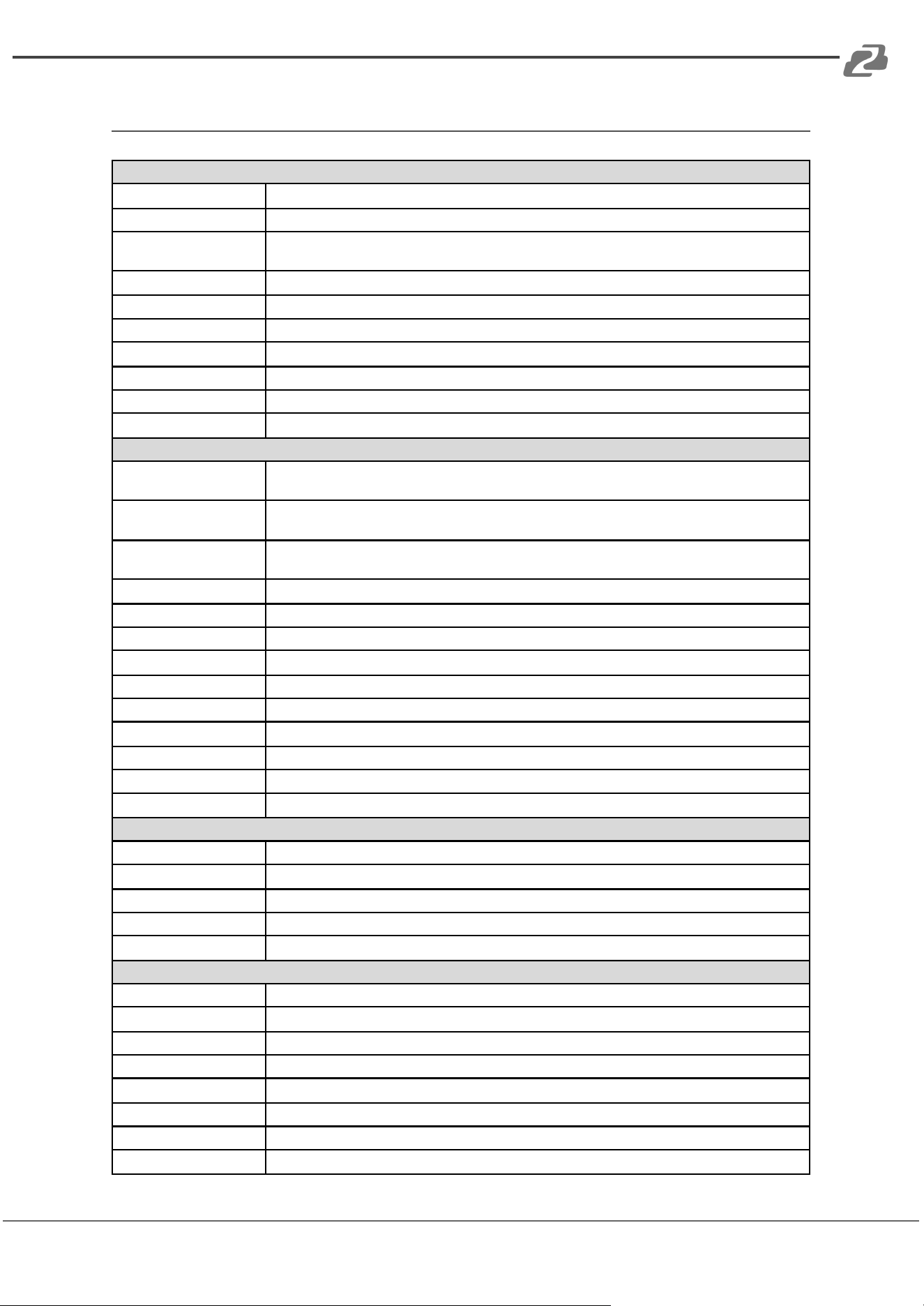
Technical Specifications
Video
Video Input
(1) AirPlay/Miracast, (2) HDMI, (1) USB-C
Video Input Connector
(1) External antenna connector, (2) Type-A female HDMI, (1) Type-C USB 3.0
AirPlay/Miracast
Input Resolution
Up to 4K@30Hz 4:4:4
HDMI Input Resolution
Up to 4Kx2K@60Hz 4:4:4 HDR10, Dolby Vision
USB-C Input Resolution
Up to 4K@30Hz 4:4:4
Video Output
(1) HDMI
Video Output Connector
(1) Type-A female HDMI
HDMI Output Resolution
Up to 4Kx2K@60Hz 4:4:4 HDR10, Dolby Vision
HDMI Standard
Up to HDMI 2.0b
HDCP Version
Up to HDCP 2.2
Audio
HDMI Embedded Audio
Format
Supports Dolby Atmos, Dolby TrueHD, Dolby Digital Plus, Dolby Digital, DTS-X, DTS-HD Master
Audio, DTS 5.1, 2 - 8Ch PCM 32-192kHz 16-24 bits; 2-8Ch PCM 32-192kHz 16-24 bits
Balanced Analog Audio
Output
(1) AUDIO OUT
Balanced Analog Audio
Output Connector
(1) 5-pin terminal block
Frequency Response
20Hz–20KHz, ±3dB
Max Output Level
2.0Vrms ± 0.5dB
THD+N
< 0.05%, 20Hz – 20KHz bandwidth, 1KHz sine at 0dBFS level (or max level)
SNR
>80dB, 20Hz - 20KHz bandwidth
Crosstalk Isolation
<-80dB, 10KHz sine at 0dBFS level (or max level before clipping)
L-R Level Deviation
<0.05dB, 1KHz sine at 0dBFS level (or max level before clipping)
Output Load Capability
1KΩ and higher (Supports 10x paralleled 10KΩ loads)
Noise Level
-80dB
Control port
(1) 4-pin DIP switch, (1) FW, (2) HOST (PC1&PC2), (2) DEVICES, (1) RS232
Control Connector
(1) Micro-USB, (2) Type-B USB 3.0, (2) Type-A USB 3.0, (1) 3-pin terminal block
Network Connectivity
WLAN Standards
IEEE 802.11ac
Band
2.4 and 5GHz
Max. Wireless Coverage
≤5m, environment dependent, reduce disturbance to increase transmission distance up to 10m
Max. Output Resolution
4K@30Hz
Version
iOS 7 or above, MacOS, Android 4.0 or above,Windows8.1 or above.
General
Operation Temperature
23°F ~ 131°F / -5°C ~ +55°C
Storage Temperature
13°F ~ 158°F / -25°C ~ +70°C
Relative Humidity
10% ~ 90%
External Power Supply
Input: AC 100~240V, 50/60Hz; Output: 24V DC 5A.
Power Consumption
85w (Max)
USB-C Power Charging
60w (Max)
Dimension (W*H*D)
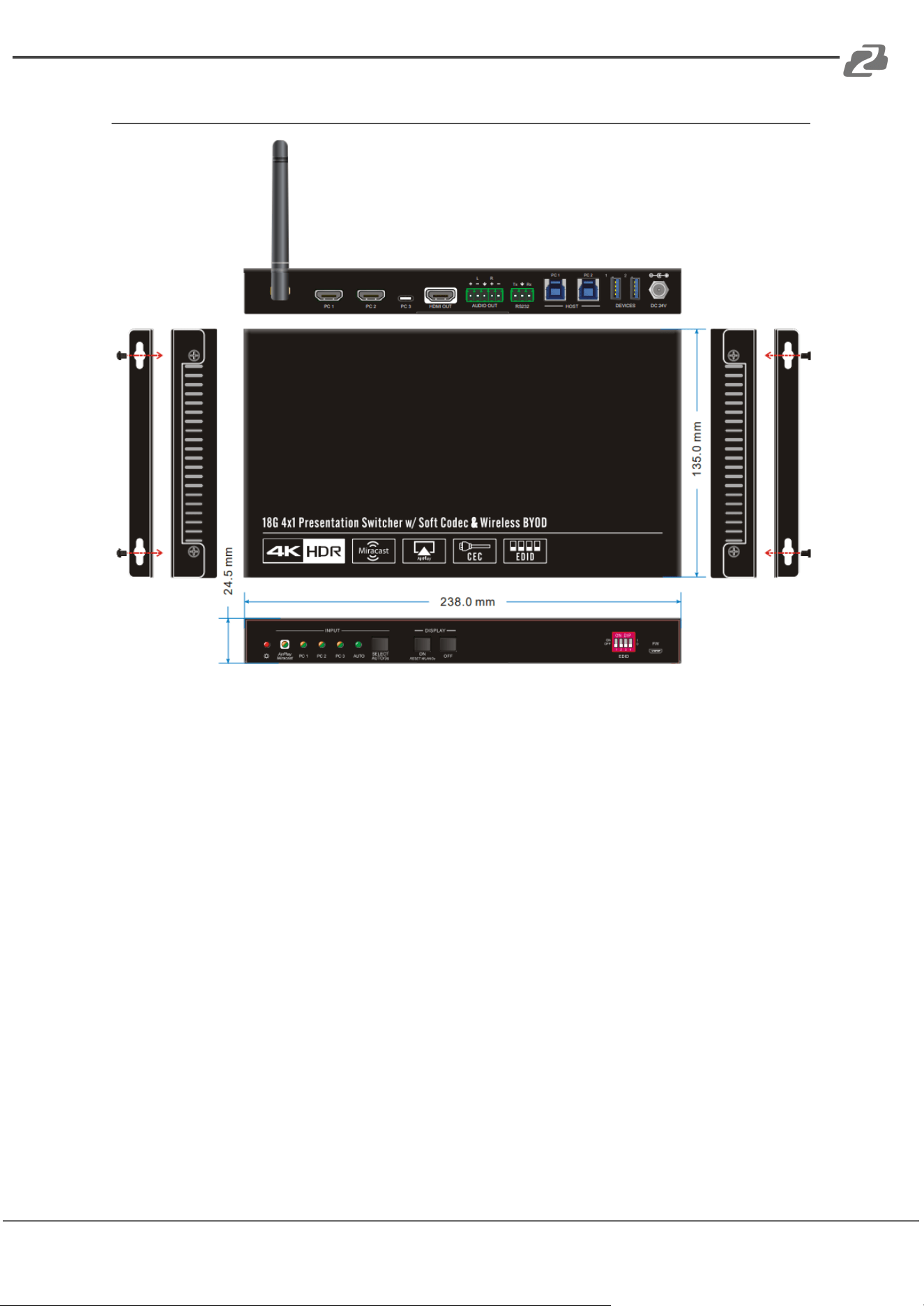
9.4" x 0.98" x 5.3" [238mm x 24.5mm x 135mm]
Net Weight
1.8lbs [825g]
Address: 830 National Drive #140, Sacramento, CA 95834, USA · Tel: +1(888)499-9906 · Email: support@bzbgear.com 6
BZBGEAR BG-PS41-BYOD-4K PRODUCT MANUAL
Operation Controls and Functions
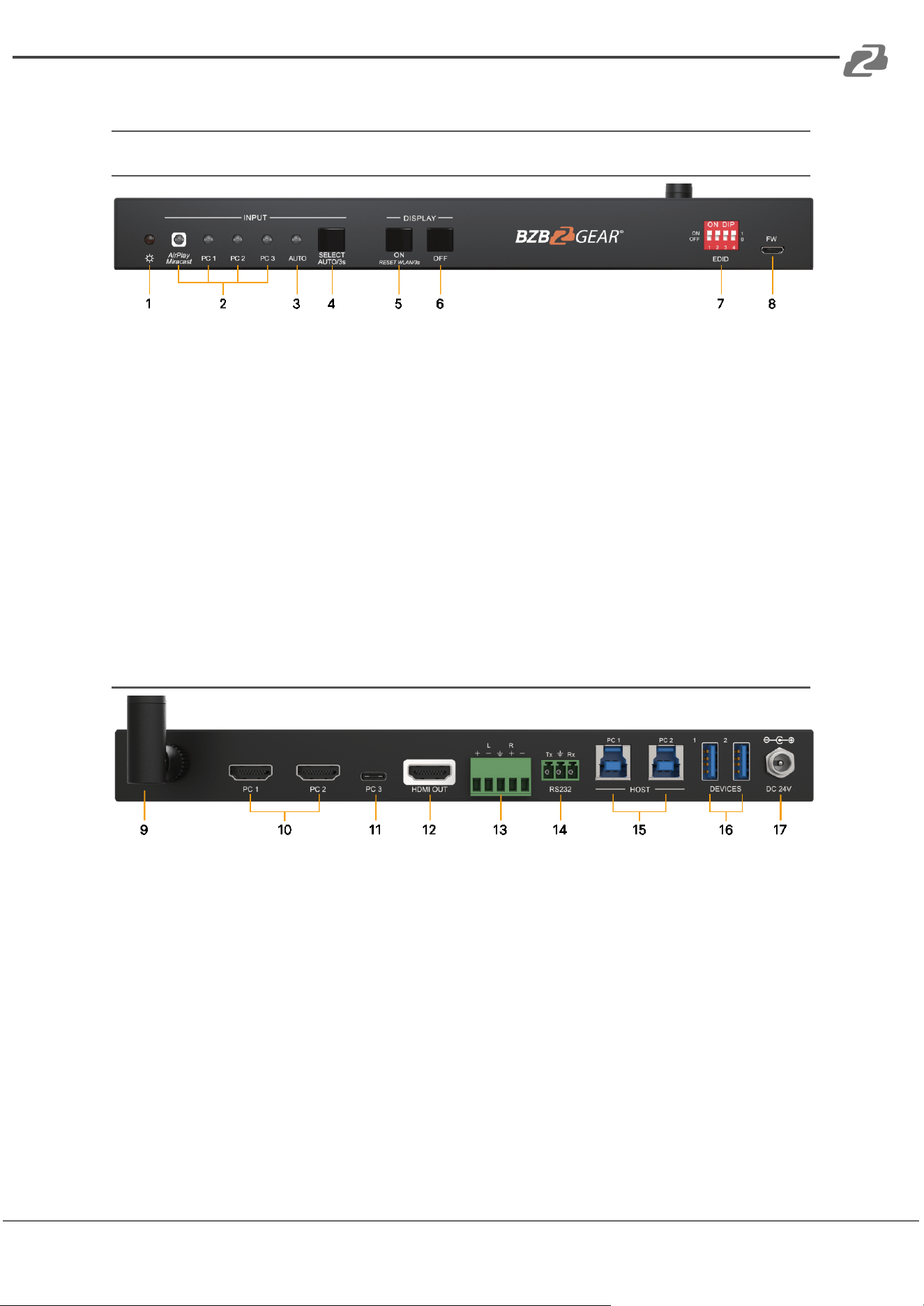
Front Panel
1. POWER LED: The LED illuminates red when power is supplied.
2. Input LEDs 1-4: The LED illuminates orange when the video signal is detected on
the corresponding input channel. It will illuminate green when the video
signal/channel is chosen as the input source.
3. AUTO LED: The LED illuminates green when the switcher is in auto-switching mode.
4. SELECT AUTO/3s: Press the button to select an input source, or press and hold it
for at least 3 seconds to enable auto-switching mode.
5. DISPLAY ON: Press the button to turn on the display.
6. DISPLAY OFF: Press the button to turn off the display.
7. EDID: 4-pin DIP switch for EDID setting.
8. FW: Micro USB port for firmware upgrade.
Rear Panel
9. Miracast/Airplay Input: Connect to the external antenna.
10. PC1-PC2: Two type-A female HDMI input ports to connect HDMI source devices.
11. PC3: Type-C USB with charging capability to connect the Laptop/Macbook or other
device with SlimPort output.
12. HDMI OUT: Type-A female HDMI output port to connect display device.
13. AUDIO OUT: 5-pin terminal block for audio de-embedding from HDMI output.
14. RS232: 3-pin terminal block to connect the RS232 control device (e.g. PC) or a
third-party device to be controlled by RS232 commands.
15. HOST (PC1 & PC2): Two type-A USB ports to connect USB devices.
16. DEVICE (1 & 2): Two type-A USB ports to connect USB devices.
17. DC 24V: DC connector for power adapter connection.
Address: 830 National Drive #140, Sacramento, CA 95834, USA · Tel: +1(888)499-9906 · Email: support@bzbgear.com 7
BZBGEAR BG-PS41-BYOD-4K PRODUCT MANUAL
Diemensions
Address: 830 National Drive #140, Sacramento, CA 95834, USA · Tel: +1(888)499-9906 · Email: support@bzbgear.com 8
BZBGEAR BG-PS41-BYOD-4K PRODUCT MANUAL
System Connection Methods
Miracast/Airplay Connection
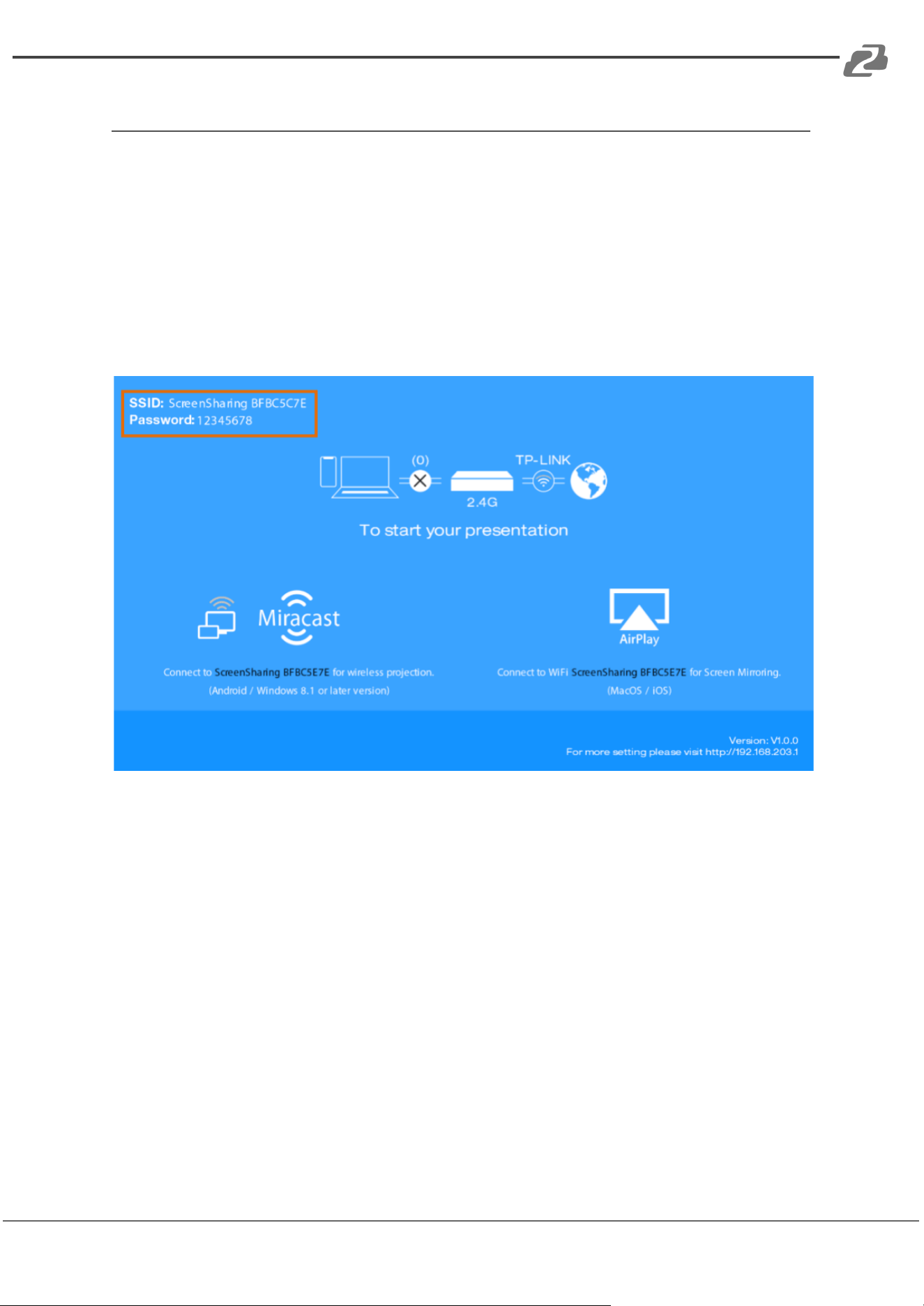
A device using MacOS/iOS, Android, Windows 8.1 or later that supports AirPlay/Miracast
can be used as an input source. Switch to the Miracast/Airplay input by pressing the
SELECT AUTO/3s button for 3 seconds and then the Wi-Fi SSID and password will be
shown on the display device.
SSID: ScreenSharing XXXXXX
Password: 12345678
Address: 830 National Drive #140, Sacramento, CA 95834, USA · Tel: +1(888)499-9906 · Email: support@bzbgear.com 9
BZBGEAR BG-PS41-BYOD-4K PRODUCT MANUAL
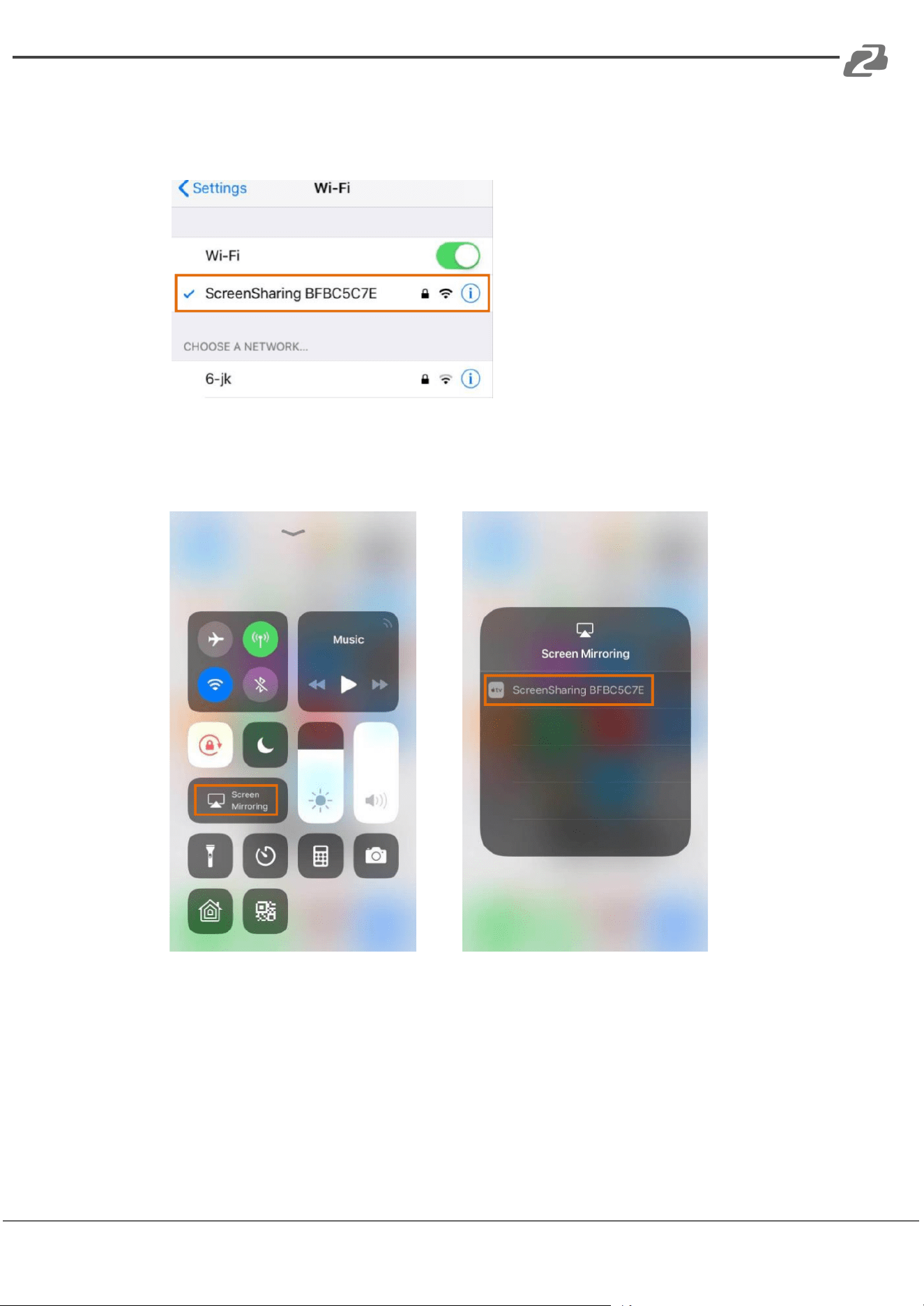
● iPhone Connection:
1) Connect the Apple iPhone to the Wi-Fi SSID.
2) Slide up on the screen of the iPhone from the bottom to enter the Control Center,
click Screen Mirroring, and then click the SSID for the BG-PS41-BYOD-4K screen
mirroring.
Address: 830 National Drive #140, Sacramento, CA 95834, USA · Tel: +1(888)499-9906 · Email: support@bzbgear.com 10
BZBGEAR BG-PS41-BYOD-4K PRODUCT MANUAL
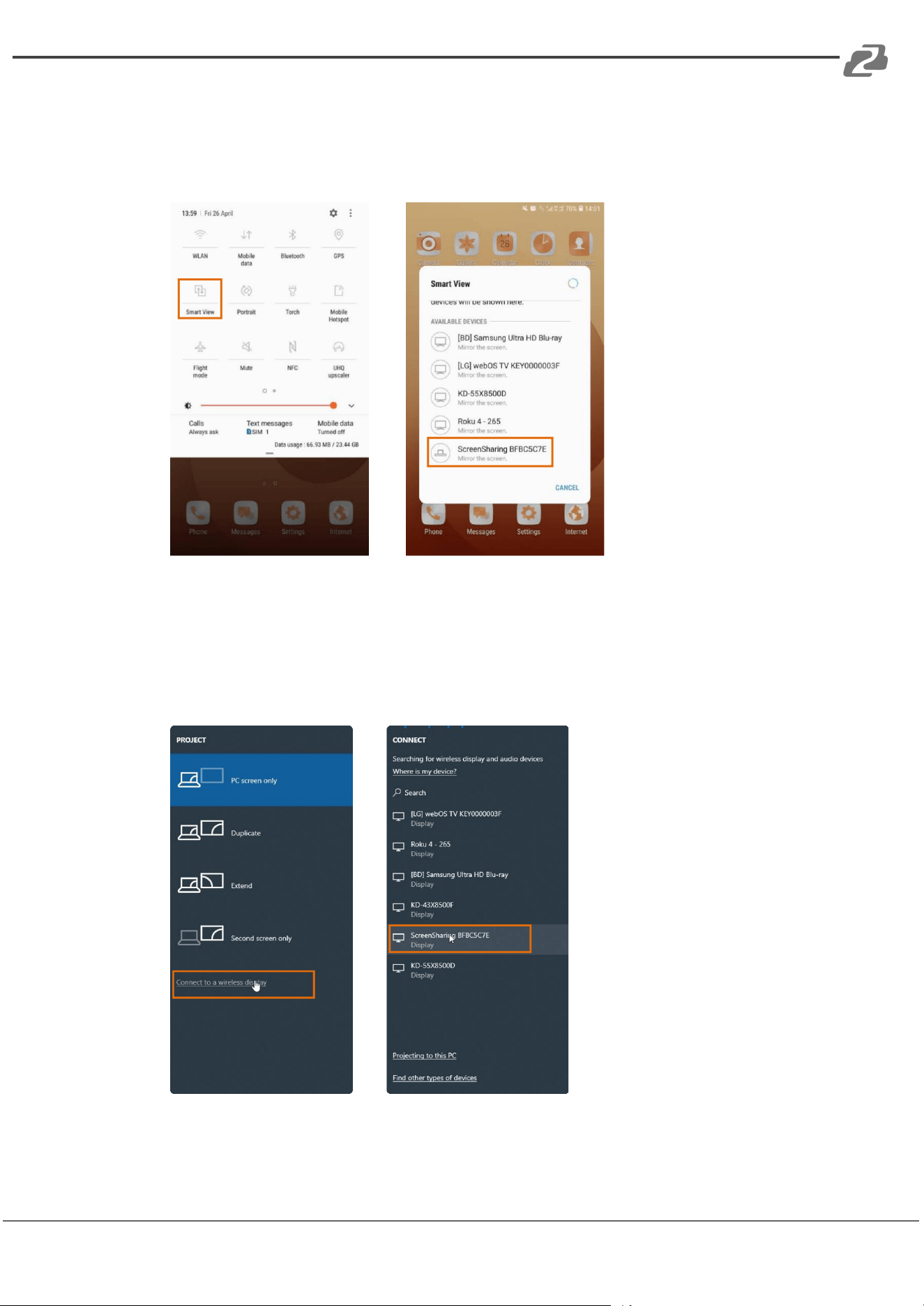
● Android Connection (Samsung):
Slide down on the Android screen and click the “Smart View” icon and then click the SSID
of the BG-PS41-BYOD-4K for screen mirroring.
● Windows 10 Connection:
1) Press the Windows key + P on keyboard, and then click Connect to a wireless
display in the pop-up window.
2) Click the SSID of the BG-PS41-BYOD-4K for screen mirroring.
Address: 830 National Drive #140, Sacramento, CA 95834, USA · Tel: +1(888)499-9906 · Email: support@bzbgear.com 11

BZBGEAR BG-PS41-BYOD-4K PRODUCT MANUAL
Front Panel Control
Manual-Switching
When the switcher is in the manual switching mode, press the SELECT AUTO/3S button
repeatedly to cycle through the four video inputs, and the corresponding source LED will
illuminate green.
Auto-Switching
Press and hold the SELECT AUTO/3s button for at least three seconds to enable
auto-switching and the AUTO LED will turn green.
When in AUTO mode, the switcher will switch according to the following rules:
● The switcher will switch to the first active input starting at AirPlay/Miracast to PC3.
● New input: The switcher will automatically select the new input once a new input is
detected.
● Reboot: If power is lost and then restored to the switcher, it will automatically
reconnect to the last used input before shutdown.
● Source removed: When an active source is removed, the switcher will switch to the
first active input starting at AirPlay/Miracast input to PC3.
● In auto mode, the input source also can be switched by the manual switching steps.
● Press and hold the SELECT AUTO/3s button for at least three seconds again to exit
AUTO mode. The input source will not be changed.
Note: The AirPlay/Miracast is not an active input when there is no screen sharing device
connected.
Display Control
● Manual Control: Press the DISPLAY ON/OFF buttons on the front panel to
simultaneously send RS232 and CEC commands to turn on/off the connected
display device.
● Auto Control: When detecting a video input signal (5V or TMDS), automatically send
CEC and RS232 commands to turn on the connected display device. When no video
signal is detected within the setting time (default 10mins), automatically send RS232
and CEC commands to turn off the display device.
Please refer to the Special Commands section for setting RS232 commands for more
details.
Address: 830 National Drive #140, Sacramento, CA 95834, USA · Tel: +1(888)499-9906 · Email: support@bzbgear.com 12
BZBGEAR BG-PS41-BYOD-4K PRODUCT MANUAL
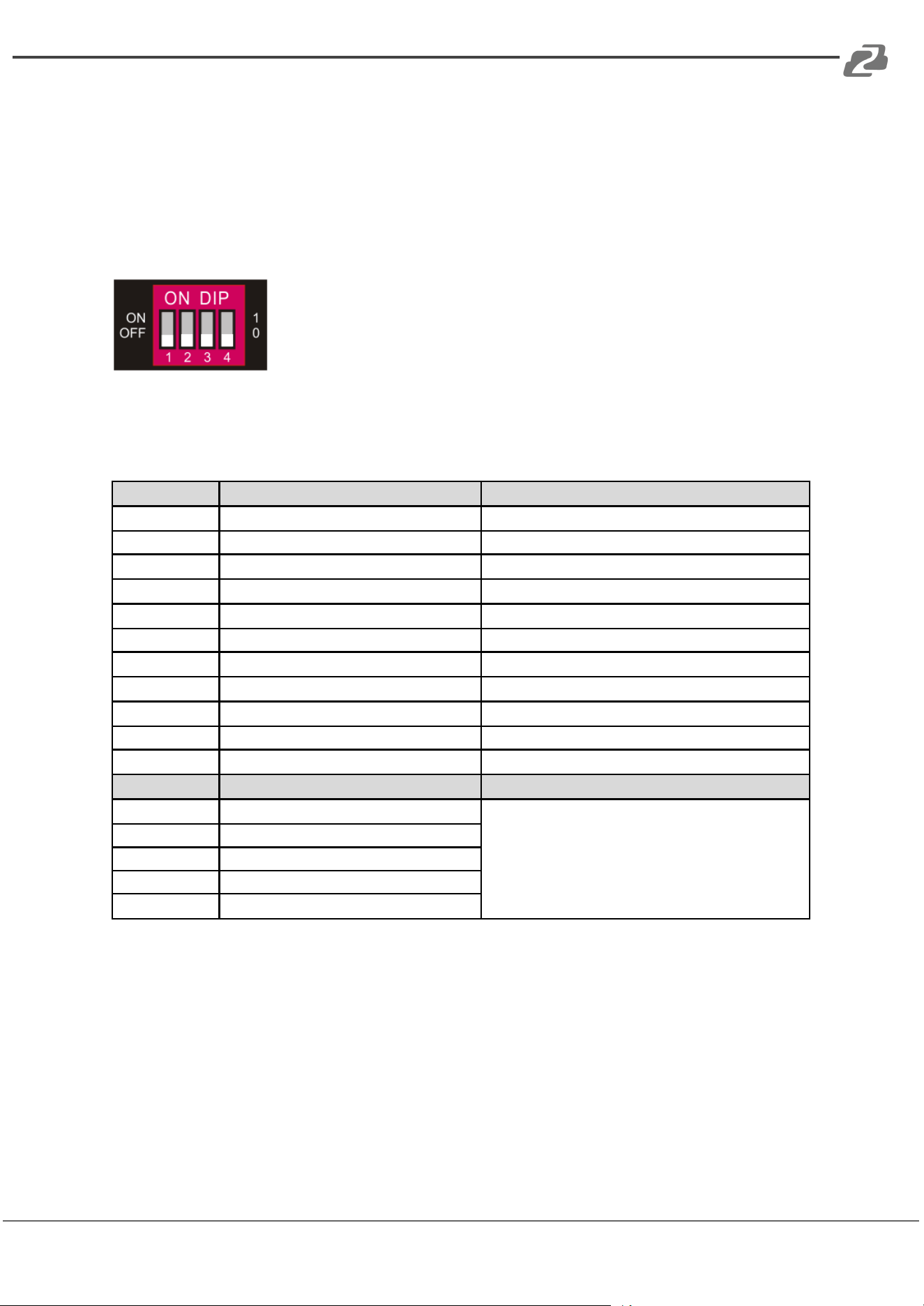
EDID Setting
The Extended Display Identification Data (EDID) is used by the source device to match its
video resolution with the connected display. The DIP switch on the front panel can be used
to set the EDID to a fixed value to ensure compatibility of video resolution between devices.
When the switch is set to “0” in the lower position it is OFF, and “1” while in the up position
the switch is considered ON.
Note: The EDID DIP switch can only be used for setting EDID of the HDMI source devices
and the USB-C source device will automatically gain the EDID of the display device.
Switch Status
Video Resolution
Audio Format
0000
EDID Pass-Through
-
0001
1280x720@60Hz
Stereo
0010
1920x1080@60Hz DVI
-
0011
1920x1080@60Hz 8bit
Stereo
0100
1920x1080@60Hz 8bit
High Definition
0101
1920x1200@60Hz 8bit
Stereo
0110
3840x2160@30Hz 8bit
Stereo
0111
3840x2160@30Hz 8bit
High Definition
1000
3840x2160@30Hz 8bit HDR
Stereo
1001
3840x2160@60Hz Deep Color
Stereo
1010
3840x2160@60Hz Deep Color HDR
High Definition
Switch Status
EDID
Note
1011
User-defined EDID 1
The five user-defined EDID can be uploaded by sending
RS232 command "#UPLOAD_USER_EDID [PARAM]",
please refer to the chapter Function Setting for more
details.
1100
User-defined EDID 2
1101
User-defined EDID 3
1110
User-defined EDID 4
1111
User-defined EDID 5
● Stereo: LPCM 2CH.
● High Definition Audio: LPCM 8Ch, AC-3 6Ch, DTS 5.1, Dolby Digital 5.1,
DTS-HD7.1, Dolby TrueHD 7.1
● Deep Color: 8bit, 10bit, 12bit
Address: 830 National Drive #140, Sacramento, CA 95834, USA · Tel: +1(888)499-9906 · Email: support@bzbgear.com 13
BZBGEAR BG-PS41-BYOD-4K PRODUCT MANUAL
RS232 Control
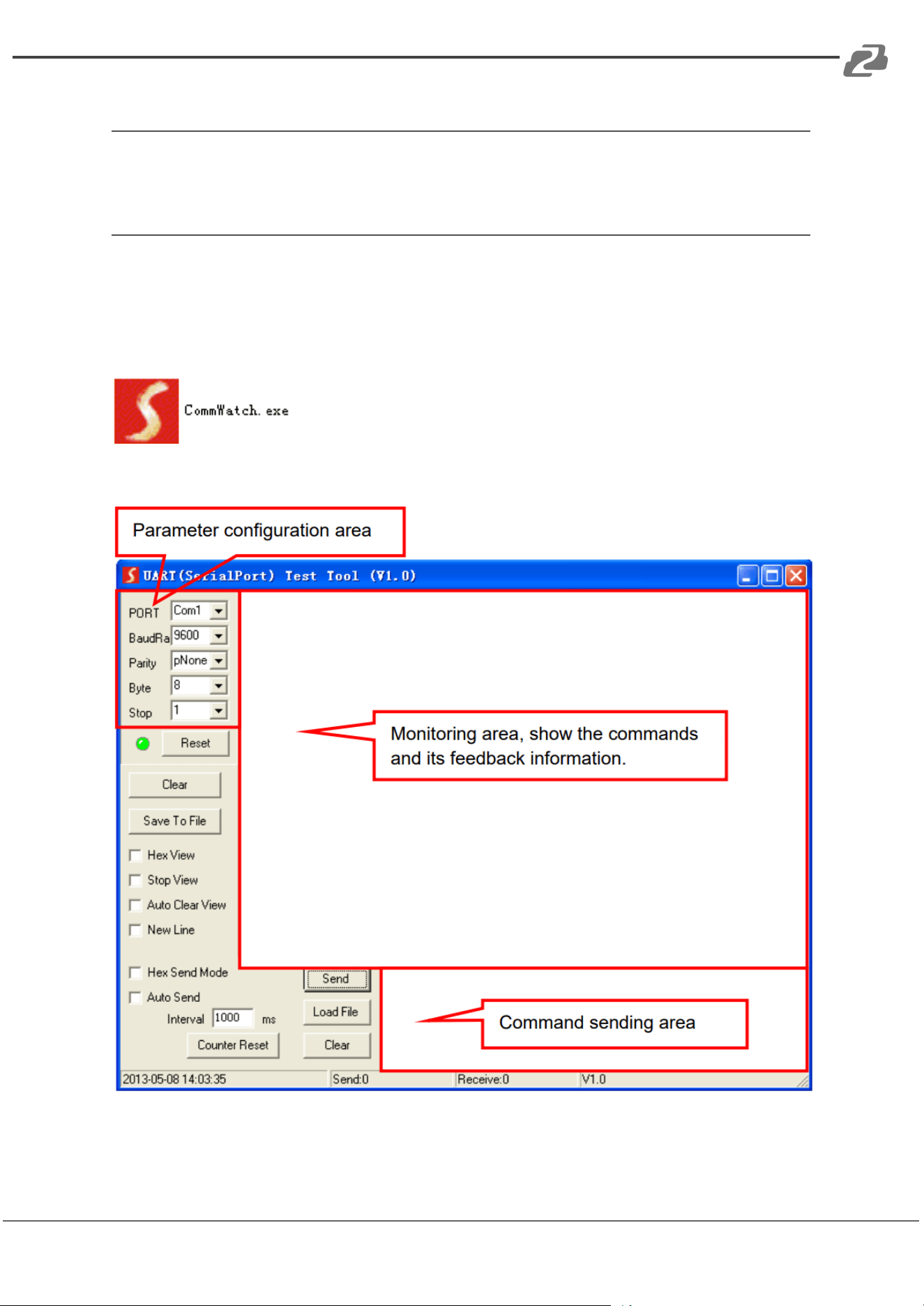
The switcher can be controlled by sending RS232 commands. Connect the RS232 port of
the BG-PS41-BYOD-4K to a control device such as a PC with a RS232 cable.
Basic Settings:
Connect the switcher with all input devices and output devices as needed. Next, connect
the unit to a PC that has RS232 control software installed.
This example uses CommWatch.exe but other RS232 control programs such as Access
Port or DockLite will also work:
The main screen for CommWatch is shown as below:
NOTE: You need to set the parameters for com port, baud rate, data bit, stop bit, and parity
bit correctly in any program to be able to connect to the device and send commands.
Address: 830 National Drive #140, Sacramento, CA 95834, USA · Tel: +1(888)499-9906 · Email: support@bzbgear.com 14
BZBGEAR BG-PS41-BYOD-4K PRODUCT MANUAL
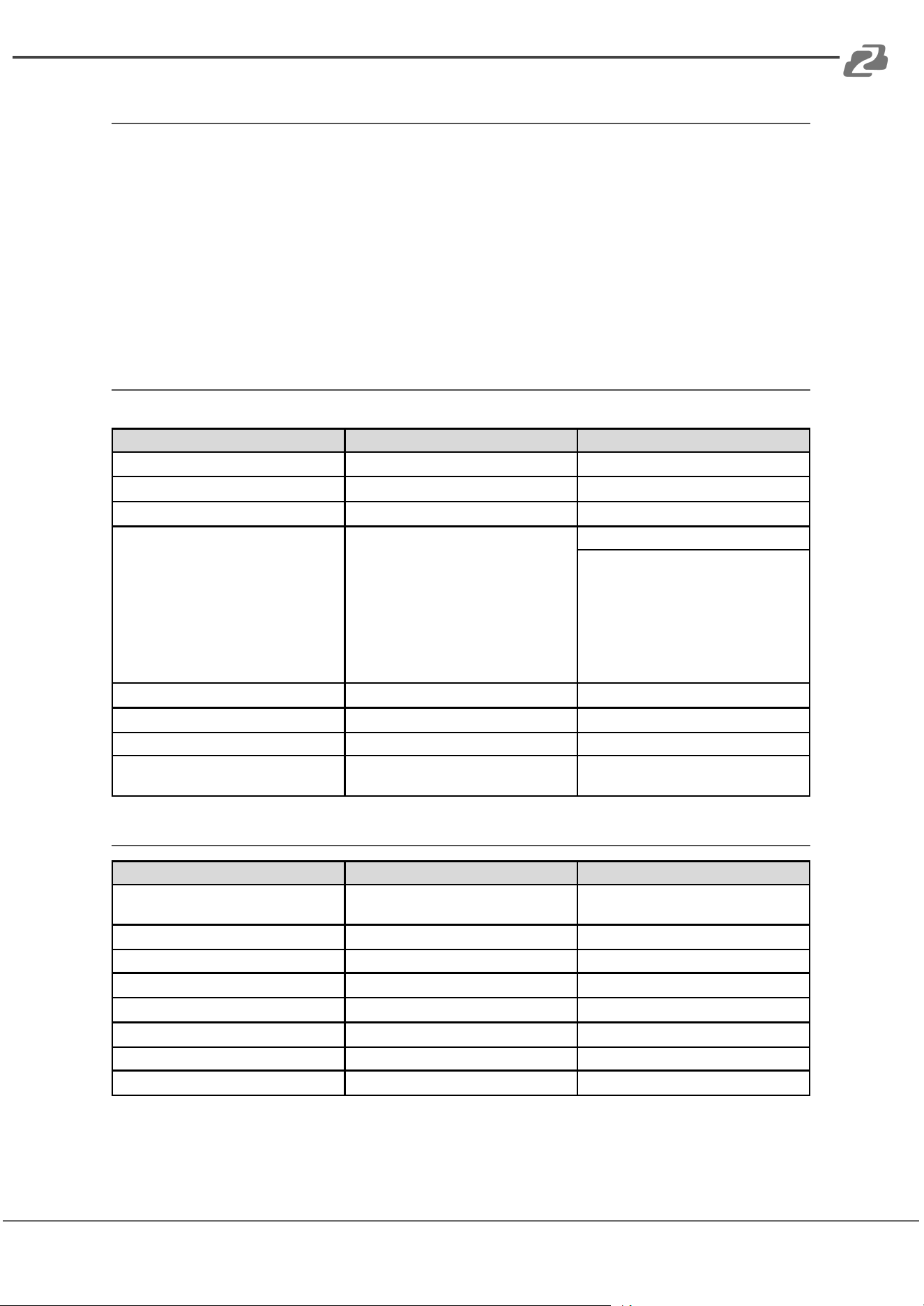
RS232 Command
Com PORT: determined by the PC (sometimes a program will automatically fill this section
but if it does not, the information can be found in Device Manager on Windows OS devices)
Baud rate: 9600
Data bit: 8
Stop bit: 1
Parity bit: none
System Control
The ending mark of command is “<CR><LF>”.
Command
Description
Command & Feedback Example
#GET_FIRMWARE_VERSION
Get the firmware version.
@V1.0.0
#FACTORY_RESET
Restore to factory defaults.
@FACTORY_RESET
#REBOOT
System reboot.
@REBOOT
#HELP [PARAM]
Get the command details.
• [PARAM]=Null; Get all command list.
• [PARAM]=Any command; Get the
English description and usage of the
command.
#HELP SET_AV
@SELECT VIDEO AND AUDIO INPUT
PORT
#SET_AV PARAM 1 PARAM=A,PC1
,PC2,PC3
A - Airplay/Miracast
PC1 - HDMI1
PC2 - HDMI2
PC3 - TYPE-C
#SET_RST_WIRELESS
Reset Airplay/Miracast power
@RESET WIRELESS DEVICE
#SET_KEYPAD_LOCK 1
Lock front panel buttons.
#SET_KEYPAD_LOCK 1
#SET_KEYPAD_LOCK 0
Unlock front panel buttons (Default).
#SET_KEYPAD_LOCK 0
#GET_KEYPAD_LOCK
Get the locking status of the front panel
buttons.
@KEYPAD_LOCK 1
Source Switching
Command
Description
Command & Feedback Example
#SET_AV A
Select the input source: Airplay/Miracast
(Default).
@AV Airplay/Miracast
#SET_AV PC1
Select the input source: PC1.
@AV PC1
#SET_AV PC2
Select the input source: PC2.
@AV PC2
#SET_AV PC3
Select the input source: PC3.
@AV PC3
#GET_AV
Get the current input source.
@AV PC1
#SET_A UT0_S WITC H 0
Disable auto-switching mode.
@AUTO_SWITCH 0
#SET_AUTO_SWITCH 1
Enable auto-switching mode.
@AUTO_SWITCH 1
#GET_AUTO_SWITCH
Get the auto-switching status.
@AUTO_SWITCH 1
Address: 830 National Drive #140, Sacramento, CA 95834, USA · Tel: +1(888)499-9906 · Email: support@bzbgear.com 15
BZBGEAR BG-PS41-BYOD-4K PRODUCT MANUAL
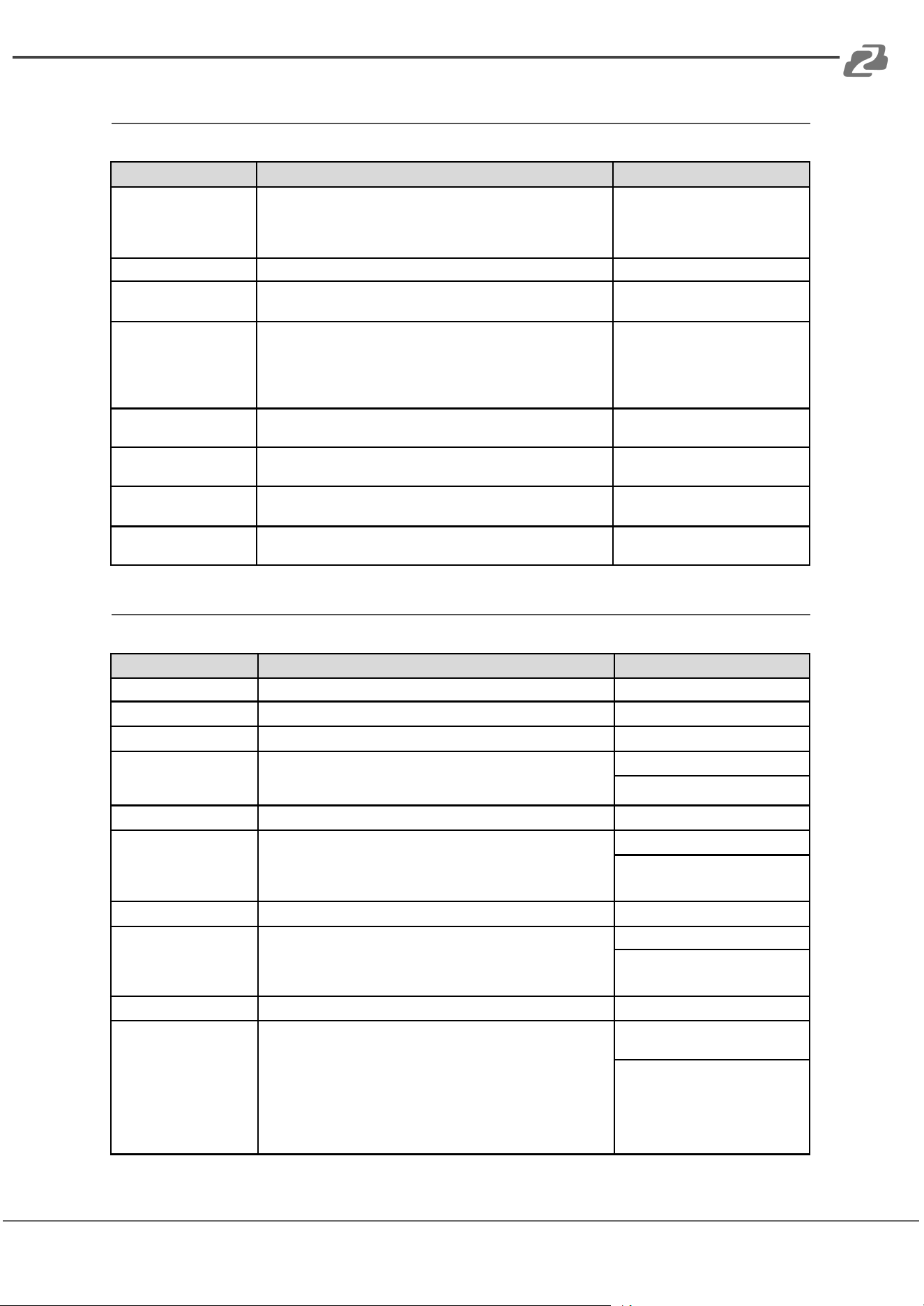
CEC/RS232 Function Setting
The ending mark of command is “<CR><LF>”.
Command
Function
Command & Feedback Example
#SET_SYNCACT_CEC 1
Enable the function of automatically sending CEC commands.
When detecting a video input signal or not detecting any video
signal, the switcher will automatically send the corresponding
CEC command to control the display device.
@SYNCACT_CEC 1
#SET_SYNCACT_CEC 0
Disable the function of automatically sending CEC commands.
@SYNCACT_CEC 0
#GET_SYNCACT_CEC
Get the function setting status of automatically sending CEC
commands.
@SYNCACT_CEC 1
#SET_SYNCACT_RS232
1
Enable the function of automatically sending RS232
commands.
When detecting a video input signal or not detecting any video
signal, the switcher will automatically send the corresponding
RS232 command to control the display device.
@SYNCACT_RS232 1
#SET_SYNCACT_RS232
0
Disable the function of automatically sending RS232
commands.
@SYNCACT_RS232 0
#GET_SYNCACT_RS232
Get the function setting status of automatically sending RS232
commands.
@SYNCACT_RS232 1
#SET_DISPLAY 1
Power on display device (Simultaneously sending CEC and
RS232 commands to display device).
@DISPLAY 1
#SET_DISPLAY 0
Power off display device (Simultaneously sending CEC and
RS232 commands to display device).
@DISPLAY 0
Function Setting
The ending mark of command is “<CR><LF>”.
Command
Description
Command & Feedback Example
#SET_OFF_CNT 1
Set the number of sending DISPLAY OFF command to 1 time.
@OFF_CNT 1
#SET_OFF_CNT 2
Set the number of sending DISPLAY OFF command to 2 times.
@OFF_CNT 2
#GET_OFF_CNT
Get the number of sending DISPLAY OFF command.
@OFF_CNT 1
#SET_OFF_DELAY
[PARAM]
Set the delay time of sending DISPLAY OFF command to
[PARAM].
[PARAM]=5~100 (1=100ms).
#SET_OFF_DELAY5
@OFF_DELAY 5
#GET_OFF_DELAY
Get the delay time of sending DISPLAY OFF command.
@OFF_DELAY 5
#SET_OUTPUT_HDCP
[PARAM]
Set the HDCP mode of output port to [PARAM]. [PARAM]=1-3:
1 - ACTIVE
2- ON
3- OFF
#SET_OUTPUT_HDCP 1
@OUTPUT_HDCP 1
#GET_OUTPUT_HDCP
Get the HDCP mode of output port.
@OUTPUT_HDCP 1
#SET_SW_HDCP_MODE
[PARAM]
Switch the input ports to support HDCP2.2 status. [PARAM]=
0/1.
0 - UNSUPPORT HDCP2.2
1 - SUPPORT HDCP2.2
#S ET_S W_H D C P_M ODE 1
@SW_HDCP_MODE 1
#GET_SW_HDCP_MODE
Get the HDCP2.2 status of input ports.
@SW_HDCP_MODE 1
#UPLOAD_USER_EDID
[PARAM]
Upload the user-defined EDID [PARAM], PARAM = 1 ~ 5
1 - User-defined EDID 1
2 - User-defined EDID 2
3 - User-defined EDID 3
4 - User-defined EDID 4
5 - User-defined EDID 5
When the command applied, system prompts to upload the
EDID file (.bin). Operation will be canceled in 10 seconds.
#UPLOAD_USER_EDID
1
@USER_EDID 1 READY PLEASE
SEND EDID DATA IN 10S
OK/ERROR
Address: 830 National Drive #140, Sacramento, CA 95834, USA · Tel: +1(888)499-9906 · Email: support@bzbgear.com 16
BZBGEAR BG-PS41-BYOD-4K PRODUCT MANUAL
Command
Description
Command & Feedback Example
#SET_DTIME [PARAM1]:
[PARAM2]
When not detecting a video input signal, set the auto power-off
time of the display device to [PARAM1]: [PARAM2], The default
time is 10 minutes.
[PARAM1]=0~30 minutes.
[PARAM2]=0~1800 seconds.
#SET_DTIME 1:30
@DTIME 1:30
#GET_DTIME
Get the auto power-off time of the display device.
@DTIME 30:0
Special Commands
Note: The below commands don’t need an ending mark
Command
Description
Command & Feedback Example
#SET_ON_[PARAM1]_
[PARAM2]:XXXX
Set the ASCII RS232 command XXXX to be sent to control the
third-party device when the DISPLAY ON button is pressed.
● [PARAM1] = 00~06 (Baud Rate)
00 - 115200
01 - 57600
02 - 38400
03 - 19200
04 - 9600
05 - 4800
06 - 2400
● [PARAM2] = 00~99. The delay time of sending command.
● XXXX: Any ASCII code (up to 48 bytes).
#SET_ON_05_30:123456 7
@BAUDRATE: 4800 @DELAY
TIME: 30 s @DISPLAY ON TO
SEND:1234567
#SET_H_ON_[PARAM1]_
[PARAM2]:XX XX
Set the HEX RS232 command XX XX to be sent to control the
third-party device when the DISPLAY ON button is pressed.
● [PARAM1] = 00~06 (Baud Rate)
00 - 115200
01 - 57600
02 - 38400
03 - 19200
04 - 9600
05 - 4800
06 - 2400
● [PARAM2] = 00~99. The delay time of sending command.
● XX XX: Any HEX code (0-9, A-F; up to 20 bytes. It must
have a blank between 2 different XX).
#SET_H_ON_05_30:31
32 33 34 35
@BAUDRATE: 4800
@DELAY TIME: 30 s
@DISPLAY ON HEX TO
SEND:31 32 33 34 35
#SET_OF_[PARAM1]_
[PARAM2]:XXXX
Set the ASCII RS232 command XXXX to be sent to control the
third-party device when the DISPLAY OFF button is pressed.
● [PARAM1] = 00~06 (Baud Rate)
00 - 115200
01 - 57600
02 - 38400
03 - 19200
04 - 9600
05 - 4800
06 - 2400
● [PARAM2] = 00~99. The delay time of sending command.
● XXXX: Any ASCII code (up to 48 bytes)
#SET_OF_05_30:ABCDE
FG
@BAUDRATE: 4800
@DELAY TIME: 30 s
@DISPLAY OFF TO
SEND:ABCDEFG
#SET_H_OF_[PARAM1]_
[PARAM2]:XX XX
Set the HEX RS232 command XX XX to be sent to control the
third-party device when the DISPLAY OFF button is pressed.
● [PARAM1] = 00~06 (Baud Rate)
00 - 115200
01 - 57600
02 - 38400
03 - 19200
04 - 9600
05 - 4800
06 - 2400
● [PARAM2] = 00~99. The delay time of sending command.
● XX XX: Any HEX code (0-9, A-F; up to 20 bytes. It must
have a blank between 2 different XX).
#SET_H_OF_05_30:41
42 43 44 45
@BAUDRATE: 4800
@DELAY TIME: 30 s
@DISPLAY OFF HEX TO
SEND:41 42 43 44 45
Address: 830 National Drive #140, Sacramento, CA 95834, USA · Tel: +1(888)499-9906 · Email: support@bzbgear.com 17

BZBGEAR BG-PS41-BYOD-4K PRODUCT MANUAL
Firmware Upgrade
Please follow the steps below to upgrade the firmware using the FW port on the rear panel:
1) Prepare the latest upgrade file (.bin) and rename it as “FW_MERG.bin” on a PC.
2) Power off the switcher and connect the FW port of the switcher to the PC with a
USB cable.
3) Power on the switcher and then the PC will automatically detect a U-disk named
“BOOTDISK”.
4) Double-click the U-disk and a file named of “READY.TXT” would be shown.
5) Directly copy the latest upgrade file (.bin) to the “BOOTDISK” U-disk.
6) Close and Reopen the U-disk to check if the filename “READY.TXT” changed to
“SUCCESS.TXT”, if yes, the firmware was updated successfully, otherwise, the
firmware update failed. Check the name of the upgrade file (.bin) and then follow the
above steps to attempt to update again.
7) Remove the USB cable after firmware upgrade.
8) After the firmware upgrade is complete, factory restore the unit using RS232
commands.
Address: 830 National Drive #140, Sacramento, CA 95834, USA · Tel: +1(888)499-9906 · Email: support@bzbgear.com 18
BZBGEAR BG-PS41-BYOD-4K PRODUCT MANUAL
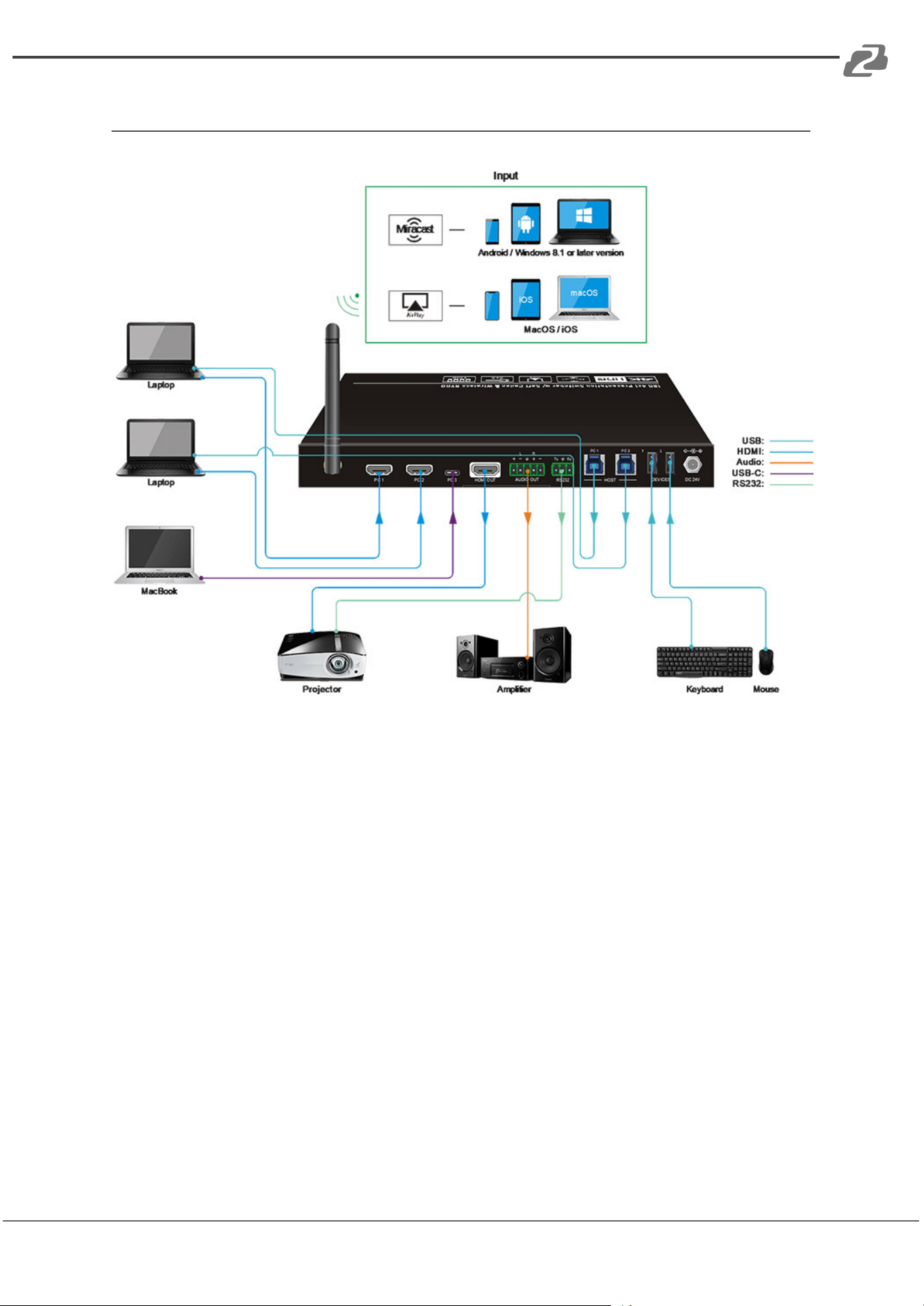
Application Example
Address: 830 National Drive #140, Sacramento, CA 95834, USA · Tel: +1(888)499-9906 · Email: support@bzbgear.com 19

BZBGEAR BG-PS41-BYOD-4K PRODUCT MANUAL
Tech Support
Have technical questions? We may have answered them already!
Please visit BZBGEAR’s support page (bzbgear.com/support) for helpful information and
tips regarding our products. Here you will find our Knowledge Base
(bzbgear.com/knowledge-base) with detailed tutorials, quick start guides, and step-by-step
troubleshooting instructions. Or explore our YouTube channel, BZB TV
(youtube.com/c/BZBTVchannel), for help setting up, configuring, and other helpful how-to
videos about our gear.
Need more in-depth support? Connect with one of our technical specialists directly:
Phone
1.888.499.9906
Email
support@bzbgear.com
Live Chat
bzbgear.com
Limited Product Warranty Terms
Pro Line: 5-year warranty from the date of purchase for AV/Broadcasting products bought
on or after August 1, 2024.
Essential Line: 3-year warranty from the date of purchase for AV/Broadcasting products
bought on or after August 1, 2024.
Cables: Lifetime Limited Product Warranty.
For complete warranty information, please visit bzbgear.com/warranty.
For questions, please call 1.888.499.9906 or email support@bzbgear.com.
Mission Statement
BZBGEAR is a breakthrough manufacturer of high-quality, innovative audiovisual equipment
ranging from AVoIP, professional broadcasting, conferencing, home theater, to live
streaming solutions. We pride ourselves on unparalleled customer support and services.
Our team offers system design consultation, and highly reviewed technical support for all
the products in our catalog. BZBGEAR delivers quality products designed with users in
mind.
Copyright
All the contents in this manual and its copyright are owned by BZBGEAR. No one is allowed
to imitate, copy, or translate this manual without BZBGEAR’s permission. This manual
contains no guarantee, standpoint expression or other implies in any form. Product
specification and information in this manual is for reference only and subject to change
without notice.
All rights reserved. No reproducing is allowed without acknowledgement.
Address: 830 National Drive #140, Sacramento, CA 95834, USA · Tel: +1(888)499-9906 · Email: support@bzbgear.com 20
