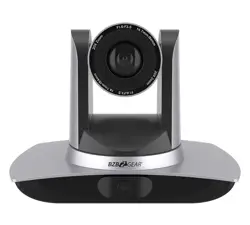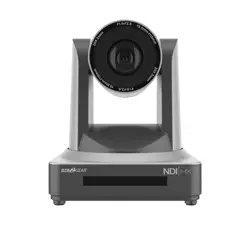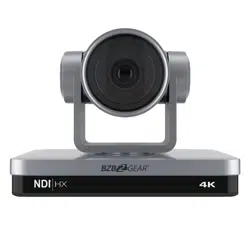
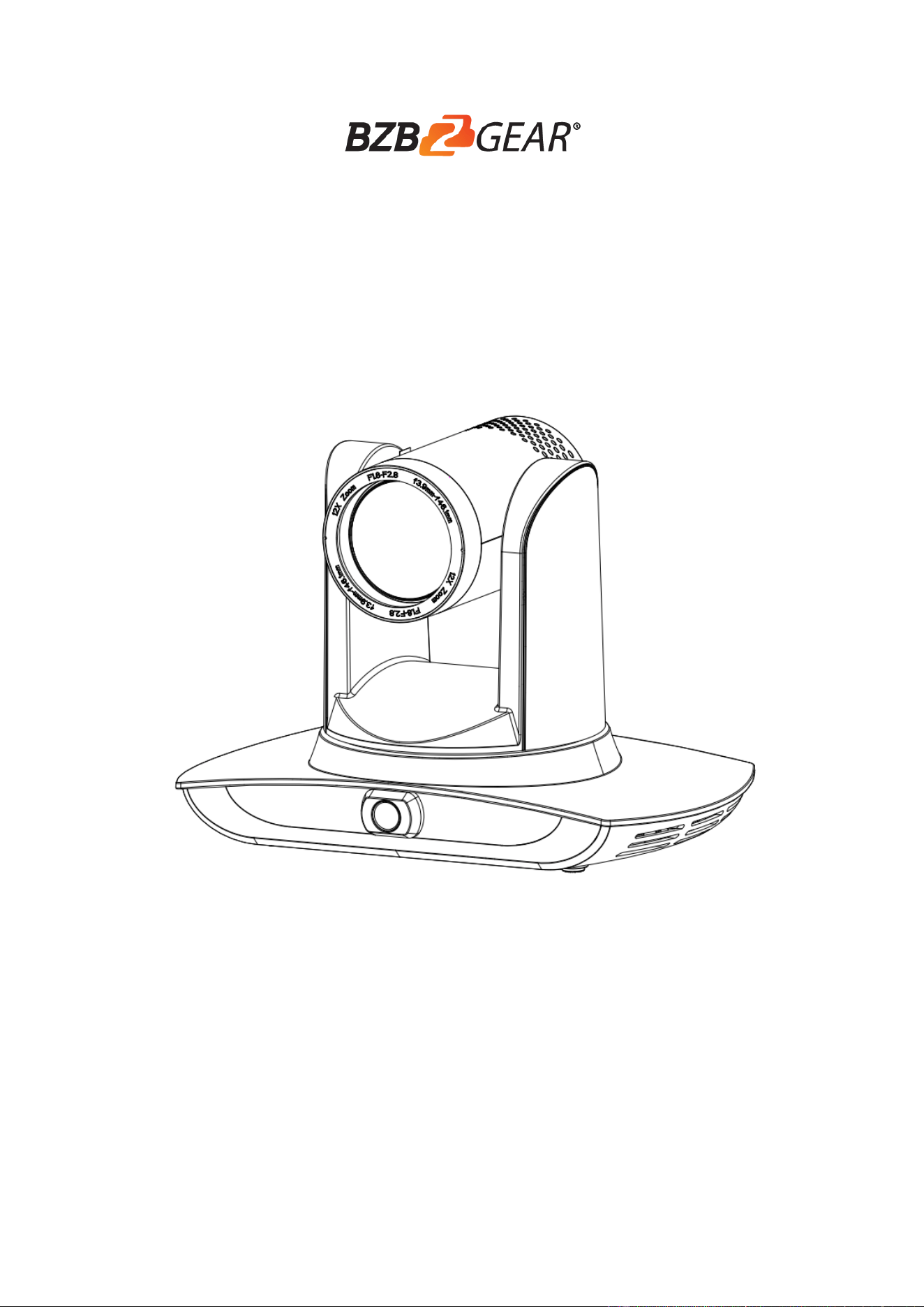
BG-LVUPTZ-12XHUS / BG-LVUPTZ-20XHUS
Operation Manual for Teacher Tracking Camera
2
Precautions
This manual details functions, installation, operation principles and methods of
teacher tracking camera. Please read this manual carefully before installation and
use.
1. How to use
In order to prevent this product or products connected to it from being damaged, please use
it within its prescribed scope of use.
1) Keep the device from rain or moisture;
2) To prevent electric shock, do not open the main case; only qualified technicians are
allowed to install or maintain the device;
3) Do not use the device beyond scope of its temperature, humidity or power supply
specification;
4) When cleaning the camera lens, swipe it with dry soft cloth. If dirt is hard to be
removed, please swipe clean gently with mild detergent. Do not use strong or corrosive
detergent, for it may scratch the lens and thus affect image result;
2. Electrical safety
Installation and use of this product shall be in strict accordance with safety standards for
electricity.
3. Careful handing
Avoid damage to product caused by heavy pressure, strong vibration or immersion during
transportation, storage and installation.
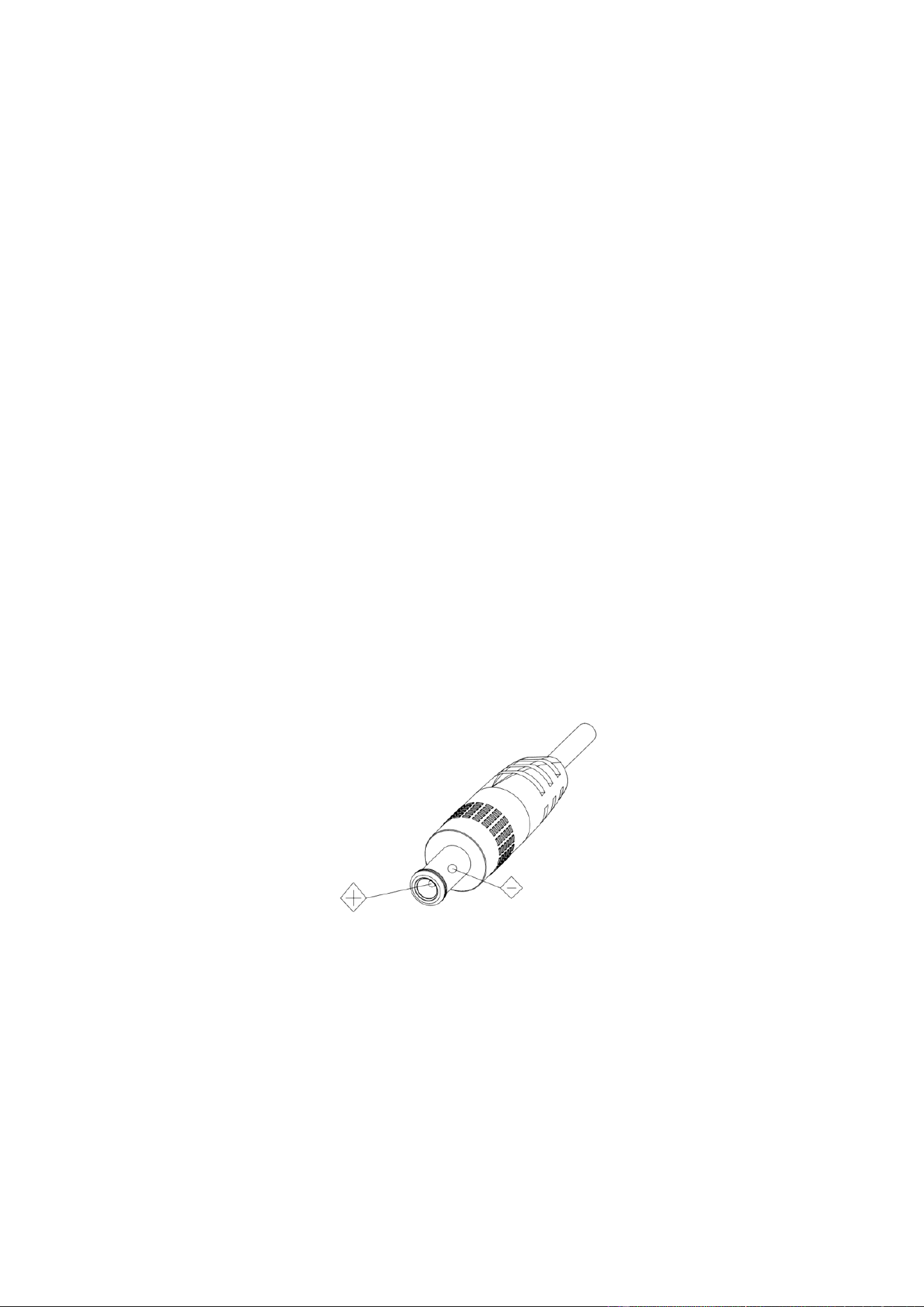
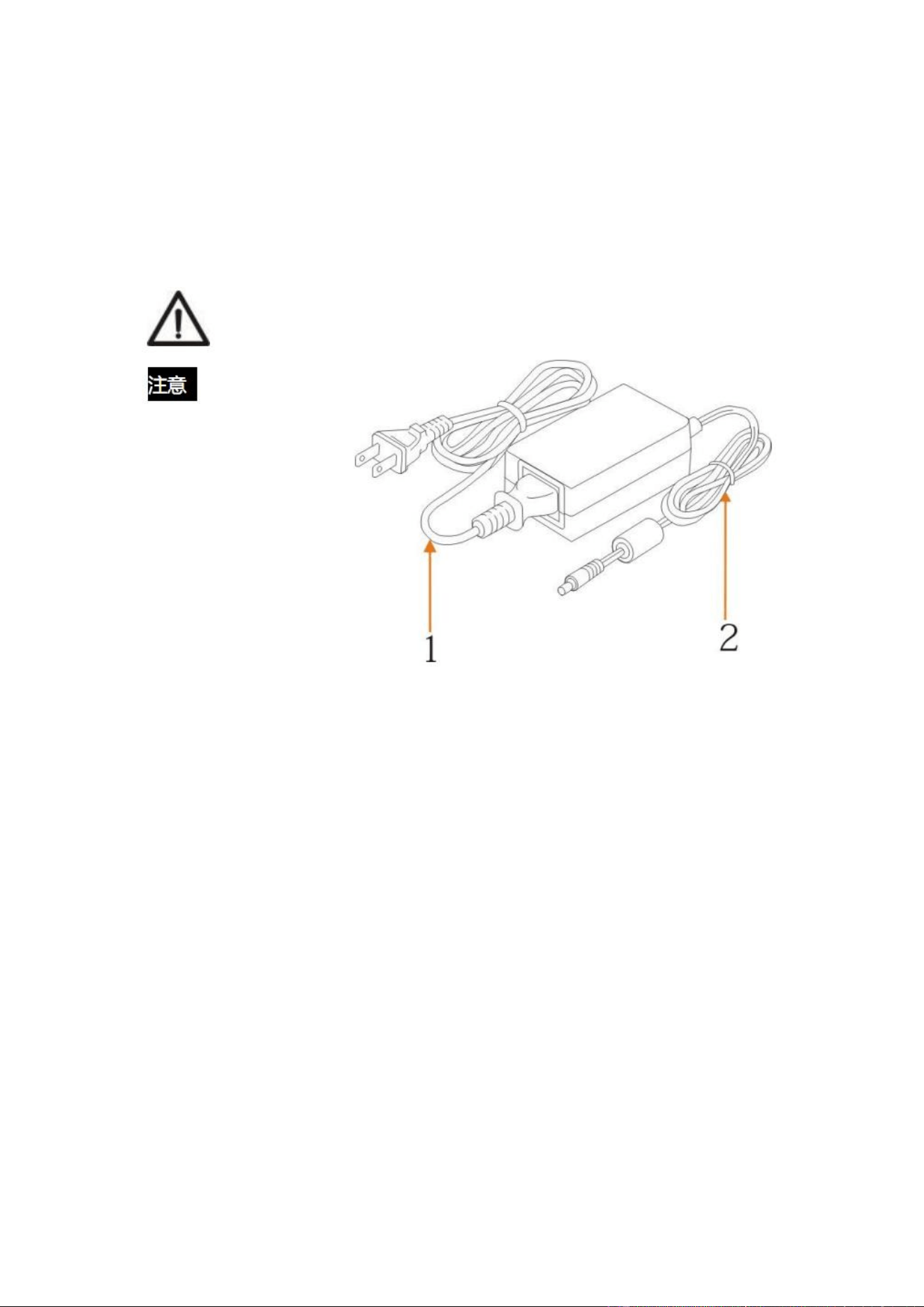
4. Power supply polarity
This product applies DC 12V power supply. Power plug polarity is shown as follows:
5. Install with caution
1) Do not rotate the camera head violently, otherwise it may cause mechanical
malfunction;
2) This product should be placed on a stable desktop or other horizontal surfaces. Do not
install the product obliquely, otherwise it may display inclined image;
3) When installing the camera on TV or personal computer, use four double faced
adhesive pads at the bottom for fixing;
4) This product shell is made of organic materials. Do not expose it to any liquid, gas or
solids which may corrode the shell.
5) During installation, ensure that there are no obstacles within rotation range of the
holder;
6) Do not power on before finishing installation;
3
6. Do not dismantle the product without permission
This product contains no parts which can be maintained by users. Any damage arising from
dismantling the product by user without permission will not be included in warranty.
7. Magnetic field interference
Magnetic field under specific frequency may affect this product image; this is Class A
product. Application in domestic environment may cause radio interference. Therefore,
user should take corresponding measures.
If it is needed to extend power line of the camera, extend it from terminal 1
(220V/110V) rather than terminal 2 (DC12V), otherwise it will prevent the
device from functioning!
Package Contents
1x Camera unit
1x Power supply
1x USB 3.0 cable
1x RS-232 cable
1x Remote control
1x User manual

4
Table of Contents
Precautions .................................................................................................................................. 2
1 System overview....................................................................................................................... 5
1.1 System introduction ........................................................................................................ 5
1.2 Product advantages ......................................................................................................... 5
1.3 Product features.............................................................................................................. 6
2 Port introduction ....................................................................................................................... 6
3 Dimensions ............................................................................................................................... 8
4 System connection .................................................................................................................... 9
4.1 Installation layout ........................................................................................................... 9
4.2 System wiring .............................................................................................................. 10
5 Configuration tools ................................................................................................................. 10
5.1 Set IP address of the tracking machine .......................................................................... 10
5.2 Configure tracking parameters ...................................................................................... 11
5.3 Network update ............................................................................................................ 17
6 Description of recording and broadcasting host ....................................................................... 18
6.1 Auto tracking control ................................................................................................................ 18
6.2 Action code docking.................................................................................................................. 19
7 Description of remote control .................................................................................................. 21
7.1. Description of keys .................................................................................................................. 21
7.2 Use remote control.................................................................................................................... 22
8 Set menu ................................................................................................................................. 23
8. 1 Main menu ............................................................................................................................... 23
8.2 System parameter settings ........................................................................................................ 24
8. 3 Camera parameter settings ..................................................................................................... 24
8. 4 P/T/Z ........................................................................................................................................ 27
8. 5 Video format ............................................................................................................................ 28
8. 6 Version ..................................................................................................................................... 28
8. 7 Restore default ......................................................................................................................... 28
9 Technical parameters............................................................................................................... 29
10 VISCA protocol command list............................................................................................... 30
11 Pelco-D protocol command list ............................................................................................. 36
12 Pelco-P protocol command list .............................................................................................. 37
13 Maintenance and troubleshooting .......................................................................................... 38
13.1 Maintenance ............................................................................................................... 38
13.2 Troubleshooting.......................................................................................................... 38
14 Warranty ............................................................................................................................... 40
15 Mission Statement................................................................................................................. 40
Copyright statement ................................................................................................................... 40
5
1 System overview
1.1 System introduction
Teaching tracking camera system solution is a dedicated smart camera solution leading in
international education information industry.
Teaching tracking camera products feature built-in high speed processor and advanced image
processing and analytical algorithm, which allows it to track and detect teachers, students and
blackboard-writing accurately and quickly. It fully satisfies all scenario demand by recorded
broadcasting of teaching and remote interactive teaching.
Teaching tracking camera products adopt advanced ISP processing technique and algorithm,
producing vivid images which feature balanced brightness, distinct layering, high definition and
color reducibility.
Teaching tracking camera products are characterized by improved function, high performance,
reliable operation, simple use and easy maintenance.
1.2 Product advantages
Full-scene solution: Different product combinations satisfy different scenario demands;
Networked control interface: Control information of all products will be transmitted via network, and it is
suitable for product layout for all scenarios;
Recognition algorithm unrelated to location: Status detection and recognition of teachers and students adopt
unique smart partitioning algorithm to ensure that the result of detection and recognition is unrelated to location;
Free installation: It supports both front installation and upside down installation;
It supports 5G WiFi transmission mode
All-in-one design: The built-in panoramic lens allow perfect combination of panoramic lens and tracking
camera;
Sophisticated tracking algorithm: It applies sophisticated human detection, locking and tracking image
processing and analytical algorithm (smart image recognition library, scene adaptive algorithm) and achieves
stable, fast and accurate target tracking;
High immunity from interference: More diversified and flexible recognition shield settings ensure that once
tracking target is locked, it will not be affected by other moving object or projector;
Stable tracking: Movement sensitivity is adjustable. When tracking slight movement of target or hand
movement, it will not cause wrong operation of the camera;
Self-adaptive image: The tracking camera zooms depending on distance to target so that the visual image
maintains proper size and scale;
High environmental suitability: Tracking result will not be affected by classroom size, shape or seat
arrangement;
Super wide dynamic exposure: It solves the issue that tracking object dims in strong light such as projector.
6
1.3 Product features
Full HD image: With 1/2.8 inch high quality image sensor, its maximum resolution ratio reaches1920x1080;
Multiple optical zoom lens: 12X and 20X optical zoom lens are available. The lens features 72.5°
distortionless wide viewing angle;
Advanced focusing technique: The advanced automatic focusing algorithm allows automatic focusing be
done quickly, accurately and steadily;
Low noise high signal to noise ratio: Low noise CMOS ensures super high signal to noise ratio of video taken
by the camera. With advanced 2D and 3D noise reduction technology, noise is reduced and image resolution
is guaranteed.
Audio input port: It supports 16000, 32000, 44100, 48000 sampling frequency and AAC, MP3 and G.711A
audio coding;
Super quiet holder: High precision stepping motor and precision motor driven controller ensure the holder
operate at low and stable speed without noise;
Multiple video compression standards: It supports H.265/H.264 video compression;
Multiple networking protocol: It supports ONVIF, GB/T28181, RTSP, RTMP protocol and RTMP push mode;
Sleep mode: It supports low-power consumption sleep/wake up mode. Power consumption in sleep mode is
lower than 400mW;
Multiple control protocol: It supports VISCA, PELCO-D, PELCO-P protocol, automatic recognition protocol
and all command VISCA control protocol;
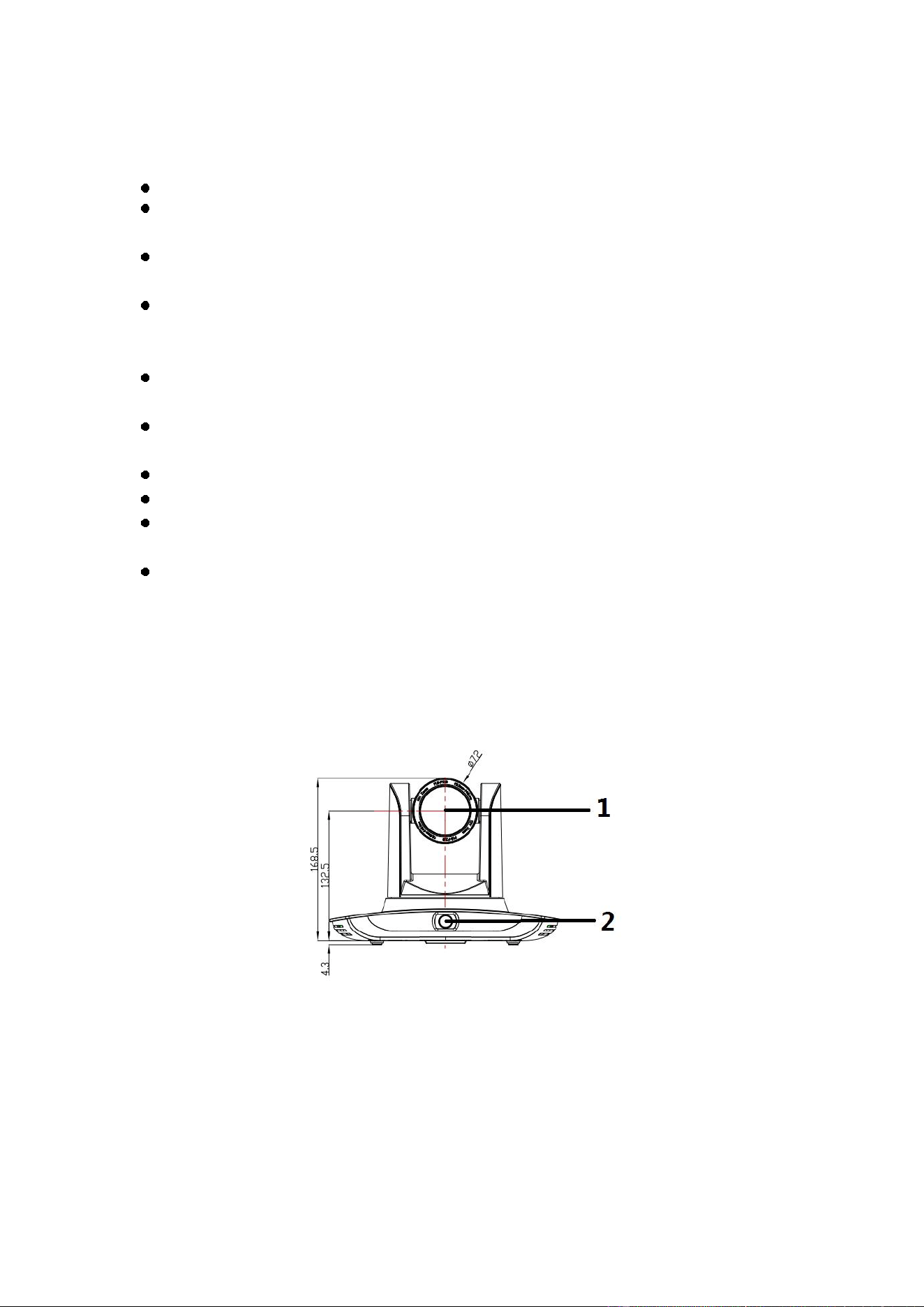
2 Port introduction
Front view

7
No.
Port
Definition
1
DTR
Data Terminal Ready
2
DSR
Data Set Ready
3
TXD
Transmit Data
4
GND
Signal ground
5
RXD
Receive Data
6
GND
Signal ground
7
IR OUT
IR Commander Signal IR
8
NC
No Connection
8
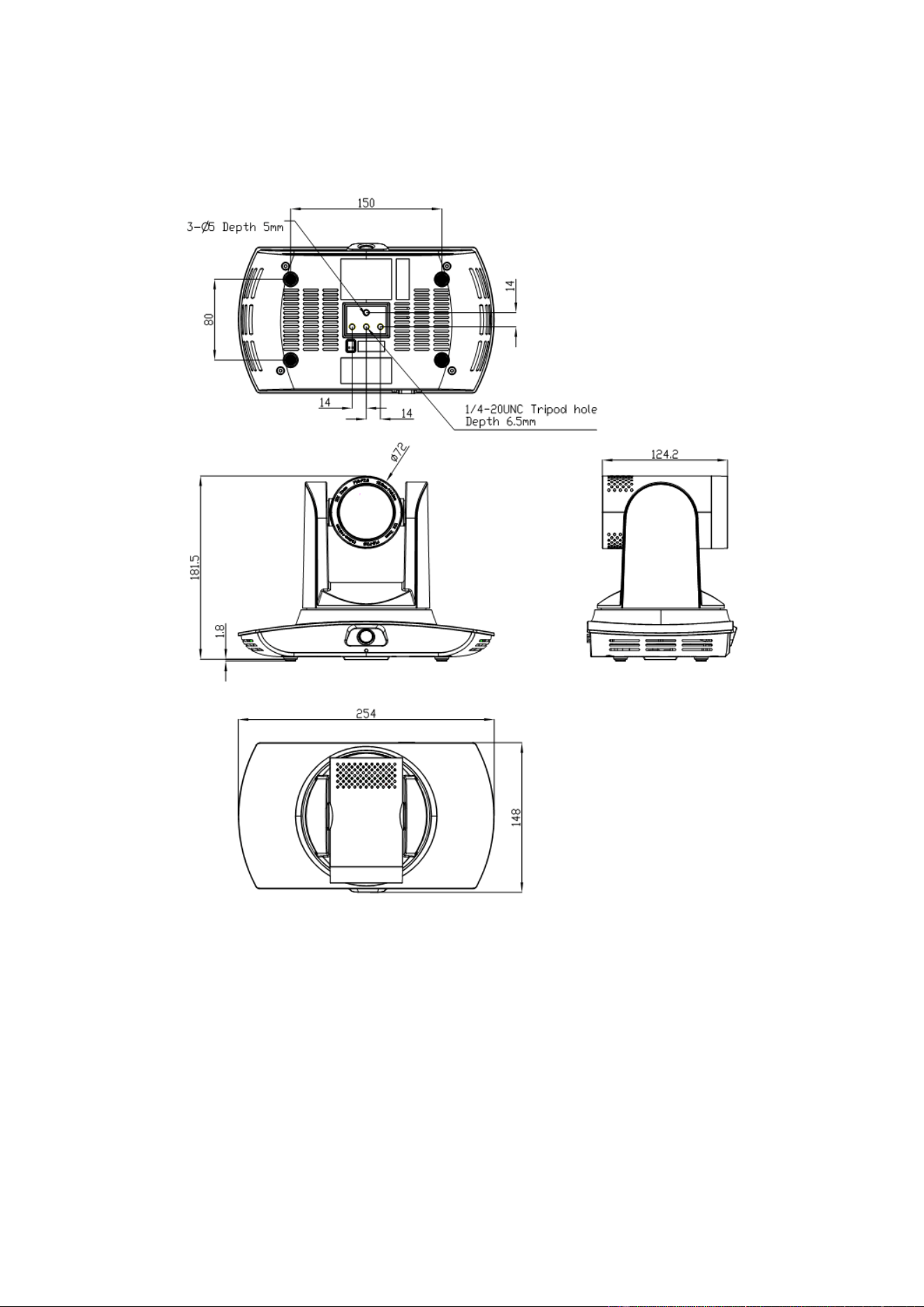
3 Dimensions
9
4 System connection
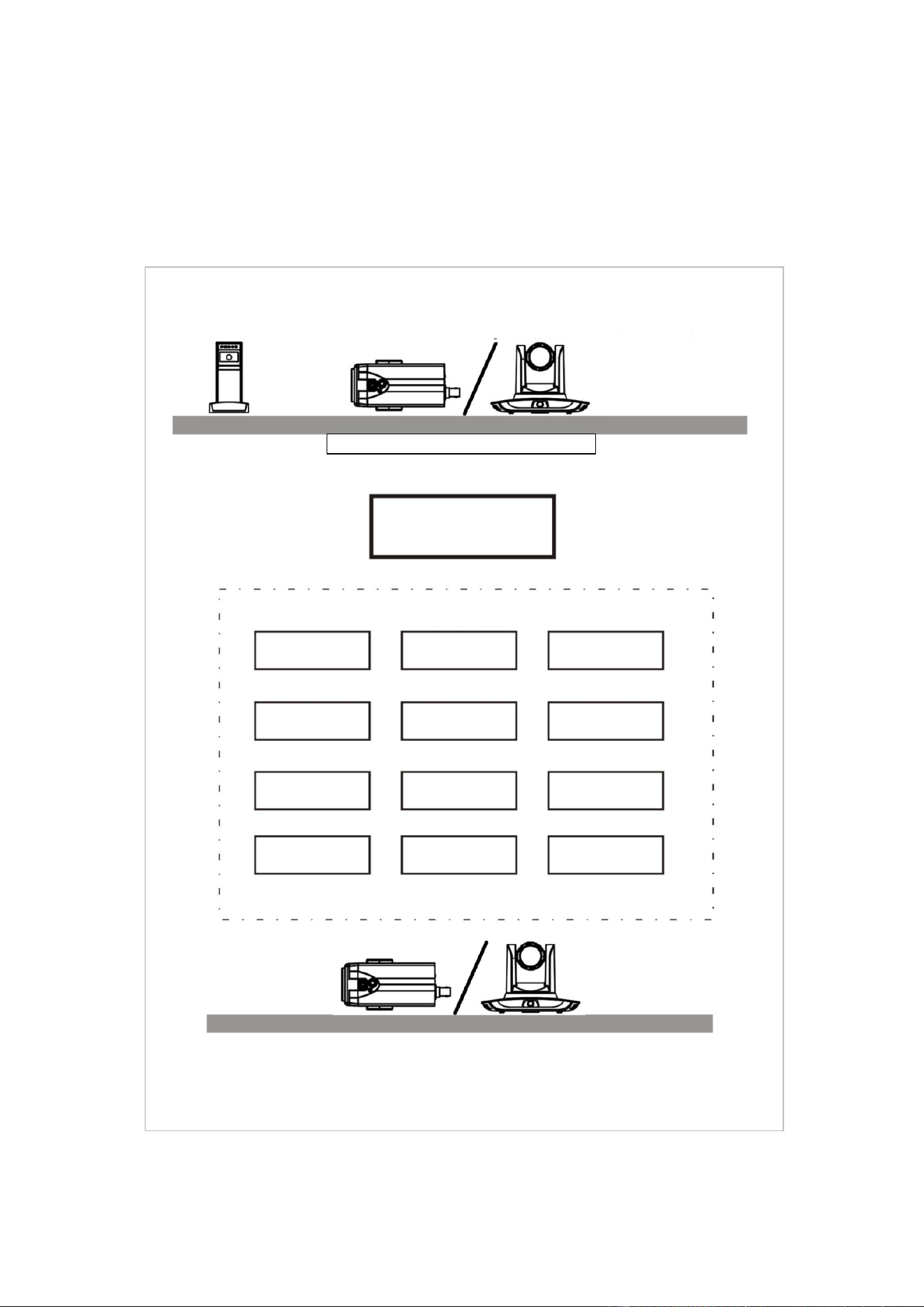
4.1 Installation layout
Space for blackboard-
writing detection and
camera installation
Space for installation of student-tracking
camera, student status detection camera
and student binocular camera
Blackboard
Platform
Student area
Space for installation of teacher tracking camera,
teacher status detection camera and teacher
binocular camera
10
Teacher tracking camera is installed at place 1.8-2.5m from ground (distance from panoramic
lens to ground), 5-15m from blackboard (when the distance is 5-9m, 4mm panoramic lens is
recommended; when distance is 9-15m, 6mm panoramic lens is recommended). Teacher
tracking camera should be installed near central axis of the classroom as much as possible to
get the best result of tracking camera shooting.
5 Configuration tools
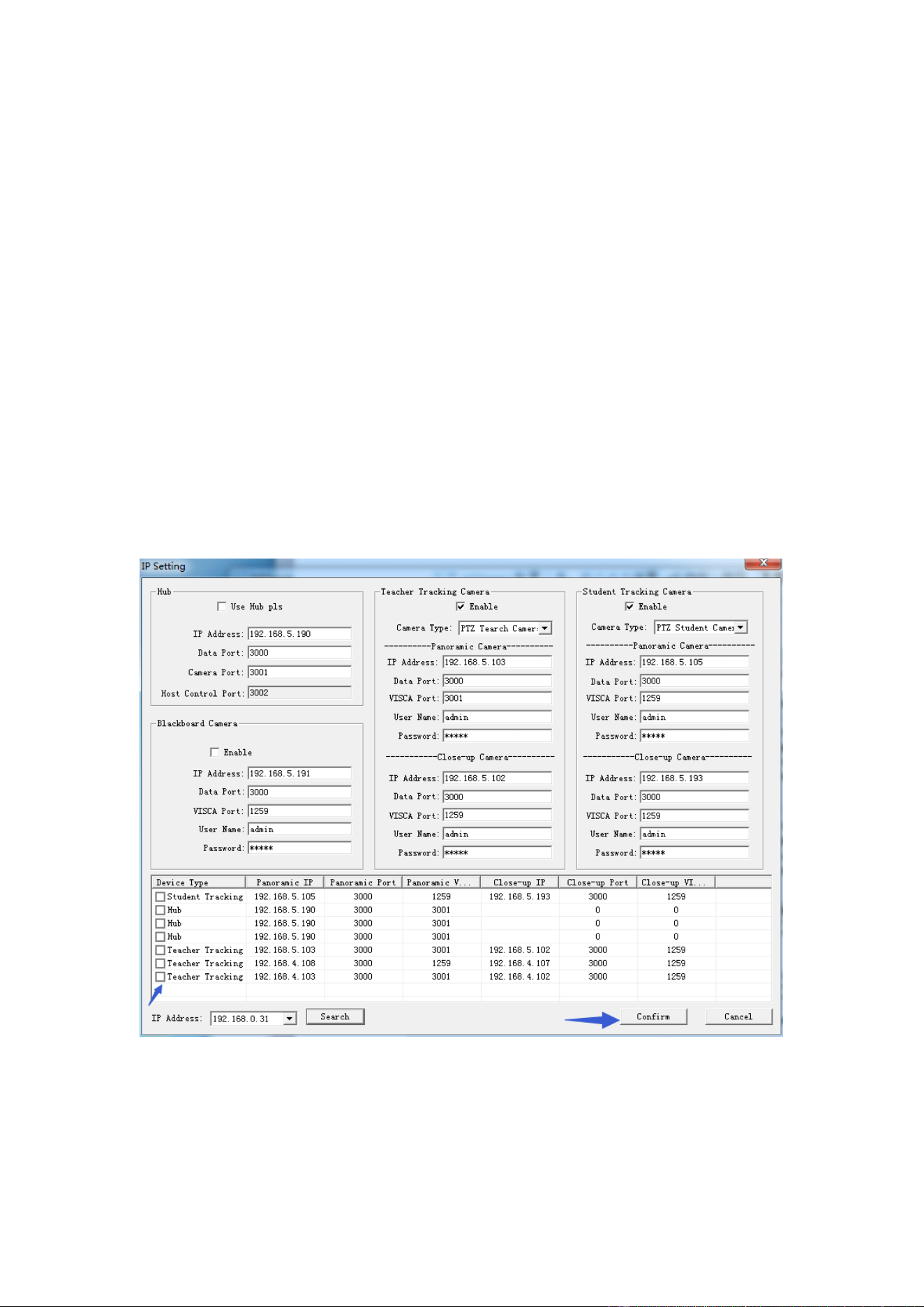
5.1 Set IP address of the tracking machine
Open IVESmart configuration tool, click Settings -> IP address -> Search successively (refer to
Figure 5.1-1 for details), the configuration interface will display all valid devices in the LAN, check
type of device to be configured and click Confirm. Note: Computer for operating IVESmart tool
should be in the same LAN with camera configured.
Figure 5.1-1 Operation interface
11
5.2 Configure tracking parameters
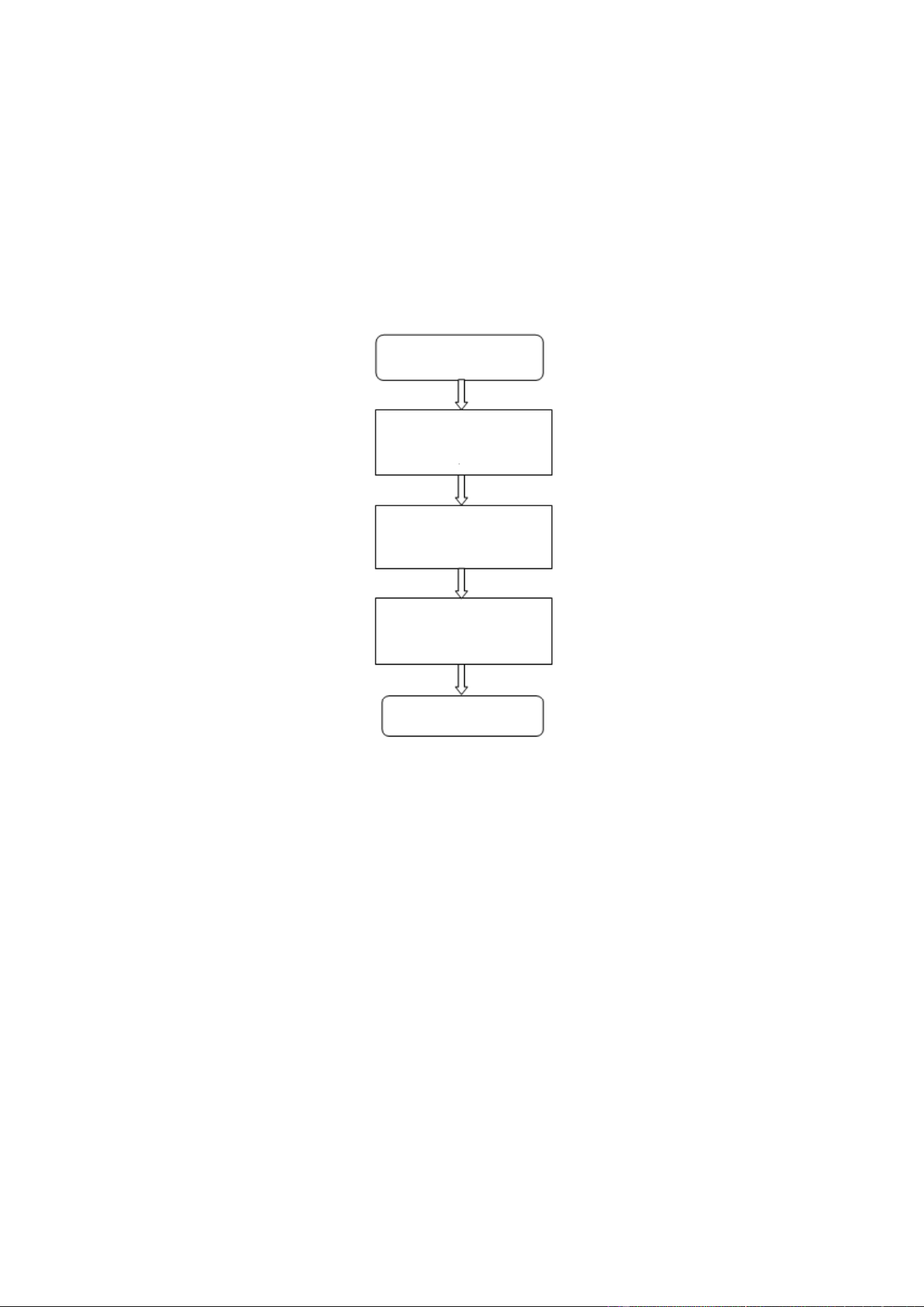
Set the process
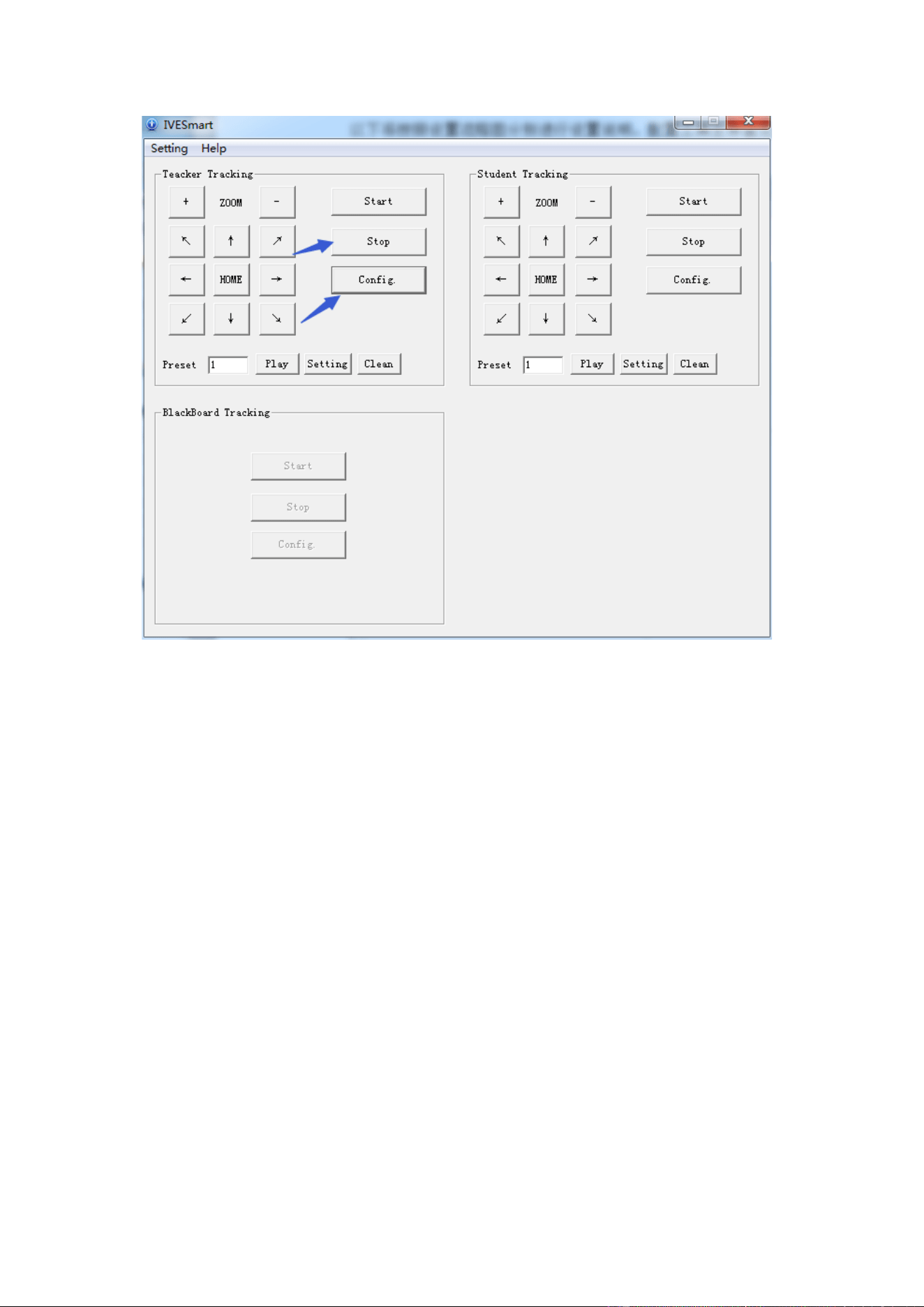
Here, the following is a description of settings according to the process. The main interface of
configuration tool is shown in Figure 5.2-1.
Stop tracking
Set Panoramic preset and
close up
Set space for platform,
tracking and shield
Set tracking parameters
Start tracking
12
Figure 5.2-1 Operation interface
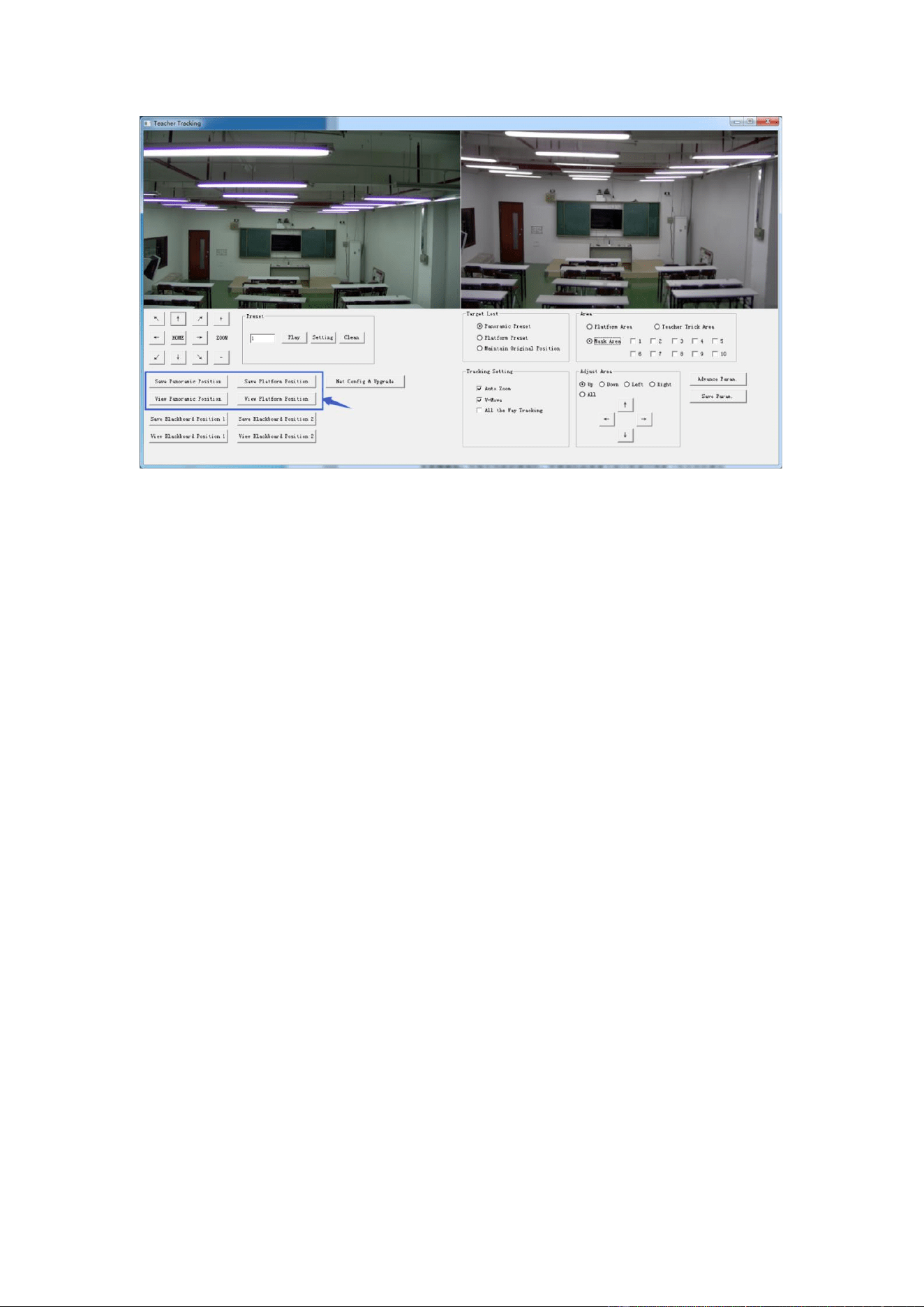
1. Set preset position for close up
Operation interface of setting preset position for close up is shown in Figure 5.2-2. Box indicated
by arrow has a holder control button. By controlling holder position and zoom value, it will adjust
camera angle and position to preset position and save. Settings of panoramic preset position and
platform preset position are as follows:
13
Figure 5.2-2 Operation interface
Platform preset: Control teacher tracking camera to make platform (we suggest that teachers stand
in the middle of platform, if any) get desired visual result in camera image, then click and save
Platform preset. During normal tracking, size of teacher’s image in the picture uses Platform preset
as a reference. When tracking target disappears, it can select close-up lens to go back to Platform
preset.
Panoramic preset: Control teacher tracking camera to allow camera to have almost a panoramic of
the classroom (or any position). When tracking target disappears, it can select close-up lens to go
back to panoramic position.
Preset for blackboard-writing: Refer to user manual for blackboard-writing for details.
2. Set panoramic lens area
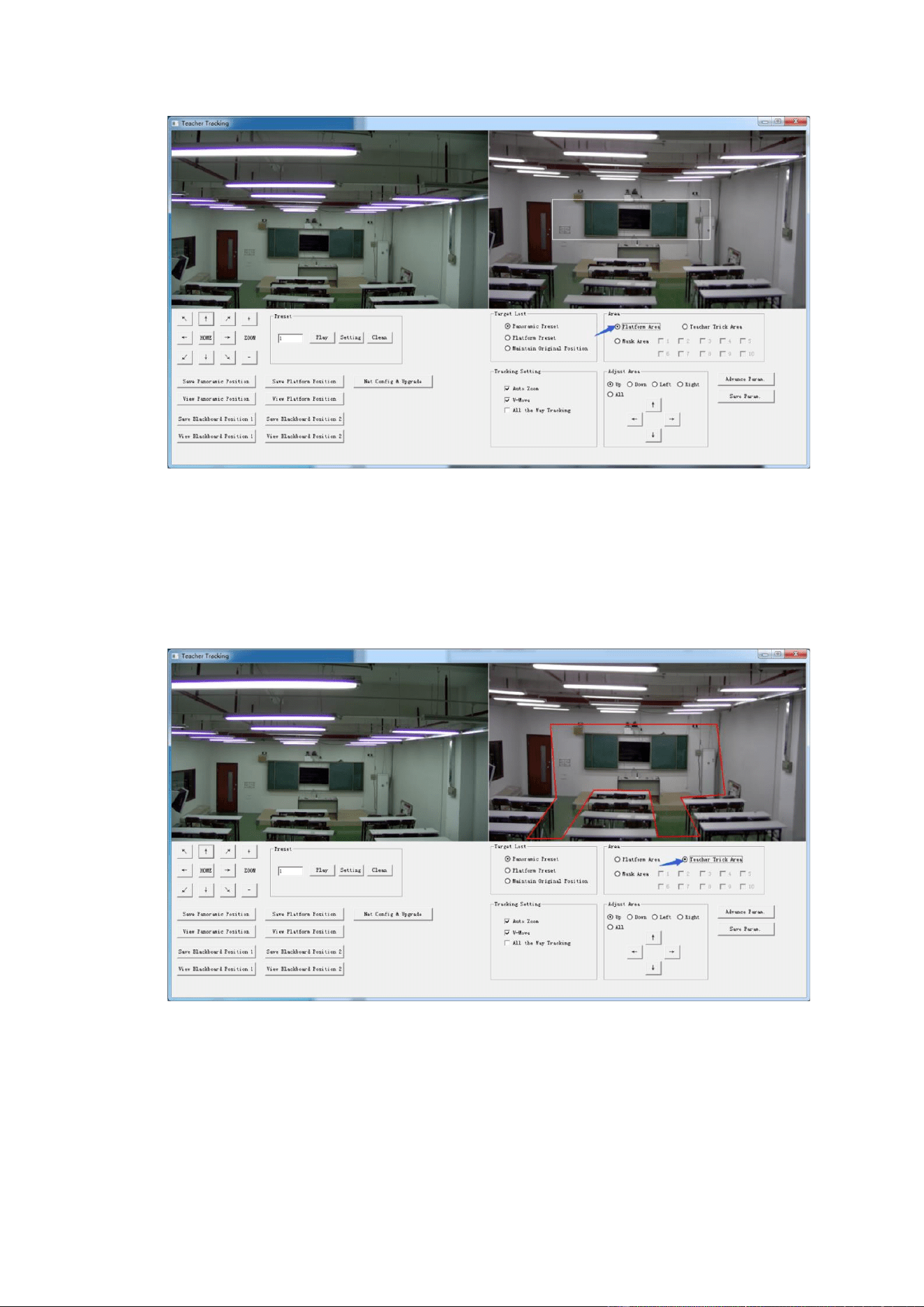
Platform area: It is the area tracked once close-up lens start up tracking. It is blackboard area on
platform generally so as to ensure that when teacher is on platform his upper body is displayed
within setting area, and it will not exceed lower margin of platform area when students in the first
row sit down. See Figure 5.2-3.
14
Figure 5.2-3 Operation interface
Tracking area: Tracking area means scope of tracking teacher. When the tracking target goes
out of the tracking area, it will be considered tracking target losing. The tracking area can be set
into polygon according to certain environment conditions, or set student area outside of tracking
area. See Figure 5.2-4:
Figure 5.2-4 Operation interface
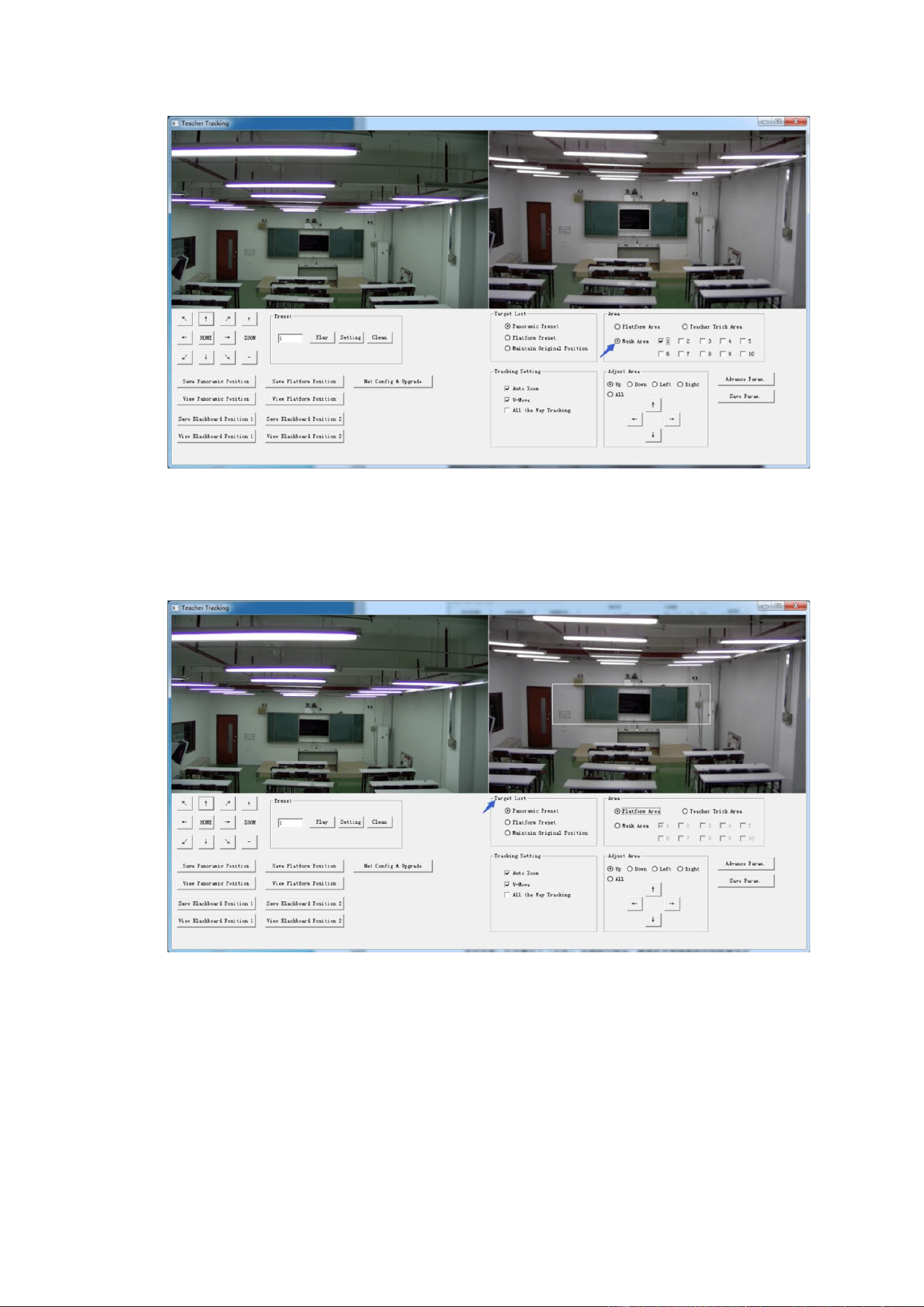
Mask area: Mask area is usually the area which may impact result of teacher tracking, such as
places which may have dynamic changes such as TV, projector, doors and windows. See Figure
5.2-5:
15
Figure 5.2-5 Operation interface
3. Set tracking parameters
Target lost: when target loses, the close-up lens will return to designated preset position. This
preset position can be panoramic preset, platform preset or maintain original position.
Figure 5.2-6 Operation interface
Tracking settings:
Auto zoom: In open mode (checked), during tracking, the camera will zoom automatically
according to target distance; in off mode (unchecked), during teacher tracking, zoom remains
the value set during platform preset.
V-move: In open mode (checked) and during teacher tracking, the camera will adjust its angle
of elevation according to height of tracking target; in off mode (unchecked) and during teacher
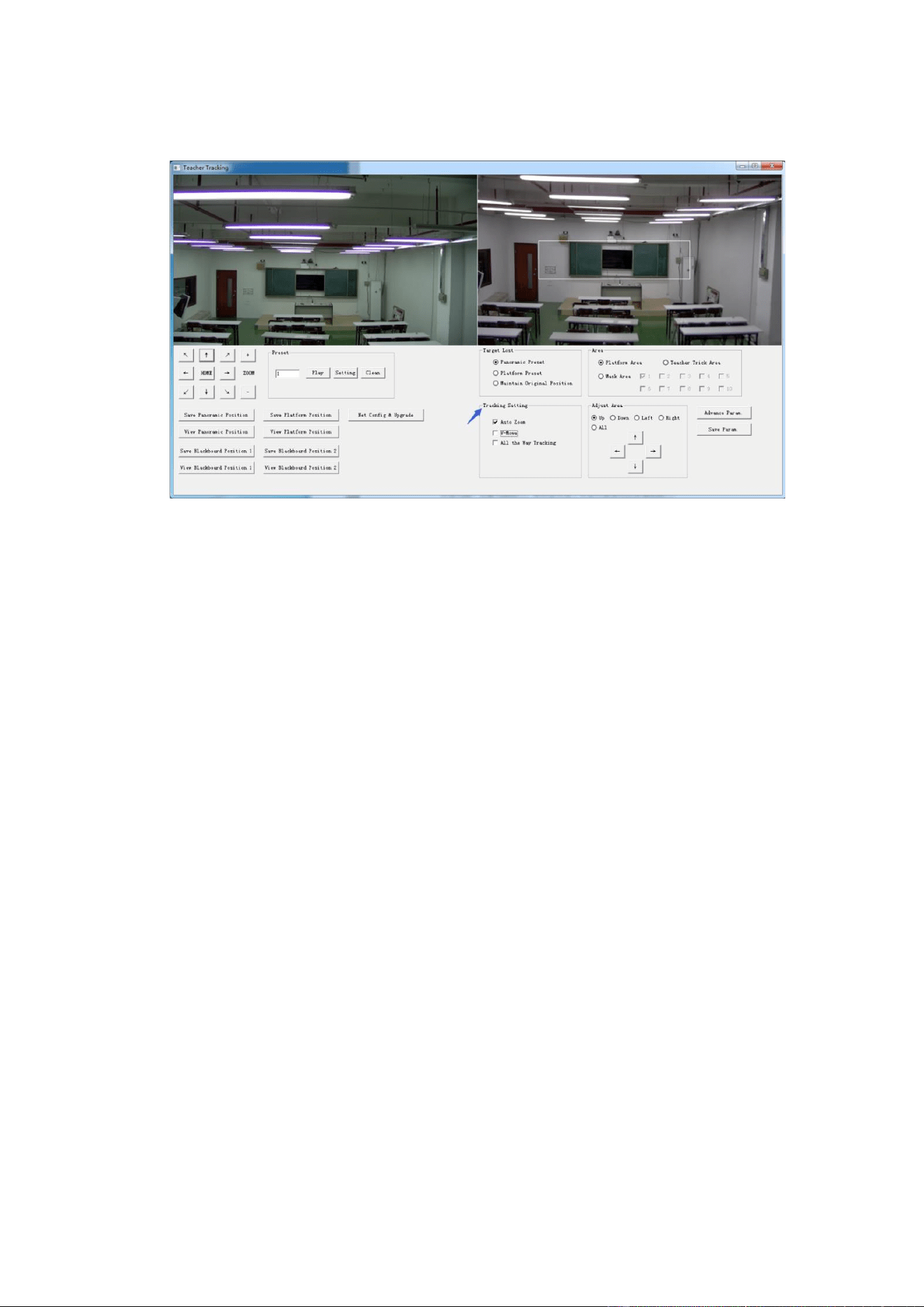
16
tracking, angle of elevation remains the value set during platform preset. If a teacher will not
step down platform in class, we suggest turning off auto zoom and v-move.
Figure 5.2-7 Operation interface
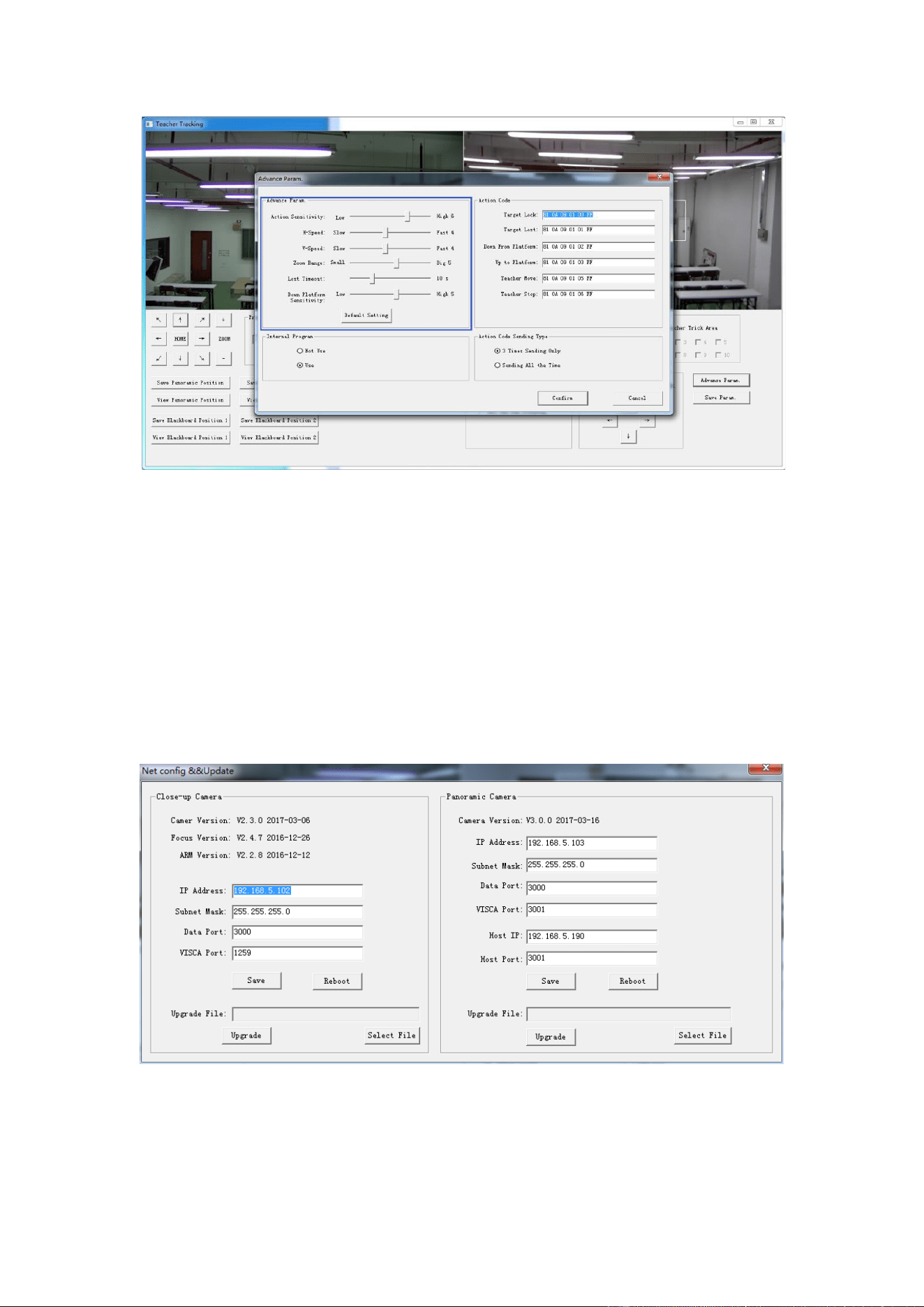
Advance parameters:
Action sensitivity: In teacher tracking mode, it is the action range required to trigger tracking
camera when the tracking target changes from stationary state to motion state. The higher the
action sensitivity, the smaller movement of tracking target that will trigger camera’s tracking
motion.
H-speed: It means speed of tracking camera for horizontal tracking.
V-speed: It means speed of tracking camera for vertical tracking.
Zoom range: The bigger the range, the higher zoom extent required for camera when tracking
target steps down platform.
Lost timeout: It means time required (5s by default) for tracking camera to perform target lost
action when target is lost (optional: return to panorama preset, platform preset, or remain
original position).
Down platform sensitivity: It is used for determining if teacher steps down platform. The lower
the sensitivity, the longer teacher’s distance to blackboard it required to trigger teacher down
platform action.
17
Figure 5.2-5 Operation interface
For settings of action code, refer to “7 Description of connecting recording and broadcasting host”.
After setting, click Save Parameter. It allows to entering advance parameter settings column to
change configuration value to obtain the best result subject to specific scenes and customer demand.
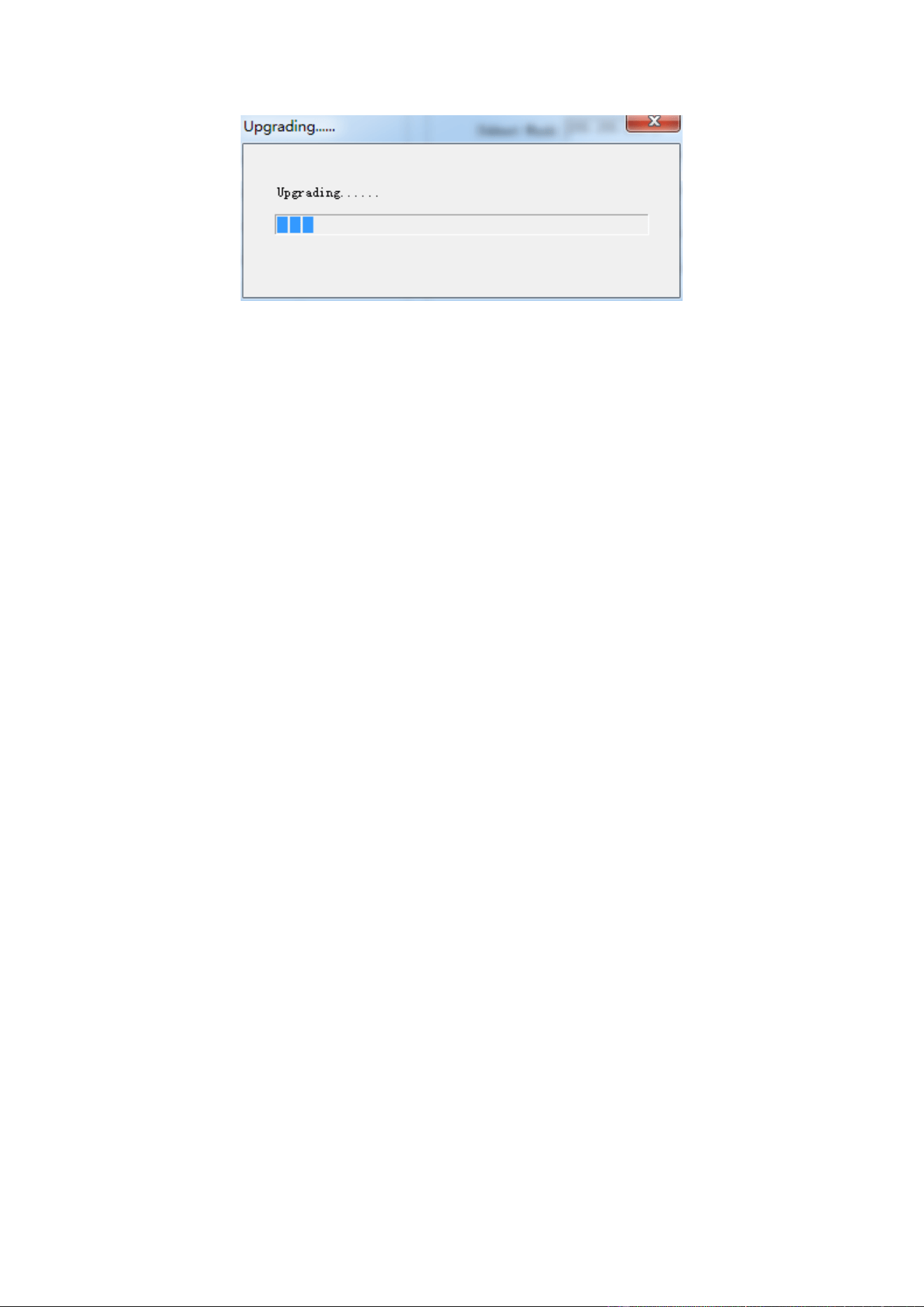
5.3 Network update
When updating the version, it needs to update device via IVESmart configuration tools. Click
Configuration -> Network configuration & update to enter update interface, as shown below:
Figure 5.2-8 Operation interface
When upgrading, note whether camera to be upgraded is close-up camera or panorama camera, then
click Select file -> upgrade, the following interface appears:
18
After upgrading is completed, the camera will perform self-inspection.
Note: After grading, you can restore factory settings by combination key [*] [#] [6] on remote
control or by remote control menu.
6 Description of recording and broadcasting
host
6.1 Auto tracking control
The recording and broadcasting host sends command by LAN network port or concentrator RS232
serial port and controls automatic tracking motion of teacher tracking camera. In auto tracking mode,
it does not allow control camera holder rotation or zoom by IVESmart configuration tool or remote
control; in stop auto tracking mode, it allows control camera holder rotation or zoom by IVESmart
configuration tool or remote control.
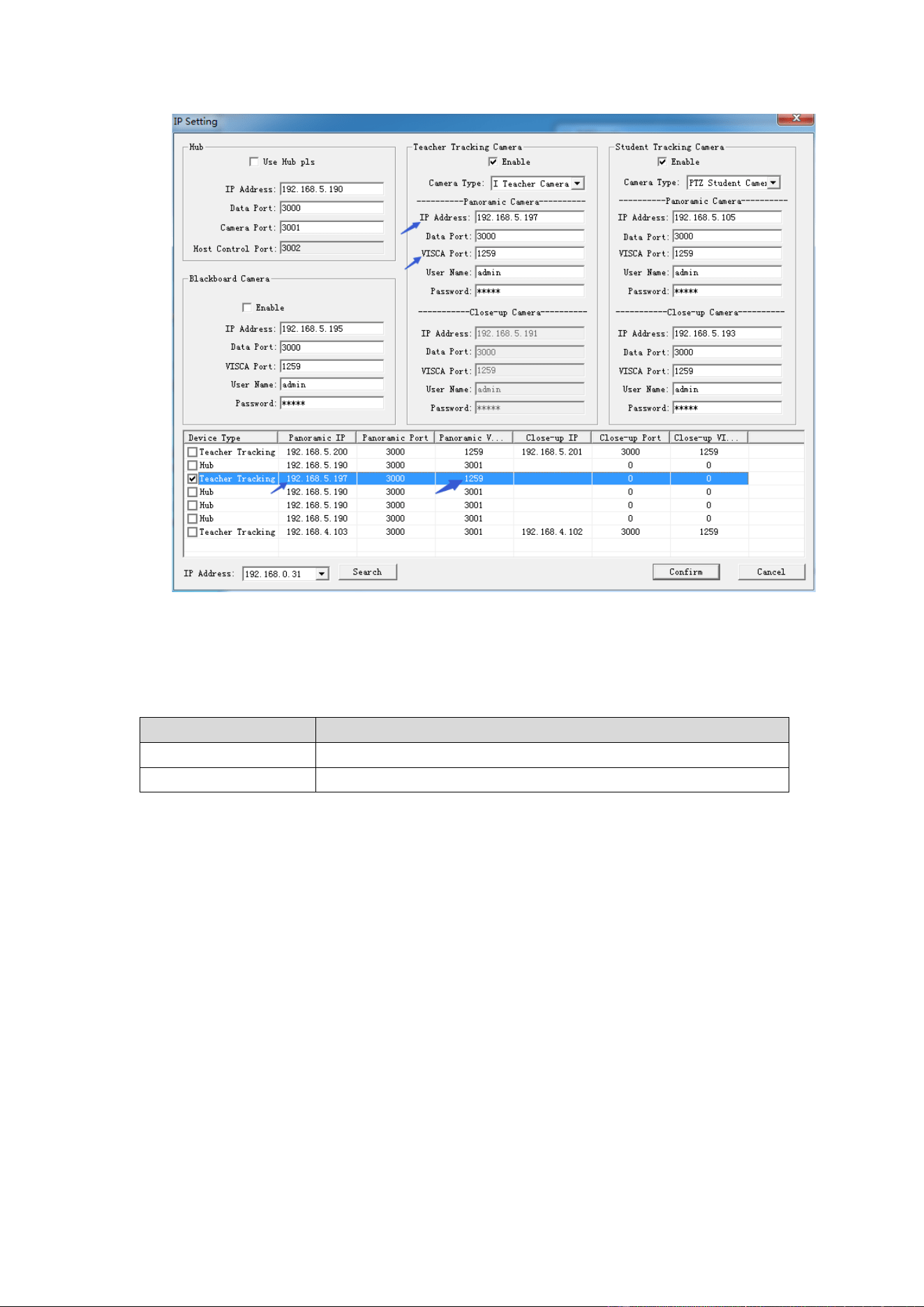
1. Network receiving address
Address for teacher tracking camera to receive command can be searched in IVESmart
configuration tool, click Setting -> IP address -> search successively, as follows:
19
Figure 6.1-1 Operation interface
2. Command
Type
Command
Start teacher tracking
0x810x0A 0x08 0x01 0x020xFF
Stop teacher tracking
0x81 0x0A 0x08 0x01 0x03 0xFF
6.2 Action code docking
Tracking status of teacher tracking camera will be feedback to recording and broadcasting host via
network (UDP transmission mode) or concentrator (RS232 serial port) in the form of action code.
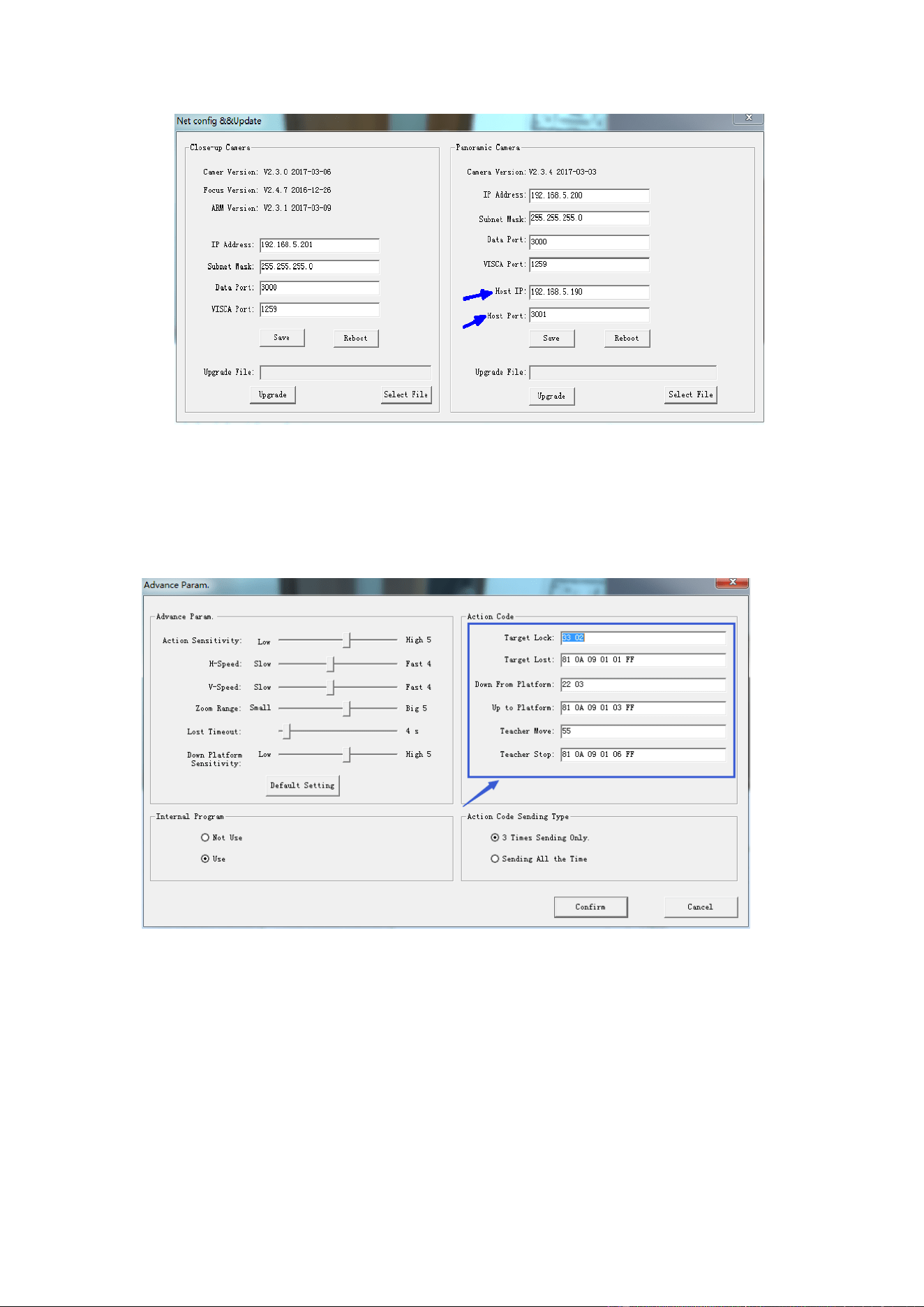
1. Configure recording and broadcasting host address
If recording and broadcasting host uses LAN to receive action code, then it needs to configure host
address by IVESmart configuration tool. Click Configuration -> Network configuration &
update, as shown below:
20
Figure 6.2-1 Operation interface
2. Configure action code
Edit action code as needed via IVESmart configuration tool. Click Configuration -> advance
parameters successively;
After modification, click Confirm -> save parameters, as shown below:
Figure 6.2-2 Operation interface
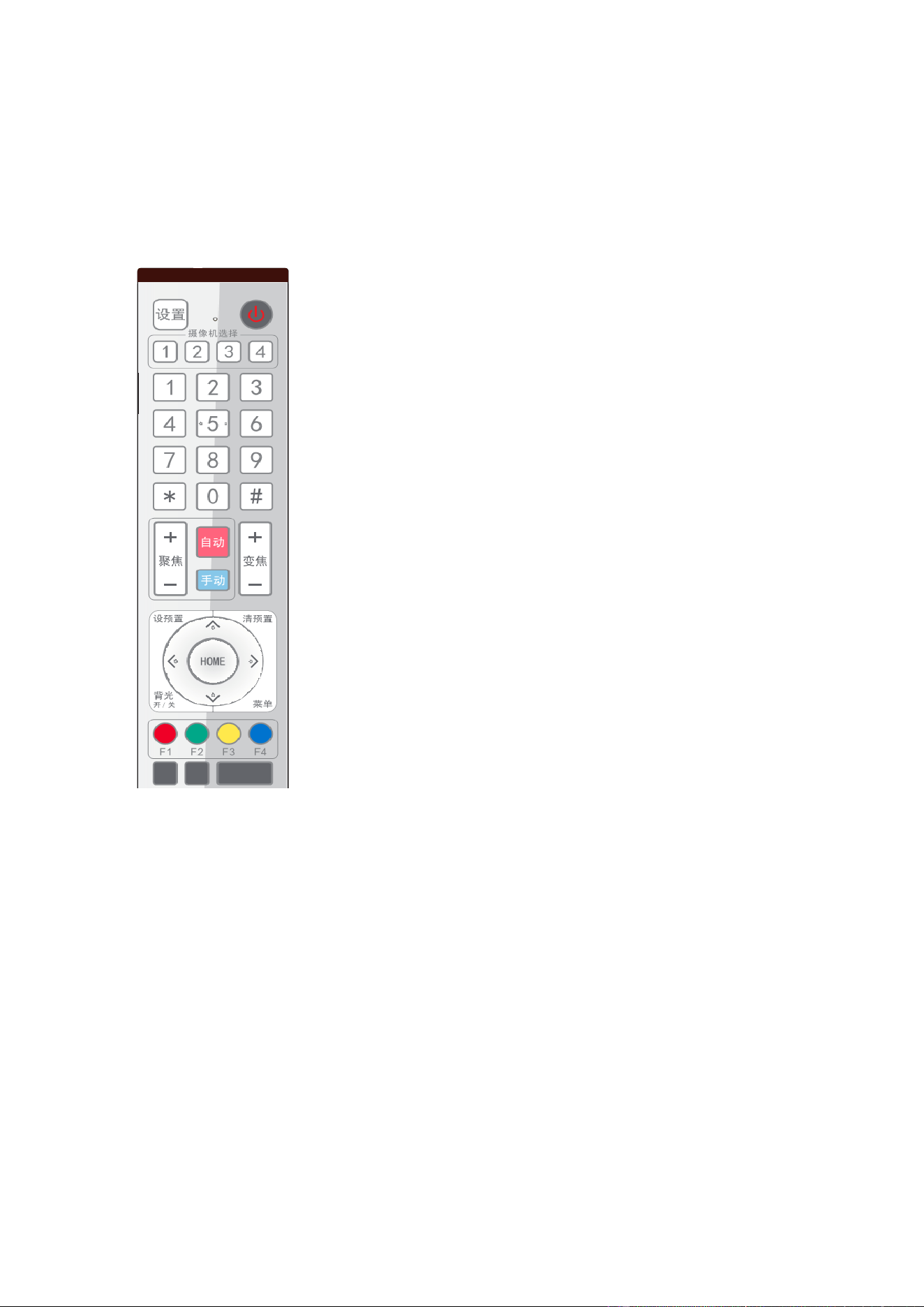
21
7 Description of remote control
7.1. Description of keys
1. Standby key
Long press standby key for 3s, camera enters standby mode, long press
this key again for 3s, camera will perform self-inspection again and return
to HOME position. When setting #0 as preset, when there is no action
within 12s, the holder will return to #0 preset.
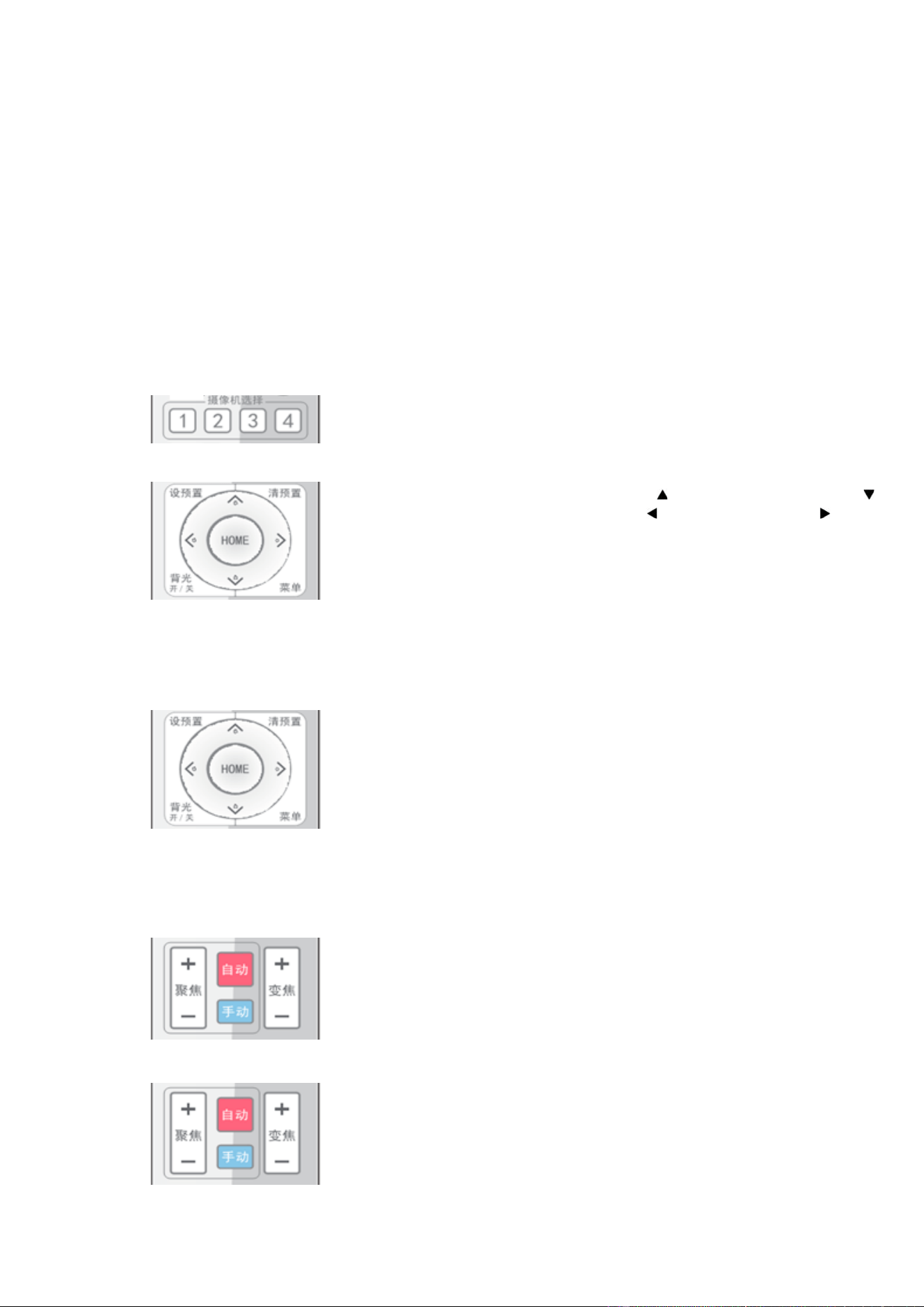
2. Select camera
Select address number of camera to be controlled.
3. Number key
Set or call #0-9 preset.
4. *key and #key
5. Focusing control key: adjust focusing.
[Auto focusing]: Enter auto focusing mode
[Manual focusing]: shift camera focusing mode to manual; adjust focusing
via [Focusing +] or [Focusing -]
6. Zoom key
[Zoom] +: zoom out lens; [Zoom -]: zoom in lens
7. Set and clear preset key
Set preset: Save a preset, set preset + number key (0-9), that is set preset
of corresponding number key;
Cancel preset: Cancel a preset, cancel preset + number key (0-9), that is
cancel preset of corresponding number key;
8. Holder control key
UDLR (Up, Down, Left, Right) arrow/l it controls UDLR movement of
the holder.
[HOME] key: Holder returns to center position or enters the next level
menu.
9. Backlight compensation control key
Backlight on/off: Turn on or off backlight.
10. Menu key: Enter/exit OSD menu or return to previous level menu.
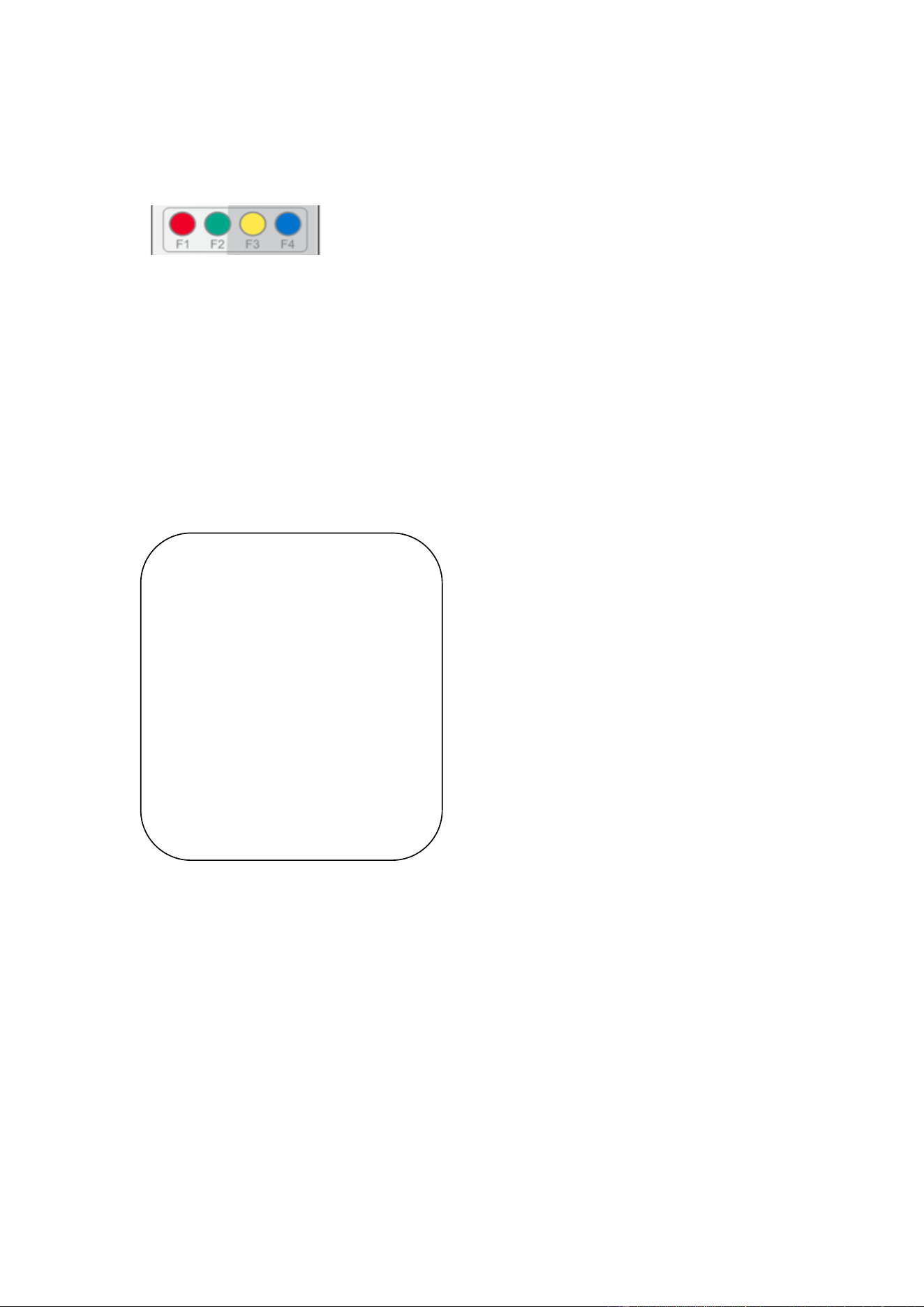
11. Set infrared remote control address of camera
[*] + [#] + [F1] : # 1 address [*] + [#] + [F2] : # 2 address
[*] + [#] + [F3] : #3 address [*] + [#] + [F4] : #4 address
12、Combination key functions
1) [#] + [#] + [#] : Cancel all presets
2) [*] + [#] + [6] : Restore factory settings
3) [*] + [#] + [9] : Shift between front and upside down
installation
4) [*] + [#] +auto: Enter aging mode
5) [*] + [#] + [3] : Set menu into Chinese
6) [*] + [#] + [4] : Set menu into English
7) [*] + [#] +manual: Restore default IP, user name,
password
8) [#] + [#] + [0] : Shift video format 1080P60
9) [#] + [#] + [1] : Shift video format 1080P50
10) [#] + [#] + [2] : Shift video format 1080I60
11) [#] + [#] + [3] : Shift video format 1080I50
12) [#] + [#] + [4] : Shift video format 720P60
13) [#] + [#] + [5] : Shift video format 720P50
14) [#] + [#] + [6] : Shift video format 1080P30
15) [#] + [#] + [7] : Shift video format 1080P25
16) [#] + [#] + [8] : Shift video format 720P30
17) [#] + [#] + [9] : Shift video format 720P25
22
7.2 Use remote control
After normal start of the camera, it receives infrared command and execute. Press down remote
control key, receiving indicator of remote control flashes, release the key, the indicator stops
flashing. User can set preset, read position, horizontal and vertical motion by infrared remote control.
Description of keys:
1. Key press mentioned in this manual means press and release the key on remote control. For
example, “press [HOME] key” means press down [HOME] key and release. If long press is
needed, it will be specified specially.
2. Operation of combination keys mentioned in this manual means operating such keys in order.
For example, “press [*] + [#] + [F1]” means press [*] first, then [#], and [F1] at last.
1) Select camera
Select address number of camera to be controlled.
2)Control holder
Rotate upward: Press [ ] ; rotate downward: Press [ ]
Rotate to left: Press [ ] ; rotate to right: Press [ ]
Center position: Press [HOME]
Long press UDLR key, it will rotate from low speed to high
speed continuously, until it reaches the destination; release
in the middle of the journey, it will stop movement.
3)Set, cancel, call preset
1. Save preset: Press [Set preset], then press any number key
from 0 to 9, it will reset a preset corresponding to the
number key.
Note: with remote control, it can set 10 presets at most.
2. Call preset: Press number key 0~9 directly, it will call
preset which has been saved.
Note: If this key has no preset, this operation is invalid.
3. Cancel preset: Press [cancel preset], then press any
number from 0 to 9, it will cancel preset corresponding to
the number.
Note: Press [#] three times in a row, it will cancel all presets.
4) Zoom control
Zoom in: Press [zoom +]
Zoom out: Press [zoom -]
Long press these keys will enable continuous zoom in/zoom
out; release midway will stop zoom.
5)Focusing control
Focusing in: Press [focusing +] key (only valid in manual
focusing mode)
Focusing out: Press [focusing -] key (only valid in manual
focusing mode)
Long press these keys will enable continuous focusing in/
focusing out, release midway will stop focusing.
23
Auto focusing: support Manual focusing: Support
7)Set infrared remote control address of camera
[*] + [#] + [F1] : Set up #1 address
[*] + [#] + [F2] : Set up #2 address
[*] + [#] + [F3] : Set #3 address
[*] + [#] + [F4] : Set up #4 address
8 Set menu
8. 1 Main menu
In normal image, press [MENU] key, the screen displays the menu content, use the
arrow to point to the desired item.
Language settings / Language: Select menu
language, Chinese/English
Settings: Enter submenu of system parameter settings
Camera parameters: Enter submenu of camera
parameter settings
P/T/Z: Enter submenu item of holder parameter
settings
Version: Enter submenu of Version
Restore default: Enter restore default, select “yes” or
“no” restore default
[↑↓] Select: Press [↑↓] to select menu item
[←→]Change value: Press [←→] to change value
[Menu] return: Press menu key to return
[Home] OK: Press [Home] key to confirm
MENU
==============
Language English
(Setup)
(Camera)
(P/T/Z)
(Video Format)
(Version)
(Restore Default)
[↑↓] Select [←→] Change Value
[Menu]Back [Home]OK

24
8.2 System parameter settings
On the main menu, move the cursor to (Settings), press [HOME] key to enter Settings
page, as shown below.
Protocol: Protocol type VISCA/PELCO-
P/PELCO-D/auto
Communication address: VISCA=1~7;PELCO-P
= 1~64;PELCO-D =1~64
Baud rate: Set item: 2400/4800/9600/115200
VISCA address fix: Set item: On/off
8. 3 Camera parameter settings
On the main menu, move the cursor to (CAMERA), press [HOME] key to enter
CAMERA page, as shown below.
Exposure: Enter exposure submenu item
Image: Enter image submenu item
Color: Enter color submenu item
Focus: Enter focus submenu item
Noise reduction: Enter noise
reduction submenu item
Style: Default, standard, clear, bright,
gentle
SETUP
==============
Protocol Auto
Visca Address 1
Visca Address Fix OFF
PELCO-P Address 1
PELCO-D Address 1
Baudrate 9600
[↑↓]Select [←→]Change Value
[Menu]Back
[↑↓]选择 [←→]修改
[菜单]返回
CAMERA
===============
(Exposure)
(Color)
(Image)
(Focus)
(Noise Reduction)
Style Default
[↑↓]Select [←→]Change Value
[Menu]Back [Home]OK

25
1) Exposure
On CAMERA menu, move the cursor to (EXPOSURE), press [HOME] key to enter
exposure page, as shown below.
Mode: Options: Auto, manual, shutter priority, aperture priority, brightness priority
EV: Options: On/off (only valid in auto mode)
Compensation grade: Options: -7~7 (only valid in auto mode when “EV” is on.)
BLC: Options: On/off (only valid in auto mode) DRC: Options: 1~8, off
Flicker: Options: Off, 50Hz, 60Hz (valid in auto, shutter priority and brightness priority modes)
G. Limit: Options: 0~15(valid in auto, shutter priority and brightness priority modes)
Shutter priority: Options: 1/25, 1/30, 1/50, 1/60, 1/90, 1/100, 1/120, 1/180, 1/250, 1/350, 1/500, 1/1,000, 1/2000,
1/3000, 1/4000, 1/6000, 1/10000 (valid in manual and shutter priority modes)
Aperture priority: Options: Off, F11.0, F9.6, F8.0, F6.8, F5.6, F4.8, F4.0, F3.4, F2.8, F2.4, F2.0, F1.8 (valid in
manual and aperture priority modes) Brightness: Options: 0~23 (only valid in brightness priority
mode.)
2) Color
On CAMERA menu, move the cursor to (COLOR), press [HOME] key to enter
COLOR page, as shown below.
EXPOSURE
==============
Mode Auto
EV OFF
BLC OFF
Flicker 50Hz
G.Limit 3
DRC 2
[↑↓]Select [←→]Change Value
[Menu]Back

26
WB Mode: Options: auto, 3000K, 4000K, 5000K, 6500K, manual, one-key white balance.
RG Tuning: Options: -10~10 (only valid in auto mode)
BG Tuning: Options: -10~10 (only valid in auto mode)
Red gain: Options: 0~255 (only valid in manual mode)
Blue gain: Options: 0~255 (only valid in manual mode)
Saturation: Options: 60%, 70%, 80%, 90%, 100%, 110%, 120%, 130%, 140%, 150%, 160%, 170%,
180%, 190%, 200% Hue: Options: 0~14
AWB Sensitivity: Options: high, medium, low (only valid in auto mode)
3) Image
On CAMERA menu, move the cursor to (IMAGE), press [HOME] to enter IMAGE
page, as shown below.
Brightness: Options: 0~14
Contrast: Options: 0~14
Sharpness: Options: 0~15
Flip-H: Options: on/off
Flip-V: Options: on/off
B&W-Mode: Options: color, black
&white
Gamma: Options: default, 0.45, 0.50, 0.55, 0.63
Dzoom: Options: on/off DCI: dynamic contrast, options, off, 1~8
COLOR
==============
WB Mode Auto
RG Tuning 0
BG Tuning 0
Saturation 100%
Hue 7
AWB Sensitivity Low
[↑↓]Select [←→]Change Value
[Menu]Back
IMAGE
==============
Brightness 7
Contrast 7
Sharpness 4
Flip-H OFF
Flip-V OFF
B&W-Mode Color
Gamma Default
DZoom OFF
DCI OFF
[↑↓]Select [←→]Change Value
[Menu]Back

27
4) Focus
On CAMER menu, move the cursor to (FOCUS), press [HOME] key to enter FOCUS
page, as shown below.
Focus mode: Options: auto/manual
AF-Area: Options: up/center/low
AF-Sensitivity: Options: high/medium/low
5) Noise reduction
On CAMERA menu, move the cursor to (Noise reduction), press [HOME] key to enter
Noise reduction page, as shown below.
NR-2D: Options: auto, off, 1~7
NR-3D: Options: off, 1~8
Dynamic hot pixel: Options: off, 1~5
8. 4 P/T/Z
On the main menu, move the cursor to (P/T/Z), press [HOME] key to enter P/T/Z page,
as shown below.
Speed by zoom: It only works on remote control, on, off; when camera zooms in, remote control will make holder
FOCUS
==============
Focus Mode Auto
AF-Area Center
AF-Sensitivity Low
[↑↓]Select [←→]Change Value
[Menu]Back
NOISE REDUCTION
===============
NR-2D 3
NR-3D 3
Dynamic Hot Pixel OFF
[↑↓]Select [←→]Change Value
[Menu]Back
P/T/Z
===============
Speed by zoom ON
Zoom speed 8
Image Freezing OFF
Acc Curve Slow
[↑↓]Select [←→]Change
Value[Menu]Back

28
rotate at lower speed.
Zoom speed: Set speed for remote control camera
zoom, 1~8
Image freezing: Options: On/off
Acc Curve: Options: Quick/slow
8. 5 Video format
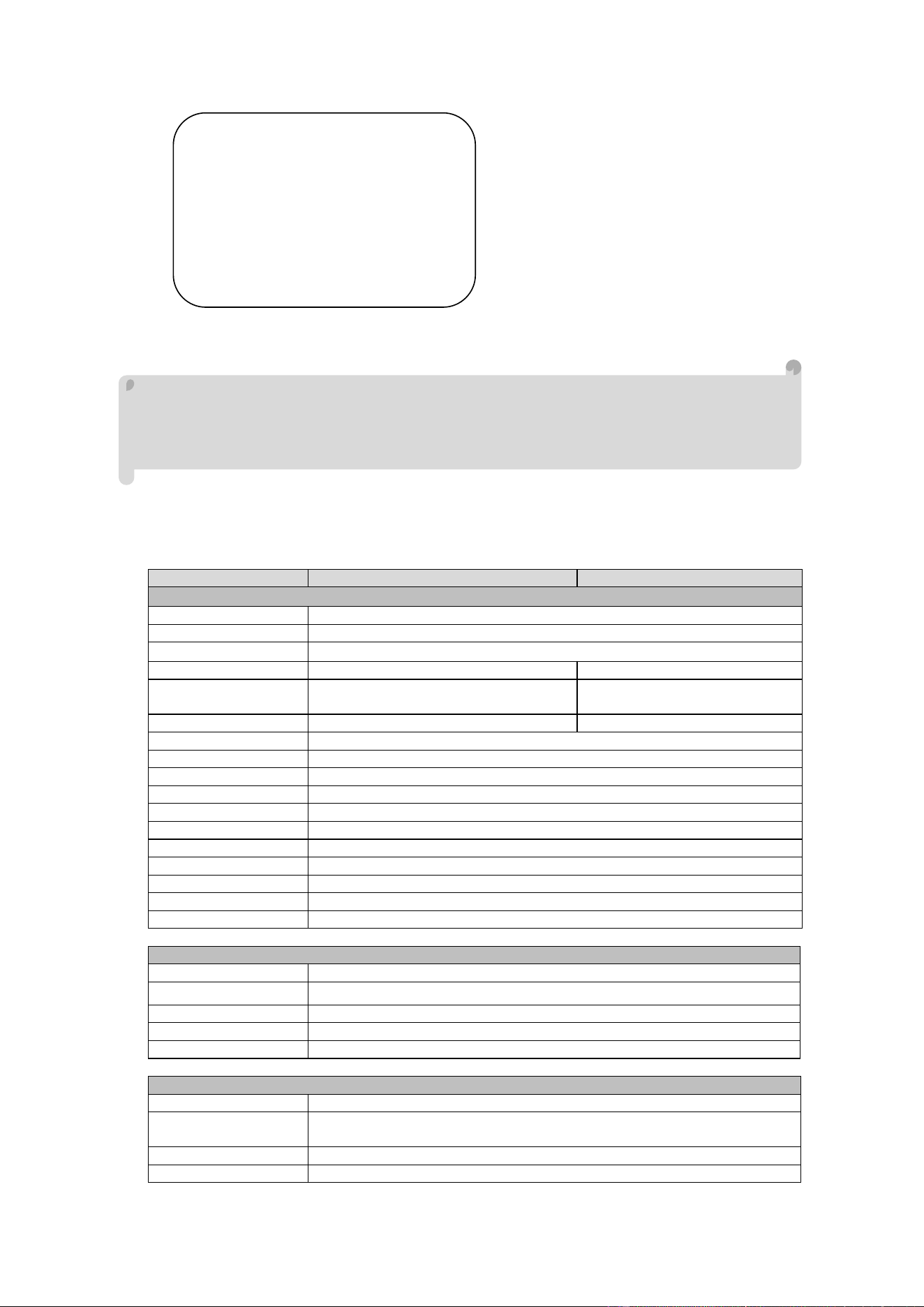
On the main menu, move the cursor to (VIDEO FORMAT), press [HOME] key to enter
VIDEO FORMAT page, as shown below.
Note: only when rotation dial-up is at F will ST model menu show this item.
S version: 1080P60 downward compatibility; M version: 1080P30 downward compatibility
Change parameter value in the menu. To save value when power off, exit menu.
8. 6 Version
On the main menu, move the cursor to (Version), press [HOME] key to enter Version page. Version
information varies from product model and date of production. Version information contains version
number and version upgrade time.
MCU version: It displays MCU version information.
Camera version: It displays camera version information.
Focus version: It displays focus version information.
8. 7 Restore default
On the main menu, move the cursor to (restore), press [HOME] key to enter Restore
page, as shown below.
VIDEO FORMAT
==============
1080P60 1080P50
1080I60 1080I50
1080P30 1080P25
720P60 720P50
720P30 720P25
1080P59.94 1080I59.94
1080P29.97 720P59.94
720P29.97
[↑↓]Select
[Menu]Back [Home]OK
29
Restore default : Options : Yes/no (color style and video format can’t be restored default).
Note: If remote address used before is not 1, but any one from 2, 3 and 4, after restoring all
parameters or system parameters, device address corresponding to the remote control will be
reset to 1. At this moment, it is needed to change remote control address to 1, that is, press
Camera and select [1], control will function.
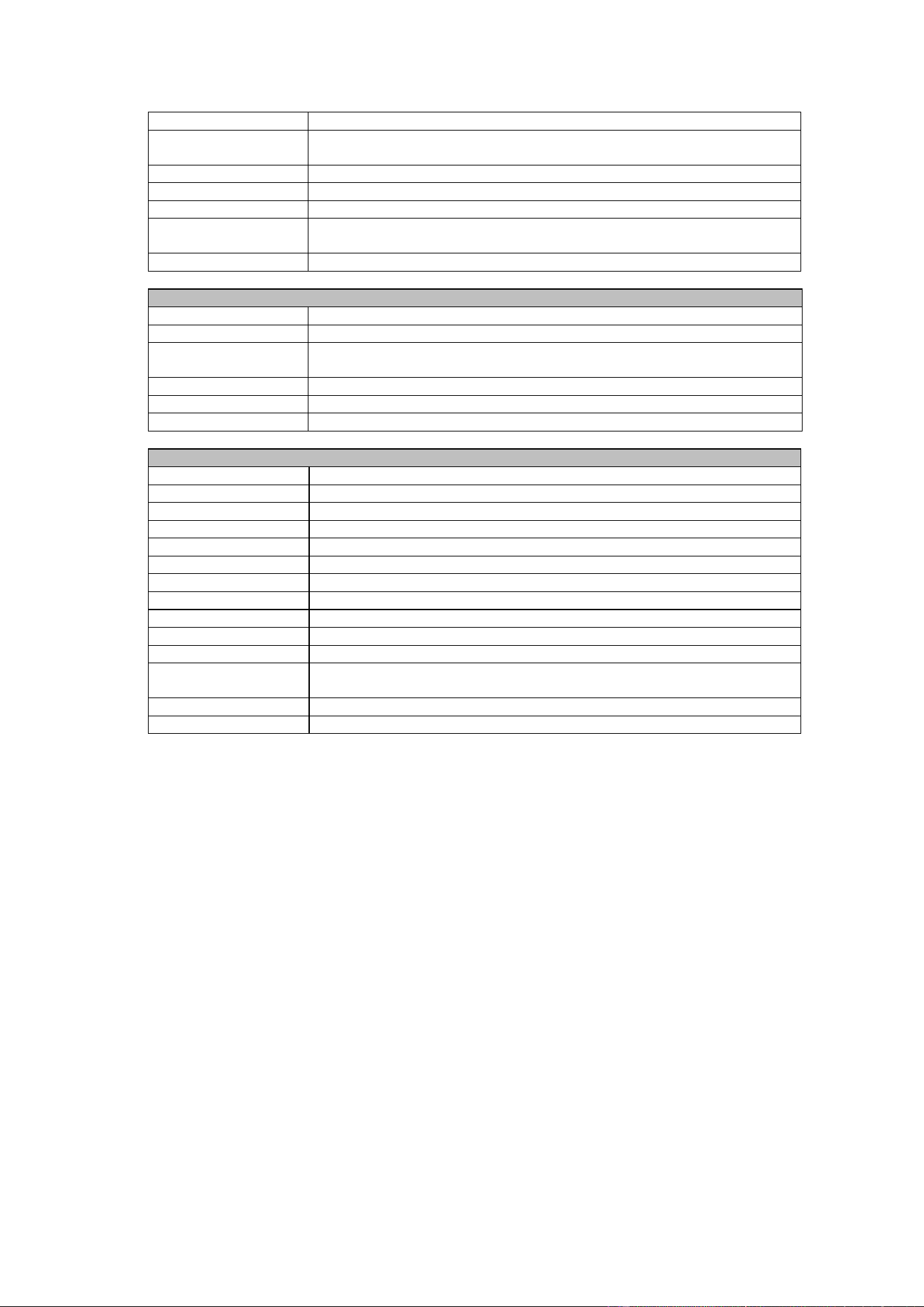
9 Technical parameters
Parameter/model
Model-12
Model-20
Tracking camera, lens parameters
Image sensor
1/2.8inch high quality CMOS sensor
Effective pixels
2,070,000 16: 9
Video signal
1080P60/50/30/25/59.94/29.971080I60/50/59.94720P60/50/30/25 /59.94/29.97
Lens optics zoom
12X optical zoom f=3.9~46.1mm
20X optical zoom f=4.7~94mm
Visual angle
6.3° (narrow angle) ~72.5° (wide angle)
2.9° (narrow angle) ~55.4° (wide
angle)
Aperture coefficient
F1.8~F2.4
F1.6 ~ F3.5
Digit zoom
X10
Minimum illumination
0.5Lux(F1.8, AGC ON)
Digit noise reduction
2D & 3D digit noise reduction
White balance
Manual/auto/one-key white balance /3000K/ 4000K/5000K/6500K
Focus
Auto/manual
Aperture
Auto/manual
Electronic shutter
Auto/manual
Backlight compensation
On/off
Wide dynamic
Off/dynamic grade adjustment
Video regulation
Brightness, hue, saturation, contrast ratio, sharpness, Gamma
Signal to noise ratio
>55dB
Panoramic lens
Image sensor
1/2.8inch high quality CMOS sensor
Effective pixels
2,100,000
Lens
Manual focus
Output port
Network port, HDMI
Field angle (D/H/V)
112°/82°/57.6°
Input/output port and support protocol
Video port
HDMI
Network port
100M internet access (10/100BASE-TX) 5GWiFi(optional), support network VISCA
control protocol
Network protocol
RTSP, RTMP, ONVIF, GB/T28181
Compression image
Dual stream output
RESTORE DEFAULT
==============
Restore Default? NO
[↑↓] Select [←→]Change Value
[Menu]Back [Home]OK
30
code stream
Video compression
format
H.265, H.264
Control signal port
RS-232/485
Control protocol
VISCA/Pelco-D/Pelco-P; Baud rate: 115,200/9,600/4,800/2,400bps
Audio input port
Dual track 3.5mm linear input
Audio compression
format
AAC, MP3, PCM
Power port
HEC3800 power socket (DC12V)
Holder parameters
Horizontal rotation
-170°~+170°
Vertical rotation
-30°~+90°
Horizontal control
speed
0.1 ~100°/s
Vertical control speed
0.1~45°/s
Preset speed
Horizontal: 100°/s, vertical:45°/s
Preset quantity
User can set 255 presets at most (10 pcs of mobile control)
Other parameters
Power adapter
Input AC110V-AC220V output DC12V/2.5A
Input voltage
DC12V±10%
Input current
1.5A (maximum)
Power consumption
18W (maximum)
Storage temperature
-10℃~+60℃
Storage humidity
20%~95%
Operating temperature
-10℃~+50℃
Operating humidity
20%~80%
Dimension (WxHxD)
254mm X 144mm X 174mm
Weight (approx.)
1.50kg
Operating environment
Indoor
Remote maintenance
(network port)
Remote upgrade, restart and reset
Standard accessories
12V/2.5A power, RS232 control line, remote control, operation manual, warranty card
Optional accessories
Installation support
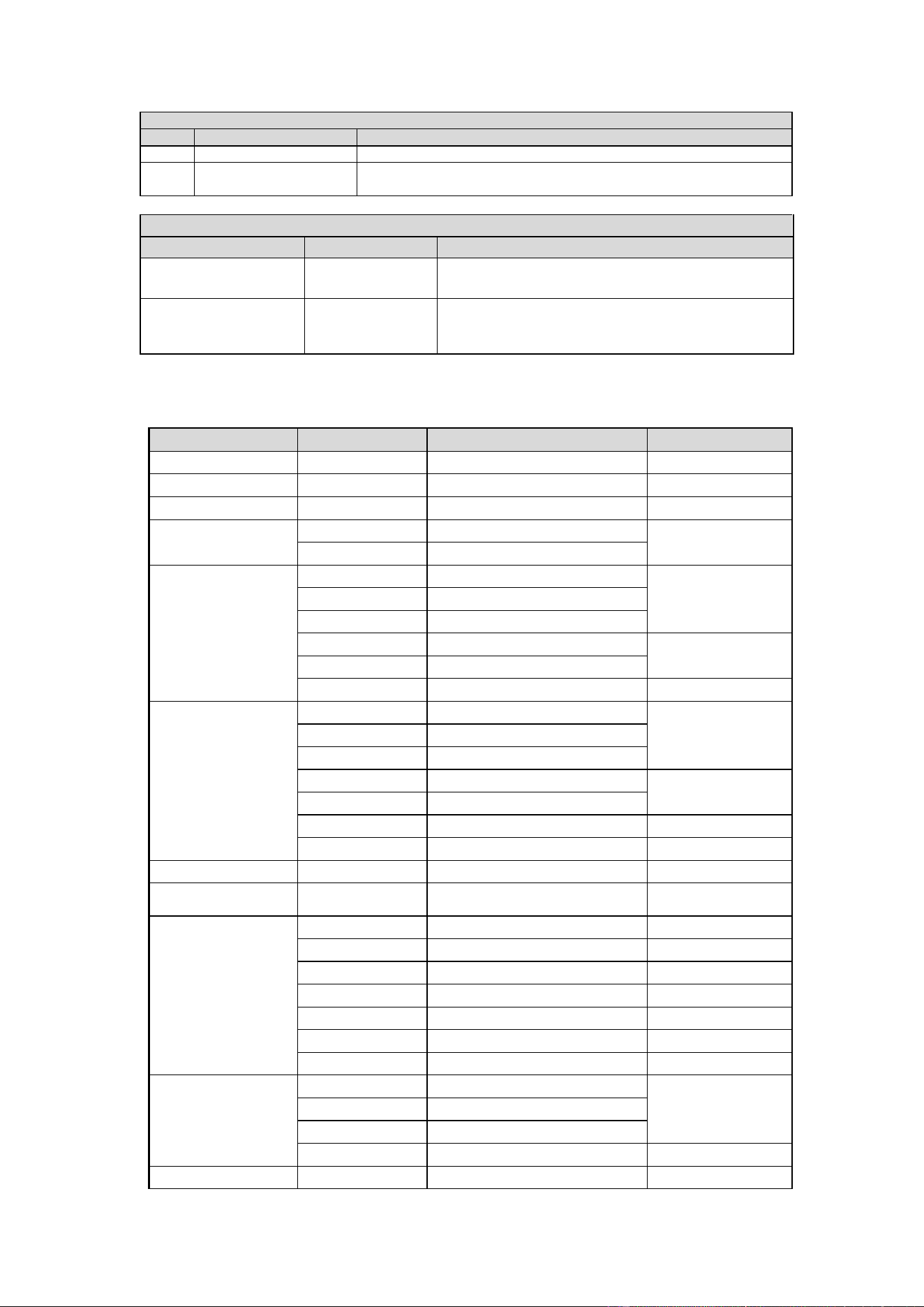
10 VISCA protocol command list
When the camera is operated normally, we can control it via RS232C/RS485 port (VISCA IN).
Parameters of RS232C serial port are as follows:
Baud rate: 2,400/4,800/9,600/115,200 bit/s; start bit: 1 bit; digit bit: 8 bits; stop bit: 1 bit; verification
bit: none
After powering on, camera rotates to left bottom first, and then returns to middle. Zoom lens zooms
out to the furthest and zooms in to the nearest, and finishes self-inspection. If the camera saves #0
preset, after initialization, camera will go to #0 preset. Now user can use a serial port command to
control the camera.
Return command
31
Ack/Completion Message
Command package
Notes
ACK
z0 41 FF
Returned when the command is accepted.
Comp
letion
z0 51 FF
Returned when the command has been executed.
z = camera address+8
Error Messages
Command package
Notes
Syntax Error
z0 60 02 FF
Returned when the command format is different or when a
command with illegal command parameters is accepted
Command Not Executable
z0 61 41 FF
Returned when a command cannot be executed due to current
conditions. For example, when commands controlling the
focus manually are received during auto focus.
Control command
Command
Function
Command package
Notes
AddressSet
Broadcast
88 30 01 FF
Address setting
IF_Clear
Broadcast
88 01 00 01 FF
I/F Clear
CommandCancel
8x 21 FF
CAM_Power
On
8x 01 04 00 02 FF
Power ON/OFF
Off
8x 01 04 00 03 FF
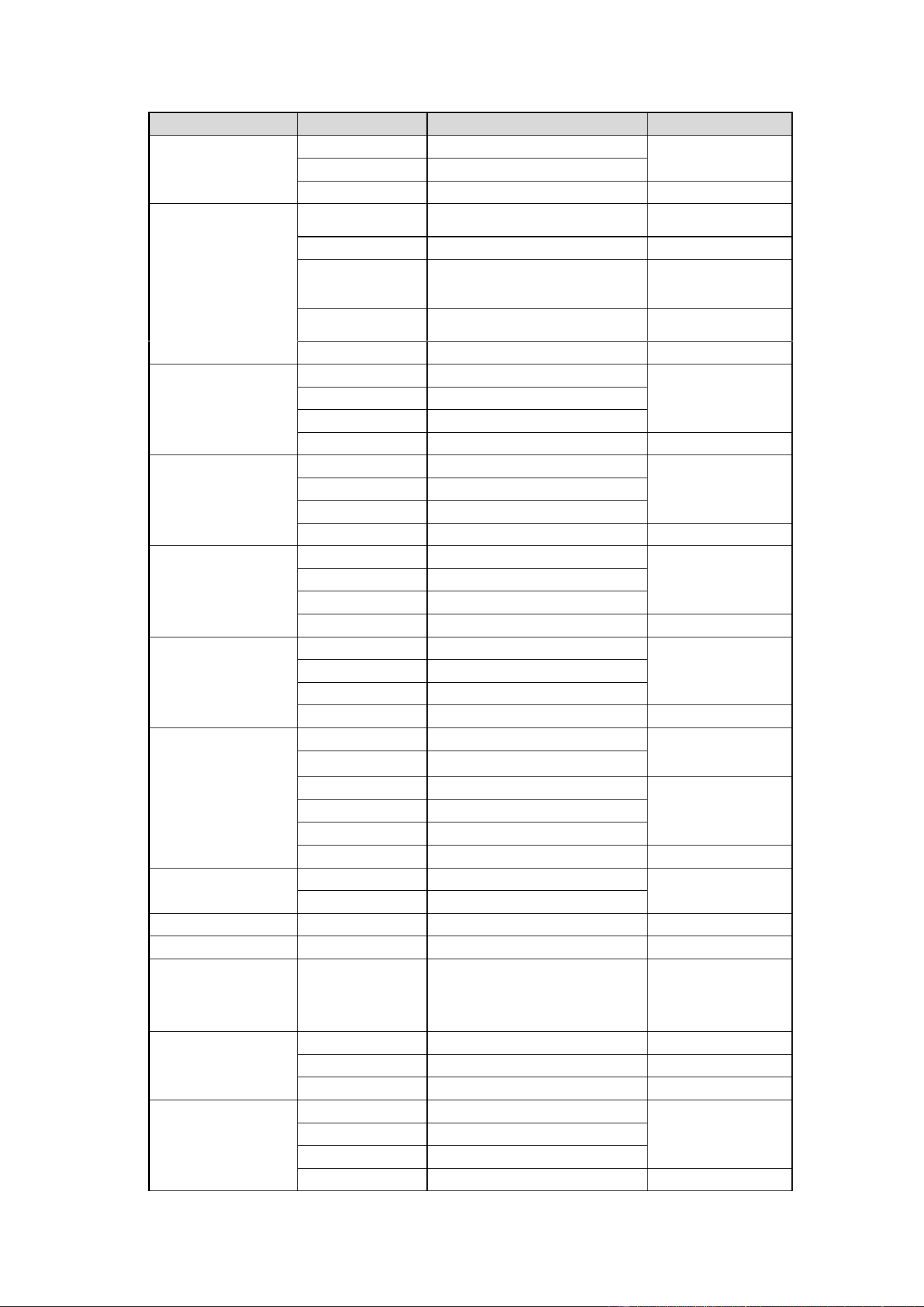
CAM_Zoom
Stop
8x 01 04 07 00 FF
Tele (Standard)
8x 01 04 07 02 FF
Wide (Standard)
8x 01 04 07 03 FF
Tele (Variable)
8x 01 04 07 2p FF
p = 0(low) - 7(high)
Wide (Variable)
8x 01 04 07 3p FF
Direct
8x 01 04 47 0p 0q 0r 0s FF
pqrs: Zoom Position
CAM_Focus
Stop
8x 01 04 08 00 FF
Far(Standard)
8x 01 04 08 02 FF
Near(Standard)
8x 01 04 08 03 FF
Far(Variable)
8x 01 04 08 2p FF
p = 0(low) - 7(high)
Near (Variable)
8x 01 04 08 3p FF
Direct
8x 01 04 48 0p 0q 0r 0s FF
pqrs: Focus Position
Auto Focus
8x 01 04 38 02 FF
Manual Focus
8x 01 04 38 03 FF
CAM_Zoom Focus
Direct
8x 01 04 47 0p 0q 0r 0s
0t 0u 0v 0w FF
pqrs: Zoom Position
tuvw: Focus Position
CAM_WB
Auto
8x 01 04 35 00 FF
3000K
8x 01 04 35 01 FF
4000k
8x 01 04 35 02 FF
One Push mode
8x 01 04 35 03 FF
5000k
8x 01 04 35 04 FF
Manual
8x 01 04 35 05 FF
6500k
8x 01 04 35 06 FF
CAM_RGain
Reset
8x 01 04 03 00 FF
Manual Control of R
Gain
Up
8x 01 04 03 02 FF
Down
8x 01 04 03 03 FF
Direct
8x 01 04 43 00 00 0p 0q FF
pq: R Gain
CAM_Bgain
Reset
8x 01 04 04 00 FF
32
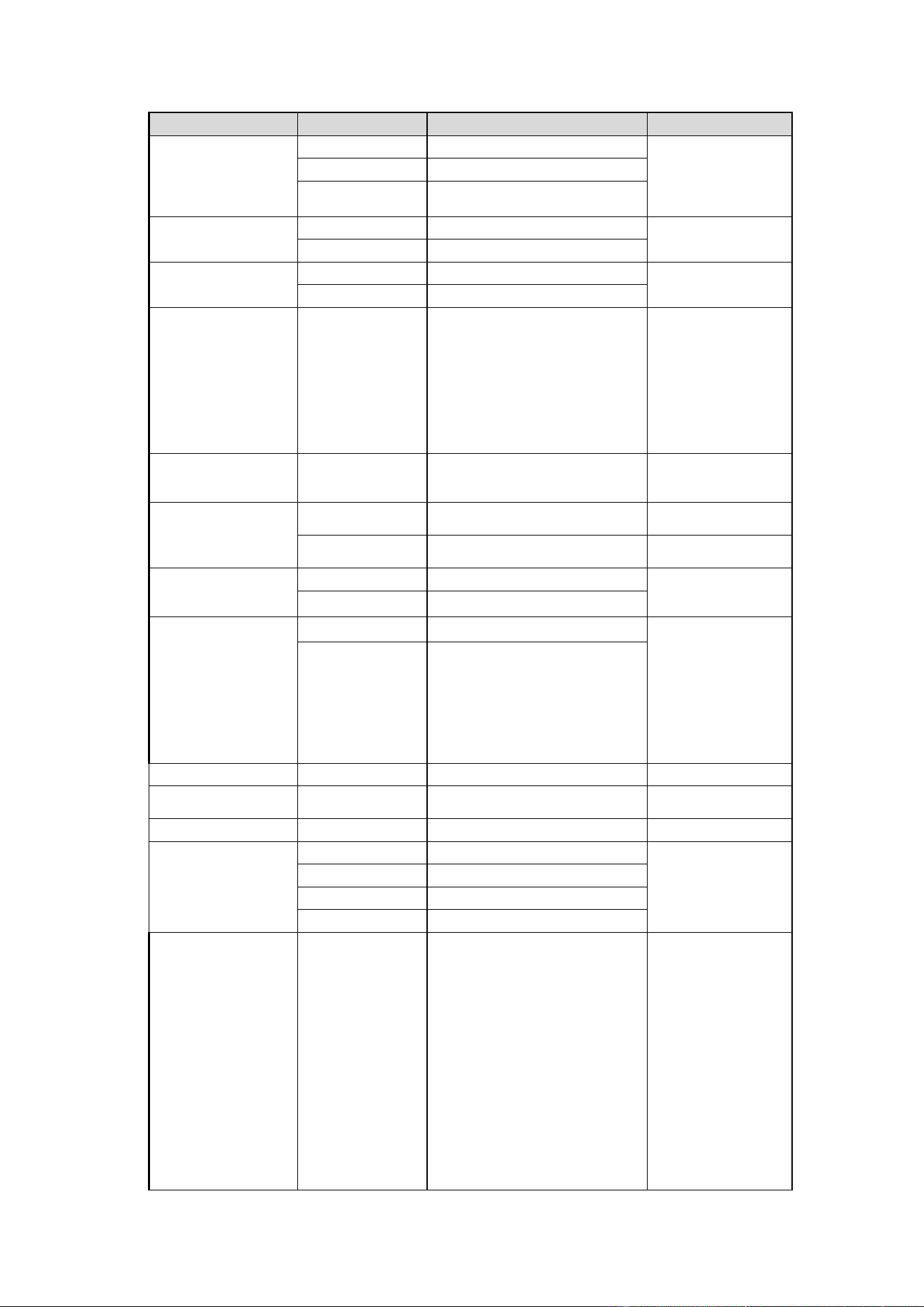
Command
Function
Command package
Notes
Up
8x 01 04 04 02 FF
Manual Control of B
Gain
Down
8x 01 04 04 03 FF
Direct
8x 01 04 44 00 00 0p 0q FF
pq: B Gain
CAM_AE
Full Auto
8x 01 04 39 00 FF
Automatic Exposure
mode
Manual
8x 01 04 39 03 FF
Manual Control mode
Shutter priority
8x 01 04 39 0A FF
Shutter Priority
Automatic Exposure
mode
Iris priority
8x 01 04 39 0B FF
Iris Priority Automatic
Exposure mode
Bright
8x 01 04 39 0D FF
Bright mode
CAM_Shutter
Reset
8x 01 04 0A 00 FF
Shutter Setting
Up
8x 01 04 0A 02 FF
Down
8x 01 04 0A 03 FF
Direct
8x 01 04 4A 00 00 0p 0q FF
pq: Shutter Position
CAM_Iris
Reset
8x 01 04 0B 00 FF
Iris Setting
Up
8x 01 04 0B 02 FF
Down
8x 01 04 0B 03 FF
Direct
8x 01 04 4B 00 00 0p 0q FF
pq: Iris Position
CAM_Gain
Reset
8x 01 040C 00 FF
Gain Setting
Up
8x 01 04 0C 02 FF
Down
8x 01 04 0C 03 FF
Direct
8x 01 04 0C 00 00 0p 0q FF
pq: Gain Position
CAM_Bright
Reset
8x 01 04 0D 00 FF
Bright Setting
Up
8x 01 04 0D 02 FF
Down
8x 01 04 0D 03 FF
Direct
8x 01 04 4D 00 00 0p 0q FF
pq: Bright Position
CAM_ExpComp
On
8x 01 04 3E 02 FF
Exposure
Compensation
ON/OFF
Off
8x 01 04 3E 03 FF
Reset
8x 01 04 0E 00 FF
Exposure
Compensation
Amount Setting
Up
8x 01 04 0E 02 FF
Down
8x 01 04 0E 03 FF
Direct
8x 01 04 4E 00 00 0p 0q FF
pq: ExpComp Position
CAM_Back Light
On
8x 01 04 33 02 FF
Back Light
Compensation
Off
8x 01 04 33 03 FF
CAM_NR (2D)
8x 01 04 53 0p FF
P=0-7 0:OFF
CAM_NR (3D)
8x 01 04 54 0p FF
P=0-8 0:OFF
CAM_Gamma
8x 01 04 5B 0p FF
p = 0 – 4 0:
Default 1: 0.45 2:
0.50 3: 0.55
4: 0.63
CAM_Flicker
OFF
8x 01 04 23 00 FF
OFF
50HZ
8x 01 04 23 01 FF
50HZ
60HZ
8x 01 04 23 02 FF
60HZ
CAM_Aperture
Reset
8x 01 04 02 00 FF
Aperture Control
Up
8x 01 04 02 02 FF
Down
8x 01 04 02 03 FF
Direct
8x 01 04 42 00 00 0p 0q FF
pq: Aperture Gain
33
Command
Function
Command package
Notes
CAM_Memory
Reset
8x 01 04 3F 00 pq FF
pq: Memory
Number(=0 to 254)
Corresponds to 0 to 9
on the Remote
Commander
Set
8x 01 04 3F 01 pq FF
Recall
8x 01 04 3F 02 pq FF
CAM_LR_Reverse
On
8x 01 04 61 02 FF
Image Flip Horizontal
ON/OFF
Off
8x 01 04 61 03 FF
CAM_PictureFlip
On
8x 01 04 66 02 FF
Image Flip Vertical
ON/OFF
Off
8x 01 04 66 03 FF
CAM_ColorSaturation
Direct
8x 01 04 4900 00 00 0p FF
P=0-E
0:60% 1:70%
2:80% 3:90%
4:100%
5:110% 6:120%
7:130% 8:140%
9:150% 10:160%
11:160% 12:180%
13:190% 14:200%
CAM_IDWrite
8x 01 04 22 0p 0q 0r 0s FF
pqrs: Camera ID
(=0000 to FFFF)
SYS_Menu
ON
8x 01 04 06 06 02 FF
Turn on the menu
screen
OFF
8x 01 04 06 06 03 FF
Turn off the menu
screen
IR_Receive
ON
8x 01 0608 02 FF
IR(remote
commander)receive
On/Off
OFF
8x 01 0608 03 FF
IR_ReceiveReturn
On
8x 01 7D 01 03 00 00 FF
IR(remote
commander)receive
message via the
VISCA
communication
ON/OFF
Off
8x 01 7D 01 13 00 00 FF
CAM_SettingReset
Reset
8x 01 04 A0 10 FF
Reset Factory Setting
CAM_Brightness
Direct
8x 01 04 A1 00 00 0p 0q FF
pq: Brightness
Position
CAM_Contrast
Direct
8x 01 04 A2 00 00 0p 0q FF
pq: Contrast Position
CAM_Flip
OFF
8x 01 04 A4 00 FF
Single Command For
Video Flip
Flip-H
8x 01 04 A4 01 FF
Flip-V
8x 01 04 A4 02 FF
Flip-HV
8x 01 04 A4 03 FF
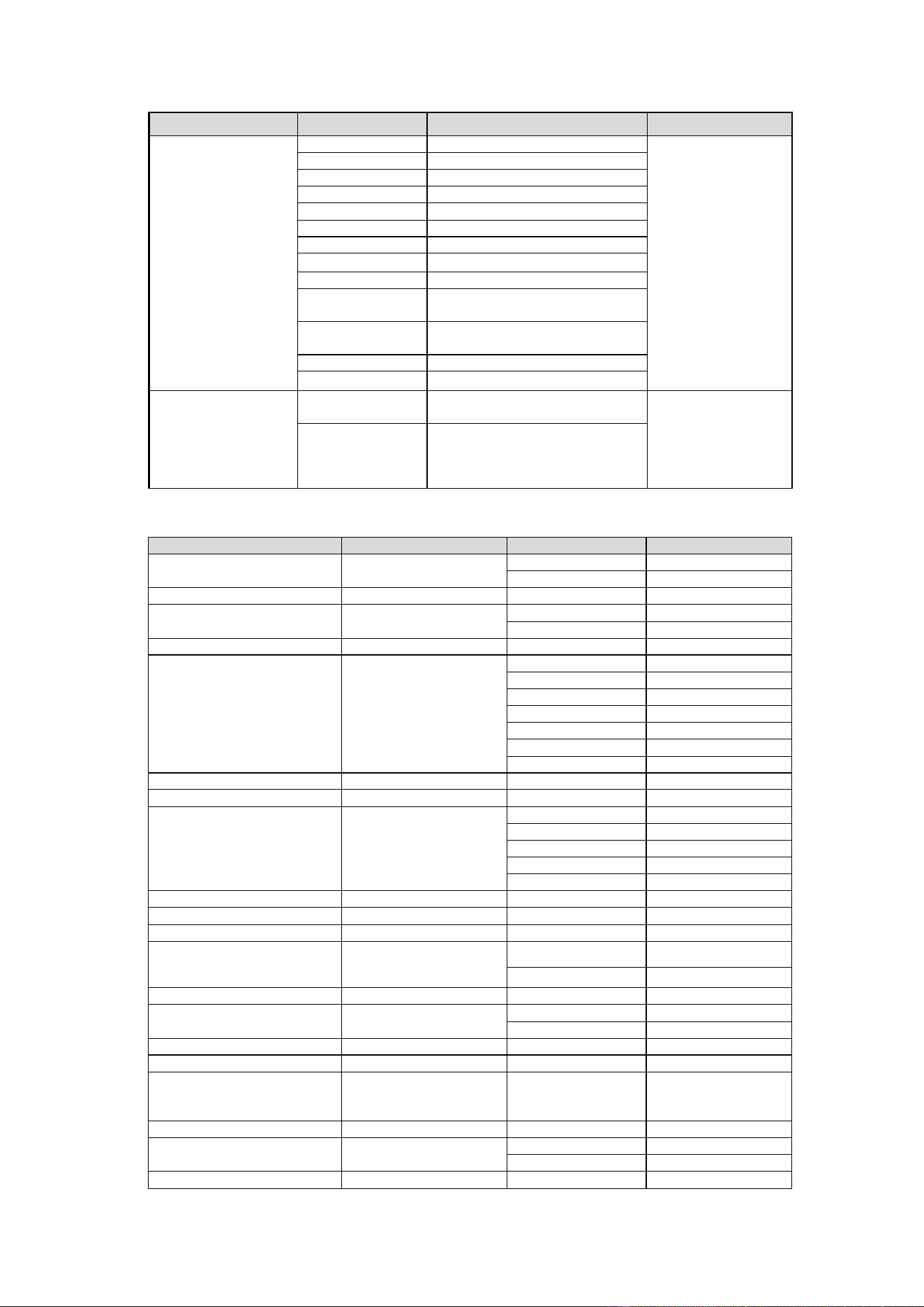
CAM_VideoSystem
Set camera video
system
8x 01 06 35 00 0p FF
P: 0~E Video format
0:1080P60
8:720P30
1:1080P50
9:720P25
2:1080i60
A: 1080P59.94
3:1080i50
B: 1080i59.94
4:720P60
C: 720P59.94
5:720P50
D: 1080P29.97
6:1080P30
E: 720P29.97
7:1080P25
34
Command
Function
Command package
Notes
Pan_tiltDrive
Up
8x 01 06 01 VV WW 03 01 FF
VV: Pan speed 0x01
(low speed) to 0x18
(high speed)
WW: Tilt speed 0x01
(low speed) to 0x14
(high speed)
YYYY: Pan Position
ZZZZ: Tilt Position
Down
8x 01 06 01 VV WW 03 02 FF
Left
8x 01 06 01 VV WW 01 03 FF
Right
8x 01 06 01 VV WW 02 03 FF
Upleft
8x 01 06 01 VV WW 01 01 FF
Upright
8x 01 06 01 VV WW 02 01 FF
DownLeft
8x 01 06 01 VV WW 01 02 FF
DownRight
8x 01 06 01 VV WW 02 02 FF
Stop
8x 01 06 01 VV WW 03 03 FF
AbsolutePosition
8x 01 06 02 VV WW
0Y 0Y 0Y 0Y 0Z 0Z 0Z 0Z FF
RelativePosition
8x 01 06 03 VV WW
0Y 0Y 0Y 0Y 0Z 0Z 0Z 0Z FF
Home
8x 01 06 04 FF
Reset
8x 01 06 05 FF
Pan-tiltLimitSet
Set
8x 01 06 07000W
0Y 0Y 0Y 0Y 0Z 0Z 0Z 0Z FF
W:1 UpRight
0:DownLeft
YYYY: Pan Limit
Position(TBD)
ZZZZ: Tilt Limit
Position(TBD)
Clear
8x 01 06 07010W
07 0F 0F 0F 07 0F 0F 0F FF
Search command
Command
Command package
Return package
Notes
CAM_PowerInq
8x 09 04 00 FF
y0 50 02 FF
On
y0 50 03 FF
Off(Standby)
CAM_ZoomPosInq
8x 09 04 47 FF
y0 50 0p 0q 0r 0s FF
pqrs: Zoom Position
CAM_FocusAFModeInq
8x 09 04 38 FF
y0 50 02 FF
Auto Focus
y0 50 03 FF
Manual Focus
CAM_FocusPosInq
8x 09 04 48 FF
y0 50 0p 0q 0r 0s FF
pqrs: Focus Position
CAM_WBModeInq
8x 09 04 35 FF
y0 50 00 FF
Auto
y0 50 01 FF
3000K
y0 50 02 FF
4000K
y0 50 03 FF
One Push Mode
y0 50 04 FF
5000K
y0 50 05 FF
Manual
y0 50 00 FF
6500K
CAM_RGainInq
8x 09 04 43 FF
y0 50 00 00 0p 0q FF
pq: R Gain
CAM_BGainInq
8x 09 04 44 FF
y0 50 00 00 0p 0q FF
pq: B Gain
CAM_AEModeInq
8x 09 04 39 FF
y0 50 00 FF
Full Auto
y0 50 03 FF
Manual
y0 50 0A FF
Shutter priority
y0 50 0B FF
Iris priority
y0 50 0D FF
Bright
CAM_ShutterPosInq
8x 09 04 4A FF
y0 50 00 00 0p 0q FF
pq: Shutter Position
CAM_IrisPosInq
8x 09 04 4B FF
y0 50 00 00 0p 0q FF
pq: Iris Position
CAM_ BrightPosiInq
8x 09 04 4D FF
y0 50 00 00 0p 0q FF
pq: Bright Position
CAM_ExpCompModeInq
8x 09 04 3E FF
y0 50 02 FF
On
y0 50 03 FF
Off
CAM_ExpCompPosInq
8x 09 04 4E FF
y0 50 00 00 0p 0q FF
pq: ExpComp Position
CAM_BacklightModeInq
8x 09 04 33 FF
y0 50 02 FF
On
y0 50 03 FF
Off
CAM_NRLevel(2D) Inq
8x 09 04 53 FF
y0 50 0p FF
P: 2DNRLevel
CAM_NRLevel(3D) Inq
8x 09 04 54 FF
y0 50 0p FF
P:3D NRLevel
CAM_FlickerModeInq
8x 09 04 55 FF
y0 50 0p FF
p: Flicker Settings
(0: OFF, 1: 50Hz,
2:60Hz)
CAM_ApertureInq
8x 09 04 42 FF
y0 50 00 00 0p 0q FF
pq: Aperture Gain
CAM_PictureEffectModeInq
8x 09 04 63 FF
y0 50 00 FF
Off
y0 50 04 FF
B&W
CAM_MemoryInq
8x 09 04 3F FF
y0 50 0p FF
p: Memory number

35
last operated.
SYS_MenuModeInq
8x 09 0606 FF
y0 50 02 FF
On
y0 50 03 FF
Off
CAM_LR_ReverseInq
8x 09 04 61 FF
y0 50 02 FF
On
y0 50 03 FF
Off
CAM_PictureFlipInq
8x 09 04 66 FF
y0 50 02 FF
On
y0 50 03 FF
Off
CAM_ColorSaturationInq
8x 09 04 49 FF
y0 50 00 00 00 0p FF
p: Color Gain setting
0h (60%) to Eh (200%)
CAM_IDInq
8x 09 04 22 FF
y0 50 0p FF
p: Gamma ID
IR_ReceiveInq
8x 09 0608 FF
y0 50 02 FF
On
y0 50 03 FF
Off
IR_ReceiveReturn
y0 077D 01 04 00 FF
Power ON/OFF
y0 077D 01 04 07 FF
Zoom tele/wide
y0 077D 01 04 38 FF
AF ON/OFF
y0 077D 01 04 33 FF
Camera _Backlight
y0 077D 01 04 3F FF
Camera _Memery
y0 077D 01 06 01 FF
Pan_titleDriver
CAM_BrightnessInq
8x 09 04A1 FF
y0 50 00 00 0p 0q FF
pq: Brightness Position
CAM_ContrastInq
8x 09 04A2 FF
y0 50 00 00 0p 0q FF
pq: Contrast Position
CAM_FlipInq
8x 09 04A4 FF
y0 50 00 FF
Off
y0 50 01 FF
Flip-H
y0 50 02 FF
Flip-V
y0 50 03 FF
Flip-HV
CAM_GammaInq
8x 09 04 5B FF
y0 50 0p FF
p: Gamma setting
CAM_VersionInq
8x 09 00 02 FF
y0 50 ab cd
mn pq rs tu vw FF
ab cd: vender ID
( 0220 )
mn pq : model ID ST
( 0951 )
U3 (3950)
rs tu : ARM
Version
vw : reserve
VideoSystemInq
8x 09 06 23 FF
y0 50 0p FF
P: 0~E Video format
0:1080P60
8:720P30
1:1080P50
9:720P25
2:1080i60
A: 1080P59.94
3:1080i50
B: 1080i59.94
4:720P60
C: 720P59.94
5:720P50
D: 1080P29.97
6:1080P30
E: 720P29.97
7:1080P25
Pan-tiltMaxSpeedInq
8x 09 06 11 FF
y0 50 ww zz FF
ww: Pan Max
Speedzz: Tilt Max
Speed
Pan-tiltPosInq
8x 09 06 12 FF
y0 50 0w 0w 0w 0w
0z 0z 0z
0z FF
wwww:
Pan
Positionzz
zz: Tilt
Position
Note: [x] on table above means address of camera to be operated, [y] = [x+8].

36
11 Pelco-D protocol command list
Function
Byte1
Byte2
Byte3
Byte4
Byte5
Byte6
Byte7
Up
0xFF
Address
0x00
0x08
Pan Speed
Tilt Speed
SUM
Down
0xFF
Address
0x00
0x10
Pan Speed
Tilt Speed
SUM
Left
0xFF
Address
0x00
0x04
Pan Speed
Tilt Speed
SUM
Right
0xFF
Address
0x00
0x02
Pan Speed
Tilt Speed
SUM
Upleft
0xFF
Address
0x00
0x0C
Pan Speed
Tilt Speed
SUM
Upright
0xFF
Address
0x00
0x0A
Pan Speed
Tilt Speed
SUM
DownLeft
0xFF
Address
0x00
0x14
Pan Speed
Tilt Speed
SUM
DownRig
ht
0xFF
Address
0x00
0x12
Pan Speed
Tilt Speed
SUM
Zoom In
0xFF
Address
0x00
0x20
0x00
0x00
SUM
Zoom Out
0xFF
Address
0x00
0x40
0x00
0x00
SUM
Focus Far
0xFF
Address
0x00
0x80
0x00
0x00
SUM
Focus
Near
0xFF
Address
0x01
0x00
0x00
0x00
SUM
Stop
0xFF
Address
0x00
0x00
0x00
0x00
SUM
Set Preset
0xFF
Address
0x00
0x03
0x00
Preset ID
SUM
Clear
Preset
0xFF
Address
0x00
0x05
0x00
Preset ID
SUM
Call Preset
0xFF
Address
0x00
0x07
0x00
Preset ID
SUM
Query Pan
Position
0xFF
Address
0x00
0x51
0x00
0x00
SUM
Query Pan
Position
Response
0xFF
Address
0x00
0x59
Value High
Byte
Value Low
Byte
SUM
Query Tilt
Position
0xFF
Address
0x00
0x53
0x00
0x00
SUM
Query Tilt
Position
Response
0xFF
Address
0x00
0x5B
Value High
Byte
Value Low
Byte
SUM
Query
Zoom
Position
0xFF
Address
0x00
0x55
0x00
0x00
SUM
Query
Zoom
Position
Response
0xFF
Address
0x00
0x5D
Value High
Byte
Value Low
Byte
SUM

37
12 Pelco-P protocol command list
Function
Byte1
Byte2
Byte3
Byte4
Byte5
Byte6
Byte7
Byte8
Up
0xA0
Address
0x00
0x08
Pan Speed
Tilt Speed
0xAF
XOR
Down
0xA0
Address
0x00
0x10
Pan Speed
Tilt Speed
0xAF
XOR
Left
0xA0
Address
0x00
0x04
Pan Speed
Tilt Speed
0xAF
XOR
Right
0xA0
Address
0x00
0x02
Pan Speed
Tilt Speed
0xAF
XOR
Upleft
0xA0
Address
0x00
0x0C
Pan Speed
Tilt Speed
0xAF
XOR
Upright
0xA0
Address
0x00
0x0A
Pan Speed
Tilt Speed
0xAF
XOR
DownLeft
0xA0
Address
0x00
0x14
Pan Speed
Tilt Speed
0xAF
XOR
DownRig
ht
0xA0
Address
0x00
0x12
Pan Speed
Tilt Speed
0xAF
XOR
Zoom In
0xA0
Address
0x00
0x20
0x00
0x00
0xAF
XOR
Zoom Out
0xA0
Address
0x00
0x40
0x00
0x00
0xAF
XOR
Stop
0xA0
Address
0x00
0x00
0x00
0x00
0xAF
XOR
Focus Far
0xA0
Address
0x01
0x00
0x00
0x00
0xAF
XOR
Focus
Near
0xA0
Address
0x02
0x00
0x00
0x00
0xAF
XOR
Set Preset
0xA0
Address
0x00
0x03
0x00
Preset ID
0xAF
XOR
Clear
Preset
0xA0
Address
0x00
0x05
0x00
Preset ID
0xAF
XOR
Call Preset
0xA0
Address
0x00
0x07
0x00
Preset ID
0xAF
XOR
Query Pan
Position
0xA0
Address
0x00
0x51
0x00
0x00
0xAF
XOR
Query Pan
Position
Response
0xA0
Address
0x00
0x59
Value High
Byte
Value Low
Byte
0xAF
XOR
Query Tilt
Position
0xA0
Address
0x00
0x53
0x00
0x00
0xAF
XOR
Query Tilt
Position
Response
0xA0
Address
0x00
0x5B
Value High
Byte
Value Low
Byte
0xAF
XOR
Query
Zoom
Position
0xA0
Address
0x00
0x55
0x00
0x00
0xAF
XOR
Query
Zoom
Position
Response
0xA0
Address
0x00
0x5D
Value High
Byte
Value Low
Byte
0xAF
XOR

38
13 Maintenance and troubleshooting
13.1 Maintenance
1) Please disconnect power of camera if it is not in long-term use. Meanwhile, disconnect AC power
adapter from AC socket.
2) To avoid scratch, use soft cloth or cotton to wipe off dust on camera case and
3) Please clean camera lens with dry soft cloth. If stain persists, use mild detergent to wipe gently.
Do not use strong or corrosive detergent which may scratch the lens and affect image result.
13.2 Troubleshooting
1) No image displayed by video output
Solution: a. Check camera power for connection, and check if power indicator is lit.
b. Power off, restart the device and check if it performs self inspection normally.
c. Check if dial switch at the bottom is in normal operating mode (refer to Table 2.2 and
Table 2.3).
d. Check if connection line of video output and video display functions.
2) Image is unstable
Solution: a. Check if connection line of video output and video display functions.
3) Lens zoom image dithering
Solution: a. Check if camera is installed securely.
b. Check if there is vibrating machine or object nearby the camera.
4) Remote control is out of service
Solution: a. Set remote control address to be 1, and check if it works (if the device restores to default,
remote control address will be restored to 1).
b. Check if remote control battery is installed or battery is low
c. Check if camera is in normal operating mode (refer to table 2.2 and table 2.3)
d. Check if menu exits. It only works when menu exits; if webpage outputs image, it will not display
menu or perform any operation. Menu exits in 30s automatically. Remote control works.
5) Serial port is out of control
Solution: a. Check if it is standard control line provided by our company.
b. Check if serial port protocol, baud rate and address are consistent with camera.
c. Check if control line connects correctly.
d. Check if camera is in normal operating mode (refer to table 2.2 and table 2.3).
6) Failure to log in webpage
Solution: a. Use display to check if camera outputs image normally.
b. Check if network cable connects correctly (flicker of yellow indicator at internet
access means network cable connection is correct).
c. Check if computer adds network segment and if network segment is consistent
with camera IP address.
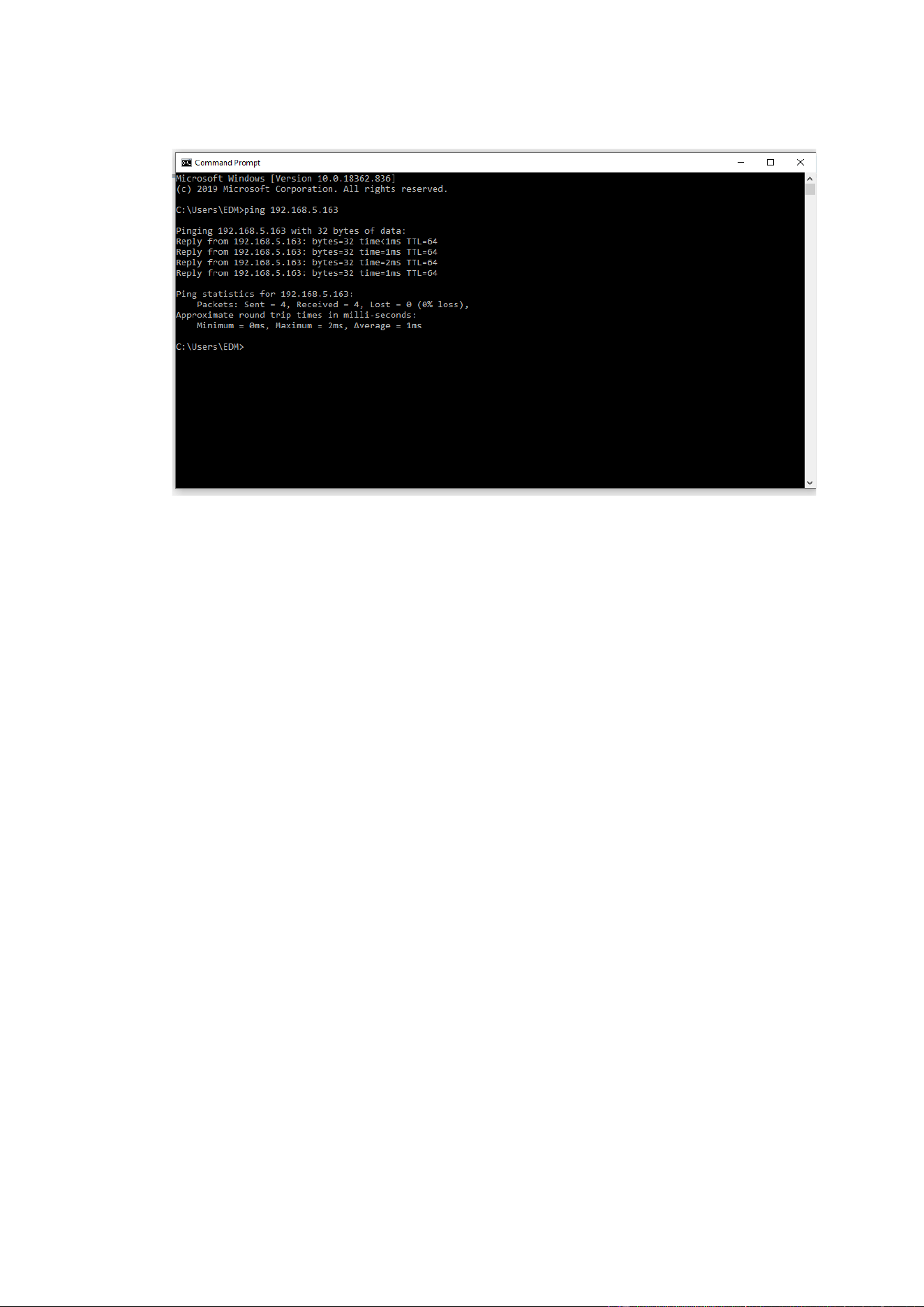
d. Click “start” in computer, select “operate”, and enter cmd; click “confirm”, DOS
command window appears; input ping 192.168.5.163, press Enter,
39
information below means network connection functions well.

40
14 Warranty
BZBGEAR wants to assure you peace of mind. We're so confident in the quality of our products we
are offering a three-year warranty.
For complete warranty information, please visit BZBGEAR.com/warranty.
For questions, please call 1.888.499.9906 or email support@bzbgear.com.
15 Mission Statement
BZBGEAR manifests from the competitive nature of the audiovisual industry to innovate while
keeping the customer in mind. AV solutions can cost a pretty penny, and new technology only adds
to it. We believe everyone deserves to see, hear, and feel the advancements made in today’s AV
world without having to break the bank. BZBGEAR is the solution for small to medium-sized
applications requiring the latest professional products in AV.
We live in a DIY era where resources are abundant on the internet. With that in mind, our team
offers system design consultation and expert tech support seven days a week for the products in our
BZBGEAR catalog. You’ll notice comparably lower prices with BZBGEAR solutions, but the
quality of the products is on par with the top brands in the industry. The unparalleled support from
our team is our way of showing we care for every one of our customers. Whether you’re an integrator,
home theater enthusiast, or a do-it-yourselfer, BZBGEAR offers the solutions to allow you to focus
on your project and not your budget.
Copyright statement
All the contents in this manual and its copyright are owned by BZBGEAR. No one is allowed to
imitate, copy, or translate this manual without BZBGEAR’s permission. This manual contains no
guarantee, standpoint expression or other implies in any form. Product specification and information
in this manual is for reference only and subject to change without notice.
All rights reserved. No reproducing is allowed without acknowledgement.