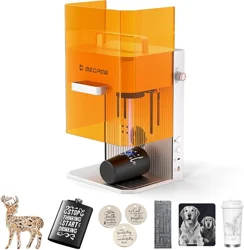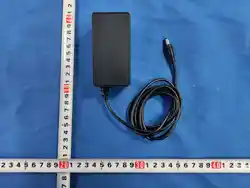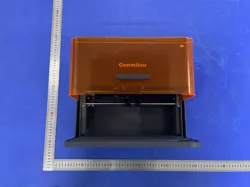
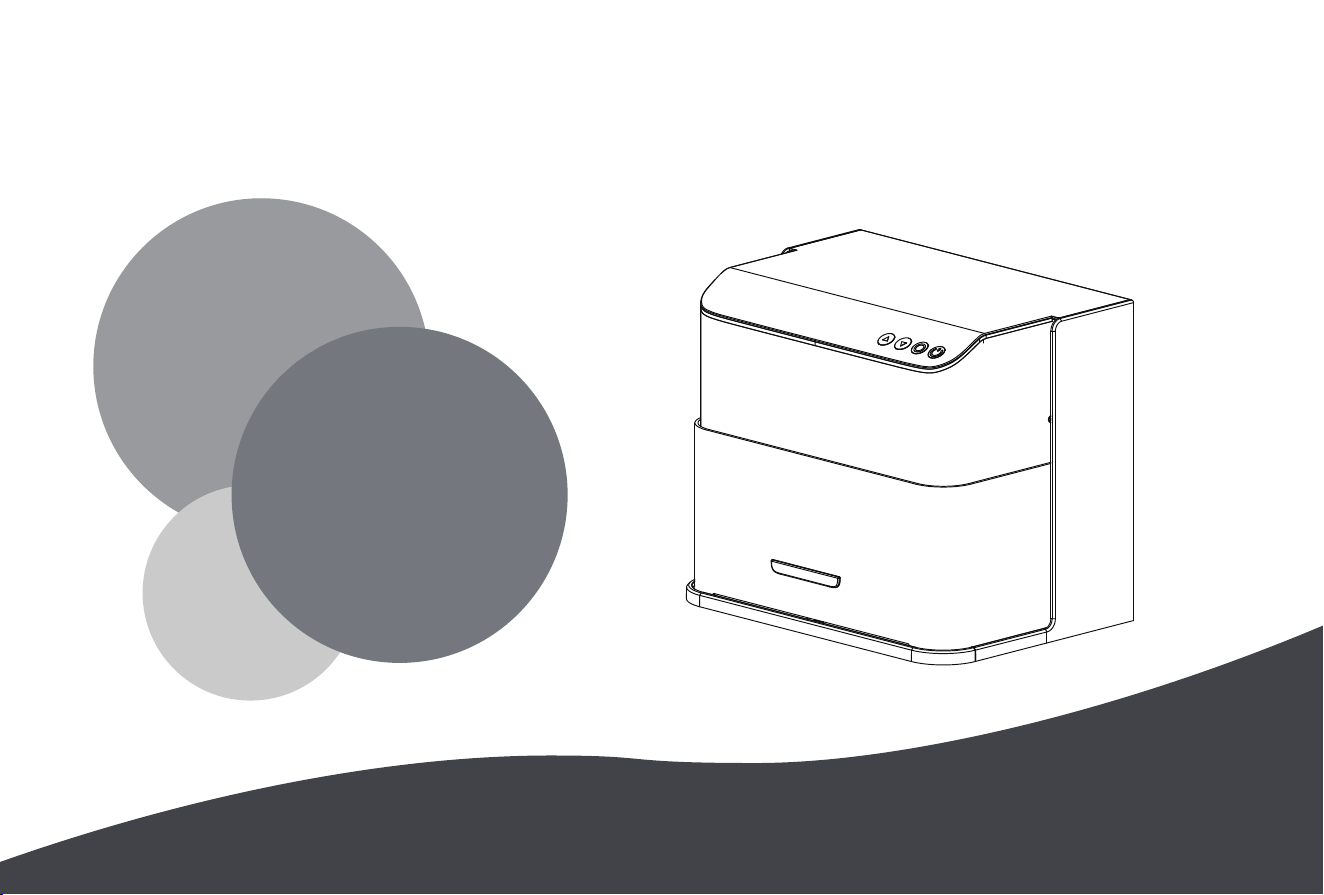
Please read this instruction manual carefully before use
Please use the laser engraving machine correctly and safely
Z8
User Manual
01 02 03 04 05 06 07
08 09 10 11 12 13 14 15
16 17 18 19 20 21 22
23 24 25 26 27 28 29 30
31 32 33 34 35 36 37 38 39
40 41 42 43 44 45

Impoant Statement!
All losses caused by improper use or failure to follow the steps in the manual shall be borne by the individual. The nal right of interpretation of the manual belongs to
our company, which also resees the right to modify all information, data, technical details, etc. in this manual.
Safety Precautions
★Before operating the equipment, users must carefully read the manual and strictly follow the operating procedures.
★Laser processing may be risky, and users should carefully consider whether the object being processed is suitable for
laser operation.
★The processing object and emissions should comply with local laws and regulations.
★The laser radiation may cause the following situations:
① Ignition of surrounding ammable materials;
② During laser processing, other radiation and toxic and harmful gases may be generated due to dierent processing
objects;
③ Direct exposure to laser radiation can cause human harm. Fireghting equipment must be equipped in the use site. It is
prohibited to stack ammable and explosive items around the workbench and equipment. At the same time, it must be
well ventilated.
★The environment where the equipment is located should be d, free of pollution, vibration, strong electricity, strong
magnetism and other inteerence and inuence. The working environment temperature is 5~30℃, and the working
environment humidity is 30-65% rh (no condensation)
★Equipment operating voltage: AC100-240V.
★The engraving machine and other related equipment must be safely grounded before they can be turned on and
operated.
★When the equipment is turned on, it is necessa to be on duty throughout the process. All power supplies must be cut
o before leaving to prevent abnormal conditions. If any abnormal conditions occur, please turn o the power immediately!
★It is strictly forbidden to place any irrelevant total reection or diuse reection objects in the equipment to prevent the
laser from reecting on the human body or ammable items.
★The equipment should be kept away from electrical equipment that is sensitive to electromagnetic inteerence, which
may cause electromagnetic inteerence to it.
★There is high voltage or other potential dangers inside the laser equipment, and non-professionals are strictly prohibited
from disassembling it.
Thank you for purchasing the laser engraving machine. In order to better use and maintain this equipment, please read this manual carefully and follow the
steps in the manual.
Notice!
1. After the laser is turned on, it is strictly forbidden to aim
at people, animals and ammable objects to avoid skin
burns and re.
2. The brightness of the laser is harmful to the eyes. Please
do not look directly at the laser.
3. Keep your hands away from the machine when it is
working to avoid inju
4. Turn o the power of the machine when it is not in use to
avoid misoperation by a third pay
Maintenance and Care
The laser module is a consumable. It is recommended to turn
o the machine power for 10 minutes after 4 hours of
engraving and 1 hour of cutting.
SAFETY INSTRUCTIONS
01 02 03 04 05 06 07
08 09 10 11 12 13 14 15
16 17 18 19 20 21 22
23 24 25 26 27 28 29 30
31 32 33 34 35 36 37 38 39
40 41 42 43 44 45

Warning
To assure continued compliance, any changes or modications not expressly approved by the pay.Responsible for compliance could void the
user’s authority to operate this equipment.
FCC Statement
This equipment complies with Pa 15 of the FCC Rules. Operation is subject to the following two conditions:
(1) This device may not cause harmful inteerence, and
(2) This device must accept any inteerence received, including inteerence that may cause undesired operation.
NOTE: This equipment has been tested and found to comply with the limits for a Class B digital device, pursuant to pa 15 of the FCC rules. These
limits are designed to provide reasonable protection against harmful inteerence in a residential installation. This equipment generates, uses and
can radiate radio frequency energy and, if not installed and used in accordance with the instructions, may cause harmful inteerence to radio
communications.
However, there is no guarantee that inteerence will not occur in a paicular installation. If this equipment does cause harmful inteerence to radio
or television reception, which can be determined by turning the equipment o and on, the user is encouraged to t to correct the inteerence by
one or more of the following measures:
-Reorient or relocate the receiving antenna.
-Increase the separation between the equipment and receiver.
-Connect the equipment into an outlet on a circuit dierent from that to which the receiver is connected.
-Consult the dealer or an experienced radio/TV technician for help.
FCC Radiation Exposure Statement:
The equipment complies with FCC Radiation exposure limits set foh for uncontrolled environment. This equipment should be installed and
operated with minimum distance 20cm between the radiator and your body.
FCC WARNING
01 02 03 04 05 06 07
08 09 10 11 12 13 14 15
16 17 18 19 20 21 22
23 24 25 26 27 28 29 30
31 32 33 34 35 36 37 38 39
40 41 42 43 44 45

01 Product Parameters ………………………………………………………………… 04
02 Products And Accessories ………………………………………………………… 05
03 Functions & Accessories Introduction …………………………………………… 07
04 Regular Product Maintenance…………………………………………
…………… 18
05 Suppoed Software Oveiew …………………………………………………… 19
09 PC Connection……………………………………………………………………… 29
10 Mobile Connection ………………………………………………………………… 40
11 FAQ ……………………………………………………………………………………… 44
07 Software Download & Installation-For Windows ……………………………… 23
08 Software Download & Installation-For Mac/Phone…………………………… 27
06 Driver Installation…………………………………………………………………… 20
CONTENTS
01 02 03 04 05 06 07
08 09 10 11 12 13 14 15
16 17 18 19 20 21 22
23 24 25 26 27 28 29 30
31 32 33 34 35 36 37 38 39
40 41 42 43 44 45
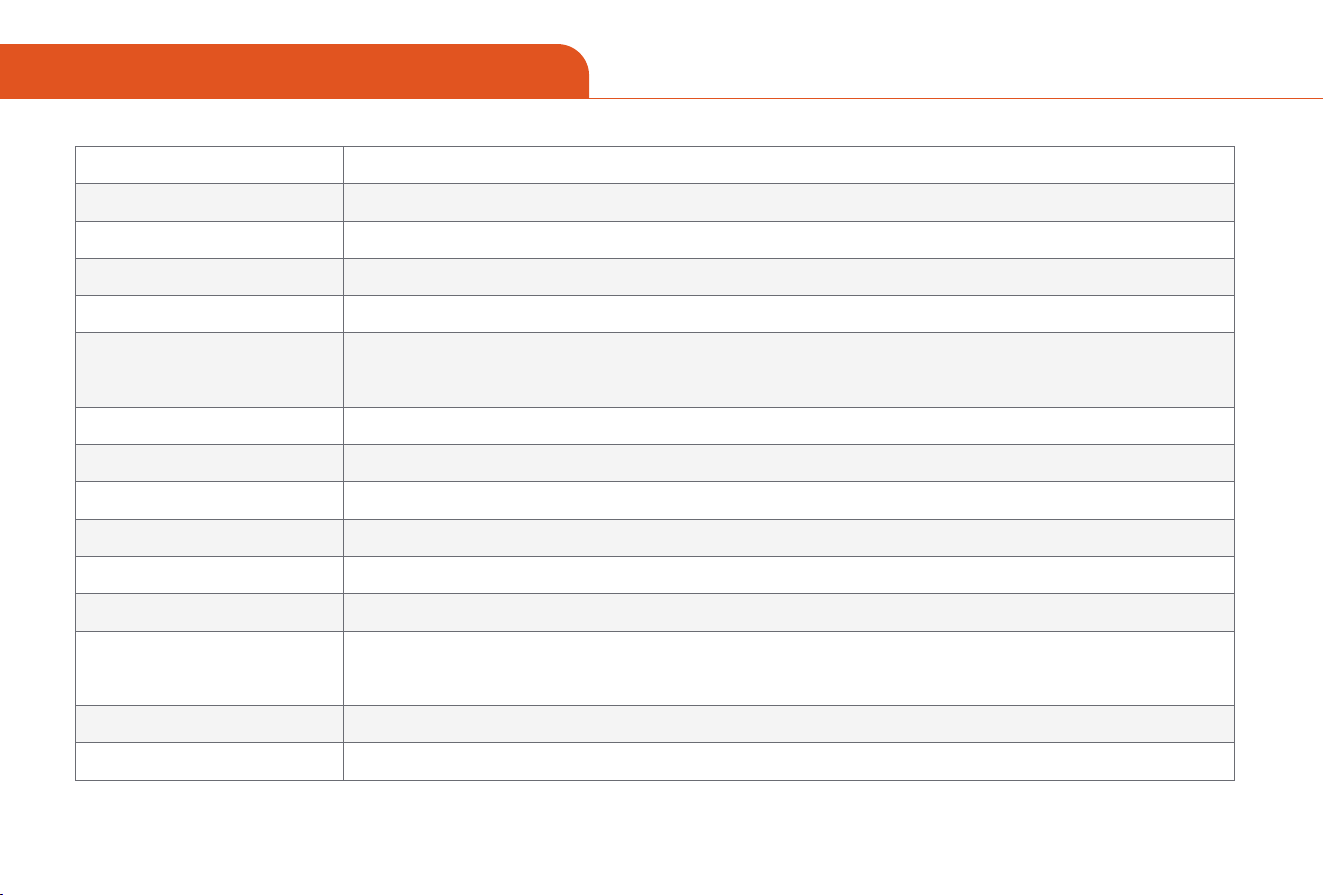
01 PRODUCT PARAMETERS
Product Model
Main Body Material
Laser Module
Laser Wavelength
Input Voltage
Communication Interface
Cooling Method
Laser Lifespan
Laser Class
Engraving Area
Engraving Precision
Engraving Speed
Engravable Materials
Supported Systems
Supported Formats
Z8
ABS + High-Strength Metal
455nm: 5W 10W / 1064nm: 2W
455nm / 1064nm
455nm 5W: DC12V 4A / 455nm 10W: DC12V 5A / 1064nm 2W: DC12V 9A
WiFi wireless connection
USB Type-B wired connection, supporting Mac and Windows desktop applications
Paper, wood, plastic, leather, fabric, cardboard, stone, ceramics, stainless steel, coated metal,
and other opaque materials
Air-Cooled
>10000h
Class 1
455nm 5W/10W: 200*100mm / 1064nm 2W: 180*100mm
0.01mm
90000mm/min
Windows/Mac/Android/iOS
JPEG/BMP/PNGJPG/GIF/DXF/PLT/HPGL
01 02 03 04 05 06 07
08 09 10 11 12 13 14 15
16 17 18 19 20 21 22
23 24 25 26 27 28 29 30
31 32 33 34 35 36 37 38 39
40 41 42 43 44 45
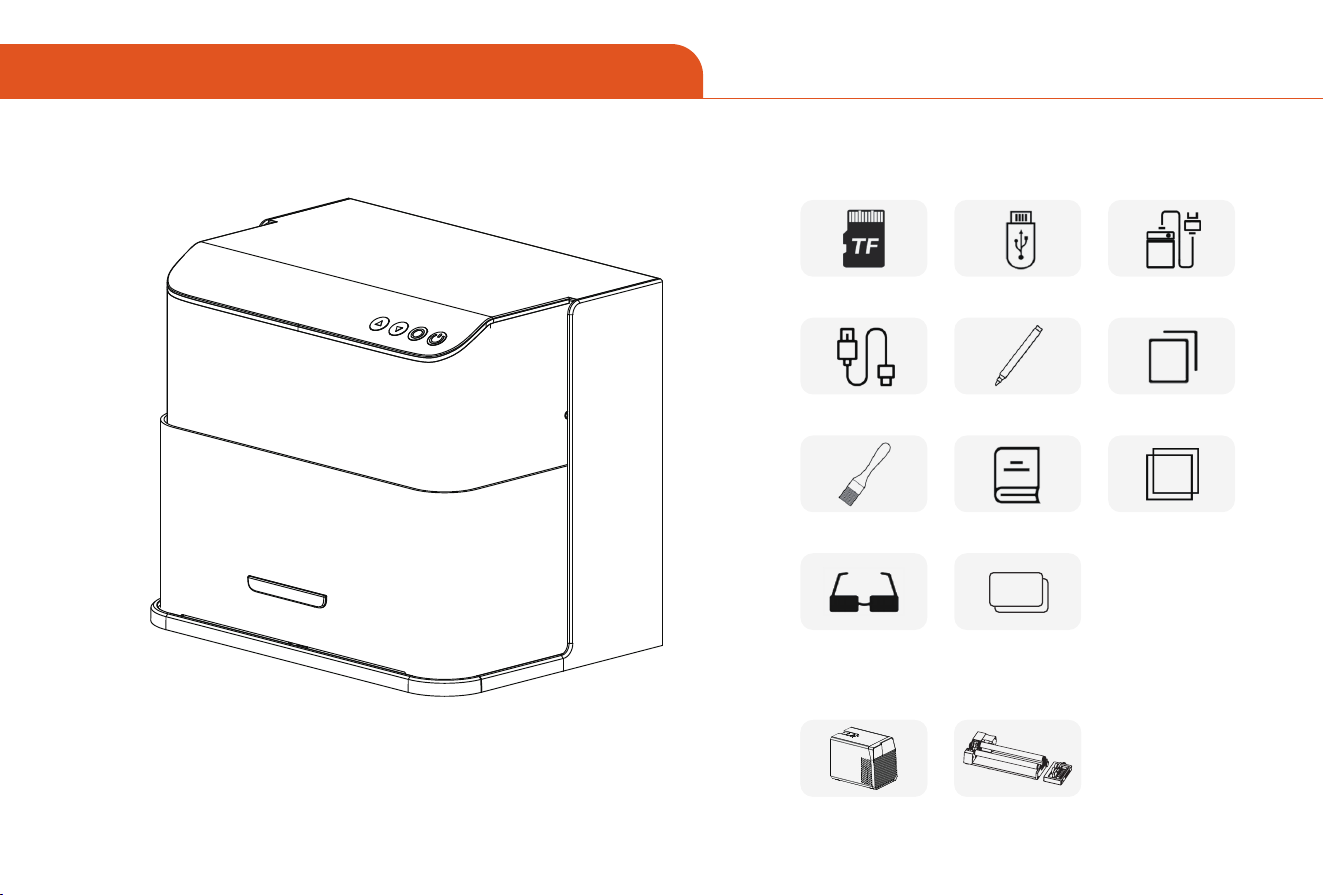
Product Model
TF Card Card Reader Power Supply
Brush User Manual Wooden Board
Type-B Data Cable Marker Pen Kraft Paper
Optional Accessories
Air Purifier Rotating Module
02 PRODUCTS AND ACCESSORIES
Black CardProtective Goggles
01 02 03 04 05 06 07
08 09 10 11 12 13 14 15
16 17 18 19 20 21 22
23 24 25 26 27 28 29 30
31 32 33 34 35 36 37 38 39
40 41 42 43 44 45
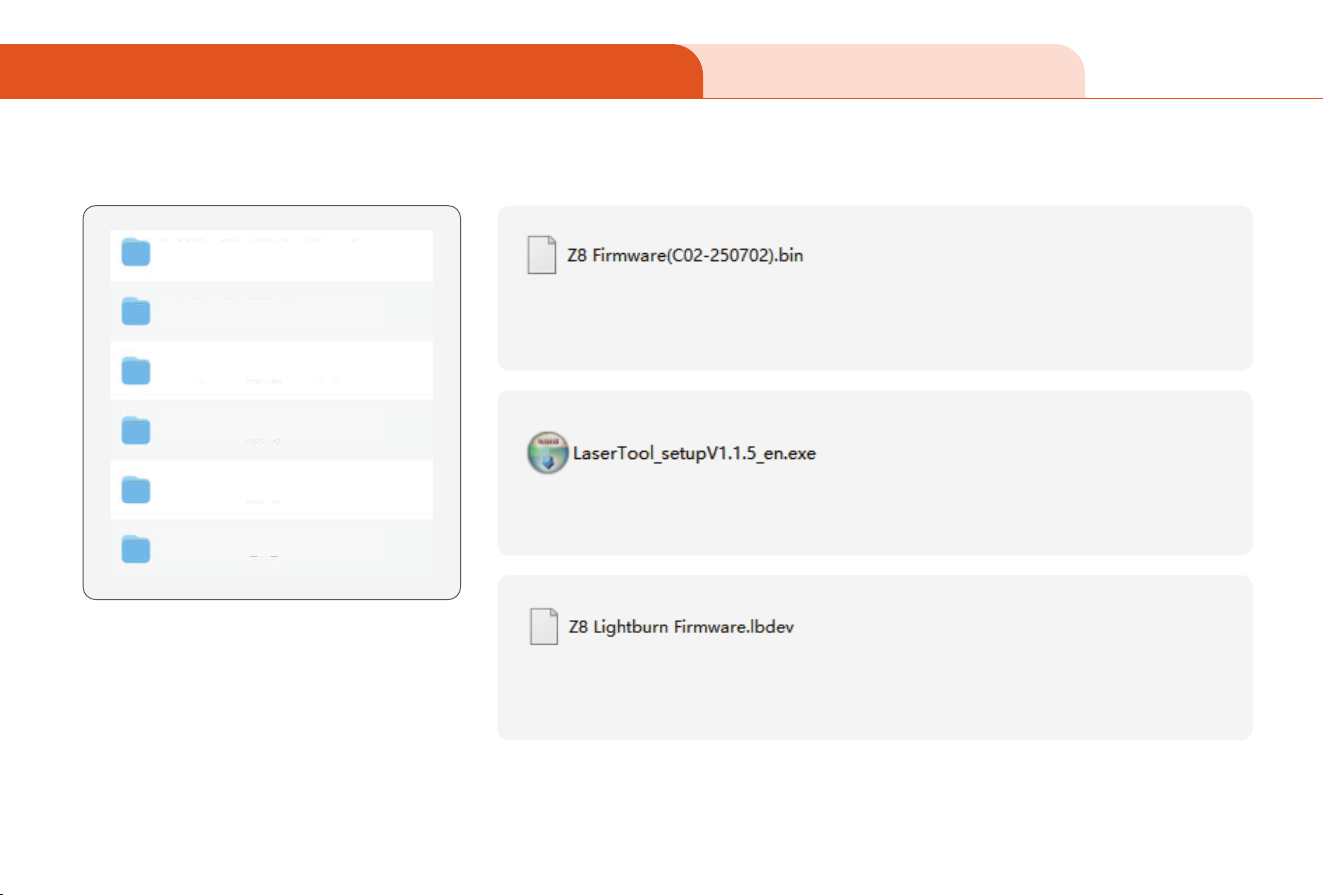
Included TF Card Contents
Files in the TF card: TF Card Included Files
Z8 01_Firmware
Z8 Pro 02_Picture
Z8 03_APP
Z8 04_Windows
Z8 05_MAC
Z8 06_UserManual
Firmware updates for the engraving machine (download to your computer before
updating).
Firmware update software tool.
Impo this le into LightBurn when connecting the machine for the rst time to
improve software usability.
02 PRODUCTS AND ACCESSORIES
01 02 03 04 05 06 07
08 09 10 11 12 13 14 15
16 17 18 19 20 21 22
23 24 25 26 27 28 29 30
31 32 33 34 35 36 37 38 39
40 41 42 43 44 45
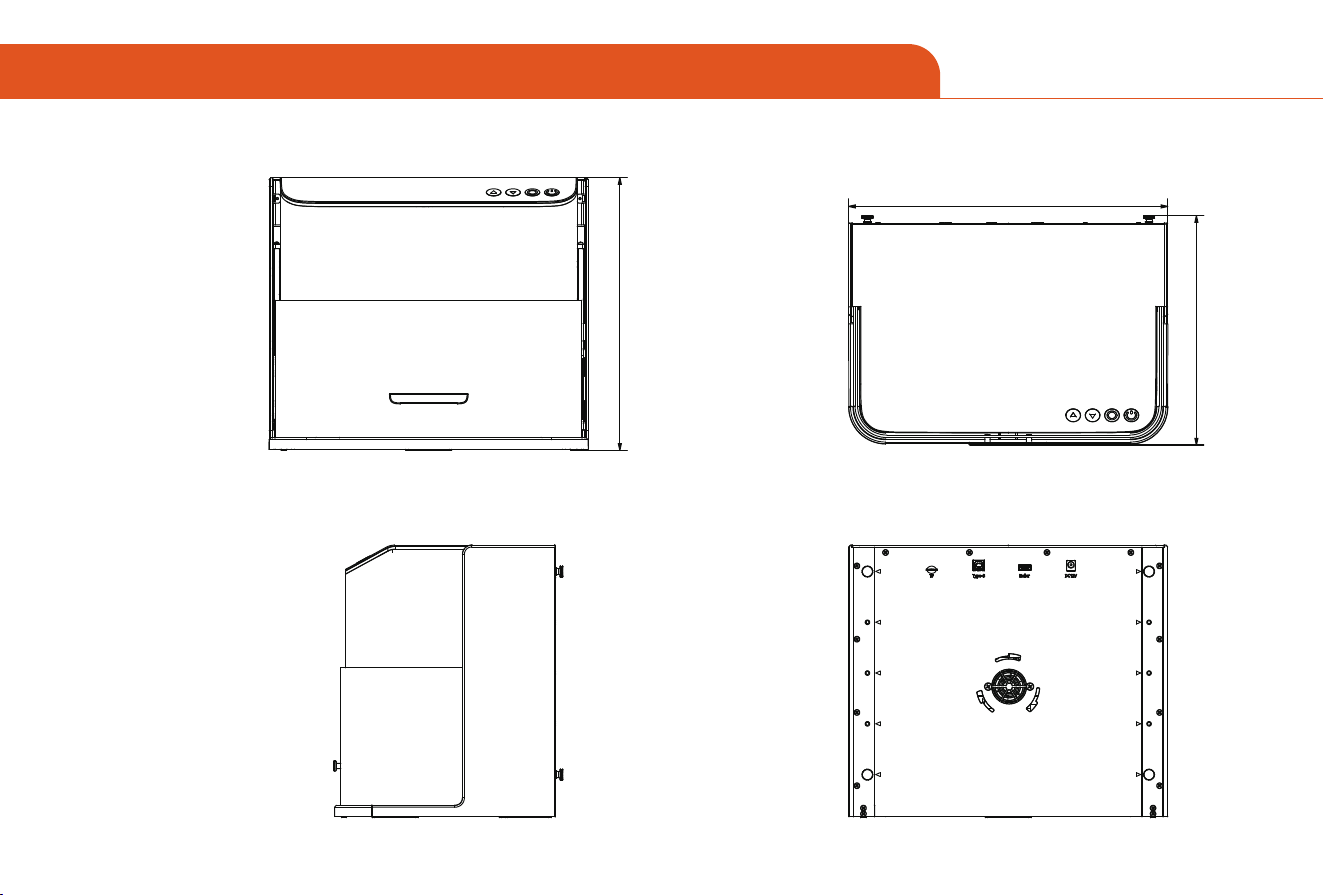
Right view Back view
Front view Top view
295
346
248
03 FUNCTIONS & ACCESSORIES INTRODUCTION
01 02 03 04 05 06 07
08 09 10 11 12 13 14 15
16 17 18 19 20 21 22
23 24 25 26 27 28 29 30
31 32 33 34 35 36 37 38 39
40 41 42 43 44 45
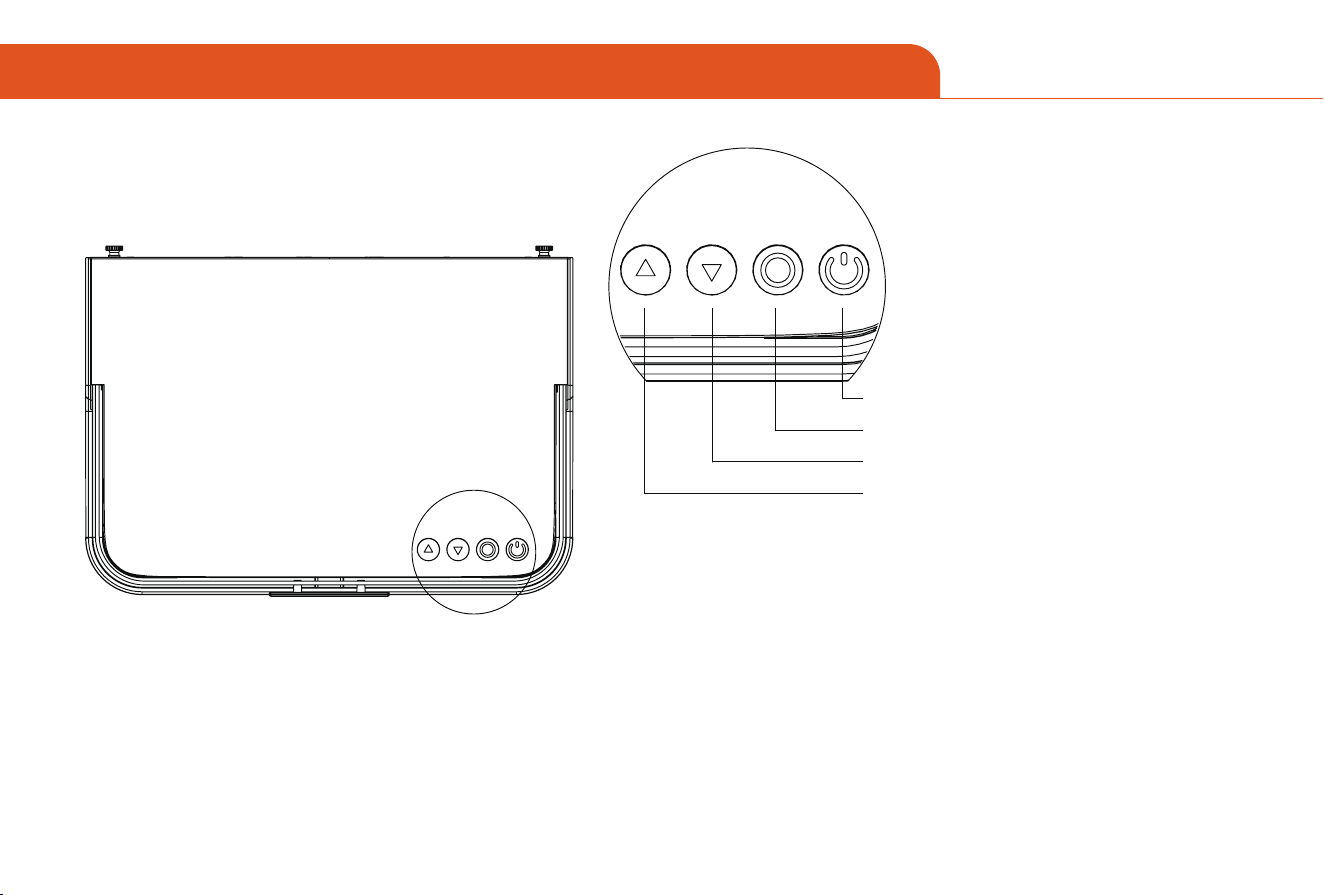
【 Function Description 】
Offline Engraving
Offline Engraving Button Function Description
Used to turn the machine on and off
Used to repeat engraving the previous artwork
Focus Down Button
Press and hold to focus downward
Focus Up Button
Press and hold to focus upward
Power
1. Generate engraving or cutting files (gcode) using LightBurn software and save them
to the root directory of the TF card. Save the file name as: 001.nc
2. Insert the TF card into the machine before powering on. Connect the controller
panel using the included power adapter and cable, then turn on the power switch on
the side of the control panel.
3. Press the “Offline Engraving” button:
a. Press briefly to automatically reset the machine and preview.
b. Hold for over 3 seconds to enter engraving mode.
c. Press briefly again to pause.
d. Press briefly again to resume.
e. Hold for over 3 seconds again to cancel engraving.
03 FUNCTIONS & ACCESSORIES INTRODUCTION
01 02 03 04 05 06 07
08 09 10 11 12 13 14 15
16 17 18 19 20 21 22
23 24 25 26 27 28 29 30
31 32 33 34 35 36 37 38 39
40 41 42 43 44 45
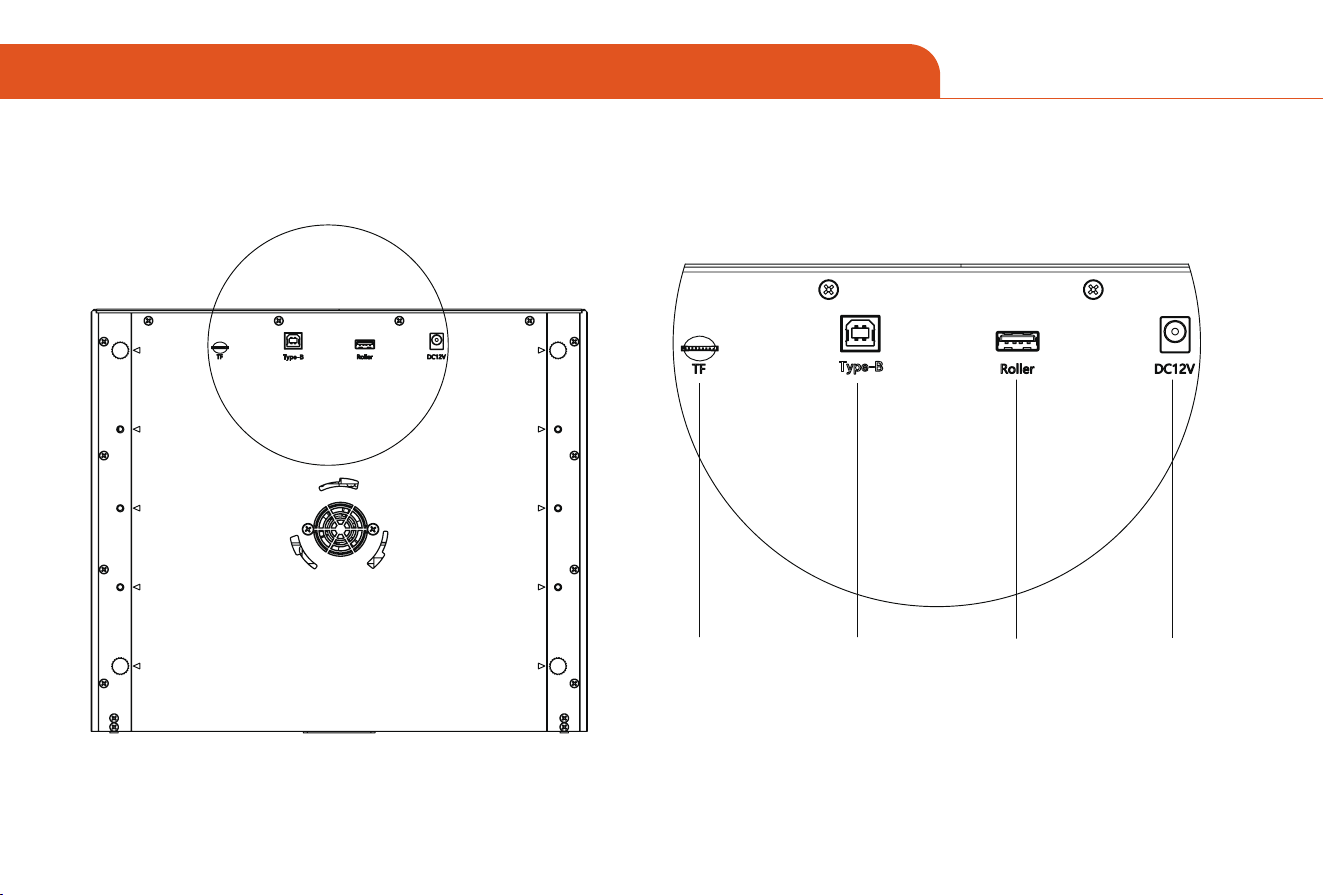
【 Function Description 】
Used to store
engraving content
(requires insertion when
using with a mobile phone)
For connecting a
12V power supply
Used for connecting
to a computer
For connecting
roller modules
Roller Interface
Power Interface
USB-PC
TF Card
03 FUNCTIONS & ACCESSORIES INTRODUCTION
01 02 03 04 05 06 07
08
09 10 11 12 13 14 15
16 17 18 19 20 21 22
23 24 25 26 27 28 29 30
31 32 33 34 35 36 37 38 39
40 41 42 43 44 45
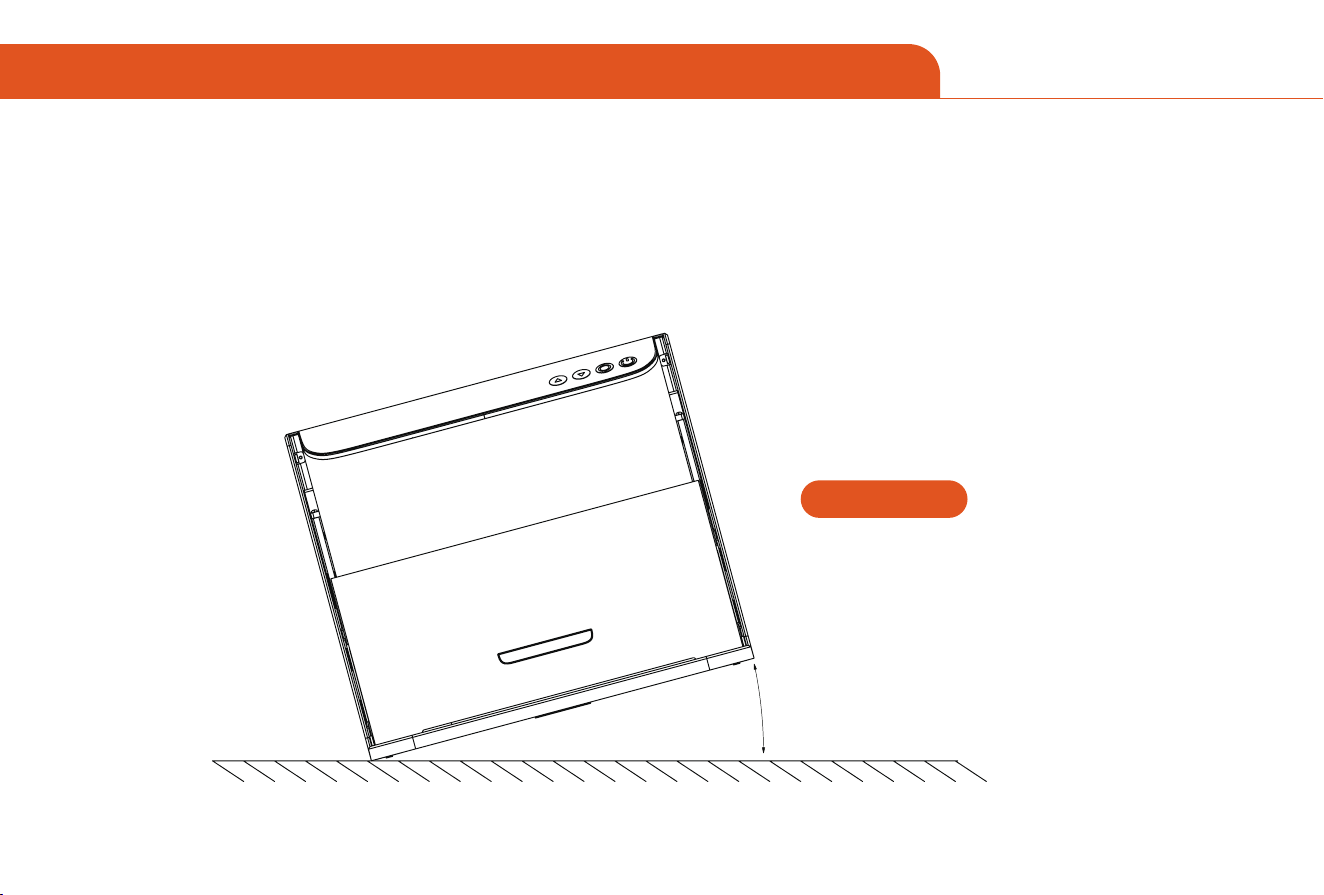
【 Function Description 】
When the host machine is tilted from the horizontal plane and remains tilted for more than 1 second, the machine will stop running imme-
diately and the laser module will stop laser output.
After entering the protection state, the machine must be restaed to restore normal function.
Tilt protection
03 FUNCTIONS & ACCESSORIES INTRODUCTION
01 02 03 04 05 06 07
08 09
10 11 12 13 14 15
16 17 18 19 20 21 22
23 24 25 26 27 28 29 30
31 32 33 34 35 36 37 38 39
40 41 42 43 44 45
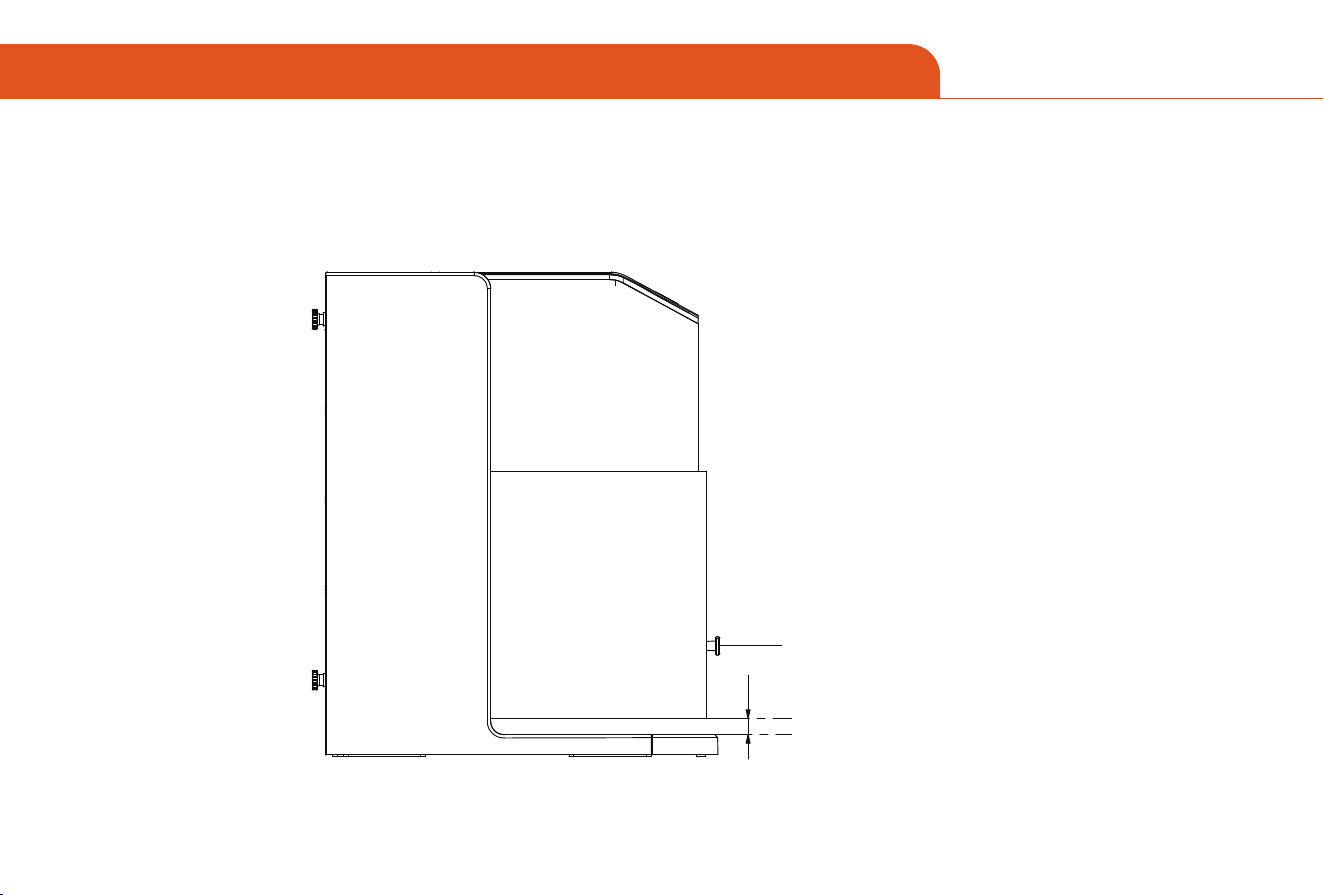
5mm
【 Function Description 】
When the light shield is opened, the laser module will immediately stop laser output.
When the light shield is raised 5mm,
the machine stops laser output
03 FUNCTIONS & ACCESSORIES INTRODUCTION
01 02 03 04 05 06 07
08 09 10
11 12 13 14 15
16 17 18 19 20 21 22
23 24 25 26 27 28 29 30
31 32 33 34 35 36 37 38 39
40 41 42 43 44 45
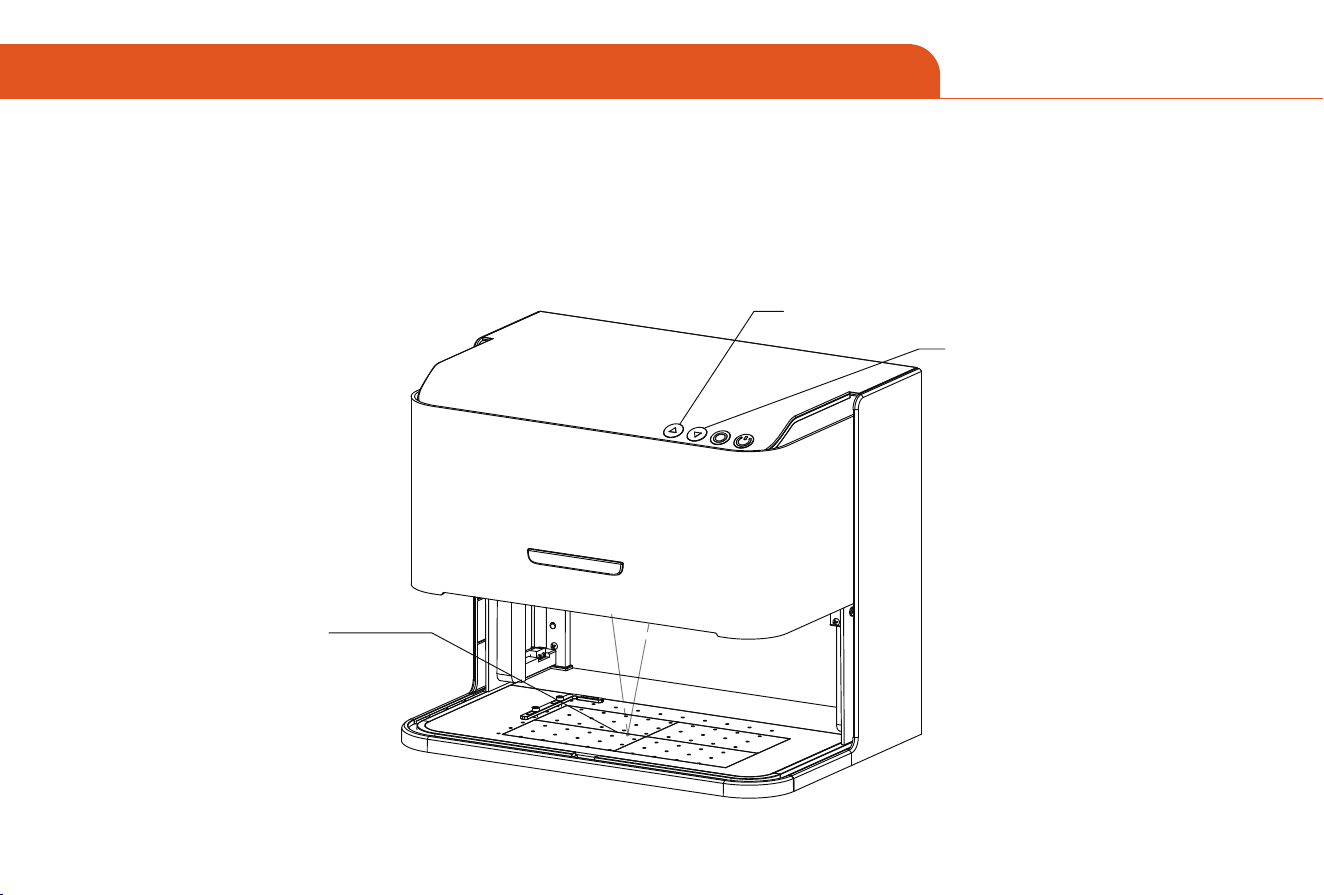
【 Product Focusing 】
Press and hold the “Up Focus Button” and “Down Focus Button” on the machine's top cover to adjust the red focus dots until both
merge into a single red focus dot.
(At this point, laser focusing is complete, indicating the optimal engraving point.)
Up Focus Button
Two red focus dots merge
into one red focus dot
Down Focus Button
03 FUNCTIONS & ACCESSORIES INTRODUCTION
01 02 03 04 05 06 07
08 09 10 11
12 13 14 15
16 17 18 19 20 21 22
23 24 25 26 27 28 29 30
31 32 33 34 35 36 37 38 39
40 41 42 43 44 45
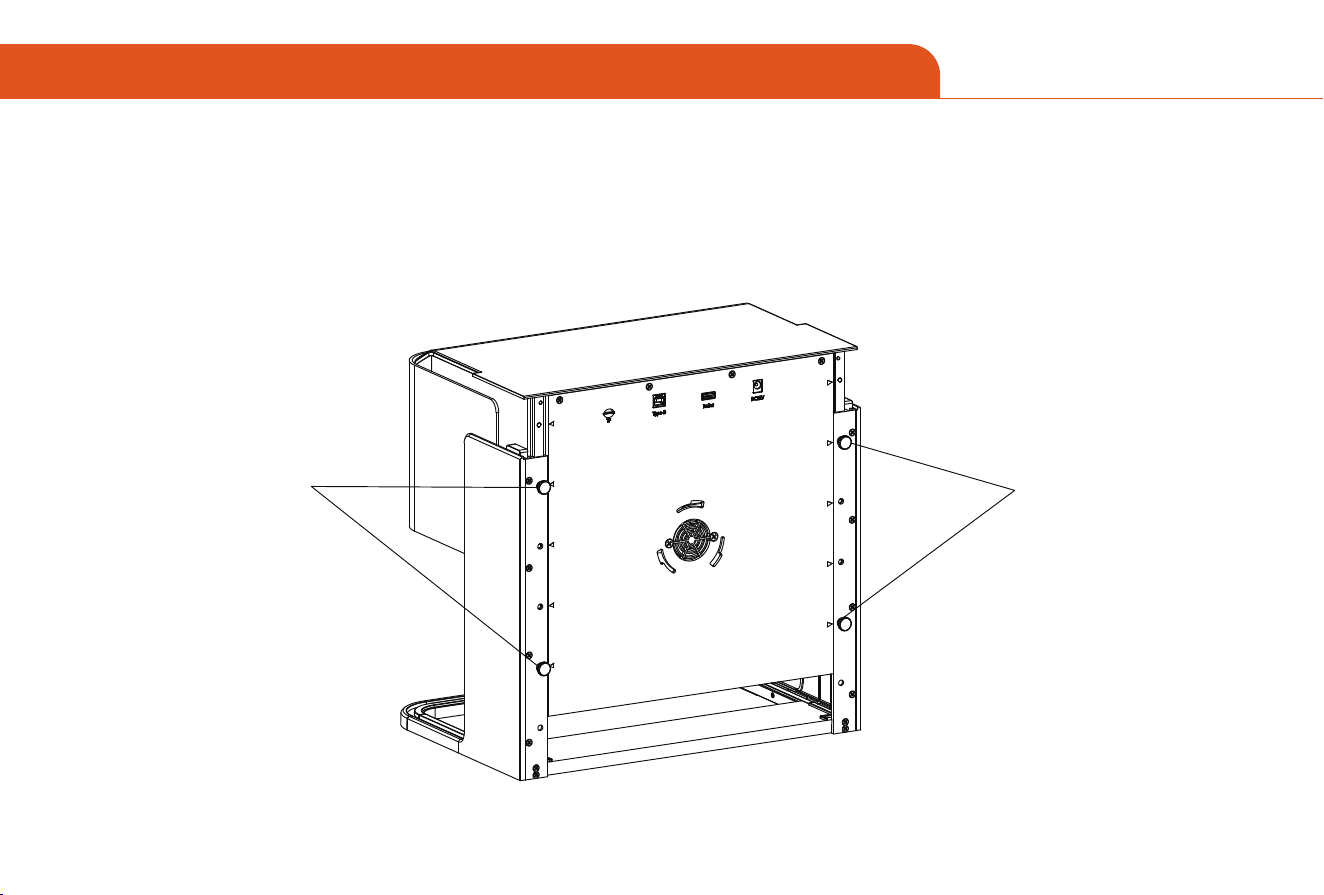
【 Height Adjustment Mode Usage 】
When engraving different products, adjust the engraving height accordingly. Loosen the four M4×10 thumb screws at the
rear, set the desired engraving height, then tighten these four M4×10 thumb screws to secure the product height.
M4×10 thumb screws
M4×10 thumb screws
03 FUNCTIONS & ACCESSORIES INTRODUCTION
01 02 03 04 05 06 07
08 09 10 11 12
13 14 15
16 17 18 19 20 21 22
23 24 25 26 27 28 29 30
31 32 33 34 35 36 37 38 39
40 41 42 43 44 45
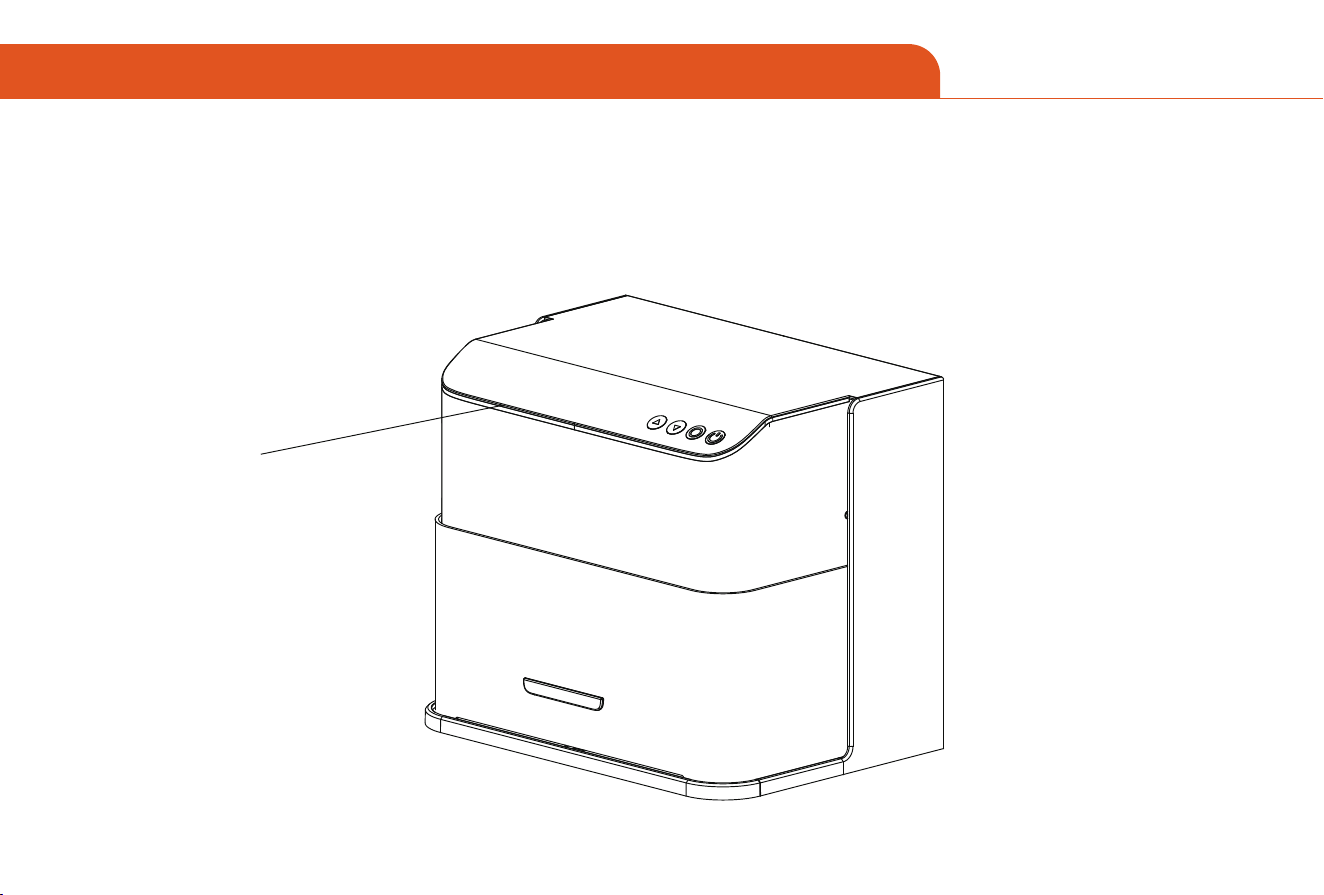
【Light Indicators】
A gradual light gradient indicates normal operation. If the light shield is opened during operation, the lights will
switch to rapid flashing mode.
Light Indicators
03 FUNCTIONS & ACCESSORIES INTRODUCTION
01 02 03 04 05 06 07
08 09 10 11 12 13
14 15
16 17 18 19 20 21 22
23 24 25 26 27 28 29 30
31 32 33 34 35 36 37 38 39
40 41 42 43 44 45

Optional: Roller Module
03 FUNCTIONS & ACCESSORIES INTRODUCTION
Engraving on tapered cylinders:
For example, with popular glass tumblers, it is often best to suppo the narrow end of the cylinder so that the horizontal edge
faces the laser. The swivel includes an end suppo.
When engraving with rotation, the -axis goes through its normal scanning motion, but the y-axis remains stationa while the
rotation provides movement in that direction.
The spinner can hold a wide variety of round objects, from something as thin as a pencil to a 32-ounce Yeti-style glass.
It consists of a xed axis and a moving axis that can be locked into 1 of 4 positions. The applicable diameter range for each
position is marked on the left side of the turntable.
Suitable for xed shaft switching with diameters: >89mm, 64- 89mm, 38—64 mm,19-38mm, 6-19mm, switching between dif-
ferent positions.
[Note]
Loosen the knobs at both ends at the same time, push the pulley to the desired position, and then lock the knobs at both ends
at the same time
When using rota engraving vector content, we recommend engraving at a speed <800mm/min.
01 02 03 04 05 06 07
08 09 10 11 12 13 14
15
16 17 18 19 20 21 22
23 24 25 26 27 28 29 30
31 32 33 34 35 36 37 38 39
40 41 42 43 44 45
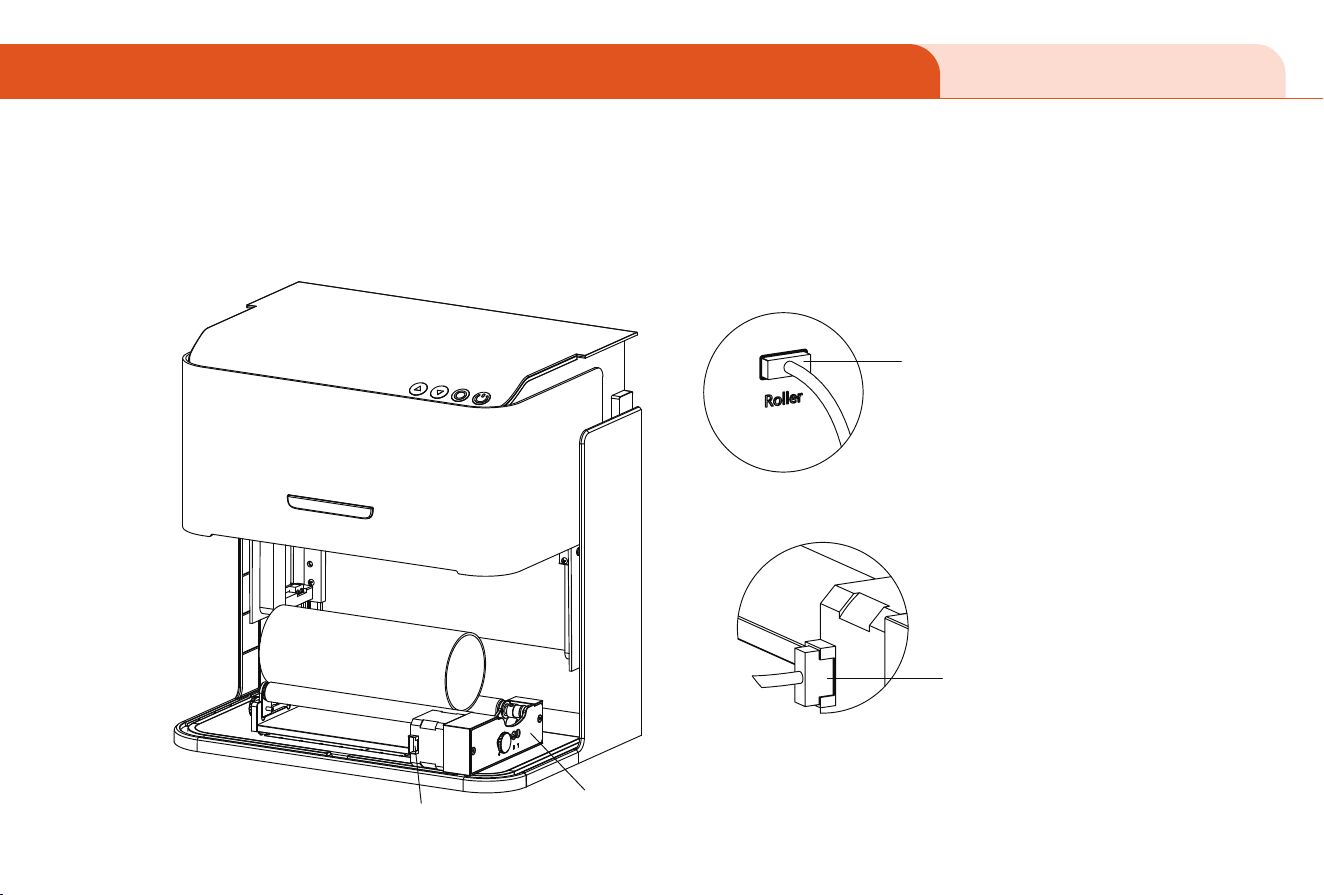
Optional: Roller Module
03 FUNCTIONS & ACCESSORIES INTRODUCTION
When connecting the product to the MD19 rotary module, first unscrew the four screws on the back. After adjusting
to the required engraving height, secure the product height with these four screws. Connect the roller interface to
the motor terminal interface of the MD19 dual-axis rotary module using a data cable.
MD19 Module
Roller Inteace
MD19 Dual-Axis Rotating Module
Motor Terminal Inteace
MD19 Connector Socket
01 02 03 04 05 06 07
08 09 10 11 12 13 14 15
16 17 18 19 20 21 22
23 24 25 26 27 28 29 30
31 32 33 34 35 36 37 38 39
40 41 42 43 44 45
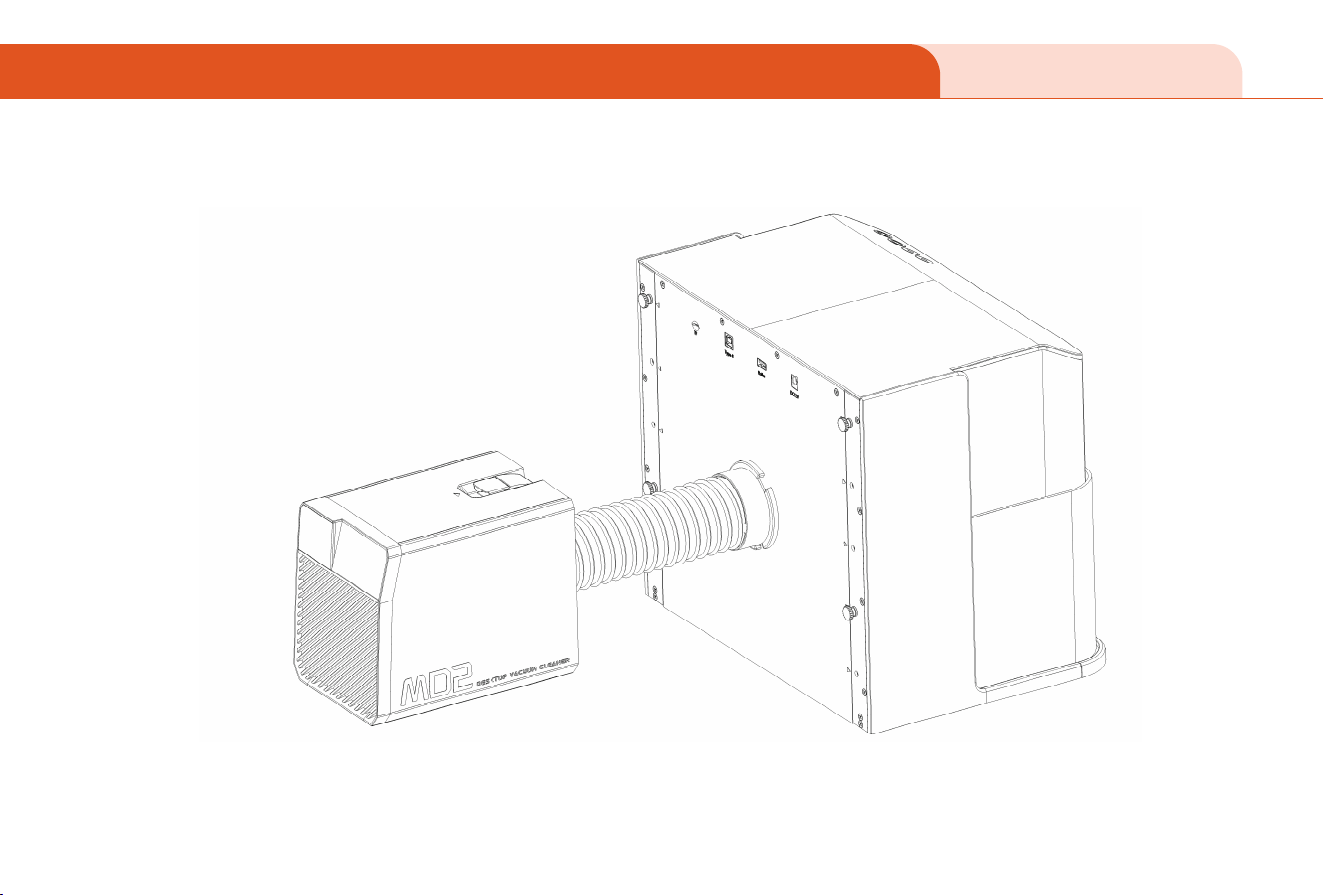
Optional: Air Purier
03 FUNCTIONS & ACCESSORIES INTRODUCTION
【 Functional description 】
Connect the telescopic exhaust pipe to the air purier:
a. Connect the pipe to the air purier
b. Turn on the air purier and use it.
01 02 03 04 05 06 07
08 09 10 11 12 13 14 15
16
17 18 19 20 21 22
23 24 25 26 27 28 29 30
31 32 33 34 35 36 37 38 39
40 41 42 43 44 45
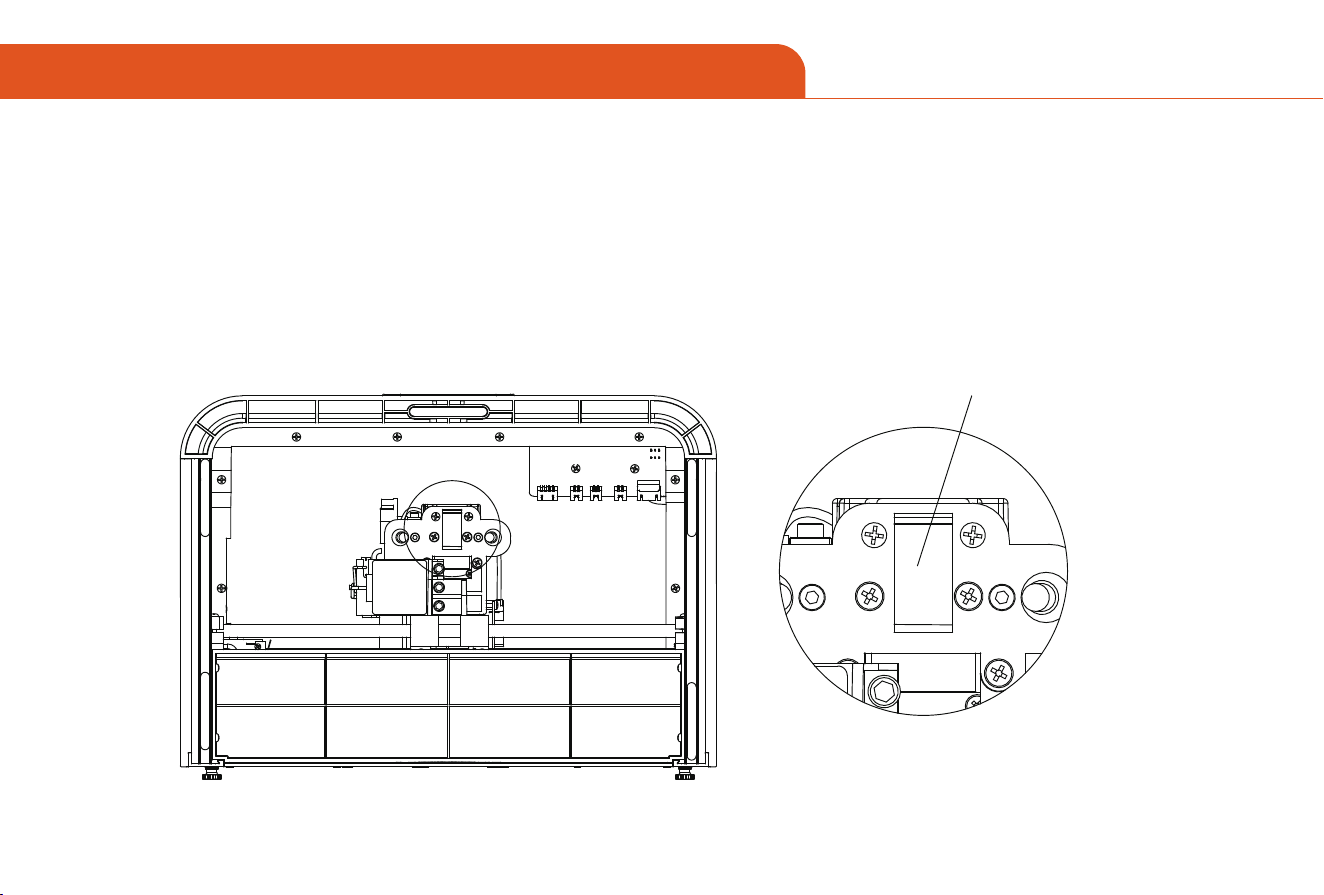
04 REGULAR PRODUCT MAINTENANCE
To keep your Z8 operating at peak performance and minimize wear, perform the following maintenance tasks regularly:
Clean the laser module lens: Over time, particles accumulate on the outer lens of the laser module, reducing its power output
and causing the lens to overheat. If you notice a decline in cutting efficiency for materials that previously cut well, it may be time
to clean the lens. Gently wipe the lens using a cotton swab or a cloth dampened with alcohol.
Wipe the window lens with alcohol
01 02 03 04 05 06 07
08 09 10 11 12 13 14 15
16 17
18 19 20 21 22
23 24 25 26 27 28 29 30
31 32 33 34 35 36 37 38 39
40 41 42 43 44 45

05 SUPPORTED SOFTWARE OVERVIEW
Software Denition
Compatible
Computer
Systems
Windows
macOS
Linux
Windows
macOS
iOS
Android
A comprehensive, paid software
used for laser engraving, designed
for precision and ease of use.
A software suite for laser cutting
and engraving, focusing on ease of
use and compatibility with a range
of devices.
LightBurn
CutLabX
Moblle
Suppo
NO
YES
Payment /
Free
Paid
(withtrial)
Free
Open
Source
NO
NO
Driver
Required
YES
YES
01 02 03 04 05 06 07
08 09 10 11 12 13 14 15
16 17 18
19 20 21 22
23 24 25 26 27 28 29 30
31 32 33 34 35 36 37 38 39
40 41 42 43 44 45
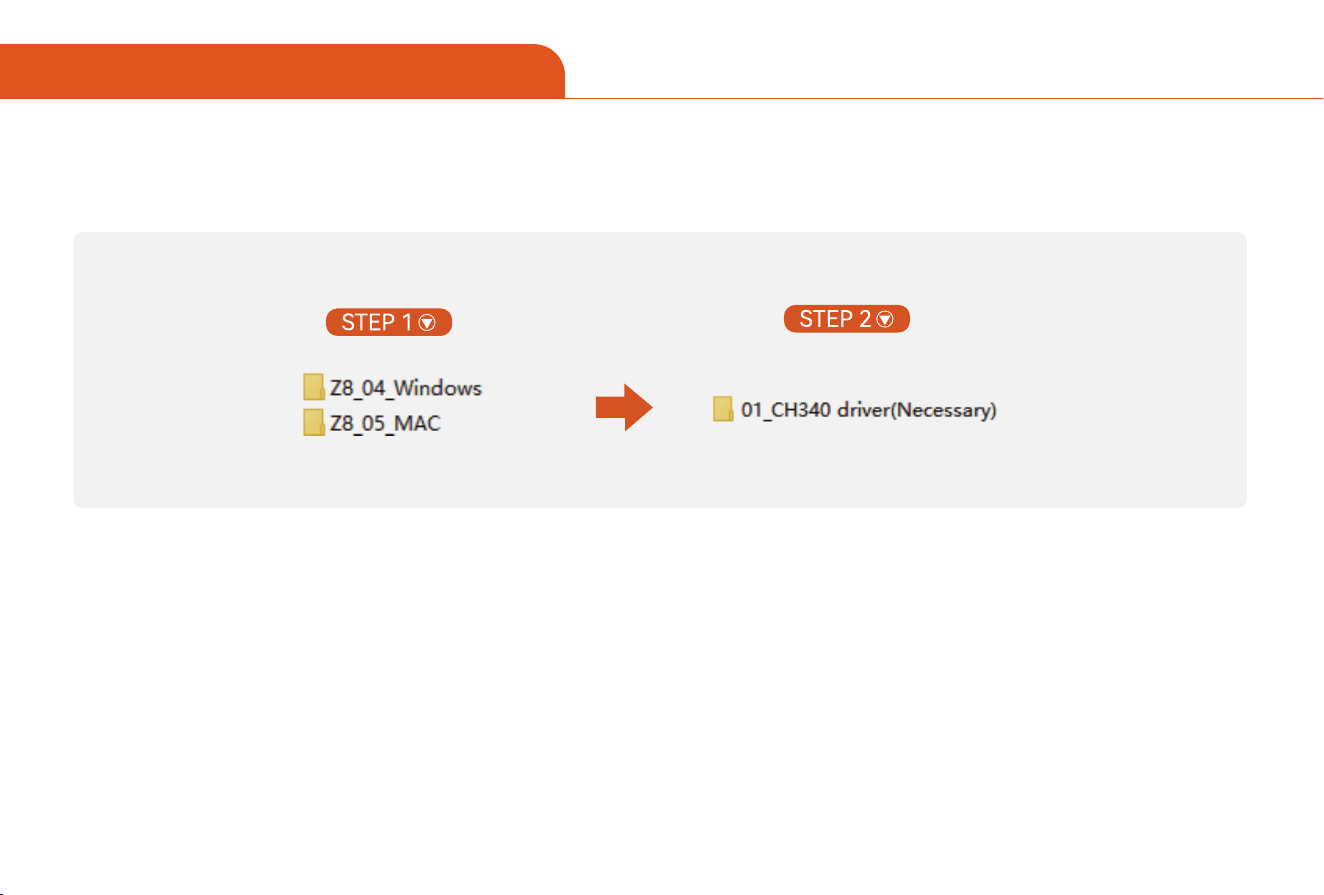
Download Path of Driver
06 DRIVER INSTALLATION
TF Card:
01 02 03 04 05 06 07
08 09 10 11 12 13 14 15
16 17 18 19
20 21 22
23 24 25 26 27 28 29 30
31 32 33 34 35 36 37 38 39
40 41 42 43 44 45
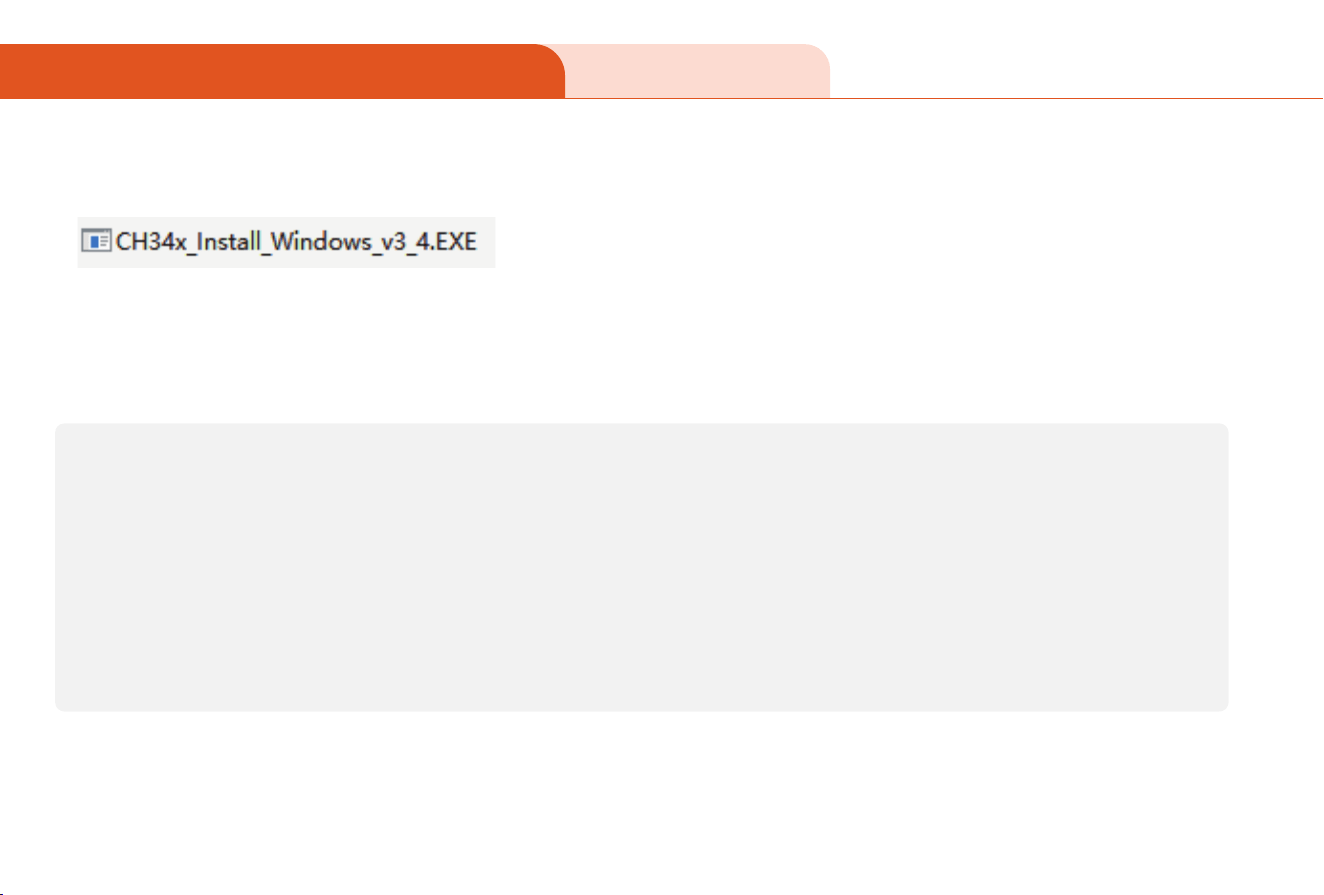
For Windows
A. Double-click the downloaded CH34x_Install_Windows_v3_4.EXE le.
B. Click the "install" button and wait for the installation to complete.
C. Once the installation is successful, a prompt window will appear. click "OK" to nish theinstallation.
For Windows:
Manual Installation (for cases where automatic installation fails)
A. Open "Device Manager" (right-click on "This PC" -> "Manage" -> "Device Manager")
B. Locatethe "Unknown Device" or"USB-SERIAL CH340" with a yellow exclamation mark.
C. Right-click on the device and select "Update Driver."
D. Choose "Browse my computer for drivers," then specifythe folderpath where the driveiles are located.
E. Click "Next" to complete the installation.
06 DRIVER INSTALLATION
01 02 03 04 05 06 07
08 09 10 11 12 13 14 15
16 17 18 19 20
21 22
23 24 25 26 27 28 29 30
31 32 33 34 35 36 37 38 39
40 41 42 43 44 45
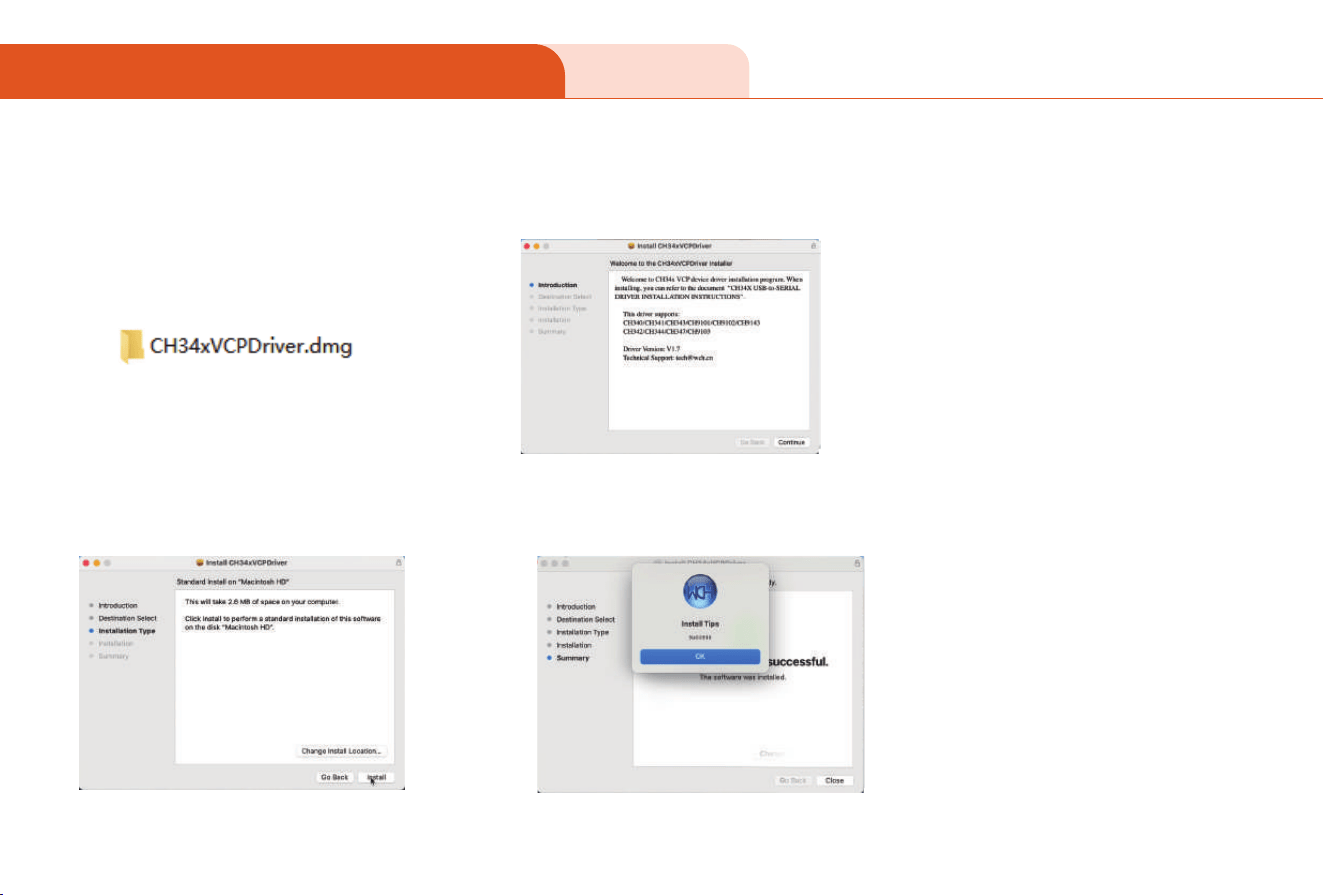
For Mac
2. Click Next1. Double click the le in TF card
or the le you download:
For Mac:
06 DRIVER INSTALLATION
Tips:
If the installation fails, check the system security
settings:
1.Open "System Preferences" → "Security & Privacy" →
"General"
2.Under "Allow apps downloaded from," select "App
Store and identied developers.
3.Ret the installation.
3. You can change the position
or install directly, click Install.
4. Just wait until you seethe bellow
01 02 03 04 05 06 07
08 09 10 11 12 13 14 15
16 17 18 19 20 21
22
23 24 25 26 27 28 29 30
31 32 33 34 35 36 37 38 39
40 41 42 43 44 45
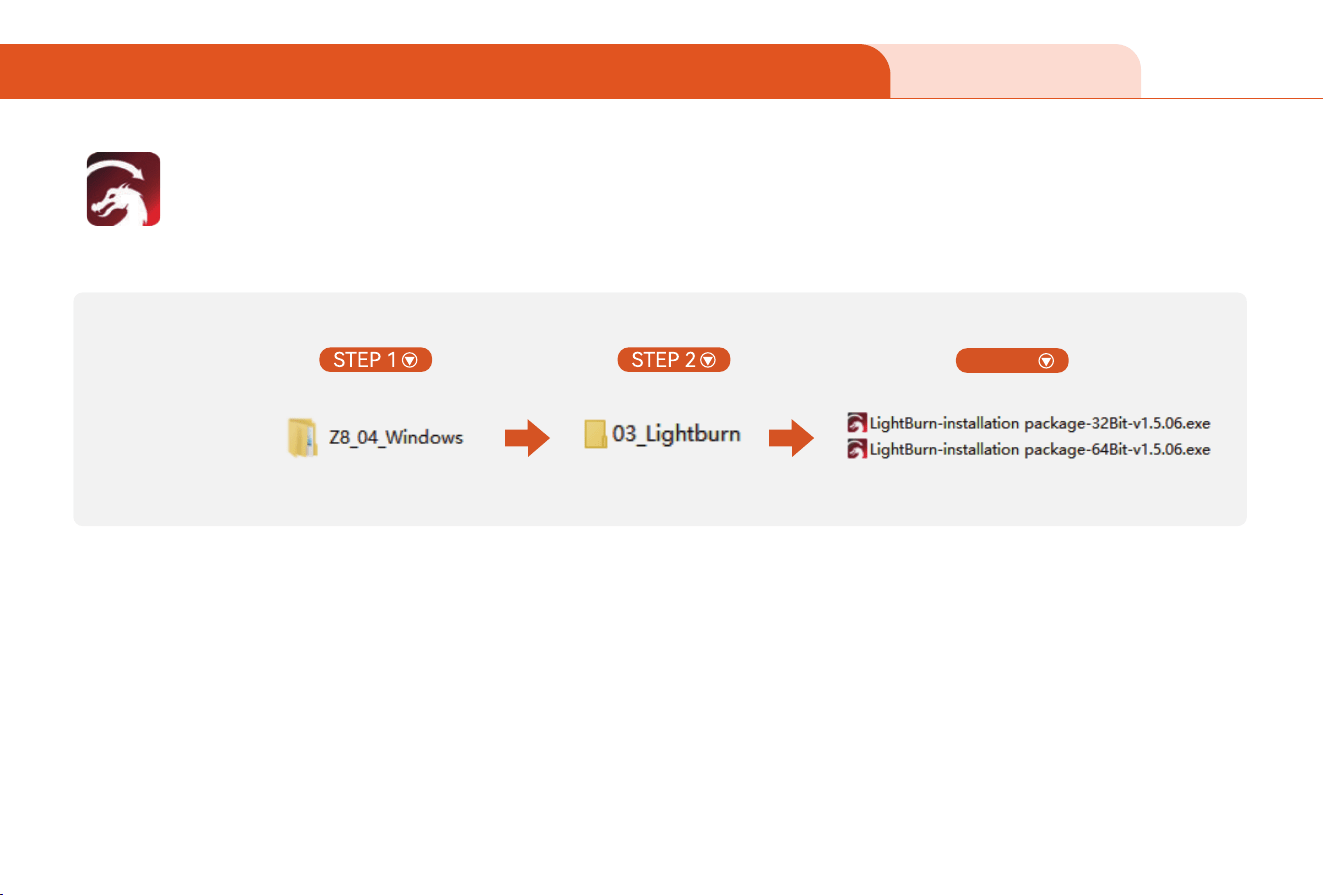
For Windows
07 SOFTWARE DOWNLOAD & INSTALLATION
LightBurn
TF Card:
STEP 3
01 02 03 04 05 06 07
08 09 10 11 12 13 14 15
16 17 18 19 20 21 22
23 24 25 26 27 28 29 30
31 32 33 34 35 36 37 38 39
40 41 42 43 44 45
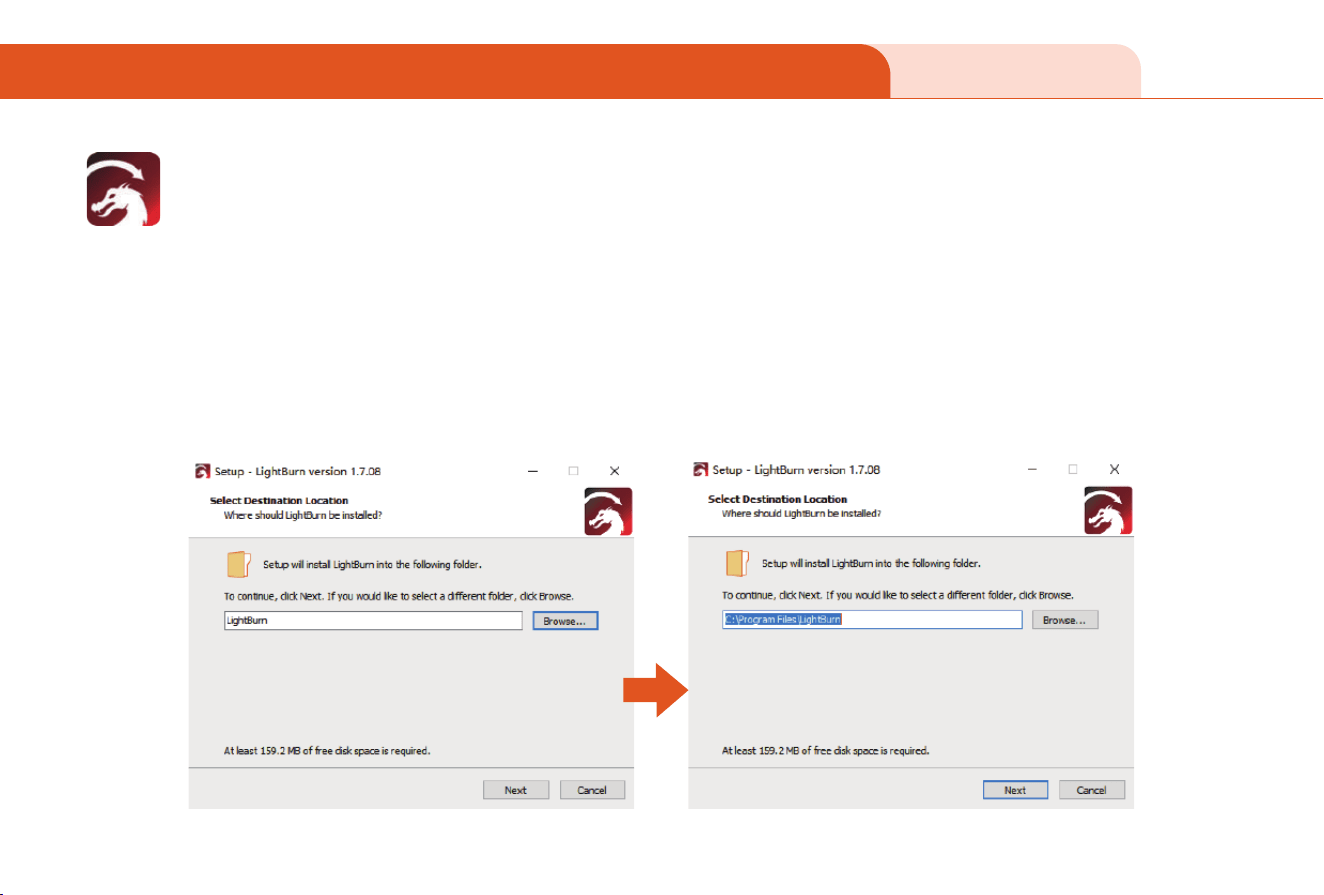
Installation wizard
A. Select Language: Aftehe installer launches, choose your preferred language
B. Accept LicenseAgreement: Read and accept the LightBurn license agreement.
C. Choose Installation Location: The default installation path is
C:\Program Files lightBurn. Youcan also click "Browse" toselect a dierentlocation.
D. Create Desktop shocut: check the "Create Desktop shocut" option to quicklylaunchlightBurn.
E. Sta Installation: Click the "install" button and wait for the installation to complete.
For Windows
07 SOFTWARE DOWNLOAD & INSTALLATION
LightBurn
01 02 03 04 05 06 07
08 09 10 11 12 13 14 15
16 17 18 19 20 21 22
23
24 25 26 27 28 29 30
31 32 33 34 35 36 37 38 39
40 41 42 43 44 45
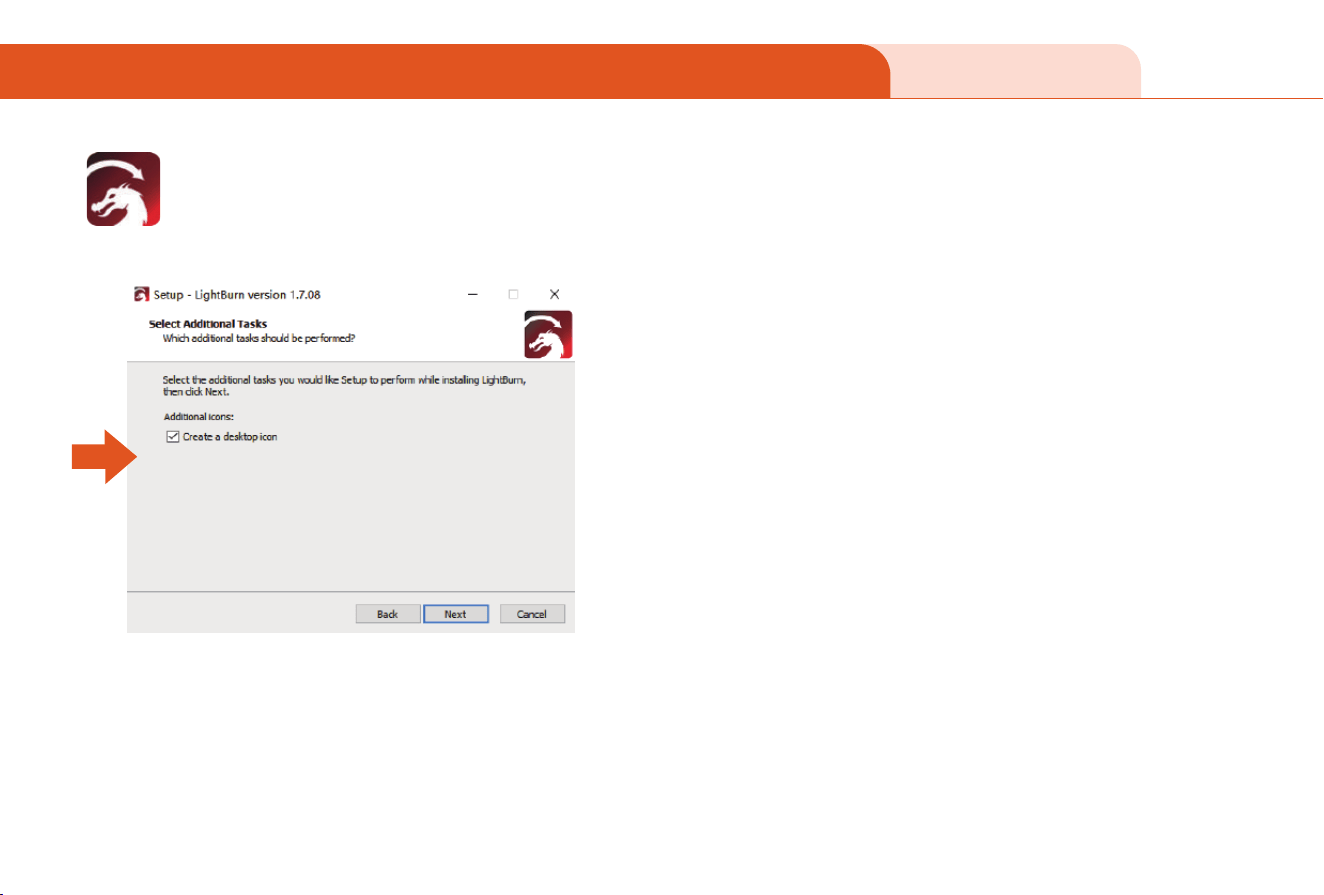
Complete installation :
Once the installation is nished, clickthe "Finish"
button to exit the installation wizard.
A. If you checked "Launch LightBur," the software will sta automatically.
B. If you have purchased a LightBurn license, open the software,click"Help"
→ "Enter LicenseKey", and enter your license key.
C. If you are a trial user, you can sta using the trial version directly(valid for
30 days).
For Windows
07 SOFTWARE DOWNLOAD & INSTALLATION
LightBurn
01 02 03 04 05 06 07
08 09 10 11 12 13 14 15
16 17 18 19 20 21 22
23 24
25 26 27 28 29 30
31 32 33 34 35 36 37 38 39
40 41 42 43 44 45
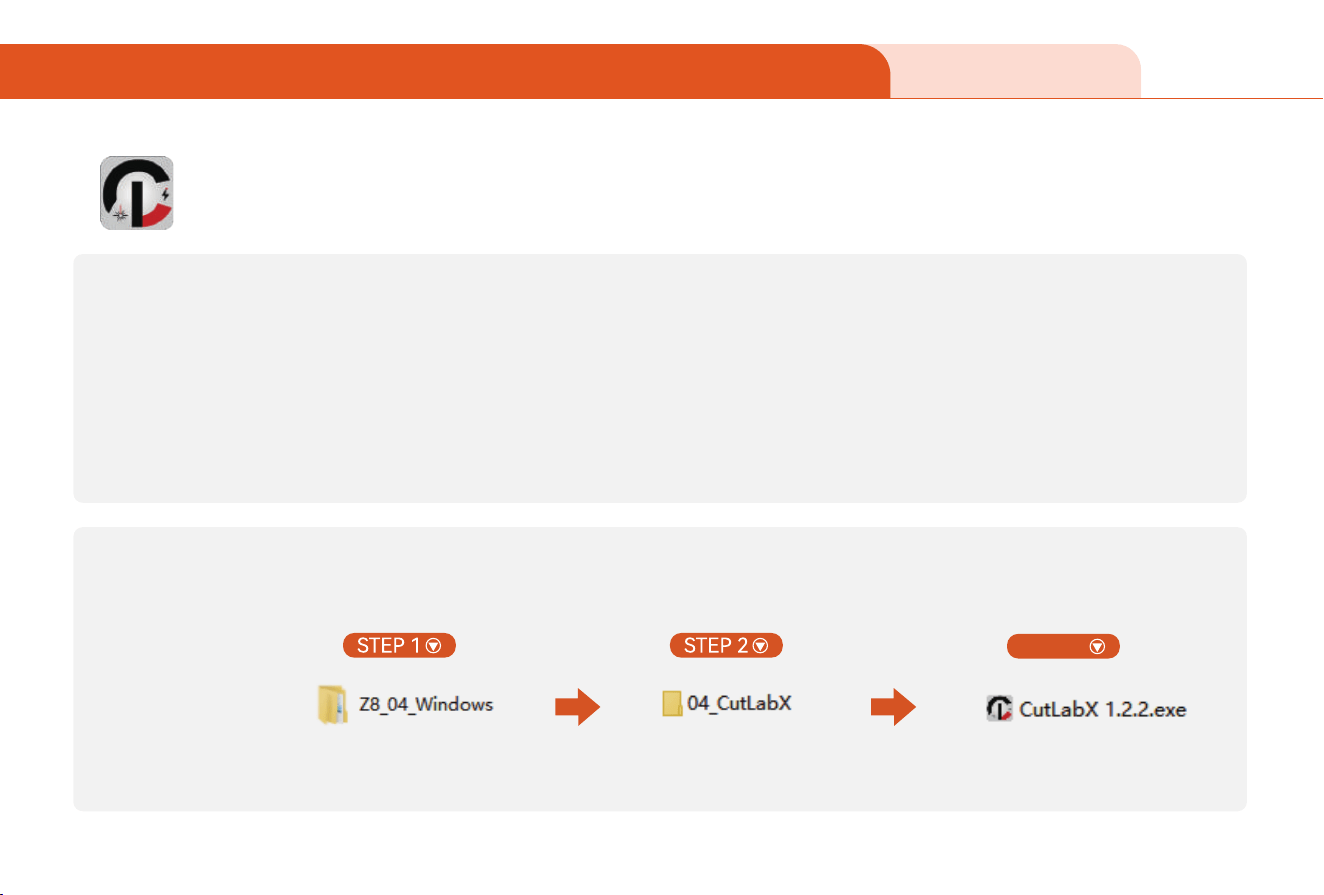
Path 1
Path 2
Website: https://www.cutlabx.com/
Or you can download by Apple Store or Google Store as well.
CutLabX
For Windows
07 SOFTWARE DOWNLOAD & INSTALLATION
TF Card:
STEP 3
01 02 03 04 05 06 07
08 09 10 11 12 13 14 15
16 17 18 19 20 21 22
23 24 25
26 27 28 29 30
31 32 33 34 35 36 37 38 39
40 41 42 43 44 45
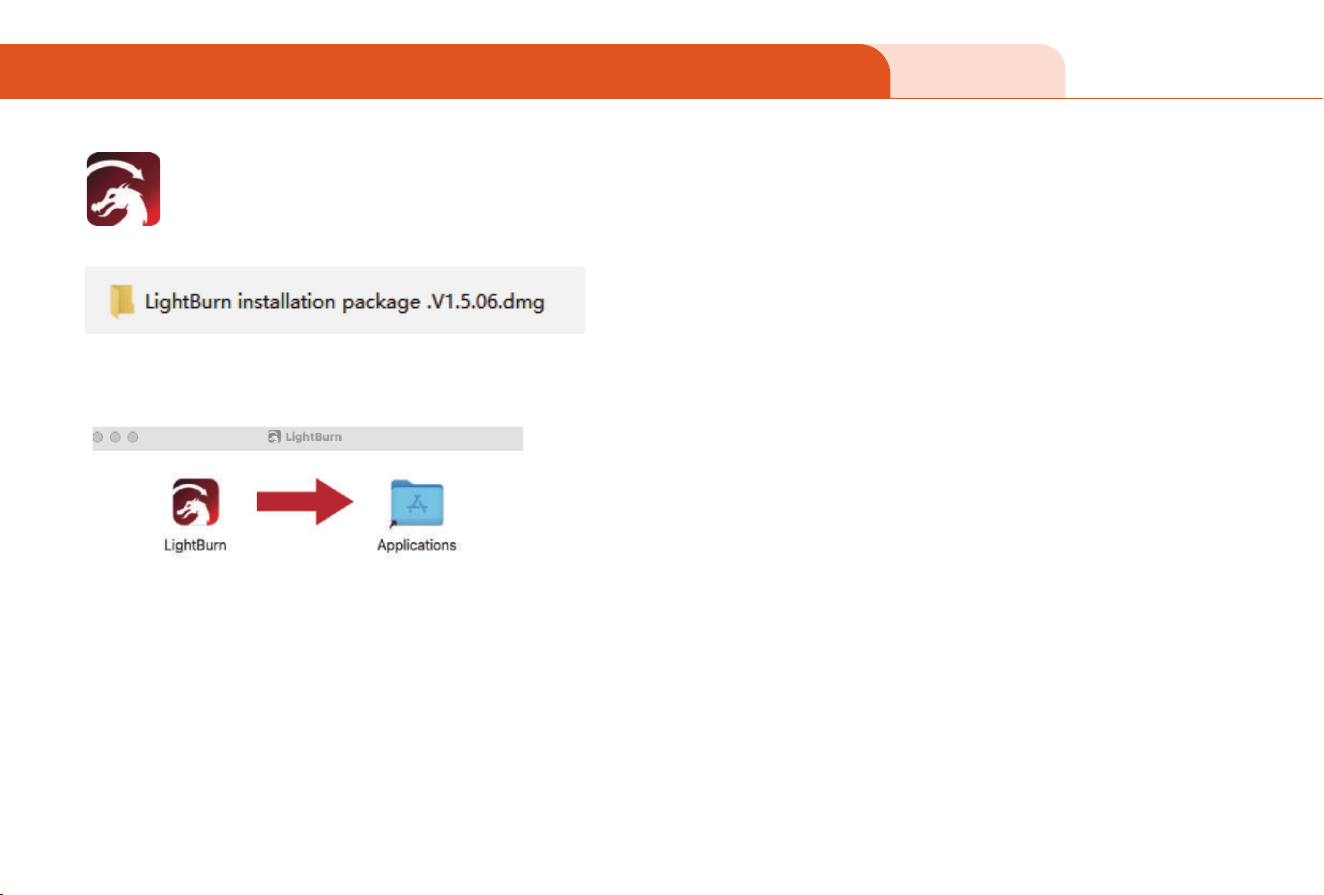
1. Drag the LightBurn icon to the "Applications" folder to complete the installation
2. Open the "Applications" folder, locate LightBurn, and double-click to run it.
LightBurn
For Mac
08 SOFTWARE DOWNLOAD & INSTALLATION
01 02 03 04 05 06 07
08 09 10 11 12 13 14 15
16 17 18 19 20 21 22
23 24 25 26
27 28 29 30
31 32 33 34 35 36 37 38 39
40 41 42 43 44 45
For Mac/Phone
08 SOFTWARE DOWNLOAD & INSTALLATION
CutLabX
You can search and install it in Apple Store.
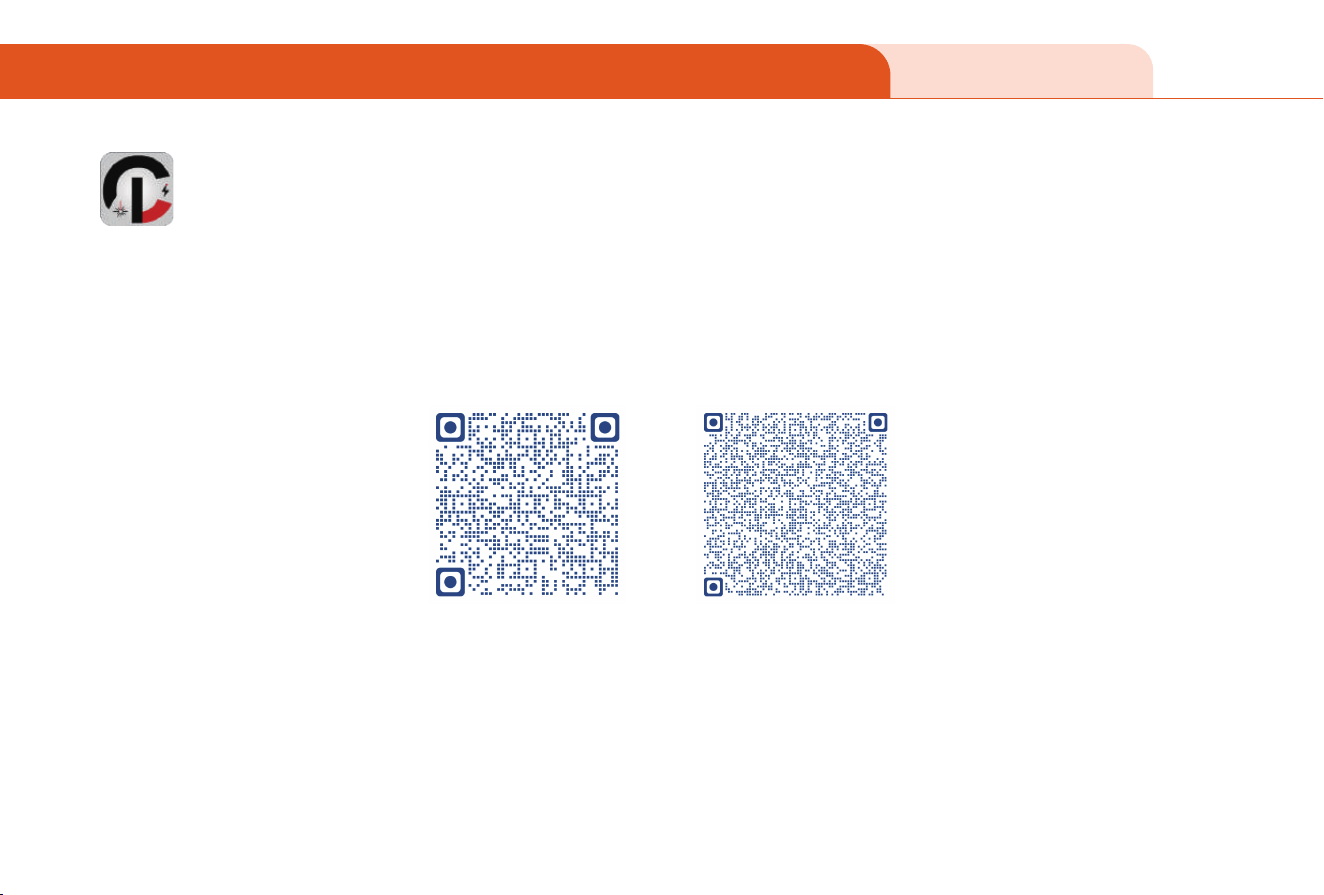
Scan the QR code below or search in the app store or Goole Play to download the CutlabX app to your phone.
For mobile APP, it is recommended to use Cutlabx software to connect to the machine.
Impoant note
For iPhone For Google
01 02 03 04 05 06 07
08 09 10 11 12 13 14 15
16 17 18 19 20 21 22
23 24 25 26 27
28 29 30
31 32 33 34 35 36 37 38 39
40 41 42 43 44 45
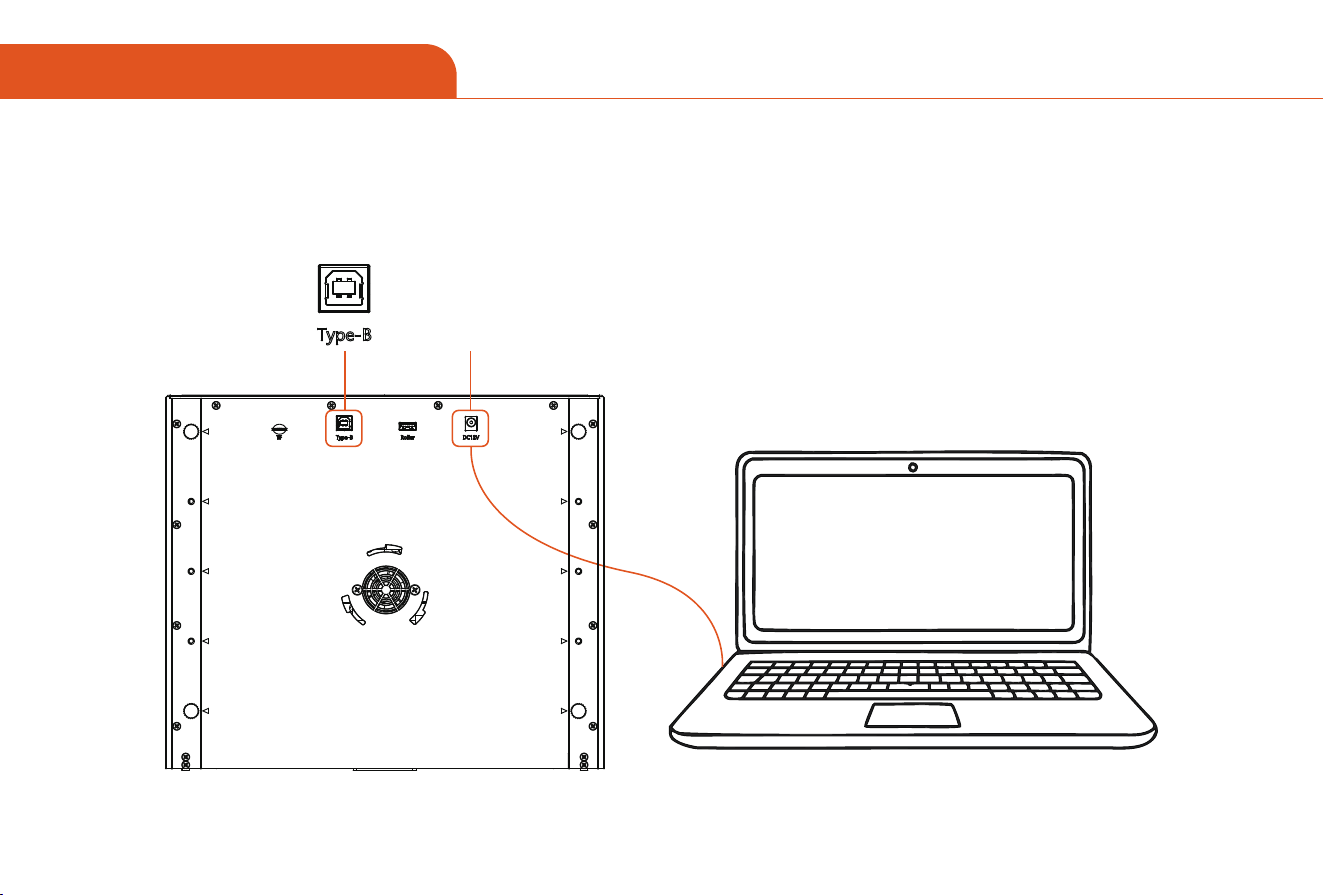
09 PC CONNECTION
Connect the device powersupply as shown in the gure
Power
Hardware Connect Laptop to LaserEngraver
01 02 03 04 05 06 07
08 09 10 11 12 13 14 15
16 17 18 19 20 21 22
23 24 25 26 27 28
29 30
31 32 33 34 35 36 37 38 39
40 41 42 43 44 45
09 PC CONNECTION
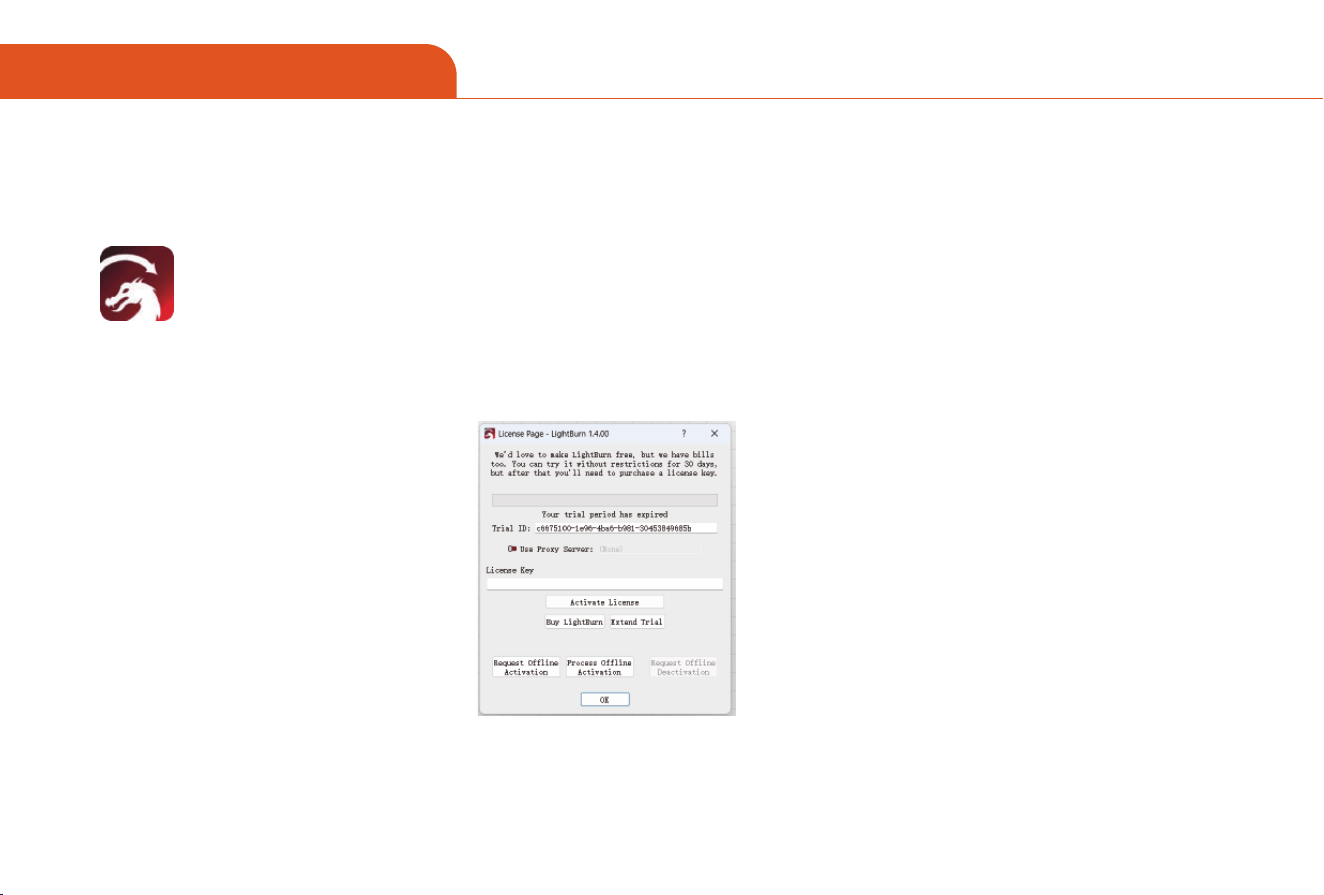
For LightBurn
LightBurn
1. Launch LightBurn (using LightBurn as an example here)
On Windows:
Double-click the lightBurn sho cut on the desktop, or nd LightBurn in the "sta" menu and click to run it.
On macOS:
Open the "Applications" folder, locate lightBurn and double-click to run it.
2. If you are rst time to use, please choose "sta your free trial" here, get free for 1 month.
Then click "OK"
3. Ensure the laser engraver is connected to the computer via USB.
01 02 03 04 05 06 07
08 09 10 11 12 13 14 15
16 17 18 19 20 21 22
23 24 25 26 27 28 29
30
31 32 33 34 35 36 37 38 39
40 41 42 43 44 45
09 PC CONNECTION
For LightBurn
LightBurn
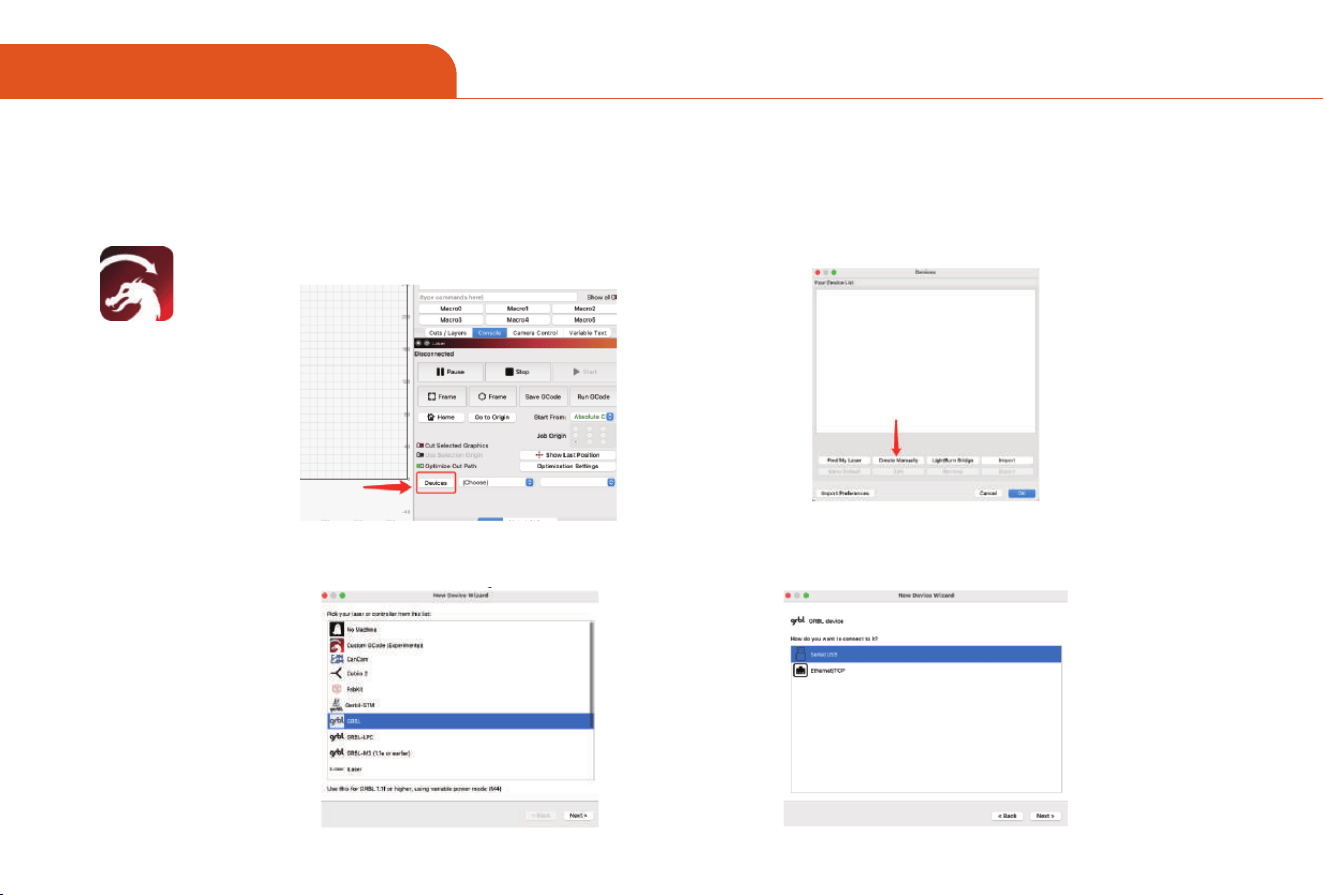
4.Add Device
A. Click "Devices" at the bottom right of the software to
add a laser:
B. Then click "Create Manually":
C. Then pick your laseror controller from this list: Here
click the "GRBL"
D. Then choose the way of connection select GRBL as
usual
01 02 03 04 05 06 07
08 09 10 11 12 13 14 15
16 17 18 19 20 21 22
23 24 25 26 27 28 29 30
31 32 33 34 35 36 37 38 39
40 41 42 43 44 45
09 PC CONNECTION
For LightBurn
LightBurn
4.Add Device
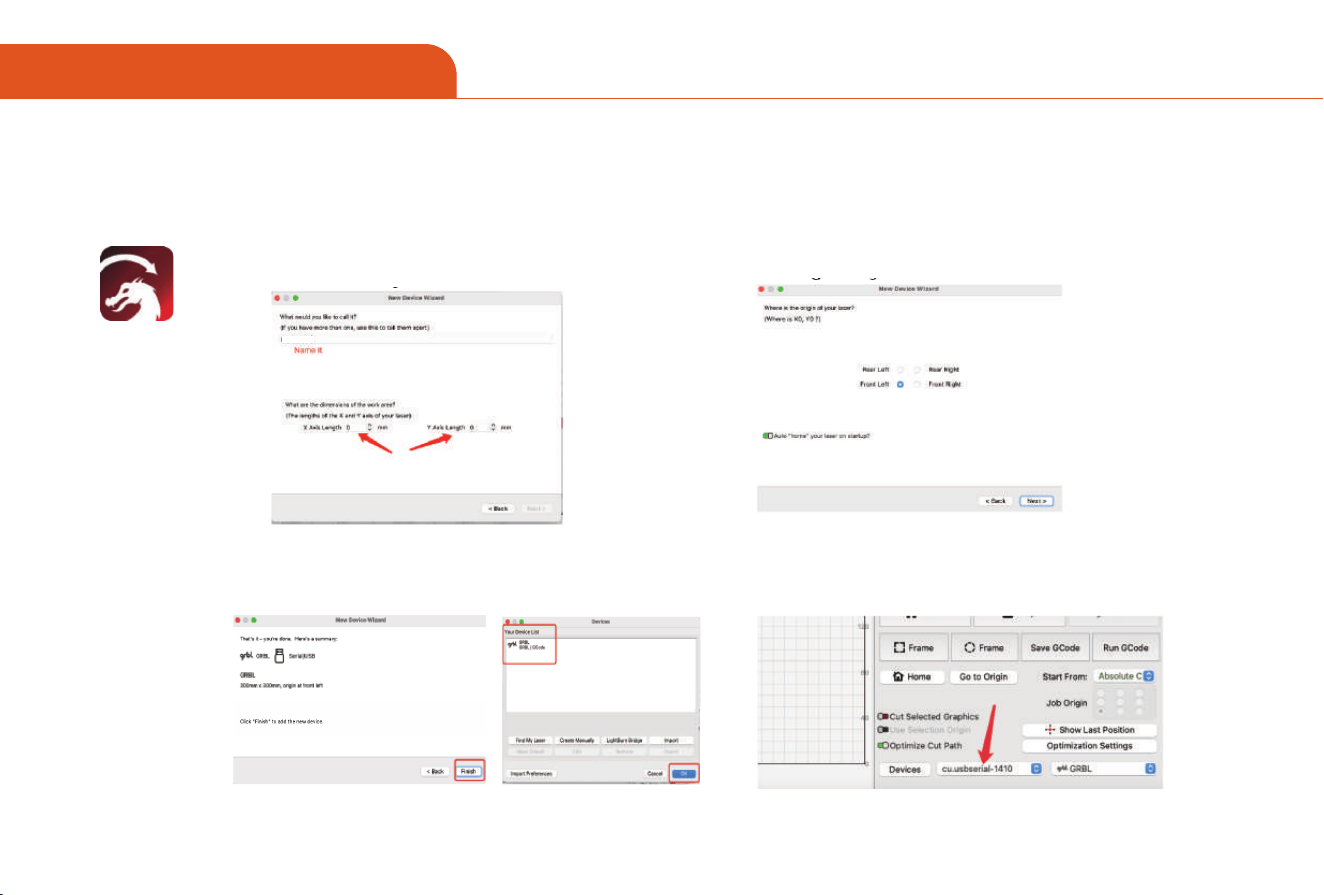
E. Name your laser and add the dimensions of the work
are. Z8 series working area is 200x100mm/180x100mm
F. Choose the Front Left
G. Finish adding devices and your will nd the laser you
created and click “OK”
H. In the "Po"dropdown menu, select the COM po
corresponding to your device
(e.g., COM3 or /dev/cu .wchusbserial).
Work area is engraver bed size Z8:200x100mm/180x100mm
Z8
Z8
01 02 03 04 05 06 07
08 09 10 11 12 13 14 15
16 17 18 19 20 21 22
23 24 25 26 27 28 29 30
31
32 33 34 35 36 37 38 39
40 41 42 43 44 45
09 PC CONNECTION
For LightBurn
LightBurn
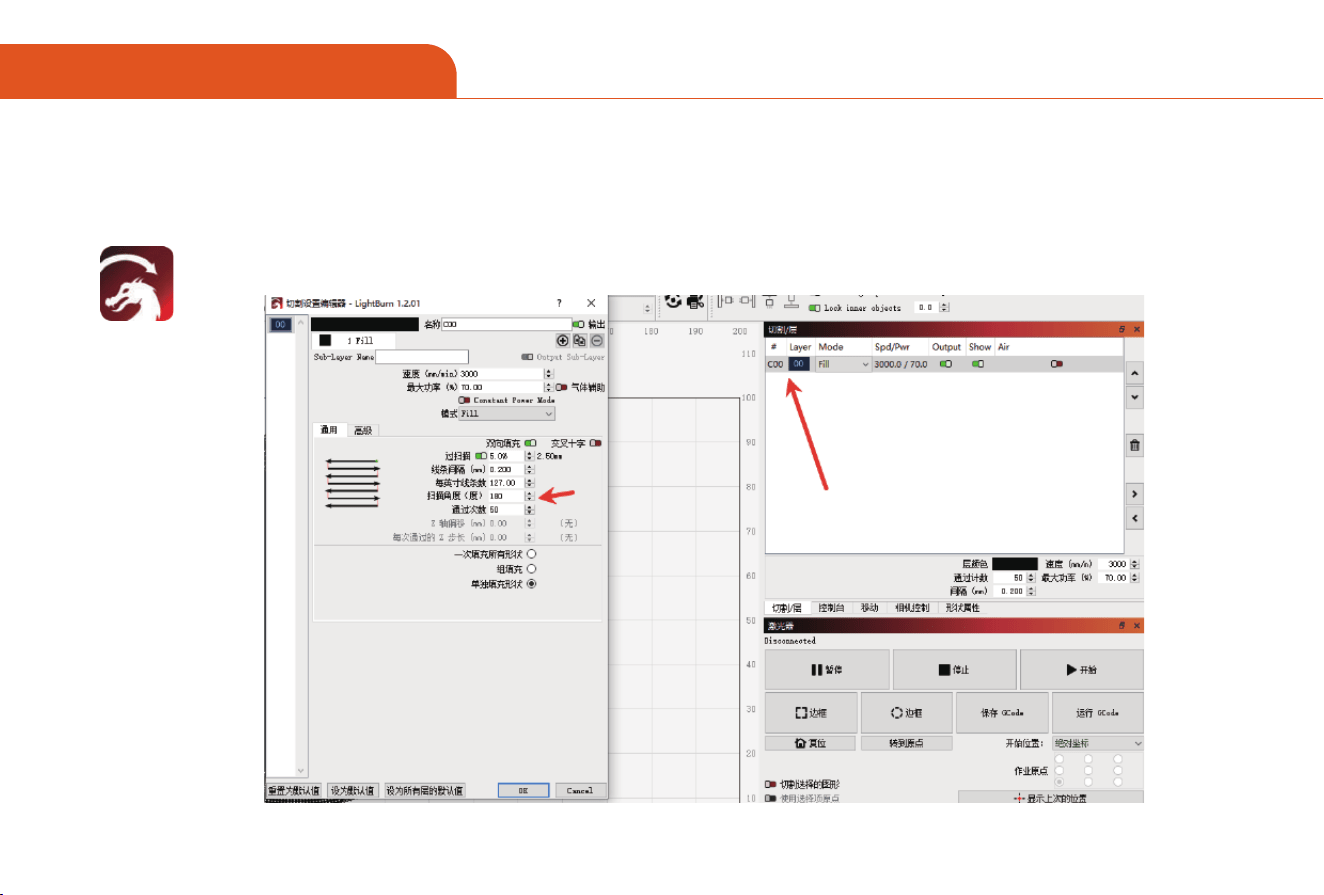
5.Set Engraving Angle
Before engraving the device, click “Cutting Layer” → “00”, then set the scanning angle to 90°.
01 02 03 04 05 06 07
08 09 10 11 12 13 14 15
16 17 18 19 20 21 22
23 24 25 26 27 28 29 30
31 32
33 34 35 36 37 38 39
40 41 42 43 44 45
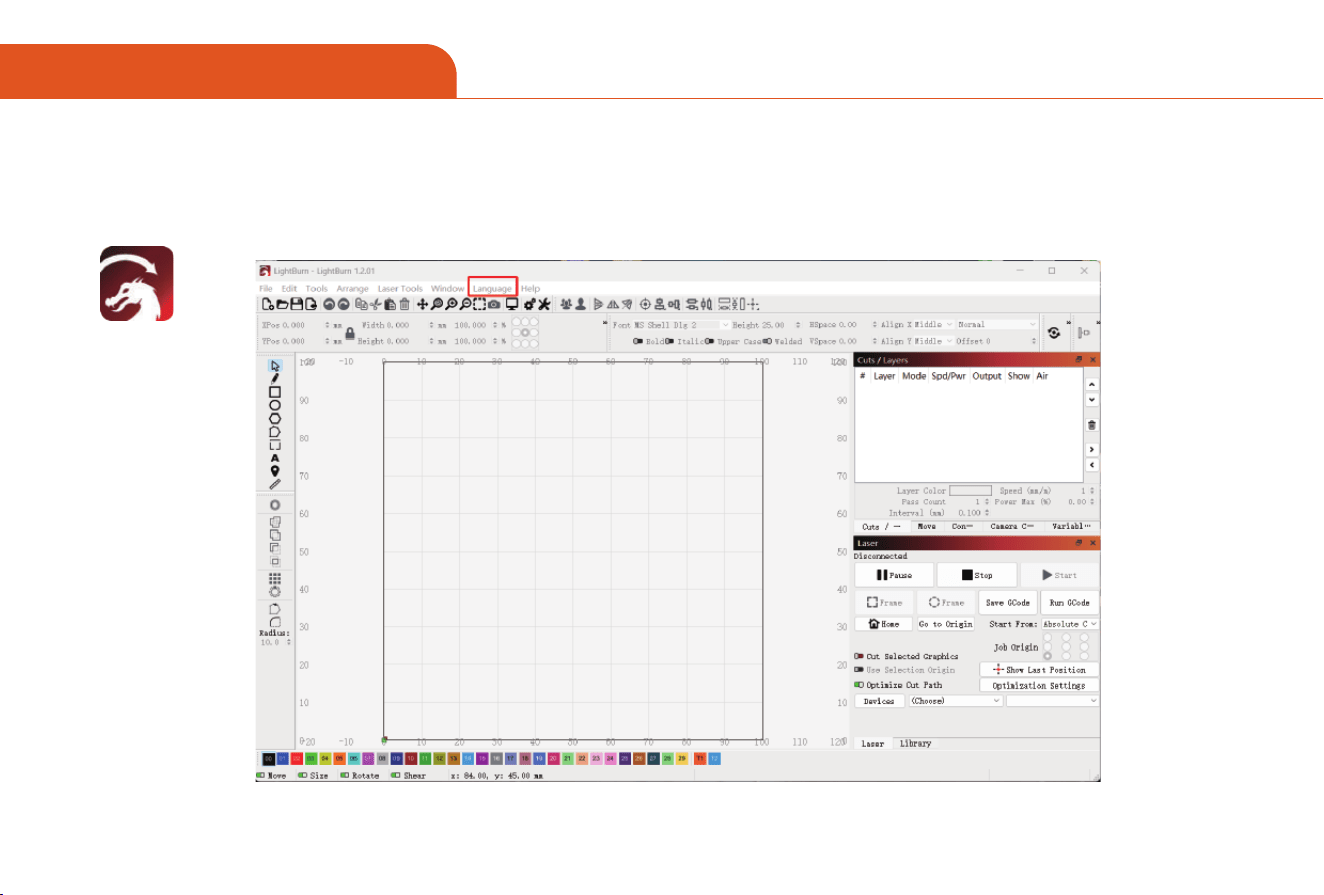
09 PC CONNECTION
For LightBurn
LightBurn
6.Change Language
Z8
01 02 03 04 05 06 07
08 09 10 11 12 13 14 15
16 17 18 19 20 21 22
23 24 25 26 27 28 29 30
31 32 33
34 35 36 37 38 39
40 41 42 43 44 45
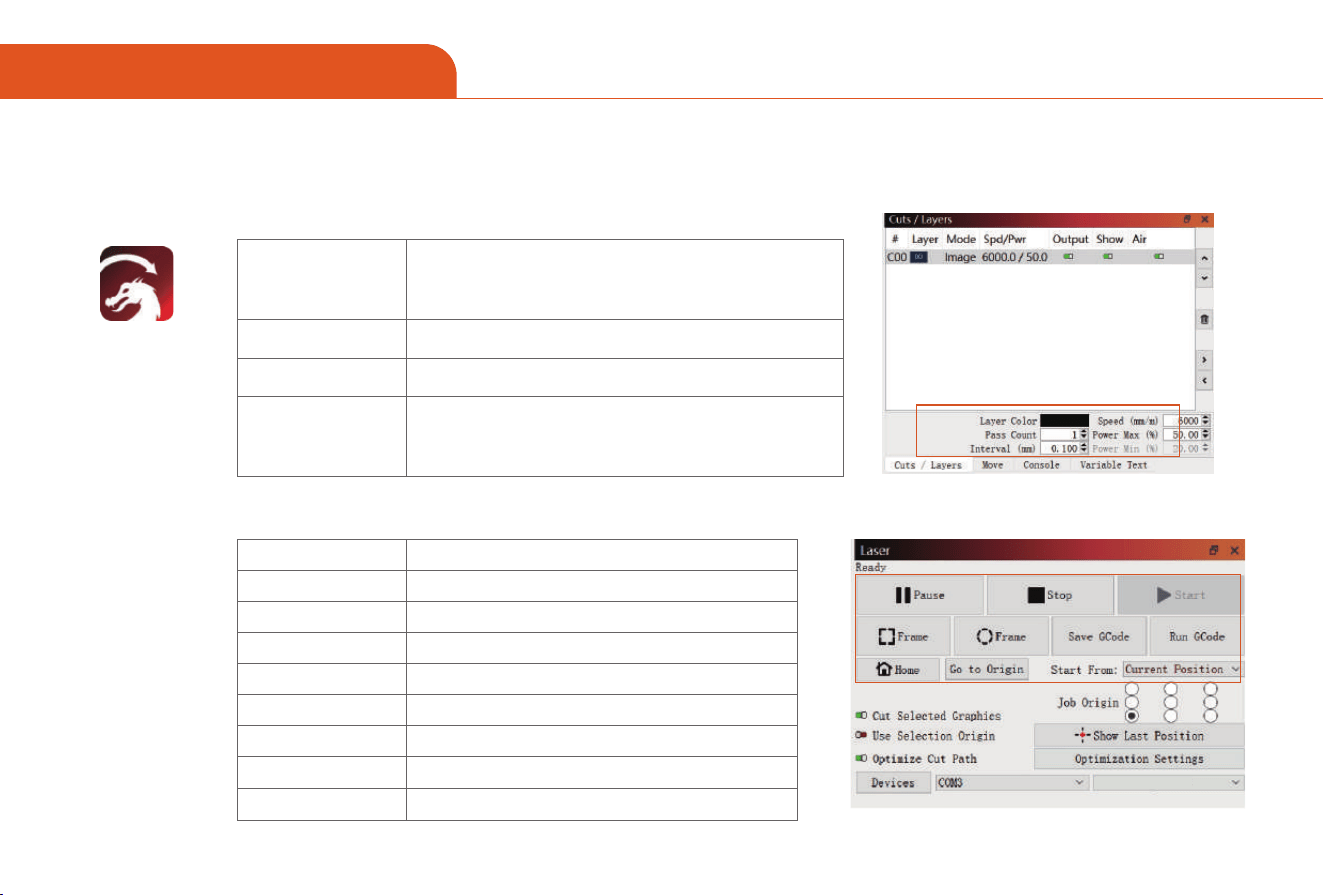
09 PC CONNECTION
For LightBurn
Pause
Stop
Sta
Square Frame
Circular Frame
Save GCode
Run GCode
Home
Go to origin
Pause laser processing
Stop laser processing
Initiate laser output
Scan a frame with a square path
Scan a frame with a circular path
Save the current task as a GCode project le
Run GCode le
Reset to the origin set by <Device Settings>
Go to the origin set by <Sta from>
Speed
The speed at which the laser moves. We recommend
using mm/m, if your machine shows mm/s, you can
change it in <Edit>-<Settings>
Inteal
The inteal of laser lines, the smaller the inteal, the
deeper the engraving eect.When cutting material,
change the mode in <Edit><Conve to cut(debug)
Power Max/Min
The laser power, it is recommended not to exceed 90%.
Pass Count
The number of laser passes.
Set parameters
Bedientaste
LightBurn
7. Engraving setting Introduction
8. Button Description
35
Z8
01 02 03 04 05 06 07
08 09 10 11 12 13 14 15
16 17 18 19 20 21 22
23 24 25 26 27 28 29 30
31 32 33 34
35 36 37 38 39
40 41 42 43 44 45
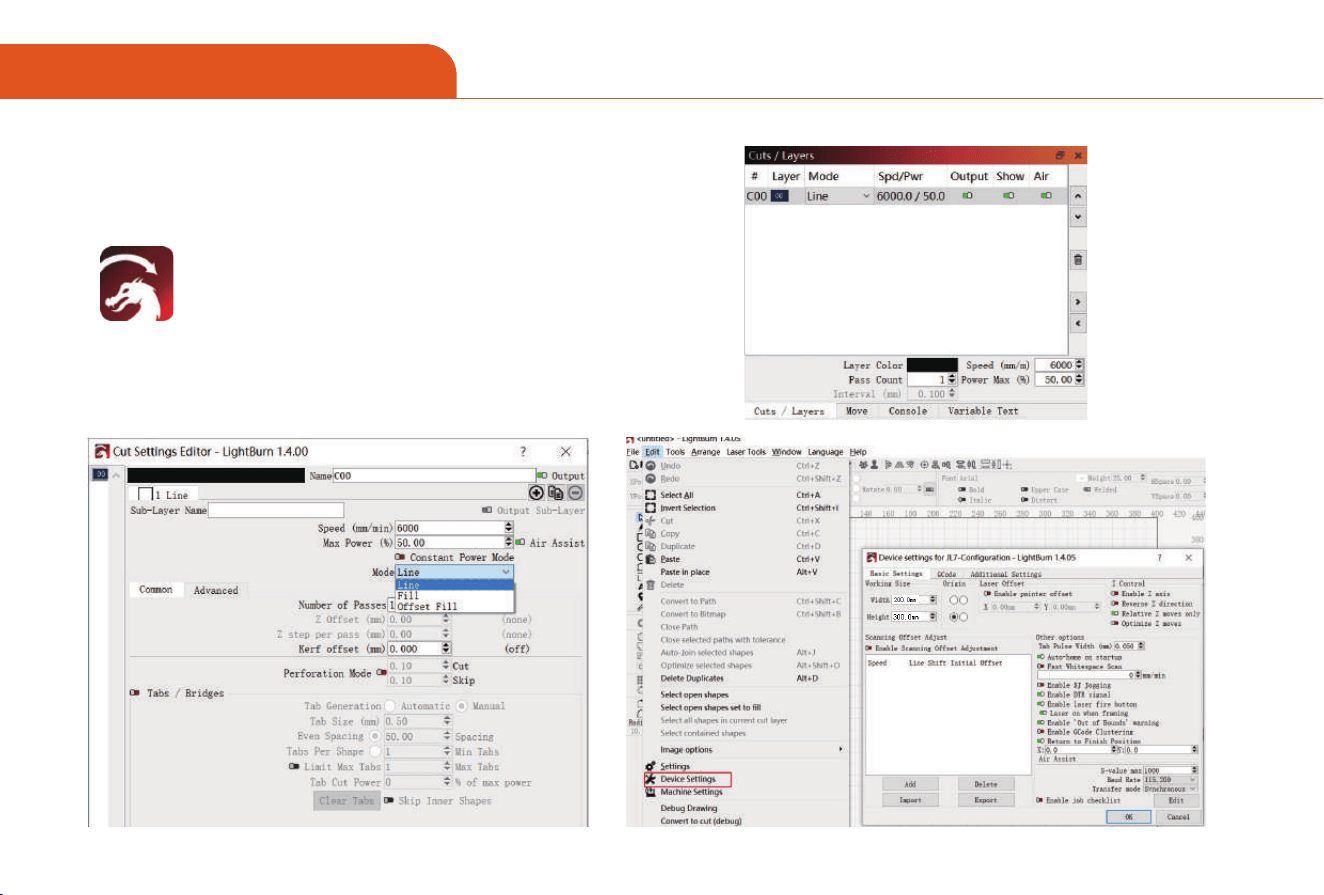
09 PC CONNECTION
For LightBurn
LightBurn
9. Devices Settings
Double-click "Speed/Power" to adjust more parameters
of the task, including mode and ke oset, etc.
In <Edit> -<Device Settings> , you can set more details of
the machine. please refer to the settings of our pictures.
01 02 03 04 05 06 07
08 09 10 11 12 13 14 15
16 17 18 19 20 21 22
23 24 25 26 27 28 29 30
31 32 33 34 35
36 37 38 39
40 41 42 43 44 45
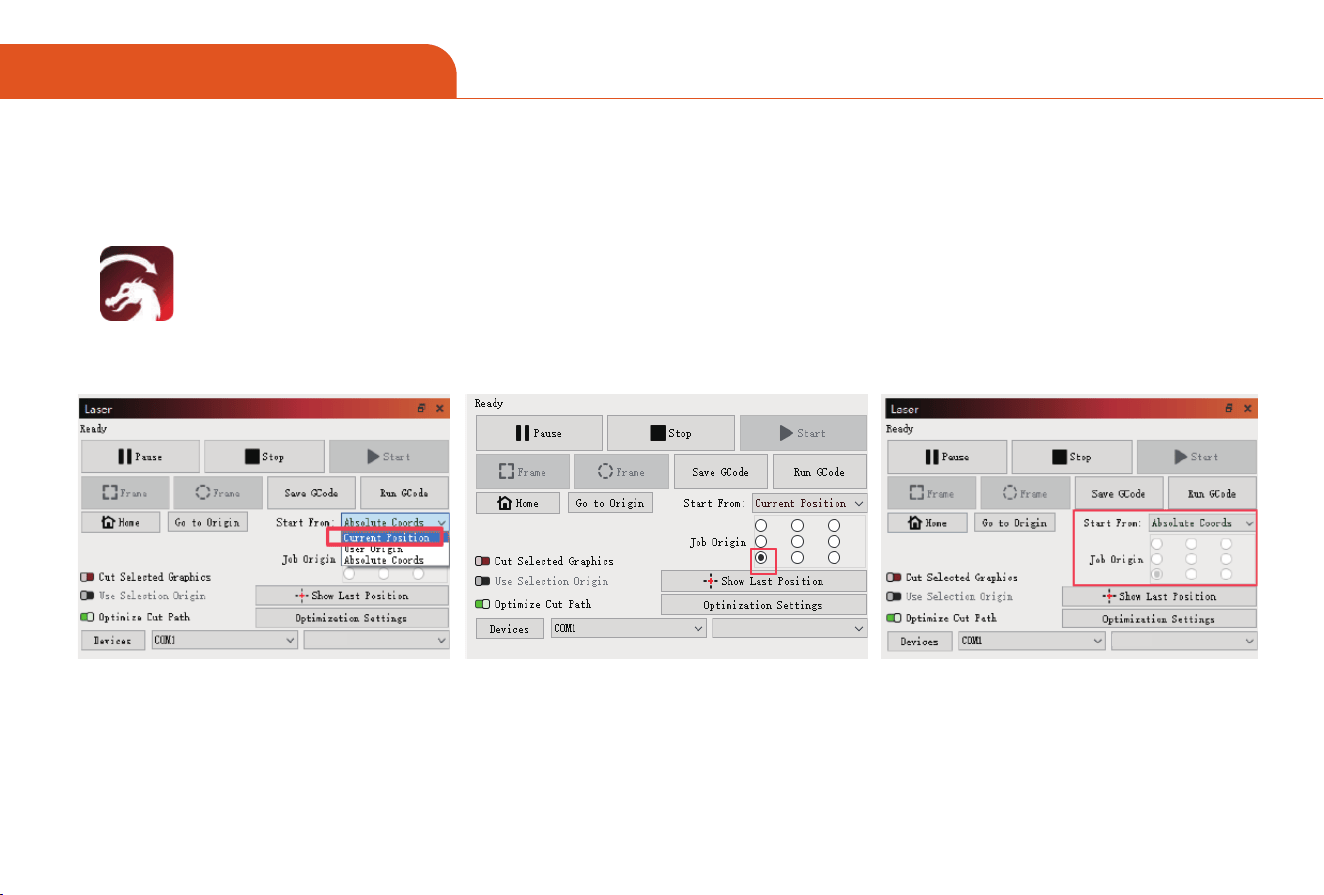
09 PC CONNECTION
For LightBurn
LightBurn
10. Setting the initial position of the laser head
Z8
Z8
Z8
01 02 03 04 05 06 07
08 09 10 11 12 13 14 15
16 17 18 19 20 21 22
23 24 25 26 27 28 29 30
31 32 33 34 35 36
37 38 39
40 41 42 43 44 45

09 PC CONNECTION
For LightBurn
LightBurn
Tips:
1. How to Conrm the Po
Windows: check under the "Pos" section in "Device Manager."
macOS: Enter Is /dev/cu.* in the Terminal to view the poname.
2. Common Issues and Solutions
Device Po Not showing:
Replug the USB cable and resta the device and computer
Check ifthe CH340 driver is installed (a common issue for Windows users)
3. Connection Failed (Error):
Ensure the baud rate matches the device.
Close other software that may be occupying the serial po (e.g., Arduino IDE)
4. Device Not Responding:
Check if the power supply is normal and if the motor cables are loose.
Ensure the working area size does not exceed the physical limits.
01 02 03 04 05 06 07
08 09 10 11 12 13 14 15
16 17 18 19 20 21 22
23 24 25 26 27 28 29 30
31 32 33 34 35 36 37
38 39
40 41 42 43 44 45
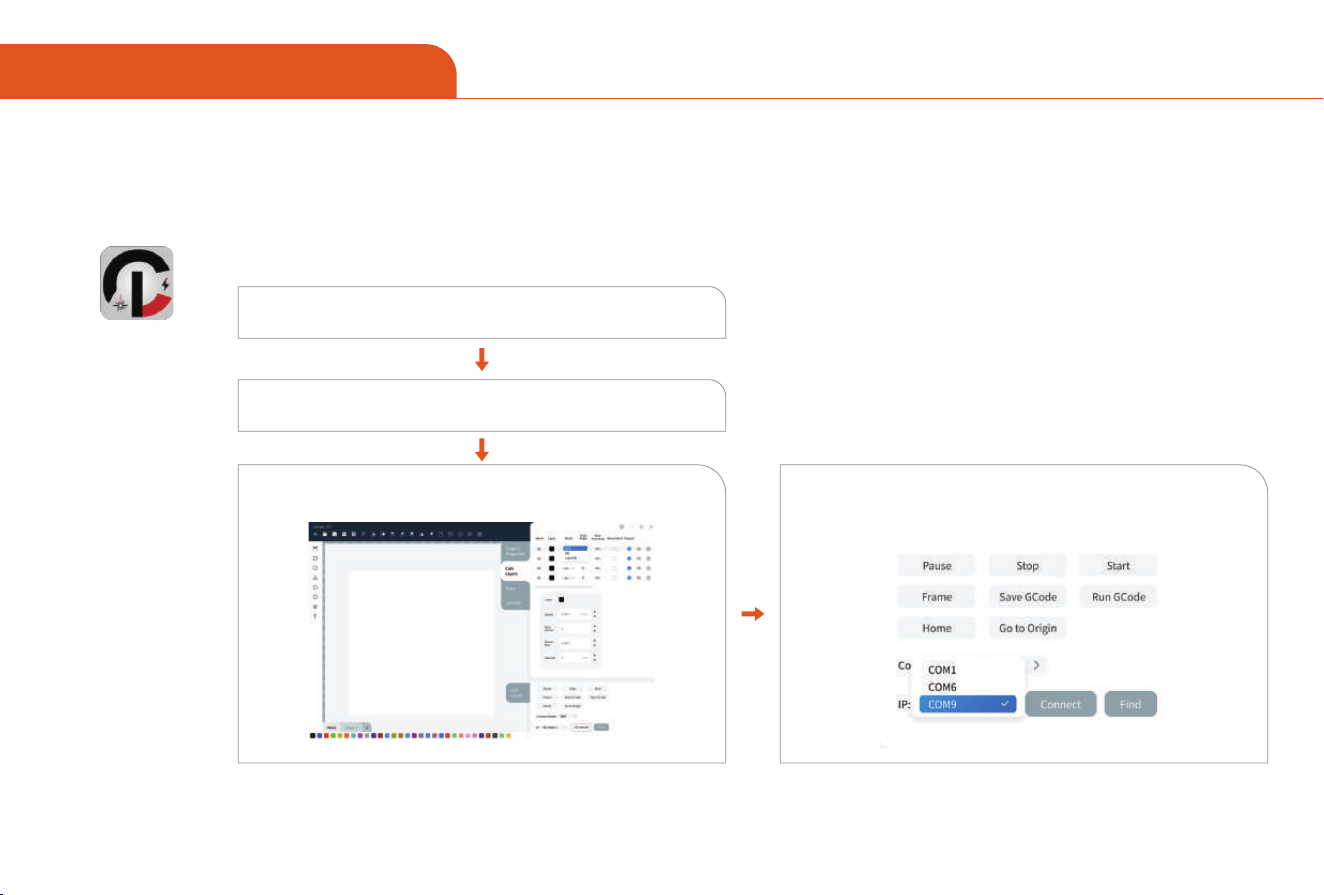
For CutLabX
1. Steps to connect the computer to the machine via USB
*Note: Install the driver according to your computer system (see driver installation instructions).
CutLabX
(Tip: When the machine is connected to a MAC, you must select the name that begins with: W.ch..........)
09 PC CONNECTION
01
02
03 04
Turn on the machine and turn it on
Open CutLabX software and enter the creation page
Connect the Z8 machine with a USB cable
Automatically identify the machine and connect
(If it does not connect automatically, you may need to try another COM)
01 02 03 04 05 06 07
08 09 10 11 12 13 14 15
16 17 18 19 20 21 22
23 24 25 26 27 28 29 30
31 32 33 34 35 36 37 38
39
40 41 42 43 44 45
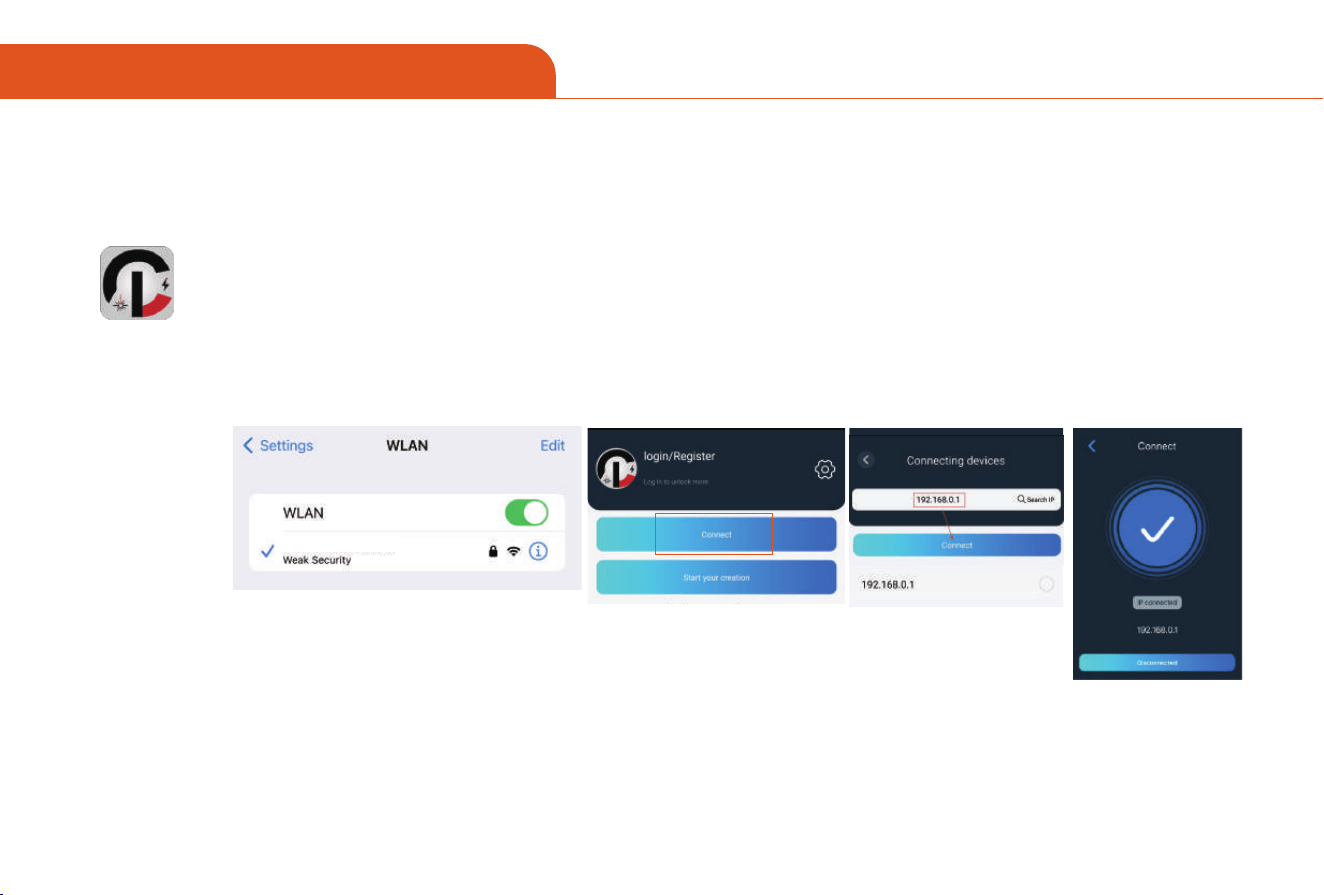
10 MOBILE CONNECTION
For CutLabX
Only CutLabX suppo
1. Connect Phone to Laser Machine
A. Turn on the power of the machine make sure the indicator light is constantly on, otherwise there is no wi
signal.
B. Turn on the WLAN on the mobile phone, nd the WIFI Signal named “Z8” and the password is 12345678 .
C. After the WIFI connection is successful, open CutLabX, click the link mark in the upper right corner, then
enter 192.168.0.1 in the IP address, and click Connect to complete the connection.
CutLabX
Z8
01 02 03 04 05 06 07
08 09 10 11 12 13 14 15
16 17 18 19 20 21 22
23 24 25 26 27 28 29 30
31 32 33 34 35 36 37 38 39
40 41 42 43 44 45
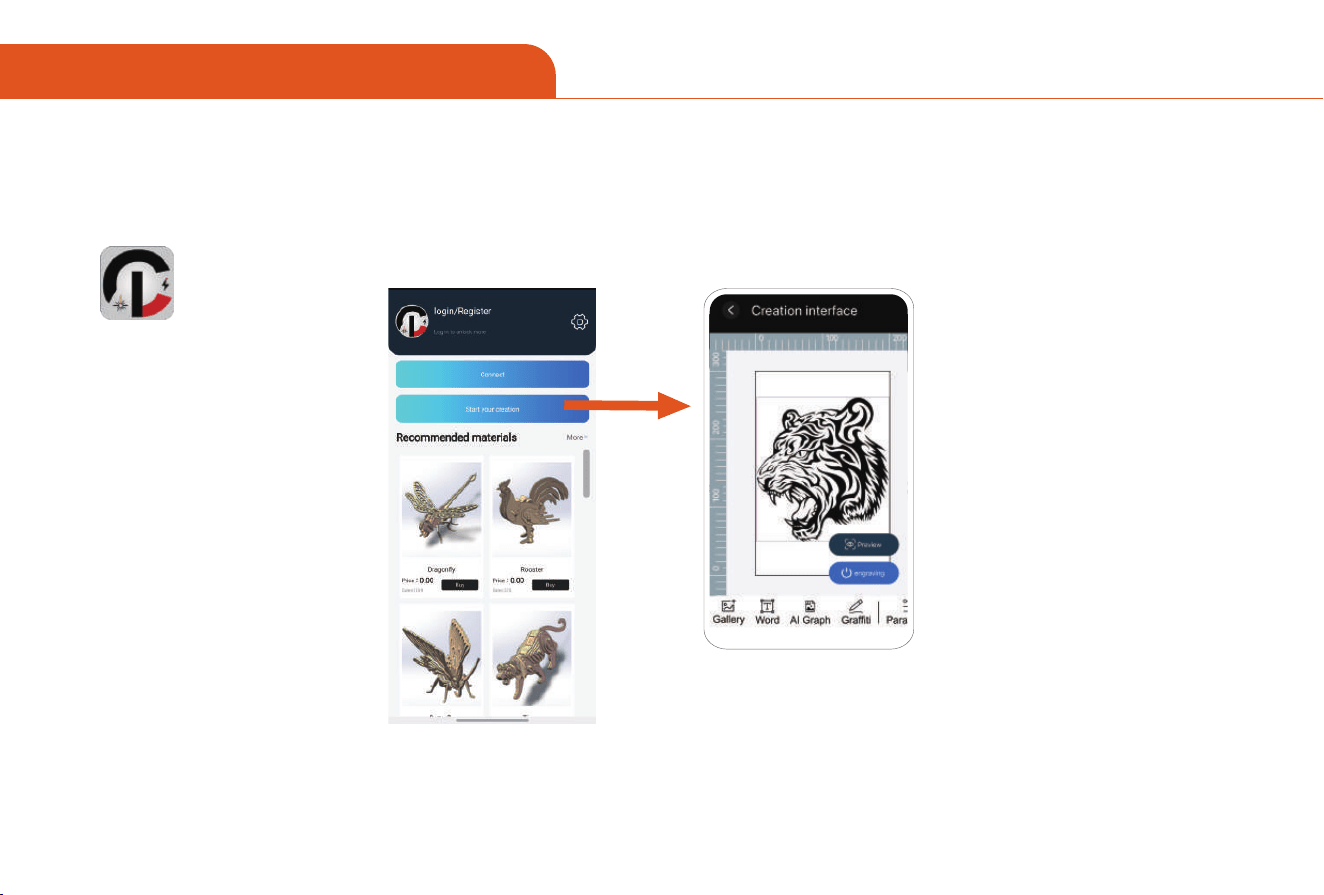
10 MOBILE CONNECTION
For CutLabX
2. Introduction of the inteace
CutLabX
Create hand-drawn projects,
impo phone photo albums.
01 02 03 04 05 06 07
08 09 10 11 12 13 14 15
16 17 18 19 20 21 22
23 24 25 26 27 28 29 30
31 32 33 34 35 36 37 38 39
40
41 42 43 44 45
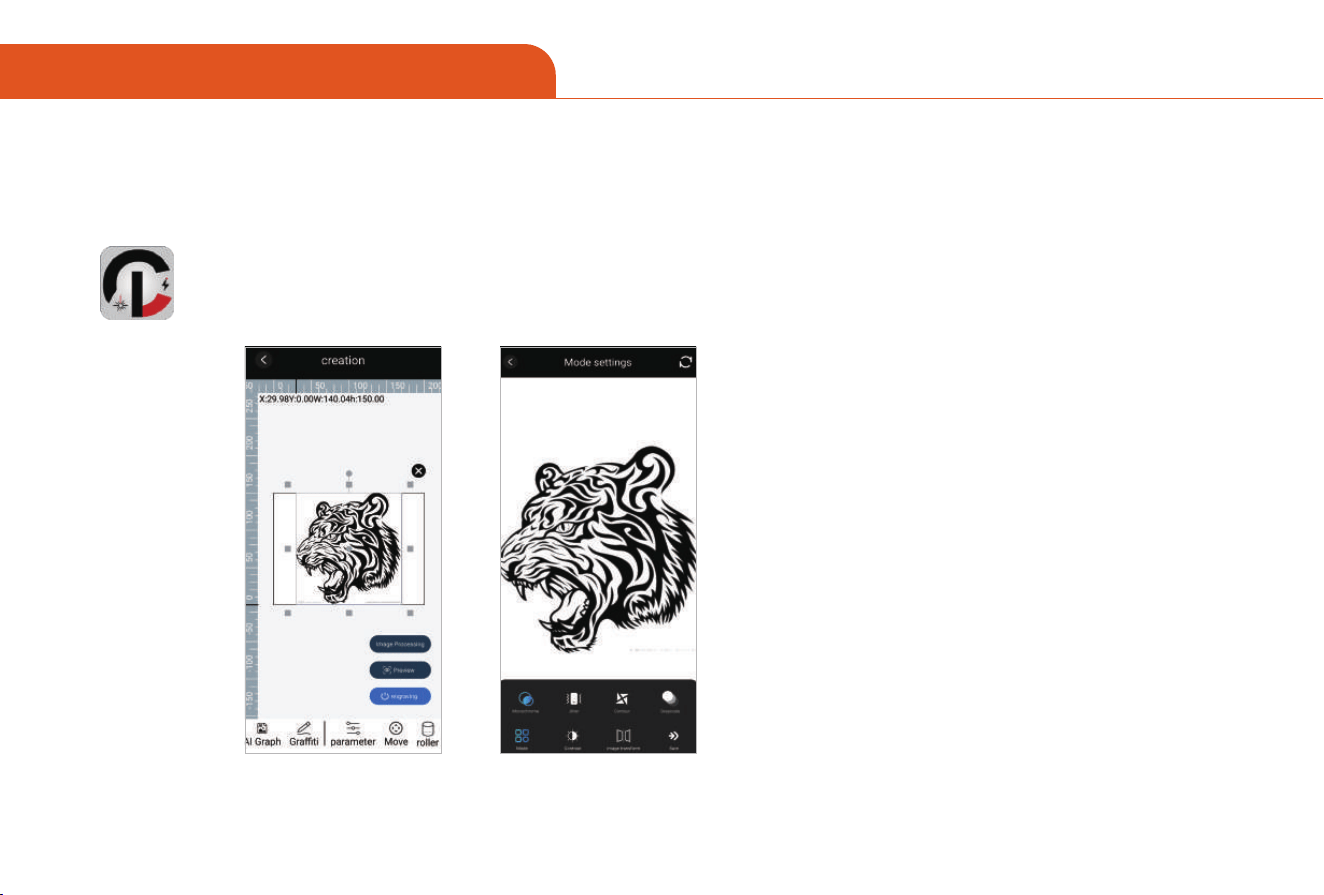
10 MOBILE CONNECTION
For CutLabX
CutLabX
Note:
Please make sure that the memo card has been
inseed into the controller, the mobile phone and con-
troller have been connected to the same WiFi, and the
CutLabX APP has entered the correct IP address.
3. Engraving setting
Click "'Sta your Creation" on the home page, and click "Image Processing" after impoing pictures or drawing text.
Then select the engraving style ( Monochrome, Jitter, Contour, Grayscale ). You can adjust parameters according to
the eect of the preview window.
01 02 03 04 05 06 07
08 09 10 11 12 13 14 15
16 17 18 19 20 21 22
23 24 25 26 27 28 29 30
31 32 33 34 35 36 37 38 39
40 41
42 43 44 45
10 MOBILE CONNECTION
CutLabX
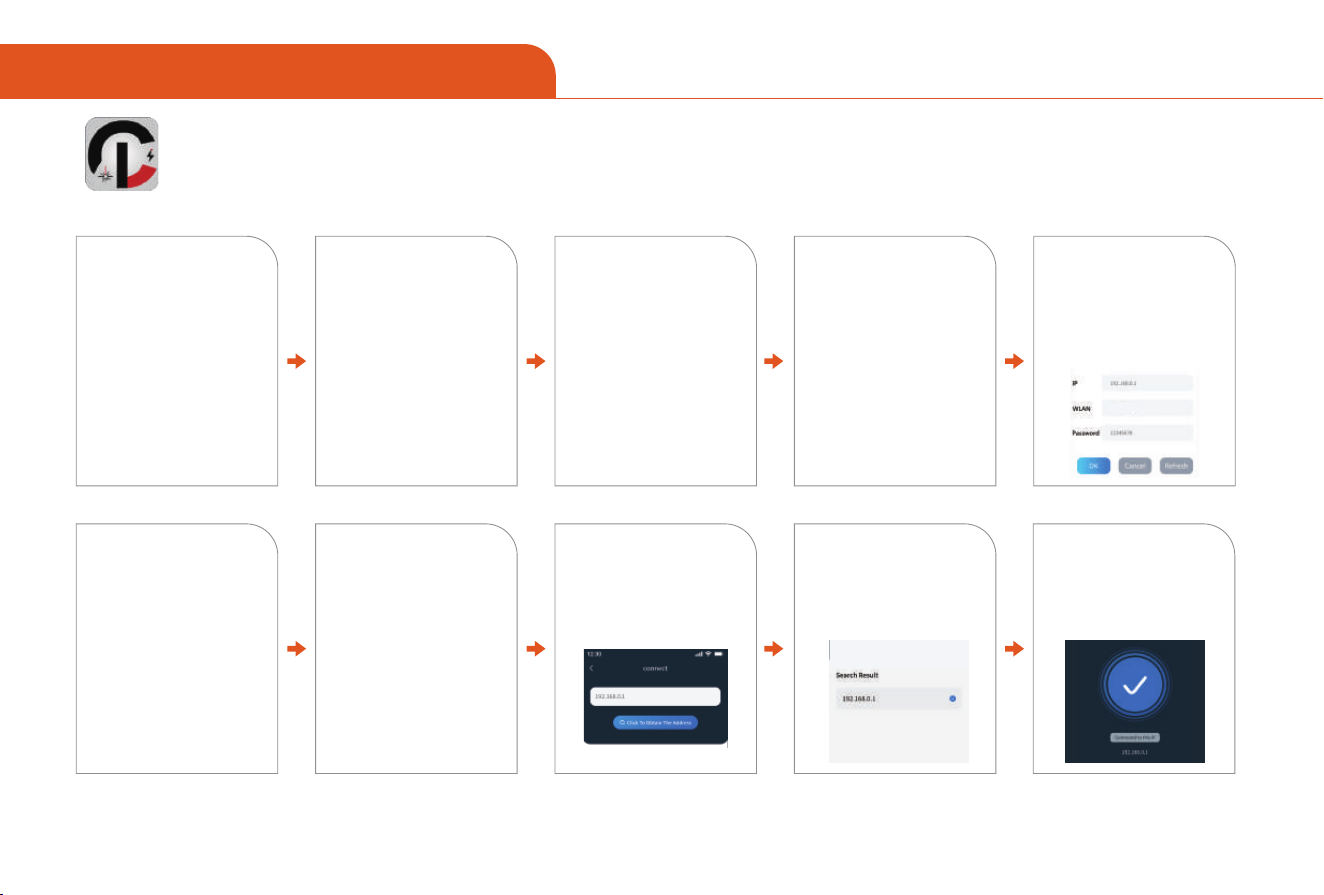
Tip: Steps to connect the phone to the machine: Home network
(Tip: To use the WiFi mode, the machine and the phone must be in the same WiFi network)
(Note: The WiFi name must be existing, and the password
cannot contain complex symbols, only numbers + letters)
01
02 0403
Turn on the device and
open the computer s
oftware
Open the CutLabX
computer software
and enter the cre-
ation interface
Connect the machine
to the computer with a
USB cable (use the USB
port to connect to the
computer and the
Type-B port to connect
to the machine)
Turn on the WIFI on
your phone, find the
home network WiFi
name, and enter your
password
After the WIFI connec-
tion is successful, open
the CutLabX APP and
click the link mark in
the upper right corner
The computer software
automatically connects
after recognizing the
machine
(If it does not connect
automatically, try a
different COM)
Z8
06 07 09 10
05
08
"Click to get the address"
Click the "WiFi Settings"
button. Click to enter
the WIFI name, home
network password, and
restart the machine
Click your IP address to
get it, and click "Con-
nect"
The connected IP is
displayed, indicating
that the connection is
successful
01 02 03 04 05 06 07
08 09 10 11 12 13 14 15
16 17 18 19 20 21 22
23 24 25 26 27 28 29 30
31 32 33 34 35 36 37 38 39
40 41 42
43 44 45

FAQ Solution
11 FAQ
Why does Lightburn show a
"Busy" status but the machine is not moving?
Why do the corners of engraved
images appear burnt or dark?
Why is the back of the wood
board severely charred after cutting?
Most likely, the device is not actually connected yet. Please ensure that
the controller is connected and the communication po is selected in
the laser window in the lower right corner of the software.
If the minimum power setting is too high, the laser power may not
decrease suciently when decelerating at corners, resulting in burn
marks at corners or at the sta and end points of the design. Please
lower the minimum power setting.
Make sure the wood is elevated. If placed directly on a at steel plate,
the gap between the wood and the plate will be too small.
When the laser penetrates the wood, the plate cannot absorb all the
energy, and residual reected laser light will burn the wood.
Use a honeycomb laser bed or elevate the wood to maintain a gap
between the cutting position and the wood.
01 02 03 04 05 06 07
08 09 10 11 12 13 14 15
16 17 18 19 20 21 22
23 24 25 26 27 28 29 30
31 32 33 34 35 36 37 38 39
40 41 42 43
44 45

How to increase the preview frame speed?
For LaserGRBL, right-click "Framing" at the bottom, left-click the "Edit"
button, and in the pop-up parameter inteace, nd the value staing with
F (e.g., F1000), change it to F6000, and click Save.
LightBurn users, click to nd and impo the LightBurn device conguration
le from your TF card.
The le name is Z8 LightBurn Conguration.lbdev
How to improve
engraving quality?
The image is not clear or the
image processing is not ideal
Please conrm whether the impoed image is clear or the
image processing is ideal.
The engraving machine is
not level and is tilted
Please check whether the engraving machine is level
Dust or impurities are
attached to the laser lens
Check the laser lens for dust or impurities
FAQ Solution
11 FAQ
01 02 03 04 05 06 07
08 09 10 11 12 13 14 15
16 17 18 19 20 21 22
23 24 25 26 27 28 29 30
31 32 33 34 35 36 37 38 39
40 41 42 43 44
45