Please read this instruction manual carefully before use
Please use the laser engraving machine correctly and safely
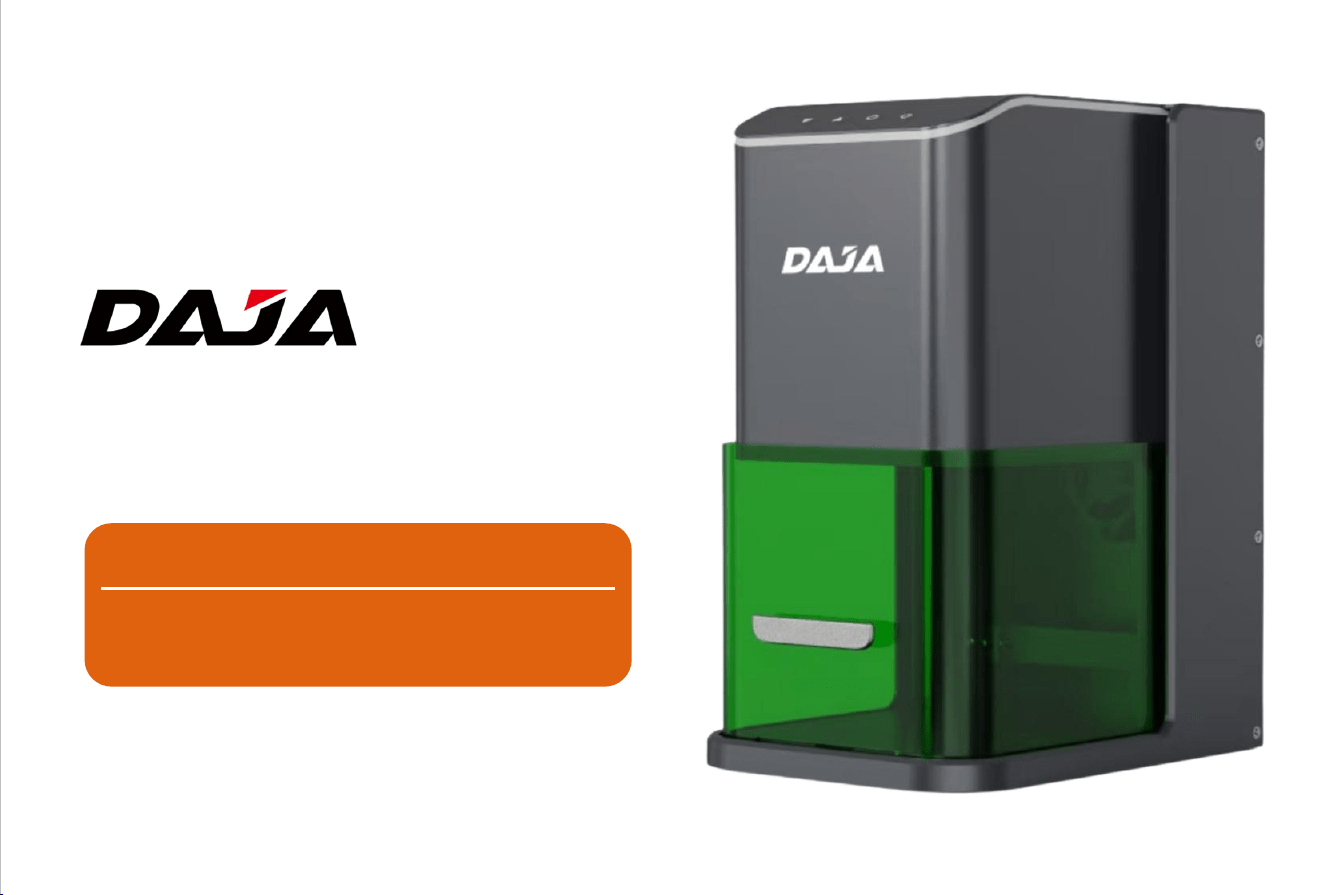
C1 Ultra
Please read this user manual carefully before
use. Use the laser engraving machine
correctly and safely.
User Manual
FCC SDOC
English
English
FCC ID:2BHH8-C1ULTRA
FCC Statement
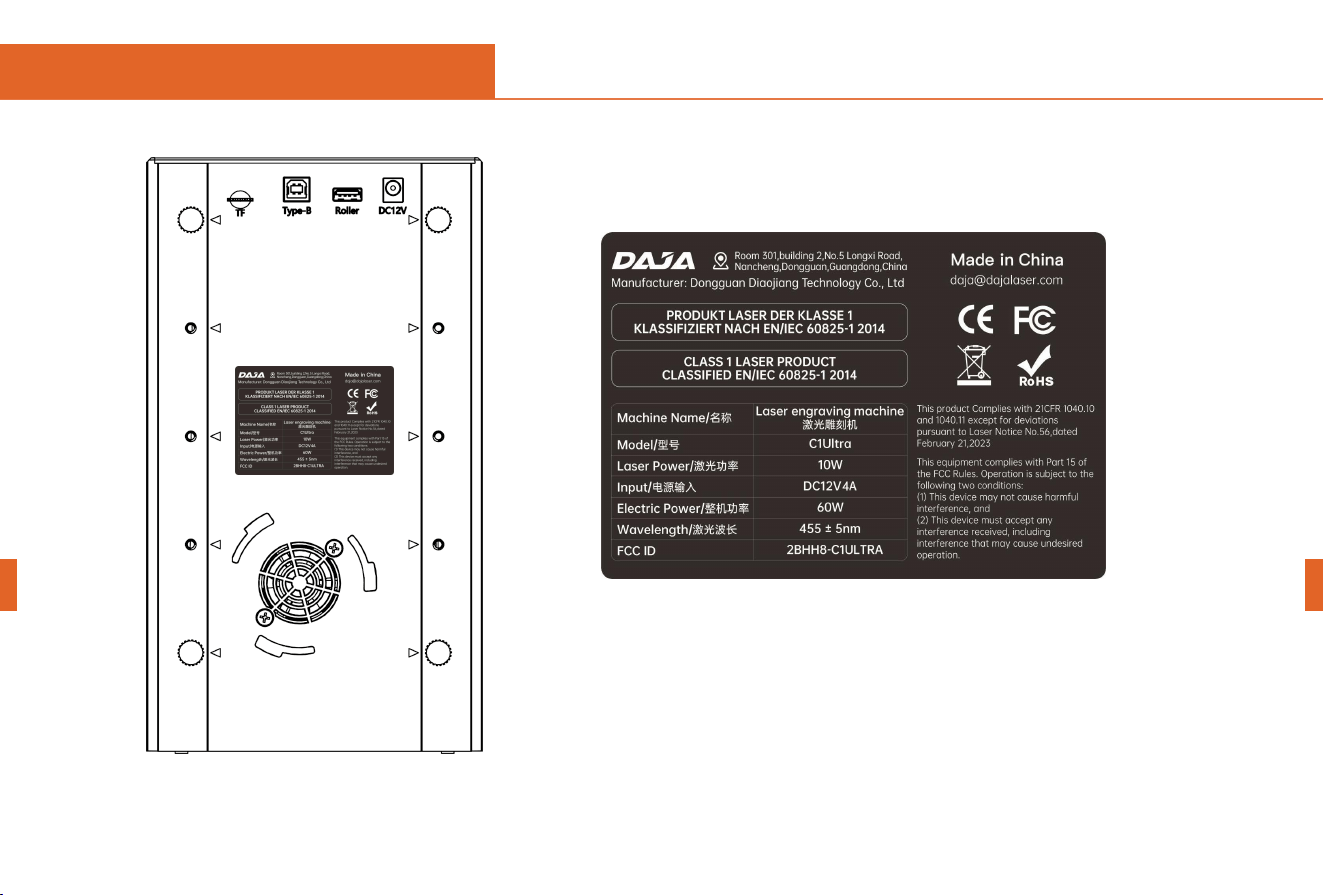
This equipment complies with Part 15 of the FCC Rules. Operation is subject to the following two conditions:
(1) This device may not cause harmful interference, and
(2) This device must accept any interference received, including interference that may cause undesired operation.
NOTE: This equipment has been tested and found to comply with the limits for a Class B digital device, pursuant to part 15
of the FCC rules. These limits are designed to provide reasonable protection against harmful interference in a residential
installation. This equipment generates, uses and can radiate radio frequency energy and, if not installed and used in
accordance with the instructions, may cause harmful interference to radio communications.
However, there is no guarantee that interference will not occur in a particular installation. If this equipment does cause
harmful interference to radio or television reception, which can be determined by turning the equipment off and on, the user
is encouraged to try to correct the interference by one or more of the following measures:
-Reorient or relocate the receiving antenna.
-Increase the separation between the equipment and receiver.
-Connect the equipment into an outlet on a circuit different from that to which the receiver is connected.
-Consult the dealer or an experienced radio/TV technician for help.
FCC Radiation Exposure Statement:
The equipment complies with FCC Radiation exposure limits set forth for uncontrolled environment. This equipment should
be installed and operated with minimum distance 20cm between the radiator and your body.
01
Warning
To assure continued compliance, any changes or modifications not expressly approved by the
party.Responsible for compliance could void the user’s authority to operate this equipment.
English
English
02
H:55mm
W:80mm
Safe instructions
English
Please read the user manual carefully before use and keep it in a safe place for further reference. For
warranty and any technical support, please contact our service team at
English
e-mail address:official@mr-carve.com
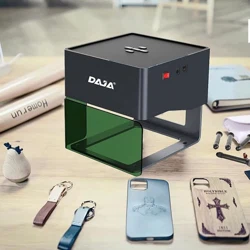
Thank you for choosing DAJA laser engraving machines.
03

Thank you for purchasing the DAJA C1 Ultra Laser Engraver. To ensure optimal use and maintenance of this equipment, please carefully read
this manual and follow the procedures outlined herein.
Important Statement!
Any damage caused by improper use or failure to follow the steps in the manual shall be borne by the individual. The final interpretation of the manual belongs to
the Company, and the Company has the right to modify all information, data, technical details, etc. in this manual.
Safety Precautions
★Before operating the equipment, the user must read the instruction manual carefully and strictly follow the operating procedures.
★Laser processing can be risky and the user should carefully consider whether the object to be processed is suitable for laser work.
★Processing objects and emissions should comply with local laws and regulations.
★This laser radiation may cause the following conditions:
①Ignite surrounding flammable materials;
②During laser processing, other radiation and toxic and hazardous gases may be generated depending on the object to be processed;
③Direct exposure to laser radiation can cause human injury, the use of the place must be equipped with fire-fighting equipment, prohibited in the workbench and
equipment around the stacking of flammable, explosive substances, while making sure to maintain good ventilation.
★The environment where the equipment is located should be dry, no pollution, no vibration, no strong electricity, strong magnetic interference and influence.
Working environment temperature 10 ~ 35 ℃, working environment humidity 30-65% rh (no condensation)
★Equipment working voltage: AC100-240V.
★The engraving machine and any other equipment associated with it must be safely grounded before it can be turned on and operated.
★When the equipment is on, it needs to be guarded throughout the whole process, and all power must be cut off before the personnel leave to prevent abnormal
conditions from occurring, and if it happens, please disconnect the power supply immediately to deal with it!
★It is strictly prohibited to place any irrelevant fully reflective or diffusely reflective objects in the device to prevent the laser from reflecting on the human body or
flammable objects.
★The equipment should be kept away from electrical equipment that is sensitive to electromagnetic interference and may cause electromagnetic interference to it.
★There is high pressure or other potential danger inside the laser device, and disassembly by non-professionals is strictly prohibited.
!
warnings:The machine must be closed under the guard to work properly.
Safe instructions
!
English
English
04
Maintenance and upkeep
Laser modules are consumables;
Recommendation.
Turn off the machine for 10 minutes after 1 hour of
cutting;
Turn off the machine for 10 minutes after 4 hours of
engraving.
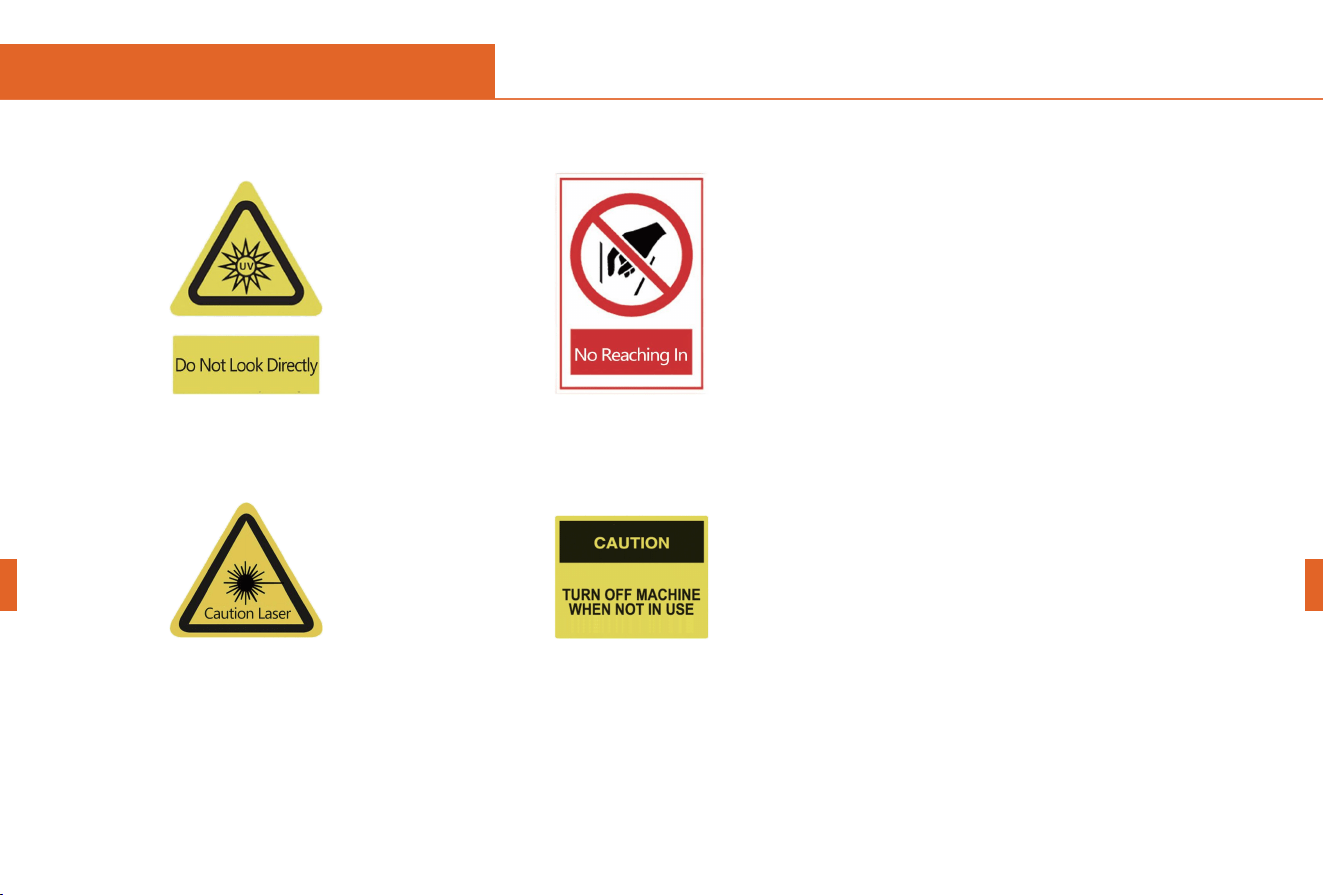
3.After the laser is turned on, it is
strictly forbidden to aim at people,
animals and flammable objects to avoid
skin burns and fire.
2.Keep your hands away from the
machine when it is working to
avoid injury
1.The brightness of the laser is
harmful to the eyes. Please do not
look directly at the laser.
Notice!
4. Turn off the power of the machine
when it is not in use to avoid misoperation
by a third party
English
English
Safe instructions
05
Safe instructions
06
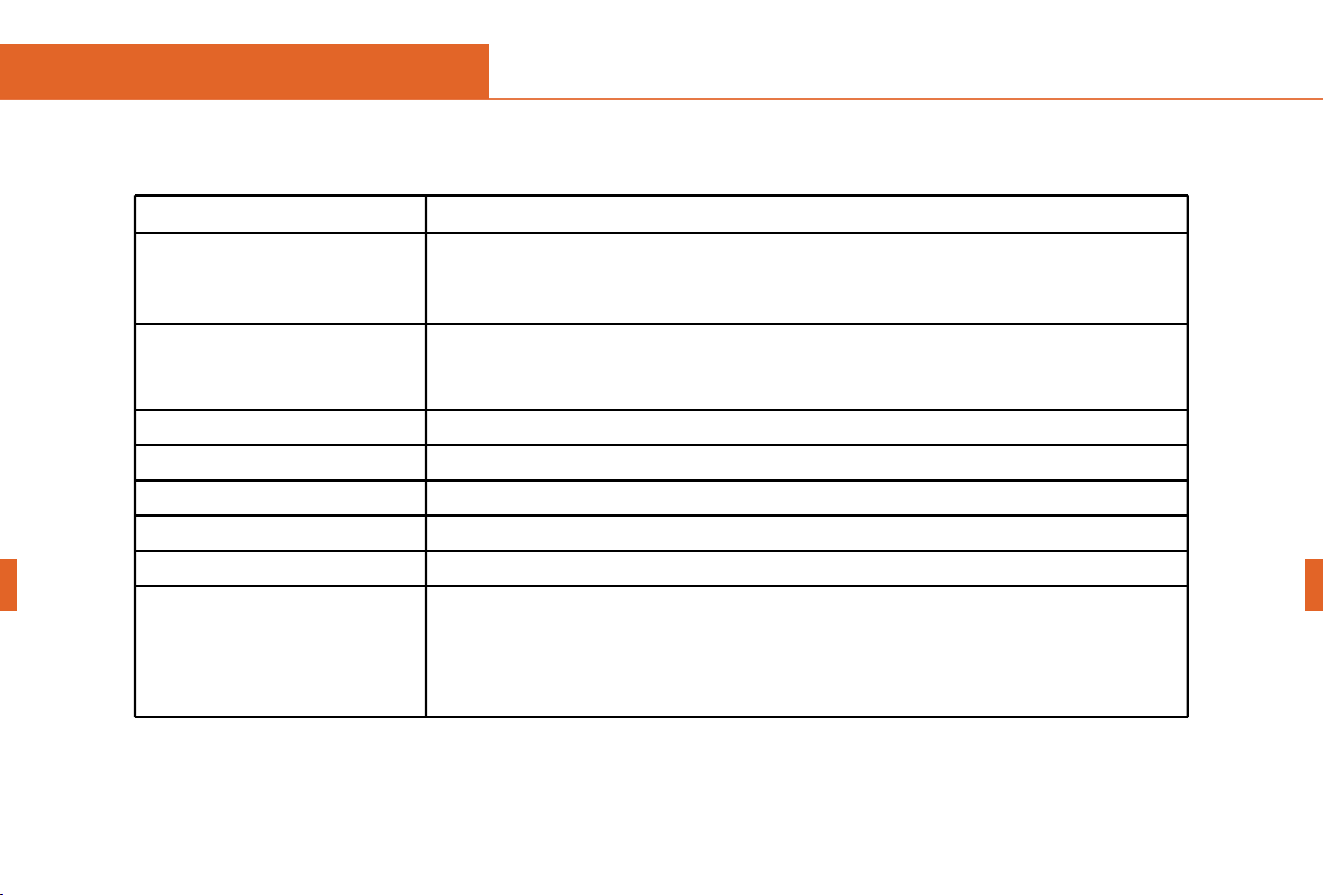
Warning: Certain materials may become highly hazardous during laser cutting or engraving. For your safety, exercise extreme caution
when processing these materials, understand the potential hazards they may pose, and take measures to protect yourself.
Materials
injury
PVC (polyvinyl chloride), vinyl,
leather, synthetic leather
Cutting releases toxic pure chlorine gas accompanied by a strong irritating odor! It is
recommended not to cut this material, as it may corrode machine tool metal components and
damage optical components and motion control systems. When cutting this material, wear a gas
mask or use an air purifier.
ABS
It releases cyanide gas and melts easily. It melts rather than evaporates, ignites readily, and
leaves behind a viscous molten residue. When handling this material, it is recommended that you
wear a gas mask and use an air purifier.
HDPE
Melting and highly flammable.
Expanded polystyrene foam
Melting and highly flammable.
Polypropylene foam
Melting and highly flammable.
Polycarbonate, Latex Paint
Change color and catch fire.
Coated carbon fiber
Release toxic gases.
Acrylic fiber (acrylic)
This material releases harmful gases. We recommend wearing a respirator or using an air purifier
when processing it. Note that most 450 nm lasers can penetrate acrylic. The C1 Ultra
semiconductor laser emits a beam wavelength ranging from 450 nm to 460 nm, meaning most
laser beams will pass through acrylic rather than being absorbed. Semiconductor lasers can only
cut a limited amount of non-transparent, translucent acrylic sheets. Compared to semiconductor
lasers, CO₂ lasers are better suited for processing acrylic.
Note: When processing blue surface materials using a laser module emitting a 455 nm laser beam, most of the laser beam will be reflected
rather than absorbed. You will need to increase the power to ensure proper processing.
Warning: Do not process reflective materials such as mirrors. Laser beam reflection is extremely dangerous and may cause injury to you
and damage to the laser equipment.
English
English

07
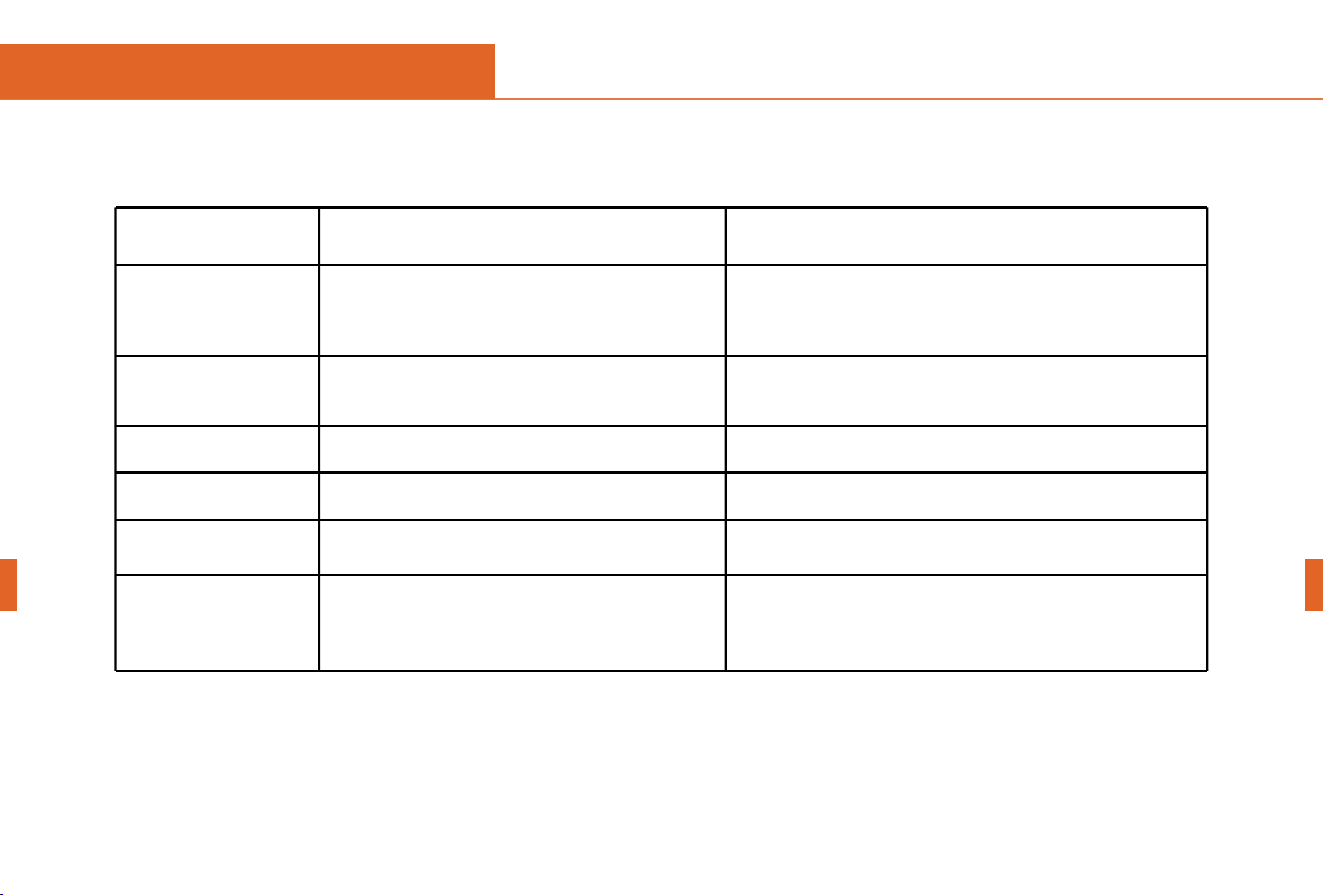
Cutting
Lasers can be used to cut wood, paper, cork, and certain types of plastic; they can also engrave most materials, such as wood, paper,
coated metals, stainless steel, plastic, marble, stone, tile, glass, and more.
Materials
Instruction
Warning
Most trees
Avoid using oily or resinous woods.
Exercise extreme caution when cutting oily or resin-rich
wood. These materials are highly flammable. Maintain a
cutting speed below 2% and power output at 10% when
processing wood.
Plywood, composite wood
They are glued together and may not be as satisfying as solid wood.
Medium-density
fiberboard, engineered
wood
They can be cut, but they may burn quite a bit.
Paper, paperboard
They can be cut easily and beautifully.
Cardboard, paper boxes
They can be cut easily, but they may catch fire.
Exercise caution around open flames and proceed with
care during cutting.
cork
They can be cut quite well. However, cutting results may be affected by the
thickness and quality of the cork. If there is too much glue, the cork may not cut well.
Avoid using thick cork.
Polycarbonate
Thin polycarbonate can be cut, but its color typically undergoes significant changes.
Keep the area well-ventilated and be mindful of fire
hazards.
Depron foam
It cuts beautifully with smooth edges, making it popular for hobbyist projects,
remote-controlled aircraft, architectural models, and toys.
Take special care when cutting.
Fabric, felt, hemp fiber,
cotton, leather
It can cut thin fabrics, felt, hemp fibers, cotton, or leather, but the edges may scorch
due to high temperatures.
Safe instructions
English
English
08
carving
All of the above materials that can be cut can also be engraved. Additionally, you can engrave:
Materials
Note
Warning
Glass
The texture of engraved glass resembles that of
sandblasted glass.
The beam emitted by the C1 Ultra's semiconductor laser
module cannot be used directly for engraving transparent
glass. Before engraving, a laser engraving machine marking
paper must be applied to the glass surface.
Ceramic tiles
The processing generates fumes and dust.
Anodized aluminum
It causes the anode coating to evaporate.
Painted, coated metal
It will cause the paint to evaporate.
Stainless steel
It will burn its surface and change its color.
Compared to semiconductor lasers, fiber lasers are better
suited for processing metal products.
Stone, marble, granite
White patterns were etched into the surface,
producing smoke and dust.
Safe instructions
English
English
Content
English
English
09
Content
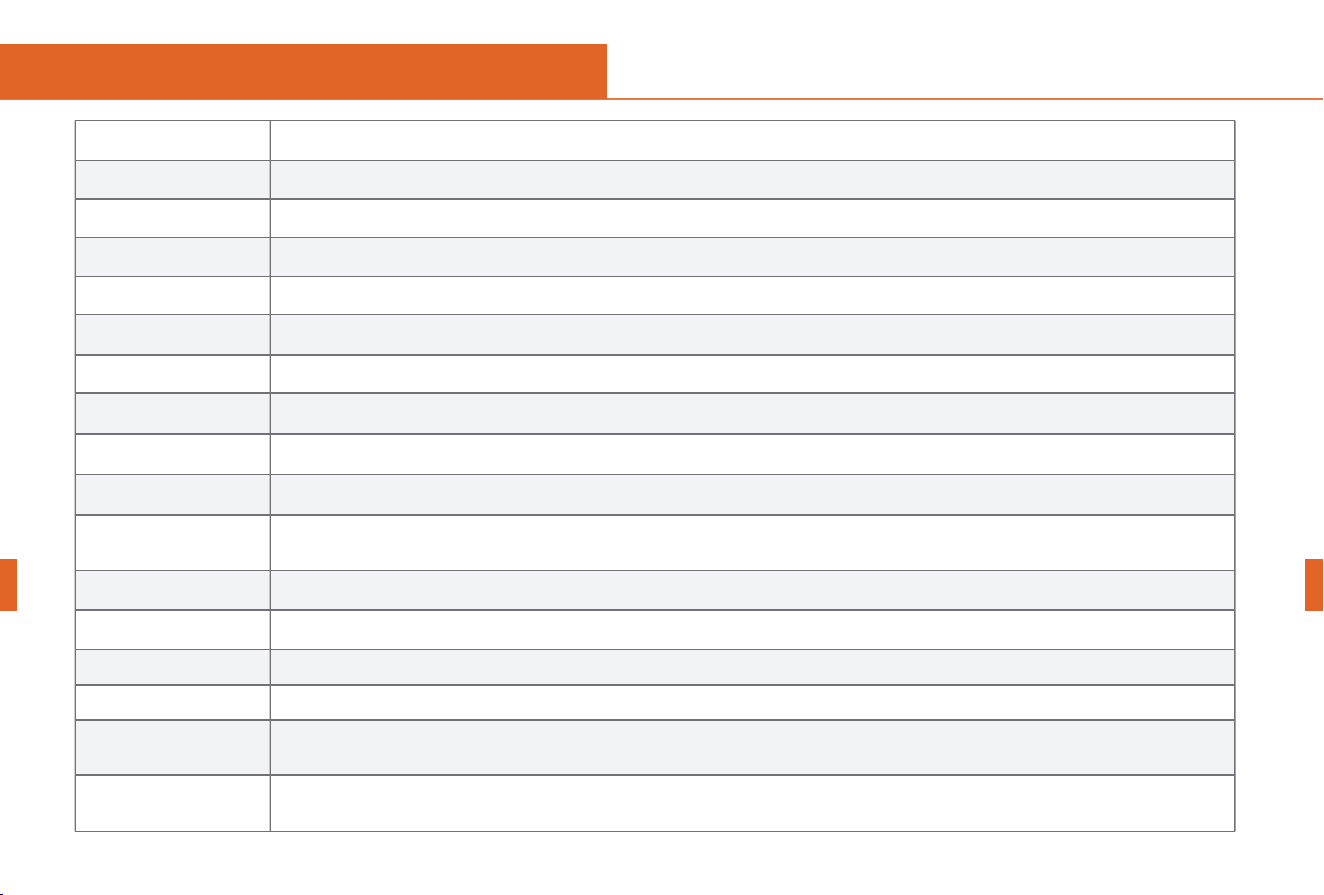
Product Parameters
Products and accessories
Product Mix
Focusing
Light Shield Function
Tilt Protection
Base Height
PC software installation
Mobile App Download and Installation
Mobile connection
Computer connection
FAQ
10
11
12
15
16
17
18
20
24
25
27
28
0 1 Product Parameters
English
English
10
Product Model
C1 Ultra
Primary Material
ABS + High-Strength Metal
Laser wavelength
Blue light: 455±5 nm
Laser power
5W / 10W
Engraving speed
30000mm/min
Laser lifetime
>10000h at 27°C ambient temperature
Focusing Method
Dual red light assist focusing
Engraving area
100x100mm
Engraving precision
0.01mm
Laser Class
Class 1
Total power
consumption
≤
60W
Engravable materials
Most non-metallic materials and non-transparent materials (paper, wood chips, plastic, leather, fabric, cardboard, leather)
Input voltage
5W DC 12V 4A / 10W DC 12V 4A
Data Transmission
USB-to-serial wired transmission, WiFi wireless transmission
Cooling method
Air-cooled
Support System
CutLabX Software Platform (Windows OS, macOS, Android, iOS)
GRBL Software Platform (Windows OS, macOS)
Supported formats
CutLabX Software Platform -> Image Formats: JPEG/BMP/JPG/GIF/PLT/PNG/CUTLABX -> Vector Formats: DXF/PLT/HPGL
GRBL Software Platform -> NC/BMP/JPG/PNG/DXF and other formats
0 2 Products and accessories
English
English
11
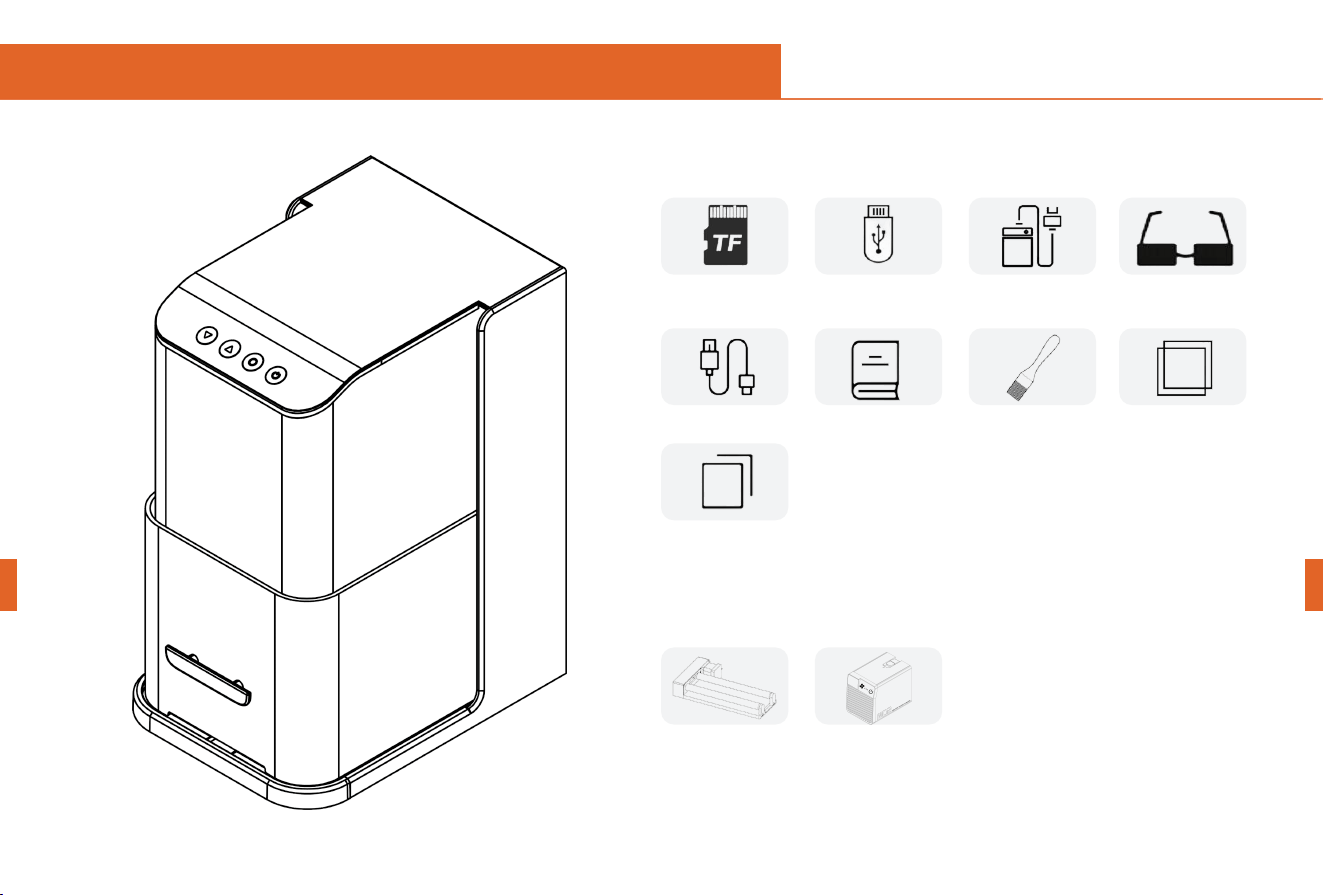
Standard accessories
Optional Accessories
Data cable
User Manual
Safety goggles
Card reader
TF card (inside
the machine)
Bristle brush
Paper
wooden board
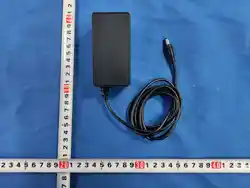
Power Supply
Rotary Module Air Purifier
0 3 P roduct Mix
English
English
12
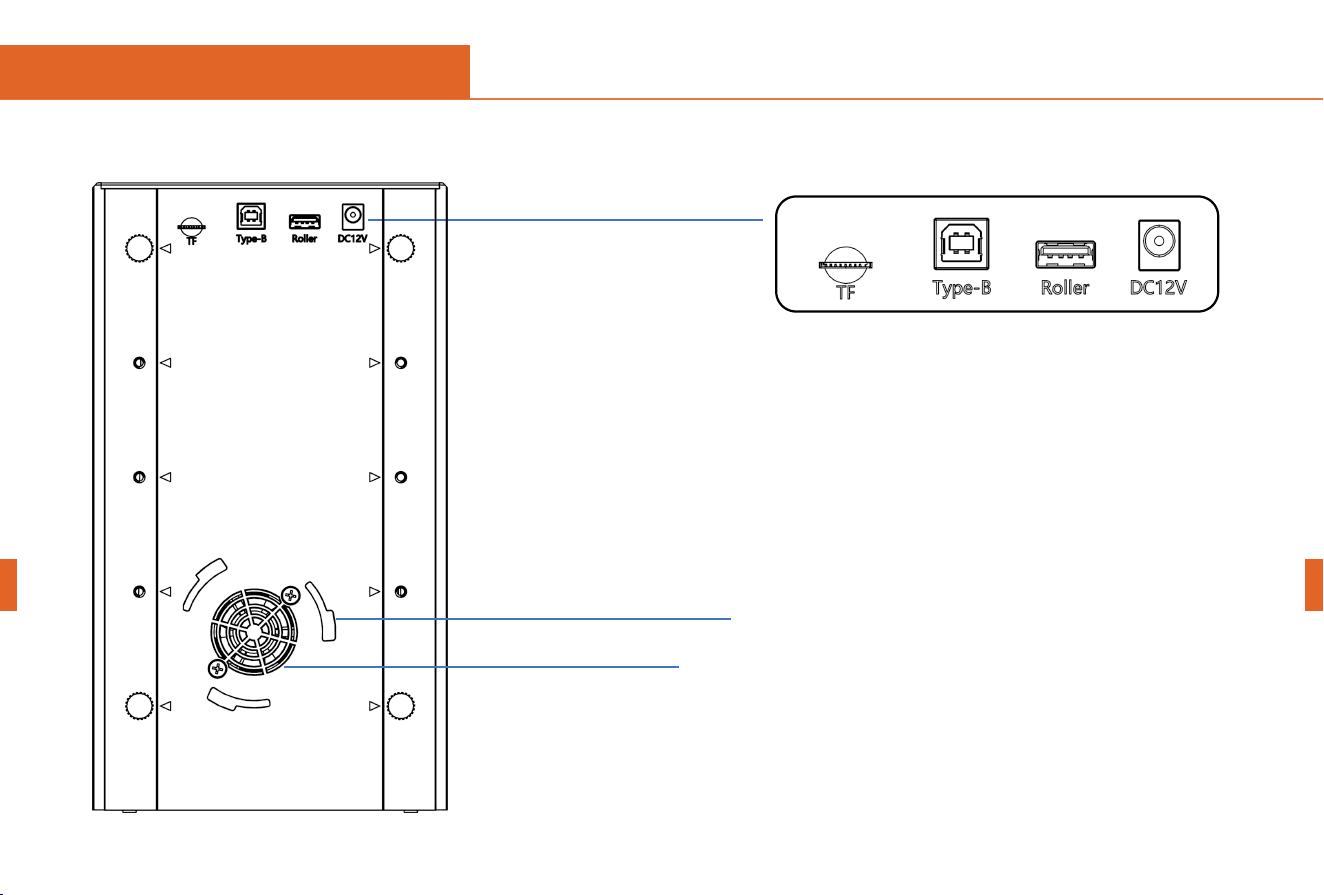
TF card PC Roller
interface
Power
Supply
Air Purifier Interface
Exhaust vent
Rear view
English
English
13
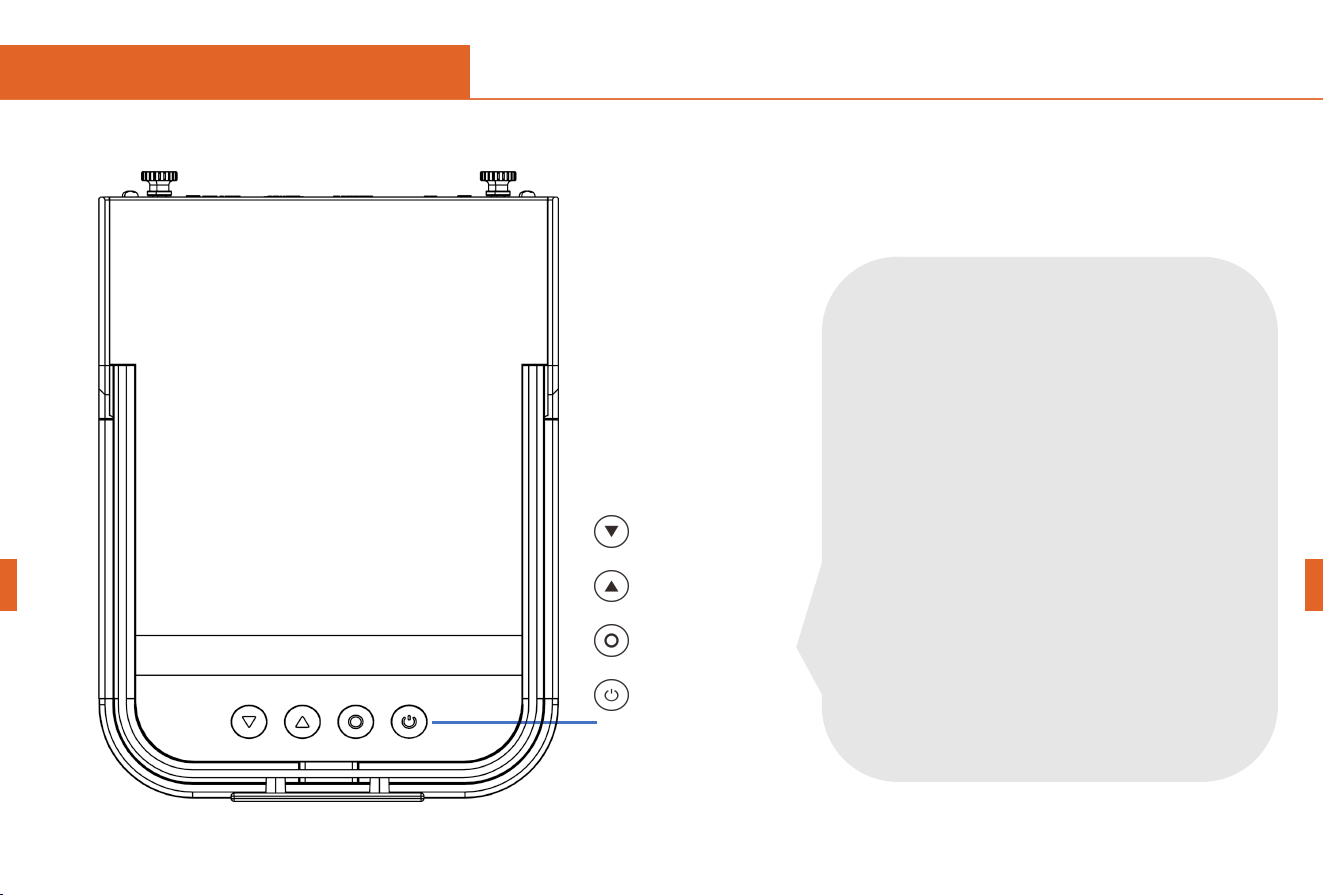
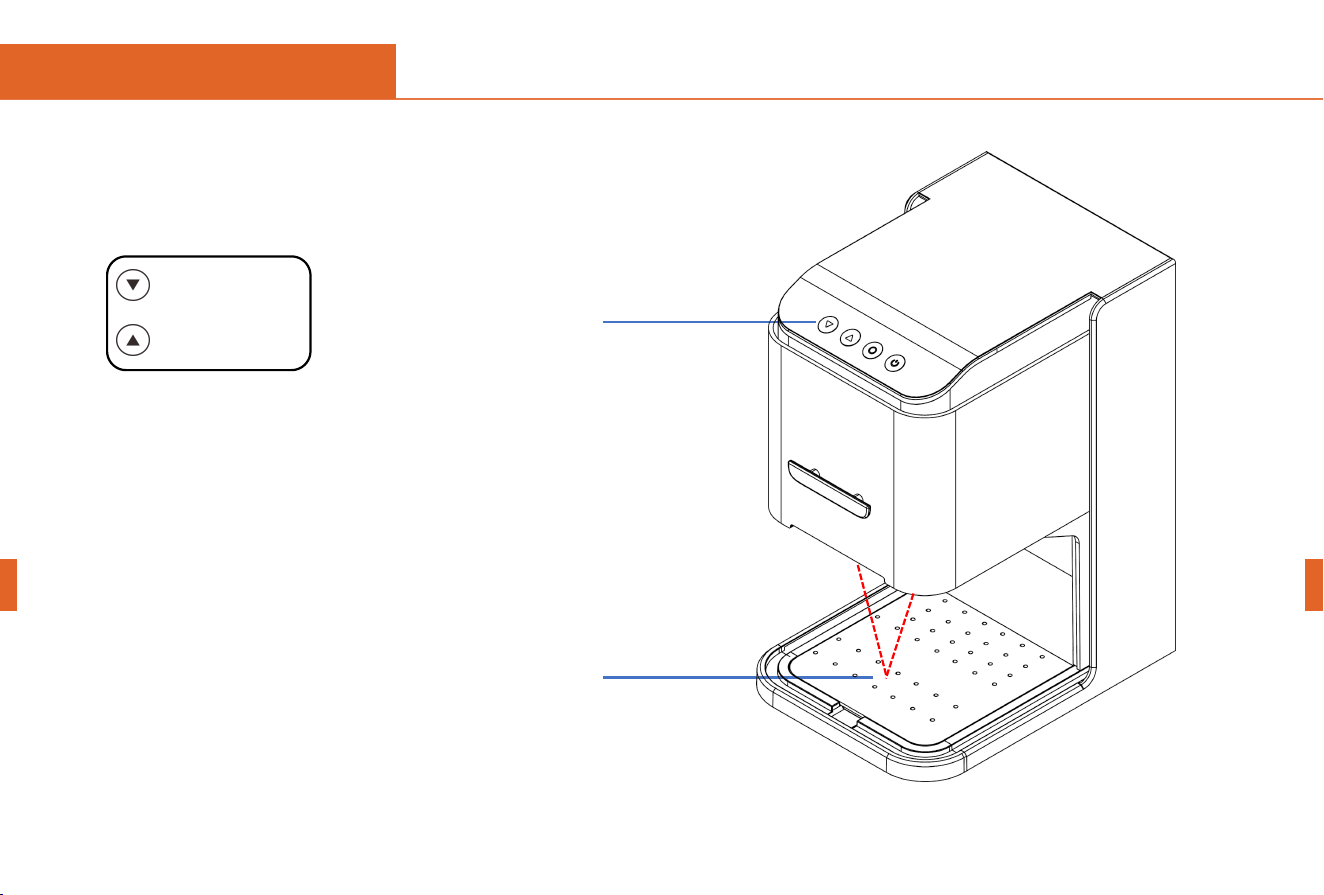
1. Generate an engraving or cutting file (gcode) using
software such as CutLabX/LightBurn and save it to the
root directory of the TF card, named: 001.nc
2. Before powering on, insert the TF card into the
machine, then connect the machine using the included
power adapter, and finally turn on the machine's power
switch.
3. Press the "Offline Key Function" button:
a. Pressing this button will automatically reset the
machine and preview it.
b. Press and hold for 3 seconds or more to enter
engraving mode.
c. Press briefly again to pause.
d. Press briefly again to continue.
e. Press and hold for more than 3 seconds to cancel
engraving.
Focus - Decrease
Focus - Up
Offline Engraving
Power Switch
Top view
0 3 P roduct Mix
English
English
14
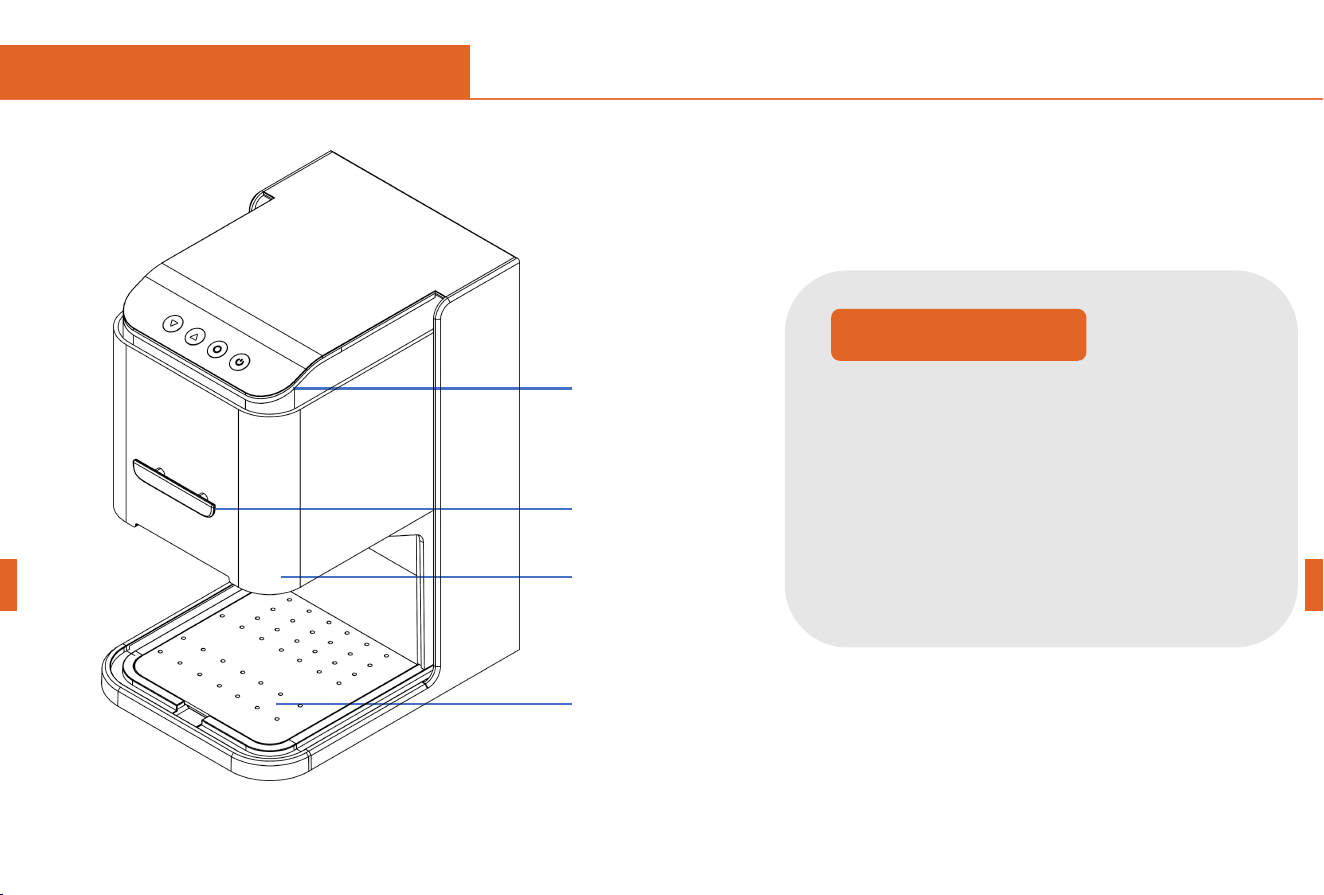
Status Indicator
Status Indicator
1. Flashing (on for 0.2 seconds, off for 0.2 seconds):
WiFi connection
2. Flashing (on for 0.5 seconds, off for 0.2 seconds):
Warning state
3. Flashing (on for 0.5 seconds, off for 0.5 seconds):
Door opening/tilt protection
4. Breathing Flash: Sculpting State
5. Always On: Standby mode
Light Shield Handle
Cutting board
Light shield
0 3 P roduct Mix
English
English
15
0 4 Focusing
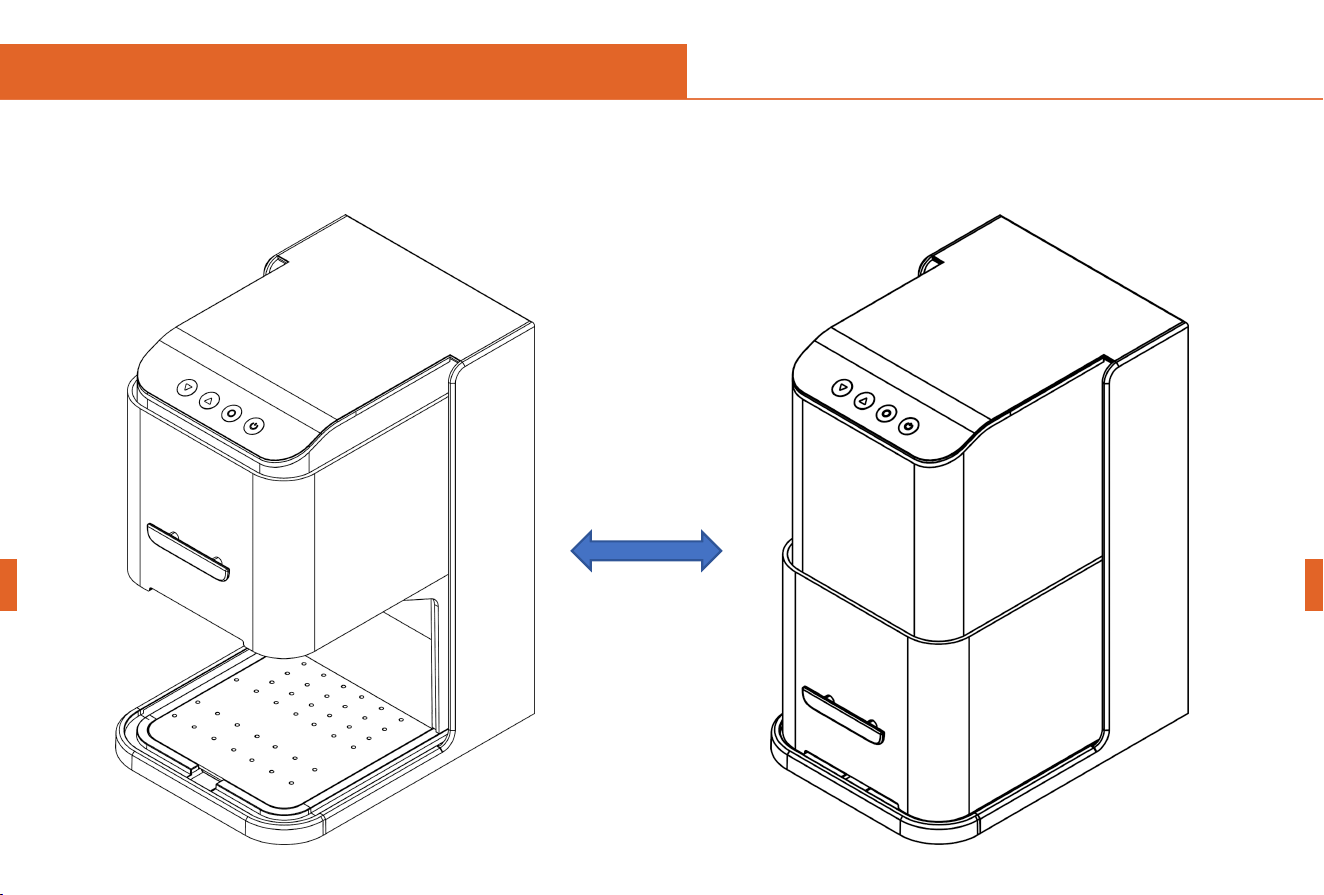
Focus - Decrease
Focus - Up
Press and hold the focus
up/down button until two red
dots appear; Adjust until both
dots align on the engraving
object to complete focusing.
The two red dots
coincide on the
engraving.
English
English
16
0 5 Light Shield Function
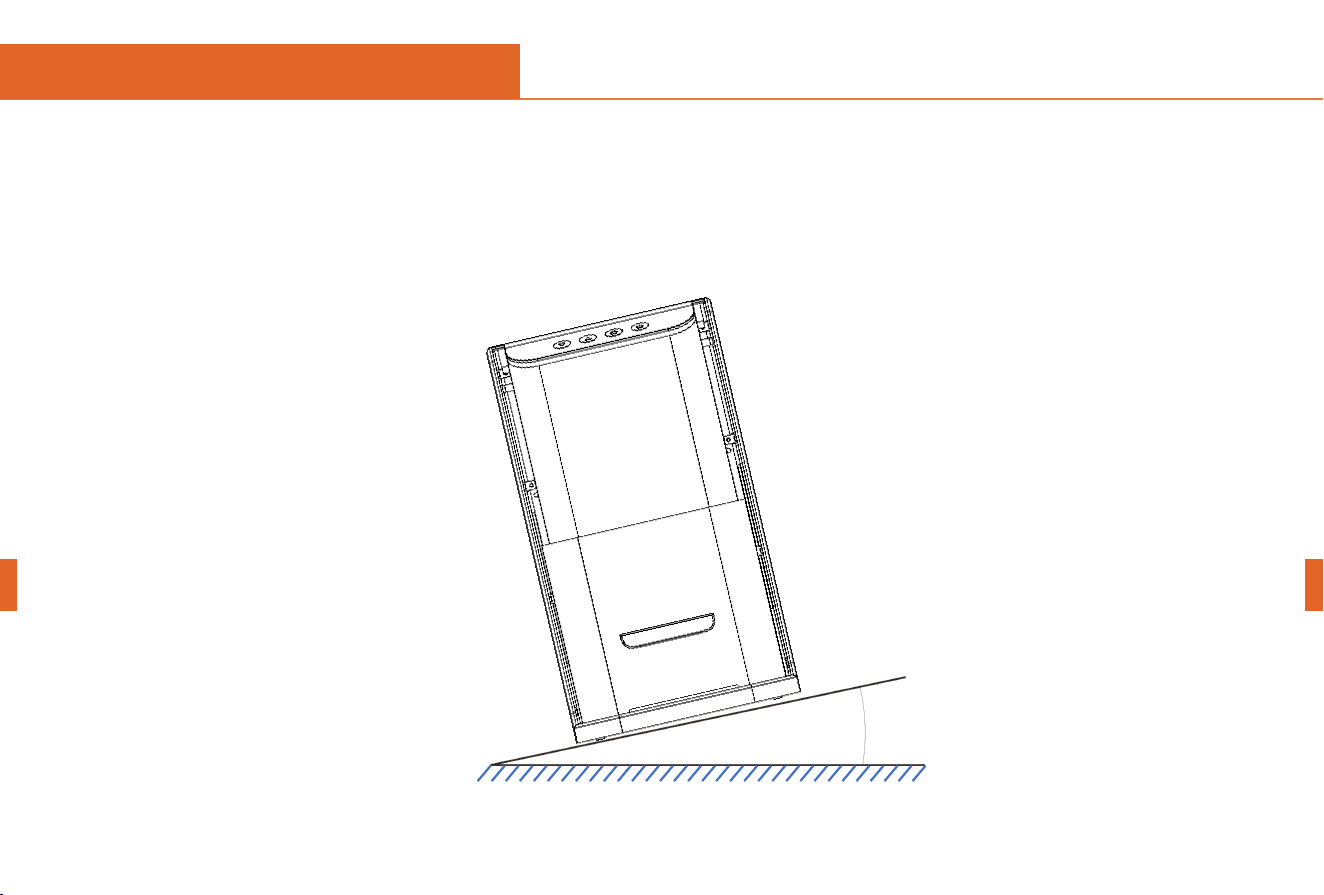
When operating the machine, the light shield must be lowered; otherwise, the machine cannot be
controlled. During engraving, raising the light shield will cause the laser module to immediately cease
laser output. (This function can be disabled in the software.)
English
English
17
0 6 Tilt Protection
Function
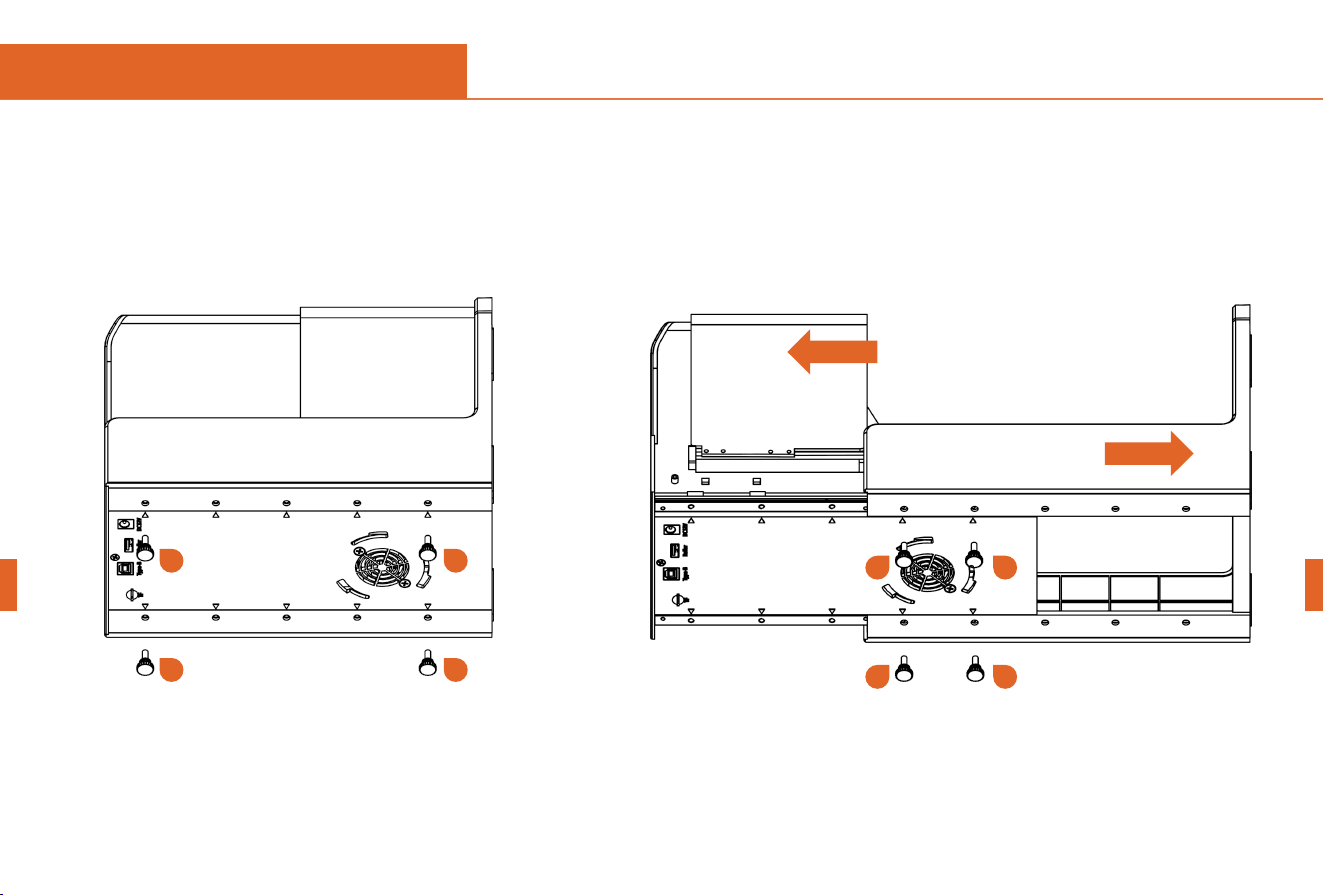
When the machine tilts at a certain angle relative to the horizontal plane and remains in that position for over 1
second, the machine will immediately stop operating. The laser module will cease laser output and enter a
protective state. To restore normal functionality, the machine must be powered off and restarted.
English
English
18
07 Base Height
A d j u s t m e n t
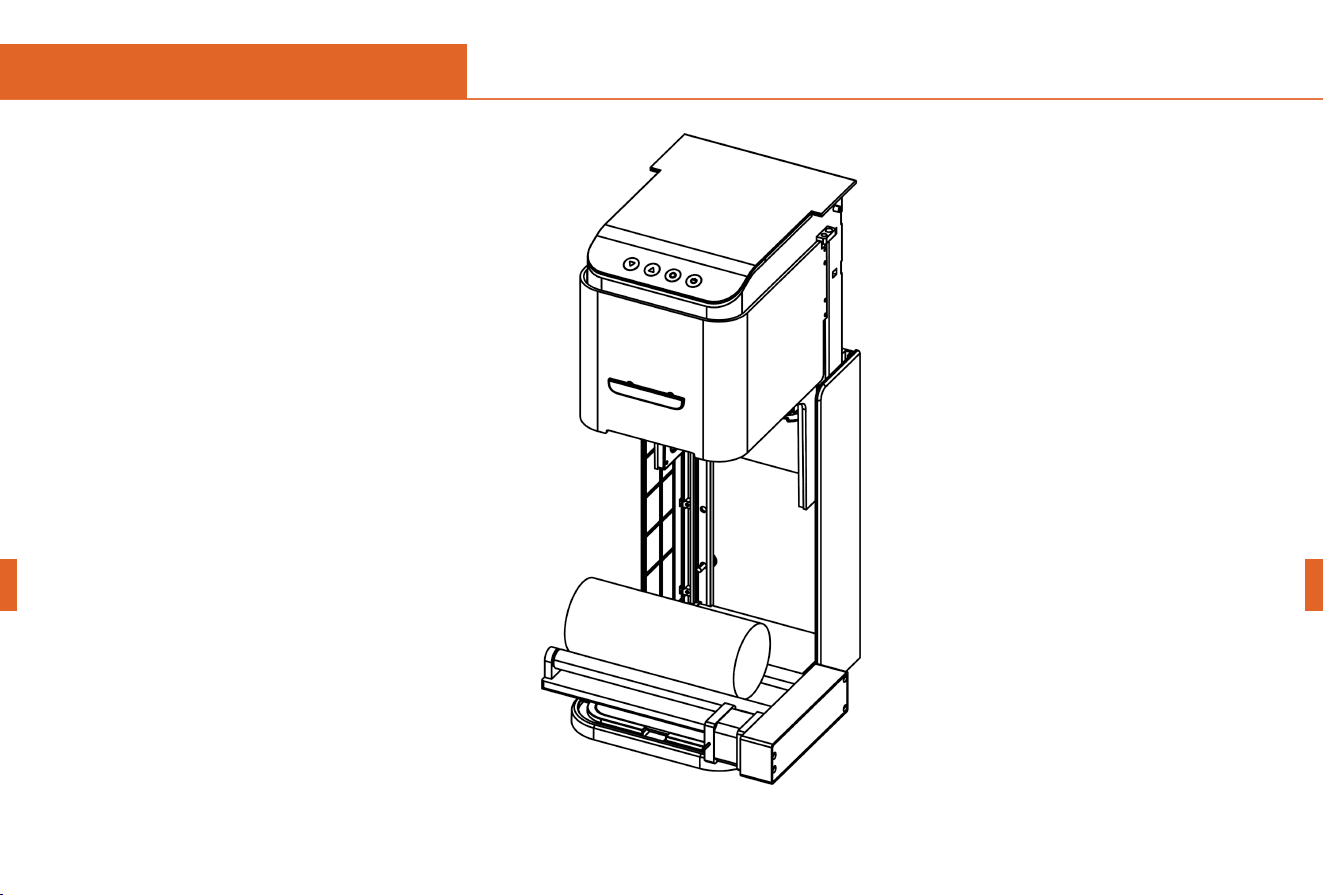
Note: When engraving objects taller than 25mm or using roller engraving, adjust the height of the machine base.
1. Unplug the power cord, lay
the machine flat, and remove
the four screws.
2. Pull out the base lift bracket, then secure
it with four screws.
1 2
3 4
2
4
1
3
English
English
19
3. Adjust the lifting distance of the base
appropriately according to the height of
the carved object.
07 Base Height
A d j u s t m e n t
English
English
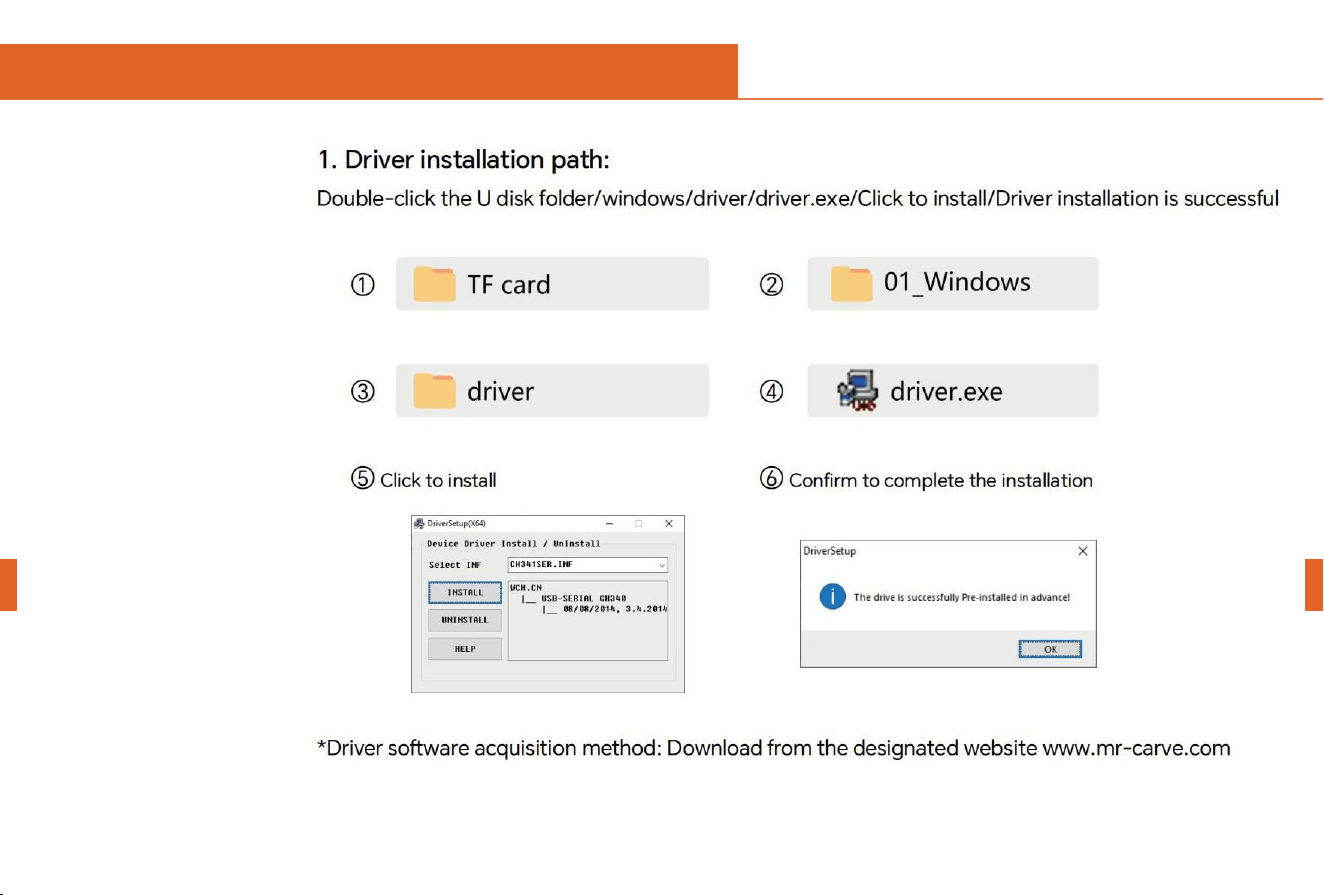
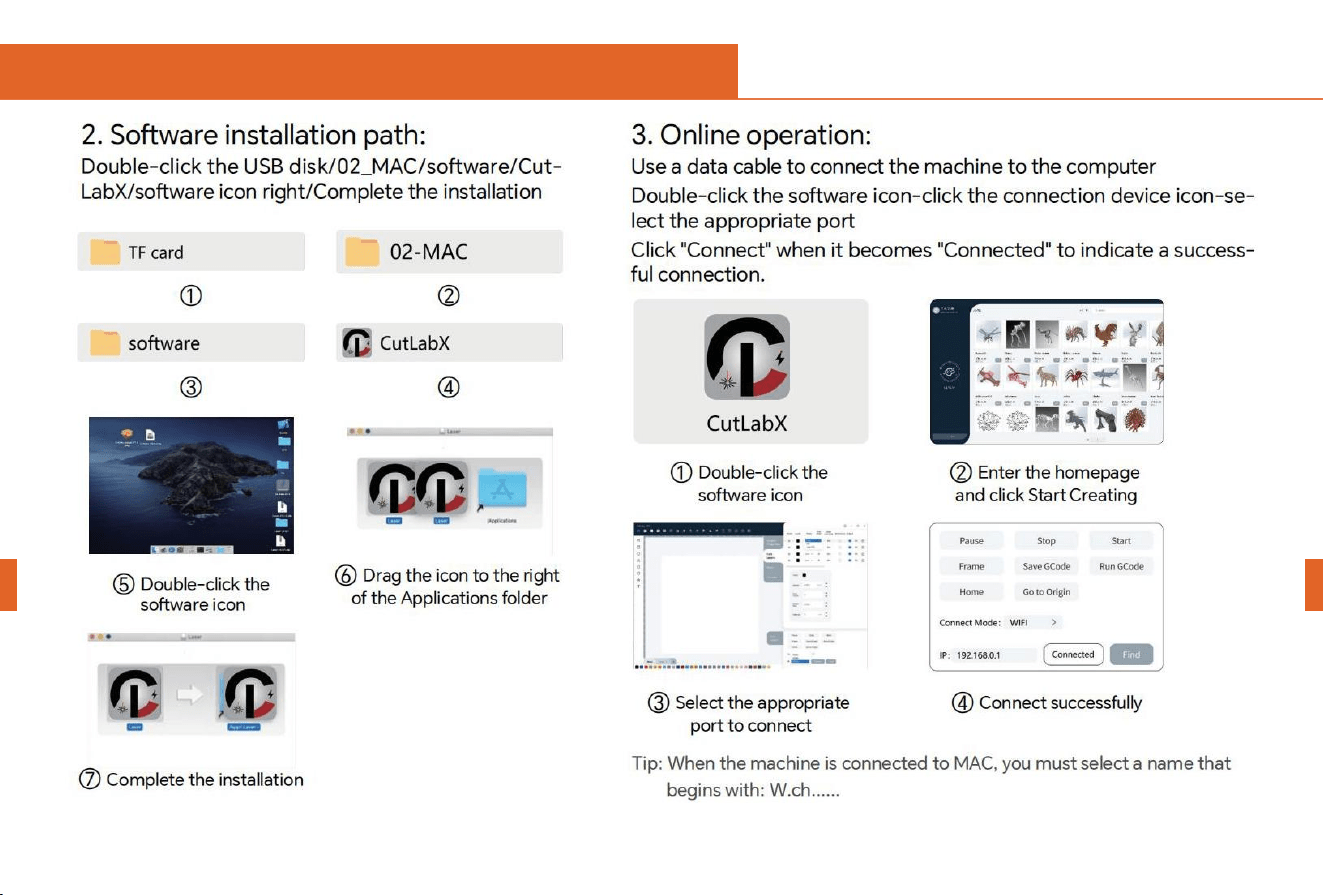
Tip: If the antivirus software or computer manager pops up a risk prompt after clicking
CutLabX, the CutLabX file is a Win system installation package.
If it is mistakenly identified as a suspicious file, please select Allow all operations of the
program to successfully complete the software installation.
21
08 PC software installation
English
English
22
08 PC software installation
English
English
23
08 PC software installation
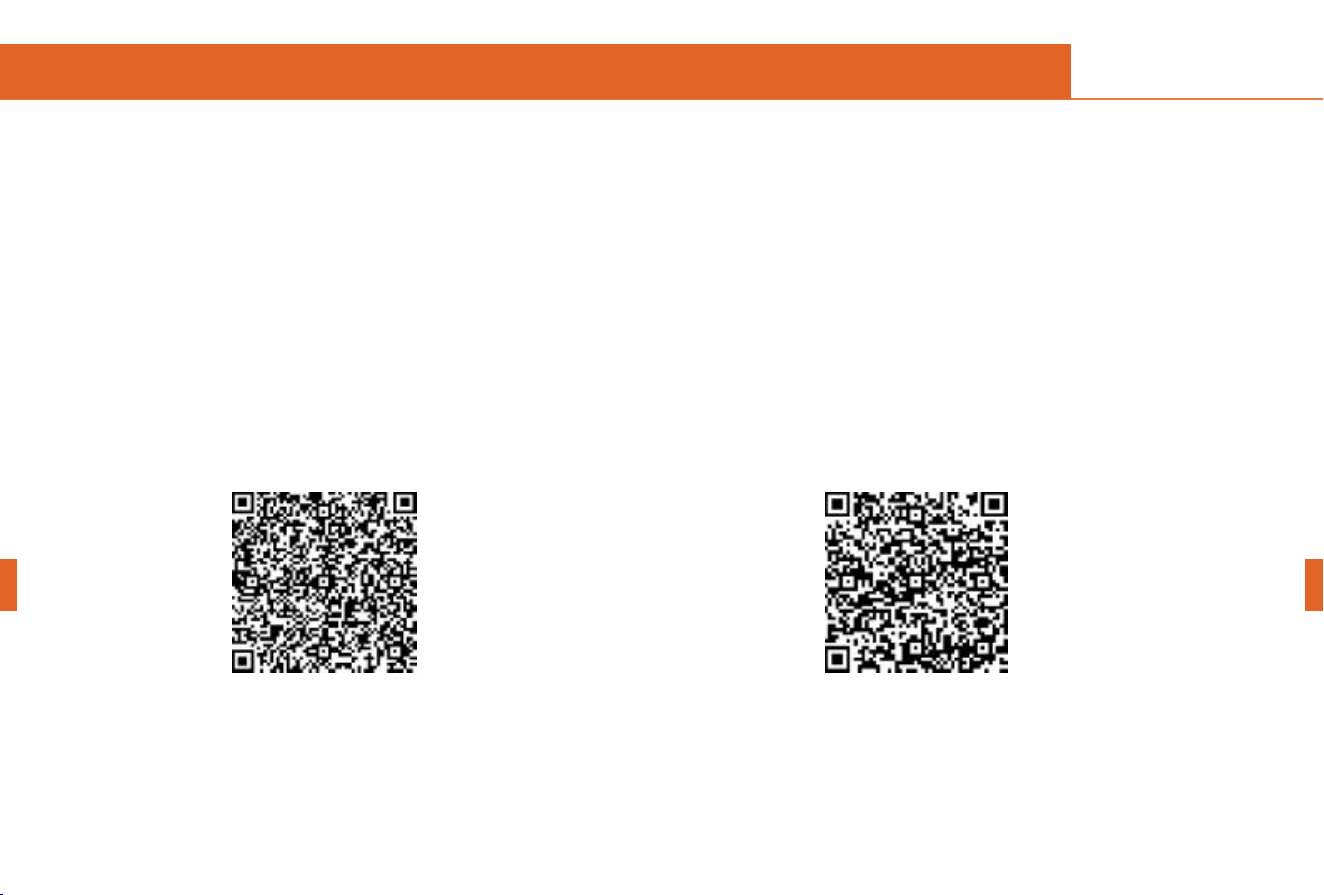
Note: Android system, open the browser to scan the QR code to download and install , after
successful installation, you need to obtain the appropriate permissions, if necessary, manually
open the software permissions
Android Software Download
and Installation
【Method 1】:
APP Download URLhttps: / / mr- carve. com
【Method 2】:
Scan the QR code to download
Apple Software Download
and Installation
【Method 1】:
Search for "CutLabX" in the AppStore to
download.
【Method 2】:
Scan the QR code to download
09 Mobile App Download and Installation
Google play Apple store
English
English
24
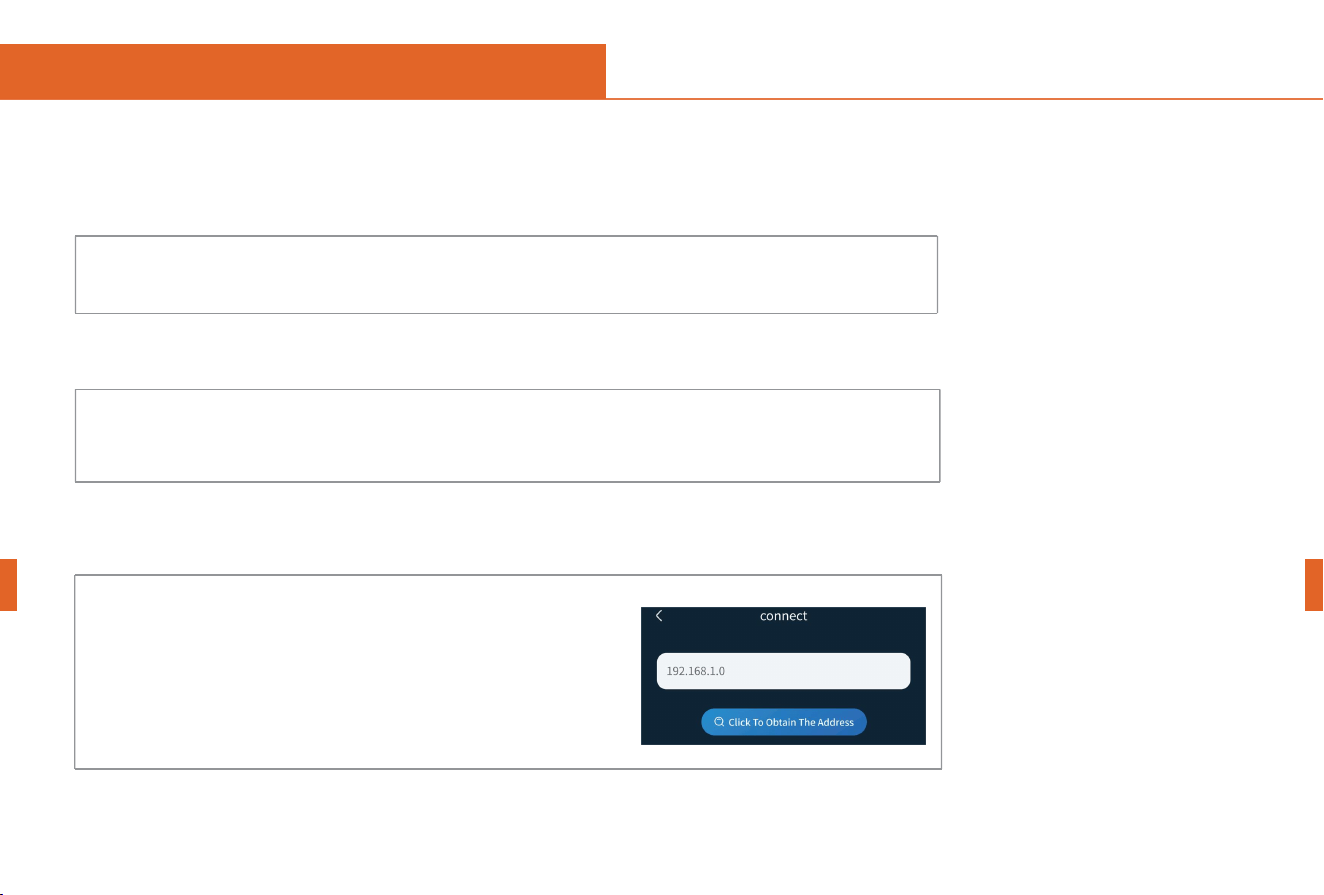
03
01
Power on the machine and turn it on
02
Turn on your phone's WLAN and find the WIFI
signal name C1 Ultra, password: 12345678.
1. Steps for connecting the cell phone to the machine: Default WiFi
* Note: After the cell phone is successfully connected to the machine, there will be no network
on the cell phone.
1 0 Mobile connection
(Tip: When using WiFi mode, the machine and the mobile phone must be in the same WiFi network)
↓
↓
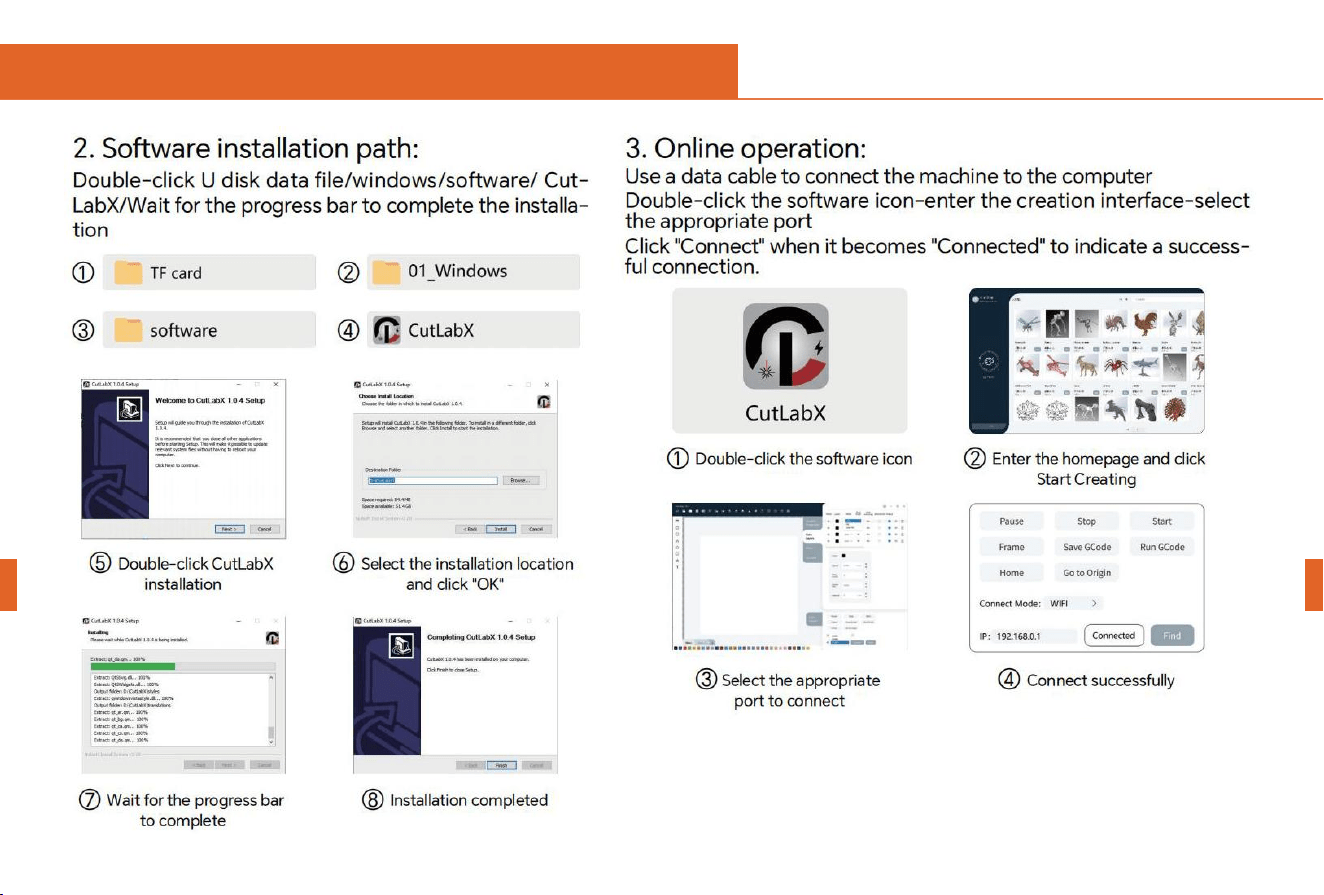
After the WIFI connection is successful, open
the CutLabX APP,Click the link mark in the
upper right corner,
Enter 192.168.0.1 as the IP address,
and click "Connect" to complete the
connection.
English
English
25
English
English
26
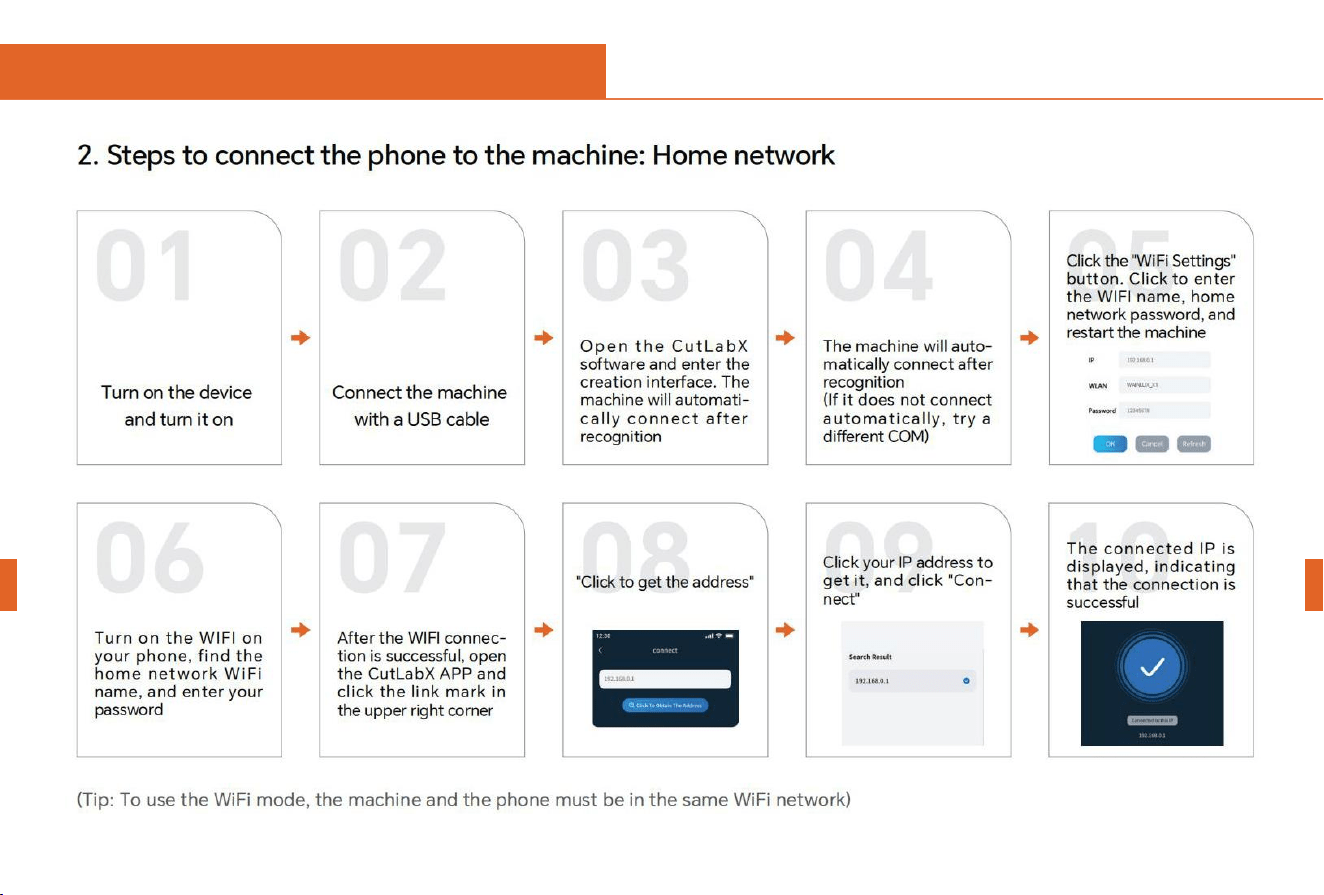
1 0 Mobile connection
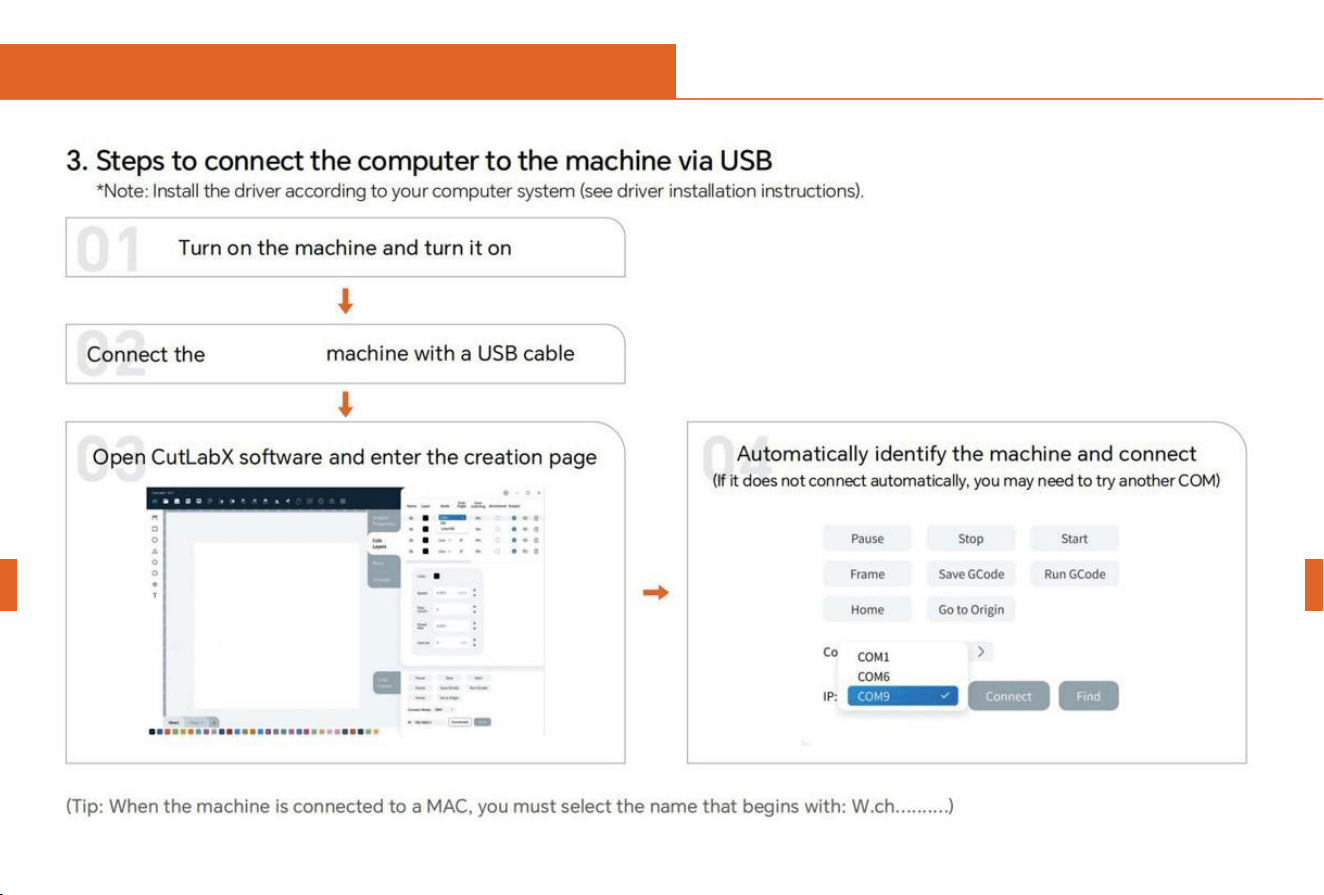
1 1 Computer connection
English
English
27
C1 Ultra

Questions
Solutions
What type of laser source does the
machine use?
It is a semiconductor laser
What happens if the machine loses power
during operation?
When power is cut off during an engraving task, the laser head will remain in place.
When the power is turned on again, the machine will initialize and will not continue to
perform the original task.
Why can't the pattern be engraved at all
(or the engraving is very shallow)?
The imported picture should be clear and the color should not be too light; before
engraving, please make sure the focus is correct and the power, speed and time
settings are appropriate.
What if the pattern is not engraved
completely (or the depth is inconsistent)?
Please make sure that the engraving object is flat, the machine is level, and it has been
adjusted normally according to the operating instructions.
1 2 FAQ
FAQ-Machine-related issues
English
English
28

Questions
Solutions
How to focus the C1 Ultra laser engraving machine?
Place the material on the stage, lower the left knob to focus, and lock it after focusing. For example,
engrave and cut a 2mm thick basswood board.
Will the working platform be damagedduring laser
engraving?
During the engraving or cutting process, the laser may penetrate the object and leave marks on the
work surface. Be sure to place an object that the laser cannot penetrate under the engraving object,
such as: stainless steel plate, aluminum alloy plate, etc.
Why can't I start engraving when
pressing the button on the host
during offline engraving?
Ensure there is an engraving file in the root directory of the TF card and that the TF card is inserted.
Note:
a. The machine defaults to reading the engraving file with the most recent modification date in the
root directory of the TF card. It is recommended to delete other unrelated files in the root directory.
b. This file can be generated by LaserGRBL, LightBurn, or CutLabX software, and the compatible
format is NC. If GC is generated by default, please manually change the file name to 001.NC.
Why does the machine not respond
after turning on?
a. Check whether the power plug on the machine end is fully plugged in.
b. Check the electrical status of the power socket.
c. Check whether the power switch and light shield on the machine are closed.
FAQ-Machine-related issues
English
English
29
1 2 FAQ

Questions
Solutions
Why can't the machine connect to
the computer after it is turned on?
a. Reinstall the driver. If the driver is displayed as installed, it means the driver is
working correctly. If the computer displays "Pre-installed driver complete," check if it's
the original wiring or if it's not connected to the machine. Please use a different port on
your computer.
b. Is the port selection correct? Some computers have two ports for connection.
Ignore COM1 and select another COM port. (MAC port numbers must begin with
Wchusbserial to work correctly.)
c. Close other software using the COM port.
When using LaserGrub to connect, you cannot connect when CutLabX is open. You
need to close LaserGrub to use it normally.
*Note: In Lightburn, the machine can store information for multiple machines. Please
select the appropriate configuration information according to the model.
Why can't the mobile phone be used
after the machine is turned on?
a. Please use the mobile phone according to the manual.
b. If the connection is abnormal due to incompatibility of the newly released
mobile phone or system upgrade, please provide a screenshot of the mobile
phone configuration and contact our customer service to get technical support
as soon as possible.
FAQ-Machine-related issues
English
English
30
1 2 FAQ

Questions
Solutions
What non-transparent materials can the
C1 Ultra laser engraver engrave or cut?
Engraving: cardboard, wood, bamboo, rubber, leather, cloth, acrylic, plastic, etc.;
Cutting: cardboard, wood, bamboo, cloth, leather, cloth, acrylic (transparent acrylic
cannot be cut), plastic, etc.
Can it be engraved on curved materials?
Yes, but the curvature of the material and the area of the engraved image should not
be too large, otherwise there will be slight deformation.
Can it be engraved on
reflective/transparent materials such
as ceramics/glass?
Yes, but before engraving, anti-reflective materials (such as laser colored paper, black
marker) need to be applied to the surface of the material to ensure the engraving
effect and prevent reflected light from damaging the laser module.
Why do materials of the same material
but different colors have very different
processing effects using the same
G-code file?
Materials of different colors have different optical properties and absorb and reflect
laser energy differently. When engraving materials of the same material but different
colors, it is recommended to set different powers and speeds in the software.
English
English
FAQ- Engraving/cutting related questions
31
1 2 FAQ

Questions
Solutions
There is a lot of smoke on the cut material,
how to deal with it?
Please reduce the laser power and increase the speed appropriately.
Why can't the material be cut?
1. Make sure the machine and the engraving material are parallel to the work surface;
2. Make sure the laser module protective lens is clean;
3. Make sure the focus mode is correct;
4. Confirm the material thickness again and set it according to the recom-mended
parameters in the random data;
5. Gradually increase the number of cuts, or appropriately reduce the cutting speed.
FAQ- Engraving/cutting related questions
English
English
32
1 2 FAQ

Questions
Solutions
What software does the C1 Ultra laser
engraver support?
LaserGRBL (free) - Real-time LightBurn (paid) - Real-time/offline 30-day trialCutLabX
(free) - Real-time/offline/mobileDuring real-time engraving, be careful not to let the
computer freeze or enter standby mode (do not lock the screen) to avoid affecting the
engraving.
Where can I download these software?
LaserGRBL (https://lasergrbl.com/download/)LightBurn
(https://lightburnsoftware.com/pages/trial-version-try-before-you-buy)CutLabX
(www.cutlabx.com)
What image formats does the software
support?
LaserGRBL (bmp/png/jpg/gif/svg)
LightBurn (bmp/png/jpg/jpeg/gif/tif/tiff/tga/ai/pdf/sc/dxf/hpgl/plt/rd/svg)CutLabX (AI,
PDF, SVG, DXF, PLT, PNG, JPG, GIF, BMP)
Where can I get tutorials for the software?
LaserGRBL (https://lasergrbl.com/usage/)LightBurn
(https://lightburnsoftware.github.io/NewDocs/)CutLabX (www.cutlabx.com)
FAQ- Software related questions
English
English
33
1 2 FAQ

All contents on this material have been carefully checked, if there is any printing error or omission or any misunderstanding on the
contents, you can consult with our company. Note: Any technical improvement of the products will be enhanced in the new version of
the manual without prior notice. The appearance of the product, the color of any change, in kind shall prevail.
English
English