Simple User Guide
HW-Q990H / HW-Q900H
You can access the User guide on Samsung’s on-line customer support center by scanning
the QR code on the left. To see the manual on your PC or mobile device, download the
manual in document format from Samsung’s website.
(http://www.samsung.com/support)
• Figures and illustrations in this Simple User Guide are provided for reference only and may differ from
actual product appearance.
• An administration fee may be charged if either:
a. An engineer is called out to your home at your request and there is no defect in the product.
b. You bring the unit to a repair center and there is no defect in the product.
• You will be advised of the amount of the administration fee before any work is done or a home visit is
made.
• If you have a problem with this product, we strongly recommend you read the appropriate section of
this manual, visit the Support page for your product at www.samsung.com, or call Samsung Product
Support (1-800-726-7864) to nd an answer before you contact a service center for a repair.
QUESTIONS OR COMMENTS?
Samsung Service Center 1-800-SAMSUNG (726-7864)
Website www.samsung.com/us/support
© 2026 Samsung Electronics Co., Ltd. All rights reserved.
01
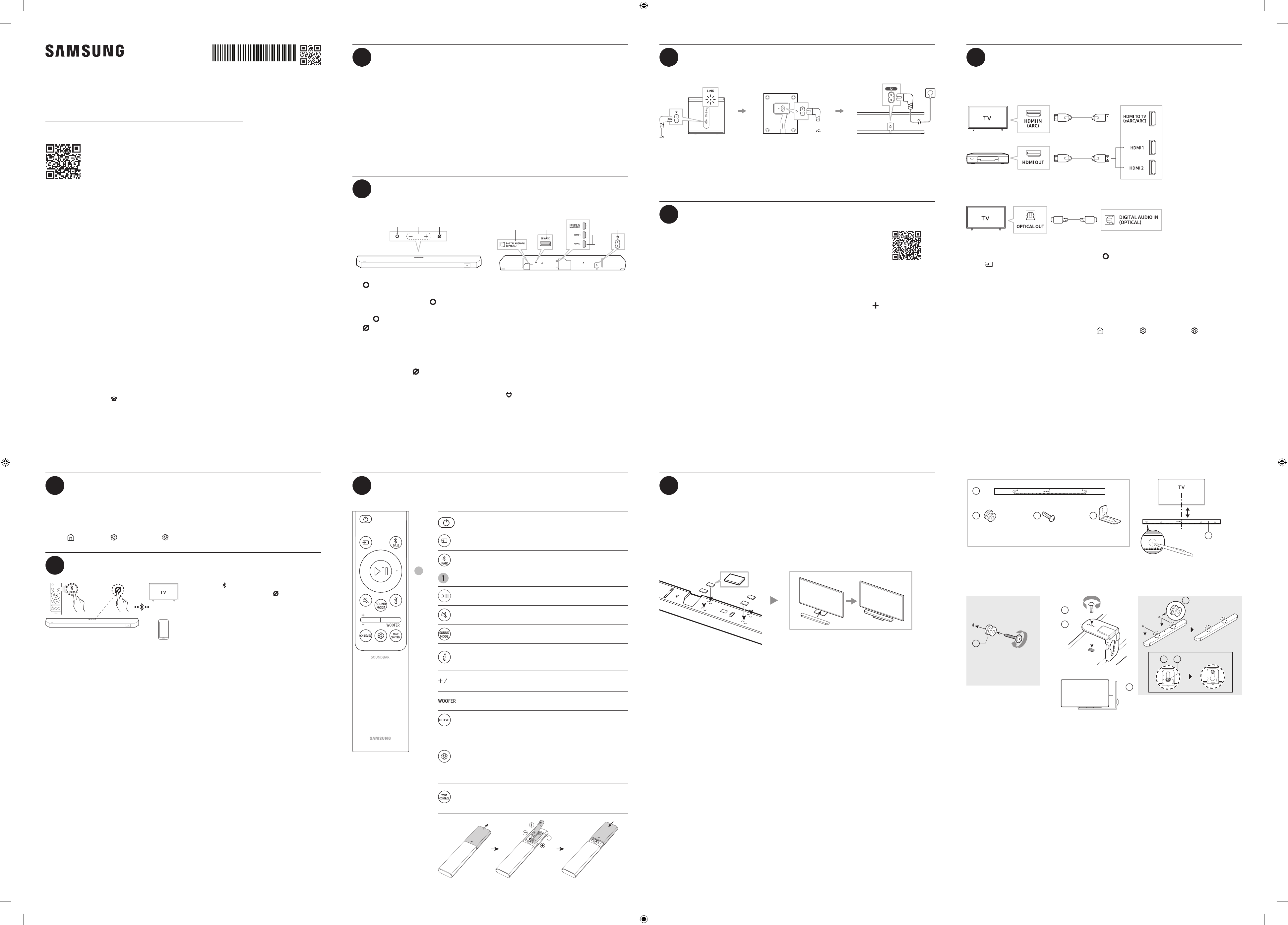
Checking the Components
• Soundbar
• Subwoofer
• Surround Speaker x 2 (HW-Q990H only)
• Remote Control / Battery
• Power Cable x 4 (HW-Q990H only)
• Power Cable x 2 (HW-Q900H only)
• HDMI Cable
• Wall-mounting Guide
• Holder Screw x 2
• Screw (M4 x L10) x 2
• Wall-mounting Bracket x 2
• Rubber-Foot x 4
Note
• To purchase additional components or optional cables, contact a Samsung Service Center or Samsung
Customer Care.
• Some components may differ by model and region, and may not be provided. (e.g., HDMI cable,
batteries, etc.)
02
Product Overview
Top side
Display
Volume1 2
1
(Multi) Button
In Standby mode, you can turn on the
soundbar by pressing the (Multi) button.
You can switch the input source by pressing
the (Multi) button.
2
(Microphone) button
Press the button to turn the microphone on
or off.
When the microphone is off, the LED indicator
will turn red.
Press and hold the (Microphone) button on
the top of the soundbar for 3 seconds or longer
to switch to BT PAIRING mode.
Bottom side
DIGITAL AUDIO IN
(OPTICAL)
SERVICE
1 2
3
4
5
1
DIGITAL AUDIO IN (OPTICAL)
Connect to a digital (optical) output terminal
of TV or external devices.
2
SERVICE
Use this port to update rmware through USB.
3
HDMI TO TV (eARC/ARC)
Use this HDMI port to connect to a TV.
4
HDMI 1 / HDMI 2
This port is used for connecting an HDMI
cable to transmit digital video and audio
simultaneously.
Connect to an HDMI output for external
devices.
5
(POWER)
Connect the power cable to this power port.
03
Connecting the Soundbar to Other Units
Rear side of subwoofer
“Blinking
blue light”
Bottom side of the left and right
surround speakers
Bottom side of soundbar
(HW-Q990H only)
• When the soundbar is properly connected to
the subwoofer and surround speakers, the LINK
LED indicator will stop blinking and turn solid
blue.
Note
Adjust the surround speakers to position them
effectively for optimal surround sound.
For more information, please refer to the User
Guide on the Samsung Electronics website.
04
Connecting to the Samsung Sound App
1 Installing App
• You can control the soundbar and adjust settings using the Samsung Sound app.
• Download the Samsung Sound app from your mobile device's app store (App Store,
Play Store) or scan the provided QR code.
2 Registering a Device
1. On your mobile device, run the Samsung Sound app.
2. Follow the instructions displayed to register the product to your mobile device.
• If a pop-up window does not appear, go to the app's home screen and tap the ( ) button to register
the product.
Note
You can also register your soundbar to the Samsung Sound app by scanning the QR code on the soundbar.
3 Controlling the soundbar with Samsung Sound
1. Open the Samsung Sound app on your mobile device, and then select the soundbar you have
registered.
2. The settings menu will appear for the soundbar, and you can adjust the settings such as Volume,
Sound Mode, and Equalizer.
• If another user wants to control the soundbar,
– Make sure the mobile device is connected to the same Wi-Fi network as the soundbar.
– Open the Samsung Sound app and follow the on-screen instructions to complete the setup. Once
the setup is nished, the soundbar can be controlled through the app.
05
Connecting to TV
5-1 Connecting to a TV with Cables
Connecting an HDMI Cable
Soundbar
External Device
Connecting to an Optical Cable
Soundbar
Note
• If there is no sound from the soundbar, press the (Multi) button on the top of the soundbar or press
the (Source) button on the remote control to switch to the appropriate connected mode.
• Using HDMI cables certied by HDMI.org is recommended.
• When using an optical cable, make sure to remove the cover from the optical cable before use.
5-2 Connecting to a TV through Wi-Fi
On the TV Sound menu, change the input source to soundbar.
• Samsung TVs released in 2017 or later: Home ( ) → Settings ( ) → All Settings ( ) → Sound →
Sound Output → Soundbar (Wi-Fi)
Note
• Wi-Fi connection is available only on Samsung TV.
• Connect the soundbar and TV to the same Wi-Fi network.
• Check your TV's manual, as the menu may vary depending on the year of manufacture.
06
Using the Q-Symphony Feature
If you connect the soundbar to a Samsung TV that supports Q-Symphony, sound will play from both the
soundbar and TV at the same time. You can enjoy a richer, more immersive sound with the TV's surround
sound.
When the soundbar is connected to your TV, “Q-Symphony” will appear on your TV.
(Home ( ) → Settings ( ) → All Settings ( ) → Sound → Sound Output)
07
Connecting to Bluetooth
3 seconds
BT PAIRING
OR
OR
1. Press the connection button on the remote
control or press and hold the (Microphone)
button for 3 seconds or longer.
2. Search for Bluetooth devices on your TV or
mobile device.
Note
• If prompted for a PIN code when connecting to
a Bluetooth device, enter <0000>.
08
Using the Soundbar Remote Control
• The layout, buttons, and functions of the remote control may vary depending on the model.
1
(POWER)
(Input source): You can select a device connected to the
soundbar.
(Bluetooth): Press it to enter the Bluetooth pairing mode on the
soundbar.
Directional button (Up/Down/Left/Right)
(Play/Pause)
(Mute): Press this button to mute the sound. Press it again to
unmute.
Press it to select a sound mode.
(Info): Press this button to see codec information or the current
status.
In the Bluetooth mode, connected devices will be displayed.
(Volume)
• To mute the sound, press the button.
You can adjust the subwoofer (bass) levels by pushing the button
up or down.
You can adjust the volume levels of each speaker. Press the Up
or Down buttons to congure the channel you want to adjust.
• The channel level specications may vary depending on the
model.
(Sound Settings): You can adjust and customize the audio
settings. Press the Up or Down buttons to congure the sound
settings you want to change.
• Sound settings may vary by model.
You can adjust the treble and bass volume levels. Press the Up
or Down buttons to congure the sound settings you want to
change.
09
Installing the Soundbar
Installing the soundbar on top of the TV stand
• Make sure the soundbar is placed on a at and solid surface.
• If the soundbar is too close to the TV, voice recognition may be affected, and audio issues could occur.
• As shown in the image, align the center of the TV with the center of the soundbar, then carefully place
the soundbar into the TV stand. Make sure the microphone is not blocked when placing the soundbar
near the stand to ensure proper voice recognition.
• The actual product may vary in appearance from the image above, depending on the model.
Installing the soundbar on a wall
• Mount the soundbar only on a vertical wall.
• Avoid installing the soundbar system in areas with high temperatures or humidity.
• Install the system on a sturdy wall capable of supporting the soundbar's weight. If the wall can't
support the soundbar's weight, reinforce it before installation. If reinforcement is not possible, choose
a different wall that can support the soundbar.
• Use screws or anchor brackets suitable for the wall where the soundbar is being installed.
(Gypsum board/steel/wood, etc.) If possible, install the screws directly into the wall.
• Turn off the power and unplug the soundbar before mounting it on the wall. Failure to do so may result
in electric shock.
• Connect all cables from external devices before mounting the soundbar on the wall.
A TYPE : 450mm
A
1
23
B DC
B
C
D
D
A
4
D B
B
2 inches (5 cm) or longer
Center alignment
x 2 x 2
(M4 x L10)
x 2
Rear side of soundbar
Right side of soundbar
• Some components may not be included, depending on the
product model.
• The color and design of the components may vary
depending on the model.
(Not supplied)
Note: When mounting surround speakers on a wall (only applicable to certain models)
• The wall used to mount the surround speakers must be able to support at least 17.6 lbs (8 kg).
• Hole size: ts 1/4 – 20 UNC screw
– Standard screw: 0.25 inches (6.35 mm) ø, 0.05 inches (1.27 mm) pitch / Length: 0.7 inches (18 mm) /
Quantity: 1 for the left speaker, 1 for the right speaker
• Samsung Electronics doesn't sell wall mounts.
AH85-01272A-00
NSPBI01622A-00
10
Troubleshooting
Refer to the instructions below if this product does not function properly. If the problem you are
experiencing is not listed below or if the instructions below do not help, turn off the product, disconnect
the power cord, and contact Samsung Electronics at 1-800-SAMSUNG (1-800-726-7864).
When the power does not turn on
• Check if the power cord is securely connected
to the soundbar.
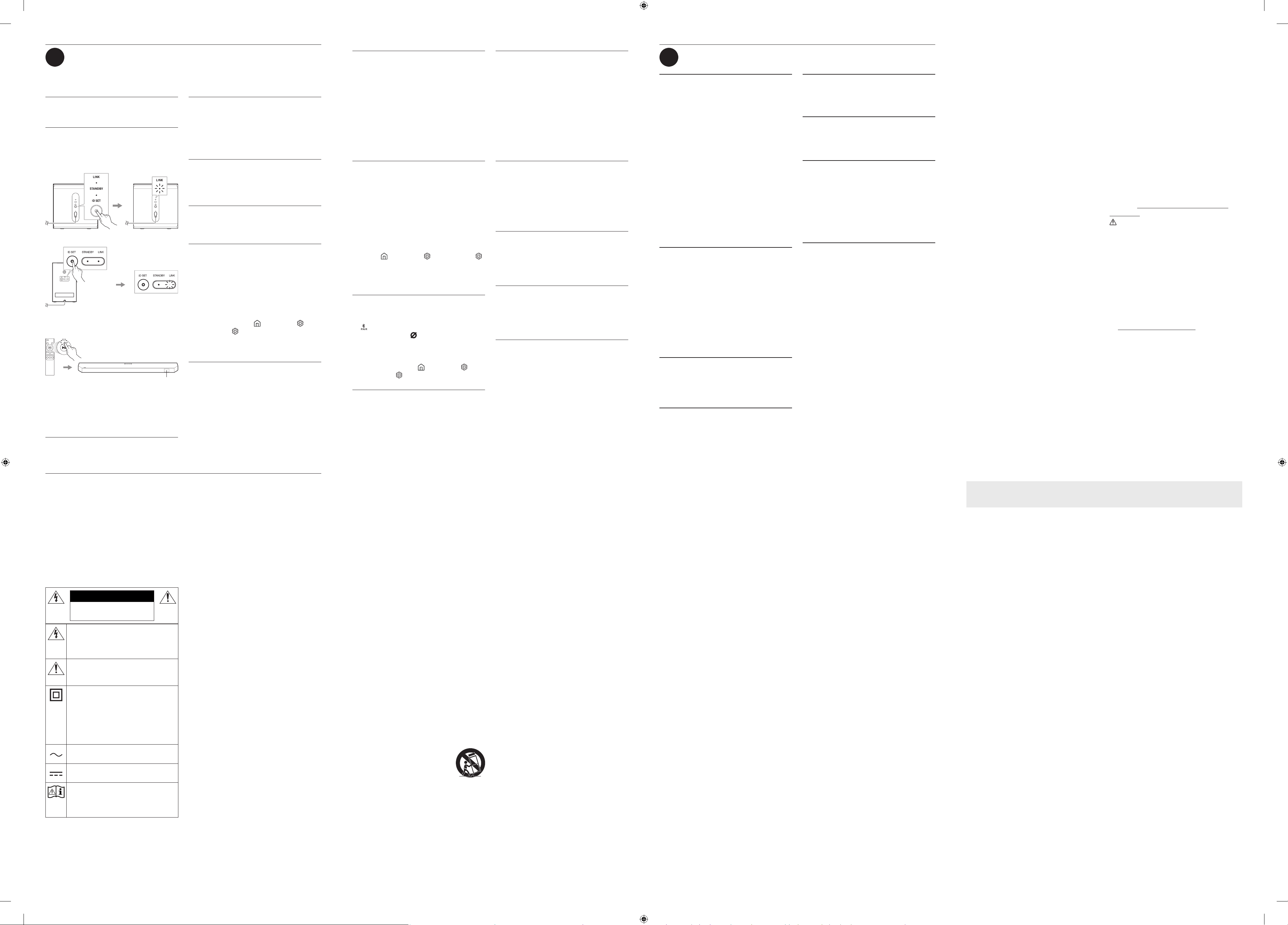
If the subwoofer and surround speakers don't
connect to the soundbar automatically
1. Press and hold ID SET on the rear of the
subwoofer and surround speakers for 5 seconds
or longer.
Rear side of subwoofer
5 seconds
"Blue indicator
blinking fast"
Rear side of the left and right
surround speakers (HW-Q990H only)
5 seconds
"Blue indicator
blinking fast"
2. Press and hold the UP button on the soundbar
remote control for 5 seconds.
5 seconds
ID SET
3. Make sure the LINK LED indicator turns blue
(indicating a successful connection).
– When the soundbar is properly connected to
the subwoofer and surround speakers, the
LINK LED indicator will stop blinking and
turn solid blue.
When some functions are not working properly
• Unplug the power cord, then plug it back in.
• Unplug the power cord from the external
device and try again.
• If there is no signal input, the soundbar will
automatically turn off after a certain period.
Turn on the power.
If the remote control is not working properly
• Bring the remote control closer to the soundbar
and point it directly at the soundbar to select
inputs.
• Replace the batteries with fresh ones.
When the soundbar indicator light stays red
• The microphone is turned off.
When the microphone is turned on, the
indicator will turn off.
If there is no sound
• The soundbar volume may be low, or the
soundbar may be set to mute. Adjust the
volume levels.
• When using external devices (STB, Bluetooth
device, mobile device, etc.) connected to the
soundbar, adjust the volume on each device.
• The sound output may be set to the TV. Select
the soundbar as the sound output for the TV.
(Samsung TV: Home ( ) → Settings ( ) →
All Settings ( ) → Sound → Sound Output →
Select Soundbar)
• Unplug the power cord from the soundbar and
plug it in again.
If there is no sound from the subwoofer or
surround speakers
• Check if the LED indicator on the rear of the
subwoofer or surround speaker is blue. If the
indicator is red or blinking blue, reconnect
the soundbar to the subwoofer and surround
speakers.
• If there are devices near the Soundbar that may
cause wireless interference, the sound may
be interrupted. Keep them at least 3.3 ft (1 m)
away.
Examples: Wireless router or smart outlet with
an automatic standby power cut-off feature.
When the TV can't connect to the HDMI TO TV
(eARC/ARC)
• Make sure the HDMI cable is securely
connected to the ARC or eARC port.
• The soundbar connection may not work due
to other devices (such as set-top boxes, game
consoles, etc.) connected to the TV. Connect
only the soundbar to the TV, without any other
devices.
• HDMI-CEC may not be enabled on the TV.
Enable CEC in the TV menu. (Samsung TV:
Home ( ) → Settings ( ) → All Settings ( )
→ General & Privacy → External Device Manager
→ Anynet+ (HDMI-CEC) ON)
– The menu path may vary depending on the
model.
When a Bluetooth connection can't be established
• When connecting a new device to the soundbar,
switch to BT PAIRING to connect. Press the
button on the soundbar remote control or
press and hold the (Microphone) button for
3 seconds or longer.
• Remove the speaker from the Bluetooth
speaker list in the device, then reconnect.
(Samsung TV: Home ( ) → Settings ( ) →
All Settings ( ) → Sound → Sound Output →
Bluetooth Speaker List)
When the audio stutters due to a weak Bluetooth
connection
• Audio may stutter if the soundbar is placed
near an electronic device or appliance that
causes radio interference. (e.g., microwave
oven, wireless router, etc.)
• The sound may cut out if the connected device
is too far from the soundbar. Please move the
device closer to the soundbar.
• If your body is in contact with the Bluetooth
transceiver or the soundbar is placed on metal
furniture, the audio may stutter. Check the
installation environment and conditions.
When a Wi-Fi connection can't be established
• Check if your wireless router is on. Turn
off the router, then turn it back on and try
reconnecting.
• If the wireless router signal is weak, it may
not be possible to connect to Wi-Fi. Move the
wireless router closer to the soundbar or place
it in an unobstructed location.
When the TV is powered on, but the soundbar does
not turn on with it
• If you turn off the soundbar rst while
watching TV, the Auto Power Link feature on
the soundbar will be turned off. Power off the
TV rst.
The TV does not show the UHD input signal.
• You may need to adjust the settings on your
TV or source device. Refer to your TV or device
manual for more details.
• Check if your Ultra High Speed HDMI cable is
certied by HDMI.org.
11
SpecicationsandInformation
Model name: HW-Q990H
Weight
16.1 lbs (7.3 kg)
Dimensions (width x height
x depth)
48.5 x 2.8 x 5.4 inches
(1232.0 x 70.8 x 138.0 mm)
Subwoofer name: PS-WQ990H
Weight
18.3 lbs (8.3 kg)
Dimensions (width x height
x depth)
9.8 x 9.9 x 9.8 inches
(249.0 x 251.8 x 249.0 mm)
Surround speaker
name:
PS-RQ990H (LEFT/RIGHT)
Weight
7.5 lbs (3.4 kg)
Dimensions (width x height
x depth)
5.1 x 7.9 x 5.5 inches
(129.5 x 201.3 x 140.4 mm)
Model name: HW-Q900H
Weight
16.1 lbs (7.3 kg)
Dimensions (width x height
x depth)
48.5 x 2.8 x 5.4 inches
(1232.0 x 70.8 x 138.0 mm)
Subwoofer name: PS-WQ900H
Weight
18.3 lbs (8.3 kg)
Dimensions (width x height
x depth)
9.8 x 9.9 x 9.8 inches
(249.0 x 251.8 x 249.0 mm)
Supported formats for playback
Dolby 5.1ch / Dolby Digital Plus /
Dolby TRUE HD / Dolby ATMOS /
DTS 5.1ch / DTS HD / DTS-HD Master Audio /
DTS:X / LPCM 8Ch
Operating temperature
range
+ 50 °F to +104 °F
(+10 °C to +40 °C)
Operating humidity
range
10 % – 80 %, non-
condensing
Storing temperature
range
-4 °F to +113 °F
(-20 °C to +45 °C)
Storing humidity level
range
5 % – 95 %, non-
condensing
Precaution : When you activate or deactivate the
Wi-Fi or Bluetooth connectivity, the soundbar will
automatically restart.
• Press and hold the CH LEVEL button on the
remote control for 30 seconds or longer to
activate or deactivate the Wi-Fi.
• Press and hold the TONE CONTROL button on
the soundbar remote control for 30 seconds or
longer to activate or deactivate the Bluetooth.
Note
• Samsung Electronics Co., Ltd reserves the right
to change the specications without notice.
• Weight and dimensions are approximate.
• For more information on power supply and
power consumption, refer to the label attached
on the bottom or back of the product.
FCC NOTE (for U.S.A):
FCC Supplier’s Declaration of Conformity
Responsible Party - U.S. Contact Information:
Samsung Electronics America, Inc.
700 Sylvan Avenue,
Englewood Cliffs, NJ 07632
Phone: 1-800-SAMSUNG (726-7864)
FCC Compliance Statement :
This device complies with Part 15 of the FCC Rules.
Operation is subject to the following two
conditions:
(1) This device may not cause harmful interference,
and
(2) this device must accept any interference
received, including interference that may cause
undesired operation.
FCC Caution :
• Any changes or modications not expressly
approved by the party responsible for
compliance could void the user’s authority to
operate this equipment.
• This product satises FCC regulations when
shielded cables and connectors are used to
connect the unit to other equipment.
To prevent electromagnetic interference with
electric appliances, such as radios and
televisions, use shielded cables and connectors
for connections.
Class B FCC Statement
This equipment has been tested and found to
comply with the limits for a Class B digital device,
pursuant to Part 15 of the FCC Rules. These limits
are designed to provide reasonable protection
against harmful interference in a residential
installation. This equipment generates, uses
and can radiate radio frequency energy and, if
not installed and used in accordance with the
instructions, may cause harmful interference
to radio communications. However, there is no
guarantee that interference will not occur in a
particular installation. If this equipment does
cause harmful interference to radio or television
reception, which can be determined by turning
the equipment off and on, the user is encouraged
to try to correct the interference by one of the
following measures:
• Reorienting or relocating the receiving
antenna.
• Increasing the separation between the
equipment and receiver.
• Connecting the equipment to an outlet that is
on a different circuit than the radio or TV.
• Consulting the dealer or an experienced radio/
TV technician for help.
FCC Radiation Exposure Statement :
This equipment complies with FCC radiation
exposure limits set forth for an uncontrolled
environment. This equipment should be installed
and operated so there is at least 8 inches (20 cm)
between the radiator and your body. This device
and its antenna(s) must not be co-located or
operated in conjunction with any other antenna or
transmitter.
CALIFORNIA USA ONLY (Applicable for
networking models only.)
This Perchlorate warning applies only to primary
CR(Manganese Dioxide) Lithium coin cells in the
product sold or distributed ONLY in California
USA “Perchlorate Material - special handling may
apply, See www.dtsc.ca.gov/hazardouswaste/
perchlorate.”
WARNING: Cancer and Reproductive Harm -
www.P65Warnings.ca.gov.
Samsung products and recycling
• Dispose unwanted electronics through an
approved recycler. To nd the nearest recycling
location, go to our website: www.samsung.
com/recycling Or call, 1-800-SAMSUNG
• WARNING! Never dispose of batteries in a re
because they may explode. Do not dissemble,
crush, puncture, heat, burn or reuse batteries.
For more information, visit call2recycle.org or
call 1-800-822-8837. Alternatively, visit:
www.samsung.com/recycling or call
1-800-SAMSUNG.
Safety Information
• The following also applies to the Subwoofer
and Surround Speaker SET.
SAFETY WARNINGS
TO REDUCE THE RISK OF ELECTRIC SHOCK, DO
NOT REMOVE THE COVER (OR BACK).
NO USER-SERVICEABLE PARTS ARE INSIDE. REFER
SERVICING TO QUALIFIED SERVICE PERSONNEL.
Refer to the table below for an explanation of
symbols which may be on your Samsung product.
CAUTION
RISK OF ELECTRIC SHOCK.
DO NOT OPEN.
This symbol indicates that high voltage
is present inside. It is dangerous to make
any kind of contact with any internal part
of this product.
This symbol indicates that this product
has included important literature
concerning operation and maintenance.
Class II product : This symbol indicates
that a safety connection to electrical
earth (ground) is not required.
If this symbol is not present on a product
with a power cord, the product MUST
have a reliable connection to protective
earth (ground).
AC voltage : Rated voltage marked with
this symbol is AC voltage.
DC voltage : Rated voltage marked with
this symbol is DC voltage.
Caution. Consult Instructions for use :
This symbol instructs the user to consult
the user manual for further safety related
information.
WARNING
• To reduce the risk of re or electric shock, do
not expose this appliance to rain or moisture.
• To prevent injury, this apparatus must
be securely attached to the oor/wall in
accordance with the installation instructions.
• This product contains chemicals known to the
State of California to cause cancer and birth
defects or other reproductive harm.
• Do not use liquid fumigators containing
chemicals, such as mosquito repellent or air
freshener, around the product. If steam comes
in contact with the product surface or enters
the product, it may cause stains or malfunction.
• For crevices or other areas that cannot be
thoroughly cleaned with a cloth, use a soft
cotton swab, brush, or air blower to remove
dirt.
CAUTION
• Do not expose this apparatus to dripping or
splashing. Do not put objects lled with liquids,
such as vases, on the apparatus.
• To turn this apparatus off completely, you must
pull the power plug out of the wall socket.
Consequently, the power plug must be easily
and readily accessible at all times.
Important Safety Instructions
Read these operating instructions carefully before
using the unit. Follow all the safety instructions
listed below. Keep these operating instructions
handy for future reference.
1. Read these instructions.
2. Keep these Instructions.
3. Heed all warnings.
4. Follow all instructions.
5. Do not use this apparatus near water.
6. Clean only with dry cloth.
7. Do not block any ventilation openings.
Install in accordance with the manufacturer’s
instructions.
8. Do not install near any heat sources such
as radiators, heat registers, stoves, or other
apparatus (including ampliers) that produce
heat.
9. Do not hinder in any way the safety purpose of
the polarized or grounding-type plug.
A polarized plug has two blades with one
wider than the other. A grounding type plug
has two blades and a third grounding prong.
The wide blade or the third prong are provided
for your safety. If the provided plug does not
t into your outlet, consult an electrician for
replacement of the obsolete outlet.
10. Protect the power cord from being walked on
or pinched particularly at plugs, convenience
receptacles, and the point where they exit from
the apparatus.
11. Only use attachments/accessories specied by
the manufacturer.
12. Use only with the cart, stand, tripod,
bracket, or table specied by the
manufacturer, or sold with the
apparatus. When a cart is used,
use caution when moving the cart/apparatus
combination to avoid injury from tip-over.
13. Unplug this apparatus during lightning storms
or when unused for long periods of time.
14. Refer all servicing to qualied service
personnel. Servicing is required when the
apparatus has been damaged in any way, such
as power-supply cord or plug is damaged,
liquid has been spilled or objects have fallen
into the apparatus, the apparatus has been
exposed to rain or moisture, does not operate
normally, or has been dropped.
LIMITED WARRANTY TO ORIGINAL CONSUMER PURCHASER WITH
PROOF OF PURCHASE AND/OR PROOF OF DELIVERY
This SAMSUNG brand product, as supplied and distributed
by SAMSUNG and delivered new, in the original carton to the
original consumer purchaser, is warranted by SAMSUNG against
manufacturing defects in materials and workmanship for a
limited warranty period of:
One (1) Year Parts and Labor*
(*90 Days Parts and Labor for Commercial Use)
This limited warranty begins on the date of delivery to the
original consumer purchaser, and is valid only on products
purchased and used in the United States. To receive warranty
service, the purchaser must contact SAMSUNG for problem
determination and service procedures. Warranty service can
only be performed by a SAMSUNG authorized service center.
The original dated bill of sale and/or proof of delivery must be
presented upon request to SAMSUNG or SAMSUNG’s authorized
service center. Transportation of the product to and from the
service center is the responsibility of the purchaser.
SAMSUNG will repair or replace this product, at our option and at
no charge as stipulated herein, with new or reconditioned parts
or products if found to be defective during the limited warranty
period specied above.
All replaced parts and products become the property of
SAMSUNG and must be returned to SAMSUNG. Replacement
parts and products assume the remaining original warranty, or
ninety (90) days, whichever is longer.
SAMSUNG’s obligations with respect to software products
distributed by SAMSUNG under the SAMSUNG brand name are
set forth in the applicable end user license agreement. Non-
SAMSUNG hardware and software products, if provided, are on
an “AS IS” basis.
Non-SAMSUNG manufacturers, suppliers, publishers, and service
providers may provide their own warranties.
This limited warranty covers manufacturing defects in materials
and workmanship encountered in normal, and except to the
extent otherwise expressly provided for in this statement,
noncommercial use of this product, and shall not apply to the
following, including, but not limited to: damage which occurs
in shipment; delivery and installation; applications and uses for
which this product was not intended; altered product or serial
numbers; cosmetic damage or exterior nish; accidents, abuse,
neglect, re, water, lightning or other acts of nature; use of
products, equipment, systems, utilities, services, parts, supplies,
accessories, applications, installations, repairs, external wiring or
connectors not supplied and authorized by SAMSUNG, or which
damage this product or result in service problems; incorrect
electrical line voltage, uctuations and surges; customer
adjustments and failure to follow operating instructions,
cleaning, maintenance and environmental instructions that are
covered and prescribed in the instruction book; product removal
or reinstallation; reception problems and distortion related
to noise, echo, interference or other signal transmission and
delivery problems. SAMSUNG does not warrant uninterrupted or
error-free operation of the product.
THERE ARE NO EXPRESS WARRANTIES OTHER THAN THOSE
LISTED AND DESCRIBED ABOVE, AND NO WARRANTIES
WHETHER EXPRESS OR IMPLIED, INCLUDING, BUT NOT LIMITED
TO, ANY IMPLIED WARRANTIES OF MERCHANTABILITY OR
FITNESS FOR A PARTICULAR PURPOSE, SHALL APPLY AFTER
THE EXPRESS WARRANTY PERIODS STATED ABOVE, AND NO
OTHER EXPRESS WARRANTY OR GUARANTY GIVEN BY ANY
PERSON, FIRM OR CORPORATION WITH RESPECT TO THIS
PRODUCT SHALL BE BINDING ON SAMSUNG. SAMSUNG SHALL
NOT BE LIABLE FOR LOSS OF REVENUE OR PROFITS, FAILURE
TO REALIZE SAVINGS OR OTHER BENEFITS, OR ANY OTHER
SPECIAL, INCIDENTAL OR CONSEQUENTIAL DAMAGES CAUSED
BY THE USE, MISUSE OR INABILITY TO USE THIS PRODUCT,
REGARDLESS OF THE LEGAL THEORY ON WHICH THE CLAIM IS
BASED, AND EVEN IF SAMSUNG HAS BEEN ADVISED OF THE
POSSIBILITY OF SUCH DAMAGES. NOR SHALL RECOVERY OF
ANY KIND AGAINST SAMSUNG BE GREATER IN AMOUNT THAN
THE PURCHASE PRICE OF THE PRODUCT SOLD BY SAMSUNG
AND CAUSING THE ALLEGED DAMAGE. WITHOUT LIMITING THE
FOREGOING, PURCHASER ASSUMES ALL RISK AND LIABILITY FOR
LOSS, DAMAGE OR INJURY TO PURCHASER AND PURCHASER’S
PROPERTY AND TO OTHERS AND THEIR PROPERTY ARISING
OUT OF THE USE, MISUSE OR INABILITY TO USE THIS PRODUCT
SOLD BY SAMSUNG NOT CAUSED DIRECTLY BY THE NEGLIGENCE
OF SAMSUNG. THIS LIMITED WARRANTY SHALL NOT EXTEND
TO ANYONE OTHER THAN THE ORIGINAL PURCHASER OF THIS
PRODUCT, IS NONTRANSFERABLE AND STATES YOUR EXCLUSIVE
REMEDY.
Some states do not allow limitations on how long an implied
warranty lasts, or the exclusion or limitation of incidental or
consequential damages, so the above limitations or exclusions
may not apply to you. This warranty gives you specic legal
rights, and you may also have other rights which vary from state
to state.
To obtain warranty service, please contact SAMSUNG customer
care center.
The benets of this Limited Warranty extend only to the original
purchaser of Samsung products from an authorized Samsung
reseller.
THIS LIMITED WARRANTY SHALL NOT APPLY TO ANY SAMSUNG
PRODUCTS PURCHASED FROM UNAUTHORIZED RESELLERS OR
RETAILERS, EXCEPT IN STATES WHERE SUCH RESTRICTION MAY
BE PROHIBITED.
For a list of Samsung authorized retailers, please go to:
http://www.samsung.com/us/peaceofmind/authorized_
resellers.html.
Precautions
1. Ensure that the AC power supply in your house
complies with the power requirements listed
on the identication sticker located on the
bottom of your product. Install your product
horizontally, on a suitable base (furniture), with
enough space around it for ventilation (3~4
inches). Make sure the ventilation slots are not
covered. Do not place the unit on ampliers or
other equipment which may become hot. This
unit is designed for continuous use.
To fully turn off the unit, disconnect the AC
plug from the wall outlet. Unplug the unit if
you intend to leave it unused for a long period
of time.
2. During thunderstorms, disconnect the AC plug
from the wall outlet. Voltage peaks due to
lightning could damage the unit.
3. Do not expose the unit to direct sunlight
or other heat sources. This could lead to
overheating and cause the unit to malfunction.
4. Protect the product from moisture (i.e. vases),
and excess heat (e.g. a replace) or equipment
creating strong magnetic or electric elds.
Unplug the power cable from the AC wall
socket if the unit malfunctions. Your product is
not intended for industrial use. It is for personal
use only. Condensation may occur if your
product has been stored in cold temperatures.
If transporting the unit during the winter,
wait approximately 2 hours until the unit has
reached room temperature before using.
5. The battery used with this product contains
chemicals that are harmful to the environment.
Do not dispose of the battery in the general
household trash. Do not expose the battery
to excess heat, direct sunlight, or re. Do not
short circuit, disassemble, or overheat the
battery.
CAUTION : Danger of explosion if the battery
is replaced incorrectly. Replace only with the
same or equivalent type.
