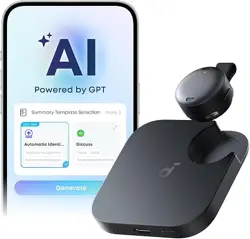
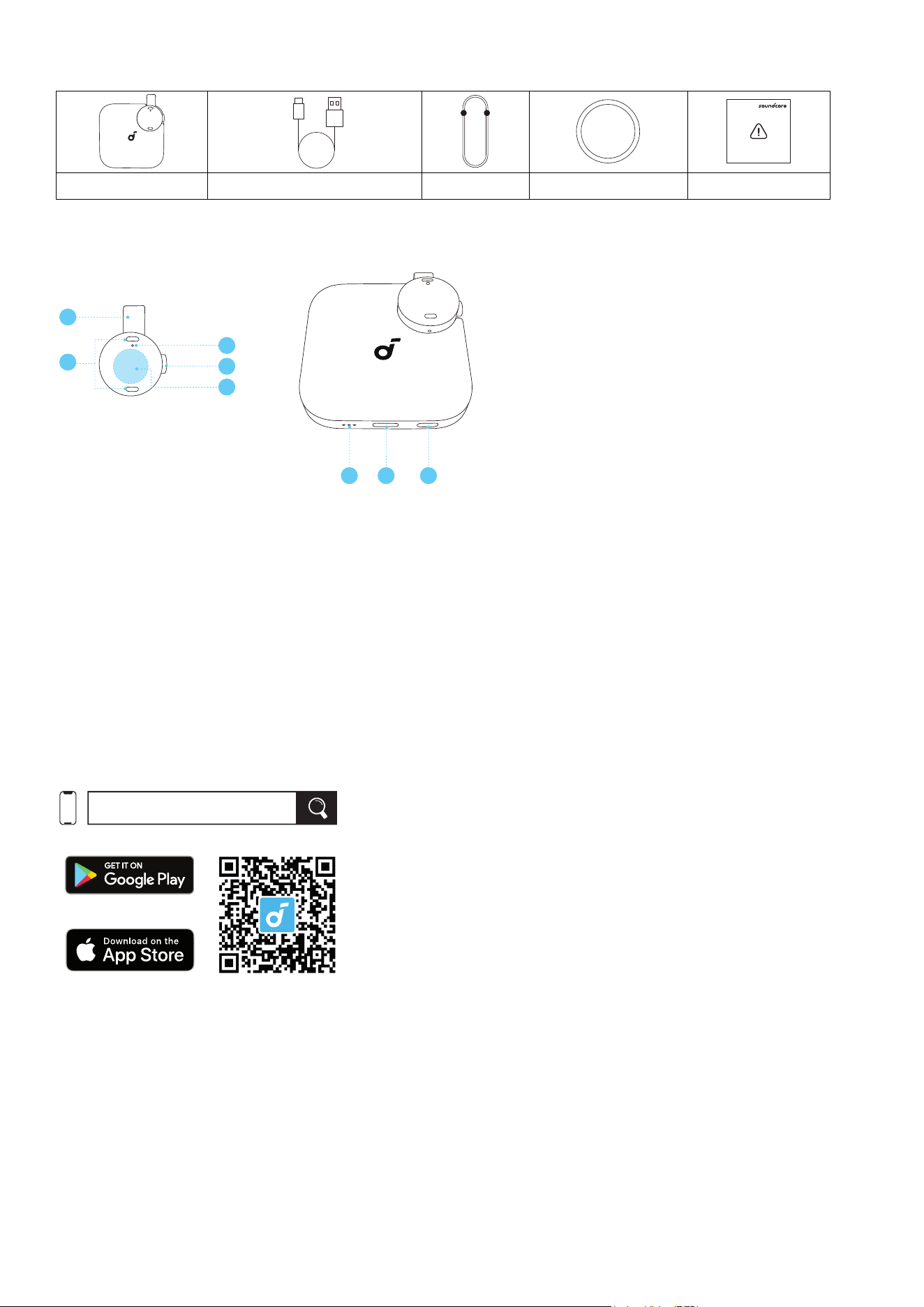
WHAT'S IN THE BOX
soundcore work USB-A to USB-C Cable ×1 Lanyard ×1 Magnetic Ring ×1 Safety Sheet ×1
AT A GLANCE
876
4
3
1
2
5
1. Flexible Connector
2. Microphone ×2
3. Recorder LED Indicator
4. Recording Button
• Press once to start recording, press again to end.
5. Tap Control Area
• Double tap to mark a timestamp during recording.
6. Charging Case LED Indicators
7. USB-C Charging Port
8. Charging Case Button
• Press once to check the battery level of the charging case.
• With the recorder in the case, press and hold for 10 seconds to reset the device.
DOWNLOADING APP
soundcore
Apple and the Apple logo are trademarks of
Apple Inc.
Google Play and the Google Play
logo are
trademarks of Google Inc.
To experience some of the most important features of soundcore Work, such as wireless recording
transfer and precise transcription, scan the QR code to download and install the soundcore app.
You can also go to App Store (iOS) / Google Play (Android), then search for "soundcore" to get the app.
ACTIVATING YOUR DEVICE
For first-time use, remove the protective films and reinstall the recorder to activate the device. When
the device is activated, the LED indicators on both the recorder and charging case will light up for 5
seconds and then go o.
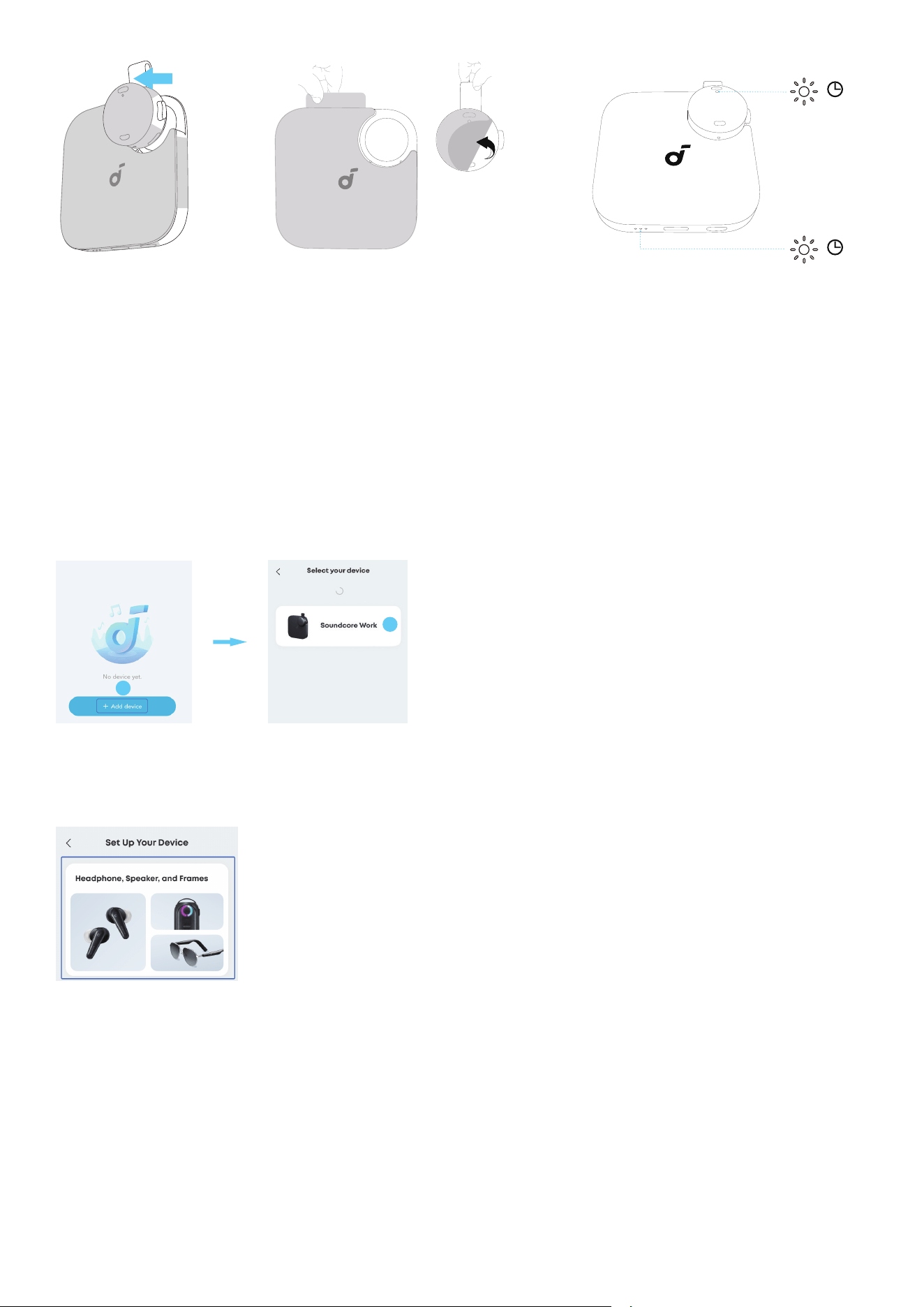
5s
5s
PEEL OFF
PEEL OFF
LOGGING IN WITH YOUR ACCOUNT
Once you have downloaded the app, please log in with your soundcore account. If you don’t have an
account yet, you can easily create one with your email address.
Creating an account ensures you have access to exclusive benefits and the ability to manage and
transfer your recordings.
SEARCHING AND BINDING YOUR DEVICE IN THE APP
Note: UI images are for illustrative purposes only; actual display may vary by soware version.
1. Open the soundcore app, tap the "Add Device" in the main inteace to search for your device.
2. Follow the in-app instructions to complete Bluetooth pairing.
1
2
Once paired, soundcore app will automatically connect to your previously paird device whenever you
open it.
Note:
• For iOS users, please select the tab as shown below before proceeding to Bluetooth pairing.
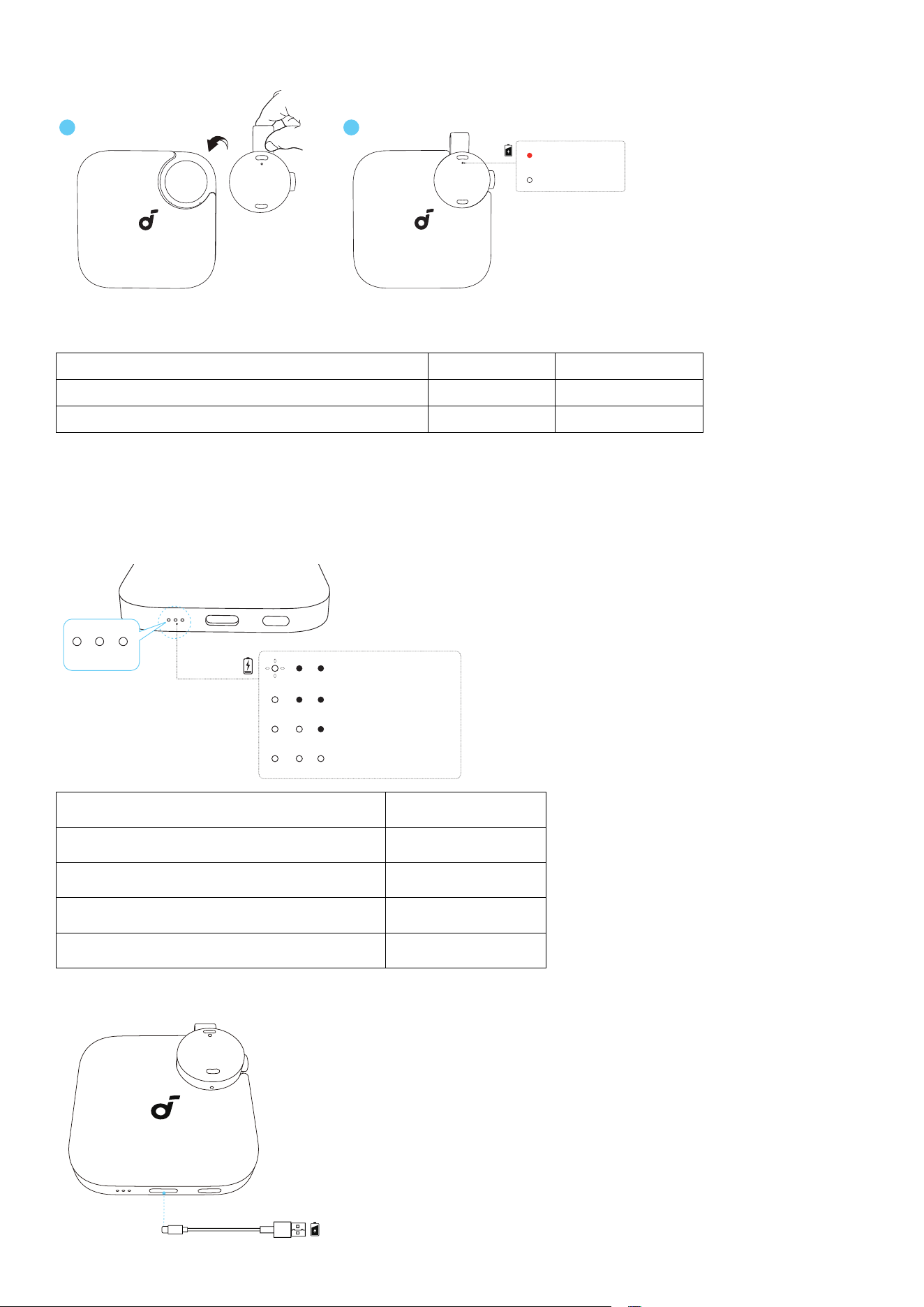
CHARGING THE RECORDER
1 2
5s 0% - 20%
5s 80% - 100%
Everytime you take out or reinstall the recorder, the LED indicator on the recorder will display its current
battery level.
Description Battery Level Recording Time
LED indicator lights up in white for 5 seconds 80%-100% 1.5-8 Hours
LED indicator lights up in red for 5 seconds 0%-20% < 1.5 Hours
To charge the recorder, simply place it back into the charging case. Charging will start automatically.
CHARGING THE CASE
The LED indicators on the case will display the battery level whenever you remove the recorder, reinstall
the recorder, or press the case button. You can refer to the table below for detailed battery indication.
LED 1 LED 2 LED 3
5s < 10%
5s 10% - 20%
5s 20% - 60%
5s 60% - 100%
LED 1 LED 2 LED 3
LED 1 LED 2 LED 3
LED 1 LED 2 LED 3
LED 1 LED 2 LED 3
Description Battery Level
LED 1 flashes for 5 seconds < 10%
LED 1 lights up for 5 seconds 10%-20%
LED 1 and LED 2 light up for 5 seconds 20-60%
All LED indicators light up for 5 secon 60%-100%
Connect the charging case to a power supply using the provided USB-C charging cable.
When the charging case is fully charged, all the LED indicators will stay on.
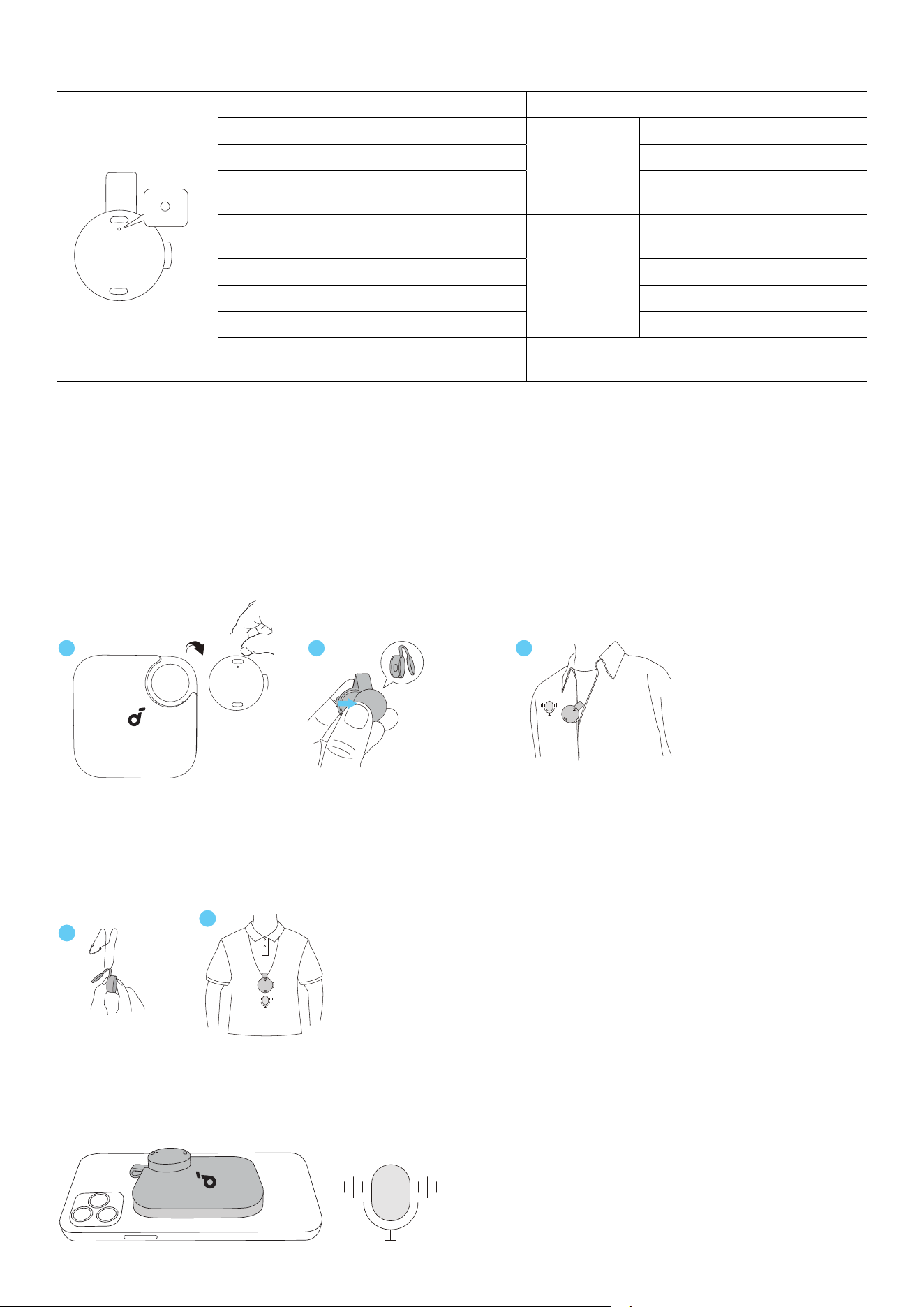
RECORDER'S LED LIGHT GUIDE
LED 3 LED 2 LED 1
LED Behavior Status
Steady Orange
Recording
Recording
Flash Orange Slowly Recording Paused
Flash Once in Orange with a Vibration A Timestamp Marked
Flash 5 Times in Orange with a
Vibration
Battery
Indication
Low Battery during
Recording
Breathe in Red Low Battery
Light Up in White Recorder's Battery > 20%
Light Up in Red Recorder's Battery < 20%
Flash in Red and White Alternatively Firmware Update in Progress
USING YOUR SOUNDCORE WORK
Record in Multiple Scenarios
The detachable recorder of soundcore work facilitates recording in dierent scenarios.
Clip on Cloth
Li the recorder up by the flexible connector to take it out. Gently pinch the recorder to separate the
magnetic pads, and then clip it onto your collar or the edge of clothing.
1
2 3
Note: When attaching the microphone to your clothing, please ensure that the microphone is facing
outward to ensure optimal sound pickup.
Wear via Lanyard
If you are wearing thick clothing, you may hang the microphone on the provided lanyard and adjust the
length as needed for your comfort.
1
2
Snap onto iphone
The charging case supports MagSafe, allowing you to snap it directly onto your iPhone. The recorder
remains fully functional even when docked in the charging case—you can record, add key timestamps,
and transfer data without removing the device.
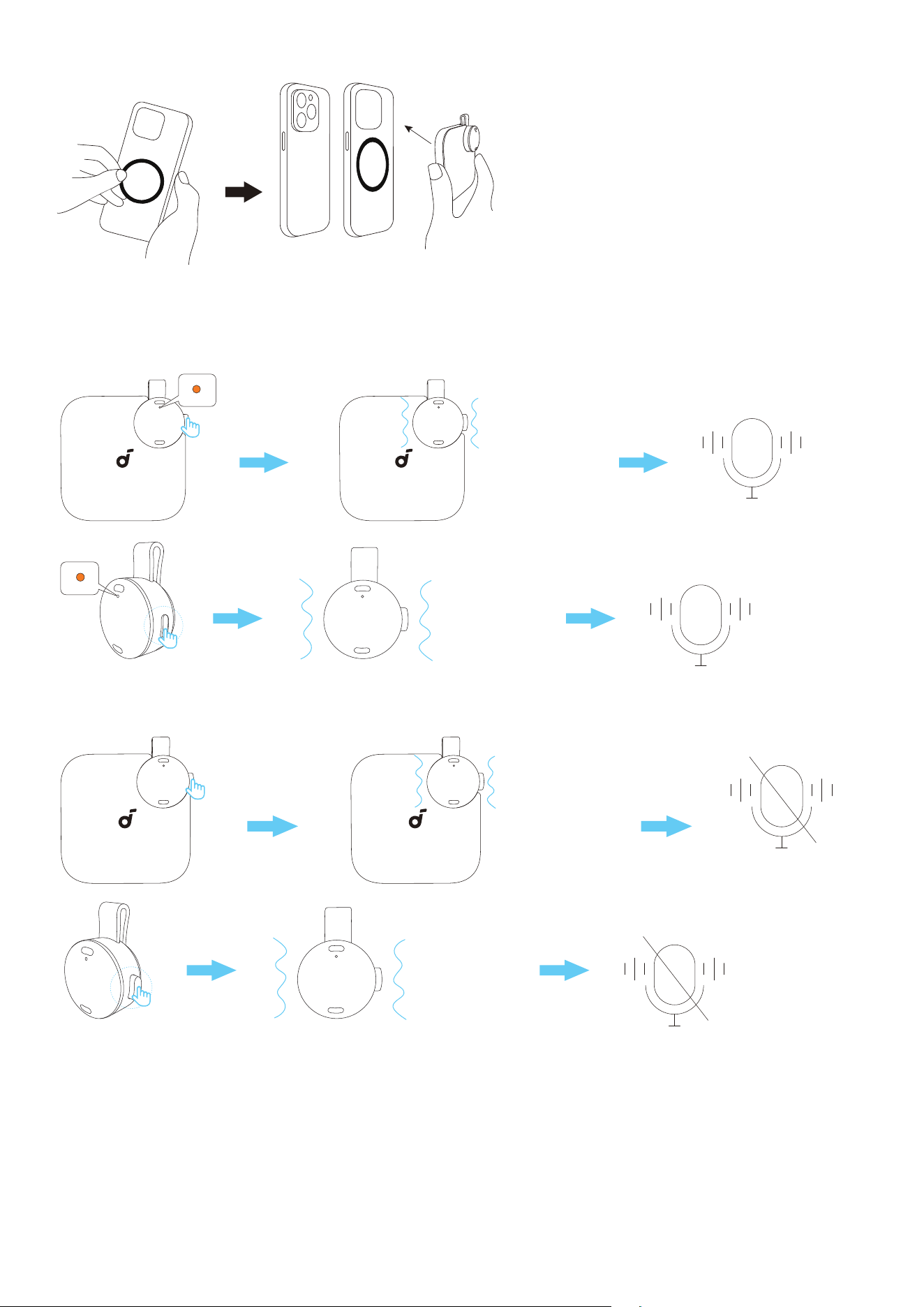
For smartphones with cases, please use the provided magnetic ring.
Start / Pause a Recording
Press the recording button once to start recording. At this time, you will feel a slight vibration, and
the LED indicator on the recorder will light up in orange, which indicates that the device has started
recording.
×1
×1
×1
×1
×1×1
Press again to release the button and end a recording task. You will feel a vibration again, indicating
that the recording has ended.
×1
×1×1
×1×1
×1
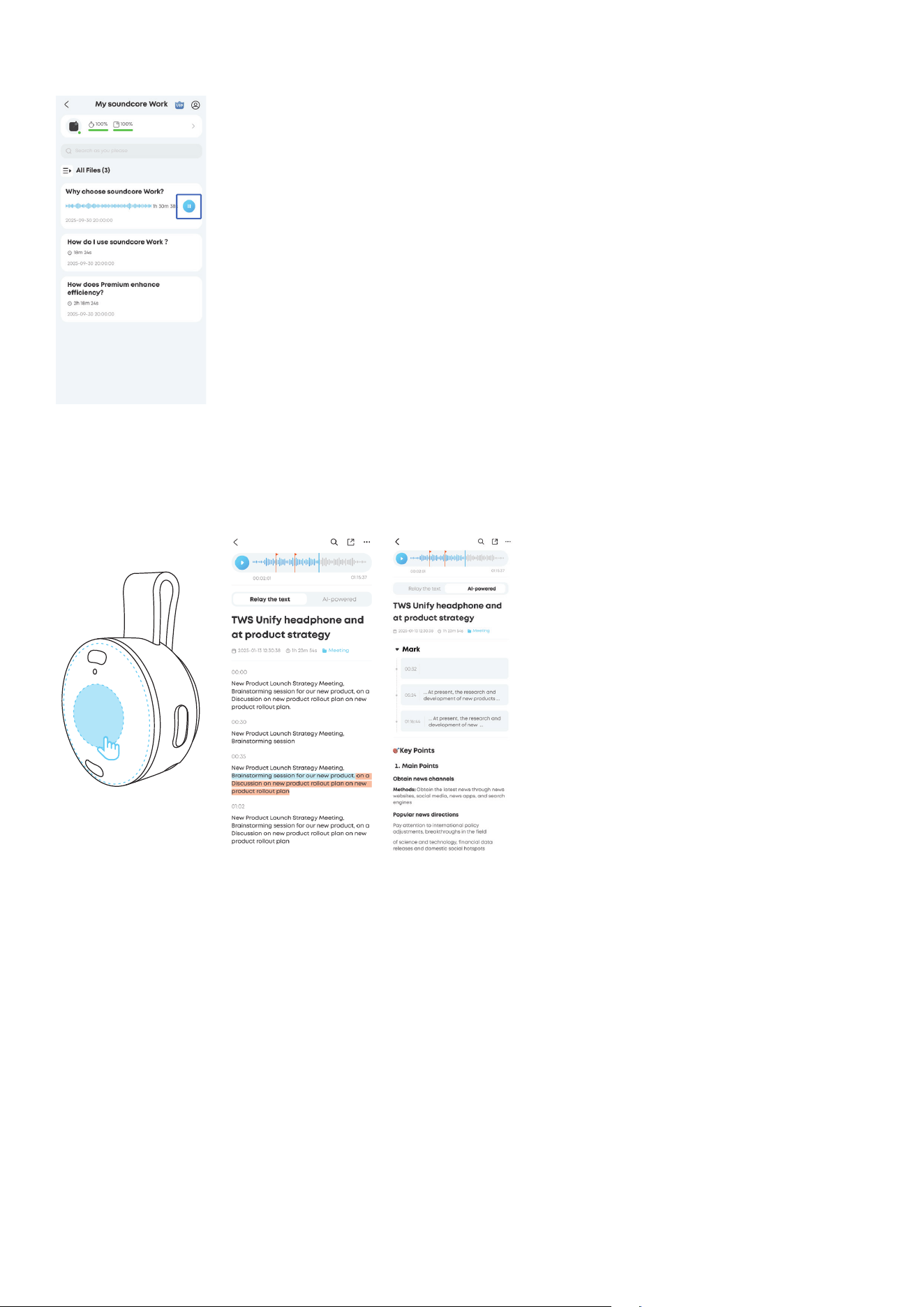
If you want to pause for a while during a recording task, simply tap the pause icon located next to the
ongoing task. Please note that pausing or resuming a recording task is only available in the app.
Note: UI images are for illustrative purposes only; actual display may vary by soware version.
MARK A TIMESTAMP DURING RECORDING
During a recording task, double tap the control area on the recorder to mark important moments. You'll
feel a slight vibration once a timestamp is marked. Please remove your finger only aer you feel the
vibration.
×2
Note: UI images are for illustrative purposes only; actual display may vary by soware version.
FILE TRANSFER
Real-time Transfer
With the support of MFi protocol, real-time recording transfer is available for iPhone users.
When you start a recording, your audio will be transferred in real time as long as your iPhone is within
range.
Note: For Android users, please open the soundcore app before recording to enable real-time transfer.
Post-recording Transfer
When you open the soundcore app, it will automatically reconnect to your previously paired device.
If there are recordings stored on your device that haven’t been transferred yet, the transfer will start
automatically.
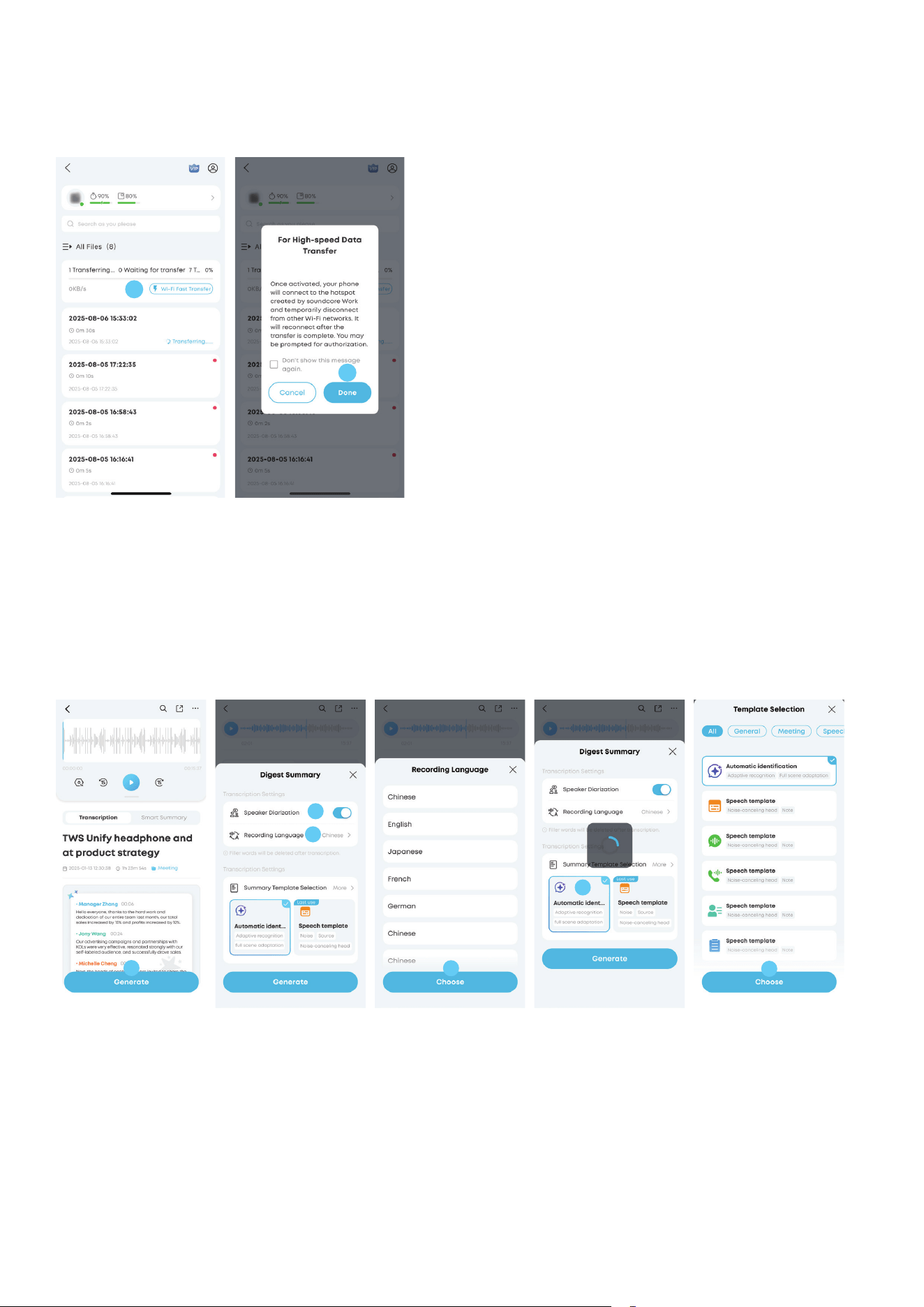
Wi-Fi Fast Transfer
To boost the transfer speed, you can switch to Wi-Fi Fast Transfer in the app. Once this feature is
enabled, the device will create a Wi-Fi hotspot for your phone to join, temporarily disconnecting from
any other Wi-Fi networks and Bluetooth connections. Aer the Wi-Fi Fast Transfer is complete, Bluetooth
will reconnect automatically.
1
2
Note:
Wi-Fi Quick Transfer cannot be enabled if the device battery is below 30%.
Generate Transcription and Smart Summary
Once the recording files have been successfully transferred to the app, you can select the desired file
to generate transcription or smart summary.
1. Select the file you want to transcribe or summarize.
2. Tap "Generate".
3. Choose to enable/ disable Identify Speakers feature, Recording Language, and Summary Template.
4. Tap "Generate" again to get the transcription or summary.
1
2
3
4
5
6
Note:
If you are not satisfied with the generated transcription or summary, you can tap the settings icon
on the top right corner to re-transcribe or re-summarize the recording file. Please note that re-
transcription will also consume your trancription quota.
Manage Your Transcripts and Summaries
Note: UI images are for illustrative purposes only; actual display may vary by soware version.
Aer your transcripts or summaries are generated, you can check the contexts and edit them as
needed.
Simply tap on the speaker's name to re-name, or tap "Edit" to revise the sentences.
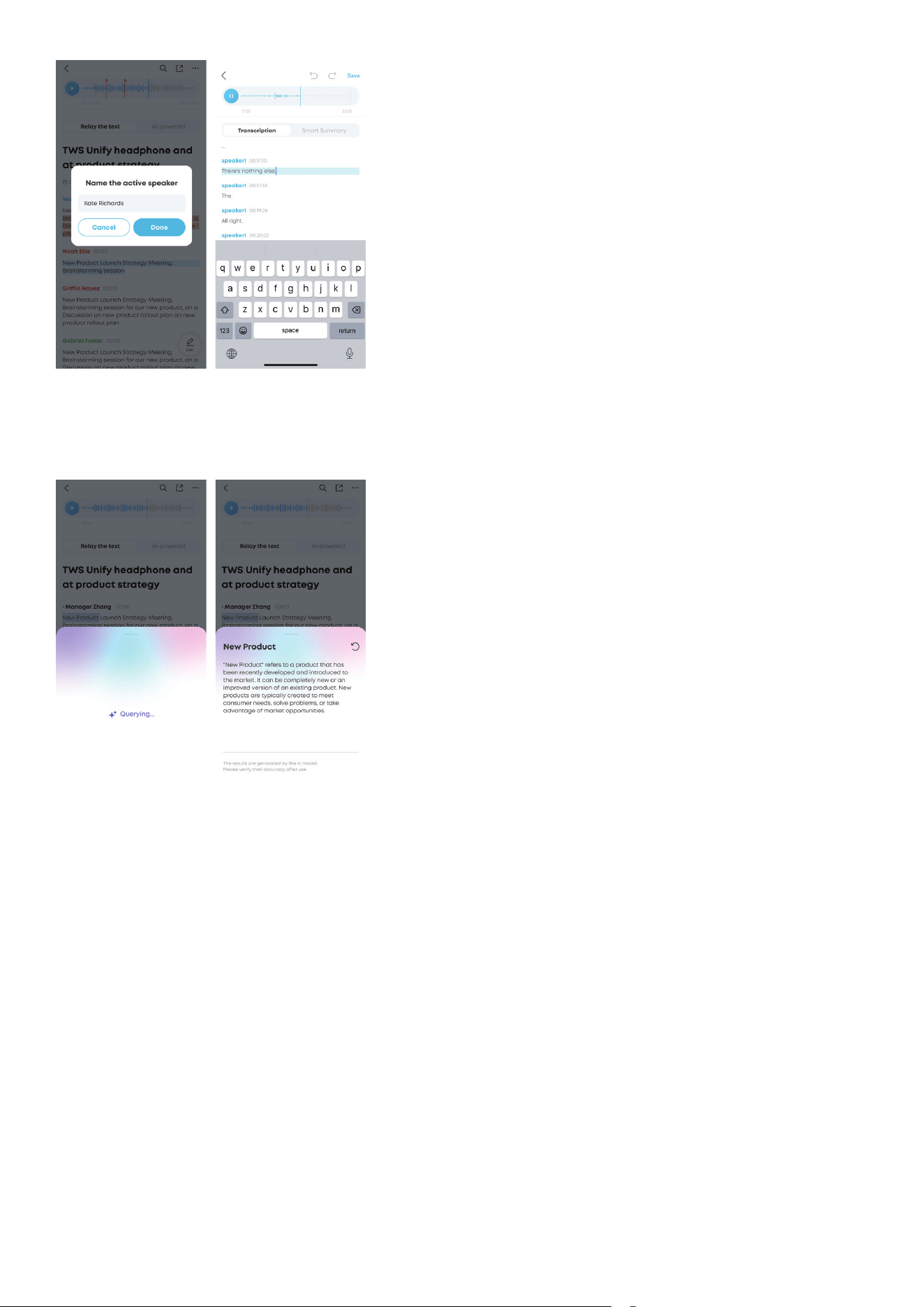
ASK AI
Note: UI images are for illustrative purposes only; actual display may vary by soware version.
While reviewing your transcripts or summaries, you can select any words or sentences, then enable the
"Ask AI" feature to initiate an information query.
Aggregate Summary
Note: UI images are for illustrative purposes only; actual display may vary by soware version.
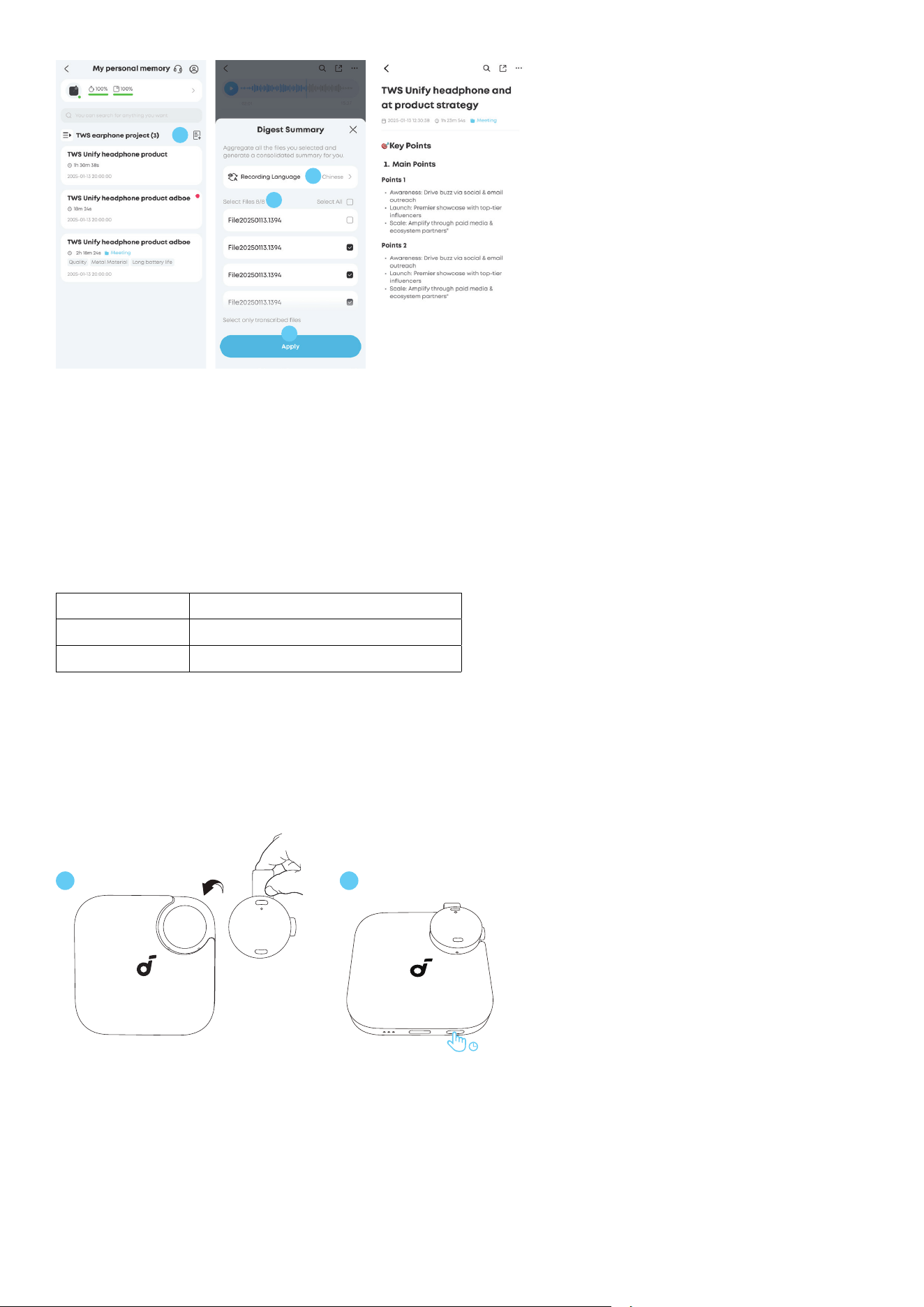
Aggregate Summary analyzes the content of multiple transcribed files you select and creates a concise
summary of key themes and points. With Aggregate Summary, you can quickly get an overview of the
most important information from your recordings, helping you save time and stay organized.
Follow these steps to generate an aggregate summary:
1. Tap the Aggregate Summary entry to open the file selection panel.
2. Choose the transcribed files you want to include in the summary.
3. Tap Apply to confirm your selection—the app will automatically generate a summary covering the key
themes and points from the chosen files.
1
2
3
4
Share Your Recordings With Others
soundcore app supports sharing your recording files with others via a generated link.
1. Tap the export icon on the top right corner.
2. Select "Share Link".
3. Choose the content you want to share.
4. The app will generate a link, which is valid for 7 days. Anyone with the link can access the shared
content before the link expires.
Export Recording Files
You can export audio, transcript, and summary in the following formats.
Audio MP3
Transcript TXT, Markdown, DOCX, PDF
Summary TXT, Markdown, DOCX, PDF
RESETTING
You can try to reset the device if you experience any functionality or connectivity issues.
Resetting the device will not erase the binding account, stored data and personalized settings.
Follow the steps below to reset:
1. Place the recorder back into the charging case.
2. Press and hold the charging case button for 10 seconds until all LED indicators flash rapidly five times,
indicating a successful reset.
10s
1 2

USING APPLE FIND MY (ONLY AVAILABLE TO iOS USERS)
soundcore Work is compatible with Apple’s Find My feature. If your device goes missing, you can enable
Find My to help locate and track your soundcore Work using Apple’s location services.
Pair Your Device with Find My
To pair your device with Apple Find My network:
1. Locate the side button on your recording device.
2. Ensure the LED indicator is o and the recorder button is released. If the light is orange, press the
button once to turn it o.
3. Quickly press the button six times. The LED indicator will light up in green for 10 seconds.
4. Within these 10 seconds, quickly press the button two more times. Then the LED indicator will turn o,
and a confirmation beep will sound, indicating successful pairing.
To reset Find My pairing, quickly press the recorder button six times, then the LED indicator will light up in
green for 10 seconds. While the indicator is on, press the recorder button six times, and a confirmation
beep will sound for 2 seconds to indicate that the pairing has been reset.
If You Find a Lost Device
Note: The following operations are available only if you are also an iOS user.
If you have found a lost soundcore Work, please follow the instructions below to help identify the owner
or protect your privacy.
View Serial Number of the Device
1. Please locate the side button on your soundcore Work recorder.
2. Make sure the indicator light is o and the button is released. If the light is orange, press the button
once. The light will turn o.
3. Quickly press the button four times.
Disable Location Reporting
1. Please locate the side button on your soundcore Work recorder.
2. Make sure the indicator light is o and the button is released. If the light is orange, press the button
once. The light will turn o.
3. Quickly press the button six times. The indicator will light up in green and remain on for 10 seconds.
4. While the indicator is on, press the button six times. A confirmation beep will sound.
Hereby, Anker Innovations Limited declares that this device is in compliance with The Product Security
and Telecommunications Infrastructure (Security Requirements for Relevant Connectable Products)
Regulations 2023. For the Statement of Compliance, visit the website:
https://uk.soundcore.com/pages/psti-related.

Note: The 'x' of SN Code: xxxxxxxxxxxxxxxx is a variable, see below table.
Variable 'x' Range of variable Content
Eighth 0-9 or A-F
Denotes the hardware version which is not eected on the
safety compliance.
Ninth 8,9,A,B,C...
Denotes the year, 8 means 2018, 9 means 2019, A means 2020,
B means 2021, C means 2022, and so on.
Tenth and
Eleventh
01,02,03...
Denotes weeks, 01 means the first week in this year, 02
means the secondary week in this year, and so on.
Twelh 1-7
Denotes date, 1 means Monday, 2 means Tuesday..., 7 means
Sunday and so on.
The last five 00001-99999 Denotes serial No.
Default Open Port: BLE (Bluetooth Low Energy)
Port Description: Aer the device is powered on, BLE broadcasting is automatically enabled, providing
Bluetooth pairing (or control) services. The Bluetooth service is disabled when the device is powered o.