Thank you for choosing our company's product. By reading this manual, you can fully
understand the device's usage methods. This device primarily connects to your phone via
WiFi for adaptive use, offering a variety of practical functions and services to
facilitate phone operations. Our company reserves the right to modify the content of
this manual without prior notice, and no separate notification will be provided.
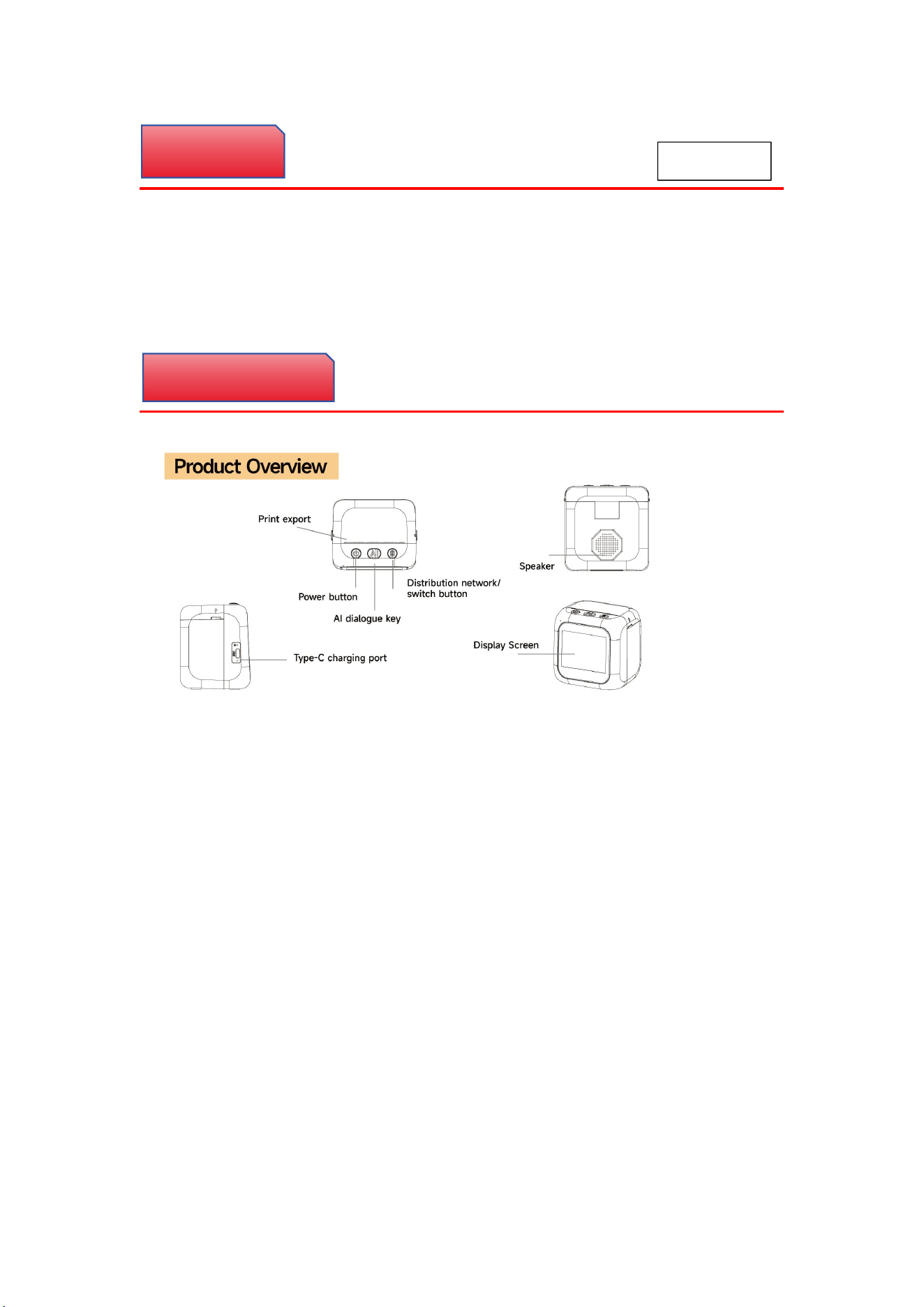
Power button: Long press for 2-3 seconds to turn on/off
AI dialogue button: Long press the AI button to record, release your hand, and print
the content
Distribution network/switch button: Long press to enter distribution network mode and
connect to printer, click to switch screen function
Display screen: After speaking to the printer and releasing it, the screen displays the
content of the speech and prints it
Theme setting: After connecting the APP, set the theme on the homepage, and the printer
can switch to the current theme
Reset button: Insert the card retrieval needle into the R hole (next to the charging
port) to restart
Timed shutdown: The printer will automatically shut down after 10 minutes of default
operation when it is stationary
Factory reset: All data is cleared after recovery
1.Preface
2.Product Overview
English
1. The red light lights up when the printer is charging, and goes out when it is fully
charged
2. Charger and Data Cable: Certified and legitimate brand chargers and high-quality
Type-C data cables must be used. Poor quality wires may cause slow charging speed, poor
contact, and even damage to the internal chip of the printer due to unstable voltage
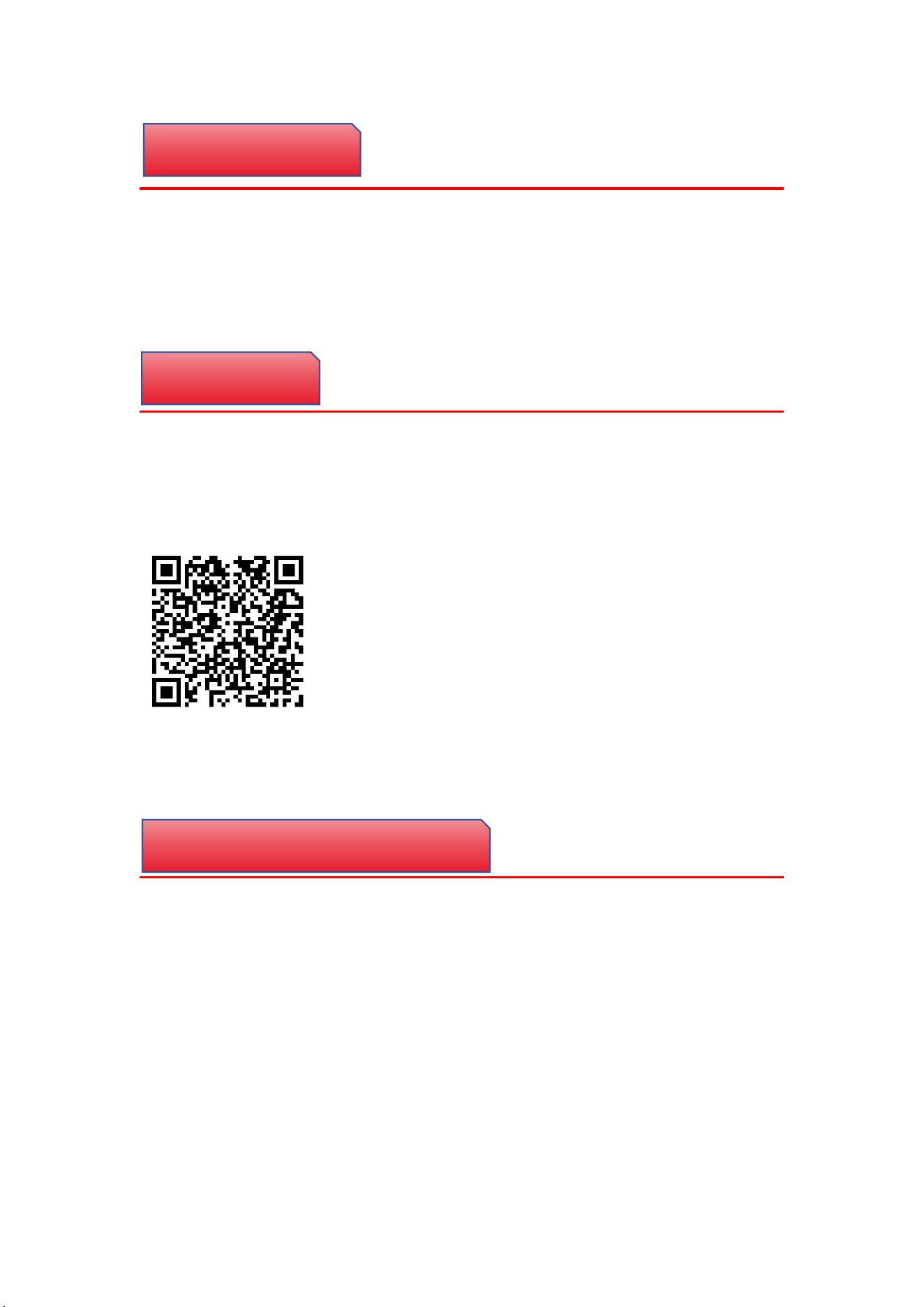
1. Download the app from the mobile app market and search for "AIfirx" to download it
2. Scan the QR code below through a mobile browser to download
3. Compatible with Android 7.0 and above, iOS 15 to iOS 26
The QR code below is for downloading AIfirx APP
Android/iPhone
Application only
1. The printer enters the network interface (long press the network/switch button), open
the AIfirx application on the phone, and select the AI intelligent printer
2. Select the Bluetooth distribution network device for automatic scanning. When the
Bluetooth name is displayed, click connect to enter the distribution network mode. Select
the current WiFi, enter the password, and click confirm to successfully connect
3. Choose to scan the QR code on the screen to enter the distribution network mode, select
the current WiFi, enter the password, and click OK to connect successfully
4. Pay attention to frequent scanning of connections, which may cause connection failure.
You need to turn on and off your phone's Bluetooth again to reconnect
3.Charging precautions
4.Download the APP
5.Distribution Network Connection APP
Swipe and click on unbind device on the APP homepage - OK to unbind successfully
1. Do not place the device near heat sources or exposed sources of fire, such as induction
cookers, ovens, stoves, candles, or other places that may generate high temperatures.
2. This device is equipped with a non removable built-in battery, please do not replace
the battery.
3. Disassembly, impact, compression, or open flames are prohibited
6.Unbind APP
7.Precautions

This device complies with part 15 of the FCC Rules. Operation is subject to the
following two conditions: (1) This device may not cause harmful interference, and (2)
this device must accept any interference received, including interference that may cause
undesired operation.
Any Changes or modifications not expressly approved by the party responsible for
compliance could void the user's authority to operate the equipment.
Note: This equipment has been tested and found to comply with the limits for a Class B
digital device, pursuant to part 15 of the FCC Rules. These limits are designed to
provide reasonable protection against harmful interference in a residential installation.
This equipment generates uses and can radiate radio frequency energy and, if not
installed and used in accordance with the instructions, may cause harmful interference
to radio communications. However, there is no guarantee that interference will not
occur in a particular installation. If this equipment does cause harmful interference to
radio or television reception, which can be determined by turning the equipment off and
on, the user is encouraged to try to correct the interference by one or more of the
following measures:
-Reorient or relocate the receiving antenna.
-Increase the separation between the equipment and receiver.
-Connect the equipment into an outlet on a circuit different from that to which the
receiver is connected.
-Consult the dealer or an experienced radio/TV technician for help.
FCC Radiation Exposure statement
The device has been evaluatec to meel general RF exposure requirement. The device
can be used in portable exposure condition without restriction.