USER MANUAL
Mini Photo Printer
2nd Generation

CONTENTS
SAFETY INFORMATION
Read Before Use...................................................P.2-3
OVERVIEW
Supplied Items..........................................................P.4
Product Features .....................................................P.4
GETTING STARTED
Charging...................................................................P.5
Power ON / OFF.......................................................P.6
Load Paper............................................................P.6-7
LED INDICATIONS ........................................... P.8
SPECIFICATIONS ............................................ P.9
INSTALLING APP.......................................P.10-11
PAIRING MOBILE DEVICE & MINI PHOTO PRINTER
Android and iOS Pairing....................................P.12-13
USER INTERFACE
Home Screen ........................................................P.14
Main Menu..............................................................P.14
Printer Setting....................................................P.15-16
1

READ BEFORE USE
Please read the following instructions and safety precautions before using the Printer.
For regulatory and additional safety information, refer to the Regulation and Warranty
Information sheet included in your printer package contents.
RMN: PP1003B
Regulatory Model Identication Number is assigned for regulatory identication
purpose.
SAFETY INFORMATION
WARNING
Used to indicate a potentially hazardous situation
which, if not avoided, could result in death or serious
injury.
• Keep away from children and infants. Improper use of this product may cause
suocation or accident.
• Stop using the device immediately if it emits smoke or a strange smell, or otherwise
behaves abnormally.
• Do not use the printer if the battery or product has swelled.
• Do not handle near Medical Electrical Equipment. Weak magnetism is emitted by this
product. Do not stand near implanted electronic devices, such as a cardiac pacemaker.
Please see your doctor if the printer does come close to such a device.
2

CAUTION
Used to indicate the level of a hazard or damage which, if
product is handled erroneously, may result in injury or
property damage other than product faults.
• When operating in extreme weather, the device might not print. Let the printer
temperature adjust to the recommended operating temperature of 59º to 90ºF
(15º to 32ºC), before attempting to print again.
• When charging, please charge the device at the recommended temperature of
59º to 90ºF (15º to 32ºC).
• Use a soft dry cloth to clean the device. Do not clean with a damp cloth or volatile
liquids such as paint thinner.
• Keep the top cover closed to avoid dust and other particles from entering the inside
of the device.
• Keep the ventilation openings clear of any objects that could block them.
• If the device is not functioning properly, please contact the dealer you purchased this
product from or Canon Service & Support at www.usa.canon.com/support
• Electromagnetic interference or electrostatic discharge may cause the device to
malfunction or the memory to be lost or altered. Should this occur, use a pin, or
similar item to press the [RESET] button at the bottom of the device.
• Do not use or leave the product under direct sunlight. Also avoid areas subject to
rapid temperature changes, high humidity, dust and dirt.
• In areas with low humidity, the printer may build up a static electric charge.
Take precautions before handling the printer.
• Keep the printer away from liquids or containers of liquids.
• Do not improperly dispose of the product as it may cause personal injury or harm.
Please dispose of the product in accordance with local regulations.
ABOUT BATTERY
• It is recommended that you fully charge the battery after use. For healthy battery
maintenance, you must fully charge the battery at least once a year before storing
product. If the product is not charged/used for an extended period of time, you may
not be able to charge the built-in battery and the product may no longer power on.
• Disassembling the device may cause the battery leakage, explosion, damage or
personal injury.
• Never expose the battery to high temperatures, direct heat, or dispose by
incineration.
• When disposing of the battery, follow the regulations of the local government.
For details, inquire your local authorities.
3
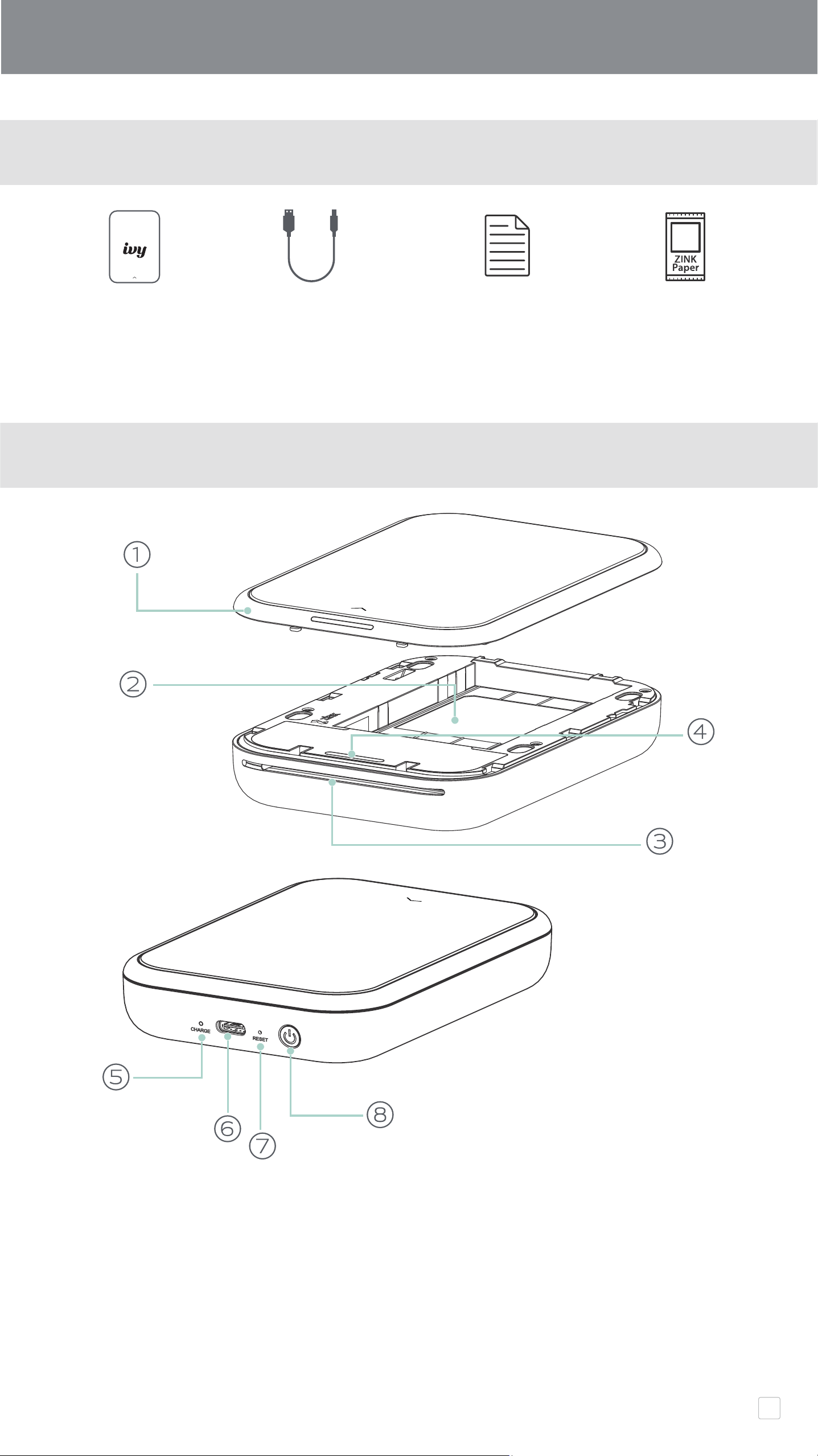
USB Cable
(Type A to Type C)
SUPPLIED ITEMS
PRODUCT FEATURES
OVERVIEW
CANON ZINK®
Photo Paper
(10 sheets)
Regulation and
Warranty
Information sheet
① Top cover ⑥ USB Type C port (For charging)
② Paper tray ⑦ Reset button
(Visible with top cover open) (To reset the device, press with a pin)
③ Paper output slot ⑧ Power button
④ Status LED light
⑤ Charging LED light
Mini Photo Printer
4

About USB Cable
Handle the USB cable with care while charging
• Do not place any heavy objects on top of the cable.
• Do not place the USB cable near heat.
• Do not scratch, damage, twist or pull hard on the cable.
• Do not plug or unplug the cable with wet hands.
• Avoid too high/too low temperature or humid condition.
• Please unplug the USB cable from power source after charging.
• Please use supplied USB cable for charging.
Printer uses a built-in battery. Before using the printer, fully charge the battery using the
USB cable provided.
①
Insert the smaller end (USB Type C) of the supplied USB cable into the Printer and
the other end (USB Type A) into a chargeable USB adapter.
②
The charging LED light will turn red to indicate charging.
③
Once fully charged, the charging LED will turn green.
− Operating time may vary depending on the battery status, operational status
and environment conditions.
A) CHARGE
GETTING START
Instructions or content are important and must be followed
accordingly.
NOTE
Charging status LED
Charging Red
Fully Charged Green
5
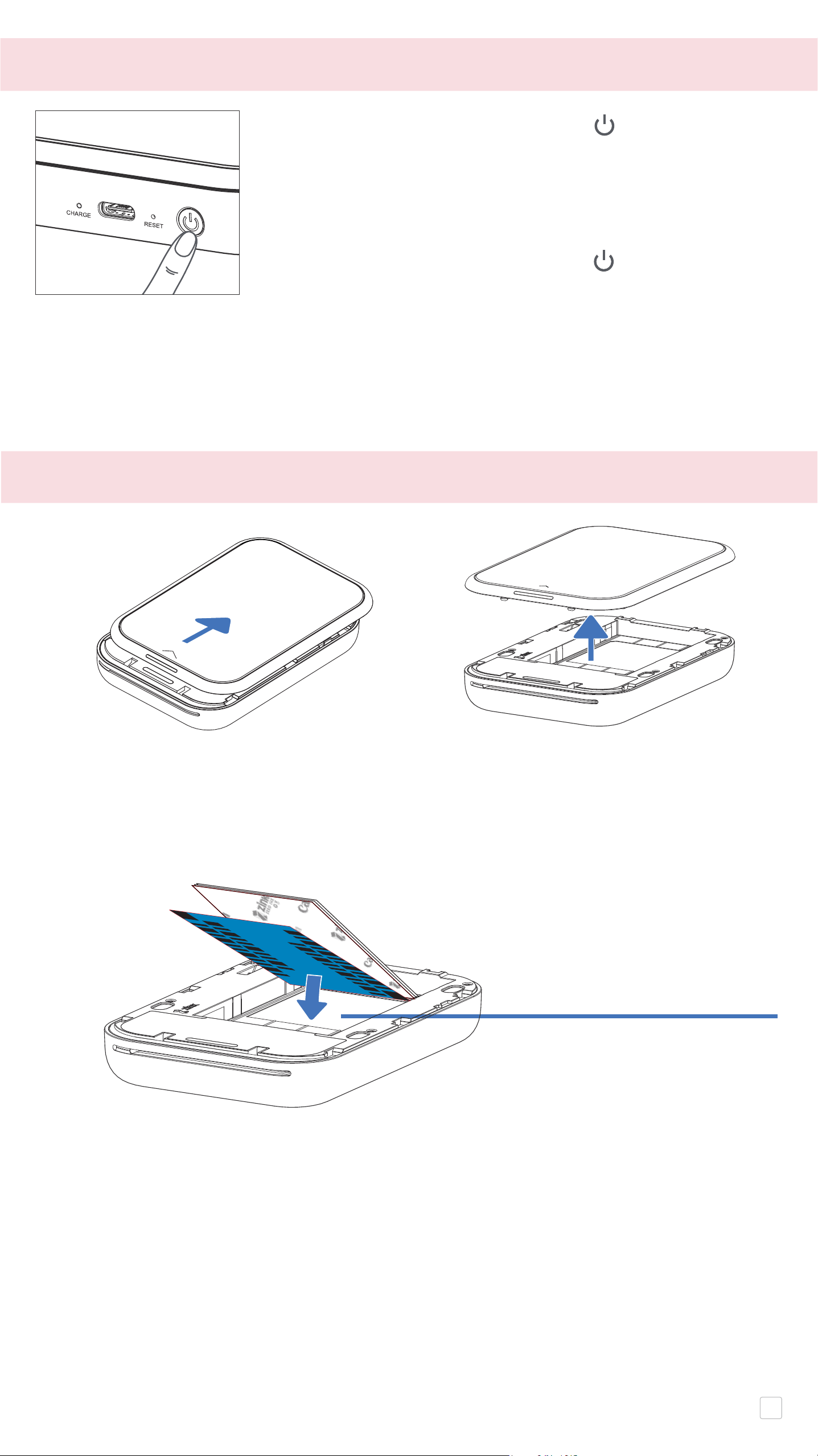
① Remove the top cover by sliding it forward in the direction of the arrow.
② Open a single pouch of photo paper (10 sheets + blue SMART SHEET®).
③ Place all 10 photo paper sheets and the one blue SMART SHEET® into the photo
paper compartment.
− Stack the photo paper on top of the blue SMART SHEET®, making sure the bar
code and the photo paper logos are facing down.
④ Place the top cover back onto the printer. It should click into place when closed
properly.
− The blue SMART SHEET® will be sent through the printer automatically after paper
load into the printer
B) POWER ON / OFF
C) LOAD PAPER
① Press and hold the Power button ( ) Charging LED
light will ash 2 times in green to indicate power-on.
② When the status LED indicator turns to a white , the
device is ready to use.
③ Press and hold the Power button ( ) to turn o the
device.
AUTO POWER OFF
• The device will power o automatically when idle for 3 minutes (default).
• The user can change the time (3 minutes/5 minutes/10 minutes) in the app.
Blue SMART SHEET® on
bottom with photo
papers on top.
All logos facing down.
6

MAINTAINING THE DEVICE
• Use and keep the device in the recommended environment of 59º to 90º F
(15º to 32º C) and 40-55% relative humidity.
• Keep your device rmware up-to-date. To check if your rmware needs to be
upgraded, open the Canon Mini Print app. go to the Main Menu > Settings > Printers,
select your device and tap on Product Info. then tap "Firmware Upgrade".
–
Make sure your mobile device has an internet cannection checking. If you need to
upgrade the firmware, your printer must be charged to 50% or higher.
• Make sure you’re using the latest Canon Mini Print app version. If your apps don’t
automatically update, go to app store and check if you need to update.
WHEN USING PAPER
• Only load 10 ZINK® photo paper sheets and 1 blue SMART SHEET®. Do not load more
as it can result in paper jams or printing errors.
• For optimal print results, use ZINK® photo paper for Canon IVY printers.
−
You may purchase additional photo papers within the Canon Mini Print App by
tapping "Buy Paper" in the main menu.
• If there is a paper jam, simply turn the printer OFF and ON to automatically clear the
paper jam. Don’t try to pull the paper out.
• While the printer is printing, don’t pull or tug on the photo paper.
• Handle photo paper carefully to avoid damage or bending.
• Keep the paper clean when loading. If paper is dirty or damaged it may result in a
paper or print error.
• Don’t open a new pouch of paper until you are ready to load into your printer.
• Don’t expose photo paper to direct sunlight or moisture.
• Don’t leave your photo paper in an area where the temperature or humidity is out of
the suggested conditions indicated on the pouch. It may reduce the quality of the
printed photo.
ABOUT THE BLUE SMART SHEET®
• Each pouch of photo paper contains 10 sheets of photo paper and 1 blue
SMART SHEET®.
• Load the blue SMART SHEET® and photo paper from within the same pouch for
optimal print quality. Each blue SMART SHEET® is specically tuned for the pouch of
paper it is contained in.
• The blue SMART SHEET® will be sent through the printer automatically after paper
load into the printer to clean and the printer and optimize print quality for that
specic paper pouch (10 sheets).
• Keep the blue SMART SHEET® and only discard after you have printed all 10 sheets of
photo paper in the pouch. If print quality is not as expected, you can reuse the blue
SMART SHEET® if the paper is still from the same pouch. Simply slide the blue SMART
SHEET® with its barcode-side down underneath the remaining photo paper.
• Using a blue SMART SHEET® from another pouch may result in reduced print quality.
Instructions or content are important and must be followed
accordingly.
NOTE
7

Status Mode LED Status LED
Power On Press and hold power button
Standby Device is NOT connected with APP
Device is connected with APP
Power O Press and hold power button
Processing Blue When the device is loading blue
SMART SHEET® SMART SHEET®
Printing Photo When the device is printing a photo
Blue SMART When the device detects non-Canon
SHEET® Error blue SMART SHEET® is inserted,
or other blue SMART SHEET® error
Get Ready for Preparing for printing
Printing
Paper Jam / When there is a paper jammed or the
Cover Open printer cover is opened
No paper When print request is initiated and
no paper in tray
Firmware When the device is updating
Upgrading rmware
Low Battery When battery level down to 20%
– Device is Not connected with APP
– Device is connected with APP
Temperature High
When device temperature is too high
Printer Head Checking the printer head
Cooling temperature and letting it cool down
before printing
Temperature Low
When device temperature is too low
MAINTAINING THE DEVICE
• Use and keep the device in the recommended environment of 59º to 90º F
(15º to 32º C) and 40-55% relative humidity.
• Keep your device rmware up-to-date. To check if your rmware needs to be
upgraded, open the Canon Mini Print app. go to the Main Menu > Settings > Printers,
select your device and tap on Product Info. then tap "Firmware Upgrade".
– Make sure your mobile device has an internet cannection checking. If you need to
upgrade the firmware, your printer must be charged to 50% or higher.
• Make sure you’re using the latest Canon Mini Print app version. If your apps don’t
automatically update, go to app store and check if you need to update.
WHEN USING PAPER
• Only load 10 ZINK® photo paper sheets and 1 blue SMART SHEET®. Do not load more
as it can result in paper jams or printing errors.
• For optimal print results, use ZINK® photo paper for Canon IVY printers.
− You may purchase additional photo papers within the Canon Mini Print App by
tapping "Buy Paper" in the main menu.
• If there is a paper jam, simply turn the printer OFF and ON to automatically clear the
paper jam. Don’t try to pull the paper out.
• While the printer is printing, don’t pull or tug on the photo paper.
• Handle photo paper carefully to avoid damage or bending.
• Keep the paper clean when loading. If paper is dirty or damaged it may result in a
paper or print error.
• Don’t open a new pouch of paper until you are ready to load into your printer.
• Don’t expose photo paper to direct sunlight or moisture.
• Don’t leave your photo paper in an area where the temperature or humidity is out of
the suggested conditions indicated on the pouch. It may reduce the quality of the
printed photo.
ABOUT THE BLUE SMART SHEET®
• Each pouch of photo paper contains 10 sheets of photo paper and 1 blue
SMART SHEET®.
• Load the blue SMART SHEET® and photo paper from within the same pouch for
optimal print quality. Each blue SMART SHEET® is specically tuned for the pouch of
paper it is contained in.
• The blue SMART SHEET® will be sent through the printer automatically after paper
load into the printer to clean and the printer and optimize print quality for that
specic paper pouch (10 sheets).
• Keep the blue SMART SHEET® and only discard after you have printed all 10 sheets of
photo paper in the pouch. If print quality is not as expected, you can reuse the blue
SMART SHEET® if the paper is still from the same pouch. Simply slide the blue SMART
SHEET® with its barcode-side down underneath the remaining photo paper.
• Using a blue SMART SHEET® from another pouch may result in reduced print quality.
LED INDICATOR
White
White (Flashing)
White
Off
Blue (Flashing)
Red (Flashing)
White (Flashing)
White (Glowing)
<< >>
White (Glowing)
<< >>
Cyan (Glowing)
<< >>
Red (Flashing)
Red (Until temperature
returns to normal)
Cyan (Until temperature
returns to normal)
White>Red (Flashing)
White>Red
Yellow >White>Magenta>
White>Cyan>White (Looping)
Yellow >White>Magenta>
White>Cyan>White (Looping)
8

SPECIFICATION
Power Source Internal rechargeable battery 500 mAh Li-Polymer 7.4 V
Charging Speed Approximately 45 minutes (Full Charge)
Dimension
4.7"(L) x 3.3" (W) x 0.8" (H) / 120 mm (L) x 84 mm (W) x 21.5 mm (H)
Weight 6 oz (177 g)
Connectivity Bluetooth® 5.0
Compatible OS iOS 12.0 or above & Android 6.0 or above
Print Technology ZINK®
Print Resolution 313 x 512 dpi (dots per inch)
Borderless Printing Yes
Compatible Paper Canon ZINK® Photo Paper: ZP-2030-20 (20 sheets)
ZP-2030-50 (50 sheets)
ZP-2030-2C-20 (20 sheets)
2” x 3” / Peel-and-stick back
Paper Capacity
Up to 10 sheets of ZINK® photo paper + 1 blue SMART SHEET®
Memory 512Mb
Environmental
• Recommended Printer Operating, Charging, and Storage
Parameters Temperature: 59º to 90º F (15º to 32º C)
• Recommended Printer Operating, Charging, and Storage
Humidity: 40-55% RH
• Operating Temperature: 41º to 104ºF (5º to 40ºC)
• Operating Humidity: <70% RH
Automatic Power-o
3 minutes / 5 minutes / 10 minutes (selectable in-app)
(The Printer will not turn o automatically if the application is
being used.)
Power Adapter Output power : 5V 2.25A or above
* All specications are subject to change without notice
* The IVY Mini Photo Printer is designed to be charged with a USB Charging Adaptor. If it is charged using a
laptop USB port, there may not be sucient electrical power to charge the IVY Mini Photo Printer.
9
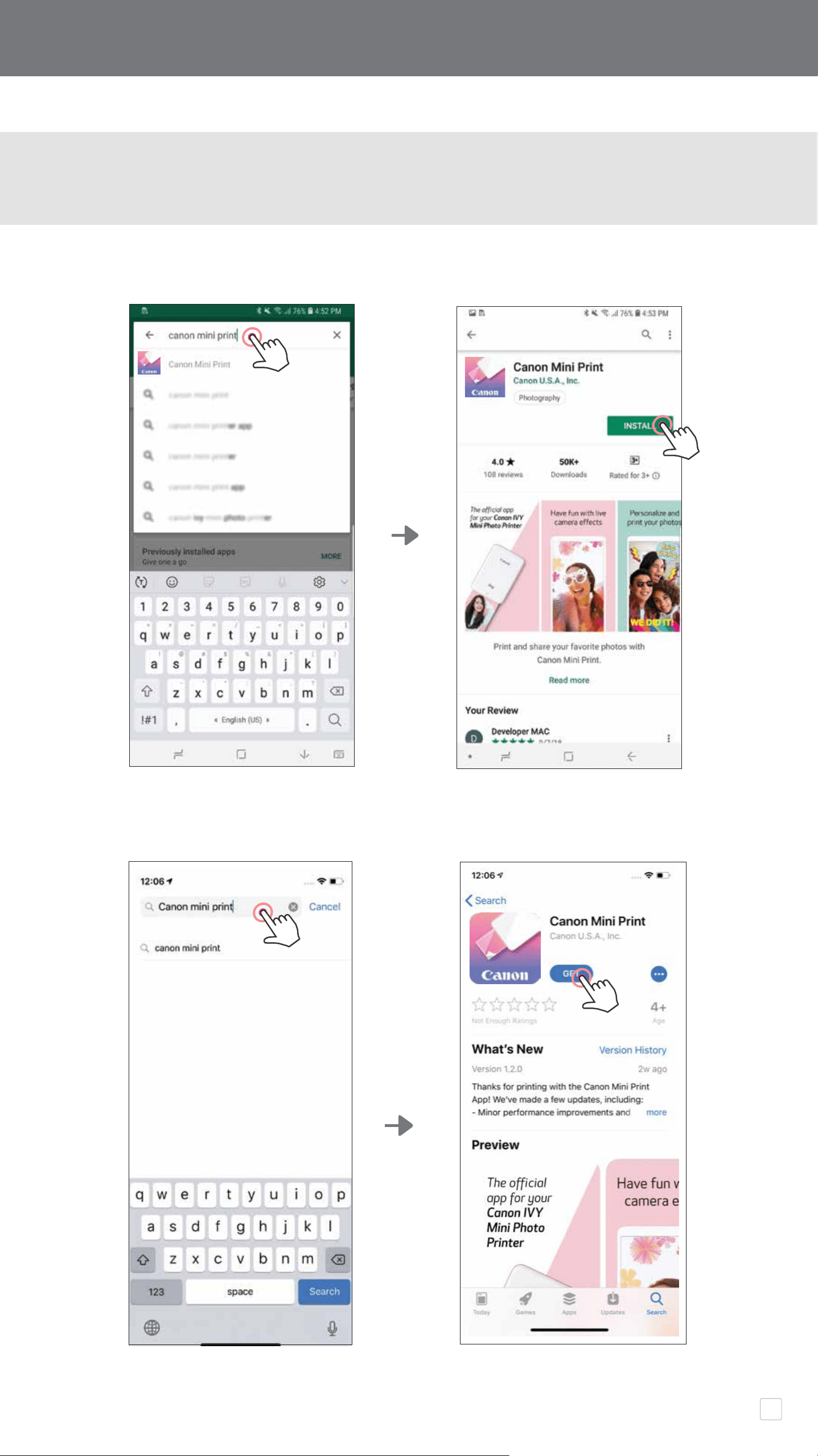
For iOS
®
- from the App Store
®
For Android™ - from Google Play™
OPTION ①
SEARCH FOR "CANON MINI PRINT" IN APP STORES
INSTALLING APP
10
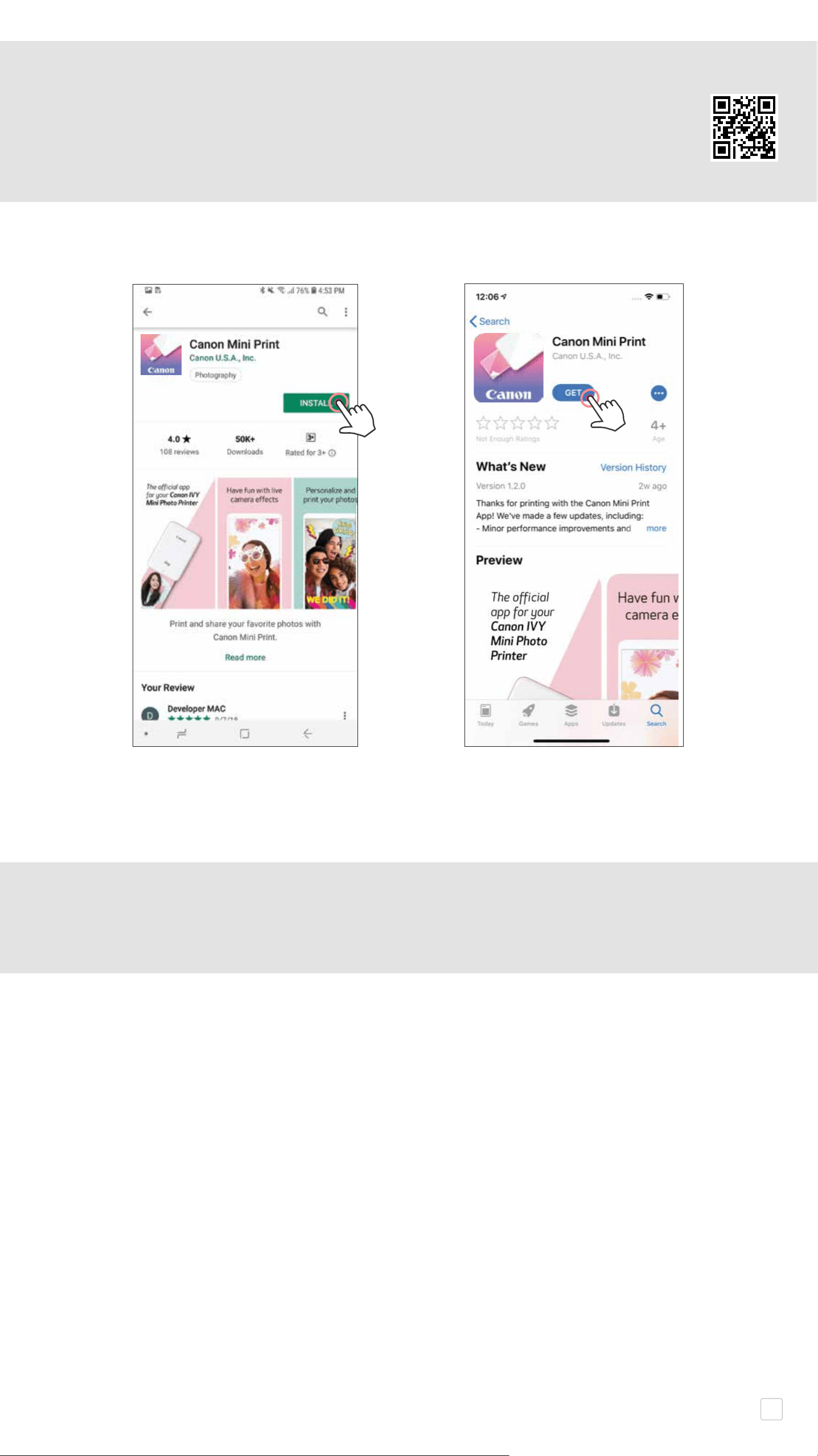
For Android For iOS
OPTION ③
GO TO HTTPS://APP.CANONMINIPRINT.COM/ WITH
YOUR DEVICE INTERNET BROWSER
OPTION ②
ON THE INSIDE FLAP OF THE OPENED BOX -
SCAN THE QR CODE TO DOWNLOAD THE
CANON MINI PRINT APPLICATION
11
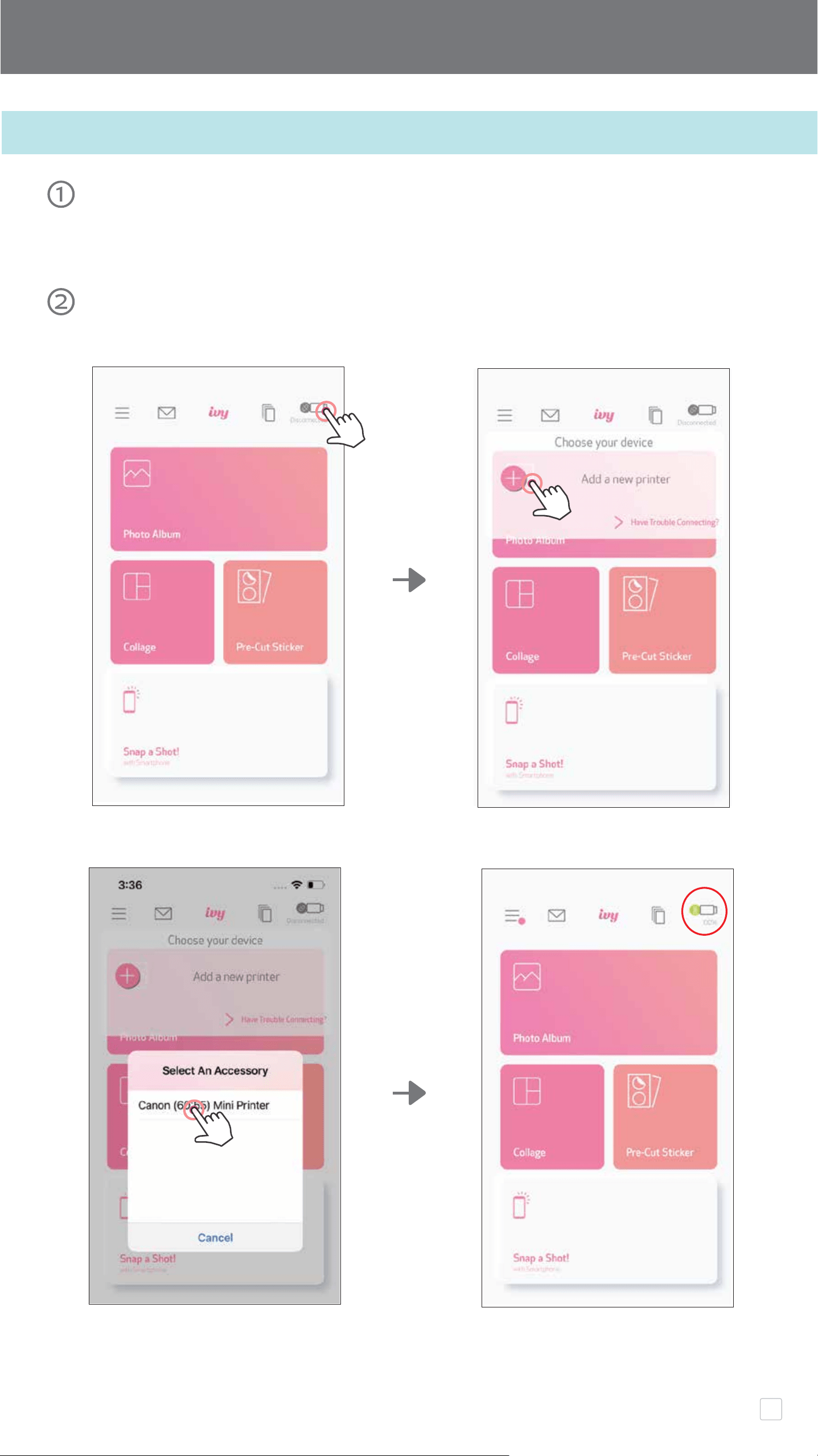
Turn on the printer by pressing and holding the Power button until the status LED
light turns on.
Open mobile device "Settings" to enable Bluetooth and pair it with the printer.
Pair - Tap on the icon on the top right corner and choose your printer. The icon will
change to indicate battery level after connected.
PAIRING MOBILE DEVICE & MINI PHOTO PRINTER
Android and iOS Pairing
12
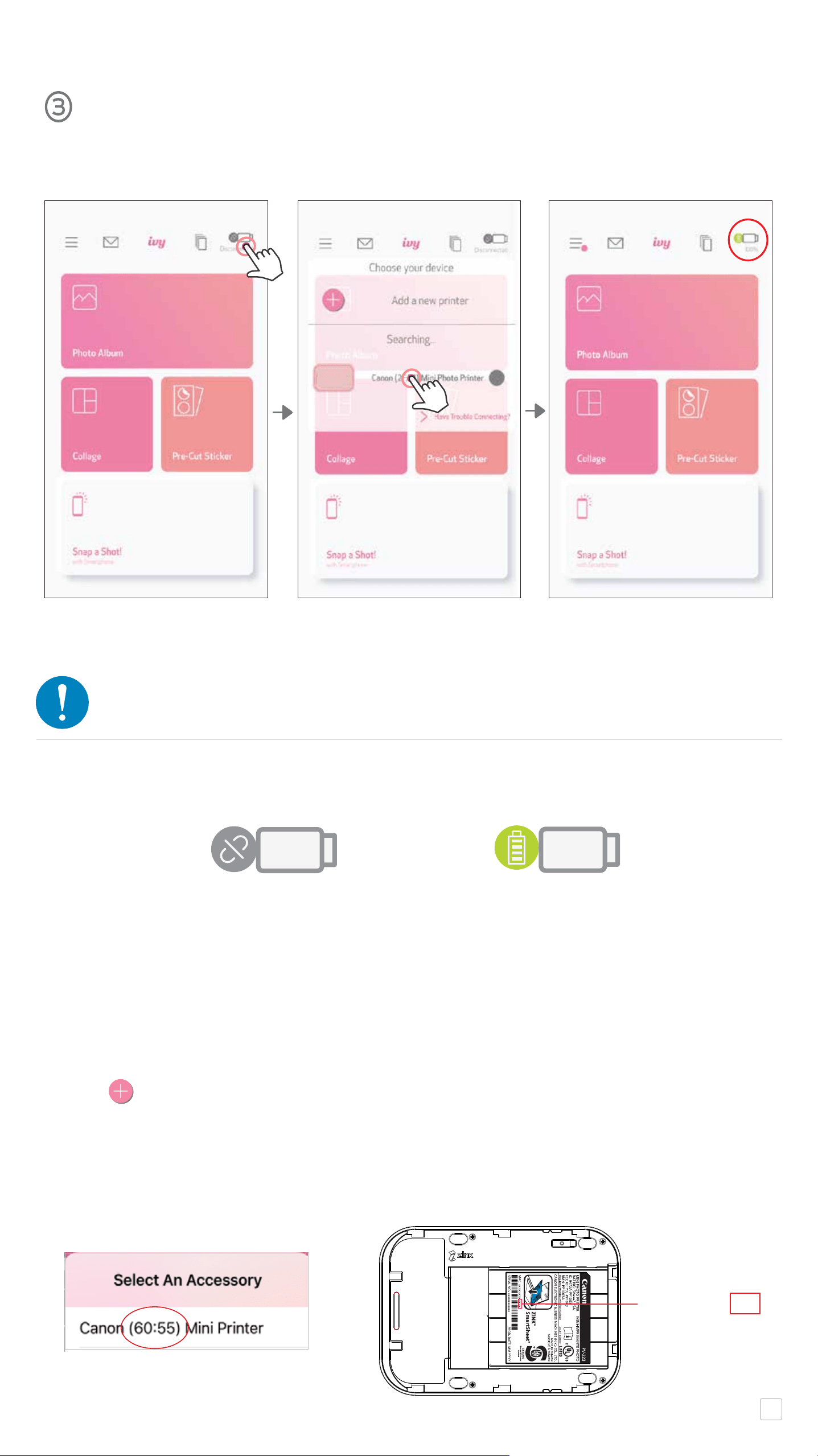
Reconnect Printer - The printer will automatically reconnect to the app once paired
already. If the printer has not connect to the app, tap on the icon on the top right
corner and choose your printer on the list.
Printer Status Icon (shown in App)
NOTE
About Pairing
• One printer can be paired with only one iOS/Android device.
• One iOS/Android device can be connected to multiple printers.
To pair an additional printer, go to home page and tap on the icon on the top right and
press " " to choose the printer.
• Search for and pair a printer named "Canon (xx:xx) Mini Printer".
Match the last 4 digits of the MACnumber (xx:xx) on the label inside the printer.
• Bluetooth searching and transferring may fail depending on the environment.
Check the Bluetooth setting on your mobile device and try again.
MAC: xx:xx:xx:xx:xx:xx
Printer connected
(Battery status shown)
Printer not connected
13
14
App experience, features, and available Online Albums may vary depending on your device and region.
* Internet Connection Required. Requires active social media or Cloud account(s) to use.
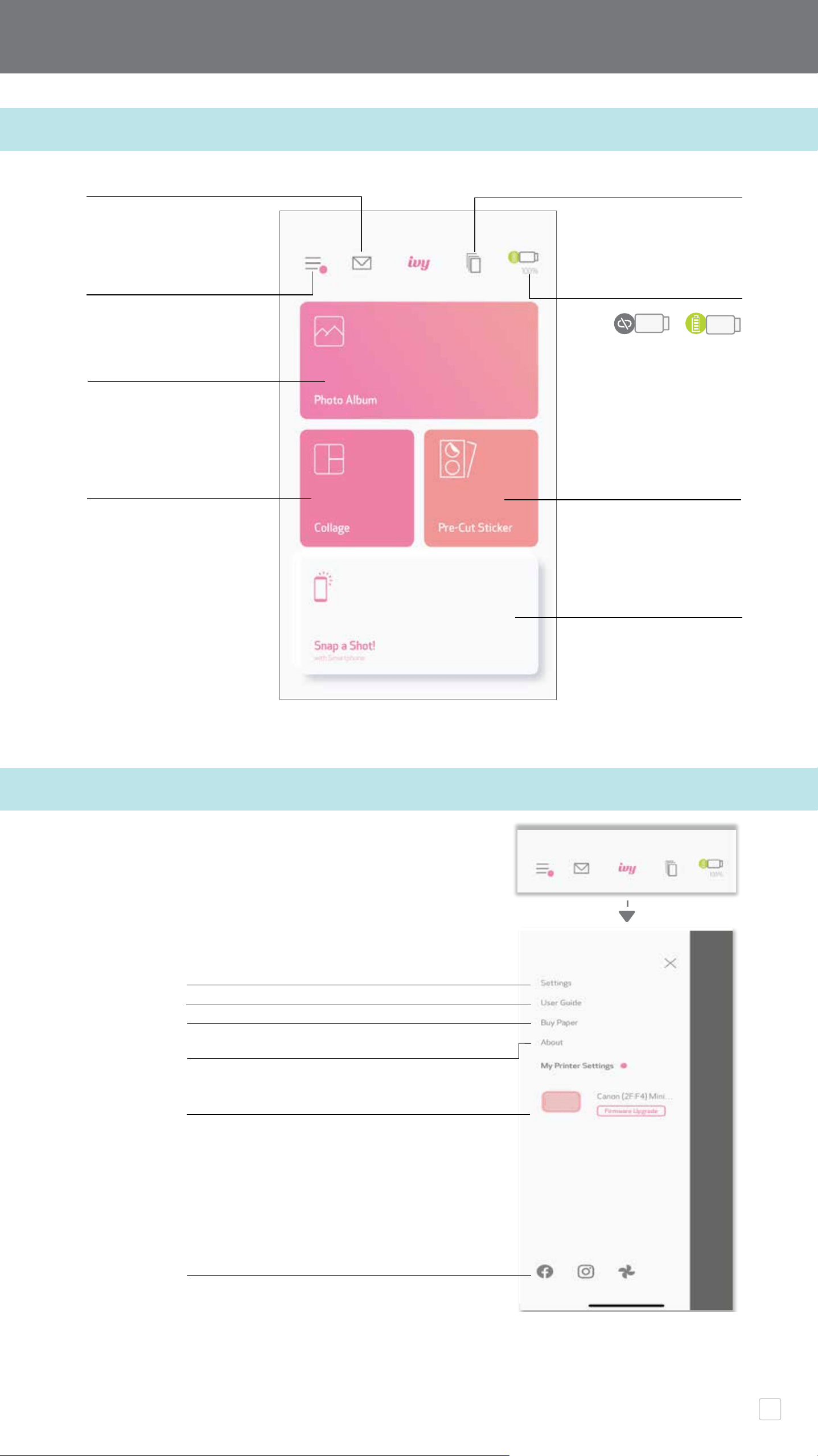
MAIN MENU
HOME SCREEN
USER INTERFACE
Smartphone Camera
Photo Album
Pre-cut Sticker
Main Menu
Collage
Printer Status
Print Quene
Inbox
User can check the printer information,
customize the printer name, change the auto
power o time at anytime
Access paired printer information & settings
View Online User Manual & FAQ
Purchase photo paper from Online Store
Check App version, user Agreement and
Privacy Statement
Online Albums* (Login / Logout)
Facebook
Instagram
Google Photos
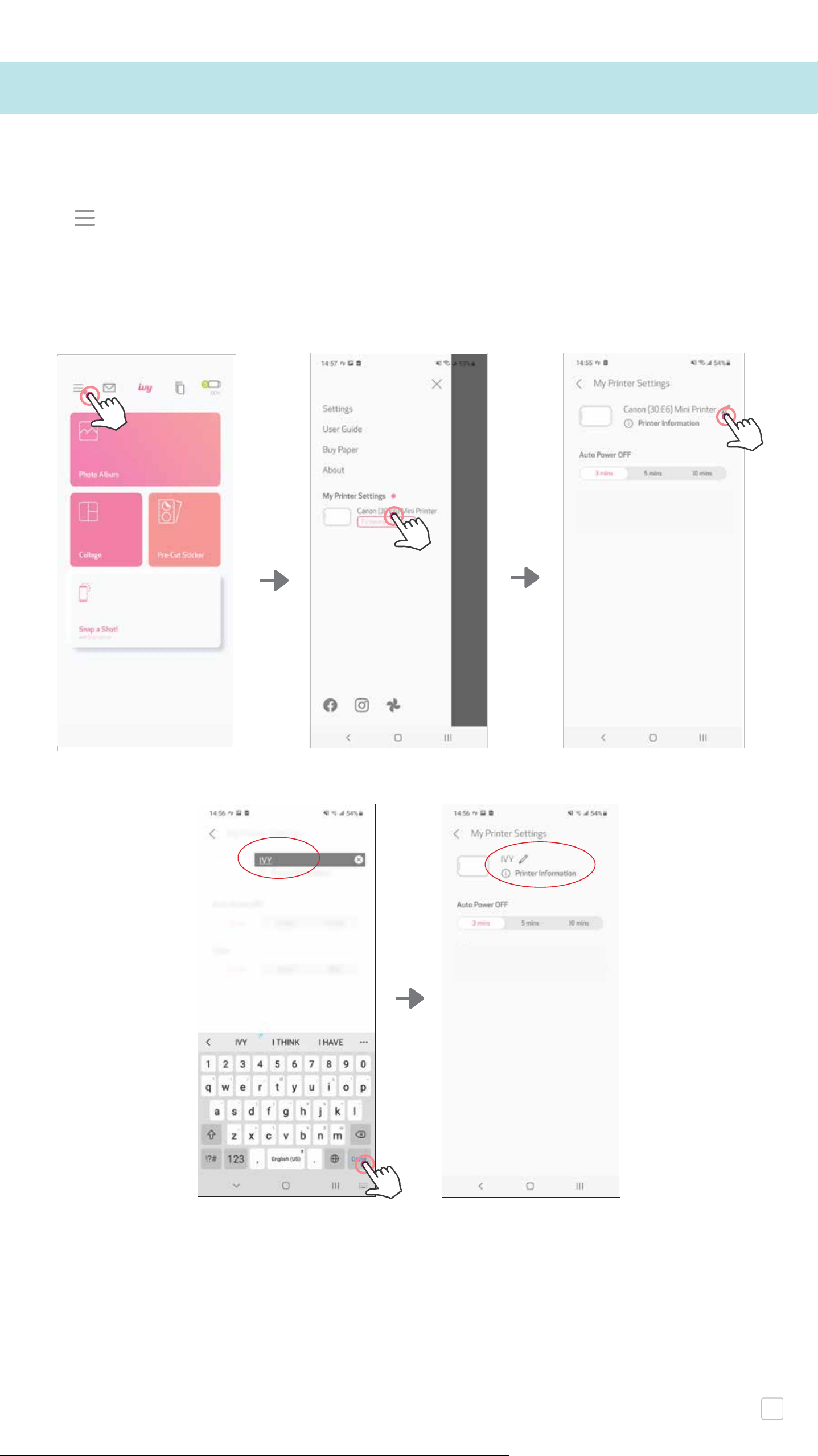
When the printer is connected with a mobile device, user can customize the printer
name and auto power o time.
Tap , select your device to customize the printer name and auto power o time
through the App.
RENAME
User can customize the printer name as you wish.
PRINTER SETTING
15

AUTO POWER OFF
Tap to change the auto power o time.
16

FCC REGULATIONS
This device complies with Part 15 of the FCC Rules. Operation is subject to the following two conditions:
(1) this device may not cause harmful interference, and
(2) this device must accept any interference received, including interference that may cause undesired
operation.
BATTERY RECYCLE
The lithium ion/polymer battery is recyclable.
Please call 1-800-8-BATTERY for information on how to recycle this battery.
Canon U.S.A., Inc. Canon is a registered trademark of Canon Inc. in the United States and may be a registered
trademark, or trademark, in other countries. IVY is a trademark of Canon U.S.A., Inc. in the United States. SMART
SHEET, the ZINK Technology and ZINK Trademarks are owned by ZINK Holdings LLC. Used under license. Apple,
the Apple logo, iPad, iPad Air, iPad Pro, and iPhone are trademarks of Apple Inc., registered in the United States
and other countries. App Store is a service mark of Apple Inc. iOS is a trademark or registered trademark of
Cisco in the United States and other countries and is used under license. Android and Google Play are
trademarks of Google LLC. Bluetooth is a registered trademark of Bluetooth SIG. Wi-Fi is a registered trademark
of the Wi-Fi Alliance. All other third-party product names, brand names and logos are
trademarks of their respective owners.
© CANON ELECTRONIC BUSINESS MACHINES (H.K.) CO., LTD. 2025 PV-223-UEN-202501


