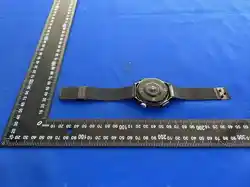

Watch6Ultra smart watch
Thank you for choosing our smart watch. You can read this manual to fully
understand how to use the device. This device is mainly connected to the mobile phone
through Bluetooth for adaptation and use. It provides a variety of practical
functions and services to facilitate your operation of the mobile phone. Human
movement and health functions. The company reserves the right to modify the contents
of this manual without any prior notice without notice
This product supports IP68 waterproof, the application scenario supports rain,
hand washing and other daily waterproof, swimming is not recommended to wear, hot
shower or sauna, etc., can not prevent water vapor. If the watch is damaged due to
water ingress due to failure to follow the instructions, our company will not provide
free warranty.
Operating instructions:
Side button function:
1. Up button: Function button: Single press to enter Gypsophila; when in other
application interface, single press to return to the upper level interface;
Double-press to switch menu style on menu interface;
2. Down button: long press to switch the machine; single press on the dial interface
to turn on and off the screen, other interfaces return to the dial interface with
one key;
Touch gesture:Double-click on the dial interface to enter the SIRI interface; swipe
left to switch to the component interface; swipe right to enter the split-screen
UI; swipe down to enter the control center; swipe up to enter information; after
entering each function, swipe right to return.
Dial switch: The rotary encoder switches the dial.
Strap replacement: Pull forward with one hand, and push forward with the other hand
at the same time, the strap can be easily disassembled;
Charging instructions:
It supports wireless charging. When charging, place the watch on the disc, and
support the computer USB or mobile phone 5V standard charger, which can be fully
charged in about 150 minutes.
Horizontal and vertical charging screen: When connected to the power supply and
placed horizontally or vertically, the bedside clock interface will be displayed.
Connection between watch and mobile phone:
First, the mobile phone must download the APP "RDFit" to the mobile phone and install
it in two ways。
1.IOS/Android phone user:
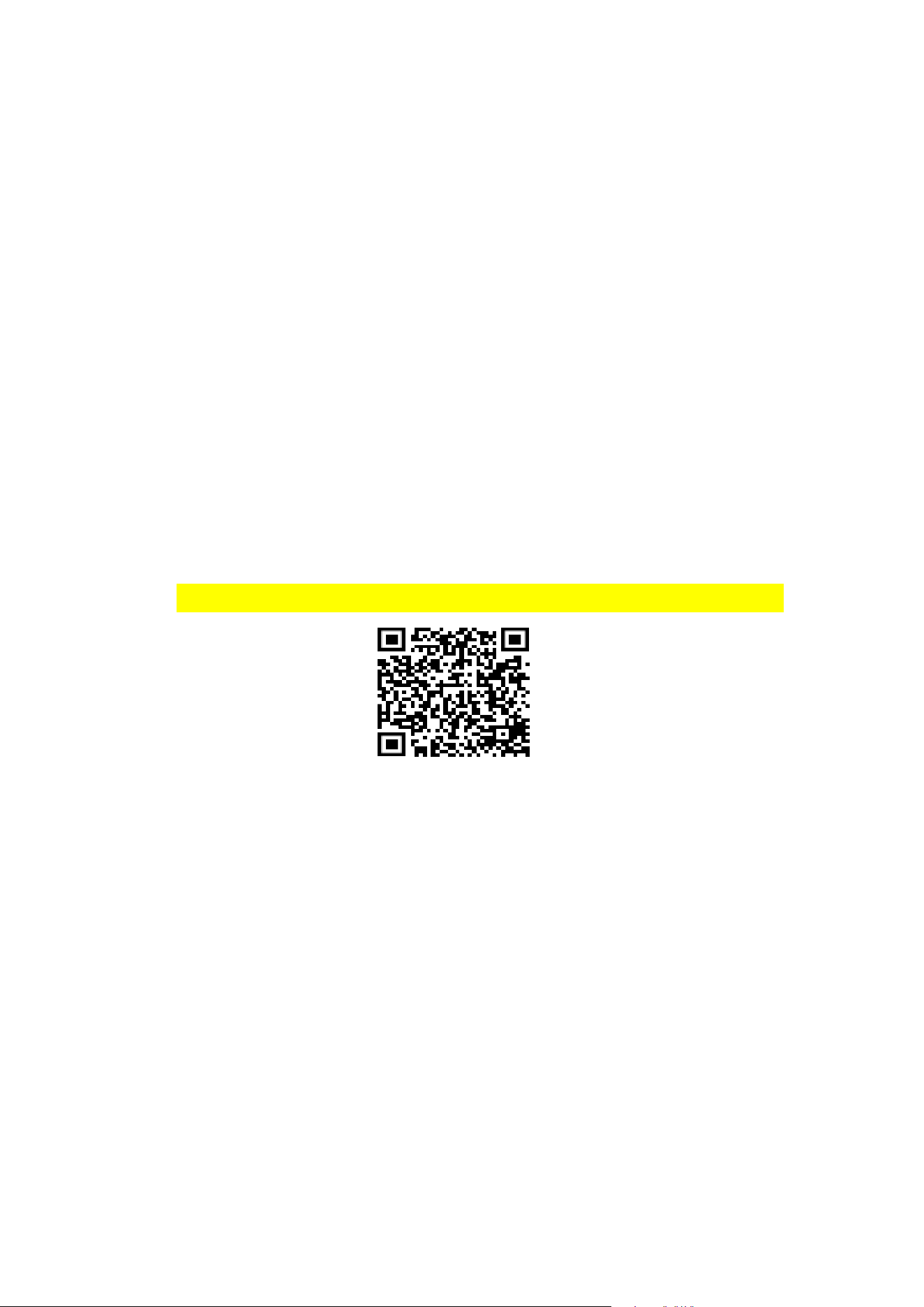
Scan the QR code below through the mobile browser, or scan it with WeChat. When
the interface is opened, click the Android/iOS download option and choose to open
the download with the mobile browser.
The QR code in the figure below is the RDFit APP download
Android/iOS
2
2.For Android phones, search for "RDFit" and download in App Store, Google Play,
and various mobile app stores, and for Apple phones, search for "RDFit" and download
on the App Store.
After the download is complete, there will be various permission reminders during
the installation process, click to agree to all, and the watch and the mobile phone
must be connected to two Bluetooth 3.0 and 5.0 to realize all functions.
Bluetooth 5.0 connection method: After the installation is completed, open "RDFit"
and turn on the mobile phone Bluetooth. The RDFit will be prompted with an activation

notification. Click OK. Click more in the lower right corner, enter the scanning
device, search the watch6pro Bluetooth address and click Connect. Some Android
phones need to turn on the mobile GPS to find the watch Bluetooth name.
Bluetooth 3.0 connection method: 1. Turn on Watch 3.0 Bluetooth and watch6ultra
audio Bluetooth will pop up on the mobile phone after the APP terminal is connected
successfully.
(Note: To prevent high power consumption during connection use, it is recommended
to turn off the media audio switch in Bluetooth)
How to verify that the Bluetooth connection is successful:
The watch pulls down the status bar on the standby interface. When the Bluetooth
of the watch 3.0 and 5.0 are blue + green, it means that the Bluetooth connection
is successful. When the color of the Bluetooth logo is grayed out, it means that
the Bluetooth is not connected.
Simple handling methods for common problems:
Since the Bluetooth protocol of each mobile phone brand is not uniform, sometimes
the Bluetooth connection between the mobile phone and the watch may be unstable.
You can turn off the Bluetooth of the mobile phone and reconnect it again, or restore
the watch to the factory settings.
How to set the notifications:
Mobile phone enters settings-application management, find "RDFit"-permission
management, open all. Then enter the notification management-find all the
permissions of "RDFit" to open.
Open "RDFit"-more-application push-open the background running permission, enter
the option without restrictions. When you return, you will be prompted to open the
auto-start again and enter the open. Go back, select the APP for synchronization
information notification, such as QQ WeChat, and select Open.
Note: If the WeChat computer version is online at the same time, the mobile phone
will not receive notifications. Some mobile phones also need to add "RDFit" to the

power saving whitelist to avoid being turned off by the mobile phone when the battery
is low.
What should I do if I do not receive the notification?
First of all, the notification function of the watch is only to synchronize the
notification function of the mobile phone, such as incoming call and letter, QQ
WeChat letter reminder, if your mobile phone does not receive the notification, then
the watch will not receive it. You should find the corresponding APP in the phone
settings-notification function , Turn on the permission notification.
Main function introduction:
Encoder:The dial button on the standby interface can switch the dial, and it can
slide up and down in the secondary menu; the gypsophila style menu can be zoomed
in and out,After the interface is maximized, you can enter the application in the
middle of the interface.
Split Screen:Swipe right on the dial interface to enter the split screen function,
and you can quickly enter the corresponding function;
Watch face push:It can push APP-side pointer dials, digital dials and custom dials.
Alipay:Follow the prompts to use Android or Apple mobile phones, open Alipay and
scan the QR code to bind. (Note: Note: Do not connect the 3.0/5.0 Bluetooth of other
mobile phones before binding Alipay to avoid the failure of binding)
Dialpad:Connect the mobile phone to make a call, and the call can be realized on
the watch side.
call records:It can synchronize the call records of the mobile phone.
Phone book:You can add 20 contacts to the phone book of the watch through the APP
Pedometer:You can view the number of steps in a day, historical steps, calorie
consumption and walking distance of the day. After 24 o'clock every night, the data
of the day will be stored as historical data, and the interface data will be reset
to 0.
information:View the messages pushed on the mobile terminal, support facebook,
twitter, whatsapp, qq, WeChat, etc.

music:Can control to play music in the phone. Connect 5.0 Bluetooth, only support
the mobile phone to play songs; Connect 3.0 supports the watch end to play songs
Heart rate:Put the watch close to your wrist, and the best place to wear it is the
wrist bone above your arm. The real-time heart rate can be measured. The normal range
is 60-90 beats/min.
Blood oxygen:The measurement starts when you enter it. Please keep your arm at rest
during measurement, and the value will be measured after about 20 seconds.
blood pressure:The monitoring starts when you enter it. When monitoring, please
lay your hands flat, and the value will be measured after about 12 seconds.
Alarm:Five alarm clocks can be synchronized through the APP; The watch can also set
an alarm clock.
Voice (Siri):After connecting to Bluetooth 3.0/5.0, tap Siri on the watch to chat
Sleep monitoring:The sleep duration and sleep quality from 21:00 on the same day
to 9 a.m. the next day will be recorded to help better adjust personal work and rest
time and improve sleep quality. Sleep data can be viewed simultaneously by connecting
to the APP.
sports:The watch has a variety of special sports: such as running, walking, football,
badminton, tennis, basketball, table tennis, cycling, yoga, rope skipping, mountain
climbing; it can be connected to the APP to view the sports data of the watch.
Remote photo:When the phone is not locked, the watch enters the Bluetooth camera,
the phone enters the camera interface, tap the watch to take a photo, and the photo
will be stored in the mobile phone album.
Find phone:Connect to Bluetooth, click to find the phone on the watch, and the phone's
ringtone will ring until canceled.
Find device:Tap the search device on the APP side, and the watch side will continue
to vibrate until canceled.
weather:After connecting to Bluetooth, the watch terminal can display the weather
conditions for the next 3 days.
Stopwatch:Turn on this function to perform single or multiple timing.

breathe:The length of exercise and breathing rate can be set.
Calculator:Simple calculation can be performed after entering.
Menu style:You can choose starry style, straight list style, rotating style,
roulette style, arc list style, etc. according to your own preferences..
set up:System settings can be made
calendar:Can view the current month's calendar
Movement track:The watch is connected to the APP, and the APP terminal enters the
special sports: running, walking, cycling, and climbing can be synchronized to the
watch terminal and displayed at the same time
QR code:The watch is connected to the APP and can be pushed through the APP: WeChat,
QQ, Alipay, others, whasapp, Twitter, linkedin, Instagram, Facebook, weibo, line,
Tim, Snapchat, Viber, PayPal, and the QR code of third-party applications can be
sent to the watch. Scan QR code to add friends
Component function: Swipe right on the dial interface and click the plus sign to
start adding components. The components include: heart rate, blood pressure, blood
oxygen, sleep, breathing, step counting, weather, and music; up to 5 components can
be added, and long press the component to click the minus sign. Remove components.
Lock dial: In the dial drop-down menu bar, click the lock dial switch to lock the
current dial; then click the lock dial switch to unlock it; after the dial is locked,
turning the encoder cannot switch the dial
Douyin: In the drop-down menu bar of the dial, click the middle button to enter
the Douyin interface: you can choose to switch videos up and down, play/pause videos,
like videos, and increase or decrease the volume.
Always on: When the screen is turned off, there will be a pointer display when the
bracelet is turned off.
Bedside lamp: It can be displayed vertically and horizontally during charging, and
the horizontal screen can be constantly on
Compass: Real time positioning of your location and direction when traveling
Lingdong Island: Turn on the Lingdong Island switch in the settings, and when opening
the specified application, it can be displayed at the top of the dial and can be

clicked to enter (currently only supports message push, timer, and charging display
functions)
Blood sugar: real-time monitoring of your blood sugar values
Settings: Various local settings can be made.
Screen off time: Enter to set the screen on time;
Always on time: You can set the time that the pointer is always on
Gesture: Turn it on or off according to your needs.
Connect APP: Use your mobile phone to scan the two-dimensional code, you will be
redirected to the RDFit APP download
Brightness: enter the adjustable screen brightness
NFC:This function has been turned on and can be used directly
Do not disturb mode: can be set to do not disturb all day or regularly;
Vibration intensity: the vibration mode can be turned on to adjust the vibration
feeling;
Language: Support multiple languages, choose according to your needs
Power off: Enter to power off the watch.
Restart: Enter to restart the watch.
Restore factory settings: Generally, when some software problems occur, restore
factory settings can solve it.
About: You can view the watch model, software version and watch Mac address.
Warranty description:
1. During normal use of this product, if there are product quality problems caused
by manufacturing, material, design and other reasons, the motherboard will be
guaranteed for free within one year, and the battery and charger will be guaranteed
for half a year from the date of purchase.
2. Free warranty is not provided for failures caused by users, as follows:
1)Failure caused by unauthorized disassembly or modification of the watch.
2)Failure caused by accidental fall during use.

3)All man-made damage or misuse due to the fault of a third party (such as: water
in the main unit, external force cracking, damage to the scratches of peripheral
components, etc.) are not covered by the warranty.
3. When requesting free warranty, please provide the warranty card with the date
of purchase and the stamp of the place of purchase.
4. When the user repairs the product, please take the product to our company or our
company's sales office.
5. All functions of the product are based on physical objects.

This device complies with part 15 of the FCC Rules. Operation is subject to the
following two conditions: (1) This device may not cause harmful interference, and (2)
this device must accept any interference received, including interference that may cause
undesired operation.
Any Changes or modifications not expressly approved by the party responsible for
compliance could void the user's authority to operate the equipment.
Note: This equipment has been tested and found to comply with the limits for a Class B
digital device, pursuant to part 15 of the FCC Rules. These limits are designed to
provide reasonable protection against harmful interference in a residential installation.
This equipment generates uses and can radiate radio frequency energy and, if not
installed and used in accordance with the instructions, may cause harmful interference
to radio communications. However, there is no guarantee that interference will not
occur in a particular installation. If this equipment does cause harmful interference to
radio or television reception, which can be determined by turning the equipment off and
on, the user is encouraged to try to correct the interference by one or more of the
following measures:
-Reorient or relocate the receiving antenna.
-Increase the separation between the equipment and receiver.
-Connect the equipment into an outlet on a circuit different from that to which the
receiver is connected.
-Consult the dealer or an experienced radio/TV technician for help.
FCC Radiation Exposure statement
The device has been evaluatec to meel general RF exposure requirement. The device
can be used in portable exposure condition without restriction.