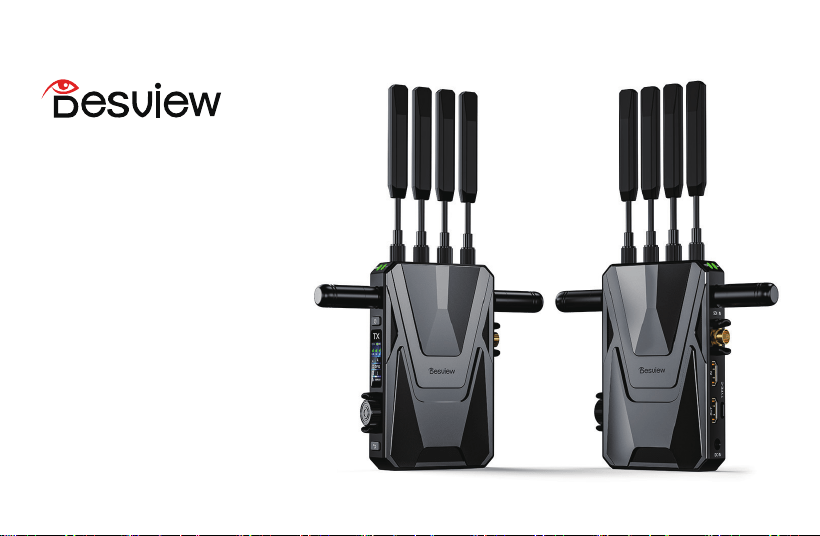
USER MANUAL
4K Tri-Band Wireless
Video Transmission
Atlas X 4K
CONTENTS
English
01
Français
15
Deutsch
29
日本語
43
ltaliano
54
Español
68
Nederlands
82
Polski
96
Svenska
110
简体中文
124
�. Do not use in rain or moisture environments.
�. Do not drop or subject the product to avoid damage.
�. Do not expose battery-powered equipment to prolonged direct
sunlight or prolonged charging.
�. Ne pas utiliser l'cran dans des environnements humides ou sous la pluie.
�. Évitez de faire tomber ou de soumettre le produit à un choc
violent pour éviter les dommages.
�. N'exposez pas l'équipement alimenté par batterie à la lumière
directe du soleil pendant une longue période et ne le chargez pas
pendant une longue période.
�. Nicht in regnerischen oder feuchten Umgebungen verwenden.
�. Vermeiden Sie das Fallenlassen oder Stöße auf das Produkt,
um Schäden zu vermeiden.
�. Setzen Sie batteriebetriebene Geräte nicht über längere Zeit
direkter Sonneneinstrahlung aus und laden Sie sie nicht über
einen längeren Zeitraum auf.
�.雨や湿気の多い場所で使用しないでください。
�.本製品を地面に落としたり、硬いものにぶつけたり、強い衝撃
を与えたりしないでください。故障の原因となることがあります。
�.バッテリ-駆動の機器を直射日光に長時間さらしたり、長時間
充電したりしないでください。
�. Non utilizzare in ambienti bagnati o umidi.
�. Evitare di far cadere o sottoporre il prodotto a forti impatti
per evitare danneggiamenti.
�. Non esporre l'apparecchiatura alimentata a batteria alla
luce solare diretta per lungo tempo né caricarla per un lungo periodo.
�.No use en ambientes húmedos o húmedos.
�. Evite dejar caer o someter el producto a un impacto fuerte
para evitar daños.
�.No exponga el equipo que funciona con baterías a la luz solar
directa durante mucho tiempo ni lo cargue durante mucho tiempo.
�. Niet gebruiken in natte of vochtige omgevingen.
�. Laat het product niet vallen en stel het niet bloot aan sterke
fysieke schokken om schade te voorkomen.
�. Stel apparatuur die op batterijen werkt niet langdurig bloot
aan direct zonlicht en laad deze niet langdurig op.
�. Nie używać w wilgotnym lub mokrym otoczeniu.
�. Należy unikać upuszczania lub narazania produktu na silne
uderzenia, aby zapobiec jego uszkodzeniu.
�. Nie wystawiaj sprzętu zasilanego akumulatorowo na bezposrednie
działanie promieni słonecznych przez dłuzszy czas ani nie ładuj
go przez długi czas.
�. Använd inte i våta eller fuktiga miljöer.
�. Undvik att tappa produkten eller utsätta den för kraftiga stötar
för att förhindra skador.
�. Utsätt inte batteridriven utrustning för direkt solljus under lång
tid och ladda den inte under lång tid.
1.Product Overview 2.Product Features
EN
01
ank you for using the Desview Atlas X 4K wireless video transmission
system.Atlas X 4K is Desview's rst-generation 4Kp60 wireless video
transmission system with signicant R&D investment, supporting a
maximum resolution of 4096*2160p60, with an average latency as low
as 35ms, and an ultra-long transmission distance of up to 3km. e
system adopts self-developed tri-band simultaneous transmission
technology, ensuring extremely stable image transmission on the
remaining frequency bands even if one band is interfered with. For
encoding and decoding, it utilizes the latest H.265 format, which delivers
higher quality and more ecient encoding/decoding compared to H.264,
with bandwidth reduced to 50% of H.264, nearly lossless encoding,
better motion prediction and compensation, and an overall performance
improvement of 40% over H.264. Additionally, this transmission system
supports multi-stream and multi-bitrate simultaneous operation.
Besides using the HDMI and SDI to connect the monitors, users can also
perform wired monitoring (UVC) via mobile devices or PC devices. Both
the transmitter and receiver support UVC feature, with the transmitter
additionally supporting SDI input with HDMI loop-out, and HDMI input
with HDMI loop-out.
Supports Ultra HD 4Kp60 with downward compatibility
Utilizes H.265 video encoding/decoding
Supports multi-bitrate and multi-stream
HDCP protocol compatible
Transmitter supports HDMI input & HDMI loop-out, SDI input
with HDMI loop-out
Receiver supports simultaneous HDMI and SDI output
Ultra-low latency of 35ms
Tri-band simultaneous transmission (2.4GHz+5GHz+6GHz)
+ DFS channels
Both transmitter and receiver support UVC feature
3km maximum transmission distance
Supports intelligent temperature control
Supports DC and NP-F battery power supply
1.05-inch full-color TFT display
3.Packing List
4.Applications
02
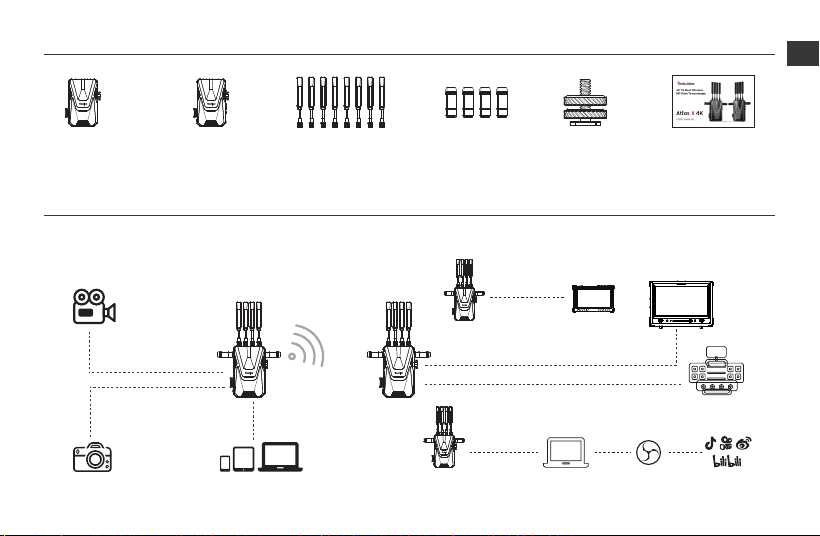
Transmitter(TX) * 1
Atlas X 4K supports up to 5 transmission channels, including 1 wired channel
SDI Input
SDI Output
HDMI Output
HDMI Output
Vide Switcher
Transmitter(TX)
Receiver(RX)
Receiver(RX)
Receiver(RX)
Monitor
Monitor
Camera
Camera
HDMI Input
Type-C Output
Type-C Output
Mobile/Tablet/PC
Receiver(RX) * 1 Camera Mount * 1 User Manual/Certicate * 1 2.4GHz/5GHz Antenna * 8 6GHz Antenna * 4
Computer Video Source
OBS Platform
EN
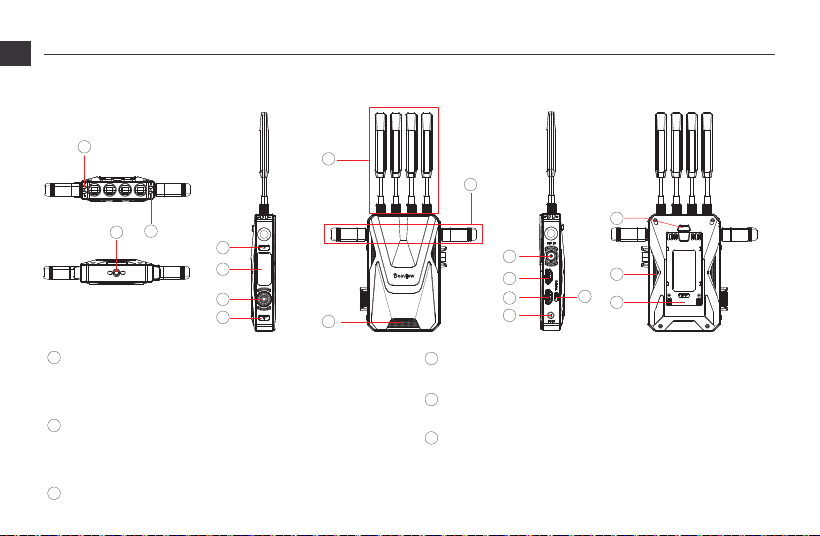
5.1 Interface & Button Description
5.Quick Start Guide
03
1
1
2
3
4
5
6
7
8
9
10
11
12
13
14
15
16
17
18
Video Input Indicator
Lights up briey during power-on to indicate power supply;
During normal operation: Solid light indicates video
input detected. No light indicates, no video input.
2
Connection Status Indicator
Lights up briey during power-on to indicate power supply;
During normal operation:Solid light indicates connection established,
No light indicates, no connection.
3
1/4" Screw Hole
4
Power Button
Press for l second to power on, Press and hold for 3 seconds to power o.
Note: e RX does not have HDMI input interface, other interfaces are indentical to the TX.
5
Full- color LCD Display
Displays transmission status and menu.
6
Menu Knob
Rotate left/right and press to select/conrm menu operations.
Rotation: Switch between menu pages/options.
Press shortly: Conrm selection in menu.
EN
7
Return Button
Returns to previous menu page .
8
2.4GHz/5GHz Antenna
9
6GHz Antenna
10
Cooling Fan Intake
Note : Do not block the fan intake during use to avoid aecting performance .
04
3G-SDI Interface
Transmitter: Video input, connects to video source 's SDI interface .
Receiver: Outputs the received video signal.
HDMI Input Interface
Connects to video source's HDMI interface.
11
12
HDMI Output Interface
Transmitter: HDMI loop-out, outputs video from HDMI input to other devices.
Receiver: HDMI output, outputs the received video signal.
13
DC Power Interface
DC 7.4-24V/2A power input.
14
Type-C
Wired USB video output for connecting to video output devices.
15
Cooling Fan Exhaust
Warning: Do not block the fan exhaust during use to avoid
aecting performance.
16
17
NP-F Series Battery Slot
Install on the back of the transmission and push down until the “Battery
Lock” button clicks and pops out, ensuring it is securely installed.
Battery Release Button
Press and hold the "Battery Lock " button while sliding battery
in opposite direction of installation to remove .
18
EN
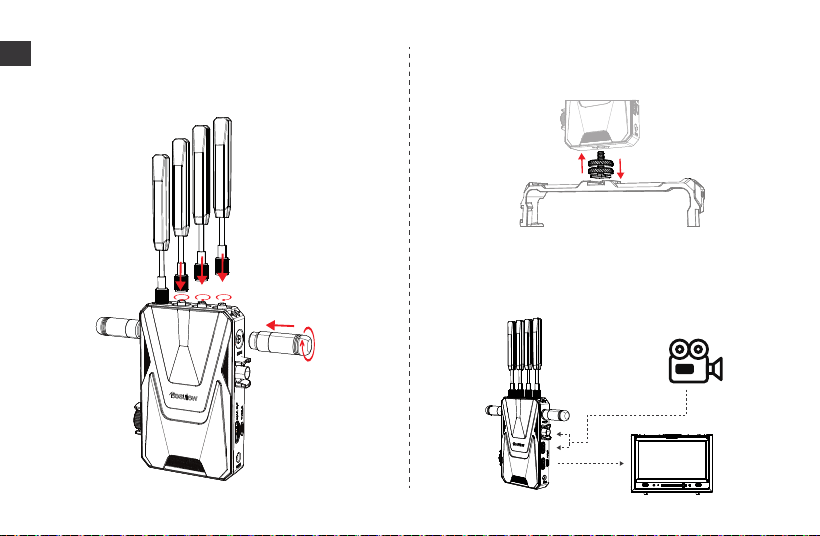
5.3 Mounting the Transmitter on Other Equipment
Mount the Atlas 4K on cameras or other equipment using a snail cloud platform
or magic arm.
5.4 Connection
Connect the transmitter to cameras, monitoring devices, etc. using SDI/HDMI
cables as required by your specic application.
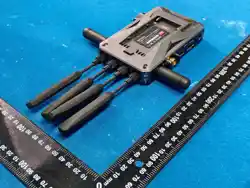
5.2 Antenna Installation
Install the 2 .4GHz/5GHz dual-band antennas on the top of the transmitter/
receiver as shown in the diagram, and install the 6GHz antennas on both sides.
05
EN
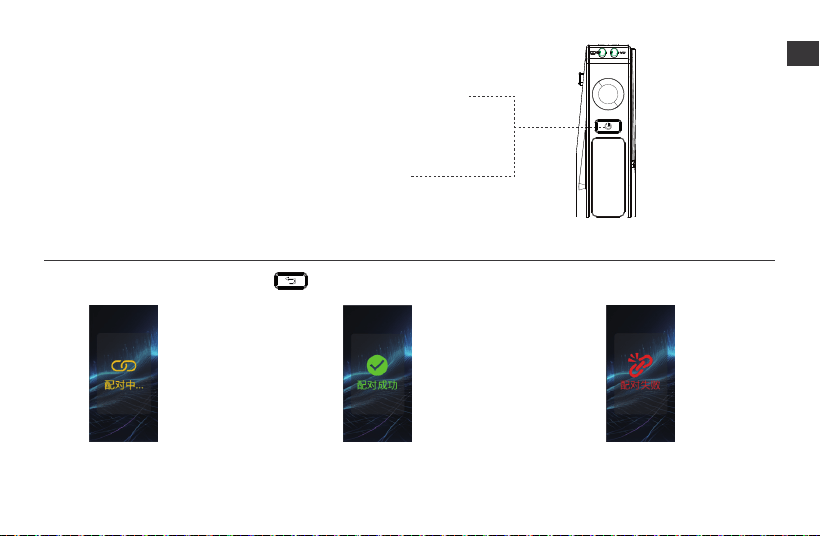
6. Pairing Settings
5.5 Power On/O
Power On:
Short press (about 1 second) the power button - the LCD screen and two indicator lights on the
unit will illuminate simultaneously to indicate power on.
Power O:
Long press (about 3 seconds) the power button to power o.
Pairing Settings: Press and hold the return button " " on both transmitter and receiver simultaneously for 3 seconds to enter pairing mode.
Pairing Status Indicators Pairing Successful Indicator
Pairing Failed Indicator
06
EN
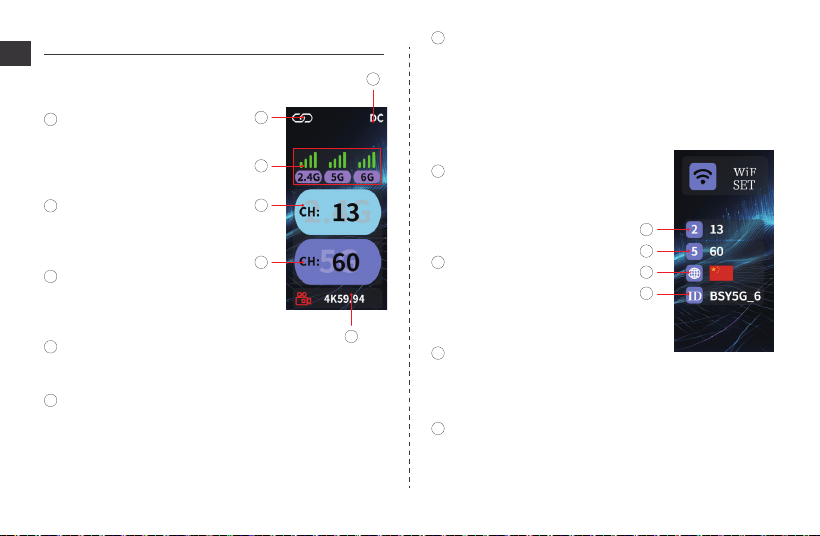
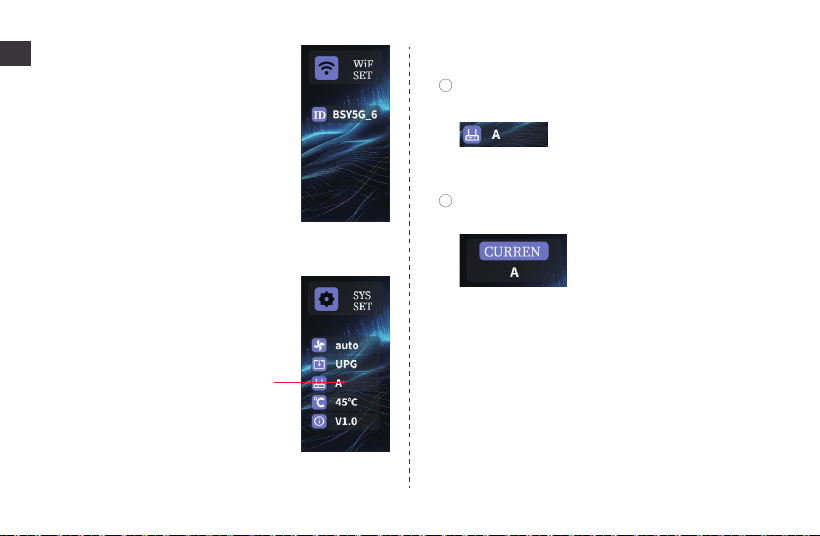
7.2 WiFi Settings Interface
2.4GHz Operation Channel
Display and set current 2.4GHz Wi-Fi
channel.
1
5GHz Operation Channel
Display and set current 5GHz Wi-Fi
channel.
2
3
Region Switching
Display and set current operating region of transmitter.
4
SSID
Display current 5GHz WiFi SSID of transmitter.
1
2
3
4
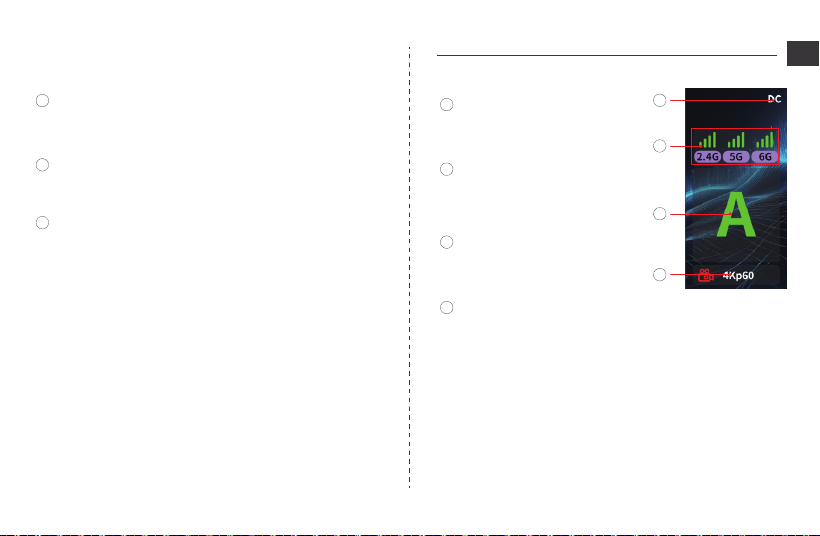
7. TX Interface Introduction
7.1 Main Interface
Battery Level/Power Indicator
Displays battery icon when on battery
power, shows "DC" when on wired
power supply.
1
Connected Devices Count
Does not display count when no devices
are connected.
2
Wireless Operation Status
Green: Current frequency band is active.
Gray: Current frequency band is inactive.
3
2.4G Operation Channel
Displays current working channel of 2.4GHz, congurable range of A-D.
4
5GHz Operation Channel
Displays current working channel of 5GHz, congurable range 36-165
(including DFS channels).
5
Input Video Information
Displays input video resolution and frame rate. Shows "NoSignal" when no
video input.
6
1
2
3
4
5
6
07
EN
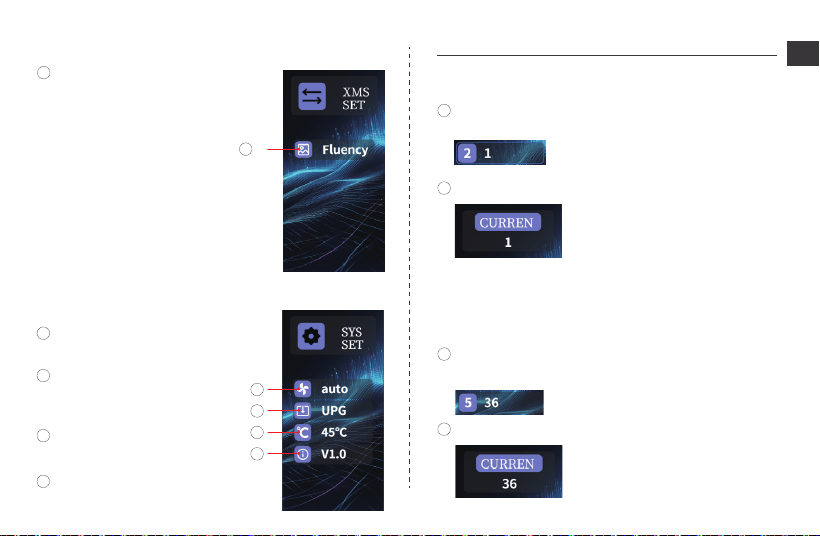
7.3 Transmission Settings Interface
Bitrate Settings
Display and set the current bitrate.
1
1
2
1
2
1
7.4 System Settings Interface
8.1 2.4GHz Channel Settings
Fan Settings
Display and set fan mode.
1
System Upgrade
Pre ss knob conrma tion button
to ente r system upgrade .
2
Device Temperature
Display current device temperature.
3
System Version
Display current system version of device.
4
1
2
3
4
8. Common TX Settings Introduction
Short press knob to enter WiFi settings interface, locate channel settings,
rotate knob to select desired channel.
Press knob to conrm, current channel will display in top bar.
8.2 5GHz Channel Settings
Short press knob to enter WiFi settings interface, locate channel settings,
rotate knob to select desired channel.
Press knob to conrm, current channel will display in top bar.
08
EN
1
2
1
2
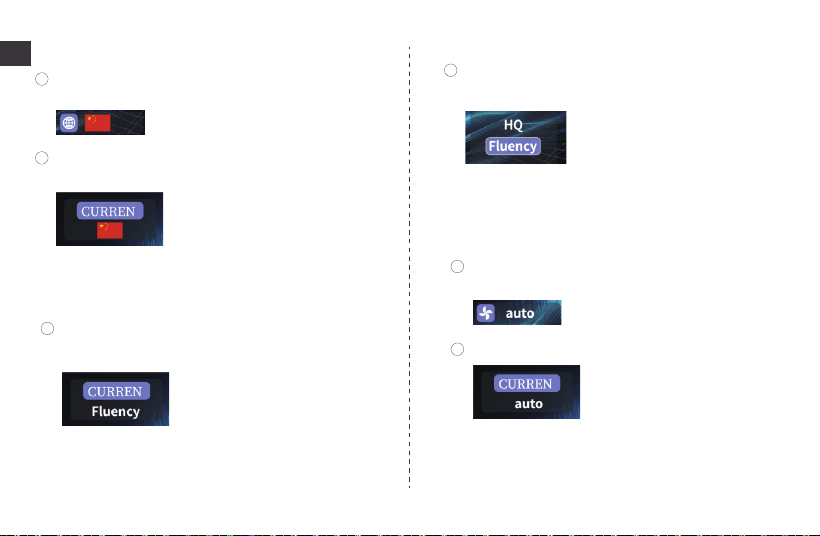
8.3 Region Switching
Short press knob to enter WiFi settings interface, locate region selection
setting.
Rotate knob to select region, press knob to conrm - will display as
"Active" in top bar.
8.4 Bitrate Settings
Short press knob to enter transmission settings interface, locate
bitrate option.
Rotate knob to select bitrate, press knob to conrm - will display as
"Active" in top bar.
09
EN
Short press knob to enter system settings interface, locate fan settings,
rotate knob to select desired mode.
Press knob to conrm, current channel will display in top bar.
1
2
8.5 Fan Settings
1
2
3
Battery Level/Power Indicator
Displays battery icon when on battery power,
shows "DC" when on wired power supply.
1
Wireless Operation Status
Green: Frequency band enabled.
Gray: Frequency band disabled.
2
Monitoring Position
Current monitoring position of receiver, up
to 4 positions can be set.
3
Input Video Information
Displays resolution and frame rate of received video, shows "NoSignal"
when no input.
4
2
3
1
4
9.1 Main Interface
9. RX Interface Introduction
8.6 System Upgrade
Visit www.desview.com, navigate to: Support → Firmware in top menu
bar.Download the latest version, extract the two .bin les to the root
directory of a USB drive.
Insert USB drive into device, short press knob to enter system settings
interface.
Enter the section, system will auto-detect upgrade les:
"await" = no le detected"succeed" = updating (do not power o during
upgrade)After completion, the device will automatically reboot.
10
EN
1
2
9.2 WiFi Information Interface
9.3 System Settings Interface
9.4 Monitoring Position Settings
Short press knob to enter system settings interface, locate monitoring
position option, rotate knob to select camera number.
Press knob to conrm, current camera number status will display in top
bar.
is interface has one additional monitoring position
setting compared to TX, others are identical.
Displays currently paired transmitter's 5GHz WiFi SSID.
Monitoring Position
11
EN
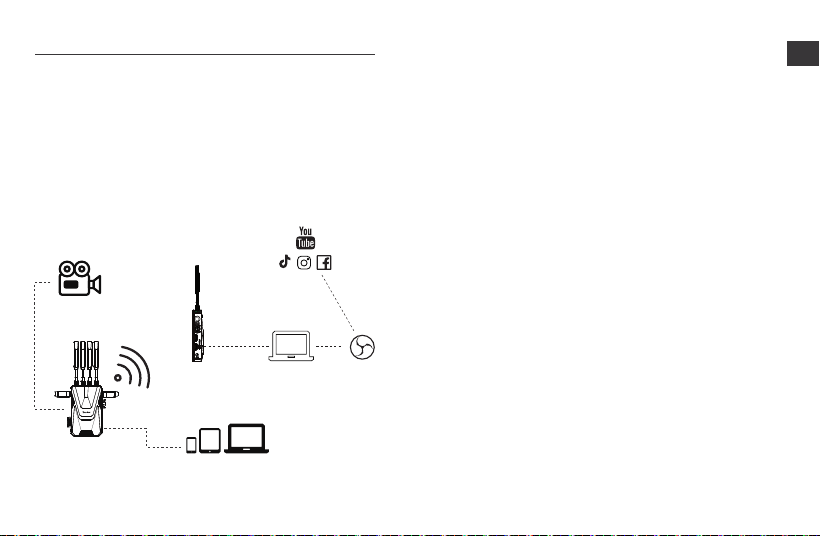
Transmitter (TX)
Camera
Type-C Output
Receiver (RX)
Computer Video
Source
Mobile/Tablet/PC
OBS
Platform
Connect to mobile devices via Type-C to Type-C cable, open USB camera software
on mobile device for monitoring.
10.1 Type-C to Type-C
Connect to PC devices via USB-A to Type-C cable, open OBS software on PC for
monitoring (supports streaming to third-party software for live broadcast).
10.2 USB-A to Type-C
10. UVC Monitoring
Type-C Output
12
EN
13
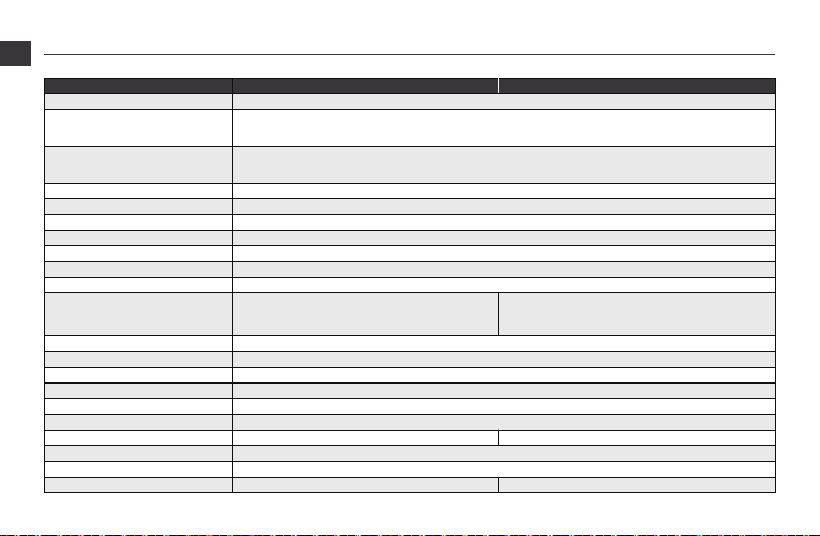
11. Specications
Transmitter TX Receiver RX
Frequency Range
HDMI Video Formats
SDI Video Formats
Audio Format
HDMI Interface
HDCP Protocol
Transmission Latency
Video Encoding & Decoding
Max Transmission Distance
Antenna
Product Interfaces
Product Buttons
Status Indicator Lights
Display
Power Supply
Cooling Method
Product Dimensions (Excluding Antenna)
Power Consumption
Operating Temperature
Storage Temperature
Weight (Excluding Antenna)
330g 330g
-40°C~60°C
-10°C~45°C
9W
7W
130×95×30mm
DC(7.4-24V)/ NP-F(6.4-8.4V)
Intelligent fan temperature control
1.05-inch full color LCD
Connection status light, Video signal light
Power button, Return/Pairing button, Menu Knob
2.4-2.4835GHz、5.18-5.825GHz、5.965-7.085GHz
4Kp 60 / 4Kp 59.94 / 4Kp 30 / 4Kp 29.97 / 4Kp 24 / 4Kp 23.97 / 1080p 60 / 1080p 59.94 / 1080p 30 / 108p 29.97
1080p 25 / 1080p 24 / 1080i 60 / 1080i 50 / 720p 60 / 720p 50
1080p60/1080p59.94/1080p30/1080p29.97/1080p25/1080p24
1080i60/1080i50/720p60/720p50
PCM
HDMI 2.0
HDCP 1.4 \ 2.3
35ms
H.265
3000 meters (No obstacles, no interference)
External
HDMI Input / HDMI Loop-out
SDI Input / DC IN
Type-C
HDMI Output / SDI Output
DC IN
Type-C
EN
14
12. FAQ & Solutions
13. Warranty Terms
EN
Visit Desview website's FAQ section.
Contact authorized dealers or call Desview hotline for consultation/repair.
Conrmation Signature (after reviewing terms):
Within 15 days of receipt: Quality issues entitle you to replacement or free
repair service.
Warranty Coverage
Beyond the warranty period (without receipt, calculated from production date).
Damage from improper use/maintenance without the accordance of user
manual.
Unauthorized repairs/disassembly.
Force majeure damages (re, ood, lightning, etc.).
Warranty Exclusions
Service & Support
e wireless video transmission device has a one-year warranty from the
date of receipt when used and maintained properly (accessories and cables
have a 3-month warranty), and free repair service is provided during the
warranty period.
Keep the purchase receipt and user manual in a safe place.
Please conrm if the receiver and transmitter have been paired.
No Connection Between the Receiver and
Transmitter
Check if video cable is connected to transmitter's input interface.
No Video Display
Check if the video cable is connected.
Verify antenna installation.
Abnormal Video Display
Video Lagging
Ensure antennas are properly installed.
Check if main interface displays video format info.
If not, check HDMI cable or camera's SDI/HDMI output.
Reconnect video input cable.
Reconnect video input cable.
Shenzhen Bestview Electronic Co. Ltd.
Wireless Image Transmitter
EN �����
EN �����
IEC �����-�-�:����
IEC �����-�:����
IEC �����-�:����+AMD�:���� CSV
IEC �����-�:����
IEC �����-�-�:����
IEC �����-�-�:����
IEC �����-�:����
Atlas X �K
Desview
China
�/F & �/F, Block ��, Longbi Industrial Zone, Ban tian Town,
Longgang District, Shenzhen, China
Manufacturer:
The EMC Directive ����/��/EU
ROHS Directive ����/��/EU and
its amendment directives (EU) ����/���
Address:
Product Name:
Models:
Trade Mark:
Place of Production:
European Representative
Name: Zhou's Jade Star UG Email: jadestar.[email protected]
Address: Brunnenallee ��A ����� Potsdam Germany
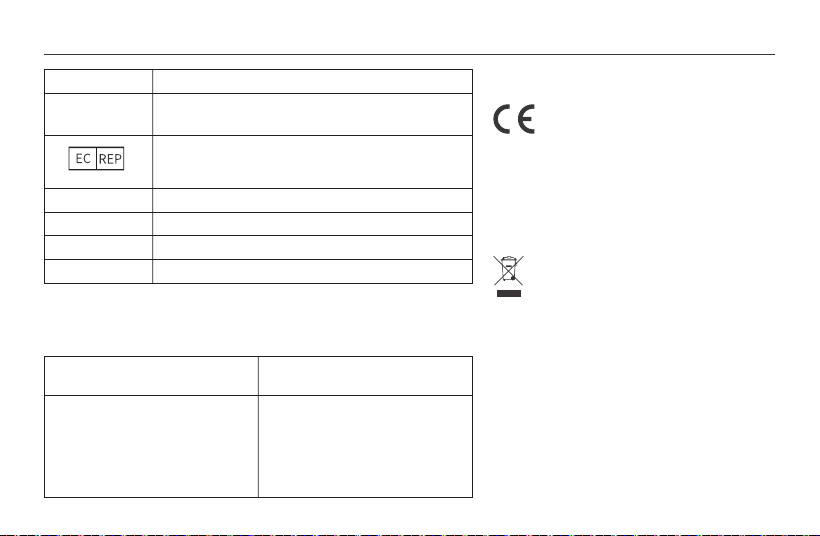
We herewith declare that the above mentioned products complies with the
relevant harmonization regulations of the EC Council. The following harmonized
standards and technical specifications have been applied:
The "CE" mark indicates that this product complies
with European regulations for product safety,
health requirements, and environmental protection.
This symbol indicates the separate collection of
electrical and electronic devices that become
industrial waste in EU countries. Please do not
dispose of such devices in household waste.
Please use the return and collection systems in
your country for the disposal of these products.
EU DECLARATION OF CONFORMITY
FCC Statement
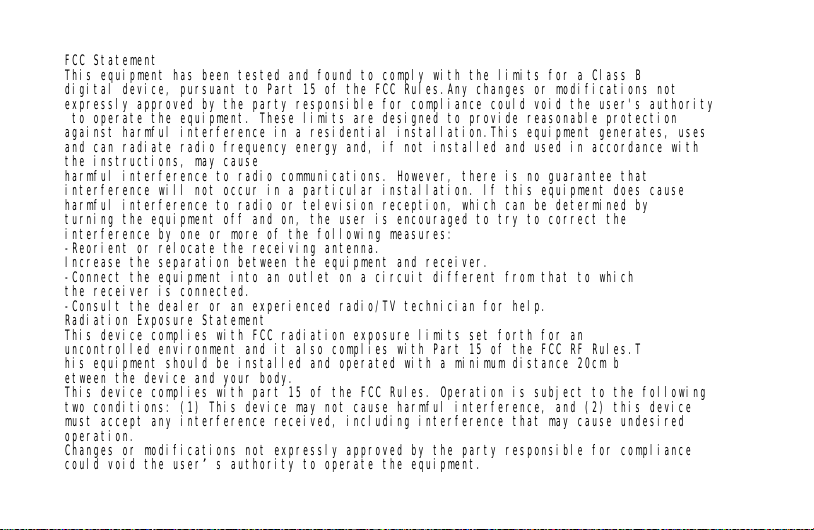
This equipment has been tested and found to comply with the limits for a Class B
digital device, pursuant to Part 15 of the FCC Rules.Any changes or modifications not
expressly approved by the party responsible for compliance could void the user's authority
to operate the equipment. These limits are designed to provide reasonable protection
against harmful interference in a residential installation.This equipment generates, uses
and can radiate radio frequency energy and, if not installed and used in accordance with
the instructions, may cause
harmful interference to radio communications. However, there is no guarantee that
interference will not occur in a particular installation. lf this equipment does cause
harmful interference to radio or television reception, which can be determined by
turning the equipment off and on, the user is encouraged to try to correct the
interference by one or more of the following measures:
-Reorient or relocate the receiving antenna.
Increase the separation between the equipment and receiver.
-Connect the equipment into an outlet on a circuit different from that to which
the receiver is connected.
-Consult the dealer or an experienced radio/TV technician for help.
Radiation Exposure Statement
This device complies with FCC radiation exposure limits set forth for an
uncontrolled environment and it also complies with Part 15 of the FCC RF Rules.T
his equipment should be installed and operated with a minimum distance 20cm b
etween the device and your body.
This device complies with part 15 of the FCC Rules. Operation is subject to the following
two conditions: (1) This device may not cause harmful interference, and (2) this device
must accept any interference received, including interference that may cause undesired
operation.
Changes or modifications not expressly approved by the party responsible for compliance
could void the user’s authority to operate the equipment.
Address: Building ��, Longbi lndustrial City,No.�� Dafa Road, Bantian Street,Longgang District, Shenzhen, China.
Tel: +�� ����-�������� Email: support@desview.com Website: www.desview.com
Shenzhen Bestview Electronic Co., Ltd
www.desview.com
@desview @desviewglobal @desviewglobal
Twitter
@DesviewGlobal