Networking Setting
Settings - Networking Setting - WIFI setting, WIFI “ON”,select
objective WIFI ID and input password to connect internet.
Bluetooth Setting
Settings - Bluetooth setting, Bluetooth “ON”, click Refresh
Device and choose objective device to pair.
※Quick Installation Guide※
Attention
Please read this manual carefully before use and keep it for
future reference.
1.The projector is non dustproof or waterproof.
2.In order to reduce the risk of fire and electric shock, do
not expose the projector to rain and fog.
3.Please use the original power adapter. The projector
should work under specified rated power supply.
4.When projector is working, please do not look directly
into the lens, the strong light will flash your eyes and cause
slight pain. Children should use the projector under the
supervision of adults.
5.Do not cover the vents of projector. Heating will reduce
the life of projector and cause danger.
6.Regularly clean projector vents, or dust may cause
cooling malfunction.
7.Do not use the projector in greasy, damp, dusty or smoky
environment. Oil or chemicals will cause malfunction.
8.Please handle with care during daily use.
9.Please cut off the power if the projector is out of use for
long time.
10.Non-professionals are forbidden to disassemble the
projector for testing and maintenance.
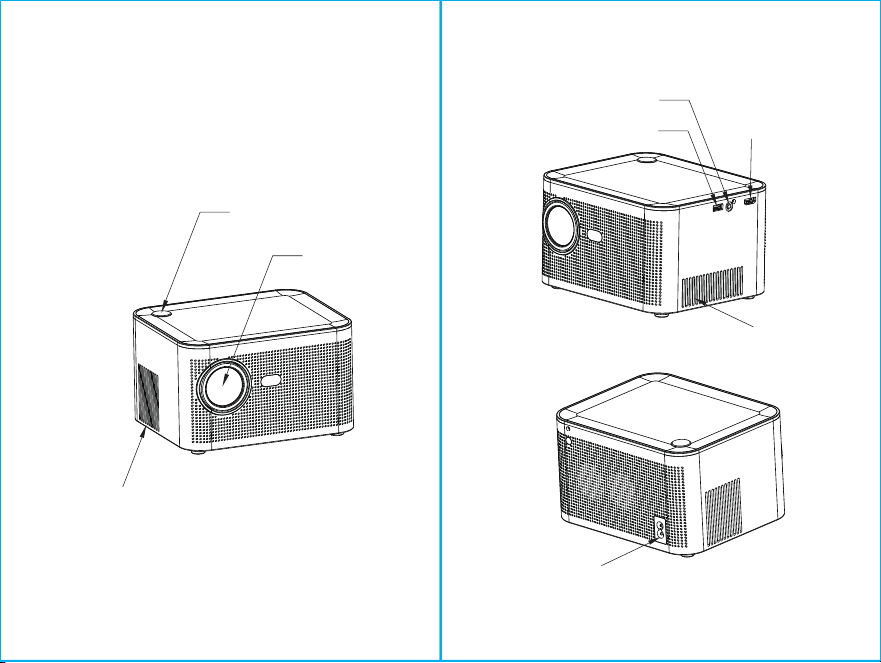
Structure description BT Air Remote
This manual is for reference only. It is subject to change
without prior notice. Hotack reserves the right of final
interpretation.
Smart Projector
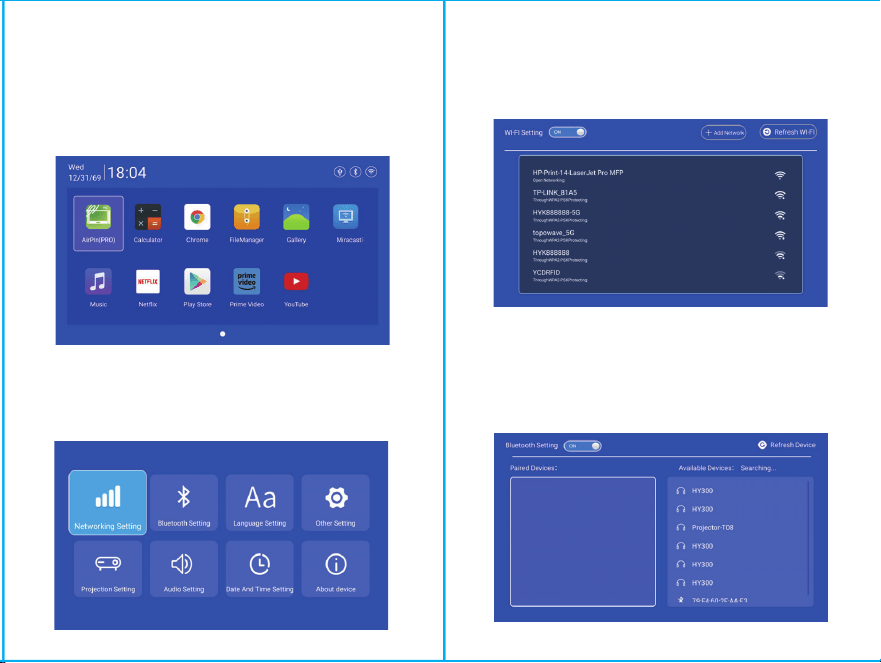
Switch in the Applications
Click on"My apps"to view installed programs,click program
icon to switch between applications.
Move to "My Apps",click OK to enter.
All Apps' can be clearly distinguished from the icons.
Settings
Enter to setup Networking, Bluetooth, Language, Other
Setting, Projection,Audio,Date And Time
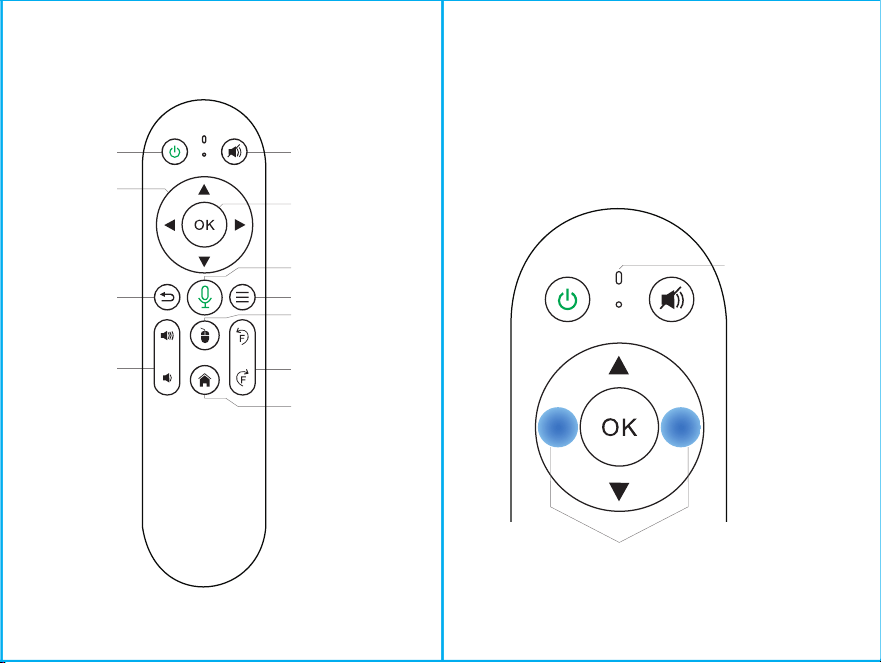
ON/OFF
DIRECTIONS
RETURN
VOL+/-
MUTE
OK
BT AIR
REMOTE
MENU
SWITCH TO
MOUSE CONTROL
EIECTRONIC
FOCUS
HOME
POWER
ON/OFF
Lens
Air inlet
HDMI
Headset jack
USB
Vent
Bluetooth voice remote control connection
Please keep the distance between the remote control and the
SURMHFWRUFPLQWKH%OXHWRRWKRSHQVWDWHZKLOHORQJSUHVV
“5-8 s” remote control“Left and right keys” to match and
connect the projector. The remote control Bluetooth lamp will
indicate the flashing state when the Bluetooth pair connects.
Remote control
Bluetooth lamp
Left Right Key
Networking Setting
Settings - Networking Setting - WIFI setting, WIFI “ON”,select
objective WIFI ID and input password to connect internet.
Bluetooth Setting
Settings - Bluetooth setting, Bluetooth “ON”, click Refresh
Device and choose objective device to pair.
※Quick Installation Guide※
Attention
Please read this manual carefully before use and keep it for
future reference.
1.The projector is non dustproof or waterproof.
2.In order to reduce the risk of fire and electric shock, do
not expose the projector to rain and fog.
3.Please use the original power adapter. The projector
should work under specified rated power supply.
4.When projector is working, please do not look directly
into the lens, the strong light will flash your eyes and cause
slight pain. Children should use the projector under the
supervision of adults.
5.Do not cover the vents of projector. Heating will reduce
the life of projector and cause danger.
6.Regularly clean projector vents, or dust may cause
cooling malfunction.
7.Do not use the projector in greasy, damp, dusty or smoky
environment. Oil or chemicals will cause malfunction.
8.Please handle with care during daily use.
9.Please cut off the power if the projector is out of use for
long time.
10.Non-professionals are forbidden to disassemble the
projector for testing and maintenance.
Structure description BT Air Remote
This manual is for reference only. It is subject to change
without prior notice. Hotack reserves the right of final
interpretation.
Smart Projector
Switch in the Applications
Click on"My apps"to view installed programs,click program
icon to switch between applications.
Move to "My Apps",click OK to enter.
All Apps' can be clearly distinguished from the icons.
Settings
Enter to setup Networking, Bluetooth, Language, Other
Setting, Projection,Audio,Date And Time
ON/OFF
DIRECTIONS
RETURN
VOL+/-
MUTE
OK
BT AIR
REMOTE
MENU
SWITCH TO
MOUSE CONTROL
EIECTRONIC
FOCUS
HOME
POWER
ON/OFF
Lens
Air inlet
HDMI
Headset jack
USB
Vent
Bluetooth voice remote control connection
Please keep the distance between the remote control and the
SURMHFWRUFPLQWKH%OXHWRRWKRSHQVWDWHZKLOHORQJSUHVV
“5-8 s” remote control“Left and right keys” to match and
connect the projector. The remote control Bluetooth lamp will
indicate the flashing state when the Bluetooth pair connects.
Remote control
Bluetooth lamp
Left Right Key
Networking Setting
Settings - Networking Setting - WIFI setting, WIFI “ON”,select
objective WIFI ID and input password to connect internet.
Bluetooth Setting
Settings - Bluetooth setting, Bluetooth “ON”, click Refresh
Device and choose objective device to pair.
※Quick Installation Guide※
Attention
Please read this manual carefully before use and keep it for
future reference.
1.The projector is non dustproof or waterproof.
2.In order to reduce the risk of fire and electric shock, do
not expose the projector to rain and fog.
3.Please use the original power adapter. The projector
should work under specified rated power supply.
4.When projector is working, please do not look directly
into the lens, the strong light will flash your eyes and cause
slight pain. Children should use the projector under the
supervision of adults.
5.Do not cover the vents of projector. Heating will reduce
the life of projector and cause danger.
6.Regularly clean projector vents, or dust may cause
cooling malfunction.
7.Do not use the projector in greasy, damp, dusty or smoky
environment. Oil or chemicals will cause malfunction.
8.Please handle with care during daily use.
9.Please cut off the power if the projector is out of use for
long time.
10.Non-professionals are forbidden to disassemble the
projector for testing and maintenance.
Structure description BT Air Remote
This manual is for reference only. It is subject to change
without prior notice. Hotack reserves the right of final
interpretation.
Smart Projector
Switch in the Applications
Click on"My apps"to view installed programs,click program
icon to switch between applications.
Move to "My Apps",click OK to enter.
All Apps' can be clearly distinguished from the icons.
Settings
Enter to setup Networking, Bluetooth, Language, Other
Setting, Projection,Audio,Date And Time
ON/OFF
DIRECTIONS
RETURN
VOL+/-
MUTE
OK
BT AIR
REMOTE
MENU
SWITCH TO
MOUSE CONTROL
EIECTRONIC
FOCUS
HOME
POWER
ON/OFF
Lens
Air inlet
HDMI
Headset jack
USB
Vent
Bluetooth voice remote control connection
Please keep the distance between the remote control and the
SURMHFWRUFPLQWKH%OXHWRRWKRSHQVWDWHZKLOHORQJSUHVV
“5-8 s” remote control“Left and right keys” to match and
connect the projector. The remote control Bluetooth lamp will
indicate the flashing state when the Bluetooth pair connects.
Remote control
Bluetooth lamp
Left Right Key
Networking Setting
Settings - Networking Setting - WIFI setting, WIFI “ON”,select
objective WIFI ID and input password to connect internet.
Bluetooth Setting
Settings - Bluetooth setting, Bluetooth “ON”, click Refresh
Device and choose objective device to pair.
※Quick Installation Guide※
Attention
Please read this manual carefully before use and keep it for
future reference.
1.The projector is non dustproof or waterproof.
2.In order to reduce the risk of fire and electric shock, do
not expose the projector to rain and fog.
3.Please use the original power adapter. The projector
should work under specified rated power supply.
4.When projector is working, please do not look directly
into the lens, the strong light will flash your eyes and cause
slight pain. Children should use the projector under the
supervision of adults.
5.Do not cover the vents of projector. Heating will reduce
the life of projector and cause danger.
6.Regularly clean projector vents, or dust may cause
cooling malfunction.
7.Do not use the projector in greasy, damp, dusty or smoky
environment. Oil or chemicals will cause malfunction.
8.Please handle with care during daily use.
9.Please cut off the power if the projector is out of use for
long time.
10.Non-professionals are forbidden to disassemble the
projector for testing and maintenance.
Structure description BT Air Remote
This manual is for reference only. It is subject to change
without prior notice. Hotack reserves the right of final
interpretation.
Smart Projector
Switch in the Applications
Click on"My apps"to view installed programs,click program
icon to switch between applications.
Move to "My Apps",click OK to enter.
All Apps' can be clearly distinguished from the icons.
Settings
Enter to setup Networking, Bluetooth, Language, Other
Setting, Projection,Audio,Date And Time
ON/OFF
DIRECTIONS
RETURN
VOL+/-
MUTE
OK
BT AIR
REMOTE
MENU
SWITCH TO
MOUSE CONTROL
EIECTRONIC
FOCUS
HOME
POWER
ON/OFF
Lens
Air inlet
HDMI
Headset jack
USB
Vent
Bluetooth voice remote control connection
Please keep the distance between the remote control and the
SURMHFWRUFPLQWKH%OXHWRRWKRSHQVWDWHZKLOHORQJSUHVV
“5-8 s” remote control“Left and right keys” to match and
connect the projector. The remote control Bluetooth lamp will
indicate the flashing state when the Bluetooth pair connects.
Remote control
Bluetooth lamp
Left Right Key
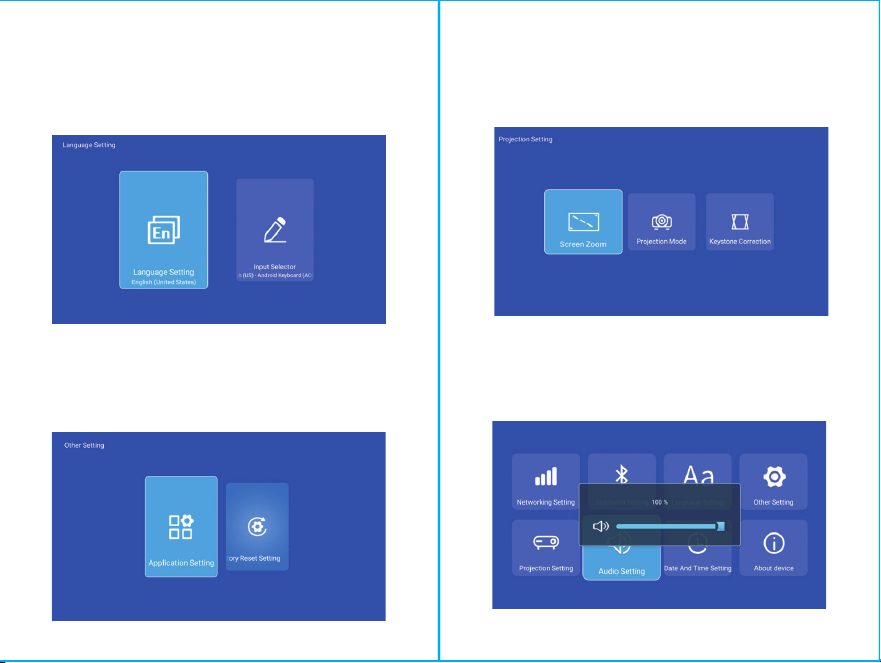
Language Setting
Settings - Language Setting, enter to setup language and
select input method.
Projection Setting
Setting - Projector setting, enter to setup projection mode,
keystone correction.
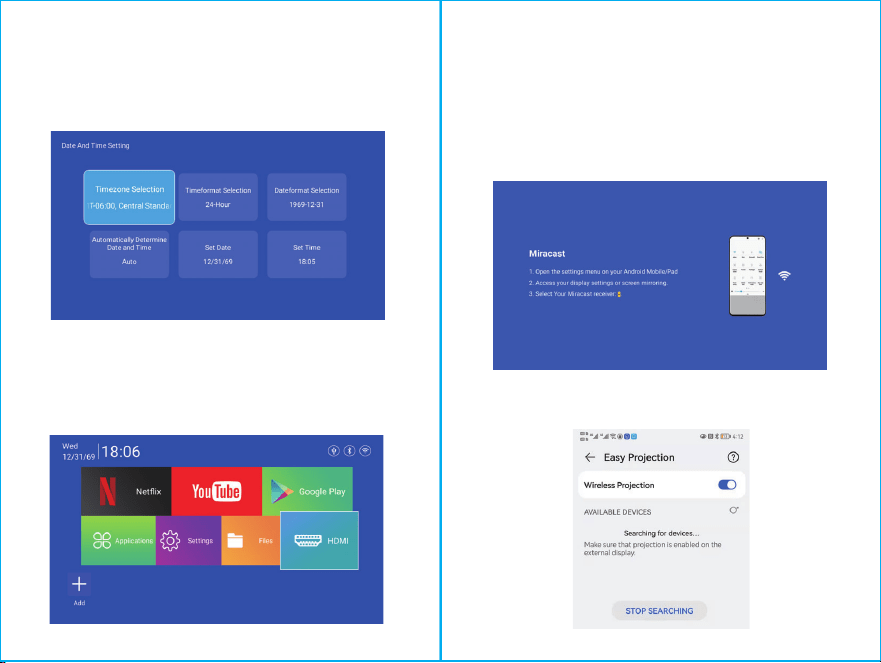
Date And Time Setting
Setting - Date And Time Setting, enter to setup timezone,
timeformat, dateformat, date and time.
Safety instructions
• Please pay attention to important information related to the
operation and maintenance of the projector. You should read
this information carefully to avoid problems. Following safety
instructions will increase the life of projector.
• Please consult the qualified personnel for installation and
repair services, and do not use damaged wires, accessories
and other peripherals.
• Projector should be kept away from flammable, explosive,
strong electromagnetic interference (large radar stations,
power stations, substations) ,etc. Strong ambient light (avoid
direct sunlight), etc.
• Do not cover projector vents.
• Please use the original power adapter.
• Keep adequate ventilation and make sure vents are not
covered to avoid projector overheating
• When projector is working, please do not look directly into
the lens, the strong light will flash your eyes and cause slight
pain.
• Do not bend or drag the power cord.
• Do not put power cord under projector or any heavy objects.
• Do not cover other soft materials on power cord.
• Do not heat the power cord.
• Avoid touching power adaptor with wet hands.
Disclaim
This manual is general instructions, The pictures and functions
in this manual should subject to the actual product. Our
company is devoting to improve product performance, we
reserve the right to modify product functions and interface
described in this manual without notice.
Please keep your device properly. We are not responsible for
any loss caused by wrong operation of software/hardware or
repairing or any other reasons. We are not responsible for any
loss of any third party claims.
This manual has been carefully checked by professional
engineer, please understand for any inevitable omissions.
Signal
After connecting projector to other output device, enter HDMI
or Audio/Video.
Other Setting
Setting - Other Setting, enter to get Application setting,
Factory Reset Setting, and Developer opinions.
Audio Setting
Setting - Audio setting, enter to adjust volume.
Attention:
Please do not look directly into the lens when
projecting to prevent the strong light doing harm to
your eyes. Kids should use the projector under the
supervision of adults.
Miracast
Ensure that Android devices(phone,pad,ect)are in the same
local wireless LAN with these devices
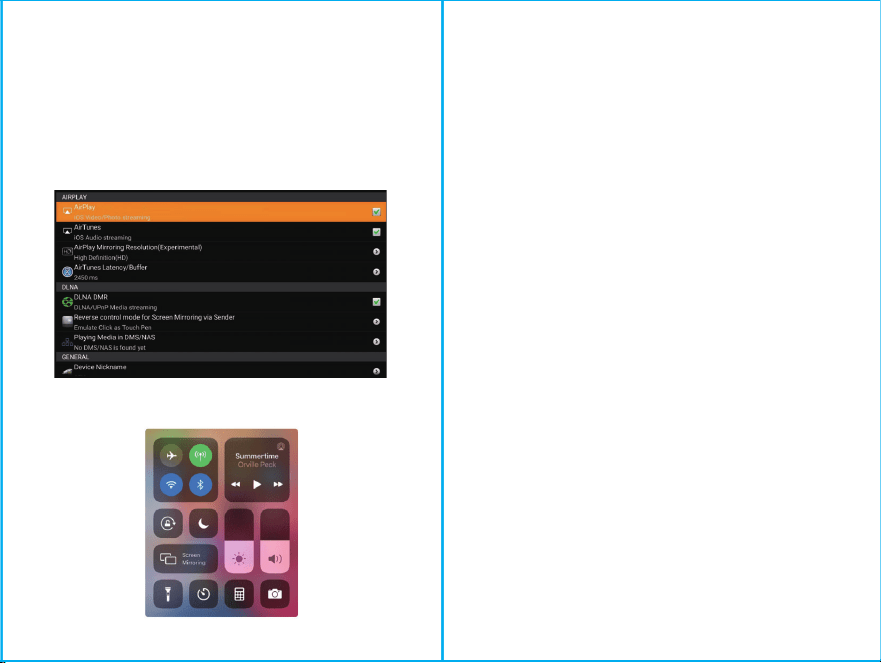
Airplay
Ensure that Apple devices(iphone,pad,ect)are in the same
local wireless LAN with these devices
Operations on Devices:
Home Screen→My Apps→Miracast→Open miracast service→
Turn on the phone mirroring→Connection
Operations on Devices:
Home Screen→My Apps→ Air pin→Open Air pin service→
Turn on the phone mirroring
→Connection
Operations Android phone devices Operations iphone devices
Language Setting
Settings - Language Setting, enter to setup language and
select input method.
Projection Setting
Setting - Projector setting, enter to setup projection mode,
keystone correction.
Date And Time Setting
Setting - Date And Time Setting, enter to setup timezone,
timeformat, dateformat, date and time.
Safety instructions
• Please pay attention to important information related to the
operation and maintenance of the projector. You should read
this information carefully to avoid problems. Following safety
instructions will increase the life of projector.
• Please consult the qualified personnel for installation and
repair services, and do not use damaged wires, accessories
and other peripherals.
• Projector should be kept away from flammable, explosive,
strong electromagnetic interference (large radar stations,
power stations, substations) ,etc. Strong ambient light (avoid
direct sunlight), etc.
• Do not cover projector vents.
• Please use the original power adapter.
• Keep adequate ventilation and make sure vents are not
covered to avoid projector overheating
• When projector is working, please do not look directly into
the lens, the strong light will flash your eyes and cause slight
pain.
• Do not bend or drag the power cord.
• Do not put power cord under projector or any heavy objects.
• Do not cover other soft materials on power cord.
• Do not heat the power cord.
• Avoid touching power adaptor with wet hands.
Disclaim
This manual is general instructions, The pictures and functions
in this manual should subject to the actual product. Our
company is devoting to improve product performance, we
reserve the right to modify product functions and interface
described in this manual without notice.
Please keep your device properly. We are not responsible for
any loss caused by wrong operation of software/hardware or
repairing or any other reasons. We are not responsible for any
loss of any third party claims.
This manual has been carefully checked by professional
engineer, please understand for any inevitable omissions.
Signal
After connecting projector to other output device, enter HDMI
or Audio/Video.
Other Setting
Setting - Other Setting, enter to get Application setting,
Factory Reset Setting, and Developer opinions.
Audio Setting
Setting - Audio setting, enter to adjust volume.
Attention:
Please do not look directly into the lens when
projecting to prevent the strong light doing harm to
your eyes. Kids should use the projector under the
supervision of adults.
Miracast
Ensure that Android devices(phone,pad,ect)are in the same
local wireless LAN with these devices
Airplay
Ensure that Apple devices(iphone,pad,ect)are in the same
local wireless LAN with these devices
Operations on Devices:
Home Screen→My Apps→Miracast→Open miracast service→
Turn on the phone mirroring→Connection
Operations on Devices:
Home Screen→My Apps→ Air pin→Open Air pin service→
Turn on the phone mirroring
→Connection
Operations Android phone devices Operations iphone devices
Language Setting
Settings - Language Setting, enter to setup language and
select input method.
Projection Setting
Setting - Projector setting, enter to setup projection mode,
keystone correction.
Date And Time Setting
Setting - Date And Time Setting, enter to setup timezone,
timeformat, dateformat, date and time.
Safety instructions
• Please pay attention to important information related to the
operation and maintenance of the projector. You should read
this information carefully to avoid problems. Following safety
instructions will increase the life of projector.
• Please consult the qualified personnel for installation and
repair services, and do not use damaged wires, accessories
and other peripherals.
• Projector should be kept away from flammable, explosive,
strong electromagnetic interference (large radar stations,
power stations, substations) ,etc. Strong ambient light (avoid
direct sunlight), etc.
• Do not cover projector vents.
• Please use the original power adapter.
• Keep adequate ventilation and make sure vents are not
covered to avoid projector overheating
• When projector is working, please do not look directly into
the lens, the strong light will flash your eyes and cause slight
pain.
• Do not bend or drag the power cord.
• Do not put power cord under projector or any heavy objects.
• Do not cover other soft materials on power cord.
• Do not heat the power cord.
• Avoid touching power adaptor with wet hands.
Disclaim
This manual is general instructions, The pictures and functions
in this manual should subject to the actual product. Our
company is devoting to improve product performance, we
reserve the right to modify product functions and interface
described in this manual without notice.
Please keep your device properly. We are not responsible for
any loss caused by wrong operation of software/hardware or
repairing or any other reasons. We are not responsible for any
loss of any third party claims.
This manual has been carefully checked by professional
engineer, please understand for any inevitable omissions.
Signal
After connecting projector to other output device, enter HDMI
or Audio/Video.
Other Setting
Setting - Other Setting, enter to get Application setting,
Factory Reset Setting, and Developer opinions.
Audio Setting
Setting - Audio setting, enter to adjust volume.
Attention:
Please do not look directly into the lens when
projecting to prevent the strong light doing harm to
your eyes. Kids should use the projector under the
supervision of adults.
Miracast
Ensure that Android devices(phone,pad,ect)are in the same
local wireless LAN with these devices
Airplay
Ensure that Apple devices(iphone,pad,ect)are in the same
local wireless LAN with these devices
Operations on Devices:
Home Screen→My Apps→Miracast→Open miracast service→
Turn on the phone mirroring→Connection
Operations on Devices:
Home Screen→My Apps→ Air pin→Open Air pin service→
Turn on the phone mirroring
→Connection
Operations Android phone devices Operations iphone devices

Language Setting
Settings - Language Setting, enter to setup language and
select input method.
Projection Setting
Setting - Projector setting, enter to setup projection mode,
keystone correction.
Date And Time Setting
Setting - Date And Time Setting, enter to setup timezone,
timeformat, dateformat, date and time.
Safety instructions
• Please pay attention to important information related to the
operation and maintenance of the projector. You should read
this information carefully to avoid problems. Following safety
instructions will increase the life of projector.
• Please consult the qualified personnel for installation and
repair services, and do not use damaged wires, accessories
and other peripherals.
• Projector should be kept away from flammable, explosive,
strong electromagnetic interference (large radar stations,
power stations, substations) ,etc. Strong ambient light (avoid
direct sunlight), etc.
• Do not cover projector vents.
• Please use the original power adapter.
• Keep adequate ventilation and make sure vents are not
covered to avoid projector overheating
• When projector is working, please do not look directly into
the lens, the strong light will flash your eyes and cause slight
pain.
• Do not bend or drag the power cord.
• Do not put power cord under projector or any heavy objects.
• Do not cover other soft materials on power cord.
• Do not heat the power cord.
• Avoid touching power adaptor with wet hands.
Disclaim
This manual is general instructions, The pictures and functions
in this manual should subject to the actual product. Our
company is devoting to improve product performance, we
reserve the right to modify product functions and interface
described in this manual without notice.
Please keep your device properly. We are not responsible for
any loss caused by wrong operation of software/hardware or
repairing or any other reasons. We are not responsible for any
loss of any third party claims.
This manual has been carefully checked by professional
engineer, please understand for any inevitable omissions.
Signal
After connecting projector to other output device, enter HDMI
or Audio/Video.
Other Setting
Setting - Other Setting, enter to get Application setting,
Factory Reset Setting, and Developer opinions.
Audio Setting
Setting - Audio setting, enter to adjust volume.
Attention:
Please do not look directly into the lens when
projecting to prevent the strong light doing harm to
your eyes. Kids should use the projector under the
supervision of adults.
Miracast
Ensure that Android devices(phone,pad,ect)are in the same
local wireless LAN with these devices
Airplay
Ensure that Apple devices(iphone,pad,ect)are in the same
local wireless LAN with these devices
Operations on Devices:
Home Screen→My Apps→Miracast→Open miracast service→
Turn on the phone mirroring→Connection
Operations on Devices:
Home Screen→My Apps→ Air pin→Open Air pin service→
Turn on the phone mirroring
→Connection
Operations Android phone devices Operations iphone devices
