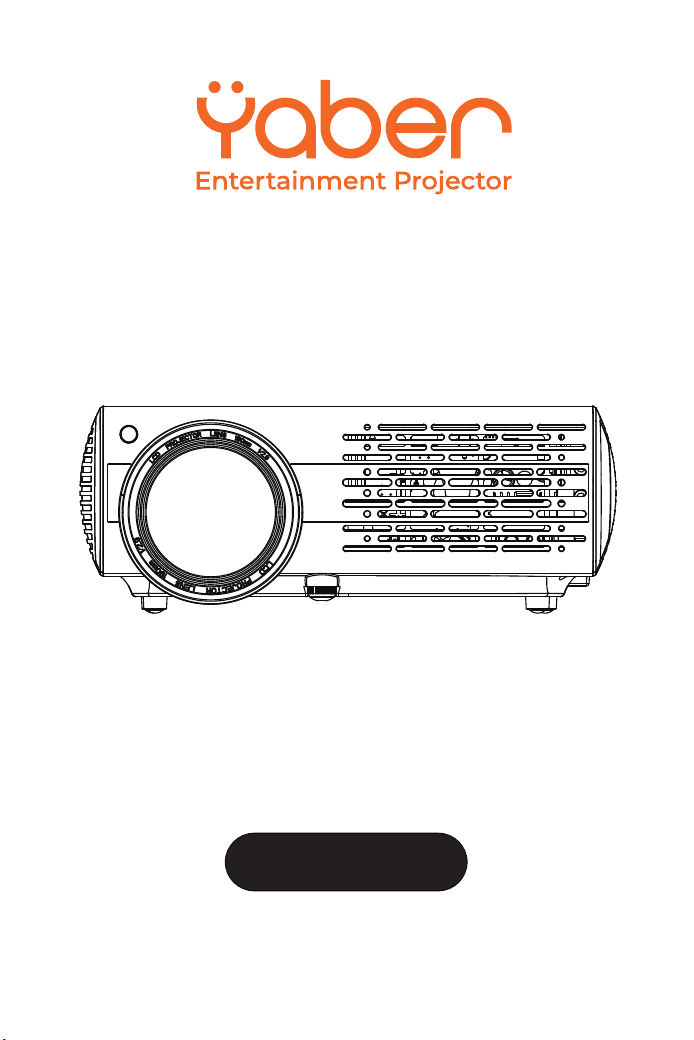
YABERY30
Instructionmanual
01 02 03 04 05 06 07
08 09 10 11 12 13 14 15 16 17
18 19 20 21 22 23 24 25 26 27
28 29 30 31 32 33 34 35 36 37
38 39 40 41 42 43 44 45 46 47
48 49 50 51 52
53
54 55 56 57
58 59 60 61 62 63 64 65 66 67
68 69 70 71 72 73 74 75 76
77 78 79 80 81 82 83 84 85 86
87 88

Language
EN
FR
DE
IT
ES
01-13
14-27
28-41
42-55
56-69
JP
70-88
01 02 03 04 05 06 07
08 09 10 11 12 13 14 15 16 17
18 19 20 21 22 23 24 25 26 27
28 29 30 31 32 33 34 35 36 37
38 39 40 41 42 43 44 45 46 47
48 49 50 51 52
53
54 55 56 57
58 59 60 61 62 63 64 65 66 67
68 69 70 71 72 73 74 75 76
77 78 79 80 81 82 83 84 85 86
87 88
01 02 03 04 05 06 07
08 09 10 11 12 13 14 15 16 17
18 19 20 21 22 23 24 25 26 27
28 29 30 31 32 33 34 35 36 37
38 39 40 41 42 43 44 45 46 47
48 49 50 51 52
53
54 55 56 57
58 59 60 61 62 63 64 65 66 67
68 69 70 71 72 73 74 75 76
77 78 79 80 81 82 83 84 85 86
87 88
YABER Lifetime Professional Support
Dear Customer,
Woohoo! Your projector is already in your hands! Let's get started!
Do you have any questions on how it works? Please read this manual
thoroughly before using the projector.
Are you satisfied with your projector? If you have any issues, email your
order number and description of your issue to:
Send your email ASAP, as we want to fix your issues the first time you have
them.
Customers sometimes can experience some confusion when using the
projector. Rather than trying to communicate directly with us, many buyers
instead just leave a review on the product page. However, most negative
reviews are caused by non-standardized use rather than a defect in the
product itself.
Actually, many problems can be easily solved by setting, such as no signal,
no sound,cannot connect with WiFi etc. We promise all the projectors have
been carefully checked andpackaged before shipping.
Therefore, if you have any questions, please contact us and give us an
opportunity to improve. We guarantee that we will provide you more
satisfactory solution.
Thanks for your understanding!
Best regards,
YABER TEAM
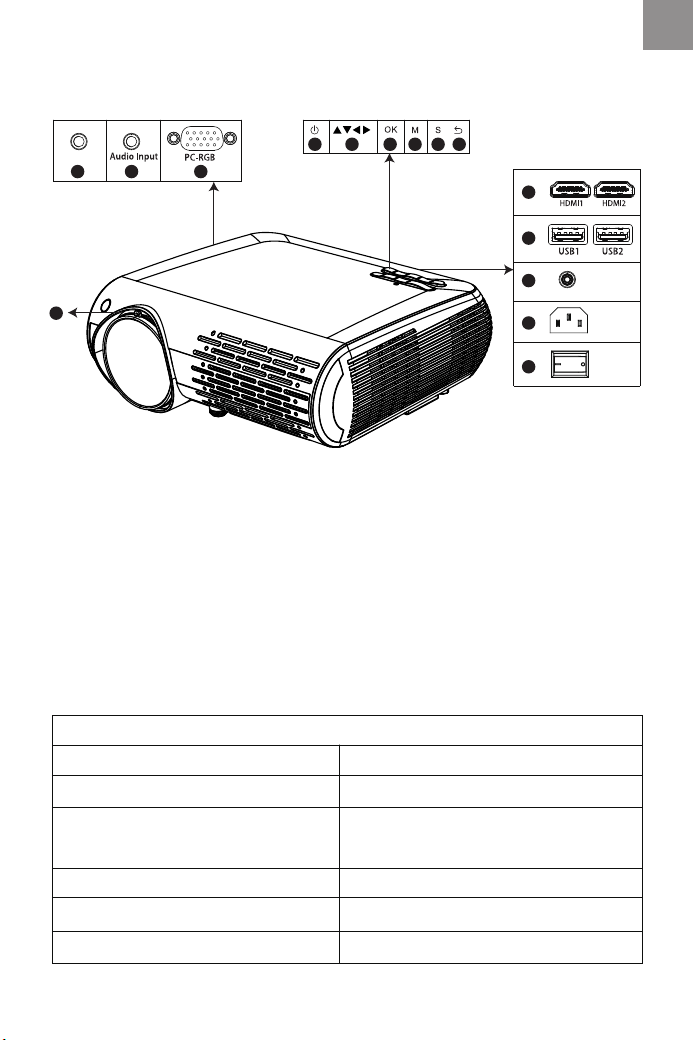
Product description
Notes: Please refer to the actual projector, the photo is illustrative onl
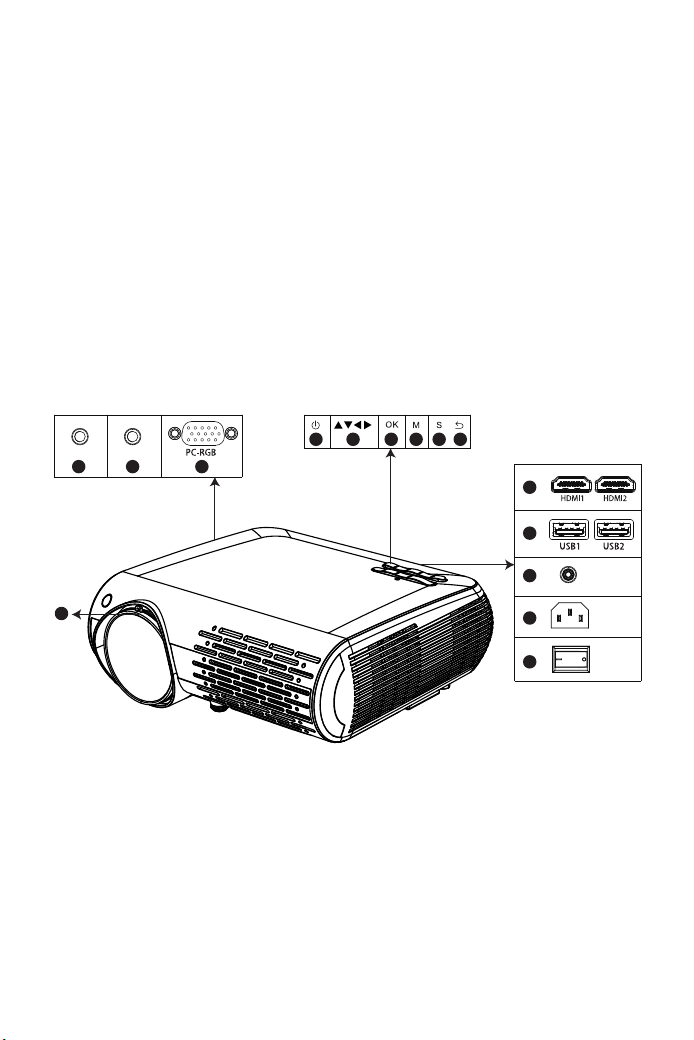
01(AV) Audio input
02 Audio output
03 VGA input connector
04 power supply
05 arrow keys
06 OK button
07 Menu button
08 source button
09 back button
10 HDMI 1 / HDMI 2 input button
11 USB1 / USB1 input button
12 remote control receivers
13 current consumption (10 - 240 V)
14 main switch
15 Rotating lens to adjust sharpness
04
0201 03
05 06 07 08 09
10
11
12
13
14
AV
IR
Imaging System: LCD
Light source: LED
Projecton distance: 1.5-5.5m
Projecton size: 45"-200"
Aspect Ratio: 16:9/ 4:3
Power:110-240V~50/60HZ
Resolution:1080P Full HD
Interface Input: HDM*2/VGA/AV/
USB*2/AUDIO IN
Output interface : audio out
Projecton size: 45"-200"
Projector wight:2.9kg
Color: 16.7M full color
1080P Full hd projector Y30
15
EN
01 02 03 04 05 06 07
08 09 10 11 12 13 14 15 16 17
18 19 20 21 22 23 24 25 26 27
28 29 30 31 32 33 34 35 36 37
38 39 40 41 42 43 44 45 46 47
48 49 50 51 52
53
54 55 56 57
58 59 60 61 62 63 64 65 66 67
68 69 70 71 72 73 74 75 76
77 78 79 80 81 82 83 84 85 86
87 88
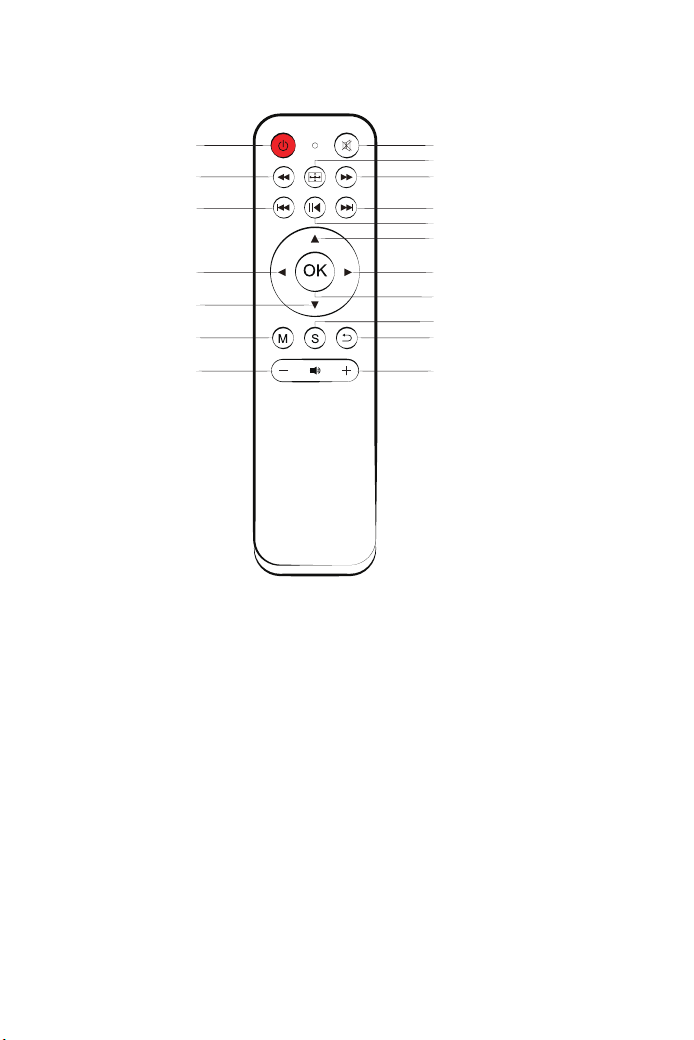
Remote controller
01
04
06
10
12
14
17
02
03
05
07
08
09
11
13
16
15
18
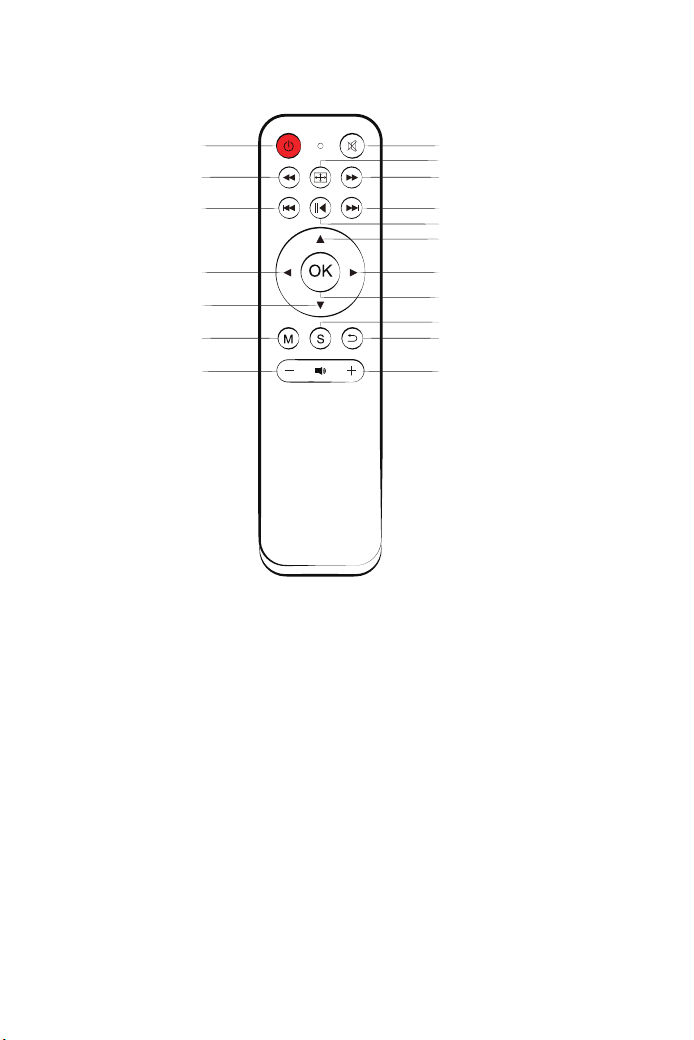
1. Power button: Switch the standby mode to use
2. Mute key:Turns the projector sound on or off
3. Flip key: turn the image upside down
4/5/6/7. Rewind key: Fast forward / backward / previous / next track
8. Play Pause Button: Play / Pause
9/10/11/12. arrows: Parameters of the menu mode used to fix the
projector
13. OK button: OK
14. Menu Button: To call or exit the projector main menu
15. Signal selection key: To change the signal source
16. Exit function key: Exit
17/18. Volume keys: volume up / volume down
01 02 03 04 05 06 07
08 09 10 11 12 13 14 15 16 17
18 19 20 21 22 23 24 25 26 27
28 29 30 31 32 33 34 35 36 37
38 39 40 41 42 43 44 45 46 47
48 49 50 51 52
53
54 55 56 57
58 59 60 61 62 63 64 65 66 67
68 69 70 71 72 73 74 75 76
77 78 79 80 81 82 83 84 85 86
87 88
Thanks
Thank you very much for purchasing the YABER Y 30 projector.
Please read this instruction manual carefully before use. Also, please
keep it handy so you can check it at any time.
If in doubt, do not hesitate to contact YABER_Service@outlook.com.
We can provide after-sales service until satisfaction.
Observation
Part of the video in Netflix and the main video formats can not be
exported externally due to copyright protection (HDCP protocol). But
since Amazon Fire TV is HDCP compatible, you can play Netflix and the
first video via Amazon fire.
Replace the remote control battery
1. push to open the battery cover.
2. Remove both old batteries and install new ones (AA). Make sure that
the polarity of the batteries (+/-) is correctly aligned.
Important safeguards
Included
These safety instructions are to ensure the long life of the projector and
to prevent fires and shocks. Read them carefully and pay attention to all
warnings.
Installazione
1. For best results, use the projector in a dark room.
2. Place the projector on a flat, level surface in a dry area away from dust
and moisture.
Main unit of the projector * 1
Instruction manual * 1
3 in 3 * 1 AV cable
3-in-1 * 1 AV cable
HDMI cable * 1
VGA cable * 1
Lens cleaning * 1
Power cord * 1
Remote control * 1
01 02 03 04 05 06 07
08 09 10 11 12 13 14 15 16 17
18 19 20 21 22 23 24 25 26 27
28 29 30 31 32 33 34 35 36 37
38 39 40 41 42 43 44 45 46 47
48 49 50 51 52
53
54 55 56 57
58 59 60 61 62 63 64 65 66 67
68 69 70 71 72 73 74 75 76
77 78 79 80 81 82 83 84 85 86
87 88

FAQ
4. Exposure to direct sunlight, smoke or steam may damage internal
components.
5. Handle the projector carefully. Falling or shaking can damage internal
components.
6. Do not place heavy objects on top of the projector.
1. At the time of switching on, the indicative light does not work
①. The power supply may not be well connected
②. Check the overheating protection system
2. Pressing the power button on the remote control does not turn on the
projector
①. The remote control batteries are empty
②. The signal between the remote control and the IR sensor is obstructed
③. Strong direct light on the IR sensor?
3. No image on the screen
①. Is the channel setting correct?
②. Is there an input signal?
③. Is the input cable inserted correctly or is it in the wrong position?
④. In PC mode the refresh rate is> 75KHz?
1. The projector is designed to operate with a 110-240 V ~ 50/60 Hz AC
adapter. Ensure that the power supply meets this requirement before
attempting to use the projector.
2. Handle the power cord carefully and avoid bending it too much. A
damaged cord can cause electric shock or fire.
3. If the projector will not be used for a long time, unplug the power cord
from the outlet.
Supply
1. Unplug the projector before cleaning it.
2. Periodically clean the cabinet with a damp cloth. If it is very dirty, use a
mild detergent. Never use strong detergents or solvents such as alcohol
or thinners.
3. Use a blower or lens paper to clean the lens and be careful not to
scratch or damage the lens.
Cleaning
01 02 03 04 05 06 07
08 09 10 11 12 13 14 15 16 17
18 19 20 21 22 23 24 25 26 27
28 29 30 31 32 33 34 35 36 37
38 39 40 41 42 43 44 45 46 47
48 49 50 51 52
53
54 55 56 57
58 59 60 61 62 63 64 65 66 67
68 69 70 71 72 73 74 75 76
77 78 79 80 81 82 83 84 85 86
87 88
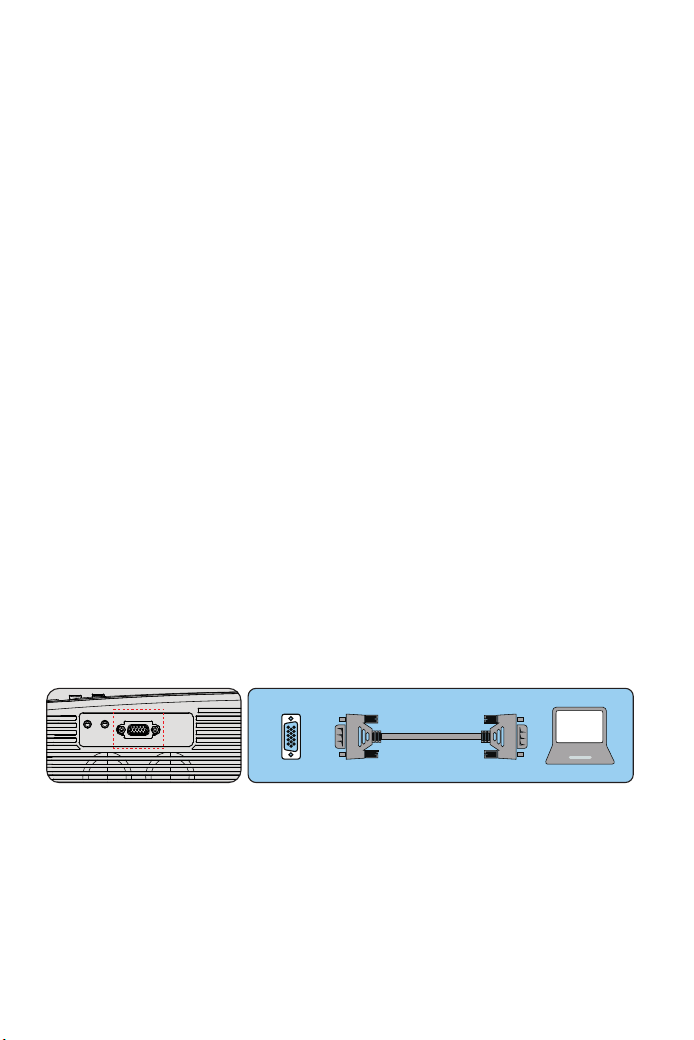
Connection device
4. The image works but there is no sound
①. Are the input cables connected correctly?
②. Volume at minimum or silent
③. Check that the audio format of the video is in the supported list
5. Turns off automatically after being turned on for a while
①. Is there a barrier around the fan?
②. Small or large voltage fluctuations
③. Check the overheating protection system
6. I can not find devices connected with hard drives or flash drives
①. Re-insert the device
②. Check if the device is working
7. Unable to play video
①. Is the video format correct?
②. The file is corrupted?
③. The device is damaged
1.Connecting a PC
1.Use the supplied VGA cable to connect the PC to the projector.
2. Turn on the projector and the computer.
* NOTE: You can also connect an HDMI cable, remember that VGA
connections do not transmit audio, so the sound will be output from the
computer. If you connect an HDMI cable, the audio will be output to the
projector.
2. Connecting a smartphone
Connect a phone with Android system:
(Note: check if your Android phone supports MHL function.) MHL-HDMI
cable not included)
1. Connect the projector and the Android smartphone with the MHL-HD-
MI cable.
2. Choose the signal source: "HDMI"
VGA
01 02 03 04 05 06 07
08 09 10 11 12 13 14 15 16 17
18 19 20 21 22 23 24 25 26 27
28 29 30 31 32 33 34 35 36 37
38 39 40 41 42 43 44 45 46 47
48 49 50 51 52
53
54 55 56 57
58 59 60 61 62 63 64 65 66 67
68 69 70 71 72 73 74 75 76
77 78 79 80 81 82 83 84 85 86
87 88
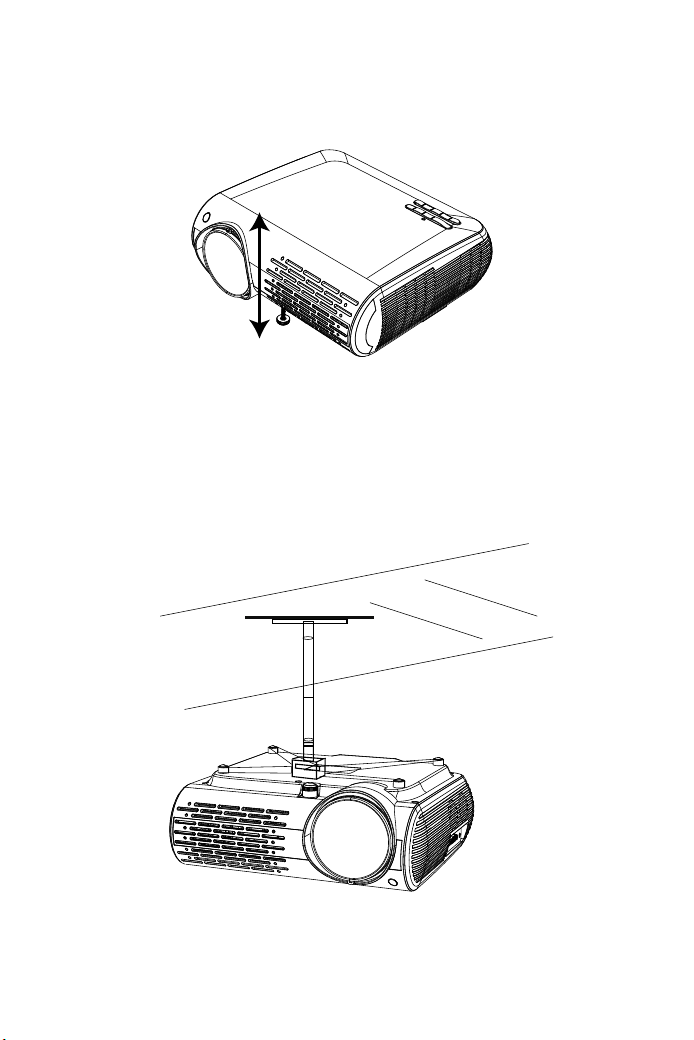
Adjust the tilt base
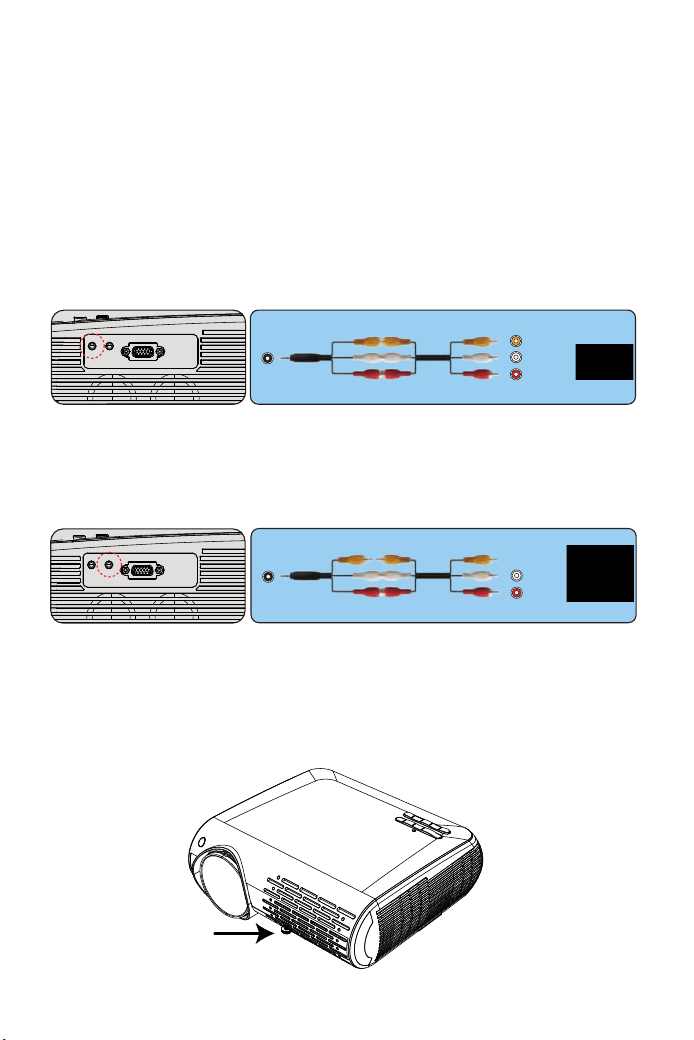
3.Connecting a DVD player
1. Use the supplied AV cable to connect the DVD player to the projector.
2. Turn on the projector and DVD player.
If your player has an HDMI output, it is best to use it over the analog (AV)
option. Audio output must be configured from the DVD player menu if
external speakers are installed.
4. Connect the soundbar
1.Use the supplied AV cable to connect the soundbar to the projector.
2. Turn on the projector and the sound bar.
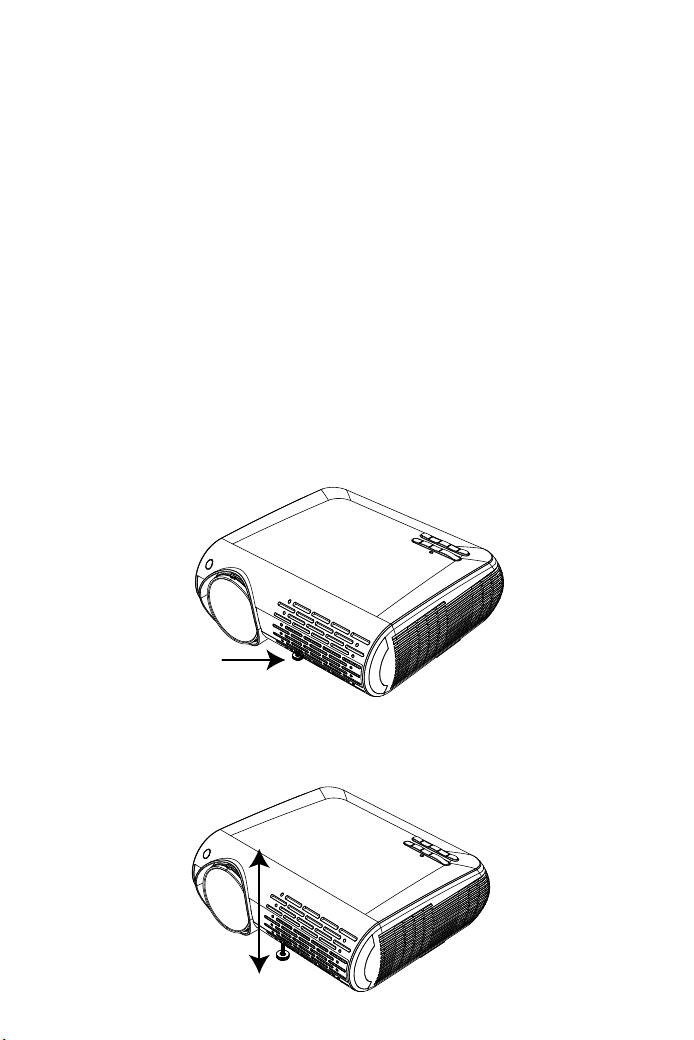
1. Press and hold the tilt button on the back of the projector.
Connecting an iPhone:
1. Connect the projector and iPhone with Lightning to HDMI cable (not
included)
2. Choose the signal source: "HDMI"
AV
video
audio out
(L/R)
Audio-out
audio out
(L/R)
01 02 03 04 05 06 07
08 09 10 11 12 13 14 15 16 17
18 19 20 21 22 23 24 25 26 27
28 29 30 31 32 33 34 35 36 37
38 39 40 41 42 43 44 45 46 47
48 49 50 51 52
53
54 55 56 57
58 59 60 61 62 63 64 65 66 67
68 69 70 71 72 73 74 75 76
77 78 79 80 81 82 83 84 85 86
87 88
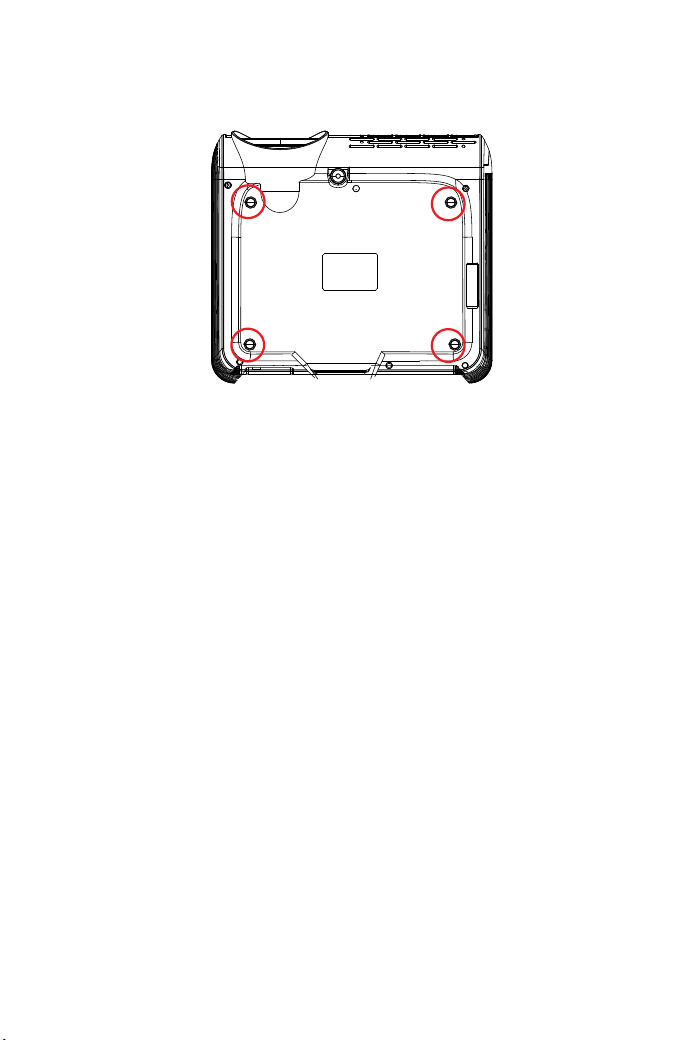
Please purchase the projector stands and some 10 mm M4 screws.
2. Lift the front edge of the projector to the desired height, turn the
presser foot and release the button to lock the tilt base to the position it
deems appropriate.
01 02 03 04 05 06 07
08 09 10 11 12 13 14 15 16 17
18 19 20 21 22 23 24 25 26 27
28 29 30 31 32 33 34 35 36 37
38 39 40 41 42 43 44 45 46 47
48 49 50 51 52
53
54 55 56 57
58 59 60 61 62 63 64 65 66 67
68 69 70 71 72 73 74 75 76
77 78 79 80 81 82 83 84 85 86
87 88
Starting the projector
Turn on the projector by connecting the supplied power cord to the outlet,
and then pressing the main power switch. The projector will go into standby
mode and the power indicator will light red.
Only after pressing the "POWER" button on the projector or remote control
will the power indicator turn green and the projector will become ready to
use.
select the signal source:
press the "S" button on the remote control or the projector and choose
between: "AV", "PC-RGB", "HDMI 1", "HDMI 2", "USB".
1. Adjust the image size to get the best image size by moving the projector
back and forth, then use the focus ring to get the best focus.
Select the language menu
Language menu you have to select it when you turn on the projector for the
first time, you will see the interface in English. You can select one of the
menu languages: German, French, Italian, Spanish, Japanese and so on.
Please follow these steps:
1. Press the "M" button and find the "OPTION" interface, then find the
"OSD Language English".
2. Press the ENTER button to execute the selection.
Open the 4 buttons on the back of the projector and use the M4 * 10mm
screws to hang the projector on the stand.
01 02 03 04 05 06 07
08 09 10 11 12 13 14 15 16 17
18 19 20 21 22 23 24 25 26 27
28 29 30 31 32 33 34 35 36 37
38 39 40 41 42 43 44 45 46 47
48 49 50 51 52
53
54 55 56 57
58 59 60 61 62 63 64 65 66 67
68 69 70 71 72 73 74 75 76
77 78 79 80 81 82 83 84 85 86
87 88
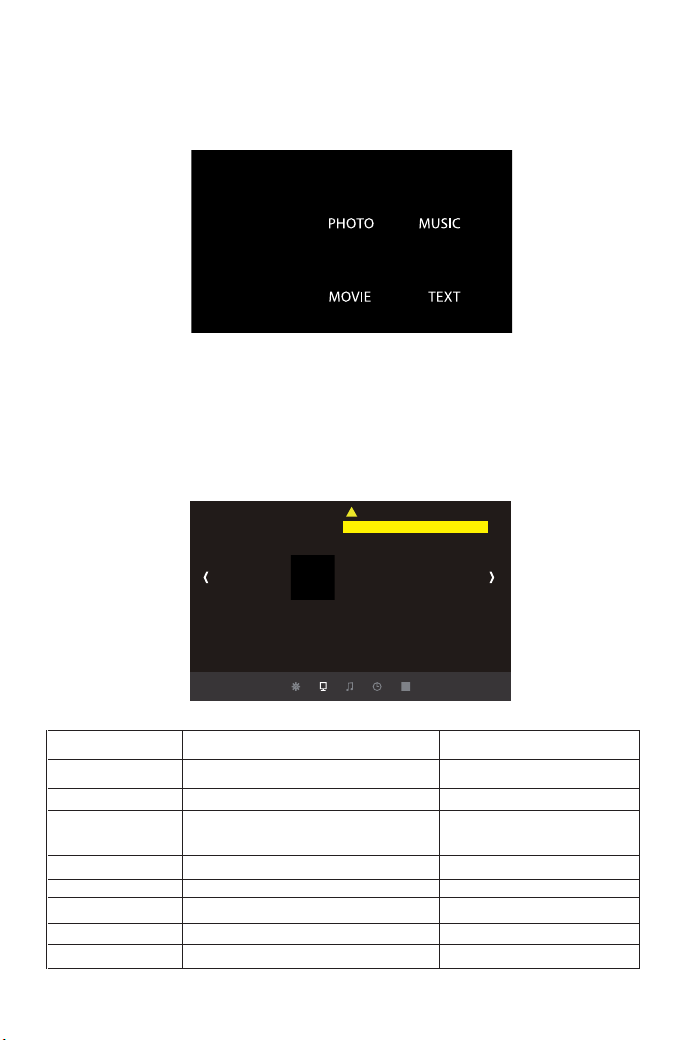
Setting the main menu:
PICTURE MENU
press the "M" button on the projector or remote control, there are 4 menu
options: "Picture", "sound", "time", "option"
PICTURE Menu included Function
Picture Mode
Color Temperature
Aspect Ratio
X_ZOOM
Y_ZOOM
Noise Reduction Low
Projective Mode
4D Keyetone Correction
Standard, Soft, User, Dynamic
Medium, Warm, User, Cool
Auto/ 4:3/ 16:9
+1~50
+1~50
Off, Low, Middle, High, Default
Front
Vertical:-50~50, Horizon:-50~50
4 image modes
Adjusts the color temperature
Aspect Ratio lets you configure
how images are displayed.
Riduci dall'asse X.
Ridimensiona dall'asse Y.
Trapezoidal adjustment
Cast, rear projection
Keystone adjustment
Picture Mode
Color Temperature
Aspect Ratio
X_ZOOM
Y_ZOOM
Noise Reduction Low
Projective Mode
4D Keyetone Correction
PICTURE
PC Setting
01 02 03 04 05 06 07
08
09 10 11 12 13 14 15 16 17
18 19 20 21 22 23 24 25 26 27
28 29 30 31 32 33 34 35 36 37
38 39 40 41 42 43 44 45 46 47
48 49 50 51 52
53
54 55 56 57
58 59 60 61 62 63 64 65 66 67
68 69 70 71 72 73 74 75 76
77 78 79 80 81 82 83 84 85 86
87 88
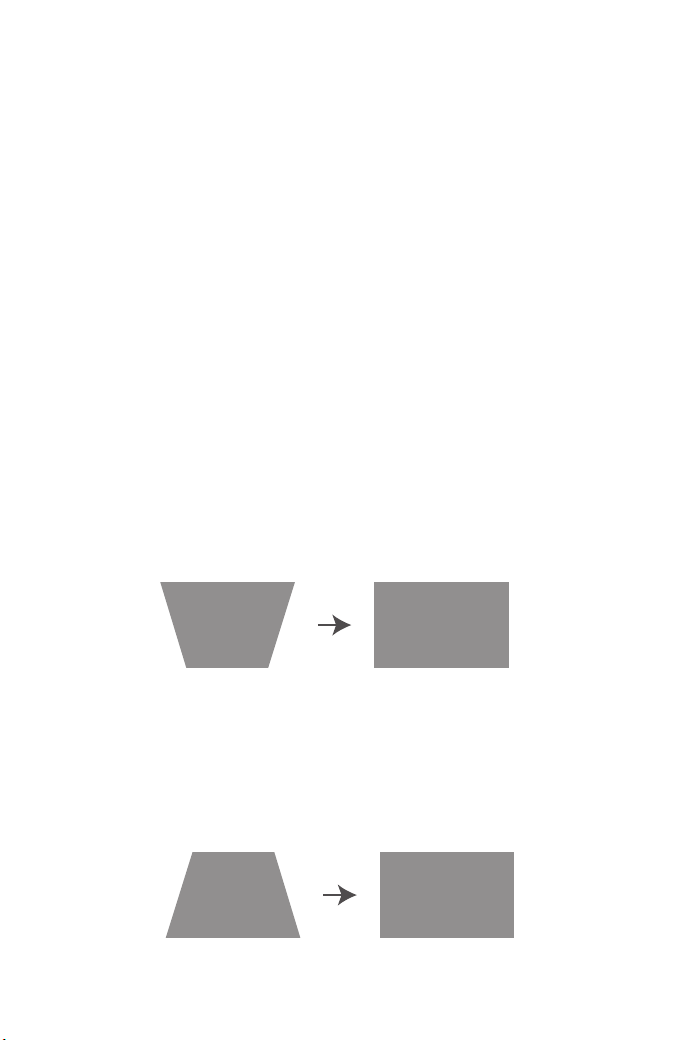
Important function
If the projection image is tilted vertically, as shown in (1), press the "M"
button on the remote control, select "Trapezoidal Adjustment", then press
the "OK" button and set the vertical value to "+", until to achieve the
projection effect (2).
1.1 "Vertical". Range: -50 ~ +50
If the projection image is tilted vertically, as shown in (3), press the "M"
button on the remote control, select "Keystone adjustment", then press
the "OK" button and set the vertical value to "-", until to achieve the
projection effect (4).
<Innovative 4D Keystone Correction> there are two ways to correct the
trapezoid: "vertical" and "horizontal", you can directly use the remote
control for trapezoidal correction.
1. vertical adjustment range: -50 ~ + 50. When the vertical coefficient is
gradually increased upward, the top of the projected screen gradually
becomes smaller; When the vertical coefficient is gradually lowered, the
lower part of the projected screen gradually becomes smaller.
2. horizontal adjustment range: -50 ~ + 50, when the horizontal coeffi-
cient is gradually increased upward, the left side of the projected screen
does not change, the right side of the screen gradually remains and the
left side of the screen does not change ; When the horizontal coefficient
is gradually lowered, the left side of the screen is gradually reduced, the
right side of the screen constant.
(1) (2)
(3) (4)
01 02 03 04 05 06 07
08 09
10 11 12 13 14 15 16 17
18 19 20 21 22 23 24 25 26 27
28 29 30 31 32 33 34 35 36 37
38 39 40 41 42 43 44 45 46 47
48 49 50 51 52
53
54 55 56 57
58 59 60 61 62 63 64 65 66 67
68 69 70 71 72 73 74 75 76
77 78 79 80 81 82 83 84 85 86
87 88
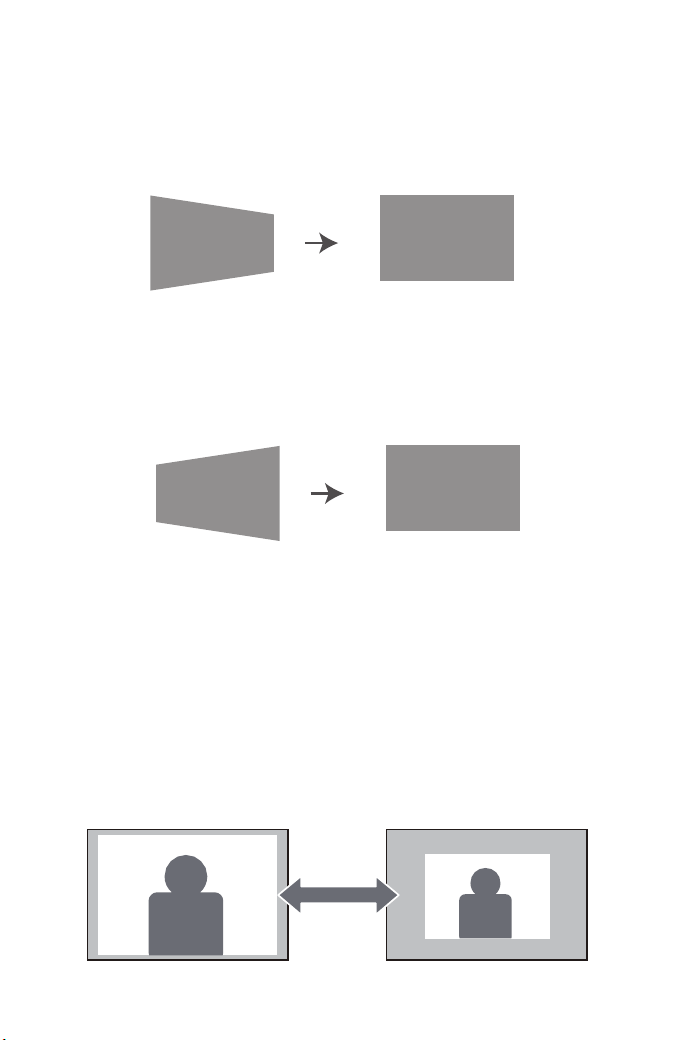
If the projection image is tilted horizontally, as shown in (5), press the "M"
key on the remote control, select "Keystone adjustment", then press the
"OK" button and set the horizon value to "+" ", Reach the projection
effect (6).
1.2 "Horizon". Range: -50 ~ +50
<X_Zoom / Y_Zoom>
If the projection image is tilted horizontally, as shown in (7), press the "M"
button on the remote control, select "Keystone adjustment", press the
"OK" button and set the horizon value to "-", Reach the projection
effect (8).
When playing back an image or video, if you want to change the size of
the projected image or video, you can use the remote control to select
the next option and adjust the projection size:
1) Click "X_ZOOM" to adjust the horizontal size of the projection.
2) Click "Y_ZOOM" to adjust the vertical of the projection.
You can reduce the original height and width provided by the video
source up to 50%.
(5) (6)
(7) (8)
01 02 03 04 05 06 07
08 09 10
11 12 13 14 15 16 17
18 19 20 21 22 23 24 25 26 27
28 29 30 31 32 33 34 35 36 37
38 39 40 41 42 43 44 45 46 47
48 49 50 51 52
53
54 55 56 57
58 59 60 61 62 63 64 65 66 67
68 69 70 71 72 73 74 75 76
77 78 79 80 81 82 83 84 85 86
87 88
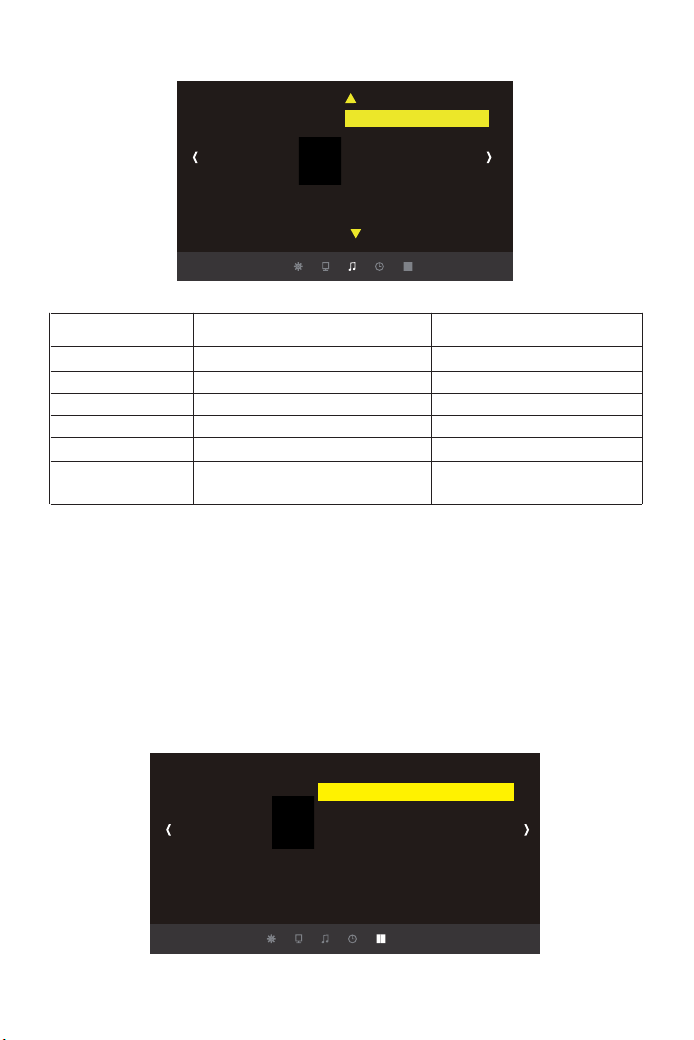
Menu Sound
Option Menu
(Note: if you connect an external speaker for audio output, pay attention
to the following instructions).
A: Normal: in this mode, all devices can output a sound
B: Sound box: in this mode, only the projector emits a sound
C: Line: in this mode, the projector will not emit any sound
Tips:
Sound Mode Menu included Function
Blance
Auto Volume
Surround Sound
EQ
Sound Surround
Fonte sound
-50~50
On, Off
Off, SRS ,TraSurround XT,Surround
OFF, SRS TruuSurround XT,Surround
120Hz,500Hz,1.5KHz, 5KHz, 10KHz
Normal, Line, Sound box
Adjusting the balance
Automatic volume adjustment
Automatische Lautstärkeanpassung
Sstereo setting
Hz setting
Setting the connection of external
devices.
Sound
Sound Mode
Blance
Auto Volume
Surround Sound
EQ
Sound Surround
Fonte sound
OPTION
OSD Language English
Restore Factory Default
Blending
HDMI CEC
OSD Duration
Software Update(USB)
High Fan Speed (ON, OFF)
01 02 03 04 05 06 07
08 09 10 11
12 13 14 15 16 17
18 19 20 21 22 23 24 25 26 27
28 29 30 31 32 33 34 35 36 37
38 39 40 41 42 43 44 45 46 47
48 49 50 51 52
53
54 55 56 57
58 59 60 61 62 63 64 65 66 67
68 69 70 71 72 73 74 75 76
77 78 79 80 81 82 83 84 85 86
87 88
You can reduce noise by changing the fan speed
1) High fan speed OFF
2) High fan speed activated
Please read this instruction manual carefully before use. Also, please
keep it handy so you can check it at any time.
If in doubt, do not hesitate to contact [email protected].
We can provide after-sales service until satisfaction.
<High Fan speed>
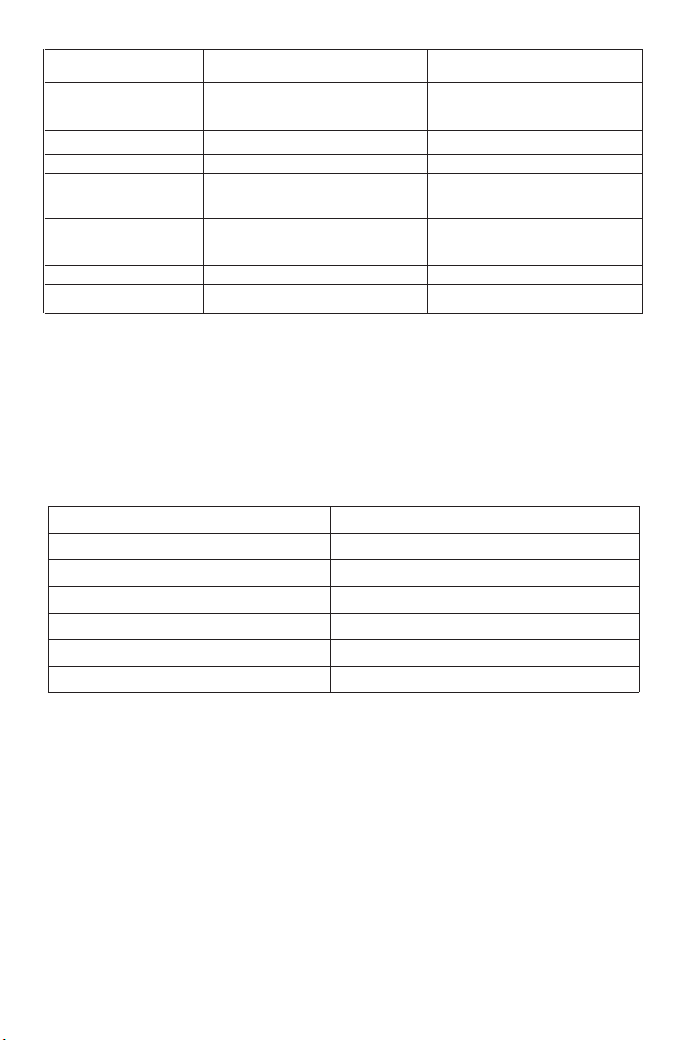
Projector-to-wall distance projected screen size
Thank you very much for purchasing the YABER Y 30 projector.
OPTION Menu included Function
OSD Language English
Restore Factory Default
Blending
HDMI CEC
OSD Duration
Software Update(USB)
High Fan Speed (ON, OFF)
English, France, Italian, Spanish
20 several languages
reset
Off, Low, Middle, High
HDMI CEC, HDMI ARC, Auto Standby,
Device control, Device List
Off, 5Sec, 10Sec, 15Sec
Update software
ON, OFF
Choose a language
Whether to update the software
Adjust the sound quality
Adjust the transparency of the menu.
Via, 5 seconds, 10 seconds,
15 seconds, duration of the menu
Update software
Adjust sound quality
Screen size
45”
60”
80”
20”
160”
200”
Distance
1.5m
1.6m
2.4m
3.2m
4.0m
5.5m
01 02 03 04 05 06 07
08 09 10 11 12
13 14 15 16 17
18 19 20 21 22 23 24 25 26 27
28 29 30 31 32 33 34 35 36 37
38 39 40 41 42 43 44 45 46 47
48 49 50 51 52
53
54 55 56 57
58 59 60 61 62 63 64 65 66 67
68 69 70 71 72 73 74 75 76
77 78 79 80 81 82 83 84 85 86
87 88

Précautions
Lisez attentivement ce manuel avant d’utiliser votre projecteur Y30 et
conservez-le à portée de la main pour pouvoir vous y référer ultérieure-
ment.
Garanties importantes
Ces consignes de sécurité garantissent la longévité de votre projecteur et
évitent les incendies et les chocs. Lisez-les attentivement et faites
attention à tous les avertissements.
Installation
1. Pour obtenir les meilleurs résultats, utilisez le projecteur dans une
pièce sombre.
2. Placez le projecteur sur une surface plane et plane dans un endroit
sec, à l'écart de la poussière et de l'humidité.
3. Ne placez pas le projecteur à la lumière directe du soleil, près
d'appareils de chauffage ou d'appareils dégageant de la chaleur.
4. L'exposition directe au soleil, à la fumée ou à la vapeur peut endom-
mager les composants internes.
5. Manipulez votre projecteur avec soin. La chute ou les secousses
peuvent endommager les composants internes.
6. Ne placez pas d'objets lourds sur le projecteur.
Source de courant
1.Le projecteur est conçu pour fonctionner avec une source de
Alimentation CA 110-240V ~ 50/60 Hz. Assurez-vous que votre source de
L’alimentation répond à cette exigence avant de tenter d’utiliser votre
projecteur.
2. Manipulez le cordon d'alimentation avec précaution et évitez de le plier
trop. Un câble endommagé peut provoquer un choc électrique ou un
incendie.
3. Si le projecteur ne sera pas utilisé pendant une période prolongée
temps, débranchez la fiche de la prise.
Nettoyage
1. Débranchez le projecteur avant de le nettoyer.
2. Nettoyez régulièrement le boîtier avec un chiffon humide. Si c'est très
sale, utilisez un détergent doux. Ne jamais utiliser de détergents forts ou
les solvants tels que l'alcool ou les diluants.
3. Utilisez un souffleur ou un papier pour objectif pour nettoyer l’objectif et
Veillez à ne pas rayer ou endommager la lentille.
FR
01 02 03 04 05 06 07
08 09 10 11 12 13
14 15 16 17
18 19 20 21 22 23 24 25 26 27
28 29 30 31 32 33 34 35 36 37
38 39 40 41 42 43 44 45 46 47
48 49 50 51 52
53
54 55 56 57
58 59 60 61 62 63 64 65 66 67
68 69 70 71 72 73 74 75 76
77 78 79 80 81 82 83 84 85 86
87 88
1 x Projecteur
1 x Chiffon
1 x Câble HDMI
1 x Câble VGA
1 x Câble 3 en 1 AV
1 x Câble 3 en 3 AV
1 x Câble d'alimentation
1 x Manuel d'utilisation
1 x Protecteur d'objectif
1 x Télécommande (Remarque:Pas de batterie incluse, besoin d'acheter
séparément)
01.AV (entrée vidéo et audio)
02.Audio-out ( Sortie audio )
03.PC-RGB( Interface VGA )
04.Bouton d'alimentation
05.Touches fléchées
06.Confirmation
07.Bouton de menu
08.Source de signal
09.Clé de retour
10.Interface HDMI 1 et HDMI 2
11.Interface USB 1 et USB 2
12.IR
13.Prise d'alimentation
14.Interrupteur
15.Réglage de la mise au point (faire
pivoter l'objectif pour la mise au point)
Accessoires
Description du produit
04
0201 03
05 06 07 08 09
10
11
12
13
14
15
AV Audio out
IR
FR
01 02 03 04 05 06 07
08 09 10 11 12 13 14
15 16 17
18 19 20 21 22 23 24 25 26 27
28 29 30 31 32 33 34 35 36 37
38 39 40 41 42 43 44 45 46 47
48 49 50 51 52
53
54 55 56 57
58 59 60 61 62 63 64 65 66 67
68 69 70 71 72 73 74 75 76
77 78 79 80 81 82 83 84 85 86
87 88
Description de la télécommande
01
04
06
10
12
14
17
02
03
05
07
08
09
11
13
16
15
18
01. Bouton d'alimentation:
Changer le statut de veille ou de travail du projecteur.
02. Bouton de sourdine:
Allumer ou éteindre le son du projecteur.
03. Touche Flip: Images retournées / à l'envers.
04/05/06/07. Bouton de lecture:
Avance rapide / retour rapide / piste précédente / suivante.
08. Bouton Pause de lecture: Lecture/Pause
09/10/11/12. Touches directionnelles: Le paramètre du mode menu est utilisé
pour ajuster le projecteur.
13. Bouton OK pour conrmer: Conrmer
14. Touche menu:
Appelez ou quittez le menu principal du projecteur.
15. Touche de sélection du signal: Changer la source du signal d'entrée.
16. Touche de fonction de sortie: Sortie
17/18. Touches de volume: Volume haut / volume bas.
01 02 03 04 05 06 07
08 09 10 11 12 13 14 15
16 17
18 19 20 21 22 23 24 25 26 27
28 29 30 31 32 33 34 35 36 37
38 39 40 41 42 43 44 45 46 47
48 49 50 51 52
53
54 55 56 57
58 59 60 61 62 63 64 65 66 67
68 69 70 71 72 73 74 75 76
77 78 79 80 81 82 83 84 85 86
87 88
-Manipulez la télécommande avec précaution.
-Si la télécommande est mouillée, essuyez-la immédiatement.
-Éviter la chaleur et l'humidité excessives.
-Si vous n'utilisez pas la télécommande pendant une longue période,
retirez les piles. (Les piles ne sont pas fournies avec la télécommande
et sont à acheter séparément).
1.Ouvrez le capot arrière de la télécommande.
2.Installez des piles neuves (piles de type AA). Assurez-vous de respecter
la polarité des piles (+/-).
(Attention, veillez à ne pas mélanger différents types de piles et/ou des
piles neuves avec des piles usagées.)
Appuyez et maintenez enfoncé le bouton de réglage situé à l'arrière du
projecteur.
Relevez le bord avant du projecteur à la hauteur voulue puis tournez le pied
et relâchez le bouton de réglage pour verrouiller le pied.
Précautions d'emploi de la télécommande
Réglage du pied inclinable
01 02 03 04 05 06 07
08 09 10 11 12 13 14 15 16
17
18 19 20 21 22 23 24 25 26 27
28 29 30 31 32 33 34 35 36 37
38 39 40 41 42 43 44 45 46 47
48 49 50 51 52
53
54 55 56 57
58 59 60 61 62 63 64 65 66 67
68 69 70 71 72 73 74 75 76
77 78 79 80 81 82 83 84 85 86
87 88
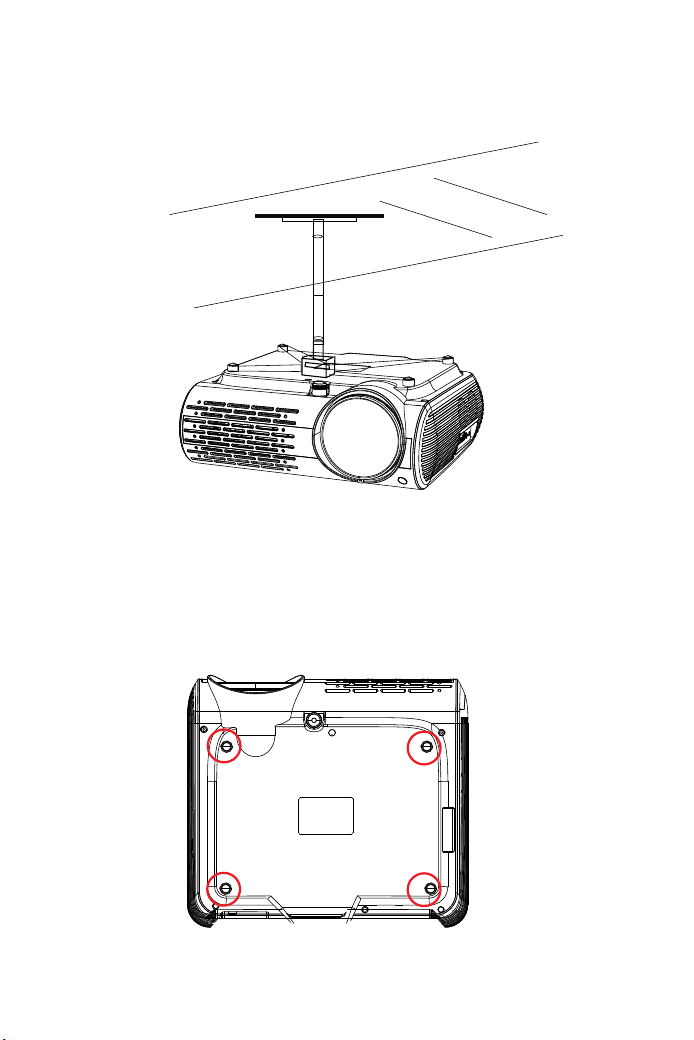
2.Ouvrez les 4 boutons à l'arrière du projecteur et vissez les vis M4 de 10
mm pour fixer le projecteur sur le support.
1.Veuillez noter que le support plafond du projecteur et les vis M4 de 10
mm ne sont pas inclus et sont à acheter séparément.
Précautions d'installation au plafond
B
01 02 03 04 05 06 07
08 09 10 11 12 13 14 15 16 17
18 19 20 21 22 23 24 25 26 27
28 29 30 31 32 33 34 35 36 37
38 39 40 41 42 43 44 45 46 47
48 49 50 51 52
53
54 55 56 57
58 59 60 61 62 63 64 65 66 67
68 69 70 71 72 73 74 75 76
77 78 79 80 81 82 83 84 85 86
87 88

- L'installation du projecteur au plafond doit être effectuée par un
technicien qualifié (nous ne pourrons pas être tenu responsable en cas
de blessures et/ou dommage sur l’appareil et son environnement).
- Utilisez uniquement votre projecteur sur une surface solide et plane. Si
le projecteur tombe au sol, vous risquez de vous blesser et d'endommag-
er gravement le projecteur.
- Ne pas exposer le projecteur à de l'humidité excessive, à de la
poussière ou à de la fumée. Cela endommagera le projecteur et l'image
projeté sur l'écran.
- Assurez-vous d'avoir une ventilation adéquate et suffisante dans la
pièce et autour de votre projecteur pour que la chaleur puisse se dissiper
correctement. Ne recouvrez pas les évents du projecteur. En cas de non
respect de ces préconisations, cela pourrait entrainer une surchauffe et
une dégradation de l’appareil.
Avant d'allumer le projecteur, assurez-vous que l'ordinateur ou la source
vidéo est sous tension et que le cache de l'objectif est retiré.
1. Allumer le projecteur
Branchez le câble d'alimentation fourni dans la prise et appuyez sur
l'interrupteur principal. Le projecteur passe en mode veille et le voyant
d'alimentation s'allume en rouge.
Appuyez sur la touche " " du boîtier du projecteur ou de la télécom-
mande afin que l'indicateur d'alimentation passe au vert : le projecteur est
prêt à l'emploi.
2. Sélectionner la source du signal
Appuyez sur la touche "S" (source) de la télécommande ou du boîtier du
projecteur pour sélectionner votre signal source:"AV", "PC-RGB", "HDMI
1", "HDMI 2", "USB".
3. Ajustez la taille de l'image et le focus
Ajustez la taille de l'image et la mise au point
Pour obtenir la meilleure taille d'image possible, vous devez modifier la
distance entre le projecteur et l'écran de projection.
Pour obtenir la meilleure mise au point, vous devez faire pivoter l'objectif
pour la mise au point.
AVERTISSEMENT
Fonctionnement
Contrôles généraux
01 02 03 04 05 06 07
08 09 10 11 12 13 14 15 16 17
18
19 20 21 22 23 24 25 26 27
28 29 30 31 32 33 34 35 36 37
38 39 40 41 42 43 44 45 46 47
48 49 50 51 52
53
54 55 56 57
58 59 60 61 62 63 64 65 66 67
68 69 70 71 72 73 74 75 76
77 78 79 80 81 82 83 84 85 86
87 88
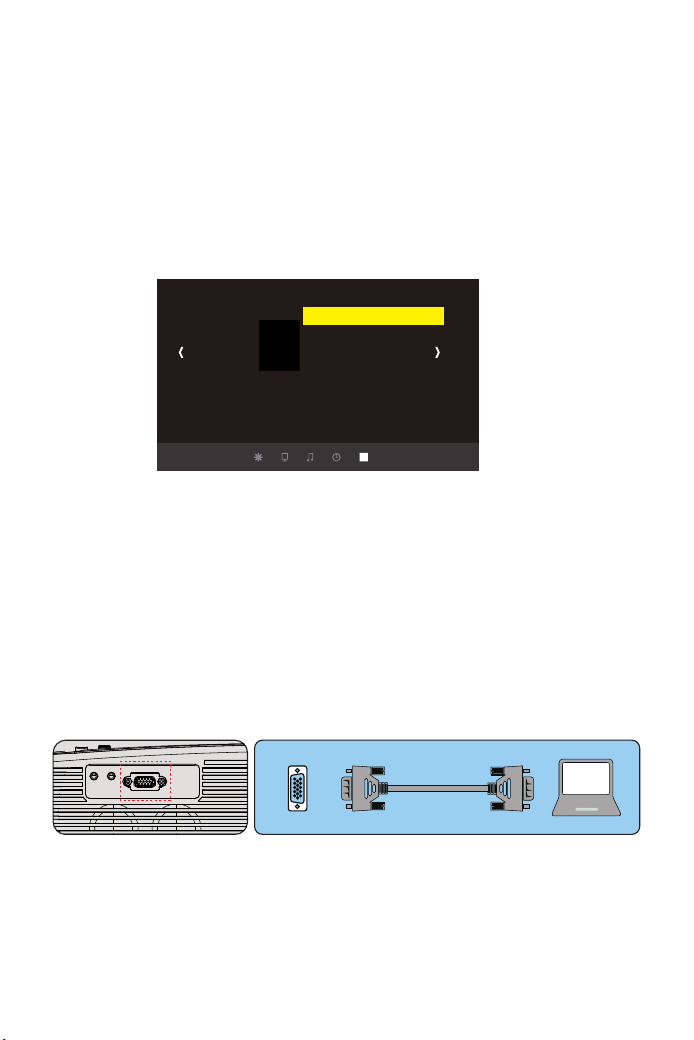
1. Utilisez le câble VGA fourni pour connecter votre PC au projecteur.
(Remarque: le câble VGA ne transmet pas le signal audio. Vous devez
connecter un haut-parleur externe.)
2. Allumez le projecteur et le PC.
Remarque : il est également possible de brancher le PC au projecteur avec
un câble HDMI.
Sélection de la langue
Lorsque vous allumez le projecteur pour la première fois, vous verrez
l'interface en anglais.
Vous pouvez sélectionner une autre langue pour le menu parmi :
Allemand, Français, Italien, Espagnol, Espagnol, Japonais, etc.
Pour régler la langue, veuillez suivre ces étapes :
1. Appuyez sur la touche "M" et sélectionnez "OPTION", puis trouvez
"Langue OSD France".
2. Appuyez sur le bouton « Enter » (Entrée) pour enregistrer la sélection.
Connexion d'appareils externes
Connexion du PC
(Remarque : Veuillez vérifier au préalable que le Smartphone Androïd
supporte la fonction MHL. Veuillez noter que le câble MHL-HDMI n’est pas
fourni)
Connexion d'un Smartphone
Connectez un smartphone sous Android
OPCIÓN
Langue OSD France
Restaurer les paramètres d'usine
Transparence du menu
HDMI CEC
Mettre a jour de logiciel
OSD durée
Vitesse du ventilateur
VGA
01 02 03 04 05 06 07
08 09 10 11 12 13 14 15 16 17
18 19
20 21 22 23 24 25 26 27
28 29 30 31 32 33 34 35 36 37
38 39 40 41 42 43 44 45 46 47
48 49 50 51 52
53
54 55 56 57
58 59 60 61 62 63 64 65 66 67
68 69 70 71 72 73 74 75 76
77 78 79 80 81 82 83 84 85 86
87 88
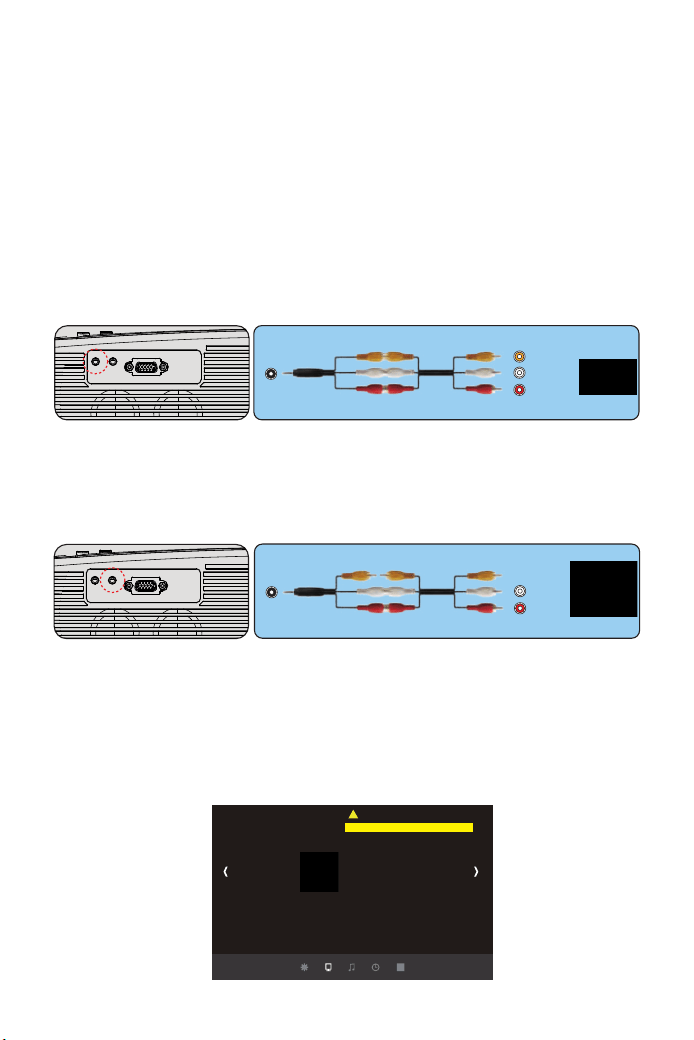
1. Connectez le projecteur et le Smartphone Androïd avec le câble
MHL-HDMI (non fourni).
2. Choisissez la source du signal : "HDMI"
Réglage du menu principal
IMAGEN MENU
1. Connectez le projecteur et l'iPhone avec un câble Lightning-HDMI (non
fourni)
2. Choisissez la source du signal : "HDMI"
Connecter un iPhone
1. Utilisez le câble AV fourni pour connecter votre lecteur DVD au projecteur.
2. Allumez le projecteur et le lecteur DVD.
Appuyez sur la touche "M" (Menu) du boîtier du projecteur ou de la
télécommande.
Il y a 4 sous-menus : "IMAGE", "SON", "HEURE", "OPTION"
Connecter un lecteur DVD
1. Utilisez le câble AV fourni pour connecter votre barre de son au projecteur.
2. Allumez le projecteur et la barre de son.
Connecter la barre de son
Mode d'image Doux
Temp.de Couleur
Ratio d'aspect
X_ZOOM 0
Y_ZOOM 0
Réduction de Bruit
Gamme de Couleura Auto
Méthode la projection
Réglage trapézoïdal
IMAGE
Réglage de PC
AV
video
audio out
(L/R)
Audio-out
audio out
(L/R)
01 02 03 04 05 06 07
08 09 10 11 12 13 14 15 16 17
18 19 20
21 22 23 24 25 26 27
28 29 30 31 32 33 34 35 36 37
38 39 40 41 42 43 44 45 46 47
48 49 50 51 52
53
54 55 56 57
58 59 60 61 62 63 64 65 66 67
68 69 70 71 72 73 74 75 76
77 78 79 80 81 82 83 84 85 86
87 88
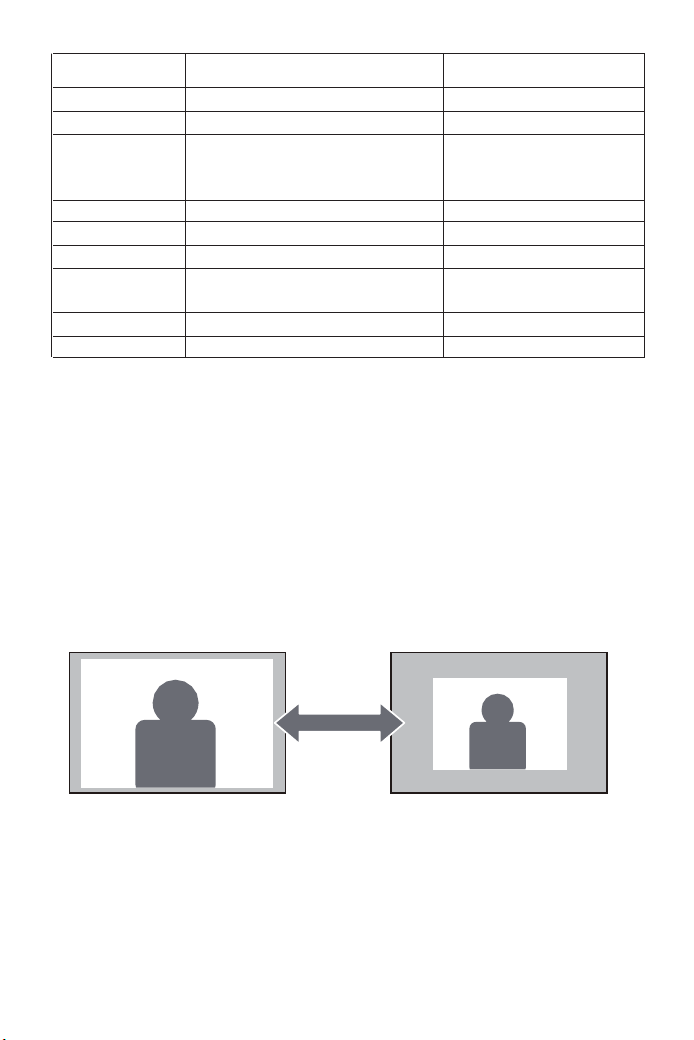
<X_Zoom / Y_Zoom>
Lorsque vous lisez une image ou une vidéo, si vous souhaitez modifier la
taille de l'image et de la projection vidéo, vous pouvez utiliser la télécom-
mande pour sélectionner l’option suivante afin de régler la taille de la
projection.
1) Cliquez sur "X_ZOOM" pour ajuster la longueur de la projection.
2) Cliquez sur "Y_ZOOM" pour ajuster la largeur de la projection.
Il est possible de réduire jusqu’à 0,5 fois la longueur et la largeur de l'image
d'origine.
IMAGE CONTENU EXPLICATION
Mode d’image Doux
Temp.de Couleur
Ratio d’aspect
X_ZOOM
Y_ZOOM
Reduction de Bruit
Reglage de PC
Methode de projection
Réglage trapézoïdal
Contraste/Luminosité/Couleur/ Acuité/Teinte
Rouge/Vert/Bleu
Auto/ 4:3/ 16:9
+1~50
+1~50
Fermer/Bas/Millieu/Haut/Valeur par défaut
Après la configuration de la connexion de
l'ordinateur est effective
Avant / Toit / Arrière / Plafond arrière
Vertical/Horizon(-50~+50)
Ajustez le contraste etc.
Ajuster la température de couleur
Le rapport hauteur / largeur vous
permet de configurer le mode
d'affichage des images.
Réduire à partir de l'axe X
Réduire à partir de l'axe Y
Réglage du bruit
Réglage de la configuration du PC
4 méthodes de projection
Réglage trapézoïdal
01 02 03 04 05 06 07
08 09 10 11 12 13 14 15 16 17
18 19 20 21
22 23 24 25 26 27
28 29 30 31 32 33 34 35 36 37
38 39 40 41 42 43 44 45 46 47
48 49 50 51 52
53
54 55 56 57
58 59 60 61 62 63 64 65 66 67
68 69 70 71 72 73 74 75 76
77 78 79 80 81 82 83 84 85 86
87 88
< Réglage trapézoïdal >
1.1 "Vertical". Réglage possible de -50 ~ +50
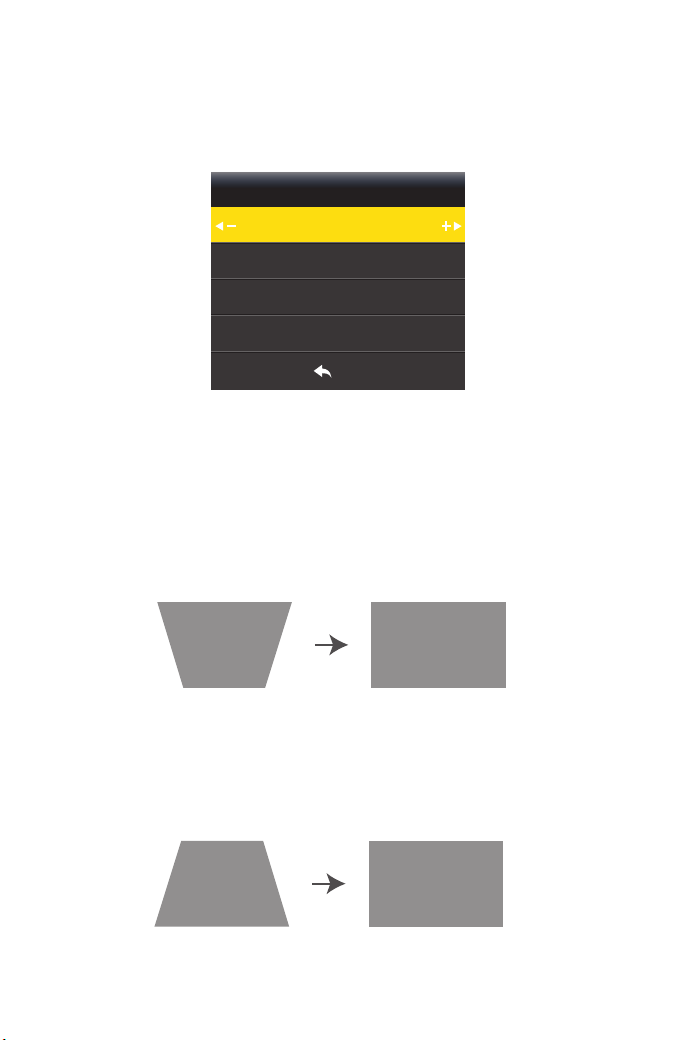
Il y a deux façons de corriger la distorsion trapézoïdale : "Vertical" et
"Horizon", vous pouvez utiliser directement la télécommande pour la
correction trapézoïdale.
Si l'image de projection est incliné verticalement comme indiqué en (1),
appuyez sur la touche "M" de la télécommande, sélectionnez "Réglage
trapézoïdal", puis appuyez sur la touche "OK" et définissez la valeur
verticale "+" pour atteindre le réglage souhaité effet de projection (2)
Si l'image de projection est incliné verticalement comme indiqué en (3),
appuyez sur la touche "M" de la télécommande, sélectionnez "Réglage
trapézoïdal", puis appuyez sur la touche "OK" et définissez la valeur
verticale "-" pour atteindre le réglage souhaité effet de projection (4)
Réglage trapézoïdal
Horizon 00
MENU
Vertical 00
(1) (2)
(3) (4)
01 02 03 04 05 06 07
08 09 10 11 12 13 14 15 16 17
18 19 20 21 22
23 24 25 26 27
28 29 30 31 32 33 34 35 36 37
38 39 40 41 42 43 44 45 46 47
48 49 50 51 52
53
54 55 56 57
58 59 60 61 62 63 64 65 66 67
68 69 70 71 72 73 74 75 76
77 78 79 80 81 82 83 84 85 86
87 88
1.3 Si l’image de projection est inclinée verticalement et
horizontalement
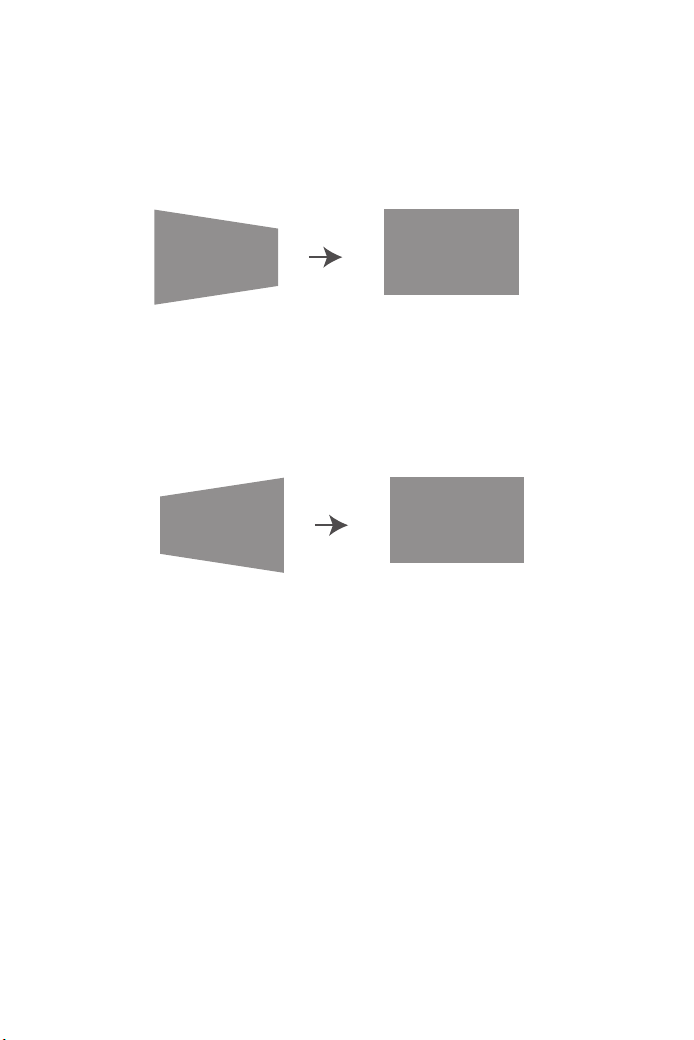
1.2 "Horizon". Réglage possible de -50 ~ +50
Si l'image de projection est incliné horizontalement comme indiqué en (7),
appuyez sur la touche "M" de la télécommande, sélectionnez "Réglage
trapézoïdal", puis appuyez sur la touche "OK" et réglez la valeur de
l’horizon "-" pour atteindre effet de projection (8)
a): Veuillez juger si l'image est verticale (1) ou (3), puis effectuez une
correction verticale.
b): Veuillez juger si l'image est horizontale (5) ou (7), puis effectuez une
correction horizontale.
Remarque: La correction verticale et la correction horizontale ne sont pas
ajustées en même temps. Il est préférable d’ajuster la verticale puis d’ajust-
er le niveau ou d’abord d’ajuster le niveau, puis d’ajuster la verticale.
Si l'image de projection est incliné horizontalement comme indiqué en
(5), appuyez sur la touche "M" de la télécommande, sélectionnez
"Réglage trapézoïdal", puis appuyez sur la touche "OK" et réglez la valeur
de l’horizon "+" pour atteindre effet de projection (6)
(5) (6)
(7) (8)
01 02 03 04 05 06 07
08 09 10 11 12 13 14 15 16 17
18 19 20 21 22 23
24 25 26 27
28 29 30 31 32 33 34 35 36 37
38 39 40 41 42 43 44 45 46 47
48 49 50 51 52
53
54 55 56 57
58 59 60 61 62 63 64 65 66 67
68 69 70 71 72 73 74 75 76
77 78 79 80 81 82 83 84 85 86
87 88
Son Menu
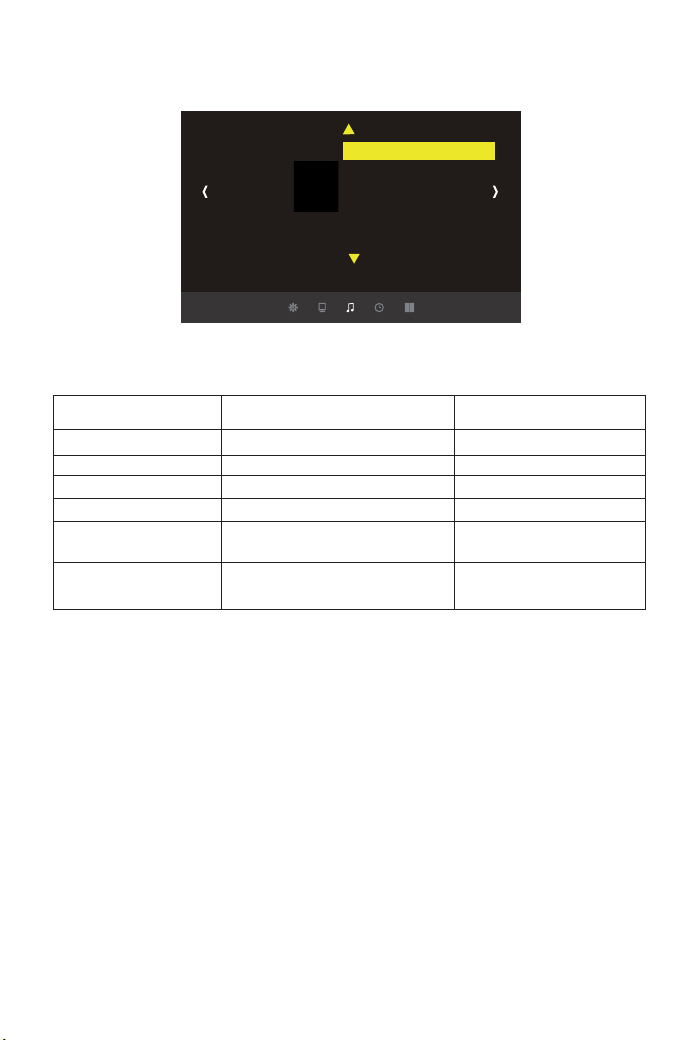
<Sortie sonore>
(Remarque : Si vous connectez le haut-parleur externe, veillez à sélection-
ner le mode correct. )
1) “ Normal ”. Le projecteur et le haut-parleur externe émettent tous les
deux du son;
2) “ Ligne ”. Seuls les haut-parleurs externes émettent du son;
3) “ Boîte Sonore”. Seul le projecteur émet du son.
Son
Mode Audio Norme
Équilibre
Volume automatique
Son ambiant
Egaliseur
Sortie sonore
Son CONTENU EXPLICATION
Mode Audio
Équilibre
Volume antomatique Marche
Son ambiant
Egaliseur
Sortie
Estandar/ Utilisateur( Grave/Basse)
-50 ~ +50
Marche/Fermer
Fermer/SRS TrySurround XT/Surround
120Hz 60/500Hz 53/1.5KHz 50/5KHz
50/10KHz 50
Normal/Ligne/Boîte Sonore
Ajuster le statut sonore
Ajustement du solde
Ajuste automatico de volumen
Réglage stéréo
Réglage du Hz
Réglage de la connexion d'un
équipement externe.
01 02 03 04 05 06 07
08 09 10 11 12 13 14 15 16 17
18 19 20 21 22 23 24
25 26 27
28 29 30 31 32 33 34 35 36 37
38 39 40 41 42 43 44 45 46 47
48 49 50 51 52
53
54 55 56 57
58 59 60 61 62 63 64 65 66 67
68 69 70 71 72 73 74 75 76
77 78 79 80 81 82 83 84 85 86
87 88
OPTION Menu
Especificaciones
Y30
Période de garantie
La période de garantie est de 3 ans à compter de la date d'achat. Si vous
avez des problèmes, n'hésitez pas à contacter
Nota: Puede reducir el ruido cambiando la velocidad del ventilador.
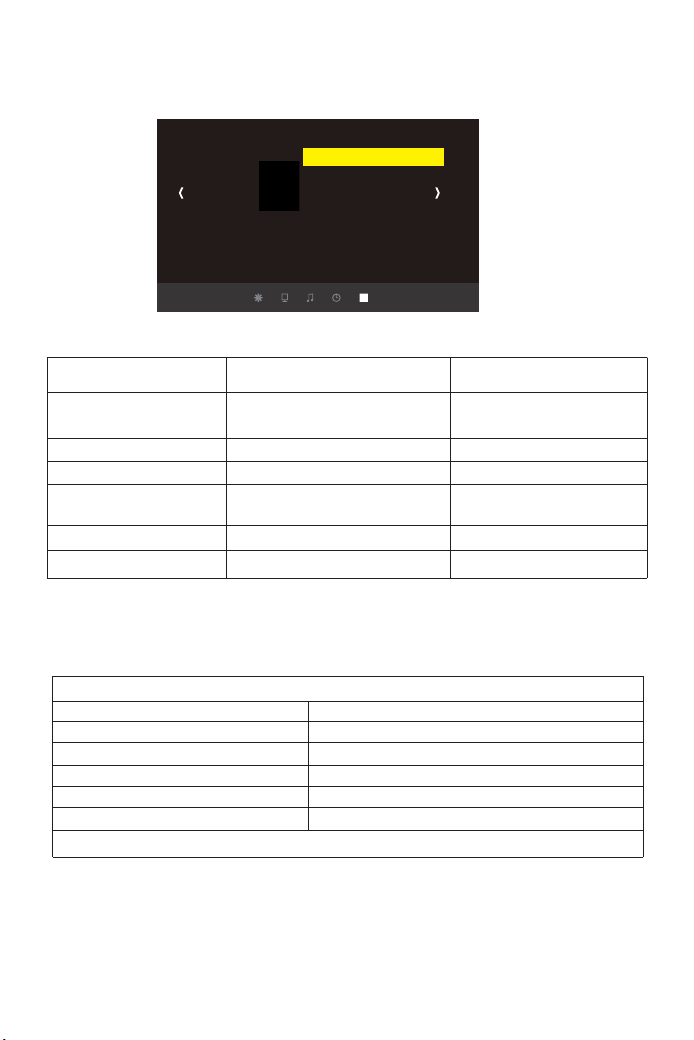
OPTION CONTENU EXPLICATION
Langue OSD
Restaurer les parametres d'usine
Transparence du menu Fermer
OSD durée
Mettre à jour de logiciel
Vitesse du ventilateur
English, French, Italien, Espagnol
Etc. 20 langues multiples
Êtes-vous sûr? Oui/Non
Fermer/Bas/Milieu/Haut
Fermer/5 Deuxième/10Deuxième/
15Deuxième
Sans Détecter USB
Fermer/Marche
Puissance
USB
Résolution
Interface d’entree
Sortie d'interface
Poids du projet
Imagerie système
Source lumineuse
Coleur
Distance de projection
Taille de projection
Rapport d’aspect
Regulación trapezoidal : Trapezoide electrónico de cuatro esquinas ± 45 °
LCD
LED
16.7M pleine couleur
1.5-5.5m
45-200 inch
16:9 /4:3
110-240V~50/60HZ
5V 500mA Salida
1920*1080
HDM*2/VGA/AV/ USB*2/AUDIO IN
AUDIO OUT
2.9KG
Paramètres de langue
Restaurer les paramètres d'usine
Réglage de la transparence du menu.
Durée du menu
Mise à jour du firmware
Ajuster la vitesse du ventilateur
OPCIÓN
Langue OSD France
Restaurer les paramètres d'usine
Transparence du menu
HDMI CEC
Mettre a jour de logiciel
OSD durée
Vitesse du ventilateur
01 02 03 04 05 06 07
08 09 10 11 12 13 14 15 16 17
18 19 20 21 22 23 24 25
26 27
28 29 30 31 32 33 34 35 36 37
38 39 40 41 42 43 44 45 46 47
48 49 50 51 52
53
54 55 56 57
58 59 60 61 62 63 64 65 66 67
68 69 70 71 72 73 74 75 76
77 78 79 80 81 82 83 84 85 86
87 88

FAQ
■ Pas de son
Le format compatible avec le projecteur est le suivant:
Format vidéo: MPG, AVI, TS, MOV, MKV, DAT, MP4
Format audio: MP3, WMA, AAC
Format d'image: JPG, JPEG, BMP, PNG.
* En ce qui concerne la sortie audio, ne pouvant pas prendre en charge le
son Dolby, fermez la fonction Dolby Sound.
Si vous n'êtes toujours pas bon, suivez les étapes ci-dessous.
1. Vous pouvez définir le mode de sortie audio avec les trois éléments
secondaires "Ligne, Normal, Zone de son" dans le menu "SON" - "Source
sonore" (dernier élément).
2. Réglez le volume avec la télécommande.
3. Vérifiez s'il est en mode silencieux.
■ L’appareil s’éteint pendant l’utilisation
1. Est-ce que "Auto off" dans le menu de la minuterie est réglé sur "On
(Choisir l'heure)"? Avez-vous réglé "Heure de désactivation" sur "Activé
(sélectionner l'heure)"?
2. Assurez-vous que la fiche du cordon d'alimentation est insérée
correctement.
■ La télécommande ne fonctionne pas
1. La télécommande pointe-t-elle sur le récepteur du projecteur?
2. La pile de la télécommande est-elle épuisée? Veuillez remplacer par
une nouvelle pile.
3. Y a-t-il un obstacle entre la télécommande et le projecteur?
4. Avez-vous dépassé la portée effective de la télécommande?
■ Les images sont floues
1. La mise au point de l'objectif est-elle correcte?
2. L’écran de projection et le projecteur sont-ils installés à l’angle
approprié?
3. La distance de projection est-elle au-delà de la plage de mise au
point?
4. Assurez-vous que l’objectif de projection n’est pas sale.
01 02 03 04 05 06 07
08 09 10 11 12 13 14 15 16 17
18 19 20 21 22 23 24 25 26
27
28 29 30 31 32 33 34 35 36 37
38 39 40 41 42 43 44 45 46 47
48 49 50 51 52
53
54 55 56 57
58 59 60 61 62 63 64 65 66 67
68 69 70 71 72 73 74 75 76
77 78 79 80 81 82 83 84 85 86
87 88
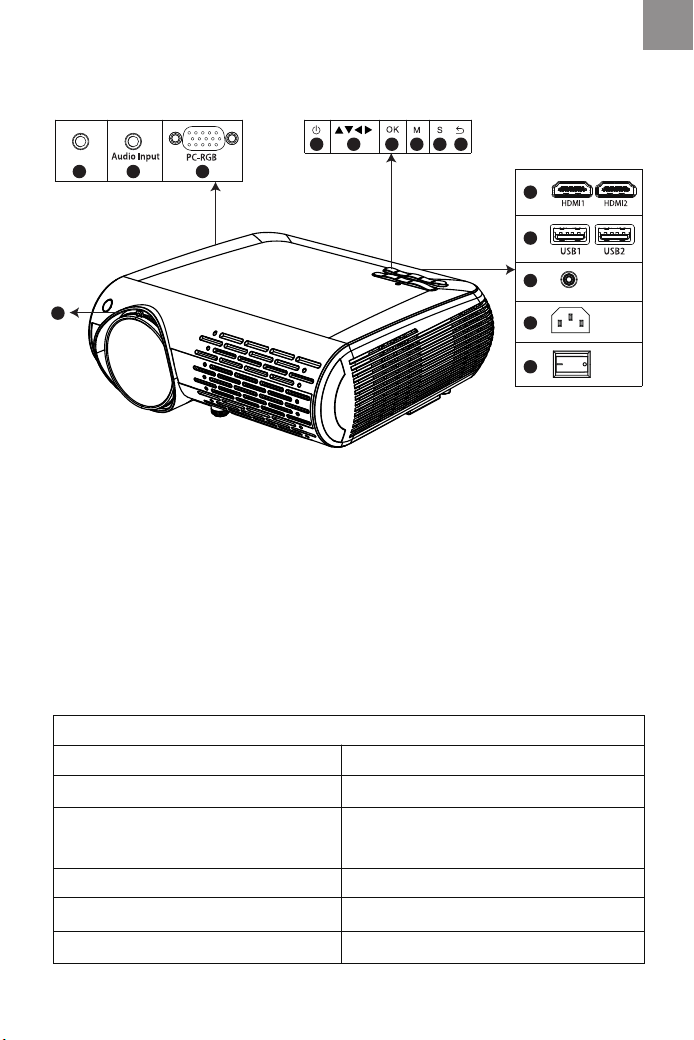
Note: Si prega di fare riferimento al proiettore reale, la foto è solo illustrativa
01 Audioeingang
02 Audioausgang
03 VGA-Eingangsanschluss
04 stromversorgung
05 Pfeiltasten
06 OK-Taste
07 Menütaste
08 Quellentaste
09 Zurück-Taste
10 HDMI 1 / HDMI 2-Eingangstaste
11 USB1 / USB1-Eingabetaste
12 Fernbedienungsempfänger
13 Stromaufnahme (10 - 240 V)
14 Hauptschalter
15 Drehen Sie das Objektiv, um die
Schärfe einzustellen
04
0201 03
05 06 07 08 09
10
11
12
13
14
AV
IR
Sistema immagine: LCD
Illuminazione: LED
Distanza di proiezione: 1.5-5.5m
Dimensioni proiezione: 45-200”
Rapporto d’aspetto: 16:9 /4:3
Alimentazione: 110-240V~50/60HZ
Risoluzione: 1080P Full HD
Interfaccia Input: HDM*2/VGA/AV/
USB*2/AUDIO IN
Interfaccia output: AUDIO OUT
Correzione Keystone: ±15°Manuale
Peso: 2.9kg
Colori: 16.7M full color
Y30
15
DE
01 02 03 04 05 06 07
08 09 10 11 12 13 14 15 16 17
18 19 20 21 22 23 24 25 26 27
28 29 30 31 32 33 34 35 36 37
38 39 40 41 42 43 44 45 46 47
48 49 50 51 52
53
54 55 56 57
58 59 60 61 62 63 64 65 66 67
68 69 70 71 72 73 74 75 76
77 78 79 80 81 82 83 84 85 86
87 88
01
04
06
10
12
14
17
02
03
05
07
08
09
11
13
16
15
18
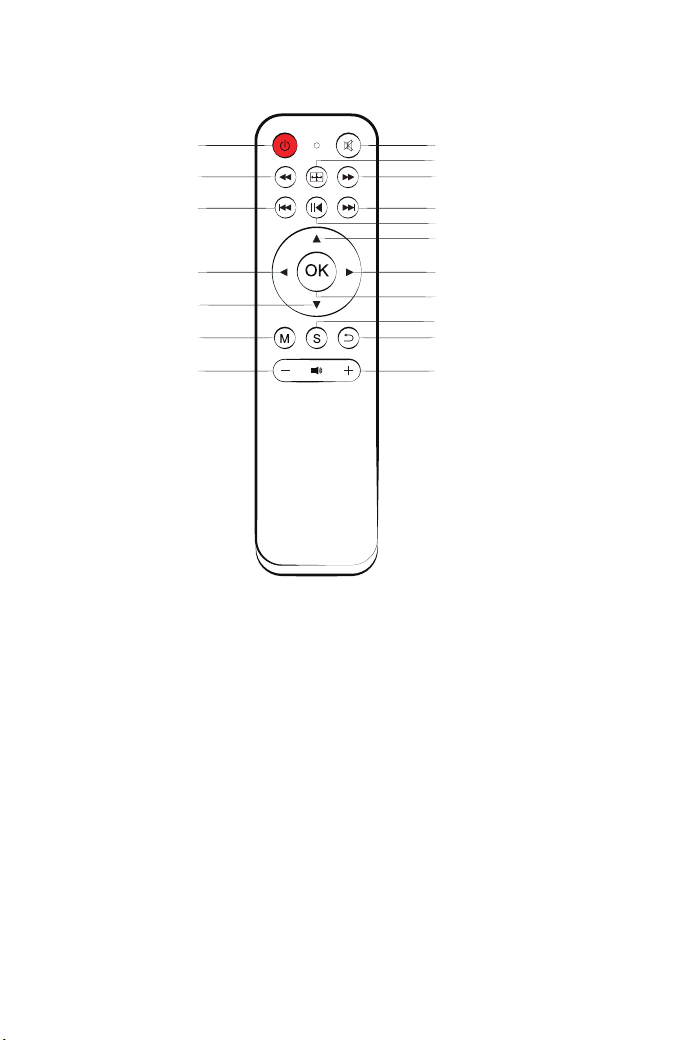
1. Einschaltknopf: Schalten Sie den Standby-Modus um
2. Stummschalttaste: Schaltet den Projektorton ein oder aus
3. Flip-Taste: Drehen Sie das Bild um
4/5/6/7. Rückspultaste: Schneller Vorlauf / Rücklauf / vorheriger /
nächster Titel
8. Wiedergabe-Pause-Taste: Wiedergabe / Pause
9/10/11/12. Pfeile: Parameter des Menümodus, mit denen der
Projektor fixiert wird
13. OK-Taste: OK
14. Menütaste: Um das Hauptmenü des Projektors anzurufen oder
zu verlassen
15. Signalwahltaste: Um die Signalquelle zu ändern
16. Funktionstaste verlassen: Beenden
17/18. Lautstärketasten: lauter / leiser
01 02 03 04 05 06 07
08 09 10 11 12 13 14 15 16 17
18 19 20 21 22 23 24 25 26 27
28
29 30 31 32 33 34 35 36 37
38 39 40 41 42 43 44 45 46 47
48 49 50 51 52
53
54 55 56 57
58 59 60 61 62 63 64 65 66 67
68 69 70 71 72 73 74 75 76
77 78 79 80 81 82 83 84 85 86
87 88
Bemerkung
* Ein Teil des Videos in Netflix und die Hauptvideoformate können
aufgrund des Urheberrechtsschutzes (HDCP-Protokoll) nicht extern
exportiert werden. Da Amazon Fire TV HDCP-kompatibel ist, können Sie
Netflix und das erste Video über Amazon Fire abspielen.
Danke
Vielen Dank, dass Sie sich für den Projektor YABER Y 30 entschieden
haben.
Bitte lesen Sie diese Bedienungsanleitung vor dem Gebrauch sorgfältig
durch. Bitte halten Sie es auch griffbereit, damit Sie es jederzeit
überprüfen können.
Im Zweifelsfall wenden Sie sich bitte an [email protected].
Wir können den Kundendienst bis zur Zufriedenheit erbringen.
Ersetzen Sie die Batterie der Fernbedienung
1. 1. drücken, um den Batteriefachdeckel zu öffnen.
2. Entfernen Sie beide alten Batterien und legen Sie neue ein (AA).
Stellen Sie sicher, dass die Polarität der Batterien (+/-) richtig
ausgerichtet ist.
Installation
Enthalte
1. Verwenden Sie den Projektor in einem dunklen Raum, um optimale
Ergebnisse zu erzielen.
2. Stellen Sie den Projektor auf eine flache, ebene Oberfläche, an einem
trockenen Ort und vor Staub und Feuchtigkeit.
Hauptgerät des Projektors * 1
Bedienungsanleitung * 1
3-in-3 * 1-AV-Kabel
3-in-1 * 1-AV-Kabel
HDMI-Kabel * 1
VGA-Kabel * 1
Linsenreinigung * 1
Netzkabel * 1
Fernbedienung * 1
01 02 03 04 05 06 07
08 09 10 11 12 13 14 15 16 17
18 19 20 21 22 23 24 25 26 27
28 29
30 31 32 33 34 35 36 37
38 39 40 41 42 43 44 45 46 47
48 49 50 51 52
53
54 55 56 57
58 59 60 61 62 63 64 65 66 67
68 69 70 71 72 73 74 75 76
77 78 79 80 81 82 83 84 85 86
87 88

FAQ
3. Setzen Sie den Projektor nicht in direktem Sonnenlicht, in der Nähe
von Heizgeräten oder Geräten, die Wärme abgeben.
4. Durch direkte Sonneneinstrahlung, Rauch oder Dampf können interne
Komponenten beschädigt werden.
5. Behandeln Sie den Projektor vorsichtig. Durch Fallen oder Schütteln
können interne Bauteile beschädigt werden.
6. Stellen Sie keine schweren Gegenstände auf den Projektor.
1. Beim Einschalten funktioniert die Anzeigeleuchte nicht
①. Die Stromversorgung ist möglicherweise nicht richtig angeschlossen
②. Überprüfen Sie das Überhitzungsschutzsystem
2. Durch Drücken des Netzschalters auf der Fernbedienung wird der
Projektor nicht eingeschaltet
①. Die Batterien der Fernbedienung sind leer
②. Das Signal zwischen der Fernbedienung und dem IR-Sensor ist blockiert
③. Starkes direktes Licht auf dem IR-Sensor?
3. Kein Bild auf dem Bildschirm
①. Ist die Kanaleinstellung korrekt?
②. Gibt es ein Eingangssignal?
③. Ist das Eingangskabel richtig eingesteckt oder ist es falsch positioniert?
④. Im PC-Modus beträgt die Bildwiederholfrequenz> 75 kHz.
1. Der Projektor ist für den Betrieb mit einem 110-240 V ~ 50/60
Hz-Netzadapter ausgelegt.
2. Behandeln Sie das Netzkabel sorgfältig und vermeiden Sie zu starke
Biegungen. Ein beschädigtes Kabel kann einen elektrischen Schlag oder
einen Brand verursachen.
3. Wenn der Projektor längere Zeit nicht verwendet wird, ziehen Sie den
Netzstecker aus der Steckdose.
Macht
1. Trennen Sie den Projektor vom Netz, bevor Sie ihn reinigen.
2. Reinigen Sie das Gehäuse regelmäßig mit einem feuchten Tuch. Bei
starker Verschmutzung verwenden Sie ein mildes Reinigungsmittel.
Verwenden Sie niemals starke Reinigungsmittel oder Lösungsmittel wie
Alkohol oder Verdünner.
3. Reinigen Sie das Objektiv mit einem Blower- oder Linsenpapier und
achten Sie darauf, das Objektiv nicht zu zerkratzen oder zu beschädigen.
Pulizia
01 02 03 04 05 06 07
08 09 10 11 12 13 14 15 16 17
18 19 20 21 22 23 24 25 26 27
28 29 30
31 32 33 34 35 36 37
38 39 40 41 42 43 44 45 46 47
48 49 50 51 52
53
54 55 56 57
58 59 60 61 62 63 64 65 66 67
68 69 70 71 72 73 74 75 76
77 78 79 80 81 82 83 84 85 86
87 88
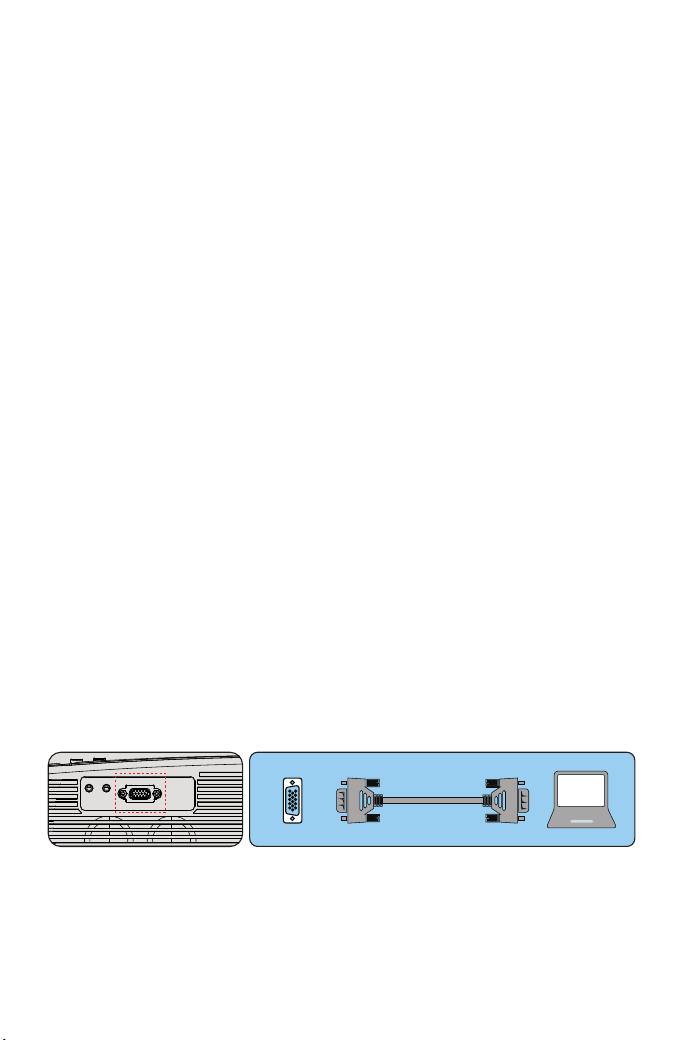
Anschluss externer Geräte
4. Das Bild funktioniert, aber es ist kein Ton zu hören
①. Sind die Eingangskabel richtig angeschlossen?
②. Lautstärke auf Minimum oder lautlos
③. Stellen Sie sicher, dass das Audioformat des Videos in der unterstützten
Liste enthalten ist
5. Schaltet sich nach längerem Einschalten automatisch aus
①. Gibt es eine Barriere um den Lüfter?
②. Kleine oder große Spannungsschwankungen
③. Überprüfen Sie das Überhitzungsschutzsystem
6. Ich kann keine Geräte finden, die mit Festplatten oder Flash-Laufwerken
verbunden sind
①. Setzen Sie das Gerät erneut ein
②. Prüfen Sie, ob das Gerät funktioniert
7. Video kann nicht abgespielt werden
①. Ist das Videoformat korrekt?
②. Ist die Datei beschädigt?
③.Ist das Gerät beschädigt?
1.Anschluss eines PCs
1.Verwenden Sie das mitgelieferte VGA-Kabel, um den PC an den
Projektor anzuschließen.
2. Schalten Sie den Projektor und den Computer ein.
* HINWEIS: Sie können auch ein HDMI-Kabel anschließen. Denken Sie
daran, dass VGA-Verbindungen keinen Ton übertragen, sodass der Ton
vom Computer ausgegeben wird. Wenn Sie ein HDMI-Kabel
anschließen, wird der Ton an den Projektor ausgegeben.
2. Anschließen eines Smartphones
Verbinden Sie ein Telefon mit einem Android-System:
(Hinweis: Prüfen Sie, ob Ihr Android-Telefon die MHL-Funktion
unterstützt.) MHL-HDMI-Kabel nicht im Lieferumfang enthalten
VGA
01 02 03 04 05 06 07
08 09 10 11 12 13 14 15 16 17
18 19 20 21 22 23 24 25 26 27
28 29 30 31
32 33 34 35 36 37
38 39 40 41 42 43 44 45 46 47
48 49 50 51 52
53
54 55 56 57
58 59 60 61 62 63 64 65 66 67
68 69 70 71 72 73 74 75 76
77 78 79 80 81 82 83 84 85 86
87 88
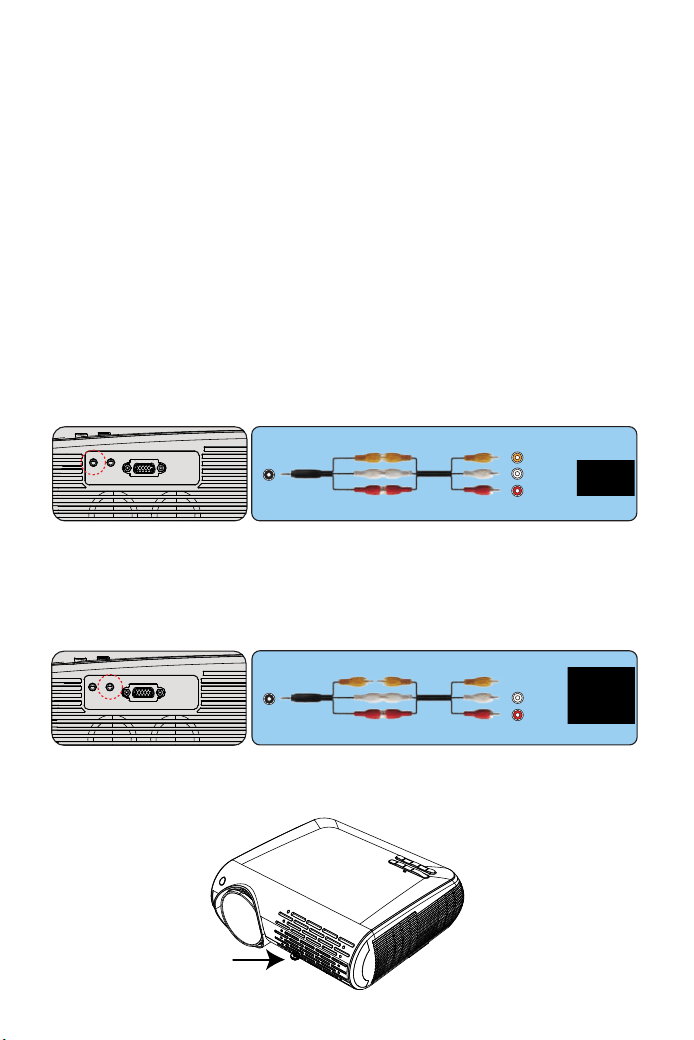
Stellen Sie die Neigungsbasis ein
3.Anschließen eines DVD-Players
1. Verwenden Sie das mitgelieferte AV-Kabel, um den DVD-Player an den
Projektor anzuschließen.
2. Schalten Sie den Projektor und den DVD-Player ein.
Wenn Ihr Player über einen HDMI-Ausgang verfügt, verwenden Sie ihn am
besten über die analoge (AV) Option. Die Audioausgabe muss im
DVD-Player-Menü konfiguriert werden, wenn externe Lautsprecher
installiert sind.
4.Schließen Sie die Soundbar an
1.Verwenden Sie das mitgelieferte AV-Kabel, um die Soundbar mit dem
Projektor zu verbinden.
2. Schalten Sie den Projektor und die Soundbar ein.
1. Halten Sie die Neigungstaste auf der Rückseite des Projektors gedrückt.
1. Verbinden Sie den Projektor und das Android-Smartphone mit dem
MHL-HDMI-Kabel.
2. Wählen Sie die Signalquelle: "HDMI"
Anschließen eines iPhone:
1. Verbinden Sie den Projektor und das iPhone mit dem Lightning-HD-
MI-Kabel (nicht im Lieferumfang enthalten).
2. Wählen Sie die Signalquelle: "HDMI"
AV
video
audio out
(L/R)
Audio-out
audio out
(L/R)
01 02 03 04 05 06 07
08 09 10 11 12 13 14 15 16 17
18 19 20 21 22 23 24 25 26 27
28 29 30 31 32
33 34 35 36 37
38 39 40 41 42 43 44 45 46 47
48 49 50 51 52
53
54 55 56 57
58 59 60 61 62 63 64 65 66 67
68 69 70 71 72 73 74 75 76
77 78 79 80 81 82 83 84 85 86
87 88
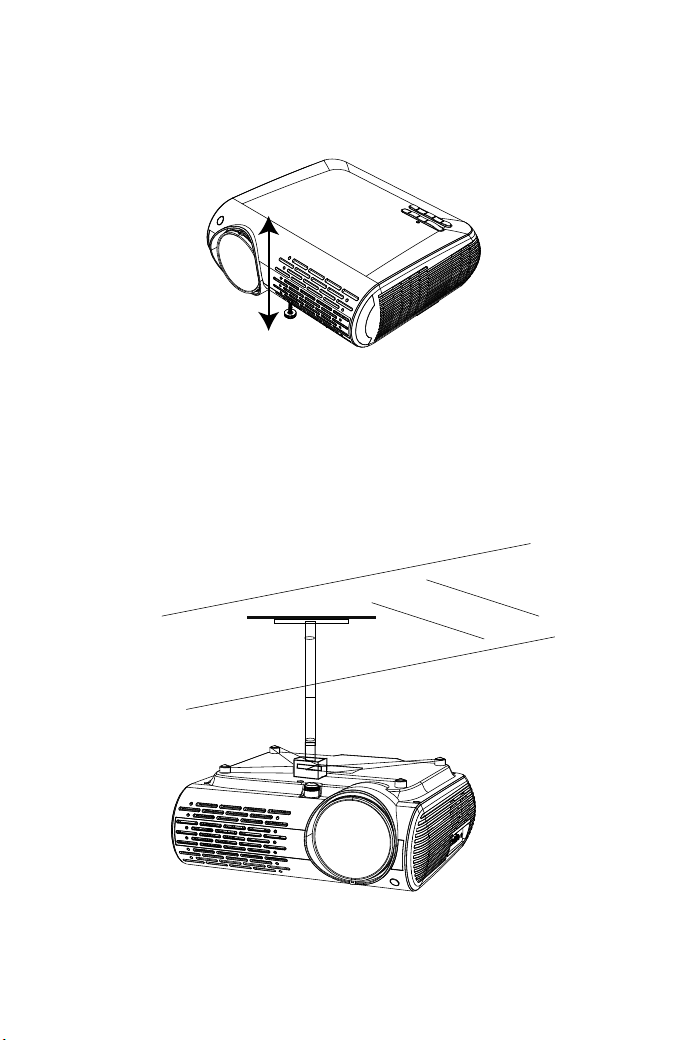
3.Vorsichtsmaßnahmen bei der Installation des Dachs
2. Heben Sie die Vorderkante des Projektors auf die gewünschte Höhe
an, drehen Sie den Fuß und lassen Sie die Taste los, um die Neigungs-
basis in der Position zu verriegeln, die sie für angemessen hält.
Bitte kaufen Sie die Halterungen für den Projektor und einige 10mm
M4-Schrauben.
01 02 03 04 05 06 07
08 09 10 11 12 13 14 15 16 17
18 19 20 21 22 23 24 25 26 27
28 29 30 31 32 33
34 35 36 37
38 39 40 41 42 43 44 45 46 47
48 49 50 51 52
53
54 55 56 57
58 59 60 61 62 63 64 65 66 67
68 69 70 71 72 73 74 75 76
77 78 79 80 81 82 83 84 85 86
87 88
Bedienung des Projektors
Allgemeine Kontrolle der Operation vor dem Einschalten des Projektors,
stellen Sie sicher, dass der Computer oder die Videoquelle eingeschaltet
ist und dass die Linsenkappe entfernt wurde.
1. Schalten Sie den Projektor an und drücken Sie dann den Hauptstrom-
schalter. Der Projektor wird in den Standby-Modus gehen und die
Leistungsanzeige wird rot leuchten.
*Erst nach dem Drück des "Power"-Buttons auf dem Projektor oder die
Fernbedienung wird die Leistungsanzeige grün und der Projektor ist
einsatzbereit.*
2. Wählen Sie die Signalquelle, drücken Sie den "S"-Knopf auf der
Fernbedienung oder Projektor und wählen Sie aus: "AV", "PC-RGB",
"HDMI 1", "HDMI 2", "USB".
3. Stellen Sie die Bildgröße ein, um die beste Bildgröße zu erhalten,
indem Sie den Projektor hin und her bewegen, dann benutzen Sie den
Fokusring, um den besten Fokus zu erhalten.
*Sprachmenü - Sie sollten es auswählen*, wenn Sie den Projektor zum
ersten Mal einschalten. Sie werden die Schnittstelle in englischer
Sprache sehen. *Sie können zwischen die Sprachen auf dem Menü
auswählen*: Deutsch, Französisch, Italienisch, Spanisch, Japanisch und
so weiter.
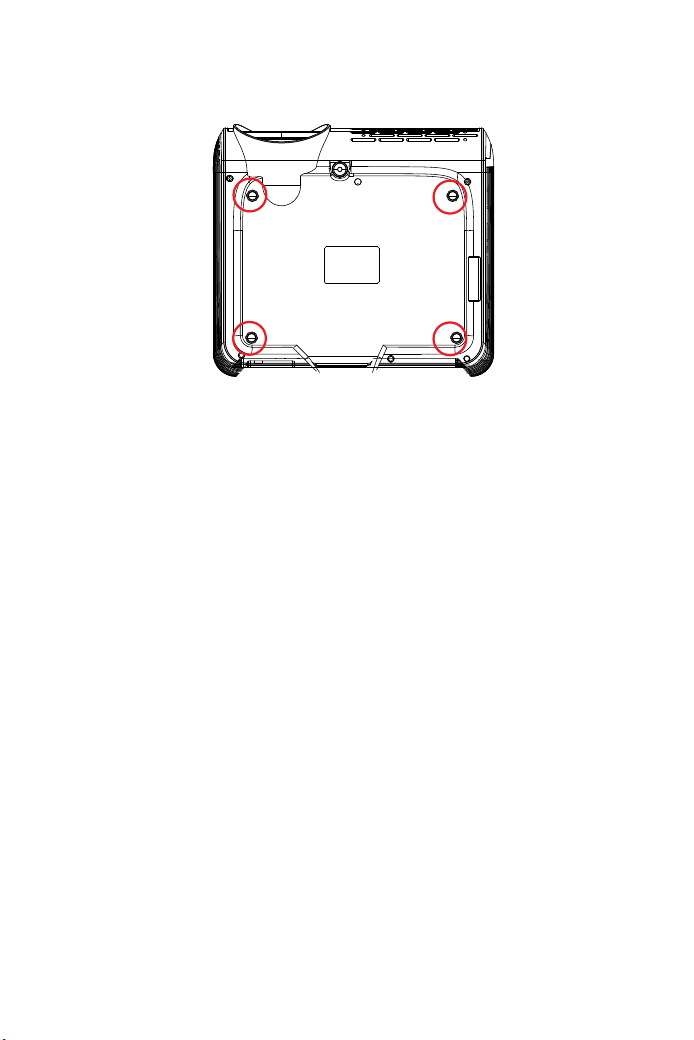
Öffnen Sie die 4 Tasten auf der Rückseite des Projektors und hängen Sie
den Projektor mit M4 * 10-mm-Schrauben am Ständer auf.
01 02 03 04 05 06 07
08 09 10 11 12 13 14 15 16 17
18 19 20 21 22 23 24 25 26 27
28 29 30 31 32 33 34
35 36 37
38 39 40 41 42 43 44 45 46 47
48 49 50 51 52
53
54 55 56 57
58 59 60 61 62 63 64 65 66 67
68 69 70 71 72 73 74 75 76
77 78 79 80 81 82 83 84 85 86
87 88
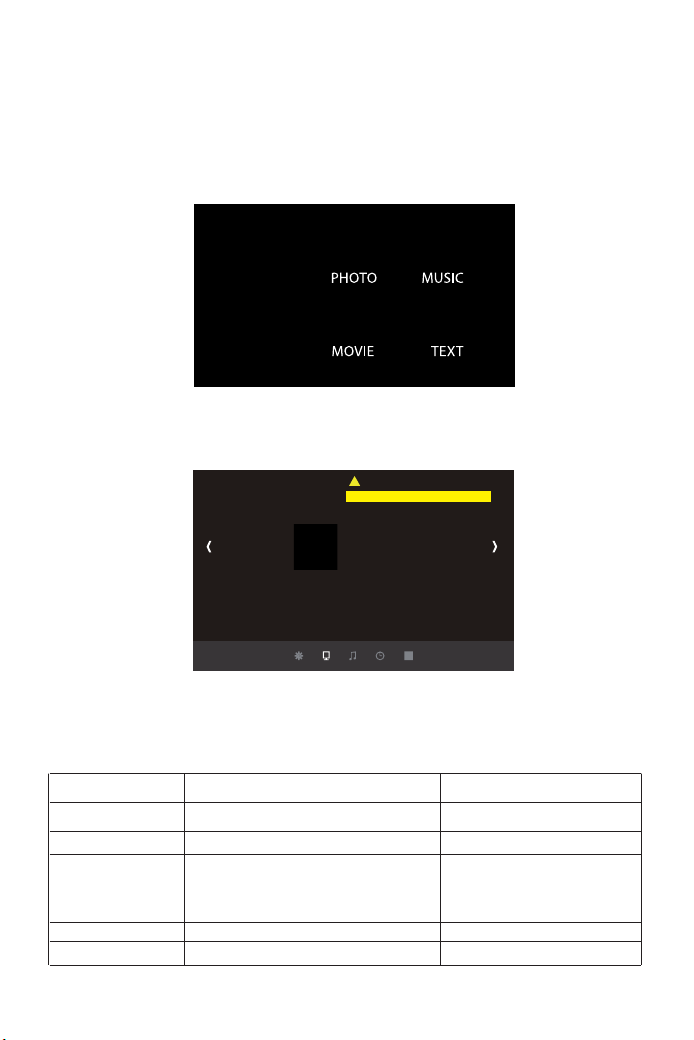
Bitte folgen Sie diesen Schritten:
MENU BILD
1. Drücken Sie den "M"-Button und finden Sie die "OPTION"-Schnitt-
stelle, dann finden Sie die "OSD Language Deutsch".
2. Drücken Sie den ENTER-Knopf, um die Auswahl zu treffen.
BILD
Standard
Farbtemperatur
Zoom-Modus
X_ZOOM
Y_ZOOM
Projektionsverfahren
Trapezverstellung
MENU BILD
Farbberich
BILD Menu incluso Funktion
Standard
Farbtemperatur
Zoom-Modus
X_ZOOM
Y_ZOOM
Standard, Weich, Benutzer, Dynamisch
Mittel, Warme, Benutzer, kuhl
Auto/ 4:3/ 16:9
+1~50
+1~50
Ajustar el contraste etc
Regola la temperatura del colore
Le proporzioni consentono di
configurare il modo in cui vengono
visualizzate le immagini.
Riduci dall'asse X.
Ridimensiona dall'asse Y.
01 02 03 04 05 06 07
08 09 10 11 12 13 14 15 16 17
18 19 20 21 22 23 24 25 26 27
28 29 30 31 32 33 34 35
36 37
38 39 40 41 42 43 44 45 46 47
48 49 50 51 52
53
54 55 56 57
58 59 60 61 62 63 64 65 66 67
68 69 70 71 72 73 74 75 76
77 78 79 80 81 82 83 84 85 86
87 88
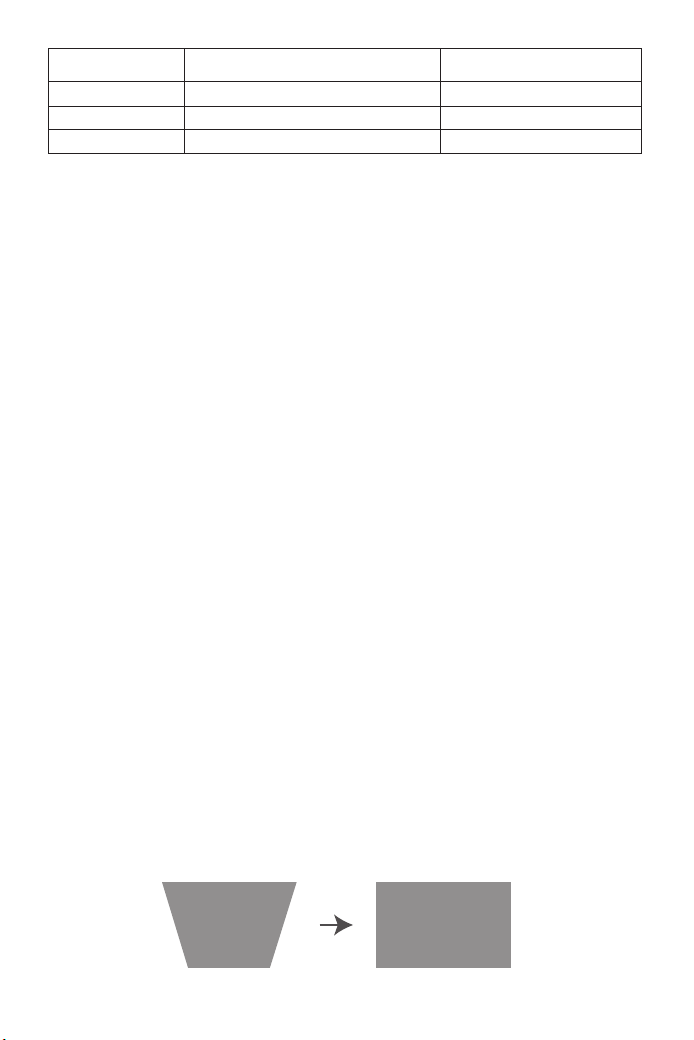
Wichtige Funktion
Wenn das Projektionsbild wie in (1) gezeigt vertikal geneigt ist, drücken
Sie die Taste "M" auf der Fernbedienung, wählen Sie "Trapezeinstellung",
drücken Sie die Taste "OK" und stellen Sie den vertikalen Wert auf "+",
bis um den Projektionseffekt zu erreichen
Se l'immagine di proiezione è inclinata verticalmente, come mostrato in
(1), premere il tasto "M" sul telecomando, selezionare "Regolazione
trapezoidale", quindi premere il pulsante "OK" e impostare il valore
verticale su "+" , fino a raggiungere l'effetto di proiezione (2).
1. "vertikal". Bereich: -50 ~ +50
< Innovative 4d Keystone Correction > Es gibt zwei Möglichkeiten, *um*
das Trapez zu korrigieren: "Vertikal" und "horizontal", können Sie die
Fernbedienung direkt zur Keystone-Korrektur verwenden.
1. Vertikale Einstellbereich:-50 ~ + 50. Wenn der vertikale Koeffizient
nach oben erhöht wird, wird der obere Teil der projizierten Leinwand
nach und nach kleiner; Wenn der vertikale Koeffizient nach und nach
gesenkt wird, wird der untere Teil der projizierten Leinwand nach und
nach kleiner.
2. Horizontale Einstellbereich:-50 ~ + 50, wenn der horizontale Koeffi-
zient nach und nach oben erhöht wird, ändert sich die linke Seite der
projizierten Leinwand nicht, die rechte Seite der Leinwand wird nach und
nach unten gehen und die linke Seite der Bildschirm ändert sich nicht;
Wenn der horizontale Koeffizient nach und nach abgesenkt wird, wird die
linke Seite des Bildschirms nach und nach reduziert, die rechte Seite des
Bildschirms konstant.
Wenn die Seiten des Bildschirms verschwommen sind, können Sie diese
Funktion nutzen, um sich anzupassen.
BILD Menu incluso Funzione
Farbberich
Projektionsverfahren
Trapezverstellung
Automatisch, 0~255, 16~235,
Front/Dach / Hinten / Decke hinten
Vertical: -50~50,Horizon: -50~50
Regolazione trapezoidale
4 Projektionsmethoden
Trapez-Einstellung
(1) (2)
01 02 03 04 05 06 07
08 09 10 11 12 13 14 15 16 17
18 19 20 21 22 23 24 25 26 27
28 29 30 31 32 33 34 35 36
37
38 39 40 41 42 43 44 45 46 47
48 49 50 51 52
53
54 55 56 57
58 59 60 61 62 63 64 65 66 67
68 69 70 71 72 73 74 75 76
77 78 79 80 81 82 83 84 85 86
87 88
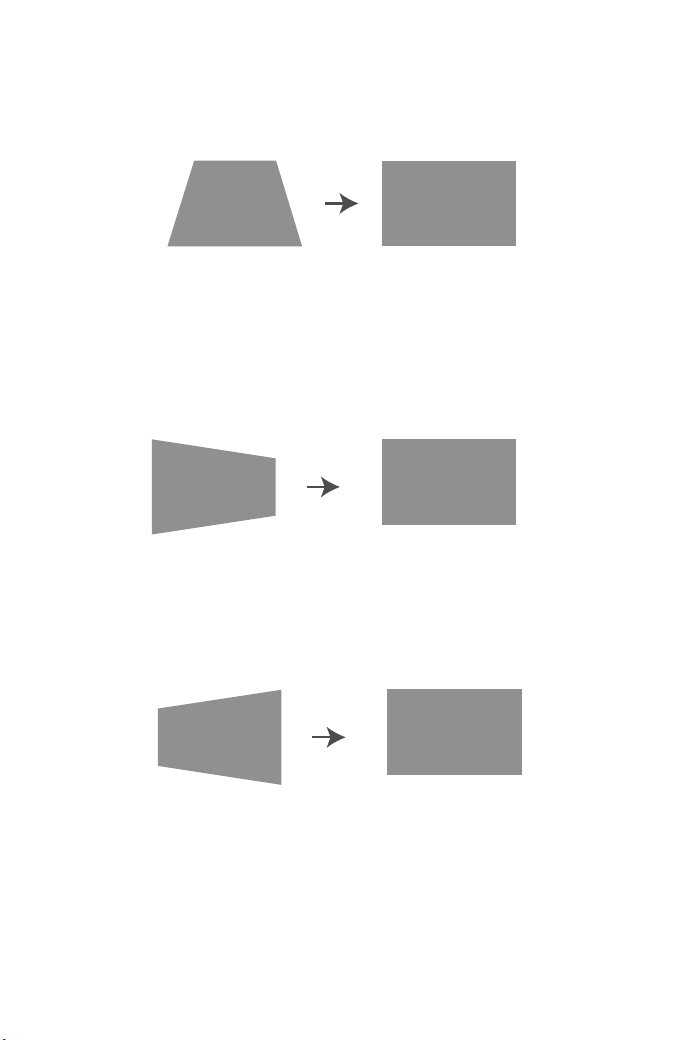
Wenn das Projektionsbild wie in (5) gezeigt horizontal geneigt ist,
drücken Sie die Taste "M" auf der Fernbedienung, wählen Sie "Trapez-
korrektur", drücken Sie die Taste "OK" und stellen Sie den Horizontwert
auf "+" ", Erreichen Sie den Projektionseffekt (6).
1.2 "Horizont". Bereich: -50 ~ +50
<X_Zoom / Y_Zoom>
Wenn das Projektionsbild wie in (7) gezeigt horizontal geneigt ist,
drücken Sie die Taste "M" auf der Fernbedienung, wählen Sie "Trapez-
korrektur", drücken Sie die Taste "OK" und stellen Sie den Horizontwert
auf "-". , Erreichen des Projektionseffekts (8).
Wenn Sie bei der Wiedergabe eines Bildes oder Videos die Größe des
projizierten Bildes oder Videos ändern möchten, können Sie mit der
Fernbedienung die nächste Option auswählen und die Projektionsgröße
anpassen:
Wenn das Projektionsbild vertikal geneigt ist (siehe (3)), drücken Sie die
Taste "M" auf der Fernbedienung, wählen Sie "Trapezkorrektur", drücken
Sie die Taste "OK" und stellen Sie den vertikalen Wert auf "-", bis um den
Projektionseffekt (4) zu erzielen.
(5) (6)
(7) (8)
(3) (4)
01 02 03 04 05 06 07
08 09 10 11 12 13 14 15 16 17
18 19 20 21 22 23 24 25 26 27
28 29 30 31 32 33 34 35 36 37
38 39 40 41 42 43 44 45 46 47
48 49 50 51 52
53
54 55 56 57
58 59 60 61 62 63 64 65 66 67
68 69 70 71 72 73 74 75 76
77 78 79 80 81 82 83 84 85 86
87 88
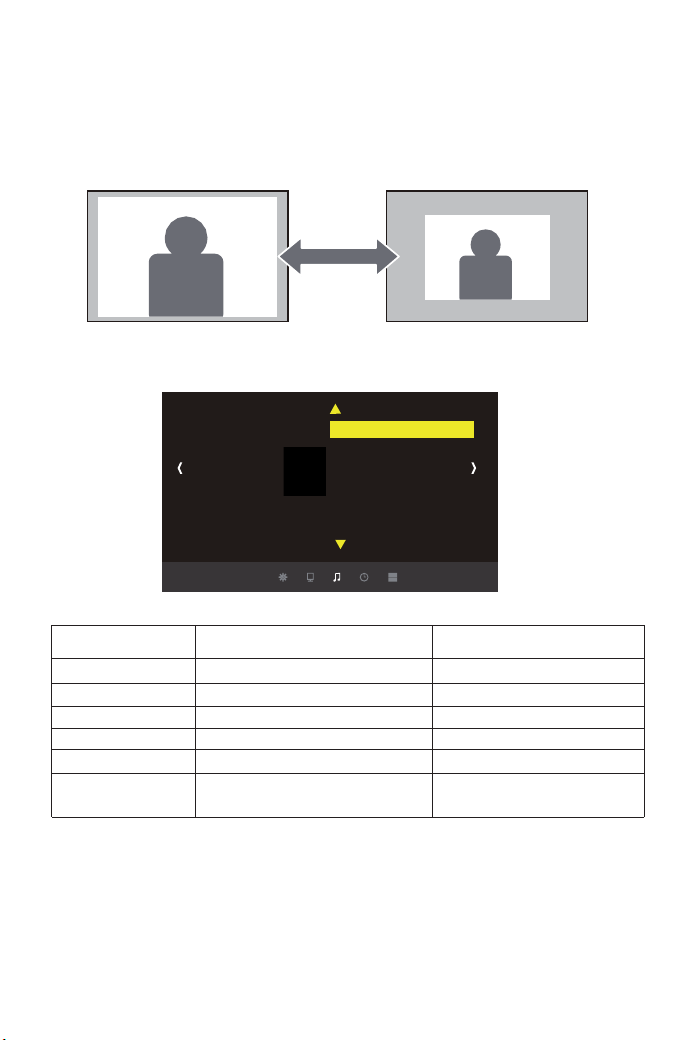
Menu Tonen
((Hinweis: Wenn Sie einen externen Lautsprecher für die Audioausgabe
anschließen, beachten Sie die folgenden Anweisungen).
A: Normal: In diesem Modus können alle Geräte einen Ton ausgeben
B: Sprecher: In diesem Modus gibt nur der Projektor einen Ton aus
C: Linie: In diesem Modus gibt der Projektor keinen Ton aus
Tipps:
1) Klicken Sie auf "X_ZOOM", um die horizontale Größe der Projektion
anzupassen.
2) Klicken Sie auf "Y_ZOOM", um die Vertikale der Projektion anzupassen.
Sie können die ursprüngliche Höhe und Breite der Videoquelle um bis zu
50% reduzieren.
Tonen Menu incluso Funktion
Sound-modus
Saldo
Automatische Lautstarke
Surround Sound
EQ
Tonausgabe
Benutzer, Stardard, Musik, Film, Sport
-50~50
Ein, Aus
Aus, SRS Trusurround XT, Umgebung
120Hz,500Hz,1.5KHz, 5KHz, 10KHz
Normal, Sprecher, Linie
Stellt den Tonzustand ein
Einstellung des Gleichgewichts
Automatische Lautstärkeanpassung
Stereoeinstellung
Hz-Einstellung
Einstellung des Anschlusses
externer Geräte.
Menu Tonen
Tonen
Saldo
Automatische Lautstarke
Surround Sound
EQ
Fuente de sonide
Tonausgabe
01 02 03 04 05 06 07
08 09 10 11 12 13 14 15 16 17
18 19 20 21 22 23 24 25 26 27
28 29 30 31 32 33 34 35 36 37
38
39 40 41 42 43 44 45 46 47
48 49 50 51 52
53
54 55 56 57
58 59 60 61 62 63 64 65 66 67
68 69 70 71 72 73 74 75 76
77 78 79 80 81 82 83 84 85 86
87 88
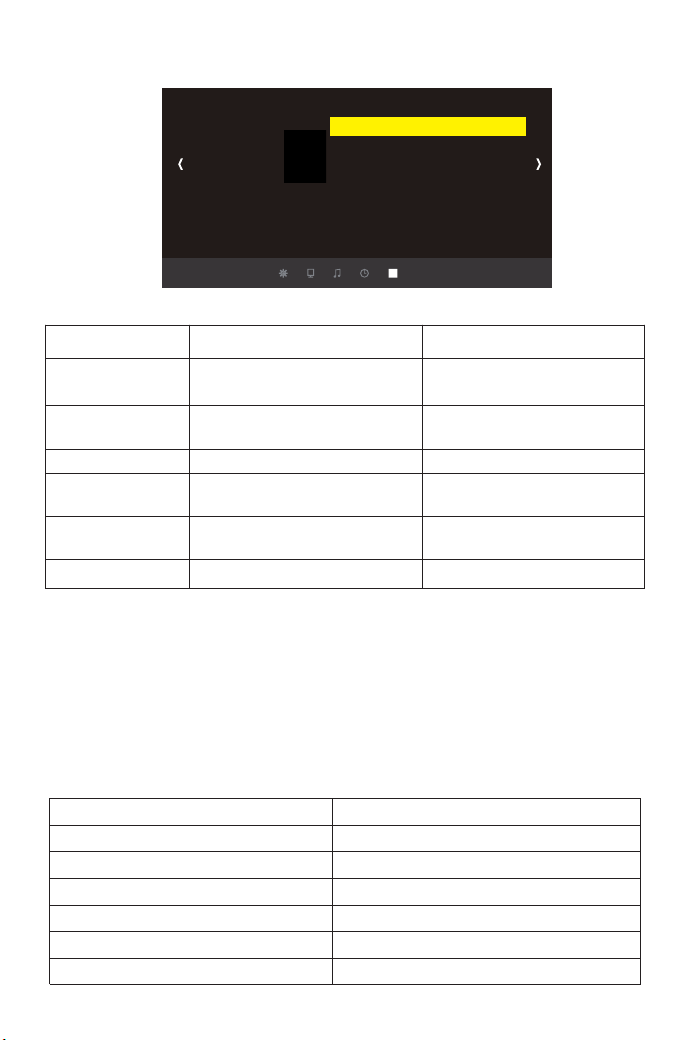
Menu Einrichten
Sie können das Geräusch reduzieren, indem Sie die Lüftergeschwind-
igkeit ändern
1) Hohe Lüftergeschwindigkeit AUS
2) Hohe Lüftergeschwindigkeit aktiviert
<Lüftergeschwindigkeit>
Projektor-zu-Wand-Abstand projizierte Bildschirmgröße
Einrichten Menü enthalten Funktion
OSD Sprache Deutsch
Werkseinstellungen
widerhersteller
Menutransparenz
HDMI CEC
OSD dauer
Fan auf
Englisch, Frankreich, Italienisch,
Spanisch 20 mehrere Sprachen
Werkseinstellungen widerhersteller
Mitte, Hoch, Aus, Niedrig
HDMI CEC, HDMI ARC, Auto Standby,
Gerateuerung, Geratliste
5Sekund, 10Sekund, 15Sekund, AUS
Ein, Aus
Impostazioni della lingua
Einstellung der Menütransparenz.
Passen Sie die Klangqualität an
Anpassen der Transparenz des
Menüs.
Via, 5 Sekunden, 10 Sekunden,
15 Sekunden, Dauer des Menüs
Lüfterschalter: Rauschen reduzieren
Menu Einrichten
Einrichten
Werkseinstellungen widerhersteller
HDMI CEC
OSD Durate Via
Velocita della ventola
Projektionsgröße
45”
60”
80”
20”
160”
200”
Entfernung
1.5m
1.6m
2.4m
3.2m
4.0m
5.5m
01 02 03 04 05 06 07
08 09 10 11 12 13 14 15 16 17
18 19 20 21 22 23 24 25 26 27
28 29 30 31 32 33 34 35 36 37
38 39
40 41 42 43 44 45 46 47
48 49 50 51 52
53
54 55 56 57
58 59 60 61 62 63 64 65 66 67
68 69 70 71 72 73 74 75 76
77 78 79 80 81 82 83 84 85 86
87 88

Bitte lesen Sie diese Bedienungsanleitung vor dem Gebrauch sorgfältig
durch. Bitte halten Sie es auch griffbereit, damit Sie es jederzeit
überprüfen können.
Im Zweifelsfall wenden Sie sich bitte an [email protected].
Wir können den Kundendienst bis zur Zufriedenheit erbringen.
Vielen Dank, dass Sie sich für den Projektor YABER Y30
entschieden haben.
01 02 03 04 05 06 07
08 09 10 11 12 13 14 15 16 17
18 19 20 21 22 23 24 25 26 27
28 29 30 31 32 33 34 35 36 37
38 39 40
41 42 43 44 45 46 47
48 49 50 51 52
53
54 55 56 57
58 59 60 61 62 63 64 65 66 67
68 69 70 71 72 73 74 75 76
77 78 79 80 81 82 83 84 85 86
87 88
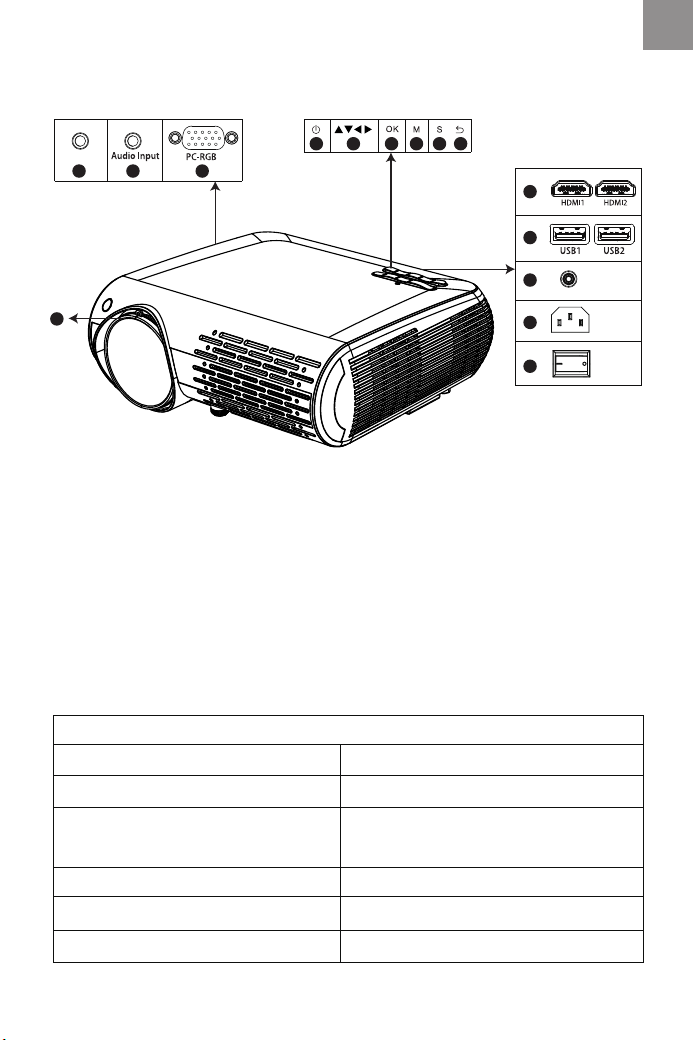
Descrizione del prodotto
Note: Si prega di fare riferimento al proiettore reale, la foto è solo illustrativa
01 Terminale di ingresso audio
02 Terminale di uscita audio
03 Terminale di ingresso VGA
04 alimentatore
05 tasti freccia
06 Pulsante OK
07 Tasto Menù
08 Pulsante sorgente
09 Pulsante Indietro
10 Pulsante di ingresso HDMI 1 / HDMI 2
11 Pulsante di input USB1 / USB1
12 Ricevitore del telecomando
13 Ingresso alimentazione (10 - 240 v)
14 Interruttore di alimentazione principale
15 Girare l'obiettivo per regolare la messa
a fuoco
04
0201 03
05 06 07 08 09
10
11
12
13
14
AV
IR
Sistema immagine: LCD
Illuminazione: LED
Distanza di proiezione: 1.5-5.5m
Dimensioni proiezione: 45-200”
Rapporto d’aspetto: 16:9 /4:3
Alimentazione: 110-240V~50/60HZ
Risoluzione: 1080P Full HD
Interfaccia Input: HDM*2/VGA/AV/
USB*2/AUDIO IN
Interfaccia output: AUDIO OUT
Correzione Keystone: ±15°Manuale
Peso: 2.9kg
Colori: 16.7M full color
Y30
15
IT
01 02 03 04 05 06 07
08 09 10 11 12 13 14 15 16 17
18 19 20 21 22 23 24 25 26 27
28 29 30 31 32 33 34 35 36 37
38 39 40 41
42 43 44 45 46 47
48 49 50 51 52
53
54 55 56 57
58 59 60 61 62 63 64 65 66 67
68 69 70 71 72 73 74 75 76
77 78 79 80 81 82 83 84 85 86
87 88
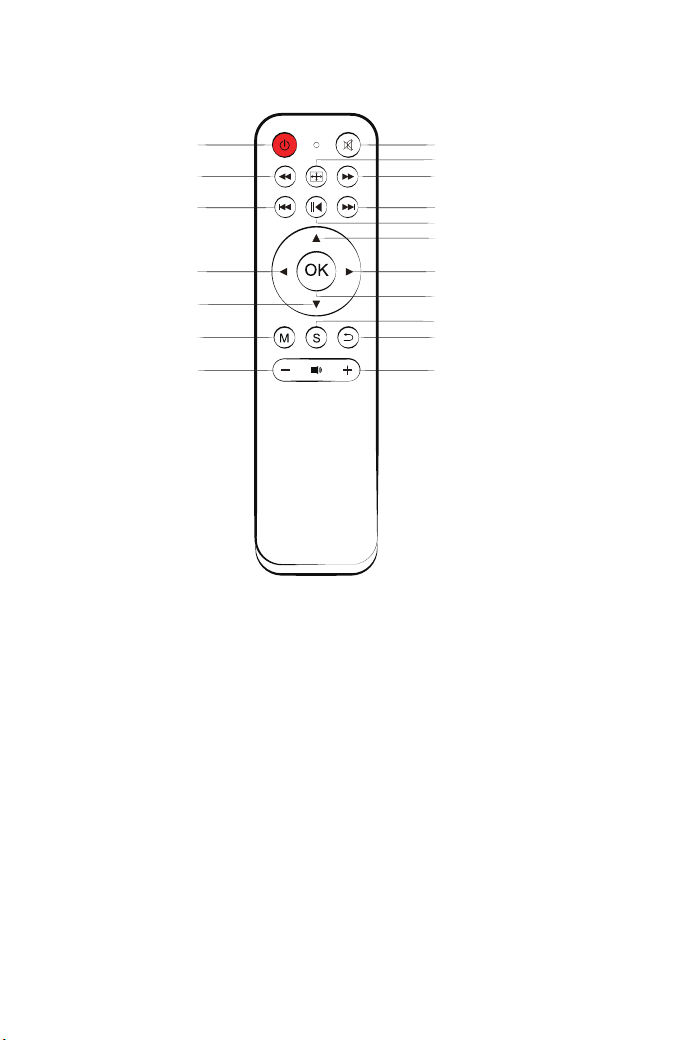
Telecomando
01
04
06
10
12
14
17
02
03
05
07
08
09
11
13
16
15
18
1. Tasto accensione:
Sposta la modalità da standby ad utilizzo
2. Tasto muto:
Accende o spegne l’audio del proiettore
3. Tasto flip: gira l’immagine sotto sopra
4/5/6/7. Tasto rewind:
Avanti veloce / indietro / precedente / prossima traccia
8. Tasto Play Pausa: Play /Pausa
9/10/11/12. frecce:
Parametri della modalità menu usati per sistemare il proiettore
13. Tasto OK: OK
14. Tasto Menù:
Per chiamare o uscire dal menu principale del proiettore
15. Tasto selezione segnale:
Per cambiare la sorgente del segnale
16. Tasto esci funzione: Esci
17/18. Tasti volume: volume su / volume giù
01 02 03 04 05 06 07
08 09 10 11 12 13 14 15 16 17
18 19 20 21 22 23 24 25 26 27
28 29 30 31 32 33 34 35 36 37
38 39 40 41 42
43 44 45 46 47
48 49 50 51 52
53
54 55 56 57
58 59 60 61 62 63 64 65 66 67
68 69 70 71 72 73 74 75 76
77 78 79 80 81 82 83 84 85 86
87 88
Queste istruzioni di sicurezza servono a garantire la lunga durata del
proiettore e a prevenire incendi e scosse. Leggeteli attentamente e
prestate attenzione a tutti gli avvertimenti.
grazie
Grazie mille per aver acquistato il proiettore YABER Y 30.
Si prega di leggere attentamente questo manuale di istruzioni prima
dell'uso. Inoltre, ti preghiamo di tenerlo a portata di mano in modo da
poterlo verificare in qualsiasi momento.
In caso di dubbi, non esitare a contattare [email protected].
Possiamo fornire il servizio post-vendita fino alla soddisfazione.
Sostituire la batteria del telecomando
1. spingere per aprire il coperchio della batteria.
2. rimuovere entrambe le vecchie batterie e installarla di nuove (AA).
Accertarsi che la polarità delle batterie (+/–) sia allineata correttamente.
Possiamo fornire il servizio post-vendita fino alla soddisfazione.
osservaz
Contenuto
Salvaguardie importanti
Una parte del video in Netflix e i formati video principali non possono
essere esportati esternamente a causa della protezione del copyright
(protocollo HDCP). Ma dato che Amazon Fire TV è compatibile con
HDCP, puoi giocare a Netflix e primo video tramite fuoco amazzone.
Unità principale del proiettore * 1
Manuale di istruzioni * 1
Cavo AV 3 in 3 * 1
Cavo AV 3 in 1 * 1
Cavo HDMI * 1
Cavo VGA * 1
Pulizia obiettivo * 1
Cavo di alimentazione * 1
Telecomando * 1
01 02 03 04 05 06 07
08 09 10 11 12 13 14 15 16 17
18 19 20 21 22 23 24 25 26 27
28 29 30 31 32 33 34 35 36 37
38 39 40 41 42 43
44 45 46 47
48 49 50 51 52
53
54 55 56 57
58 59 60 61 62 63 64 65 66 67
68 69 70 71 72 73 74 75 76
77 78 79 80 81 82 83 84 85 86
87 88

1. Per risultati ottimali, utilizzare il proiettore in una stanza buia.
2. Collocare il proiettore su una superficie piana e orizzontale in un'area
asciutta, lontano da polvere e umidità.
3. Non collocare il proiettore alla luce diretta del sole, vicino a caloriferi o
apparecchi che emettono calore.
4. L'esposizione alla luce solare diretta, al fumo o al vapore può dannegg-
iare i componenti interni.
5. Maneggiare il proiettore con cura. Cadere o tremare può danneggiare i
componenti interni.
6. Non posizionare oggetti pesanti sopra il proiettore.
installazione
1. Il proiettore è progettato per funzionare con un alimentatore CA da
110-240 V ~ 50/60 Hz. Assicurarsi che l'alimentazione soddisfi questo
requisito prima di tentare di utilizzare il proiettore.
2. Maneggiare con cura il cavo di alimentazione ed evitare di piegarlo
troppo. Un cavo danneggiato può provocare scosse elettriche o incendi.
3. Se il proiettore non verrà utilizzato per un lungo periodo di tempo,
scollegare la spina dalla presa.
Alimentazione
1. Scollegare il proiettore prima di pulirlo.
2. Pulire periodicamente l'armadio con un panno umido. Se è molto
sporco, utilizzare un detergente delicato. Non usare mai detergenti forti o
solventi come alcool o diluenti.
3. Utilizzare un soffietto o una carta per lenti per pulire l'obiettivo e fare
attenzione a non graffiare o danneggiare l'obiettivo.
Pulizia
01 02 03 04 05 06 07
08 09 10 11 12 13 14 15 16 17
18 19 20 21 22 23 24 25 26 27
28 29 30 31 32 33 34 35 36 37
38 39 40 41 42 43 44
45 46 47
48 49 50 51 52
53
54 55 56 57
58 59 60 61 62 63 64 65 66 67
68 69 70 71 72 73 74 75 76
77 78 79 80 81 82 83 84 85 86
87 88

FAQ
1. Al momento dell’accensione la luce indicativa non funziona
①. L’alimentazione potrebbe non essere ben collegata
②. Controllare il sistema di protezione dal surriscaldamento
2. Premendo il tasto di accensione sul telecomando il proiettore non si
accende
①. Le batterie del telecomando sono scariche
②. Il segnale tra il telecomando e il sensore IR è ostruito
③. Forte luce diretta sul sensore IR?
3. Nessuna immagine sullo schermo
①. L’impostazione del canale è corretta?
②. C’è un segnale di input?
③. Il cavo di input è inserito correttamente o è nella posizione sbagliata?
④. Nella modalità PC la velocità di refresh è >75KHz?
4. L’immagine funziona ma non c’è suono
①. I cavi di input sono connessi correttamente?
②. Volume al minimo o su muto
③. Controllare che il formato audio del video sia nella lista supportata
5. Si spegne in automatico dopo essere stato acceso per un po
①. C’è una barriera intorno alla ventola?
②. Piccole o grandi fluttuazioni di voltaggio
③. Controllare il sistema di protezione dal surriscaldamento
6. Non trovo i dispositivi connessi con hard drive o flash drive
①. Reinserire il dispositivo
②. Controllare se il dispositivo è funzionante
7. Impossibile riprodurre video
①. Il formato del video è corretto?
②. Il file è danneggiato?
01 02 03 04 05 06 07
08 09 10 11 12 13 14 15 16 17
18 19 20 21 22 23 24 25 26 27
28 29 30 31 32 33 34 35 36 37
38 39 40 41 42 43 44 45
46 47
48 49 50 51 52
53
54 55 56 57
58 59 60 61 62 63 64 65 66 67
68 69 70 71 72 73 74 75 76
77 78 79 80 81 82 83 84 85 86
87 88
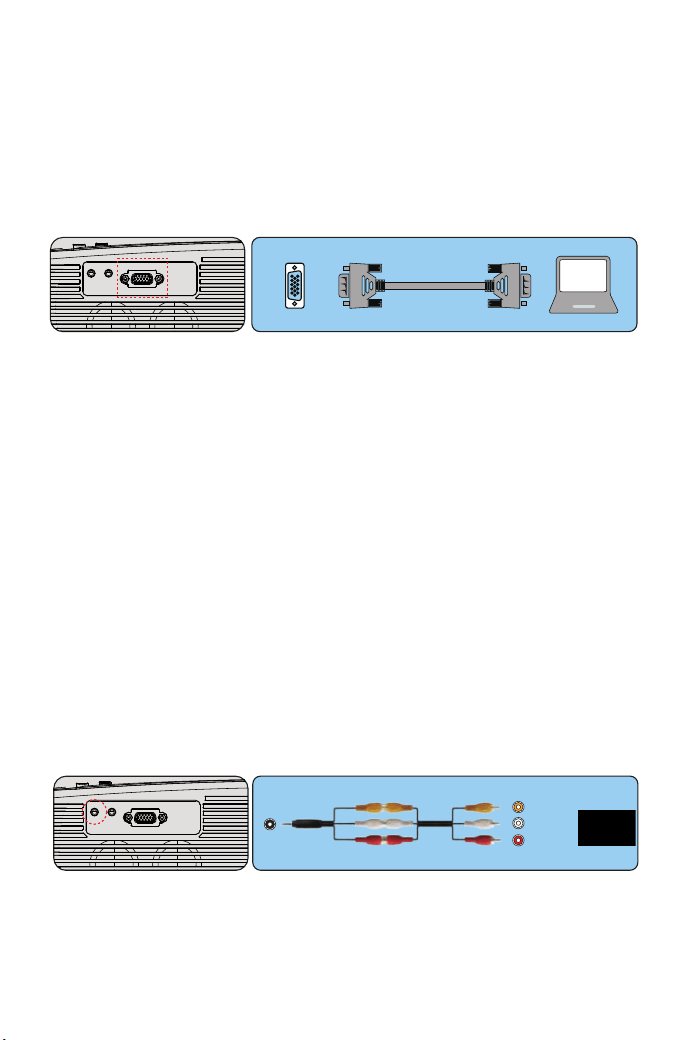
Collegamento di dispositivi esterni
1.Collegamento di un PC
1.Usare il cavo VGA in dotazione per collegare il PC al proiettore.
2. Accendere il proiettore e il computer.
* NOTA: puoi anche collegare un cavo HDMI, ricorda che le connessioni
VGA non trasmettono audio, quindi il suono verrà emesso dal computer.
Se si collega un cavo HDMI, l'audio verrà trasmesso al proiettore.
2.Collegamento di uno smartphone
Connetti un telefono con sistema Android:
(Nota: verificare se il telefono Android supporta la funzione MHL.) Cavo
MHL-HDMI non incluso)
1. Collegare il proiettore e lo smartphone Android con il cavo MHL-HDMI.
2. Scegli la sorgente del segnale: "HDMI"
Collegamento di un iPhone:
1. Collegare il proiettore e l'iPhone con il cavo da Lightning a HDMI (non
incluso)
2. Scegli la sorgente del segnale: "HDMI"
3.Collegamento di un lettore DVD
1. Utilizzare il cavo AV in dotazione per collegare il lettore DVD al proiettore.
2. Accendere il proiettore e il lettore DVD.
Se il tuo lettore ha un'uscita HDMI, è preferibile usarlo sopra l'opzione
analogica (AV). È necessario configurare l'uscita audio dal menu del lettore
DVD se sono installati altoparlanti esterni.
4.Collega la soundbar
1.Utilizzare il cavo AV in dotazione per collegare la soundbar al proiettore.
2. Accendere il proiettore e la barra audio.
VGA
AV
video
audio out
(L/R)
01 02 03 04 05 06 07
08 09 10 11 12 13 14 15 16 17
18 19 20 21 22 23 24 25 26 27
28 29 30 31 32 33 34 35 36 37
38 39 40 41 42 43 44 45 46
47
48 49 50 51 52
53
54 55 56 57
58 59 60 61 62 63 64 65 66 67
68 69 70 71 72 73 74 75 76
77 78 79 80 81 82 83 84 85 86
87 88
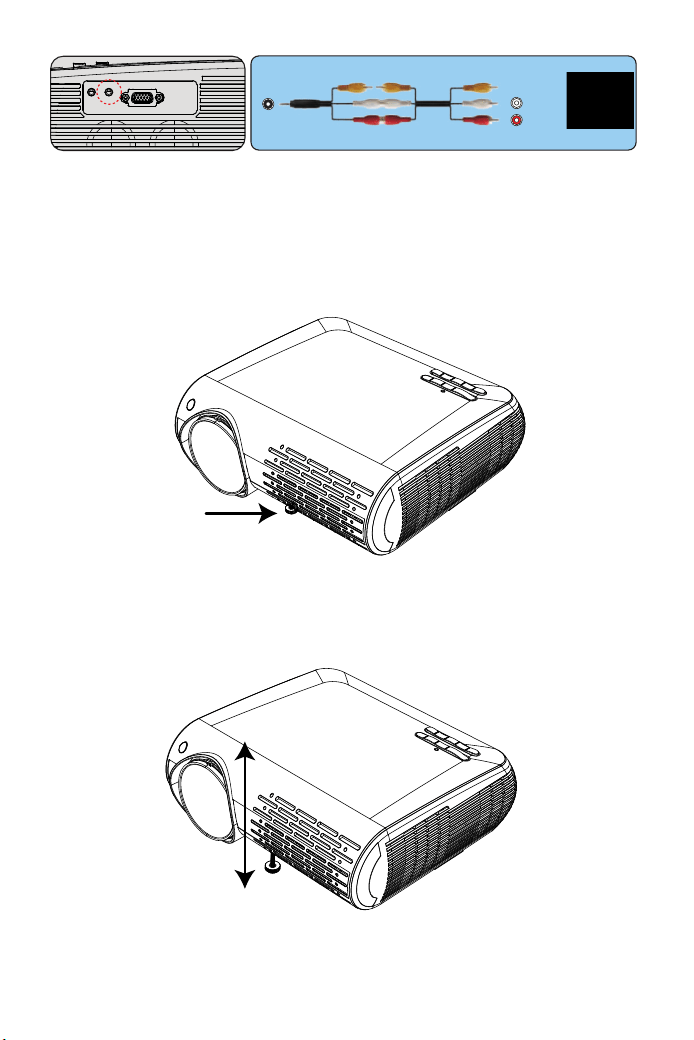
Regola la base di inclinazione
1. Premere e tenere premuto il pulsante di inclinazione sul retro del
proiettore.
2. Sollevare il bordo anteriore del proiettore all'altezza desiderata, girare
il piedino e rilasciare il pulsante per bloccare la base di inclinazione nella
posizione che ritiene appropriata.
Audio-out
audio out
(L/R)
01 02 03 04 05 06 07
08 09 10 11 12 13 14 15 16 17
18 19 20 21 22 23 24 25 26 27
28 29 30 31 32 33 34 35 36 37
38 39 40 41 42 43 44 45 46 47
48 49 50 51 52
53
54 55 56 57
58 59 60 61 62 63 64 65 66 67
68 69 70 71 72 73 74 75 76
77 78 79 80 81 82 83 84 85 86
87 88
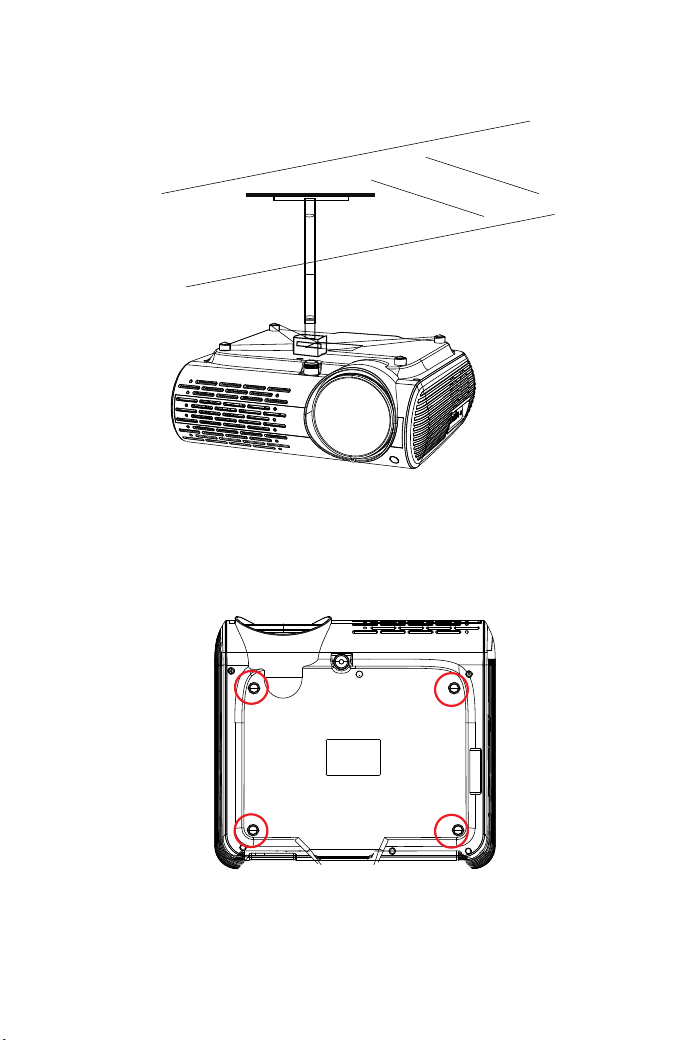
Precauzioni per l'installazione sul soffitto
1.Si prega di acquistare i supporti per il proiettore e alcune viti M4 da 10
mm.
2. Aprire i 4 pulsanti sul retro del proiettore e utilizzare le viti M4 * 10mm
per appendere il proiettore sul supporto
01 02 03 04 05 06 07
08 09 10 11 12 13 14 15 16 17
18 19 20 21 22 23 24 25 26 27
28 29 30 31 32 33 34 35 36 37
38 39 40 41 42 43 44 45 46 47
48
49 50 51 52
53
54 55 56 57
58 59 60 61 62 63 64 65 66 67
68 69 70 71 72 73 74 75 76
77 78 79 80 81 82 83 84 85 86
87 88

Avvio del proiettore
Controlli generali dell'operazione prima di accendere il proiettore:
Accendere il proiettore collegare il cavo di alimentazione in dotazione
alla presa e quindi premere l'interruttore di alimentazione principale. Il
proiettore andrà in modalità standby e l'indicatore di alimentazione si
illumina di rosso.
Solo dopo aver premuto il pulsante "POWER" sul proiettore o sul
telecomando, l'indicatore di alimentazione si trasformerà in verde e il
proiettore diventerà pronto per l'uso.
selezionare la sorgente segnale:
premere il tasto "S" sul telecomando o sul proiettore e scegliere tra :
"AV", "PC-RGB", "HDMI 1", "HDMI 2", "USB".
1. regolare le dimensioni dell'immagine per ottenere la migliore dimensi-
one dell'immagine spostando il proiettore avanti e indietro, quindi
utilizzare l'anello di messa a fuoco per ottenere la migliore messa a
fuoco.
Seleziona il menu lingua
Menu lingua lo devi selezionare quando si accende per la prima volta il
proiettore, si vedrà l'interfaccia in lingue inglesi. È possibile selezionare
una delle lingue del menù: tedesco, francese, italiano, spagnolo,
giapponese e così via.
Si prega di attenersi alla seguente procedura:
1. Premere il pulsante "M" e trovare l'interfaccia "OPTION", quindi trovare
il "OSD Languageitaliana".
2. Premere il pulsante ENTER per eseguire la selezione.
01 02 03 04 05 06 07
08 09 10 11 12 13 14 15 16 17
18 19 20 21 22 23 24 25 26 27
28 29 30 31 32 33 34 35 36 37
38 39 40 41 42 43 44 45 46 47
48 49
50 51 52
53
54 55 56 57
58 59 60 61 62 63 64 65 66 67
68 69 70 71 72 73 74 75 76
77 78 79 80 81 82 83 84 85 86
87 88
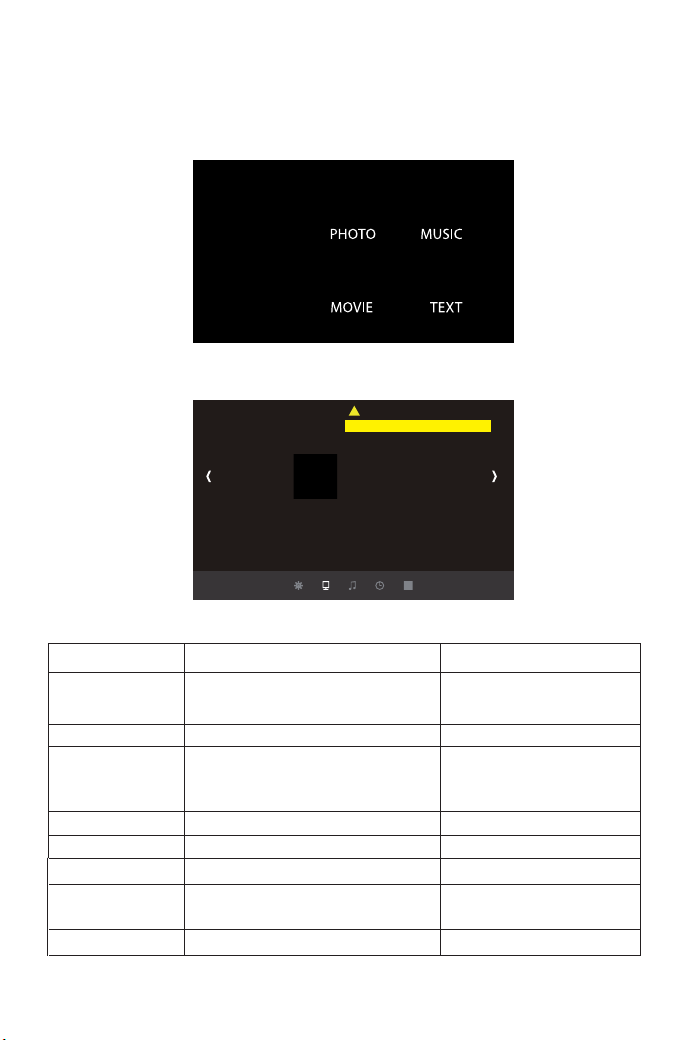
Impostazione del menu principale:
MENU immagine
premere il pulsante "M" sul proiettore o sul telecomando, ci sono 4
opzioni di menu: "immagine", "suono", "tempo", "opzione"
Modalità immagine standard
Temp.del Color
Rapporto d’aspetto
X _Zoom
Y _Zoom
Riduzione del rumore
Gamma di colori auto
Modalità proiettiva
Regolazione trapezoidale
IMMAGINE
Congrazione del PC
IMMAGINE Menu incluso Spiegazione
Modalità immagine
standard
Temp.del Color
Rapporto d’aspetto
X_ZOOM
Y_ZOOM
Contrasto 50, Luminostita 50,colore 50,
Nitidezza 50
Rosso 50, Verde 50, Blu 50
Auto/ 4:3/ 16:9
+1~50
+1~50
Regola il contrasto ecc
Le proporzioni consentono di
configurare il modo in cui vengono
visualizzate le immagini.
Riduci dall'asse X.
Ridimensiona dall'asse Y.
Riduzione del rumore
Configuración de PC
Regolazionet rapezoidale
Via,Basso,Mezzi,Alto
Valorepredefinito
Vertical:-50~50,Horizon:-50~50
Regolazione del rumore
Regolazione della configurazione
del PC
Regolazione trapezoidale
01 02 03 04 05 06 07
08 09 10 11 12 13 14 15 16 17
18 19 20 21 22 23 24 25 26 27
28 29 30 31 32 33 34 35 36 37
38 39 40 41 42 43 44 45 46 47
48 49 50
51 52
53
54 55 56 57
58 59 60 61 62 63 64 65 66 67
68 69 70 71 72 73 74 75 76
77 78 79 80 81 82 83 84 85 86
87 88
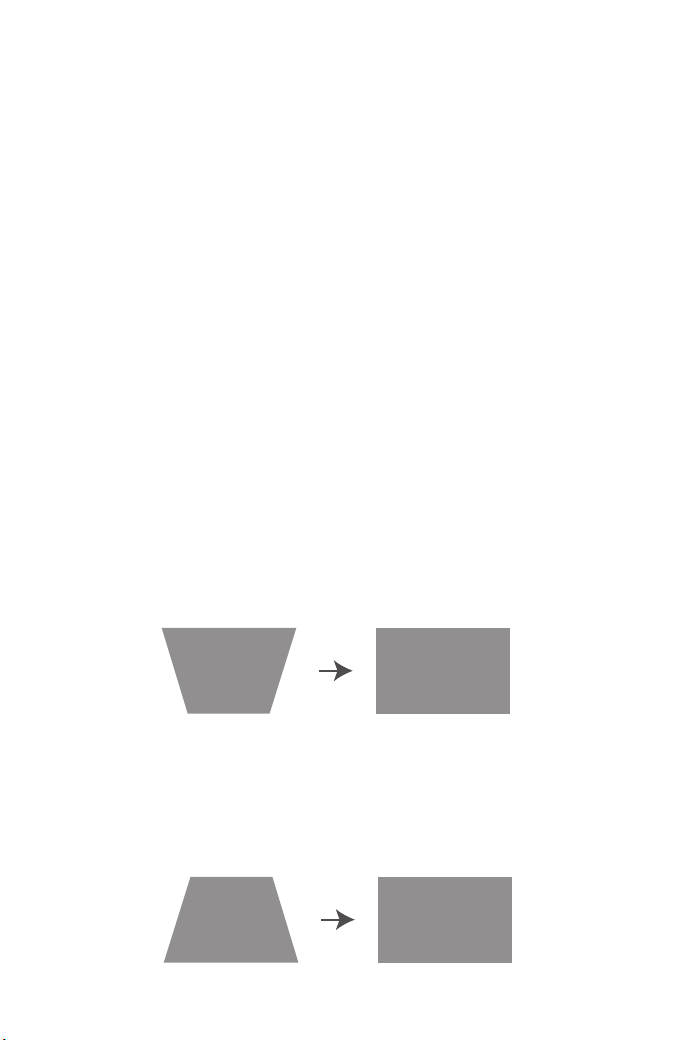
Funzione importante
Se l'immagine di proiezione è inclinata verticalmente, come mostrato in
(1), premere il tasto "M" sul telecomando, selezionare "Regolazione
trapezoidale", quindi premere il pulsante "OK" e impostare il valore
verticale su "+" , fino a raggiungere l'effetto di proiezione (2).
1.1 "Verticale". Intervallo: -50 ~ +50
Se l'immagine di proiezione è inclinata verticalmente, come mostrato in
(3), premere il tasto "M" sul telecomando, selezionare "Regolazione
trapezoidale", quindi premere il pulsante "OK" e impostare il valore
verticale su "-" , fino a raggiungere l'effetto di proiezione (4).
< Innovative 4D Keystone Correction > ci sono due modi per correggere il
trapezio: "verticale" e "orizzontale", è possibile utilizzare direttamente il
telecomando per la correzione trapezoidale.
1. campo di regolazione verticale:-50 ~ + 50. Quando il coefficiente
verticale viene gradualmente aumentato verso l'alto, la parte superiore
dello schermo proiettato diventa gradualmente più piccola; Quando il
coefficiente verticale viene gradualmente abbassato, la parte inferiore
dello schermo proiettato diventa gradualmente più piccola.
2. intervallo di regolazione orizzontale:-50 ~ + 50, quando il coefficiente
orizzontale viene gradualmente aumentato verso l'alto, il lato sinistro
dello schermo proiettato non cambia, il lato destro dello schermo si restre
gradualmente e il lato sinistro dello schermo non cambia; Quando il
coefficiente orizzontale viene gradualmente abbassato, il lato sinistro
dello schermo viene gradualmente ridotto, il lato destro della costante
dello schermo.
(1) (2)
(3) (4)
01 02 03 04 05 06 07
08 09 10 11 12 13 14 15 16 17
18 19 20 21 22 23 24 25 26 27
28 29 30 31 32 33 34 35 36 37
38 39 40 41 42 43 44 45 46 47
48 49 50 51
52
53
54 55 56 57
58 59 60 61 62 63 64 65 66 67
68 69 70 71 72 73 74 75 76
77 78 79 80 81 82 83 84 85 86
87 88
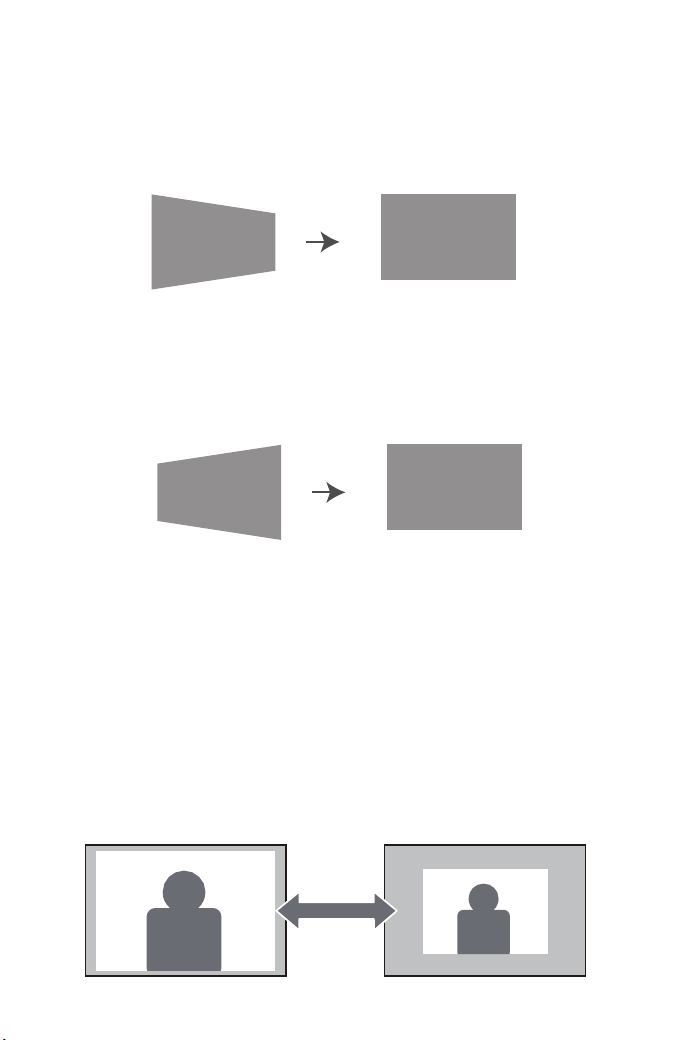
Se l'immagine di proiezione è inclinata orizzontalmente, come mostrato
in (5), premere il tasto "M" sul telecomando, selezionare "Regolazione
trapezio", quindi premere il pulsante "OK" e impostare il valore dell'oriz-
zonte su "+" ", Raggiungere l'effetto di proiezione (6).
1.2 "Orizzonte". Intervallo: -50 ~ +50
<X_Zoom / Y_Zoom>
Se l'immagine di proiezione è inclinata orizzontalmente, come mostrato
in (7), premere il tasto "M" sul telecomando, selezionare "Regolazione
trapezoidale", premere il pulsante "OK" e impostare il valore dell'orizzon-
te su "-" , Raggiungere l'effetto di proiezione (8).
Quando si riproduce un'immagine o un video, se si desidera modificare le
dimensioni dell'immagine proiettata o del video, è possibile utilizzare il
telecomando per selezionare l'opzione successiva e regolare le dimen-
sioni di proiezione:
1) Fare clic su "X_ZOOM" per regolare la dimensione orizzontale della
proiezione.
2) Fare clic su "Y_ZOOM" per regolare la verticale della proiezione.
Puoi ridurre l'altezza e la larghezza originali fornite dalla sorgente video
fino al 50%.
(5) (6)
(7) (8)
01 02 03 04 05 06 07
08 09 10 11 12 13 14 15 16 17
18 19 20 21 22 23 24 25 26 27
28 29 30 31 32 33 34 35 36 37
38 39 40 41 42 43 44 45 46 47
48 49 50 51 52
53
54 55 56 57
58 59 60 61 62 63 64 65 66 67
68 69 70 71 72 73 74 75 76
77 78 79 80 81 82 83 84 85 86
87 88
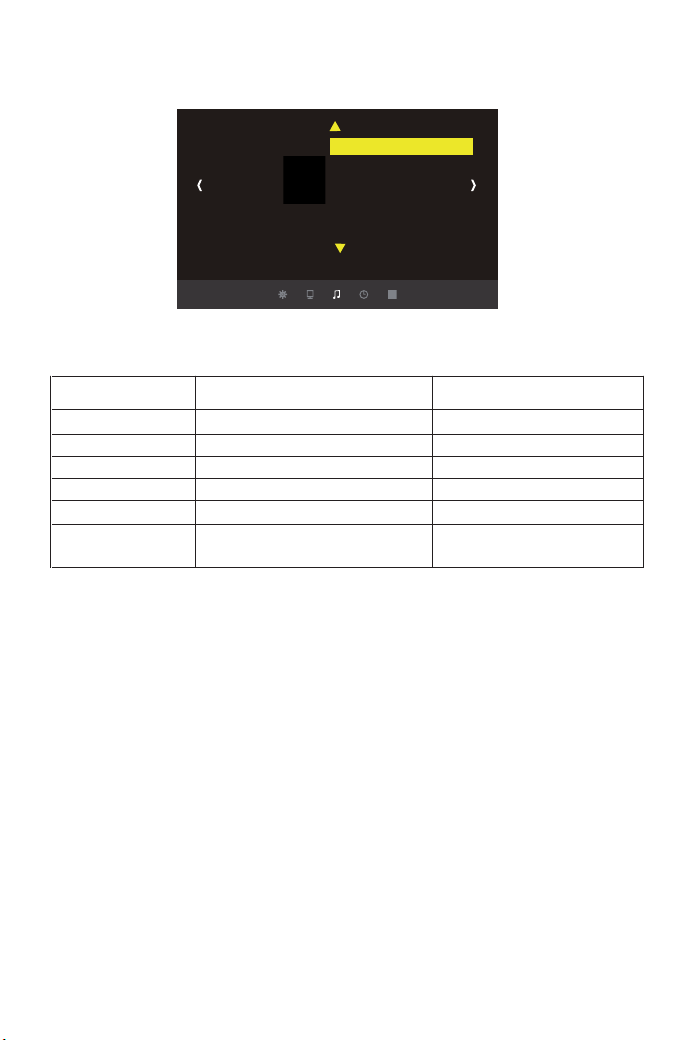
Menu audio
(Nota: se si collega un altoparlante esterno per l'uscita audio, prestare
attenzione alle seguenti istruzioni).
A: Normale: in questa modalità, tutti i dispositivi possono emettere un suono
B: Clacson: in questa modalità, il proiettore non emetterà alcun suono
C: Suono: in questa modalità, solo il proiettore emette un suono
Suggerimenti:
Suone Menuincluso Spiegazione
Modalita audio
Bilanciamento
Volume automatice
Suono surround
EQ
Fonte sonora
Standard
0~50
On, Via ,
OFF, SRS TruuSurround XT,Surround
120Hz,500Hz,1.5KHz, 5KHz, 10KHz
Normale, Clacson, suono
Imposta lo stato del tono
Regolazione del sal do
Regolazione automatica del volume
impostazione stereo
Impostazione Hz
Impostazione della connessione di
dispositiviesterni.
Suone
Modalita audio Standard
Bilanciamento
Volume automatice
Suone
Surround
EQ
Fonte sonora
01 02 03 04 05 06 07
08 09 10 11 12 13 14 15 16 17
18 19 20 21 22 23 24 25 26 27
28 29 30 31 32 33 34 35 36 37
38 39 40 41 42 43 44 45 46 47
48 49 50 51 52
53
54 55 56 57
58 59 60 61 62 63 64 65 66 67
68 69 70 71 72 73 74 75 76
77 78 79 80 81 82 83 84 85 86
87 88
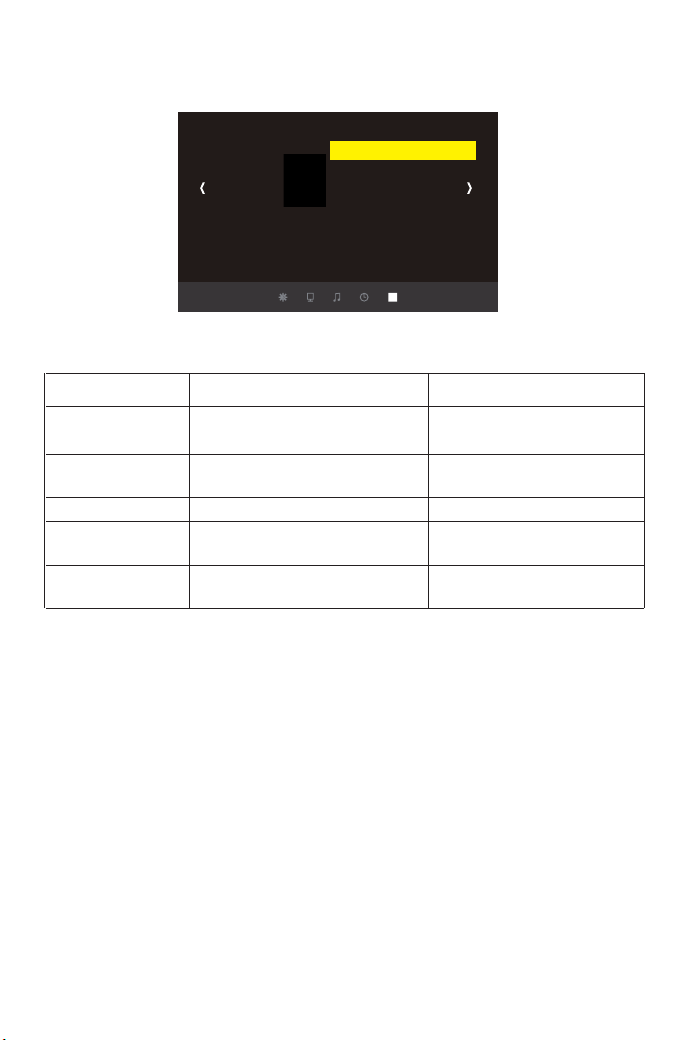
Menu OPZIONE
È possibile ridurre il rumore modificando la velocità della ventola
1) Alta velocità del ventilatore OFF
2) Alta velocità del ventilatore attivata
Si prega di leggere attentamente questo manuale di istruzioni prima
dell'uso. Inoltre, ti preghiamo di tenerlo a portata di mano in modo da
poterlo verificare in qualsiasi momento.
In caso di dubbi, non esitare a contattare [email protected].
Possiamo fornire il servizio post-vendita fino alla soddisfazione.
<Velocita della ventola>
Grazie mille per aver acquistato il proiettore YABER Y 30.
OPZIONE Menu incluso Funzione
Linguaggio OSD Italiano
Trasparenza del menu
HDMI CEC
OSD Durate Via
Velocita della ventola
Inglese, Francia, Italiano, Spagnolo
Etc. 20 lingue multiple
Mezzi, Alto, Via,
HDMI CEC, KDMI ARC, AUTO Standby,
Device,Device,Device list
Via, 5 Secondo, 10 Secondo, 15 Secondo
Via, ON, OFF
Impostazioni della lingua
Regolazione della trasparenza del
menu.
Ajustando la transparencia del menú.
Durata del menu
Off / On Imposta la velocità della
ventola
OPZIONE
Linguaggio OSD Italiano
Riprist. imp. Predenite
Trasparenza del menu
HDMI CEC
Aggiorenamento software(USB)
OSD Durate software(USB)
Velocita della ventola
01 02 03 04 05 06 07
08 09 10 11 12 13 14 15 16 17
18 19 20 21 22 23 24 25 26 27
28 29 30 31 32 33 34 35 36 37
38 39 40 41 42 43 44 45 46 47
48 49 50 51 52
53
54
55 56 57
58 59 60 61 62 63 64 65 66 67
68 69 70 71 72 73 74 75 76
77 78 79 80 81 82 83 84 85 86
87 88

Precauciones
Lea este manual detenidamente antes de usar su proyector Y30 y manten-
ga el manual a mano para futuras referencias.
Salvaguardias importantes
Estas instrucciones de seguridad son para garantizar la larga vida de su
proyector y para evitar incendios y descargas. Léalos detenidamente y
preste atención a todas las advertencias.
Instalación
1. Para obtener los mejores resultados, use el proyector en una habitación
oscura.
2. Coloque el proyector en una superficie plana y nivelada en un área
seca, lejos del polvo y la humedad.
3. No coloque el proyector bajo la luz solar directa, cerca de calentadores
o aparatos que emitan calor.
4. La exposición a la luz solar directa, el humo o el vapor puede dañar los
componentes internos.
5. Maneje su proyector con cuidado. Caer o sacudir puede dañar los
componentes internos.
6.No coloque objetos pesados encima del proyector.
Fuente de alimentación
1.El proyector está diseñado para funcionar con una fuente de
alimentación de 110-240V~ 50/60 Hz CA. Asegúrese de que su fuente de
alimentación cumpla con este requisito antes de intentar usar su proyector.
2. Maneje el cable de alimentación con cuidado y evite doblarlo demasia-
do. Un cable dañado puede provocar descargas eléctricas o incendios.
3. Si el proyector no se va a utilizar durante un período prolongado de
tiempo, desconecte el enchufe de la toma de corriente.
Limpieza
1.Desenchufe el proyector antes de limpiarlo.
2. Limpie el gabinete periódicamente con un paño húmedo. Si está muy
sucio, use un detergente suave. Nunca utilice detergentes fuertes o
disolventes como alcohol o diluyentes.
3.Utilice un soplador o papel para lentes para limpiar la lente, y tenga
cuidado de no rayar o estropear la lente.
ES
01 02 03 04 05 06 07
08 09 10 11 12 13 14 15 16 17
18 19 20 21 22 23 24 25 26 27
28 29 30 31 32 33 34 35 36 37
38 39 40 41 42 43 44 45 46 47
48 49 50 51 52
53
54 55
56 57
58 59 60 61 62 63 64 65 66 67
68 69 70 71 72 73 74 75 76
77 78 79 80 81 82 83 84 85 86
87 88
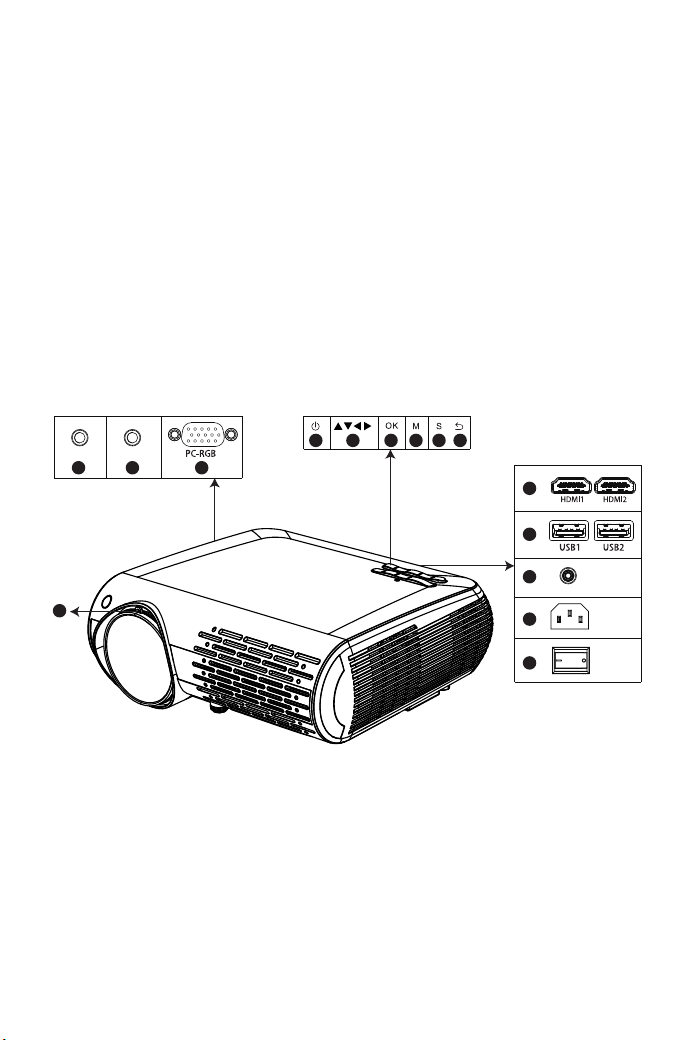
1x Proyector
1x Cable HDMI
1x Cable VGA
1x 3 en1 Cable AV
1x 3 en 3 Cable AV
1x Cable de alimentación
1x Manual de usuario
1x Protector para la lente
1x Paño de limpieza
1x Mando a distancia (Nota:Sin batería incluida, necesita comprar por
separado
01. AV (entrada de video y audio)
02. Audio-out ( salida de audio)
03. PC-RGB ( Entrada VGA )
04. Botón de encendido
05. Teclas flecha
06. Confirmar
07. Botón menú
08. Fuente de señal
09. Tecla de retorno
10.Interfaz HDMI 1 y HDMI 2
11.Interfaz USB 1 y USB 2
12.IR
13.Entrada de Potencia( 110-240V)
14.Interruptor de Potencia
15.Ajuste de enfoque (Gire la lente
para enfocar)
Accesorios
Descripción Producto
04
0201 03
05 06 07 08 09
10
11
12
13
14
AV Audio out
IR
15
01 02 03 04 05 06 07
08 09 10 11 12 13 14 15 16 17
18 19 20 21 22 23 24 25 26 27
28 29 30 31 32 33 34 35 36 37
38 39 40 41 42 43 44 45 46 47
48 49 50 51 52
53
54 55 56
57
58 59 60 61 62 63 64 65 66 67
68 69 70 71 72 73 74 75 76
77 78 79 80 81 82 83 84 85 86
87 88
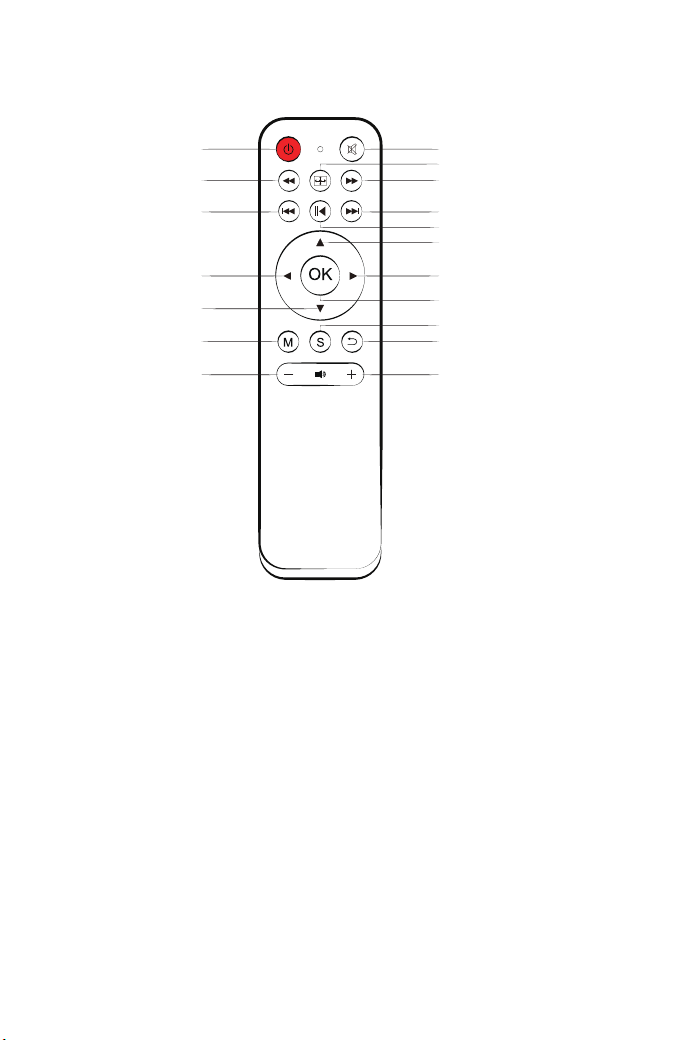
Instrucciones de control remoto
01
04
06
10
12
14
17
02
03
05
07
08
09
11
13
16
15
18
1. Botón de encendido:
Cambie el estado de espera o de trabajo del proyector.
2. Botón de silencio:
Encender o apagar la salida de sonido del proyector.
3. Botón de volteo: Capirotazo de imágenes / al revés
4/5/6/7. Botón de Playback:
Rápido expida / el rebobinado / anterior / después rastrea.
8. Botón de Play/Pause: Jugando/Pausar
9/10/11/12. Botón de flecha:
El parámetro de modo de menú es usado ajustar el proyector
13. Botón OK para confirmar: Confirmar
14. Botón de menú: Ingrese o salga del menú principal del proyector
15. Botón de selección de señal: Cambia el selector de entrada
16. Botón de Exit: Salir
17/18. Botón de volumen: Subir/bajar el volumen
01 02 03 04 05 06 07
08 09 10 11 12 13 14 15 16 17
18 19 20 21 22 23 24 25 26 27
28 29 30 31 32 33 34 35 36 37
38 39 40 41 42 43 44 45 46 47
48 49 50 51 52
53
54 55 56 57
58 59 60 61 62 63 64 65 66 67
68 69 70 71 72 73 74 75 76
77 78 79 80 81 82 83 84 85 86
87 88
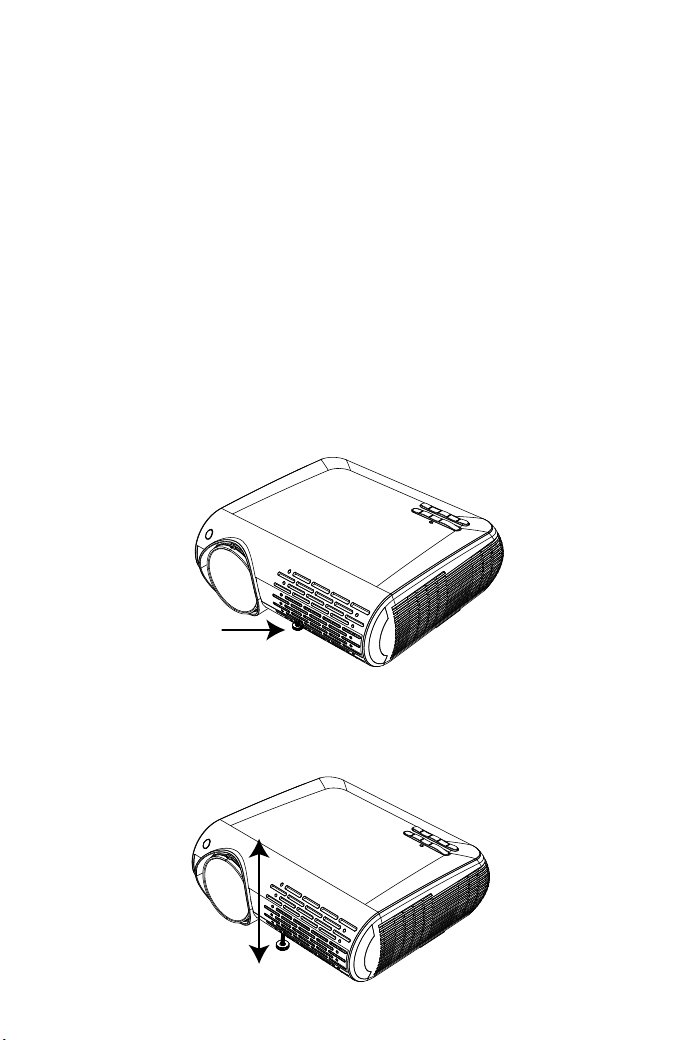
• Use el mando a distancia con cuidado.
• Si el mando a distancia se moja, séquelo inmediatamente.
• Evite ambientes con demasiada calor o humedad.
• Si no va a utilizar el mando a distancia durante mucho tiempo, retire las
pilas. (NOTA: El mando a distancia no incluye pilas, necesitará
adquirir unas pilas por su cuenta).
1. Abra la tapa trasera del control remoto.
2. Instale unas nuevas (AA). Al colocarlas, asegúrese de que la polaridad
de las pilas (+/–) son las correctas.
( NOTA: No use diferentes tipos de pilas o pilas nuevas con pilas viejas)
1.Mantenga presionado el botón de inclinación en la parte posterior del
proyector.
2.Levante el borde frontal del proyector a la altura deseada, gire el pie y
suelte el botón para bloquear la base de inclinación en la posición que
estime conveniente.
Precauciones con el mando a distancia
Ajustar la base de inclinación
01 02 03 04 05 06 07
08 09 10 11 12 13 14 15 16 17
18 19 20 21 22 23 24 25 26 27
28 29 30 31 32 33 34 35 36 37
38 39 40 41 42 43 44 45 46 47
48 49 50 51 52
53
54 55 56 57
58
59 60 61 62 63 64 65 66 67
68 69 70 71 72 73 74 75 76
77 78 79 80 81 82 83 84 85 86
87 88
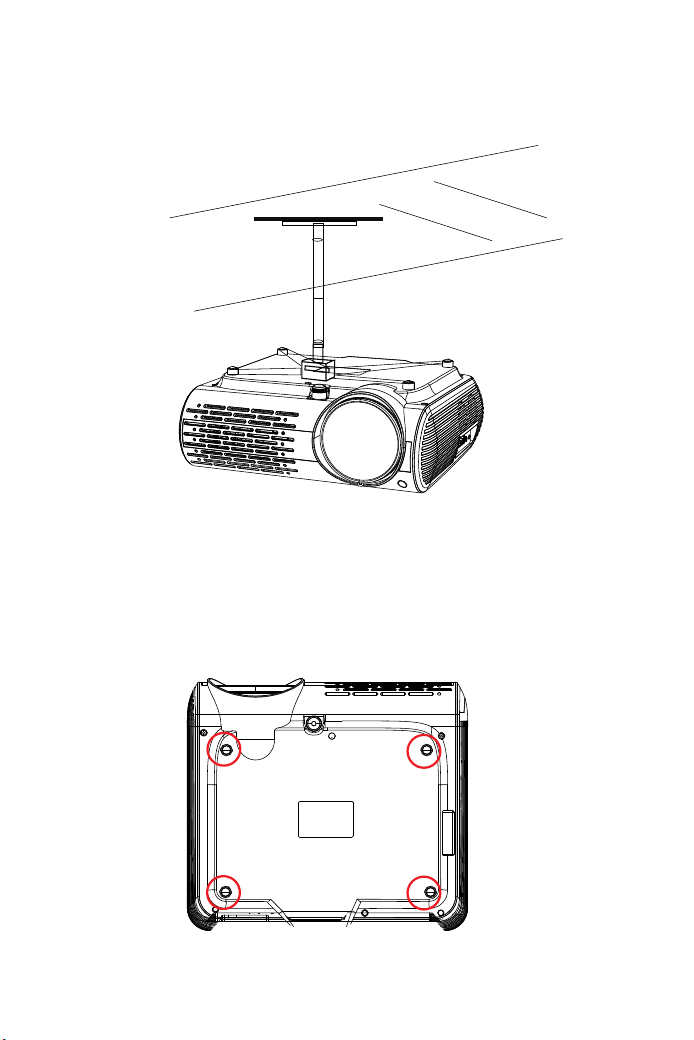
2.Abra los 4 botones en la parte de atrás del proyector y use tornillos
M4 * 10mm para colgar el proyector en el soporte.
1.Por favor, compre los soportes para el proyector y unos tornillos M4 de
10 mm.
Precauciones de instalación en el techo
B
01 02 03 04 05 06 07
08 09 10 11 12 13 14 15 16 17
18 19 20 21 22 23 24 25 26 27
28 29 30 31 32 33 34 35 36 37
38 39 40 41 42 43 44 45 46 47
48 49 50 51 52
53
54 55 56 57
58 59
60 61 62 63 64 65 66 67
68 69 70 71 72 73 74 75 76
77 78 79 80 81 82 83 84 85 86
87 88

Cuando encienda el proyector por primera vez, verá la interfaz de idiomas
en inglés. Puede seleccionar uno de los idiomas del menú: alemán,
francés, italiano, español, japonés, etc.
• La instalación del proyector en el techo debe ser realizada por un técnico
especializado.
• Utilice el proyector únicamente en una superficie estable y nivelada. Si el
proyector se cae al suelo, puede sufrir graves daños o romperse.
• No exponga el proyector a la humedad, polvo o humo. Esto podría dañar
la imagen.
• Asegúrese de no obstruir el sistema de ventilación del proyector. Procure
una ventilación adecuada en la zona de alrededor del proyector que facilite
la disipación del calor.
Antes de encender el proyector, asegúrese de que el ordenador o cualqui-
era que sea la fuente de video a la que esté enchufado, esté encendida.
Revise que ha quitado la tapa de la lente.
Después de presionar el botón " " en el proyector o en el mando a
distancia, el indicador de encendido cambiará a verde y el proyector estará
listo para usar.
1. Encienda el proyector.
Conecte el cable de alimentación a una toma de corriente y luego presione
el interruptor de alimentación principal. El proyector entrará en modo de
espera (stand-by) y el indicador de encendido se iluminará en rojo.
2. Seleccione la fuente de señal
Presione el botón "S" (source) en el mando a distancia o en el propio
proyector para seleccionar la fuente de señal: "AV", "PC-RGB", "HDMI 1",
"HDMI 2", "USB".
3. Ajuste el tamaño de la imagen.
Ajustar el tamaño de la imagen y el enfoque
Para obtener el mejor tamaño de imagen posible, debe cambiar la distan-
cia desde el proyector a la pantalla de proyección.
Para obtener el mejor enfoque, debe girar la lente para enfocar.
ADVERTENCIA
USO DEL PROYECTOR
CONTROLES GENERALES
Seleccione el idioma del menú
01 02 03 04 05 06 07
08 09 10 11 12 13 14 15 16 17
18 19 20 21 22 23 24 25 26 27
28 29 30 31 32 33 34 35 36 37
38 39 40 41 42 43 44 45 46 47
48 49 50 51 52
53
54 55 56 57
58 59 60
61 62 63 64 65 66 67
68 69 70 71 72 73 74 75 76
77 78 79 80 81 82 83 84 85 86
87 88
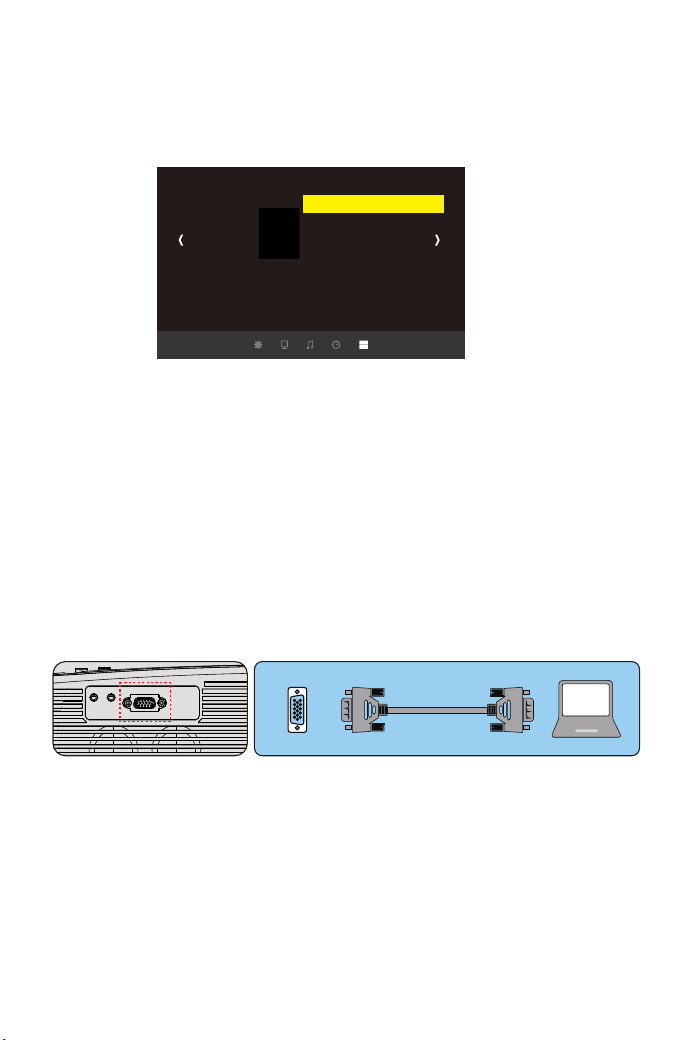
Por favor siga estos pasos:
1.Presione el botón "M" (Menú) y busque la interfaz "OPCIÓN", luego
busque el "Lenguaje OSD español".
2.Presione el botón “Enter” para guardar la configuración.
1.Use el cable VGA suministrado para conectar su PC al proyector.
(Nota: Conexiones VGA no transmiten audio, por lo que el sonido se
emitirá desde el ordenador, la computadora necesita conectar un altavoz.)
2.Encienda el proyector y el ordenador.
*NOTA: Si su computadora tiene la interfaz HDMI, también puede usar el
cable HDMI para conectar la computadora con el proyector, la conexión
HDMI puede transmitir la señal de audio, no necesita conectar el altavoz.
CONEXIÓN DE DISPOSITIVO EXTERNO
Conectando un PC
Nota: Verifique si el teléfono Android es compatible con la función MHL.
Cable MHL-HDMI no incluido)
1.Conecte el proyector y el Smartphone Android con el cable MHL-HDMI.
2.Elija la fuente de señal: “HDMI”
Conectando un Smartphone
Conecta un teléfono con sistema Android
OPCIÓN
Lenguaje OSD Español
Restaurar parámetros fábrica
Transparencia del menú
HDMI CEC
Actualización de software(USB)
OSD duración
Velocidad de ventilación
VGA
01 02 03 04 05 06 07
08 09 10 11 12 13 14 15 16 17
18 19 20 21 22 23 24 25 26 27
28 29 30 31 32 33 34 35 36 37
38 39 40 41 42 43 44 45 46 47
48 49 50 51 52
53
54 55 56 57
58 59 60 61
62 63 64 65 66 67
68 69 70 71 72 73 74 75 76
77 78 79 80 81 82 83 84 85 86
87 88
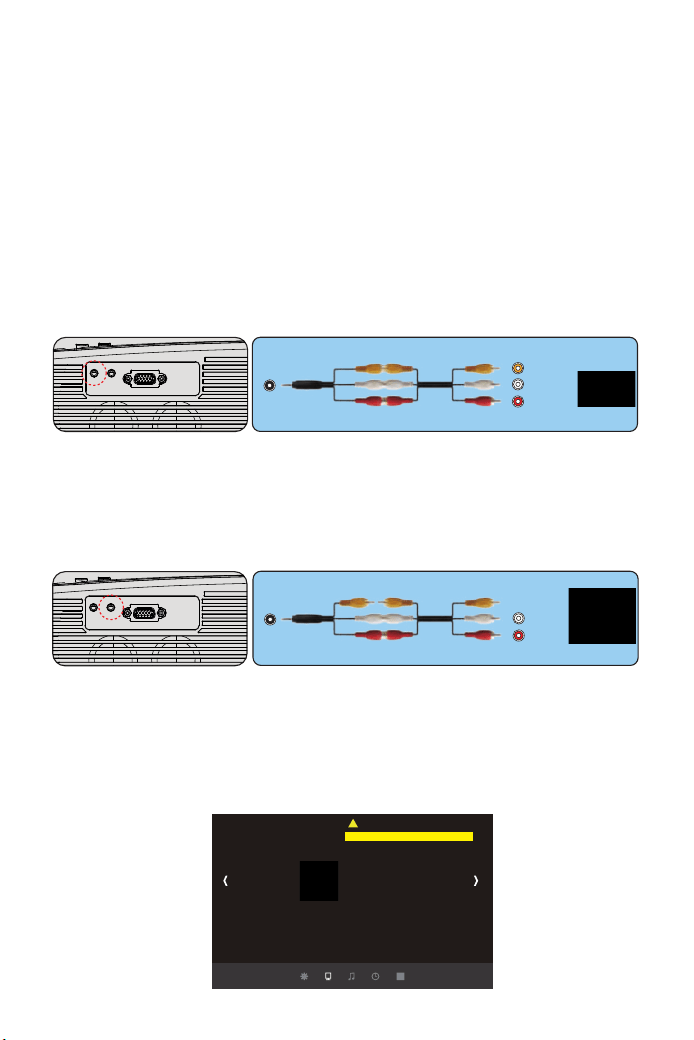
CONFIGURACIÓN DEL MENÚ PRINCIPAL
IMAGEN MENU
1.Conecte el proyector y el iPhone con el cable Lightning a HDMI (no
incluido)
2.Elija la fuente de señal: “HDMI”
Conectando un iPhone
1.Use el cable AV suministrado para conectar su reproductor de DVD al
proyector.
2.Encienda el proyector y el reproductor de DVD.
Si su reproductor dispone de salida HDMI, es preferible usar esta sobre la
opción analógica (AV). Deberá configurar la salida de audio desde el menú
de su reproductor DVD si dispone de altavoces externos instalados.
Presione el botón "M" (menú) en el proyector o en el mando a distancia.
Hay 4 opciones de menú: "IMAGEN", "SONIDO", "TIEMPO", "OPCIÓN"
Conectando un reproductor de DVD
1. Use el cable AV suministrado para conectar su barra de sonido al
proyector.
2. Encienda el proyector y la barra de sonido.
Conectar barra de sonido
Modo de imagen Suave
Temp.del Color
Relación de Aspecto
X_ZOOM 0
Y_ZOOM 0
Reducción de ruido
Gama de colores Auto
Modo proyectivo
Regulación trapezoidal
IMAGEN
Conguración de PC
AV
video
audio out
(L/R)
Audio-out
audio out
(L/R)
01 02 03 04 05 06 07
08 09 10 11 12 13 14 15 16 17
18 19 20 21 22 23 24 25 26 27
28 29 30 31 32 33 34 35 36 37
38 39 40 41 42 43 44 45 46 47
48 49 50 51 52
53
54 55 56 57
58 59 60 61 62
63 64 65 66 67
68 69 70 71 72 73 74 75 76
77 78 79 80 81 82 83 84 85 86
87 88
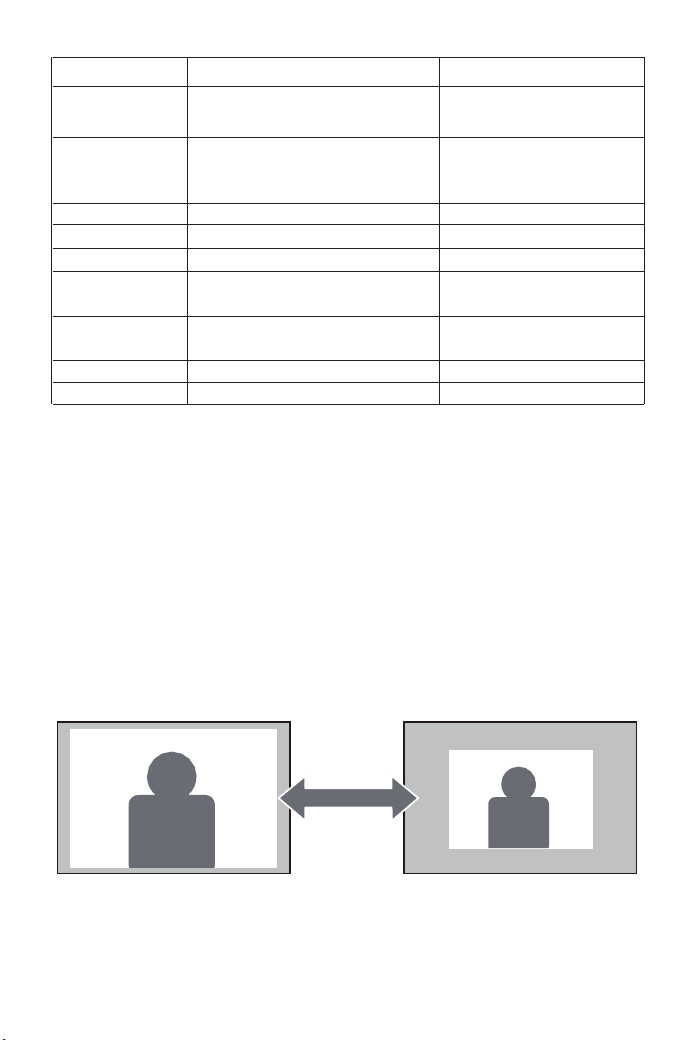
<X_Zoom / Y_Zoom>
Cuando esté reproduciendo una imagen o video, si desea cambiar el
tamaño de la imagen proyectada o video, puede usar el mando a distancia
para seleccionar la siguiente opción y ajustar el tamaño de la proyección:
1)Haga clic en "X_ZOOM", para ajustar el tamaño horizontal de la
proyección.
2)Haga clic en "Y_ZOOM", para ajustar el vertical de la proyección.
Puede reducir hasta en un 50% el alto y el ancho original proporcionado
por la fuente de video.
IMAGEN CONTENIDO EXPLICACIÓN
Mode de imagen
Temp.del Color
Medio
Relación de Aspecto
X_ZOOM
Y_ZOOM
Reducción de ruido
Configuración de PC
Modo proyective
Regulación trapezoidal
Suave/Estándar/Dinámico/Usuario
(Contraste/Brille/Color/Nitidez/Tinte)
Usuario/Frio/Medio/Caliente
(Rojo/Verde/Azul)
Auto/ 4:3/ 16:9
+1~50
+1~50
Apagado/Bajo/Medio/Alto/Valor
por defecto
Después de la configuración de la
conexión de la computadora es efectiva
Frente/Techo/Postrior/Celling rear
Vertical/Horizon(-50~+50)
Ajustar el contraste etc.
Ajustar la temperatura de color
La relación de aspecto le permite
configurar la forma en que se
muestran las imagenes.
Escala hacia abajo desde el eje X
Escala hacia abajo desde el eje Y
Ajuste de ruido
Ajuste de la configuración de PC
4 metodos de proyeccion
Regulación trapezoidal
01 02 03 04 05 06 07
08 09 10 11 12 13 14 15 16 17
18 19 20 21 22 23 24 25 26 27
28 29 30 31 32 33 34 35 36 37
38 39 40 41 42 43 44 45 46 47
48 49 50 51 52
53
54 55 56 57
58 59 60 61 62 63
64 65 66 67
68 69 70 71 72 73 74 75 76
77 78 79 80 81 82 83 84 85 86
87 88
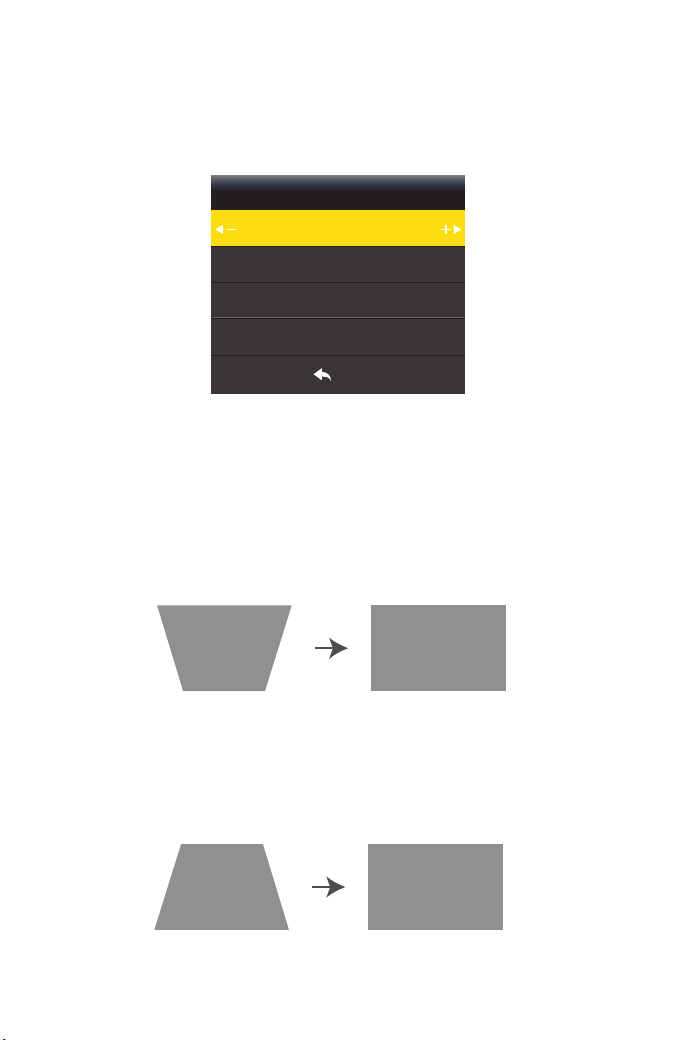
<Regulación trapezoidal>
1.1 “Vertical”. Rango: -50 ~ +50
Para la corrección trapezoidal (keystone correction). Hay dos formas de
corregir la distorsión trapezoidal: “vertical” y “Horizon”. Puede usar directa-
mente el mando a distancia para la corrección trapezoidal.
Si la imagen de proyección está inclinada verticalmente, como se muestra
en (1), presione el botón "M" en el control remoto, seleccione "Regulación
trapezoidal", luego presione el botón "OK" y configure el valor vertical en
"+", hasta que Alcanzar el efecto de proyección (2).
Si la imagen de proyección está inclinada verticalmente, como se muestra
en (3), presione el botón "M" en el control remoto, seleccione "Regulación
trapezoidal", luego presione el botón "OK" y configure el valor vertical en
"-", hasta que Alcanzar el efecto de proyección (4).
Regulación trapezoidal
Horizon 00
MENU
Vertical 00
(1) (2)
(3) (4)
01 02 03 04 05 06 07
08 09 10 11 12 13 14 15 16 17
18 19 20 21 22 23 24 25 26 27
28 29 30 31 32 33 34 35 36 37
38 39 40 41 42 43 44 45 46 47
48 49 50 51 52
53
54 55 56 57
58 59 60 61 62 63 64
65 66 67
68 69 70 71 72 73 74 75 76
77 78 79 80 81 82 83 84 85 86
87 88
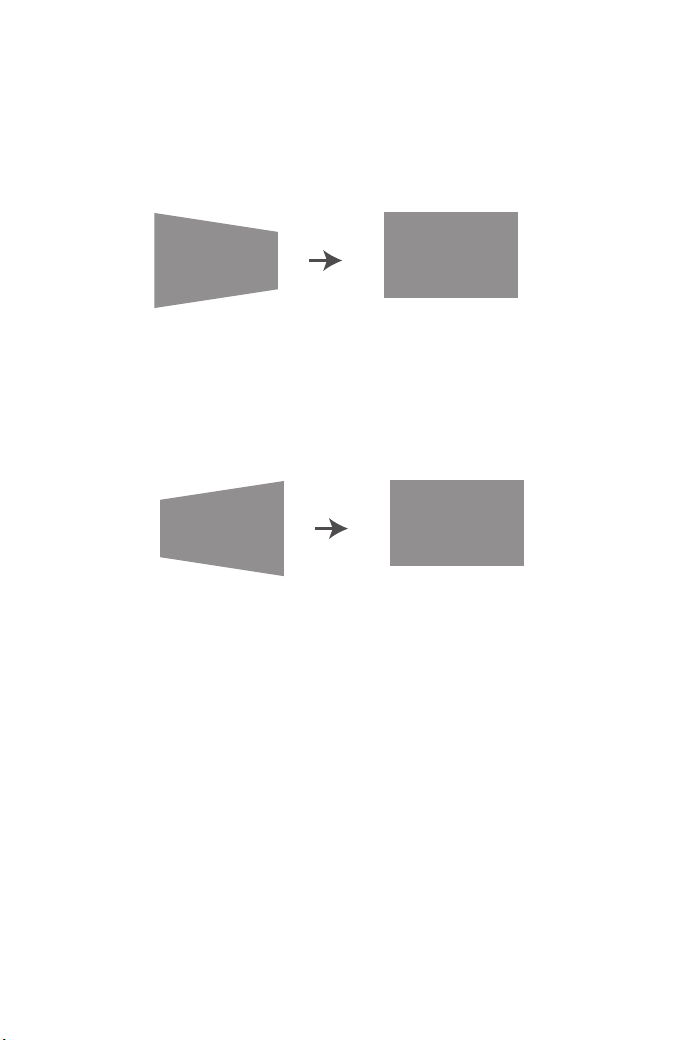
1.3 Si la imagen de proyección está inclinada vertical y
horizontalmente.
1.2 “Horizon”. Rango: -50 ~ +50
Si la imagen de proyección está inclinada horizontalmente, como se
muestra en (7), presione el botón "M" en el control remoto, seleccione
"Regulación trapezoidal", presione el botón "OK" y configure el valor del
horizonte en "-", Alcanzando el efecto de proyección (8).
a): juzgue si la imagen es vertical (1) o (3), y luego realice la corrección
vertical.
b): juzgue si la imagen es horizontal (5) o (7), y luego realice la corrección
horizontal.
Nota: La corrección vertical y la corrección horizontal no se ajustan al
mismo tiempo. Es mejor ajustar la vertical y luego ajustar el nivel, o ajustar
el nivel primero y luego ajustar la vertical.
Si la imagen de proyección está inclinada horizontalmente, como se
muestra en (5), presione el botón "M" en el control remoto, seleccione
"Regulación trapezoidal", luego presione el botón "OK" y configure el valor
del horizonte en "+", Alcanzando el efecto de proyección (6).
(5) (6)
(7) (8)
01 02 03 04 05 06 07
08 09 10 11 12 13 14 15 16 17
18 19 20 21 22 23 24 25 26 27
28 29 30 31 32 33 34 35 36 37
38 39 40 41 42 43 44 45 46 47
48 49 50 51 52
53
54 55 56 57
58 59 60 61 62 63 64 65
66 67
68 69 70 71 72 73 74 75 76
77 78 79 80 81 82 83 84 85 86
87 88
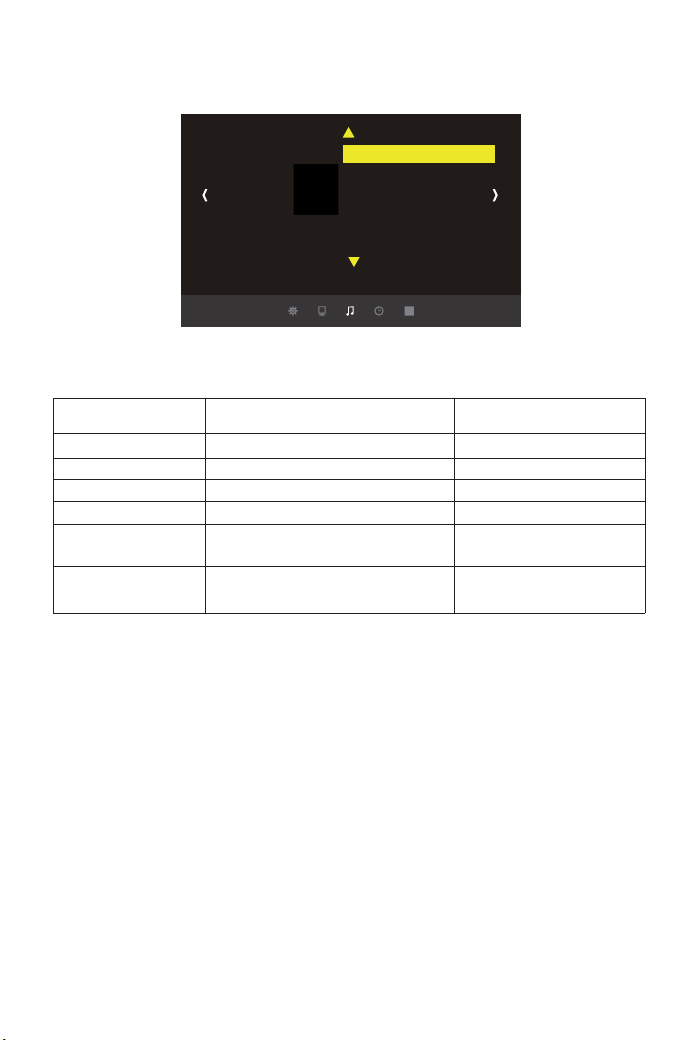
SONIDO MENU
<Fuente de sonido>
(Nota: si conecta un altavoz externo para salida de audio, preste atención
a las siguientes intrucciones).
a)"Normal". El sonido se reproduce tanto en el altavoz externo como en el
proyector;
b)"Línea". El sonido solo se reproduce en el altavoz externo que haya
conectado;
c)"Caja de sonidos". El sonido solo se reproduce en el proyector.
SONIDO
Modo de sonido Estandar
Equilibrar
Volumen antomático
Sonide envolvente
EQ
Fuente de sonide
SONIDO CONTENIDO EXPLICACIÓN
Modo de sonido Estandar
Equilibrar
Volumen antomático
Sonide envolvente
EQ
Fuente de sonide
Estandar/ Usuario( Agudos/Bbjos)
-50 ~ +50
Apagado/Encendido
Apagado/SRS TruSurround XT/Envolvente
120Hz 60/500Hz 53/1.5KHz 50/5KHz
50/10KHz 50
Normal/Línea/Caja de sonidos
Ajustar el estado del sonido
Ajuste de balance
Ajuste automatico de volumen
Ajuste estéreo
Ajuste de Hz
Ajuste de conexión de equipos
externos.
01 02 03 04 05 06 07
08 09 10 11 12 13 14 15 16 17
18 19 20 21 22 23 24 25 26 27
28 29 30 31 32 33 34 35 36 37
38 39 40 41 42 43 44 45 46 47
48 49 50 51 52
53
54 55 56 57
58 59 60 61 62 63 64 65 66
67
68 69 70 71 72 73 74 75 76
77 78 79 80 81 82 83 84 85 86
87 88
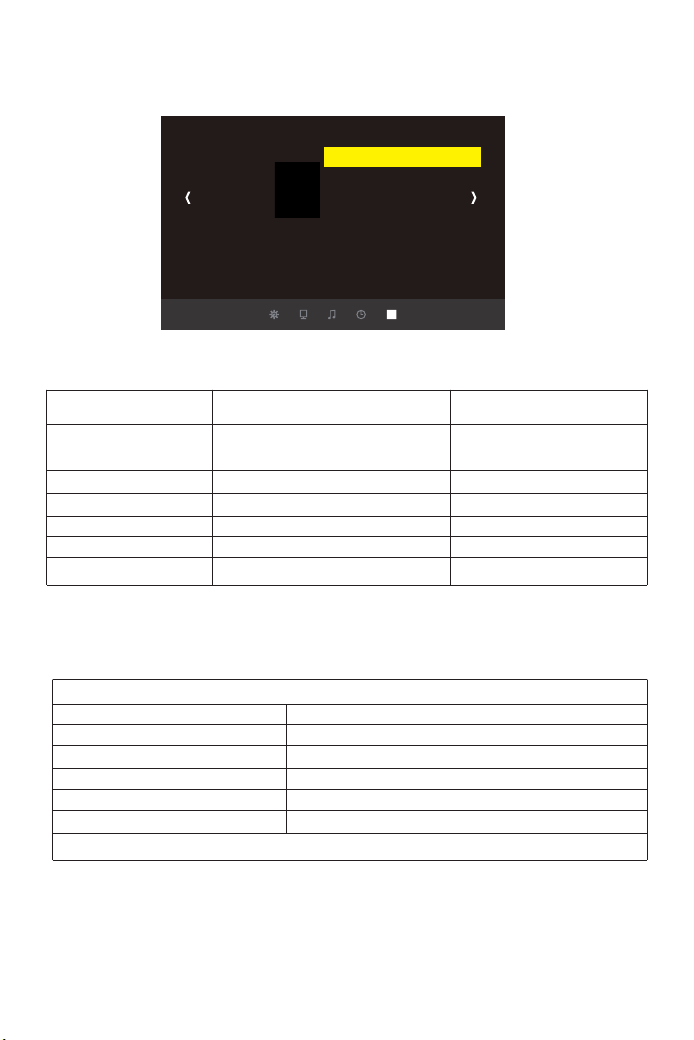
OPCIÓN MENU
Especificaciones
Y30
Período de garantía
El período de garantía es de 3 años a partir de la fecha de compra. Si
tiene algún problema, no dude en ponerse en contacto con
Nota: Puede reducir el ruido cambiando la velocidad del ventilador.
OPCIÓN CONTENIDO EXPLICACIÓN
Lenguaje OSD Español
Restaurar parámetros fábrica
Transparencia del menú
OSD duración
Actualización de software(USB)
Velocidad de ventilación
English, France, Italiane, Español
Etc. 20 idiomas múltiples
¿Estás seguro? Si/No
Apagado/Bajo/Medio/Alto
Apagado/5 Segundo/10 Segundo/15 Segundo
No se puedo detectar el USB
Apagado/Encendido
Fuente de alimentación
USB
Resolución
Interfaz de entrada
Interfaz de salida
Peso del proyector
Sistema de imagenes
Fuente de luz
Colores
Distancia de proyección
Tamaño de proyección
Relación de Aspecto
Regulación trapezoidal : Trapezoide electrónico de cuatro esquinas ± 45 °
LCD
LED
16.7M full color
1.5-5.5m
45-200 inch
16:9 /4:3
110-240V~50/60HZ
5V 500mA Salida
1920*1080
HDM*2/VGA/AV/ USB*2/AUDIO IN
AUDIO OUT
2.9KG
Configuraciones de idioma
Restaurar la configuración de fábrica
Ajustando la transparencia del menú.
Duración del menú
Actualización de firmware
Ajustar la velocidad del ventilador
OPCIÓN
Lenguaje OSD Español
Restaurar parámetros fábrica
Transparencia del menú
HDMI CEC
Actualización de software(USB)
OSD duración
Velocidad de ventilación
01 02 03 04 05 06 07
08 09 10 11 12 13 14 15 16 17
18 19 20 21 22 23 24 25 26 27
28 29 30 31 32 33 34 35 36 37
38 39 40 41 42 43 44 45 46 47
48 49 50 51 52
53
54 55 56 57
58 59 60 61 62 63 64 65 66 67
68 69 70 71 72 73 74 75 76
77 78 79 80 81 82 83 84 85 86
87 88

FAQ
3. ¿Hay algún obstáculo entre el control remoto y el proyector?
4. ¿Ha excedido el alcance efectivo del control remoto?
■ No hay sonido
El formato compatible con el proyector es el siguiente:
Formato de video: MPG, AVI, TS, MOV, MKV, DAT, MP4
Formato de audio: MP3, WMA, AAC
Formato de imagen: JPG, JPEG, BMP, PNG.
* En cuanto a la salida de sonido, ya que no puede soportar el sonido
Dolby, cierre la función de sonido Dolby.
Si todavía no eres bueno, sigue los pasos a continuación.
1. Puede ajustar el modo de salida de audio con los tres elementos
secundarios "Línea, Normal, Caja de sonidos" en el menú "SONIDO" -
"Fuente de sonido" (último elemento).
2. Ajuste el volumen con el control remoto.
3. Compruebe si está en modo silencioso.
■ La alimentación se apaga durante el uso
1. ¿Está "Auto off" en el menú del temporizador configurado en "On
(Seleccionar hora)"? ¿Ha configurado "Tiempo de parada " en "On
(seleccionar tiempo)"?
2. Asegúrese de que el enchufe del cable de alimentación esté insertado
correctamente.
■ El control remoto no funciona
1. ¿Apunta el control remoto al receptor del proyector?
2. ¿Está agotada la batería del control remoto? Por favor, reemplace con
una batería nueva.
■ Las imágenes están borrosas
1. ¿Es correcto el enfoque de la lente?
2. ¿La pantalla de proyección y el proyector están instalados en el ángulo
correcto?
3. ¿Está la distancia de proyección más allá del rango de enfoque?
4. Asegúrese de que la lente de proyección no esté sucia.
01 02 03 04 05 06 07
08 09 10 11 12 13 14 15 16 17
18 19 20 21 22 23 24 25 26 27
28 29 30 31 32 33 34 35 36 37
38 39 40 41 42 43 44 45 46 47
48 49 50 51 52
53
54 55 56 57
58 59 60 61 62 63 64 65 66 67
68
69 70 71 72 73 74 75 76
77 78 79 80 81 82 83 84 85 86
87 88

目次
はじめに
安全にお使いいただくためのご注意
リモコンの各部の名称
72
プロジェクターーの各部の説明
仕様
故障かな?と思ったら
メニューの設置方法
メーニュのアイテムのパラメータの調整
画像メーニュ
音声メーニュ
時間メーニュ
設定メーニュ
言語の設定
プロジェクター の 接 続
パソコンとの接続
MACとの接続
スマートフォン、ipadとの接続
ビデオ機器の接続
外部スピーカーの接続
プロジェクター の 設 置
スクリーンからのおよその距離と画面サイズの関係
投写場所の選択
天井吊り
投写イメージの調整
画像サイズと明瞭さの微調整
前面図
底面図
設置のときのご注意
86
87
88
72
73
74
74
74
75
75
75
76
77
77
78
79
80
80
81
82
83
83
83
83
85
84
JP
74
01 02 03 04 05 06 07
08 09 10 11 12 13 14 15 16 17
18 19 20 21 22 23 24 25 26 27
28 29 30 31 32 33 34 35 36 37
38 39 40 41 42 43 44 45 46 47
48 49 50 51 52
53
54 55 56 57
58 59 60 61 62 63 64 65 66 67
68 69
70 71 72 73 74 75 76
77 78 79 80 81 82 83 84 85 86
87 88
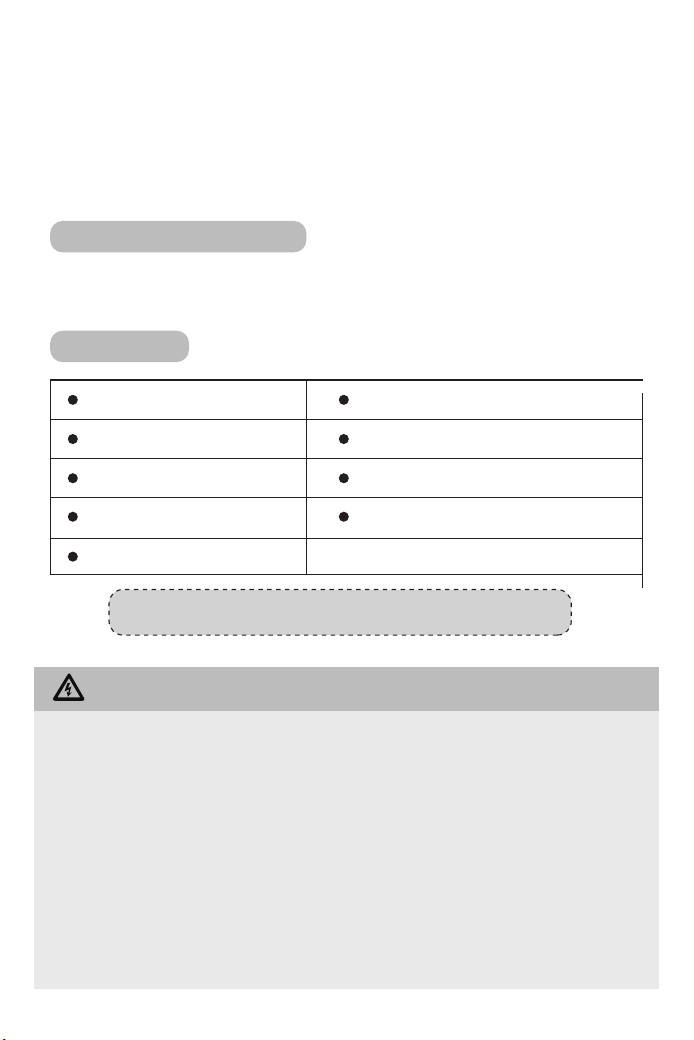
はじめに
このたびは、YABERY30プロジェクターーをお買い上げいただき誠にありがとうございました。
ご使用前にこの取扱説明書をよく読みください。また、お手元に置き、いつでも確認できるように
しておいてください。
万一ご使用中何がございましたら、遠慮なく
までご連絡くださ
い。
お使いになる前に、セット内容がすでに揃っているかご確認ください。万一、足りないものがご
ざいましたら、遠慮なく
までご連絡ください。
最初にご確認ください
セ ット 内 容
警告
プロジェクターー本体*1
取扱説明書(本書*1)
3in1AVケーブル*1
3in3AVケーブル*1
HDMIケーブル*1
VGAケーブル*1
レンズ拭き*1
電源コード*1
リモートコン*1(単四電池2本別売り)
安全にお使いいただくためのご注意(必ず守りください)
●お子様が本製品や付属品を口に入れないようにご注意ください。
●本製品のカバーを開けたり、分解したりしないでください。
●濡れた手で本製品やケーブルに触らないでください。
●本製品内部に液体、金属などの異物が入らないようにしてください。
●本製品は水分湿気の多い場所、直射日光の当たる場所、ホコリや油煙などの多い場所、車中や
暖房器具の傍などの高温となる場所に設置したり、保管したりしないでください。
●本製品に強い振動や衝撃を与えないでください。
●本製品を重ねて設置したり、本製品の上に重いものを置いたりしないでください。
●本製品は不安定な場所に設置したり、保管したりしないでください。
●本製品のケーブルを抜き差し時は、必ずコネクタ部分を持ち、無理な力を加えないでください。
●本製品のお手に入れをする場合には、ベンジンやシンナーなどの揮発性有機溶剤が含まれて
いるものは使用しないでください。
01 02 03 04 05 06 07
08 09 10 11 12 13 14 15 16 17
18 19 20 21 22 23 24 25 26 27
28 29 30 31 32 33 34 35 36 37
38 39 40 41 42 43 44 45 46 47
48 49 50 51 52
53
54 55 56 57
58 59 60 61 62 63 64 65 66 67
68 69 70
71 72 73 74 75 76
77 78 79 80 81 82 83 84 85 86
87 88
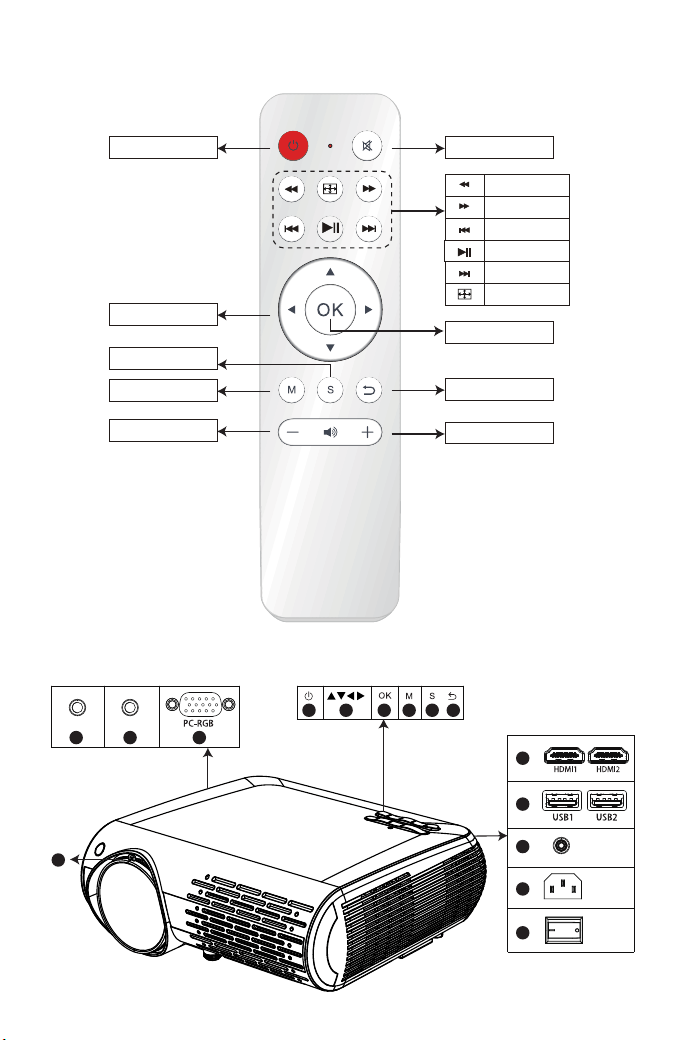
リモコン各部の説明:
リモコン各部の説明:
ご注意:リモコ用単四電池2本は
別売りので、ご使用前に電池を入
れてください。
早戻し
早送り
前へ
再生
次へ/一時停止
画像反転
ミュート
戻すボタン
確認ボタン
音量+
電源ボタン
上/下/左/右/ボタン
信号源
メニューボタン
音量-
Audio out
04
0201 03
05 06 07 08 09
10
11
12
13
14
15
AV
IR
01 02 03 04 05 06 07
08 09 10 11 12 13 14 15 16 17
18 19 20 21 22 23 24 25 26 27
28 29 30 31 32 33 34 35 36 37
38 39 40 41 42 43 44 45 46 47
48 49 50 51 52
53
54 55 56 57
58 59 60 61 62 63 64 65 66 67
68 69 70 71
72 73 74 75 76
77 78 79 80 81 82 83 84 85 86
87 88
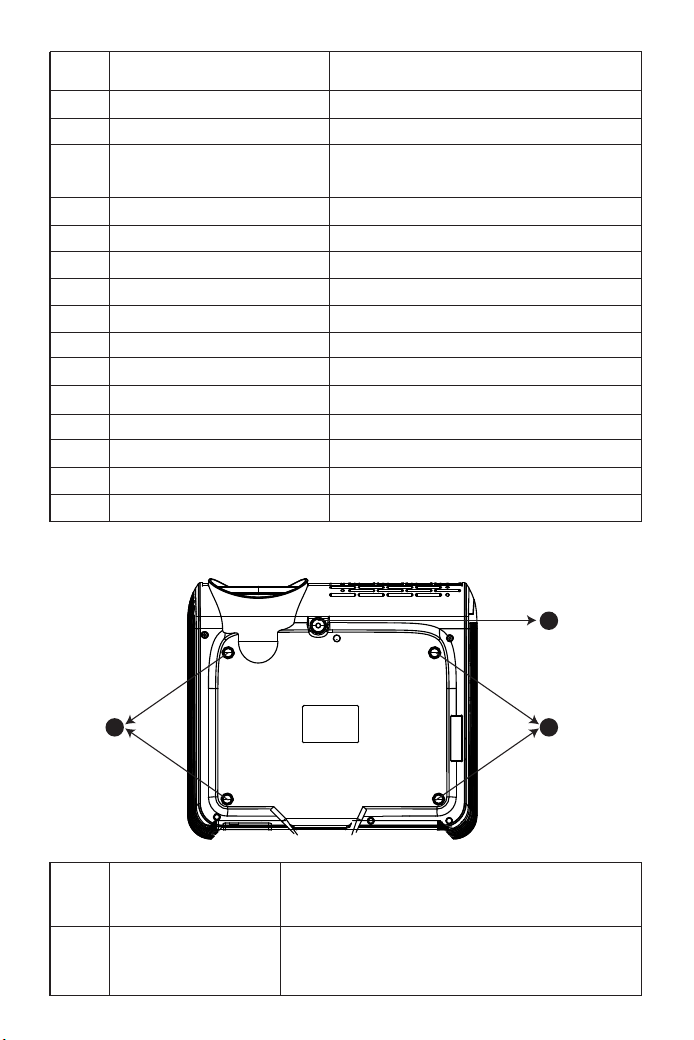
AVポート
オーディオ入力端子
VGA入力端子
電源
矢印キー
OKボタン
メニューボタン
ソースボタン
戻るボタン
HDMI1/HDMI2入力ボタン
USB1/USB1入力ボタン
リモコン受光部
電源ポート
主電源スイッチ
フォーカス調 整
オーディオ信号を出力端子です。
オーディオとビデオーからの信号入力端子です。
パソコンまたはコンポーネント機器からの信号
入力端子です。
電源をON/OFFします。
上/下/左/右。
確定します。
設置メニューを選択します。
信号源を選択します。
前の画面に戻ります。
HDMI機器からのHDMIケーブルを接続します。
USBからの信号入力端子です。
リモコンからの赤外線信号を受信します。
電源コードを接続します。
主電源をON/OFFします。
レンズ伸縮で投写画面のピントを合わせます。
天吊り固定部(4箇所)
A
A
A
B
B
フ ロ ント フ ット
井から吊り下げて使うとき、オプションの天吊り金具
を取り付 けます。
机上に設置したとき、フットを伸縮させて映像の高さ
を調 整します。
01
02
03
04
05
06
07
08
09
10
11
12
13
14
15
名 称項目
底面図
説明
01 02 03 04 05 06 07
08 09 10 11 12 13 14 15 16 17
18 19 20 21 22 23 24 25 26 27
28 29 30 31 32 33 34 35 36 37
38 39 40 41 42 43 44 45 46 47
48 49 50 51 52
53
54 55 56 57
58 59 60 61 62 63 64 65 66 67
68 69 70 71 72
73 74 75 76
77 78 79 80 81 82 83 84 85 86
87 88
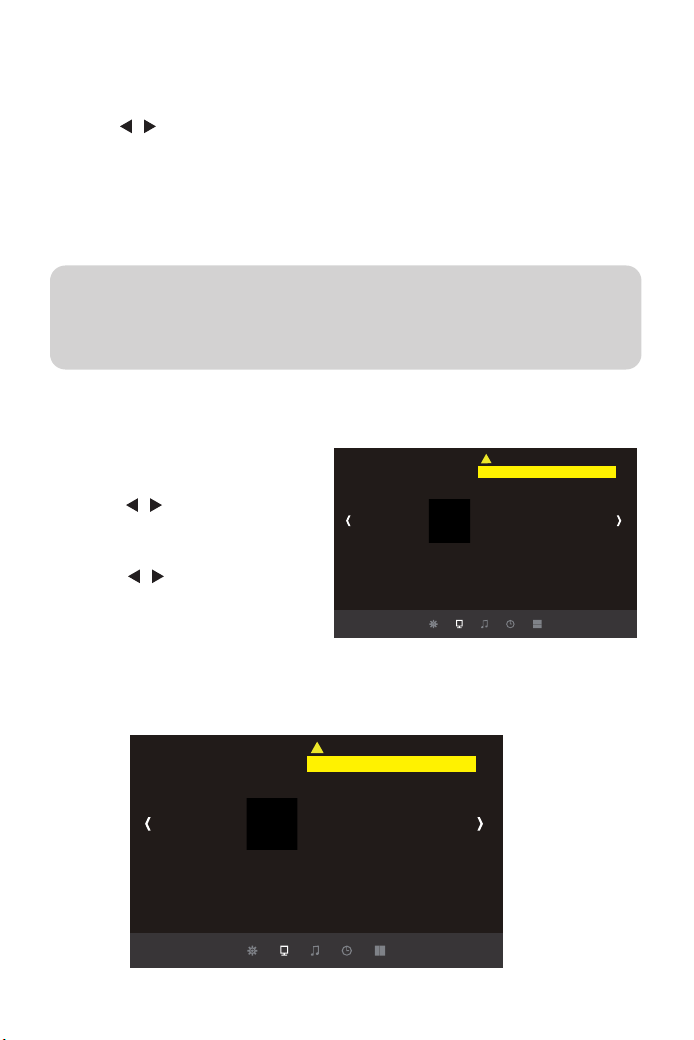
2.カーソル/ボタンを押して、選択
されたアイテムを黄色いになります。
プロジェクターOSDメーニュの説明
メーニュのアイテムのパラメータの調整(映像調整を例として)
写真メーニュ
1.リモコンのMenu(メニュー)ボタンを押してOSDメニューを開きます。
2.カーソル/ボタンを押して、「写真」--「音声」--「時間」--「選択」の順に設置を進めできます。
3.主メニューに選択した後、カーソル▲/▼ボタンを押して、ご希望調整アイテムを選択できます。
4.リモコンのOK(確定)ボタンを押して、選択されたアイテムのパラメータを調整できます。
5.すべてのアイテムのパラメータを調整した後リモコンのMenu(メニュー)ボタンを押して戻す
ことができます。
ご注意:
1.すべてのアイテムのパラメータを設置完了まで2〜5のステップを繰り返してください。
長い時間操作がないと設置は自動的に退出になります。
2.入力や選択ができないアイテムが薄いグレーで表示さてます。
1.右の画面が出るまでリモコンのMenu
(メニュー)ボタンを押してください。
3.はリモコンのOK(確定)ボタンを押して、
カーソル/ボタン対応パラメータを
調整できます。
4.リモコンのMenu(メニュー)ボタンを押し
て戻すことができます。
写 真モ ード
色温度
アスペクト比
X 軸 ズーム
Y 軸 ズーム
ノイズ 低 減
色の範囲
投 影 モード
4D台行調整
写真
PC設定
写 真モード
色温度
アスペクト比
X 軸ズーム
Y 軸 ズーム
ノイズ 低 減
色の範囲
投 影モ ード
4D台行調整
写真
PC設定
01 02 03 04 05 06 07
08 09 10 11 12 13 14 15 16 17
18 19 20 21 22 23 24 25 26 27
28 29 30 31 32 33 34 35 36 37
38 39 40 41 42 43 44 45 46 47
48 49 50 51 52
53
54 55 56 57
58 59 60 61 62 63 64 65 66 67
68 69 70 71 72 73
74 75 76
77 78 79 80 81 82 83 84 85 86
87 88
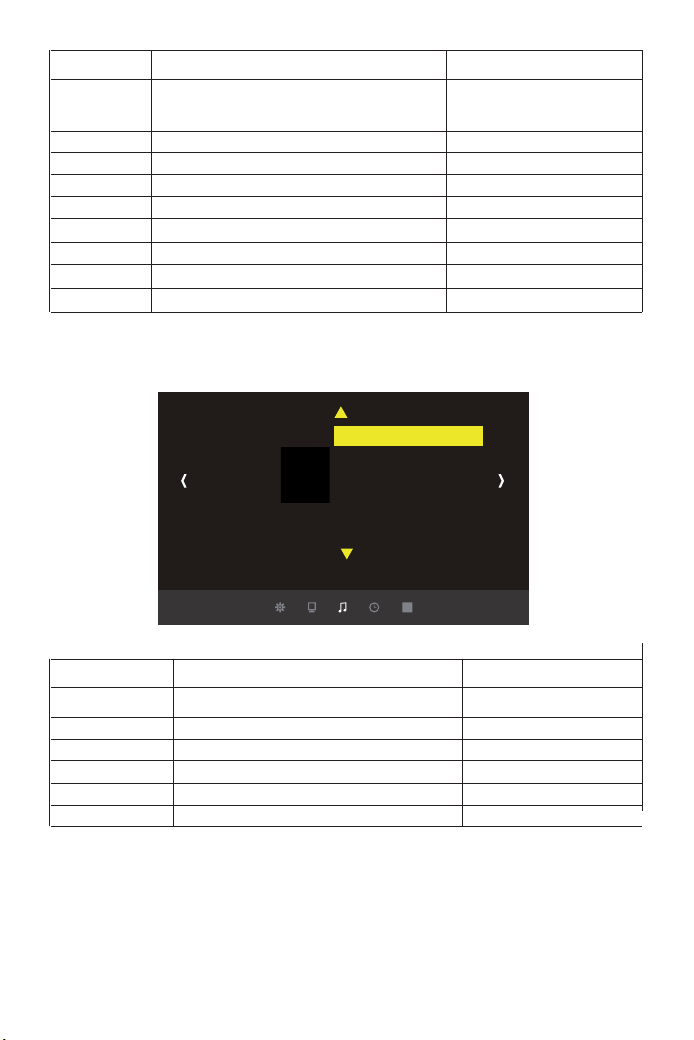
画像 内容 説明
ご注意:
声音出力についてですが、
線路:外部スピーカ音声出ます。
正常:外部スピーカとプロジェクターの内部スピーカ同時に音声を出ます。
クラクション:プロジェクターの内部スピーカ音声出ます。
映像 設定
色温度
アスペクト比
X軸ズーム
Y軸ズーム
ノイズ低減
PC設定
投影モード
4D台行調整
標準/ユーザー(コントラスト/明るさ/カラ
ー/シャープネス/色合い
標準/暖色/ユーザー(赤色・緑色・青色)
自動/4:3/16:9
+1〜50
+1〜50
オフ/低/中/高/リアトア
コンピュータ接続後設定は有効になる
フロント/天井吊り/リア/ロック搭載リア
Vertiacl/Horizon(-50~+50)
コントラストなどの 調 整
色温度の調整
投影アスペクトの調整
X軸から画面縮小
Y軸から画面縮小
ノイズの調整
PC設定の調整
投影方式の調整
台形補正
音声モード 内容 説明
音声モード
バランス
オートブリューム
3D立体声音
EQ
声音出力
ユーザー/標準(3重/ベース)
(-50〜50)
オン/オフ(動画再生する時調整可能)
オフ/SRSTruSurroundXT/立体
120Hz/500Hz/1.5KHz/5KHz/10KHz
線路/クラクション/正常
低音と高音の調整
バランスの調整
自動音量の調整
ステレオの調整
Hzの調整
外部設備接続の調整
音声
音声の設置
バランス
オートぽリューム
3D立体声音
EQ
音声出力
音声メーニュ
01 02 03 04 05 06 07
08 09 10 11 12 13 14 15 16 17
18 19 20 21 22 23 24 25 26 27
28 29 30 31 32 33 34 35 36 37
38 39 40 41 42 43 44 45 46 47
48 49 50 51 52
53
54 55 56 57
58 59 60 61 62 63 64 65 66 67
68 69 70 71 72 73 74
75 76
77 78 79 80 81 82 83 84 85 86
87 88
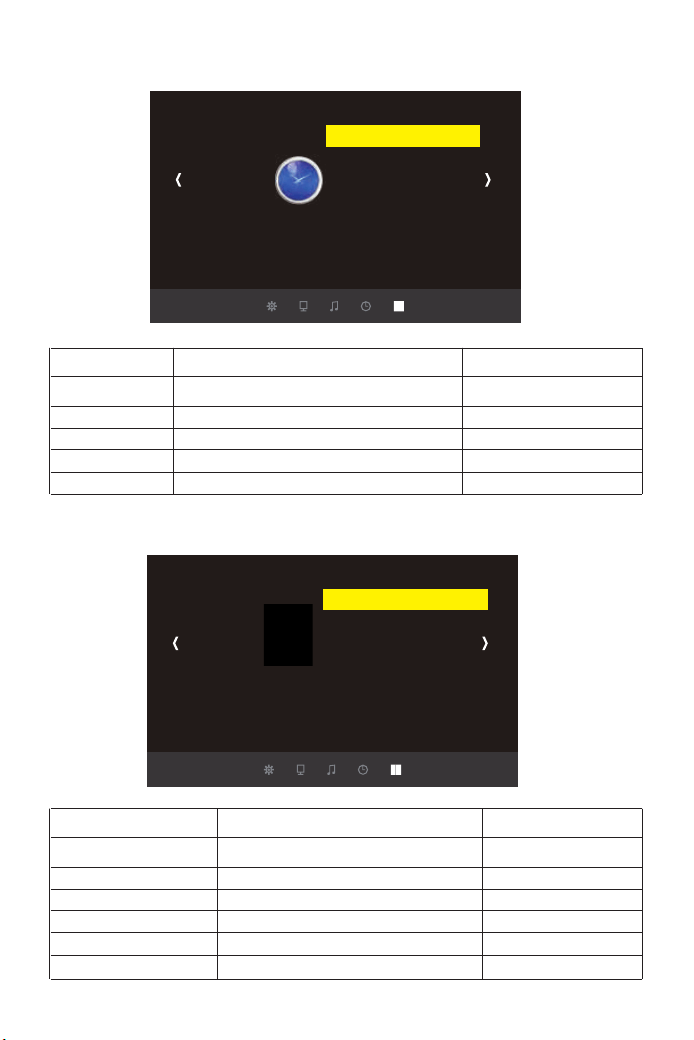
時間メーニュ
時間 内容 説明
時計
自動省電力
定刻
スリープタイマー
Autoスリープ
オフ/分の調整
オン/オフ
一回/一週間/日曜日....
10分/20分/30分....
NO/4時間/6時間/8時間
表示時間の設定
自動オン
自動オフ
休眠時間の設定
自動休眠時間
設定 内容 説明
メニュー言語 日本語
初期化する
メニューバー透明度
OSD持続時間
ソフトツェアアップデート
ファン高速モード
中国語、日本語、英語など20種類の言語
はい/いいえ
オフ/低/中/高
オフ/5秒/10秒/15秒
プグレード
オン/オフ
言語の調整
初期化
メニュの透明度の調整
設置メニュー
ソフトのアップグレード
ファンの音を調整
設定メーニュ
選択
メニュー言 語
初期化する
メニューバー透明 度
HDMICEC
OSD接続時間
ソフトウェア アプデ ート
ファン高 速 モード
時計
オフタイム
定刻
スリ ープタ イ マ ー
A u t o スリ ープ
時間
01 02 03 04 05 06 07
08 09 10 11 12 13 14 15 16 17
18 19 20 21 22 23 24 25 26 27
28 29 30 31 32 33 34 35 36 37
38 39 40 41 42 43 44 45 46 47
48 49 50 51 52
53
54 55 56 57
58 59 60 61 62 63 64 65 66 67
68 69 70 71 72 73 74 75
76
77 78 79 80 81 82 83 84 85 86
87 88
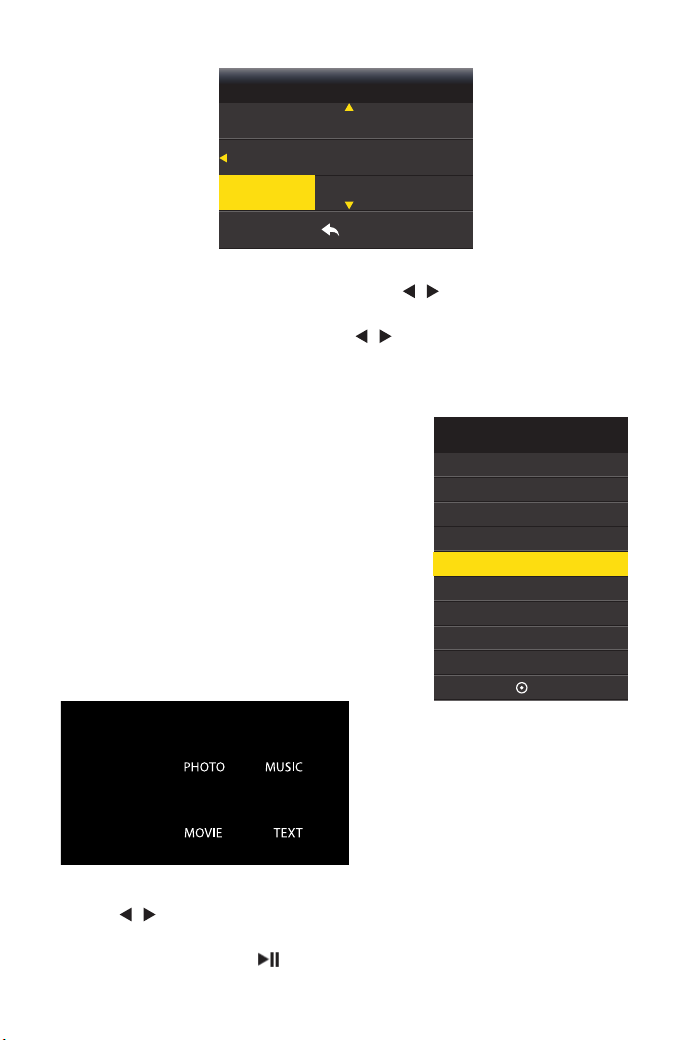
言語の設定
入力ソースの選択と入力内容の再生
1.リモコンのMenu(メニュー)ボタンを押してOSDメニューを開きます。
2.「メニュー言語日本語」強調表示されるまで、カーソル/ボタンを押します。
3.リモコンのOK(確定)ボタンを押して、言語選択画面に移動します。
4.希望する言語が強調表示されるまで、カーソル/ボタンを押します。モコンのOK(確定)
ボタンを押します。
5.リモコンのMenu(メニュー)ボタンを押して最初画面に戻すことができます。
3.カーソル/ボタンを押してご希望の入力ソースを選択して、次にリモコンの「OK」ボタン、
ご覧になりたい映画や写真などを選択します。次にボタンを押し、ご選択内容を再生します。
4.映画や写真を再生する状態で、ボタンを押しすると一時停止、再生できます。
5.「Exit」ボタンを押して、戻すことができます。
このプロジェクターは同時に複数の装置と接続す
ることができます。
入力ソースを選択するには:
1.リモコンの「S」ボタンまたを押して任意の信号を
選択します。
2.任意の信号が選択されるまでを押し、次にリモコ
ンの「OK」ボタンを押します。信号が検出されたら、
選択したソース情報が画面に数秒間表示されます。
プロジェクターに複数の装置が接続されている場合
は、ソース選択バーに戻り別の信号を検出することが
できます。
入力源
AV
PC/RGB
HDMI1
HDMI2
OK
USB
メニュー
suomi
MENU
svenska 中国語
繁体中文
日本語
ご注意:他の信号源を選択し
て対応設備が接続していない
場合は、投影画面は無信号と
表示されています。
USB信号源の画面
01 02 03 04 05 06 07
08 09 10 11 12 13 14 15 16 17
18 19 20 21 22 23 24 25 26 27
28 29 30 31 32 33 34 35 36 37
38 39 40 41 42 43 44 45 46 47
48 49 50 51 52
53
54 55 56 57
58 59 60 61 62 63 64 65 66 67
68 69 70 71 72 73 74 75 76
77 78 79 80 81 82 83 84 85 86
87 88
1.パソコンとMACの接続
プロジェクター の 接 続
しかし自動で投写されない場合もあります。そのときは手動で映像出力先を変更する必要があ
ります。その操作はキーボードで特定のキーを同時押しするのですが、一般的なキーを載せま
したので、下の表で確認してください。
ただし音声は設定をしないと出ない場合もあります。そのときはPCのサウンド設定を確認し、
出力方法を変更してください。スピーカーの選択項目に、繋いでいるプロジェクターーのメーカ
ー名などが表示されているはずです。
MiniDisplayPort-VGAアダプタでVGA-ケーブルとMacのサンダーボルト端子を接続してくだ
さい。
※一般的な例となるため、同メーカーでも操作が異なる可能性があります。上手くいかないと
きは連打せず、ゆっくりと同時押しして反応をみてください。
1.1.2HDMIで接続する。
付属されたHDMIケーブルをプロジェクターのVAG端子と繋げてください。HDMIは映像と音声
を1本のケーブルで伝送できる便利な規格です。VGAのときと同様、HDMIで繋ぐ場合もインス
トール等の作業はありません。
1.1パソコンとの接続
1.1.1VGAで接続する。
付属されたVGAケーブルをプロジェクターのVAG端子と繋げてください。ドライバのインストー
ル等は不要で、最近のWindowsパソコンですと繋ぐだけで認識、投写されます。
NEC
「Fn」+「F3」
東芝
「Fn」+「F5」
SONY
「Fn」+「F7」
EPSON
「Fn」+「F7」
または「Fn」+「F8」
マウスコンピューター
「Fn」+「F7」
Panasonic
「Fn」+「F3」
Lenovo
「Fn」+「F7」
富士通
「Fn」+「F10」
DELL
「Fn」+「F7」
Mac
再起動後ミラーリング設定
1.2Macとの接続
1.2.1VGAで繋ぐ
01 02 03 04 05 06 07
08 09 10 11 12 13 14 15 16 17
18 19 20 21 22 23 24 25 26 27
28 29 30 31 32 33 34 35 36 37
38 39 40 41 42 43 44 45 46 47
48 49 50 51 52
53
54 55 56 57
58 59 60 61 62 63 64 65 66 67
68 69 70 71 72 73 74 75 76
77
78 79 80 81 82 83 84 85 86
87 88
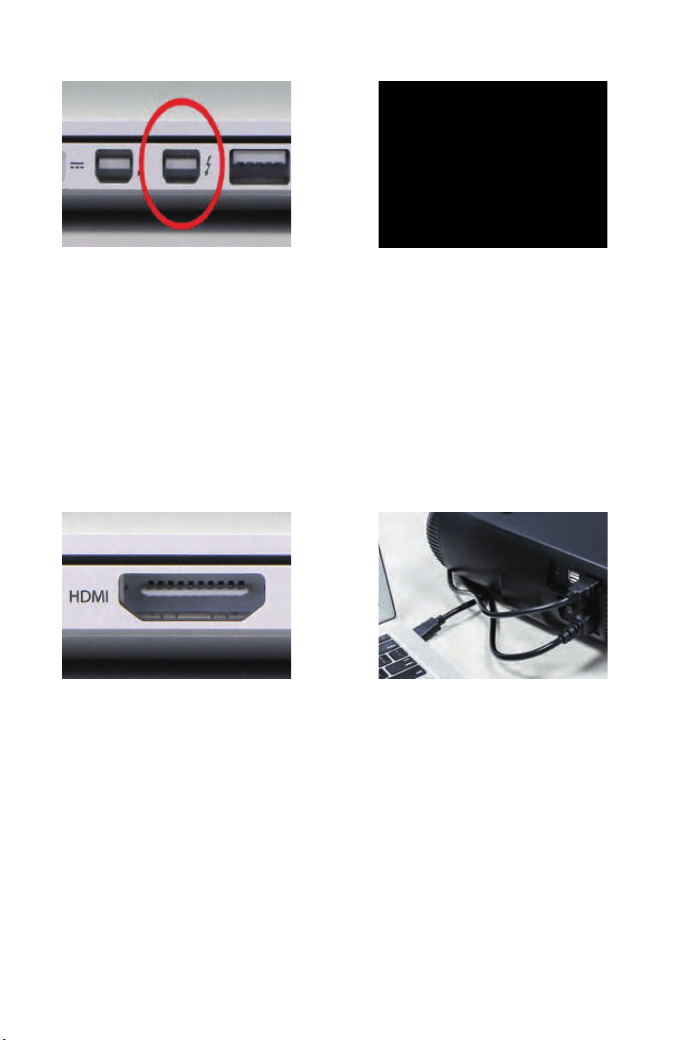
※Thunderboltはこれまでは「minidisplayport(ミニディスプレイポート)」という名前でしたが、
データ伝送速度が違うだけで、プロジェクターーとはどちらでも問題なく繋ぐことができます。
VGA接続は映像のみ伝送します。
HDMI出力が可能なMac(執筆時点ではMacBookProRetinaモデル)では、HDMIケーブルでの
接続がおすすめです。VGAと違いデジタル出力になるため、画質の劣化も最小限に抑えること
ができます。
※HDMIはケーブル1本の接続で、映像と音声を伝送できるのもポイント。ただし、HDMIケーブ
ルはVGAケーブルよりも規格上のケーブル長制限が短いため、10メートル以上の長さが必要
な場合はHDMIは使えません。VGAを使って下さい。
音声の出力先はMacかプロジェクターーかを選べます。設定は「システム環境設定」の「サウン
ド」から、サウンドを出力する装置を選ぶだけ。下記画像も参考にして下さい。
1.2.2HDMIで繋ぐ
Thunderbolt(サンダーボルト)端子 VGAアダプタ((付属されていません)
HDMI端子
HDMIケーブルなら1本で映像と音声が伝送
01 02 03 04 05 06 07
08 09 10 11 12 13 14 15 16 17
18 19 20 21 22 23 24 25 26 27
28 29 30 31 32 33 34 35 36 37
38 39 40 41 42 43 44 45 46 47
48 49 50 51 52
53
54 55 56 57
58 59 60 61 62 63 64 65 66 67
68 69 70 71 72 73 74 75 76
77 78
79 80 81 82 83 84 85 86
87 88
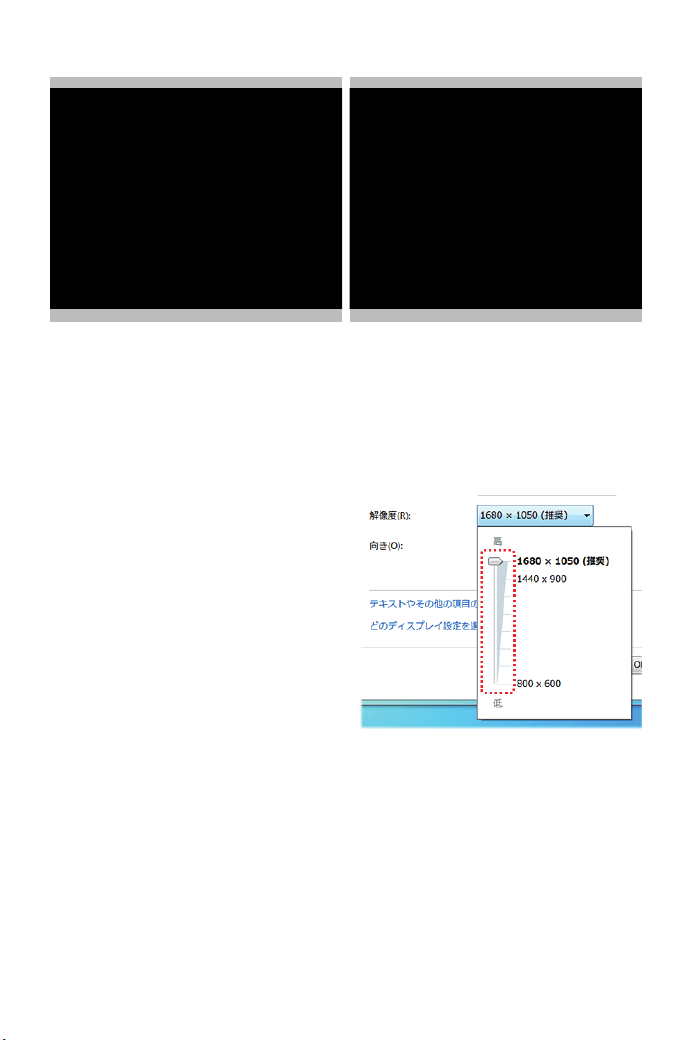
※接続後、投写画面が暗い場合は、次に手順の通りパソコンの解像度をご調整してください。良
い効果のため、解像度を1280*720に調整することをお薦めます。
①コントロールパネルを起動します。
②「デスクトップのカスタマイズ」--「ディスプレイ」--「解像度の調整」--「解像度(R):」欄をクリッ
クしま す。
③スライダーを上下に動かし、お好みの解像度
に調節して、Enter」キーを一回だけ押します。
④「OK」ボタンをクリックして、「変更を維持す
る(K)」ボタンをクリックします。
iphoneの場合:lightningtoHDMI交換ケーブルが必要します。(別売り)
Androidの場合:MHLHDMI変換アダプター(別売り)をご利用ください。(Androidスマートフォ
ンはMHL機能が搭載されるが必要です。)
①.Lightning/MHL接続端子をプロジェクターと接続します。
②.Lightning/MHL接続端子をiPhone/Androidと接続する。
③プロジェクターの「入力信号」で「HDMI」を選択してください。
④プロジェクターのに出っている「信頼」のメッセージを選びます。
⑤30秒〜1分ほどを待つと、設定が自動的に設定完了します。
サウンドを出力する装置を選択 システム環境設定
2.スマートフォン、ipadとの接続
01 02 03 04 05 06 07
08 09 10 11 12 13 14 15 16 17
18 19 20 21 22 23 24 25 26 27
28 29 30 31 32 33 34 35 36 37
38 39 40 41 42 43 44 45 46 47
48 49 50 51 52
53
54 55 56 57
58 59 60 61 62 63 64 65 66 67
68 69 70 71 72 73 74 75 76
77 78 79
80 81 82 83 84 85 86
87 88
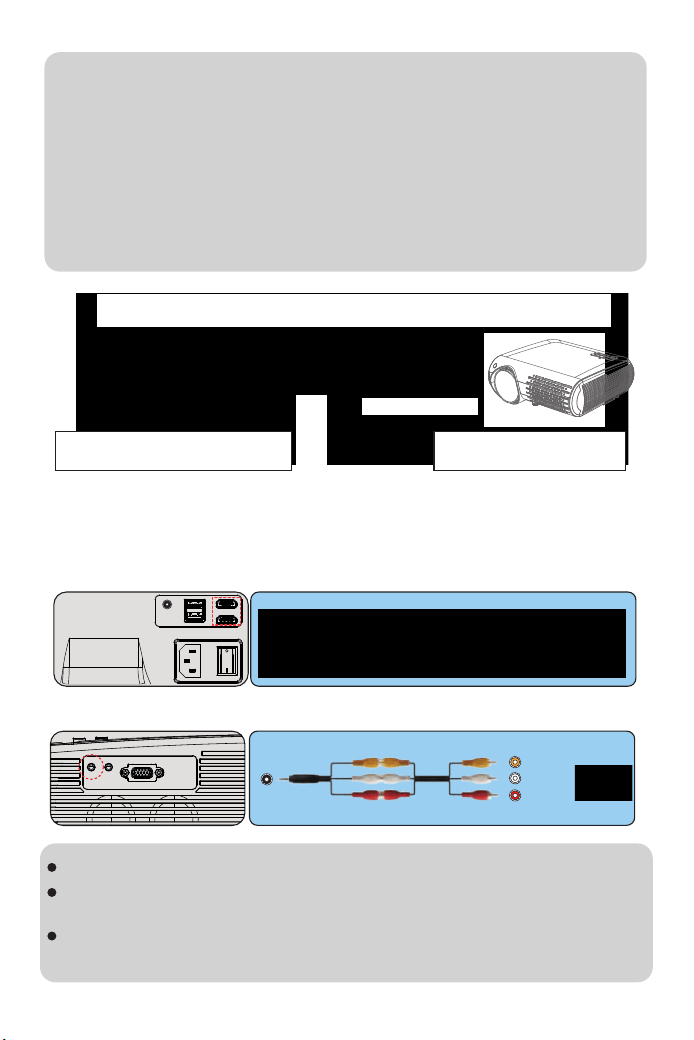
AV
video
audio out
(L/R)
①DVDプレーヤーやビデオなどの映像を投写するには、次の方法で接続します。HDMIケーブ
ルを使用するとき
②ビデオケーブルを使用するとき
ご注意:
1.必ずMHL規格に対応したケーブルで接続してください。
2.一般的には、プロジェクターがHDMIケーブルと接続した後、入力ソースタイプが自動的に
HDMIに切り替えするが、もし、画面が出て来ない場合は、手で入力ソースタイプをHDMIに切り
替えしえください。
3.もし、上記で接続した後、ちゃんと映ない場合は一応iPhone、iPad、iPodを再起動して、挿しな
おしてください。
4.iPhone5以降のLightningでHDMI接続した場合、アプリケーションによって表示できないアプ
リもあるようですので大事な打ち合わせに使用する際などには事前に確認しておきましょう。
3.ビデオ機器の接続
MHL対応スマートフォン、iPhone プロジェクター
ビデオ機器によっては、数種類の信号を出力できます。出力できる信号の種類は、お使いのビ
デオ機器に同梱の取扱説明書で確認してください。
音声が正しく出力されないときは、[音声出力機器]の設定をご確認ください。s[設定]-[HDMIリンク]-
[音声出力機器]。プロジェクターの声音モードは音声出力正常まで調整してください。
使用するケーブルは、接続するビデオ機器の出力信号によって異なります
交換アダプター(別売り)
01 02 03 04 05 06 07
08 09 10 11 12 13 14 15 16 17
18 19 20 21 22 23 24 25 26 27
28 29 30 31 32 33 34 35 36 37
38 39 40 41 42 43 44 45 46 47
48 49 50 51 52
53
54 55 56 57
58 59 60 61 62 63 64 65 66 67
68 69 70 71 72 73 74 75 76
77 78 79 80
81 82 83 84 85 86
87 88
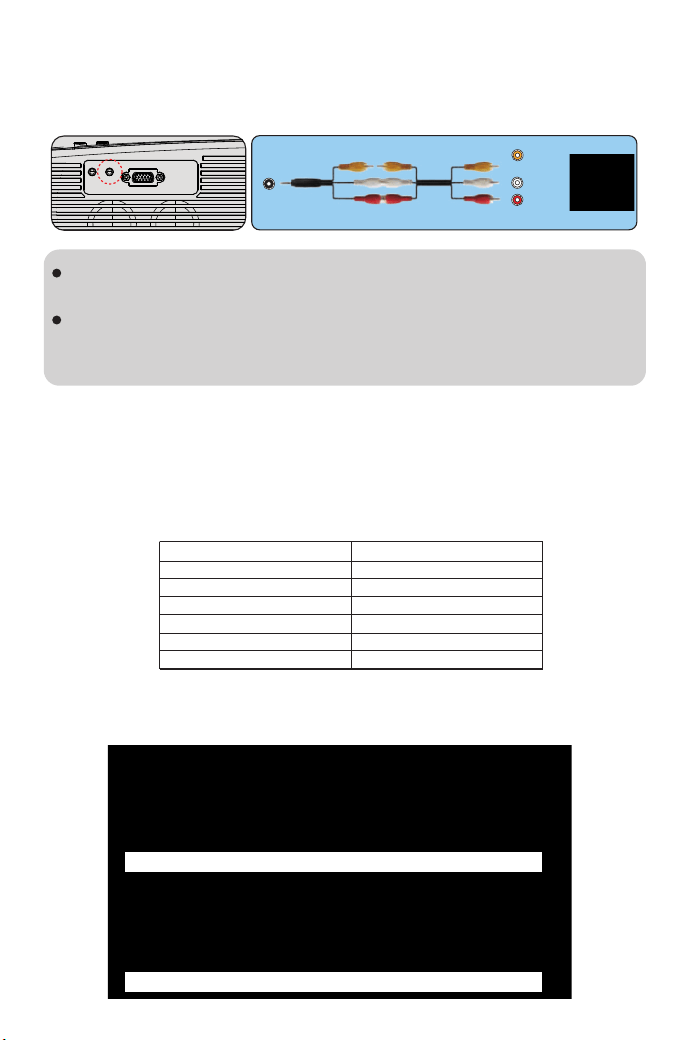
Audio-out
audio out
(L/R)
外部スピーカーから音声を出力するには、オーディオケーブルで、外部スピーカーと本機の
AudioOut端子を接続します。
画面サイズは、プロジェクターーのレンズからスクリーンまでの距離によって決まります。スクリ
ーンからレンズまでの距離が約1.5m~3mの範囲に設置してください。
下記の投写サイズと投写距離の関係をご参考ください。
※投映画像の内容により画面サイズは異なります。
外部スピーカーから音声を出力するときは、[音声出力機器]を[プロジェクター]に設定し
ます。s[設定]-[HDMIリンク]-[音声出力機器]
[音声出力機器]が[AVアンプ]に設定されていても、アンプが接続されていなければ、音声
は外部スピーカーから出力されます。プロジェクターの声音モードは音声出力線路まで調
整してくだ さ い
外部スピーカーの接続
スクリーンからのおよその距離と画面サイズの関係
投写場所の選択
投写サイズ
45インチ
60インチ
80インチ
120インチ
160インチ
200インチ
投写距離(16:9ズーム)
1.5m
1.6m
2.4m
3.2m
4m
5.5m
固定位置での投影 マウント搭 載
リアプ ロ ラック搭 載リアプ ロ
接続必要ない。接続必要ない。
プロジェクター の 設 置
01 02 03 04 05 06 07
08 09 10 11 12 13 14 15 16 17
18 19 20 21 22 23 24 25 26 27
28 29 30 31 32 33 34 35 36 37
38 39 40 41 42 43 44 45 46 47
48 49 50 51 52
53
54 55 56 57
58 59 60 61 62 63 64 65 66 67
68 69 70 71 72 73 74 75 76
77 78 79 80 81
82 83 84 85 86
87 88
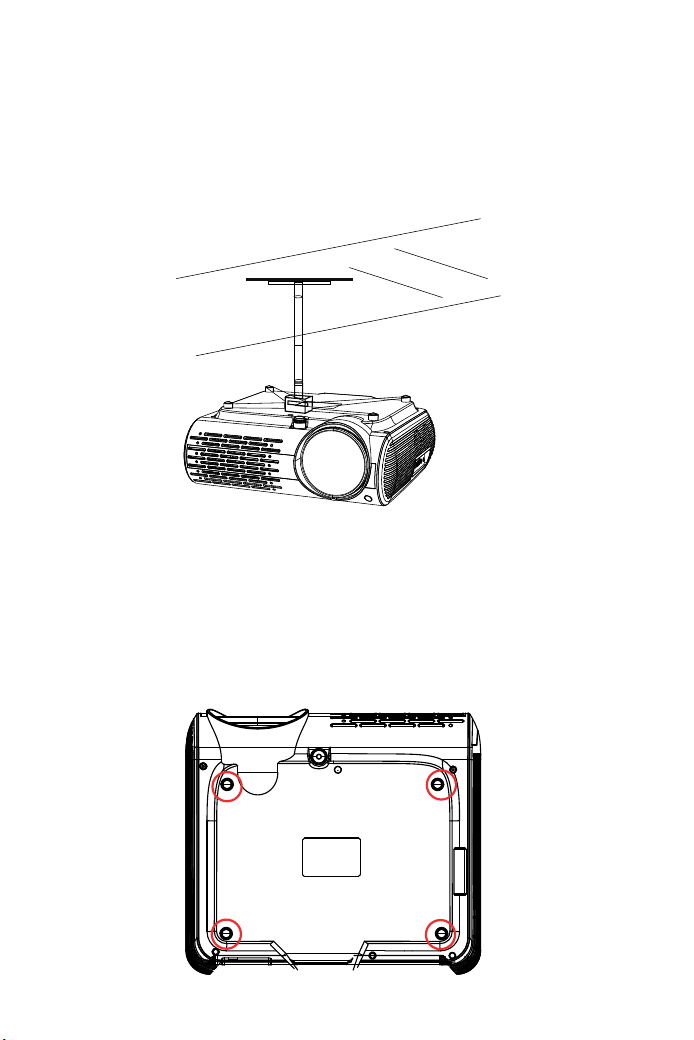
必要に応じて、プロジェクターは安定した面に設置したり、本製品のマウントを使用して天井か
ら吊るしたり
することができます。また、外部ディスプレイと接続したり、背面投影(リアプロ)を楽しむことが
可能です。
プロジェクターの天井への取り付けは下記の説明図をご参考ください。
①プロジェクターエアコンやヒーターの熱源の近くに設置しないでください。
②プロジェクターの取り付けの際は、ネジの品質、本体へのネジ込み深さに注意してください。
Y30プロジェクター用の天吊りは市場汎用のはほとんど使えます。天吊りの固定用のネジの仕様
はM4*10mmです。
③プロジェクターを裏返し、金具の取り付け場所が赤丸部の4点にあります。
金具を取り付け前に、穴のカバーを取外してください。
天井吊り
01 02 03 04 05 06 07
08 09 10 11 12 13 14 15 16 17
18 19 20 21 22 23 24 25 26 27
28 29 30 31 32 33 34 35 36 37
38 39 40 41 42 43 44 45 46 47
48 49 50 51 52
53
54 55 56 57
58 59 60 61 62 63 64 65 66 67
68 69 70 71 72 73 74 75 76
77 78 79 80 81 82
83 84 85 86
87 88
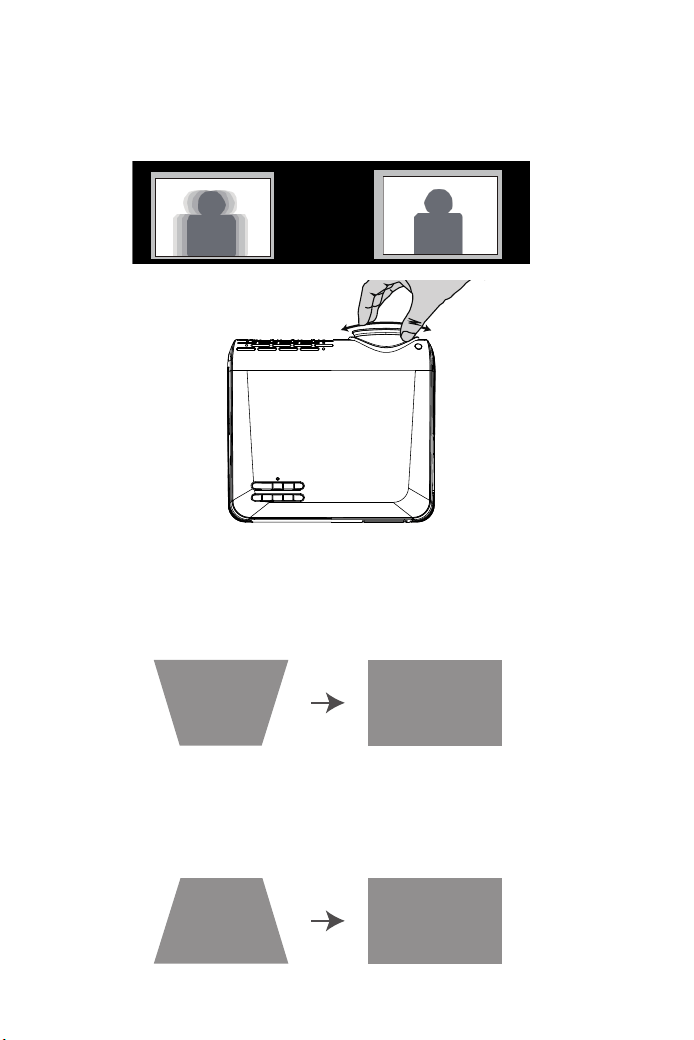
2.1台形補正(タテ補正)
A:投影画面は(1)のようにタテ斜めの場合は、リモコンの”M”ボタンを押して、写真メニューの「
4D台形補正」を選択して、「OK」ボタンを押して、Verticalの値を(2)のような投影画面になる
まで”+”してください。
B:投影画面は(3)のようにタテ斜めの場合は、リモコンの”M”ボタンを押して、写真メニューの「
4D台形補正」を選択して、「OK」ボタンを押して、Verticalの値を(4)のような投影画面になるま
で“−”してください。
投写イメージの調整
画像の台形歪みの補正と明瞭さの微調整
(1) (2)
(3) (4)
1.レンズ伸縮で投写画面のピントを合わせます。
01 02 03 04 05 06 07
08 09 10 11 12 13 14 15 16 17
18 19 20 21 22 23 24 25 26 27
28 29 30 31 32 33 34 35 36 37
38 39 40 41 42 43 44 45 46 47
48 49 50 51 52
53
54 55 56 57
58 59 60 61 62 63 64 65 66 67
68 69 70 71 72 73 74 75 76
77 78 79 80 81 82 83
84 85 86
87 88
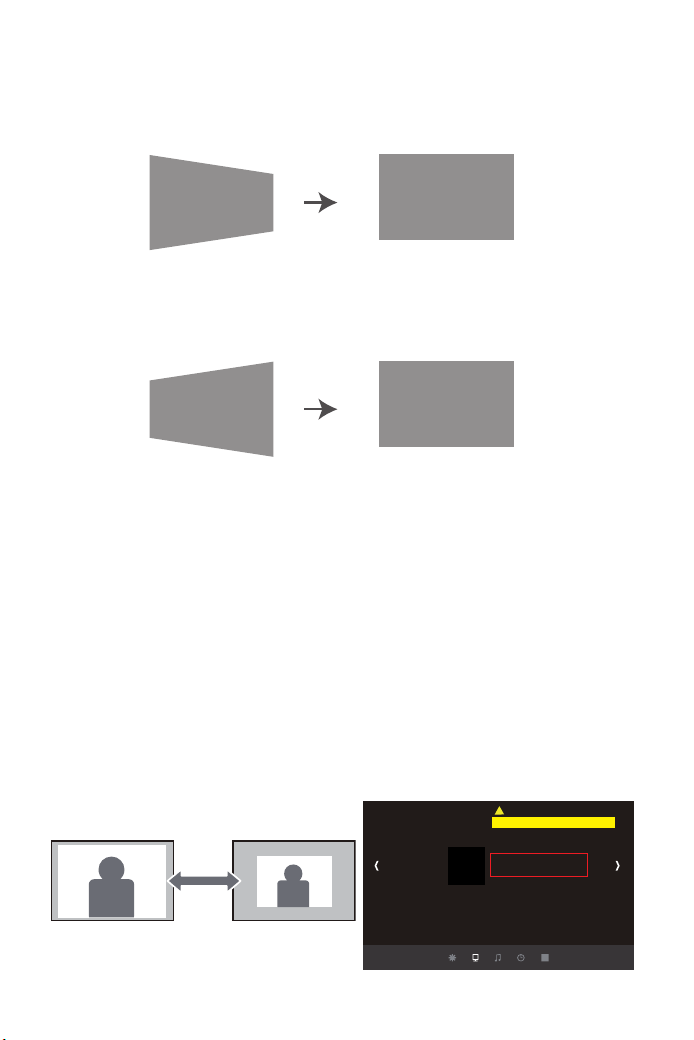
2.2台形補正(ヨコ補正)
A:投影画面は(1)のようにヨコ斜めの場合は、リモコンの”M”ボタンを押して、写真メニューの「
4D台形補正」を選択して、「OK」ボタンを押して、Horizonの値を(2)のような投影画面になる
まで”−”してください。
2.3タテ補正とヨコ補正同時にある場合は:
A:タテ補正は2.1のAとBどちらの状態であるかを判断して、Verticalの値調整してください。
B:タテ補正を調整完了後、2.2のAとBどちら状態であるかを判断してのHorizonの値を調整して
ヨコ補正してください。
2.4映像のサイズを調整する(ズーム調整)
A:投写距離を変更して画像のサイズご調整してください。
B:投影中で、設置メニューの写真メニューで、リモコン或いは本体の▶ボタンを押しでYズー
ムやXズーム値を調整すること通して、投影画面を2:1まで縮小できます。
(YズームやXズームは動画再生中しか調整できますです。)
B:投影画面は(1)のようにヨコ斜めの場合は、リモコンの”M”ボタンを押して、写真メニューの
「4D台形補正」を選択して、「OK」ボタンを押して、Horizonの値を(2)のような投影画面にな
るまで”+”してください。
注意:映像品質を落とさないためには、スクリーンと本機が平行になるように設置してください。
スクリーンと本機を平行に設置できないときは、タテヨコ補正を使用して映像の形状を補正して
ください。
(1) (2)
(3) (4)
写 真 モ ード
色温度
アスペクト 比
X 軸 ズーム
Y 軸ズーム
ノイズ 低 減
色の範囲
投 影モード
4D台行調整
写真
PC設定
01 02 03 04 05 06 07
08 09 10 11 12 13 14 15 16 17
18 19 20 21 22 23 24 25 26 27
28 29 30 31 32 33 34 35 36 37
38 39 40 41 42 43 44 45 46 47
48 49 50 51 52
53
54 55 56 57
58 59 60 61 62 63 64 65 66 67
68 69 70 71 72 73 74 75 76
77 78 79 80 81 82 83 84
85 86
87 88
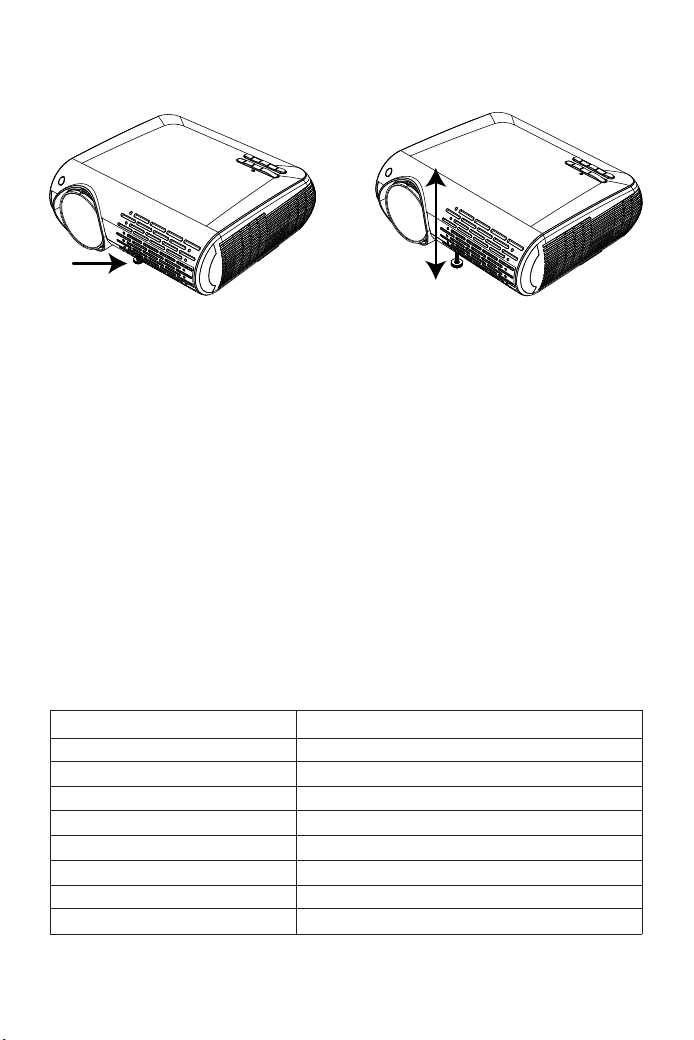
3.映像の高さを調整する
フットレバーを押してフロントフットを伸ばします。最大12°まで傾けて、映像の高さを調整でき
ます。
ご注意:傾斜角度が大きくなると、ピントが合いにくくなります。傾斜角度が小さくなるように設
置してください。
縦横比とは、イメージの幅と高さの比率のことです。デジタルTVは通常縦横比16:9です。こ
れはこのプロジェクターのデフォルト値に設定されています。またアナログTVとDVDは4:3です。
①16:9この設定は、縦と横のサイズを別々に処理することを除き、画像をリニア方式で引き伸ば
し、リサイズします。ソース画像の高さと幅はそれぞれ投写高と投写幅の最大値まで引き伸ばさ
れます。この方法では、元のソース画像の縦横比によっては投写縦横比が変わる場合があります。
アナモフィックの設定は、縦横比を変更する必要がないため高精度TVなど、すでに縦横比が
16:9になっている画像に適しています。
②4:3:スクリーンの中央が4:3の縦横比になるように画像を調整します。これは縦横比を変更せ
ずにすむため、コンピュータモニタ、標準精度のTV、縦横比4:3のDVDムービーなどの4:3画像
に適しています。
ズーム(縦横比)調整
仕 様:
1920*1080
日本語対応
32-220インチ
2.9KG
28.5*27*11cm
LCD
140W±2
110-240V
HDMI/USB/VGA/AV
解像度
言語
投写サイズ
正味重量
本体寸法
ディスプレイ
消費電力
入力電圧
入力ポート
01 02 03 04 05 06 07
08 09 10 11 12 13 14 15 16 17
18 19 20 21 22 23 24 25 26 27
28 29 30 31 32 33 34 35 36 37
38 39 40 41 42 43 44 45 46 47
48 49 50 51 52
53
54 55 56 57
58 59 60 61 62 63 64 65 66 67
68 69 70 71 72 73 74 75 76
77 78 79 80 81 82 83 84 85
86
87 88

■音が出ません。
当商品の対応できるのファイルは下記の通りです。
ビデオ対応:MPG、AVI、TS、MOV、MKV、DAT、MP4
オーディオファイル対応:MP3,WMA,AAC
画像対応:JPG,JPEG,BMP,PNG
Amazonファイアースティック側の設定でドルビーデジイタルプラスをドルビーデジタルに設
定すると直します。
※音声出力に関しては、ドルビーサウンド(dolbysound)がサポートできないため、BDプレー
ヤーの場合、ドルビーサウンド機能を閉じてください。
まだダメなら、下記の手順によりご確認ください。
1、メニュー「音声」-「音声出力」(最後の項目)に3つのサブ項目「ライン、通常、スピーカー」で
音声の出力モードを調整できます。
2、リモコンで音量を調整します。
3、マナーモードになっているかをご確認ください。
4、USBメモリー、音楽などを試して、ビデオ(入力ソース)の問題かどうかをご確認ください。
■使用中に電源が切れる
1.タイマーメニューの「オートオフ」を「オン(時間を選択)」にしていませんか。「電源切時間」を
「オン(時間を選択)」にしていませんか。
2.電源ケーブルのプラグをちゃんと差し込みしているかをご確認ください。
■映像が出ない
接続している入力源を選んでいますか。本体またはリモコンの入力信号選択ボタンを再度押し
てください。
入力端子のケーブルが正しく接続されていますか。
それでも解決しない場合は、[リセット]を行ってみてください。
■映像が歪む
正しく設置されていますか。
台形状に歪む場合は台形補正を行ってください。
■映像がぼやける
レンズのフォーカスは合っていますか。
投写画面と本機が正しい角度で設置されていますか。
投写距離がフォーカスの範囲を超えていませんか。
投写レンズが汚れていないことを確認します。
■画像の上辺または下辺が長い(台形歪み
プロジェクターーは、スクリーンに対してできるだけ垂直になるように置きしていますか。
本体のキーストーンリングを使って、台形歪みを補正して見てください。
故障かな?と思ったら
01 02 03 04 05 06 07
08 09 10 11 12 13 14 15 16 17
18 19 20 21 22 23 24 25 26 27
28 29 30 31 32 33 34 35 36 37
38 39 40 41 42 43 44 45 46 47
48 49 50 51 52
53
54 55 56 57
58 59 60 61 62 63 64 65 66 67
68 69 70 71 72 73 74 75 76
77 78 79 80 81 82 83 84 85 86
87 88

■リモコンで操作できない
リモコンのリモコン送信部を本体のリモコン受光部に向けていますか。
リモコンの電池が消耗していませんか。新しい電池と交換してください。
リモコンと本体のリモコン受光部との間に障害物がありませんか。
リモコンの有効範囲を超えていませんか。
■保証期間
保証期間はお買い上げ日より3年間です。何が問題がございましたら、遠慮なく
service@y-
abertech.com.
までご連絡ください。
保証とアフターサービス
01 02 03 04 05 06 07
08 09 10 11 12 13 14 15 16 17
18 19 20 21 22 23 24 25 26 27
28 29 30 31 32 33 34 35 36 37
38 39 40 41 42 43 44 45 46 47
48 49 50 51 52
53
54 55 56 57
58 59 60 61 62 63 64 65 66 67
68 69 70 71 72 73 74 75 76
77 78 79 80 81 82 83 84 85 86
87
88