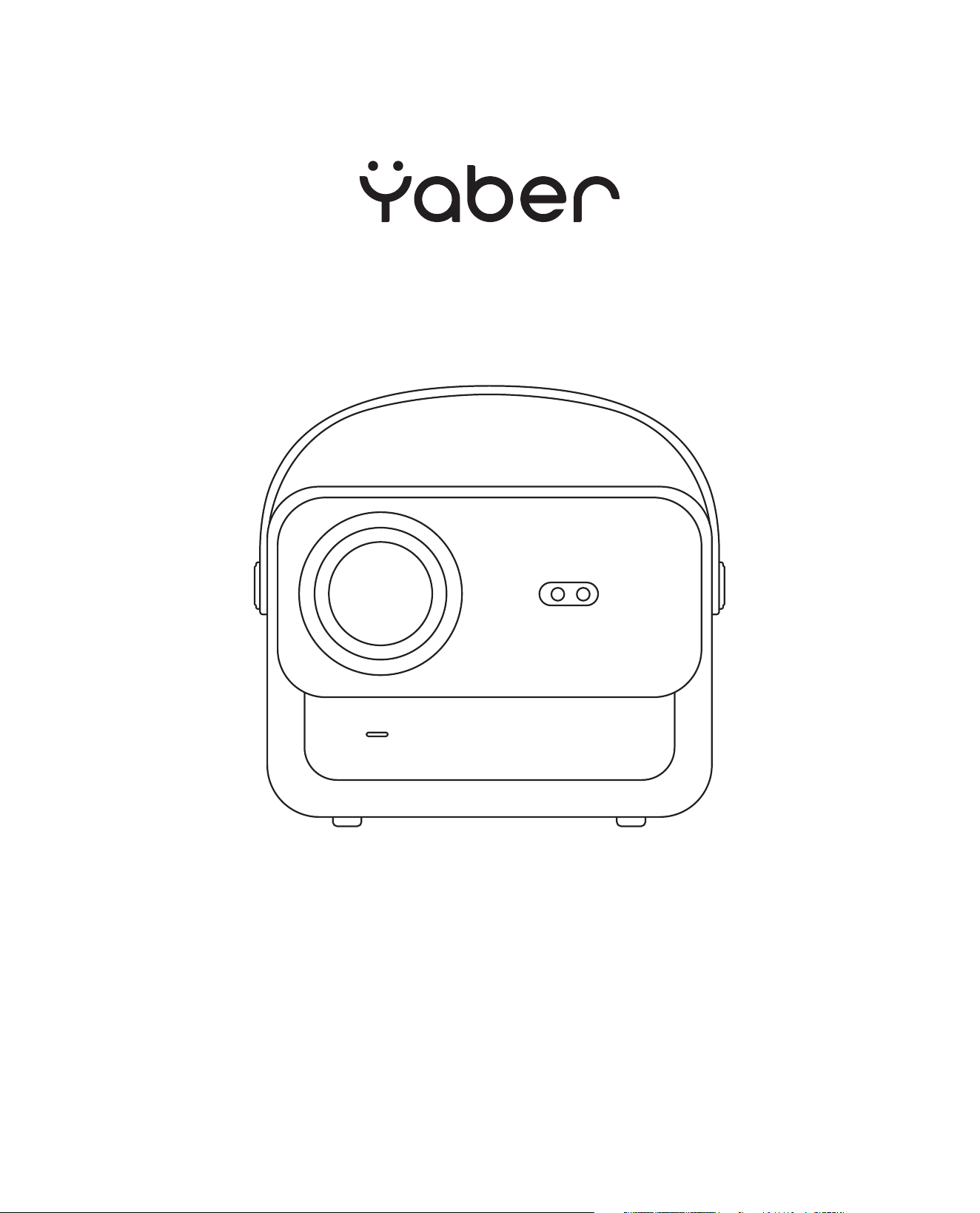
U12
PROJECTOR

LANGUAGE
English
Deutsch
Français
Italia
日本語日本語
03-36
39-70
73-104
107-138
141-172
175-206
Polish

03
CONTENTS
YABER Lifetime Professional Support 04
Precaution 04
Package List 05
Projector Specifications 06
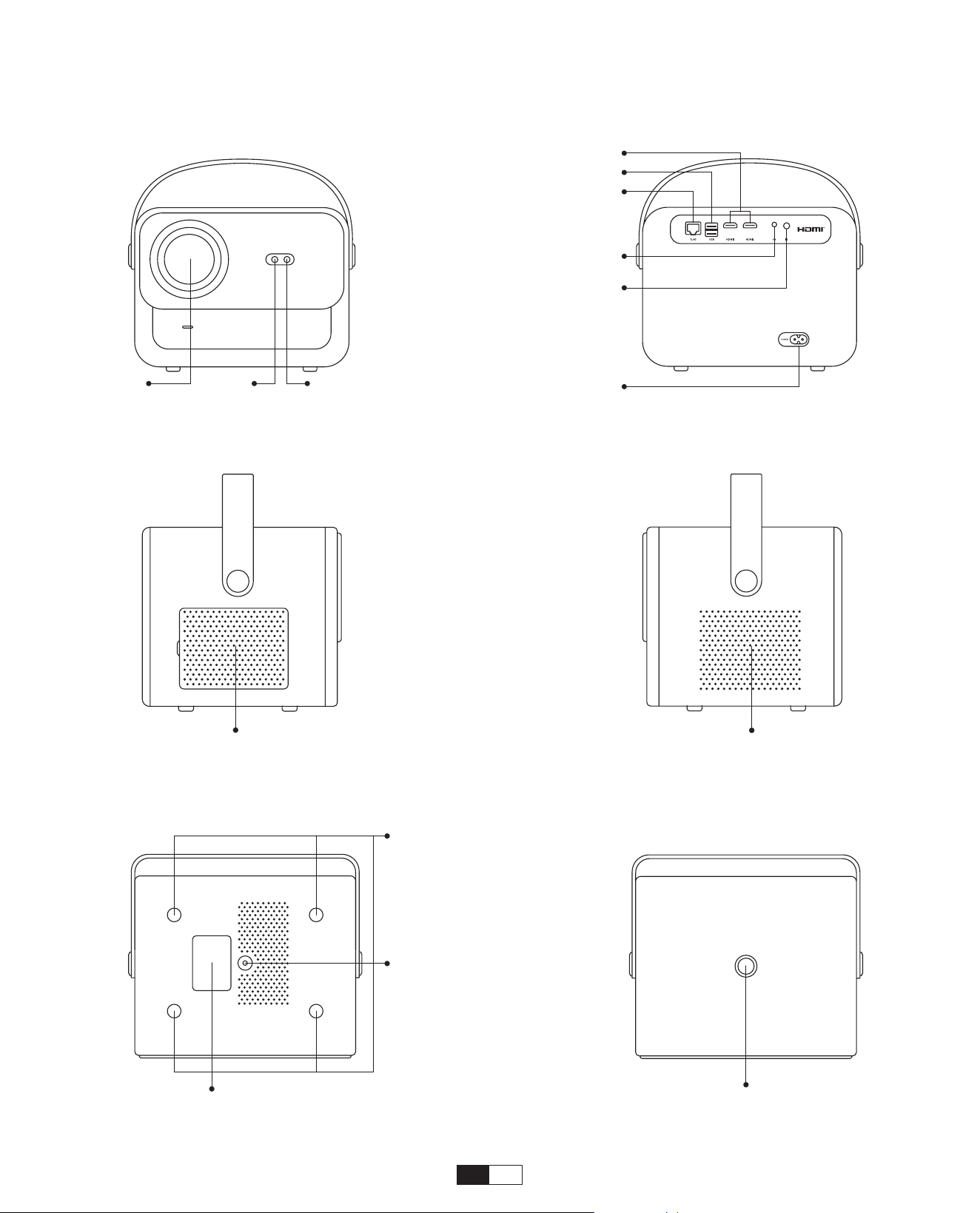
Projector Overview 07
Remote Control Overview 08
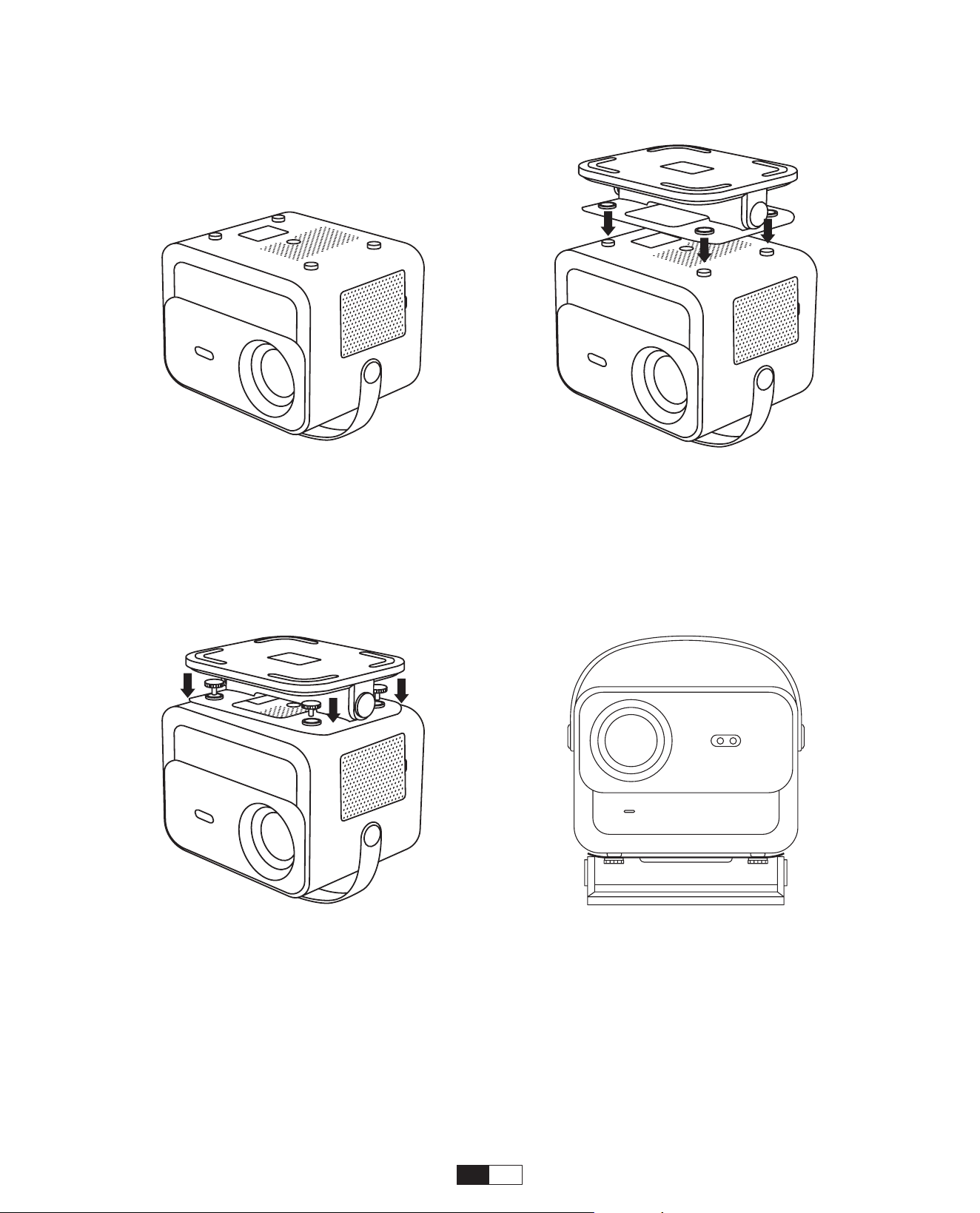
Base Installation 09
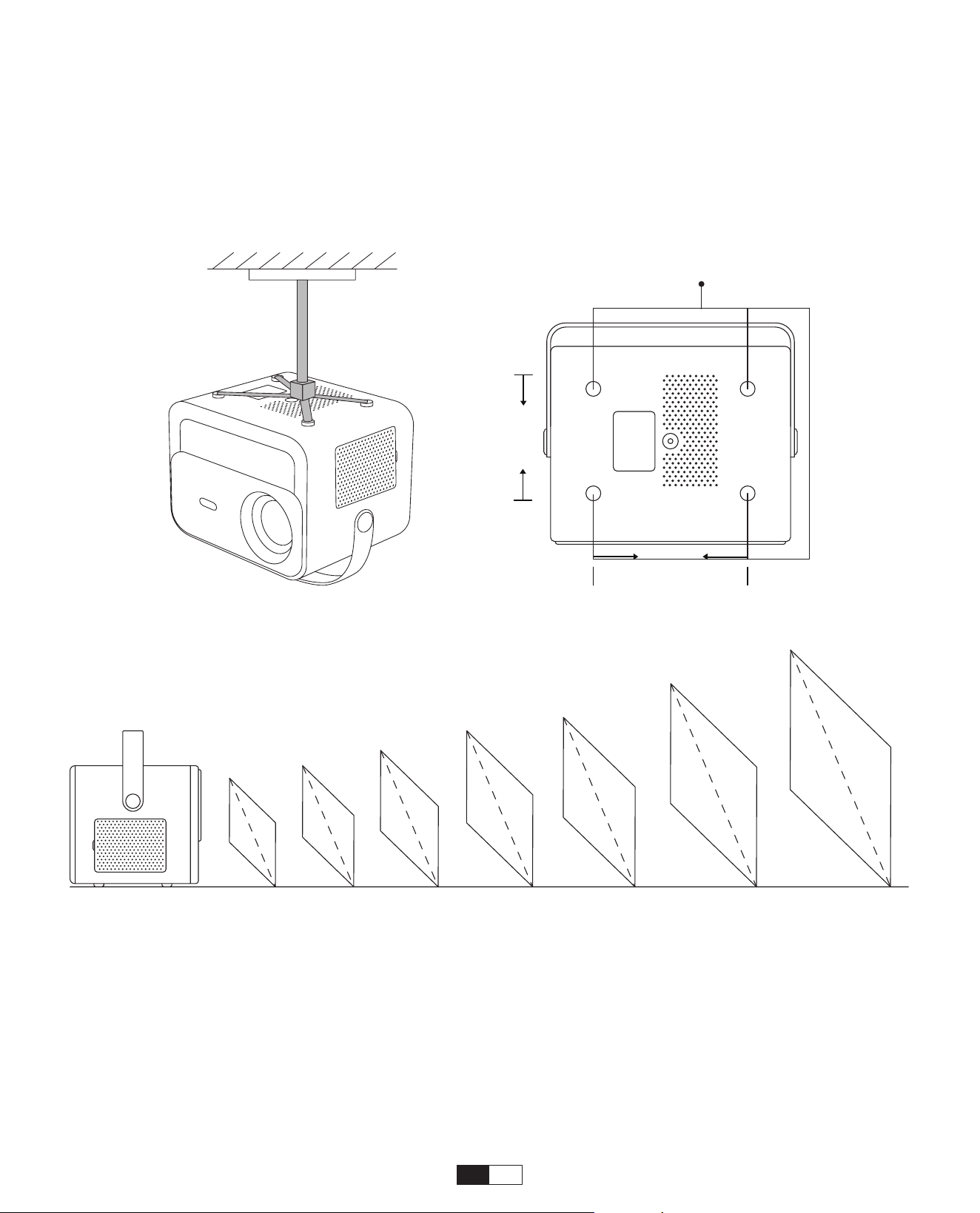
Install on the Ceiling 10
Distance and Projection Size 10
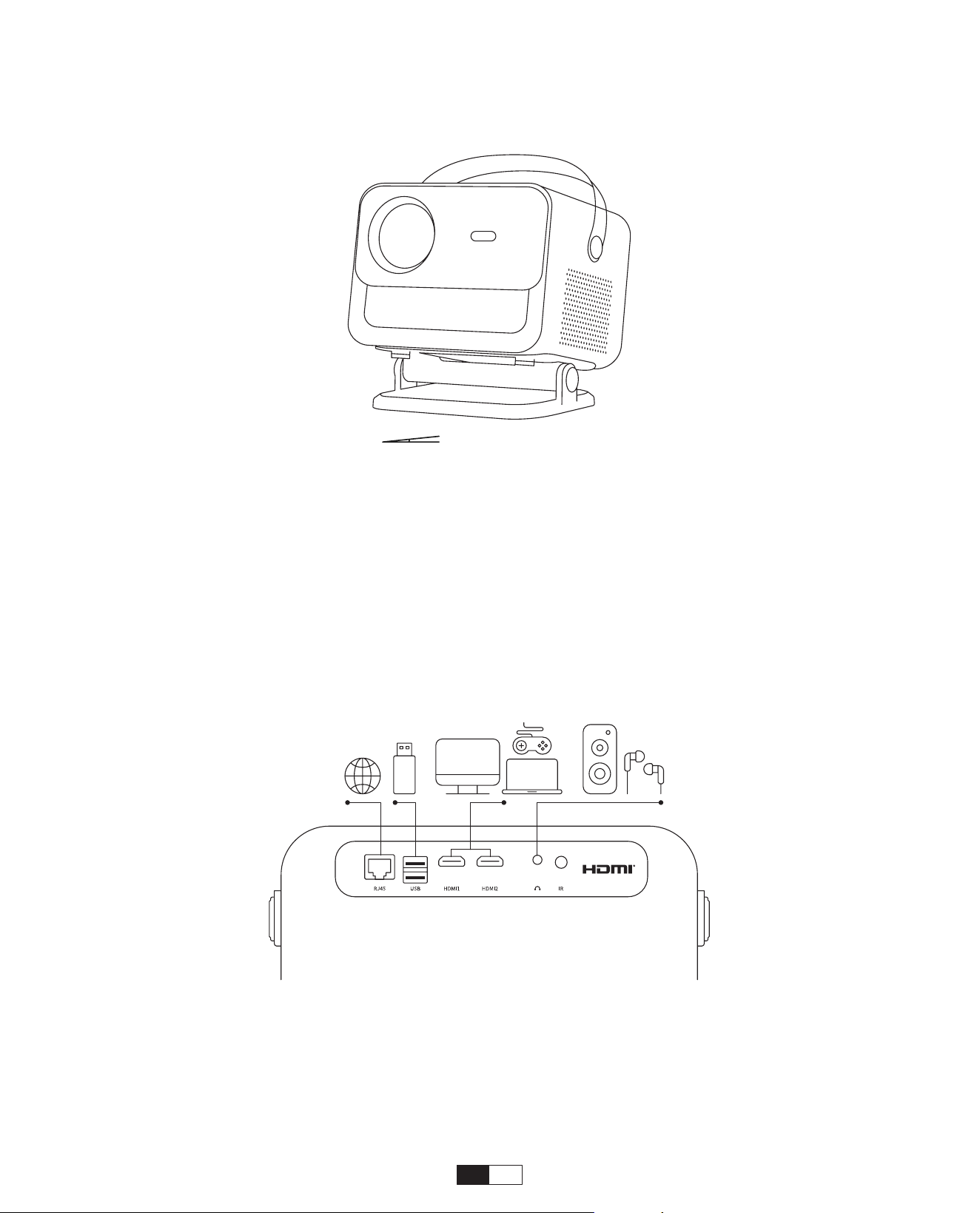
Adjustable base mount 11
Connect Devices 11
Operation 12
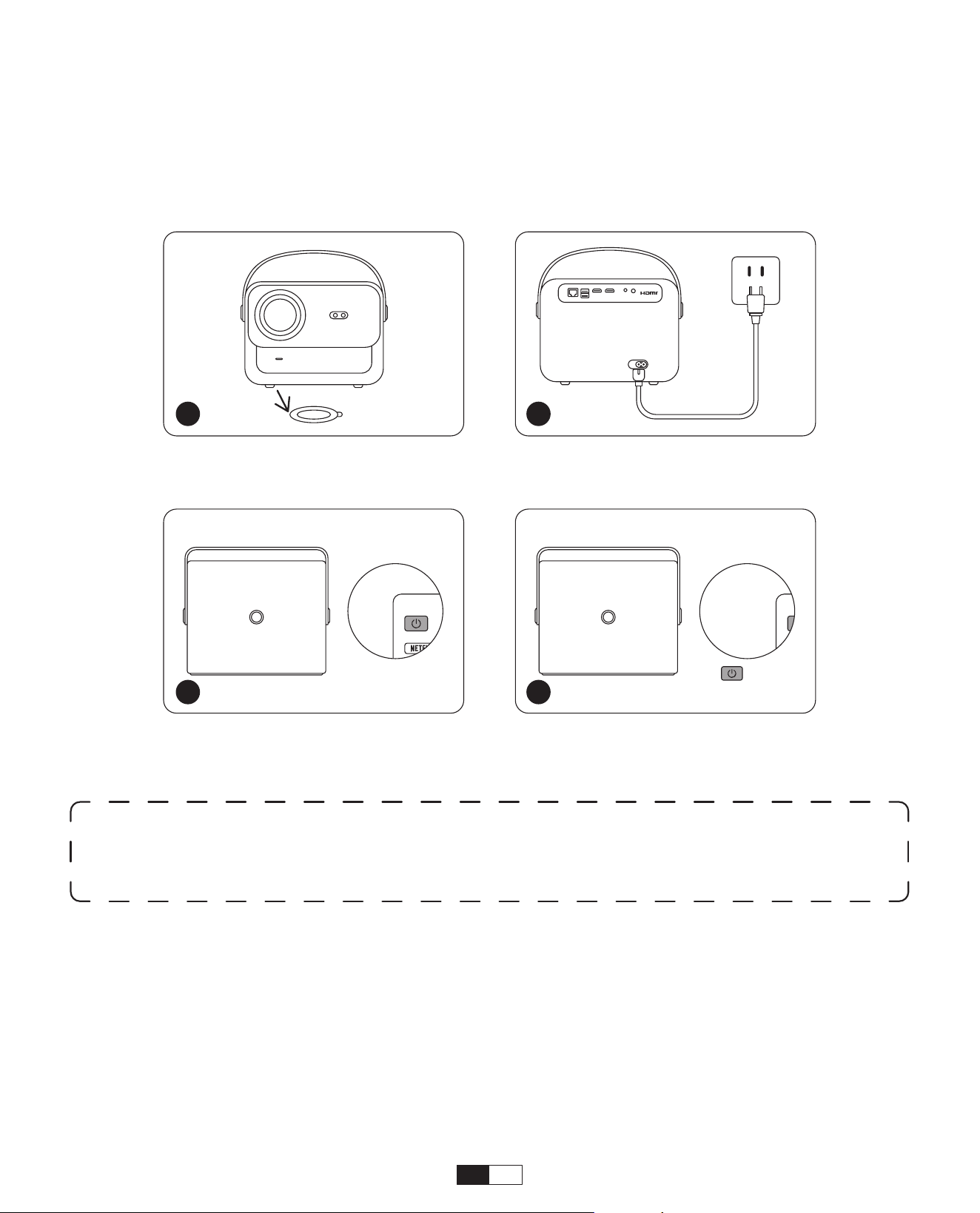
1. Starting Up the Projector 12
2. Image Adjustment 13
3. Play Content from Officially Licensed Apps 16
4. Projection Connection and Input Source 17
5. Screencast 19
6. Bluetooth Setting 27
7. Other Setting 29
8. Signal Lines Connection 33
9. Power On Mode 35
10. Safe Shutdown 35
Maintainance Tips 36

EN 04
YABER Lifetime Professional Support
Precaution
Dear valued customer,
Thank you for choosing Yaber U12 projector.This manual will help you navigate through all the features.
We understand that there may be many questions and concerns that arise during the use of the
projector. We are also eager to hear your feedback.
However, leaving a review on the product page does not provide the fastest solution. Many common
problems, suchasinabilitytoautofocusorkeystone,Dolbysoundissues,WiFiorBluetoothconnection
issues,canusuallyberesolvedwithappropriatesettingsadjustments.
If you encounter any issues,
.
Rest assured,ourserviceteamwilloffer thesolution to youwith24 hours.
Your satisfaction is our top priority, and we encourage you to thoroughly explore the contents of this
manual.
We wish you an outstanding experience with the U12.
Yaber Consumer Service Team
1.Suitable Environment (5°C - 35°C)
Ensure the projector is placed in an environment with a suitable temperature, as extreme heat or
cold may impact its lifespan. Avoid placing it in damp environments, such as damp basements or
near swimming pools.
2.Adequate Ventilation
Please position the projector in a well-ventilated area to prevent overheating during operation, which
may cause power cuts or screen flickering issues.
3.Avoid Prolonged Continuous Use
Please refrain from keeping the projector running for extended periods. We recommend limiting each
session to no more than 3 hours to prevent component damage due to prolonged exposure to high
temperatures.
4. Power
Please ensure the power source is within the required power range. During thunderstorms, please
unplug the power cord from the projector.
5. Safely Care
Handle the projector with care to prevent strong impacts, extrusions, or vibrations, as these may
result in internal circuit faults. Avoid moving it during such conditions.
6. Lens Maintenance
The lens directly affects picture quality. Excessive dust accumulation can degrade image quality. Use
a soft cotton cloth to gently wipe the lens surface. Avoid using hard cloth or abrasives, as they may
damage the glass lens.
EN 05
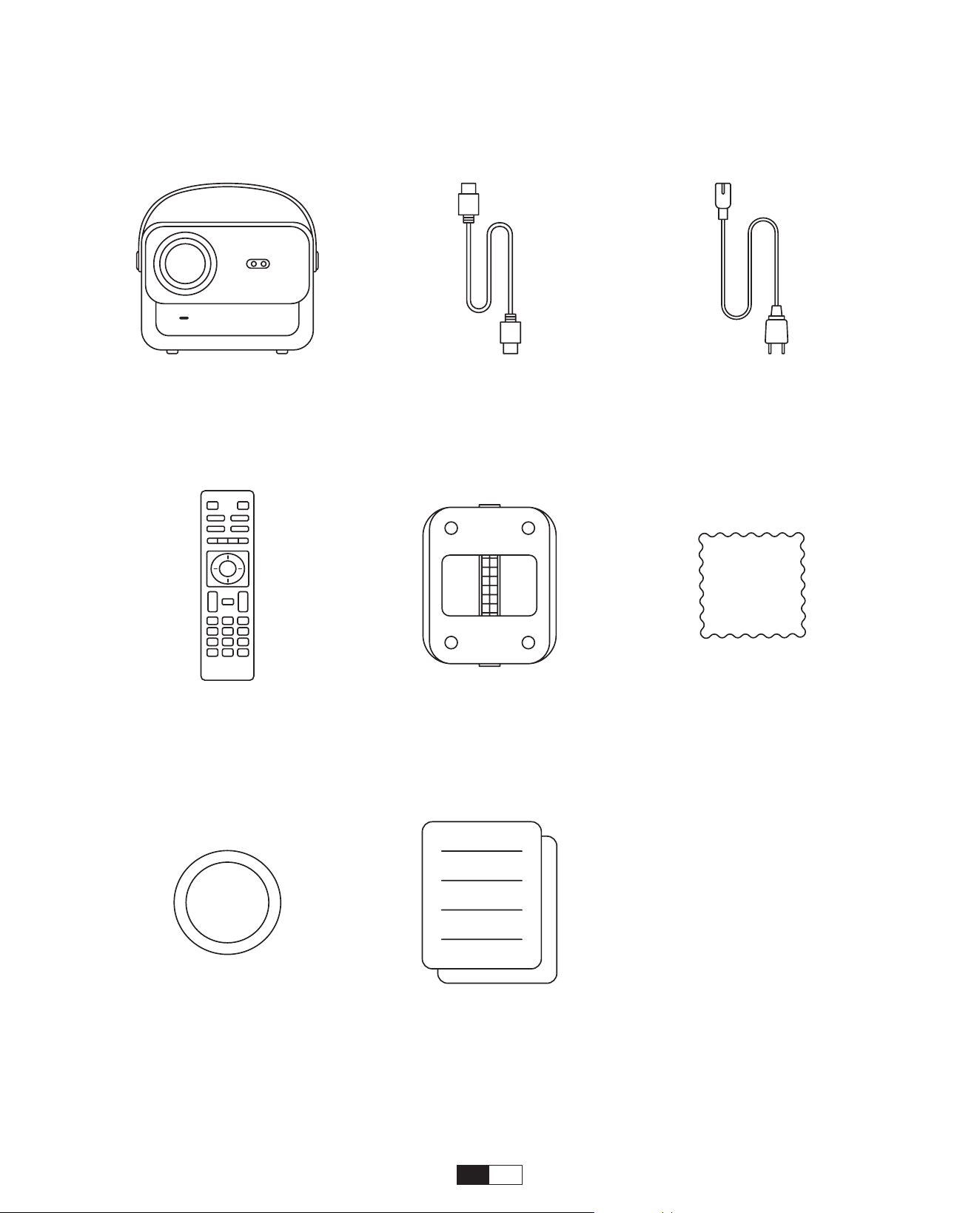
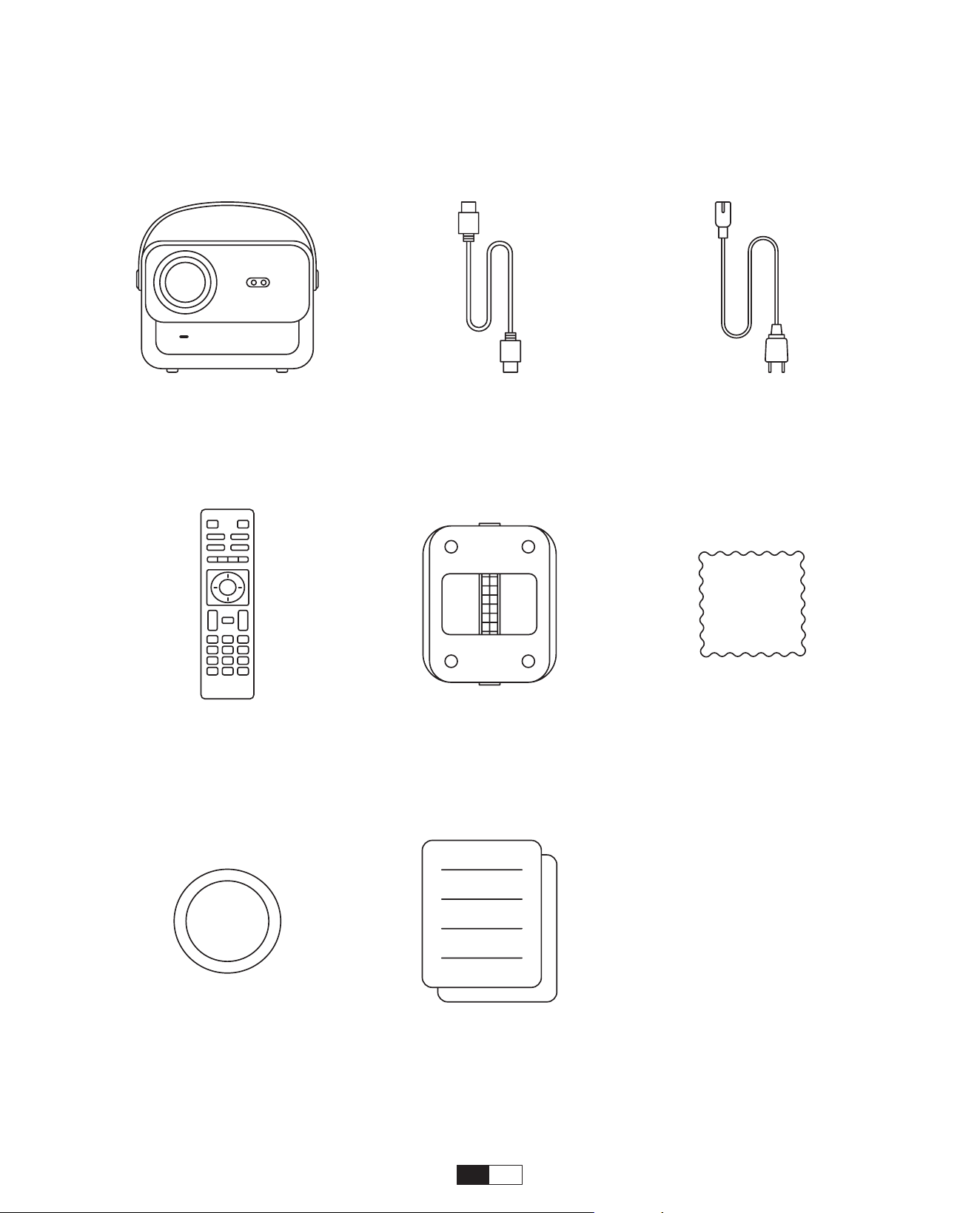
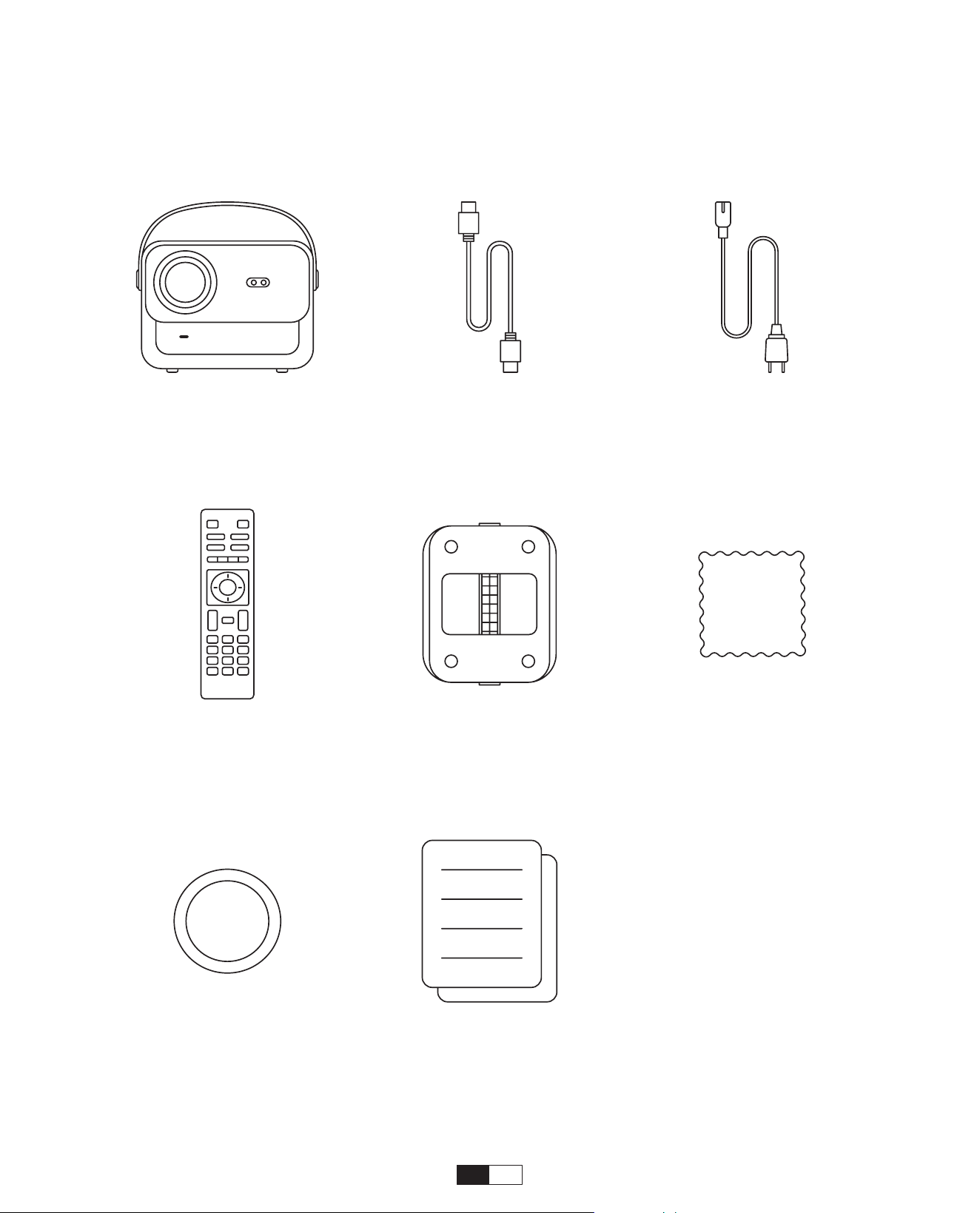
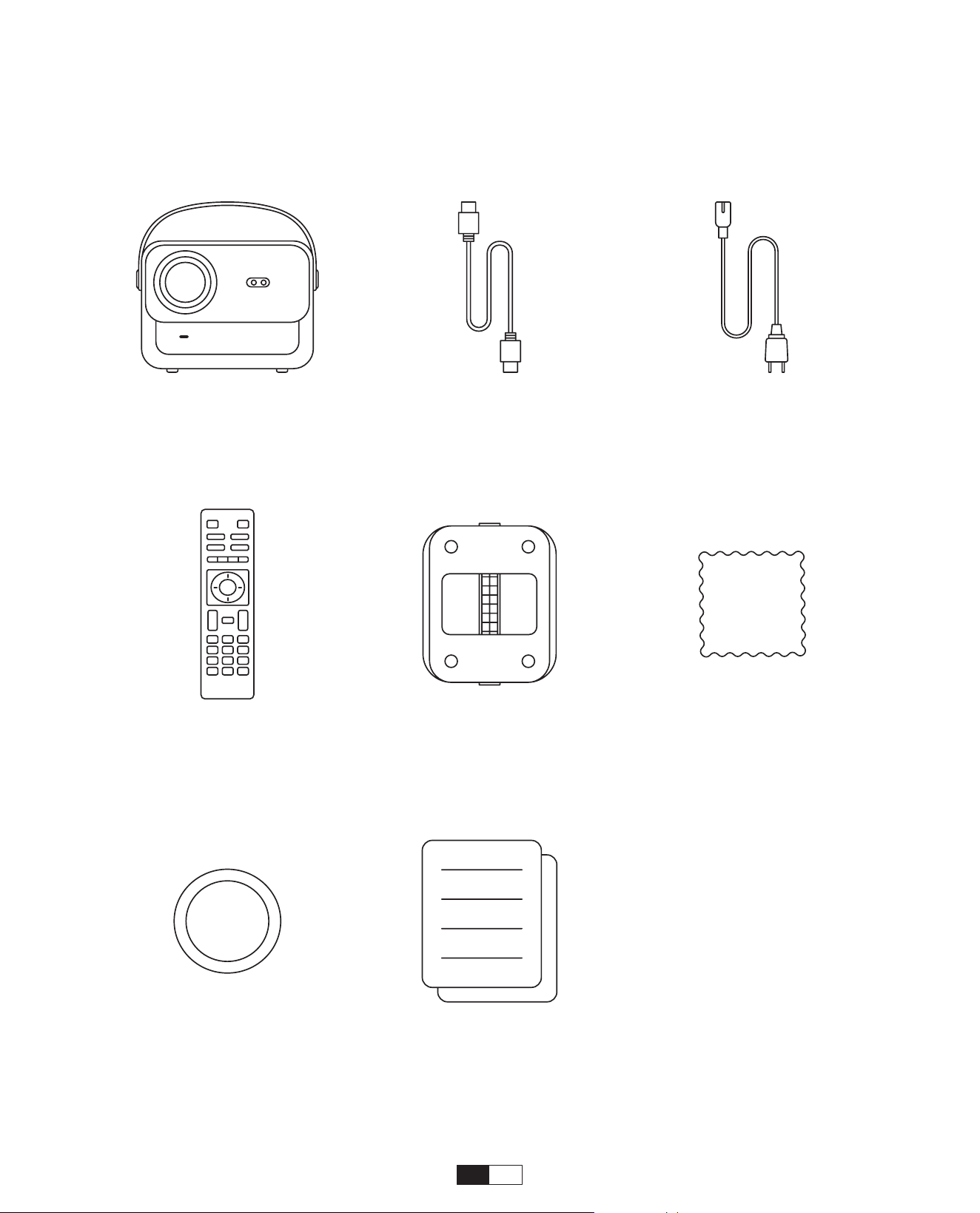
Package List
U12 Projector
Remote Control
Lens Cover
HDMI Cable
Projector Base
Quick Start Guide
Power Cord
Cleaning Cloth

EN 06
Projector Specifications
Model No. U12
Focus Auto/Eletric
Keystone
Correction
Auto/Eletric
Light Source LED Display Technology LCD
Aspect Ratio 16:9/4:3 Interfaces
USB2.0*2/
HDMI1.4*2/ 3.5mm
Audio Out*1, Lan*1
Projection Ratio 1.36:1
Recommended
Projection Distance
1.3~5.0m
(4.5-16.4 Ft.)
Native Resolution 1920*1080P Unit Dimension
9.8*8.8*7.6 inches
(25*22.5.*19.3CM)
7.27lbs (3.3KG)
Power Voltage
100-240V/50-60Hz
2A
Power
Consumption
140W
Projector Weight
7.27 lbs/3.3 kg
(With Base)
Projection Method
Front/Rear on Desk,
Front/Rear on
Ceiling
Picture Format JPEG, GIF, BMP, PNG, JPG
Audio Format MP3,WAV,MKA,OGG,FLAC,Dolby Audio
Video Format
AVI,TS,MPEG,MP4,MOV,M2TS,MKV,FLV,VOB,DAT,M4V,ASF,F4V,3G
P,3G2,TP,TRP,RMVB
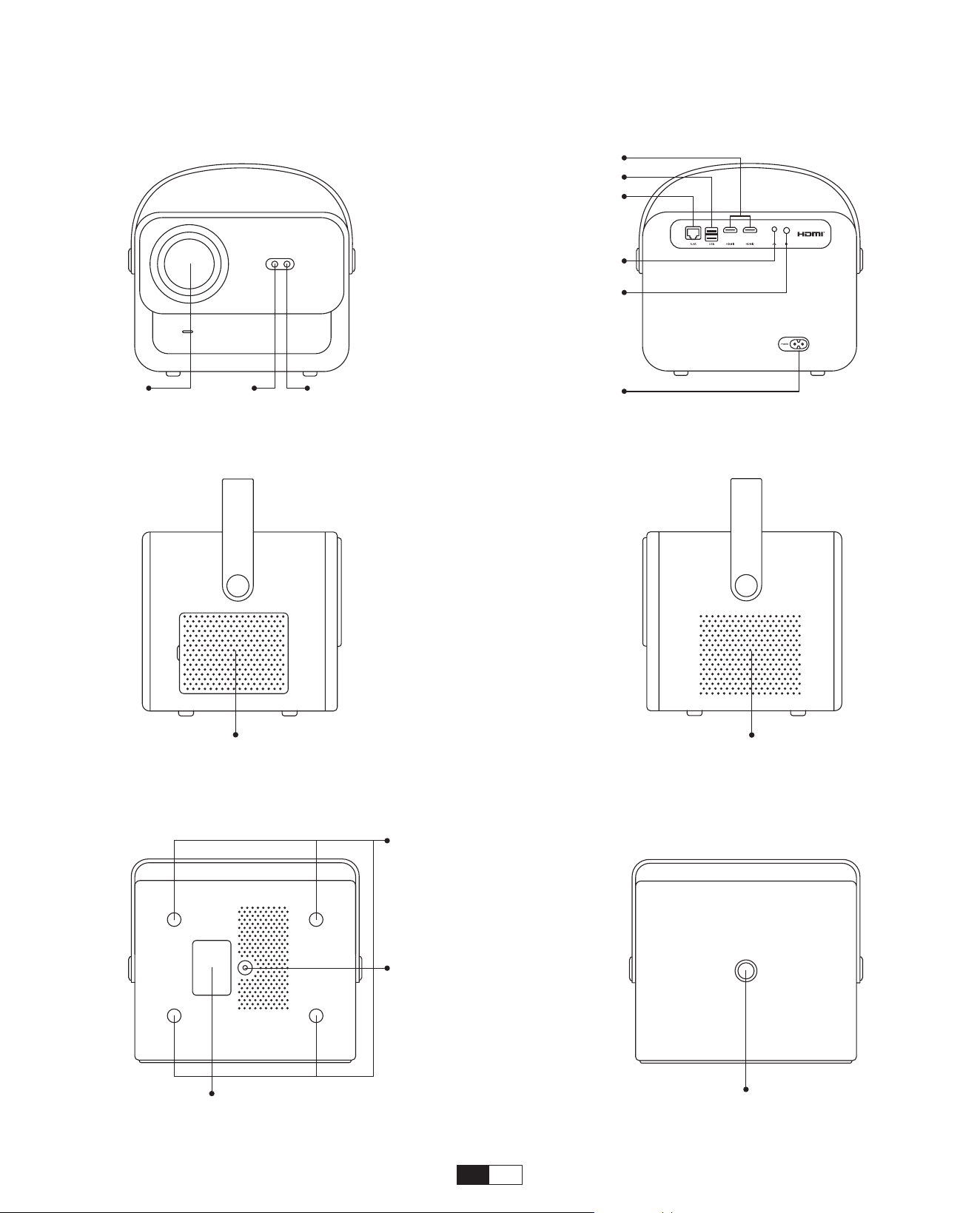
07
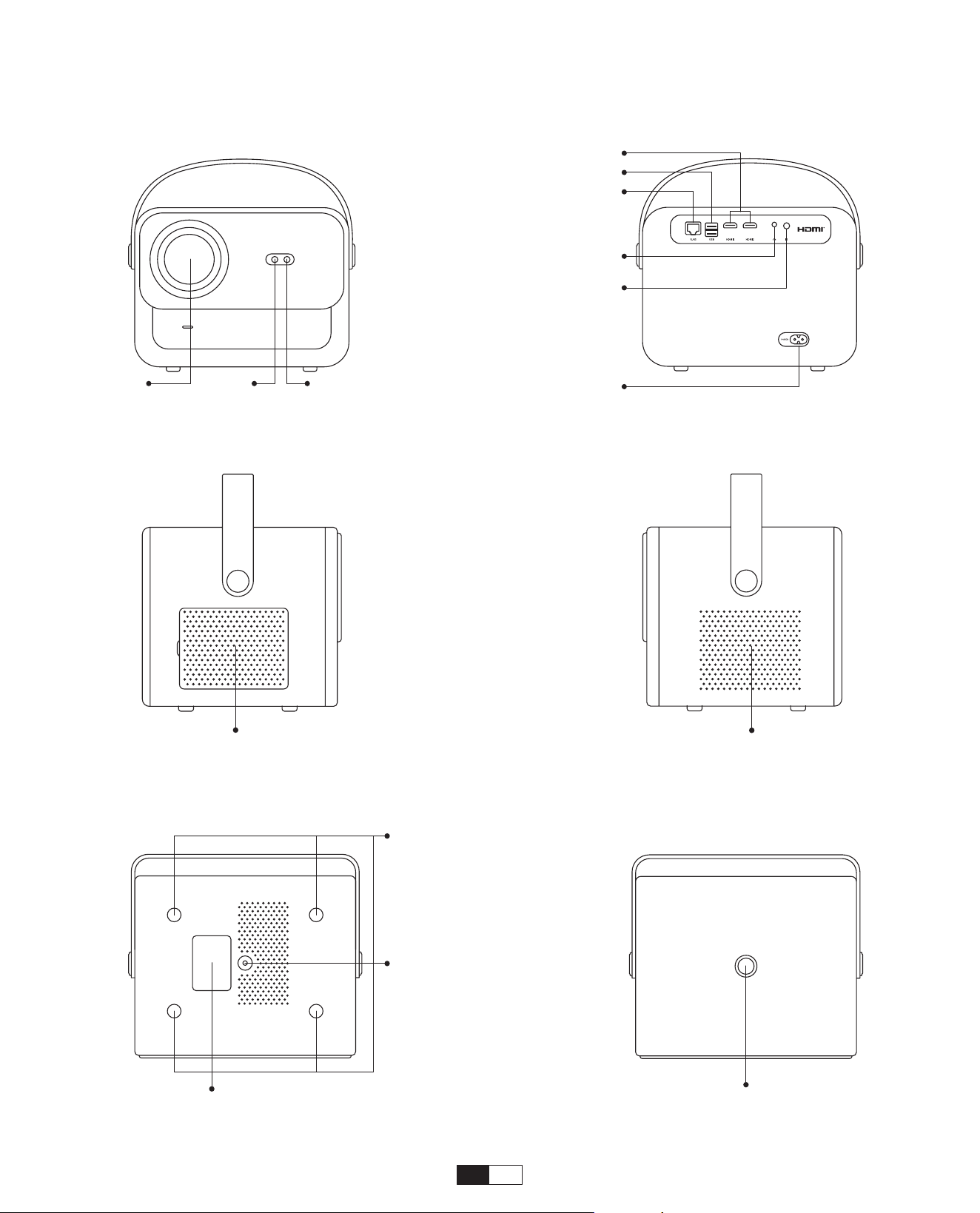
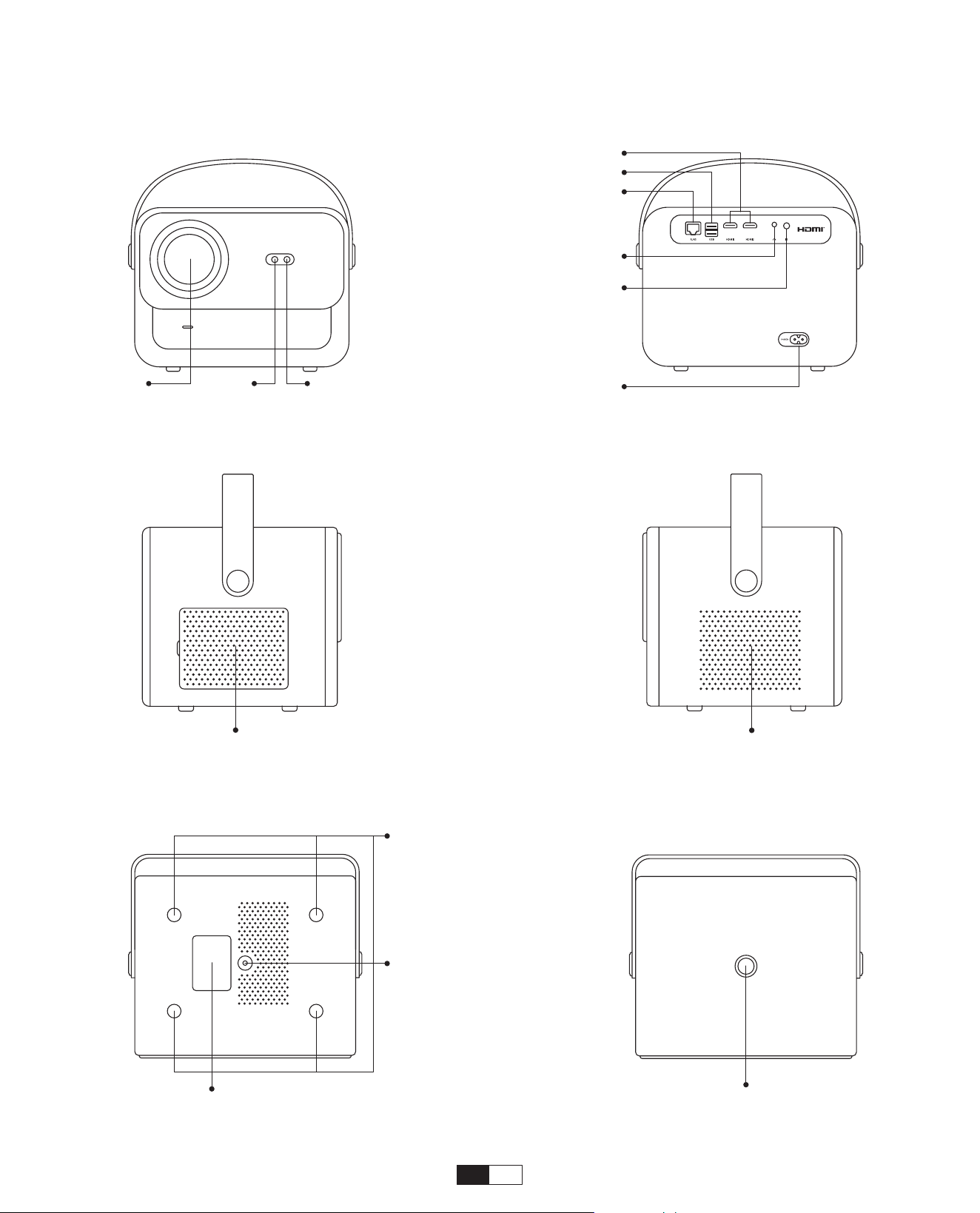
Projector Overview
Lens
Autofocus
Signal
HDMI Ports
USB Ports
LAN
Headphone Jack
Infrared Signal
Receiver
Power Input
Infrared Signal
Receiver
Screw Hole
Screw Hole
Detachable Dust-Proof
Net
Bottom Label Power Button
Air Outlet
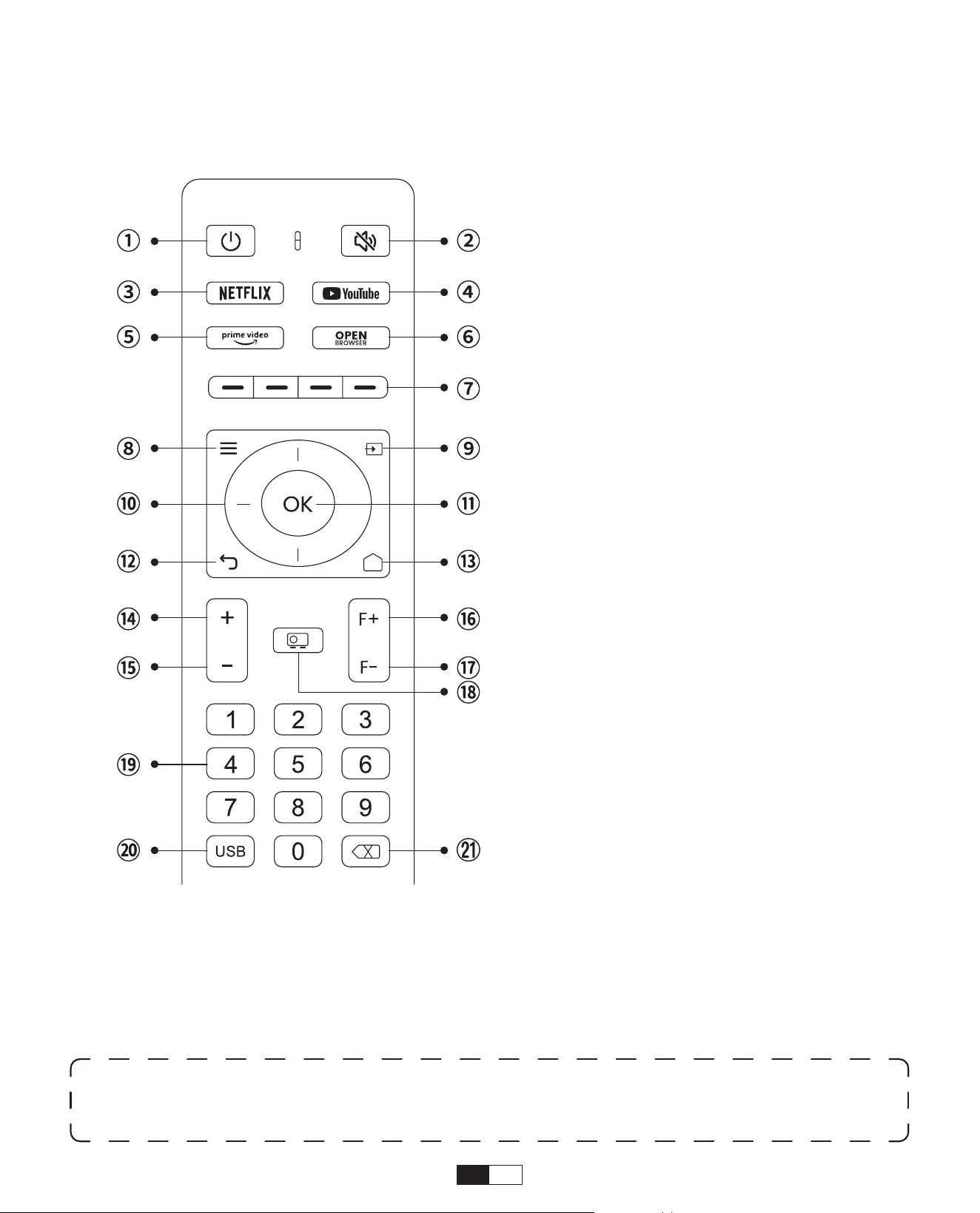
08
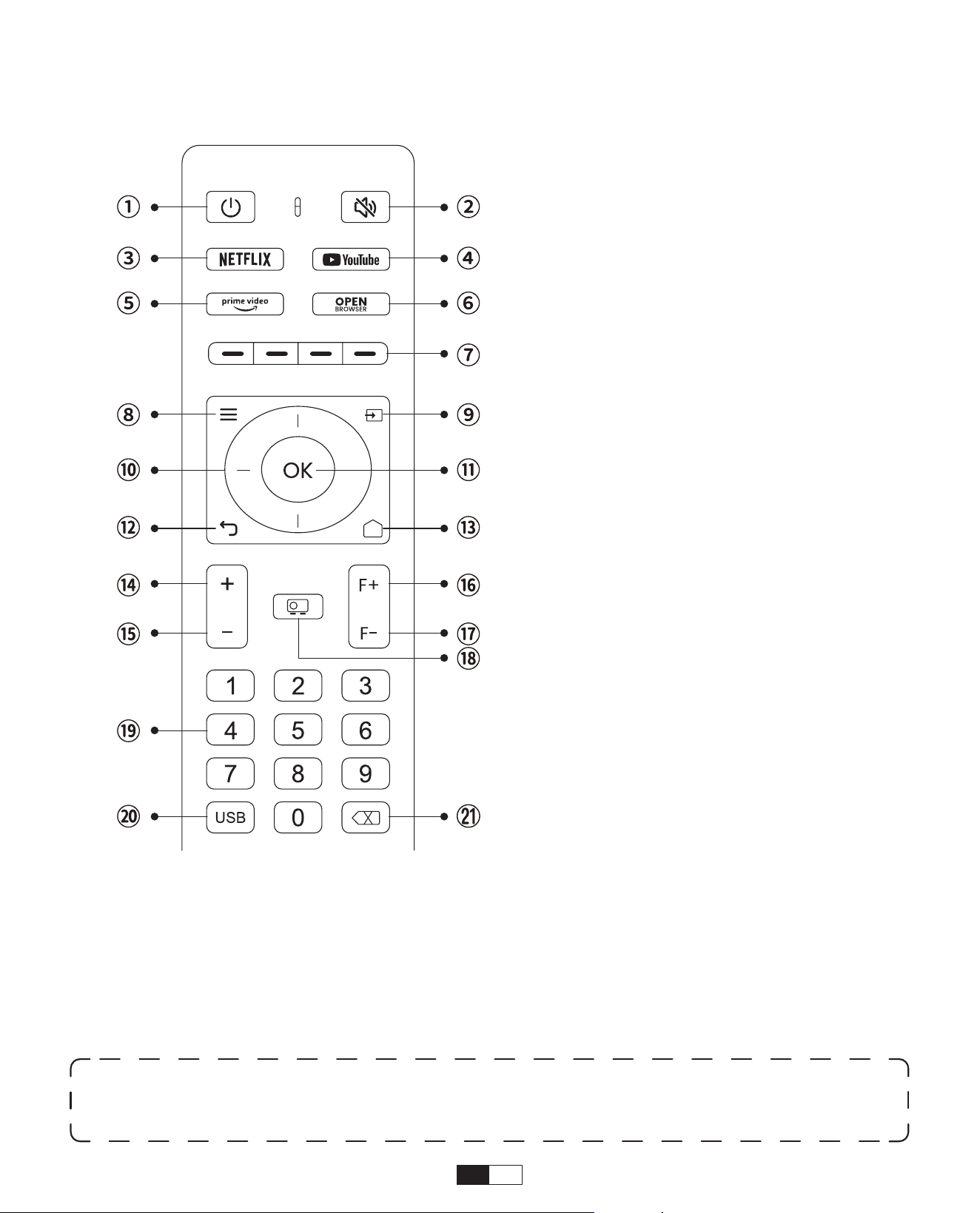
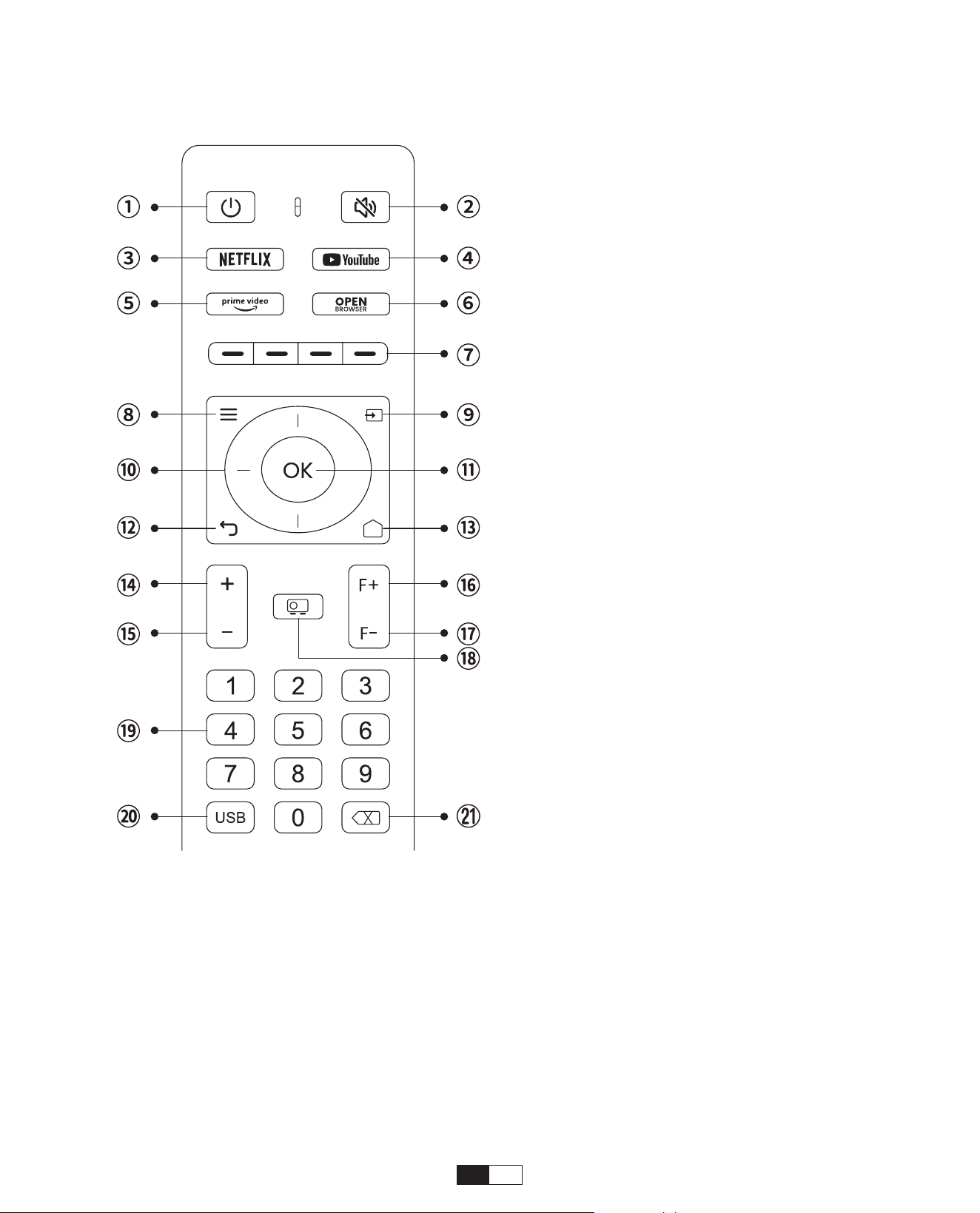
Remote Control Overview
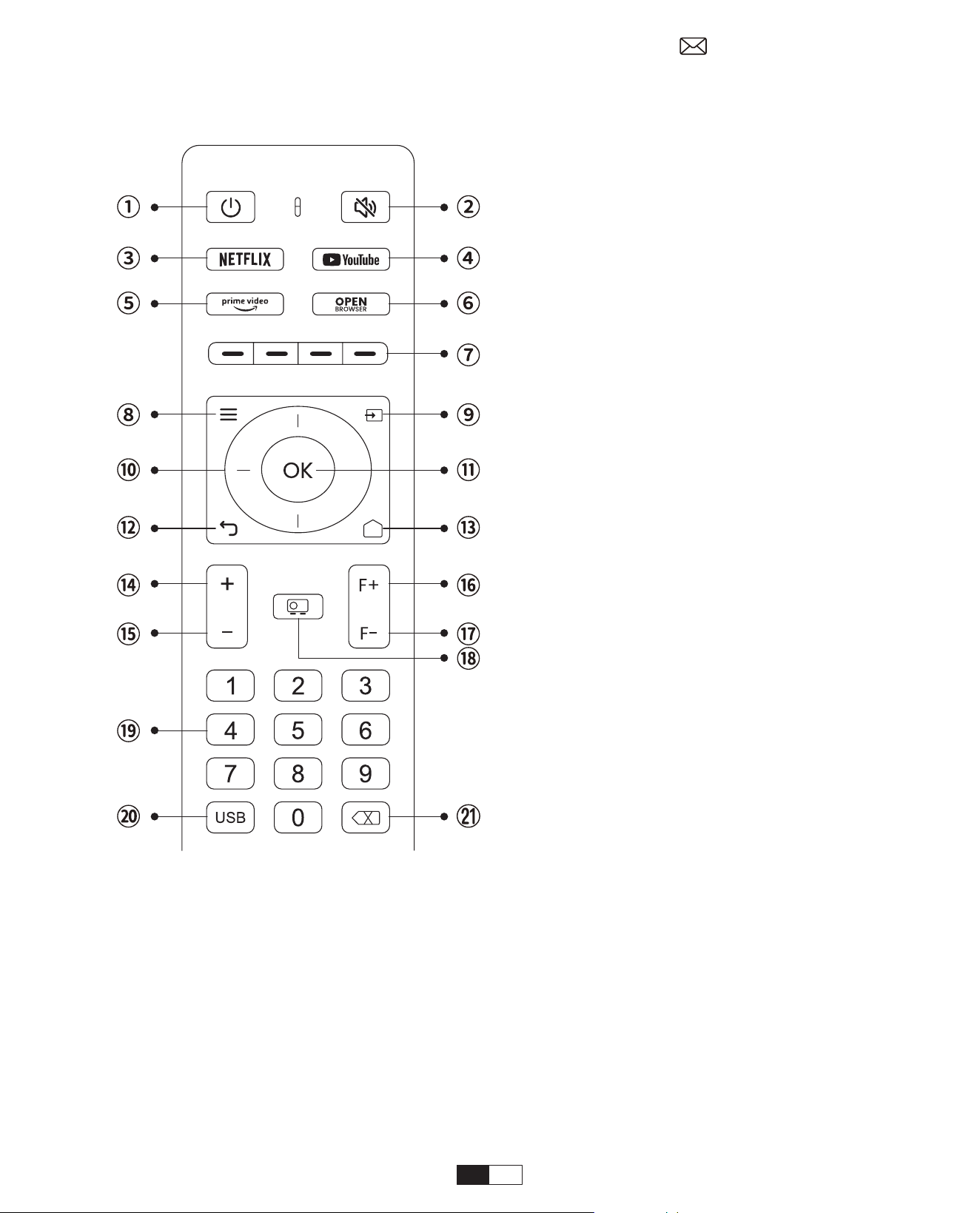
1. Power
2. Mute
3. NETFLIX
4. YouTube
5. Prime Video
6. Open BROWSER
7. Red/Green/Yellow/Blue keys
8. Menu
9. Input Source
10. Arrow keys
11. Confirmation key
12. Back
13. Homepape
14. Volume+
15. Volume-
16. Focus+
17. Focus-
18. Projection mode
19. Number
20. USB
21. Backspace
• Prepare the remote control
1. Open the battery compartment.
2. Insert two AAA batteries with correct polarity indicated.
3. Close the battery compartment.
Note:
You must use the Yaber remote control to complete the first time setup of the
projector.
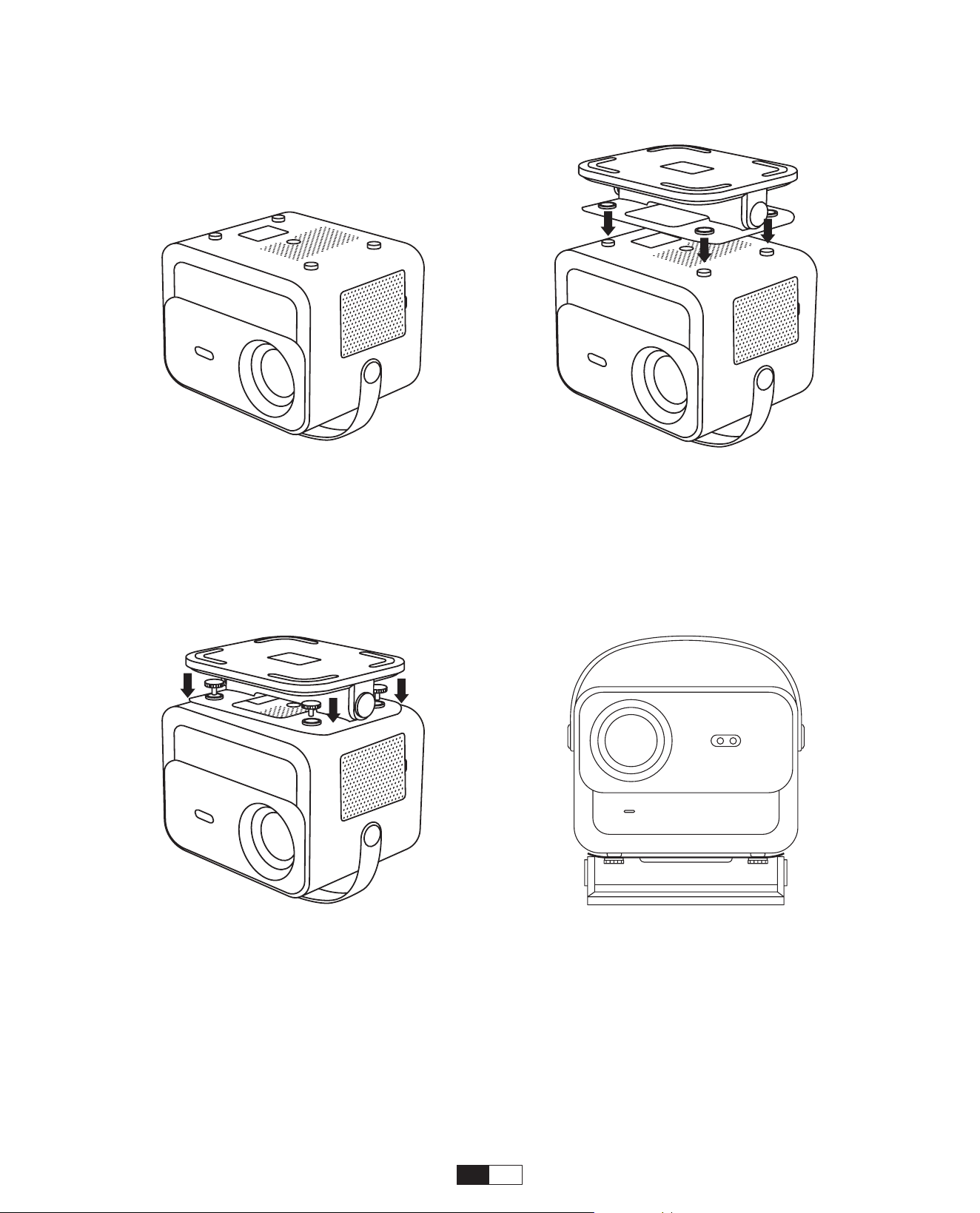
09
Base Installation
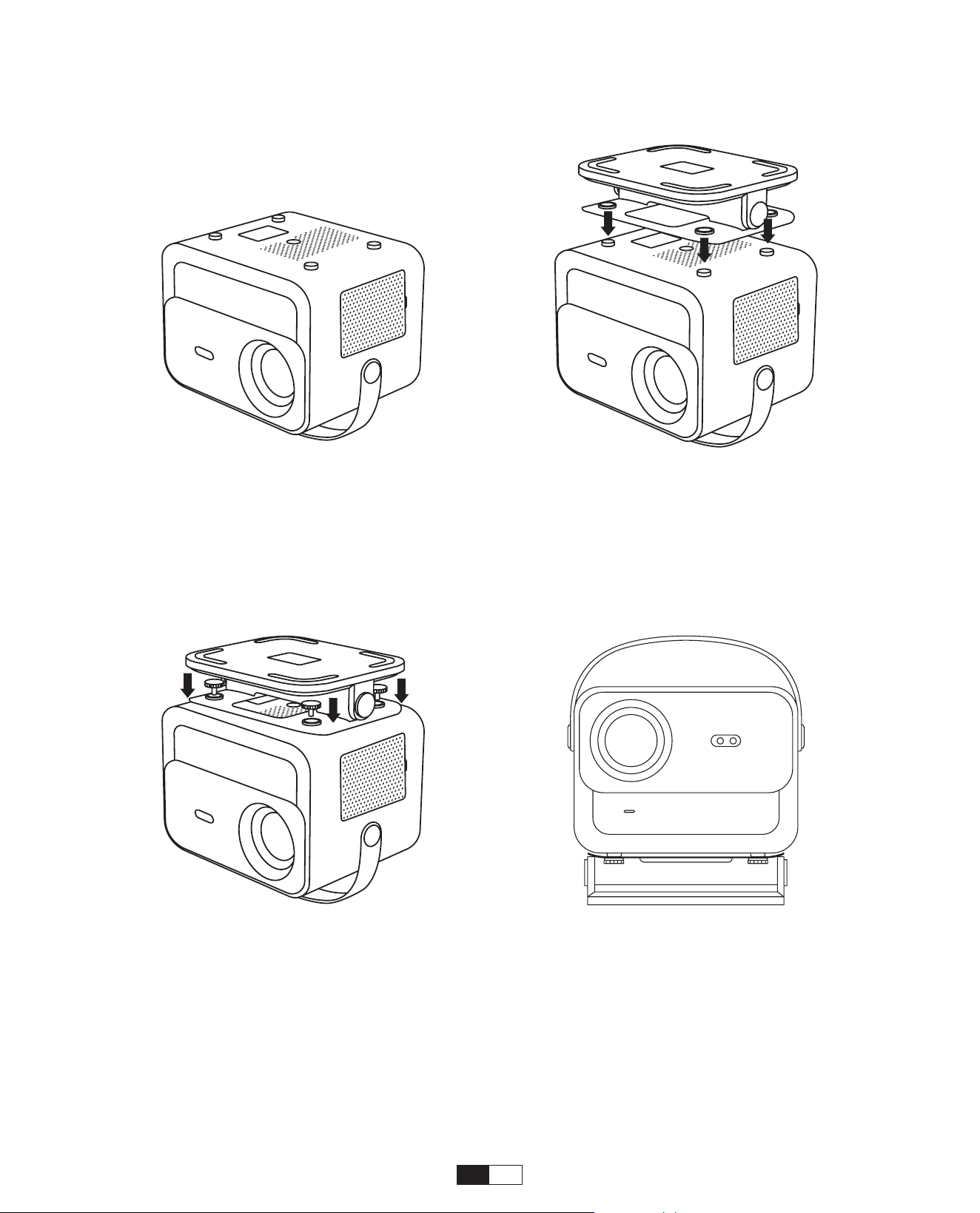
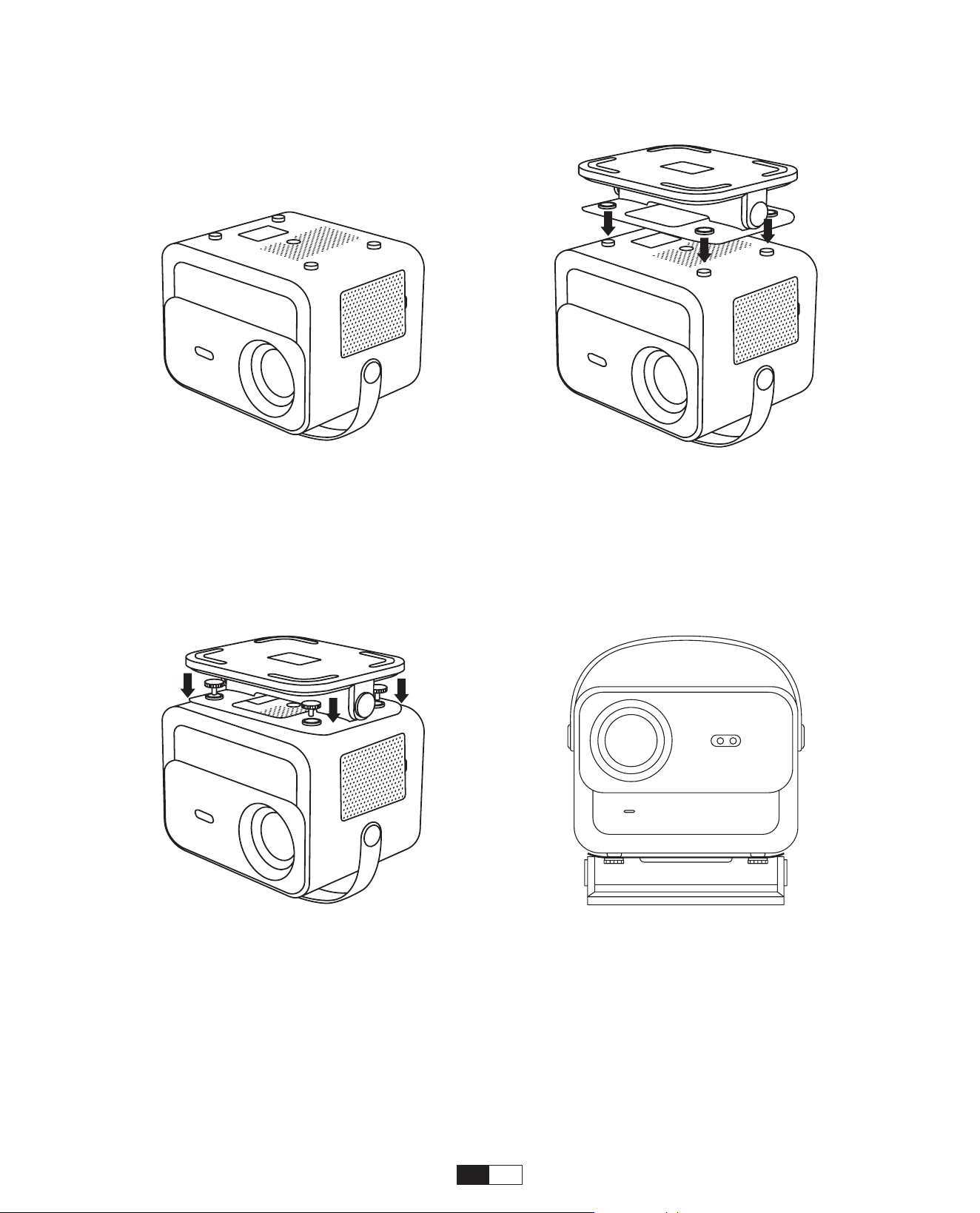
1. Turn the machine over, back side
up.
3. Tighten the screws in the
accessory box.
2. Match the holes of the base to
the screw holes on the projector.
4. Complete the installation.
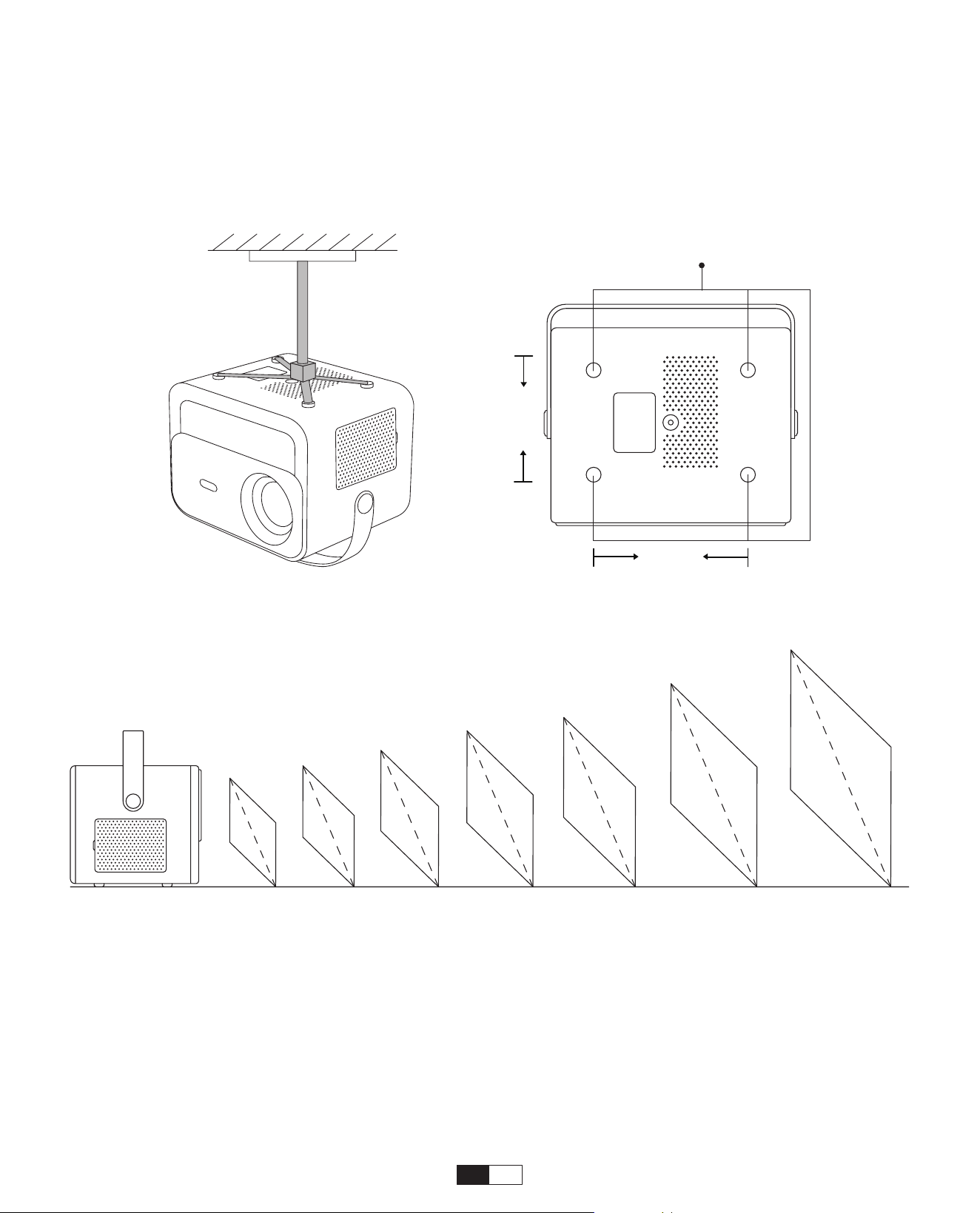
10
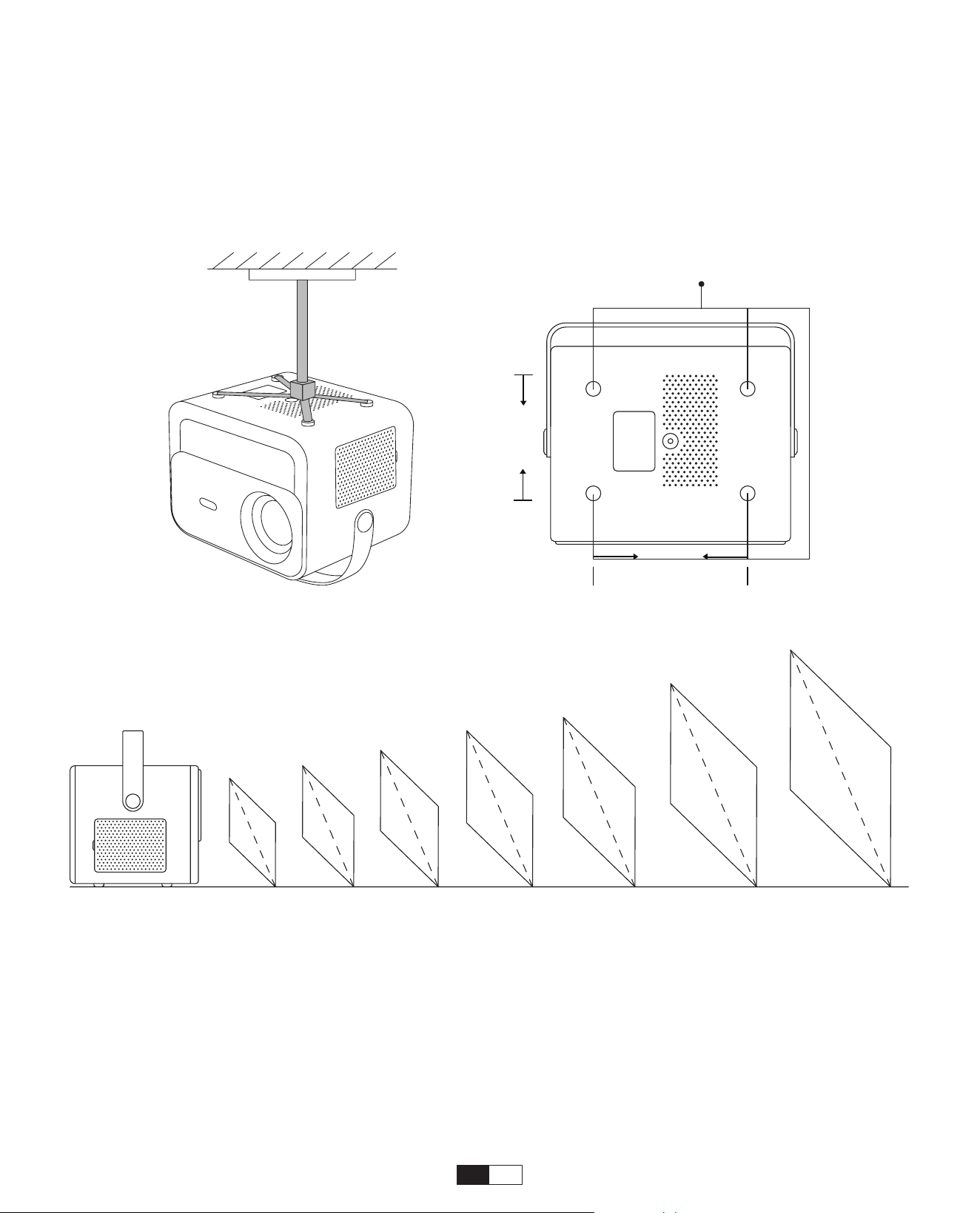
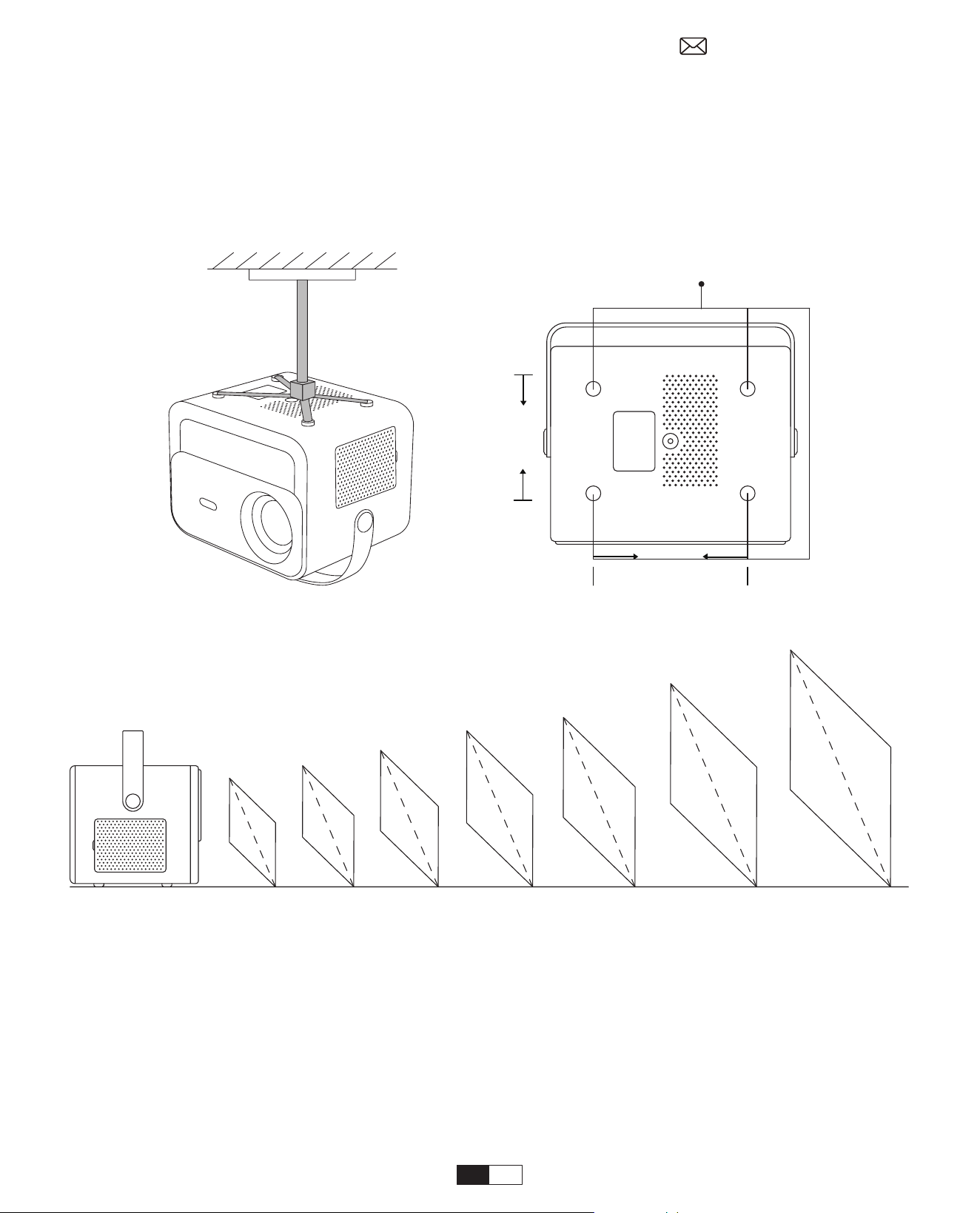
1. Prepare a universal projector ceiling mount.
(Not included in the package)
2. Use
M5*15mm
screws to securely install the projector on the ceiling using the hanger
frame.
Install on the Ceiling
Screw Holes M5*15mm
155mm
108mm
Distance and Projection Size
The
recommended projection distance
is about
8.9 ft
, and the
shortest projection
distance
is 4.5 ft.
The image size depends on the
distance between projector and screen
.
There may be
3%
deviation among above listed data.Different settings cause various
distances.
40"
1.4m
(4.5ft)
2.1m
(6.7ft)
2.7m
(8.9ft)
3.4m
(11.2ft)
4.1m
(13.4ft)
6.8m
(22.4ft)
60"
80"
100"
120"
150"
200"
11
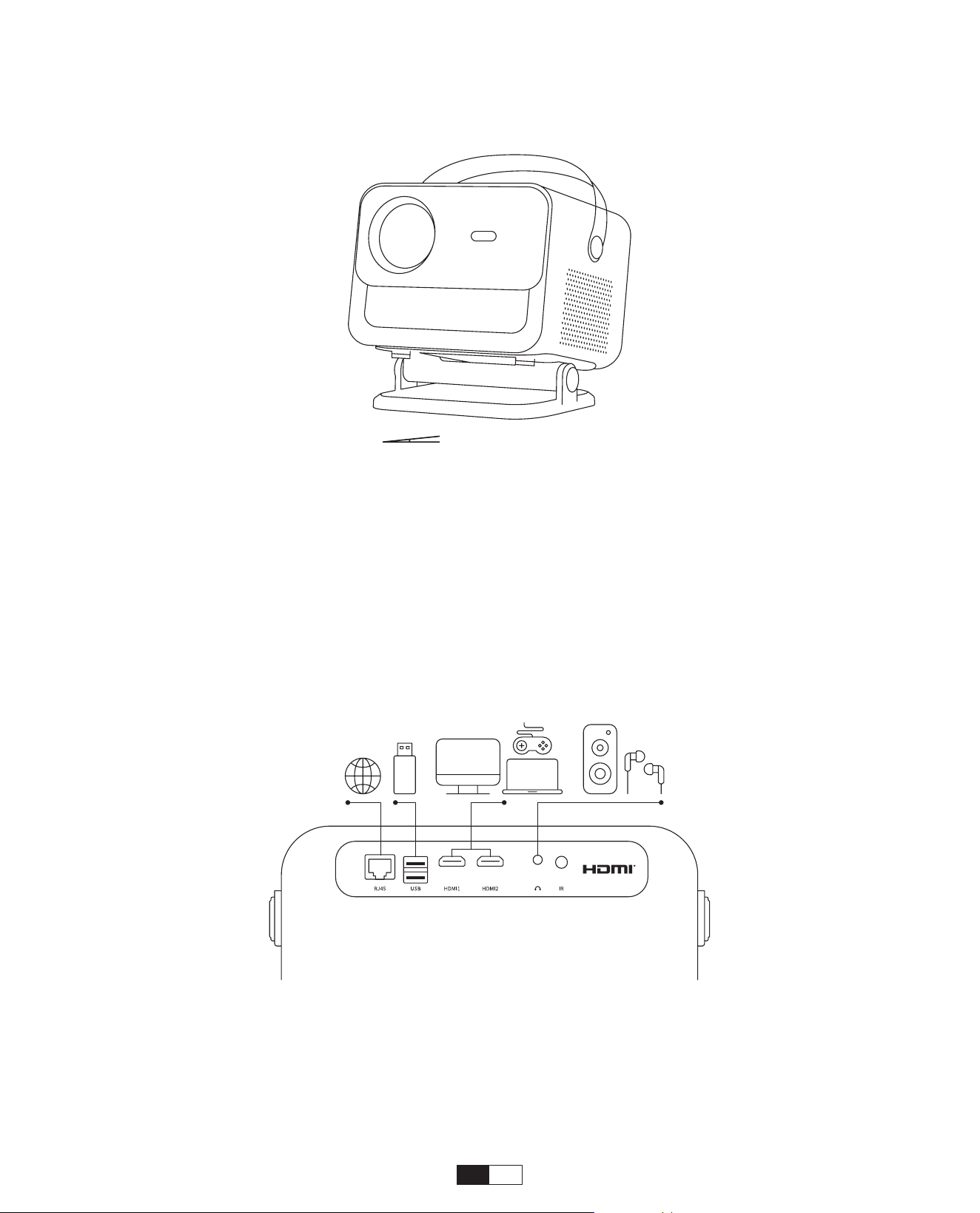
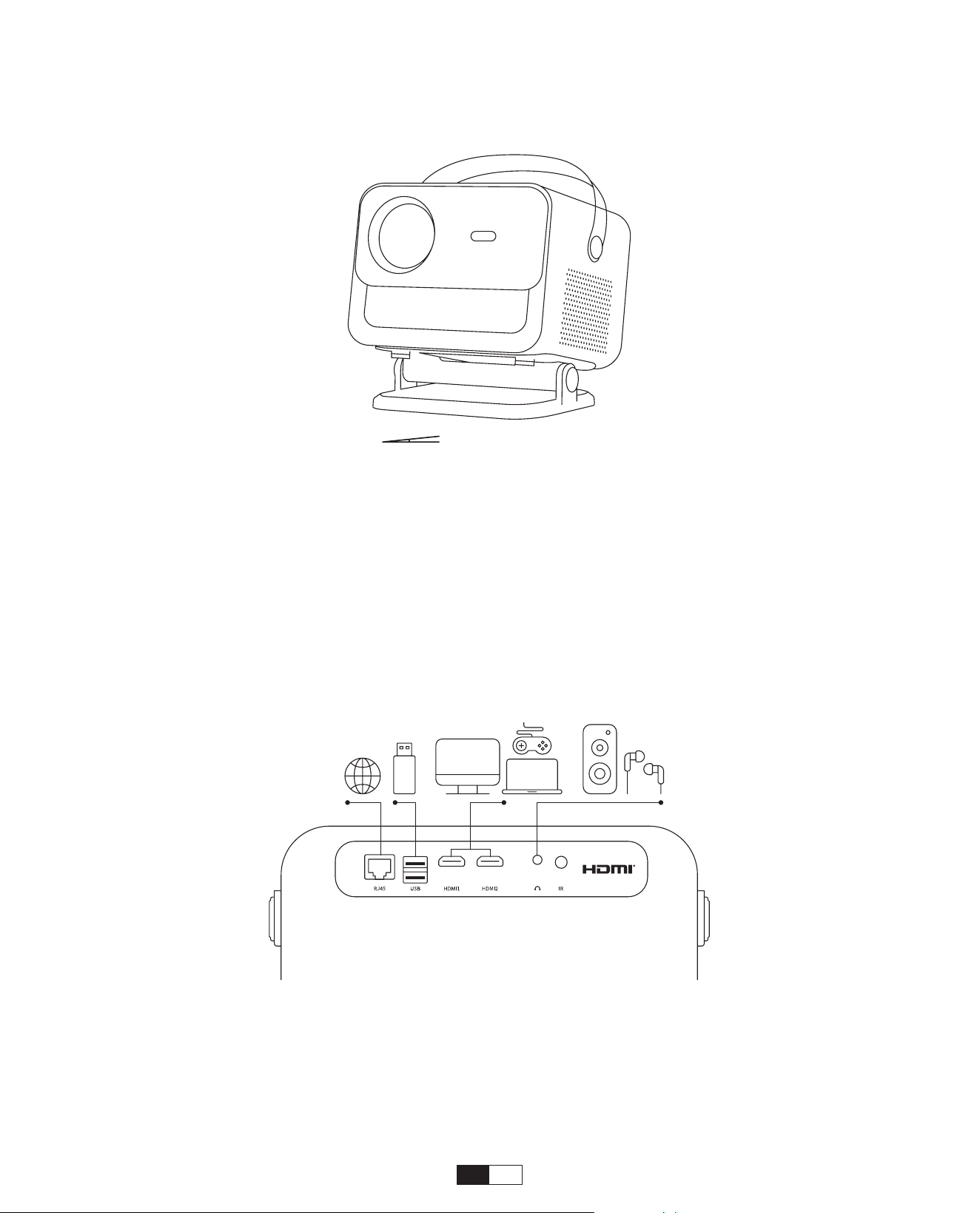
Adjustable base mount
Max Degree: ±30°
Recommend Degree: ±15°
You can adjust the projection angle by rotating the Stand.
The maximum adjustment angle for the stand is ±30°, but for optimal auto-focus and
auto-keystone effects, we recommend using angles within ±15°.
The projector has 6 ports, LAN/HDMI port*2/USB port/USB-C port/Aduio out.
Please select the correct connecting ports to connect your devices.
Connect Devices
12
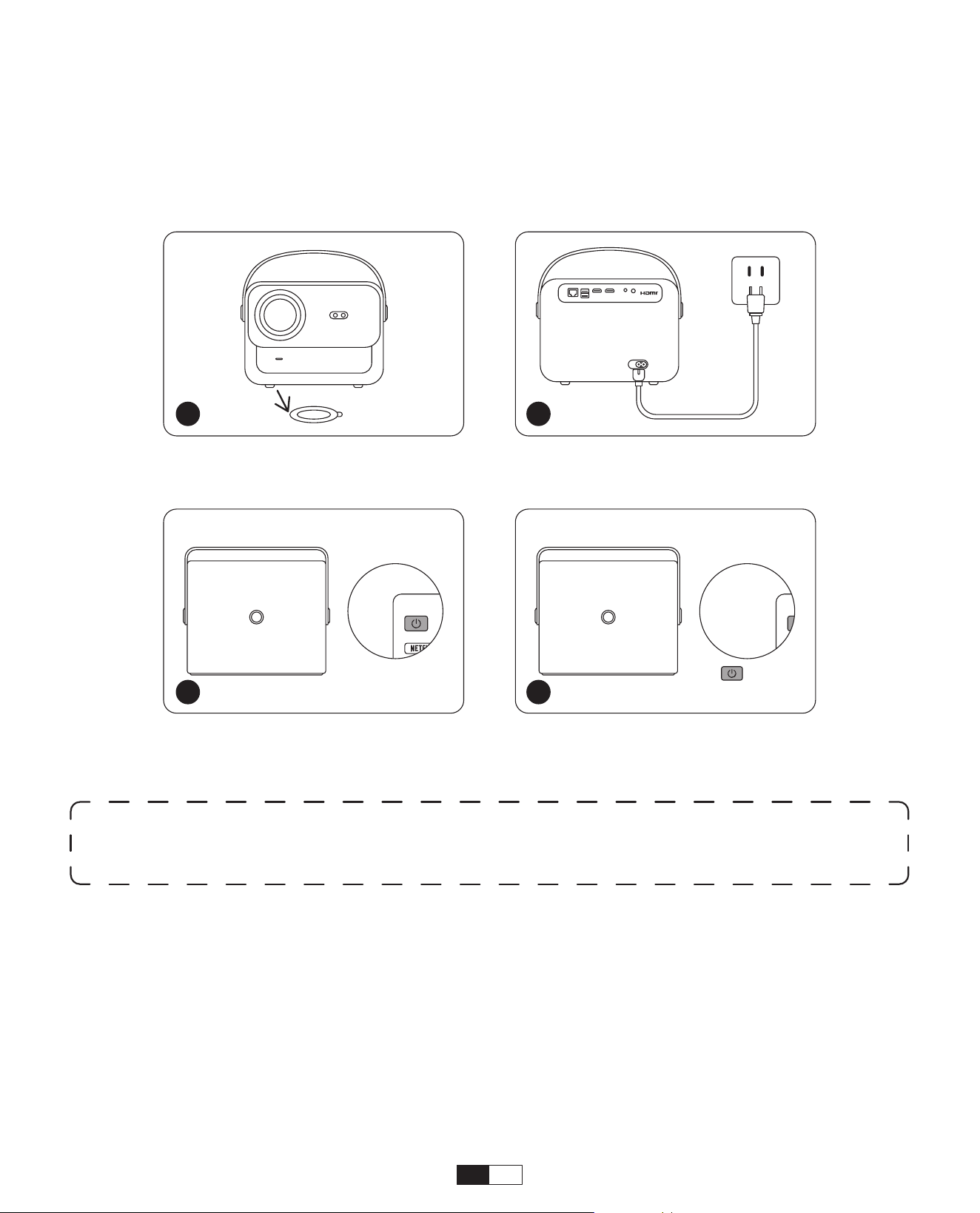
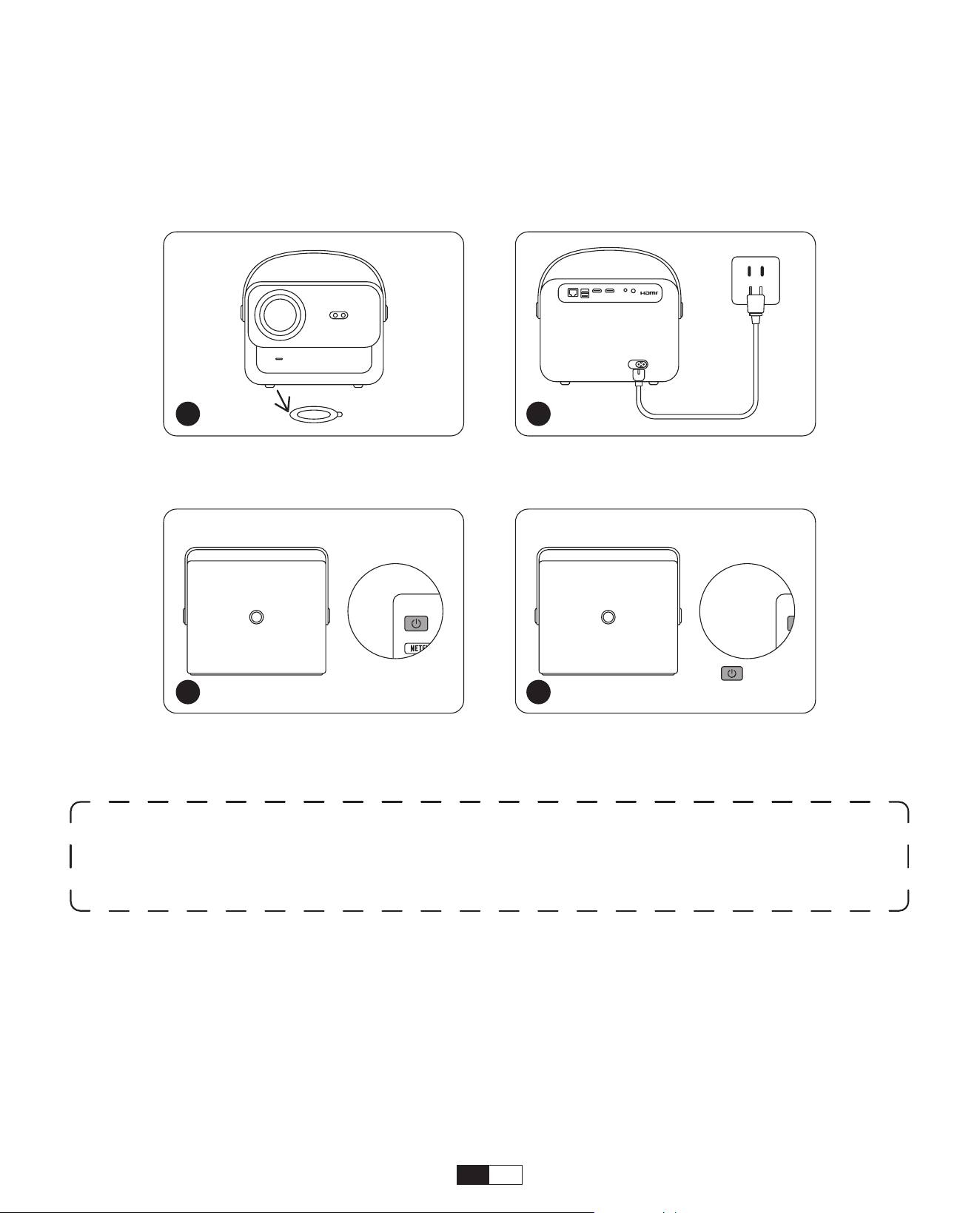
Orange power Light on --- Standby Mode
Orange power Light off--- Working Mode
Take off the protective cover.
Press the
power button
once
to turn on the projector.
Connect the power cable to
an outlet.
Press the
power button
twice
to turn off the projector.
When you turn on the projector for the first time or the projector is reset to the Factory
Default Settings, you are prompted to make the first time setup.
After setup, the projector will go to the Homepage.
• Power on
• First time setup
Operation
1. Starting Up the Projector
1 2
x 2
3 4
Notice:
When you connect the power cord to projector, the orange light will flash
10 seconds. Please wait patiently until the power light stop blinking.
13
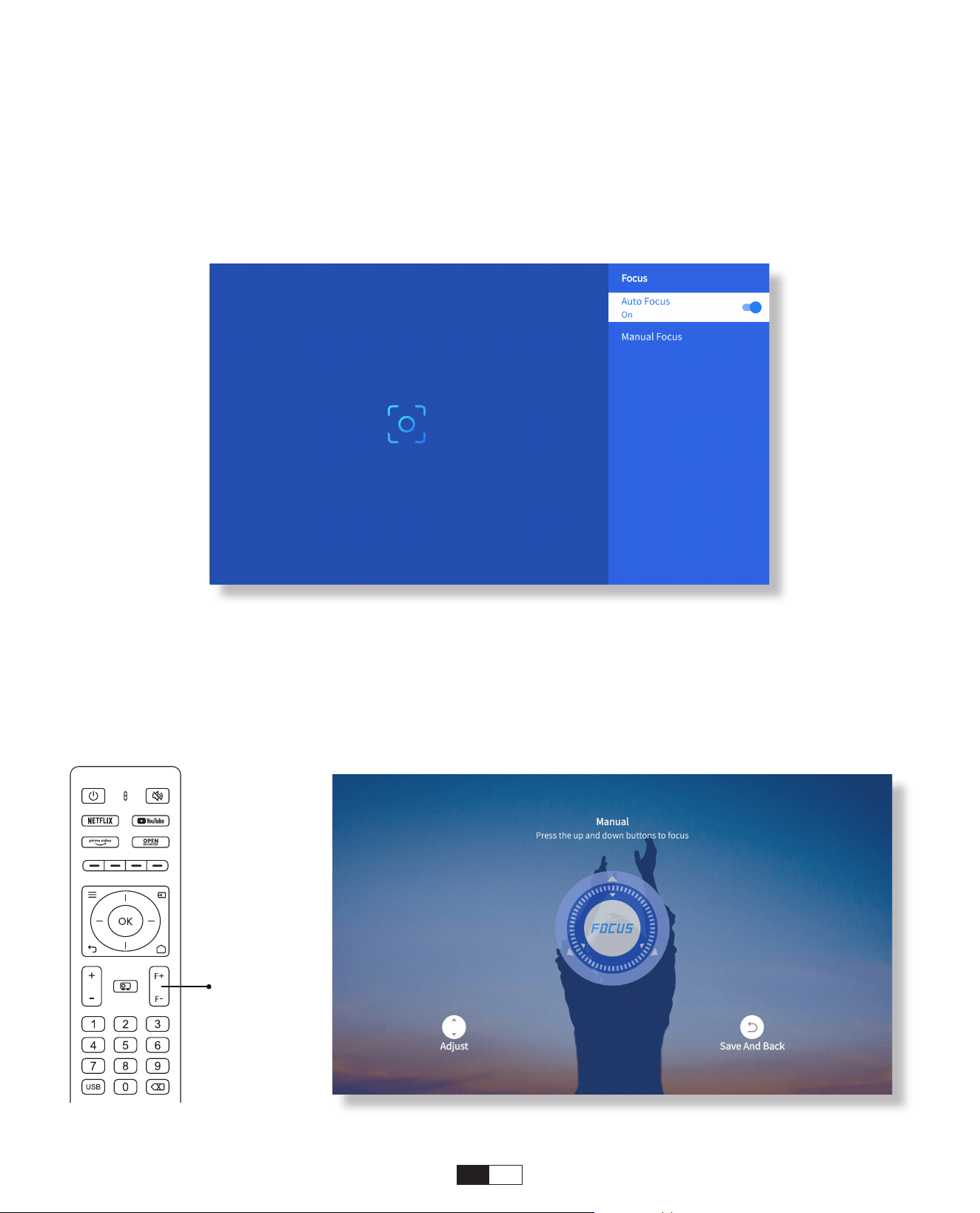
When the projector is turned on, please wait for a few seconds, it will automatically
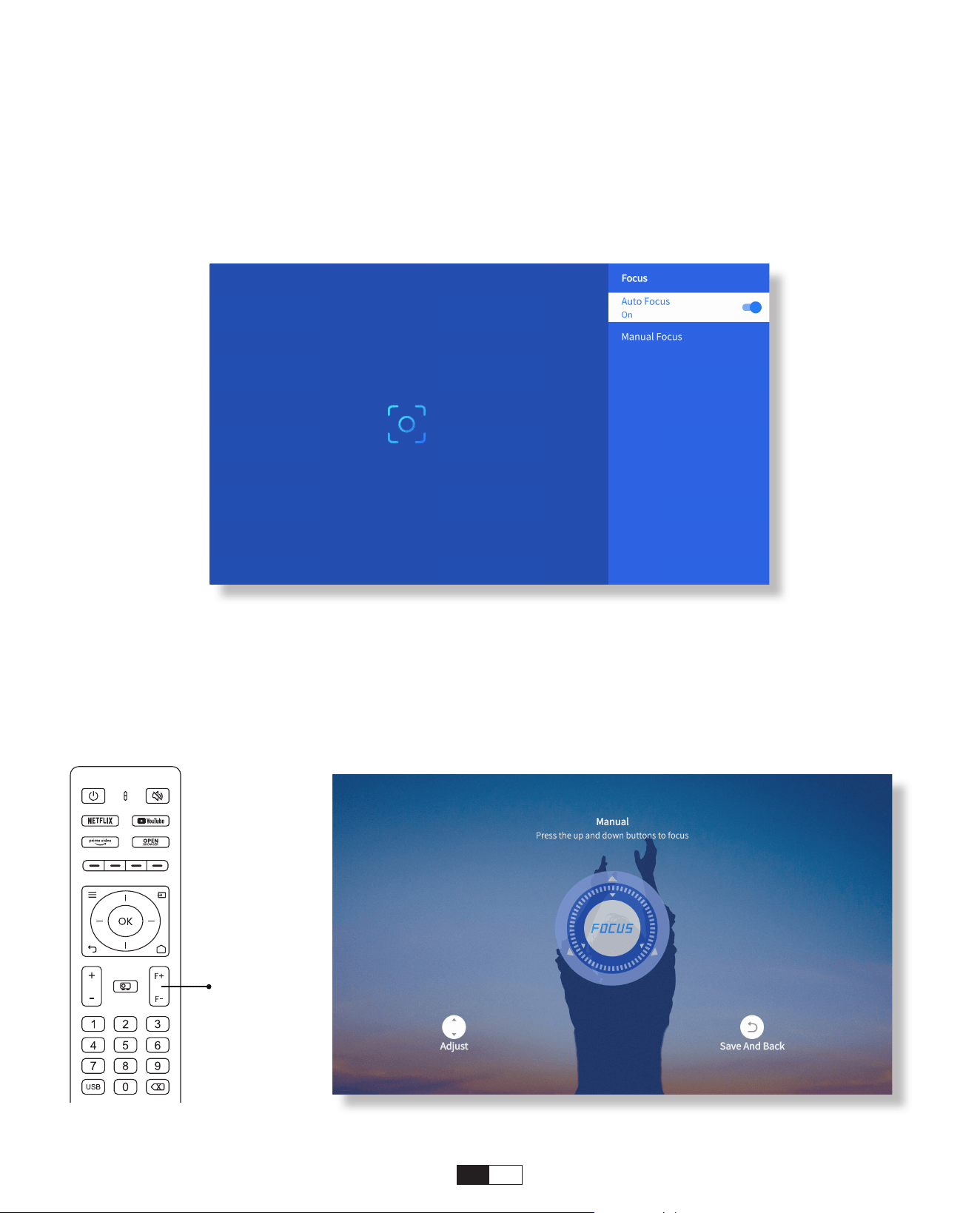
adjust the focus. (If not, ensure the auto focus function is activated in Settings ->
Focus -> Auto Focus -> On)
You can also adjust the clarity of the screen by clicking or holding down the F+ and F-
buttons on the remote control.
• Auto Focus
• Eletric Focus
2. Image Adjustment
Focus +/-
14
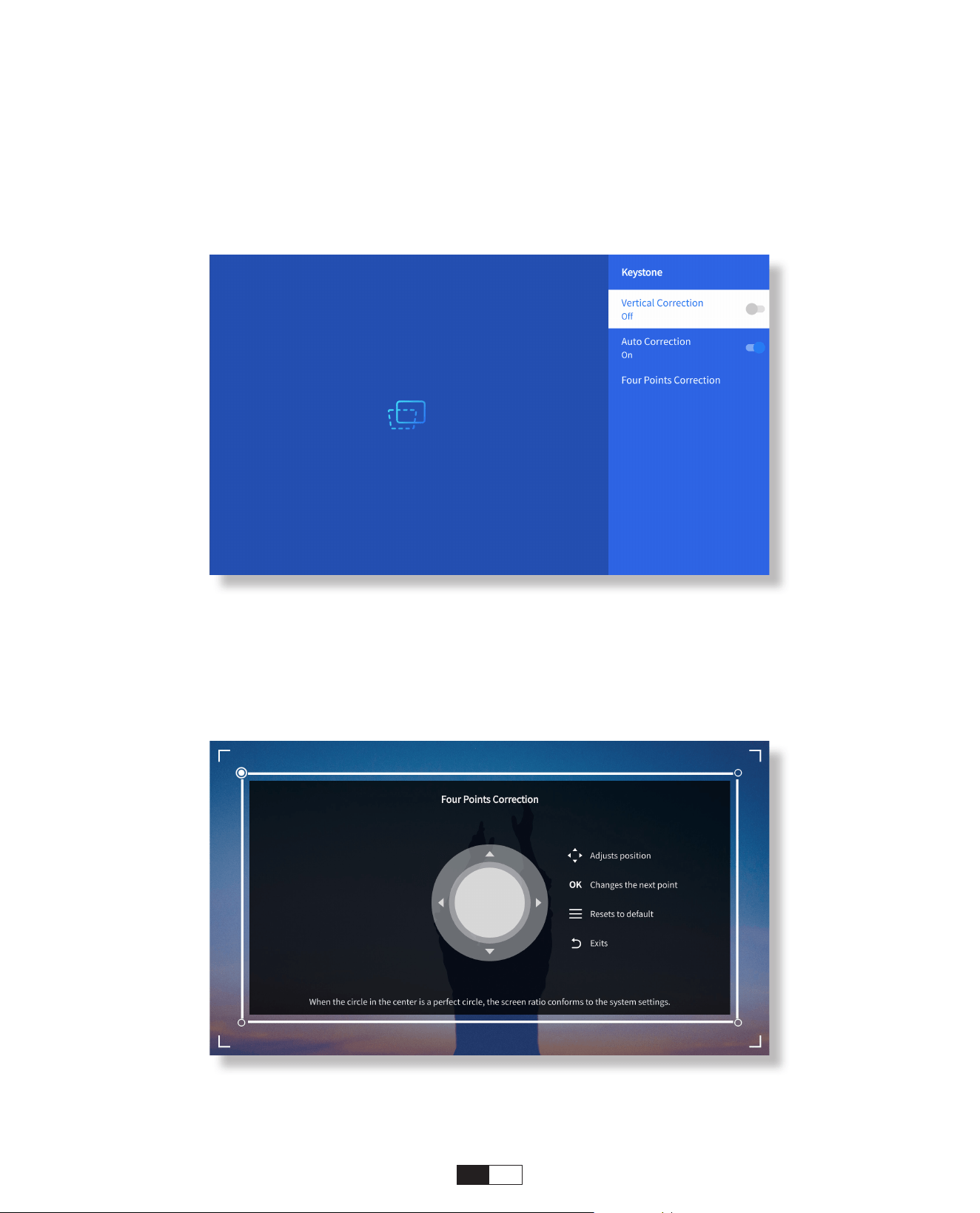
Please place the projector horizontally face to the wall first.
After turn it on, it will automatically adjust the screen to a regular shape.
(If not, ensure the auto keystone function is activated in Settings -> Keystone -> Auto
Keystone -> On)
Go to Setting-> Keystone -> Four Points Correction
• Auto Keystone Correction
• Manual Keystone Correction
15
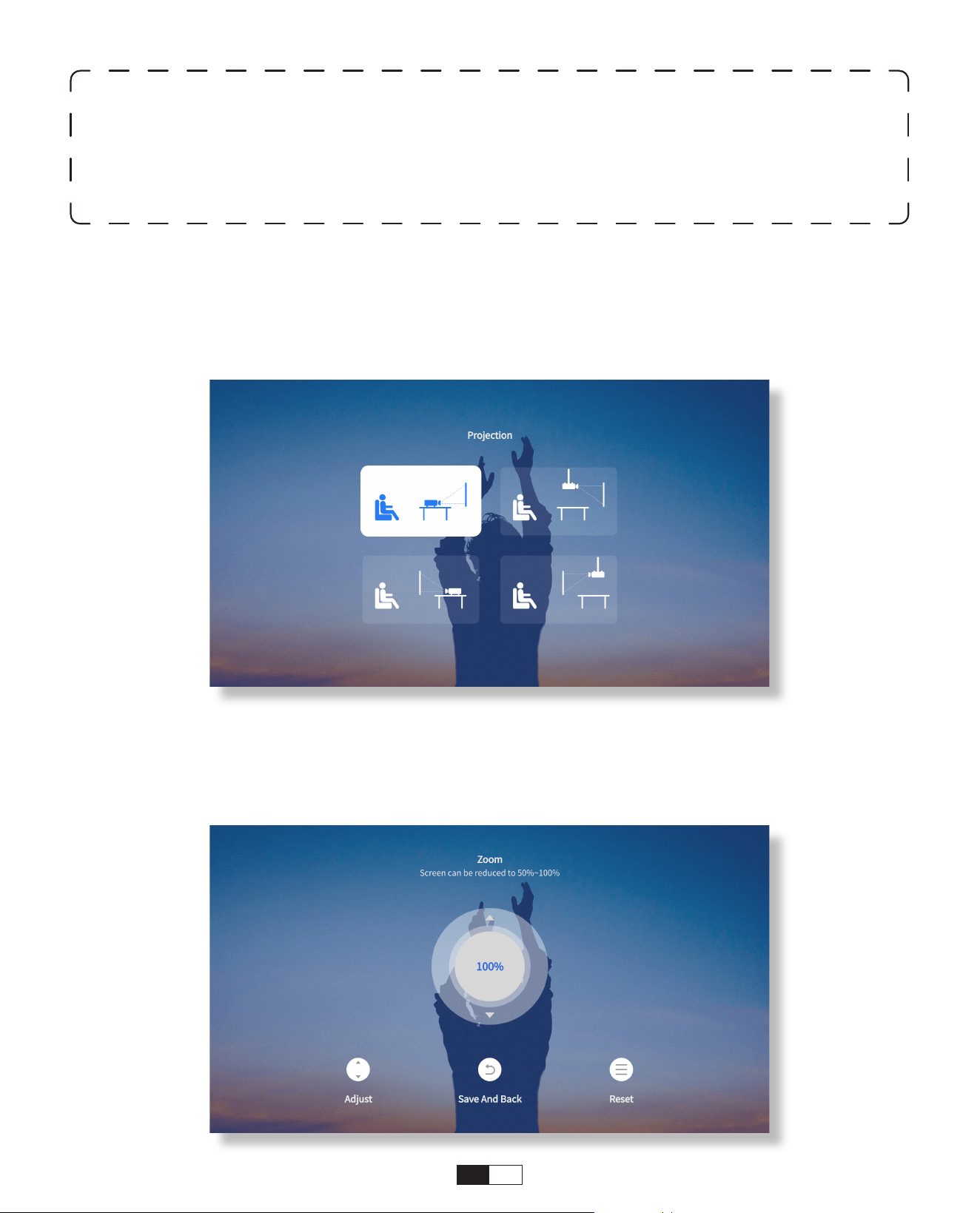
Go to Setting-> Projection to select the appropriate projection mode based on the
placement of the projector.
Go to Setting-> Zoom to reduce or enlarge the image size between 50% to 100%.
• Projection Mode
• Zoom
Tips:
When the projector detects shaking or rapid movement, it will automatically
initiate autofocus adjustment and keystone correction to ensure optimal image
quality. If you encounter unclear images or an imperfectly squared display, please
use the remote control's focus button for manual adjustment or utilize the four-
point keystone correction to manually correct the image shape.
16
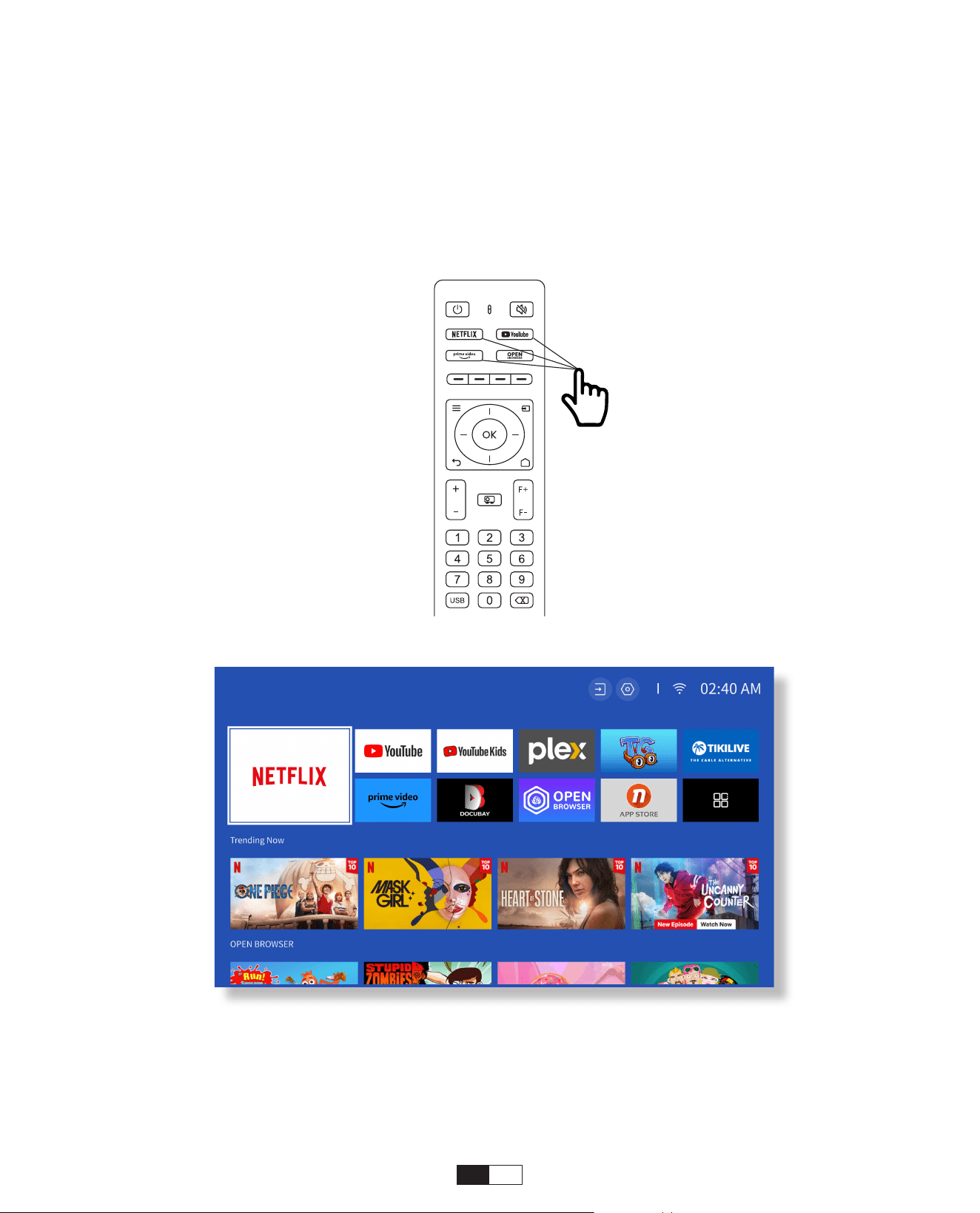
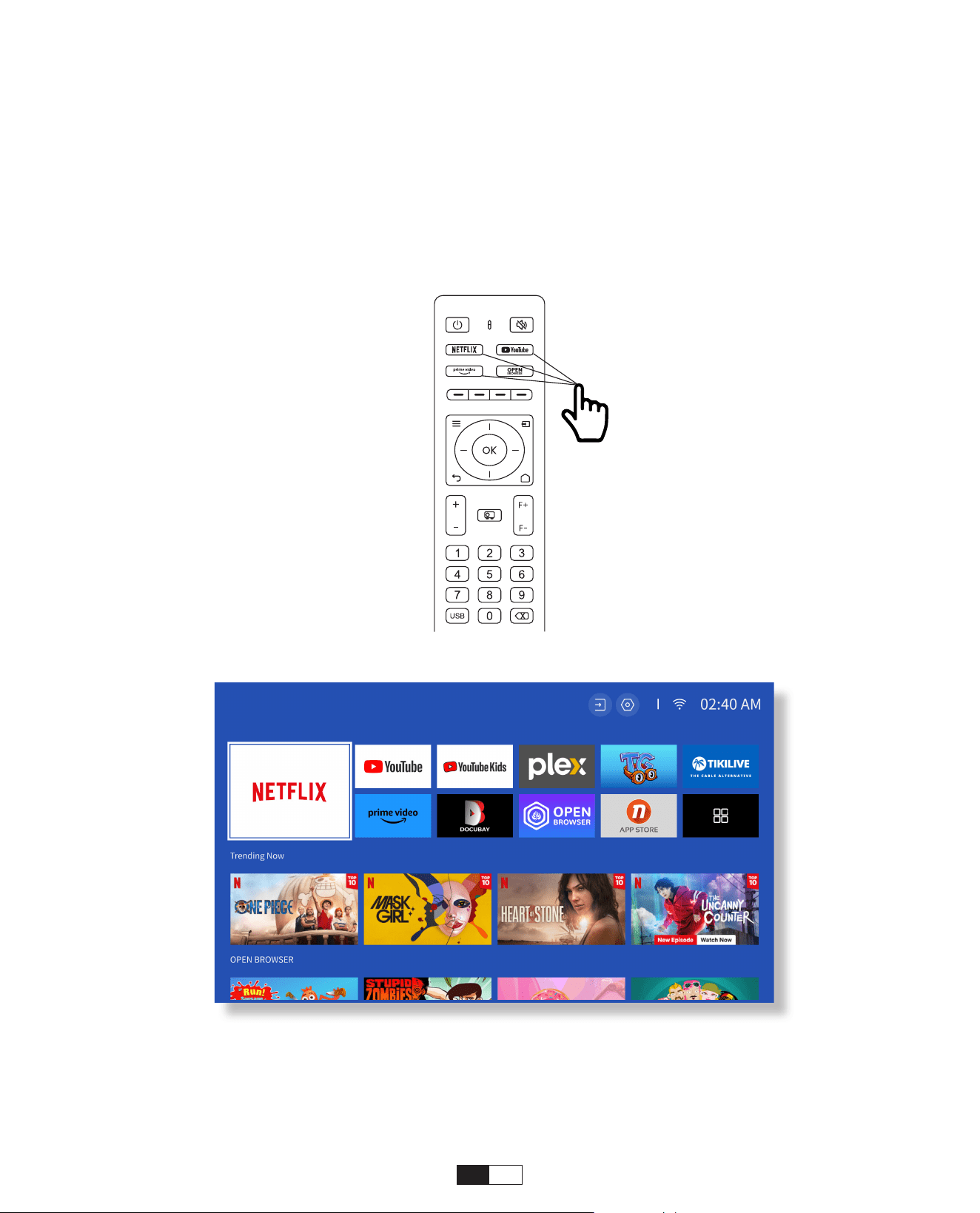
Go to the homepage, select your preferred channel, or access it through the shortcuts
on the remote. Log in to your account to play the corresponding content.
3. Play Content from Officially Licensed Apps like Netflix,
Youtube and Prime Video
17
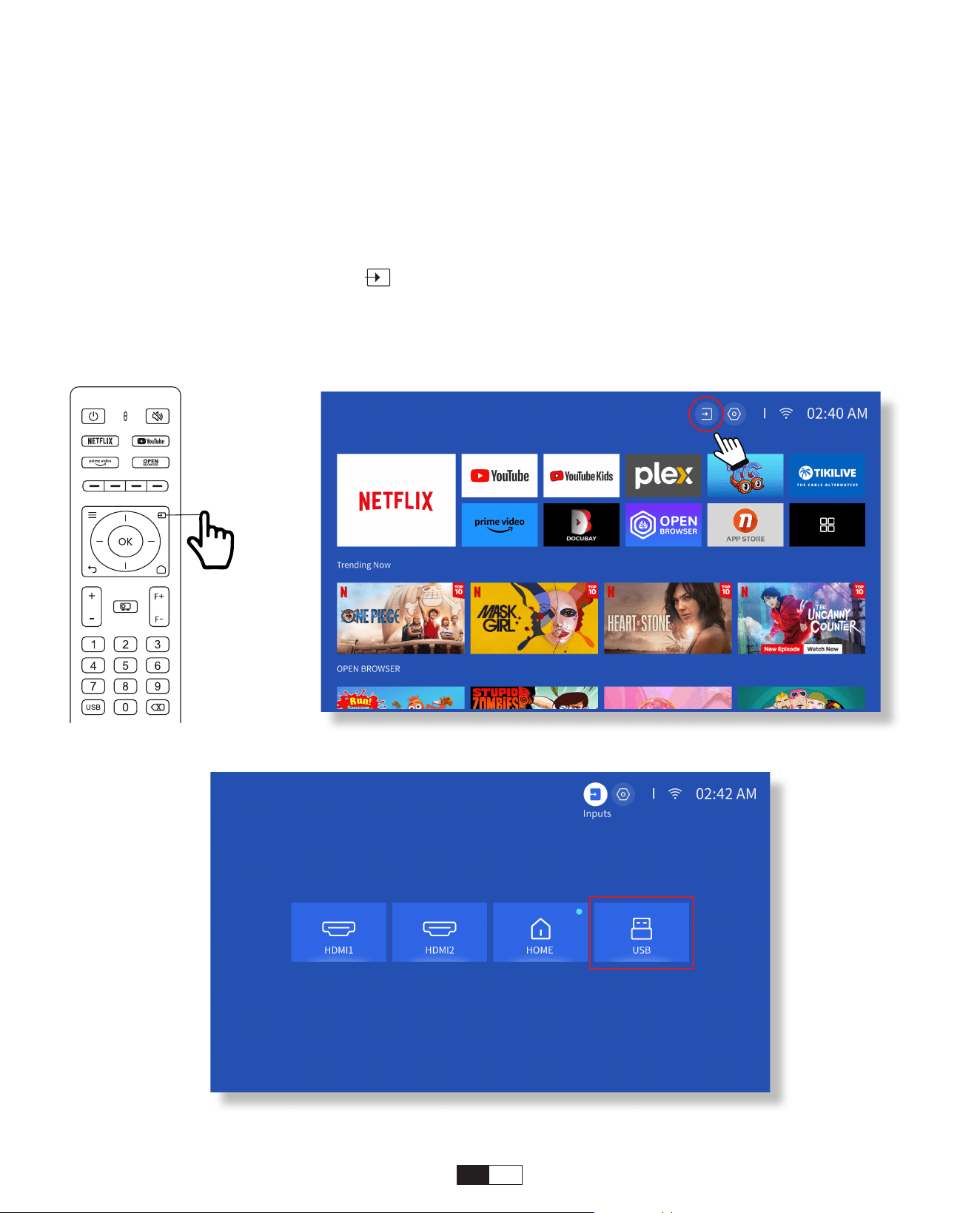
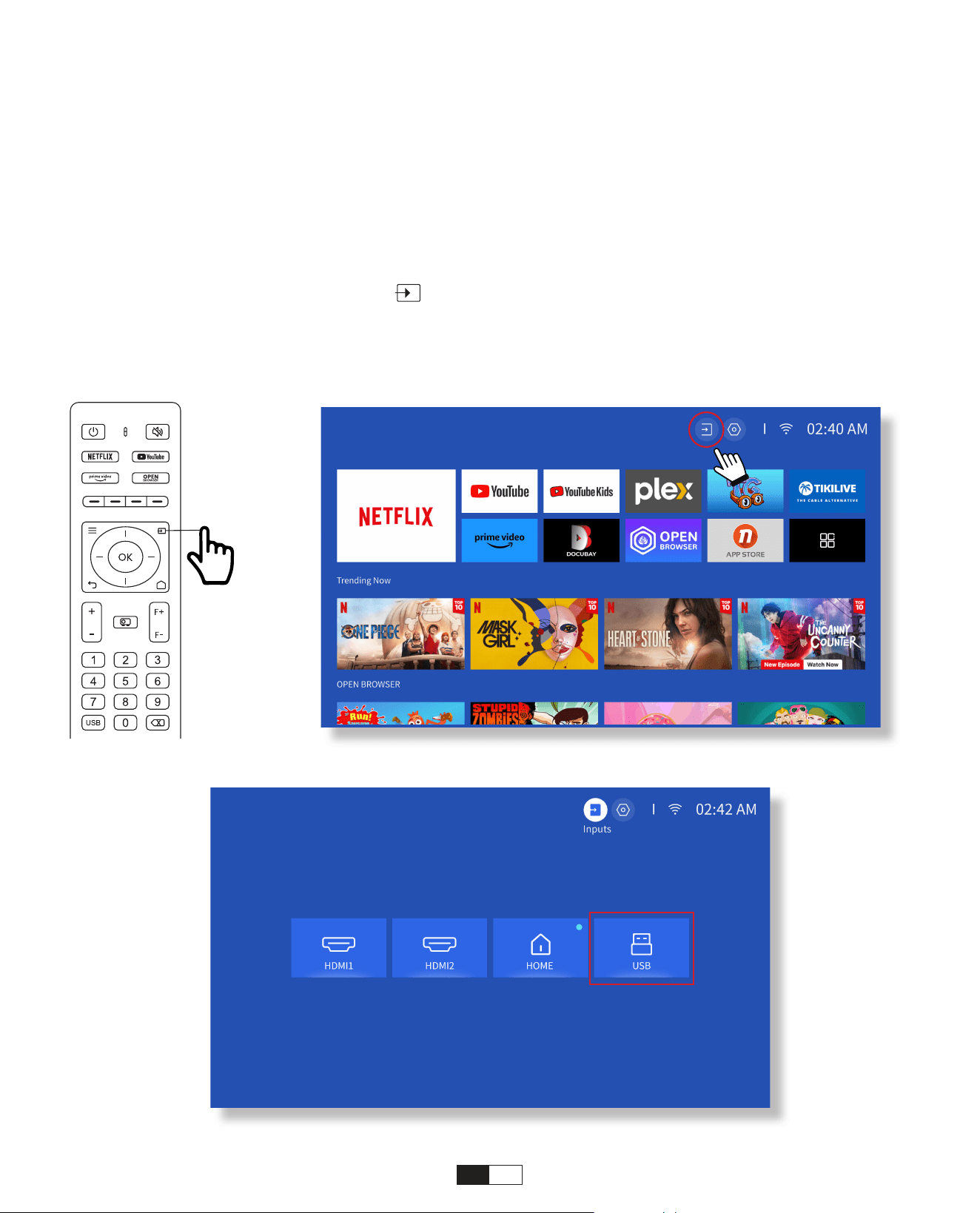
Please follow the page 11 instructions to properly connect your devices to the projector,
then select the correct input source.
1. Insert the USB Disk
2. Click on the input source [ ] on the remote control or choose the input source
icon on the homepage.
3.Select "USB" as input source
• USB Disk Input Mode
4. Projection Connection and Input Source
18
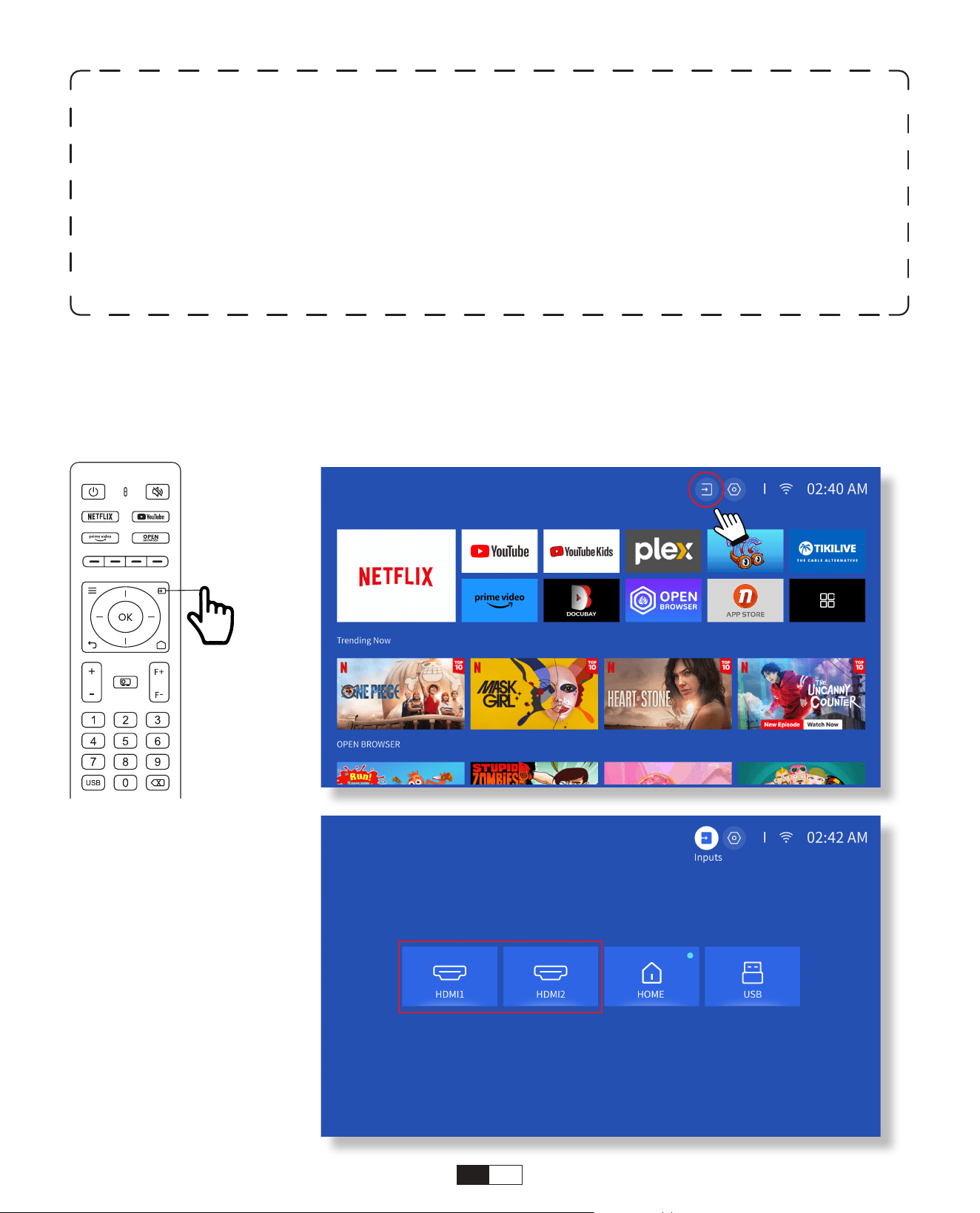
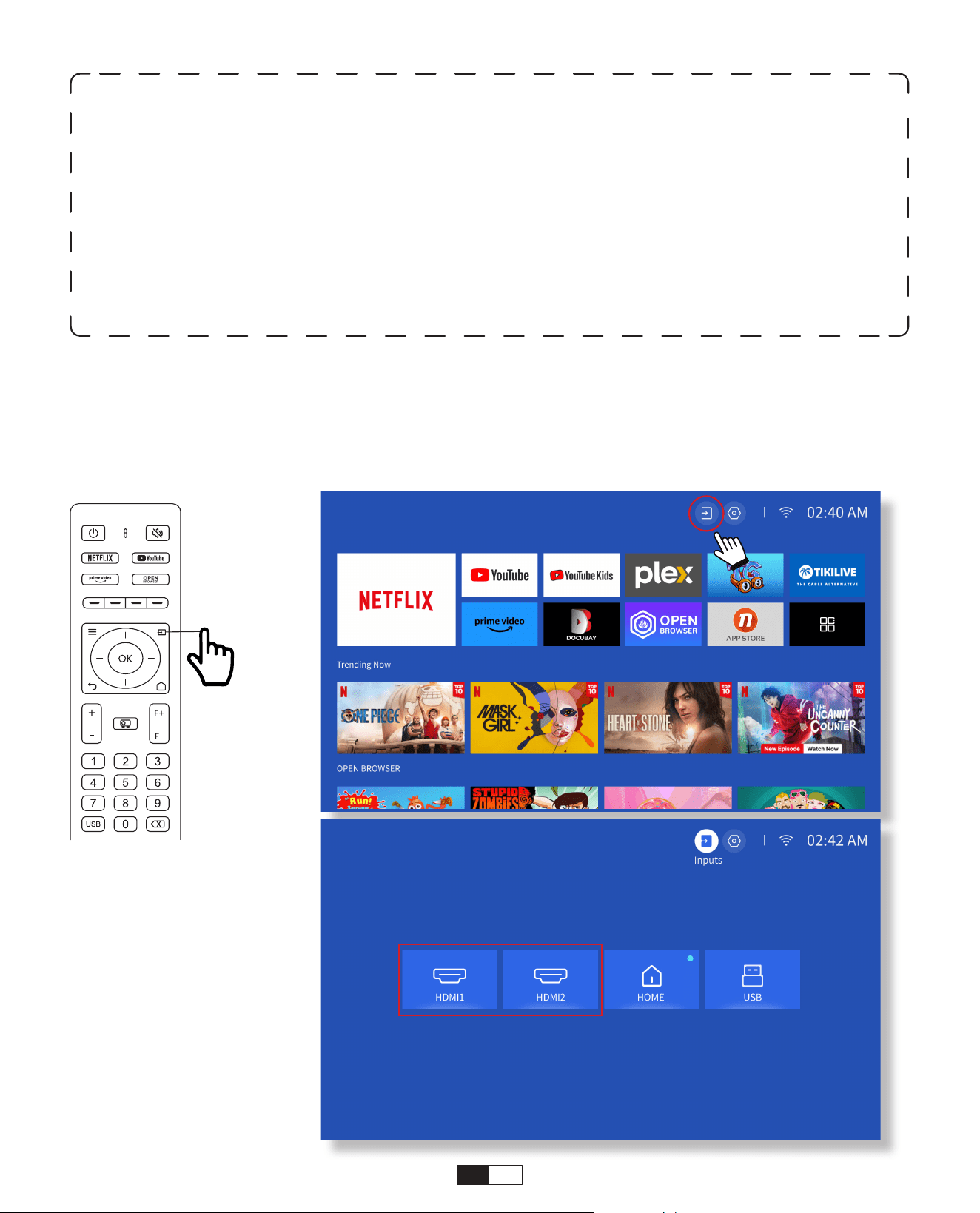
Connect your device with an HDMI output to the projector using the provided HDMI
cable. Press the input source button on the remote and select HDMI1 or HDMI2.
• HDMI Input Mode
Warning:
If the projector cannot recognize the USB disk, please refer to the following
methods to solve the problem.
1. Please confirm whether your USB disk meets the following formats: (1) FAT32:
8G/16G/32G; (2)NTFS: 64G
2. If the USB disk is not recognized/detected, please format it.Before you format the USB
disk, make sure to backup everything. After formatting, everything will be lost forever.
3. If the problem is still not solved, please send your problem to this email:
aftersales@yabertech.com
19
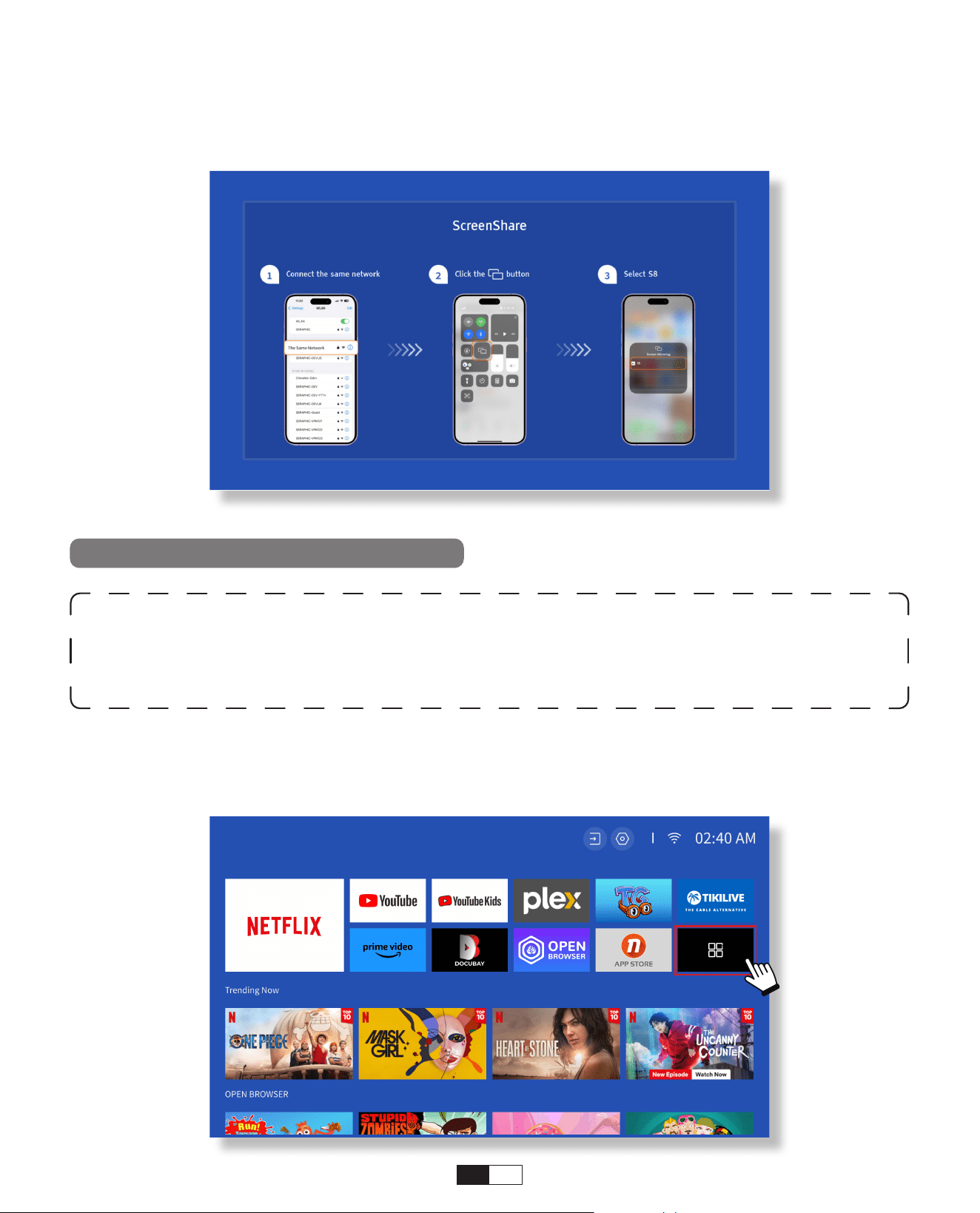
5. Screencast
Step1:
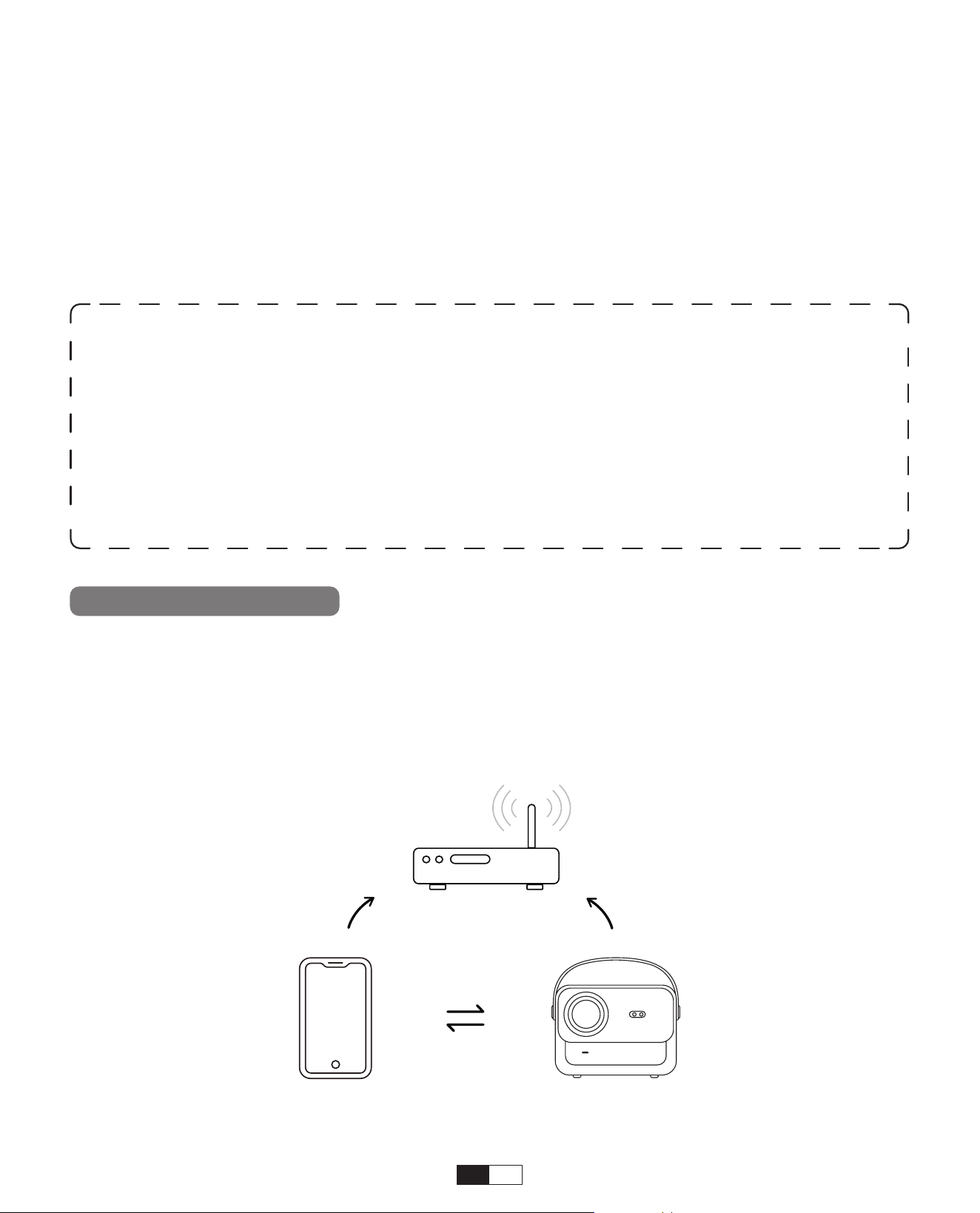
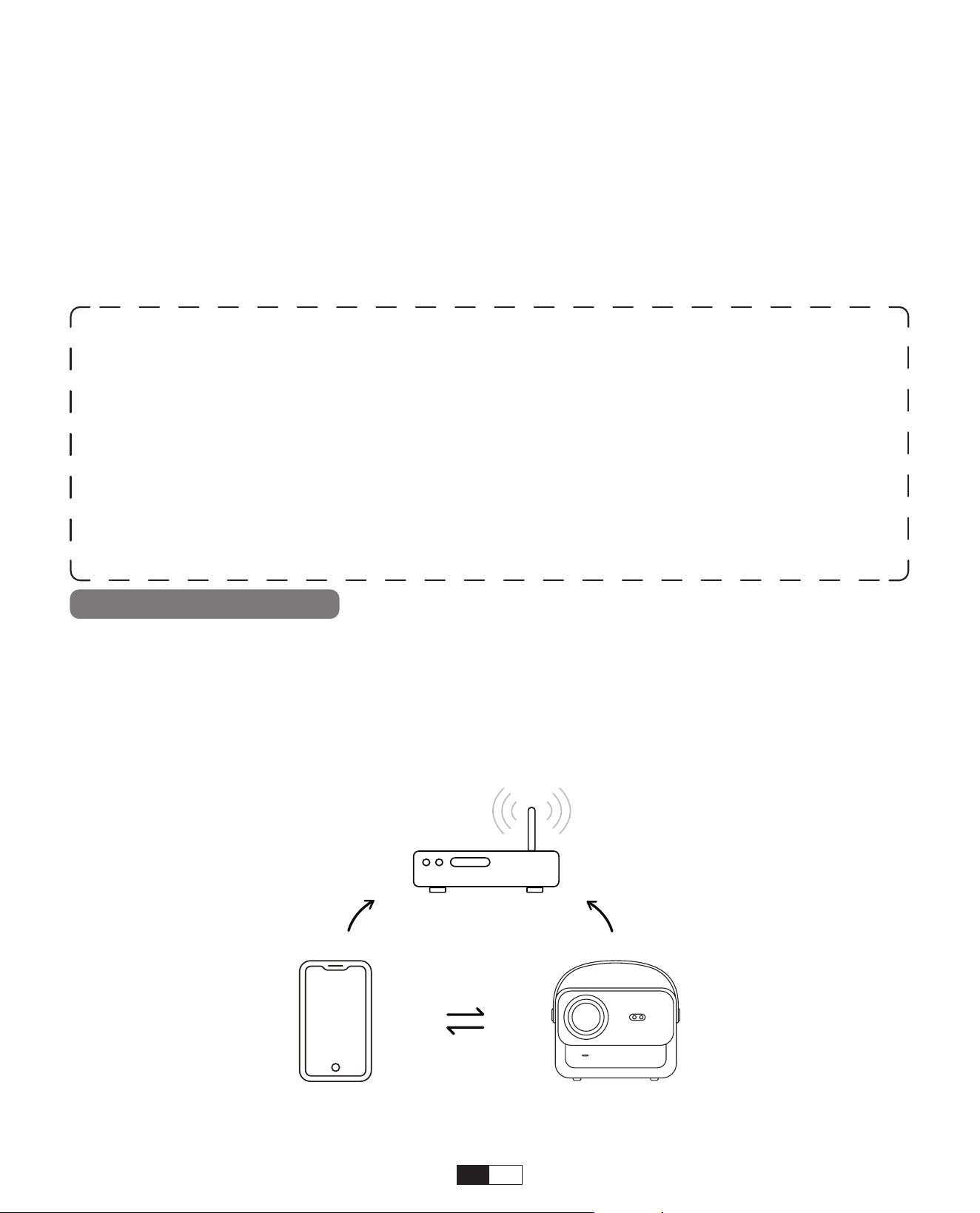
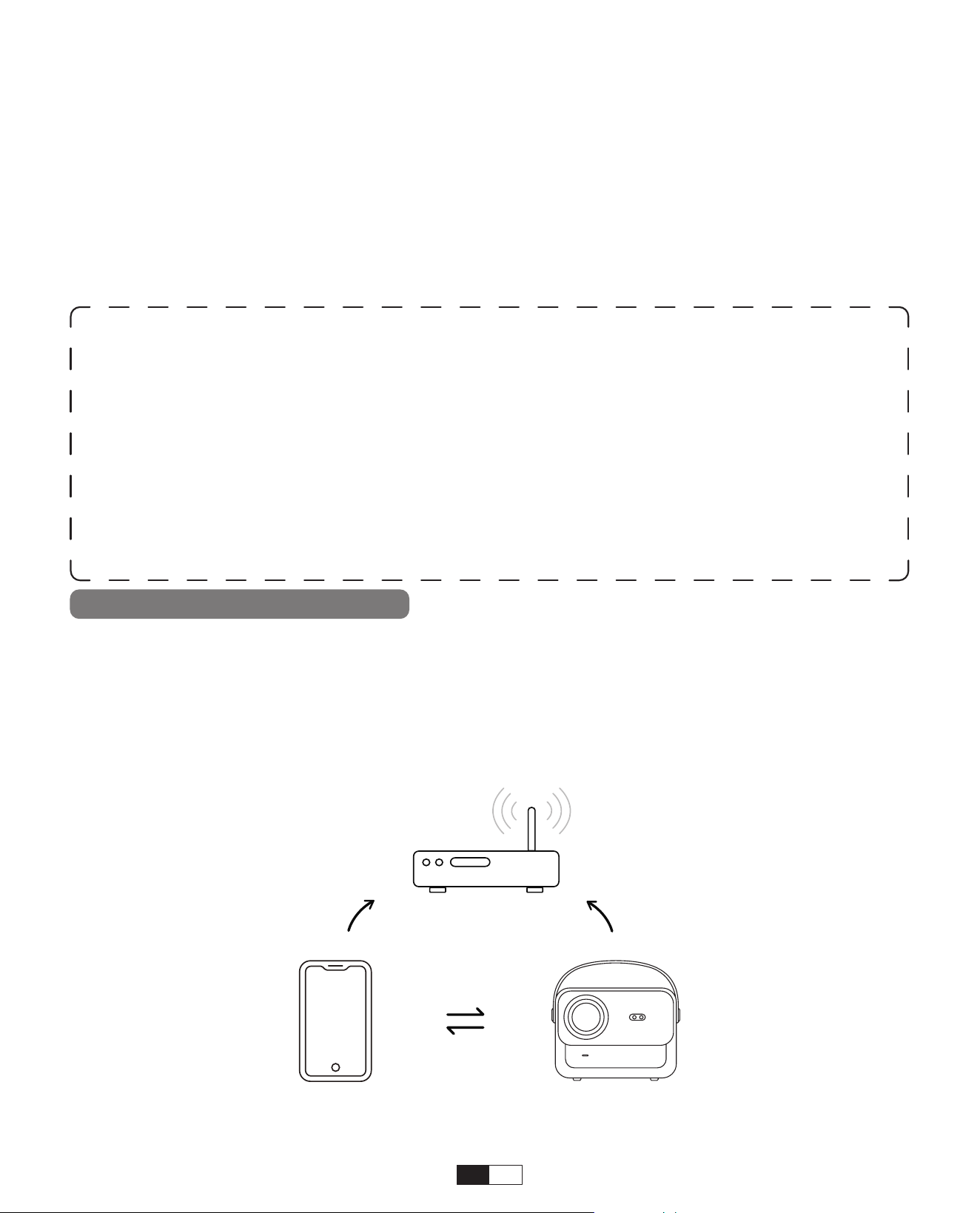
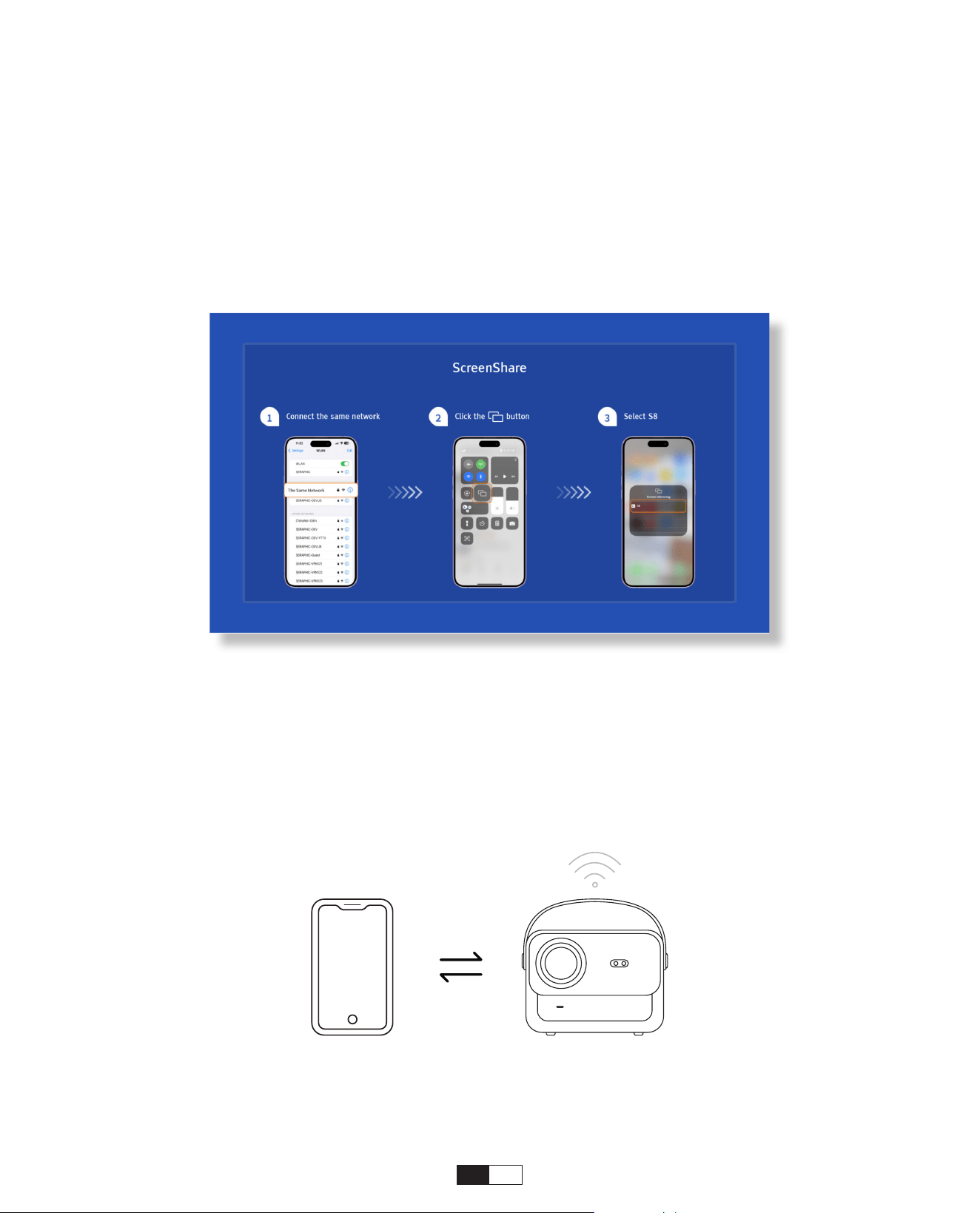
Connect the projector and your mobile device to the same router's WiFi
• iOS Wi-Fi Mirroring
iOS Cast (for iOS Devices)
This option is not required to select AV input source
• Wired Speaker and Headphones Connection
Warming Tips:
1. The fluency of screen mirroring with wireless connection will be affected by the
network environment. A bandwidth of 100Mbit or more is recommended when
using screen mirroring.
2. Make sure your mobile device is close to the projector when using wireless
connection. A distance within 1 meter is recommended.
3. Some mobile devices may not support screen mirroring due to the compatibility.
4. Any questions, please feel free to email YABER via
aftersales@yabertech.com
20
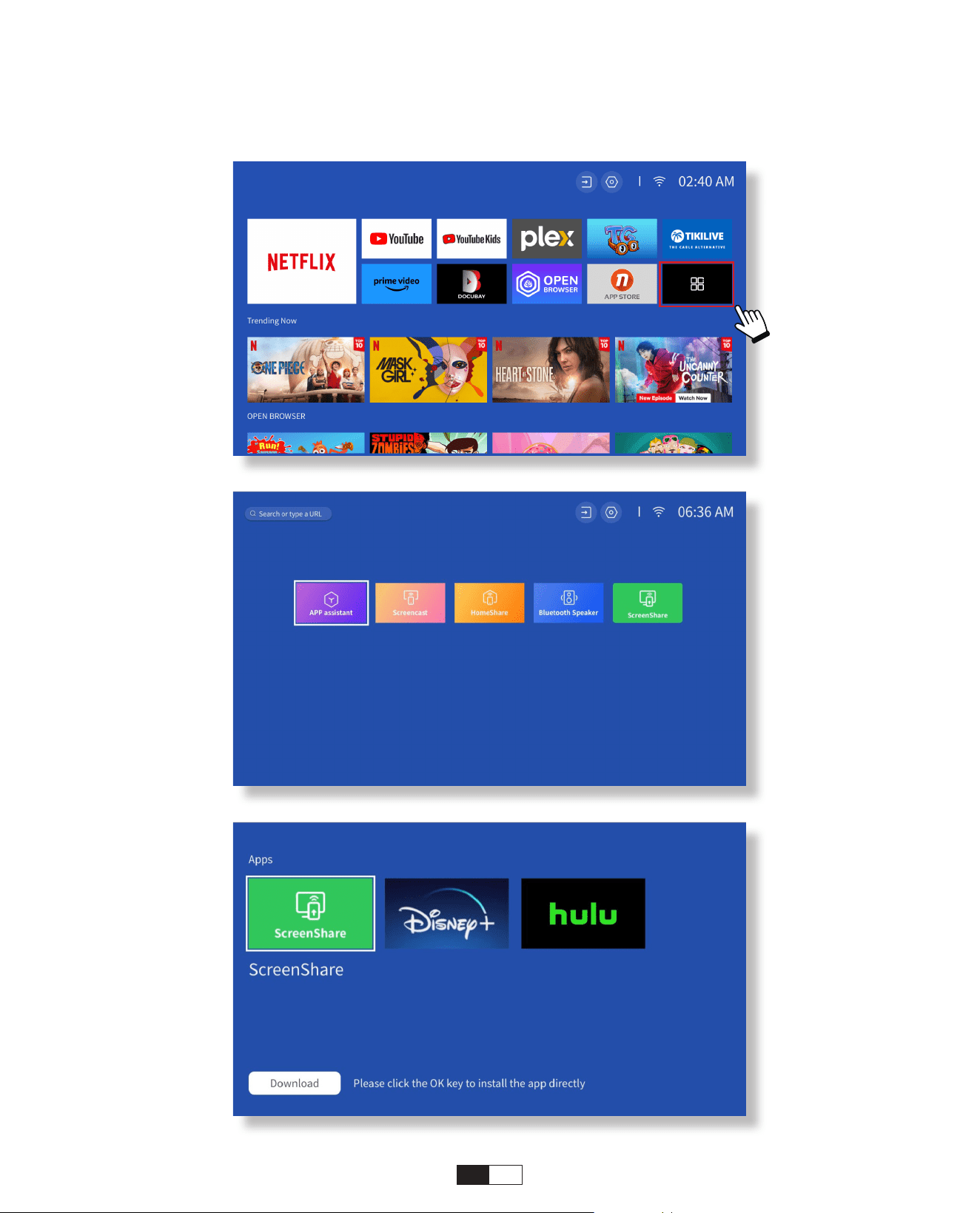
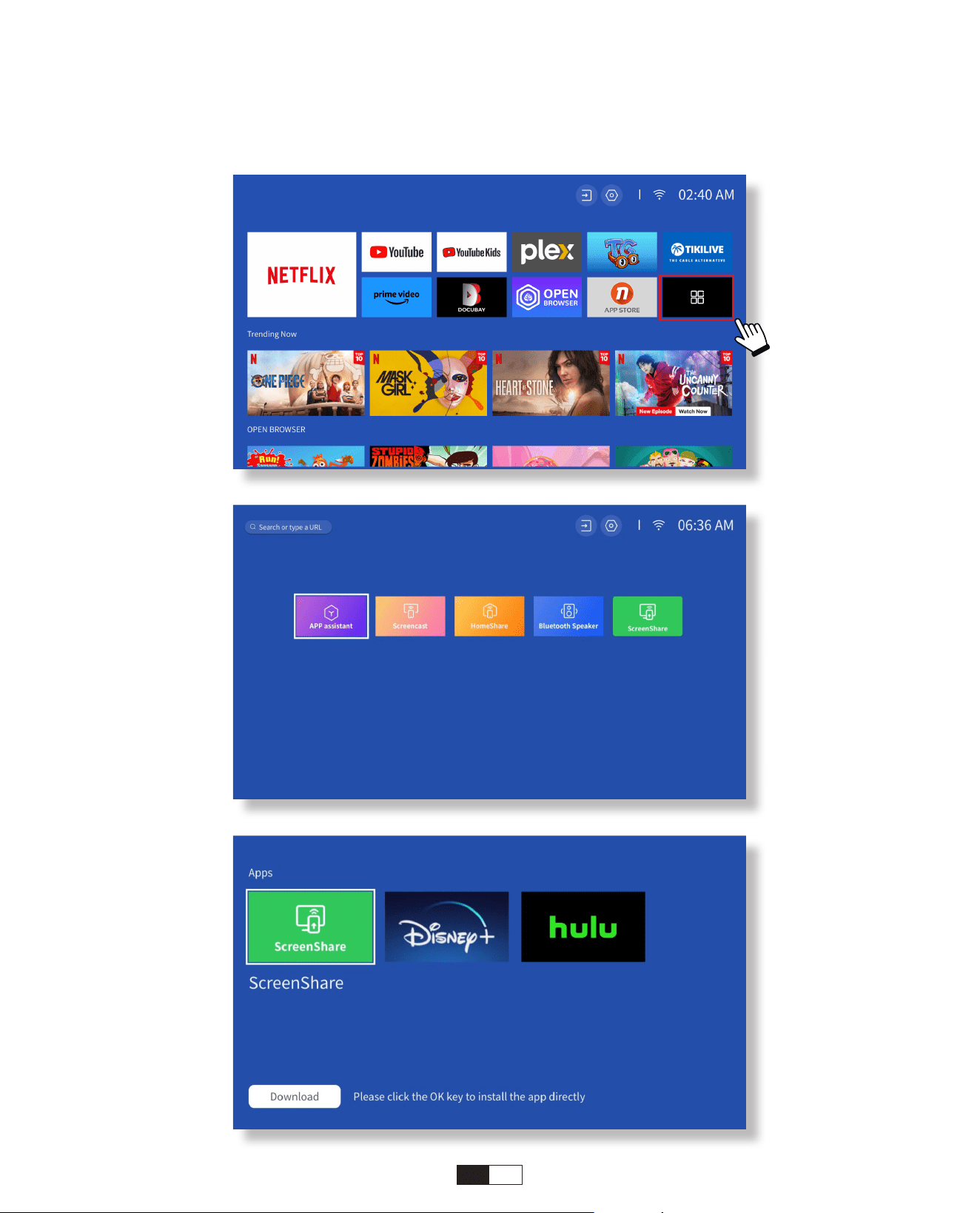
Step2:
Go to
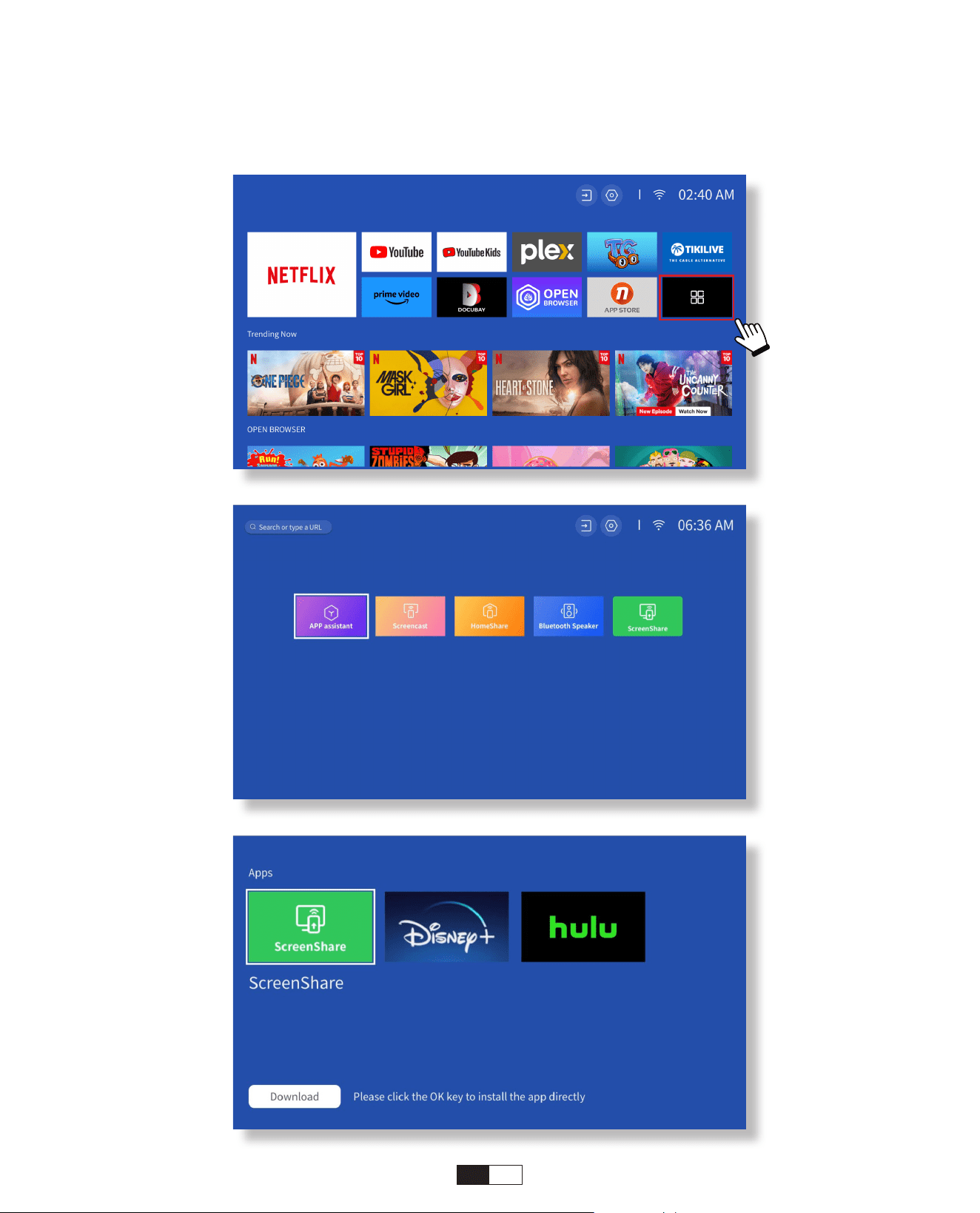
[Hompage] -> [My Apps] -> [App Assistant
]
and then select and download
ScreenShare
21
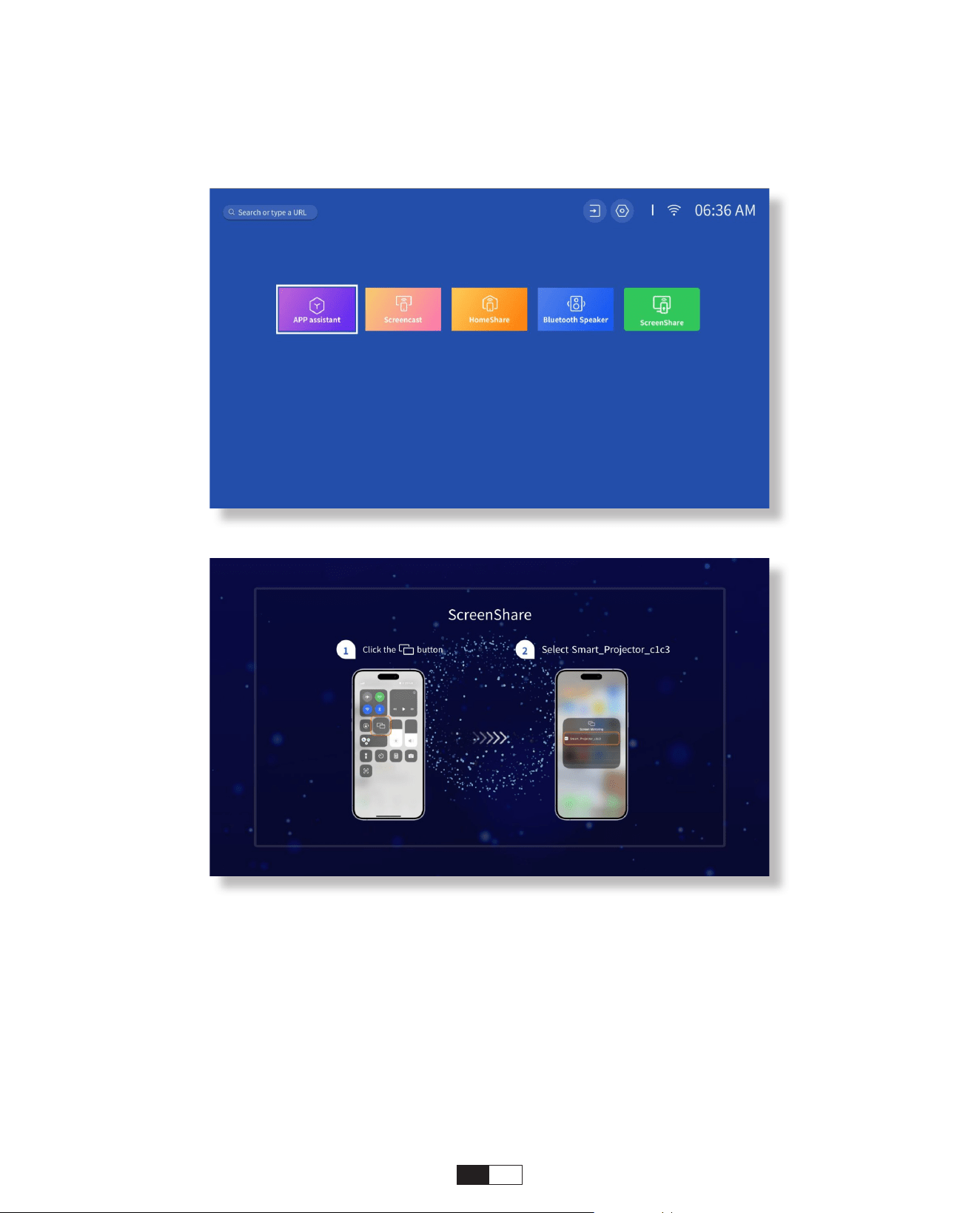
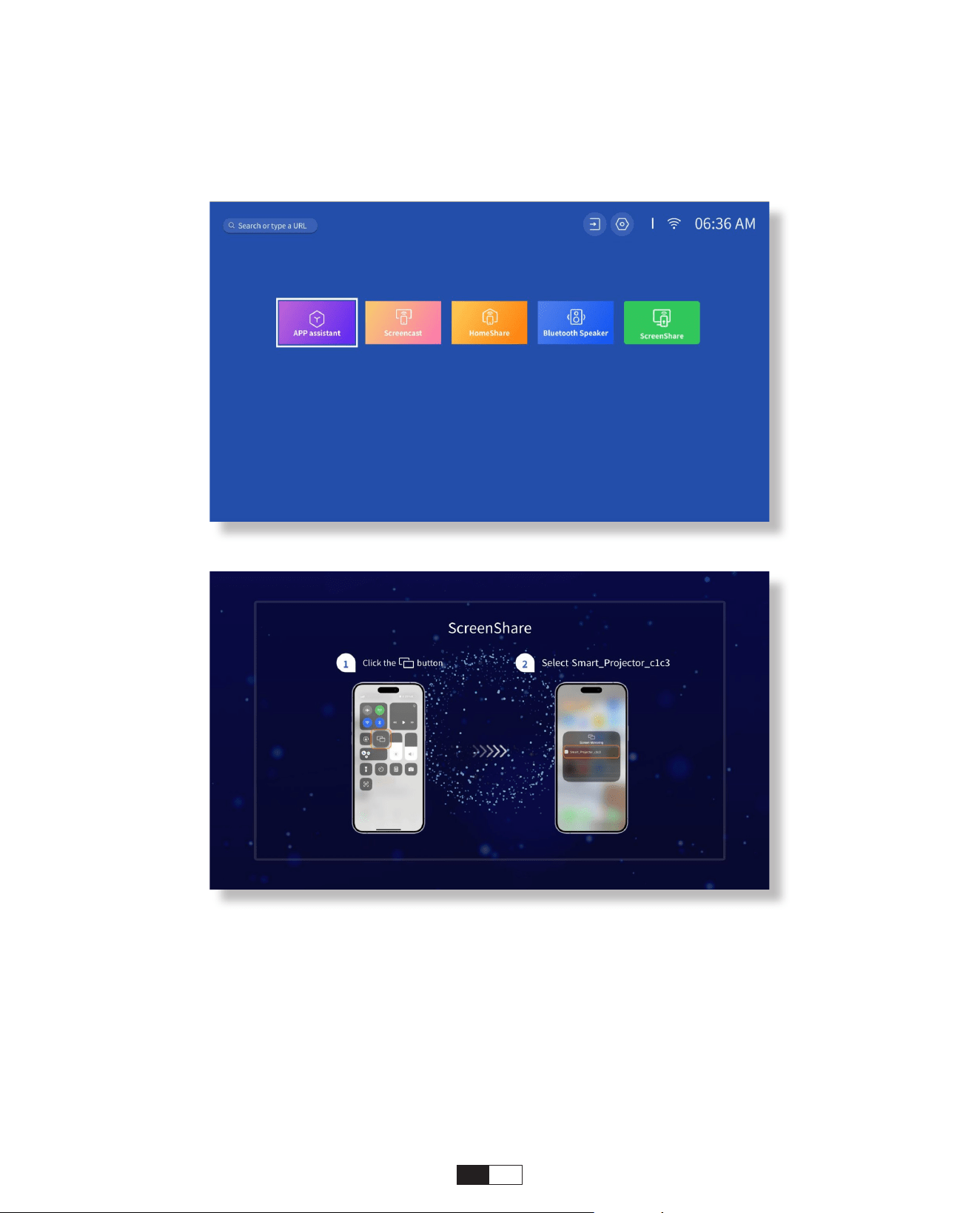
Step3:
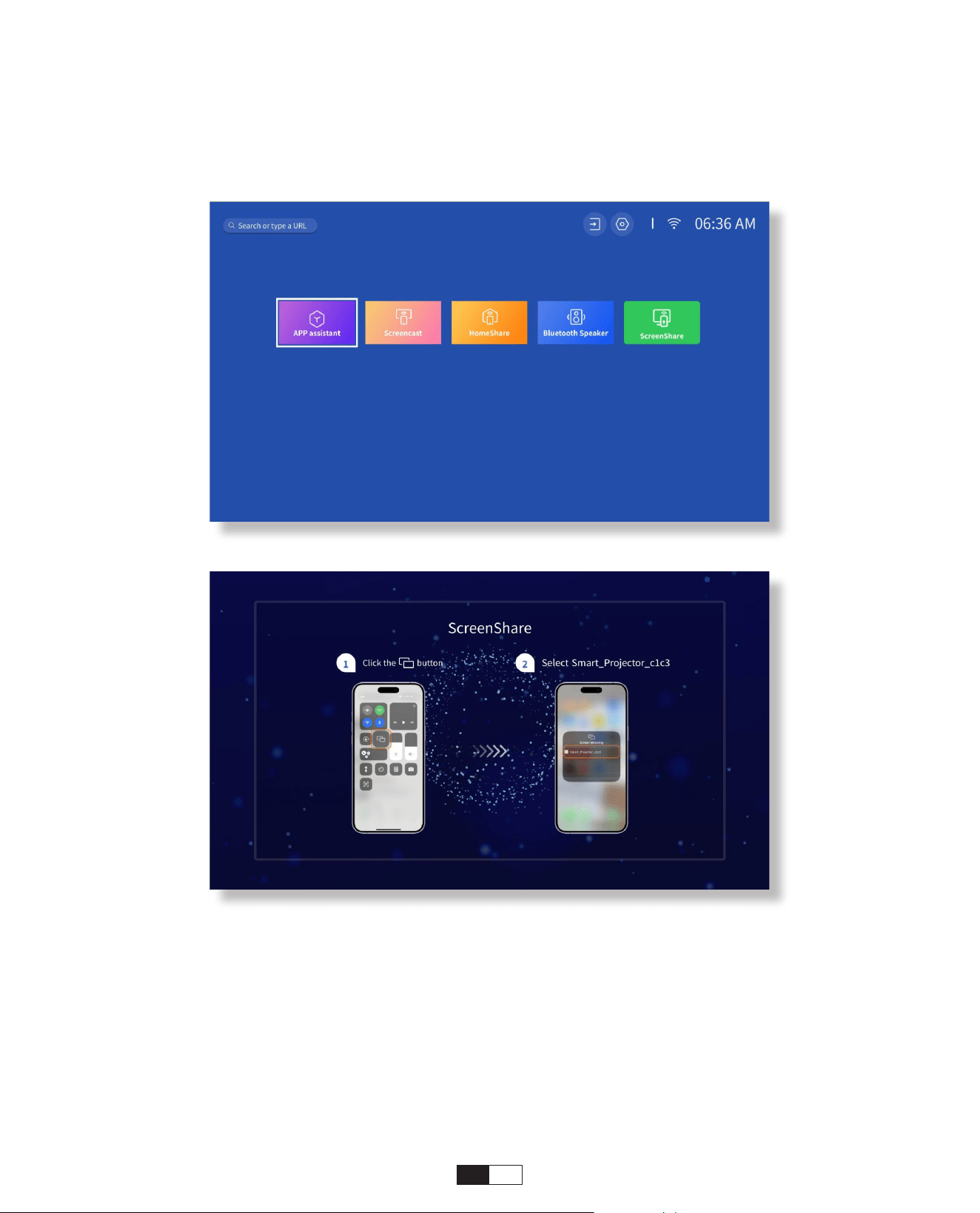
Go back to
[My Apps]
page -> Launch the
[ScreenShare]
App and remain on the
following page.
22
Step4:
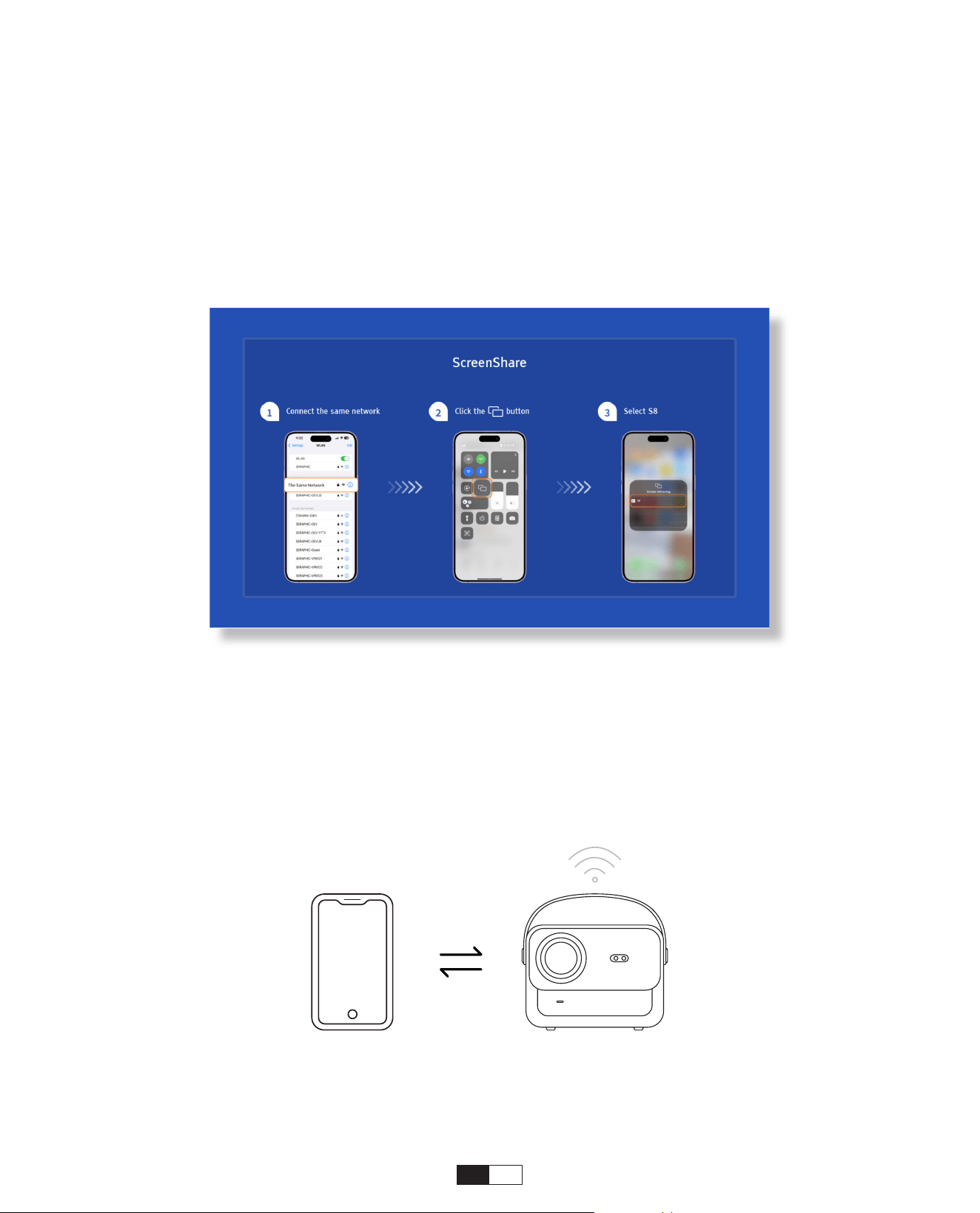
Go to the
Control Center
of your iOS device. Then tap
Screen Mirroring/Air Playing
to
search for the projector.
Step5:
Choose
[Smart_Projector_XXXX]
from the list, and once the connection is successful,
the content on your iOS device will be mirrored onto the projection screen or wall.
Step1:
Turn on the Wi-Fi on your iPhone/iPad and connect to projector hotspot: [Smart_
Projector_XXXX]
• iOS AP Mirroring
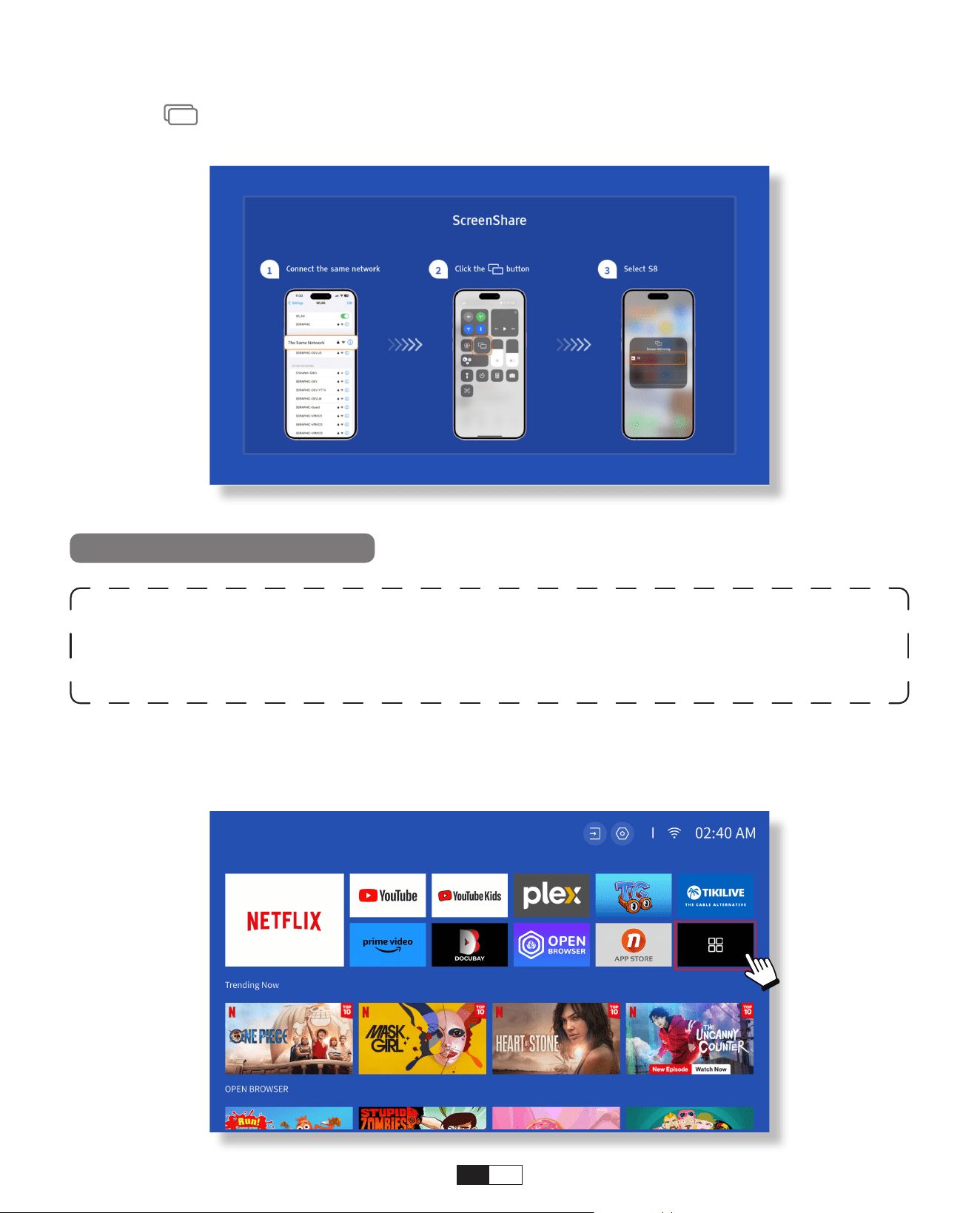
23
Step2:
Press the Screen Mirroring of iOS device and then choose
[Smart_Projector_XXXX]
Warning:
To activate this function, your android device must support Multi-
Screen/Wireless Display. The name of “Multi-Screen” may vary depending on
various brands of Android devices.
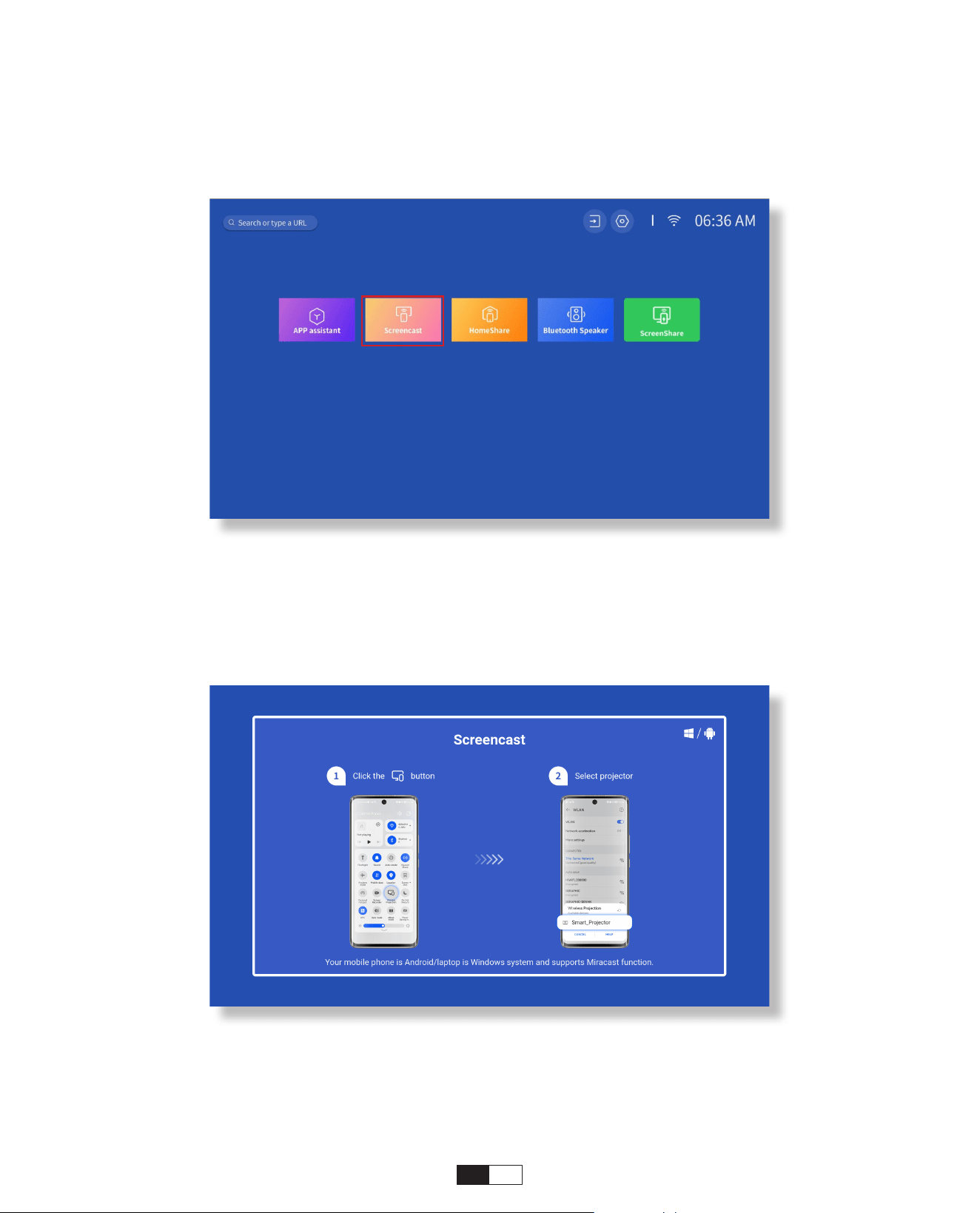
Step1: Please enable the Wi-Fi function on your Android phone (no need to connect to Wi-Fi).
Step2: Go to Hompage -> My Apps -> ScreenCast
Miracast (For Android Device)
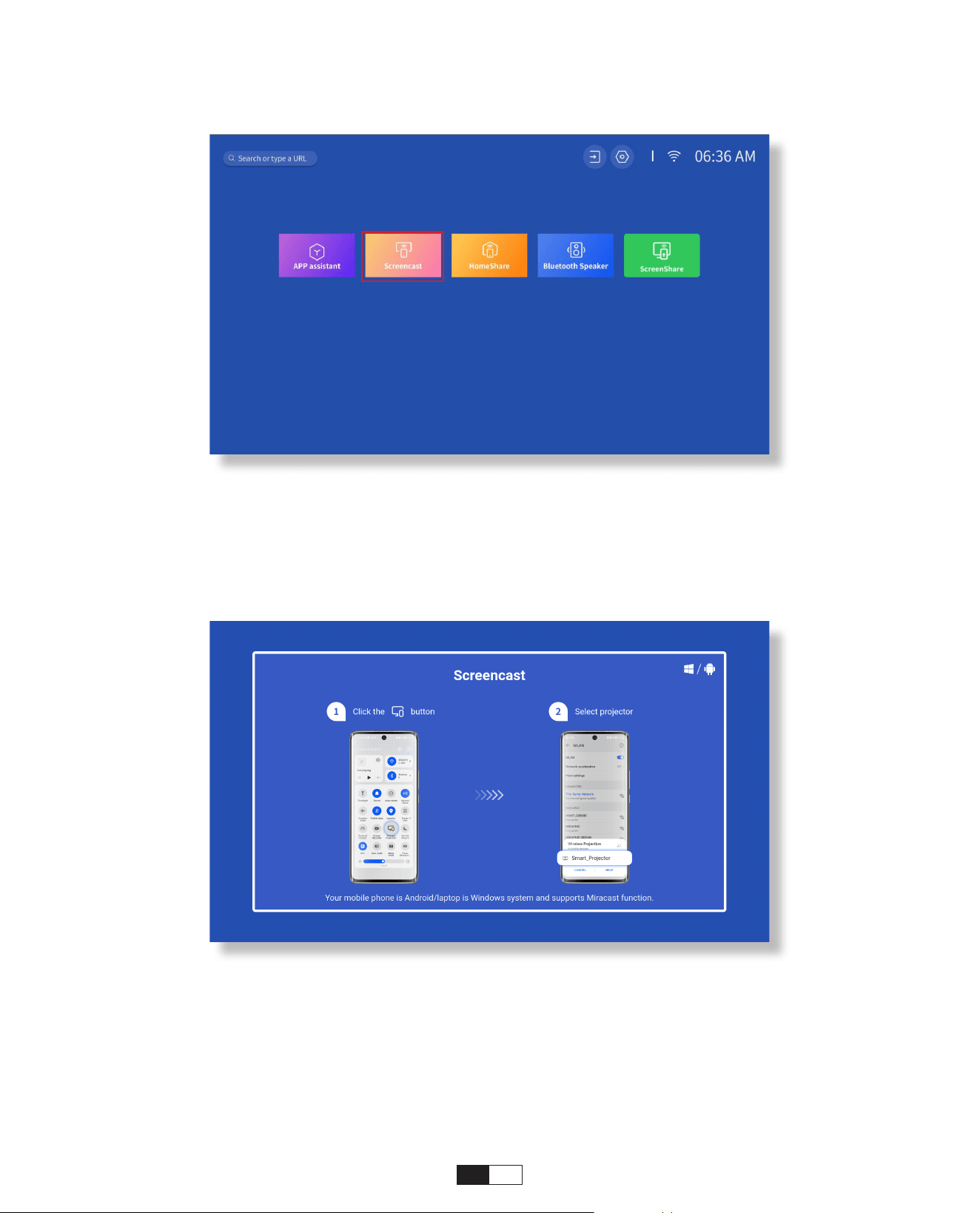
24
Step3: Activate the 'Multi-Screen/Wireless Display' feature on your Android device
Step4: Choose [Smart_Projector_XXXX] from the list, and once the connection is
successful, the content on your iOS device will be mirrored onto the projection screen or
wall.
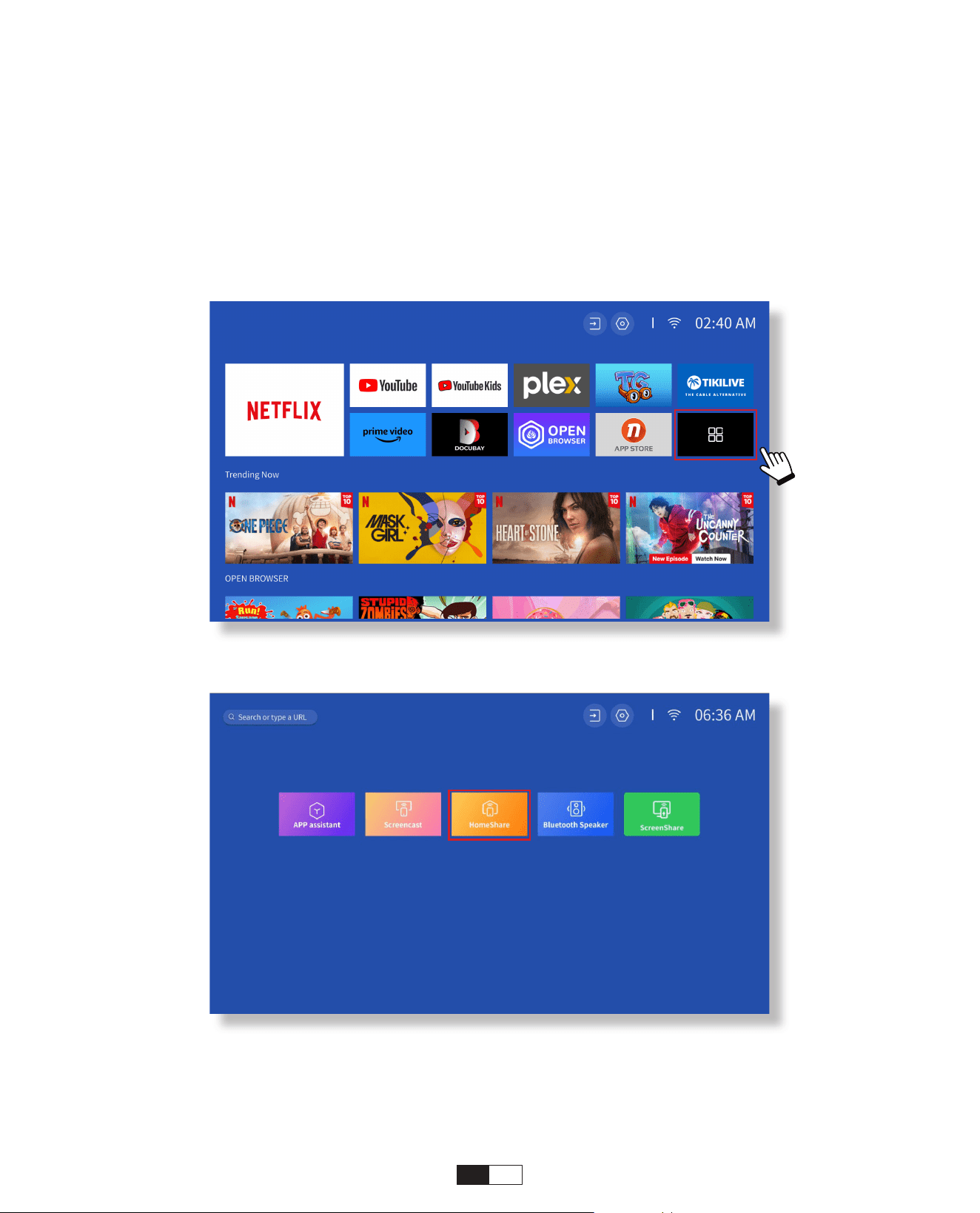
25
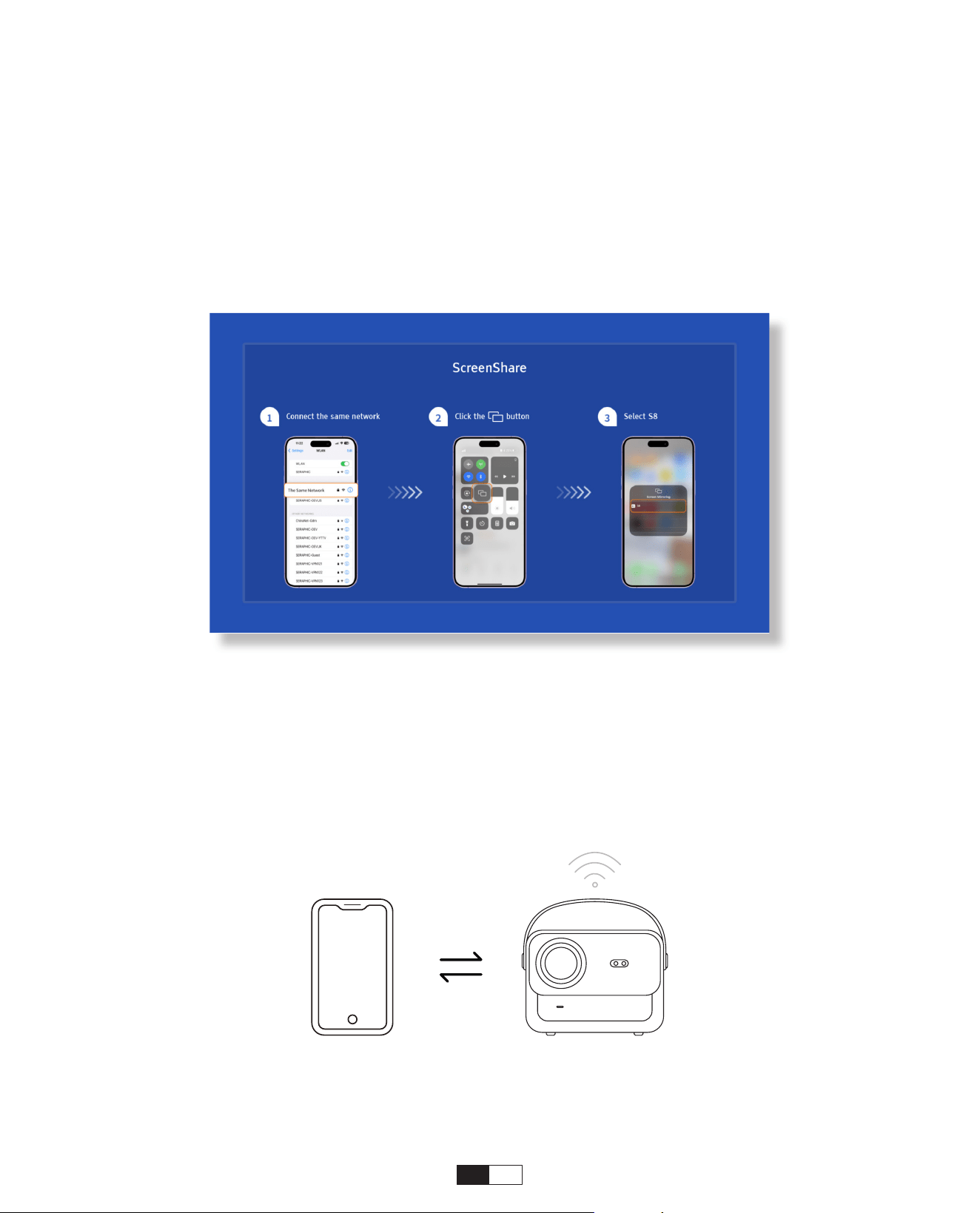
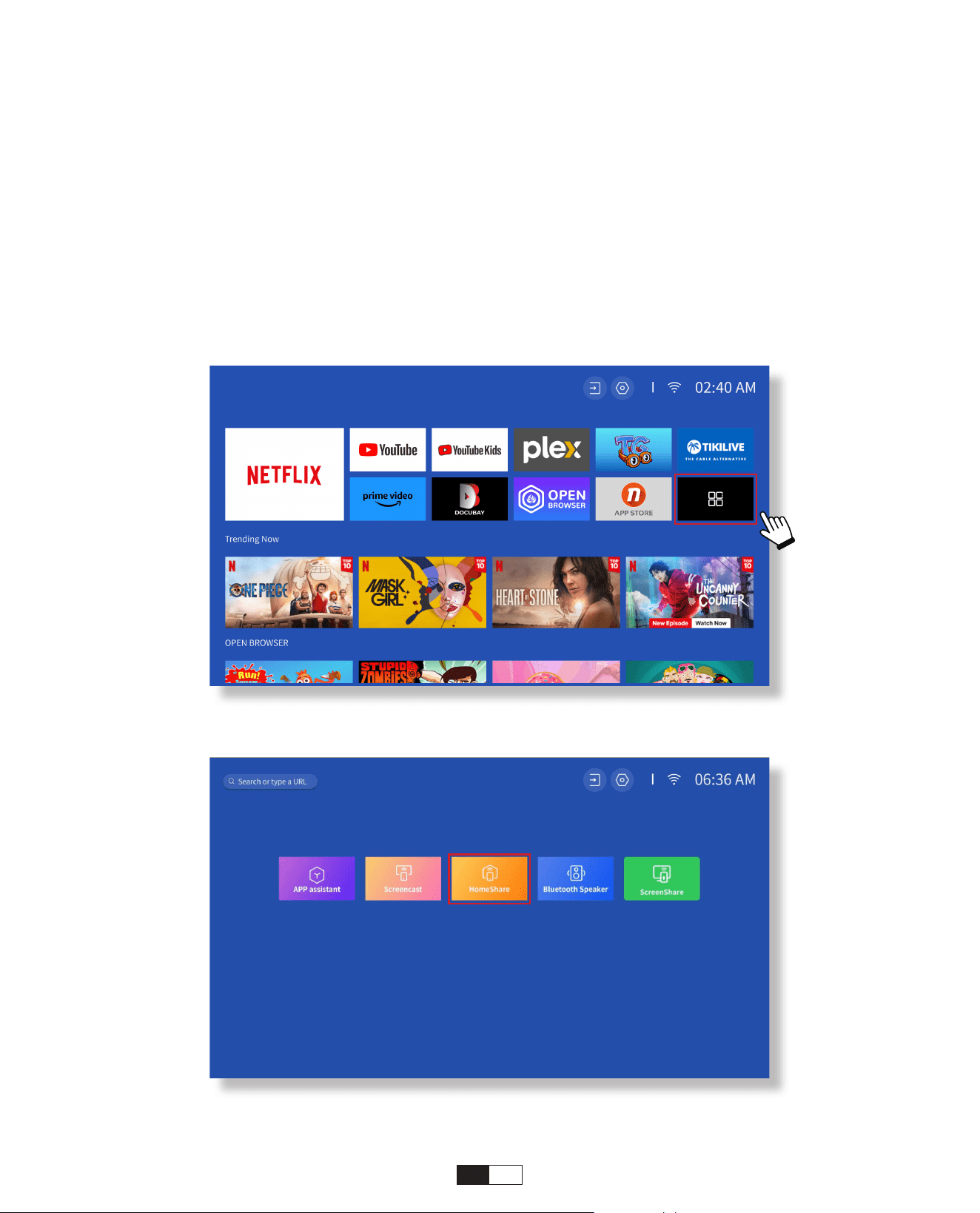
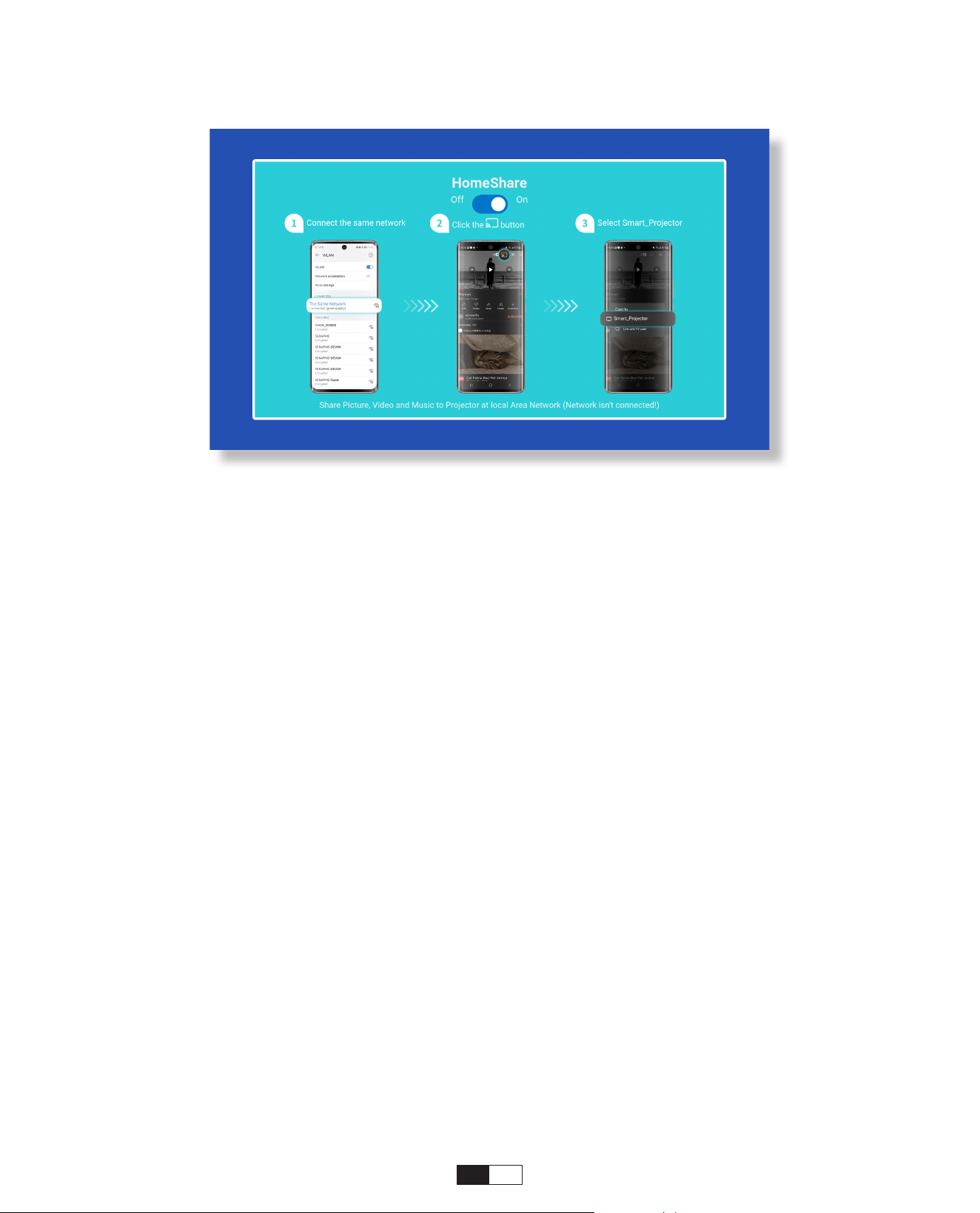
Step1:
Connect the projector and your mobile device to the same router's WiFi.
Step2:
Go to Homepage -> My Apps -> HomeShare and remain on the following page.
• DLNA
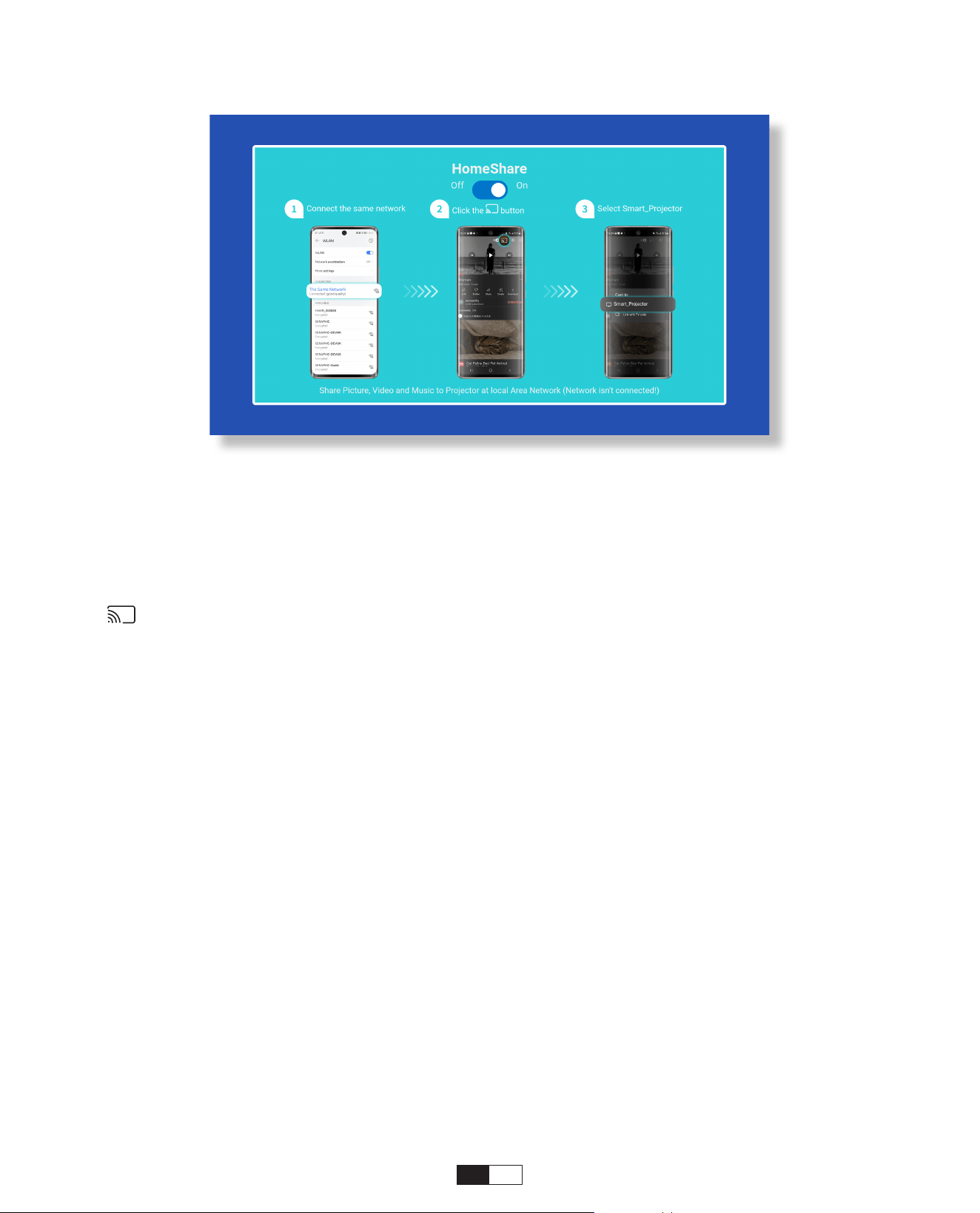
26
Step3:
Launch a video player App on your mobile device and select a video to play.
Step4:
Tap to search for the projector and select [Smart_Projector_XXXX] to connect. The
contents on your device will be cast to the wall/screen.
Note:
When you cast a video from your mobile device, the video will only be displayed on
the projected screen and you can still use your mobile device without interrupting the
video or showing any of your other content.
27
• Connect to an External Bluetooth Speaker
6. Bluetooth Setting
Step1:
Turn on your Bluetooth device and make it ready for a Bluetooth connection.
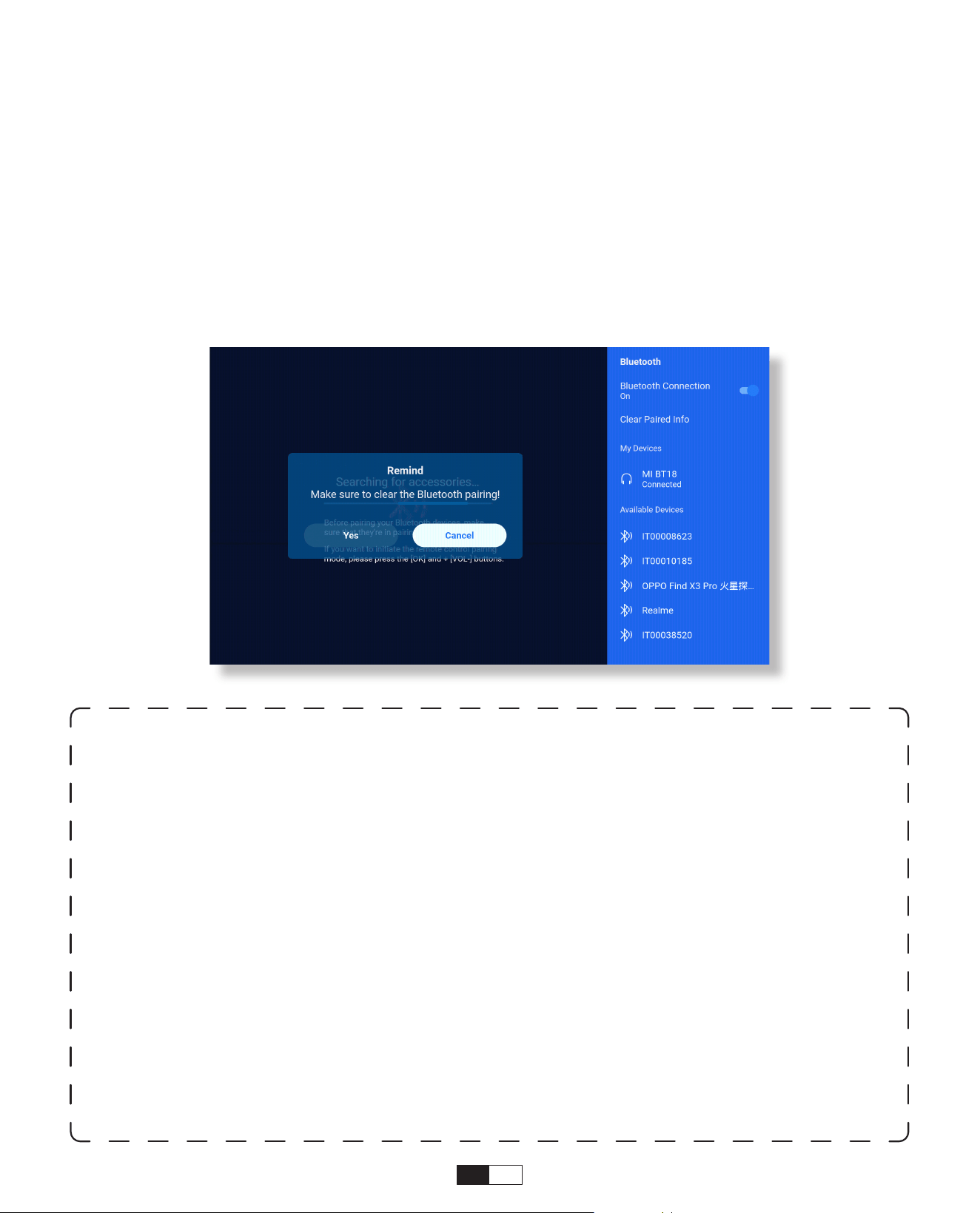
Step2:
Go to Homepage -> Setting -> Bluetooth to scan available Bluetooth devices, then
select your Bluetooth device and pair it with the projector:
IMPORTANT:
Compared with the wired connection to a speaker, a Bluetooth connection spends
more time processing digital audio data, converting said data to an audio signal,
and streaming the signal. There may be a delay or slight lag on audio due to signal
interference.
As a result, the sound on the speaker may not be in sync with the image on the
projector, especially when you are using wireless screen mirroring with WiFi and
Bluetooth connection at the same time.
If you are experiencing this situation, please check the following options to improve
audio quality:
* Instead of using wireless screen mirroring and Bluetooth connection at the same
time, we recommend using an HDMl connection via the provided HDMl cable and
Bluetooth connection simultaneously. If you still want to use wireless screen mirroring,
it is recommended to output the audio via a wired speaker
* Move your Bluetooth device closer to the projector.
*Keep the projector and your Bluetooth speaker away from other Bluetooth devices to
avoid interference.
28
• Connect to Device as Bluetooth Speaker
Step1:
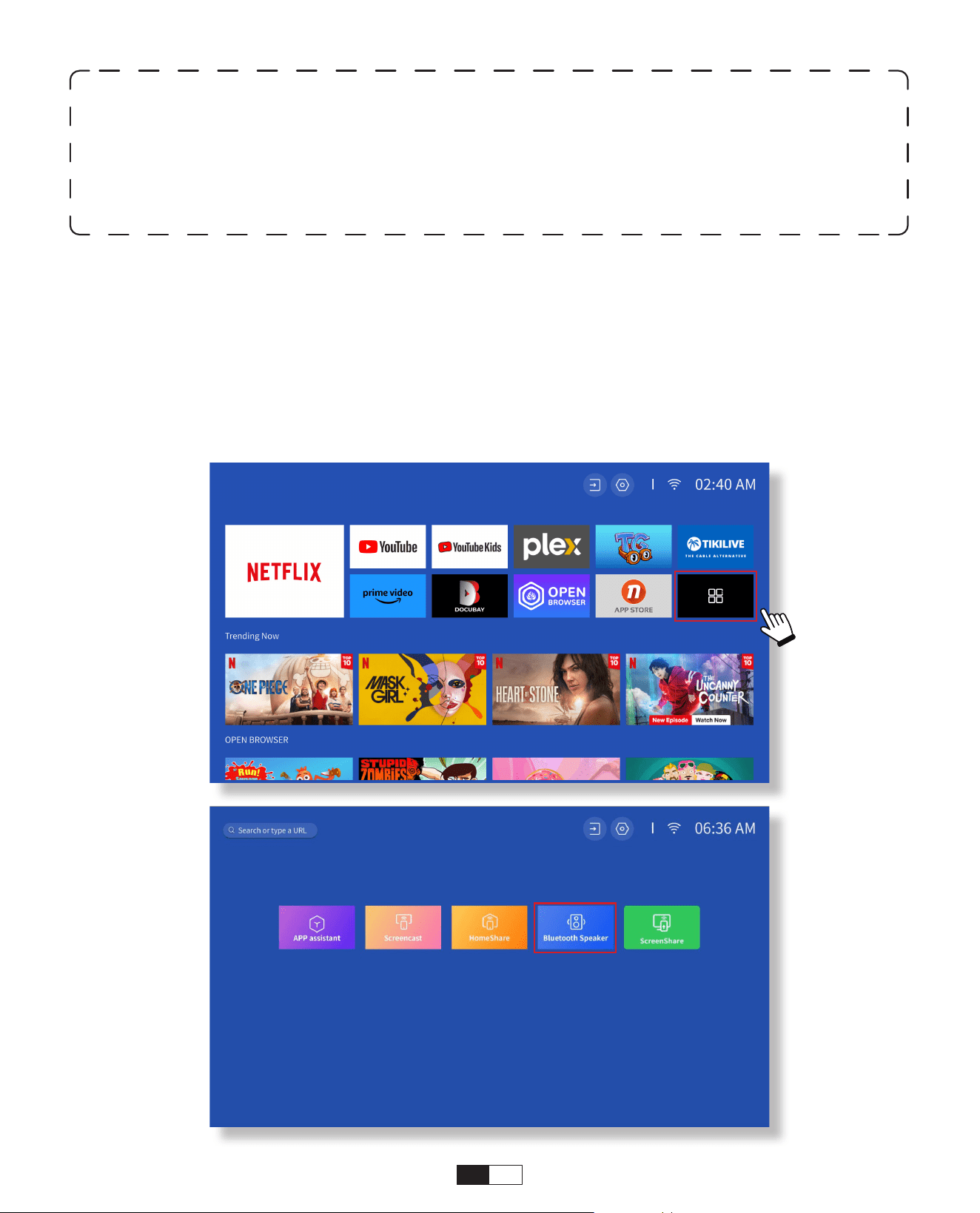
Go to Homepage -> My Apps -> Bluetooth Speaker and remain on the following page.
Step2:
Enable the Bluetooth functionality on your device, scan and connect the projector.
* You may be able to adjust the latency(Lip Sync)on your device which is playing the
video. The way to adjust the latency varies with different devices; please consult with
the device manufacturer.
Due to the compatibility issue between Bluetooth speakers/headphones and the
projector, few Bluetooth devices may not be paired with the projector via the Bluetooth
connection. Please contact us at
aftersales@yabertech.com
for further assistance
29
• Setup
7. Other Setting
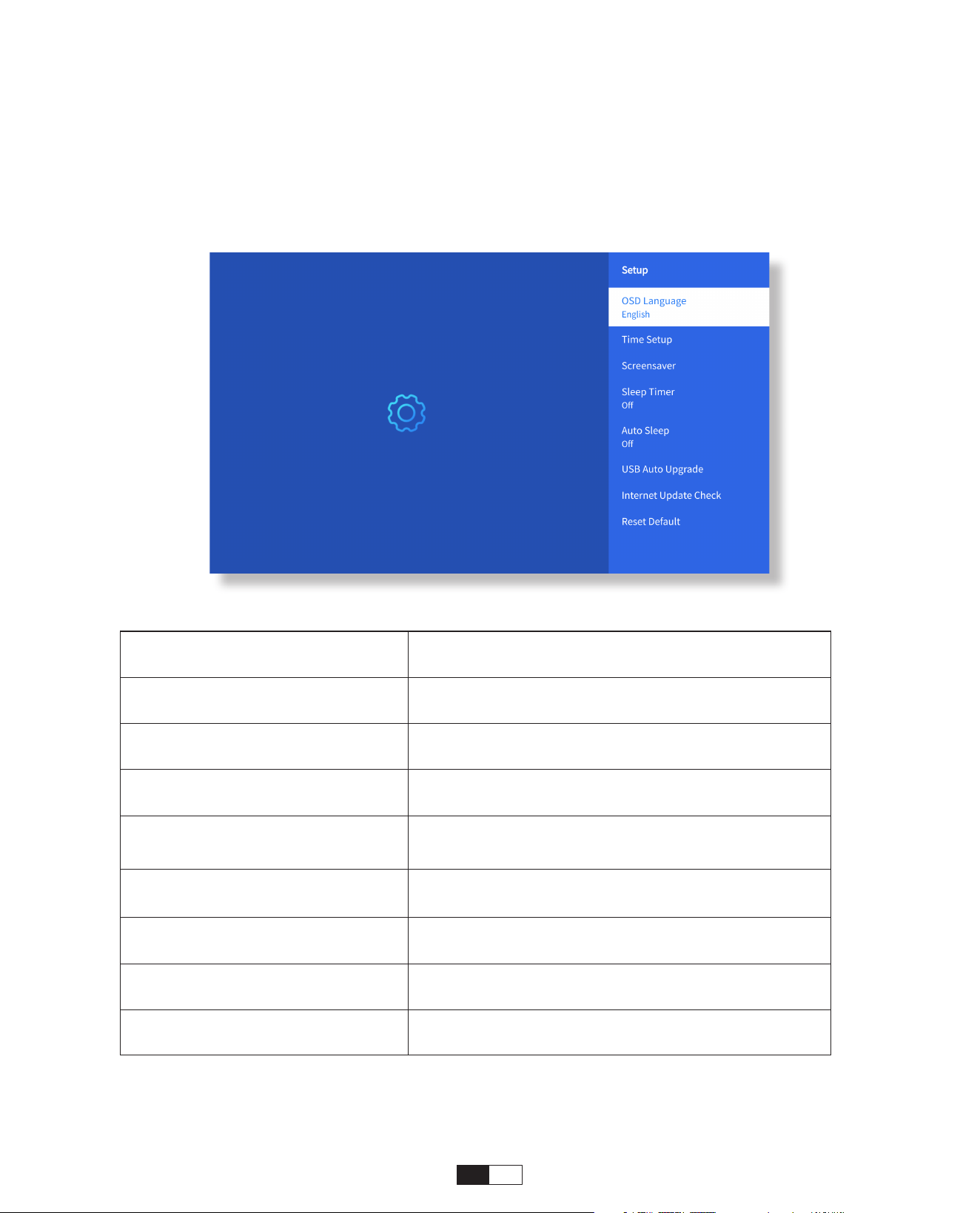
Go to home page -> Select
[ Setting ]
-> Select the
[ Setup ]
. Use the arrow keys on
the remote control to switch the menu, press the “OK” to confirm and set.
Menu Content
OSD Language English/France/Italian/Japanese etc
Time Setup Set Local Time
Screensaver Turn on/off screen saver
Sleep Timer
On/Off: Set the sleep time from 10 - 120
minutes
Auto Sleep
On/Off: Set the time from 30minutes -
8Hours
USB Auto Upgrade Local Update
Internet Update Check Check Internet Environment
Reset Default Restore Factory Default
30
• Picture Mode Menu
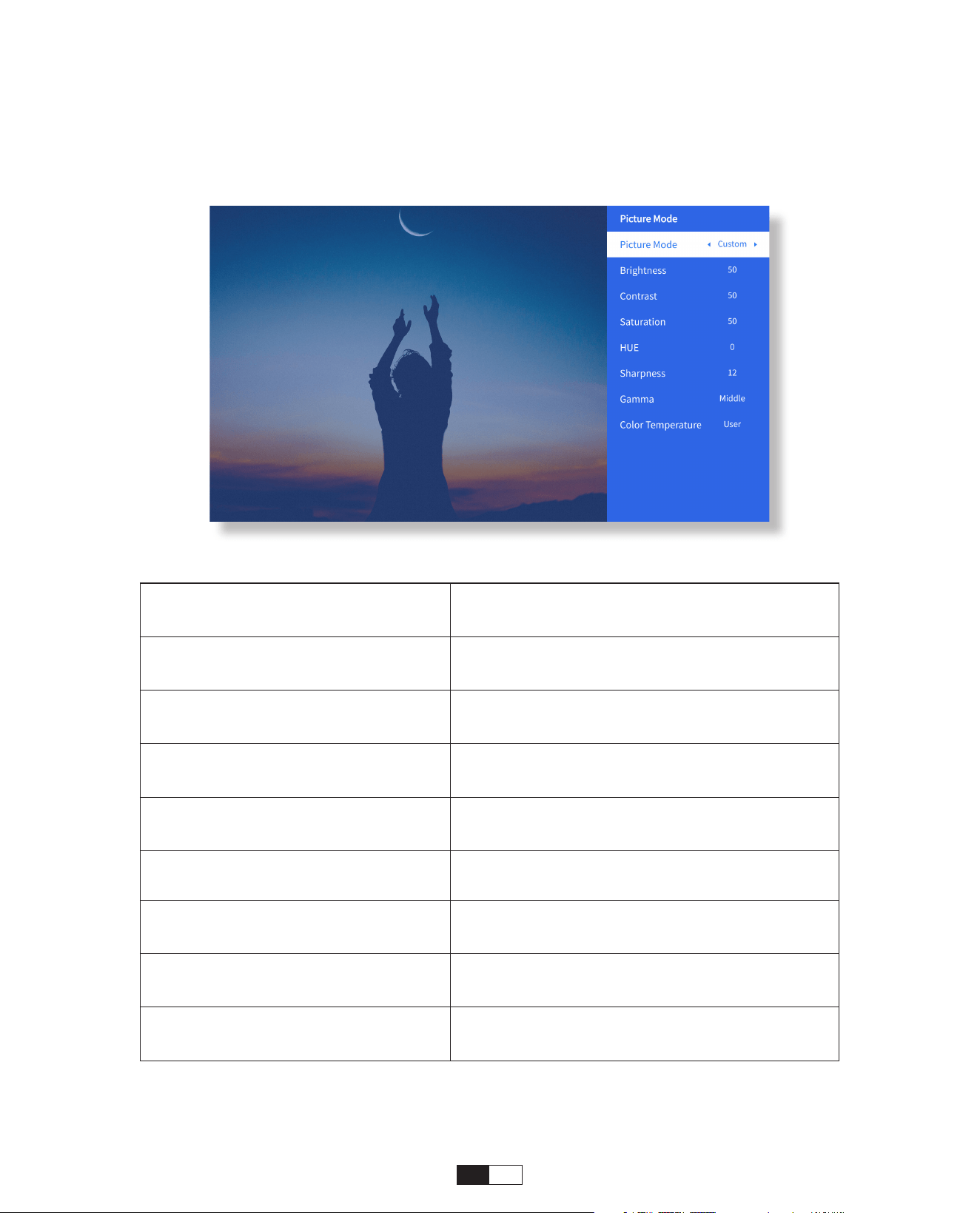
Menu Content
Picture Mode
Standard/Cinema/Sport/Vivid/Hi-
Bright/Custom
Brightness Set the Screen Brightness Value
Contrast Set the Screen Contrast Value
Saturation Set the Screen Saturation Color
Hue Set the Screen Hue Color
Sharpness Set the Screen Sharpness Value
Gamma Bright/Dark/Middle
Color Temperature Normal/Cool/Warm/Standard
Go to home page -> Select [ Setting ] -> Select the [ Picture Mode ]. Use the arrow keys
on the remote control to switch the menu, press the “OK” to confirm and set.
31
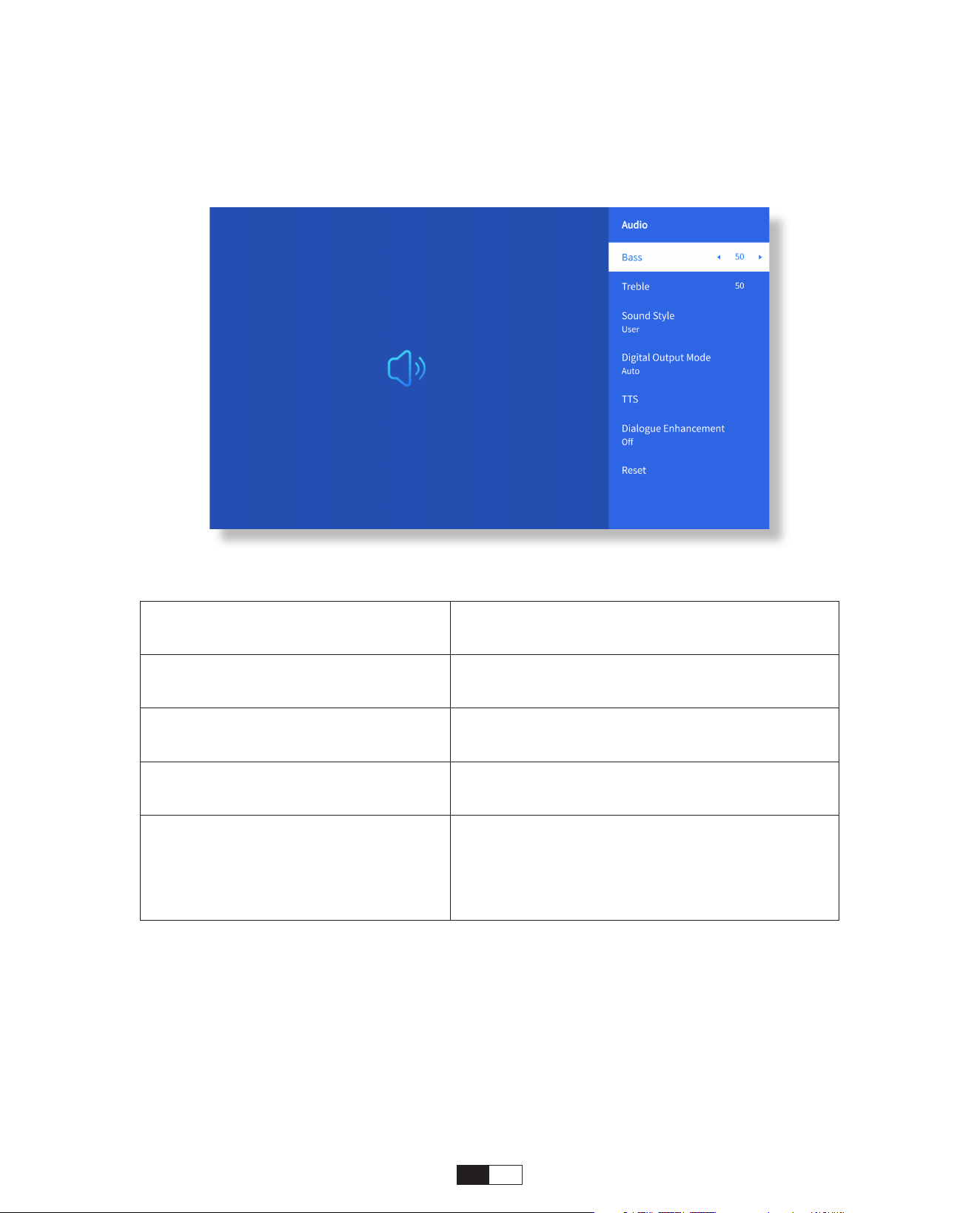
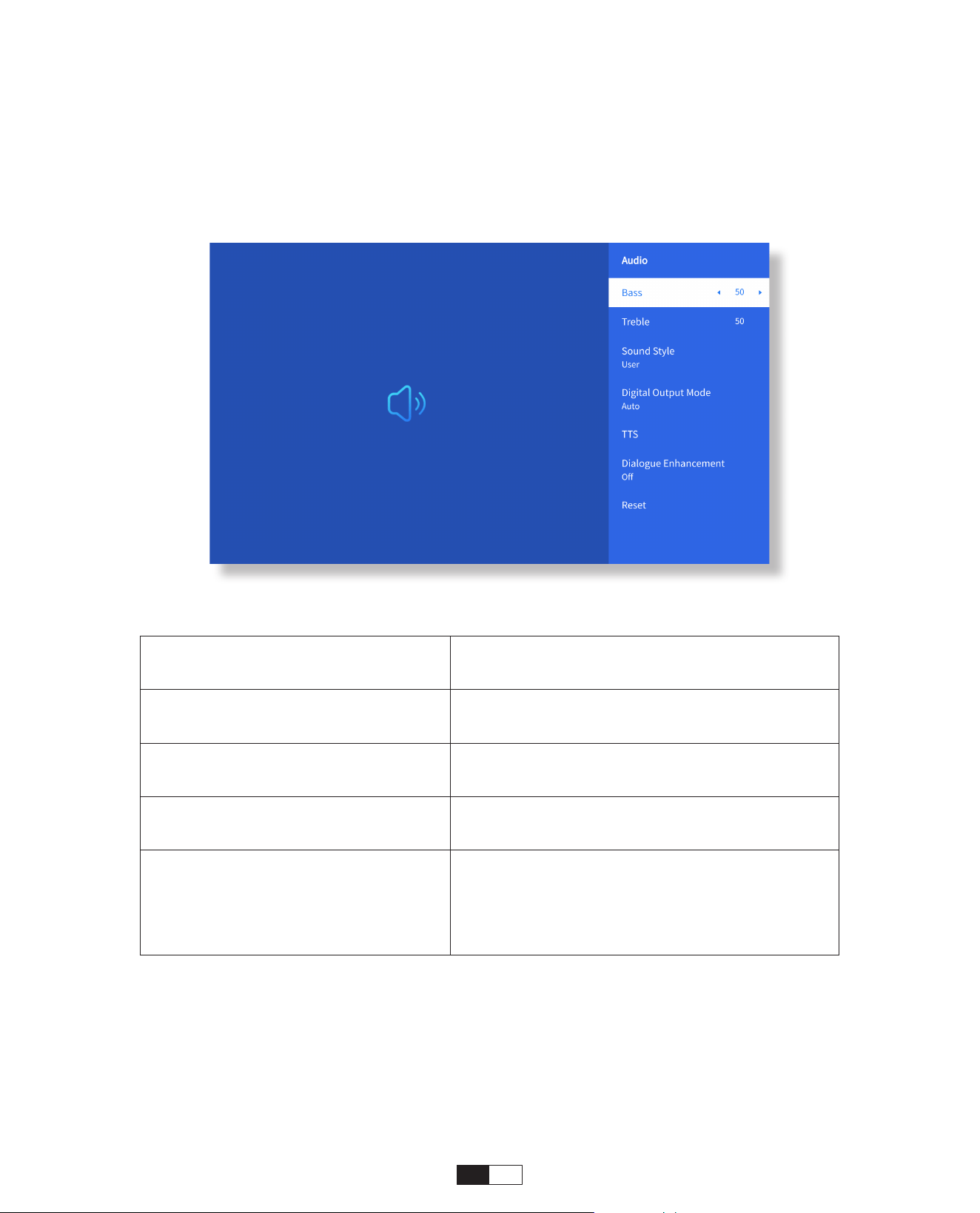
• Audio Setting
Go to home page -> Select [
Setting
] -> Select the [
Audio
]. Use the arrow keys on the
remote control to switch the menu, press the “OK” to confirm and set.
Menu Content
Bass/Treble Set Preferred Values
Sound Style
User/Standard/Movie/Music/Sports/
Vivid/News
Digital Output Mode
Auto/PCM/Dolby Audio-Dolby Digital/
Dolby Audio-Dolby Digital Plus
Dialogue Enhancement
On/Off: Conversation enhancement
function, voice, broadcast function for
special people
Low/Medium/High
32
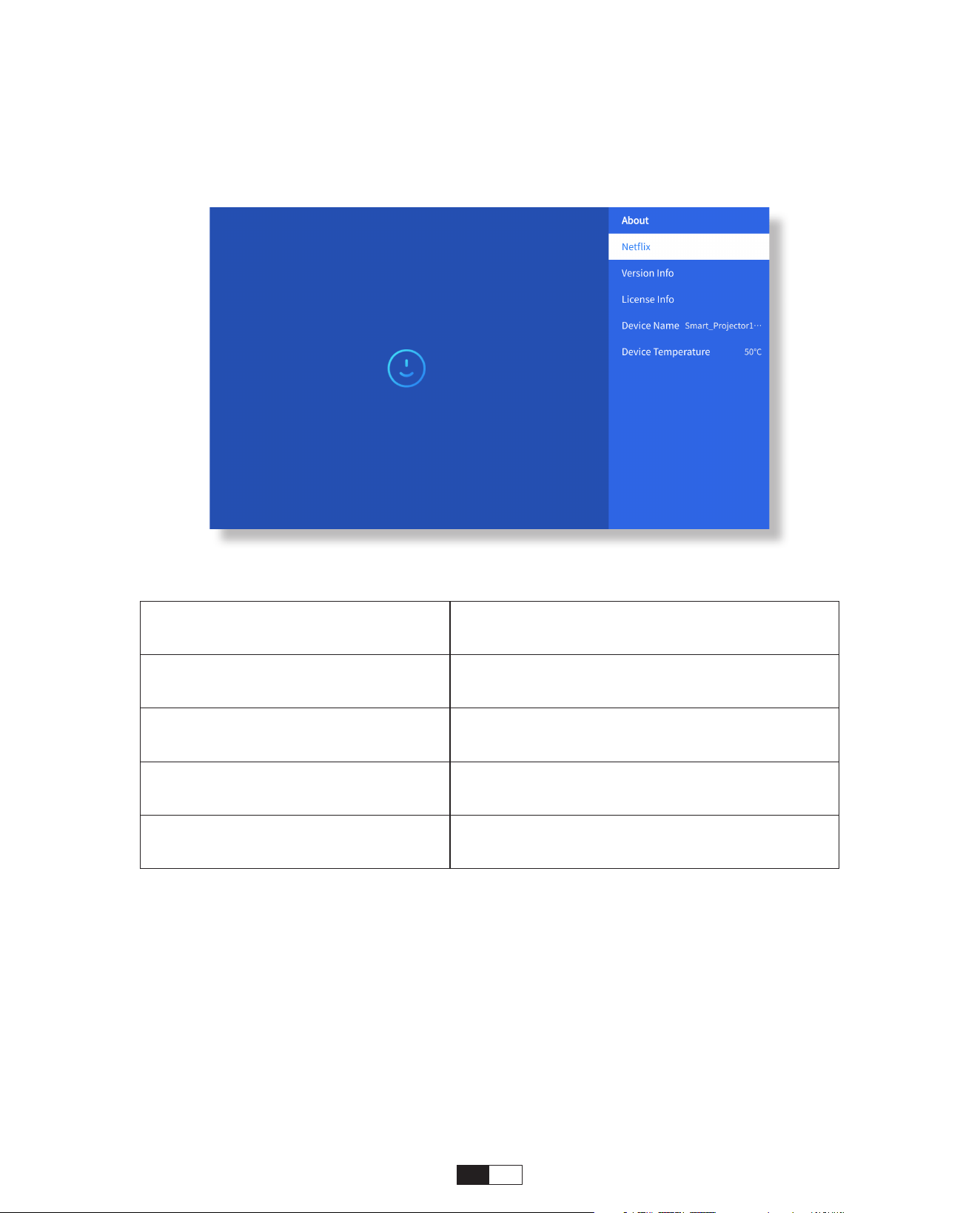
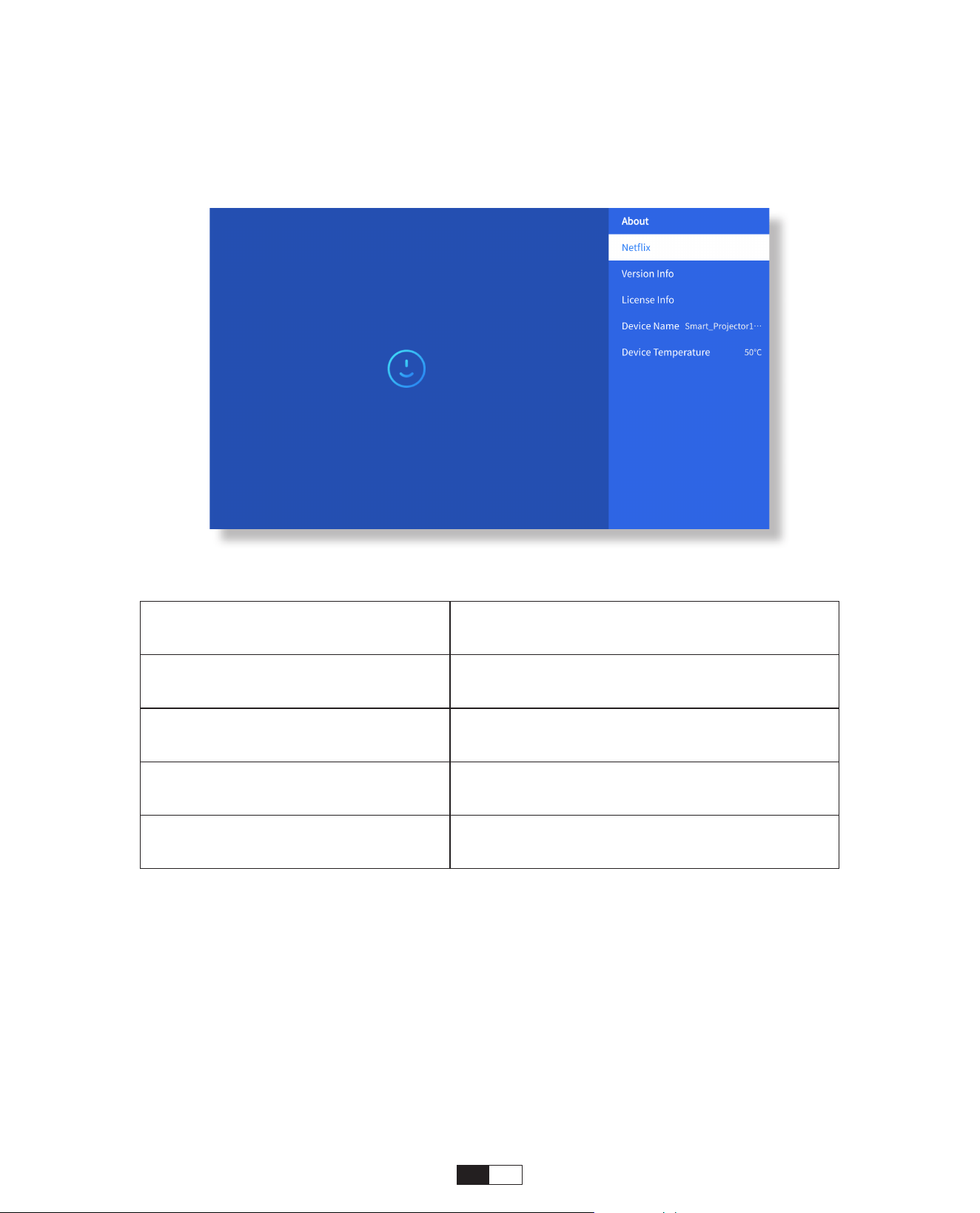
• About
Go to home page -> Select [
Setting
] -> Select the [
About
]. Use the arrow keys on the
remote control to switch the menu, press the “OK” to confirm and set.
Menu Content
Netfix Netfix Offcially-Licensed
Version/License Info
View the Latest Version/License
Information
Device Name Projector Model Name
Device Temperature 50°C
EN 33
Select the USB signal source, the machine will detect them automatically.
Step1
: Select the required category
“photos” “music” or “video”
in the main interface,
and press the
“OK”
key on the remote control to enter the corresponding category.
Step2
: Choose the file you want to play, and press the key “OK” to play or pause the file.
(You cannot enter the required category without connecting a USB disk.)
8. Signal Lines Connection
①
USB Multimedia Connecting
②
Connecting with PC
Step1:
Connect to the computer and U 12 projector with the HDMI cable (Included).
Step2:
Select the HDMI source to project on the projector;
Step3:
On your laptop, hold down the key “Win+P”board keys to change your display mode.
Note:
For the “Office Suite” option, PPT/Excel/Word/TXT files cannot be played or
presented normally.
34
Step1: Use a
Type-C to HDMI adapter
to connect your MacBook, or a Mini
Display to
HDMI adapter
to connect with your MacBook Air.
(Adapter NOT INCLUDED)
Step2: Choose the media signal channel : ”HDMI”
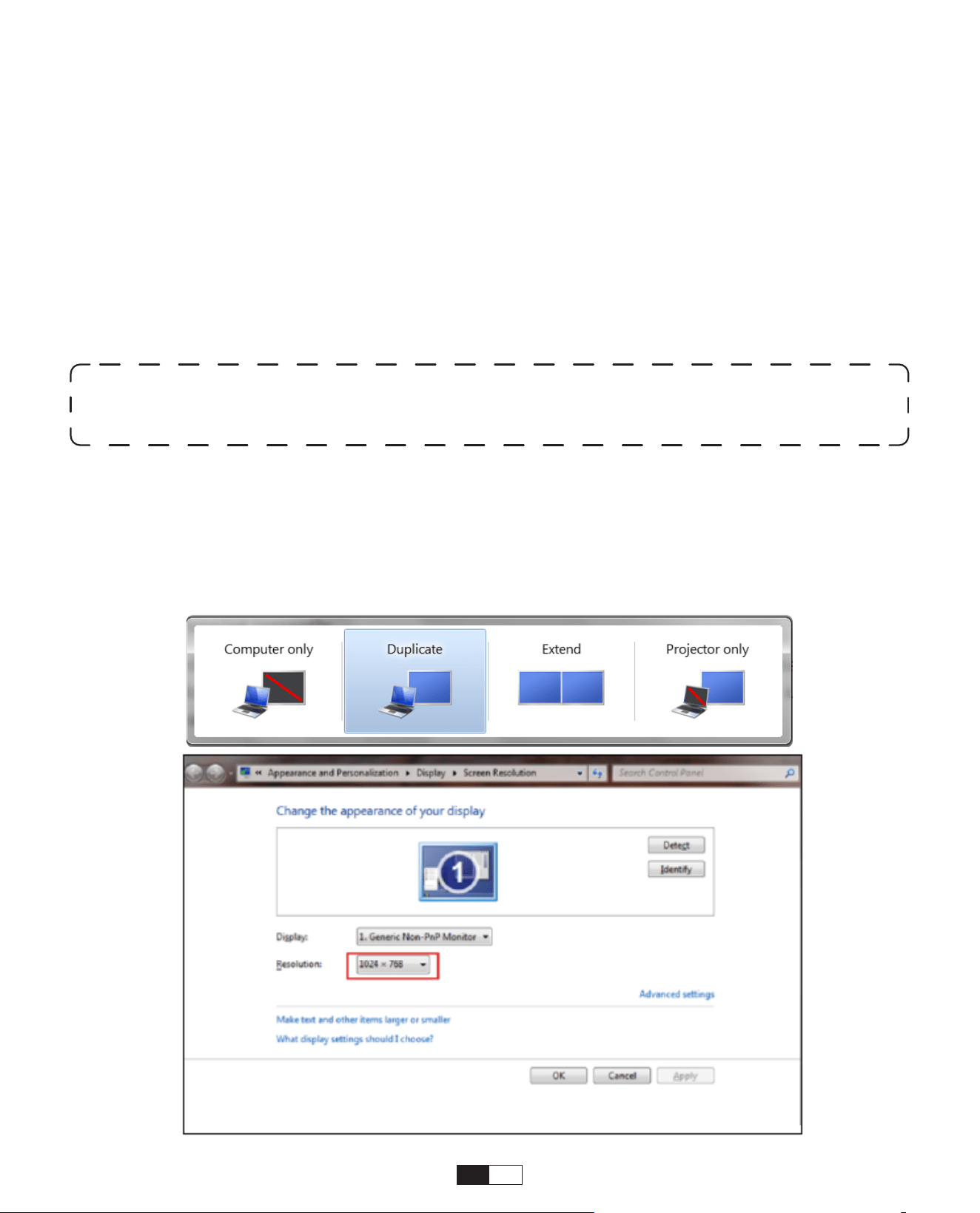
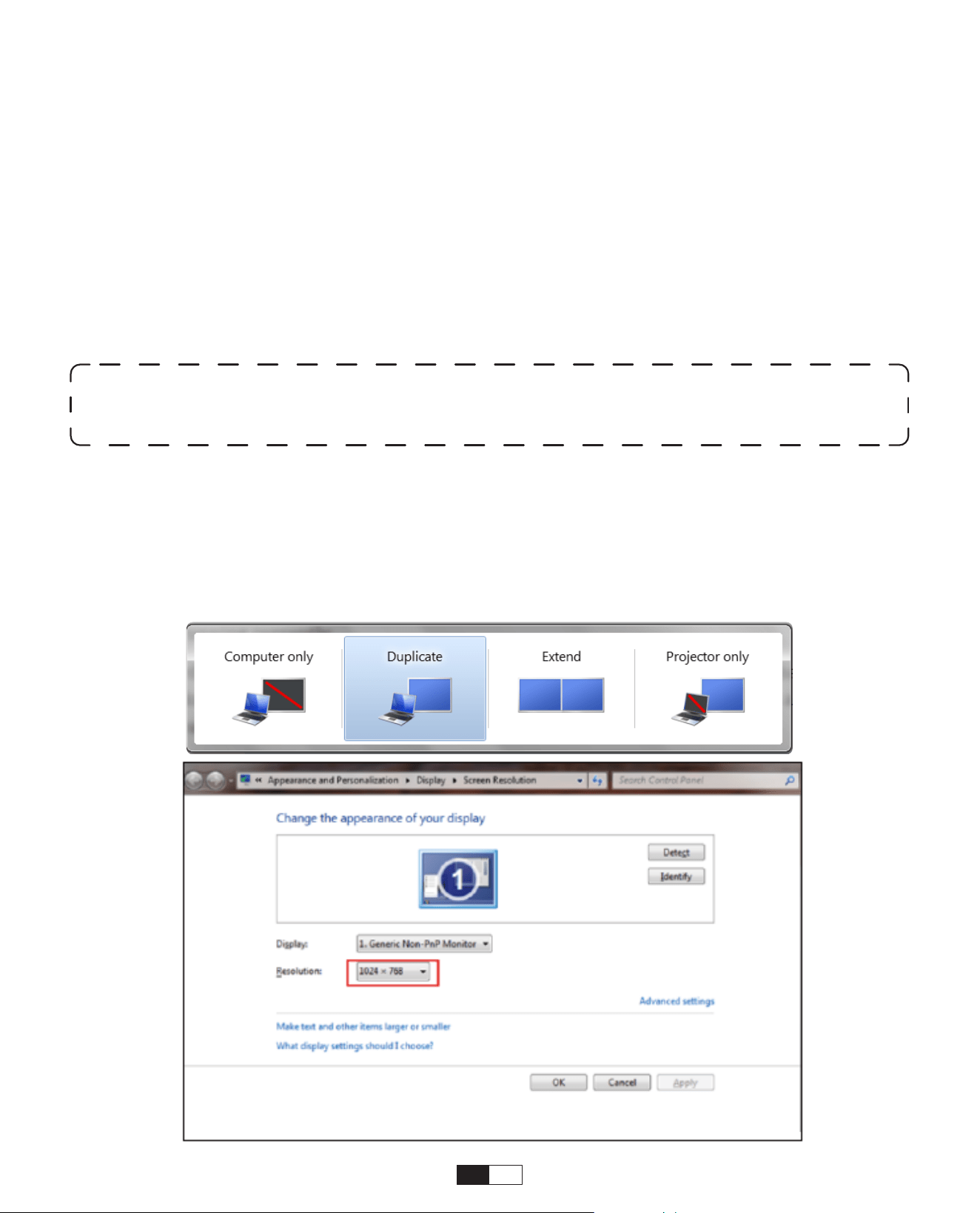
Computer only:
it is the default option – only displays on the main monitor.
Duplicate:
make all the monitors display the same thing duplicating the desktop on
each monitor.
Extend:
make all your monitors act like one big monitor extending the desktop across
all of them.
Projector only:
display only on the secondary monitor like a projector.
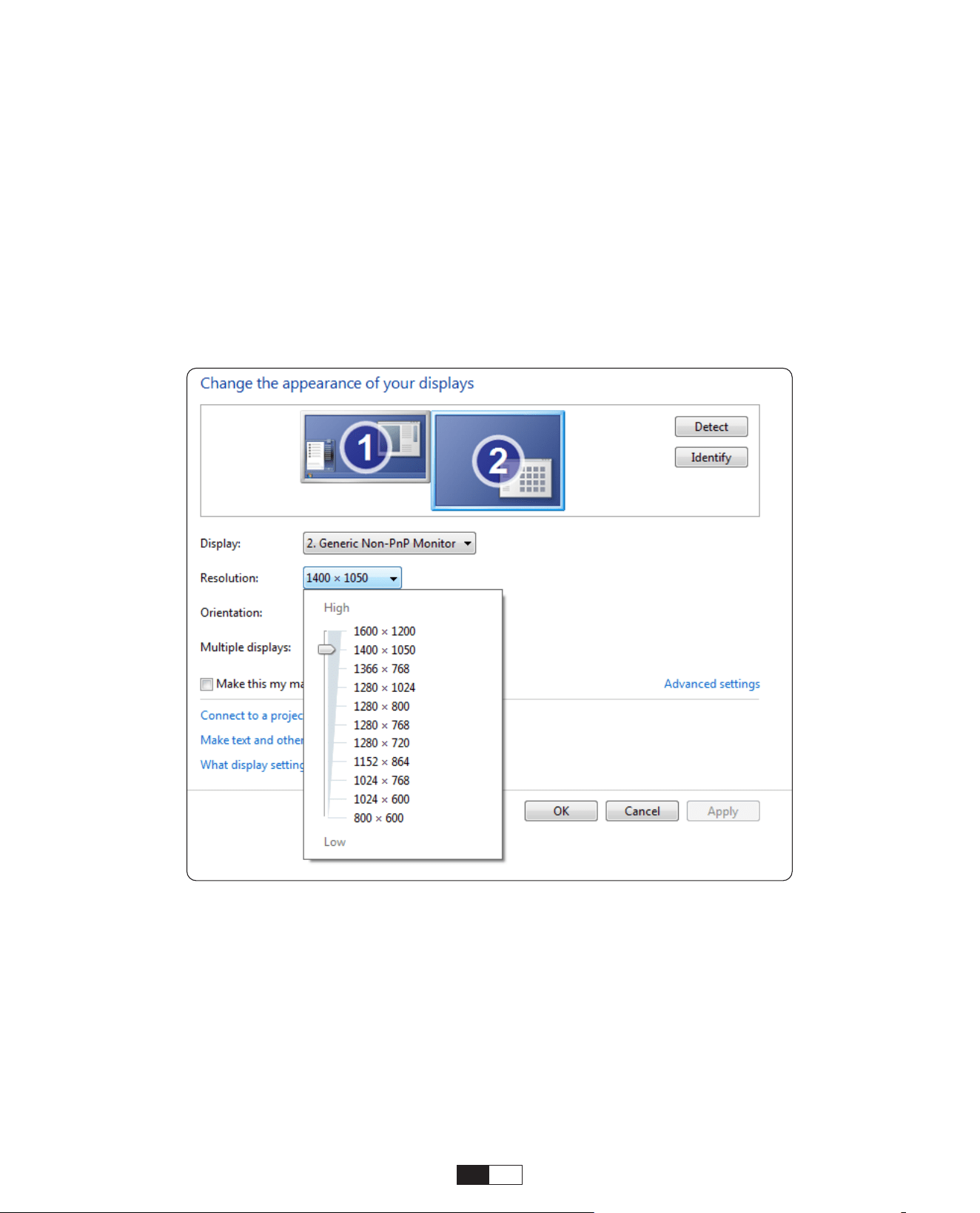
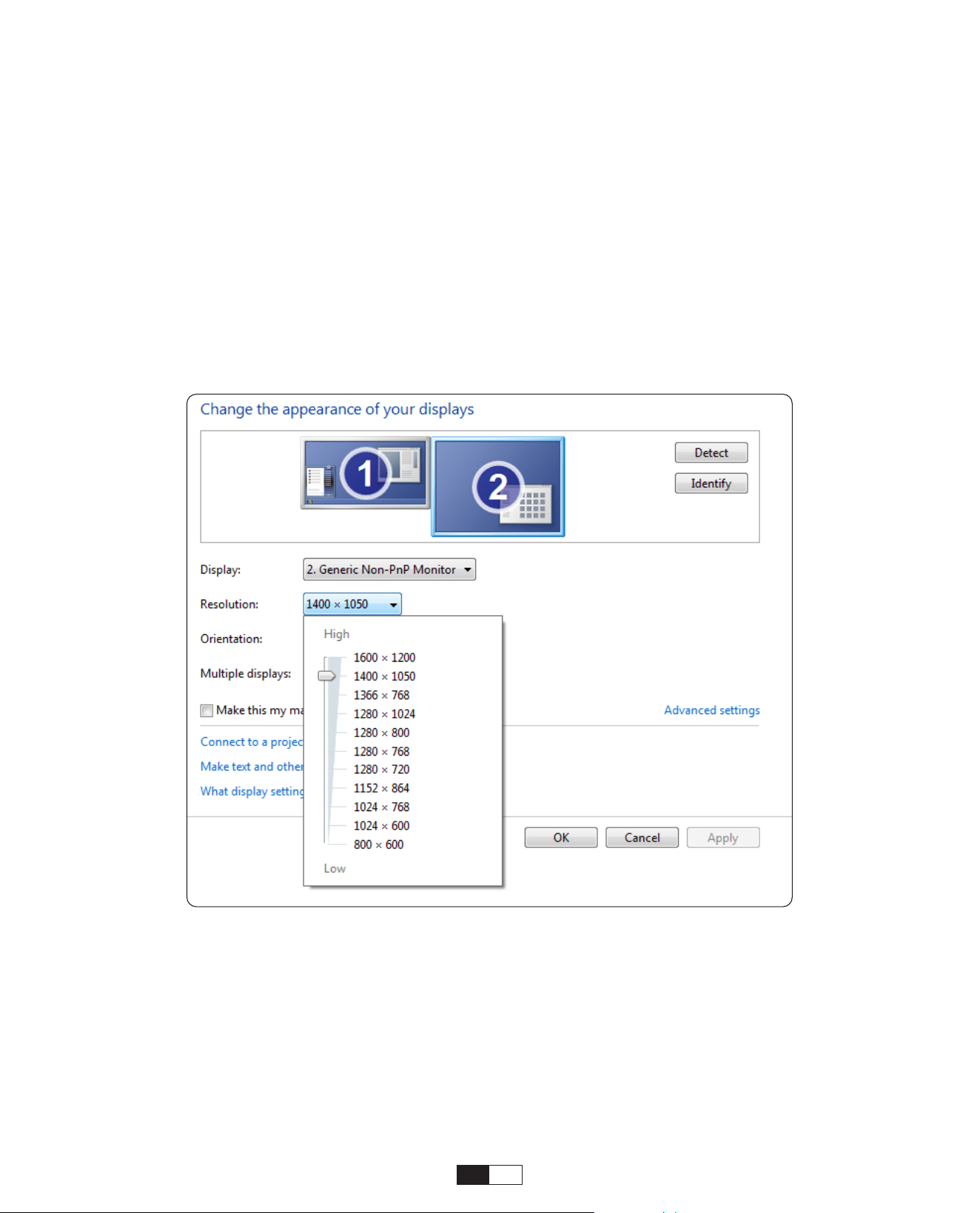
To change the screen resolution in Projector Only mode, follow these steps:
Step:
Start -> Control Panel -> Appearance and Personalization -> Adjust Screen
Resolution
③
Connecting with MacBook or MacBook Air

35
In the Power On Standby mode, plug in the power supply, and the Power LED on the
projector will light up. You need to press the power button to turn on the projector.
If switched to Power On, the machine will automatically turn on after plugging in the
power cord.
1. Press the power button on the projector or remote controller, then press OK key to
power off the projector.
2. Unplug the power cord of the projector.
3. Cover the lens and store the projector in a cool and dry place.
4.If you are unable to cover the lens, please adjust the lens forward or backward by
pressing the F+ and F- buttons on the remote control before shutting down.
9. Power On Mode
10. Safe Shutdown
Step1: Use
HDMI cable
to connect to XBOX/PS5
Step2: Choose the media signal channel : “
HDMI
”
Step3: Succeed
Step1: Use HDMI cable to connect to DVD player
Step2: Select “HDMI” mode for connection
Step3: Enter Menu key
Step4: Change the PC mode from [On] to [Off] to avoid the risk of white pixel edges in
the image.
④
Connecting with XBOX/PS5
⑤
Connecting with DVD player:

36
• Care of Projectors
1. Do not place projector in too warm or too cold room, because the high temperature or
low temperature will shorten lifespan of the device. The working environment would be
5°C-35°C better.
2. If there are black spots on the projection screen, please don't worry. Please contact
aftersales@yabertech.com
via email, we can send you a video about how to remove the dust.
3. The projector shall be strictly protected from strong impact, extrusion and vibration.
4. Lens, as the core component of the projector, is directly related to the picture
definition and effect. Clean the lens whenever you noticed dirt or dust on the surface.
Use a canister of compressed air to remove dust from the lens. If there is dirt or
smears, use the cleaning cloth to gently wipe the lens surface.
Maintainance Tips
Scan and download the PDF user
manual
Where to Get More Help
@Yaber Entertainment Projector
@Yaber

LANGUAGE
English
Deutsch
Français
Italia
日本語日本語
03-36
39-70
73-104
107-138
141-172
175-206
Polish

39
Inhaltsverzeichnis
YABER Lebenslanger Professioneller Support 04
Vorsichtsmaßnahmen 04
Paketlisten 05
Projektorspezifikationen 06
Projektor Strukturdiagramm 07
Fernbedienung Strukturdiagramm 08
Installation der Projektorbasis 09
Install on the Ceiling 10
Installation der Projektor 10
Projektionsabstand und Größe 11
Geräte Verbinden 11
Betrieb 12
1. Schalten Sie den Projektor ein 12
2. Bildeinstellung 13
3. Spielen Sie Inhalte von offiziell lizenzierten Apps wie Netflix, Youtube
und Amazon Prime ab 16
4. Projektionsanschluss und Eingangsquelle 17
5. Screencast 19
6. Bluetooth-Einstellung 27
7. Weitere Einstellungen 29
8. Anschluss von Signalleitungen 33
9. Einschaltmodus 35
10. Sicheres Herunterfahren 35
Sicheres Herunterfahren 36

DE
40
YABER Lebenslanger Professioneller Support
Vorsichtsmaßnahmen
Sehr geehrter Kunde,
Vielen Dank, dass Sie sich für den Yaber U12 Projektor entschieden haben.
Dieses Handbuch hilft Ihnen, durch alle Funktionen zu navigieren.
Wir verstehen, dass Sie bei der Verwendung Ihres Projektors möglicherweise viele Fragen und Bedenken
haben. Wir sind auch gespannt auf Ihr Feedback.
Wenn Sie jedoch direkt auf der Produktseite eine Bewertung hinterlassen, erhalten Sie nicht die
schnellste Lösung. Viele häufige Probleme, wie z. B. fehlende Autofokus- oder Trapezkorrektur, Dolby-
Sound-Probleme, WLAN- oder Bluetooth-Verbindungsprobleme, können oft durch die richtigen
Einstellungsanpassungen gelöst werden.
Wenn Sie auf Probleme stoßen, zögern Sie nicht um Ihre Bestellnummer und das Problem an uns unter
[email protected] zu senden. (z. B. US+U12+000-0000000-0000000+Probleme)
Seien Sie versichert, unser Serviceteam bietet Ihnen die Lösung innerhalb von 24 Stunden an.
Ihre Zufriedenheit hat für uns oberste Priorität, und wir empfehlen Ihnen, den Inhalt dieses Handbuchs
gründlich zu lesen.
Wir wünschen Ihnen ein hervorragendes Erlebnis mit dem U12 Projektor.
Yaber Konsumenten-Service-Team
1. Richtige Umgebung(5°C - 35°C)
Stellen Sie den Projektor in einer Umgebung mit geeigneter Temperatur auf und sorgen Sie für eine
gute Belüftung. Extreme Hitze oder Kälte können die Lebensdauer des Projektors beeinträchtigen.
2.Reinigung (Schwarze Flecken)
Der Projektor muss streng vor starken Stößen, Stößen und Vibrationen geschützt werden. Versuchen
Sie nicht, das Gerät bei starken Stößen, Stößen oder Vibrationen zu bewegen, da dies zu Störungen
im internen Schaltkreis führen kann.
Wenn Sie schwarze Flecken auf der Projektionsfläche bemerken, machen Sie sich bitte keine Sorgen.
Kontaktieren Sie uns einfach unter [email protected] und wir stellen Ihnen ein Video-
Tutorial zur
Entfernung von Staubpartikeln zur Verfügung.
3.Täglicher Gebrauch
4. Linse
Das Objektiv steht in direktem Zusammenhang mit der Bildauflösung und -wirkung. Der übermäßige
Staub darauf beeinträchtigt die Bildqualität. Die verschmutzte Linse muss mit einem weichen
Baumwolltuch für die Glaslinsenoberfläche abgewischt werden. Harte Tücher oder Scheuermittel
dürfen nicht verwendet werden.
DE 41
Package List
U12 Projektor
Fernbedienung
Objektivabdeckung
HDMI Kable
Projektorbasis
Schnellstartanleitung
Stromkabel
Reinigungskits

DE
42
Projektorspezifikationen
Modell-Nr. U12
Fokus Auto/Elektrisch Trapezkorrektur Auto/Elektrisch
Lichtquelle LED Display-Technologie LCD
Seitenverhältnis 16:9/4:3 Schnittstellens
USB2.0*2/ HDMI*2/
Audioausgang
3.5mm*1/LAN*1
Projection Ratio 1.36:1
Empfohlener
Projektionsabstand
1.3~5.0m
(4.5-16.4 Ft.)
Native Auflösung 1920*1080P Produktgröße
9.8*8.8*7.6 inches
(25*22.5.*19.3CM)
7.27lbs (3.3KG)
Netzspannung
100-240V/50-60Hz
2A
Energieverbrauch 140W
Produktgewicht
7.27 lbs/3.3kg
(Mit Basis)
Projektionsmethode
Vorne/Hinten/
Decke/
Desktop
Photo Format JPEG, GIF, BMP, PNG, JPG
Audio Format MP3,WAV,MKA,OGG,FLAC,Dolby-Unterstützung
Video Format
AVI,TS,MPEG,MP4,MOV,M2TS,MKV,FLV,VOB,DAT,M4V,ASF,F4V,3G
P,3G2,TP,TRP,RMVB
43
Projektor Strukturdiagramm
Linse
Autofokus
HDMI Anschluss
USB Anschluss
Kabelgebundenes
Netzwerk Anschlus
AV Anschluss
Infrarot-
Empfänger
Netzanschluss
Infrarot-
Empfänger
Schraub-Loch
Schraub-Loch
Abnehmbares
Staubdichtes Netz
Löcher zur
Staubentfernung
Ein-/Aus-Taste
EN 07
Luftauslass
44
Fernbedienung Strukturdiagramm
1. Netztaste
2. Stumm
3. NETFLIX
4. YouTube
5. Prime Video
6. Öffnen Sie BROWSER
7. Rote/Grüne/Gelbe/Blaue
Tasten
8. Menü
9. Quelle
10. Pfeiltasten
11. Bestätigung
12. Zurück/Beenden
13. Hauptseite
14. Lautstärke+
15. Lautstärke-
16. Fokus+
17. Fokus-
18. Projektions-Modus
19. Zahlwort
20. USB
21. Rücktaste
• Hinweis:
1. Installieren Sie 2 Stück AAA-Batterien (nicht im Lieferumfang enthalten) in die
Fernbedienung vor der Verwendung.
2. Bei Verwendung der Fernbedienung stellen Sie bitte sicher, dass der Signalsender
der Fernbedienung auf Infrarotsignal des Projektors abzielt.
3. Wenn Sie die Fernbedienung über einen längeren Zeitraum nicht verwenden. Bitte
nehmen Sie die Batterien heraus, um ein Auslaufen zu verhindern.
Hinweis:
Sie müssen die Yaber-Fernbedienung verwenden, um die Ersteinrichtung
des Projektors abzuschließen.
45
Installation der Projektorbasis
1. Drehen Sie der projektor mit dem
Rücken nach oben um.
3. Ziehen Sie die Schrauben in der
Zubehörbox fest.
2. Passen Sie die Löcher des Sockels
an die Schraube an Löcher am
Projektor.
4. Schließen Sie die Installation ab.
46
1. Bereiten Sie eine universelle Projektor-Deckenhalterung vor. (Nicht im Paket enthalten)
2. Entfernen Sie die vier Gummipads an der Unterseite des Projektors, um die
Schraubenlöcher freizulegen.
3. Befestigen Sie den Projektor mithilfe des Aufhängerahmens mit M5*10-mm-
Schrauben sicher an der Decke.
Installation der Projektor
Schraub-Lochs M5*10mm
155mm
108mm
Projektionsabstand und Größe
1.Der empfohlene Projektionsabstand beträgt etwa 8.9 ft und ist der kürzeste
Projektionsabstand ist 4.5 ft.
2.Die Bildgröße hängt vom Abstand zwischen Projektor und Leinwand ab. Es kann zu
einer Abweichung von 3% zwischen den oben aufgeführten Daten kommen.
3.Unterschiedliche Einstellungen führen zu unterschiedlichen Entfernungen, und
umgebungsdunkelheit wird die Klarheit der projizierten Bilder verbessern.
40"
1.4m
(4.5ft)
2.1m
(6.7ft)
2.7m
(8.9ft)
3.4m
(11.2ft)
4.1m
(13.4ft)
6.8m
(22.4ft)
60"
80"
100"
120"
150"
200"
DE 47
Verstellbare Basis
Maximaler Abschluss: ±15°
Sie können den Projektionswinkel ändern, indem Sie die Position der Halterung
anpassen. Der Verstellbereich beträgt sowohl vertikal nach oben als auch nach unten
bis zu 15 Grad.
Der Yaber U12-Projektor verfügt über 6 Anschlüsses, einen Netzwerkanschluss * 1, einen
USB-Anschluss * 2 / einen HDMI-Anschluss * 2 / Audioausgang 3.5mm * 1. Bitte wählen
Sie den richtigen Anschluss, um Ihr Gerät anzuschließen.
Geräte Verbinden
48
Orangefarbene Betriebsleuchte leuchtet --- Standby-Modus
Orangefarbenes Licht aus--- Arbeitsmodus
Ziehen Sie die Schutzfolie ab.
Drücken Sie die Netztaste einmal,
um den Projektor einzuschalten.
Schließen Sie das Netzkabel
an ein Steckdose.
Drücken Sie die Netztaste erneut,
um den Projektor auszuschalten.
Wenn Sie den Projektor zum ersten Mal einschalten oder den Projektor auf die
Werkseinstellungen zurücksetzen, werden Sie aufgefordert, die Ersteinrichtung
vorzunehmen.
Nach der Einrichtung kehrt der Projektor zur Startseite zurück.
• Einschalten/Ausschalten
• Erstmalige Einrichtung
Operation
1. Schalten Sie den Projektor ein
1 2
x 2
3 4
Hinweis:
Wenn Sie das Netzkabel an den Projektor anschließen, blinkt das
orangefarbene Licht 10 Sekunden.
Bitte warten Sie geduldig, bis die Betriebsanzeige aufhört zu blinken.
49
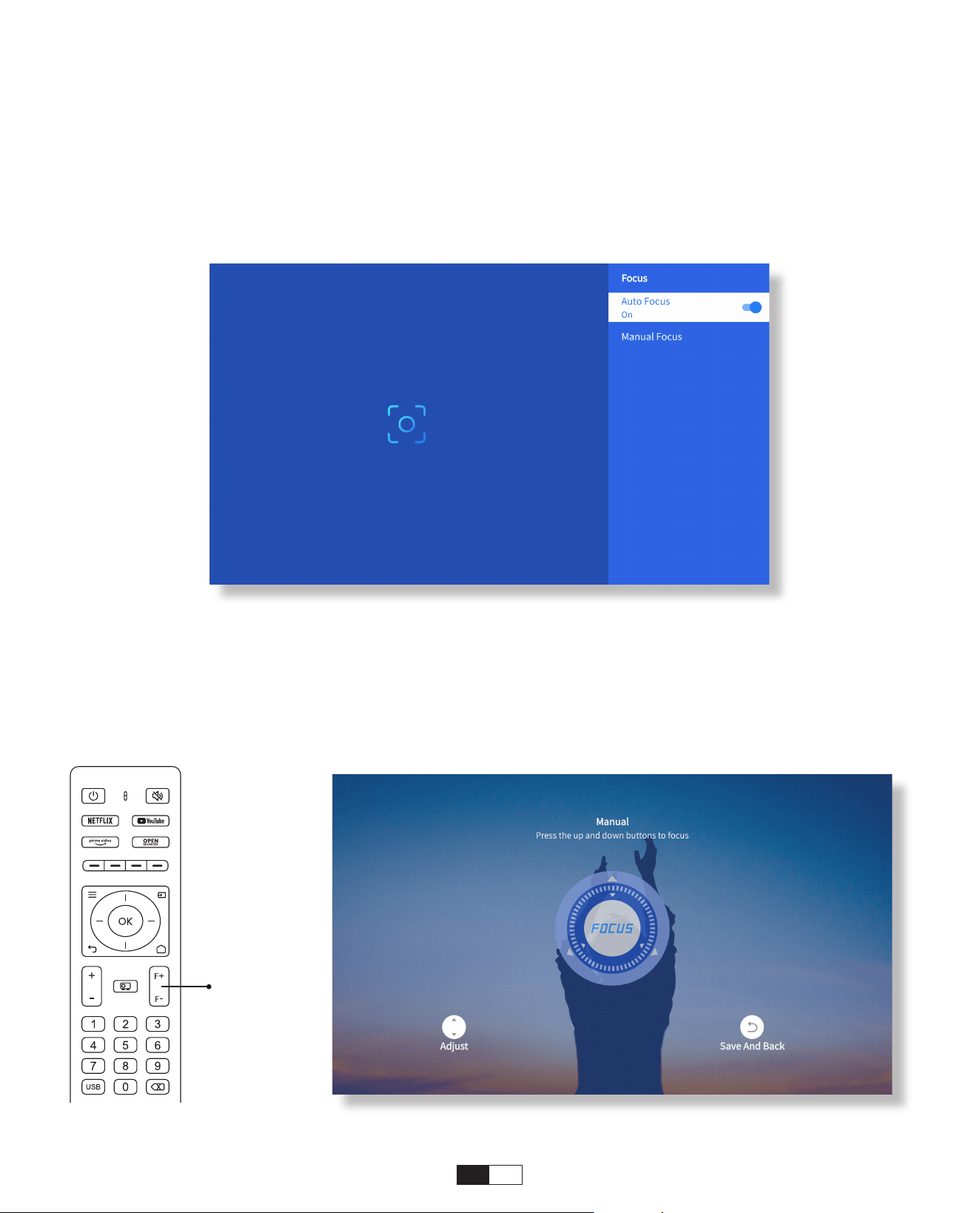
Wenn der Projektor eingeschaltet ist, warten Sie bitte einige Sekunden, er passt
den Fokus automatisch an. (Ist dies nicht der Fall, stellen Sie sicher, dass die
Autofokusfunktion in den Einstellungen aktiviert ist >> Fokus >> Autofokus Nach Dem
Booten >> ein)
Sie können die Klarheit des Bildschirms auch anpassen, indem Sie auf der
Fernbedienung auf die Tasten F+/F- klicken oder diese gedrückt halten.
• Auto Fokus
• Manueller Fokus
2. Bildeinstellung
Focus +/-
50
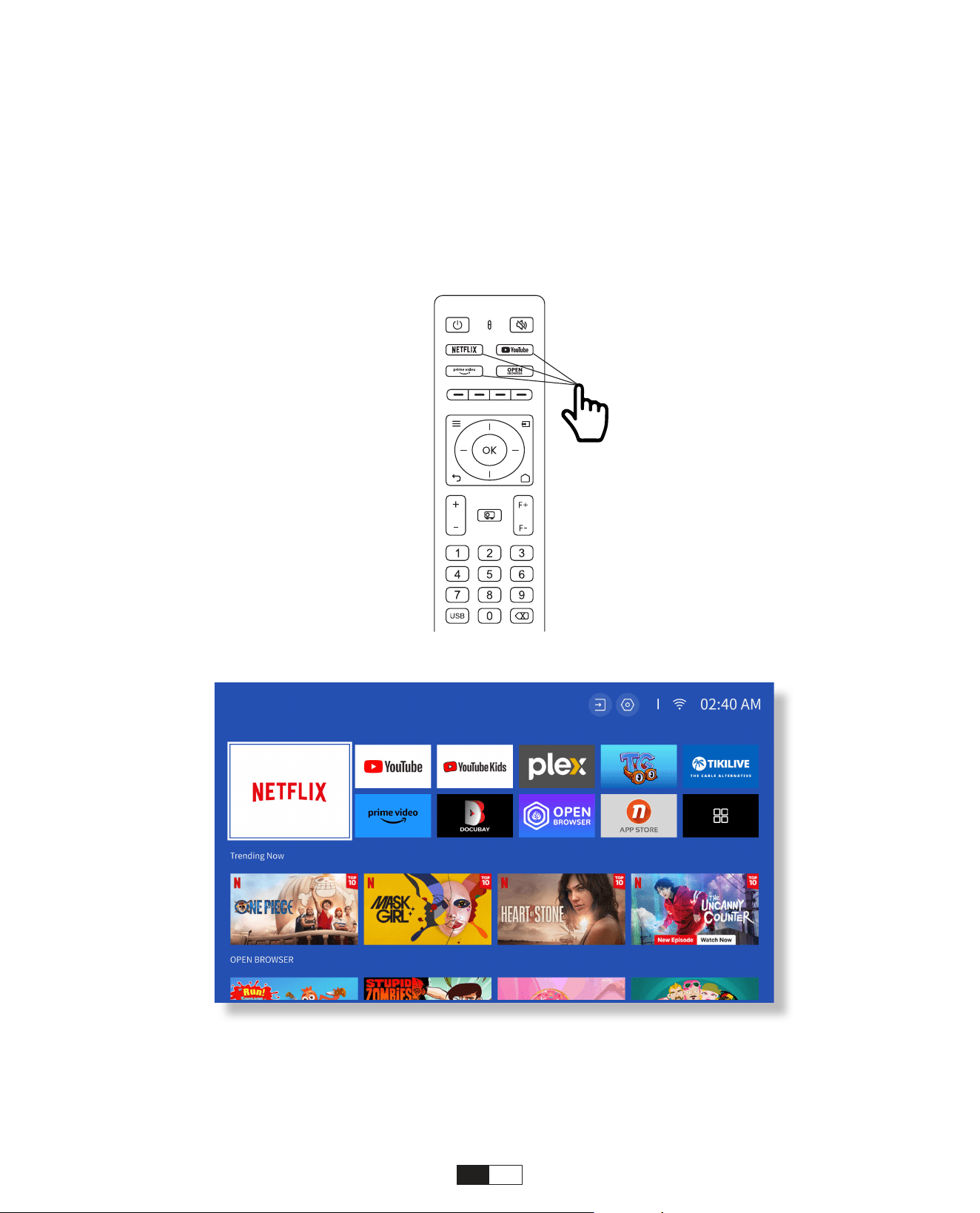
Gehen Sie auf die Startseite, wählen Sie Ihren bevorzugten Kanal aus oder greifen Sie
über die Verknüpfungen auf der Fernbedienung darauf zu. Melden Sie sich bei Ihrem
Konto an, um die entsprechenden Inhalte abzuspielen.
3. Spielen Sie Inhalte von offiziell lizenzierten Apps wie Netflix,
Youtube und Amazon Prime ab
51
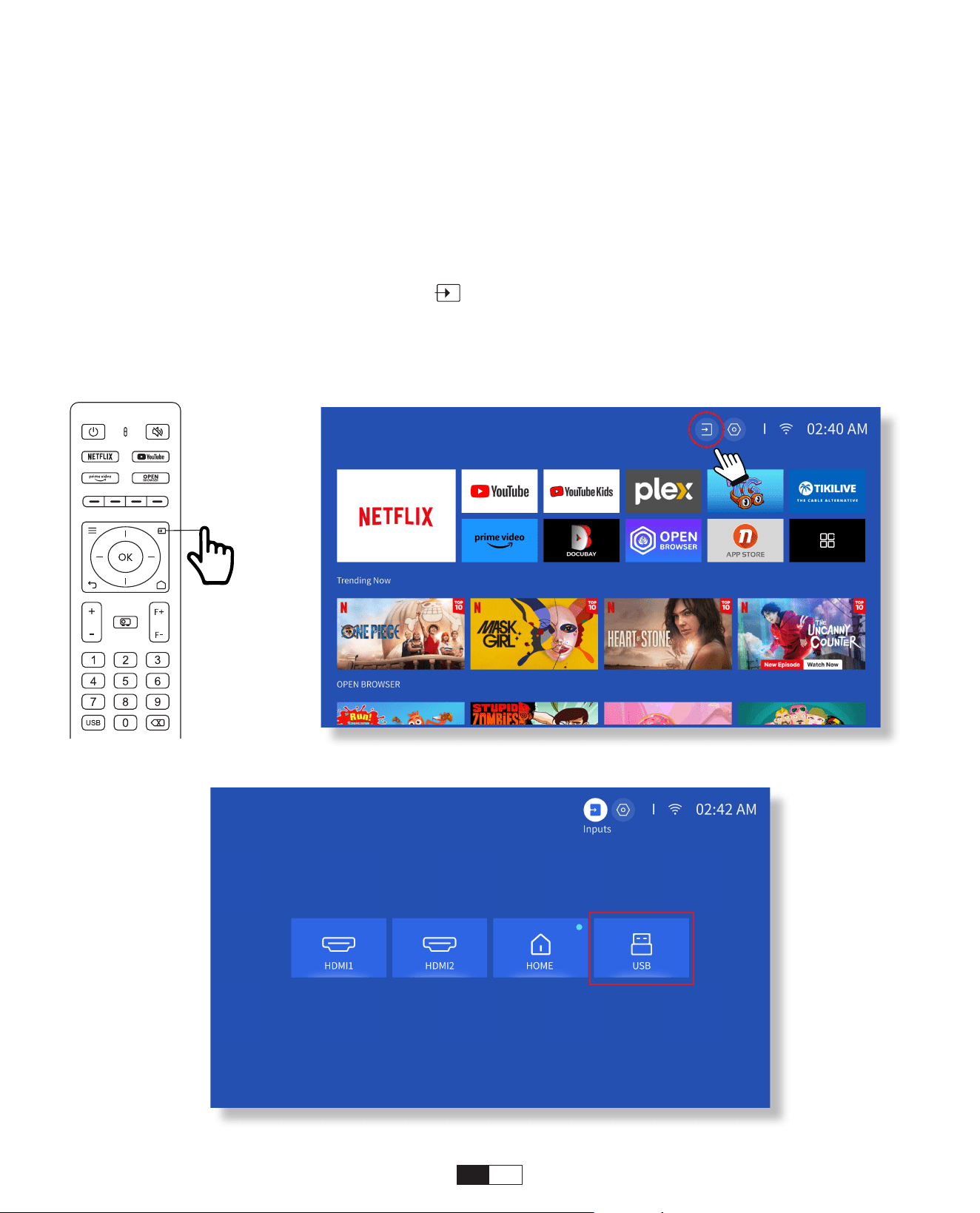
Bitte befolgen Sie die Anweisungen auf Seite 9, um Ihre Geräte ordnungsgemäß an
den Projektor anzuschließen, und wählen Sie dann die richtige Eingangsquelle aus.
1. Schließen Sie den USB-Datenträger an
2. Klicken Sie auf die Eingabequelle [ ] auf der Fernbedienung oder wählen Sie das
Symbol für die Eingangsquelle auf der Startseite.
3. Wählen Sie "USB" als Eingangsquelle
• USB-Festplatten-Eingabemodus
4. Projektionsanschluss und Eingangsquelle
52
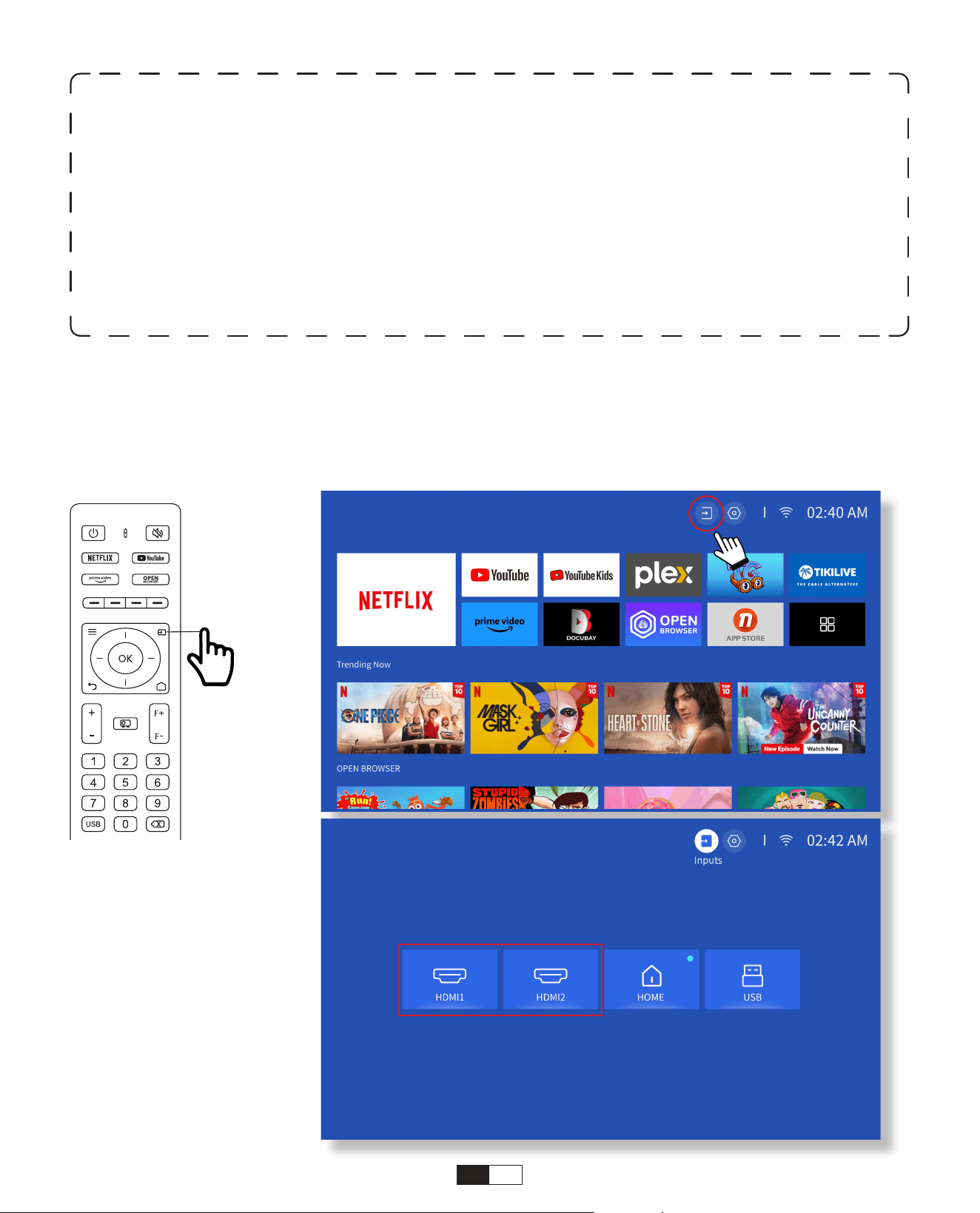
Schließen Sie Ihr Gerät mit einem HDMI-Ausgang über das mitgelieferte HDMI-Kabel
an den Projektor an.
Drücken Sie die Taste für die Eingangsquelle auf der Fernbedienung und wählen Sie
HDMI1 oder HDMI2 aus.
• HDMI-Eingangsmodus
Tipps:
Wenn der Projektor den USB-Datenträger nicht erkennen kann, wenden Sie sich
bitte an die folgenden Methoden, um das Problem zu beheben.
1. Bitte überprüfen Sie, ob Ihr USB-Datenträger die folgenden Formate erfüllt: (1) FAT32:
8G/16G/32G; (2) NTFS: 64G
2. Wenn der USB-Datenträger nicht erkannt/erkannt wird, formatieren Sie ihn bitte. Bevor
Sie die USB-Festplatte formatieren, stellen Sie sicher, dass Sie alles sichern. Nach der
Formatierung ist alles für immer verloren.
3. Wenn das Problem immer noch nicht gelöst ist, senden Sie Ihr Problem bitte an diese
E-Mail:
aftersales@yabertech.com
53
5. Screencast
Schritt 1:
Verbinden Sie den Projektor und Ihr Mobilgerät mit dem WLAN desselben Routers
• iOS Wi-Fi-Spiegelung
iOS Cast (für iOS-Geräte)
2. Für diese Option ist es nicht erforderlich, eine Eingangsquelle auszuwählen.
• Kabelgebundener Lautsprecher- und Kopfhöreranschluss
Tipps:
1. Die Geschwindigkeit der Bildschirmspiegelung bei drahtloser Verbindung wird
durch die Netzwerkumgebung beeinflusst. Eine Bandbreite von 100 Mbit oder mehr
wird empfohlen, wenn die Bildschirmspiegelung verwendet wird.
2. Stellen Sie sicher, dass sich Ihr Mobilgerät in der Nähe des Projektors befindet,
wenn Sie eine drahtlose Verbindung verwenden. Ein Abstand innerhalb von 1 Meter
wird empfohlen.
3. Einige Mobilgeräte unterstützen die Bildschirmspiegelung aufgrund der
Kompatibilität möglicherweise nicht.
4. Bei Fragen wenden Sie sich bitte per E-Mail an YABER über aftersales@yabertech.
com
54
Schritt 2:
Gehen Sie zu Startseite > Meine Apps > App-Assistenten, wählen Sie ScreenShare aus
und laden Sie es herunter
55
Schritt 3:
Kehren Sie zur Seite "Meine Apps" zurück >> Starten Sie die ScreenShare-App und
bleiben Sie auf der folgenden Seite.
56
Schritt 4:
Rufen Sie das Kontrollzentrum Ihres iOS-Geräts auf und tippen Sie auf
Bildschirmspiegelung/Air-Wiedergabe, um nach dem Projektor zu suchen.
Schritt 5:
Wählen Sie [Smart_Projector_XXXX] aus der Liste, und sobald die Verbindung
hergestellt ist, wird der Inhalt Ihres iOS-Geräts auf die Leinwand oder Wand gespiegelt.
Schritt 1:
Schalten Sie das WLAN auf Ihrem iPhone/iPad ein und stellen Sie eine Verbindung zum
Projektor-Hotspot her: [Smart_Projector_XXXX]
• iOS-AP-Spiegelung
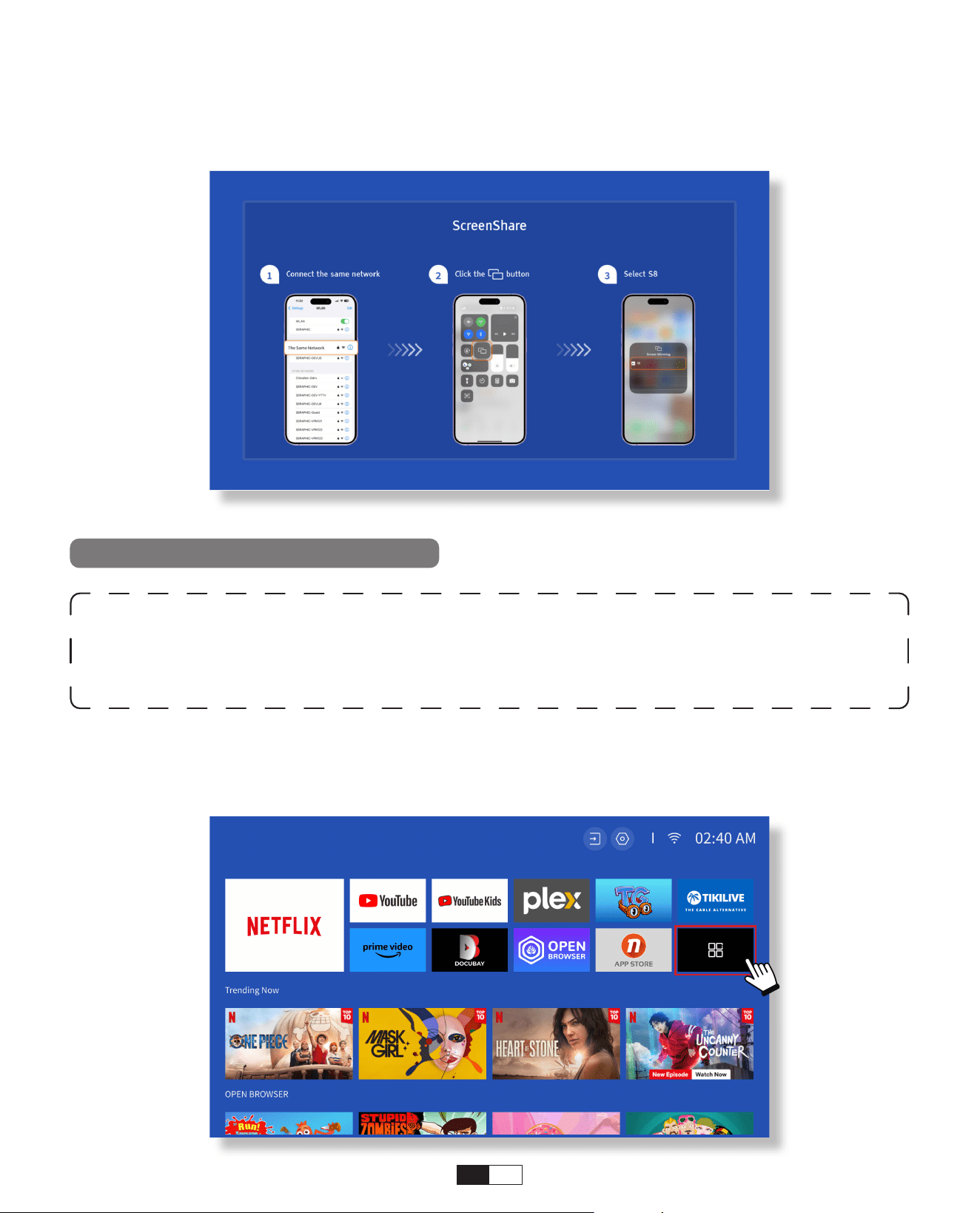
57
Schritt 2:
Drücken Sie auf die Bildschirmspiegelung des iOS-Geräts und wählen Sie dann [Smart_
Projector_XXXX]
Warning:
Um diese Funktion zu aktivieren, muss Ihr Android-Gerät Multi-Screen/
Wireless Display unterstützen. Der Name von "Multi-Screen" kann je nach Marke
von Android-Geräten variieren.
Schritt 1: Bitte aktivieren Sie die Wi-Fi-Funktion auf Ihrem Android-Telefon (keine WLAN-
Verbindung erforderlich).
Schritt 2: Gehe zu Homepage > Meine Apps > ScreenCast
Miracast Cast (für Android-Geräte)
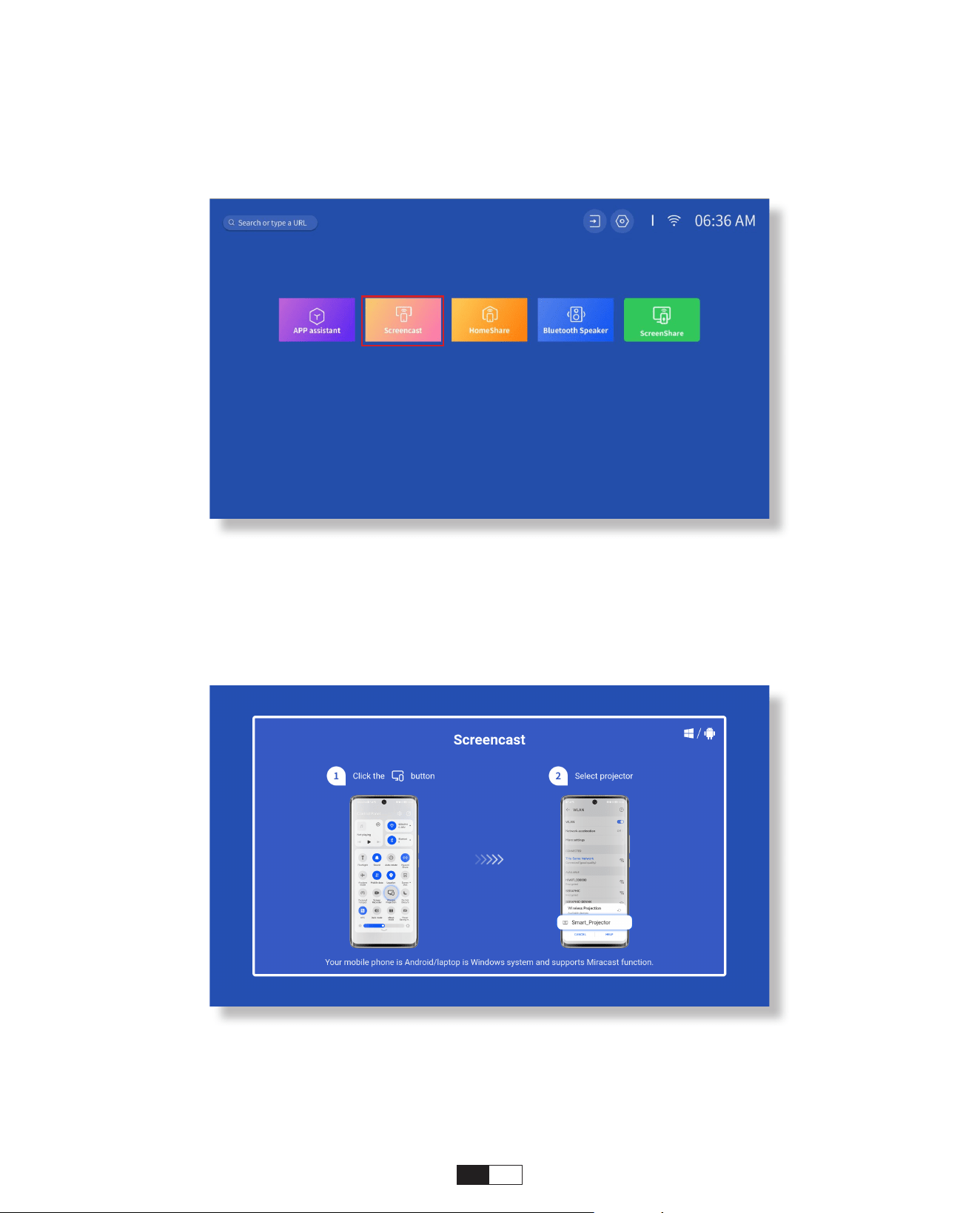
58
Schritt 3: Aktivieren Sie die Multi-Screen-/Wireless-Display-Funktion auf Ihrem
Android-Gerät
Schritt 4: Wählen Sie [Smart_Projector_XXXX] aus der Liste, und sobald die Verbindung
hergestellt ist, wird der Inhalt Ihres iOS-Geräts auf die Leinwand oder Wand gespiegelt
59
Schritt 1:
Verbinden Sie den Projektor und Ihr Mobilgerät mit dem WLAN desselben Routers.
Schritt 2:
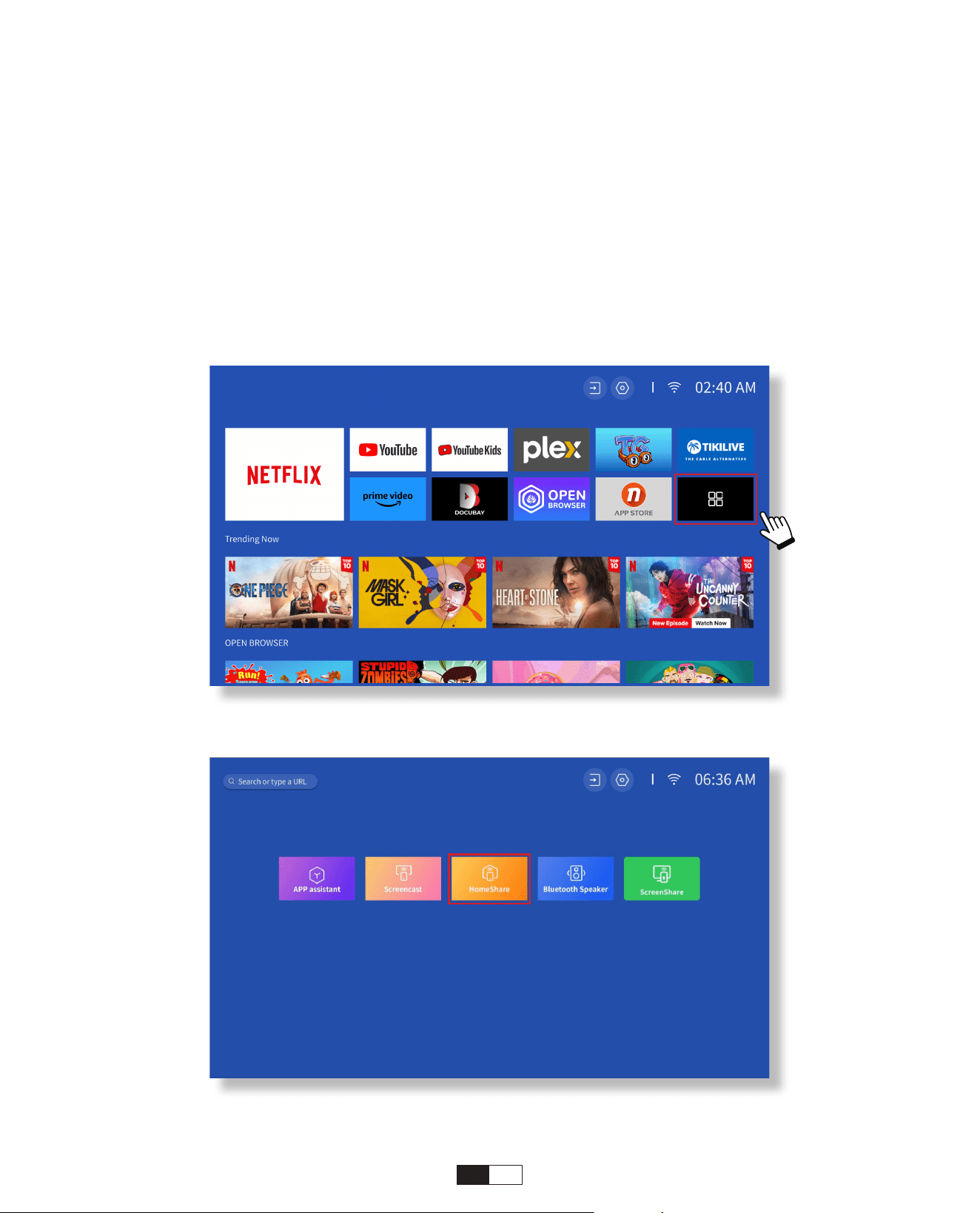
Gehen Sie auf Startseite > Meine Apps > HomeShare und bleiben Sie auf der folgenden
Seite.
• DLNA
60
Schritt 3:
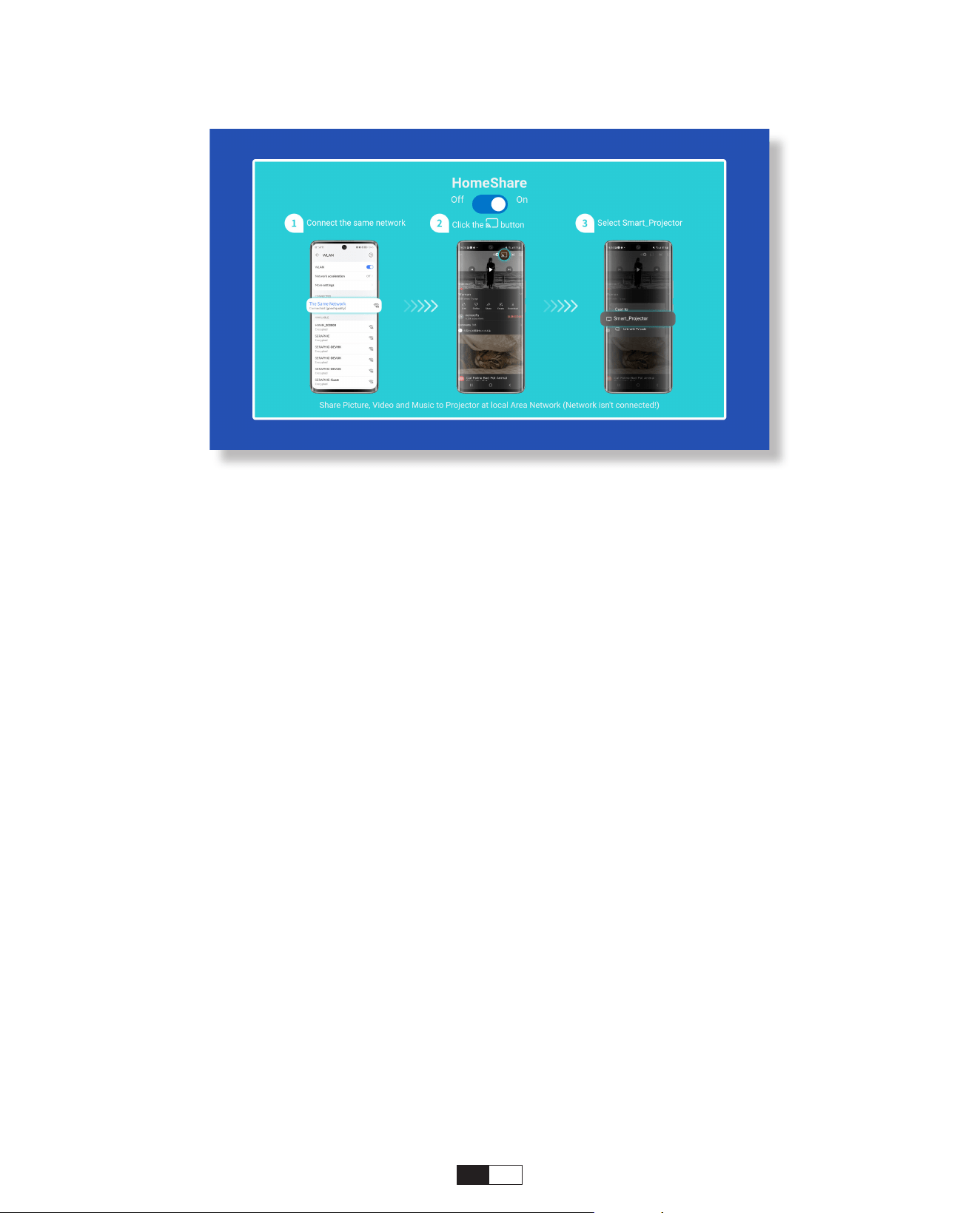
Starten Sie eine Videoplayer-App auf Ihrem Mobilgerät und wählen Sie ein Video zum
Abspielen aus.
Schritt 4:
Tippen Sie, um nach dem Projektor zu suchen, und wählen Sie [Smart_Projector_
XXXX], um eine Verbindung herzustellen. Der Inhalt Ihres Geräts wird an die Wand/
den Bildschirm übertragen.
Tipps:
Wenn Sie ein Video von Ihrem Mobilgerät streamen, wird das Video nur auf dem
projizierten Bildschirm angezeigt und Sie können Ihr Mobilgerät weiterhin verwenden,
ohne das Video zu unterbrechen oder andere Inhalte anzuzeigen.
61
• Verbinden mit einem externen Bluetooth-Lautsprecher
6. Bluetooth-Einstellung
Schritt 1:
Schalten Sie Ihr Bluetooth-Gerät ein und bereiten Sie es für eine Bluetooth-Verbindung vor.
Schritt 2:
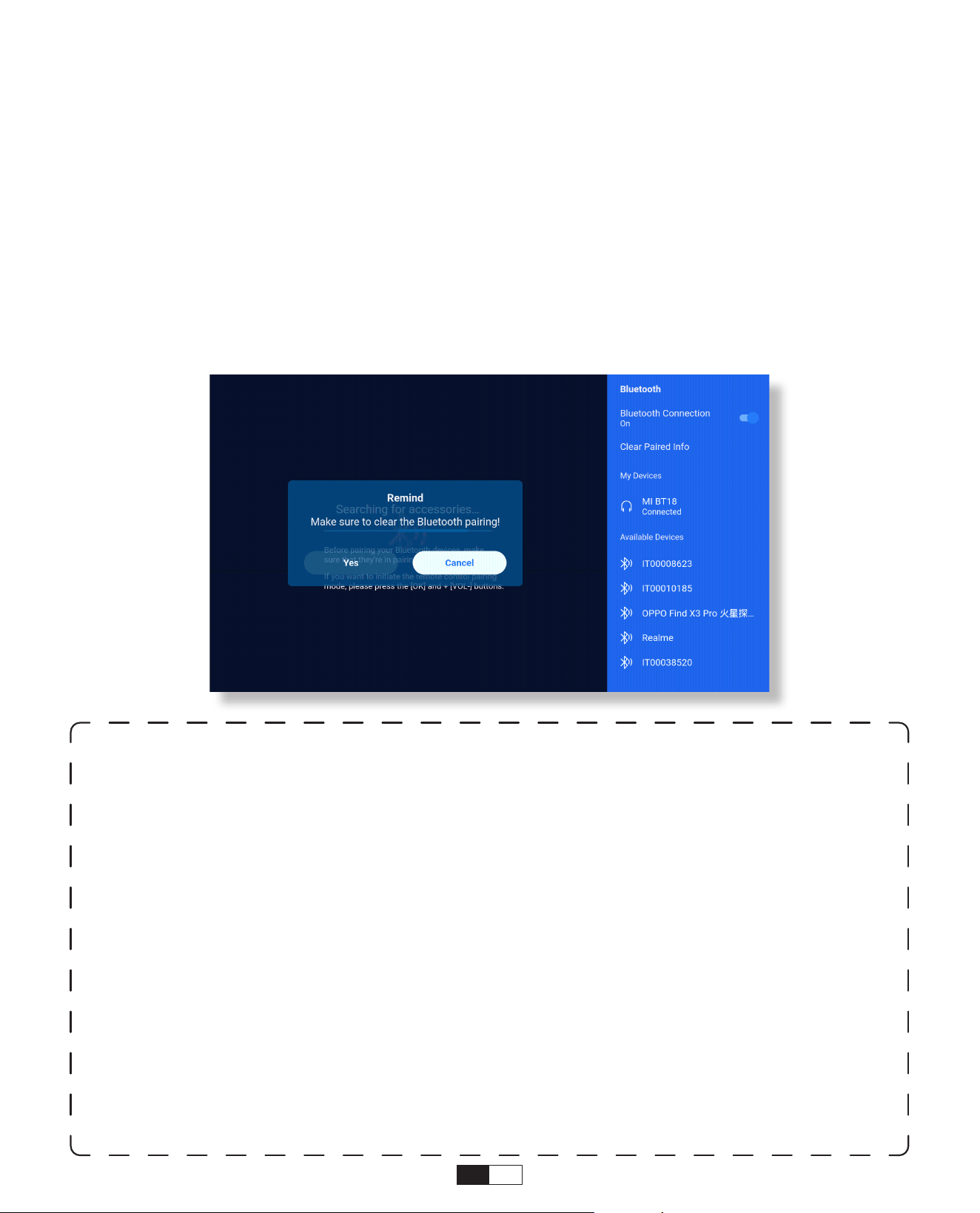
Gehen Sie zur Startseite > Einstellungen > Bluetooth Verbindung, um verfügbare
Bluetooth-Geräte zu scannen, wählen Sie dann Ihr Bluetooth-Gerät aus und koppeln
Sie es mit dem Programm.
WICHTIG:
Im Vergleich zur kabelgebundenen Verbindung zu einem Lautsprecher verbringt eine
Bluetooth-Verbindung mehr Zeit damit, digitale Audiodaten zu verarbeiten, diese
Daten in ein Audiosignal umzuwandeln und das Signal zu streamen. Aufgrund von
Signalstörungen kann es zu Verzögerungen oder leichten Verzögerungen bei der
Audiowiedergabe kommen.
Dies kann dazu führen, dass der Ton auf dem Lautsprecher nicht mit dem Bild auf dem
Projektor synchronisiert ist. Vor allem, wenn Sie die drahtlose Bildschirmspiegelung mit
WiFi- und Bluetooth-Verbindung gleichzeitig verwenden.
Wenn Sie in dieser Situation auftreten, überprüfen Sie bitte die folgenden Optionen, um
die Audioqualität zu verbessern.
* Anstatt die drahtlose Bildschirmspiegelung und die Bluetooth-Verbindung
gleichzeitig zu verwenden, empfehlen wir, eine HDMI-Verbindung über das
mitgelieferte HDMI-Kabel und eine Bluetooth-Verbindung gleichzeitig zu verwenden.
Wenn Sie dennoch die drahtlose Bildschirmspiegelung verwenden möchten, empfiehlt
es sich, den Ton über einen kabelgebundenen Lautsprecher auszugeben.
*Bringen Sie Ihr Bluetooth-Gerät näher an den Projektor heran.
*Halten Sie den Projektor und den Bluetooth-Lautsprecher von anderen Bluetooth-
Geräten fern, um Interferenzen zu vermeiden.
62
• Verbinden Sie sich mit dem Gerät als Bluetooth-Lautsprecher
Schritt 1:
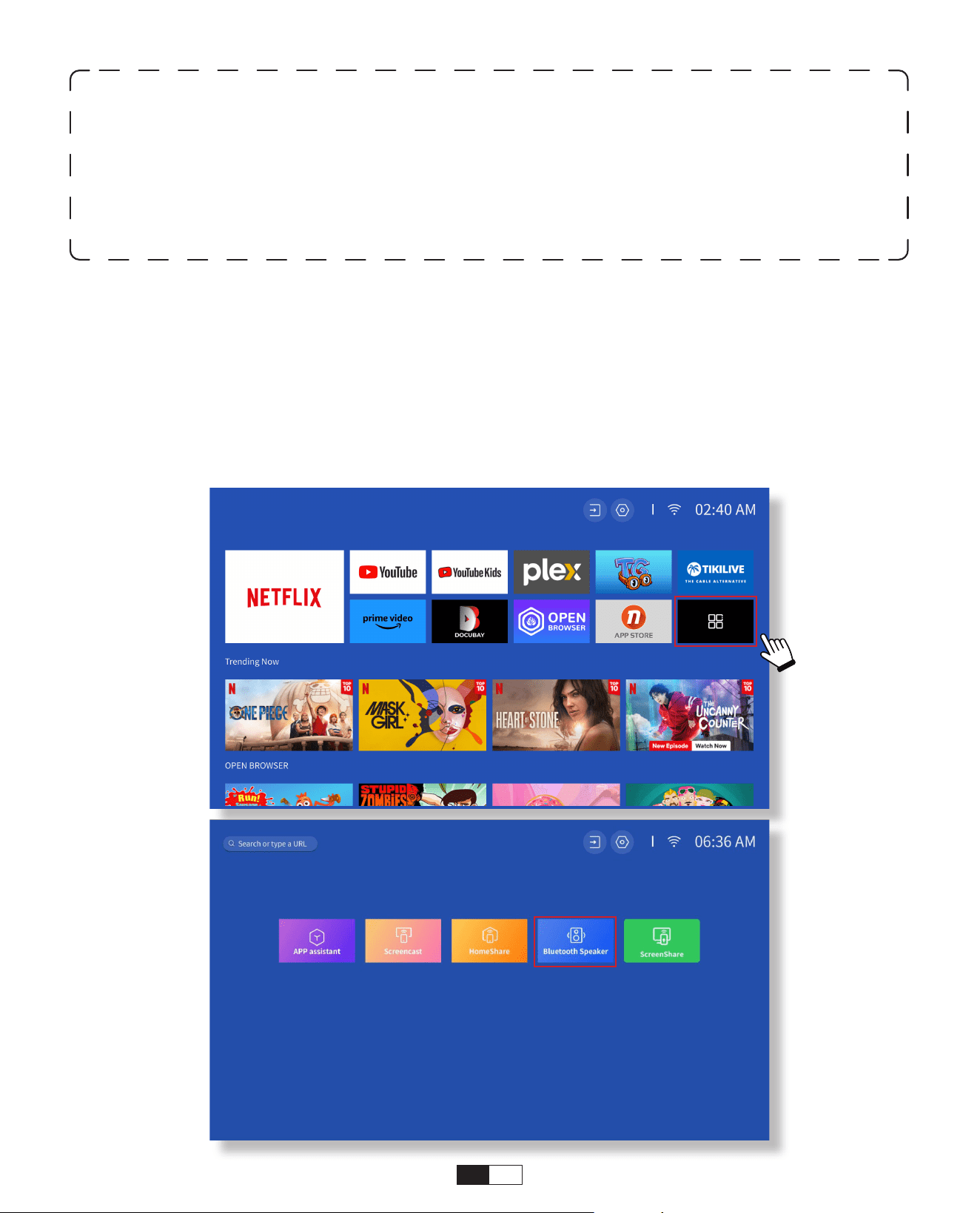
Gehen Sie auf Startseite > Meine Apps > Bluetooth-Lautsprecher und bleiben Sie auf
der folgenden Seite.
Schritt 2:
Aktivieren Sie die Bluetooth-Funktion auf Ihrem Gerät, scannen Sie und verbinden Sie
den Projektor.
* Möglicherweise können Sie die Latenz (Lippensynchronisation) auf Ihrem Gerät, das
das Video abspielt, anpassen. Die Art und Weise, wie die Latenz angepasst werden
kann, variiert je nach Gerät. Bitte wenden Sie sich an den Gerätehersteller.
Aufgrund des Kompatibilitätsproblems zwischen Bluetooth-Lautsprechern/-
Kopfhörern und dem Projekt können einige Bluetooth-Geräte möglicherweise
nicht über die Bluetooth-Verbindung mit dem Projektor gekoppelt werden. Bitte
kontaktieren Sie uns für weitere Unterstützung: aftersales@yabertech.com
63
• Einstellung
7. Weitere Einstellungen
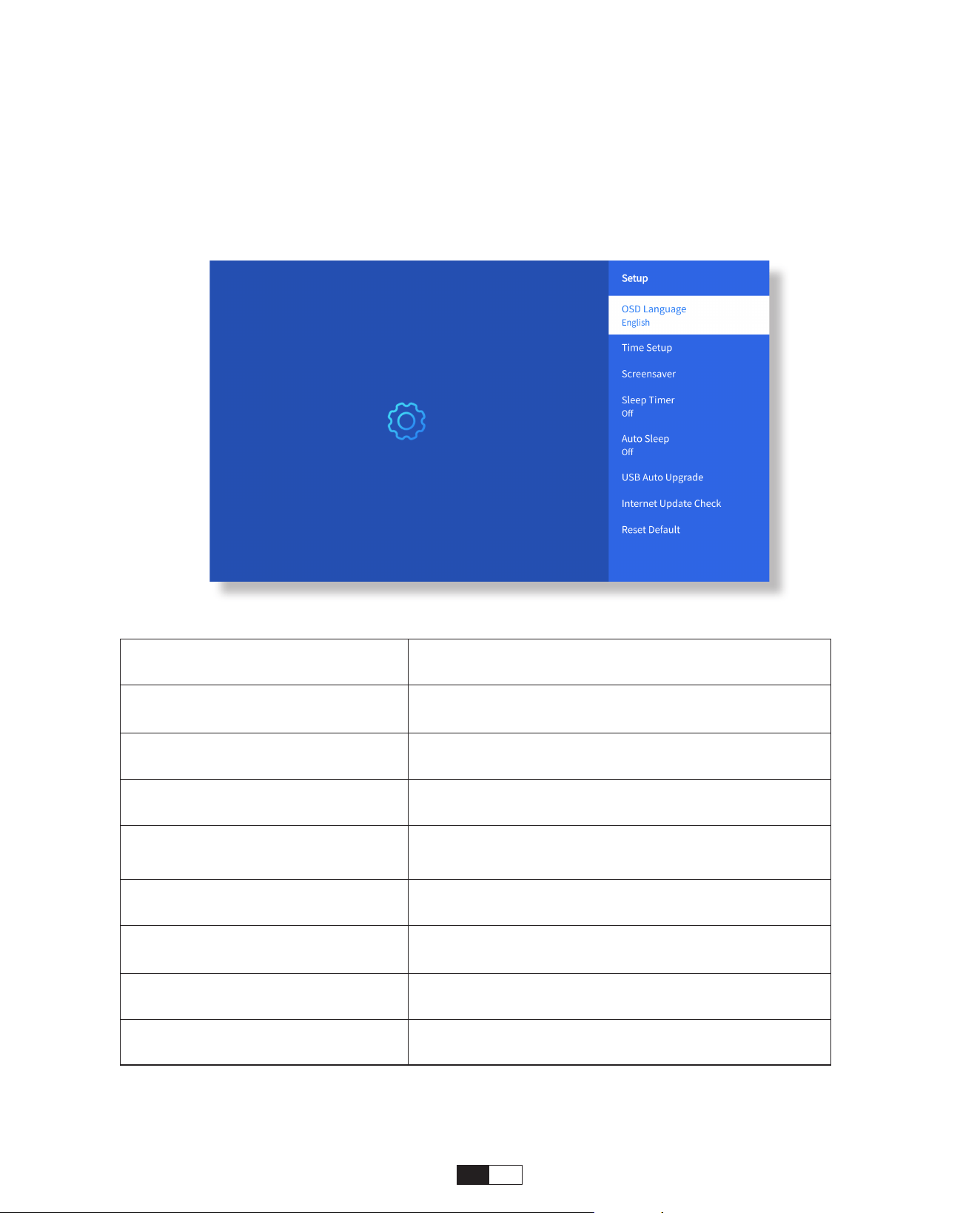
Gehen Sie zur Startseite -> Wählen Sie [ Einstellungen ] -> Wählen Sie [ Einstellungen].
Verwenden Sie die Pfeiltasten auf der Fernbedienung, um das Menü zu wechseln,
drücken Sie die Taste "OK" zur Bestätigung und stellen Sie es ein.
Menü Inhalt
OSD-Sprache
Englisch/französisch/italienisch/
japanisch usw
Zeiteinstellung Setze die lokale zeit ein
Bildschirmschoner An -/ausschalten des bildschirmschoners
Sleep-Timer
Ein -/aus: die dauer des schlafs beträgt 10
bis 120 Minuten
Automatischer Schlaf Ist an/aus :30 minuten 8 stunden
Automatischer USB-
Upgrade
Lokales Update
Internet-Update-Check Überprüfen Sie die Internetumgebung
Standard zurücksetzen Die werkseinstellungen wieder herstellen
64
• Bild-Einstellung
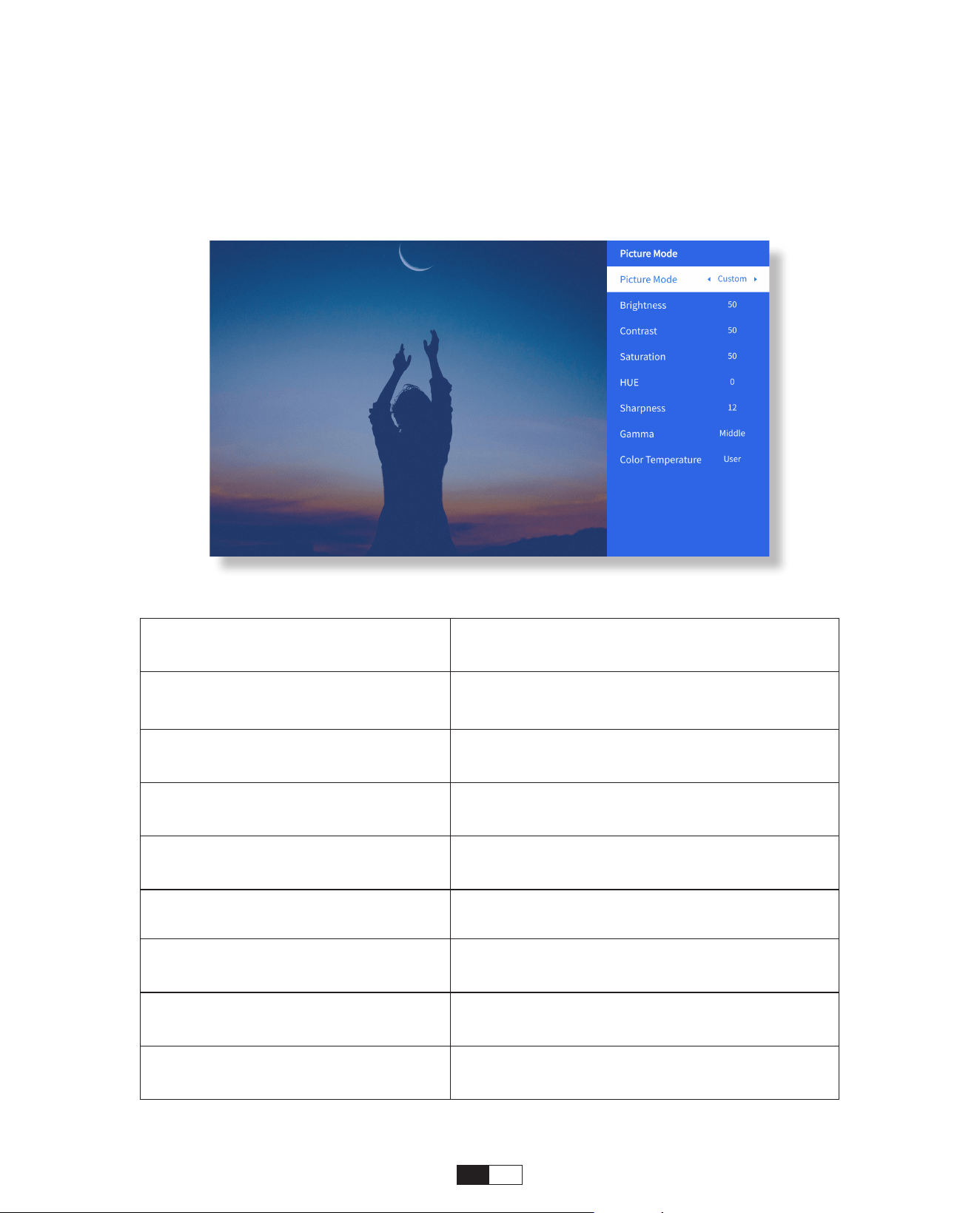
Menü Inhalt
Bildmodus
Standard/Kino/Sport/Vivid/He-Bright/
Gewohnheit
Helligkeit
Festlegen des Werts für die
Bildschirmhelligkeit
Kontrast Festlegen des Bildschirmkontrastwerts
Sättigung
Festlegen der
Bildschirmsättigungsfarbe
FARBTON
Festlegen der Farbe des
Bildschirmfarbtons
Schärfe
Festlegen des Werts für die
Bildschirmschärfe
Gamma Licht/dunkelheit/mitte
Farbtemperatur Normal/Kühl/Warm/Standard
Gehen Sie zur Startseite -> Wählen Sie [ Einstellungen ] -> Wählen Sie den [ Bildmodus
]. Verwenden Sie die Pfeiltasten auf der Fernbedienung, um das Menü zu wechseln,
drücken Sie die Taste "OK", um zu bestätigen, und stellen Sie.
65
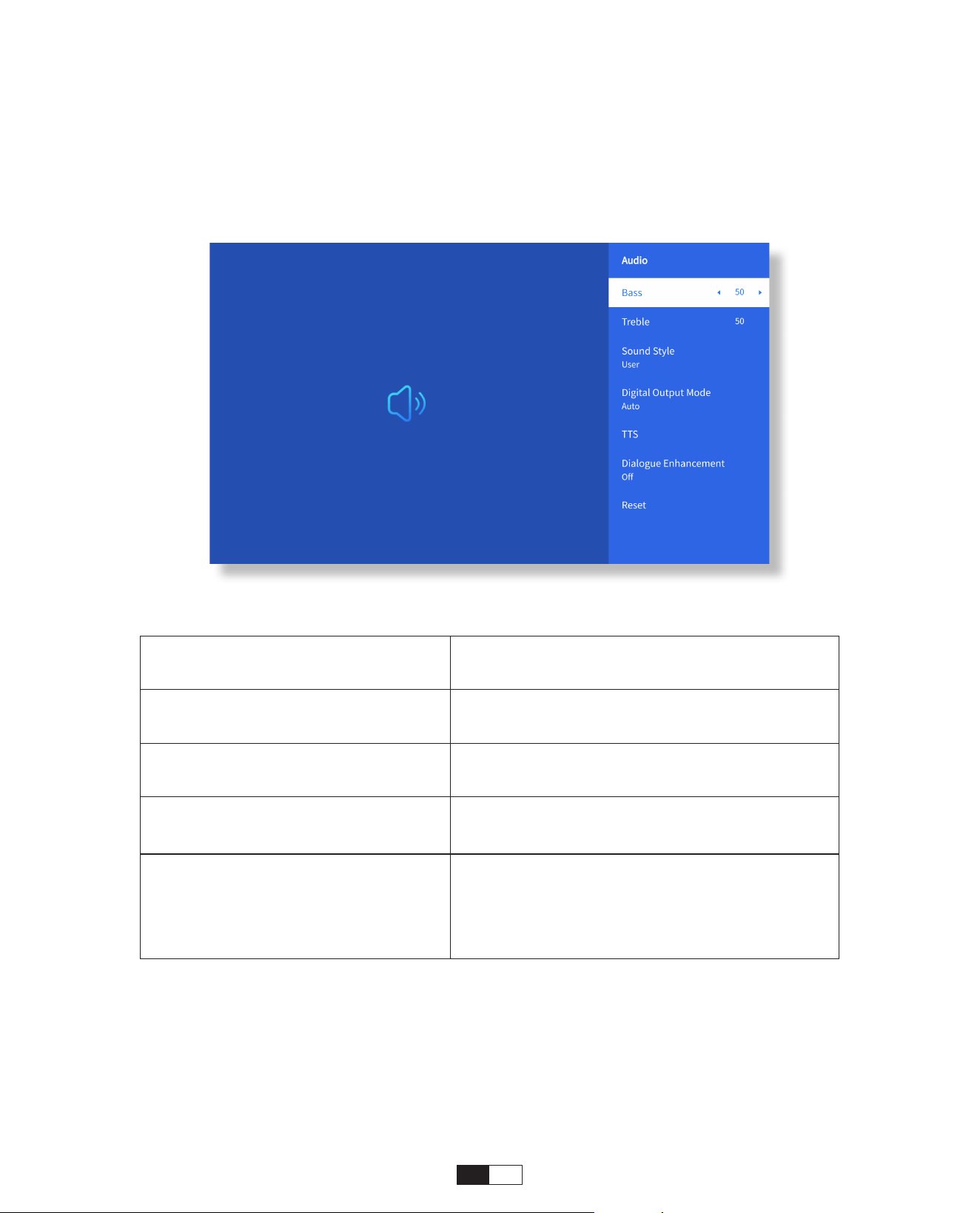
• Audio-Einstellung
Gehen Sie zur Startseite -> Wählen Sie [ Einstellungen ] -> Wählen Sie [ Audio ].
Verwenden Sie die Pfeiltasten auf der Fernbedienung, um das Menü zu wechseln,
drücken Sie die Taste "OK", um zu bestätigen, und stellen Sie.
Menü Inhalt
Bass Festlegen bevorzugter Werte
Klangstil
Benutzer/Standard/Film/Musik/Sport/
Lebhafte/News
Digitaler Ausgangsmodus
Auto/PCM/Dolby Audio-Dolby Digital/
Dolby Audio-Dolby Digital Plus
Dialogverbesserung
OEin/Aus: Konversationsverbesserung
sfunktion, Stimme, Broadcast-Funktion
für besondere Personen
Niedrig/Mittel/Hoch
66
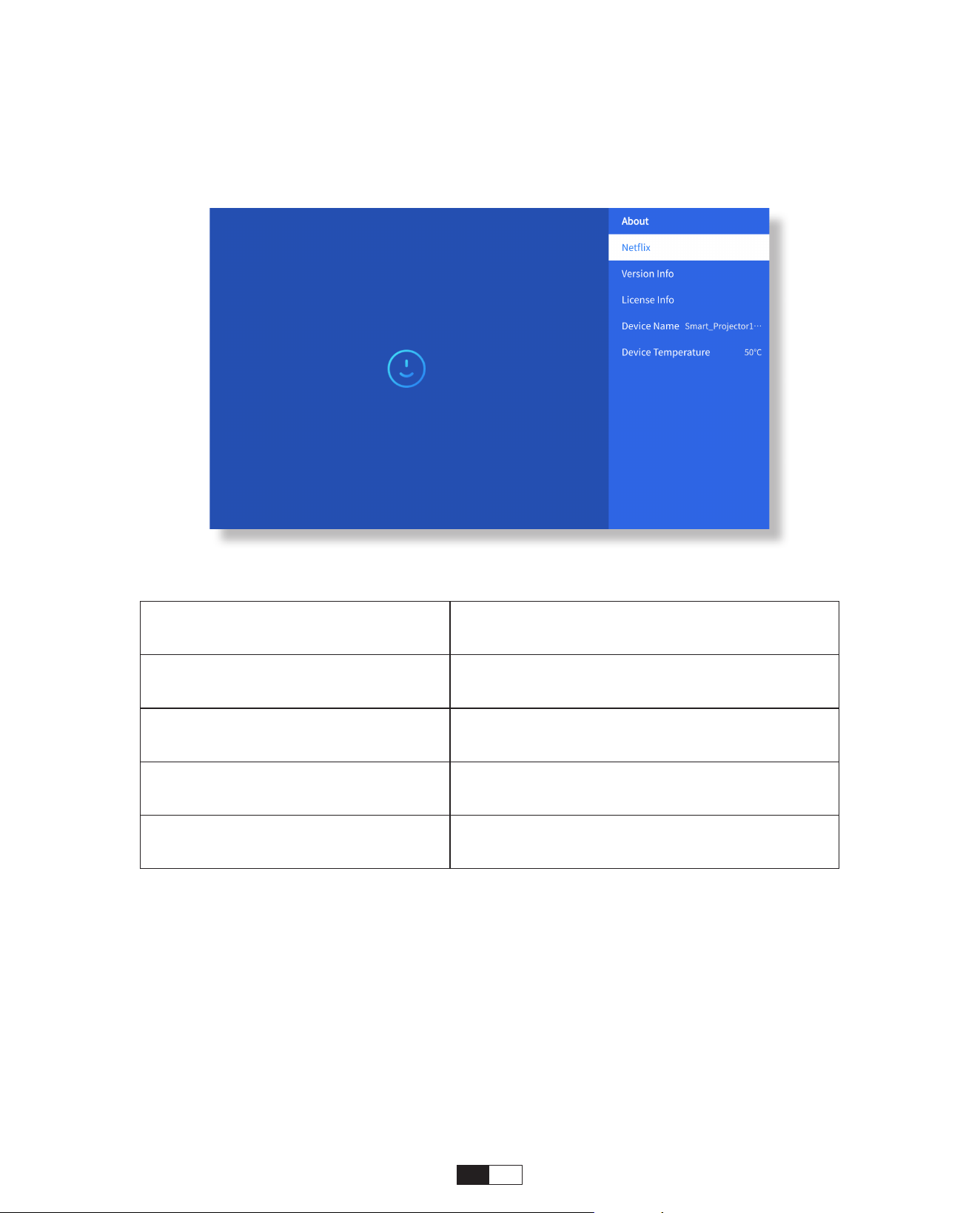
• Über
Gehen Sie zur Startseite -> Wählen Sie [ Einstellungen ] -> Wählen Sie die Option [ Um
]. Verwenden Sie die Pfeiltasten auf der Fernbedienung, um das Menü zu wechseln,
drücken Sie die Taste "OK", um zu bestätigen, und stellen Sie.
Menü Inhalt
Netfix Netfix Offiziell lizenziert
Versions/Lizenz Information
Anzeigen der neuesten Version/
Lizenzinformationen
Gerätename Modellname des Projektors
Gerätetemperatur 50°C
DE 67
Wählen Sie die USB-Signalquelle aus, das Gerät erkennt sie automatisch.
Schritt 1: Wählen Sie die gewünschte Kategorie "Fotos", "Musik" oder "Video" in der
Hauptoberfläche aus und drücken Sie die Taste "OK" auf der Fernbedienung, um die
entsprechende Kategorie aufzurufen.
Schritt 2: Je nach Programm zur Auswahl: "Fotos", "Musik" oder "Video".
Schritt 3: Wählen Sie die Datei aus, die Sie abspielen möchten, und drücken Sie die
Taste "OK", um die Datei abzuspielen oder anzuhalten. (Sie können die erforderliche
Kategorie nicht eingeben, ohne einen USB-Datenträger anzuschließen)
8. Anschluss von Signalleitungen
①
USB-Multimedia-Anschluss
②
Herstellen einer Verbindung mit dem PC
Schritt 1: Verbinden Sie den Computer und den U 12-Projektor mit dem HDMI-Kabel (im
Lieferumfang enthalten).
Schritt 2: Wählen Sie die HDMI-Quelle aus, die auf den Projektor projiziert werden soll.
Schritt 3: Halten Sie auf Ihrem Laptop die Taste "Win+P" gedrückt, um den Anzeigemodus zu
ändern.
Hinweis:Bei der Option "Office Suite" können PPT/TXT-Dateien nicht normal
abgespielt oder präsentiert werden.
68
Schritt 1: Wählen Sie den Mediensignalkanal: "HDMI"
Schritt 2: Verwenden Sie einen Typ-C-auf-HDMI-Adapter, um Ihr MacBook
anzuschließen, oder einen Mini-Display-auf-HDMI-Adapter, um eine Verbindung
zu Ihrem MacBook Air herzustellen (Adapter nicht im Lieferumfang enthalten).
Herstellen einer Verbindung mit dem MacBook oder Mac Book Air. (Adapter NICHT IM
Lieferumfang enthalten)
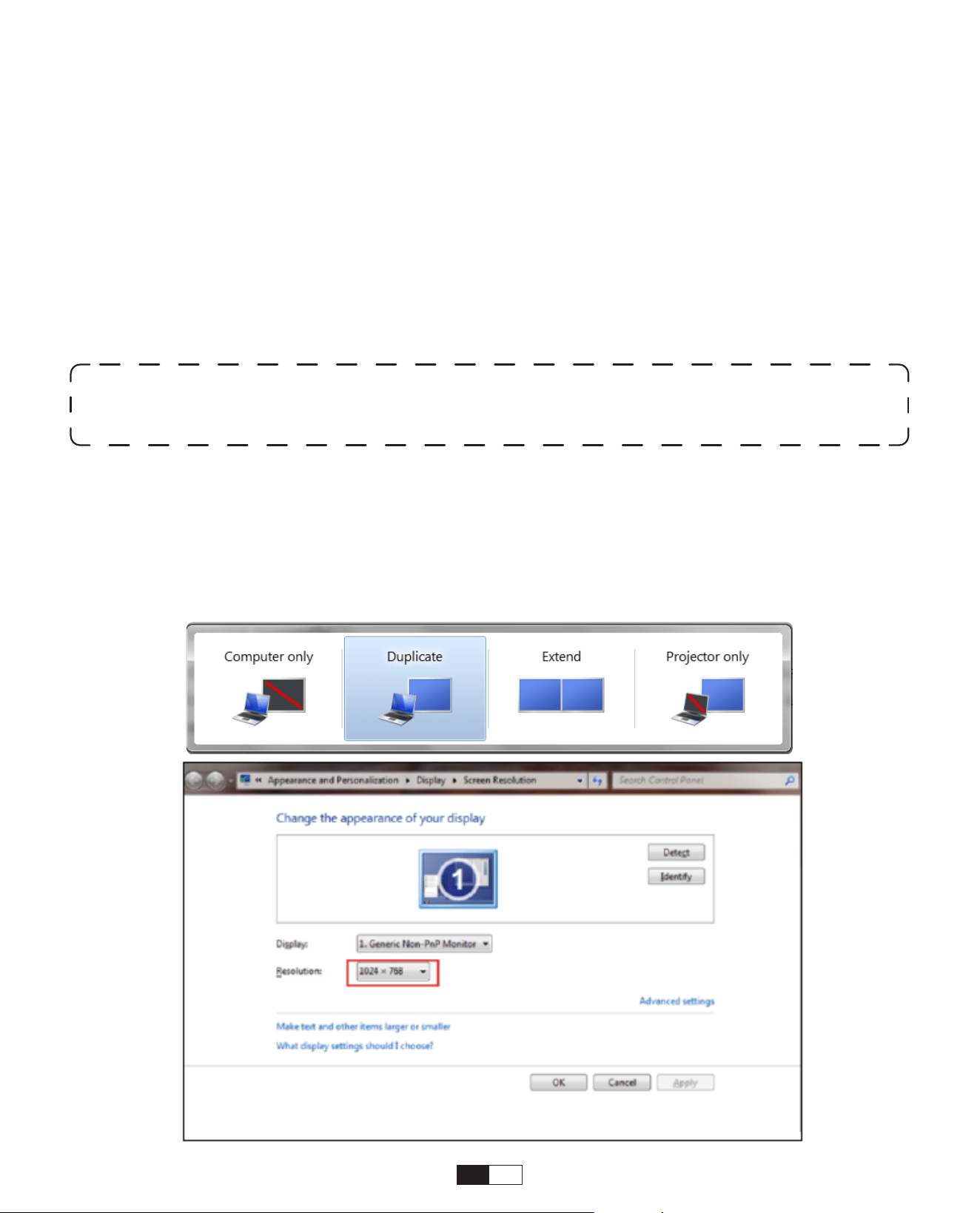
Nur Computer: Dies ist die Standardoption – wird nur auf dem Hauptmonitor
angezeigt.
Duplizieren: Lässt alle Monitore das Gleiche anzeigen, wobei der Desktop auf jedem
Monitor dupliziert wird.
Erweitern: Alle Ihre Monitore verhalten sich wie ein großer Monitor, der den Desktop auf
alle Monitore ausdehnt.
Nur Projektor: Wird nur auf dem sekundären Monitor wie ein Projektor angezeigt.
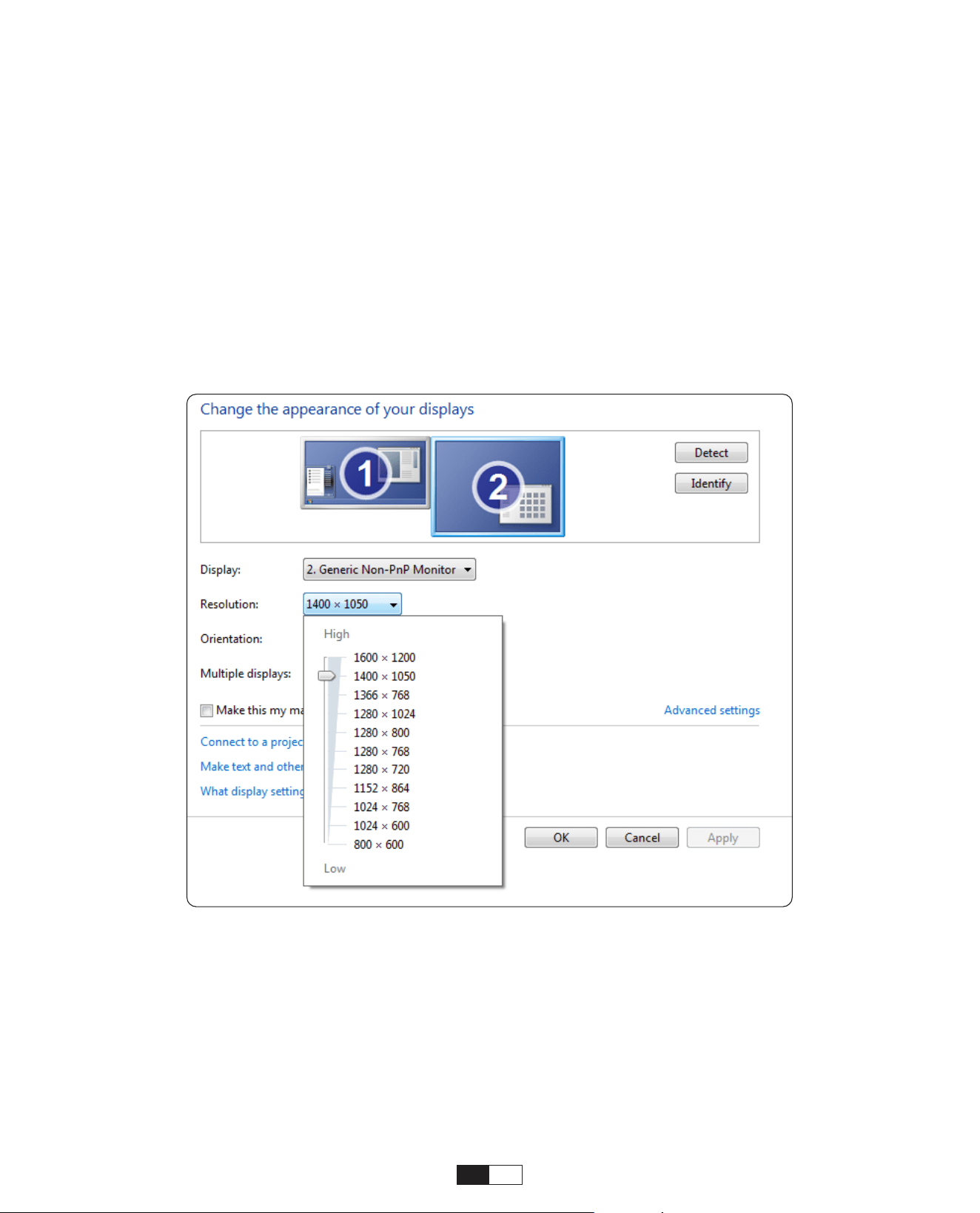
Gehen Sie folgendermaßen vor, um die Bildschirmauflösung im Modus "Nur Projektor"
zu ändern:
Schritt: Starten Sie > Systemsteuerung > Darstellung und Personalisierung > Anpassen
der Bildschirmauflösung
③
Herstellen einer Verbindung mit MacBook oder MacBook Air

69
Schließen Sie im Standby-Modus das Netzteil an, und die Betriebs-LED am Projektor
leuchtet aufleuchten. Sie müssen die Ein-/Aus-Taste drücken, um den Projektor
einzuschalten.
Wenn das Gerät eingeschaltet ist, schaltet es sich nach dem Einstecken des Netzkabels
automatisch ein.
1. Drücken Sie die Taste am Projektor oder auf der Fernbedienung und drücken Sie
dann die OK-Taste, um den Projektor auszuschalten.
2. Ziehen Sie das Netzkabel des Projektors ab.
3. Decken Sie das Objektiv ab und lagern Sie den Projektor an einem kühlen und
trockenen Ort.
9. Einschaltmodus
10. Sicheres Herunterfahren
Schritt 1: Verwenden Sie das HDMI-Kabel, um eine Verbindung zur XBOX/PS5
herzustellen
Schritt 2: Wählen Sie den Mediensignalkanal: "HDMI"
Schritt 3: Erfolgreich
Schritt 1: Verwenden Sie das HDMI-Kabel, um eine Verbindung zum DVD-Player
herzustellen
Schritt 2: Wählen Sie den Modus "HDMI" für die Verbindung
Schritt 3: Menütaste eingeben
Schritt 4: Ändern Sie den PC-Modus von [Ein] auf [Aus], um das Risiko weißer
Pixelränder im Bild zu vermeiden.
④
Verbinden mit XBOX/PS5
⑤
Anschließen an den DVD-Player

70
• Pflege des Projektors
1. Stellen Sie den Projektor nicht in einen zu warmen oder zu kalten Raum, da die hohe oder
niedrige Temperatur die Lebensdauer des Geräts verkürzt. Die Arbeitsumgebung wäre um
5°C-35 °C besser.
2. Wenn es schwarze Flecken auf der Projektionsfläche gibt, machen Sie sich bitte keine
Sorgen. Bitte kontaktieren Sie aftersale[email protected] per E-Mail, wir können Ihnen ein
Video zusenden, wie Sie den Staub entfernen können.
3. Der Projektor muss streng vor starken Stößen, Extrusionen und Vibrationen geschützt
werden.
4. Das Objektiv als Kernkomponente des Projektors steht in direktem Zusammenhang
mit der Bilddefinition und dem Bildeffekt. Reinigen Sie das Objektiv, wenn Sie Schmutz
oder Staub auf der Oberfläche bemerkt haben. Verwenden Sie einen Kanister mit
Druckluft, um Staub von der Linse zu entfernen. Wenn Schmutz oder Schlieren vorhanden
sind, wischen Sie die Linsenoberfläche mit dem Reinigungstuch vorsichtig ab.
Tipps zur Wartung
Scannen Sie das PDF-Benutzerhandbuch
und laden Sie es herunter
Wo bekomme ich weitere Hilfe?
@Yaber Entertainment Projector
@Yaber

LANGUAGE
English
Deutsch
Français
Italia
日本語日本語
03-36
39-70
73-104
107-138
141-172
175-206
Polish

CONTENU
Assistance professionnelle à vie YABER 04
Conseils 04
Liste des paquets 05
Spécifications du projecteur 06
Présentation du projecteur 07
Présentation de la télécommande 08
Installation du socle 09
Install on the Ceiling 10
Distance et taille de projection 10
Support de base réglable 11
Connecter les appareils 11
Opération 12
1. Démarrage du projecteur 12
2. Ajustement de l'image 13
3. Lire du contenu à partir d'applications sous licence officielle 16
4. Connexion de projection et source d'entrée 17
5. Capture d'écran 19
6. Paramètres Bluetooth 27
7. Autre réglage 29
8. Connexion des lignes de signal 33
9. Mode de mise sous tension 35
10. Arrêt sécurisé 35
Conseils d'entretien 36

FR
74
Assistance professionnelle à vie YABER
Conseils
Très cher client,
Merci d'avoir choisi le projecteur Yaber U12
Ce manuel vous aidera à naviguer à travers toutes les fonctionnalités. Si vous rencontrez des
problèmes, n'hésitez pas à nous envoyer votre numéro de commande et le problème à aftersales@
yabertech.com. (Réponse sous 24 heures)
De nombreux problèmes peuvent être facilement résolus par réglage, tels que l'absence de signal,
l'absence de son, l'échec de la connexion Bluetooth, l'échec de la connexion WiFi, les points sombres,
l'animation saccadée, etc.
Votre satisfaction est notre priorité absolue et nous vous encourageons à explorer attentivement le
contenu de ce manuel.
Je vous souhaite une expérience exceptionnelle avec la U12.
Équipe du service client YABER
1. Environnement approprié(5°C - 35°C)
Placez le projecteur dans un environnement à température appropriée, en assurant une ventilation
adéquate. La chaleur ou le froid extrême peuvent avoir un impact sur la durée de vie du projecteur.
2. Nettoyage (points noirs)
Le projecteur doit être strictement protégé contre les chocs violents, l'extrusion et les vibrations.
N'essayez pas de le déplacer en cas de fort impact, d'extrusion ou de vibration, car cela pourrait
entraîner des défauts du circuit interne.
Si vous remarquez des points noirs sur l'écran de projection, ne vous inquiétez pas. Contactez-nous
simplement à [email protected] et nous vous fournirons un didacticiel vidéo sur la façon d'
éliminer
les particules de poussière.
3. Prendre soin en toute sécurité
4. Objectif
L'objectif est directement lié à la définition et à l'effet de l'image. La poussière excessive qui s’y trouve
affectera la qualité de l’image. La lentille sale doit être essuyée avec un chiffon en coton doux pour la
surface de la lentille en verre. Aucun chiffon dur ou abrasif ne doit être utilisé
FR 75
Package List
Commande à
U12 Projecteur
distance
Cache-objectif
Câble HDMI
Socle du projecteur
Guide de démarrage
rapide
Cordon d'alimentation
Socle du projecteur

FR
76
Spécifications du projecteur
Modèle No. U12
Concentrer Auto/Électrique
KCorrection
trapézoïdale
Auto/Électriquec
Source Lumineuse LED
Technologie
d'affichage
LCD
Ratio d'aspect 16:9/4:3 Interfaces
USB2.0*2/
HDMI1.4*2/
3.5mm Audio Out*1,
Lan*1
Taux de projection 1.36:1
Recommandé
Distance de
projection
1.3~5.0m
(4.5-16.4 Ft.)
Résolution native 1920*1080P
Dimension de
l'unité
9.8*8.8*7.6 inches
(25*22.5.*19.3CM)
7.27lbs (3.3KG)
Tension de
puissance
100-240V/50-60Hz
2A
Consommation
d'énergie
140W
Poids du projecteu
7.27 lbs/3.3 kg
(Avec Socle)
Méthode de
projection
Avant/Arrière sur
bureau,
Avant/Arrière au
Plafond
Format d'image JPEG, GIF, BMP, PNG, JPG
Format audio MP3,WAV,MKA,OGG,FLAC,Dolby Support
Format vidéo
AVI,TS,MPEG,MP4,MOV,M2TS,MKV,FLV,VOB,DAT,M4V,ASF,F4V,3G
P,3G2,TP,TRP,RMVB
77
Projector Overview
Lens
Signal
infrarouge
autofocus
HDMI Ports
USB Ports
Réseau filaire Port
Réseau filaire Port
Signal
infrarouge
Récepteur
Entrée de
puissance
Récepteur de
signaux
Trou de vis
Trou de vis
Filet anti-poussière
amovible
Étiquette inférieure Bouton d'alimentation
Sortie d'air
78
Remote Control Overview
1. Puissance
2. Muet
3.NETFLIX
4. YouTube
5. Vidéo principale
6. Ouvrez le NAVIGATEUR
7. Touches rouge/vert/jaune/
bleu
8. Menus
9. Source d'entrée
10. Touches fléchées
11. Touche de confirmation
12. Retour
13. Papier d'accueil
14. Volume+
15. Volume-
16. Concentration+
17. Concentrez-vous-
18. Mode de projection
19. Numéro
20. USB
21. Retour arrière
• Préparez la télécommande
1. Ouvrez le compartiment à piles.
2. Insérez deux piles AAA en indiquant la polarité correcte.
3. Fermez le compartiment à piles.
Remarque: Vous devez utiliser la télécommande Yaber pour terminer la première
configuration du projecteur.
79
Installation du socle
1. Retournez la machine, face
arrière vers le haut.
3. Serrez les vis dans la boîte
d'accessoires.
2. Faites correspondre les trous de
la base avec les trous de vis du
projecteur.
4. Terminez l'installation.
80
1. Préparez un support de plafond universel pour projecteur. (Non inclus dans le forfait)
2. Retirez les quatre patins en caoutchouc au bas du projecteur pour révéler les trous de
vis.
3. Utilisez des vis M5*10 mm pour installer solidement le projecteur au plafond à l'aide du
cadre de suspension.
Installer au plafond
Schraub-Lochs M5*10mm
155mm
108mm
Distance et taille de projection
La distance de projection recommandée est d'environ 8,9 pieds et la distance de
projection la plus courte
est de 4,5 pieds.
La taille de l'image dépend de la distance entre le projecteur et l'écran.
Il peut y avoir un écart de 3% entre les données répertoriées ci-dessus. Différents
paramètres entraînent différentes distances.
40"
1.4m
(4.5ft)
2.1m
(6.7ft)
2.7m
(8.9ft)
3.4m
(11.2ft)
4.1m
(13.4ft)
6.8m
(22.4ft)
60"
80"
100"
120"
150"
200"
81
Support de base réglable
Maximaler Abschluss: ±15°
Vous pouvez régler l'angle de projection en modifiant la position du support, avec une
plage de réglage allant jusqu'à 15 degrés verticalement vers le haut et vers le bas.
Le projecteur dispose de 5 ports, port HDMI/port USB/port USB-C/sortie audio.
Veuillez sélectionner les ports de connexion appropriés pour connecter vos appareils.
Connecter des appareils
82
Voyant d'alimentation orange allumé --- Mode veille
Voyant d'alimentation orange éteint --- Mode de fonctionnement
Retirez le film protecteur.
Appuyez une fois sur le bouton
d'alimentation pour allumer le
projecteur.
Connectez le câble
d'alimentation à une prise.
Appuyez deux fois sur le bouton
d'alimentation pour éteindre le
projecteur.
Lorsque vous allumez le projecteur pour la première fois ou que le projecteur est
réinitialisé aux paramètres d'usine par défaut, vous êtes invité à effectuer la première
configuration de l'heure.
Après la configuration, le projecteur ira à la page d'accueil.
• Allumer
• Première configuration
Exploitation
1. Démarrage du projecteur
1 2
x 2
3 4
Remarque:
Lorsque vous connectez le cordon d'alimentation au projecteur, le voyant
orange clignote pendant 10 secondes.
Veuillez attendre patiemment jusqu'à ce que le voyant d'alimentation cesse de clignoter.
83
Lorsque le projecteur est allumé, attendez quelques secondes, il ajustera
automatiquement la mise au point. (Sinon, assurez-vous que la fonction de mise au
point automatique est activée dans Paramètres >> Mise au point >> Mise au point
automatique >> Activé)
Vous pouvez également régler la clarté de l'écran en cliquant ou en maintenant
enfoncés les boutons F+ et F- de la télécommande.
• Mise au point automatique
• Mise au point électrique
2. Ajustement de l'image
Concentrer +/-
84
Accédez à la page d'accueil, sélectionnez votre chaîne préférée ou accédez-y via les
raccourcis de la télécommande. Connectez-vous à votre compte pour lire le contenu
correspondant.
3. Lisez du contenu à partir d'applications sous licence
officielle comme Netflix, Youtube et Amazon Prime
85
Veuillez suivre les instructions de la page 9 pour connecter correctement vos
appareils au projecteur, puis sélectionner la bonne source d'entrée.
1. Insérez le disque USB
2. cliquez sur la source d'entrée [ ] sur la télécommande ou choisissez l'icône de la
source d'entrée sur la
3.Sélectionnez «USB» comme source d'entrée
• Mode d'entrée sur disque USB
4. Connexion de projection et source d'entrée
86
Connectez votre appareil doté d'une sortie HDMI au projecteur à l'aide du câble HDMI
fourni.
Appuyez sur le bouton de source d'entrée de la télécommande et sélectionnez HDMI1
ou HDMI2.
• Mode d'entrée HDMI
Avertissement:
Si le projecteur ne parvient pas à reconnaître le disque USB, veuillez vous
référer aux méthodes suivantes pour résoudre le problème.
1. Veuillez confirmer si votre disque USB répond aux formats suivants : (1)FAT32:
8G/16G/32G; (2)NTFS: 64G
2. Si le disque USB n'est pas reconnu/détecté, veuillez le formater. Avant de formater le
disque USB, assurez-vous de tout sauvegarder. Après le formatage, tout sera perdu à
jamais.
3. Si le problème n'est toujours pas résolu, veuillez envoyer votre problème à cet e-mail:
aftersales@yabertech.com
87
5. Capture d'écran
Étape 1:
Connectez le projecteur et votre appareil mobile au WiFi du même routeur
• Mise en miroir Wi-Fi iOS
iOS Cast (pour les appareils iOS)
2. "Cette option n'est pas requise pour sélectionner une source d'entrée anv"
• Connexion filaire des haut-parleurs et des écouteurs
Conseils de réchauffement:
1. La fluidité de la mise en miroir d'écran avec une connexion sans fil sera affectée
par l'environnement réseau. Une bande passante de 100 Mbits ou plus est
recommandée lors de l'utilisation de la mise en miroir d'écran.
2. Assurez-vous que votre appareil mobile est proche du projecteur lorsque vous
utilisez une connexion sans fil. Une distance inférieure à 1 mètre est recommandée.
3. Certains appareils mobiles peuvent ne pas prendre en charge la mise en miroir
d'écran en raison de la compatibilité.
4. Pour toute question, n'hésitez pas à envoyer un e-mail à YABER via support@
yabertech.com
88
Étape2:
Accédez à la page d'accueil > Mes applications > App Assistant, puis sélectionnez et
téléchargez ScreenShare
89
Étape3:
Revenez à la page Mes applications >> Lancez l'application de partage d'écran et
restez sur la page suivante.
90
Étape4:
Accédez au centre de contrôle de votre appareil iOS. Appuyez ensuite sur Screen
Mirroring/Air Playing pour rechercher le projecteur.
Étape5:
Choisissez [Smart_Projector_XXXX] dans la liste et une fois la connexion réussie, le
contenu de votre appareil iOS sera reflété sur l'écran de projection ou sur le mur.
Étape1:
Activez le Wi-Fi sur votre iPhone/iPad et connectez-vous au point d'accès du
projecteur: [Smart_Projector_XXXX]
• Mise en miroir des points d'accès iOS
91
Étape2:
Appuie sur le Screen Mirroring de l'appareil iOS, puis choisissez [Smart_Projector_
XXXX]
Attention:
pour activer cette fonction, votre appareil Android doit prendre en
charge l'affichage multi-écrans/sans fil. Le nom de « Multi-Screen » peut varier
selon les différentes marques d'Androiddispositifs.
Étape 1: Veuillez activer la fonction Wi-Fi sur votre téléphone Android (pas besoin de vous
connecter au Wi-Fi).
Étape 2: Accédez à la page d'accueil > Mes applications > ScreenCast
Miracast Cast (pour appareil Android)
92
Étape 3: activez la fonctionnalité «Affichage multi-écrans/sans fil» sur votre appareil
Android
Étape 4: Choisissez [Smart_Projector_XXXX] dans la liste et une fois la connexion réussie,
le contenu de votre appareil iOS sera reflété sur l'écran de projection ou sur le mur.
93
Étape 1:
Connectez le projecteur et votre appareil mobile au WiFi du même routeur.
Étape 2:
Accédez à la page d'accueil > Mes applications > HomeShare et restez sur la page
suivante.
• DLNA
94
Étape 3:
Lancez une application de lecteur vidéo sur votre appareil mobile et sélectionnez une
vidéo à lire.
Étape 4:
Appuyez pour rechercher le projecteur et sélectionnez [Smart_Projector_XXXX] pour
vous connecter. Le contenu de votre appareil sera projeté sur le mur/l'écran.
Note:
Lorsque vous diffusez une vidéo depuis votre appareil mobile, la vidéo ne sera affichée
que sur l'écran projeté et vous pourrez toujours utiliser votre appareil mobile sans
interrompre la vidéo ni afficher aucun de vos autres contenus.
95
• Connectez-vous à un haut-parleur Bluetooth externe
6. Paramètres Bluetooth
Étape 1:
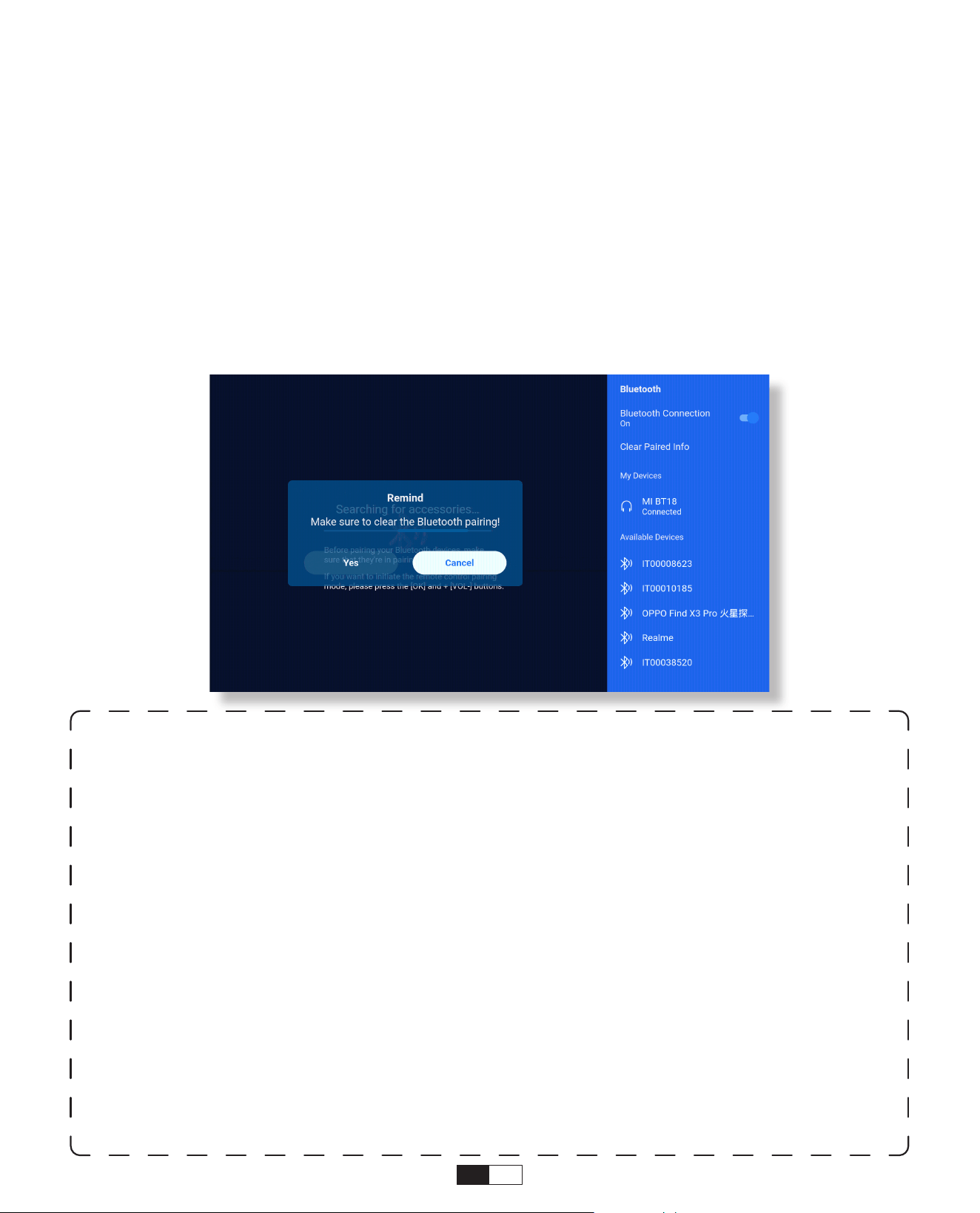
Allumez votre appareil Bluetooth et préparez-le pour une connexion Bluetooth.
Étape 2:
Accédez à la page d'accueil > Paramètres > Bluetooth pour analyser les appareils
Bluetooth disponibles, puis sélectionnez votre appareil Bluetooth et associez-le au
projecteur
IMPORTANT:
Par rapport à la connexion filaire à un haut-parleur, une connexion Bluetooth passe
plus de temps à traiter les données audio numériques, à convertir ces données en
signal audio et à diffuser le signal.
Il peut y avoir un retard ou un léger décalage dans l'audio en raison d'interférences de
signal.
Par conséquent, le son du haut-parleur peut ne pas être synchronisé avec l'image du
projecteur, en particulier lorsque vous utilisez simultanément la mise en miroir d'écran
sans fil avec une connexion WiFi et Bluetooth.
Si vous rencontrez cette situation, veuillez vérifier les options suivantes pour améliorer
la qualité audio:
* Au lieu d'utiliser simultanément la mise en miroir d'écran sans fil et la connexion
Bluetooth, nous vous recommandons d'utiliser simultanément une connexion HDMl
via le câble HDMl fourni et une connexion Bluetooth. Si vous souhaitez toujours utiliser
la mise en miroir d'écran sans fil, il est recommandé de diffuser l'audio via un haut-
parleur filaire.
* Rapprochez votre appareil Bluetooth du projecteur.
*Gardez le projecteur et votre haut-parleur Bluetooth éloignés des autres appareils
Bluetooth pour éviter les interférences.
96
• Se connecter à l'appareil en tant que haut-parleur Bluetooth
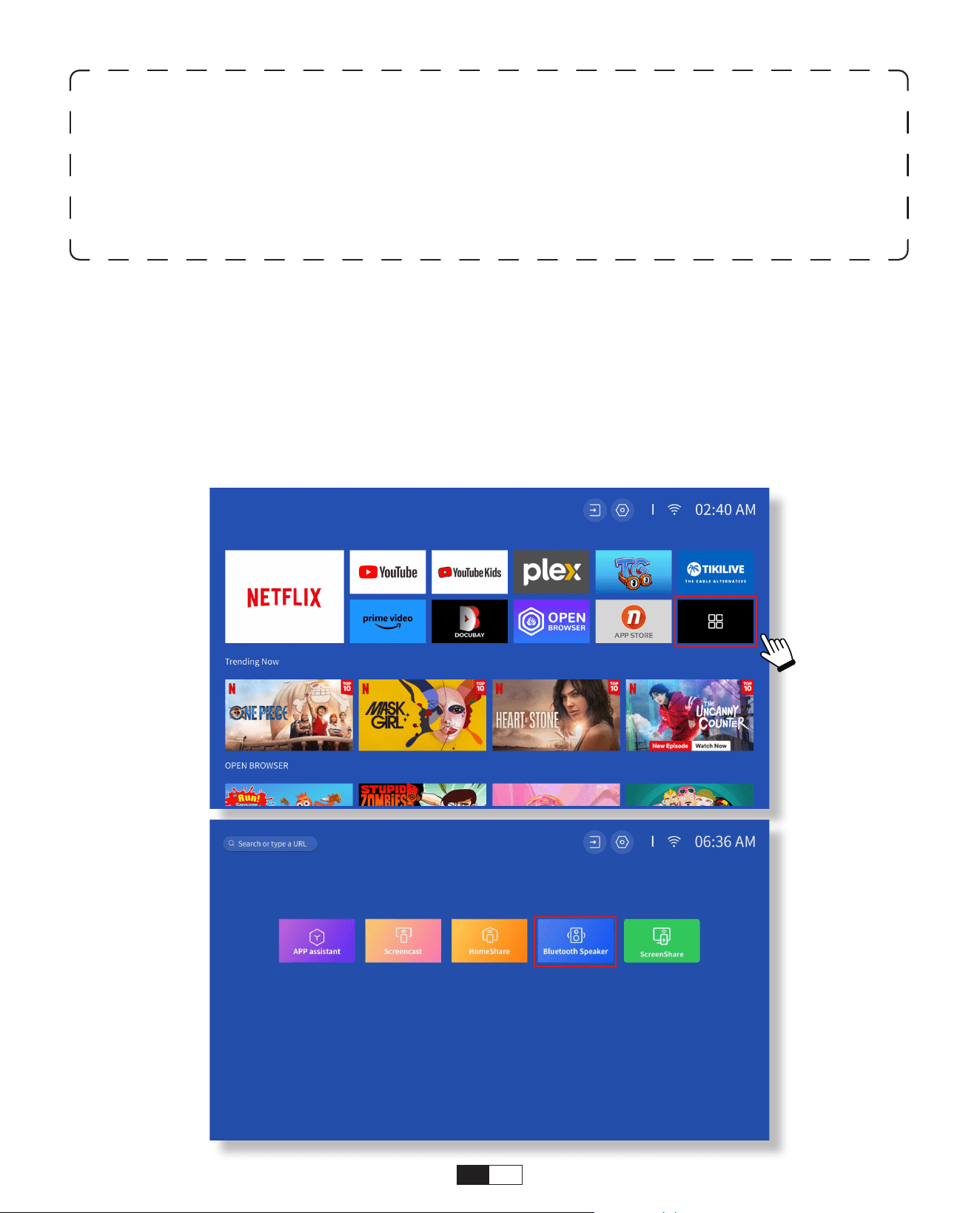
Étape 1:
Accédez à la page d'accueil > Mes applications > Haut-parleur Bluetooth et restez sur
la page suivante.
Étape 2:
Activez la fonctionnalité Bluetooth sur votre appareil, numérisez et connectez le
projecteur.
Vous pourrez peut-être régler la latence (Lip Sync) sur votre appareil qui lit la vidéo. La
manière de régler la latence varie selon les différents appareils; veuillez consulter le
fabricant de l'appareil.
En raison du problème de compatibilité entre les haut-parleurs/écouteurs Bluetooth
et le projet, il est possible que quelques appareils Bluetooth ne soient pas couplés au
projecteur via la connexion Bluetooth. S'il te plaît
97
• Installation
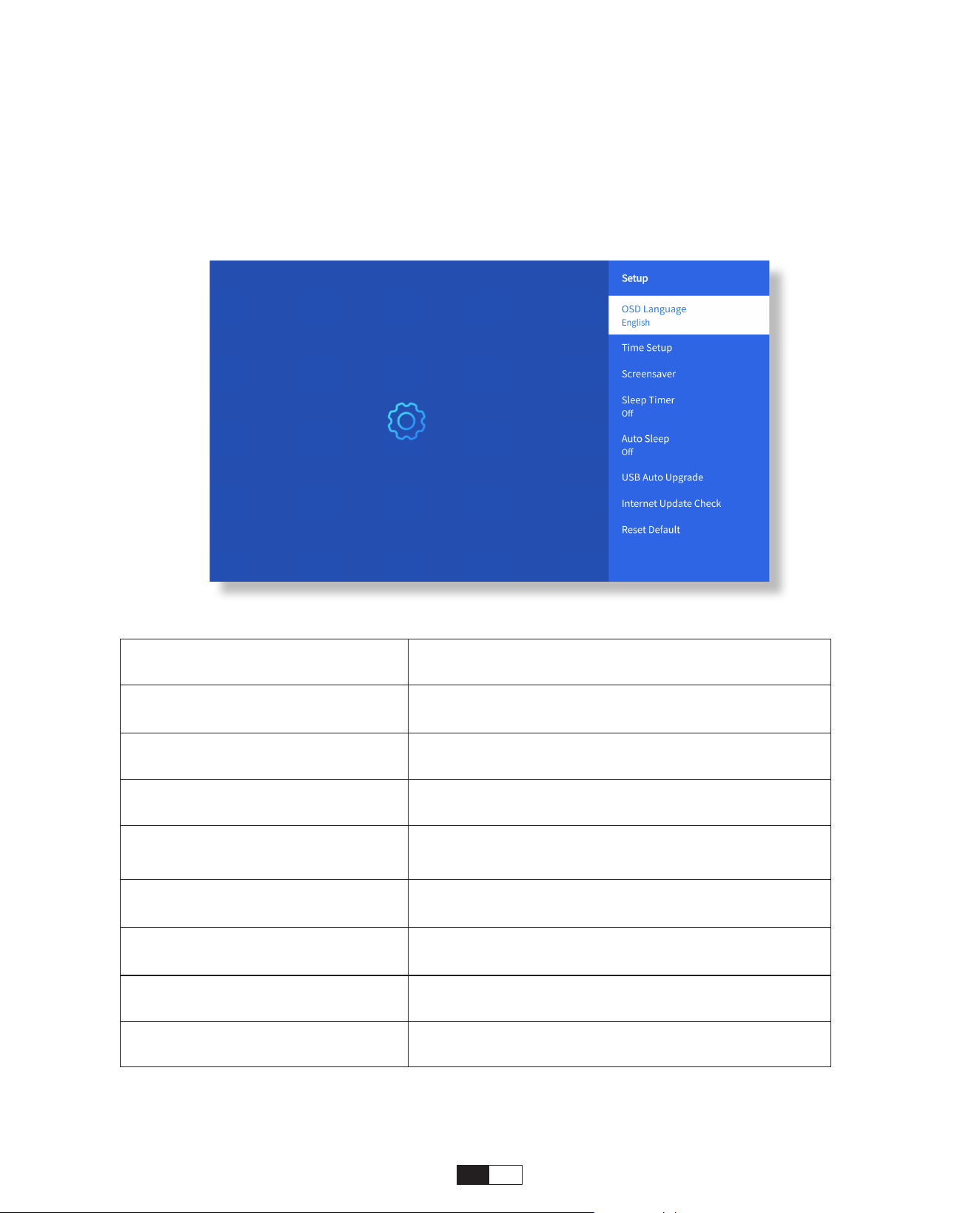
7. Autre paramètre
Accédez à la page d'accueil -> Sélectionnez [ Paramètres ] -> Sélectionnez [
Configuration ]. Utilisez les touches fléchées de la télécommande pour changer de
menu, appuyez sur « OK » pour confirmer et valider.
Menü Inhalt
OSD-Sprache
Englisch/französisch/italienisch/
japanisch usw
Zeiteinstellung Setze die lokale zeit ein
Bildschirmschoner An -/ausschalten des bildschirmschoners
Minuterie de mise en veille
Marche/Arrêt: réglez le temps de sommeil
de 10 à 120minutes
Automatischer Schlaf
Marche/Arrêt: réglez l'heure de
30minutes à 8heures
Automatischer USB-
Upgrade
Mise à jour locale
Internet-Update-Check Vérifier l'environnement Internet
Standard zurücksetzen Restaurer les paramètres d'usine
98
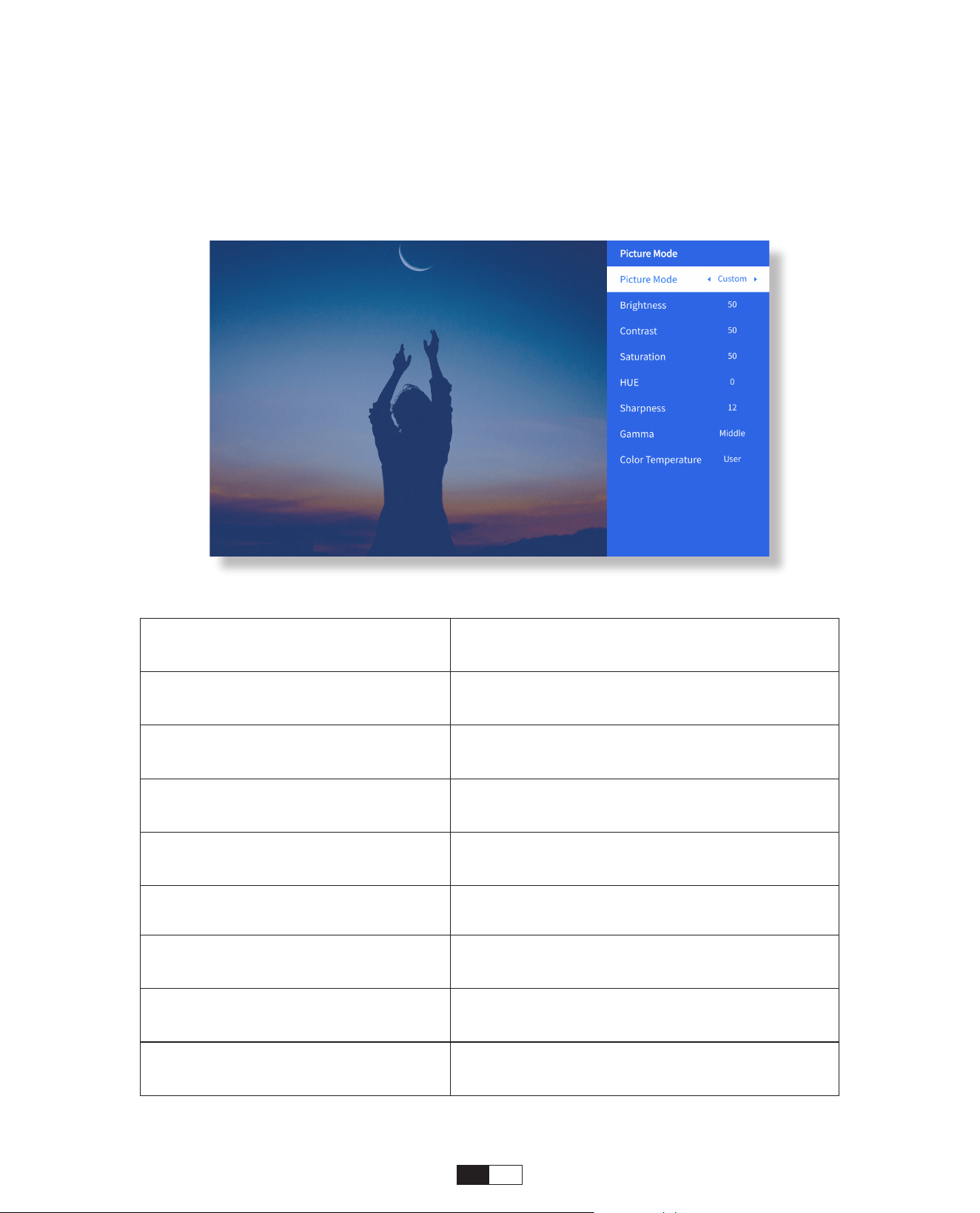
• Menu du mode image
Menu Contenu
Mode image
Standard/Cinéma/Sport/Vif/Hi-Bright/
Personnalisé
Luminosité Définir la valeur de luminosité de l'écran
Contraste Définir la valeur du contraste de l'écran
Saturation
Définir la couleur de saturation de
l'écran
Teinte Définir la couleur de la teinte de l'écran
Acuité Définir la valeur de netteté de l'écran
Gamma Clair/Sombre/Moyen
Température de couleur Normal/Froid/Chaud/Standard
Accédez à la page d'accueil -> Sélectionnez [ Paramètres ] -> Sélectionnez le [ Mode
Image ]. Utilisez les touches fléchées de la télécommande pour changer de menu,
appuyez sur «OK» pour confirmer et régler.
99
• Audio-Einstellung
Gehen Sie zur Startseite -> Wählen Sie [ Einstellungen ] -> Wählen Sie [ Audio ].
Verwenden Sie die Pfeiltasten auf der Fernbedienung, um das Menü zu wechseln,
drücken Sie die Taste "OK", um zu bestätigen, und stellen Sie.
Menu Contenu
Graves/Aigus Définir les valeurs préférées
Style sonore
Utilisateur/Standard/Film/Musique/
Sports/Vif/Actualités
Mode de sortie numérique
Auto/PCM/Dolby Audio-Dolby Digital/
Dolby Audio-Dolby Digital Plus
Amélioration des dialogues
Marche/Arrêt: amélioration de la
conversation fonction, voix, fonction de
diffusion pour personne spéciale
Faible/Moyen/Élevé
100
• À propos
Accédez à la page d'accueil -> Sélectionnez [ Paramètres ] -> Sélectionnez [ À propos ].
Utilisez les touches fléchées de la télécommande pour changer de menu, appuyez sur
«OK» pour confirmer et régler.
Menu Contenu
NetFix Netfix sous licence officielle
Informations sur la version/
licence
Afficher les dernières informations sur
la version/licence
Nom de l'appareil Nom du modèle du projecteur
Température de l'appareil 50°C
FR 101
Sélectionnez la source du signal USB, la machine les détectera automatiquement.
Étape 1 : Sélectionnez la catégorie requise « photos », « musique » ou « vidéo » dans
l'interface principale, et appuyez sur la touche « OK » de la télécommande pour entrer
dans la catégorie correspondante.
Étape 2 : Selon les programmes à choisir : « photos » « musique » ou « vidéo ».
Étape 3: Choisissez le fichier que vous souhaitez lire et appuyez sur la touche «OK»
pour lire ou mettre en pause le fichier. (Vous ne pouvez pas accéder à la catégorie
requise sans connecter un disque USB.)
8. Connexion des lignes de signal
①
Connexion multimédia USB
②
Connexion avec un PC
Étape 1: Connectez-vous à l'ordinateur et au projecteur U 12 avec le câble HDMI (inclus).
Étape 2: Sélectionnez la source HDMI à projeter sur le projecteur;
Étape 3 : Sur votre ordinateur portable, maintenez enfoncées les touches du tableau « Win+P
» pour changer votre mode d'affichage.
Remarque : Pour l'option « Office Suite », les fichiers PPT/TXT ne peuvent pas être
lus ou présentés normalement.
102
Étape 1: Choisissez le canal du signal multimédia: «HDMI»
Étape 2 : utilisez un adaptateur Type-C vers HDMI pour connecter votre MacBook,
ou un adaptateur Mini Display vers HDMI pour vous connecter à votre MacBook Air
(adaptateur non inclus). Connexion avec MacBook ou Mac Book Air. (Adaptateur NON
INCLUS)
Ordinateur uniquement : c'est l'option par défaut – s'affiche uniquement sur le
moniteur principal.
Dupliquer: fait en sorte que tous les moniteurs affichent la même chose en dupliquant
le bureau sur chaque moniteur.
Étendre: fait en sorte que tous vos moniteurs agissent comme un seul grand moniteur
étendant le bureau sur chacun d'eux.
Projecteur uniquement: s'affiche uniquement sur le moniteur secondaire comme un
projecteur.
Pour modifier la résolution de l'écran en mode Projecteur uniquement, procédez
comme suit:
Étape: Démarrer > Panneau de configuration > Apparence et personnalisation >
Ajuster la résolution de l'écran
③
Connexion avec MacBook ou MacBook Air

103
En mode veille à la mise sous tension, branchez l'alimentation électrique et le voyant
d'alimentation du projecteur s'allumera. Vous devez appuyer sur le bouton d'alimentation
pour allumer le projecteur.
Si elle est activée, la machine s'allumera automatiquement après avoir branché le
cordon d'alimentation.
1. Appuyez sur le bouton du projecteur ou de la télécommande, puis appuyez sur la
touche OK pour éteindre le projecteur.
2. Débranchez le cordon d'alimentation du projecteur.
3. Couvrez l'objectif et rangez le projecteur dans un endroit frais et sec.
9. Mode de mise sous tension
10. Arrêt sécurisé
Étape 1:utilisez le câble HDMI pour vous connecter à la XBOX/PS5
Étape 2: Choisissez le canal du signal multimédia: «HDMI»
Étape 3: Réussir
Étape 1:utilisez le câble HDMI pour vous connecter au lecteur DVD
Étape 2: Sélectionnez le mode «HDMI» pour la connexion
Étape 3:Entrer la touche Menu
Étape 4: Changez le mode PC de [On] à [Off] pour éviter le risque de bords de pixels
blancs dans l'image.
④
Connexion avec XBOX/PS5
⑤
Connexion avec un lecteur DVD:

104
• Entretien des projecteurs
1. Ne placez pas le projecteur dans une pièce trop chaude ou trop froide, car la
température élevée ou basse réduirait la durée de vie de l'appareil. L'environnement de
travail serait meilleur de 5°C à 35°C.
2. S'il y a des points noirs sur l'écran de projection, ne vous inquiétez pas. Veuillez
contacter aftersal[email protected] par e-mail, nous pouvons vous envoyer une vidéo
sur la façon de retirer la poussière.
3. Le projecteur doit être strictement protégé contre les chocs violents, l'extrusion et les
vibrations.
4. L'objectif, en tant que composant principal du projecteur, est directement lié à la
définition et à l'effet de l'image. Nettoyez l'objectif chaque fois que vous remarquez de
la saleté ou de la poussière sur la surface. Utilisez une cartouche d'air comprimé pour
éliminer la poussière de l'objectif. S'il y a de la saleté ou des traces, utilisez le chiffon de
nettoyage pour essuyer délicatement la surface de l'objectif.
Conseils d'entretien
Scan and download the PDF user manual
Where to Get More Help
@Yaber Entertainment Projector
@Yaber

LINGUA
English
Deutsch
Français
Italia
日本語日本語
03-36
39-70
73-104
107-138
141-172
175-206
Polish

CONTENUTI
YABER Supporto professionale a vita 04
Suggerimenti 04
Elenco dei pacchetti 05
Specifiche del proiettore 06
Panoramica del proiettore 07
Panoramica del telecomando 08
Installazione della base 09
Installare sul soffitto 10
Distanza e dimensione di proiezione 10
Supporto base regolabile 11
Connetti i dispositivi. Install on the Ceiling 11
Operazione 12
1. Avvio del proiettore 12
2. Regolazione dell'immagine 13
3. Riproduci contenuti da app con licenza ufficiale 16
4. Connessione di proiezione e sorgente di ingresso 17
5. Screencast 19
6. Impostazione Bluetooth 27
7. Altre impostazioni 29
8. Collegamento delle linee di segnale 33
9. Modalità di accensione10. Safe 35
10. Safe Shutdown 35
Suggerimenti per la manutenzione 36

IT
108
YABER Supporto Professionale a Vita
Punte
Gentile cliente,
Grazie per aver scelto il proiettore Yaber U12.
Questo manuale ti aiuterà a navigare attraverso tutte le funzionalità. Se riscontri problemi, sentiti libero
per inviarci il numero dell'ordine e il problema all'indirizzo [email protected]
. (Rispondere
entro
24 ore)
Molti problemi possono essere facilmente risolti impostando, ad esempio, nessun segnale, nessun
suono, Bluetooth
connessione non riuscita, connessione WiFi non riuscita, punti scuri, animazione discontinua, ecc
La tua soddisfazione è la nostra massima priorità e ti invitiamo a esplorarne i contenuti
manuale in modo approfondito.
Ti auguro un'esperienza eccezionale con U12.
Team del servizio consumatori YABER
1. Ambiente adatto(5°C - 35°C)
Posizionare il proiettore in un ambiente con temperatura adeguata, assicurando una corretta
ventilazione.
lazione. Il caldo o il freddo estremi possono compromettere la durata del proiettore.
2. Pulizia (punti neri)
Il proiettore deve essere rigorosamente protetto da forti impatti, estrusione e vibrazioni. Non
tentare di spostarlo durante un forte impatto, estrusione o vibrazione, poiché ciò potrebbe causare
danni interni
guasti al circuito.
Se noti punti neri sullo schermo di proiezione, non preoccuparti. Contattaci semplicemente
a [email protected] e forniremo un video tutorial su come rimuovere le particelle di
polvere. 3. Cura sicura
4. Obiettivo
L'obiettivo è direttamente correlato alla definizione e all'effetto dell'immagine. La polvere eccessiva al
suo interno lo farà
influenzare la qualità dell'immagine. La lente sporca deve essere pulita con un panno di cotone
morbido per la lente di vetro
superficie. Non devono essere utilizzati panni duri o abrasivi
IT 109
Elenco dei Pacchetti
Proiettore U12
Telecomando
Copriobiettivo
Cavo HDMI
Base per Proiettore
Guida Introduttiva
Rapida
Cavo di Alimentazione
Base per Proiettore

IT
110
Specifiche del Proiettore
Modello n. U12
Focus
Automatico/
elettrico
Correzione
trapezoidale
Automatica/
Elettrica
Sorgente Luminosa LED Display Technology LCD
Rapporto d'aspetto 16:9/4:3 Interfacce
USB2.0*2/
HDMI1.4*2/
3.5mm Audio Out*1,
Lan*1
Projection Ratio 1.36:1
Consigliato
Distanza di
Proiezione
1.3~5.0m
(4.5-16.4 Ft.)
Risoluzione nativa 1920*1080P
Dimensione
dell'unità
9.8*8.8*7.6 inches
(25*22.5.*19.3CM)
7.27lbs (3.3KG)
Tensione di
alimentazione
100-240V/50-60Hz
2A
Consumo di
Energia
140W
Peso del proiettore
7.27 lbs/3.3 kg
(Avec Socle)
Metodo di Proiezione
Fronte/Retro Sulla
Scrivania,
Fronte/Retro a
Soffitto
Formato immagine JPEG, GIF, BMP, PNG, JPG
Formato audio MP3,WAV,MKA,OGG,FLAC,Supporto Dolby
Formato Video
AVI,TS,MPEG,MP4,MOV,M2TS,MKV,FLV,VOB,DAT,M4V,ASF,F4V,3G
P,3G2,TP,TRP,RMVB
111
Panoramica del Proiettore
Lente
Autofocus
Segnale
Infrarosso
Porte HDMI
Porte USB
Porta di Rete Cablata
Porta di Rete Cablata
Segnale
Infrarosso
Ricevitore
Ingresso
AlimEntazione
Ricevitore di
Segnale
Foro per Vite
Foro per Vite
Rete Antipolvere
Staccabile
Etichetta Inferiore Pulsante di Accensione
Uscita Dell'Aria
112
Panoramica del Telecomando
1. Potenza
2. Disattiva audio
3.NETFLIX
4. YouTube
5. Primo Video
6. Apri BROWSER
7. Tasti Rosso/Verde/Giallo/
Blu
8. Menù
9. Sorgente di ingresso
10. Tasti freccia
11. Tasto di conferma
12. Indietro
13. Homepaper
14. Volume+
15. Volume-
16. Concentrazione+
17. Concentrarsi-
18. Modalità di proiezione
19. Numero
20.USB
21. Indietro
• Preparare il telecomando
1. Aprire il vano batterie.
2. Inserire due batterie AAA con la polarità corretta indicata.
3. Chiudere il vano batterie.
Nota: è necessario utilizzare il telecomando Yaber per completare la prima
configurazione del proiettore.
113
Installazione Della Base
1. Capovolgere la macchina con il
rovescio rivolto verso l'alto.
3. Stringere le viti nella scatola degli
accessori.
2. Far corrispondere i fori della base
a quelli fori per le viti sul proiettore.
4. Completare l'installazione.
114
1. Preparare un supporto da soffitto universale per proiettore. (Non incluso nella confezione)
2. Rimuovere i quattro cuscinetti di gomma sul fondo del proiettore per rivelare i fori delle viti.
3. Utilizzare viti M5*10mm per installare saldamente il proiettore sul soffitto utilizzando il telaio
di sospensione.
Installare sul Soffitto
Fori delle viti M5*15mm
155mm
108mm
Distanza e dimensione di proiezione
La distanza di proiezione consigliata è di circa 8,9 piedi e la distanza di proiezione più
breve
è 4,5 piedi
La dimensione dell'immagine dipende dalla distanza tra il proiettore e lo schermo.
Potrebbe esserci una deviazione del 3% tra i dati sopra elencati. Impostazioni diverse
causano distanze diverse.
40"
1.4m
(4.5ft)
2.1m
(6.7ft)
2.7m
(8.9ft)
3.4m
(11.2ft)
4.1m
(13.4ft)
6.8m
(22.4ft)
60"
80"
100"
120"
150"
200"
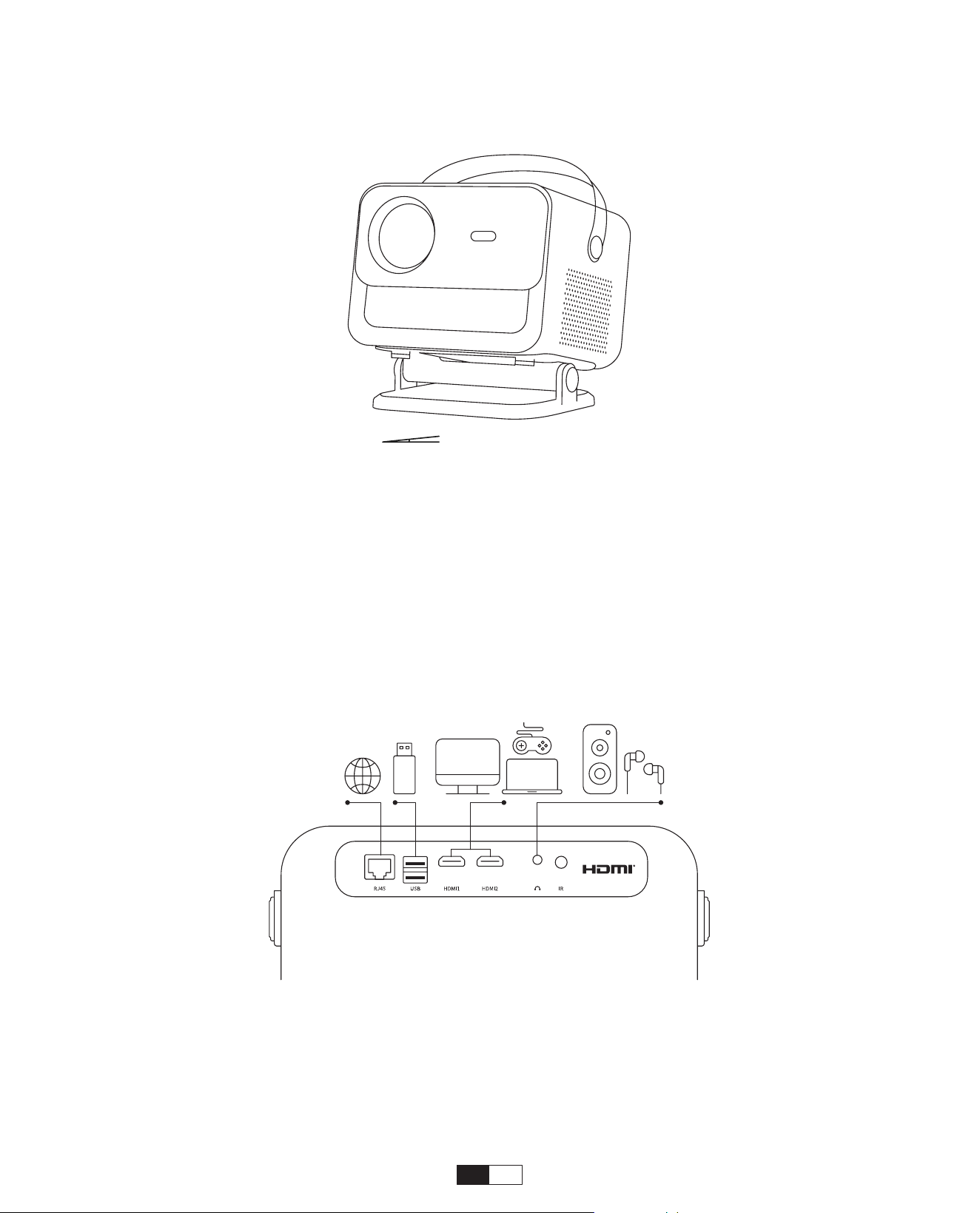
115
Supporto base Regolabile
Maximaler Abschluss: ±15°
È possibile regolare l'angolo di proiezione modificando la posizione della staffa, con un
range di regolazione fino a 15 gradi sia verticalmente verso l'alto che verso il basso.
Il proiettore è dotato di 5 porte, porta HDMI/porta USB/porta USB-C/uscita audio.
Seleziona le porte di connessione corrette per connettere i tuoi dispositivi.
Connetti i Dispositivi
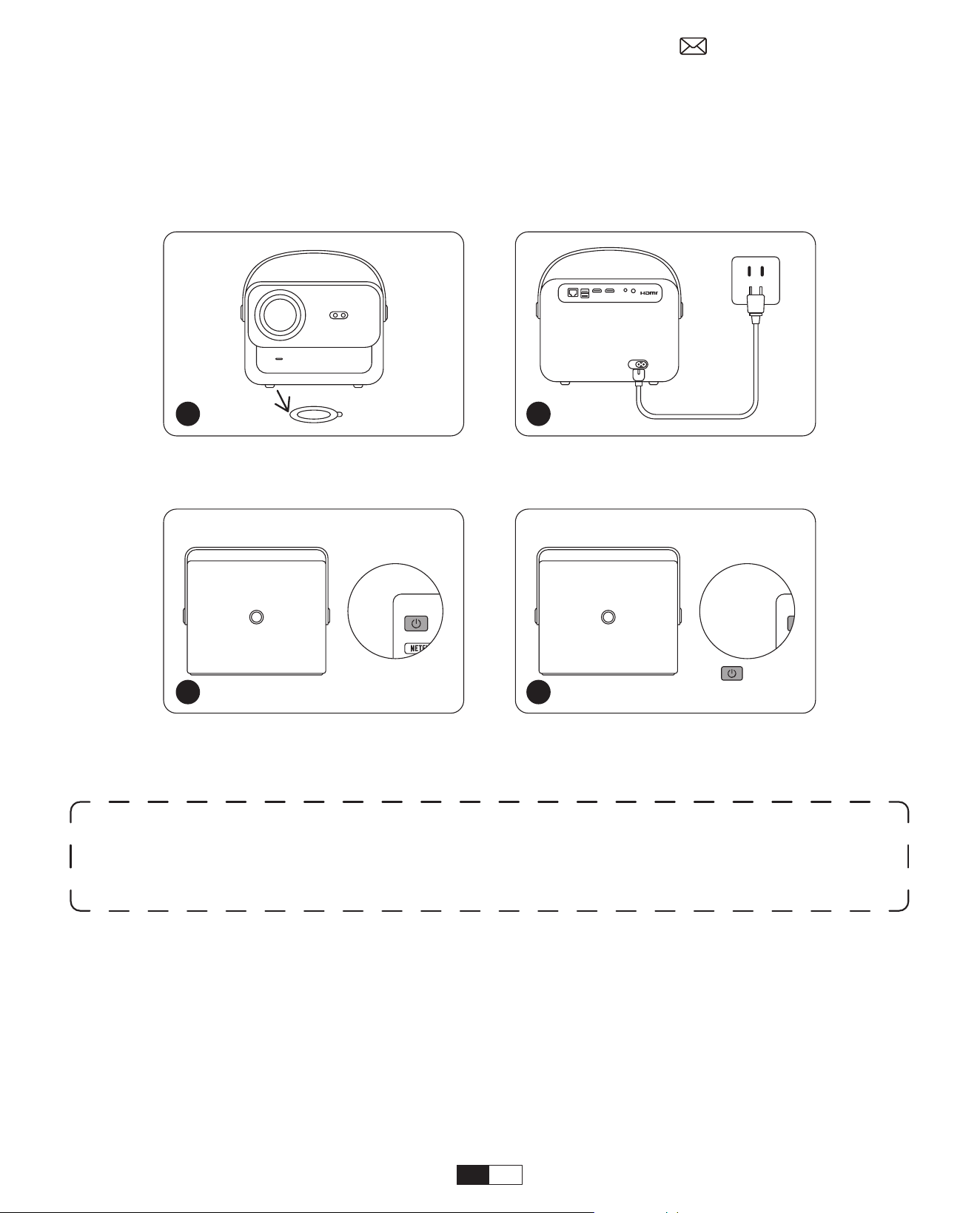
116
Spia di alimentazione arancione accesa --- Modalità standby
Spia di alimentazione arancione spenta --- Modalità di lavoro
Togliere la pellicola protettiva.
Premere una volta il pulsante
di accensione per accendere il
proiettore.
Collegare il cavo di
alimentazione a una presa.
Premere due volte il pulsante
di accensione per spegnere il
proiettore.
Quando si accende il proiettore per la prima volta o il proiettore viene ripristinato alle
impostazioni di fabbrica
Impostazioni, verrà richiesto di effettuare la prima configurazione.
Dopo la configurazione, il proiettore andrà alla Home Page.
• Accensione
• Configurazione per la Prima Volta
Operazione
1. Avvio del Proiettore
1 2
x 2
3 4
Avviso:
quando si collega il cavo di alimentazione al proiettore, la luce arancione
lampeggia per 10 secondi.
Attendere pazientemente finché la spia di alimentazione non smette di lampeggiare.
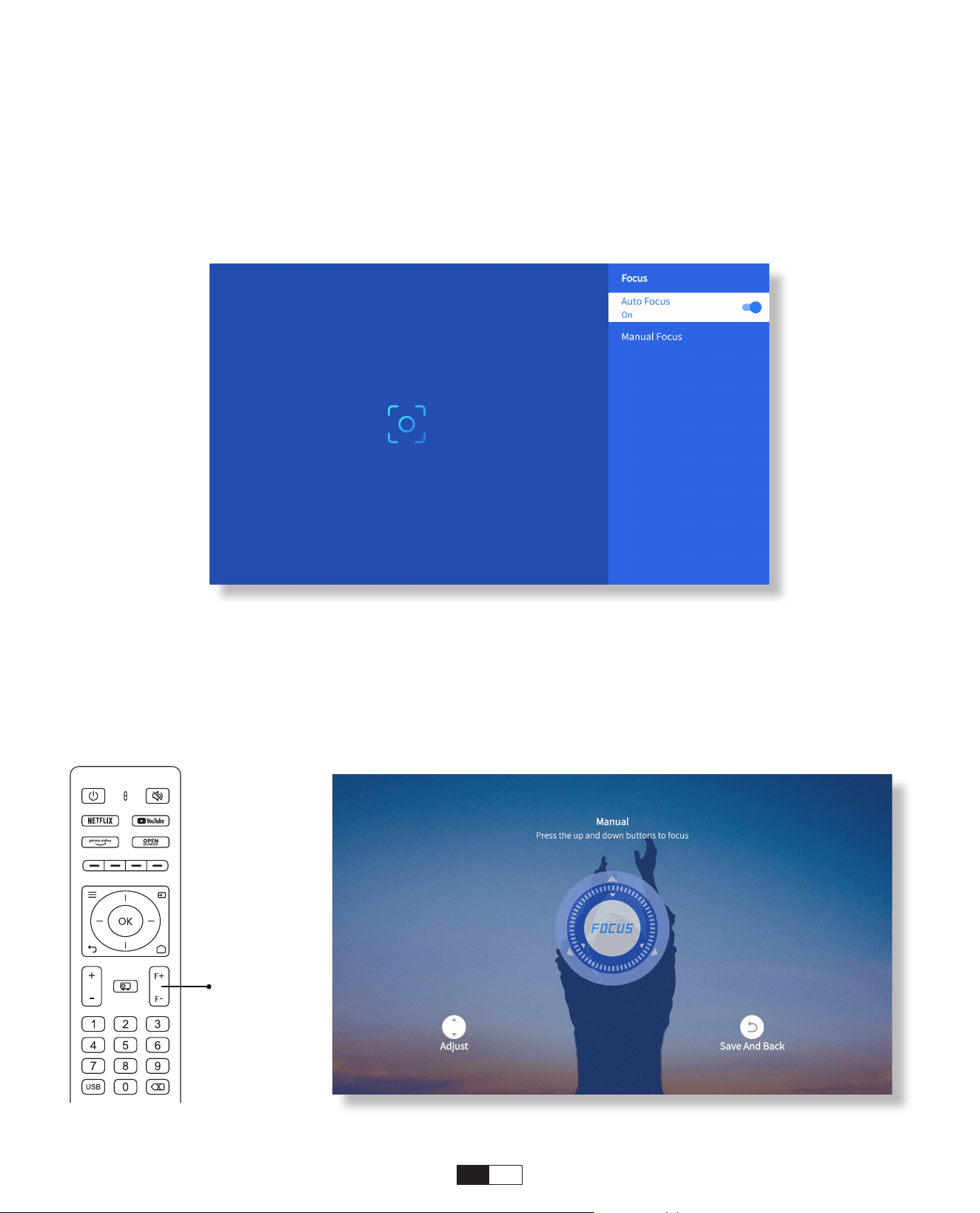
117
Quando il proiettore è acceso, attendere alcuni secondi e regolerà automaticamente
messa a fuoco. (In caso contrario, assicurati che la funzione di messa a fuoco
automatica sia attivata in Impostazioni >> Messa a fuoco >> Messa a fuoco
automatica >>SU)
È inoltre possibile regolare la nitidezza dello schermo facendo clic o tenendo premuti
i pulsanti F+ e F- sul telecomando.
• Messa a fuoco automatica
• Messa a fuoco elettrica
2. Regolazione Dell'Immagine
Focus +/-
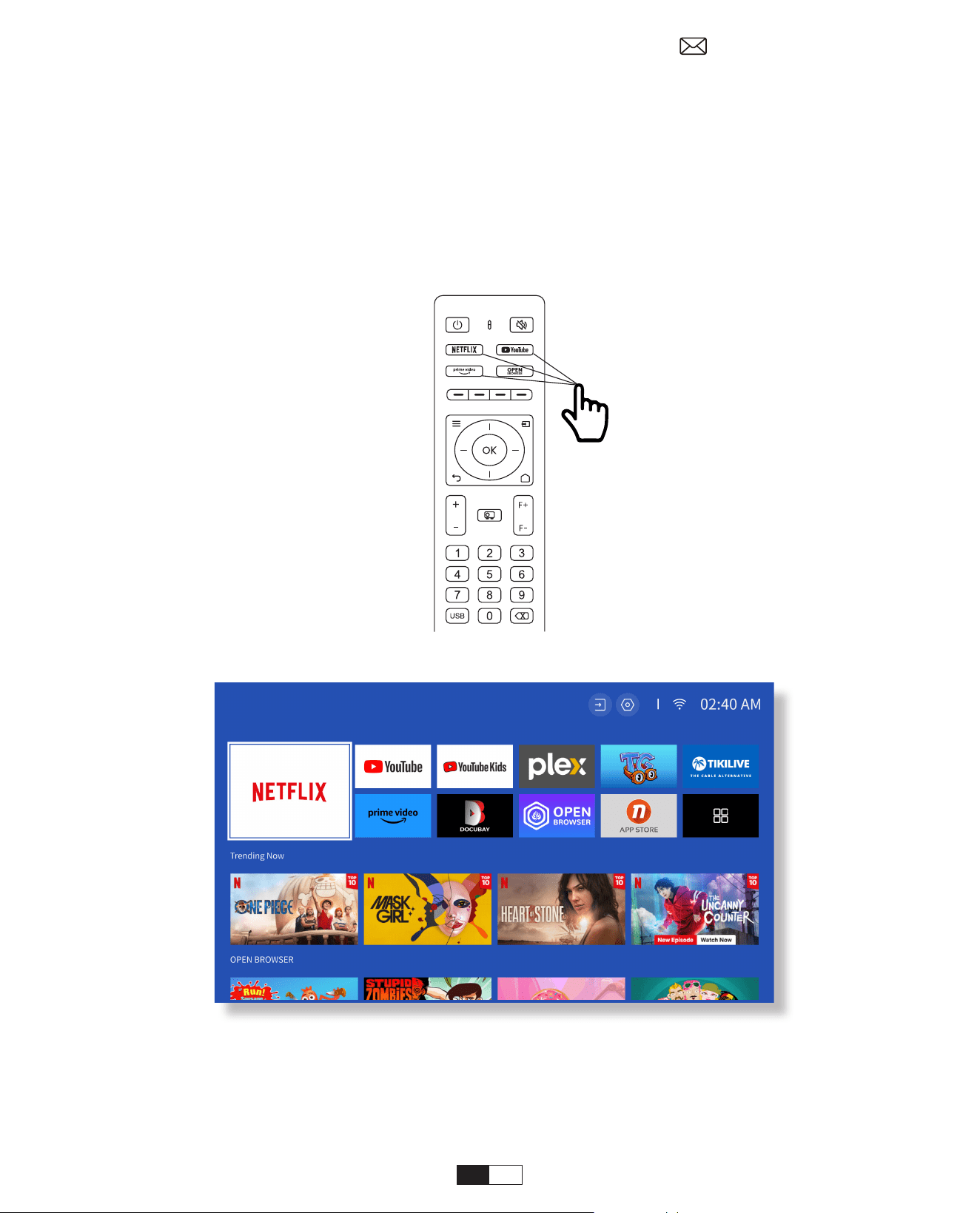
118
Vai alla home page, seleziona il tuo canale preferito o accedi tramite le scorciatoie sul
telecomando. Accedi al tuo account per riprodurre il contenuto corrispondente.
3. Riproduci contenuti da app con licenza ufficiale come
Netflix, Youtube e Amazon Prime
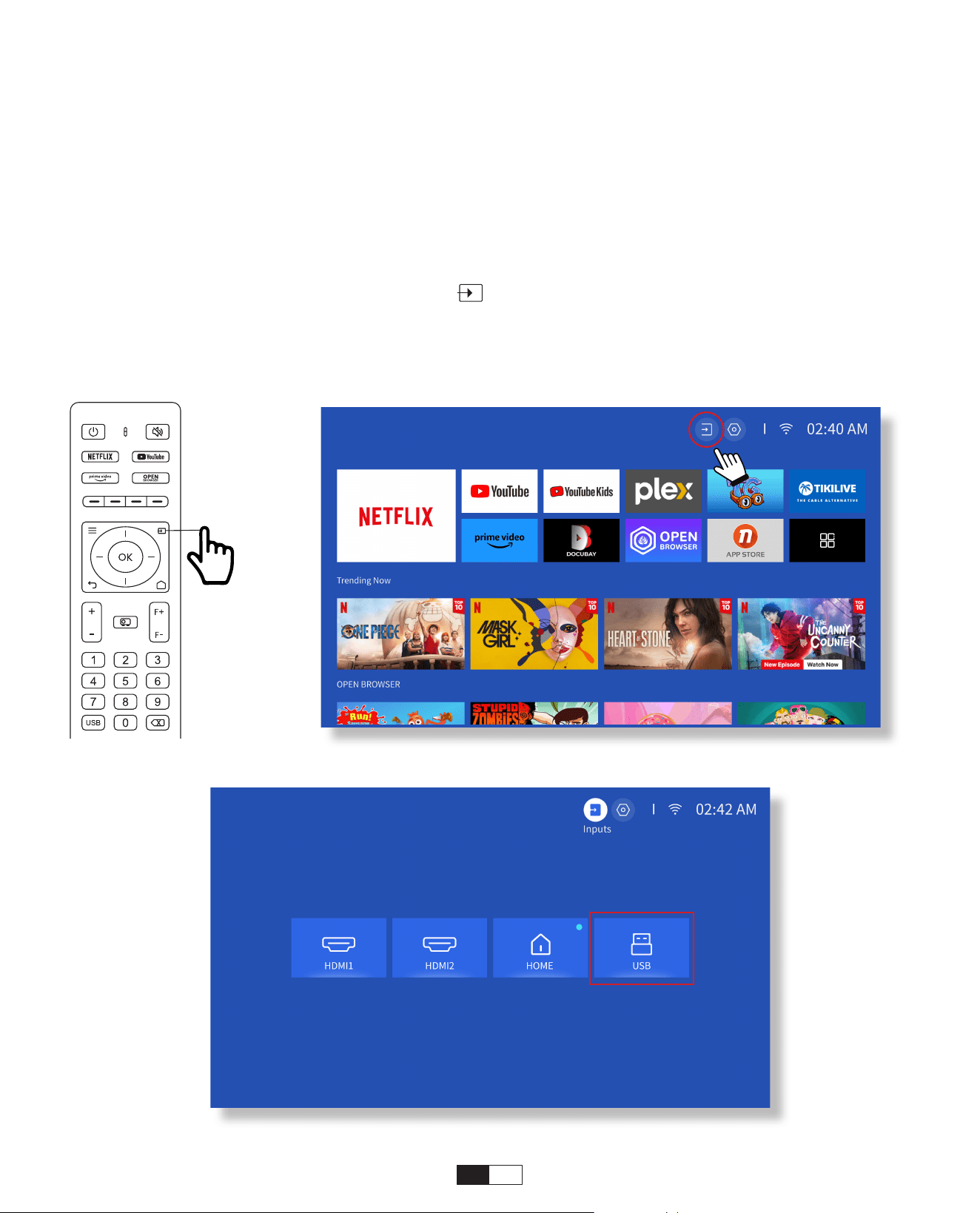
119
Seguire le istruzioni a pagina 9 per collegare correttamente i dispositivi al proiettore,
quindi selezionare la sorgente di ingresso corretta.
1. Inserire il disco USB
2. Fare clic sulla sorgente di ingresso [ ] sul telecomando o scegliere l'icona della
sorgente di ingresso sulla home page.
3.Selezionare "USB" come sorgente di
• Modalità di input del disco USB
4. Connessione di proiezione e sorgente di ingresso
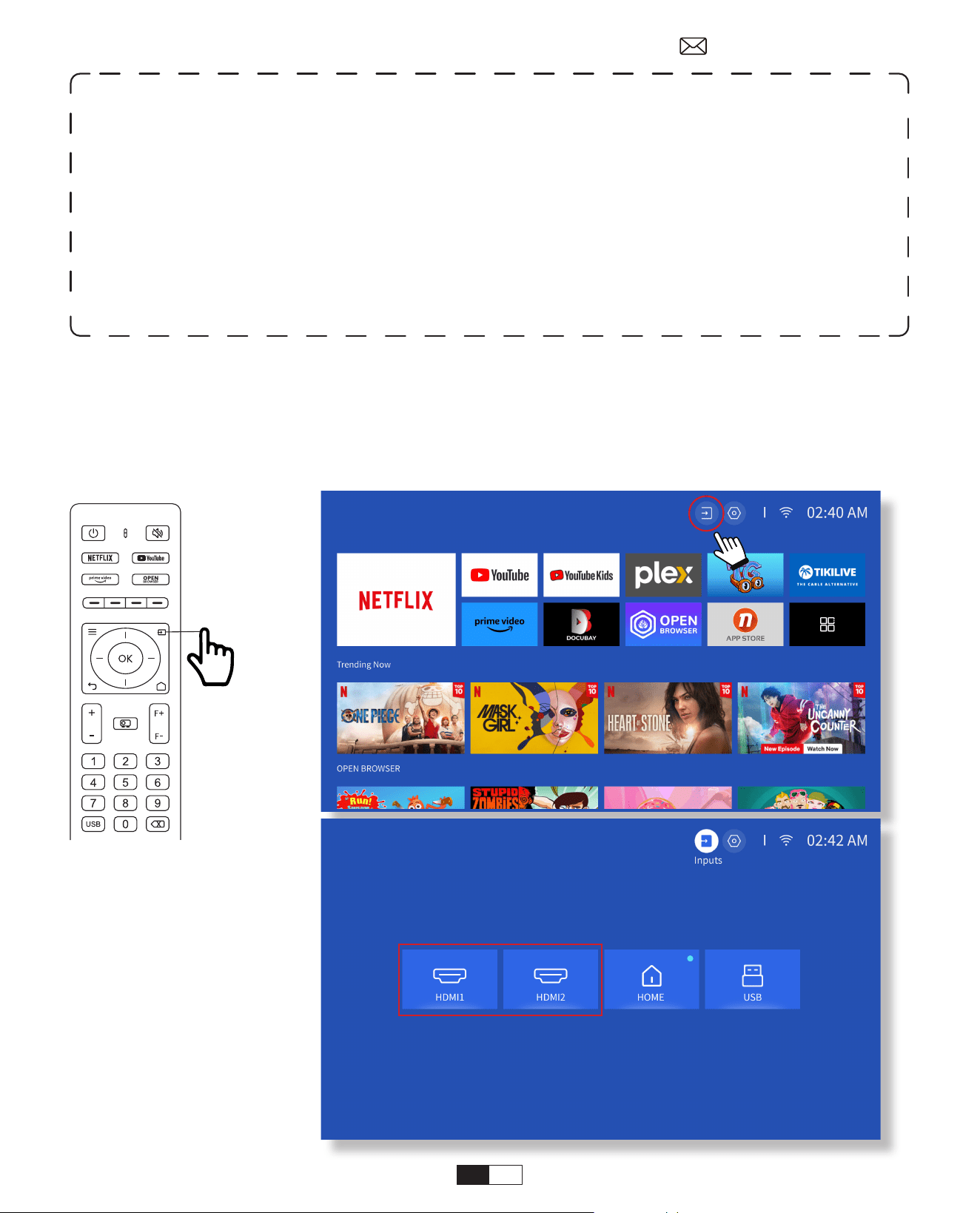
120
Collega il tuo dispositivo con uscita HDMI al proiettore utilizzando il cavo HDMI in
dotazione.
Premere il pulsante della sorgente di ingresso sul telecomando e selezionare HDMI1 o
HDMI2.
• Modalità ingresso HDMI
Avvertenza:
se il proiettore non riesce a riconoscere il disco USB, fare riferimento ai
seguenti metodi per risolvere il problema.
1. Conferma se il tuo disco USB soddisfa i seguenti formati: (1) FAT32: 8G/16G/32G; (2)NTFS:
64G
2. Se il disco USB non viene riconosciuto/rilevato, formattarlo. Prima di formattare il disco
USB, assicurarsi di eseguire il backup di tutto. Dopo la formattazione, tutto andrà perso per
sempre.
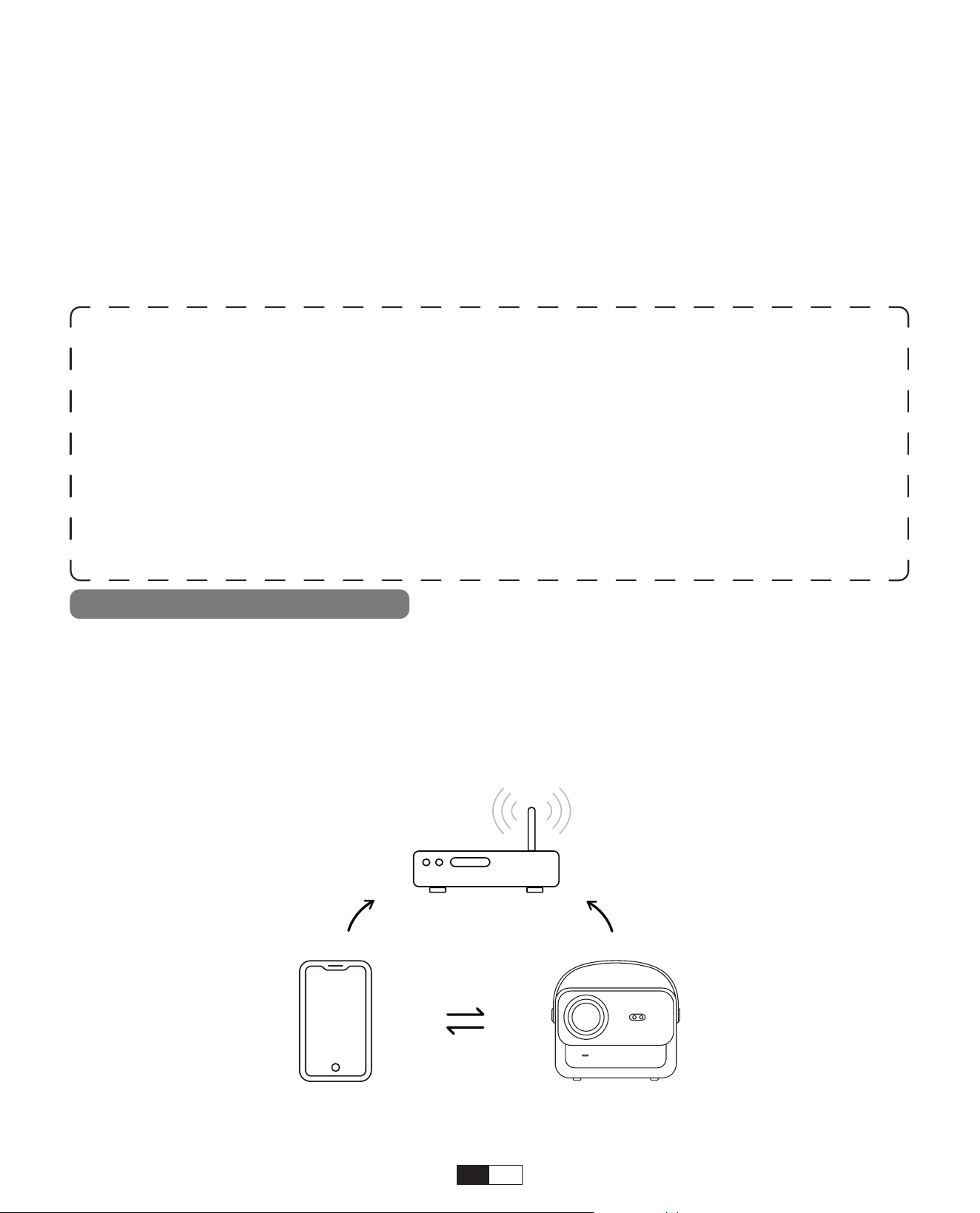
121
5. Screencast
Passo 1:
Collega il proiettore e il tuo dispositivo mobile allo stesso router WiFi
• Mirroring Wi-Fi iOS
iOS Cast (per dispositivi iOS)
2. "Questa opzione non è necessaria per selezionare una sorgente di ingresso"
• Collegamento via cavo di altoparlanti e cuffie
Suggerimenti per il riscaldamento::
1. La fluidità del mirroring dello schermo con la connessione wireless sarà
influenzata dalla rete ambiente. Si consiglia una larghezza di banda di 100 Mbit o
più quando si utilizza il mirroring dello schermo.
2. Assicurati che il tuo dispositivo mobile sia vicino al proiettore quando usi la
connessione wireless. Si consiglia una distanza entro 1 metro.
3. Alcuni dispositivi mobili potrebbero non supportare il mirroring dello schermo a
causa della compatibilità.
4. Per qualsiasi domanda, non esitate a inviare un'e-mail a YABER tramite
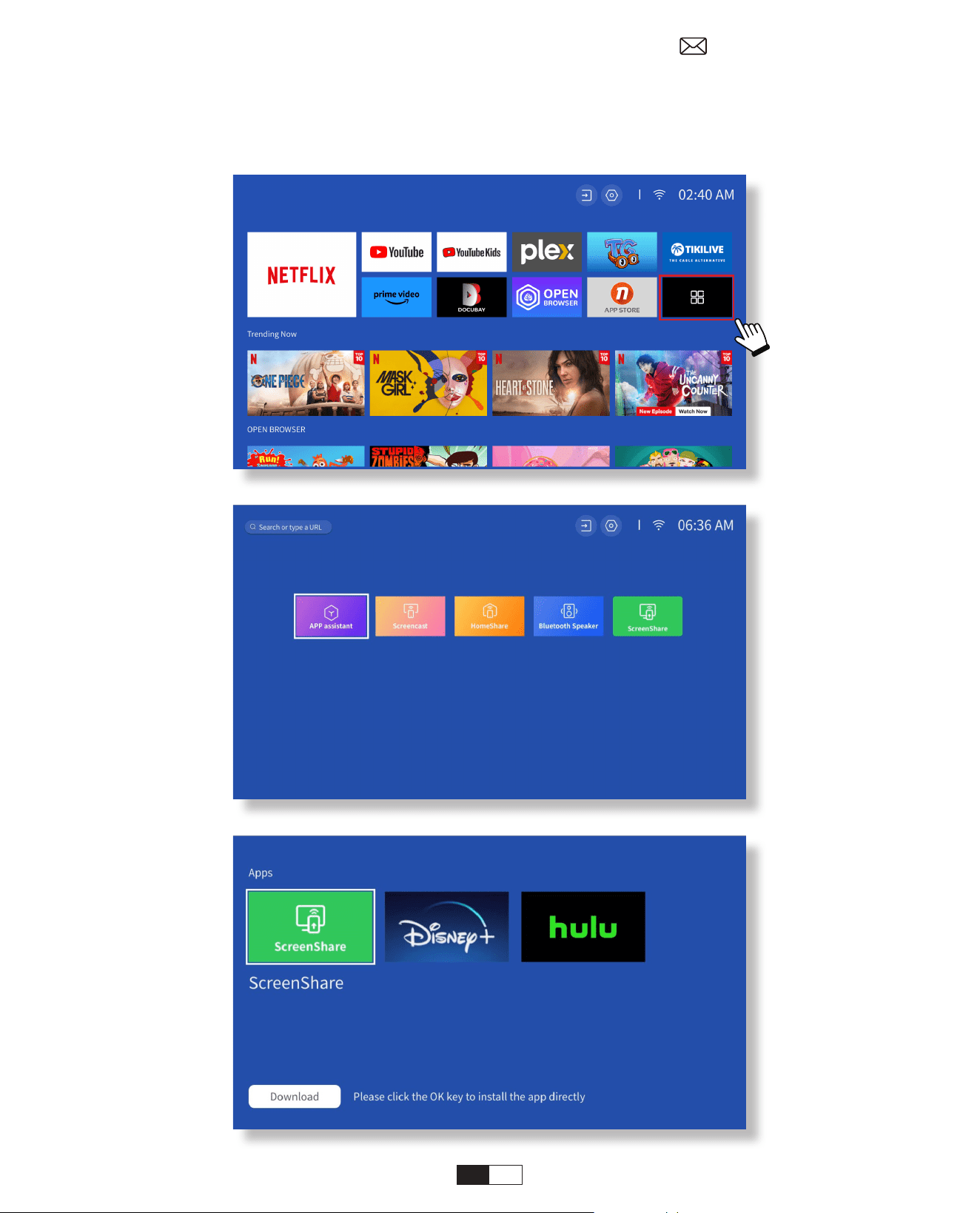
122
Passo 2:
Vai su Home page > Le mie app > Assistente app, quindi seleziona e scarica
ScreenShare
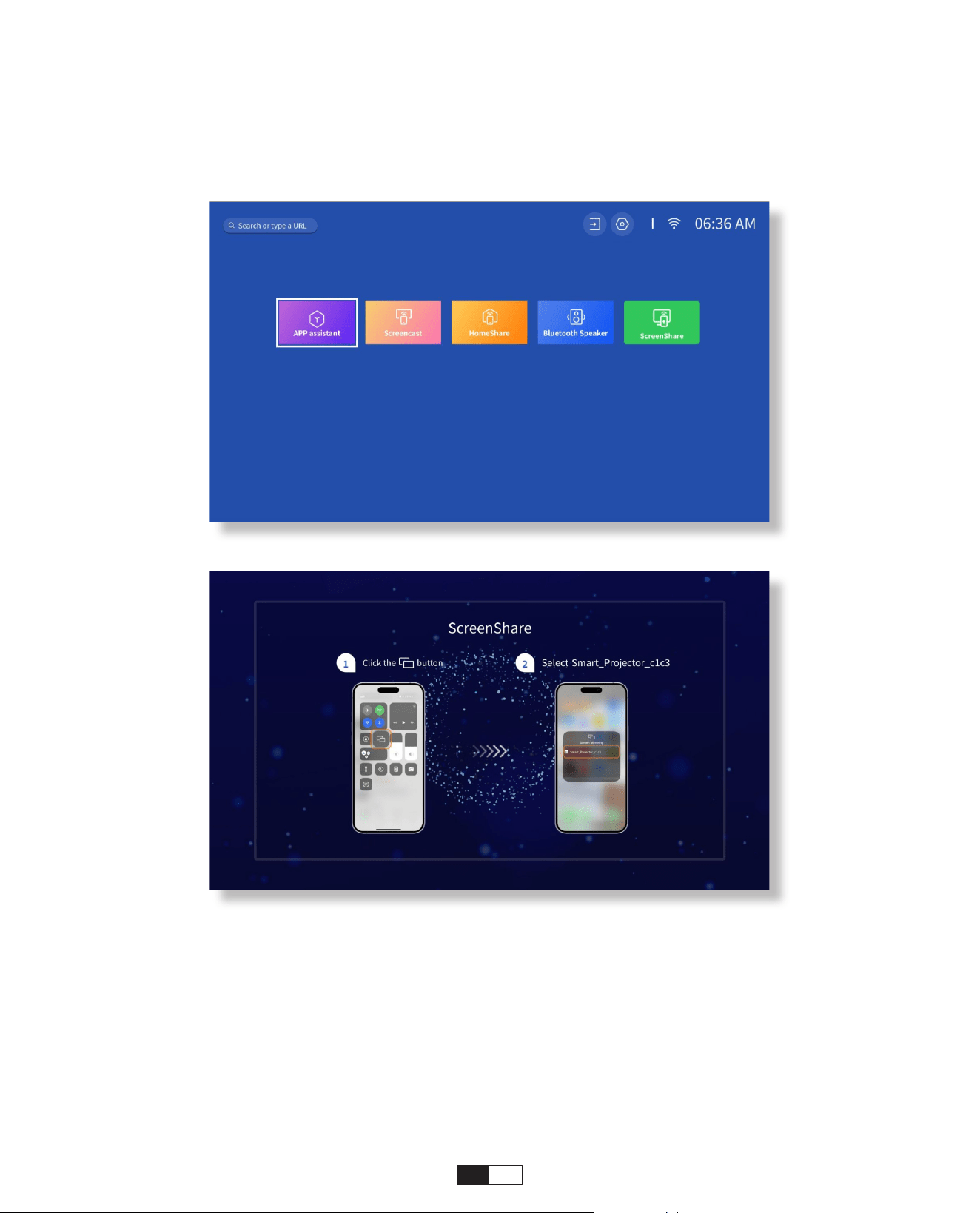
123
Passaggio 3:
Torna alla pagina Le mie app >> Avvia l'app Screen Share e rimani nella pagina
successiva.
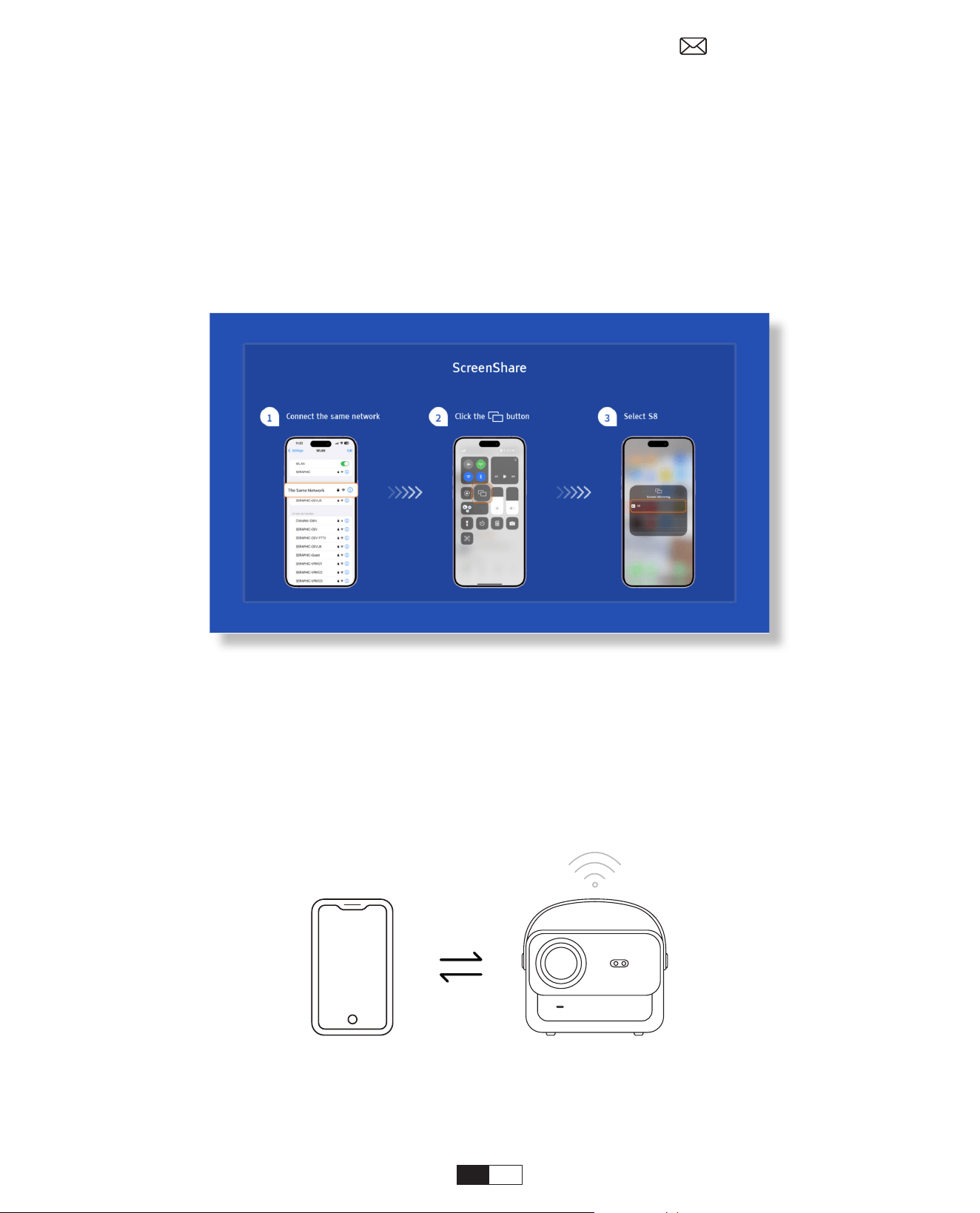
124
Passaggio 4:
Vai al Centro di controllo del tuo dispositivo iOS. Quindi toccare Screen Mirroring/Air
Playing per cercare il proiettore.
Passaggio 5:
Scegli [Smart_Projector_XXXX] dall'elenco e, una volta stabilita la connessione, il
contenuto sul tuo dispositivo iOS verrà riflesso sullo schermo di proiezione o sulla
parete
Passo 1:
Accendi il Wi-Fi sul tuo iPhone/iPad e connettiti all'hotspot del proiettore: [Smart_
Projector_XXXX]
• Mirroring dell'AP iOS
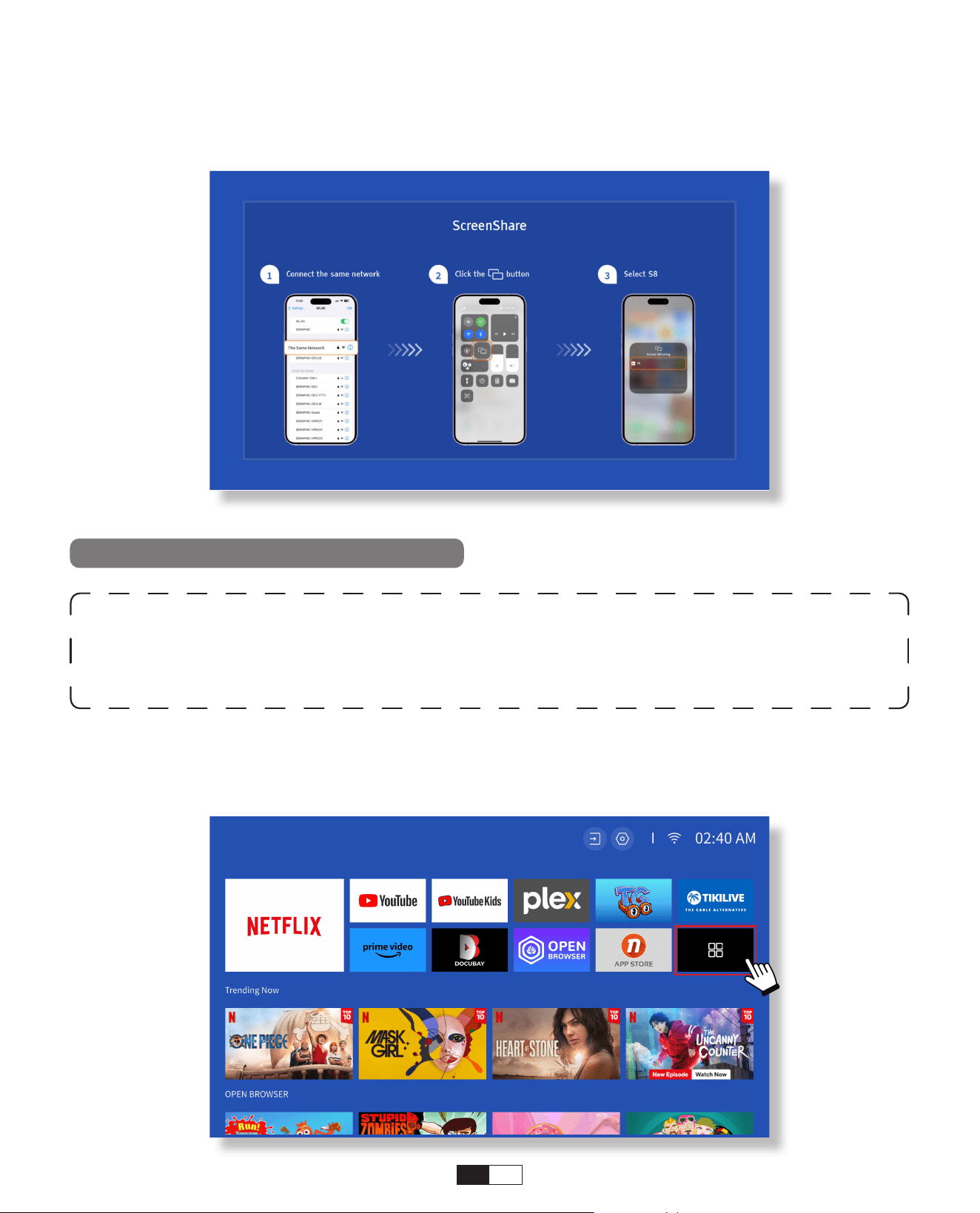
125
Passo 2:
Premi ilScreen Mirroring del dispositivo iOS e quindi scegliere [Smart_Projector_XXXX]
Avvertenza:
per attivare questa funzione, il tuo dispositivo Android deve
supportare la visualizzazione multischermo/wireless. Il nome "Multi-Screen" può
variare a seconda delle varie marche di dispositivi Android.
Passaggio 1: attiva la funzione Wi-Fi sul tuo telefono Android (non è necessario connettersi al
Wi-Fi).
Passaggio 2: vai su Home page > Le mie app > ScreenCast
Miracast Cast (per dispositivi Android)
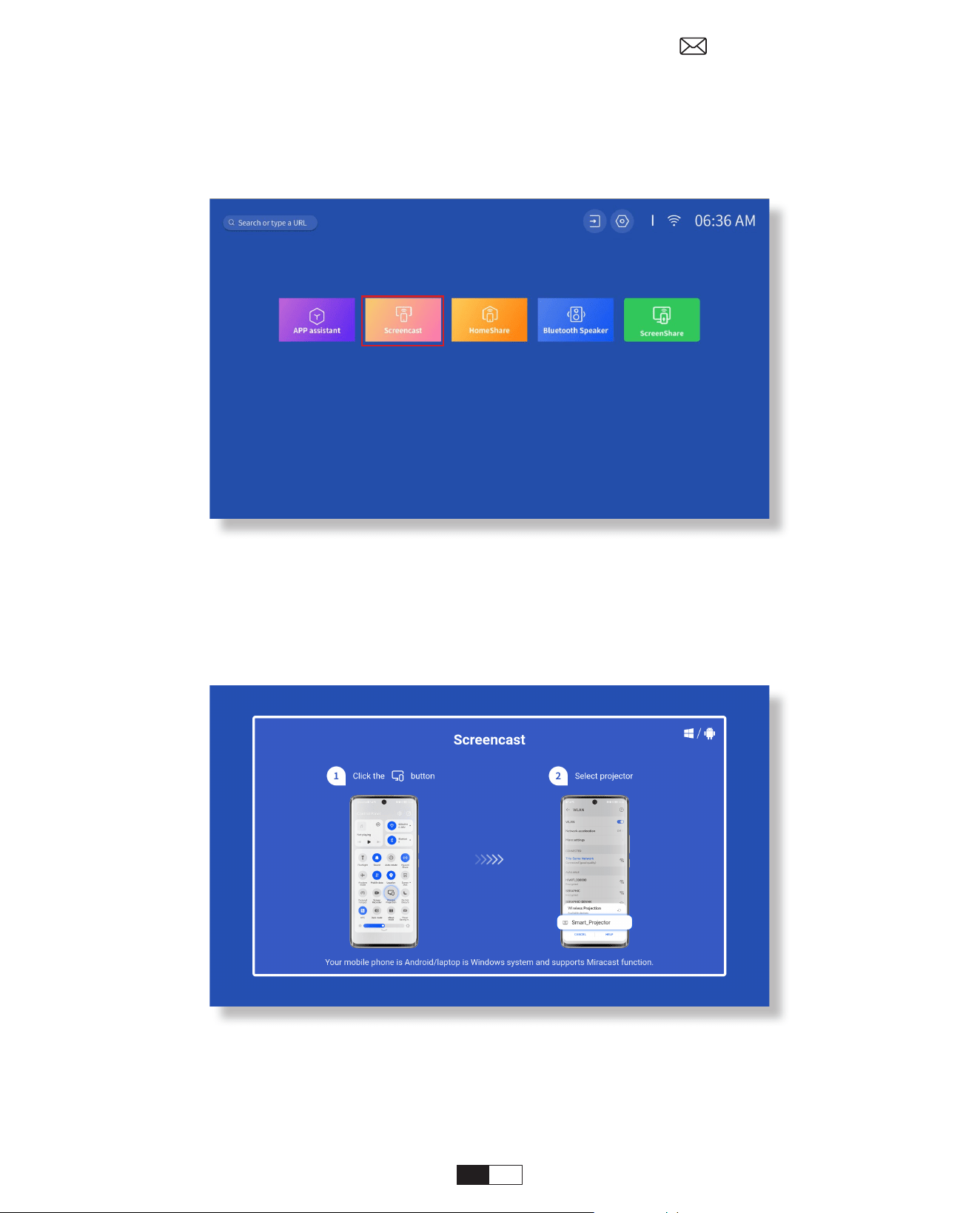
126
Passaggio 3: attiva la funzione "Display multischermo/wireless" sul tuo dispositivo
Android
Passaggio 4: Scegli [Smart_Projector_XXXX] dall'elenco e, una volta stabilita la
connessione, il contenuto del tuo dispositivo iOS verrà riflesso sullo schermo di proiezione o
sulla parete
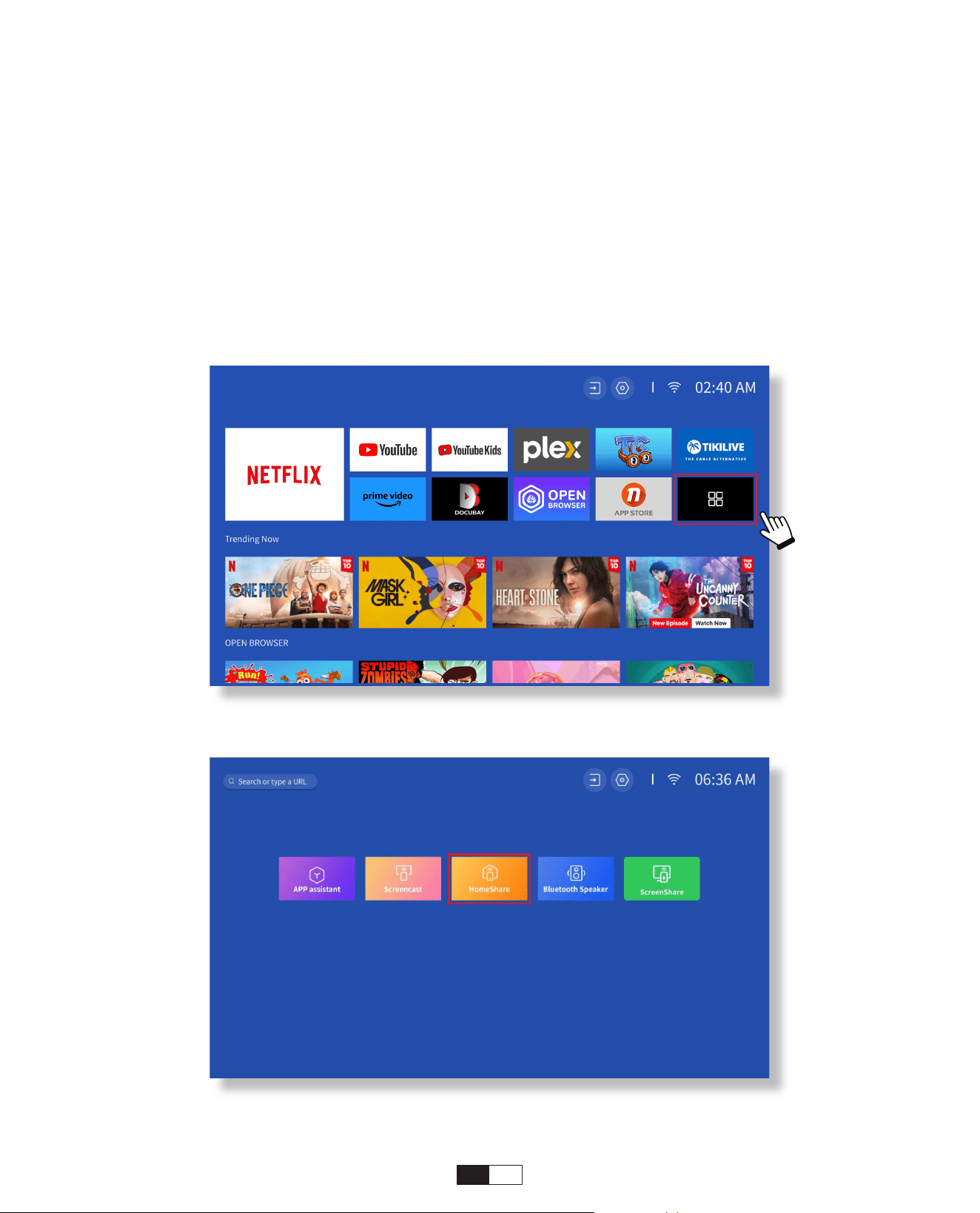
127
Passo 1:
Connetti il proiettore e il tuo dispositivo mobile allo stesso router WiFi.
Passo 2:
Vai su Home page > Le mie app > HomeShare e rimani nella pagina successiva.
• DLNA
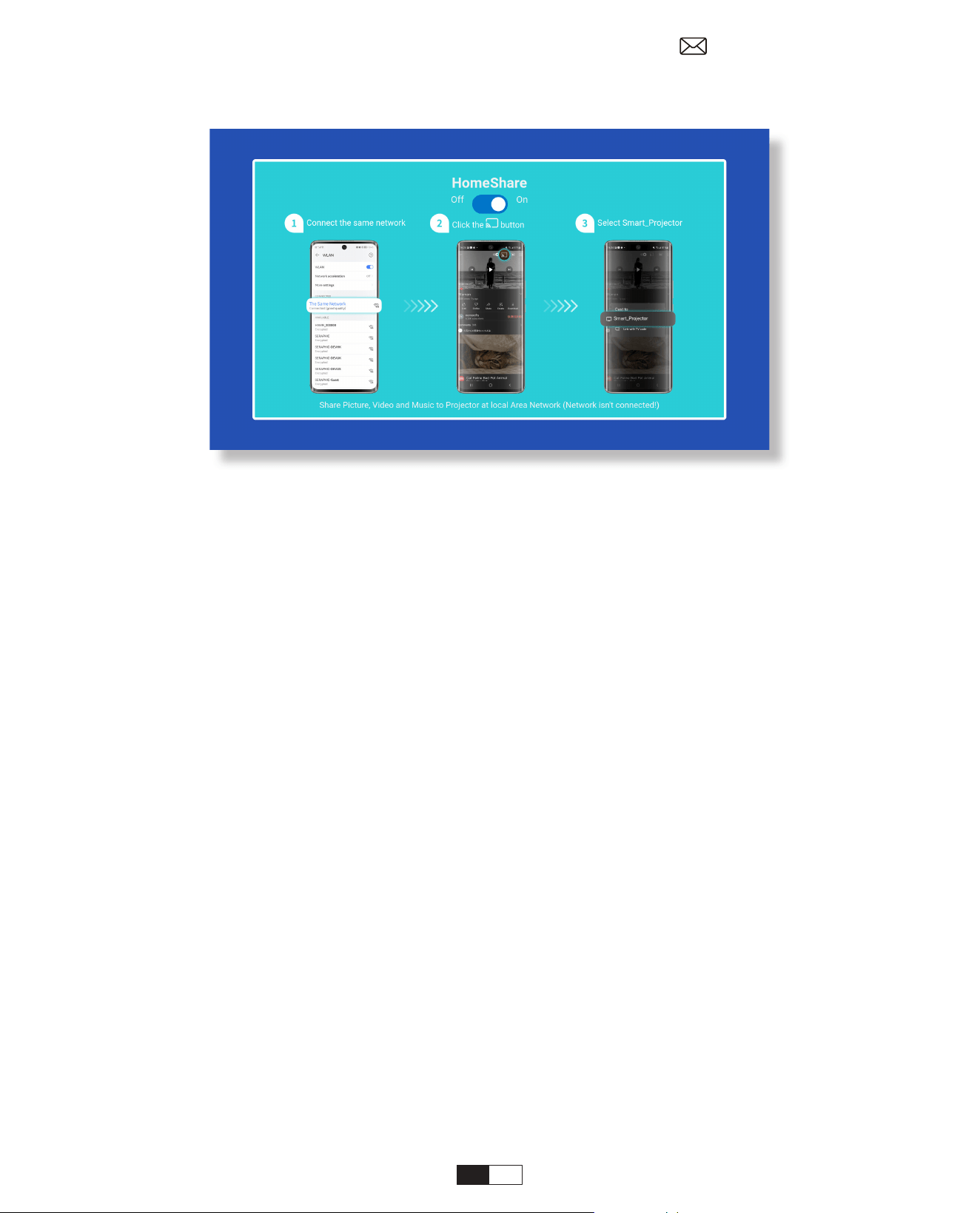
128
Passaggio 3:
Avvia un'app di riproduzione video sul tuo dispositivo mobile e seleziona un video da
riprodurre.
Passaggio 4:
Tocca per cercare il proiettore e seleziona [Smart_Projector_XXXX] per connetterti. I
contenuti del tuo dispositivo verranno proiettati sulla parete/schermo.
Nota:
Quando trasmetti un video dal tuo dispositivo mobile, il video verrà visualizzato solo
sullo schermo proiettato e potrai comunque utilizzare il tuo dispositivo mobile senza
interrompere il video o mostrare altri contenuti.
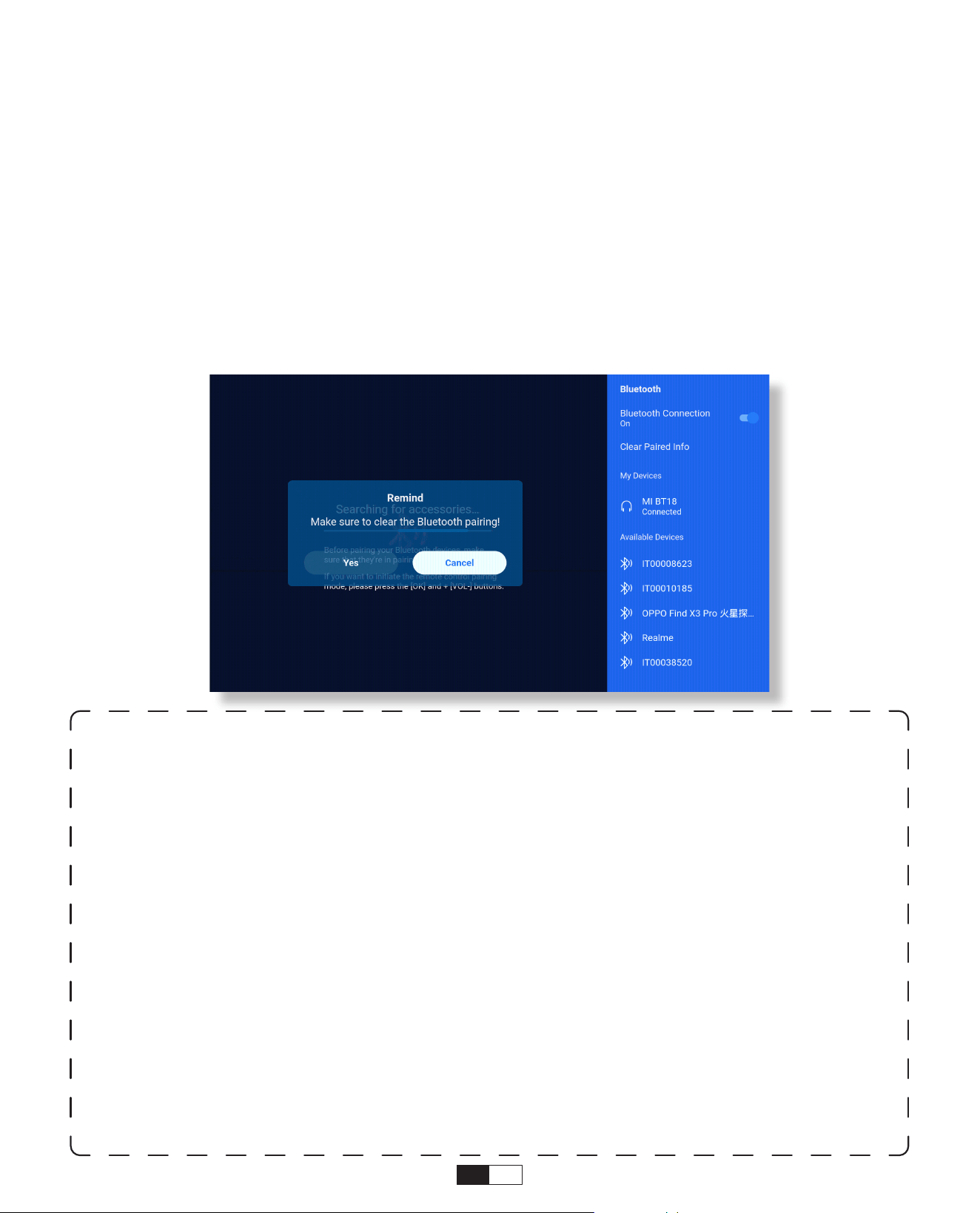
129
• Connettersi a un altoparlante Bluetooth esterno
6. Impostazione Bluetooth
Passo 1:
Accendi il tuo dispositivo Bluetooth e rendilo pronto per una connessione Bluetooth.
Passo 2:
Vai su Homepage > Impostazioni > Bluetooth per scansionare i dispositivi Bluetooth
disponibili, quindi seleziona il tuo dispositivo Bluetooth e associalo al proiettore:
IMPORTANTE:
Rispetto alla connessione cablata a un altoparlante, una connessione Bluetooth
impiega più tempo nell'elaborazione dei dati audio digitali, nella conversione di tali
dati in un segnale audio e nello streaming del segnale.
Potrebbe verificarsi un ritardo o un leggero ritardo nell'audio a causa dell'interferenza
del segnale.
Di conseguenza, l'audio sull'altoparlante potrebbe non essere sincronizzato con
l'immagine sul proiettore, soprattutto quando si utilizza contemporaneamente il
mirroring dello schermo wireless con connessione WiFi e Bluetooth.
Se riscontri questa situazione, controlla le seguenti opzioni per migliorare la qualità
audio:
* Invece di utilizzare contemporaneamente il mirroring dello schermo wireless e
la connessione Bluetooth, consigliamo di utilizzare contemporaneamente una
connessione HDMl tramite il cavo HDMl fornito e una connessione Bluetooth. Se
si desidera comunque utilizzare il mirroring dello schermo wireless, si consiglia di
trasmettere l'audio tramite un altoparlante cablato
* Avvicina il tuo dispositivo Bluetooth al proiettore.
*Tenere il proiettore e l'altoparlante Bluetooth lontano da altri dispositivi Bluetooth per
evitare interferenze.
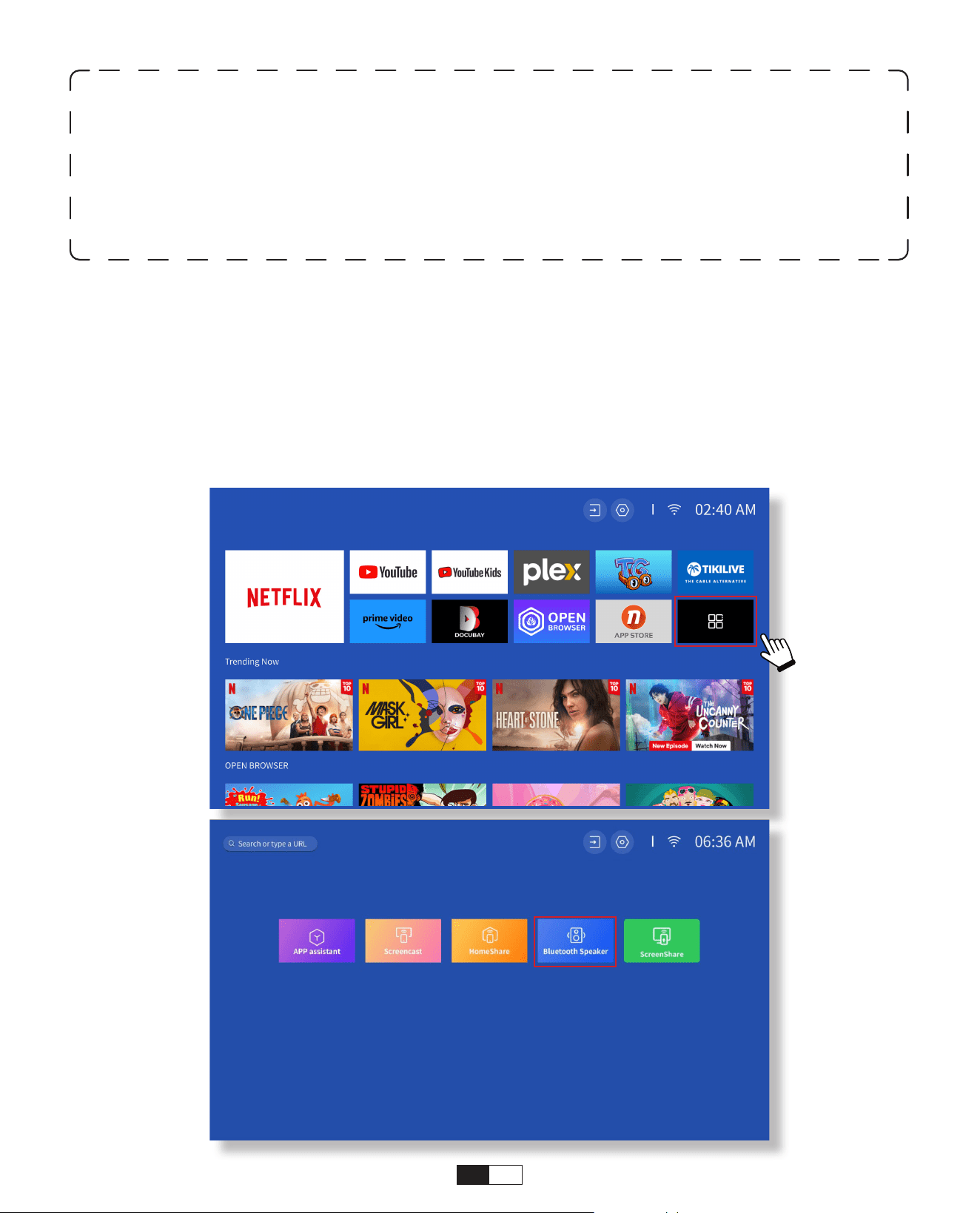
130
• Connetti al dispositivo come altoparlante Bluetooth
Passo 1:
Vai su Home page > Le mie app > Altoparlante Bluetooth e rimani nella pagina
successiva.
Passo 2:
Abilita la funzionalità Bluetooth sul tuo dispositivo, scansiona e collega il proiettore.
* Potresti essere in grado di regolare la latenza (Lip Sync) sul tuo dispositivo che sta
riproducendo il video. Il modo di regolare la latenza varia a seconda dei dispositivi;
consultare il produttore del dispositivo.
A causa del problema di compatibilità tra altoparlanti/cuffie Bluetooth e il progetto,
alcuni dispositivi Bluetooth potrebbero non essere associati al proiettore tramite la
connessione Bluetooth. Vi preghiamo di contattarci all'indirizzo aftersales@yabertech.
com per ulteriore assistenza
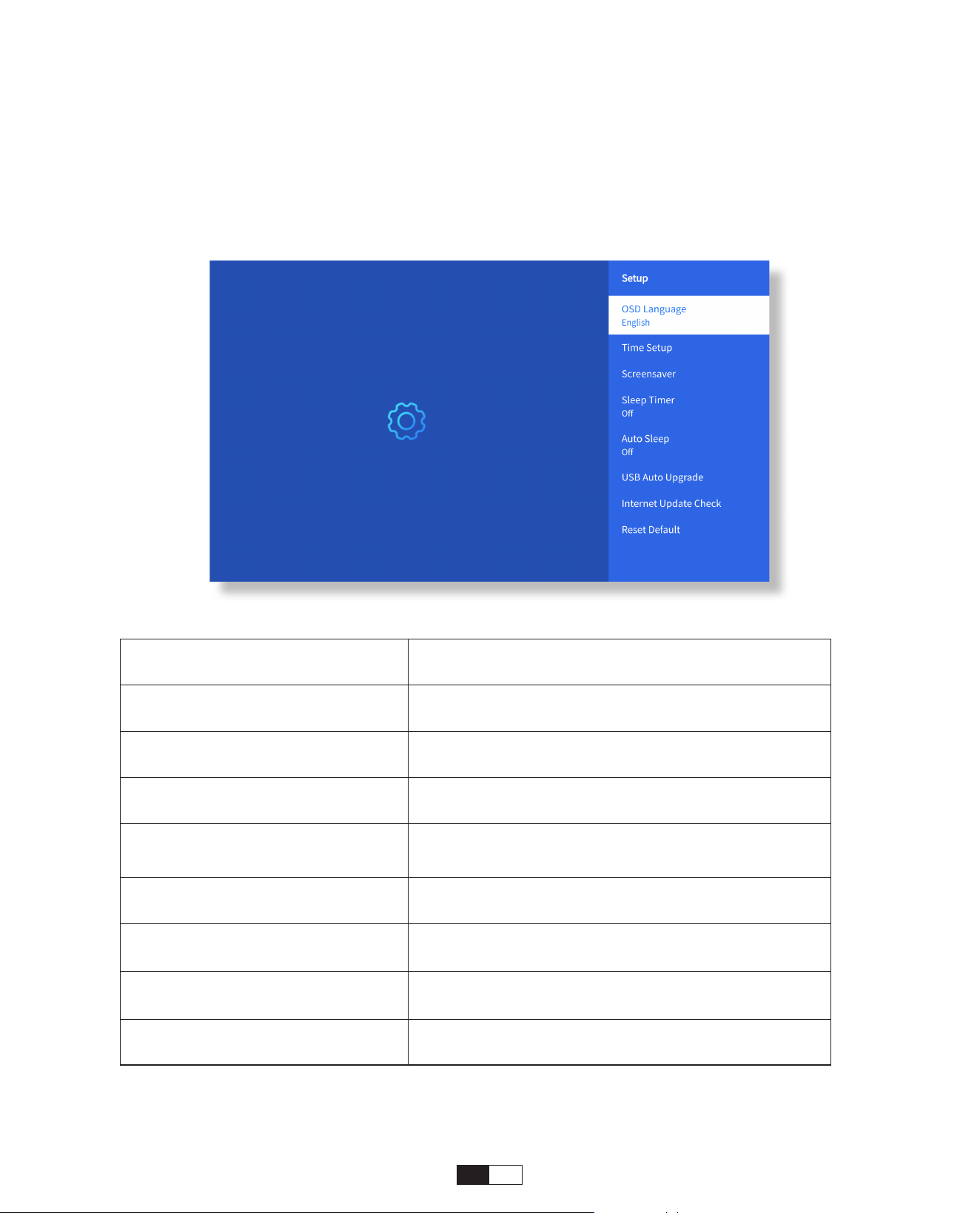
131
• Impostare
7. Altre impostazioni
Vai alla home page -> Seleziona [Impostazioni] -> Seleziona [Impostazioni]. Utilizzare
i tasti freccia sul telecomando per cambiare menu, premere "OK" per confermare e
impostare.
Menù Contenuto
OSD-Sprache Inglese/Francia/Italiano/Giapponese ecc
Impostazione dell'ora Imposta l'ora locale
Salvaschermo Attiva/disattiva il salvaschermo
Sveglia
On/Off: imposta il tempo di spegnimento
da 10 a 120 minuti
Sospensione automatica On/Off: imposta l'ora da 30 minuti a 8 ore
Aggiornamento automatico
USB
Aggiornamento locale
Controllo degli
aggiornamenti Internet
Controlla l'ambiente Internet
Ripristina predefinito Ripristina le impostazioni di fabbrica
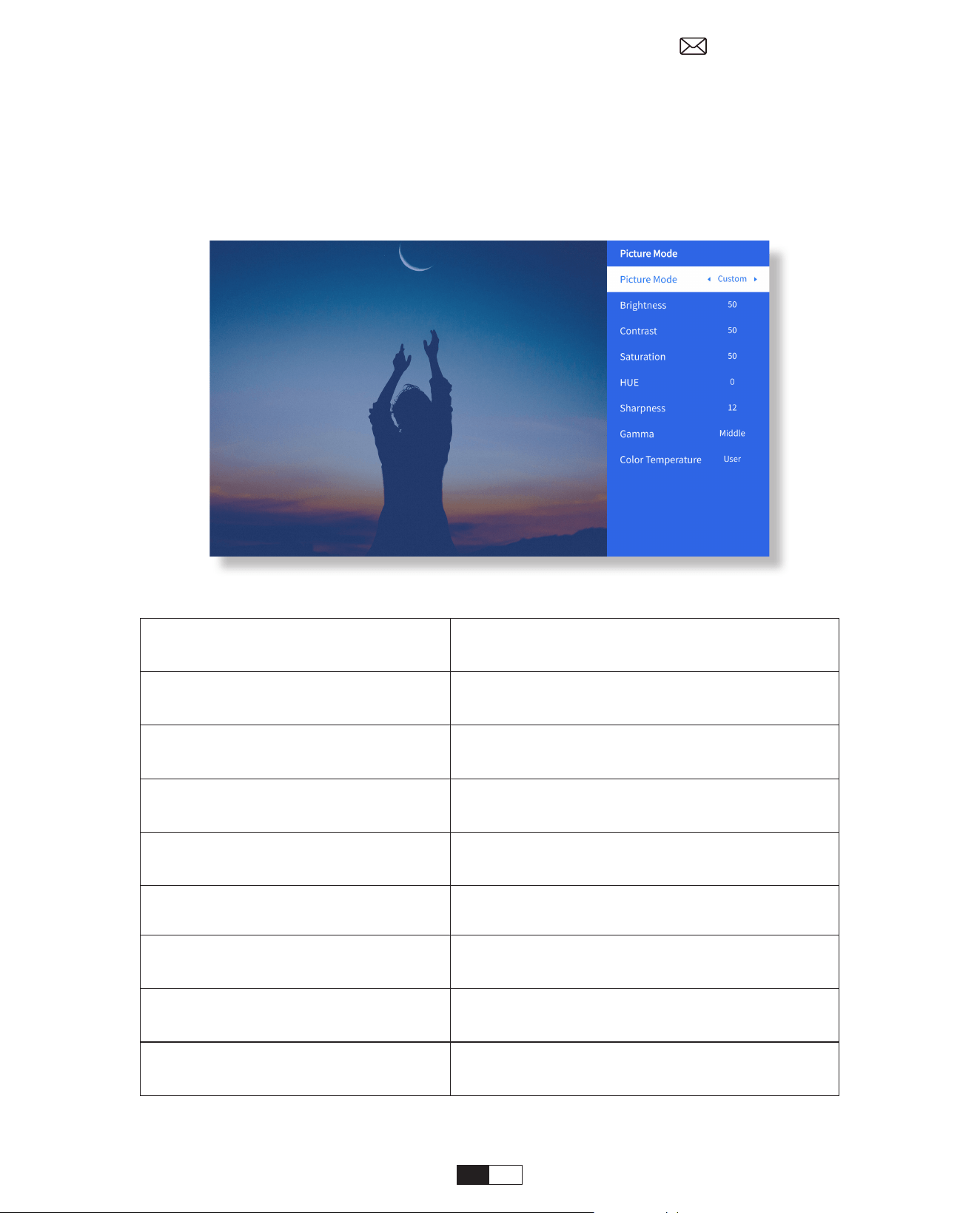
132
• Menu Modalità immagine
Menù Contenuto
Modalità immagine
Standard/Cinema/Sport/Vivido/Alta
luminosità/Personalizzato
Luminosità
Imposta il valore della luminosità dello
schermo
Contrasto
Imposta il valore del contrasto dello
schermo
Saturazione
Imposta il colore della saturazione dello
schermo
Tonalità
Imposta il colore della tonalità dello
schermo
Nitidezza
Imposta il valore di nitidezza dello
schermo
Gamma Luminoso/Scuro/Medio
Temperatura di colore Normale/Freddo/Caldo/Standard
Vai alla home page -> Seleziona [Impostazioni] -> Seleziona [Modalità immagine].
Utilizzare i tasti freccia sul telecomando per cambiare menu, premere "OK" per
confermare e impostare.
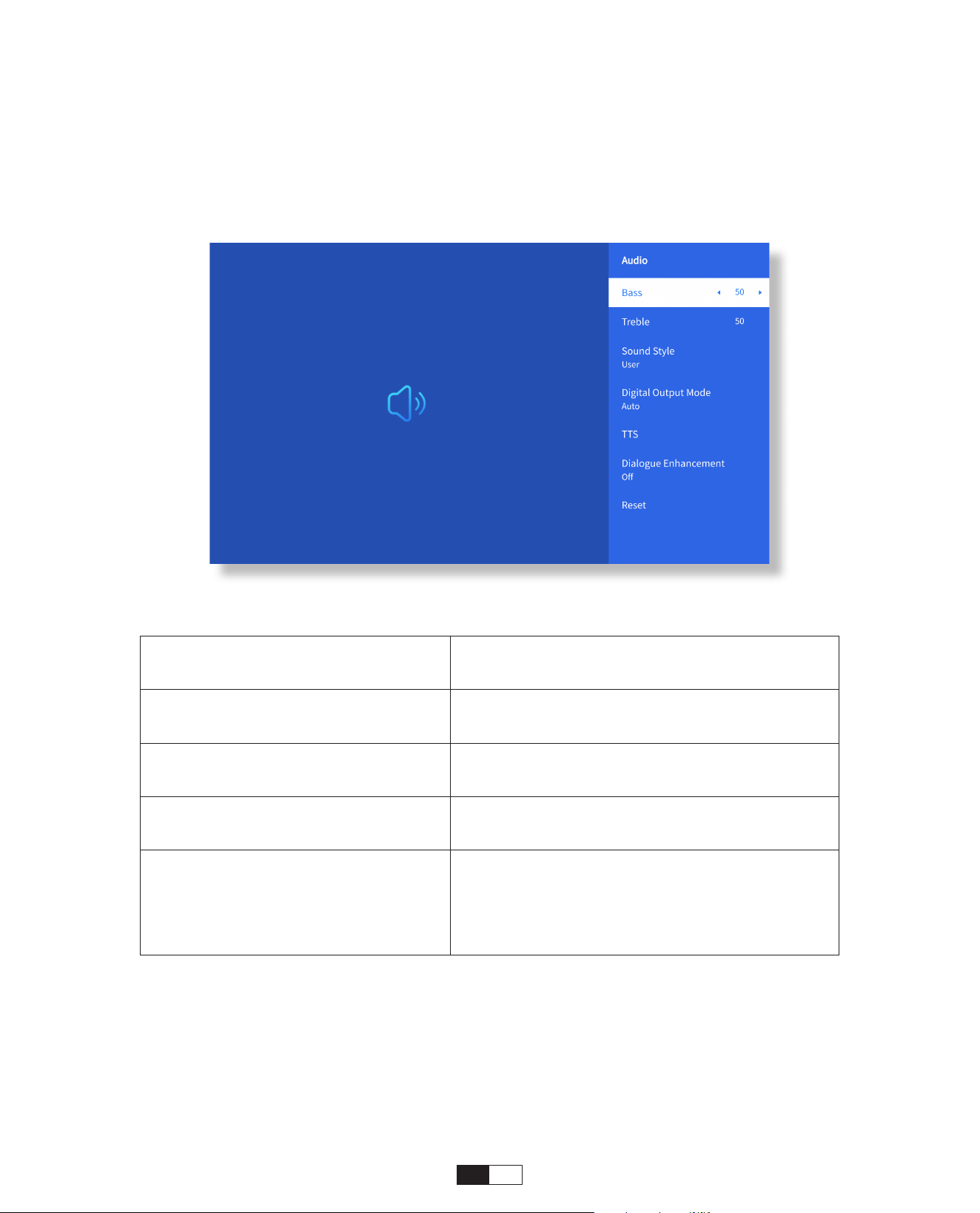
133
• Impostazione audio
Vai alla home page -> Seleziona [Impostazioni] -> Seleziona [Audio]. Utilizzare i tasti
freccia sul telecomando per cambiare menu, premere "OK" per confermare e impostare.
Menù Contenuto
Bassi/Alti Imposta i valori preferiti
Stile sonoro
Utente/Standard/Film/Musica/Sport/
Vivace/Notizie
Modalità di uscita digitale
Utente/Standard/Film/Musica/Sport/
Vivace/Notizie
Miglioramento del dialogo
On/Off: funzione di miglioramento
della conversazione, voce, funzione di
trasmissione per persone speciali
Basso medio alto
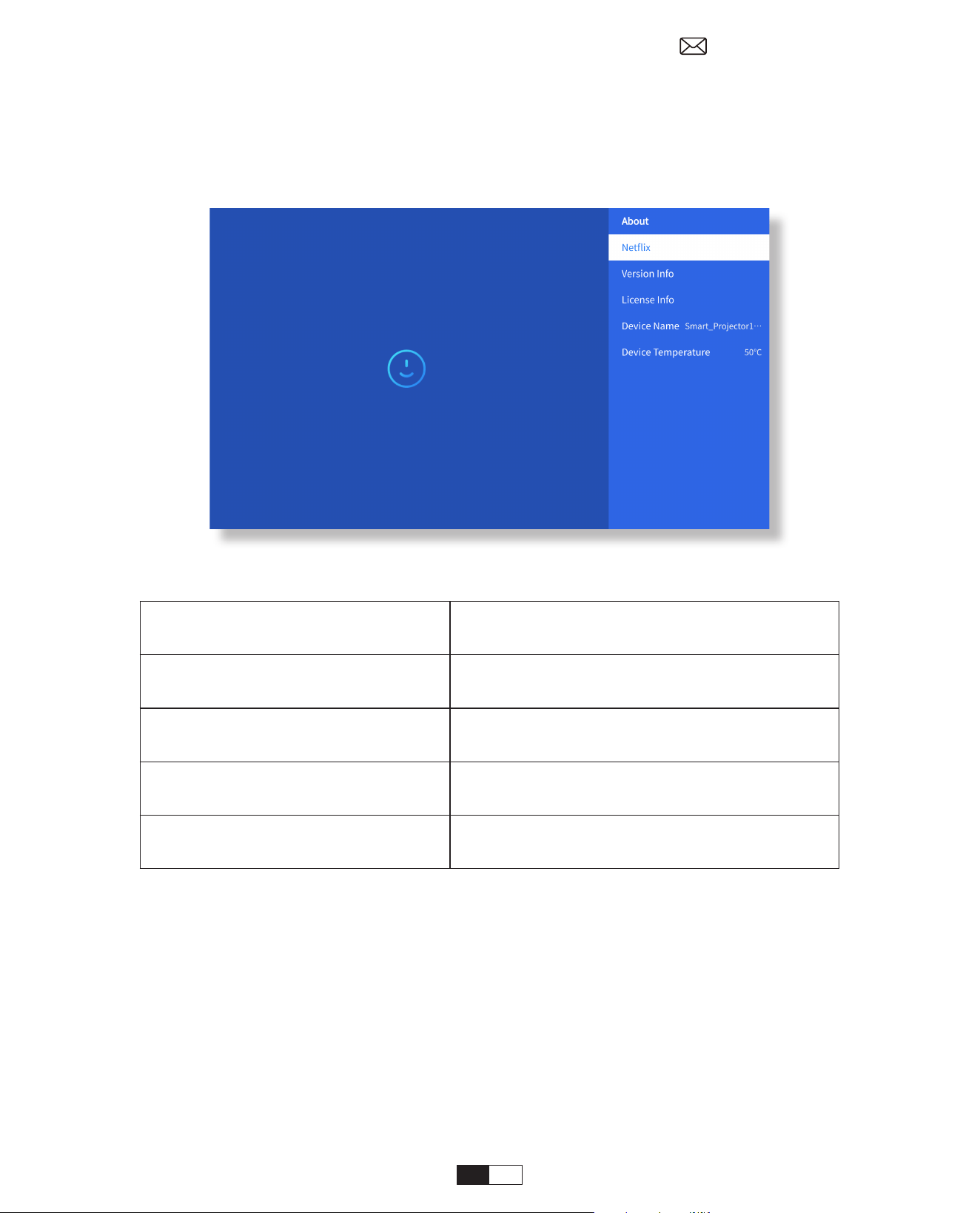
134
• Di
Vai alla home page -> Seleziona [Impostazioni] -> Seleziona [Informazioni]. Utilizzare
i tasti freccia sul telecomando per cambiare menu, premere "OK" per confermare e
impostare.
Menù Contenuto
NetFix Netfix con licenza ufficiale
Informazioni sulla versione/
licenza
Visualizza le informazioni sulla versione/
licenza più recenti
Nome del dispositivo Nome del modello del proiettore
Temperatura del dispositivo 50°C
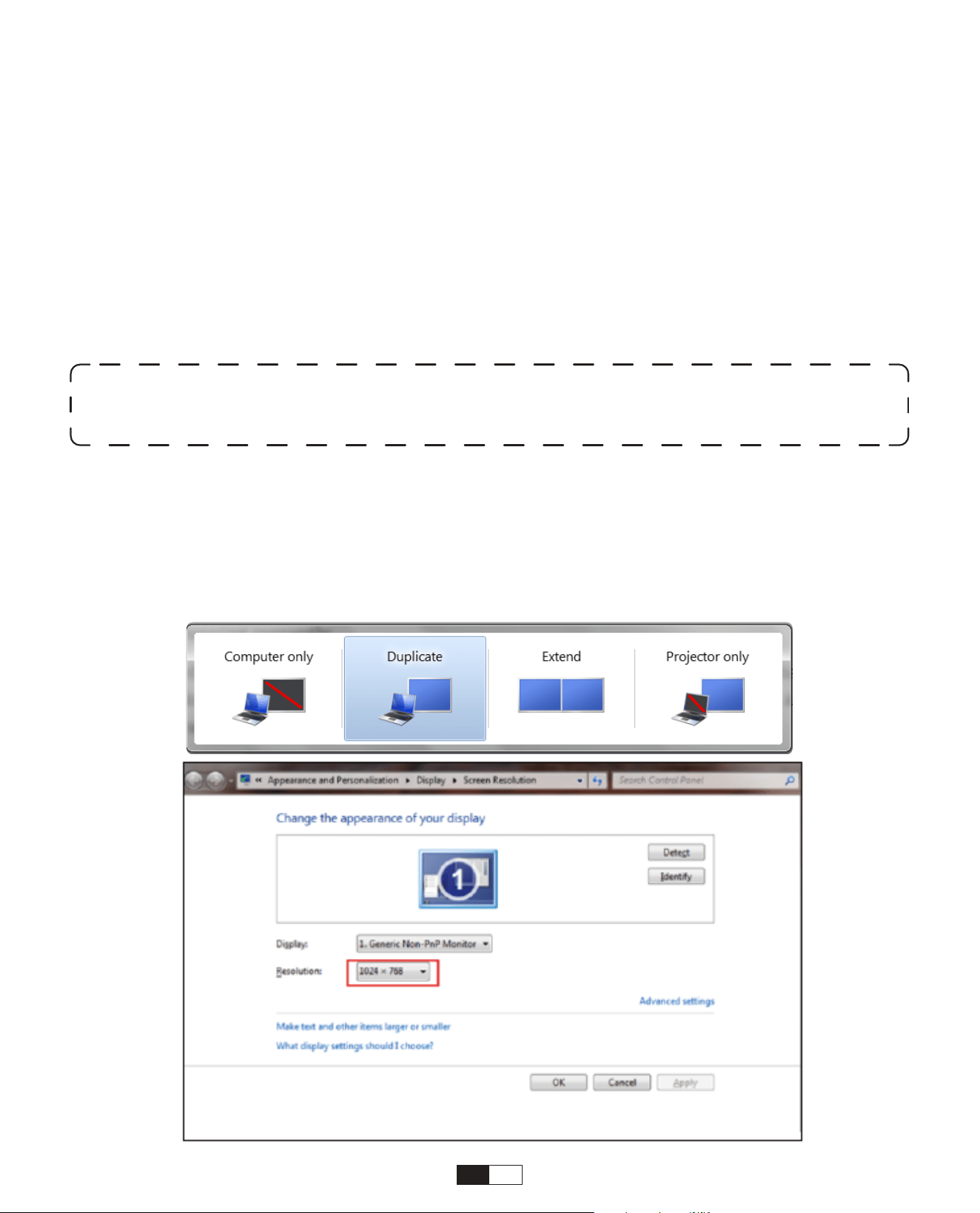
IT 135
Seleziona la sorgente del segnale USB, la macchina li rileverà automaticamente.
Passaggio 1: selezionare la categoria richiesta "foto" "musica" o "video" nell'interfaccia
principale e premere il tasto "OK" sul telecomando per accedere alla categoria
corrispondente.
Passo 2: In base ai programmi scegliere: “foto” “musica” o “video”.
Passo 3: Scegli il file che desideri riprodurre e premi il tasto "OK" per riprodurre o mettere
in pausa il file. (Non è possibile accedere alla categoria richiesta senza collegare un
disco USB.)
8. Collegamento delle linee di segnale
①
Connessione multimediale USB
②
Connessione al PC
Passaggio 1: collegare al computer e al proiettore U 12 con il cavo HDMI (incluso).
Passaggio 2: selezionare la sorgente HDMI da proiettare sul proiettore;
Passaggio 3: sul tuo laptop, tieni premuti i tasti della scheda "Win+P" per modificare la
modalità di visualizzazione.
Nota : per l'opzione “Office Suite”, i file PPT/TXT non possono essere riprodotti o
presentati normalmente.
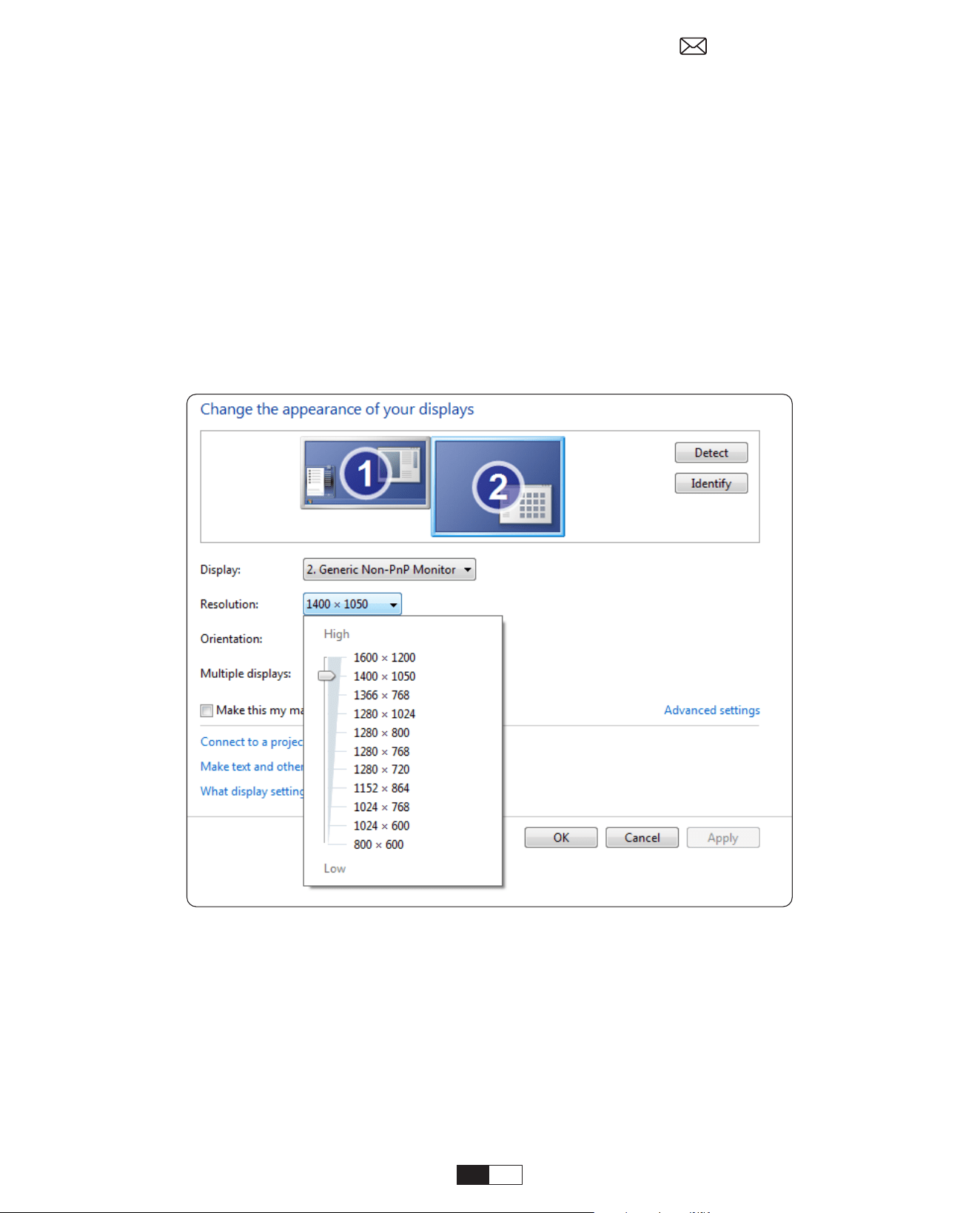
136
Passaggio 1: scegliere il canale del segnale multimediale: "HDMI"
Passaggio 2: utilizza un adattatore da tipo C a HDMI per collegare il tuo MacBook o un
adattatore da Mini Display a HDMI per connetterti al tuo MacBook Air (adattatore non
incluso). Collegamento con MacBook o Mac Book Air. (Adattatore NON INCLUSO)
Solo computer: è l'opzione predefinita: viene visualizzata solo sul monitor principale.
Duplica: fa sì che tutti i monitor visualizzino la stessa cosa duplicando il desktop su
ciascun monitor.
Estendi: fa sì che tutti i tuoi monitor si comportino come un grande monitor
estendendo il desktop su tutti loro.
Solo proiettore: viene visualizzato solo sul monitor secondario come un proiettore.
Per modificare la risoluzione dello schermo in modalità Solo proiettore, attenersi alla
seguente procedura:
Passaggio: Start > Pannello di controllo > Aspetto e personalizzazione > Regola
risoluzione dello schermo
③
Connessione con MacBook o MacBook Air

137
Nella modalità Power On Standby, collegare l'alimentatore e il LED di alimentazione sul
proiettore si accenderà. È necessario premere il pulsante di accensione per accendere il
proiettore.
Se impostata su Acceso, la macchina si accenderà automaticamente dopo aver
collegato il cavo di alimentazione.
1. Premere il pulsante sul proiettore o sul telecomando, quindi premere il tasto OK per
spegnere il proiettore.
2. Scollegare il cavo di alimentazione del proiettore.
3. Coprire l'obiettivo e conservare il proiettore in un luogo fresco e asciutto.
9. Modalità di accensione
10. Spegnimento sicuro
Passaggio 1: utilizzare il cavo HDMI per connettersi a XBOX/PS5
Passaggio 2: scegliere il canale del segnale multimediale: "HDMI"
Passaggio 3: successo
Passaggio 1: utilizzare il cavo HDMI per connettersi al lettore DVD
Passaggio 2: selezionare la modalità “HDMI” per la connessione
Passaggio 3: accedere al tasto Menu
Passaggio 4: modificare la modalità PC da [On] a [Off] per evitare il rischio di bordi di
pixel bianchi nell'immagine.
④
Connessione con XBOX/PS5
⑤
Collegamento con il lettore DVD:

138
• Entretien des projecteurs
1. Ne placez pas le projecteur dans une pièce trop chaude ou trop froide, car la
température élevée ou basse réduirait la durée de vie de l'appareil. L'environnement de
travail serait meilleur de 5°C à 35°C.
2. S'il y a des points noirs sur l'écran de projection, ne vous inquiétez pas. Veuillez
contacter aftersal[email protected] par e-mail, nous pouvons vous envoyer une vidéo
sur la façon de retirer la poussière.
3. Le projecteur doit être strictement protégé contre les chocs violents, l'extrusion et les
vibrations.
4. L'objectif, en tant que composant principal du projecteur, est directement lié à la
définition et à l'effet de l'image. Nettoyez l'objectif chaque fois que vous remarquez de
la saleté ou de la poussière sur la surface. Utilisez une cartouche d'air comprimé pour
éliminer la poussière de l'objectif. S'il y a de la saleté ou des traces, utilisez le chiffon de
nettoyage pour essuyer délicatement la surface de l'objectif.
Conseils d'entretien
Scansiona e scarica il manuale utente in PDF
Where to Get More Help
@Yaber Entertainment Projector
@Yaber

言語
English
Deutsch
Français
Italia
日本語日本語
03-36
39-70
73-104
107-138
141-172
175-206
Polish

コンテンツ
YABER 生涯アフターサービス サポート 04
ヒント 04
パッケージリスト 05
プロジェクター仕様 06
プロジェクター概要 07
リモコンの概要 08
ベースの設置 09
天井に設置する 10
距離と投影サイズ 10
調整可能なベースマウント 11
デバイスを接続する 11
プロジェクターのご利用について 12
1. プロジェクターの起動 12
2. 画像調整 13
3. APP のコンテンツを再生する 16
4. 投影接続と入力ソース 17
5. スクリーンキャスト 19
6. Bluetooth 設定 27
7. 他の設定 29
8. 信号線の接続 33
9. パワーオンモード 35
10. 安全なシャットダウン 35
メンテナンスのヒント 36

JP
142
YABER 生涯アフターサービス サポート
ヒント
お客様へ
YABER U12 プロジェクターをお選びいただきありがとうございます。
このマニュアルは、すべての機能をナビゲートするのに役立ちます。 問題が発生した場合は、注文番号と問題を
[email protected]までお気軽に送信してください。 (24 時間以内に返信させていただきます)
信号がない、音が出ない、Bluetooth 接続に失敗した、WiFi 接続に失敗した、暗いスポット、アニメーションが途切
れるなど、多くの問題は設定で簡単に解決できます。
お客様にご満足いただくことが当社の最優先事項であり、このマニュアルの内容を徹底的に検討することをお勧めし
ます。
U12 で素晴らしい体験をお楽しみください。
YABER サービス チーム
1. 適切な環境 (5° C ~35° C)
プロジェクターを適切な温度の環境に置き、適切な換気を確保してください。 極端な暑さや寒さはプロジェクターの
寿命に影響を与える可能性があります。
2. クリーニング(黒点 . 白点)
投影画面に黒い点がある場合でも、ご安心ください。 [email protected] までご連絡ください。粉塵
の除去方法に関するビデオチュートリアルを提供します。
3. 安全なケア
プロジェクターは強い衝撃、押し出し、振動から厳重に保護してください。 内部回路の故障の原因となりますので、
強い衝撃や押し出し、振動を与えた状態で移動させないでください。
4. レンズ
レンズは画像の鮮明さと効果に直接関係します。 ゴミが多量に付着すると画質に影響を与えます。 汚れたレンズは、
ガラスレンズ表面用の柔らかい綿布で拭き取ってください。 硬い布や研磨剤は使用しないでください。
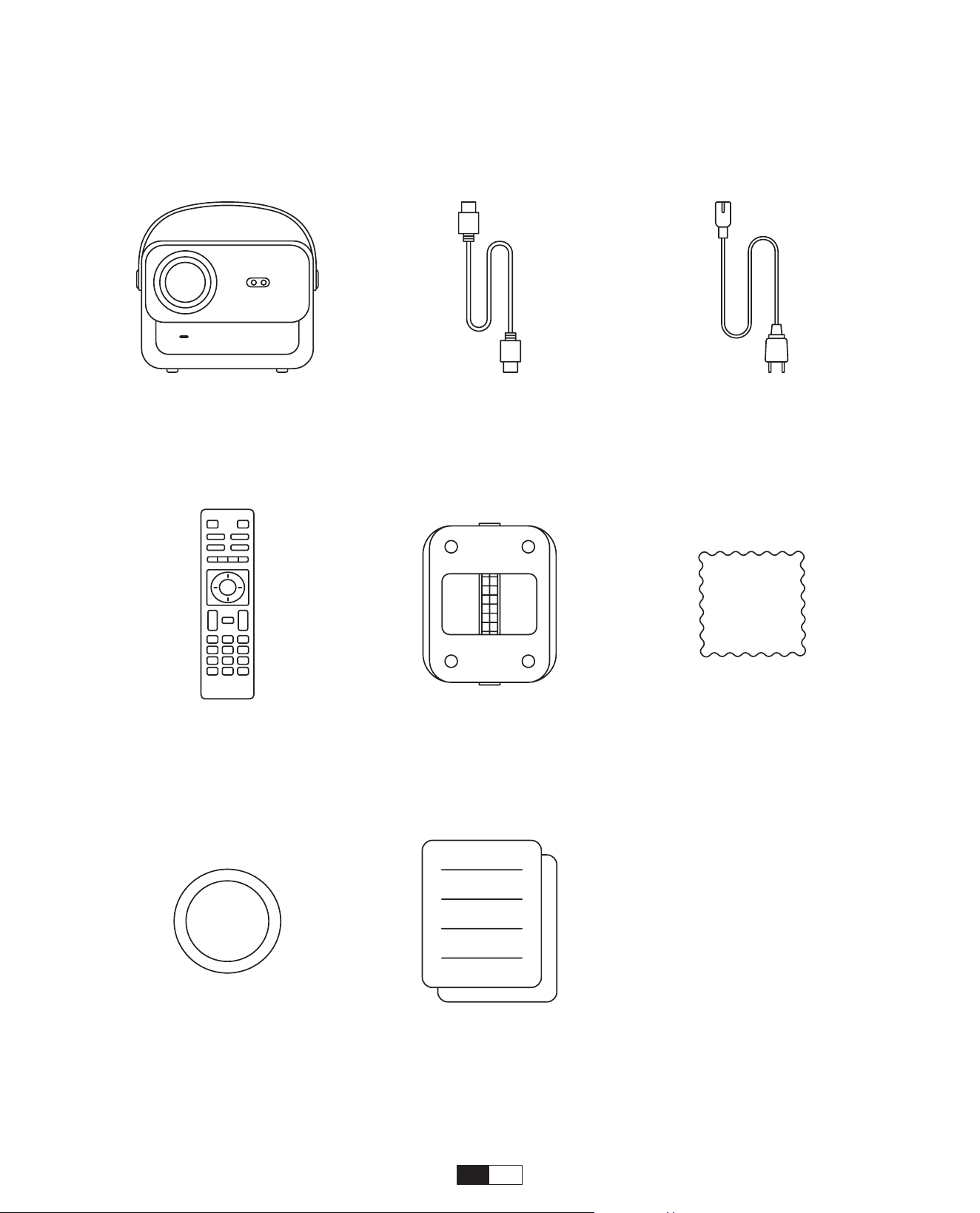
JP 143
パッケージリスト
U12 プロジェクター
リモコン
レンズカバー
HDMI ケーブル
プロジェクターベース
簡易起動ガイド
電源コード
クリーニングクロス

JP
144
プロジェクターの仕様
モデル No. U12
フォーカス 自動 / 電動フォーカス 台形補正 自動 / 電動
光源 LED ディスプレイ技術 LCD
アスペクト比 16:9/4:3 ポート
USB2.0*2/
HDMI1.4*2/ 3.5mm
オーディオ出力
*1,Lan*1
投影率 1.36:1 最適な投影距離
1.3~5.0m
(4.5-16.4 Ft.)
ネイティブ解像度 1920*1080P 単位寸法
9.8*8.8*7.6 inches
(25*22.5.*19.3CM)
7.27lbs (3.3KG)
電源電圧
100-240V/50-60Hz
2A
消費電力 140W
プロジェクター重量
7.27 lbs/3.3 kg
( ベース付き )
取り付けタイプ
前面 / 背面が机上
前面 / 背面が天井
画像フォーマット JPEG, GIF, BMP, PNG, JPG
オーディオフォーマッ
ト
MP3,WAV,MKA,OGG,FLAC,Dolby サポート
ビデオ オフォーマッ
ト
AVI,TS,MPEG,MP4,MOV,M2TS,MKV,FLV,VOB,DAT,M4V,ASF,F4V,3GP,3G
2,TP,TRP,RMVB
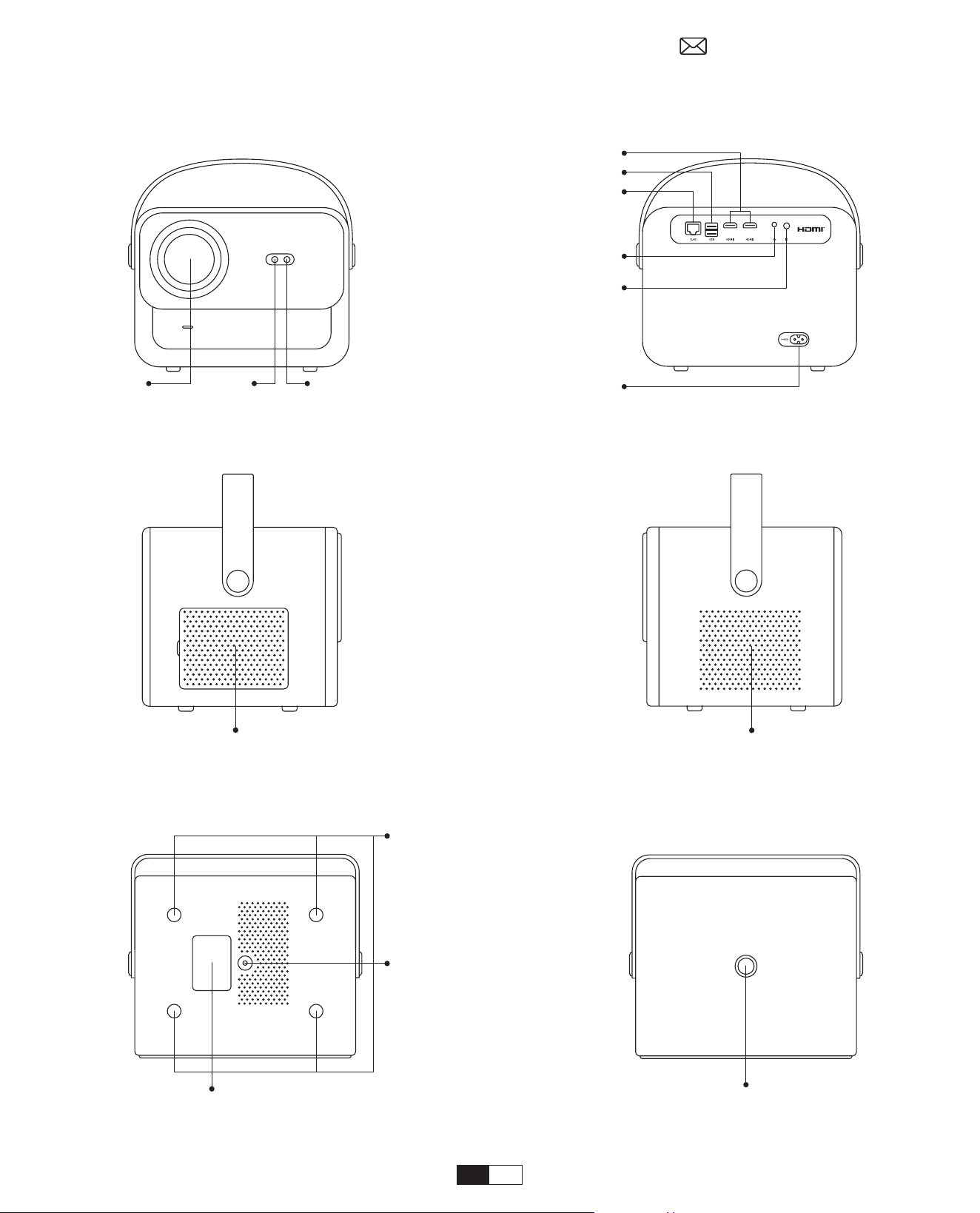
145
プロジェクターの概要
レン
オートフォーカス
赤外線
HDMI ポート
USB ポート
有線ネットワークポート
オーディオ入力
赤外線信号受信機
電源入力
信号受信機
ネジ穴
ネジ穴
取り外し可能な防塵ネット
下部ラベル 電源スイッチ
空気吹き出し口
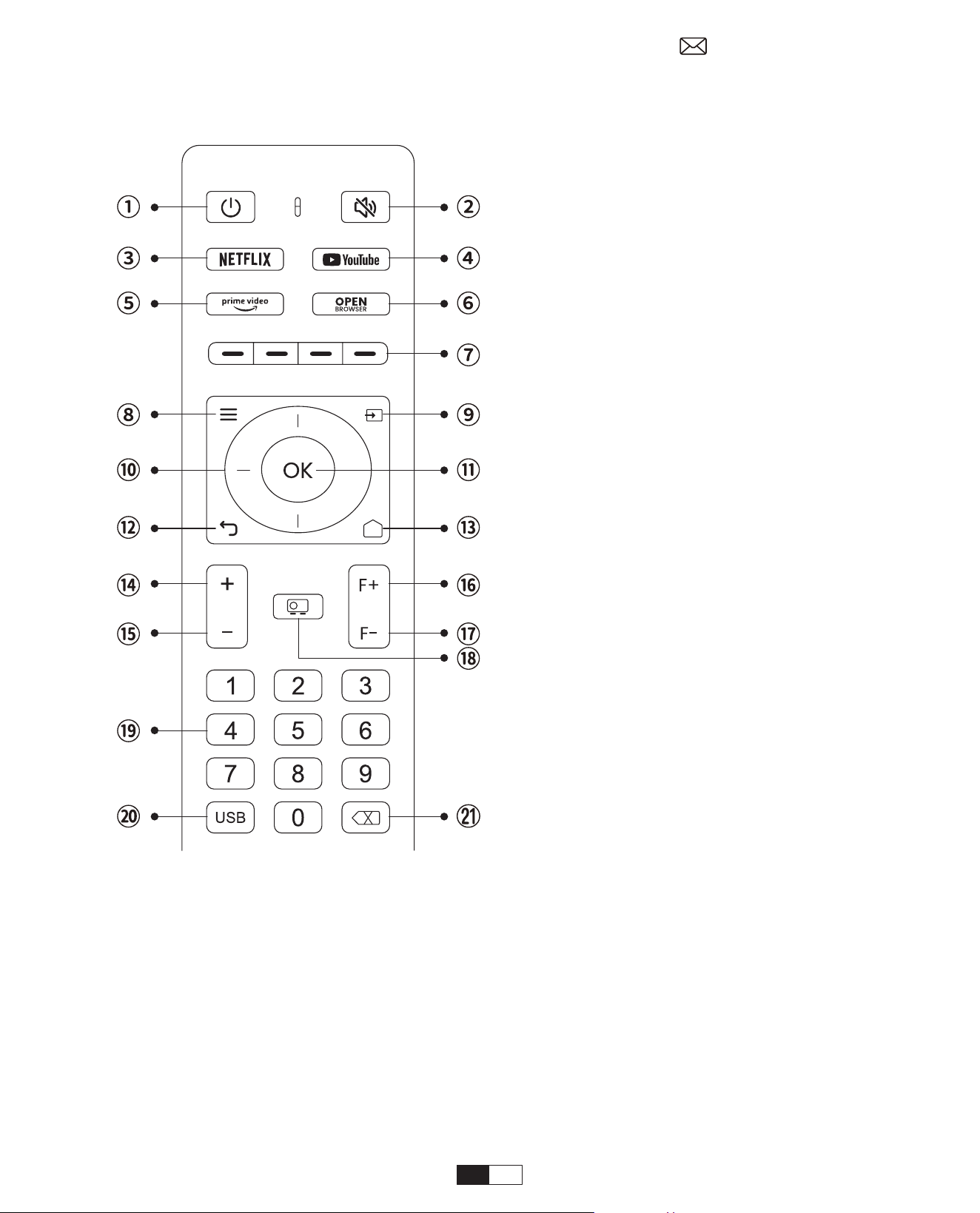
146
リモコンの概要
1. NO/OFF
2. ミュート
3. NETFLIX
4. YouTube
5. Prime Video
6. ブラウザ
7. 赤/緑/黄/青キー
8. メニュー
9. 入力ソース
10. 矢印キー
11. 確認キー
12. 戻る
13. ホームページ
14. 音量 +
15. 音量 -
16. フォーカス +
17. フォーカス -
18. 投影モード
19. 番号
20. USB
21. バックスペース
• リモコンを準備する
1. 電池収納部を開けます。
2. 正しい極性を示した 2 本の AAA 電池を挿入します。
3. 電池収納部を閉じます。
注 : プロジェクターの初回セットアップを完了するには、Yaber リモコンを使用する必要があり
ます。
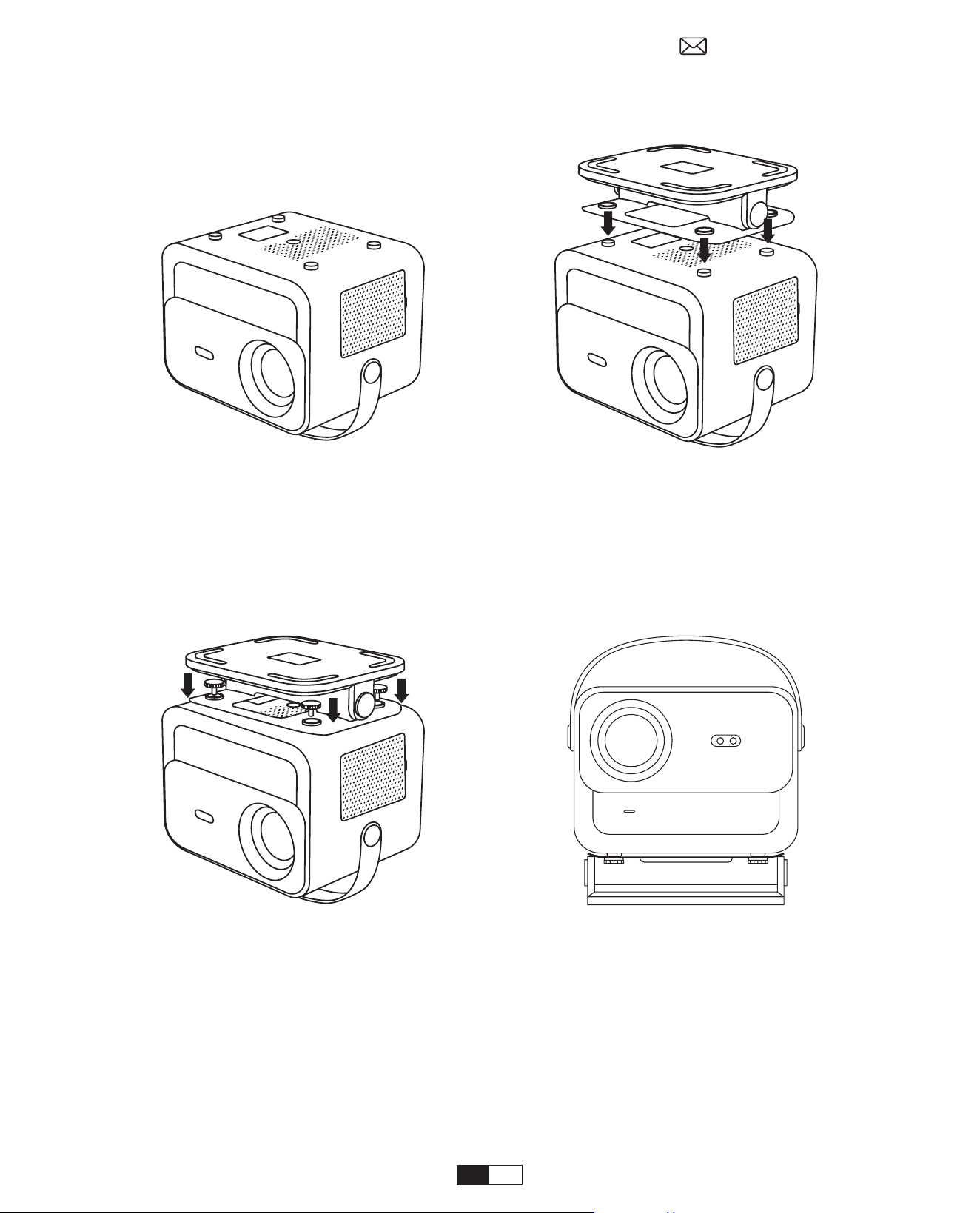
147
ベースの設置
1. マシンを裏返し、裏側を上にします。
3. 付属品ボックスのネジを締めます。
2. ベースの穴とプロジェクターのネジ穴
を合わせます。
4. インストールを完了します。
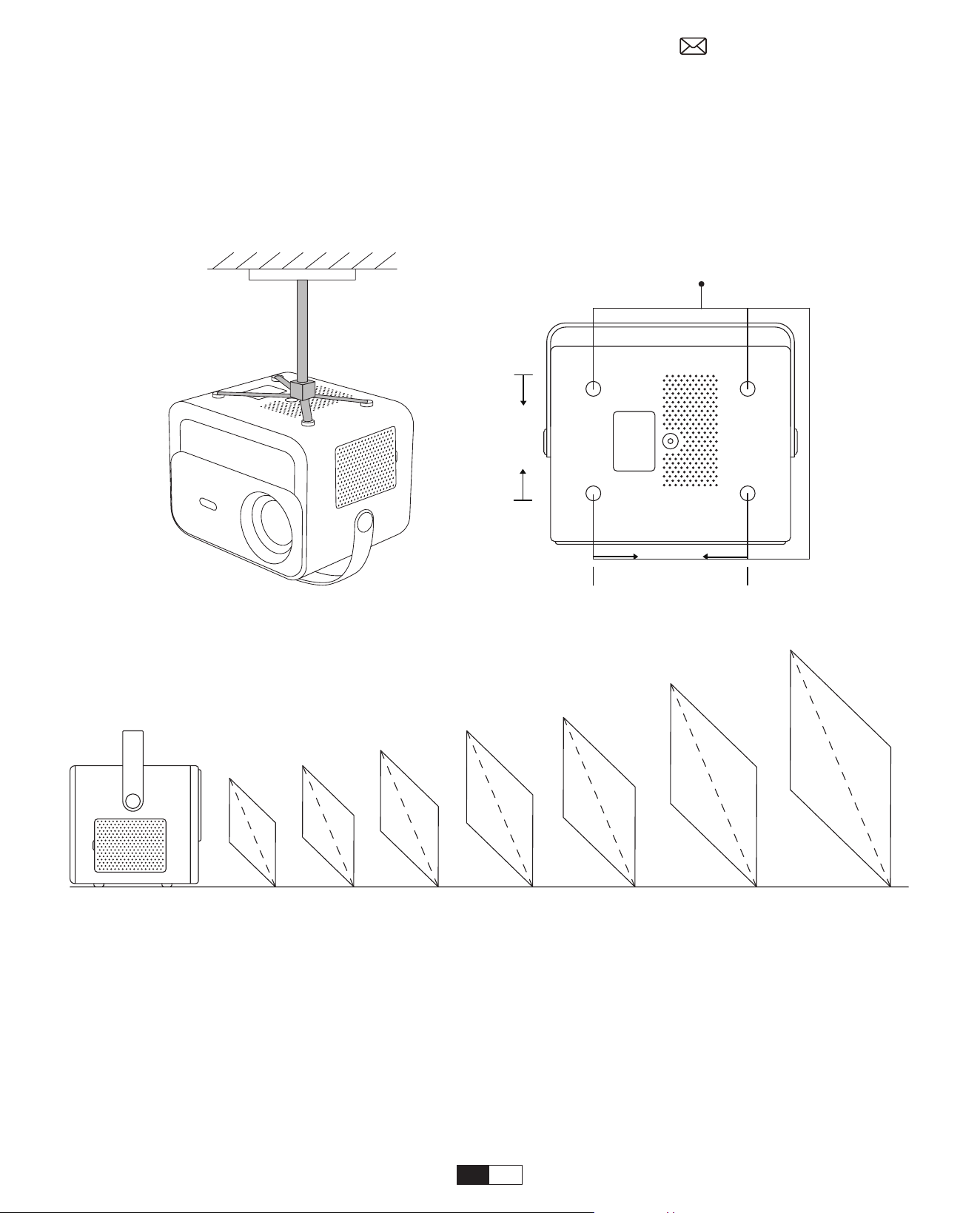
148
1. 通用プロジェクター用天吊り金具をご用意ください。 ( パッケージには含まれません )
2. プロジェクターの底面にある 4 つのゴムパッドを外すと、ネジ穴が現れます。
3. プロジェクターをハンガーフレームを使用して天井に M5*10mm ネジでしっかりと取り付けます。
天井に設置する
ネジ穴 M5*15mm
155mm
108mm
距離と投影サイズ
推奨投影距離は約 8.9 インチ、最小投影距離は 4.5 インチです。
画像サイズはプロジェクターとスクリーン間の距離によって異なります。
上記のデータは 3% 異なる場合があります。 設定が異なると距離も異なります。
40"
1.4m
(4.5ft)
2.1m
(6.7ft)
2.7m
(8.9ft)
3.4m
(11.2ft)
4.1m
(13.4ft)
6.8m
(22.4ft)
60"
80"
100"
120"
150"
200"
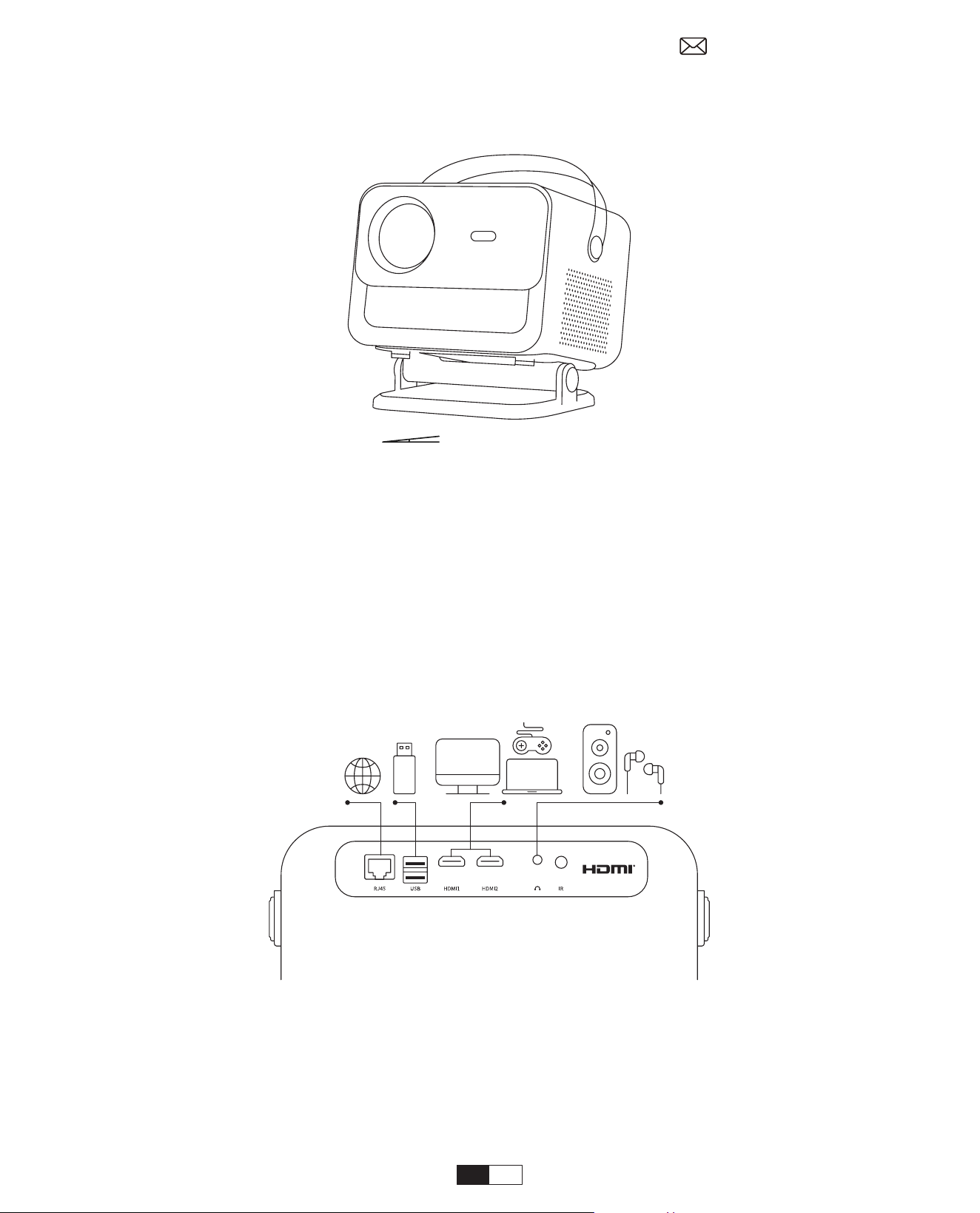
149
調整可能なベースマウント
Maximaler Abschluss: ±15°
ブラケットの位置を変えることで投写角度を調整でき、調整範囲は垂直上向き、下向きともに最大
15 度です
ブラケットの位置を変えることで投写角度を調整でき、調整範囲は垂直上向き、下向きともに最大
15 度です
デバイスを接続する
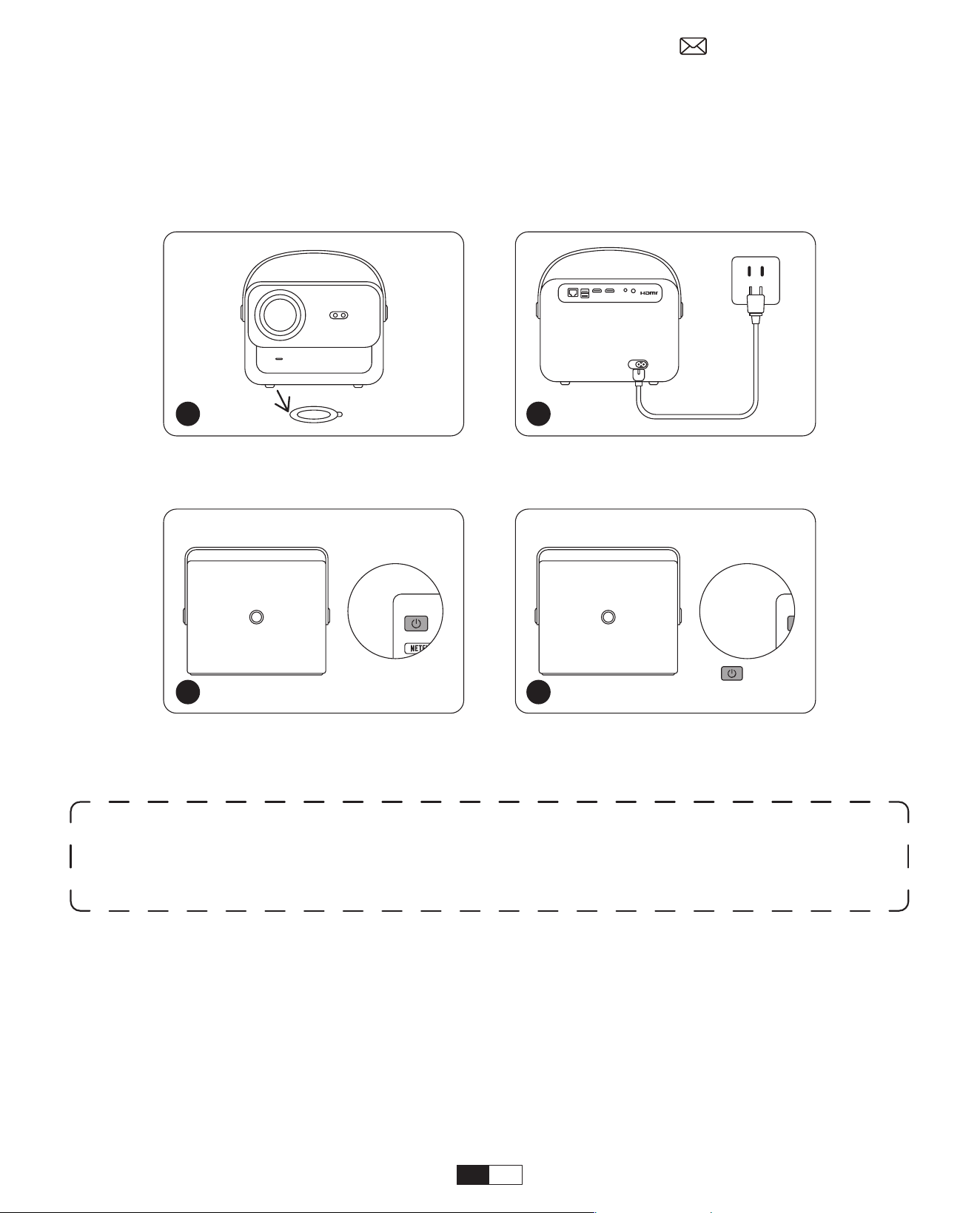
150
オレンジ色の電源ライトが点灯 --- スタンバイモード
オレンジ色の電源ライトが消灯 --- 動作モード
保護フィルムを剥がします。
電源ボタンを 1 回押してプロジェク
ターの電源を入れます。
電源ケーブルをコンセントに接続
します。
電源ボタンを 2 回押してプロジェク
ターの電源をオフにします。
初めてプロジェクターの電源をオンにしたとき、またはプロジェクターが工場出荷時のデフォ
ルト設定にリセットされたとき、初回セットアップを行うように求められます。
セットアップ後、プロジェクターはホームページに移動します。
•電源オン
• 初めてのセットアップ
プロジェクターのご利用について
1. プロジェクターを起動する
1 2
x 2
3 4
注 : 電源コードをプロジェクターに接続すると、オレンジ色のライトが 10 秒間点滅します。
電源ランプの点滅が止まるまでしばらくお待ちください。
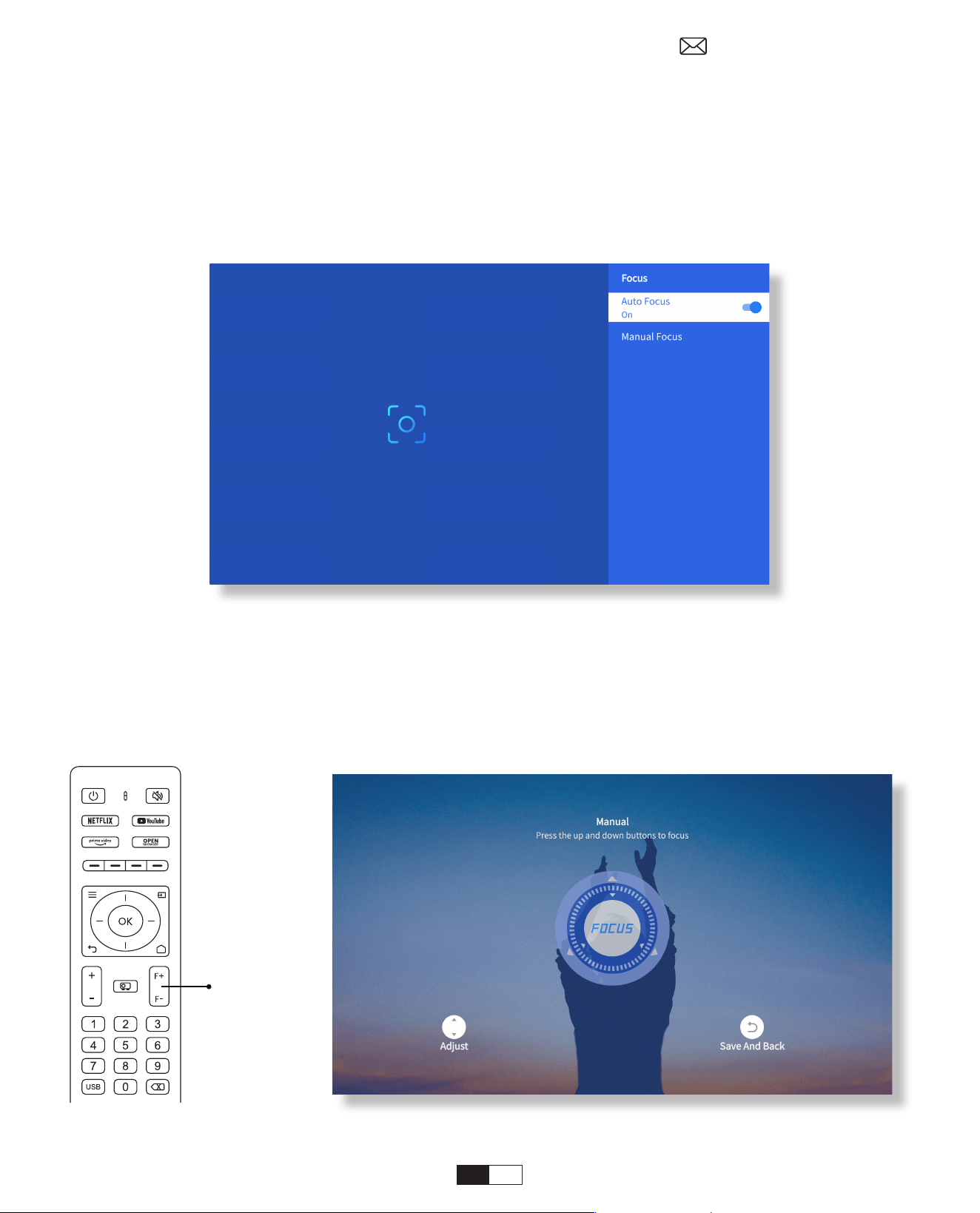
151
プロジェクターの電源を入れたら、数秒待つと自動的に焦点が調整されます。 ( そうでない場合は、
「設定 >> フォーカス >> オートフォーカス >> オン」でオートフォーカス機能を有効にしてくだ
さい )
リモコンの F+ と F- ボタンをクリックまたは押し続けることによって、画面の鮮明さを調整す
ることもできます。
•オートフォーカス
• 電動フォーカス
2. 画像調整
フォーカス +/-
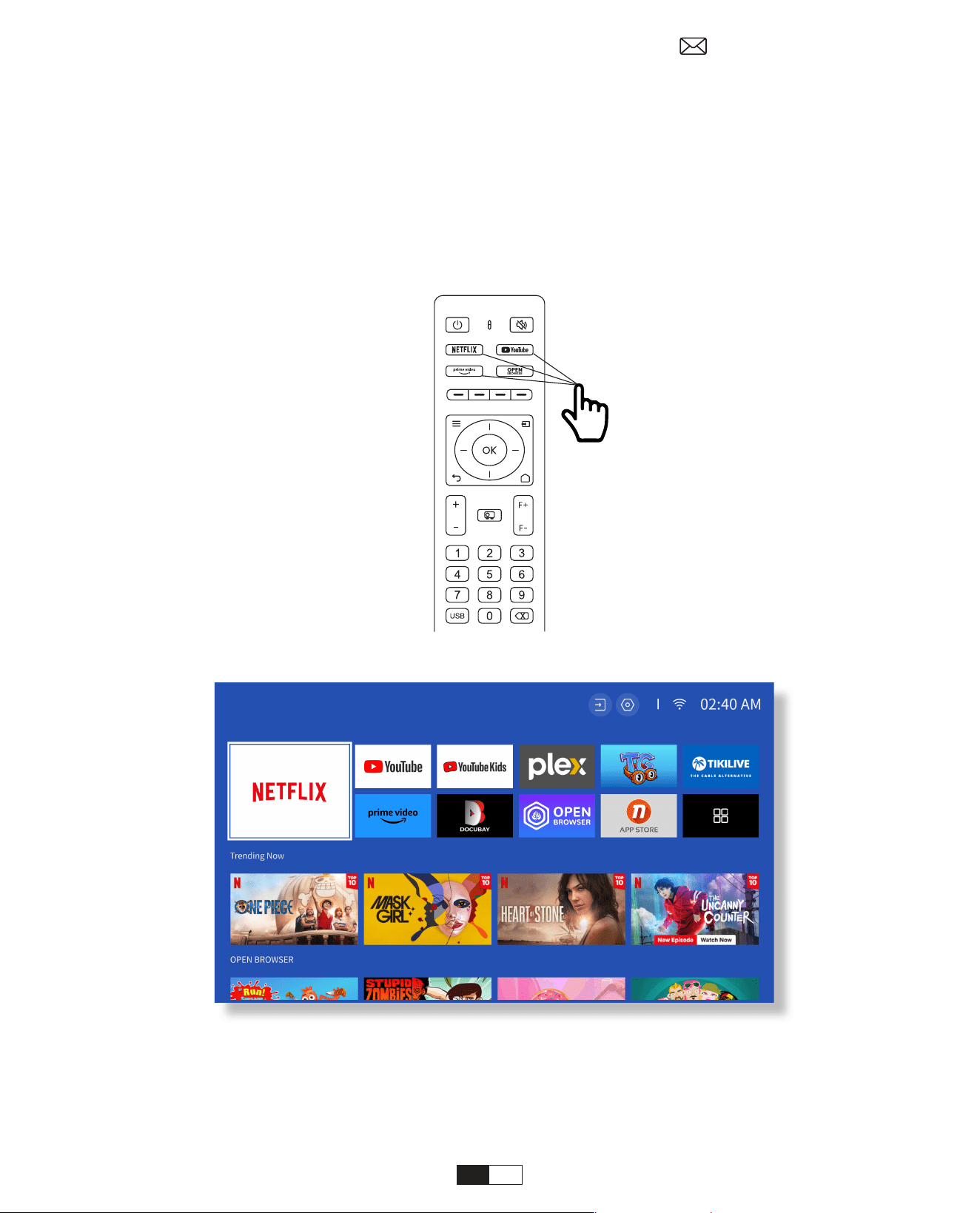
152
ホームページにアクセスし、お気に入りのチャンネルを選択するか、リモコンのショートカット
キーからアクセスし、アカウントにログインして、対応するコンテンツを再生します。
3. Netix、Youtube、Prime video などの正式にライセンスされたア
プリのコンテンツを再生する
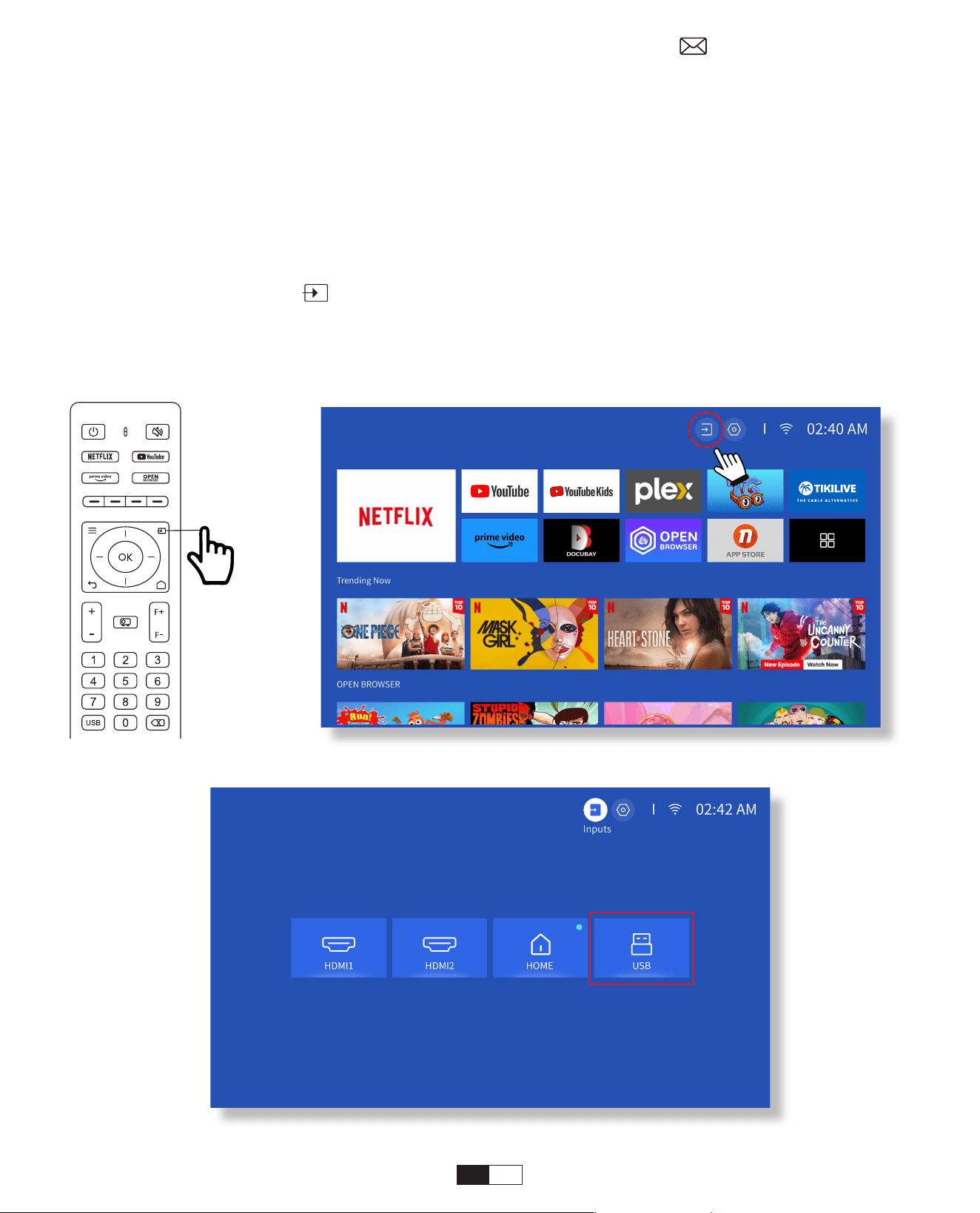
153
9 ページの指示に従ってデバイスをプロジェクターに正しく接続し、正しい入力ソースを選択し
てください。
1. USB ディスクを挿入します
2. リモコンの入力ソース [ ] をクリックするか、ホームページの入力ソース アイコンを選択し
ます。
3. 入力ソースとして「USB」を選択します
• USB ディスク入力モード
4. 投影接続と入力ソース
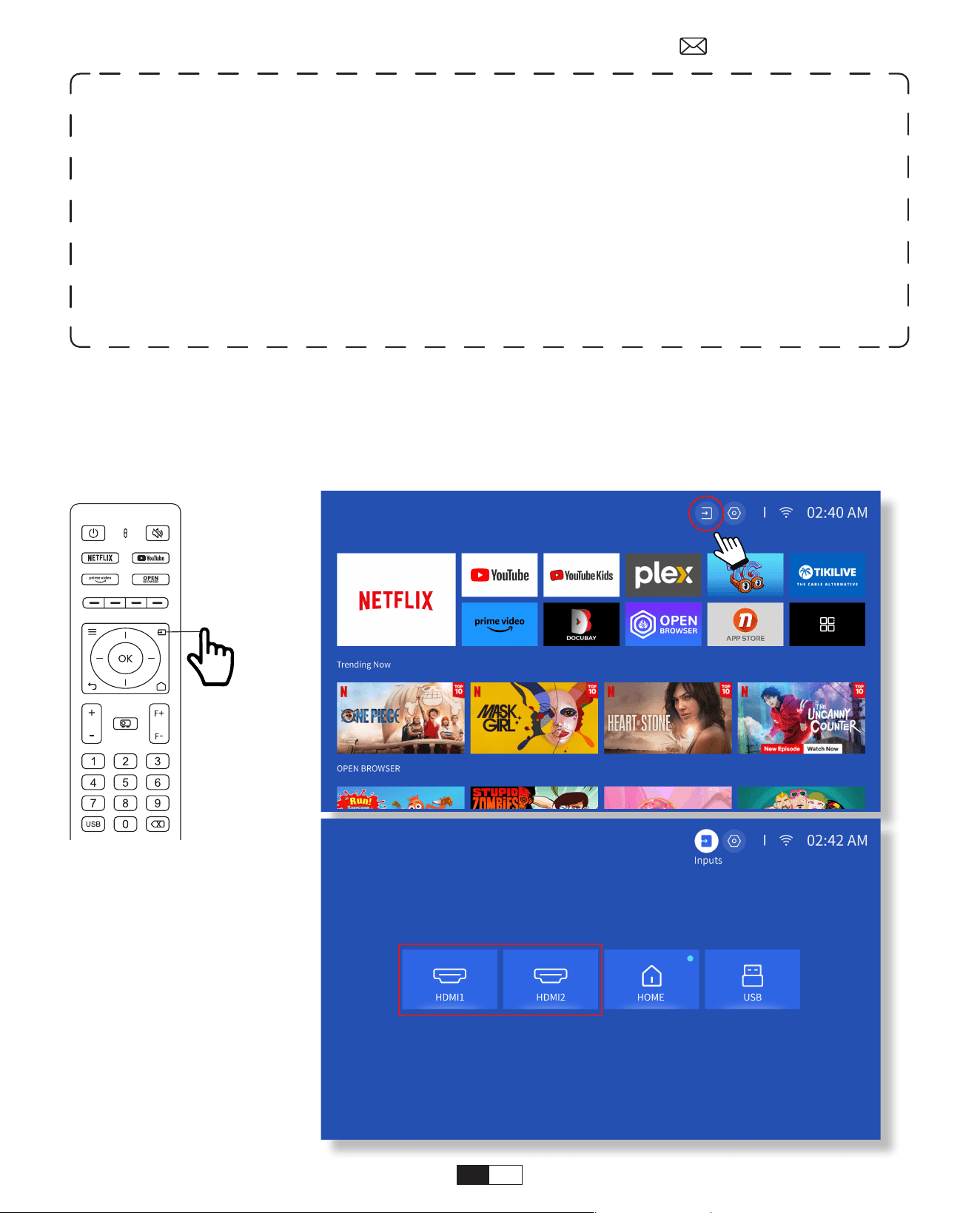
154
付属の HDMI ケーブルを使用して、HDMI 出力を持つデバイスをプロジェクターに接続します。
リモコンの入力ソース ボタンを押して、HDMI1 または HDMI2 を選択します。
• HDMI 入力モード
注 : プロジェクターが USB ディスクを認識できない場合は、次の方法を参照して問題を解決
してください。
1. USB ディスクが次のフォーマットを満たしているかどうかを確認してください。 (1)FAT32:
8G/16G/32G。 (2) NTFS: 64G
2. USB ディスクが認識 / 検出されない場合は、フォーマットしてください。USB ディスクを
フォーマットする前に、必ずすべてをバックアップしてください。 フォーマット後は、すべ
てが永久に失われます。
3. それでも問題が解決しない場合は、このメールに問題を送信してください : aftersales@
yabertech.com
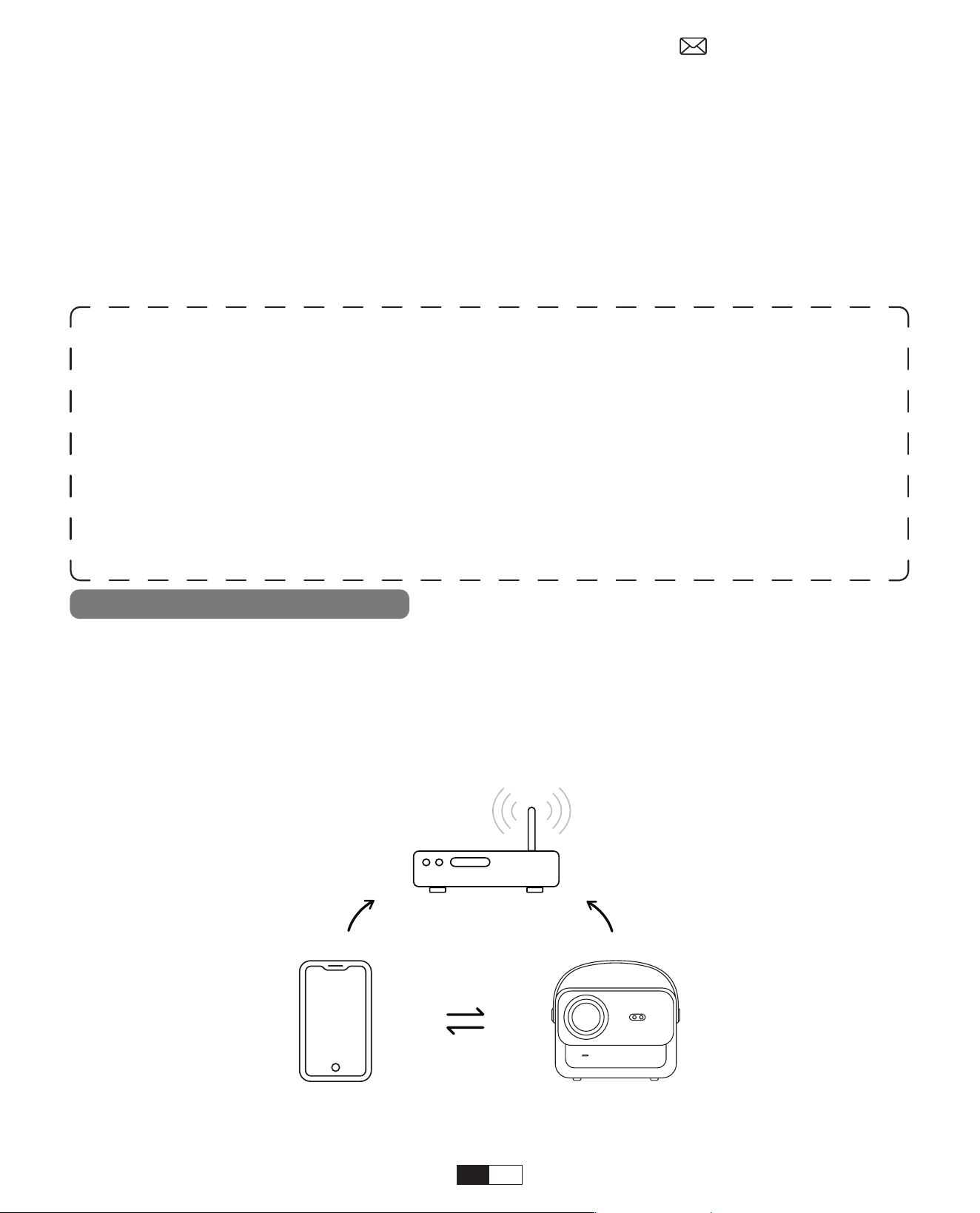
155
5. スクリーンキャスト
ステップ 1:
プロジェクターとモバイルデバイスを同じルーターの WiFi に接続します
• iOS Wi-Fi ミラーリング
OS キャスト(iOS デバイス
「このオプションは、anv 入力ソースを選択するのには必要ありません」
• 有線スピーカーとヘッドフォンの接続
ヒント :
1. ワイヤレス接続による画面ミラーリングの流暢さは、ネットワーク環境の影響を受けます。
画面ミラーリングを使用する場合は、100Mbit 以上の帯域幅を推奨します。
2. ワイヤレス接続を使用するときは、モバイル デバイスがプロジェクターの近くにあること
を確認してください。 1 メートル以内の距離を推奨します。
3. 一部のモバイルデバイスは互換性のため、画面ミラーリングをサポートしていない場合が
あります。
4. ご質問がございましたら、このメールで yaber までご連絡ください: support@
yabertech.com
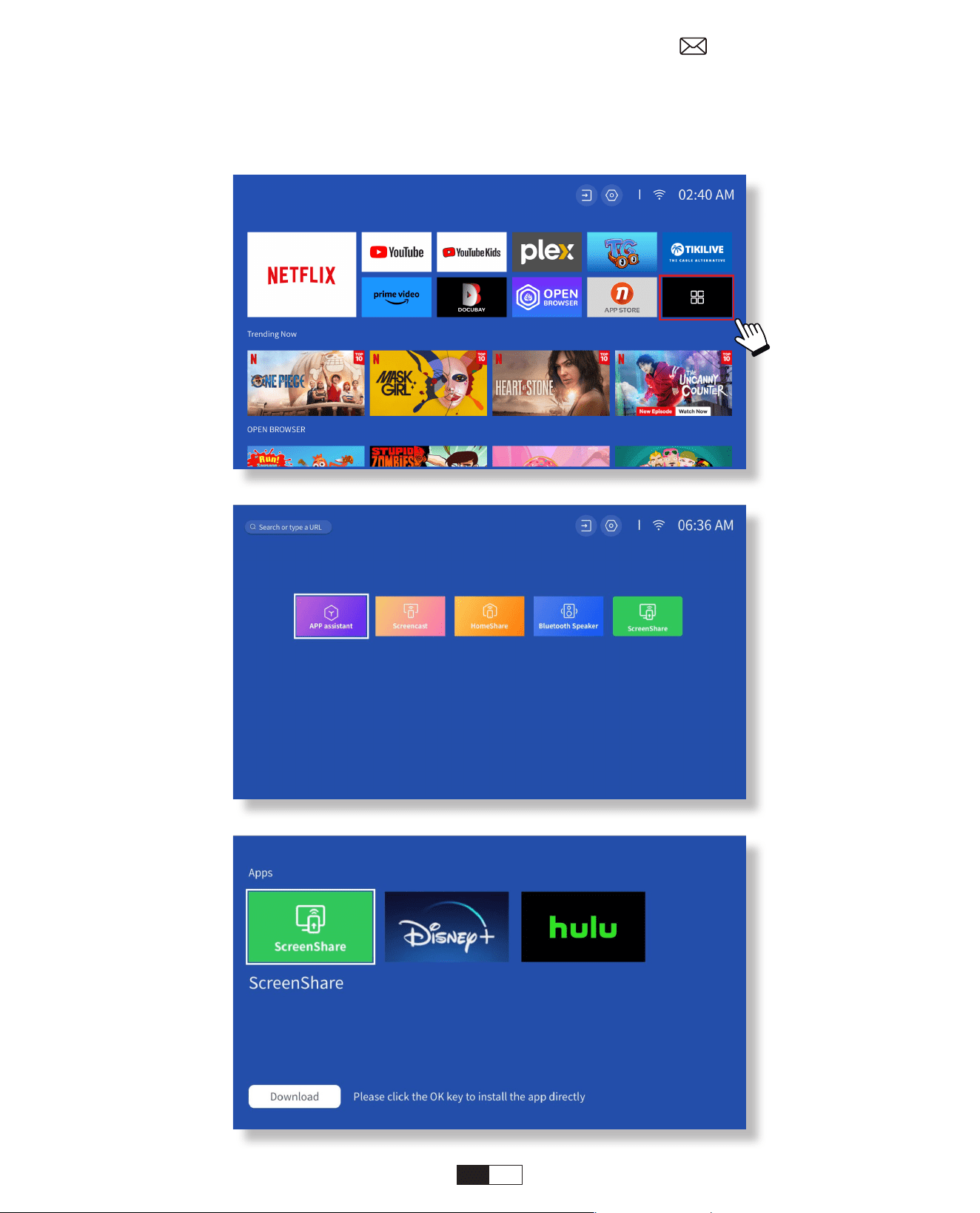
156
ステップ 2:
[ ホームページ ] > [ マイ アプリ ] > [ アプリ アシスタント ] に移動し、[ 画面共有 ] を選択してダウ
ンロードします。
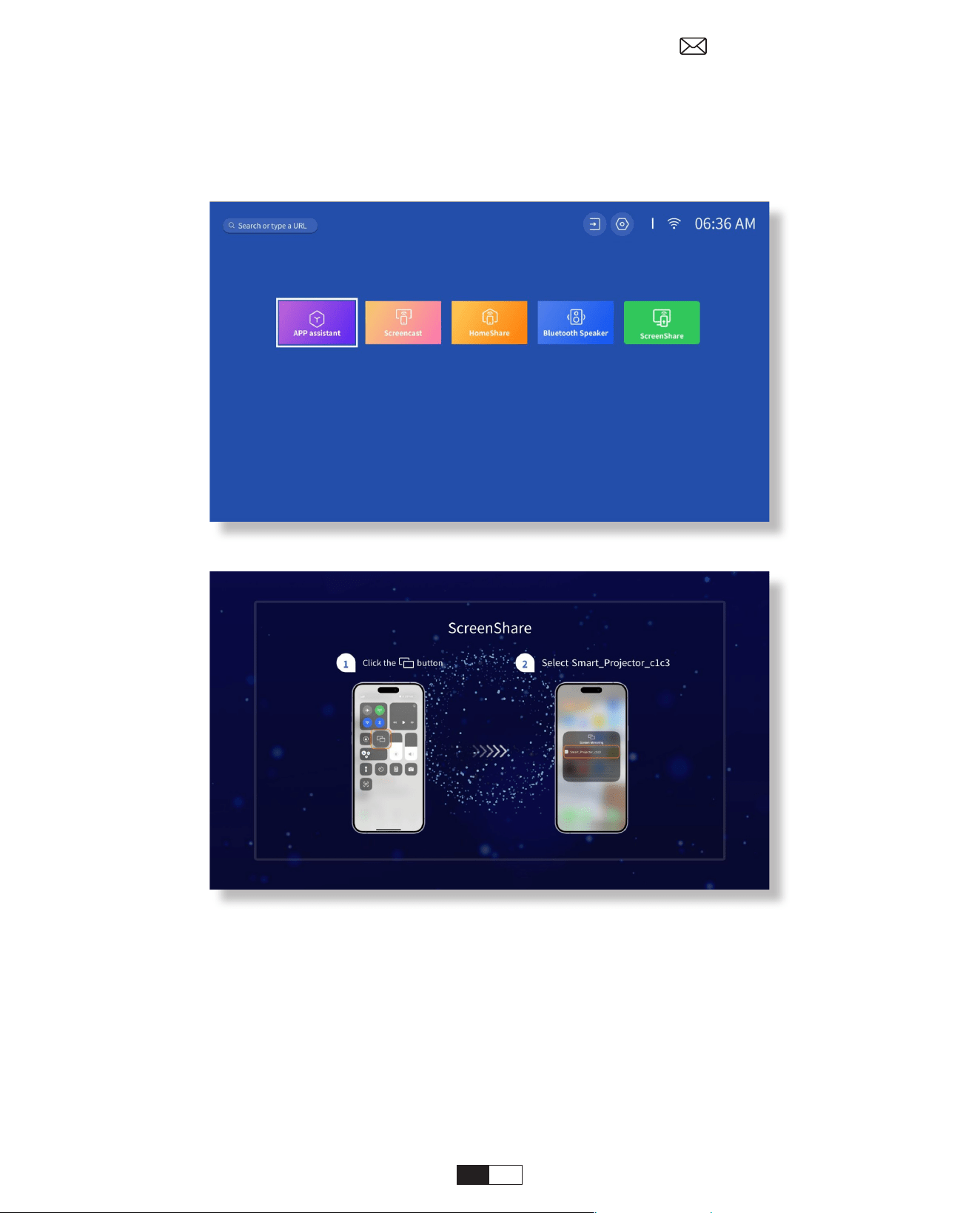
157
ステップ 3:
[ 私の APP] ページに戻る >> 画面共有 アプリを起動し、次のページに留まります。
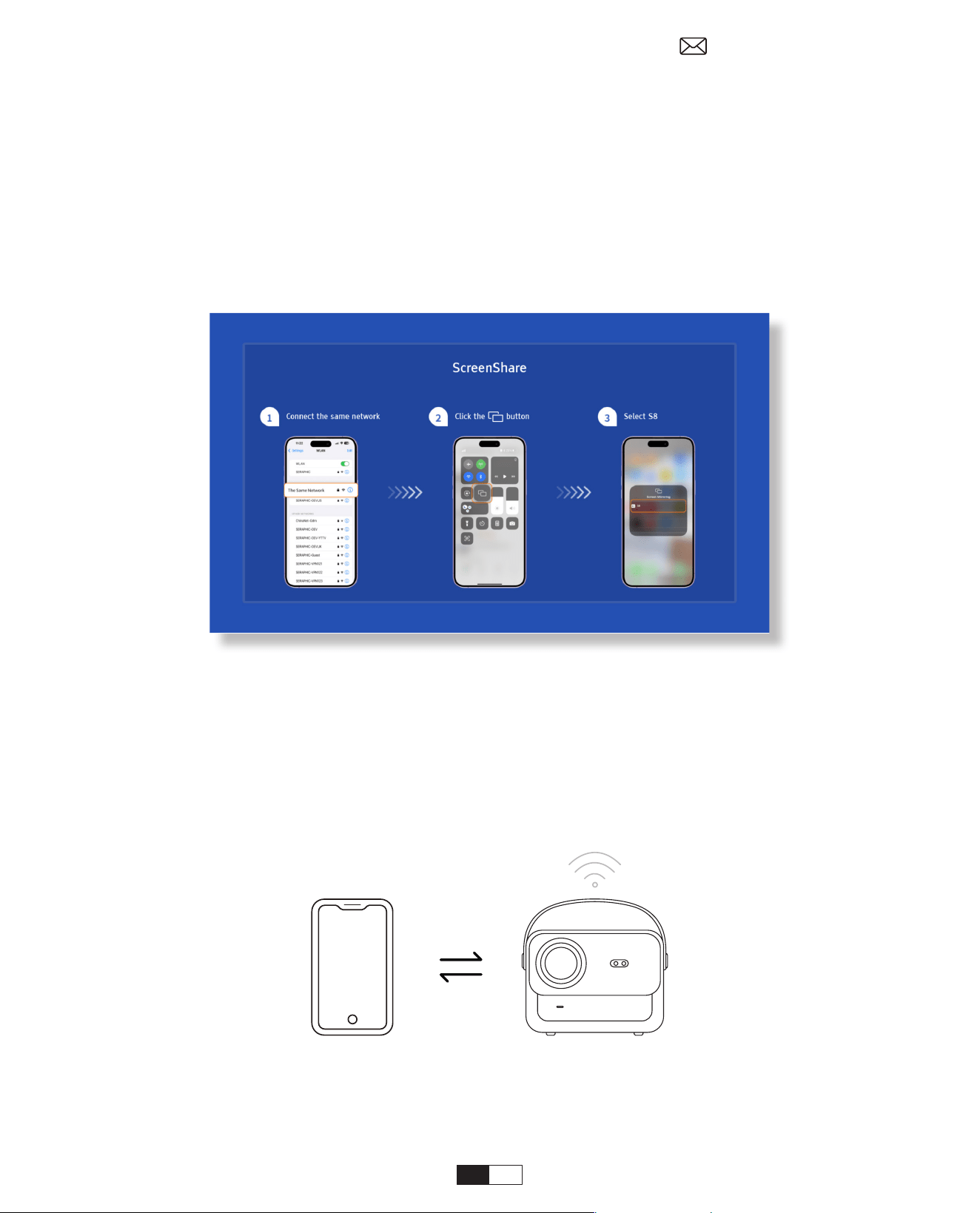
158
ステップ 4:
iOS デバイスのコントロール センターに移動します。 次に、「スクリーンミラーリング / エアプ
レイ」をタップしてプロジェクターを検索します。
ステップ 5:
リストから [Smart_Projector_XXXX] を選択し、接続が成功すると、iOS デバイス上のコンテンツ
が投影スクリーンまたは壁にミラーリングされます。
ステップ 1:
iPhone/iPad の Wi-Fi をオンにして、プロジェクターのホットスポットに接続します : [Smart_
Projector_ XXXX]
• iOSAP 镜像
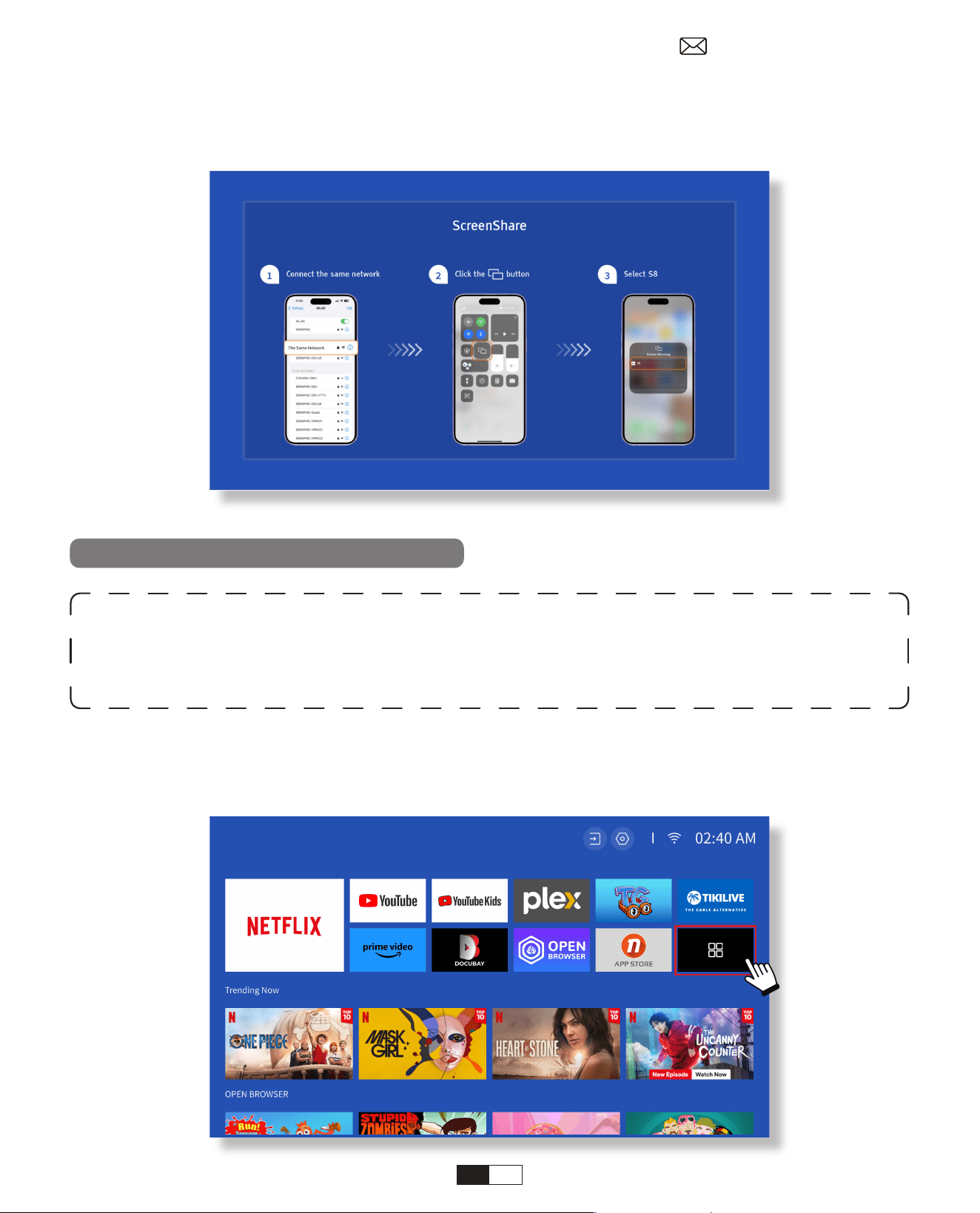
159
ステップ 2:
iOS デバイスのスクリーンミラーリングを押し、[Smart_Projector_XXXX] を選択します
注 : この機能を有効にするには、Android デバイスがマルチスクリーン / ワイヤレス ディス
プレイをサポートしている必要があります。 「Multi-Screen」の名前は、Android デバイス
のさまざまなブランドによって異なる場合があります。
ステップ 1: Android スマートフォンの Wi-Fi 機能を有効にしてください (Wi-Fi に接続する必要はあり
ません )。
ステップ 2: [ ホームページ ] > [ 私の APP] > [ScreenCast] に移動します。
Miracast Cast (Android デバイス用 )
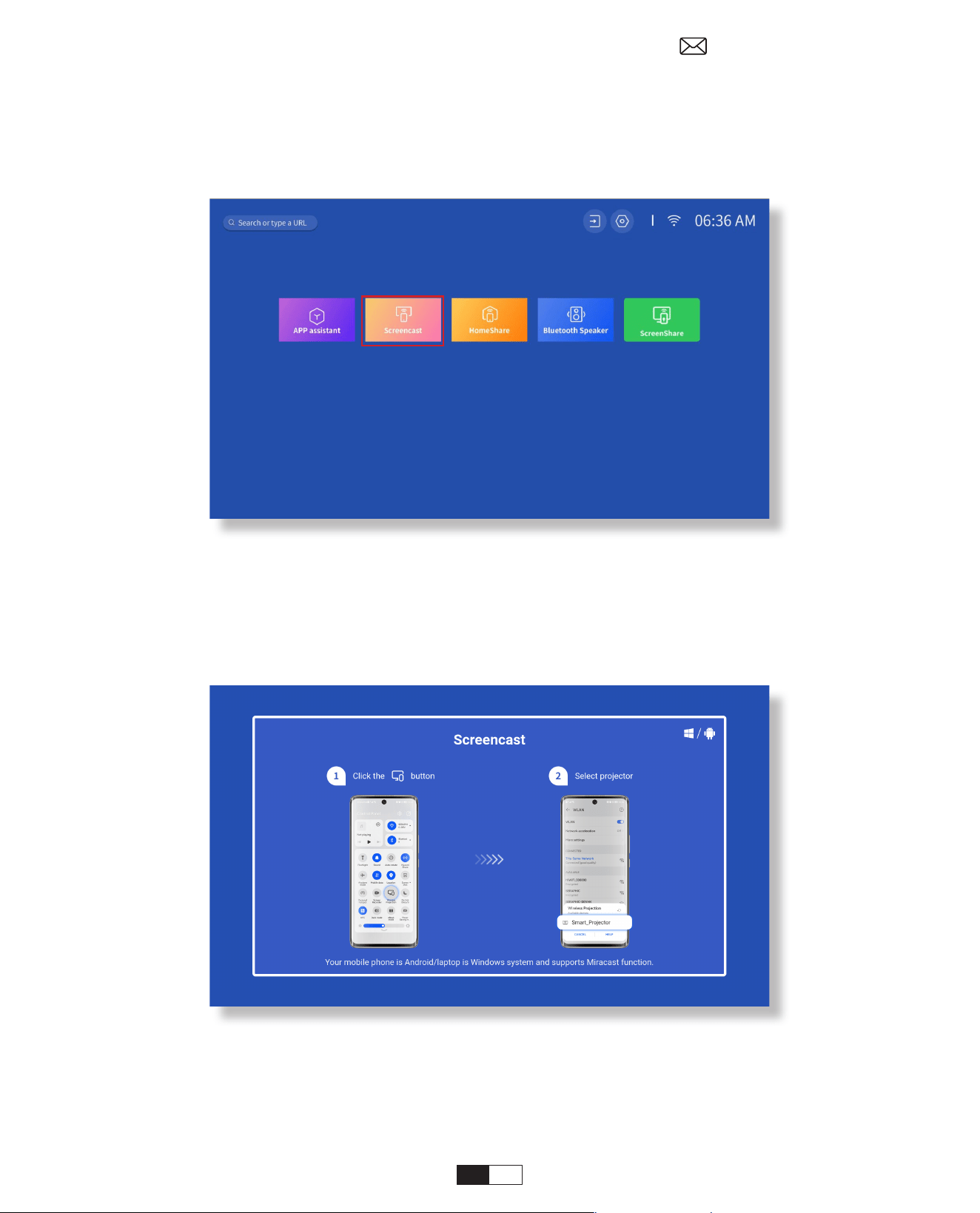
160
ステップ 3: Android デバイスで「マルチスクリーン / ワイヤレス ディスプレイ」機能を有効に
します。
ステップ 4: リストから [Smart_Projector_XXXX] を選択すると、接続が成功すると、iOS デバイス上
のコンテンツが投影スクリーンまたは壁にミラーリングされます。
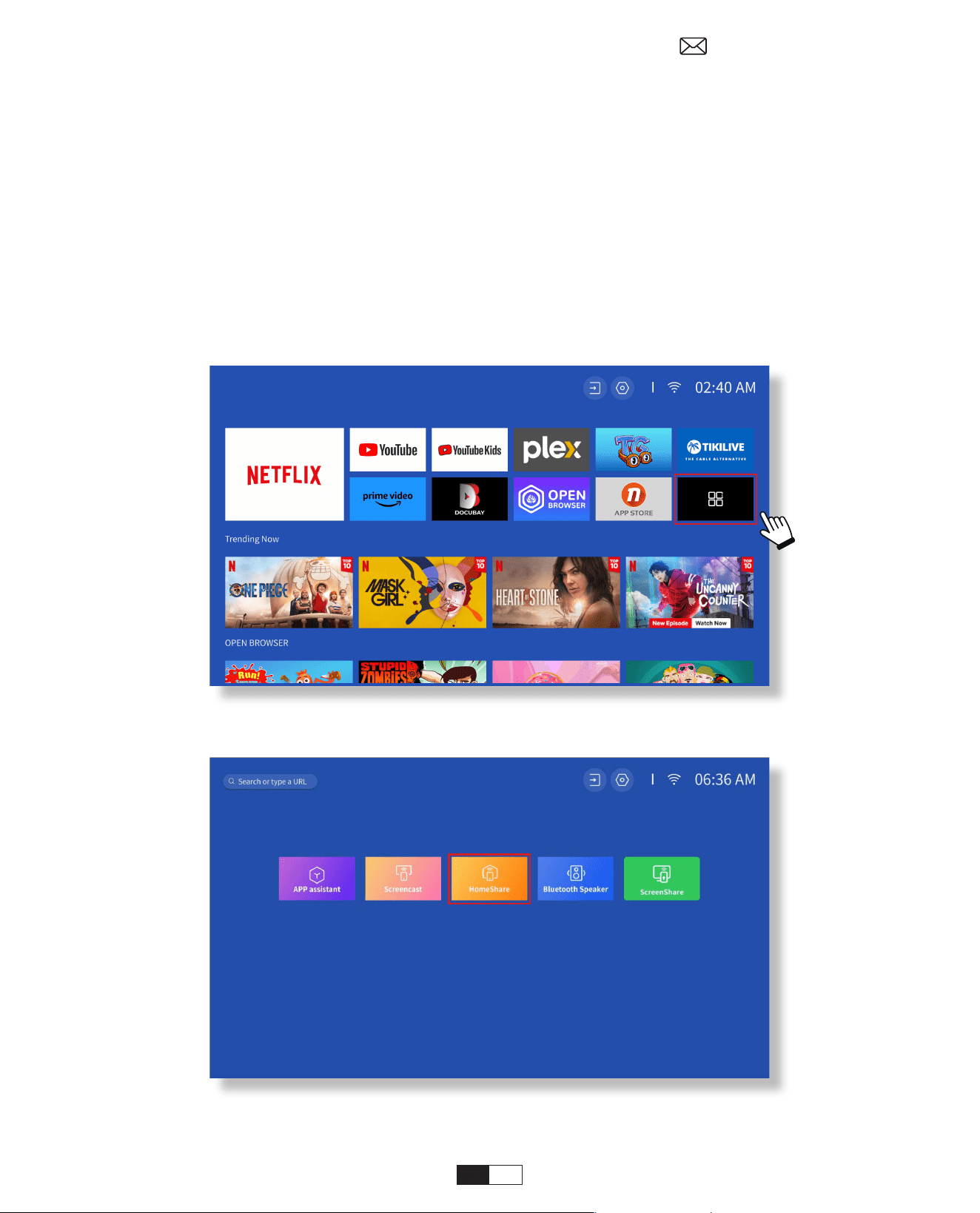
161
ステップ 1:
プロジェクターとモバイルデバイスを同じルーターの WiFi に接続します。
ステップ 2:
[ ホームページ ] > [ 私の APP] > [ ホームシェア ] に移動し、次のページに留まります。
• DLNA
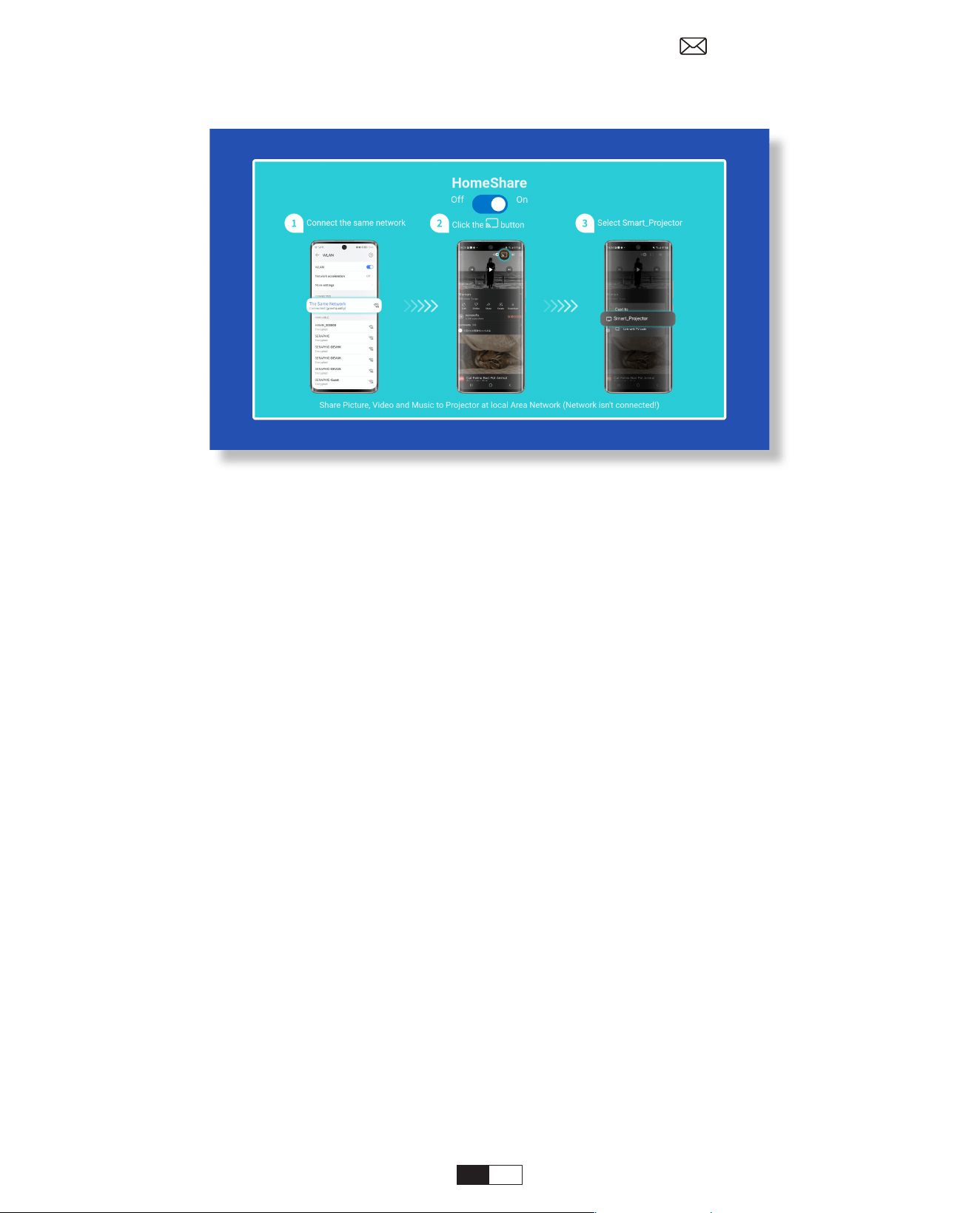
162
ステップ 3:
モバイルデバイスでビデオプレーヤーアプリを起動し、再生するビデオを選択します。
ステップ 4:
タップしてプロジェクターを検索し、[Smart_Projector_XXXX] を選択して接続します。デバイス
上のコンテンツが壁 / スクリーンに投影されます。
注記 :
Quando trasmetti un video dal tuo dispositivo mobile, il video verrà visualizzato solo
sullo schermo proiettato e potrai comunque utilizzare il tuo dispositivo mobile senza
interrompere il video o mostrare altri contenuti.
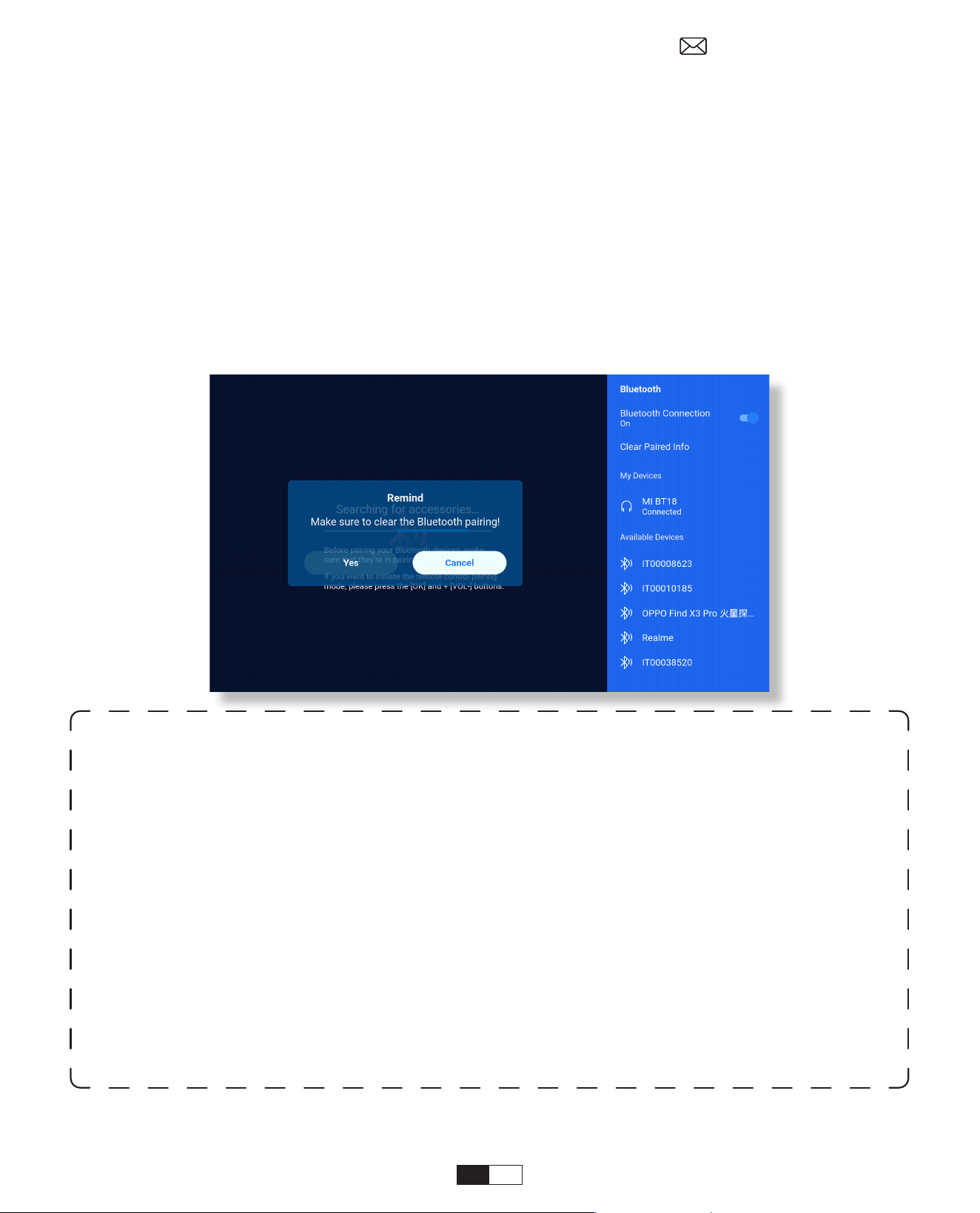
163
• 外部 Bluetooth スピーカーに接続する
6. Bluetooth 設定
ステップ 1:
Bluetooth デバイスの電源をオンにして、Bluetooth 接続の準備をします。
ステップ 2:
[ ホームページ ] > [ 設定 ] > [Bluetooth] を選択して利用可能な Bluetooth デバイスをスキャンし、
Bluetooth デバイスを選択してプロジェクターとペアリングします :
重要な点 :
スピーカーへの有線接続と比較して、Bluetooth 接続はデジタル オーディオ データの処理、そ
のデータのオーディオ信号への変換、および信号のストリーミングに多くの時間を費やします。
信号の干渉により、音声に遅延や若干の遅れが生じる場合があります。
その結果、特に WiFi と Bluetooth 接続を同時に使用してワイヤレス スクリーン ミラーリングを
使用している場合、スピーカーのサウンドがプロジェクターの画像と同期しない場合がありま
す。
この状況が発生した場合は、次のオプションを確認してオーディオ品質を改善してください :
* ワイヤレス画面ミラーリングと Bluetooth 接続を同時に使用する代わりに、付属の HDM1 ケ
ーブルを介した HDM1 接続と Bluetooth 接続を同時に使用することをお勧めします。 それでも
ワイヤレス画面ミラーリングを使用したい場合は、有線スピーカー経由で音声を出力すること
をお勧めします。
* Bluetooth デバイスをプロジェクターに近づけます。
* 干渉を避けるため、プロジェクターと Bluetooth スピーカーを他の Bluetooth デバイスから離
してください。
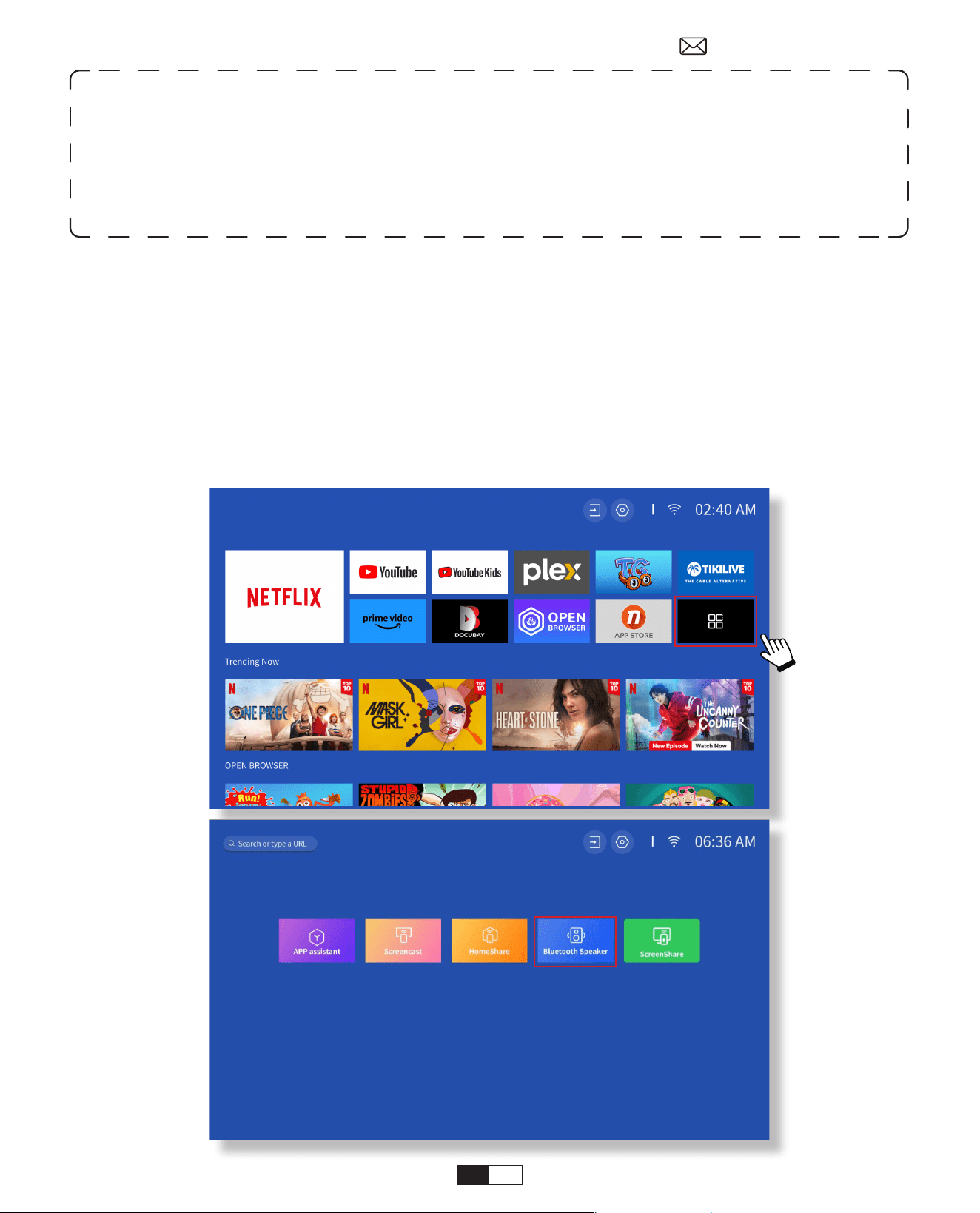
164
• Bluetooth スピーカーとしてデバイスに接続
ステップ 1:
[ ホームページ ] > [ 私の APP] > [Bluetooth スピーカー ] に移動し、次のページに留まります。
ステップ 2:
デバイスの Bluetooth 機能を有効にし、プロジェクターをスキャンして接続します。
* ビデオを再生しているデバイスの遅延(リップシンク)を調整できる場合があります。 遅延を
調整する方法はデバイスによって異なります。 メーカーにご相談ください。
Bluetooth スピーカー / ヘッドフォンとプロジェクトの間の互換性の問題が原因で、または一部
の Bluetooth デバイスは Bluetooth 接続経由でプロジェクターとペアリングできない場合があ
ります。詳細については、
aftersales@yabertech.com
までお問い合わせください。
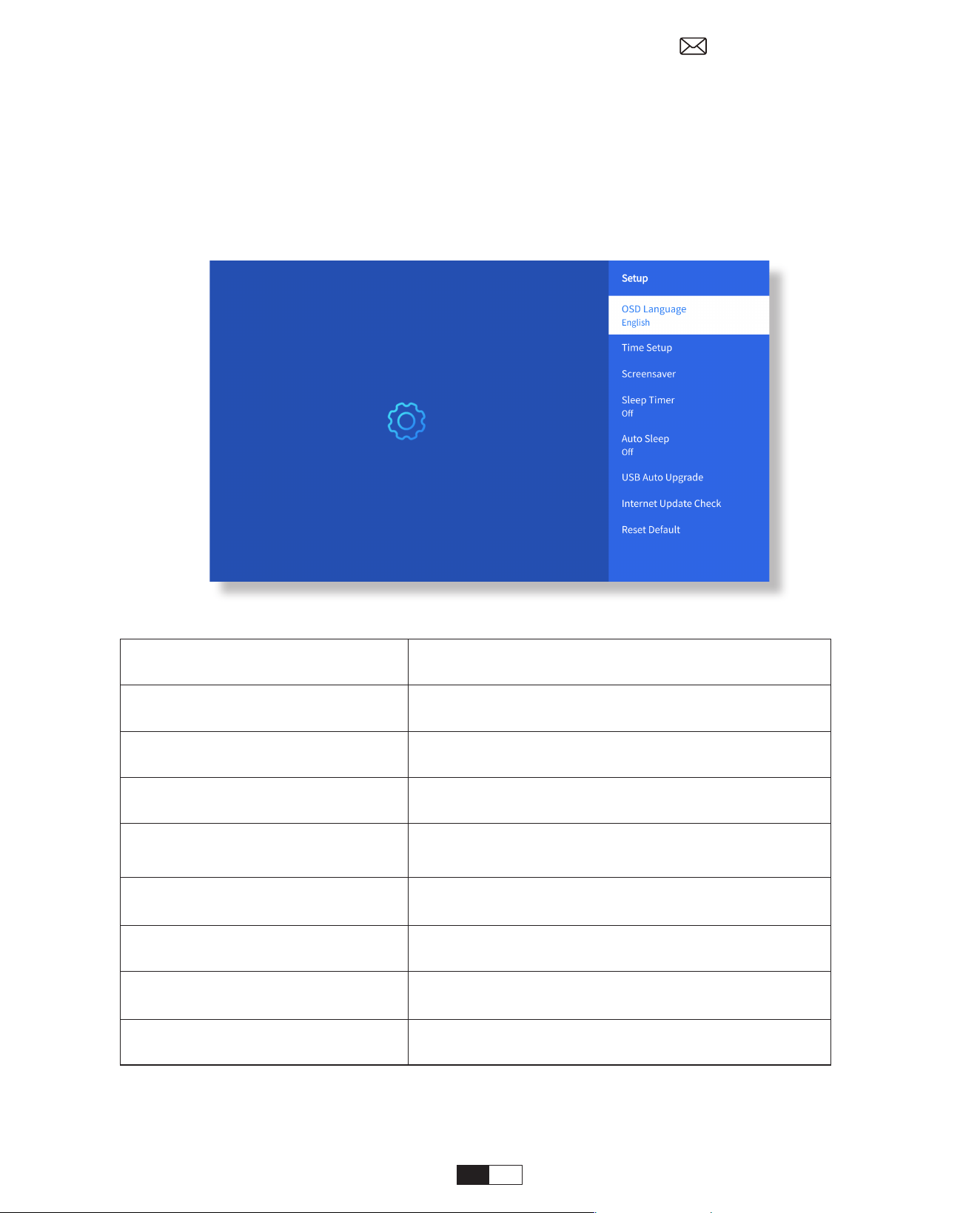
165
• 設定
7. その他の設定
ホームページに移動 → [ 設定 ] を選択 → [ 設定 ] を選択し、リモコンの矢印キーを使用してメニ
ューを切り替え、「OK」を押して確定し、設定します。
メニュー コンテンツ
OSD 言語 英語 / フランス語 / イタリア語 / 日本語など
時間設定 現地時間を設定する
スクリーンセーバー スクリーンセーバーの オン / オフ
目覚まし時計
オン / オフ : スリープ時間を 10 ~ 120 分から
設定します。
オートスリープ
オン / オフ : 時間を 30 分から 8 時間まで設定
します
USB 自動アップグレード ローカルアップデート
インターネットアップデートチ
ェック
インターネット環境を確認する
デフォルトにリセット 工場出荷時のデフォルトに戻す
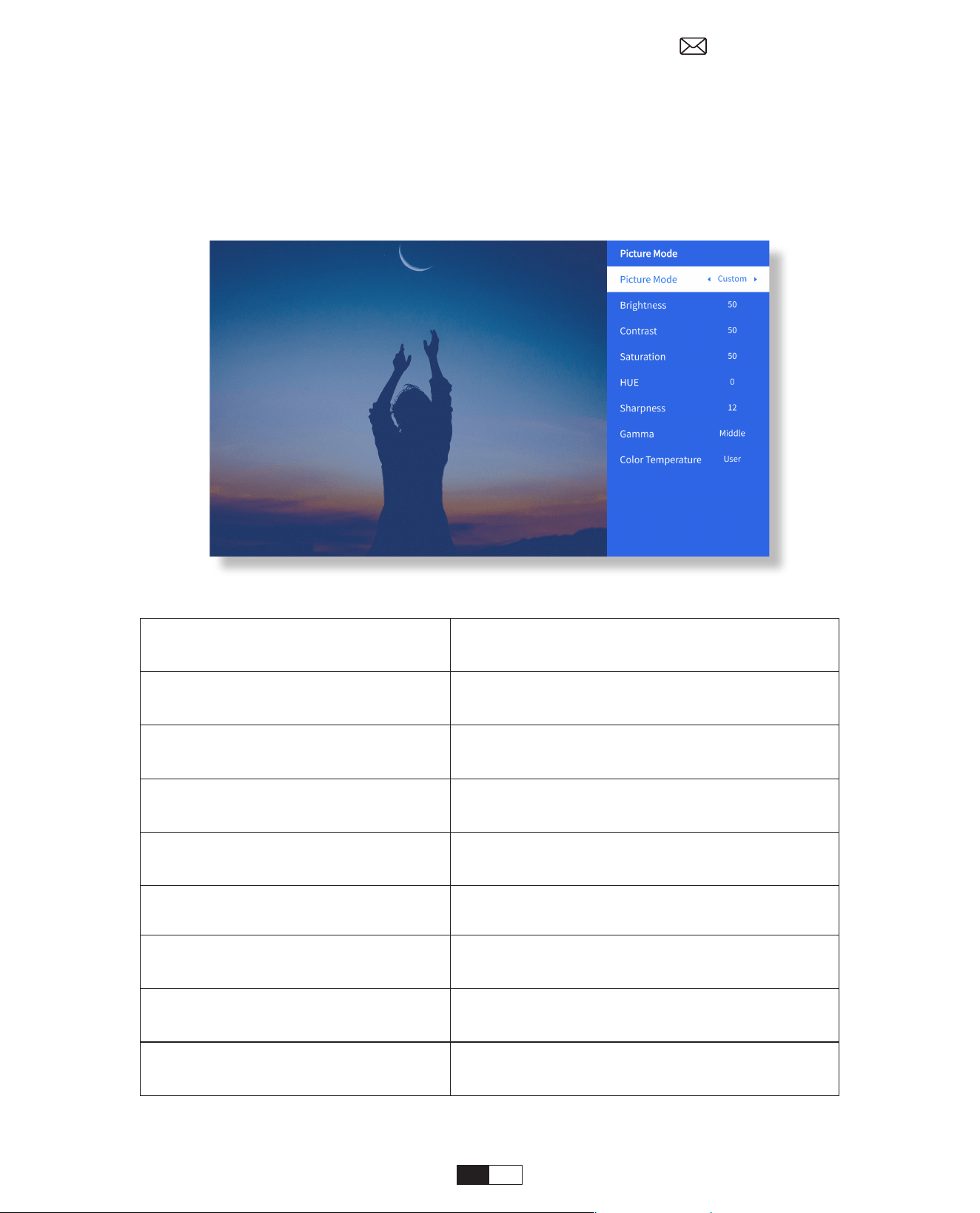
166
• ピクチャーモードメニュー
メニュー コンテンツ
ピクチャーモード
スタンダード / シネマ / スポーツ / ビビッ
ド / ハイブライト / カスタム
輝度 画面の明るさの値を設定する
対比 画面のコントラスト値を設定する
飽和 画面の彩度の色を設定する
色相 画面の色相を設定する
明瞭さ 画面のシャープネス値を設定する
ガンマ 明るい / 暗い / 中くらい
色温度
ノーマル / クール / ウォーム / スタンダー
ド
ホームページ→「設定」→「画質モード」を選択し、リモコンの矢印キーでメニューを切り替え、
「OK」を押して確認 設定します。
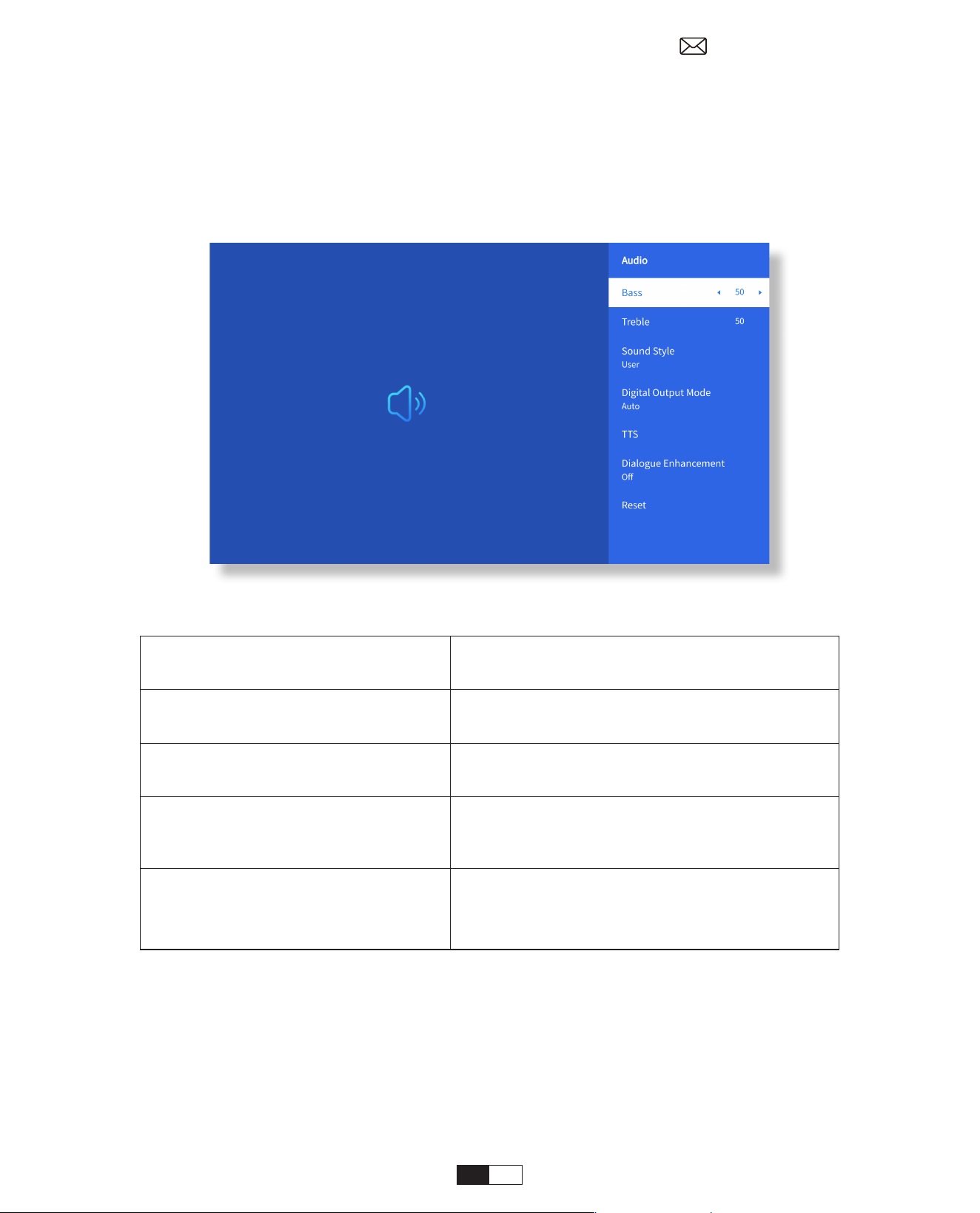
167
• オーディオ設定
ホームページ→「設定」→「音声」を選択し、リモコンの矢印キーでメニューを切り替え、「OK」
を押して確認 設定します。
メニュー コンテンツ
低音 / 高音 優先値の設定
サウンドスタイル
ユーザー / 標準 / 映画 / 音楽 / スポーツ /
ビビッド / ニュース
デジタル出力モード
オート /PCM/ ドルビーオーディオ - ドルビ
ーデジタル / ドルビーオーディオ - ドルビ
ーデジタルプラス
会話の強化
オン / オフ:会話促進機能、音声、特別な
人向けブロードキャスト機能
低中高
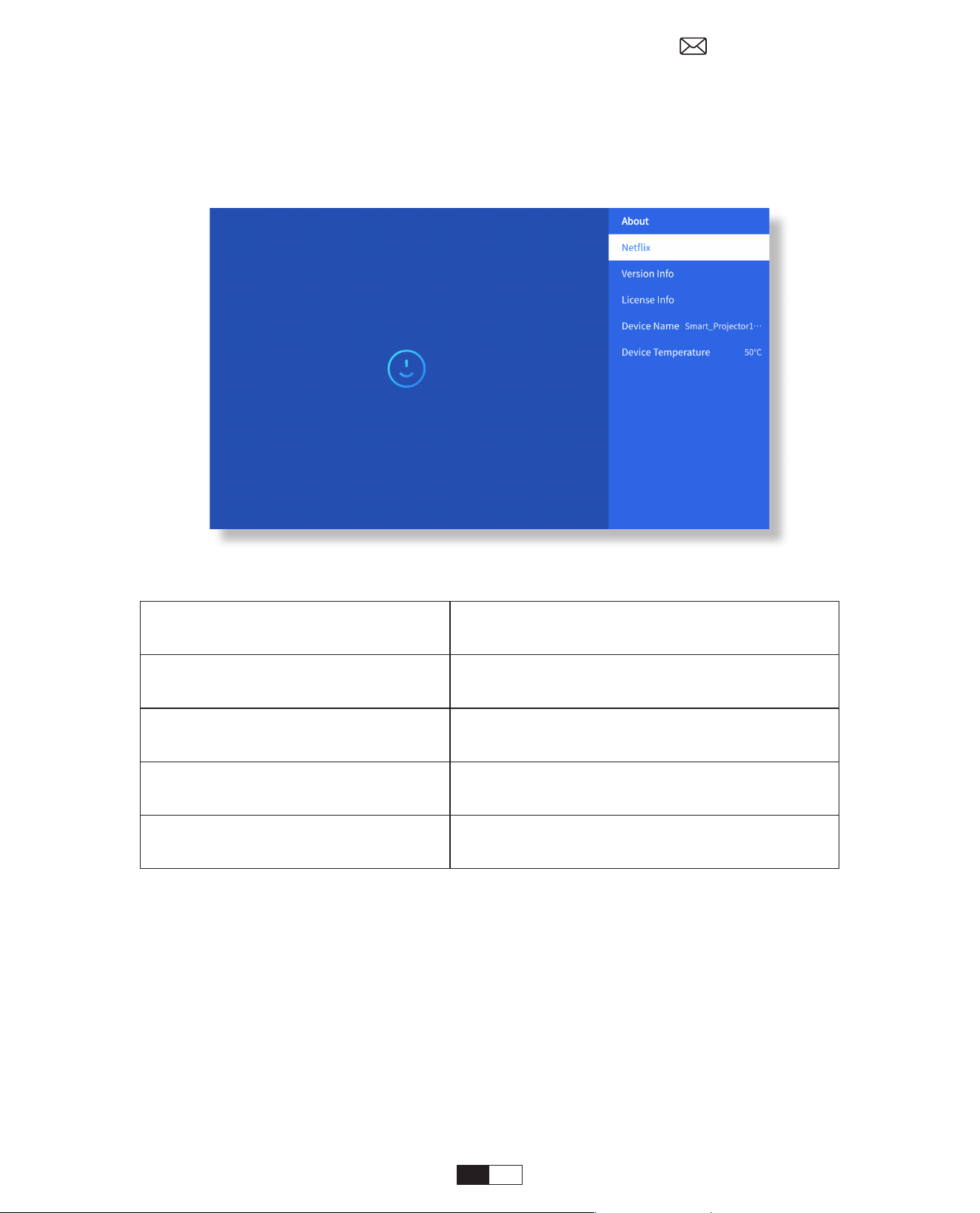
168
• について (About)
ホームページ→「設定」→「バージョン情報」を選択し、リモコンの矢印キーでメニューを切り替え、
「OK」を押して確認 設定します。
Menù Contenuto
Netx Netx 公式ライセンス取得
バージョン / ライセンス情報
最新のバージョン / ライセンス情報を表示
する
装置名 プロジェクターのモデル名
デバイスの温度 50° C
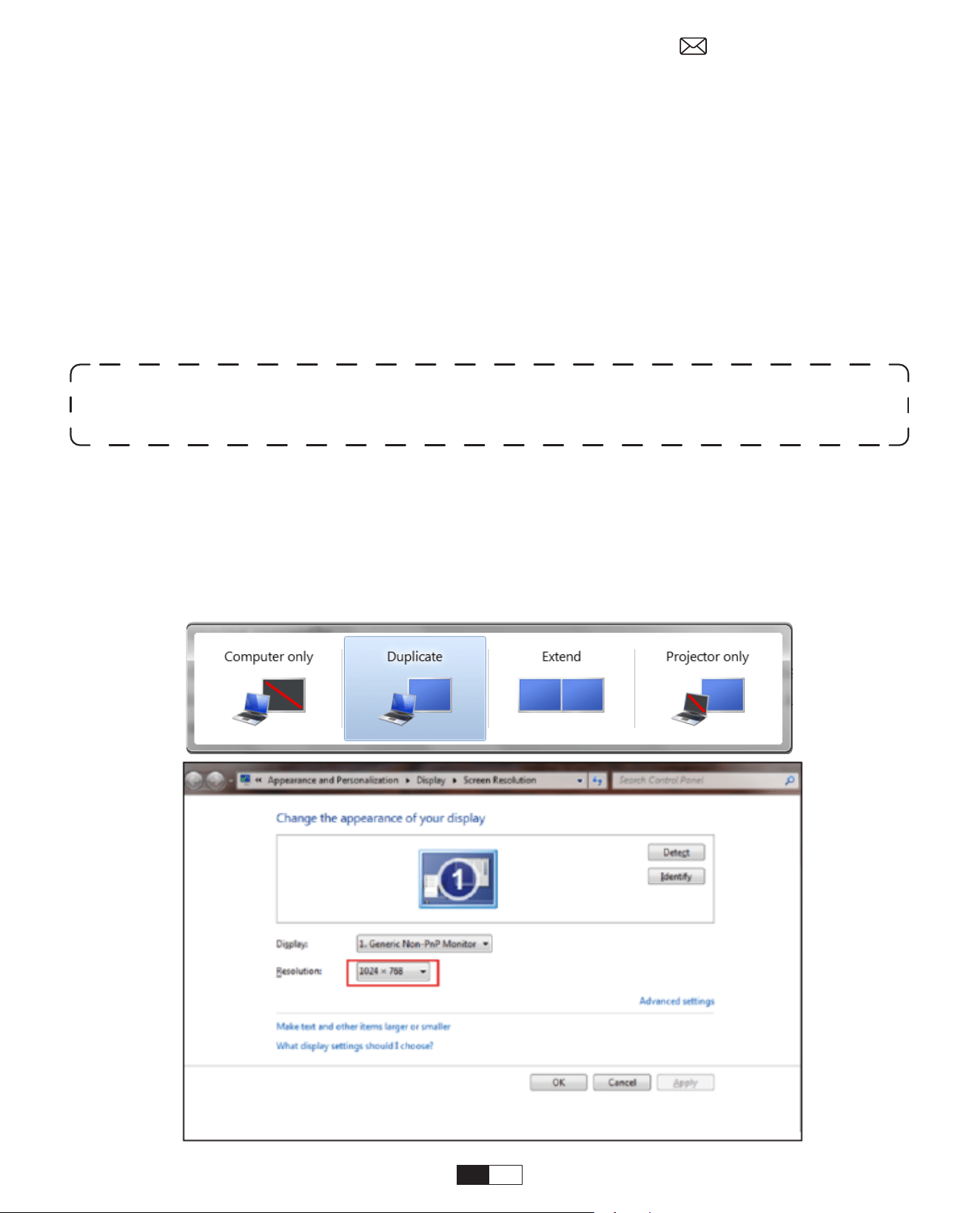
169
USB 信号ソースを選択すると、マシンが自動的に検出します。
ステップ 1: メインインターフェイスで希望のカテゴリ「写真」、「音楽」、または「ビデオ」
を選択し、リモコンの「OK」キーを押して、対応するカテゴリに入ります。
ステップ 2: 選択するプログラムに応じて:「写真」「音楽」または「ビデオ」
ステップ 3: 再生したいファイルを選択し、「OK」キーを押してファイルを再生または一時停止
します(USB ディスクが接続されていないと、必要なカテゴリに入ることができません)。
8. 信号線の接続
①
USB マルチメディア接続
②
パソコンと接続する
ステップ 1: HDMI ケーブル ( 付属 ) でパソコン
とU12プ
ロジェクターに接続します。
ステップ 2: プロジェクターで投影する HDMI ソースを選択します。
ステップ 3: ラップトップで「Win+P」ボード キーを押したままにして、表示モードを変更します。
注記 : 「Oce Suite」オプションでは、PPT/TXT ファイルを正常に再生または表示できません。
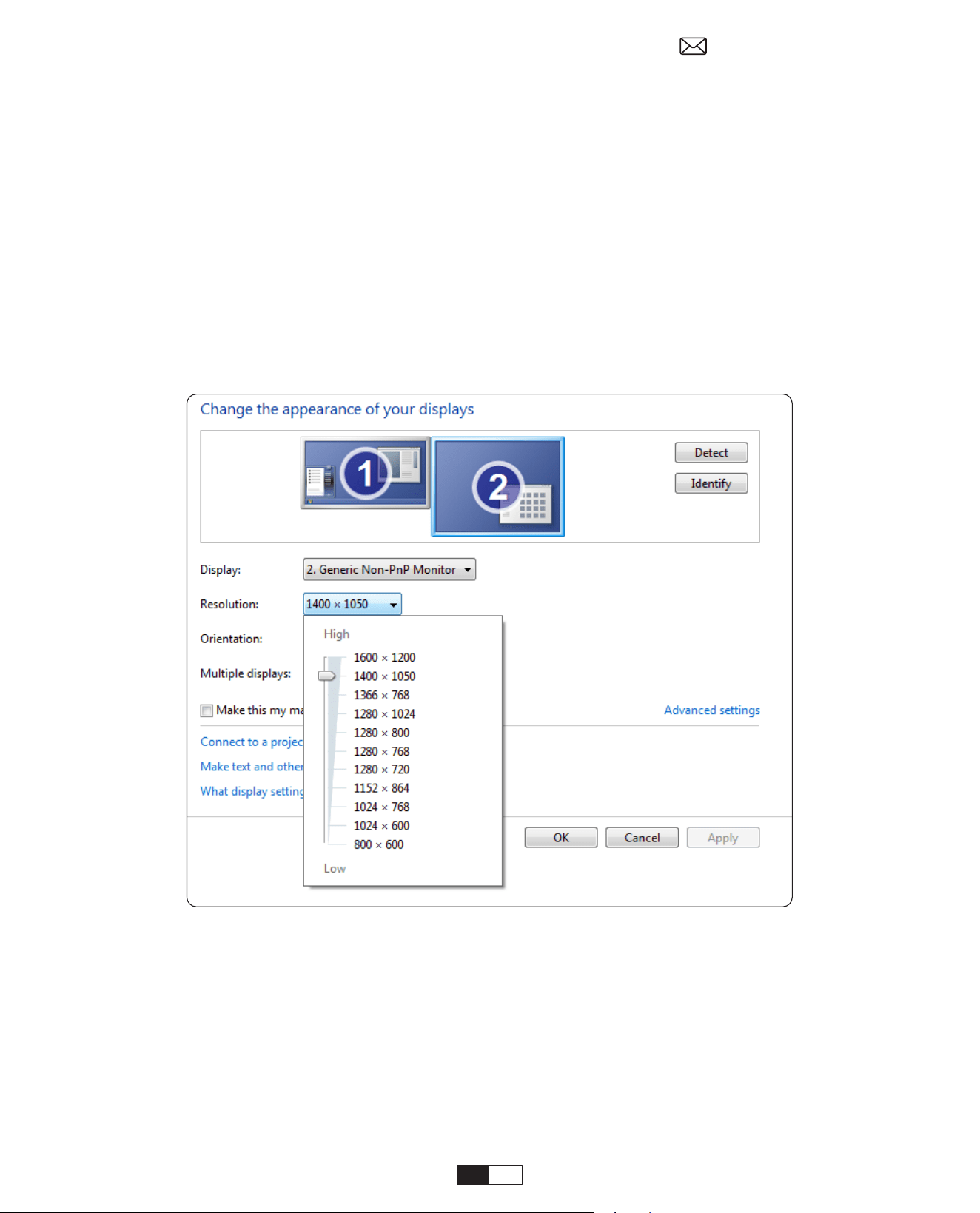
170
ステップ 1: メディア信号チャンネルを選択します :「HDMI」
ステップ 2: Type-C to HDMI アダプターを使用して MacBook に接続するか、ミニディスプレ
イ HDMI アダプターを使用して MacBook Air に接続します ( アダプターは付属しません )。
MacBook または Mac Book Air との接続。 ( アダプターは含まれておりません )
パソコンのみ : これはデフォルトのオプションであり、メイン モニターにのみ表示されます。
コピー : すべてのモニターに同じものを表示させ、各モニターにデスクトップを複製します。
伸ばす : すべてのモニターが、デスクトップをすべてのモニターに拡張した 1 つの大きなモニタ
ーのように動作します。
プロジェクターのみ : プロジェクターと同様にセカンダリモニターにのみ表示します。
プロジェクターのみモードで画面解像度を変更するには、次の手順に従います。
ステップ : [ スタート ] > [ コントロール パネル ] > [ 外観と個人設定 ] > [ 画面解像度の調整 ]
③
MacBook または MacBook Air との接続

171
パワーオン スタンバイ モードで電源を接続すると、プロジェクターの電源 LED が点灯します。
プロジェクターの電源を入れるには、電源ボタンを押す必要があります。
「電源オン」に切り替えると、電源コードを接続すると、マシンの電源が自動的にオンになります。
1. プロジェクターまたはリモコンのボタンを押し、OK ボタンを押してプロジェクタの電源をオフ
にします。
2. プロジェクターの電源コードを抜きます。
3. レンズをカバーし、プロジェクターを涼しく乾燥した場所に保管します。
9. Modalità di accensione
10. Spegnimento sicuro
ステップ 1: HDMI ケーブルを使用して XBOX/PS5 に接続します
ステップ 2: メディア信号チャンネルを選択します :「HDMI」
ステップ 3: 成功しました。
ステップ 1: HDMI ケーブルを使用して DVD プレーヤーに接続します
ステップ 2: 接続には「HDMI」モードを選択してください
ステップ 3: メニューキーを入力してください
ステップ 4: 画像内に白いピクセルエッジが発生するリスクを回避するには、PC モードを [ オン ]
から [ オフ ] に変更します。
④ Connessione con XBOX/PS5
⑤ Collegamento con il lettore DVD:

172
• プロジェクターをメンテナンスする
1. 高温または低温はデバイスの寿命を縮めるため、プロジェクターを暖かすぎる部屋や寒すぎる
部屋に置かないでください。作業環境は 5° C ~ 35 ° C が望ましいです。
2. 投影画面に黒い点がある場合は、aftersal[email protected] まで電子メールでご連絡ください
。ほこりの除去方法に関するビデオをお送りしますので、ご安心ください。
3. プロジェクターは強い衝撃、押し出し、振動から厳重に保護してください。
4. レンズは、プロジェクターの核となるコンポーネントであり、画像の解像度と効果に直接関係
しています。表面に汚れやほこりがあることに気付いたときは、常にレンズを掃除してください。
圧縮空気の入ったキャニスターを使用して、レンズからほこりを取り除きます。汚れがある場合は、
汚れや汚れがある場合は、クリーニングクロスを使用してレンズ表面を軽く拭きます。
メンテナンスのヒント
PDF の説明書をスキャンしてダウンロードする
さらにサポートを受ける
@Yaber Entertainment Projector
@Yaber

IDIOMA
English
Deutsch
Français
Italia
日本語日本語
03-36
39-70
73-104
107-138
141-172
175-206
Polish

CONTENIDO
YABER Soporte Profesional de por Vida 04
Consejos 04
Lista de Paquetes 05
Especificaciones del Proyector 06
Descripción general del Proyector 07
Descripción General del Control Remoto 08
Instalación Básica 09
Instalar en el Techo 10
Distancia y Tamaño de Proyección 10
Soporte de Base Ajustable 11
Conectar Dispositivos 11
Operación 12
1. Iniciar el proyector 12
2. Ajuste de imagen 13
3. Reproduzca contenido de aplicaciones con licencia oficial 16
4. Conexión de proyección y fuente de entrada 17
5. Screencast 19
6. Configuración de Bluetooth 27
7. Otro entorno 29
8. Conexión de líneas de señal 33
9. Modo de encendido 35
10. Apagado seguro 35
Consejos de Mantenimiento 36

ES
176
YABER Soporte Profesional de por Vida
Consejos
Muchos problemas se pueden resolver fácilmente configurando, como sin señal, sin sonido, bluetooth,
error de conexión, error de conexión WiFi, puntos oscuros, animación entrecortada, etc.
Su satisfacción es nuestra principal prioridad y le animamos a explorar el contenido de este manual
detenidamente.
Estimado cliente,
Gracias por elegir el proyector Yaber U12.
Este manual le ayudará a navegar por todas las funciones. Si tiene algún problema, no dude en
.
(Responder dentro de las 24
horas)
AEquipo de Atención al Consumidor de YABER
1. Ambiente adecuado(5°C - 35°C)
Coloque el proyector en un ambiente con temperatura adecuada, asegurando una ventilación
adecuada. El calor o el frío extremos pueden afectar la vida útil del proyector.
2. Limpieza (puntos negros)
El proyector deberá estar estrictamente protegido contra fuertes impactos, extrusiones y vibraciones.
No intente moverlo durante un fuerte impacto, extrusión o vibración, ya que esto puede provocar
fallas en el circuito interno.
Si nota algún punto negro en la pantalla de proyección, no se preocupe. Simplemente contáctenos
en [email protected] y le proporcionaremos un video tutorial sobre cómo eliminar las
partículas
de polvo.
3. Cuidar de forma segura
4. Lente
La lente está directamente relacionada con la definición y el efecto de la imagen. El exceso de polvo
afectará la calidad de la imagen. La lente sucia se debe limpiar con un paño de algodón suave para
la superficie de la lente de vidrio. No se utilizarán paños duros ni abrasivos.
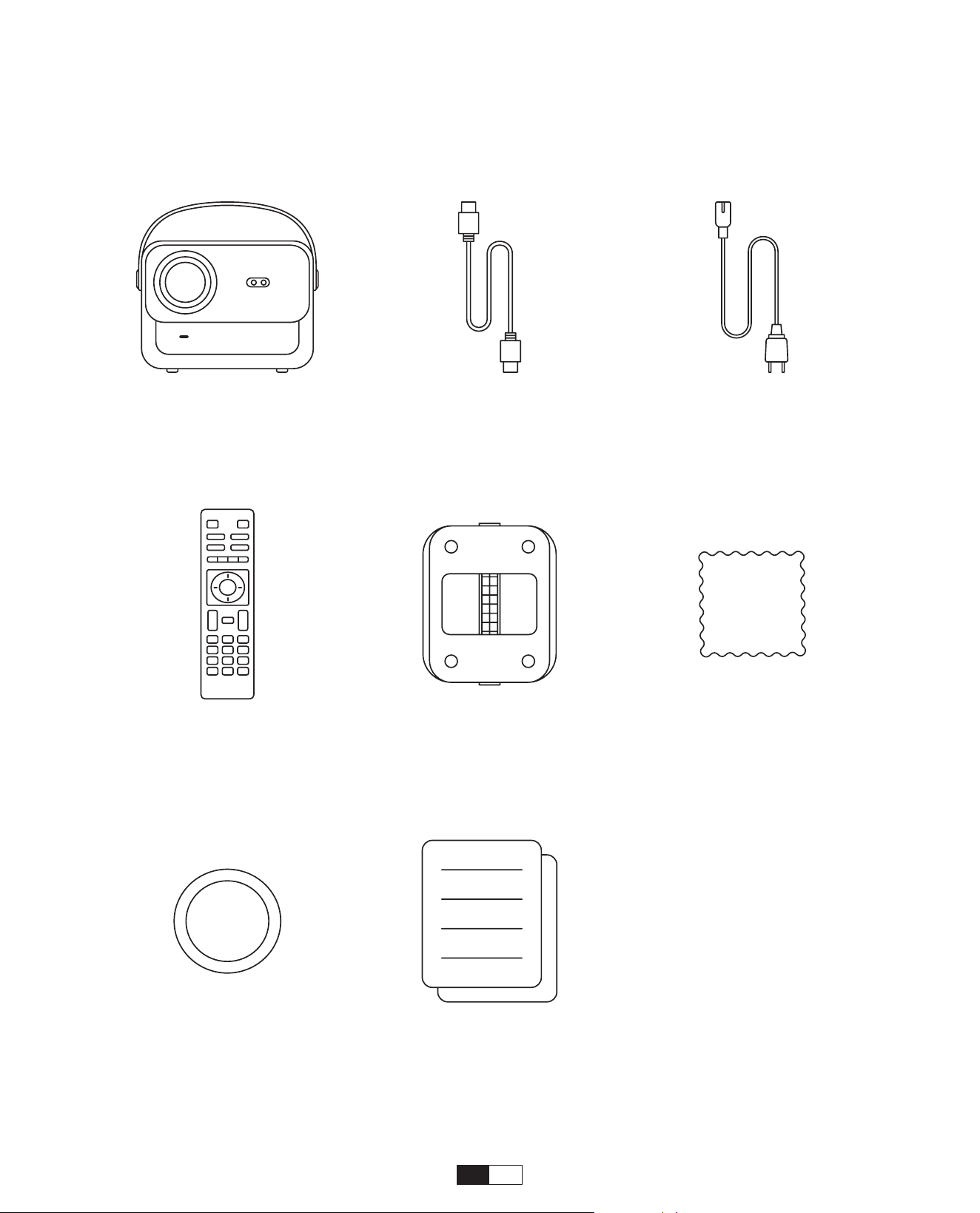
ES 177
Package List
U12 Proyector
Control Remoto
Cubierta de Lente
Cable HDMI
Base del Proyector
Guía de Inicio Rápido
Cable de Alimentación
Base del Proyector

ES
178
Especificaciones del Proyector
Model No. U12
Focus Auto/Eletric
Keystone
Correction
Auto/Eletric
Fuente de Luz LED
Tecnología de
Visualización
LCD
Relación de
Aspecto
16:9/4:3 Interfaces
USB2.0*2/
HDMI1.4*2/
3.5mm Audio Out*1,
Lan*1
Relación de
proyección
1.36:1
Recomendado
Distancia de
proyección
1.3~5.0m
(4.5-16.4 Ft.)
Resolucion Nativa 1920*1080P
Dimensión de la
unidad
9.8*8.8*7.6 inches
(25*22.5.*19.3CM)
7.27lbs (3.3KG)
Voltaje de Potencia
100-240V/50-60Hz
2A
El consumo de
energía
140W
Peso del proyector
7.27 lbs/3.3 kg
(With Base)
Método de
proyección
Delantero/trasero
en el escritorio,
Delantero/trasero
en el techo
Formato de imagen JPEG, GIF, BMP, PNG, JPG
Formato de audio MP3,WAV,MKA,OGG,FLAC,Dolby Support
Formato de video
AVI,TS,MPEG,MP4,MOV,M2TS,MKV,FLV,VOB,DAT,M4V,ASF,F4V,3G
P,3G2,TP,TRP,RMVB
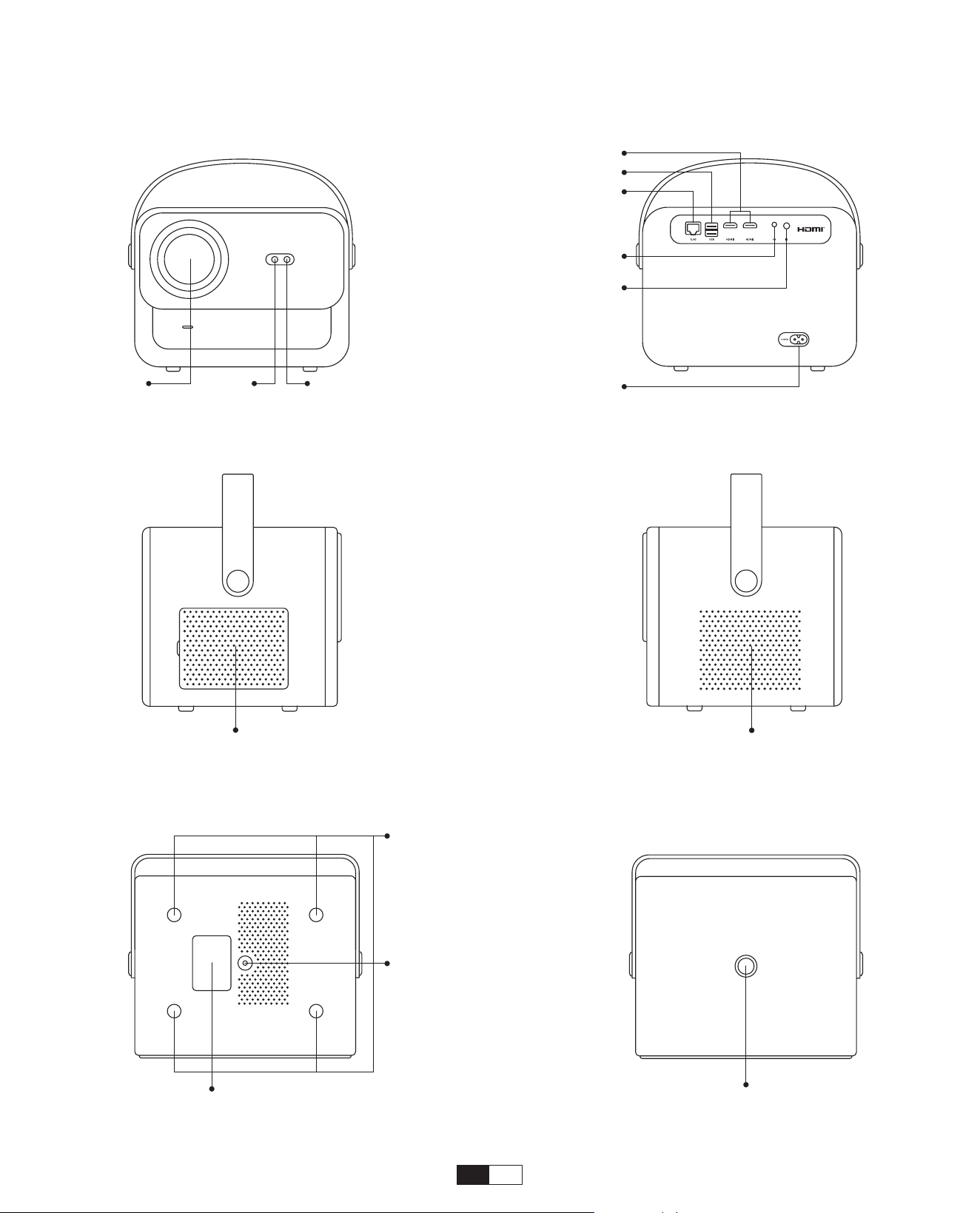
179
Panoramica del Proiettore
Lente
Señal de
enfoque
automáti
Puertos DMI
Puertos USB
Puerto de red cableado
Puerto de red cableado
Receptor de señal
infrarroja
Entrada de
alimentación
Receptor
deseñal
infrarroja
Orificio del tornillo
Orificio del
tornillo
Red desmontable a
prueba de polvo
Etiqueta inferior Botón de encendido
Salida de aire
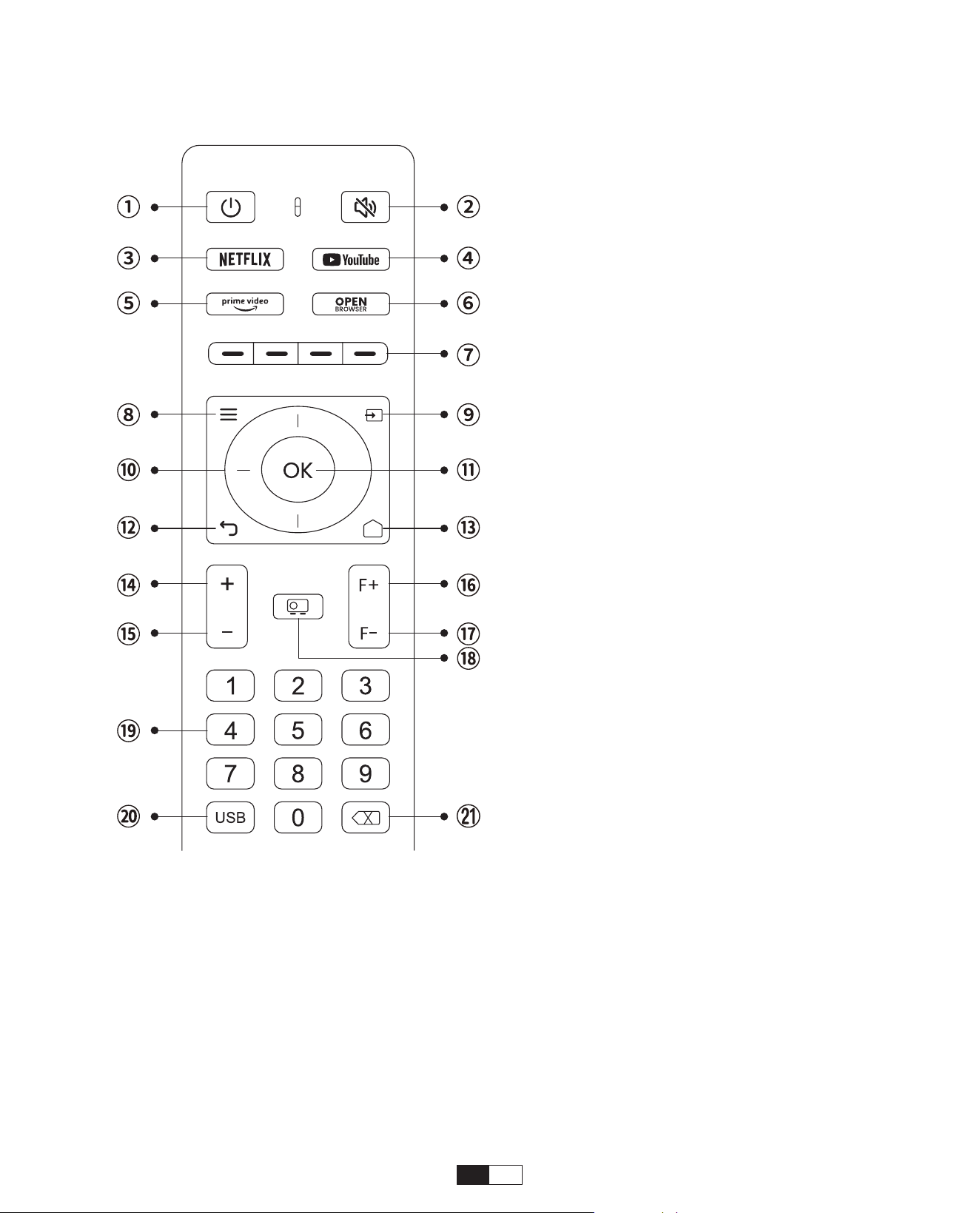
180
Remote Control Overview
1. Fuerza
2. Mudo
3. NETFLIX
4. YouTube
5. Prime Video
6. Abra el NAVEGADOR
7. Teclas roja/verde/amarilla/
azul
8. Menú
9. Fuente de entrada
10. Teclas de flecha
11. Clave de confirmación
12. Volver
13. Inicio
14. Volumen+
15. Volumen-
16. Focus+
17. Focus-
18. Modo de proyección
19. Número
20. USB
21. Retroceso
• Prepare el control remoto
1. Abra el compartimiento de la batería.
2. Inserte dos baterías AAA con la polaridad correcta indicada.
3. Cierre el compartimento de la batería.
Nota: Debe utilizar el control remoto Yaber para completar la configuración del
proyector por primera vez.
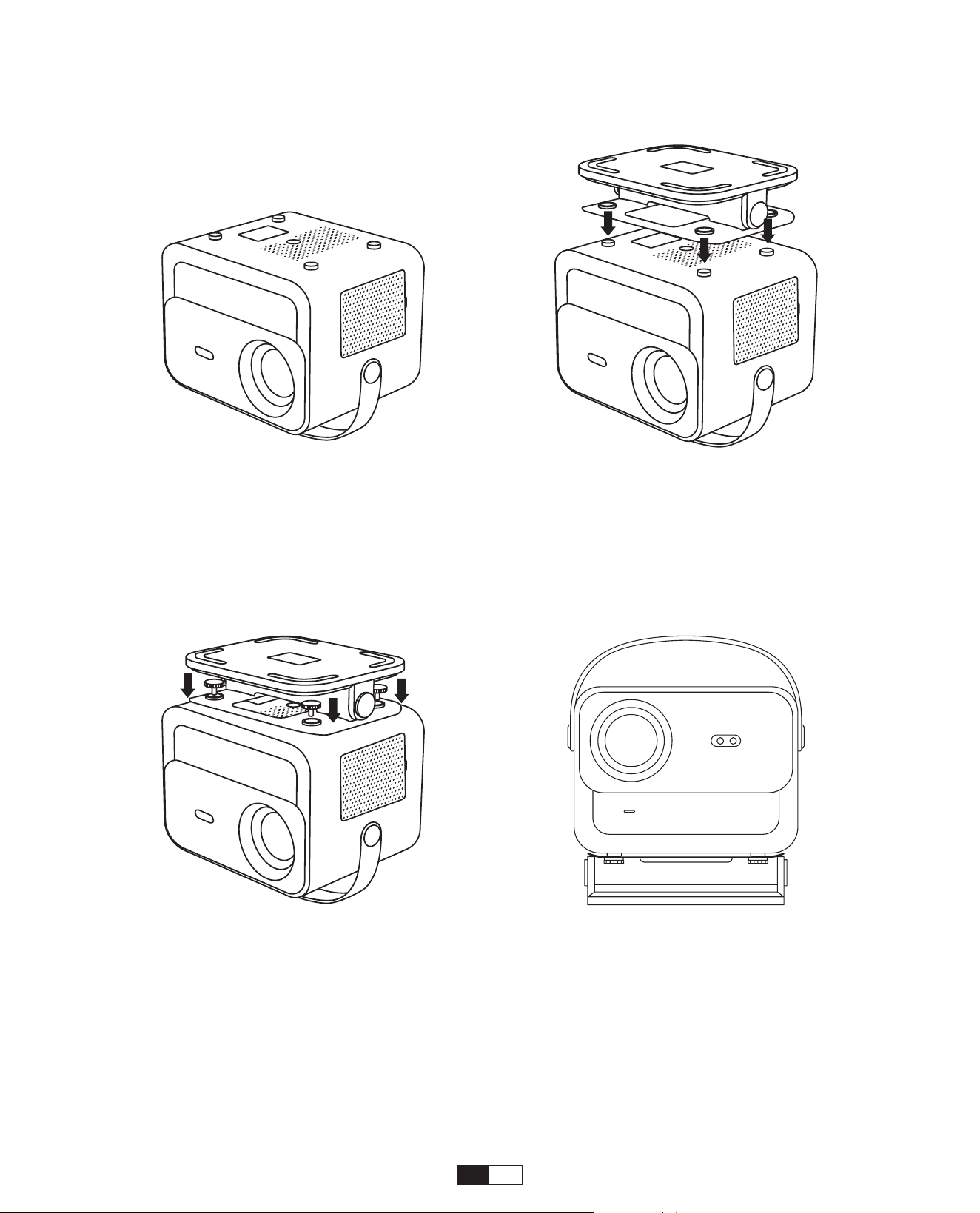
181
Instalación Básica
1. Dé la vuelta a la máquina, con la
parte posterior hacia arriba.
3. Apriete los tornillos en la caja de
accesorios.
2. Haga coincidir los orificios de la
base con los orificios para tornillos
del proyector.
4. Complete la instalación.
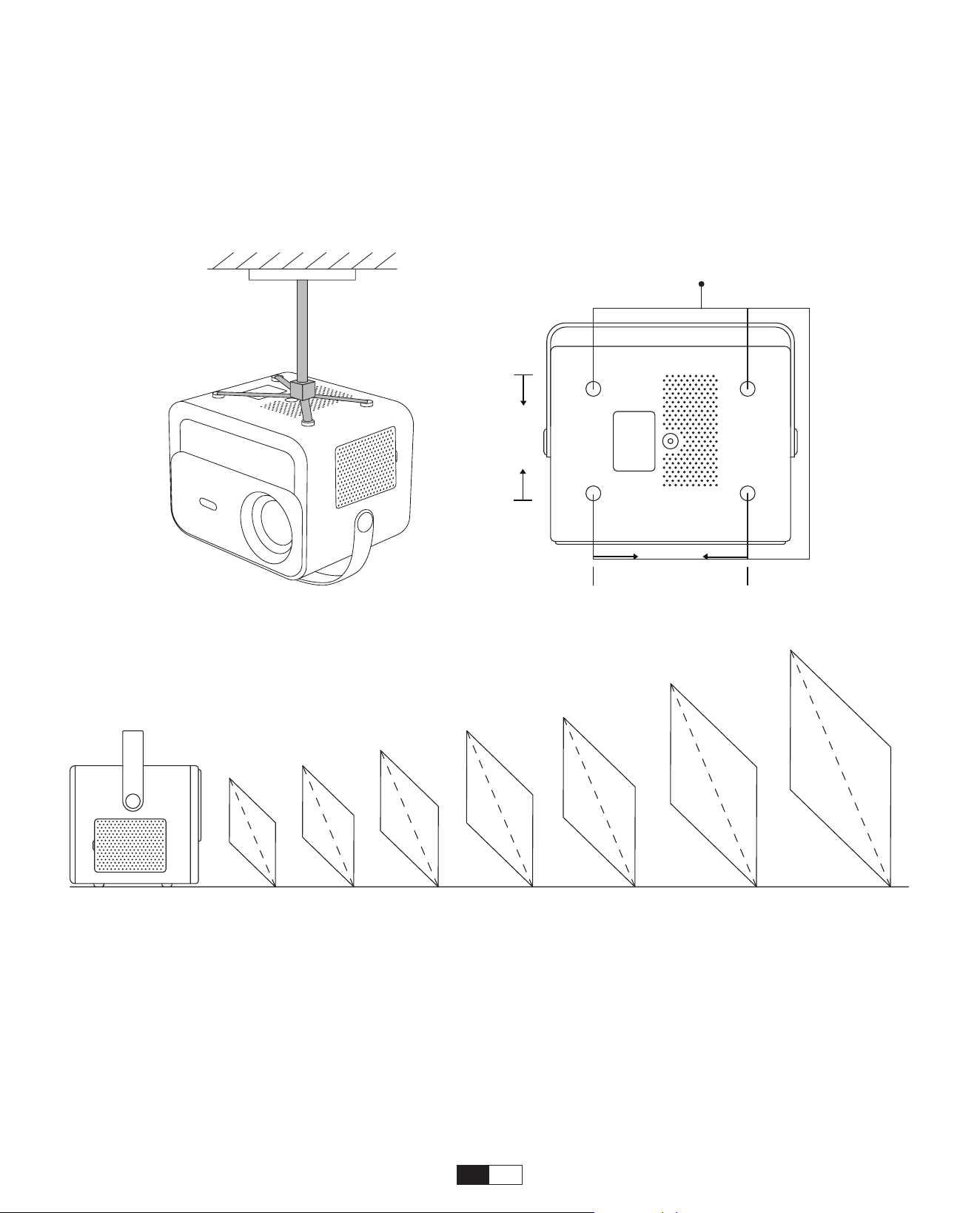
182
1. Prepare un soporte de techo universal para proyector. (No incluido en el paquete)
2. Retire las cuatro almohadillas de goma en la parte inferior del proyector para revelar los
orificios para los tornillos.
3. Utilice tornillos M5*10 mm para instalar de forma segura el proyector en el techo utilizando
el marco colgante.
Instalar en el Techo
Orificios para Tornillos M5*15 mm
155mm
108mm
Distancia y Tamaño de Proyección
La distancia de proyección recomendada es de aproximadamente 8,9 pies y la
distancia de proyección más corta es de 4,5 pies
El tamaño de la imagen depende de la distancia entre el proyector y la pantalla.
Puede haber una desviación del 3% entre los datos enumerados anteriormente.
Diferentes configuraciones causan diferentes distancias.
40"
1.4m
(4.5ft)
2.1m
(6.7ft)
2.7m
(8.9ft)
3.4m
(11.2ft)
4.1m
(13.4ft)
6.8m
(22.4ft)
60"
80"
100"
120"
150"
200"
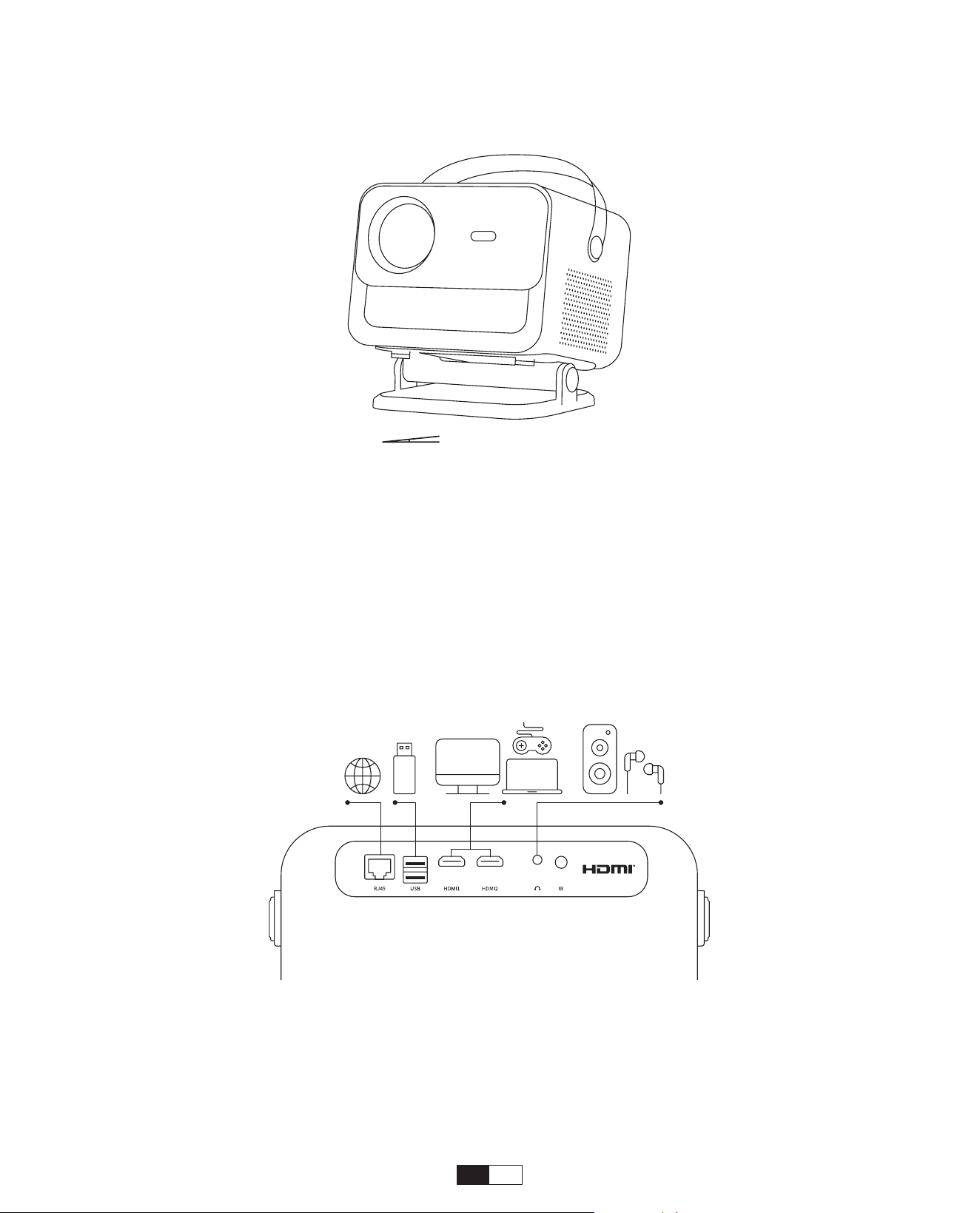
183
Soporte de Base Ajustable
Maximaler Abschluss: ±15°
Puedes ajustar el ángulo de proyección modificando la posición del soporte, con un
rango de ajuste de hasta 15 grados tanto verticalmente hacia arriba como hacia abajo.
El proyector tiene 5 puertos, puerto HDMI/puerto USB/puerto USB-C/salida de audio.
Seleccione los puertos de conexión correctos para conectar sus dispositivos.
Conectar Dispositivos
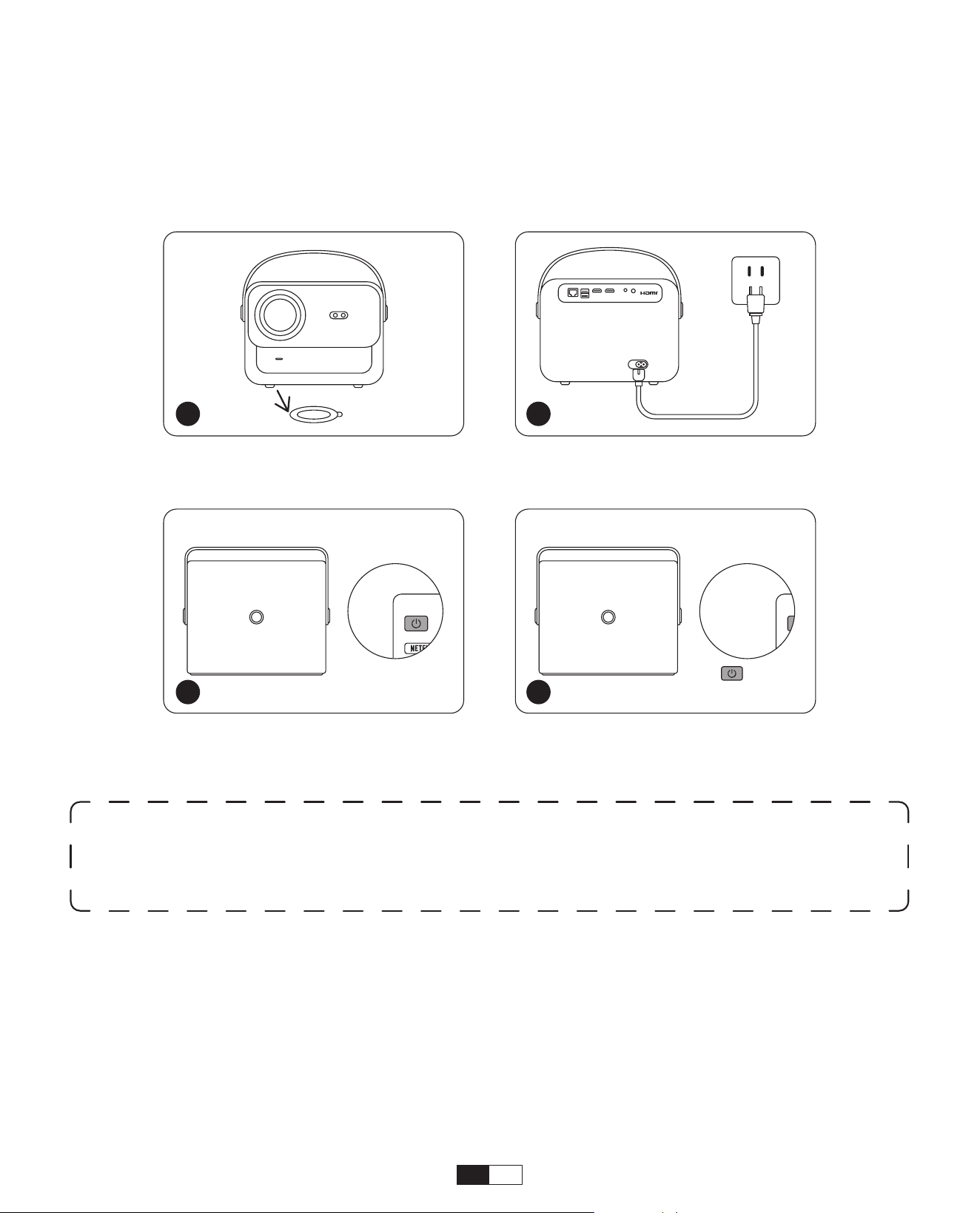
184
Luz naranja encendida --- Modo de Espera
Luz naranja apagada--- Modo de Trabajo
Retire la película protectora.
Presione el botón de encendido
una vez para encender el
proyector.
Conecte el cable de
alimentación a un salida.
Presione el botón de encendido
dos veces para apague el
proyector.
Cuando enciende el proyector por primera vez o se restablece el proyector a la
configuración predeterminada de fábrica, se le solicita que realice la configuración
por primera vez.
Después de la configuración, el proyector irá a la página de inicio.
• Encendido
• Configuración por primera vez
Operación
1. Iniciar el proyector
1 2
x 2
3 4
Aviso:
Cuando conecta el cable de alimentación al proyector, la luz naranja parpadea
durante 10 segundos.
Espere pacientemente hasta que la luz de encendido deje de parpadear.
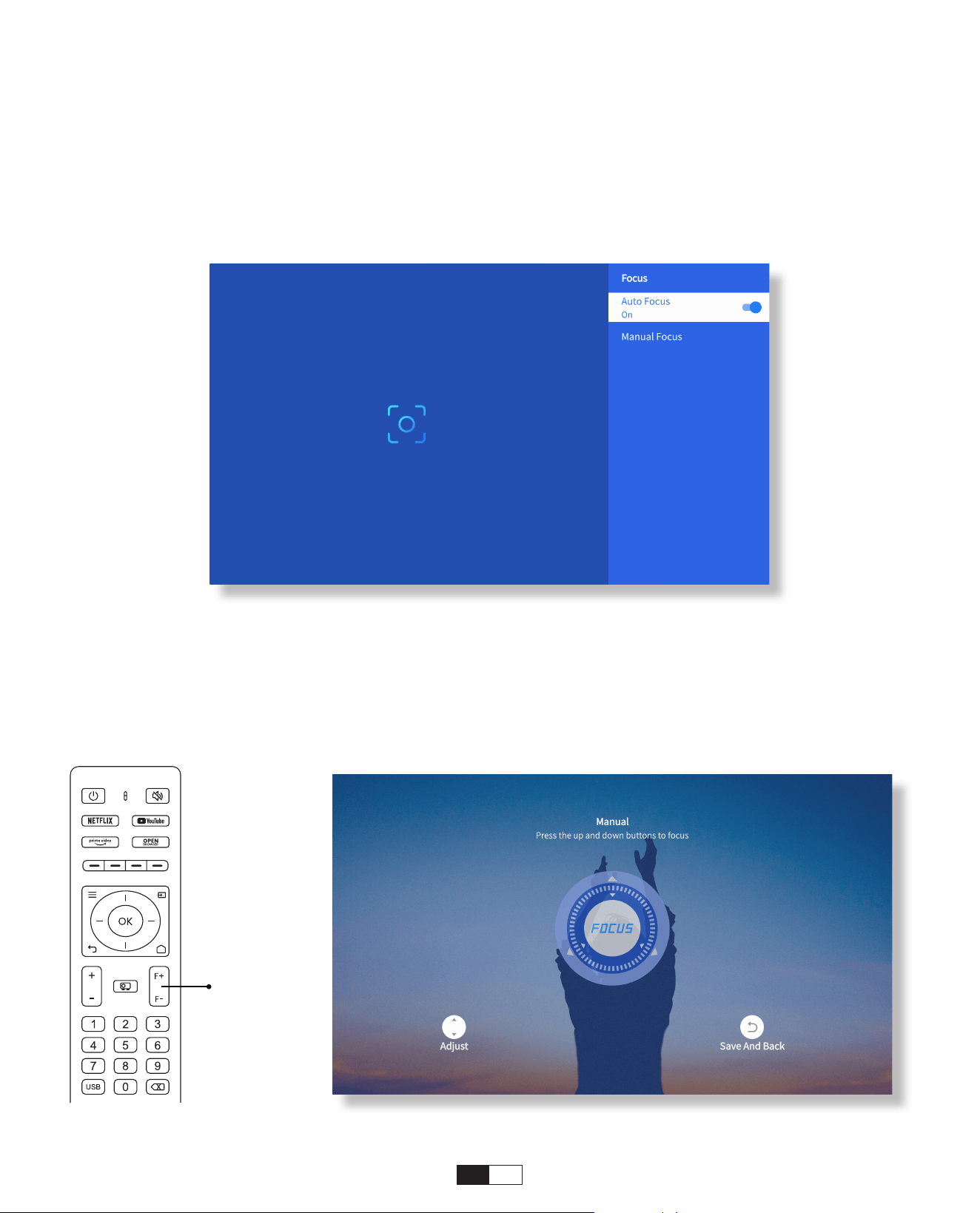
185
Cuando el proyector esté encendido, espere unos segundos, ajustará
automáticamente el enfoque. (De lo contrario, asegúrese de que la función de
enfoque automático esté activada en Configuración >> Enfoque >> Enfoque
automático >> Activado)
También puede ajustar la claridad de la pantalla haciendo clic o manteniendo
presionados los botones F+ y F- en el control remoto.
• Enfoque automático
• Enfoque Eléctrico
2. Ajuste de Imagen
Focus +/-
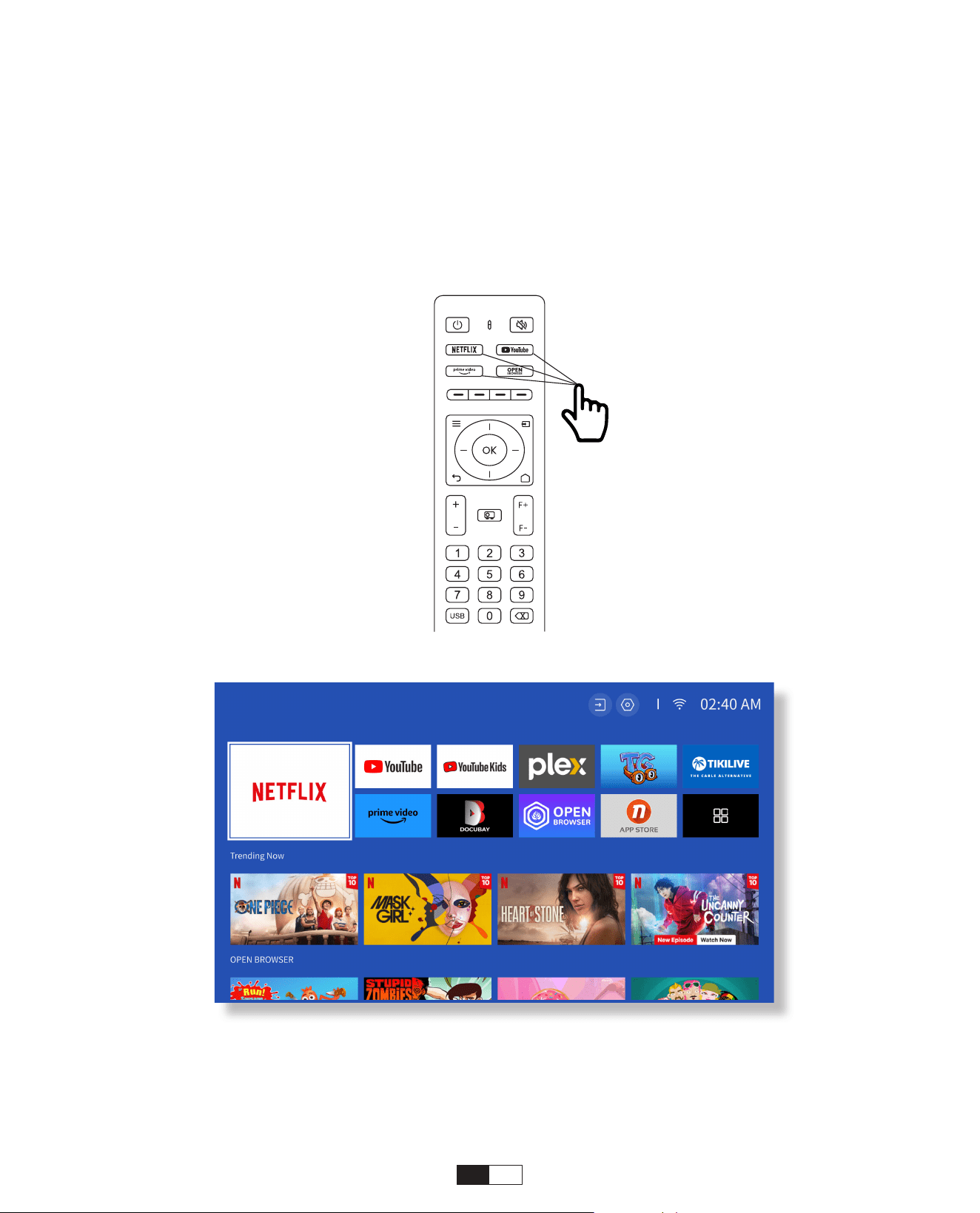
186
Vaya a la página de inicio, seleccione su canal preferido o acceda a él a través de
los accesos directos del control remoto. Inicie sesión en su cuenta para reproducir el
contenido correspondiente.
3.Reproduzca contenido de aplicaciones con licencia oficial
como Netflix, Youtube y Amazon Prime
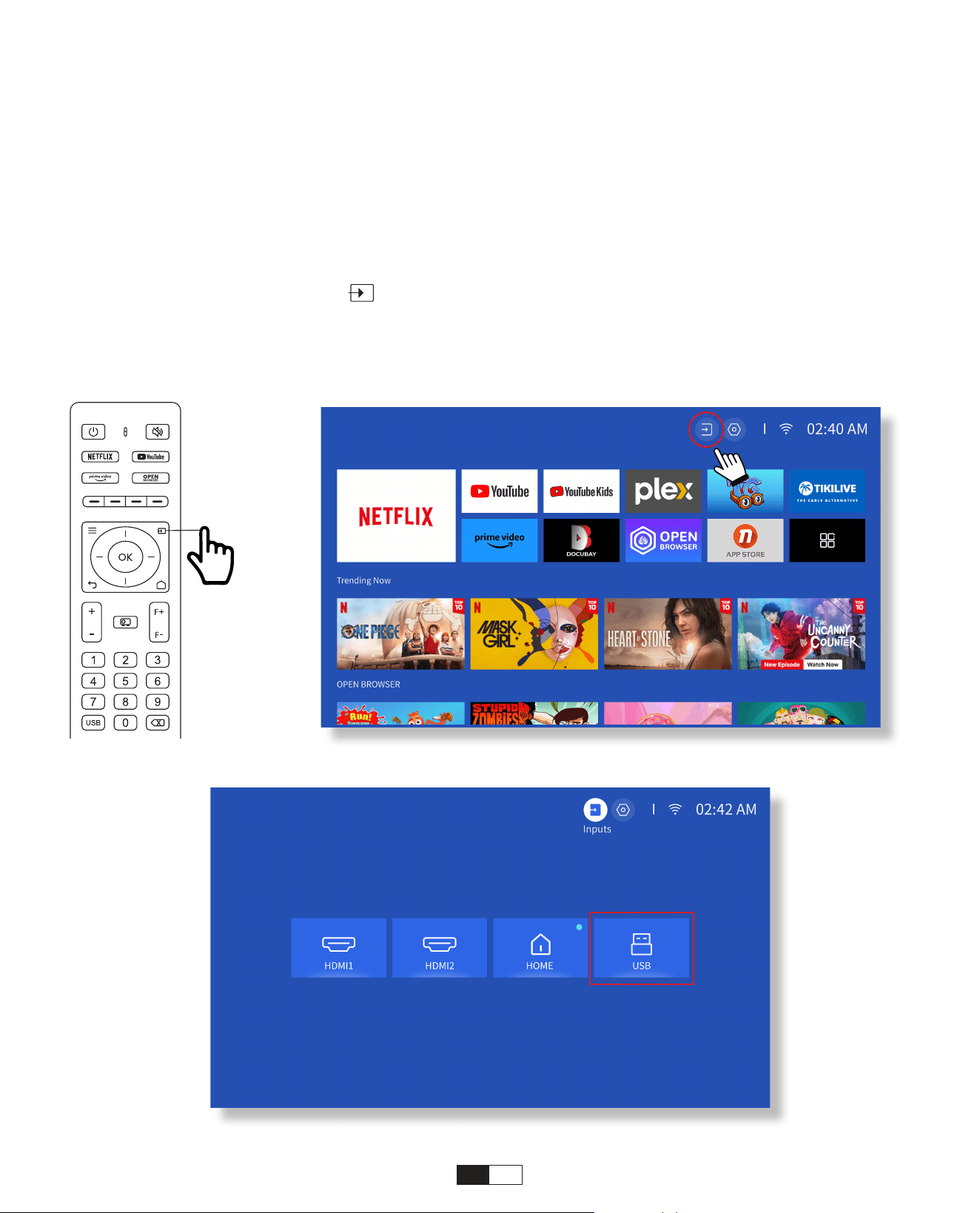
187
Siga las instrucciones de la página 9 para conectar correctamente sus dispositivos al
proyector y luego seleccione la fuente de entrada correcta.
1. Inserte el disco USB
2. haga clic en la fuente de [ ]on the remote control or choose the input source icon
on the entrada.
3.Select "USB" as input source
• Modo de entrada de disco USB
4. Conexión de Proyección y Fuente de Entrada
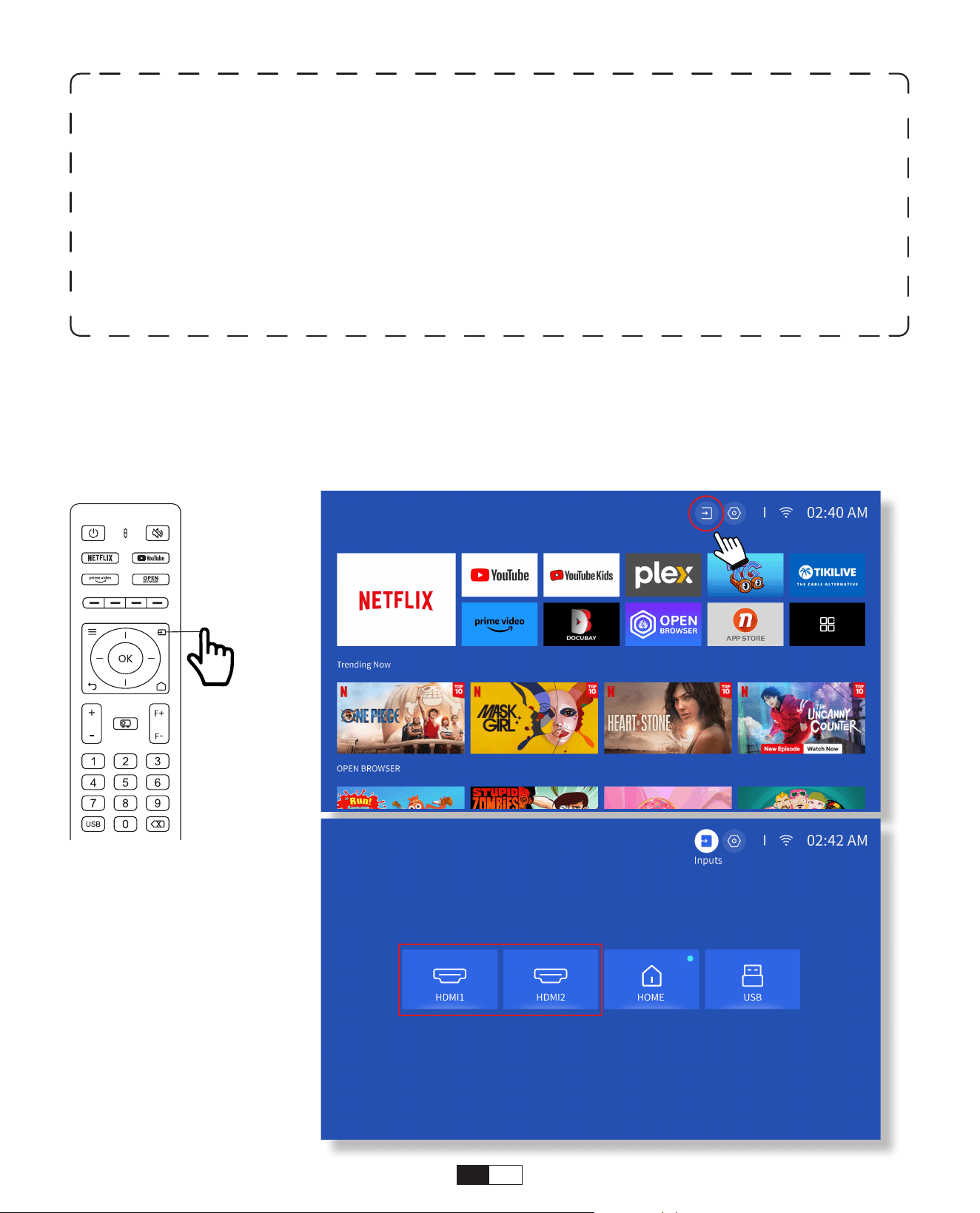
188
Conecte su dispositivo con una salida HDMI al proyector usando el cable HDMI provisto.
Presione el botón de fuente de entrada en el control remoto y seleccione HDMI1 o
HDMI2.
• Modo de Entrada HDMI
Advertencia:
Si el proyector no puede reconocer el disco USB, consulte los siguientes
métodos para resolver el problema.
1. 1.Confirme si su disco USB cumple con los siguientes formatos:
(1)FAT32: 8G/16G/32G; (2) NTFS: 64G
2. Si no se reconoce o detecta el disco USB, formatéelo. Antes de formatear el disco USB,
asegúrese de hacer una copia de seguridad de todo. Después de formatear, todo se
perderá para siempre.
3. Si el problema aún no se resuelve, envíe su problema a este correo electrónico:
aftersales@yabertech.com
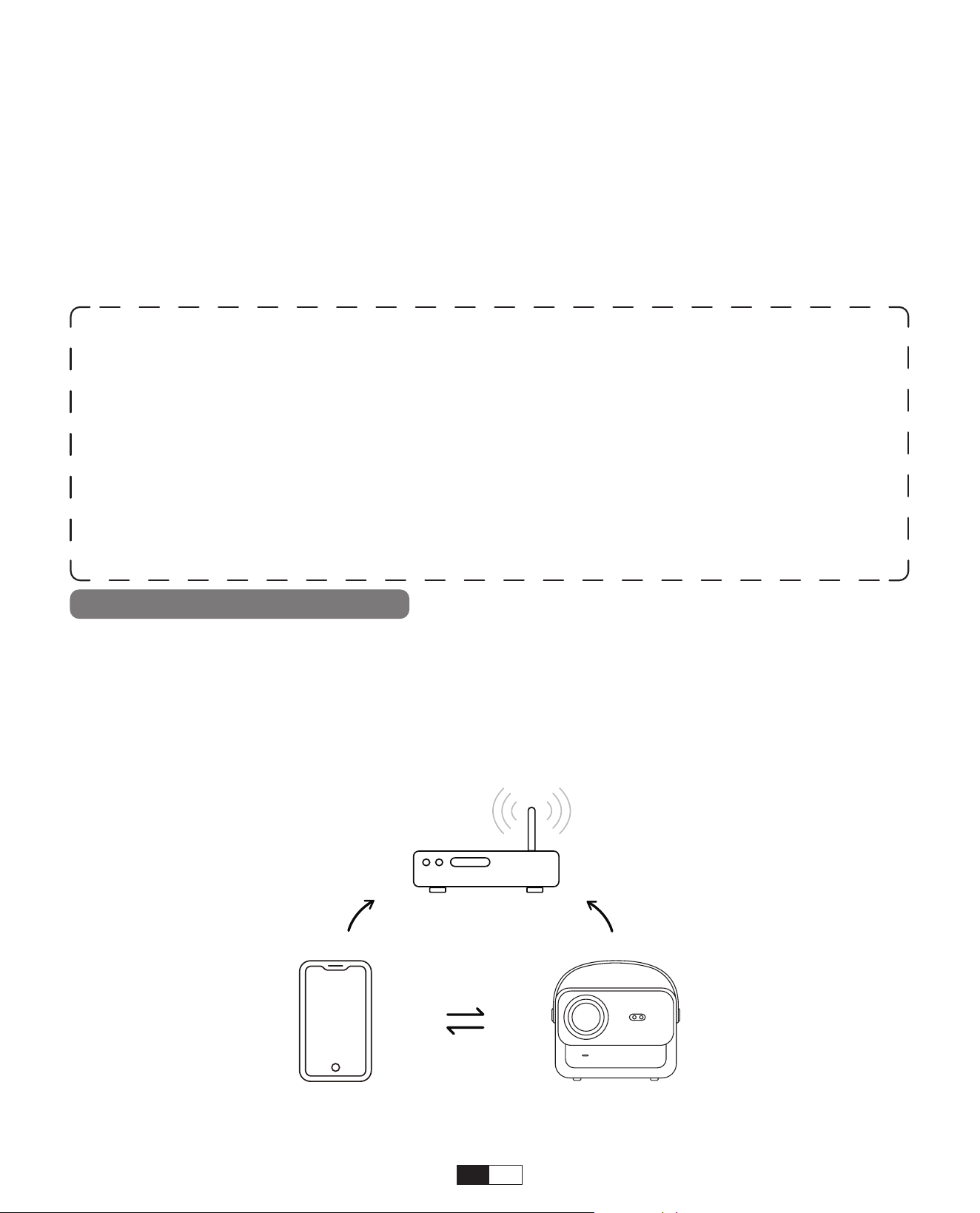
189
5. Screencast
Paso 1:
Conecte el proyector y su dispositivo móvil al WiFi del mismo enrutador.
• Duplicación Wi-Fi de iOS
iOS Cast (para dispositivos iOS)
2. "Esta opción no es necesaria para seleccionar ninguna fuente de entrada"
• Conexión de Altavoz y Suriculares con Cable
Consejos para Calentar:
1. La fluidez de la duplicación de pantalla con conexión inalámbrica se verá
afectada por el entorno de red. Se recomienda un ancho de banda de 100 Mbit o
más cuando se utiliza la duplicación de pantalla.
2. Asegúrese de que su dispositivo móvil esté cerca del proyector cuando utilice la
conexión inalámbrica. Se recomienda una distancia de 1 metro.
3. Es posible que algunos dispositivos móviles no admitan la duplicación de
pantalla debido a la compatibilidad.
4. Si tiene alguna pregunta, no dude en enviar un correo electrónico a YABER a
través de aftersales@yabertech.com
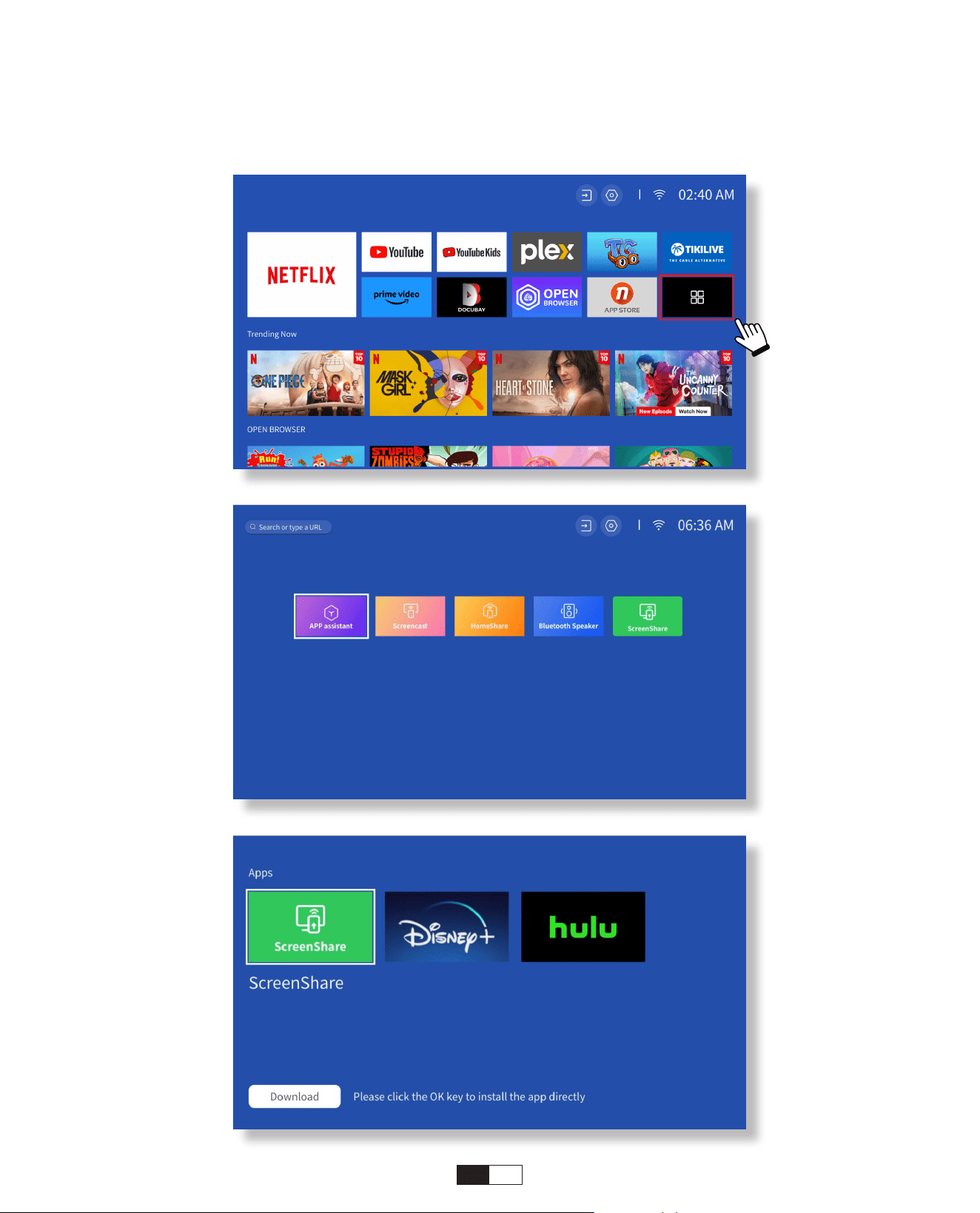
190
Paso 2:
Vaya a Página de inicio > Mis aplicaciones > Asistente de aplicaciones y luego
seleccione y descargue ScreenShare
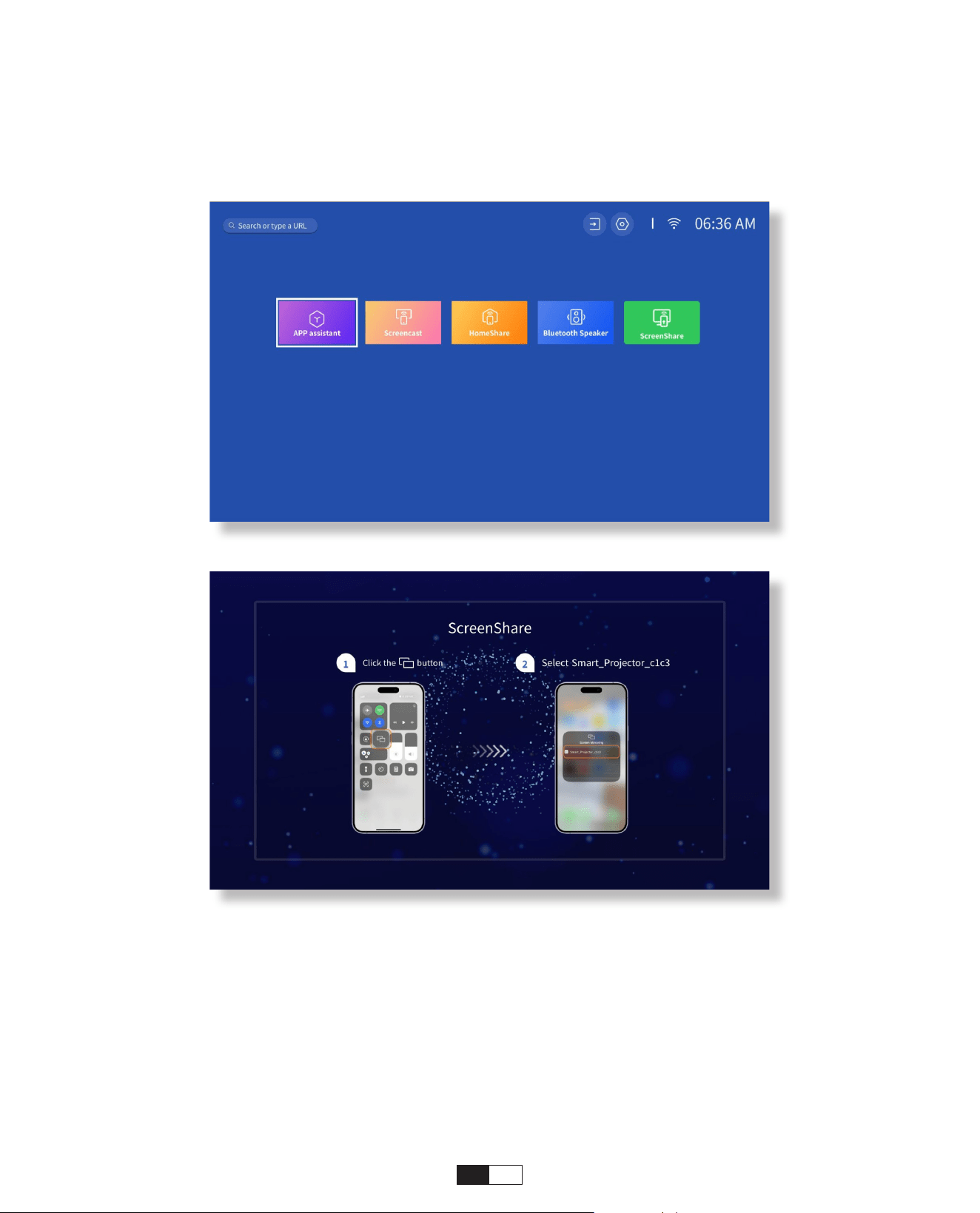
191
Paso 4:
Regrese a la página Mis aplicaciones >> Inicie la aplicación ScreenShare y
permanezca en la página siguiente.
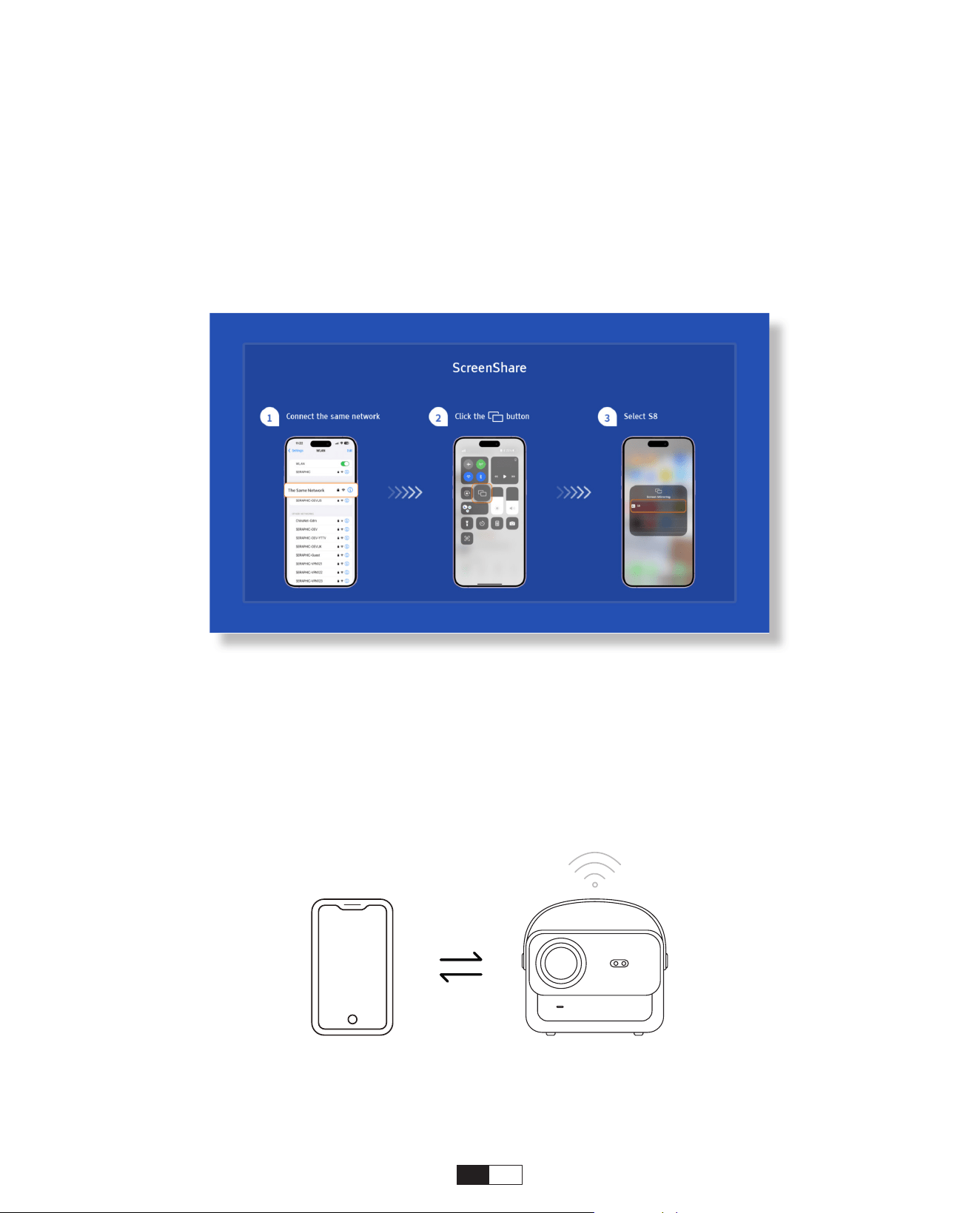
192
Paso 4:
Vaya al Centro de control de su dispositivo iOS. Luego toque Screen Mirroring/Air
Playing para buscar el proyector.
Paso 5:
Elija [Smart_Projector_XXXX] de la lista y, una vez que la conexión sea exitosa, el
contenido de su dispositivo iOS se reflejará en la pantalla o pared de proyección.
Paso 1:
Encienda el Wi-Fi en su iPhone/iPad y conéctese al punto de acceso del proyector:
[Smart_Projector_XXXX]
• Duplicación de AP de iOS
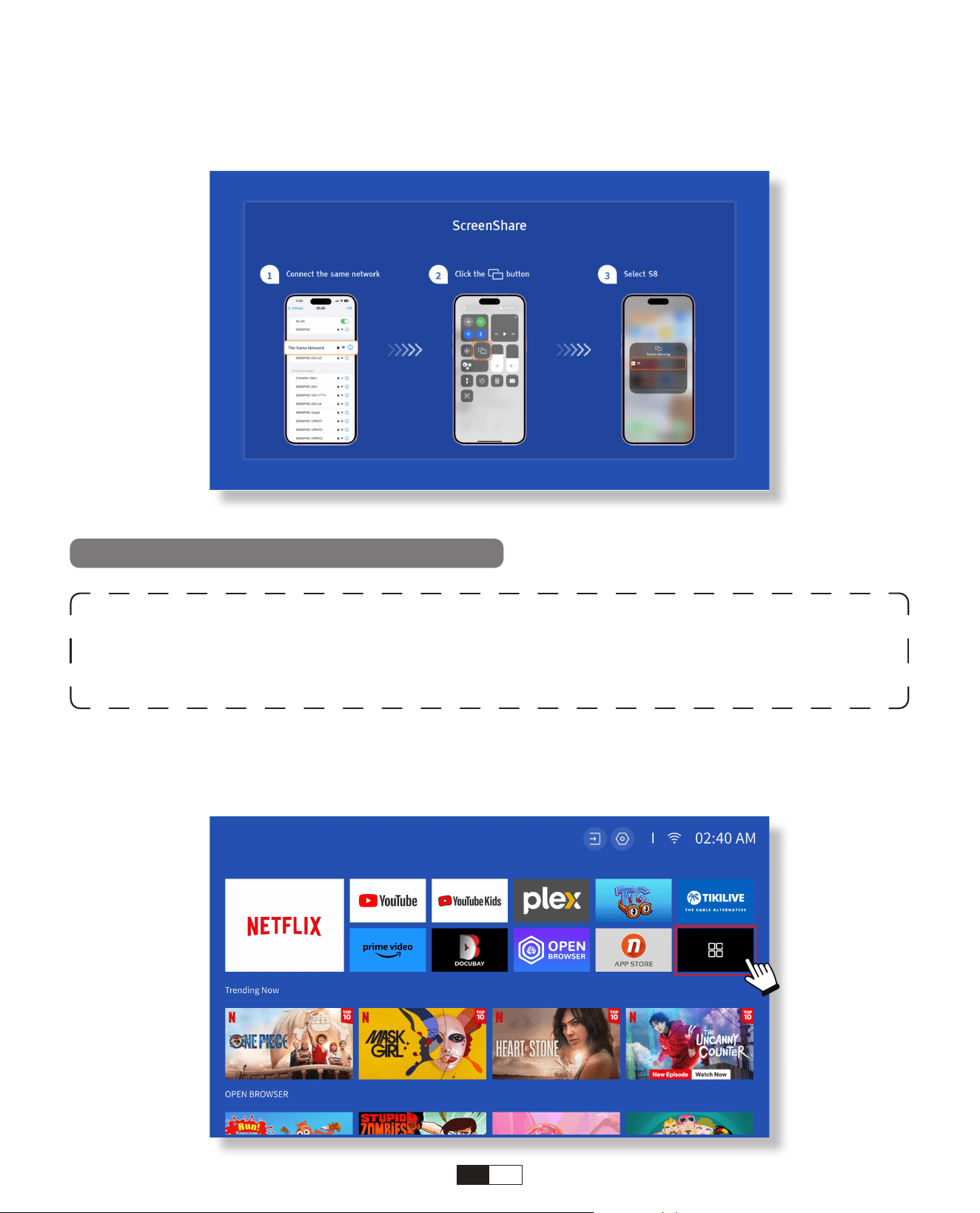
193
Paso 2:
Presione el Screen Mirroring del dispositivo iOS y luego elija [Smart_Projector_XXXX]
Advertencia:
Para activar esta función, su dispositivo Android debe admitir
pantalla múltiple/pantalla inalámbrica. El nombre de “Multipantalla” puede variar
según las distintas marcas de dispositivos Android.
Paso 1: Habilite la función Wi-Fi en su teléfono Android (no es necesario conectarse a Wi-Fi).
Paso 2: Vaya a la página de inicio > Mis aplicaciones > ScreenCast
Miracast Cast (Para Dispositivo Android)
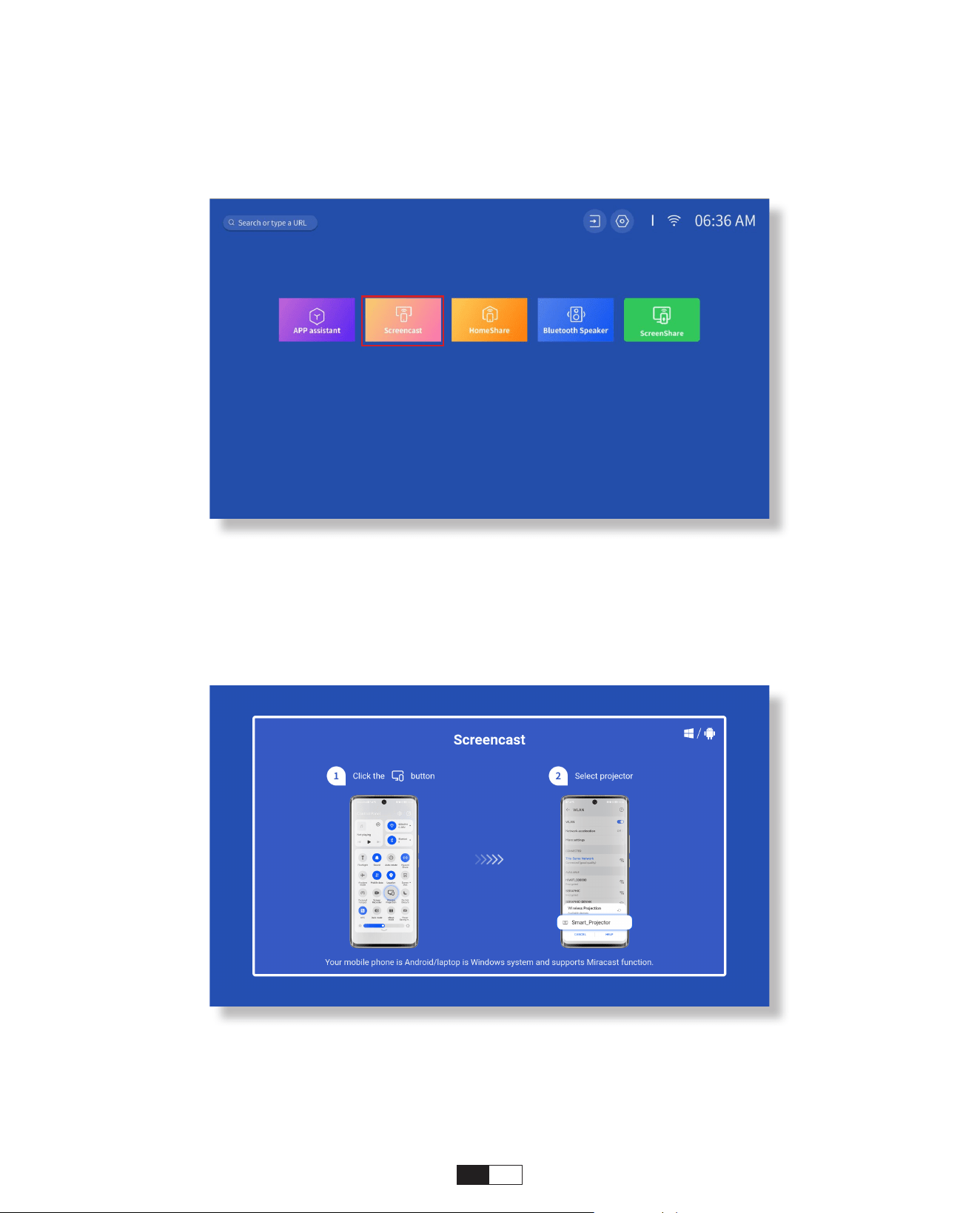
194
Paso 3: active la función 'Pantalla múltiple/Pantalla inalámbrica' en su dispositivo
Android
Paso 4: Elija [Smart_Projector_XXXX] de la lista y, una vez que la conexión sea exitosa, el
contenido de su dispositivo iOS se reflejará en la pantalla de proyección o en la pared.
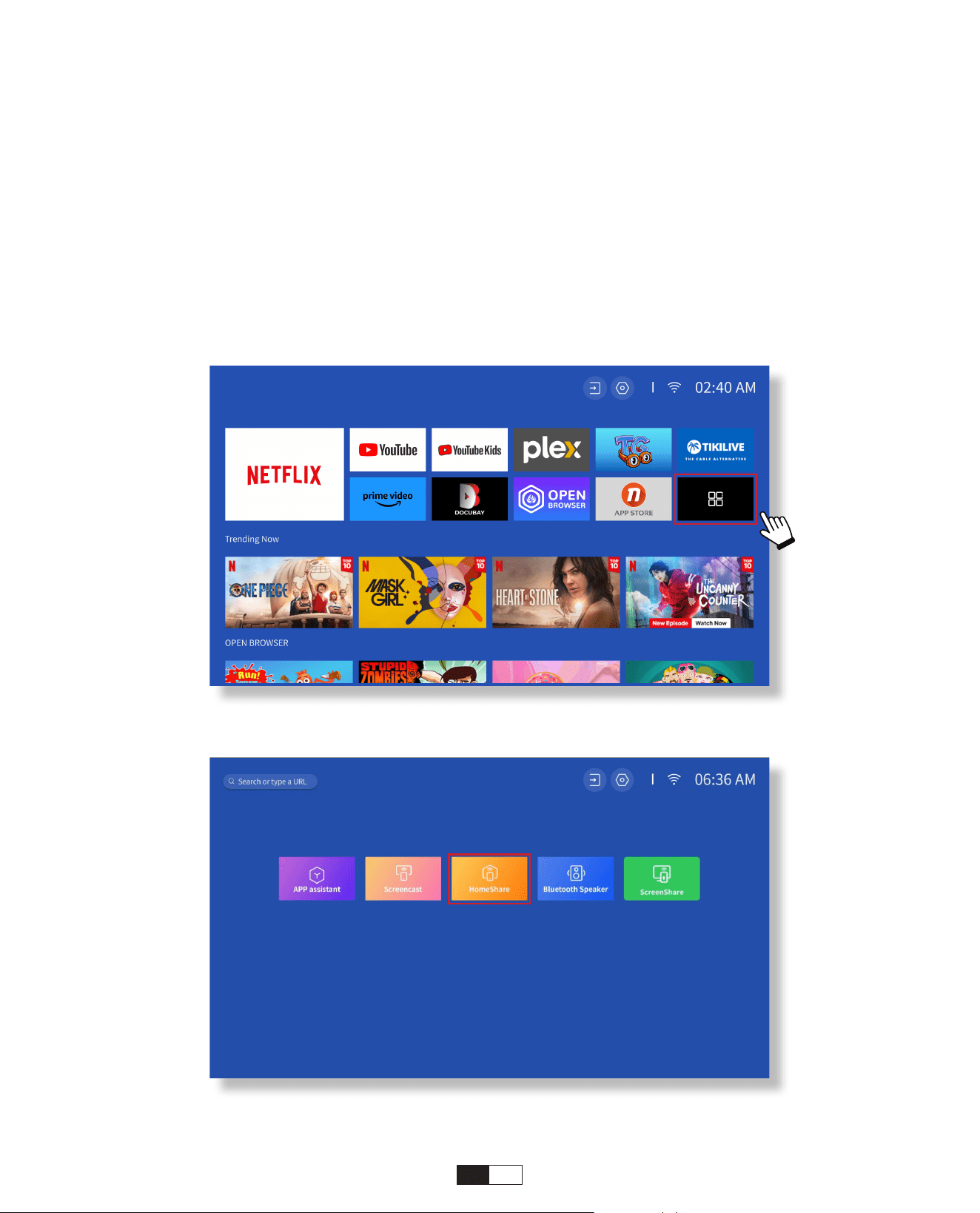
195
Paso 1:
Conecte el proyector y su dispositivo móvil al mismo WiFi del enrutador.
Paso 2:
Vaya a Página de inicio > Mis aplicaciones > HomeShare y permanezca en la página
siguiente.
• DLNA
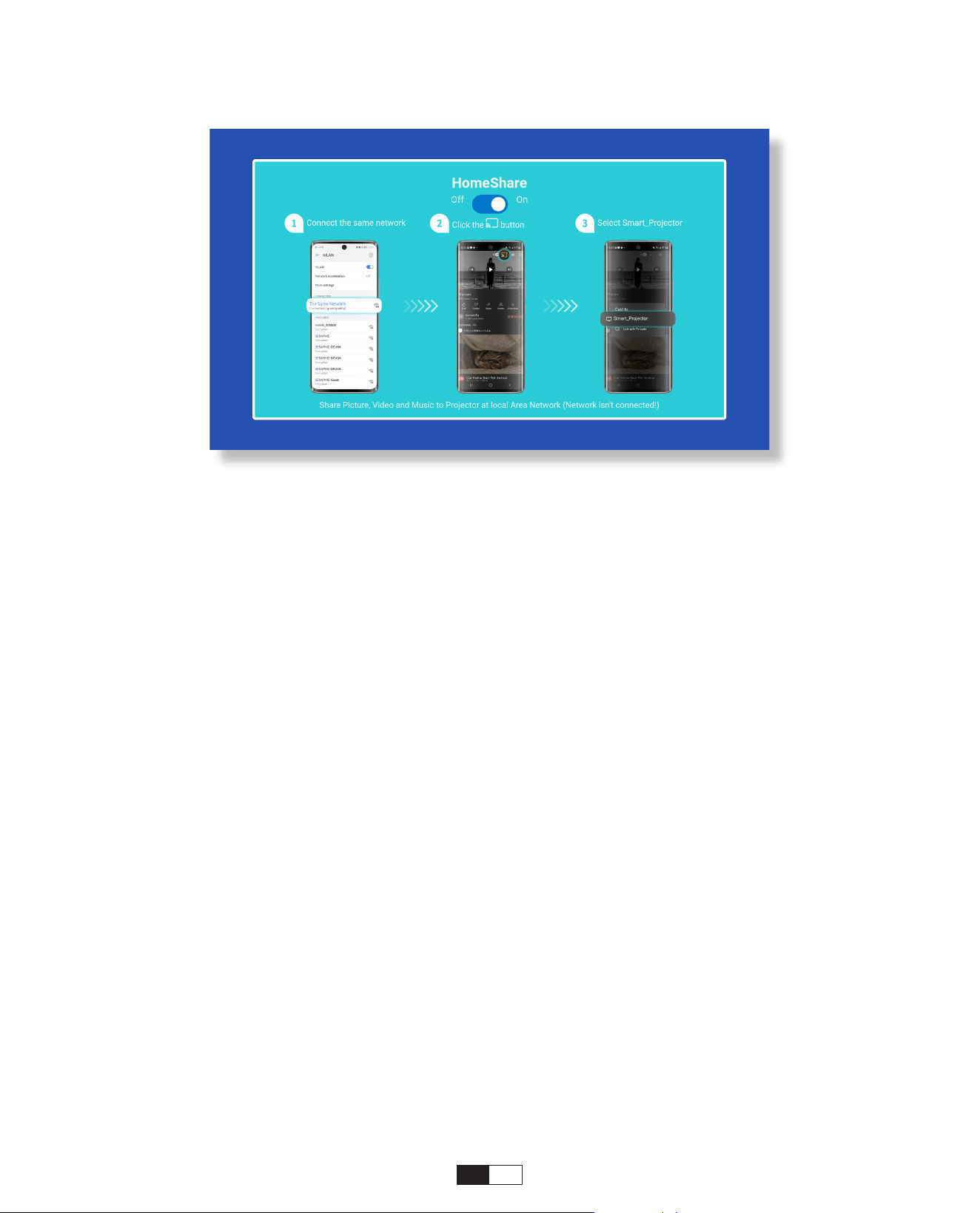
196
Paso 3:
Inicie una aplicación de reproducción de video en su dispositivo móvil y seleccione
un video para reproducir.
Paso 4:
Toque para buscar el proyector y seleccione [Smart_Projector_XXXX] para
conectarse. El contenido de su dispositivo se transmitirá a la pared/pantalla.
Nota:
Cuando transmite un video desde su dispositivo móvil, el video solo se mostrará en la
pantalla proyectada y aún podrá usar su dispositivo móvil sin interrumpir el video ni
mostrar ningún otro contenido.
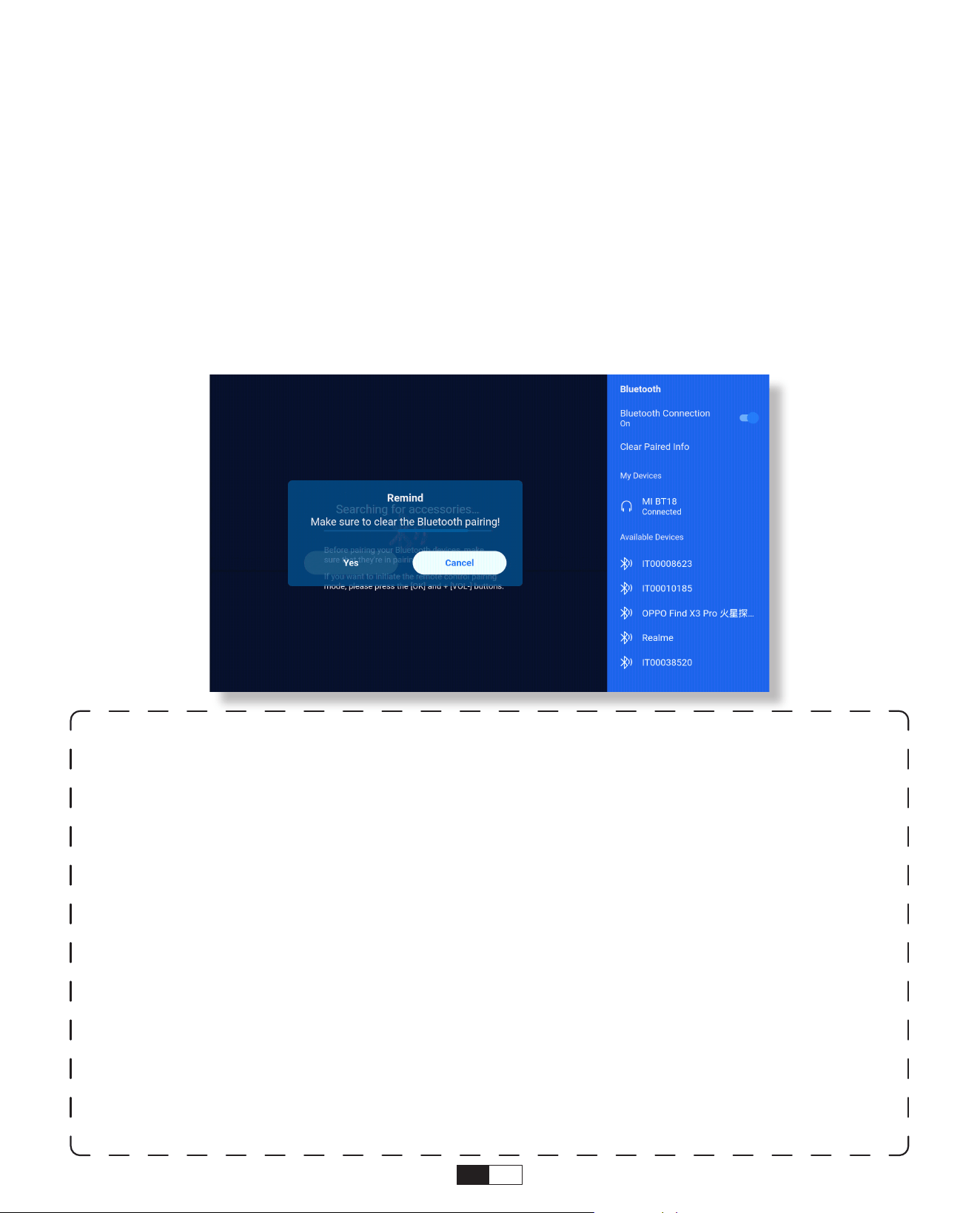
197
• Conectarse a un altavoz Bluetooth externo
6. Configuración de Bluetooth
Paso 1:
Encienda su dispositivo Bluetooth y prepárelo para una conexión Bluetooth.
Paso 2:
Vaya a Página de inicio > Configuración > Bluetooth para escanear los dispositivos
Bluetooth disponibles, luego seleccione su dispositivo Bluetooth y vincúlelo con el
proyector:
IMPORTANTE:
En comparación con la conexión por cable a un altavoz, una conexión Bluetooth
dedica más tiempo a procesar datos de audio digital, convertir dichos datos en una
señal de audio y transmitir la señal. Puede haber un retraso o un ligero retraso en el
audio debido a la interferencia de la señal.
Como resultado, es posible que el sonido del altavoz no esté sincronizado con la
imagen del proyector, especialmente cuando utiliza la duplicación de pantalla
inalámbrica con conexión WiFi y Bluetooth al mismo tiempo.
Si está experimentando esta situación, verifique las siguientes opciones para mejorar
la calidad del audio:
* En lugar de utilizar la duplicación de pantalla inalámbrica y la conexión Bluetooth al
mismo tiempo, recomendamos utilizar una conexión HDML a través del cable HDML
proporcionado y la conexión Bluetooth simultáneamente. Si aún desea utilizar la
duplicación de pantalla inalámbrica, se recomienda emitir el audio a través de un
altavoz con cable.
* Acerque su dispositivo Bluetooth al proyector.
*Mantenga el proyector y su altavoz Bluetooth alejados de otros dispositivos Bluetooth
para evitar interferencias.
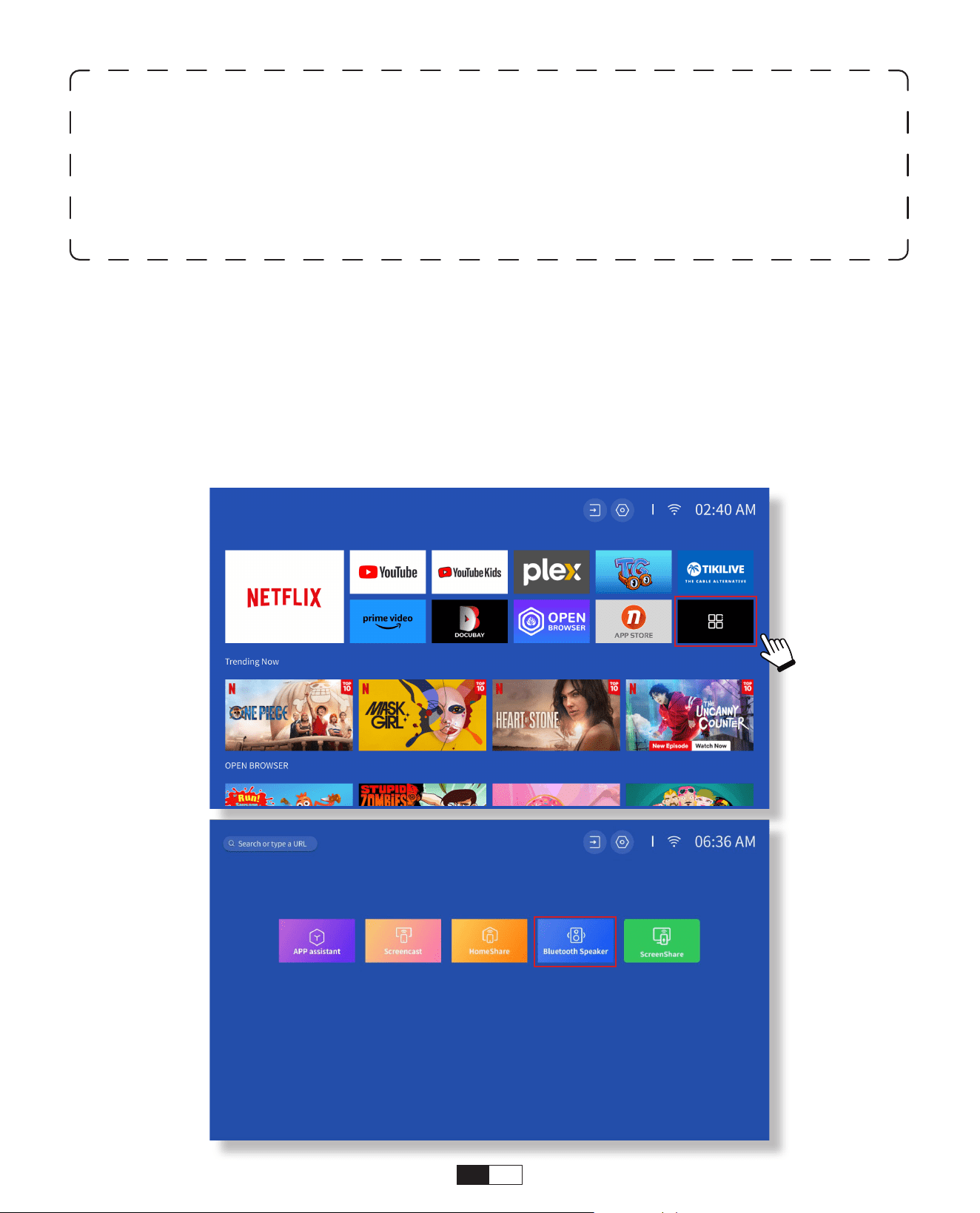
198
• Conéctese al dispositivo como altavoz Bluetooth
Paso 1:
Vaya a Página de inicio > Mis aplicaciones > Altavoz Bluetooth y permanezca en la
página siguiente.
Paso 2:
Habilite la funcionalidad Bluetooth en su dispositivo, escanee y conecte el proyector.
* Es posible que puedas ajustar la latencia (Lip Sync) en tu dispositivo que está
reproduciendo el video. La forma de ajustar la latencia varía según los diferentes
dispositivos; consulte con el fabricante del dispositivo.
Debido al problema de compatibilidad entre los parlantes/auriculares Bluetooth y
el proyecto, es posible que algunos dispositivos Bluetooth no se emparejen con el
proyector a través de la conexión Bluetooth. Por favor contáctenos en service@yaber.
com para obtener más ayuda
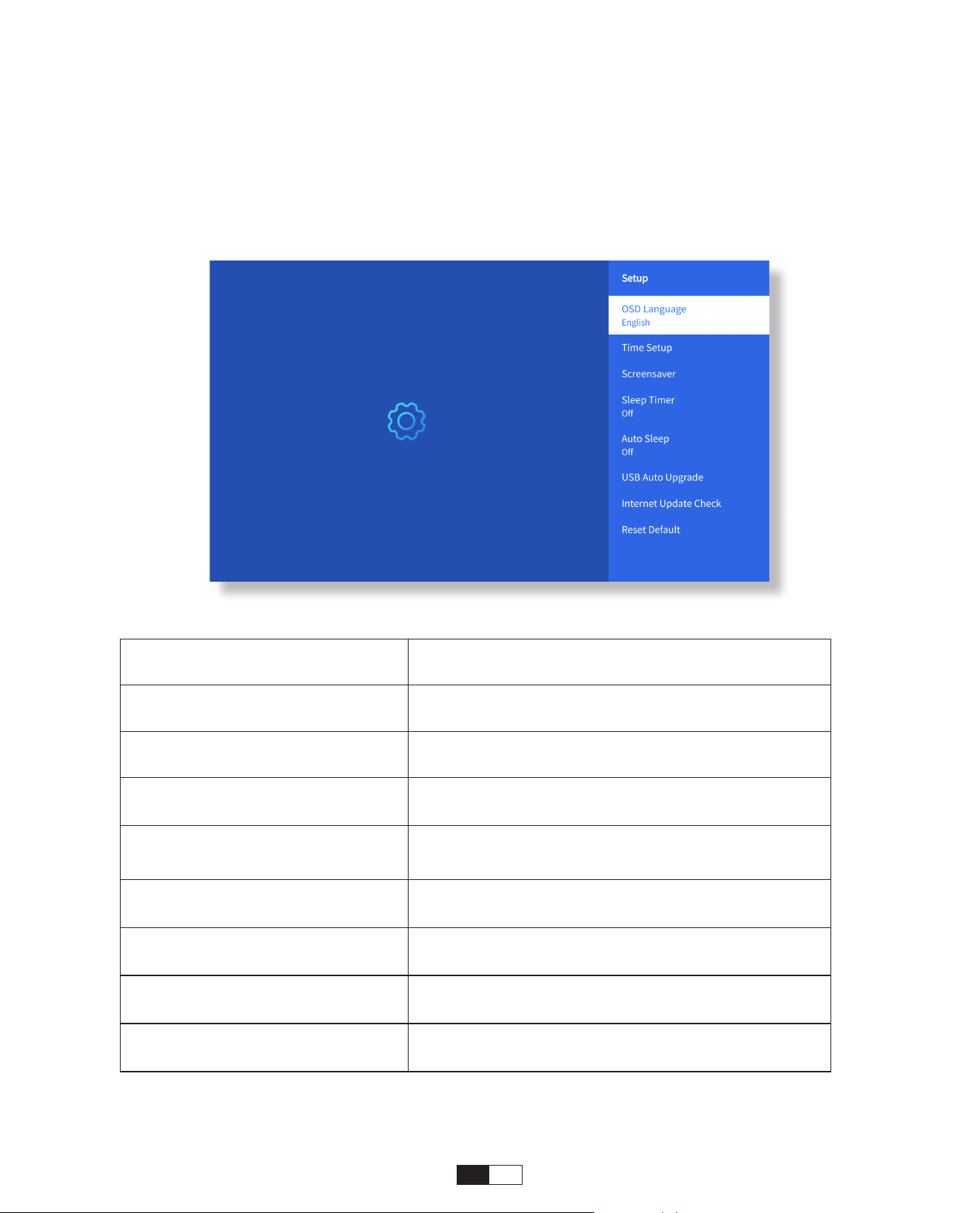
199
• Configuración
7. Otro Ajuste
Vaya a la página de inicio -> Seleccione [Configuración] -> Seleccione
[Configuración]. Utilice las teclas de flecha del control remoto para cambiar el menú,
presione "OK" para confirmar y configurar.
Menú Contenido
Idioma OSD Inglés/Francia/italiano/japonés, etc.
Configuración de hora Establecer hora local
Screensaver
Activar/desactivar el protector de
pantalla
Tiempo de dormir
On/Off: Establece el tiempo de sueño
entre 10 y 120 minutos.
Reposo automático
On/Off: Establezca el tiempo entre 30
minutos y 8 horas
Actualización automática
USB
Actualización local
Comprobación de
actualización de Internet
Comprobar Entorno de Internet
Restablecer valor
predeterminado
Restaurar los valores predeterminados de
fábrica
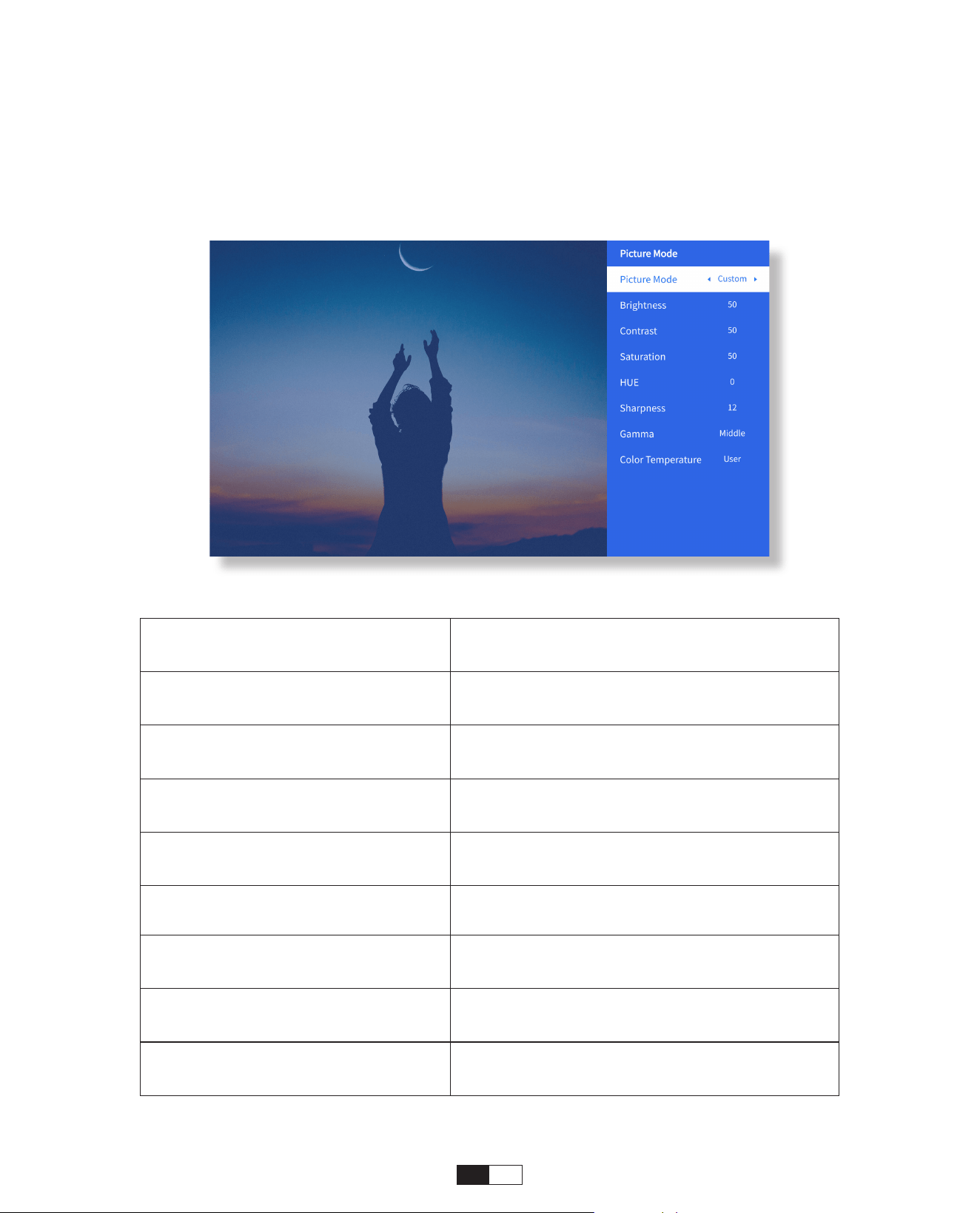
200
• Menú de modo de imagen
Menú Contenido
Modo deImagen
Estándar/Cine/Deporte/Vívido/Alto
brillo/Costumbre
Brillo
Establecer el valor de brillo de la
pantalla
Contraste
Establecer el valor de contraste de la
pantalla
Saturación
Establecer el color de saturación de la
pantalla
Matiz
Establecer el color del tono de la
pantalla
Nitidez
Establecer el valor de nitidez de la
pantalla
Gama Brillante / Oscuro / Medio
Temperatura del Color Normal/Frío/Cálido/Estándar
Vaya a la página de inicio -> Seleccione [Configuración] -> Seleccione [Modo de
imagen]. Utilice las teclas de flecha del control remoto para cambiar el menú, presione
"OK" para confirmar y configurar.
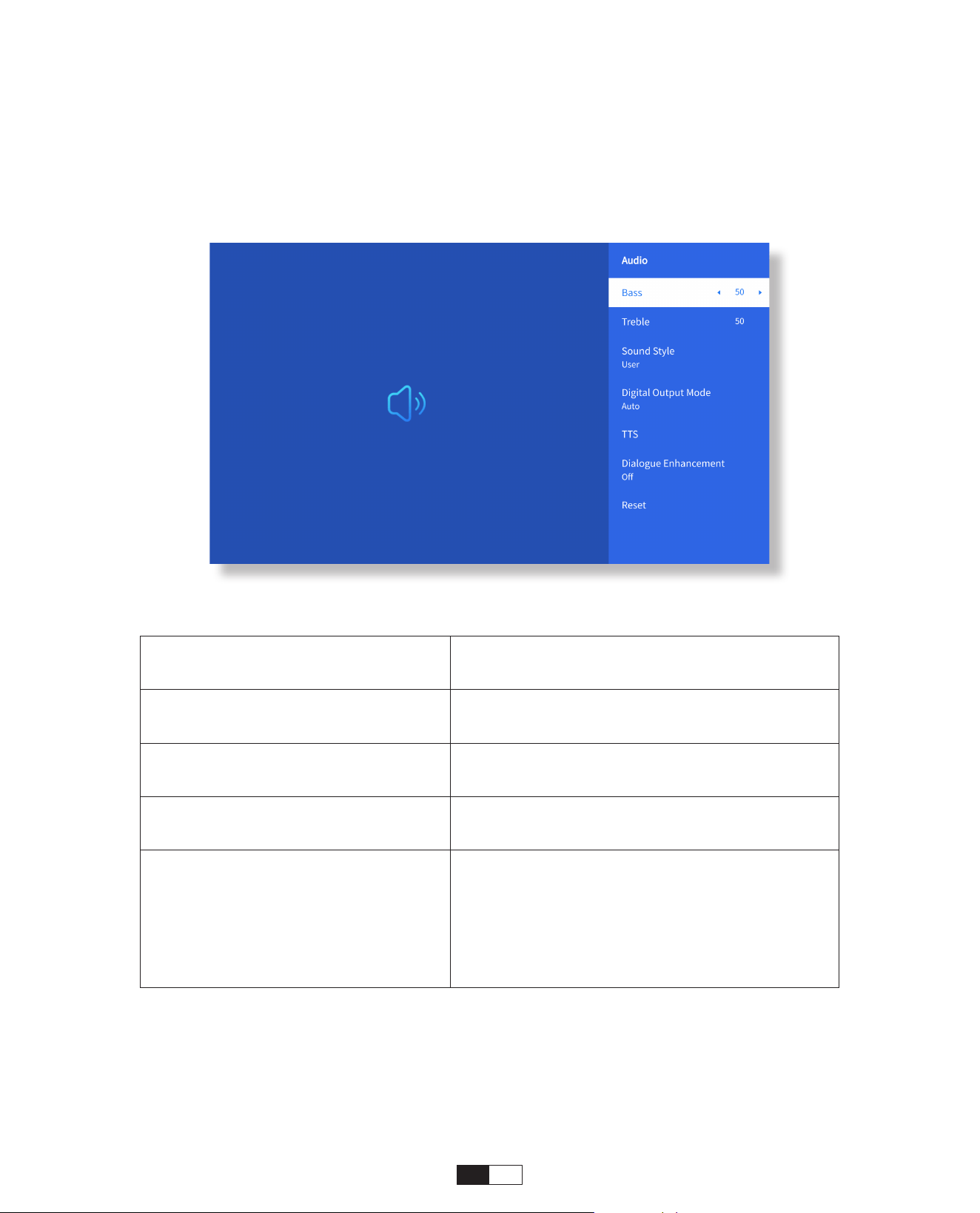
201
• Configuracion de Audio
Vaya a la página de inicio -> Seleccione [Configuración] -> Seleccione [Audio]. Utilice
las teclas de flecha del control remoto para cambiar el menú, presione "OK" para
confirmar y configurar.
Menú Contenido
Graves Agudos Establecer Valores Preferidos
Estilo de Sonido
Usuario/Estándar/Película/Música/
Deportes/Vivid/Noticias
Modo de Salida Digital
Automático/PCM/Dolby Audio-Dolby
Digital/Dolby Audio-Dolby Digital Plus
Mejora del Diálogo
On/Off: Función de mejora de
conversación, voz, función de
transmisión para personas especiales
Mejora del Diálogo
Bajo / Medio / Alto
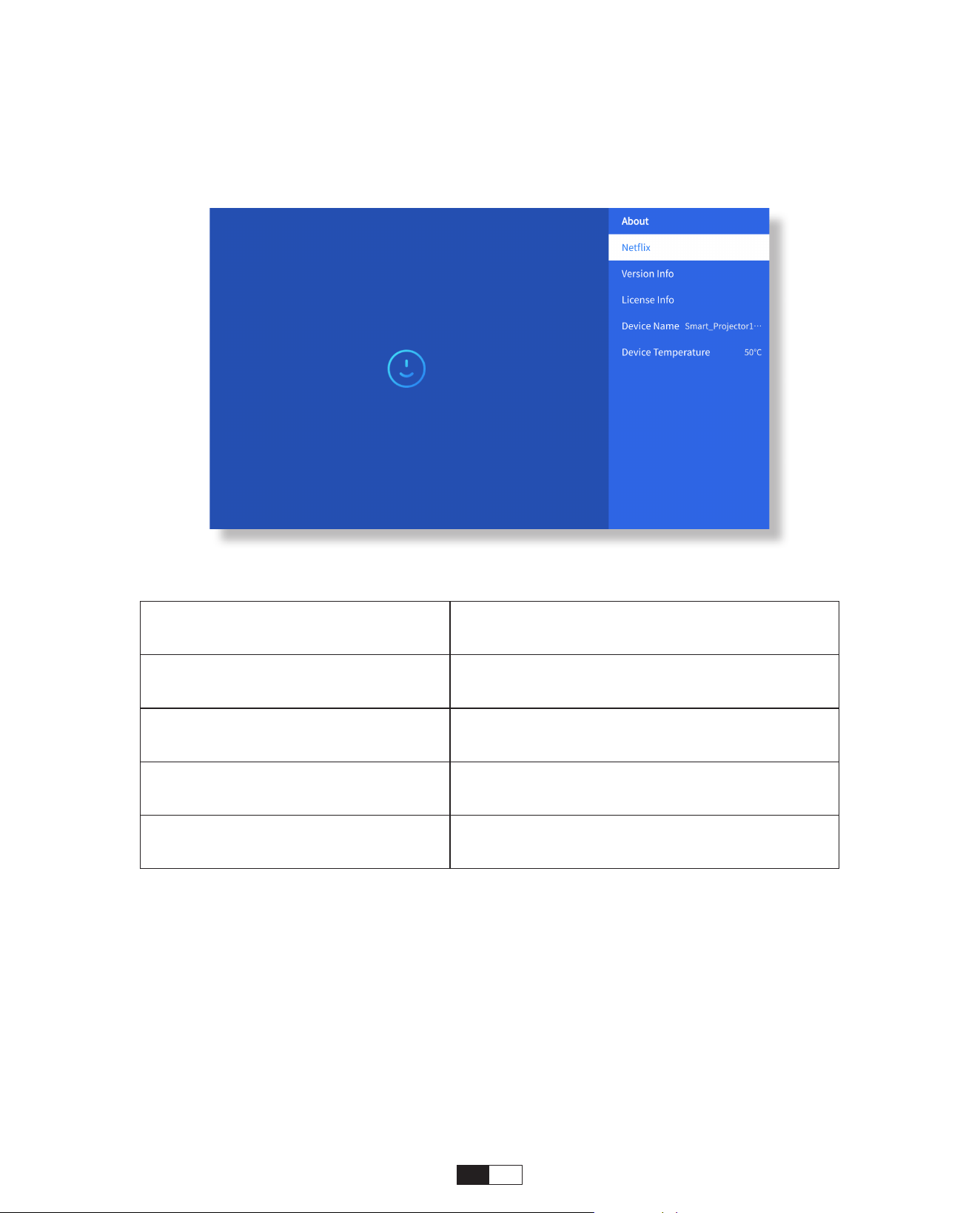
202
• Acerca de
Vaya a la página de inicio -> Seleccione [Configuración] -> Seleccione [Acerca de].
Utilice las teclas de flecha del control remoto para cambiar el menú, presione "OK" para
confirmar y configurar.
Menú Contenido
Netfix Netfix con licencia oficial
Información de versión/
licencia
Ver la última versión/información de
licencia
Nombre del Dispositivo Nombre del modelo del proyector
Temperatura del dispositivo 50°C
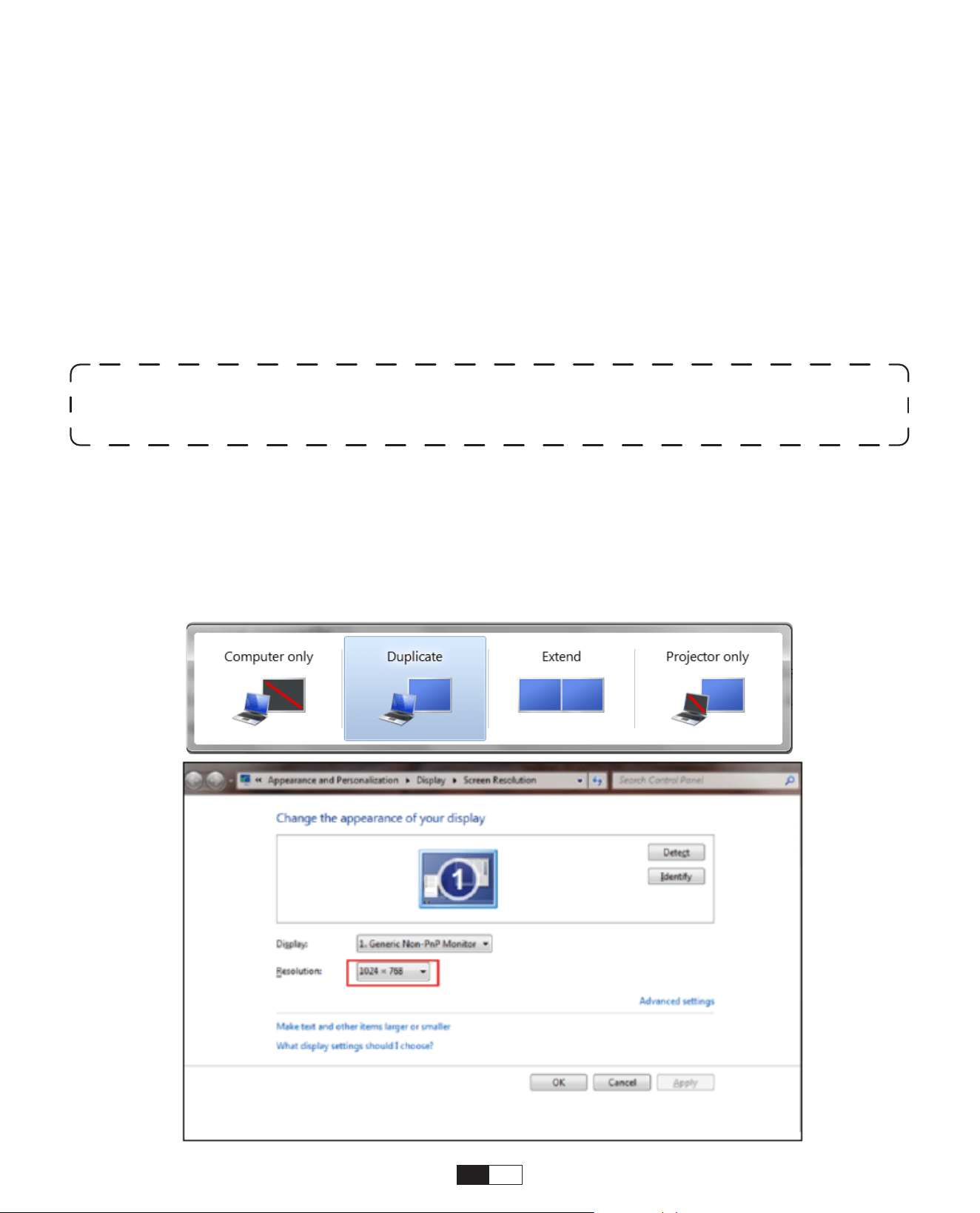
ES 203
Seleccione la fuente de señal USB, la máquina las detectará automáticamente.
Paso 1: seleccione la categoría requerida "fotos", "música" o "video" en la interfaz
principal y presione la tecla “OK” en el control remoto para ingresar a la categoría
correspondiente.
Paso2: Según los programas a elegir: “fotos” “música” o “video”.
Paso 3: Elija el archivo que desea reproducir y presione la tecla "OK" para reproducir o
pausar el archivo. (No puede ingresar a la categoría requerida sin conectar un disco
USB).
8. Conexión de Líneas de Señal
①
Conexión multimedia USB
②
Conexión con PC
Paso 1: Conéctese a la computadora y al proyector U 12 con el cable HDMI (incluido).
Paso 2: seleccione la fuente HDMI para proyectar en el proyector;
Paso 3: En su computadora portátil, mantenga presionadas las teclas del tablero "Win + P"
para cambiar el modo de visualización.
Nota : Para la opción “Office Suite”, los archivos PPT/TXT no se pueden reproducir
ni presentar normalmente.
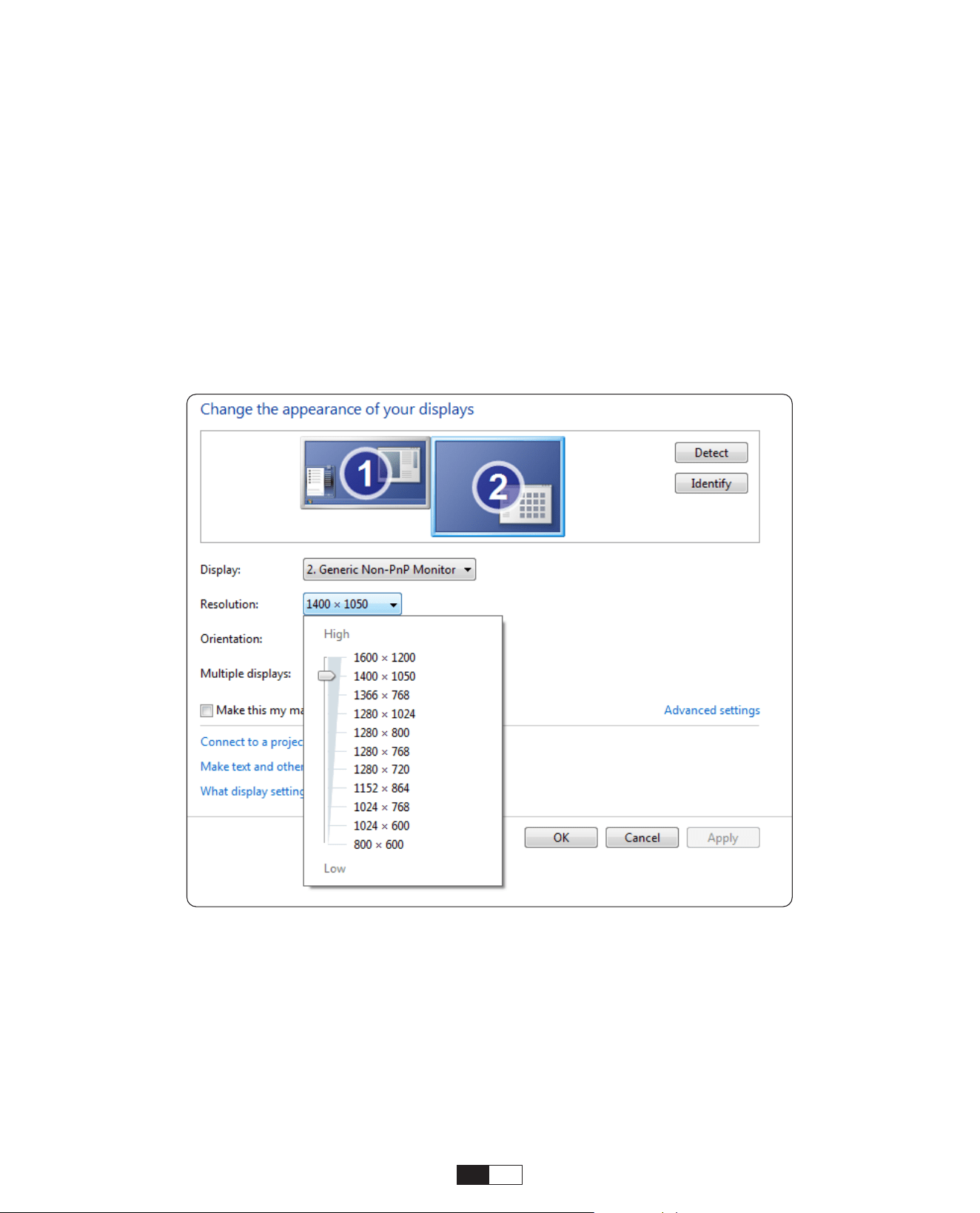
204
Paso 1: elija el canal de señal multimedia: "HDMI"
Paso 2: Utilice un adaptador de tipo C a HDMI para conectar su MacBook, o un
adaptador Mini Display a HDMI para conectar con su MacBook Air (adaptador no
incluido). Conexión con MacBook o Mac Book Air. (Adaptador NO INCLUIDO)
Solo computadora: es la opción predeterminada, solo se muestra en el monitor
principal.
Duplicar: hace que todos los monitores muestren lo mismo duplicando el escritorio en
cada uno monitor.
Extender: hace que todos sus monitores actúen como un monitor grande extendiendo
el escritorio a todos a ellos.
Solo proyector: se muestra solo en el monitor secundario como un proyector.
Para cambiar la resolución de la pantalla en el modo Solo proyector, siga estos pasos:
Paso: Inicio > Panel de control > Apariencia y personalización > Ajustar resolución de
pantalla
③
Conexión con MacBook o MacBook Air

205
En el modo de encendido en espera, conecte la fuente de alimentación y el LED de
encendido del proyector se iluminará. Debe presionar el botón de encendido para
encender el proyector.
Si se cambia a Encendido, la máquina se encenderá automáticamente después de
enchufar el cable de alimentación.
1. Presione el botón en el proyector o en el control remoto, luego presione la tecla OK
para apagar el proyector.
2. Desenchufe el cable de alimentación del proyector.
3. Cubra la lente y guarde el proyector en un lugar fresco y seco.
9. Modo de Encendido
10. Apagado seguro
Paso 1: Use el cable HDMI para conectarse a XBOX/PS5
Paso 2: Elija el canal de señal multimedia: "HDMI"
Paso 3: Tener éxito
Paso 1: Use el cable HDMI para conectarse al reproductor de DVD
Paso 2: Seleccione el modo "HDMI" para la conexión
Paso 3: Ingrese la tecla Menú
Paso 4: Cambie el modo de PC de [Activado] a [Desactivado] para evitar el riesgo de
que aparezcan bordes de píxeles blancos en la imagen.
④
Conexión con XBOX/PS5
⑤
Conexión con un reproductor de DVD:

206
• Cuidado de los proyectores
1. No coloque el proyector en una habitación demasiado cálida o demasiado fría,
porque la temperatura o baja temperatura acortará la vida útil del dispositivo. El entorno
de trabajo sería 5 ° C-35 ° C mejor.
2. Si hay puntos negros en la pantalla de proyección, no se preocupe. Póngase en
contacto con after[email protected] por correo electrónico, podemos enviarle un
video sobre cómo eliminar el polvo.
3. El proyector deberá estar estrictamente protegido del fuerte impacto, extrusión y
vibración.
4. La lente, como componente central del proyector, está directamente relacionado con
la definición y el efecto de la imagen. Limpie la lente siempre que note la suciedad o el
polvo en la superficie. Use un recipiente de aire comprimido para eliminar el polvo de la
lente. Si hay suciedad o manchas, use el paño de limpieza para limpiar suavemente la
superficie de la lente.
Consejos de Mantenimiento
Escanee y descargue el manual de usuario de
PDF
Donde Obtener Más Ayuda
@Yaber Entertainment Projector
@Yaber