V01
Model: D3000
©Anker Innovations Limited. All
rights reserved. NEBULA and the
NEBULA logo are trademarks of Anker
Innovations Limited, registered in the
United States and other countries. All
other trademarks are the property of
their respective owners.
+1 (800) 988 7973 (US) Mon-Fri 9:00am - 5:00pm (PT)
+44 (0) 1604 936200 (UK) Mon-Fri 6:00 - 11:00 (GMT)
+49 (0) 69 9579 7960 (DE) Mo-Fr 6:00 - 11:00
+81 03 4455 7823 (
日本
)
月
-
金
9:00 - 17:00
User Manual
Nebula Soundbar – Fire TV Edition
Nebula Soundbar—Fire TV Edition
Nebula Soundbar—Fire TV Edition

English
English
02
03
This symbol is intended to alert the user to the presence of uninsulated
“dangerous voltage” within the product’s enclosure that may be of
sufcient magnitude to constitute a risk of electric shock to persons.
This symbol is intended to alert the user to the presence of important
operating and maintenance (servicing) instructions in the literature
accompanying the appliance.
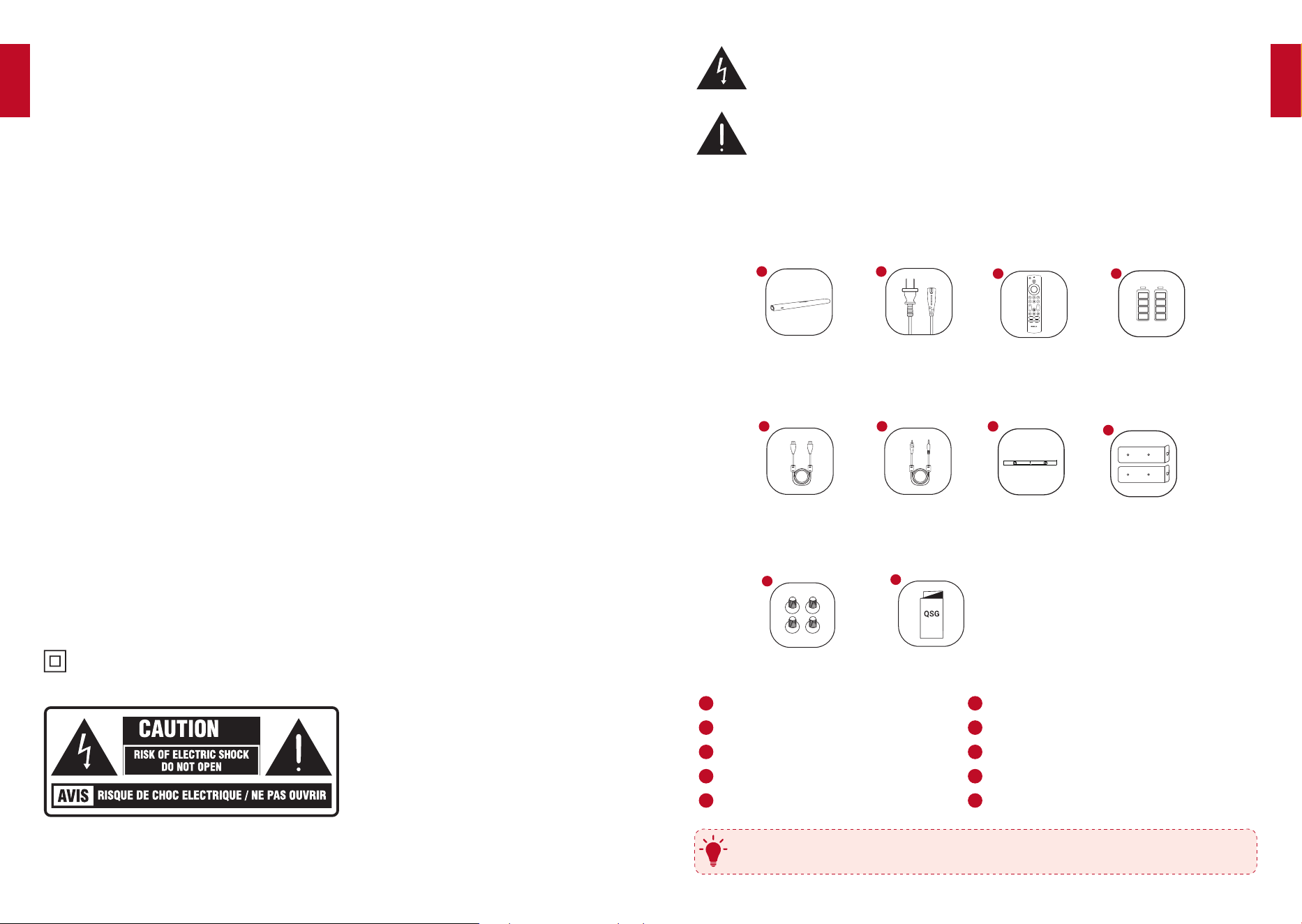
What’sIncluded
Carefully unpack the box and check if the following parts are included.
HDMI 2.0 cable Wall mounting
templates
Soundbar Power cord
Remote control 2 × AAA batteries
Screws
Wall mount
brackets
1
2
3
4
5
7
8
9
QSG
10
WALL MOUNTING TEMPLATE
MARK HEREMARK HERE
453mm
AUX cable
6
1
Nebula Soundbar- Fire TV Edition
6
AUX cable
2
Power cord
7
Wall mounting template
3
Remote control
8
Wall mount brackets
4
2 × AAA batteries
9
Screws
5
HDMI 2.0 cable
10
Quick Start Guide
T
The accessories may vary by region.
ImportantSafetyInstructions
Please read this user manual carefully and save it for future reference. Do not
make unauthorized alterations to the product; doing so may compromise safety,
regulatory compliance, system performance, and may void the warranty.
•
Avoid dropping.
•
Do not disassemble.
•
Do not submerge in water.
•
Avoid extreme temperatures.
•
Do not use the device outdoors during thunderstorms.
•
Use original or certied cables.
•
Do not place dangerous items on top of this device (e.g. liquid lled objects, lit
candles).
•
Clean with a dry, soft lint-free cloth. Do not use any corrosive cleaner or oil.
•
To avoid hearing damage, do not listen for extended periods at high volume.
•
Do not expose the batteries to extreme heat sources such as direct sunlight or
open flames.
•
The ideal operating temperature for this product and its accessories is between
41°F / 5°C and 95°F / 35°C.
•
The adapter should be installed near the device and should be easily accessible.
•
Do not use this product in environments of extreme heat or cold. Never expose
this device to strong sunshine or wet environments.
Additional Legal Rights for Consumers
For consumers who are covered by consumer protection laws or regulations in
their country of purchase or, if different, their country of residence, the benets
conferred by Anker's Limited Warranty are in addition to all rights and remedies
conveyed by such consumer protection laws and regulations, including but not
limited to these additional rights.
For FAQs and more information, please visit anker.com/support.
This is CLASS II apparatus with double insulation, and no protective earth
provided.
This caution sticker is located on the underside of the soundbar.
English
English
04
05
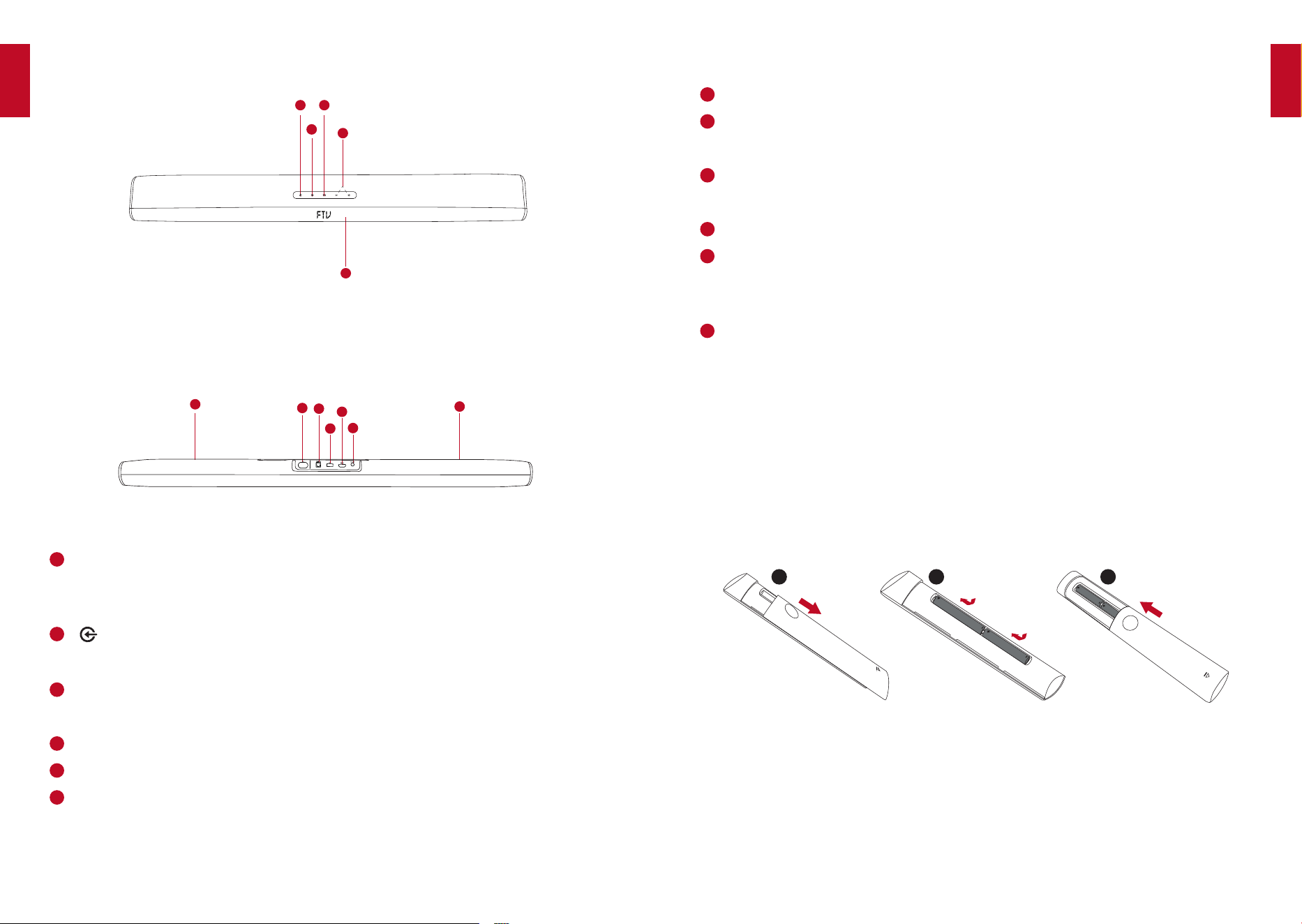
Rear panel
7
Screw holes for wall mounting
8
Power input
• Connect to power supply (with the provided cable)
9
OPTICAL
• Connect to devices with an optical port (optical cable NOT included)
10
USB port (Only for factory software upgrade)
11
HDMI (ARC)
• Connect to HDMI Player (TV)
• Connect to Audio Return Channel (ARC)
12
AUX IN
• Connect to an audio output device
RemoteControl
Insert the batteries before using the remote control.
①
Slide the battery cover off.
②
Insert the batteries (matching + / - polarity as indicated) into the battery
compartment.
③
Slide the battery cover back into position.
1 2 3
Overview
1
6
2
8
7
3
10
11
6
9
4
5
(ONLY FOR UPGRADE)
(ARC)
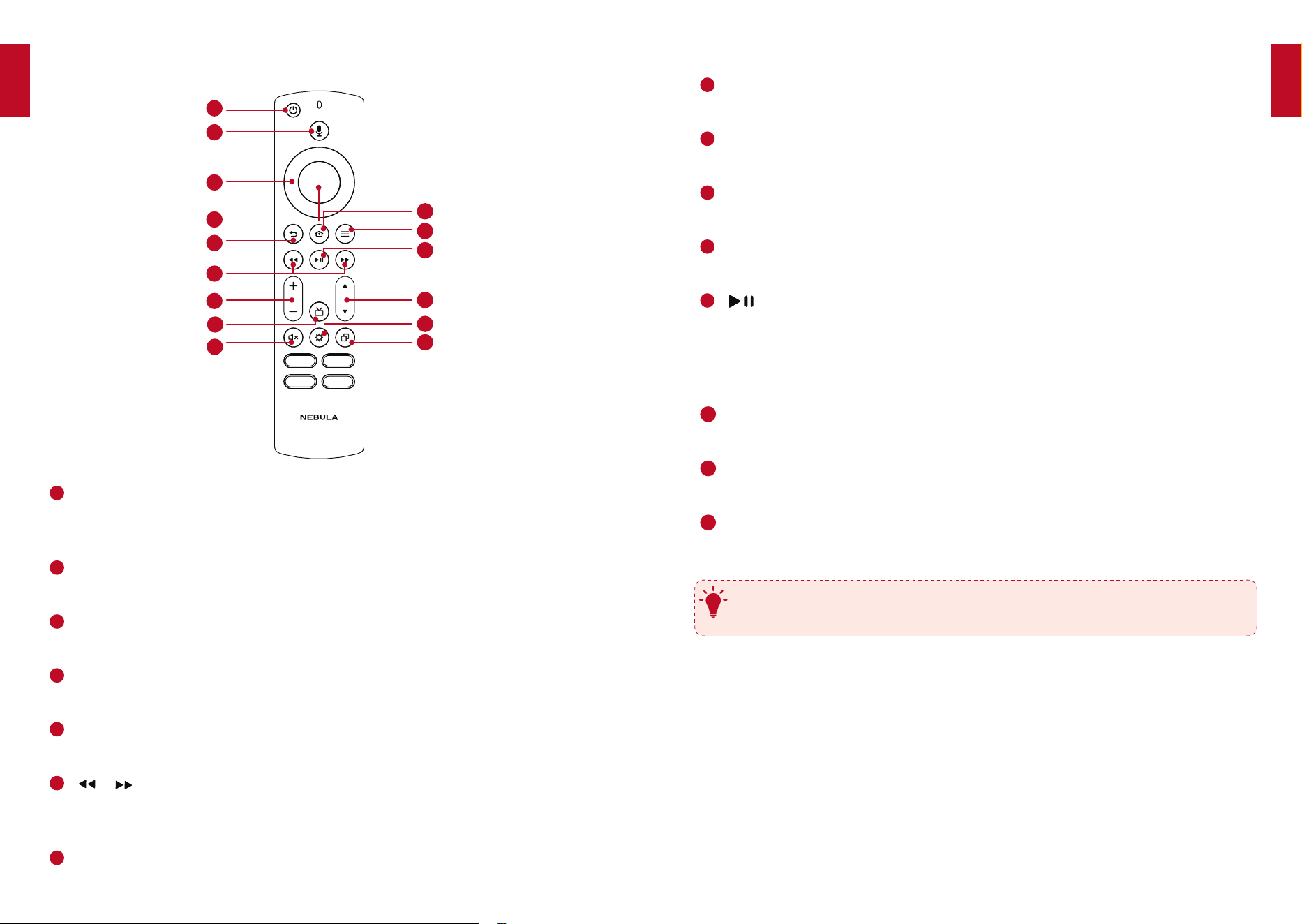
Top panel and front panel
1
Power button
• Press and hold for 3 seconds to power on / off
• Touch to enter standby mode or wake up your soundbar
2
(Source input)
• Touch to switch between FTV, BT, ARC, OPTIC, and AUX mode
3
EQ button
• Touch to switch between MOVIE, MUSIC, and VOICE
4
Volume control button
5
Display panel
6
IR receiver
English
English
06
07
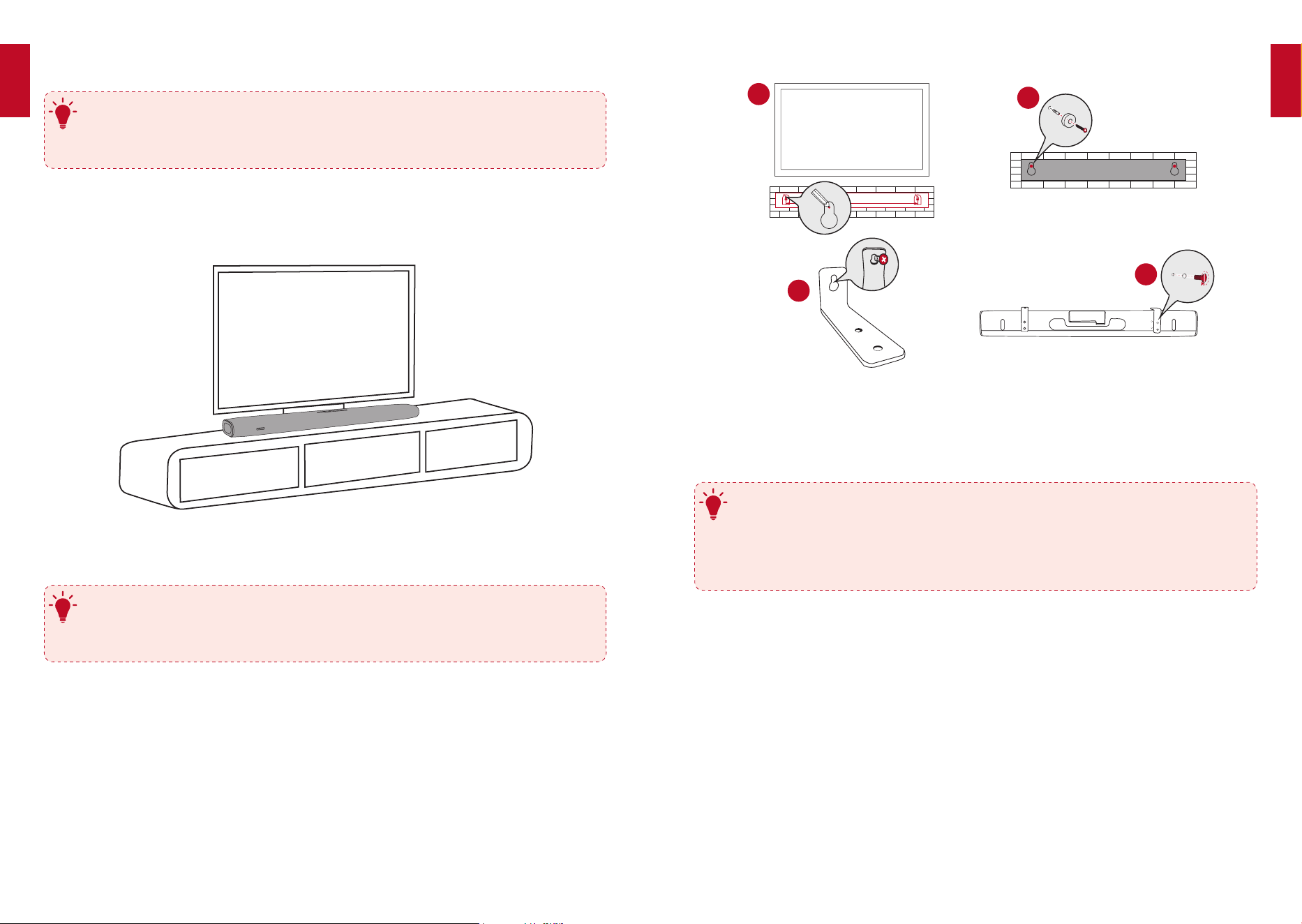
• Increase / decrease volume
8
Guide button
• Press to display Guide screen
9
Mute button
• Mute or unmute the soundbar audio
10
Home button
• Press to access the home menu
11
Menu button
• Press to access pop out menu
12
(Play / pause)
• FTV mode: start, pause, or resume play
• BT mode: press to play / pause
• BT mode: press and hold for 3 seconds to disconnect and enter Bluetooth
pairing mode
13
Channel button
• Press to access the Channel menu
14
Settings button
• Press to access soundbar settings menu
15
15
Recents button
• Press to display Recents screen
T
Point your remote control squarely at the soundbar’s IR receiver while using
the remote control.
1.
Remotecontrolbuttons
1
2
3
4
10
11
12
13
14
15
15
5
6
7
8
9
1
Power button
• Press and hold for 3 seconds to power on / off
• Press to enter standby mode or wake up your soundbar
2
Voice button
• Press to give commands after pairing is complete (Amazon Alexa feature)
3
Navigation button
• Press up, down, left, or right to navigate
4
Confirmation button
• Press to confirm the selected function
5
Return button
• Press to return to the previous menu
6
/ (Previous / Next)
• FTV mode: Fast forward and rewind video content
• BT mode: Skip to the previous or next track
7
Volume +/- button
English
English
08
09
2
3
4
1
MARK HERE
540mm
MARK HERE
Wall Mount the Soundbar
Connection
1.
ConnectingtoYourTV
T
• Before connecting devices to the soundbar, make sure that you unplug all
devices from the power outlet.
• To enjoy audio from your soundbar, make sure you select the
corresponding signal source on your TV. Refer to your TV’s user manual
for details.
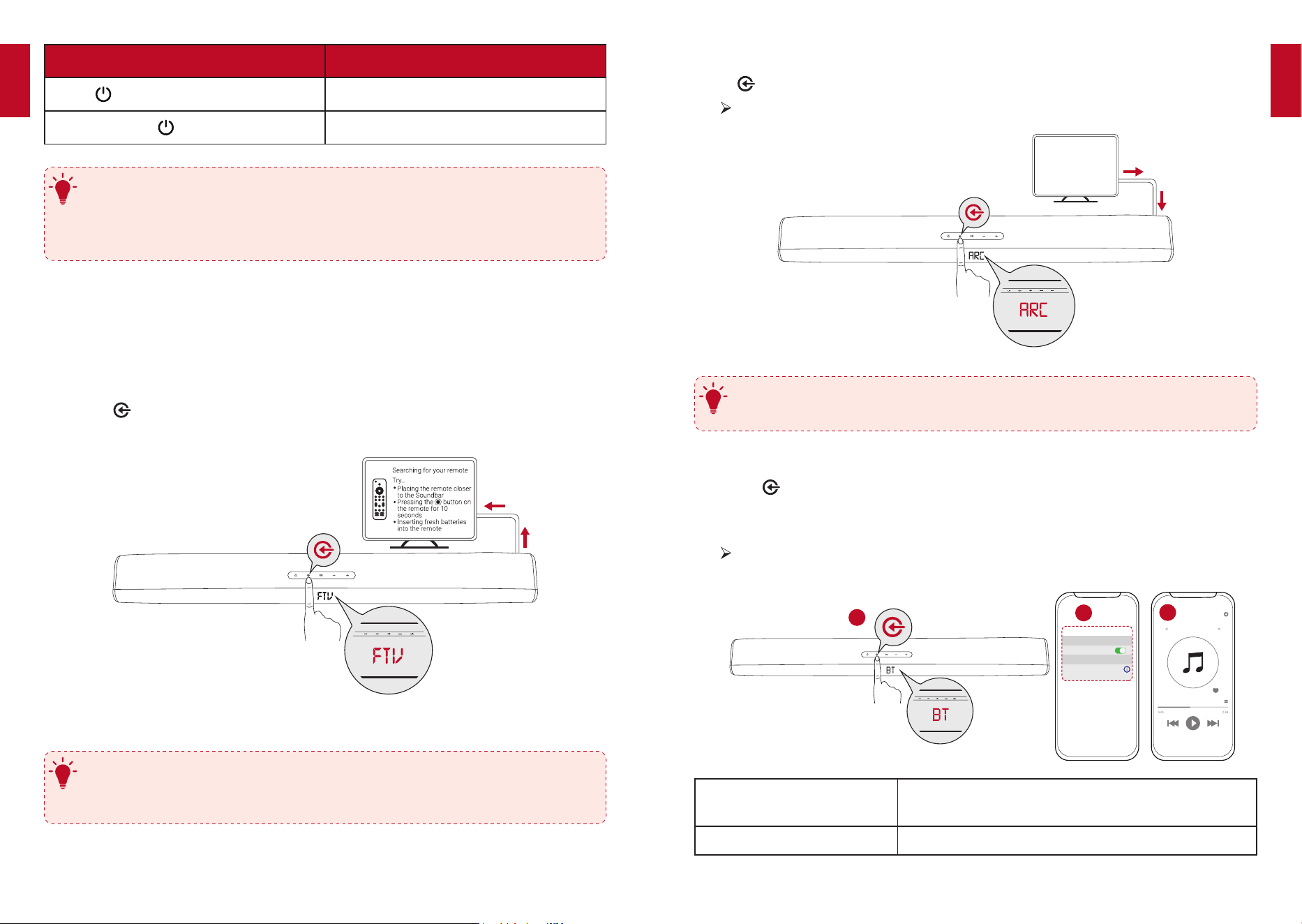
There are two ways to connect to your TV.
Option 1: Connect to your TV with an HDMI cable (preferred, FTV / ARC mode)
Using the provided HDMI cable, connect the HDMI (ARC) on the rear of the
soundbar to the HDMI IN (ARC) port on your TV.
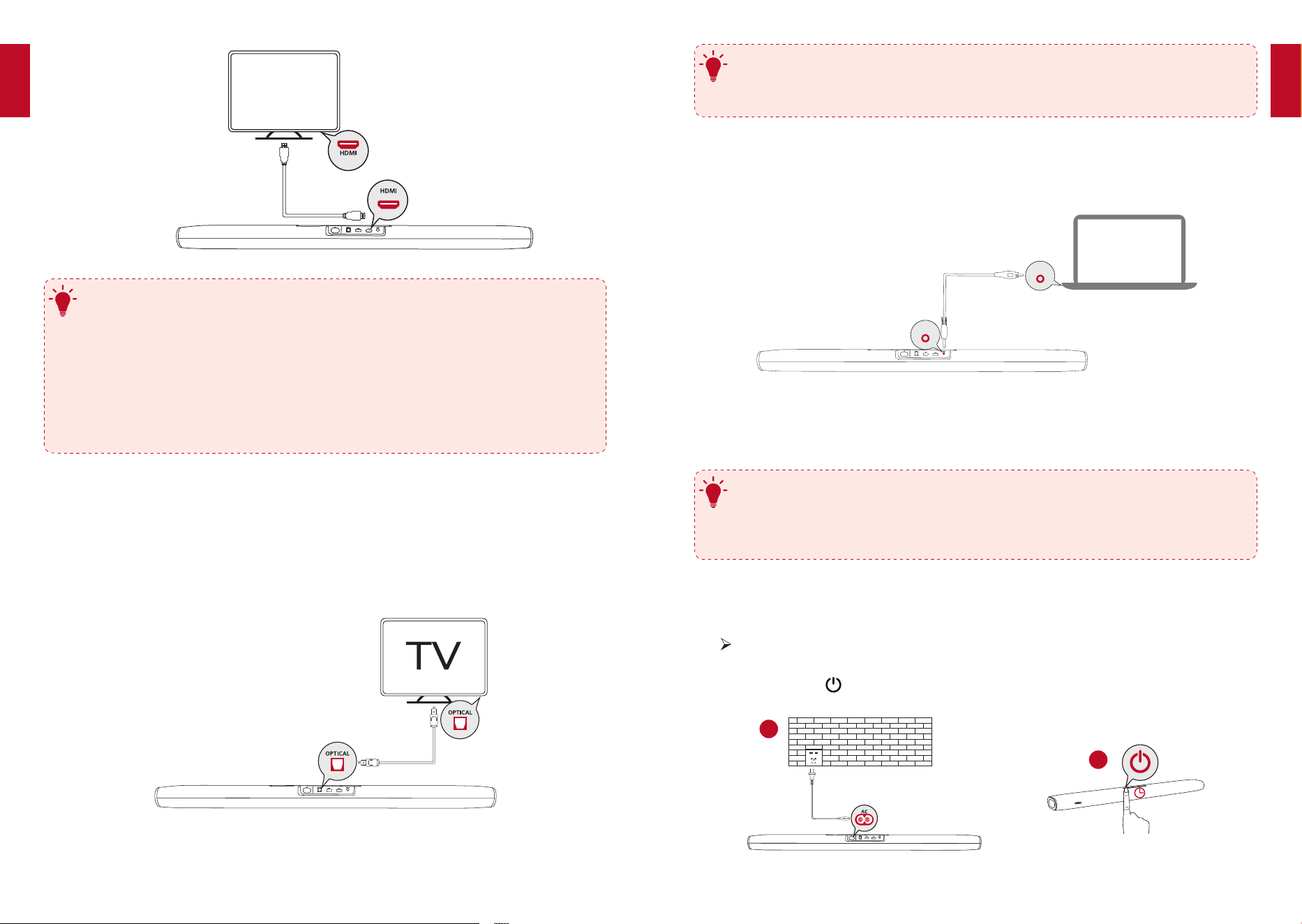
Placement
T
• Make sure there is an AC power outlet nearby.
• To avoid wireless interference, keep other wireless devices 1-3 ft away
from the soundbar.
Table Placement
①
Place the soundbar on a solid surface with the top panel facing up.
Wall Mount Installation
T
• Make sure the soundbar is powered off and unplugged before installing.
• Use the xing screws appropriate for your drill and the type of wall you
have.
①
Place the wall mounting template card against the wall. Push a pen tip through
the center to mark the location for the wall-mount brackets.
②
Drill a hole in the wall at each marking.
③
Screw the wall-mount brackets into the holes with screws (not provided) in the
wall.
④
Fix the L-brackets to the bottom of the soundbar with the provided screws.
English
English
10
11
T
• The OPTICAL jack cannot be used simultaneously when an HDMI ARC-
compliant TV is connected to the soundbar.
• The OPTICAL jack might be labeled differently
Other Connection Options
You can connect to computers and other devices with an AUX OUT connector
using the provided AUX cable.
(ONLY FOR UPGRADE)
(ARC)
AUX OUT
AUX OUT
PoweringOnYourSoundbar
T
• Before connecting the power cord to an AC outlet, make sure you’ve
completed all other connections.
• When you disconnect the power cord, always pull the plug instead of
cable.
①
Plug one end of the power cord into the AC IN connector on the rear of the
soundbar and the other end into a wall outlet.
The soundbar will automatically enter the initialization process. “LOADING”
will show on the display panel for 7 seconds and then disappear.
②
Press and hold on the display panel for 3 seconds to power on.
1
2
(ONLY FOR UPGRADE)
(ARC)
2”
HDMI (ARC)
(ARC)
(ONLY FOR UPGRADE)
(ARC)
TV
(ARC)
T
• The HDMI IN (ARC) connector on the TV might be labeled differently.
• If your TV is HDMI ARC compliant, it is recommended that you connect
the soundbar to your TV’s HDMI (ARC) port. You can use both FTV mode
and ARC mode.
• If your TV is not HDMI ARC compliant, you can use the soundbar in FTV
mode only by connecting it to your TV via the HDMI port.
• If your TV has a DVI connector only, use an HDMI / DVI adapter to
connect to your TV.
Option 2: Connect to your TV with an optical cable (OPTIC mode)
You cannot enjoy Fire TV content if the soundbar and TV are connected using an
optical cable.
①
Remove the protective caps from both ends of the optical cable.
②
Connect the OPTICAL jack on the rear of the soundbar to the OPTICAL jack on
your TV.
(ONLY FOR UPGRADE)
(ARC)
English
English
12
13
2.
StreamTVaudiotoyoursoundbar
Press on the top panel of the soundbar until ARC appears on the display panel.
The TV’s audio will be heard through your soundbar.
T
Make sure your TV supports Audio Return Channel (ARC) and you select
ARC on your TV.
3.
PlaymusicviaBluetooth
①
Press
until “BT” appears on the display panel.
②
Enable Bluetooth on your device, search for Nebula Soundbar – Fire TV Edition
on your Bluetooth list, and then connect.
Music will be streamed through the soundbar.
1
3
< Settings Bluetooth
Nebula Soundbar
- Fire TV Edition
Bluetooth
Connected
DEVICE
2
Option 3: Bluetooth
BT flashing Pairing to Bluetooth device or Bluetooth device has
disconnected
BT stays steady Connected to device
Action Description
Press
Enter standby mode
Press and hold for 3 seconds
Power on / off
T
• The soundbar will automatically switch to standby mode when no audio
input is received for 30 minutes.
• The soundbar will wake up from standby mode when any button is
pressed or source input is received.
UsingYourSoundbar
You can stream Fire TV from your soundbar or TV audio to your soundbar by selecting
the corresponding source.
1.
StreamFireTVfromyourSoundbar
①
Press on the top panel of the soundbar until the FTV appears on the display
panel.
②
Follow the on-screen instructions to complete the setup process.
T
• Make sure you select the “HDMI” source in your TV settings.
• If you do not hear the sound coming from the soundbar, check the
“Troubleshooting” section.
English
English
14
15
Option 2: Using the remote control
To adjust the soundbar’s settings:
①
Press on the remote control to access the soundbar’s settings.
②
Press the navigation button up or down on the remote control to switch
between Source Mode (FTV / BT / ARC / OPTIC / AUX), EQ (Movie / Music /
Voice), Surround (S), Bass (BA), and Treble (TR) modes.
③
Press the navigation button left or right on the remote control to switch
between options within each mode.
④
Press to conrm the selection.
Mode Description
Surround on When surround mode is selected, the soundbar creates a
fuller, more immersive experience that puts you inside the
action.
Surround off Switch back to 2-channel stereo playback. Select from one
of the 3 sound modes to tailor the sound to the media.
BA / TR Set the high frequency (treble) and low frequency (bass).
5.
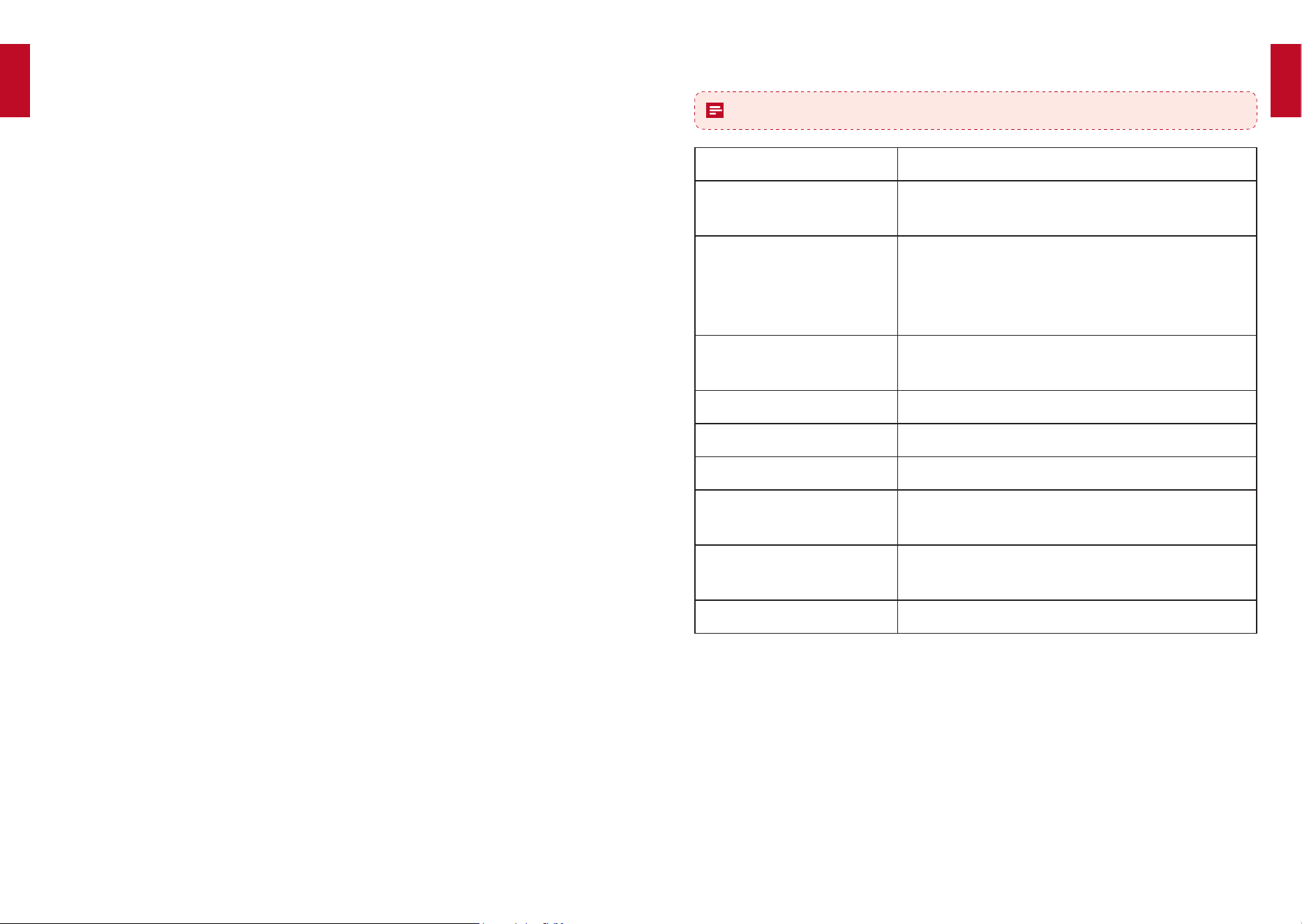
DownloadtheNebulaConnectApp
To easily control your Nebula Soundbar – Fire TV Edition, we recommend
downloading the Nebula Connect App.
①
Download the Nebula Connect from the App Store (iOS devices) or Google Play
(Android devices).
Nebula Connect
Nebula Connect
②
Enable Bluetooth on your smartphone.
③
Open the Nebula Connect app and select [Nebula Soundbar – Fire TV Edition]
as the device to be connected.
④
Follow the on-screen instructions to complete connection setup.
T
When Nebula Soundbar – Fire TV Edition is turned on, it will automatically
connect to the last connected device if available. If not, hold on the
remote control for 3 seconds to activate Bluetooth mode.
Having connection problems? Try pairing your device with the soundbar
again.
• Remove Nebula Soundbar – Fire TV Edition from your device’s Bluetooth
history.
• To get the best sound quality, make sure to keep your soundbar 33 ft / 10
m away from the connected device.
4.
AdjustSoundbarSettings
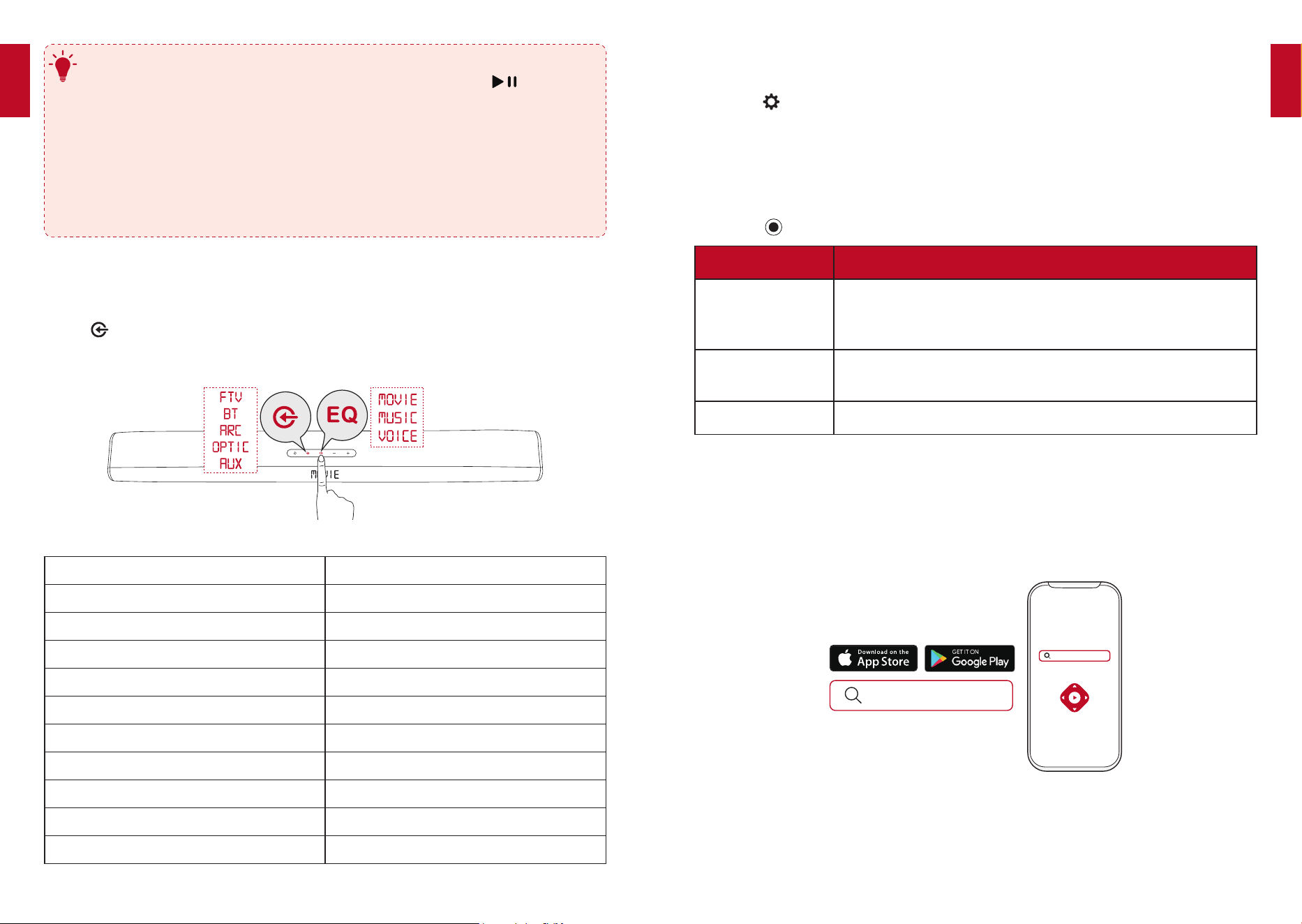
Option 1: Using the touch panel
Touch to switch between FTV, BT, ARC, OPTIC, and AUX source modes.
Touch EQ on the top panel to switch between MOVIE, MUSIC, and VOICE mode.
Touch Panel LED Display
HELLO Power on
FTV Fire TV mode
ARC HDMI ARC source mode
BT Bluetooth speaker mode
OPTIC Optical source mode
AUX AUX IN mode
MUSIC, MOVIE, VOICE Equalizer mode
S ON, S OFF Surround on / Surround off
BA XX Bass volume is XX
TR XX Treble volume is XX
SLEEP Soundbar is on standby
English
English
16
17
Specications
Specications are subject to change without notice.
Input 100-240V ~ 50/60Hz 1.68A
Audio output Front L / R: 20W x 2ch
Subwoofer: 60W
Decoder Dolby Digital
Dolby Digital Plus
4K HDR Video
Dolby Vision
Input jack TV IN (OPT) × 1
AUX IN (3.5 mm stereo mini) × 1
Output jack HDMI OUT × 1
Additional jack USB (for factory firmware update only)
Bluetooth Version 5.0
Size 930 × 120 × 61 mm /
36.6 × 4.7 × 2.4 in
Product size (with wall
mount brackets installed)
930 mm x 135 mm x 63 mm
/ 36.6 x 5.3 x 2.5 in
Weight (without packaging) 3.3 kg / 116 oz
UpdatingSoftware
To get the best features and support, update your soundbar with the latest
software.
①
Download the Nebula Connect app on your phone.
②
Follow the on-screen instructions to connect the soundbar.
③
Touch the “Settings” icon to enter the “Settings” page, and check the update. If
a prompt appears, tap “Update” to begin updating.
While updating the software:
①
Keep your phone on the “Update” page.
②
Make sure the Nebula Connect app and your soundbar are connected.
③
Make sure your soundbar is connected to a power supply.
④
After updating has completed, the soundbar will automatically restart.
English
English
18
19
Notice
This product complies with the radio interference requirements of the
European Community.
Declaration of Conformity
Hereby, Anker Innovations Limited declares that this device is in compliance
with the essential requirements and other relevant provisions of Directive
2014/53/EU. For the declaration of conformity, visit the Web site:
www.seenebula.com.
Due to the used enclosure material, the product shall only be connected to a USB
Interface of version 2.0 or higher.
Do not use the Device in the environment at too high or too low temperature, never
expose the Device under strong sunshine or too wet environment.
The suitable temperature for the product and accessories is 5
°
C~35
°
C.
It is recommended to charge the device in an environment with a temperature that
ranges from 5
°
C~25
°
C.
RF exposure information: The Maximum Permissible Exposure (MPE) level has been
calculated based on a distance of d=20 cm between the device and the human body. To
maintain compliance with RF exposure requirement, use product that maintain a 20cm
distance between the device and human body.
CAUTION RISK OF EXPLOSION IF BATTERY IS REPLACED BY AN INCORRECT TYPE.
DISPOSE OF USED BATTERIES ACCORDING TO THE INSTRUCTIONS
Wi Operating Frequency Range: 2412~2472MHz(2.4G); 5150~5250MHz,
5725~5850MHz (5G)
Wi Max Output Power: 19dBm(2.4G); 15dBm(5G)
Bluetooth Operating Frequency Range: 2402~2480MHz; Bluetooth Max Output Power:
8dBm
5150~5250 MHz can be used indoor only.
The following importer is the responsible party (contact for EU matters only)
Importer:Anker Technology (UK) Ltd
Importer Address:Suite B, Fairgate House, 205 Kings Road, Tyseley, Birmingham,
B11 2AA, United Kingdom
This product is designed and manufactured with high quality materials and
components, which can be recycled and reused.
Troubleshooting
Never try to repair the product yourself. If you have problems using this product,
check the following points before you request service.
Sound
No sound from the soundbar’s speakers.
• Make sure you select the correct audio input on your soundbar and TV.
• Make sure your soundbar is not muted.
Sound is distorted or echoey.
• If you play audio from the TV, make sure that the TV is muted.
Bluetooth
A device cannot connect with the soundbar.
• Check if you have enabled the Bluetooth function of the device.
• Make sure the device is connected correctly.
• The soundbar is already connected with another Bluetooth device. Disconnect
that device and then pair with a new device.
Poor audio quality from a connected Bluetooth device.
• The Bluetooth reception is poor. Move the device closer to the soundbar or
remove any obstacle between the device and the soundbar.
Remote control
The remote control doesn’t work.
• Check if the batteries are installed properly.
• Replace the batteries.

English
English
20
21
IC Statement
This device complies with Industry Canada licence-exempt RSS standard(s).
Operation is subject to the following two conditions:
(1) this device may not cause interference, and
(2) this device must accept any interference, including interference that may cause
undesired operation of the device."
Le présent appareil est conforme aux CNR d'Industrie Canada applicables aux
appareils radio exempts de licence. L'exploitation est autorisée aux deux conditions
suivantes:
(1) l'appareil nedoit pas produire de brouillage, et
(2) l'utilisateur de l'appareil doit accepter tout brouillage radioélectrique subi, même
si le brouillage est susceptible d'en compromettre le fonctionnement."
This Class B digital apparatus complies with Canadian ICES-003.
Cet appareil numérique de la classe B est conforme à la norme NMB-003 du
Canada.
IC RF Statement
When using the product, maintain a distance of 20cm from the body to ensure
compliance with RF exposure requirements.
Lors de l'utilisation du produit, maintenez une distance de 20 cm du corps an de
vous conformer aux exigences en matière d'exposition RF.
This symbol means the product must not be discarded as household
waste, and should be delivered to an appropriate collection facility for
recycling. Proper disposal and recycling helps protect natural resources,
human health and the environment. For more information on disposal and
recycling of this product, contact your local municipality, disposal service,
or the shop where you bought this product.
FCC Statement
This device complies with Part 15 of the FCC Rules. Operation is subject to the
following two conditions: (1) This device may not cause harmful interference, and (2)
this device must accept any interference received, including interference that may
cause undesired operation.
Warning: Changes or modications not expressly approved by the party responsible
for compliance could void the user's authority to operate the equipment.
Note: This equipment has been tested and found to comply with the limits for
a Class B digital device, pursuant to Part 15 of the FCC Rules. These limits are
designed to provide reasonable protection against harmful interference in a
residential installation.
This equipment generates uses and can radiate radio frequency energy and, if
not installed and used in accordance with the instructions, may cause harmful
interference to radio communications. However, there is no guarantee that
interference will not occur in a particular installation. If this equipment does cause
harmful interference to radio or television reception, which can be determined
by turning the equipment off and on, the user is encouraged to try to correct the
interference by one or more of the following measures: (1) Reorient or relocate
the receiving antenna. (2) Increase the separation between the equipment and
receiver. (3) Connect the equipment into an outlet on a circuit different from that to
which the receiver is connected. (4) Consult the dealer or an experienced radio/TV
technician for help.
FCC Radio Frequency Exposure Statement
The device has been evaluated to meet general RF exposure requirements. The
device can be used in xed/mobile exposure condition. The min separation
distance is 20cm.
Notice: Shielded cables
All connections to other computing devices must be made using shielded cables to
maintain compliance with FCC regulations.
FCC ID:2AOKB-D3000
The following importer is the responsible party.
Company Name: Fantasia Trading LLC
Address: 9155 Archibald Avenue, Suite 202, Rancho Cucamonga, CA, 91730, US
Telephone: +1 (909) 484 1530

English
English
22
23
Trademarks
The Bluetooth
®
word mark and logos are registered trademarks owned by the
Bluetooth SIG, Inc. and any use of such marks by Anker Innovations Limited is
under license. Other trademarks and trade names are those of their respective
owners.
HDMI, and HDMI logo and High-Denition Multimedia Interface are trademarks
or registered trademarks of HDMI licensing LLC in the United States and other
countries.
Manufactured under license from Dolby Laboratories. Dolby, Dolby Audio,
Pro Logic, and the double-D symbol are trademarks of Dolby Laboratories.
Warranty
30-Day Money-Back Guarantee for Any Reason
You may return your undamaged product and packaging within 30 days of
purchase to receive a FULL REFUND for any reason. If the reason for return isn’t
quality-related, the customer must pay for the return shipping.
12-Month Warranty for Quality-Related Issues
Nebula’s products are warrantied to be free from material and workmanship
defects for 12 months from the date of purchase. Within this period, Nebula will
provide a replacement and cover any return shipping costs for products that fail in
normal use.
Please note: Any provided shipping labels must be used within 20 days from the
date they’re issued by Nebula Support.
Anker Innovations Limited
Room 1318-19, Hollywood Plaza, 610 Nathan Road, Mongkok, Kowloon, Hong
Kong
