
01
What’s Included
At a Glance
1. Projector
2. Remote Control
Getting Started
1. Prepare the Remote
2. Position Your Projector
3. Charge Your Projector
4. Power On / Off
5. Auto focus and Auto Keystone Correction
6. Setup
Use with the Snap-on Base
Nebula Connect App
Settings
1. Network
2. Projector
3. Apps
4. System
5. Others
Using Your Projector
1. Select an App
2. Voice A ssistant
3. Wireless Casting
4. Play from HDMI Playback / USB Devices
5. Bluetooth Speaker Mode
6. Connect the Projector to an External Bluetooth Speaker
System Update
Specifications
Troubleshooting
Trademarks
02
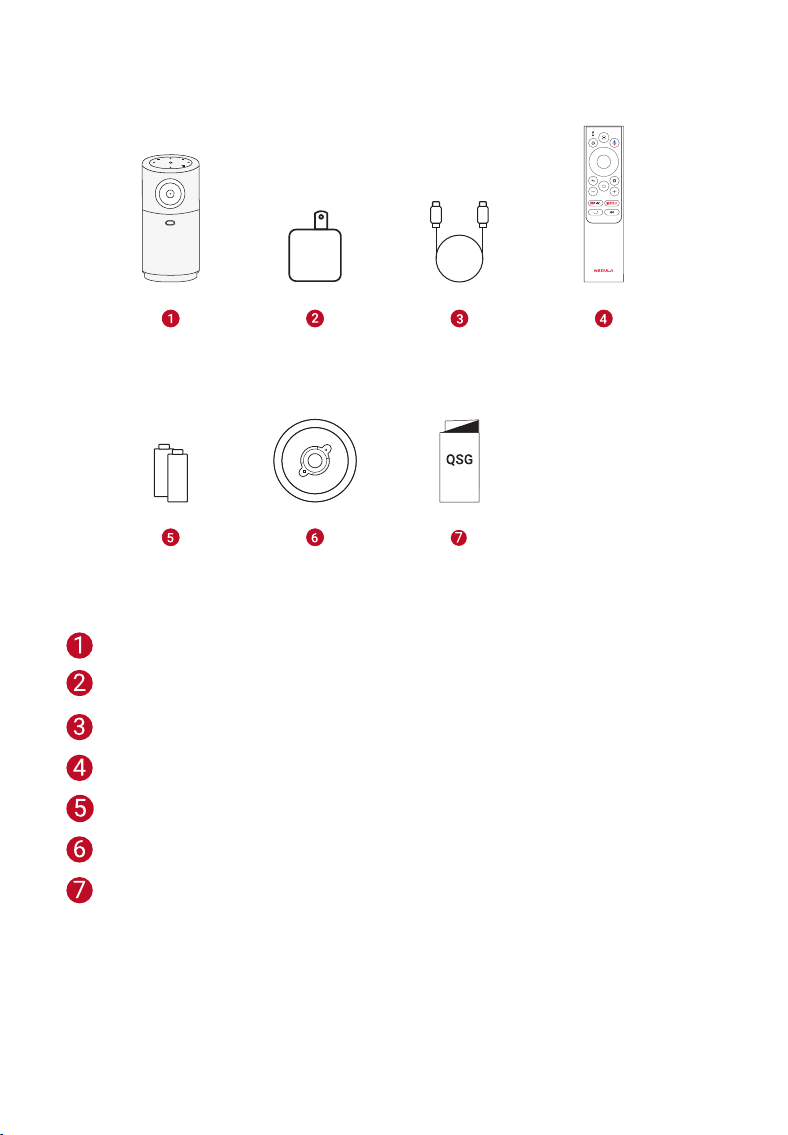
What’s Included
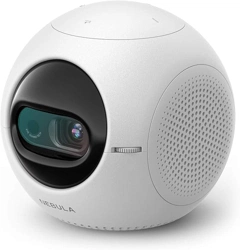
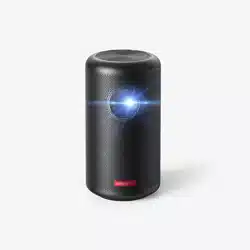
Nebula Capsule Air
Adapter
Charging Cable
Remote Control
AAA Batteries
Snap-on Base
Quick Start Guide
03
At a Glance
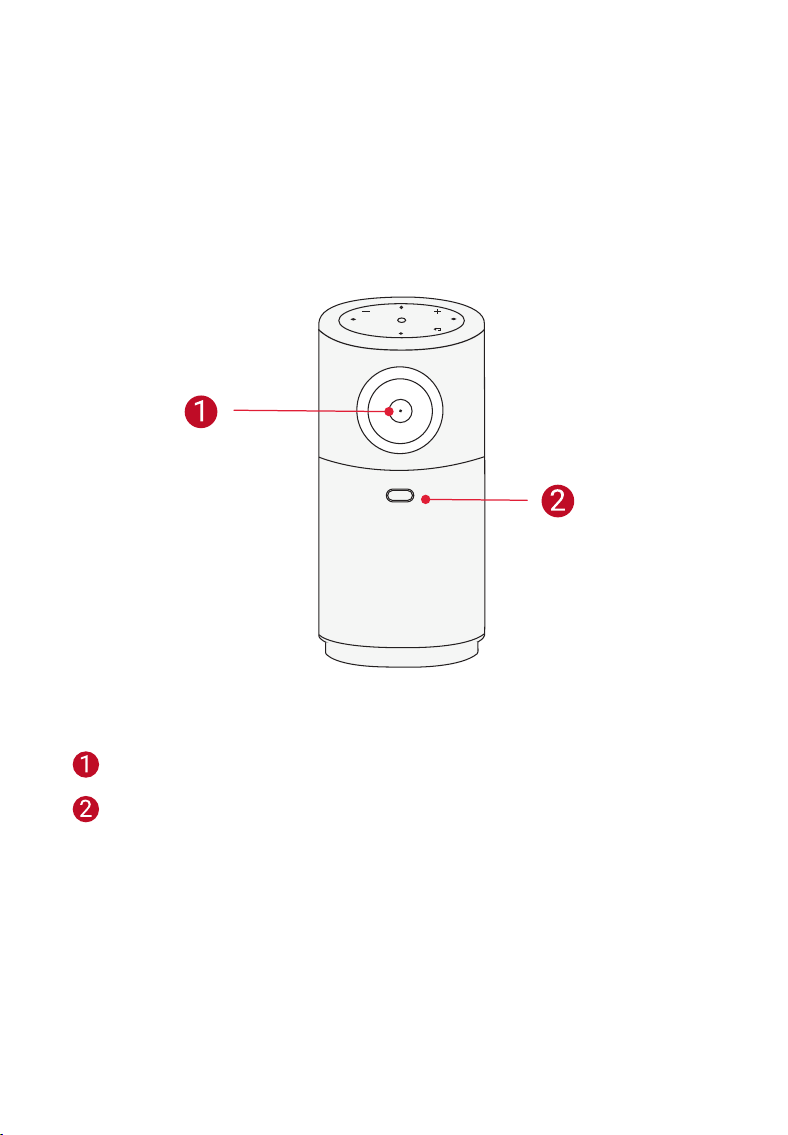
1. Projector
Front View
Lens
TOF for Auto Focus and Auto Keystone Correction
04
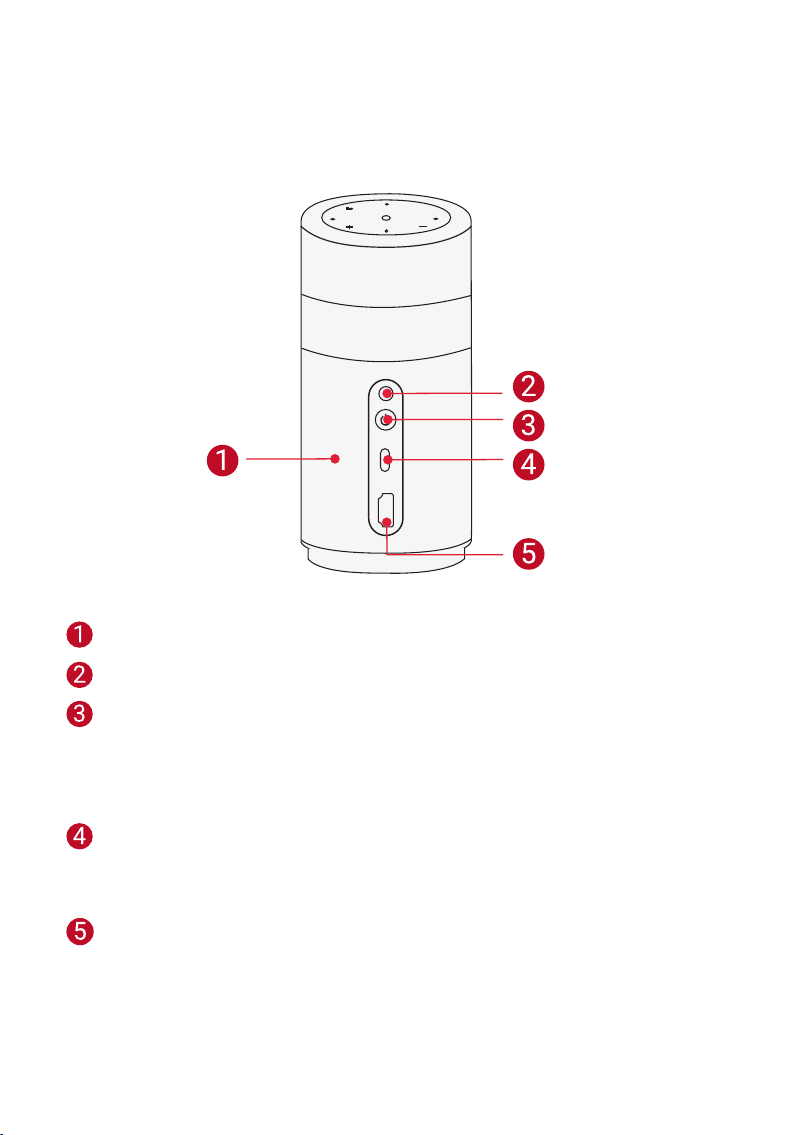
Rear View
Speaker
Infrared Receiver
Power Button
• Press and hold for 1.5 seconds to power on / off.
• Press to wake up the projector / enter standby mode in
projector mode.
USB-C Port
• Connect to a USB drive.
• Connect to a power source via a charging cable.
HDMI Port
• Connect to a playback device via HDMI output.
05
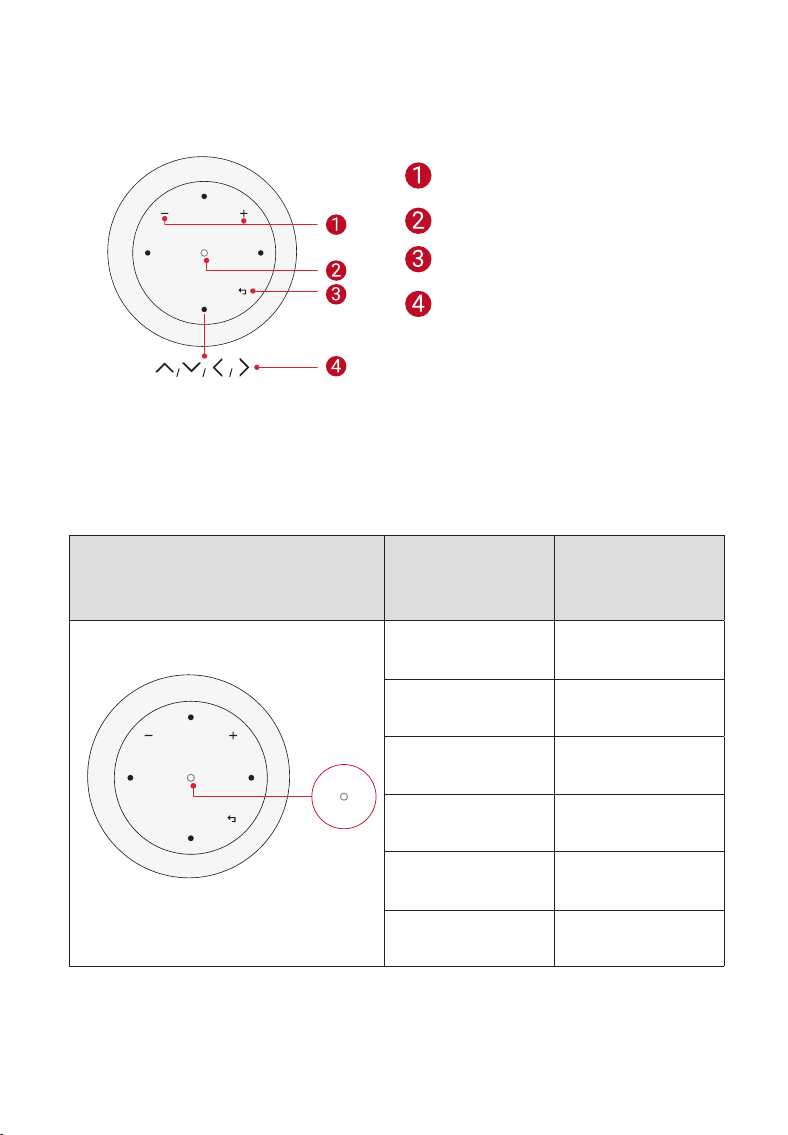
Top View
Volume Up / Down Buttons
Confirmation Button
Return Button
Navigation Buttons
LED Light Guide
Confirmation Button LED Status Description
Steady Blue Powered On
Light Off Powered Off
Flashing Red Low Battery
Steady Red Charging
Steady Green Fully Charged
Steady Orange Standby Mode
06
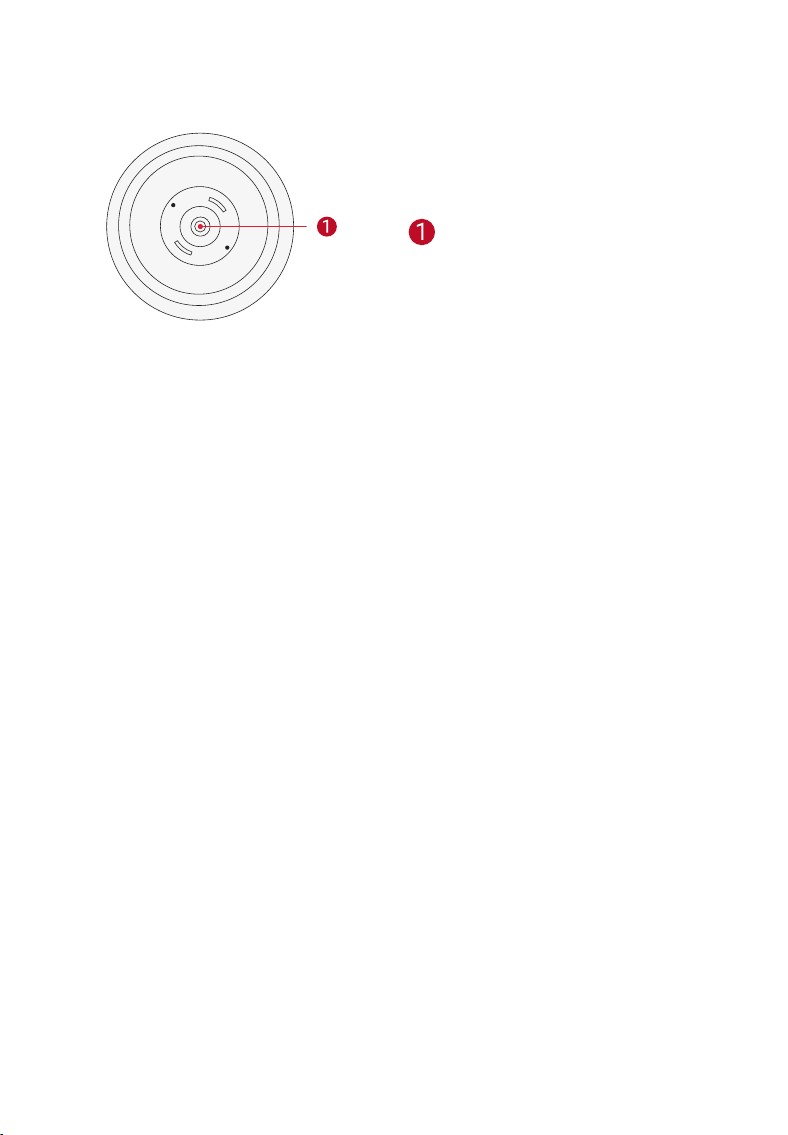
Bottom View
1/4" Tripod Socket
07
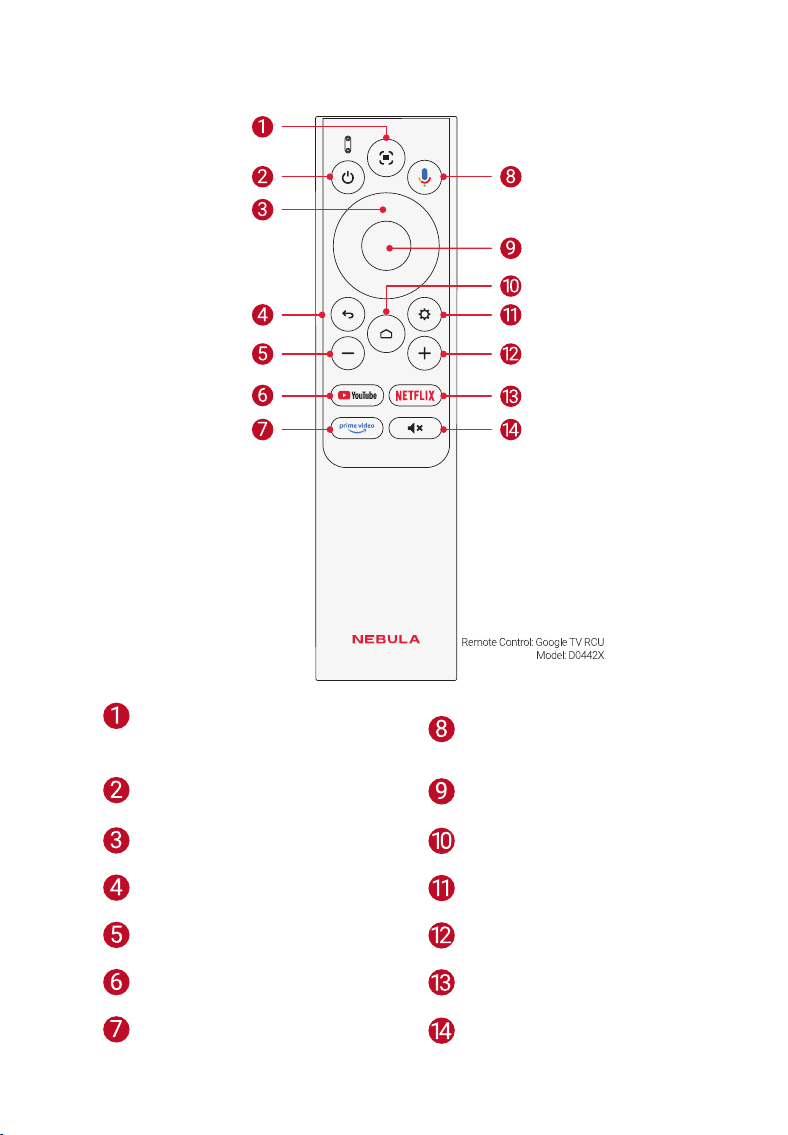
2. Remote Control
Auto image adjustment Activate the Google
Assistant (Only available
in Google TV mode)
Power on / off / switch
to standby mode
Confirm a selection /
pause / resume
Navigation Access the home menu
Return button Access more options
Volume down Volume up
Open YouTube Open Netflix
Open Prime Video Press to mute or unmute
the sound
08
Getting Started
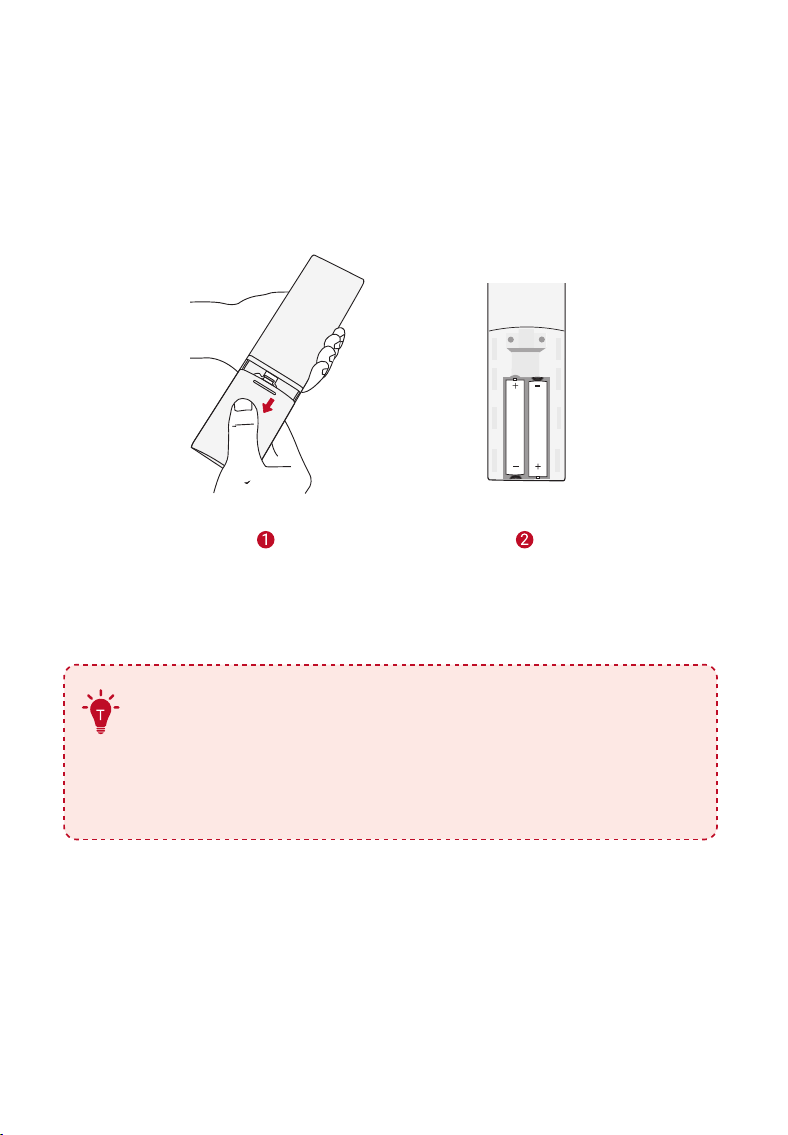
1. Prepare the Remote
①
Slide to open the battery compartment.
②
Insert new batteries matching the polarity (+/-) and close the battery
compartment.
③
For first-time use, follow the on-screen instructions to pair the
remote with your projector.
•
During the initial Bluetooth pairing process, ensure the
remote control is within 20 cm (8 inches) of the projector.
•
For regular use, maintain a distance of no more than 10
meters (33 feet) between the remote control and the
projector.
09
2. Position Your Projector
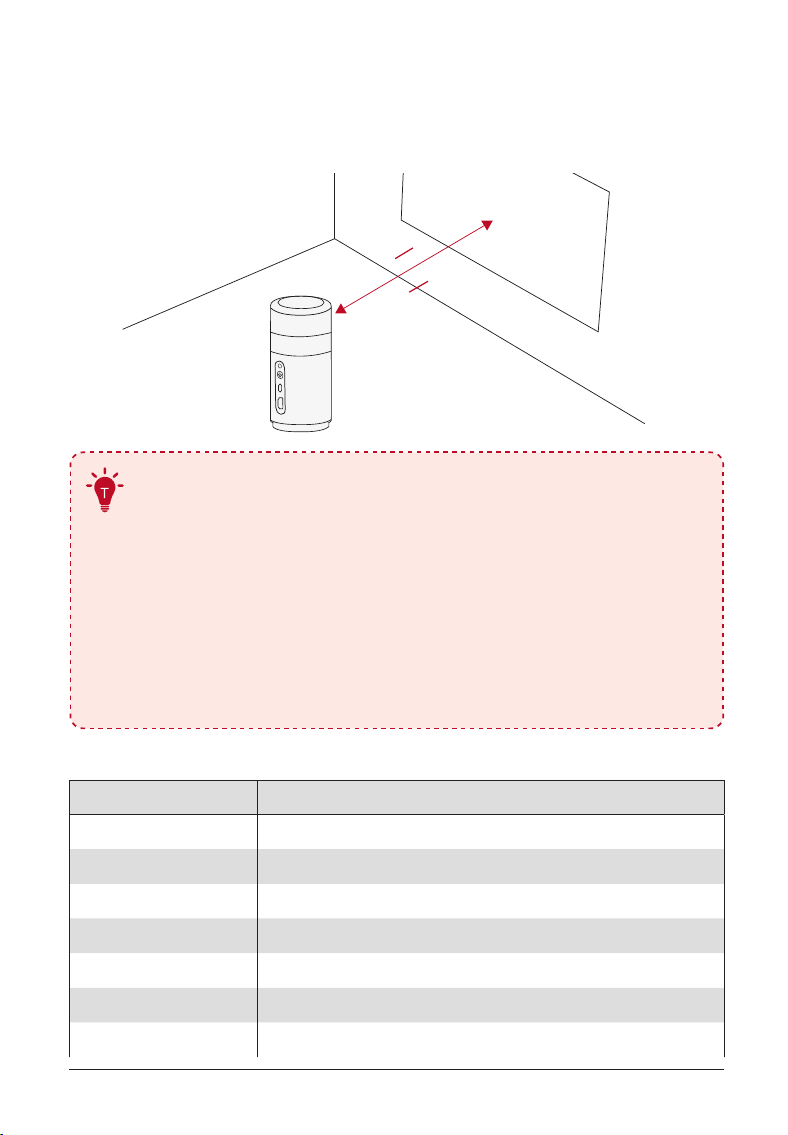
Place the projector on a stable, flat surface in front of the projection
surface. For the best results, the projection surface should be white and
flat.
0.5m 2.7m
1.64 8.86 ft
•
It is unnecessary to tilt the projector towards the
projection surface. You can correct the projection image
with the built-in autofocus and auto-keystone correction.
•
You may also install the projector onto a tripod (sold
separately).
•
The distance between the projector and the projection
surface determines the projection image size. For the best
result, position the projector 0.5 - 2.7 m / 1.64 - 8.86 ft
away from the projection surface to get a screen size of
40~120 inches.
Screen Size Distance Between Projector Lens and Screen
40 inches 1.06 m / 3.47 ft
50 inches 1.33 m / 4.36 ft
60 inches 1.60 m / 5.24 ft
70 inches 1.86 m / 6.10 ft
80 inches 2.13 m / 6.98 ft
90 inches 2.39 m / 7.84 ft
100 inches 2.65 m / 8.69 ft
10
3. Charge Your Projector
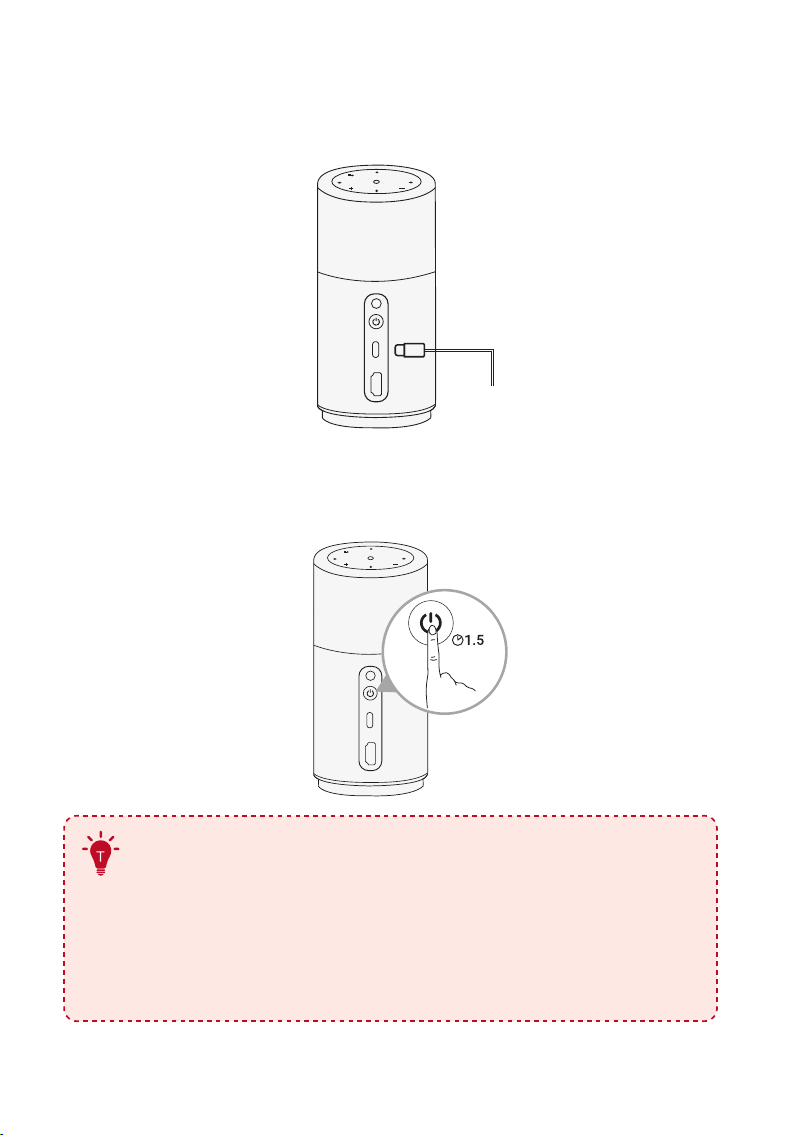
For first-time use, fully charge your projector using the provided adapter
and charging cable.
4. Power On / Off
Press and hold the projector power button for 1.5 seconds to power on / off.
S
•
When the projector is connected to an adapter, you can
use the remote control to power it on.
•
In HDMI Source Mode, the projector will switch to standby
mode after 10 minutes of button inactivity or when no
signal is detected.
•
When standby mode lasts for 30 minutes, the projector
will automatically power off.

11
5. Auto focus and Auto Keystone Correction
How to trigger auto focus:
a. Press the [Auto image adjustment] button on the remote control.
b. Auto-trigger upon powering on.
c. Auto-trigger after moving the projector.
How to perform manual focus:
Go to [Settings] > [Projector] > [Focus Settings] > [Manual Focus
Correction].
How to trigger Auto Keystone Correction:
After enabling Auto Keystone Correction in [Settings] > [Projector] >
[Image Correction] > [Auto Keystone Correction Settings], Auto Keystone
Correction will be triggered in the following scenarios:
a. Pressing the [Auto image adjustment] button on the remote control.
b. Auto-trigger upon powering on.
c. Auto-trigger after moving the projector.
How to perform manual keystone correction:
Go to [Settings] > [Projector] > [Image Correction] > [Perform Manual
Keystone Correction].
6. Setup
When using the projector for the first time, follow the on-screen display
(OSD) instructions to complete the basic setup.
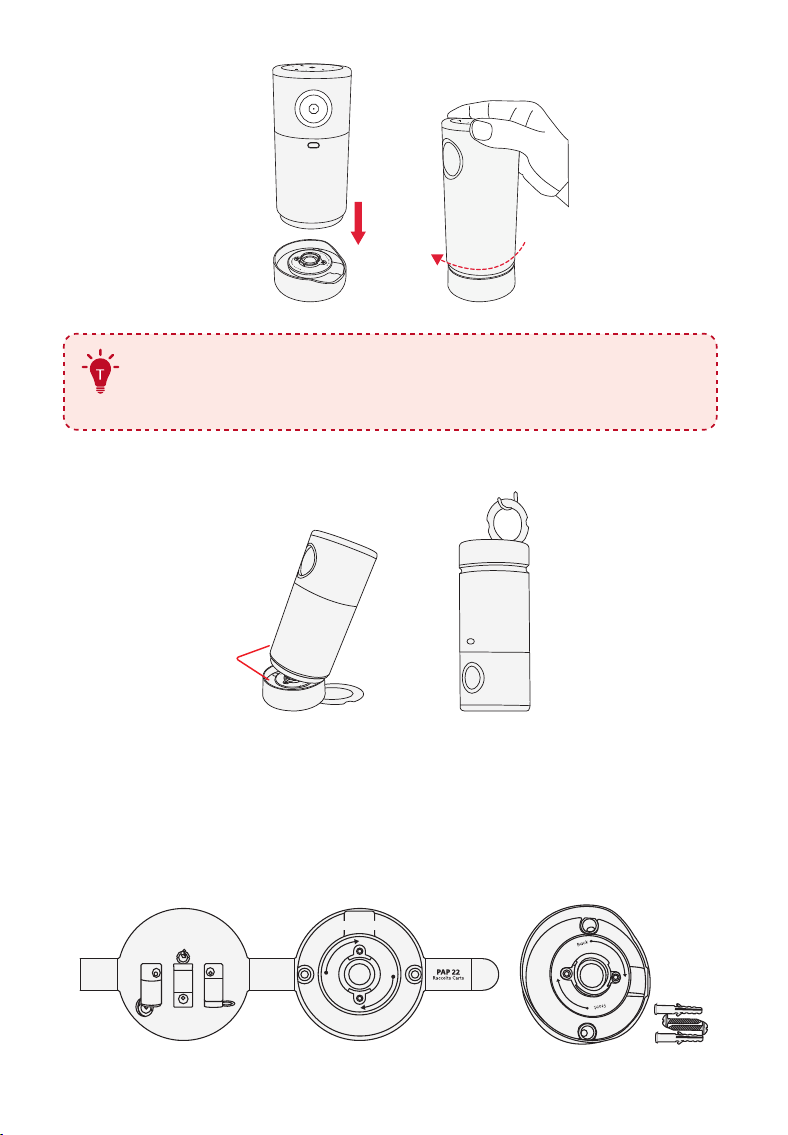
Use with the Snap-on Base
①
Firmly attach Nebula Capsule Air to the Snap-on Base by aligning
the projector's bottom with the base's inner circle and turning it
clockwise.
12
①
②
Front Back
•
You can choose to install the device with the Nebula logo
facing either the front or back side of the base, so as to
use the device in multiple angles and scenarios.
②
Now you're ready to enjoy your favorite content wherever you like.
Maximum
30°
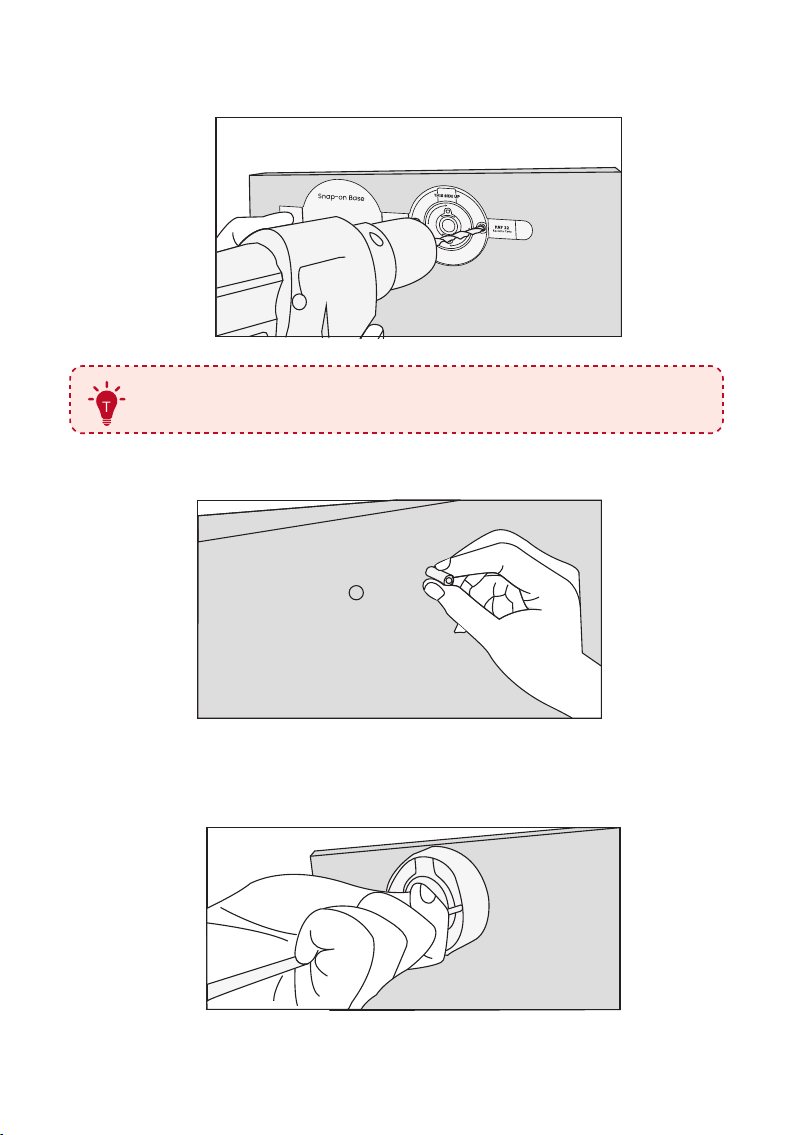
To Mount the Snap-on Base on the Wall:
①
Prepare the template paper, Snap-on Base, two screws and two
plastic anchors.
①
51006001294 V1
Snap-on Base
Back
Front
THIS SIDE UPTHIS SIDE UP
13
②
Fix the provided template paper on the wall, and drill two holes
according to the specified locations.
②
Back
Front
•
Please use a 6mm diameter drill bit.
③
Insert the plastic anchors into the drilled holes.
③
④
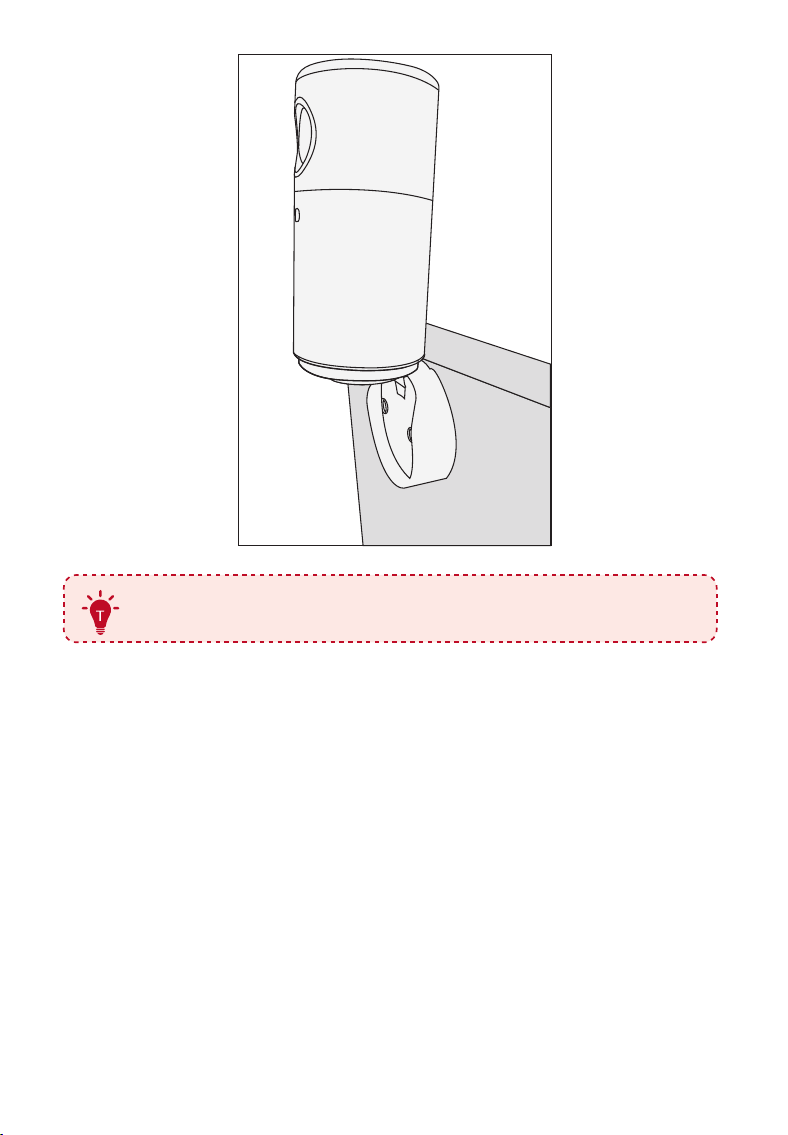
Secure the Snap-on Base to the wall using the provided screws, and
make sure it's firmly attached.
④
⑤
Now you can adjust the projecting angle as you like.
14
⑤
•
When mounted on the wall, the maximum tilt angle is 90°.
15
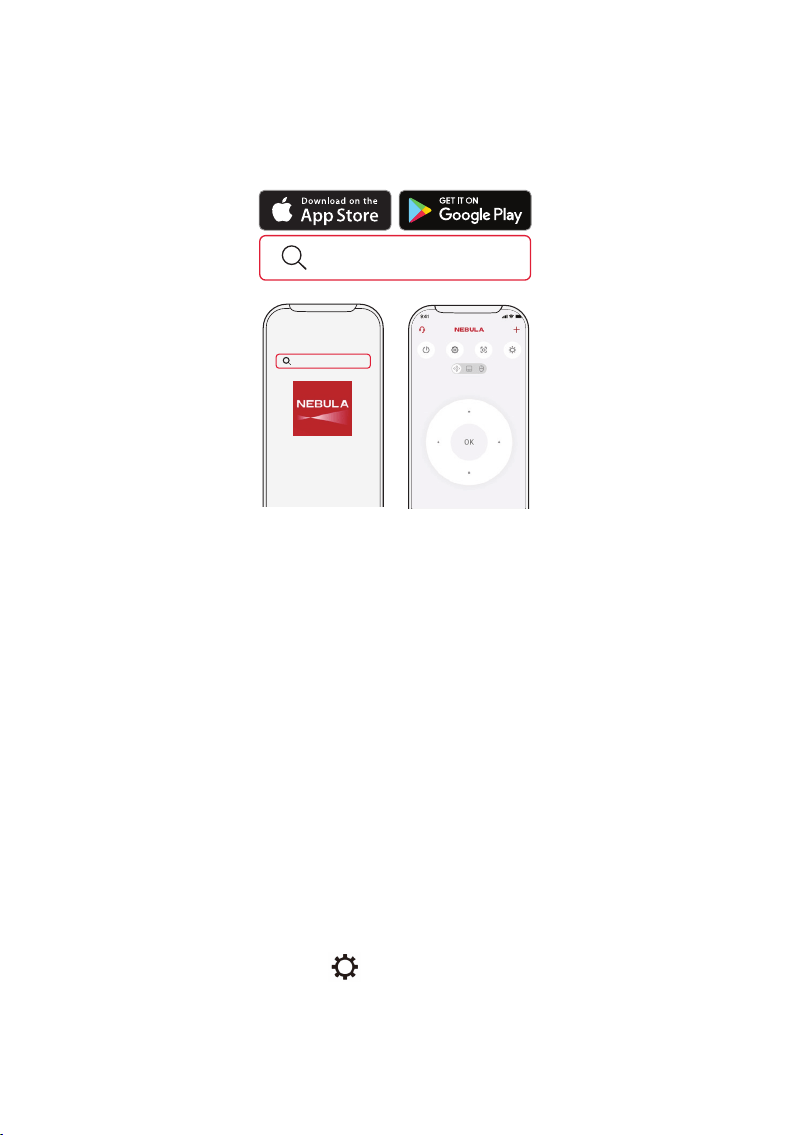
Nebula Connect App
To easily control the projector, we recommend you download the
Nebula Connect app.
Nebula Connect
Nebula Connect
①
Download the Nebula Connect app from the App Store (iOS devices)
or Google Play (Android devices).
②
Enable Bluetooth on your smartphone.
③
Open the Nebula Connect app and select [Capsule Air] as the device
to be connected.
④
Follow the on-screen instructions to complete connection setup.
Settings
Go through the setup process when you power on the projector for the
first time.
1. Network
This projector can be connected to the Internet via a wireless (Wi-Fi)
connection.
①
On the home page, select > [Network & Internet] and press
confirm.
②
Follow the on-screen instructions to complete the network
connection.
16
2. Projector
On the home page, select > [Projector] and press confirm.
[Image
Correction]
Auto Keystone Correction Settings
[Auto Keystone Correction By Remote]: Enable or disable
auto keystone correction by remote.
[Auto Keystone Correction At Startup]: Automatically
perform keystone correction when the projector powers on.
[Auto Keystone Correction After Movement]: Automatically
perform keystone correction when you move the projector.
[Real Time Keystone Correction]: During the movement of
the device, it continuously and quickly performs keystone
correction to transform the image into a rectangular shape.
[Perform Manual Keystone Correction]: Manually perform
keystone correction by adjusting each corner.
[One-click Image Correction]: Automatically adjust the image
size to your surface.
[Zoom]: Zoom in or out of the projection image from 50% to
100%.
[Focus
Settings]
[Manual Focus Correction]: Enable manual focus correction.
[Auto Focus When Image is Blurry]: Enable to perform auto
focus when the image is blurry.

17
[Advanced
Settings]
[Projection Mode]: Select a way of placing the projector.
• [Auto]: Automatically detects whether the projector is
inverted. Automatically switch between these options.
• [Front]: The device is located in front of the projection
surface.
• [Front Ceiling]: The device is hanging from the ceiling
in an upside-down position. The image is rotated by
180 degrees.
• [Rear]: The device is located behind the projection
surface.
• [Rear Ceiling]: The device is hanging from the ceiling
in an upside-down position behind the projection
surface. The image is rotated by 180 degrees and
horizontally mirrored.
[Motion Settings]: Set a sensitivity level for the G-sensor
to trigger auto focus and auto keystone correction after
movement.
[Smart Solutions]:Receive alerts when issues are detected.
• [Projection Issue Alerts]:
Receive alerts when issues
are detected.
• [
Fine Tuning Popup]:
Receive a popup after Auto
Gridless Keystone Correction.
• [Nebula Smart Popup]:
Receive prompts when the
projector status changes.

18
[Display &
Sound]
Picture
[Brightness]: Adjust the brightness of the projector display.
[Picture Mode]: The projector is preset with several
predefined picture modes so that you can choose one to
suit your environment and input source.
• [Standard]: Keeps natural looking colors with a
balance of warm and cool tones.
• [Movie]: Provides the best colors for watching movies.
• [Conference]: Increases the brightness but affects the
color reproduction.
• [Custom]: Manually set the contrast, saturation,
sharpness, color temperature, and gamma, or reset
the values.
[Advanced Settings]:
Customize advanced settings to
enhance image quality.
• [Color Temperature]:
Switch between different color
temperatures.
• [Gamma]:
Select different Gamma options (Dark,
Medium, Bright)

19
Sound
[Movie]: Creates a surround-sound listening experience
for watching movies.
[Music]: Enhances the treble for listening to music.
[Outdoors]: Increases volume for playing audio / video
outdoors.
[Custom]: Manually set audio settings such as balance,
bass, and treble.
[Turn on the Bluetooth Speaker Mode]: Enable to use
the projector as a Bluetooth speaker.
[Speaker Delay]: To synchronize the sound with the
image, adjust the sound delay by 10 milliseconds for
each operation.
[Expert Settings]: Customize advanced settings to
enhance audio quality.
• [DNR]:
Reduces digital noise on screen.
• [MPEG NR]:
Eliminates image noise when playing an
MPEG-compressed video.
• [DI Film Mode]:
Creates high-definition images
encoded at 24 frames/second.
Audio Output
[Auto]: Automatically select the best audio output
mode.
[Bypass]: Pass the digital audio signal through without
processing it, allowing the connected device to decode
the audio.
[PCM]: Output audio in PCM format.
[Dolby Digital Plus]: Output audio in the Dolby Digital
Plus format.
[Dolby Digital]: Output audio in the Dolby Digital format.
[Digital Output Delay]: Adjust the delay of the digital
audio output to synchronize the sound with the video.
20
3. Apps
①
On the home page, select > [Apps],and press confirm.
②
Select an app to check its current version, open or force stop it,
review the storage it uses, clear its data or cache, uninstall it, or enable/
disable its notifications and permissions.
4. System
On the home page, select > System and press confirm.
[Acessibility]
Change the caption settings or enable accessibility
service.
[About]
Check the product information, update the system,
reset the device, or rename the device.
[Date & Time]
Enable or disable automatic date and time. Manually
set date and time, select time zone, or set time
format.
[Language] Select an on-screen display language.
[Keyboard]
Check and manage keyboards.
[Storage]
Check the device storage.
[Ambient Mode]
Set your preferences to diaplay photos, weather,
and time on your Google TV.
[Power & Energy]
Change the auto-sleep settings, turn off the current
display, or set auto power-off time when no signal is
available.
[Cast]
Choose to show notifications on all Android devices
connected to your Wi-Fi and let them control media
casting to this device.
[System Sounds]
Turn on/off system sound notifications.
[Restart]
Restart the system.
21
5. Others
On the home page, select to find more setting options.
[Accounts & Sign-in] Sign in to make the most of Google TV.
[Remotes & Accessories]
Search for accessories (such as Bluetooth
speakers, remote control, etc.) for pairing.
Using Your Projector
1. Select an App
Once connected to a wireless network, you can access online services,
enjoy movies, music and pictures, and browse online. You can
download more apps from Google Play.
①
Press to access the home page.
②
Select [Apps] > [Search for apps and games].
2. Voice A ssistant
After pairing your remote control with the projector via Bluetooth,
press the Google Assistant button on the remote, you can speak to the
Google Assistant and request your commands.
3. Wireless Casting
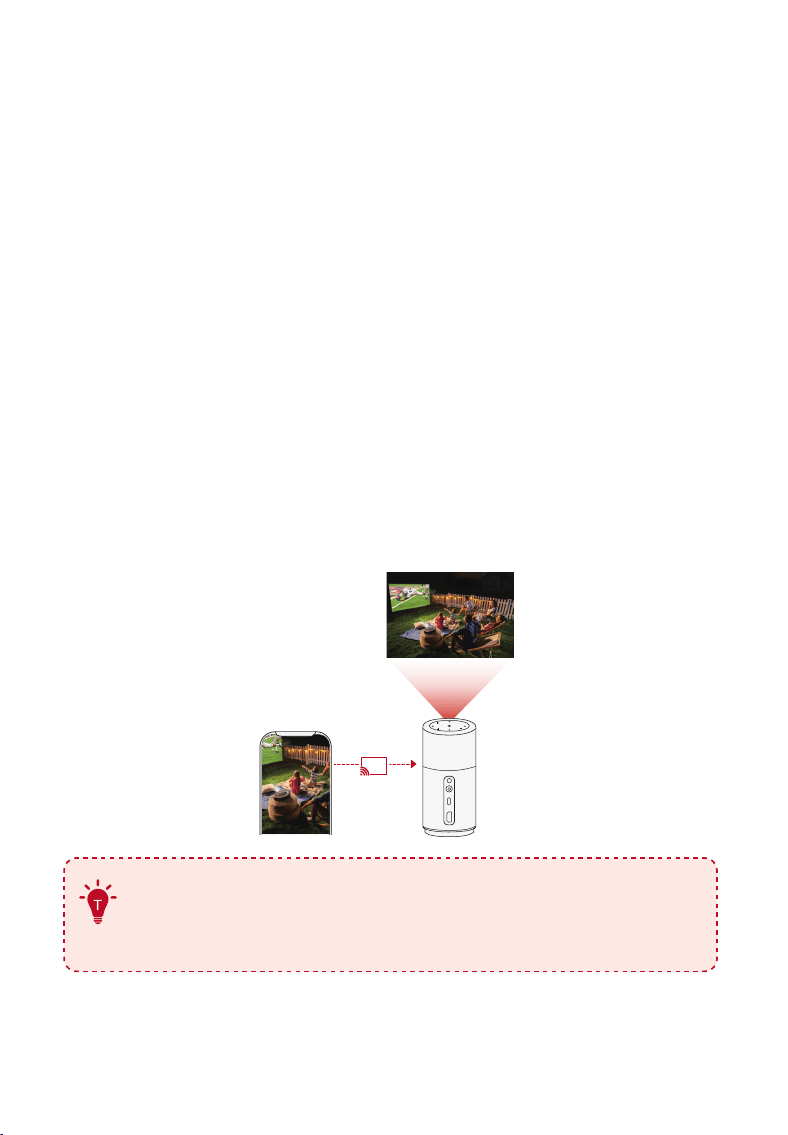
You can wirelessly cast movies, games, music, and entire screen from
your iOS, macOS, Android, or Windows device to Nebula Capsule Air.
Make sure Nebula Capsule Air and your device are
connected to the same wireless network. The network can
be a WiFi network or your phone's hotspot.
22
3.1 Cast In-App Content
You can cast content from apps that support Chromecast, such as
YouTube and Prime Video.
For iOS Devices:
1. Ensure both the projector and your iOS device are connected to the
same Wi-Fi network.
2. On the projector, install and open the Nebula Cast App from Google
Play.
3. Open the Control Center on your iPhone, tap on Screen Mirroring, find
"Nebula Capsule Air" in the device list, and tap to connect.
For Android Devices:
1. Ensure both the projector and your Android device are connected to
the same WiFi network.
2. Install and open the Google Home App on your device.
3. Add a new device, find "Capsule Air" and connect.
4. Select the connected Nebula device, then tap "Cast my screen".
Certain content cannot be cast on Nebula Capsule Air due
to copyright restrictions. You can stream the content via the
same app installed on your projector.
23
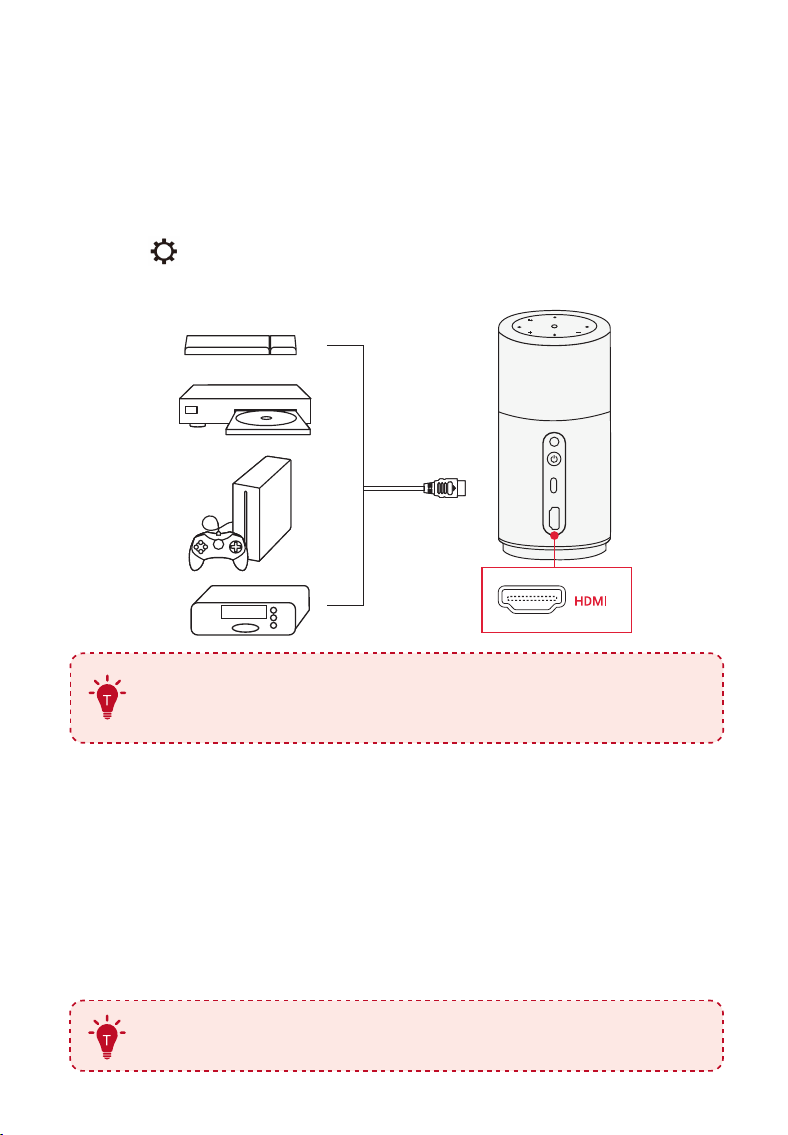
4. Play from HDMI Playback / USB Devices
The projector can be connected to various HDMI playback devices such
as a TV box, TV stick, DVD player, set-top box (STB), gaming console, or
other devices.
①
Connect the projector to an HDMI playback device with an HDMI
cable (not provided).
②
Press to access the settings menu, then select [Dashboard] >
[Inputs] > [HDMI].
(not included)
The projector will automatically start HDMI playback once
connected to an HDMI playback device for the first time.
To play from a USB drive:
Since the projector has only one USB-C port, you will need to use a hub
to charge the device and read a USB drive simultaneously.
Instructions:
1. Connect the hub to the projector's USB-C port.
2. Plug the charger into the hub's charging port.
3. Insert the USB drive into the hub's USB port.
Ensure all connections are stable during use.

24
5. Bluetooth Speaker Mode
You can use this projector as a standalone Bluetooth speaker.
①
Go to [Settings] > [Display & Sound] > [Sound] > [Turn on the
Bluetooth Speaker Mode] to switch your Nebula projector from
Projector Mode to Bluetooth Speaker Mode.
②
Go to Bluetooth settings on your phone to pair with your Nebula
projector.
To exit Bluetooth Speaker Mode, press the return button on
the remote control.
6. Connect the Projector to an External Bluetooth
Speaker
1. Turn on your Bluetooth speaker and set it to pairing mode (refer to
your speaker's manual for specific instructions as the process may
vary).
2. Go to [Settings] > [Remotes & Accessories] in the project's settings.
Find your Bluetooth speaker's name and select it to pair.
3. Once paired successfully, the projector's audio will be output through
the external Bluetooth speaker.
Other Bluetooth accessories can also be connected to the projector via
the above-mentioned process.
25
System Update
To fully enhance your experience with this product with the latest
features, you are recommended to update the system from time to
time.
To update the system, go to [Settings] > [System] > [About] > [System
update].
Specifications
Specifications are subject to change without notice.
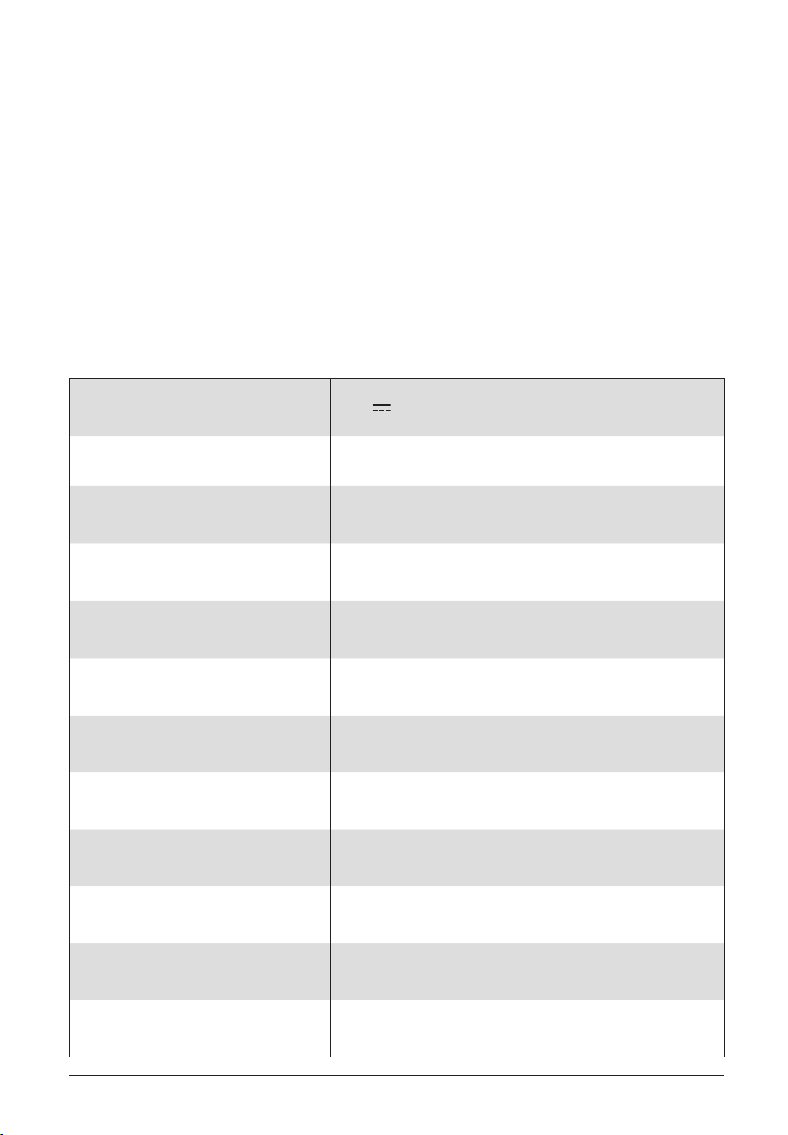
Input
20V 2.25A
Power Consumption
< 37W
Standby Power
Consumption
< 0.5W
Resolution
1280x720
Compatible Resolutions
480p (60 Hz), 576p (50 Hz), 720p(30 Hz),
720p (50 Hz), 720p (60 Hz)
Contrast Ratio
400:1
Aspect Ratio
16:9
Screen Size
10" to 100"
Throw Ratio
1:2
Throw Distance
0.3m~2.7m/0.98~8.86 ft
Light Source
0.3m~2.7m/0.98~8.86 ft
Focus
Auto

26
Keystone Correction
Auto
Speaker Output Power
5W
Noise
<28dB
Wi-Fi
WiFi5 802.11a/b/g/n/ac ,Dual Frequency
2.4/5GHz
Bluetooth Version
5.1
Bluetooth Range
25 m / 82 ft
USB Format
FAT, FAT32
Operating Temperature
For Europe and UK, 0°C to 25°C
For other countries and regions, 0°C to
35°C / 32°F to 95°F
Remote Control Batteries
AAA x 2

27
Troubleshooting
①
Fails to Power On
• The projector may be out of power. Charge the projector for 15-30
minutes and see if the power button light turns on.
②
Cannot Charge
• Use the included adapter and charging cable to charge the
projector.
• Try a different adapter (at least 45W) and USB-C charging cable.
③
Cannot Connect to a Wi-Fi Network
• Place your projector within 16 ft / 5 m of the router and reconnect.
• Set your router to 2.4 GHz or 5 GHz and retry.
• Restart your projector and router and retry.
• Try a different Wi-Fi network or your phone's hotspot.
④
Blurry Image
• Slightly move the projector or press on the remote to start
autofocus.
• To manually adjust the focus, go to [Settings] > [Projector] > [Focus
Settings] > [Manual Focus Correction],and use left and right on
the remote.
• Adjust the projection angle and direction as well as the height of
the projector if necessary.
⑤
Distorted Image
• Update the firmware to the latest version via [Settings] > [System]
> [About] > [System update].
• Go to [Settings] > [Projector] > [Image Correction] > [Perform
Manual Keystone Correction].
• Move the projector left or right, or alter the tilt if necessary.
⑥
No HDMI Signal
• Use a different HDMI cable.
• Connect your projector with another HDMI playback device.
• Connect the HDMI playback device to your TV via HDMI cable to
28
check if the device or cable malfunctions.
• Adjust the HDMI playback device's output resolution / frequency to
be the same as the projector's.
⑦
How to Play Videos without Wi-Fi
• Download videos to a USB drive in FAT32 format. For the following
steps, see Play from a USB Drive.
Trademarks
The Bluetooth® word mark and logos are registered trademarks
owned by the Bluetooth SIG, Inc. and any use of such marks by Anker
Innovations Limited is under license. Other trademarks and trade
names are those of their respective owners.
HDMI, and HDMI logo and High-Definition Multimedia Interface are
trademarks or registered trademarks of HDMI licensing LLC in the
United States and other countries.
Manufactured under license from Dolby Laboratories. Dolby, Dolby
Audio and the double-D symbol are trademarks of Dolby Laboratories
Licensing Corporation.
Default Open Ports: Wi-Fi (2.4 GHz / 5 GHz)
Port Description:
1. Upon initial power-on or after a reset, if no Wi-Fi information has
been configured, the device will begin scanning for available SSIDs.
2. In normal operating mode, the device will automatically connect to
the previously saved router SSID and password.
3. To change the Wi-Fi configuration, you can go to Settings > WiFi,
or follow the instructions in the manual to reset and reconfigure the
network connection.