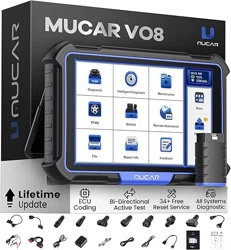

MUCAR VO8

I
FCC Requirement
Changes or modications not expressly approved by the party responsible for compliance
could void the user’ s authority to operate the equipment.
This device complies with Part 15 of the FCC Rules. Operation is subject to the following two
conditions:
(1) this device may not cause harmful interference, and
(2) this device must accept any interference received, including interference that may cause
undesired operation.
Note: This equipment has been tested and found to comply with the limits for a Class B
digital device, pursuant to Part 15 of the FCC Rules. These limits are designed to provide
reasonable protection against harmful interference in a residential installation. This equipment
generates, uses, and can radiate radio frequency energy, and if not installed and used in
accordance with the instructions, may cause harmful interference to radio communications.
However, there is no guarantee that interference will not occur in a particular installation. If
this equipment does cause harmful interference to radio or television reception, which can be
determined by turning the equipment o and on, the user is encouraged to try to correct the
interference by one or more of the following measures:
– Reorient or relocate the receiving antenna.
– Increase the separation between the equipment and receiver.
– Connect the equipment into an outlet on a circuit dierent from that to which the receiver is
connected.
– Consult the dealer or an experienced radio/TV technician for help.
FCC WARNING
This equipment complies with FCC radiation exposure limits set forth for an uncontrolled
environment.
End user must follow the specic operating instructions for satisfying RF exposure
compliance. This transmitter must not be co-located or operating in conjunction with any
other antenna or transmitter
.
The mobile device is designed to meet the requirements for exposure to radio waves
established by the Federal Communications Commission (USA). These requirements set a
SAR limit of 1.6 W/kg averaged over one gram of tissue. The highest SAR value reported
under this standard during product certification for use when properly worn on the body is
0.584W/kg.
For body operation, this device has been tested and meets FCC RF exposure guidelines
when used with any accessory that contains no metal and that positions a minimum of 0mm
from the body. Use of other accessories may not ensure compliance with FCC RF exposure
guidelines.

II
IC Requirement
This device complies with Industry Canada’s licence-exempt RSSs. Operation is subject to
the following two conditions:
(1) This device may not cause interference; and
(2) This device must accept any interference, including interference that may cause
undesired operation of the device.
The term “IC: “before the certication/registration number only signies that the Industry
Canada technical specications were met. This product meets the applicable Industry
Canada technical specications.
Cet appareil contient des émetteurs / récepteurs exemptés de licence conformes aux RSS
(RSS) d'Innovation, Sciences et Développement économique Canada. L'exploitation est
autorisée aux deux conditions suivantes : (1) l'appareil ne doit pas produire de brouillage,
et (2) l'utilisateur de l'appareil doit accepter tout brouillage radioélectrique subi, même si le
brouillage est susceptible d'en compromettre le fonctionnement.
IC WARNING
This equipment complies with ISED radiation exposure limits set forth for an uncontrolled
environment.
End user must follow the specic operating instructions for satisfying RF exposure
compliance. This transmitter must not be co-located or operating in conjunction with any
other antenna or transmitter
.
The mobile device is designed to meet the requirements for exposure to radio waves
established by the Innovation, Science and Economic Development Canada (Canada).
These requirements set a SAR limit of 1.6 W/kg averaged over one gram of tissue. The
highest SAR value reported under this standard during product certification for use when
properly worn on the body is 0.584W/kg.
For body operation, this device has been tested and meets ISED RF exposure guidelines
when used with any accessory that contains no metal and that positions a minimum of 0mm
from the body. Use of other accessories may not ensure compliance with ISED RF exposure
guidelines. Cet équipement est conforme aux limites d'exposition aux rayonnements ISED
établies pour un environnement non contrôlé. L'utilisateur nal doit suivre les instructions
d'utilisation spéciques pour satisfaire la conformité d'exposition RF. Cet émetteur ne doit
pas être co-localisé ou fonctionner en conjonction avec une autre antenne ou un autre
émetteur. L'appareil mobile est conçu pour répondre aux exigences d'exposition aux ondes
radio établies par Innovation, Sciences et Développement économique Canada (Canada).
Ces exigences xent une limite DAS de 1,6 W/kg en moyenne sur un gramme de tissu. La
valeur SAR la plus élevée signalée dans le cadre de cette norme lors de la certifi cation du
produit à utiliser lorsqu'il est correctement porté sur le corps est de 0,584W/kg.
Pour le fonctionnement du corps, cet appareil a été testé et répond aux directives d'exposition
RF ISED lorsqu'il est utilisé avec tout accessoire qui ne contient pas de métal et qui se
positionne à au moins 0 mm du corps. L'utilisation d'autres accessoires peut ne pas garantir
la conformité aux directives d'exposition RF ISED.

III
Safety Precautions and Warnings
To avoid personal injury, property loss, or accidental damage to the product, read all of the
information in this section before using the product.
Handle equipment carefully
Do not drop, bend, or puncture the tool, or insert extra objects into or place heavy objects on
the device. The vulnerable components inside may be damaged.
Do not disassemble or modify the equipment
The device is a sealed device with no user-serviceable parts inside. All internal repairs must
be performed by an authorized maintenance organization or qualied technician. Attempts to
disassemble or modify the device will void the warranty.
Do not try to replace the internal battery
The internal rechargeable lithium battery must be replaced by an authorized maintenance
organization or qualied technician. Contact the dealer for factory replacement.
Adapter information
Avoid immersing the device in water or placing it in a location where it may absorb moisture
or other liquids.
During normal use, the charging device may become hot. Please ensure that there is good
ventilation while charging device.
If any of the following situation occurs, please unplug the charging device:
• The charging device is exposed to rain, liquid or in an environment with excessive overlap.
• The charging device showed physical damage.
• Cleaning the charging device.
Data and Software Protection
Do not delete unknown les or change the names of les or directories created by others,
otherwise the device software may not run.
Note: Access to network resources makes the device vulnerable to computer viruses, hackers,
spyware, and other malicious behaviors, and may damage the device, software, or data. To make
ensure that you are using rewalls, anti-virus software and anti-spyware software to provide
adequate protection for your computer and keep these softwares up to date.

IV
Precautions on Using this tool
• To make sure the ignition switch should be in the OFF position when plugging and
unplugging the diagnostic connector.
• Keep the connector in the storage box on the back of the main unit, when the vehicle
diagnosis is nished.
• Gently press the diagnostic connector to pop up the diagnostic connector. Do not pull or
use sharp objects to pry the diagnostic connector.
Precautions on Operating Vehicle’s ECU
• Do not disconnect battery or any wiring cables in the vehicle when the ignition switch is on,
as this could avoid damage to the sensors or the ECU.
• Do not place any magnetic objects near the ECU. Disconnect the power supply to the ECU
before performing any welding operations on the vehicle.
• Use extreme caution when performing any operations near the ECU or sensors. Ground
yourself when you disassemble PROM, otherwise ECU and sensors can be damaged by
static electricity.
• When reconnecting the ECU harness connector, be sure it is attached rmly, otherwise
electronic elements, such as ICs inside the ECU, can be damaged.

V
Contents
1. Quick Start Manual ............................................................................................ 1
1.1 Initial Use ........................................................................................................................... 1
1.1.1 Turn on the Machine ................................................................................................ 1
1.1.2 Language Setting .................................................................................................... 2
1.1.3 Connect Wi-Fi ......................................................................................................... 2
1.1.4 Choose Time Zone .................................................................................................. 2
1.1.5 User Agreement ...................................................................................................... 3
1.1.6 Bind the Dongle ........................................................................................................ 3
1.2 Diagnosis Flowchart .......................................................................................................... 4
1.3 Function Menu .................................................................................................................. 4
1.4 Charging ............................................................................................................................ 5
1.5 Battery ............................................................................................................................... 5
1.6 VCI Connections ............................................................................................................... 6
1.7 Scope Box / Video Scope / Printer Installation .................................................................. 9
1.8 Wireless TPMS / Battery Tester Installation (Bluetooth). ................................................ 10
2. Introduction .....................................................................................................10
2.1 Product Prole ................................................................................................................ 10
2.2 Components & Controls .................................................................................................. 10
2.3 Parameters ...................................................................................................................... 12
3. Begin to Use ....................................................................................................12
3.1 Intelligent Diagnosis ....................................................................................................... 12
3.2 Diagnosis ........................................................................................................................ 13
3.2.1 Manual Diagnosis .................................................................................................. 13
3.2.2 Health Report ........................................................................................................ 14
3.2.3 System Scan ......................................................................................................... 15
3.2.4 System Selection .................................................................................................. 16
3.3 Maintenance ................................................................................................................... 21
3.3.1 Oil Reset ............................................................................................................... 21
3.3.2 Elec. Throttle Adaption .......................................................................................... 21
3.3.3 Steering Angle Reset ............................................................................................ 21
3.3.4 Battery Matching ................................................................................................... 22
3.3.5 ABS Bleeding ........................................................................................................ 22
3.3.6 Brake-pad Reset ................................................................................................... 22
3.3.7 DPF Regeneration ................................................................................................ 22
3.3.8 Gear Learning ....................................................................................................... 22
3.3.9 IMMO Service ....................................................................................................... 23
3.3.10 Injector Coding .................................................................................................... 23
3.3.11 TPMS Reset ........................................................................................................ 23
3.3.12 Suspension Matching .......................................................................................... 23
3.3.13 AFS Reset ........................................................................................................... 23
3.3.14 A/T Learning ........................................................................................................ 23
3.3.15 Sunroof Initialization ............................................................................................ 24
3.3.16 EGR Adaption ..................................................................................................... 24
3.3.17 ODO Reset .......................................................................................................... 24
3.3.18 Airbag Reset ........................................................................................................ 24
3.3.19 Transport Mode ................................................................................................... 24
3.3.20 A/F Reset ............................................................................................................ 24

VI
3.3.21 Stop/Start Reset .................................................................................................. 24
3.3.22 NOx Sensor Reset .............................................................................................. 25
3.3.23 AdBlue Reset (Diesel Engine Exhaust Gas Filter) .............................................. 25
3.3.24 Seat Calibration ................................................................................................... 25
3.3.25 Coolant Bleeding ................................................................................................. 25
3.3.26 Tyre Reset ........................................................................................................... 25
3.3.27 Windows Calibration ........................................................................................... 25
3.3.28 Language Change ............................................................................................... 25
3.4 TPMS Diagnosis ............................................................................................................. 25
3.5 Coverage list.................................................................................................................... 27
3.6 Module ............................................................................................................................ 27
3.7 Remote Assistance .......................................................................................................... 29
3.8 Store ................................................................................................................................ 29
3.9 File ................................................................................................................................... 29
3.10 Repair Info .................................................................................................................... 30
3.10.1 OBD Fault Code Library ...................................................................................... 30
3.10.2 Learning materials ............................................................................................... 30
3.10.3 User Manual ........................................................................................................ 30
3.11 Update .......................................................................................................................... 31
3.12 Feedback ...................................................................................................................... 32
4. User Info ........................................................................................................... 33
4.1 VCI .................................................................................................................................. 33
4.2 Fix VCI rmware/system ................................................................................................. 33
4.3 Data Stream Sample ...................................................................................................... 34
4.4 My Order ......................................................................................................................... 34
4.5 Prole ............................................................................................................................. 34
4.6 Wi-Fi ............................................................................................................................... 34
4.7 Diagnostic Software Clear .............................................................................................. 34
4.8 Business Information ...................................................................................................... 34
4.9 Customer Management .................................................................................................. 34
4.10 Photo Album ................................................................................................................. 35
4.11 Screen Recorder ........................................................................................................... 35
4.12 Clear VCI Data .............................................................................................................. 35
4.13 Settings ......................................................................................................................... 35
4.16.1 Check for Updates .............................................................................................. 35
4.16.2 Sleep Time .......................................................................................................... 35
4.16.3 Privacy Policy ...................................................................................................... 35
4.16.4 System Upgrade ................................................................................................. 36
4.16.5 Units .................................................................................................................... 36
4.16.6 T-Code ................................................................................................................ 36
4.16.7 Clear Cache ........................................................................................................ 36
4.16.8 Mode Switch ........................................................................................................ 36
4.16.9 Restore Factory Settings ..................................................................................... 37
4.17 Hotkey Setting ........................................................................................................ 37
4.17.1 Customer Service ................................................................................................. 37
5. FAQ ..................................................................................................................38

1
NOTICE:
Before activating the dongle bound to the device for ocial use, the device is given a
few chances to try it out.
1. Quick Start Manual
1.1 Initial Use
The following settings should be made when you initially use the device.
1.1.1 Turn on the Machine
After pressing the power button, images will be shown on the screen as follows.

2
1.1.2 Language Setting
Select the target language from the languages displayed on the interface.
1.1.3 Connect Wi-Fi
The system will automatically search all available Wi-Fi networks. Please connect to the
trusted Wi-Fi.
Tips: Wi-Fi must be set. If there is no Wi-Fi network is available nearby, you can try "Portable
Mobile Hotspot".
1.1.4 Choose Time Zone
Choose the time zone of the current location, then the system will automatically congure the
time.

3
1.1.5 User Agreement
Please read all the terms and conditions of the user agreement carefully. Choose “Agree all
the above terms”, and tap “Next” to complete the registration process.
Then the page will jump to the “Congratulations on your successful registration” interface.
1.1.6 Bind the Dongle
Tap “Activate” to bind the Dongle to start formally use. You can nd the serial number in the
Dongle.
4
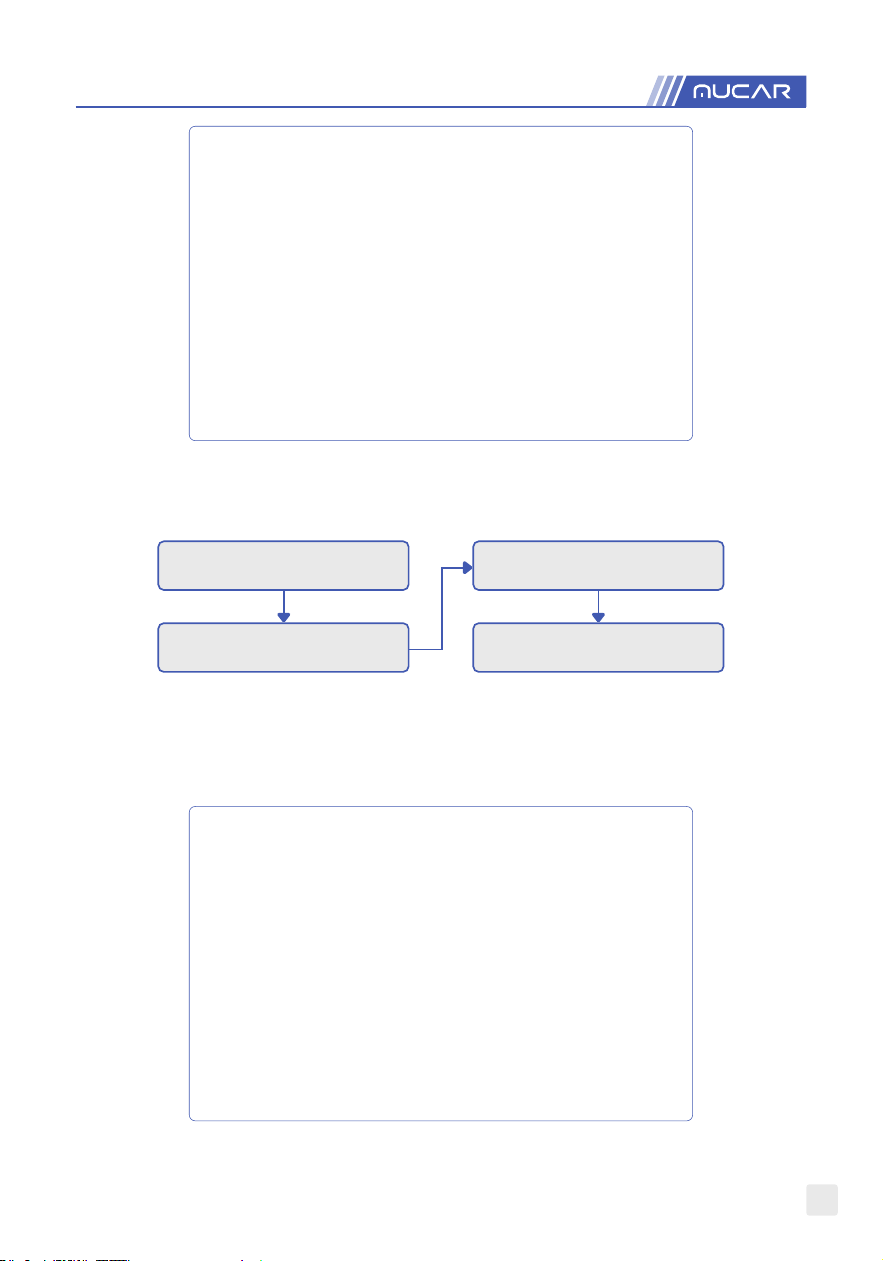
1.2 Diagnosis Flowchart
Activate
BT Connection
Choose Vehicle Type
Choose System
1.3 Function Menu
After startup, the system will automatically enter the homepage:

5
It mainly includes the following features:
• The device and diagnostic connector support Bluetooth communication.
• Support powerful intelligent VIN recognition technology, which is convenient, fast and
ecient.
• Quick check: Automatic Identication of Vehicle Information, Auto Checking and Report
Printing.
• Modular expansion: printer, video scope, scope box, battery test clip, wireless TPMS tool.
• It can detect faults in the electronic control systems of most high-end, medium-end,
and low-end vehicles in Asia, Europe, the United States and China. Powerful diagnostic
functions include reading fault codes, clearing fault codes, reading data streams, action
tests, and other special functions.
• Maintenance: Oil Reset; Elec. Throttle Adaption; IMMO Service; Injector Coding; Brake-pad
Reset; Steering Angle Reset; ABS Bleeding; AFS Reset; Battery Matching; A/T Learning;
DPF Regeneration; EGR Adaption; TPMS Reset; Sunroof Initialization; Suspension
Matching; Gear Learning; Airbag Reset; ODO Meter Reset; AdBlue Reset; A/F Reset;
Coolant Bleeding; Language Change; NOx Sensor Reset; Seat Calibration; Stop/Start
Reset; Transport Mode; Tyre Reset; Windows Calibration.
• TPMS: with wireless TPMS tool (optional), TPMS activation, programming and learning
functions can be supported.
• Diagnostic software, client-side and rmware can be updated online.
• Feedback: In the process of diagnosis, if the software or function is abnormal, please feed
back to us. Our professionals will follow up and deal with it in time.
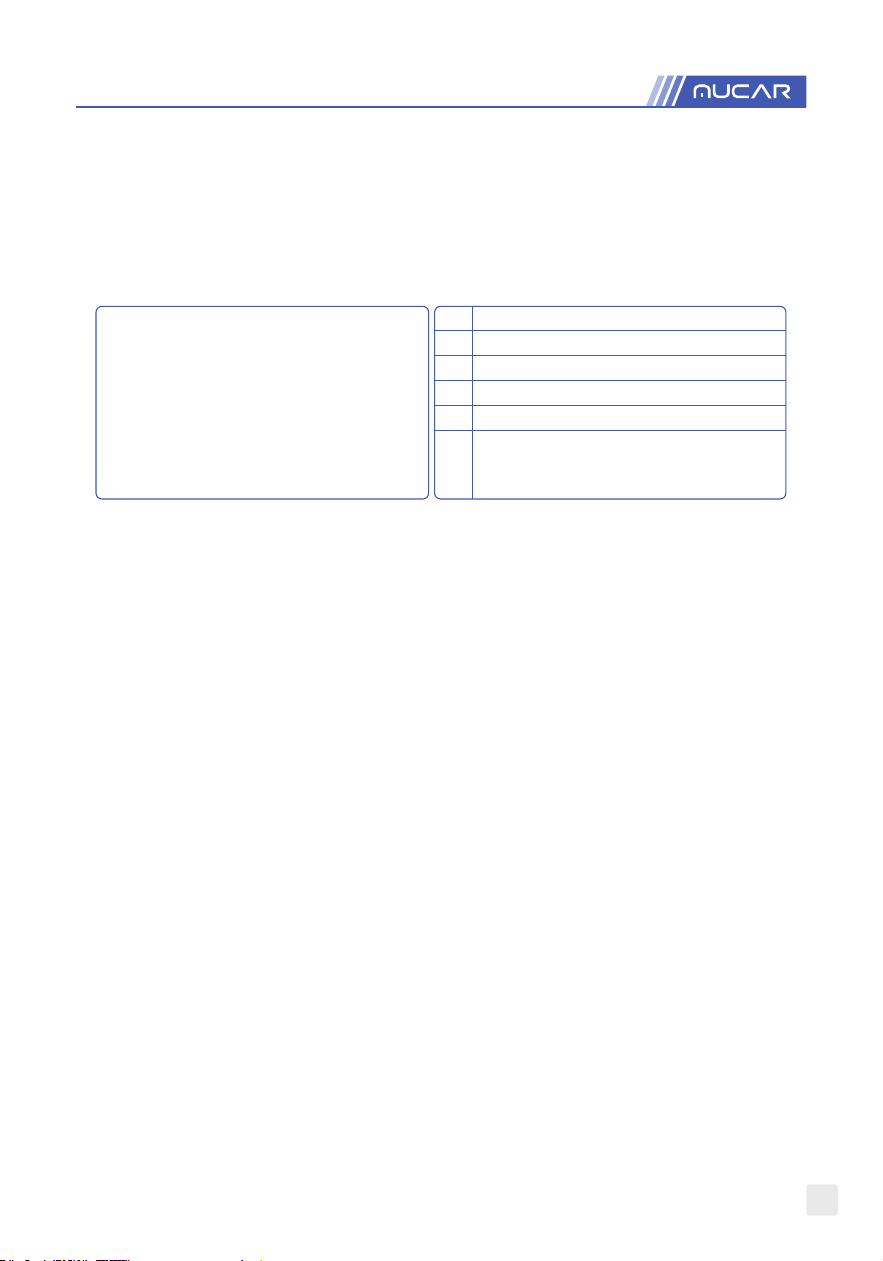
1.4 Charging
Follow the steps below to charge the device:
• Use the charger to connect the device and the power socket to charge.
• When the battery status displays , the device is charging.
• When it displays , the charging process has been completed and you shall disconnect
the device.
1.5 Battery
• It is normal that the device cannot be turn on when charging because the battery has not
been used for a long time or maybe the power is exhausted. Please turn on the device
again after charging the battery for a while.
• Please use the charger in the package to charge the device. Except for the chargers
specied by the company, the company shall not be liable for any damage and loss caused
by charging with other chargers.
• The battery can be recharged repeatedly. Please try not to recharge frequently to avoid
battery loss and prolong battery life.
• The battery charging time varies with temperature and battery status.
• When the battery power is low, the system will pop up a prompt to remind you to connect
the charger.
When the battery power is too low, the device will turn o.
6
1.6 VCI Connections
Connection steps as below:
(1) Locate vehicle’s DLC socket. Most of the DLC are standard OBDII/EOBD diagnostic
sockets (non-standard OBDII/EOBD vehicle diagnostic sockets need to use the
corresponding adapter). The DLC is usually located 12 inches from the center of the
instrument panel (dash), under or around the driver’s side for most vehicles. If the DLC
cannot be found, refer to the vehicle’s service manual for the location.
A Opel, Volkswagen, Audi
B Honda
C Volkswagen
D Opel, Volkswagen, Citroen
E Changan
F
Hyundai, Daewoo, Kia, Honda, Toyota,
Nissan,Mitsubishi, Renault, Opel, BMW, Mercedes-
Benz, Mazda, Volkswagen, Audi, GM, Chrysler,Peugeot,
Regal, Beijing Jeep, Citroen and most prevailing models
(2) For OBDII/EOBD vehicle, follow the steps below to proceed:
a. Plug the VCI dongle into the vehicle’s DLC socket
b. Use the OBDII/EOBD extension cable to connect the VCI dongle and DLC socket.
(3) For non-OBDII/EOBD vehicle, If the pin of the DLC is damaged or has insucient power,
please try any of the following methods to proceed:
a. Cigarette Lighter Cable
b. Battery Clamps Cable
(4) Non-standard 16-PIN vehicle diagnostic sockets (OBDI).
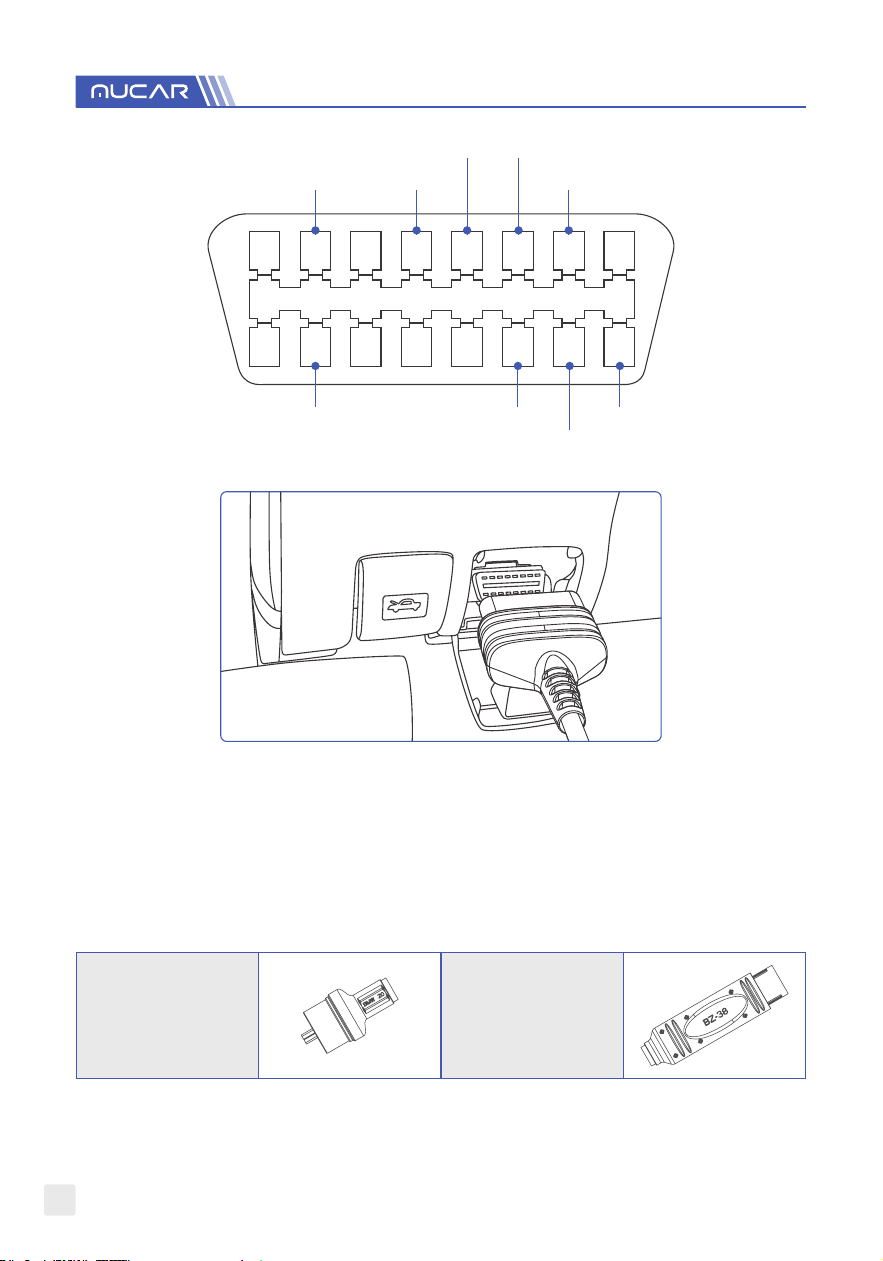
A. Introduction of OBD vehicle diagnosis connector
In the development history of automobile diagnosis and detection, OBD system is an
online diagnostic system for internal combustion engines, which currently goes through
a generation and a second generation, the second generation being EOBD/OBDII, as
shown in the diagram below, with a unied hardware feature and interface denition for
the diagnostic seat of the car.
7
Bus positive line Chassis ground
Signal ground CAN-H line
K-Line
L-Line
CAN-L lineBus negative line Battery power
1 2 3 4 5 6 7 8
9 10 11 12 13 14 15 16
OBD II Diagnostic Port of Automobile
About 1996, before the United States unied the OBD II standard and during the transition
period, dierent automobile manufacturers had dierent diagnostic port for OBD I. Such
as three PIN like HONDA; 17 PIN like Toyota; 38 PIN like BENZ. At present, all overseas
comprehensive diagnostic device of Company’s MUCAR series are equipped with 10 OBD I
diagnostic connectors, as shown in the table below:
BMW-20 BZ-38
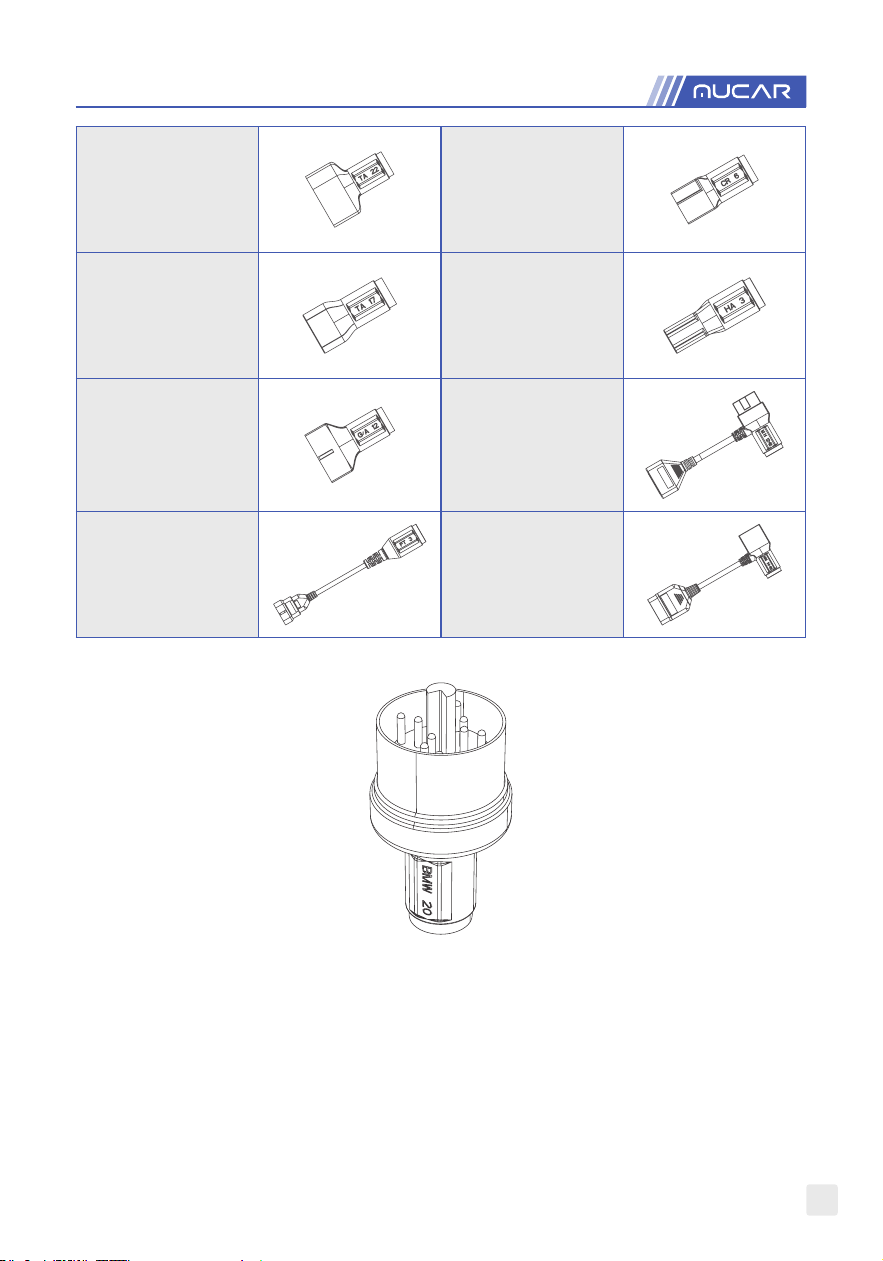
8
TA-22 CR-6
TA-17 HA-3
G/A-12 M/H-12+16
FT-3 NN-14+16
Diagnostic Connector for BMW 20
B. How to connect OBD I Diagnostic Port
The OBD I connector, which was set up to cater for older models of various car brands,
has very few current applications as most older cars have been phased out. Cars that
produced after 2005 are basically all OBD II connector. In USA, we still occasionally come
across vintage or modied cars that still use OBD I.
For this reason, a transfer from OBD II to OBD I is required.
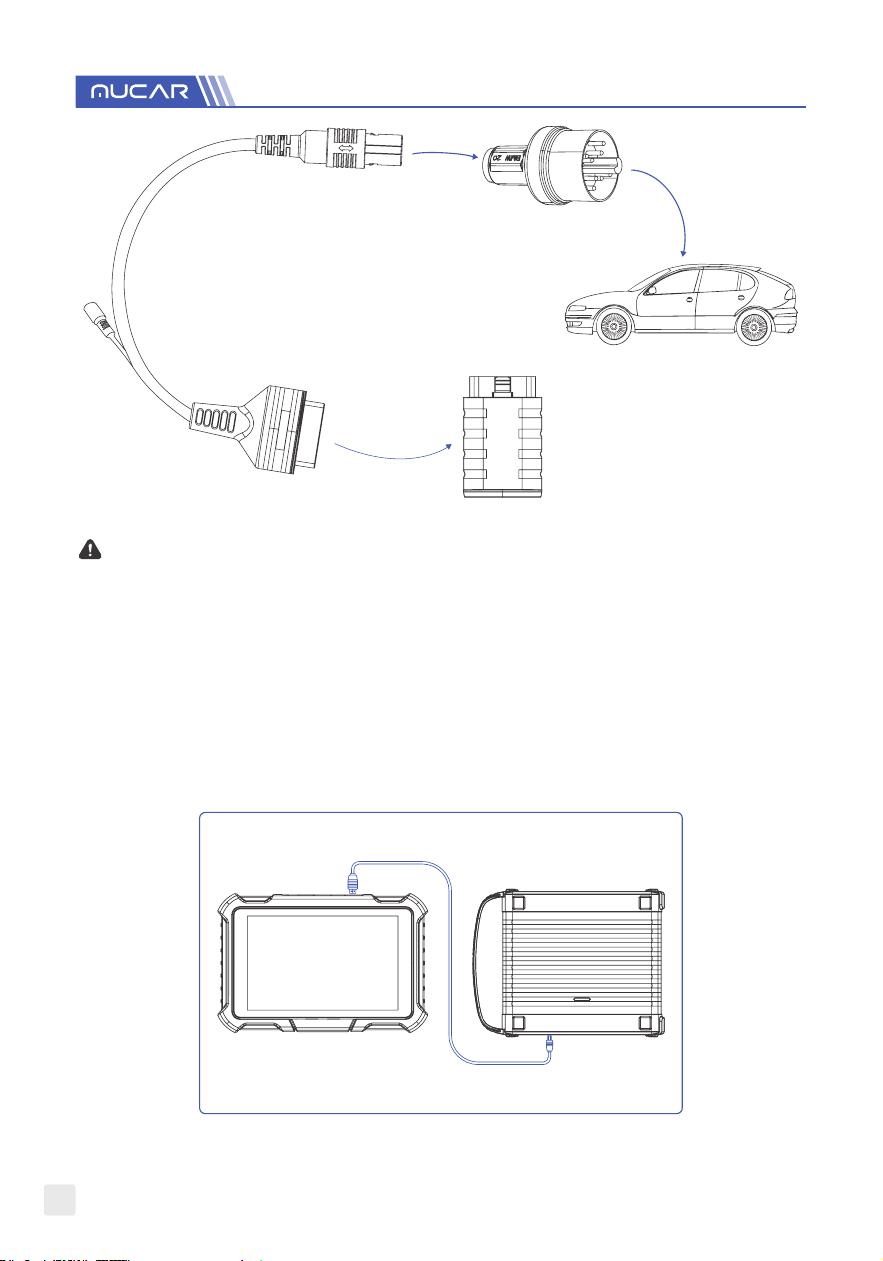
9
OBD I Connector
Diagnostic
Extension Cable
OBD Connector
Note: when using older models, the Transfer Cable must be used, with the small power connector
on it, which is connected to the power connector of the power double clamp cable, this is a
solution for certain cars before 1996, whose diagnostic holders do not have a 12V power supply.
All other congurations with non-16PIN diagnostic connectors can be wired as shown in
Picture for achieving the diagnosis of the corresponding old models.
1.7 Scope Box / Video Scope / Printer Installation
The Scope Box and Video Scope are connected by USB cable. It will automatically enter the
corresponding interface once they are connected.
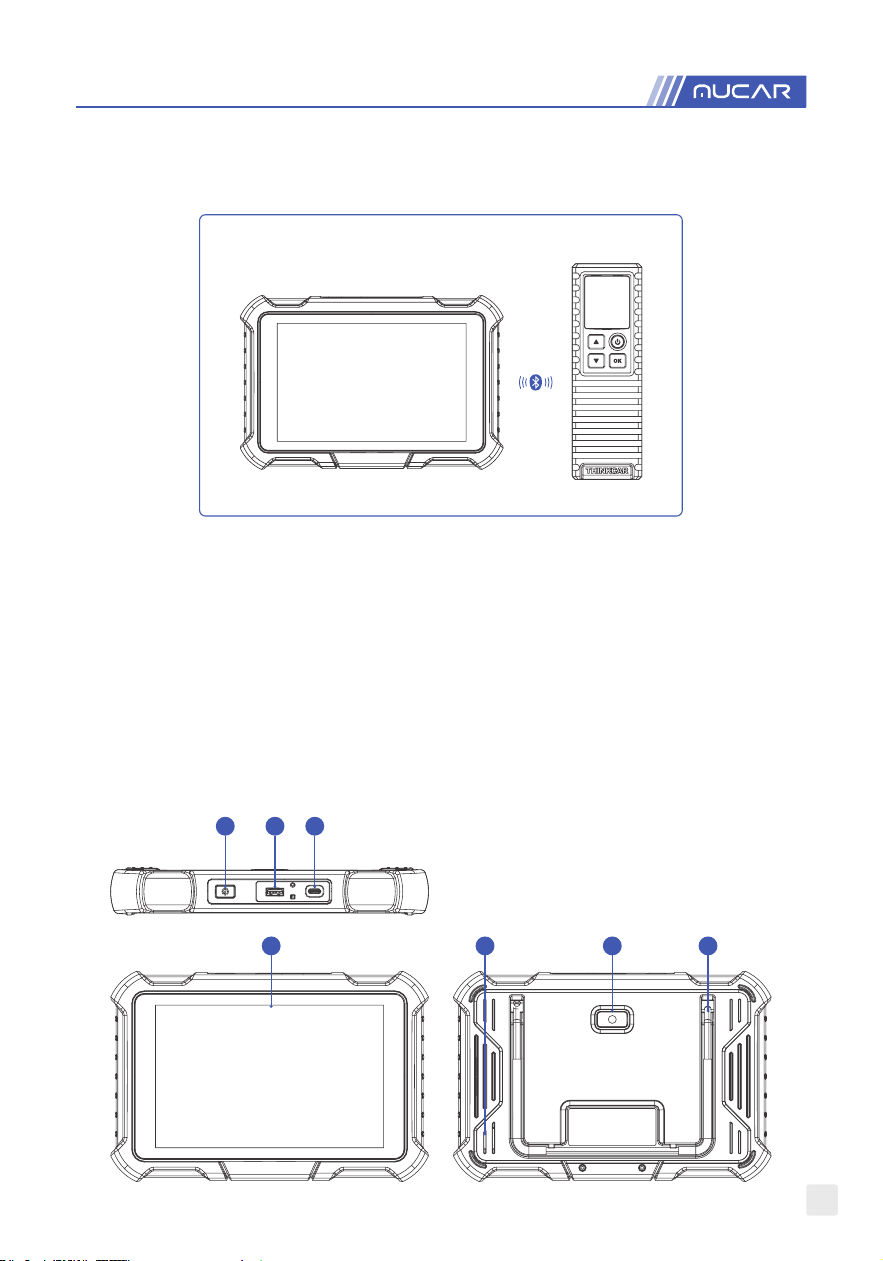
10
1.8 Wireless TPMS / Battery Tester Installation (Bluetooth).
Tap Wireless TPMS or Battery Tester on the device, and you can detect the corresponding
module in Bluetooth mode. You need to match the module by activating it.
2. Introduction
2.1 Product Prole
MUCAR VO8 is a new generation intelligent diagnostic equipment based on Android 8.1. It
has broken through original DIY-oriented of MUCAR,bringing outstanding professional and
comprehensive diagnosis features including read DTC, clear DTC, read data stream, ECU
coding, actuation test,special functions, etc.
2.2 Components & Controls
2 3
1 5 76
4
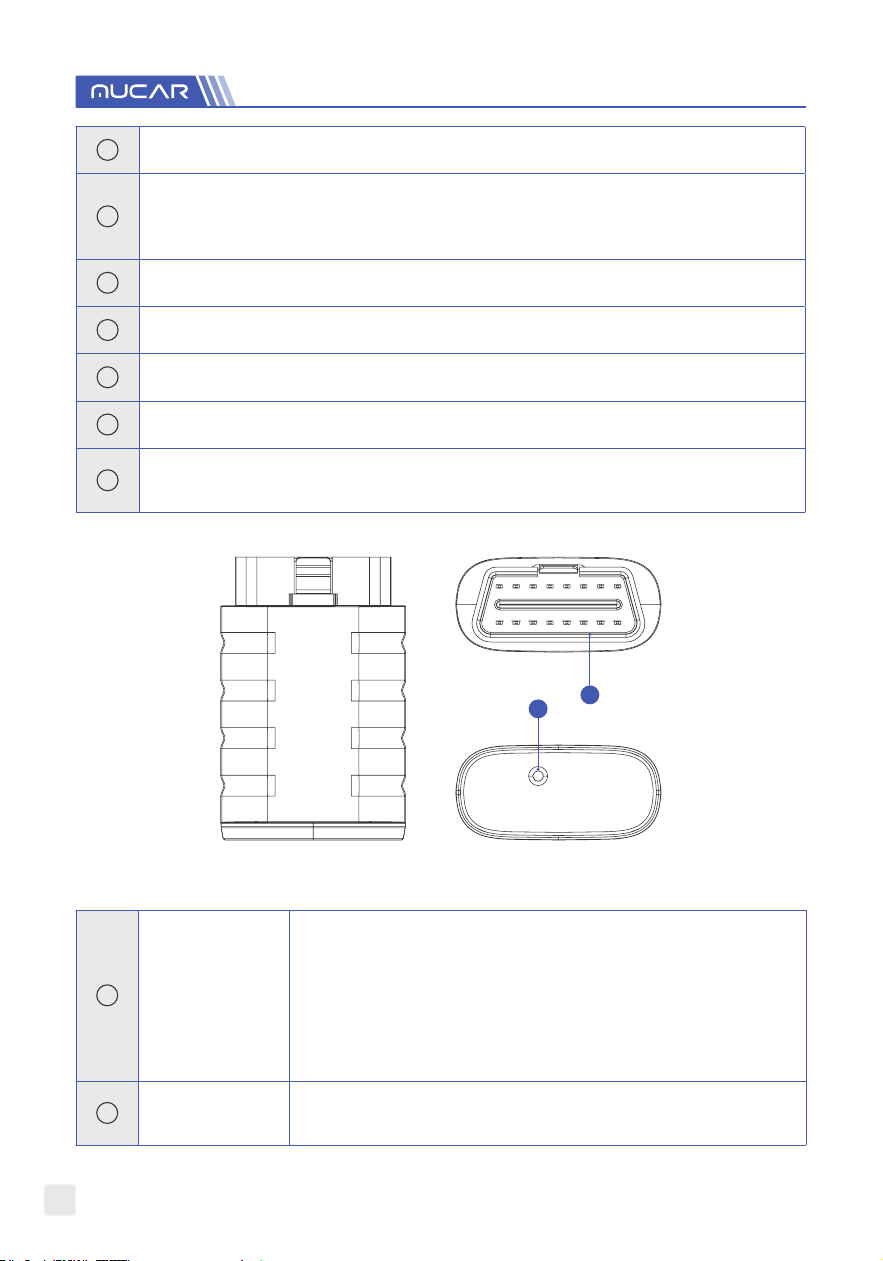
11
1
Display
2
Power Key: Hold the button for 3 seconds to turn the device on, or o, and 10
seconds for a forced restart. Press the button to wake up the device or turn o
the device.
3
USB Port: Reserved for add-on modules and other devices with similar port.
4
Type C Port: connect the supplied charger for charging.
5
8 Megapixel Rear Camera
6
Speaker
7
Adjustable Kickstand: Able to keep the device standing on the desk, or hang the
device on the steering wheel with 180-degree rotation.
1
2
1
Indicator Light
LED indicator is located at the bottom, and the three status as
follows:
• Power: Green light indicates that the power is on.
• Diagnosis: Blue light shows that it enters the diagnosis
mode.
• Vehicle: Flashing-blue light means it is communicating with
the vehicle.
2
Diagnostic Port
Plug in the diagnostic cable whose OBD 16-pin connector is
linked to the DLC of the vehicle.

12
2.3 Parameters
MUCAR VO8
Operating System Android 8.1
Memory 2G
Storage 64G
Battery 6300mAh\3.8V
Screen 8 inches
Camera Rear camera 8.0MP
Network Wi-Fi, WLAN 802.11b/g/n
Bluetooth
BT5.0
Working Temperature 32
℉
~122
℉
(0
℃
~ 50
℃
)
Storage Temperature -4
℉
~140
℉
(-20
℃
~ 60
℃
)
3. Begin to Use
Diagnostic function, covering more than 100 car brands, support intelligent diagnosis and
traditional diagnosis, including OBDII full-function diagnosis. Full-system diagnosis includes:
read fault code, clear fault code, read real-time data stream, special function, actuation test.
A diagnosis report can be generated after the diagnosis.
3.1 Intelligent Diagnosis
Connect the vehicle rst, tap “Intelligent Diagnosis” on the homepage, the device will start
the smart diagnosis program and automatically read the vehicle VIN, as shown in below:

13
If the device failed to access the VIN information, please use “Diagnosis”. At this point, you
need to manually input the VIN code to gain the car information.
3.2 Diagnosis
In this mode, user can manually select vehicle models and systems for diagnosis.
3.2.1 Manual Diagnosis
The device also supports step-by-step manual selection of menus for diagnosis.
To use the "DEMO" as an example to introduce how to start the diagnosis as below.
1. Select vehicle type: on the "demo" on the main diagnostic interface to enter.
Tips: The diagnosis menu varies with dierent vehicles.

14
2. After the connection is successful, the screen will enter the test item selection interface.
3.2.2 Health Report
It enables you to quickly access all the electronic control units of the vehicle and generate a
detailed report about vehicle health. (This function varies from vehicle to vehicle.)
The system will start scanning Electronic Control Units to see if there are fault code and
displays the specic results.
Click "Report" to generate a vehicle health report.

15
3.2.3 System Scan
Automatically scan all systems of the vehicle and use to determine which electronic control
units are tted to this vehicle.

16
3.2.4 System Selection
After selecting a system, it automatically sends a command whether this electronic control
unit exists or not, and also determines which type of electronic control unit it is.
Choose the system: “PCM” (e.g.), and the screen will enter the function menu.
Tips: The diagnosis menu varies with dierent vehicles.

17
A. Version Information
As shown in the picture, “Version Information” to read the current version information of the
car ECU.
B. Read Fault Code
This function is to read the DTC in the ECU memory, helping maintenance personnel to
quickly identify the cause of the vehicle breakdown.
As shown below, tap “Read Fault Code”, and then the screen will display diagnostic results.
Tips: Reading the DTC when troubleshooting a vehicle is only a small step in the entire diagnostic
process. Vehicle DTC are for reference only, and parts cannot be replace directly based on the
given DTC denition. Each DTC has a set of test procedures. The maintenance technician must
strictly conform to the operation instructions and procedures described in the car maintenance
manual to conrm the root cause of the breakdown.

18
C. Clear Fault Code
On the diagnostic function selection screen, tap Clear Fault Code, the system will
automatically delete the currently existing DTCs and display the dialog box of "DTCs
Cleared".
Note: For general models, please operate strictly according to the normal sequence: read DTC -
clear DTC - test the car - retrieve DTC for verication - repair the car - clear DTC – recheck the
car, to conrm that the DTC no longer appears.
D. Read Data Stream
This option lets you view and capture (record) real-time Live Data of ECU. This data,
including current operating status for parameters and/or sensor information, can provide
insight on overall vehicle performance. It can also be used to guide vehicle maintenance.
Select all and tap "OK" or just select the one you would like to check.
Note: If you must drive the vehicle in order to perform a troubleshooting procedure, ALWAYS have
a second person to help you. Trying to drive and operate the diagnostic device at the same time is
dangerous, and could cause a serious trac accident.

19
On-screen Buttons:
[Graph]
Display the parameters of the selected data stream in waveform.
On the data stream waveform page, you can do the following:
[Combine]: Display in graph merge status for data comparison.
[Value]: Display the parameters in values and shown in list format.
[Customize]: Customize the data stream option to be viewed. Tap
the button, a pull-down list of the data stream items appears on
the screen. Select the desired items (max 12 items), and then
screen will display the waveforms corresponding to these items
immediately. If you need to remove any items, just deselect them.
[ ]
Display the current (single) data stream in waveform graph. On the
waveform graph page, you can do the following:
[Min/Max]: To dene the maximum/minimum value. Once the value
goes beyond the specied value, the system will alarm.

20
[Customize]: Tap “ ” on the right side of the screen, to dene the
data stream option to be viewed.
Note: Max 4 data streams can be displayed at the same time.
[Compare Sample]
To select the sample DS le. All the values you customized and
saved in process of DS sampling will be imported into the Standard
Range column for your comparison.
Note: Before executing this function, you have to sample the values of
data stream items and save it as a sample Data Stream le.
[Report] To save the value of current data stream.
[Record]
To record diagnostic data, for you to replay and review. Tap “Stop”
button to end reading.
The saved le follows the naming rule: It begins with vehicle type,
and then the product S/N and ends with record starting time. All
diagnostic records can be replayed from User Info -> My Report.
[Save Sample]
To sample data stream. After sampling, recording and saving the
data stream, each time you review the data stream items, you will
be able to call out the corresponding sample data to overwrite the
current standard range.
Tap it to start recording the sample data stream (Note: Only data
stream items with measurement units will be recorded). Once the
recording process is complete, tap to end recording, the system will
automatically jump to the data revision screen.
Tap the Min./Max. value to change it. After modifying all desired
items, tap Save to save it as a sample DS le. All DS les are
stored in User Info -> Data Stream Sample.

21
E. Actuation Test
This function is used to test whether the execution components in the electronic control
system can work normally.
3.3 Maintenance
MUCAR VO8 supports common maintenance and reset functions, namely, Oil Reset,
Elec. Throttle Adaption, IMMO Service, Injector Coding, Brake-pad Reset, Steering Angle
Reset, ABS Bleeding, AFS Reset, Battery Matching, A/T Learning, DPF Regeneration, EGR
Adaption, TPMS Reset, Sunroof Initialization, Suspension Matching, Gear Learning, Airbag
Reset, ODO Reset, AdBlue Reset, A/F Reset, Coolant Bleeding, Language Change, NOx
Sensor Reset, Seat Calibration, Stop/Start Reset, Transport Mode, Tyre Reset, Windows
Calibration.
3.3.1 Oil Reset
The lightening of the car maintenance light indicates that the vehicle needs maintenance.
Reset the mileage or driving time to zero after the maintenance, so the maintenance light will
go out and the system will start a new maintenance cycle.
3.3.2 Elec. Throttle Adaption
Elec. Throttle Adaption is to utilize the car decoder to initialize the throttle actuator so that
the learning value of the ECU returns to the initial state. By doing these, the movement of
the throttle (or idle motor) can be more accurately controlled, thus adjust the intake volume.
Situations when throttle matching is needed:
a. After replacing the electronic control unit, the relevant characteristics of the throttle
operation have not been stored in the electronic control unit.
b. After the electric control unit is powered o, the memory of the electric control unit’s
memory is lost.
c. After replacing the throttle assembly, you need to match the throttle.
d. After replacing or disassembling the intake port, the controlling of the idle speed by the
coordination between the electronic control unit and the throttle body is aected.
e. Although the characteristics of the idle throttle potentiometer have not changed, the intake
volume has changed and the idle control characteristics have changed at the same throttle
openings.
3.3.3 Steering Angle Reset
To reset the steering angle, rst nd the relative zero-point position for the car to drive in
straight line.
Taking this position as reference, the ECU can calculate the accurate angle for left and right
steering.
After replacing the steering angle position sensor, replacing steering mechanical parts (such
as steering gearbox, steering column, end tie rod, steering knuckle), performing four-wheel
alignment, or recovering car body, you must reset the steering angle.

22
3.3.4 Battery Matching
This function enables you to perform a resetting operation on the monitoring unit of vehicle
battery, in which the original low battery fault information will be cleared and battery matching
will be done.
Battery matching must be performed in the following cases:
a. Main battery is replaced. Battery matching must be performed to clear original low battery
information and prevent the related control module from detecting false information. If the
related control module detects false information, it will invalidate some electric auxiliary
functions, such as automatic start & stop function, sunroof without one-key trigger function,
power window without automatic function.
b. Battery monitoring sensor. Battery matching is performed to re-match the control module
and motoring sensor to detect battery power usage more accurately, which can avoid an
error message displaying on the instrument panel.
3.3.5 ABS Bleeding
When the ABS contains air, the ABS bleeding function must be performed to bleed the brake
system to restore ABS brake sensitivity. If the ABS computer, ABS pump, brake master
cylinder, brake cylinder, brake line, or brake uid is replaced, the ABS bleeding function must
be performed to bleed the ABS.
3.3.6 Brake-pad Reset
If the brake pad wears the brake pad sense line, the brake pad sense line sends a signal
sense line to the on-board computer to replace the brake pad. After replacing the brake pad,
you must reset the brake pad.
Otherwise, the car alarms.
Reset must be performed in the following cases:
a. The brake pad is replaced or brake pad wear sensor.
b. The brake pad indicator lamp is on.
c. The brake pad sensor circuit is short, which is recovered.
d. The servo motor is replaced.
3.3.7 DPF Regeneration
DPF regeneration is used to clear PM (Particulate Matter) from the DPF lter through
continuous combustion oxidation mode (such as high temperature heating combustion, fuel
additive or catalyst reduce PM ignition combustion) to stabilize the lter performance.
DPF regeneration may be performed in the following cases:
a. The exhaust back pressure sensor is replaced.
b. The PM trap is removed or replaced.
c. The fuel additive nozzle is removed or replaced.
d. The catalytic oxidizer is removed or replaced.
e. The DPF regeneration MIL is on and maintenance is performed.
f. The DPF regeneration control module is replaced.

23
3.3.8 Gear Learning
The crankshaft position sensor learns crankshaft gear machining tolerance and saves to the
computer to more accurately diagnose engine misres. If gear learning is not performed for a
car equipped with Delphi engine, the MIL turns on after the engine is started. The diagnostic
device detects the DTC P1336 'gear not learned'. In this case, you must use the diagnostic
device to perform gear learning for the car.
After gear learning is successful, the MIL turns o. After the engine ECU, crankshaft position
sensor, or crankshaft ywheel is replaced, or the DTC 'gear not learned' is present, gear
learning must be performed.
3.3.9 IMMO Service
To prevent the car being used by unauthorized keys, the anti-theft key matching function
must be performed so that the immobilizer control system on the car identies and authorizes
remote control keys to normally use the car. When the ignition switch key, ignition switch,
combined instrument panel, ECU, BCM, or remote-control battery is replaced, anti-theft key
matching must be performed.
3.3.10 Injector Coding
Write injector actual code or rewrite code in the ECU to the injector code of the corresponding
cylinder so as to more accurately control or correct cylinder injection quantity. After the ECU
or injector is replaced, injector code of each cylinder must be conrmed or re-coded so that
the cylinder can better identify injectors to accurately control fuel injection.
3.3.11 TPMS Reset
After the tire pressure MIL turns on and maintenance is performed, the tire pressure resetting
function must be performed to reset tire pressure and turn o the tire pressure MIL. Tire
pressure resetting must be performed after maintenance is performed in the following cases:
tire pressure is too low, tire leaks, tire pressure monitoring device is replaced or installed,
tire is replaced, tire pressure sensor is damaged, and tire is replaced for the car with tire
pressure monitoring function.
3.3.12 Suspension Matching
This function can adjust the height of the body. When replacing the body height sensor in the
air suspension system, or control module or when the vehicle level is incorrect, you need to
perform this function to adjust the body height sensor for level calibration.
3.3.13 AFS Reset
This feature is used to initialize the adaptive headlamp system. According to the ambient light
intensity, the adaptive headlamp system may decide whether to automatically turn on the
headlamps, and timely adjust the headlamp lighting angle while monitoring the vehicle speed
and body posture.

24
3.3.14 A/T Learning
This function can complete the gearbox self-learning to improve gear shifting quality. When
the gearbox is disassembled or repaired (after some of the car battery is powered o), it will
lead to shift delay or impact problem. In this case, this function needs to be done so that the
gearbox can automatically compensate according to the driving conditions so as to achieve
more comfortable and better shift quality.
3.3.15 Sunroof Initialization
This function can set the sunroof lock o, closed when it rains, sliding / tilting sunroof memory
function, temperature threshold outside the car etc.
3.3.16 EGR Adaption
This function is used to learn the EGR (Exhaust Gas Recirculation) valve after it is cleaned
or replaced.
3.3.17 ODO Reset
a. ODO reset is to copy, write, or rewrite the value of kilometers in the chip of odometer by
using a car diagnostic computer and data cable, so that the odometer shows the actual
mileage.
b. Usually when the mileage is not correct due to the damaged vehicle speed sensor or
odometer failure, it is necessary to do ODO reset after maintenance.
3.3.18 Airbag Reset
This function resets the airbag data to clear the airbag collision fault indicator. When the
vehicle collides and the airbag deploys, the corresponding fault code of the collision data
appears, the airbag indicator lights up, and the fault code cannot be cleared. Since the data
inside the airbag computer is disposable, it is required that all new accessories must be
replaced, but after performing this function, the data of the airbag computer can be recovered
and the fault code can be cleared, the airbag light will go out, and the airbag computer can
continue to use.
3.3.19 Transport Mode
In order to reduce power consumption, the following functions may be disabled, including
limiting the vehicle speed, not waking up the door opening network, and disabling the
remote-control key, etc. At this time, the transport mode needs to be deactivated to restore
the vehicle to normal.
3.3.20 A/F Reset
This function is applied to set or learn Air/Fuel ratio parameters.

25
3.3.21 Stop/Start Reset
This function is used to open or close the automatic start-stop function via setting the hidden
function in ECU (provided that the vehicle has a hidden function and supported by hardware).
3.3.22 NOx Sensor Reset
NOx sensor is a sensor used to detect the content of nitrogen oxides (NOx) in engine
exhaust. If the NOx fault is re-initialized and the NOx catalytic converter is replaced, it is
necessary to reset the catalytic converter learned value stored in the engine ECU.
3.3.23 AdBlue Reset (Diesel Engine Exhaust Gas Filter)
After the diesel exhaust treatment uid (car urea) is replaced or lled up, urea reset operation
is required.
3.3.24 Seat Calibration
This function is applied to match the seats with memory function that are replaced and
repaired.
3.3.25 Coolant Bleeding
Use this function to activate the electronic water pump before venting the cooling system.
3.3.26 Tyre Reset
This function is used to set the size parameters of the modied or replaced tire.
3.3.27 Windows Calibration
This feature is designed to perform door window matching to recover ECU initial memory,
and recover the automatic ascending and descending function of power window.
3.3.28 Language Change
This function is used to change the system language of the vehicle central control panel.
3.4 TPMS Diagnosis
The device can work with wireless tire pressure diagnostic tool (optional accessory) to
achieve the features of TPMS activation, programming and learning.
A. Activation: to activate the sensor's ID, wheel pressure, sensor frequency, tire temperature
and battery status.

26
B. Programming: to program sensor data to a new MUCAR sensor, so as to replace a sensor
that is in low battery and does not function properly. There are three sensor programming
methods available: Automatic, manual, and via activation replication.
C. Learning: to write the sensor ID into the vehicle ECU for sensor identication.

27
3.5 Coverage list
You can enter the vehicle brand, model, year and other information to enquire the support
functions and diagnostic system.
3.6 Module
The device supports optional function modules, list as below:
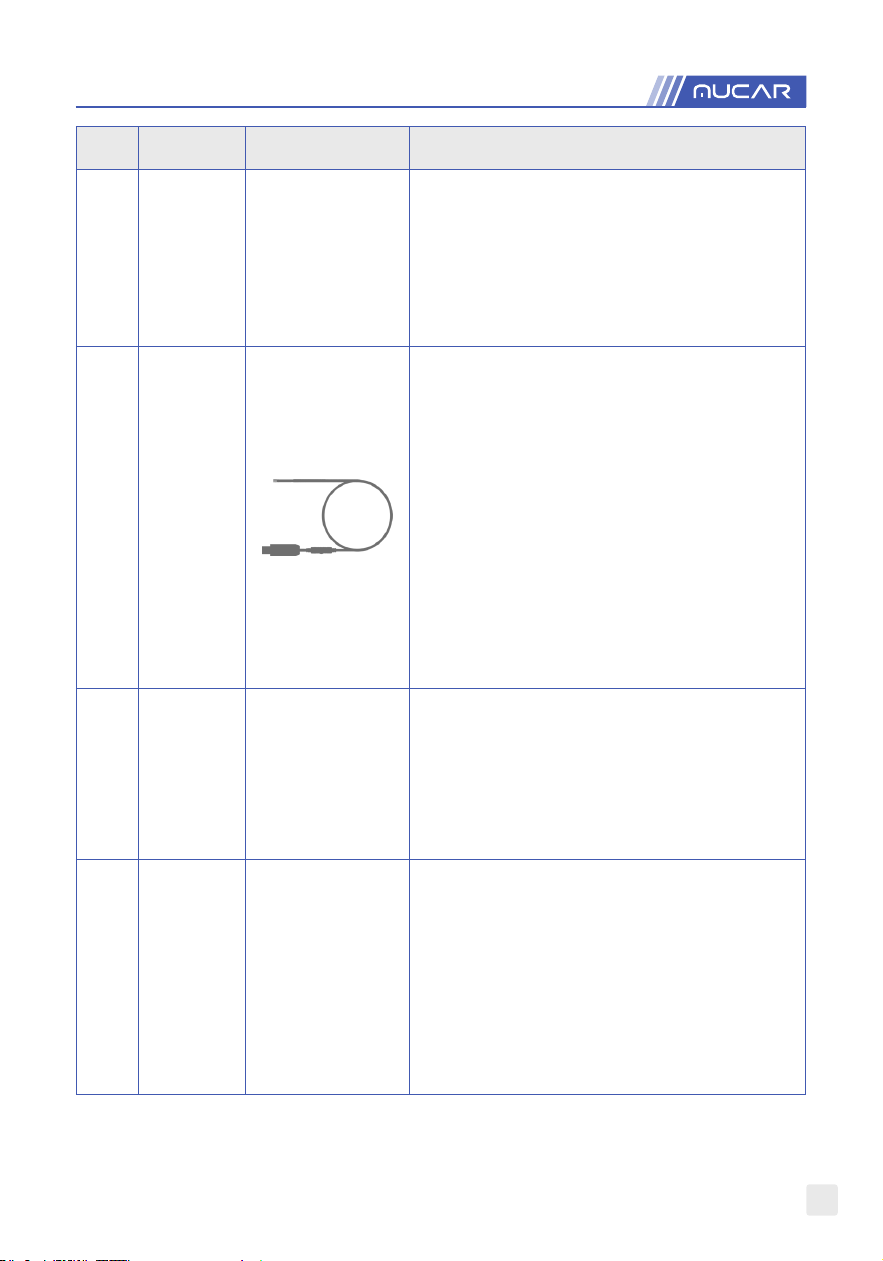
28
S/N Name Image Description
1 Printer
Thermal printer, can be used with the device
or moduledock, quickly print diagnostic reports
anytime and anywhere.
2
Video
Scope
Ultra long custom coil pipeline design, exible
bending with durable materials, suitable for
a variety of complex environments. Multiple
uses with 3 kinds of special connectors (Hook,
side view mirror, magnet). Supports 720P HD
image. With 6 auxiliary lights for brighter light,
it is easy to use in dark environment.
Application scenario:
1. Engine combustion chamber inspection;
2. Engine internal carbon deposit inspection;
3. Three-way catalytic inspection;
4. Air-conditioning pipeline inspection;
5. Vehicle corners that are not easy to detect,
such as falling screws, or water leakage,
cracks, and foreign objects.
3
Battery
Test Clip
Display the health status of the battery, and
detect the damaged part.
Check the starting system and charging system
of your vehicle.
Low battery inspection.
Support all 12V with starting lead acid
batteries.
4
Scope
Box
Equipped with 4 channels 100MHz bandwidth,
sampling rate reaches up to 1GS/s. Combined
with the device screen to achieve full
touch control operation. Special automatic
maintenance and detection menu and high-
denition waveform display make it more
convenient to use.
Application scenarios: Scope box can
accurately determine the problems of sensors,
actuators, control modules or circuits.

29
5
Wireless
TPMS
Work with the device to complete tire pressure
diagnosis related functions.
Application scenario:
1. Read tire pressure information such as
pressure, temperature, and battery status;
2. Replace the sensor for programming;
3. Change the position of the tire or other
abnormalities that require sensor learning.
3.7 Remote Assistance
In this function, you can request remote assistance through third-party software. By
sending your device ID number to the remote technician or after-sales personnel, you can
authorize the other party to remotely operate the device, so as to guide you to the problems
encountered in the process of using the device.
3.8 Store
It supports the purchase the diagnostic software for dierent car models and RESET
function.
3.9 File
It is used to record and establish the le of the diagnosed vehicles. The le is created based
on the vehicle VIN and check time, including all VIN-related data such as diagnostic reports,
data stream records and pictures.

30
3.10 Repair Info
Tap "Repair Info" on the homepage, the following page will appear.
3.10.1 OBD Fault Code Library
You can enquire the denition of OBD fault codes.
3.10.2 Learning materials
You can view the operation playback of the special functions of each brand model, to help
users study the operation of the special functions online without connecting the vehicle.

31
3.10.3 User Manual
You can nd the E-Manual in here.
3.11 Update
In order to let you enjoy better functions and upgrade services, we recommend you make
software upgrades irregular. When there is a newer software version, the system will remind
you to upgrade.
"Software Upgrade" to enter the upgrade center. There are two function tabs on the upgrade
page:
Upgradeable software: A list of software that can be upgraded to newer versions.
Upgraded software: A list of software that has been downloaded.
Note: During the upgrade, please keep normal network connection. Upgrade many software may
take a few minutes, please wait.
If you need to cancel certain software, please enter setting -> diagnostic software clear ->
remove software to operate.
Renewals: T-code could be purchased on MUCAR website or by Credit Card on the device.

32
3.12 Feedback
If you encounter an unresolved problem or diagnostic software bug during diagnosis, you can
revert the most recent 20 test records to MUCAR Team. When we receive your feedback, we
will analyze and troubleshoot it in a timely manner, to improve the quality of our products and
user experience. Tap Feedback, the below pop-up message will appear:
Tap OK to enter the vehicle diagnostic feedback selection screen. There are three options:
Feedback: Tap to show the list of all tested vehicle models.
Tap on the target diagnostic record, lling out some information and tap "Submit Result".
After submission, our engineers will be able to analyze the data from the diagnostic report.

33
History: Tap to view all diagnostic feedback reverted and the processing progress.
Oine List: Tap to display all diagnostic feedback logs which have not been submitted
successfully due to network failure. Once the tablet gets a stable network signal, it will be
uploaded to the server automatically.
On the Diagnostic Feedback page, tap the diagnostic record of certain vehicle model or
special function to next step.
Tap Choose File to open the target folder and choose the desired diagnostic logs. Choose
the failure type and ll with the detailed failure description in the text box, and leave your
telephone or email address. After inputting, tap Upload Logs to revert feedback to us.
We will follow up your feedback as soon as we receive your diagnostic feedback, please
keep an eye on the progress and results of your diagnostic feedback in Diagnostic Feedback
History.
4. User Info

34
4.1 VCI
You can check the Dongle’ serial number here.
4.2 Fix VCI rmware/system
Use to repair the VCI rmware. During the repair, please don’t power o or switch interfaces.
4.3 Data Stream Sample
This feature allows you to manage the recorded data stream sample les.
4.4 My Order
Use to manage order details.
4.5 Prole
Use to set and manage personal information.
4.6 Wi-Fi
Set up Wi-Fi networks that can be connected.
4.7 Diagnostic Software Clear
This option can clear some unused diagnostic software and free up the storage space.
4.8 Business Information
Add the information of the workshop, to which the scanner belongs, and it will be displayed
to the customers in the diagnostic report.

35
4.9 Customer Management
Manage information of all customers, who conduct vehicle diagnostic on this equipment and
display in turn.
4.10 Photo Album
This module saves the screenshots.
4.11 Screen Recorder
This module saves the screen recordings.
4.12 Clear VCI Data
Clearing VCI data will delete all downloaded software, diagnostic records, and user
settings,etc. PLEASE USE IT WITH CAUTION.
4.13 Settings
In here, we would be able to check the version, system, storage and other fundamental
settings of the device.
4.16.1 Check for Updates
It is for checking the version of the device and update it if it is necessary.
4.16.2 Sleep Time
This is used to set up the sleep time. If the device is not operated within the sleep time limit,
the device will automatically turn o the screen.

36
4.16.3 Privacy Policy
You can nd the seller’s service information in here.
4.16.4 System Upgrade
To check the latest Android system version and upgrade it if it is necessary.
4.16.5 Units
It controls the data unit in the device. Choose the one that you are accustomed to reading.
4.16.6 T-Code
T-code could be purchased on MUCAR website or by Credit Card on the device.
4.16.7 Clear Cache
To clear all the storage software, account, information, setting, and all the records of the
device to save the space. PLEASE USE IT WITH CAUTION.
4.16.8 Mode Switch
When connecting with other modules, it must use the HOST MODE. If you need to connect
to a computer to access the pictures or recorded data stored in the device, you can select
"Device mode".

37
4.16.9 Restore Factory Settings
Factory Reset, delete all data and restore the original settings. PLEASE USE IT WITH
CAUTION.
4.17 Hotkey Setting
Including: Wi-Fi, Bluetooth, screen recording, screenshot, screen ip, brightness, sound and
Customer Service.
4.17.1 Customer Service
If you encounter any problems, please feel freee to contact our Customer Online
Service
.

38
5. FAQ
Q: Can I use the same type of charger to charge the tablet?
A: No, please use original charger. Our company is not responsible for any damage and
economic loss caused by using charger, which is not provided by MUCAR.
Q: How to save power?
A: Please turn o the screen while the device isn’t used, set a shorter standby time, and
decrease the brightness of the screen.
Q: Why the tablet cannot be turned on after charging?
Possible reasons Solutions
Battery loss caused by the
device not using for a long
time.
Charge it for more than 2 hours before turning it on.
Problem of Charger.
If there is a quality problem, please contact the
dealer or after-sales service.
Q: Why the tablet cannot be turned on after charging?
Possible reasons Solutions
The device is not connected
to the network.
Please make sure the network is connected.

39
Notes that your email has
been registered.
Register with another e-mail account or log in with
the username registered by e-mail (If you forget the
username, you can retrieve it by e-mail).
The email didn’t receive the
verication code during the
registration.
Check if the e-mail is correct and get the verication
code again.
Q: Why can’t I log in?
Possible reasons Solutions
The device is not connected
to the network.
Please make sure the network is connected.
The username or password is
incorrect.
Check the username and password.
Contact after-sales service or regional sales to
retrieve the user name and password.
Server problem. Server maintenance, please try again later.
Q: Why can't I activate the device?
Possible reasons Solutions
The device is not connected
to the network.
Please make sure the network is connected.
The serial number and
activation code are inputted
wrong.
Check the serial number and activation code and
make sure they are correct (Serial number 12 digits,
activation code 8 digits).
The activation code is invalid. Contact after-sales service or regional sales.
Notes that the conguration is
empty
Contact after-sales service or regional sales.
Q: Why the tablet cannot be turned on after charging?
Possible reasons Solutions
The VCI connector may
not be activated during
registration.
Use the serial number and activation code to activate
the connector.
Steps are as follows: Click [Settings] -> [Activate VCI]
Enter the correct serial number and activation code in
the interface, and click [Activate].
40
Q: Why can’t I log in?
Possible reasons Solutions
The device is not connected
to the network.
Check the network connection.
The username or password is
wrong
Check the username and password.
The device has not enough
memory.
Uninstall irrelevant applications and delete
uncommonly used vehicle software (enter setting
-> diagnostic software clear -> remove software to
operate).
Server problem. Server maintenance, please try again later.
Q: Why is there no power in the VCI dongle after connecting to the vehicle’s DLC port?
Possible reasons Solutions
Poor contact of vehicle’s DLC
port.
Plug out the VCI dongle, and then plug it in again.
Too low voltage of the vehicle
battery.
• Recharge the vehicle battery.
• Replace the vehicle battery if it is damaged.
Damage of the VCI dongle. Contact after-sales service to get support.
Q: Why can't tablets establish a connection with the VCI dongle?
Possible reasons Solutions
Poor contact of the VCI
dongle.
• Plug out the VCI dongle, and then plug it in again.
• Perform the VCI Bluetooth pairing again.
The rmware is damaged.
Enter the settings and tap “Fix Connector Firmware/
System” to x the rmware.
Q: Why is the communication error with the vehicle ECU displayed?
A: Please conrm:
Whether the VCI is correctly connected and whether the vehicle ignition switch is ON.
If all are normal, send vehicle production year, model and VIN number by Feedback
feature.
Q: Why can't I access the vehicle ECU system?
A: Please conrm:

41
Whether the vehicle is equipped with the system, whether the VCI is correctly connected,
and whether the vehicle ignition switch is ON.
Q: What if the connector is lost?
A: Contact after-sales service or regional sales.
Q: What if the downloaded diagnostic software is inconsistent with the serial number?
A: There are several connectors registered under the equipment account, and the serial
number of right connector has not been selected. Enter the settings-[VCI] and select the
right serial number of connector. Delete the problematic software, then enter the upgrade
center to download the diagnostic software again.

42
Warranty Terms
This warranty applies only to users and distributors who purchase MUCAR products through
normal procedures. Provide free warranty within one year. MUCAR TECH warrants its
electronic products for damages caused by defects in materials or workmanship.
Damages to the equipment or components caused by abusing, unauthorized modication,
using for non-designed purposes, operation in a manner not specied in the instructions, etc.
are not covered by this warranty. The compensation for dashboard damage caused by the
defect of this equipment is limited to repair or replacement. MUCAR TECH does not bear
any indirect and incidental losses. MUCAR TECH will judge the nature of the equipment
damage according to its prescribed inspection methods. No agents, employees or business
representatives of MUCAR TECH are authorized to make any conrmation, notice or promise
related to MUCAR TECH products.
Service Line: 1-909-757-1959
Customer Service Email: support@thinkcar.com
Ocial Website: www.mythinkcar.com
Product tutorials, videos, FAQ's and coverage lists can be found on the ocial MUCAR
website, or download the Thinkcar bay APP for more product information.
