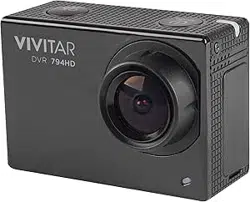
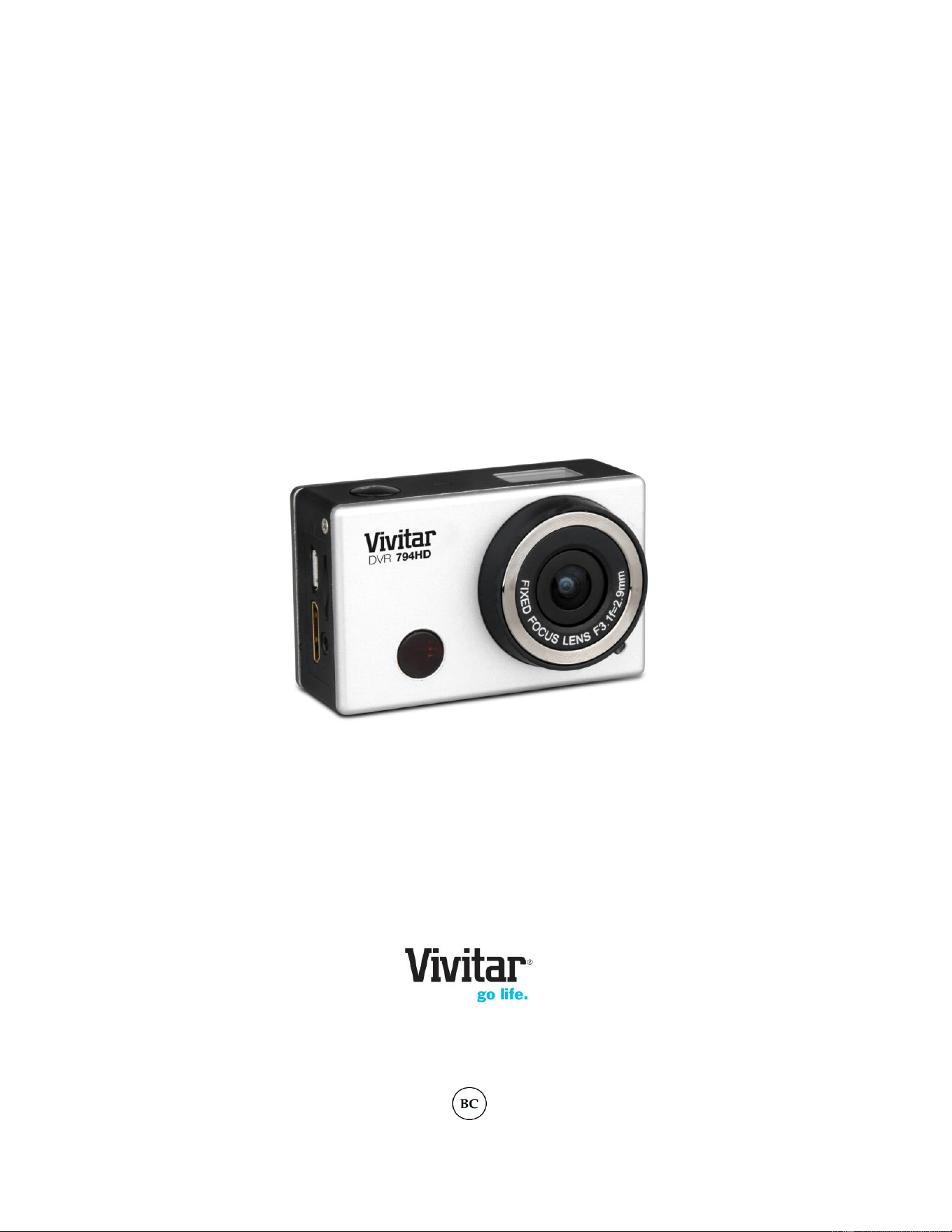
DVR 794HD v2
WiFi Action Camcorder
User Manual
© 2009-2014 Sakar International, Inc. All rights reserved.
Windows and the Windows logo are registered trademarks of Microsoft Corporation.
All other trademarks are the property of their respective companies.

1
CONTENTS
Introduction .................................................................................................................................. 2
What’s Included ............................................................................................................................ 3
Parts of the Camcorder ................................................................................................................ 4
Initial Camcorder Setup ................................................................................................................ 5
Main Camcorder Modes ............................................................................................................... 9
Camcorder Technical Specifications ........................................................................................... 10
Waterproof Case ......................................................................................................................... 11
Powering On Your Camcorder .................................................................................................... 12
LCD Display ............................................................................................................................... 13
Changing Camcorder Mode ....................................................................................................... 14
Video Capture Mode .................................................................................................................. 15
Photo Capture Mode .................................................................................................................. 16
Playback Mode ........................................................................................................................... 17
Remote Control .......................................................................................................................... 21
Vivitar Action Cam - Mobile Device Application .......................................................................... 22
Vivitar Experience Image Manager Software ............................................................................. 46
Camcorder Maintenance ............................................................................................................ 53
Sakar Warranty Card .................................................................................................................. 55
Technical Support ....................................................................................................................... 56
Troubleshooting .......................................................................................................................... 56

2
Introduction
Thank you for purchasing the Vivitar DVR 794HD Full HD Wi-Fi Action Camcorder. Everything
you need to take high definition digital videos and photos is included with your camcorder.
This unique, ultraportable camera design is adapted specifically for this camera and can be used
to capture special moments in many different environments.
Vivitar makes capturing those special moments as easy as possible.
Please read this manual carefully first in order to get the most out of your digital camcorder.
NOTE:
Your digital action camcorder supports a Class 4 or higher Micro SD card with a capacity
expansion up to 32GB.
In order to use your digital action camcorder normally, please insert the Micro SD Memory
card before use. Please format the Micro SD Memory Card before first use.
Micro SD Memory cards are not included and need to be purchased separately.
This camcorder is a plug and play device. You can download the pictures and videos
without the software by directly accessing the camera’s memory card from your computer.
We would however recommend that you install the Vivitar Experience Image Manager
software to enjoy the full Vivitar experience.
3
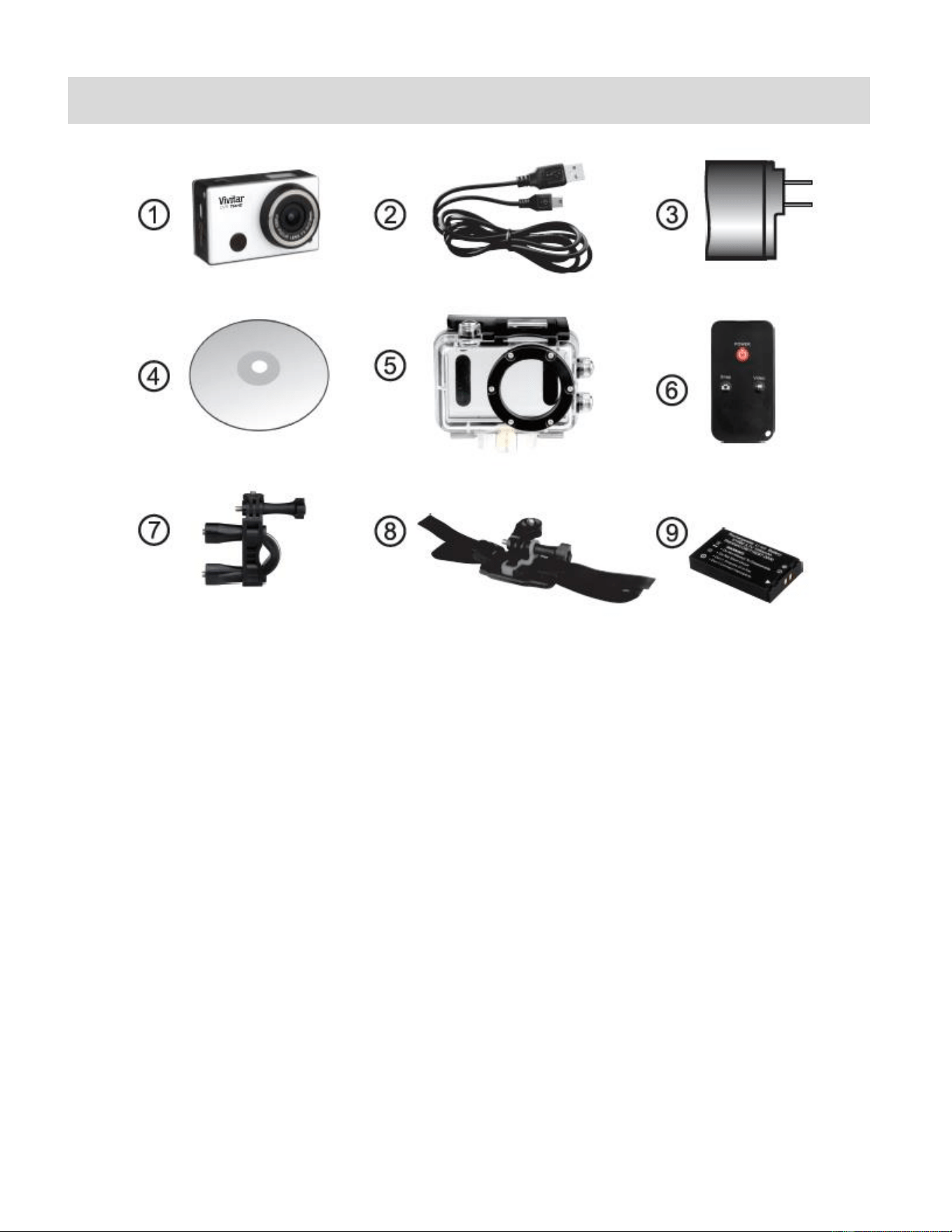
What’s Included
1. Wi-Fi Action Camcorder
6. Remote Control
2. USB Cable
7. Bicycle Mount
3. AC Adapter
8. Helmet Mount & Strap
4. Vivitar Experience Installation CD
9. Lithium Battery
5. Waterproof Casing
NOTE: Micro SD Card not included.
4
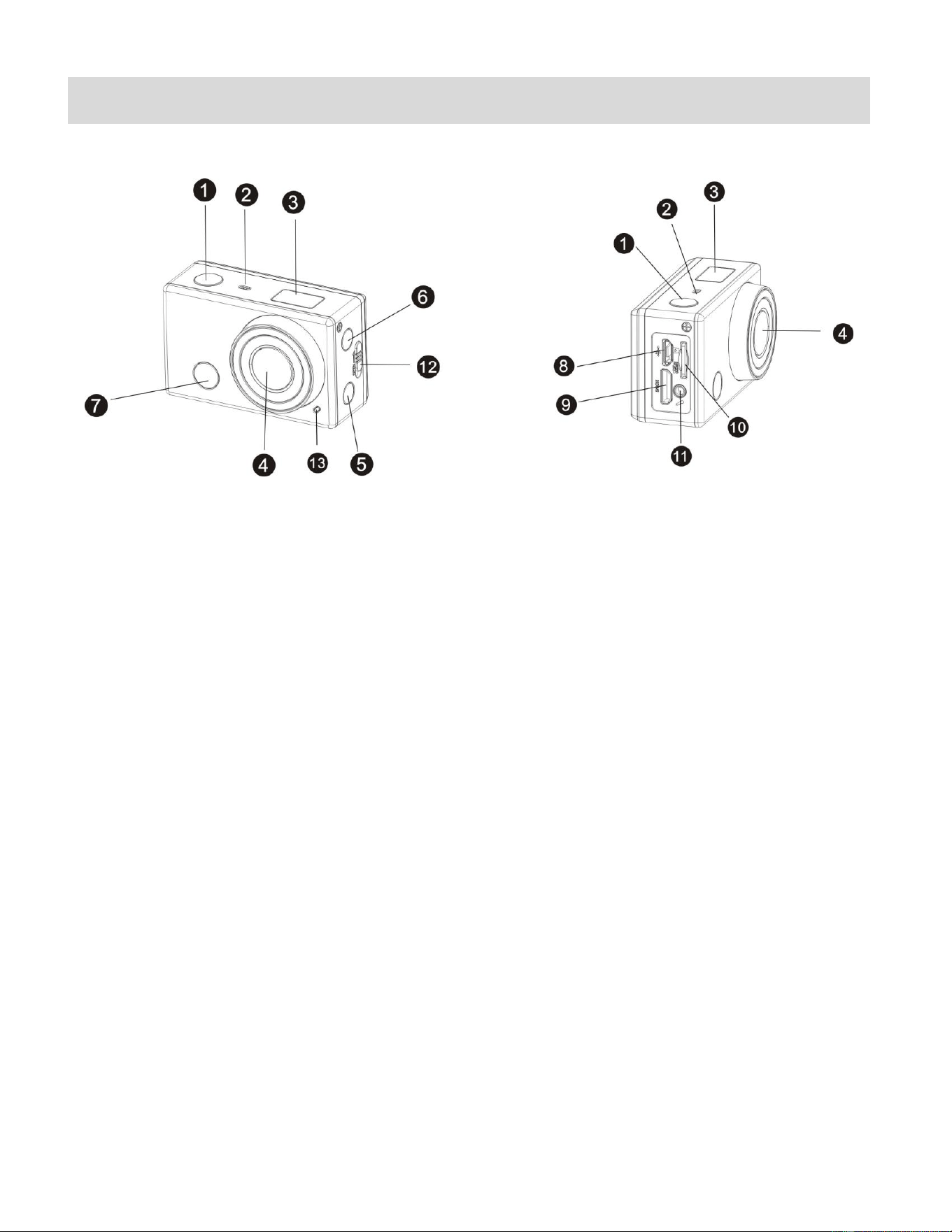
Parts of the Camcorder
1.
Shutter Button
8.
Micro USB Port
2.
Microphone
9.
Mini HDMI Port
3.
LCD Display
10.
Micro SD Card Slot
4.
Lens
11.
AV Out
5.
Wi-Fi Button and Status Indicator (Red)
12.
Battery Cover Release lever
6.
Power / Mode Button
13.
LED Indicator Light
7.
Infrared Signal Reception Light
5
Initial Camcorder Setup
INSTALLING AND CHARGING THE BATTERY
To insert the lithium battery:
1. If the camera is inside the waterproof casing, please take it out of the casing.
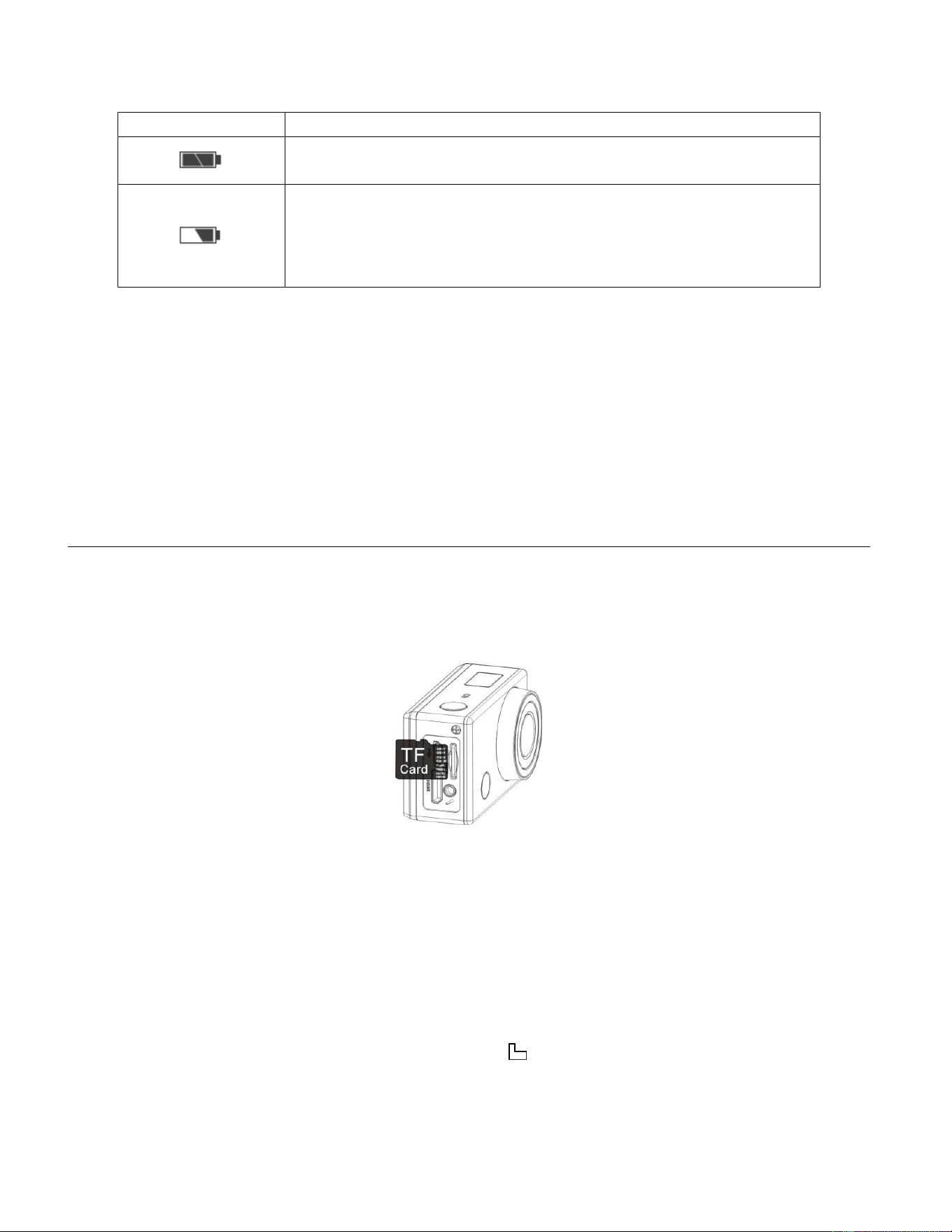
2. Push and hold the battery cover lever up to the unlock/open position, and then remove the
battery cover by sliding it towards the right. See Figure 1 and 2.
3. Insert the battery into the battery compartment as shown. Make sure to place the battery
according to the correct polarity as shown inside the battery compartment. See Figure 3.
4. Close the battery cover by placing it on top of the back of the camera and sliding it towards
the left until it moves securely into place. See Figure 4.
To charge the lithium battery:
1. Power off the camcorder.
2. Connect the included USB cable to the camcorder and connect the other end of the cable
to a power source such as a computer or included AC Adapter.
3. During the time the camcorder is charging, the LED status indicator light (blue) is on.
When the battery is fully charged the LED status indicator light turns off.
NOTE:
While the device is charging it cannot be used to capture images.
When the camcorder is on, connecting it to a computer will not charge the device. Make sure
the camcorder is powered off when recharging.
Figure 1 Figure 2 Figure 3 Figure 4
6
Battery Indicator:
Battery Indicator
Description
The battery level is full.
The battery level is half.
When this icon flashes, this indicates that the battery level is
low and the camcorder will then automatically turn off. Please
recharge your camcorder.
NOTE: When the battery capacity drops to a low level, the battery icon will flash on the display,
indicating that the camcorder requires to be recharged. Please charge the battery. When the
battery icon flickers, the camcorder will shut down automatically.
INSTALLING THE MICRO SD MEMORY CARD
Make sure a High Speed Class 4 or higher Micro SD Memory card has been properly inserted
into your camcorder. A Micro SD Card must be inserted before use.
Micro SD Memory card not included.
Installing the Memory Card:
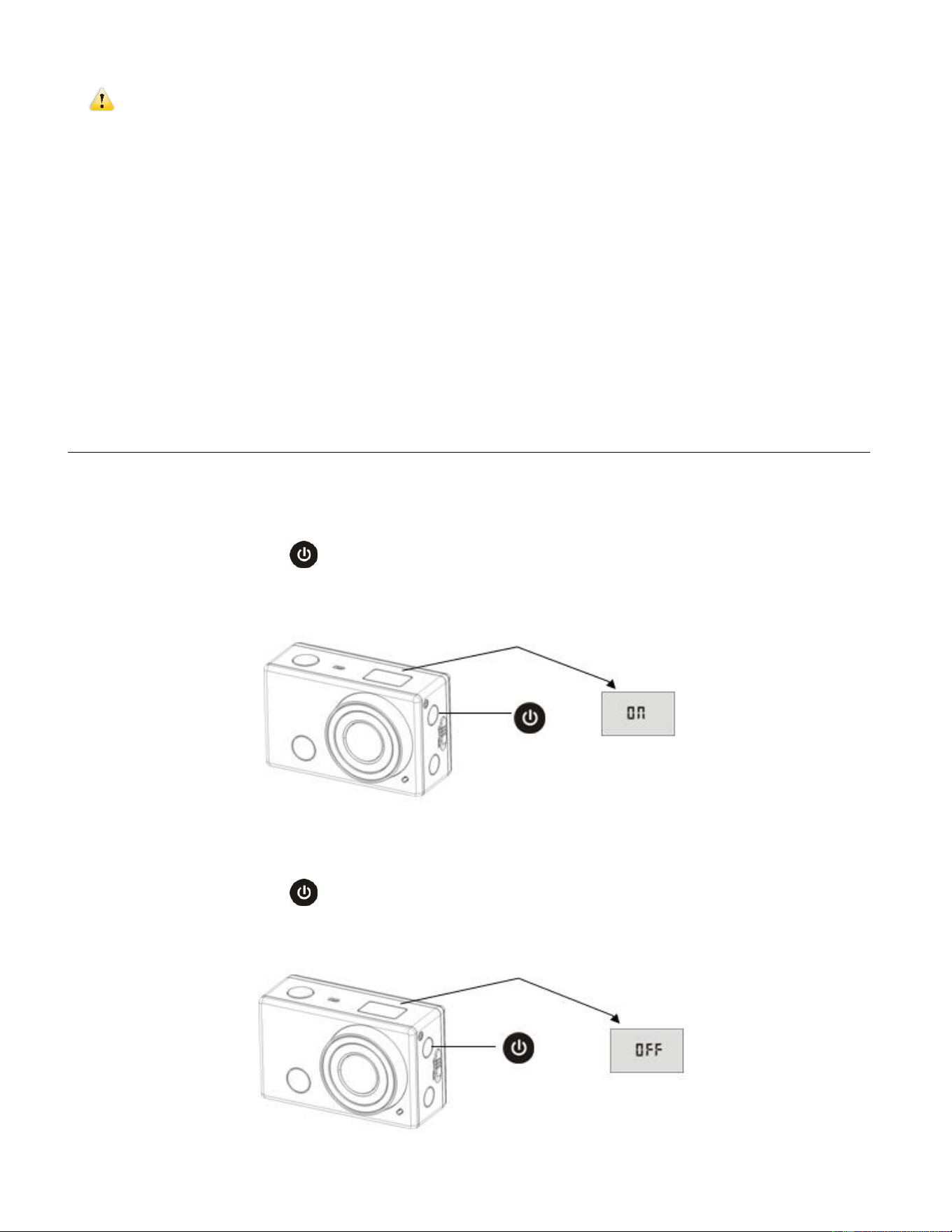
To properly insert the Micro SD Card, follow the instructions below:
1. Power off the camcorder.
2. Insert the Micro SD Card into the Micro SD Card slot in the direction as shown above.
3. Gently press the Micro SD Card until you hear a slight clicking sound. This indicates the
memory card has been inserted correctly.
4. The display screen will show an SD card icon , indicating that the SD card has been
successfully installed.
5. To remove the card, gently press on the edge of the card to release it and pull the card out.
7
IMPORTANT:
Please power the camcorder off before plugging in or taking out the memory card.
If the card is inserted or removed while the camcorder's power is on, it may damage the
card and/or any recorded data. Always confirm that the power is off before inserting the
card into the camcorder.
Make sure there is room on the Micro SD Memory Card for additional images. If the Micro
SD Memory Card is full, additional images will not be added to the memory card.
POWERING ON – OFF / ENERGY SAVE
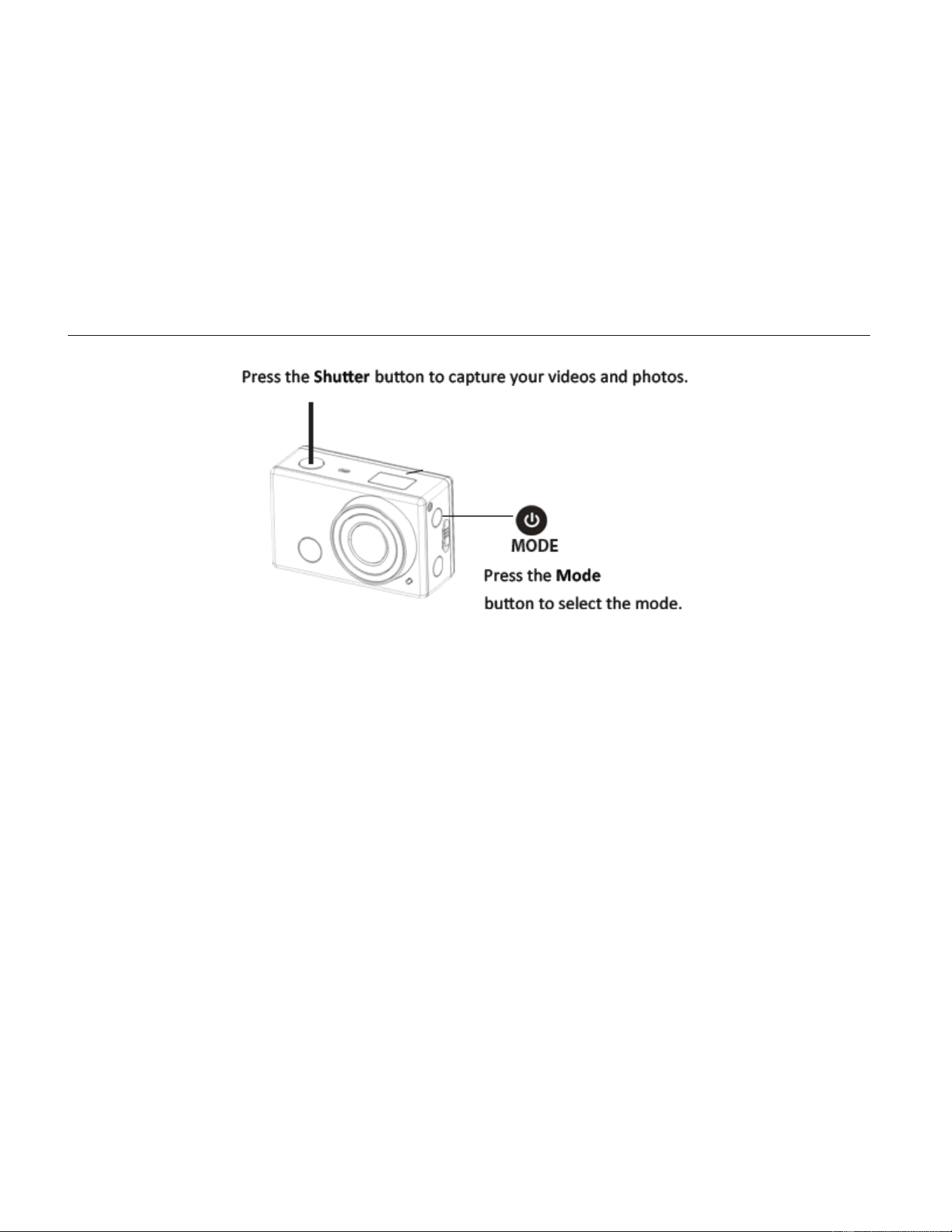
To power on the camcorder:
1. Press and hold the Power button for about 3 seconds.
2. The LCD displays “ON” and a beep can be heard from the camcorder’s buzzer.
To power off the camcorder:
1. Press and hold the Power button for about 3 seconds.
2. The LCD displays “OFF” and a beep can be heard from the camcorder’s buzzer.
8
Energy Save:
In order to save the camcorder’s battery power, the camcorder automatically powers off after
sitting idle for 5 minutes.
USING THE CAMCORDER
9
Main Camcorder Modes
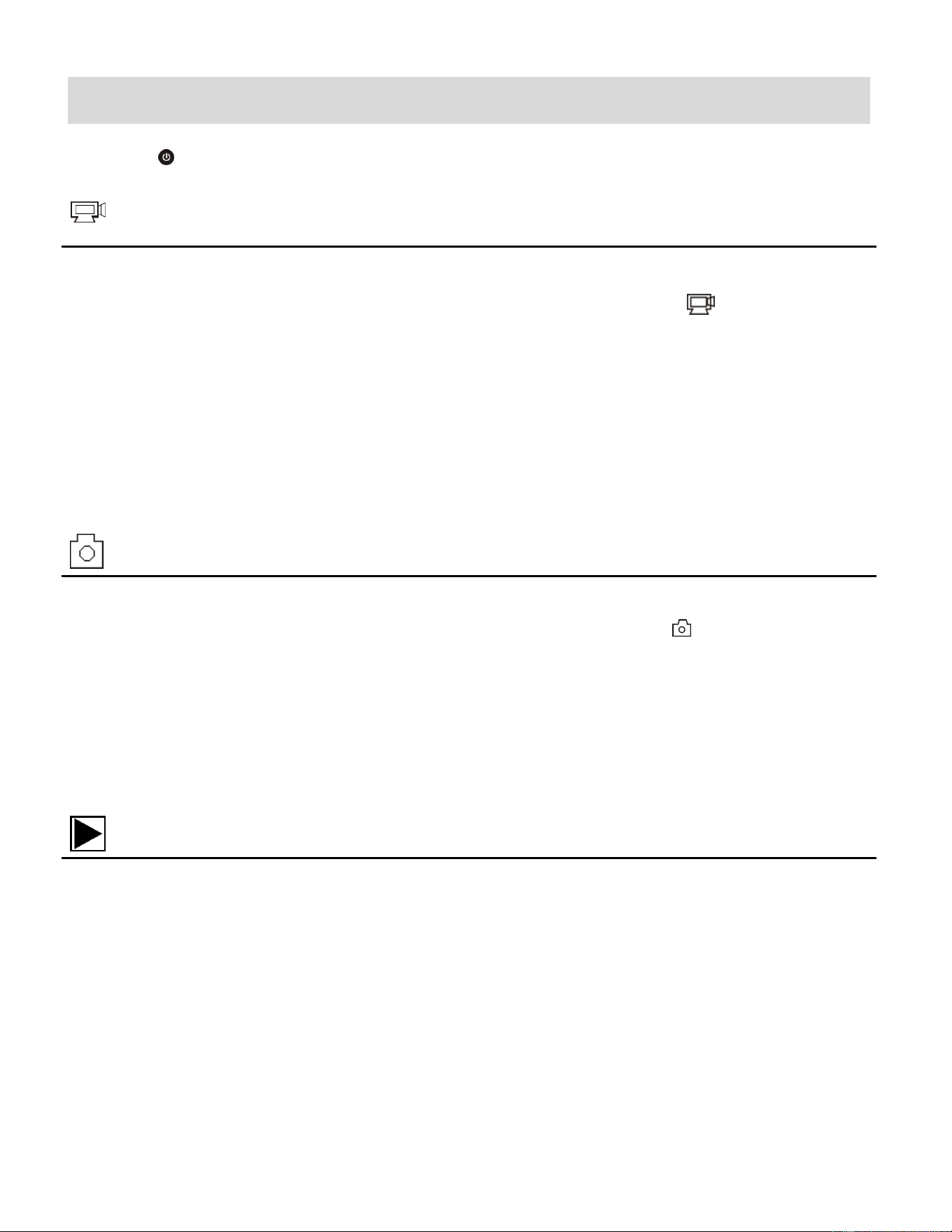
Press the Power/Mode button to toggle between the Video and Photo Capture Modes.
Video Capture Mode
Use this mode to capture videos with your digital camcorder.
To record a video, please check that the DV is in Video mode. If the video icon is not
displayed on the LCD screen, press the Power/Mode button repeatedly until it appears. To
start recording, press the Shutter button. Press the Shutter button again to stop recording.
The video is automatically saved to your camcorder’s memory card.
To select the video resolution press the Mode button. ‘HI’ indicates FHD, ‘HILO’ indicates
HD and ‘LO’ indicates VGA.
Photo Capture Mode
Use this mode to capture pictures with your camcorder.
To take a photo, please check that the DV is in Photo mode. If the photo icon is not
displayed on the LCD screen, press the Power/Mode button repeatedly until it appears.
Press the Shutter button to capture your photo. The picture is automatically saved to your
camcorder’s memory card. To select the photo resolution, press the Mode button. ‘LO’
indicates 5M (2592 x 1944) resolution and ‘HI’ indicates 12M (4000x3000) resolution.
Playback (Photos & Videos)
Use this mode to view and manage the photos and videos on your camcorder.
Your captured images can be viewed either on the computer or on your television.
Playback Mode on the Computer: After turning on your camcorder, connect it to your
computer via the supplied USB cable to view the images on your computer.
Playback Mode on the HDTV: After turning on your camcorder and connecting it to an
HDTV via an HDMI cable (purchased separately), it enters Playback Mode.
Mobile Device: After downloading the Vivitar® ActionCam app to your mobile device and
connecting it via Wi-Fi to your camera, tap the Playback icon to view your photos.
10
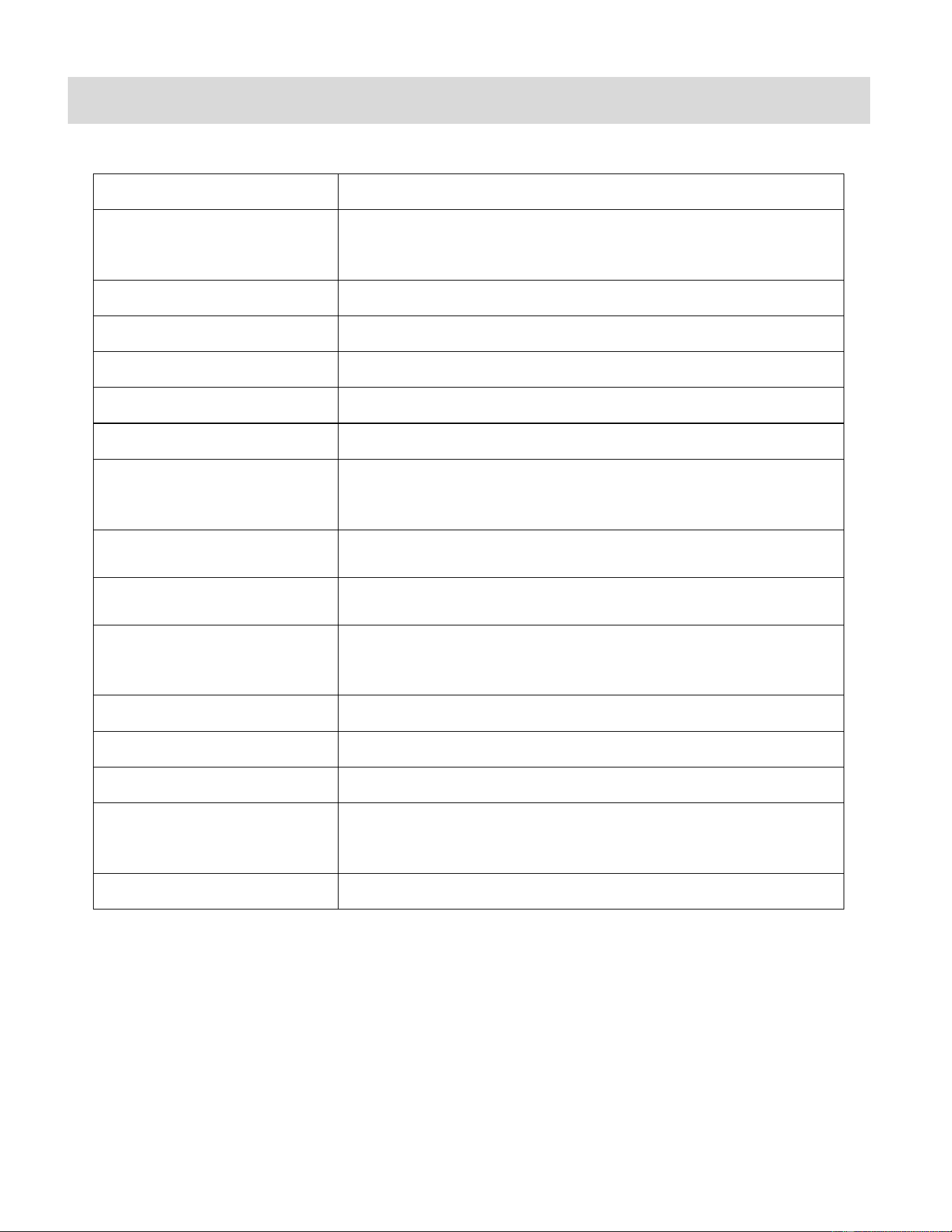
Camcorder Technical Specifications
Image Sensor
CMOS Sensor
Video Resolution
‘HI’ FHD (1920x1080,30 fps), ‘HILO’ HD 720P (1280x720,
30 fps), ‘LO’ VGA (480P 30fps)
Photo Resolution
‘HI’ 12MP (4000x3000), ‘LO’ 5MP (2592x1944)
File Format
AVI (Video), JPEG (Photo)
External Memory
Class 4 Micro SD Memory card or higher, up to 32GB
LCD Display
Monochrome LCD Display
Lens
Fixed Focus F3.1 f=2.9mm
White Balance (via App)
Auto, Daylight, Cloudy, Florescent, Incandescent
Note: Accessible only via the App on your mobile device.
Frequency (via App)
50Hz, 60Hz
Note: Accessible only via the App on your mobile device.
Continuous Shot (via App)
Yes; 3 continuous photos (only via the App on your mobile
device)
Self Timer (via App)
Off, 2 seconds, 10 seconds (only via the App on your
mobile device)
Auto Power Off
5 minutes
Language
English
Interface
USB 2.0
System Requirements for
Vivitar Experience
WINDOWS XP (SP3), Vista (SP1), WINDOWS 7 or higher;
MAC OSX v10.5.x and above
Battery
Removable 3.7V rechargeable Li-ion battery
11
Waterproof Case
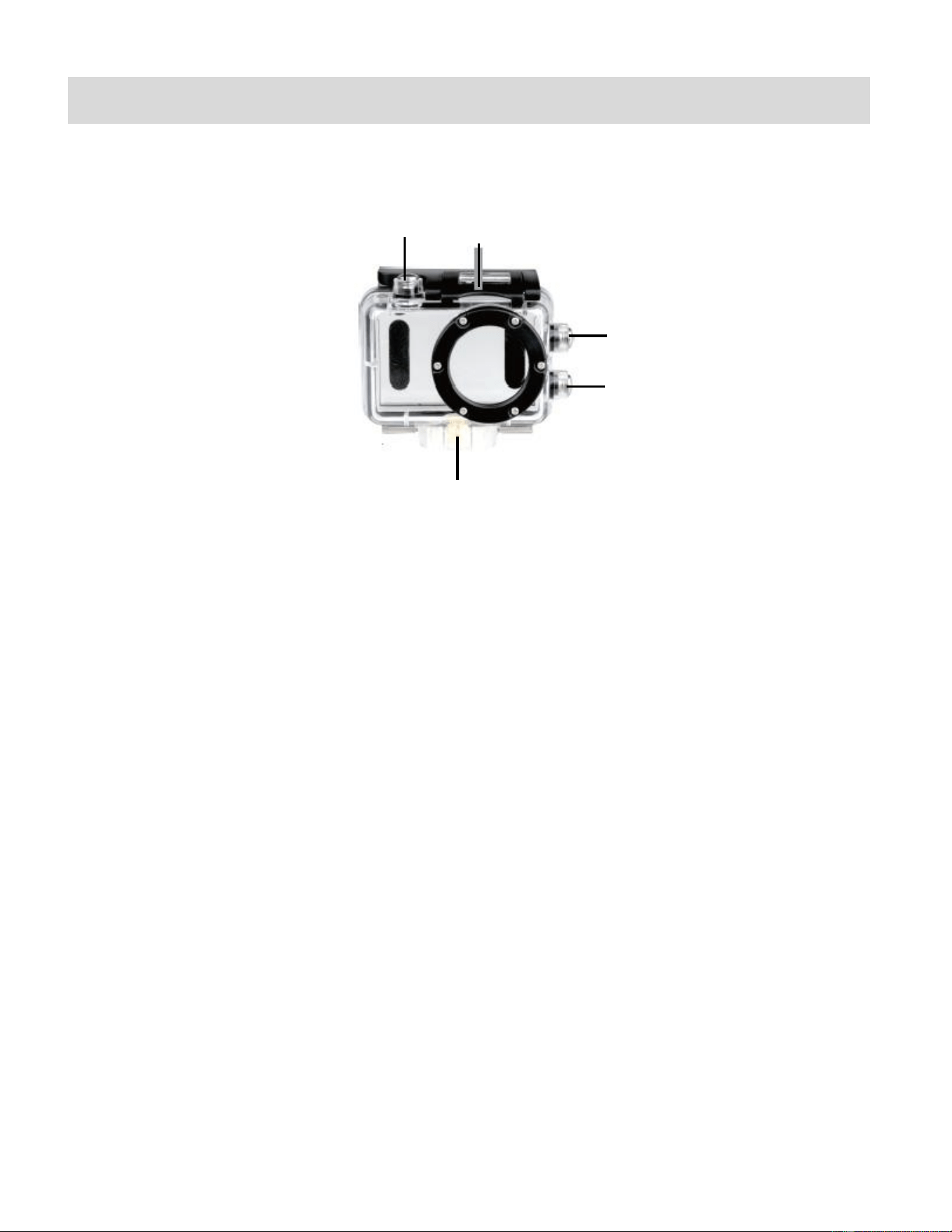
1. Shutter Release
2. Power/Mode Button
3. Wi-Fi Button
4. Clamp (Securing Latch)
5. Tripod socket
Your action cam comes with a waterproof casing for underwater action and added durability. To
assemble your camera to the case, follow the instructions below:
1. To open the case: Insert a finger at the half circle of the latch by prying the latch up - away
from the case.
2. Insert the camera lens forward into the case.
3. Before sealing the waterproof case, make sure the camera housing’s rubber seal clean.
Close the door and secure the latch.
4. While the camcorder is in the waterproof casing, press the POWER/MODE button to select
either Video or Photo Capture Mode. Press the Shutter button for recording your videos
and capturing your photos.
4
3
1
2
5

12
NOTE:
A single hair or grain of sand can cause a leak. You can test by closing the case without
inserting the camera. Submerse the case completely in water for about a minute. Remove
the case from the water, dry off its exterior with a towel, and then open the case. If the
entire interior is dry, the case is safe for use under water.
Before opening the waterproof casing and putting the device in, carefully check whether
the waterproof ring of the casing is flat and smooth.
After placing the device into the waterproof casing and closing the cover, carefully check
whether the waterproof ring is deformed due to pressure.
After every use in salt water you will need to rinse the outside of the housing with non-salt
water and dry. Not doing this can eventually cause corrosion of the hinge pin and salt
buildup in the seal, which can cause failure.
To clean the seal, rinse in fresh water and shake dry (drying with a cloth may cause lint to
compromise the seal). Re-install the seal into the grooves of the housing.
Powering On Your Camcorder
TURNING POWER ON AND OFF
1. Press and hold the POWER button for about 3 seconds to turn on the camcorder.
The LCD screen briefly displays ‘ON’ and opens the default Video Capture Mode. A beep
can also be heard from the buzzer.
2. Press and hold the POWER button again for about 3 seconds to turn the power off.
The LCD screen briefly displays ‘OFF’ and then powers off. A beep can also be heard
from the buzzer as the camcorder is being powered off.
13
LCD Display
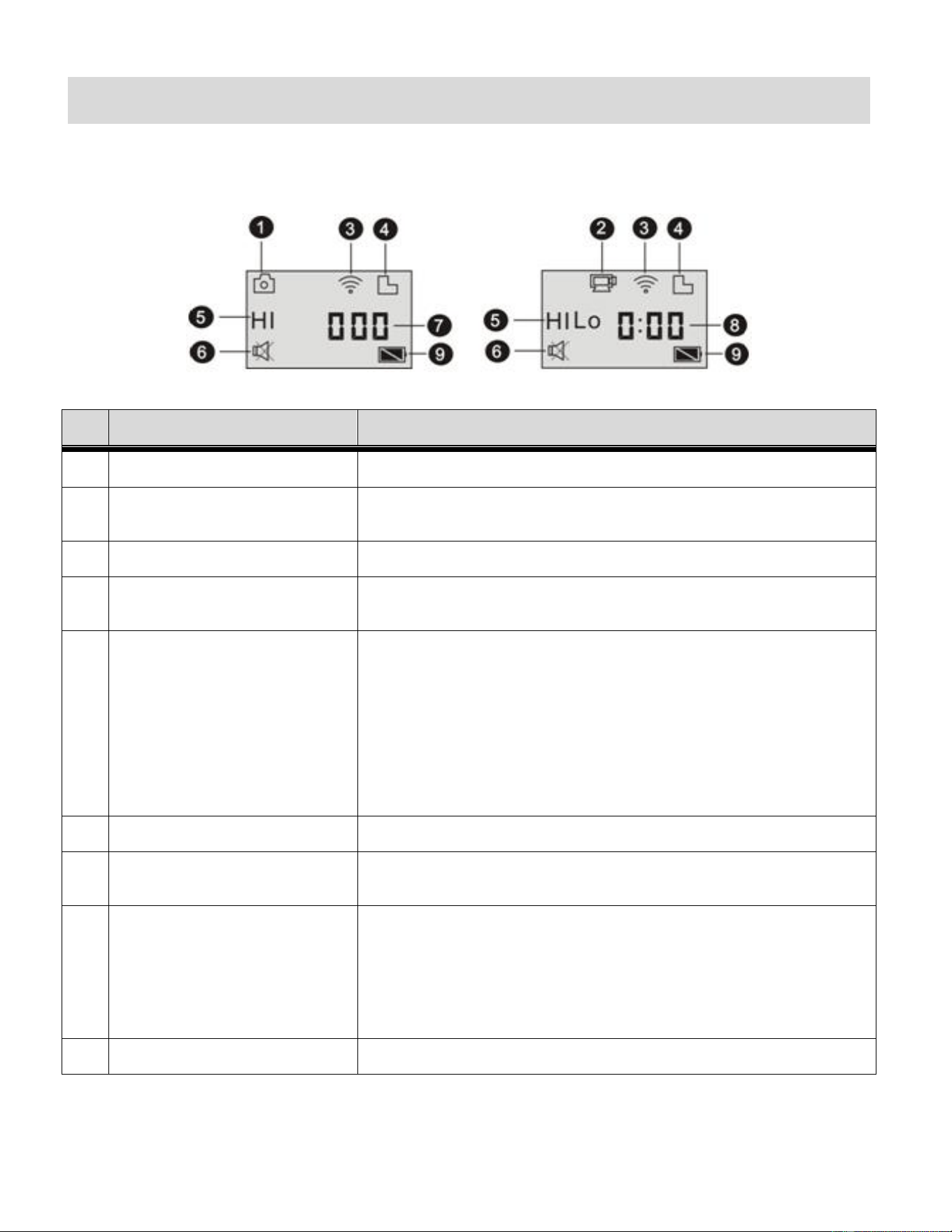
After turning on the Wi-Fi Action Camcorder, the LCD displays the following status and settings:
No.
ICON
DESCRIPTION
1
CAMERA MODE ICON
Indicates currently in Photo Capture/Camera Mode.
2
VIDEO RECORDING ICON
Indicates currently in Video Capture Mode. (Default Mode)
Flashing icon means the camcorder is recording a video.
3
WI-FI ICON
When displayed, this icon indicates that Wi-Fi is enabled.
4
MEMORY CARD
When displayed, this icon indicates that a memory card has
been inserted properly and is available.
5
RESOLUTION ICON
In Video Capture Mode:
- HI stands for stands for FHD (1920 x 1080, 30fps)
- HILO stands for 720P (1280 x 720, 30fps);
- LO stands for VGA (480P, 30fps)
In Photo Capture Mode (Camera Mode):
- HI stands for 12 Mega Pixels (4000 x 3000)
- LO stands for 5 Mega Pixels (2592 x 1944)
6
MUTE MODE ICON
Icon displays when enabled. Disabled by default (no icon).
7
COUNTER
Displays amount of photos that can be captured as per the
selected resolution. Displays up to 999.
8
RECORDING TIME
Timer – displays Hours: Minutes.
- Indicates the available length of time remaining in the
memory card for video recording at the selected
resolution.
- During Video recording displays recording time.
9
BATTERY LEVEL
Indicates the current level of the battery.
NOTE: The above icons may vary according to the status of the camcorder.
Photo Capture Mode Video Capture Mode
14
Changing Camcorder Mode
THREE MAIN MODES
1. Video Capture Mode - Use this mode to capture videos with your camcorder.
2. Photo Capture Mode - Use this mode to capture photos with your camcorder.
3. Playback Mode (for photos and videos) – Connect to your camcorder to your computer
or television to use this mode to view your captured photos and videos.
SWITCHING MODES
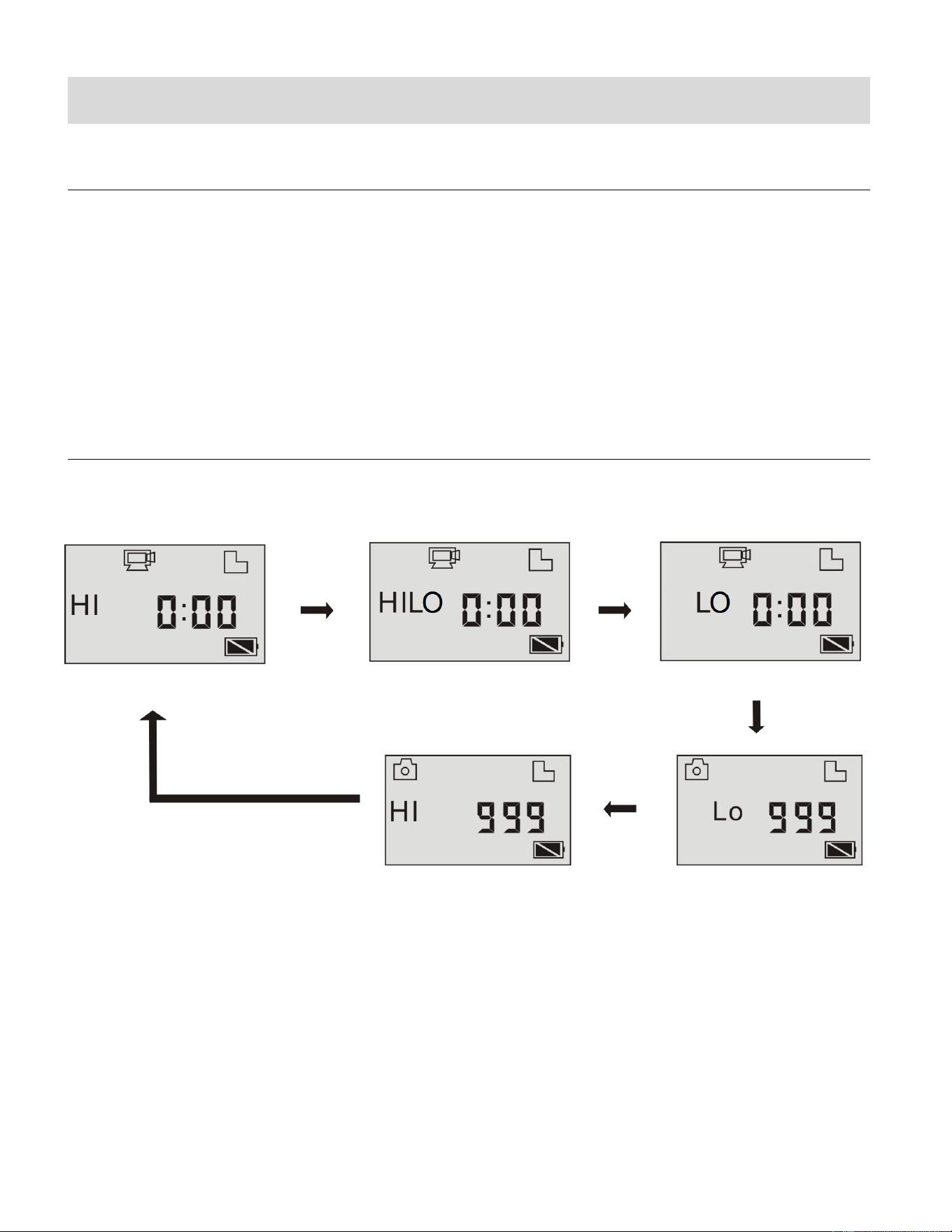
After turning on the camcorder, you can press the POWER/MODE button to switch between the
following modes in turn:
In Video Capture Mode, press the Shutter button to start recording and press it again to
stop.
In Photo Capture/Camera Mode, press the Shutter button to take photo.
Camera mode (12MP)
Camera mode (5MP)
Video mode (VGA)
Video mode (HD)
Video preview mode (FHD default)

15
Video Capture Mode
The Video Capture Mode allows you to capture videos with your digital camcorder.
After powering on your camcorder, the camcorder enters the default mode of Video Capture
Mode, recording at a default resolution size of ‘HI’ (FHD).
Press the POWER/MODE button to switch between the Video Capture Mode resolution sizes:
from ‘HI’ (FHD) to ‘HILO’ (HD) to ‘LO’ (VGA).
TAKING A VIDEO
1. Power On:
Press and hold the POWER button for about 3 seconds to power on the camcorder.
2. Select Video Resolution:
HI FHD (1920 x 1080)
HILO 720P (1280 x 720)
LO VGA (480P)
The default mode when the camcorder is powered on is Video Capture Mode – ‘HI’
resolution.
To change the video resolution to ‘HILO’ or ‘LO’ press the MODE button until you see
the resolution you would like.
NOTE: The amount of video capture time available as per your memory card size and
selected resolution size appears on the LCD screen.
3. Capture Your Video:
Press the Shutter button to start the video capture.
Press the Shutter button again to stop the video capture.
During the recording of your video the video icon on the LCD display blinks, the LED
light indicator on the front of the camera flashes red and the elapsed time appears on
the LCD.
ATTENTION: Due to limited characters displayed on the screen, video recording
time can be displayed in minimum unit minute.
For example: 0:02 indicates 2 minutes. During recording, 0:01 indicates video recorded
for 1 minute.

16
After recording the video, the amount of available time left to capture additional videos
as per your memory card size and selected resolution size appears on the LCD screen.
4. The video is automatically saved to the camcorder’s Micro SD Memory card.
Photo Capture Mode
The Photo Capture Mode allows you to capture photos with your digital camcorder.
When you first power on the camcorder, the Video Capture Mode will be active.
In order to open the Photo Capture Mode, press the POWER/MODE button twice to enter Photo
Capture Mode at ‘LO’ resolution size (5 Mega Pixels).
Press the POWER/MODE button again to switch the Photo Capture Mode resolution size from
‘LO’ to ‘HI’ (12 Mega Pixels).
TAKING A PHOTO
1. Power On:
Press and hold the Power button to power for about 3 seconds on the camcorder.
2. Enter Photo Capture Mode:
Press the MODE button three times to enter Photo Capture Mode, ‘LO’ (low resolution).
3. Select Photo Resolution:
HI 12MP (4000 x 3000pixels)
LO 5MP (2592 x 1944 pixels)
- To change the photo resolution from ‘LO’ to ‘HI’ press the MODE button again.
NOTE: The amount of photos available as per your memory card size and selected
resolution size appear on the LCD screen.
4. Capture Your Photo:
Press the Shutter button to capture your photo.
5. The photo is automatically saved to the camcorder’s Micro SD Memory card.
17
Playback Mode
The Playback mode allows you to review and delete photos and videos that you’ve captured with
you camcorder.
PLAYBACK MODE: HDTV
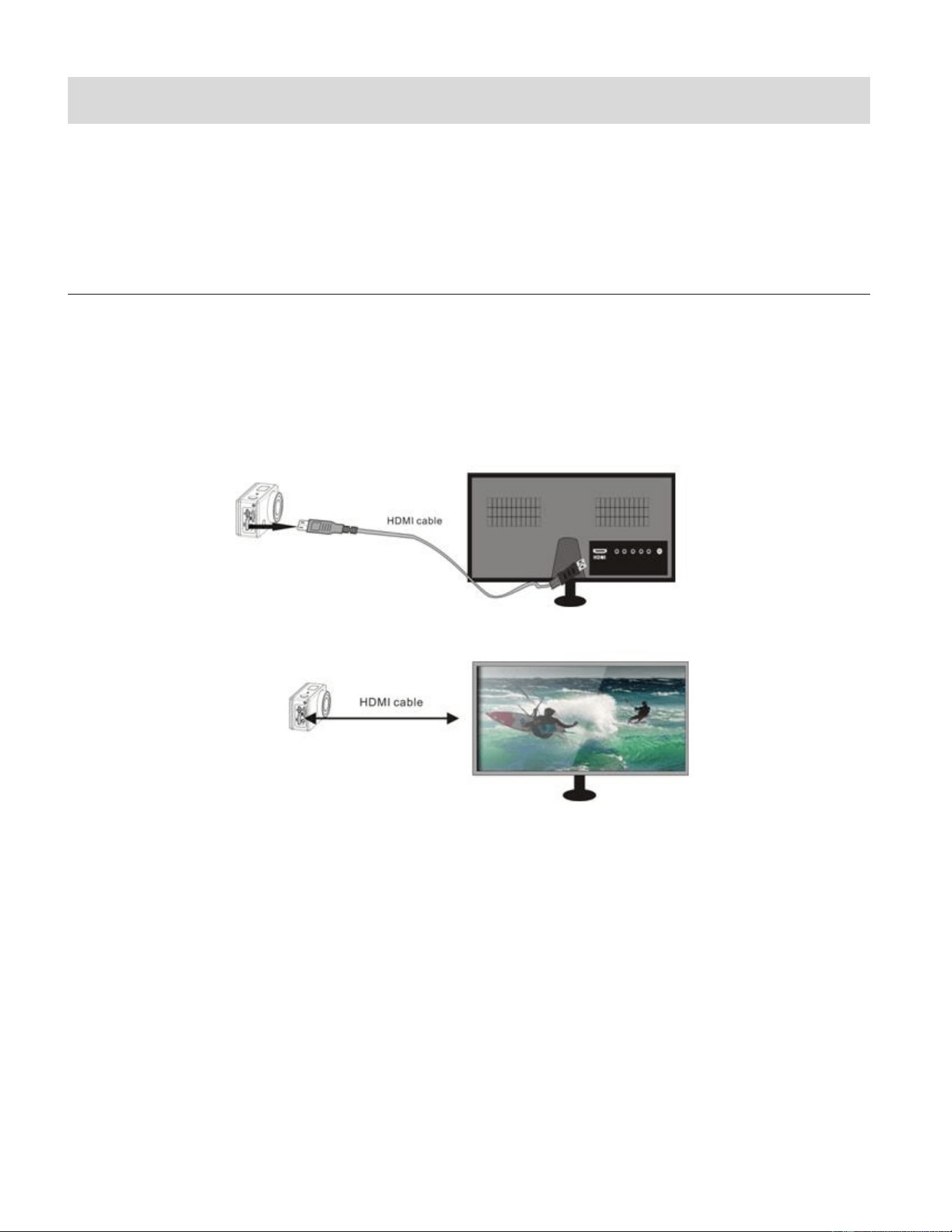
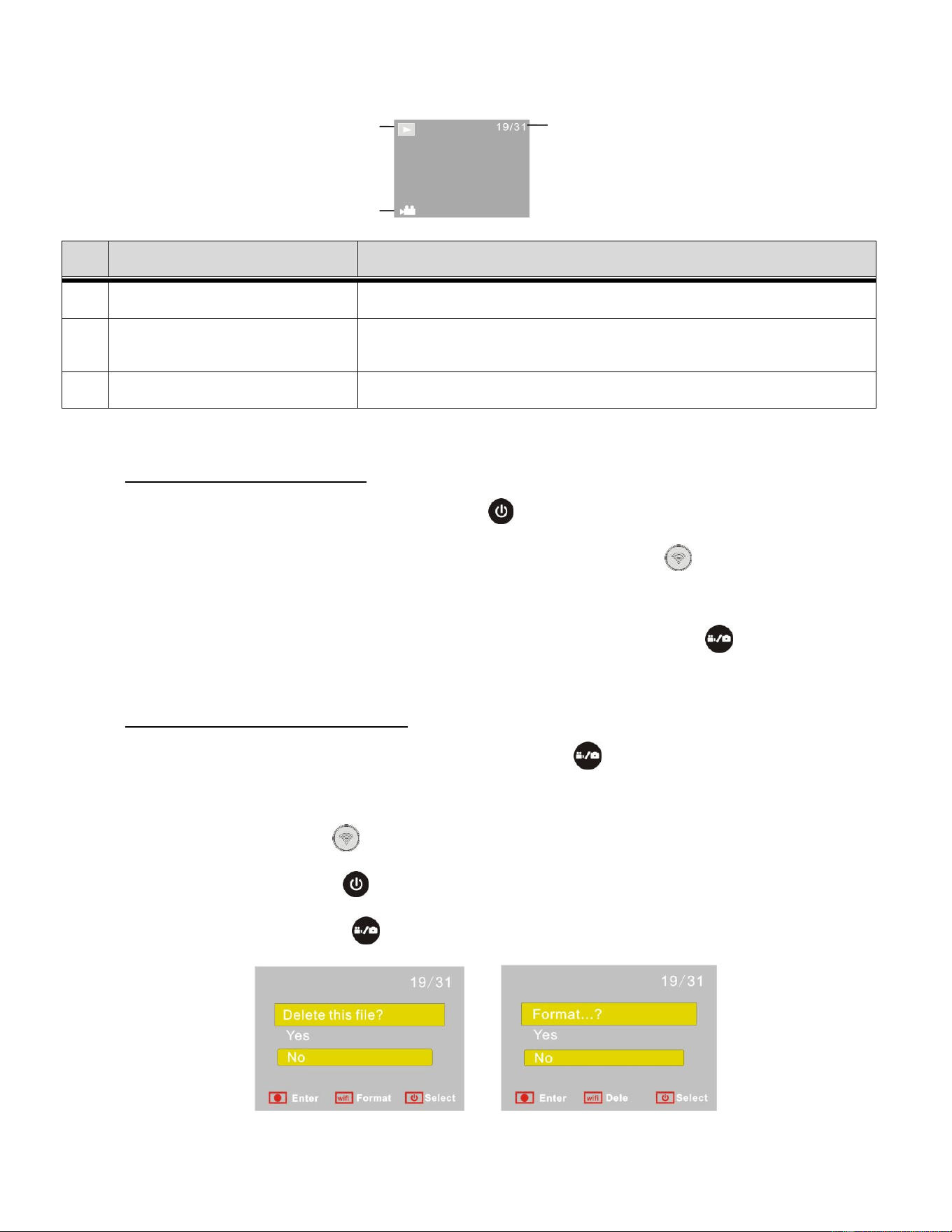
1. Use the HDMI cable to connect the camcorder to your HDTV.
If you need to transfer the image and audio to an HDTV for playback, insert the Com end
of the HDMI cable to the DV, and the other end (output) to the HD input of the HDTV, as
shown in the following figure:
NOTE: Before connecting or removing the HDMI cable, first stop video recording, playback
and disconnect Wi-Fi.
2. Power on your camcorder and the HDTV.
3. When HDTV is connected, the camcorder enters the Playback Mode.
18
The LCD displays as below:
No.
ICON
DESCRIPTION
1
PLAYBACK MODE ICON
Indicates currently in Playback Mode.
2
FILE NUMBER
Indicates the number file you are currently viewing / out of
the total number of files.
3
VIDEO FILE ICON
Indicates the current file is a video file.
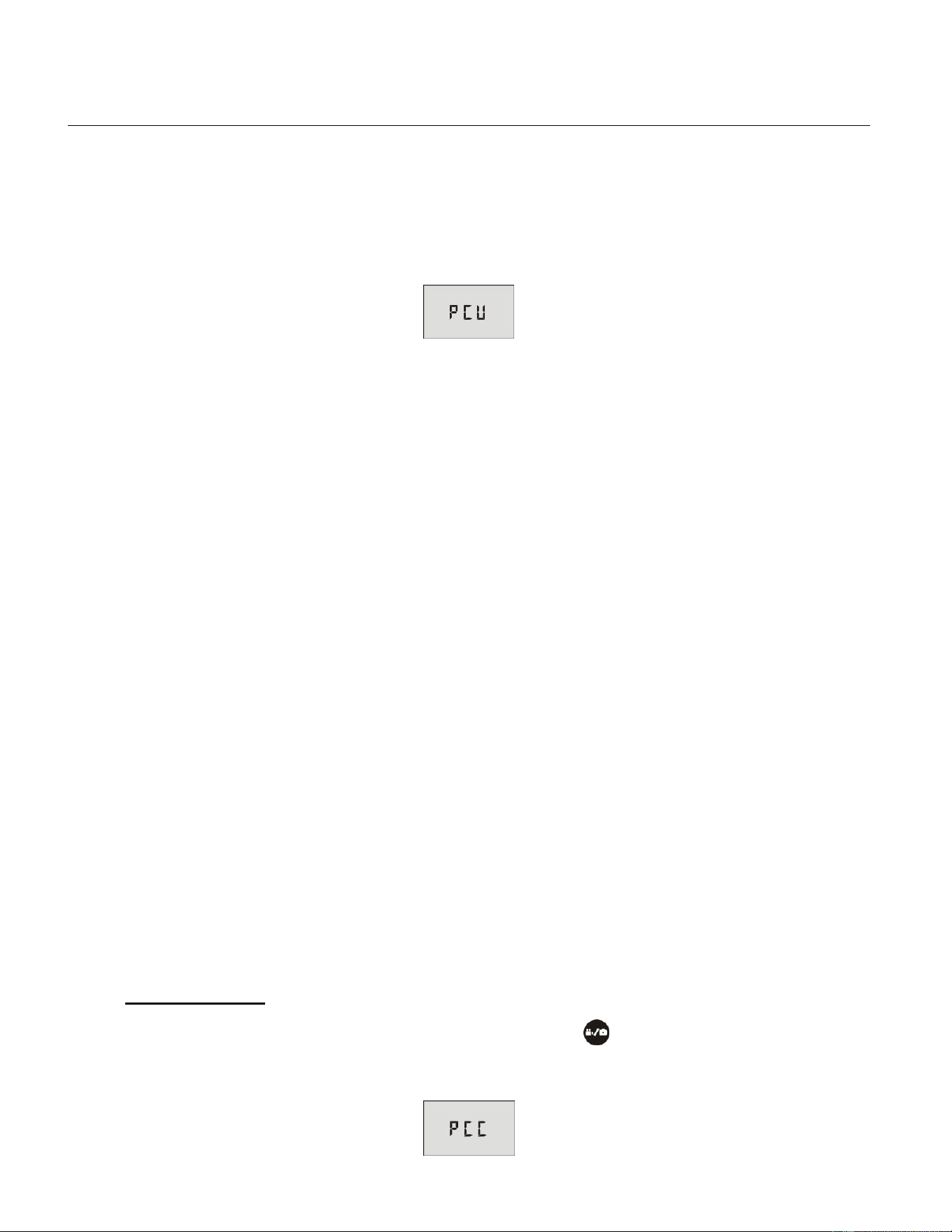
1. View/Select a Video or Photo:
In Playback Mode, press the Power button to switch between photos and videos.
When there are several photos or videos, press the Wi-Fi button to select a specific
photo or video.
PLAY VIDEO: When a video file is selected, press the Shutter button to play it, and
press the Shutter button again to stop playing the video.
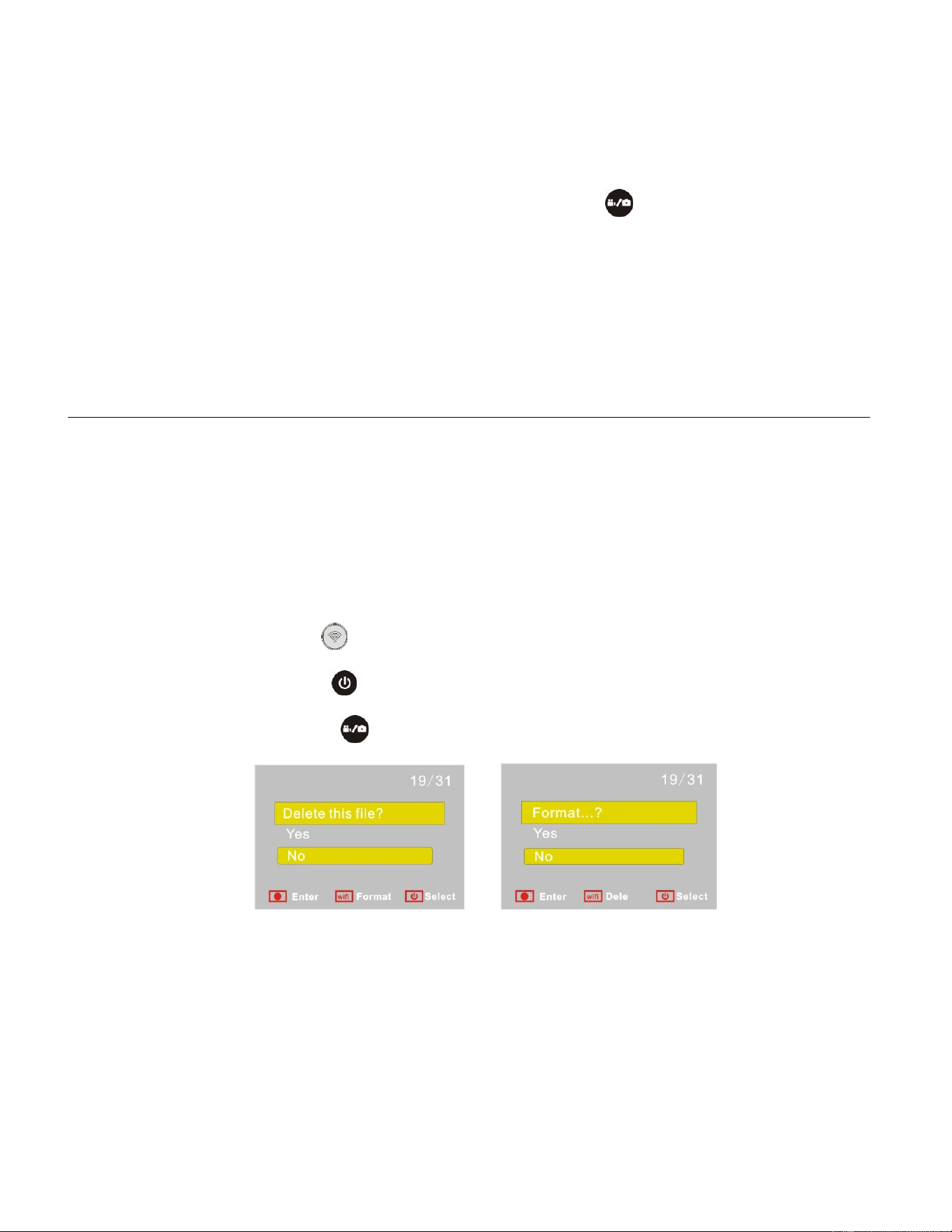
2. Delete File / Format Memory Card:
In Playback Mode, press and hold the Shutter button to open the prompt for deleting
the current file or formatting the memory card.
- Press the Wi-Fi button to switch between deleting or formatting.
- Press the Power button to select ‘Yes’ or ‘No’.
- Press the Shutter button to confirm and exit.
1
2
3
19
PLAYBACK MODE: COMPUTER
1. Connect your camcorder to your computer using the supplied USB cable.
Connect the smaller end of the USB cable to the USB interface of your camcorder and the
other end to the USB port of your computer. The camcorder will enter U-disk mode and the
LCD displays as below after connection:
2. Power on your camcorder.
3. Now you can view the photos or videos taken by the camcorder on the computer.
WINDOWS OS: The ‘AutoPlay’ window automatically opens. Select ‘Open folder to view
files’. Alternatively, in the window of “Computer (or My Computer)”, there will be a portable
disc added named ‘Removable Disk’. Click to open. Your captured photos and videos are
stored under catalogue of “DCIM” folder in the portable disc. You may enter this catalogue
to copy files onto hard disk of your computer or view directly from the memory card.
MACINTOSH OS: The camera’s device icon appears on the desktop. Click on this device
icon and open the DCIM folder.
NOTE:
Do not disconnect the USB cable during file transfer. This may cause data loss.
After connecting the camcorder to your computer and entering U-disk mode, two
removable disks are displayed in ‘My computer’ of Windows.
- One is the TF card, ‘DCIM’ folder, storing all the photos taken and videos recorded.
Open the folder and select a file to view the photo or video.
- The other one stores the system file information, including a file named SSID_PW.CFG,
containing the AP ID of the computer and the password for AP login. Users can view this
information but cannot modify, delete or format them.
4. Web Cam Mode:
In U-disk mode (PCU mode), press the Shutter button to switch to Web Cam Mode
(PCC mode). The LCD screen displays as below:
20
5. Now you can start the Web Cam through using most instant messaging and web
conferencing applications that support video. Select the camcorder, ‘iCatchtek
SPCA6330’, from the video settings of the web conferencing application.
6. To return to U-disk mode (PCU mode), press the Shutter button again.
NOTE: Driver is not required for Web Cam mode (PCC mode) on Windows XP (SP3)
version or above.
DELETING CAPTURED IMAGES
Files can be deleted while your camcorder is connected to your HD television or your computer.
DELETING IMAGE FILES WHILE CONNECTED TO THE TELEVISION:
After connecting to HDTV, the camcorder enters the Playback Mode mode.
1. In Playback Mode on the HDTV, long press the Shutter button to enter File Deletion Mode.
2. Press the Wi-Fi button to switch between deleting or formatting.
Press the Power button to select ‘Yes’ or ‘No’.
Press the Shutter button to confirm and exit.
DELETING IMAGE FILES WHILE CONNECTED TO THE COMPUTER:
After connecting to the computer, the camera enters portable disc mode.
1. After connecting the camcorder to your computer and opening the ‘DCIM’ folder with your
image files, select the file(s) that you would like to delete.
2. Drag them to the Trash Can icon on your computer desktop or press the Delete key to
delete the files.
21
Caution: Please use the Delete feature with care. Once images are deleted they are
permanently deleted from the Micro SD Memory card. Please make sure that you only use this
feature once you have downloaded and saved all the images you wish to your computer.
Remote Control
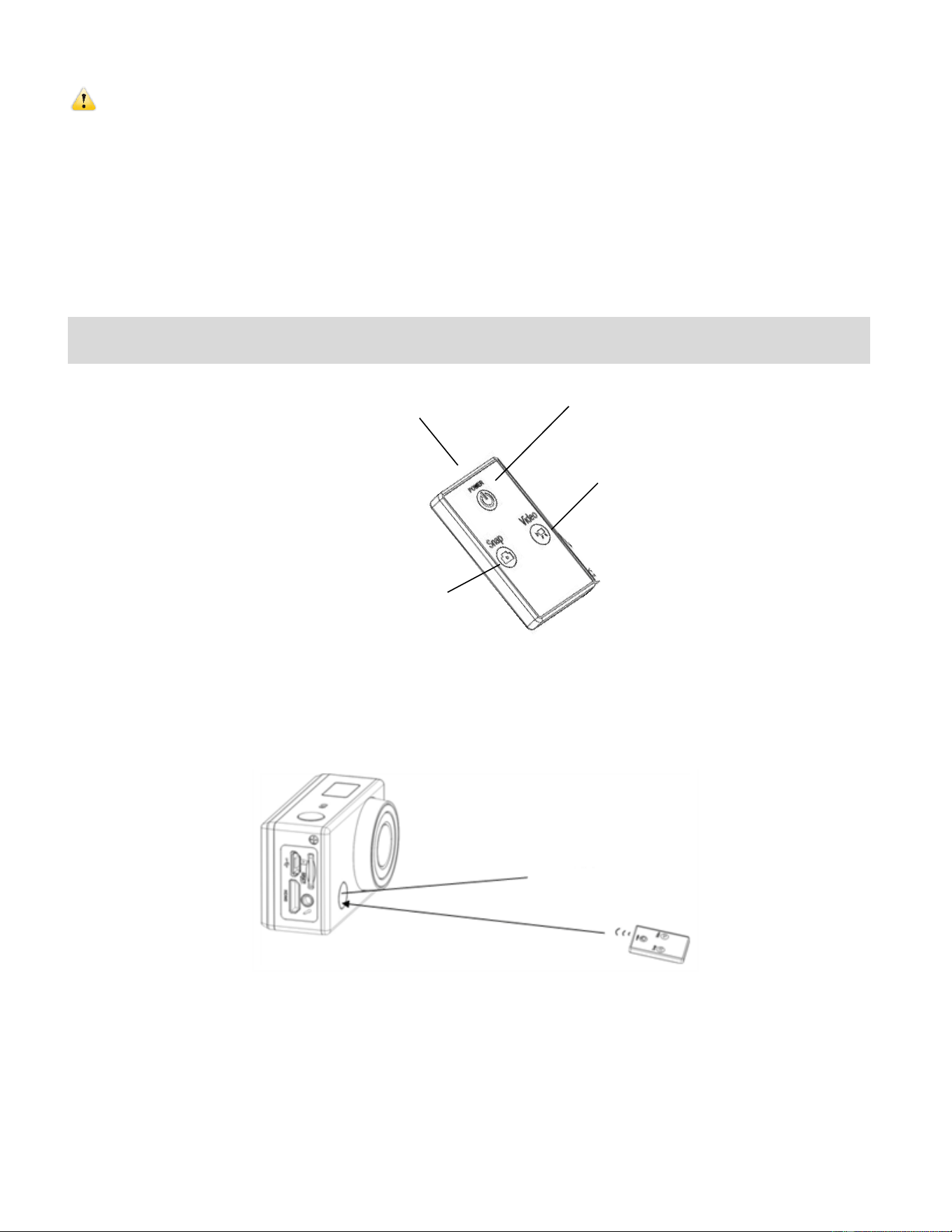
You can use the remote control to record videos, take photos and shut down the DV. When using
the remote control, aim the signal emission to the port to the infrared signal reception light of the
camcorder, and then press the Video button, Photo (Snap) button or POWER OFF button.
Signal emission port
Power off button
Video button
Photo button
Infrared signal reception light
22
Vivitar Action Cam - Mobile Device Application
The Vivitar Action Cam application allows you to use your mobile device as a remote control for
your Action Camcorder. You can remotely capture photos and record videos, adjust camera
settings, and preview the photos and playback the videos taken by your Acton Cam. You can also
easily download the captured videos and photos from the Action Cam to your mobile device and
then share these captured images online. Pictures and videos from your mobile device can also
be previewed using the Vivitar Action Cam app.
MOBILE DEVICE REQUIREMENTS
iPhone / iPad with iOS 7 or above
Android phone / tablet with OS 4.3 or above
INSTALLING THE VIVITAR ACTION CAM APPLICATION
To install “Vivitar Action Cam” application on your mobile device, please follow the steps below:
3. Locate the application in the online store:
Android OS devices:
Search for “Vivitar Action Cam” in the Google Play Store, or scan the
QR code in the manual or on the gift box to find the application.
Apple iOS devices:
Search for “Vivitar Action Cam” in the Apple App Store or scan the
QR code in the manual or on the gift box to find the application.
4. Follow the instructions to install the “Vivitar Action Cam” application on your smartphone or
tablet. When installation is complete, the LCD on your smartphone or tablet will display the
“Action Cam” app icon.
Android QR Code
iOS QR Code

23
CONNECTING YOUR ACTION CAM TO YOUR MOBILE DEVICE
1. Action Camcorder:
Make sure you have installed a TF card and power on your Action Camcorder.
Then press the Wi-Fi button on the Action Camcorder to enable the WiFi connection. The
Wi-Fi button’s red LED light blinks and the Wi-Fi icon appears on the LCD.
2. Mobile Device:
Open ‘Settings’ on your mobile device and select WiFi. Enable Wi-Fi on your smartphone
or tablet and search for the camera’s wireless AP signal. The network name will begin with
‘Actioncam’ followed by a series of numbers. For example: ‘Actioncam000001’.
Tap this network name to select your action camcorder’s Wi-Fi network connection. You
will be prompted for the first time to join the network and enter a password. When
connected successfully, a check appears by the selected Wi-Fi network on your
smartphone or tablet. The camcorder’s red LED Wi-Fi light stops blinking to indicate the
successful connection.
NOTE: The first time connecting to the camcorder,you need to enter the following
password: “1234567890”.
3. To launch the application:
Tap the Action Cam application icon on the Home Screen or from the App list of the
smartphone or tablet to open it. Now you can preview images from your phone, from your
camera and use your mobile device to control the camcorder settings and capture your
images.
24
USING THE VIVITAR ACTION CAM APPLICATION
HOME SCREEN
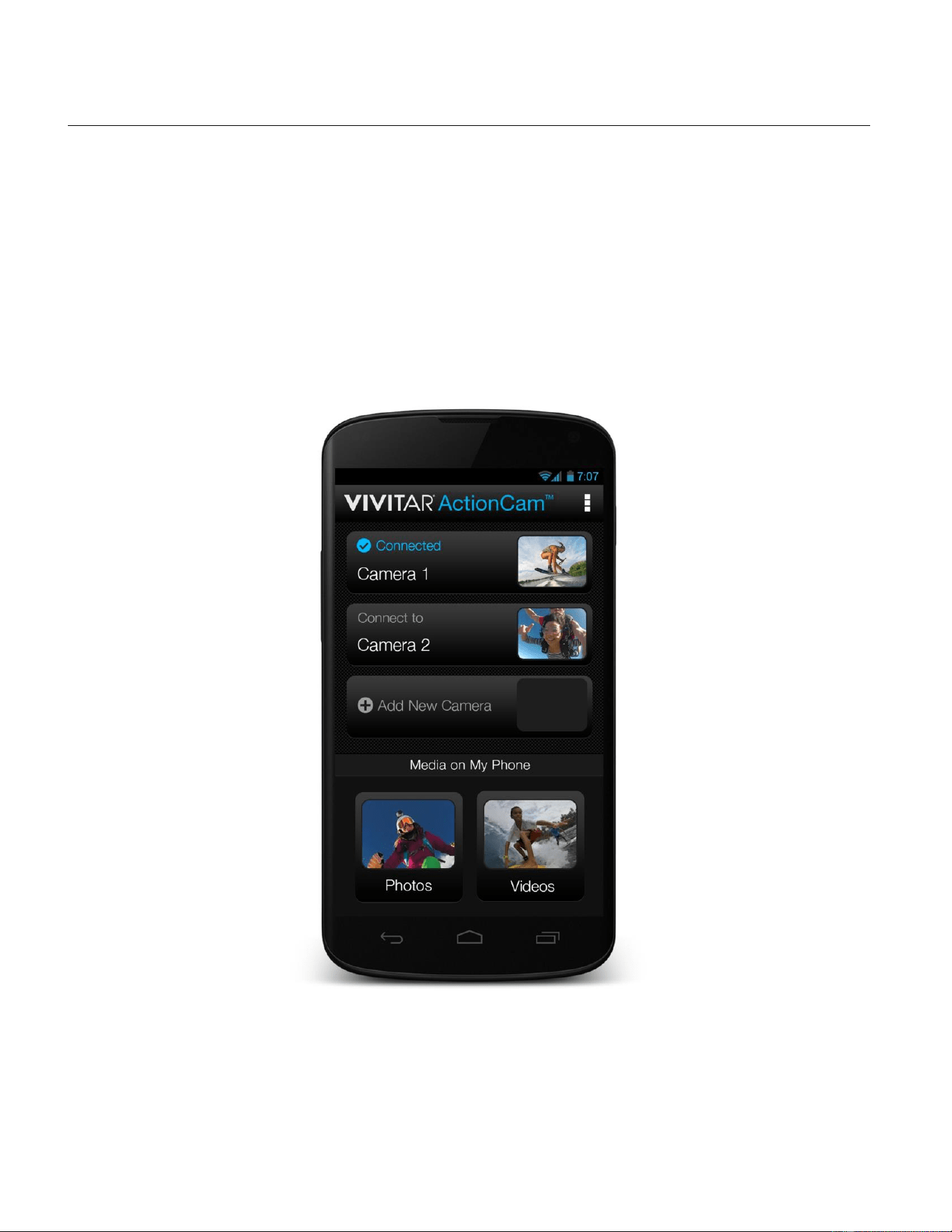
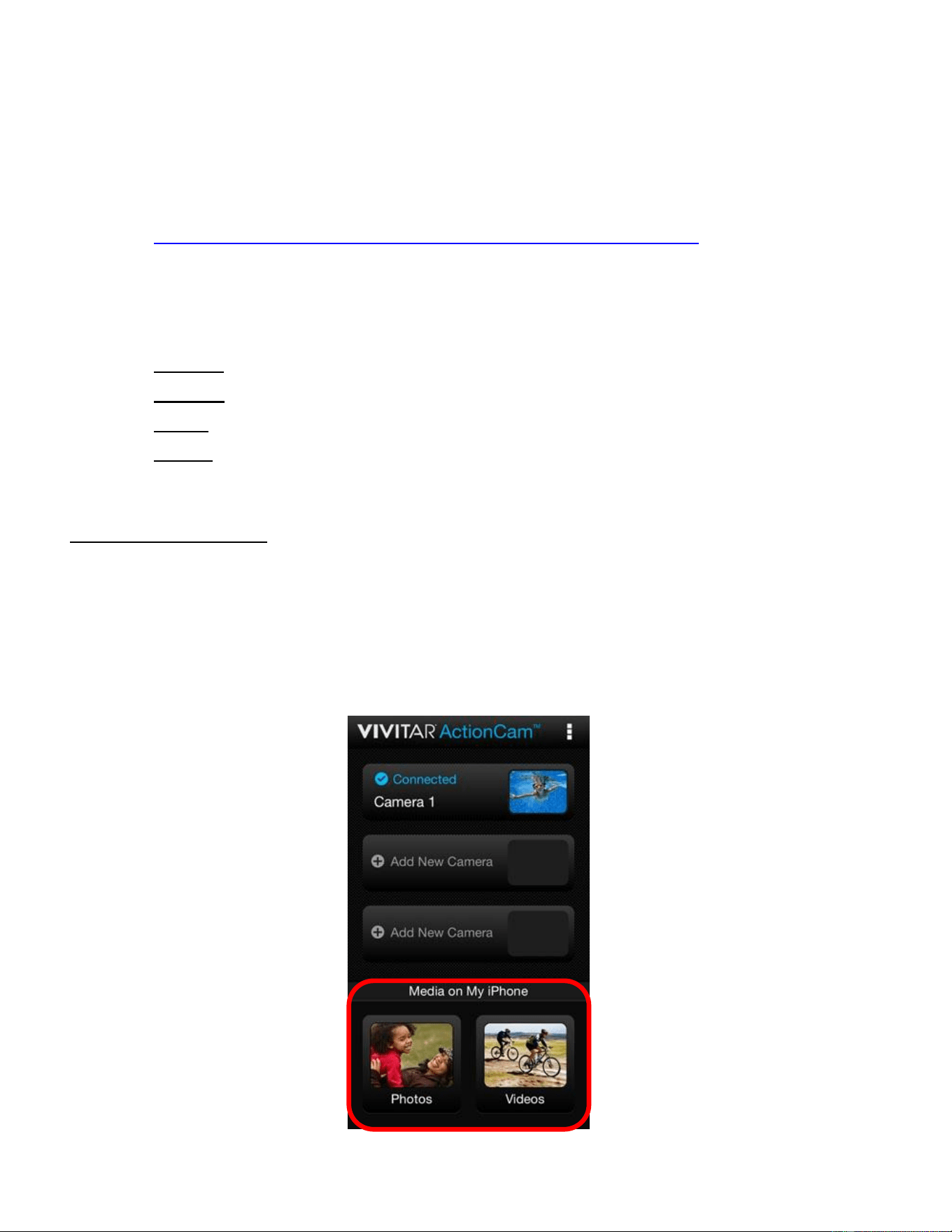
The Vivitar Action Cam application gives you the option to connect three Vivitar Action
Camcorders. Only one Action Cam can be connected at a time.
The Home screen allows you to connect your camera(s) and enter the Video and Photo live
capture modes. You can also access your photos and videos saved on your mobile device from
the Home screen.
25
Home Screen Options
The following options appear on the Home screen: ADD NEW CAMERA, MEDIA ON MY PHONE, MENU
ADD NEW CAMERA - AND CONNECT
Make sure your Mobile device and your Vivitar Action Cam are connected. See
CONNECTING YOUR ACTION CAM TO YOUR MOBILE DEVICE for more information.
The top section of the Home screen shows the list of Action Camcorders – those that are
connected or disconnected.
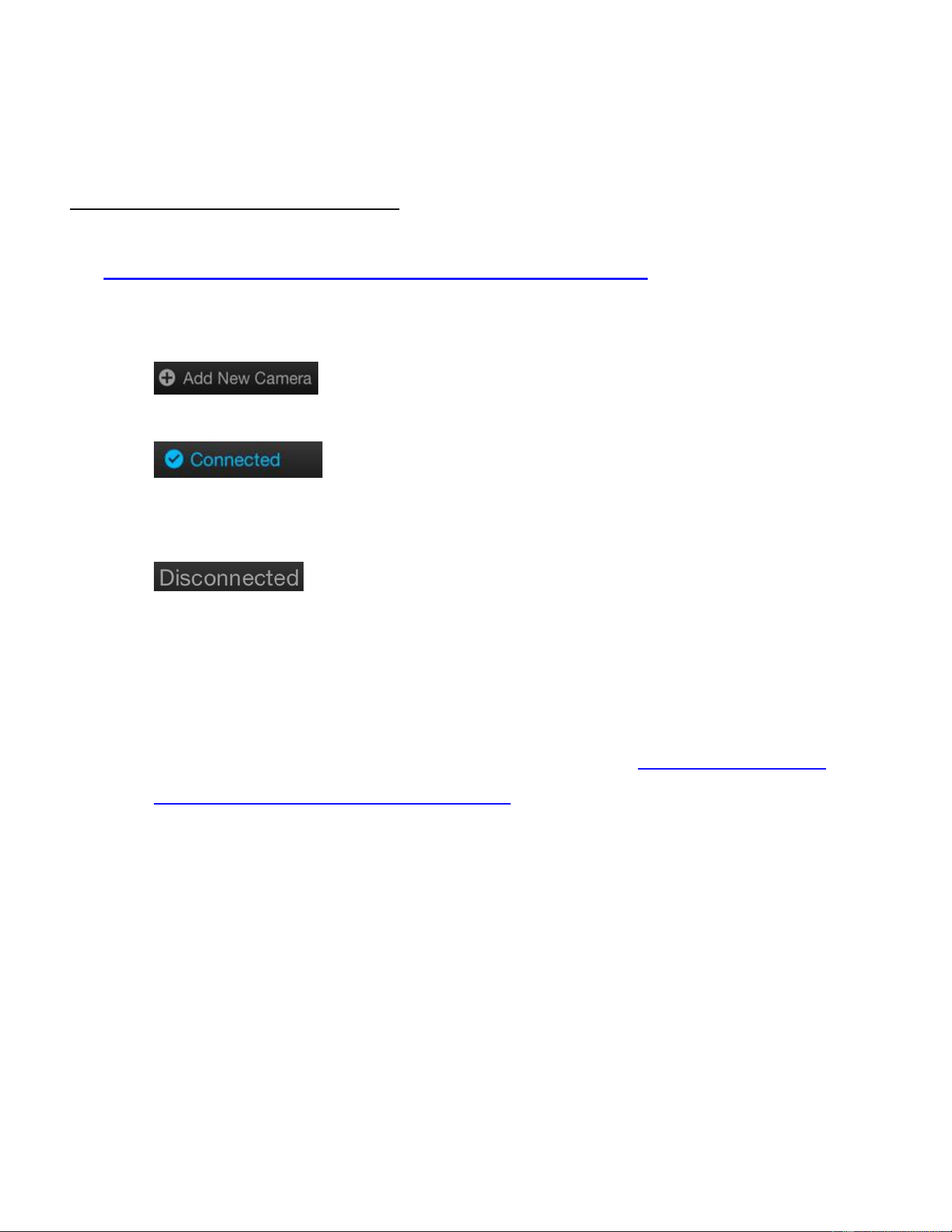
Tap + Add New Camera to connect the camera to the app. You
are now able to control the camera with the Vivitar Action Cam app.
Once connected, the selected camera appears as “Connected” in
blue text with a check mark in the Home screen. Tap the ‘Connected’ button to open
the Video Capture Live Camera Mode and begin capturing your images remotely.
When your camera status appears as “Disconnected” on the Home
screen, you need to reconnect your camera to the app.
CONNECTED/DISCONNECTED CAMERA OPTIONS:
- TO ADD AND USE ANOTHER CAMERA:
First pair the additional camera to your mobile device (see CONNECTING YOUR
ACTION CAM TO YOUR MOBILE DEVICE for more information) and then tap + Add
New Camera. This connected camera becomes the active camera for the application.
- TO CHANGE TO A DIFFERENT CAMERA THAT HAS ALREADY BEEN ADDED BUT
APPEARS AS DISCONNECTED:
Connect the app to the selected camera’s Wi-Fi (via the smartphone/tablet’s Wi-Fi
settings) and then open the app and tap the connected camera’s ‘Connected’ button
from the Home screen. This selects the desired camera and opens the Video Capture
Mode live camera using the selected camera.
- TO RECONNECT WHEN YOUR ACTION CAM STATUS APPEARS AS
‘DISCONNECTED’ ON THE APP:
You need to reconnect your camera to the application. Make sure your camera’s Wi-Fi
26
is on. Push the camera’s Wi-Fi button to activate the Wi-Fi if needed. Go to the Wi-Fi
settings on your mobile device and connect to the camera’s Wi-Fi network. The
network name ‘DVR794HD’ appears – select this network. Go back to the app’s home
screen and your camera will be marked as ‘Connected’ on the main screen. See
CONNECTING YOUR ACTION CAM TO YOUR MOBILE DEVICE for more
information.
- To view the options for your added camera, both connected or disconnected camera:
Long tap the button of the added camera to open the following options:
Connect: Reconnects and opens the connected Action Cam Live Mode screen.
Rename: Allows you to change the name of the camera displayed on the button.
Delete: Removes the selected camera from the list.
Cancel: Exits the menu and returns to the Home screen.
NOTE: The Cancel option appears on iOS devices only.
MEDIA ON MY PHONE
The bottom section of the Home Screen displays the photos and videos you have already
captured and saved on your smartphone or tablet.
- Tap Photos to open the ‘Photos’ section in the ‘Media on My Mobile Device’ screen
and view your photos from your mobile device.
- Tap Videos to open the ‘Videos’ section in the ‘Media on My Mobile Device’ screen and
view your videos from your mobile device.

27
MENU
Tap Menu on the top right of the screen to view the following information:
About
Help (online)
User Manual (online)
License
NOTE: On some Android OS mobile devices, the Menu button does not appear as
shown above. The Menu options appear when you tap the mobile device’s Menu button.
IMPORTANT - To access the online Help or User Manual:
Please make sure your mobile device is connected to a Wi-Fi network with an Internet
connection. If your mobile device is not connected to the Internet via mobile data, then
please open your mobile device’s Wi-Fi settings and disconnect your mobile device from
the camera’s Wi-Fi network by selecting a Wi-Fi network with an Internet connection from
the list of available networks that appears in the Wi-Fi settings list. Only then will you be
able to view the online Manual and online Help. To resume using the camera after viewing
the Help or Manual, reconnect to the camera’s Wi-Fi by pressing the camera’s Wi-Fi
button and then selecting the camera from the Wi-Fi list on your mobile device’s Wi-Fi
Settings list.
28
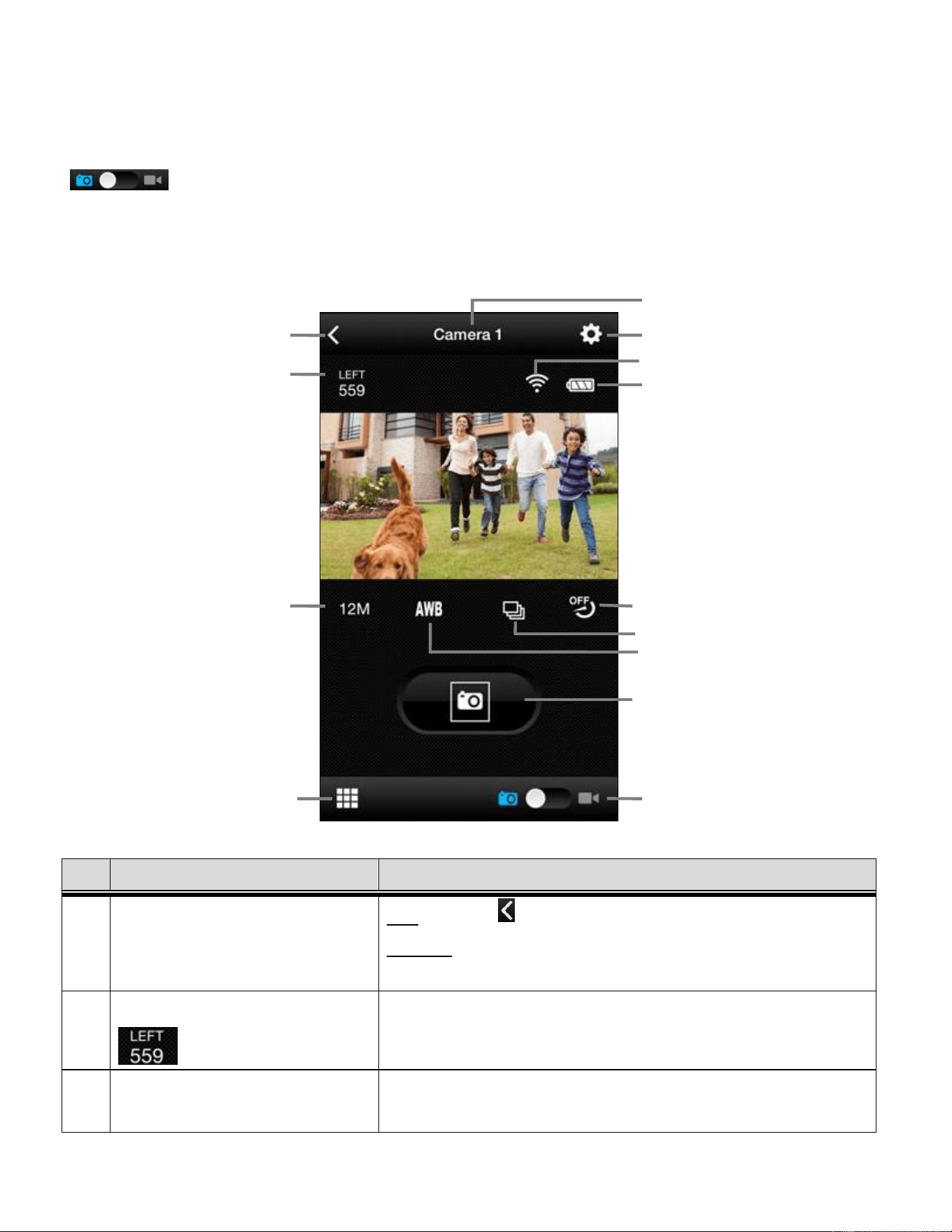
VIDEO CAPTURE MODE
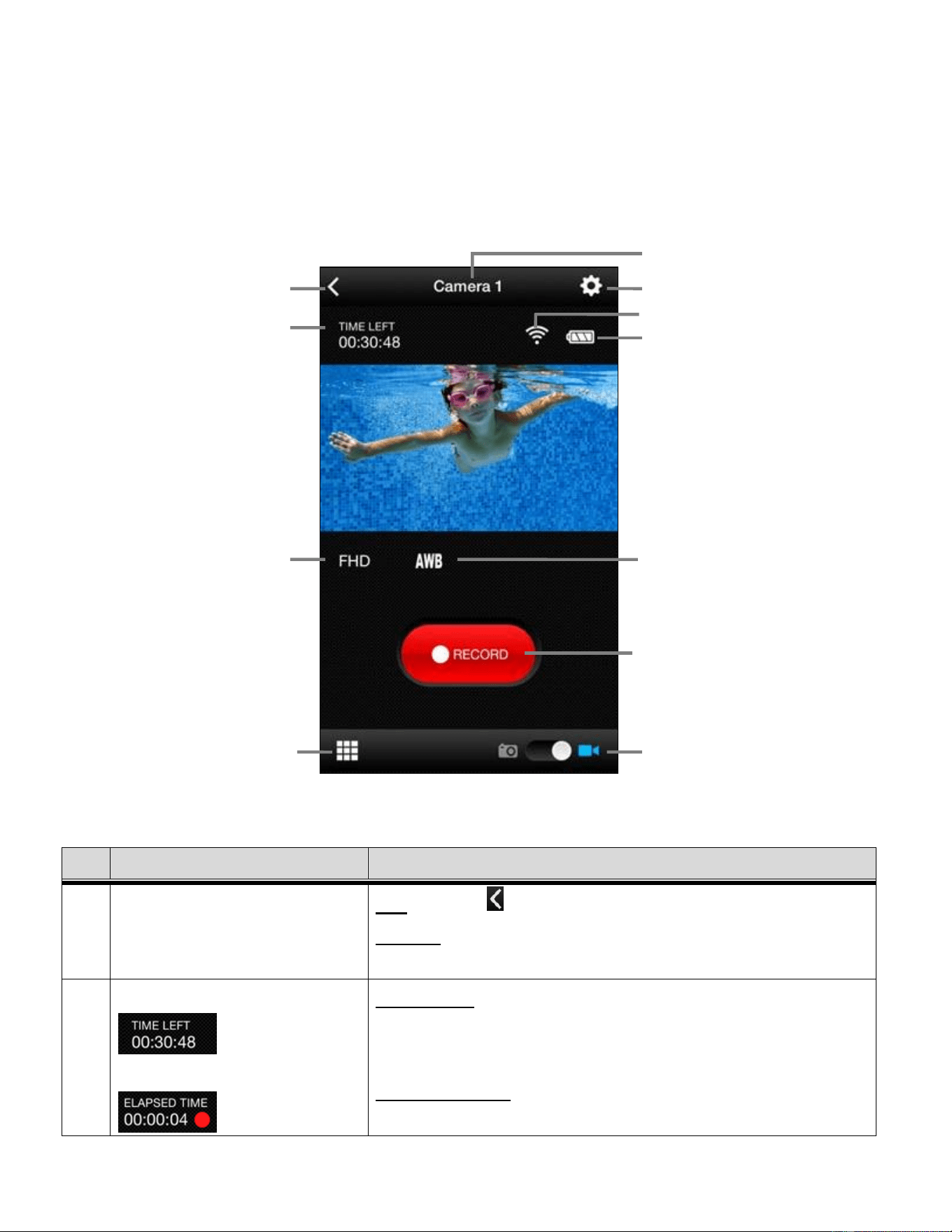
After tapping and selecting your connected camera, the default mode is the Video Capture Mode.
The application is in Live Camera Mode and you can now begin capturing your images.
No.
ICON
DESCRIPTION
1
BACK
iOS: Tap the Back icon to return to the Home screen.
Android: Tap the back button on the phone to return to the
apps Home screen.
2
TIME LEFT
ELAPSED TIME
TIME LEFT: Displays the time left on your camera for
capturing videos during standby mode.
ELAPSED TIME: During the recording of your video, the
TIME LEFT changes to ELAPSED TIME, which displays the
1
2
3
4
5
6
7
8
9
10
11
29
recording time and the recording signal.
3
VIDEO RESOLUTION
Displays the current selected Video Resolution.
Tap the icon to change resolution.
The Resolution options include: FHD, HD, VGA
4
PLAYBACK IMAGES FROM
CAMERA
Tap to view thumbnails of the captured videos and photos
from your camera. NOTE: To playback videos, select and
download to your mobile device.
5
CAMERA NAME
Displays the name of the connected camera.
6
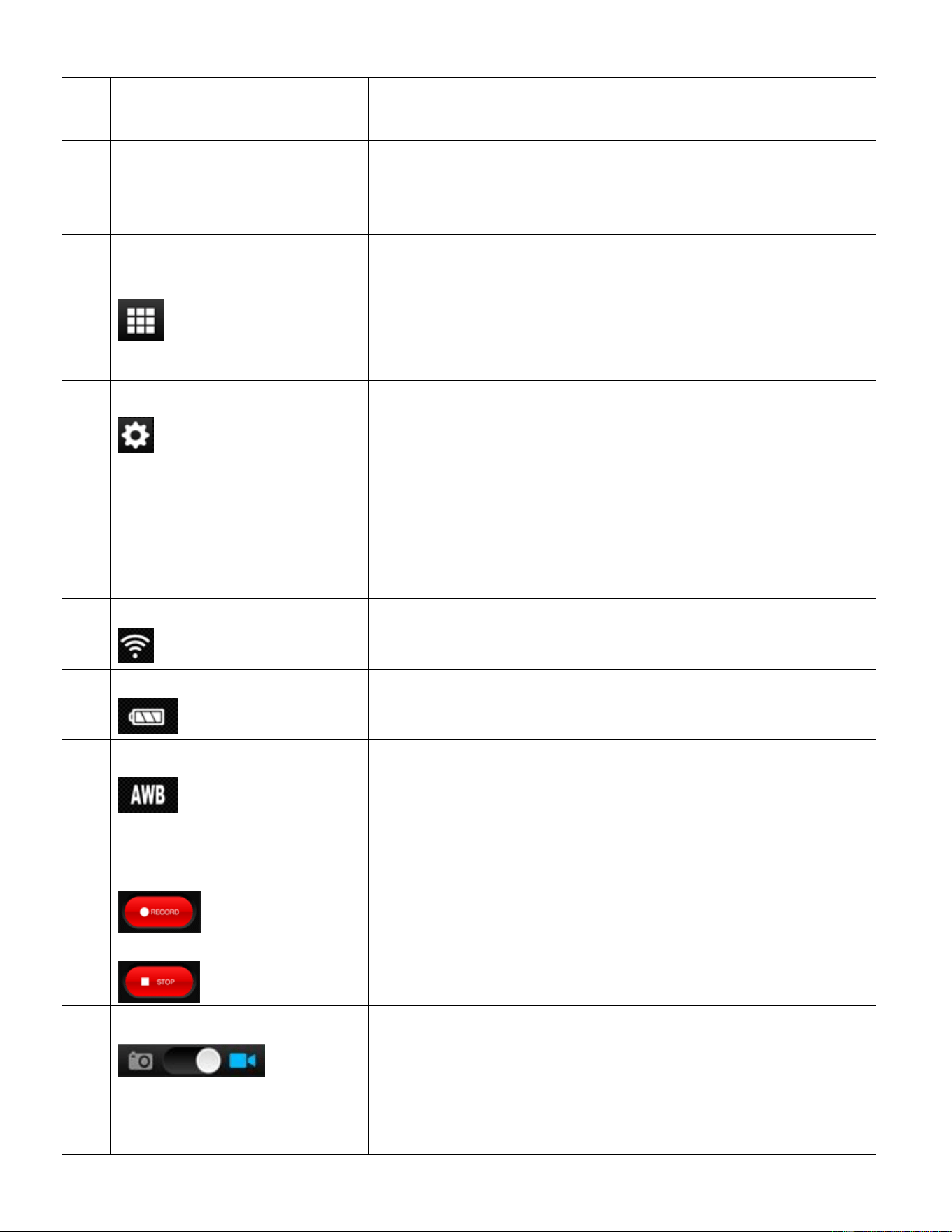
CAMERA SETTINGS
Tap to display the Camera Settings options.
The Android OS device options include: Resolution, White
Balance, Burst (Photo Capture Mode only), Self Timer
(Photo Capture Mode only), Format Camera (formats
camera’s memory card).
The iOS device options include: White Balance, Frequency,
Format Camera (formats camera’s memory card).
7
CAMERA WIFI INDICATOR
Displays the camera’s WiFi signal status.
8
CAMERA BATTERY LEVEL
Displays the battery level of the camera.
9
WHITE BALANCE
Displays the current White Balance Selection.
Tap the icon to change White Balance setting.
The White Balance options include:
Auto, Daylight, Cloudy, Fluorescent, Incandescent
10
RECORD VIDEO
STOP RECORDING VIDEO
Tap the Record button to start recording a video.
Tap the Stop button to stop recording the video.
11
SWITCH MODES
Slide the mode indicator to the Video icon to switch to
Video Capture Mode.
Slide the mode indicator to the Photo icon to switch to
Photo Capture Mode.
The selected Mode is shown in blue.
30
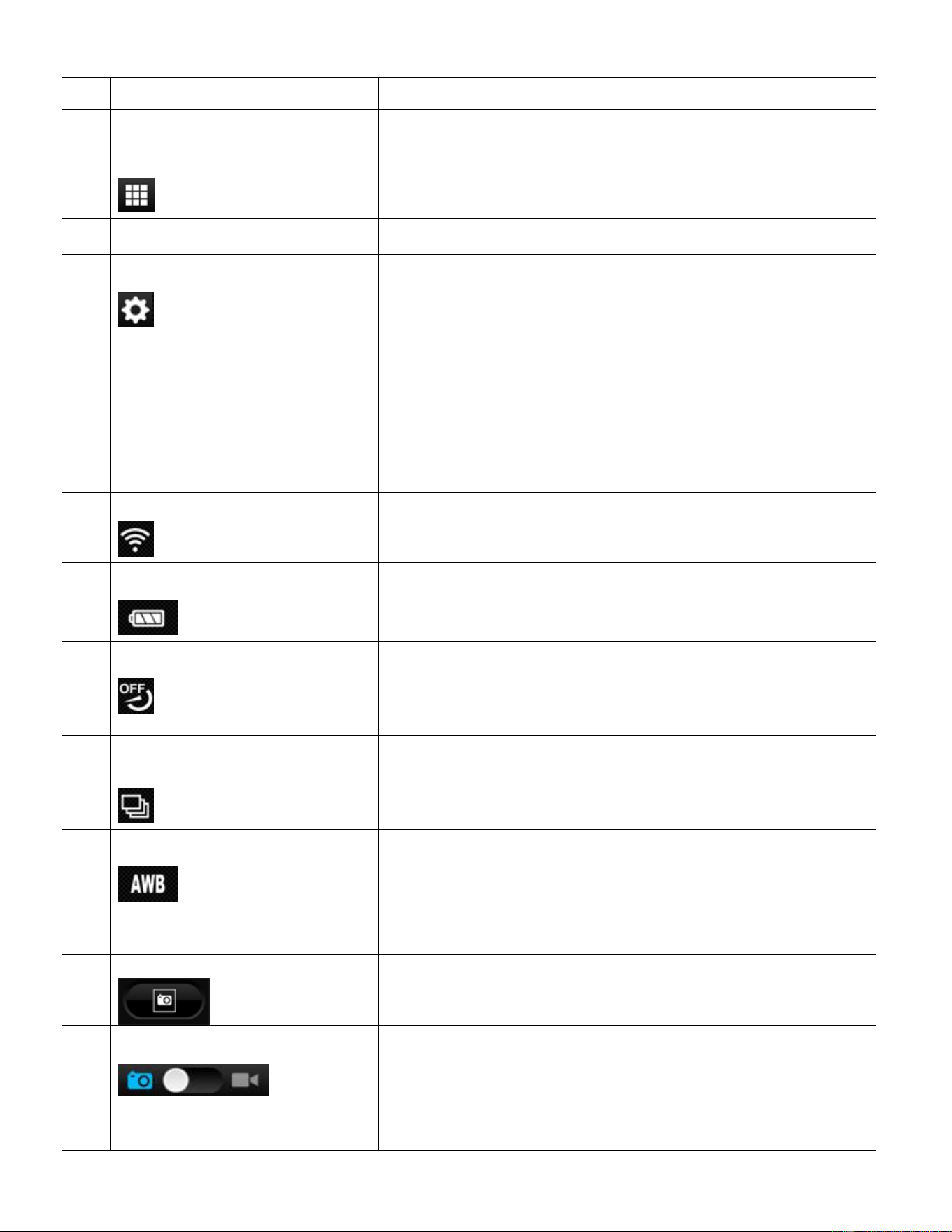
PHOTO CAPTURE MODE
After tapping and selecting your connected camera, the default mode is the Video Capture Mode.
To change to Photo Capture Mode, slide the Switch Mode indicator to the Photo icon.
The application is in Live Camera Mode and you can now begin capturing your images.
No.
ICON
DESCRIPTION
1
BACK
iOS: Tap the Back icon to return to the Home screen.
Android: Tap the back button on the phone to return to the
apps Home screen.
2
PHOTOS LEFT
Displays the amount of photos available to capture.
3
PHOTO RESOLUTION
Displays the current selected Photo Resolution.
Tap the icon to change resolution. The Resolution options
1
2
3
4
5
6
7
8
9
10
11
12
13
31
include: 12M (4000x3000), 5M (2592x1944)
4
PLAYBACK IMAGES FROM
CAMERA
Tap to view thumbnails of the captured videos and photos
from your camera. Tap photo thumbnail to view the photo
full screen.
5
CAMERA NAME
Displays the name of the connected camera.
6
CAMERA SETTINGS
Tap to display the Camera Settings options.
The Android OS device options include: Resolution, White
Balance, Burst (Photo Capture Mode only), Self Timer
(Photo Capture Mode only), Format Camera (formats
camera’s memory card).
The iOS device options include: White Balance,
Frequency, Continuous Shooting, Format Camera
(formats camera’s memory card).
7
CAMERA WIFI INDICATOR
Displays the camera’s WiFi signal status.
8
CAMERA BATTERY LEVEL
Displays the battery level of the camera.
9
SELF TIMER
Displays the current self timer selection.
Tap to change selection.
The options include: OFF, 2 seconds, 10 seconds
10
CONTINUOUS SHOOTING/
BURST
Displays the current burst selection. Tap to change
selection.
The options include: OFF, 3 photos, 5 Photos
11
WHITE BALANCE
Displays the current White Balance Selection.
Tap the icon to change White Balance setting.
The White Balance options include:
Auto, Daylight, Cloudy, Fluorescent, Incandescent
12
SHUTTER BUTTON
Tap the Shutter button to take a picture.
13
SWITCH MODES
Slide the mode indicator to the Video icon to switch to
Video Capture Mode. Slide the mode indicator to the
Photo icon to switch to Photo Capture Mode.
The selected Mode is shown in blue.
32
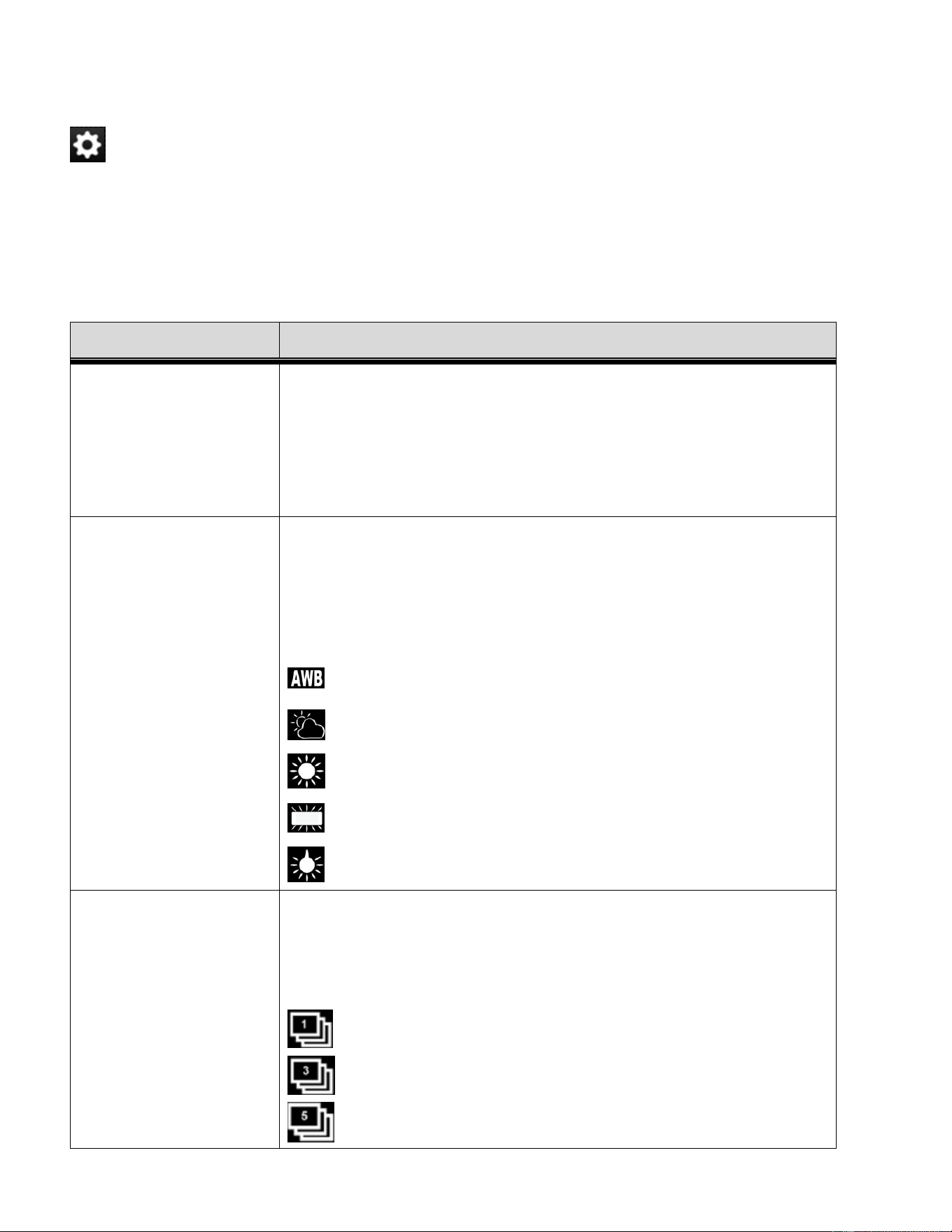
CAMERA SETTINGS
Tap the Camera Settings icon to access your Action Camcorder settings.
NOTE: Some camera settings are also accessible by tapping the setting icon from the Live
Camera Mode screen.
Photo Capture Mode Settings
SETTING
DESCRIPTION
PHOTO
RESOLUTION
The Photo Resolution options allow you to choose the desired
size of the images taken by your camera. Keep in mind that
images with a higher resolution will also take up more of your
memory on your camera’s memory card.
The Photo Resolution options include:
12MP (4000x3000), 5MP (2592x1944)
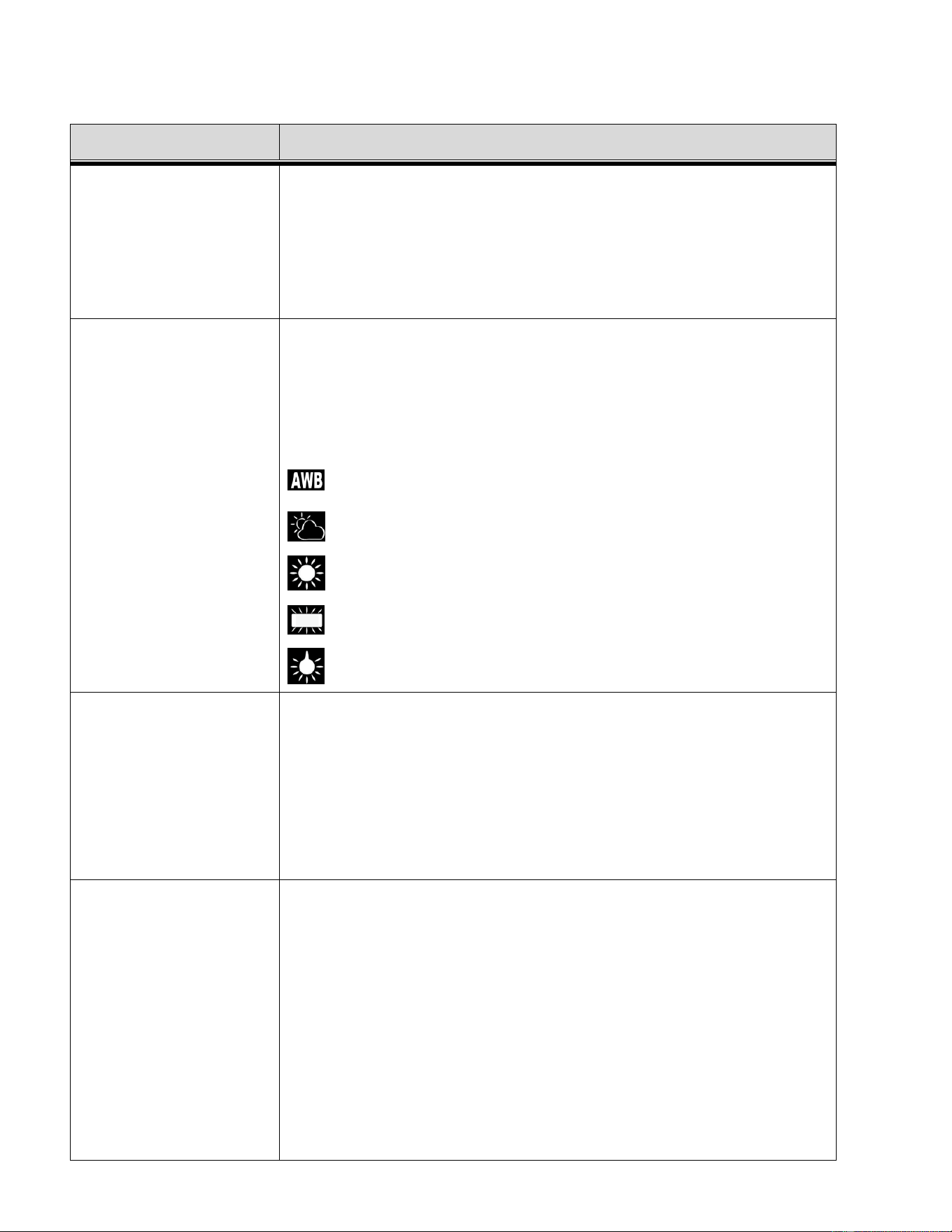
WHITE BALANCE
White Balance allows your camera to adjust the coloring of the
captured images depending on the type of light source in the
current environment. Properly adjusting the White Balance setting
to match your current environment will allow the camera to
properly balance the colors in the images that are taken with your
camera. The White Balance options include:
AUTO
CLOUDY
DAYLIGHT
FLUORESCENT
INCANDESCENT
CONTINUOUS
SHOOTING/BURST
The Continuous Shooting//Burst setting allows you to take rapid
snapshots in a row with a single click of the Shutter button. This
feature can be effective when trying to capture a particular
moment in a sporting event or other scenes with quick
movements. The Continuous Shooting//Burst options include:
OFF - Takes 1 photo : standard mode.
3 PHOTOS - Takes 3 photos in a row.
5 PHOTOS - Takes 5 photos in a row.
33
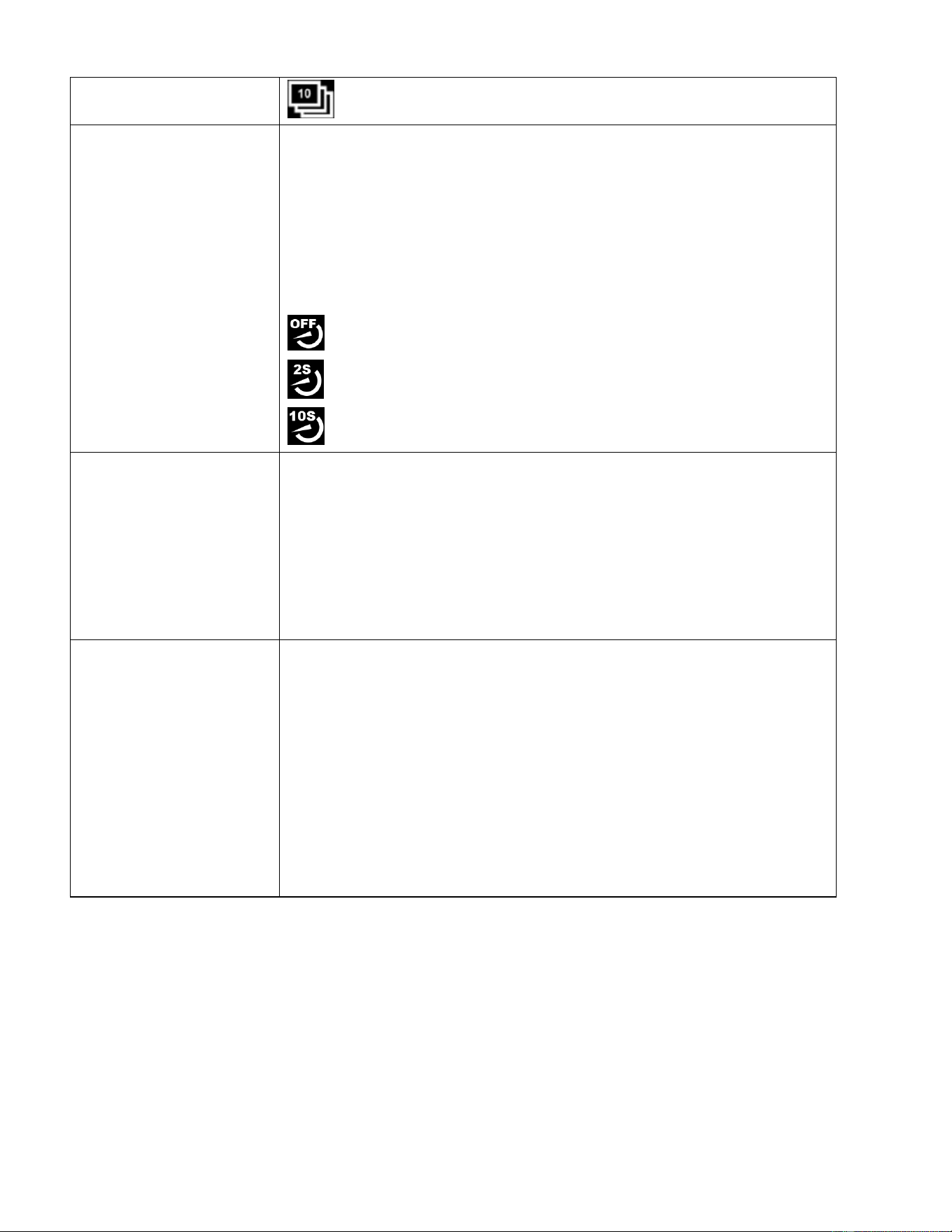
10 PHOTOS - Takes 10 photos in a row.
SELF TIMER
The Self Timer setting allows you to set a delay between the time
that the camera’s Shutter button is pressed and the actual
capture of the picture.
This is an optimal feature if you don’t just want to take the picture
but would also like to be in the picture yourself. Just set the
desired Self Timer delay, press the Shutter button and position
yourself in front of the camera as desired.
The Self Timer options include:
OFF
2S - 2 seconds delay
10S - 10 seconds delay
FREQUENCY
The ‘Frequency’ options represent the frequency of the electrical
current in fluorescent lighting sources in your locale. If your
camera is set to a frequency that does not match your country’s
electric current, you may see waves on the images taken by your
camera.
The Frequency options include:
50Hz – UK, Europe and Australia
60Hz – US, Canada and South America
FORMAT CAMERA
You can use the Format Camera to delete all of the content that is
currently on your camera’s memory card.
Keep in mind that formatting the memory card will permanently
delete all of the content on your camera’s memory card.
This option will delete all of the content at one time. If you would
like to delete individual images, use the delete option in the
Playback mode. Please ensure you have backed up your images
before you attempt this.
- To format the camera’s memory card tap OK. All captured
images will be deleted.
- To exit without formatting the memory card, tap Cancel.
34
Video Capture Mode Settings
SETTING
DESCRIPTION
VIDEO RESOLUTION
The Video Resolution options allow you to choose the desired
size of the videos taken by your camera. Keep in mind that videos
with a higher resolution will also take up more of your memory on
your camera’s memory card.
The Video Resolution options include:
FHD 1920x1080, HD 720P 1280x720, VGA 480P
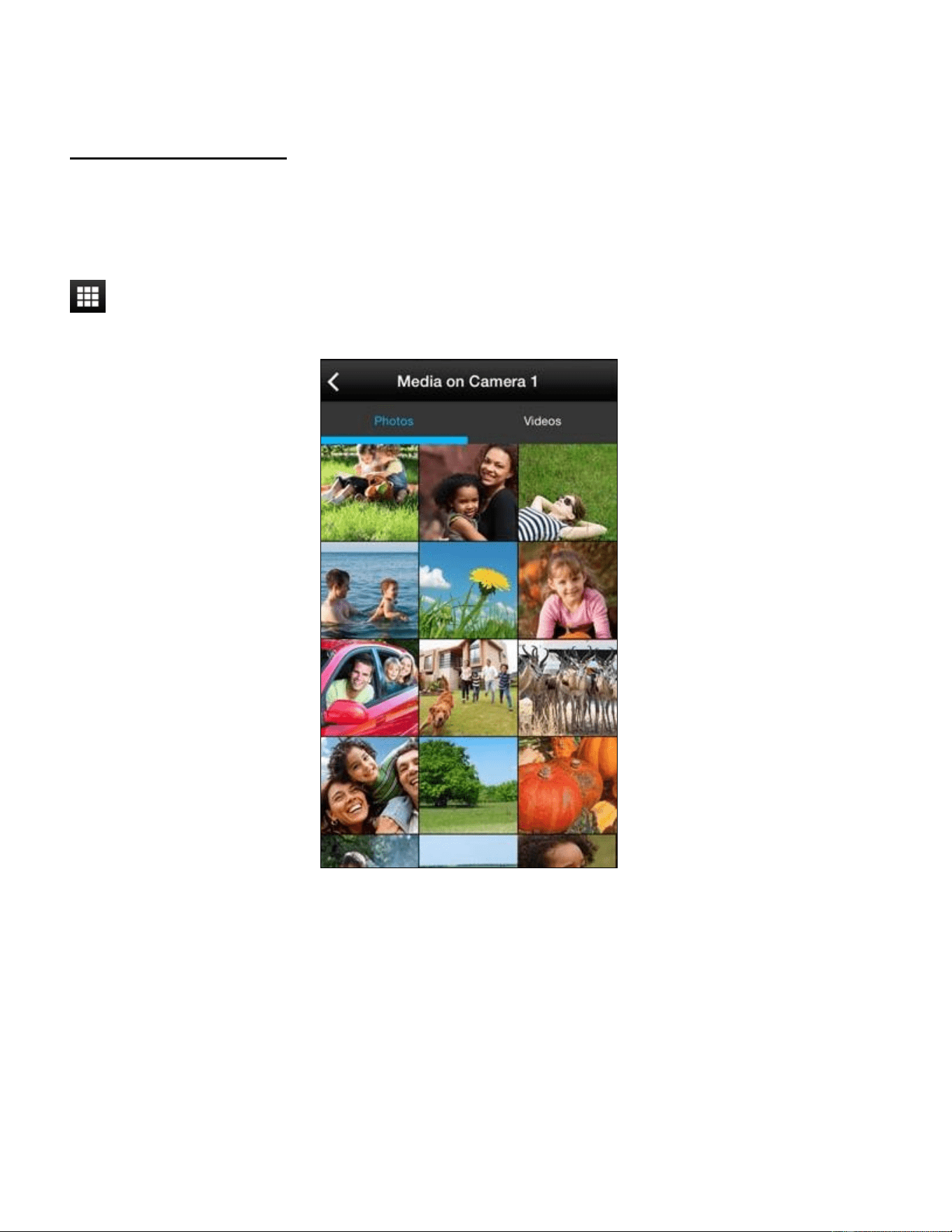
WHITE BALANCE
White Balance allows your camera to adjust the coloring of the
captured images depending on the type of light source in the
current environment. Properly adjusting the White Balance setting
to match your current environment will allow the camera to
properly balance the colors in the images that are taken with your
camera. The White Balance options include:
AUTO
CLOUDY
DAYLIGHT
FLUORESCENT
INCANDESCENT
FREQUENCY
The ‘Frequency’ options represent the frequency of the electrical
current in fluorescent lighting sources in your locale. If your
camera is set to a frequency that does not match your country’s
electric current, you may see waves on the images taken by your
camera.
The Frequency options include:
50Hz – UK, Europe and Australia
60Hz – US, Canada and South America
FORMAT CAMERA
You can use the Format Camera to delete all of the content that is
currently on your camera’s memory card.
Keep in mind that formatting the memory card will permanently
delete all of the content on your camera’s memory card.
This option will delete all of the content at one time. If you would
like to delete individual images, use the delete option in the
Playback mode. Please ensure you have backed up your images
before you attempt this. The Format Camera options include:
- OK: To format the camera’s memory card tap OK. All
captured images will be deleted.
- CANCEL: To exit without formatting the memory card, tap
Cancel.
35
PLAYBACK MODE
Media on My Camera
he photos and videos that have been saved to the camera’s micro SD Memory Card, either from
being captured using the Vivitar Action Cam application or the media you have previously
captured using your camera can be viewed, deleted, downloaded or shared in Playback Mode.
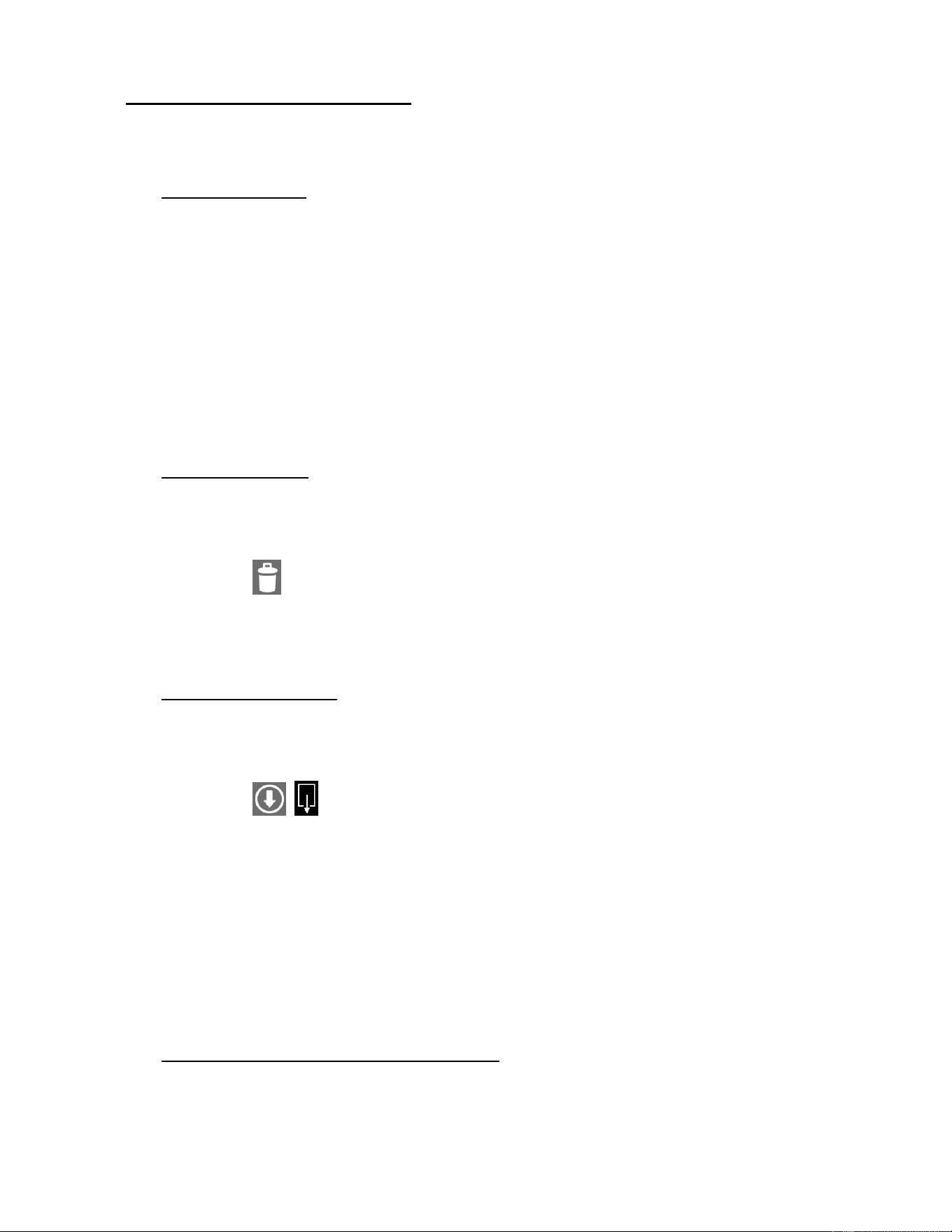
Tap the Playback icon in the Live Camera Mode to open the Media on ‘My Camera’ screen.

36
PHOTOS
Select the Photos tab on the top of the screen to view the photos on your camera’s Memory
Card.
Your captured photos are shown in Thumbnail view, with the latest captured photo at the top.
The photos can be downloaded to your mobile device, shared or deleted.
FULL SCREEN VIEW: View Photo
1. VIEW FULL SCREEN:
Tap on a photo to view it in full screen mode.
When you rotate your mobile device, the captured photos can be displayed in Portrait
or Landscape view.
2. NEXT/PREVIOUS:
To continue viewing other photos also in full screen mode swipe left or right to see
the next or previous photos.
NOTE: On iOS
- Alternatively, tap the Previous and Next buttons on the bottom of the
screen.
- Short tap the screen to view the full screen without the display of image
information and icons. Tap again to redisplay the onscreen icons and information.
3. DELETE (Single Photo):
To delete a single image tap the Delete icon.
Tap on the ‘Delete’ (iOS) or ‘Confirm’ (Android) option to delete the photo or tap
‘Cancel’ to keep the photo. This option deletes one photo at a time.
4. SHARE/DOWNLOAD (single image):
Tap the Share/Download icon to download and save the image or share the image
via mail, message or other options as per your installed mobile apps. This share
option allows you to share one photo at a time.
NOTE: Android mobile devices can download the file to your mobile device, but do
not include the Share options in this view.
5. EXIT FULL SCREEN VIEW:
To return to the Thumbnail view of all your captured images, tap the Back button.
37
THUMBNAIL VIEW: View Photos
In Thumbnail View you can select a photo or photos to be deleted from your memory card,
or downloaded to your mobile device.
1. To Select Photos:
SELECT (single or multiple photos):
To select a photo tap and hold the thumbnail image.
The thumbnail appears with a blue box around it indicating that the image is
selected.
You can short tap other photos to add to the selection of images.
The ‘Delete’, ‘Download’ and ‘Cancel (iOS) / (Deselect – Android)’ options
appear above the thumbnail images.
2. To Delete Photos:
DELETE (single or multiple photos):
Select the desired thumbnail image(s).
Tap the Delete icon.
Tap on the ‘Confirm Delete / Confirm’ option to delete the selected photo(s) or tap
‘Cancel’ to exit the menu without deleting.
3. To Download Photos:
DOWNLOAD (single or multiple photos):
Select the desired thumbnail image(s).
Tap the Download icon.
On iOS: A window appears and displays the total number of files, the download
time, and the total size of the download.
On Android: A window appears asking if you are sure you want to download.
Tap on the ‘Confirm download / Confirm’ option to download the selected
photo(s) or tap ‘Cancel’ to exit the menu without downloading. Once the files are
successfully downloaded a ‘Download Complete’ window appears.
4. To Cancel the Thumbnail View Selection:
CANCEL:
Tap ‘Cancel’ (iOS) or tap the Check Mark ‘’ (Android) to return to the Thumbnail
View. All selected images will appear deselected in the Thumbnail View.

38
VIDEOS
Select the Videos tab on the top of the screen to view the video files saved to your camera’s
Memory Card. Your captured videos are shown in Thumbnail view, with the latest captured video
at the top. The videos can be downloaded to your mobile device or deleted.
IMPORTANT NOTE: VIDEO STREAMING NOT SUPPORTED
The videos saved on your camera’s memory card cannot be played using the Vivitar Action Cam
(Android and iOS). To play a video, please first download the selected video file(s) to your mobile
device or to your computer and then play the video.
Please see the following sections in the manual for details how to download: ‘Thumbnail View:
Videos > To download videos’, and ‘GETTING VIDEOS AND PHOTOS FROM THE
CAMCORDER TO THE COMPUTER’.
THUMBNAIL VIEW: Videos
In Thumbnail View the selected video(s) can be downloaded to your mobile device or
deleted from your memory card.
1. To Select Videos:
SELECT (single or multiple videos):
To select a video, tap and hold the thumbnail image.
The thumbnail appears with a blue box around it indicating that the image is
selected.
You can short tap other videos to add files to the selection. The ‘Delete’,
‘Download’ and ‘Cancel (iOS) / (Deselect – Android)’ options appear above the
thumbnail images.
2. To Delete Videos:
DELETE (single or multiple videos):
Select the desired thumbnail image(s).
Tap the Delete icon.
Tap on the ‘Confirm Delete / Confirm’ option to delete the selected video(s) or tap
‘Cancel’ to keep the exit the menu without deleting.

39
3. To Download Videos:
DOWNLOAD (single or multiple videos):
Select the desired thumbnail image(s).
Tap the Download icon.
On iOS: A window appears and displays the total number of files, the download
time, and the total size of the download.
On Android: A window appears asking if you are sure you want to download.
Tap on the ‘Confirm download / Confirm’ option to download the selected video(s)
or tap ‘Cancel’ to exit the menu without downloading. Once the files are
successfully downloaded a ‘Download Complete’ window appears.
IMPORTANT NOTE: ON ANDROID ONLY
DOWNLOADED VIDEOS: .MOV VIDEO FILE FORMAT > VIDEO PLAYBACK
In some Android mobile devices, the .MOV file types after being downloaded from your
camera’s memory card to your mobile device may not appear in the mobile device’s
Gallery. Please note that the files are saved to the following directory on the mobile
device: Primary/ActionCam.
The downloaded .MOV video saved to your mobile device may not playback using the
Vivitar Action Cam app or the native Android video player. If this is the case, you can
download a third party Android app from the Play Store that supports .MOV video
format. Then you can playback the downloaded .MOV videos via your mobile device
and via the Vivitar Action Cam app.
4. To Cancel the Thumbnail View Selection:
CANCEL:
Tap ‘Cancel’ (iOS) or tap the Check Mark ‘’ (Android) to return to the Thumbnail
View. All selected images will appear deselected in the Thumbnail View.
40
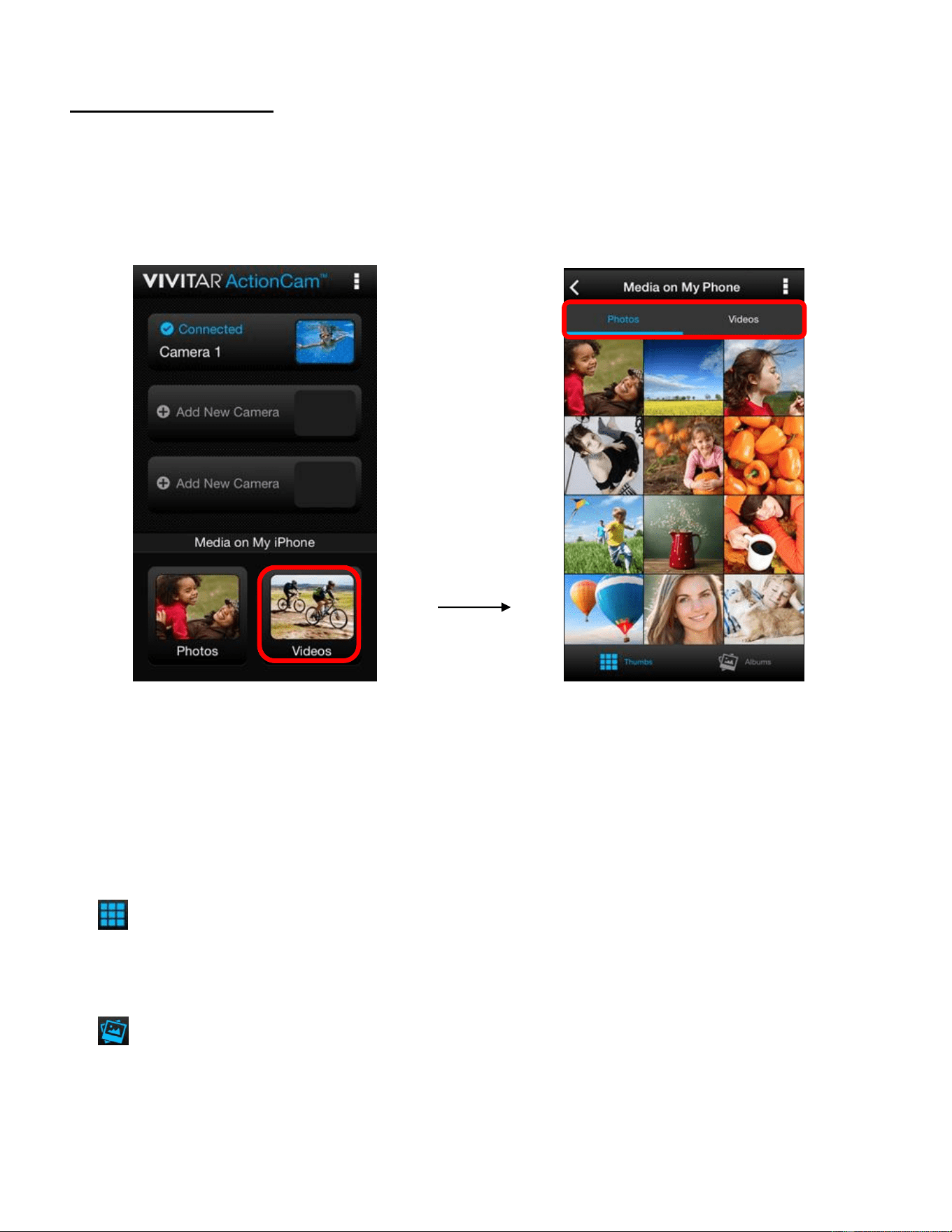
Media on My Phone
Tap on Photos or Videos from the Home screen to open the Media on My Phone screen to view
the photos and videos on your mobile device.
PHOTOS
Select the Photos tab to view the photos on your mobile device.
The following options appear in the Thumbnail view:
THUMBS VIEW: Tap Thumbs to view thumbnails of the photos on your mobile device.
This is the default view when selecting ‘Photos’ from the Home screen.
ALBUMS VIEW: Tap Albums to open the Albums list view.
41
The Thumbs View and Albums View include the following options:
FULL SCREEN VIEW: Tap on a thumbnail image of a photo to see it in full screen.
(iOS) / (Android) SLIDESHOW: Tap, hold and select photo(s), then tap Slideshow or
the Slideshow icon to run a slideshow of the selected photos.
SHARE: Tap, hold and select photo(s), then tap Share to view share options. Select one
of the options and follow the prompts to share photos.
NOTE: You may be prompted to login to the selected Share option.
1) THUMBNAIL VIEW: Photos
In Thumbnail View you can select a single photo or multiple photos to be shared or view
your selected photos as a Slideshow.
1. To Select Photos:
SELECT PHOTO(S):
To select a photo tap and hold the thumbnail image.
The thumbnail appears with a blue box around it indicating that the image is
selected.
You can short tap other photos to add to the selection of images.
The ‘Slideshow’, ‘Share’ and ‘X (Cancel - iOS) / (Cancel, Deselect - Android)’
options appear by the thumbnail images.
2. To View Photo Slideshow:
SLIDESHOW:
Select the desired thumbnail images.
Tap the (iOS) / (Android) Slideshow icon.
The photos will then begin to be displayed as a looping Slideshow on you mobile
device.
Tap the Stop button then Cancel (iOS) or the Back (Android) button to stop
the Slideshow.
42
3. To Share Photos:
SHARE (single or multiple photos):
Select the desired thumbnail image(s) from the Thumbnail View.
Tap the Share icon.
A window appears and displays the total number of selected files, and a list of the
social networks options such as Facebook, Twitter, Flickr, and Google+.
Tap one of the applications options to select it and then tap OK (iOS) or Upload
(Android) to continue or Cancel to exit the Share options window.
NOTE:
- Make sure your mobile device is connected to a Wi-Fi network with an Internet
connection.
- If you have an account, you may be prompted to login to the selected Share
option.
- If you do not have an account in the selected social network, you will be prompted
to add or create an account. Continue as instructed to complete the creation of
your account.
4. To Cancel the Thumbnail View Selection:
CANCEL:
Tap ‘X’ (iOS) or ‘’ (Android) to deselect the selected photo(s) in the Thumbnail View.
2) ALBUMS VIEW: Photos
Tap Albums to open the Albums list view.
A list of albums appears.
Each album is shown with a thumbnail photo image, album name and amount of
pictures in the album.
Tap on a specific album to view thumbnails of all the photos in the album. These photos
can be selected and displayed as a Slideshow or shared.
NOTE: See the above section ‘THUMBNAIL VIEW: Photos’ for information regarding
how to select photos, view the Slideshow and share your photos.
Tap Back to return to the Albums list view.
43
VIDEOS
Select the Videos tab to view and playback the videos on your mobile device.
The following options appear in the Thumbnail view:
THUMBS VIEW: Tap Thumbs to view thumbnails of the videos on your mobile device.
PLAYLIST VIEW: Tap Playlists, then tap on a Playlist to view thumbnails of the videos in
the Playlist.
The Thumbs View and Playlists View include the following options:
VIEW FULL SCREEN AND PLAYBACK VIDEO: Tap on a video to open and playback in full
screen mode. Tap the screen to show or hide video player controls.
Share: Tap, hold and select video (only one vide can be selected at a time), then tap
Share to view share options. Select one of the options and follow the prompts to share the
video.
NOTE: You may be prompted to login to the selected Share option.
THUMBNAIL VIEW: Videos
In Thumbnail View you can playback a selected video or share your selected video.
1. To Play Your Video:
PLAY VIDEO:
Tap on a video thumbnail to view it in full screen mode.
The selected video automatically begins to play in full screen.
Use the onscreen controls to play, pause, rewind, fast forward and stop the playing
video.
NOTE: You can rotate your mobile device to watch the Video Playback in
Landscape or Portrait views.
To exit the Playback view and return to the Thumbnail view tap Done (iOS) or the
Back button (Android).

44
IMPORTANT NOTE: ON ANDROID MOBILE DEVICES ONLY
VIDEO PLAYBACK OF .MOV FORMAT FILES ONLY:
If you have videos with the .MOV file format saved on your mobile device (including
videos downloaded from your Action Cam) please note the following:
In some mobile devices, the .MOV file types may not appear in the mobile device’s
Gallery. The files are saved to the following directory on the phone: Primary/ActionCam.
The downloaded video saved to your mobile device in some instances may not
playback using the Vivitar Action Cam app or the native Android video player. If this is
the case with your mobile device, you can first download from the Play Store a third
party Android app that supports .MOV file format and then playback the .MOV videos
from your mobile device or from the Vivitar Action Cam app.
2. To Select a Video:
SELECT VIDEO:
To select a video, tap and hold the thumbnail image.
The thumbnail appears with a blue box around it indicating that the image is
selected. Only one image can be selected.
The ‘Share’ and ‘X’ (iOS) or ‘’ (Android) Cancel/Deselect and Delete (Android
only) options appear by the thumbnail images.
3. To Share Videos:
SHARE (single video):
Long tap a thumbnail to select it from the Thumbnail View.
Tap the Share icon.
A window appears and displays the total number of selected files, and a list of the
social networks options such as Facebook, Flickr, YouTube and Vimeo.
Tap one of the applications options to select it and then tap ‘OK’ (iOS) or ‘Upload’
(Android) to continue or ‘Cancel’ to exit the Share options window.
NOTE:
- Make sure your mobile device is connected to a Wi-Fi network with an Internet
connection.
- If you have an account, you may be prompted to login to the selected Share

45
option.
- If you do not have an account in the selected social network, you will be prompted
to add or create an account. Continue as instructed to complete the creation of
your account.
To deselect the selected video, tap ‘X’ (iOS) or ‘’ (Android).
PLAYLISTS VIEW: Videos
Tap Playlists to open the Playlists view.
A list of albums appears.
Each Playlist is shown with a thumbnail photo image, playlist name and number of
videos in the playlist.
Tap on a specific playlist to view thumbnails of all the videos in the playlist. The videos
can be played and shared.
NOTE: See the above section ‘THUMBNAIL VIEW: Videos’ for information regarding
how to select videos, playback the video and share your videos.
Tap Back to return to the Albums list view.

46
Vivitar Experience Image Manager Software
COMPUTER SYSTEM REQUIREMENTS
To be able to download videos and photos to your computer using the ‘Vivitar Experience Image
Manager’ Software, you will need the following minimum configuration:
WINDOWS OS
MICROSOFT® Windows XP with Service Pack 3, Windows Vista with Service Pack 1 or
Windows 7
Pentium® 4 processor (or above)
1 GB RAM, 250 MB available hard disk space
16-bit Color monitor, 1024 X 768 recommended screen resolution
CD-ROM Drive
QuickTime® 6 or higher
MICROSOFT ® Internet Explorer 7 or higher
Windows Media Player 10 or higher
DirectX 9 or higher
Internet connection required
MACINTOSH OS
Intel processor running MACINTOSH OS X v10.5.x or later
1 GB RAM, 250 MB available hard disk space
Display: 1024 x 768 or higher-resolution monitor
QuickTime® 6 or higher
CD-ROM Drive
Internet connection required
NOTE: Make sure the latest compatible Adobe® Flash® Player is installed on your computer.
47
INSTALLING THE SOFTWARE – USING THE CD ROM
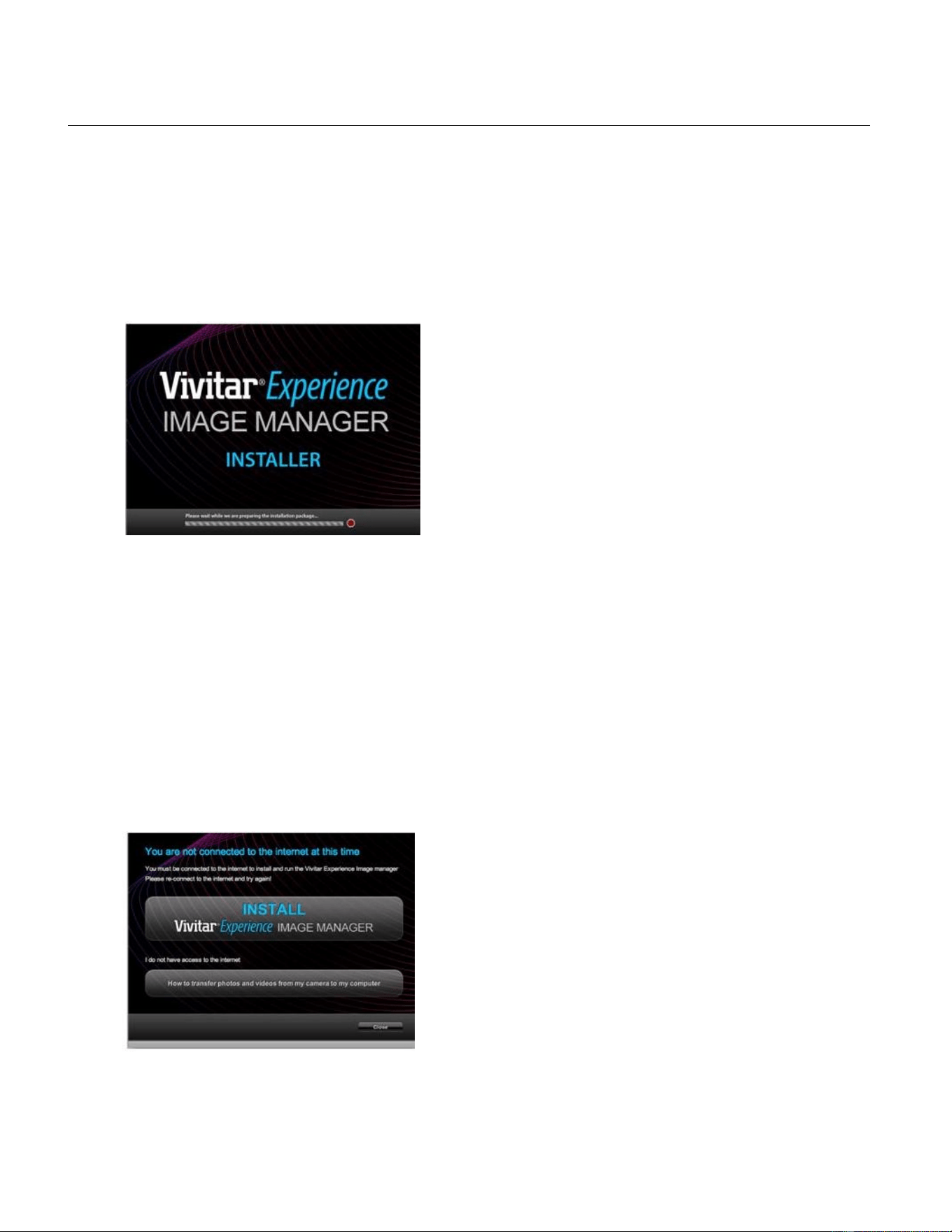
You must be connected to the Internet to install and run the Vivitar Experience Image Manager
Software.
1. Insert the installation CD into your CD-ROM drive. The installation screen should
automatically open.
2. On WINDOWS OS: The Vivitar Experience Image Manager Installer window appears. If the
window does not appear, open the application’s CD/DVD drive and click on “Setup.exe” to
launch the installer.
3. On MACINTOSH OS: Click the icon that appears on the desktop to install the Vivitar
Experience Image Manager.
4. If you do not have Internet access at the time of inserting the CD-ROM, connect to the
Internet and then click the “Install Vivitar Experience Image Manager” button to begin the
installation.
NOTE: If you do not have Internet access, you can still download media from the
camcorder. Click the “How to transfer photos and videos from my camera to my computer”
button for instructions.

48
5. If you have Internet access, the “Choose your language” window opens, choose your
language and click “Next” to open the next window.
6. Select your camera model from the list and click “Next” to open the next window.
7. Click “Next” to confirm your camera model selection and to install the application.
8. Please wait while the application is being installed on your computer.
9. Please review the license terms.
On WINDOWS OS and Macintosh: Click the “I accept the terms of this license agreement”
and then click “Next” to continue.
10. On WINDOWS OS only: Let the “Vivitar Experience Image Manager” installer create the
folder to where the program will be installed, and then click “Install”.
11. Please wait while the application continues the installation process on your computer.
On MACINTOSH OS: If needed, please follow instructions to install the Adobe® Flash®
Player. This requires Internet connection.
12. On WINDOWS OS: Click the “Close” button when the installation is complete.
Click the “Launch Vivitar Experience Image Manager” to open the application.
On MACINTOSH OS: Click the “Quit” button when the installation is complete.
Click the “Launch Vivitar Experience Image Manager” to open the application.
13. If you close the application you can run the Vivitar Experience Image Manager from the
Programs (PC) or Applications (Mac) menu on your computer.

49
INSTALLING THE SOFTWARE – USING THE ONLINE LINK
The Vivitar Experience Image Manager Software can also be downloaded and installed via the
following online links:
WINDOWS OS: http://tinyurl.com/viviwin
MAC OS: http://tinyurl.com/vivimac
1. Enter the appropriate URL (shown above) into a web browser on your computer.
2. The file for installing the software automatically begins to download to your computer.
Please note that the web page appears empty, however the download automatically
begins.
3. Locate the downloaded application files on your computer’s ‘Downloads’ folder once the
download is complete:
On WINDOWS OS the file name is: vivitargeneric_win.exe
ON MAC OS in file name is: vivitargeneric_mac.pkg
4. Double click on the downloaded application file to install the Vivitar Experience Image
Manager Software.
5. Follow all instructions
6. Once installation is complete, the Vivitar Experience Image Manager opens
automatically.
CONNECTING THE CAMCORDER TO THE COMPUTER
1. Use the supplied USB cable to connect your camcorder to your computer.
2. Power the camcorder ON if it does not turn on automatically upon the connection to the
computer.
3. The first time you connect the device to the computer you may have to wait a few
seconds until the computer recognizes the device.
50
GETTING PHOTOS AND VIDEOS FROM THE CAMCORDER TO THE
COMPUTER
The Micro SD Memory card needs to be inserted. Do not disconnect the cable during transfer.
Doing so will cancel the transfer of any files on their way to your computer.
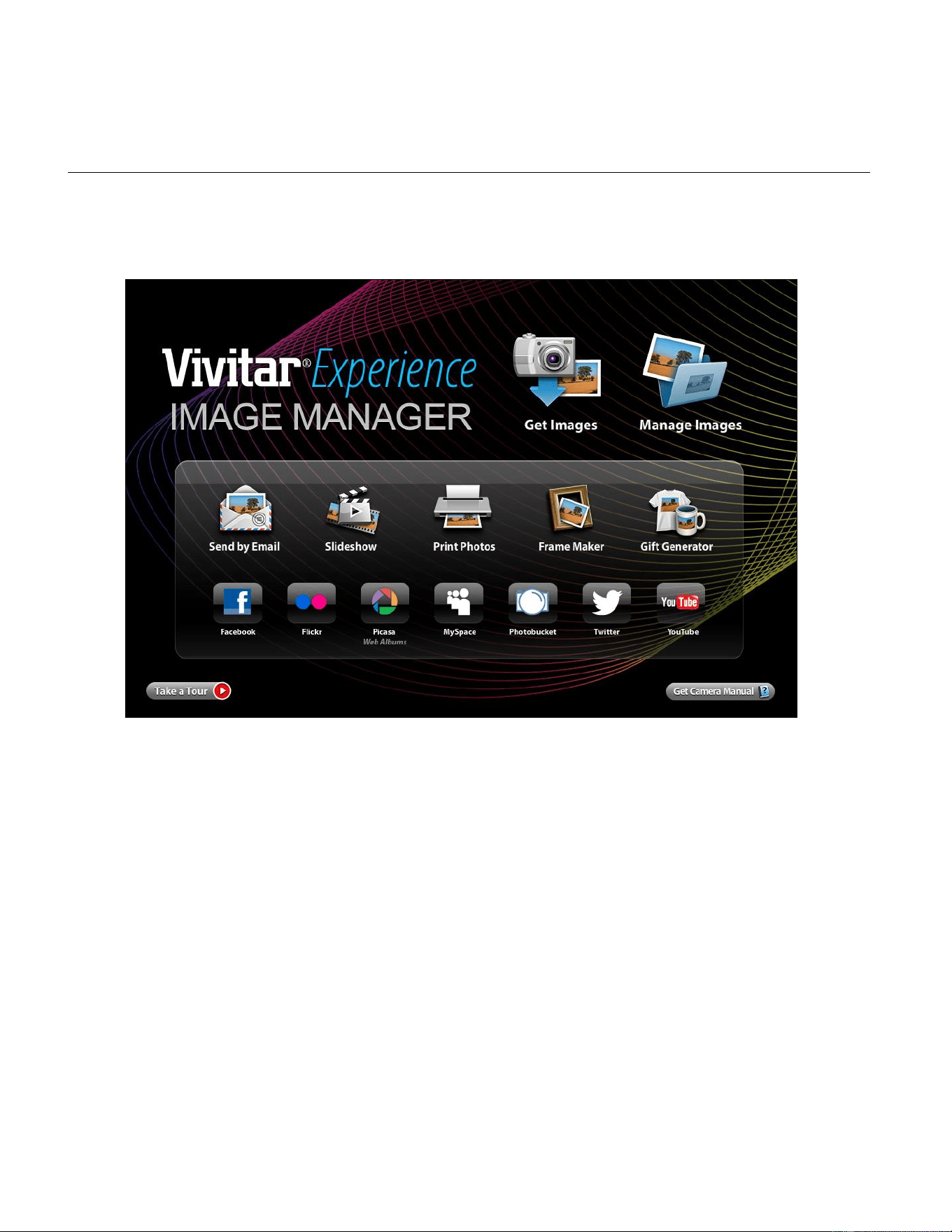
1. Select the “Get Images” button from the Main menu.
2. The “Get media from device” window opens.
3. You can select to download photos, videos or both.
4. Select your camera (removable disk) from the device window. If your camera is the only
USB device connected then it will be selected automatically.
5. Select a location on the computer where to place the new photo and video files.
6. Add the new photo and video files to albums if desired.
7. Select to remove the media files from the selected device (removable disk) after the
import.
8. Click the “Get Media” button to transfer the photos and videos from your camera to your
computer.
9. A media download progress bar appears on the bottom left showing the number of media
files downloading to your computer. A message appears when the download is complete.
10. The photo and video files that you selected are now downloaded to your computer to the
selected folder ready for your use.

51
GETTING STARTED!
Using the Vivitar Experience Image Manager you can:
Upload and manage photos and videos to and from the most popular photo sharing and social
networking sites - Facebook, Flickr, Picasa, MySpace, Photobucket, Twitter and YouTube
Seamlessly transfer photos and videos from one social network to another
Organize your images by creating offline and online albums
Edit images using automatic and manual tools
Use automatic “Geotagging” with built in Google Maps
For more details on how to use the Vivitar Experience Image Manager open the Help file or
click the “Take a Tour” button on the application’s Home screen.
TRANSFERRING IMAGES MANUALLY FROM THE CAMCORDER TO
THE COMPUTER
WINDOWS OS
1. Use the supplied USB cable to connect your camcorder to your computer’s USB port.
2. Power on the camcorder.
3. A window appears on your computer with a list of options, select “Open folder to view files”
and click ‘OK’.
4. Open the DCIM folder and the folder inside to view the media files.
5. Select the media and copy the files from this folder into your computer. Optionally, select
the files and choose ‘Copy’ from the Edit menu. Then select a folder and choose ‘Paste’
from the Edit menu.
6. We recommend that you copy the photos into the Pictures/My Pictures folder and the
videos into the Videos/My Videos folder.
7. Do not disconnect the cable during transfer. Doing so will cancel the transfer of any files on
their way to your computer.

52
MACINTOSH OS
1. Use the supplied USB cable to connect your camcorder to your computer’s USB port.
2. Power on the camcorder.
3. The camcorder’s device icon appears on the desktop.
4. Click on the device icon and open the DCIM folder and the folder inside to view the media
files.
5. Select the files and drag them into your computer. Optionally, select the files and choose
‘Copy’ from the Finder’s Edit menu. Then select a folder and choose ‘Paste’ from the Edit
menu.
6. We recommend that you copy the photos into the Pictures folder and the videos into the
Movies folder.
7. Do not disconnect the cable during transfer. Doing so will cancel the transfer of any files on
their way to your computer.
TRANSFERRING PHOTOS AND VIDEOS: APPLE IPAD
NOTE: Please check your device packaging for compatibility with the iPad.
Apple iPad Camera Connection:
For models that are compatible with the iPad, photos and videos can be imported from your
digital camcorder to your iPad by following either one of the options below:
1. Connecting your digital camcorder to your iPad using an iPad Camera Connector:
Plug the Camera Connector into the dock connector port on your iPad, then attach your
digital camcorder using a USB cable (included) to the Camera Connector.
NOTE: iPad Camera Connector not included. This may be purchased separately.
2. Using an iPad SD Card Reader:
Connect the SD Card Reader to your iPad, then insert your digital camcorder's Micro SD
Memory card into the slot to import photos and videos directly from your camera's SD card.
NOTE: iPad SD Card Reader not included. This may be purchased separately.
After you make the connection, your iPad automatically opens the Photos application. This allows
you choose which photos and videos to import, then organizes them into albums.

53
Camcorder Maintenance
Please read the information below carefully before using your camcorder for proper and safe
operation, so as to use the camcorder to its fullest and maintain its performance.
MEMORY CARD MAINTENANCE:
For the first time of using a new memory card, or when there is unrecognized data for the
camera or images with other cameras in the memory card, please make sure to firstly format
the memory card.
Note: Please back up the data if the memory card inside has been previously used. After that,
format the memory card of this video camera.
Please power the camera off before plugging in or taking out the memory card.
Keep the memory card clean and prevent it from contacting liquid. In case of liquid contacted,
clean and dry it with a piece of soft cloth.
In case of idle use, please keep the memory card in a guard staple.
Please note that the memory card will get hot after long-term use. This is normal.
It is recommended to backup the important data from your memory card to other media such
as soft disk, hard disk or CD.
To ensure image quality, minimum Class 4 High-Speed card is needed.
The following situations may cause loss or damage of the data on your memory card:
1. Improper use of the memory card.
2. The memory card has been bent, dropped or collided.
3. The memory card has been placed under high temperature or moist environment or
expose to sunshine directly.
4. Electrostatic or electromagnetic field exists around the memory card.
5. The memory card has been taken out or the power supply interrupted while the camera or
computer is connected to the memory card (i.e. during reading, writing and formatting).
6. Taking out the memory card while powering off, while recording, deleting (formatting) or
reading.
7. Do not touch the metal contact surface of the memory card with fingers or metal materials.
8. The service life of the memory card has expired (please replace the memory card regularly).

54
DEVICE MAINTENANCE:
Take good care of the video camera and prevent water or sand particles from entering the
video camera when it is used on the beach or near water. Please note that water, sand
particles, dust or component containing salt may damage the video camera.
Keep the video camera free of dust and chemical materials. Place it in a cool, dry and well
ventilated place. Do not place the video camera in a high temperature, moist or dusty place.
If dirt or stains accumulate on the video camera or on its lens, use a soft, clean and dry rag to
wipe it away gently. If the video camera or its lens is stained with sand particles, blow them
away gently. Do not use cloth to wipe arbitrarily. Otherwise, it may scratch the surface of video
camera or its lens.
Do not touch the lens surface with fingers.
If it is required to clean the camera surface, first blow away the sand dust accumulated on the
surface, and then wipe the camera gently with a rag or tissue appropriate for optical
equipment. Please use a cleaning agent specifically for a video camera when wiping if
necessary. Do not use organic solvent to clean the video camera.
The digital camcorder is a delicate device:
1. Please handle your camcorder with care to avoid damaging it.
2. Do not expose your camcorder to heat sources.
3. Do not use you camcorder in wet or moist conditions without the waterproof casing.
4. Use proper protective cover to avoid lens and display from being scratched.

55
Sakar Warranty Card
This warranty covers for the original consumer purchaser only and is not transferable. Products
that fail to function properly UNDER NORMAL USAGE, due to defects in material or
workmanship will be repaired at no charge for parts or labor for a period of one year from the time
of purchase.
What Is Not Covered By Warranty:
Damages or malfunctions not resulting from defects in material or workmanship and damages or
malfunctions from other than normal use, including but limited to, repair by unauthorized parties,
tampering, modification or accident.
What to Do When Service Is Required:
When returning your defective product (postage pre-paid) for service, your package should
include:
1. Copy of original bill of sale.
2. A detailed written description of the problem.
3. Your return address and telephone number (Daytime).
MAIL TO ADDRESS BELOW:
Sakar US
Sakar International
Attention: Service Department
195 Carter Drive
Edison, NJ
08817
Sakar UK/Europe
Attention: Service Department
2D, Siskin Parkway East
4020 Middlemarch Business Park
Coventry, CV3 4SU
Sakar Australia
Return faulty camera to
the Refund Counter at
the store where
purchased

56
Technical Support
For technical support issues please visit our website at www.vivitar.com. You can find manuals,
software and FAQ’s at the website. Can’t find what you are looking for? E-mail us at
support@vivitar.com and one of our technical support team members will answer your
questions. For phone support in the US please call 1-800-592-9541, in the UK call 0800 917 4831,
in Australia call 1800-006-614. If you would like to call from anywhere else, please visit
www.vivitar.com for your local toll free number.
Troubleshooting
Q: I have taken photos and selected the “Get Images” button. I get a message that the
images were successfully transferred but the photos do not appear on my computer.
What do I do?
First ensure that you have in fact taken photos. Press the Shutter button to take some sample
photos or videos and then try downloading them again.
If the photos are saved to the SD memory card then all the photos should appear.
Q: How do I make sure I don't lose important pictures?
This camcorder requires a Micro SD card for normal use. If the camera powers off nothing will
happen to the images stored on the memory card. We recommend always downloading your
photos and videos to your computer as soon as possible to prevent unintentional data loss.
Q: I deleted images using the Vivitar Experience Image Manager. The images were also
deleted from my computer. How do I recover images that I accidently deleted?
All images deleted using the Vivitar Experience Image Manager are sent to your computer’s
Recycle or Trash Bin and can be retrieved from there.
DVR794HDv2_1.2_270316-TA
