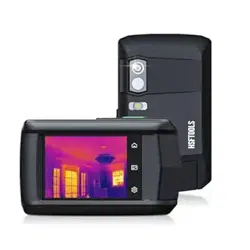

Pocket Thermal Camera
User Manual

HSFTOOLS
P2W User Manual
CONTENTS
Chapter 1 Overview .......................................................... 1
1.1 Notice to User ..................................................... 1
1.2 Device Description .............................................. 1
1.3 Main Function ..................................................... 2
1.4 Appearance ......................................................... 3
Chapter 2 Preparation ...................................................... 7
2.1 Charge Device ..................................................... 7
2.2 Power On/Off ...................................................... 8
2.2.1 Manual Sleep ........................................ 8
2.2.2 Set Auto Power-Off ............................... 8
2.3 Operation Method ............................................... 9
2.4 Menu Description ................................................ 9
Chapter 3 START WITH SCENE MODE ............................ 11
3.1 Select a Scene Mode ....................................... 11
3.2 (Optional) Set Scene Mode Parameters ........... 16
Chapter 4 Precise Temperature Measurement ............... 19
4.1 Set Temperature Measurement Parameters .... 19
4.1.1 Adjust Distance ................................... 19

HSFTOOLS
P2W User Manual
4.1.2 Adjust Emissivity ................................. 20
4.1.3 (Optional) Adjust Other Parameters ... 20
4.2 Set Measurement Tools .................................... 21
4.3 Clear Measurement Tools ................................ 22
Chapter 5 Set Alarms ..................................................... 23
Chapter 6 Display Settings.............................................. 25
6.1 Set Screen Brightness ....................................... 25
6.2 Set Auto-Rotation .............................................. 25
6.3 Set Super Resolution ......................................... 25
6.4 Set Image Mode ................................................ 26
6.5 Adjust Level & Span .......................................... 26
6.6 Adjust Digital Zoom .......................................... 28
6.7 Display On-Screen Info ...................................... 28
Chapter 7 Picture and Video ........................................... 29
7.1 Capture Picture ................................................. 29
7.2 Record Video ..................................................... 32
7.3 Manage Albums ................................................ 32
7.4 View Files .......................................................... 34
7.5 Manage Files ..................................................... 35
7.6 Export Files via PC ............................................ 38

HSFTOOLS
P2W User Manual
Chapter 8 Device Connections ........................................ 39
8.1 Cast Device Screen to PC ................................. 39
8.2 Connect Device to HSFTOOLS .......................... 39
8.2.1 Connect Device via Wi-Fi .................... 40
8.2.2 Connect Device via Hotspot ............... 41
Chapter 9 System Settings ............................................. 43
9.1 Set Time and Date ............................................. 43
9.2 Set Unit .............................................................. 43
9.3 Set Language .................................................... 43
Chapter 10 Maintenance ................................................ 44
10.1 View Device Information ................................. 44
10.2 Upgrade Device ............................................... 44
10.3 Restore Device ................................................ 45
10.4 Save Operation logs ........................................ 45
10.5 Format Storage ............................................... 45

HSFTOOLS
P2W User Manual
1
CHAPTER 1 OVERVIEW
1.1
Notice to User
This manual describes and explains the features for
multiple camera models. Because the camera models of a
series have different features, this manual may contain
descriptions and explanations that do not apply to your
particular camera model. Not all the camera models of a
series support the mobile applications, software, and all
their functions mentioned (or not mentioned) in this
manual. Please refer to the user manuals of the application
and software for more detailed information.
This manual is updated on a regular basis. It means that
this manual may not contain the information about the new
features of the latest firmware, mobile clients, and
software.
1.2
Device Description
The thermal camera is a device with both visual and
thermal images. It can do temperature measurement,
video recording, snapshot capturing, alarm, and can
connect to Wi-Fi, and hotspot. The built-in high-sensitivity
Super Resolution(SR) detector and high-performance
sensor detects the variation of temperature and measure
the real-time temperature.
The device is easy to use, and adopts ergonomic design. It
is widely used for building inspection, HVAC, as well as

HSFTOOLS
P2W User Manual
2
electrical and mechanical equipment maintenance.
1.3
Main Function
Super Resolution
To enhance object outlines. Some camera models can
display the real-time Super Resolution image in live view.
Scene Mode
The camera supports multiple scene modes for different
detection targets and scenarios.
Some scene modes support IntellFault, an intelligent
function. It can assist in anomaly detection and give
prompts on top of the live view interface.
Temperature Measurement
The camera detects the real-time temperature, and
displays it on the screen.
Image Mode
The camera can display thermal view and/or visual view.
Thermal, Fusion, PIP, Blending, and Visual are selectable.
Palettes
The camera supports multiple color palettes for different
targets and user preference.
HSFTOOLS
P2W User Manual
3
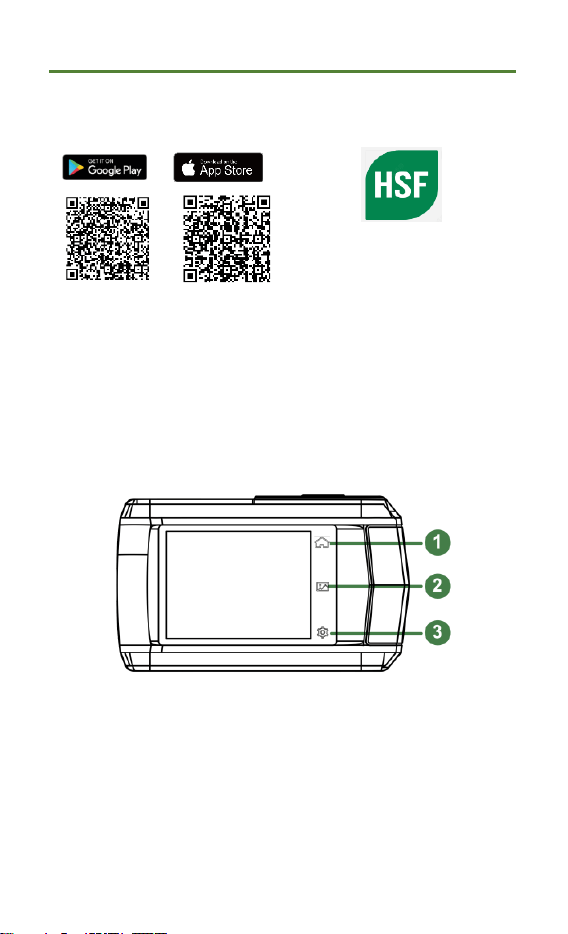
Client Software Connection
Scan the QR code to
download
HSFTOOLS
App
for live view, capture
snapshots, record videos,
etc.
Download
HSF Studio
to
your PC for analyzing
files.
1.4
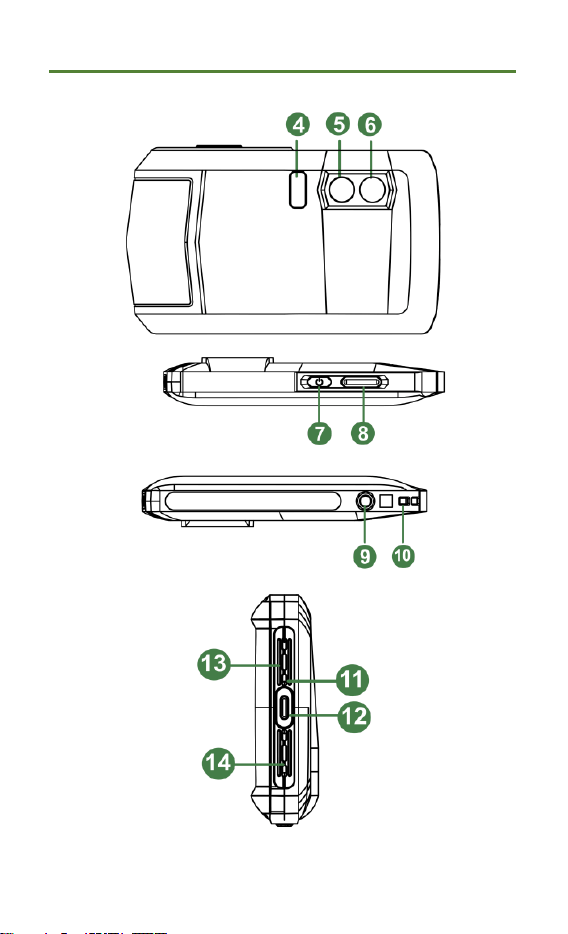
Appearance
HSFTOOLS
P2W User Manual
4

HSFTOOLS
P2W User Manual
5
No.
Description
Function
1
Home Key
Tap to return to the live view
interface.
2
File Key
Tap to enter albums.
3
Settings Key
Tap to enter settings interface.
4
Flash Light
Provide additional light in the
low-light condition.
5
Thermal Lens
View the thermal image.
6
Visual Lens
View the visual image.
7
Power Key
Hold: Power on/off the
device.
Press: Manual sleep/Wake
up the device.
8
Capture Key
In live view:
Press: Capture
snapshots/stop recording.
Hold: Start recording.
In menu mode: Return to the
live view interface.
9
Tripod Mount
Mount the tripod.
10
Strap
Attachment
Point
Mount the strap.
11
Indicator
Indicate the charging status of
the device.
HSFTOOLS
P2W User Manual
6
No.
Description
Function
Solid red: charging normally
Flashing red: charging
exception
Solid green: fully charged
12
Type-C
Interface
Charge the device or export
files with the supplied USB
cable.
13
Buzzer
Output audible alarm.
14
Microphone
Record audio.
NOTE
Your camera will periodically perform a
self-calibration to optimize image quality
and measurement accuracy. In this
process, the image will pause briefly and
you’ll hear a “click” as a shutter moves in
front of the detector. The prompt “Image
Calibrating …” appears in the upper
center of the screen as the device is
calibrating itself. The self-calibration will
be more frequent during start up or in
very cold or hot environments.

HSFTOOLS
P2W User Manual
7
CHAPTER 2 PREPARATION
2.1
Charge Device
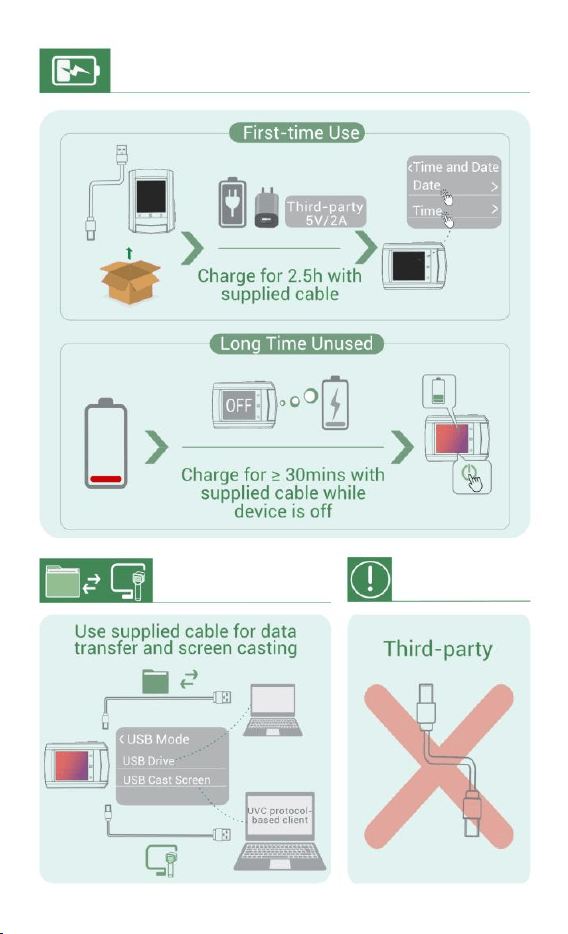
The camera is equipped with a built-in battery. It is
recommended to charge the camera with the included USB
cable. Do not use the USB-C to USB-C cable of other
manufacturers.
The power adapter (not included) should meet the
following standards:
Output Voltage/Current: 5 VDC/2 A
Minimum Power Output: 10 W
Check the power indicator for the charging status:
Solid red: charging normally
Flashing red: charging exception
Solid green: fully charged
NOTE
The power delivered by the charger
must be between min 6.7 Watts
required by the radio equipment, and
max 10 Watts in order to achieve the
maximum charging speed
If the camera is not in use for an
extended period and is over-
discharged, it is recommended to
charge for at least 30 min before
powering it on.
HSFTOOLS
P2W User Manual
8
It is recommended to use the USB
cable included in the package for both
charging and data transfer.
2.2
Power On/Off
Power On
Hold for over three seconds to turn on the device. You
can observe the target when the interface of the device is
stable.
NOTE
It may take at least 30 s until the device is
ready for using after you power on it.
Power Off
When the device is turned on, hold for about three
seconds to power off the device.
2.2.1
Manual Sleep
When the device is turned on, press once to turn on
the sleep mode, and press again to wake up the
device.
2.2.2
Set Auto Power-Off
Tap , and go to Device Settings > Auto Power-off to set
the automatic shutdown time for device as required.
HSFTOOLS
P2W User Manual
9
2.3
Operation Method
The device supports touch-screen control. You can tap the
screen to set parameters and configurations.
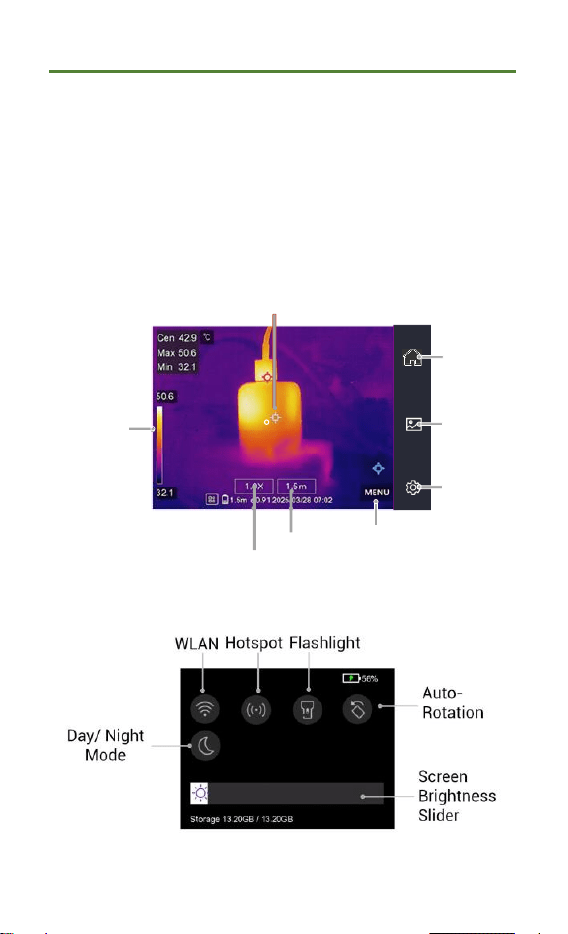
2.4
Menu Description
Live View
Albums
Settings
MENU
Live View
Digital Zoom
Distance
Palette Bar
Measurement Tools
Swipe-down Menu

HSFTOOLS
P2W User Manual
10
NOTE
Because this manual is updated on a
regular basis, the interfaces might be
slightly different from the version of your
particular camera model. Please refer to
the actual camera.

HSFTOOLS
P2W User Manual
11
CHAPTER 3 START WITH SCENE MODE
To conduct fast anomaly detection, several preset
templates are included in Scene mode for various
detection scenarios. Users can choose an appropriate
scene or customize a scene as per targets, and set high
temperature alarm as needed.
1.
Select an appropriate scene mode. See
3.1 Select a
Scene Mode
for details.
2.
(Optional) Fine-tune scene mode parameters as
needed. See
3.2 (Optional) Set Scene Mode Parameters
for details.
3.
(Optional) Set alarms as needed. See
Chapter 5 Set
Alarms
for details.
4.
Observe detection results in live view interface.
3.1
Select a Scene Mode
In live view, tap > Scene to choose an appropriate
scene mode.
NOTE
Default value of parameters work for most
cases. If users want to fine-tune the related
parameters as needed, please refer to
3.2
(Optional) Set Scene Mode Parameters.
HSFTOOLS
P2W User Manual
12
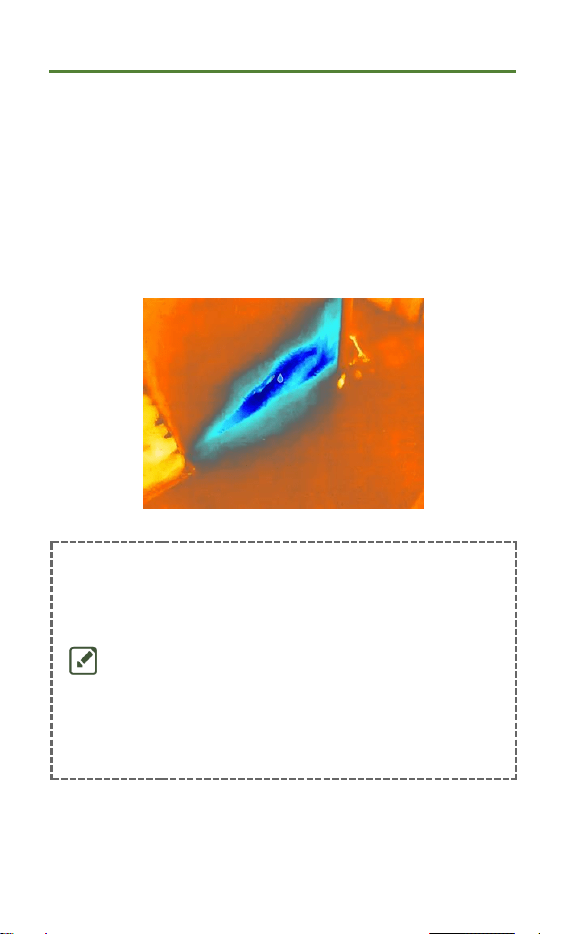
Water Leak
To inspect the water leak of building ceilings, walls and
floors indoors.
IntellFault technology can assist in fast recognition for
anomalies during water leak detection. When IntellFault is
enabled and water leak anomalies are detected,
Suspect
will be displayed on top of live view.
NOTE
Missed or even wrong reporting
emerges when temperature difference
of the areas with leak anomalies is too
subtle to be recognized, etc.
It is recommended to give a second
diagnosis based on IntellFault
function. The algorithm of IntellFault
function is being updated.
Switching image modes is not
supported in this mode.
Insulation
To detect indoor insulation deficiency of building walls,
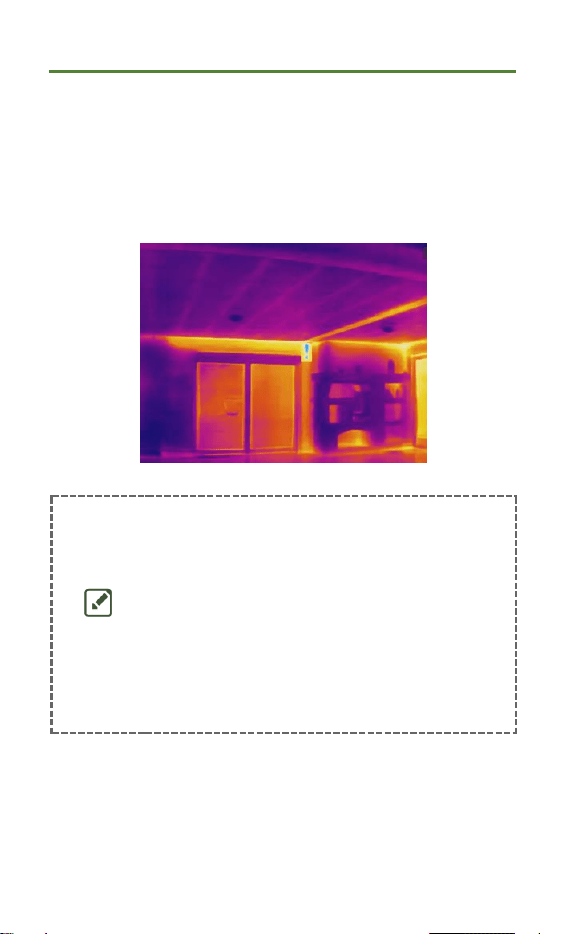
HSFTOOLS
P2W User Manual
13
ceilings, common users can apply this scene.
IntellFault technology can assist in fast recognition for
anomalies during insulation detection. When IntellFault is
enabled and insulation anomalies are detected,
Suspect
will
be displayed on top of live view.
NOTE
Missed or even wrong reporting
emerges when temperature difference
of the areas with leak anomalies is too
subtle to be recognized, etc.
It is recommended to give a second
diagnosis based on IntellFault function.
The algorithm of IntellFault function is
being updated.
Switching image modes is not
supported in this mode.
Insulation Pro
To detect indoor insulation anomalies of building walls and
ceilings, professional users can apply this scene. Extra
parameters Indoor Temp., Outdoor Temp. and Insulation
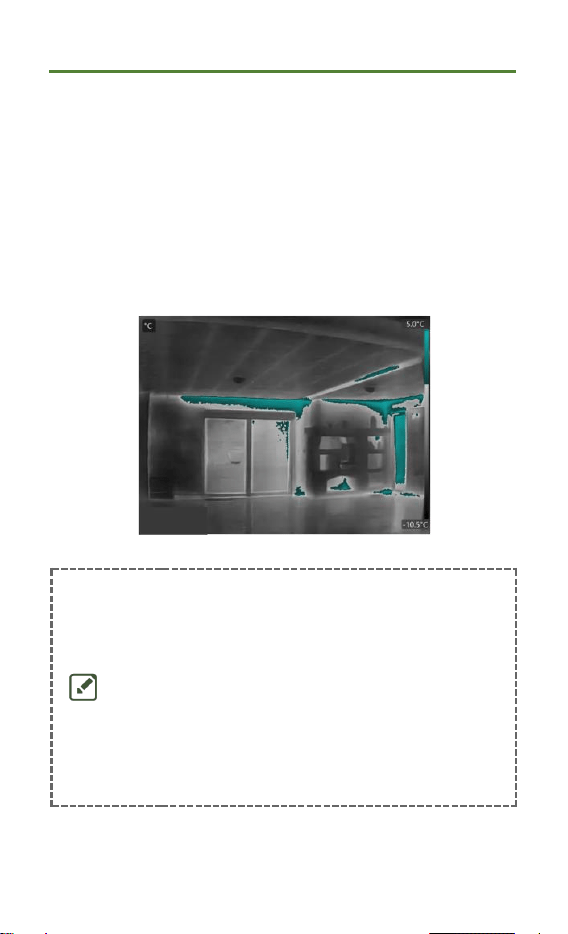
HSFTOOLS
P2W User Manual
14
Level are required.
If indoor temperature is lower than or equal to outdoor
temperature, areas where the detected insulation level
exceeds a preset value of Insulation Level will be marked in
cyan; If indoor temperature is higher than outdoor
temperature, areas where the detected insulation level falls
below a preset value of Insulation Level will be marked in
cyan.
NOTE
Indoor Temp: The current indoor
temperature.
Outdoor Temp: The current outdoor
temperature.
Insulation Level: An integer from 0 ~
100. Typical values are 60~80% for
new buildings.
Switching image modes and Super
Resolution function are not supported
in this mode.
HSFTOOLS
P2W User Manual
15
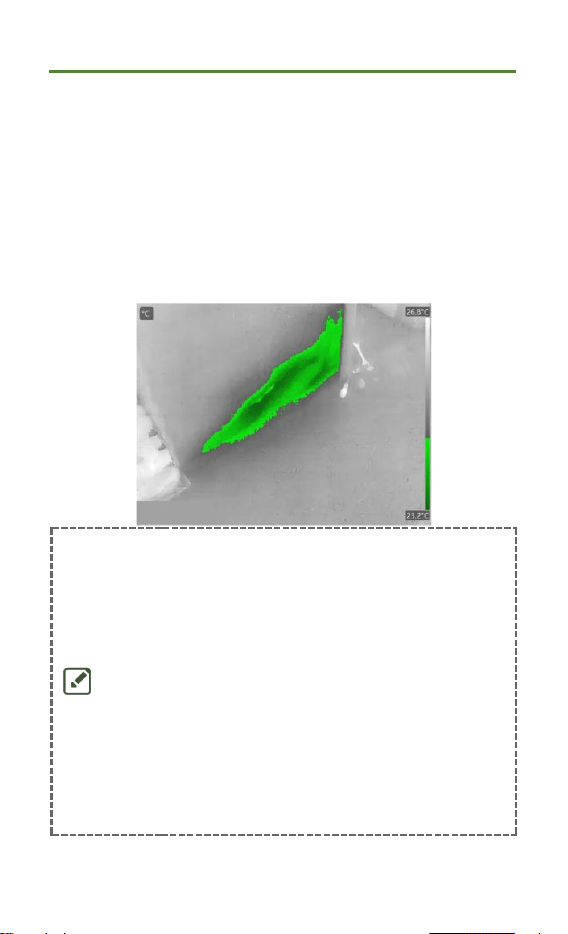
Condensation
To inspect potential moisture problems indoors. It is a
prerequisite to set Relative Humidity, Ambient Temp., and
RH Threshold(%).
Areas with condensation deficiency will be marked in
green when the detected relative humidity exceeds the set
RH Threshold.
NOTE
Relative humidity: The current relative
humidity.
Ambient temperature: The current
atmospheric temperature.
RH Threshold: Humidity upper limits
of the target surface. A relative
humidity of 100% means that water
vapor condenses from the air as liquid
water (= dewpoint), and a relative
humidity of about 70% or above can
cause mold
.
Values of Relative Humidity and
Ambient Temp. can be obtained from

HSFTOOLS
P2W User Manual
16
hygrometers and thermometers
respectively.
Switching image modes and Super
Resolution function are not supported
in this mode.
Floor Heating
To detect and observe the faults of floor heating system.
Electrical Faults
To detect and observe the faults of wires, circuits,
electrical components, terminators, etc.
Solar Panel
To detect and observe the faults of solar panels.
Custom
Users can customize a mode to save desired temperature
measurement parameters for future use. See
3.2
(Optional) Set Scene Mode Parameters.
3.2
(Optional) Set Scene Mode Parameters
To obtain a more precise detection results, users can fine-
tune the related parameters through > Scene.
NOTE
Parameters vary from the different scenes.

HSFTOOLS
P2W User Manual
17
Parameters
Description
Emissivity
Set the emissivity according to your
target.
Palettes
Thermal images are created by
temperature difference. Palettes are
colors standing for temperature. Users
can choose a palette according to
preferred colors.
Palette bar on left supports browsing
color-temperature relationship in the
image. See
6.5 Adjust Level & Span.
Temperature
Range
Select the temperature measurement
range. The device can detect the
temperature and switch temperature
measurement range automatically in
Auto Switch mode
Alarm
When the temperature of targets
triggers the set alarm rule, users can be
notified in the set ways. See
Chapter 5
Set Alarms.
Color
Distribution
Linear and Histogram modes are
selectable for different application
scenes, so as to display more details.
Linear: Detect small high
temperature targets in low
temperature background to
enhance and display more details

HSFTOOLS
P2W User Manual
18
of high temperature targets, such
as cable connectors.
Histogram: Detect small low
temperature targets in high
temperature areas to enhance
temperature difference and
remain details of low temperature
objects, such as cracks.

HSFTOOLS
P2W User Manual
19
CHAPTER 4 PRECISE TEMPERATURE
MEASUREMENT
To get more precise and real-time temperature of the
target, user can set spot tools and high temperature alarm
as needed.
1.
Select a proper scene to speed up the measurement
settings. See Chapter 3 START WITH SCENE MODE.
2.
Verify temperature values in the top-left corner of live
view. If they are not precise enough, fine-tune
temperature measurement parameters. See
4.1 Set
Temperature Measurement Parameters
.
3.
Set spot tools to get the real-time temperature of the
highest/lowest/center temperature spot. See
4.2 Set
Measurement Tools.
4.
(Optional) Set the alarm for high temperature targets.
See
Chapter 5 Set Alarms
.
5.
Observe temperature results in live view interface.
4.1
Set Temperature Measurement Parameters
4.1.1
Adjust Distance
The distance between the camera and the observation
target affects the accuracy of the temperature results.
Before temperature measurement, users should set the
distance first.
HSFTOOLS
P2W User Manual
20
If users desire for a predefined template according to the
approximate distance between the camera and the target,
there are Near/Middle/Far modes available.
If users desire for more accurate results, there are Custom
mode available.
1.
In live view, tap > Temp Measurement Settings >
Distance.
2.
Choose a distance mode.
NOTE
Users can quick adjust temperature
measurement distance in live view by
scrolling the distance wheel.
4.1.2
Adjust Emissivity
Emissivity directly affects the measurement accuracy and
it is necessary to be re-adjusted according to the
characteristics of the target material.
1.
Go to > Scene to select a scene.
2.
In scene setting interface, choose a recommended
value or customize it.
3.
Tap to save and exit.
4.1.3
(Optional) Adjust Other Parameters
To improve the accuracy of temperature measurement,
fine-tune temperature measurement parameters through
> Temp Measurement Settings.
HSFTOOLS
P2W User Manual
21
Parameters
Description
Refl. Temp.
If any object (not the target) of high
temperature is in the scene, and the
target emissivity is low, the target
would reflect the high temperature
object, resulting in poor accuracy.
Set Refl. Temp as the value of high
temperature object to cancel the
interference.
Humidity
Set the humidity of current
environment the camera is in.
4.2
Set Measurement Tools
You can set measurement tools to measure the min., max.,
and center temperatures of the current scene.
1.
Tap MENU, and select .
2.
Tap to select a temperature measurement tool as
required. Hot , Cold , and Center are
selectable.
3.
Tap BACK to save and exit.
NOTE
The min., max., and center
temperatures are displayed on the top
left of the screen. Tap the tool again
to delete.
If there is serious inaccuracy in
temperature results, turn off IntellAccu
HSFTOOLS
P2W User Manual
22
button by > Temp Measurement
Settings > IntellAccu. IntellAccu
function is ONLY supported by some
models.
4.3
Clear Measurement Tools
Users can clear all the set measurement tools via >
Device Settings > Device Initialization > Remove All
Measurement Tools. And a window pops up to prompt
Setting Succeeded.
NOTE
The palette is also restored to the default
settings.
HSFTOOLS
P2W User Manual
23
CHAPTER 5 SET ALARMS
When the temperature of targets triggers the set high
alarm rule, the device will perform configured actions, such
as making audible warning and flashing alarm.
1.
Select a scene mode via > Scene.
2.
In Scene setting interface, tap Alarm to enter the
settings interface.
NOTE
ONLY some scenes support Alarm.
Please refer to your actual device.
3.
Enable Temperature Alarm button.
4.
Tap Alarm Threshold to set the temperature upper
limits by scrolling the wheel.
5.
Tap to save and exit.
NOTE
If the target temperature exceeds the set
value of Alarm Threshold, the Max.
temperature row on the top left of live
view will be marked in red.
6.
(Optional) Tap > Temp Measurement Settings >
Alarm Linkage to set sound and/or flash light alarms.

HSFTOOLS
P2W User Manual
24
NOTE
Alarm Linkage is a common parameter
which works for all the triggered alarms.
HSFTOOLS
P2W User Manual
25
CHAPTER 6 DISPLAY SETTINGS
6.1
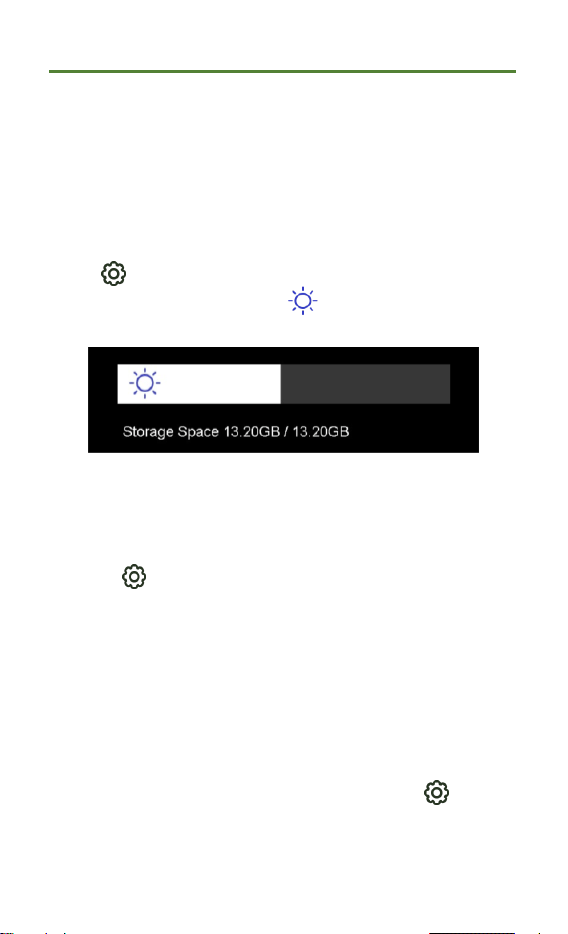
Set Screen Brightness
Go to > Display Settings > Screen Brightness to adjust
the screen brightness. Or tap , and drag it to adjust the
screen brightness.
6.2
Set Auto-Rotation
Turn on auto-rotation in swipe-down menu.
Or go to > Device Settings > Auto-Rotation to turn on
this function
6.3
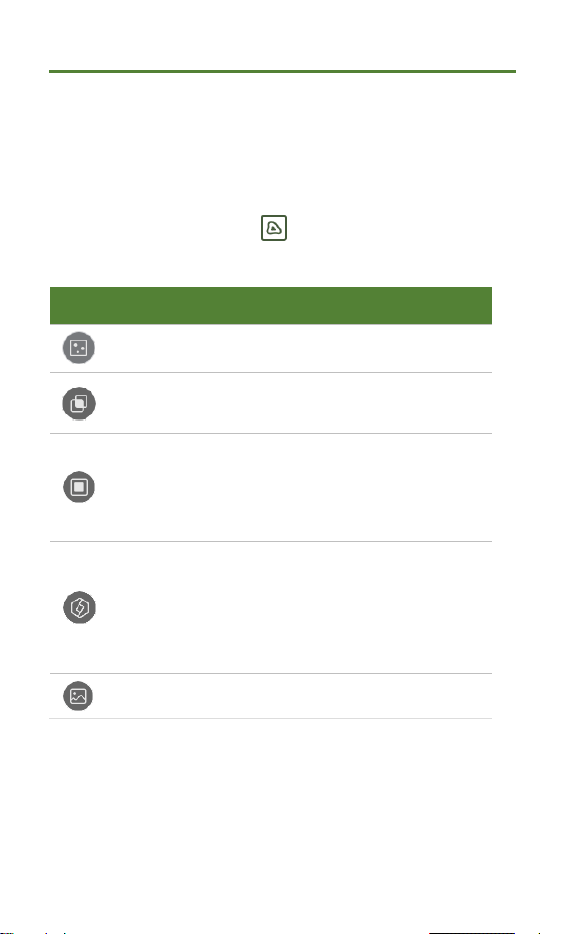
Set Super Resolution
The device supports Super Resolution on live view and on
snapshots. Turn on Super Resolution to enhance the object
outlines for better image display. The actual effect is
subject to the actual product.
Super Resolution is turned on by default. Go to >
Capture Settings > Super Resolution to turn it off.
HSFTOOLS
P2W User Manual
26
6.4
Set Image Mode
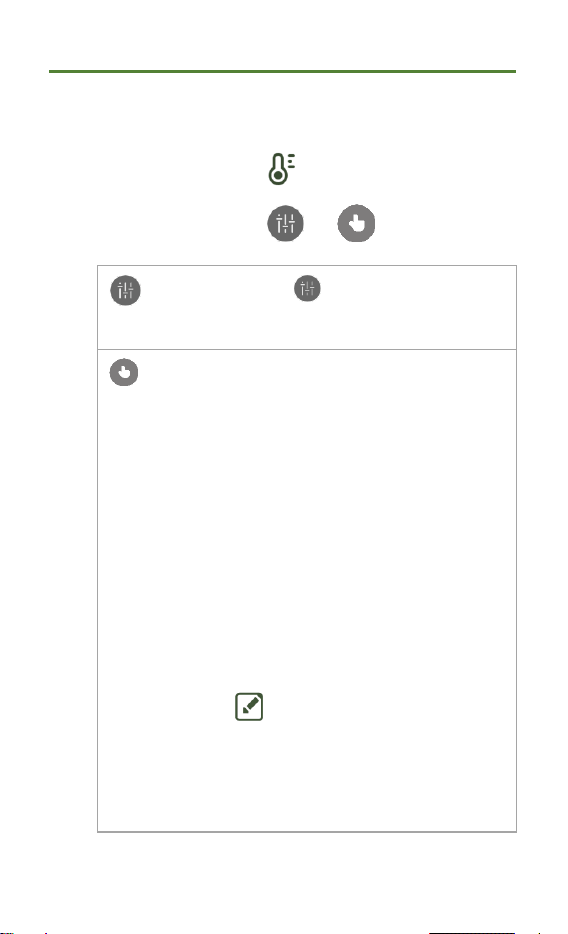
You can set the thermal/visual view of the device.
Thermal, Fusion, PIP, Blending, and Visual are selectable.
1.
Tap MENU, and select .
2.
Select an image mode.
3.
Tap BACK to exit.
6.5
Adjust Level & Span
Set a display temperature range and the palette only works
for targets within the range. You can adjust the display
Image Mode
Description
Thermal
Thermal image only.
Fusion
Thermal object image with visual
outlines.
PIP
In PIP mode, the device displays
thermal view inside the visual
view. Adjust the size, distance and
digital zoom of the PIP.
Blending
In Blending mode, the device
displays the mixture view of
thermal and visual channel. Select
the visual-thermal Level to change
the visual-thermal ratio.
Visual
Visual object image only.
HSFTOOLS
P2W User Manual
27
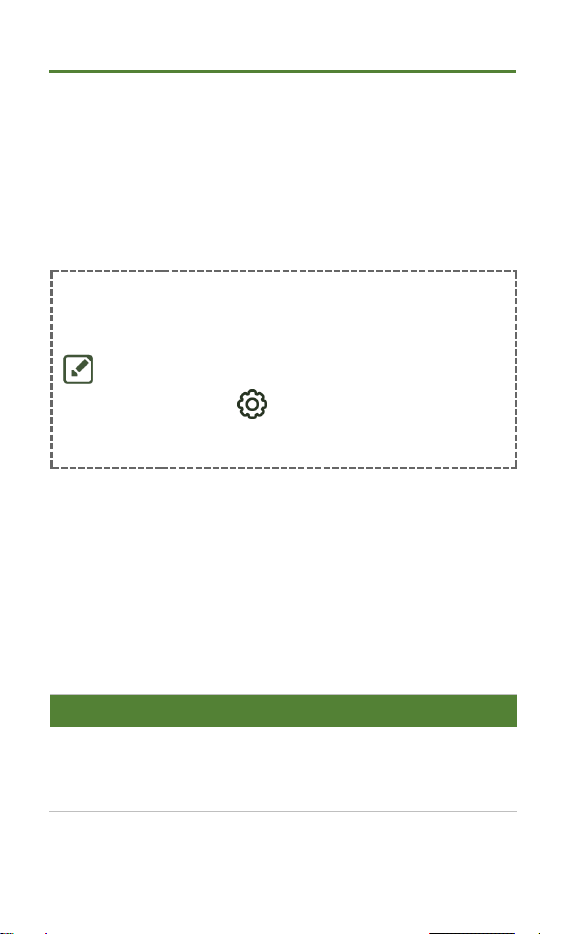
temperature range.
1.
Tap MENU, and select .
2.
Select auto adjustment or manual
adjustment.
Auto
Select . The device adjusts
display temperature range
automatically.
Manual
1)
Tap on an interest area of the
screen. A circle is displayed
around the area, and the
display temperature range
readjusts to show as many
details of the area as possible.
2)
Tap on the min./max. value of
the Palette Bar to lock or
unlock the value.
3)
Scroll the wheel to fine-tune
the max./min. temperature
respectively.
4)
Tap OK to finish.
Note
When the min. and max.
temperature are both unlocked,
scrolling the wheel will adjust the
min. and max. temperature at the
same time.

HSFTOOLS
P2W User Manual
28
3.
Tap BACK to exit.
6.6
Adjust Digital Zoom
1.
In live view interface, tap on screen to call the digital
zoom frame.
2.
Tap the digital zoom frame.
3.
Scroll the wheel to adjust the value as required.
4.
Tap the screen to save and exit.
6.7
Display On-Screen Info
Go to Local Settings > Display Settings to enable the
information on-screen display.
Time and Date: Device time and date.
Parameters: Temperature measurement parameters,
for example, target emissivity, temperature unit, etc.
Palette Bar: Display the palettes bar and temperature
range on the left side of the screen.
Unit: Set the temperature unit and distance unit.
Screen Brightness: Adjust the screen brightness.
HSFTOOLS
P2W User Manual
29
CHAPTER 7 PICTURE AND VIDEO
The device can record videos and capture snapshots. The
files are saved in the local albums.
NOTE
The device does not support capturing
or recording when the menu is shown.
When the device is connected to your
PC, it does not support capturing or
recording.
Tap and go to Local Settings >
Device Settings > Device Initialization
to initialize the storage as needed.
7.1
Capture Picture
In live view, press capture key to capture a snapshot.
Enable the flashlight via the swipe-down menu in dark
environment.
You can also set the following parameters in Local
Settings > Capture Settings as needed.
Parameters
Description
Super
Resolution
Enable Super Resolution before
capturing to enhance the object outlines
of the captured images.

HSFTOOLS
P2W User Manual
30
Save Visual
Image &
Visual
Image
Resolution
If a visual image is needed to be saved
separately, enable Save Visual Image
and set Visual Image Resolution.
Capture
Mode
Capture One Image: Press capture
key once to capture one image.
Scheduled Capture: Set Interval
(the time interval of each snapshot
to be taken) and Number (the
number of snapshots to be taken
in a roll, ranging from 1 to 10,000)
for scheduled capture. Press
capture key in live view, and the
camera captures the set number of
images according to the set
interval. Press capture key again to
stop capturing.
Edit before
Saving
In Capture One Image mode, if you need
to edit the captured image immediately,
enable Edit before Saving.
Text Note: Select text note and
enter the editing page. Tap on
screen to input content and press
to save.
Scan QR Code:
1)
Select QR code and the device enters
the scanning mode.
HSFTOOLS
P2W User Manual
31
2)
Aim the scanning frame at a QR code.
Device reads the code and save the
code information.
3)
Optional: If the scanning fails, you
can enter the code information (Asset
ID) using on-screen keyboard
according to the prompt.
Filename
Header
Set the naming rule for the saved files.
The default image naming is
filename
header
+
saving time
. Filename Header
is configurable. Saving time is the device
system time when the saving occurs.
File Naming
The files can be named after Time
Stamp or Numbering (
filename header
+
sequence number
).
NOTE
For Capture One Image, if Edit before
Saving is NOT enabled, the live image
freezes and is saved in the default
saving album. If Edit before Saving is
enabled, the device enters the image
editing interface.
For Scheduled Capture, a counter
displays in live view showing the
completed amounts of capturing.
What to do next
Tap to enter albums to view and manage files and
albums. See
7.3 Manage Albums
and
7.5 Manage Files
for operation instructions.

HSFTOOLS
P2W User Manual
32
You can connect your device to PC to export local files
in albums for further use. See
7.6 Export Files via PC.
7.2
Record Video
1.
(Optional) In live view, tap , and go to Capture
Settings > Record Audio to turn on/off the sound during
video recording.
2.
In the live view interface, hold capture key to start
recording. When the recording icon and count down
number display in the interface, recording begins and
you can release the trigger.
3.
The recording video will be saved automatically after
pressing capture key once to stop recording.
7.3
Manage Albums
The recorded image/video files are saved in the albums.
You can create new albums, rename an album, change the
default album, move files between the albums, and delete
albums.
Task
Operations
Create a
New
Album
1)
Tap to enter Albums.
2)
Tap to add a new album.
3)
A soft keyboard is displayed, where
you can enter the name of the
album by touching the screen.
4)
Tap to finish.
HSFTOOLS
P2W User Manual
33
NOTE
The newly created album
becomes the default saving
album and appears at the
top of the album list.
Rename
an Album
1)
Tap to enter Albums.
2)
Select the album to rename.
3)
Tap , and select Rename. A soft
keyboard is displayed.
4)
Tap to delete the old name,
and enter the new name for the
album by touching the screen.
5)
Tap to finish.
Change
the
Default
Saving
Album
1)
Tap to enter Albums.
2)
Select the album you want to use as
the default saving album.
3)
Tap , and select Set as Default
Saving Album.
NOTE
Default saving album
appears at the top of the
album list.
Delete an
Album
1)
Tap to enter Albums.
2)
Select the album you want to delete.
3)
Tap , and select Delete. A
prompt box appears on the
interface.
4)
Tap OK to delete the album.
HSFTOOLS
P2W User Manual
34
NOTE
The files in an album are
deleted as well when
deleting the album. Move the
files to other albums if they
are still needed. See
7.5
Manage Files
for
instructions.
7.4
View Files
1.
Tap to enter Albums.
2.
Tap to select the target album.
3.
Tap to select a video or snapshot to open it.
4.
Tap the image or video, and tap to view more
information.
NOTE
Files are arranged in chronological
order, with the most recent at the top.
If you fails to find the most recently
taken snapshots or videos, please
check the time and date settings of
your device. See
9.1 Set Time and
Date
for instructions. When you are
viewing files, you can switch to other
files by tapping or .
For more information contained in
capture snapshots or videos, you can
download and install the PC analyzing
tool to analyze them.
HSFTOOLS
P2W User Manual
35
7.5
Manage Files
You can move, delete, edit the recorded files, and add text
notes to the files.
Task
Operations
Delete a
File
1)
Tap to enter Albums.
2)
Tap to select the album storing the
file to be deleted.
3)
In the album, tap to view the file to
be deleted.
4)
Tap the screen to show the menu
bar below, and tap . A prompt
box appears on the interface.
5)
Tap OK to delete the file.
Delete
Multiple
Files
1)
Tap to enter Albums.
2)
Tap to select the album storing the
files to be deleted.
3)
In the album, tap , and tap the
files to be deleted.
4)
Tap . A prompt box appears
on the interface.
5)
Tap OK to delete the files.
Move a File
1)
Tap to enter Albums.
2)
Tap to select the album storing the
file to be moved.
3)
In the album, tap to view the file to
be moved.
HSFTOOLS
P2W User Manual
36
Task
Operations
4)
Tap the file to show the menu bar
below, and select . The album
list is displayed.
5)
Tap to select the album to move
to.
Move
Multiple
Files
1)
Tap to enter Albums.
2)
Tap to select the album storing the
files to be moved.
3)
In the album, tap to select the
files to be moved.
4)
Tap . The album list is
displayed.
5)
Tap to select the album to move
to.
Add Text
Note on
File
1)
Tap to enter Albums.
2)
Tap to select the album storing the
file to be edited.
3)
In the album, tap to view the file to
be edited.
4)
Tap the screen to show the menu
bar below, and tap . A soft
keyboard is displayed.
5)
Enter the text note by touching the
screen.
6)
Tap to finish.
HSFTOOLS
P2W User Manual
37
Task
Operations
What to do next
You can open the edited photo to view
the text note.
Add QR
Code Note
on the file
1)
Tap to enter Albums.
2)
Tap to select the album storing the
file to be edited.
3)
In the album, tap to view the file to
be edited.
4)
Tap the screen to show the menu
bar below, and tap . A
scanning frame is displayed.
5)
Aim the scanning frame at a QR
code. Device reads the code and
save the code information.
6)
Optional: If the scanning fails,
Input the code (Asset ID) with soft
keyboard according to the prompt.
NOTE
You can tap to select all files, and tap
to cancel the selection.
HSFTOOLS
P2W User Manual
38
7.6
Export Files via PC
1.
Connect the device to your PC with the supplied USB
cable, and select USB Drive mode in the prompt on
device. In USB Drive mode, casting screen is not
supported.
2.
Open the detected disk, copy and paste the videos or
snapshots to PC to view the files.
3.
Disconnect the device from your PC.
NOTE
For the first connection, the driver will be
installed automatically.

HSFTOOLS
P2W User Manual
39
CHAPTER 8 DEVICE CONNECTIONS
8.1
Cast Device Screen to PC
The device supports casting screen to PC by
HSF Studio
, a
UVC protocol-based client software. You can connect the
device to your PC via the included USB cable, and cast the
real-time live view of the device to your PC.
Please visit our website or contact our technical supports
or customer service team for installation packages, and
download and install
HSF Studio
.
See the user manual of
HSF Studio
client for specific
connection and more operations.
8.2
Connect Device to HSFTOOLS
Connect
HSFTOOLS
and your device over a Wi-Fi network
or hotspot. Then you can operate your device with the App.
Before You Start
Scan the QR code to download and install
HSFTOOLS
APP
to your phone.
HSFTOOLS
P2W User Manual
40
8.2.1
Connect Device via Wi-Fi
1.
Connect your device to a Wi-Fi.
1)
Go to Local Settings > Connections > WLAN.
2)
Tap to enable Wi-Fi, and the searched Wi-
Fi will be listed.
3)
Select the Wi-Fi to connect. A soft keyboard is
displayed.
4)
Enter the password by touching the screen.
NOTE
DO NOT enter space in your password,
or the password may be incorrect.
Please tap to enter password
into the password field.
2.
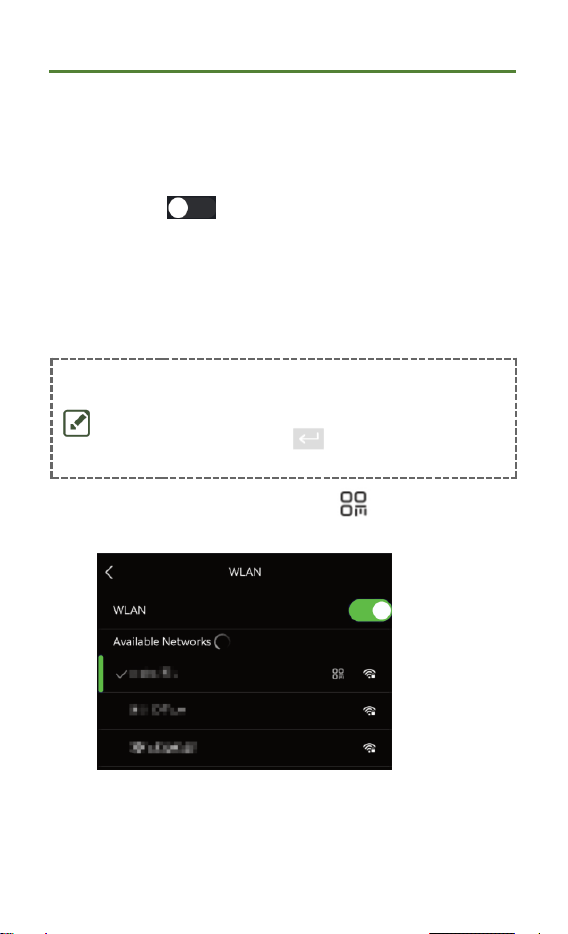
In WLAN setting interface, press to select the
connected Wi-Fi, and the full QR code pops up.
3.
Open the App on your phone, scan the QR code on the
device, and follow APP instructions to connect your
device.
HSFTOOLS
P2W User Manual
41
8.2.2
Connect Device via Hotspot
1.
Enable the hotspot on your device.
1)
Go to Local Settings > Connections > Hotspot.
2)
Tap to enable the hotspot function. The
hotspot name is the last 9 digits of the device
serial No.
NOTE
A QR code displays in the setting interface
on the device when hotspot is enabled.
2.
(Optional) Set the hotspot password.
Using hotspot password:
1)
Select Set Password. A randomly generated
password is displayed.
2)
Set your password for the hotspot.
3)
Tap on upper left corner.
NOTE
DO NOT tap space in your password,
or the password may be incorrect.
The password should at least contain
8 digits, consisting of numbers and
characters.
Please tap to enter password
into the password field.
3.
Scan the QR code with the APP to join the hotspot.

HSFTOOLS
P2W User Manual
42
A QR code displays in the setting interface on the
device when hotspot is enabled. Open the app on
your phone, scan the QR code, and follow app
instructions to connect your device
.
HSFTOOLS
P2W User Manual
43
CHAPTER 9 SYSTEM SETTINGS
9.1
Set Time and Date
1.
Go to Local Settings > Device Settings > Time and Date.
2.
Set the date and time.
3.
Tap to save and exit.
NOTE
Go to Local Settings > Device Settings >
Display Settings to turn on/off time and
date display.
9.2
Set Unit
Go to Local Settings > Display Settings > Unit to set the
temperature unit and distance unit.
9.3
Set Language
Go to Local Settings > Device Settings > Language to
select a required language.

HSFTOOLS
P2W User Manual
44
CHAPTER 10 MAINTENANCE
10.1
View Device Information
Go to Local Settings > Device Settings > About to view the
device information.
10.2
Upgrade Device
Before You Start
Please download the upgrade file from the official
website or contact the custom service and technical
support to get the upgrade file first.
Make sure that the device battery is fully charged.
Make sure that Auto Power-off function is turned-off to
avoid accidental suspension during upgrading.
1.
Connect the device to your PC via the included USB
cable, and select USB Drive as the USB mode in the
prompt on the device.
2.
Unzip the upgrade file and copy it to the root directory
of the device.
3.
Disconnect the device from your PC.
4.
Reboot the device and then it will upgrade
automatically. The upgrading process will be displayed
in the main interface.
NOTE
After upgrading, the device reboots
automatically. You can view the current

HSFTOOLS
P2W User Manual
45
version in Local Settings > Device
Settings > About.
10.3
Restore Device
Go to Device Settings > Device Initialization > Restore
Device to initialize the device and restore default settings.
10.4
Save Operation logs
The device can collect its operation logs and save in the
storage only for troubleshooting. You can turn on/off this
function in Local Settings > Device Settings > Save Logs.
You can connect the camera to PC using the supplied USB
cable, and select USB Drive as the USB mode on camera to
export the operation logs (*.tar) in the root directory of the
camera, if necessary.
10.5
Format Storage
Format storage before first use of it.
Tap , and go to Device Settings > Device Initialization>
Format Storage to initialize the device memory.
HSFTOOLS
P2W User Manual
46
SAFETY INSTRUCTION
These instructions are intended to ensure that user can
use the product correctly to avoid danger or property loss.
Please read all the safety information carefully before
using.
Symbol Conventions
The symbols that may be found in this document are
defined as follows.
Symbol
Description
Danger
Indicates a hazardous situation which,
if not avoided, will or could result in
death or serious injury.
Caution
Indicates a potentially hazardous
situation which, if not avoided, could
result in equipment damage, data loss,
performance degradation, or
unexpected results.
Note
Provides additional information to
emphasize or supplement important
points of the main text.
Laws and Regulations
Use of the product must be in strict compliance with
the local electrical safety regulations.

HSFTOOLS
P2W User Manual
47
Transportation
Keep the device in original or similar packaging while
transporting it.
Keep all wrappers after unpacking them for future use.
In case of any failure occurred, you need to return the
device to the factory with the original wrapper.
Transportation without the original wrapper may result
in damage on the device and the company shall not
take any responsibilities.
DO NOT drop the product or subject it to physical
shock. Keep the device away from magnetic
interference.
Battery
CAUTION: Risk of explosion if the battery is replaced by
an incorrect type. Replace with the same or equivalent
type only. Dispose of used batteries in conformance
with the instructions provided by the battery
manufacturer.
Improper replacement of the battery with an incorrect
type may defeat a safeguard (for example, in the case
of some lithium battery types).
Do not dispose of the battery into fire or a hot oven, or
mechanically crush or cut the battery, which may result
in an explosion.
Do not leave the battery in an extremely high
temperature surrounding environment, which may
result in an explosion or the leakage of flammable
liquid or gas.

HSFTOOLS
P2W User Manual
48
Do not subject the battery to extremely low air pressure,
which may result in an explosion or the leakage of
flammable liquid or gas.
Dispose of used batteries according to the instructions.
The built-in battery cannot be dismantled. Please
contact the manufacturer for repair if necessary.
For long-term storage of the battery, make sure it is
fully charged every three months to ensure the battery
quality. Otherwise, damage may occur.
Use the battery provided by a qualified manufacturer.
Refer to the product specification for detailed battery
requirements.
In the first use, charge the device for more than 3 hours
in the power-off status.
The lithium battery voltage is 3.85 V, and the battery
capacity is 2100 mAh.
The battery is certified by UL2054.
Power Supply
If a power adapter is provided in the device package, use
the provided adapter only. If no power adapter is provided,
ensure the power adapter or other power supply complies
with Limited Power Source. Refer to the product
specification for detailed power requirements.
Make sure the plug is properly connected to the power
socket.
DO NOT connect multiple devices to one power
adapter, to avoid over-heating or fire hazards caused by
overload.

HSFTOOLS
P2W User Manual
49
Maintenance
If the product does not work properly, please contact
your dealer or the nearest service center. We shall not
assume any responsibility for problems caused by
unauthorized repair or maintenance.
Wipe the device gently with a clean cloth and a small
quantity of ethanol, if necessary.
If the equipment is used in a manner not specified by
the manufacturer, the protection provided by the device
may be impaired.
Please notice that the current limit of USB 3.0
PowerShare port may vary with the PC brand, which is
likely to result in incompatibility issue. Therefore, it’s
advised to use regular USB 3.0 or USB 2.0 port if the
USB device fails to be recognized by PC via USB 3.0
PowerShare port.
Your camera will periodically perform a self-calibration
to optimize image quality and measurement accuracy.
In this process, the image will pause briefly and you will
hear a “click” as a shutter moves in front of the
detector. The self-calibration will be more frequent
during start up or in very cold or hot environments. This
is a normal part of operation to ensure optimum
performance for your camera.
Using Environment
Make sure the running environment meets the
requirement of the device. The operating temperature
shall be -10 °C to 50 °C (14 °F to 122 °F), and the
operating humidity shall be 95% or less.

HSFTOOLS
P2W User Manual
50
Place the device in a dry and well-ventilated
environment.
DO NOT expose the device to high electromagnetic
radiation or dusty environments.
DO NOT aim the lens at the sun or any other bright light.
When any laser equipment is in use, make sure that the
device lens is not exposed to the laser beam, or it may
burn out.
The device is suitable for indoor and outdoor uses, but
do not expose it in wet conditions.
The level of protection is IP 54.
Emergency
If smoke, odor, or noise arises from the device,
immediately turn off the power, unplug the power cable,
and contact the service center.
Manufacture Address
No. 5 VSIP II, No. 7 Street, Vietnam- Singapore Industrial
park II, Hoa Phu Ward, Thu Dau Mot City, Binh Duong
Province, Vietnam
CARVE VIET NAM TECHNOLOGY COMPANY LIMITED
COMPLIANCE NOTICE
The thermal series products might be subject to export
controls in various countries or regions, including without
limitation, the United States, European Union, United
Kingdom and/or other member countries of the Wassenaar

HSFTOOLS
P2W User Manual
51
Arrangement. Please consult your professional legal or
compliance expert or local government authorities for any
necessary export license requirements if you intend to
transfer, export, re-export the thermal series products
between different countries.

HSFTOOLS
P2W User Manual
52
LEGAL INFORMATION
About this Manual
The Manual includes instructions for using and managing
the Product. Pictures, charts, images and all other
information hereinafter are for description and explanation
only. The information contained in the Manual is subject to
change, without notice, due to firmware updates or other
reasons. Please find the latest version of this Manual at
the company website.
Please use this Manual with the guidance and assistance
of professionals trained in supporting the Product.
Trademarks
Trademarks and logos mentioned are the properties of
their respective owners.
Disclaimer
TO THE MAXIMUM EXTENT PERMITTED BY APPLICABLE
LAW, THIS MANUAL AND THE PRODUCT DESCRIBED,
WITH ITS HARDWARE, SOFTWARE AND FIRMWARE, ARE
PROVIDED "AS IS" AND "WITH ALL FAULTS AND ERRORS".
OUR COMPANY MAKES NO WARRANTIES, EXPRESS OR
IMPLIED, INCLUDING WITHOUT LIMITATION,
MERCHANTABILITY, SATISFACTORY QUALITY, OR
FITNESS FOR A PARTICULAR PURPOSE. THE USE OF THE
PRODUCT BY YOU IS AT YOUR OWN RISK. IN NO EVENT
WILL OUR COMPANY BE LIABLE TO YOU FOR ANY
SPECIAL, CONSEQUENTIAL, INCIDENTAL, OR INDIRECT
DAMAGES, INCLUDING, AMONG OTHERS, DAMAGES FOR
LOSS OF BUSINESS PROFITS, BUSINESS INTERRUPTION,

HSFTOOLS
P2W User Manual
53
OR LOSS OF DATA, CORRUPTION OF SYSTEMS, OR LOSS
OF DOCUMENTATION, WHETHER BASED ON BREACH OF
CONTRACT, TORT (INCLUDING NEGLIGENCE), PRODUCT
LIABILITY, OR OTHERWISE, IN CONNECTION WITH THE
USE OF THE PRODUCT, EVEN IF OUR COMPANY HAS
BEEN ADVISED OF THE POSSIBILITY OF SUCH DAMAGES
OR LOSS.
YOU ACKNOWLEDGE THAT THE NATURE OF THE
INTERNET PROVIDES FOR INHERENT SECURITY RISKS,
AND OUR COMPANY SHALL NOT TAKE ANY
RESPONSIBILITIES FOR ABNORMAL OPERATION,
PRIVACY LEAKAGE OR OTHER DAMAGES RESULTING
FROM CYBER-ATTACK, HACKER ATTACK, VIRUS
INFECTION, OR OTHER INTERNET SECURITY RISKS;
HOWEVER, OUR COMPANY WILL PROVIDE TIMELY
TECHNICAL SUPPORT IF REQUIRED.
YOU AGREE TO USE THIS PRODUCT IN COMPLIANCE
WITH ALL APPLICABLE LAWS, AND YOU ARE SOLELY
RESPONSIBLE FOR ENSURING THAT YOUR USE
CONFORMS TO THE APPLICABLE LAW. ESPECIALLY, YOU
ARE RESPONSIBLE, FOR USING THIS PRODUCT IN A
MANNER THAT DOES NOT INFRINGE ON THE RIGHTS OF
THIRD PARTIES, INCLUDING WITHOUT LIMITATION,
RIGHTS OF PUBLICITY, INTELLECTUAL PROPERTY
RIGHTS, OR DATA PROTECTION AND OTHER PRIVACY
RIGHTS. YOU SHALL NOT USE THIS PRODUCT FOR ANY
PROHIBITED END-USES, INCLUDING THE DEVELOPMENT
OR PRODUCTION OF WEAPONS OF MASS DESTRUCTION,
THE DEVELOPMENT OR PRODUCTION OF CHEMICAL OR
BIOLOGICAL WEAPONS, ANY ACTIVITIES IN THE
CONTEXT RELATED TO ANY NUCLEAR EXPLOSIVE OR

HSFTOOLS
P2W User Manual
54
UNSAFE NUCLEAR FUEL-CYCLE, OR IN SUPPORT OF
HUMAN RIGHTS ABUSES.
IN THE EVENT OF ANY CONFLICTS BETWEEN THIS
MANUAL AND THE APPLICABLE LAW, THE LATTER
PREVAILS.
REGULATORY INFORMATION
These clauses apply only to the products bearing the
corresponding mark or information.
FCC Information
Note: This product has been tested and found to comply
with the limits for a Class B digital device, pursuant to Part
15 of the FCC Rules. These limits are designed to provide
reasonable protection against harmful interference in a
residential installation. This product generates, uses, and
can radiate radio frequency energy and, if not installed and
used in accordance with the instructions, may cause
harmful interference to radio communications. However,
there is no guarantee that interference will not occur in a
particular installation. If this product does cause harmful
interference to radio or television reception, which can be
determined by turning the equipment off and on, the user is
encouraged to try to correct the interference by one or
more of the following measures:
—Reorient or relocate the receiving antenna.
—Increase the separation between the equipment and
receiver.
—Connect the equipment into an outlet on a circuit

HSFTOOLS
P2W User Manual
55
different from that to which the receiver is connected.
—Consult the dealer or an experienced radio/TV technician
for help.
Please take attention that changes or modification not
expressly approved by the party responsible for
compliance could void the user’s authority to operate the
equipment.
This device complies with Part 15 of the FCC Rules.
Operation is subject to the following two conditions:
(1) This device may not cause harmful interference, and
(2) This device must accept any interference received,
including interference that may cause undesired operation.
Note: Due to the device size limit, the above statement may
not be disclaimed on the device.