atlona.com
1-408-962-0515
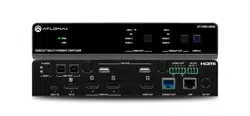
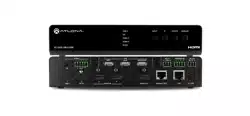
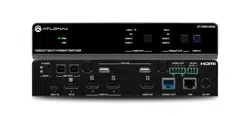
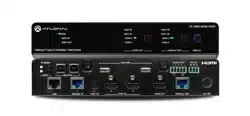
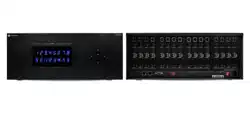
4K/UHD, 8x2 Multi-Format Matrix
Switcher with Dual, HDBaseT and
Mirrored HDMI Outputs
User Manual
AT-UHD-CLSO-824

2
atlona.com
1-408-962-0515
1. Introduction .......................................................................................... 3
2. Package Contents .......................................................................................... 3
3. Features .......................................................................................... 3
4. Wall/Rack Mounts .......................................................................................... 3
5. Panel Descriptions
a. Front Panel .......................................................................................... 4
b. Back Panel .......................................................................................... 4
6. Category Cable .......................................................................................... 5
7. Analog Multi-Format Inputs .......................................................................................... 6
8. Audio Connections .......................................................................................... 7
9. Microphone .......................................................................................... 8
10. Front Panel Display .......................................................................................... 9-10
11. TCP/IP and GUI .......................................................................................... 11-21
12. IR .......................................................................................... 22
13. RS-232 .......................................................................................... 23-28
16. Connection Diagram .......................................................................................... 29
14. Control Drivers .......................................................................................... 29
15. CLSO-824 Updates .......................................................................................... 29
17. Specifications .......................................................................................... 30
18. Safety .......................................................................................... 31
Table of Contents
3
atlona.com
1-408-962-0515
Introduction
The Atlona AT-UHD-CLSO-824 is an 8x2, 4K/UHD matrix switcher with multi-format signal-
handling, Ethernet-enabled, 100M HDBaseT™ input/output extension, and advanced audio
capabilities.
Package Contents
Features
• 1 x AT-UHD-CLSO-824
• 13 x Female Captive Screw Connectors
6 pin: audio (x3), MIC/Line (x2), RS-232 (x5) - 5 pin: IR (x1) - 3 pin: RS-232 (x1) - 2 pin: power (x1)
• 1 x 48V/3.125A DC power supply
• 1 x Pair of dual purpose wall/rack mounts
• 1 x User manual
• Three HDBaseT inputs for remote sources
• Four HDMI inputs (accepts DVI and DisplayPort with adaptors)
• Multifunctional VGA ports for VGA, RGBHV, and component sources
• Stereo or mono audio input for line or microphone (dynamic or phantom powered) sources
• PoE output to power compatible transmitters (e.g. AT-HDVS-200-TX) and receivers
(ex. AT-UHD-EX-100CE-RX)
• Balanced audio input for embedding audio
• EDID management options including internal and learned EDID
• Balanced (+4 dBu) analog audio output for de-embedding audio to amplifiers or audio systems
• Control via RS-232, IR, TCP/IP, webGUI and front panel
• Multi-channel audio pass through up to Dolby TrueHD® or DTS-HD Master Audio™ on HDMI
and HDBaseT
• Internal audio mixer for active digital sources and two independent analog sources
• Master and sub volume control
• 5 band audio output EQ to ensure the best speaker performance
• IP to RS-232 conversion enables TCP/IP commands to be sent using RS-232 ports
• Independent audio switching enables analog audio input to be embedded on any video input
• Multiple RS-232 ports for source or other device control
• HDCP compliant and management
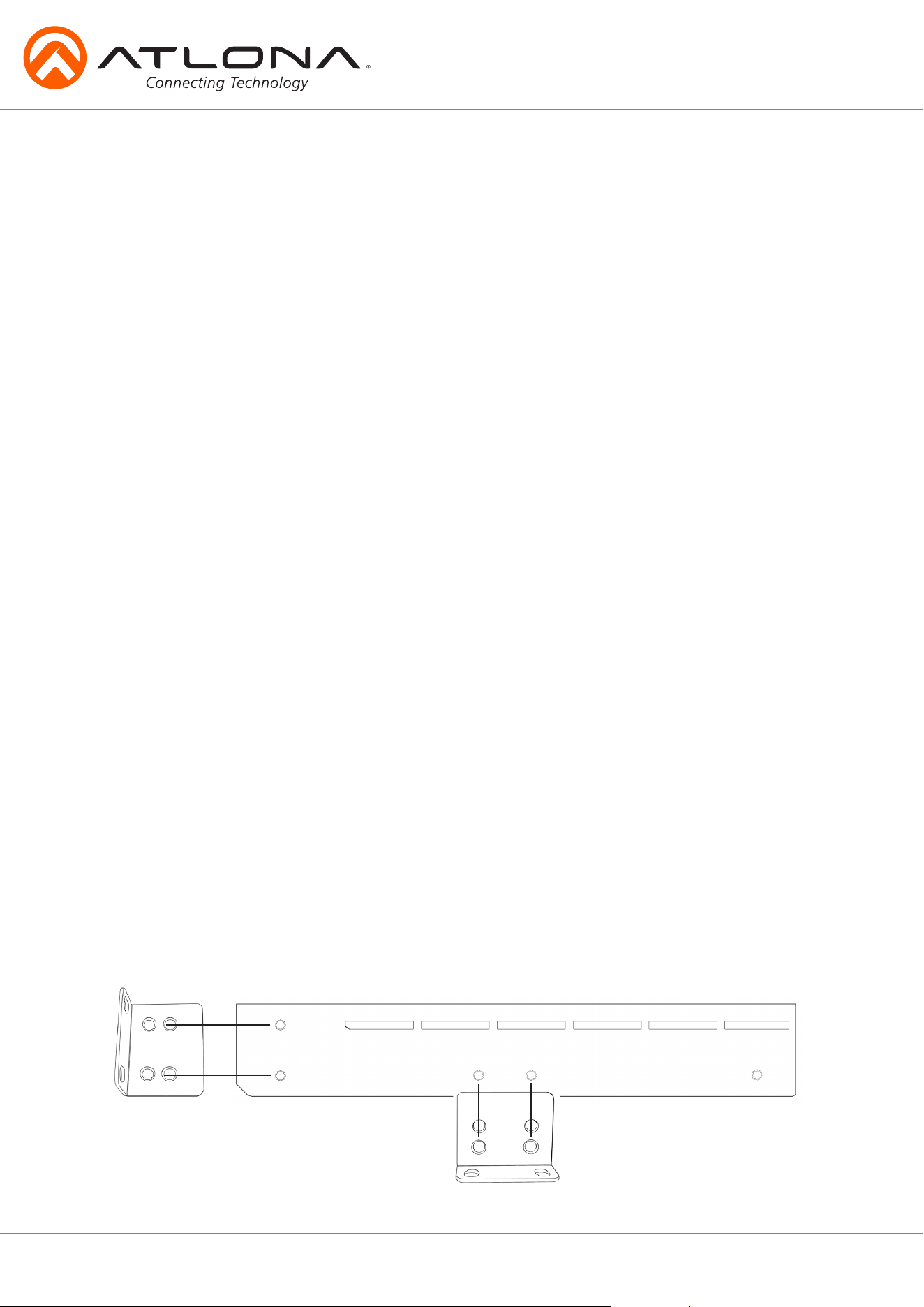
Wall/Rack mounts
A pair of mounts are included for quick and easy installation in a rack or to a shelf or wall.
To install the CLSO-824 on a wall or under a desk/table, use the screws already in the case
(B - pictured above)
p
p
p
p
p
p
p
p
A
B
To install the CLSO-824 in a rack, use the screws already in the case (A-pictured below)
4
atlona.com
1-408-962-0515
Panel Description
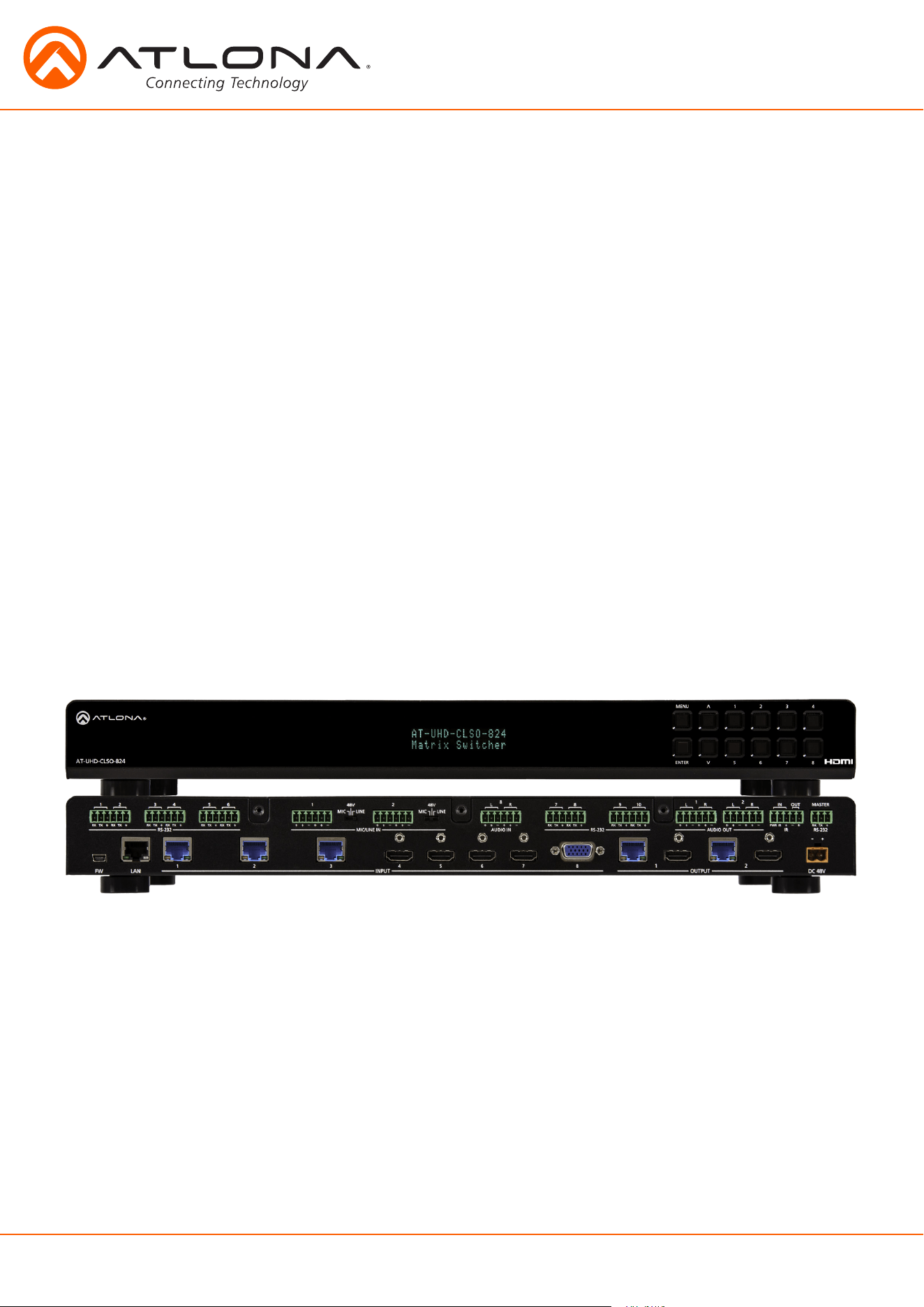
Front Panel
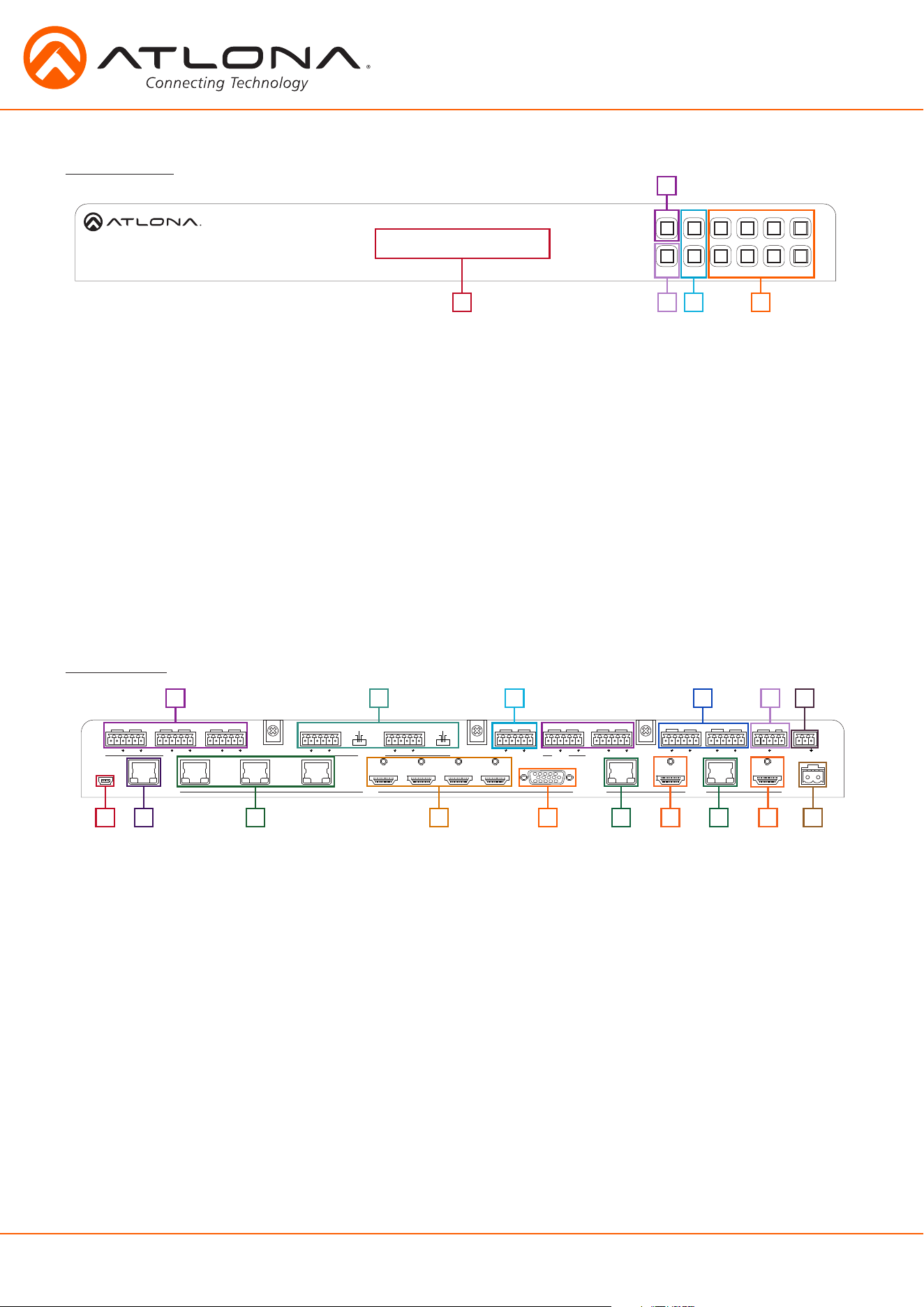
1. LED screen - Front panel LED display for status and control
2. Menu - Access the front panel setup controls - also used within the menu as a back button
3. Enter - Select options within the front panel control menu
Note: Menu and Enter pressed and held for at least 3 seconds will put unit in standby
4. ^ and - Use to navigate between selections within the front panel control menu
5. Numeric Keys - Switch between inputs and outputs
1 - HDBaseT input 1 - Used while updating MCU firmware
2 - HDBaseT input 2
3 - HDBaseT input 3 - Used while updating DSP firmware
4 - HDMI input 4 - Used while updating FPGA firmware
5 - HDMI input 5 - Used while updating the TX (HDBaseT output) firmware
6 - HDMI input 6 - Used while updating the RX (HDBaseT input) firmware
7 - HDMI input 7
8 - Multifunction VGA input 8
Back Panel
1. RS-232 ports - Control for external devices - send or receive RS-232 or TCP/IP commands
2. MIC/LINE IN - Connect a microphone or audio sources
MIC Switch - Match input to type of microphone or audio source being used
3. Audio In - Connect audio source to be embedded to the analog video input
4. Audio Out - Audio output to audio amplifiers (e.g. AT-PA100-G2) or audio systems
5. IR IN/OUT - Switcher IR control ports
6. Master RS-232 - Connect control system to control the switcher
7. Firmware port - Connect to a PC with a USB cable for firmware updating
8. LAN port - TCP/IP (Ethernet) port, connect to router, computer, or control device
9. HDBaseT 1 through 3 - Connect compatible PoE HDBaseT transmitters (e.g. AT-HDVS-200-TX)
10. HDMI 4 through 7 - Connect HDMI sources (DVI or DisplayPort compatible with adaptors)
11. VGA 8 - Connect analog video sources
Note: Compatible with VGA, RGBHV and component signals
12. HDBaseT Outputs - Connect to compatible HDBaseT displays or compatible receivers
(e.g. AT-UHD-EX-100CE-RX)
13. HDMI Outputs - Connect to local display or extenders (e.g. AT-UHD-EX-100CE-KIT)
14. DC 48V port - Connect included power supply
LAN
1
1
2 1
2
3
4
L
R
L R
2 3
4
INPUT
AT-UHD-CLSO-824
OUTPUT
5 6
7 8
RX
RS-232 MIC/LINE IN
LINE
MIC
48V
AUDIO IN
TX RX TX RX TX RX TX
+
-
+ +
PWRIR
- -
+ - + -
<
<
DC 48V
-
+
FW
RS-232IRAUDIO OUT
MASTER
OUTIN
RX TX
+
-
+
-
5
6
1
2 3 4
5ENTER
MENU
6 7 8
RX TX
RX TX
7
8
8
1
1
2
2
RS-232
RX TX RX TX
9
10
RX TX RX TX
LINE
MIC
48V
+
-
+
-
L R
+
-
+
-
AUDIO OUT
^
LAN
1
1
2 1
2
3
4
L
R
L R
2 3
4
INPUT
AT-UHD-CLSO-824
OUTPUT
5 6
7 8
RX
RS-232 MIC/LINE IN
LINE
MIC
48V
AUDIO IN
TX RX TX RX TX RX TX
+
-
+ +
PWRIR
- -
+ - + -
<
<
DC 48V
-
+
FW
RS-232IRAUDIO OUT
MASTER
OUTIN
RX TX
+
-
+
-
5
6
1
2 3 4
5ENTER
MENU
6 7 8
RX TX
RX TX
7
8
8
1
1
2
2
RS-232
RX TX RX TX
9
10
RX TX
RX TX
LINE
MIC
48V
+
-
+
-
L R
+
-
+
-
AUDIO OUT
1
9 10
2
11 13 13
3
12 12
4
8
5
7 14
1 2
3
4 5 6
5
atlona.com
1-408-962-0515
Category Cable
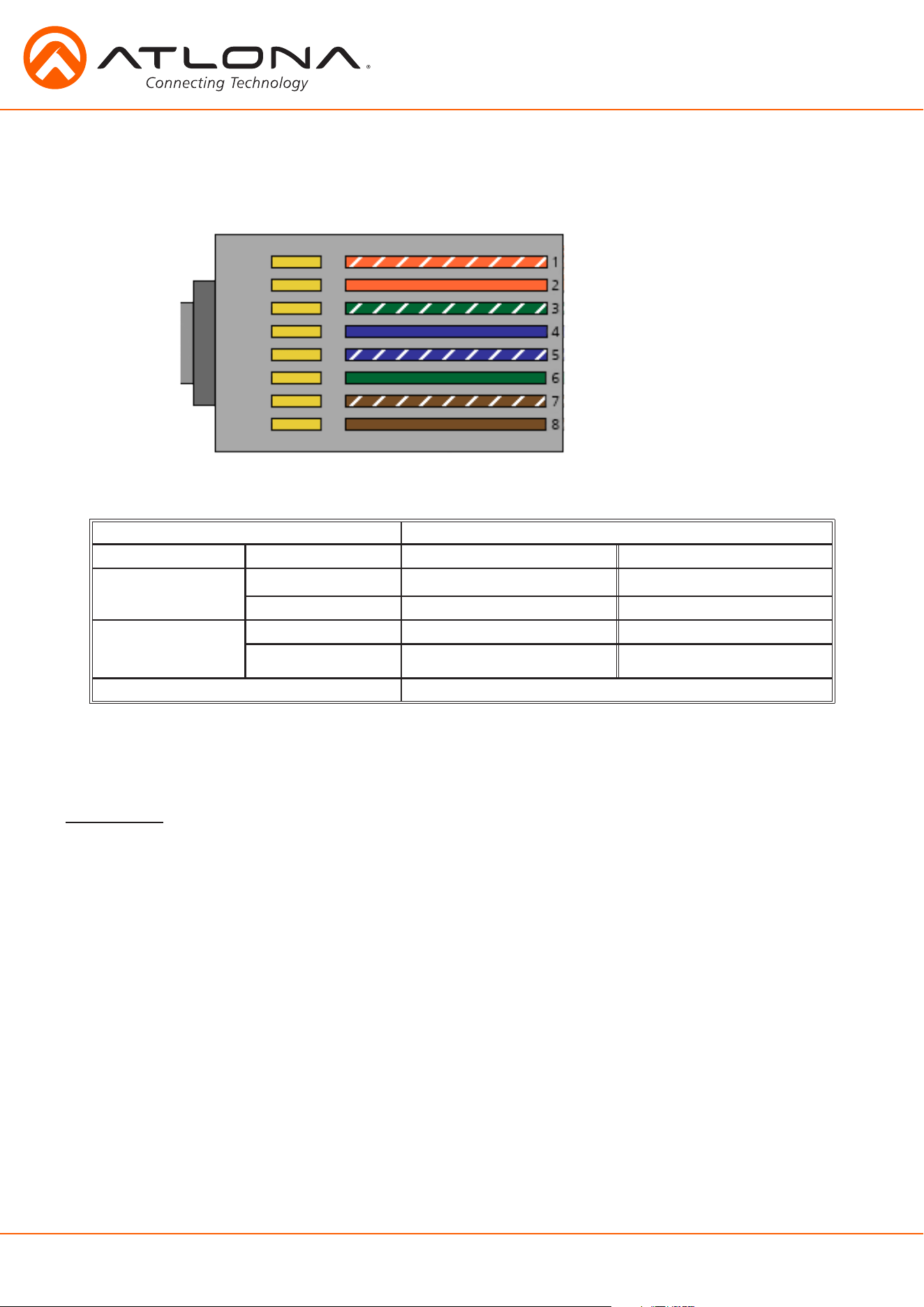
For the category cables used in the installation of these products, please be sure to use a 568B
termination as pictured below:
Connector type and size is very important to ensure extenders work correctly. Please use the
matching cable type with the correct RJ45 connector.
CAT5e cables should use only CAT5e RJ45 connectors
CAT6 cables should use only CAT6 connectors
CAT6a cables should use only CAT6a connectors
CAT7 cables should use only CAT7 connectors
Using the wrong size connectors may result in interference causing loss of signal.
Important! “EZ RJ45 connectors” are not recommended with HDBaseT extenders. Doing so may result in interference
with audio and video transmission.
Use the table below to verify the best category cable for the installation.
Important! 4K (UHD) signals are sensitive to cable quality and installation technique. It is recommended to
use CAT6a/7 solid core cables for best results.
Note: For cable distances see the specifications on page 30
Performance Rating Type of LAN cable
Wiring Shielding CAT5e/6 CAT6a/7
Solid
Shielded (STP/FTP)
*** ****
Unshielded (UTP) ** N/A
Stranded - Patch
cable
(Not recommended)
Unshielded (UTP) * N/A
Shielded (STP/FTP)
* N/A
Termination Please use EIA/TIA-568-B termination
1. White - Orange
2. Orange
3. White - Green
4. Blue
5. White - Blue
6. Green
7. White - Brown
8. Brown
Connector
6
atlona.com
1-408-962-0515
Analog Multi-Function Inputs
The CLSO-824 multi-function analog inputs (Input 8) can be used with analog video signal formats
including VGA (with DDC), RGBHV (without DDC), and component (YUV). Balanced analog audio can be
input and embedded using the provided captive screw connectors.
Either format can be directly accessed from RS-232, IR, or IP control. It can also be accessed
through the front panel menu.
VGA (m) to BNC and VGA (m) to RCA adaptors can be used to connect sources to this inputs.
VGA
Use a VGA to VGA cable to ensure that the Preferred Resolution DDC is communicated to your
source.
RGBHV
Use a HD-15 (VGA) to 5 BNC breakout cable for this format. An existing RGBHV analog matrix
switch can be connected here to maintain full function of the analog matrix.
Component
YUV (YPbPr) signal from DVD (or other sources) can be input to the CLSO-824 using the green (Y), blue
(Pb), and red (Pr) connections on a HD-15 (VGA) to 5 BNC breakout cable or with a
VGA - 3 RCA adaptor.
A common application for this type of input would be to connect a RGBHV matrix switcher to the
CLSO-824.
Captive Screw
The captive screw connectors allow you to cut cables to a suitable length, reducing cable clutter
while providing a more reliable connection.
Connecting
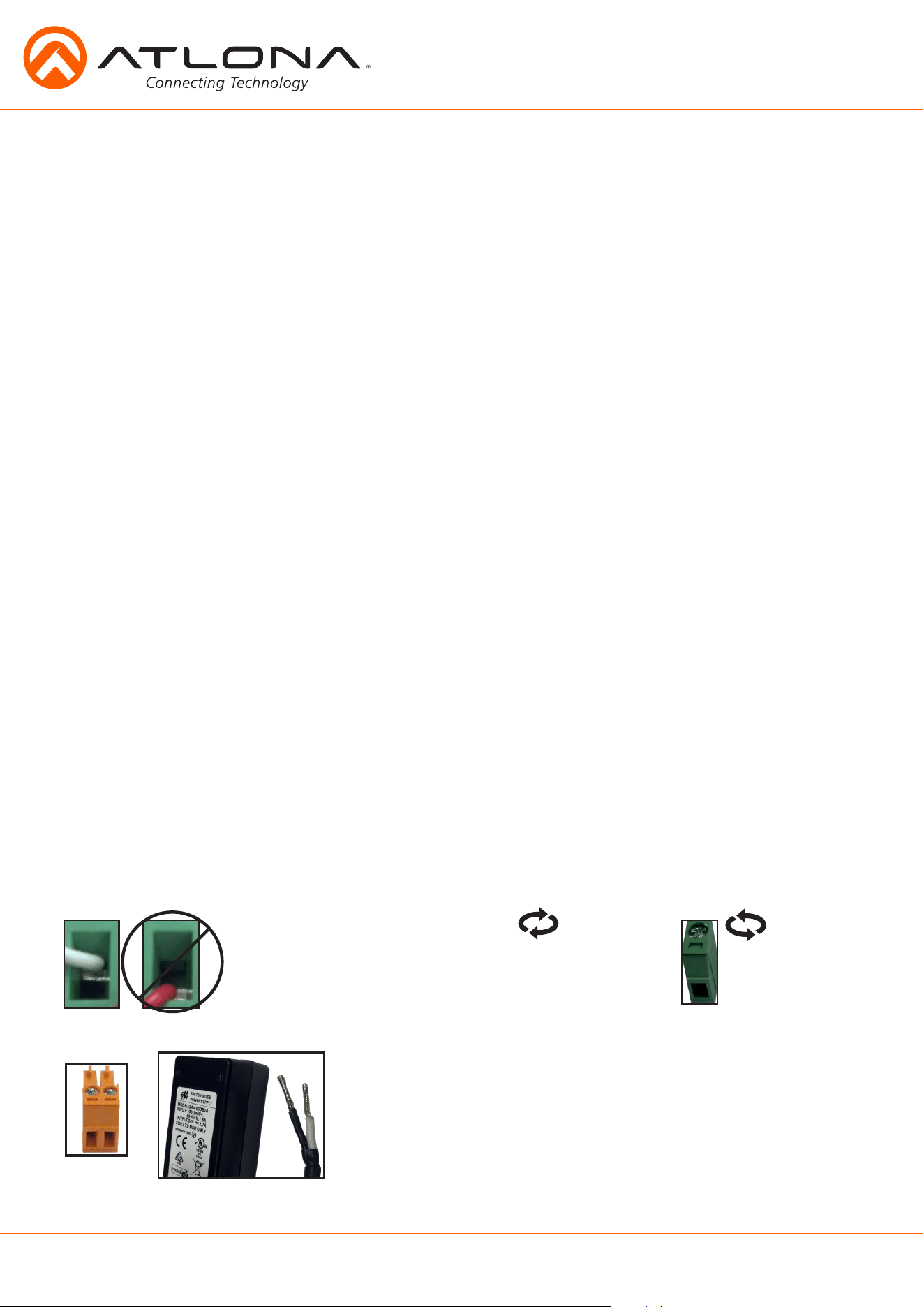
When connecting the cables to the female captive screw connector it is important that the wires be
terminated correctly. The female captive screw connector has a contact plate at the top and must
have the wires touching it for signal to pass. When wired correctly (see picture A) the signal will pass,
incorrectly (see picture B) no signal will pass.
The captive screw connectors have
a contact bar that is adjusted to
compress the wire against the top
contact plate. Use the screws at the
top of the connector to compress
the wire against the contact plate.
Clockwise
Counter
Clockwise
Turn the screws clockwise to
raise the contact bar to the
upper contact plate and hold
the wires in place.
Turn the screws counter
clockwise to lower the
contact bar to release the
wires.
A
B
Power
The power cable (picture 1) will have exposed wires. Each wire is
encased in a different colored cover.
Black: - White: +
- +
1
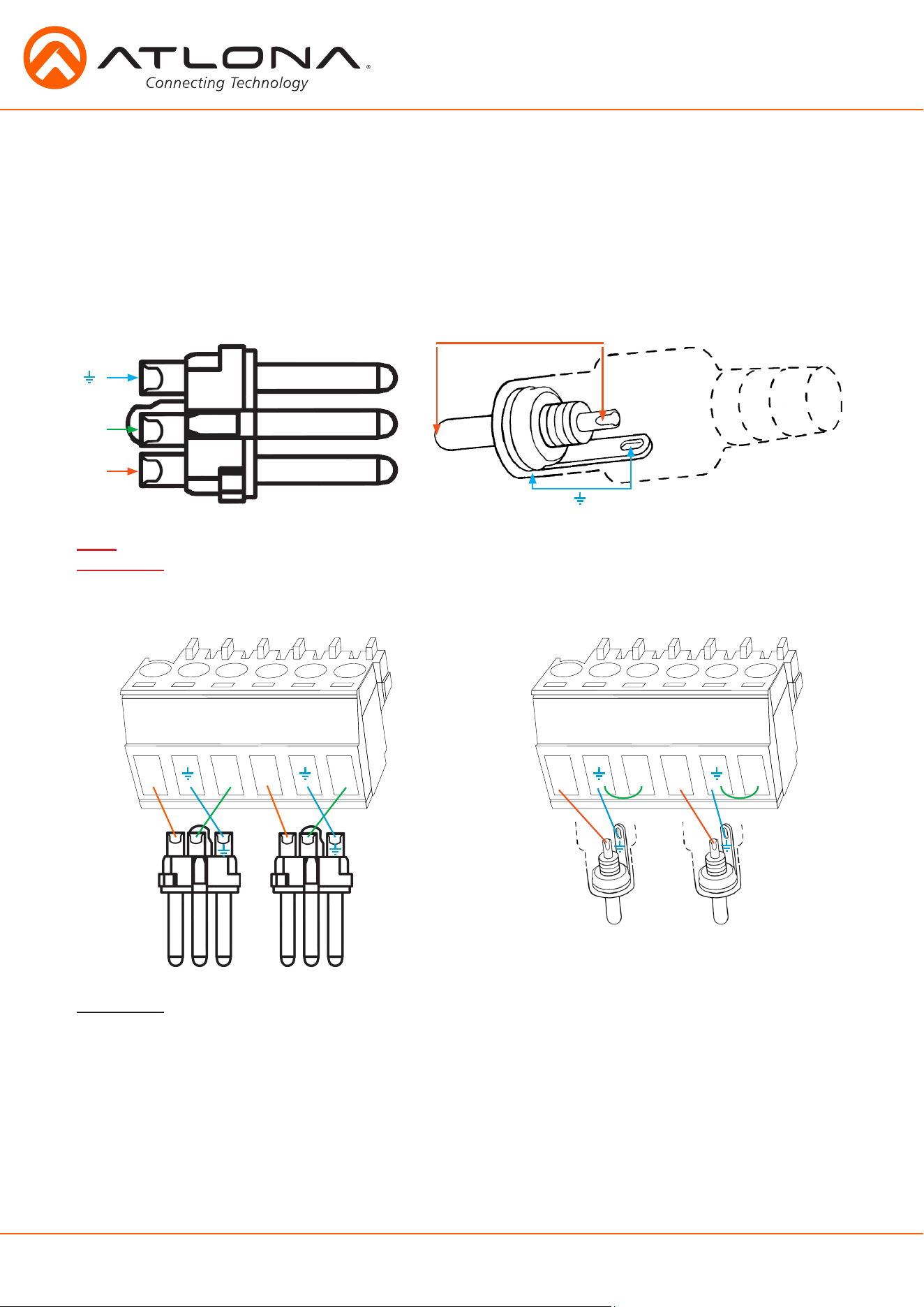
7
atlona.com
1-408-962-0515
Tip (+)
Analog Audio
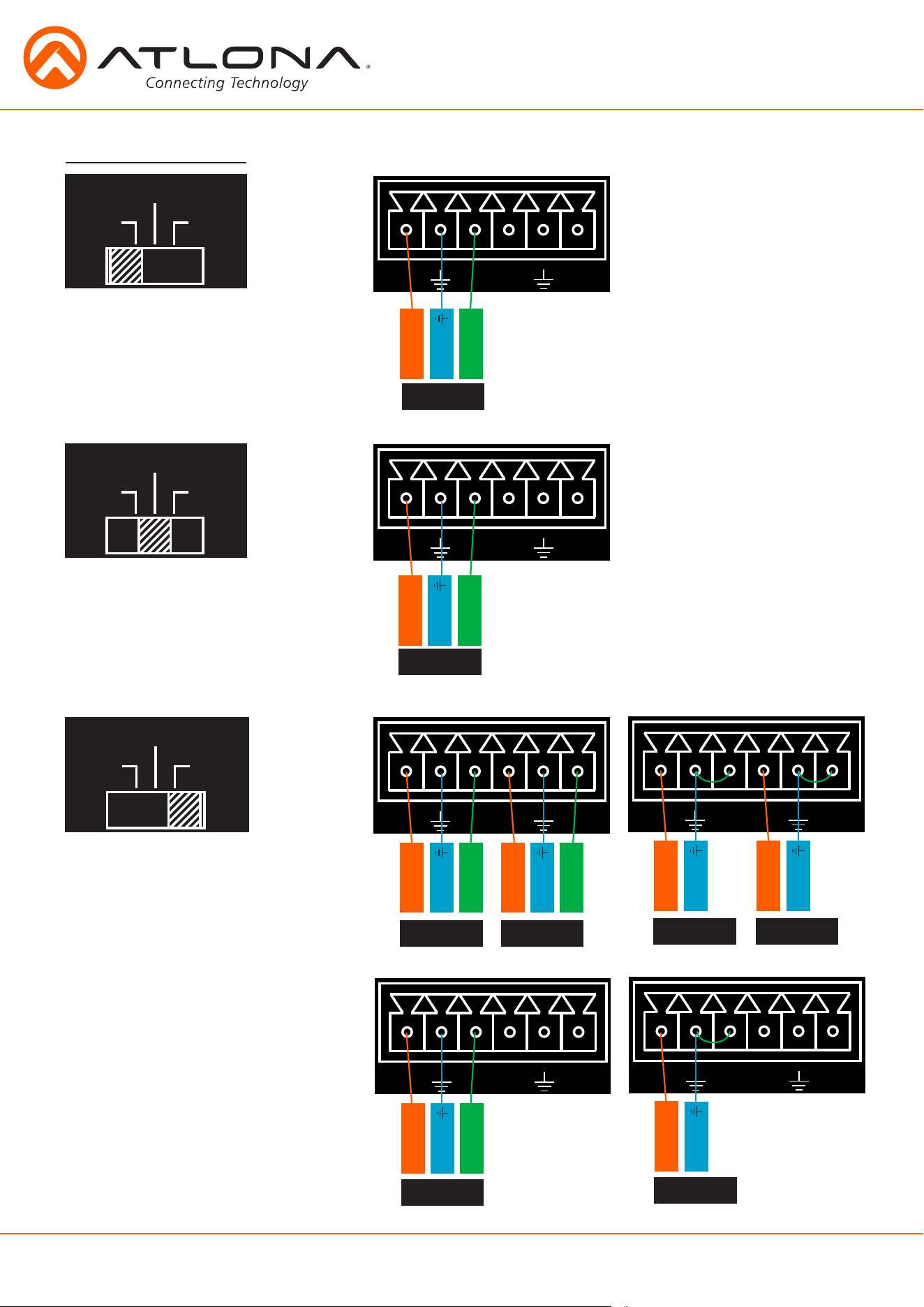
A captive screw analog audio connector is provided to ensure a more reliable and secure
connection. The captive screw connector supports balanced and unbalanced audio input and
output.
Balanced audio connections use two signal wires and a ground to minimize interference to an
audio signal over longer cable runs. Unbalanced audio connections use two wires for connection
with consumer audio components.
Important! With unbalanced connections a jumper is needed between ground and negative to reduce noise
Note: Pin outs may vary, please refer to the audio device’s manual to ensure a correct connection.
Important! When terminating cables, please ensure exposed adjacent wires do not touch. This may result in
a short that can damage connected devices.
XLR
RCA
Sleeve ( Ground)
+
+
+
+
+
2 ( + )
3 ( - )
1 ( )
+
-
-
-
-
-
-
L / R
BALANCED UNBALANCED
L / R
+ +
8
atlona.com
1-408-962-0515
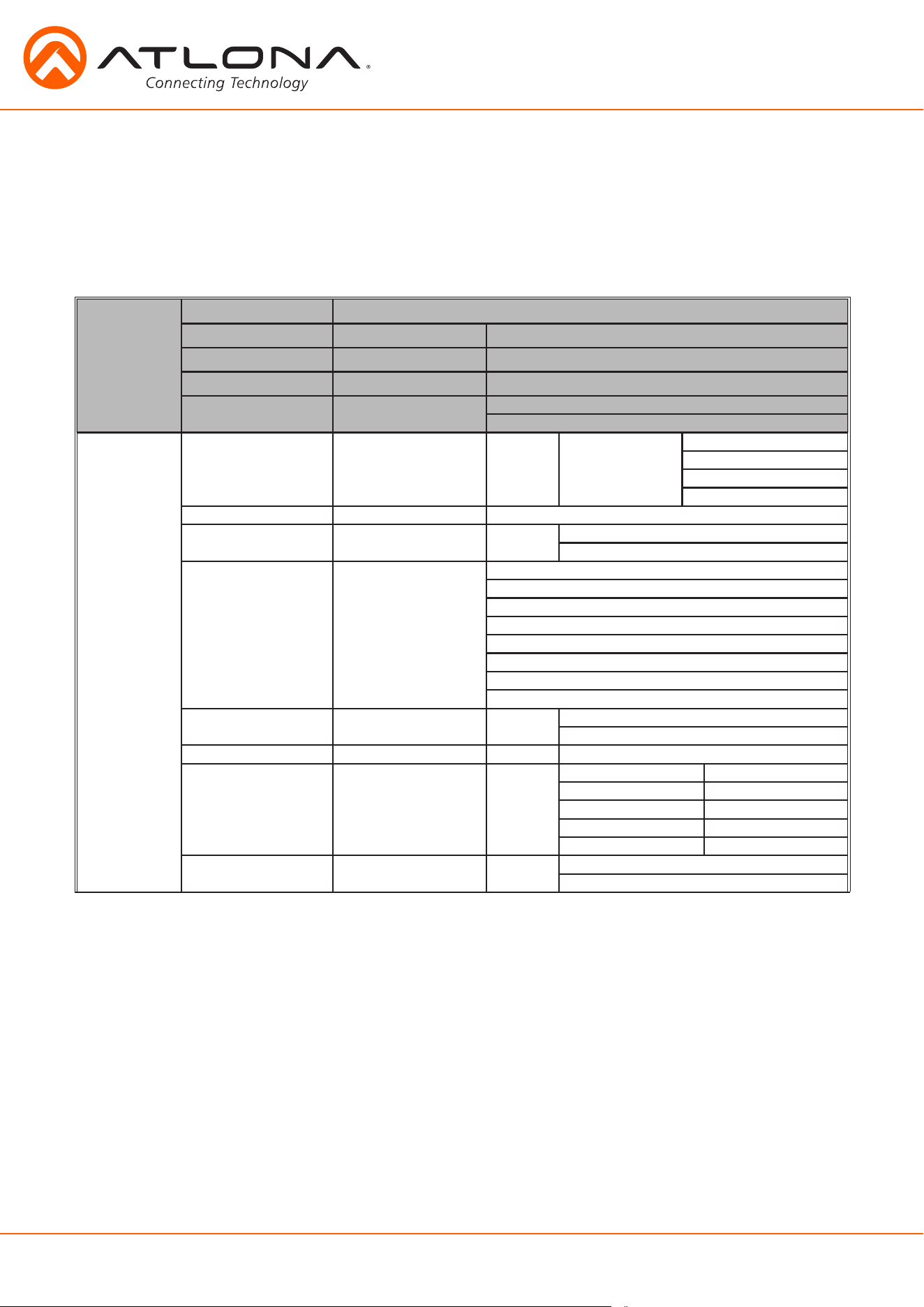
Microphone Connection
MIC (Dynamic MIC)
48V
MIC
LINE
48V
MIC
LINE
48V
MIC
LINE
-
+
-
+
-
+
-
+
-
+
-
+
-
+
-
+
-
+
-
+
-
+
-
+
Connect dynamic or self-powered
microphones in this mode.
Use this setting for phantom
powered microphones. Supplies
48 volts.
Connect wireless microphone
receivers (or other sources) with line
level outputs using this setting.
Either balanced, unbalanced,
mono, or two channel
connections may be used.
Negative
-
Negative
-
+
Positive
+
Positive
Ground
Ground
MIC
MIC
LINE
LINE
LINE
LINE
LINE
LINE
Balanced
Balanced
Balanced
Mono Balanced
Balanced
Unbalanced
Mono Unbalanced
Unbalanced
Negative
-
+
Positive
Ground
Negative
-
+
Positive
Ground
Negative
-
+
Positive
Ground
+
Positive
Ground
+
Positive
+
Positive
Ground
Ground
9
atlona.com
1-408-962-0515
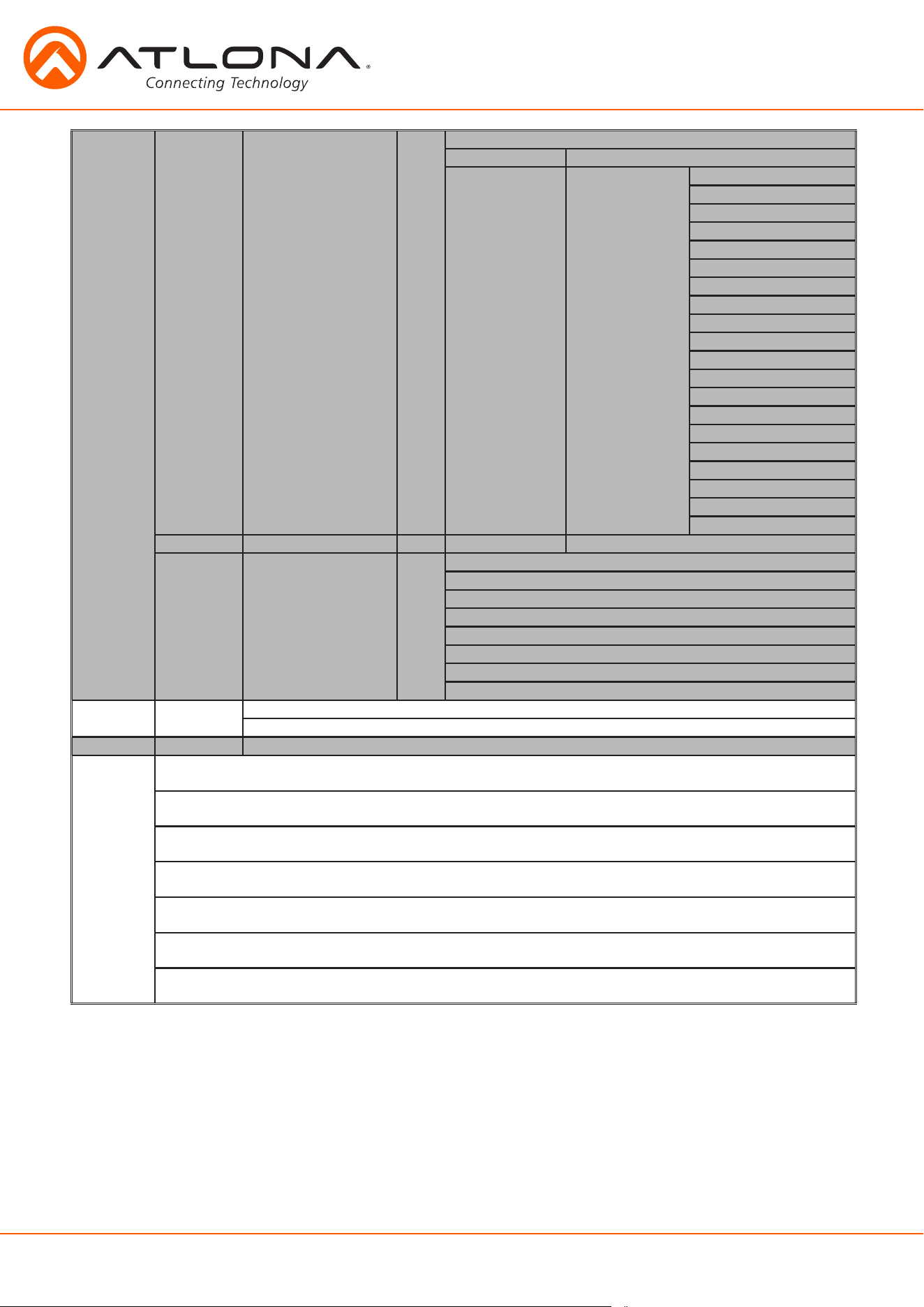
Front Panel Control
Route Setting Route Default
Route All Select route source: # 1 to 8
Recall memory Select memory route: # 1 to 8
Save memory Select memory route: # 1 to 8
VGA mode Select mode: comp
vga
Audio Setting Audio Route Select output number: # 1 or 2 Audio Route Out #
(Program Audio Source)
AFV
AFOV
AUX 1
AUX 2
Audio preset Save to preset: # 1 to 4
Aux Mixer Select output number: # 1 or 2 ON
OFF
Input volume Input volume HDBT1
HDBT2
HDBT3
HDMI4
HDMI5
HDMI6
HDMI7
VGA8
Ducking Select output number: # 1 or 2 ON
OFF
Audio delay Select output number: # 1 or 2 0 to 150 ms
EQ Select output number: # 1 or 2 <120Hz -12 to 15 dB
500Hz -12 to 15 dB
1.2kHz -12 to 15 dB
3kHz -12 to 15 dB
7.5kHz -12 to 15 dB
Audio Mono Select output number: # 1 or 2 ON
OFF
Although the Web GUI is recommend for complete setup, many functions can also be completed
using the front panel buttons and display. See page 11 for GUI operation. Use the menu button
to access the menu. Once in the menu, use the enter button to select options, the up/down arrows
to navigate, number buttons for selecting the inputs and outputs, and the menu button for going
back one level of the menu.
Audio ducking, delay and EQ adjust audio settings of HDMI, HDBaseT, and analog audio outputs.
Audio mono adjusts analog audio outputs only. These settings and adjustments to not change
pass-through multichannel PCM, Dolby and DTS signals.
10
atlona.com
1-408-962-0515
EDID Setting EDID Mode Select input port: # 1 to 7 1. Default
2. Memory Select memory number: #
3. Int Source # Mode: Int Default
ATL 2160P60 Multi CH
ATL 2160P60 2CH
ATL 2160P30 Multi CH
ATL 2160P30 2CH
ATL 1920x1200 RGB 2CH
ATL 1080P DD
ATL 1080P Multi CH
ATL 1080P 2CH
ATL 1080P 3D DD
ATL 1080P 3D Multi CH
ATL 1080P 3D 2CH
ATL 1080P DVI
ATL 1280x800 RGB 2CH
ATL 1280x800 RGB DVI
ATL 1366x768 RGB 2CH
ATL 1024x768 RGB 2CH
ATL 720P DD
ATL 720P 2CH
800x600 RGB 2CH
EDID copy Select output number: # 1 to 4 Save to Memory: # 1 to 8
Prefer Timing Select input port: # 8 Default
1920x1200
1920x1080
1280x800
1366x768
1024x768
1280x720
800x600
IR Settings IR Receiver 1. On
2. Off
Reset --------
Info MCU FW ver: VX.XX.XX
Valens FW ver: VX.X
FPGA FW ver: VX.X
DSP FW ver: VX.X
IP
X.X.X.X
NetMask
X.X.X.X
Gateway
X.X.X.X
TCP/IP port
XX
Console
XXXXX, X, X, X
EDID settings can be set for the HDMI and HDBaseT ports.
Prefer Timing can be set to the VGA port only.
11
atlona.com
1-408-962-0515
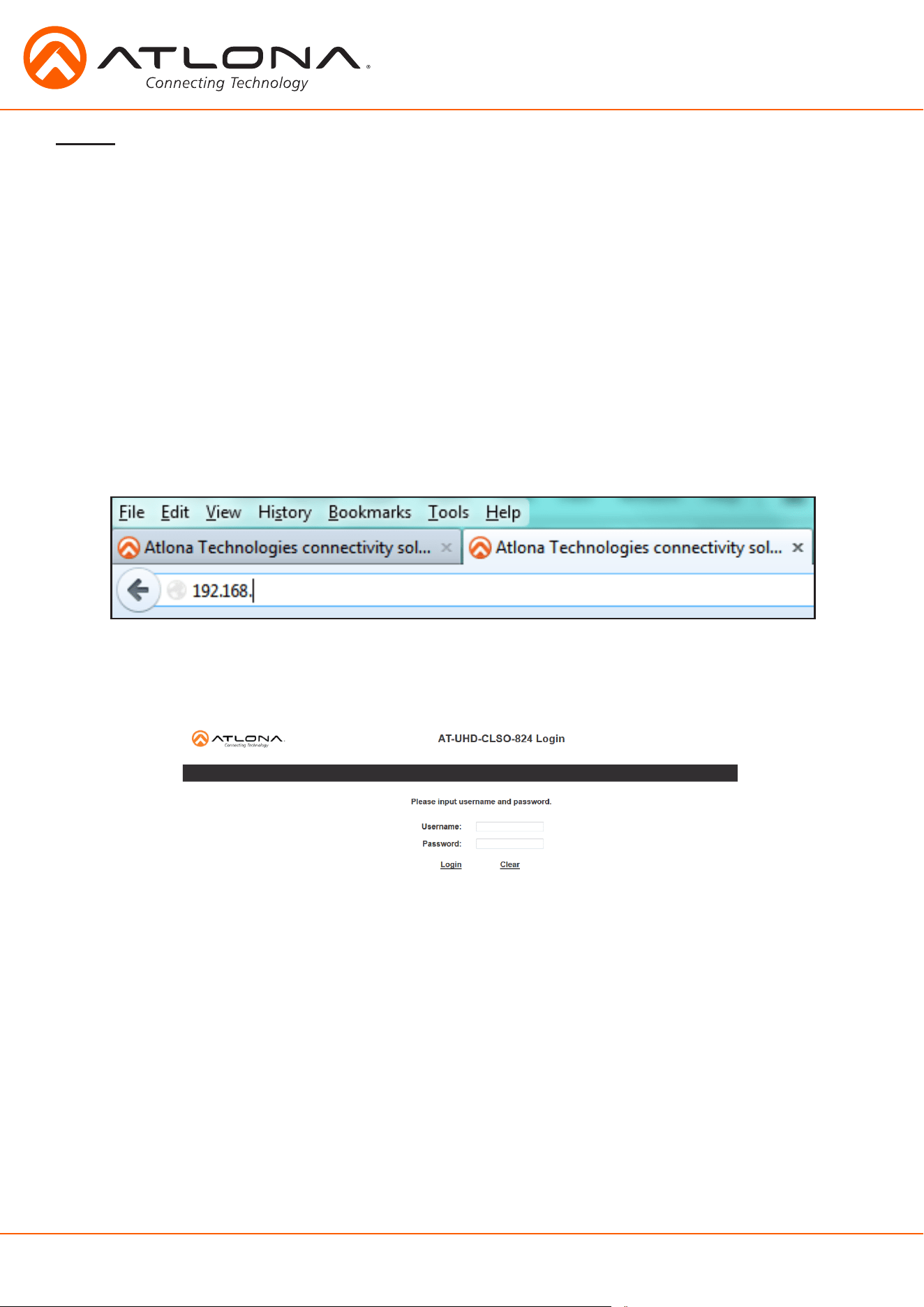
A login screen will appear (this is the same log in for admin and general users). For the first log in (and future
admin changes) the username is “root” and password is “Atlona”.
Note: Only the admin password can be changed (see page 15). The username will always remain “root”.
TCP/IP
For convenience, the CLSO-824 comes with DHCP on. This enables the switcher to be connected to
a network without concern for overlapping IP addresses with other devices on the network. If your
network does not support DHCP, this feature may be turned off and the IP address set using RS-
232 commands.
Note: If your system is controlled using IP, it is strongly recommended that you disable DHCP and select an unused IP
address so that your system controller doesn’t lose contact with the switcher.
TCP/IP and WebGUI Setup
Atlona has created an easy to use webGUI for initial setup and later changes to the configuration
of the CLSO-824.
To begin, connect the LAN port of the CLSO-824 to your network. Type the IP address of the
CLSO-824 into the web browser of a PC connected to the same network (as seen below).
To find the switcher IP: Select “Info” on the front panel display or use RS-232 command “IPCFG”.
Important: If any stability issues are experienced, disable any anti-virus or firewall that may interfere with
network communication to the switcher. Once set up is done and the switcher GUI is no
longer being used, the firewall and anti-virus can be re-enabled.
12
atlona.com
1-408-962-0515
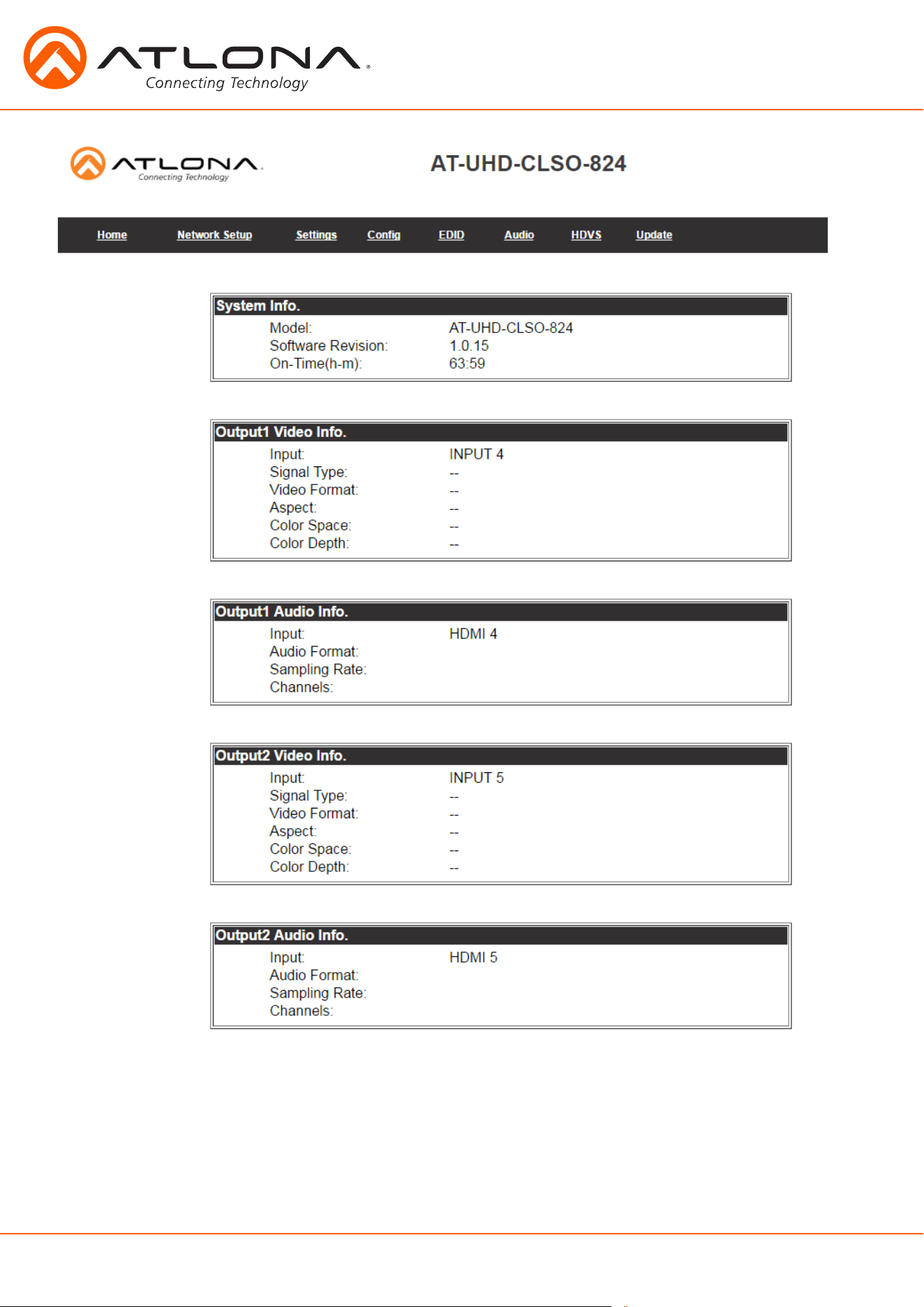
The information is very useful when trouble-shooting your installation. It includes information on the
switcher, connect sources, and outputs.
13
atlona.com
1-408-962-0515
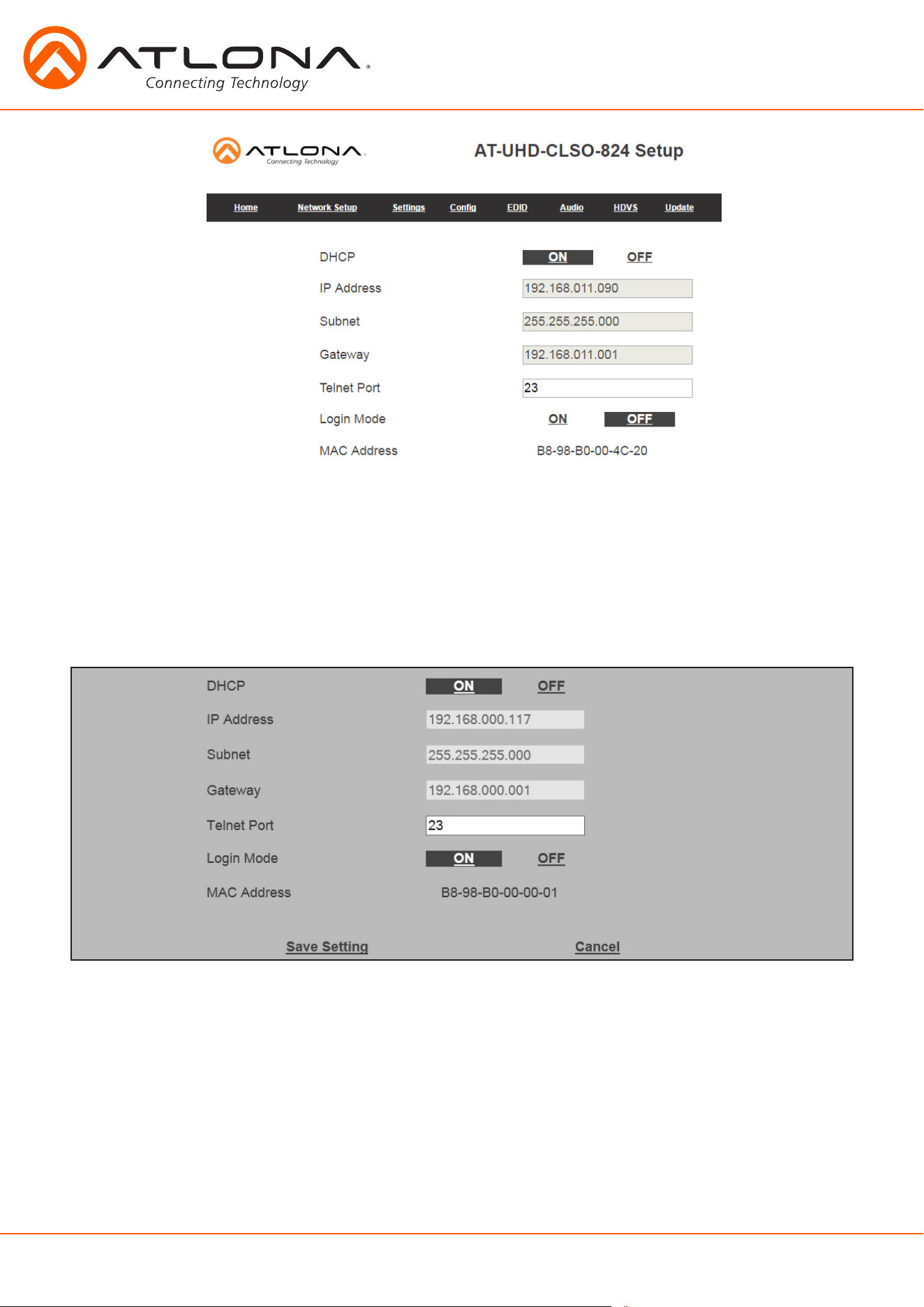
The network set up page will allow the IP information to be changed. When a change is made the
screen will grey and the ability to save or cancel will display at the bottom (see below).
Note: When DHCP is on, the IP address cannot be configured. Turn DHCP off to enable IP configuration.
Note: For a stable connection when using a control system, it is best to set up a static IP. When selecting an IP address,
make certain no other devices on your network are using that IP address.
Login Mode has been added to provide a secure telnet login. Once Login Mode has been turned on
a username and password will be required on all IP connections to the switcher.
Note: Login mode should be in off position when the CLSO is used with control systems that do not support
passwords. If your control system supports password protection, set the login mode to on.
The GUI always requires a password.
Note: The username and password used in IP Login Mode will be the same login information as the webGUI.
Note: Be sure to save all changes before moving to the next page.
14
atlona.com
1-408-962-0515
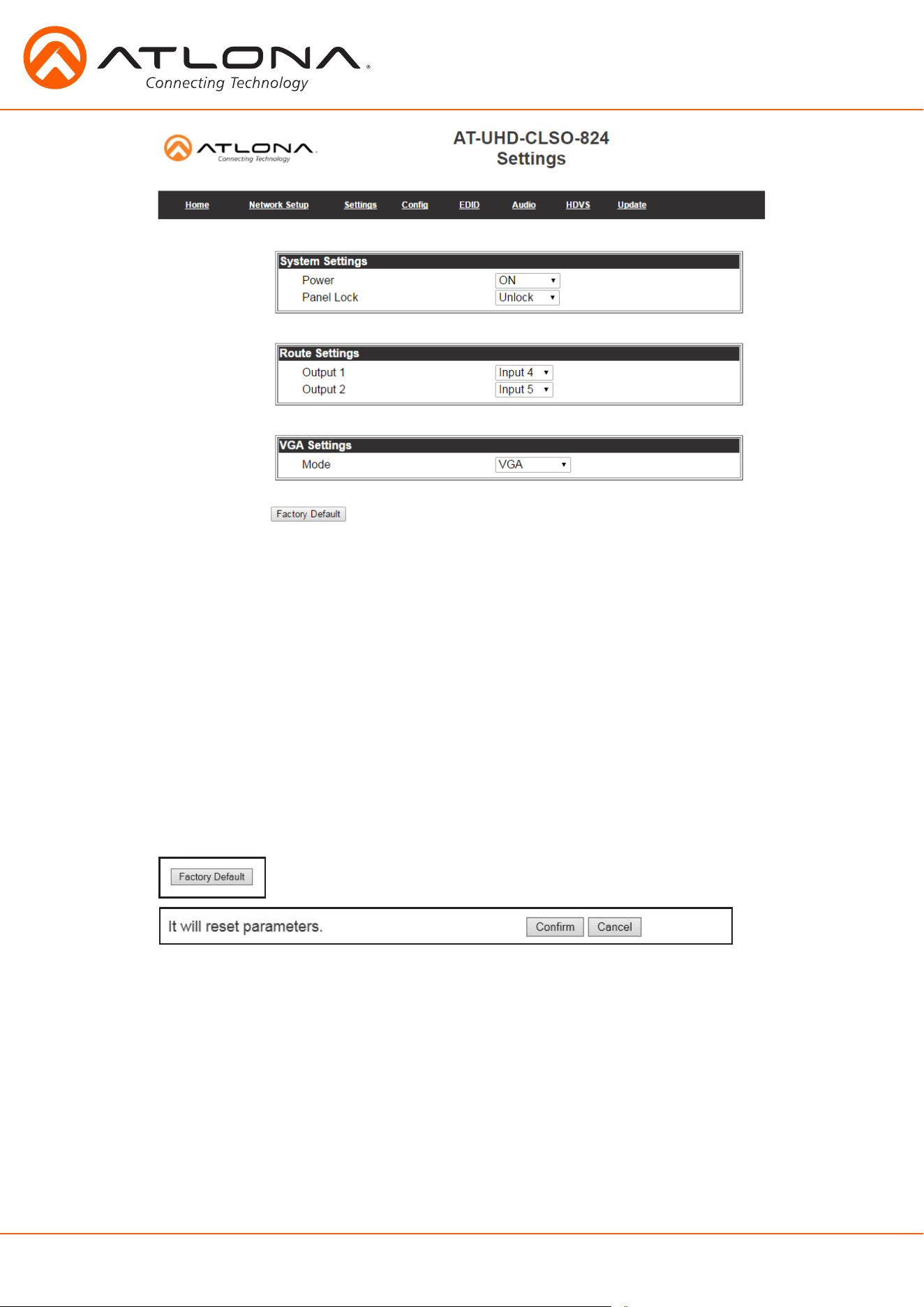
The settings page is used to set system and audio/video options.
Output 1 - Select source to route to HDBaseT and HDMI output 1
Output 2 - Select source to route to HDBaseT and HDMI output 2
Mode - Switch between VGA and component
Note: RGBHV can be used when VGA is selected
Power - Turn the switcher on and off
Panel Lock - Locks/unlocks the front panel buttons
System Settings
Route Settings
VGA Settings
Select to reset CLSO back to factory settings.
Note: This will reset the switcher to factory default, including: resolutions, audio settings, HDCP settings, etc.
Factory Default
15
atlona.com
1-408-962-0515
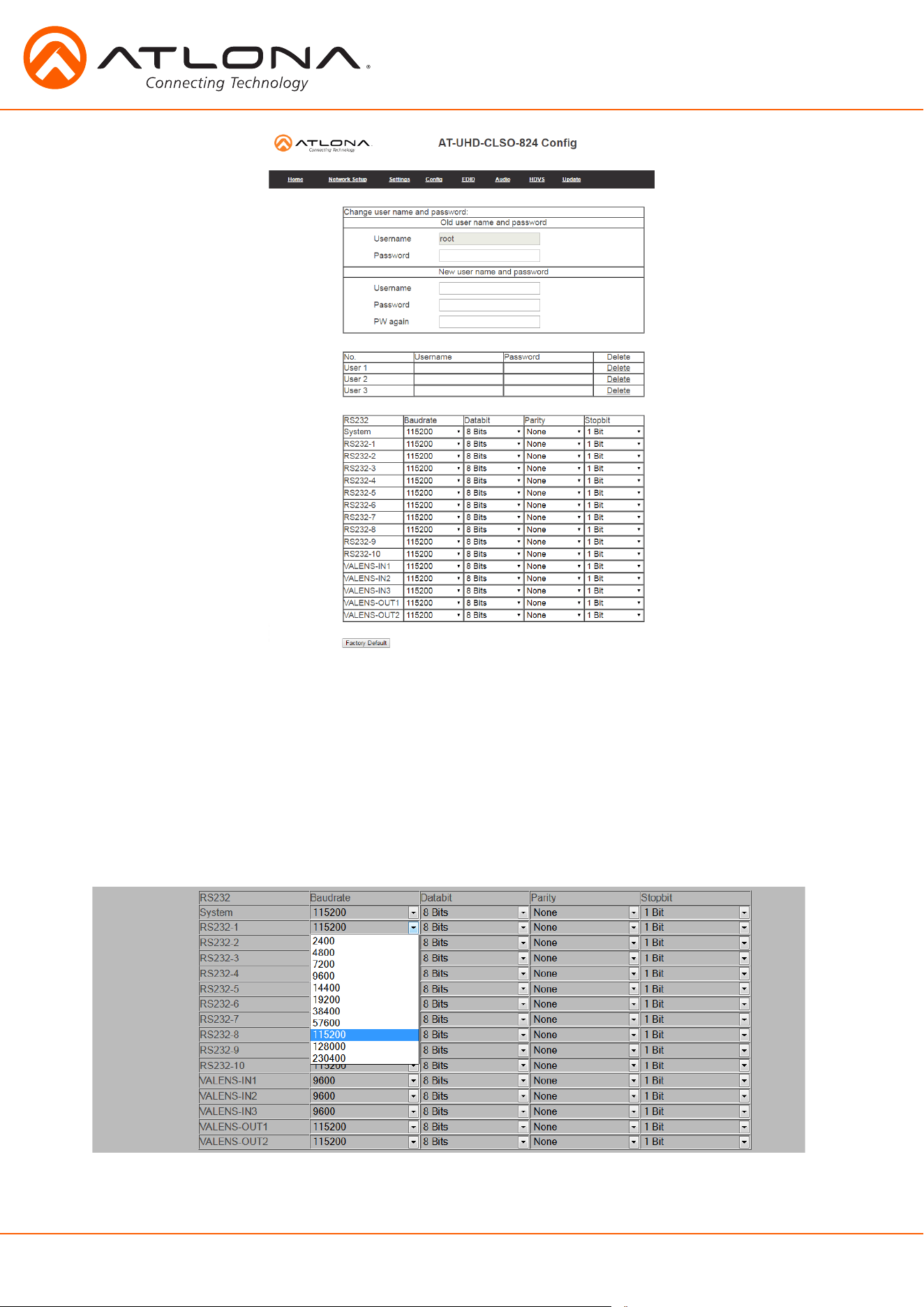
From the Config page the admin password can be changed, users added, and the RS-232 ports
to be configured. CLSO-824 system port, the RS-232 I/O ports, and the HDBaseT/Valens ports
can be adjusted individually. RS-232 ports must be configured to match the device to which they
are connected. For example, the system port should match the settings of the control system, the
individual port settings should match the devices connected to them. The CLSO-824 will adjust the
signal from the control system to match the output device.
Note: User information will display for the admin only.
Note: Only the admin password can be changed. The admin username will always remain “root”. If the admin
password is lost the system must be returned to factory settings and setup repeated.
16
atlona.com
1-408-962-0515
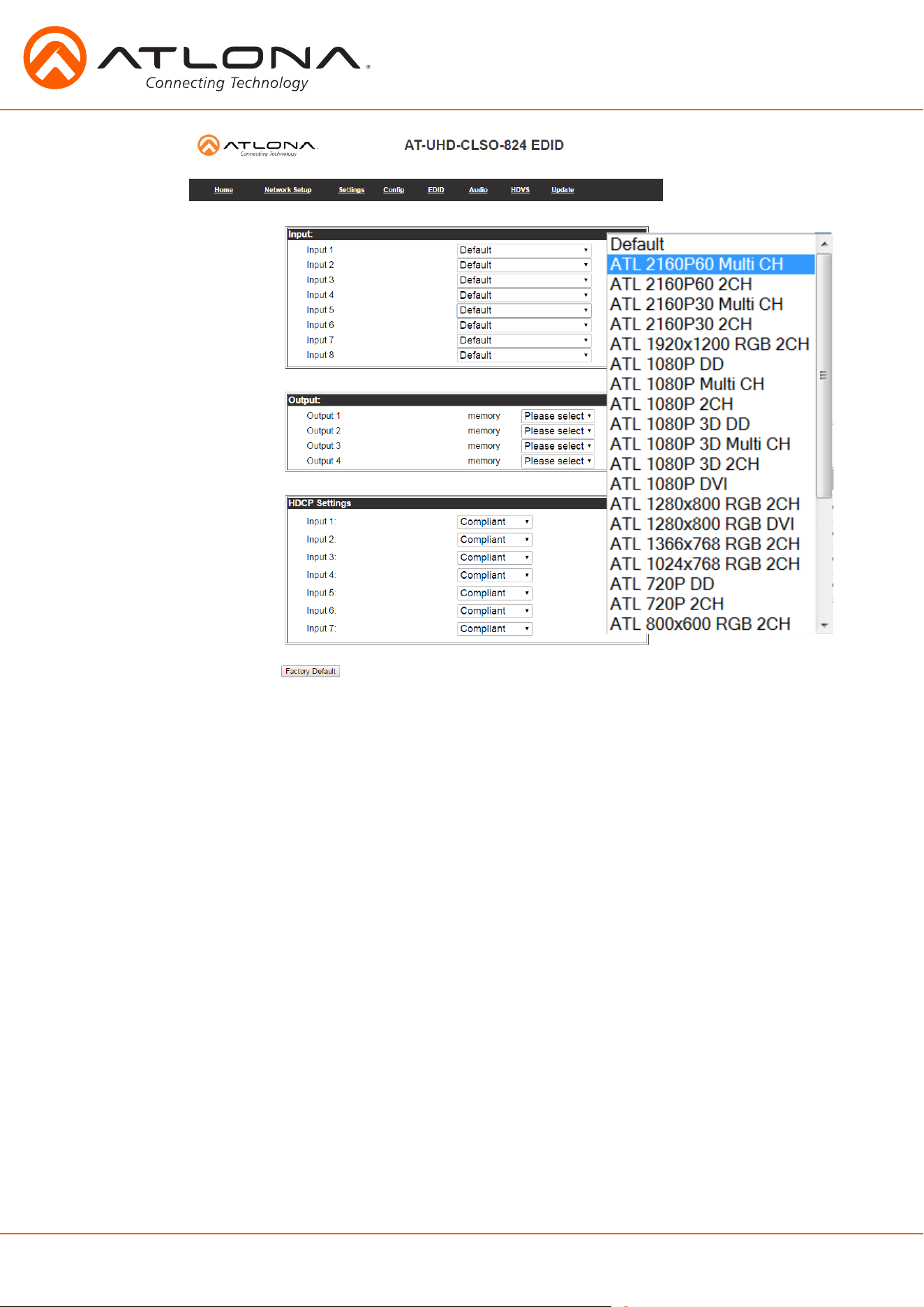
The EDID page provides the option to adjust the EDID of the HDMI and HDBaseT ports, select the
preferred timing of the VGA port, and set the HDCP compliance reporting.
Note: If no audio is being received, try adjusting EDID. If the CLSO does not receive a complete EDID and the HDMI
port will default to DVI (which has no audio).
Note: 2Ch audio EDID is recommended unless the system is being used as an audio pass through.
Note: CLSO-824 protects HDCP encoded content and will not pass HDCP content to a non-HDCP compliant device.
Note: Some devices flag all content as protected when connected to an HDCP compliant display. This prevents what
should be non-protected content from reaching non-compliant devices (e.g. teleconference system) through
the CLSO-824.
Note: When HDCP reporting is non-compliant, only user created content is transmitted. Protected content from all
sources (e.g. Blu-ray, AppleTV, etc.) is blocked.
Note: These functions are also controllable using TCP/IP or RS-232 commands.
17
atlona.com
1-408-962-0515
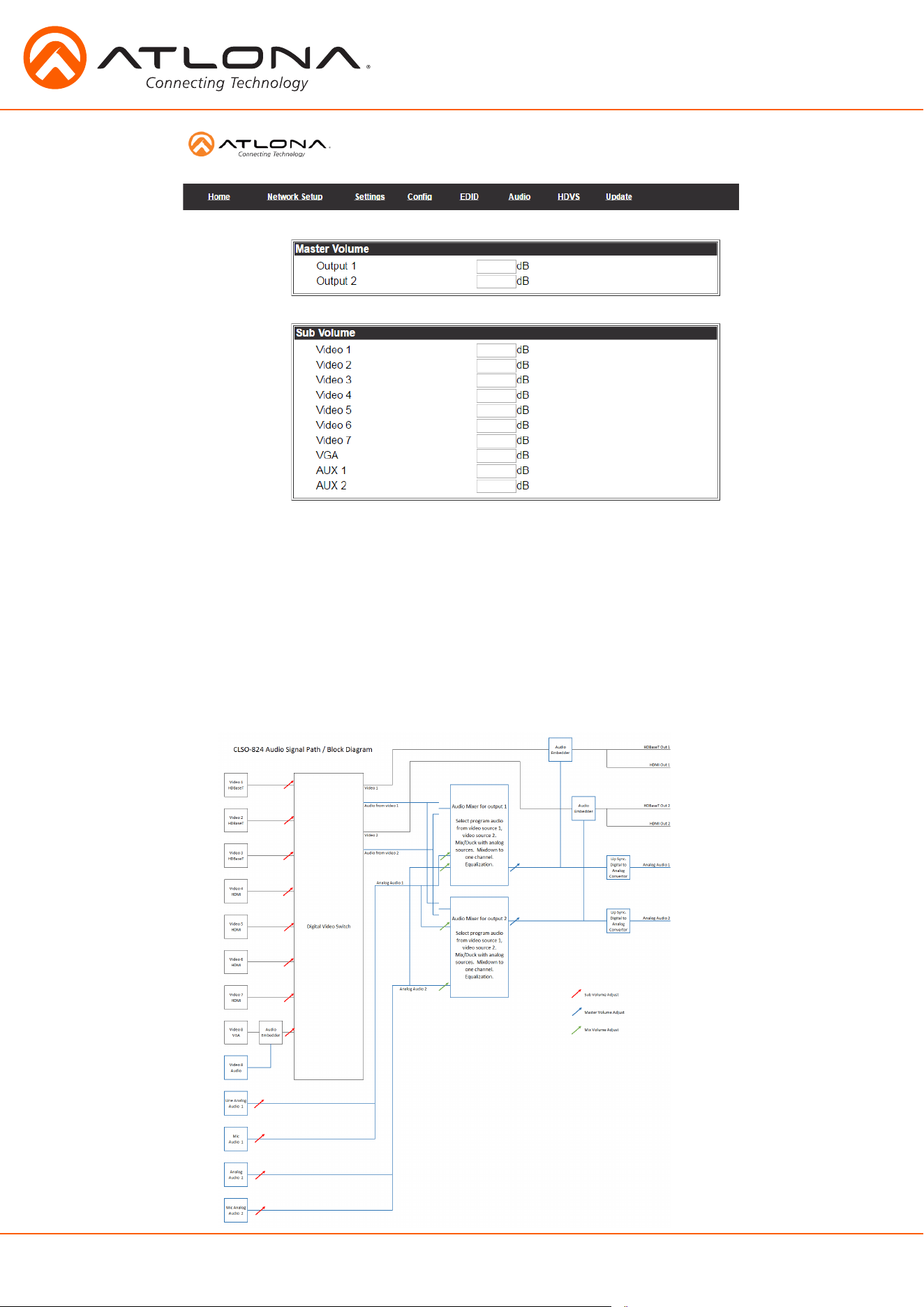
Master Volume
Output 1 adjusts the audio level of the embedded audio on HDBaseT output 1, HDMI output
1, and analog output 1. Output 2 adjusts the audio level of the embedded audio on HDBaseT
output2, HDMI output 2, and analog output 2.
Sub Volume
Volume control for each input and the Aux (MIC/48V/Line) inputs. These are typically used to match
audio levels from all sources.
18
atlona.com
1-408-962-0515
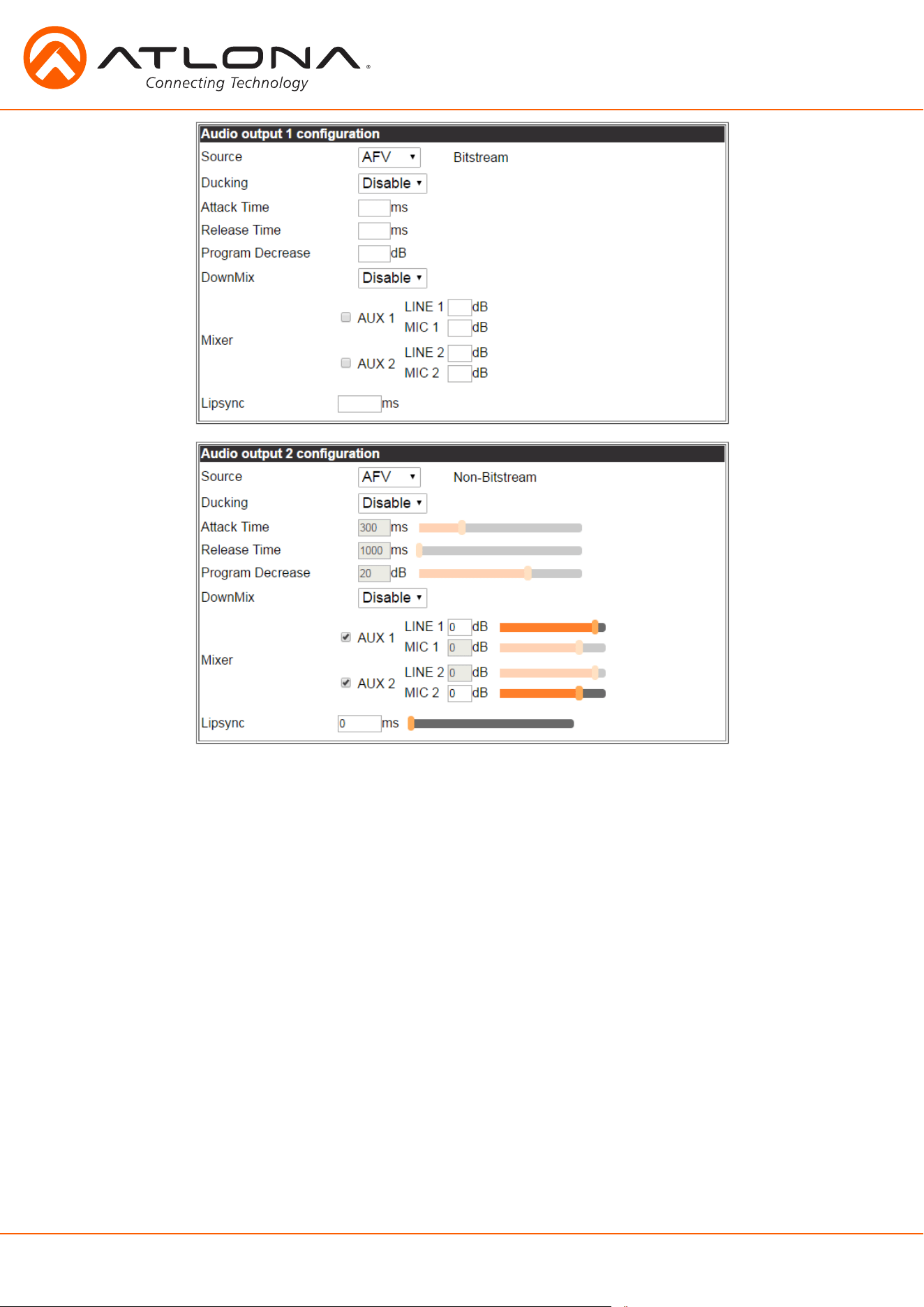
Audio output 1 configuration
Source - Select between Audio Follow Video (HDMI/HDBaseT OUT 1), Audio Follow Other Video
(HDMI/HDBaseT OUT 2), Aux 1 (MIC/Line IN 1), Aux 2 (Mic/Line IN 2)
Ducking - Enable - Ducking automatically changes the source (AFV/AFOV) volume
Disable - Mixing enabled
Attack time - Sets delay before the ducking begins after detecting signal from a microphone
Release time - Sets delay time after no signal is detected that ducking stops
Program decrease - Set amount to ensure the program level is low enough so when ducking is
triggered the speaker/audio is heard
Down mix - Enable/disable - Sets AUX source to mix output mono (enabled) or two channel (disabled)
Mixer - Mix analog audio sources with program audio
Lipsync - Adjust lipsync to compensate for multiple scalers after the CLSO-824 which may delay
video without delaying audio. It is not intended to compensate for errors in source
material
Audio output 2 configuration follows the same configuration as output 1 except for in source
Source - Audio Follow Video (HDMI/HDBaseT OUT 2), Audio Follow Other Video (HDMI/HDBaseT OUT 1),
Aux 1 (MIC/Line IN 1), Aux 2 (Mic/Line IN 2)
19
atlona.com
1-408-962-0515
Ducking Setup
Note: Proper set up is critical for satisfactory operation. If program levels are too high they can trigger the ducking
process. Microphone ducking uses the audio level from the microphone to decrease the program level so the speaker
may be heard. Setting the microphone volume too high may result in feedback. It is recommended that a handheld
or headset microphone be used with ducking to reduce feedback and maximize the difference between voice and
program levels. Best results are received with the following sequence:
1. Set master volume to 0. (This is 10 db below maximum)
2. Raise appropriate microphone (or line in) volume until just below feedback or adequate volume is reached
(whichever setting is lower). - Master level and amplifier gains may be increased to get appropriate levels
Note: If feedback occurs and volume is not adequate, move the speakers and/or microphone to eliminate feedback.
3. Raise source “sub” volumes to appropiate levels without talking
4. Set attack time to minimize popping, but still fast enough that initial talking sounds are heard.
5. Set release time so that program levels do not increase between sentences. Note: Shorten time so that the
microphone doesn’t interfere with the program.
6. Set the trigger level so that words spoken at a normal level trigger the ducking process Note: Set the trigger level too
sensitive and the program will trigger the ducking. Set too low and the speaker will have to talk very loudly to
trigger ducking. The further right the slider is, the more sensitive the setting.
7. Set program decrease to ensure when ducking is triggered the program level is low enough the speaker can be
heard.
Fine tuning these settings will help achieve the best results.
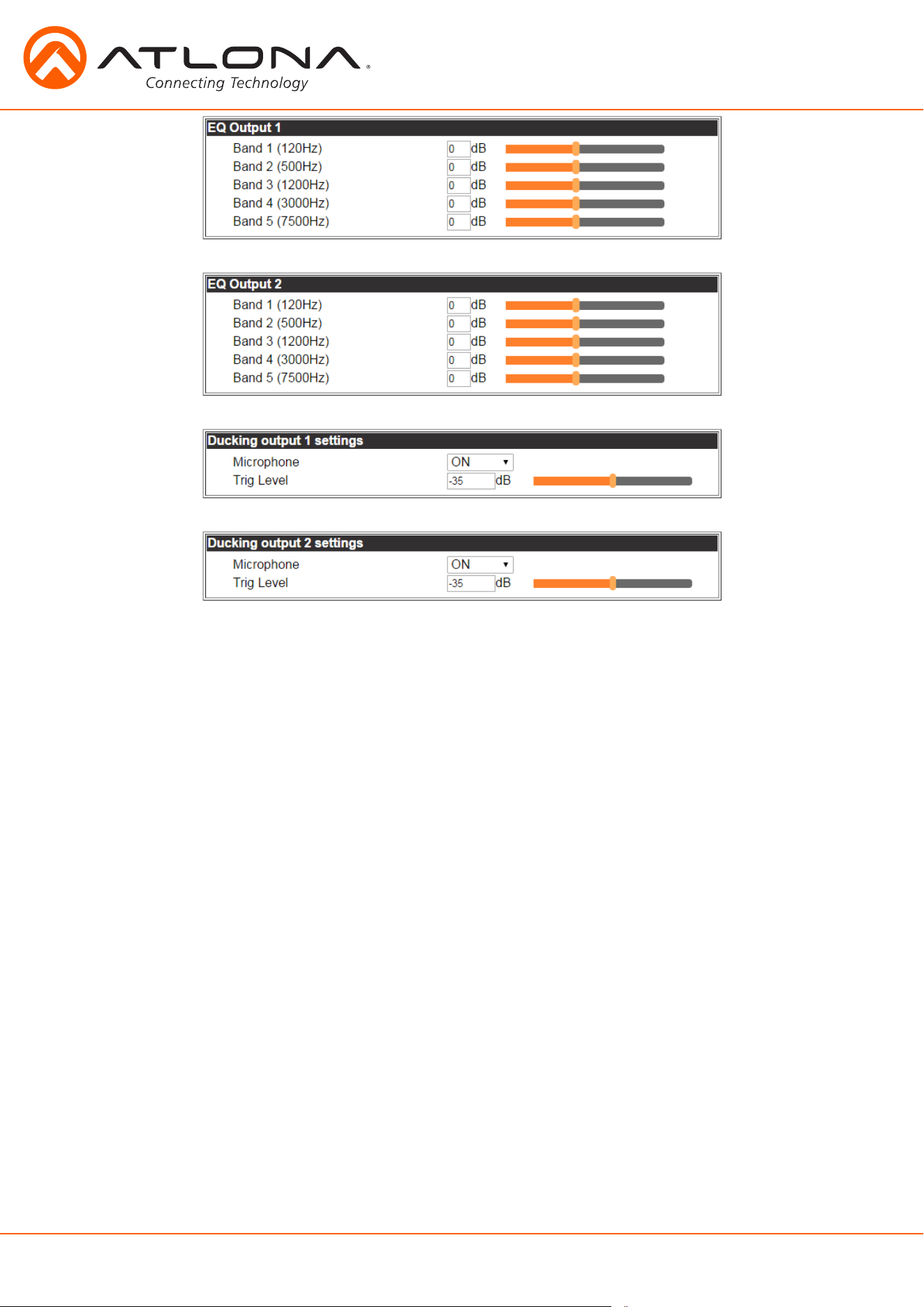
EQ Output
Settings adjust the equalization for the audio outputs of both analog and embedded audio. The
center frequency for each listed. Nominal position is centered at 0 dB. 5 band EQ adjustment for
HDMI/HDBaseT output ports.
Ducking Output Settings
Microphone - Turns ducking on/off
Trig Level - Sets volume level of microphone at which ducking is triggered
20
atlona.com
1-408-962-0515
1
2
3
4
5
6
The HDVS-200-TX or HDVS-200-TX-WP have display control buttons that generate RS-232 codes
sent over the HDBaseT connection to the CLSO-824.
Using the programming language of your control system, you can use the string to trigger a macro
with the actions your system design requires. Typical macros could turn on the display or be used
as a “show me” button.
When the display button is pressed the command #*PORTx[WP_Display[Off]$
CR
]
CR
or #*PORTx[WP_
Display[On]$
CR
]
CR
will be sent to the RS-232 master port on the CLSO.
Note:
CR
= carriage return x= zone number
When connecting or unconnecting HDBaseT devices to the CLSO (such as HDVS-200) the CLSO will
send query commands to get device type information: RS232zoneX[WP_Display[?]$
CR
]
CR
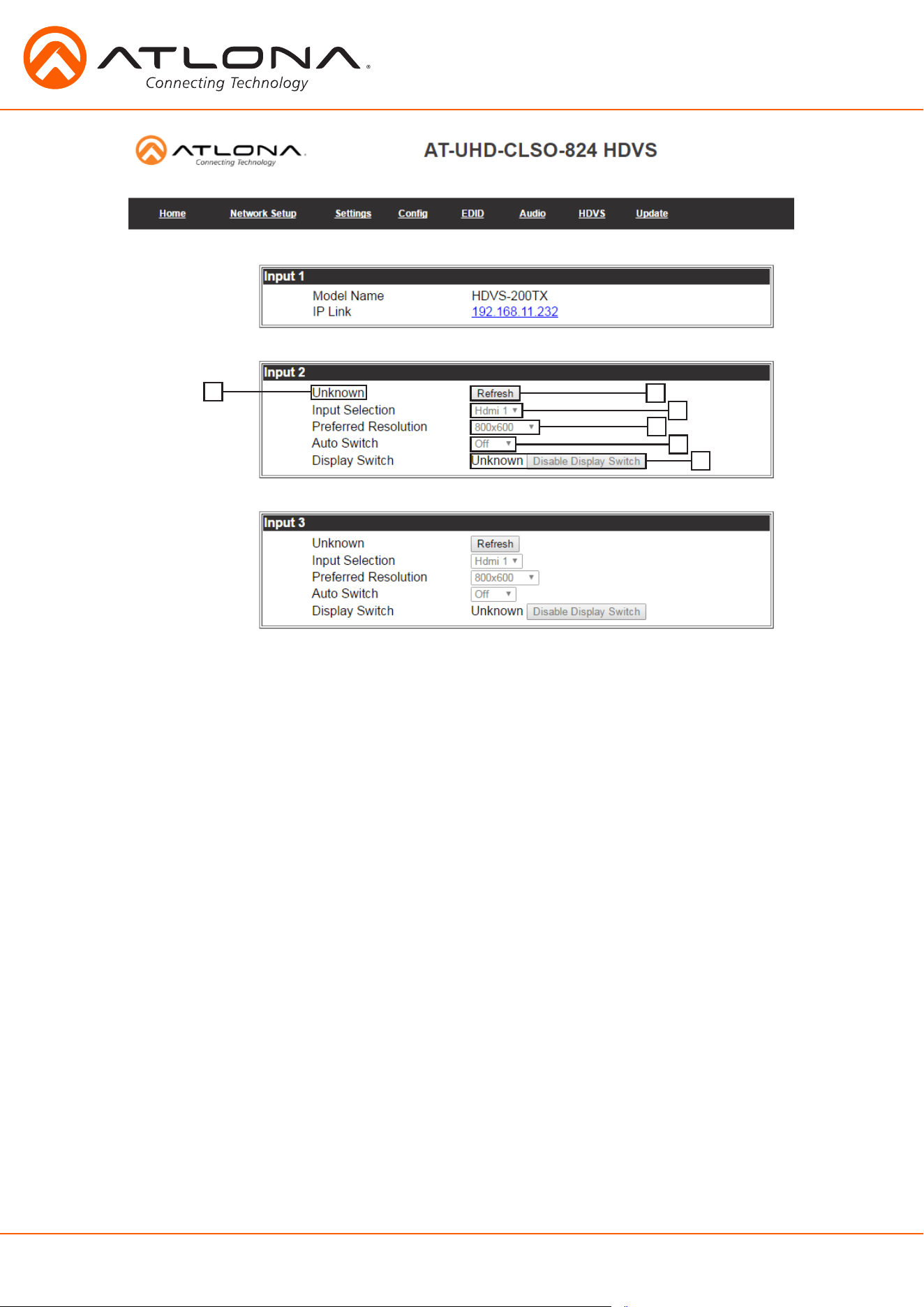
HDVS Page
Input 1
Model Name: Displays model number of connected transmitter
IP Link: Displays IP link to compatible transmitter’s webGUI
Input 2 & 3 -
1. Displays model number of connected HDVS transmitter
2. Refresh button - Update to ensure the current settings are displayed
3. Input selection - Switch between the HDVS inputs
4. Preferred resolution - Sets the HDVS VGA port preferred input resolution
5. Auto switch - Turns auto switching on/off for the HDVS transmitter
6. Display switch - Sets display switch function of the HDVS (default is AVS)
Recommended set to disabled - product will be always on
21
atlona.com
1-408-962-0515
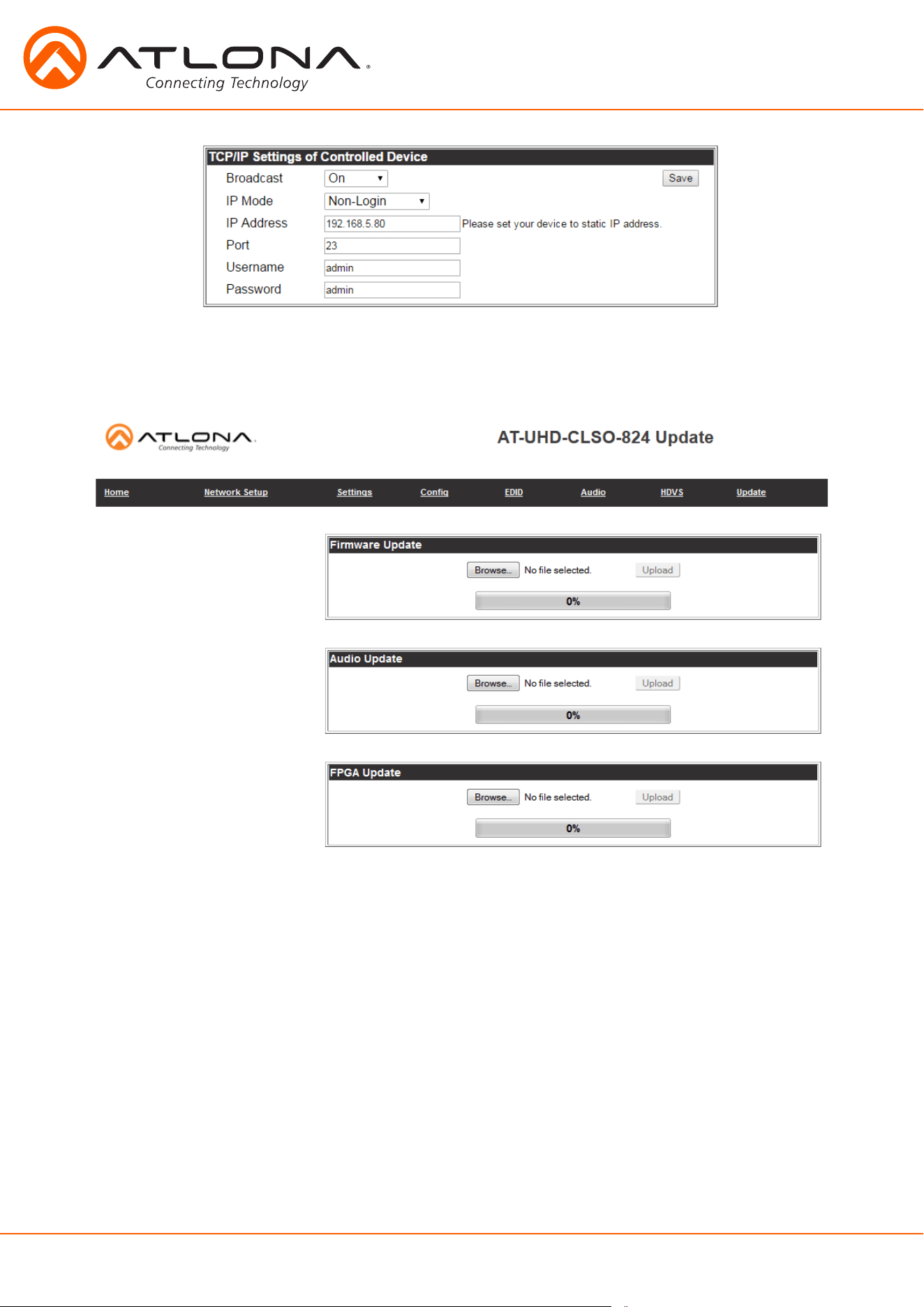
The update page provides an easy way to update switcher firmware.
Download the most current firmware from http://atlona.com/product/AT-UHD-CLSO-824/. Once
the firmware is saved on the computer use the browse button to select the correct file. Press the
update button and a progress bar will display. If a restart of the CLSO-824 is required, the webGUI
will display a prompt.
Setting these parameters will route the HDVS display commands from the HDVS through the CLSO
to the control system/PC at the designated IP address.
22
atlona.com
1-408-962-0515
System IR is typically used to connect to control system processors. This input is used to control the
CLSO-824.
Note: The IR receiver is optional for the UHD-CLSO-824. The compatible IR receiver (AT-IR-CS-RX) can be purchased
through atlona.com.
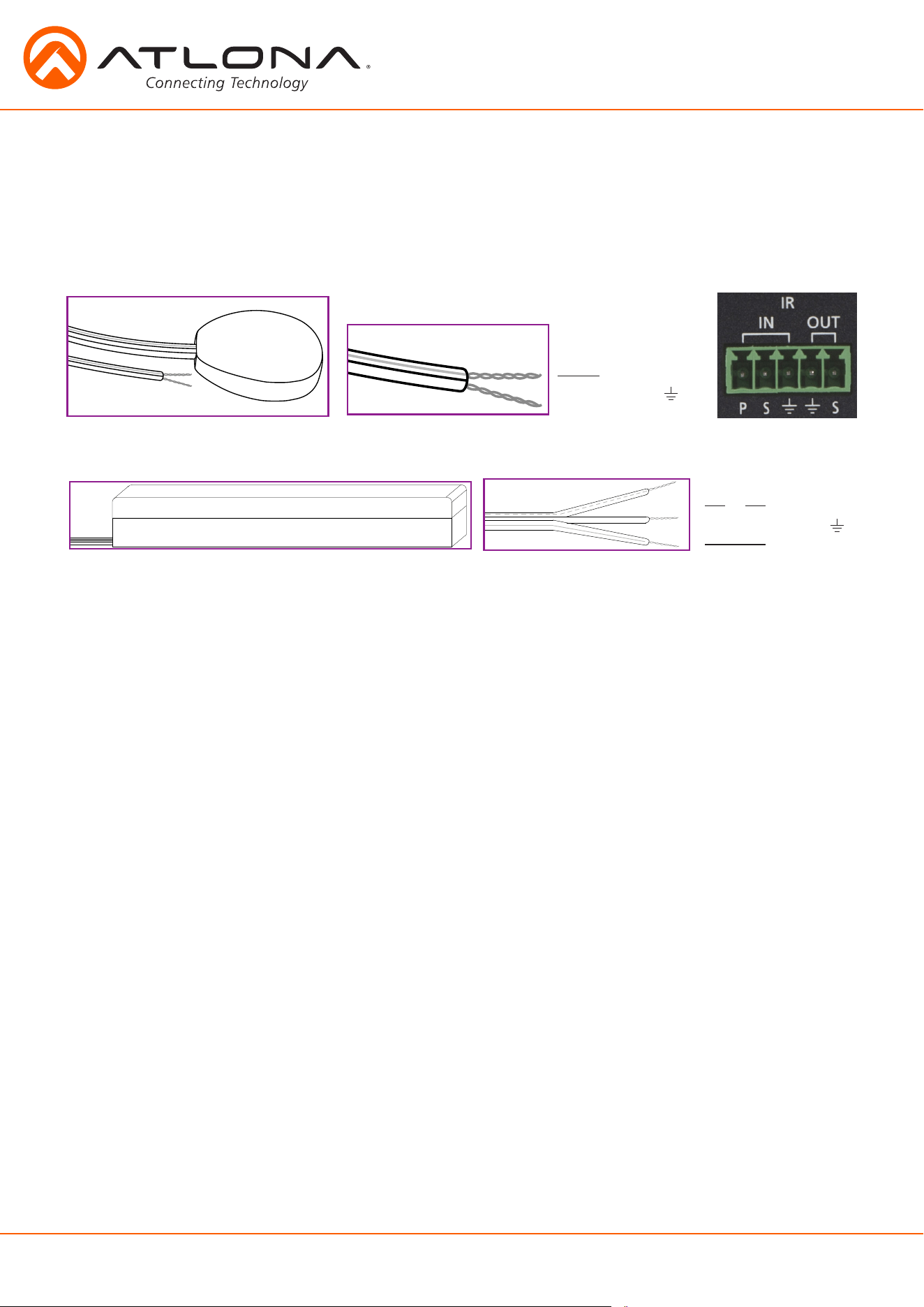
The wires of the emitter and receiver have been marked to differentiate the pin outs.
The included IR emitter has two wires: signal and ground. Signal will have a solid line and ground will be
blank. The IR emitter will plug into the IR OUT ports.
There are three wires on the IR receiver (sold separately): signal, ground, and power. Signal has a dotted line,
ground will be blank, and power will have a solid line. The IR receiver will plug into the IR IN ports.
Signal (S)
Ground ( )
Signal (S)
Ground ( )
Power (P)
IR
23
atlona.com
1-408-962-0515
RS-232
Connection
Set Up
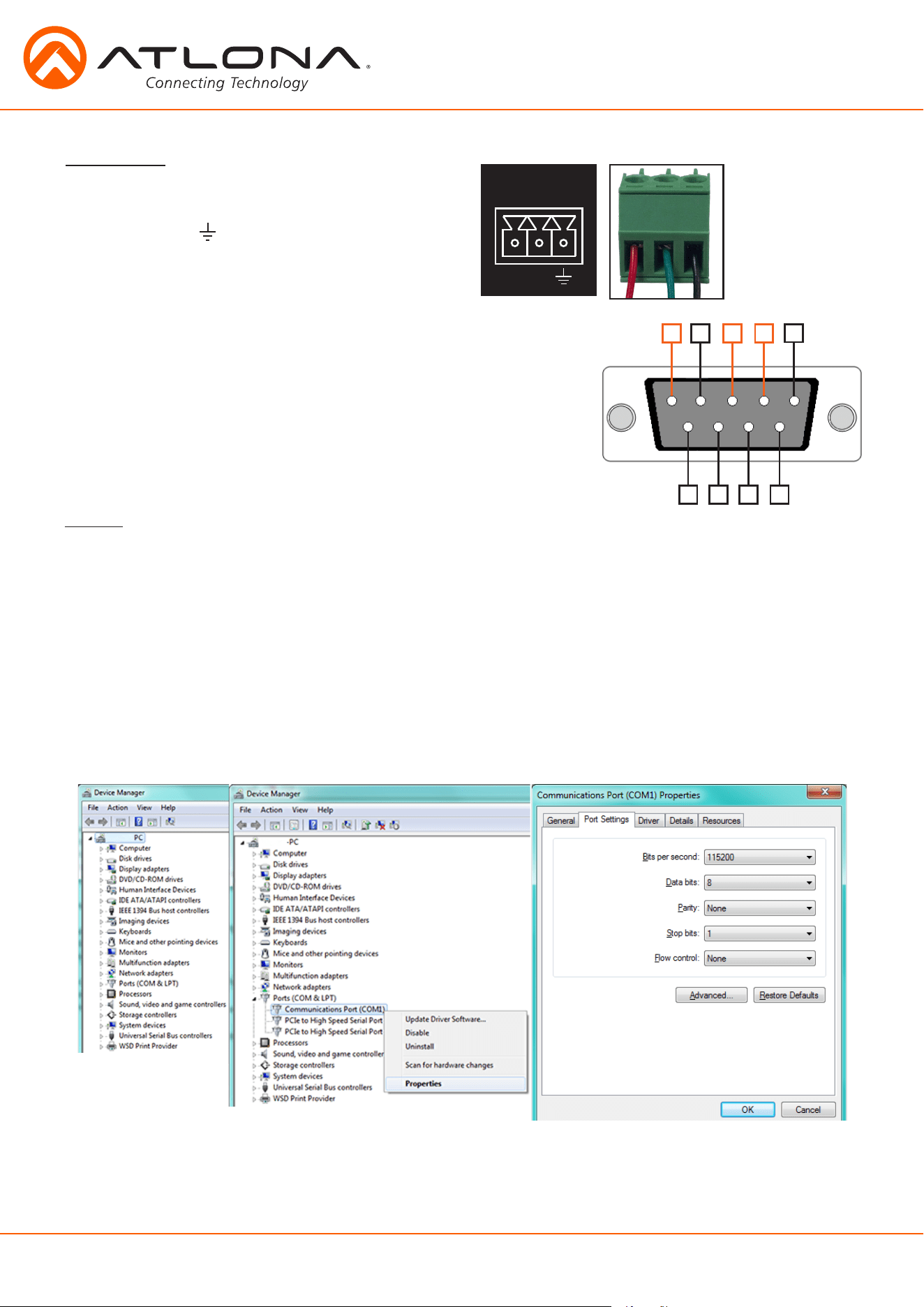
To set up the RS-232 terminal (if not using 3rd party software) use the following steps:
1. Connect the CLSO-824 to a PC using a 3 pin to USB cable
2. Go to the Device Manager folder (see picture A)
3. Find the CLSO-824 COM port and right click with a mouse and select properties (see picture B)
Note: If unsure which COM port is the CLSO-824, unplug the cable and plug it back in. It will disappear and
reappear on the COM port list.
4. Under the properties menu select the port settings tab and update the menu to the CLSO-824 default
settings of: Bits per Second: 115200, Data Bits: 8, Parity: None, Stop Bits: 1 and Flow Control: None.
(see picture C)
Set up is done and any terminal program may be used to control the CLSO-824 now.
A
B
C
RS-232 is often connected through a DB 9-pin to captive screw
connector. The pins will have functions associated with them,
some will be unassigned. Not all pins are used.
Note: Typical DB9 connectors use pin 2 for TX, pin 3 for RX, and pin
5 for ground. On some devices functions of pins 2 and 3 are
reversed.
5
4 3 2
9 8 7 6
1
RS-232 pin out will be determined by the RS-
232 cable and will connect as Rx (receiver), Tx
(transmitter), and (ground). (See picture 1)
Wire color will
differ by cable
manufacturer.
1
RS-232
RX
TX
24
atlona.com
1-408-962-0515
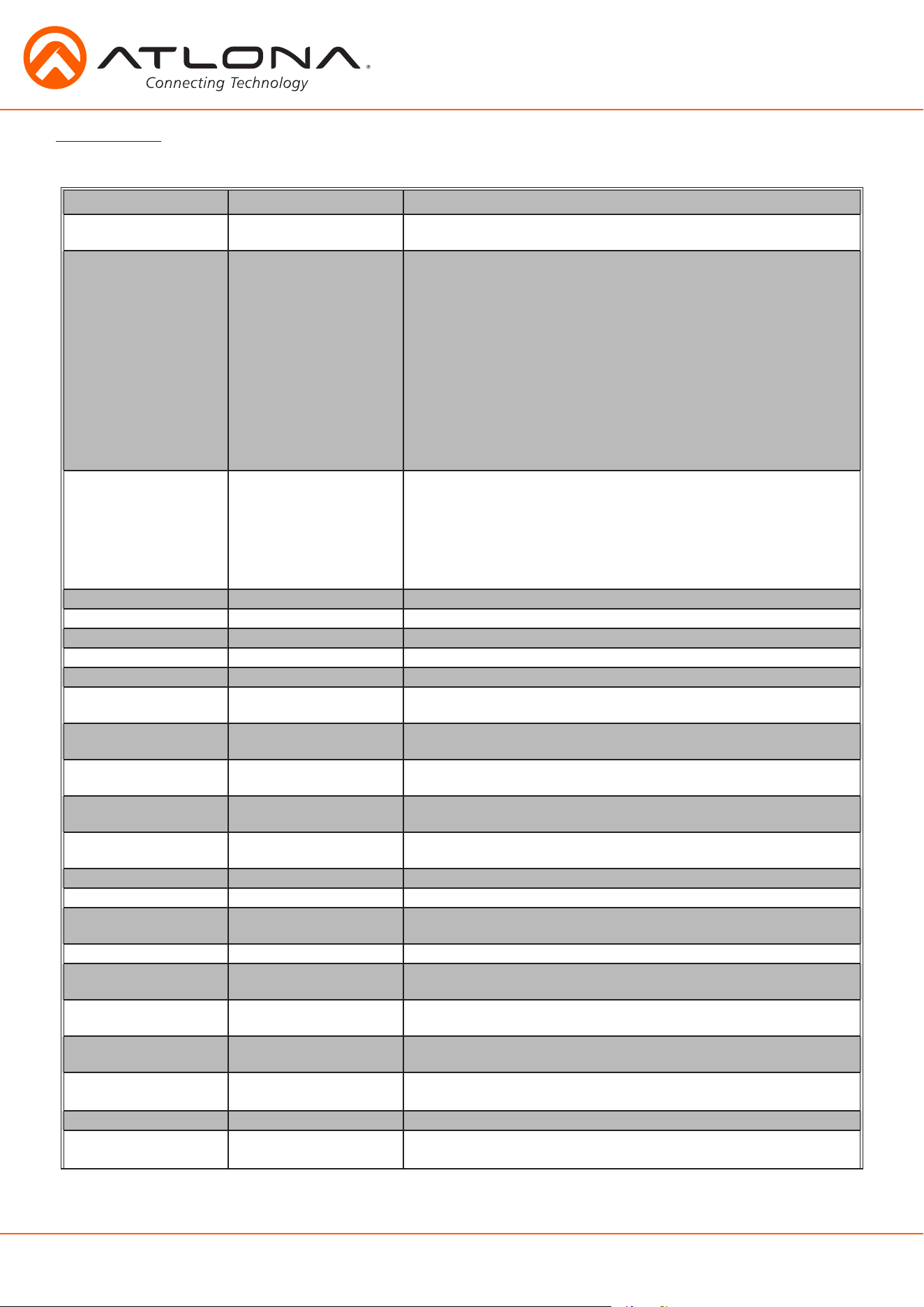
Commands
The command codes are case sensitive, do not change capitalization, spacing, or lettering.
Command Feedback Description
PWX
e.g. PWSTA
PWX
e.g. PWON
Turns switcher on, off, or display status
X= ON, OFF, STA
System sta
Model: AT-UHD-CLSO-824
MAC Addr: XX-XX-XX-XX-
XX-XX
Address Type: DHCP
IP: XXX.XXX.XX.XXX
Netmask: 255.255.255.0
Gateway: XXX.XXX.XX.X
HTTP Port: XX
Telnet Port: XX
Firmware: X.X.X
On/Up Time <dd HH:mm:ss>:
04 01:09:32
Power Status: PWON
HDVS sta
In 1: AT-HDVS-200TX
IP:XXX.XXX.XX.XX MAC:
XX-XX-XX-XX-XX-XX
In 2: Null
Out: AT-HDVS-200RX
IP:XXX.XXX.XX.XX MAC:
XX-XX-XX-XX-XX-XX
VersionX X.X.XX Displays the current firmware version X = MCU, FPGA, OSD, or DSP
Type AT-UHD-CLSO-824 Displays unit model number
Lock Lock Disables front panel buttons
Unlock Unlock Enables front panel buttons
All# x1AVx1, x2AVx2 Resets all inputs to corresponding outputs
x1$ y
e.g. x2$ off
x1$ y
e.g. x2$ off
Turns on and off output video y=on, off, or sta
e.g. Turns video off for output 2
x1All
e.g. x5All
x1All
e.g. x5All
Sets input to all outputs
e.g. Set input 5 to all outputs
x1AVx2
e.g. x3AVx2
x1AVx2
e.g. x3AVx2
Switch input to output
e.g. Set input 3 to output 2
x1AVx1,x2
e.g. x3AVx1,x2
x1AVx1,x2
e.g. x3AVx1,x2
Switch input to multiple outputs
e.g. Swich input 3 to outputs 1 and 2
VGAMSet X
e.g. VGAMSet comp
VGASet X
e.g. VGAMSet comp
Sets the analog VGA port to accept VGA (vga) or Component (comp)
e.g. Set the VGA port to accept component video
IRON IRON Turns the front panel IR receiver on
IROFF IROFF Turns the front panel IR receiver off
Statusx1
e.g. Statusx2
x1AVx3
e.g. x5AVx2
Shows the input currently connected to the output
e.g. Show input status of ouptut 2 - Input 5 is currently selected
Status x4AVx1,x3AVx2 Displays the current input and output routes
SaveY
e.g. Save2
SaveY
e.g. Save2
Save the current input/output route to memory
e.g. Save the current input/output route to memory 2
RecallY
e.g. Recall4
RecallY
e.g. Recall4
Recalls the saved input/output memory
e.g. Recalls the input/output route from memory 4
ClearY
e.g. Clear3
ClearY
e.g. Clear3
Erases the input/output route from the selected memory number
e.g. Removes the saved input/output route from memory 3
Menu[X]
Menu[X]
e.g. MenuDown
Sets to control OSD interface, [X]: Sw/Up/Down/Left/Right/Info/Sel
e.g. Select OSD option => MenuSel
Mreset Mreset Sets matrix settings back to factory settings
RS232zone[X][Y] RS232zoneX[Y] RS232zoneX[Y], X: 1-15 (see page 27). Y is the command sent to the
HDBaseT port [Y] is the command string sent to the display device
When connecting or unconnecting HDBaseT devices to the CLSO (such as HDVS-200) the CLSO will
send query commands to get device type information: RS232zoneX[WP_Display[?]$
CR
]
CR
25
atlona.com
1-408-962-0515
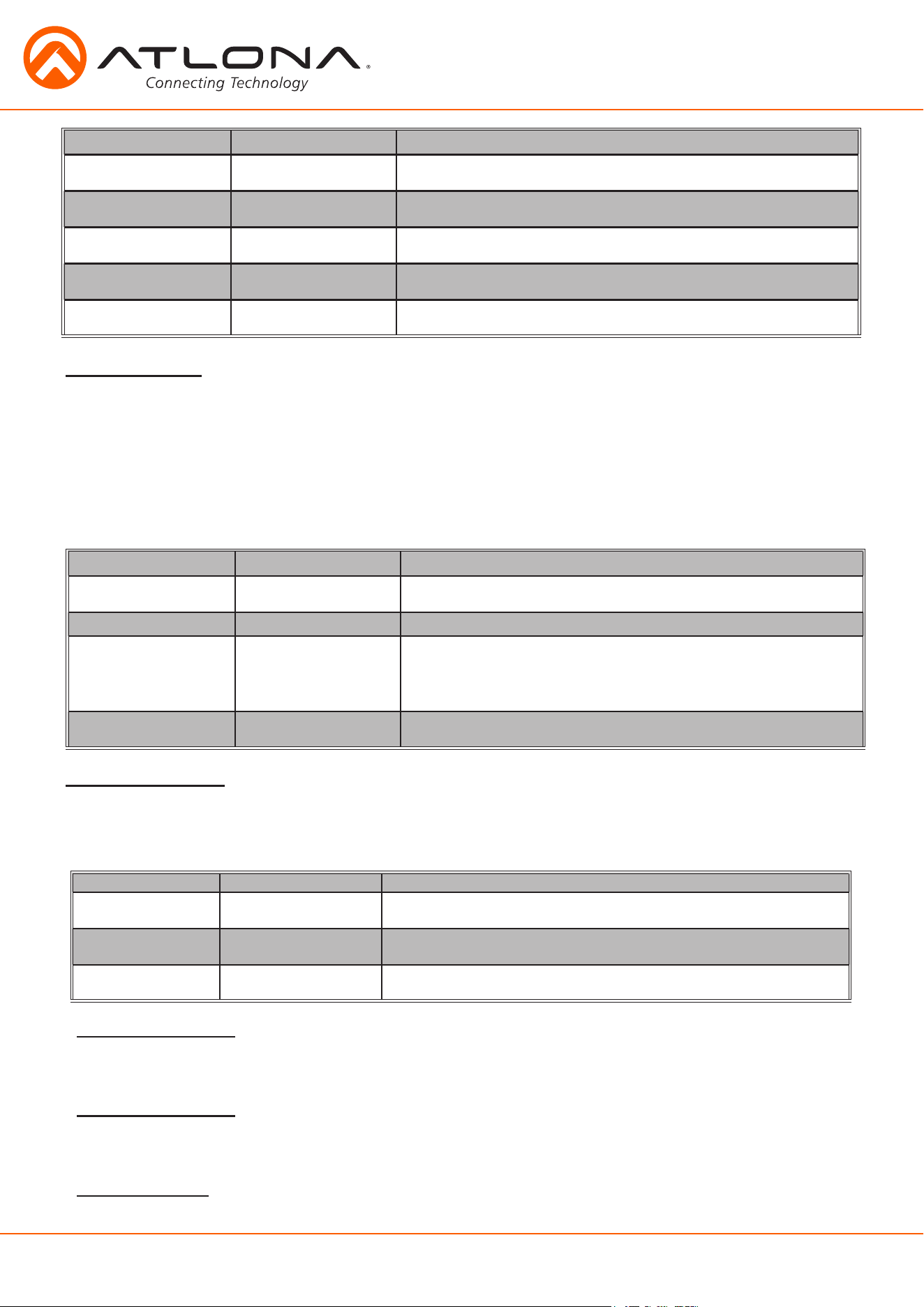
Command Feedback Description
PrefTimg8 Y
e.g. PrefTimg8 3
PrefTimg8 Y
e.g. PrefTimg8 3
Set the prefered timing of the VGA port Y=0-7
e.g. Set the VGA port to 1024x768
PrefTimg sta PrefTimg8 Y Displays the prefered timing for the VGA port
List X
e.g. List Pref
List X
e.g. Pref 0: Default
Pref 1 : 1280x800
etc
Displays the prefered timings (Pref) and EDIDs (EDID) available
HDCPSetX Y
e.g. HDCPSet5 Off
HDCPSetX Y
e.g. HDCPSet5 Off
Sets HDCP reporting mode of the HDMI input port Y=on,off,sta
e.g. Set input 5 to HDCP non-compliant
Prefered Timings -
00 Default 01 1920x1200 02 1920x1080
03 1280x800 04 1366x768 05 1024x768
06 1280x720 07 800x600
Command Feedback Description
EDIDMSetX default
e.g. EDIDMSet3 default
EDIDMSetX default
e.g. EDIDMSet2 default
Sets the input EDID to default X=Input
e.g. Set input 2 EDID to default
EDIDMSetX saveY
e.g. EDIDMSet7 save2
EDIDMSetX saveY
e.g. EDIDMSet7 save2
Set input X EDID to the saved EDID memory (Y)
e.g. Set input 7 to the EDID saved to memory 2
EDIDMSetX intZ
e.g. EDIDMSet3 int7
EDIDMSetX intZ
e.g. EDIDMSet3 int7
Set input EDID to the chosen internal EDID (Z)
e.g. Set input 3 to the internal EDID 7
EDIDMSetX sta
e.g. EDIDMSet6 sta
EDIDMSetX sta
e.g. EDIDMSet6 default
Displays the current EDID (Y) of the selected input (X)
e.g. Input 6 is set to default EDID
EDIDOutX memY
e.g. EDIDOut2 mem1
EDIDOutX memY
e.g. EDIDOut2 mem1
Copies EDID from an output (x) to a chosen memory location (y)
e.g. Sets output 2 EDID to EDID memory 1
Internal EDIDs -
01 2160P60 Multi CH 02 2160P60 2CH 03 2160P30 Multi CH
04 2160P60 2CH 05 1920x1200 RGB 2CH 06 1080P DD
07 1080P Multi CH 08 1080P 2CH 09 1080P 3D DD
10 1080P 3D Multi CH 11 1080P 3D 2CH 12 1080P DVI
13 1280x800 RGB 2CH 14 1280x800 RGB DVI 15 1366x768 RGB 2CH
16 1024x768 RGB 2CH 17 720P DD 18 720P 2CH
19 800x600 RGB 2CH
Command Feedback Description
AUDx y
e.g. AUD1 2
AUDx y
e.g. AUD1 2
Set analog output (x) to use the audio of a specific port
e.g. Set analog output 1 to follow the audio of HDMI/HDBaseT Out 2
Duckingx y
e.g. Ducking2 on
Duckingx y
e.g. Ducking2 on
Set the ducking on/off for output (x) y= on , off
e.g. Set ducking on for output 2
Mixerx y
e.g. Mixer1 3
Mixerx y
e.g. Mixer1 3
Sets mixer source (y) for each analog output (x)
e.g. Set analog output 1 to AUX1 and AUX2
Analog Output 1 -
1 AFV HDMI/HDBaseT Out 1 2 AFOV HDMI/HDBaseT Out 2
3 AUX1 MIC/Line Input 1 4 AUX2 MIC/Line Input 2
Analog Output 2 -
1 AFV HDMI/HDBaseT Out 2 2 AFOV HDMI/HDBaseT Out 1
3 AUX1 MIC/Line Input 1 4 AUX2 MIC/Line Input 2
Mixer sources -
0 None 1 AUX1 2 AUX2 3 AUX1 and AUX2
26
atlona.com
1-408-962-0515
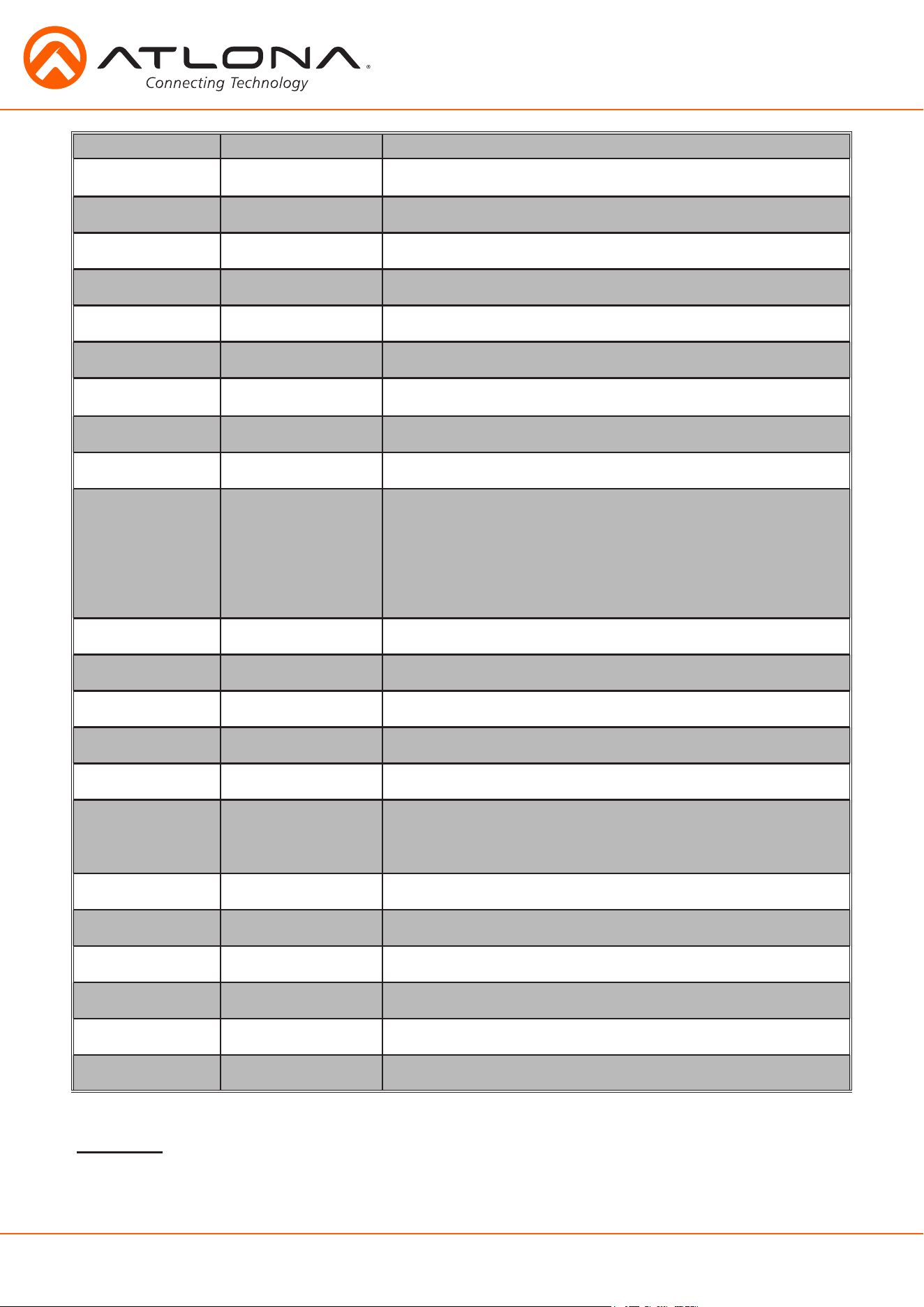
Command Feedback Description
SetMonoX Y
e.g. SetMono1 on
SetMonoX Y
e.g. SetMono1 on
Sets analog audio output (X) to mono (on) or stereo (off)
e.g. Set analog audio output 1 to mono
VOUTx +
e.g. VOUT1 +
VOUTx yy
e.g. VOUT1 yy
Increases output zone (x) volume by one
e.g. Increase the volume of output 1
VOUTx -
e.g. VOUT2 -
VOUTx yy
e.g. VOUT2 yy
Decreases output zone (x) volume by one
e.g. Decrease the volume of output 2
VOUTx yy
e.g. VOUT1 08
VOUTx yy
e.g. VOUT1 08
Sets output zone (x) volume to a specific level yy= -90 to 30
e.g. Sets the volume of output 1 to 8dB
VOUTx sta
e.g. VOUT2 sta
VOUTx yy
e.g. VOUT2 yy
Checks the level of output zone (x) volume
e.g. Check the status of output zone 2
VINx +
e.g. VIN3 +
VINx yy
e.g. VIN3 yy
Increases the input zone (x) volume by one
e.g. Increases the volume of input 3 by one
VINx -
e.g. VIN5 -
VINx yy
e.g. VIN5 yy
Decreases input zone (x) volume by one
e.g. Decreases the volume of input 5 by one
VINx yy
e.g. VIN2 -10
VINx yy
e.g. VIN2 -10
Sets input zone (x) volume to a specific level
e.g. Set input 2 volume to -10dB
VINx sta
e.g. VIN6 sta
VINx yy
e.g. VIN6 yy
Checks the level of input zone (x) volume
e.g. Check the status of input zone 6
VINMutex y
e.g. VINMute3 on
VINMutex y
e.g. VINMute3 on
Mute or unmutes the specified input
x= (1) Cat5 in1, (2) Cat5 in2, (3) Cat5 in3, (4) HDMI4, (5) HDMI5,
(6) HDMI6, (7) HDMI7, (8) VGA (LINE3), (9) AUX1-source,
(10) AUX2-source
y = on (enable audio muting), off (disable audio muting), sta (displays
the muting status)
e.g. Mute input 3’s volume
VOUTMutex y
e.g. VOUTMute1 off
VOUTMutex y
e.g. VOUTMute1 off
Mute (on) and unmute (off) the output (x) volume
e.g. Unmute output 1’s volume
VMicx +
e.g. VMic1 +
VMicx yy
e.g. VMic1 yy
Increases Mic input (x) level by one
e.g. Increases the volume of MIC 1
VMicx -
e.g. VMic2 -
VMicx yy
e.g. VMic2 yy
Decreases Mic input (x) level by one
e.g. Decreases the volume of Mic 2
VMicx yy
e.g. VMic1 20
VMicx yy
e.g. VMic1 20
Sets Mic input (x) volume to a specific level yy= -90 to 30
e.g. Set Mic input 1 to volume level 20
VMicx sta
e.g. VMic2 sta
VMicx yy
e.g. VMicx yy
Displays the current mic input (x) volume level
e.g. Displays mic input 2 volume level
MICx y z
e.g. MIC2 atime 20
MICx y z
e.g. MIC2 atime 20
Sets Mic input (x) values (y) to specific levels (z)
y= on, off, sta, atime (attack time), rtime (background release time),
sens (microphone sensitivity level), reduce (background reduce level)
e.g. Set the attack time of mic input 3 to 20
EQx y +
e.g. EQ2 2 +
EQx y zz
e.g. EQ2 2 zz
Increases the EQ band level (y) of the output (x) by one
e.g. Increase output 3 EQ band level 500Hz by one
EQx y -
e.g. EQ1 3 -
EQx y zz
e.g. EQ1 3 zz
Decreases the EQ band level (y) of the output (x) by one
e.g. Decrease output 1 band level 1.2 kHz by one
EQx y zz
e.g. EQ2 4 10
EQx y zz
e.g. EQ2 4 10
Set the EQ band level (y) of the output (x) to a specific level (zz)
e.g. Set output 3 band level 3 kHz to a specific level
LipOutx +
e.g. LipOut2 +
LipOutx yy
e.g. LipOut2 yy
Increases lip sync time of output (x) by one
e.g. Increase lip sync time of output 2 by one
LipOutx -
e.g. LipOut1 -
LipOutx yy
e.g. LipOut1 yy
Decreases lip sync time of output (x) by one
e.g. Decrease lip sync time of output 1 by one
LipOutx yy
e.g. LipOut2 10
LipOutx yy
e.g. LipOut2 10
Set lip sync time of output (x) to a specific level (yy)
e.g. Set output 2 lip sync to 10
EQ band -
1 <120Hz 2 500Hz 3 1.2 kHz 4 3 kHz 5 7.5 kHz
27
atlona.com
1-408-962-0515
RS-232 Command for the Output parameters
RS232para
The RS-232 status command will provide feedback for the current parameters for each transmitter/
receiver.
Example: (See example of feedback below)
RS232para
Current RS232 parameter:
- Zone 1 :BaudRate 2400bps, DataBits 0, Parity None, StopBits 1.
- Zone 2 :BaudRate 115200bps, DataBits 0, Parity ODD, StopBits 1.
- Zone 3 :BaudRate 9600bps, DataBits 0, Parity None, StopBits 1.
Note: RS-232 zones 1-10 correspond with the RS-232 ports on the back of the switcher. There are additional zones for
switcher and HDBaseT port pass through.
Zone 11 = HDBaseT input port 1
Zone 12 = HDBaseT input port 2
Zone 13 = HDBaseT input port 3
Zone 14 = HDBaseT output port 1
Zone 15 = HDBaseT output port 2
Note: Default for the switcher is: Baud rate-115200bps, Data length-8bit, Parity-None, Stop Bit-1
Command for Switcher Parameters
CSpara[baudrate,data-length,parity,stop-bit] (data, parity, and stop bit for switcher must be 8,0,1)
For example if you wish to change the baud rate of the switcher to 38400 the command would
look like this: CSpara[38400,8,0,1]
Note: Using the command CSpara will display the current parameters of the switcher
Baud Rate
Zone RS-232 port conifiguration must match the connected device on all parameters including
baud rate, data-length, parity, and stop-bit. These parameters can easily be set using the WebGUI
or following commands through RS-232 or TCP/IP.
The baud rate for the switcher is for switcher control and the transmitter/receiver baud
rate is for control of the RS-232 device in zone. All commands from your control processor are
at the settings for the switcher. The switcher will modify the baud rate and other settings to these
set parameters by zone.
Note: Baud rate options 2400, 4800, 9600, 19200, 38400, 57600, 115200, or 230400
28
atlona.com
1-408-962-0515
Each command must be terminated with a carriage return and line feed.
Feedback is terminated with a carriage return and line feed.
Note: If the command fails or is incorrect the feedback should be “Command FAILED”
IP Commands
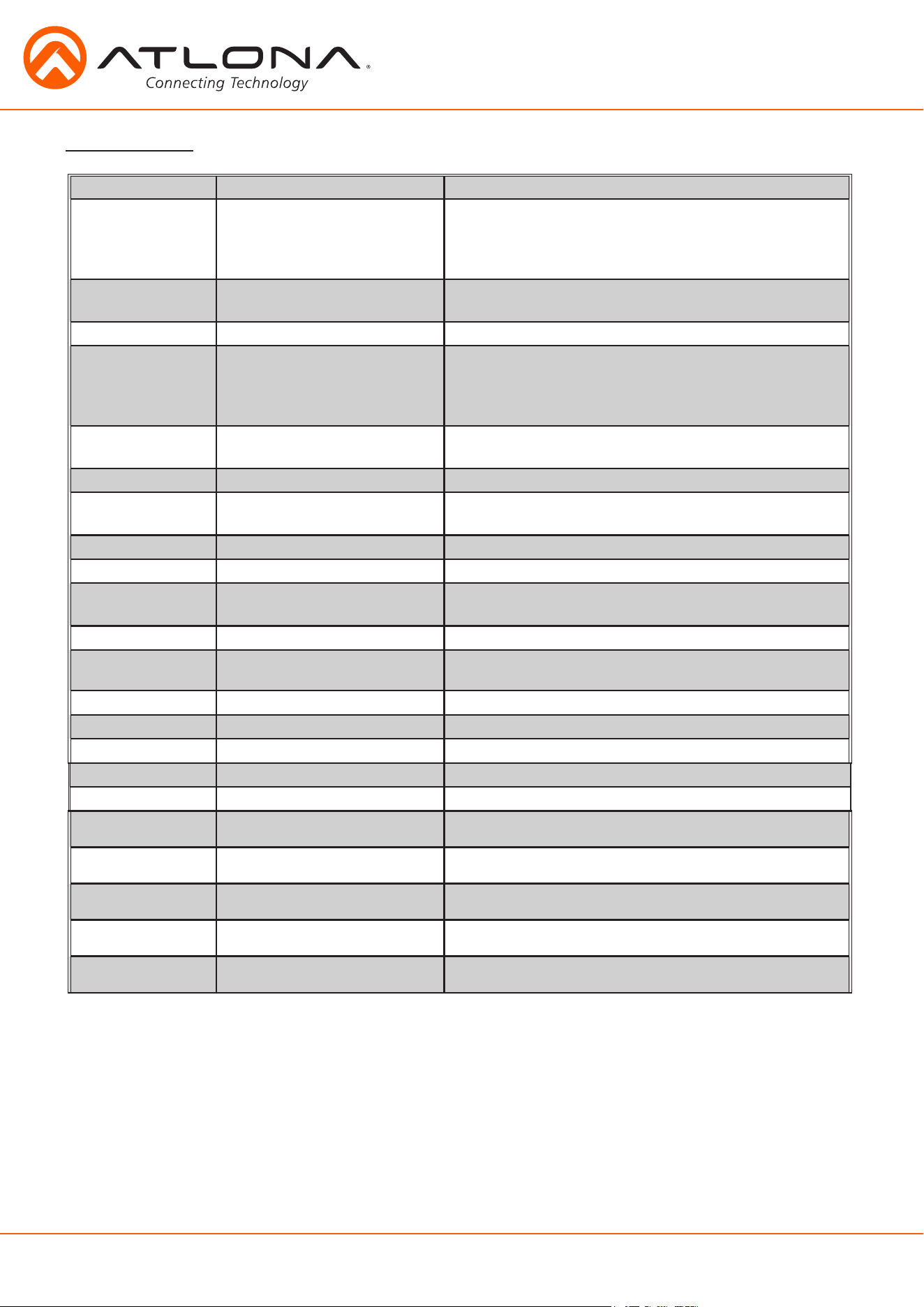
Command Feedback Description
IPCFG IP Addr : x.x.x.x
Netmask : x.x.x.x
Gateway : x.x.x.x
IP Port: x.x.x
Displays IP address configuration
IPTimeout XX IPTimeout XX
(Ex. IPTimout120)
Determines amount of seconds of inactivity before TCP/IP
disconnects. The default timeout is 45 seconds
IPQuit IPQuit Logs out of TCP/IP
IPAddUser TCP/IP username & password list:
- user password
- user password
- user password
Will display a list of users
IPAddUser X Y TCP/IP user was added Add a user for TCP/IP control. X=User Y=Password
Ex. IPAddUser Atlona 1234 (User=Atlona 1234=Password)
IPDelUser X TCP/IP user was deleted Delete a user from TCP/IP X=User (Ex. IPDelUser Atlona)
IPDHCP sta IPDHCP sta
Ex. IPDHCP on
Displays the status of DHCP
IPDHCP on IPDHCP on Turns DHCP on
IPDHCP off IPDHCP off Turns DHCP off
IPStatic X Y Z IPStatic address netmask gateway Sets a static IP address
Ex. IPStatic 192.168.1.1 255.255.255.0 192.168.1.200
IPPort X IPPort X Set the TCP/IP port (ex. IPPort 230)
IPLogin sta IPLogin sta
e.g. IPLogin on
Displays IPLogin status
e.g. IPLogin is on
IPLogin on IPLogin on Enables IPLogin
IPLogin off IPLogin off Disables IPLogin
Broadcast sta Broadcast sta Displays broadcast mode status
Broadcast on Broadcast on Enables broadcast mode *Broadcast on is the default setting
Broadcast off Broadcast off Disables broadcast mode
CliMode x
e.g. CliMode non-login
CliMode x
e.g. CliMode non-login
Sets the control device’s IP mode x = sta, login, non-login
e.g. Sets the IP mode to non-login
CliUser x
e.g. CliUser
CliUser x
e.g. CliUser admin
Sets the IP username for login x = username, (blank)
e.g. Display the IP username by leaving x blank
CliPass x
e.g. CliPass AtlonA
CliPass x
e.g. CliPass AtlonA
Sets the IP password for login x = password, (blank)
e.g. Set the IP password to AtlonaA
CliIPAddr x
e.g. CliIPAddr sta
CliIPAddr x
e.g. CliIPAddr 192.168.0.23
Sets the IP address of the controlled device x = ip, sta
e.g. Display the IP address of the controlled device
CliPort x
e.g. CliPort 24
CliPort x
e.g. CliPort 24
Sets the IP port of the controlled device x = port, sta
e.g. Set the IP port to 24
29
atlona.com
1-408-962-0515
Control Drivers
CLSO-824 Update
Visit the Control Drivers tab at http://www.atlona.com/product/AT-UHD-CLSO-824/ to download
the control drivers for the CLSO-824.
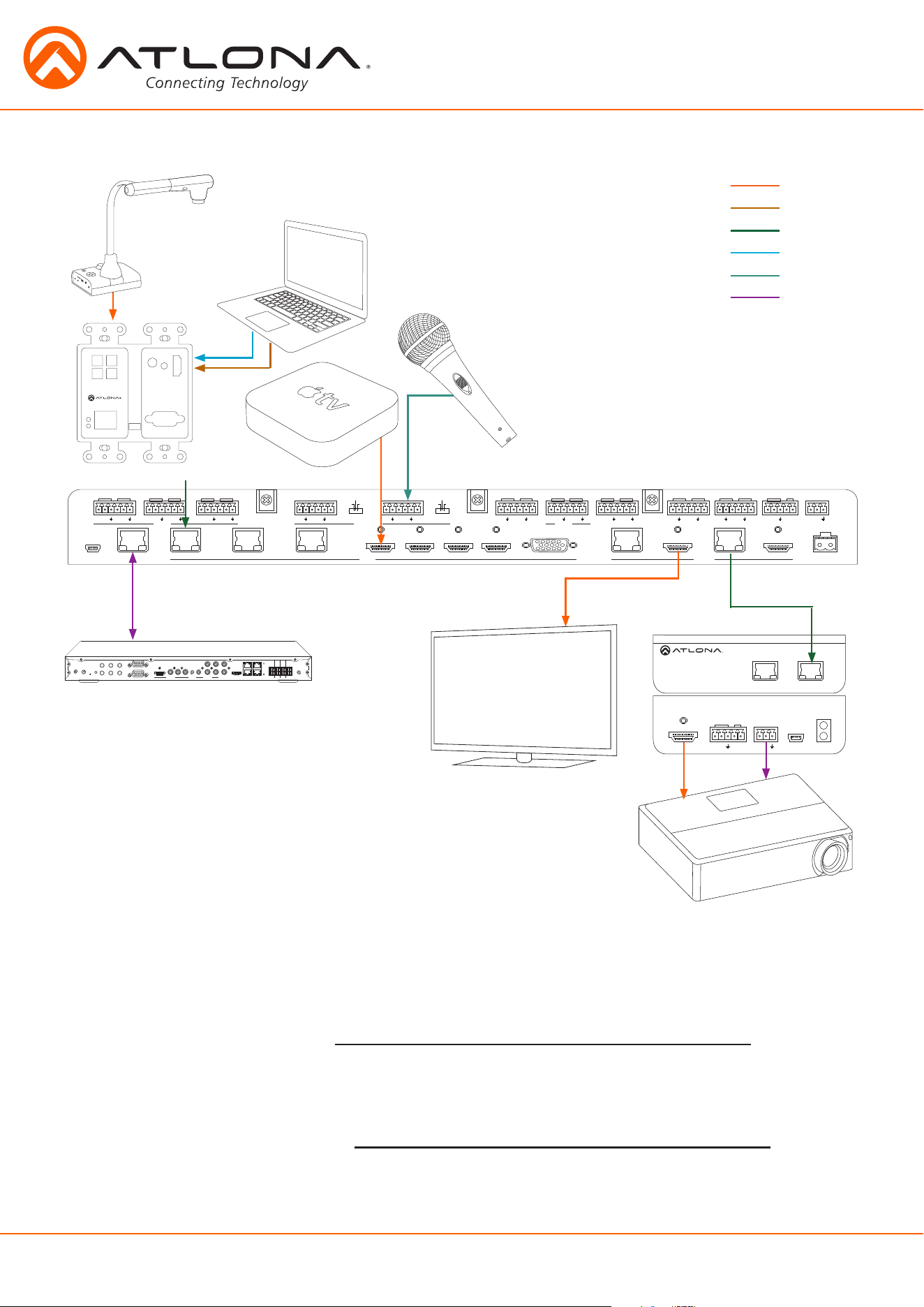
AT-HDVS-200-TX-WP
Document Camera
Microphone
AT-UHD-CLSO-824
Laptop
Media Source
Control Processor
AT-UHD-EX-100CE-RX
Visit the Firmware Update tab at http://www.atlona.com/product/AT-UHD-CLSO-824/ to
download the current updates.
Note: Atlona is constantly improving and updating features and stability. It is recommended that you check to make
sure you are on the most current firmware before installation, especially when using a control system.
Connection and Installation
LAN
1
1
2 1
2
3
4
L
R
L R
2 3
4
INPUT
AT-UHD-CLSO-824
OUTPUT
5 6
7 8
RX
RS-232 MIC/LINE IN
LINE
MIC
48V
AUDIO IN
TX RX TX RX TX RX TX
+
-
+ +
PWRIR
- -
+ - + -
<
<
DC 48V
-
+
FW
RS-232IRAUDIO OUT
MASTER
OUTIN
RX TX
+
-
+
-
5
6
1
2 3 4
5ENTER
MENU
6 7 8
RX TX
RX TX
7
8
8
1
1
2
2
RS-232
RX TX RX TX
9
10
RX TX
RX TX
LINE
MIC
48V
+
-
+
-
L R
+
-
+
-
AUDIO OUT
CAT5e/6/7 IN
ETHERNET
FIRMWARE
LINK
POWER
RS232
IR IN
HDMI OUT
AT-HDRX-RSNET
PWR
IR
RX TX
IR OUT
-
+
HDMI
VGA
HDBaseT
Audio
MIC
Control
NO
NC
COM
NO
NC
COM
NO
NC
COM
NO
NC
COM
GND
SIG
+12V
GND
SIG
+12V
GND
SIG
+12V
GND
SIG
+12V
1 2 3 4
RELAYS
WIFI 2
ZIGBEE 12V DC
IR OUT
IDFACTORY
RESTORE
SERIAL 1
SERIAL 2
HDMI
COMPONENT
VIDEO OUT
ETHERNET
CONTACTS
AUDIO OUT
AUDIO IN
WIFI 1
eSATADIGITAL
COAX OUT
1
2
3
4
5
6
L
R
FW
LINK
VOL+
VOL
-
PWR
INPUT
DISPLAY
VGA IN
AUDIO IN HDMI IN

30
atlona.com
1-408-962-0515
Specifications
Video Resolutions
Video 4096x2160@24/25/30/60Hz*, 3840x2160@24/25/30Hz (UHD), 2048x1080p,
[email protected]/24/25/29.97/30/50/59.94/60Hz, 1080i@50/59.94/60Hz,
720p@50/59.94/60Hz, 576p, 576i, 480p, 480i
VESA 2560x2048, 2560x1600, 2048x1536, 1920x1200, 1680x1050, 1600x1200,
1600x900, 1440x900, 1400x1050, 1366x768, 1360x768, 1280x1024,
1280x800, 1280x768, 1152x864, 1024x768, 800x600, 640x480
Color Space YUV, RGB
Chroma Subsampling 4:4:4, 4:2:2, 4:2:0*
Color depth 8-bit, 10-bit, 12-bit
Audio
HDMI/HDBaseT OUT PCM 2Ch, supports DTS and Dolby on input only
Sample Rate 32kHz, 44.1kHz, 48kHz, 88.2kHz, 96kHz, 176.4kHz, 192kHz
Bit rate up to 24-bit
Analog OUT PCM 2Ch (de-embedded)
Nominal Level: +4 dBu, balanced audio
Frequency Response: 20 - 20k Hz
Maximum level: +18 dBu
Maximum input: +24 dBu
Equalization: 5 band EQ w/ -12/+15 dB with center freq. at 120, 500, 1.2k, 3k, 7.5k Hz
Distance
CAT5e/6 @ 4K up to 70 meters up to 230 feet
CAT5e/6 @ 1080p up to 100 meters up to 328 feet
CAT6a/7 @ 4K up to 100 meters up to 328 feet
HDMI @ 4K up to 5 meters up to 15 feet
HDMI @ 1080p up to 10 meters up to 30 feet
Signal
Bandwidth 10.2 Gbps
CEC No
HDCP Switchable - Complaint / Non compliant
Temperature
Operating 0°C to 50°C 32°F to 122°F
Storage -20°C to 60°C -4°F to 140°F
Humidity 20 to 90% non-condensing
Power
Consumption 78.54W
Idle Consumption 3.52W
Supply Input: 100~240 VAC 50/60Hz
Output: 48 VDC 3.125A
Dimension
H x W x D 44 x 433.8 x 255 (mm) 1.73 x 17.08 x 10.04 (inch)
w/feet 55.15 x 433.8 x 255 (mm) 2.17 x 17.08 x 10.04 (inch)
Rack Unit 1U
Weight
Device 3.49 kg 7.69 lbs
Certification
Power Supply CE, FCC, cULus, RoHS, CCC, RCM
Product CE, FCC
31
atlona.com
1-408-962-0515
Safety Information
Safeguards
Precautions
FCC regulations state that any unauthorized changes or modifications to this equipment, not
expressly approved by the manufacturer, could void the user’s authority to operate this equipment.
Operate this product using only the included external power supply. Use of other power supplies
could impair performance, damage the product, or cause fires.
In the event of an electrostatic discharge this device may automatically turn off. If this occurs,
unplug the device and plug it back in.
Protect and route power cords so they will not be stepped on or pinched by anything placed on or
against them. Be especially careful of plug-ins or cord exit points from this product.
Avoid excessive humidity, sudden temperature changes or temperature extremes.
Keep this product away from wet locations such as bathtubs, sinks, laundries, wet basements, fish
tanks, and swimming pools.
Use only accessories recommended by Atlona to avoid fire, shock, or other hazards.
Unplug the product before cleaning. Use a damp cloth for cleaning and not cleaning fluid or
aerosols. Such products could enter the unit and cause damage, fire, or electric shock. Some
substances may also mar the finish of the product.
Never open, remove unit panels, or make any adjustments not described in this manual.
Attempting to do so could expose you to dangerous electrical shock or other hazards. It may also
cause damage to your product. Opening the product will void the warranty.
Do not attempt to service the unit. Disconnect the product and contact your authorized Atlona
reseller or contact Atlona directly.
To reduce the risk of electric shock, do not
expose this product to rain or moisture
If the wall plug does not fit into your local
power socket, hire an electrician to replace
your obsolete socket.
Do not modify the wall plug. Doing so will
void the warranty and safety features.
This equipment should be installed near
the socket outlet and the device should
be easily accessible in the case it requires
disconnection.
35234-R3
Warranty
To view the product warranty, use the following link or QR code:
https://atlona.com/warranty/.