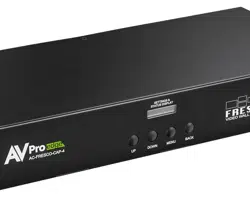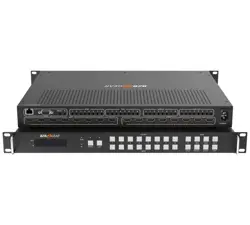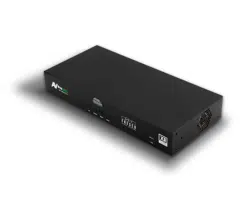

AC-FRESCO-4X
User manual
2x2 8K Video Wall Processor

Page 2 of 28
AC-Fresco-4x user manual
Contents
Important Safety Instructions ..................................................................................................................................................... 4
Safety Classifications in this Document ................................................................................................................................. 4
Electrical Shock Prevention ..................................................................................................................................................... 4
Weight Injury Prevention ......................................................................................................................................................... 4
Safety Statements .................................................................................................................................................................... 5
Introduction .................................................................................................................................................................................. 6
Features ..................................................................................................................................................................................... 6
Product Overview ......................................................................................................................................................................... 7
Box Contents ............................................................................................................................................................................ 7
Technical Specifications ........................................................................................................................................................... 7
Front and Rear Panel Overview .............................................................................................................................................. 8
Installation .................................................................................................................................................................................. 10
Rack Mounting ....................................................................................................................................................................... 10
Wiring and Connections ........................................................................................................................................................... 10
HDMI Cables .......................................................................................................................................................................... 10
USB Ports ............................................................................................................................................................................... 10
Ethernet/LAN ......................................................................................................................................................................... 10
RS-232 Control ....................................................................................................................................................................... 11
Balanced Audio Output Port ................................................................................................................................................ 11
AC Power Connection ........................................................................................................................................................... 12
Initial Setup ................................................................................................................................................................................ 12
Connecting Devices ............................................................................................................................................................... 12
Navigating the Web UI .............................................................................................................................................................. 13
Video Wall Configuration ...................................................................................................................................................... 14
Area Offset (Cropping) ...................................................................................................................................................... 14
Area Scaling (Scaling) ........................................................................................................................................................ 14
Area Scandir (Rotation) ..................................................................................................................................................... 15
Bezel compensation ......................................................................................................................................................... 15
I/O Config ............................................................................................................................................................................... 15
Input Settings ..................................................................................................................................................................... 16
Video Output Settings ...................................................................................................................................................... 17
System .................................................................................................................................................................................... 18
IP Settings .......................................................................................................................................................................... 18
IP Control ........................................................................................................................................................................... 19
Admin Web Interface ........................................................................................................................................................ 19

Page 3 of 28
AC-Fresco-4x user manual
User Web Interface ........................................................................................................................................................... 19
Hardware ........................................................................................................................................................................... 20
Cloud Services and Firmware Updates .......................................................................................................................... 20
Console ................................................................................................................................................................................... 23
Command-List ................................................................................................................................................................... 24
Troubleshooting ........................................................................................................................................................................ 26
Maintenance .............................................................................................................................................................................. 26
Damage Requiring Service ....................................................................................................................................................... 26
Support ....................................................................................................................................................................................... 26
Warranty ..................................................................................................................................................................................... 27
The Basics ............................................................................................................................................................................... 27
Coverage Details ................................................................................................................................................................... 27
Red Tape ................................................................................................................................................................................. 27
Obtaining an RMA ................................................................................................................................................................. 27
Shipping .................................................................................................................................................................................. 28
Limitation on Liability ........................................................................................................................................................... 28
Exclusive Remedy .................................................................................................................................................................. 28
Page 4 of 28
AC-Fresco-4x user manual
Important Safety Instructions
Before installing, configuring, and operating this device and other vendor equipment, AVPro Edge strongly
recommends that each dealer, integrator, installer, and all other necessary personnel access and read all the
required technical documentation, which can be located by visiting AVProEdge.com.
Read and understand all safety instructions, cautions, and warnings in this document and the labels on the
equipment.
Safety Classifications in this Document
Note:
Provides special information for installing, configuring, and operating the device with
equipment.
Tip:
Provides suggestions and considerations for installing, configuring, and operating the
device with equipment.
Important:
Provides special information critical for installing, configuring, and operating the
device with equipment.
Cau1on:
Provides special information to avoid situations that may cause damage to the device
and other equipment.
Warning:
Provides special information for avoiding situations that may cause physical danger to
the installer, end-user, etc.
Electrical Shock Prevention
Electric Shock:
Provides special information critical for installing, configuring, and operating the
devices and equipment.
Electrical Disconnect:
Provides special information to avoid situations that may cause damage to the
devices and equipment.
Weight Injury Prevention
Weight Injury:
Two installers may be required to ensure safe handling during the installation of
some devices and equipment. Failure to use two installers may result in injury.

Page 5 of 28
AC-Fresco-4x user manual
Safety Statements
Follow all of the safety instructions listed below and apply them accordingly. Additional safety information will
be included where applicable.
1 Read and keep these instructions.
2 Heed and follow all warnings.
3 Clean devices and equipment only with a dry cloth.
4 Do not use the devices near water or expose them to rain and moisture.
5 Do not block any ventilation openings.
6 The devices and accessories should never be exposed to flames or excessive heat.
7 Only use attachments and accessories specified by the manufacturer.
8 Install in accordance with the manufacturer’s instructions.
9 Do not install near any heat sources, such as radiators, heat registers, stoves, or other heat apparatus.
10 Do not defeat the safety purpose of the polarized / grounding-type plug. A polarized plug has two
blades, one wider than the other. A grounding-type plug has two blades and a third grounding prong.
The wide blade, or third prong, is provided for your safety.
11 Protect the power cord from being walked on or pinched, particularly at plugs, convenience receptacles,
and where they exit from the devices.
12 Unplug the devices during lightning storms or when unused for long periods.
13 Never handle or touch the devices and power cord with damp hands to reduce the risk of electrical
shock or damage to them and their operators.
14 To reduce the risk of injury, some devices and equipment may require two installers to ensure safe
handling during installation. Failure to use two installers may result in injury.
15 Refer all servicing to qualified service personnel. Servicing is required when the devices have been
damaged in any way, such as the power cord or plug, liquid spilled, objects fallen into the devices,
exposed to rain or moisture, do not operate normally, or have been dropped.
Page 6 of 28
AC-Fresco-4x user manual
Introduction
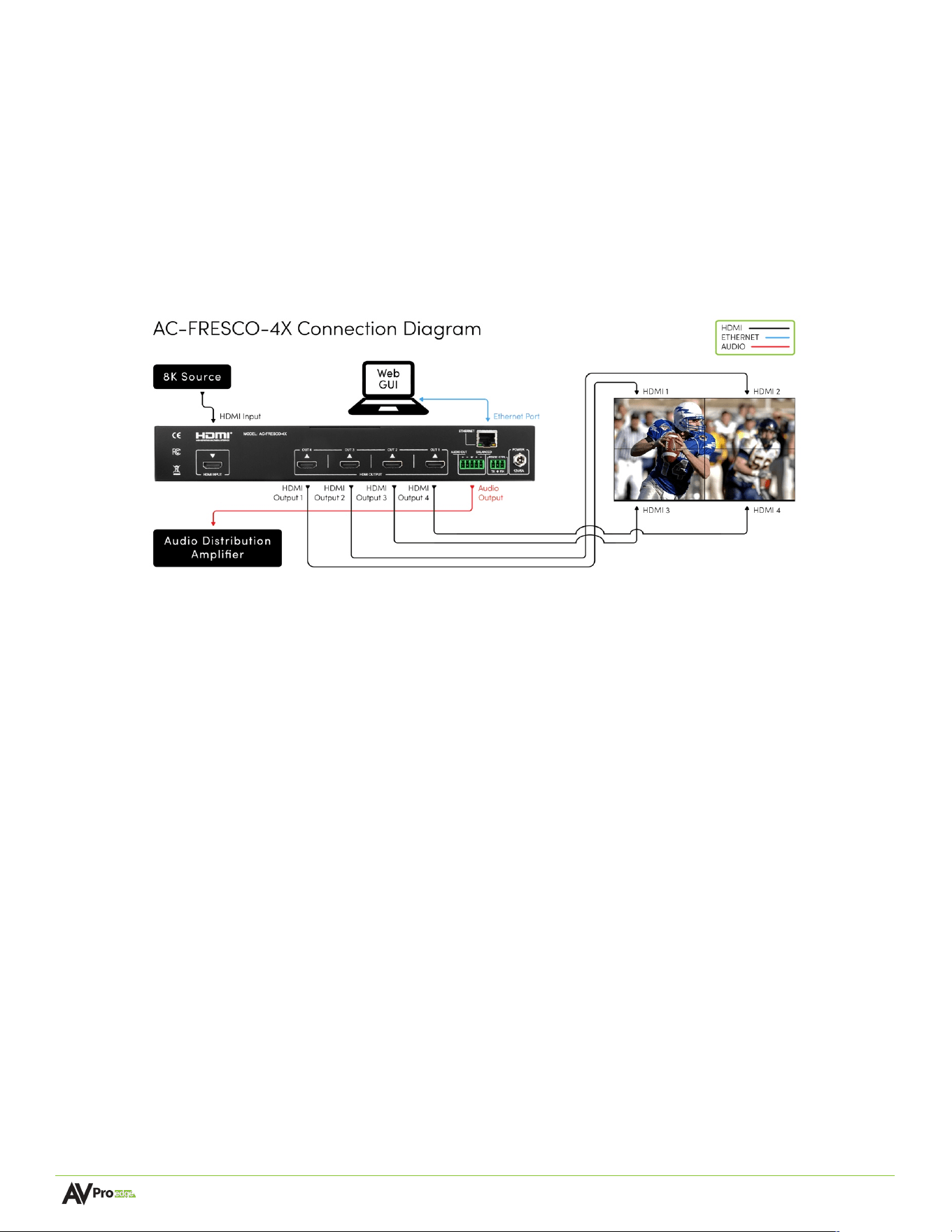
The AC-FRESCO-4X is a 48 Gbps 8K 2x2 video wall processor. The unit supports one HDMI source up to 8K/60 Hz
4:2:0 / 4K/120 Hz 4:4:4 with four HDMI outputs capable of 4K/60 Hz 4:4:4. High Frame Rate and Variable Refresh
Rate support enables the AC-FRESCO-4X to process signals from next-gen gaming consoles and gaming PCs for
stable video wall performance. This video wall processor features powerful but easy-to-use cropping and scaling,
controlled by an intuitive web interface and the front panel display. Audio embedding enables extraction from
HDMI source content for output to an AVR or surround sound processing.
The diagram below shows the basic application of the AC-FRESCO-4X:
Features
•
HDMI sources up to 48 Gbps 8K/60 Hz with HDR
•
Web interface and front panel for quick deployment and easy maintenance
•
Variable to fixed refresh rate scaling to support latest generation gaming consoles or PCs
•
Advanced EDID management contends legacy display or mixed-display videowall issues
•
Scaling, cropped, and bezel compensation to customize video wall output
•
Audio de-embedding for balanced audio extraction to external audio and surround sound systems
•
RS-232 interface for control system integration

Page 7 of 28
AC-Fresco-4x user manual
Product Overview
Box Contents
(1x) AC-FRESCO-4X 2x2 Video Wall Processor
(2x) 1RU Rack Mounting Brackets
(6x) Screws for Mounting Brackets
(1x) 5-Pin Euroblock Connector
(1x) 3-Pin Euroblock Connector
(1x) 12 VDC Locking Power Supply
Technical Specifications
Video Input
Video Resolutions
Up to 8K/60 Hz 4:2:0, 4K/120 Hz 4:4:4
HDR Formats
HDR10, HLG
Color Space
YUV (Component), RGB
(CSC: ITU-R BT.601, ITU-R BT.709, ITU-R BT.2020, DCI-P3 D65)
Chroma Subsampling
4:4:4, 4:2:2, 4:2:0
Deep Color
Up to 16-bit
Scaling
Auto, Force 4K, Force 1080p
HDCP
HDCP 2.3 and earlier
Video Output
Video Resolutions
Up to 4K/60 Hz
HDR Formats/Resolutions
HDR10, HLG
Color Space
YUV (Component), RGB
(CSC: ITU-R BT.601, ITU-R BT.709, ITU-R BT.2020, DCI-P3 D65)
Chroma Subsampling
4:4:4, 4:2:2, 4:2:0
Deep Color
Up to 16-bit
Scaling
Auto, Force 4K, Force 1080P
HDCP
HDCP 2.3 and earlier
Audio
Audio Formats Supported by HDMI
PCM 2.0-Ch., LPCM 5.1 & 7.1, Dolby Digital, Dolby Digital Plus,
Dolby TrueHD, Dolby Atmos, DTS 5.1, DTS-HD Master Audio,
DTS:X
Audio Formats Supported Extracted (2-Ch. Port)
PCM 2.0-Ch.
DISTANCE
HDMI In/Out
Up to 13 ft. (8K/30 Hz) or 49 ft. (4K/120 Hz)**
HDMI In/Out (w/ AOC Cable)
Up to 130 ft. (4K/60 Hz, 18 Gbps AOC)**
control
Front Panel
LCD Screen with 4-button navigation
Ports
LAN, RS-232, USB-C
Web Interface
Yes
Ports
HDMI
Type-A
LAN
RJ45 w/ Web Interface
Audio (Extracted Analog)
5-pin Euroblock (Balanced)
RS-232
3-pin Euroblock
ISP/CTL
USB-C
Environmental
Page 8 of 28
AC-Fresco-4x user manual
Operating Temperature
23° to 125° F (-5° to 51° C)
Storage Temperature
-4° to 140° F (-20° to 60° C)
Humidity Range
5% to 90% RH (No Condensation)
Power
Power Consumption (Total)
40 W Maximum
Power Supply
Input: 100-240 VAC ~ 50/60 Hz
Output: 12 VDC, 5 A
Physical / Dimensions
Mounting
1-RU Rack Mounting Brackets
Rubber Feet
Dimensions (Unit Length/Width/Height)
mm: 136.652 X 295.402 X 45.212
in: 5.38 X 11.625 X 1.781
Dimensions (Packaged Length/Width/Height)
mm: 219.075 X 388.950 X 65.1
in: 8.625 X 15.313 X 2.563
Weight (Unit)
2.875 lbs. (1.3041 kg)
Weight (Packaged)
4.394 lbs. (1.9931 kg)
Regulatory
CE/FCC
Product Warranty
10 Years
*Specifications are subject to change without notice. Mass and dimensions are approximate.
**Distances achieved with Bullet Train HDMI and AOC cables.
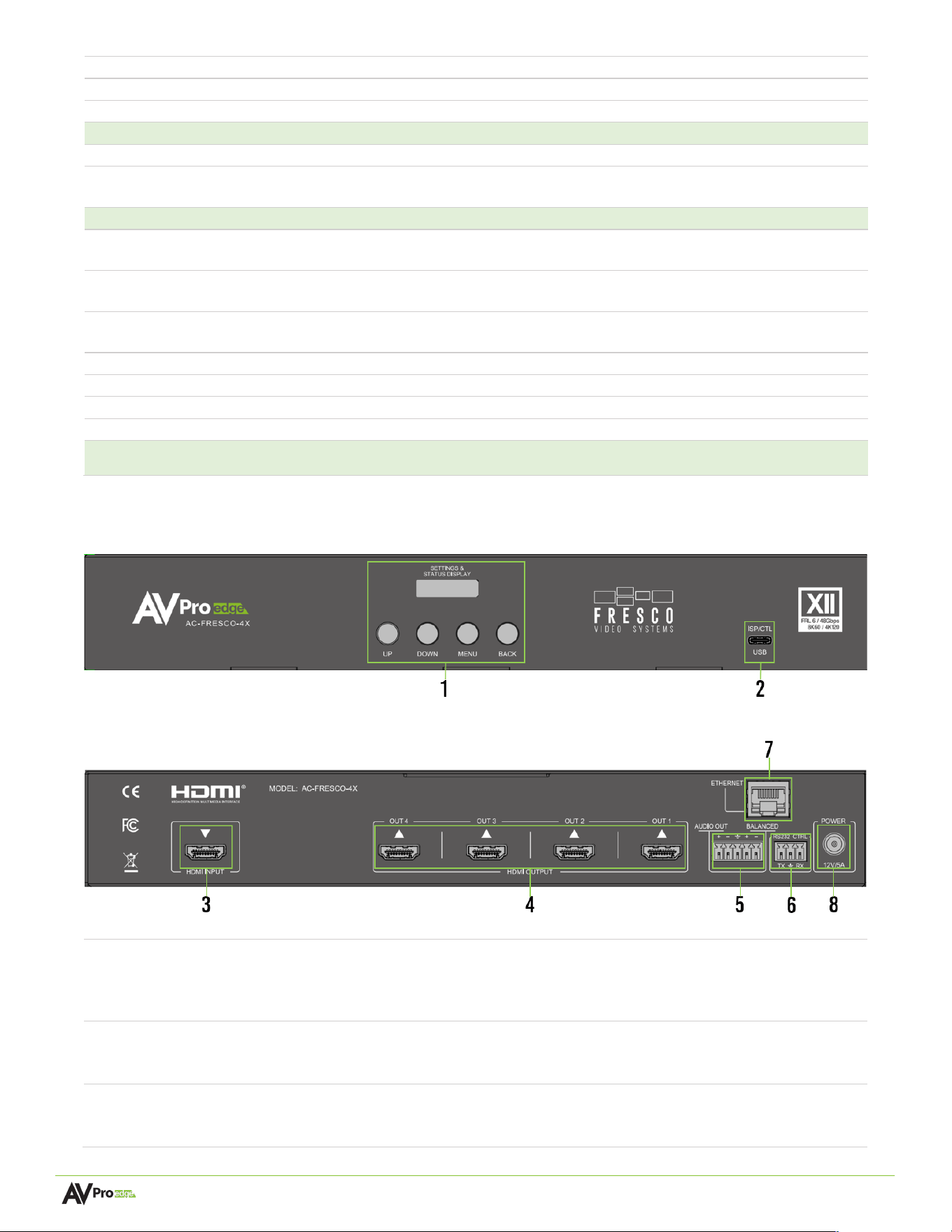
Front and Rear Panel Overview
Front Panel
Rear Panel
1
Front Panel with 4-button
control
• Front panel display for settings and status
• Up, Down, Menu, and Back buttons for navigation
• IP settings and EDID can be changed from the front panel
2
ISP / CTL USB-C
• USB Type-C female connector port
• Servicing port for AVPro Edge Technical Support
3
HDMI Input
• 19-pin HDMI Type-A female connector port
• Source input with HDMI connection

Page 9 of 28
AC-Fresco-4x user manual
4
HDMI Output (1-4)
• (4x) 19-pin HDMI Type-A female connectors
• Downscales incoming 8K signal to four separate HDMI outputs for
video wall displays
5
Balanced Audio Output
• 5-pin Euroblock connector port
• Balanced stereo audio output
6
RS232 CTRL
• 3-pin Euroblock connector port
7
Ethernet
• 8-pin RJ45 female connector
• Web interface access for control and maintenance
8
Power In
• Barrel connector
• 12 VDC / 5 A power input

Page 10 of 28
AC-Fresco-4x user manual
Installation
Rack Mounting
The AC-FRESCO-4X is one RU in height and may be mounted in any compatible standard 19-inch wide enclosure.
Two mounting brackets are included with the unit.
1 Align the holes on the mounting brackets with the holes on both sides of the rack.
2 Attach the mounting brackets to the rack with rack screws (not included).
Wiring and Connections
HDMI Cables
The AC-FRESCO-4X uses standard 19-pin HDMI female ports for input and output connections.
Important things to consider when planning or installing this device:
• Ensure all HDMI cables and devices support the input signal. With 8K sources, ultra-high-
bandwidth/Ultra High Speed HDMI cables rated for 48 Gbps are recommended. For 4K and lower
resolutions, High-Speed HDMI cables with Ethernet rated for 18 Gbps are sufficient if all connected
devices are rated to handle the signal.
• Ensure HDMI cables are the correct length. AVPro engineers have determined that HDMI cables 2
meters and longer help eliminate EDID and HDCP issues associated with shorter HDMI cable lengths.
USB Ports
The device has one USB Type-C port. This is a service port intended for AVPro Edge technical support if
troubleshooting or testing is required.
Ethernet/LAN
The NETWORK/LAN port on the rear panel communicates with the AC-FRESCO-4X via a LAN, router, or third-
party control system processor and uses a standard RJ45 connector plug.
Type-C
C
Page 11 of 28
AC-Fresco-4x user manual
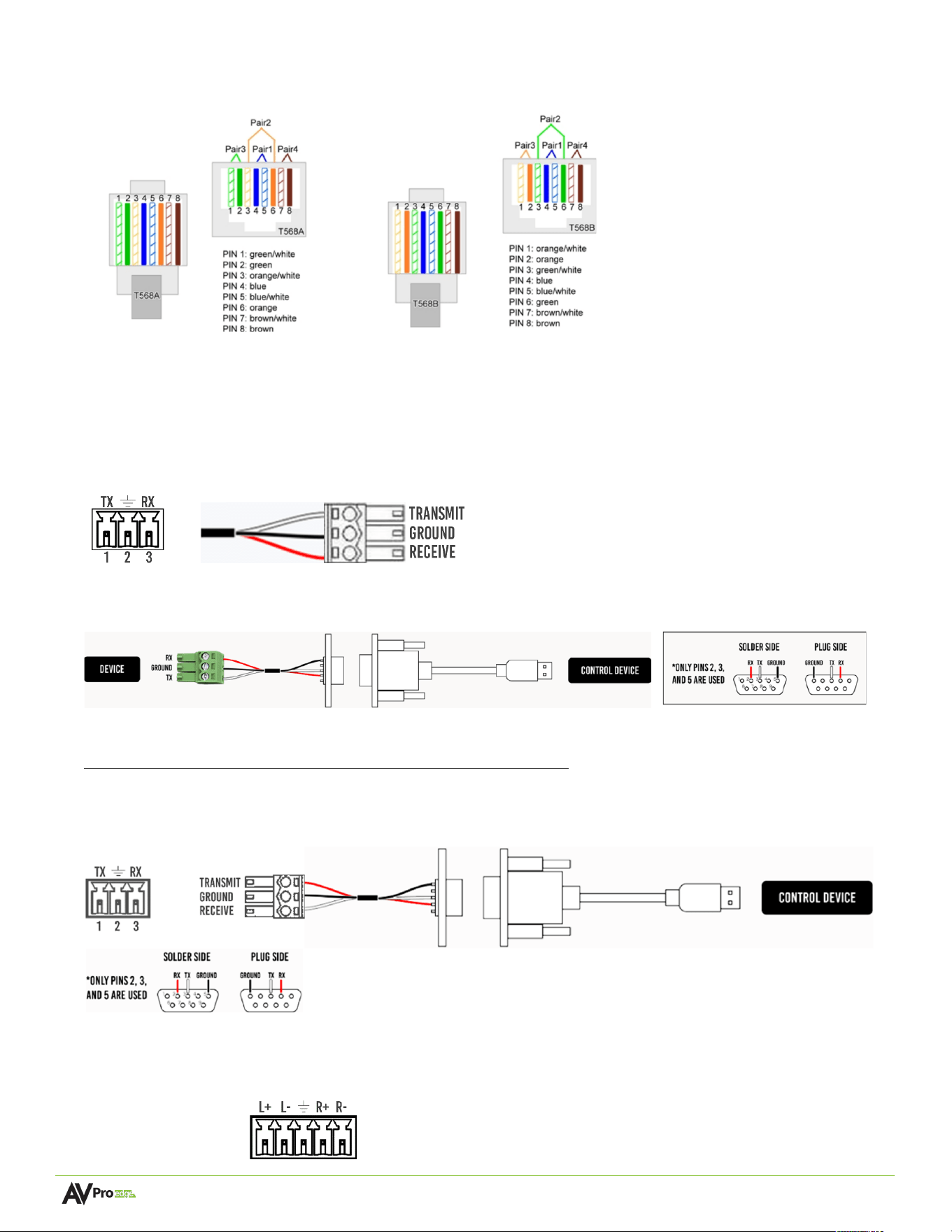
The recommended termination is based on the TIA/EIA T568A or T568B standards for the wiring of the twisted
pair cables. For TCP/IP control, commands use Telnet port 23.
RS-232 Control
The RS-232 control port on the rear panel allows a computer or third-party control system to communicate with
the AC-FRESCO-4X.
Serial control connections are made using the provided 3-pin Euroblock connector. Insert the wire into the
appropriate hole, then secure it by tightening the screw located at the top of the connector.
Wiring for this port uses a 3-pin Euroblock-to-DB9 connector, where only pins 2, 3, and 5 are used. If the control
devices do not have a DB9 port, a USB-to-DB9 adapter may be required.
For RS-232 control, use a null modem serial cable adapter and set the serial communications to:
Baud: 57600, no parity, 8 data bits, 1 stop bit, with no handshaking.
Add a carriage return (Enter key) after each command when using direct commands. The unified command list
(ASCII) can be found here.
Balanced Audio Output Port
The AC-FRESCO-4X has one 5-pin Euroblock balanced audio output port.
T568A T568B
Page 12 of 28
AC-Fresco-4x user manual
AC Power Connection
Electric Shock:
Use a surge-protected circuit for all components and power supplies.
Electrical Disconnect:
The power source outlet and power supply input sockets should be easily accessible
to disconnect power in the event of an electrical hazard or malfunction.
Initial Setup
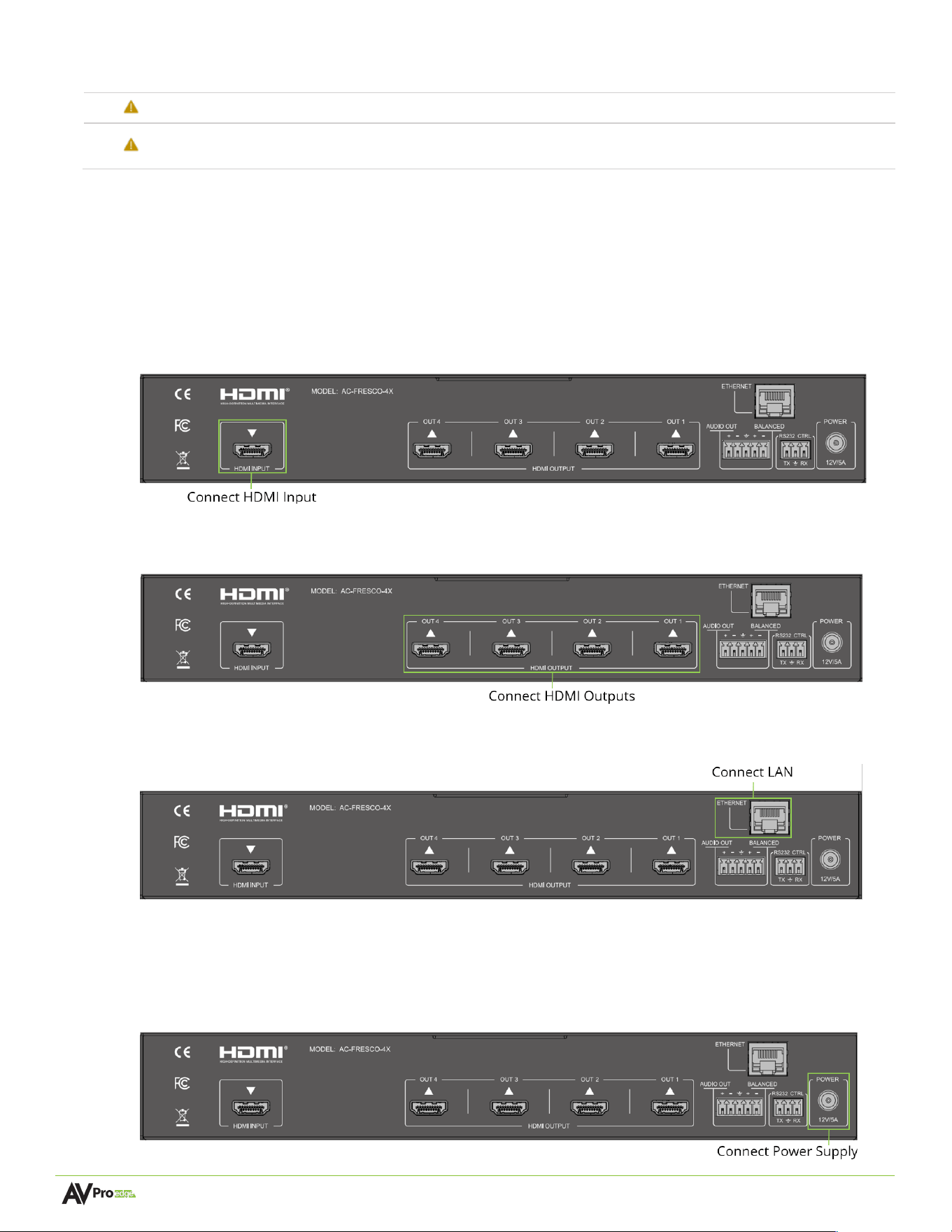
Use the steps below to connect physically to the input and output devices. For the initial setup, once all the physical
connections are made, connect the AC-FRESCO-4X to a LAN (Local Area Network) using a control PC on the same
network and then access the Web UI.
Connecting Devices
1 Connect an HDMI input source to the HDMI INPUT connector on the rear of the AC-FRESCO-4X.
2 Connect video wall HDMI display cables to the HDMI OUTPUTS on the rear of the AC-FRESCO-4X.
Connect an RJ45 cable from the ETHERNET port of the AC-FRESCO-4X to the LAN or a PC.
3 Power on the source connected to the HDMI INPUT port.
4 Power on the video wall displays connected to the HDMI OUTPUT ports.
5 Connect the 12 VDC power supply to the POWER input port on the rear of the AC-FRESCO-4X and plug it
into a suitable power source.
Page 13 of 28
AC-Fresco-4x user manual
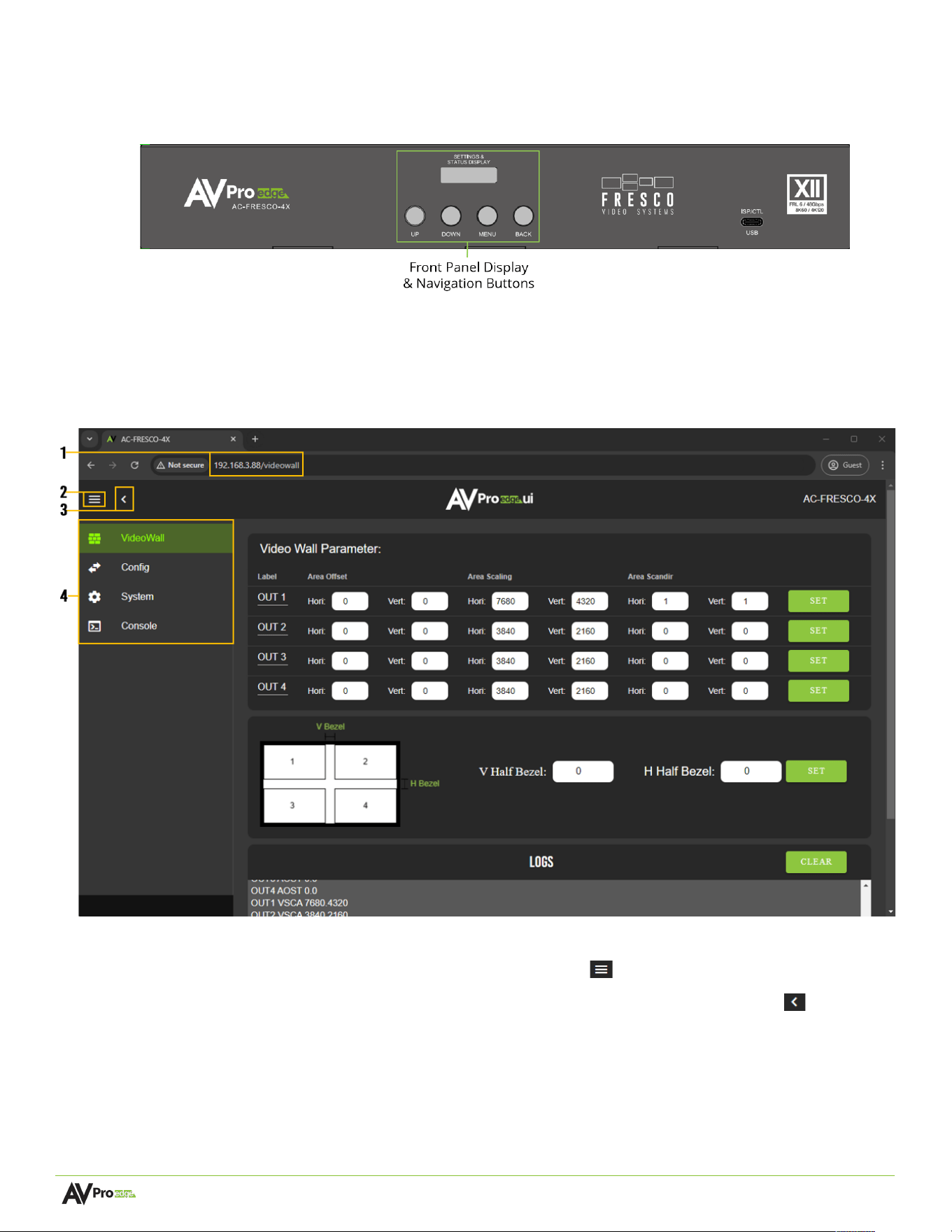
6 To check the current IP settings, use the front panel display and buttons to navigate to the NET menu
option. Press MENU, DOWN, and then MENU for IP settings.
Navigating the Web UI
The AC-FRESCO-4X features a built-in User Interface (UI) that can be accessed through a web browser for
configuration and control. Different tools and settings can be selected from the tab pages on the navigation menu
column on the left side of the screen.
1 Enter the unit IP address into a web browser like Chrome or Edge to access the Web UI.
2 To hide the navigation menu, select the hamburger menu icon .
3 Select the left arrow icon to hide the navigation menu text and show only the menu icons .
4 Select the individual tab pages from the navigation menu to navigate through the different pages. This
will highlight the tab page in green to indicate the currently selected page.
Page 14 of 28
AC-Fresco-4x user manual
Video Wall Configuration
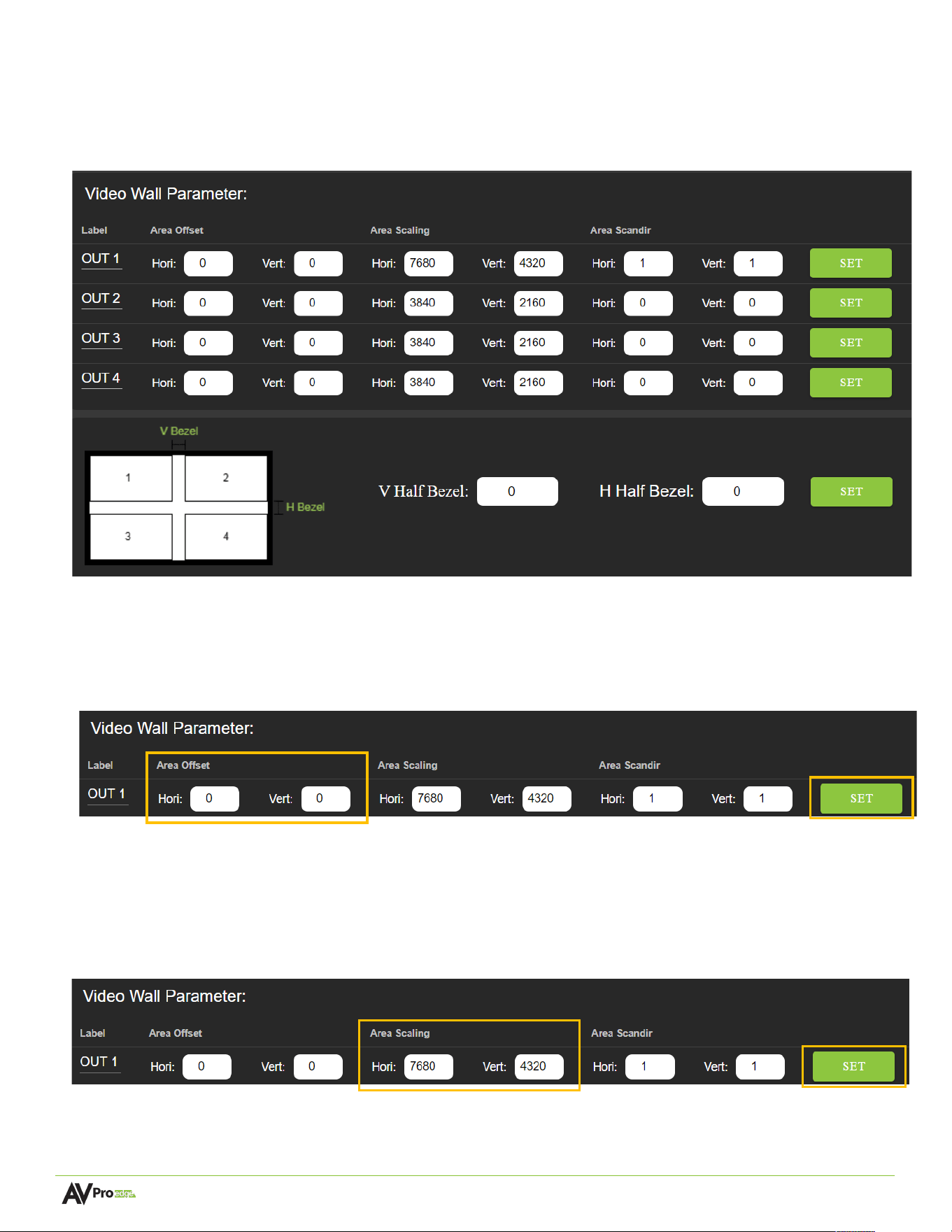
The Video Wall page layout consists of scaling, cropping, and rotation settings for the four HDMI outputs and
display bezel compensation. Each output has horizontal and vertical values to manipulate the aspect ratio
parameters for each video output.
Area Offset (Cropping)
Enter the Horizontal (Hori) and Vertical (Vert) values or use the Up/Down arrows in the dialog boxes to
adjust the image displayed from an HDMI output and to crop the image to the desired horizontal and
vertical values. To apply these settings, click the SET button.
Area Scaling (Scaling)
Enter the Horizontal (Hori) and Vertical (Vert) values or use the Up/Down arrows in the dialog boxes to
adjust the resolution of the selected area for display on an HDMI output. These settings scale the image to
the desired horizontal and vertical values. To apply these settings, click the SET button.
Page 15 of 28
AC-Fresco-4x user manual
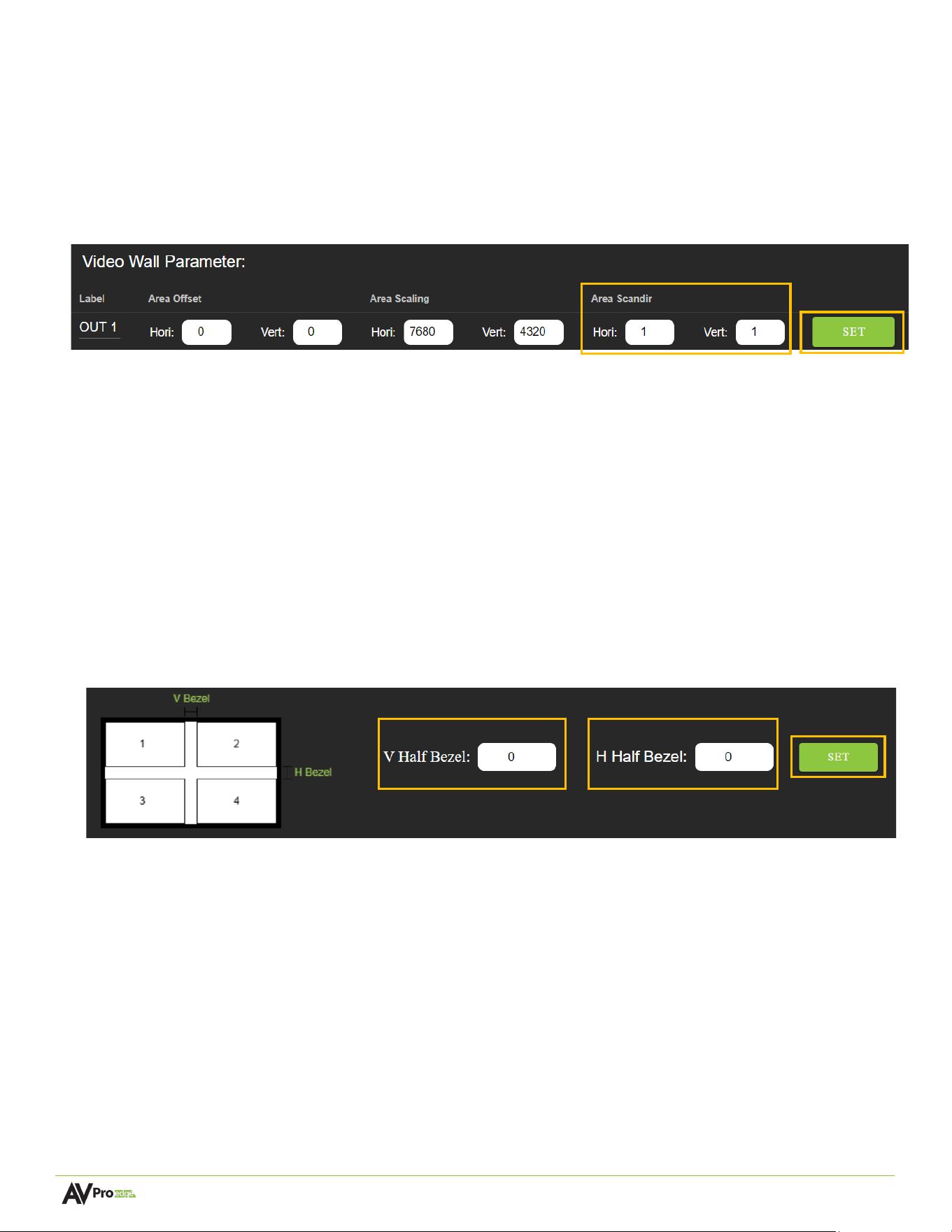
Area Scandir (Rota<on)
Enter 0 or 1 in the Horizontal (Hori) and/or Vertical (Vert) dialog boxes, or use the Up/Down arrows to adjust
the image rotation on the HDMI output.
•
A value of 1 rotates the image 180 degrees along the corresponding axis (horizontal or vertical).
•
A value of 0 turns off rotation.
To apply these settings, click the SET button.
Bezel compensa<on
Bezel compensation settings on the AC-FRESCO-4X adjust the displayed content to appear seamless across
multiple screens, accounting for the physical borders (bezels) of the monitors/displays in the video wall.
To configure bezel compensation:
1 Use a ruler or calipers to accurately measure the physical width of the bezel (the gap between two
adjacent displays) in millimeters.
2 Divide this measurement in half.
3 Enter the resulting value into the V Half Bezel or H Half Bezel dialog boxes, depending on the vertical
or horizontal alignment of the four displays.
4 To apply these settings, click the SET button.
I/O Config
The Config tab page features tools and settings for configuring HDMI inputs and outputs.
Page 16 of 28
AC-Fresco-4x user manual
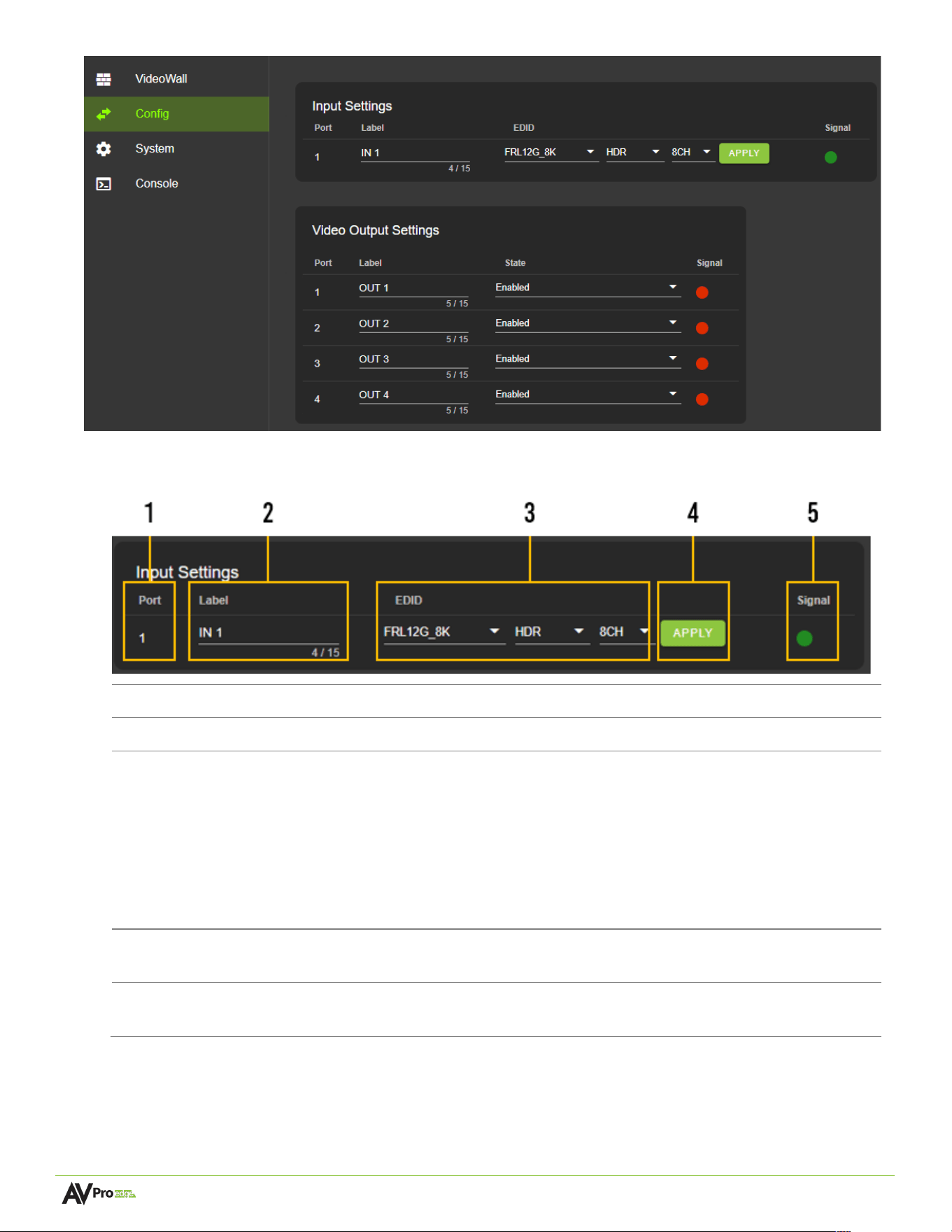
Input SeAngs
1
Port
Indicates the HDMI input port number.
2
Label
Select the text field to enter a custom name for the input. (
Limited to 15 characters
)
3
EDID
Select the EDID from the drop-down menu. The first drop-down group configures
resolution and refresh rate. The second drop-down group configures dynamic range,
with options for HDR or SDR. The third drop-down group configures the audio
channels with 2CH, 6CH, and 8CH options.
NOTE:
When selecting USER1, USER2, or USER3 EDID, the drop-down menus will
update, allowing the user to choose an HDMI Out to copy EDID values. Select one of
the four HDMI Outs and click the COPY button to apply (this replaces the APPLY
button).
4
APPLY
This button applies the settings to the HDMI Input.
NOTE:
This button will change to COPY when selecting USER1, USER2, or USER3.
5
Signal
Shows the status of the HDMI Input. Green indicates the HDMI input has been
detected; red indicates the HDMI connection or device has not been detected.
Page 17 of 28
AC-Fresco-4x user manual
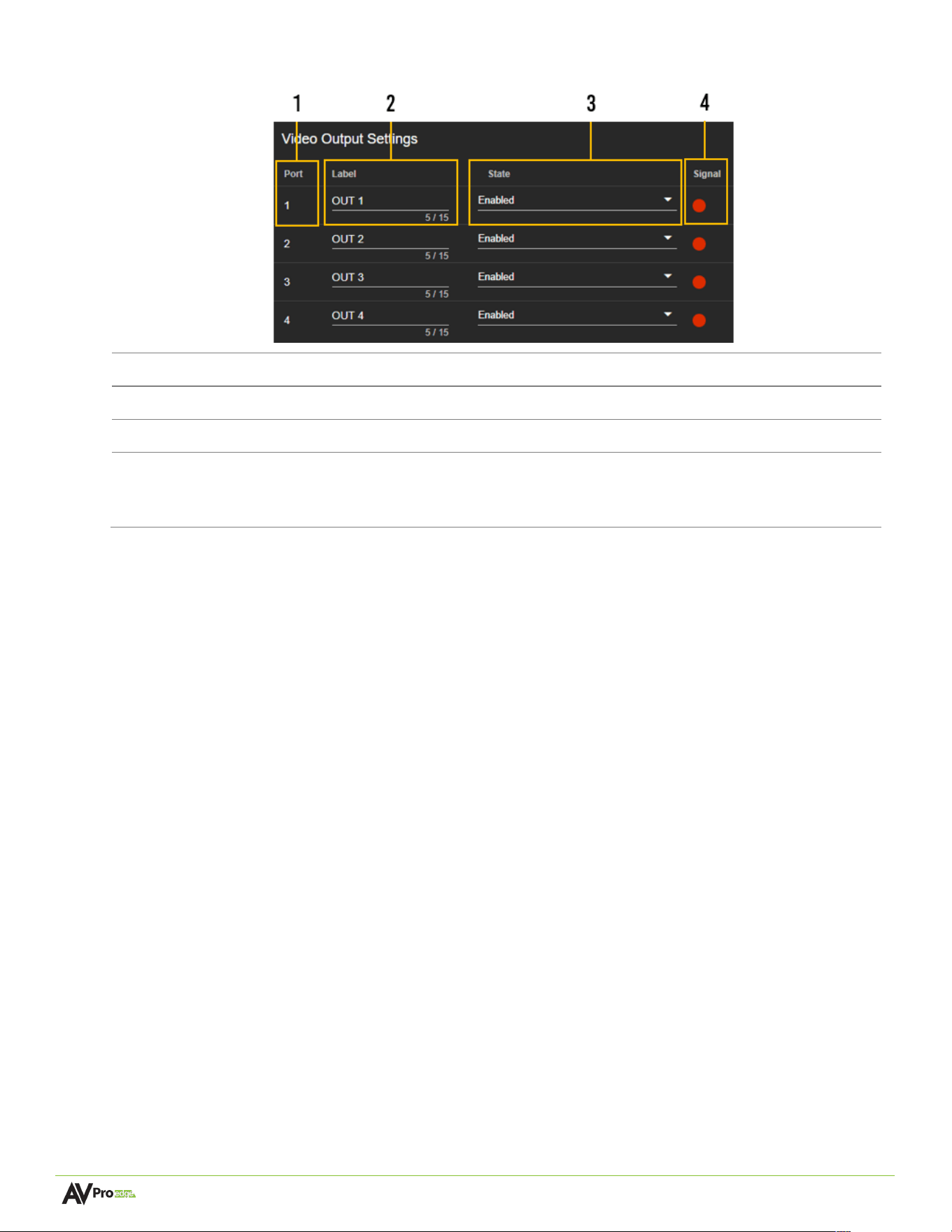
Video Output SeAngs
1
Port
Indicates the HDMI output port number.
2
Label
Select the text field to enter a custom name for the output.
(
Limited to 15 characters
)
3
State
Use the drop-down to turn the HDMI output on or off.
4
Signal
Shows the status of the HDMI Output. Green indicates the HDMI output has been
detected, and red indicates the HDMI output connection or device has not been
detected.
Page 18 of 28
AC-Fresco-4x user manual
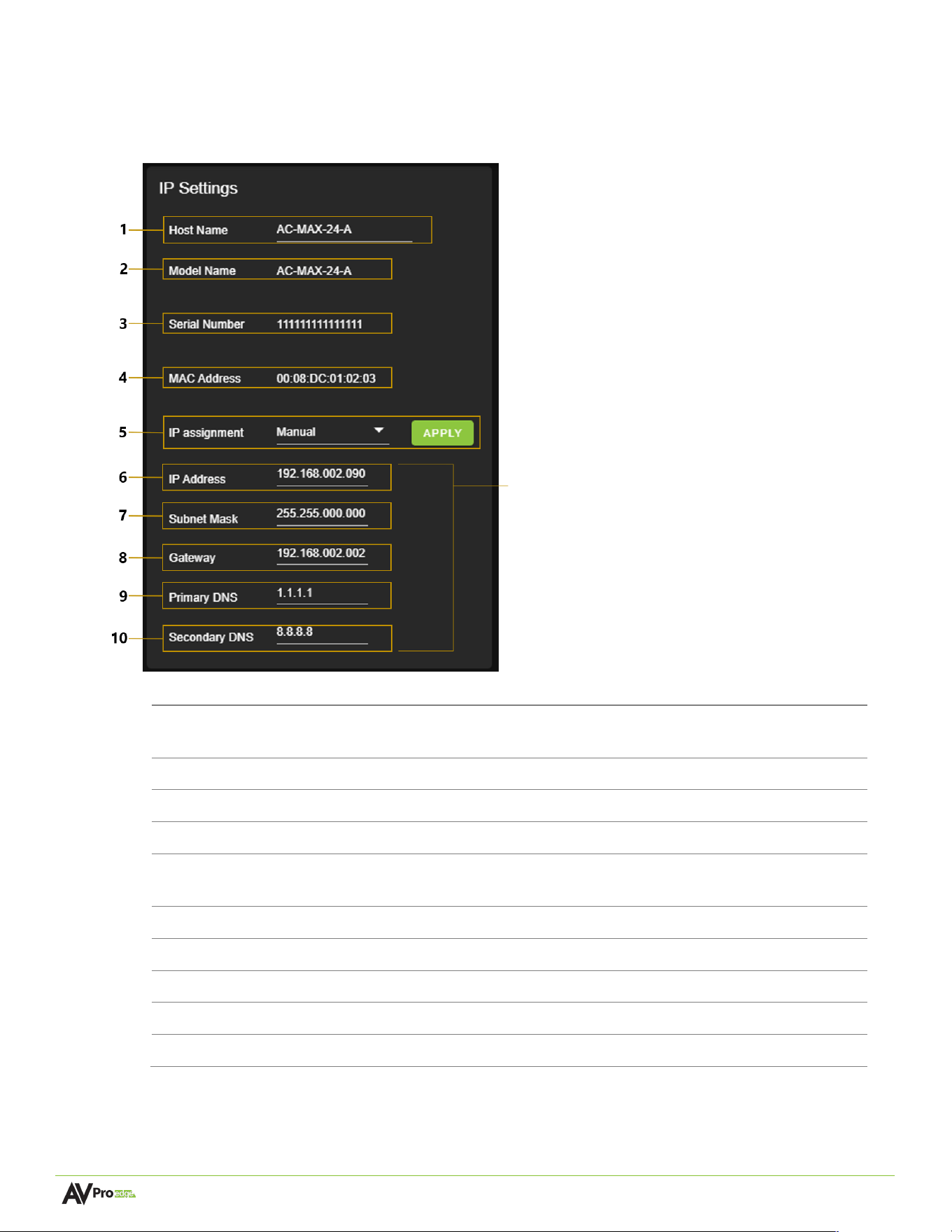
When the IP Assignment is set to Automatic,
these will be assigned by a DHCP reservation
from the router, or they can be manually
entered when the IP Assignment is set to Manual.
Select the Apply button when manually entering
the IP Assignment, IP Address, Subnet Mask,
Gateway, Primary DNS, and Secondary DNS for
changes to take effect.
System
IP SeAngs
1
Host Name
Select the text field to enter a custom name for the unit. The
default shows its model number.
2
Model Name
Shows the AVPro Edge model number.
3
Serial Number
Shows the unique serial number.
4
MAC Address
Shows the unique MAC address.
5
IP Assignment
Select the dropdown menu to set the unit’s IP mode to
DHCP
(default) or
Manual
(
Static IP
), then select the
Apply
button.
6
IP Address
Shows the IP address.
7
Subnet Mask
Shows the subnet mask.
8
Gateway
Shows the default gateway.
9
Primary DNS
Shows the primary domain name server.
10
Secondary DNS
Shows the secondary domain name server.
Page 19 of 28
AC-Fresco-4x user manual
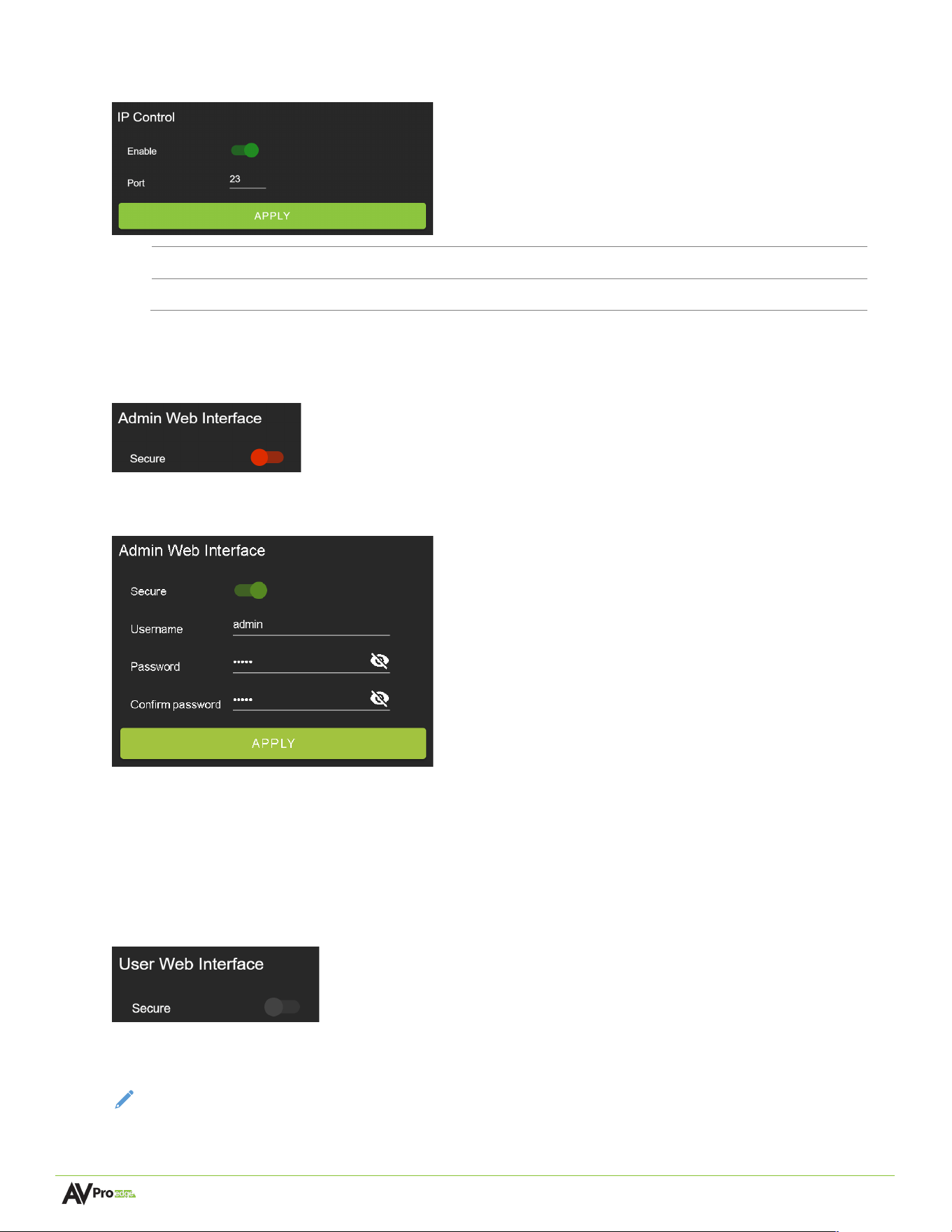
IP Control
1
Enable
Select the toggle switch to turn IP/TCP control on or off.
2
Port
Select the text field to set the Telnet port. The default is Telnet port 23.
Admin Web Interface
Select the Secure toggle switch to enable (green) or to turn off (red). When enabled, the username and
password can be changed.
With the Admin Web Interface enabled, the only menu accessible on the Web UI will be the Video Wall tab
page. The rest of the settings will require the Admin login.
Default username: admin
Default password: admin
User Web Interface
Select the Secure toggle switch to enable (green) or turn off (grey). When enabled, the username and
password can be changed.
NOTE:
The
Admin Web Interface
must be enabled before changing this setting.
Page 20 of 28
AC-Fresco-4x user manual
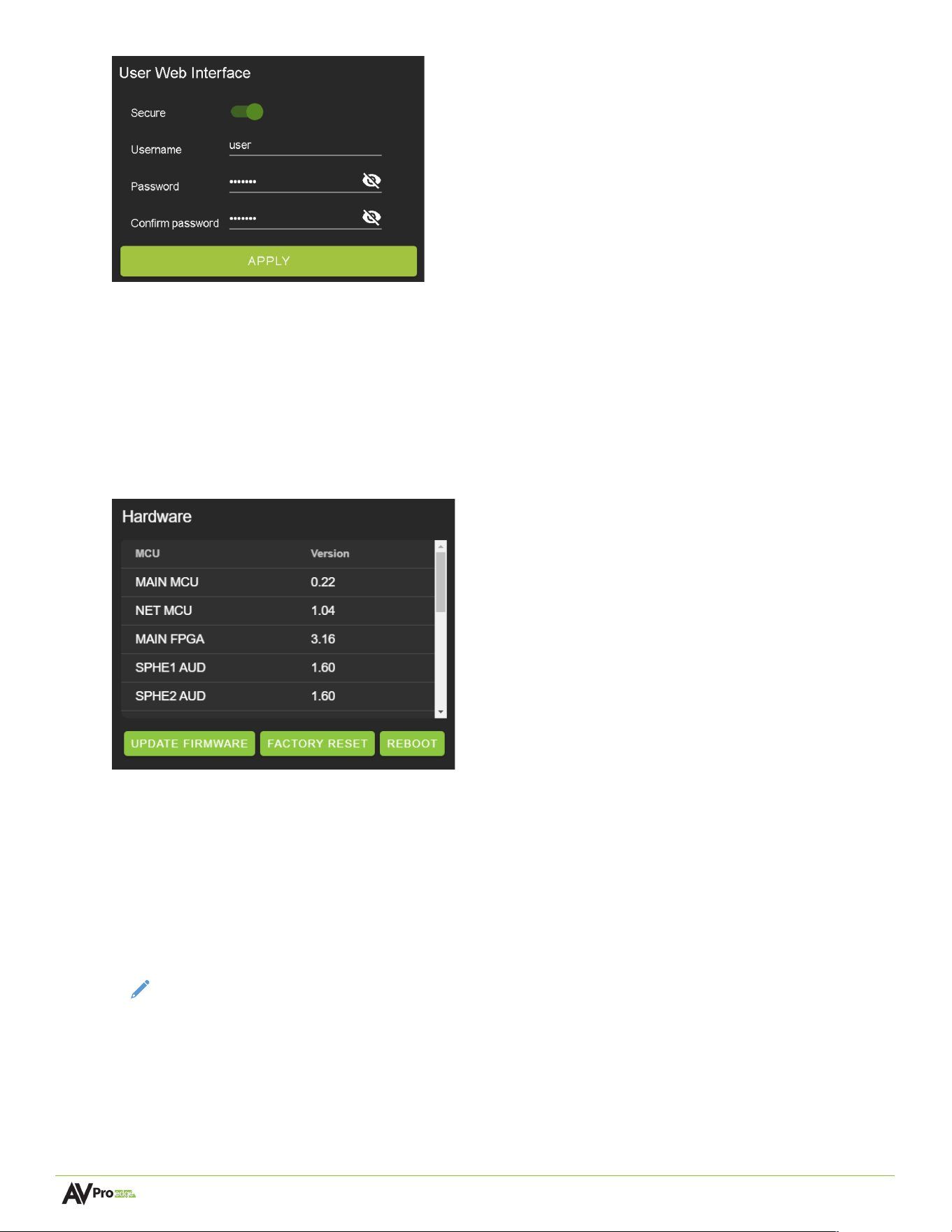
With the Admin and User Web Interfaces enabled, the Web UI menus are inaccessible without first logging in.
After logging in with User credentials, the only menu accessible on the Web UI will be the Video Wall tab
page. The rest of the settings will require the Admin login.
Default username: user
Default password: user123
Hardware
This section shows the unit’s current firmware versions and provides options for updating firmware, factory
resetting, and rebooting the unit.
Cloud Services and Firmware Updates
Cloud Services allows OTA (Over-the-Air) firmware updates on the unit. This allows the unit to search the
Cloud for the latest firmware versions and enable third-party remote management services. If the Cloud
Services setting is turned off, the unit will opt out of any previously enabled services and cannot access OTA
firmware updates.
NOTE:
When updating firmware, some settings and configurations may revert to their original factory
default settings and may need to be re-applied after the updates are complete. It is always recommended
that settings and configurations are backed up before updating firmware.
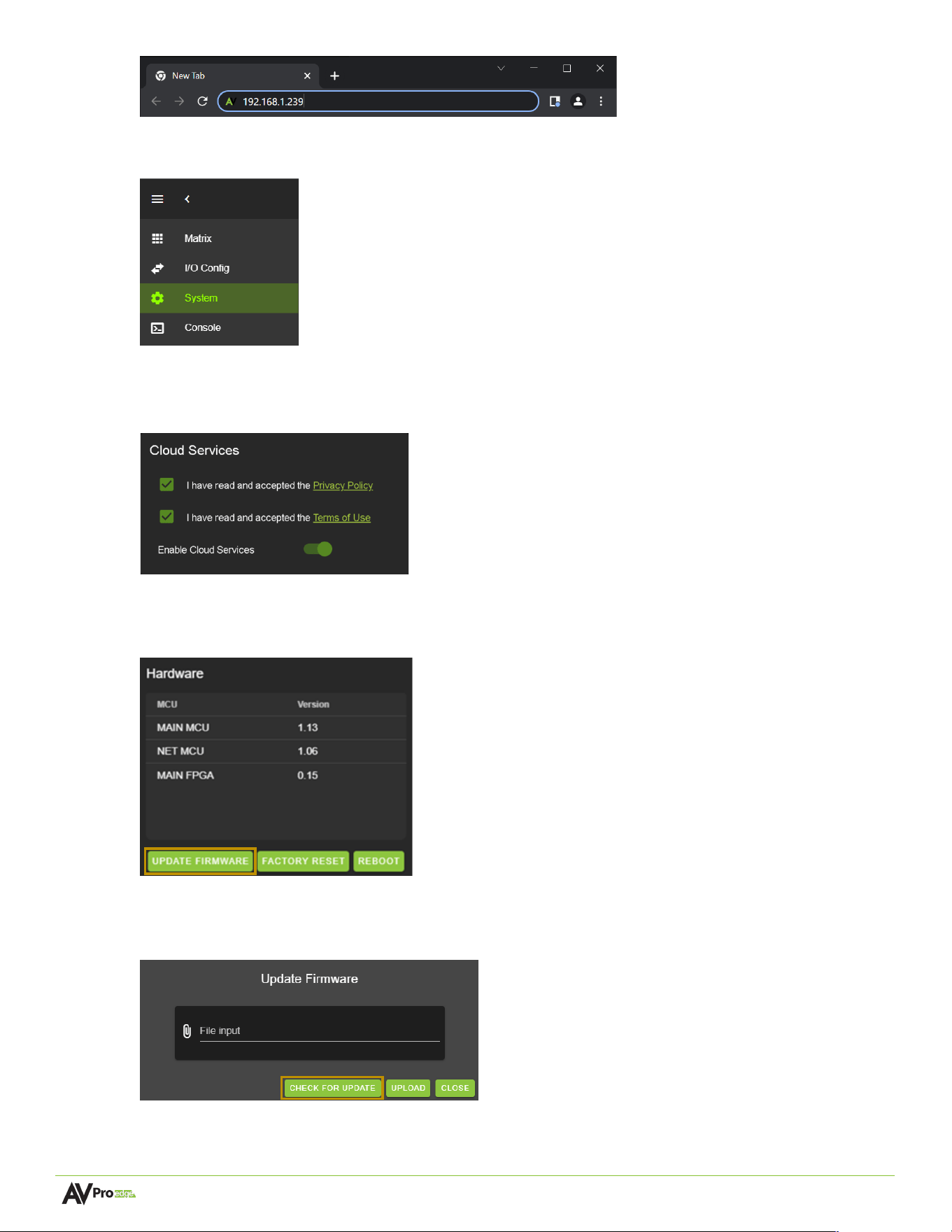
1 Enter the unit IP address into a Chrome or Edge web browser to access the Web UI.
Page 21 of 28
AC-Fresco-4x user manual
2 Navigate to the System tab page.
3 Review the Privacy Policy and Terms of Use in the Cloud Services section, then check both boxes and
select the Enable Cloud Services toggle setting.
IMPORTANT:
This is required for the unit to perform OTA
firmware updates.
4 In the Hardware section, select the Update Firmware button. A new dialog box will open.
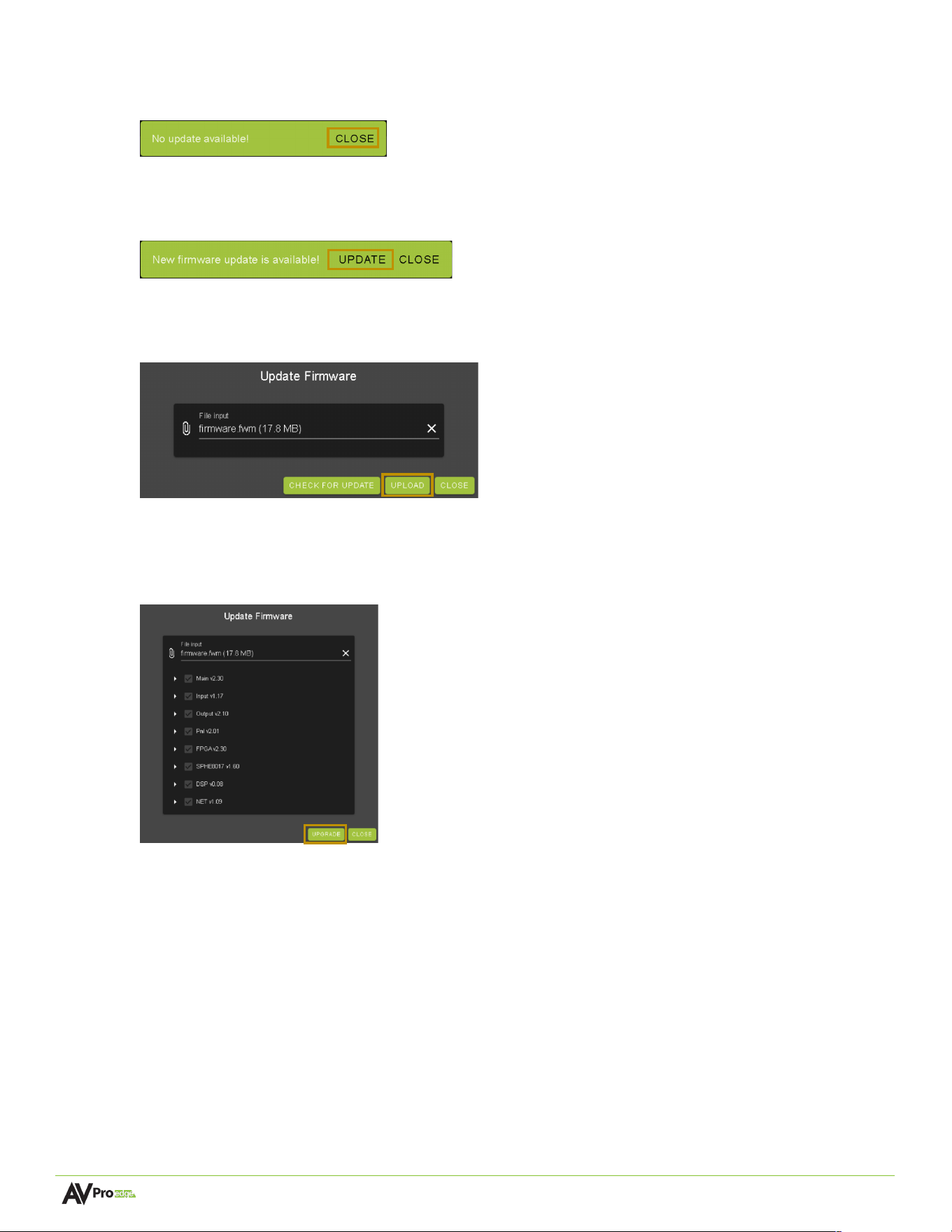
5 In the Update Firmware dialog box, select Check for Update. The unit will now check the Cloud for
available firmware updates.
Page 22 of 28
AC-Fresco-4x user manual
6 If the current firmware version is the latest, a notification window will prompt the message “No update
available!” at the top of the page. Select the Close button.
7 If a newer firmware version is detected from the Cloud, a notification window will prompt the message
“New firmware update is available!”. Select the Update button.
8 A new firmware file will automatically populate into the File input field from the Cloud. Select the Upload
button.
9 From this screen, a newer firmware version is displayed before installation. Select the Upgrade button.
The unit will then begin installing the latest firmware version. DO NOT refresh the webpage or power off
the unit during the update!
10 Once the progress bar reaches 100%, select the Close button. Once the firmware updates are complete,
the unit will automatically reboot. After the unit reboots, refresh the webpage.
Page 23 of 28
AC-Fresco-4x user manual
Console
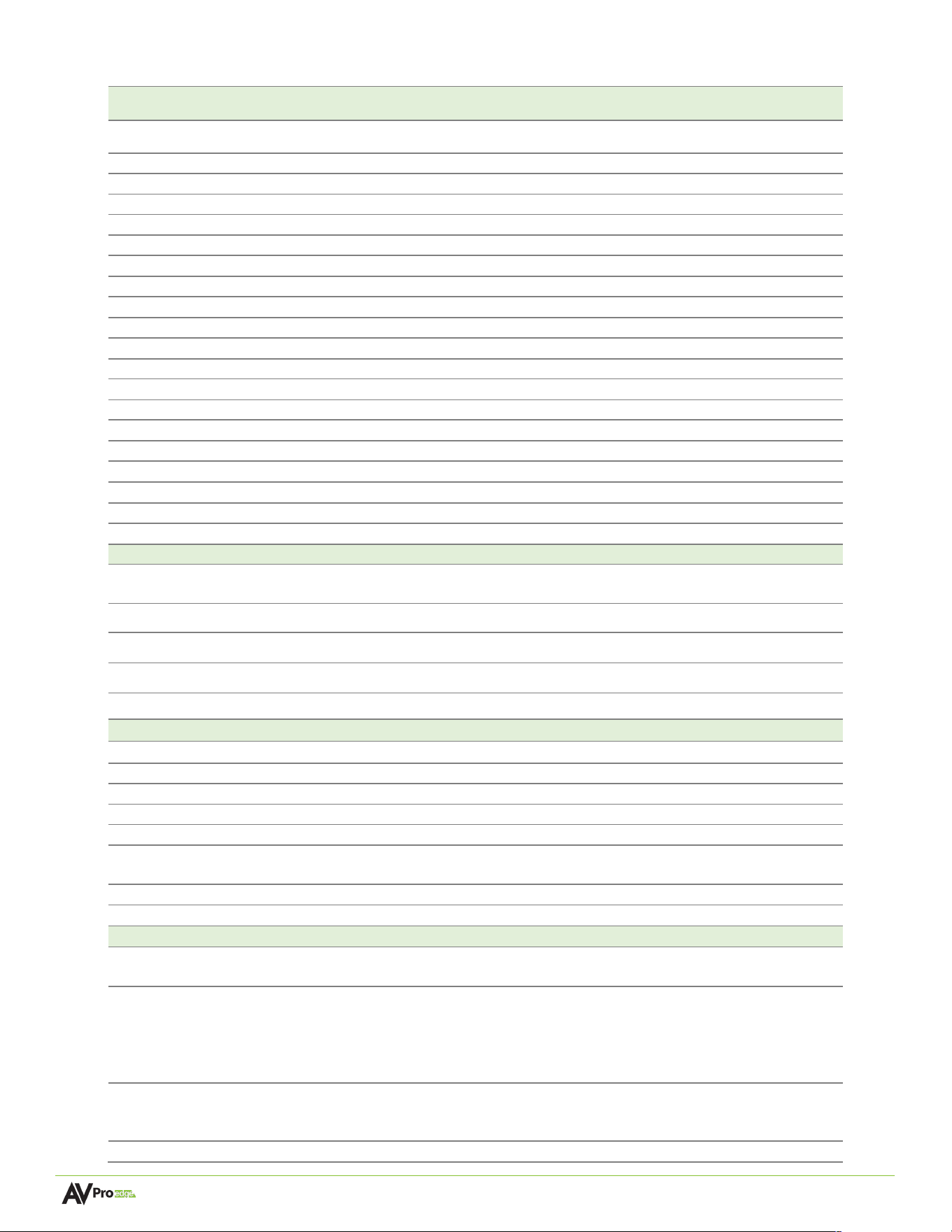
The Web UI features a built-in command console, allowing API commands to be directly sent to the unit.
1
Text Field
Enter API commands into this field. System events generated by the unit will be recorded
continuously while the
Console
tab page is open within the Web UI.
2
Export Log
Select to download a .txt file of the information recorded by the console log. The console
log only records unit information when the Web UI is opened to the
Console
tab page and
does not record or store information internally.
3
Clear Console
Select to clear the information recorded in the console log.
Page 24 of 28
AC-Fresco-4x user manual
Command-List
Command
Action
H
Help
STA
Show Global System Status
SET RBT
Reboot Device
SET RST
Reset to Factory Defaults
SET ADDR xx
Set System Address to xx {xx = [00~99] (00 = Single)}
SET BAUDR x
Set System BaudRate to x {x = [0~5] (0 = 9600, 1 = 14400, etc.)}
SET INx RST
Set Input Port Reset {x = [0~1] (0 = ALL)}
SET OUTx RST
Set Output Port Reset {x = [0~4] (0 = ALL)}
SET LCD ON Tx
Set LCD Remain On Time {x = [0~3] (0 = Always ON, 1 = 15, etc.)}
SET KEY LOCK ON/OFF
Set Key Lock On/Off
SET FAN SPEED x
Set Fan Speed {x = [0~6]}
GET ADDR
Get System Address
GET STA
Get System System Status
GET BAUDR
Get System BaudRate Status
GET INx SIG STA
Get Input x Signal Status {x = [0~1] (0 = ALL)}
GET OUTx HPD
Get HDMI Output x HPD Status {x = [0~4] (0 = ALL)}
GET LCD ON T
Get LCD Remain On Time
GET KEY LOCK
Get Key Lock Status
GET FAN SPEED
Get Fan Speed Value
GET HW REV
Get Hardware Revision
Output Setup Commands:
SET OUTx VSFM y
Set Output x Video Scale Format y {x = [0~4] (0 = ALL), y = [0-2] (0:
Auto, 1: Force 4K, 2: Force 1080P)}
SET OUTx STREAM ON/OFF
Set Output x STREAM ON/OFF {x = [0~4] (0 = ALL)}
GET OUTx VSFM
Get Output x Video Scale Format Status {x = [0~4] (0 = ALL)}
GET OUTx STREAM
Get Output x Stream ON/OFF Status {x = [0~4] (0 = ALL)}
GET OUTx EDID DATA
Get Output x EDID DATA {x = [1~4]}
Input Setup Commands:
SET INx EDID y
Set Input x EDID{x=[0-1](0=All), y=[0~8]}
0: FRL10G_8K_2CH_HDR
1: FRL10G_8K_6CH_HDR
2: FRL10G_8K_8CH_HDR
3: FRL12G_8K_2CH_HDR
4: FRL12G_8K_6CH_HDR
5: FRL12G_8K_8CH_HDR
6: USER1_EDID
7: USER2_EDID
8: USER3_EDID
SET INx EDID CY OUTy
Copy Output y EDID To Input x (USER1 BUF){x = [0-1] (0 = All), y = [1-4]}
SET INx EDID Uy DATAz
Write EDID To User y Buffer of Input x {x = [0-1] (0 = All), y = [1-3], z =
[EDID Data]}
GET INx EDID
Get Input x EDID Index {x = [0-1] (0 = All)}
GET INx EDID y DATA
Get Input x EDID y Data {x = [1], y = [0~8]}
Output Video Captor Commands:
SET OUTx AOST h.v
Set Output x Video Area Offset h.v{x=[0-4](0=All), h=[0-3840](Hori
offset of areas),v=[0-2160](Vert offset of areas)}
SET OUTx VSCA h.v
Set Output x Video horizontal and/or vertical scaling of each active
area h.v {x=[0-4](0=All), if x=1(output1) h=[960-7680] v=[540-4320],if
x!=1 h=[960-3840] (Horizontal output size of areas),v=[540-
2160](Vertical output size of areas)} if x=1(output1) h=7680 v=4320,
output will be displayed in full screen, supported only by Output1
SET OUTx ACDR h.v
Set Output x Video Area Scandir h.v{x=[0-4](0=All),h=[0-1](Hori scan
direction of areas, 0: Normal, 1: Reverse),v=[0-1](Vert scan direction of
four areas,0: Normal, 1: Reverse)}
GET OUTx AOST
Get Output x Video Area Offset Status{x=[0-4](0=All)}

Page 25 of 28
AC-Fresco-4x user manual
GET OUTx VSCA
Set Output x Video horizontal and/or vertical scaling of each active
area Status{x=[0-4](0=All)}
GET OUTx ACDR
Get Output x Video Area Scandir Status{x=[0-4](0=All)}
Network Setup Command: ( xxx=[000-255], zzzz=[0001~9999]
SET RIP xxx.xxx.xxx.xxx
Set Route IP Address to xxx.xxx.xxx.xxx
SET HIP xxx.xxx.xxx.xxx
Set Host IP Address to xxx.xxx.xxx.xxx
SET NMK xxx.xxx.xxx.xxx
Set Net Mask to xxx.xxx.xxx.xxx
SET TIP zzzz
Set TCP/IP Port to zzzz
SET DHCP y
Set DHCP {y = [0~1] (0 = Disable, 1 = Enable)}
GET RIP
Get Route IP Address
GET HIP
Get Host IP Address
GET NMK
Get Net Mask
GET TIP
Get TCP/IP Port
GET DHCP
Get DHCP Status
GET MAC
Get MAC Address

Page 26 of 28
AC-Fresco-4x user manual
Troubleshooting
• Verify Power - Ensure the power supply is connected correctly and on an active circuit.
• Verify Connections - Ensure all cables are securely connected and properly terminated.
• Verify Current Versions - Ensure that any firmware/software/driver updates are available for the devices.
• No Sound - Verify the signal being sent is compatible with the connected devices in the signal chain. Ensure
the device’s volume level is adjusted correctly and not set to mute.
Maintenance
Please observe the following instructions to ensure the reliable operation of this product and protect the safety of
any person using or handling this device while powered.
• Use the provided power supply. If an alternate supply is required, check its voltage and polarity to ensure
that it has sufficient power to supply the device.
• Do not operate these products outside the specified temperature and humidity range in the above
specifications.
• Ensure there is adequate ventilation to allow this product to operate efficiently.
• Equipment repair should only be carried out by qualified professionals, as these products contain sensitive
components easily damaged by mistreatment.
• Only use this product in a dry environment. Do not allow any liquids or harmful chemicals to come into
contact with these products.
• Clean this unit with a soft, dry cloth. Never use alcohol, paint thinner, or benzene for cleaning.
Damage Requiring Service
The unit should be serviced by qualified service personnel if:
• The DC power supply cord or AC adapter has been damaged
• Objects or liquids have gotten into the unit
• The unit has been exposed to rain
• The unit does not operate normally or exhibits a marked change in performance
• The unit has been dropped, or the housing damaged
Support
If you experience any problems while using this product, refer to the Troubleshooting section of this manual before
contacting Technical Support. When calling, the following information should be provided:
• Product name and model number
• Product serial number
• Details of the issue and any conditions under which the issue is occurring
• Clean this unit with a soft, dry cloth. Never use alcohol, paint thinner, or benzene to clean this unit.

Page 27 of 28
AC-Fresco-4x user manual
Warranty
The Basics
AVPro Edge warranties its products purchased from Authorized AVPro Edge Resellers or direct purchases.
Products are guaranteed free from manufacturing defects and in sound physical and electronic condition.
AVPro Edge has developed a warranty that anyone can support. We wanted to remove all the “red tape” from a
warranty and make it simple. Our 10-year NO-BS warranty hinges on three elements:
• If you are having trouble, call us. We will attempt to troubleshoot your issue over the phone.
• If it’s broken, we will replace it in advance on our dime and cover the return shipping. Repair is an
option, too, but that is YOUR call.
• We know you know what you are doing. We will not make you go through unnecessary steps to
troubleshoot an extender…
Coverage Details
AVPro Edge will replace or repair (at the customer's choice) any defective product within the warranty period. If
the product is out of stock or on backorder, it can be replaced with a comparable product of equal value/feature
set (if available) or repaired.
Your warranty begins upon receipt of the product (as confirmed by the shipping firm's tracking). If tracking
information is unavailable, the warranty will commence 30 ARO (After Receipt of Order). The coverage continues
for 10 years.
Red Tape
AVPro Edge is not responsible for untraceable purchases or those made outside an authorized channel.
If we conclude that a product or serial number has been tampered with, as identified by the warranty seal or
physical examination, the warranty will be void. Additionally, excessive physical damage (beyond normal wear
and tear) may result in the warranty being voided or prorated based on the extent of the damage, as examined
by an AVPro Edge representative.
Damage caused by “acts of God” is not covered. These can include natural disasters, power surges, storms,
earthquakes, tornadoes, sinkholes, typhoons, tidal waves, hurricanes, or any other uncontrollable event related
to nature.
Damage caused by incorrect installation will not be covered. Examples include an incorrect power supply,
inadequate cooling, improper cabling, inadequate protection, and static discharge.
The Authorized AVPro Edge Reseller will service products installed or sold by a third party to AVPro Edge. The
warranty does not include accessories (IR Cables, RS-232, Power Supplies, etc.). We will make acceptable efforts
to source and supply replacements for defective accessories at a discounted rate as needed.
Obtaining an RMA
Dealers, Re-sellers, and Installers can request an RMA from the AVPro Edge Tech Support Rep or their Sales
Engineer.
You may also email [email protected] or fill out the general contact form at avproedge.com/contact

Page 28 of 28
AC-Fresco-4x user manual
End users may not request an RMA directly from AVPro Edge and will be referred back to the Dealer, Re-seller,
or Installer.
Shipping
For the USA (not including Alaska and Hawaii). Shipping is covered on advanced replacements for FedEx Ground
(some expressed exceptions may apply). Defective product return shipping is covered by AVPro Edge using an
emailed return label. Items must be returned within 30 days of receipt of the replacement product; after 30
days, the customer will be billed. Other return shipping methods will not be covered.
For International (and Alaska and Hawaii) returns, the returnee will be responsible for the shipping costs. Once
the unit is scanned for return shipping, AVPro Edge will ship the new unit for replacement.
Limitation on Liability
AVPro Global Holdings LLC's maximum liability under this limited warranty shall not exceed the actual purchase
price paid for the product. AVPro Global Holdings LLC is not responsible for direct, special, incidental, or
consequential damages resulting from any breach of warranty or condition or under any other legal theory to
the maximum extent permitted by law. Taxes, Duties, VAT, and freight forwarding service charges are not
covered or paid for by this warranty.
This warranty does not cover obsolescence or incompatibility with newly invented technologies (after the
product's manufacture).
Obsolescence is defined as:
“Peripherals are rendered obsolete when current technology does not support product repair or re-
manufacture. Obsolete products cannot be re-manufactured because advanced technologies supersede original
product manufacturer capabilities. Product redevelopment is not an option because of performance, price, and
functionality issues.”
Discontinued or out-of-production items will be credited at fair market value toward a current product of equal
or comparable capabilities and cost. AVPro Edge determines fair market value.
Exclusive Remedy
This limited warranty and the remedies above are exclusive to the maximum extent law permits, instead of all
other warranties, remedies, and conditions, whether oral or written, express or implied. To the maximum extent
permitted by law, AVPro Global Holdings LLC expressly disclaims any implied warranties, including, without
limitation, warranties of merchantability and fitness for a particular purpose. If AVPro Global Holdings LLC
cannot lawfully disclaim or exclude implied warranties under applicable law, all implied warranties covering this
product, including merchantability and fitness for a particular purpose, shall apply to this product as provided
under applicable law.
This warranty supersedes all other warranties, remedies, and conditions, whether oral or written, express or
implied.