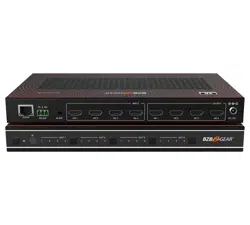
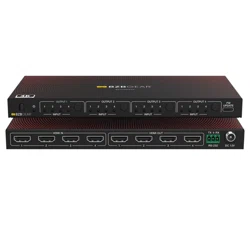
BZ-MVS4X4-4K
4X4 4K UHD 18Gbps HDMI Video Wall Processor & Seamless
Matrix Switcher with Scaler, IR, and Audio
User Manual
BZBGEAR BZ-MVS4X4-4K PRODUCT MANUAL
Address: 830 National Drive #140, Sacramento, CA 95834, USA · Tel: +1(888)499-9906 · Email: support@bzbgear.com 2
BZBGEAR BZ-MVS4X4-4K PRODUCT MANUAL
TABLE OF CONTENTS
Statement 4
Safety Precaution 4
Introduction 5
Features 5
Packing List 5
Specifications 6
Operation Controls and Functions 7
RS232/LAN Control Connection 10
PC Tool User Guide 11
Control via Web Interface 18
Tech Support 20
Limited Product Warranty Terms 20
Mission Statement 20
Copyright 20
Address: 830 National Drive #140, Sacramento, CA 95834, USA · Tel: +1(888)499-9906 · Email: support@bzbgear.com 3
BZBGEAR BZ-MVS4X4-4K PRODUCT MANUAL
Statement
Please read these instructions carefully before connecting, operating, or configuring this
product. Please save this manual for future reference.
Safety Precaution
● To prevent damaging this product, avoid heavy pressure, strong vibration, or immersion
during transportation, storage, and installation.
● The housing of this product is made of organic materials. Do not expose to any liquid,
gas, or solids which may corrode the shell.
● Do not expose the product to rain or moisture.
● Unplug this device during lightning storms
● Clean only with a soft dry microfiber cloth.
● To prevent the risk of electric shock, do not open the case. Installation and maintenance
should only be carried out by qualified technicians.
● Do not use the product beyond the specified temperature, humidity, or power supply
specifications.
● This product does not contain parts that can be maintained or repaired by users.
Damage caused by dismantling the product without authorization from BZBGEAR is not
covered under the warranty policy.
● Installation and use of this product must strictly comply with local electrical safety
standards.
● Only use accessories specified by the manufacture
● Product specifications may be subject to technical upgrades without further notice
Address: 830 National Drive #140, Sacramento, CA 95834, USA · Tel: +1(888)499-9906 · Email: support@bzbgear.com 4
BZBGEAR BZ-MVS4X4-4K PRODUCT MANUAL
Introduction
The BZ-MVS4x4-4K matrix and video wall processor is an incredible tool for anyone
seeking a matrix switcher that can support four inputs and four outputs. The device can
support multiple video walls simultaneously in various configurations such as a 1x2, 2x2,
1x4, etc. up to 4 displays total. This enables commercial-grade video walls with 4K HDR
quality. IR matrix routing is also available on this unit via IR extenders through the 4 IR
inputs and outputs.
Features
● HDMI 2.0 and HDCP 2.2 compliant
● 18 Gbps video bandwidth
● Video resolutions up to 4K60 4:4:4
● Color space: RGB, YCbCr 4:4:4, YCbCr 4:2:2
● Seamless switching and video wall function
● CEC management
● IR matrix
● External L/R audio insert on HDMI stream
● EDID management
● Front panel, RS232, and TCP/IP (LAN 10M/100M) control
Packing List
● 1 x BZ-MVS4x4-4K
● 1 x AC Power Cord
● 1 x Matrix IR Remote
● 4 x IR Receiver cable (1.5 meters)
● 4 x IR Blaster cable (1.5 meters)
● 1 x 3-pin Phoenix Connector
● 1× CAT6 cable
● 1× USB to RS232 Cable
● 1× User Manual
Address: 830 National Drive #140, Sacramento, CA 95834, USA · Tel: +1(888)499-9906 · Email: support@bzbgear.com 5
BZBGEAR BZ-MVS4X4-4K PRODUCT MANUAL
Specifications
Technical
HDMI Compliance
HDMI 2.0
HDCP Compliance
HDCP 2.2
Video Bandwidth
18Gbps
Video Resolution
Up to 4K60 4:4:4
Color Space
RGB, YCbCr 4:4:4/4:2:2
HDMI Amplitude
TM.D.S +/- 0.4Vpp
Differential Impedance
100±15ohm
ESD Protection
Human-body Model:
±8kV (Air-gap discharge) , ±4kV (Contact discharge)
RS232/Ethernet Control
Baud rate and Protocol
Baud rate: 9600, data bit: 8 Stop bit: 1, no parity checking
Ethernet
IE10.0+,HTML5
Mechanical
Housing
Metal Enclosure
Color
Black
Dimensions
430mm (W)*220mm (D)*44mm (H)
Weight
5Kg
Power Supply
AC 110 - 240V
Power Consumption
60W (Max)
Operating Temperature
0°C ~ 40°C / 32°F ~ 104°F
Storage Temperature
-20°C ~ 70°C / -4°F ~ 158°F
Relative Humidity
10%~50% RH (non-condensing)
Address: 830 National Drive #140, Sacramento, CA 95834, USA · Tel: +1(888)499-9906 · Email: support@bzbgear.com 6
BZBGEAR BZ-MVS4X4-4K PRODUCT MANUAL
Operation Controls and Functions
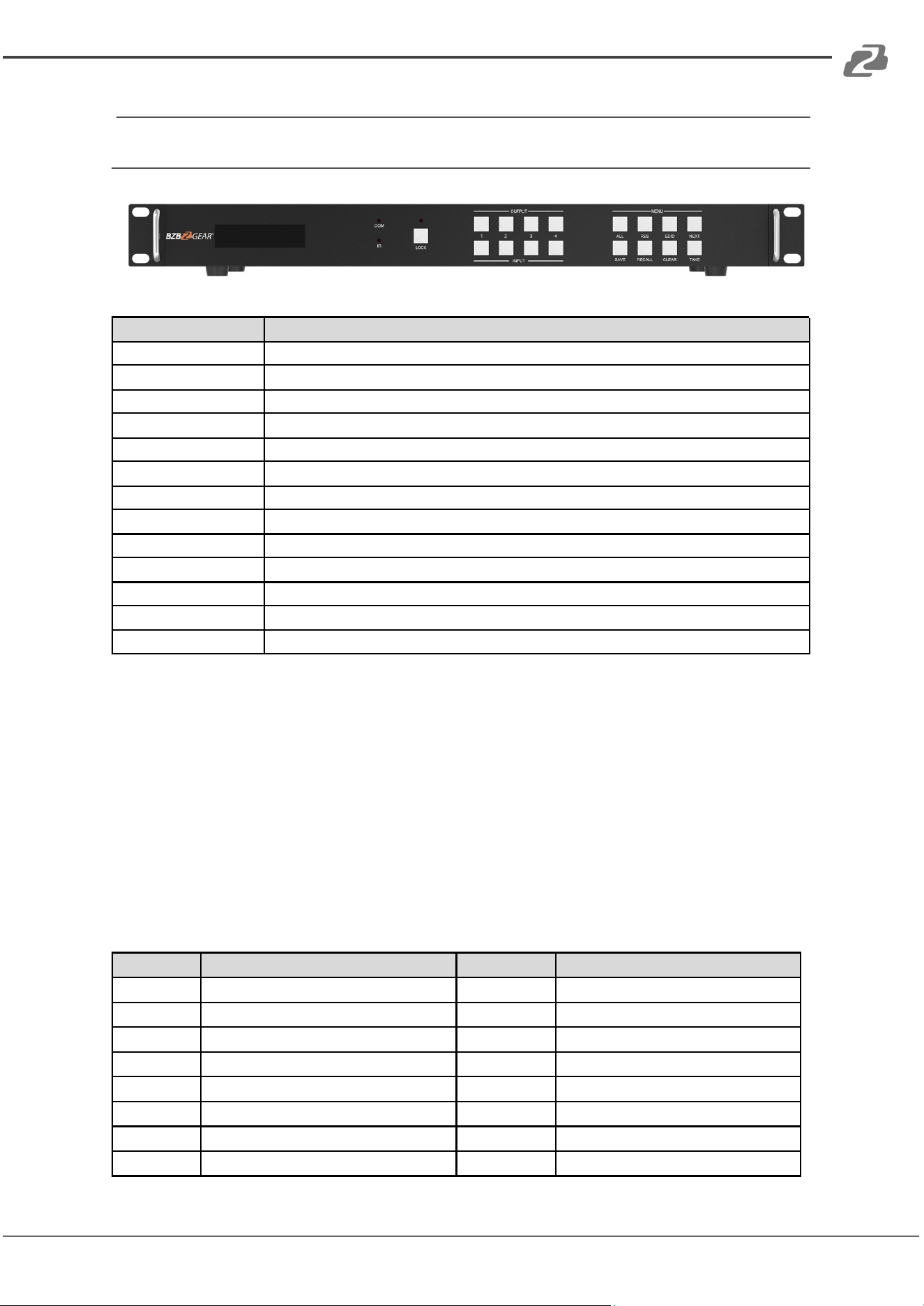
Front Panel
Item
Description
LCD Panel
Displays the current video selections
COM
Power LED (also indicates control commands)
LOCK
Front panel lock/unlock
OUTPUT
Output selection buttons 1~4
INPUT
Input selection buttons 1~4
ALL
Set all outputs to the next input selection
RES
Set the output scaler resolution
EDID
Set the EDID options for the next input selection
NEXT
Select the next available option
SAVE
Save the current matrix setting as a preset
RECALL
Set the matrix setting from a saved preset
CLEAR
Cancel the current command function
ENTER
Set the displayed option
● Press buttons ALL + INPUT # + TAKE in sequence to switch the selected input to all
the outputs.
● Press buttons SAVE + OUTPUT # to save the current routing/video wall scene as the
selected scene #. Up to 4 scenes can be saved.
● Press buttons RECALL + OUTPUT # to recall the previously saved scene # as the
current routing.
● Press buttons RES + OUTPUT # + NEXT + TAKE, to change the resolution of the
selected OUTPUT.
Resolution options:
Number
Output Resolution Setting
Number
Output Resolution Setting
1
3840 x 2160p 60Hz
9
1440 x 1050 60Hz
2
3840 x 2160p 50Hz
10
1366 x 768 60Hz
3
3840 x 2160p 30Hz
11
1360 x 768 60Hz
4
3840 x 2160p 25Hz
12
1280 x 1024 60Hz
5
1920 x 1200 60Hz
13
1280 x 768 60Hz
6
1920 x 1080p 60Hz
14
1280 x 720p 60Hz
7
1920 x 1080p 50Hz
15
1280 x 720p 50Hz
8
1600 x 1200 60Hz
16
1024 x 768 60Hz
Address: 830 National Drive #140, Sacramento, CA 95834, USA · Tel: +1(888)499-9906 · Email: support@bzbgear.com 7
BZBGEAR BZ-MVS4X4-4K PRODUCT MANUAL
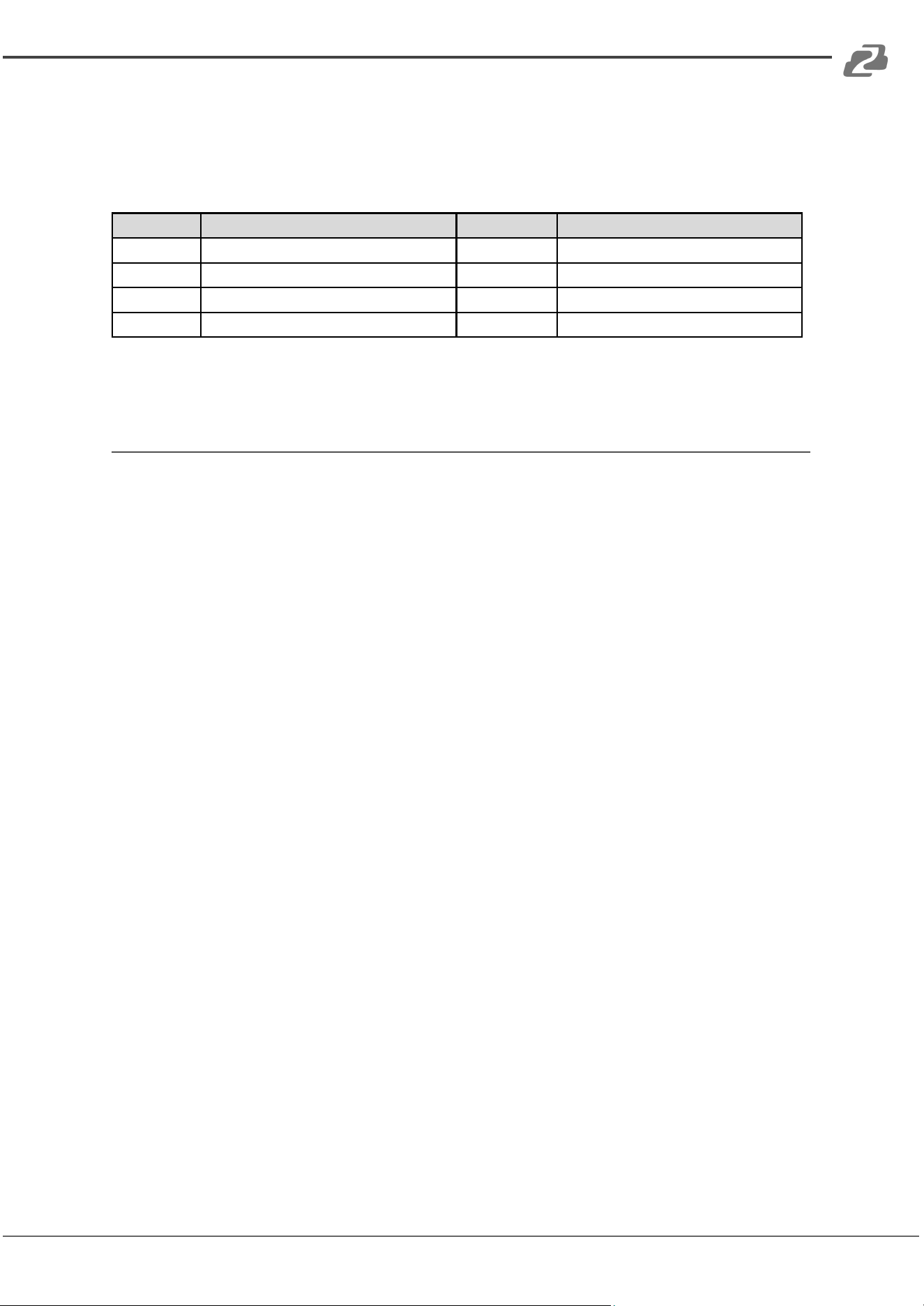
● Press buttons EDID + INPUT # + NEXT + TAKE to change the EDID mode of the
selected input port.
EDID options:
Number
Output Resolution Setting
Number
Output Resolution Setting
1
Manual
5
1920 x 1080 60Hz
2
3840 x 2160 60Hz
6
1280 x 1024 60Hz
3
3840 x 2160 30Hz
7
1280 x 720p 60H
4
1920 x 1200 60z
8
1024 x 768 60Hz
Manual EDID is loaded by the PC Tool.
Lock Button
Lock All
The front panel control buttons can be locked to prevent accidental use or operation
by unauthorized persons. Press and hold the LOCK button for two seconds to lock
or unlock the front panel. When the panel is locked, all buttons (except the LOCK
button) will not function until the front panel is unlocked. The LOCKED/UNLOCKED
state is shown on the LCD panel and by the LED above the LOCK button which is lit
when the front panel is fully LOCKED.
Lock Individual Inputs & Outputs
When the unit is UNLOCKED, press and hold the LOCK button for six seconds - The
LCD panel will show the following (any existing numbers indicates that those buttons
are already locked):
Output: --------
Input: --------
Pressing any of the numbered Output or Input buttons will toggle the lock status of
that button individually. The button will become locked when the respective button
number is shown on the LCD panel. When all selections are done, press the ENTER
button to set the new LOCK/UNLOCK states of those buttons.
Whenever a locked Output or Input button is activated, the LCD panel will show that
the button is locked. In this mode, the LOCK LED is not lit. To unlock those buttons,
repeat the above steps to remove the button numbers from the LCD panel before
pressing ENTER to accept the changes.
Address: 830 National Drive #140, Sacramento, CA 95834, USA · Tel: +1(888)499-9906 · Email: support@bzbgear.com 8
BZBGEAR BZ-MVS4X4-4K PRODUCT MANUAL
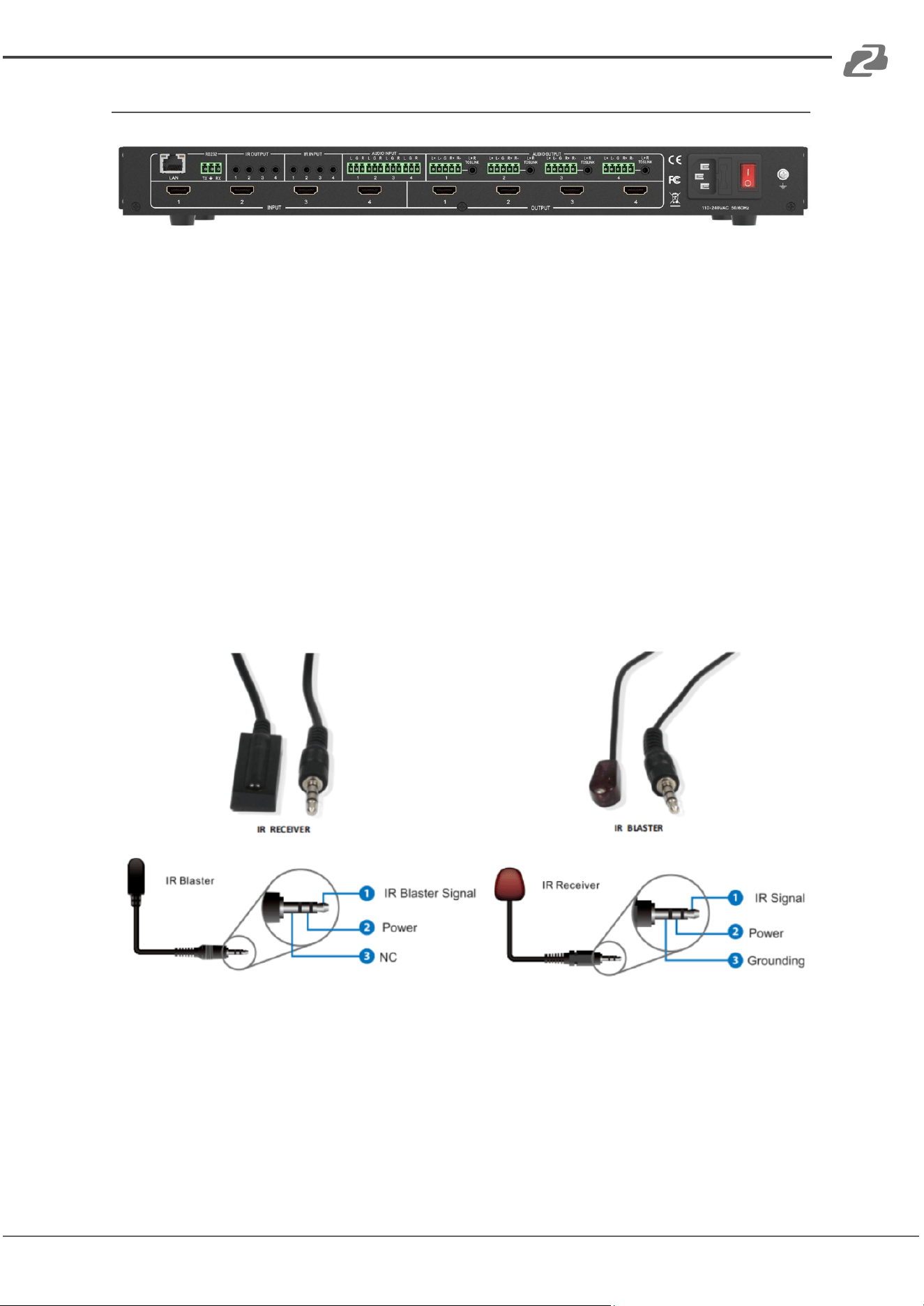
Rear Panel
● LAN (10M/100M) and RS232 are for PC control.
● Analog Audio IN/OUT ports bind to their corresponding HDMI ports by default.
For example:
If HDMI 1 audio source is selected with External LR, then analog AUDIO IN LR1 (with
phoenix connector) will be selected to replace the embedded audio of the HDMI
input 1 data stream. If HDMI 1 audio source is selected as AUTO by PC TOOL or
command, then the original embedded audio of input HDMI 1 will be used as its
audio data stream. If the input is DVI signal, no matter how it is set up, the system
will get the external analog audio input. Analog AUDIO OUT n will always output the
same audio content with HDMI OUTPUT n.
● IR IN and IR OUT
IR IN/OUT routing follows the video matrix routing. There is no need to separately
control the IR matrix.
Address: 830 National Drive #140, Sacramento, CA 95834, USA · Tel: +1(888)499-9906 · Email: support@bzbgear.com 9
BZBGEAR BZ-MVS4X4-4K PRODUCT MANUAL
● Audio Input
4 3-pin Phoenix connectors can embed external analog LR audio. The user can
select this audio to replace the corresponding embedded HDMI audio.
● Audio Output
4 5-pin Phoenix connectors output balanced LR audio and 4 mini TOSLINK jackets
output analog LR and digital audio respectively.
The 4 sets of Audio output (LR and Toslink) channels can be matrixed independently
from video and switched using the PC Tool or RS232 commands.
RS232/LAN Control Connection
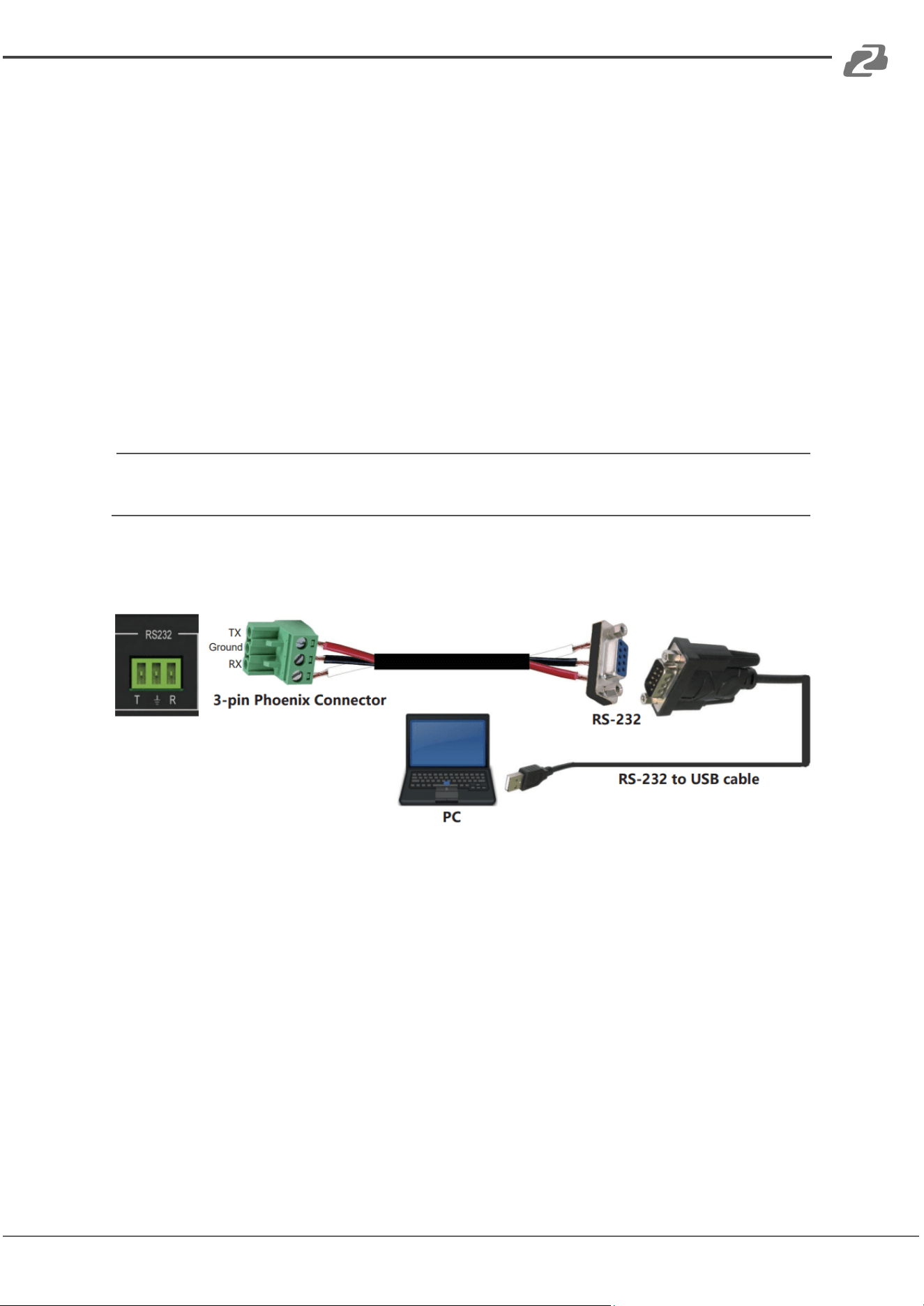
RS232 Control Connection
The product supports RS232 control. Connect the RS232 port of the product to a PC via a
serial cable, as shown in the following figure:
Address: 830 National Drive #140, Sacramento, CA 95834, USA · Tel: +1(888)499-9906 · Email: support@bzbgear.com 10
BZBGEAR BZ-MVS4X4-4K PRODUCT MANUAL
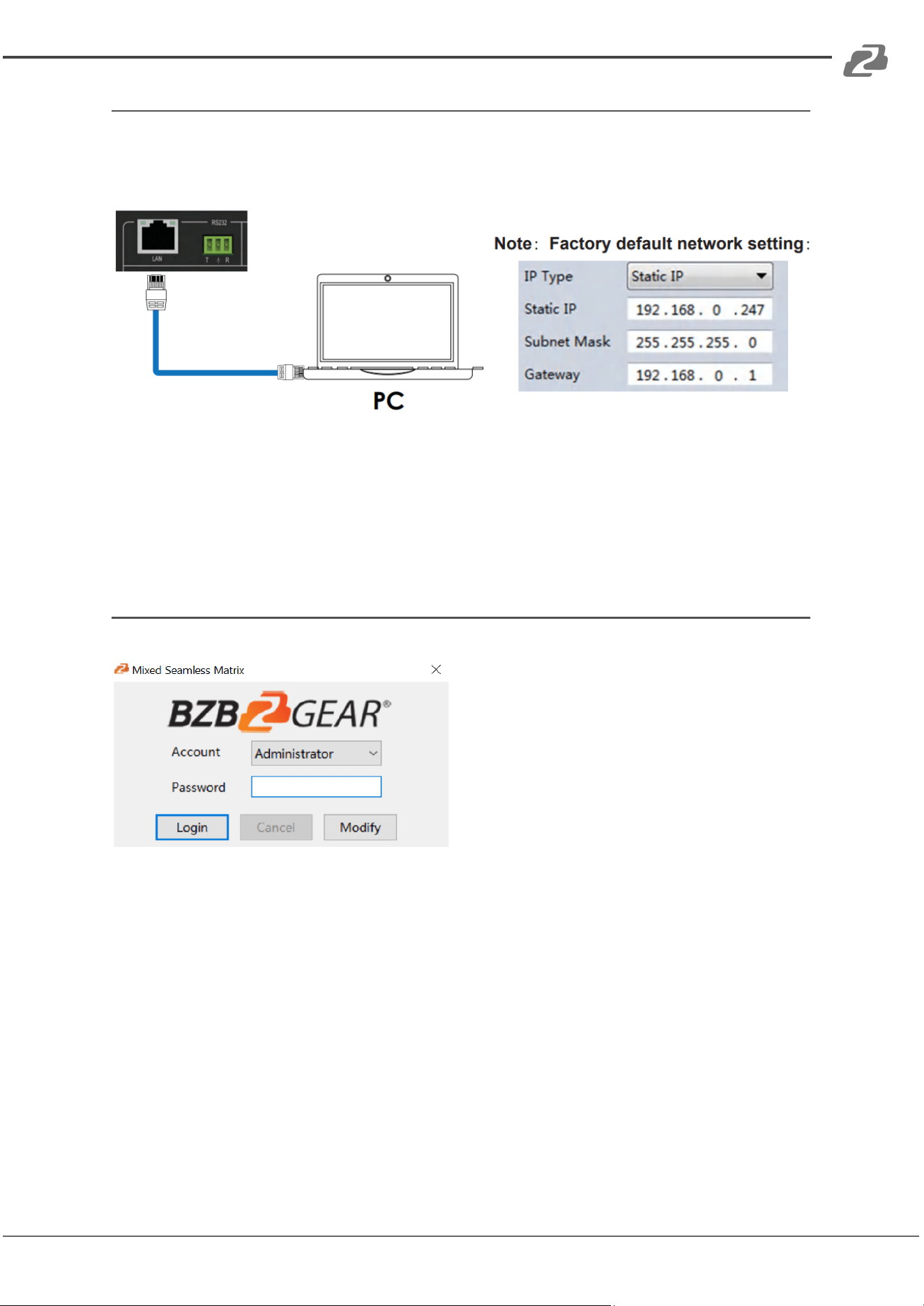
Network Control Connection LAN
The product also supports Network control. Connect the LAN port of the product to a PC
via a CAT cable, as shown in the following figure:
Note: Your PC’s network settings must be manually configured to be on the same subnet
as the matrix to be able to communicate.
PC Tool User Guide
Account Authentication
When opening the PC tool you will be prompted for a password.
Default password of Administrator (access to all features): 111111
Default password of User (access to all features, except OSD function) : 000000
Address: 830 National Drive #140, Sacramento, CA 95834, USA · Tel: +1(888)499-9906 · Email: support@bzbgear.com 11
BZBGEAR BZ-MVS4X4-4K PRODUCT MANUAL
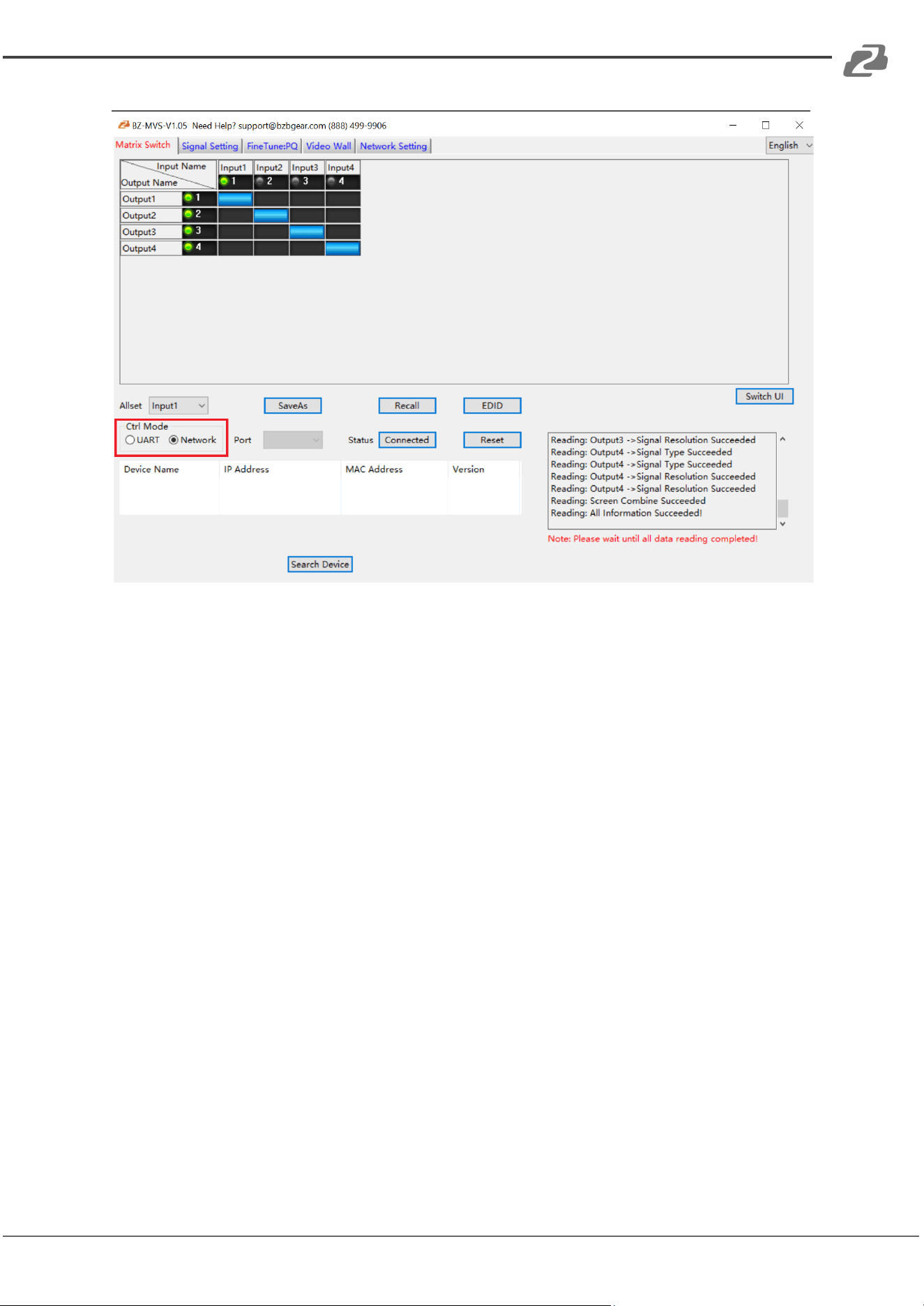
The PC Tool
Connection Methods
1. Select one of the radials in the Ctrl Mode section (UART or Network)
a. Use “UART” to connect with a RS-232 cable and set your baud rate to 9600
bps.
b. Use “Network” to connect via ethernet; the Default IP address is
192.168.0.247
2. Click the “Find via UART” or “Search Device” button depending on selected control
mode to populate the list of devices.
3. Select your device and then click the Status button to change from “Disconnected”
to “Connected” and the box on the bottom right will populate with connection info.
Address: 830 National Drive #140, Sacramento, CA 95834, USA · Tel: +1(888)499-9906 · Email: support@bzbgear.com 12
BZBGEAR BZ-MVS4X4-4K PRODUCT MANUAL
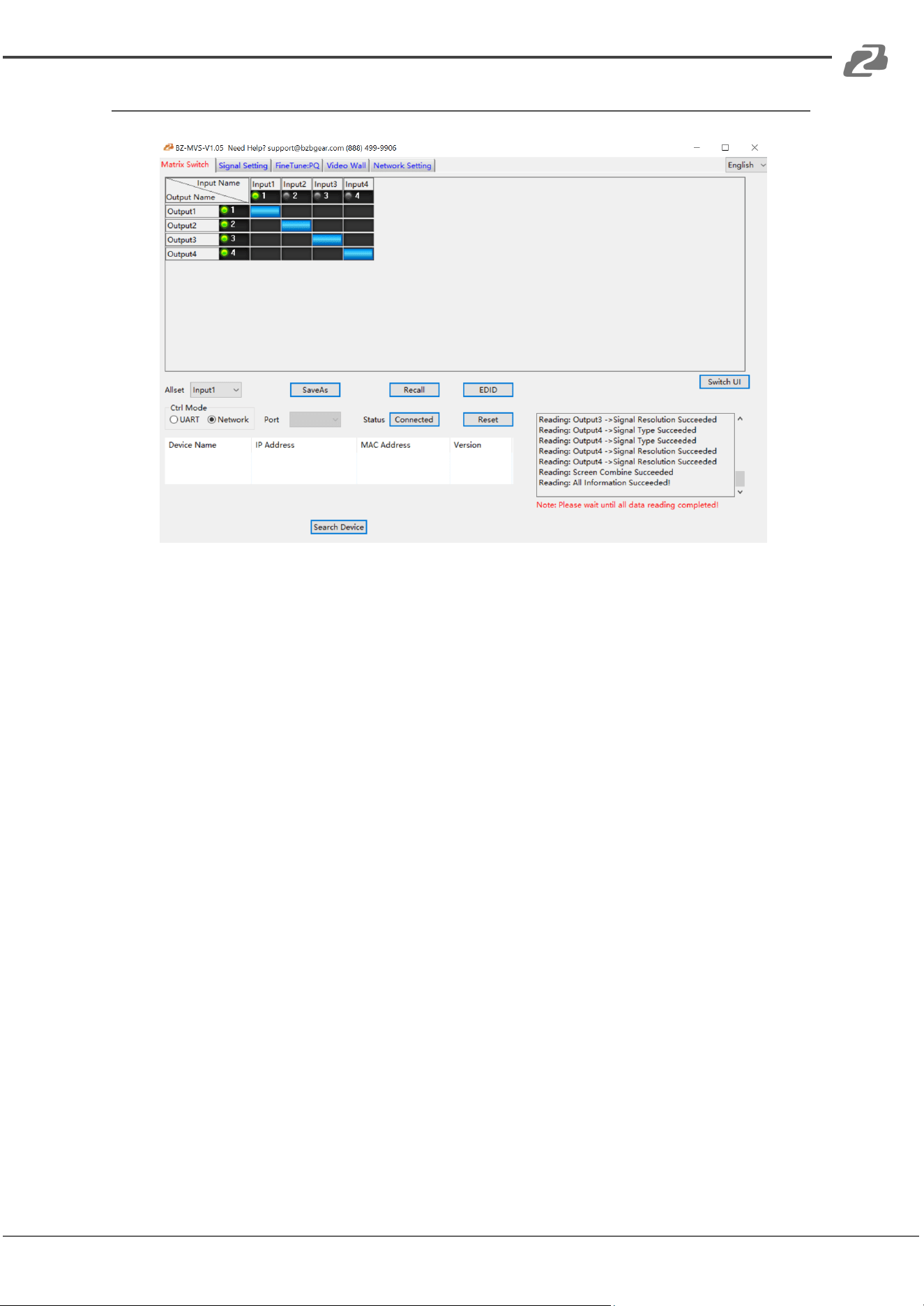
Matrix Switch Page
1. Allset: The Allset dropdown is a shortcut button to switch one input to all output
ports. For example, to switch input 1 to all outputs users select Input1 as follows:
2. Recall: Recall an input/output routing scene which was previously saved.
The device supports a maximum of 4 scenes.
3. SaveAs: Save the current input/output routing as a preset.
Note: SaveAs & Recall buttons here work the same with front panel save/recall
control as well as on the video wall page.
4. System Reset: The PC tool supports a factory reset to restore the original factory
configuration.
5. Audio Switching Modes: Follow Video or Manual
Manual:
When selecting Manual mode, users can separately switch the L/R (Phoenix
interface) and Toslink outputs independent of their HDMI outputs.
Users also can select to use the HDMI embedded or corresponding external audio.
Audio Follow Video (AFV):
When AFV is active, external audio inputs and outputs are bound to their respective
HDMI ports.
6. EDID Control: Click the “EDID” button on the Matrix Switch page and there will be a
pop-up EDID control window. User can perform the following operations:
a) Read EDID of one output port
b) Open one existing EDID file
c) Write EDID to one input port
Address: 830 National Drive #140, Sacramento, CA 95834, USA · Tel: +1(888)499-9906 · Email: support@bzbgear.com 13
BZBGEAR BZ-MVS4X4-4K PRODUCT MANUAL
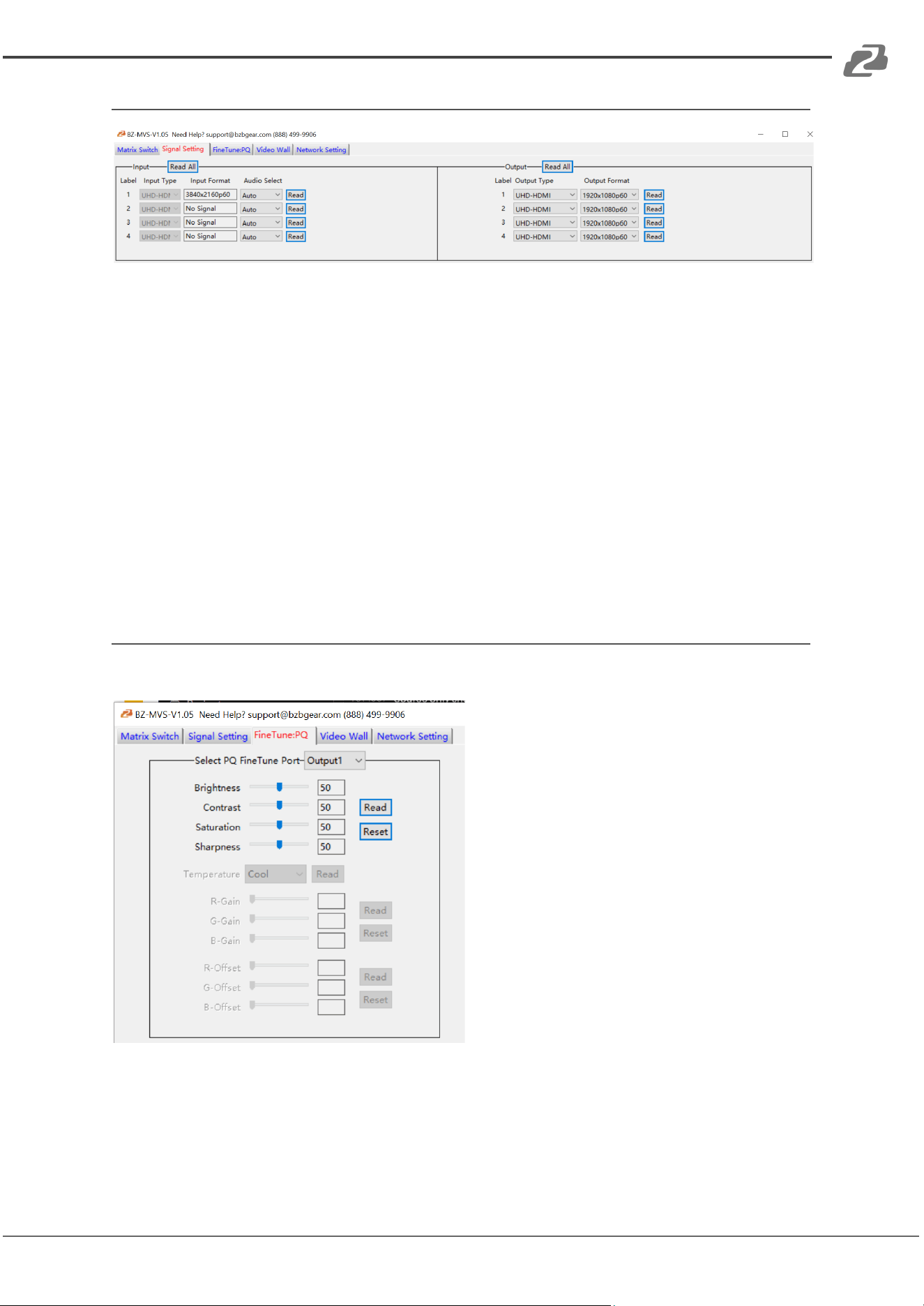
Signal Setting Page
1. Audio Select
There are two options for input Audio Select.
a) Auto: If the input source is an HDMI signal the system will get the embedded
audio; if the input source is DVI signal, the system will get the corresponding
external analog audio.
b) External: System will get the corresponding analog audio.
2. Input/Output Type
There are four options for Input/Output Type: UHD-HDMI (HDCP OFF), UHD-DVI,
UHD-HDCP-1.4, UHD-HDCP-2.2.
3. Output Format: Select an available resolution from the dropdown menu or press
“Read” to refresh and see the current information. (see page 7 for available
resolutions).
Fine Tune Page
You can read and set the Brightness/Contrast/Saturation/Sharpness of each output.
Note: Do not change the default settings unless conditions require modification.
If there is a problem after modifying settings click “Reset” to factory restore settings.
Address: 830 National Drive #140, Sacramento, CA 95834, USA · Tel: +1(888)499-9906 · Email: support@bzbgear.com 14
BZBGEAR BZ-MVS4X4-4K PRODUCT MANUAL
Video Wall Page
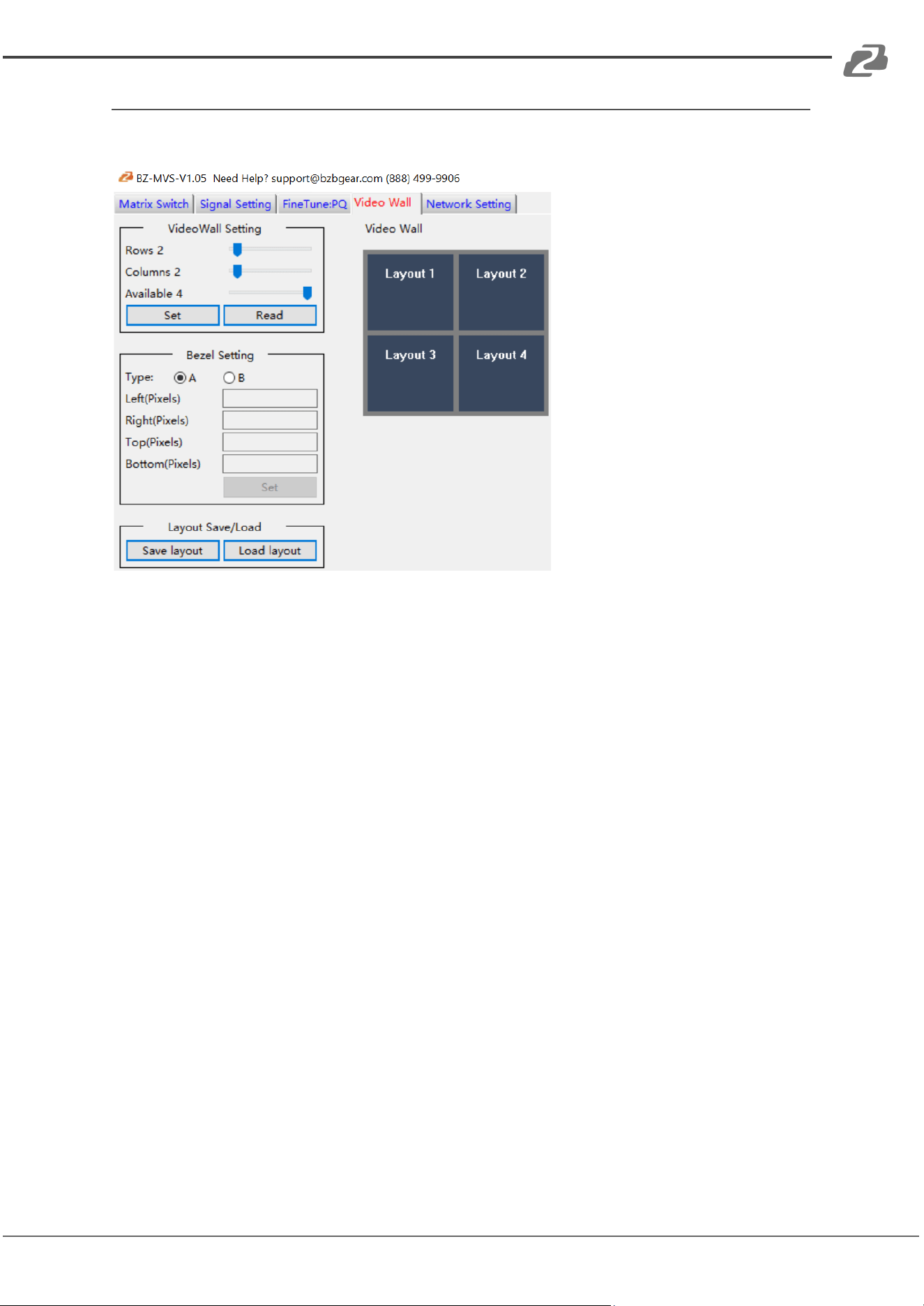
This page is used to configure a group of outputs to function as a video wall.
1. Use the “VideoWall Setting” controls to change how the displays are arranged on
the Video Wall page:
a) Adjust the ‘Rows’ and ‘Columns’ sliders to change the displayed screen
arrangement to mirror the physical displays and permit proper
Drag-and-Select of the desired screens for the video wall.
b) Change the ‘Available’ slider to set how many outputs will be used for the
Video Wall.
c) Click the “Set” button to change the Screen configuration.
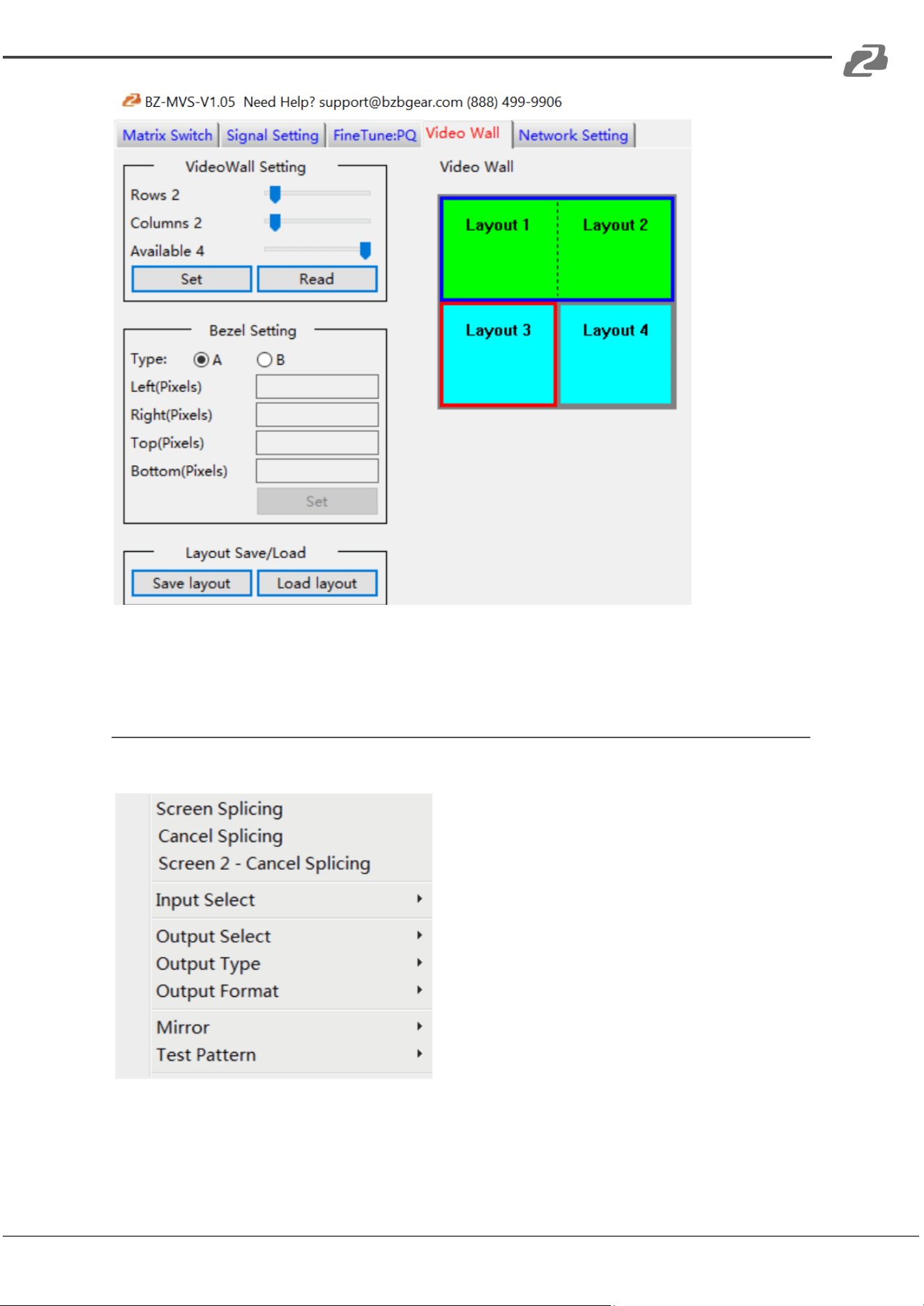
2. Use click and drag the mouse over the screens that will be set for video wall mode.
The selected screens will be shown as bright blue.
3. Use the right mouse button to open the menu.
4. Select “Screen Stitching” from the menu to program the video wall mode. The
selected screens will now be shown as bright green.
5. To change the displayed image: right-click to open the pop-up menu and select the
desired input from the “Input Select” menu option.
6. Repeating steps 2 ~ 5 above with a different set of outputs to allow for the creation
of another video wall. If you change the ‘Rows’, ‘Columns’, and ‘Available’ sliders, it
will automatically delete the current video wall set up when the “Set” button is
clicked.
7. The following example shows a typical video wall set-up of two video walls with two
2x1 configurations:
Address: 830 National Drive #140, Sacramento, CA 95834, USA · Tel: +1(888)499-9906 · Email: support@bzbgear.com 15
BZBGEAR BZ-MVS4X4-4K PRODUCT MANUAL
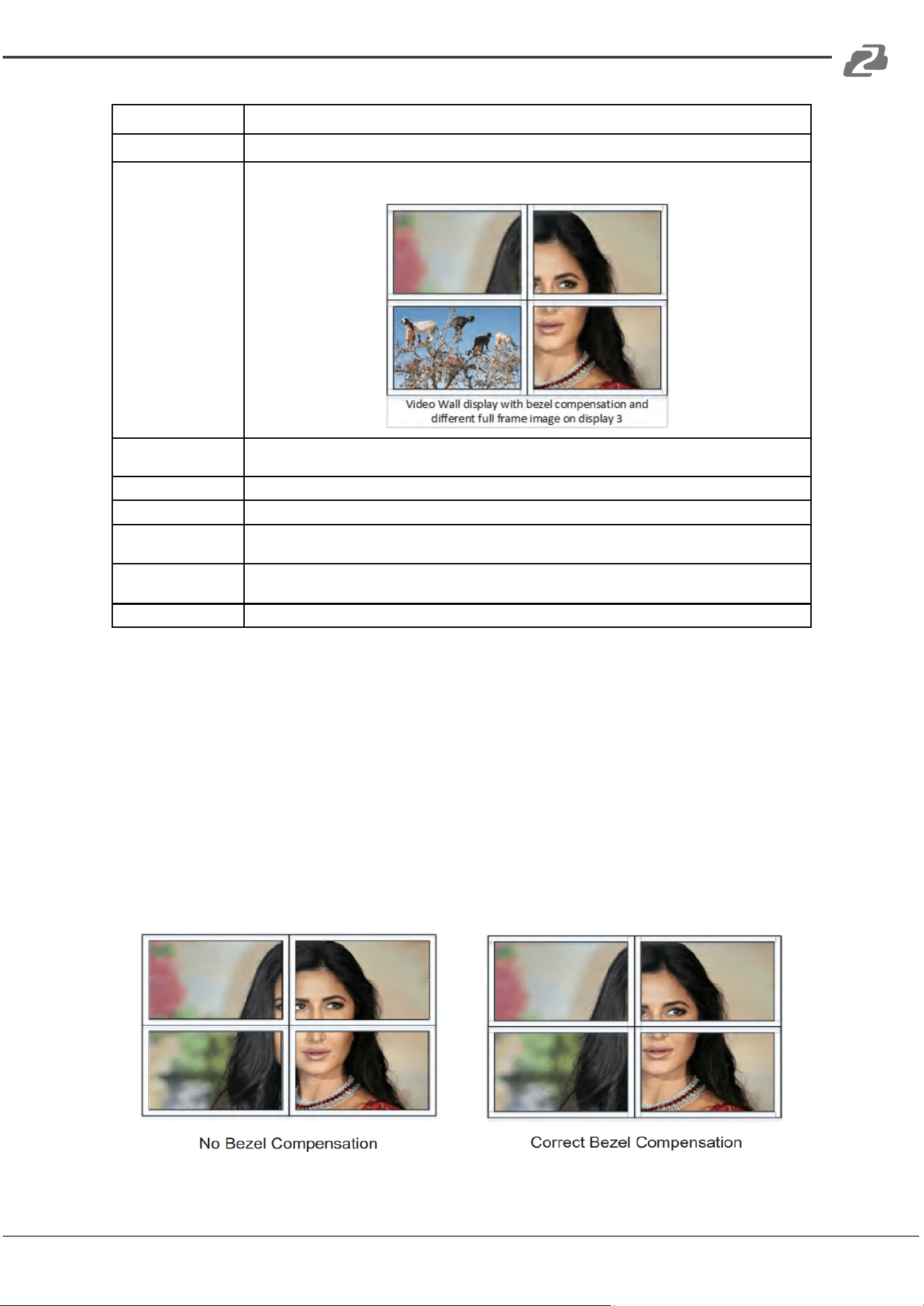
Video Wall Context Menu
Right clicking on any of the screen icons which will display the following context menu:
Address: 830 National Drive #140, Sacramento, CA 95834, USA · Tel: +1(888)499-9906 · Email: support@bzbgear.com 16
BZBGEAR BZ-MVS4X4-4K PRODUCT MANUAL
Screen Stitching
This option connects the selected screens into a video wall configuration.
Cancel Stitching
Return the Video Wall configuration to normal outputs.
Screen x –
Cancel Stitching
Remove a single screen from the video wall to allow the display of another full frame image within
the video wall configuration, as shown in this example:
Input Select
Use the sub-menu to select the input to display on the video wall or the secondary input image
shown in the above example.
Output Select
This option is only available for any screen that is not assigned to a video wall mode.
Output Type
This option is only available for any screen that is not assigned to a video wall mode.
Output Format
This option is only available for any screen that is not assigned to a video wall mode. It allows setting
of the output resolution for the selected screen output.
Mirror
Two sub options : OFF ( default ), ON ( H+V Mirror)
When selecting “ON”, you can rotate the image 180° on the selected screen.
Test Pattern
When the Test Pattern is enabled the output will display a Color Bar pattern.
Bezel Setting
The Bezel Setting section allows the entry of values to compensate for the display bezel
thickness. These values may be entered either as pixels (Type A) or as millimeters (Type B).
Type A Bezel Settings
The image size will be adjusted to allow for the number of pixels entered in each of the entry
boxes. Click the “Set” button to view the effect of the new values.
Type B Bezel Settings
The image size will be adjusted to allow for the Inner and Outer display dimensions to be
entered in each of the boxes . Click the “Set” button to view the effect of the new values.
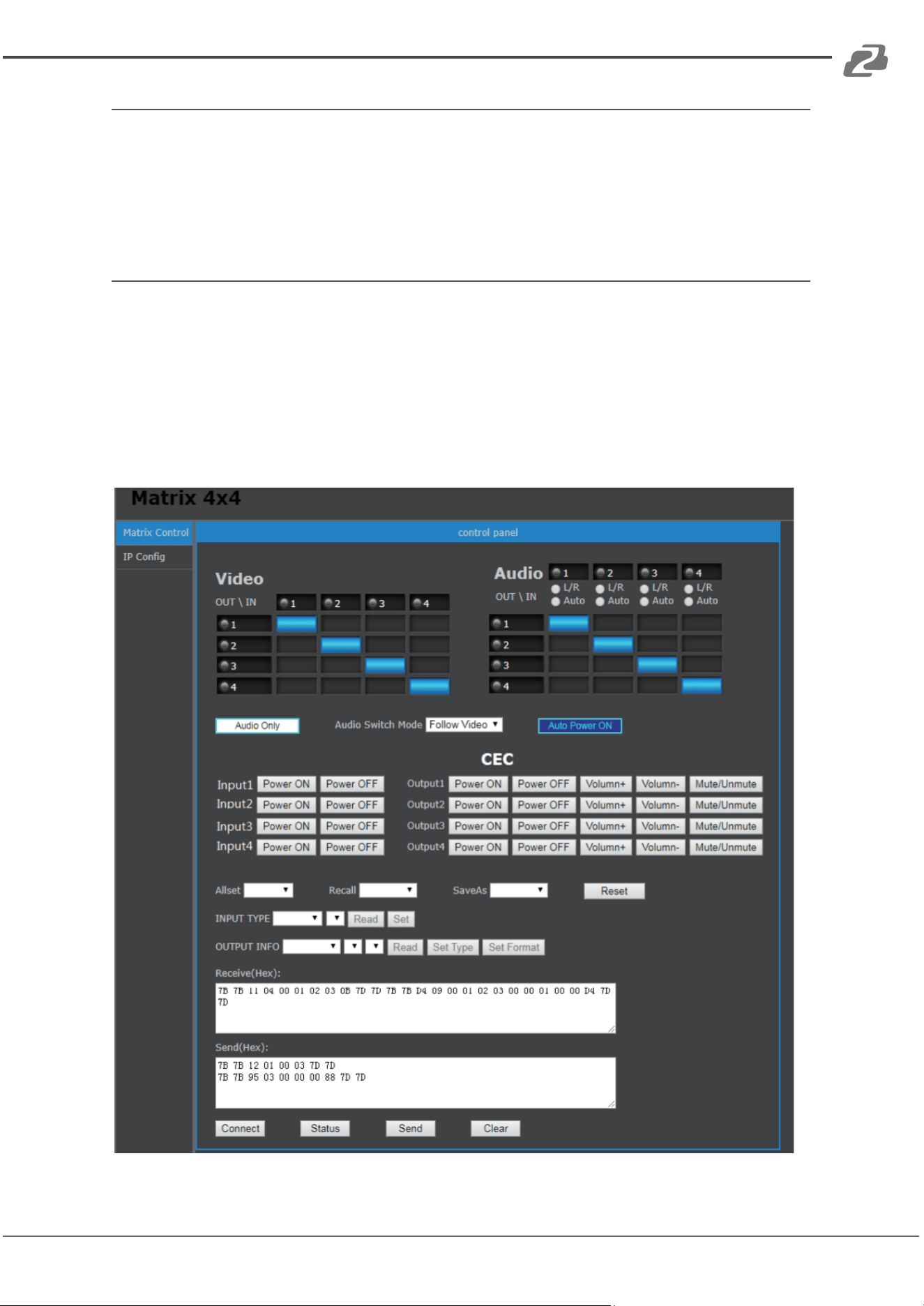
Bezel Compensation
The following images demonstrate the effect of not having bezel compensation and what a
correctly configured bezel should produce:
Address: 830 National Drive #140, Sacramento, CA 95834, USA · Tel: +1(888)499-9906 · Email: support@bzbgear.com 17
BZBGEAR BZ-MVS4X4-4K PRODUCT MANUAL
Layout Save/Load
The Save Scene/Layout and Load Scene/Layout buttons allow a video wall configuration to
be saved or recalled at any time. Up to 4 configurations, each with their own name can be
saved or recalled. When saving, each Scene can optionally be given a name to identify that
video wall scene setup.
Control via Web Interface
The built-in Web interface provides only basic control of the matrix switcher and access to
the network settings.
The default User Name is: admin
The default Password is: admin
After entering the User Name and Password, an interface similar to the following will be
displayed:
Address: 830 National Drive #140, Sacramento, CA 95834, USA · Tel: +1(888)499-9906 · Email: support@bzbgear.com 18
BZBGEAR BZ-MVS4X4-4K PRODUCT MANUAL
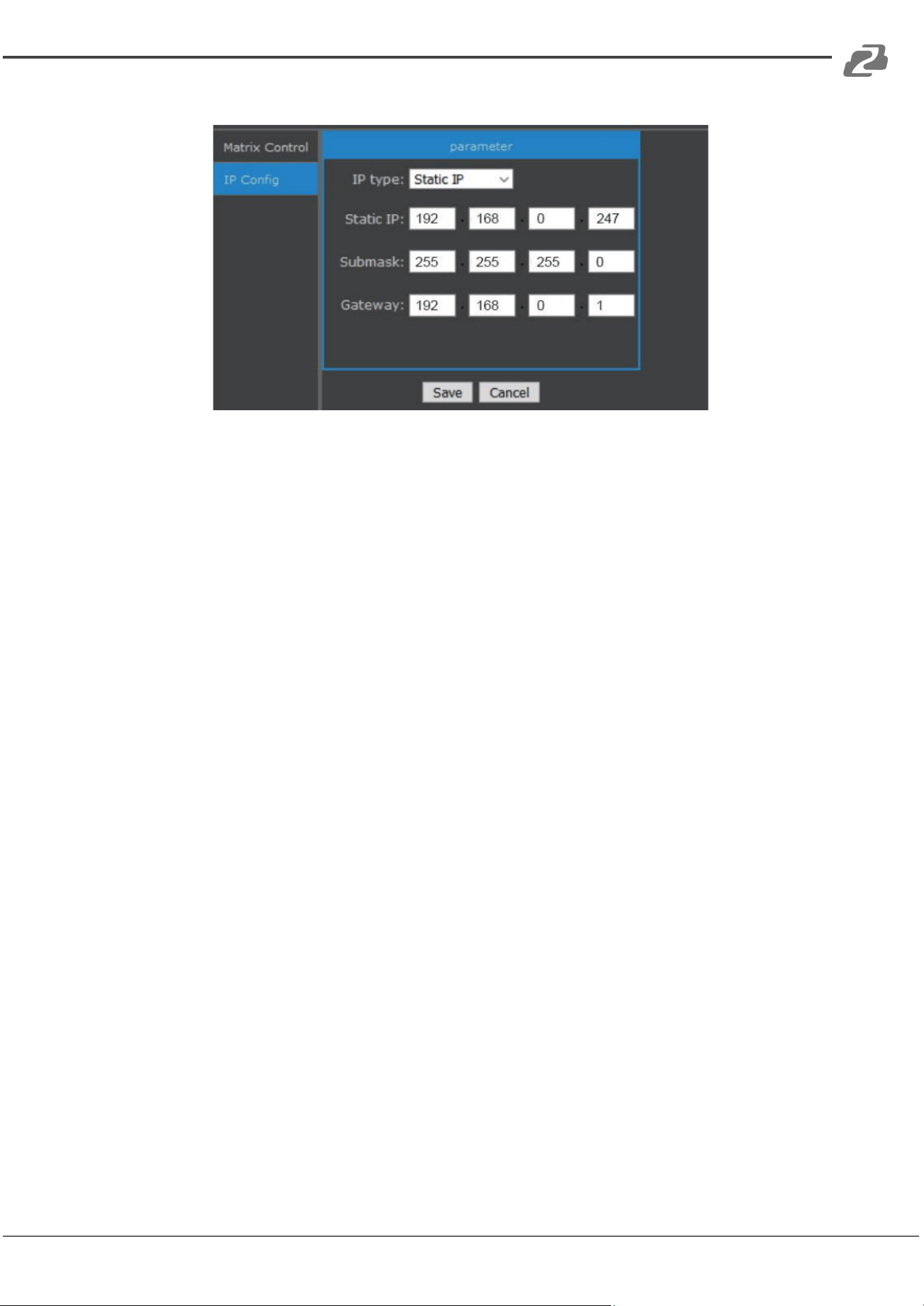
IP Config
The IP Config tab is used to change the IP settings of the matrix switcher. Enter any
necessary changes and click “Save” to program the switcher to the new settings, or click
“Cancel” to reject the changes.
Address: 830 National Drive #140, Sacramento, CA 95834, USA · Tel: +1(888)499-9906 · Email: support@bzbgear.com 19
BZBGEAR BZ-MVS4X4-4K PRODUCT MANUAL
Tech Support
Have technical questions? We may have answered them already!
Please visit BZBGEAR’s support page (bzbgear.com/support) for helpful information and
tips regarding our products. Here you will find our Knowledge Base
(bzbgear.com/knowledge-base) with detailed tutorials, quick start guides, and step-by-step
troubleshooting instructions. Or explore our YouTube channel, BZB TV
(youtube.com/c/BZBTVchannel), for help setting up, configuring, and other helpful how-to
videos about our gear.
Need more in-depth support? Connect with one of our technical specialists directly:
Phone
1.888.499.9906
Email
support@bzbgear.com
Live Chat
bzbgear.com
Limited Product Warranty Terms
Pro Line: 5-year warranty from the date of purchase for AV/Broadcasting products bought
on or after August 1, 2024.
Essential Line: 3-year warranty from the date of purchase for AV/Broadcasting products
bought on or after August 1, 2024.
Cables: Lifetime Limited Product Warranty.
For complete warranty information, please visit bzbgear.com/warranty.
For questions, please call 1.888.499.9906 or email support@bzbgear.com.
Mission Statement
BZBGEAR is a breakthrough manufacturer of high-quality, innovative audiovisual equipment
ranging from AVoIP, professional broadcasting, conferencing, home theater, to live
streaming solutions. We pride ourselves on unparalleled customer support and services.
Our team offers system design consultation, and highly reviewed technical support for all
the products in our catalog. BZBGEAR delivers quality products designed with users in
mind.
Copyright
All the contents in this manual and its copyright are owned by BZBGEAR. No one is allowed
to imitate, copy, or translate this manual without BZBGEAR’s permission. This manual
contains no guarantee, standpoint expression or other implies in any form. Product
specification and information in this manual is for reference only and subject to change
without notice.
All rights reserved. No reproducing is allowed without acknowledgement.
Address: 830 National Drive #140, Sacramento, CA 95834, USA · Tel: +1(888)499-9906 · Email: support@bzbgear.com 20