GAMING MONITOR
ROG
Strix OLED
XG27AQDMG

ii
Copyright © 2024 ASUSTeK COMPUTER INC. All Rights Reserved.
No part of this manual, including the products and software described in it, may be reproduced,
transmitted, transcribed, stored in a retrieval system, or translated into any language in any form or by any
means, except documentation kept by the purchaser for backup purposes, without the express written
permission of ASUSTeK COMPUTER INC. (“ASUS”).
Product warranty or service will not be extended if: (1) the product is repaired, modied or altered, unless
such repair, modication of alteration is authorized in writing by ASUS; or (2) the serial number of the
product is defaced or missing.
ASUS PROVIDES THIS MANUAL “AS IS” WITHOUT WARRANTY OF ANY KIND, EITHER EXPRESS OR IMPLIED,
INCLUDING BUT NOT LIMITED TO THE IMPLIED WARRANTIES OR CONDITIONS OF MERCHANTABILITY
OR FITNESS FOR A PARTICULAR PURPOSE. IN NO EVENT SHALL ASUS, ITS DIRECTORS, OFFICERS,
EMPLOYEES OR AGENTS BE LIABLE FOR ANY INDIRECT, SPECIAL, INCIDENTAL, OR CONSEQUENTIAL
DAMAGES (INCLUDING DAMAGES FOR LOSS OF PROFITS, LOSS OF BUSINESS, LOSS OF USE OR DATA,
INTERRUPTION OF BUSINESS AND THE LIKE), EVEN IF ASUS HAS BEEN ADVISED OF THE POSSIBILITY OF
SUCH DAMAGES ARISING FROM ANY DEFECT OR ERROR IN THIS MANUAL OR PRODUCT.
SPECIFICATIONS AND INFORMATION CONTAINED IN THIS MANUAL ARE FURNISHED FOR INFORMATIONAL
USE ONLY, AND ARE SUBJECT TO CHANGE AT ANY TIME WITHOUT NOTICE AND SHOULD NOT BE
CONSTRUED AS A COMMITMENT BY ASUS. ASUS ASSUMES NO RESPONSIBILITY OR LIABILITY FOR
ANY ERRORS OR INACCURACIES THAT MAY APPEAR IN THIS MANUAL, INCLUDING THE PRODUCTS AND
SOFTWARE DESCRIBED IN IT.
Products and corporate names appearing in this manual may or may not be registered trademarks or
copyrights of their respective companies, and are used only for identication or explanation and to the
owners’ benet, without intent to infringe.
First Edition
April 2024

iii
Table of Contents
Notices ...............................................................iv
Safety information ............................................v
Care & Cleaning ............................................. viii
1.1 Welcome! ................................................ 1-1
1.2 Package Contents .............................. 1-1
1.3 Assembling the Monitor .................... 1-2
1.4 Connect Cables .................................... 1-5
1.4.1 Rear of the OLED Monitor .................... 1-5
1.5 Monitor Introduction ........................... 1-6
1.5.1 Using the Control Buttons .................... 1-6
1.5.2 GamePlus Function .................................. 1-8
1.5.3 GameVisual Function .............................. 1-11
2.1 Detaching the Stand (for VESA Wall
Mount) ................................................... 2-1
2.2 Adjusting the Monitor ........................ 2-3
3.1 OSD (On-Screen Display) Menu ..... 3-1
3.1.1 How to Reconfigure ................................. 3-1
3.1.2 OSD Function Introduction .................... 3-2
3.2 Specifications ....................................3-14
3.3 Outline Dimensions ...........................3-15
3.4 Troubleshooting (FAQ) ....................3-16
3.5 Supported Timing List .....................3-17

iv
Notices
Federal Communications Commission
Statement
This device complies with Part 15 of the FCC Rules. Operation is subject to the
following two conditions:
• This device may not cause harmful interference.
• This device must accept any interference received including interference
that may cause undesired operation.
This equipment has been tested and found to comply with the limits for a Class
B digital device, pursuant to Part 15 of the FCC Rules. These limits are designed
to provide reasonable protection against harmful interference in a residential
installation. This equipment generates, uses and can radiate radio frequency
energy and, if not installed and used in accordance with the instructions, may
cause harmful interference to radio communications. However, there is no
guarantee that interference will not occur in a particular installation. If this
equipment does cause harmful interference to radio or television reception, which
can be determined by turning the equipment off and on, the user is encouraged
to try to correct the interference by one or more of the following measures:
• Reorient or relocate the receiving antenna.
• Increase the separation between the equipment and receiver.
• Connect the equipment to an outlet on a circuit different from that to
which the receiver is connected.
• Consult the dealer or an experienced radio/TV technician for help.
WARNING: The use of shielded cables for connection of the monitor to
the graphics card is required to assure compliance with FCC regulations.
Changes or modications to this unit not expressly approved by the
party responsible for compliance could void the user’s authority to
operate this equipment.

v
Canadian Department of
Communications Statement
This digital apparatus does not exceed the Class B limits for radio noise emissions
from digital apparatus set out in the Radio Interference Regulations of the
Canadian Department of Communications.
This class B digital apparatus complies with Canadian ICES-003.
This Class B digital apparatus meets all requirements of the Canadian
Interference-Causing Equipment Regulations.
Cet appareil numérique de la classe B respecte toutes les exigences du Réglement
sur le matériel brouiller du Canada.
Safety information
• Before setting up the monitor, carefully read all the documentation that
came with the package.
• To prevent re or shock hazard, never expose the monitor to rain or
moisture.
• Never try to open the monitor cabinet. The dangerous high voltages
inside the monitor may result in serious physical injury.
• If the power supply is broken, do not try to x it by yourself. Contact a
qualied service technician or your retailer.
• Before using the product, make sure all cables are correctly connected
and the power cables are not damaged. If you detect any damage,
contact your dealer immediately.
• Slots and openings on the back or top of the cabinet are provided for
ventilation. Do not block these slots. Never place this product near or
over a radiator or heat source unless proper ventilation is provided.
• The monitor should be operated only from the type of power source
indicated on the label. If you are not sure of the type of power supply
to your home, consult your dealer or local power company.
• Use the appropriate power plug which complies with your local power
standard.

vi
• Do not overload power strips and extension cords. Overloading can
result in re or electric shock.
• Avoid dust, humidity, and temperature extremes. Do not place the
monitor in any area where it may become wet. Place the monitor on a
stable surface.
• Unplug the unit during a lightning storm or if it will not be used for a
long period of time. This will protect the monitor from damage due to
power surges.
• Never push objects or spill liquid of any kind into the slots on the
monitor cabinet.
• To ensure satisfactory operation, use the monitor only with UL listed
computers which have appropriate congured receptacles marked
between 100 ~ 240V AC.
• The socket-outlet shall be installed near the equipment and shall be
easily accessible.
• If you encounter technical problems with the monitor, contact a qualied
servicer.
• Provide an earthing connection before the mains plug is connected to
the mains. And, when disconnecting the earthing connection, be sure
to disconnect after pulling out the mains plug from the mains.
• Please use ADP-120VH B adapter.
• If provided with a 3-pin attachment plug on the power cord, plug the cord
into a grounded (earthed) 3-pin outlet. Do not disable the power cord
grounding pin, for example, by attaching a 2-pin adapter. The grounding
pin is an important safety feature.
Stability Hazard
• The product may fall, causing serious personal injury or death. To
prevent injury, this product must be securely attached to the oor/wall
in accordance with the installation instructions.
• A product may fall, causing serious personal injury or death. Many
injuries, particularly to children, can be avoided by taking simple
precautions such as:
• ALWAYS use cabinets or stands or installation methods recommended
by the manufacturer of the product set.
vii
• ALWAYS use furniture that can safely support the product.
• ALWAYS ensure the product is not overhanging the edge of the
supporting furniture.
• ALWAYS educate children about the dangers of climbing on furniture
to reach the product or its controls.
• ALWAYS route cords and cables connected to your product so they
cannot be tripped over, pulled or grabbed.
• NEVER place a product in an unstable location.
• NEVER place the product on tall furniture (for example, cupboards or
bookcases) without anchoring both the furniture and the product to a
suitable support.
• NEVER place the product on cloth or other materials that may be located
between the product and supporting furniture.
• NEVER place items that might tempt children to climb, such as toys
and remote controls, on the top of the product or furniture on which
the product is placed.
• If the existing product is going to be retained and relocated, the same
considerations as above should be applied.
WARNING: Usage of other than specied head- or earphones can
result in hearing loss due to excessive sound pressures.
Restriction on Hazardous Substances
statement (India)
This product complies with the “India E-Waste (Management) Rules, 2016”
and prohibits use of Lead, Mercury, Hexavalent Chromium, polybrominated
biphenyls(PBBs) and polybrominated diphenyl ethers(PBDEs) in concentration
exceeding 0.1% by weight in homogenous materials and 0.01% by weight in
homogenous materials for cadmium, except of exemptions listed in Schedule
2 of the Rule.
viii
Prevent Tipping
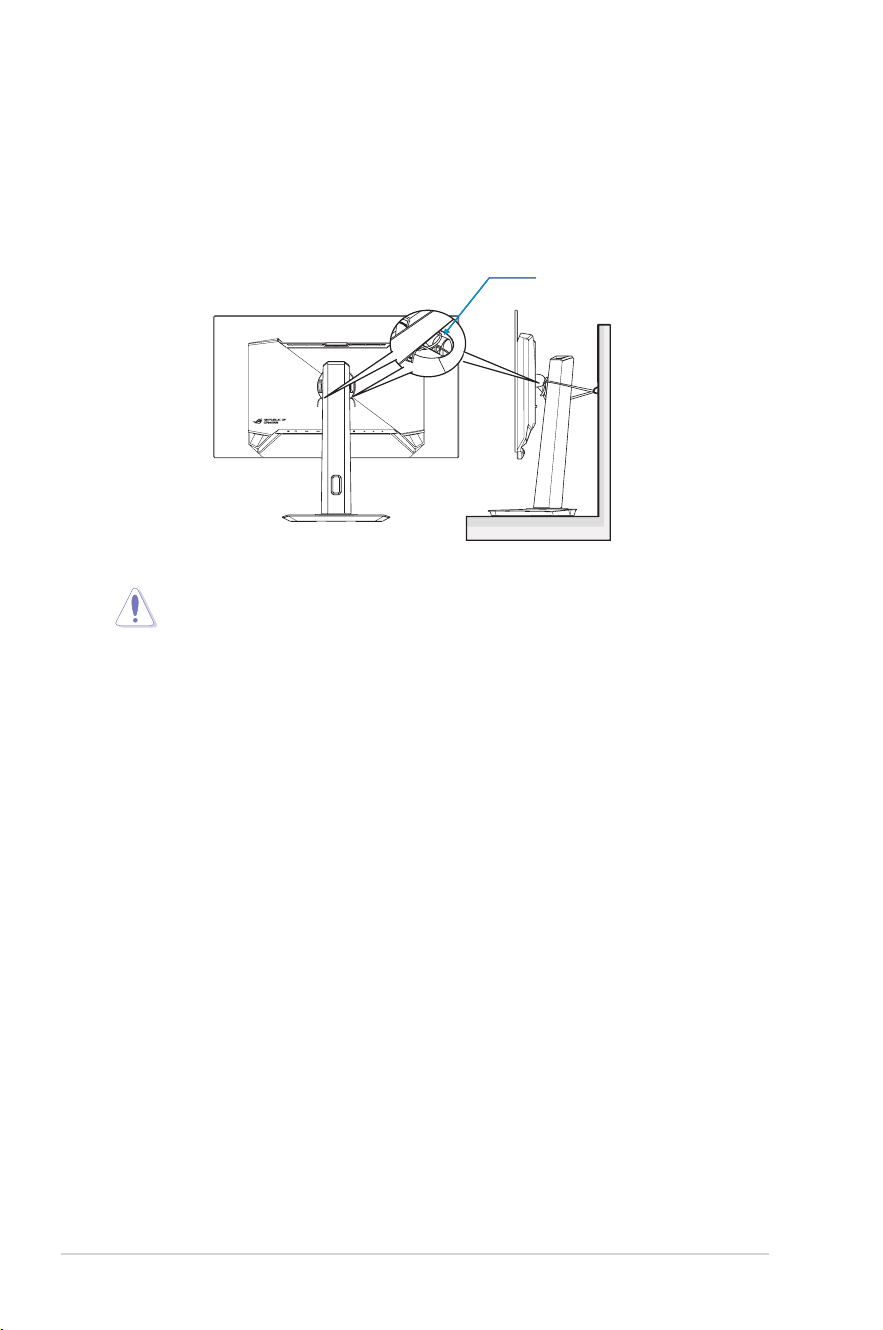
When using the display, fasten the OLED to a wall using a cord or chain that
can support the weight of the monitor in order to prevent the monitor from
falling.
Cord or chain
• Display design may differ from those illustrated.
• Installing must be done by a qualied technician , and please
contact your supplier for more information.
• For the Models with net weight >=7kg. Please select the
suitable way to Prevent Tipping.
• Please use the method described in the above image to tie the
cord or chain to the stand and then x it to the wall.
Care & Cleaning
• Before you lift or reposition your monitor, it is better to disconnect the
cables and power cord. Follow the correct lifting techniques when
positioning the monitor. When lifting or carrying the monitor, grasp the
edges of the monitor. Do not lift the display by the stand or the cord.
• Cleaning. Turn your monitor off and unplug the power cord. Clean the
monitor surface with a lint-free, non-abrasive cloth. Stubborn stains
may be removed with a cloth dampened with mild cleaner.
• Avoid using a cleaner containing alcohol or acetone. Use a cleaner
intended for use with the OLED. Never spray cleaner directly on the
screen, as it may drip inside the monitor and cause an electric shock.
ix
This symbol of the crossed out wheeled bin indicates that the product (electrical,
electronic equipment, and mercury-containing button cell battery) should not be
placed in municipal waste.
Please check local regulations for disposal of electronic products.
AEEE yönetmeliğine uygundur
The following symptoms are normal with
the monitor:
• The screen may icker during the initial use due to the nature of the
uorescent light. Turn off the Power Switch and turn it on again to make
sure that the icker disappears.
• You may nd slightly uneven brightness on the screen depending on
the desktop pattern you use.
• When the same image is displayed for hours, an afterimage of the
previous screen may remain after switching the image. The screen will
recover slowly or you can turn off the Power Switch for hours.
• When the screen becomes black or ashes, or cannot work anymore,
contact your dealer or service center to x it. Do not repair the screen
by yourself!
Conventions used in this guide
WARNING: Information to prevent injury to yourself when trying to
complete a task.
CAUTION: Information to prevent damage to the components when
trying to complete a task.
IMPORTANT: Information that you MUST follow to complete a task.
NOTE: Tips and additional information to aid in completing a task.
x
Where to find more information
Refer to the following sources for additional information and for product and
software updates.
1. ASUS websites
The ASUS websites worldwide provide updated information on ASUS
hardware and software products. Refer to http://www.asus.com
2. Optional documentation
Your product package may include optional documentation that may
have been added by your dealer. These documents are not part of the
standard package.
3. Product information for EU Energy label
XG27AQDMG
4. Takeback Services
ASUS recycling and takeback programs come from our commitment
to the highest standards for protecting our environment. We believe in
providing solutions for our customers to be able to responsibly recycle
our products, batteries and other components as well as the packaging
materials.
Please go to http://csr.asus.com/english/Takeback.htm for detail
recycling information in different region.
1-1
ROG Swift OLED XG27AQDMG Gaming Monitor
1.1 Welcome!
Thank you for purchasing the ASUS
®
OLED monitor!
The latest widescreen OLED monitor from ASUS provides a crisper, broader, and
brighter display, plus a host of features that enhance your viewing experience.
With these features, you can enjoy the convenience and delightful visual
experience that the monitor brings to you!
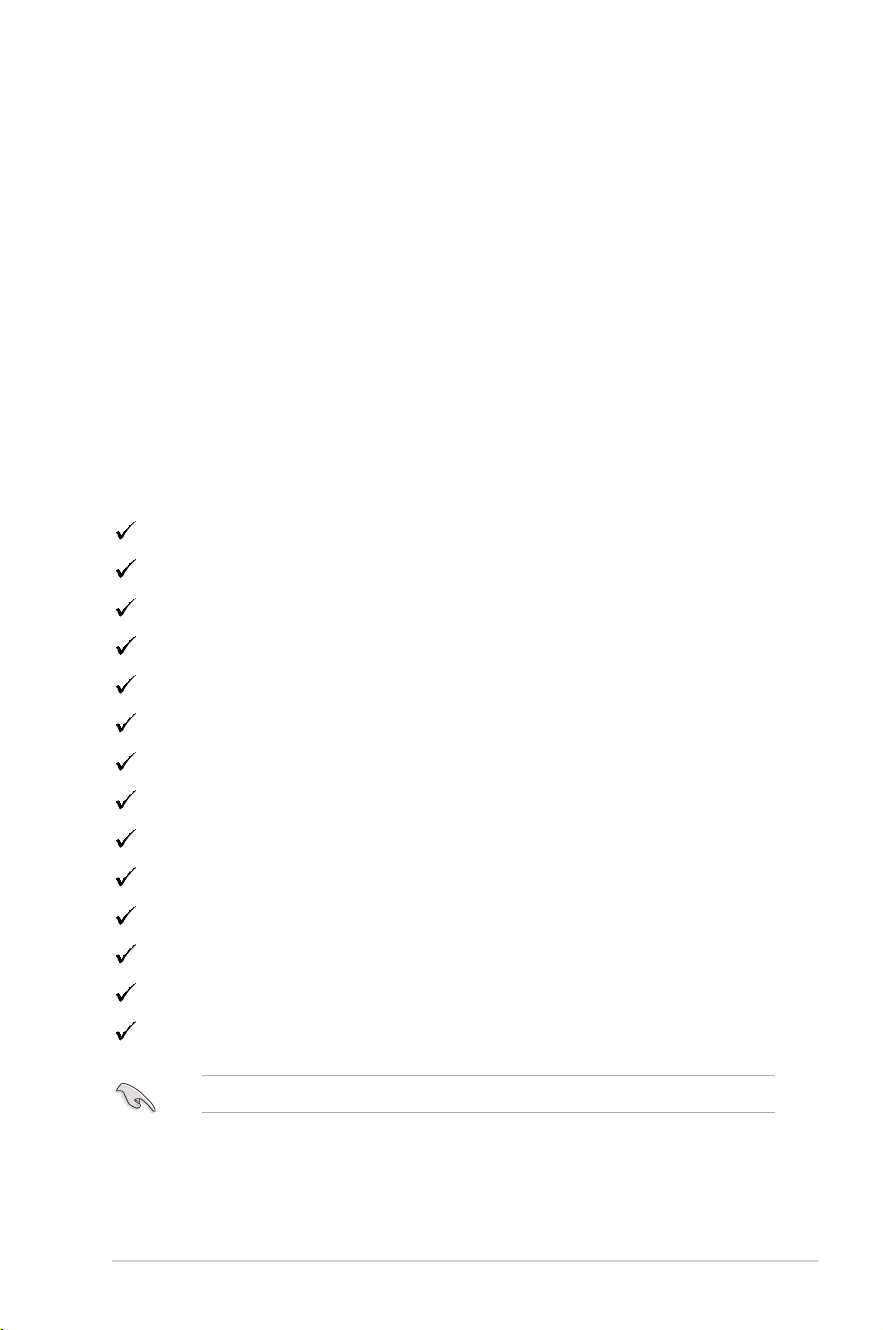
1.2 Package Contents
Check your package for the following items:
OLED Monitor
Monitor Stand
Monitor Base
Quick Start Guide
Warranty Card
1x Power Cord
1x HDMI Cable
1x DP Cable
1x USB 3.0 Cable
1x Power Adapter
1x ROG wall mount kit
1 x ROG Pouch
ROG Sticker
Microber cloth
• If any of the above items is damaged or missing, contact your retailer immediately.
1-2
Chapter 1: Product Introduction
1.3 Assembling the
Monitor
To assemble the monitor:
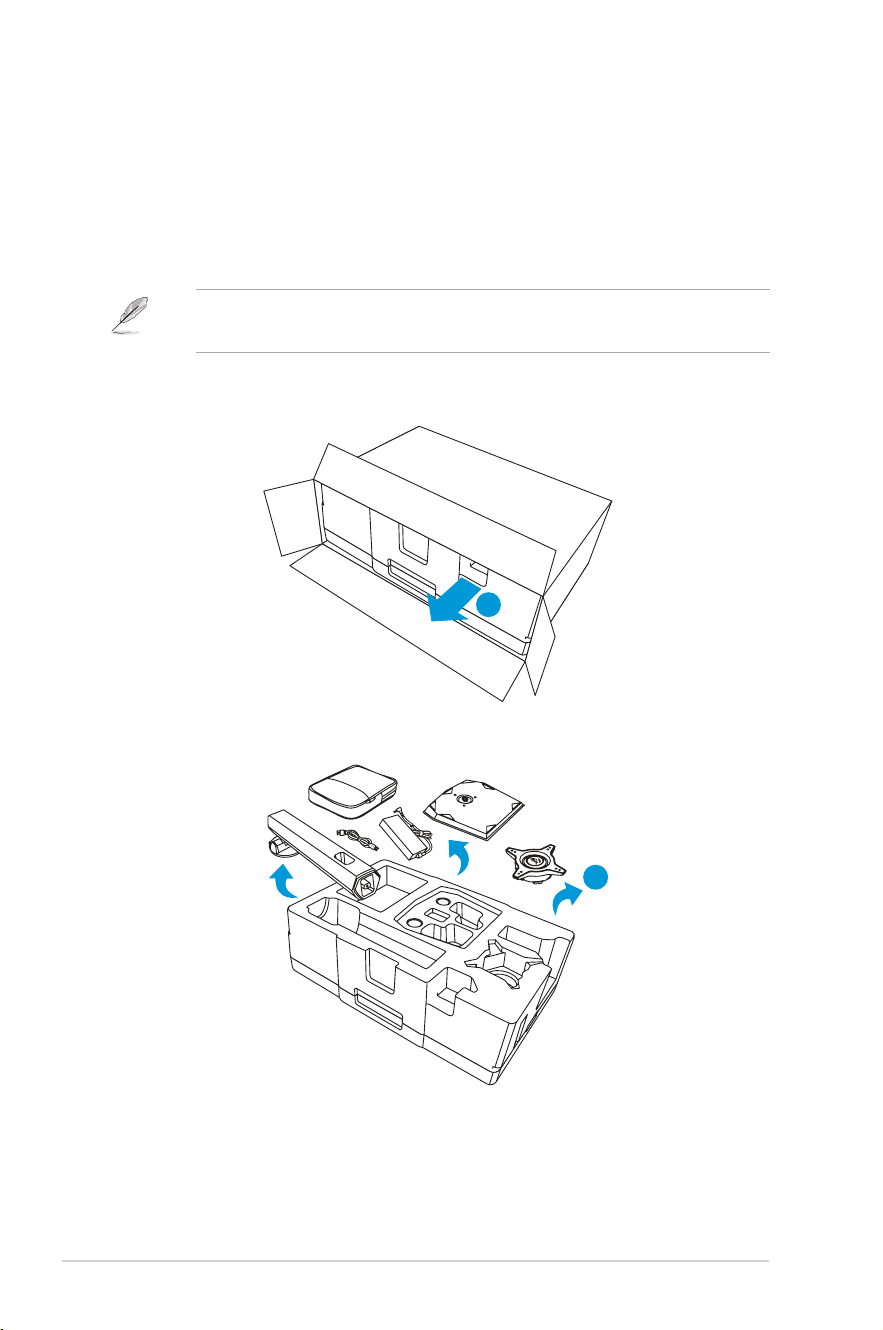
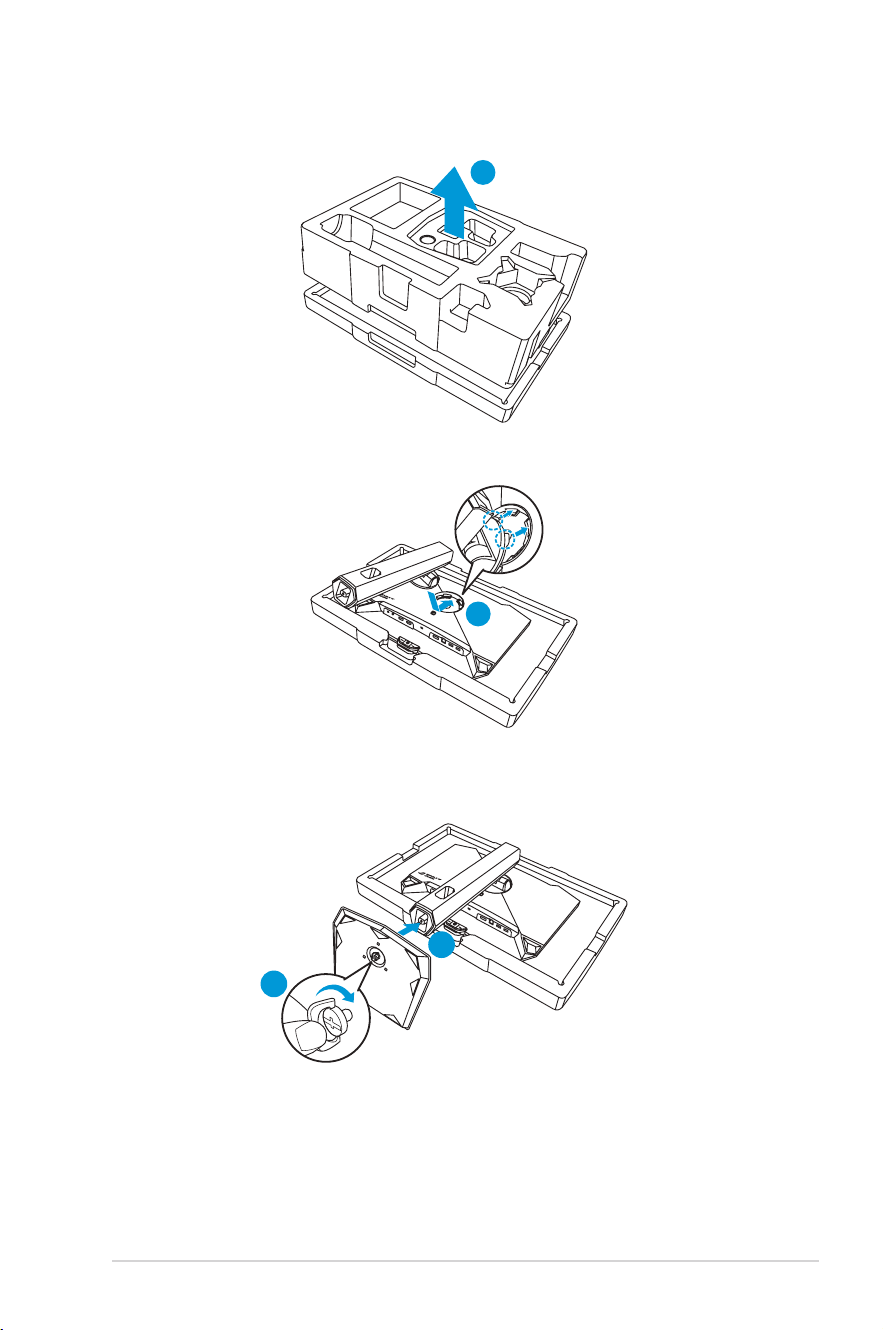
• While assembling the monitor stand/base, we recommend that you keep the
monitor inside its EPS (Expanded Polystyrene) packaging.
1. Remove the EPS packaging from the box.
1
2. Take out all accessories from the upper EPS.
2
1-3
ROG Swift OLED XG27AQDMG Gaming Monitor
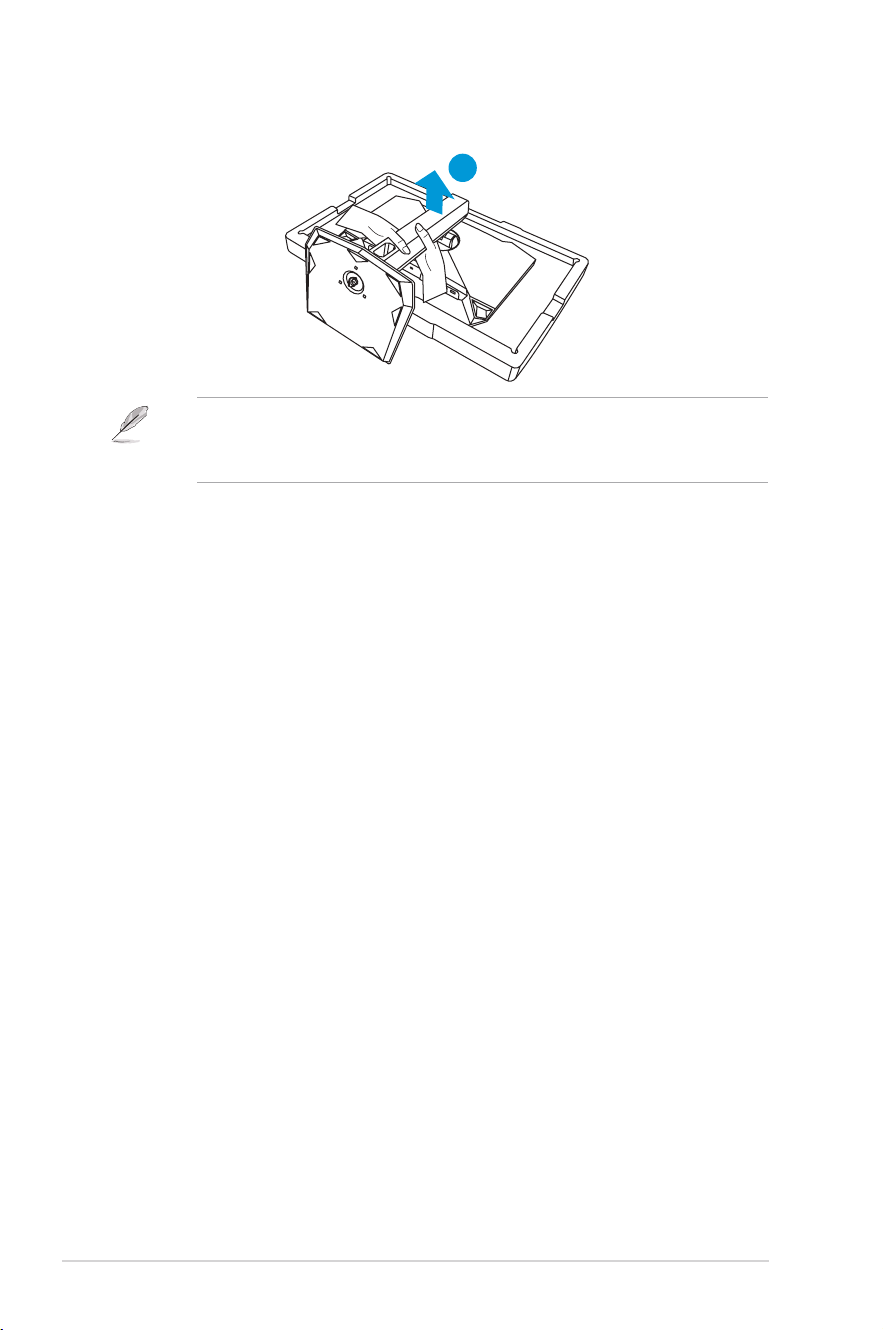
3. Remove the upper EPS from the EPS packaging.
3
4. Align and install the stand to its compartment on the rear of the monitor.
4
5. Align and install the base to the stand.
6. Fix the base to the stand by fastening the bundled screw.
6
5
1-4
Chapter 1: Product Introduction
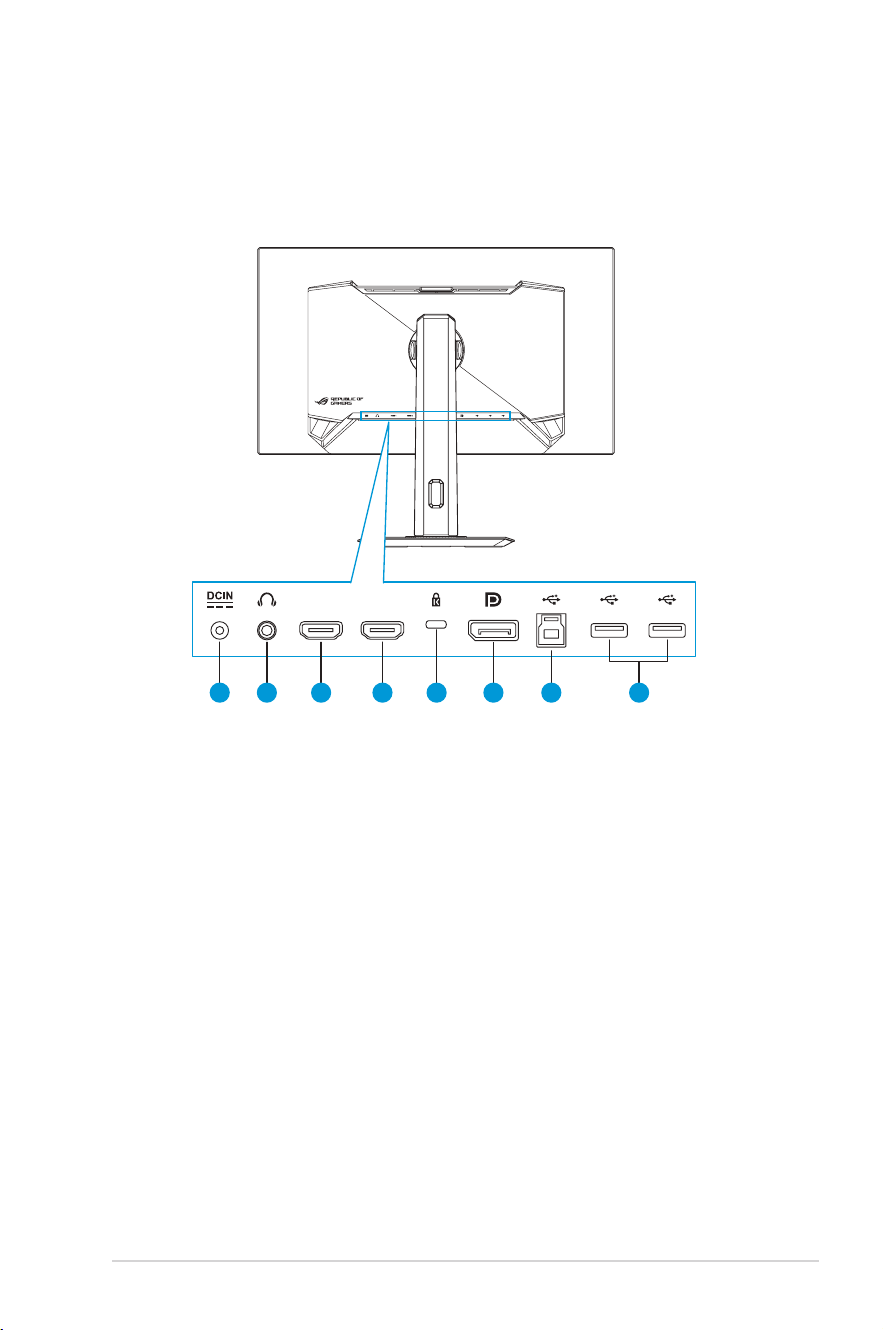
7. Remove the monitor from the bottom EPS.
7
• Please do not hold the panel, we recommend hold the monitor stand to
pick up monitor.
• Base screw size is M6 x 16 mm.
Adjust the monitor to the angle that is most comfortable for you.
1-5
ROG Swift OLED XG27AQDMG Gaming Monitor
1.4 Connect Cables
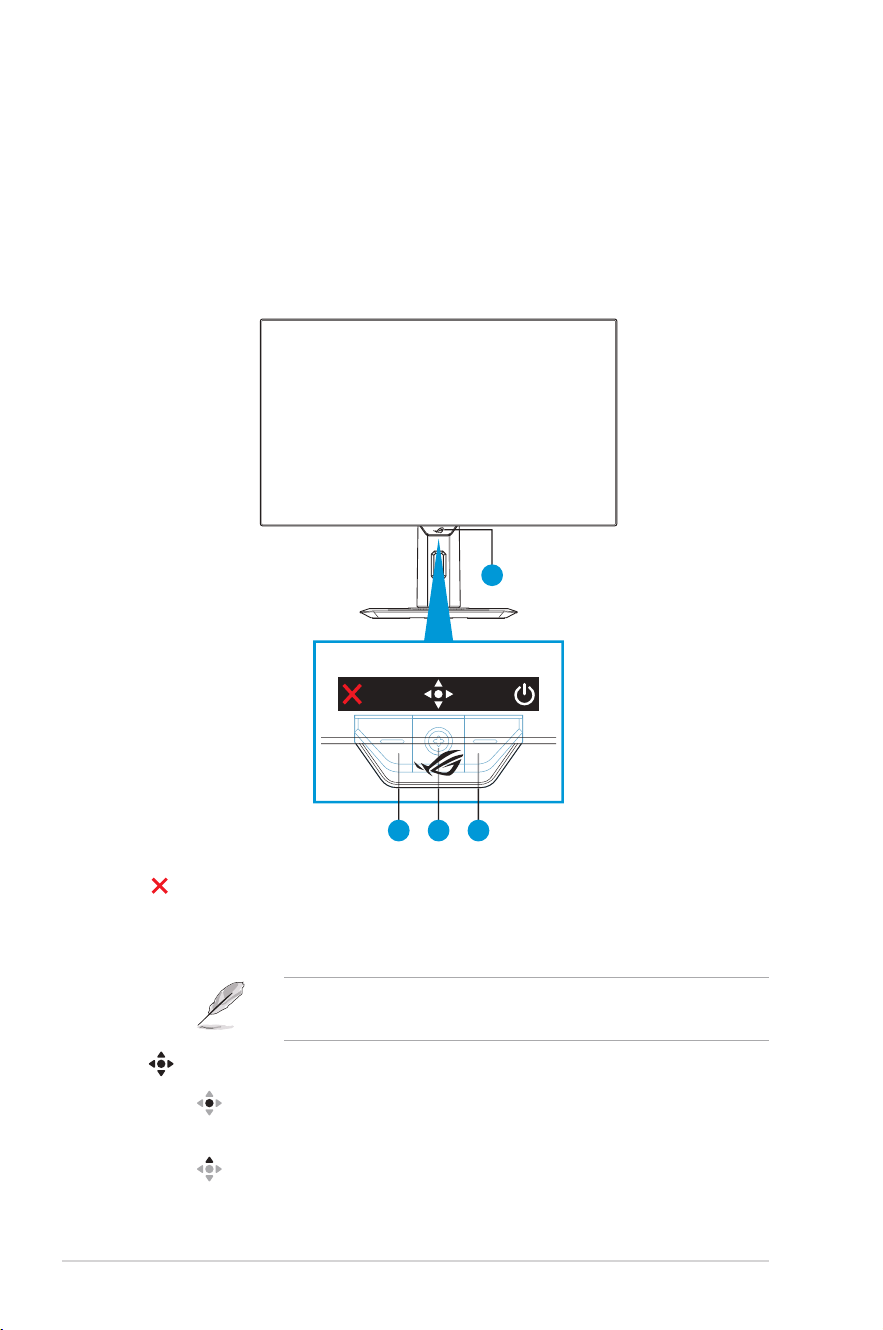
1.4.1 Rear of the OLED Monitor
1 2 6 7 83 4 5
HDMI-1 HDMI-2
1. DC-IN Port
2. Earphone Jack
3. HDMI-1 Port
4. HDMI-2 Port
5. Kensington Lock
6. DisplayPort
7. USB Type-B Port
8. USB Type-A Ports
1-6
Chapter 1: Product Introduction
1.5 Monitor Introduction
1.5.1 Using the Control Buttons
Use the control buttons on the rear of the monitor to adjust the monitor
settings.
4
21 3
1. Input Select / Close Button:
• Press to activate the Input Select hotkey. In the OSD menu, press
to exit the OSD menu.
• To change the hotkey function, go to the MyFavorite > Shortcut
menu.
2. Hotkey / Navigation Button:
• : Press to activate the OSD menu. In the OSD menu, press to
conrm the selection.
• : Move the button up to activate the GameVisual hotkey.
1-7
ROG Swift OLED XG27AQDMG Gaming Monitor
• : Move the button down to activate the Pixel Cleaning hotkey.
• : In the OSD menu, move the button up/down to navigate
through the settings.
• : Move the button right to activate the GamePlus hotkey. In the
OSD menu, move the button right to move to the next menu.
• : Press to activate the OSD menu. In the OSD menu, move the
button left to exit the OSD menu or move to the previous menu.
• To change the hotkey function, go to the MyFavorite > Shortcut
menu.
• For more information on GamePlus function, refer to page 1-8.
• For more information on GameVisual function, refer to page 1-11.
3. Power Button:
• Press this button to turn the monitor on/off.
4. Power Indicator:
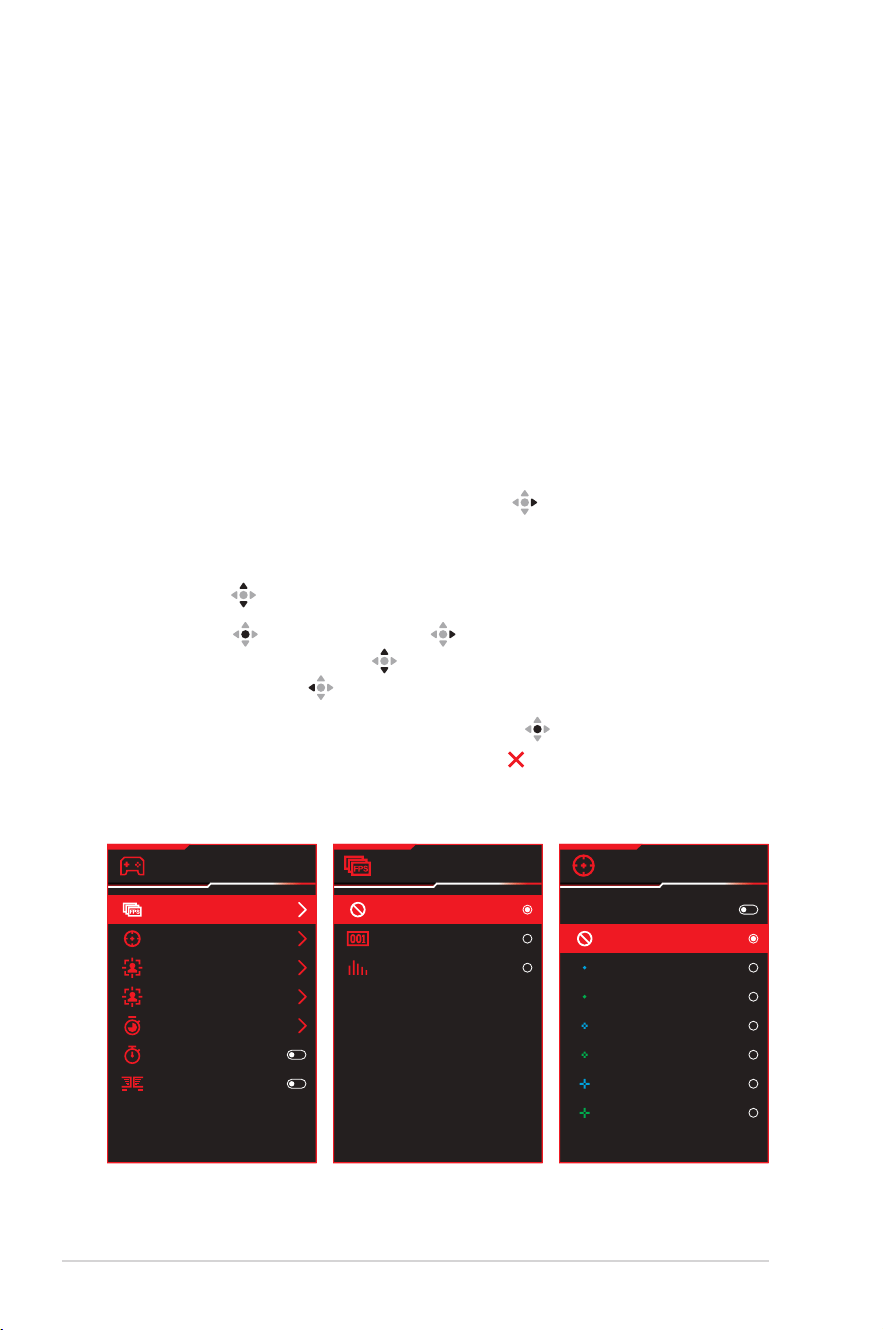
• The color denition of the power indicator is as the table below.
Status Description
Red ON
Amber Standby mode
OFF OFF
1-8
Chapter 1: Product Introduction
1.5.2 GamePlus Function
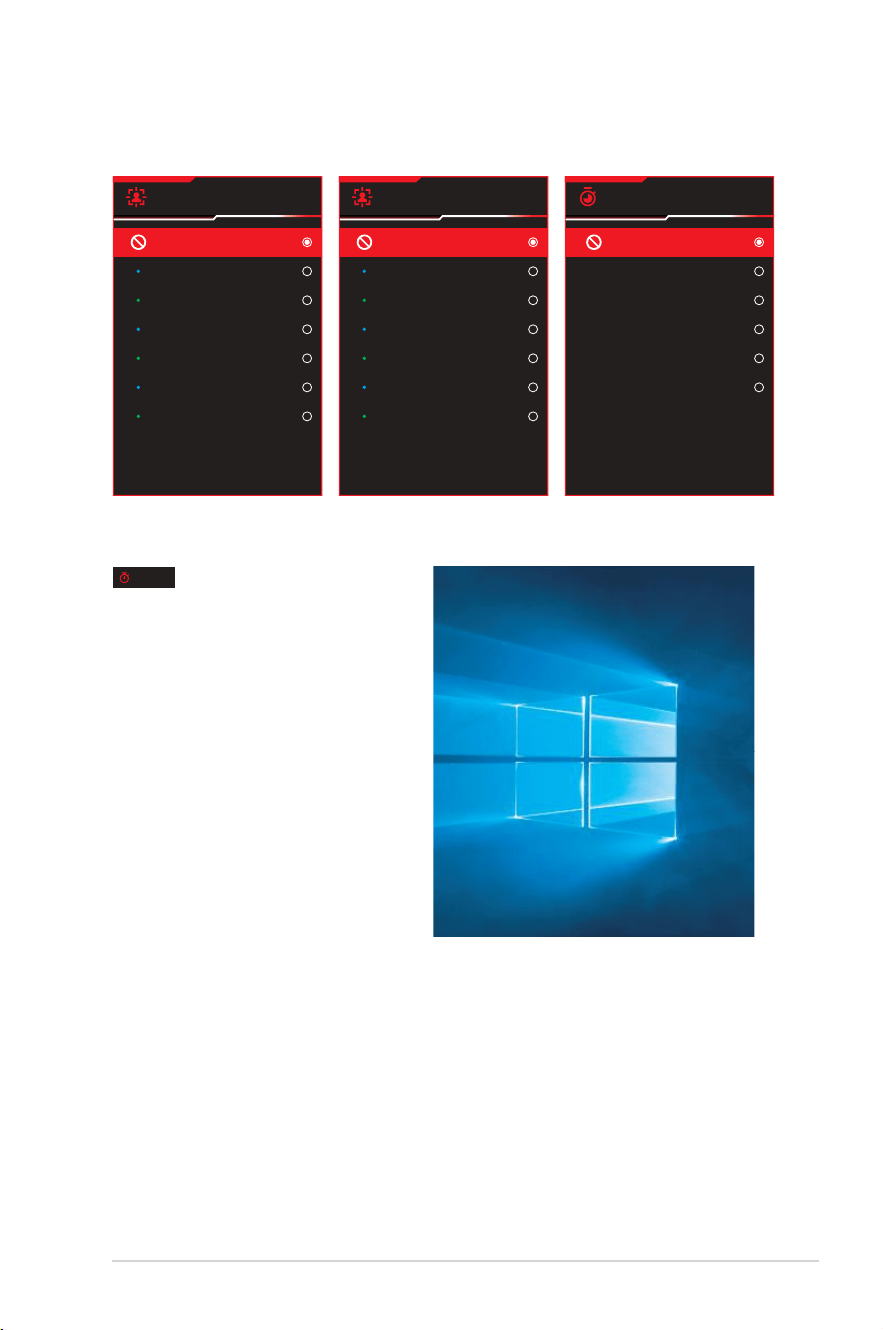
The GamePlus function provides a toolkit and creates a better gaming
environment for users when playing different types of games. The FPS
(frames per second) counter lets you know how smooth the game is running.
The crosshair overlay with 6 different crosshair options letting you choose the
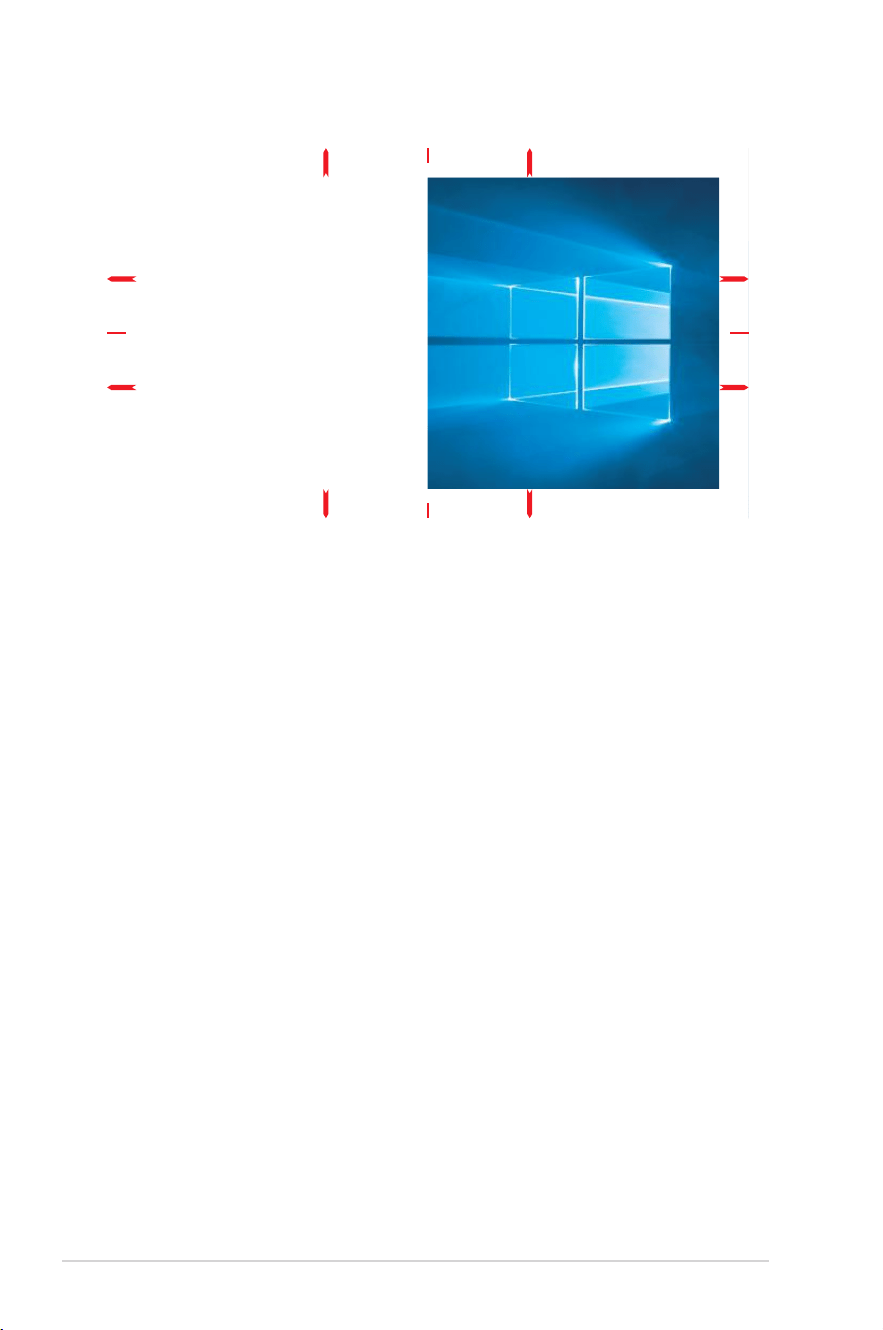
one that best suits the game you're playing. Sniper function (only available
when HDR is disabled on your device) is customized for rst-person shooters.
Use sniper night vision for the night vision mode. There are also on screen
timer and stopwatch you can position on the left of the display so you can
keep track of the gaming time. You can also select the type of alignment in
sequence.
To activate GamePlus:
1. Press the GamePlus hotkey. By default, the button right is set as
GamePlus hotkey.
To change the hotkey function, go to the MyFavorite > Shortcut menu.
2. Move the button up/down to select among different functions.
3. Press the button or move the button right to conrm the function
you choose, and move the button up/down to navigate through the
settings. Move the button left to go back, off, or exit.
4. Highlight the desired setting and press the button to activate it.
Once the function is activated, press the button to inactivate it.
GamePlus
FPS Counter
Crosshair
Sniper
Sniper Night Vision
Timer
Stopwatch
Display Alignment
GamePlus Main Menu
FPS Counter
OFF
Number
Bar Graph
GamePlus — FPS
Counter
Crosshair
Dynamic Crosshair
OFF
GamePlus — Crosshair
1-9
ROG Swift OLED XG27AQDMG Gaming Monitor
OFF
1.2x
1.2x
1.5x
1.5x
2.0x
2.0x
Sniper
GamePlus — Sniper
Sniper Night Vision
OFF
1.2x
1.2x
1.5x
1.5x
2.0x
2.0x
GamePlus — Sniper
Night Vision
Timer
OFF
30:00
40:00
50:00
60:00
90:00
GamePlus — Timer
00:02
GamePlus — Stopwatch
1-10
Chapter 1: Product Introduction
GamePlus — Display Alignment
GamePlus
1-11
ROG Swift OLED XG27AQDMG Gaming Monitor
1.5.3 GameVisual Function
The GameVisual function helps you select among different picture modes in a
convenient way.
To activate GameVisual:
1. Press the GameVisual hotkey. By default, the button up is set as
GameVisual hotkey.
To change the hotkey function, go to the MyFavorite > Shortcut menu.
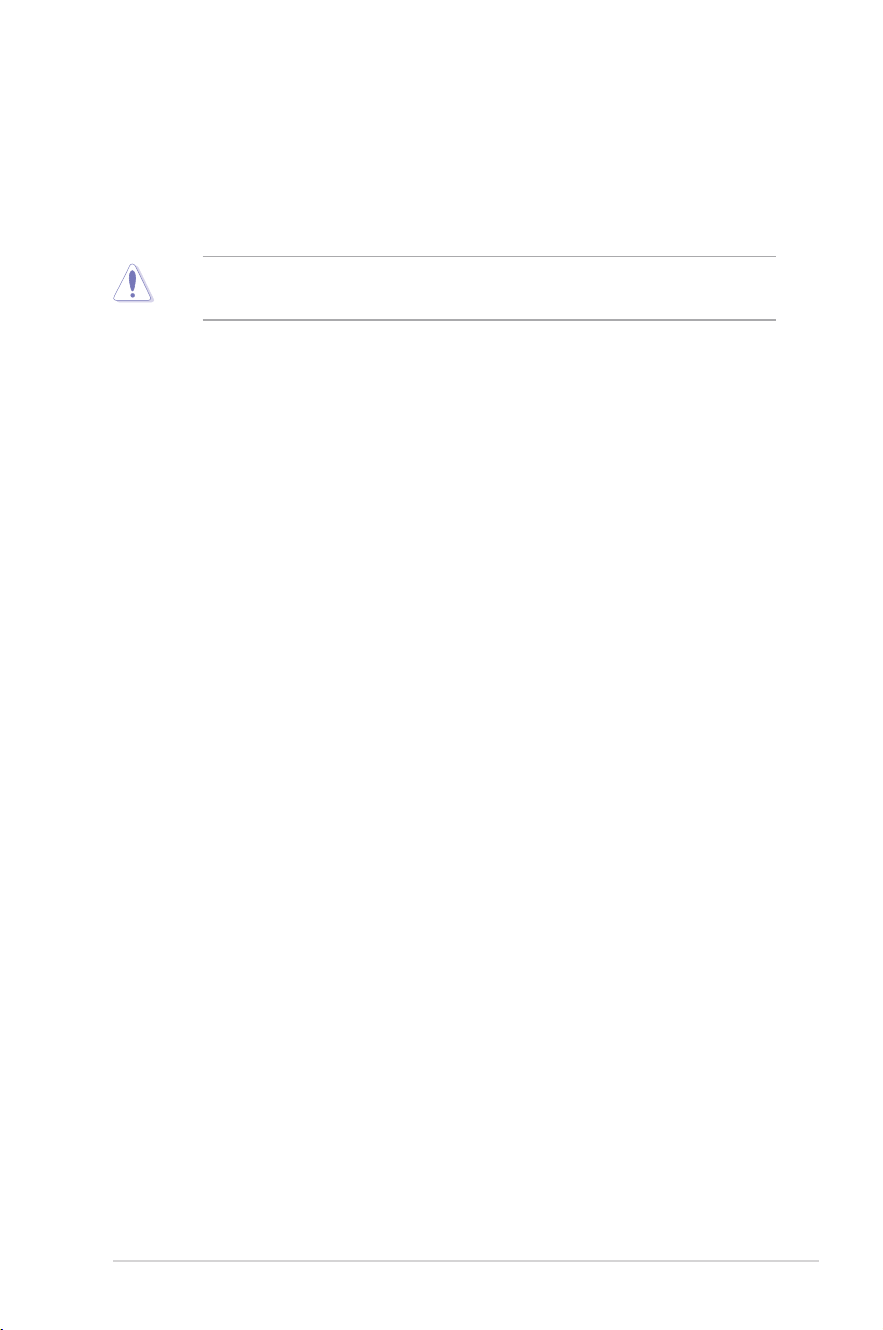
2. Move the button up/down to select among different modes.
• Scenery Mode: This is the best choice for scenery photo displaying
with GameVisual
TM
Video intelligence Technology.
• Racing Mode: This is the best choice for racing game playing with
GameVisual
TM
Video intelligence Technology.
• Cinema Mode: This is the best choice for movie watching with
GameVisual
TM
Video intelligence Technology.
• RTS/RPG Mode: This is the best choice for Real-Time Strategy
(RTS)/ Role-Playing Game (RPG) playing with GameVisual
TM
Video
intelligence Technology.
• FPS Mode: This is the best choice for First Person Shooter game
playing with GameVisual
TM
Video intelligence Technology.
• sRGB Cal Mode: This is the best choice for viewing photos and
graphics from PCs.
• MOBA Mode: This is the best choice for Multiplayer Online Battle
Arena (MOBA) games playing with GameVisual
TM
Video intelligence
Technology.
• Night Vision: This is the best choice for dark scenery playing with
GameVisual
TM
Video intelligence Technology.
• User Mode: More items are adjustable in the Color menu.
1-12
Chapter 1: Product Introduction
• In the sRGB Cal Mode, the Shadow Boost, Uniform Brightness, Contrast,
Blue Light Filter, Display Color Space, Color Temp., Saturation, Six-axis
Saturation, and Gamma are not user-configurable.
• In the sRGB, the Shadow Boost, Uniform Brightness, Contrast, Blue Light
Filter, Display Color Space, Color Temp., Saturation, Six-axis Saturation,
and Gamma functions are not user-congurable.
• In the MOBA Mode, the Shadow Boost, VividPixel, Saturation, and Six-axis
Saturation functions are not user-congurable.
• In the Night Vision Mode, the Saturation and Six-axis Saturation functions
are not user-congurable.
GameVisual
Scenery Mode
Racing Mode
Cinema Mode
RTS/RPG Mode
FPS Mode
sRGB Cal Mode
MOBA Mode
Night Vision
3. Press the button to conrm the selection.
GameVisual
2-1
ROG Swift OLED XG27AQDMG Gaming Monitor
2.1 Detaching the Stand
(for VESA Wall Mount)
• Avoid damaging the monitor surface. While detaching the monitor stand, always
keep the monitor inside its EPS packaging.
The detachable stand of this monitor is specially designed for VESA wall
mount.
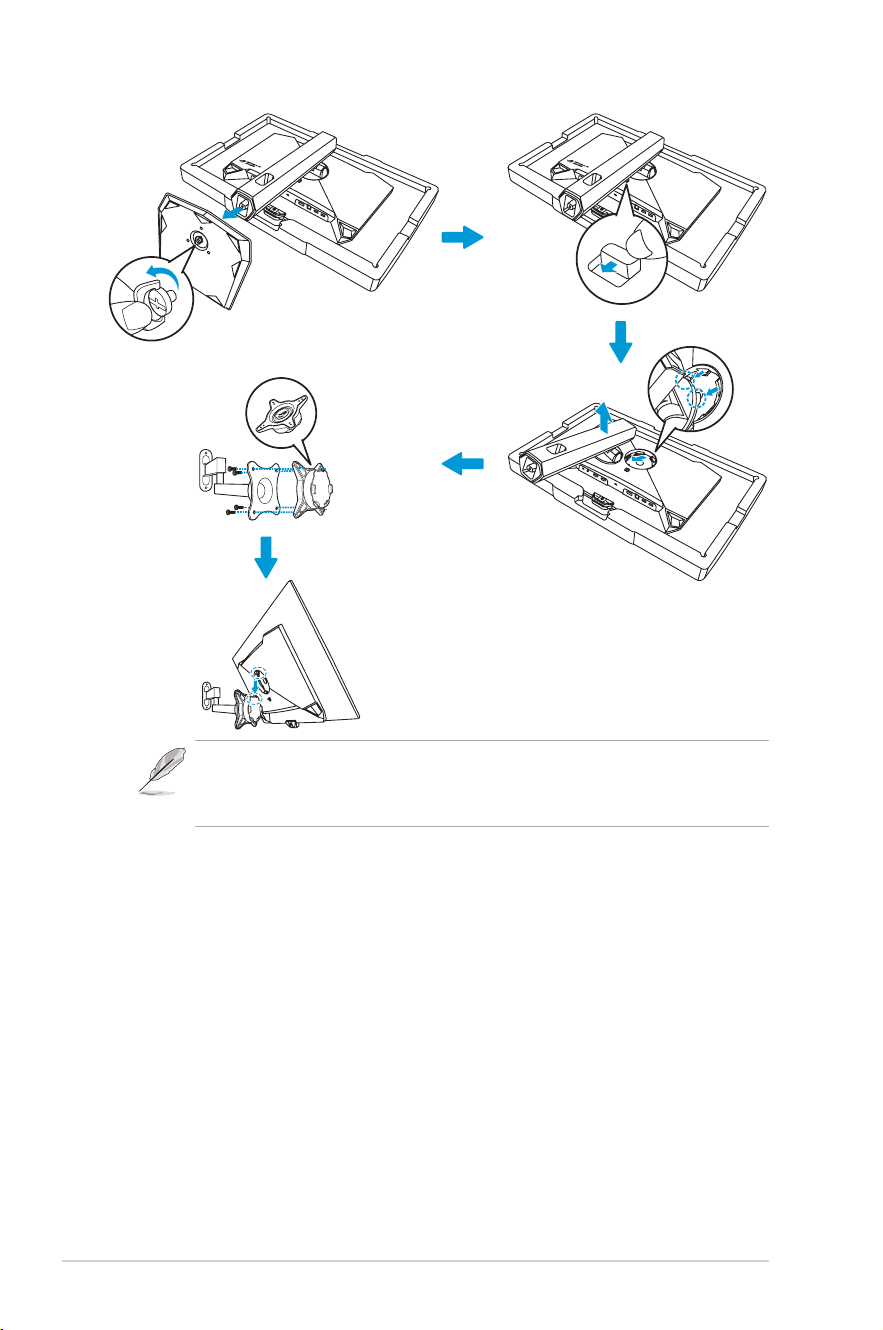
1. Disconnect power and signal cables. Carefully put the monitor facedown
on its EPS packaging.
2. Release the bundled screw and remove the base from the stand.
3. Press the release button to detach the stand from the monitor.
4. Remove the stand. Then install the wall mount bracket on the rear of the
monitor.
5. Install VESA wall mount kit if you need to use VESA wall mount.
2-2
Chapter 2: Setup
• The VESA wall mount kit (100 x 100 mm).
• Use only the UL Listed Wall Mount Bracket with minimum weight/load
22.7kg (screw size is M4 x 10 mm).
2-3
ROG Swift OLED XG27AQDMG Gaming Monitor
2.2 Adjusting the Monitor
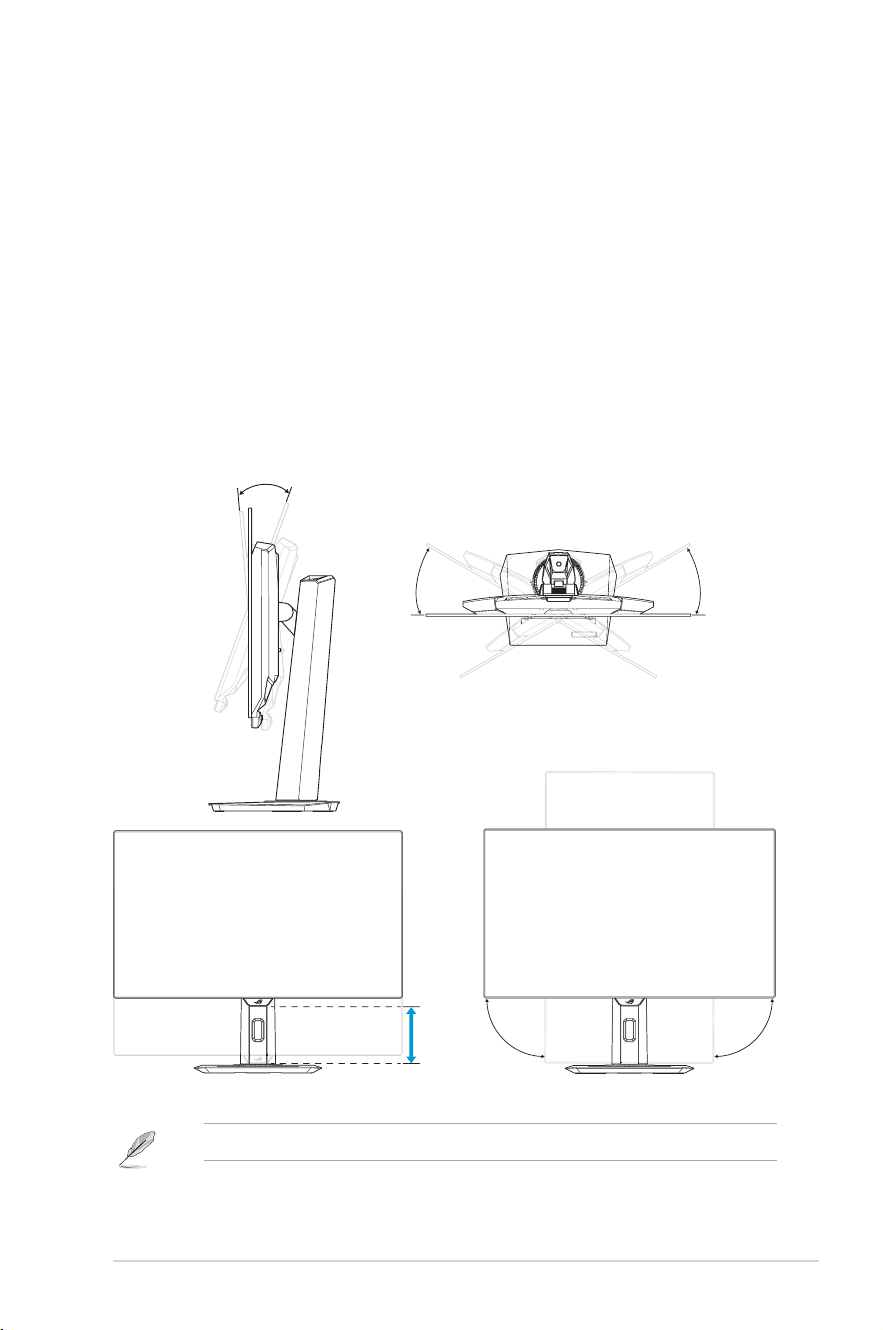
• For optimal viewing, we recommend that you look at the full face
of the monitor, then adjust the monitor to the angle that is most
comfortable for you.
• Hold the stand to prevent the monitor from falling when you change
its angle.
• You can adjust the monitor's angle from -5° to 20° and it allows 45°
swivel adjustment from either left or right. You can also adjust the
monitor's height within ±12 cm and rotate the monitor (90˚ clockwise
or counter-clockwise) to portrait orientation.
-5 ~ 20°
12cm
45
°45
°
90°
90
°
• It is normal that the monitor slightly shakes while you adjust the viewing angle.
3-1
ROG Swift OLED XG27AQDMG Gaming Monitor
3.1 OSD (On-Screen
Display) Menu
3.1.1 How to Reconfigure
Gaming
Image
Color
Input Select
Lighting Effect
Racing Mode
GameVisual
DisplayPort
Input Select
OFF
HDR
ROG STRIX XG27aqdmg
2560 x 1440 240 Hz
Variable Refresh Rate
ELMB
GamePlus
GameVisual
Shadow Boost
ASUS DisplayWidget Center
Back Enter ExitVolume 50
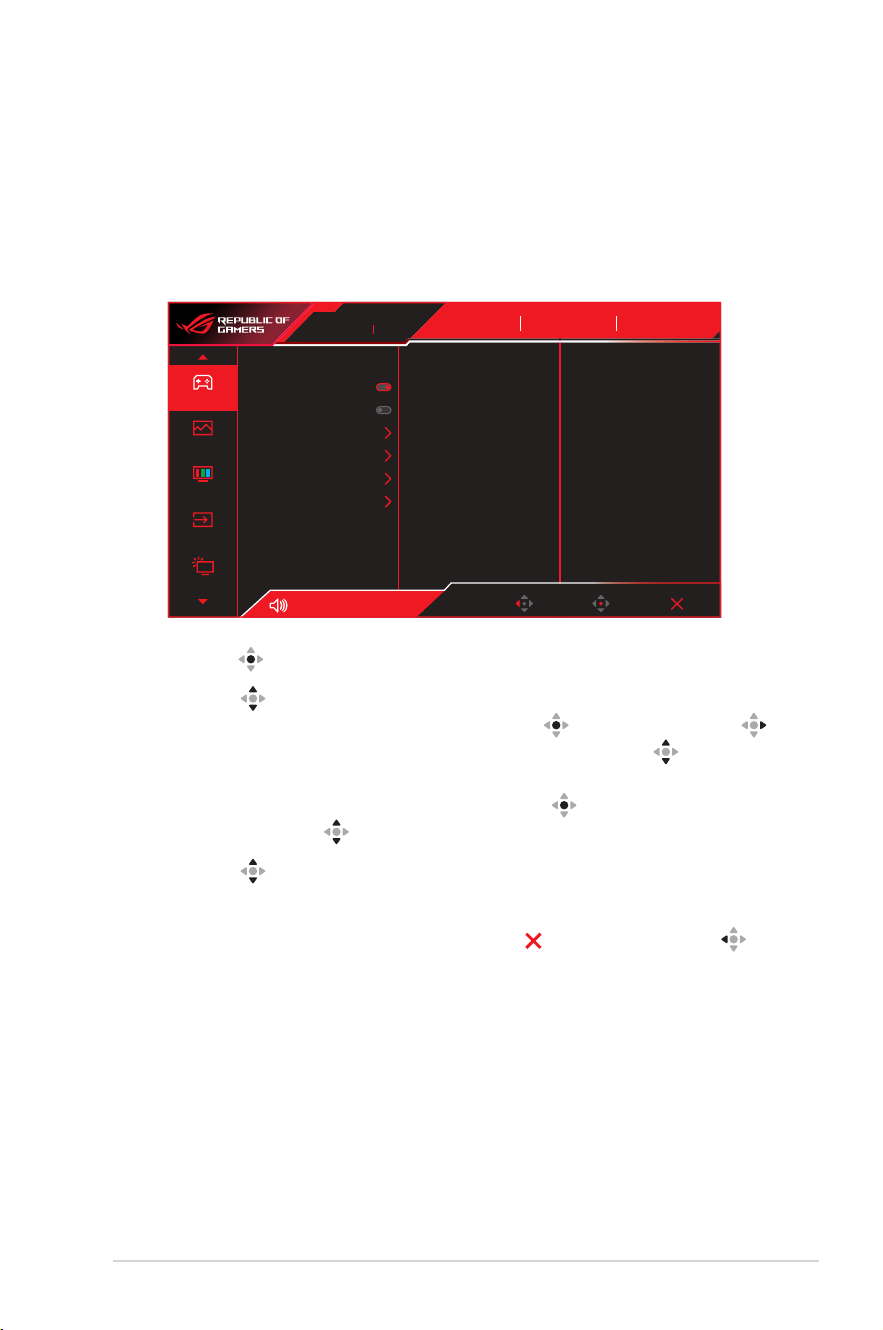
1. Press the button to display the OSD menu.
2. Move the button up/down to navigate through the functions.
Highlight the desired function and press the button or move the
button right to enter its sub-menu. In submenu, move the button
up/down again to navigate through the sub-menu functions. Highlight
the desired sub-menu function and press the button to select an
option or move the button up/down to adjust the setting.
3. Move the button up/down to change the settings of the selected
function.
4. To exit and save the OSD menu, press the button or move the
button left repeatedly until the OSD menu disappears. To adjust other
functions, repeat steps 1 to 3.
3-2
Chapter 3: General Instruction
3.1.2 OSD Function Introduction
1. Gaming
Congure your gaming preferences.
Gaming
Image
Color
Input Select
Lighting Effect
Racing Mode
GameVisual
DisplayPort
Input Select
OFF
HDR
ROG STRIX XG27aqdmg
2560 x 1440 240 Hz
Variable Refresh Rate
ELMB
GamePlus
GameVisual
Shadow Boost
ASUS DisplayWidget Center
Back Enter ExitVolume 50
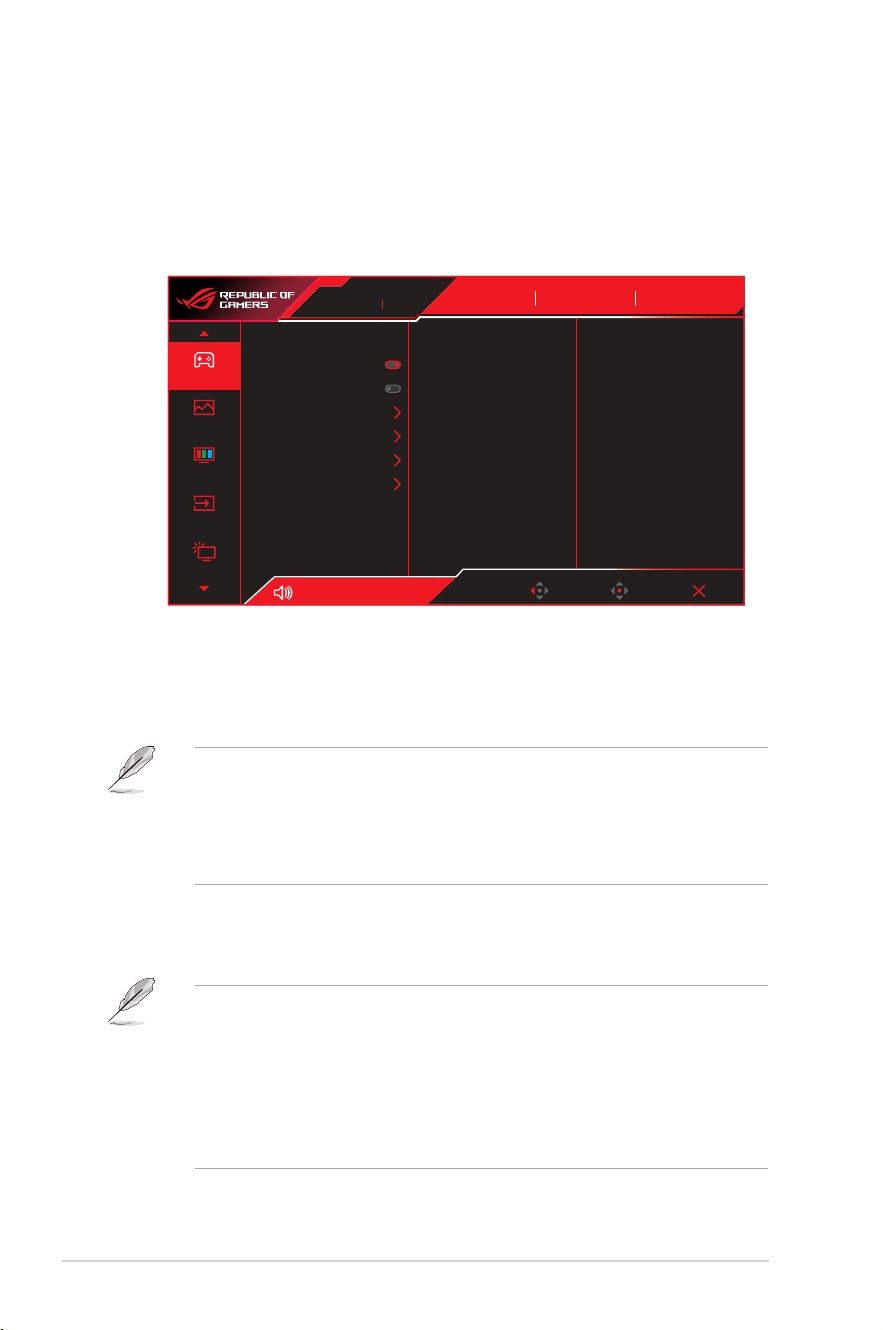
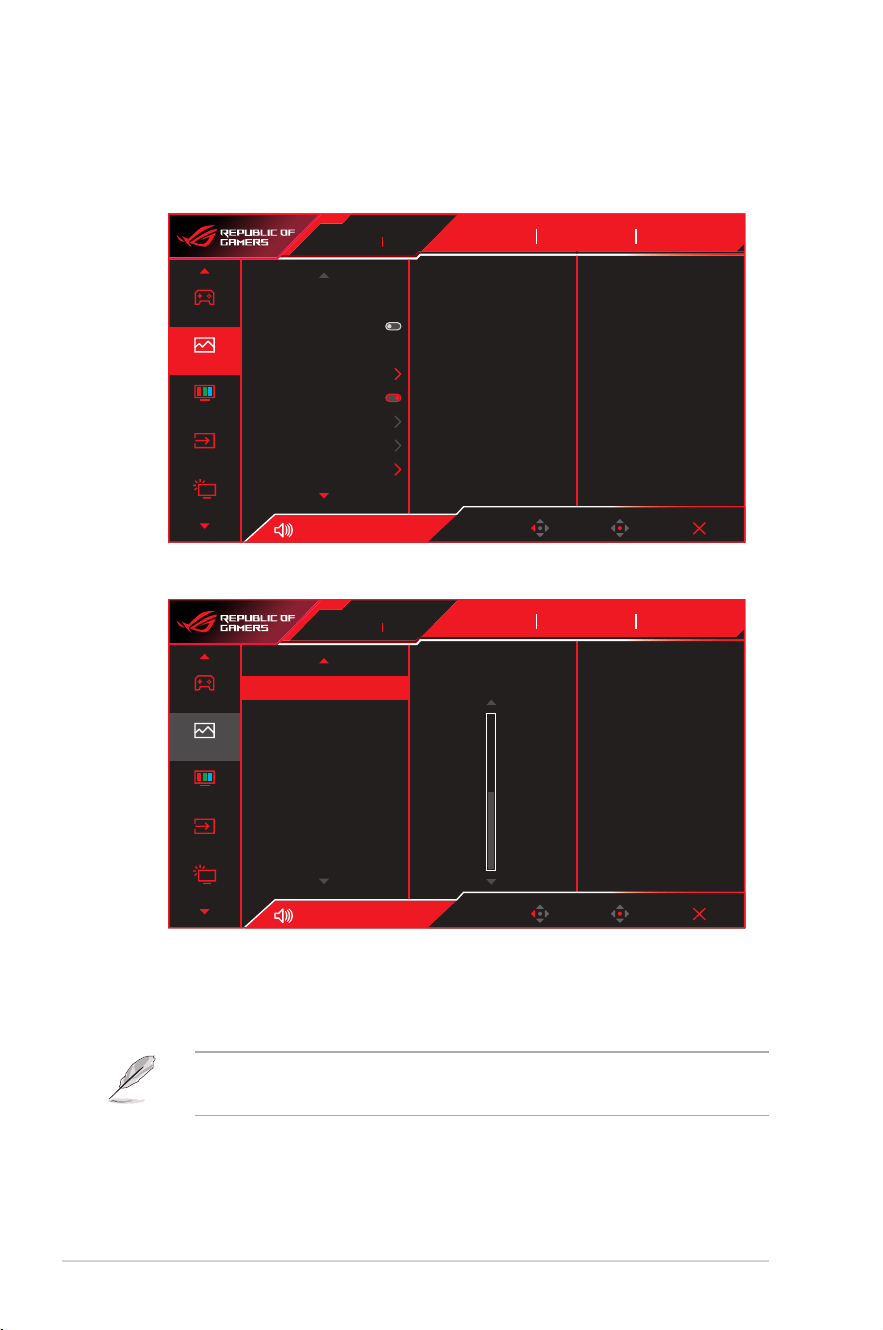
• Variable Refresh Rate: Allows a Variable Refresh Rate supported
graphics source to dynamically adjust display refresh rate based on
typical content frame rates for power ecient, virtually stutter free
and low-latency display update.
• Variable Refresh Rate can only be activated within:
– HDMI source: 40Hz ~ 144Hz
– DisplayPort source: 40Hz ~ 240Hz
• The following function will be disabled when Variable Refresh Rate turned on:
– ELMB
• ELMB: Turns on/off the ELMB (Extreme Low Motion Blur)
function. ELMB works on vertical frequency 120Hz.
• To activate ELMB, turn off Variable Refresh Rate function rst.
• The following functions will be disabled when ELMB turned on:
– Variable Refresh Rate
– Blue Light Filter
– Aspect Control
– Brightness
– Uniform brightness
• GamePlus: Congures the gaming environment. For more
information, refer to pages 1-8 and 1-10.
3-3
ROG Swift OLED XG27AQDMG Gaming Monitor
• GameVisual: Selects the picture mode. For more information,
refer to pages 1-11 and 1-12.
• The following function will be disabled:
– HDR
• Shadow Boost: Adjusts the monitor gamma curve to enrich the
dark tones in an image making dark scenes and objects much
easier be found. Available options: OFF, Dynamic Adjustment,
and Level 1~ Level 3.
• With AI-powered GamePlus technology, the monitor analyzes the scene on-
screen in real-time and adjusts the GamePlus crosshair to enhance targeting
accuracy. Additionally, Dynamic Shadow Boost brightens dark areas without
overexposing bright areas, providing a clear advantage in low-light environments.
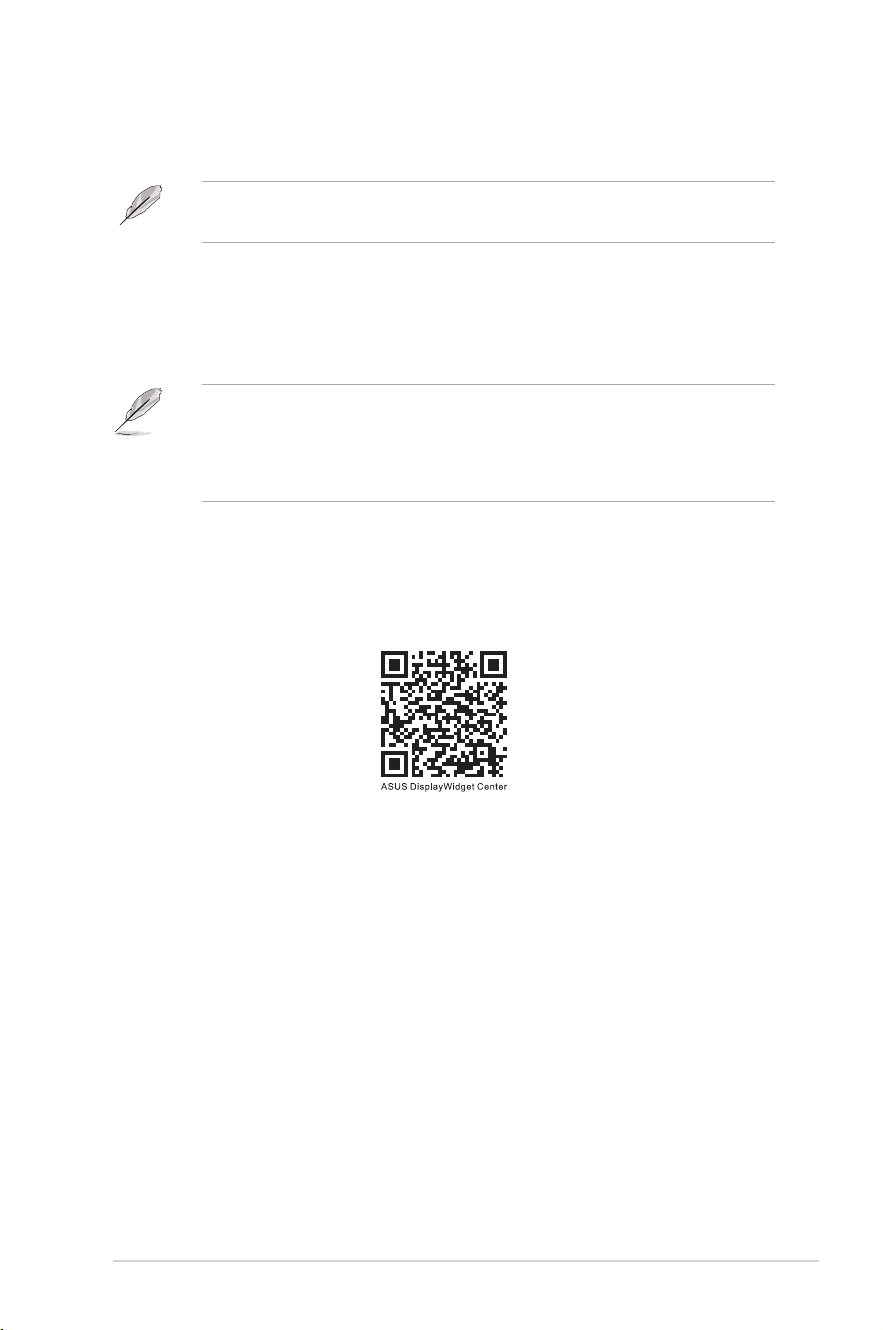
• ASUS DisplayWidget Center: Scan the QR code and download
the custom-built app for ASUS monitors that allows you to
control monitor settings such as brightness, contrast, and color
temperature, all with just a few clicks of your mouse.
3-4
Chapter 3: General Instruction
2. Image
Configure the image parameters.
Gaming
Image
Color
Input Select
Lighting Effect
Brightness
Uniform Brightness
Contrast
OLED Anti-Flicker
Clear Pixel Edge
HDR Setting
Aspect Control
Blue Light Filter
65
80
Volume 50
Racing Mode
GameVisual
OFF
HDR
DisplayPort
Input Select
Back Enter Exit
ROG STRIX XG27aqdmg
2560 x 1440 240 Hz
(page 1)
Gaming
Image
Color
Input Select
Lighting Effect
VividPixel 50
Volume 50
Racing Mode
GameVisual
OFF
HDR
DisplayPort
Input Select
Back Enter Exit
ROG STRIX XG27aqdmg
2560 x 1440 240 Hz
50
(page 2)
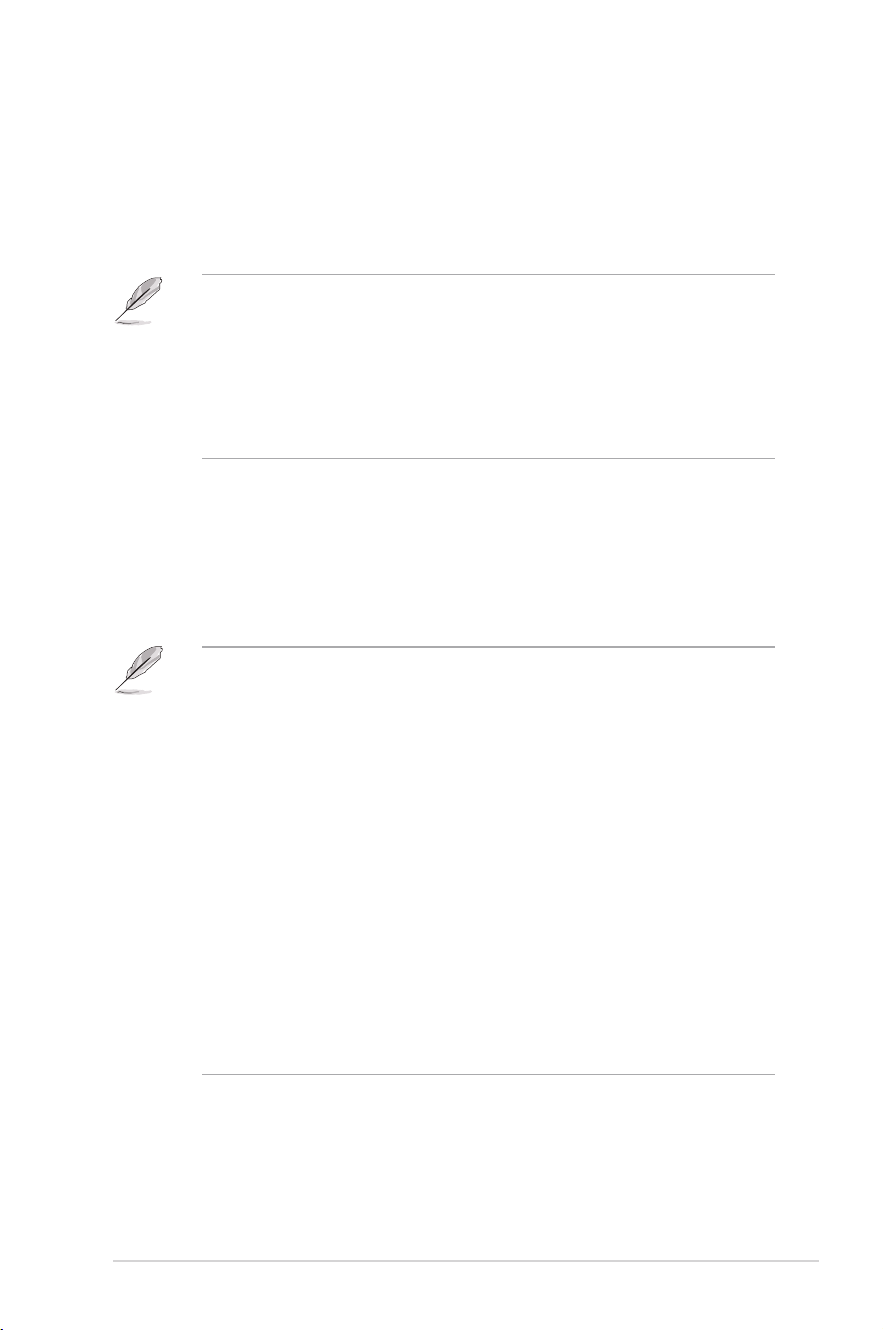
• Brightness: Adjusts the brightness level. The adjusting range is
from 0 to 100.
• HDR PQ curve will be affected when the brightness adjustment is ON under HDR
mode.
• Uniform Brightness: With the feature enabled, the system will
not adjust the maximum brightness of the screen when the
screen is displayed in a different screen size.
3-5
ROG Swift OLED XG27AQDMG Gaming Monitor
• Contrast: Adjusts the contrast level. The adjusting range is
from 0 to 100.
• OLED Anti-Flicker: Designed to enhance your viewing
experience by stabilizing the refresh rate within a specied
range.
• The feature performance may vary depending on the monitor model and
environment.
• The OLED anti-icker can be enabled only at 240Hz for 1080P and 1440P.
• To active the feature, please connect with DP source and the following
function will be disabled:
– Aspect Control
– Power Saving
• Clear Pixel Edge: Effectively reduces color fringing on the edges
of the displayed image.
• HDR Setting: High Dynamic Range. Contains several HDR
modes. The HDR mode is selectable when input video is correct
HDR source.
• The following functions will be disabled when HDR is turned on:
– ELMB
– GameVisual
– Shadow Boost
– Contrast
– Blue Light Filter
– Color Temp.
– Gamma
– Saturation
– Power Saving
– Display Color Space
– Six-Axis Saturation
– Dynamic Dimming (mutually exclusive with Aspect Control)
– Aspect Control (mutually exclusive with Dynamic Dimming)
– Sniper
– Sniper Night Vision
– Uniform Brightness
• Aspect Control: Adjusts the aspect ratio to 16:9 or Square to
enjoy different gaming scenario.
3-6
Chapter 3: General Instruction
• 16:9: Simply choose Fill Up or 24.5" Simulation under Full for better FPS
gaming size; or you can choose Equivalent, Pixel by pixel, such as
3288 x 1850 resolution for 27" under Windows Display Setting.
• Square: Provides multiple aspect ratio choices with different screen sizes,
including Full, Equivalent, and Pixel by pixel.
• The following functions will be disabled when Aspect Control turned on:
– Variable Refresh Rate
– ELMB
– OLED Anti-Flicker
• Blue Light Filter: Reduces the energy level of blue light emitted
from the panel. To turn off the Blue Light Filter, select OFF.
• When Blue Light Filter is activated, the default settings of Racing Mode
will be automatically imported.
• Between Level 1 to Level 3, the Brightness function is user-congurable.
• Level 4 is optimized setting. The Brightness function is not user-congurable.
• The following function will be disabled when Blue Light Filter turned on:
– ELMB
• The monitor uses low blue light panel and compliance with TÜV Rheinland
Low Blue Light Hardware Solution at factory reset/default setting mode.
• Flicker-free technology eliminates the primary cause of monitor icker and
avoids eye strain.
• Please refer to the following to alleviate eye strains:
• Users should take some time away from the display if working for long
hours. It is advised to take short breaks (at least 5 mins) after around 1
hour of continuous working at the computer. Taking short and frequent
breaks is more effective than a single longer break.
• To minimize eye strain and dryness in your eyes, users should rest the eye
periodically by focusing on objects that are far away.
• Eye exercises can help to reduces eye strain. Repeat these exercises
often. If eye strain continues please consult a physician. Eye exercises: (1)
Repeating look up and down (2) Slowly roll your eyes (3) Move your eyes
diagonal.
• High energy blue light may lead to eye strain and AMD (Age-Related
Macular Degeneration). Blue light lter to reduce 70% (max.) harmful blue
light to avoiding CVS (Computer Vision Syndrome).
• VividPixel: ASUS Exclusive Technology that brings lifelike
visuals for crystal-clear and detail-oriented enjoyment. The
adjusting range is from 0 to 100.
3-7
ROG Swift OLED XG27AQDMG Gaming Monitor
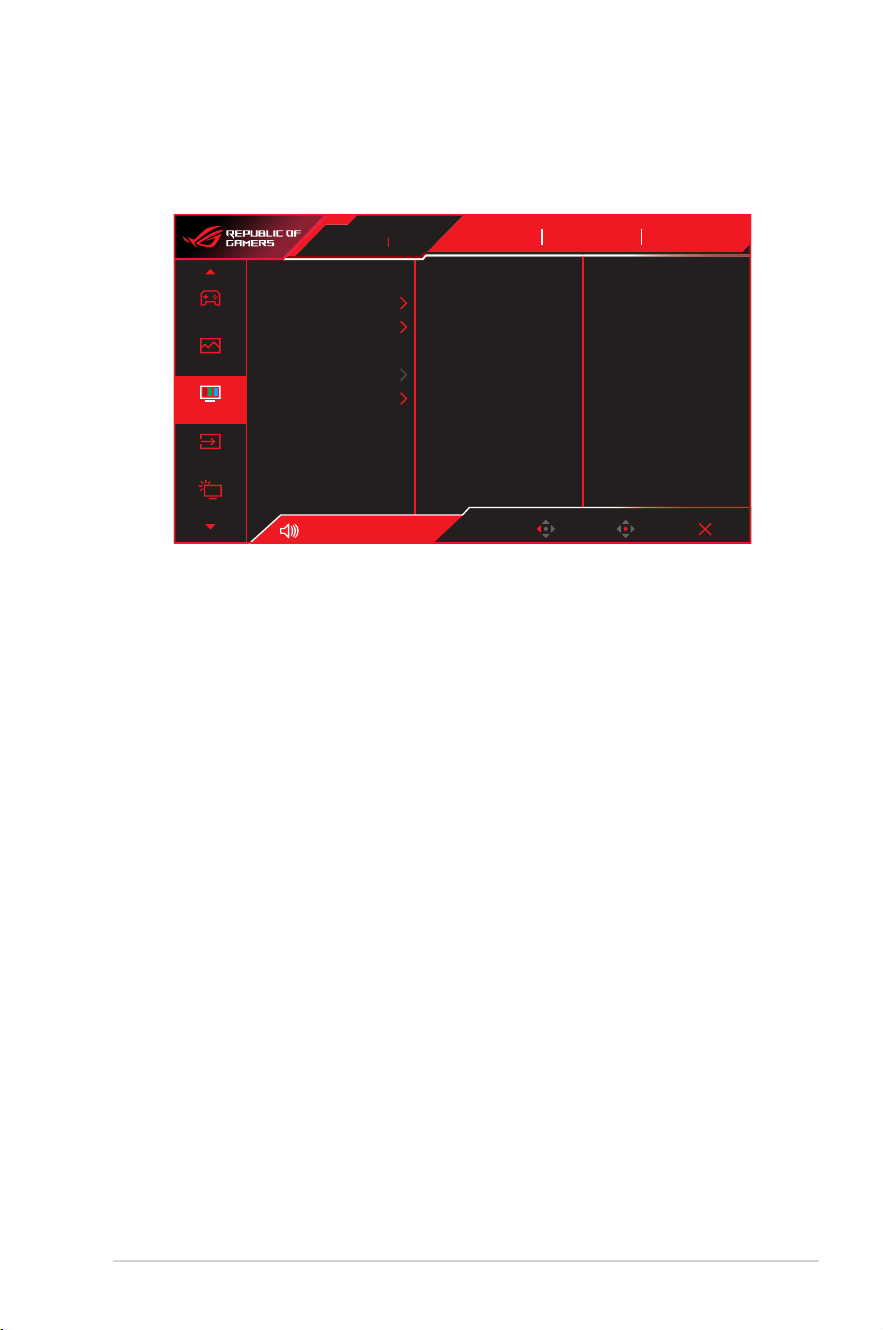
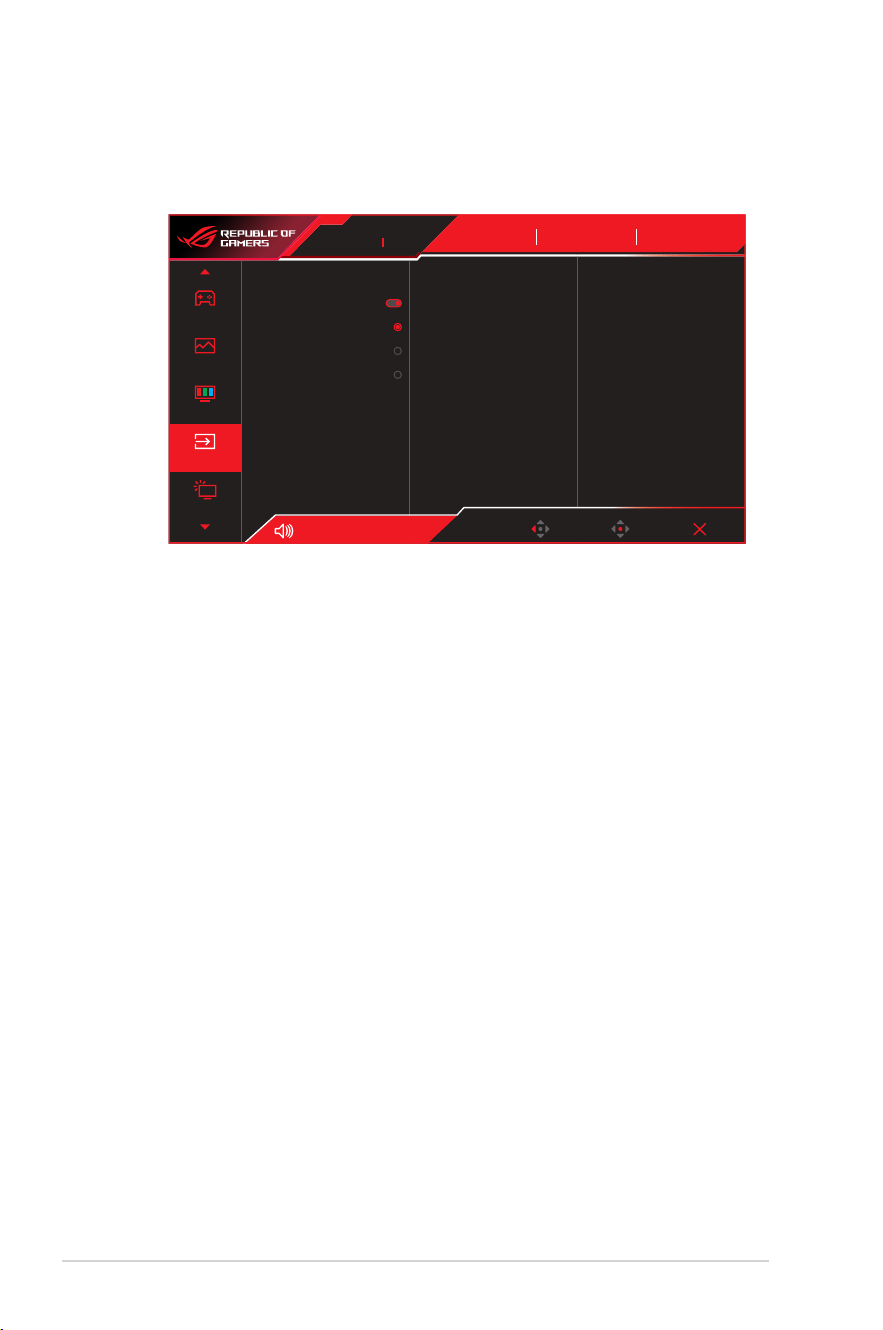
3. Color
Select the image color you like from this menu.
Gaming
Image
Color
Input Select
Lighting Effect
Display Color Space
Color Temp.
Saturation
Six-axis Saturation
Gamma
50
Volume 50
Racing Mode
GameVisual
OFF
HDR
DisplayPort
Input Select
Back Enter Exit
ROG STRIX XG27aqdmg
2560 x 1440 240 Hz
• Display Color Space: Selects the color space for the monitor
color output.
• Color Temp.: Selects the desired color temperature.
• Saturation: Adjusts the saturation level.
• Six-axis Saturation: Adjusts the saturation for R, G, B, C, M, Y.
• Gamma: Sets the color mode.
3-8
Chapter 3: General Instruction
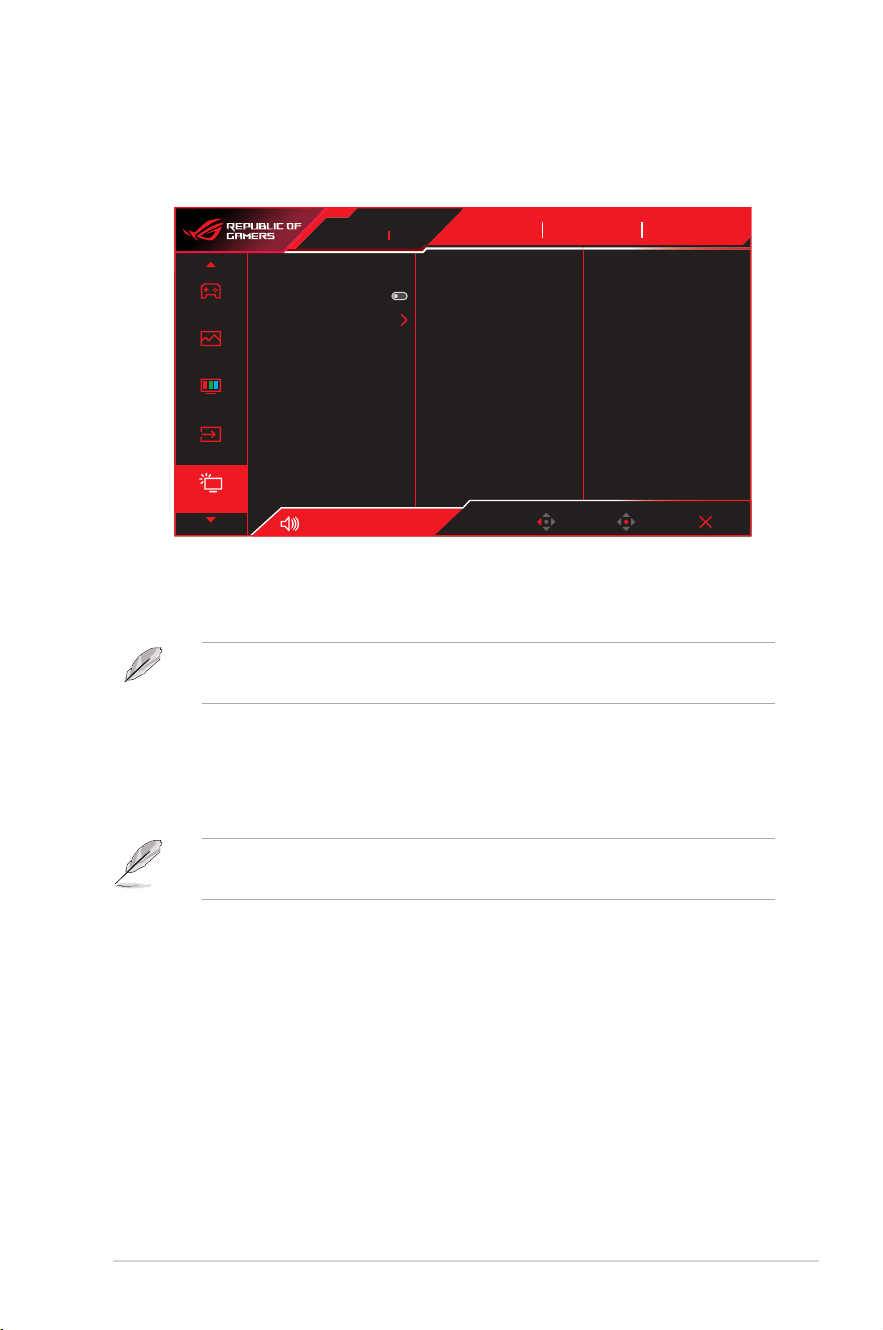
4. Input Select
Select the input source.
Gaming
Image
Color
Input Select
Lighting Effect
Auto Input Detection
DisplayPort
HDMI-1
HDMI-2
Volume 50
Racing Mode
GameVisual
OFF
HDR
DisplayPort
Input Select
Back Enter Exit
ROG STRIX XG27aqdmg
2560 x 1440 240 Hz
• Auto Input Detection: When enabled, the system will
automatically select the latest inserted I/O port.
• Input Source: Manually select the input source.
3-9
ROG Swift OLED XG27AQDMG Gaming Monitor
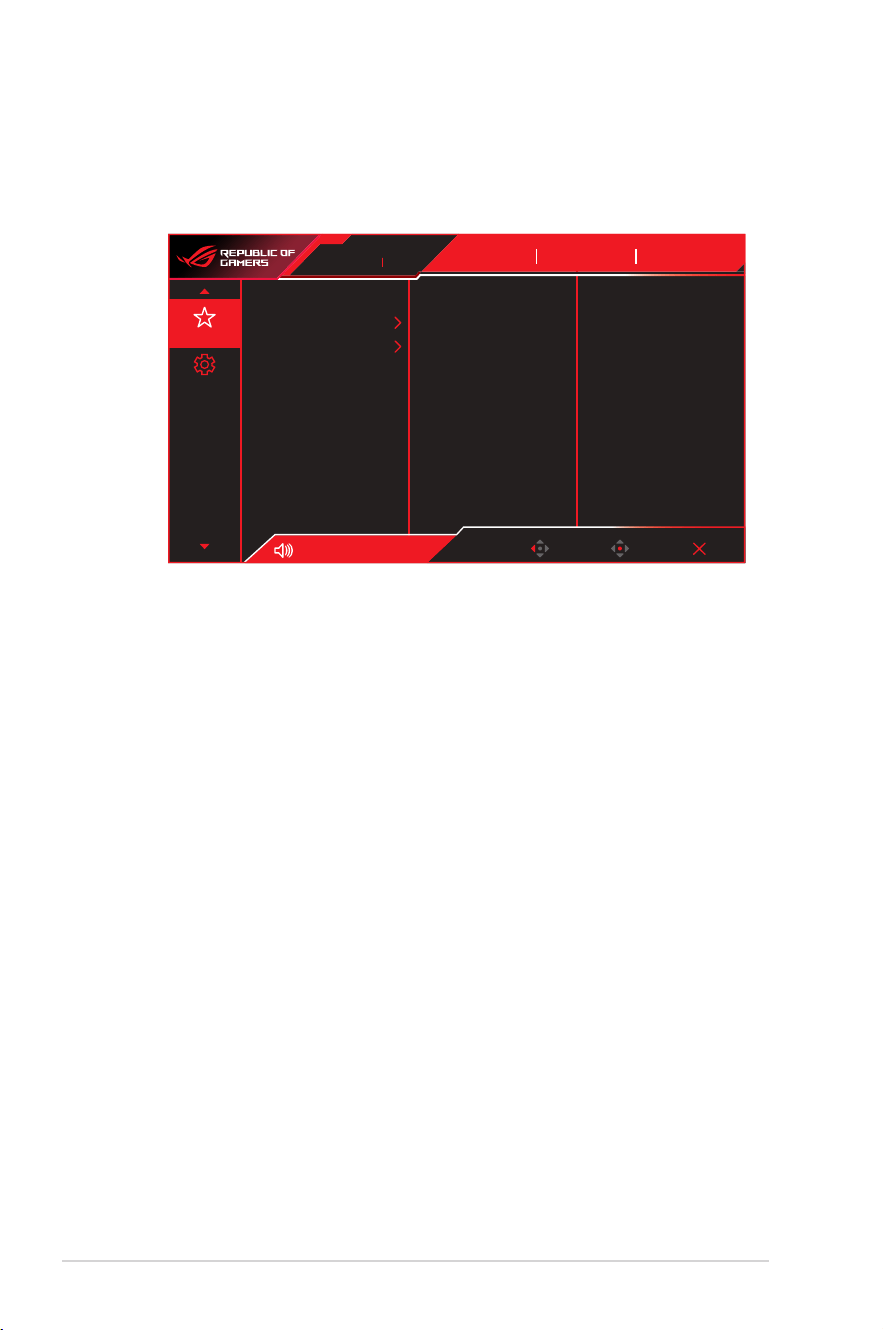
5. Lighting Effect
Congure the lighting effect for the rear cover and base cover.
Image
Gaming
Color
Input Select
Lighting Effect
Racing Mode
GameVisual
OFF
HDR
Aura Sync
Aura RGB
Volume 50
DisplayPort
Input Select
Back Enter Exit
ROG STRIX XG27aqdmg
2560 x 1440 240 Hz
• Aura Sync: Allows you to turn on or off the Aura Sync function
that synchronizes the Aura RGB light effect among all
supported devices.
• The following function will be disabled when AURA Sync is turned on:
– Aura RGB
• Aura RGB: There are ve living colors that can be chosen:
Rainbow, Color Cycle, Static, Breathing, Strobing, and OFF.
You can manually change the R/G/B/C/M/Y color for Static,
Breathing, and Strobing modes.
• The following function will be disabled when AURA RGB is turned on:
– Aura Sync
3-10
Chapter 3: General Instruction
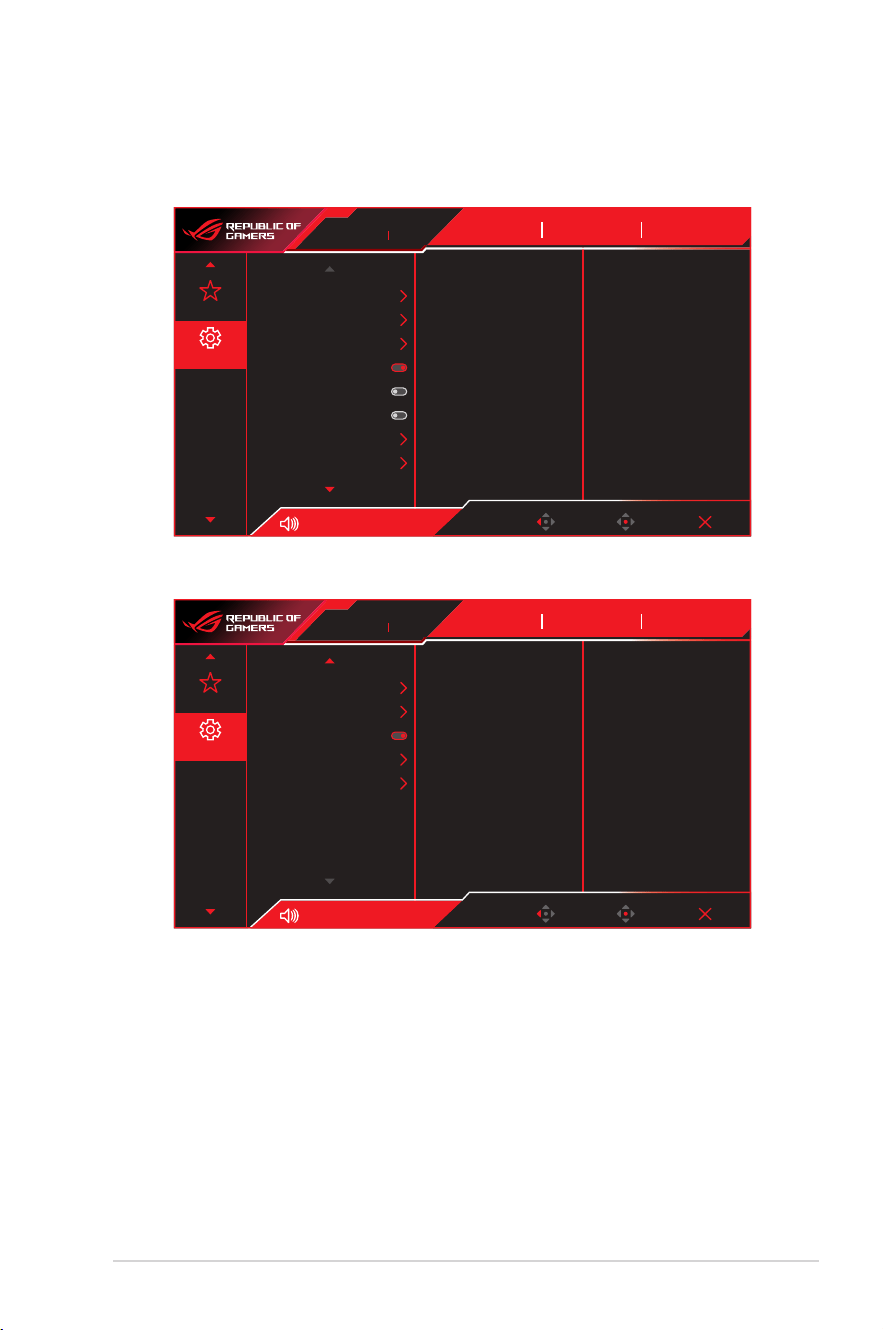
6. MyFavorite
You can adjust Shortcut and Customized Setting from this main
function.
MyFavorite
System Setup
Shortcut
Customized Setting
Volume 50
Racing Mode
GameVisual
OFF
HDR
DisplayPort
Input Select
Back Enter Exit
ROG STRIX XG27aqdmg
2560 x 1440 240 Hz
• Shortcut: User can select from GamePlus, GameVisual,
Brightness, Mute, Shadow Boost, Contrast, Input Select, HDR
Setting, Blue Light Filter, Color Temp., Volume, Pixel Cleaning,
Customized Setting-1, Customized Setting-2 and set as
shortcut key.
• Customized Setting: You can do your setting according to your
preference.
3-11
ROG Swift OLED XG27AQDMG Gaming Monitor
7. System Setup
Adjust the system conguration.
MyFavorite
System Setup
Language
Sound
USB Setup
Power Indicator
Power Key Lock
Key Lock
Power Setting
OSD Setup
Volume 50
Racing Mode
GameVisual
OFF
HDR
DisplayPort
Input Select
Back Enter Exit
ROG STRIX XG27aqdmg
2560 x 1440 240 Hz
(Page 1/2)
MyFavorite
System Setup
Racing Mode
GameVisual
OFF
HDR
Screen Protection
DisplayPort Stream
DSC Support
Information
All Reset
Volume 50
DisplayPort
Input Select
Back Enter Exit
ROG STRIX XG27aqdmg
2560 x 1440 240 Hz
(Page 2/2)
• Language: Selects an available language for the OSD menu.
The options include English, French, German, Spanish, Italian,
Dutch, Russian, Polish, Czech, Croatian, Hungarian, Romanian,
Portuguese, Turkish, Simplied Chinese, Traditional Chinese,
Japanese, Korean, Persian, Thai, Indonesian, Ukrainian, and
Vietnamese.
3-12
Chapter 3: General Instruction
• Sound:
• Volume: Adjusts the volume level from 0 to 100.
• Mute: If checked, mutes the volume.
• Sound Source: Select the sound source.
• USB Setup: Sets the USB Hub availability during standby.
• Power Indicator: Turns the power LED indicator on/off.
• Power Key Lock: Disables or enables the power key.
• Key Lock: Enable this function to disable all function keys.
Press the button down for more than ve seconds to cancel
the key lock function.
• Power Setting: Select the power setting between Standard
Mode and Power Saving Mode.
• In Power saving mode, the screen brightness will be lowered and the
monitor will consume less power. If you need to keep higher brightness
level then set the Power Setting to Standard mode.
• Please turn off HDR function before activating the Power Saving Mode.
• OSD Setup:
• OSD Position: Sets the OSD menu position.
• OSD Timeout: Adjusts the OSD timeout.
• Transparency: Adjusts the OSD background from opaque
to transparent.
• DDC/CI: Disables or enables the DDC/CI function.
• Screen Protection:
• Screen Saver: Disables or enables the screen saver
function. The screen brightness will automatically
decrease when there is no change on the screen.
• Pixel Cleaning: It calibrates any issues that may arise on
the screen when your monitor has been turned on for a
long time. The process will take approximately 6 minutes.
This function will automatically activate when the monitor
is turn off. Do not unplug the power cord while it is in
progress. If you power on the monitor, the Pixel Cleaning
will stop operating.
3-13
ROG Swift OLED XG27AQDMG Gaming Monitor
• When the pixel cleaning is activated, the monitor will be
unavailable for around six minutes. Would you like to
execute the Pixel cleaning?
Yes/No
• Pixel Cleaning Reminder: Sets a reminder for user to
perform the Pixel Cleaning.
• To prevent and reduce the occurrence of image retention,
please execute pixel cleaning and do not unplug the monitor
before the process of pixel cleaning function.
• Screen Move: Selects the screen movement level to
prevent image sticking on the display panel.
• Auto Logo Brightness: Enable this function to allow the
system to automatically adjust the logo brightness to
correct the potential picture quality issues.
• The screen may have mura and image sticking due to OLED
characteristic during the initial use or re-used after a long
time. It is advised to perform Pixel Cleaning while turning on
monitor to make sure situation disappear.
• DisplayPort Stream: Selects DisplayPort 1.2 or DisplayPort 1.4
according to the graphic card DP version.
• DSC Support: Enables or disables the DSC (Display Stream
Compression) support.
• Information: Displays the monitor information.
• All Reset: Select YES to revert all settings to the factory default mode.
3-14
Chapter 3: General Instruction
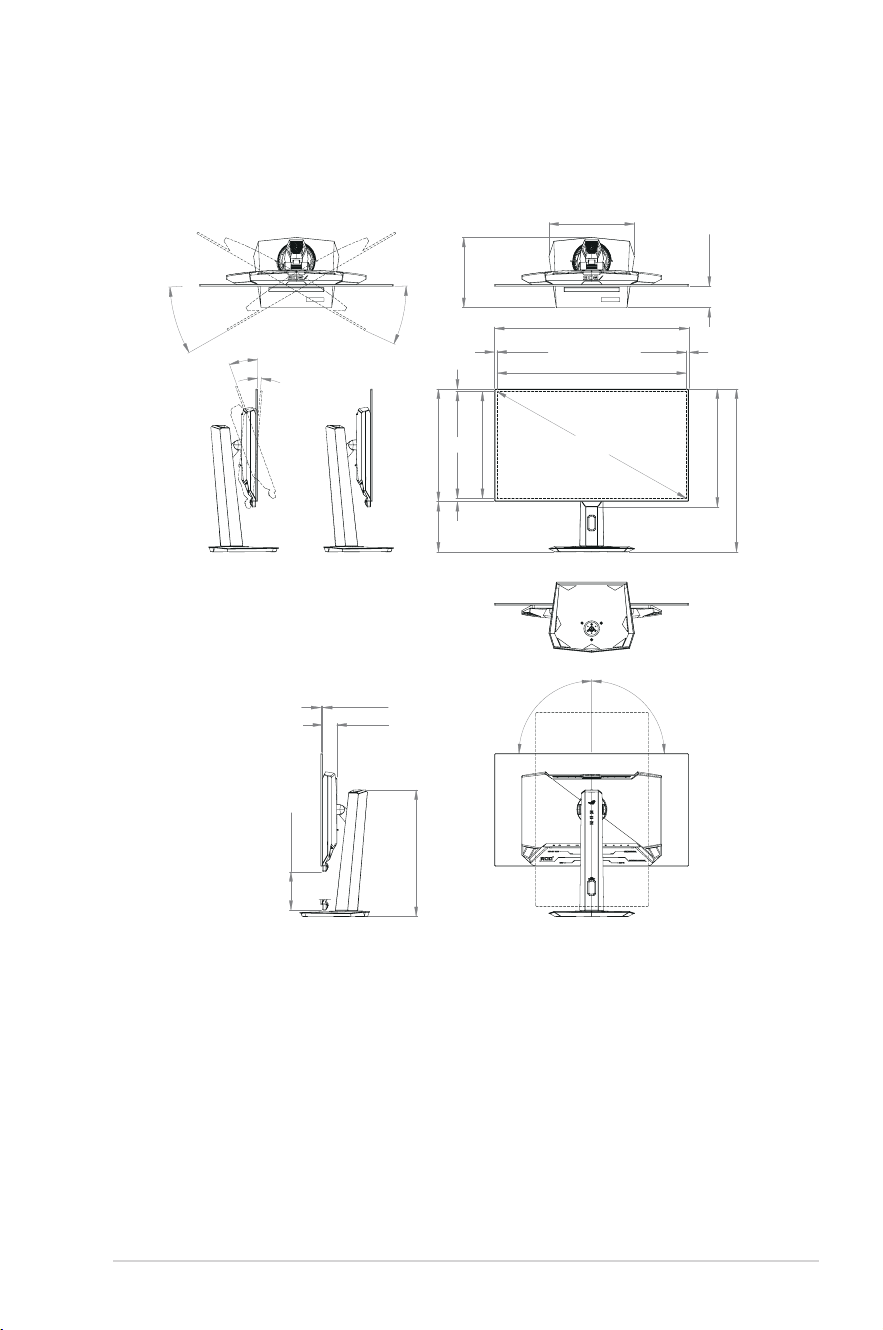
3.2 Specifications
Model XG27AQDMG
Panel Type
OLED
Panel Size
26.50" (67.32cm)
Max. Resolution
2560 x 1440
Brightness (Max.)
450 nits
Contrast Ratio (Typ.)
1,500,000:1
Viewing Angle
178° (R/L), 178° (U/D)
Display Colors
1073.7M (10 bit)
Response Time
0.03 ms
HDMI Input
Yes
DisplayPort Input
Yes
USB3.0 Port
Upstream x1, Downstream x2
Earphone
Yes
Power ON consumption
25W
Measuring a screen brightness of 200 nits without audio/
USB/Card reader connection)
Chassis Colors
Black
Power LED
Red (On) / Orange (Standby) / Blinking Orange (Pixel Cleaning)
Power Saving Mode
< 0.5W
Power Off Mode
< 0.3W
Tilt
-5° ~ +20°
Swivel
±45°
Height Adjustment
120 mm
Vesa Wall Mount
100 x 100
Phys. Dimension with
Stand (WxHxD)
605 x (388~508) x 219 mm
Phys. Dimension without
Stand (WxHxD)
605 x 368 x 50 mm
Box Dimension (WxHxD)
673 x 440 x 220 mm
Net Weight (Esti.)
6.7 kg
Gross Weight (Esti.)
9.5 kg
Voltage Rating
Adaptor 20V, 6A
Temperature
Operating temperature: 0~40°C
Storage temperature: -30~65°C
*Specications subject to change without notice.
3-15
ROG Swift OLED XG27AQDMG Gaming Monitor
3.3 Outline Dimensions
Tilt -3.5°+/-1.5°
Tilt 18.5°+/-1.5°
Swivel 45.0°+/-1.0°
Swivel 45.0°+/-1.0
°
508.06
605.22
351.02
157.04
44.60
394.75
266.48
218.83
Lift 120.0
5.40
Pivot 90.0°
Pivot 90.0°
367.92
7.40
7.40
9.90
7.40
26.5 inch (Diagonal)
333.72(Active Area)
590.42(Active Area)
66.60
3-16
Chapter 3: General Instruction
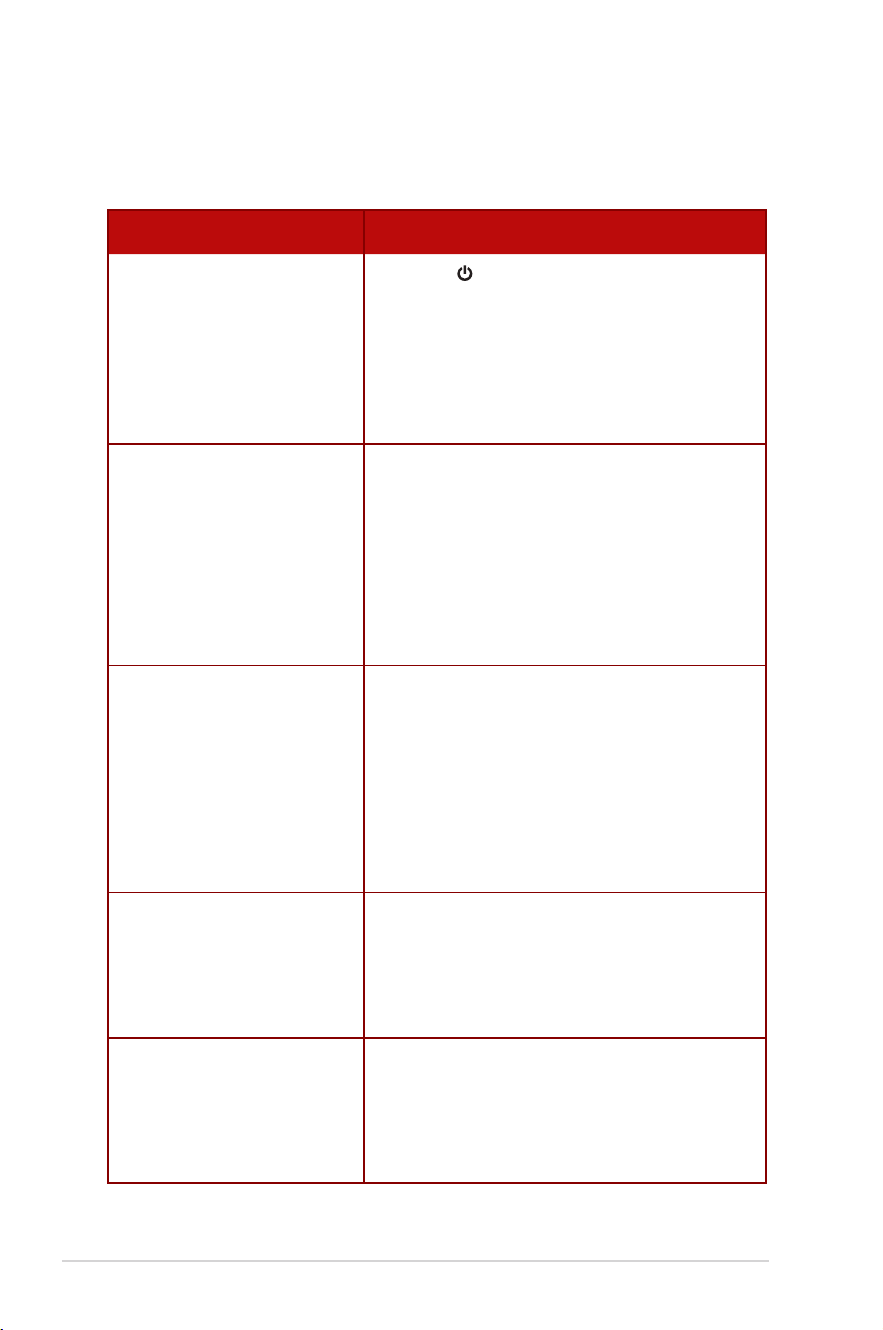
3.4 Troubleshooting (FAQ)
Problem Possible Solution
Power LED is not ON • Press the button to check if the monitor is turned
on.
• Check if the adapter and power cord are properly
connected to the monitor and the power
outlet.
• Check the Power Indicator function in the OSD menu.
Select “ON“ to turn on the power LED.
The power LED lights red and there
is no screen image
• Check if the monitor and the computer are turned
on.
• Make sure the signal cable is properly connected to
the monitor and the computer.
• Inspect the signal cable and make sure none of the
pins are bent.
• Connect the computer with another available monitor
to check if the computer is properly working.
Screen image is too light or dark • Adjust the Contrast and Brightness settings via
OSD.
Screen image bounces, a wave
pattern or abnormal picture is
present in the image
• Make sure the signal cable is properly connected to
the monitor and the computer.
• Move electrical devices that may cause electrical
interference.
• Remove the adapter and plug it again to the power
outlet. Then turn on the monitor.
Screen image has color defects
(white does not look white)
• Inspect the signal cable and make sure that none of
the pins are bent.
• Perform All Reset via OSD.
• Select the appropriate color temperature (Color Temp.)
via OSD.
No sound or sound is low • Adjust the volume settings of your monitor or
computer.
• Make sure the computer sound card driver is properly
installed and activated.
• Check the audio source.
3-17
ROG Swift OLED XG27AQDMG Gaming Monitor
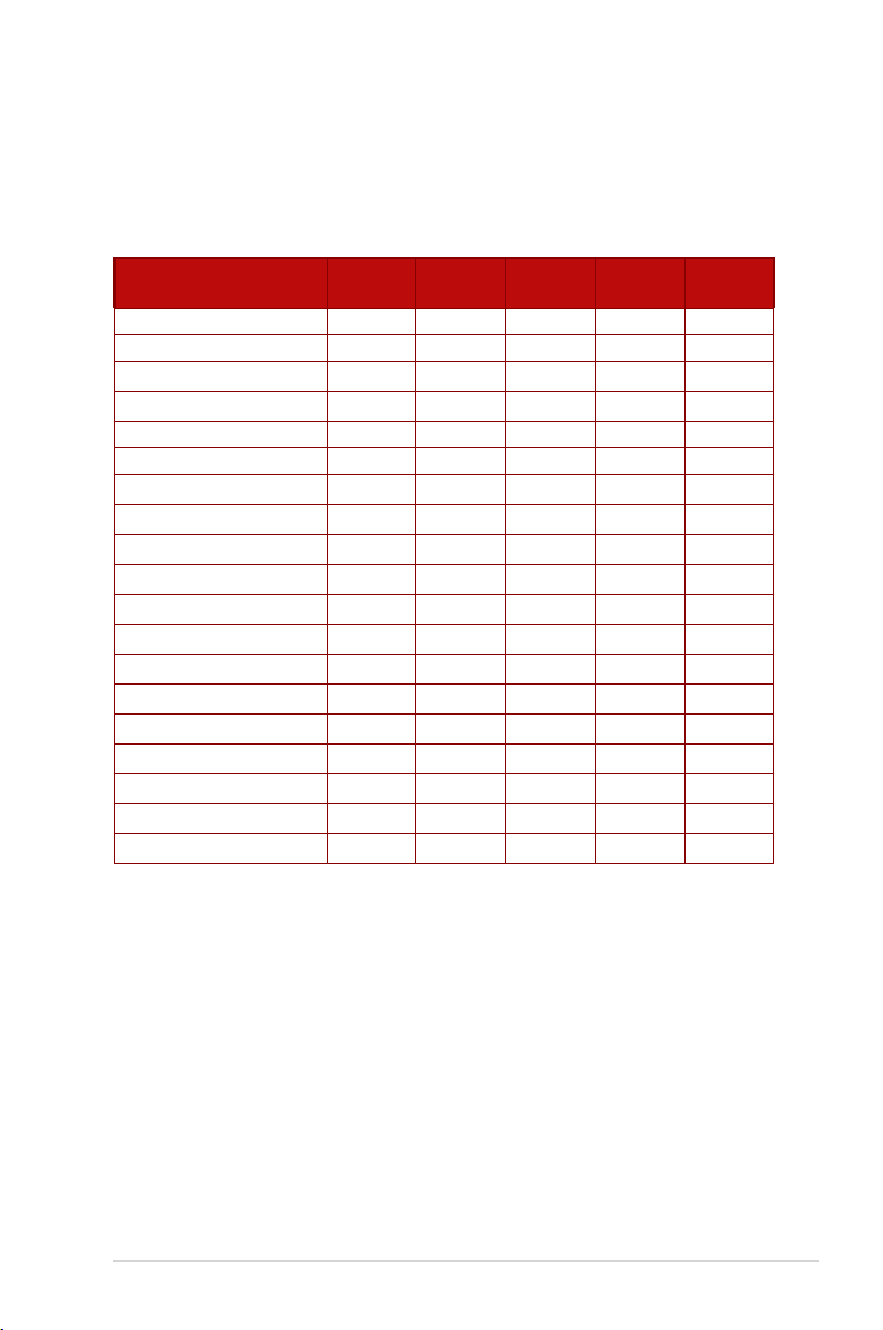
3.5 Supported Timing List
PC Supported Primary Timing
Resolution
H Freq
(KHz)
V Freq
(Hz)
DCLK
(MHz)
HDMI
DP
640x480-60 Hz 31.469 59.94 25.175 V V
640x480-75 Hz 37.5 75 31.5 V V
800x600-60 Hz 37.879 60.317 40 V V
800x600-75 Hz 46.875 75 49.5 V V
1024x768-60 Hz 48.363 60.004 65 V V
1024x768-75 Hz 60.023 75.029 78.75 V V
1280x800-60 Hz 49.702 59.810 83.500 V V
1280x960-60 Hz 60 60 108 V V
1280x1024-60 Hz 63.981 60.02 108 V V
1600x1200-60 Hz 75 60 162 V V
1920x1080-60 Hz 67.5 60 148.5 V V
1920x1080-240 Hz 287.019 239.983 597 V
1920x1080-240 Hz 291.587 239.989 606.5 V
2560x1440-60 Hz 88.787 59.951 241.5 V V
2560x1440-120 Hz 182.996 119.998 497.75 V V
2560x1440-144 Hz 219.577 143.983 597.25 V
2560x1440-144 Hz 222.151 143.973 604.25 V
2560x1440-180 Hz 282.537 179.96 768.5 V
2560x1440-240 Hz 374.357 239.972 1018.25 V
3-18
Chapter 3: General Instruction
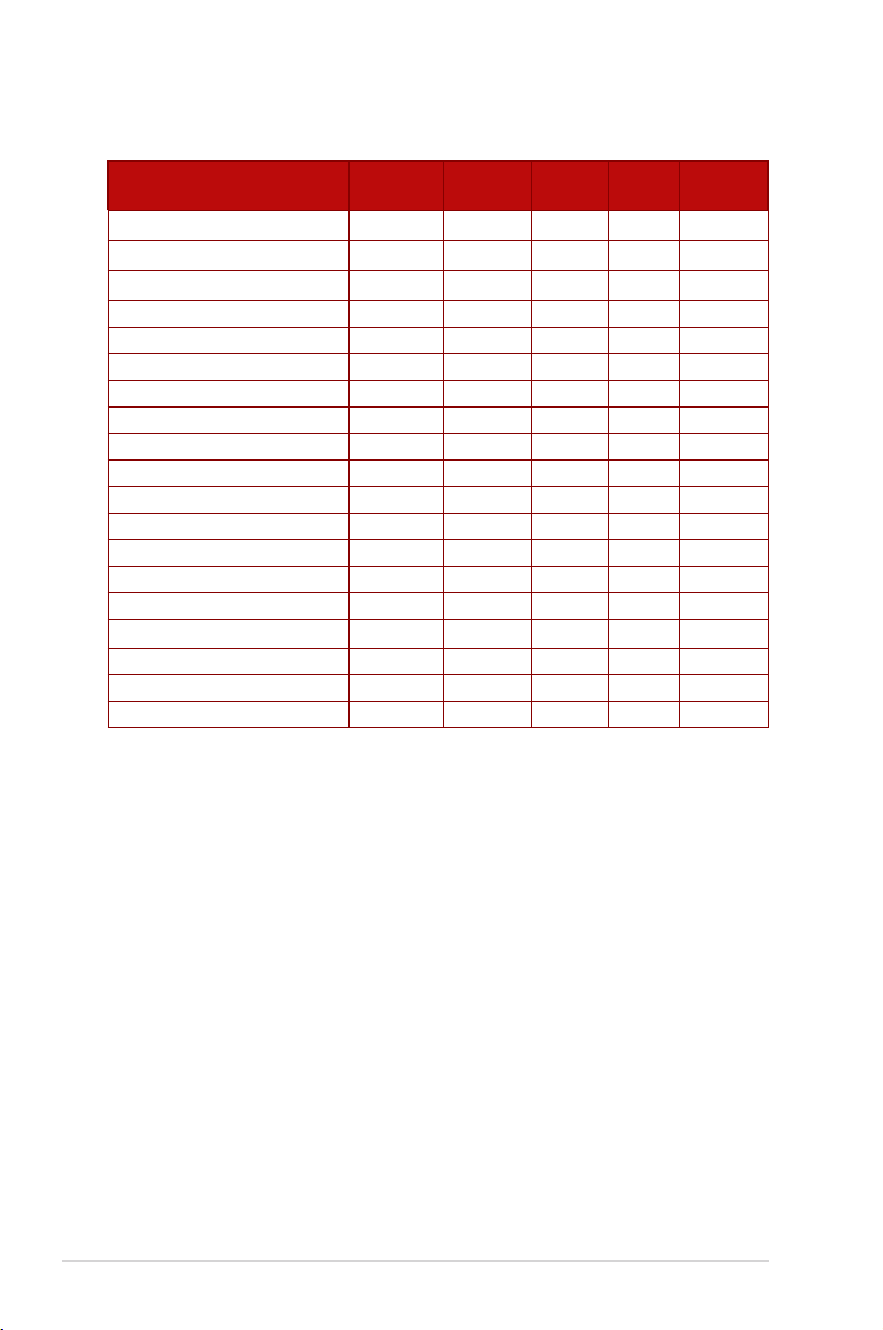
CEA Timing
Resolution
H Freq
(KHz)
V Freq
(Hz)
DCLK
(MHz)
HDMI DP
640x480p-60 Hz@4:3 31.469 59.94 25.175 V V
720x480p-60 Hz@4:3 31.469 59.94 27 V V
720x480p-60 Hz@16:9 31.469 59.94 27 V V
1280x720p-60 Hz@16:9 45 60 74.25 V V
1920x1080p-60 Hz@16:9 67.5 60 148.5 V V
720x576p-50 Hz@4:3 31.25 50 27 V V
720x576p-50 Hz@16:9 31.25 50 27 V V
1280x720p-50 Hz@16:9 37.5 50 74.25 V V
1920x1080p-50 Hz@16:9 56.25 50 148.5 V V
1920x1080p-24 Hz@16:9 27 24 74.25 V V
1920x1080p-25 Hz@16:9 28.125 25 74.25 V V
1920x1080p-30 Hz@16:9 33.75 30 74.25 V V
1920x1080p-100 Hz@16:9 112.5 100 297 V V
1920x1080p-120 Hz@16:9 135 120 297 V V
3840x2160p-24 Hz@16:9 54 24 297 V
3840x2160p-25 Hz@16:9 56.25 25 297 V
3840x2160p-30 Hz@16:9 67.5 30 297 V
3840x2160p-60 Hz@16:9 135 60 594 V
3840x2160p-50 Hz@16:9 112.5 50 594 V