AI2501AI2501
User GuideUser Guide
9
2
Care and safety
Guidelines
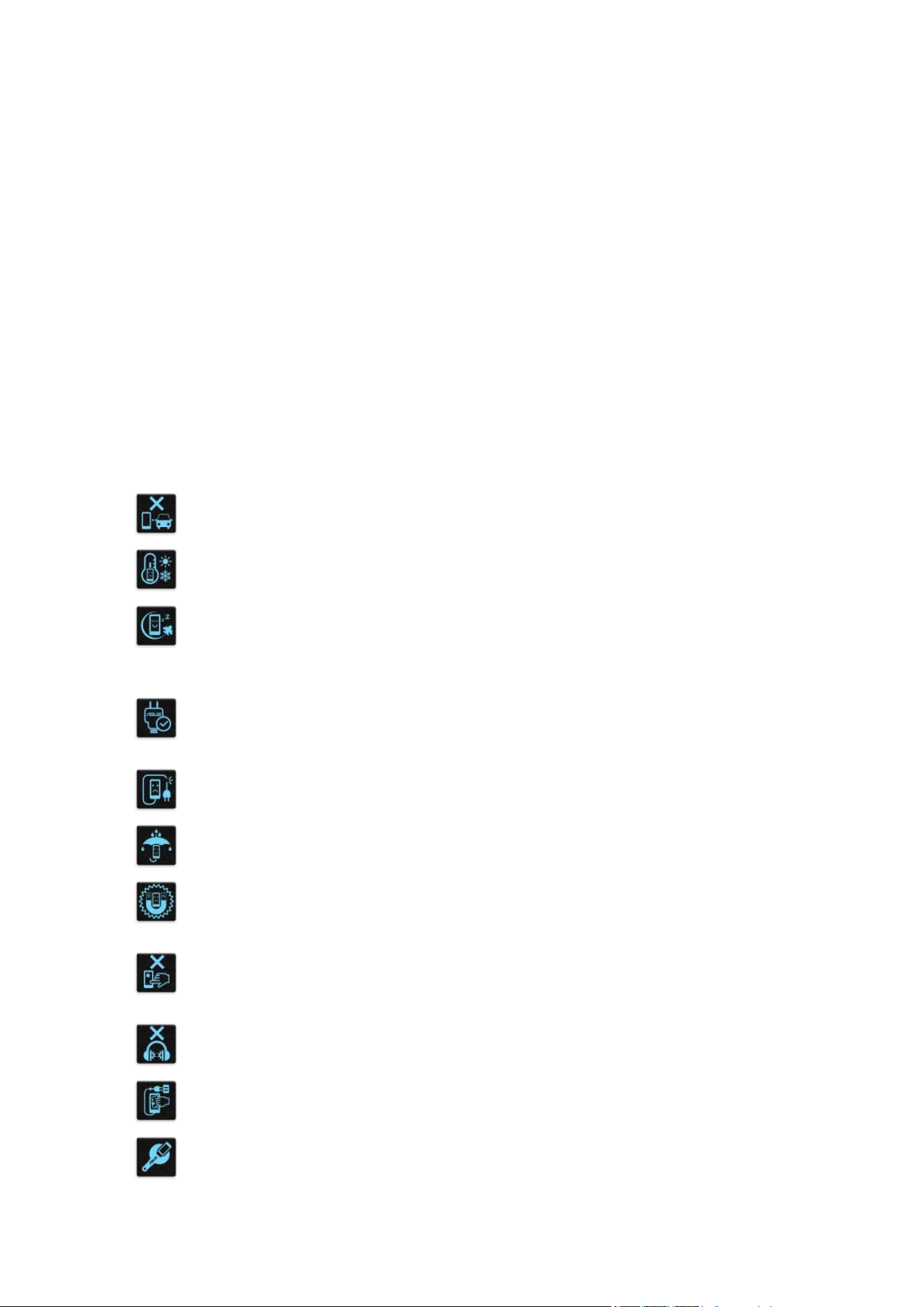
Road safety comes rst. We strongly recommend not to use your device when
driving or operating any type of vehicle.
This device should only be used in environments with ambient temperatures
between 0°C (32°F) and 35°C (95°F).
Turn off your device in restricted areas where the use of mobile devices is
prohibited. Always obey rules and regulations when in restricted areas, such as,
in aircraft, movie theater, in hospitals or near medical equipment, near gas or fuel,
construction sites, blasting sites and other areas.
Use only AC adapters and cables approved by ASUS for use with this device.
Refer to the rating label on the bottom of your device and ensure that your power
adapter complies with this rating.
Do not use damaged power cables, accessories, and other peripherals with your
device.
Keep your device dry. Do not use or expose your device near liquids, rain, or
moisture.
You can put your device through x-ray machines (such as those used in conveyor
belts for airport security), but do not expose the device to magnetic detectors and
wands.
The device screen is made of glass. If the glass gets broken, stop using the device
and do not touch the broken glass parts. Immediately send device for repair to
ASUS-qualied service personnel.
Do not listen at high volume levels for long periods to prevent possible hearing
damage.
Disconnect the AC power before cleaning your device. Use only a clean cellulose
sponge or chamois cloth when cleaning your device screen.
Send device for repair to ASUS-qualied service personnel only.
E23582
October 2024
First Edition
3
Proper disposal
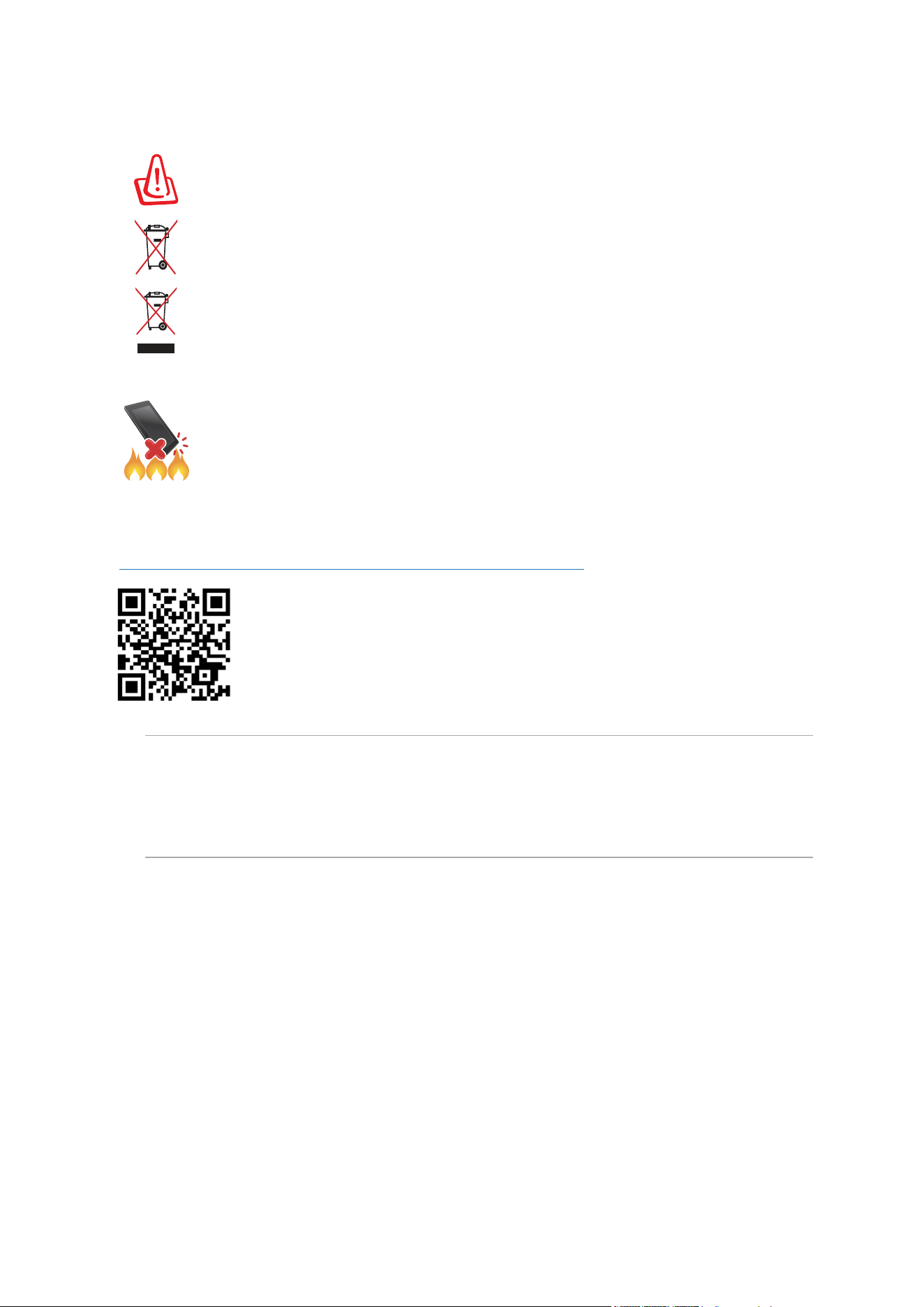
Risk of explosion if battery is replaced by an incorrect type. Dispose of used
batteries according to the instructions.
DO NOT throw the battery in municipal waste. The symbol of the crossed out
wheeled bin indicates that the battery should not be placed in municipal waste.
DO NOT throw this product in municipal waste. This product has been designed
to enable proper reuse of parts and recycling. The symbol of the crossed out
wheeled bin indicates that the product (electrical, electronic equipment and
mercury-containing button cell battery) should not be placed in municipal waste.
Check local regulations for disposal of electronic products.
DO NOT throw this product in re. DO NOT short circuit the contacts. DO NOT
disassemble this product.
ZenTalk Fans Forum
(http://www.asus.com/zentalk/global_forward.php)
NOTES:
• For more legal and e-labelling information, check on your device from Settings > System >
Regulatory labels and Settings > System > About phone > Legal information.
• The app descriptions shown in this manual are for reference purposes only, and may not exactly
match what you see on your device.

4
1 Basics
Welcome! .......................................................................................................................7
Get your ROG Phone ready! ..........................................................................................8
Starting for the rst time ............................................................................................18
Instruction of Navigation Gestures ...........................................................................19
Using the touchscreen ...............................................................................................20
2 There’s no place like Home
Zen Home features ....................................................................................................................23
Home screen ...............................................................................................................23
Notications ................................................................................................................24
Quick settings ....................................................................................................25
Edge tool .....................................................................................................................26
Personalizing your Home screen ...........................................................................................27
Wallpapers...................................................................................................................28
Widgets .......................................................................................................................29
Preferences ................................................................................................................29
Setting up the date and time ......................................................................................30
Setting up your ringtone and alert sounds ................................................................30
3 Work hard, play harder
Chrome ......................................................................................................................................... 31
Launching Chrome ......................................................................................................31
Sharing pages .............................................................................................................32
Bookmarking pages ....................................................................................................32
Clearing the browsing data ........................................................................................32
Gmail .............................................................................................................................................33
Google Calendar ........................................................................................................................34
Creating events ...........................................................................................................34
Editing or removing events.........................................................................................34
Creating reminders .....................................................................................................35
Editing or removing reminders ...................................................................................35
File Manager ............................................................................................................................... 36
ASUS Phone Clone ....................................................................................................................37
4 Keeping in touch
Call in style .................................................................................................................................. 38
Dual SIM feature .........................................................................................................38
Making calls ................................................................................................................40
Calling your favorite contacts ....................................................................................42
Receiving calls ............................................................................................................42
Other call options........................................................................................................43
Recording calls ...........................................................................................................44
Managing contacts ................................................................................................................... 45
Contacts manager ......................................................................................................45
Contents

5
Setting up your prole ................................................................................................45
Adding contacts ..........................................................................................................46
Marking your favorite contacts ..................................................................................47
Send messages and more ....................................................................................................... 48
Messages ....................................................................................................................48
5 Fun and entertainment
Using a headset ......................................................................................................................... 49
Connecting the audio jack ..........................................................................................49
YT Music ......................................................................................................................................50
Armoury Crate ............................................................................................................................ 51
6 Your precious moments
Capture moments ......................................................................................................................52
Launching the Camera app ........................................................................................52
Photo Locations ..........................................................................................................53
Advanced camera features ........................................................................................53
Time lapse ...................................................................................................................54
Using the Gallery ...................................................................................................................... 55
Viewing the photo location ........................................................................................55
Editing images ............................................................................................................55
Sharing les from the Gallery .....................................................................................55
Deleting les from the Gallery ....................................................................................56
7 Staying connected
Mobile network ...........................................................................................................................57
Enabling the mobile network .....................................................................................57
Wi-Fi ..............................................................................................................................................57
Enabling Wi-Fi .............................................................................................................57
Connecting to a Wi-Fi network ...................................................................................58
Disabling Wi-Fi ............................................................................................................58
Bluetooth
®
................................................................................................................................. 58
Enabling Bluetooth
® ..............................................................................................................................................................................58
Pairing your ROG Phone to a Bluetooth
®
device .......................................................59
Unpairing your ROG Phone from the Bluetooth
®
device ..........................................59
Tethering .....................................................................................................................................60
Wi-Fi
Hotspot ...............................................................................................................60
USB Tethering .............................................................................................................61
Bluetooth Tethering ....................................................................................................61
8 Travel apps
Weather ....................................................................................................................................... 62
Launching the Weather app .......................................................................................62
Weather home screen .................................................................................................63
Clock ............................................................................................................................................. 64
Alarm clock .................................................................................................................64
World clock ..................................................................................................................65
Stopwatch ...................................................................................................................65

6
Timer ............................................................................................................................66
9 Zen Everywhere
Special Zen Tools ........................................................................................................................ 67
Calculator ....................................................................................................................67
Sound Recorder ..........................................................................................................68
Mobile Manager ........................................................................................................................ 70
10 Maintain your Zen
Keeping your device up-to-date ............................................................................................71
Updating your system ................................................................................................71
Storage ........................................................................................................................71
Backup .........................................................................................................................71
Reset............................................................................................................................71
Securing your ROG Phone ......................................................................................................72
Unlocking your screen ................................................................................................72
Face Unlock .................................................................................................................................75
Setting up face unlock from Settings ........................................................................75
Fingerprint ID sensor ................................................................................................................78
Starting your ROG Phone for the rst time ...............................................................78
Setting up ngerprint ID from Settings .....................................................................79
Appendix
7
Chapter 1: Basics
Basics
1
1 Basics
Welcome!
Explore the intuitive simplicity of ASUS ZenUI!
ASUS ZenUI is a charming and intuitive interface exclusively for ROG Phones. It provides you
with special apps, which are integrated in or with other apps, to t your unique individual needs
and make your life easier while letting you have fun with your ROG Phone.
Camera
With PixelMaster technology, capture those precious moments in vivid and high-
quality photos and videos.
Messages
Messages, an intuitive and delightful app, lets you send/receive SMS/MMS
messages, as well as send group texts, photos, or audio messages. You can add
emojis or stickers to your messages, share your location, archive your messages, and
easily block SMS senders. You can also take photos or record videos and easily share
these les.
File Manager
File Manager allows you to easily locate and manage your data on the internal
storage of your ROG Phone and its connected external storage devices.
NOTE: Availability of ASUS ZenUI apps vary per region and ROG Phone model.
8
Chapter 1: Basics
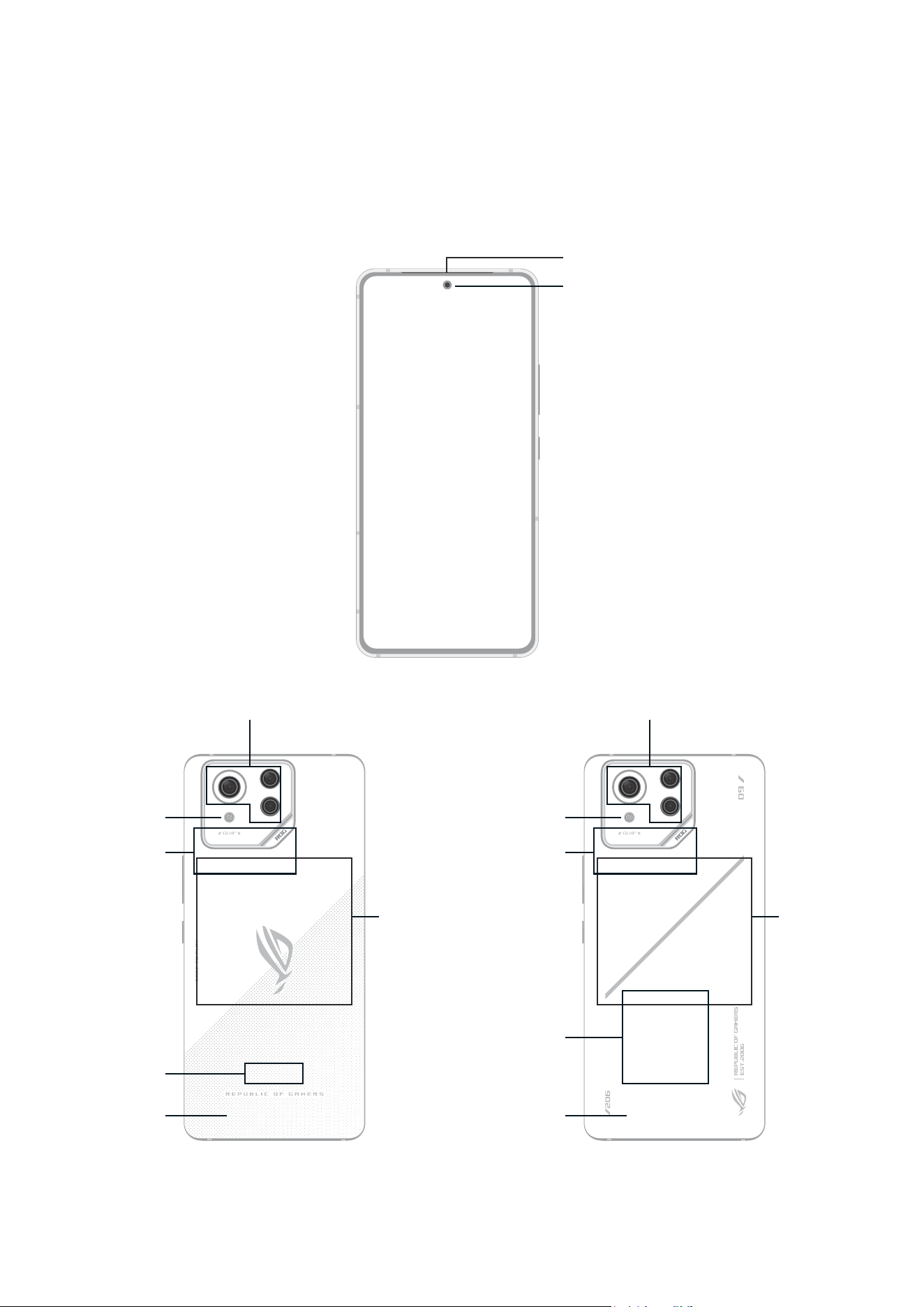
Rear cameras
Rear cover
MiniLED
Camera ash
Wireless
charging
area
NFC detection
area
Rear cameras
Rear cover
MiniLED
Camera ash
Wireless
charging
area
NFC detection
area
Get your ROG Phone ready!
Parts and features
Take a hold of your device and have it running in a jiffy.
Receiver
Front camera
9
Chapter 1: Basics
WARNING!
• To avoid network connection and battery issues:
• DO NOT place a metallic sticker on the antenna area.
• DO NOT use a metallic protective frame/case on your ROG Phone.
• DO NOT cover the antenna area with your hands or other objects while using some functions
such as making calls or using the mobile data connection.
• We recommend that you use ASUS-compatible screen protectors. Using non-ASUS-compatible
screen protectors may cause your ROG Phone's sensor to malfunction.
IMPORTANT!
• We do not recommend using a screen protector as it can interfere with the proximity sensor. If
you want to use a screen protector, ensure that it does not block the proximity sensor.
• Keep the device, particularly the touch screen, dry all the time. Water or other liquids can cause
the touch screen to malfunction.
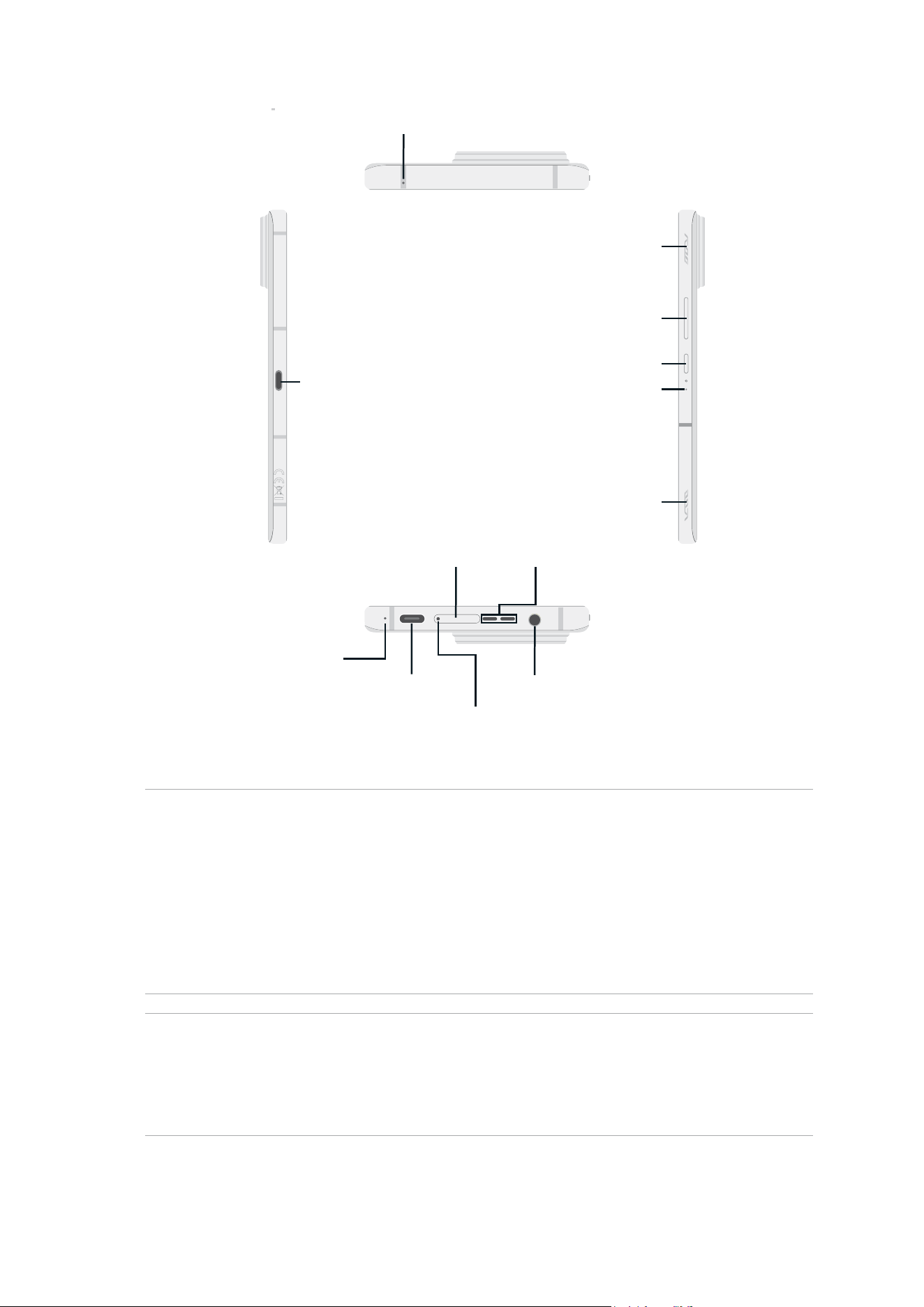
Power key
Volume key
Microphone
USB Type-C port
Microphone
USB Type-C port
Audio jack
Microphone
SIM card tray Speaker
SIM card tray
eject hole
AirTrigger
touch sensor
AirTrigger
touch sensor
10
Chapter 1: Basics
3. Gently push the tray back in until it’s securely closed.
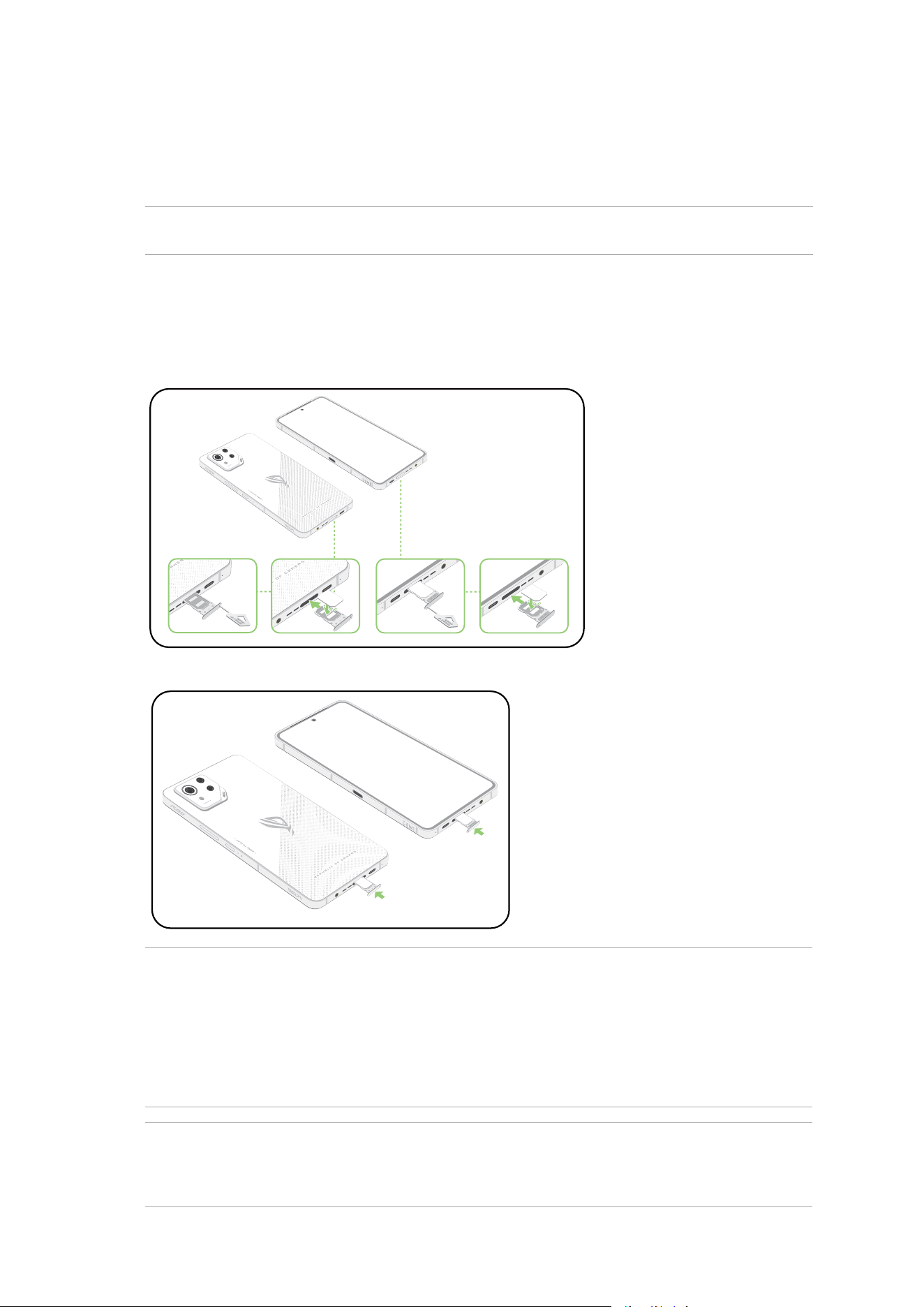
Installing a nano SIM card
Both Nano SIM card slots support GSM/GPRS/EDGE, WCDMA/HSPA+/DC-HSPA+, FDD-LTE, TD-
LTE, and 5G NR Sub-6 network bands.
CAUTION! Be extra careful when handling a
nano SIM card
. ASUS is not responsible for any data loss
or damage incurred to your
nano SIM card(s)
.
To install a Nano SIM card:
1. Push the bundled eject pin into the hole on the card slot to eject the tray out.
2. Insert the nano SIM card(s) into the appropriate slot(s).
NOTES:
• Both Nano SIM card slots support GSM/GPRS/EDGE, WCDMA/HSPA+/DC-HSPA+, FDD-LTE, TD-
LTE, and 5G NR Sub-6 network bands. Both Nano SIM cards can connect to VoLTE (4G Calling)
service. But only one can connect to 5G NR Sub-6 data service at a time.
• Actual network and frequency band usage depends on network deployment in your area. Contact
your telecom carrier if 5G NR Sub-6 support and VoLTE (4G Calling) service are available in your
area.
CAUTION!
• Do not use sharp tools or solvent on your device to avoid scratches on it.
• Use only a standard Nano SIM card on your ROG Phone.
Nano-SIM1
Nano-SIM2
11
Chapter 1: Basics
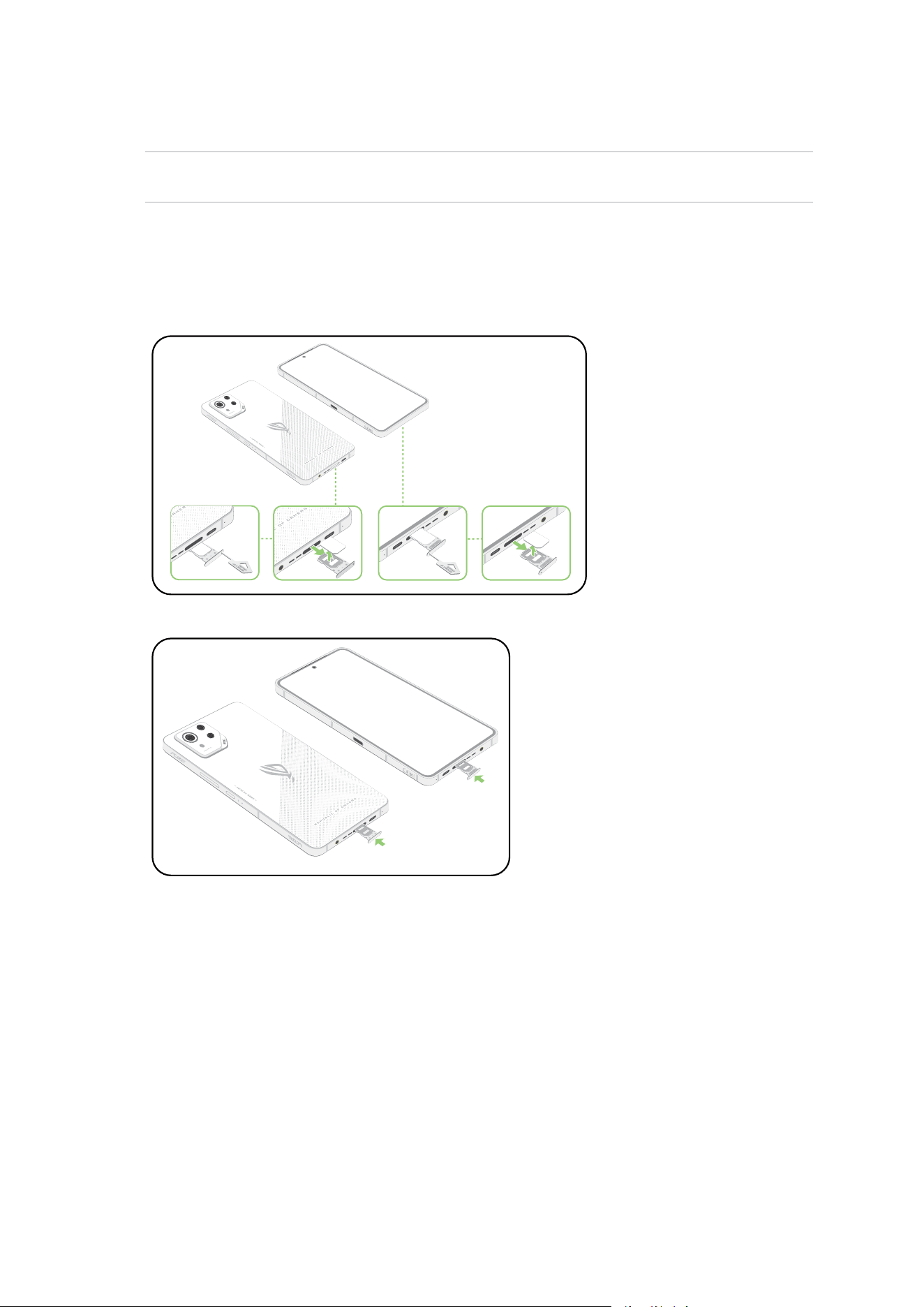
Nano-SIM1
Nano-SIM2
Removing a nano SIM
CAUTION! Be extra careful when handling a nano SIM card. ASUS is not responsible for any data
loss or damage incurred to your nano SIM card(s).
To remove a Nano SIM card:
1. Push the bundled eject pin into the hole on the card slot to eject the tray out.
2. Remove the nano SIM card(s) from the card slot(s).
3. Gently push the tray back in until it’s securely closed.
12
Chapter 1: Basics
Charging your ROG Phone
Your ROG Phone comes partially charged but you must charge it fully before using it for the rst
time. Read the following important notices and cautions before charging your device.
IMPORTANT!
• Peel off the protective lm on the AC power adapter and USB Type-C cable before using it with
your device.
• Ensure to plug the AC power adapter to a compatible power outlet. You can plug the AC power
adapter to any compatible 100~240 V outlet.
• The output voltage of the AC power adapter for this device is +5V-10V
3A, 30W.
• When using your ROG Phone while plugged-in to a power outlet, the power outlet must be near
your device and easily accessible.
• To conserve electricity, unplug the AC power adapter from the power outlet when not in use.
• Do not place heavy objects on top of your ROG Phone.
CAUTION!
• While charging, your ROG Phone can become warm. This is normal, however, if your device
becomes unusually hot, disconnect the USB Type-C cable from your device and send the device,
including the AC power adapter and cable to an ASUS-qualied service personnel.
• To prevent any damage to your ROG Phone, AC adapter, or USB Type-C cable, ensure that the USB
Type-C cable, AC adapter, and your device are connected properly before charging.
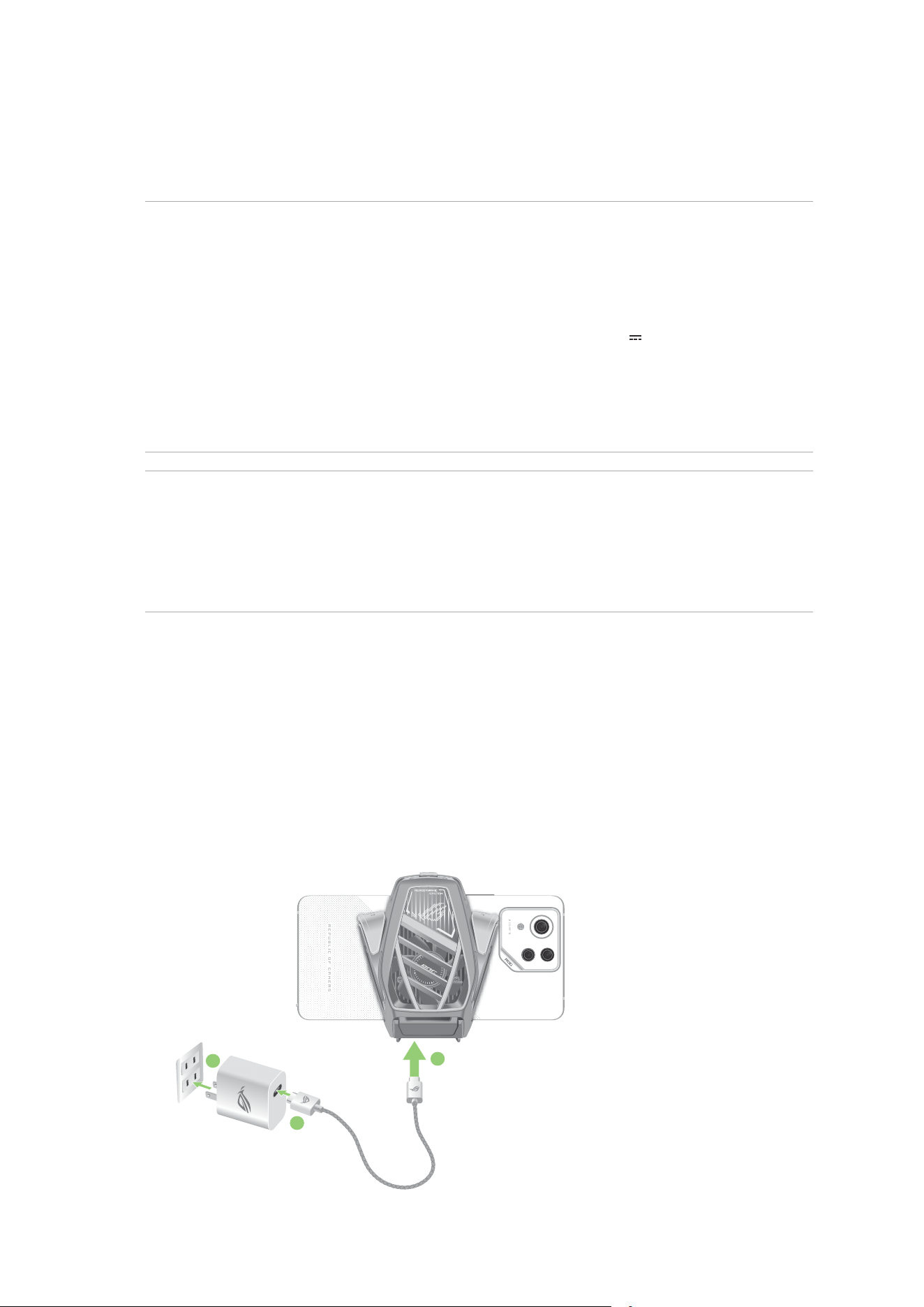
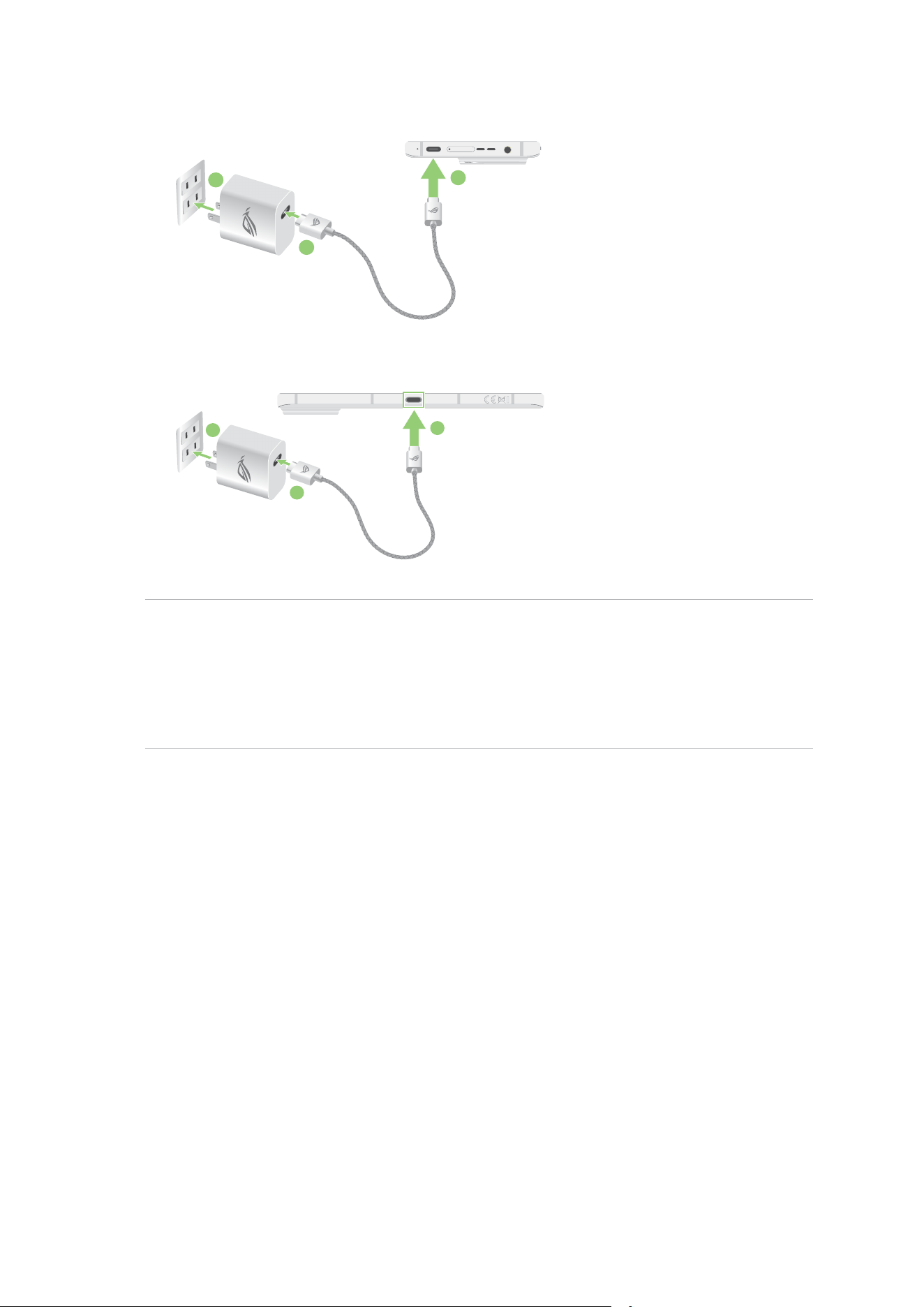
To charge your ROG Phone:
1. Connect the USB connector into the power adapter’s USB port.
2. Connect the other end of the USB cable to your AeroActive Cooler’s USB Type-C port.
or
Connect the other end of the USB cable to your ROG Phone.
3. Plug the AC power adapter to a grounded power outlet.
3
1
2
13
Chapter 1: Basics
3
1
2
3
1
2
or
or
NOTES:
• We recommend that you charge your ROG Phone through one USB Type-C port at a time.
• Only the USB Type-C port on the left side of your ROG Phone has DisplayPort functionality.
• If you connect USB Type-C OTG or charging devices to both of the USB Type-C ports on your ROG
Phone, the USB Type-C port on the left side of your ROG Phone will become the master and the
charging current or OTG device on the bottom port will be limited.
14
Chapter 1: Basics
IMPORTANT!
• When using your ROG Phone while it is plugged to a power outlet, the grounded power outlet
must be near to the unit and easily accessible.
• When charging your ROG Phone through your computer, ensure that you plug the USB Type-C
cable to your computer’s USB port.
• Avoid charging your ROG Phone in an environment with ambient temperature of above 35
o
C
(95
o
F).
• Charge your ROG Phone for eight (8) hours before using it in battery mode for the rst time.
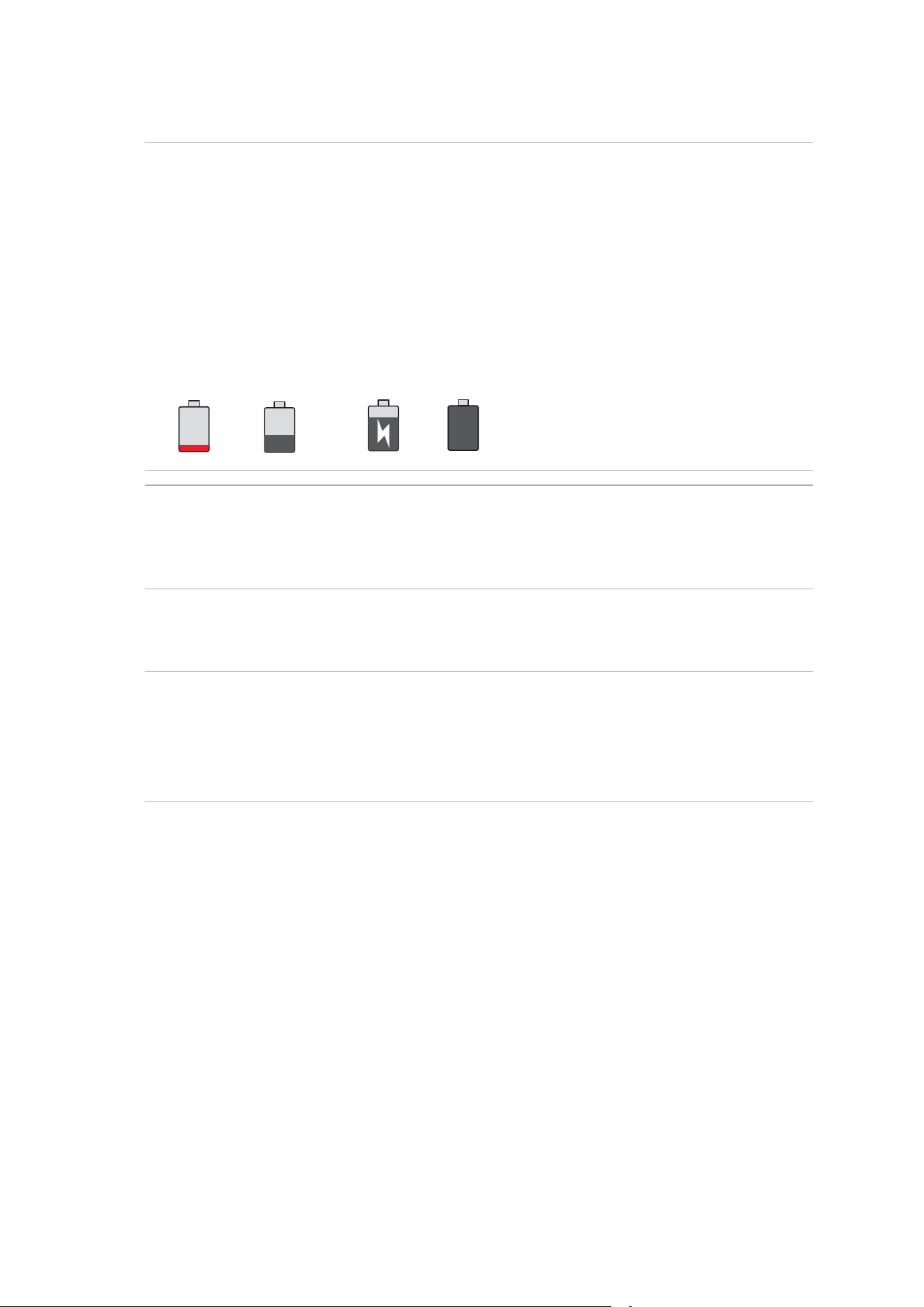
• The status of battery charge is indicated by the following icons:
Low Not Charging Charging Full
NOTES:
• For safety purposes, use ONLY the bundled power adapter and cable to avoid damaging your
device and prevent the risk of injury.
• For safety purposes, use ONLY the bundled power adapter and cable to charge your ROG Phone.
4. When fully-charged, disconnect the USB cable from your ROG Phone rst before unplugging
the AC power adapter from the power outlet.
NOTES:
• You can use your device while charging but it may take longer to fully charge the device.
• Charging your device via USB port of a computer may take longer to fully charge the device.
• If your computer does not provide enough power for charging via USB port, charge your ROG
Phone using the AC power adapter plugged to a power outlet instead.
15
Chapter 1: Basics
Charge your ROG Phone wirelessly
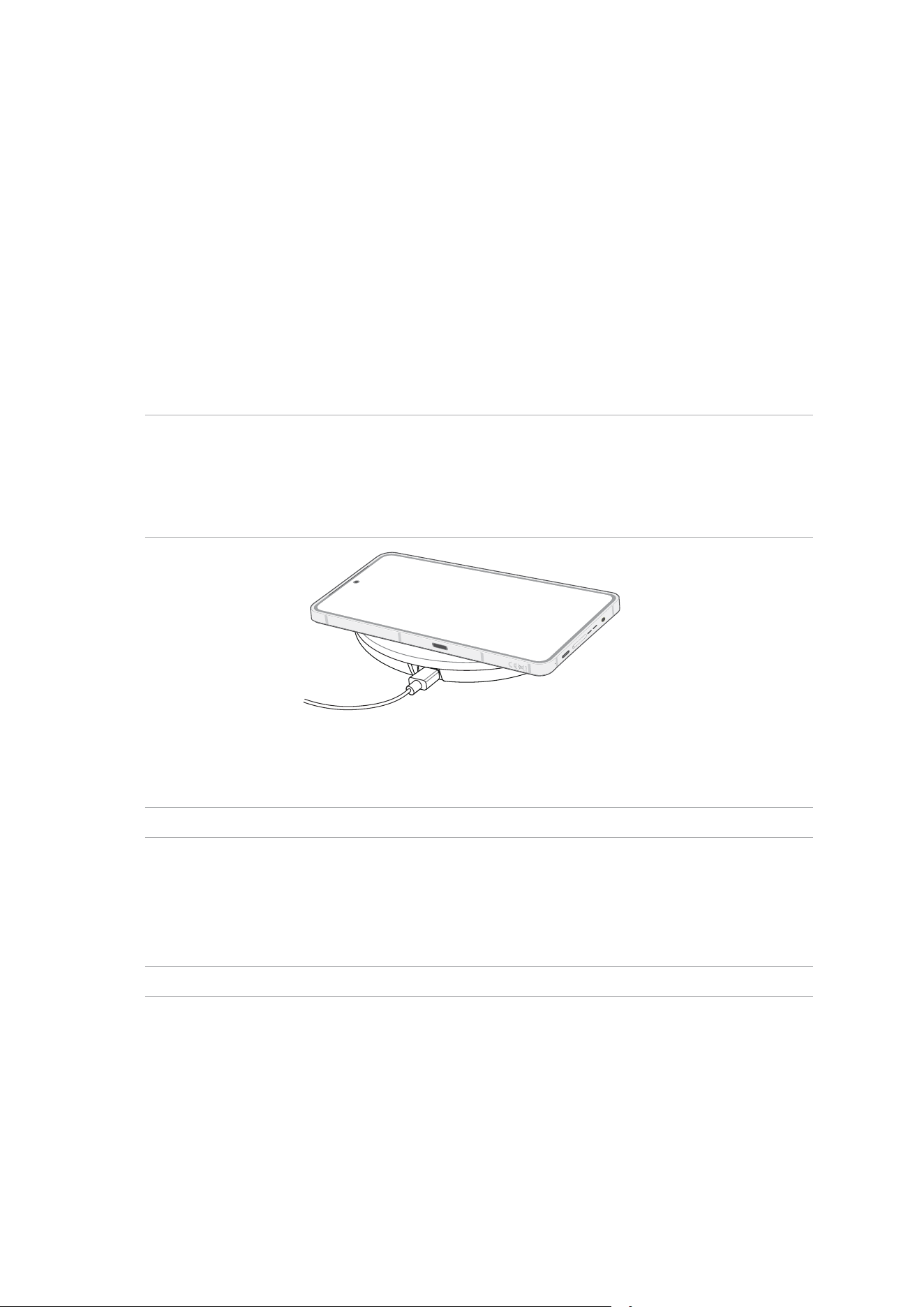
You can purchase a Qi-certied wireless charger to charge your ROG Phone wirelessly.
If you use your ROG Phone during charging, charging may slow down or even stop to protect the
battery. Using certain apps while charging may stop charging or affect charging functionality.
When charging wirelessly, be sure to remove any coverings, cases or any phone accessories, and
be aware of the following:
• Do not place any conductive materials such as metal parts and magnets between your ROG
Phone and the charger to avoid burns.
• Do not place credit cards, transportation cards, or key cards (RFID) on the charger to prevent
them from being demagnetized or damaged.
CAUTION!
• If your ROG Phone is placed on the wireless charger incorrectly, the charging time may be
signicantly extended.
• When using certain applications with wireless charging, it may affect certain functions. For
example, using wireless charging might result in camera noise during photography.
Please follow the steps below to charge your ROG Phone with a wireless charger:
1. Place your ROG Phone on the wireless charger according to the charger’s instructions.
NOTE: The wireless charging coils on the back of the ROG Phone must be in contact with the charger.
2. When charging starts, the wireless charging icon will appear on the screen.
3. When charging is complete, please remove your ROG Phone from the wireless charging
stand/pad.
CAUTION! If the precautions are not followed, the device may not charge properly or may overheat.
16
Chapter 1: Basics
Using NFC
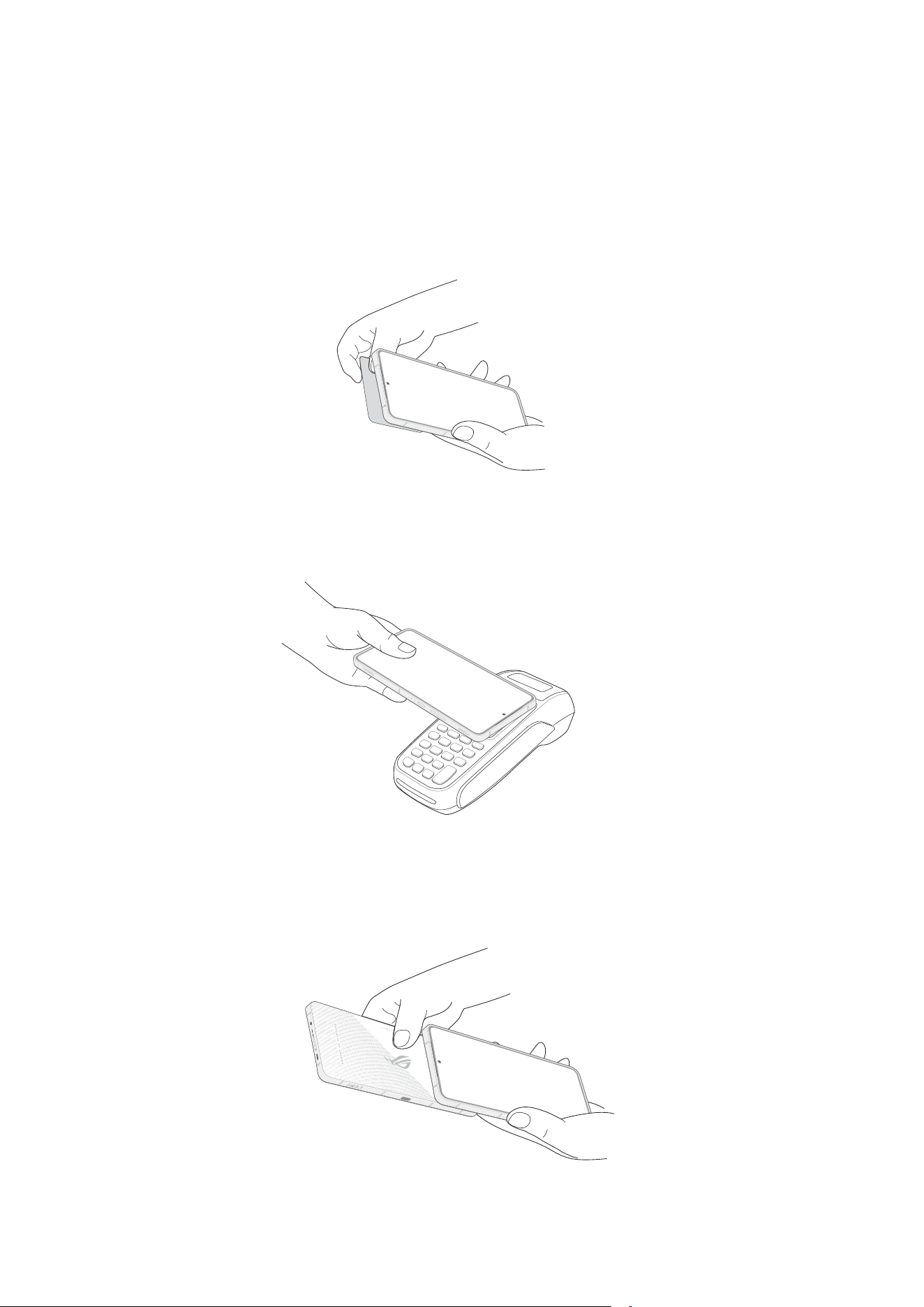
You can use NFC in the following three scenarios:
Reader mode: Your phone reads information from a contactless card, NFC tag, or other NFC
devices.
Place the NFC area of your phone on the contactless card, NFC tag, or NFC device.
Card Emulation mode: Your phone can be used like a contactless card.
Place the NFC area of your phone on the NFC area of the NFC reader.
Peer-to-Peer mode: Transfers photos, contacts, or other data between your phone and an NFC-
enabled smartphone.
Bring the NFC areas of both smartphones together, without any space between them.
17
Chapter 1: Basics
Turning your ROG Phone on or off
Turning your device on
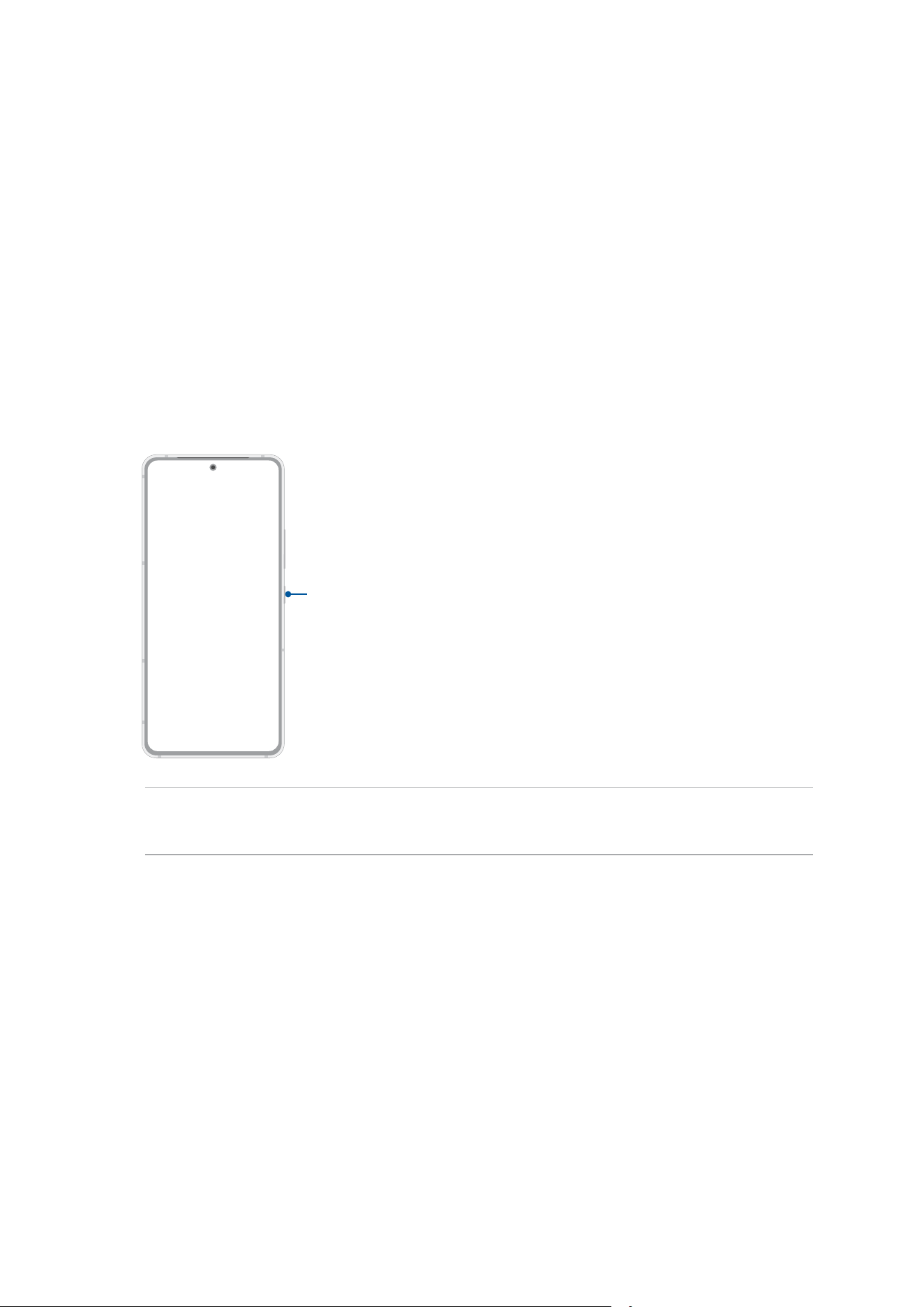
To turn your device on, press and hold the power button until your device vibrates and starts up.
Turning your device off
To turn your device off:
Press and hold the power button, then when prompted, tap Power off.
Sleep mode
To put your device in sleep mode, press the power button once until the screen turns off.
Power key
NOTE: When your system is down, press and hold the Volume Down key and Power key
simultaneously for 8 seconds to restart your phone. If this doesn't work, try again by pressing and
holding the keys again for 12 seconds.

18
Chapter 1: Basics
Starting for the rst time
When you turn your ROG Phone on for the rst time, Setup Wizard will guide you through the
setup process. Follow the onscreen instructions to select your language, set up your mobile
network, Wi-Fi and security features, and sync accounts.
Use your Google or ASUS account to set up your device, if you do not have a Google or ASUS
account yet, go ahead and create one.
Google Account
Using a Google account allows you to fully utilize these Android OS features:
• Organize and see all your information from anywhere.
• Automatically backup all your data.
• Leverage Google services conveniently from anywhere.
ASUS Account
Having an ASUS account gets you to enjoy the following perks:
• Personalized ASUS support service and warranty extension for registered products.
• Receive the latest device and rmware updates.
Battery power conservation tips
The battery charge is the lifeline of your ROG Phone. Here are some battery power conservation
tips that helps preserve the power of your ROG Phone battery.
– Close all running apps that are not in use.
– When not in use, press the power button to put the device in sleep mode.
– Decrease brightness of display.
– Keep the speaker volume to a low level.
– Disable Wi-Fi feature.
– Disable Bluetooth feature.
– Disable the screen auto-rotate feature.
– Disable all auto-sync features in your device.
19
Chapter 1: Basics
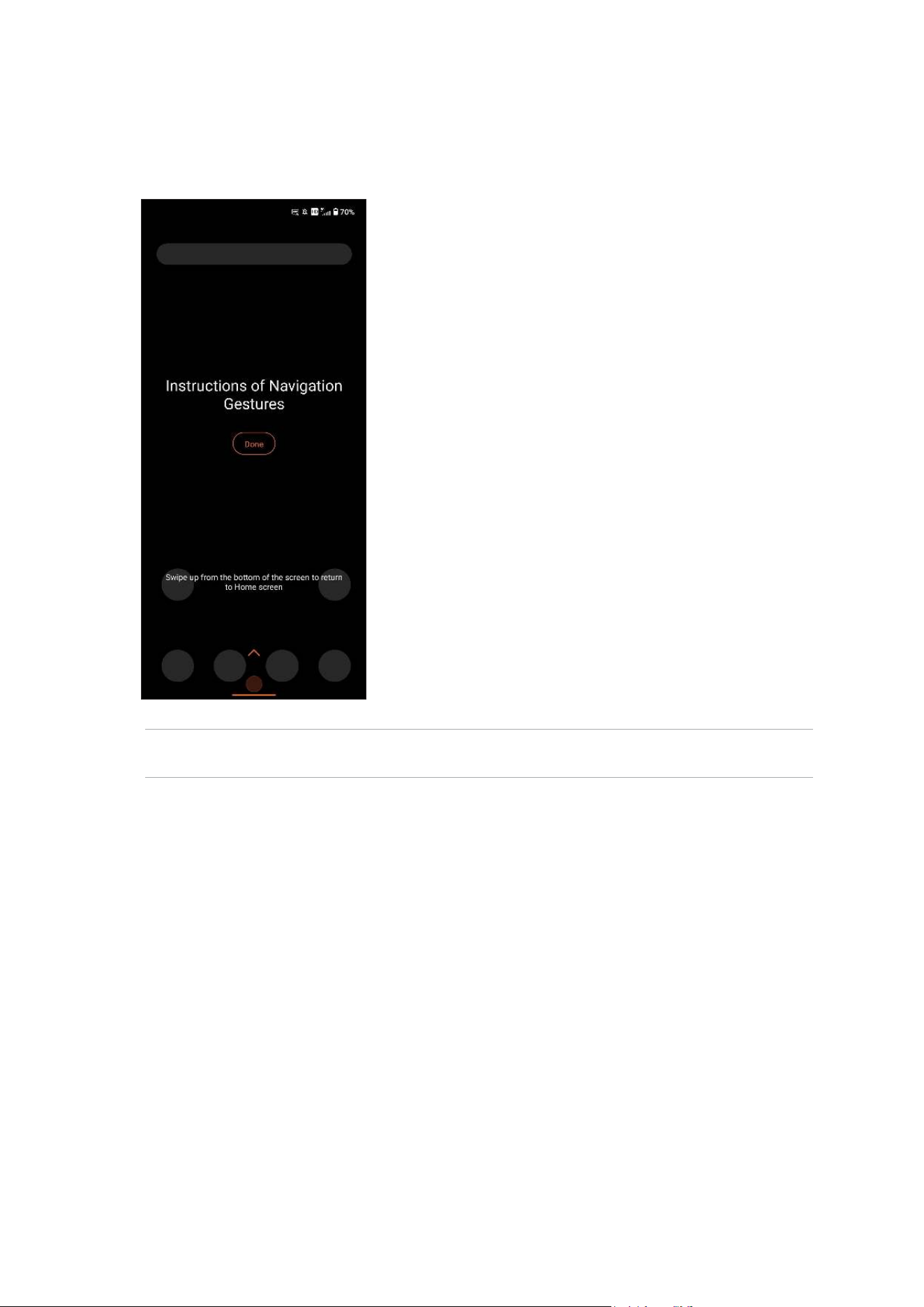
Instruction of Navigation Gestures
When starting for the rst time, please read Instruction of Navigation Gestures and click Done to
close the instructions.
NOTE: You can select between Gesture navigation or Navigation bar at any time from Settings >
Smart assist > System navigation.
20
Chapter 1: Basics
Using the touchscreen
Use these gestures on the touchscreen to launch apps, access some settings, and navigate your
ROG Phone.
Launching apps
To launch an app, simply tap on it.
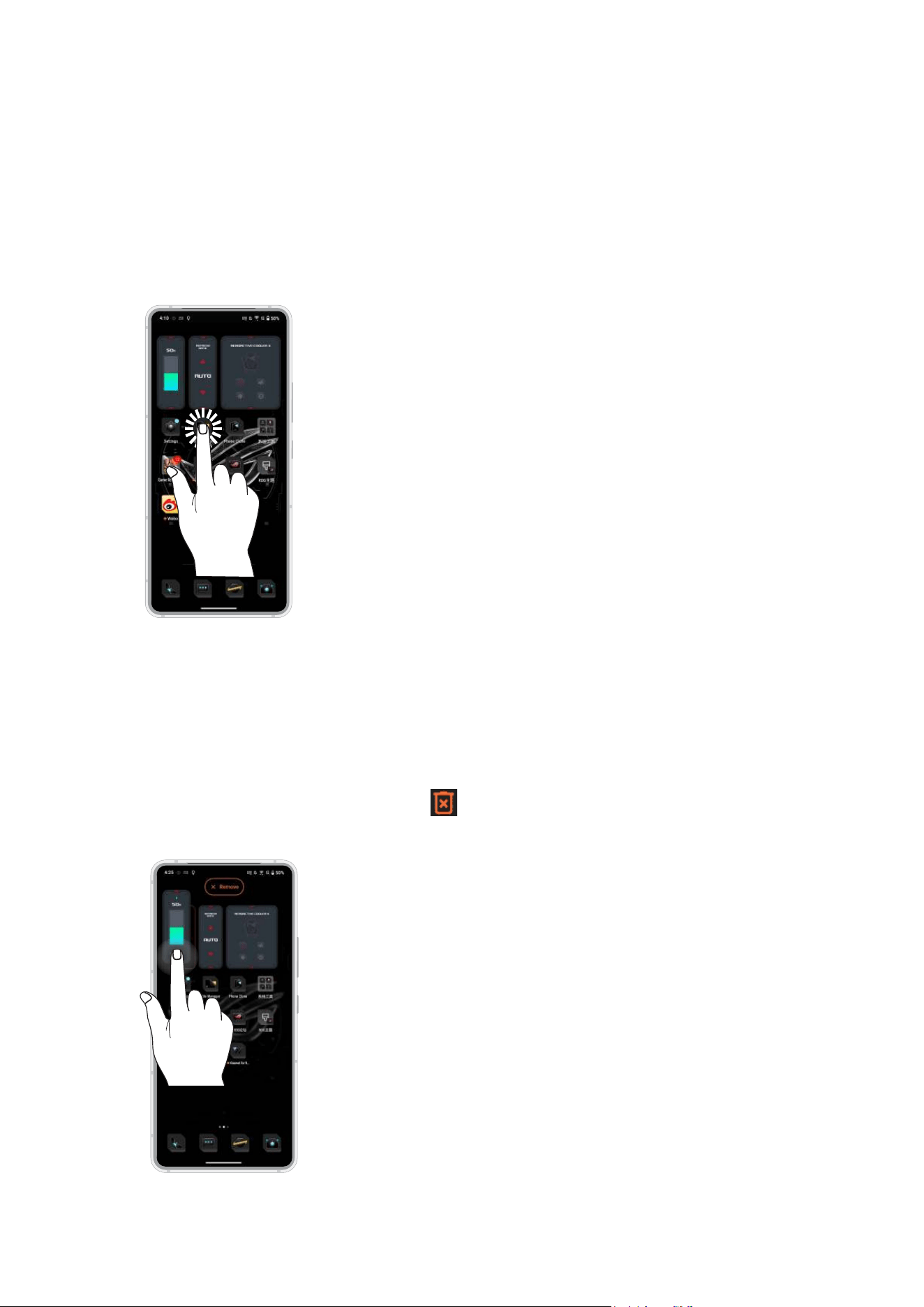
Moving or deleting items
Do either of the following:
• To move an app or widget, tap and hold then drag it to the location where you want it to be.
• To delete an app, tap and hold it then tap
.
• To remove a widget, tap and hold it, then drag it to Remove on top of your screen.
21
Chapter 1: Basics
Moving through pages or screens
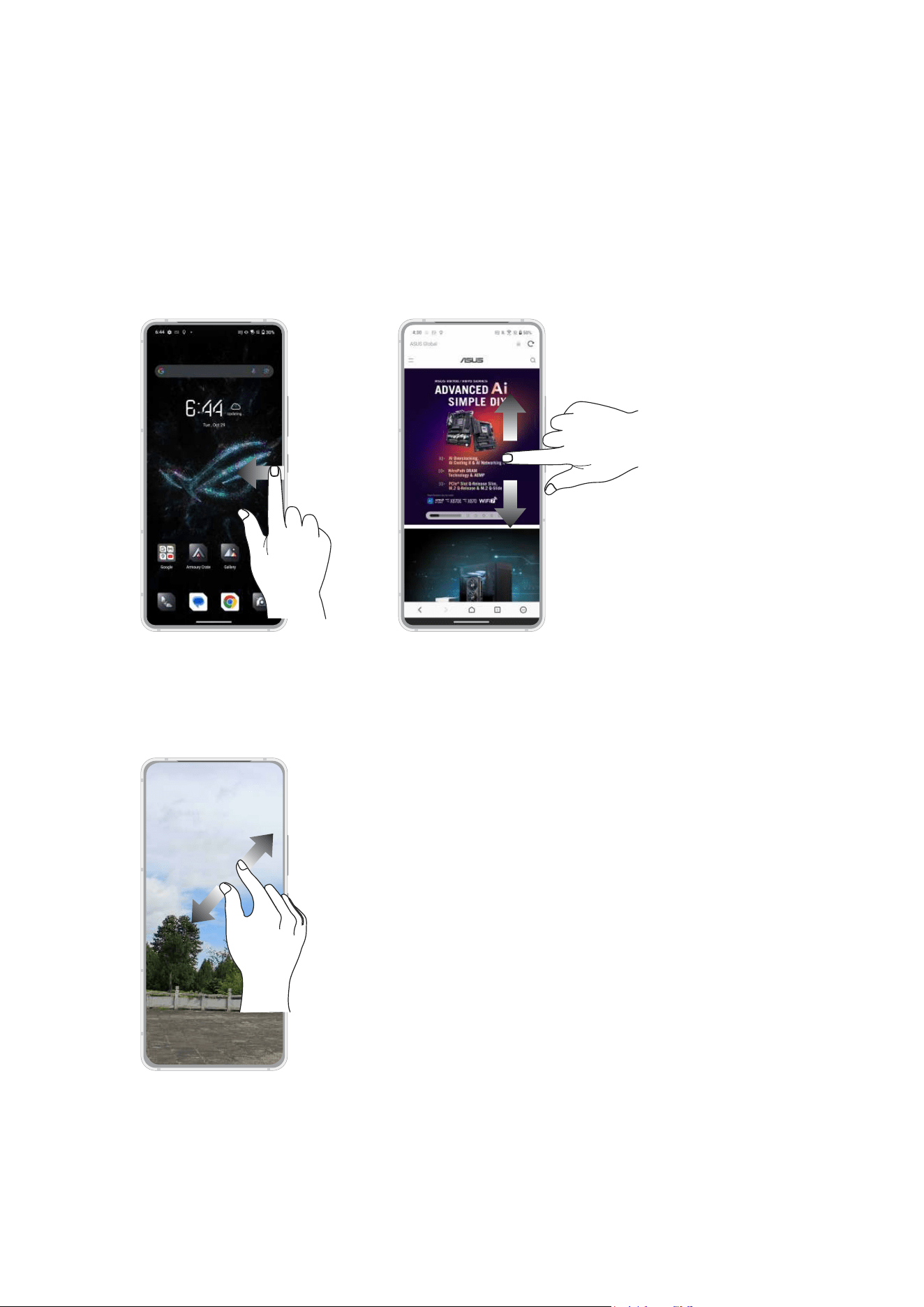
Do either of the following:
• Swipe your nger to the left or to the right to switch between screens or to open Google
Search page.
• Scroll your nger up or down to go through web pages or list of items.
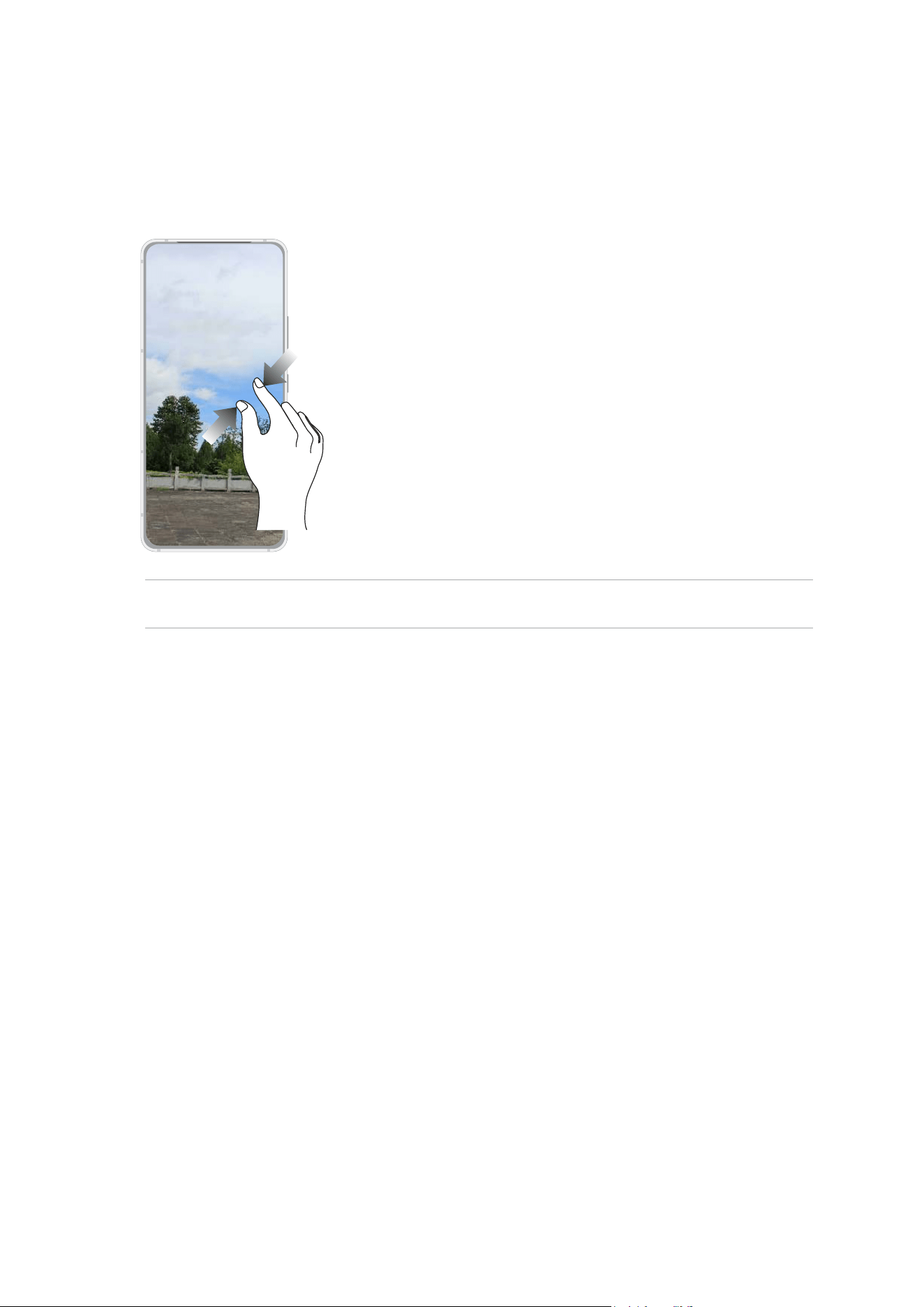
Zooming in
Spread apart your two ngers on the touch panel to zoom in an image in Photos or Maps, or
zoom in a web page.
22
Chapter 1: Basics
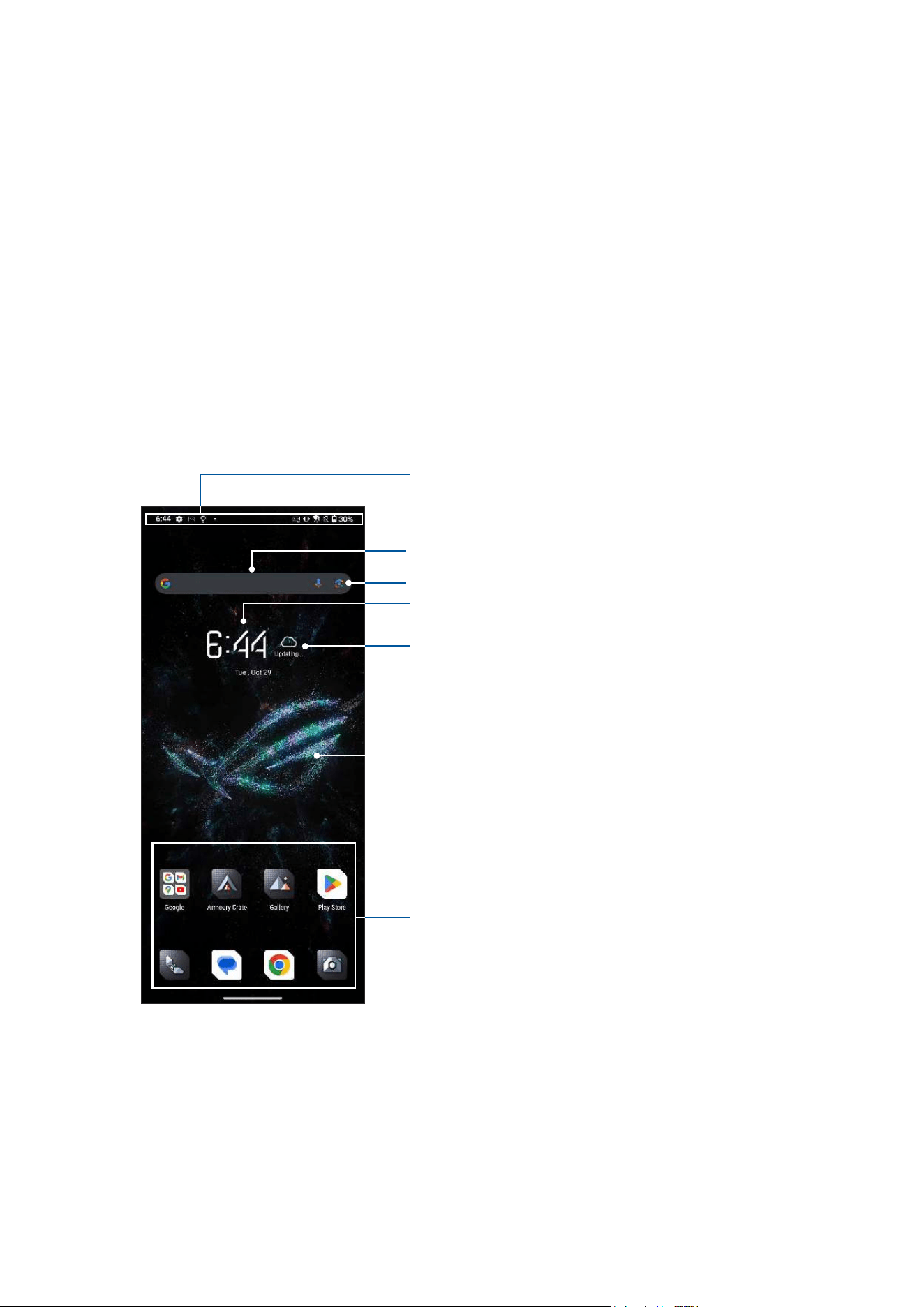
Zooming out
Bring together your two ngers on the touch panel to zoom out an image in Photos or Maps, or
zoom out of a web page.
NOTE: You may not be able to zoom in/out of some web pages as these pages may have been
designed specically to t your mobile screen.
23
Chapter 2: There’s no place like Home
There’s no place like Home
2
2 There’s no place like Home
Zen Home features
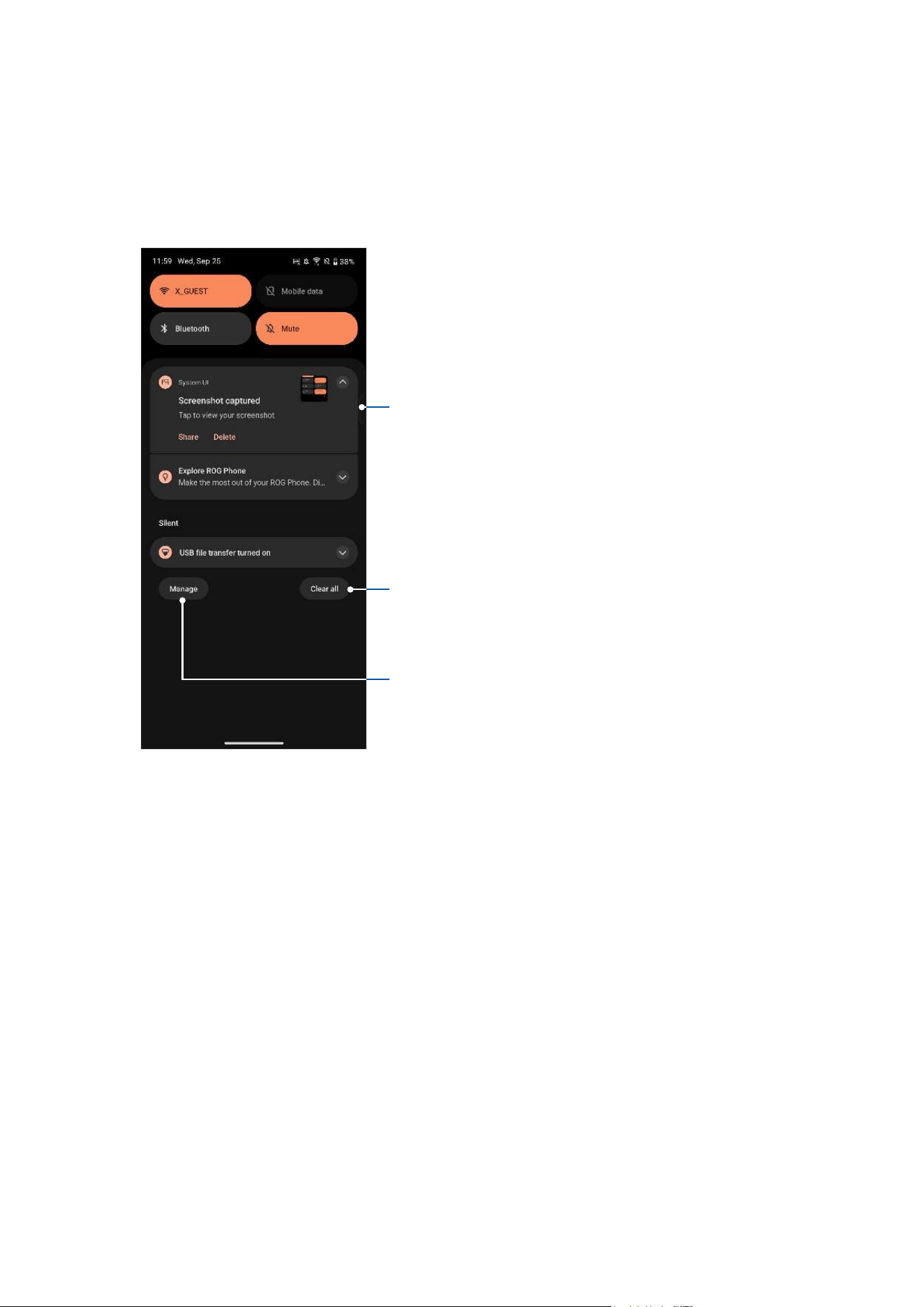
Home screen
Get reminders of important events, app and system updates, weather forecasts, and text
messages from people who really matter to you, right from your Home screen.
Swipe down this area to display Notications and Quick settings
Tap to open an app
Tap to open Clock
Tap to open Weather
Tap to open Google Search page
Tap to open Voice Search
24
Chapter 2: There’s no place like Home
Notications
From the notications panel, you can see the latest updates done and system changes made on
your ROG Phone. Most of these changes are data and system-related.
To launch the notications panel, swipe down from the top of your screen.
Tap to remove the listed notications
Swipe the notication to the left or right for more options
Tap on the notication to view its details
Tap to manage notications
25
Chapter 2: There’s no place like Home
Quick settings
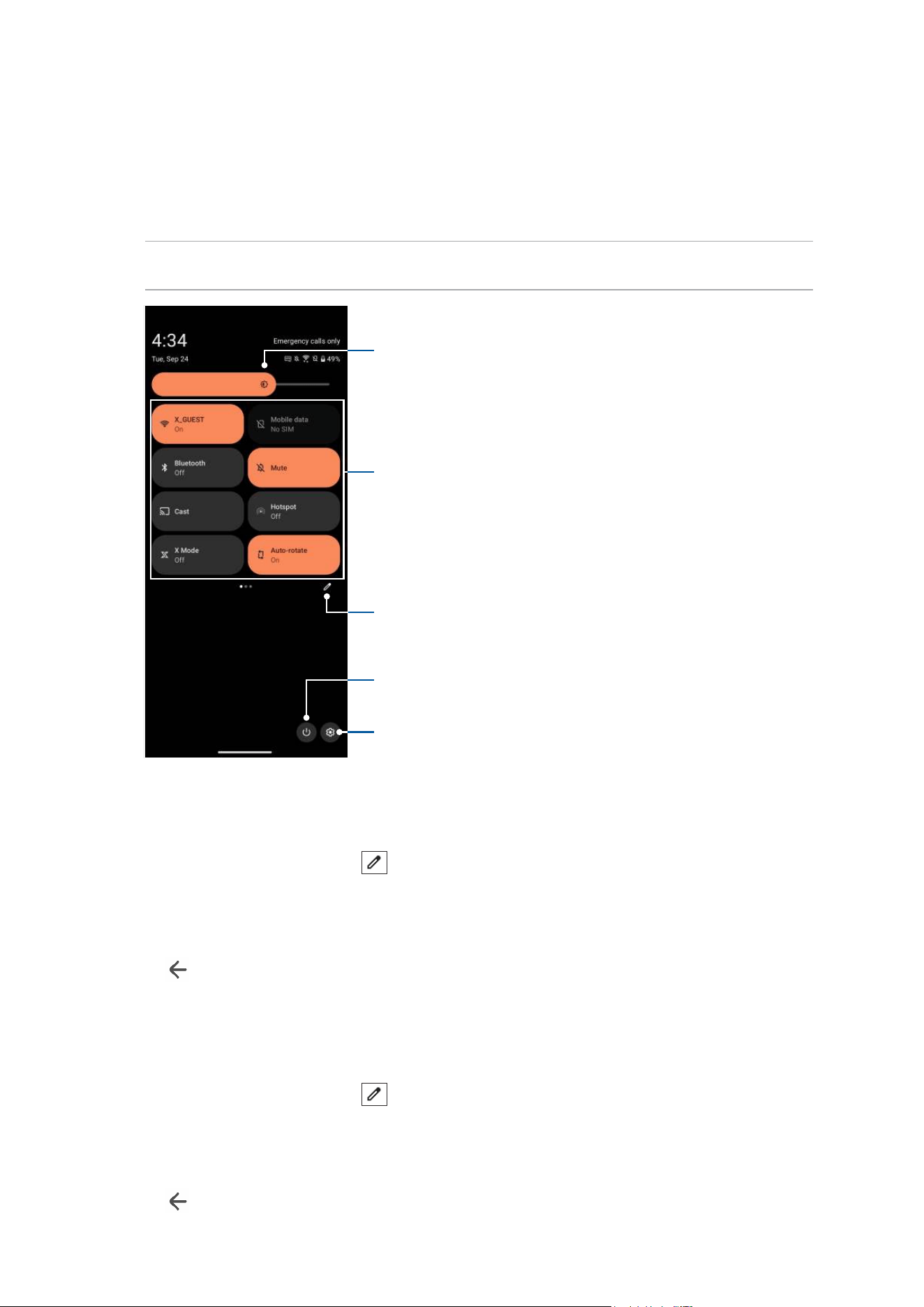
The Quick settings panel provides a one-tap access to some of the wireless features and
settings of your ROG Phone. Each of these features are represented by an icon.
To launch the Quick settings panel, swipe down twice from the top of your screen.
NOTE: A bright icon indicates that the feature is currently enabled while a gray icon indicates a
disabled feature.
Adding features
To add features from the Quick settings panel:
1. Launch Quick settings then tap
.
2. Tap and drag an icon from the Hold and drag to add tiles area and release it in the Hold and
drag to rearrange tiles area to add it to the Quick settings panel.
3. Tap
to go back and view the current Quick settings panel.
Removing features
To remove existing features from the Quick settings panel:
1. Launch Quick settings then tap
.
2. Tap and drag an icon from the Hold and drag to rearrange tiles area and release it in the Hold
and drag to add tiles area to remove it from the Quick settings panel.
3. Tap
to go back and view the current Quick settings panel.
Slide left or right to adjust the screen’s brightness
Tap to open Settings
Tap to select/deselect items to display in Quick settings
Tap to power off, restart your ROG Phone, capture a
screenshot or use the emergency feature
Tap these buttons to enable or disable their functions
Slide left or right to view more icons
26
Chapter 2: There’s no place like Home
Edge tool
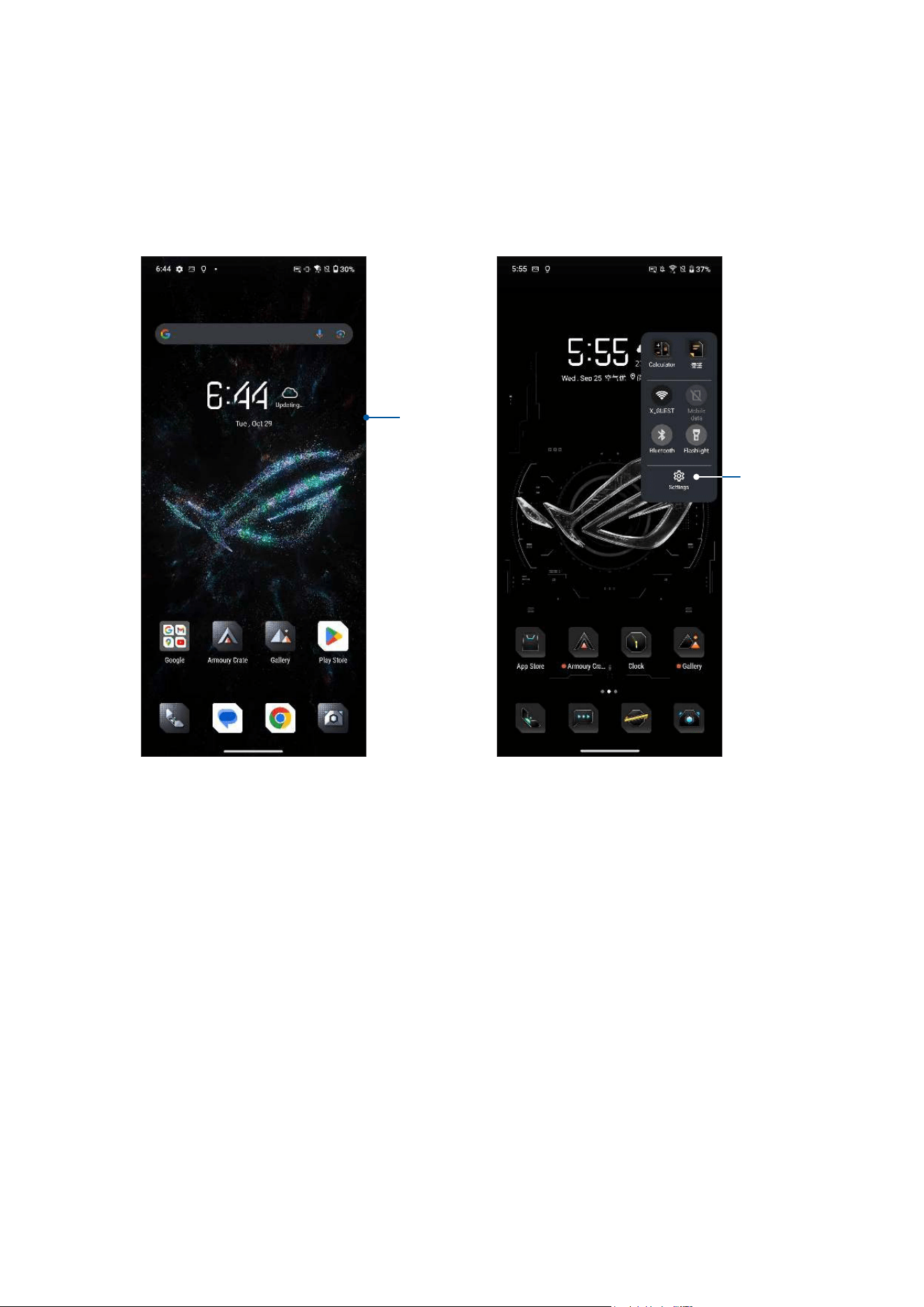
The edge tool allows you to quickly execute system shortcuts and open an app in a oating
window.
To activate the edge tool, slide inward from the right edge.
Slide to open
the edge tool
Tap to open
Settings
27
Chapter 2: There’s no place like Home
Personalizing your Home screen
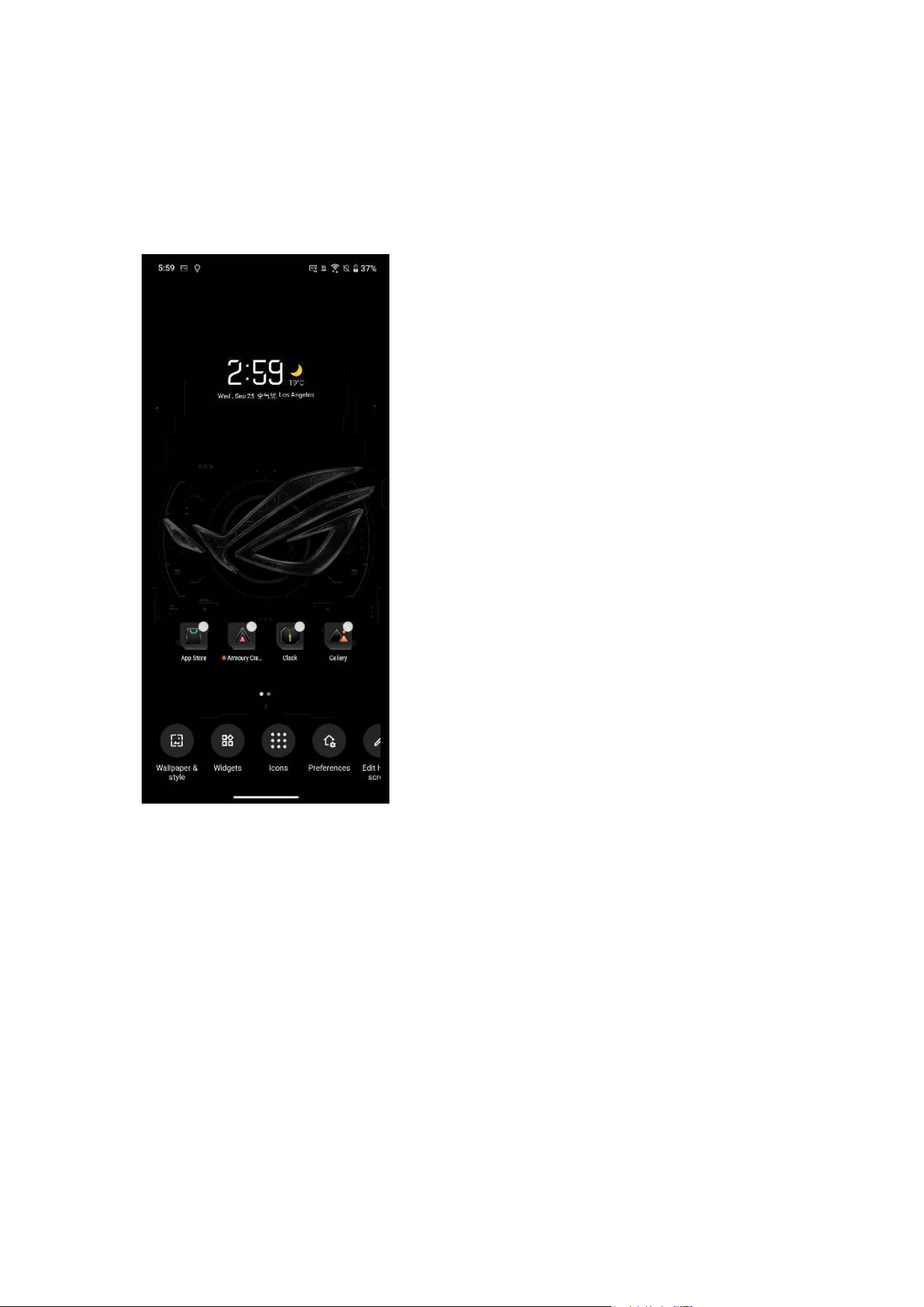
Stamp your own personality on your Home screen. Select an attractive design as your wallpaper,
and add widgets for a quick review of important info.
To launch the Manage Home screen, tap and hold an empty area on your Home screen.
28
Chapter 2: There’s no place like Home
Wallpapers
Let your apps, icons, and other Zen elements sit on an attractively designed wallpaper. You may
add a translucent background tint to your wallpaper for readability and clarity. You can also
select an animated wallpaper to make your screen come alive.
Applying wallpaper
To apply wallpaper:
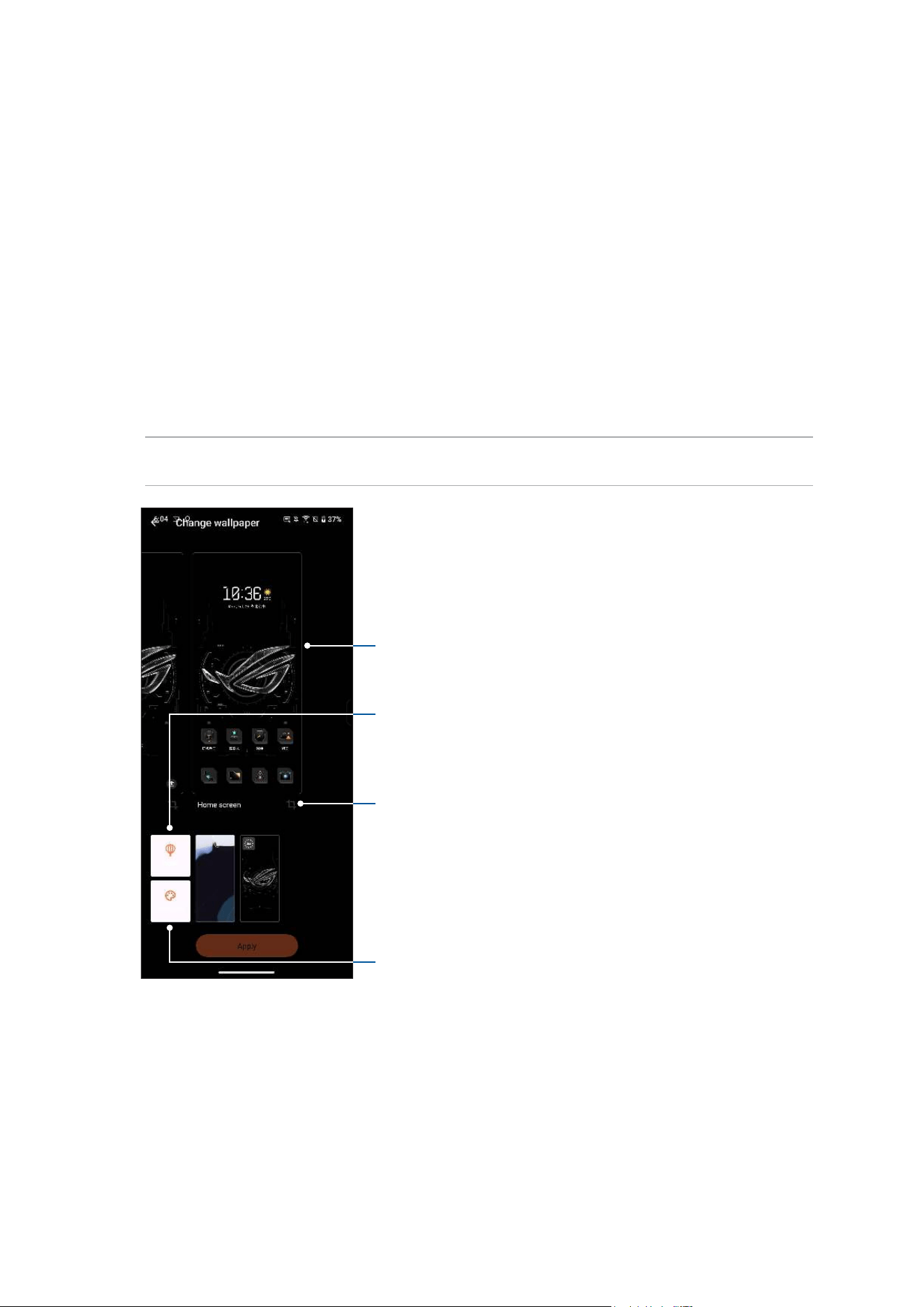
1. Tap and hold an empty area on your Home screen and select Wallpaper & style.
2. Tap Change wallpaper and select to set wallpaper to Lock screen or Home screen.
3. Select a wallpaper, and then tap Apply.
NOTE: You can also set up your wallpaper from Settings > Launcher personalization > Wallpaper &
style.
Swipe right or left to select where you want to apply the wallpaper
Tap to select an image from Gallery
Tap to select an image from online wallpaper gallery
Tap to crop the wallpaper

29
Chapter 2: There’s no place like Home
Widgets
You can put widgets, which are small dynamic apps, on your Home screen. Widgets provide you
with quick-views of the weather forecast, calendar events information, battery status, and more.
Adding widgets
To add a widget:
1. Tap and hold an empty area on your Home screen and select Widgets.
2. From the Widgets screen, tap an item and hold the widget you want to add, then drag it to an
empty area on your Home screen.
Removing widgets
From your Home screen, tap and hold a widget, then drag it to Remove on top of your screen.
Preferences
You can edit your Home screen, use AppLock, and hide apps.
1. Tap and hold an empty area on your Home screen and select Preferences.
2. Tap a feature to edit your preferences.
Icons
You can edit your icons.
1. Tap and hold an empty area on your Home screen and select Icons.
2. Edit your preferences.
Editing your Home screen
You can select a scroll effect, set the default screen and align icons.
1. Tap and hold an empty area on your Home screen and select Edit Home screen.
2. Tap a feature to edit your Home screen.
30
Chapter 2: There’s no place like Home
Setting up the date and time
By default, the date and time displayed on your Home screen automatically syncs with your
mobile provider’s settings.
To change the date and time settings:
1. Launch the Settings screen by doing either of the following:
• Launch Quick settings then tap
.
• Tap Settings.
2. Scroll down the Settings screen and select System & updates > Date & time.
3. Slide Set time automatically under Date & time and Set automatically under Time zone to off.
4. Tap Date and Time to adjust the date and time.
5. Tap Time Zone to select the time zone.
6. You can opt to use the 24-hour format, if you prefer.
NOTE: See also
Clock.
Setting up your ringtone and alert sounds
Set up the sound for your phone ringtone, notications such as text messages, emails, and event
alerts. You can also choose to enable or disable the dial pad touch tones, touch sounds, screen
lock sound, or you can choose to have your ROG Phone vibrate when you tap on it.
To set up the sound settings:
1. Launch the Settings screen by doing either of the following:
• Launch Quick settings then tap
.
• Tap Settings.
2. Select Sounds & vibration and set up your preferred sound settings.
NOTE: Press the volume key and Tap
> on any screen to open Sounds & vibration menu.
31
Chapter 3: Work hard, play harder
Work hard, play harder
3
3 Work hard, play harder
Chrome
Chrome for Android lets you enjoy the same fast, secure and stable web browsing experience
as that on the desktop Chrome. Sign in to your Google account to sync tabs, bookmarks, and
browsing history across all your devices. If you don’t have a Google account, register for one.
NOTE: For details on creating a Google account, see
Gmail.
IMPORTANT! Before doing any Internet surng or Internet-related activities, ensure that your ROG
Phone is connected to a Wi-Fi or mobile network. For more details, see
Staying connected.
Launching Chrome
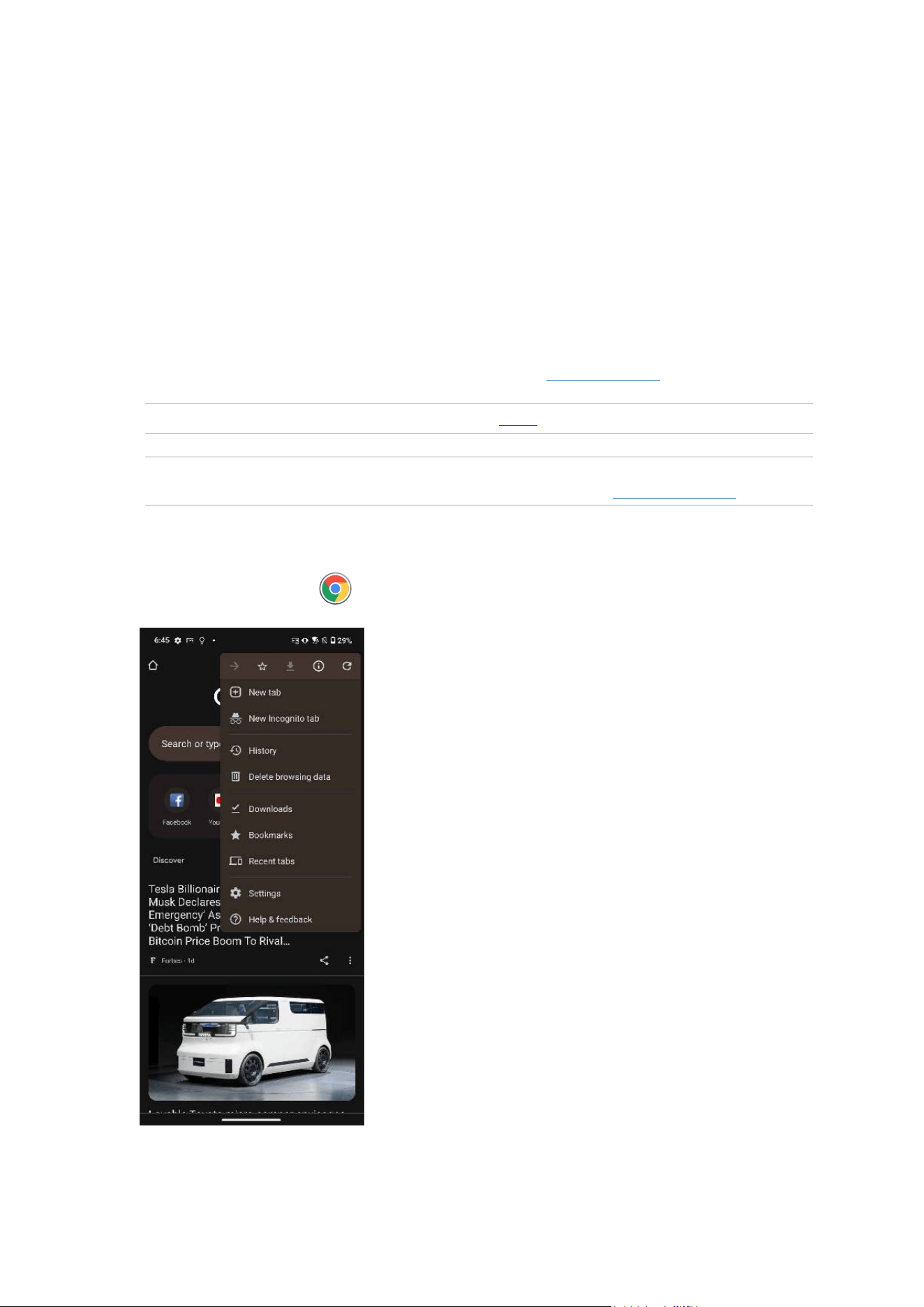
From your Home screen, tap to launch Chrome:

32
Chapter 3: Work hard, play harder
Sharing pages
Share interesting pages from your ROG Phone to others via an email account, cloud storage
account, Bluetooth, or other ROG Phone apps.
1. Launch Chrome.
2. From a web page, tap
> Share...
3. Tap to select a way to share the page.
Bookmarking pages
Bookmark your favorite pages or websites so you can go back and browse them again.
To bookmark a page:
From the page, tap
> . To view your favorite pages, tap > Bookmarks, then select the
page you want to view or access.
Clearing the browsing data
Clear the browsing data that are temporarily stored in your ROG Phone to improve the loading
performance of your Chrome browser. The browsing data includes browsing history, cache,
cookies/site data, saved passwords, and autoll data.
1. Launch the browser.
2. Tap
> Settings > Privacy and security > Clear browsing data.
3. Select the browsing data that you want to delete.
4. When done, tap Clear data.
33
Chapter 3: Work hard, play harder
Gmail
Use Gmail to set up your Google account to get into Google-related services and apps as well
as receive, send, and browse emails right from your ROG Phone. You can also set up other email
accounts such as Yahoo or your work email account via Gmail.
IMPORTANT! Your ROG Phone must be connected to a Wi-Fi or mobile network so you can add
an email account or send and receive emails from added accounts. For more details, see
Staying
connected.
To set up your Google account:
1. From your Home screen, do either of the following to launch Gmail:
• Tap Google > Gmail.
• Tap Gmail.
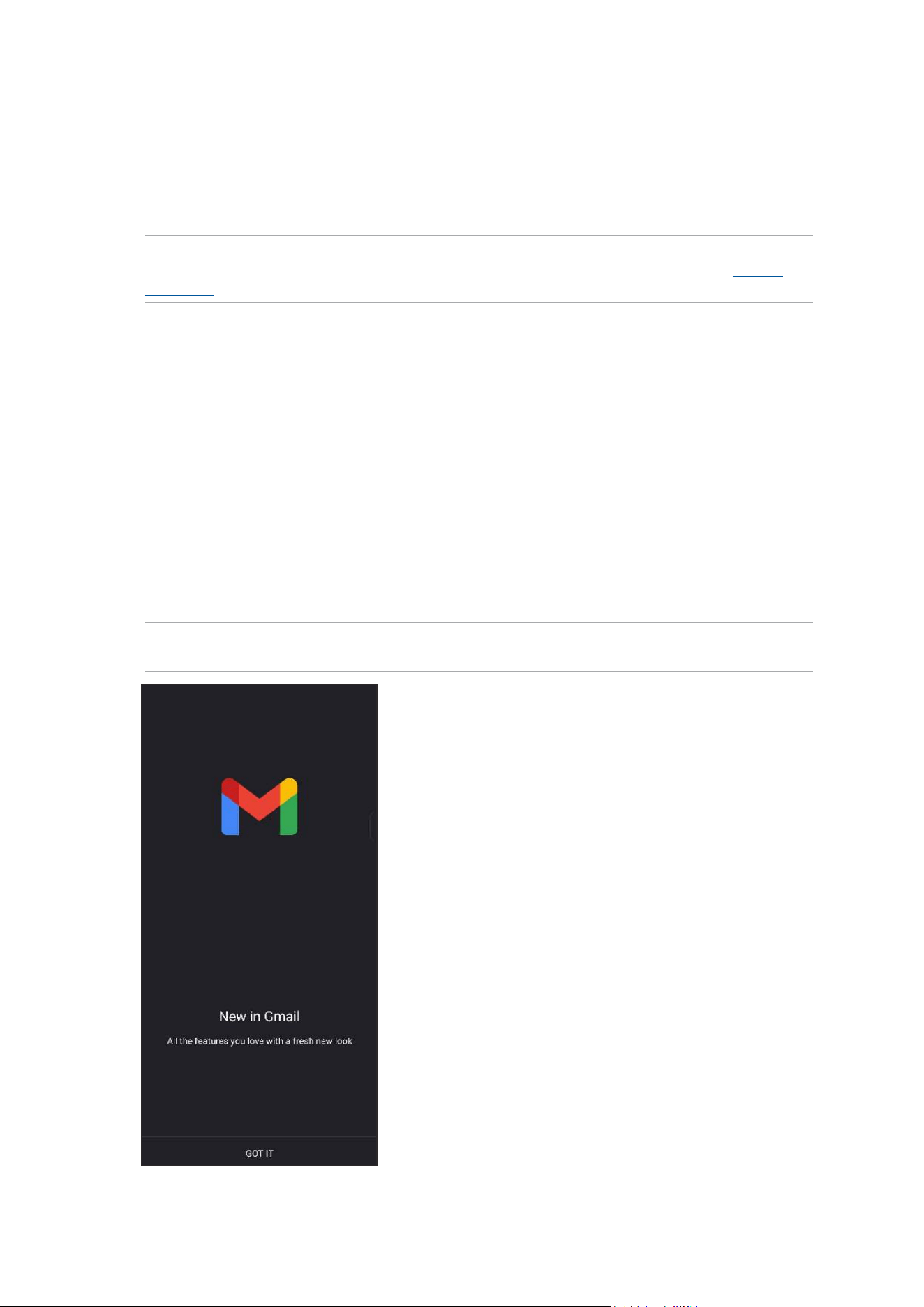
2. Tap GOT IT and then Add an email address.
3. Select Google.
4. Enter your email address. To create a new Google account, tap Create account.
5. Follow the next steps to sign in to your Google account.
NOTE: If you want to set up your work account on your ROG Phone, ask for the email settings from
your network administrator.

34
Chapter 3: Work hard, play harder
Google Calendar
Bring your schedule to life and keep track of all your important events or reminders. Events that
you create or edit will automatically sync with all Google Calendar versions that you’ve logged
into.
Creating events
To create an event:
1. From the Home screen, do either of the following to launch Calendar:
• Tap Google > Calendar.
• Tap Calendar.
2. Tap
then tap Event.
3. Enter your event name, and select the date and time for the event. You may set the event as
an all-day or recurring event.
• All-day event: From the All-day eld, move the slider to the right.
• Recurring event: Tap More options >
, then select how often you want the event to
recur or repeat.
4. To set the time zone, tap More options >
, then enter the country whose time zone you
want displayed.
5. From the Add location eld, enter the venue or location of the event.
6. Tap
, then you may select or set the time or day to get a notication or reminder about the
event.
7. From the Invite people eld, enter the email addresses of your guests to the event.
8. You may also add note or attachment from the Add note or Add attachment eld.
9. Once nished, tap Save.
Editing or removing events
To edit or remove an event:
1. From the Home screen, tap Google > Calendar.
2. Tap the event that you want to edit or delete.
3. To edit the event, tap
and make the necessary changes. To remove the event, tap >
Delete, then tap Delete to conrm the deletion.

35
Chapter 3: Work hard, play harder
Creating reminders
To create a reminder:
1. From the Home screen, tap Google > Calendar.
2. Tap
then tap Reminder.
3. Enter your reminder name.
4. Set the date and time for the reminder. You may set the reminder as an all-day or recurring
reminder.
• All-day reminder: From the All day eld, move the slider to the right.
• Recurring reminder: Tap
, then select how often you want the reminder to recur or
repeat.
5. Once nished, tap Save.
Editing or removing reminders
To edit or remove a reminder:
1. Tap Google > Calendar.
2. Tap the reminder that you want to edit or delete.
3. To edit the reminder, tap
and make the necessary changes. To remove the reminder, tap
> Delete, then tap Delete to conrm the deletion.
36
Chapter 3: Work hard, play harder
File Manager
Using File Manager allows you to easily locate and manage your data on the internal storage of
your Phone and its connected external storage devices.
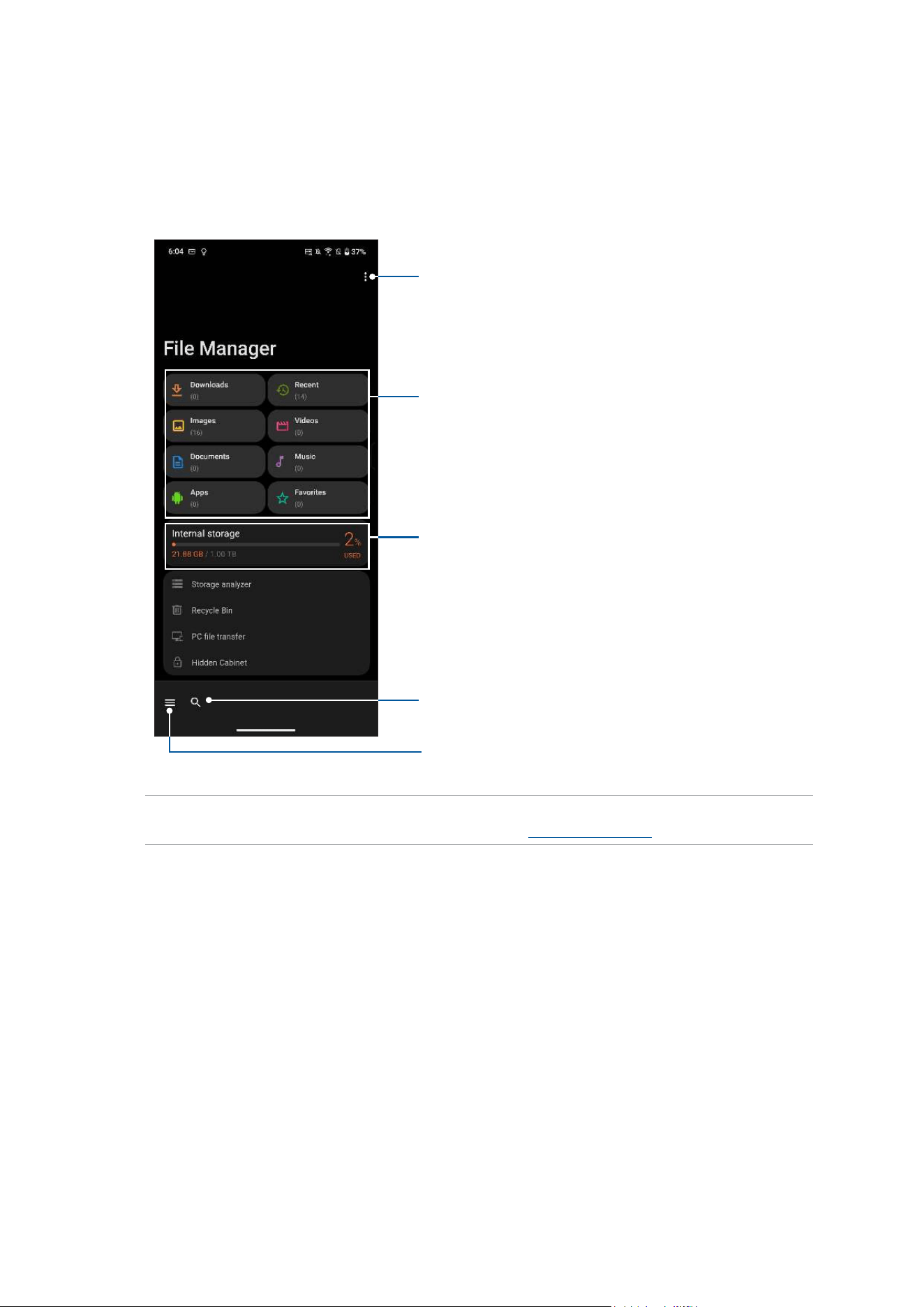
To launch File Manager, tap File Manager.
IMPORTANT! Before accessing les saved on the network and cloud storage, ensure that Wi-Fi or
mobile network is enabled on your Phone. For details, see Staying connected.
Tap to display the les under the category
Displays the usage of the internal storage
Tap to search for a le
Tap to access the internal, network, and cloud
storage
Tap to edit categories and congure settings
37
Chapter 3: Work hard, play harder
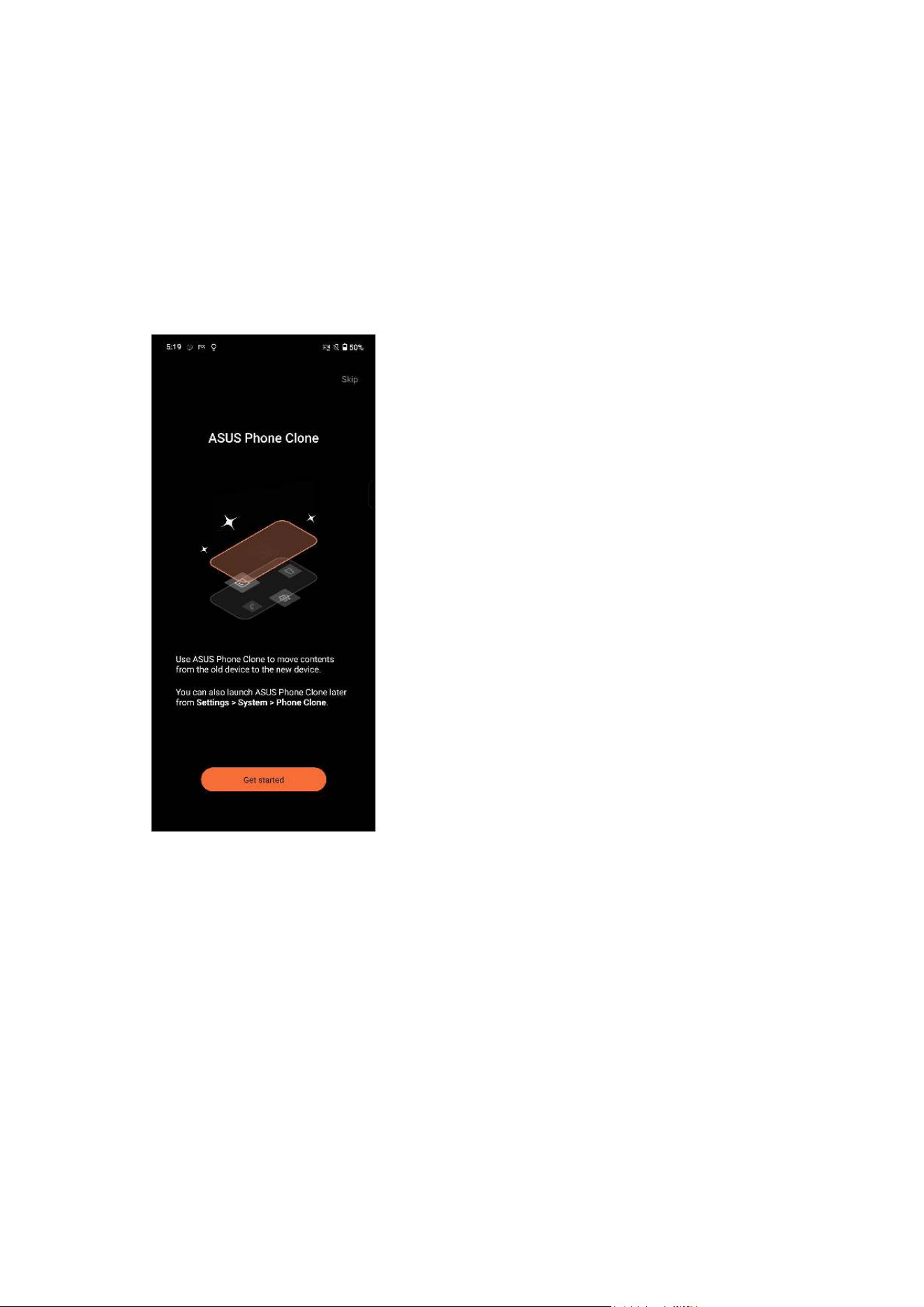
ASUS Phone Clone
Wirelessly transfer your data such as contacts, call logs, or photos from your old mobile device
to your ROG Phone.
To use ASUS Phone Clone:
1. Tap Phone Clone.
2. Tap Get started then follow the onscreen instructions to complete the data transfer process.
38
Chapter 4: Keeping in touch
Keeping in touch
4
4 Keeping in touch
Call in style
Dual SIM feature
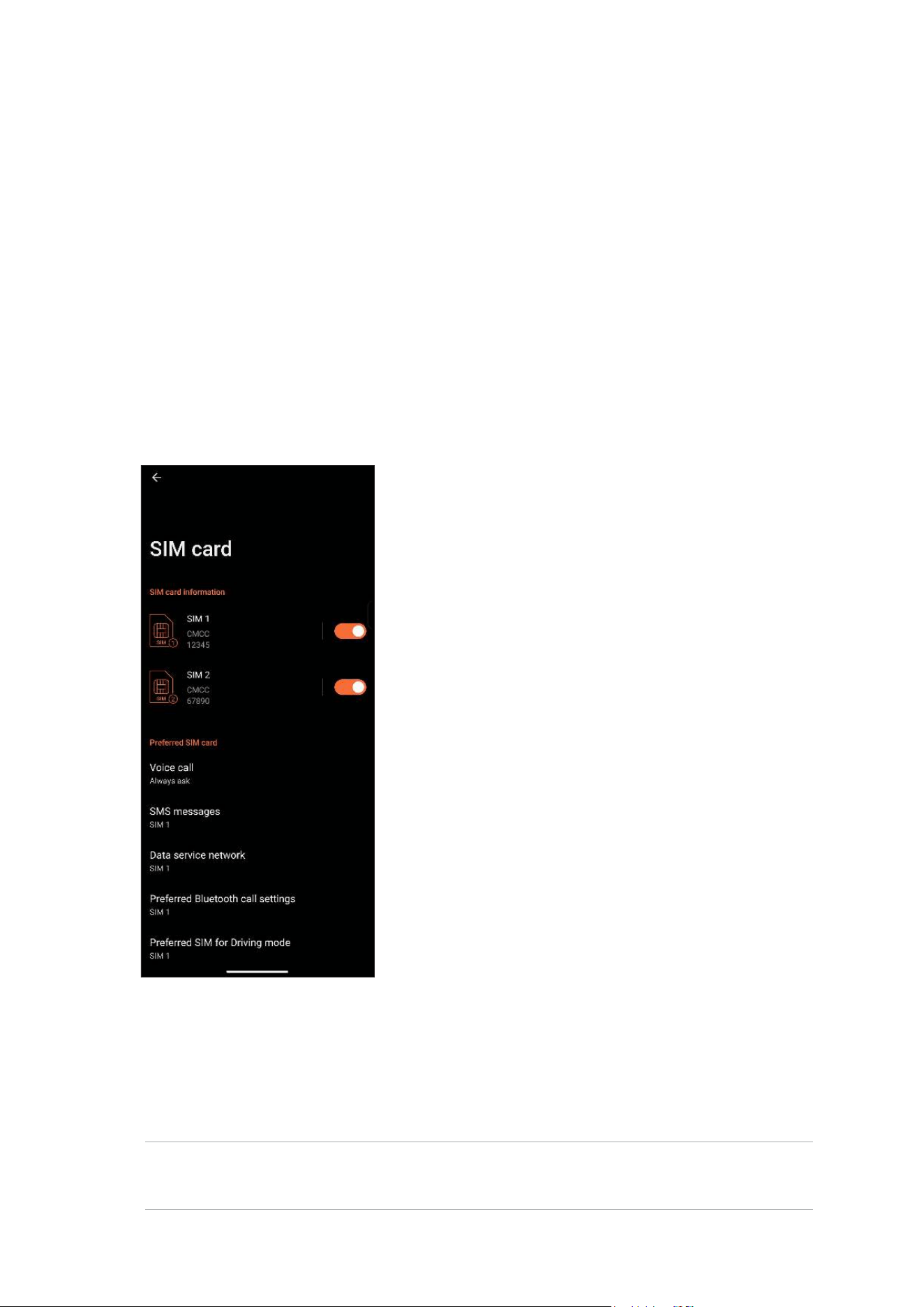
The dual SIM feature of your ROG Phone lets you manage the settings of the installed Nano SIM
cards. With this feature, you can enable/disable Nano SIM cards, assign SIM names, or set one
as a preferred network. To launch SIM card settings, go to Settings > Mobile network >
SIM card
.
Renaming your Nano SIM cards
Change the names of your Nano SIM cards on your ROG Phone so that you can identify them
easily.
To change the names of your Nano SIM cards, tap SIM 1 or SIM 2 then key in the names for your
Nano SIM cards.
NOTE: If your SIMs have different mobile service providers, we recommend you to use the names
of these providers for your SIM names. If both SIMs have the same mobile service provider, we
recommend you to use the mobile numbers for your SIM names.
39
Chapter 4: Keeping in touch
Assigning a preferred SIM card
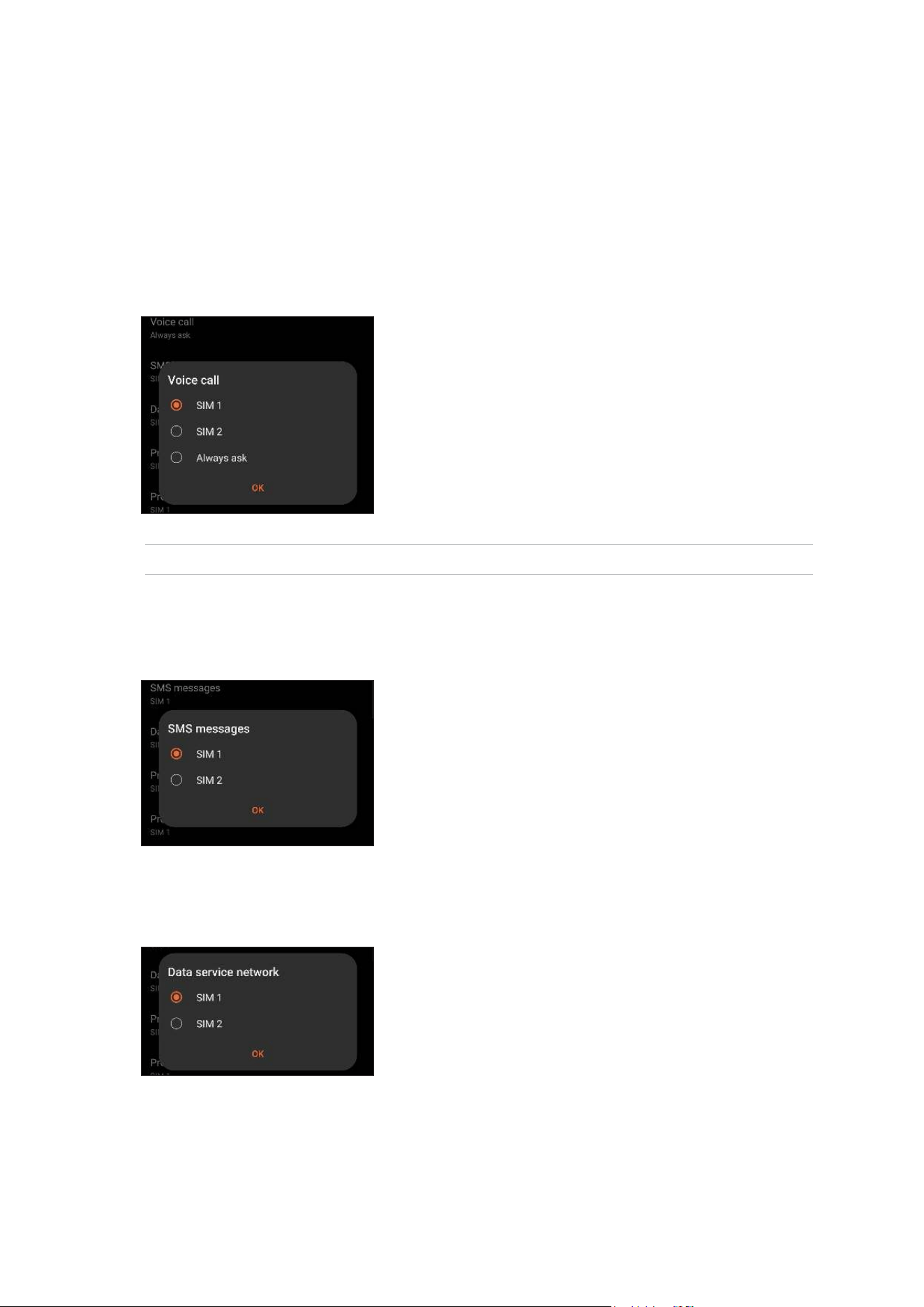
Assign a SIM card as your preferred SIM for voice calls, SMS messages, and data services.
SIM card for voice calls
When you make a call, your ROG Phone automatically uses the preferred SIM card to connect the
call.
To assign a SIM card for voice calls, tap Voice call then tap the SIM that you want to use.
IMPORTANT! You can only use this feature if you make a call from your contacts list.
SIM card for SMS messages
To assign a SIM card for SMS messages, tap SMS messages then select from SIM 1 or SIM 2.
SIM card for data service
To assign a SIM card for data service, tap Data service network then select from SIM 1 or SIM 2.
40
Chapter 4: Keeping in touch
Making calls
Your ROG Phone offers you many ways to make a call. Call your friends from your contacts list,
smart dial to quickly place a call, or enter a speed-dial number to call your frequently-called
contact.
NOTE: Organize your contacts in the Contacts app. For details, see
Managing contacts.
Launching the Phone app
From your Home screen, tap .
Dialing a phone number
Use the Phone app to directly dial a phone number.
1. From your Home screen, tap
then tap the number keys.
2. Select from call buttons SIM 1 or SIM 2 to dial the number.
NOTE: The labels of the call buttons may vary depending on the setting that you made to your SIM
cards. For more details, see
Dual SIM feature.
Dialing an extension number
When you need to call an extension number, you can do any of these steps to skip the voice
prompts.
Prompting for conrmation of an extension number
You can insert a conrmation prompt for the extension number after dialing the main number.
1. From the Phone app, enter the main number.
2. To insert a conrmation prompt, tap and hold # until a semi-colon (;) appears.
3. Enter the extension number.
4. Select from call buttons SIM 1 or SIM 2 to make the call.
5. When prompted, tap Yes to conrm the extension number.
6. Tap
to end the call.

41
Chapter 4: Keeping in touch
Auto-dialing an extension number
You can insert a short or long pause after dialing the main number, then the extension number is
dialed automatically.
1. From the Phone app, enter the main number.
2. To insert a pause, tap and hold * until a comma (,) appears.
3. Enter the extension number.
4. Select from call buttons SIM 1 or SIM 2 to place the call.
5. Tap
to end the call.
Smart dialing your contacts
As you enter the rst few numbers or letters of your contact’s name, Smart Dial lters through
your contacts list or call logs and provides you with possible matches. You can check if the
contact you’re trying to reach is on the list of possible matches, then you can quickly place that
call.
1. Launch the Phone app then enter the number or name of the contact in the Search eld.
2. From the list of possible matches, tap the contact you wish to call. If the contact is not on list,
enter the complete number or name of the contact.
3. Select from call buttons SIM 1 or SIM 2 to make the call.
NOTE: The labels of the call buttons may vary depending on the setting that you made to your SIM
cards. For more details, see also
Dual SIM feature.
Calling from Contacts app
Use the Contacts app to make a call from your contacts list.
1. Launch the Contacts app.
2. Tap the contact name then tap the number that you wish to dial.
3. If there are two SIM cards installed, tap the SIM card from which you want to make the call.
4. Tap
to end the call.
42
Chapter 4: Keeping in touch
Calling your favorite contacts
When you add a contact to your Favorites list, you can quickly call the contact from the Contacts
app.
1. Launch the Contacts app.
2. Tap Groups > Favorites to display your Favorites list, then tap your favorite contact whom you
want to call.
3. Tap
to end the call.
Receiving calls
The touch screen of your ROG Phone lights up when there is an incoming call. The display of the
incoming call also varies, depending on the status of your ROG Phone.
Answering calls
Slide to to answer or to to reject the call.
Managing your call logs
From your call logs, you can call back your missed calls, save calls to your contacts list, or redial
your recently-called number or contact.
Saving calls to Contacts
You can add a call/number from your call logs to your contacts list.
1. From the Phone app, tap Recents to display your call logs.
2. Tap
beside the number that you want to add to your contacts list.
3. Tap
at the lower right corner of your screen.
4. Tap Create new contact to add a new entry to your contacts list.
Tap Add to an existing contact, select a contact, choose whether to overwrite the contact’s
number with this new one or add a new entry, then tap
.
43
Chapter 4: Keeping in touch
Redialing your last-called number
To redial your last-called number:
1. From the Phone app, tap Recents to display your call logs.
2. Tap your last-called number to redial the number.
3. If there are two SIM cards installed, tap the SIM card from which you want to redial the
number.
4. Tap
to end the call.
Other call options
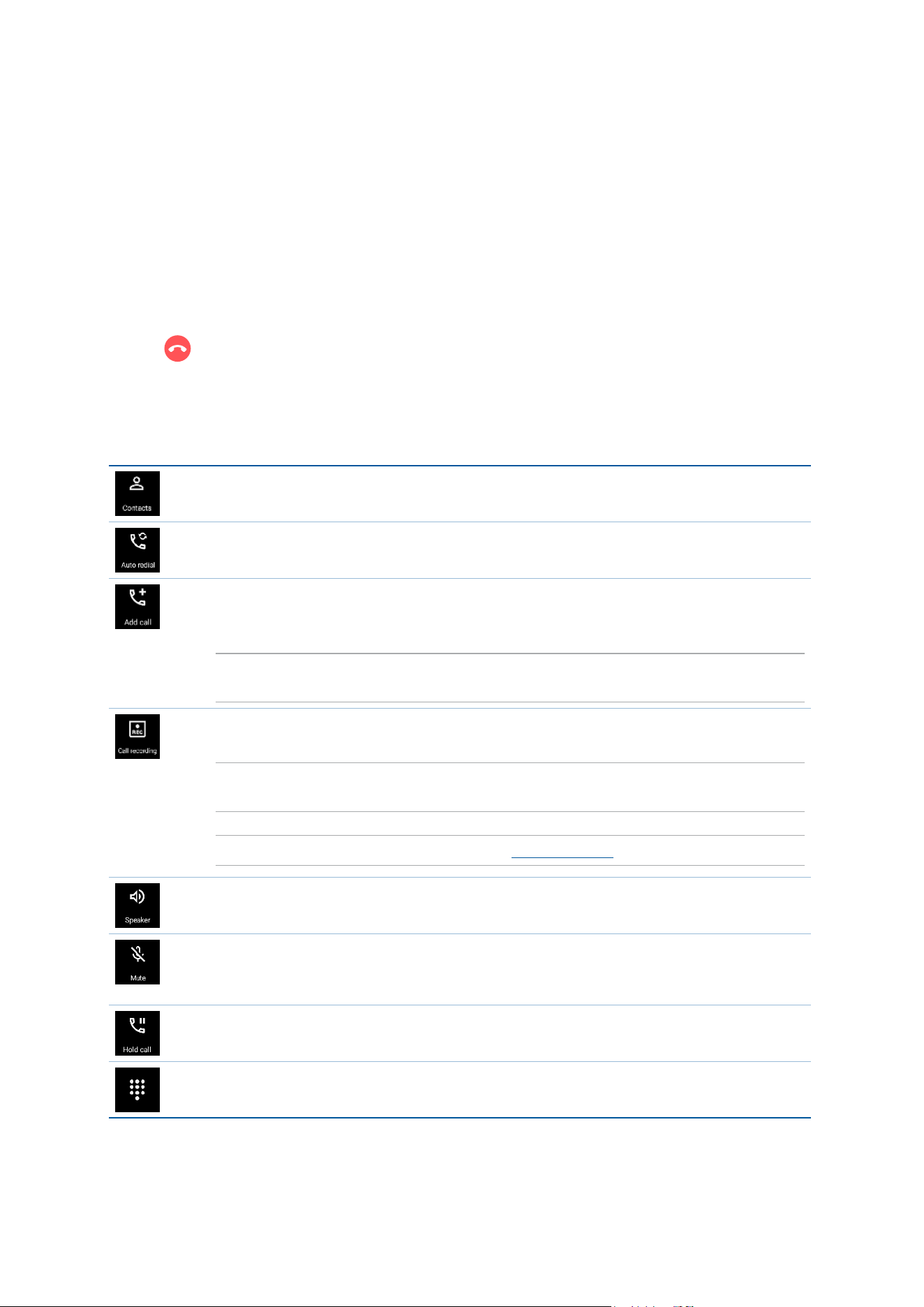
During an active call, tap any of the possible call options for when a call is in progress.
Contacts
Opens the Contacts app.
Auto redial
Automatically dials a number repeatedly if the line is busy or the call doesn’t connect.
Conference call
When you have subscribed to a conference call service with your mobile service
provider, this icon allows you to add a contact or contacts in an active call.
NOTE: The number of participants in the conference call depend on your conference call
subscription. You can inquire from your mobile service provider about this service.
Record
Records an active call.
IMPORTANT! Before recording an active call, it is dictated by most local laws to ask
permission from the other person or persons on the other line.
NOTE: For more details, refer to the section Recording calls.
Speakerphone
Turns the speakerphone on or off.
Microphone
Turns the microphone for the active call on or off. When the microphone is off or in
mute mode, you can hear the caller but the caller can’t hear you.
Hold call
Puts an active call on hold.
Keypad
Brings up the keypad.
44
Chapter 4: Keeping in touch
Recording calls
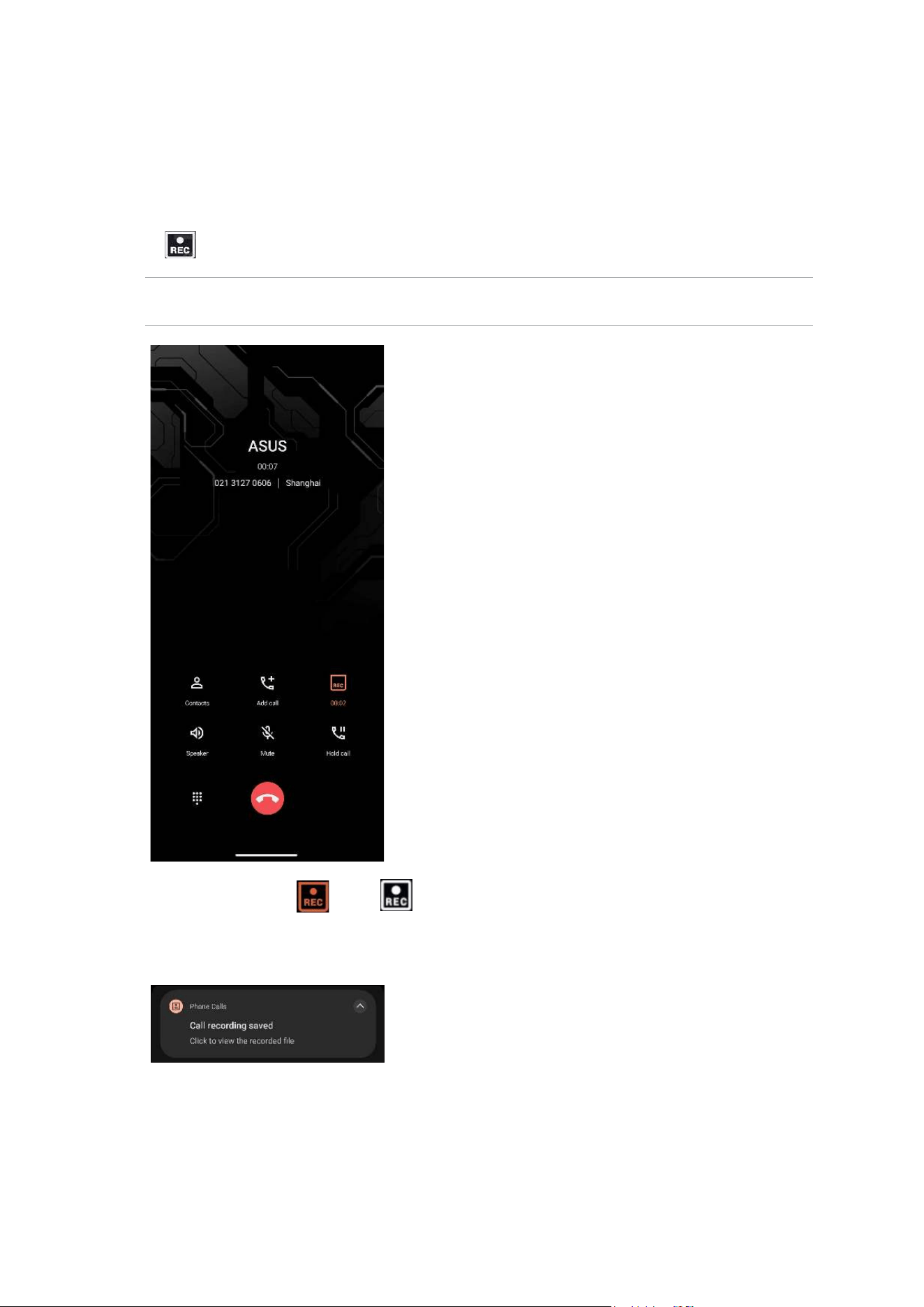
Your ROG Phone allows you to record a conversation for future reference or information.
1. Call a contact or dial a number.
2. Tap
to record the call.
IMPORTANT! Before recording a call, ensure that you ask for permission from the other party or
parties.
3. To stop recording, tap
. This icon appears on the system notication bar.
4. Swipe down from the top of the screen, and then tap Call recording saved notication to view
the recorded conversation.

45
Chapter 4: Keeping in touch
Managing contacts
Organize your contacts and easily stay in touch with them via calls, SMS messages, emails, or
social networks. Group your contacts as Favorites to quickly get in touch with them, or group
them as VIPs to get notied about any upcoming events, missed calls, or unread messages.
You can also sync your contacts with your email or social network accounts, link contacts’ info
for easy access in one place, or lter the contacts you want to keep in touch with.
To launch the Contacts app, tap Contacts.
Contacts manager
Choose how you would like to customize the display, operation, and color scheme for your
contacts in the Contacts manager. To congure your Contacts settings, tap
> Settings from the
Contacts app.
Setting up your prole
Make your ROG Phone truly your own and set up your prole info.
1. Launch the Contacts app then tap Set up my prole or Me.
NOTE: Me appears when you’ve set up your Google account on your ROG Phone.
2. Fill in your info such as mobile or home number. To add other info, tap Add another eld.
3. When you’ve completed your info, tap
.

46
Chapter 4: Keeping in touch
Adding contacts
Add contacts to your device, corporate, Google, or other email accounts and ll in more
important contact information such as contact numbers, email addresses, special events for
VIPs, and more.
1. Launch the Contacts app then tap
.
2. Select a default account for the new contacts.
NOTES:
• You can select to save the contact to your account, Device or SIM card.
• If you are not signed in to your account, select Create a new account or Sign in to an account or
Import contacts.
3. Fill in the necessary information such as name, mobile or home number, and email address.
4. If you want to add other contact information, tap Add another eld.
5. When you’ve completed the info, tap
.
Adding an extension number to a contact number
You can add a contact’s extension number to skip the voice prompts when making a call.
1. In the contact’s information screen, enter the contact’s main number and extension number in
either of these two ways:
• Insert a comma (,) after the main number, then enter the contact’s extension number.
There’ll be a short pause before the extension number is dialed automatically. To
extend the pause, tap Pause to insert another comma.
• Insert a semi-colon (;) after the main number, then enter the contact’s extension
number. When dialing the contact number, you’ll be prompted to conrm the extension
number. Tap Yes on the conrmation message.
2. When you’ve completed the info, tap
.
47
Chapter 4: Keeping in touch
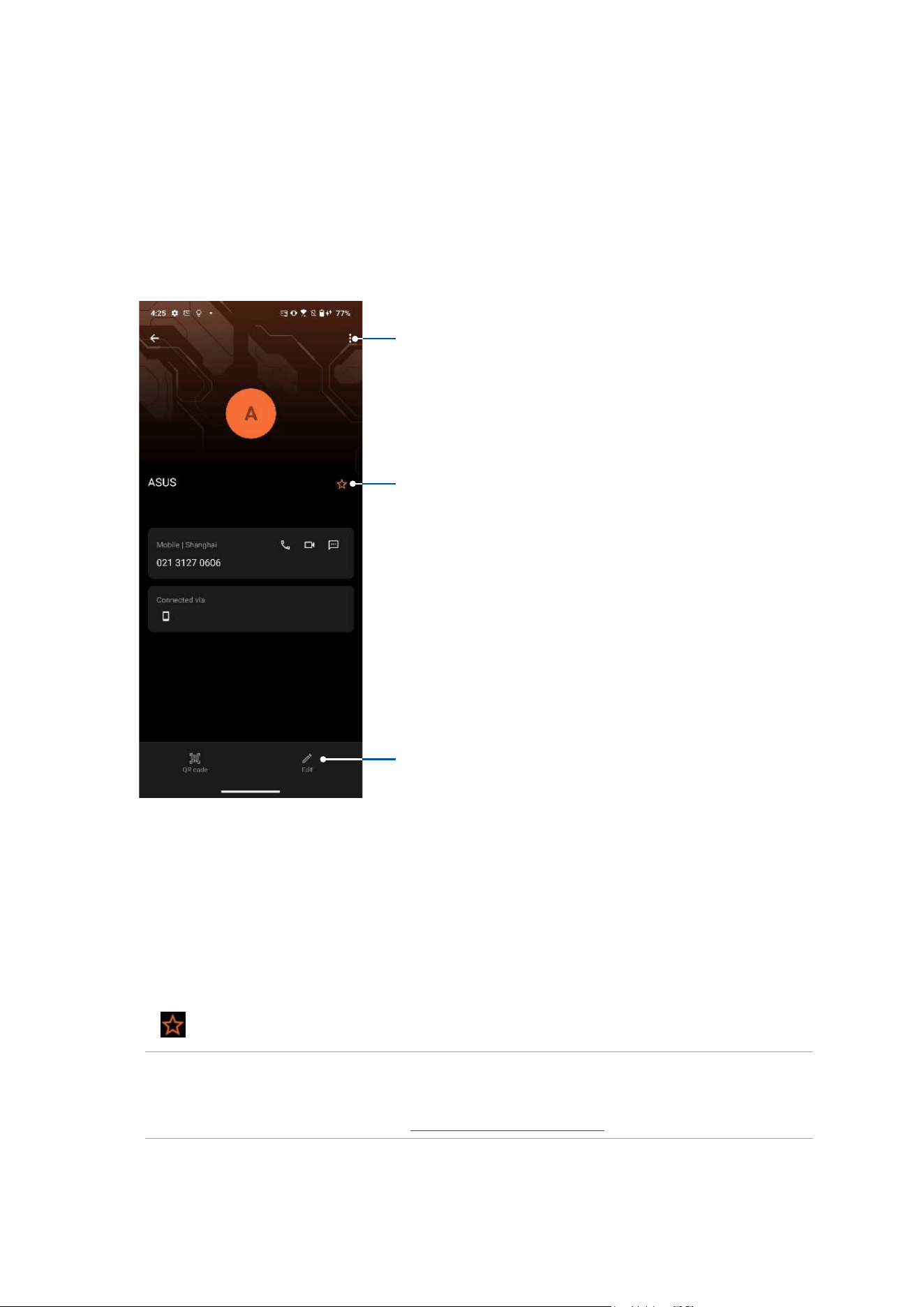
Customizing your contact’s prole
Edit your contact’s info, add a photo, set a ringtone, or take a photo as a cover for your contact’s
prole.
1. Launch the Contacts app then select the contact whose info or prole you want to edit or
customize.
2. Make the changes from the contact’s prole page.
Settings
Tap to add to the Favorites
List
Marking your favorite contacts
Set your frequently-called contacts as your favorites to be able to call them quickly from the
Phone app.
1. Tap Contacts.
2. Select the contact that you want to mark as a favorite.
3. Tap
. The contact is added to your Favorites List in the Contacts app.
NOTES:
• To view your Favorites list, tap Contacts > Groups > Favorites
.
• For more details, refer to the section
Calling your favorite contacts.
Tap to edit your contact’s
info
48
Chapter 4: Keeping in touch
Send messages and more
Messages
Messages, an intuitive and delightful app, lets you send/receive SMS/MMS messages, as well as
send group texts, photos, or audio messages. You can add emojis or stickers to your messages,
share your location, archive your messages, and easily block SMS senders. You can also take
photos or record videos and easily share these les.
Sending messages
1. From the Home screen, tap .
2. Tap
, then select the contact whom you want to send a message to.
3. Select the SIM account where you’re going to send your message from.
4 Start composing your message in the message eld.
5. When you’re done, tap
to send your message.
Replying to messages
1. Tap your message alert from your Home screen or Lock screen.
2. Select the SIM account where you’re going to send your reply from.
3. Start composing your reply in the message eld.
4. When you’re done, tap
to send your reply.
49
Chapter 5: Fun and entertainment
Fun and entertainment
5
5 Fun and entertainment
Using a headset
Have the freedom to do other things while you’re in a call or enjoy listening to your favorite
music, using a headset.
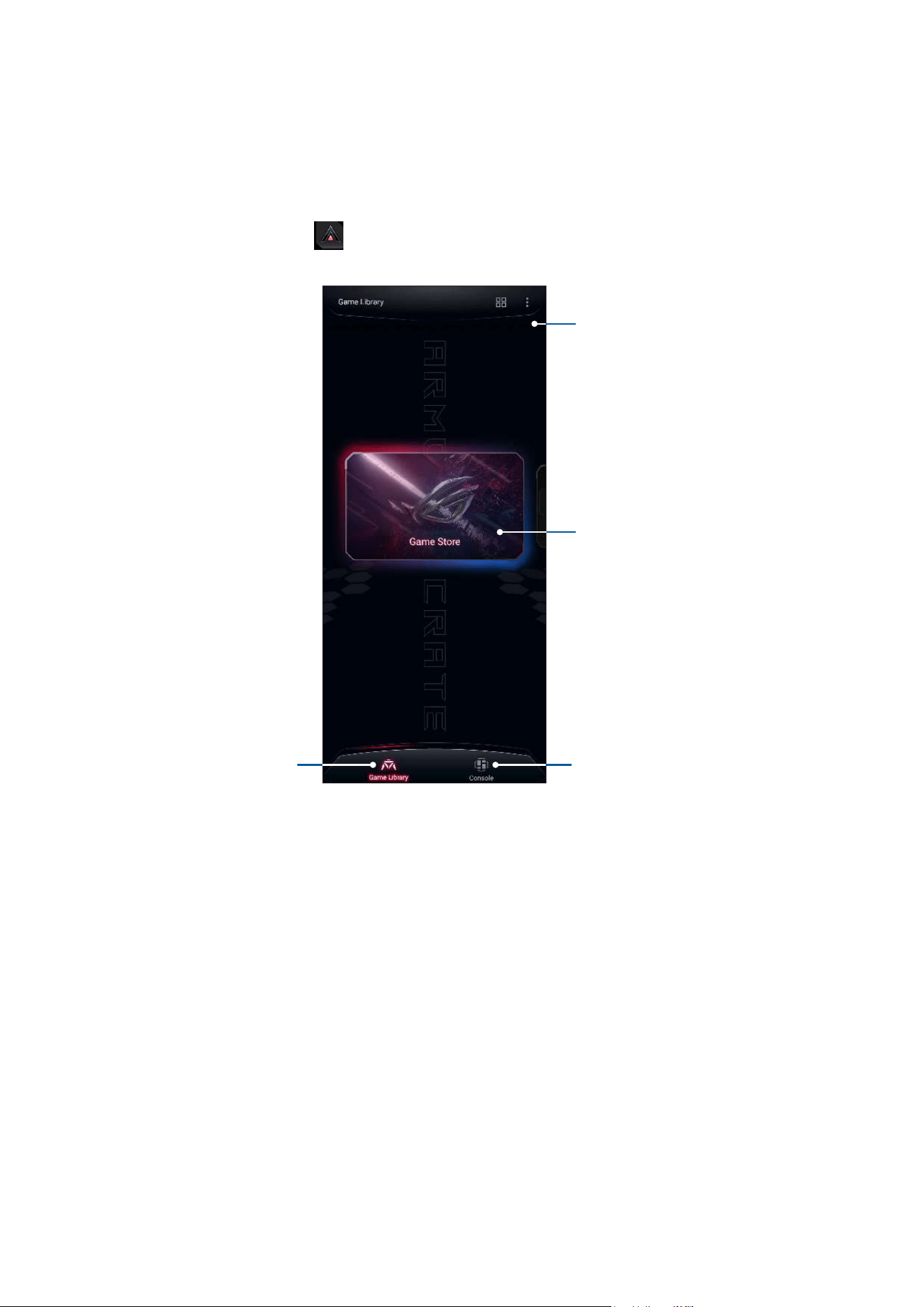
Connecting the audio jack
Insert the 3.5mm headset jack into the audio port of your device.
WARNING! Listening at a high volume for long periods can damage your hearing.
NOTES:
• We highly recommend to use only compatible headsets.
• Unplugging the audio jack while listening to music automatically pauses the music played.
• Unplugging the audio jack while watching a video automatically pauses the video playback.

50
Chapter 5: Fun and entertainment
YT Music
With YT Music, you can stream your favorite music, create playlists, or listen to the radio. You
can also subscribe to YT Music for unlimited and ad-free access to millions of music les that
you can add to your own music library.
Setting up your YT Music
Sign in to your Google or Gmail account to be able to use YT Music. Once you’ve signed in to
your acccount, all music les on your ROG Phone, including the uploaded or purchased ones
from YT Music, are added to your library.
To set up your YT Music:
1. From the Home screen, Google > YT Music.
2. Tap SIGN IN > Add account.
3. Follow the next instructions to sign in to your account.
NOTE: YT Music subscription is only available in some countries or regions.
51
Chapter 5: Fun and entertainment
Armoury Crate
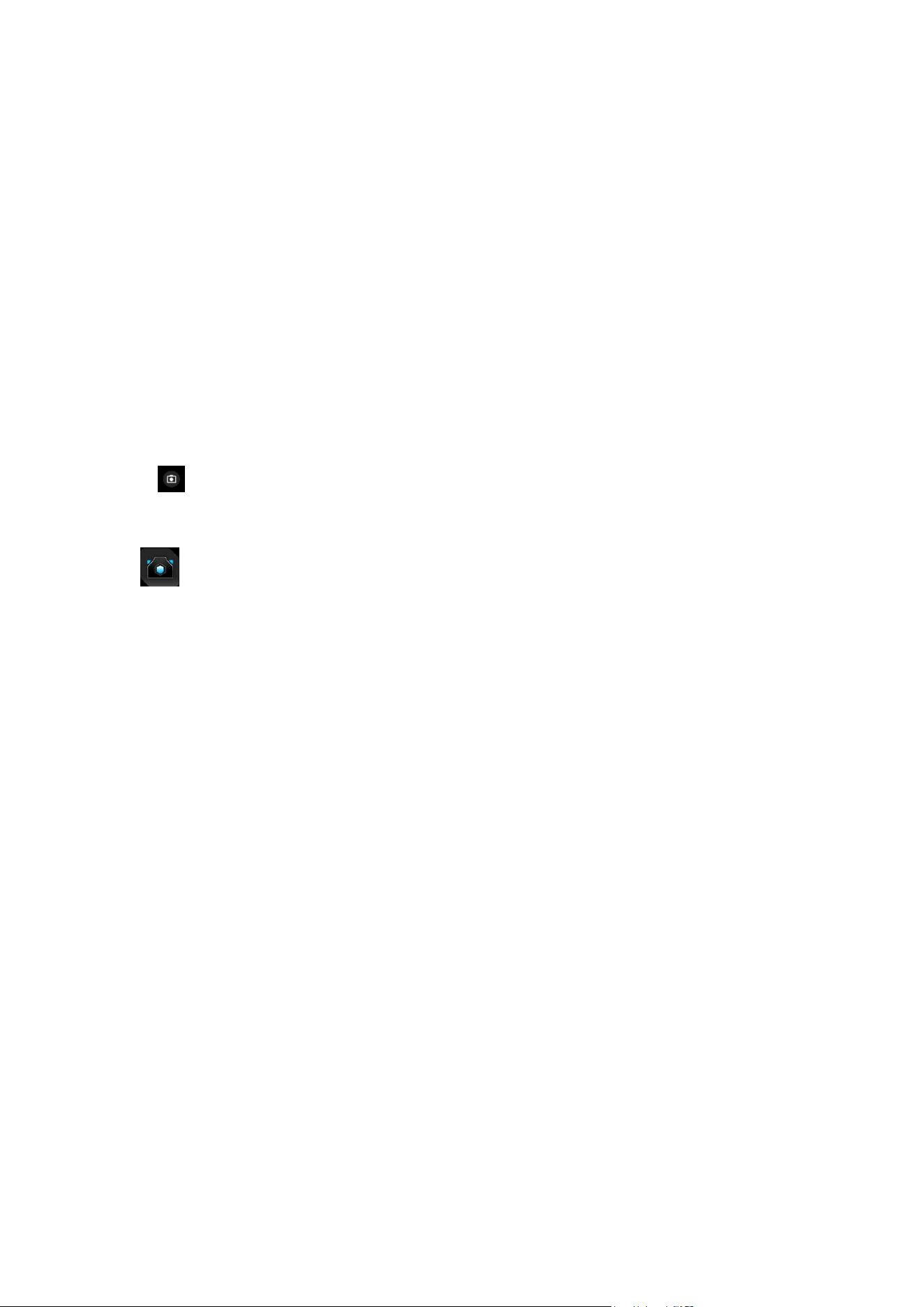
With Armoury Crate, you can control, congure your ROG phone, and enjoy features games.
To start Armoury Crate, tap
.
Tap to view local game
library
Tap to view or adjust
settings of performance
mode, lighting, AeroActive
Cooler, Game Genie and
so on
Tap to launch game settings
Tap to start the game
52
Chapter 6: Your precious moments
Your precious moments
6
6 Your precious moments
Capture moments
Launching the Camera app
Capture images and record videos using your ROG Phone’s Camera app. Refer to either of the
steps below to open the Camera app.
From the lock screen
Swipe up to launch the camera app.
From the home screen
Tap .
53
Chapter 6: Your precious moments
Photo Locations
To enable the location tagging feature, refer to the following steps:
1. Turn on the location access from Settings > Privacy > Location and slide Use location to on.
2. Ensure that you have shared your location to Google Maps.
3. From the Camera app’s home screen, tap
> and activate Location services before you
take the photo.
Advanced camera features
Explore new ways of capturing images or videos and make captured extra special moments
using the advanced camera features of your ROG Phone.
IMPORTANT! Apply the settings rst before taking images. Available features may vary per model.
Camera home screen
Your ROG Phone’s camera is equipped with auto-scene detection and auto-image stabilizer
features. It also features a video stabilization function that helps prevent shakiness while video
recording.
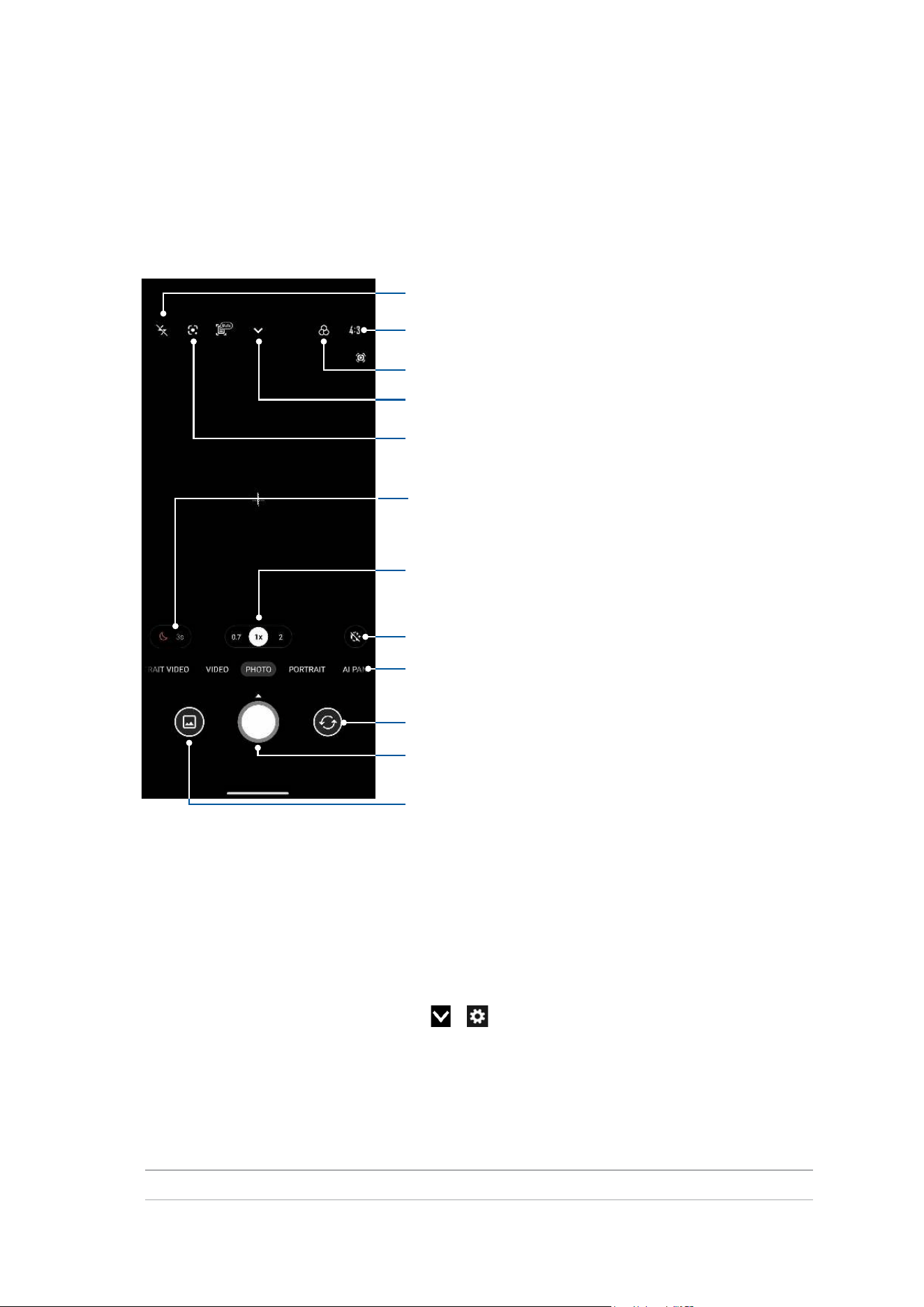
Tap the icons to start using your camera and explore the image and video features of your ROG
Phone.
Swipe down or tap for more setting options
Tap to select a lter
See the Gallery
• Shutter button
• Slide up to set a countdown before taking photos
Swipe to the right/left to use advanced camera settings
Tap to use Google Lens
Touch to switch between the front and rear camera
Touch to switch between Normal mode, Wide Angle mode and
Zoom mode
Tap to select a ash feature
Enable or disable the Beauty feature
Tap to select a screen mode
Night shooting

54
Chapter 6: Your precious moments
Slow motion
The slow motion video feature allows you to record videos for slow-motion playback.
Recording slow motion videos
1. From the Camera app’s home screen, swipe right to SLO-MO.
2. Tap the shutter button to start taking Slow motion videos.
Time lapse
The time lapse video feature of your ROG Phone allows you to capture stills for automatic time
lapse playback. In effect, events seem to move in a fast-forward manner though they actually
occurred and were recorded between long intervals.
Recording Time lapse videos
1. From the Camera app’s home screen, swipe right to TIME LAPSE.
2. Tap
then select the time lapse interval.
3. Tap the shutter button to start taking Time lapse videos.
Panorama
Capture images from various angles using Panorama. Images captured from a wide angle
perspective are automatically stitched together using this feature.
Capturing panoramic photos
1. From the Camera app’s home screen, swipe left to PANO.
2. Hold the phone steady and tap the shutter button to start auto panorama.
Night
Take well-lit photos even on night time or on low-light situations using the Night feature of your
ROG Phone.
NOTE: Keep your hands steady while before and while the ROG Phone is capturing the image to
prevent blurry results.
Capturing Night photos
1. From the Camera app’s home screen, swipe left to
MORE > NIGHT.
2. Tap the shutter button
to start capturing Night photos.

55
Chapter 6: Your precious moments
Using the Gallery
View images and play videos on your ROG Phone using the Gallery app.
This app also allows you to edit, share, or delete image and video les stored in your ROG Phone.
From Gallery, you can display images in a slideshow or tap to view the selected image or video
le.
To launch Gallery, tap Gallery.
Viewing the photo location
Enable the location access on your ROG Phone, and get the location details on your photos.
Your photos’ location details include the area where the photos are taken, as well a map of the
location via Google Map or Baidu (in China only).
To view the details of a photo:
1.
Turn on the location access from Settings > Privacy > Location and slide Use location to on.
2. Ensure that you have shared your location to Google Map or Baidu.
3. Launch the Gallery app, and select the photo whose photo details you want to view.
4. Tap the photo then tap Details.
Editing images
The Gallery also features its own image editing tools that you can use to enhance images saved
on your ROG Phone.
1. Do either of the following:
• From the Gallery > Photos screen, tap the image you want to edit.
• From the Gallery > Albums screen, tap the folder where the les are located. After
opening the folder, tap the image you want to edit.
2. Tap Edit to open the image editing toolbar.
3. Tap any of the icons on the editing toolbar to apply changes to the image.
Sharing les from the Gallery
1. Do either of the following:
• From the Gallery > Photos screen, tap
> Select to activate le selection.
• From the Gallery > Albums screen, tap the folder where the les you want to share are
located. After opening the folder, tap
> Select to activate le selection.
2. Tap the les you want to share. A check mark appears on top of the image you select.
3. Tap
then select from the list where you want to share the images.

56
Chapter 6: Your precious moments
Deleting les from the Gallery
1. Do either of the following:
• From the Gallery > Photos screen, tap
> Select to activate le selection.
• From the Gallery > Albums screen, tap the folder where the les you want to delete are
located. After opening the folder, tap
> Select to activate le selection.
2. Tap the les you want to delete. A check mark appears on top of the image you select.
3. Tap
.
57
Chapter 7: Staying connected
Staying connected
7
7 Staying connected
Mobile network
When there’s no available Wi-Fi network that you can connect to, you can enable your mobile
network’s data access for Internet connection.
Enabling the mobile network
1. Do either of the following to launch the Settings screen:
• Launch Quick settings then tap
.
• Tap Settings.
2. Tap Mobile network > Mobile network > SIM 1 or SIM 2.
3. Slide on Mobile data, and congure the other mobile network settings, if necessary.
NOTES:
• If you access the Internet via your mobile network, additional charges will be incurred depending
on your data plan.
• For more details on your mobile network charges/fees and settings, contact your mobile service
provider.
Wi-Fi
The Wi-Fi technology of your ROG Phone gets you connected to the wireless world. Update your
social media accounts, browse the Internet, or exchange data and messages wirelessly from
your ROG Phone.
Enabling Wi-Fi
1. Launch the Settings screen by doing either of the following:
• Launch Quick settings then tap
> Wi-Fi.
• Tap Settings > Wi-Fi.
2. Slide the Wi-Fi switch to the right to turn on the Wi-Fi.
NOTE: You can also enable the Wi-Fi from Quick settings screen. Refer to section Quick settings on
how to launch Quick settings screen.

58
Chapter 7: Staying connected
Connecting to a Wi-Fi network
1. On the Settings screen, tap Wi-Fi to display all detected Wi-Fi networks.
2. Tap a network name to connect to it. For a secured network, you may be prompted to key in a
password or other security credentials.
NOTES:
• Your ROG Phone automatically reconnects to the network that you connected with previously.
• Turn off the Wi-Fi feature when you're not using it to help save battery power.
Disabling Wi-Fi
To disable Wi-Fi:
1. Do either of the following:
• Launch Quick settings then tap
> Wi-Fi.
• Tap Settings > Wi-Fi.
2. Slide the Wi-Fi switch to the left to turn off the Wi-Fi.
NOTE: You can also disable the Wi-Fi from Quick settings screen. See Quick settings on how to
launch Quick settings screen.
Bluetooth
®
Use the Bluetooth feature of your ROG Phone to send or receive les and stream multimedia les
with other smart devices over short distances. With Bluetooth, you can share your media les
with your friends’ smart devices, send data for print with a Bluetooth printer, or play music les
with a Bluetooth speaker.
Enabling Bluetooth
®
1. Do either of the following:
• Launch Quick settings then tap
> Bluetooth.
• Tap Settings > Bluetooth.
2. Slide the Bluetooth switch to the right to turn on the Bluetooth.
NOTE: You can also enable the Bluetooth from Quick settings screen. See Quick settings on how to
launch Quick settings screen.
59
Chapter 7: Staying connected
Pairing your ROG Phone to a Bluetooth
®
device
Before using the Bluetooth feature of your ROG Phone in full scale, you have to pair it rst
with the Bluetooth device. The ROG Phone automatically stores the pairing connection of the
Bluetooth device.
1. On the Settings screen, tap Bluetooth to display all available devices.
IMPORTANT!
• If the device that you want to pair is not in the list, ensure to enable its Bluetooth feature and
make it discoverable.
• See the user guide that came with your device to learn how to enable its Bluetooth and set it to
discoverable.
2. Tap
> Refresh to scan for more Bluetooth devices.
3. In the list of available devices, tap the Bluetooth device that you want to pair with.
4. Ensure that the same passkey show on both devices, then tap Pair.
NOTE: Turn off the Bluetooth feature when you're not using it to help save battery power.
Unpairing your ROG Phone from the Bluetooth
®
device
1. On the Settings screen, tap Bluetooth to display all available and paired devices.
2. In the list of paired devices, tap
of Bluetooth device that you want to unpair, then tap
Forget.
60
Chapter 7: Staying connected
Tethering
When Wi-Fi service is not available, you can use your ROG Phone as a modem or turn it into a Wi-
Fi hotspot to get Internet access on your laptop, tablet, and other mobile devices.
IMPORTANT! Most mobile service providers may require a data plan for you to be able to use the
tethering function. Contact your mobile service provider about availing of this data plan.
NOTES:
• Internet access via tethering may be slower than the standard Wi-Fi or mobile connection.
• Only a limited number of mobile devices can tether to your ROG Phone for Internet access.
• Turn off the tethering feature when you're not using it to help save battery power.
Wi-Fi
Hotspot
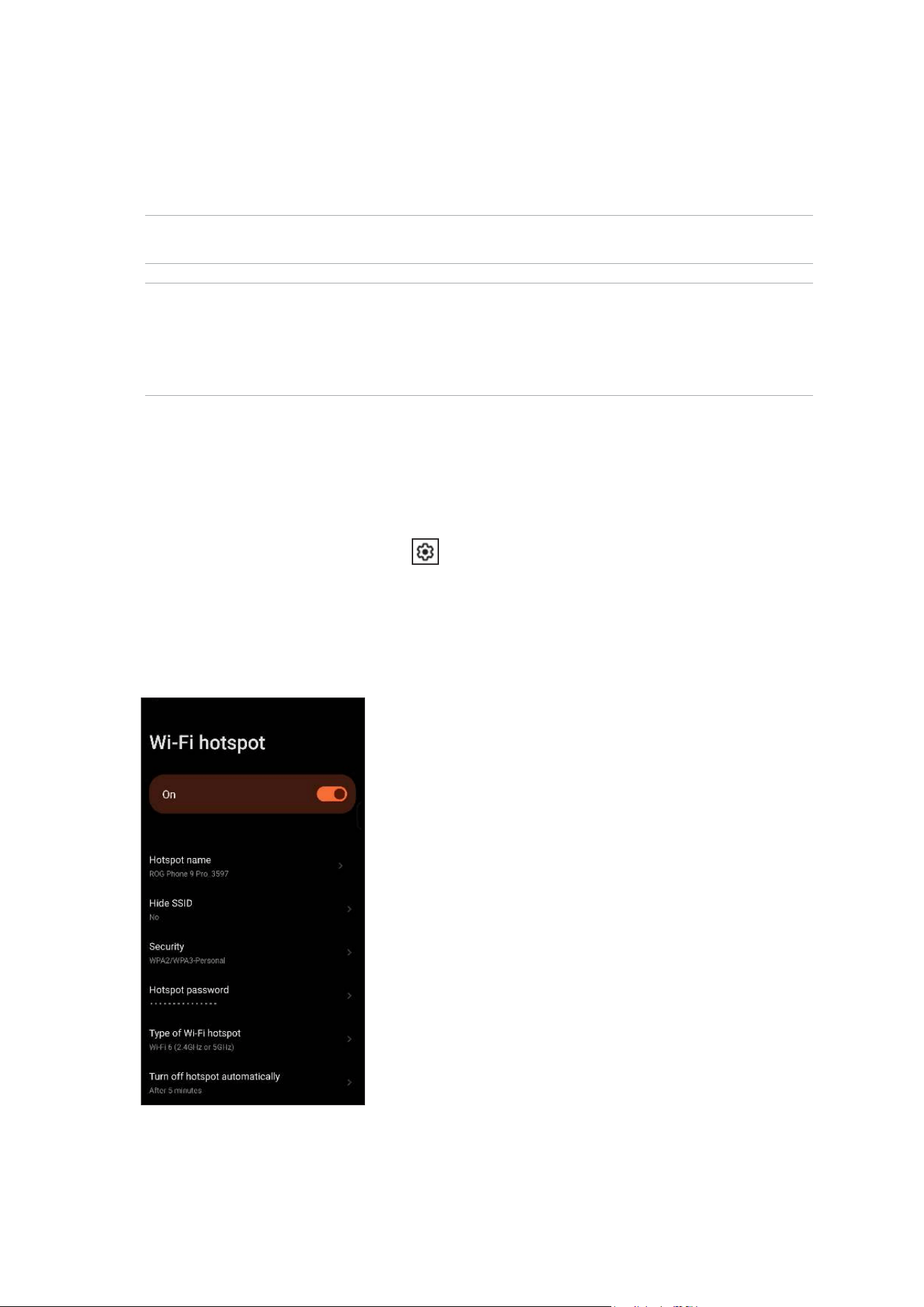
Turn your ROG Phone into a Wi-Fi Hotspot to share Internet connection with other devices.
1. Do either of the following:
• Launch Quick settings then tap
> Mobile network.
• Tap Settings > Mobile network.
2. Tap Hotspot & tethering > Wi-Fi hotspot and slide it to on.
3. Tap Hotspot name to assign a unique SSID or network name, and tap Hotspot password to
assign a strong 8-character password for your Wi-Fi hotspot. When done, tap OK.
4. Connect other devices to your ROG Phone’s hotspot connection the same way you connect to
a Wi-Fi network.
61
Chapter 7: Staying connected
Bluetooth Tethering
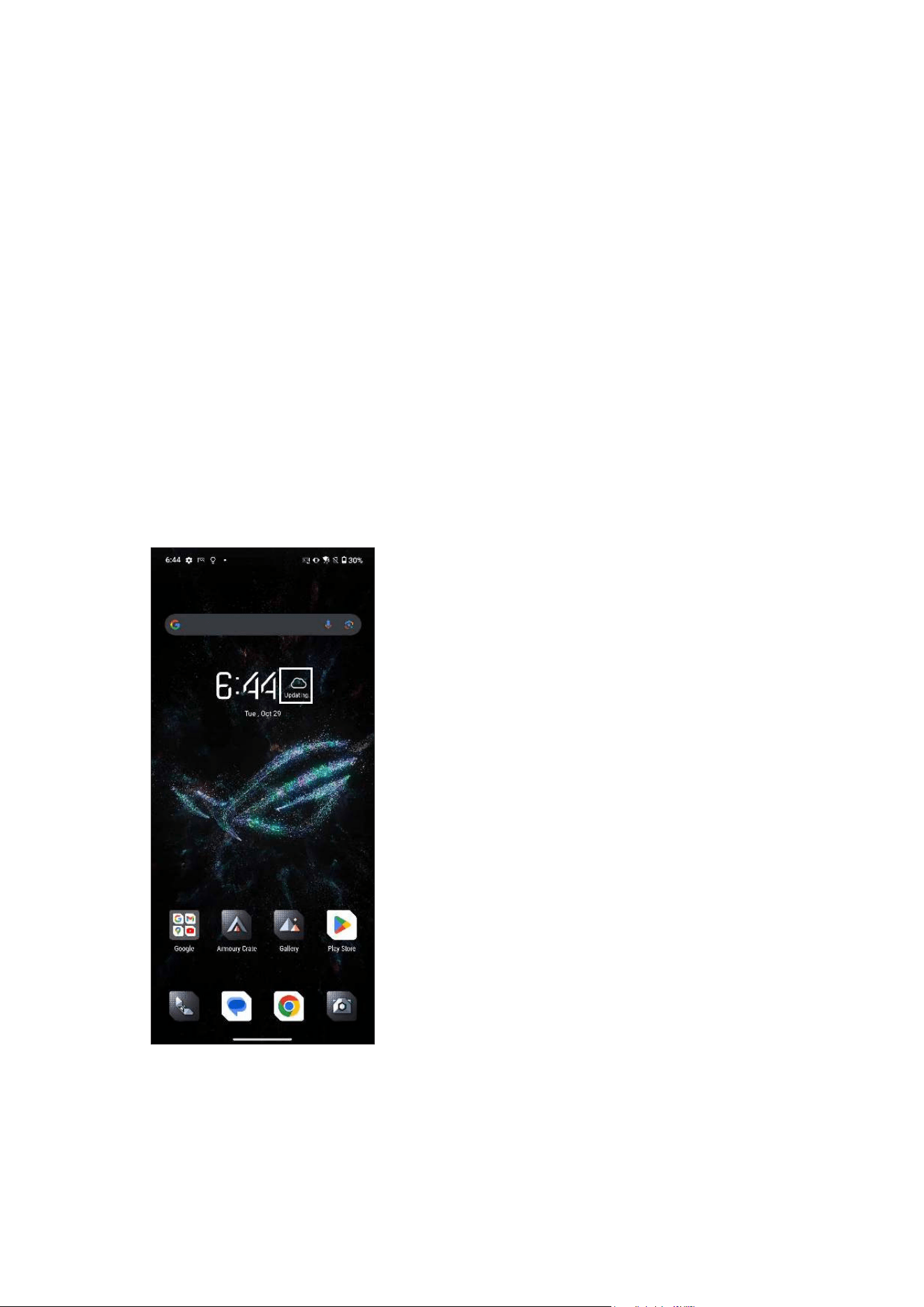
Enable Bluetooth tethering on your ROG Phone to share its Internet connection with other
devices.
1. Enable Bluetooth on your ROG Phone and the other device.
2. Pair both devices.
NOTE: For details, see
Pairing your ROG Phone to a Bluetooth
®
device.
3. From the Settings screen, tap Network & internet > Hotspot & tethering, then slide on
Bluetooth tethering.
USB Tethering
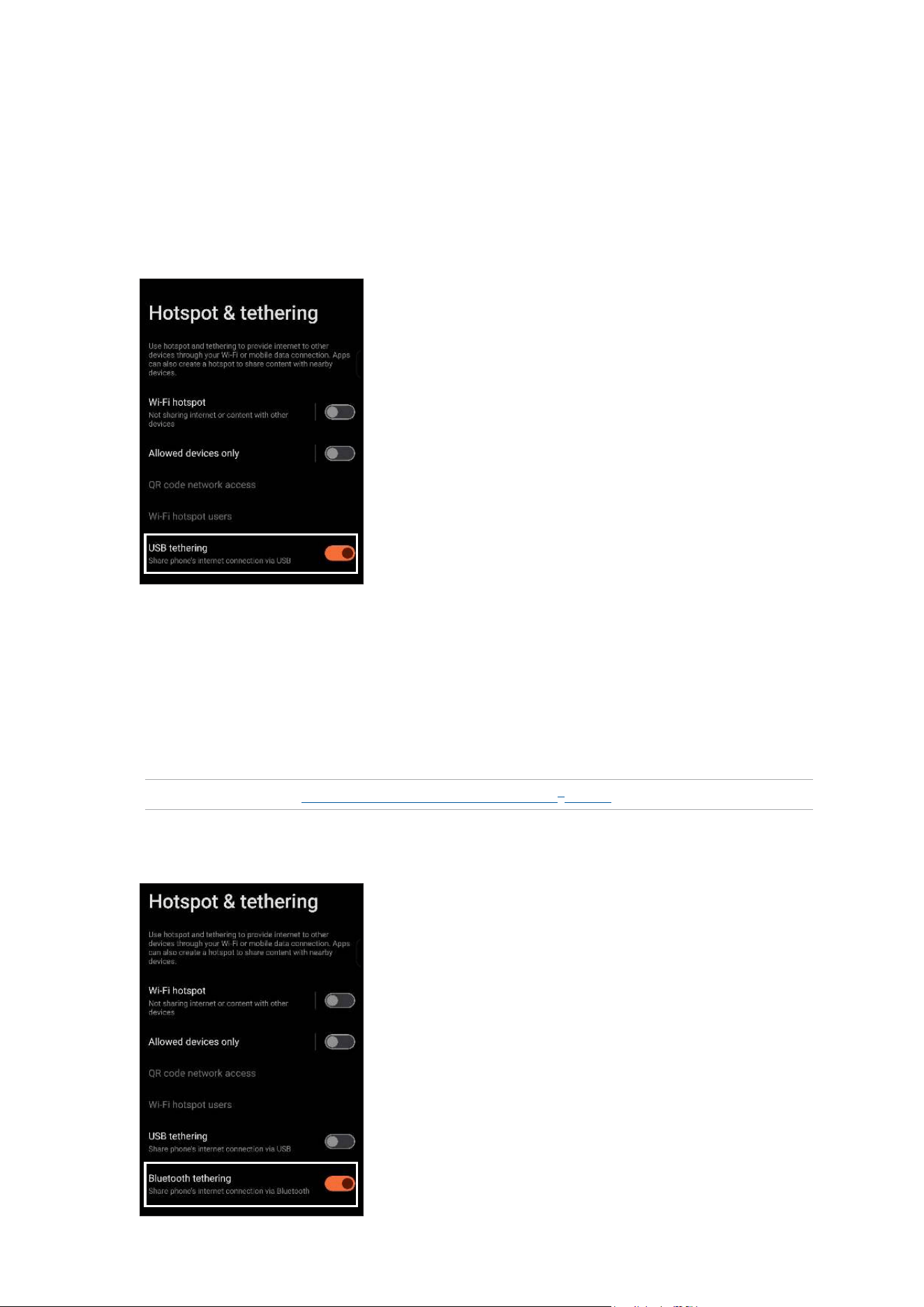
Enable USB tethering on your ROG Phone and share its Internet connection with other devices.
1. Connect your ROG Phone to another device with a USB cable.
2. From the Settings screen, tap Mobile network > Hotspot & tethering, then slide on USB
tethering to enable tethering.
62
Chapter 8: Travel and Maps
Travel apps
8
8 Travel apps
Weather
Get real-time weather updates straight from your ROG Phone using the weather app. Using
Weather, you can also check other weather details from around the world.
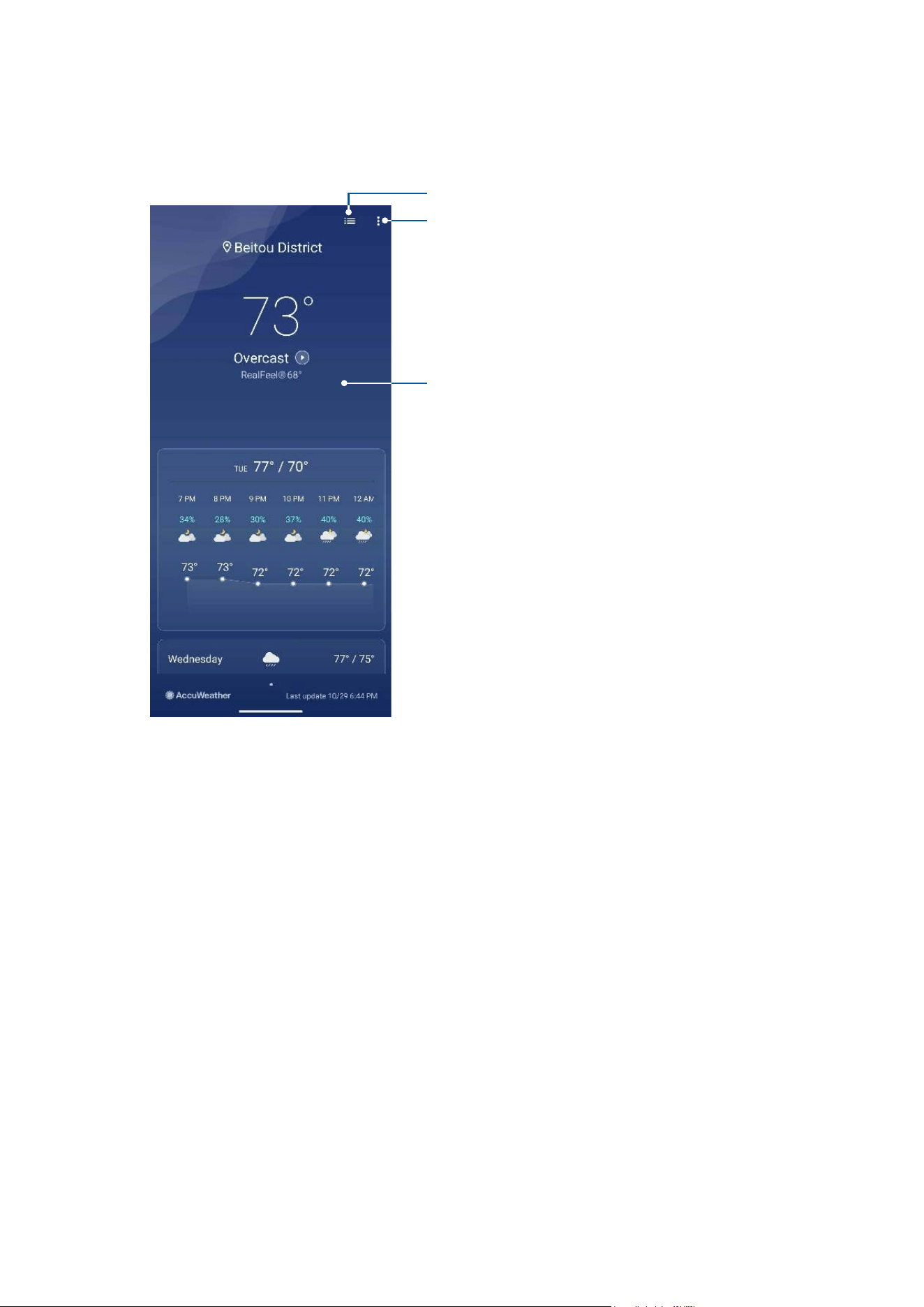
Launching the Weather app
From your Home screen, do either of the following to launch the Weather app:
• Tap the weather icon.
• Tap Weather.
63
Chapter 8: Travel and Maps
Weather home screen
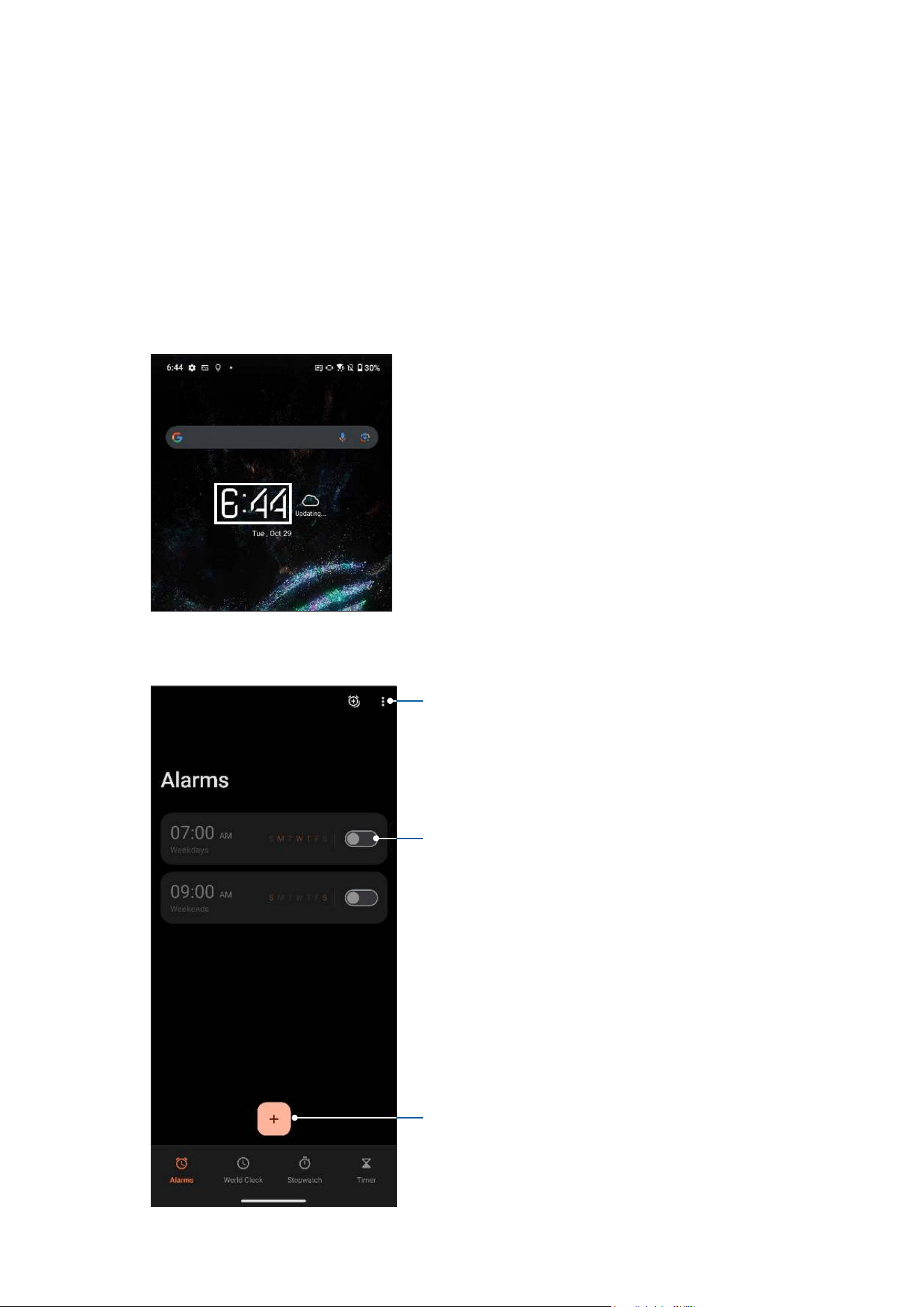
Set up and get your current location’s weather updates as well as other parts of the world.
Tap to edit the location list
Tap to refresh the weather info, add a city to the
location list, or congure the weather settings
Swipe up to see other weather information
Swipe to the left or right to see the weather information
of other cities in your location list
64
Chapter 8: Travel and Maps
Clock
Customize the time zone settings of your ROG Phone, set alarms, and use your ROG Phone as a
stop watch using the Clock app.
Launching Clock
Launch the Clock app using either of the following options:
• Tap Clock.
• From your ROG Phone’s home screen, tap the digital clock display.
Alarm clock
Tap Alarms to access the alarm clock settings of your ROG Phone.
Tap this to access the settings of the alarm clock feature
Slide to trun on/off the alarm
Tap this to set a new alarm
65
Chapter 8: Travel and Maps
Stopwatch
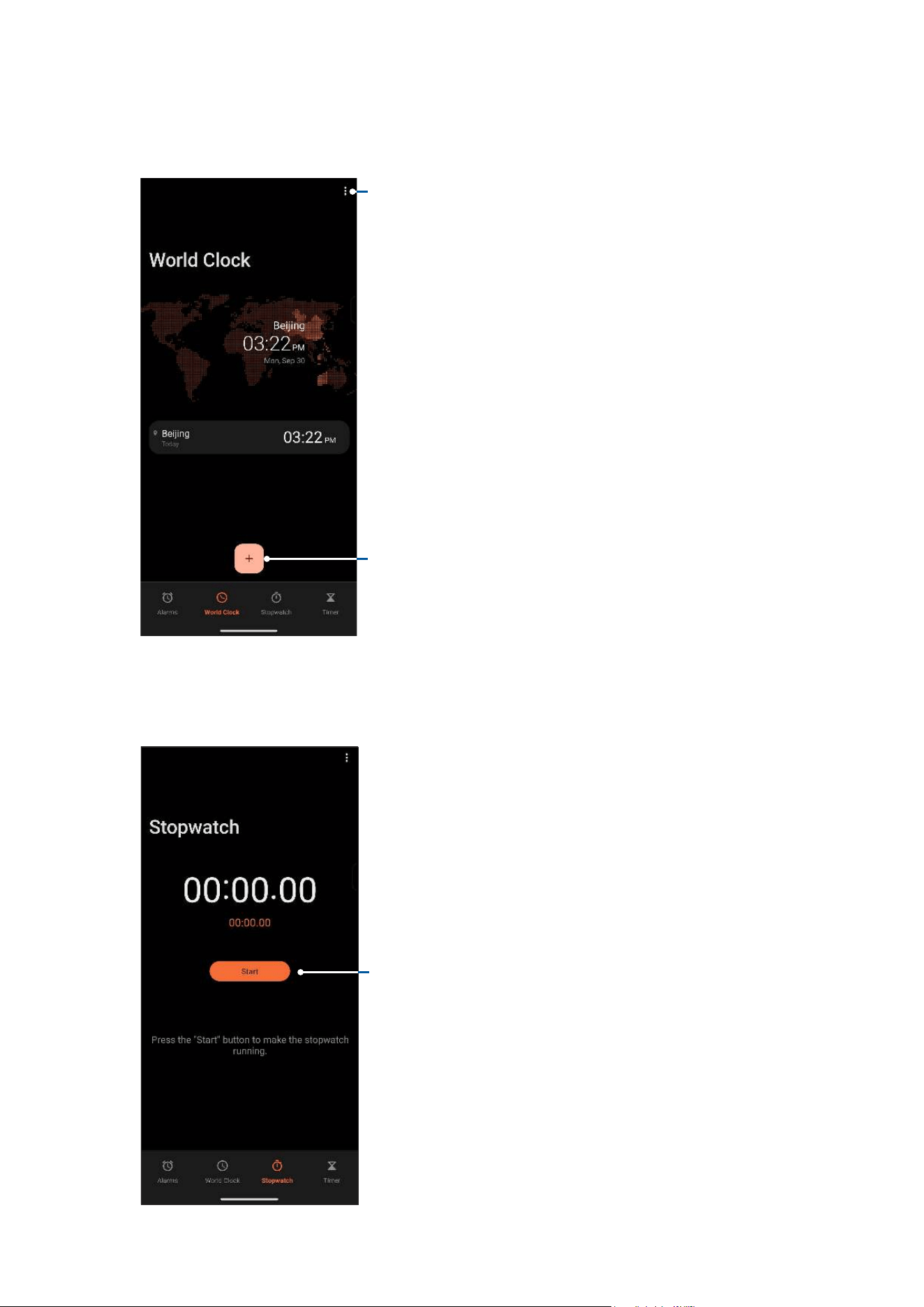
Tap Stopwatch to use your ROG Phone as a stopwatch.
Tap this button to start running the stopwatch feature
World clock
Tap World Clock to access the world clock settings of your ROG Phone.
Tap this to edit the cities marked on your world clock
Tap this to add a new city to mark on your world clock’s map.
66
Chapter 8: Travel and Maps
Timer
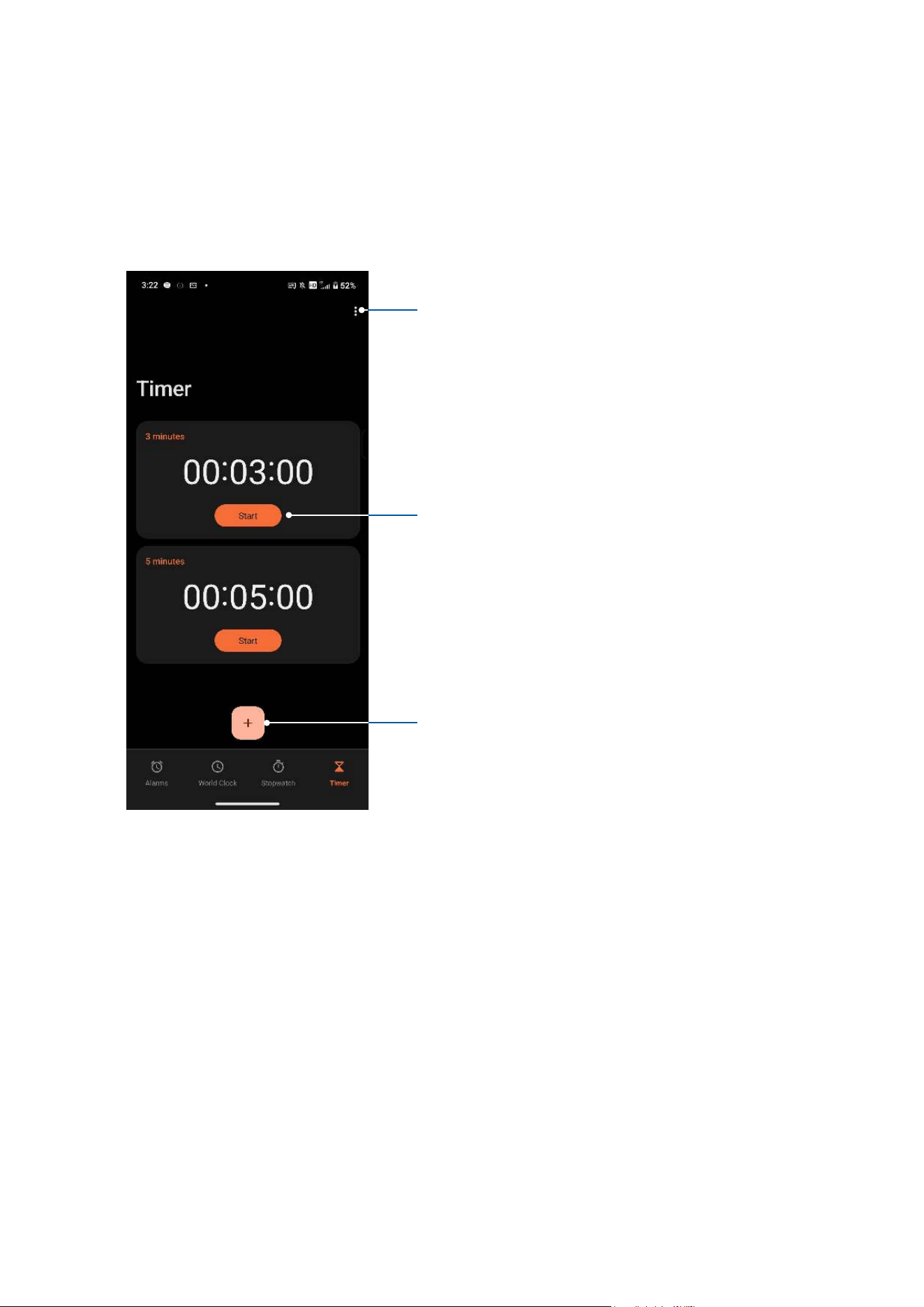
You may set multiple timer options for your ROG Phone. To do this, follow the steps below:
Setting the timer
Tap Timer to access the timer feature of your ROG Phone.
Tap this button to start running the timer
Tap this to set a new timer
Tap this to delete timers or access the settings
67
Chapter 9: Zen Everywhere
Zen Everywhere
9
9 Zen Everywhere
Special Zen Tools
Calculator
Calculate using your ROG Phone by enabling the Calculator app.
Launching Calculator
Launch Calculator using either of the following options:
• Tap Calculator.
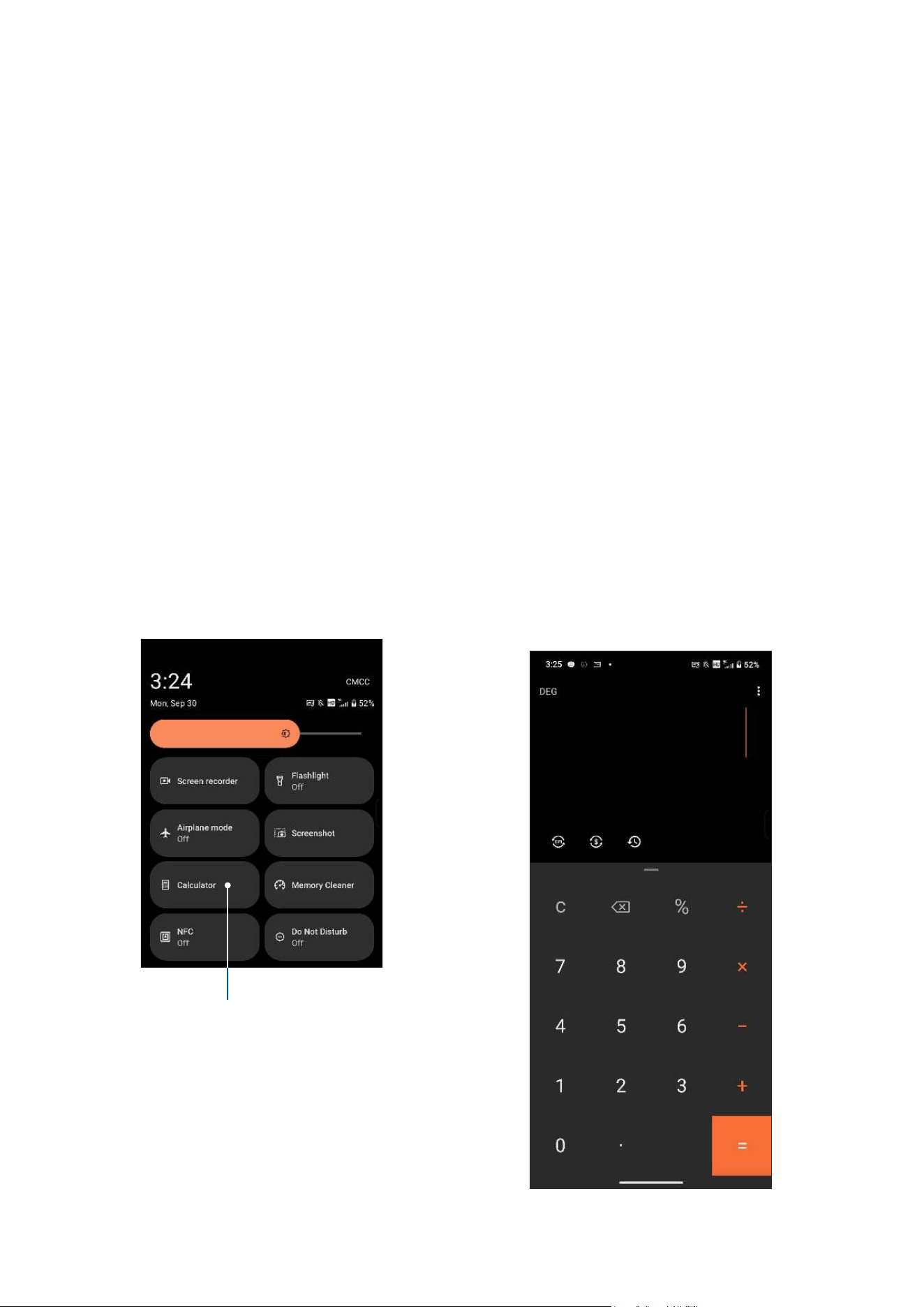
• Open the Quick settings panel, the Calculator icon is there visibly on the list. Tap it to
get started with your computations.
Calculator screen
Tap this to enable the calculator
68
Chapter 9: Zen Everywhere
Sound Recorder
Record audio les using your ROG Phone by enabling the Sound Recorder app.
Launching Sound Recorder
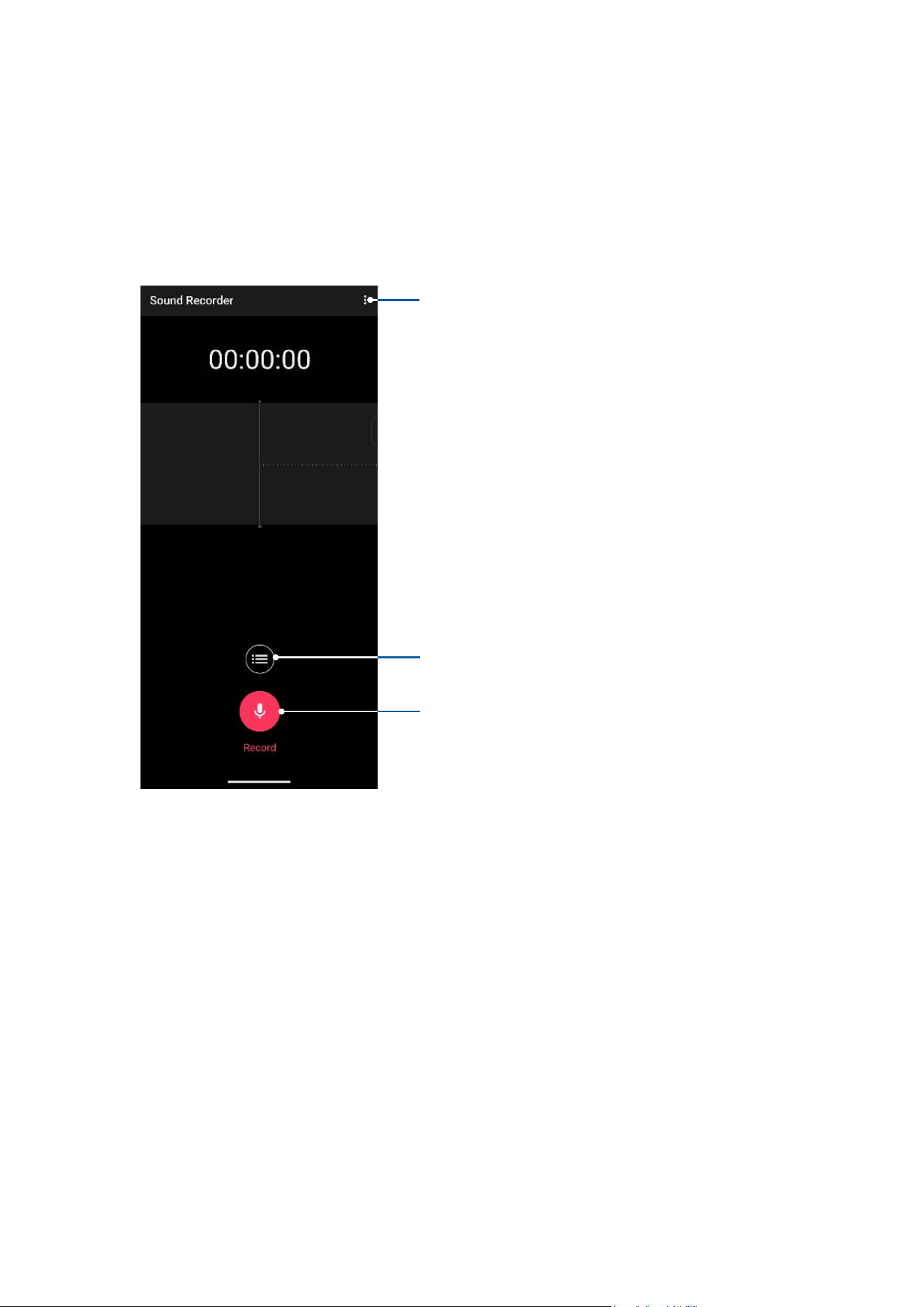
To launch Sound Recorder, tap Recorder.
Tap to start audio recording
Tap to customize the Sound Recorder settings
Tap to view the list of saved audio recording les
69
Chapter 9: Zen Everywhere
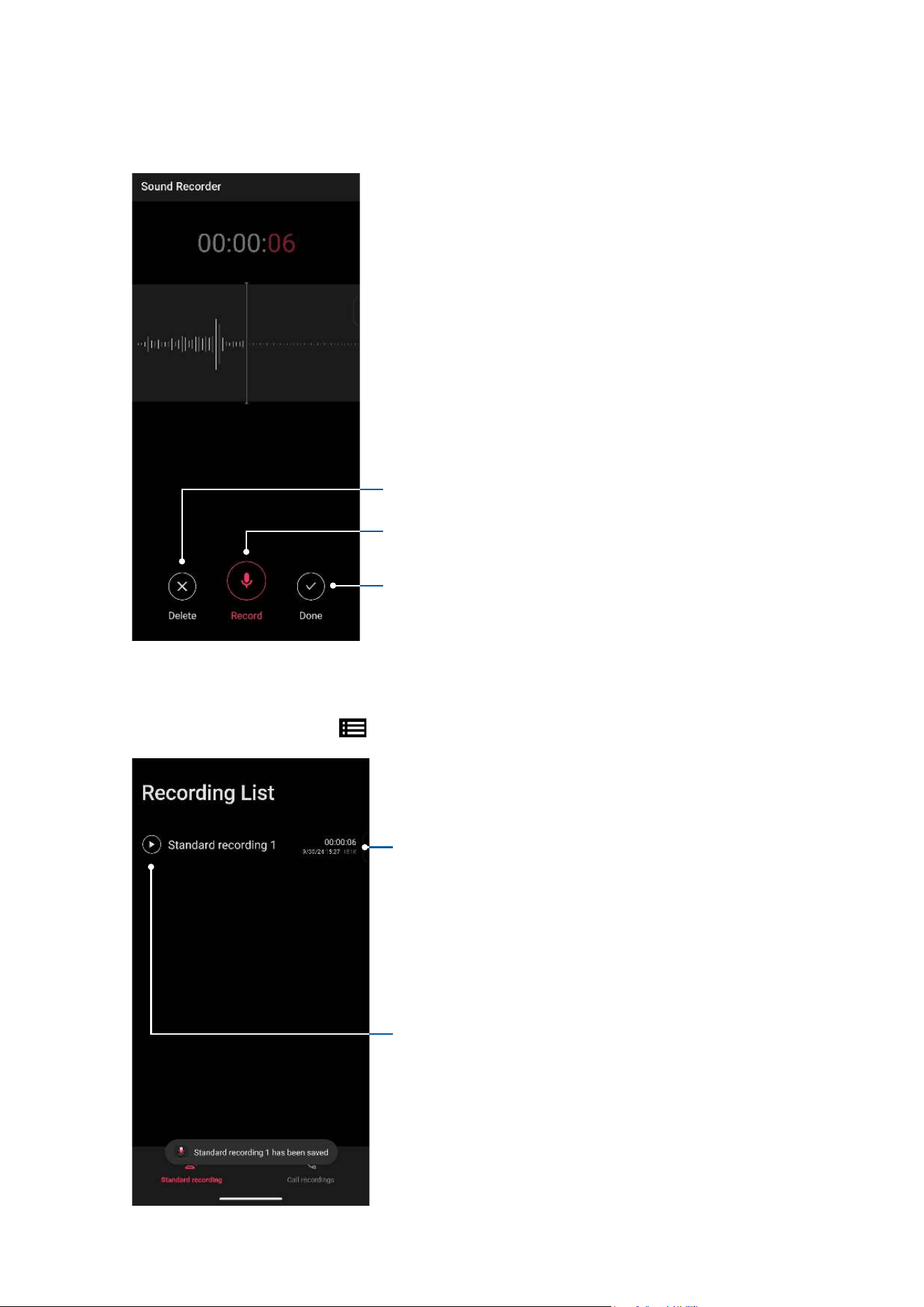
Pausing a recording
During a paused recording, you can choose to resume, delete, or save the recording.
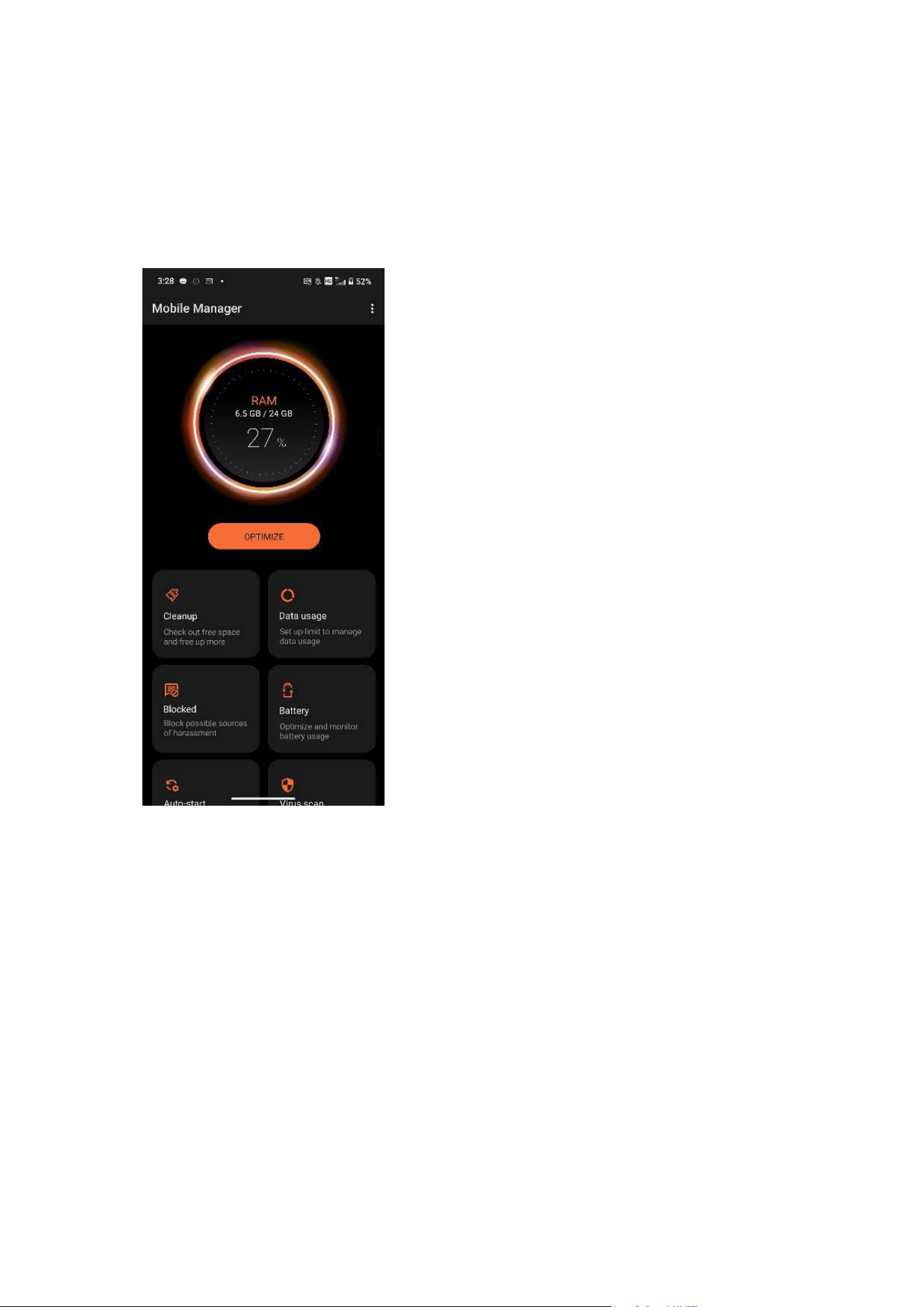
Recording List
From the Recording List, you can play, rename, share, or delete a saved audio recording le.
To view your recording list, tap
from the Sound Recorder main screen.
Tap to resume the recording
Tap to save the recording
Tap to delete the recording
Tap to play/pause your selected recording
Tap and hold an item to share, rename, delete or
display the information of your selected recording
70
Chapter 9: Zen Everywhere
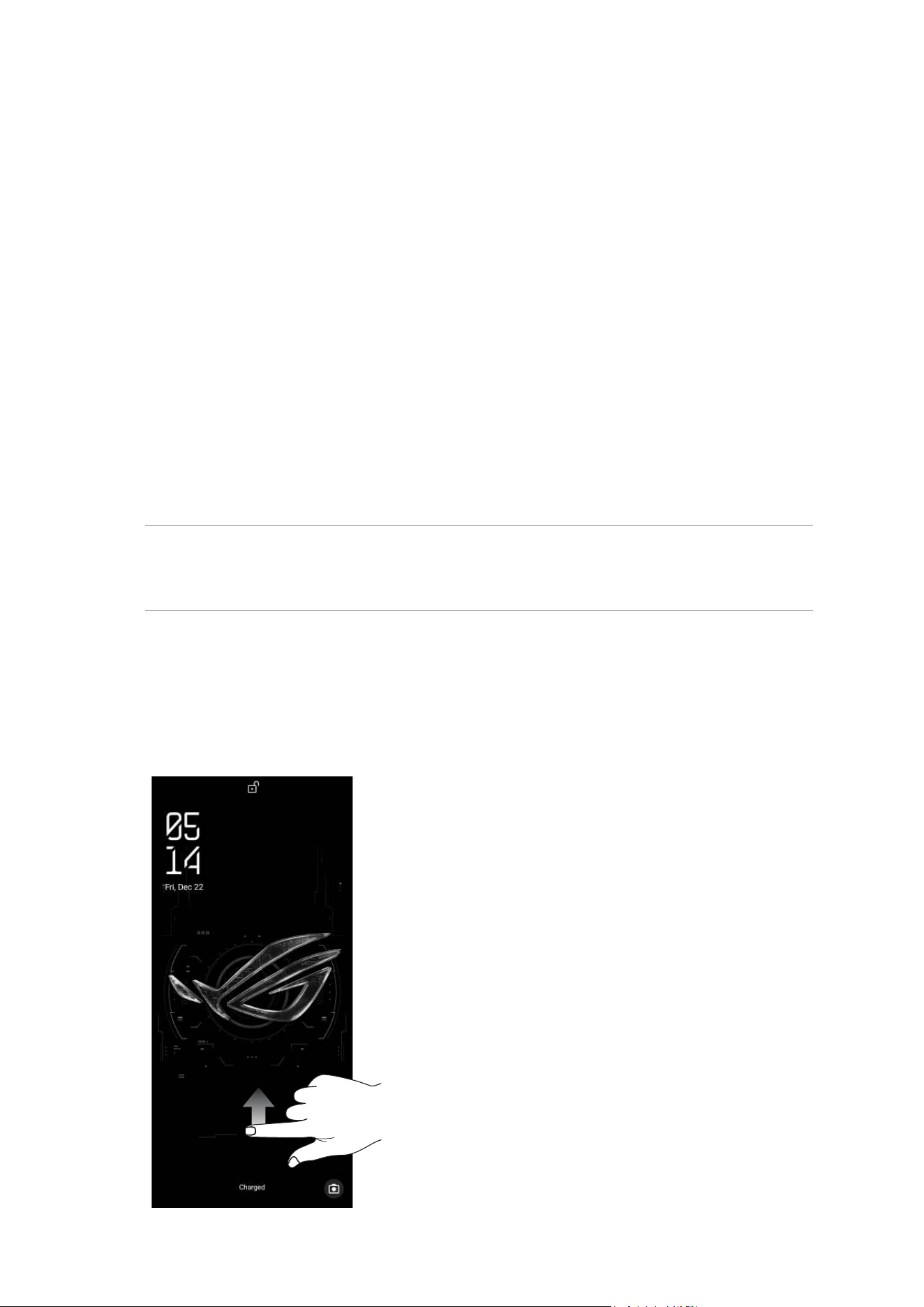
Mobile Manager
Mobile Manager provides an integrated interface for several apps that are designed to optimize
device performance, manage the phone power, and storage usage.
To launch Mobile Manager, tap Settings > Smart assist > Mobile Manager.

71
Chapter 10: Maintain your Zen
Keeping your device up-to-date
Keep your ROG Phone in the loop of Android system updates and upgraded apps and features.
Updating your system
1. Tap Settings.
2. On the Settings screen, slide down to display other items then tap System & updates to check
for system updates.
3. Tap
on the System updates screen to set up automatic download of system updates.
Storage
You can store data, apps, or les on your ROG Phone (internal storage), on an external storage,
or on an online storage. You need an internet connection to transfer or download your les on
an online storage. Use the bundled USB cable to copy les to or from the computer to your ROG
Phone.
Backup
Back up data, Wi-Fi passwords, and other settings to Google servers using your ROG Phone.
1. Tap Settings > System.
2. Here, you can:
• Backup to external storage: This feature backs up your data, Wi-Fi passwords, and
other settings to external storage when enabled.
• Backup > Backup by Google One: This feature backs up your data, Wi-Fi passwords, and
other settings to Google One when enabled.
Reset
Reset network settings and app preferences, or reset factory defaults.
1. Tap Settings > System & updates > Reset options.
2. From the Reset window, you can:
• Reset Mobile Network Settings: This feature restores all mobile network settings.
• Reset Bluetooth & Wi-Fi: This feature restores all Bluetooth and Wi-Fi settings.
Maintain your Zen
10
10 Maintain your Zen
72
Chapter 10: Maintain your Zen
• Erase all settings: Erases all settings on phone.
• Erase all data (factory reset): Erases all data on phone.
Securing your ROG Phone
By default, the lock screen appears after turning on your device and while waking it up from
sleep mode. From the lock screen, you can proceed to your device’s Android® system by swiping
on your touch screen panel.
Your device’s lock screen can also be customized to regulate access to your mobile data and
apps.
Unlocking your screen
When the screen is locked, you can open it with the security unlocking options that the ROG
Phone offers you.
1. Tap Settings > Security & lock screen.
2. Tap Screen lock then select an option to unlock your ROG Phone.
NOTES:
• Refer to section Unlock screen options for more information.
• To deactivate the unlock screen option that you set, tap None on Choose screen lock screen.
Unlock screen options
Choose from these options to lock your ROG Phone.
Swipe
Swipe up to unlock your ROG Phone.
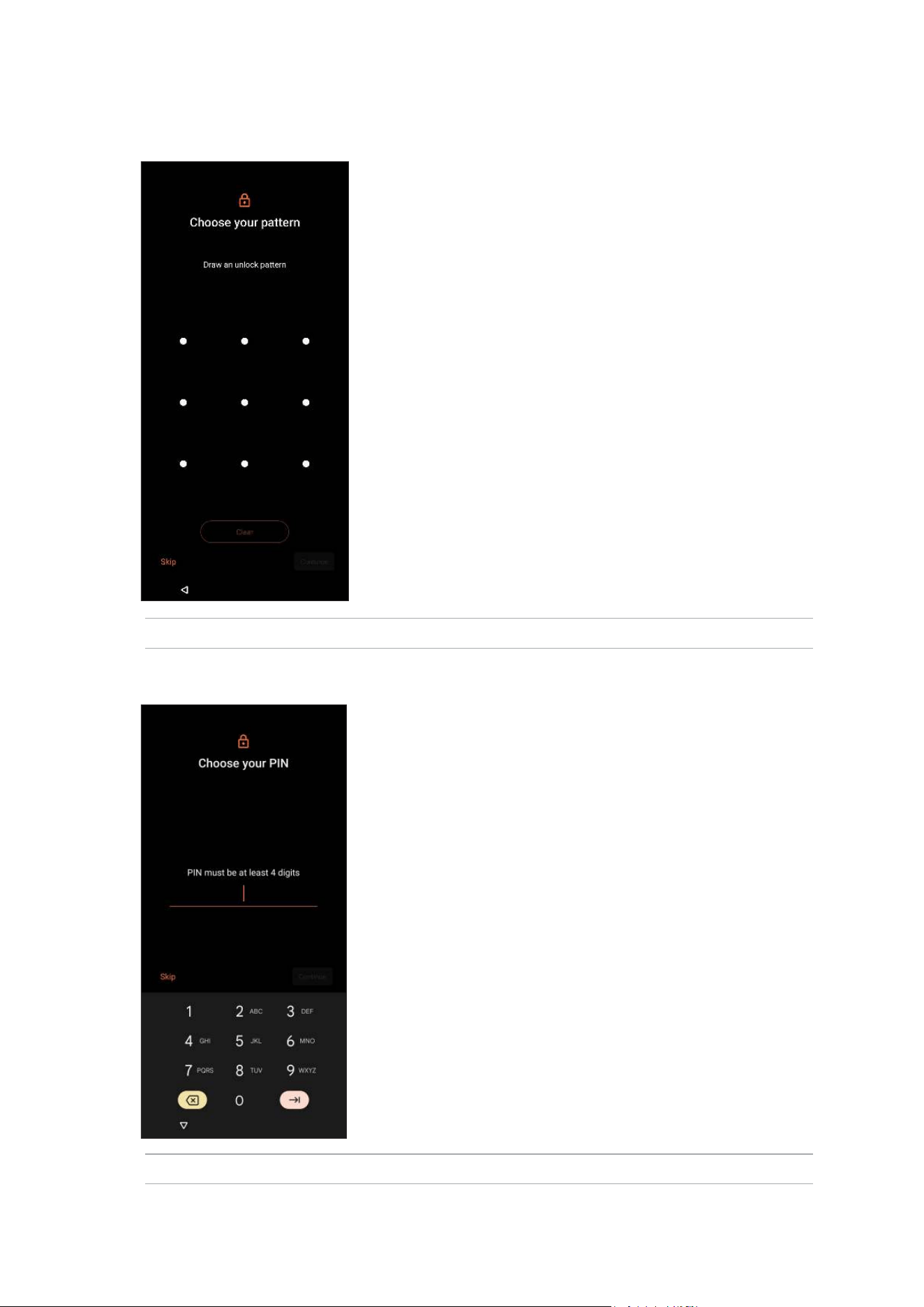
73
Chapter 10: Maintain your Zen
PIN
Key in at least four numbers to set a PIN.
IMPORTANT! Ensure to remember the PIN that you created to unlock your device.
Pattern
Slide your nger on the dots and create a pattern.
IMPORTANT! Ensure to remember the pattern that you created to unlock your device.
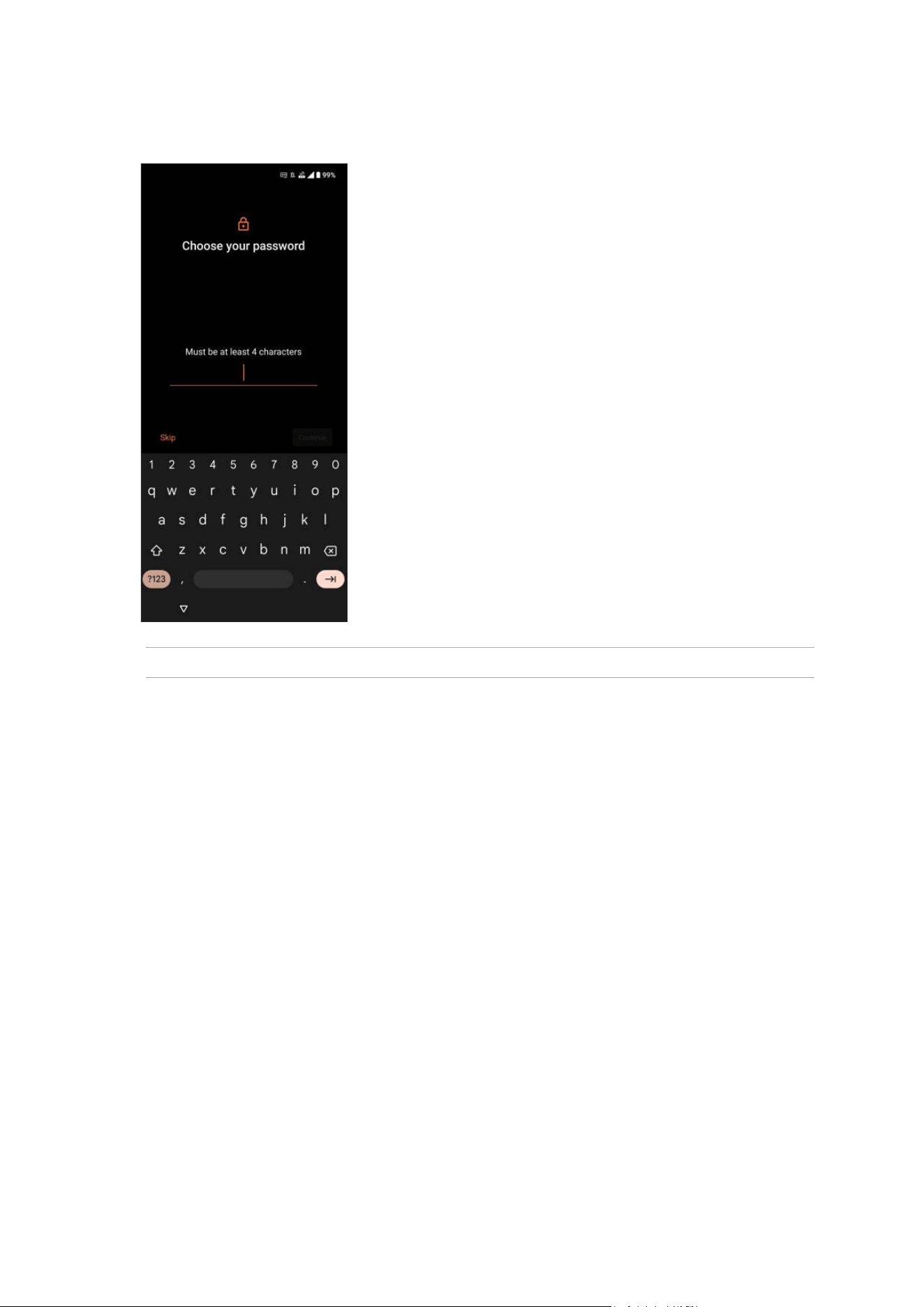
74
Chapter 10: Maintain your Zen
Password
Key in at least four characters to create a password.
IMPORTANT! Ensure to remember the password that you created to unlock your device.
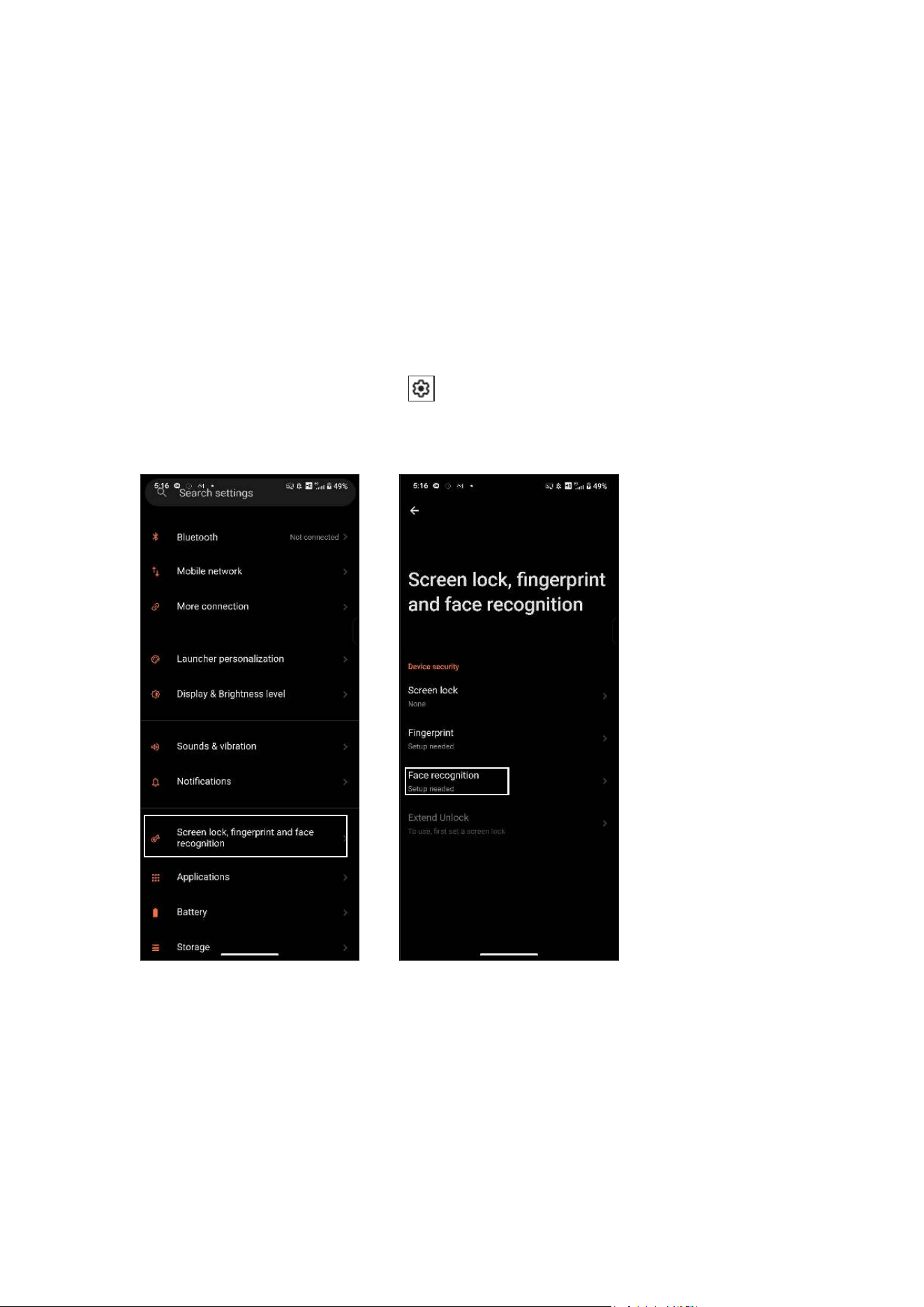
75
Chapter 10: Maintain your Zen
Face Unlock
Face unlock prevents others from using your ROG Phone without your permission effortlessly.
You can light up your ROG Phone’s screen and look at it to unlock your device, access your
phone’s home screen in one second. When you set up your face unlock, you also need to set up
your screen lock method for device startup.
Setting up face unlock from Settings
To set up face unlock from Settings:
1. Launch the Settings screen by doing either of the following:
• Launch Quick settings then tap
.
• Tap Settings.
2. Scroll down the Settings screen and select Screenlock, ngerprint and face recognition.
3. Tap Continue.
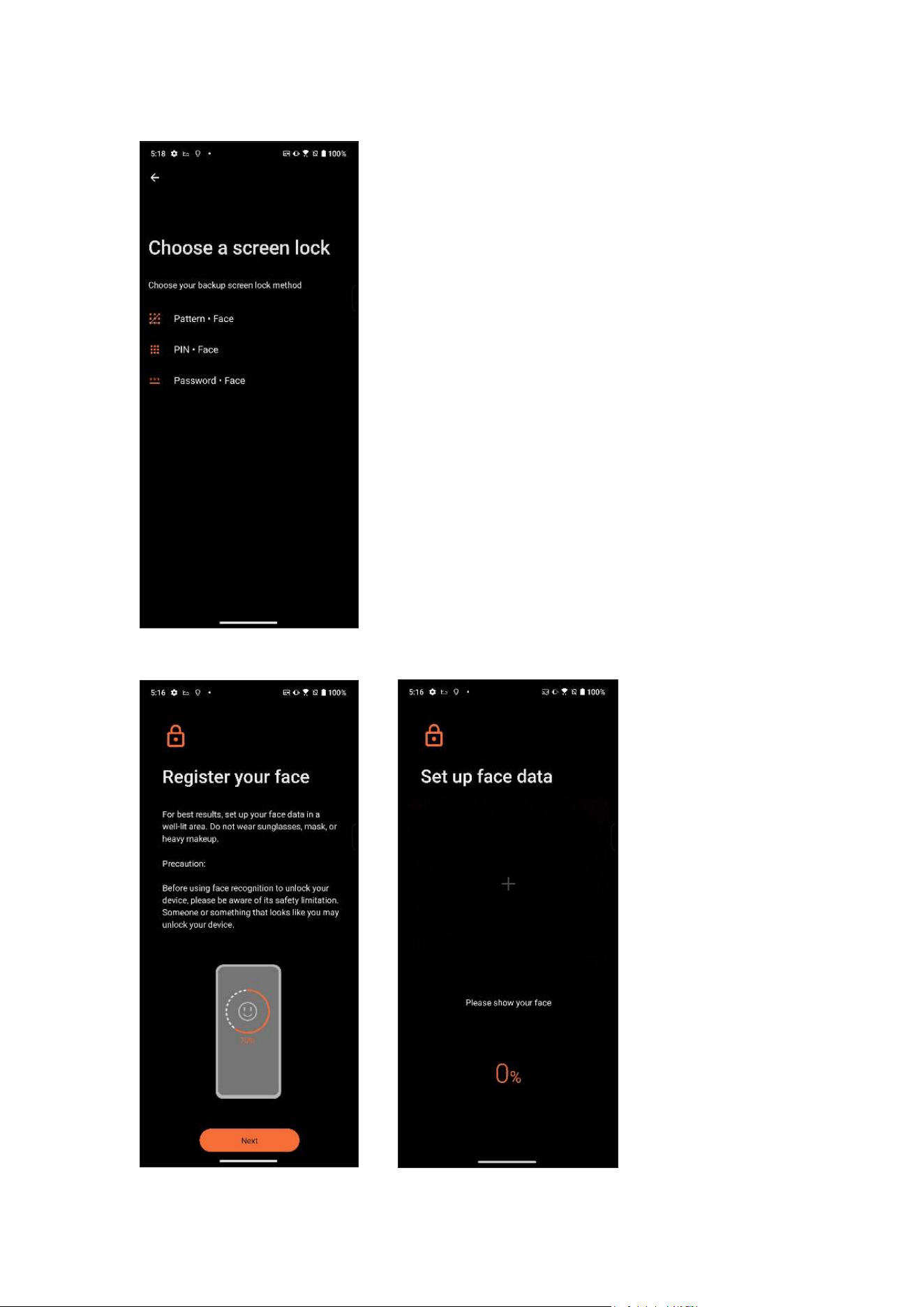
76
Chapter 10: Maintain your Zen
5. Tap Next and follow the instructions to register your face.
4. Follow the instructions to set up your backup screen lock method (if prompted).
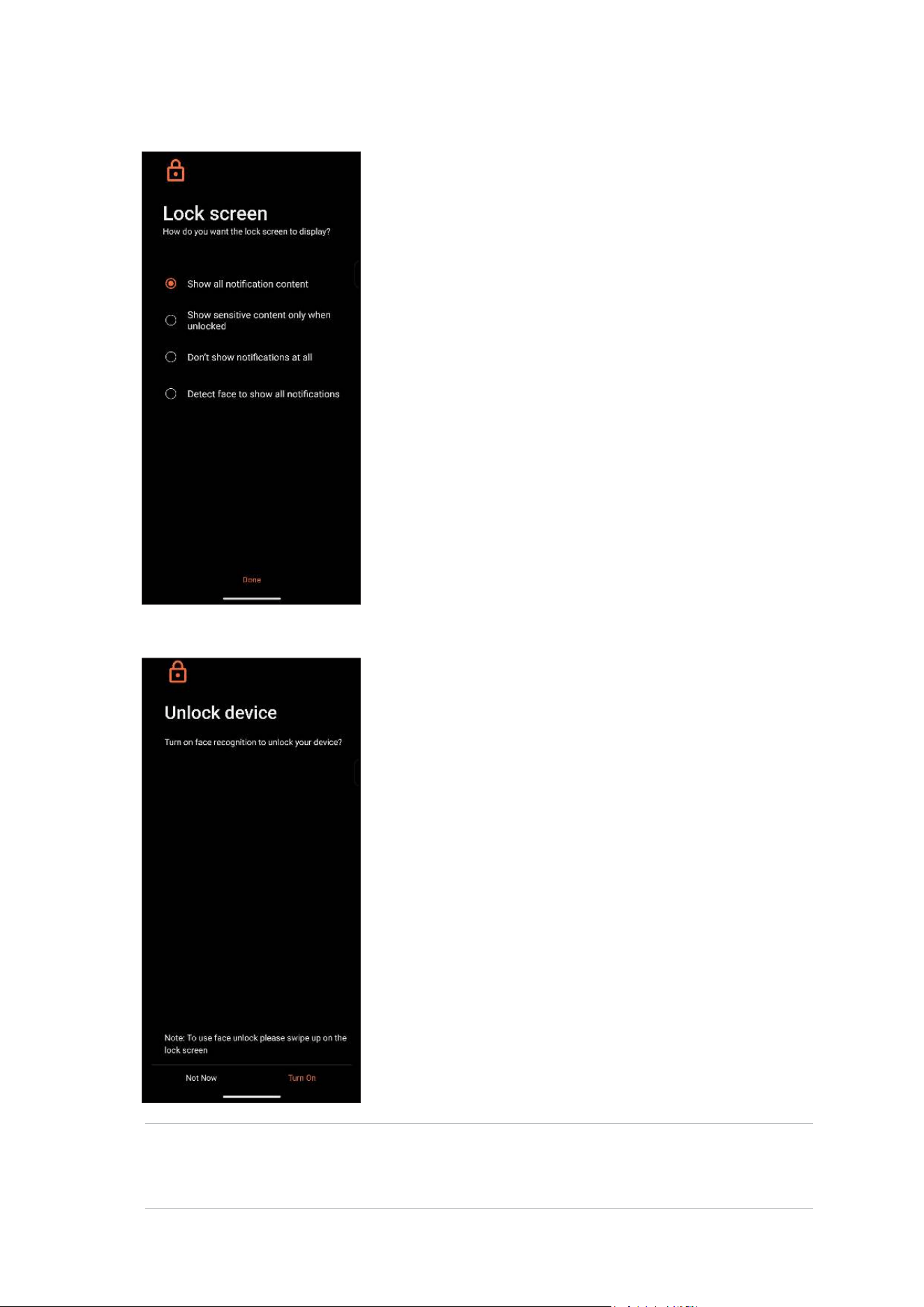
77
Chapter 10: Maintain your Zen
6. Select how you want to display your notications on the lock screen, then tap Done.
NOTES:
• Show your mouth, nose and opened eyes while using face unlock feature.
• Wearing sunglasses or insufcient light will lead to failure of face unlock.
7. When nished, tap Turn On to enable face recognition to unlock your phone.
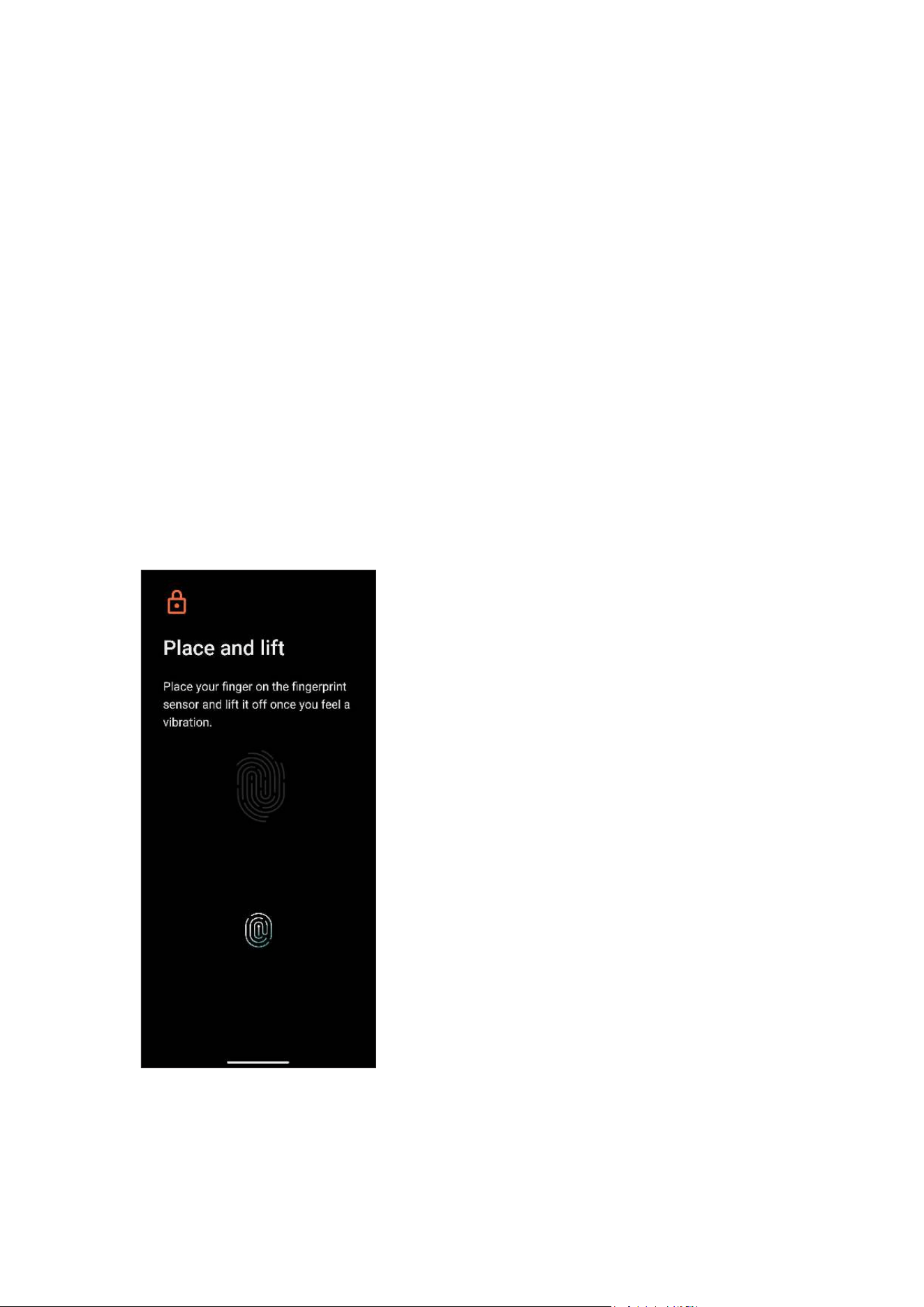
78
Chapter 10: Maintain your Zen
Fingerprint ID sensor
Fingerprint ID sensor prevents others from using your ROG Phone without your permission. You
can use your ngerprint to unlock your device, access your phone calls and data. When you set
up your ngerprint ID, you also need to set up your screen lock method for device startup.
Starting your ROG Phone for the rst time
To set up your ngerprint ID when using your ROG Phone for the rst time:
1. Ensure that the ngerprint identication module and your nger are clean and dry.
2. From the Welcome page, follow the on-screen instructions to the Protect your phone page and
tap Set up ngerprint.
3. Tap Continue to choose a screen lock method, and then follow the instructions to the Locate
ngerprint scanner page, and tap Next.
4. Find the ngerprint scanner on the right side of your device, adjust your nger and try to cover
different areas of your nger repeatedly until your ngerprint is captured.
5. Tap Next to complete the setup.
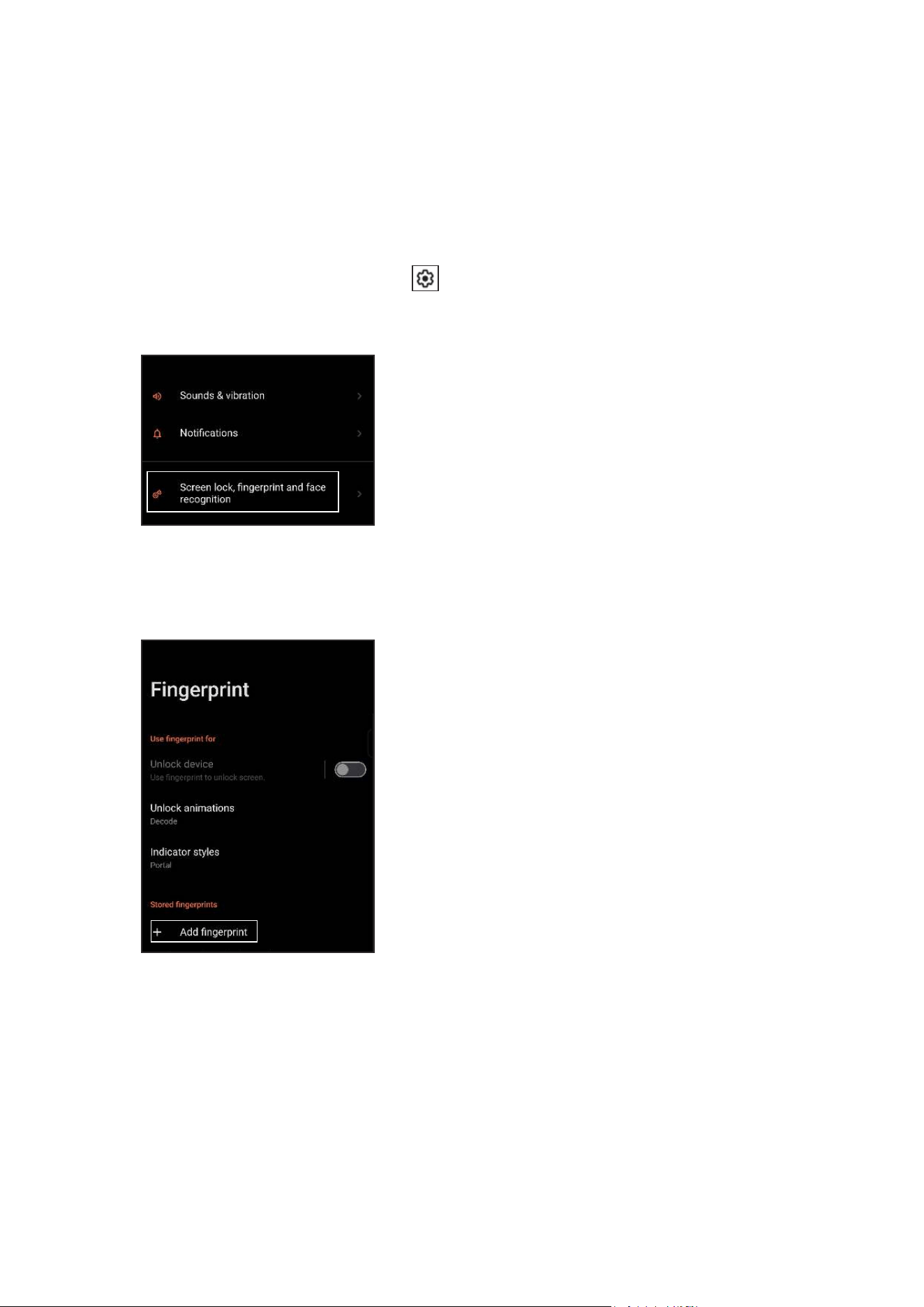
79
Chapter 10: Maintain your Zen
Setting up ngerprint ID from Settings
To set up your ngerprint ID from Settings:
1. Ensure that the ngerprint scanner and your nger are clean and dry.
2. Launch the Settings screen by doing either of the following:
• Launch Quick settings then tap
.
• Tap Settings.
3. Scroll down the Settings screen and select Screenlock, ngerprint and face recognition.
4. Unlock your phone if it’s secured. If not, follow the instructions to set up your backup screen
lock method.
5. Tap Add ngerprint (if prompted).
6. Repeatedly place-and-lift your nger on the scanner until your ngerprint is captured.
7. Tap Done to complete the setup.

80
Appendix
Appendix
Safety information
CAUTION! Use of controls or adjustments or performance of procedures other than those specied
herein may result in hazardous radiation exposure.
ROG Phone care
• Use your ROG Phone in an environment with ambient temperatures between 0 °C (32 °F) and
35 °C (95 °F).
• Use a cleaning cloth with water to wipe the surface of the phone. Do not apply alcohol,
organic solvents, detergent or use high-pressure sprayer to avoid damage.
• Sudden changes in temperature can cause condensation or fogging on the lens. If this
occurs, place the phone at room temperature or in a dry environment and wait until the
moisture has dried before using it. In cold areas, keep the phone in a warmer place such as an
inside pocket can prevent condensation.
The battery
WARNING: Disassembling the battery by yourself will void its warranty and may cause serious harm.
Your ROG Phone is equipped with a high performance non-detachable Li-polymer battery.
Observe the maintenance guidelines for a longer battery life.
• Do not remove the non-detachable Li-polymer battery as this will void the warranty.
• Avoid charging in extremely high or low temperature. The battery performs optimally in an
ambient temperature of +5 °C to +35 °C.
• Do not remove and replace the battery with a non-approved battery.
• Use only ASUS battery. Using a different battery may cause physical harm/injury and may
damage your device.
• Do not remove and soak the battery in water or any other liquid.
• Never try to open the battery as it contains substances that might be harmful if swallowed or
allowed to come into contact with unprotected skin.
• Do not remove and short-circuit the battery, as it may overheat and cause a re. Keep it away
from jewelry or metal objects.

81
• Do not remove and dispose of the battery in re. It could explode and release harmful
substances into the environment.
• Do not remove and dispose of the battery with your regular household waste. Take it to a
hazardous material collection point.
• Do not touch the battery terminals.
• To avoid re or burns, do not disassemble, bend, crush, or puncture the battery.
NOTES:
• Risk of explosion if battery is replaced by an incorrect type.
• Dispose of used battery according to the instructions.
The charger
• Use only the charger supplied with your ROG Phone.
• Never pull the charger cord to disconnect it from the power socket. Pull the charger itself.
Caution
Your ROG Phone is a high quality piece of equipment. Before operating, read all instructions and
cautionary markings on the (1) AC Adapter.
• Do not use the ROG Phone in an extreme environment where high temperature or high
humidity exists. The ROG Phone performs optimally in an ambient temperature between 0 °C
(32 °F) and 35 °C (95 °F).
• Do not disassemble the ROG Phone or its accessories. If service or repair is required, return
the unit to an authorized service center. If the unit is disassembled, a risk of electric shock or
re may result.
• Do not short-circuit the battery terminals with metal items.
Surface Temperature Warning
ASUS Phone and charger comply with local regulations and international safety standards for
surface temperature. Despite this, during extended use, including running resource-demanding
applications, or while connected to a power source, the surface temperature of the device, power
charger, or wireless charger may increase. Direct contact with the surface at such times may
cause skin irritation, low-temperature burns, redness, pain, or even permanent pigmentation.
Avoid direct contact with the device or charger during prolonged use or charging. If overheating
occurs, take appropriate action immediately and discontinue use until the device cools down.
When using ASUS Phone, charger, or wireless charger, ensure they are in a well-ventilated area
and follow good usage practices. Do not sleep on or place the device, charger, or wireless
charger under blankets, pillows, or directly beneath your body while they are connected to power.
If you are sensitive to heat or have a condition that affects your ability to perceive temperature,
exercise extra caution.
82
EU Radio Equipment Directive Compliance
Simplied EU Declaration of Conformity
Hereby, ASUS COMPUTER GmbH declares that the radio equipment ASUS_AI2501 is in
compliance with Directive 2014/53/EU. Full text of EU declaration of conformity is available at
https://www.asus.com/support/. (Search for AI2501)
RF Output Table
Items Maximum Radio-Frequency Output Power Table
Bluetooth Bluetooth BR/EDR /LE (2402~2480 MHz) 20.00 (dBm)
WLAN
2.4GHz (2412~2472 MHz) 20.00 (dBm)
5GHz (5150~5250 MHz) 20.00 (dBm)
5GHz (5250~5350 MHz) 20.00 (dBm)
5GHz (5470~5725 MHz) 20.00 (dBm)
5GHz (5725~5850 MHz) 14.00 (dBm)
6GHz (5945~6425 MHz) 20.00 (dBm)
NFC 13.553-13.567 MHz -20.04 (dBuA/ m@ 10m)
GSM
GSM 900 Burst (880~915; 925~960 MHz) 34.0 (dBm)
GSM 1800 Burst (1710~1785; 1805~1880 MHz) 31.0 (dBm)
WCDMA
WCDMA Band I (1920~1980; 2110~2170 MHz) 25.5 (dBm)
WCDMA Band V (824~849; 869~894MHz) 26.0 (dBm)
WCDMA Band VIII (880~915; 925~960 MHz) 26. 0 (dBm)
LTE
LTE Band 1 (1920~1980; 2110~2170 MHz) 25.5 (dBm)
LTE Band 3 (1710~1785; 1805~1880 MHz) 25.5 (dBm)
LTE Band 5 (824~849; 869~894MHz) 26.0 (dBm)
LTE Band 7 (2500~2570; 2620~2690MHz) 25.5 (dBm)
LTE Band 8 (880~915; 925~960 MHz) 26.0 (dBm)
LTE Band 20 (832~ 862; 791~821 MHz) 26.0 (dBm)
LTE Band 28 (703~748; 758~803 MHz) 26.0 (dBm)
LTE Band 34 (2010~2025 MHz) 25.5 (dBm)
LTE Band 38 (2570~2620 MHz) 25.5 (dBm)
LTE Band 40 (2300~2400 MHz) 25.5 (dBm)
LTE Band 41 (2496~2690 MHz) 25.5 (dBm)
LTE Band 41 (2496~2690 MHz)_HPUE 27.0 (dBm)
LTE Band 42 (3400~3600 MHz) 26.0 (dBm)
LTE Band 43(3600 ~ 3800 MHz) 26.0 (dBm)
Operator access with a tool
If a TOOL is necessary to gain access to an OPERATOR ACCESS AREA, either all other
compartments within that area containing a hazard shall be inaccessible to the OPERATOR by
the use of the same TOOL, or such compartments shall be marked to discourage OPERATOR
access.
83
Items Maximum Radio-Frequency Output Power Table
FR1
NR n1 (1920~1980; 2110~2170 MHz) 25.5 (dBm)
NR n3 (1710~1785; 1805~1880 MHz) 25.5 (dBm)
NR n5 (824~849; 869~894MHz) 26.0 (dBm)
NR n7 (2500~2570; 2620~2690 MHz) 25.5 (dBm)
NR n8 (880~915; 925~960 MHz) 26.0 (dBm)
NR n20 (832~862; 791~821 MHz) 26.0 (dBm)
NR n28 (703~748; 758~803 MHz) 26.0 (dBm)
NR n38(2570 MHz ~ 2620 MHz) 25.5 (dBm)
NR n40(2300 MHz ~ 2400 MHz) 25.5 (dBm)
NR n41(2496 MHz ~ 2690 MHz)_HPUE
25.5 (dBm) (PC3)
27.0 (dBm) (PC2)
NR n77(3300 MHz ~ 4200 MHz)_HPUE
26.0 (dBm) (PC3)
27.5 (dBm) (PC2)
NR n78(3300 MHz ~ 3800 MHz)_HPUE
26 .0(dBm) (PC3)
27.5 (dBm) (PC2)
The Wi-Fi operating in the band 5150-5350 MHz and 5945-6425 MHz shall be restricted to indoor
use only. Operation in the 5945-6425 MHz band is prohibited on Unmanned Aircraft Systems
(UAS). These restrictions apply to the following countries: AT, BE, BG, CZ, DK, EE, FR, DE, IS, IE, IT,
EL, ES, CY, LV, LI, LT, LU, HU, MT, NL, NO, PL, PT, RO, SI, SK, TR, FI, SE, CH, HR, and UK(NI).
NOTE: This RF output power table is for EU member states, the EEA States, the EFTA States and
Turkey only. The frequency range and the RF output power may differ from other non-EU countries.
* ROG Phone 5G NR Sub-6/4G LTE band compatibility varies by region, please check
compatibility with your local carriers.
NOTES:
a. Low power indoor (LPI) Wi-Fi 5.945-6.425 GHz devices:
The device is restricted to indoor use only when operating in the 5945 to 6425 MHz frequency
ranges in Austria (AT), Belgium (BE), Bulgaria (BG), Cyprus (CY), Czech Republic (CZ),
Estonia (EE), France (FR), Germany (DE), Iceland (IS), Ireland (IE), Latvia (LV), Luxembourg
(LU), Netherlands (NL), Norway (NO), Romania (RO), Slovakia (SK), Slovenia (SI), Spain (ES),
Switzerland (CH).
b. Very Low Power (VLP) Wi-Fi 5.945-6.425 GHz devices (portable devices):
The device is restricted to indoor use only when operating in the 5945 to 6425 MHz frequency
ranges in Austria (AT), Belgium (BE), Bulgaria (BG), Cyprus (CY), Czech Republic (CZ),
Estonia (EE), France (FR), Germany (DE), Iceland (IS), Ireland (IE), Latvia (LV), Luxembourg
(LU), Netherlands (NL), Norway (NO), Romania (RO), Slovakia (SK), Slovenia (SI), Spain (ES),
Switzerland (CH).
84
RF Exposure Information
This ASUS product has been tested and meets applicable European SAR limits. The SAR limit is
2.0 W/kg in countries that set the limit averaged over 10 grams of tissue. The specic maximum
SAR values for this device are as follows:
• Limb: 3.526 W/Kg
• Head: 1.589 W/Kg
• Body: 1.584 W/Kg
When carrying this device or using it while worn on the body, either use an approved accessory
such as a holster or otherwise maintain a distance of 0.5 cm from the body to ensure
compliance with RF exposure requirements.
CE Marking
85
Low Blue Light Certication
ROG Phone reduces the blue light emitted by its screen, providing you with a
more comfortable viewing experience.
By default, the screen’s brightness is set to Maximum and the phone is in
compliance with TÜV Rheinland Low Blue Light certication.
Alleviation of Eye Strain
To alleviate eye strain:
• Take frequent breaks when using your ROG Phone (at least one 10-minute break every half an
hour).
• Regularly focus on distant objects to relax your eyes.
• Do eye exercises often including:
(1) Look up and down without moving your head
(2) Move your eyes from left to right without moving your head
(3) Slowly roll your eyes
(4) Move your eyes diagonally
WARNING: Keep your ROG Phone's screen away from infants and toddlers younger than 2 years.
Children 2 years old and above should get no more than an hour of screen time each day.
Using GPS (Global Positioning System) on your ROG Phone
To use the GPS positioning feature on your ROG Phone:
Ensure that your device is connected to the Internet before using Google Map or any GPS-
enabled apps.
For rst-time use of a GPS-enabled app on your device, ensure that you are outdoors to get the
best positioning data.
When using a GPS-enabled app on your device inside a vehicle, the metallic component of the
car window and other electronic devices might affect the GPS performance.
Prevention of Hearing Loss
To prevent possible hearing damage, do not listen at high volume levels for long periods.
For France, headphones/earphones for this device are compliant with the sound pressure level
requirement laid down in the applicable EN 50332-1:2013 and/or EN50332-2:2013 standard
required by French Article L.5232-1.
High sound pressure!
To prevent possible hearing damage, do not listen at high volume levels
for long periods.
A pleine puissance, l'écoute prolongée du baladeur peut endommager
l'oreille de l'utilisateur.

86
General Usage (typical body-worn) (for Japan)
This device ( (front & rear side) should be operated under a separation distance of 15 mm from
the human body.
* The other four sides are not in close proximity to the human body at the general use as
described above.
5GHz band (W52,W53): Indoor use only (Except for the 5.2GHz transmission with High Power
Data Communication System Base Station or Relay Station).
5.2/5.3GHz 屋内使用限定 (高出力システムと通信する場合を除く).
Coating notice
IMPORTANT! To provide electrical insulation and maintain electrical safety, a coating is applied to
insulate the device except on the areas where the I/O ports are located.
Green ASUS notice
ASUS is devoted to creating environment-friendly products and packaging to safeguard
consumers’ health while minimizing the impact on the environment. The reduction of the number
of the manual pages complies with the reduction of carbon emission.
For the detailed user manual and related information, refer to the user manual included in the
ROG Phone or visit the ASUS Support Site at https://www.asus.com/support.
ASUS Recycling/Takeback Services
ASUS recycling and takeback programs come from our commitment to the highest standards for
protecting our environment. We believe in providing solutions for you to be able to responsibly
recycle our products, batteries, other components as well as the packaging materials. Please go
to https://esg.asus.com/en/Takeback.htm for detailed recycling information in different regions.
Authorized representative in United Kingdom: ASUSTEK (UK) LIMITED
Address, City:
1
st
Floor, Sackville House, 143-149 Fenchurch Street, London, EC3M 6BL
England
Country:
United Kingdom
電波障害自主規制について
この装置は、情報処理装置等電波障害自主規制協議会(VCCI)の基準に基づく クラス B 情報技術装置
です。この装置は、家庭環境で使用することを目的として いますが、この装置がラジオやテレビジョン
受信機に近接して使用されると、 受信障害を引き起こすことがあります。 取り扱い説明書に従って正し
い 取り扱いをしてください。
この装置は、クラスB情報技術装置です。この装置は、家庭環境で使用することを目的としていますが、
この装置がラジオやテレビジョン受信機に近接して使用されると、受信障害を引き起こすことがありま
す。
取扱説明書に従って正しい取り扱いをして下さい。VCCI-B

87
Model name: ASUS_AI2501
Manufacturer: ASUSTeK Computer Inc.
Address: 1F., No.15, Lide RD., Beitou Dist., Taipei City 112
Authorised representative in Europe: ASUS Computer GmbH
Address: HARKORT STR. 21-23, 40880 RATINGEN,
GERMANY

