尺寸:
时间:
产品型号:
材质:
工艺:
105*145mm
2023-3-13 Q6英日
105g铜版纸
胶装
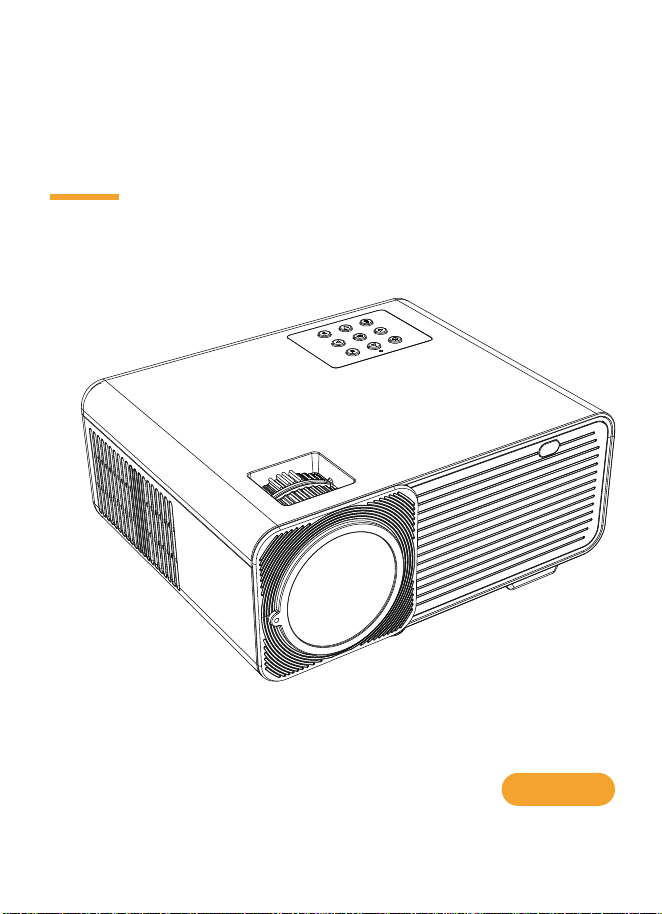
MAKE LIFE DIFFERENCE
User Manual
Model: Q6
Please read this manual carefully
before using the projector.

LANGUAGE
ENGLISH MANUAL
取扱説明書
1
21
..................................................
..............................................................

-1-
WARNINGS
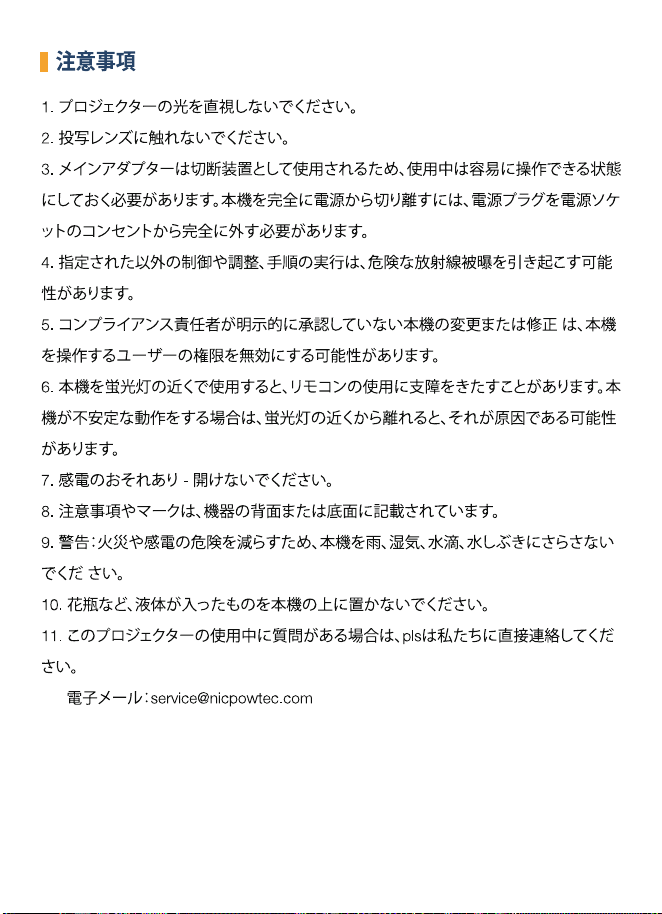
1. Do not look directly into the projector light.
2. Don't touch the projecting lens.
3. Mains adapter is used as a disconnect device and it should remain readily operable
during intended use. In order to disconnect the apparatus from the mains completely,
the mains plug should be disconnected from the mains socket outlet completely.
4. Use of controls or adjustments or performance of procedures other than those
specified may result in hazardous radiation exposure.
5. Changes or modifications to this unit not expressly approved by the party responsi-
ble for compliance could void the user's authority to operate the equipment.
6. Use of this unit near fluorescent lighting may cause interference regarding the use of
the remote. If the unit is displaying erratic behavior move away from any fluorescent
lighting, as it may be the cause.
7. Shock hazard - Do Not Open.
8. Caution and marking information is located at the rear or bottom of the apparatus.
9. WARNING: To reduce the risk of fire or electric shock, do not expose this apparatus
to rain, moisture, dripping, or splashing.
10. Objects filled with liquids, such as vases, shall not be placed on the apparatus.
11. If you have any question during using this projector, pls contact us directly.
Email: [email protected]
-2-
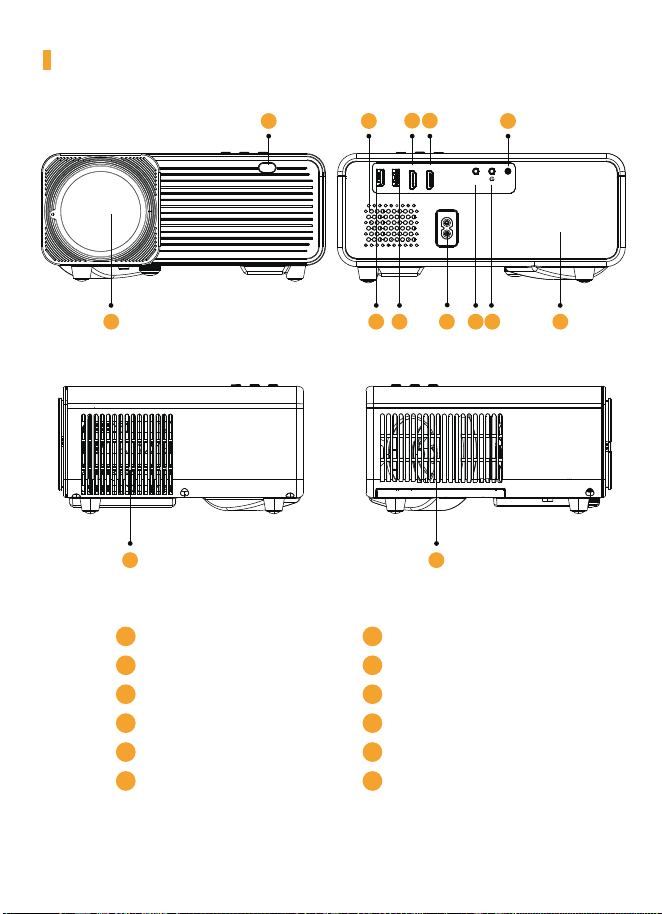
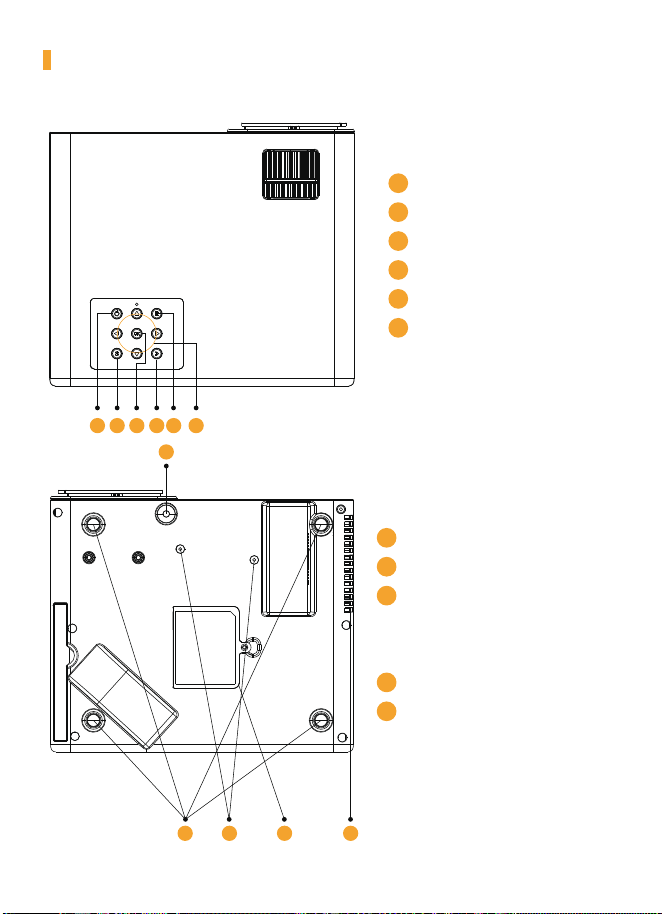
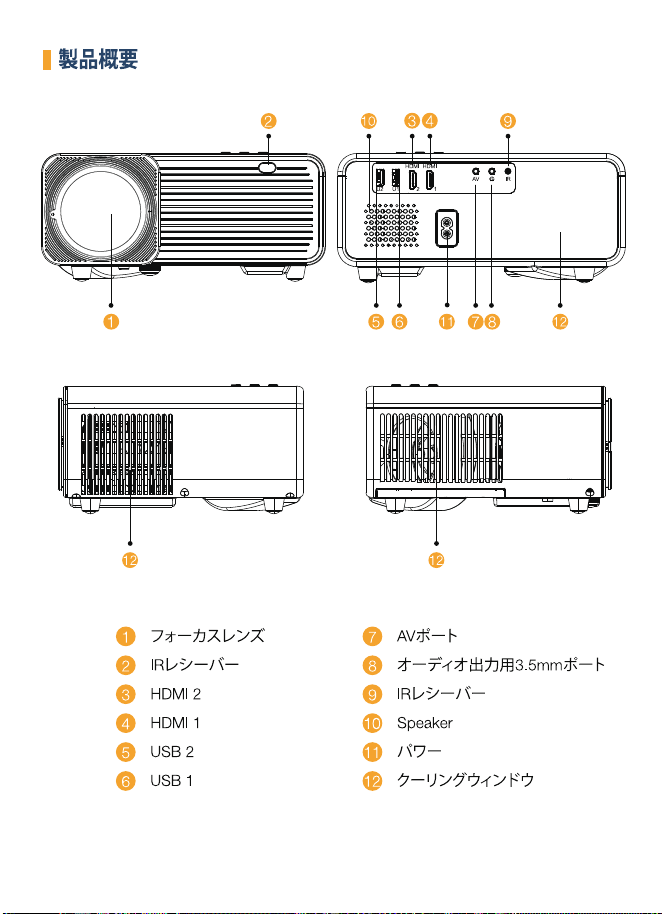
PRODUCT OVERVIEW
1
2
3
4
5
6
Focus Lens
IR Receiver
HDMI 2
HDMI 1
USB 2
USB 1
7
8
9
10
11
12
AV Port
3.5mm Port for Audio Output
IR Receiver
Speaker
Power
Cooling Window
1
2
3 4
5 6 7 8
9
10
12
11
1212
U2 U1 2 1
HDMI HDMI
AV IR
-3-
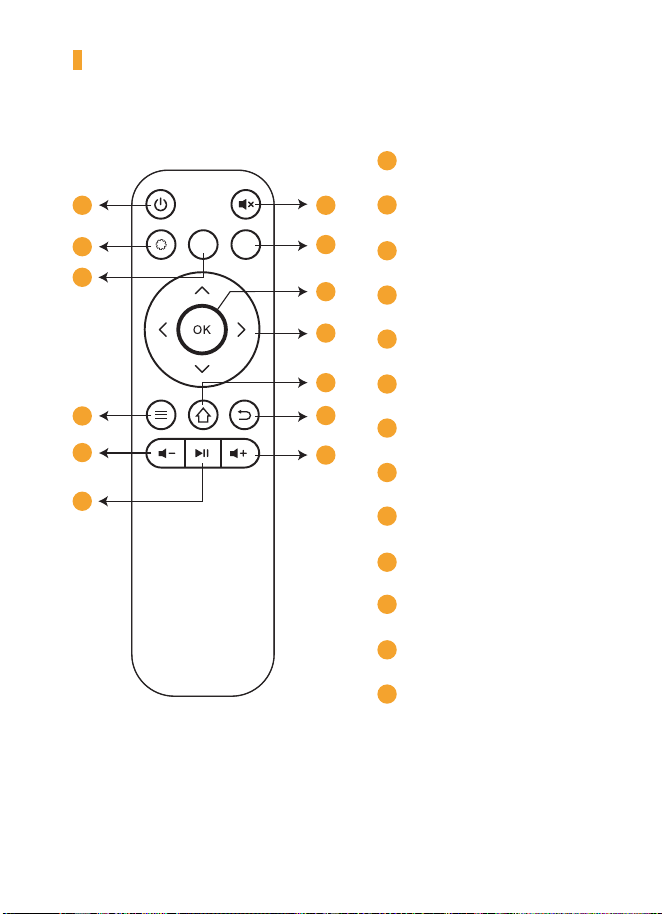
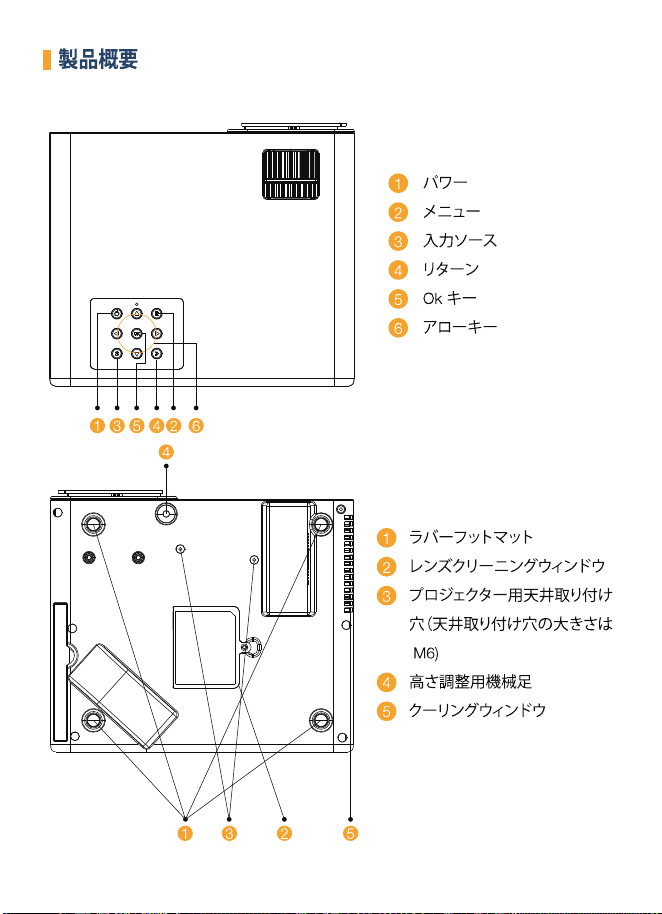
PRODUCT OVERVIEW
1
2
3
4
5
6
Power
Menu
Input Source
Return
Ok Key
Arrow Keys
1
2
3
4
5
Rubber Foot Mats
Lens Cleaning Window
Ceiling Mounting Holes for the
projector ( the size of the ceiling
mounting holes is M6)
Height Adjustment Machine Feet
Cooling Window
5 643
2
4
1 3 5
1 2
-4-
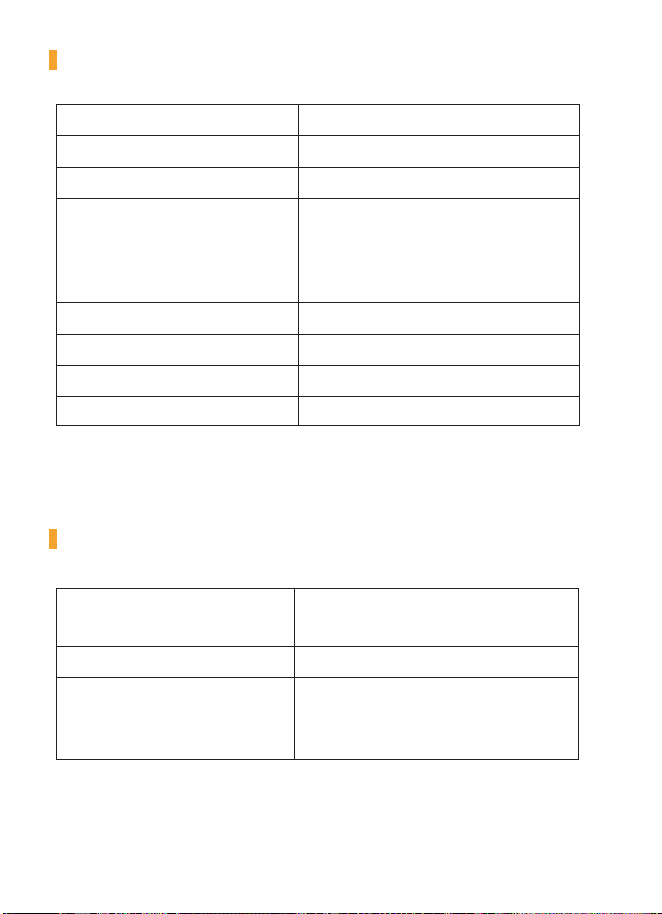
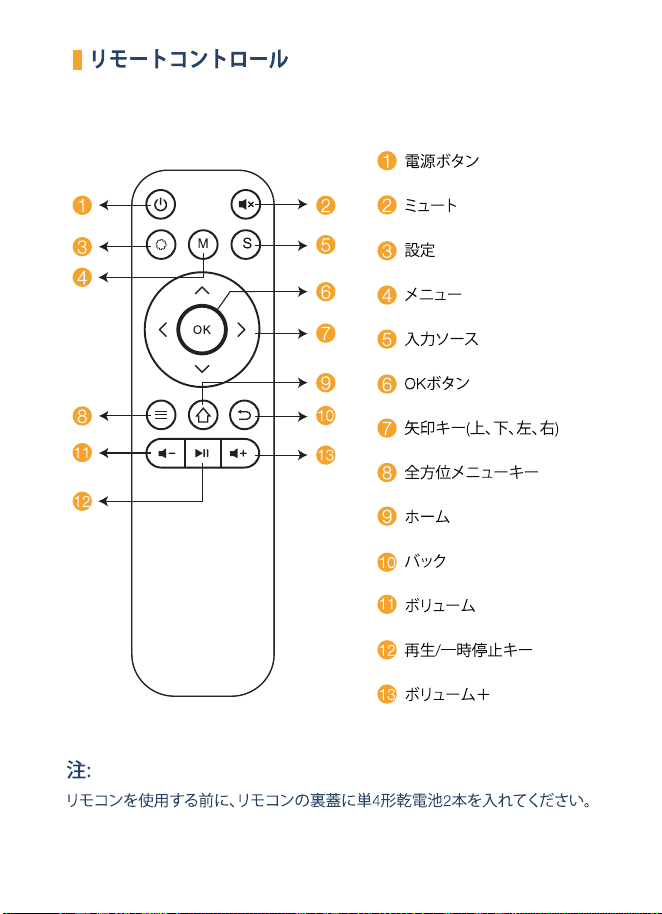
REMOTE CONTROL
1
2
3
4
5
6
7
8
9
10
11
12
13
Power Button
Mute
Setting
Menu
Input source
OK
Arrow keys (Up, down, left, right)
All-round menu key
Home
Back
Volume -
Play/Pause Key
Volume +
Note:
Before using the remote control, put two AAA batteries into the back cover of the
remote control.
M
S
1
3
4
8
11
121
2
5
6
7
9
10
13
-5-
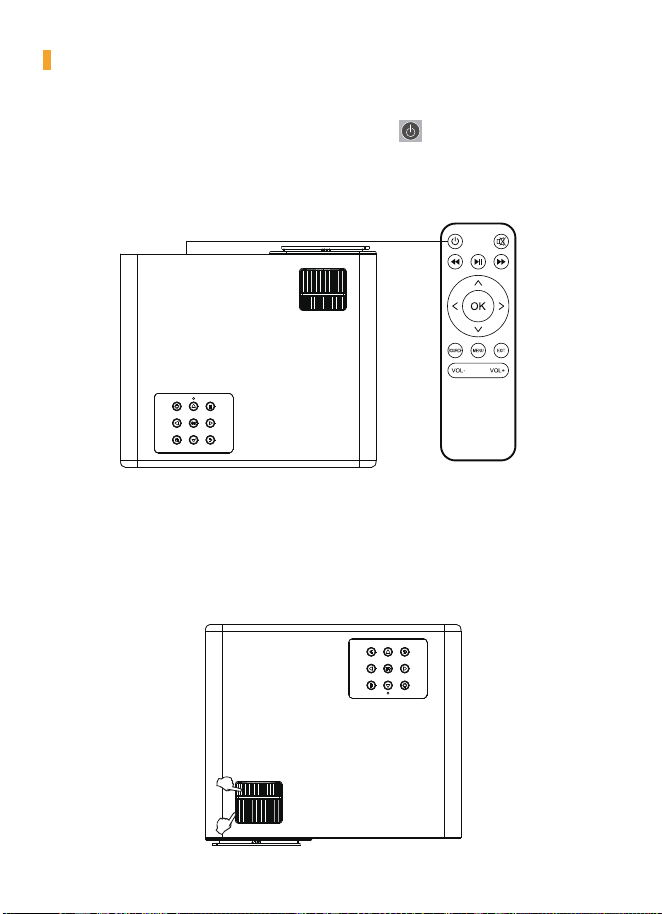
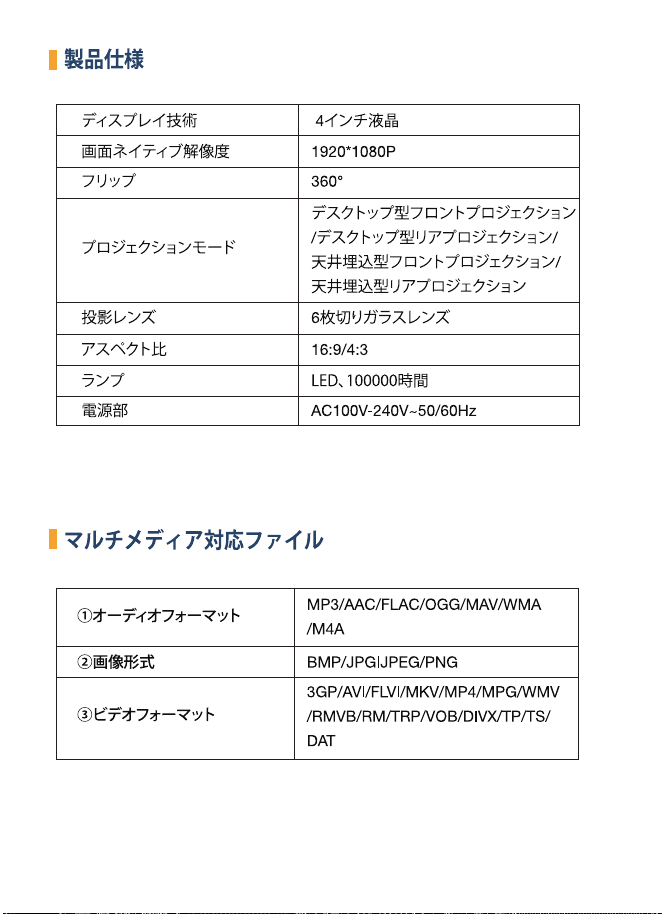
PRODUCT SPECIFICATIONS
Display Technology 4" LCD Screen
Native Resolution 1920*1080P
Flip 360°
Projection Mode
Desktop Front Projection / Desktop
Rear Projection/ Ceiling Mounted
Front Projection/ Ceiling Mounted
Rear Projection
Projection Lens 6 Slices Glass Lens
Aspect Ratio 16:9/4:3
Lamp LED, 100000 Hours
Power Supply AC100V-240V~50/60Hz
MULTIMEDIA SUPPORTED FILES
①Audio Format
MP3/AAC/FLAC/OGG/MAV/WMA
/M4A
②Image Format BMP/JPGIJPEG/PNG
③Video Format
3GP/AVI/FLVI/MKV/MP4/MPG/WMV
/RMVB/RM/TRP/VOB/DIVX/TP/TS/
DAT
-6-
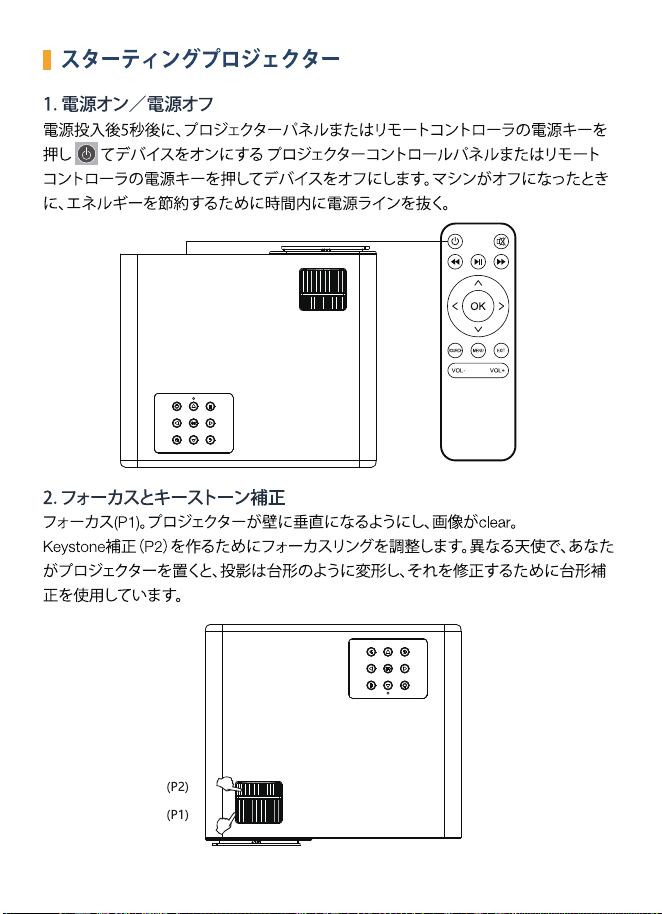
STARTING PROJECTOR
1. Power on/Power off
2. Focus and Keystone Correction
Focus (P1): Let the projector be perpendicular to the wall, and adjust the
Focusing ring to make the picture clear.
Keystone Correction(P2): In different angel, you put the projector, the
the projection will Deformation like a trapezoid, use the keystone correction to
make it correct.
5 seconds after power-on, then press the power key on the projector
panel or the remote controller to turn on the device Press the power key on
the projector control panel or the remote control to turn off the device.
When the machine is turned off, unplug the power line in time to save energy.
(P1)
(P2)
-7-
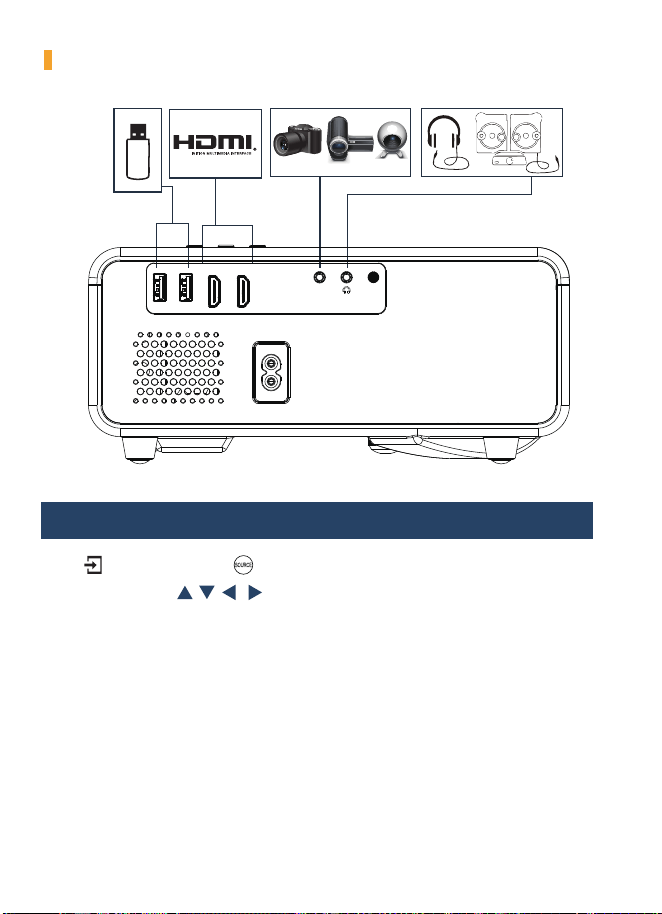
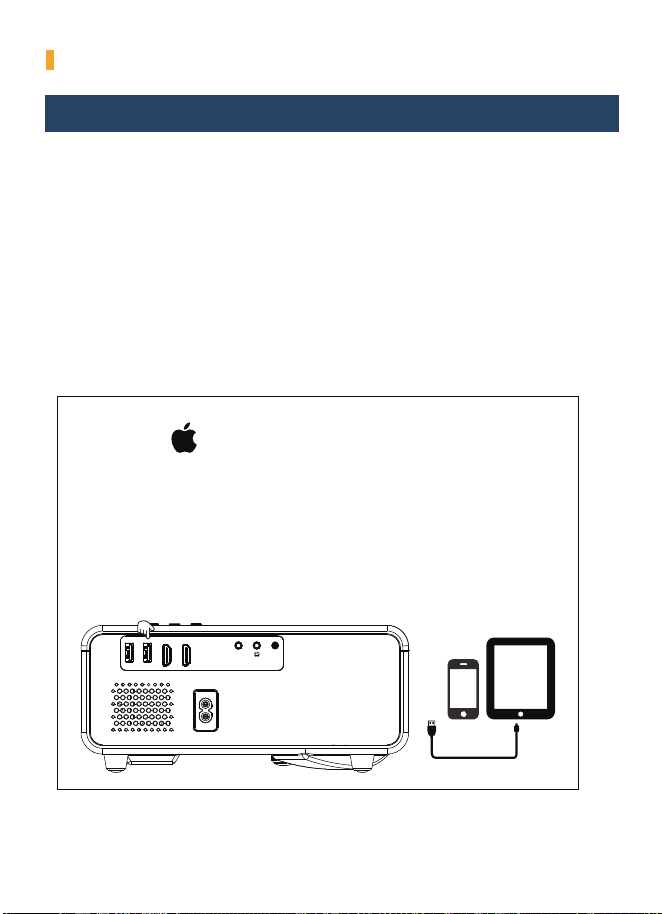
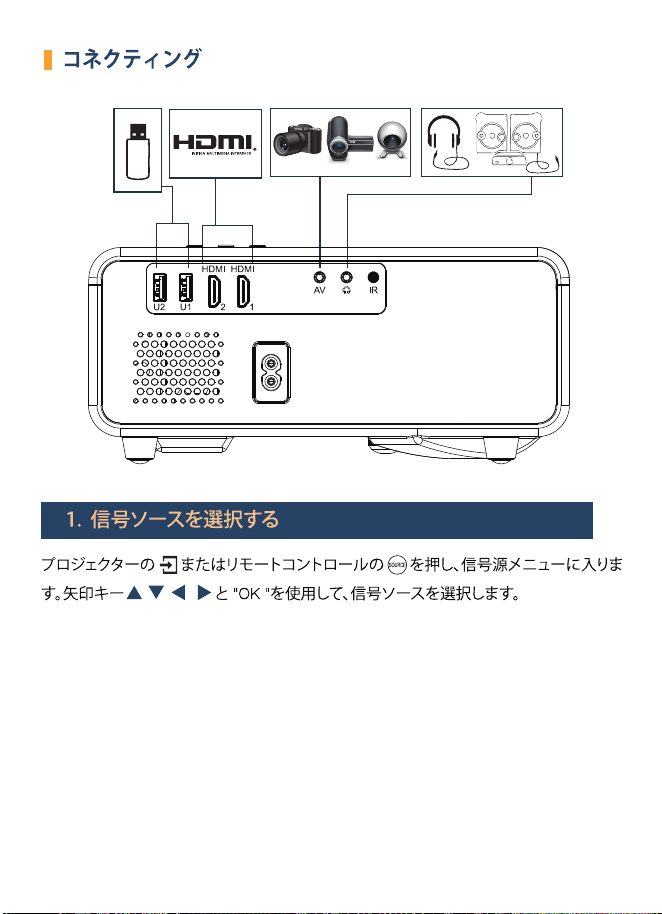
Press of the projector or of the remote control, enter the signal source menu.
Use the arrow keys and the “OK” to select the signal source.
CONNECTING
1. Select Signal Source
U2 U1 2 1
HDMI HDMI
AV IR
-8-
CONNECTING
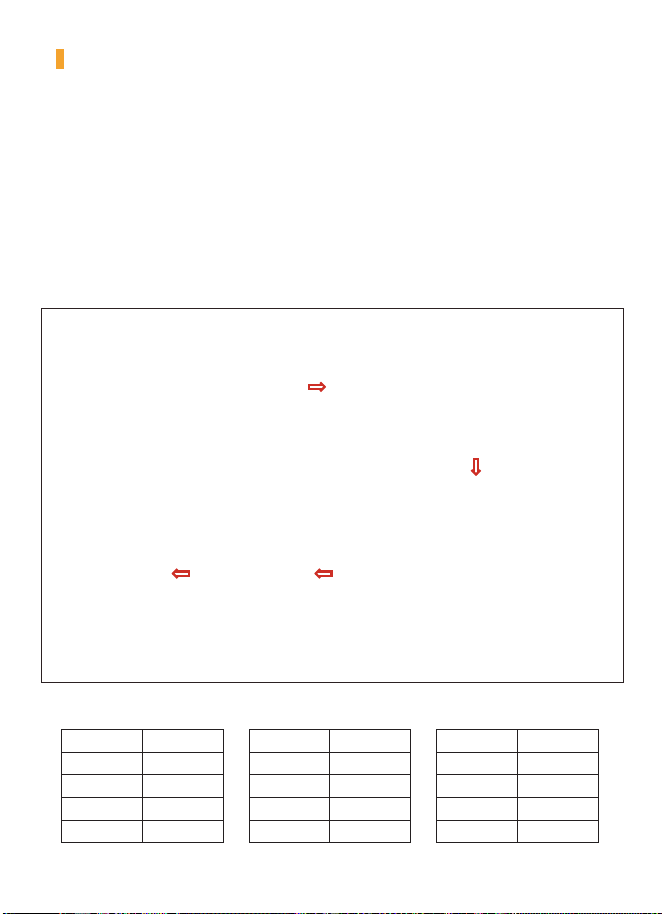
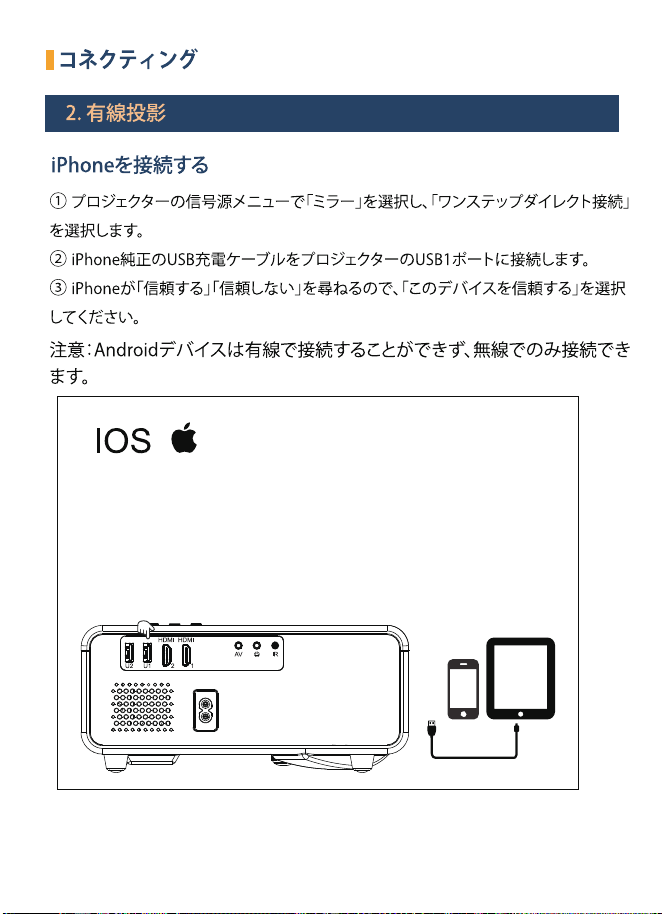
① Select "Mirror" in the signal source menu of the projector and then select "the
one-step direct connection".
② Plug the iPhone original USB charging cable into the USB1 port of this projector.
③ Please select "Trust this device" when the iPhone asks "Trust" or "Don't trust"
NOTE: Android devices cannot be connected by a wire, only by wireless.
2. Wired Projection
Connect an iPhone
IOS
U2 U1 2 1
HDMI HDMI
AV IR

-9-
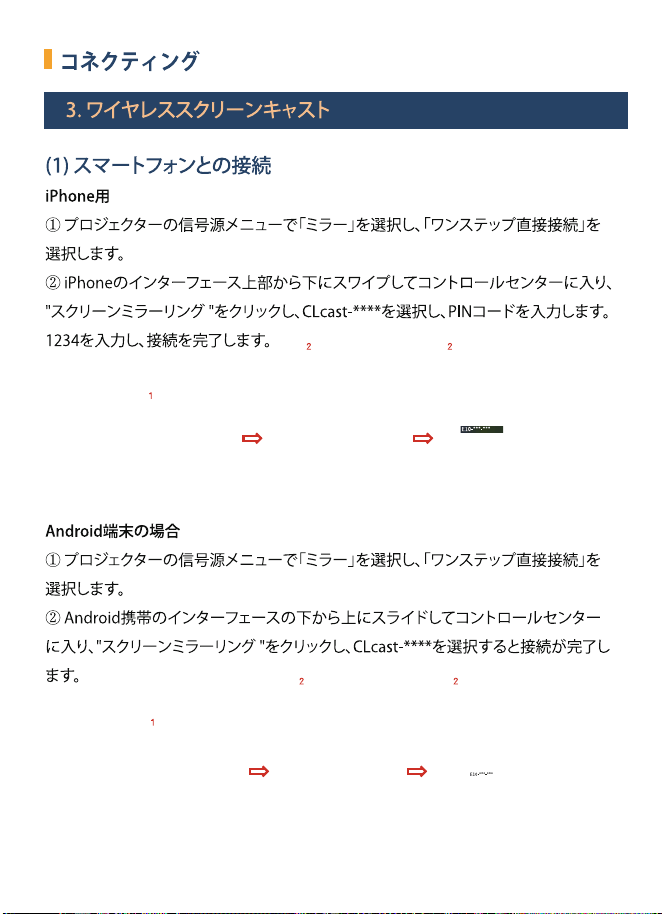
3. Wireless screen casting
CONNECTING
(1) Connect Smartphone
For iPhone
① Select "Mirror" in the signal source menu of the projector and then select the
"one-step direct connection".
② Swipe down from the top of the iPhone interface to enter the control center, then
click "Screen Mirroring", select CLcast-****, and enter PIN code: 1234 to complete
the connection.
For Android phone
① Select "Mirror" in the signal source menu of the projector, and then select the
"one-step direct connection".
② Slide up from the bottom of the Android phone interface to enter the control
center, then click "Screen Mirroring" and select CLcast-**** to complete the
connection.
One-step direct connection
for smartphones with no need
to connect to WiFi for projectors
One-step direct connection
for smartphones with no need
to connect to WiFi for projectors
1
2 2
1
2 2
E10-***-***
E10-***-***
-10-
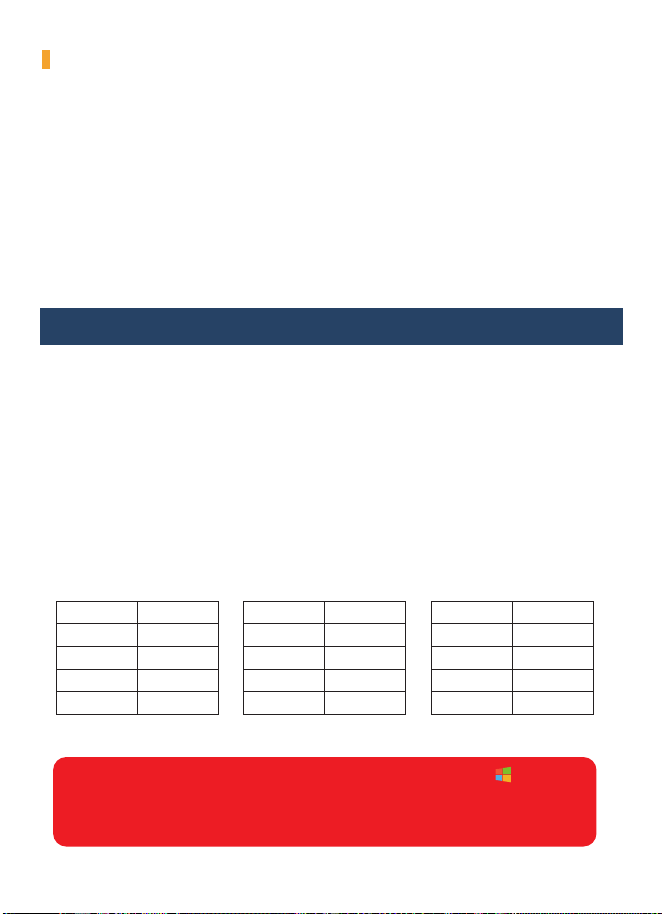
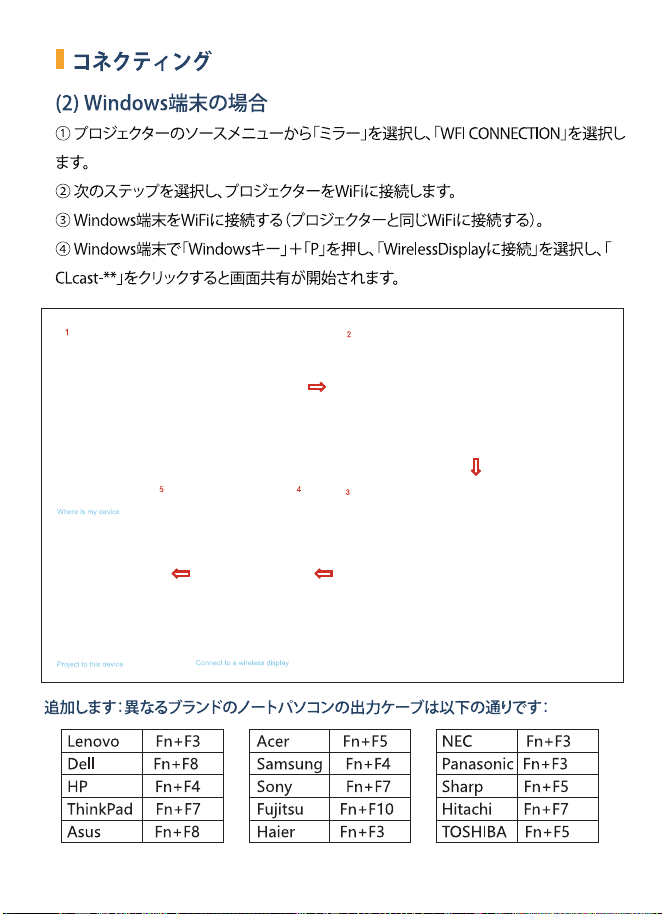
(2) For Windows devices
① Select "Mirror" in the source menu of the projector, and then select "WIFI CONNEC-
TION".
② Select the next step to connect the projector to your WiFi.
③ Connect your Windows device to your WiFi (connect to the same WiFi as the projector)
④ Press "Windows Key" + "P" on your Windows device, select "Connect to Wireless
Display", then click "CLcast-***" to start screen sharing.
CONNECTING
Project
PC screen only
Duplicate
Extend
Second screen
only
Connect to a wireless display
Connect
Search for
Vedio
Mirroring-A05F28
Vedio
Searching for wireless displays and audio devices
Where is my device
Project to this device
CLcast-****
Add: Different brand laptop output keys are as follows:
Acer Fn+F5
Samsung Fn+F4
Sony Fn+F7
Fujitsu Fn+F10
Haier Fn+F3
NEC Fn+F3
Panasonic Fn+F3
Sharp Fn+F5
Hitachi Fn+F7
TOSHIBA Fn+F5
Lenovo Fn+F3
Dell Fn+F8
HP Fn+F4
ThinkPad Fn+F7
Asus Fn+F8
1
2
3
4
5
-11-
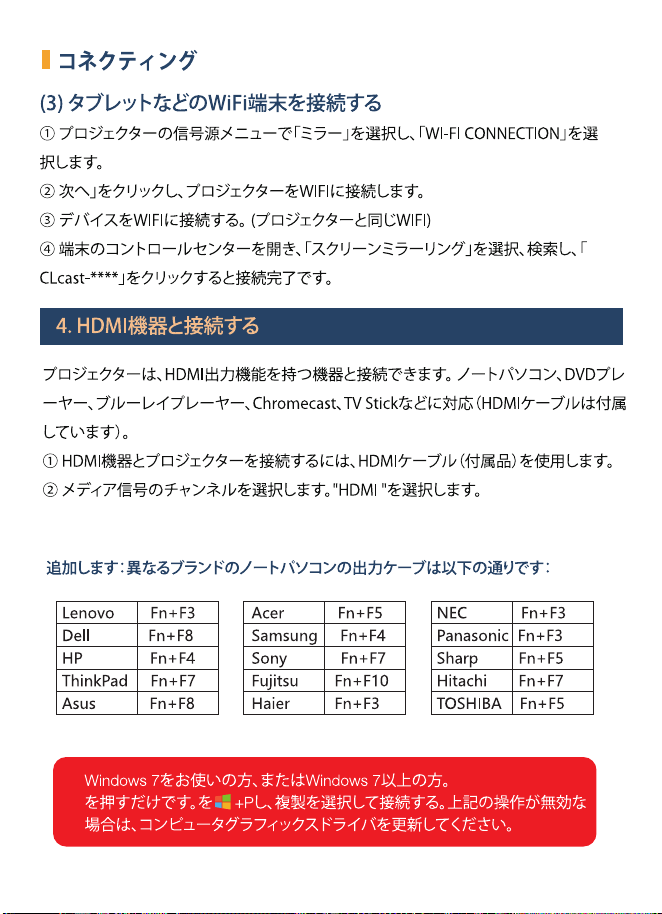
(3) Connecting a tablet or other WiFi device
① Select "Mirror" in the signal source menu of the projector and then select “WI-FI
CONNECTION”;
② Click next to connect the projector to your WIFI.
③ Connect your device to WIFI. (the same wifi as the projector)
④ Open Control Center on your device, select Screen Mirroring, search, and click
CLcast-**** to complete the connection.
The projector can connect to devices with the HDMI output function. Compatible with
Laptop, DVD players, Blu-ray players, Chromecast, TV Stick, etc. (HDMI cable is
included).
①Use the HDMI cable (included in the package) to connect the HDMI device to the
projector
② Select media signal channel: "HDMI".
4. Connecting to HDMI Devices
The user of Windows 7 or over Windows 7. Simply press the + P, and
select duplicate to connect. If the operation above is invalid, please update
the computer graphics driver.
Add: Different brand laptop output keys are as follows:
Acer Fn+F5
Samsung Fn+F4
Sony Fn+F7
Fujitsu Fn+F10
Haier Fn+F3
NEC Fn+F3
Panasonic Fn+F3
Sharp Fn+F5
Hitachi Fn+F7
TOSHIBA Fn+F5
Lenovo Fn+F3
Dell Fn+F8
HP Fn+F4
ThinkPad Fn+F7
Asus Fn+F8
CONNECTING

-12-
CONNECTING
8. Connect Bluetooth audio
The chip of this projector is not compatible with files (Microsoft Office, PDF, and text) on
the USB stick(If you want to play files, please keep the files on your laptop or DVD player,
then connect this projector to them.)
Warm Tips:
Bluetooth projector can only be used to connect sound devices such as speakers,
headphones, sound bar, etc, not to computers or smartphone.
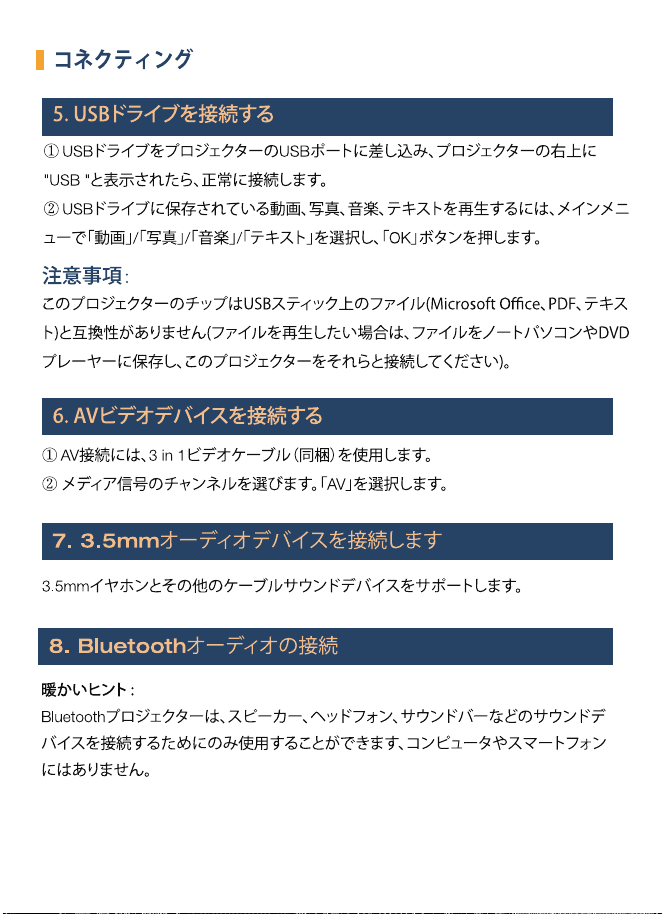
①Use the 3 in 1video cable (Included in the package) to connect with AV.
② Choose the media signal channel: "AV".
Support 3.5mm earphones and other cable sound devices.
① Plug a USB drive into the USB port of the projector, and when "USB" is in the upper
right corner of the projector, connect successfully.
② To play a video, picture, music, or text stored in a USB drive, select "Movie"/ "Photo"/
"Music"/"Text" on the main menu, and press "OK".
5. Connect the USB drive
6. Connect AV video devices
Note:
7. Connect 3.5mm audio devices

-13-
CONNECTING
How to Connect the Bluetooth Device:
Auto & Static Connection Method:
When you are trying to connect to a Bluetooth device, please make sure the Bluetooth
device is on and in Bluetooth pair mode before connecting.
1. Start the Projector and click on “Setting” - “Setting” - “Bluetooth Settings” (as shown
above), turn on the Bluetooth- then press “Search Bluetooth” , Bluetooth devices name
will be shown below, select the right device and press the “OK key” to connect it.
-14-
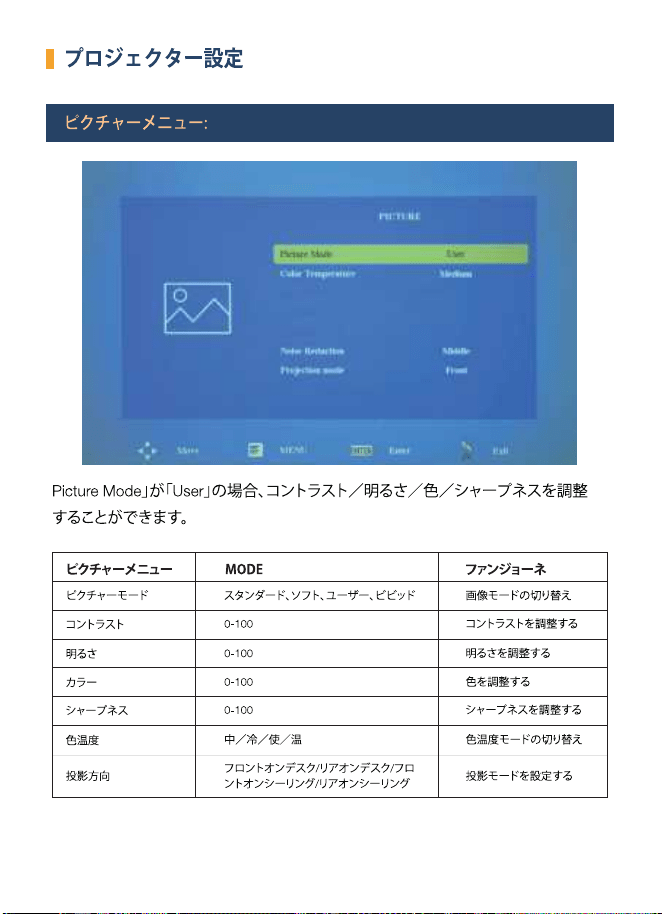
PROJECTOR SETTING
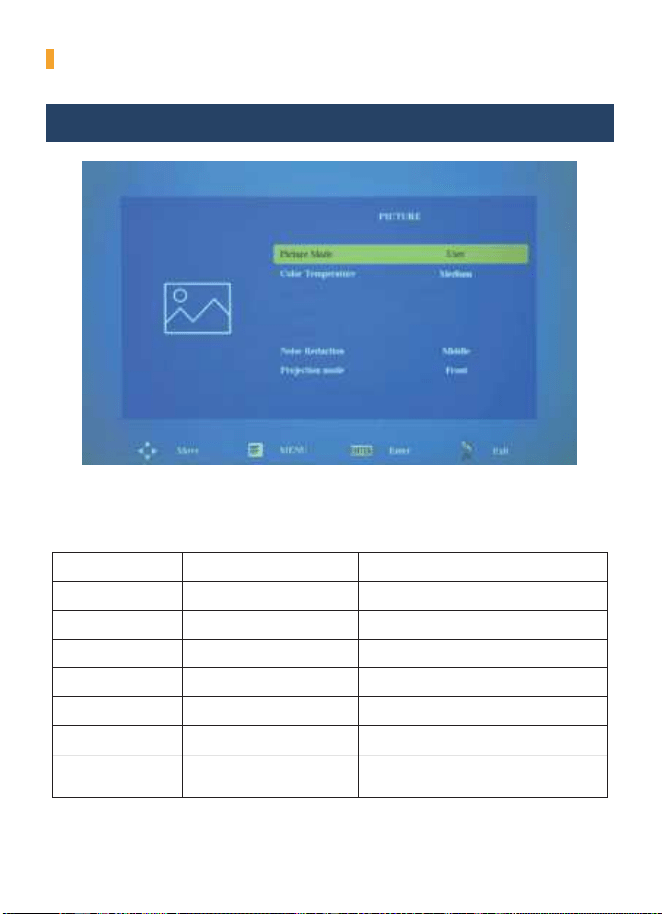
Picture Mode Standard,Soft,User, Vivid
Front on Desk/Rear on Desk/
Front on Ceiling/ Rear on Ceiling
Projection Direction
Switch among the image mode
Contrast
0-100 Adjust contrast
Brightness
0-100 Adjust brightness
Color
0-100 Adjust color
Sharpness
0-100 Adjust sharpness
Set up the projection mode
FUNZIONEPICTURE MENU MODE
Color Temperature
Medium/Cool/User/warm Switch among the color temperature mode
PICTURE MENU:
When "Picture Mode" is "User", the Contrast / Brightness / Color / Sharpness can
be adjusted.
-15-
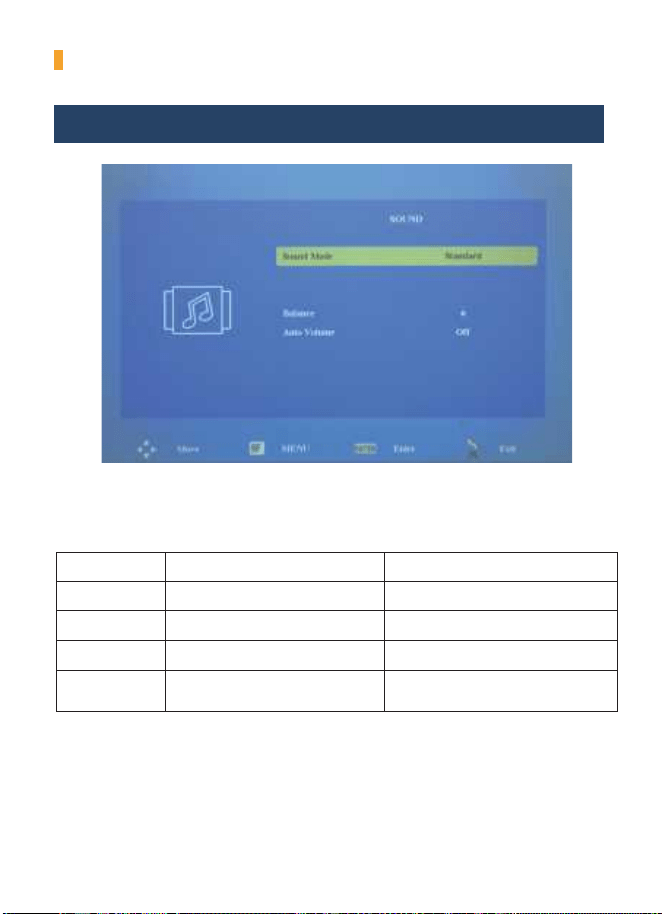
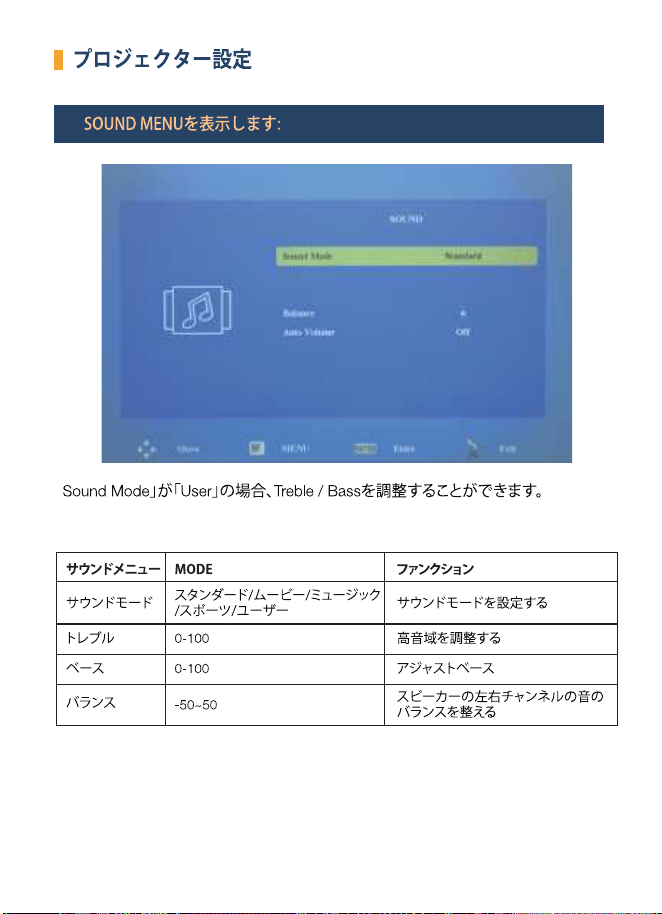
When "Sound Mode" is "User", the Treble /Bass can be adjusted.
PROJECTOR SETTING
Sound Mode Standard/Movie/Music/Sport/User
-50~50
Balance
Set up the sound mode
Balance the sound of the left and right
channel of the speaker
FUNCTIONSOUND MENU MODE
0-100Treble Adjust treble
0-100Bass Adjust Bass
SOUND MENU:

-16-
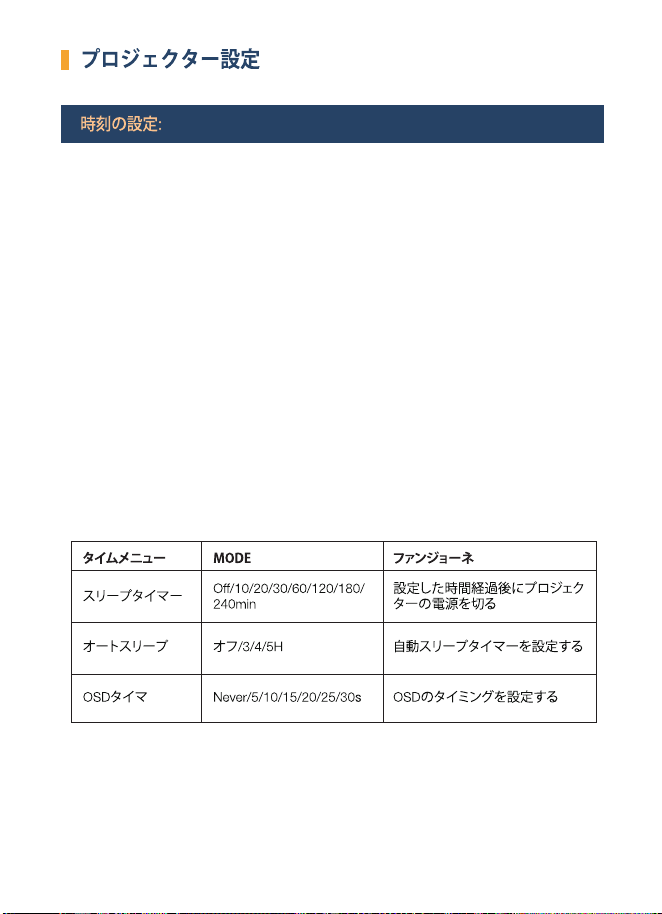
PROJECTOR SETTING
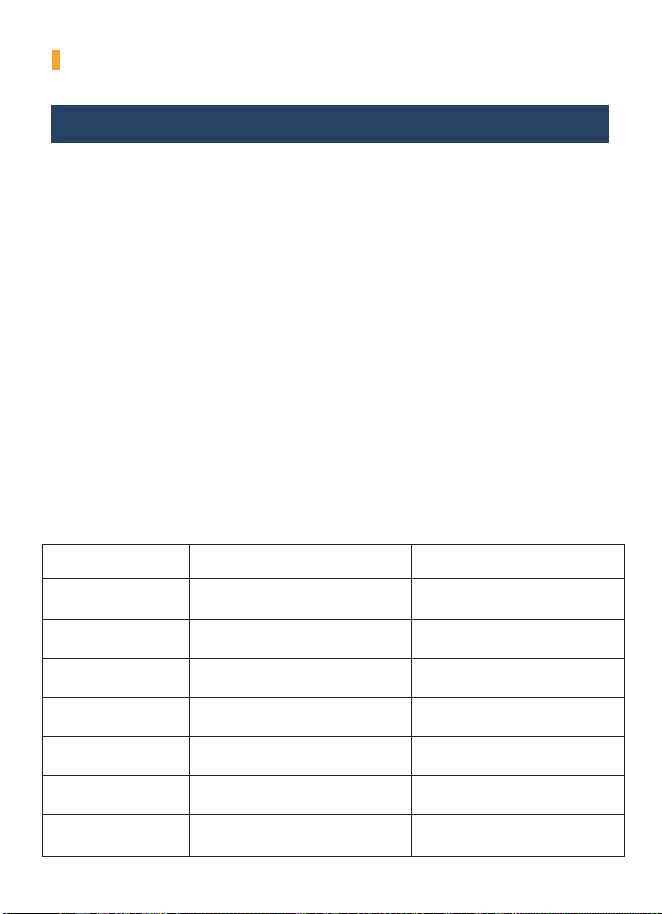
Sleep Timer
Off/10/20/30/60/120/180/
240min
Shut off the projector after a set
amount of time
FUNZIONETIME MENU MODE
Auto Sleep Off/3/4/5H Set automatic sleep timer
OSD Timer Never/5/10/15/20/25/30s Set OSD timing
TIME SETTING:
-17-
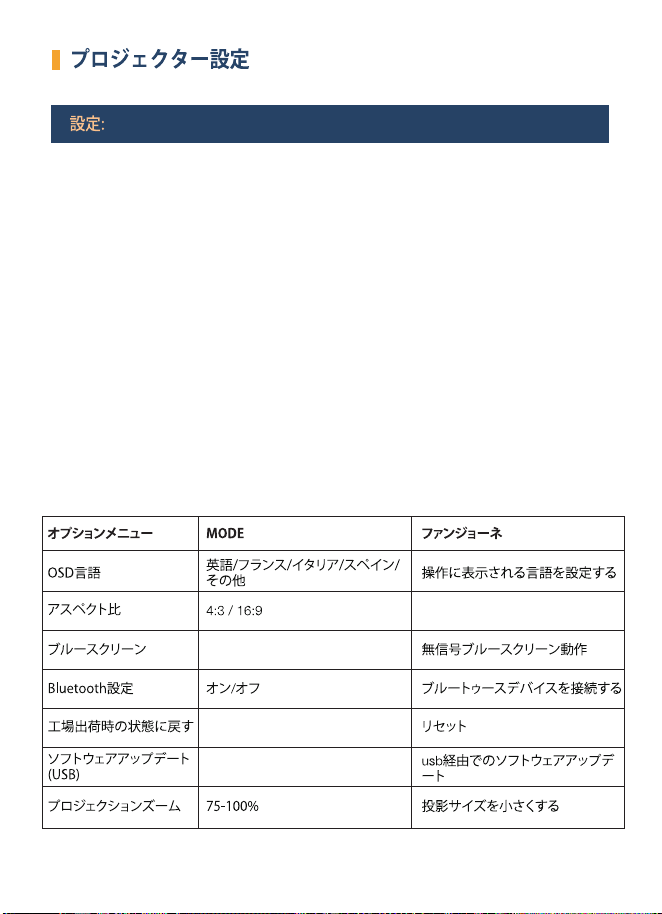
Aspect Ratio
Blue Screen
Bluetooth Setting
Restore Factory Default
OSD Language English/France/Italian/Spanish/etc.
4:3 / 16:9
ON / OFF
75-100%
OPTION MENU MODE FUNZIONE
PROJECTOR SETTING
SETTINGS:
Set up the language displayed in
the operation
No signal blue screen operation
Connect your bluetooth device
Reset
Software Update(USB) Update software via usb
Projection Zoom Reduce the projection size

-18-
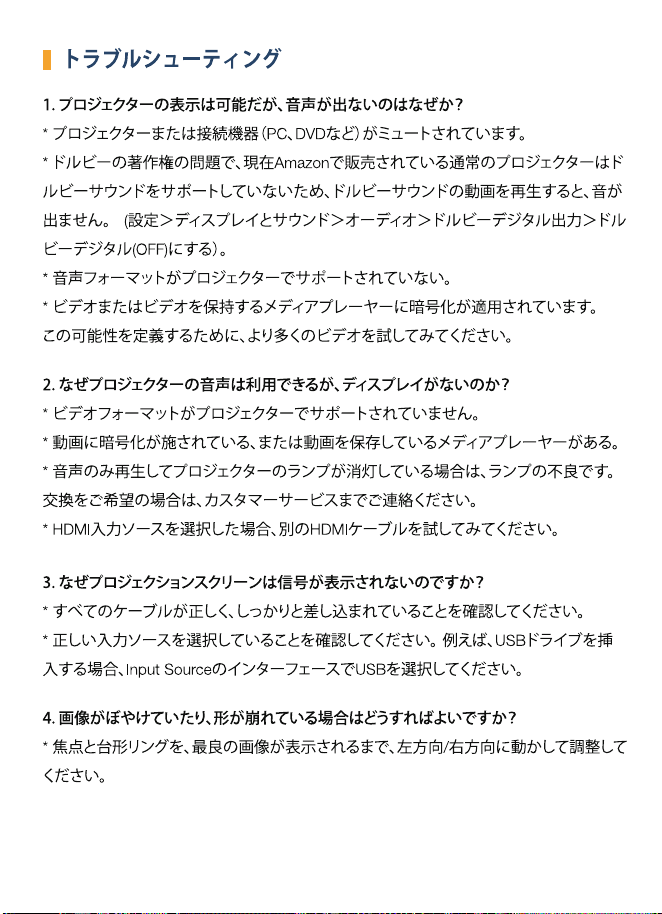
TROUBLESHOOTING
1. Why is the display of the projector available but without audio?
* The Projector or the connected device (PC, DVD, etc.) is muted.
* Due to Dolby's copyright issues, the current regular projectors selling on Amazon do
not support Dolby sound, So there will be no sound when you play Dolby sound
videos, (Amazon fire stick, Netflix, Blue-ray movies, and so on) In this case, please
kindly turn off the Dolby sound on your device or apps.
(Settings > Display & Sounds > Audio > Dolby Digital Output > and then turn Dolby
Digital (OFF))
* The audio format is not supported by the projector.
* Encryption applied to the videos or media player which holds the video. Try more
videos to define this possibility.
2. Why is the audio of the projector available but without a display?
* The video format is not supported by the projector.
* Encryption applied to the videos or media player which holds the video.
* If the lamp of the projector is off with only audio playing, the lamp is defective. Please
contact the Customer Service Team for a replacement.
* Try another HDMI cable if you select the HDMI input source.
3. Why does the projection screen show no signal?
* Make sure all cables are plugged correctly and firmly.
* Make sure you select the right input source. For example, if you insert a USB drive,
please select USB in the interface of Input Source.
4. How can I do if the image is blurry or out of shape?
* Adjust the focus and keystone ring by moving it leftward/rightward till it shows the
best images.

-19-
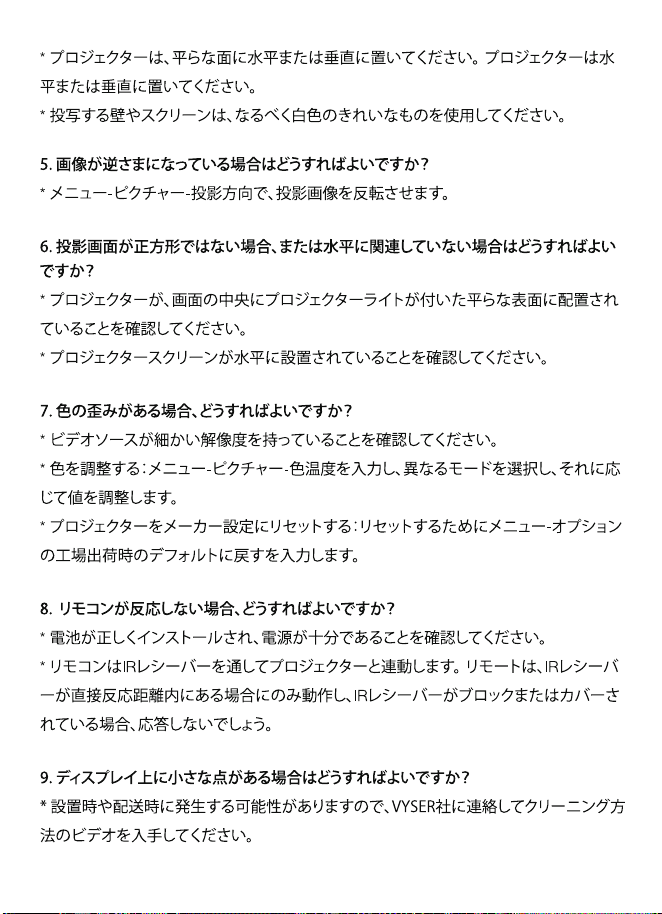
* Place the projector on a flat surface horizontally or vertically. An inclination of any
angle may result in blurry displays or uneven colors.
* Projecting wall or screen be clean white if possible.
5. How can I do if the image is upside down?
* Enter Menu-Picture-Projection Direction to flip the projection image accordingly.
6. How can I do if the projection screen is not square or allied horizontally?
* Make sure the projector is placed on a flat surface with a projector light in the middle
of the screen.
* Make sure the projector screen is placed horizontally.
7. How can I do if there is color distortion?
* Make sure the video source has a fine resolution.
* Adjust the colors: enter Menu-Picture-Color Temperature, then select different modes
and adjust the value accordingly.
* Reset the projector to manufacturer setting: enter Menu-Option Restore Factory
Default to reset.
8. How can I do if the remote is unresponsive?
* Make sure the batteries are installed correctly and the power is enough.
* The remote works with the projector through the IR receiver. The remote works only
when the IR receiver is within the direct reaction distance and will be unresponsive if the
IR receiver is blocked or covered.
9. How should I do if there are small dots on display?
* It may be caused during installing or shipping, please contact VYSER to get the video
about how to clean it.

-20-
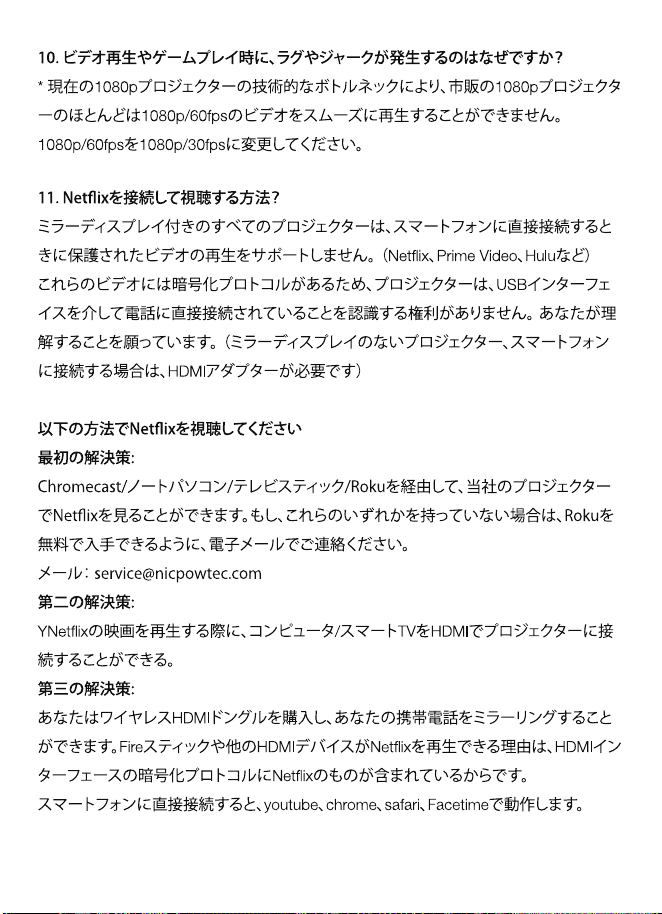
10. Why do some lag/ jerky appear when playing video or play games?
* Due to the technical bottleneck of the current 1080p projectors, most of the 1080p
projectors on the market cannot smoothly play 1080p/60fps videos. Hope you could
understand.
Please change the 1080p/60fps to 1080p/30fps.
11.How to connect and watch Netflix?
All projector with mirror display doesn't support playing protected video when you
connect it to your smartphone directly. (Netflix, Prime Video, Hulu, etc)
Because these videos have an encryption protocol, the projector has no right to
recognize when it is connected directly to the phone via the USB interface. Hope you
understand. (Projector without mirror display, need an HDMI adapter if you want to
connect it to your smartphone)
Please follow the ways below to watch Netflix
First Solution:
You can watch Netflix via Chromecast/laptop/Tv stick/Roku on our projector.
Please contact us via email if you don't have none of them, so that you can get a Roku
for free. Email: [email protected]
Second Solution:
You can connect the computer/ Smart TV to the projector through HDMI when playing
movies from Netflix
Third Solution:
You can buy a Wireless HDMI Dongle to mirror your phone.
The reason why the fire stick or other HDMI device can play Netflix is that the HDMI
interface encryption protocol includes Netflix's.
It works with youtube, chrome, safari, and Facetime when you connect it to a
smartphone directly.
-22-
-23-
-24-
-25-
-26-
-27-
-28-
-29-
-30-
-31-
-32-
-33-
-34-
-35-
-36-
-37-
-38-
-39-
-40-
-41-