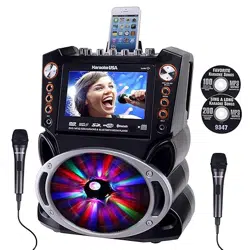
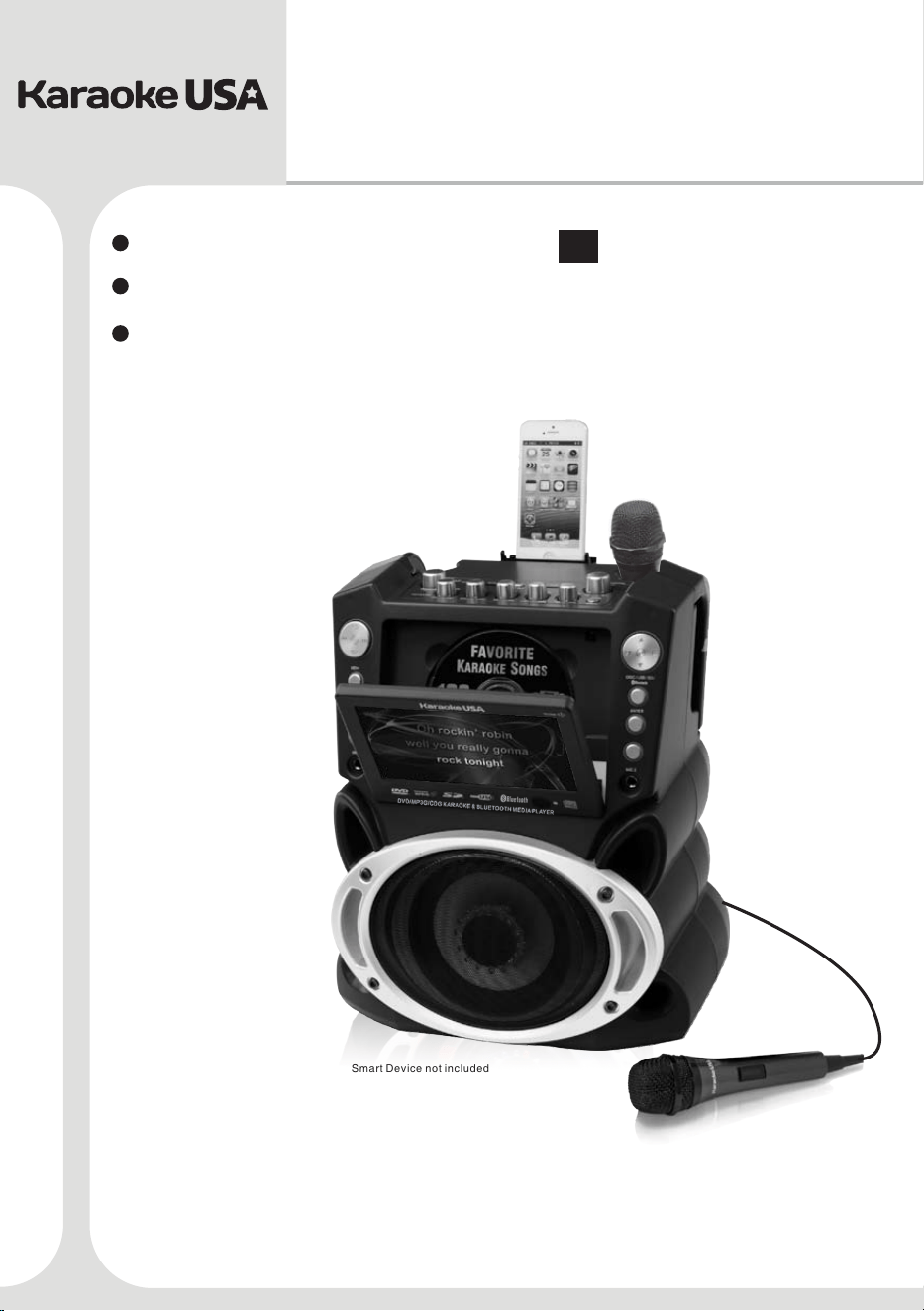
GF846
Before operating this product, please read these instructions.
DVD / MP3G /CDG KARAOKE
& BLUETOOTH MEDIA PLAYER
Smart Device not included
User’s Guide
MODEL:
EN
Español
Français
English


Contents
Warnings and Precautions....................... 01
Important Safety Instructions....................................................................................02
Caution...................................................................................................................03
What’s in the Gift Box.............................................................................................. .04
Song List on your Disc......................................................................................... 05-06
Features................................................................................................................. 07
Front Panel Illustration.............................................................................................08
Top Panel Illustration............................................................................................... 09
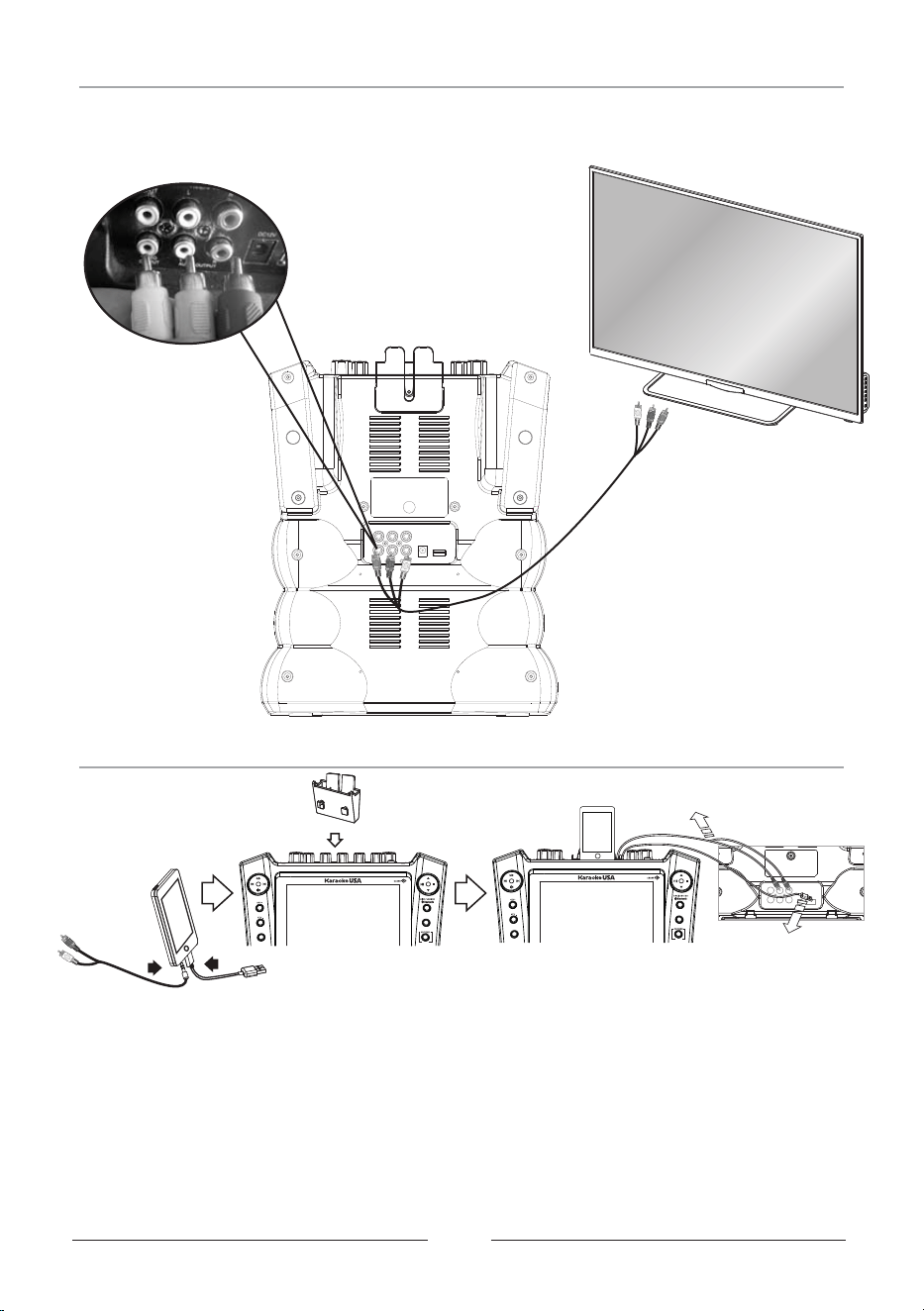
Connecting to a TV Set.............................................................................................10
Smart Device connection..........................................................................................10
Remote Control........................................................................................................11
Remote Control Operation...................................................................................12-15
How to Play a Disc....................................................................................................16
MP3G Disc and MP3G Format Music Playback........................................................... 17
Play Bluetooth Music................................................................................................18
Play SD Card and USB............................................................................................. 19
Record Operation Procedures.................................................................................. 20
Playback the Recorded File...................................................................................... 21
The Setup Menu System......................................................................................22-23
Specifications......................................................................................................... 24
Troubleshooting................................................................................................. 25-26
.................................................................
Notes on SD Card.................................................................................................... 27
01
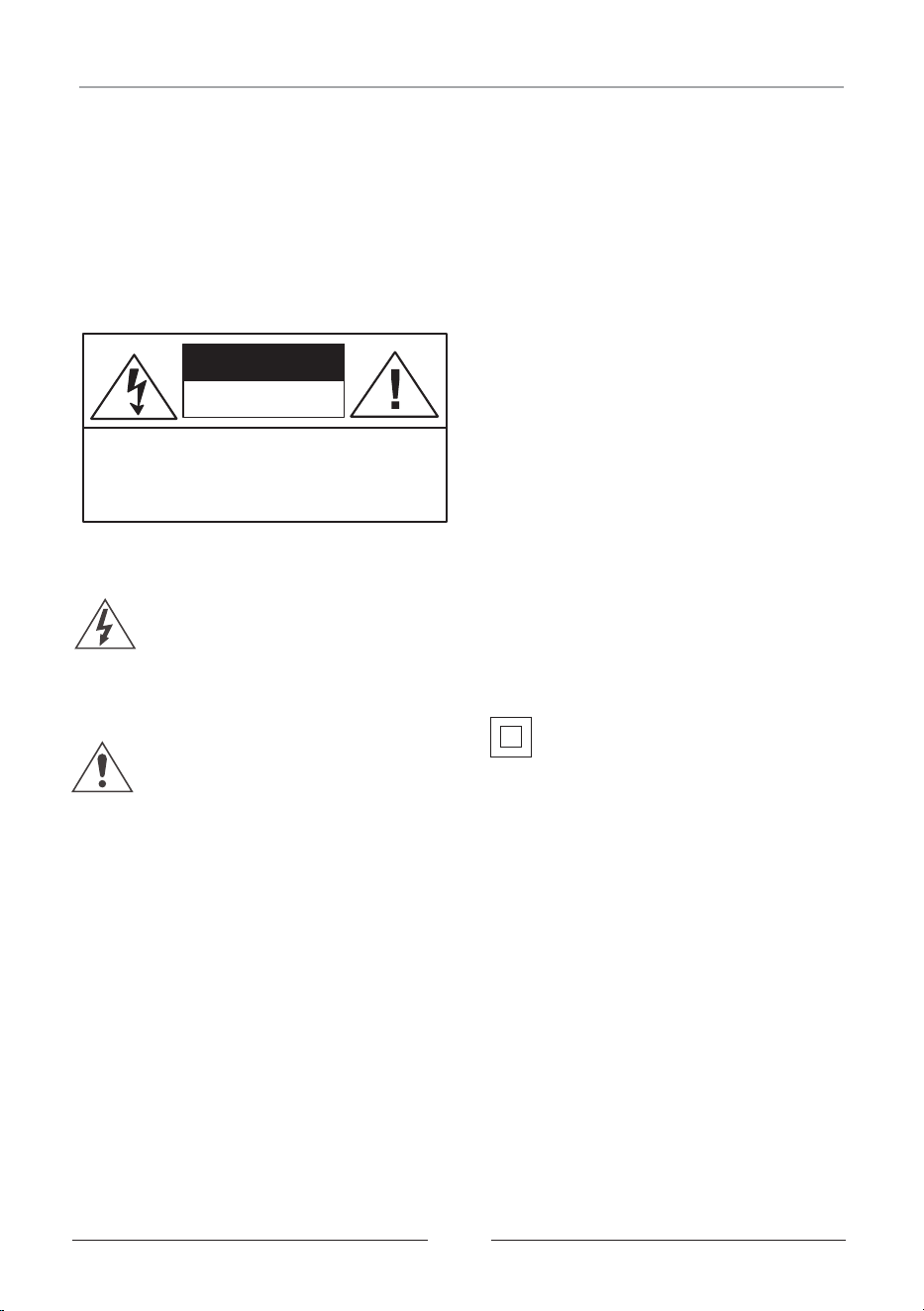
CAUTION
MOISTURE AND CONDENSATION
For units with an insertable AC Power Adapter
cord set:
• The power adapter should remain operable for its
intended use. Disconnect the AC Power Adapter
if you are not intending to use the unit for a long
period of time.
• When connecting or disconnecting the AC Power
Adapter Cord, grip the plug and not the cord
itself. Pulling the cord may cause damage and
create a hazard.
For units with a Rechargeable Battery:
• Do not expose batteries to excessive conditions
– extreme cold, heat, sun or fire.
SAFETY
WHEN IN USE
FCC INFORMATION
WARNING:
CAUTION:
To reduce the risk of fire or electric
shock, do not expose this unit to rain or moisture.
Use of controls or adjustments or
performance of procedures other than those
specified may result in hazardous radiation
exposure.
“Caution Marking and Rating Label” is affixed
under the lid or on the bottom of the unit with a
mass not exceeding 7kg.
RISK OF ELECTRIC SHOCK,
DO NOT OPEN.
CAUTION: TO PREVENT THE RISK OF
ELECTRIC SHOCK – DO NOT REMOVE
COVER OR BACK. NO USER-SERVICEABLE
PARTS INSIDE. REFER SERVICING TO
QUALIFIED PERSONNEL.
This symbol is intended to alert you to
the presence of uninsulated, dangerous
voltage within the unit's enclosure that
might be of a sufficient magnitude to
constitute a risk of electric shock. DO
NOT OPEN THE UNITS CASE.
This symbol is intended to inform you
that important operating and
maintenance instructions are included in
the literature accompanying this
product.
If the unit is exposed to moisture and extreme
cold temperatures and moved to a warm
environment, condensation may form on the units
internal components. Under these
circumstances, turning the power “ON” may
cause damage to the unit or cause harm to the
user. Allow the unit to stand in a warm
environment for 1 to 3 hours and allow the unit to
air dry safely.
• Do not use this unit in conditions that are
extreme – hot, cold, dusty or humid.
• Do not restrict the air flow of the unit by placing
it on a soft surface like a bed, carpet or
covering.
This unit complies with part 15 of the “FCC
Rules.” Operation is subject to the following
conditions:
1. This unit may not cause harmful interference.
2. This unit must accept any interference
received, including interference that may
cause undesirable operation.
Double insulation.
This is a Class II apparatus.
Warnings and Precautions
02
1. Read These Instructions: All
safety and operations manual should
be read before the product is
operated.
2. Keep These Instructions: The
safety and operations manual should
be retained for future reference.
3. Heed All Warnings: All warnings
applicable to the unit and in the
operations manual should be adhered
to.
4. Follow All Instructions: All
operations manual should be
followed.
5. Water and Moisture: Do not use
this unit near water. For example, do
not use near a bath tub, wash bowl,
kitchen sink, or laundry tub. Do not
use this unit in a wet basement or
near a swimming pool or similar
location. The unit shall not be
exposed to dripping or splashing and
no objects filled with liquids (ex:
vases), shall be placed on or near
this unit.
6. Cleaning: Clean the unit only with
a dry cloth. Unit must be unplugged
from the wall outlet before cleaning.
Do not use liquid cleaners or aerosol
cleaners on the unit.
7. Ventilation: Slots and openings in
the cabinet of the unit are provided to
ensure reliable operation and
ventilation and to protect the unit from
overheating. The openings must not
be covered and should never be
blocked by placing the product on a
soft surface like a bed, sofa, or rug.
This unit should not be placed in a
built-in installation like a bookcase or
rack, unless proper ventilation is
provided.
8. Heat: Do not install the unit near
any heat source like a radiator, heat
register, stove or other device that
produces heat, including amplifiers.
9. Grounding or Polarization: If
applicable, do not disable or
circumvent the polarized or
grounding-type plug. A polarized
plug has 2 blades with 1 wider than
the other. A grounding-type plug has
rd
2 blades and a 3 grounding plug.
rd
The wide blade, or the 3 prong, is
provided for your safety. If the
provided plug does not fit into an
outlet, consult a qualified electrician
for replacement of this outlet.
10. Power Cord Protection: Protect
the power cord from being walked on,
pinched or cut or damaged in any
way. If any damage occurs, consult
with a trained technician for repair.
11. Accessories: Only use
accessories specified and approved
by the manufacturer. Do not place this
unit on an unstable cart, stand, tripod,
bracket or table that has not been
previously approved by the
manufacturer. This unit may fall,
causing serious injury to a child, adult
or to the unit itself. Any mounting of
the unit should be done within the
manufacturer's guidelines.
12. Transporting: If a pre-approved
device is used to transport this unit,
caution and care must be observed
and practiced to avoid damages.
Make sure the device and unit
together are stable before moving.
13. Lightning: Unplug this unit and
disconnect the antenna or cable
system during lightning storms or
when unused for long periods of time.
This will help prevent damage to the
unit due to lightning and power line
surges.
14. Servicing: Do not attempt to
service this unit yourself. Opening or
removing covers may expose you to
dangerous voltage or other hazards.
Refer all servicing to a qualified
service technician.
15. Power Sources: Only connect to
the type of household power supply as
indicated in the operations manual and
“Caution Marking and Rating Label.” If
you are not sure of the type of power
supplied to your home (or location of
the outlet the unit is being plugged
into), consult with the local power
company. For units intended to
operate from battery power, or other
sources, refer to the manufacturer's
operations manual.
16. Overloading: Do not overload
wall outlets or extension cords. This
can result in a risk of fire or electric
shock and may be hazardous.
17. Foreign Material: Protect this unit
from intrusion of any foreign
substances like dirt, water, moisture
and insects. Do not force any foreign
materials or chemicals into this unit.
This could result in a risk of fire or
electric shock and may be hazardous.
18. Replacement Parts and Safety
Check: When replacement parts are
required, be sure the service
technician has used replacement parts
specified and approved by the
manufacturer. Ask the service
technician to perform safety checks to
ensure the proper operation to avoid
possible fire, electric shock or other
hazards.
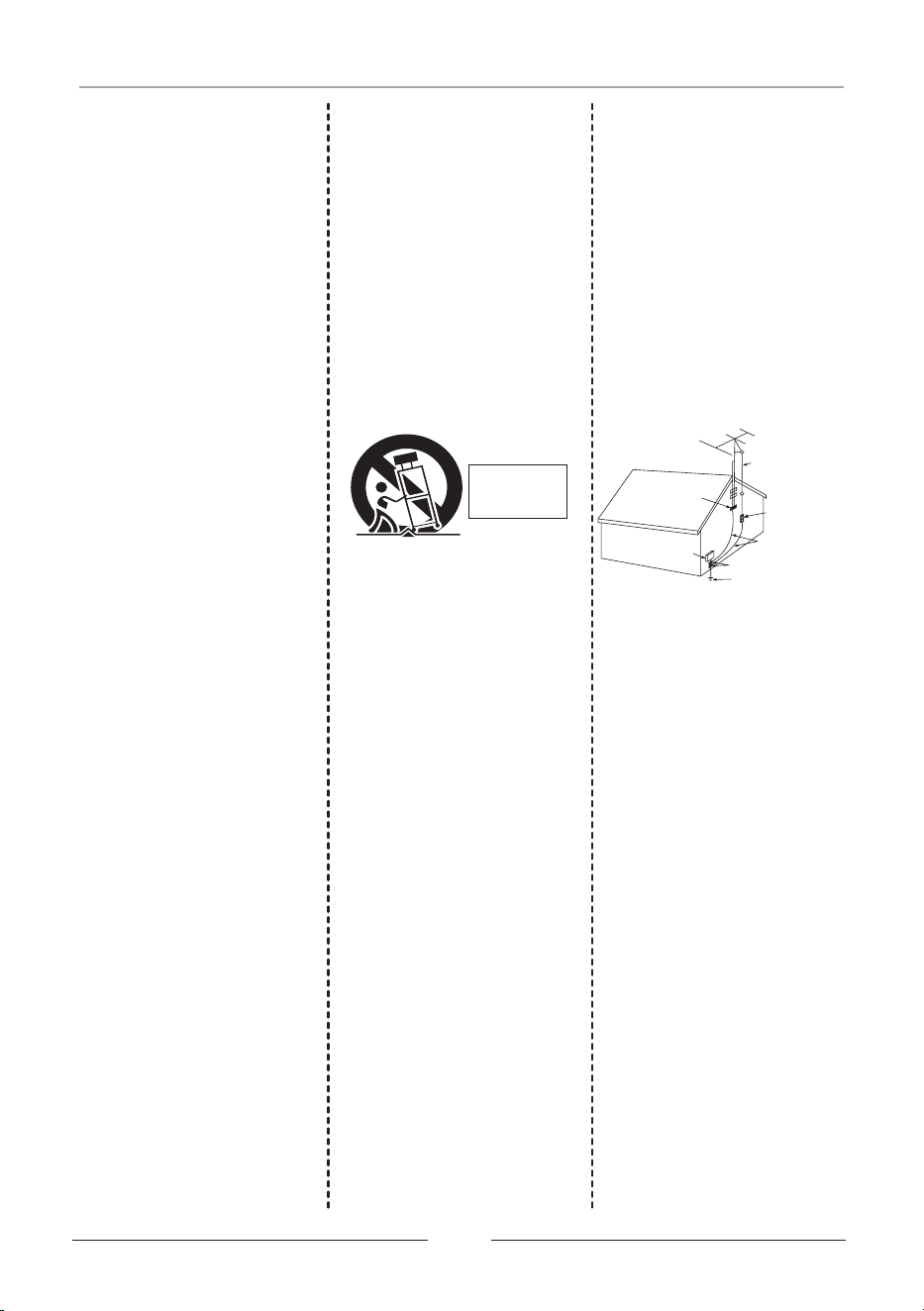
19. Outdoor Antenna Grounding: If
an outside antenna or cable system is
connected to the unit, be sure the
antenna or cable system is grounded
to provide some protection against
voltage surges and built-up static
charges. If there is any doubt to the
proper grounding of these systems,
contact a qualified electrician to
inspect your location.
20. Wall or Ceiling Mounted: The
unit should be mounted to a wall or a
ceiling only as recommended by the
manufacturer.
21. Disconnect Device: Make sure
all disconnect devices are in proper
working condition and readily available
in the event of an emergency or if
power “off ” is needed quickly.
22. Protective Attachment Plug: If
applicable, this unit may be equipped
with an attachment plug having
overload protection. This is a safety
feature. See the operations manual
for replacement or resetting of this
protective device. If replacement of
the plug is required, be sure the
qualified service technician has used a
replacement plug specified by the
manufacturer that has the same
overload protection as the original
plug.
23. Power Lines: An outside antenna
system should not be located in the
vicinity of overhead power lines or
other electric light or power circuits, or
where it can fall into such power lines
or circuits. When installing an outside
antenna system, extreme care should
be taken to keep from touching such
power lines or circuits, as contact with
them may be fatal. Always consult
with your local power company before
installing an outside antenna.
S3125A
PORTABLE
CART
WARNING
Antenna Lead
In wire
Antenna Discharge
Unit (NEC Section 810-20)
Grounding Conductors
(NEC Section 810-21)
Ground Clamp
Power Service Grounding
Electrode System
(NEC Art 250 Part H)
Ground Clamps
Electric
Service
Equipment
Important Safety Instructions

03
When EQ function /key control is turned on, the Recording
effect/result would not be ideal.
USB Flash Devices and SD Cards should be formatted to FAT32
on your computer before use.
Please use the original box and packing materials for safe
transportation of this product.
It is normal for the cover and rear panel to become warm after the
player has been operating for an extended period of time.
Do not move this product during playing. Doing so may cause
damage to the pickup and the disc.
Press OPEN CD DOOR button to open tray. Do not pull the
tray. Do not touch tray when opening or closing.
Do not use hard or sharp instruments to touch the TFT Screen, it
may scratch or damage its surface!
Caution
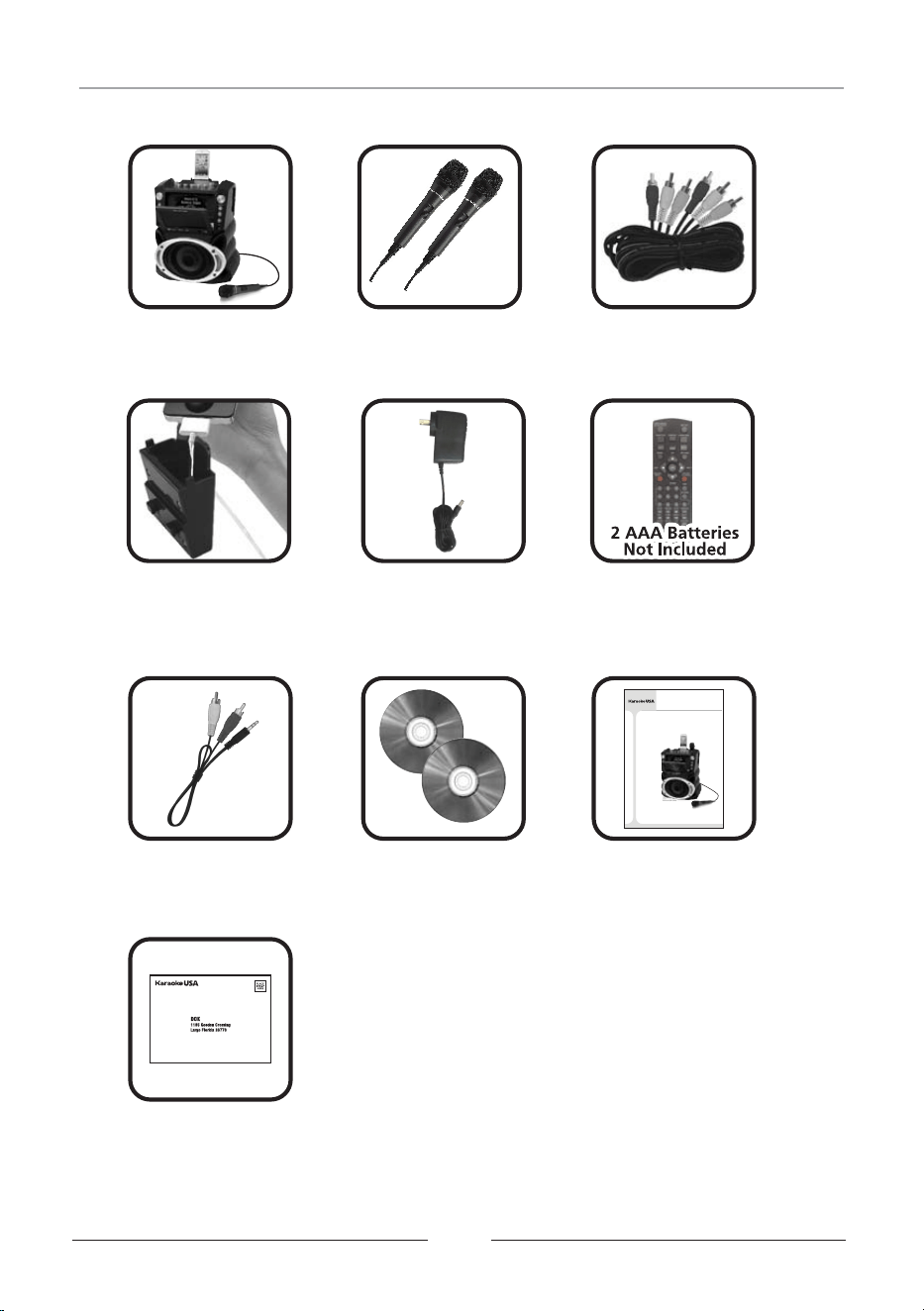
What’s in the Gift Box
Smart Device
Holder x 1
Microphone x 2GF846 X1 RCA Cable x 1
Remote
Control x 1
Cable for
Warranty Card x 1
Disc x 2
User’s Guide x 1
04
AC Adaptor x 1
DC12V/2A
Smart Device x 1
MP3G Demo
GF846
Before operating this product, please read these instructions.
DVD / M P3G /CDG K ARAO KE
& BLU ETOOTH M EDIA PL AYER
Smart Device(Not included)
Use r’s Gui de
MODEL:

Song ist on our DiscsL y
1. Alexander's Ragtime Band
2. All Things Bright And Beautiful
3. All Through The Night
4. Alouette
5. Alphabet Song, The
6. America (My Country Tis Of Thee)
7. Animal Fair
8. Around And Around The Village
9. Aye Aye Aye Aye The Limerick Song
10. B I N G O
11. Baa Baa Black Sheep
12. Barney Buntline
13. Be Kind To Your Web Footed Friends
14. Bear Went Over The Mountain
15. Big Rock Candy Mountain
16. Billy Boy
17. Billy Pringle
18. Bird's Song
19. Blessed Assurance
20. Blow The Man Down
21. Blue Bells Of Scotland
22. Bluebird
23. Bollweevil
24. Bye, Baby Bunting
25. Caissons Go Rolling Along
26. Calendar Song
27. Camptown Races
28. Capital Ship, A
29. Cat Came Back, The
30. Cinderella
31. Clementine
32. Cock A Doodle Doo
33. Cockles And Mussels
34. Cocky Robin
35. Colors
36. Come, O Come, Emanuel
37. Counting Song
38. Crawdad Song
39. Crocodile, The
40. Cuckoo Is A Pretty Bird
41. Day And Night
42. Dixie
43. Do Your Ears Hang Low
44. Dry Bones
45. Elephant And The Flea
46. Father Grumble
47. Fiddle De De
48. Fishes
49. Five Currant Buns
50. For He's A Jolly Good Fellow
51. For Me And My Gal
52. Fox
53. Frere Jacques
54. Froggie Went A Courting
55. Georgie Porgie
56. German Lullaby
57. Girls And Boys Come Out To Play
58. Git Along Little Dogies
59. Golden Slumbers
60. Good Morning Merry Sunshine
61. Goosey Goosey Gander
62. Grasshopper
63. Grasshoppers Three
64. Greensleeves
65. Ground Hog
66. Harrigan
67. Here We Go Around The Mulberry Bush
9347 Sing A Long Karaoke Songs (200 Traditional Karaoke Songs)
05
68. Here We Go Looby Loo
69. Hey Diddle Diddle
70. Hickory Dickory Dock
71. Higgledy Piggledy My Black Hen
72. Home On The Range
73. Humpty Dumpty
74. Hunting We Will Go, A
75. Hush Little Baby
76. Hush-a-bye
77. I Am A Young Musician
78. I Gave My Love A Cherry
79. I Had A Little Nut Tree
80. I Love You Truly
81. I Spy
82. If You're Happy And You Know It
83. I'll Take You Home Again, Kathleen
84. I'm A Little Teapot
85. I'm Always Chasing Rainbows
86. I'm Looking Over A Four Leaf Clover
87. In The Good Old Summertime
88. It Ain't Gonna Rain No More
89. It's Raining It's Pouring
90. I've Been Working On The Railroad
91. Jack And Jill
92. Jack Be Nimble
93. Jack Spratt
94. Jenny Jenkins
95. Jimmy Crack Corn
96. Lady Bird Lady Bird
97. Letters Of The Alphabet
98. Little Black Bull
99. Little Boy Blue
100. Little Jack Horner
101. Little Sally Waters
102. Little Things, The
103. Little Tommy Tucker
104. London Bridge Falling Down
105. London Street
106. Ma She's Making Eyes At Me
107. Mademoiselle From Armentieres
108. Marine's Hymn
109. Michael Row The Boat Ashore
110. Midnight Special, The
111. Moonlight Bay
112. My Old Dog Tray
113. My Old Hen
114. Now I Lay Me Down To Sleep
115. Oats Beans And Barley Grow
116. Off To Bed Now
117. Oh Dear What Can The Matter Be
118. Ol Woman Who Lived In A Shoe
119. Old Blue
120. Old John Braddleum
121. Old Mother Hubbard
122. On The Banks Of The Sacramento
123. On Top Of Old Smokey
124. One Meat Ball
125. One Two Buckle My Shoe
126. One Two Three Four Five
127. Oranges And Lemons
128. Over In The Meadow
129. Over The River And Through The Woods
130. Pat A Cake
131. Pease Porridge Hot
132. Peg O' My Heart
133. Peter Peter Pumpkin Eater
134. Polly Put The Kettle On
135. Polly Wolly Doodle
136. Pop Goes The Weasel
137. Ride A Cock Horse To Banbury Cross
138. Right Hand Says Good Morning
139. Ring Around The Rosie
140. Rise And Shine
141. Rock A Bye Baby
142. Rock A Bye Baby Green
143. Rock Island Line
144. Rocking The Cradle
145. Rose Of Tralee
146. Row Row Row Your Boat
147. Russian Cradle Song
148. Sailing Sailing
149. School Days
150. She'll Be Coming Around The Mountain
151. Shoo Fly Don't Bother Me
152. Shortening Bread
153. Simple Simon
154. Sing A Song Of Sixpence
155. Six Little Ducks
156. Skip To My Lou
157. Sleep Baby Sleep
158. Spelling
159. Spider And The Fly, The
160. Star Spangled Banner, The
161. Sur Le Pont D'avignon
162. Swanee River
163. Sweetly Sings The Donkey
164. Swing Low Sweet Chariot
165. Tailor And The Mouse
166. Take Me Out To The Ball Game
167. Ten In A Bed
168. The Ants Go Marching
169. The Eensy Weensy Spider
170. The Farmer In The Dell
171. The Holly And The Ivy
172. The Muffin Man
173. The Old Gray Mare
174. There Was A Little Man
175. There Was A Tree
176. There's A Hole In Middle Of Sea
177. This Little Pig Went To Market
178. This Old Man
179. Three Blind Mice
180. Three Little Kittens
181. Three Little Pigs
182. Tisket A Tasket, A
183. To Market To Market
184. Toot Toot Toosie Goodbye
185. Try Try Again
186. Tura Lura Lura
187. Turkey In The Straw
188. Vive La Compagne
189. Wabash Cannonball, The
190. Waltzing Matilda
191. We Hunted And We Hunted
192. We Three Kings
193. What Child Is This
194. When Johnny Comes Marching Home
195. Where Oh Where Has My Little Dog Gone
196. Who Threw The Overalls In Mrs. Murphy's
Chowder
197. Wish You A Happy Birthday
198. World Turned Upside Down, The
199. Yankee Doodle
200. Yellow Rose Of Texas
Any and all discs shown are for illustration only and may or may not represent the actual disc(s)
included in this package

Song ist on our DiscsL y
9346 Favorite Karaoke Songs (100 Traditional English and Spanish Karaoke Songs)
06
68. Oh You Beautiful Doll
69. Oh, Susanna
70. Old King Cole
71. Old MacDonald Had A Farm
72. Old Time Religion
73. One Day At A Time
74. One More River To Cross
75. Onward Christian Soldiers
76. Peace In The Valley
77. Precious Lord Take My Hand
78. Precious Memories
79. Rock Of Ages
80. Rock-A-My Soul
81. Silent Night
82. Sweet By And By
83. Sweet Hour Of Prayer
84. The Little Drummer Boy
85. The Lord's Prayer
86. The Old Rugged Cross
87. This Little Light Of Mine
88. Toda La Noche
89. Twelve Days Of Christmas
90. Twinkle Twinkle Little Star
91. We Gather Together
92. We Wish You A Merry Christmas
93. Wedding Song (There Is Love)
94. What A Friend We Have In Jesus
95. When Irish Eyes Are Smiling
96. When The Roll Is Called Up Yonder
97. While Shepherds Watched, Their Flocks
98. Whispering Hope
99. Ya Llego La Navidad
100. You're A Grand Old Flag
1. Abide With Me
2. Amazing Grace
3. Angel De Los Reinos Santos
4. Angels From The Realms Of Glory
5. Angels We Have Heard On High
6. April Shower
7. Auld Lang Syne
8. Ave Maria
9. Away In A Manger
10. Battle Hymn Of The Republic
11. Bicycle Built For Two
12. Bill Bailey, Won't You Come Home
13. Boom, Boom, Ain't It Great To Be Crazy
14. Brahm's Lullaby
15. Bringing In The Sheaves
16. Campanas de Navidad
17. Church in The Wildwood
18. Con Mi Burrito Sabanero
19. Daddy Sang Bass
20. Danny Boy
21. Deck The Halls
22. Ding Dong Que Alegria
23. Doce Dias De Navidad
24. Down By The Riverside
25. El Buen Rey Weceslao
26. El Primer Noel
27. El Tamborilero
28. First Noel, The
29. Frankie And Johnny
30. Give My Regards To Broadway
31. Go Tell It On The Mountain
32. God Rest Ye Merry Gentlemen
33. Hail Hail The Gang's All Here
34. Hark! The Herald Angels Sing
35. He's Got The Whole World In His Hand
36. His Eye Is On The Sparrow
37. How Great Thou Art
38. I Love To Tell The Story
39. I'll Fly Away
40. In The Garden
41. It Came Upon A Midnight Clear
42. It Is No Secret What God Can Do
43. Jeanie With The Light Brown Hair
44. Jesus Loves Me
45. Jingle Bells (Childrens)
46. Joy To The World
47. Just A Closer Walk With Thee
48. Let Me Call You Sweetheart
49. Little Bo Peep
50. Little Miss Muffet
51. Llego A Mi Medianoche
52. Los Tres Reyes
53. Mary Had A Little Lamb
54. Mary Quite Contrary
55. Mozart's Lullaby
56. My Bonnie Lies Over The Ocean
57. My Old Kentucky Home
58. My Wild Irish Rose
59. Navidad, Navidad
60. Noche De Paz
61. Noche Santa
62. O Holy Night
63. Oh Christmas Tree
64. Oh Come All Ye Faithful
65. Oh Little Town Of Bethlehem
66. Oh Ven Oh Ven Emmanuel
67. Oh When The Saints Go Marching In
Any and all discs shown are for illustration only and may or may not represent the actual disc(s)
included in this package
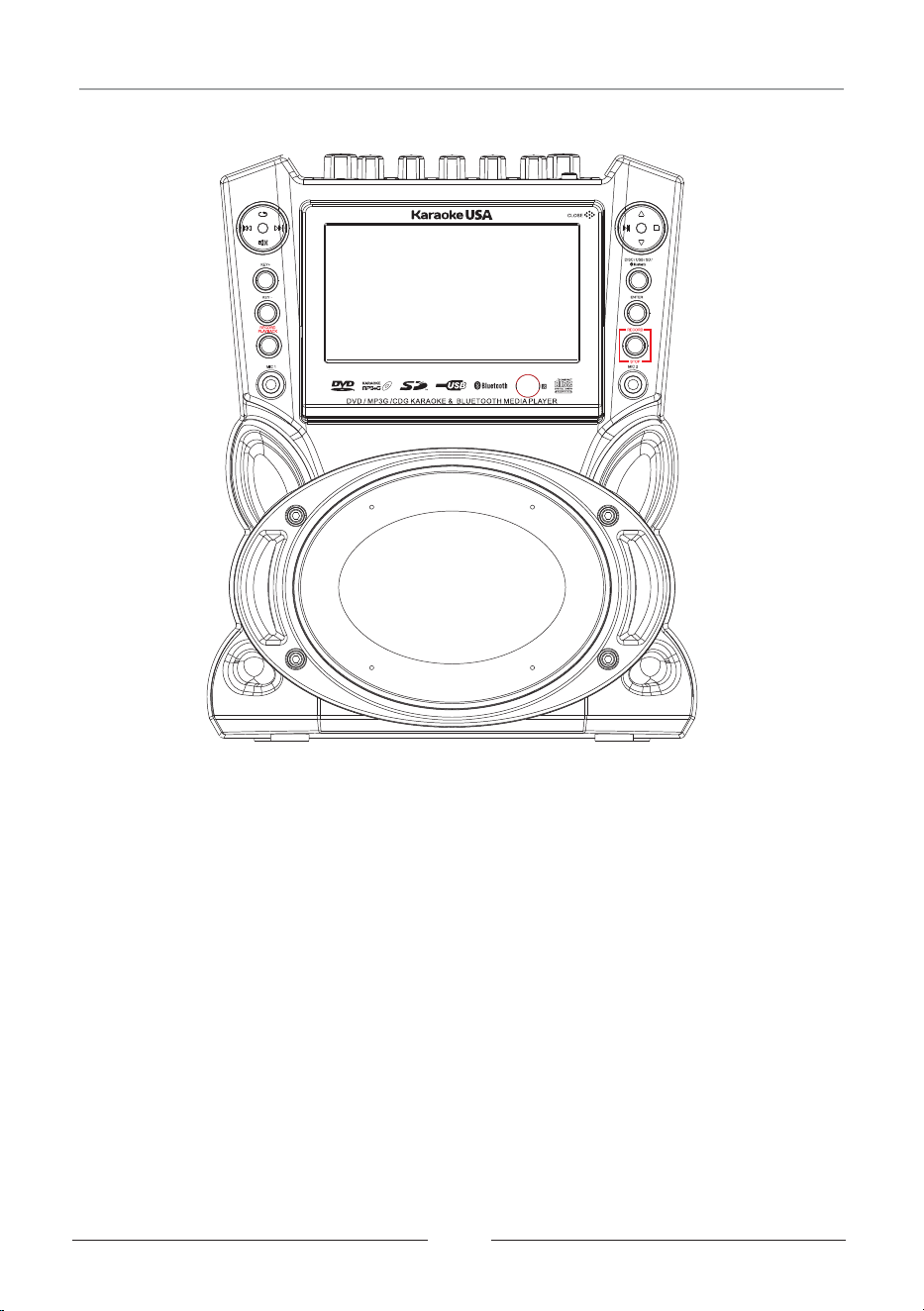
● DVD/CD+G/MP3+G Karaoke Player
● 7" TFT Color Screen
● Record CD+G/MP3+G Video/Audio mix
● Record and Instant PlaybackRecord
● 35W Peak Power Output
● Remote Control
● 2 Microphones
● 2 Microphone Inputs and Holders
● USB/SD Card Slots ( up to 128GB)
● USB Charger for Smart Device
● Balance Control
● Digital Key Control
● Audio and Video Input
● Audio and Video Output
● Audio/Video RCA Cable
● 3.5mm to RCA Cable
● AC 100V~240V
Adaptor
● DC 12V Car Adaptor (Optional)
07
● Bluetooth wireless connection and Speaker
Analog Echo Control
●
*Can be ordered online: karaokeusa.com
Features
LED Lightings that Synchronize and
Flash with the rhythm of Music
●
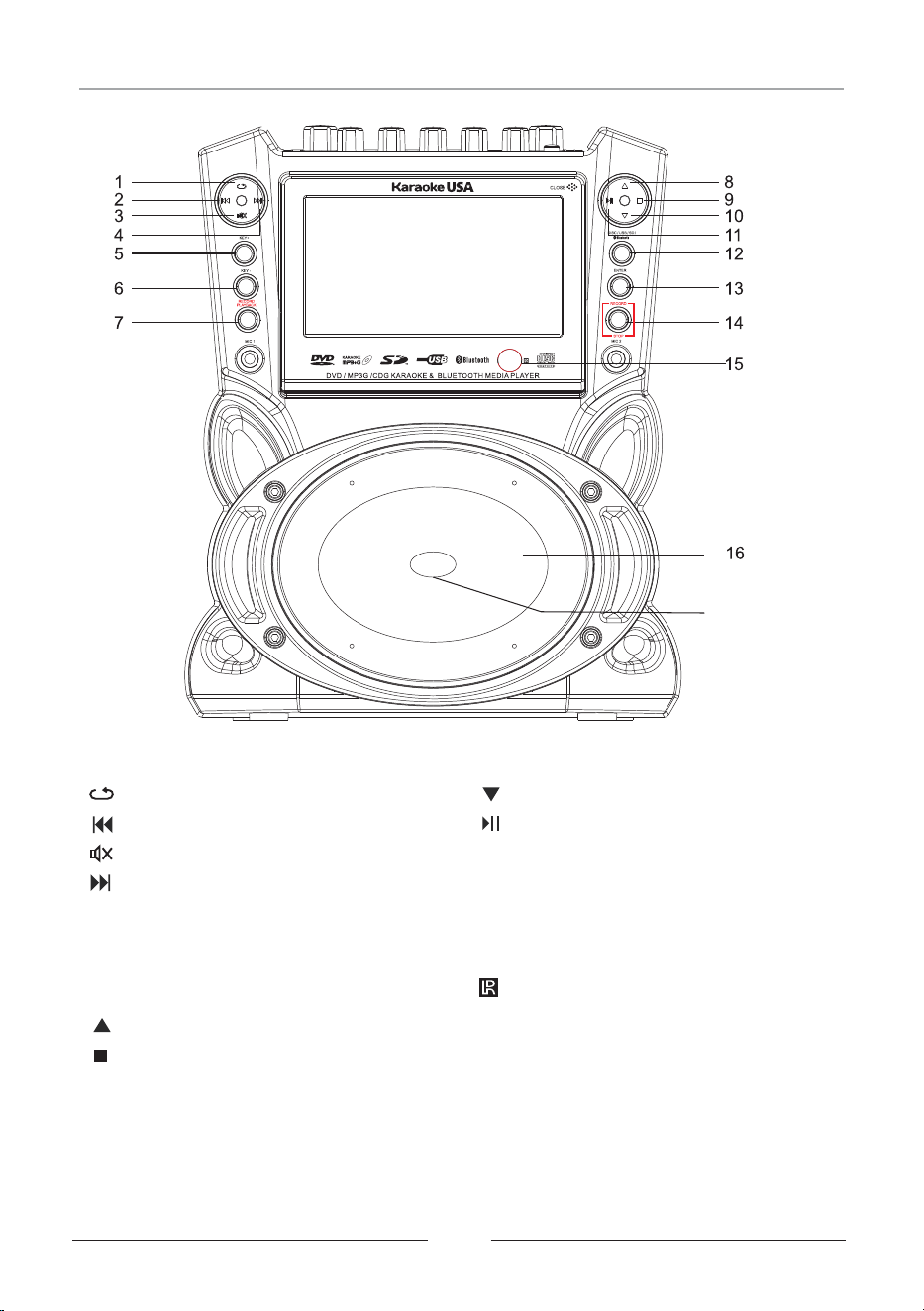
1. : Repeat the Song Playing
2. : PREVIOUS Song
3. : Mute the Audio Output
4. : Next Song
5.Key+:Raise the Tone
6.Key- : Lower the Tone
7.Record Playback:
Playback the Recorded Track
8. : Navigate UP in the Menu
9. : Stop
10. : Navigate DOWN in the Menu
11. : Play or Pause
13. Enter: Select a Menu Item
14.RECORD/STOP:
Record Start & Stop
15. : Remote Control Infrared
Receiver
16. Speaker Audio Speaker:
08
12.DISC/SD/USB/Bluetooth:Choose
Content Source Disc,SD,USB or
Bluetooth
Front Panel Illustration
17
17. Flashing LED Lights
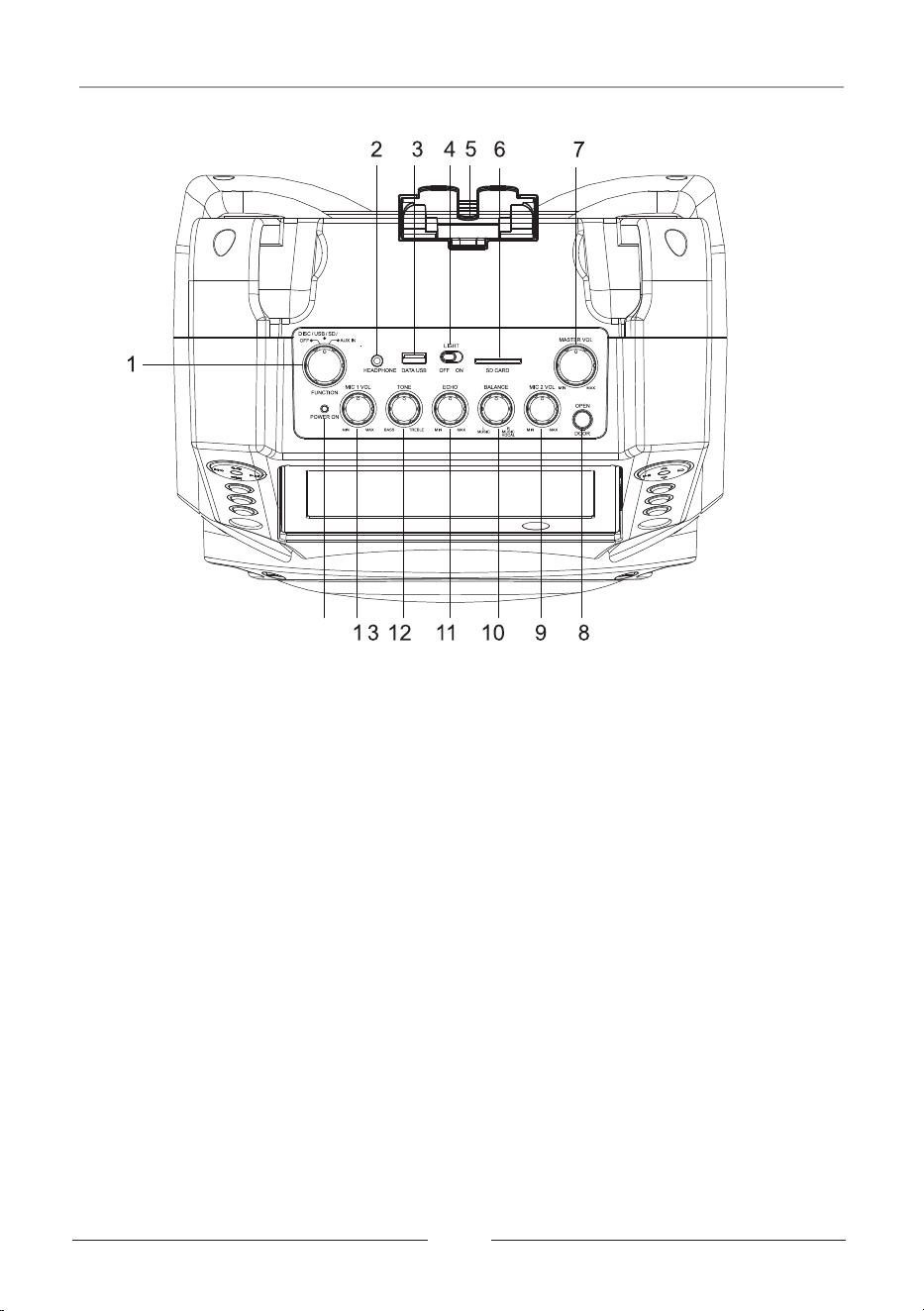
6.SD CARD SLOT: For playing/recording music and vocal mix
Top Panel Illustration
1 in
Disc, USB, SD,Bluetooth or AUX IN.
. POWER & FUNCTION: Switch the player ON/OFF, Select Play mode
2. : HEADPHONE Standard 3.5mm headphone jack
3. : USB SLOT For playing / recording music and vocal mix
7. : MASTER VOL Master Volume Control
8. : CD DOOR OPEN BUTTON Open CD door
10 BALANCE: Music only/music and vocal.
12 TONE Adjust the Level of Treble and Bass . :
09
5. CRADLE: Removable Personal Player Cradle for holding Smart Devices
and playing / charging
9. MIC 2 VOL: Volume Control for Microphone 2
11. ECHO: Add an echo effect to singer’s voice
13. MIC 1 VOL: Volume Control for Microphone 1
14. POWER LED: Power ON/OFF indicator
SMART D EVICE
BLUETOOTH
14
4. LIGHT ON/OFF: Flashing LED Lights ON/OFF Button
ENTER
STOP
RECORD
PLAYBACK
ENTER
STOP
RECORD
PLAYBACK
To charge your Smart Device,
connect the charging cable to
the USB port
(Back view)
10
Insert Cradle to the 2 slots
(at the back)
Connect AUX Input/
iCable to AUX IN jack
Connect AUX Input/
i-Cable to Smart Device
NOTES.
1.
If connecting to a surround sound or enhanced sound system, you may have to temporarily
disable the sound effect(s). Sound systems manipulate incoming audio to give you the desired
sound effect. This effect may cause two unwanted results: the timing between the audio and
lyrics displayed on screen, and an echo affect on the audio.
2.To play music from your Smart Device, connect your device's headphone jack to the machine
3.5mm AUX-IN jack, then select AUX IN mode on the machine. Audio will play on machine
speaker. You will not see lyrics on the machine's screen from your device.
Connect your USB charging cable(not provided)
to the USB slot (at back of machine)for charging
To watch lyrics on your TV screen, connect the yellow (video), red (audio) and white (audio)
RCA ends into the matching color jacks on the TV. To view lyrics, you must select an input
channel on your TV (Video1, Video 2 , Aux, etc.)
Connect to TV
or TV & Stereo Amplifier
RCA Cable Connection
—Yellow(Video)
— Red/White(Audio)
Smart Device Connection
Connecting to a TV Set
11
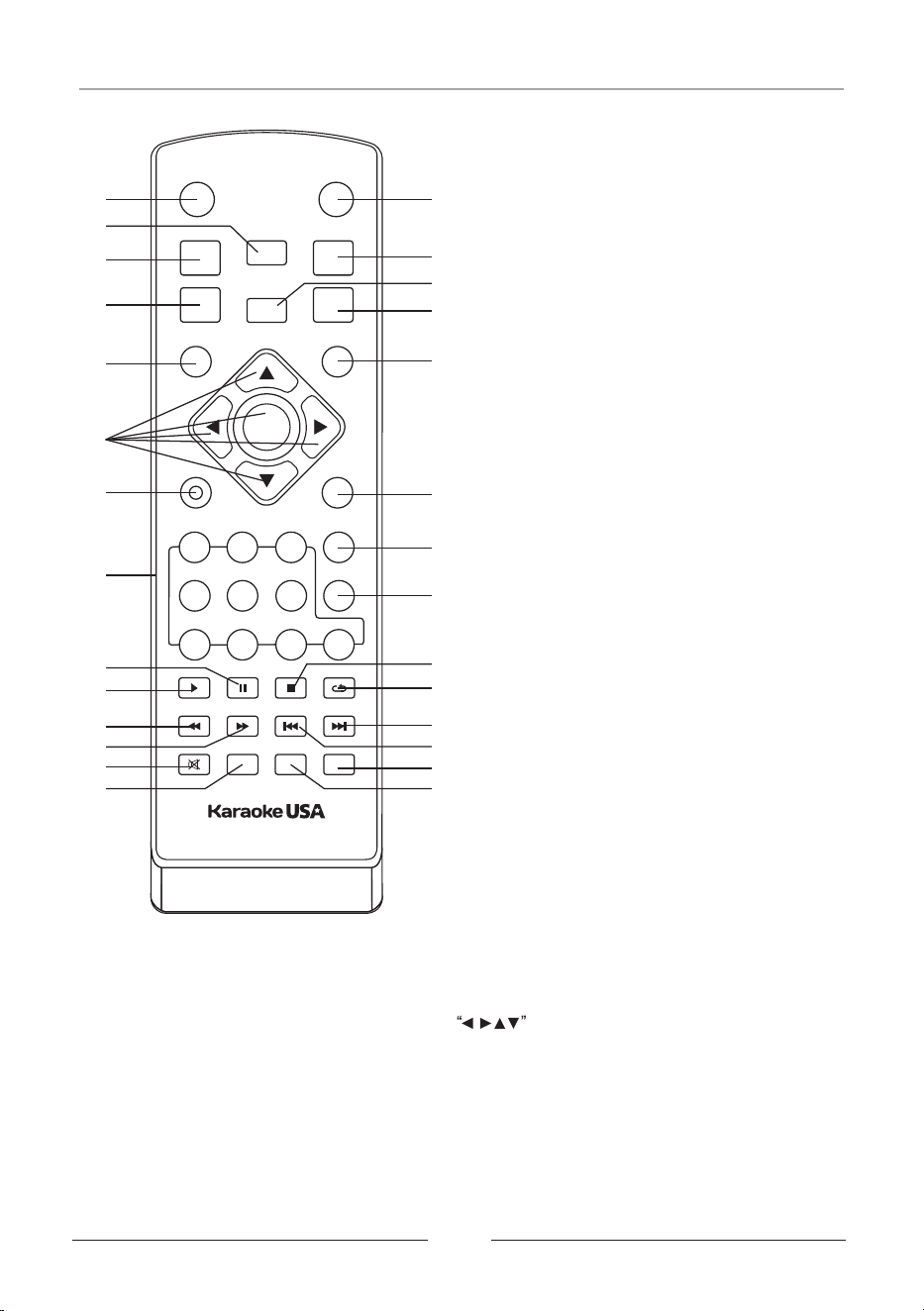
1.
2. DISPLAY
3. SUBTITLE
4. KEY-
5. MENU
6. UP/DOWN/LEFT/RIGHT/
ENTER BUTTON
7. RECORD/STOP
8. NUMBER KEYS
9. PAUSE
10. PLAY
11. REV.
12. FWD.
13. MUTE
14. GO TO
15. SET UP
16. LANGUAGE
17. FLAT
18. KEY+
19. RETURN
20. RECORD PLAYBACK
21. A-B
22. PROGRAM
23. STOP
24. REPEAT
25. NEXT
26. PREV.
27. EQUALIZER
28. L/R
DISC/USB/SD/BLUETOOTH
DOWN
DISC/USB/SD
SET UP
FLAT
DISPLAYSUBTITLE
KEY+KEY-
LANGUAGE
RETURNUP
LEFT
RIGHT
RECORD
/STOP
RECORD
PLAYBACK
MENU
2
3
5
6
9
1
A-B
4
8
7
0
PROGRAM
DVD/MP3G
MEDIAPLAYER
/CDG KARAOKE &BLUETOOTH
EQUALIZER
3D SOUND
SPECTRUM
GO TOMUTE L/R
REPEAT
REV. FWD. PREV. NEXT
PLAY PAUSE STOP
1
3
2
4
5
6
7
8
10
11
12
9
15
16
18
17
19
20
21
22
24
23
25
26
13
14
27
28
2. To operate any of the Remote Control functions,you must press and enter the
relevant DISC,SD,USB mode.
BLUETOOTH
NOTES:
ENTER
1. In this Manual,the directional symbols are NAVIGATION ARROWS on
the Remote Control.
Remote Control
12
UP
LEFT
RIGHT
DOWN
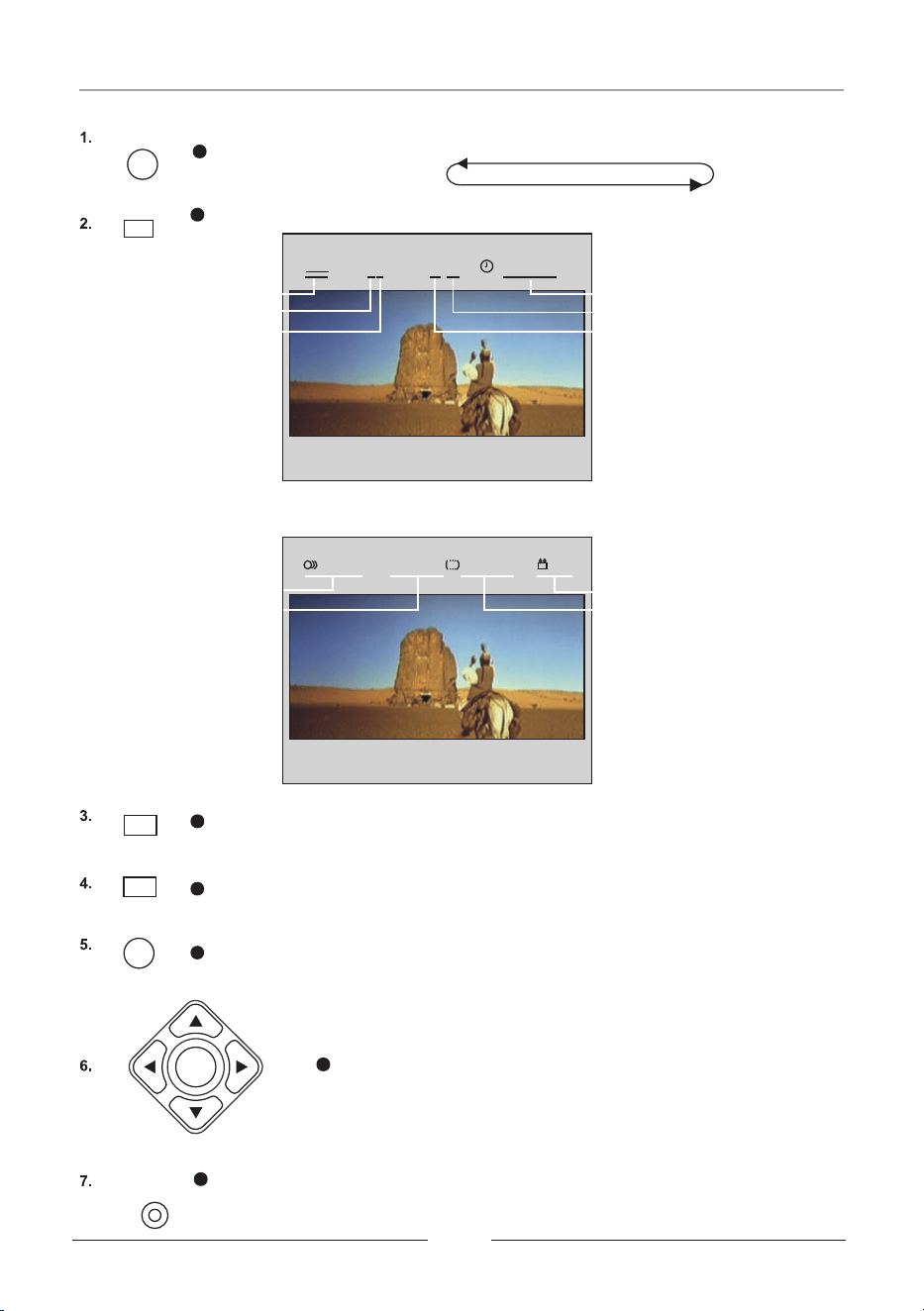
Transpose the music key down.
MENU
During DVD playback, press MENU to return to the program menu.
Note: This function is subject to the disc.
SUBTITLE
During playback, press DISPLAY to show the current time counter position.
Press DISPLAY to show the audio and subtitle message menu.
Press to display the subtitles.
(Only applicable in movie, depends on your disc or your download file.)
Used for navigation within a selection menu.
Record your vocal and music to the USB or SD card.
(Note: USB or SD card must
available for recording.)
be inserted before start recording. DVD disc is not
RECORD
/STOP
DVD
II
1/3
CH
1/03 00:00:14
DIS 5. IC 2/2 ENG OFF
2/2ENG
DISPLAY
Press to change media in [ DISC->USB->SD ].Press and Select.->BLUETOOTH
ENTER
Play time of the current title
Remote Control Operation
DISC/USB/SD
BLUETOOTH
Total Chapter
Current Chapter
Disc type
Current title
Total title
Language
Audio type
Subtitle
Angle
KEY-
Set the music key as normal.
17.
13
1
2
3
5
6
9
1
4
8 7 0
10.
11.
REV.
12.
FWD.
13.
14.
MUTE
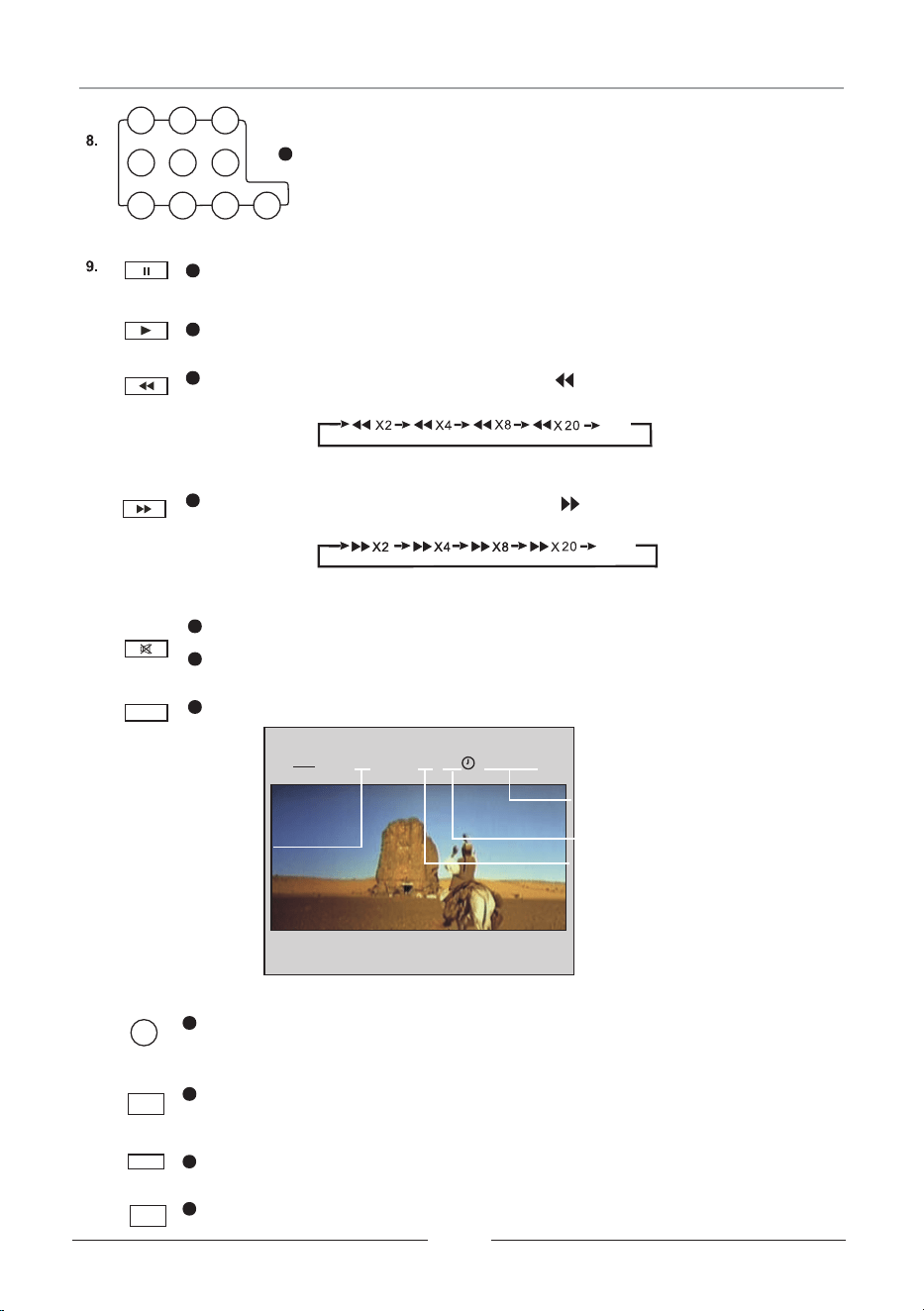
During playback, press GO TO show the current time counter position.
Press MUTE to cut the Audio output.
Press MUTE again to resume normal Audio output.
During CD/DVD playback, to scan reverse. The player will
review the disc at 2,4,8,20 times and off normal speed as follows:
keep pressing
During CD/DVD playback, keep pressing to scan forward. The player will
review the disc at 2,4,8,20 times and off normal speed as follows:
Use to specify a track number for playing or programming.
Press PAUSE during playback to pause.
Press PLAY to start playing.
To select the movie language.
15.
16.
Transpose the music key up.
18.
DVD
II 01/03CH 001/063 00:01:22
OFF
OFF
Enter number to
choose the title
Enter number to
choose the Play time
Total Chapter
Enter number to choose
the chapter.
Remote Control Operation
PAUSE
PLAY
GO TO
SETUP
LANGUAGE
FLAT
KEY+
Press PLAY to resume normal playback.
Press PLAY to resume normal playback.
Press to setup the TV settings according to your needs.
14
PLAYBACK
Press this button to listen the music that you JUST recorded.
20.
RECORD
Press A-B first to set location A: REPEAT: A-, press again to set location B, and
then playback will repeat during the two locations: REPEAT: A-B. Press A-B the
third time to cancel the function and return to normal playback: REPEAT: CANCEL.
21.
22.
This is the function provide you to listen the tracks in a desire order.
19.
RETURN
Return to a Menu screen while playing.
This key is set the different sound effect of the music.
27.
25.
26.
23.
24.
28.
Activates the multiplex function, which switches to NORMAL (stereo), L-ch
monaural and R-ch MONAURAL.
SPECTRUM
Press this key to play selected item repeatedly.
The screen shows as below:
REP: [OFF] REP: [REP1] REP: [REP ALL]
Press NEXT to skip to next chapter or track.
Press PREV. to skip to previous chapter or track.
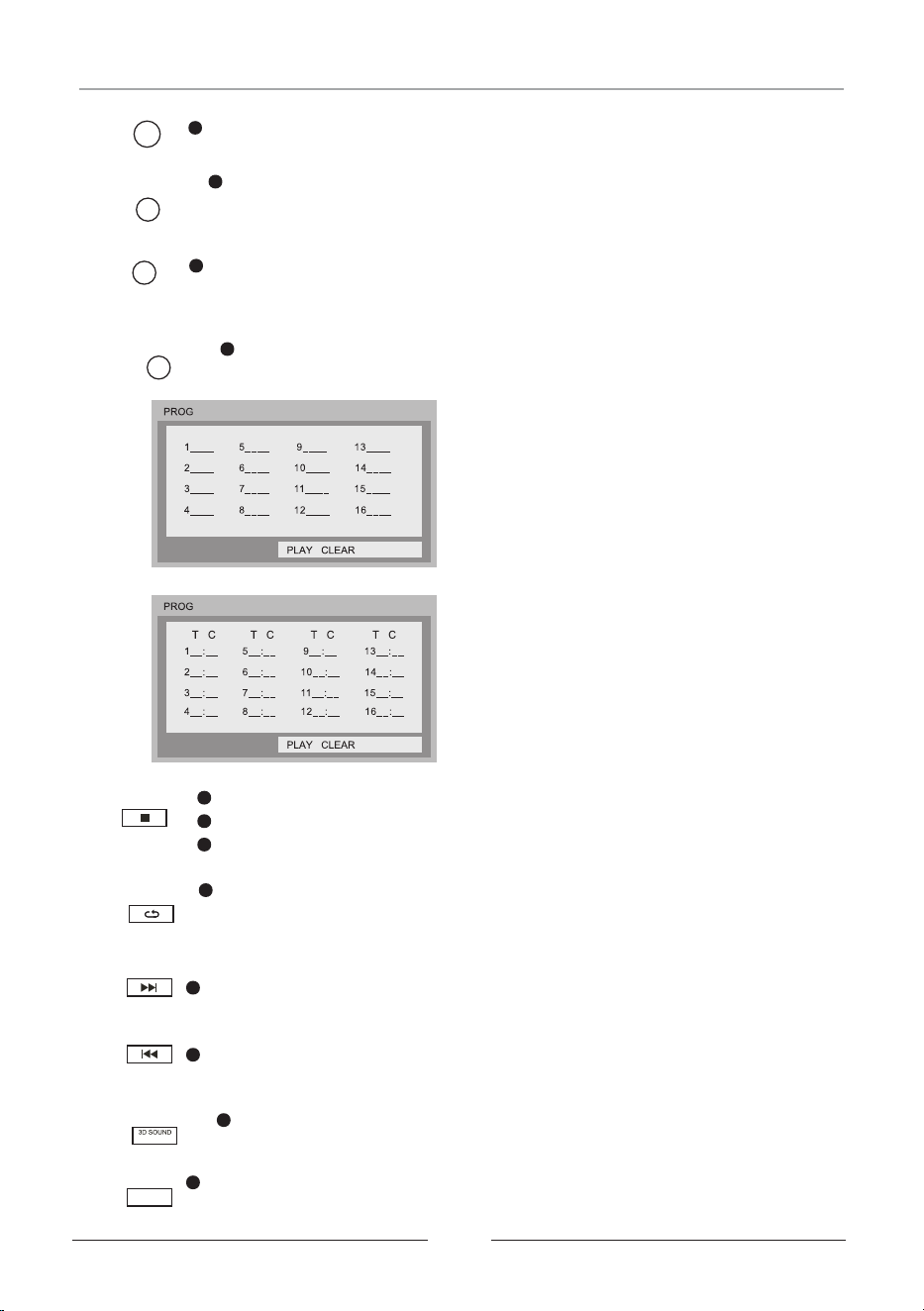
While [PROGRAM] is on, press ENTER to display the [Program submenu]:
A-B
PROGRAM
STOP
REPEAT
NEXT
PREV.
EQUALIZER
L/R
Input the track numbers in the order you
would like them to play. When you have
finished, press PLAY then press ENTER
to play the tracks in the new programmed
order. Select CLEAR then press ENTER to
clear all numbers
Input the title and chapter numbers in the
desired order. Then press PLAY then press
ENTER to play the chapters in the order you
have set. Select CLEAR then press ENTER
to clear all the numbers.
Press STOP once during playback to stop and hold playback.
Press PLAY to resume playback from the point you pressed STOP.
Press STOP twice to stop playback completely.
Remote Control Operation
3.
(AAA 1.5Vx2, not included)
Using the Remote Control
When this machine will not be used for an extended
period of time, please remove all Batteries from the
Battery Compartment.
15
DOWN
DISC/USB/SD
SET UP
FLAT
DISPLAYSUBTITLE
KEY+KEY-
LANGUAGE
RETURNUP
LEFT
RIGHT
RECORD
/STOP
RECORD
PLAYBACK
MENU
2
3
5
6
9
1
A-B
4
8
7
0
PROGRAM
DVD/MP3G
MEDIAPLAYER
/CDG KARAOKE &BLUETOOTH
EQUALIZER
3D SOUND
SPECTRUM
GOTOMUTE L/R
REPEAT
REV.
FWD. PREV. NEXT
PLAY PAUSE STOP
BLUE TOOTH
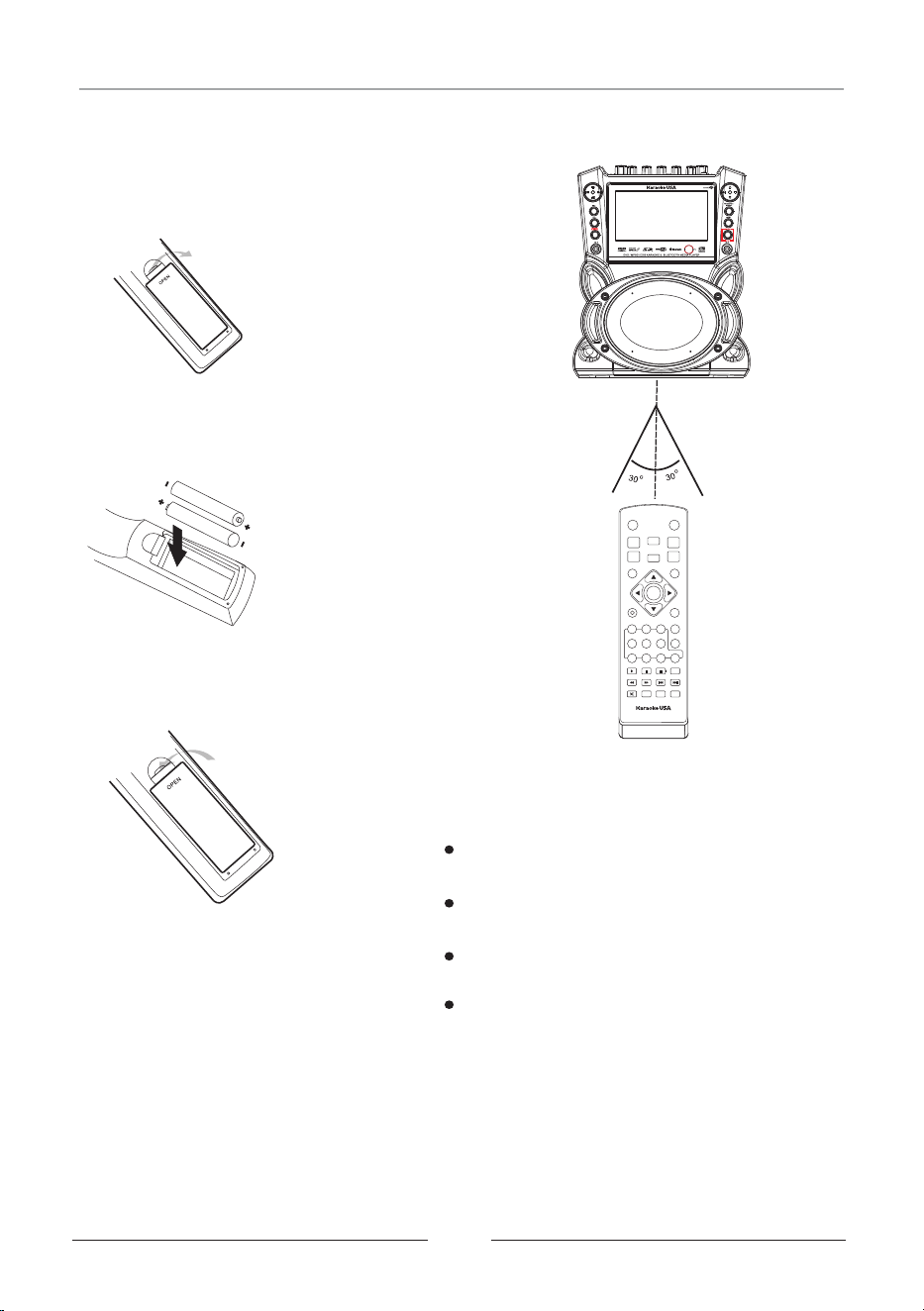
2.Install Batteries
Close the Cover
Point the Remote Control directly to the
sensor of the machine.
ENTE R
Do not leave the Remote Control in an
extremly hot or humid place.
Do not spill water or put anything wet
on the Remote Control.
Remote Control Preparation
Battery installation
1.Open the Cover
Notes:
AC 100V~240V
How to Play a Disc
16
Push
here!
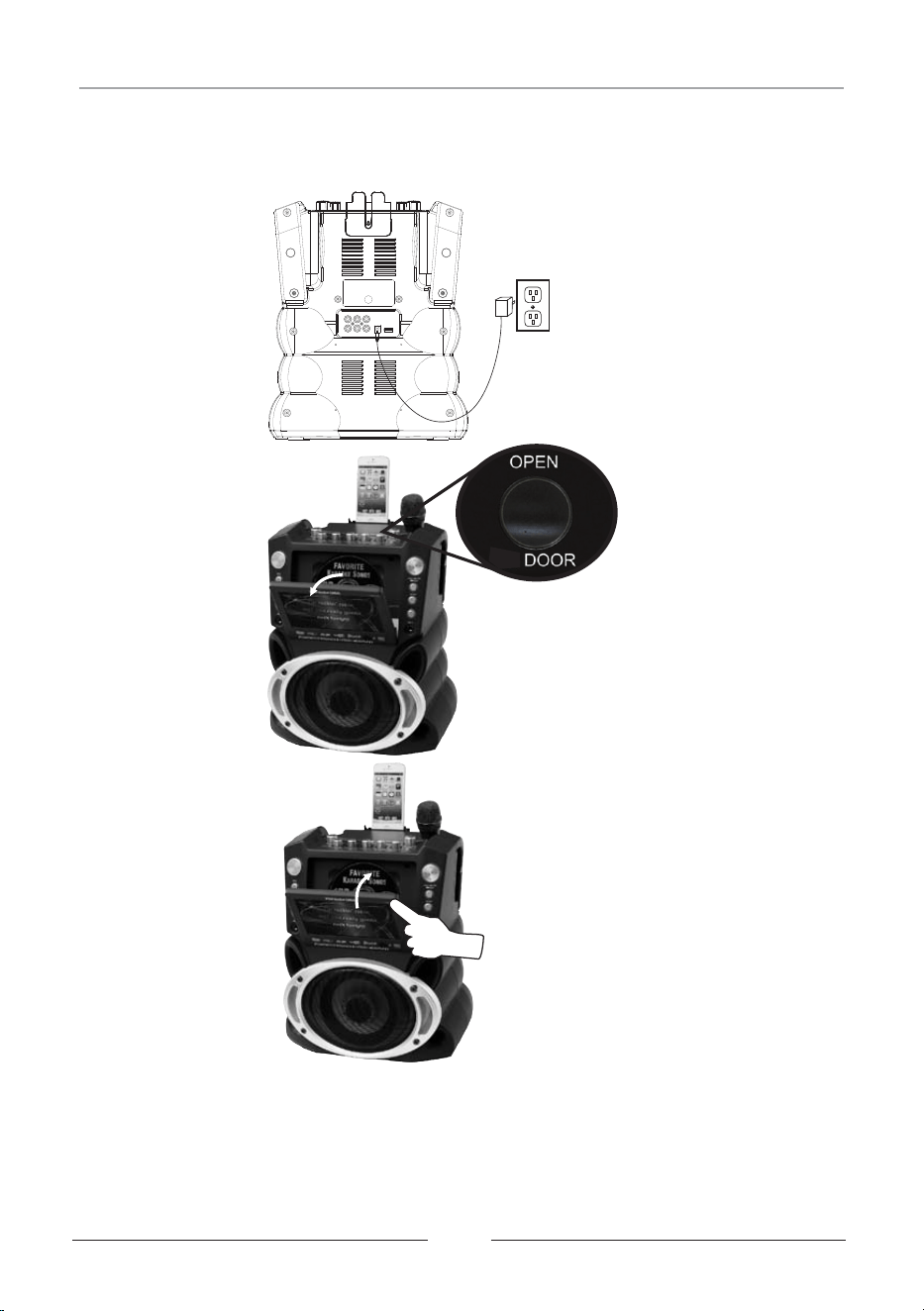
Your GF846 will support CD,CDG,MP3,MP3G and DVD format disc.
1.Connect the AC adaptor to the unit;
2.Load your disc;
3.Close the CD door;
4 . Turn on the unit (switch the machine to DISC/USB/SD/BLUETOOTH mode) and select
5. Press PLAY to start playing your Disc
t he “DISC” mode, the power indicator will light up.
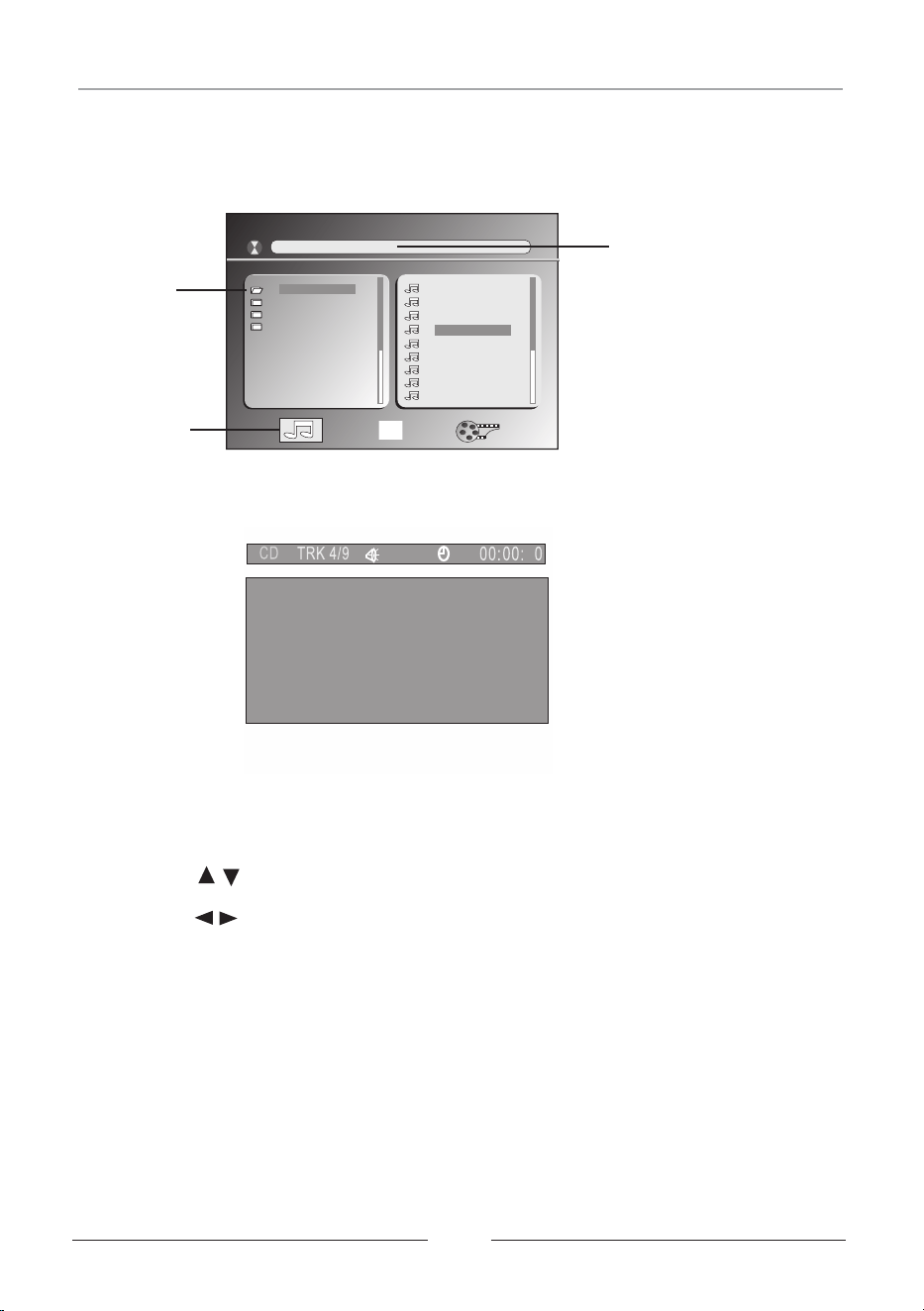
The playing file
is a MP3 or
MP3G audio file.
Current
directory
name
Current MP3G file
name.
MP3G Disc and MP3G Format Music Playback
17
1. 1FOLDER
2. 2FOLDER
3. 3FOLDER
4. 4FOLDER
01. SONG 1
02. SONG 2
03. SONG 3
04. SONG 4
[ 1] SONG 4.MP3GFOLDER
05. SONG 5
06. SONG 6
07. SONG 7
08. SONG 8
09. SONG 9
SONG 4
Go tell my baby sister
Don't do what I have done.
Go shun that house in New Orleans
4
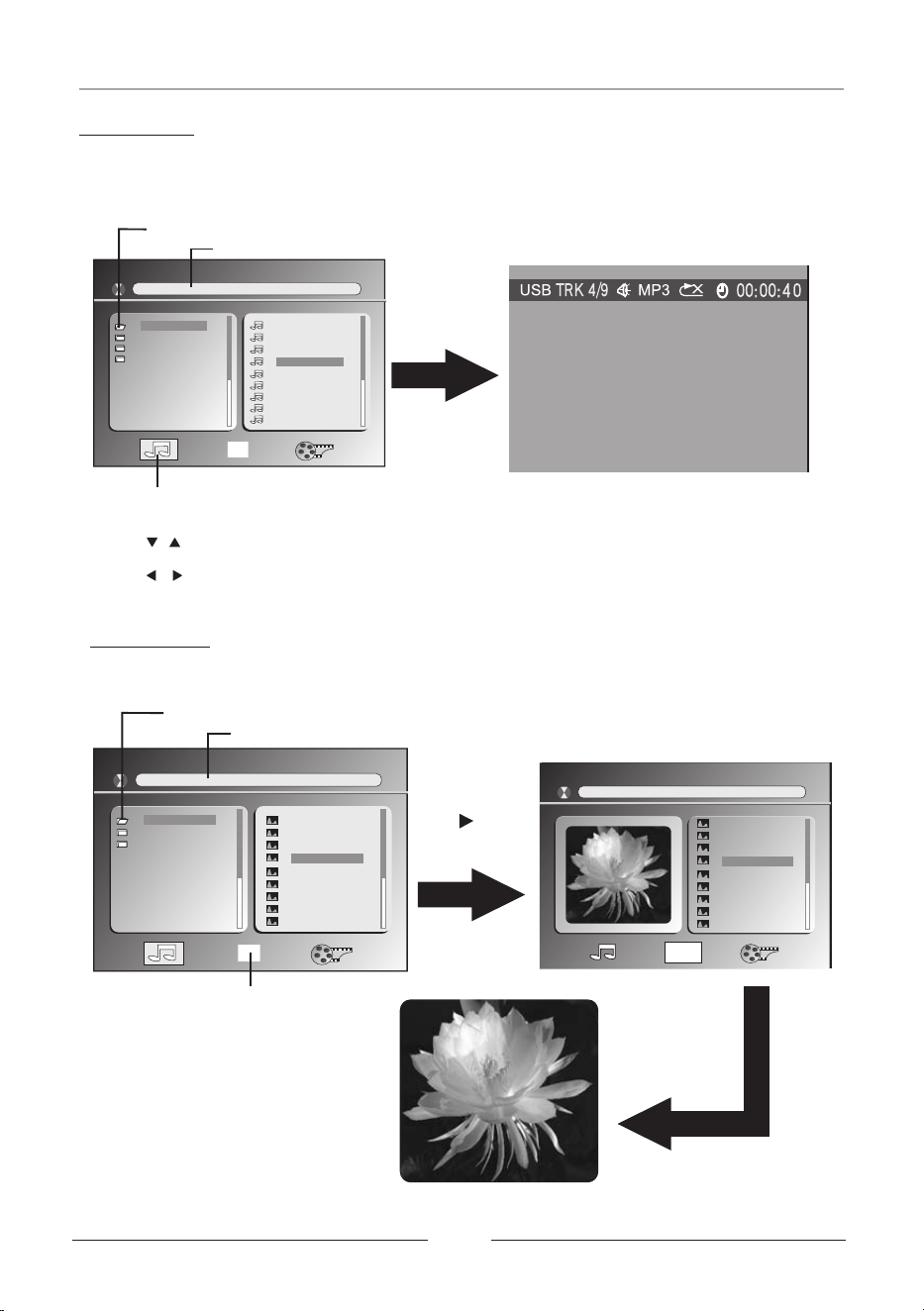
When an MP3G Disc,SD Card or USB device is connected,the screen will display as follows:
Press PLAY to play the current file selected by the cursor.
Press to switch between the directory window and the file window.
Press to select the file when the cursor appears in the file window.
1.The disc is badly scratched, damaged or dirty.
2. The recording format is not supported by the player.
Notes: The machine will not function correctly under the following condition:
Play Bluetooth Music
1. Pairing your Smart Phone using Bluetooth :
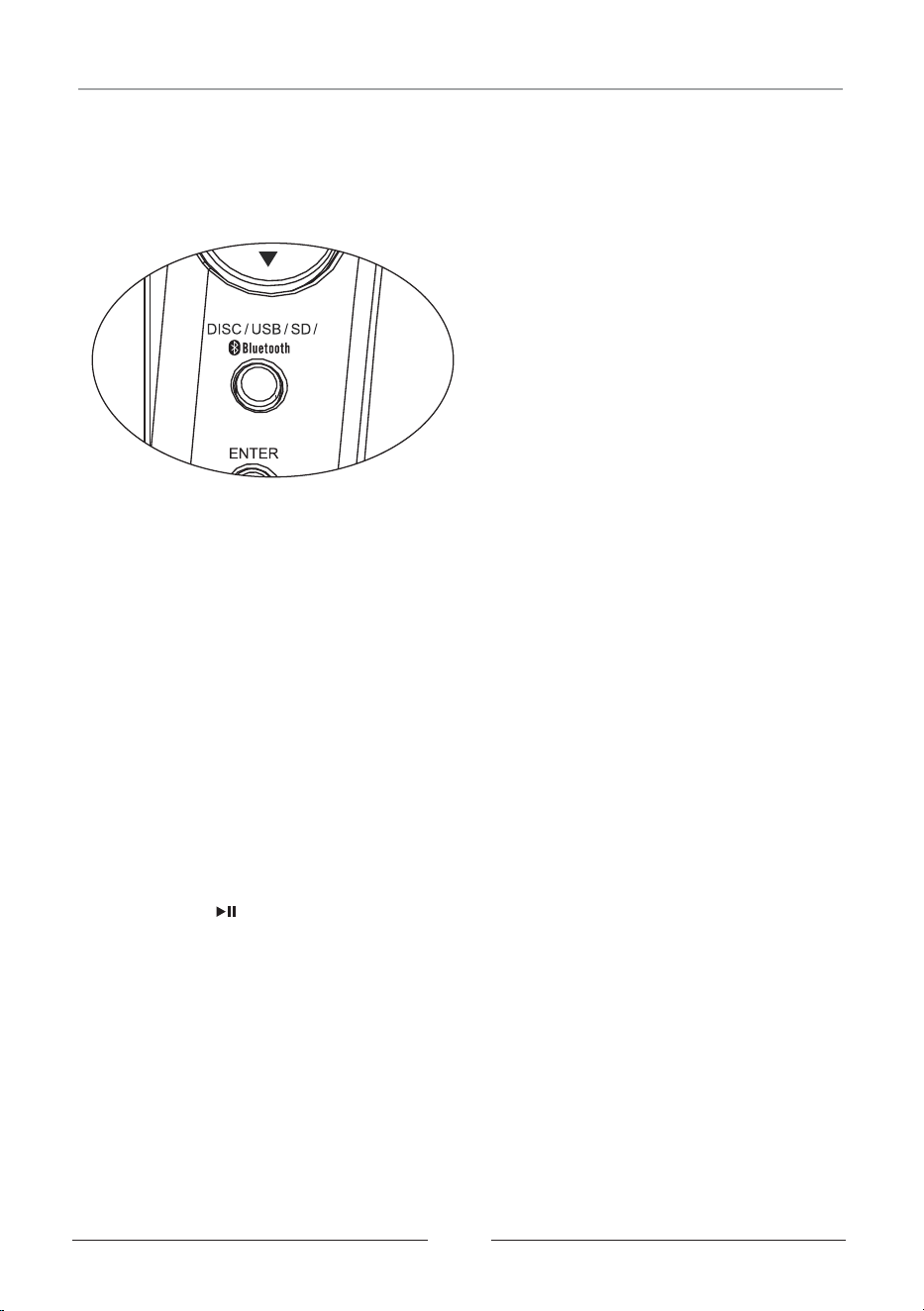
A. Power the machine ON and then select DISC/USB/SD/BLUETOOTH mode.
B. Select Bluetooth mode with the DISC/USB/SD/BLUETOOTH button.
(on the Front Panel or on the Remote Control)
When in Bluetooth mode, the screen shows : “BLUETOOTH NO CONNECTION”.
2. Setting your Smart Device to “explore” the unit.
A. Activate your Bluetooth function on your smart device.
B. Click “Setting” and select “Bluetooth”
3. Using your Smart Device to connect to the Machine
A.Your Smart Device will Discover:GF846.
B. Select GF846.
C. To accept the pairing to your smart Device .
D. If they are paired, the screen will show: “Bluetooth Connected” and you will hear
a “beep” sound.
E. If they are not paired, the screen will show : “BLUETOOTH NOT CONNECTION”.
F. Please repeat “Steps 1,2 & 3”above until they are paired.
4. Play Audio via Bluetooth After Pairing:
A. Select the song files that you wish to play from your Smart Device.
B. Then press “ ” to start sending to the Machine by Bluetooth connection.
C. Always remember to use full volume to send your song files from your smart device.
D. Adjust the Master Volume on the Machine to a comfortable level when necessary.
E. Music will be put “on Hold” automatically when your Smart Device receives a phone
call to let you answer. The music will resume when you end the call.
5. Bluetooth transmits audio only. You will not see lyrics when using Bluetooth for a music
source.
18
1. 1FOLDER
2. 2FOLDER
3. 3FOLDER
[ 1] 4.JPGFOLDER PHOTO
Press to select
the file, then you
can review it.
01. PHOTO 1
02. 2PHOTO
03. 3PHOTO
04. 4PHOTO
05. 5PHOTO
06. 6PHOTO
07. 7PHOTO
08. 8PHOTO
09. 9PHOTO
The frame shows it in photo mode.
Press PLAY
or ENTER
button to display
full screen
1. FOLDER 1
2. FOLDER 2
3. 3FOLDER
4. 4FOLDER
01. SONG 1
02. SONG 2
03. SONG 3
04. SONG 4
[ 1] SONG 4.MP3GFOLDER
05. SONG 5
06. SONG 6
07. SONG 7
08. SONG 8
09. SONG 9
19
SONG 4
01. PHOTO 1
02. 2PHOTO
03. 3PHOTO
04. 4PHOTO
05. 5PHOTO
06. 6PHOTO
07. 7PHOTO
08. 8PHOTO
09. 9PHOTO
[ 1] 4.JPGFOLDER PHOTO
Go tell my baby sister
Don't do what I have done.
Go shun that house in New Orleans
Before you do this, make sure you have download the music(MP3,MP3G format) to your SD card
or USB. Plug the SD card or USB to the machine, press “DISC/SD/USB/BLUETOOTH” to select
your desire device, then the screen will shows:
Play Music
Play SD Card and USB
Current directory name
Current file name.
Press PLAY
or ENTER
button
The frame shows it is in music mode.
Press to select the file when the cursor appears in the file window.
Press ENTER or PLAY to play the current file select by the cursor.
Press to switch between the directory window and the file window.
View Photo
Current directory name
Current file name.
Before you do this, make sure you have download the image(JPG.format) to your SD card
or USB(The operation is same as “Play Music”). And the screen will show:
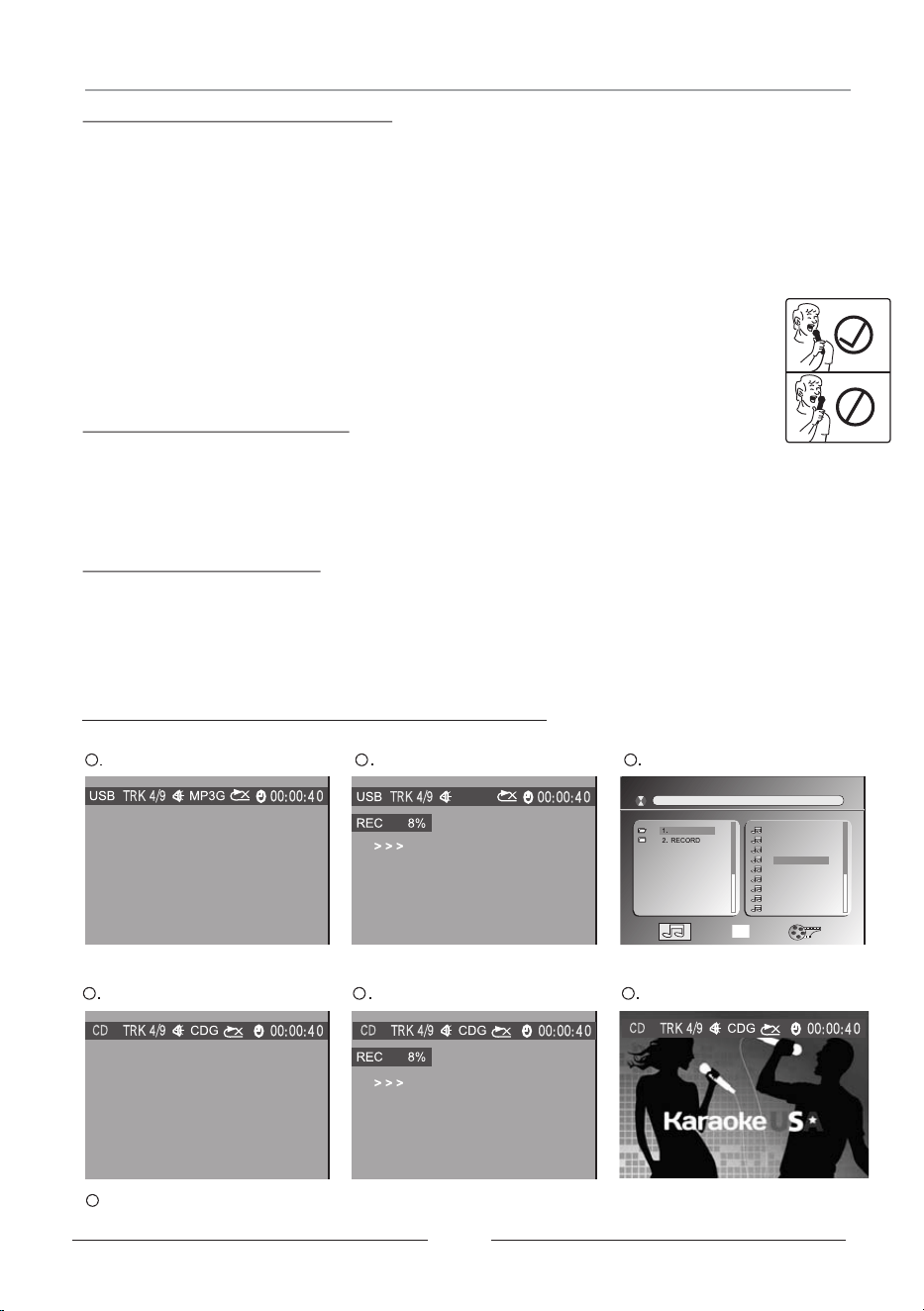
When recording, the screen shows the below:
A.In MP3G mode
B.In CDG mode
.Press “RECORD PLAYBACK”to listen the song you just recorded.
Playing
Recording
Recording finished
Playing
Recording
Recording finished
20
[FOLDER 1] SONG 4.MP3G
FOLDER 1
01. SONG 1
02. SONG 2
03. SONG 3
04. SONG 4
05. SONG 5
06. SONG 6
07. SONG 7
08. SONG 8
09. SONG 9
Go tell my baby sister
Don't do what I have done.
Go shun that house in New Orleans
Go tell my baby sister
Don't do what I have done.
Go shun that house in New Orleans
Go tell my baby sister
Don't do what I have done.
Go shun that house in New Orleans
Go tell my baby sister
Don't do what I have done.
Go shun that house in New Orleans
Record Operation Procedures
1 2 3
1 2 3
4
Before recording - please read
1. Music source can be CD, CDG, MP3 or MP3G on a disc, USB stick or SD Card. Recordings
cannot be made when using a DVD or AUX-in jack for a music source. If music source is USB
stick or SD Card, recordings write to the same USB stick or SD Card.
2. Recordings can be written to USB stick or SD Card, not to disc. USB sticks and SD Cards
should be formatted to FAT32 on your computer. Recordings can be erased by inserting USB
stick or SD Card into your computer.
3. If both a USB stick and SD Card are inserted, the recording will always default to the USB
stick. If a recording is required on the SD Card, you must remove the USB stick.
4. Sing directly into the top of the microphone, not the side.(see right picture)
The microphones are uni-directional to lessen ambient interference.
Sing loud and clear into top of microphone.
For best recording results
1. Set Microphone volume to 70% or higher. The higher the Microphone volume,
the louder the singer's voice will be on the recording. Recorded music volume
is preset in the machine.
2. Set the Master Volume to whatever level is comfortable.
Recording instructions
1. Load music source. If music source is a disc, also insert USB stick or SD Card.
2. Select song from menu and press play.
3. Press RECORD/STOP. Music will start over allowing singer to prepare.
4. When done singing, press RECORD/STOP to stop recording.
5. Press PLAYBACK to hear your recording.

21
To playback the current recorded file, just press”RECORD PLAYBACK”button once right
after your recording. the last track will be played.
To playback the previous Recording
A. Select RECORD folder, search for the track you wish to playback.
B. The screen shows all track numbers, use the navigation buttons to pick the identical
track number where the Song/Vocal was recorded.
C. Then press ENTER to playback.
Playback the Recorded File
1. In order to enhance your vocal recording, slightly increase the Master Volume level,
until you can hear your voice more obviously and comfortably.
2. The Record function that this machine can provide is merely to record your karaoke
entertainment events and experience for future listening and enjoyment.
3. The recording quality of this machine has been approved by most users from their positive
reviews. However, we must stress that it may not please those very demanding users, nor
it is fair to compare with the professional grade musical recordings and sound tracks being
sold publicly in the open markets.
Note:
22
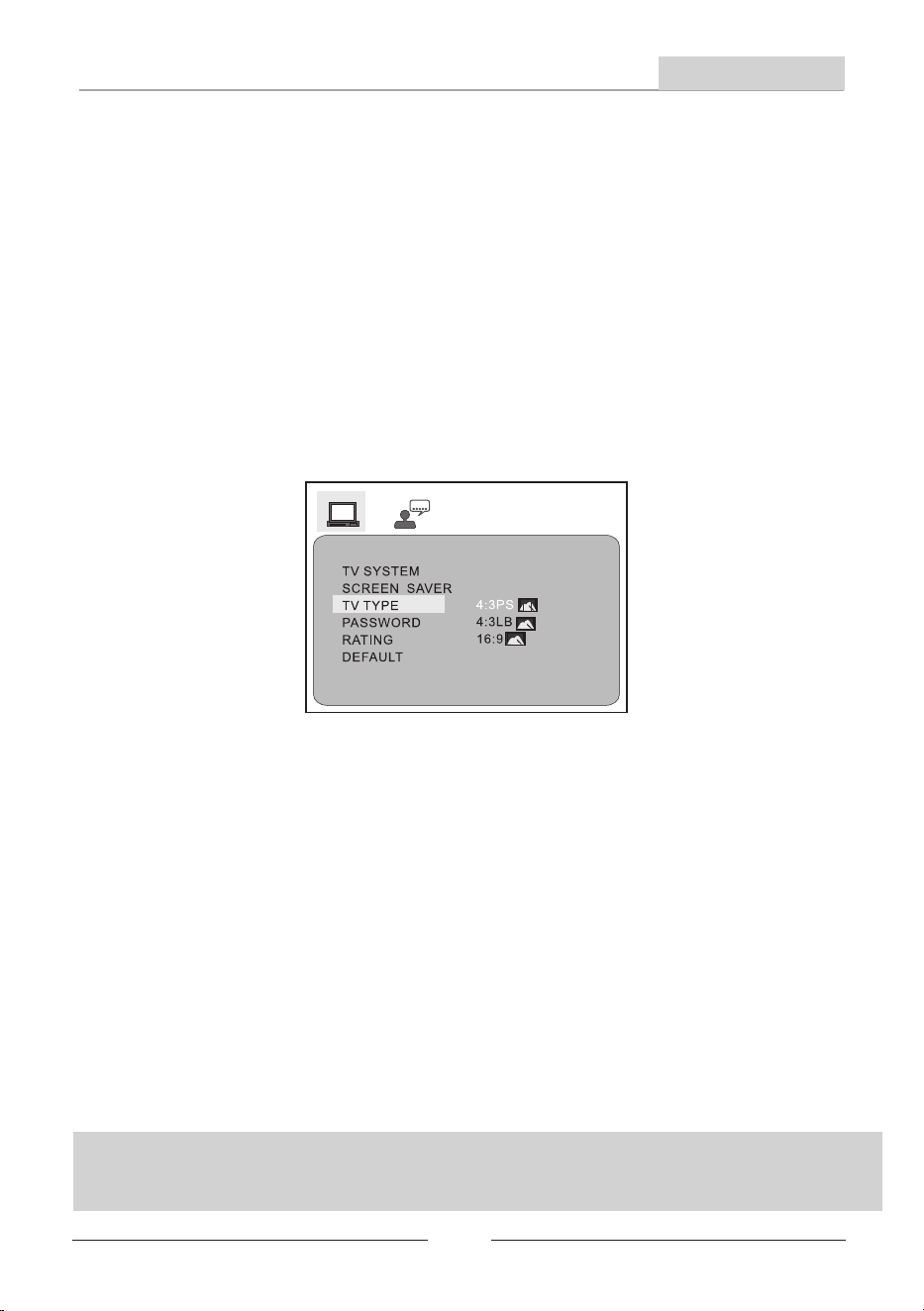
1. SYSTEM SETUP
The system setup options are illustrated as below:
1.1 TV SYSTEM
Using UP/DOWN arrow button to make a selection for TV system.
There are some TV output systems for choosen: NTSC ,PAL, AUTO.
1.2 SCREEN SAVER
The SCREEN SAVER function is always on; when the machine is in STOP mode,
after few minutes in Open or No disc state, it will appear a DVD logo moving around
the screen.
1.3 TV TYPE
According to the TV type, you can choose 16:9,4:3LB or 4:3 PS.
16:9 : The picture fills the screen of a wide screen TV.
4:3 PS: Pan and Scan, the image is cut in order to fit the whole screen.
4:3 LB: Letter box, two black bands will appear on the upper and lower part
of the screen.
1.4 PASSWORD
The password option is initialized locked, and you can not set the ratings limit
or change the password. In order to set the Ratings feature to work, the password
mode must be turned on. If you want to set the rating limit, you will need to
enter the default password. which is 0000,then press ENTER to confirm. To change
the password, you will be prompted for the old password, then be prompted for a new
one. Enter a 4-digit number ( this is your password). Please remember your PASSWORD,
as the DEFAULT setting will revert everything.
1.5 RATING
The Rating feature is a rating limit system, like movie ratings. it works with
DVD discs that have been assigned a rating. This helps you control the types
for DVDs that your family watches.
1.6 DEFAULT
The DEFAULT setup options are RESTORE factory setup.
The Setup Menu System
Advanced Features
When your machine does not work properly. It may probably result from some wrong
setting. Please try the Restore Factory Setting function to see if the unit can restor
to its normal working status.
23
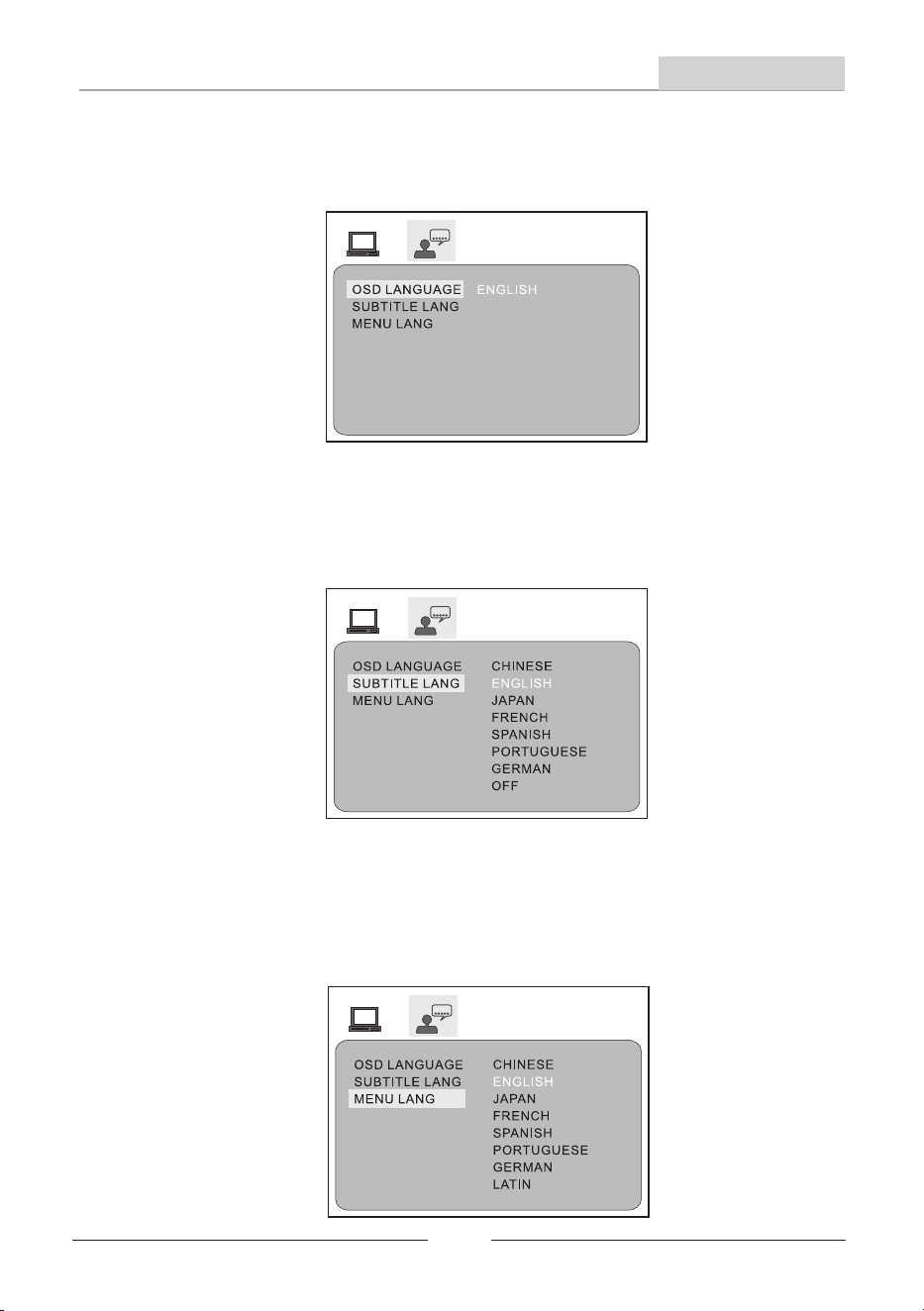
2. LANGUAGE SETUP
The language setup options are illustrated as below:
2.1 OSD LANGUAGE
Highlight the OSD LANGUAGE option, and press the Arrow buttons to choose
the OSD language you prefer. Press ENTER to confirm, then the language will
be set as OSD language.
2.2 SUBTITLE LANG
Highlight the SUBTITLE LANG option, and press the Arrow buttons
to choose the subtitle language you prefer. Press ENTER to confirm.
if the disc you are playing has that language, it will display subtitles
in that language.
2.3 MENU LANG
Highlight the MENU LANG option, and press the Arrow buttons to
choose the menu language you prefer. Press ENTER to confirm.
if the disc you are playing has that language, it will display the
menu in the language.
Notes: if your preferred language is not available, the disc default language
will be played.
The Setup Menu System
Advanced Features

24
Power requirements: DC 12V/2A
Power Consumption: 25 Watts
Video output
1.0 V(p-p) / 75 ,sync, negative polarity
Audio output
2.0 channel output
Power output: 35W Peak Power
Frequency response :150HZ to 15KHZ
S/N ratio: >90 dB
Total harmonic distortion: <0.0025%
Accessories
AC Adapter x 1
RCA cables x 1
i-cable x 1
Remote Control x 1
User’s Guide x 1
Warranty Card x 1
Holder for Smart Devices x 1
MP3G Demo Disc x 2
Microphone x 2
Specifications
25
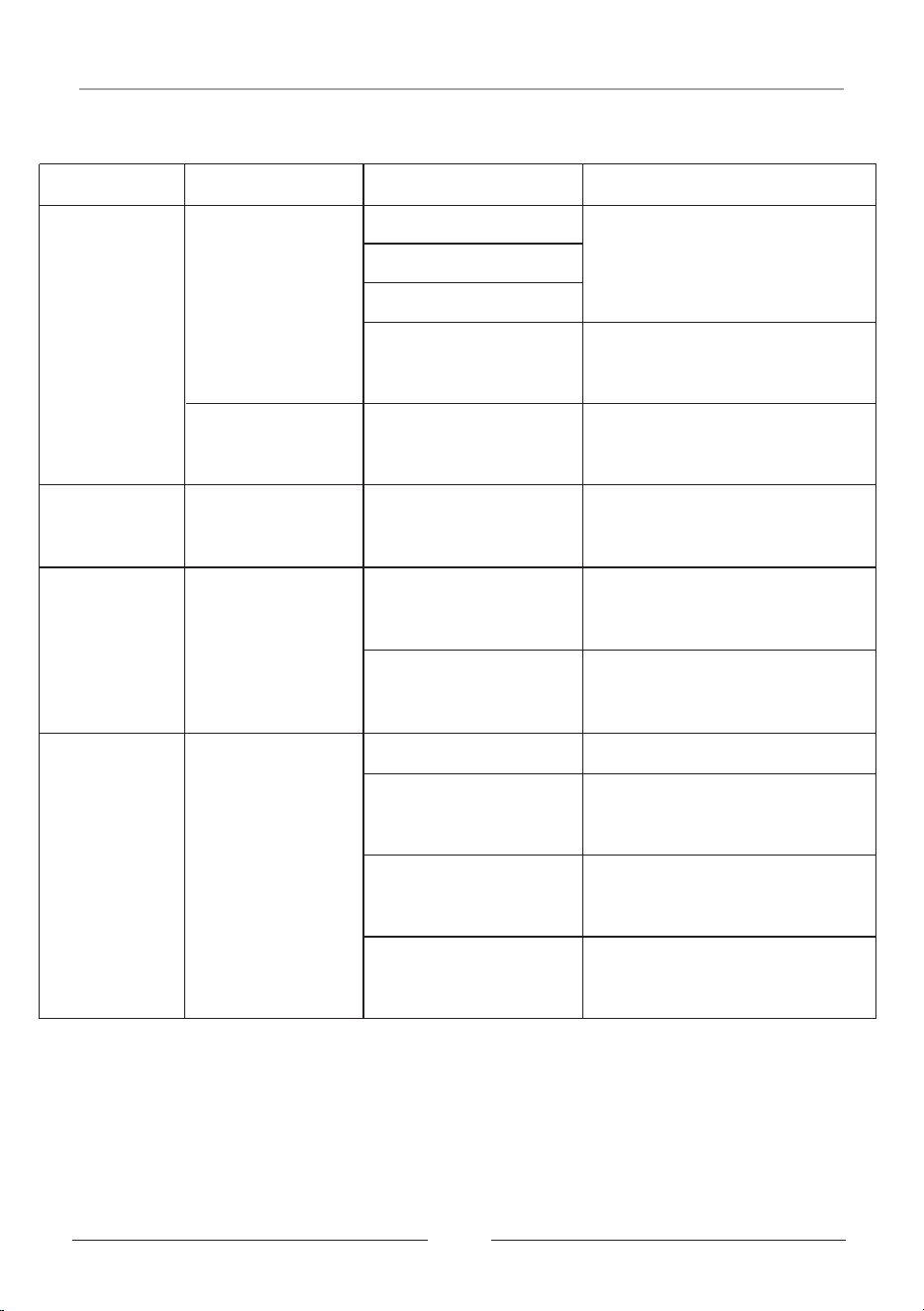
Troubleshooting
Symptom
Possible Problem Solution
Power cord
Ensure all are connected firmly
Power switch on OFF
position
Ensure the switch is in "ON"
mode(on top)
Powered but
no respond
Needs reset
Turn off the unit then turn on
again
Microphone
Volume too low
Microphone volume
setting
Set the microphone volume
higher especially when recording
RCA cable connect
in the wrong way
Ensure the RCA cable connect to
the correct AV input on your TV
Wrong setting on your
TV
Ensure TV setting on the proper
channel (video 1, channel 1 etc.)
No disc Put in a disc
Disc stained, warped
or scratched
Ensure the disc is in good
condition
Wrong disc type
The unit will plays
DVD, CD, CD+G, MP3+G
Unit set in AUX IN mode
Set the Function knob in
DISC/USB/SD mode
No Power
No picture
(or sound)
on TV
No picture displays
on the unit
Play Disc
TV Connection
General
Power outlet
power adaptor
26
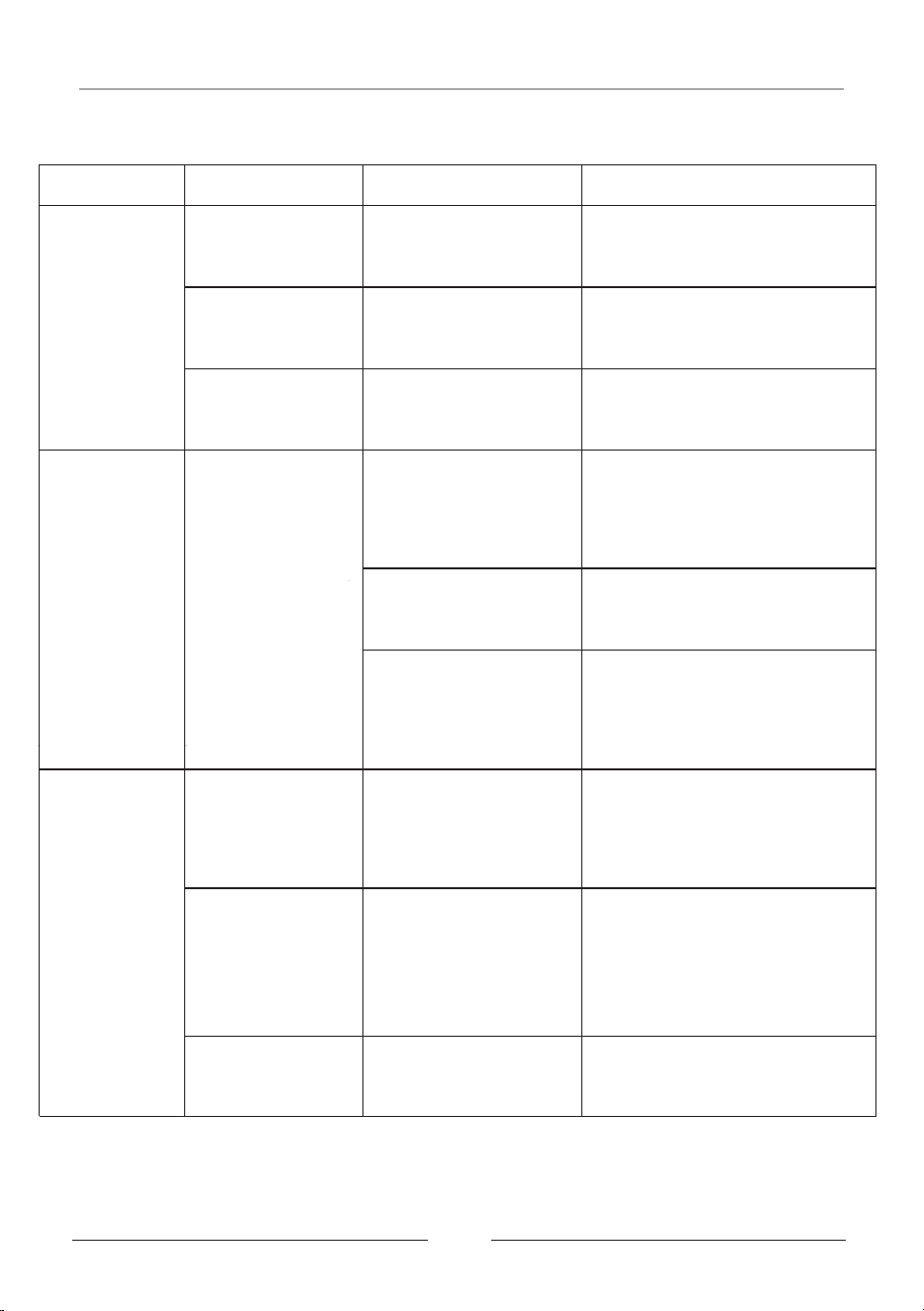
Troubleshooting
Unit set in DISC/USB/SD
mode
Set the Function knob in AUX IN
mode
The volume setting too
low on your smart device
and the unit
Set the volume higher on your
smart device and the unit
Play AUX IN
No music
Symptom
Possible Problem Solution
No read
No files or wrong format
file on your USB & SD
Download the files to your device
and try different format if necessary
No record
USB or SD store memory
is full
Delete some files to reserve
some space for recording
No function at all
wrong format or use too
long time
Backup your files on your computer
and format the USB or SD card
AUX IN cable not
connected properly
Ensure the AUX IN cable connect
to the correct RCA input jack on
the back
Play USB & SD
No pairing
In the wrong mode
Set the Function knob to
DISC/USB/SD/ Bluetooth mode,
and select the source button to
Bluetooth mode.
No music
Unit set in AUX IN mode,
or no connection
Set the Function knob to
DISC/USB/SD/ Bluetooth mode,
and select the source button to
Bluetooth mode, make sure the
Bluetooth is connected
Music too low
Volume setting too low
on your smart device
Turn the volume up on your smart
device and the unit volume,too
Bluetooth
Notes on SD Card
27
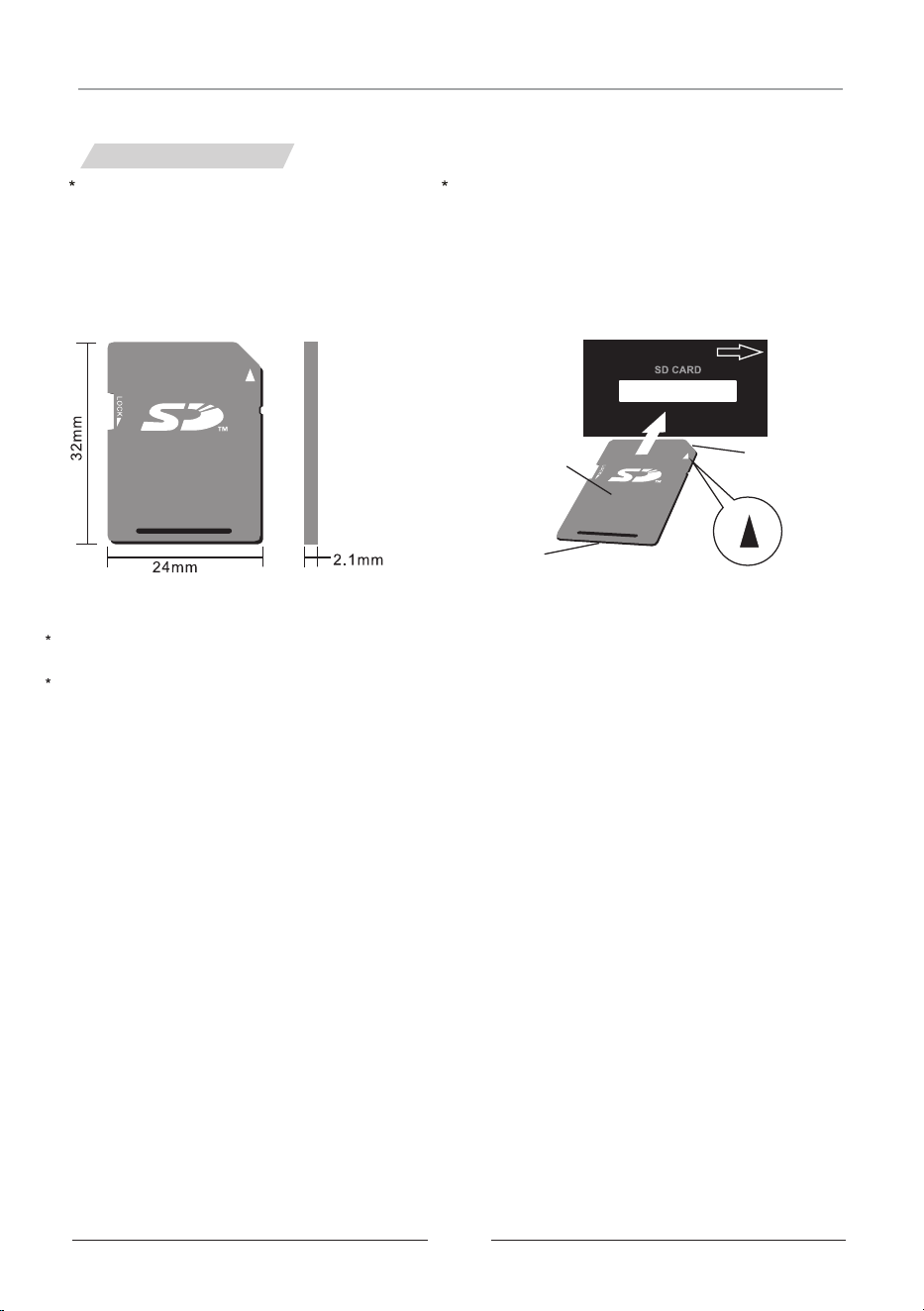
Please use standardized SD Cards.
poor quality SD Cards may cause
Karaoke machine to malfunction.
Gently insert the SD Card with its label
facing upwards.
When any mini size SD Card or TF Card is used ,firstly insert it to an Adaptor before application.
Compliant card type: SDHC Card,SD Card ,miniSD Card,mini SDHC Card,microSD Card,
mircoSDHC Card(requiring miniSD Card/miniSDHC Card/microSD Card/microSDHC Card adapter)
Front of Karaoke Machine
Label face
Push until a
“click” is heard
Cut out
SD CARD


Printed in China
KARAOKE USA
1185 GOODEN CROSSING
LARGO, FL 33778 USA
TECH SUPPORT: WWW.KARAOKEUSA.COM/CS
DOWNLOAD SONGS: WWW.SINGTHEHITS.COM
SALES DEPARTMENT: SALES@KARAOKEUSA.COM
