*Back
XX-554 IB (English)
Size: 185mm x 285mm
Printing color: Black, 1C + 1C
May 4, 2021
*Front
Model: 554 Series
Printed in China
554-050421-B
Charging The Unit
Bluetooth Karaoke
with EZ Link
CHARGE
BEFORE
USE
There are two ways to listen to music with this unit:
• In USB Mode you can connect a flash drive to the unit and listen to
your stored songs.
• In Bluetooth Mode you can stream music from your smartphone or
other Bluetooth device.
Note: When using USB Mode, this unit is compatible with .mp3 and .wav
files ONLY.
Getting Started
Converting Files to MP3
Using USB Mode
This unit ships in Demo Mode for in-store demonstration
purposes. Slide the ON/OFF/DEMO Switch to ON to exit Demo
Mode.
iTunes music files are saved by default in .m4a format, and must be
converted to .mp3 format to play on the unit in MP3 mode. Check the
Help section in iTunes (or other music software program) to learn how
to convert to .mp3 format.
• Select the “Bluetooth” position on the Mode Switch. Turn on your
Bluetooth device and enable Bluetooth mode (check in Options or
Settings). The unit will automatically enter pairing mode.
• Using your Bluetooth device, select the Bluetooth pairing name for
your product:
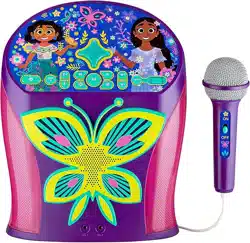
- For Disney Princess: “EZ-Link 554DP”
- For Encanto: “EZ-Link 554EN”
- For Frozen: “EZ-Link 554FR”
• A tone will sound to confirm once your device is paired. Put your
Bluetooth device in play mode to play audio.
• Use the “Forward” “Reverse” and “Play/Pause” buttons on the unit
to navigate tracks.
• To manually pair your device, press and hold the Echo/Bluetooth
Pairing Button on the front of the unit.
Make sure the Mode Switch is set to USB.
• When the unit is OFF, connect a USB flash drive to the USB port
on the front of the unit.
• Press the Power Button to turn the unit ON.
• Press Play, then use the ”Forward” and “Reverse” buttons to
advance through the numbers of files on the USB drive.
• After pressing “Play”, the automatic play-all function will activate,
and songs will play in the order they were stored.
Using Bluetooth Mode
Recording Audio (In BT Mode Only)
• Record audio from Bluetooth mode and the microphone input,
and the file will save to your USB flash drive.
• Make sure the Mode Switch is in “Bluetooth” position, and that a
flash drive is connected to the USB port.
• When BT audio is playing, press the Record Button to start
recording audio. Press again to pause recording, and press Stop
to stop recording.
• Switch to USB Mode and select the saved file to listen to your
recording!
If the unit does not respond:
• Make sure unit is completely charged.
• To re-pair your device, press the Bluetooth Pairing Button on the
front of the unit.
Note: The rechargeable battery can be replaced only by eKids
Consumer Repair Department.
App Troubleshooting:
If you press the EZ Link Button, but a playlist does not open:
- Confirm your Bluetooth device is connected to the unit.
- Make sure the EZ Link Setup app is installed and running on your
‘unlocked’ Bluetooth device.
- Make sure the EZ Link Button is enabled (via EZ Link Setup app).
Troubleshooting
Limited One-Year Warranty
FCC Information
eKids, LLC warrants this product to be free from defects in
workmanship and materials, under normal use and conditions, for a
period of one (1) year from the date of original purchase.
Should this product fail to function in a satisfactory manner, it is best to
first return it to the store where it was originally purchased. Should this
fail to resolve the matter and service still be required by reason of any
defect or malfunction during the warranty period, eKids will repair or, at
its discretion, replace this product without charge. This decision is
subject to verification of the defect or malfunction upon delivery of this
product to the Factory Service Center authorized by Customer Service.
If service is required, please contact Customer Service at
ekids.com/support to obtain a Return Authorization Number and
shipping instructions. A copy of the sales receipt is required to validate
in-warranty coverage.
Disclaimer of Warranty
NOTE: This warranty is valid only if the product is used for the purpose for
which it was designed. It does not cover (i) products which have been
damaged by negligence or willful actions, misuse or accident, or which have
been modified or repaired by unauthorized persons; (ii) cracked or broken
cabinets, or units damaged by excessive heat; (iii) damage to digital media
players, CD’s or tape cassettes (if applicable); (iv) the cost of shipping this
product to the Factory Service Center and its return to the owner.
This warranty is valid only in the United States of America and does not
extend to owners of the product other than to the original purchaser. In
no event will eKids or any of its affiliates, contractors, resellers, their
officers, directors, shareholders, members or agents be liable to you or
any third party for any consequential or incidental damages, any lost
profits, actual, exemplary or punitive damages. (Some states do not
allow limitations on implied warranties or exclusion of consequential
damages, so these restrictions may not apply to you.) This warranty
gives you specific legal rights, and you may also have other rights
which vary from state to state.
Your acknowledgment and agreement to fully and completely abide by
the above mentioned disclaimer of warranty is contractually binding to
you upon your transfer of currency (money order, cashier's check, or
credit card) for purchase of your eKids products.
© 2021 eKids, LLC
Questions? Visit www.ekids.com
1299 Main Street Rahway NJ 07065
• It is important to keep the unit as dry and clean as possible. You may
clean the cabinet with a cloth or sponge moistened with mild soap
and water. Do not attempt to use strong cleansers or solvents, as
they may cause damage.
• Battery chargers used with the toy are to be regularly examined for
damage to the cord, plug, enclosure and other parts, and in the event
of such damage, they must not be used until the damage has been
repaired.
Maintenance
This device complies with Part 15 of the FCC rules.
Operation is subject to the following two conditions:
(1) this device may not cause harmful interference,
and (2) this device must accept any interference
received, including interference that may cause undesired operation.
NOTE: This equipment has been tested and found to comply with the
limits for a Class B digital device, pursuant to Part 15 of the FCC rules.
These limits are designed to provide reasonable protection against
harmful interference in a residential installation. This equipment generates,
uses, and can radiate radio frequency energy and, if not installed and
used in accordance with the instructions, may cause harmful interference
to radio communications. However, there is no guarantee that
interference will not occur in a particular installation. If this equipment
does cause harmful interference to radio or television reception, which
can be determined by turning the equipment off and on, the user is
encouraged to try to correct the interference by one or more of the
following
measures:
• Reorient or relocate the receiving antenna.
• Increase the separation between the equipment and receiver.
• Connect the equipment into an outlet on a circuit different from
that to which the receiver is connected.
• Consult the dealer or an experienced radio/TV technician for help.
WARNING: Changes or modifications to this unit not expressly approved
by the party responsible for compliance could void the user's authority
to operate the equipment.
RF Exposure
This equipment complies with FCC radiation exposure limits set forth
for an uncontrolled environment.
This transmitter must not be co-located or operating in conjunction with
any other antenna or transmitter.
CAN ICES-3 (B)/NMB-3(B)
FCC ID: EMO554A
IC: 986B-554A
HVIN: XX-554a
USING THE MICROPHONE
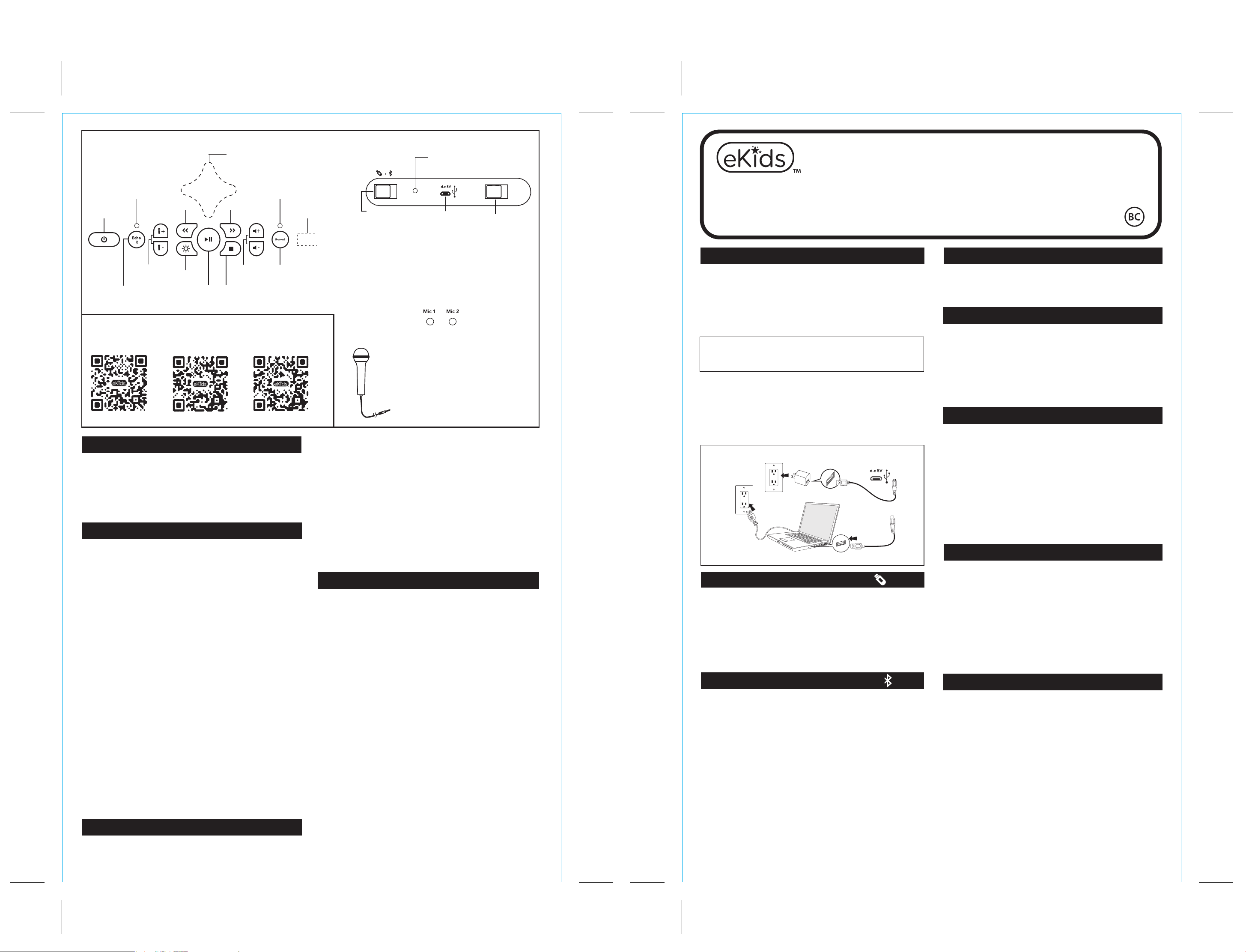
Mode Switch
(USB/Bluetooth)
BACK OF UNIT
FRONT OF UNIT
• Connect the microphone to Mic Jack 1 or 2 on the
front of the unit.
• Slide the Microphone Switch ON to amplify your
voice when you sing.
• Control microphone volume using the Mic Volume
Buttons on the front of the unit.
Power
ON/OFF
- Recording = LED solid on
- Pause recording = LED flashing
- Stop recording = LED off
Charge via USB AC adaptor, computer USB port, or other powered USB port
Computer connected
to working outlet
Computer USB port
OR
USB Adaptor
(not included)
For best performance, use a high speed 3.1 USB drive
(not included) when recording audio from this unit.
Note: Using a lower speed USB drive may cause skipping
or poor performance of the Bluetooth audio stream.
Sometimes skipping in recorded music may occur,
depending on the online streaming speed of your phone.
USB
Charging Port
ON/OFF/DEMO
Switch
USING A USB DRIVE
Installing EZ Link Setup App
Echo ON/OFF
Bluetooth Pairing
Recording StopPlay/Pause
Echo ON/OFF
Indicator
Mic
Volume
Light Show
Reverse
EZ Link Button
Speaker
Volume
Record
ON/OFF/Pause
Recording Indicator
USB Port
MICROPHONE INPUT
Use the EZ Link Setup app to access your favorite Disney playlists
on a variety of different music streaming services. This function will
need to be activated before use. To set up the app:
• Download the free EZ Link Setup app from the Apple Store or
Google Play, and install it on your Bluetooth-enabled iOS or
Android device.
• Slide the Mode Switch on the karaoke unit to Bluetooth Mode.
• Make sure your Bluetooth device is powered on and connected to
the karaoke unit.
• Follow the prompts in the EZ Link Setup app to choose a
preferred music streaming service, and complete setup.
• Keep the EZ Link Setup app open and running on your Bluetooth
enabled device to use the EZ Link feature seamlessly.
Once the app is enabled, use the EZ Link Button on the front of
the karaoke unit to access Disney playlists:
• Press the EZ Link Button once to connect to your selected
streaming service, and enjoy a custom Disney playlist themed to
your product.
• Press and hold the EZ Link Button to connect to the Disney Hits
playlists, and enjoy even more great music!
Note: Product must be in Bluetooth Mode and paired to an iOS or
Android device that is running the EZ Link Setup app. It may take a
few seconds to connect to your streaming service and playlist. Some
streaming services require you to press ‘Play’ on your Blueooth
device. No user information is gathered when using the app.
Using EZ Link Button
For additional information about the EZ Link feature and app, please scan the QR
code to match your product:
EZ LINK SUPPORT
Disney Princess Encanto Frozen
Charging Indicator
- Charging = Solid Red LED
- Fully Charged = Solid Blue LED
1. Connect the included micro USB cord to the micro USB charging port
on the back of the unit.
2. Connect the standard USB plug end of the cord to a power USB port
on a computer or other USB charging device.
For first time use, charge unit for about 5 hours.
3. A low battery tone will sound to indicate it is time to charge the unit.
Forward
Internal Rechargeable Lithium-ion Battery
This device uses an internal rechargeable lithium-ion battery that should
last the lifetime of the device. If you suspect your battery may be dead,
try charging it several times. If problems persist, please do not attempt
to repair unit; see warranty for factory service.
CAUTION
The battery used in this device may present a risk of fire, explosion or
chemical burn if mistreated. Never use or charge the battery if it appears
to be leaking, discolored, deformed, or in any way abnormal. Never
disassemble the unit or attempt to remove battery as that could cause
leakage of alkaline solution or other electrolytic substance. Always confirm
that the temperature is 5°C – 35° C (41° - 95° Fahrenheit) before you
charge the battery. Leakage or deterioration of the battery may occur if
this warning is not heeded.
• Never expose the battery to any liquid.
• Never expose the battery to excessive heat such as direct sunlight or
fire. Never use the battery pack in an unventilated vehicle where excessive
internal temperatures may be encountered.
• Always keep the battery out of the reach of infants and small children.
• For questions or comments regarding this or other eKids products,
please visit our website: www.ekids.com
Questions or Comments
WARNING/DISPOSAL OF UNIT
Please do NOT attempt to change the battery yourself. Doing so may
damage the unit and will void your warranty.
• Never dispose of used batteries/electronics with ordinary solid wastes,
since they contain toxic substances.
• Always dispose of used batteries/electronics in accordance with the
prevailing community regulations. Many electronics retailers now
recycle batteries and other electronic components at no charge.
To find a drop-off location near you, visit www.call2recycle.com