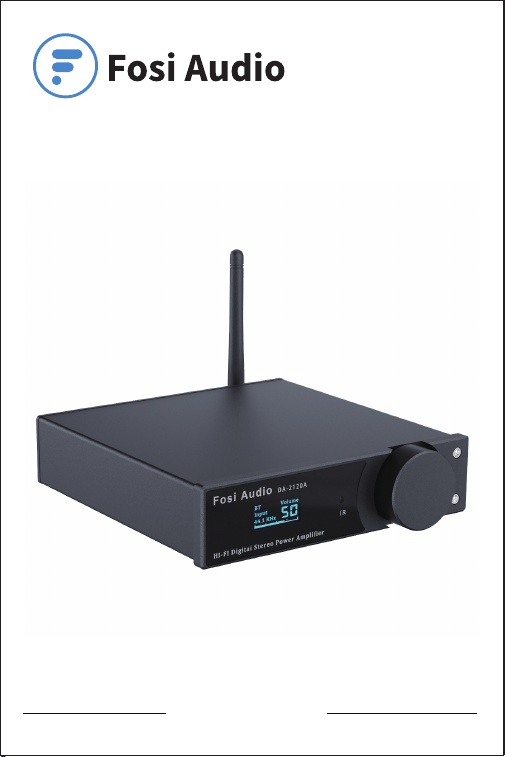
Thanks for choosing us!
Fosi Audio DA-2120A User Manual

Product Specifications
Fosi Audio DA2120A is a Bluetooth hi-res 2.1 channel
amplifier that features 50W x2 stereo wireless stream aptX,
24Bit/192kHz compact mini power amp which is equipped
with integrated USB DAC coaxial optical input, supporting
subwoofer and with a remote control to switch different
modes and EQ to enjoy hi-res music!
THD:
SNR:
Bluetooth:
Output:
Bluetooth Transmission
Distance:
Input Mode:
≤ 0.01%
“BT HIFI AUDIO” or
“Fosi Audio DA2120A”
≥ 105dB
Bluetooth Name:
Up to 28ft
Power Supply: 24V 4.5A
50W + 50W @4Ω
Terminating Impedance:
2-6 ohm
(Recommended 4ohm)
Bluetooth 5.0 + AUX + USB
+ Optical + Coaxial
System Supported: XP/W7/W8/W10/MAC/Linux
USB Input Sampling
Frequency:
24Bit/192kHz
Output Mode: Passive Speakers
+ Active Subwoofer
Optical/Coaxial Input
Sampling Frequency:
24Bit/192kHz
Size: L134*W130*H34mm
(5.3*5*1.3inch)
Frequency Range: 20Hz - 20kHz (±1 dB)
V5.0
Product Overview & Control
Functions
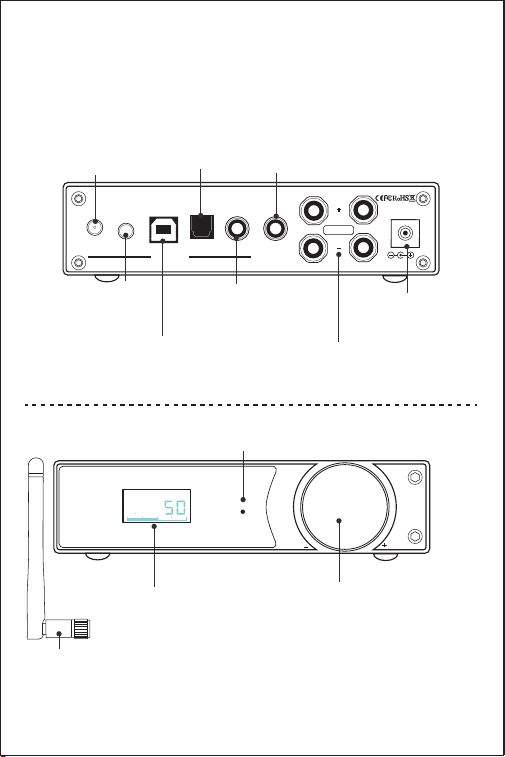
Bluetooth Antenna
RF
R L
PC-USB
OPTICAL
AUDIO IN
COAXIALAUX
SUB OUT
MADE IN CHINA
www.fosiaudio.com
SPK OUT
DC 24V-36V
Sub Output:
Only support active subwoofer
Antenna
Interface
Optical
Input
Speakers Output:
Only support passive speakers
DC Input:
Support 24-36V
AUX
Input
PC-USB
Input
Coaxial
Input
LED Display
Infrared Receiver Port
Multi-function Knob:
Short press to turn on;
Long press to turn off;
Short press to switch modes when turn on;
Turn the knob to adjust the volume
DA-2120A
HI-FI Digital Stereo Power Amplifier
IR
TONE
Input
Volume
44 1 KHz
Fosi Audio
Remote Control
6
3
10
12
7
1
2
4
5
8
9
11
13
LOUND
BASS–
TREBLE-
BASS+
TREBLE+
SELECT MUTE
EQ RECOVER
DISPLAY
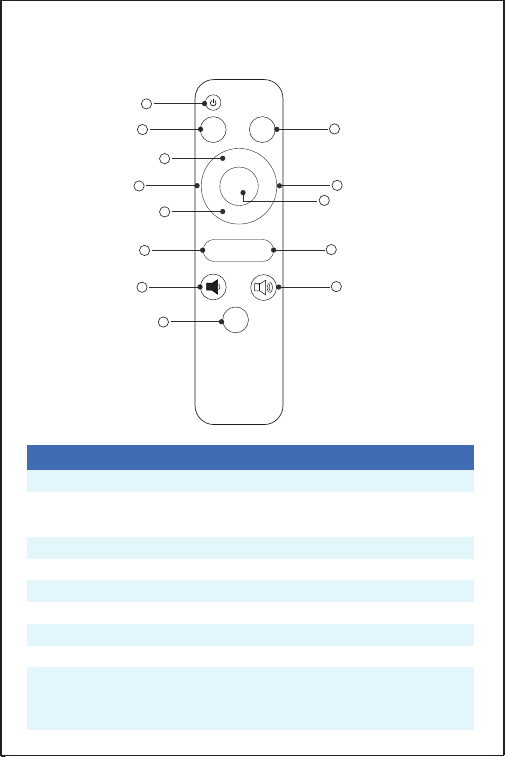
Mute on/off3
Bass up4
Treble down5
Loudness on/off7
Treble up6
Bass down8
EQ mode select:
Normal/Rock/SoftRock/Jazz/Classical/
Dance/Pop/Soft
9
Turn on/off1
Mode select:
Bluetooth/USB/Optical/Coaxial/AUX
2
Number
Function

Package Contents
Fosi Audio DA-2120A *1
Remote Control *1
Optical Cable *1
PC-USB Cable *1
Bluetooth Antenna *1
DC 24V Power Supply *1
User Manual *1
Quick Setup
Preparation
Prepare 1: DA-2120A, 24V power supply, passive speakers, speaker
wires, and banana plugs;
Prepare 2: Connect the DA-2120A to the passive speakers via the
speaker wire or banana plugs;
Prepare 3: Connect the 24V power supply to the DC input;
Prepare 4: Short press the Power Knob to turn on the DA-2120A
amplifier.
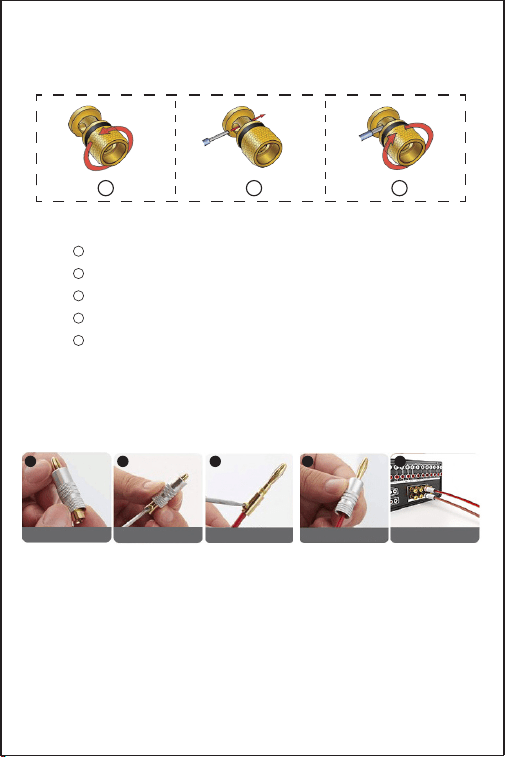
How to connect the speaker wire?
Method 1: Bare wire connection illustration
: Release the horn terminals block terminals;
: Insert the two ends of the speaker wire into the amplifier
and speaker terminal holes;
: Tighten the horn terminals.
1
2
3
Volume down11
Volume up12
Recover:
1. HIFI: Treble and bass initialization;
2. TONE-ON: Restore treble and bass gain.
10
OLED display on/off13
Package Contents
Fosi Audio DA-2120A *1
Remote Control *1
Optical Cable *1
PC-USB Cable *1
Bluetooth Antenna *1
DC 24V Power Supply *1
User Manual *1
Quick Setup
Preparation
Prepare 1: DA-2120A, 24V power supply, passive speakers, speaker
wires, and banana plugs;
Prepare 2: Connect the DA-2120A to the passive speakers via the
speaker wire or banana plugs;
Prepare 3: Connect the 24V power supply to the DC input;
Prepare 4: Short press the Power Knob to turn on the DA-2120A
amplifier.
How to connect the speaker wire?
Method 1: Bare wire connection illustration
: Release the horn terminals block terminals;
: Insert the two ends of the speaker wire into the amplifier
and speaker terminal holes;
: Tighten the horn terminals.
Note: Please avoid the speaker wires being exposed and
touching the amplifier casing, as this may cause a short
circuit fault.
Method 2: Banana plugs connection illustration
: Release the banana jacket;
: Loosen the screw;
: Insertion speaker wire and tighten the screw;
: Tighten the banana jacket;
: Insert the banana plug into the horn terminals of the
speaker and amplifier.
Note: Please take care to avoid contact between the two banana
plugs and causing a short circuit fault as some of the
banana plugs are metal cased.
1
2
3
4
5
1 2 3
Bluetooth for example
Prepare: Bluetooth device (Phone for example)
Step 1: Press the Multi-function Knob to select to Bluetooth mode,
“BT” display is flashing;
Step 2: Turn on the Bluetooth on your phone and search for: “BT
HIFI AUDIO” or “Fosi Audio DA2120A”, connect to the
DA-2120A, “BT” display is always on;
Step 3: Open the audio application, play and enjoy!
Release Jacket Loosen Screw
Insertion speaker wire
tighten screw
Tighten Jacket
1 2 3 4
banana plug into
the horn terminals
5

Optical for example
Prepare: optical device (TV for example), optical cable.
Step 1:
Connect the TV to DA-2120A’s optical interface via the
optical cable;
Step 2: Press the Multi-function Knob to select to optical mode;
Step 3:
Set the TV's optical output sound to RAW/PCM. (NOTE:
Due to different TV types, some TVs default Dolby or DTS
sound output, DA-2120A does not support Dolby and DTS
sound, please select RAW/PCM sound, otherwise you will
hear a lot of noise or no sound output.)
Step 4: Open the audio application, play and enjoy!
Coaxial for example
Prepare: Coaxial device (TV for example), Coaxial cable (no
include).
Step 1: Connect the TV to DA-2120A’s coaxial interface via the
coaxial cable;
Step 2: Press the Multi-function Knob to select to coaxial mode;
Step 3: Set the TV's coaxial output sound to RAW/PCM. (NOTE:
Due to different TV types, some TVs default Dolby or DTS
sound output, DA-2120A DOES NOT support Dolby and
DTS sound, please select RAW/PCM sound, otherwise you
will hear a lot of noise or no sound output.)
Step 4: Open the audio application, play and enjoy!
AUX for example
Prepare: AUX device (phone for example), 3.5mm to 3.5mm male
cable (no include).
Step 1: Connect the phone to DA-2120A’s AUX interface via the
3.5mm to 3.5mm male cable;
Step 2: Press the Multi-function Knob to select to AUX mode;
Step 3: Open the audio application, play and enjoy!
Bluetooth for example
Prepare: Bluetooth device (Phone for example)
Step 1: Press the Multi-function Knob to select to Bluetooth mode,
“BT” display is flashing;
Step 2: Turn on the Bluetooth on your phone and search for: “BT
HIFI AUDIO” or “Fosi Audio DA2120A”, connect to the
DA-2120A, “BT” display is always on;
Step 3: Open the audio application, play and enjoy!


Troubleshooting/QA
1: Why do I get loud hiss noise coming from the TV via
optical input?
• Please turn off Dolby/DTS audio on your TV or TV App, DA-2120A
does not support Dolby/DTS audio input.
2: Can this product be used at 220 volts?
• Yes, the power supply can work at any AC 110V-240V.
3: Does the DA-2120A support Bluetooth 5.0 & aptX?
• The DA-2120A supports Bluetooth 5.0 and backwards
compatibility with 4.2, 4.0, etc. Also, the DA-2120A supports
Bluetooth aptX.
4: Why can't I use aptX to connect to the DA-2120A?
• The DA2120A supports aptX but still requires a Bluetooth device
(e.g. mobile phone) that also supports aptX to work. Please check
that your Bluetooth device has aptX enabled or seek support from
your Bluetooth device's customer service for further assistance.
5: Can I use headphone with this product?
• No, the DA-2120A cannot be connected to headphones and only
supports passive speakers or active subwoofer output.
6: Why does the sound is cracking or make a lot of
electric noise?
• Please make sure all the cables completely pushed into the
devices, incompletely connection will cause this cracking.
• Please remove all the inputs then check whether cracking noise
disappear or not, the cracking maybe from the audio source or
input cables.

• If you are not using the original factory standard power supply,
please replace the power supply before testing. Many power
supply in the market have large interference coefficient, which
will cause a lot of current sound.
7: My Bluetooth device can’t pair with DA2120A?
• Make sure that DA2120A Bluetooth mode is on and “BT” display
is flashing; “BT” display is always on to indicate that it is
connected
• Make sure that DA2120A is not paired with other devices.
• Make sure that the distance between your device and DA2120A is
not too long, close your device to DA2120A to have a try.
• Make sure there are no obstacles between your device and
DA2120A, obstacles will affect the Bluetooth operation distance.
• Please try to change another Bluetooth audio source to test.
• Replug power supply and restart the DA2120A and then try to
connect again, try to use another brand of mobile phone.
8: No Dolby/DTS audio and I still get noise through the
USB input?
• Please switch the USB port to USB 3.0 or back USB port and try
again, as some USB ports have unstable data transmission;
• Please try again with another computer;
• Please replace the PC-USB cable and retest, contact me for
compensation if the original cable is faulty;
• Please change the power supply adaptation and retest, why?
Because of the ageing of the power supply there may be an
abnormal power supply resulting in white noise. I recommend
using the 9V-24V to power it.
Troubleshooting/QA
1: Why do I get loud hiss noise coming from the TV via
optical input?
• Please turn off Dolby/DTS audio on your TV or TV App, DA-2120A
does not support Dolby/DTS audio input.
2: Can this product be used at 220 volts?
• Yes, the power supply can work at any AC 110V-240V.
3: Does the DA-2120A support Bluetooth 5.0 & aptX?
• The DA-2120A supports Bluetooth 5.0 and backwards
compatibility with 4.2, 4.0, etc. Also, the DA-2120A supports
Bluetooth aptX.
4: Why can't I use aptX to connect to the DA-2120A?
• The DA2120A supports aptX but still requires a Bluetooth device
(e.g. mobile phone) that also supports aptX to work. Please check
that your Bluetooth device has aptX enabled or seek support from
your Bluetooth device's customer service for further assistance.
5: Can I use headphone with this product?
• No, the DA-2120A cannot be connected to headphones and only
supports passive speakers or active subwoofer output.
6: Why does the sound is cracking or make a lot of
electric noise?
• Please make sure all the cables completely pushed into the
devices, incompletely connection will cause this cracking.
• Please remove all the inputs then check whether cracking noise
disappear or not, the cracking maybe from the audio source or
input cables.

9: USB Device not recognized on Windows?
• Computer sound setting: Select Start, then type device manager
in the Search box, and then select “Device Manager”.
Expand Universal Serial Bus controllers. Press and hold (or
right-click) the DA-2120A (Digital Hifi Audio) device and select
Uninstall.
Repeat for each device to uninstall.
Restart your computer.
Your USB controllers will automatically install.
• Please try another computer connection.
• Please try another USB 3.0 interface connection.
• Please try an alternative USB cable.
10: Why do I get an intermittent sound?
• Please switch the USB cable to USB 3.0 port or back USB port
and try again, as some USB ports have unstable data
transmission;
• Please replace the PC-USB cable and replug power supply to
restart the amplifier, contact Fosi Audio customer support for
compensation if the original cable is faulty.
11: Can this input through USB, and output to optical with
5.1 surround?
• It cannot. The optical connection is only an input, not an output.
12: One channel does not work?
• Please test whether the Bluetooth and RCA input have the same
problem first.
• If the two modes have the same problem, swap the speaker
cables of the left and right channels, or change another speakers,
and then test whether this channel still does not work;

• If only RCA or Bluetooth mode does not work, change the audio
source, change the RCA cable and test again, and make sure that
all the cables are completely pushed into the device.
13: DA2120A supports subwoofer, is it possible to connect
the subwoofer directly?
• The sub output can be connected to active/powered subwoofer or
to subwoofer amplifier then to passive subwoofer.
14: Can I leave the DA-2120A power on all the time? Does
it safe?
• Sure, the DA-2120A is class D amplifier, will cost very low power
when nothing playing through it, and it's safe and you can leave it
on all the time.
15: Can I exchange the power supply come with the
amplifier and to get more power?
• The DA-2120A come with 24V 4.5A power supply, it's enough for
most bookshelf speakers, but if you want to get more power, you
can exchange the power supply, the voltage range is DC12-24V,
and you can use 24V 6A power supply or more.
Any problems please leave a message to the customer
support email address: suppor[email protected].
9: USB Device not recognized on Windows?
• Computer sound setting: Select Start, then type device manager
in the Search box, and then select “Device Manager”.
Expand Universal Serial Bus controllers. Press and hold (or
right-click) the DA-2120A (Digital Hifi Audio) device and select
Uninstall.
Repeat for each device to uninstall.
Restart your computer.
Your USB controllers will automatically install.
• Please try another computer connection.
• Please try another USB 3.0 interface connection.
• Please try an alternative USB cable.
10: Why do I get an intermittent sound?
• Please switch the USB cable to USB 3.0 port or back USB port
and try again, as some USB ports have unstable data
transmission;
• Please replace the PC-USB cable and replug power supply to
restart the amplifier, contact Fosi Audio customer support for
compensation if the original cable is faulty.
11: Can this input through USB, and output to optical with
5.1 surround?
• It cannot. The optical connection is only an input, not an output.
12: One channel does not work?
• Please test whether the Bluetooth and RCA input have the same
problem first.
• If the two modes have the same problem, swap the speaker
cables of the left and right channels, or change another speakers,
and then test whether this channel still does not work;

Our website: www.fosiaudio.com
Amazon store: www.amazon.com/fosiaudio
Our Youtube channel: Fosi Audio
Our Facebook page: Fosi Audio
After-sale Service and Technical Support Email:
support@fosiaudio.com
fosiaudio@hotmail.com
Warranty Information
• All Fosi Audio products have an 18-month limited warranty on
parts and labor from the date of purchase. Please contact us if
you have any problems.
About Fosi Audio
• Fosi Audio designs and builds innovative audio products with
all your music in mind. Great sound, simple but elegant
designs, high-quality materials, and truly useful features are
what Fosi Audio is about. We sincerely hope you get as much
enjoyment from our products as we’ve had to create them!
Fosi Audio Product’s User Manual
• If only RCA or Bluetooth mode does not work, change the audio
source, change the RCA cable and test again, and make sure that
all the cables are completely pushed into the device.
13: DA2120A supports subwoofer, is it possible to connect
the subwoofer directly?
• The sub output can be connected to active/powered subwoofer or
to subwoofer amplifier then to passive subwoofer.
14: Can I leave the DA-2120A power on all the time? Does
it safe?
• Sure, the DA-2120A is class D amplifier, will cost very low power
when nothing playing through it, and it's safe and you can leave it
on all the time.
15: Can I exchange the power supply come with the
amplifier and to get more power?
• The DA-2120A come with 24V 4.5A power supply, it's enough for
most bookshelf speakers, but if you want to get more power, you
can exchange the power supply, the voltage range is DC12-24V,
and you can use 24V 6A power supply or more.
Any problems please leave a message to the customer
support email address: suppor[email protected].