
Thanks for choosing us!
Fosi Audio DAC-Q4 User Manual

Product Specifications
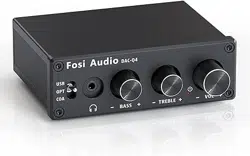
The Q4 is a compact mini digital/analogue audio converter
adapter with USB, optical and coaxial digital inputs, a classic
3.5mm headphone jack and RCA outputs, suitable for most
home audio systems. With bass and treble controls, it can be
used as a preamplifier or volume control for PC/MAC/Computer.
Fosi Audio Q4 ensures exquisite musicality, accurate and
realistic phasing, and reproduction of the original sound!
Output Type: 3.5mm Headphone, RCA
Chipset: SA9023+CS8412+
97220+NE5532
Optical/Coaxial
Sampling Rate:
24Bit/192kHz
Input Type: USB, Optical, Coaxial
USB Sampling Rate: 24Bit/96kHz
Headphone Impedance: 16-200Ω
RCA Output Level: 2.3V
Power Supply: 5V
THD: ≤0.01%
SNR: ≥105dB
Size (L*W*H): 73.5*98*33MM
Net Weight: 0.4kg
Product Overview & Control
Functions
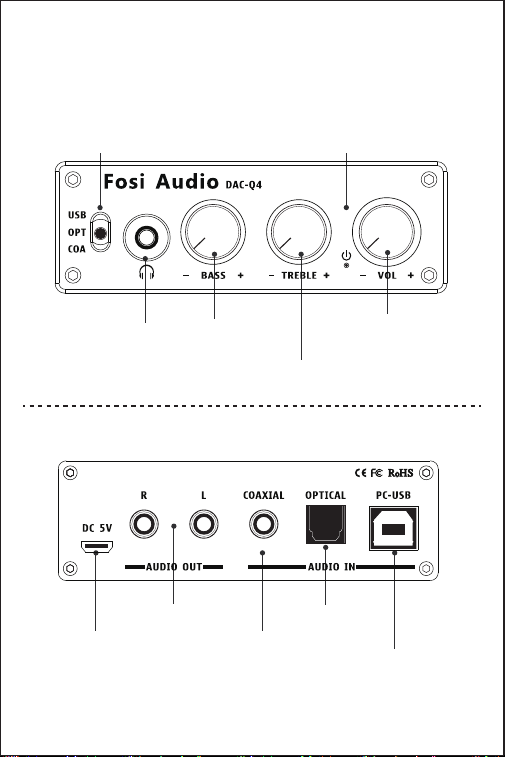
3.5mm
Headphone
Output
Bass Control
Treble Control
Multi-function knob
:
1.Power Switch
2.Volume Switch
USB/Optical/
Coaxial Input Select
Power Indicator
Light
DC 5V Power
Input
PC-USB Input
Optical
Input
Coaxial
Input
Audio Out

Package Contents
Fosi Audio DAC-Q4 ×1
5V USB Power Supply Cable ×1
PC-USB Cable ×1
Optical Cable ×1
User’s Manual ×1
Quick Setup
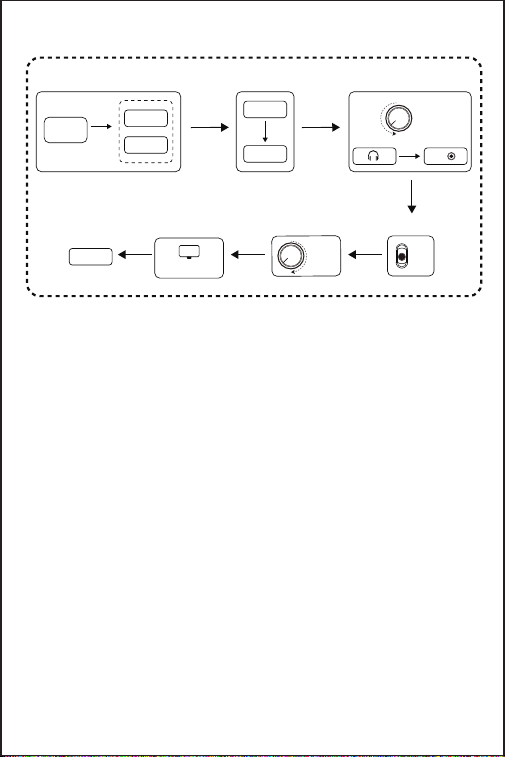
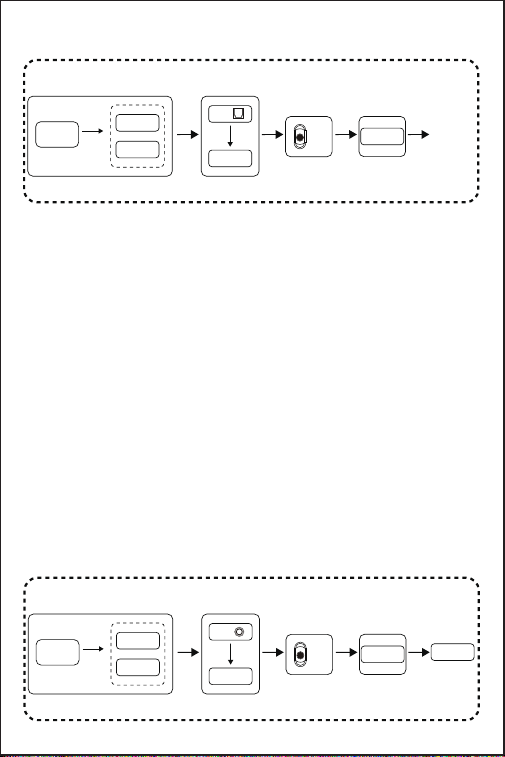
PC-Windows for example
Prepare:
Q4, PC, AC adapter, PC-USB cable, Micro-USB cable,
Headphones.
Step 1: Connect the Micro-USB cable to the AC adapter, then
connect the Micro-USB cable to the Q4;
Step 2: Connect the Q4 to the PC via the PC-USB cable;
Step 3: Turn down the volume control to lowest level(turn off the
power switch)and connect the headphones to the 3.5mm
headphone jack;
Step 4: Adjust input mode selection key to select USB input mode;
Step 5: Turn on the power switch (turn up the volume);
(
Note: The power switch is also the volume control knob.
Turn on: Turn the volume knob clockwise to the right;
Turn off: Turn the volume knob counterclockwise to the left
and adjust the volume to minimum.
)
Step 6: Left click on the computer desktop sound icon and select
Device: “Fosi Audio Q4”(Digital HiFi Audio);
Step 7: Open the audio application, play and enjoy!
(
Note: Before connecting the power supply, please turn down the
volume control to the lowest level, to avoid your hearing
from damage.
)
Adjust input mode selection key to select USB input mode;
urn the volume knob counterclockwise to the left
Left click on the computer desktop sound icon and select
Optical for example
Prepare:
Q4, AC adapter, Micro-USB cable, optical device (TV for
example), optical cable.
Step 1: Connect the Micro-USB cable to the AC adapter, then
connect the Micro-USB cable to the Q4;
Step 2: Connect the TV to Q4's optical interface via the optical
cable;
Step 3: Adjust the input selection button to select optical mode;
Step 4: Set the TV's optical output sound to RAW/PCM;
(
NOTE: Due to different TV types, some TVs default Dolby
or DTS sound output, Q4 DOES NOT Support Dolby and
DTS sound, please select RAW/PCM Sound, otherwise you
will hear a lot of noise or no sound output.)
Step 5: Open the audio application, play and enjoy!
PC-Windows for example
Step 2Step 1 Step 3
Step 7
Step 4
Micro-USB
cable
AC adapte
Q4
PC
Q4
Enjoy it!
Q4
Turn down
Step 5
Turn on
Turn up
Step 6
USB
“Fosi Audio Q4”
PC
Due to different TV types, some TVs default Dolby
W/PCM Sound, otherwise you
Coaxial for example
Prepare:
Q4, AC adapter, Micro-USB cable, Coaxial device (TV for
example), Coaxial cable (no include).
Step 1: Connect the Micro-USB cable to the AC adapter, then
connect the Micro-USB cable to the Q4;
Step 2: Connect the TV to Q4's coaxial interface via the coaxial
cable;
Step 3: Adjust the input selection button to select coaxial mode;
Step 4: Set the TV's coaxial output sound to RAW/PCM;
(
NOTE: Due to different TV types, some TVs default Dolby
or DTS sound output, Q4 DOES NOT support Dolby and
DTS sound, please select RAW/PCM sound, otherwise you
will hear a lot of noise or no sound output.)
Step 5: Open the audio application, play and enjoy!
Optical for example
Step 2Step 1
Step 3
Step 4
Micro-USB
cable
AC adapte
Q4
RAW/PCM
OPT
TV
OPT
Coaxial for example
Step 2Step 1
Step 3
Step 4
Micro-USB
cable
AC adapte
Q4
Enjoy it!
RAW/PCM
COA
TV
COA

Troubleshooting/QA
1: How do I power the DAC-Q4?
• You will need to use the supplied Micro-USB cable to power it, we
recommend using the PC-USB port/5V power adapter to power it.
Note:The Micro-USB cable cannot be fully inserted into the
device power port, please do not force it. Subsequent
revisions have been made.
2: Why is it that all my wires are plugged in, but the Q4
RCA analog output is silent?
• At this point, you should check to see if the headphone output is
plugged into the headphone. If so, you should unplug the headset
to simulate RCA output.
3: Why do I get endless white noise?
• Please check that your input device is using Dolby/DTS audio,
please switch off Dolby/DTS audio and try again.
4: No Dolby/DTS audio and I still get noise through the
USB input?
• Please switch the USB port to USB 3.0 or back USB port and try
again, as some USB ports have unstable data transmission;
• Please try again with another computer;
• Please replace the PC-USB cable and retest, contact us for
compensation if the original cable is faulty;
• Please change the power supply adaptation and retest, why?
Because of the ageing of the power supply there may be an
abnormal power supply resulting in white noise. We recommend
using the PC-USB port/5V power adapter to power it.
, Micro-USB cable, Coaxial device (TV for
Due to different TV types, some TVs default Dolby
W/PCM sound, otherwise you

5: USB Device not recognized on Windows?
• Select Start, then type device manager in the Search box, and
then select Device Manager;
• Expand Universal Serial Bus controllers. Press and hold (or
right-click) a device and select Uninstall. Repeat for each device;
• Once complete, restart your computer. Your USB controllers will
automatically install.
If Windows update causes the device to be unrecognized, please
update all windows components and reboot, retest. Please
contact me for a solution.
6: How to do plug and play on Windows?
• Just click the sound icon in your notification area;
• Click the “Select playback device” option;
• Select the playback device “Fosi Audio Q4”(Digital HiFi Audio).
7: I can't play Spotify music in Plug and Play mode?
• Please exit the Spotify app and switch the playback device to the
computer's own sound card device, open Spotify and play,
confirm that it works and then switch the playback device to
DAC-Q4 "Digital HiFi Audio".
8: How do I get the highest 24Bit/96kHz resolution on my
PC?
• Right-click the PC sound icon in the lower right corner, open
Volume Mixer, click on the icon of the device/SPDIF: “Digital HiFi
Audio” to open the Properties, click the Advanced, select 24Bit,
96000Hz for maximum sound quality output.

9: Why do I get an intermittent sound?
• Please switch the USB port to USB 3.0 or back USB port and try
again, as some USB ports have unstable data transmission;
• Please replace the PC-USB cable and retest, contact me for
compensation if the original cable is faulty.
10: Why there is no sound when PC-USB connects to PC?
• First press the PC-USB operation to confirm whether the digital
playback output has been selected. If still no sound, you can
restart the computer and repeat the operation again, also please
make sure you had select correct device name on your PC sound
setting.
• Some computers' USB port are low quality on the front panel,
please change USB port to have a try, it's better use the USB port
on the back panel of the computer.
11: Why my device stopping working after short time use?
• Make sure your audio source and the headphones, amplifier or
powered speakers you connected are works well. And please
check all the connection of the input and output cables, please
change the audio source, output devices, cables to try again. Also
please check the power supply works or not.
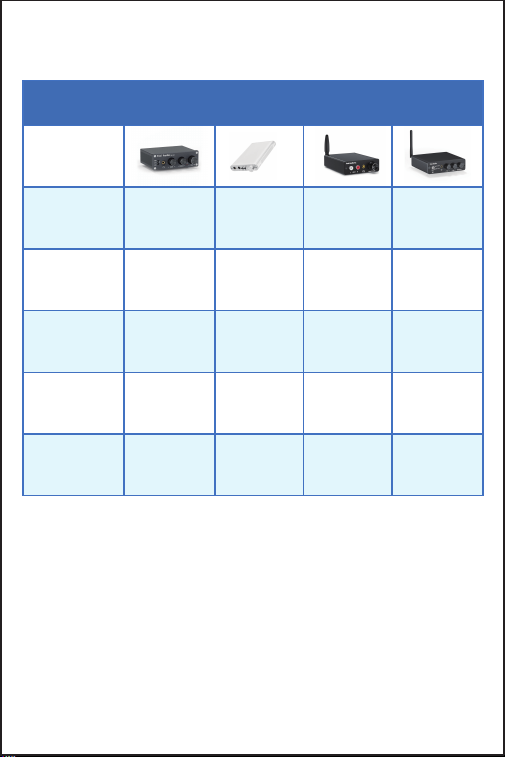
Comparison Section
Model
Bluetooth Version
- -
5.0
5.0
Picture
Headphone Output
Impedance
16-200 (Ω)
16-200 (Ω)
16-200 (Ω) 16-200 (Ω)
Input Ways USB+OPT+COA AUX BT+USB+
OPT+COA
BT+USB+
OPT+COA
Output Ways 3.5mm
Headphone+RCA
AUX
3.5mm
Headphone+RCA
3.5mm
Headphone+RCA
Size 73.5*98*33mm
106*67*14mm
94*71*23mm 110*100*30mm
Q4 N2 K1 K2

Our website: www.fosiaudio.com
Amazon store: www.amazon.com/fosiaudio
Our Youtube channel: Fosi Audio
Our Facebook page: Fosi Audio
After-sale Service and Technical Support Email:
support@fosiaudio.com
fosiaudio@hotmail.com
Warranty Information
• All Fosi Audio products have an 18-month limited warranty on
parts and labor from the date of purchase. Please contact us if
you have any problems.
About Fosi Audio
• Fosi Audio designs and builds innovative audio products with
all your music in mind. Great sound, simple but elegant
designs, high-quality materials, and truly useful features are
what Fosi Audio is about. We sincerely hope you get as much
enjoyment from our products as we’ve had to create them!
Fosi Audio Product’s User Manual